Chapter 4 Ch4
User Manual: Chapter 4 C-more Micro-Graphic Panel User Manual and Quick Start Guide
Open the PDF directly: View PDF  .
.
Page Count: 8

4
4
4
InstallatIon & WIrIng
Chapter
Chapter
Chapter
In this Chapter...
Safety Guidelines ....................................................................................................... 4-2
Introduction ............................................................................................................... 4-3
Panel Cutout Dimensions (all models) ..................................................................... 4-4
Wiring Guidelines ...................................................................................................... 4-5
4-2
Chapter 4: Installation and Wiring
1
2
3
4
5
6
7
8
9
10
11
12
13
14
A
B
C
D
EA1-MG-USER-M Hardware User Manual, 2nd Ed. Rev. D, 08/17
®
Safety Guidelines
NOTE: Products with CE marks perform their required functions safely and adhere to relevant standards
as specified by CE directives provided they are used according to their intended purpose and that the
instructions in this manual are adhered to. The protection provided by the equipment may be impaired if this
equipment is used in a manner not specified in this manual. A listing of our international affiliates is available
on our Web site: http://www.automationdirect.com
Warning: Providing a safe operating environment for personnel and equipment is your responsibility
and should be your primary goal during system planning and installation. Automation systems can fail
and may result in situations that can cause serious injury to personnel or damage to equipment. Do not
rely on the automation system alone to provide a safe operating environment. You should use external
electromechanical devices, such as relays or limit switches, that are independent of the PLC application
to provide protection for any part of the system that may cause personal injury or damage. Every
automation application is different, so there may be special requirements for your particular application.
Make sure you follow all national, state, and local government requirements for the proper installation
and use of your equipment.
Plan for Safety
The best way to provide a safe operating environment is to make personnel and equipment
safety part of the planning process. You should examine every aspect of the system to
determine which areas are critical to operator or machine safety. If you are not familiar with
control system installation practices, or your company does not have established installation
guidelines, you should obtain additional information from the following sources.
• NEMA — The National Electrical Manufacturers Association, located in Washington, D.C.
publishes many different documents that discuss standards for industrial control systems. You can
order these publications directly from NEMA. Some of these include:
ICS 1, General Standards for Industrial Control and Systems
ICS 3, Industrial Systems
ICS 6, Enclosures for Industrial Control Systems
• NEC — The National Electrical Code provides regulations concerning the installation and use of
various types of electrical equipment. Copies of the NEC Handbook can often be obtained from your
local electrical equipment distributor or your local library.
• Local and State Agencies — many local governments and state governments have additional
requirements above and beyond those described in the NEC Handbook. Check with your local
Electrical Inspector or Fire Marshall office for information.
Chapter 4: Installation and Wiring
1
2
3
4
5
6
7
8
9
10
11
12
13
14
a
B
C
D
4-3
Chapter 4: Installation and Wiring
1
2
3
4
5
6
7
8
9
10
11
12
13
14
A
B
C
D
EA1-MG-USER-M Hardware User Manual, 2nd Ed. Rev. D, 08/17
®
Introduction
The installation and wiring of C-more® Micro-Graphic panels require selecting an appropriate
location for the panel, laying out the cutout dimensions on the surface of the control cabinet
that the panel will be mounted through, securing the panel with the provided mounting clips,
tightening the screws to the appropriate torque rating to assure the gasket is sealing correctly,
and finally connecting the appropriate power source to the panel.
Note: Each C-more Micro-Graphic panel is provided with a cutout template to make marking the proper
cutout size on the surface of the control cabinet that the panel will be mounted through a simple task. The
keypad bezels are also provided with an appropriate cutout template for mounting convenience.
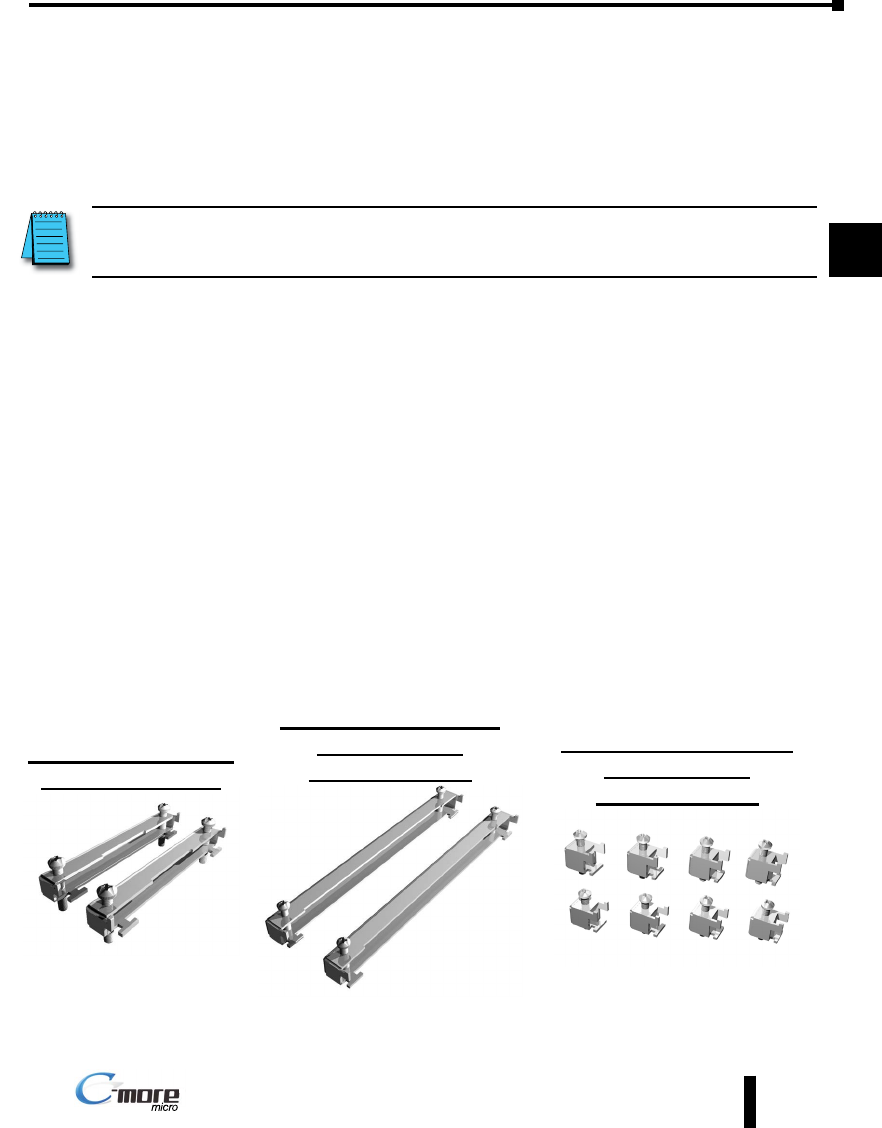
The C-more 3” Micro-Graphic panels include two mounting clips. The clip is a long metal
bracket with two screws. It is fitted to the panel by inserting two tabs into mating slots on the
panel and then sliding the clip into a narrower slot to secure it in place.
If using the panel with either the 8-button or 20-button Keypad Bezel, then install the panel
into the keypad bezel and secure with the mounting clips that are provided with the panel.
Create a cutout in the enclosure that the assembled panel and keypad bezel will be mounted
through and secure the assembly with the mounting clips that are provided with the keypad
bezel. See Chapter 3: Accessories for additional details.
This chapter only covers the proper mounting of the panel and connecting power. Once power
is applied to the panel, read Chapter 5, System Setup Screens, to check the information menu
to make sure the panel has the latest version of firmware, become familiar with the panel test
features, and check the memory usage.
The next step will be to select the appropriate PLC protocol and communications cable as
described in Chapter 6.
Chapter 4: Installation and Wiring
1
2
3
4
5
6
7
8
9
10
11
12
13
14
a
B
C
D
Panel Mounting Clips
EA-MG-S3ML-BRK
8-Button Keypad Bezel
Mounting Clips
EA-MG-BZ1-BRK
20-Button Keypad Bezel
Mounting Clips
EA-MG-BZ2-BRK
4-4
Chapter 4: Installation and Wiring
1
2
3
4
5
6
7
8
9
10
11
12
13
14
A
B
C
D
EA1-MG-USER-M Hardware User Manual, 2nd Ed. Rev. D, 08/17
®
Chapter 4: Installation and Wiring
1
2
3
4
5
6
7
8
9
10
11
12
13
14
a
B
C
D
Panel Cutout Dimensions (all models)
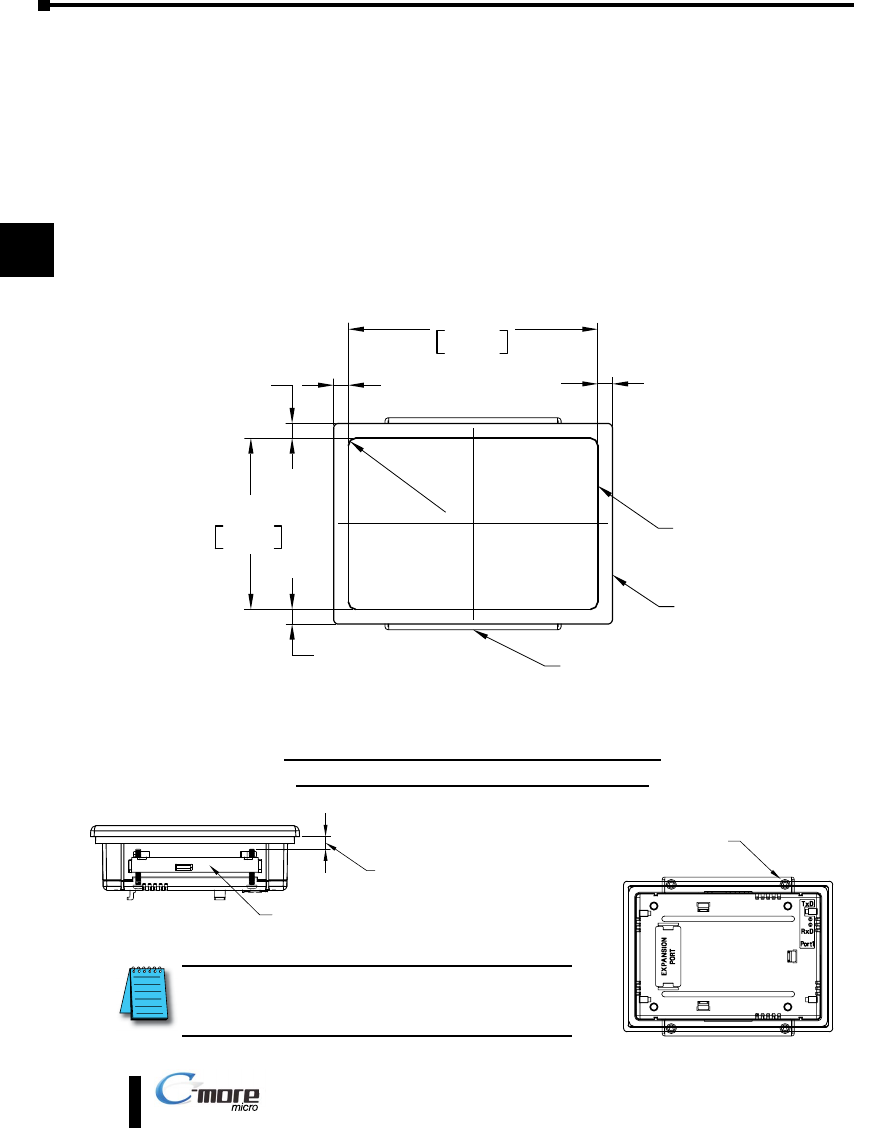
The C-more 3” panel is mounted into a cutout through the control cabinet and secured with
two (2) mounting clips. The mounting clips are provided with the panel. There is a set of two
(2) “T” shaped holes (slots) on each side of the panel’s long dimension that the two tabs on
each mounting clip will match. The mounting clips are held in place by inserting the tabs into
the “T” shaped holes (slots) and then moving the mounting clip toward the rear of the panel
to keep it in place. Next tighten the mounting clip screws to pull the rear of the panel’s bezel
to the control cabinet’s mounting surface. The screws need to be tightened to the torque rating
shown in the illustration below so that the gasket is compressed to form the proper seal between
the panel and cabinet surface.
CUTOUT
OUTLINE
BEZEL
OUTLINE
0.236
[6.0]
0.236
[6.0]
0.236
[6.0]
Units: inches [mm]
R0.118 [R3]
CUTOUT
4.016 +0.04
– 0.00
102.0 +1
–0
2.756 +0.04
–0.00
70.0 +1
–0
MOUNTING CLIP
(2) places
0.236
[6.0]
Enclosure Mounting Thickness Ranges
and Mounting Bracket Screw Torque
MOUNTING CLIP
(2) places
ENCLOSURE MOUNTING
THICKNESS RANGE
0.04"– 0.2" [1– 5 mm]
MOUNTING CLIP
SCREW T
ORQUE RANGE
21-28 oz-in [0.15-0.2 Nm]
NOTE: A minimum clearance of 1.2 inches (30mm) must
be maintained around and behind the panel to allow
for proper cooling.
4-5
Chapter 4: Installation and Wiring
1
2
3
4
5
6
7
8
9
10
11
12
13
14
A
B
C
D
EA1-MG-USER-M Hardware User Manual, 2nd Ed. Rev. D, 08/17
®
Chapter 4: Installation and Wiring
1
2
3
4
5
6
7
8
9
10
11
12
13
14
a
B
C
D
Wiring Guidelines
Warning: To minimize the risk of potential safety problems, you should follow all applicable local and
national codes that regulate the installation and operation of your equipment. These codes vary from
area to area and it is your responsibility to determine which codes should be followed, and to verify
that the equipment, installation, and operation are in compliance with the latest revision of these
codes.
Equipment damage or serious injury to personnel can result from the failure to follow all applicable
codes and standards. We do not guarantee the products described in this publication are suitable for
your particular application, nor do we assume any responsibility for your product design, installation,
or operation.
If you have any questions concerning the installation or operation of this equipment, or if you need
additional information, please call us at 1-800-633-0405 or 770-844-4200.
This publication is based on information that was available at the time it was printed. At
Automationdirect.com® we constantly strive to improve our products and services, so we reserve
the right to make changes to the products and/or publications at any time without notice and without
obligation. This publication may also discuss features that may not be available in certain revisions of
the product.
Providing Power to the Micro-Graphic Panel
• The C-more Micro-Graphic panel is powered during programming from the PC through the USB to
RS-232 Programming Cable Assembly, EA-MG-PGM-CBL.
• During operation, the C-more Micro-Graphic panel can be powered from most AutomationDirect
PLC’s RJ12 serial communications port by using a DV-1000CBL communications cable, or a
DV-1000CBL communications cable with a FA-15HD 15-pin HD DSub/RJ12 Adapter connected
to a DirectLOGIC PLC’s 15-pin HD communications port (DL06, D2-250-1 & D2-260) PLCs.
See Chapter 6: PLC Communications for additional details.
• The 3” panel can also be powered by installing either the EA-MG-P1 DC Power Adapter, or the
EA-MG-SP1 Serial Port with DC Power Adapter to the back of the panel and supply the adapter
from a 1 Amp @ 12-24 VDC power source.
Panel Powered from AutomationDirect PLC via Communications Cable
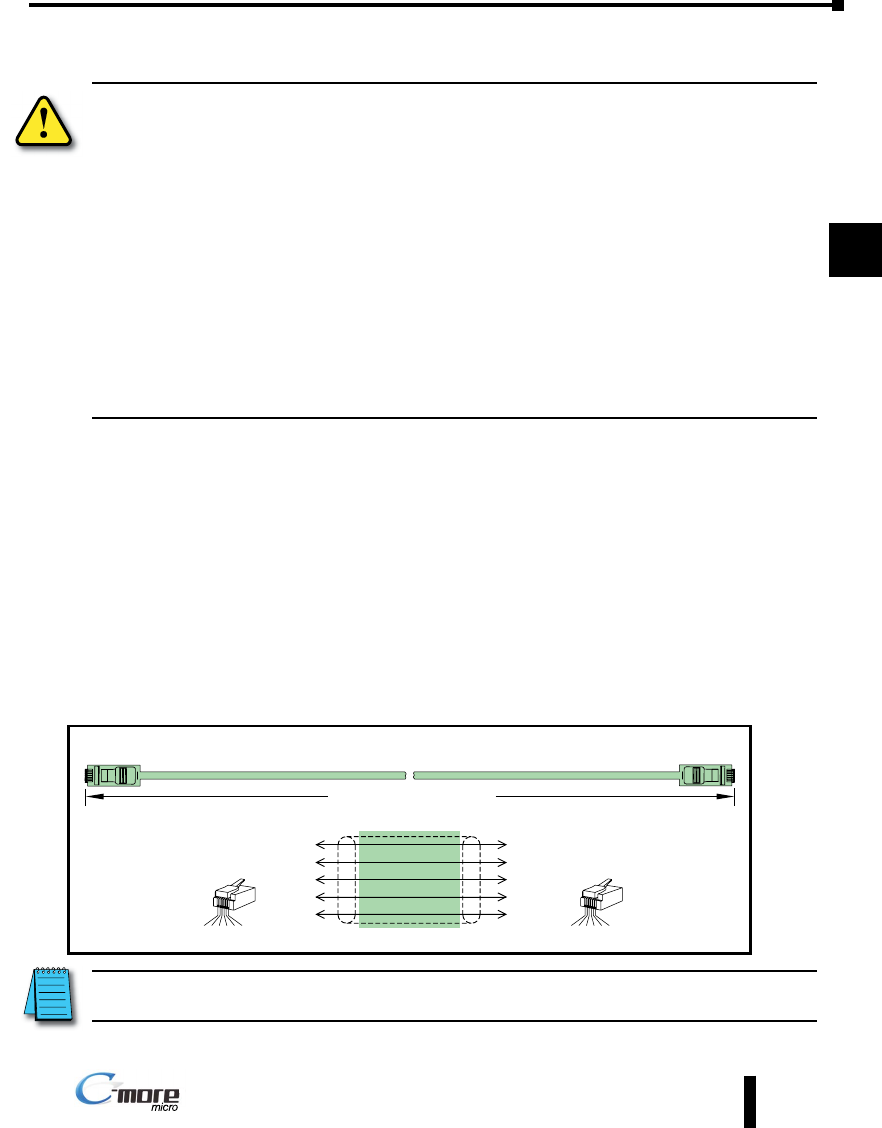
NOTE: Maximum cable length when the panel is powered via the DV-1000CBL using an AutomationDirect
PLC is 10 feet.
Wiring Guidelines continued at top of the next page.
Power Supplied to Panel through Cable from AutomationDirect PLC’s,
RS-232C (p/n DV-1000CBL)
To PLC
RJ12 Port
To C-more
Micro-Graphic
Serial Port 1
6
4
GND
TXD
1
3
GND
Wiring Diagram
3
RXD
2
+5 V
1 = Sig GND
2 = not used
3 = RXD
4 = TXD
5 = +5 VDC
6 = Sig GND
1 2 3 4 5 6
RJ12 6-pin
Phone Plug
(6P6C)
1
GND 6 GND
1 2 3 4 5 6
RJ12 6-pin
Phone Plug
(6P6C)
1 = Sig GND
2 = +5 VDC
3 = RXD
4 = TXD
5 = not used
6 = Sig GND
4
5
RXD
TXD
+5 V
10 feet [3.0 m] Maximum
4-6
Chapter 4: Installation and Wiring
1
2
3
4
5
6
7
8
9
10
11
12
13
14
A
B
C
D
EA1-MG-USER-M Hardware User Manual, 2nd Ed. Rev. D, 08/17
®
Chapter 4: Installation and Wiring
1
2
3
4
5
6
7
8
9
10
11
12
13
14
a
B
C
D
Wiring Guidelines (cont’d)
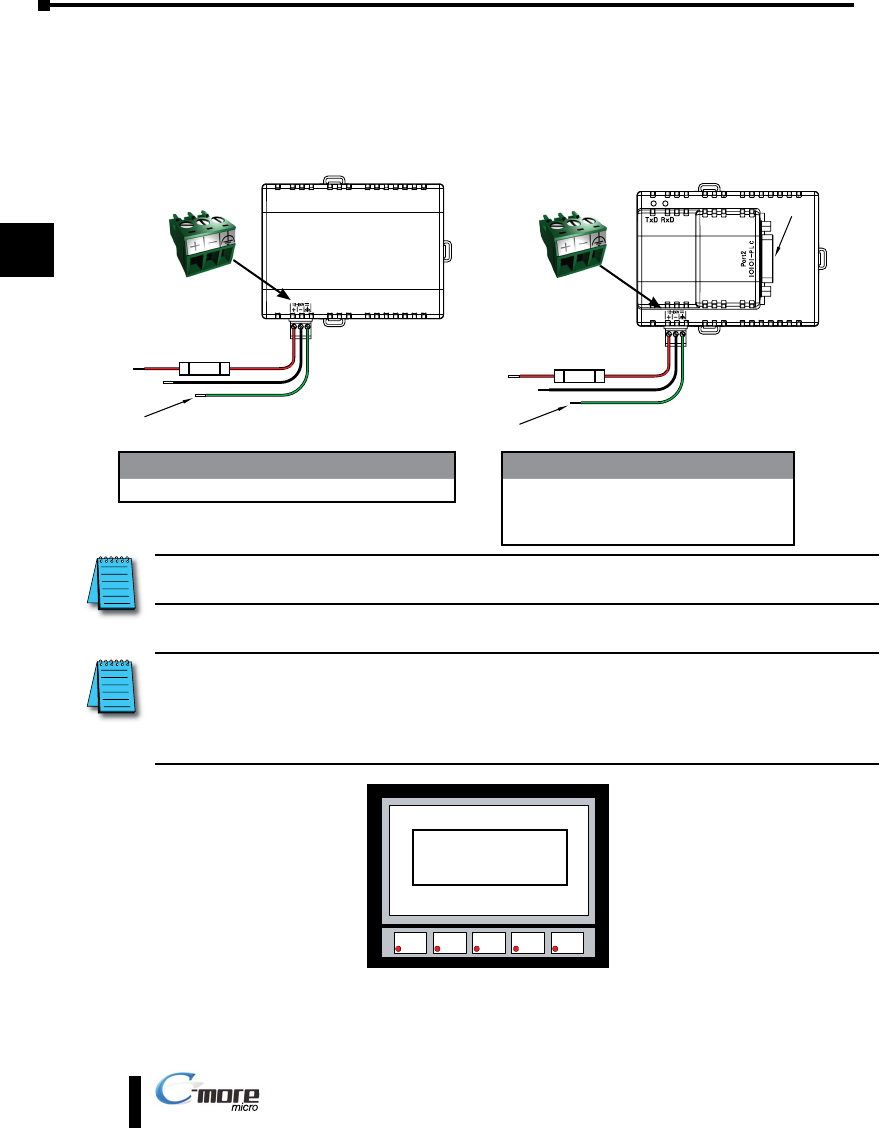
Panel Powered from a DC Power Adapter – Wiring Diagrams
NOTE: Recommended DC power supply to power either DC Power Adapter, AutomationDirect Part No.
PSC-24-015 or PSC-24-030.
NOTE: If either the EA-MG-P1 DC Power Adapter or the EA-MG-SP1 Serial Port with DC Power Adapter is
installed on the 3” Micro-Graphic panel, then the adapter must be powered. The error message below will
be displayed on the panel if power is not applied. The RJ12 serial communications port (Port 1) on the
panel can still be used to communicate with a PLC or control device while using one of the adapters, but the
+5 VDC power through the serial cable from AutomationDirect PLC’s RJ12 serial comm port is not used.
Wiring Guidelines continued at top of the next page.
DC Power Adapter
EA-MG-P1
Supply to adapter:
1 A @ 12 - 24 VDC
(10.8 - 26.4 VDC)
+
–
GND
Equipment
Ground
Recommended
DC Supply Fuse
750 mA fast acting,
ADC p/n AGC-75
Serial Port with
DC Power Adapter
EA-MG-SP1
Supply to adapter:
1 A @ 12 - 24 VDC
(10.8 - 26.4 VDC)
+
–
GND
Equipment
Ground
Recommended
DC Supply Fuse
750 mA fast acting,
ADC p/n AGC-75
Port 2
F1 F2 F3 F4 F5
R100:
Option module
detected without
external power
Tightening Torque
Power supply wire connection 1.7 lb-in (0.2 Nm)
Required Wire Specif ication
Supported temperature Over 60 °C
Wire Material Copper
Wire Size 16 - 22 AWG
4-7
Chapter 4: Installation and Wiring
1
2
3
4
5
6
7
8
9
10
11
12
13
14
A
B
C
D
EA1-MG-USER-M Hardware User Manual, 2nd Ed. Rev. D, 08/17
®
Wiring Guidelines (cont’d)
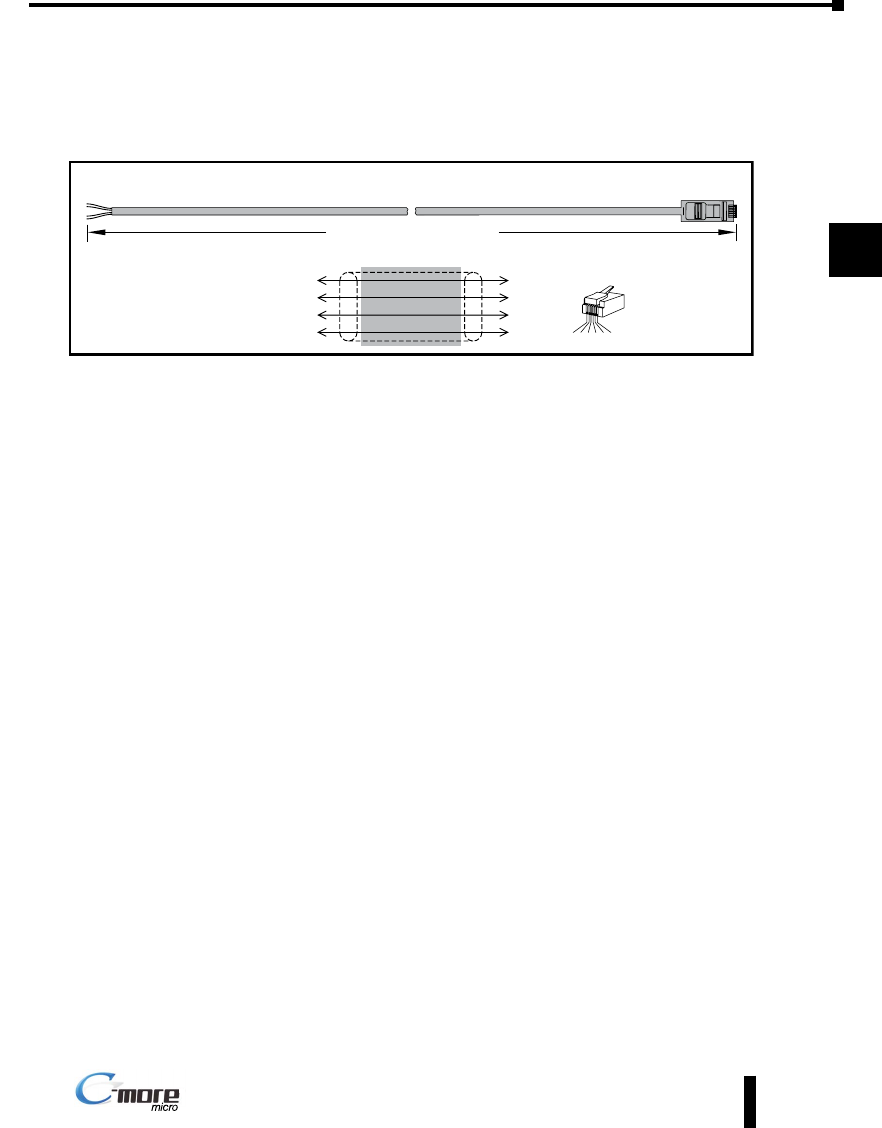
Maximum communication cable length when powered from optional DC Power Adapter
is 50 ft. (15 m)
Chapter 4: Installation and Wiring
1
2
3
4
5
6
7
8
9
10
11
12
13
14
a
B
C
D
Cable wiring example when power is supplied to panel from either a DC
Power Adapter, EA-MG-P1, or a Serial Port w/ DC Power Adapter, EA-MG-SP1
To PLC
Port Connector
To C-more
Micro-Graphic
Serial Port 1
GND
RXD
TXD
1
3
4
GND
RXD
Wiring Diagram
GND
1 = Sig GND
2 = do not use
3 = RXD
4 = TXD
5 = +5 VDC
6 = Sig GND
1 2 3 4 5 6
RJ12 6-pin
Phone Plug
(6P6C)
6
TXD
GND
50 feet [15.0 m] Maximum
