Doc Upload Guide
User Manual:
Open the PDF directly: View PDF  .
.
Page Count: 4
1 | P a g e
e-Services Portal Attaching Documents
Guidelines.
Introduction
When applying for Online Passport, you will be required to upload picture, forms and supporting
documents.
This guide explains the steps for attaching supporting documents when applying for Online Passport. You
can upload the picture and forms (fingerprint) in the similar manner in their respective sections.
We are able to accept .JPEG, .JPG, .PNG types of file.
We are able to accept the following sizes of files:
SUPPORTING DOCUMENTS: 1MB
FINGERPRINT FORM: 3MB
PHOTOGRAPH: 5MB
Attaching Documents to an Application
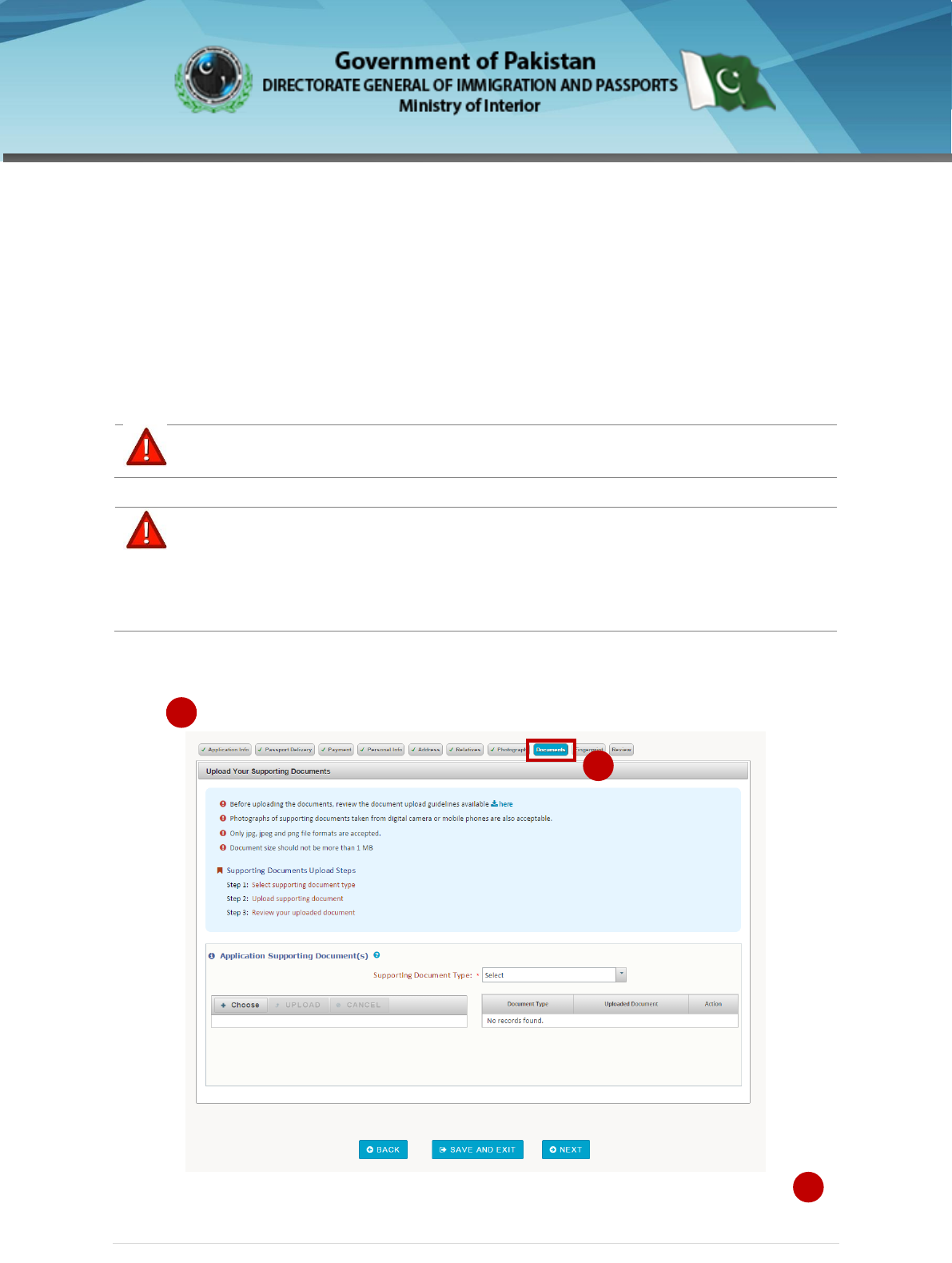
1. Login to your e-Services portal Account. Provide the information and proceed to the Document
tab
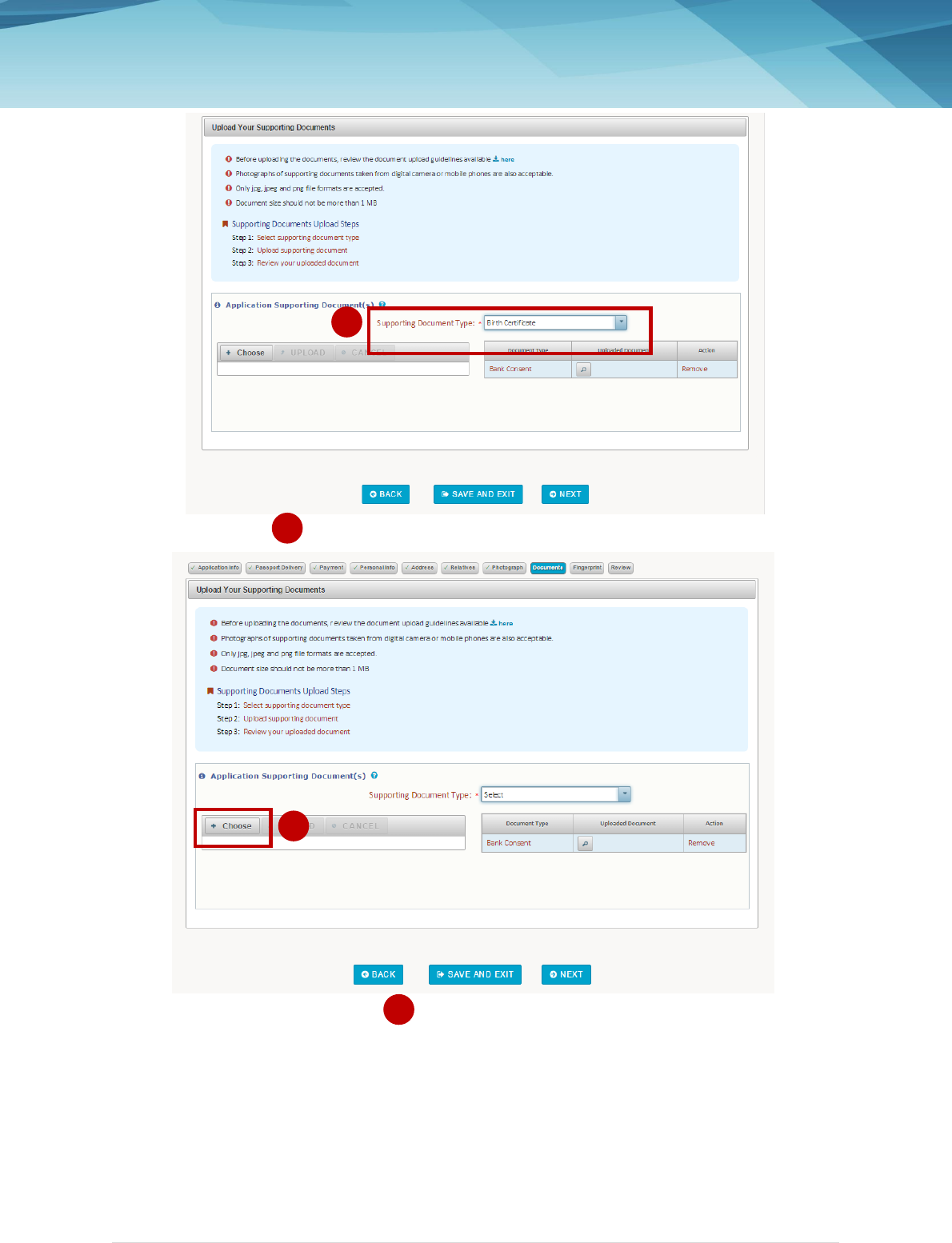
2. Select the document to be attached from the drop down list Supporting Document Type
1
1
2
2 | P a g e
3. Click Choose button.
Find and select the file to be attached
2
3
3
4
3 | P a g e
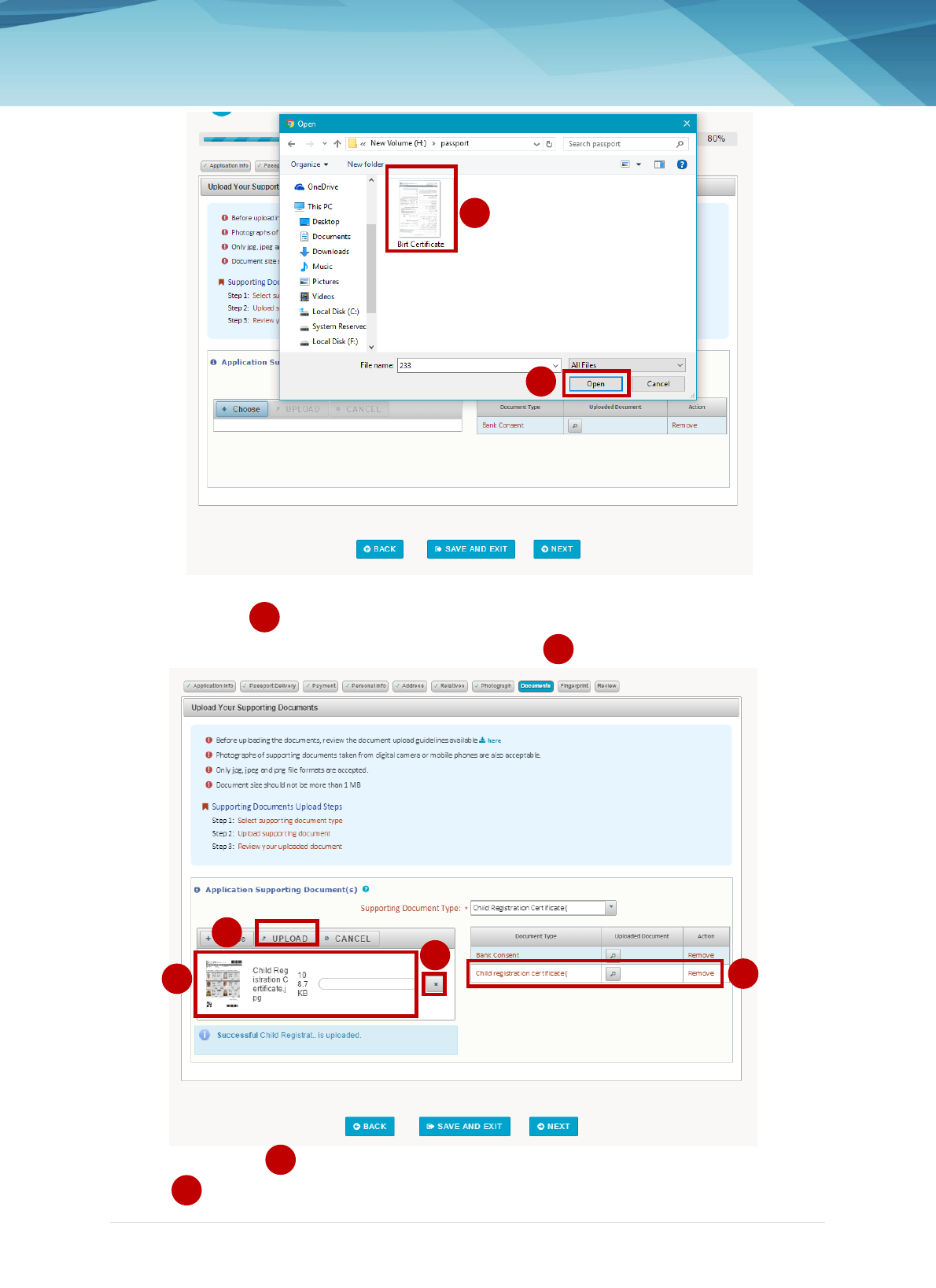
4. Click Open
The field is populated with the selected document file
5. Click upload button. This displays the document uploaded in the Uploaded Document
Section.
4
5
5
6
6
7
7
8
8
9

4 | P a g e
Click X if you want to stop attaching a document to your application.
You have successfully attached a document to your Application
9
