Es4540c Ops V01
User Manual:
Open the PDF directly: View PDF  .
.
Page Count: 196 [warning: Documents this large are best viewed by clicking the View PDF Link!]
- Preface
- CONTENTS
- BEFORE USING EQUIPMENT
- HOW TO MAKE COPIES
- BASIC COPY MODES
- Before Using Copying Functions
- Paper Selection
- Switching Color Modes
- Setting Original Modes
- Density Adjustment
- Enlargement and Reduction Copying
- Selecting Finishing Mode
- Duplex Copying
- Performing Copy & File
- EDITING FUNCTIONS
- IMAGE ADJUSTMENT
- TEMPLATES
- CONFIRMING JOB STATUS
- OTHER INFORMATION
- INDEX
MULTIFUNCTIONAL DIGITAL COLOR SYSTEMS
Copying Guide

©2011 TOSHIBA TEC CORPORATION All rights reserved
Under the copyright laws, this manual cannot be reproduced in any form without prior written permission of TTEC. No patent liability
is assumed, however, with respect to the use of the information contained herein.
Preface 1
Preface
How to read this manual
Thank you for purchasing TOSHIBA Multifunctional Digital Systems or Multifunctional Digital Color Systems. This manual
describes how to use the copying functions of this equipment. Read this manual before using this equipment.
Symbols in this manual
In this manual, some important items are described with the symbols shown below. Be sure to read these items before
using this equipment.
Other than the above, this manual also describes information that may be useful for the operation of this equipment with
the following signage:
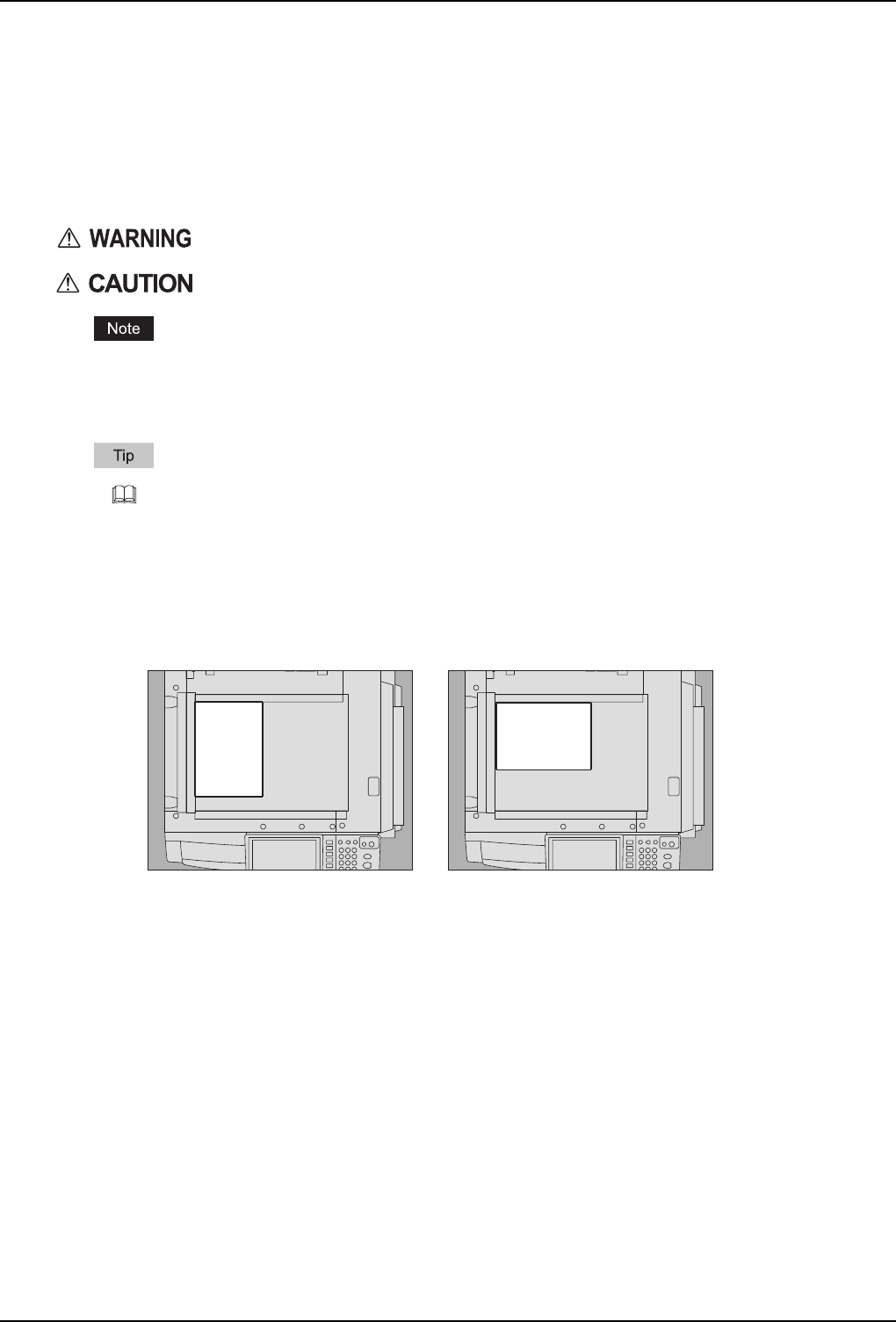
Description of original/paper direction
Paper or originals of A4, B5 or LT size can be placed either in a portrait direction or in a landscape direction. In this
manual, “-R” is added to this paper size when this size of paper or original is placed in a landscape direction.
e.g.) A4 size original on the original glass
Paper or originals of A3, B4, LD or LG can only be placed in a landscape direction, therefore “-R” is not added to these
sizes.
Screens
yScreens in this manual may differ from the actual ones depending on the use-environment of the equipment such as
the installing status of options.
yScreens of when paper in the A/B format is used are given in this manual. If you use paper in the LT format, the display
or the order of buttons may differ from that of your equipment.
Trademarks
The company and product names given in this manual or displayed in this software may be the trademarks of their
respective companies.
Indicates a potentially hazardous situation which, if not avoided, could result in death, serious
injury, or serious damage, or fire in the equipment or surrounding assets.
Indicates a potentially hazardous situation which, if not avoided, may result in minor or moderate
injury, partial damage to the equipment or surrounding assets, or loss of data.
Indicates information to which you should pay attention when operating the equipment.
Describes handy information that is useful to know when operating the equipment.
Pages describing items related to what you are currently doing. See these pages as required.
Placed in a portrait direction: A4 Placed in a landscape direction: A4-R

CONTENTS 3
CONTENTS
Preface....................................................................................................................................... 1
Chapter 1 BEFORE USING EQUIPMENT
BASIC Menu for the Copier Function ..................................................................................... 8
Placing Paper.......................................................................................................................... 11
Acceptable copy paper ........................................................................................................ 11
Placing paper in drawers..................................................................................................... 12
Registering paper size......................................................................................................... 16
Setting paper type ............................................................................................................... 17
Placing paper in the Large Capacity Feeder (optional) ....................................................... 20
Chapter 2 HOW TO MAKE COPIES
Before Making Copies............................................................................................................22
Storage of color copies........................................................................................................ 22
Forgery prevention function................................................................................................. 22
Placing Originals .................................................................................................................... 23
Acceptable originals ............................................................................................................23
Placing originals on the original glass ................................................................................. 23
Book-type originals .............................................................................................................. 24
Using the RADF (Reversing Automatic Document Feeder, optional).................................. 25
Making Copies ........................................................................................................................ 28
Basic copying procedure ..................................................................................................... 28
Scanning the next original during copying........................................................................... 31
Interrupting copying and making other copies..................................................................... 32
Proof copy ........................................................................................................................... 33
Selecting exit tray ................................................................................................................ 35
Bypass Copying ..................................................................................................................... 36
Bypass copying ................................................................................................................... 36
Bypass copying on standard size paper.............................................................................. 37
Bypass copying on non-standard size paper....................................................................... 43
Chapter 3 BASIC COPY MODES
Before Using Copying Functions.......................................................................................... 48
Default settings.................................................................................................................... 48
Confirming the set functions ................................................................................................ 48
Clearing the set functions .................................................................................................... 49
Restrictions on function combinations ................................................................................. 49
Paper Selection....................................................................................................................... 50
Automatic Paper Selection (APS)........................................................................................ 50
Selecting desired paper manually ....................................................................................... 51
Copying mixed-size originals in one operation .................................................................... 52
Switching Color Modes.......................................................................................................... 54
Setting Original Modes ..........................................................................................................55
Density Adjustment................................................................................................................ 56
Enlargement and Reduction Copying .................................................................................. 57
Automatic Magnification Selection (AMS) ........................................................................... 57
Specifying both the original size and the copy paper size separately ................................. 58

4 CONTENTS
Specifying reproduction ratio manually................................................................................ 60
Copying photo originals in the optimal reproduction ratio
for copy paper size (PHOTO ZOOM) .................................................................................. 62
Selecting Finishing Mode ...................................................................................................... 65
Finishing modes and optional finishing devices .................................................................. 65
Sort/Group mode .................................................................................................................67
Rotate sort mode ................................................................................................................. 69
Staple sort mode ................................................................................................................. 70
Magazine sort / Center fold / Saddle stitch.......................................................................... 73
Hole punch mode ................................................................................................................ 76
Manual staple mode ............................................................................................................ 77
Duplex Copying ...................................................................................................................... 78
Making a 1-sided copy......................................................................................................... 79
Making a 2-sided copy......................................................................................................... 80
Making a 2-sided copy from a book-type original ................................................................ 81
Performing Copy & File..........................................................................................................84
Setting share folder ............................................................................................................. 86
Chapter 4 EDITING FUNCTIONS
Displaying EDIT Menu............................................................................................................90
Image Shift .............................................................................................................................. 91
Creating top/bottom margin or left/right margin ................................................................... 91
Creating bookbinding margin............................................................................................... 93
Edge Erase .............................................................................................................................. 95
Book Center Erase ................................................................................................................. 96
Dual Page ................................................................................................................................ 98
2IN1 / 4IN1 ............................................................................................................................. 100
Magazine Sort Mode............................................................................................................. 103
Image Editing ........................................................................................................................ 105
Trimming / Masking ........................................................................................................... 105
Mirror image / Negative/positive reversal .......................................................................... 108
XY Zoom ................................................................................................................................ 109
Cover Sheet........................................................................................................................... 111
Sheet Insertion...................................................................................................................... 113
Time Stamp ........................................................................................................................... 116
Page Number ........................................................................................................................ 117
Job Build ............................................................................................................................... 119
Image Direction..................................................................................................................... 122
Book - Tablet......................................................................................................................... 124
ADF -> SADF ......................................................................................................................... 125
Full Image.............................................................................................................................. 127
Image Repeat ........................................................................................................................ 128
Omit Blank Page ................................................................................................................... 130
Outside Erase ....................................................................................................................... 132

CONTENTS 5
Chapter 5 IMAGE ADJUSTMENT
Displaying IMAGE Menu ...................................................................................................... 136
Using Image Adjustment Functions ................................................................................... 137
Color balance (YMCK adjustment).................................................................................... 137
RGB adjustment ................................................................................................................ 139
One-touch adjustment ....................................................................................................... 140
Background adjustment..................................................................................................... 141
Sharpness ......................................................................................................................... 142
Twin color copying............................................................................................................. 143
Mono color copying ........................................................................................................... 148
Hue.................................................................................................................................... 149
Saturation .......................................................................................................................... 150
Chapter 6 TEMPLATES
Templates.............................................................................................................................. 152
Displaying template menu ................................................................................................. 152
Using “Useful Templates” .................................................................................................. 153
Registering Templates ......................................................................................................... 155
Registering templates into the public template group........................................................ 155
Creating a new private group ............................................................................................ 158
Registering templates into a private group........................................................................ 159
Recalling Templates............................................................................................................. 161
Changing Data ...................................................................................................................... 164
Changing private group data ............................................................................................. 164
Changing template data .................................................................................................... 165
Deleting Groups or Templates ............................................................................................ 167
Deleting private groups...................................................................................................... 167
Deleting templates............................................................................................................. 168
Chapter 7 CONFIRMING JOB STATUS
Confirming Copy Job Status ............................................................................................... 172
Confirming jobs in progress or ones in waiting.................................................................. 172
Confirming copy job history ............................................................................................... 177
Confirming drawers ........................................................................................................... 178
Confirming amount of toner remaining .............................................................................. 179
Chapter 8 OTHER INFORMATION
Continuous Copying Speed ................................................................................................ 182
Copying Function Combination Matrix .............................................................................. 185
Combination matrix 1/2...................................................................................................... 185
Combination matrix 2/2...................................................................................................... 186
Image Adjustment Function Combination Matrix.............................................................. 187
Combination matrix 1/2...................................................................................................... 187
Combination matrix 2/2...................................................................................................... 188
INDEX ................................................................................................................................................................... 189

6 CONTENTS

1.BEFORE USING EQUIPMENT
This chapter describes what you need to know before using this equipment, such as the composition of the BASIC menu
for the copying functions and how to place copy paper.
BASIC Menu for the Copier Function ..................................................................................... 8
Placing Paper.......................................................................................................................... 11
Acceptable copy paper .........................................................................................................................................11
Placing paper in drawers ......................................................................................................................................12
Registering paper size..........................................................................................................................................16
Setting paper type ................................................................................................................................................17
Placing paper in the Large Capacity Feeder (optional) ........................................................................................20
1 BEFORE USING EQUIPMENT
8 BASIC Menu for the Copier Function
BASIC Menu for the Copier Function
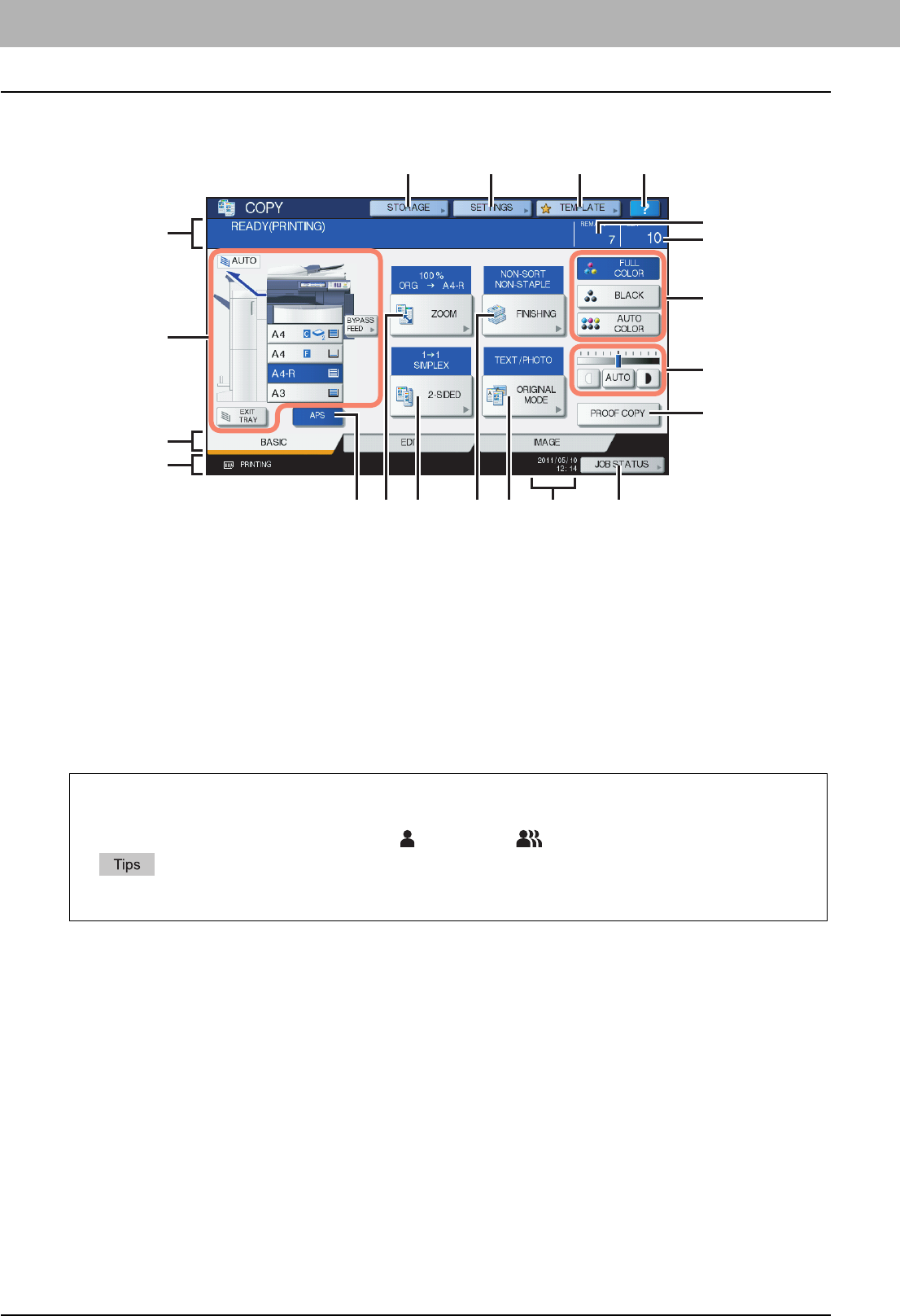
When a few seconds have passed after you have turned the power ON, the BASIC menu for the copier function appears
on the touch panel. The BASIC menu shows the following information:
1. Message indication area
This shows a brief description of the functions or the current status of this equipment in message form.
2. Equipment status indication area ( P.1 0 )
This shows the size, paper type or amount of paper remaining in each drawer.
3. Index tabs (BASIC, EDIT, IMAGE) ( P.89, P.135)
These are for switching between the menus of “BASIC”, “EDIT” and “IMAGE”.
4. Alert message indication area
This shows alert messages such as the replacement timing of the toner cartridges or the waste toner box.
5. [APS] (automatic paper selection) button ( P.5 0 )
This is for changing the mode to automatic paper selection.
6. [ZOOM] button ( P.57)
This is for changing the reproduction ratio of images.
7. [2-SIDED] button ( P. 7 8 )
This is for selecting simplex/duplex copying (e.g. 1 -> 2-sided, 2 -> 2 sided).
8. [FINISHING] button ( P.65)
This is for selecting a sorting mode.
9. [ORIGINAL MODE] button ( P.55)
This is for selecting an original mode.
10. Date and time
When this equipment is managed with the user management function and department management function
In the above case, the job quota assigned to each user or department appears here for approx. 5 seconds after user
authentication.
The displayed number is the smaller one of either user ( ) or department ( ).
yThe display may differ depending on the management status of this equipment.
yFor details of the user management function or the department management function, ask your administrator.
4
3
1
2
1920 18 17
14
15
16
13
12
9115 876 10

1.BEFORE USING EQUIPMENT
BASIC Menu for the Copier Function 9
1 BEFORE USING EQUIPMENT
11. [JOB STATUS] button ( P.172)
This is for confirming the processing status of copy, fax, scan or print jobs, and also for viewing their performing history.
12. [PROOF COPY] button ( P. 3 3 )
This is for making a proof copy to check an image before making a large amount of copies.
13. Density adjustment buttons ( P.56)
These are for adjusting the density level of images.
14. Color mode buttons ( P. 5 4 )
These are for switching color modes.
15. Number of copy sets
16. Number of remaining copy sets
17. (Help) button
This is for viewing the explanation of each function or the buttons on the touch panel.
18. [TEMPLATE] button ( P.151)
This is for the template function.
19. [SETTINGS] button ( P.4 8)
This is for checking currently set functions.
20. [STORAGE] button ( P. 8 4 )
This is for the storage function.
1 BEFORE USING EQUIPMENT
10 BASIC Menu for the Copier Function
Equipment status indication area
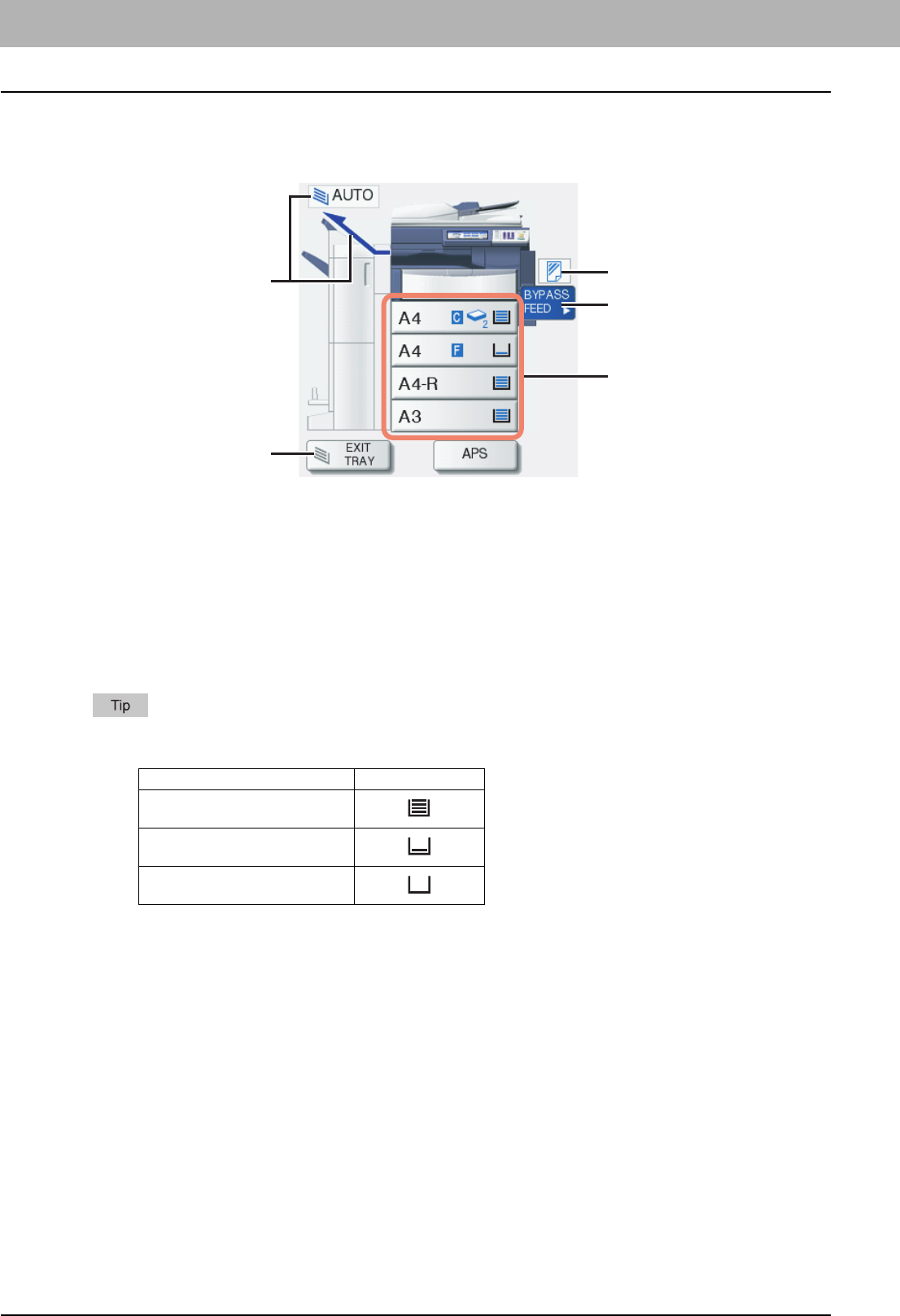
The equipment status indication area shows the following information:
1. Receiving tray indication ( P. 3 5 )
This shows the tray to which copied paper exits.
2. [EXIT TRAY] button ( P.35)
This is for switching receiving (exit) trays.
3. Drawer buttons ( P.51)
These show the size of paper, amount of paper remaining in each drawer and the paper type set for the drawer. When
you want to use a particular drawer, press the corresponding button.
The amount of paper remaining in each drawer is displayed as follows. Use it as a rough guide since the detection
of the remaining paper may vary depending on the paper type.
* Approx. 100 sheets of plain paper recommended by TOSHIBA
4. [BYPASS FEED] button ( P. 3 6 )
When this button is pressed with paper set in the bypass tray, it will be selected as the paper source.
5. Paper type on the bypass tray ( P. 3 6 )
This shows the type of paper placed on the bypass tray with an icon.
Remaining paper Display
Approx. more than 10 mm (0.40")*
1 sheet - approx. less than 10 mm
(0.40")*
No paper
2
1
3
5
4
1 BEFORE USING EQUIPMENT
Placing Paper 11
Placing Paper
Acceptable copy paper
The following paper can be placed and used for copying.
The values are valid only when Toshiba-recommended paper is used. For the recommended paper, refer to the Quick
Start Guide.
yDo not place paper with mixed sizes or paper types in the same drawer.
yBe sure that the height of the stacked paper does not exceed the line indicated on the guides.
*1 Use the bypass tray when you want to make a copy on the back side of copied Thick 1, Thick 2 or Thick 3 paper.
*2 The upper receiving tray of the Finisher MJ-1101 (optional) or the Saddle Stitch Finisher MJ-1106 (optional), tray of the Hanging Finisher MJ-
1031 (optional) and receiving tray of the equipment are used for paper exiting.
*3 When duplex copying is applied to THICK 4, streaks may appear on the front side of printouts. These streaks may appear clearly when the
copied image is dark or when the density level of the entire image is even.
*4 Duplex copying is not available.
*5 For making copies on the sticker labels, select “THICK 2” for the paper type.
*6 Duplex copying is available only when waterproof paper supporting it is used.
*7 If an optional finisher has been installed, the receiving tray of the equipment is not available for paper exiting, but the upper receiving tray of
the Finisher MJ-1101 and the Saddle Stitch Finisher MJ-1106 are used.
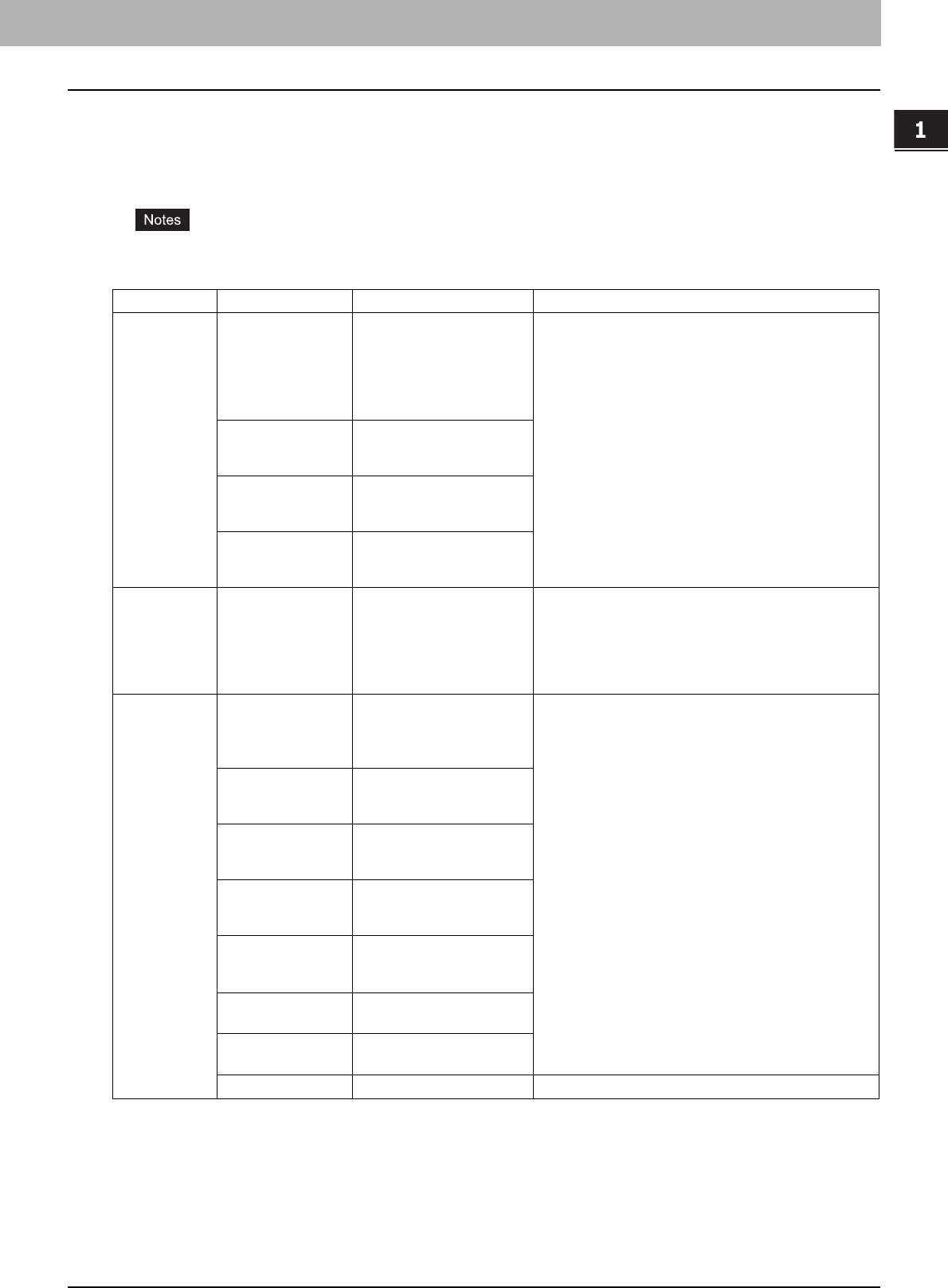
Feeder Paper type Maximum sheet capacity Size
Drawers incl.
the Drawer
Module
(optional)*1
Plain paper, recycled
paper
(64 - 105 g/m2)
(17 - 28 lb. Bond)
600 sheets (64 g/m2) (17 lb.
Bond)
550 sheets (80 g/m2) (20 lb.
Bond)
500 sheets (81 - 105 g/m2)
(21 - 28 lb. Bond)
A/B format:
A3, A4, A4-R, A5-R, B4, B5, B5-R, FOLIO
LT format:
LD, LG, LT, LT-R, ST-R, COMP, 13"LG, 8.5"SQ
K format:
8K, 16K, 16K-R
THICK 1
(- 163 g/m2)
(- 90 lb. Index)
300 sheets
THICK 2
(- 209 g/m2)
(- 110 lb. Index)
250 sheets
THICK 3
(- 256 g/m2)
(- 140 lb. Index)
200 sheets
Large Capacity
Feeder
(optional)
Plain paper, recycled
paper
(64 - 105 g/m2)
(17 - 28 lb. Bond)
3000 sheets (64 g/m2) (17 lb.
Bond)
2500 sheets (80 g/m2) (20 lb.
Bond)
2000 sheets (81 - 105 g/m2)
(21 - 28 lb. Bond)
A4, LT
Bypass tray Plain paper, recycled
paper
(64 - 105 g/m2)
(17 - 28 lb. Bond)
100 sheets (64 - 80 g/m2) (17
- 20 lb. Bond)
80 sheets (81 - 105 g/m2) (21
- 28 lb. Bond)
A/B format:
A3, A4, A4-R, A5-R, A6-R, B4, B5, B5-R, FOLIO, 305 mm x
457 mm *7, *10, 320 mm x 450 mm *8, *9, *10, 320 mm x 460
mm *7, *8, *10
LT format:
LD, LG, LT, LT-R, ST-R, COMP, 13"LG, 8.5"SQ, 12" x 18" *7,
*10
K format:
8K, 16K, 16K-R
Non-standard size:
Length: 100 - 297 mm (3.9" - 11.7"),
Width: 148 - 432 mm (5.8" - 17")
THICK 1
(- 163 g/m2)
(- 90 lb. Index)
40 sheets
THICK 2
(- 209 g/m2)
(- 110 lb. Index)
30 sheets
THICK 3
(- 256 g/m2)
(- 140 lb. Index)
30 sheets
THICK 4 *2, *3, *4
(- 280 g/m2)
(- 100 lb. Cover)
30 sheets
Sticker labels *4, *5
Waterproof paper *6
(- 230 g/m2)
30 sheets
OHP film *4 30 sheets A4, LT
1 BEFORE USING EQUIPMENT
12 Placing Paper
*8 Note that black streaks may appear on the edge of the printed sheets.
*9 If an optional finisher has been installed, the upper receiving tray of the Finisher MJ-1101 and the Saddle Stitch Finisher MJ-1106, and the
receiving tray of the equipment are used for paper exiting.
*10 When paper is exiting, remove one sheet after another from the tray of the Hanging Finisher MJ-1031 (optional), since it may fall off the tray.
y“LT format” is the standard size only for use in North America.
y“K format” is a Chinese standard size.
yAbbreviations for paper sizes: LT: Letter, LD: Ledger, LG: Legal, ST: Statement, COMP: Computer, SQ: Square
Unacceptable copy paper
Do not use the types of paper shown below. This could cause a paper jam.
yDamp paper
yFolded paper
yCurled or creased paper
yPaper whose surface is extremely smooth or rough
Do not use the types of paper shown below. This could cause an equipment malfunction.
yPaper whose surface has had special treatment
yPaper once printed with other copiers or printers
Precautions for storing copy paper
Make sure of the following when storing copy paper:
yWrap the paper in its wrapping to keep it free from dust.
yAvoid direct sunlight.
yStore in a damp-free space.
yTo prevent paper from being folded or bent, store it in a flat place.
Placing paper in drawers
Follow the procedure below to place paper in a drawer. For acceptable copy paper, see the following page:
P.11 “Acceptable copy paper”
1
Turn the power of this equipment ON.
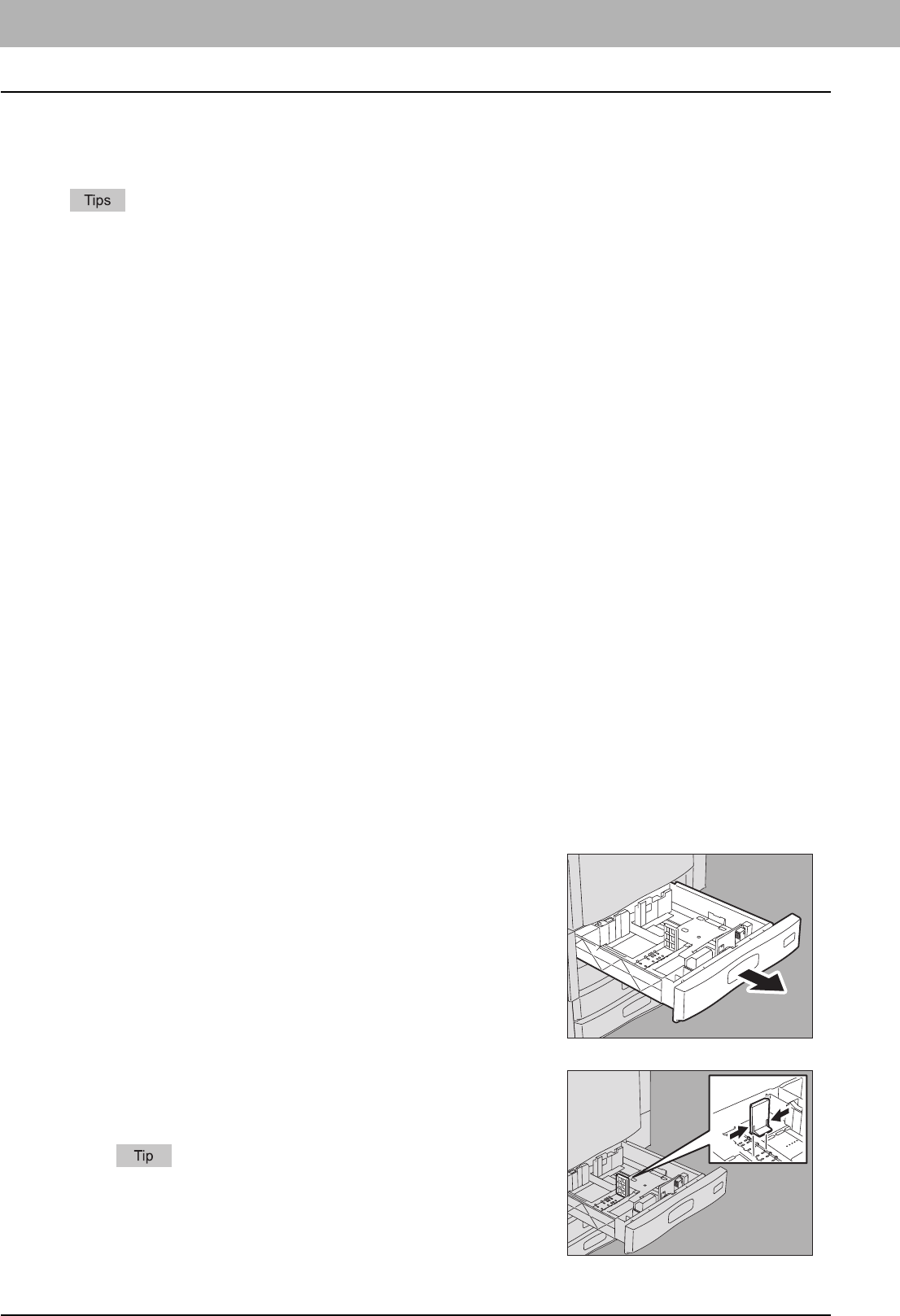
2
Pull out a drawer carefully until it comes to a stop.
3
Push the lower part of the end guide in the direction
of the arrows to remove it, then reinstall it at the
position of the desired paper size.
The paper size is indicated on the bottom inner surface of the
drawer.
1.BEFORE USING EQUIPMENT
Placing Paper 13
1 BEFORE USING EQUIPMENT
yUp to 600 sheets (64 g/m2) (17 lb. Bond) can be placed in one drawer. Be sure that the height of the stacked
paper does not exceed the line indicated inside of the side guides.
P.11 “Acceptable copy paper”
yFan and jog the stack of paper well before you place it in a drawer, or the sheets may not be separated
before being fed. Be careful not to cut your fingers when fanning.
yPlace paper with its copy side up. The copy side may be noted on its wrapping paper.
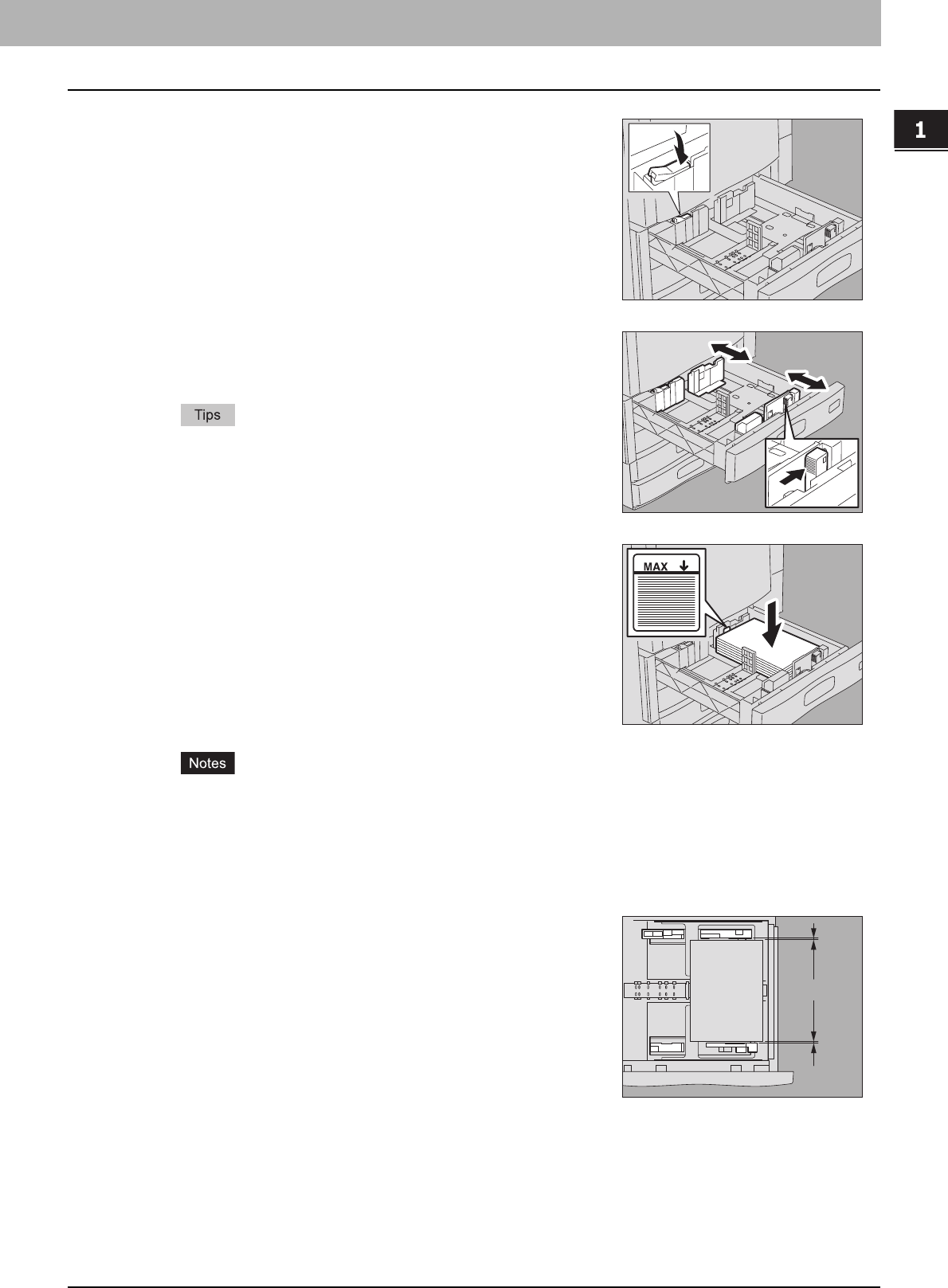
4
Push the part shown with an arrow (right side) of the
side guide to unlock it.
5
While holding the green lever of the side guide in the
direction of the arrow, set the side guide to the
desired paper size.
yThe paper size is indicated on the bottom inner surface of the
drawer.
yAdjust the side guides with both hands.
6
Place paper in the drawer.
7
Adjust the side guides.
Make sure that a gap (“A” in the figure on the right) of 0.5 mm (0.02")
(1.0 mm (0.04") or less in total) *1 is left between the paper and the side
guide for plain paper. If the gap is inappropriate, it could cause paper
misfeeding.
*1 For thick paper, the gap must be 0.5 mm (0.02") to 1.0 mm (0.04") (1.0 mm
(0.04") to 2.0 mm (0.08") in total).
A
1 BEFORE USING EQUIPMENT
14 Placing Paper
10
Push the drawer straight into this equipment carefully until it comes to a stop.
Be careful not to let your fingers be caught when pushing the drawer into this equipment.
This could injure you.
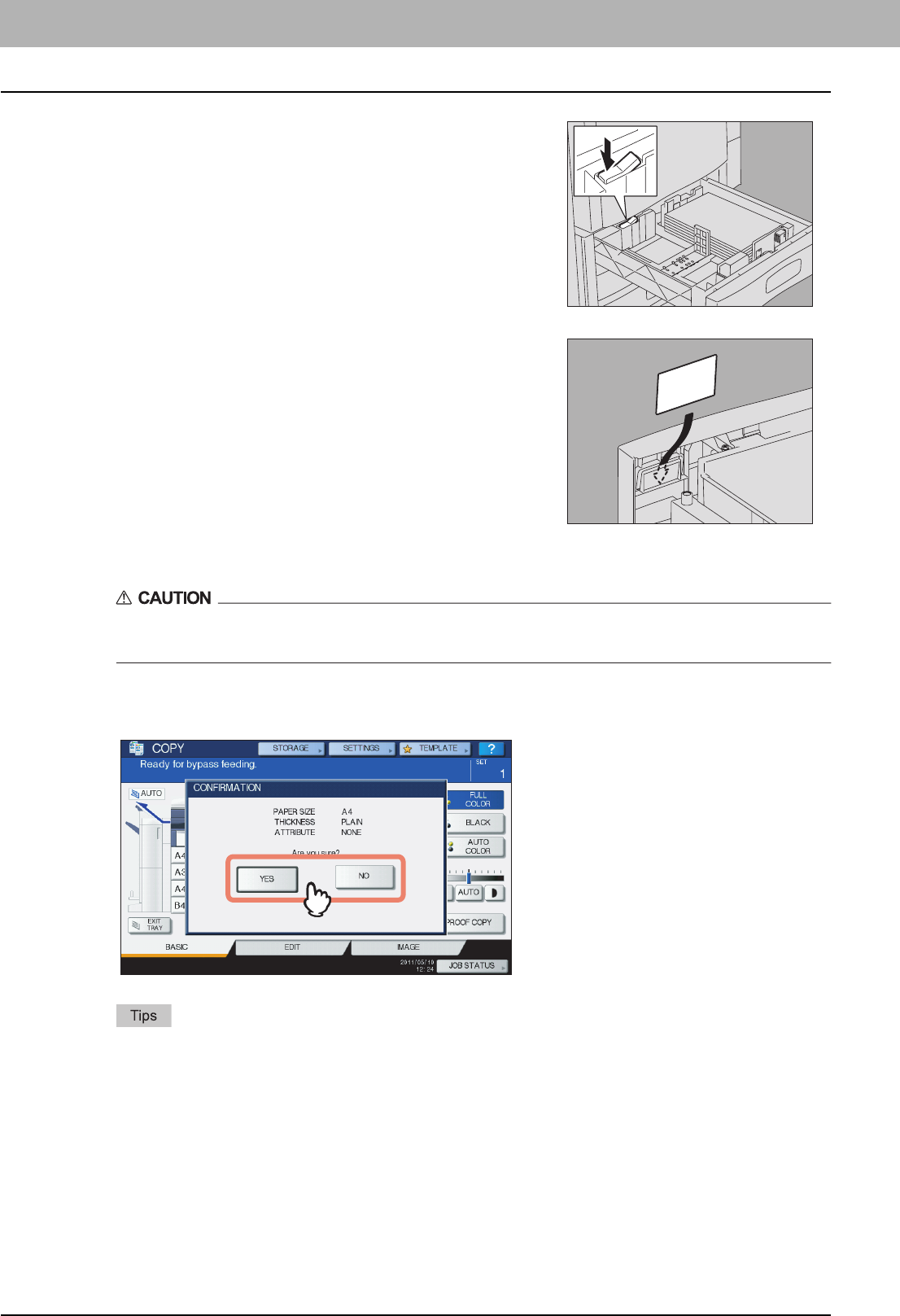
11
The menu below appears. When the size or type of paper is different from the one that
was in the drawer, press [NO] on the touch panel. When they are the same, press [YES].
yThe menu above may not appear depending on the setting of this equipment. In this case, see the following
pages to change the settings of the paper size and paper type:
P.16 “Registering paper size”
P.17 “Setting paper type”
yIf you want to change the setting for displaying this menu, ask your administrator.
If you press [YES], the procedure is completed.
8
Push the part shown with an arrow (left side) to lock
the side guide.
9
Change the paper size indicator if required.
1.BEFORE USING EQUIPMENT
Placing Paper 15
1 BEFORE USING EQUIPMENT
12
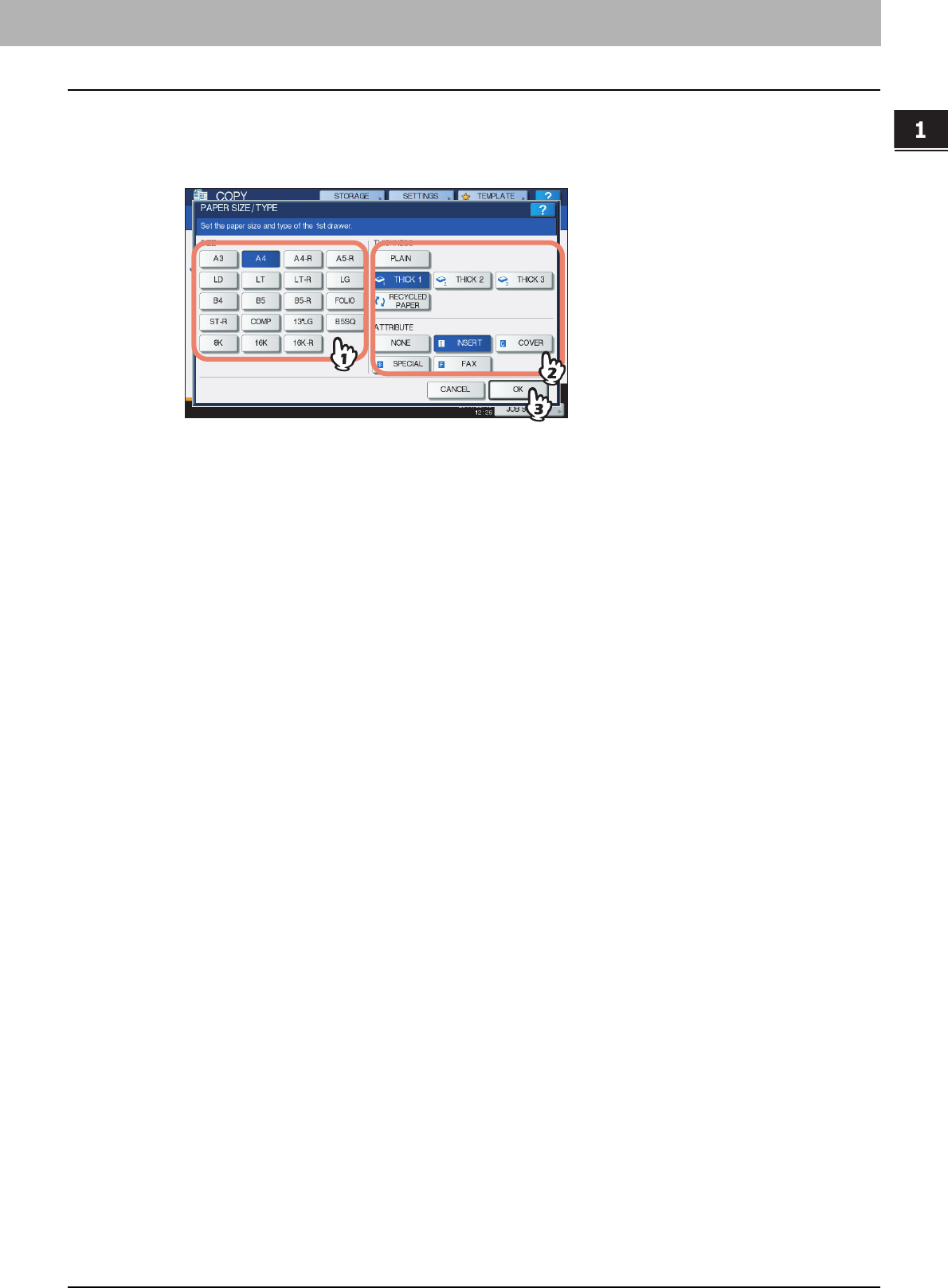
Select the size and type of the paper placed in the drawer on the touch panel.
1) Select the paper size.
2) Select the paper type.
3) Press [OK].
1 BEFORE USING EQUIPMENT
16 Placing Paper
Registering paper size
When you place paper for the first time or you replace the paper with that of a different size, you need to register the size
to this equipment.
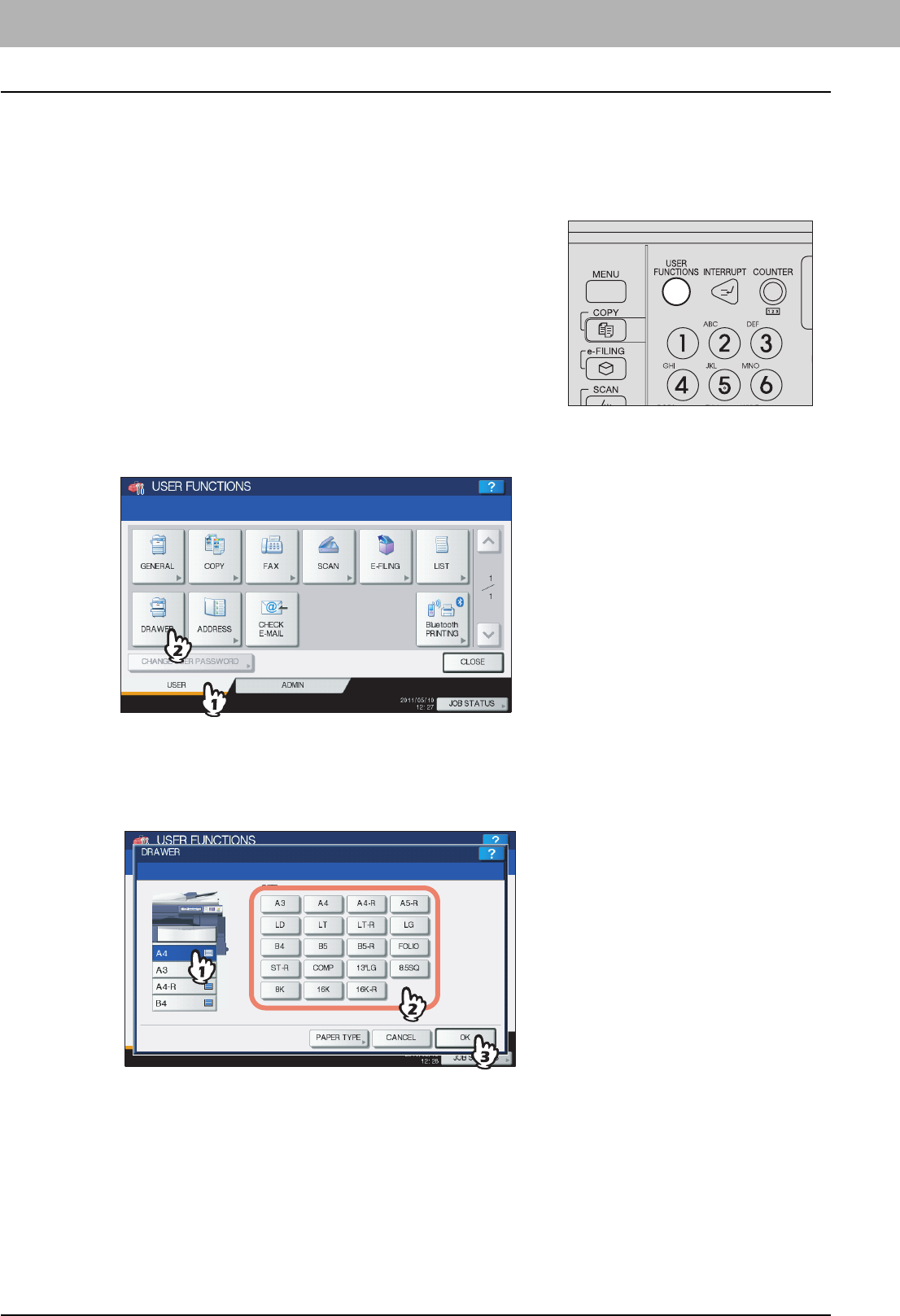
2
Press the [USER] tab on the touch panel to display the user setting menu, and then
press [DRAWER].
3
Select the paper size on the touch panel.
1) Select the drawer in which you placed paper.
2) Select the paper size.
3) Press [OK].
1
Press the [USER FUNCTIONS] button on the control
panel.
1.BEFORE USING EQUIPMENT
Placing Paper 17
1 BEFORE USING EQUIPMENT
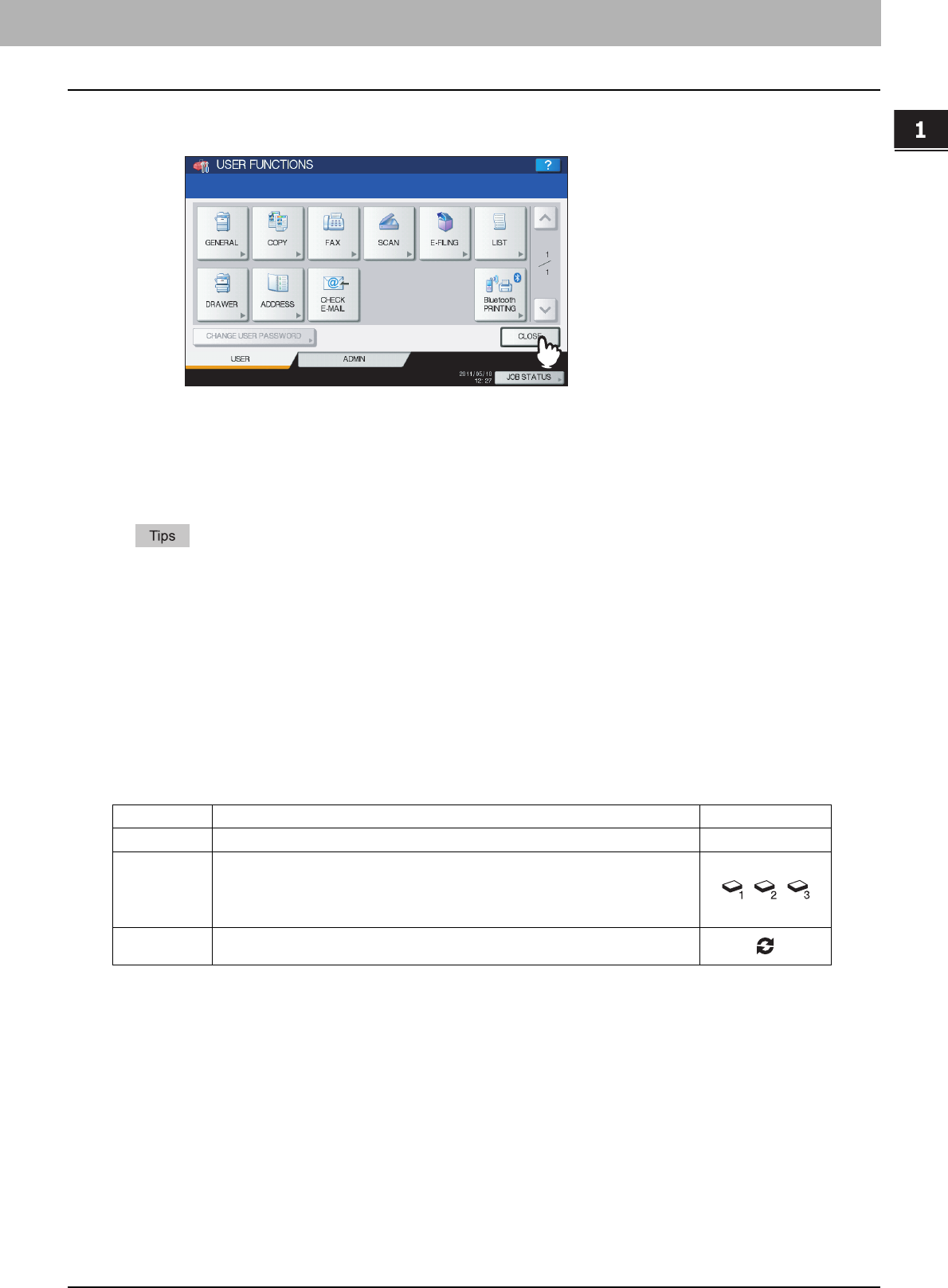
4
Press [CLOSE] on the touch panel or the [USER FUNCTIONS] button on the control
panel.
Setting paper type
When you place any special paper other than plain paper or that not used for normal copying, you need to set the
thickness and attribute into this equipment.
yThe thickness and attribute can be set together.
yWhen the thickness “THICK 1, 2 or 3”, or an attribute other than “NONE” is set for a drawer, the paper placed in this
drawer will not be used for the automatic paper selection mode.
yWhen an attribute other than “NONE” is set for a drawer, the Automatic Change of Paper Source function (Feeding
the same size of paper from a different drawer even if the specified drawer from which paper is being fed is empty)
is disabled for the paper in this drawer.
For how to set Automatic Change of Paper Source, refer to the MFP Management Guide.
yThe set paper type appears on the equipment status indication area with an icon.
P.10 “Equipment status indication area”
Acceptable paper types are as follows:
Thickness
Button Description Icon
PLAIN Plain paper: 64 - 105 g/m2 (17 - 28 lb. Bond) —
THICK 1 - 3 Thick paper
THICK 1: 106 - 163 g/m2 (29 lb. Bond - 90 lb. Index)
THICK 2: 164 - 209 g/m2 (91 lb. Index - 110 lb. Index)
THICK 3: 210 - 256 g/m2 (111 lb. Index - 140 lb. Index)
, ,
RECYCLED
PAPER
Recycled paper
1 BEFORE USING EQUIPMENT
18 Placing Paper
Attribute
*1 Fax transmission and reception is available only when the FAX Unit (optional) is installed.
*2 When lists are printed, paper set as “FAX” is used. For printing lists, refer to the MFP Management Guide.
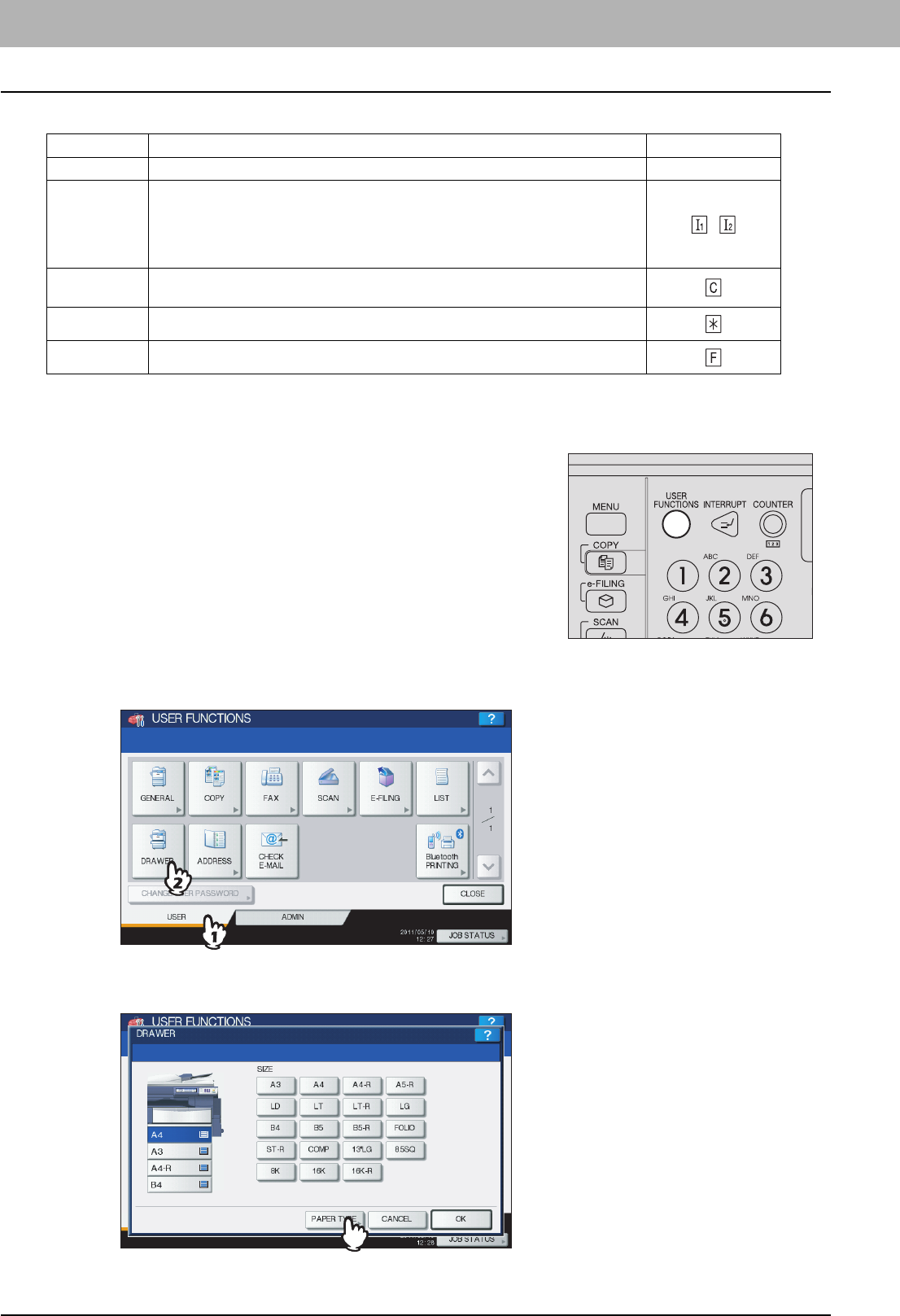
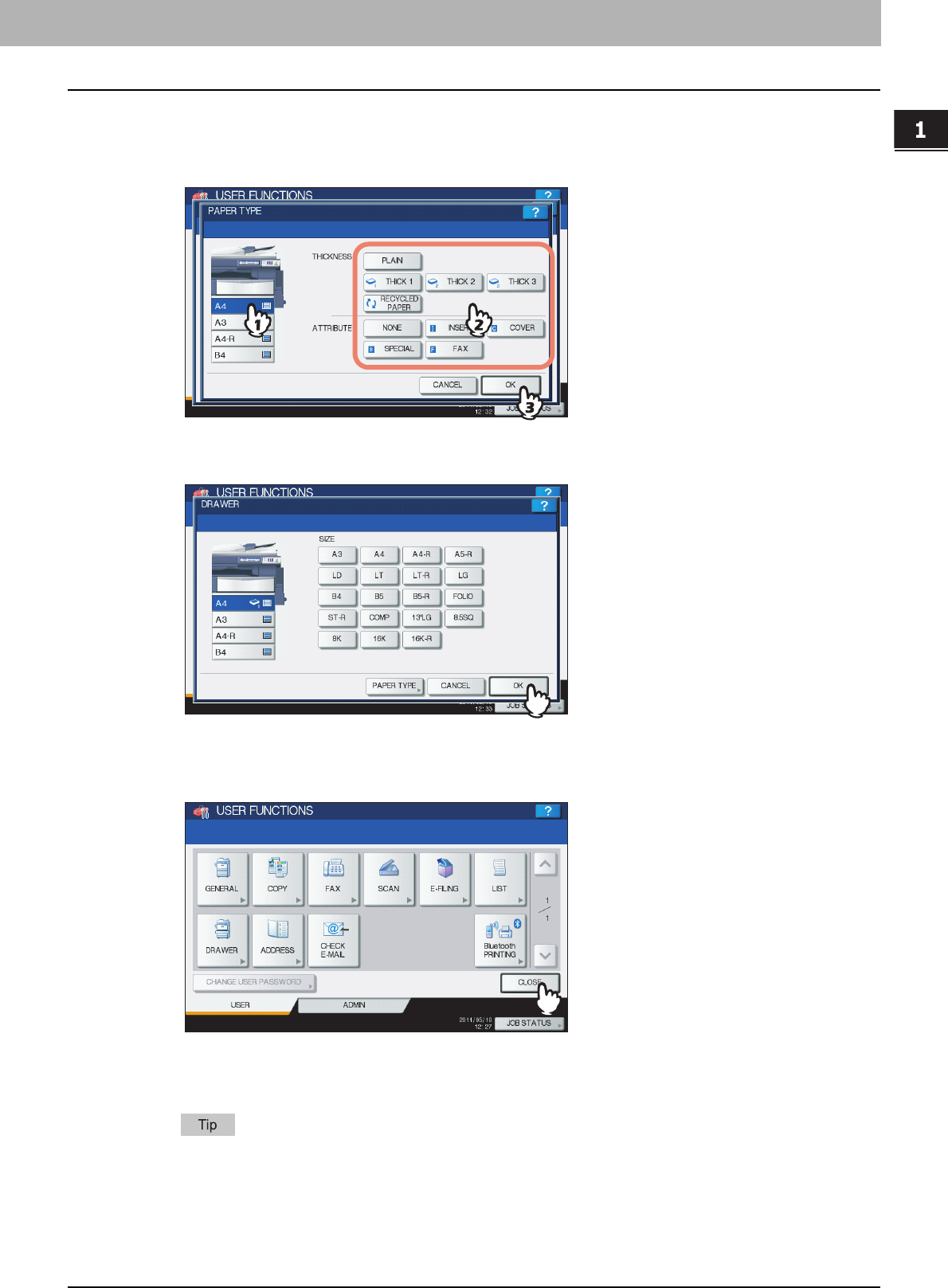
2
Press the [USER] tab on the touch panel to display the user setting menu, and then
press [DRAWER].
3
Press [PAPER TYPE].
Button Description Icon
NONE No attribute specified —
INSERT Sheets used in the sheet insertion mode
P.113 “Sheet Insertion”
Up to 2 types of sheets (Insertion sheets 1 and 2) can be set. To set Insertion sheet 1
and 2, select the drawer for Insertion sheet 1 and press [INSERT], and then select a
drawer for Insertion sheet 2 and press [INSERT].
,
COVER Sheets used in the cover sheet mode
P.111 “Cover Sheet”
SPECIAL Colored paper or paper with watermarks, etc.
FAX *1, *2 FAX paper
1
Press the [USER FUNCTIONS] button on the control
panel.
1.BEFORE USING EQUIPMENT
Placing Paper 19
1 BEFORE USING EQUIPMENT
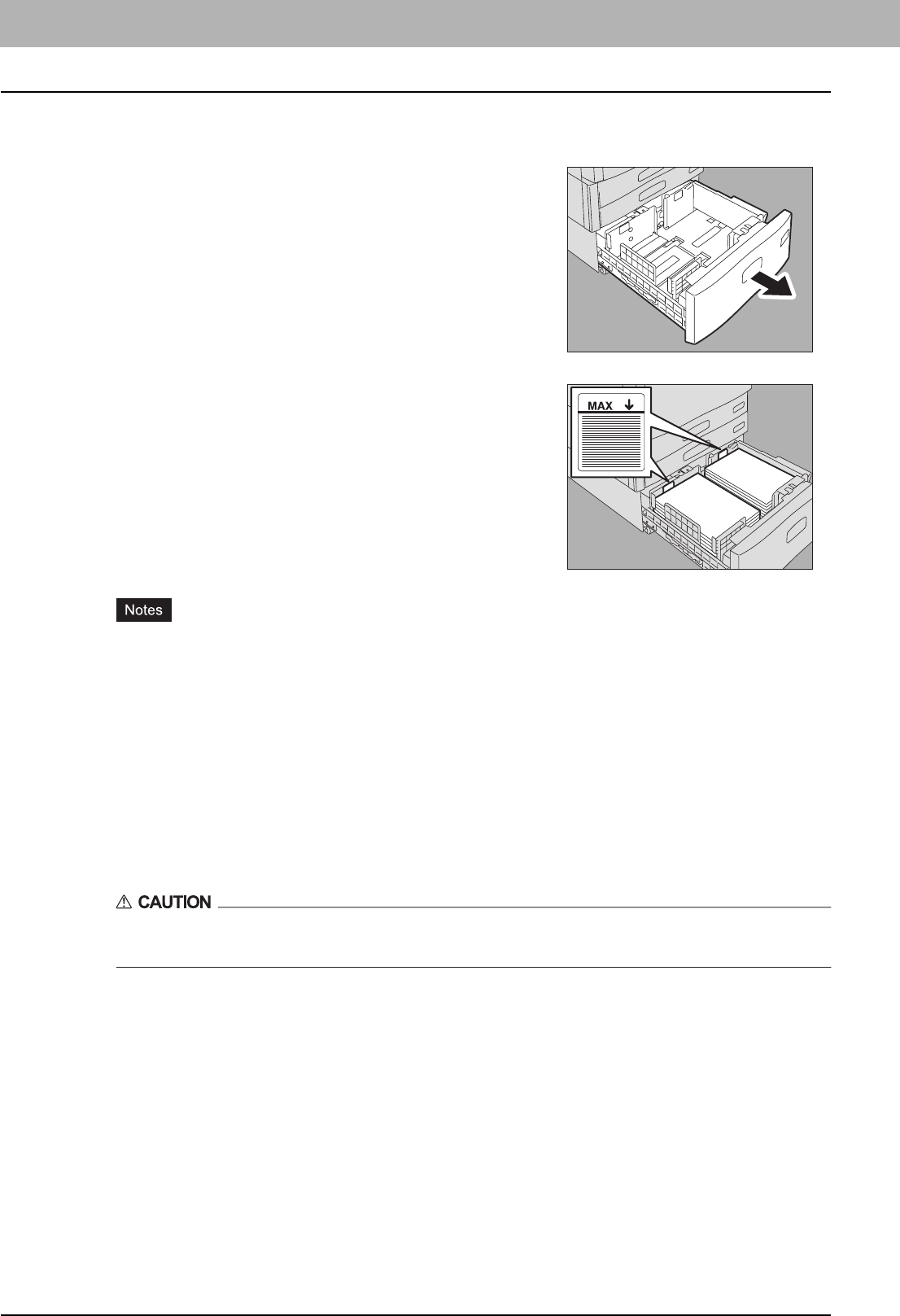
4
Select the paper type.
1) Select the drawer in which you placed paper.
2) Select the paper type.
3) Press [OK].
5
Press [OK].
6
Press [CLOSE] on the touch panel or the [USER FUNCTIONS] button on the control
panel.
Clearing the set paper type
Press the drawer button on the menu in step 4, and then press the paper type whose setting you want to clear.
If both INSERT 1 and INSERT 2 are set and you clear the setting of only INSERT 1, the setting for INSERT 2
automatically becomes the setting for INSERT 1.
1 BEFORE USING EQUIPMENT
20 Placing Paper
Placing paper in the Large Capacity Feeder (optional)
yPaper in the right-hand tray is used first. When it runs out, paper in the left-hand tray will be moved
automatically to the right-hand tray and fed.
yA maximum of 3000 sheets (64 g/m2) (17 lb. Bond) can be placed in the 2 trays. However the stack height
of the paper must not exceed the line indicated inside the side guides.
P.11 “Acceptable copy paper”
yThe copy side may be noted on its wrapping paper.
yBe careful not to cut your fingers when fanning the paper.
yWhen placing paper, be sure that the center lever is not open. (See the label attached in the drawer of the
Large Capacity Feeder.)
3
Push the drawer of the Large Capacity Feeder straight into this equipment carefully.
When the drawer is completely inserted, the right-hand tray will move up to the paper feeding position.
Be careful not to let your fingers be caught when pushing the drawer into this equipment.
This could injure you.
4
Change the paper type as required.
P.17 “Setting paper type”
1
Pull out the drawer of the Large Capacity Feeder
carefully until it comes to a stop.
2
Place 2 stacks of paper in the right and left trays
correspondingly.
Fan and jog the paper well before placing it. Place it with its copy side
up. Place one stack of paper in the right-hand tray (shown as “A” in the
figure) with its side touching the right corner of the tray, and place the
other stack of paper in the left-hand tray (shown as “B” in the figure)
with its side touching the left corner of the tray. Paper can be placed
neatly if you divide stacks into small bundles and pile them up on the
two trays alternately.
A
B

2.HOW TO MAKE COPIES
This chapter explains the basic copying procedures.
Before Making Copies............................................................................................................22
Storage of color copies.........................................................................................................................................22
Forgery prevention function..................................................................................................................................22
Placing Originals.................................................................................................................... 23
Acceptable originals .............................................................................................................................................23
Placing originals on the original glass ..................................................................................................................23
Book-type originals...............................................................................................................................................24
Using the RADF (Reversing Automatic Document Feeder, optional)...................................................................25
Making Copies........................................................................................................................ 28
Basic copying procedure ......................................................................................................................................28
Scanning the next original during copying............................................................................................................31
Interrupting copying and making other copies......................................................................................................32
Proof copy ............................................................................................................................................................33
Selecting exit tray .................................................................................................................................................35
Bypass Copying ..................................................................................................................... 36
Bypass copying ....................................................................................................................................................36
Bypass copying on standard size paper...............................................................................................................37
Bypass copying on non-standard size paper........................................................................................................43

2 HOW TO MAKE COPIES
22 Before Making Copies
Before Making Copies
Storage of color copies
When storing color copies, be careful of the following:
yAvoid a place exposed to light. The colors may fade when they are stored in such a place for a long time.
yIf copies are stored pressed between plastic sheets made of chloroethylene for a long time, toner may melt and stick to
the plastic. For long-time storage, use polyethylene binders.
yWhen a color copy is folded, toner at the folded part may flake off. Do not fold color copies when storing them.
yToner on copies may melt if it touches solvent or ink not fully dried. Keep copies away from them.
yWhen copies are left under an extremely high temperature environment such as in the vicinity of a heater, toner may
melt. Store them at room temperature and avoid extreme temperature changes.
Forgery prevention function
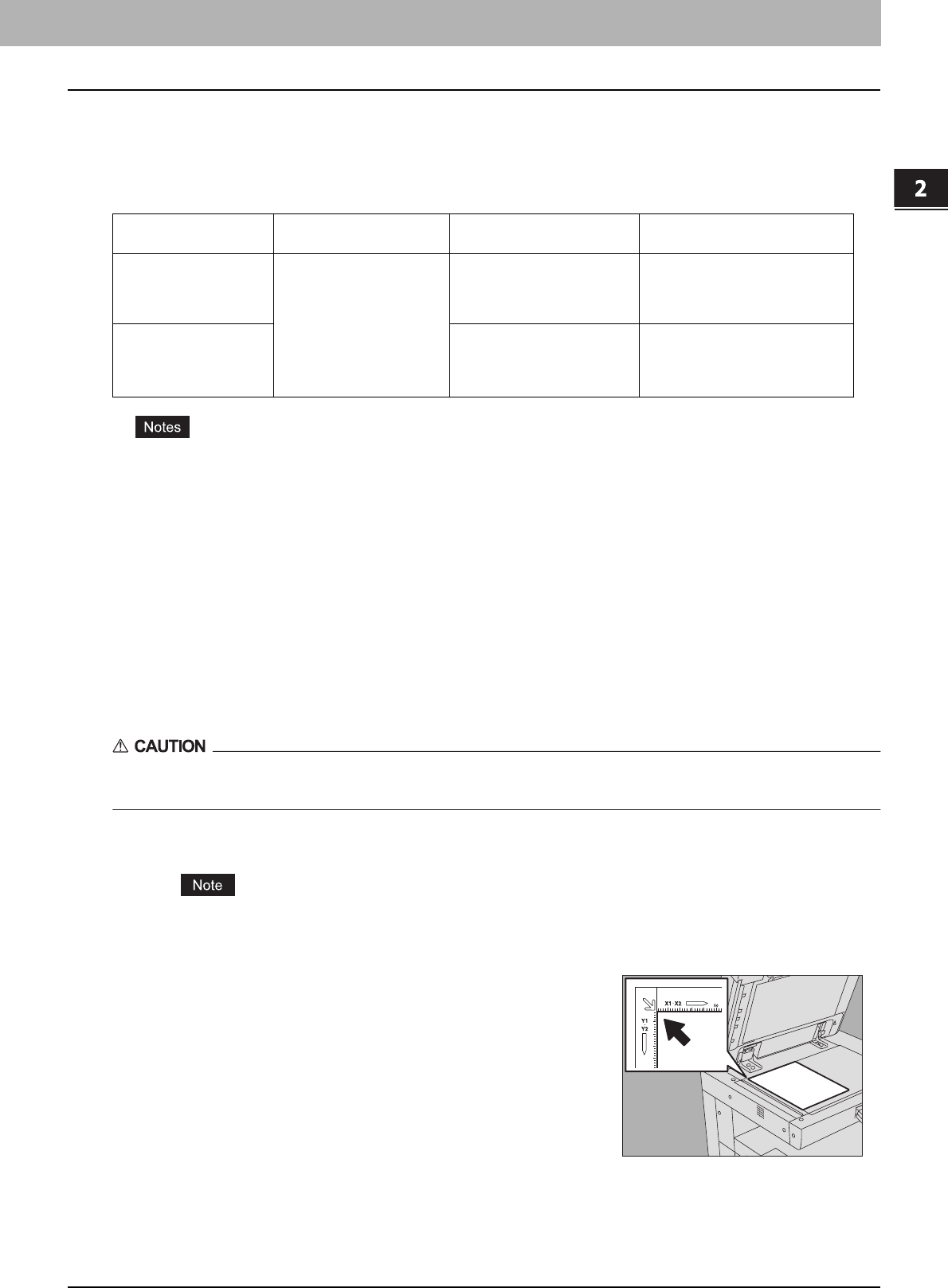
This equipment has a forgery prevention function. Therefore, scan or copy function might not operate correctly.
2 HOW TO MAKE COPIES
Placing Originals 23
Placing Originals
Acceptable originals
When the RADF (Reversing Automatic Document Feeder, optional) is used, 2-sided originals can be automatically
scanned one sheet after another. When the original glass is used, originals such as OHP films, tracing paper, booklet or 3-
dimensional objects, that cannot be placed on the RADF can be scanned, as well as plain paper.
yAutomatic size detection does not work properly when A/B format originals are used in equipment for North
America. It does not work properly when LT format originals are used in equipment other than that for North
America.
yAutomatic size detection does not work properly when K format paper is used for printing. (K format is a standard
paper size in China.)
yDo not place any heavy objects (4 kg (9 lb.) or over) on the original glass and do not press on it with force.
yBe sure to place ST-size or A5-size originals in a landscape direction when using the RADF (optional).
yA maximum of 1000 sheets can be scanned per 1 copy job or up until the embedded memory becomes full.
Placing originals on the original glass
The original glass can be used for originals such as OHP films or tracing paper, as well as plain paper, that cannot be
placed on the RADF (optional).
Do not place any heavy objects (4 kg (9 lb.) or over) on the original glass and do not press on it with force.
Breaking the glass could injure you.
1
Raise the Original Cover (optional) or the RADF (optional).
Raise it 60 degrees or more so that the size of the original can be detected correctly.
Location Maximum size Paper weight Acceptable sizes for automatic
size detection
Original glass
Length: 297 mm (11.69")
Width: 432 mm (17.01")
—
Other than North America: A3, A4,
A4-R, A5-R, B4, B5, B5-R
North America: LD, LG, LT, LT-R,
ST-R
RADF (optional)
1-sided originals: 35 - 157 g/m2
(9.3 - 41.8 lb.)
2-sided originals: 50 - 157 g/m2
(13.3 - 41.8 lb.)
Other than North America: A3, A4,
A4-R, A5-R, B4, B5, B5-R, FOLIO
North America: LD, LG, LT, LT-R,
ST-R, COMP
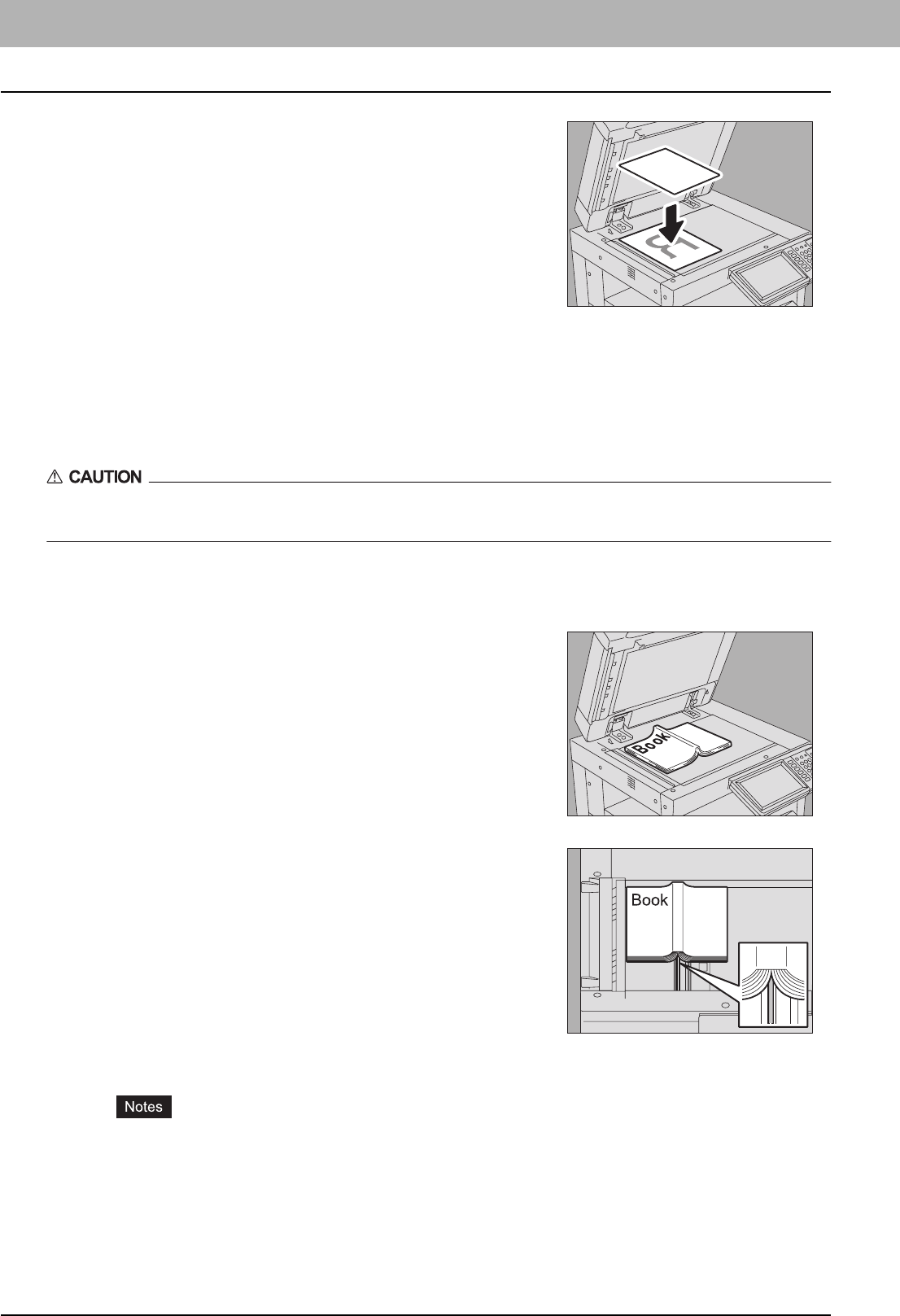
2
Place the original with its face down on the original
glass and align it with the left rear corner of the glass.
2 HOW TO MAKE COPIES
24 Placing Originals
3
Lower the Original Cover (optional) or the RADF (optional) carefully.
Book-type originals
You can place book-type originals on the original glass.
Do not place any heavy objects (4 kg (9 lb.) or over) on the original glass and do not press on it with force.
Breaking the glass could injure you.
1
Raise the Original Cover (optional) or the RADF (optional).
3
Lower the Original Cover (optional) or the RADF (optional) carefully.
yDo not lower the Original Cover (optional) or the RADF (optional) forcibly when the original is very thick.
There will be no problem in copying even if it is not fully lowered.
yDo not look directly at the original glass because intensive light may escape during copying.
When you copy highly transparent originals
When you copy highly transparent originals such as OHP films or
tracing paper, place a blank sheet, which is the same size as the
original or larger, over the original.
2
Open the desired page of the original and place it with
its face down. Align it with the left rear corner of the
original glass.
When you make 2-sided copies from book-type originals in modes
such as book-type original to 2-sided copying or dual page copying,
align the center of the original on the yellow indicator line of the original
glass.
P.81 “Making a 2-sided copy from a book-type original”
P.98 “Dual Page”
2.HOW TO MAKE COPIES
Placing Originals 25
2 HOW TO MAKE COPIES
Using the RADF (Reversing Automatic Document Feeder, optional)
Precautions
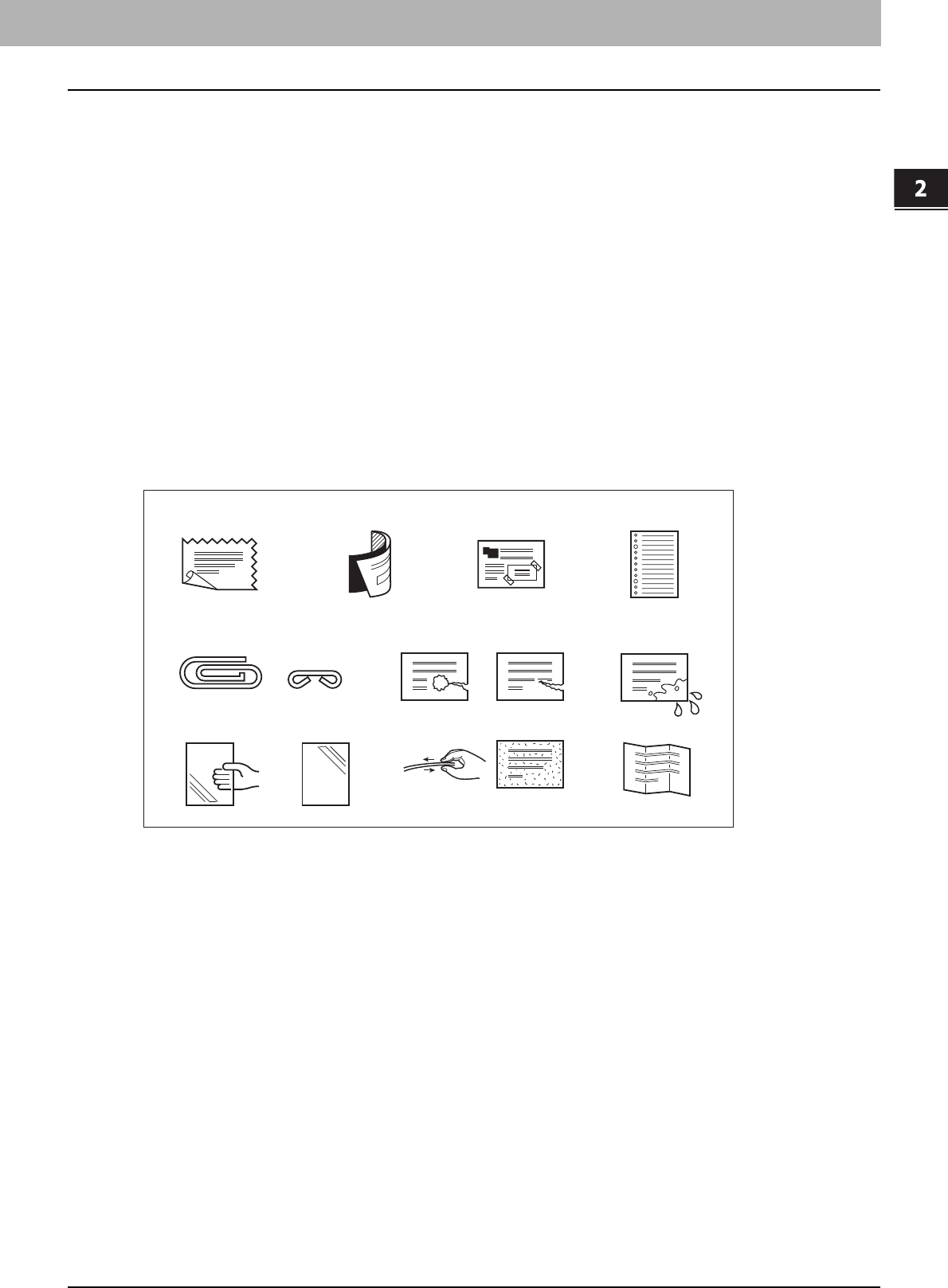
Do not use the types of originals 1 to 9 shown below because such originals may cause misfeeding or damage to the
equipment.
1. Badly wrinkled, folded or curled originals
2. Originals with carbon paper
3. Taped, pasted or cut-out originals
4. Originals with multiple perforations such as loose leaf paper
5. Clipped or stapled originals
6. Originals with holes or tears
7. Damp originals
8. OHP films or tracing paper
9. Coated paper (with wax, etc.)
Use the types of originals 10 and 11 shown below with extra care.
10. Originals which resist sliding with the fingers, or surface-treated originals (The sheets of such originals may not be
separated.)
11. Folded or curled originals (They should be fully smoothed out before being used.)
When black streaks appear
If the scanning area or the guide area is dirty, image trouble such as black streaks may occur on printouts. Weekly
cleaning of these areas is recommended. For cleaning, refer to the Quick Start Guide.
1342
67
89
5
10 11
2 HOW TO MAKE COPIES
26 Placing Originals
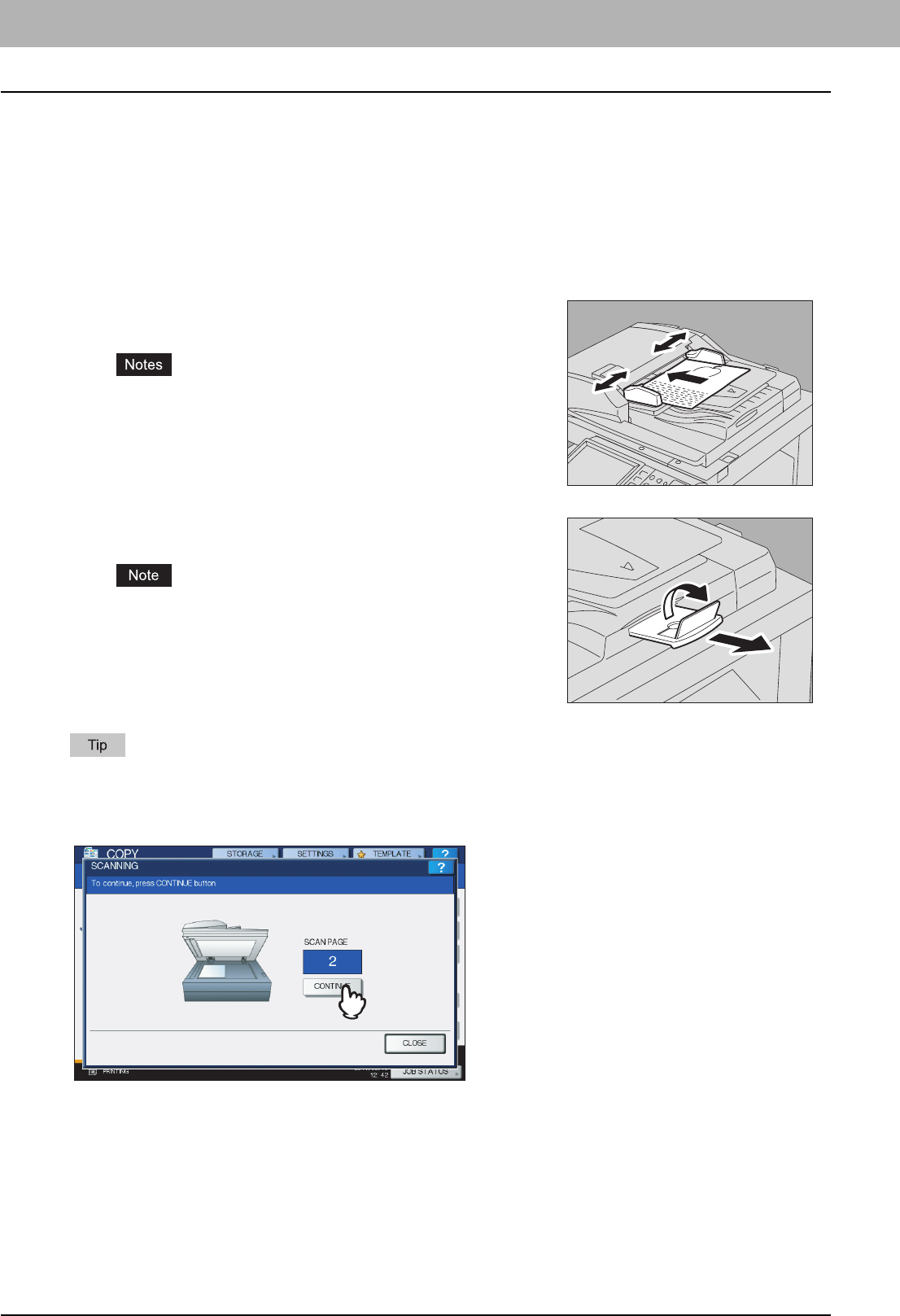
Continuous feed mode
The feeding mode is set at “continuous feed mode” by default. Once you set the originals and then press the [START]
button, they are scanned page by page continuously. It is useful when you want to copy more than one original at one
time.
1
Align all the originals.
Collate the originals in the order that you want them to be copied. The top sheet of the originals will be copied first.
When there are too many originals to be scanned at one time, divide the originals into several sets before copying.
Place the first set of the originals and then press [CONTINUE] on the touch panel while the data of this set are being
scanned. When this scanning is finished, place the next set of the originals and press the [START] button on the
control panel.
2
Place the originals with their face up and align the
side guides to the original length.
yRegardless of their sizes, originals are acceptable up to 100
sheets (35 to 80 g/m2 (9.3 to 20 lb.)) or 16 mm (0.62") in height.
yFor mixed-size originals, see the following page:
P.52 “Copying mixed-size originals in one operation”
For long originals
Pull out the original stopper so that the scanned original will not fall off.
After the original stopper was used, lift it slightly and push it in.
2.HOW TO MAKE COPIES
Placing Originals 27
2 HOW TO MAKE COPIES
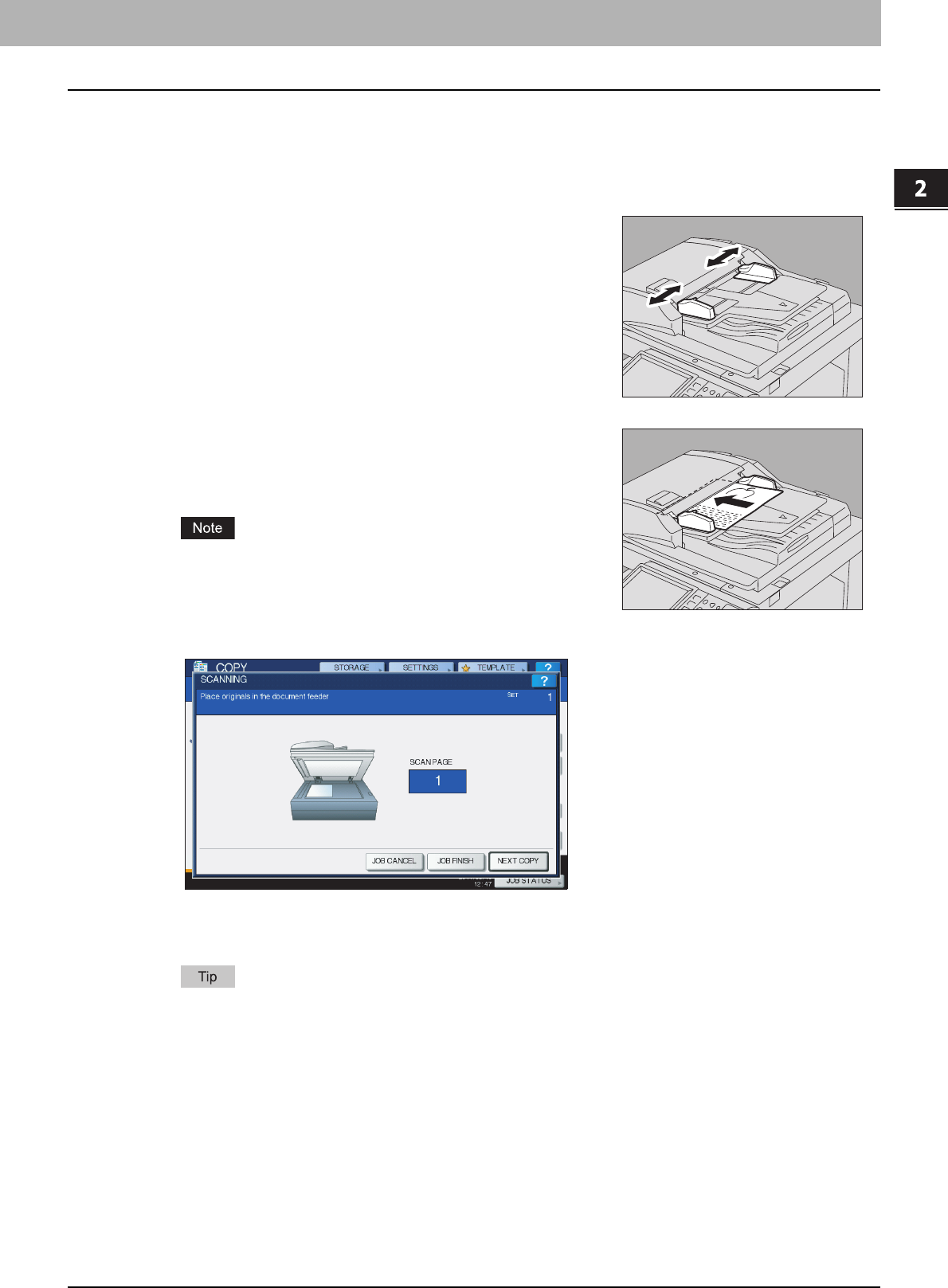
Single feed mode
When the feeding mode is set at “single feed mode”, an original is fed automatically as it is placed on the RADF (optional).
It is useful when you want to copy only 1 original sheet.
P.125 “ADF -> SADF”
3
If there is another original, insert it in the same way.
4
After all the originals are pulled in, press [JOB FINISH].
If you want to stop copying, press [JOB CANCEL].
1
Align the side guides to the original length.
2
Insert the original with its face up and straight along
the side guides.
The original is automatically pulled in and then the menu of step 3 will
be displayed on the touch panel.
Be sure to let go of the original when it starts being pulled.
2 HOW TO MAKE COPIES
28 Making Copies
Making Copies
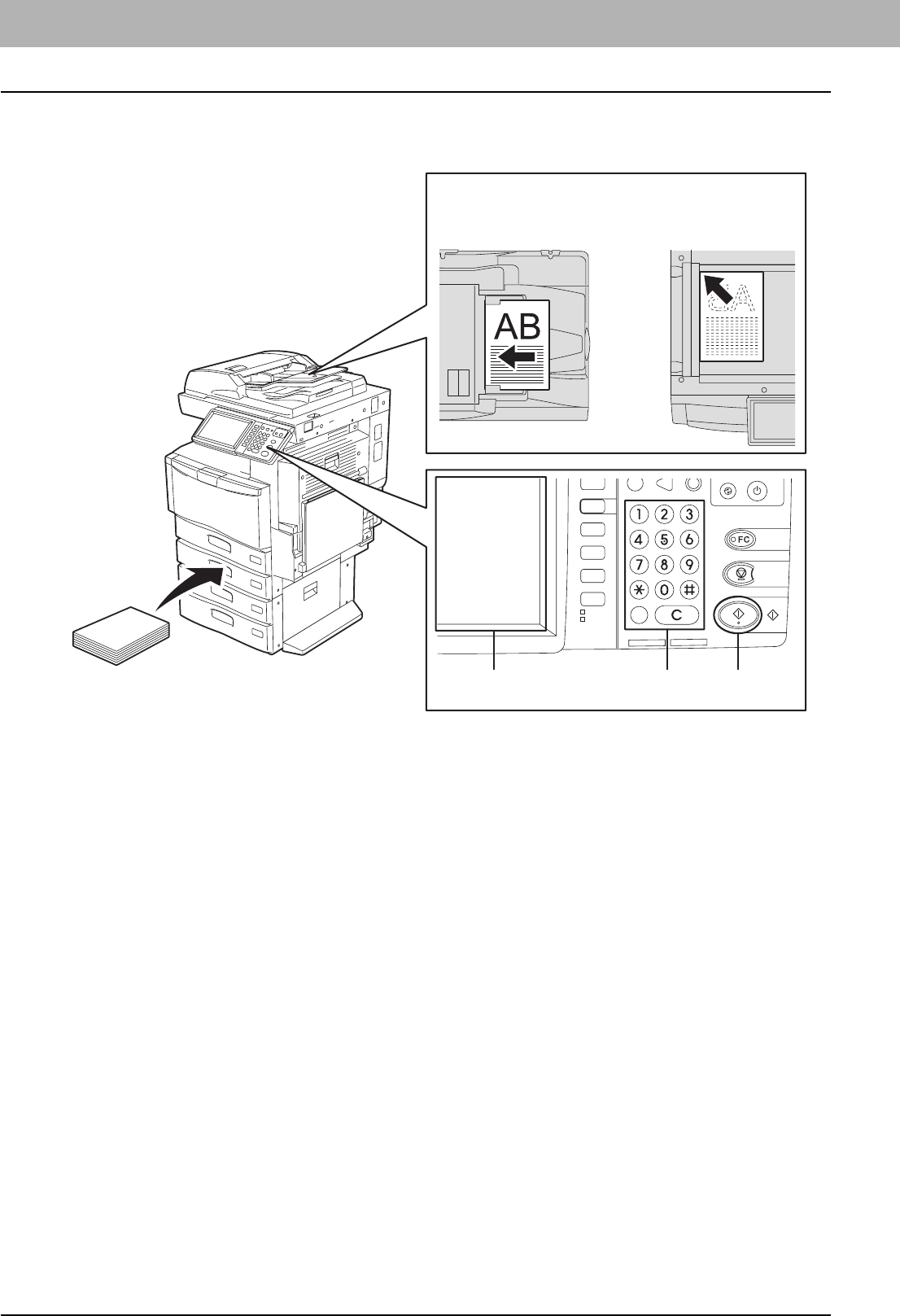
Basic copying procedure
Make copies following the procedure below.
1
Make sure that paper is placed in the drawer(s).
For the types and sizes of acceptable paper and how to place it, see the following pages:
P.11 “Acceptable copy paper”
P.12 “Placing paper in drawers”
P.20 “Placing paper in the Large Capacity Feeder (optional)”
2
Place the original(s).
For the types and sizes of originals and how to place them, see the following pages:
P.23 “Acceptable originals”
P.25 “Using the RADF (Reversing Automatic Document Feeder, optional)”
P.23 “Placing originals on the original glass”
P.24 “Book-type originals”
3
Key in the desired number of copies if you want more than one copy.
Press the [CLEAR] button on the control panel to delete the number keyed in.
4
Select the copy modes as required.
P.47 “BASIC COPY MODES”
P.89 “EDITING FUNCTIONS”
P.135 “IMAGE ADJUSTMENT”
OR
2
534
1
RADF (option)Original glass
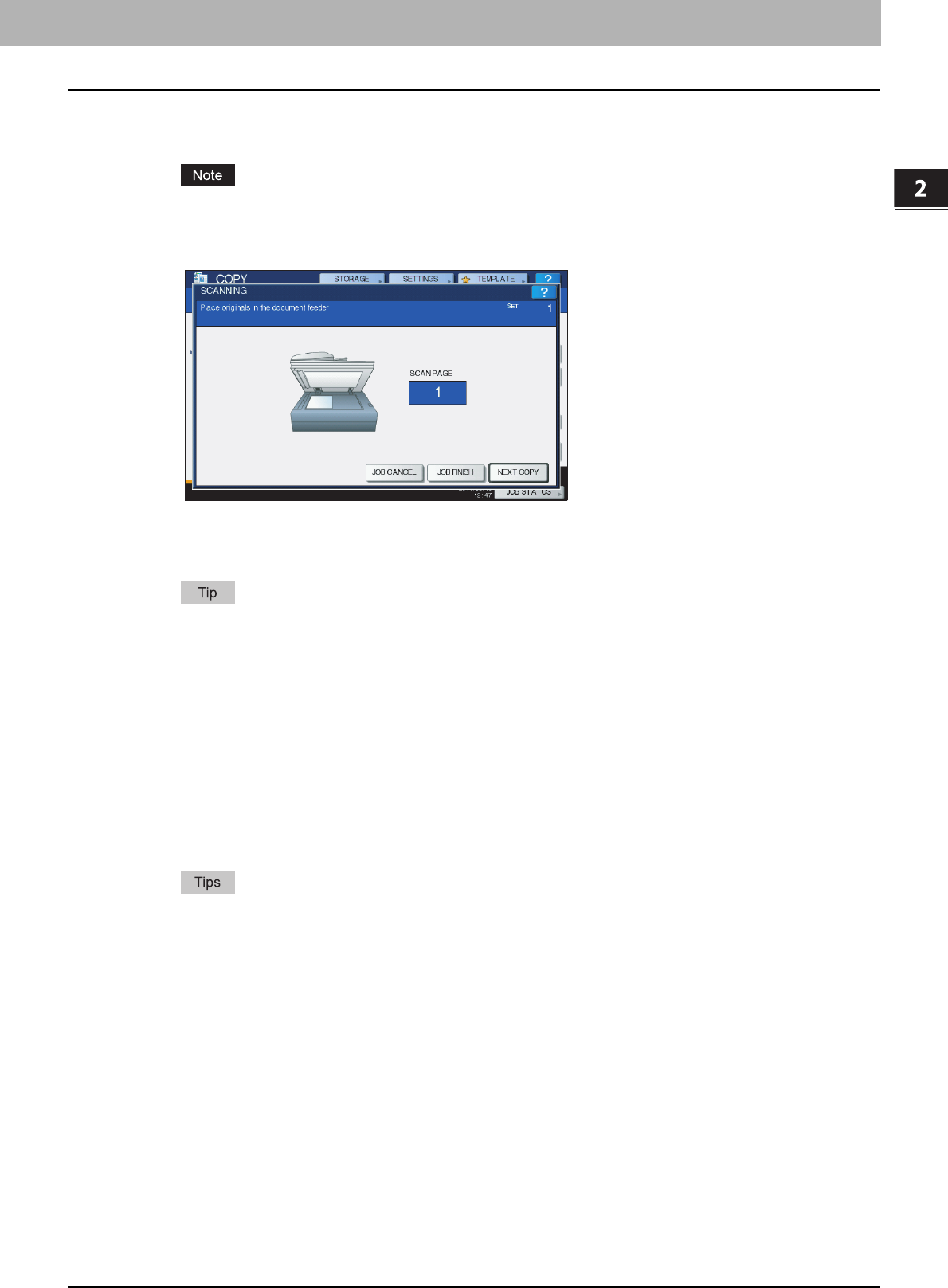
2.HOW TO MAKE COPIES
Making Copies 29
2 HOW TO MAKE COPIES
5
Press the [START] button on the control panel.
Copying starts. The paper exits with its copied side down.
Be careful because the paper exiting area and the paper itself are hot.
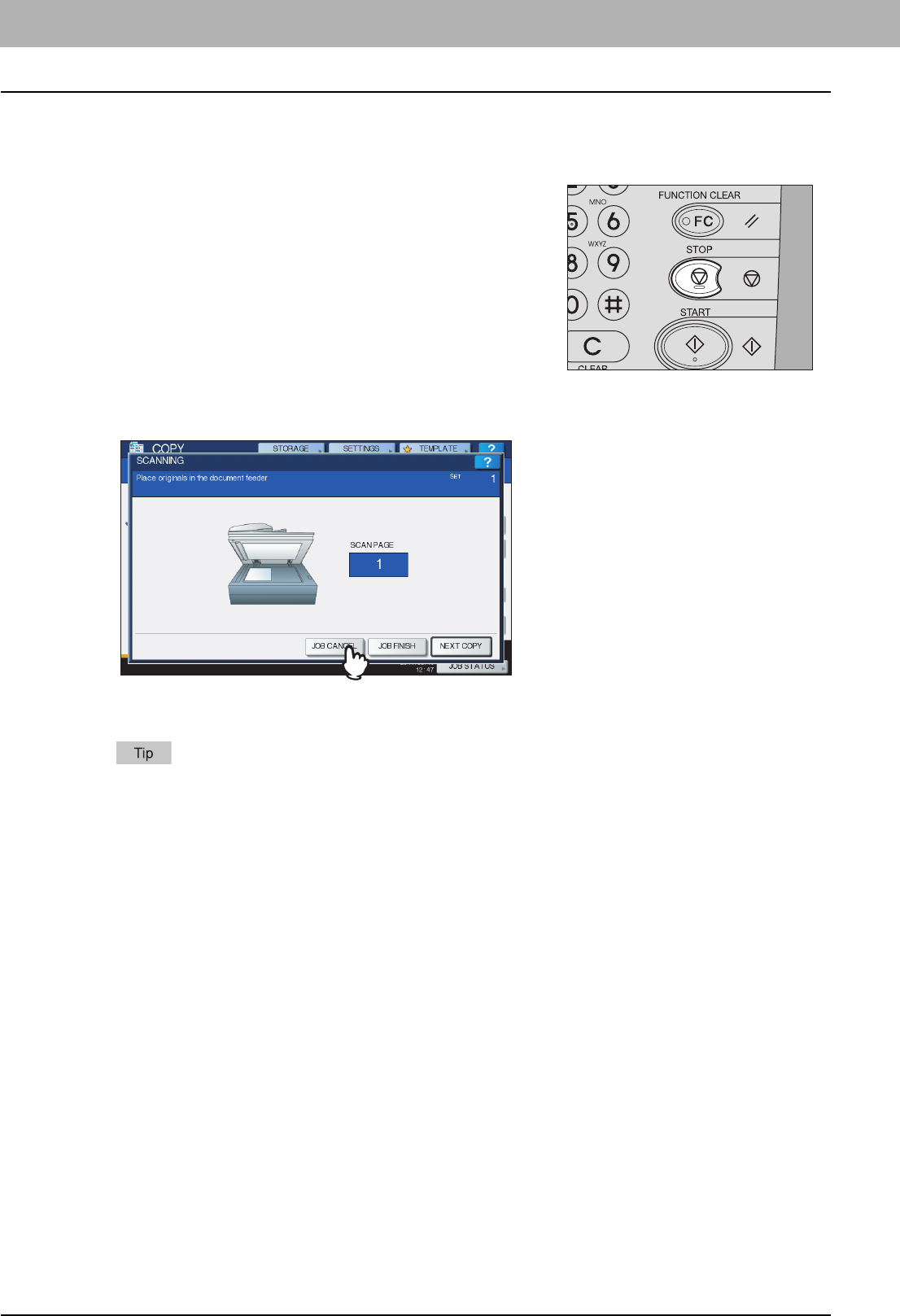
The menu shown below may appear when you are using particular modes.
This menu appears when “SADF (single feed mode)” is set to the document feeder or in modes where the original
is placed on the original glass and the scanned data are temporarily stored in the memory, such as sort copying or
1-sided to 2-sided copying. When this menu appears, follow the procedure below.
There are different messages displayed on the upper part of the menu for when the originals are scanned
through the RADF and for when scanning is performed through the original glass.
6
Place the next original, and then press the [START] button on the control panel or
[NEXT COPY] on the touch panel.
Scanning starts. (When “SADF (single feed mode)” is set to the document feeder, an original is fed automatically
when it is placed on the RADF (optional).)
7
Press [JOB FINISH] on the touch panel after all the originals have been scanned.
Copying starts.
yIf you want to stop copying, press [JOB CANCEL].
yWhen the drawer runs out of paper during copying, another drawer can feed paper instead if it holds paper
of the same size and orientation, and copying will not stop. If there is no such drawer, copying stops and
“Add paper” appears on the touch panel. In this case, add paper to the drawer.
2 HOW TO MAKE COPIES
30 Making Copies
Stopping and restarting copying
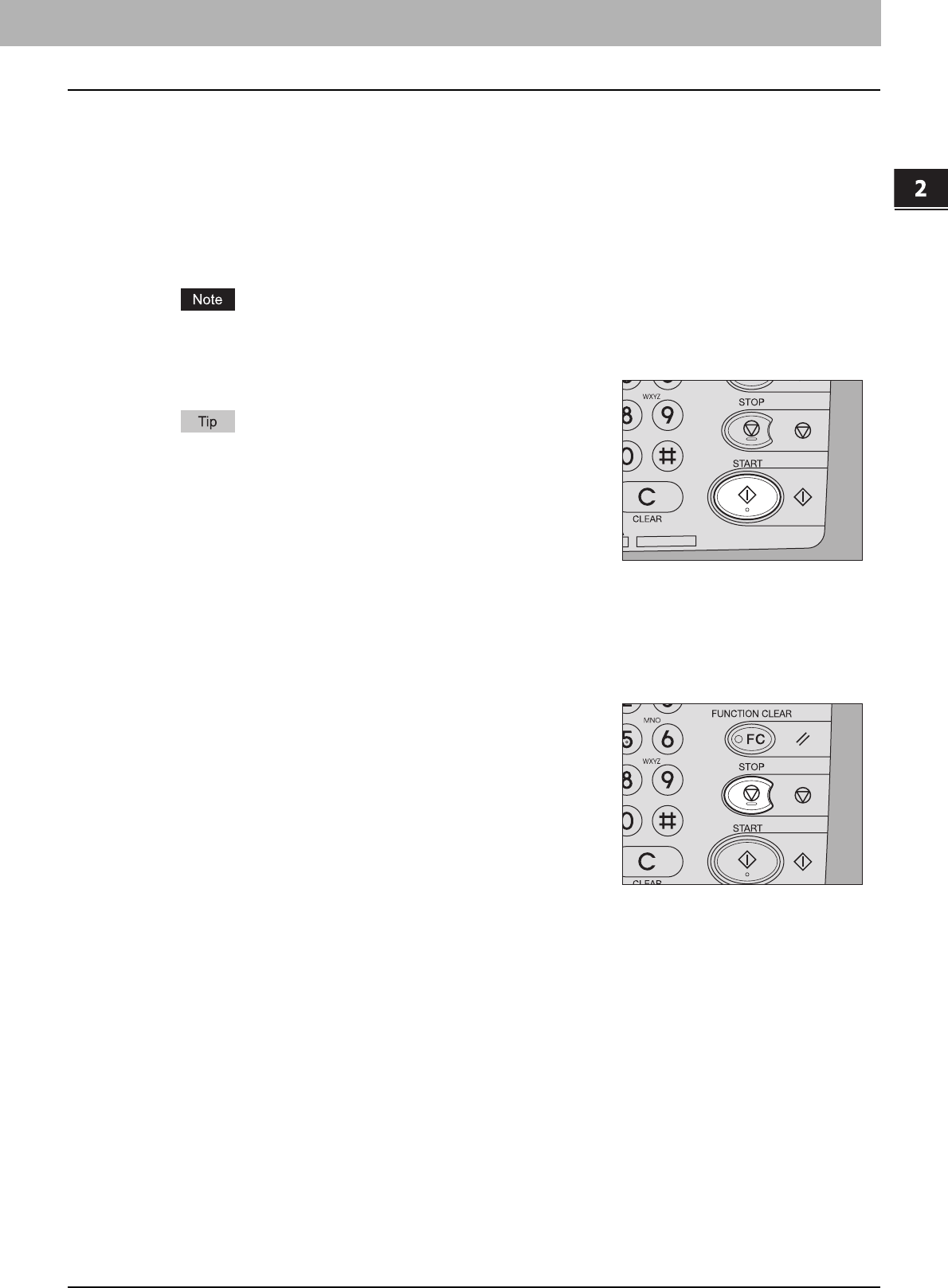
2
Press [JOB CANCEL] on the touch panel to stop copying. Press [NEXT COPY] on the
touch panel or the [START] button on the control panel to restart.
When you press [JOB CANCEL], the scanned data will be deleted and any waiting jobs will be performed.
Even if you do not press [JOB CANCEL], the scanned data will be deleted by means of the automatic function
clear.
1
Press the [STOP] button on the control panel.
Copying or scanning stops.
2.HOW TO MAKE COPIES
Making Copies 31
2 HOW TO MAKE COPIES
Scanning the next original during copying
Even if copying is in progress or “READY (WARMING UP)” is displayed on the touch panel, you can scan the next original
(auto job start).
1
Place the original(s).
2
Set the number of copy sets and the copy modes as required.
The new job starts in the copy modes that you previously selected unless you select other modes.
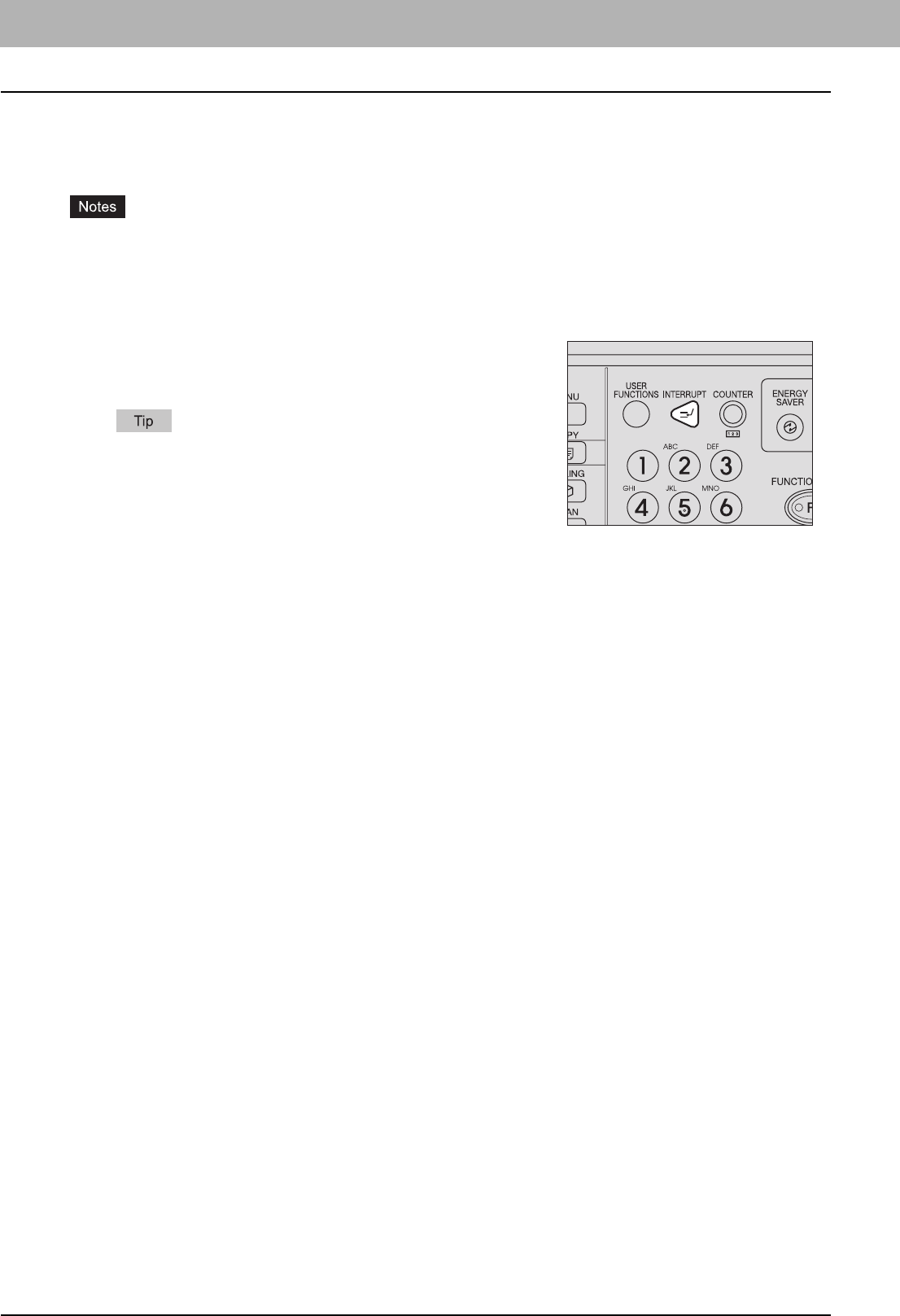
3
Press the [START] button on the control panel.
A maximum of 1000 sheets can be scanned per 1 copy job or up
until the embedded memory becomes full.
Confirming auto jobs
You can confirm which jobs are in waiting on the touch panel or cancel them as required. For details, see the following
page:
P.172 “Confirming Copy Job Status”
Canceling jobs being scanned
Press the [STOP] button on the control panel to stop a job while originals are
being scanned.
When you press [JOB CANCEL] on the touch panel or the [FUNCTION
CLEAR] button on the control panel while the scanning is being paused, the
scanning will end. (In this case, the data which were scanned before the job
was paused will be copied.) To restart the scanning, press the [START]
button.
2 HOW TO MAKE COPIES
32 Making Copies
Interrupting copying and making other copies
You can interrupt the copy job in progress to make other copies (interrupt copying). When restarting the interrupted job,
you do not have to reselect copy modes that have been set because they are memorized in this equipment.
yThe following functions cannot be used together with interrupt copying:
Cover sheet copying, Sheet insertion copying, Job build, Store to e-Filing, Copy & File
yDuring interrupt copying, the mode cannot be changed to a non-copying one, such as e-Filing, scanning, printing or
fax. To change the mode, first press the [INTERRUPT] button to clear the interrupt copying.
2
Replace the original with a new one.
3
Select other copy modes as required and then press the [START] button on the control
panel.
4
Press the [INTERRUPT] button again after the interrupt copying has finished.
“Ready to resume job 1” appears and the interrupted job restarts.
1
Press the [INTERRUPT] button on the control panel.
“Job interrupted job 1 saved” appears and then the [INTERRUPT]
button lights.
If the original is being scanned, the message above appears after
the scanning has finished.
2.HOW TO MAKE COPIES
Making Copies 33
2 HOW TO MAKE COPIES
Proof copy
When you make a large amount of copies, you can check if they will be made exactly as you desire by copying only one
page before copying them all (proof copy). Then you can change the modes or settings (e.g. the number of copy sets,
receiving tray, page number, time stamp, sort/stapling, hole punching) after checking the proof copy.
If you want to change settings such as the reproduction ratio, density, original mode or 1/2-sided copying, you must
finish the proof copy first. Then change these settings and scan the original again.
1
Place paper in the drawer(s).
2
Place the original(s).
3
Select the number of copy sets and copy modes.
4
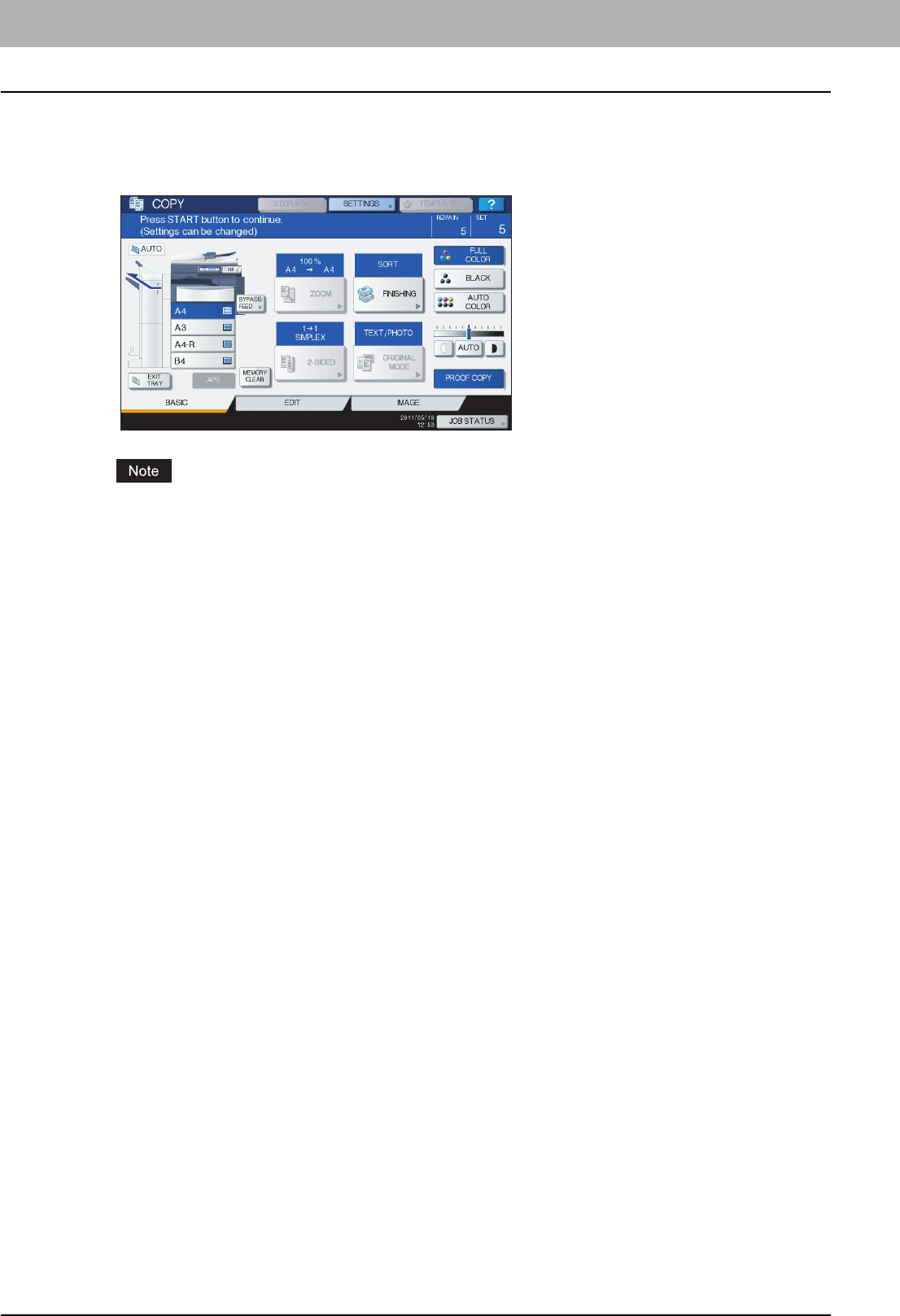
Press [PROOF COPY] on the touch panel.
“PROOF COPY is set Press START button to copy” appears for approx. 2 seconds.
If [NON-SORT NON-STAPLE] or [GROUP] is selected as a finishing mode, the mode will be changed to
[SORT] automatically.
5
Press the [START] button on the control panel.
Scanning starts. 1 set of copies will be printed out.
2 HOW TO MAKE COPIES
34 Making Copies
6
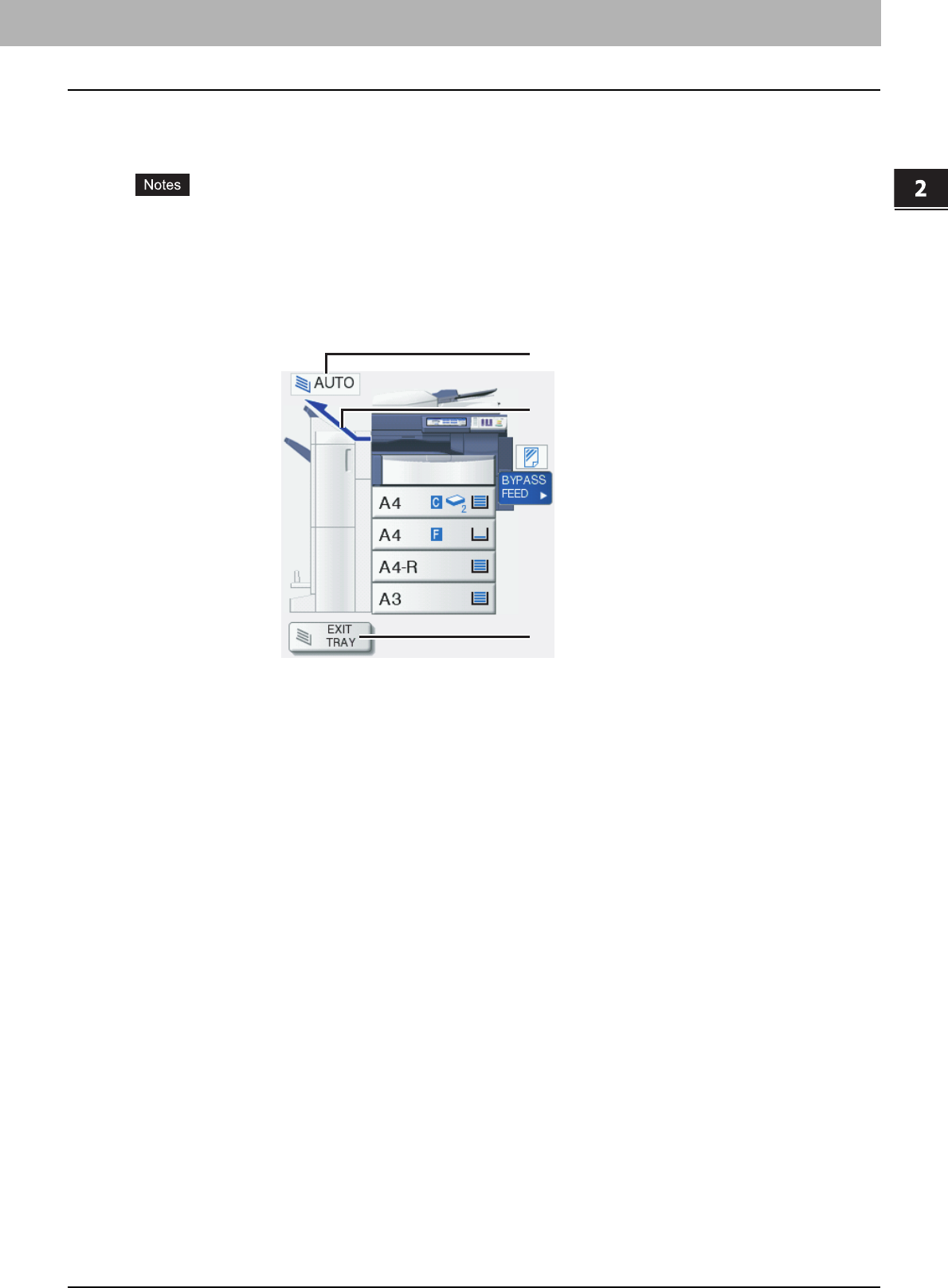
Change the number of copy sets and copy modes as required after checking the proof
copy.
Modes or settings such as the number of copy sets, the receiving tray, page number, time stamp, sort/stapling and
hole punching can be changed.
If you want to change settings such as the reproduction ratio, density, original mode or 1/2-sided copying, you
must finish the proof copy first. Then change these settings and scan the original again. Press [MEMORY
CLEAR] on the touch panel or the [FUNCTION CLEAR] button on the control panel to end the proof copy.
7
Press the [START] button on the control panel.
If you did not change the number of copies in step 6 above, the number of copies printed out will be one fewer than
that previously set because you have already copied one as a proof copy. (However, if the number of copies you
previously set was 1, another set of copies will be printed out besides the proof copy.)
2.HOW TO MAKE COPIES
Making Copies 35
2 HOW TO MAKE COPIES
Selecting exit tray
You can select the exit tray if the Finisher (optional) is installed.
yThe available exit tray may be restricted depending on copy modes and paper sizes.
yExit tray selection is set at automatic selection by default.
Changing the exit tray
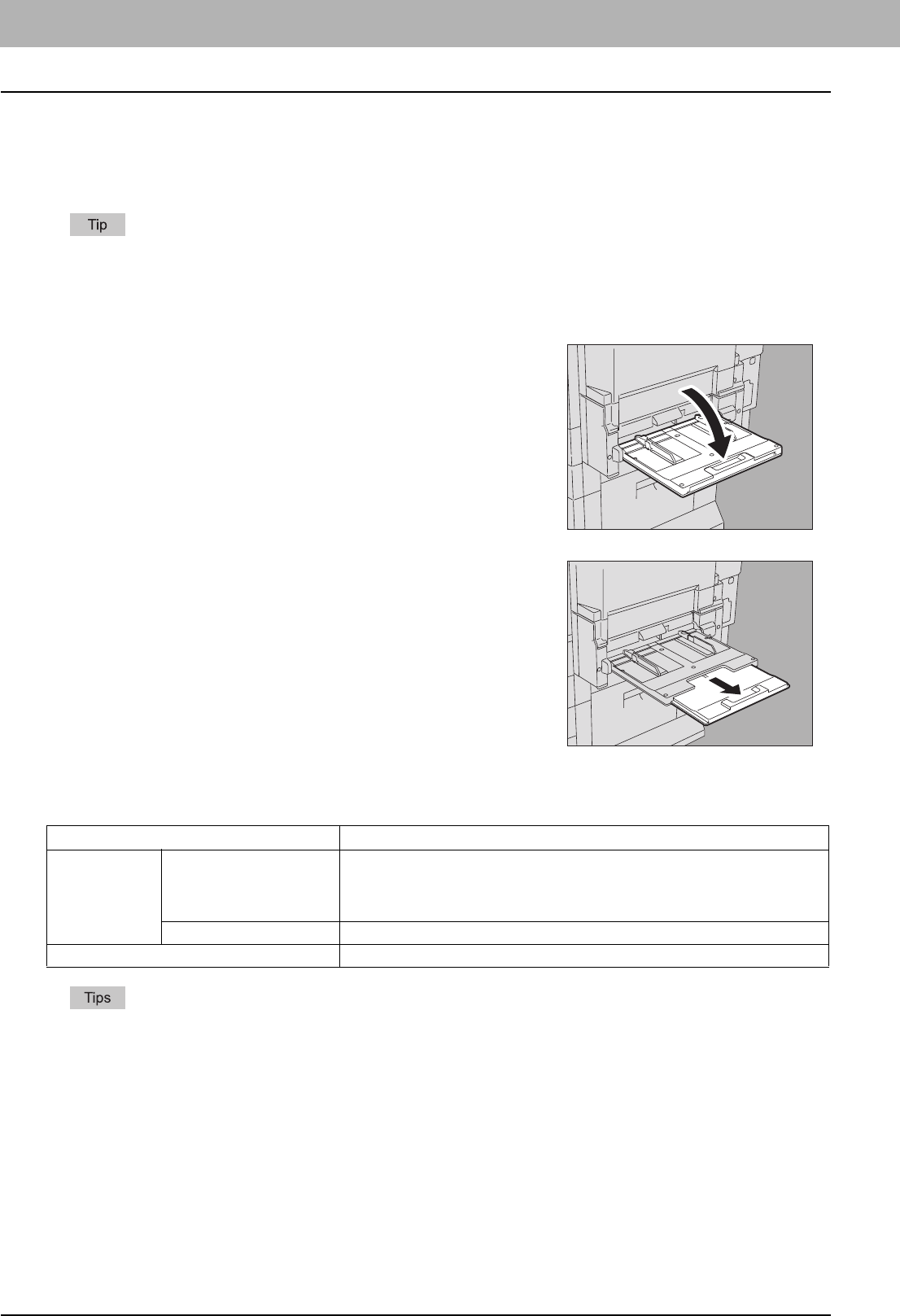
The exit tray currently selected is displayed on the equipment status indication area. To change the exit tray, press [EXIT
TRAY]. The display changes every time you press this from the exit tray of the equipment, those of the Finisher (optional)
and automatic selection in order.
Current exit tray
Exit tray auto-selection
indication
[EXIT TRAY] button
2 HOW TO MAKE COPIES
36 Bypass Copying
Bypass Copying
Bypass copying
When you make copies on OHP film, sticker labels, Thick 4 paper or non-standard size paper, place copy paper on the
bypass tray. Bypass copying is also recommended for copying on standard size paper which is not set in any of the
drawers.
If you select the paper size, you can utilize various functions such as the automatic paper selection (APS) or the
automatic magnification selection (AMS). For details, see the following page:
P.185 “Copying Function Combination Matrix”
The operating procedure for bypass copying differs depending on the paper size to be used. See the table below for the
operating procedure of each size.
yBypass copying stops when the paper placed on the bypass tray runs out during copying, even if the paper of the
same size is in any of the drawers. Copying restarts when paper is supplied to the bypass tray.
yWhen bypass copying has been completed, the [FUNCTION CLEAR] button on the control panel blinks. Press this
button to switch bypass copying to normal copying using the drawers.
(Even if you do not press the [FUNCTION CLEAR] button, the bypass copying mode will be cleared when the
automatic function clear mode kicks in after a specified period of time.)
Open the bypass tray for bypass copying.
If the paper is large, pull out the paper holder.
Paper size Procedure
Standard size
Other than North America:
A3, A4, B4, B5
North America: LD, LT, LG,
ST-R
P.37 “Copying on A3, A4, B4 and B5 size paper (in equipment other than for
North America) / LD, LT, LG and ST-R size paper (in equipment for North America)”
Other than the above P.40 “Copying on other than the above standard sizes of paper”
Others (Non-standard sizes) P.43 “Bypass copying on non-standard size paper”
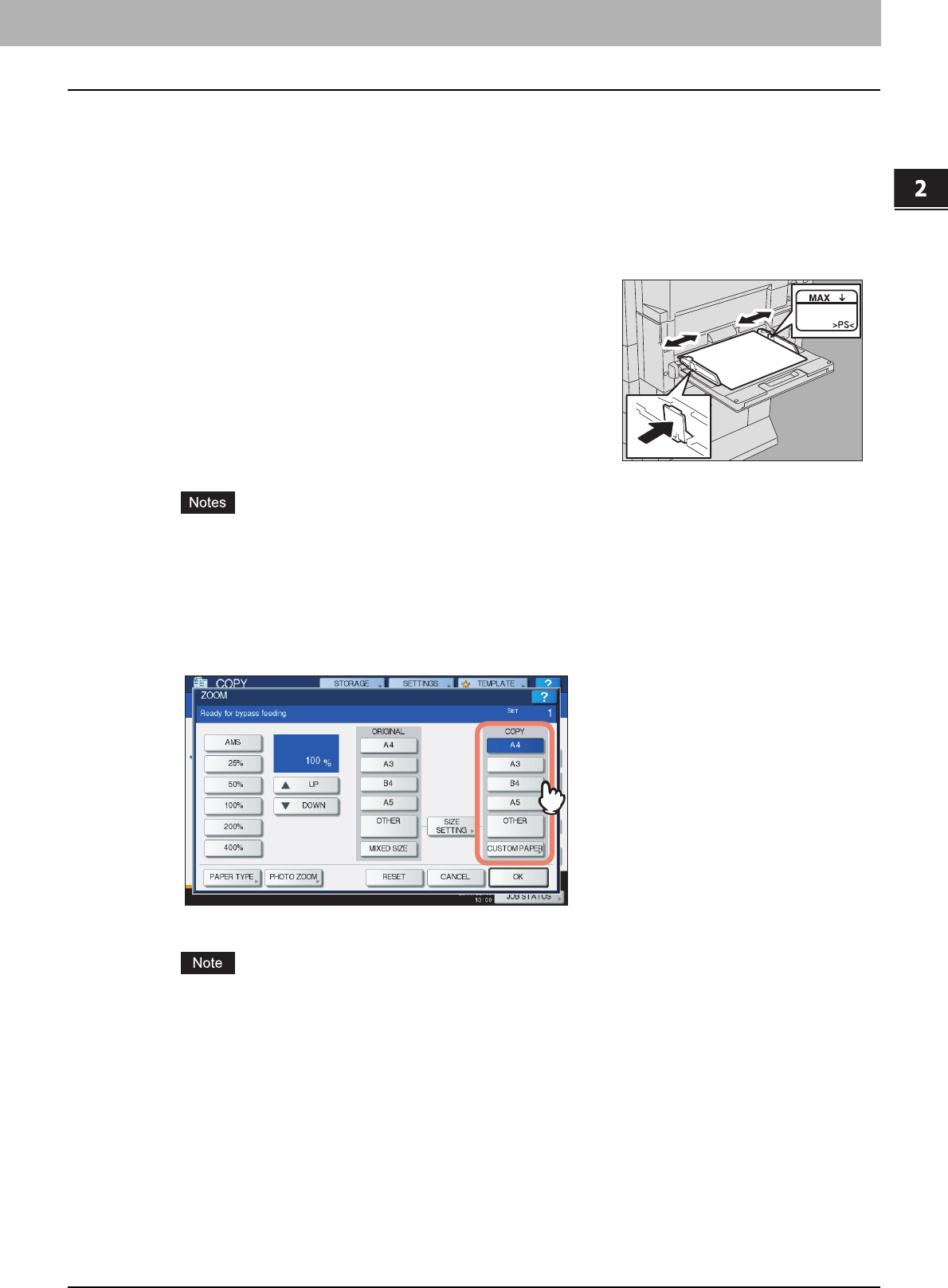
2.HOW TO MAKE COPIES
Bypass Copying 37
2 HOW TO MAKE COPIES
Bypass copying on standard size paper
Copying on A3, A4, B4 and B5 size paper (in equipment other than for North
America) / LD, LT, LG and ST-R size paper (in equipment for North America)
1
Place the original(s).
yThe height of the paper must not exceed the indicator on the side guides.
yWhen you use more than one sheet of paper, fan the sheets well before placing them on the bypass tray. Be
careful not to cut your fingers when fanning.
yDo not push paper into the entrance of the bypass feeder. This could cause a paper jam.
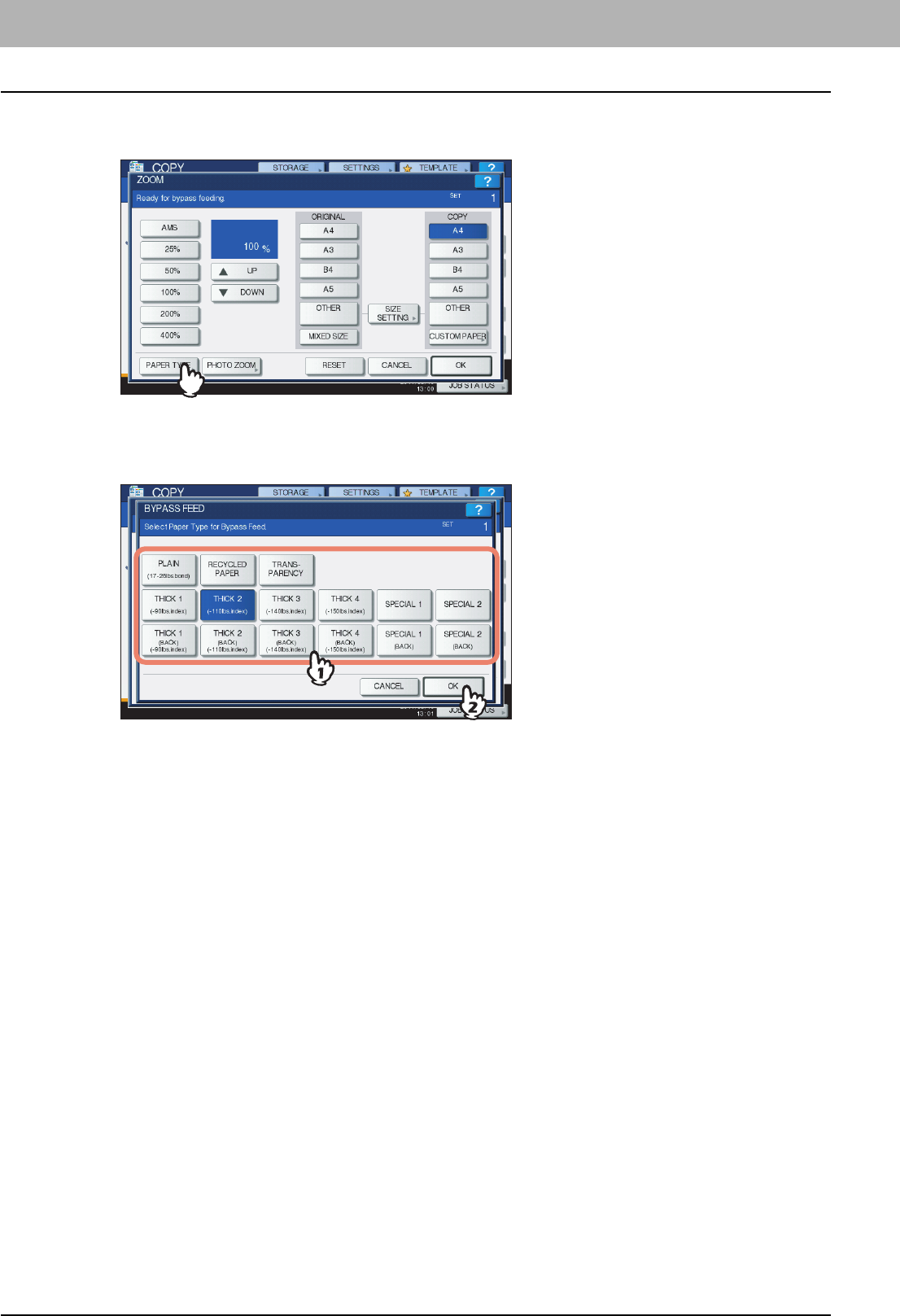
3
Select the same size button under “COPY” as that of the paper you placed on the
bypass tray.
The paper size is now set.
If the paper size is not selected in this step, copying may be slowed down.
2
Place paper with its copy side down on the bypass
tray. Then align the side guides to the paper length
while holding the tab.
When paper is placed, the menu for bypass copying appears.
2 HOW TO MAKE COPIES
38 Bypass Copying
4
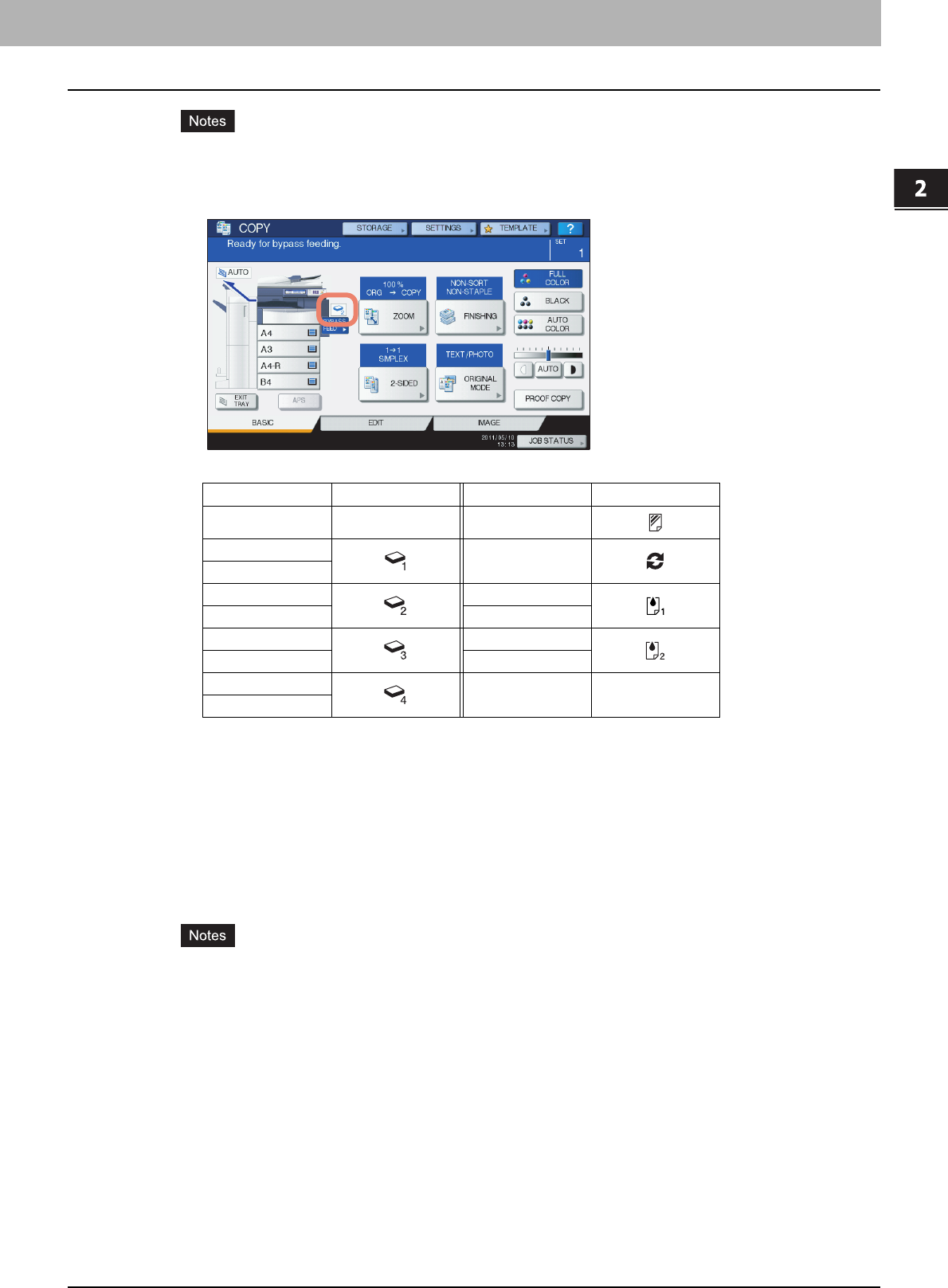
Press [PAPER TYPE] on the touch panel if the paper type of the paper you placed on
the bypass tray is other than plain paper.
5
Press the button of the same paper type as the paper you placed on the bypass tray.
Then press [OK].
2.HOW TO MAKE COPIES
Bypass Copying 39
2 HOW TO MAKE COPIES
yIf you select a wrong paper type, this could cause a paper jam or significant image trouble.
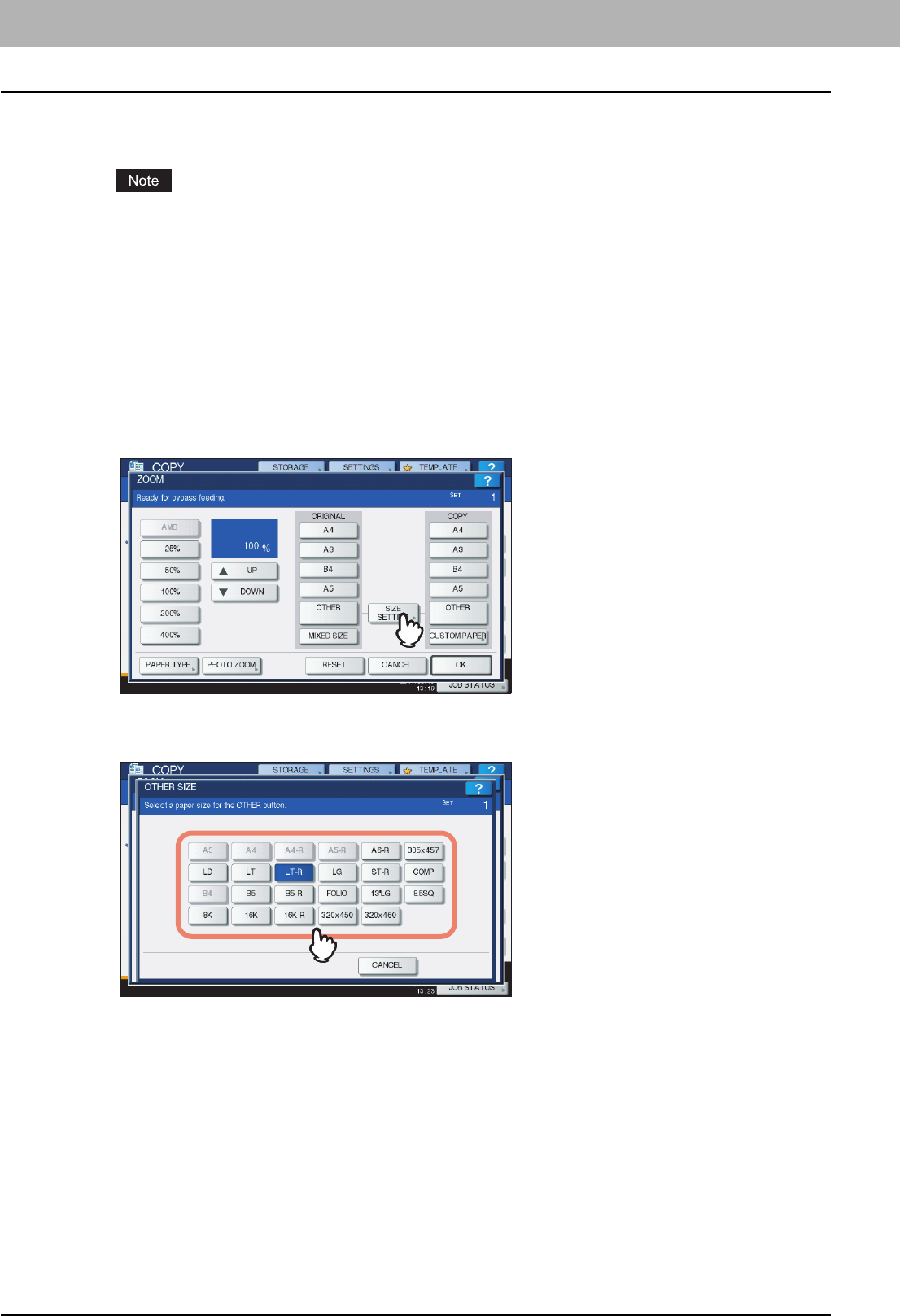
yWhen you select a paper type, you can confirm it with the icons displayed on the equipment status
indication area as shown below.
About “BACK”
When you make 2-sided copies on particular paper types such as THICK 4, to which automatic 2-sided copying
cannot be applied, select a paper type for one side and make a copy of it, and then select “(BACK)” of the same
paper type for the other side.
Example: When making a 2-sided copy on THICK 4 paper
yAutomatic 2-sided copying can be applied to plain paper, recycled paper, THICK 1, THICK 2, THICK 3,
SPECIAL 1 and SPECIAL 2.
y2-sided copying cannot be applied to sheets of OHP film (TRANSPARENCY).
6
After setting the paper size and type, press [OK].
The menu returns to the BASIC menu.
Paper type Icon Paper type Icon
PLAIN — TRANSPARENCY
THICK 1 RECYCLED PAPER
THICK 1 (BACK)
THICK 2 SPECIAL 1
THICK 2 (BACK) SPECIAL 1 (BACK)
THICK 3 SPECIAL 2
THICK 3 (BACK) SPECIAL 2 (BACK)
THICK 4
THICK 4 (BACK)
1. Place paper on the bypass tray.
2. Select “THICK 4” for the paper type and start copying.
3. Place the paper copied in step 2 on the bypass tray again with its copied side up.
4. Select “THICK 4 (BACK)” and start copying.
2 HOW TO MAKE COPIES
40 Bypass Copying
7
Select other copy modes as required, and then press the [START] button on the control
panel.
When you copy on sheets of OHP film, remove the copied OHP film one sheet at a time as they exit onto the
receiving tray. If the sheets of OHP film pile up, they may get curled and may not be projected properly.
Copying on other than the above standard sizes of paper
1
Place the original(s) and paper in the same procedure noted in steps 1 and 2 in
“Copying on A3, A4, B4 and B5 size paper (in equipment other than for North America)
/ LD, LT, LG and ST-R size paper (in equipment for North America)” ( P. 3 7)
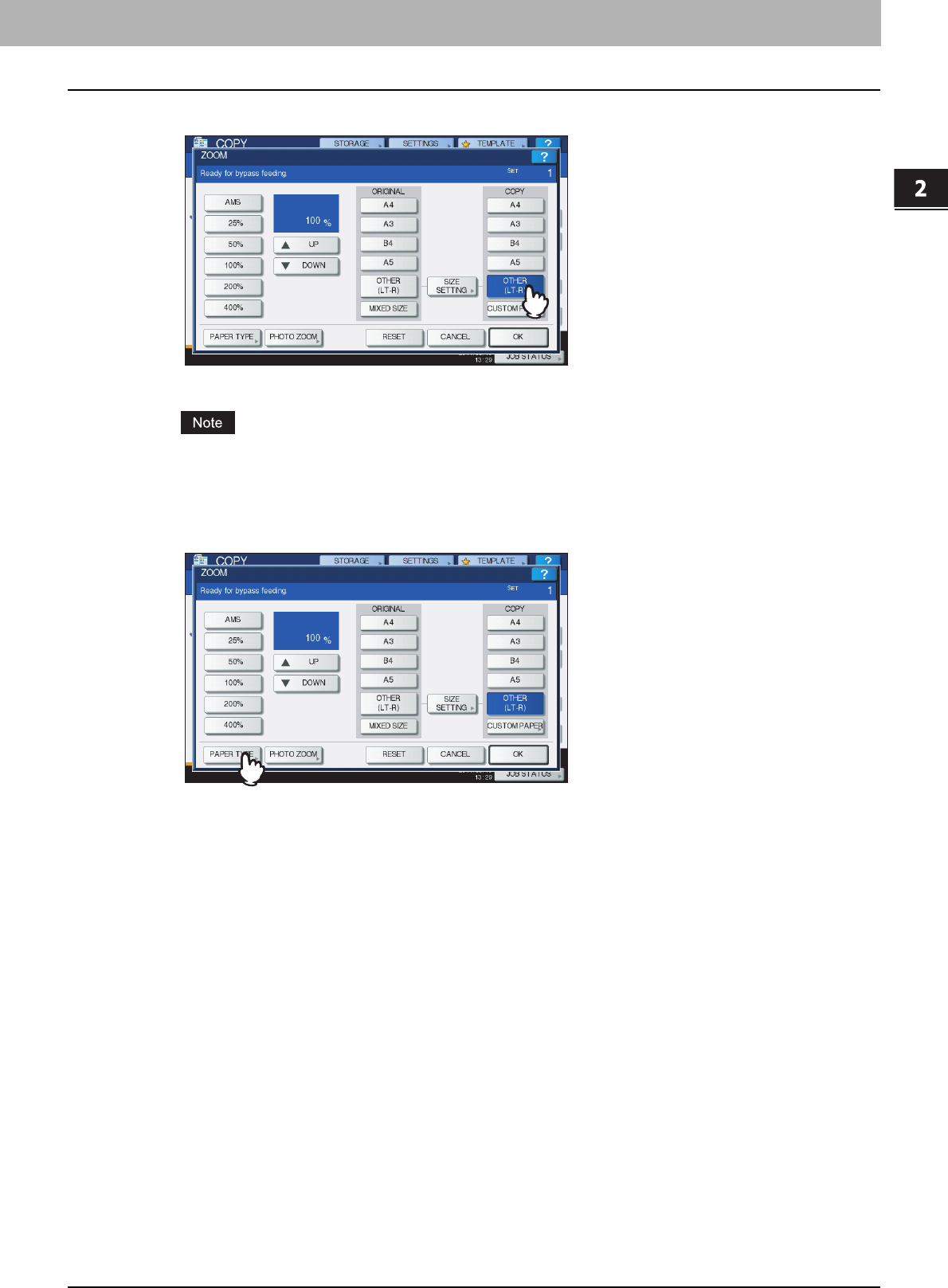
2
Press [SIZE SETTING] on the touch panel.
3
Press the button of the same size as the paper you placed on the bypass tray.
The selected size will be registered as an “OTHER” size.
2.HOW TO MAKE COPIES
Bypass Copying 41
2 HOW TO MAKE COPIES
4
Press [OTHER] under “COPY”.
The paper size is now set to the one registered as “OTHER” size.
If the paper size is not selected in this step, copying may be slowed down.
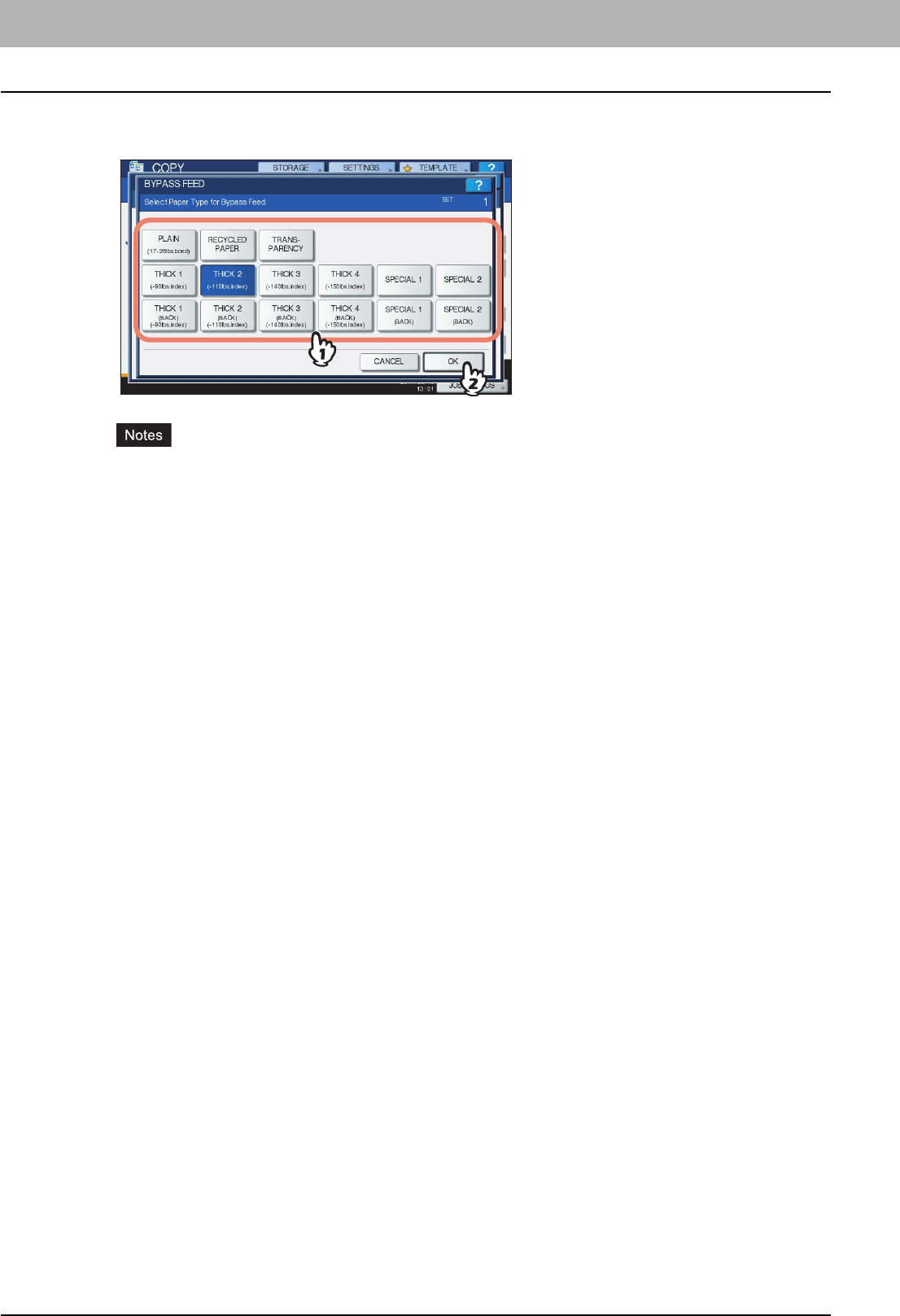
5
Press [PAPER TYPE] if the paper you placed on the bypass tray is other than plain
paper.
2 HOW TO MAKE COPIES
42 Bypass Copying
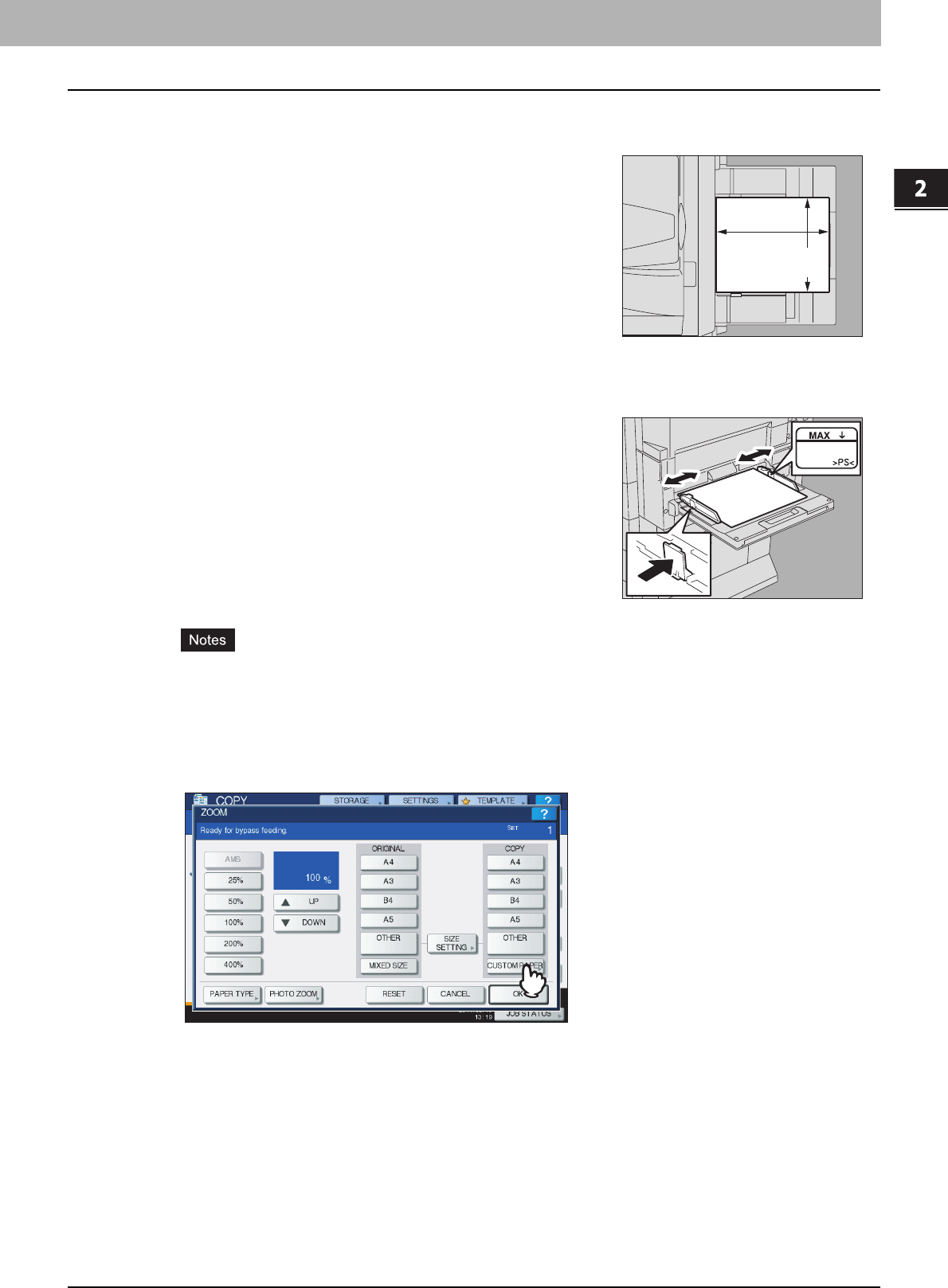
6
Press the button of the same paper type as the paper you placed on the bypass tray.
Then press [OK].
yIf you select a wrong paper type, this could cause a paper jam or significant image trouble.
yWhen you select a paper type, you can confirm it with the icons displayed on the equipment status
indication area. For details, see the following page:
Table in step 5 in “Copying on A3, A4, B4 and B5 size paper (in equipment other than for North America) /
LD, LT, LG and ST-R size paper (in equipment for North America)”( P.3 7 )
7
After setting the paper size and paper type, press [OK].
The menu returns to the BASIC menu.
8
Select other copy modes as required, and then press the [START] button on the control
panel.
2.HOW TO MAKE COPIES
Bypass Copying 43
2 HOW TO MAKE COPIES
Bypass copying on non-standard size paper
1
Place the original on the original glass.
yThe height of the paper must not exceed the indicator on the side guides.
yWhen you use more than one sheet of paper, fan the sheets well before placing them on the bypass tray. Be
careful not to cut your fingers when fanning.
yDo not push paper into the entrance of the bypass feeder. This could cause a paper jam.
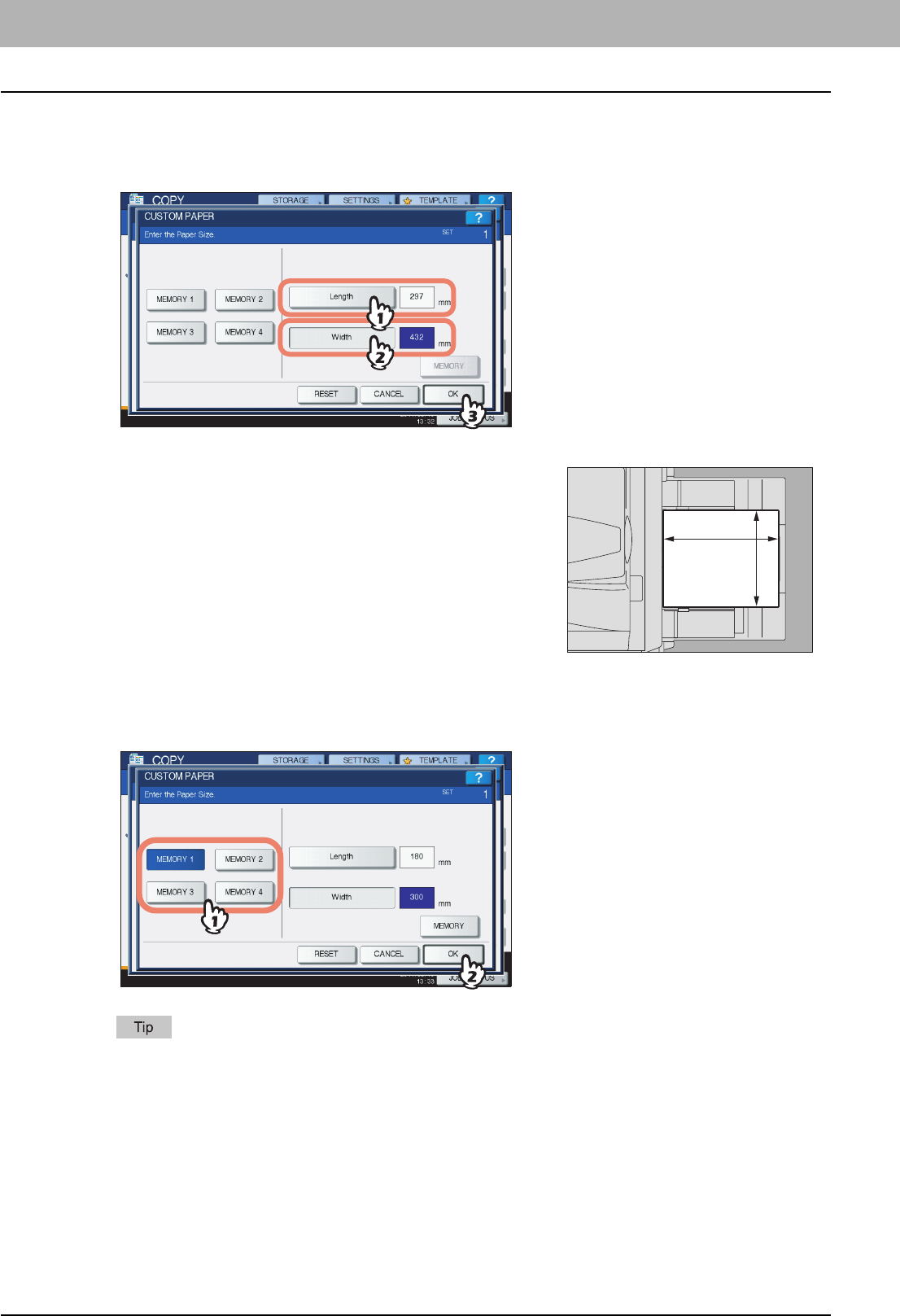
3
Press [CUSTOM PAPER] on the touch panel.
You can use non-standard size paper within the sizes shown on the right.
2
Place paper with its copy side down on the bypass
tray. Then align the side guides to the paper length
while holding the tab.
When paper is placed, the menu for bypass copying appears.
100 - 297 mm
(3.9" - 11.7")
148 - 432 mm
(5.8" - 17")
2 HOW TO MAKE COPIES
44 Bypass Copying
4
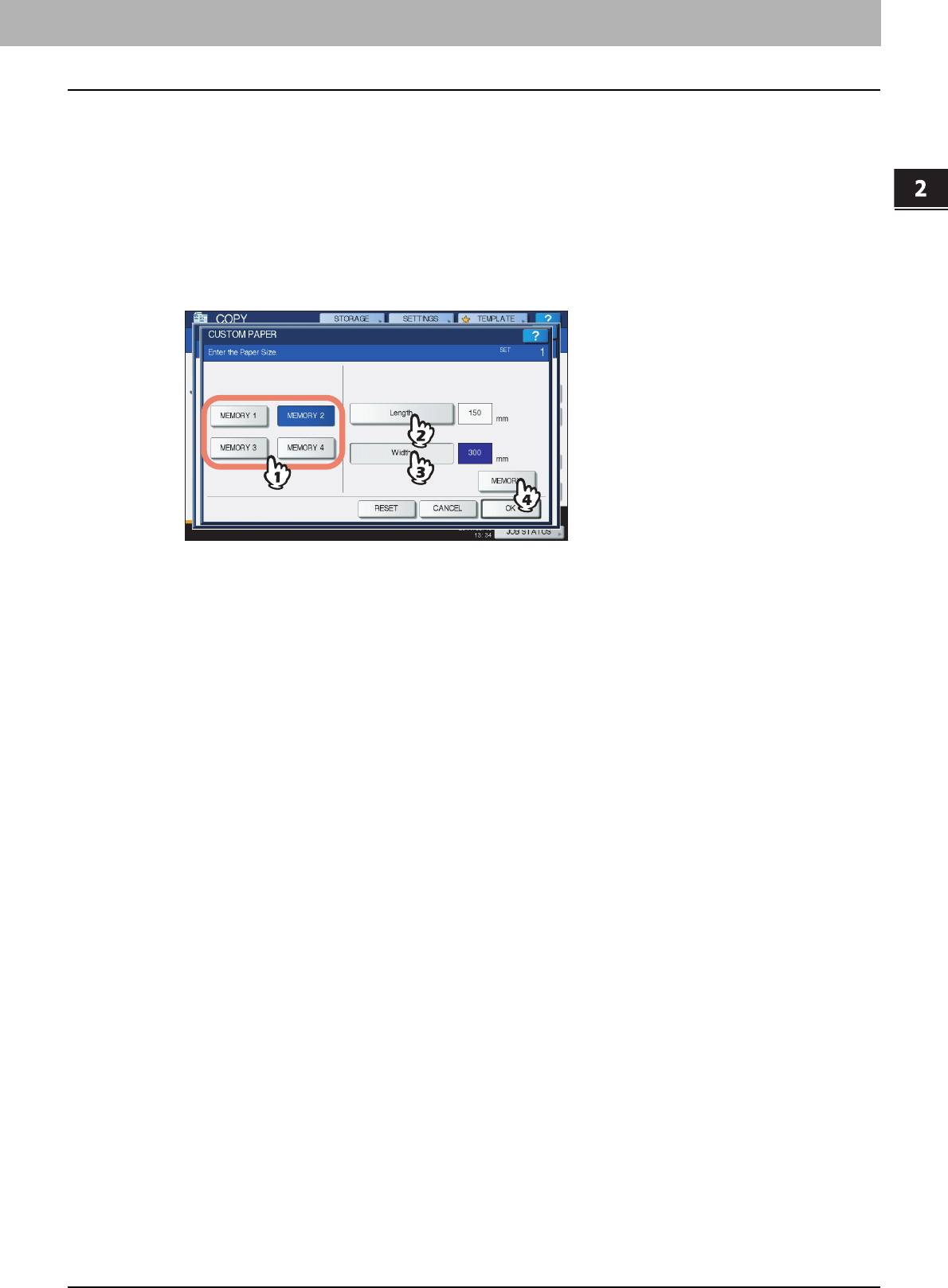
Key in the dimension.
1) Press [Length] and key in the value. (100 mm (3.94") to 297 mm (11.69"))
2) Press [Width] and key in the value. (148 mm (5.83") to 432 mm (17.01"))
3) Press [OK].
To call up the dimension data registered previously, press the desired button from [MEMORY 1] to [MEMORY 4],
and then press [OK].
To register dimension data into the memory, see the following page:
P.45 “Registering non-standard size in the memory”
5
Select other copy modes as required, and then press the [START] button on the control
panel.
Length and width are indicated as shown on the right:
Width
Length
2.HOW TO MAKE COPIES
Bypass Copying 45
2 HOW TO MAKE COPIES
Registering non-standard size in the memory
1
Follow the same procedure noted in steps 1 to 3 in “Bypass copying on non-standard
size paper” ( P. 4 3 ) .
2
Register dimensions.
1) Select a desired memory number.
2) Press [Length] and key in the value. (100 mm to 297 mm (3.94" to 11.69"))
3) Press [Width] and key in the value. (148 mm to 432 mm (5.83" to 17.01"))
4) Press [MEMORY].

3.BASIC COPY MODES
This chapter describes the basic copying functions including how to change the reproduction ratio, how to set sorting
modes or how to perform duplex copying.
Before Using Copying Functions ......................................................................................... 48
Default settings.....................................................................................................................................................48
Confirming the set functions.................................................................................................................................48
Clearing the set functions.....................................................................................................................................49
Restrictions on function combinations..................................................................................................................49
Paper Selection ...................................................................................................................... 50
Automatic Paper Selection (APS) ........................................................................................................................50
Selecting desired paper manually ........................................................................................................................51
Copying mixed-size originals in one operation.....................................................................................................52
Switching Color Modes.......................................................................................................... 54
Setting Original Modes ..........................................................................................................55
Density Adjustment................................................................................................................ 56
Enlargement and Reduction Copying .................................................................................. 57
Automatic Magnification Selection (AMS) ............................................................................................................57
Specifying both the original size and the copy paper size separately ..................................................................58
Specifying reproduction ratio manually.................................................................................................................60
Copying photo originals in the optimal reproduction ratio for copy paper size (PHOTO ZOOM) .........................62
Selecting Finishing Mode...................................................................................................... 65
Finishing modes and optional finishing devices ...................................................................................................65
Sort/Group mode..................................................................................................................................................67
Rotate sort mode ..................................................................................................................................................69
Staple sort mode ..................................................................................................................................................70
Magazine sort / Center fold / Saddle stitch...........................................................................................................73
Hole punch mode .................................................................................................................................................76
Manual staple mode .............................................................................................................................................77
Duplex Copying...................................................................................................................... 78
Making a 1-sided copy .........................................................................................................................................79
Making a 2-sided copy .........................................................................................................................................80
Making a 2-sided copy from a book-type original.................................................................................................81
Performing Copy & File ......................................................................................................... 84
Setting share folder ..............................................................................................................................................86
3 BASIC COPY MODES
48 Before Using Copying Functions
Before Using Copying Functions
Default settings
This equipment is under its “default settings” when the power is turned ON, namely, if no setting change has been applied
yet, the equipment’s settings return to the default ones when the energy saving mode is cleared or the [FUNCTION
CLEAR] button on the control panel is pressed. The default settings for basic copy modes at installation are shown below.
The default settings are changeable. For details, refer to the MFP Management Guide.
Confirming the set functions
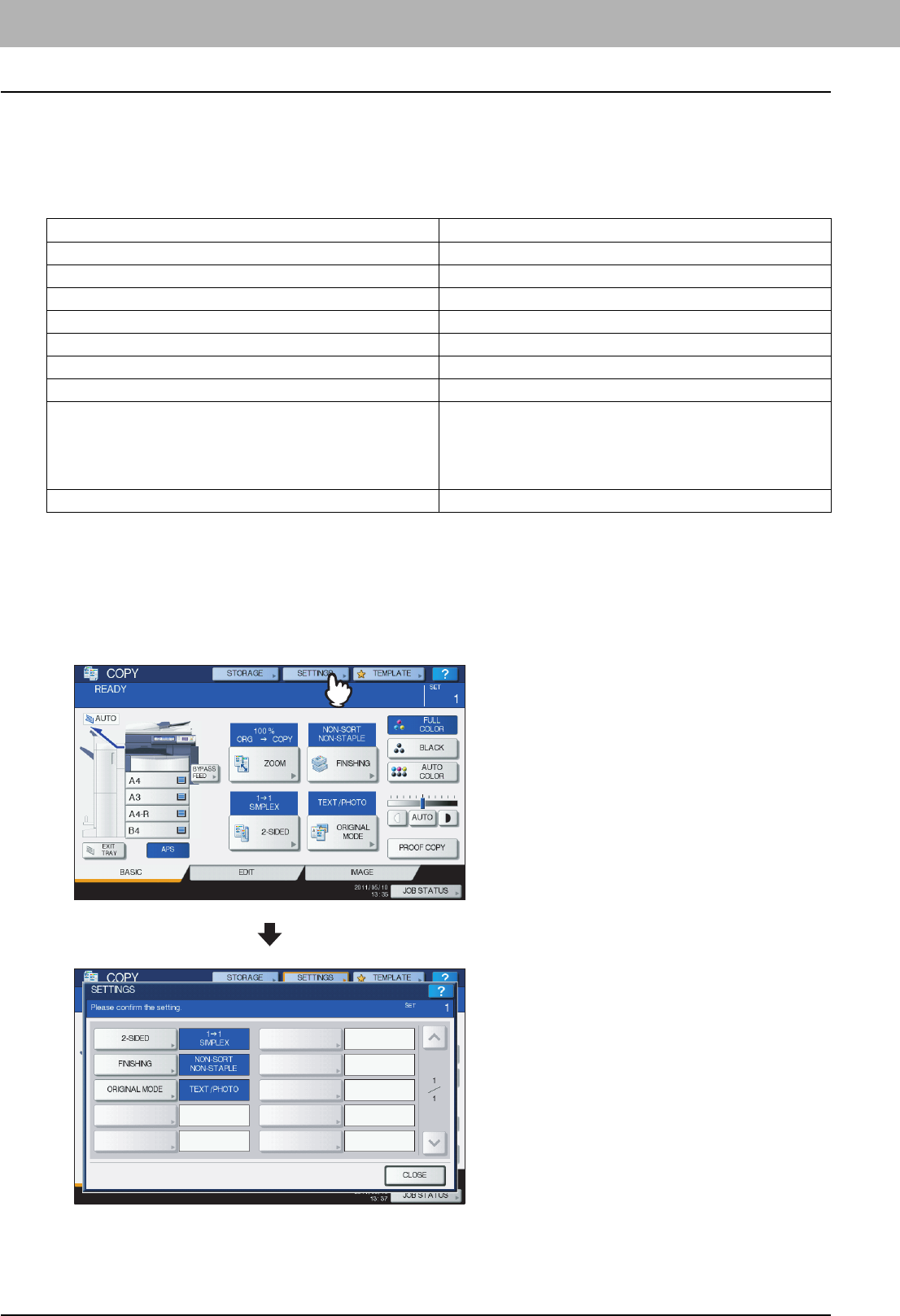
If you press [SETTINGS] on the touch panel, the menu shown below is displayed. On this menu, you can view the
functions that are currently set.
Switching to the function setting menu
To change the functions on the current menu, press the corresponding buttons. The desired setting menu will then appear.
Item Default setting
Reproduction ratio 100%
Copy quantity 1
Paper selection Automatic Paper Selection (APS)
Simplex/Duplex 1-sided original -> 1-sided copy
Density adjustment Manual adjustment
Color mode FULL COLOR
Original mode TEXT/PHOTO
Finishing mode When using the original glass:
NON-SORT NON-STAPLE
When using the RADF (Reversing Automatic Document Feeder,
optional):
SORT
Feeding mode when using the RADF (optional) Continuous feed mode
3.BASIC COPY MODES
Before Using Copying Functions 49
3 BASIC COPY MODES
Clearing the set functions
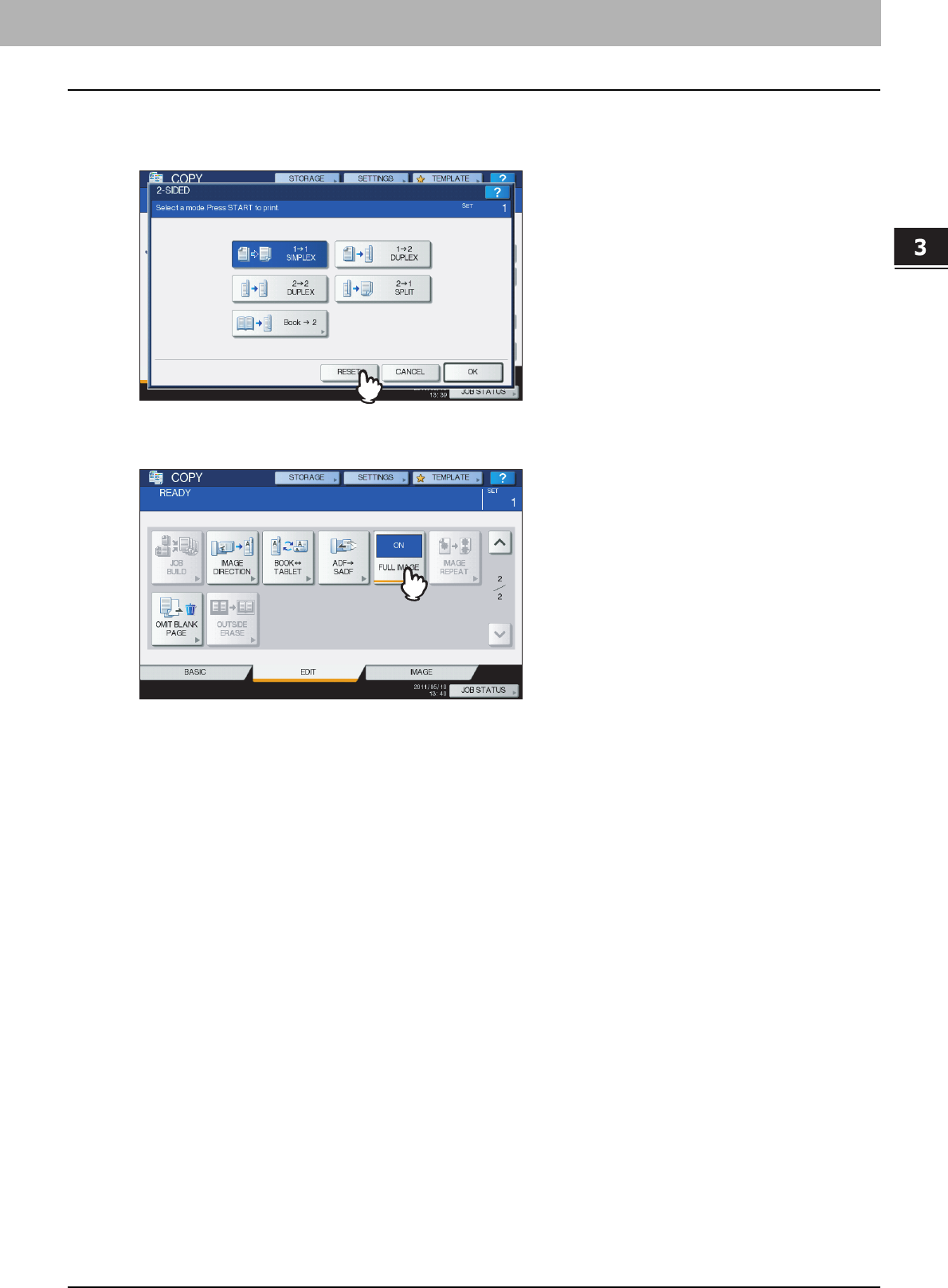
If you want to clear any copy function setting, press [RESET] on the corresponding setting menu.
However, for FULL IMAGE on the EDIT menu, also press the highlighted button to clear the setting.
P.89 “EDITING FUNCTIONS”
Clearing all settings changed
When you press the [FUNCTION CLEAR] button on the control panel, all the function changes will be cleared.
Even if you do not do so, the changes will be cleared if the equipment is left idle for 45 sec. (default setting). For how to
change this period, refer to the MFP Management Guide.
Restrictions on function combinations
Several copy functions can be used together. However some functions may not be used with other ones. For details, see
the following pages:
P.185 “Copying Function Combination Matrix”
P.187 “Image Adjustment Function Combination Matrix”

3 BASIC COPY MODES
50 Paper Selection
Paper Selection
Automatic Paper Selection (APS)
This equipment detects the size of an original and selects paper of the same size automatically. This function is called
Automatic Paper Selection (APS).
yFor the original sizes detectable, see the following page:
P.23 “Acceptable originals”
ySome original sizes may not be detected with this function. In this case, select the desired size manually.
P.51 “Selecting desired paper manually”
1
Place paper in the drawer(s).
2
Place the original(s).
3
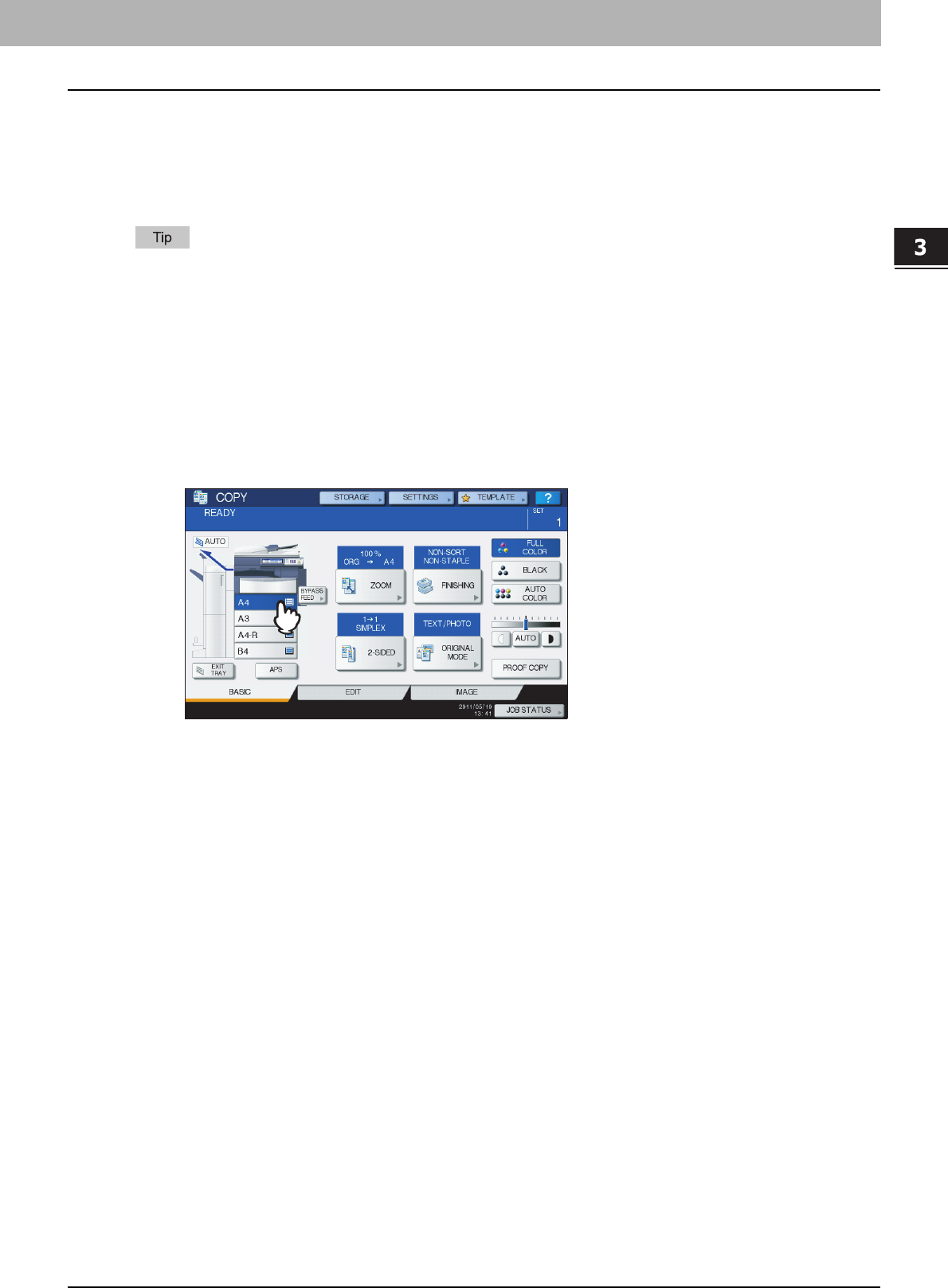
Press [APS] on the touch panel.
The paper selection mode is now set at Automatic Paper Selection.
yThe paper selection mode is set at Automatic Paper Selection by default.
yEven if the direction of the paper placed in the selected drawer differs from that of the original, this
equipment rotates the data of the original by 90 degrees to make copies as long as their sizes are the same.
(This works on A4, B5 or LT paper only.) For example, when an A4 original is placed in a portrait direction
and A4-R paper is placed in the drawer, the data of the A4 original will be rotated and copied correctly on
A4-R paper.
If “Change direction of original” or “CHANGE DRAWER TO CORRECT PAPER SIZE” appears, follow the
directions.
4
Select other copy modes as required, and then press the [START] button on the control
panel.
3.BASIC COPY MODES
Paper Selection 51
3 BASIC COPY MODES
Selecting desired paper manually
You need to select paper by yourself when copying the following originals whose sizes cannot be detected correctly:
yHighly transparent originals (e.g. OHP film, tracing paper)
yTotally dark originals or originals with dark borders
yNon-standard size originals (e.g. newspapers, magazines)
When paper of the size you want to use is not in any drawer, place it in a drawer or on the bypass tray.
P.12 “Placing paper in drawers”
P.36 “Bypass Copying”
1
Place paper in the drawer(s).
When using bypass copying, be sure to set the paper size.
2
Place the original(s).
3
Press the drawer button corresponding to the desired paper size.
4
Select other copy modes as required, and then press the [START] button on the control
panel.
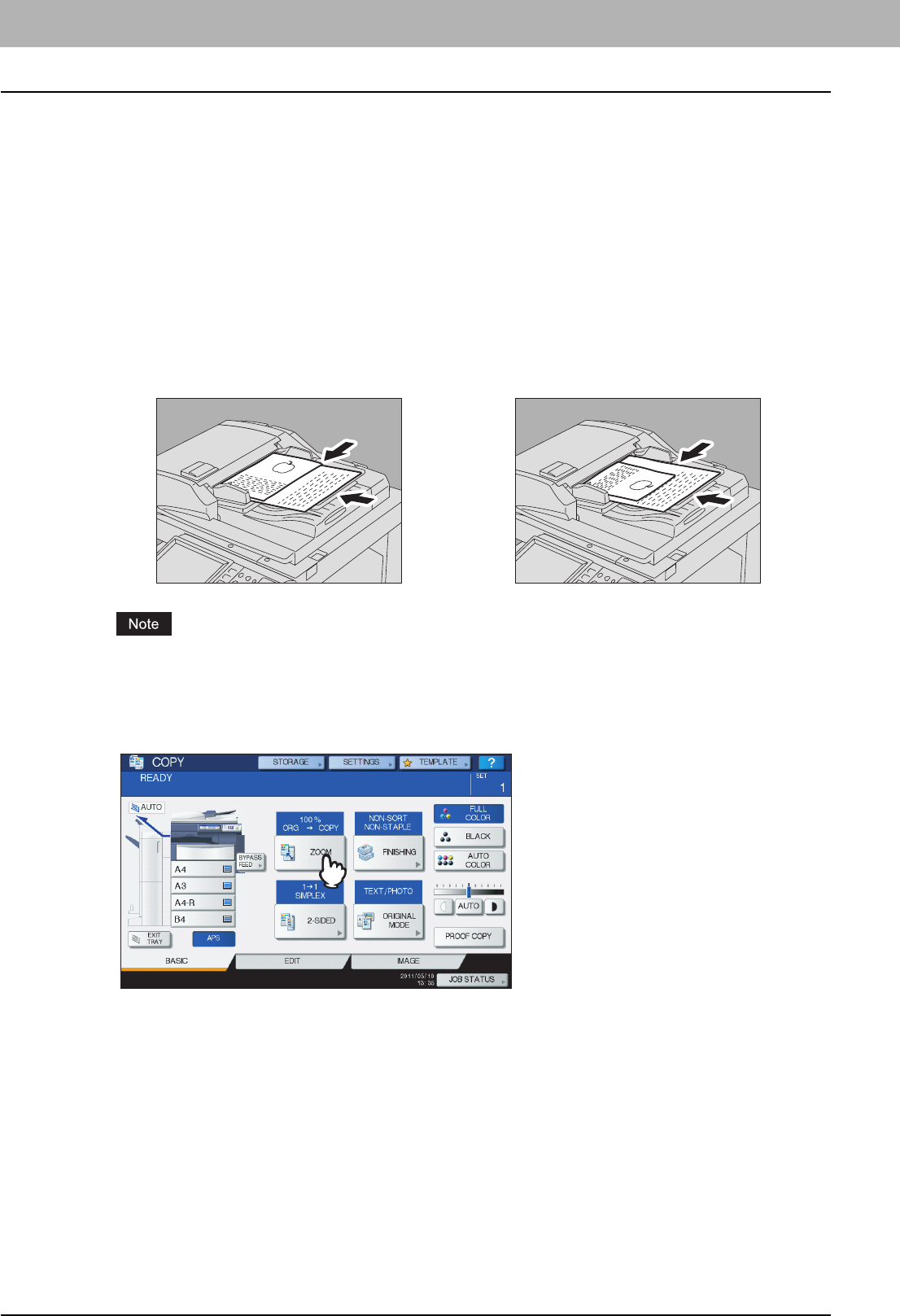
3 BASIC COPY MODES
52 Paper Selection
Copying mixed-size originals in one operation
You can copy a set of originals whose sizes are individually different, using the RADF (Reversing Automatic Document
Feeder, optional).
The original sizes that can be mixed are as follows:
North America: LD, LG, LT, LT-R, COMP
Other than North America: A3, A4, A4-R, B4, B5, FOLIO
1
Place paper in the drawer(s).
The bypass tray cannot be used. Use the drawers.
2
Adjust the side guides to the widest original, and then align the originals against the
side guide on the front side.
When copying originals of different widths, the copied image of the smaller one may be skewed because it does
not touch the side guide on the rear side.
3
Press [ZOOM] on the touch panel.
When original widths are the same When original widths are not the same
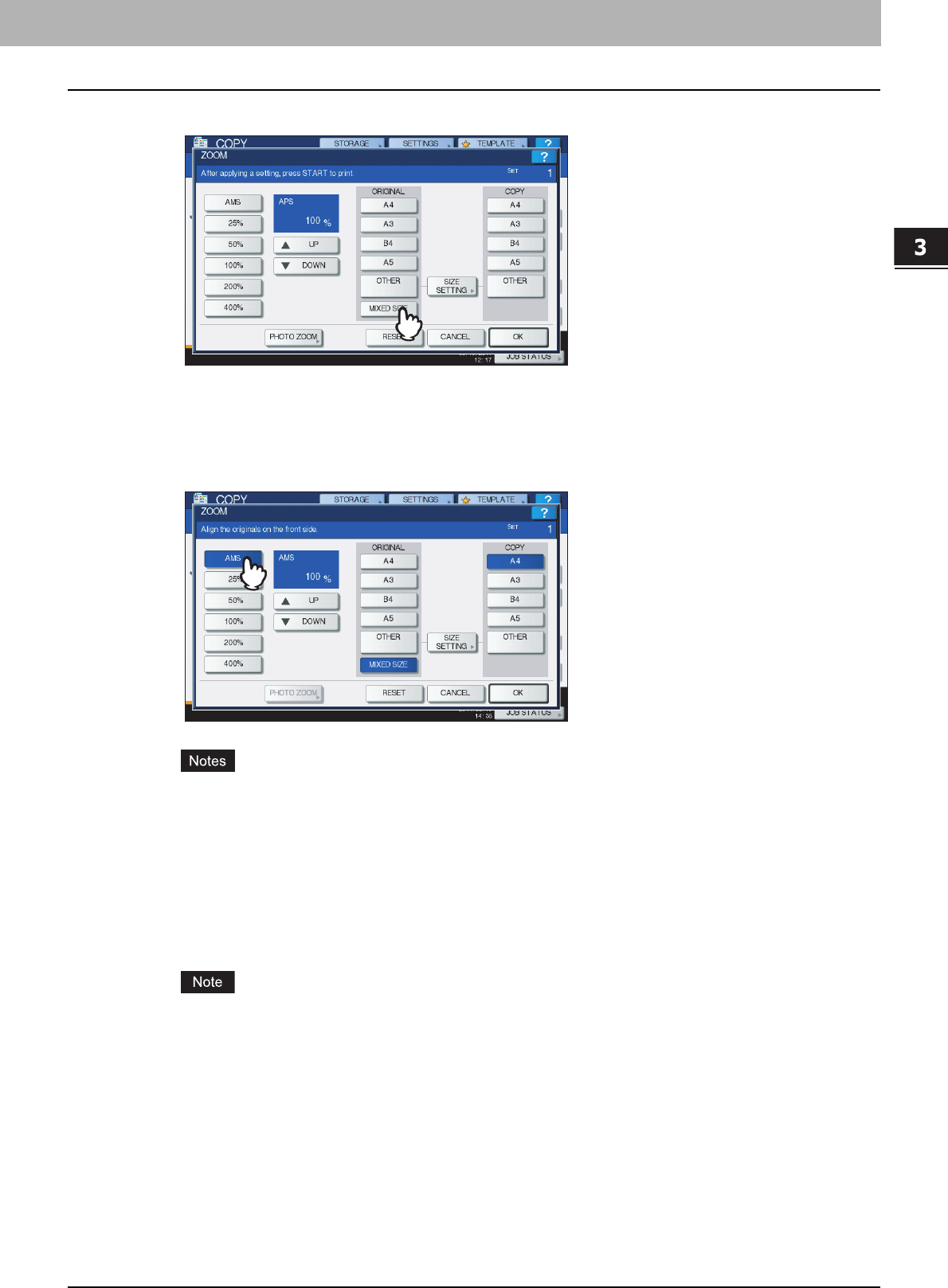
3.BASIC COPY MODES
Paper Selection 53
3 BASIC COPY MODES
4
Press [MIXED SIZE].
5
Press [AMS] to make copies on paper in one size. To make copies on paper of the same
size as the originals, press [OK] or [CANCEL] so that the menu returns to the BASIC
menu, and then press [APS].
When [AMS] is selected:
yIn the Automatic Magnification Selection, copy images cannot be enlarged from A4 (portrait), B5 (portrait) or
LT (portrait) to A3 (landscape), B4 (landscape), LD (landscape) or LG (landscape). In this case, place A4,
B5 or LT originals in a landscape direction.
yBefore you use Automatic Paper Selection, be sure that all paper sizes corresponding to the original sizes
have been placed in the drawers.
6
Select other copy modes as required, and then press the [START] button on the control
panel.
If “Change direction of original” appears while scanning is in progress, remove the original from the RADF
(optional) and change its direction accordingly.
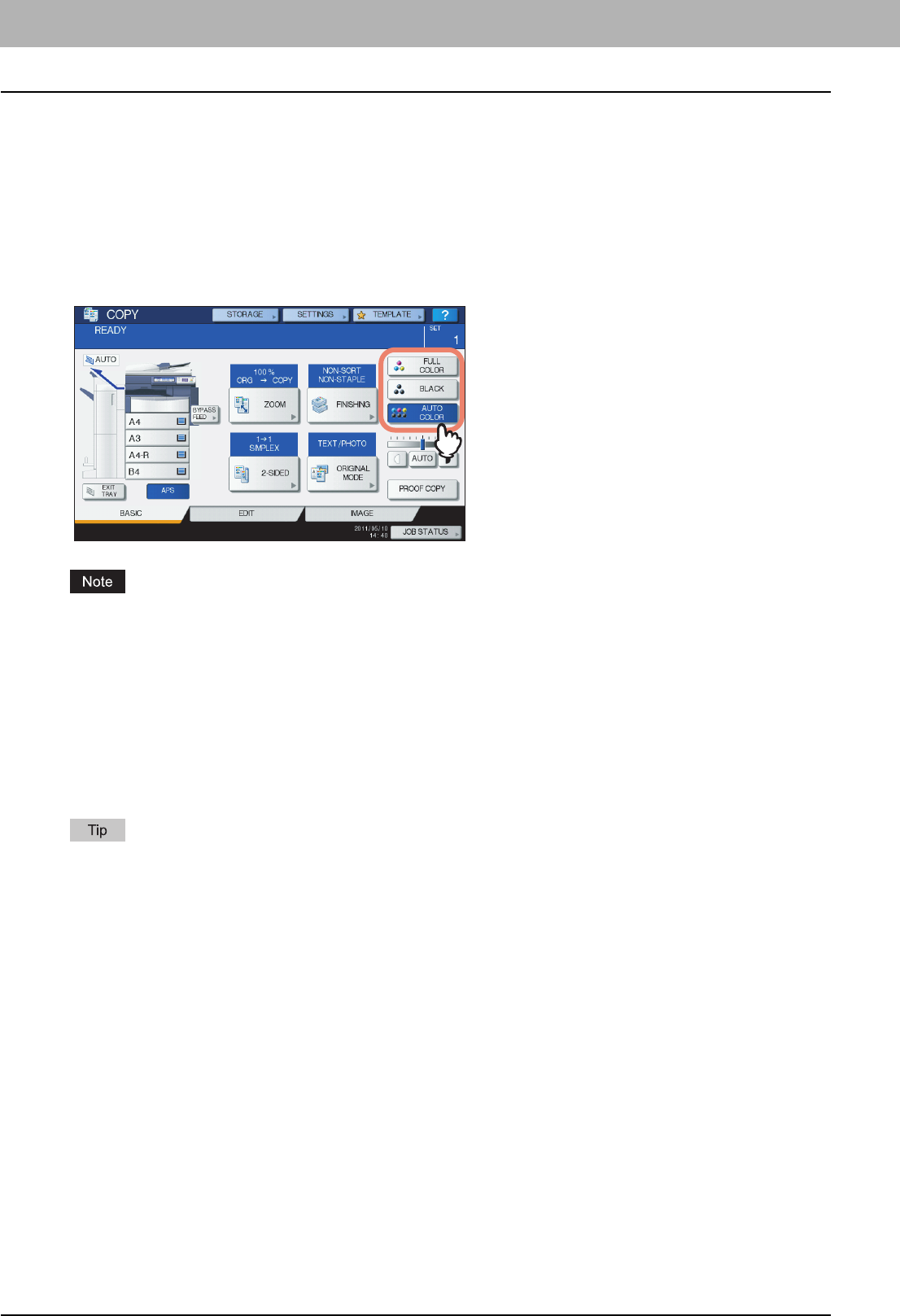
3 BASIC COPY MODES
54 Switching Color Modes
Switching Color Modes
You can switch the color mode. There are 3 color modes as shown below.
FULL COLOR: All originals are copied in full colors. (Default)
BLACK: All originals are copied in black and white.
AUTO COLOR: The equipment automatically judges the type of each color on originals. Colored originals are copied
in full colors and black-and-white originals are copied in black and white.
Switching color modes
Press any of [FULL COLOR], [BLACK] or [AUTO COLOR] on the touch panel.
When you select [AUTO COLOR], some originals may not be copied exactly as they look, such as the cases shown
below. Select either [FULL COLOR] or [BLACK].
yWhen color originals are copied in black
Example:
- Originals whose colored area is extremely small
- Originals which are completely black
- Originals whose colors are light
yWhen black originals are copied in full colors
Example:
- Yellowish originals
- Originals with a colored background
The sensitivity to detect whether the data scanned in auto color are color or black can be changed. For details, refer to
the MFP Management Guide.
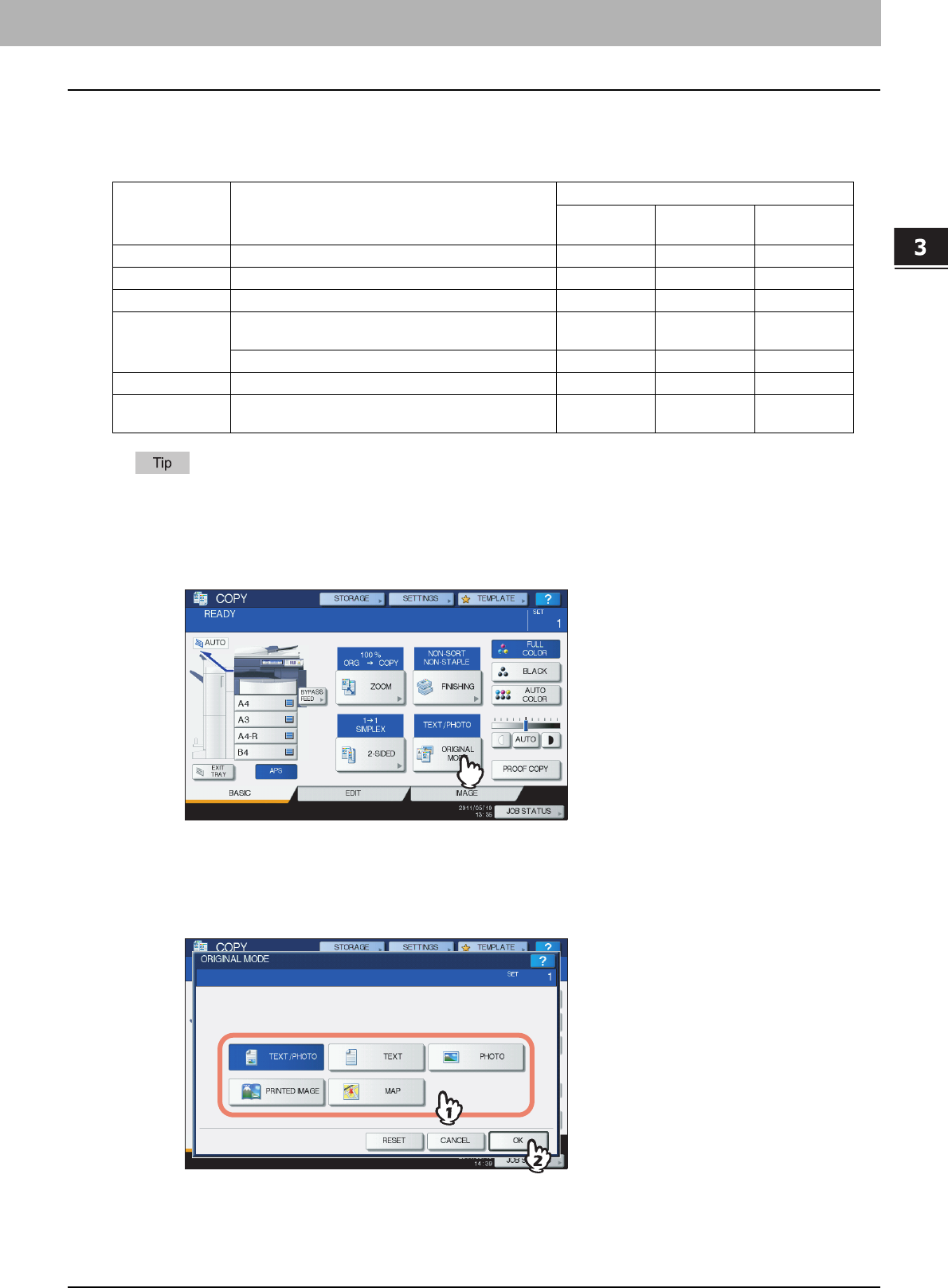
3 BASIC COPY MODES
Setting Original Modes 55
Setting Original Modes
You can make copies with the optimal image quality by selecting the following modes for your original. The selectable
original mode differs depending on the color mode as shown in the table below. Select the color mode first, and then the
original mode.
TEXT/PHOTO is set by default. The default setting can be changed in each color mode. For details, refer to the MFP
Management Guide.
1
Press [ORIGINAL MODE] on the touch panel.
2
Select the original mode, and then press [OK].
The selectable original modes differ depending on the color modes currently set.
Example: When the color mode is “FULL COLOR”
Original mode Description
Color mode
FULL
COLOR BLACK AUTO
COLOR
TEXT/PHOTO Originals with text and photographs mixed Yes Yes Yes
TEXT Originals with text (or text and line art) only Yes Yes Yes
PRINTED IMAGE Originals with photogravure (e.g. magazine, brochure) Yes — Yes
PHOTO
Originals with general photographs on photographic
printing paper Yes — —
Originals with photographs — Yes —
MAP Originals with fine illustrations or text Yes — —
IMAGE
SMOOTHING
Originals with text and photographs mixed (especially
originals requiring higher reproducibility on photos) —Yes—
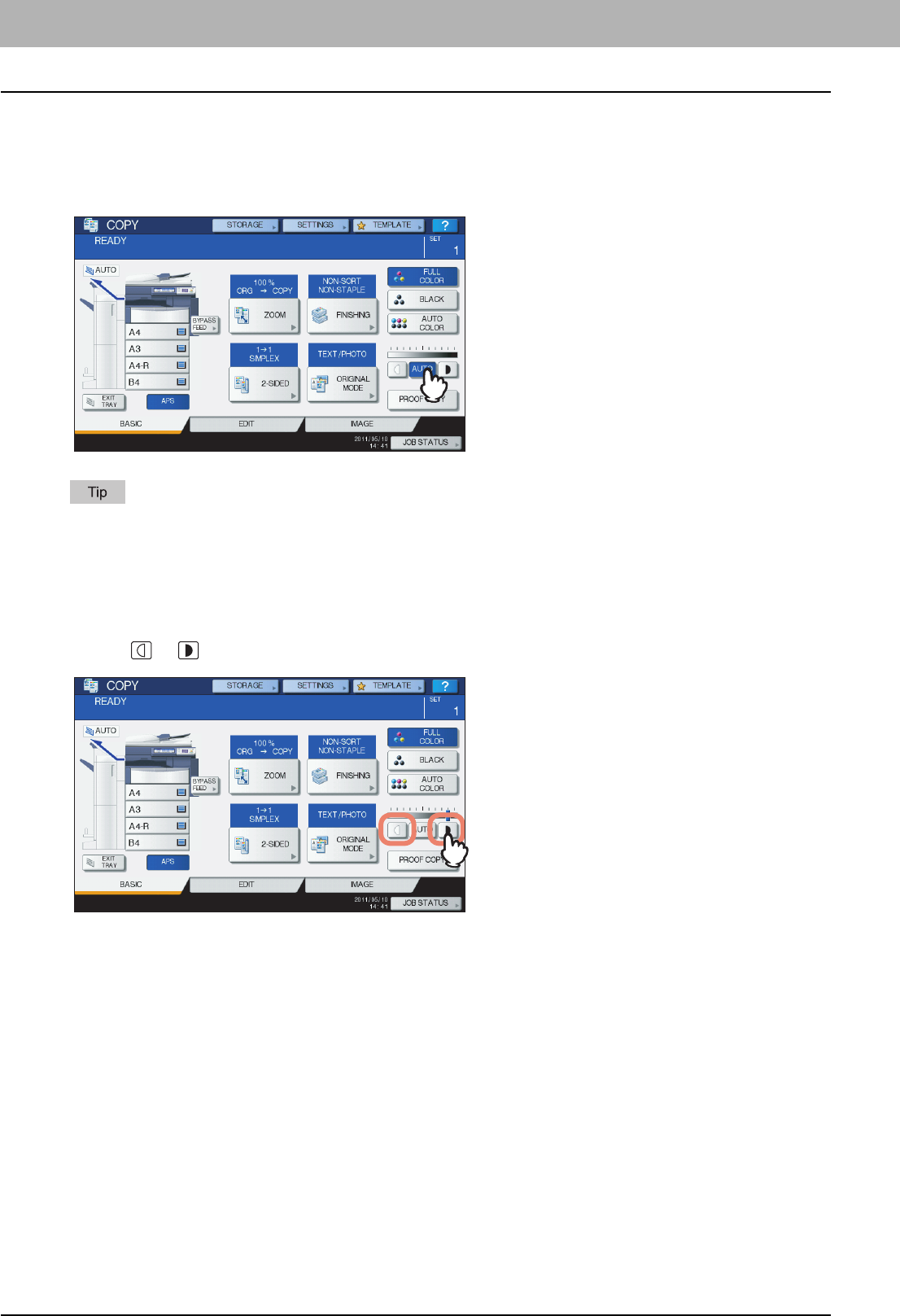
3 BASIC COPY MODES
56 Density Adjustment
Density Adjustment
This equipment detects the density level of originals and automatically adjusts the density level of the copied image to the
optimal one. Alternatively, you can manually adjust it to the desired level.
Adjusting automatically (automatic density adjustment)
Press [AUTO] on the touch panel.
The default setting of the automatic density adjustment is as follows according to the color modes:
FULL COLOR or AUTO COLOR: OFF
BLACK: ON
Adjusting manually
Press either or to select the desired density level.
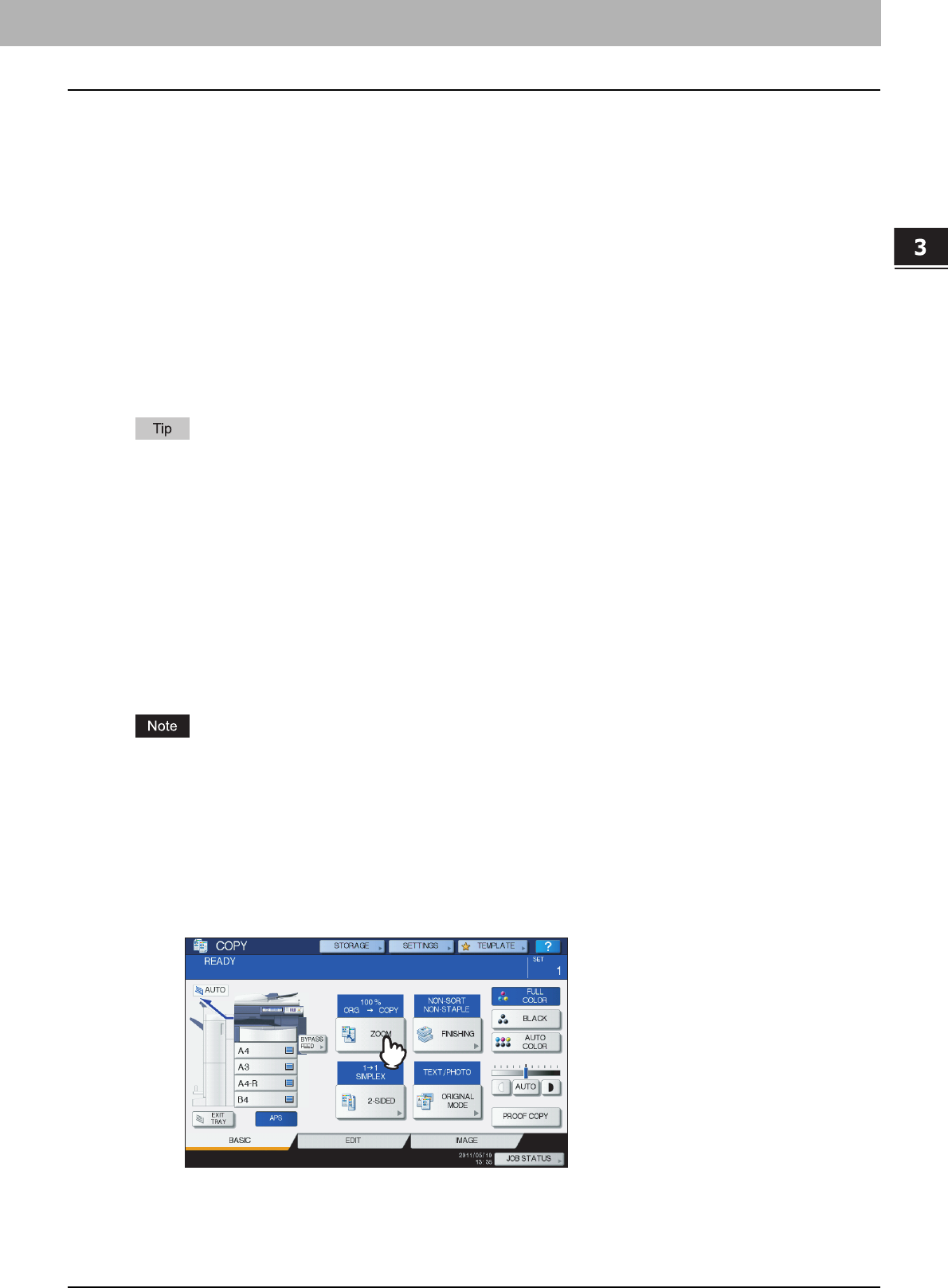
3 BASIC COPY MODES
Enlargement and Reduction Copying 57
Enlargement and Reduction Copying
You can change the reproduction ratio of copied images in the following procedures:
Automatic Magnification Selection (AMS):
You need to specify the copy paper size in advance. Then this equipment will detect the original size and automatically
select the optimal reproduction ratio for the copy paper size.
Specifying both original size and copy paper size separately:
You need to specify both the original size and the copy paper size separately in advance. According to the sizes you
specified, the optimal reproduction ratio is selected automatically. This feature is used when Automatic Magnification
Selection is not available, such as when copying OHP film originals.
Specifying reproduction ratio manually:
You can select the desired reproduction ratio by pressing [ZOOM] or one-touch zoom buttons on the touch panel.
Copying photo originals in the optimal reproduction ratio for copy paper size (PHOTO ZOOM)
You can copy photo originals in the reproduction ratio best suited to the copy paper size.
The available range of reproduction ratio differs depending on whether the original is placed on the original glass or on
the RADF (Reversing Automatic Document Feeder, optional).
Original glass: 25 to 400%
RADF: 25 to 200%
Automatic Magnification Selection (AMS)
Specify the copy paper size in advance so that this equipment will detect the original size and automatically select the
optimal reproduction ratio to the copy paper size.
This function is available when the size of the originals is as follows:
North America: LD, LG, LT, LT-R, ST-R and COMP (COMP is available only when the RADF is used.)
Other than North America: A3, A4, A4-R, A5-R, B4, B5, B5-R, FOLIO (FOLIO is available only when the RADF is used.)
This function does not work properly for the originals noted below. Select other methods when copying them.
yHighly transparent originals (e.g. OHP film, tracing paper)
yTotally dark originals or ones with dark borders
yNon-standard size originals (e.g. newspapers, magazines)
1
Place paper in the drawer(s).
2
Press [ZOOM] on the touch panel.
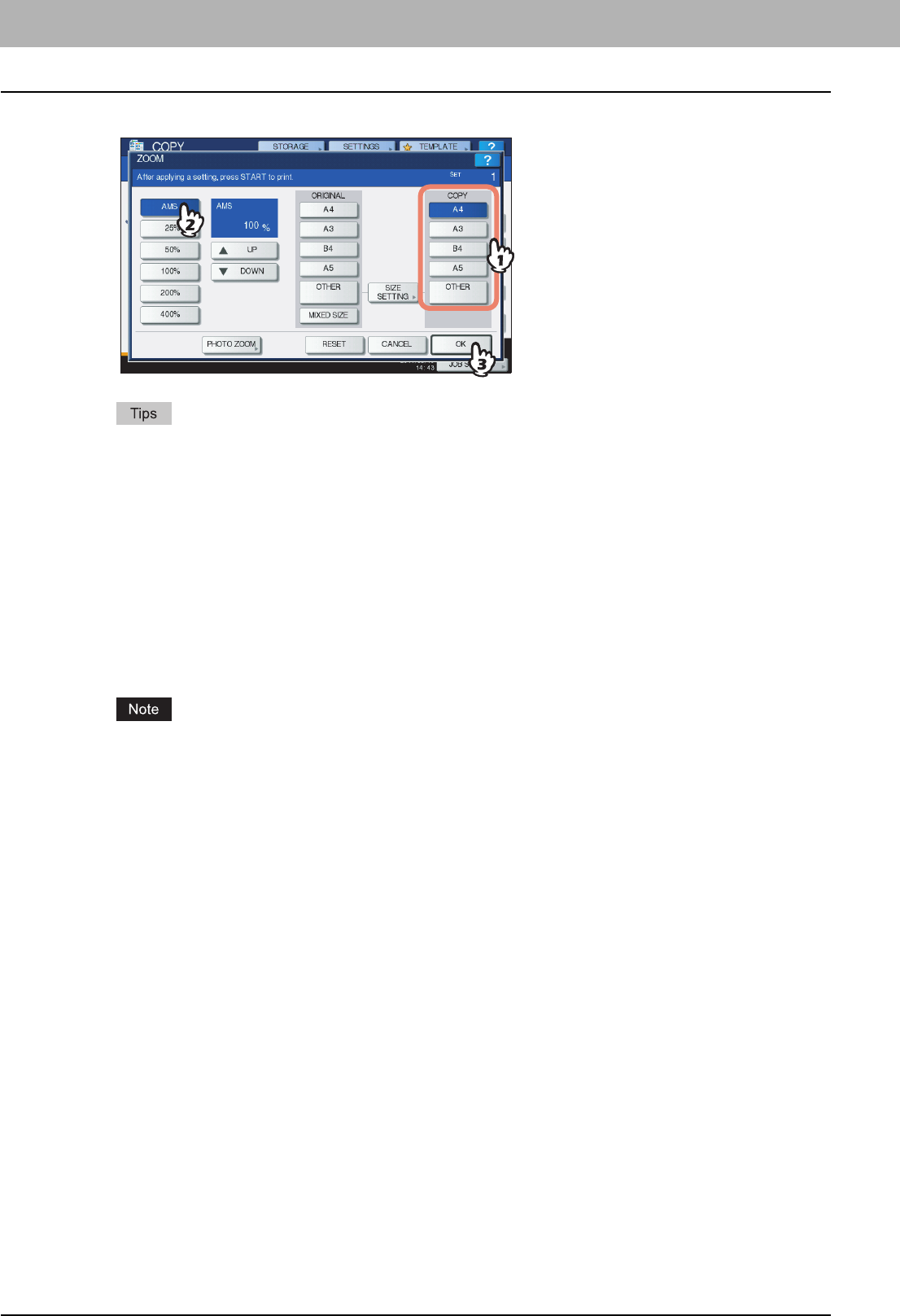
3 BASIC COPY MODES
58 Enlargement and Reduction Copying
3
Select the desired paper size, press [AMS] and then [OK].
yIf you want to select a paper size other than the following, you need to register the size as “OTHER”. Once
you register this size, it will be specified every time you press [OTHER] on the touch panel.
North America: LD, LG, LT, ST
Other than North America: A3, A4, B4, B5
For how to register, see the following page:
P.59 “Registering paper sizes to “OTHER” size”
yPaper sizes can also be registered by pressing the desired drawer button of the equipment status indication
area on the BASIC menu.
4
Place the original(s).
If the original is placed on the original glass, the reproduction ratio is set when the original is placed. If the original
is placed on the RADF (optional), the reproduction ratio is set when the original is scanned.
If “Change direction of original” appears, change it accordingly.
5
Select other copy modes as required, and then press the [START] button on the control
panel.
Specifying both the original size and the copy paper size separately
1
Place paper in the drawer(s).
2
Place the original(s).
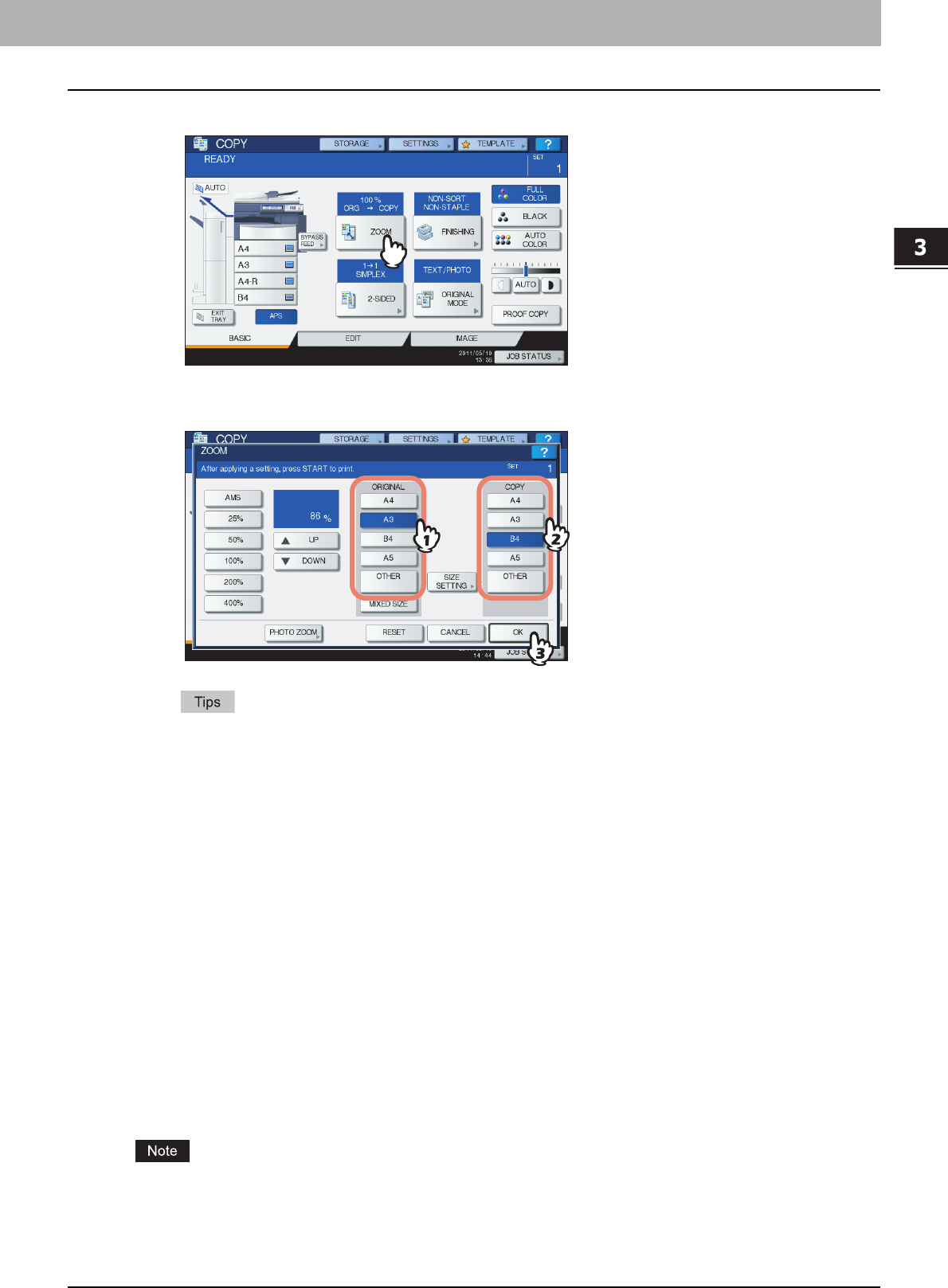
3.BASIC COPY MODES
Enlargement and Reduction Copying 59
3 BASIC COPY MODES
3
Press [ZOOM] on the touch panel.
4
Select the desired sizes for the original and copy paper, and then press [OK].
yIf you want to select a size other than the following for the original size and copy paper size, you need to
register the size as “OTHER”. Once you register this size, it will be specified every time you press [OTHER]
on the touch panel.
North America: LD, LG, LT, ST
Other than North America: A3, A4, B4, B5
For how to register, see the following page:
P.59 “Registering paper sizes to “OTHER” size”
yPaper sizes can also be registered by pressing the desired drawer button of the equipment status indication
area on the BASIC menu.
5
Select other copy modes as required, and then press the [START] button on the control
panel.
Registering paper sizes to “OTHER” size
If you want to select a size other than the following for the original size and copy paper size, you need to register the size
as “OTHER” following the procedures below. Once you register this size, it will be specified every time you press [OTHER]
on the touch panel.
North America: LD, LG, LT, ST
Other than North America: A3, A4, B4, B5
You can register only standard sizes as [OTHER] and cannot register any non-standard sizes.
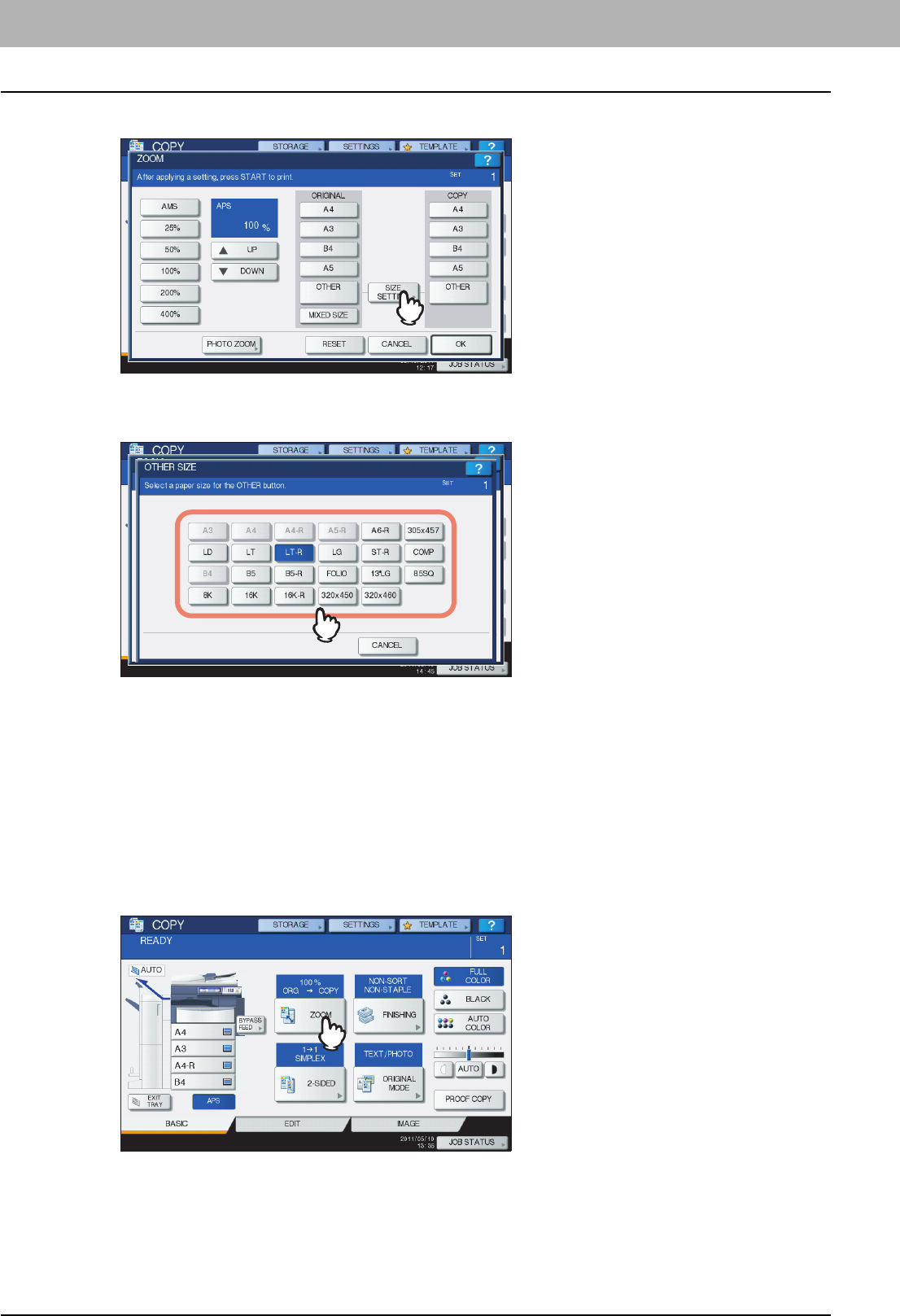
3 BASIC COPY MODES
60 Enlargement and Reduction Copying
1
Press [SIZE SETTING] on the touch panel.
2
Select the desired size.
The selected size will be registered as an “OTHER” size.
Specifying reproduction ratio manually
1
Place paper in the drawer(s).
2
Place the original(s).
3
Press [ZOOM] on the touch panel.
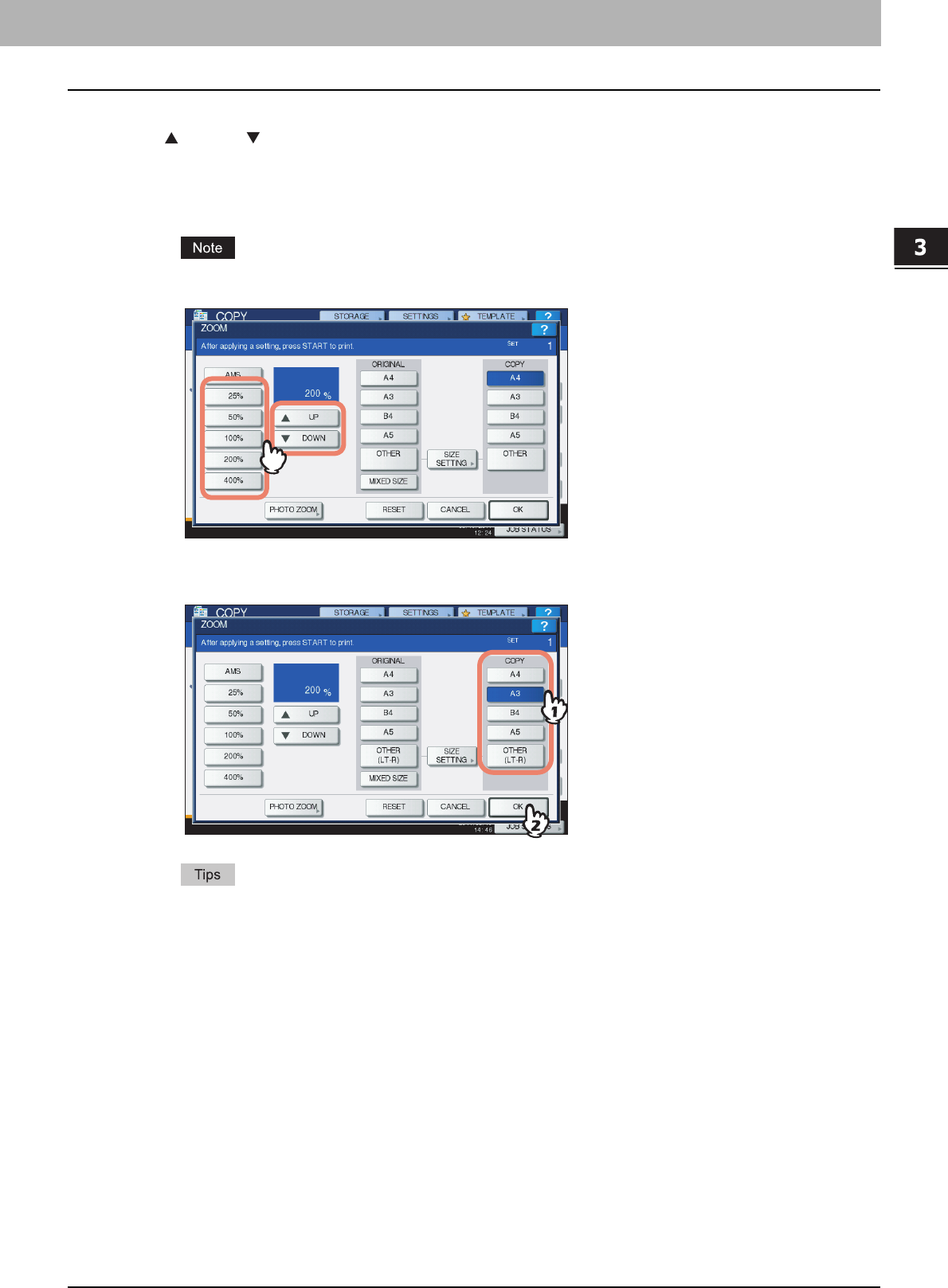
3.BASIC COPY MODES
Enlargement and Reduction Copying 61
3 BASIC COPY MODES
4
Press the buttons below to select the desired reproduction ratio.
[UP] and [DOWN] buttons
The reproduction ratio changes by 1% every time either of them is pressed. When you hold either down, the
ratio goes up or down automatically.
One-touch zoom buttons
Select the desired ratio from [400%], [200%], [100%], [50%] and [25%].
When the RADF (optional) is used, the maximum ratio available is 200%.
5
Select the desired size, and then press [OK].
yIf you want to select a paper size other than the following, you need to register the size as “OTHER”. Once
you register this size, it will be specified every time you press [OTHER] on the touch panel.
North America: LD, LG, LT, ST
Other than North America: A3, A4, B4, B5
For how to register, see the following page:
P.59 “Registering paper sizes to “OTHER” size”
yPaper sizes can also be registered by pressing the desired drawer button of the equipment status indication
area on the BASIC menu.
6
Select other copy modes as required, and then press the [START] button on the control
panel.
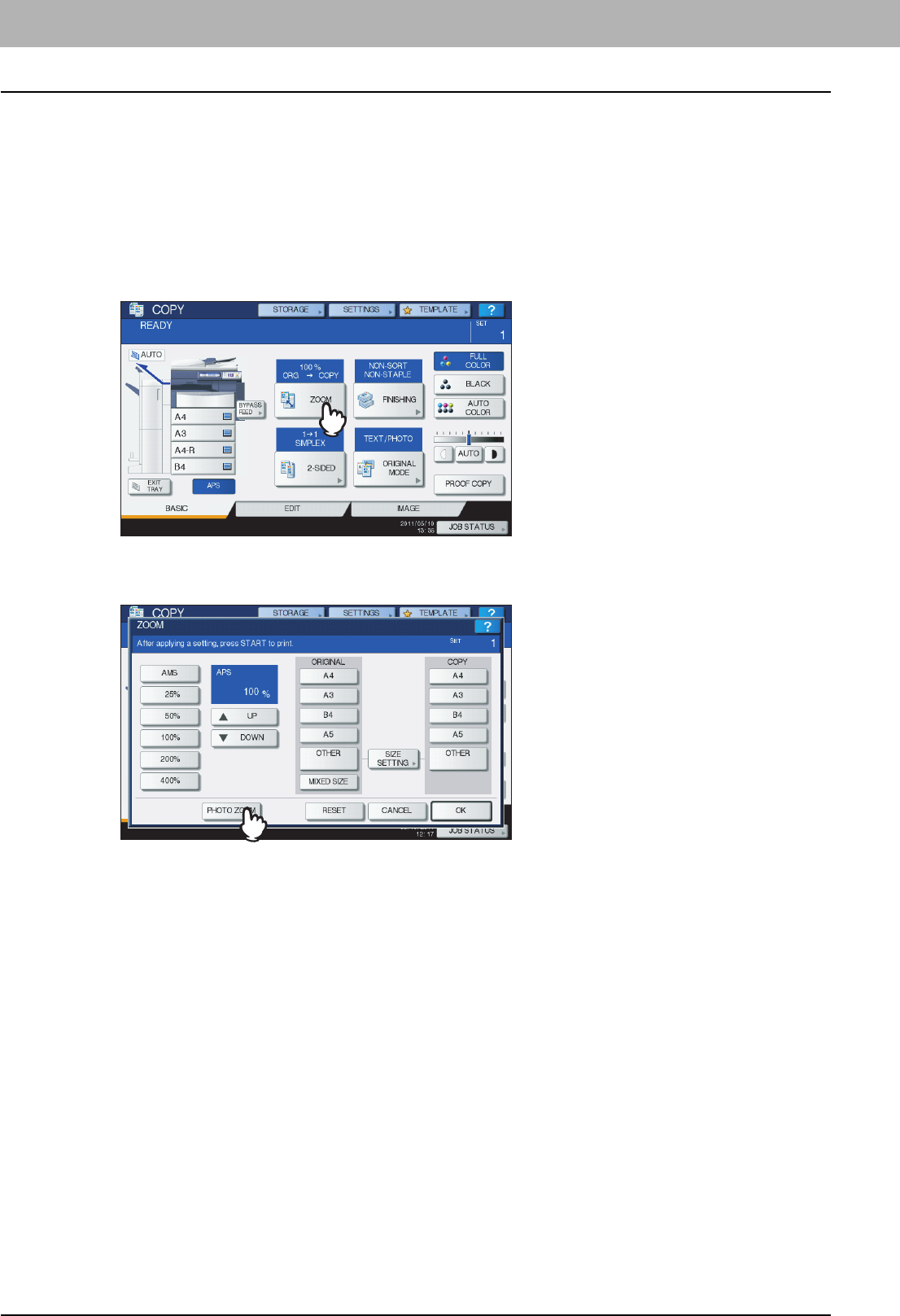
3 BASIC COPY MODES
62 Enlargement and Reduction Copying
Copying photo originals in the optimal reproduction ratio for copy paper size
(PHOTO ZOOM)
1
Place paper in the drawer(s).
2
Place the original on the original glass in a landscape direction.
3
Press [ZOOM] on the touch panel.
4
Press [PHOTO ZOOM].
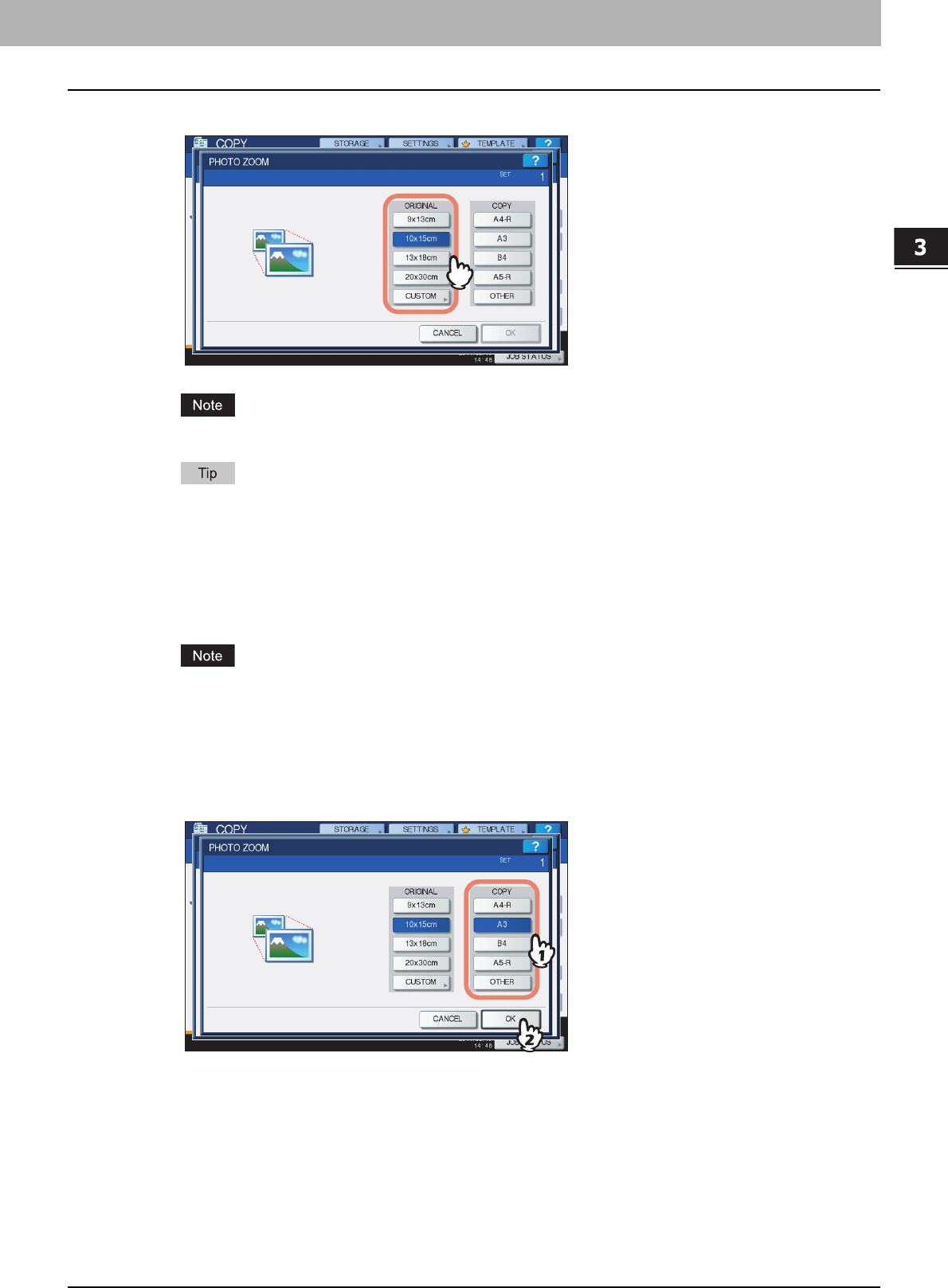
3.BASIC COPY MODES
Enlargement and Reduction Copying 63
3 BASIC COPY MODES
5
Select the original size.
The actual size for the [3" x 5"] button is 3.5" x 5.0".
When the size of the original is other than the ones below, key in the dimension of the original manually.
North America: 3" x 5", 4" x 6", 5" x 7" or 8" x 10"
Other than North America: 9 x 13 cm, 10 x 15 cm, 13 x 18 cm or 20 x 30 cm
P.64 “Setting photo originals in other sizes”
6
Select the desired copy paper size, and then press [OK].
If you want to select a paper size other than the following, you need to register the size as “OTHER” size. In this
case, register it in a landscape direction. Once you register this size, it will be specified every time you press
[OTHER] on the touch panel.
North America: LD, LG, LT, ST
Other than North America: A3, A4, B4, A5
For how to register it, see the following page:
P.59 “Registering paper sizes to “OTHER” size”
7
Select other copy modes as required, and then press the [START] button on the control
panel.
If “NON-SORT NON-STAPLE” is selected as a sorting mode, scanning of the original starts. If another sorting
mode is selected, follow the procedure below.
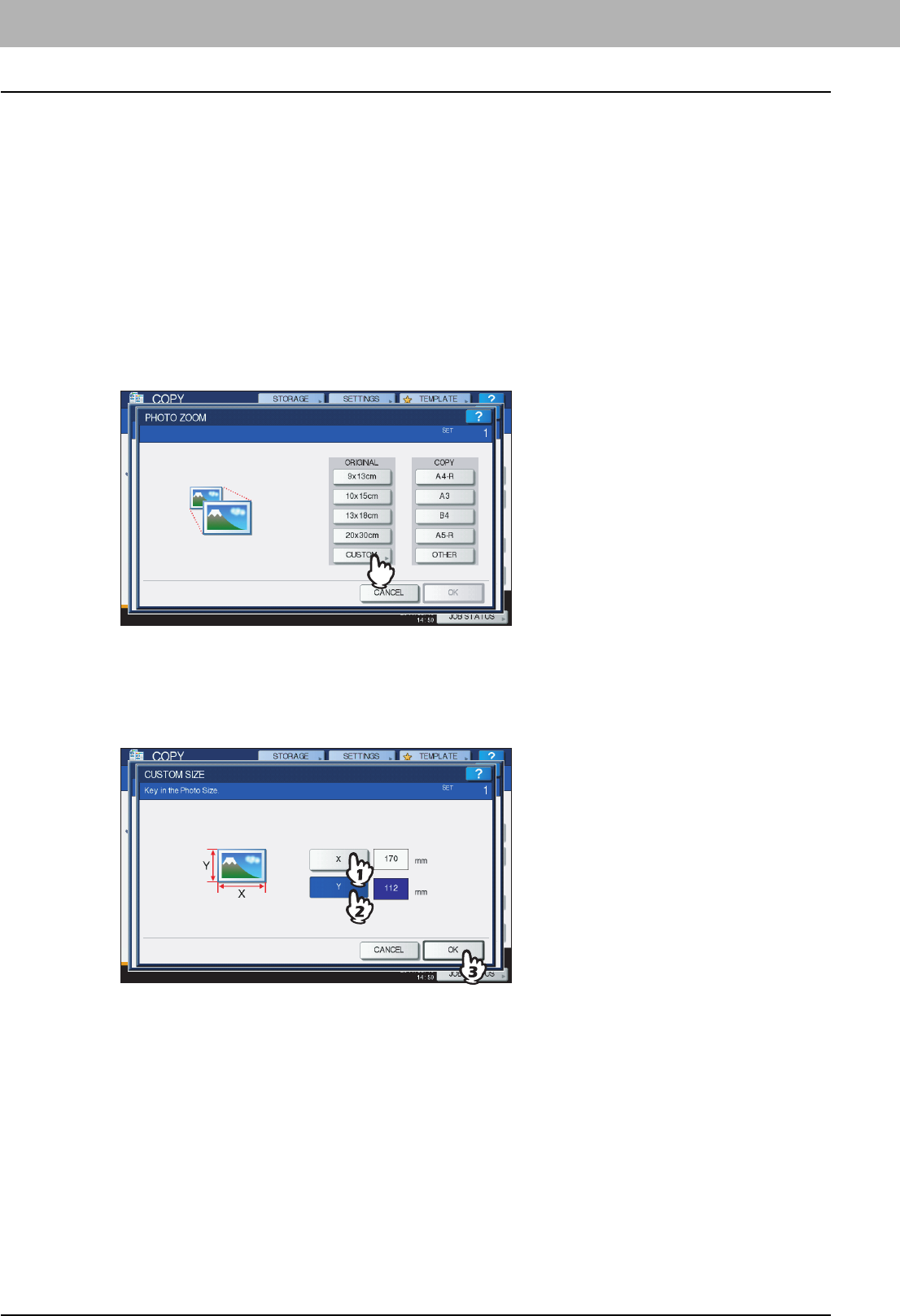
3 BASIC COPY MODES
64 Enlargement and Reduction Copying
8
Place the next original, and then press [NEXT COPY] on the touch panel or the [START]
button on the control panel.
Scanning of the next original starts. If you have more than one original, repeat this step until the scanning of all the
originals is finished.
9
When the scanning of all the originals is finished, press [JOB FINISH] on the touch
panel.
Copying starts.
Setting photo originals in other sizes
1
Press [CUSTOM] on the touch panel.
2
Key in the size of the original.
1) Press [X] on the touch panel and key in its width within 10 to 434 mm (0.39" to 17.09").
2) Press [Y] on the touch panel and key in its length within 10 to 300 mm (0.39" to 11.81").
3) Press [OK] on the touch panel.
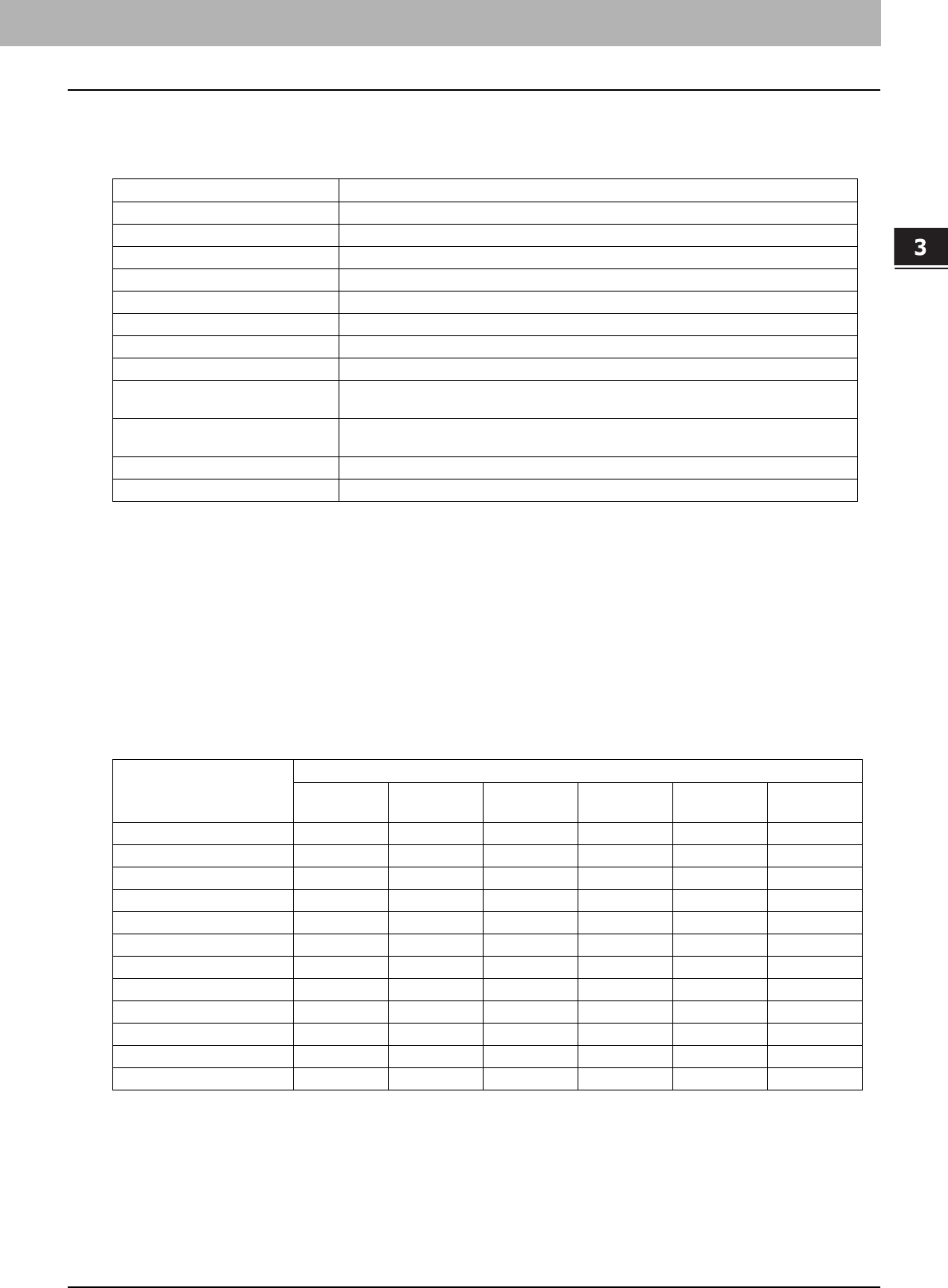
3 BASIC COPY MODES
Selecting Finishing Mode 65
Selecting Finishing Mode
Finishing modes and optional finishing devices
See the table below for each finishing mode.
The available finishing modes differ depending on the type of optional finishing devices (Finisher and Hole Punch Unit)
installed. Finishing devices available for this equipment are as follows:
Finisher
yFinisher MJ-1101
ySaddle Stitch Finisher MJ-1106
yHanging Finisher MJ-1031
Hole Punch Unit
Hole Punch Unit MJ-6103 (for the Finisher MJ-1101 and the Saddle Stitch Finisher MJ-1106)
Check the finishing modes enabled with each finishing device.
Finishing mode Description
Non-sort Non-staple Copies exit without being sorted or stapled.
Sort ( P.67) Copies exit in the same page order as the originals one set after another.
Group ( P.67) Copies grouped by page exit.
Rotate sort ( P.69) Copies exit set by set alternately in a different direction.
Staple sort ( P.70) Copies exit with their corner stapled.
Magazine sort ( P.73) Copies exit in a book-type page order.
Center fold ( P.73) Copies exit in a book-type page order with their center folded.
Saddle stitch ( P.73) Copies exit in a book-type page order with their center folded and stapled.
Magazine sort & center fold
( P.73)
Magazine sort and center fold are used together.
Magazine sort & saddle stitch
( P.73)
Magazine sort and saddle stitch are used together.
Hole punch ( P.76) Copies exit with their side punched.
Manual staple ( P.77) Copies are stapled manually.
Finishing mode
Devices
MJ-1101 &
MJ-6103 MJ-1101 MJ-1106 &
MJ-6103 MJ-1106 MJ-1031 No device
Non-sort Non-staple Yes Yes Yes Yes Yes Yes
Sort Yes Yes Yes Yes Yes Yes
Group Yes Yes Yes Yes Yes Yes
Rotate sort Yes Yes Yes Yes Yes Yes
Staple sort Yes Yes Yes Yes Yes —
Magazine sort Yes Yes Yes Yes Yes Yes
Center fold — — Yes Yes — —
Saddle stitch — — Yes Yes — —
Magazine sort & center fold — — Yes Yes — —
Magazine sort & saddle stitch — — Yes Yes — —
Hole punch Yes — Yes — — —
Manual staple Yes Yes Yes Yes — —
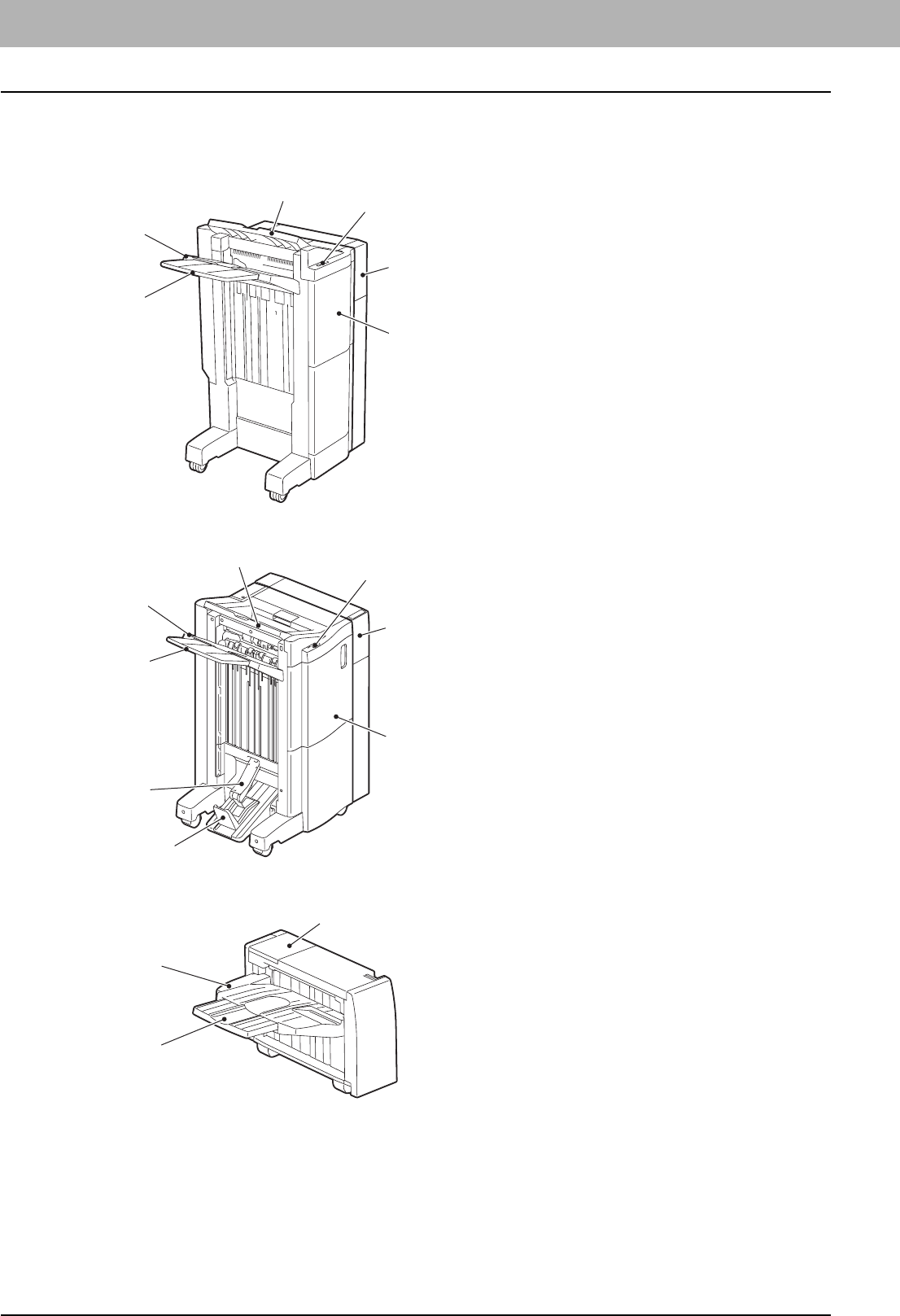
3 BASIC COPY MODES
66 Selecting Finishing Mode
Name of each part of the Finisher (optional)
MJ-1101
1. Upper receiving tray
2. Lower receiving tray
3. Sub-tray
4. Front cover
5. Hole Punch Unit MJ-6103
6. Stapling control section
MJ-1106
1. Upper receiving tray
2. Lower receiving tray
3. Sub-tray
4. Saddle stitch tray
5. Stopper
6. Front cover
7. Hole Punch Unit MJ-6103
8. Stapling control section
MJ-1031
1. Tray
2. Sub-tray
3. Cover (staple cartridge section)
16
3
2
5
4
8
3
1
2
7
6
4
5
2
1
3
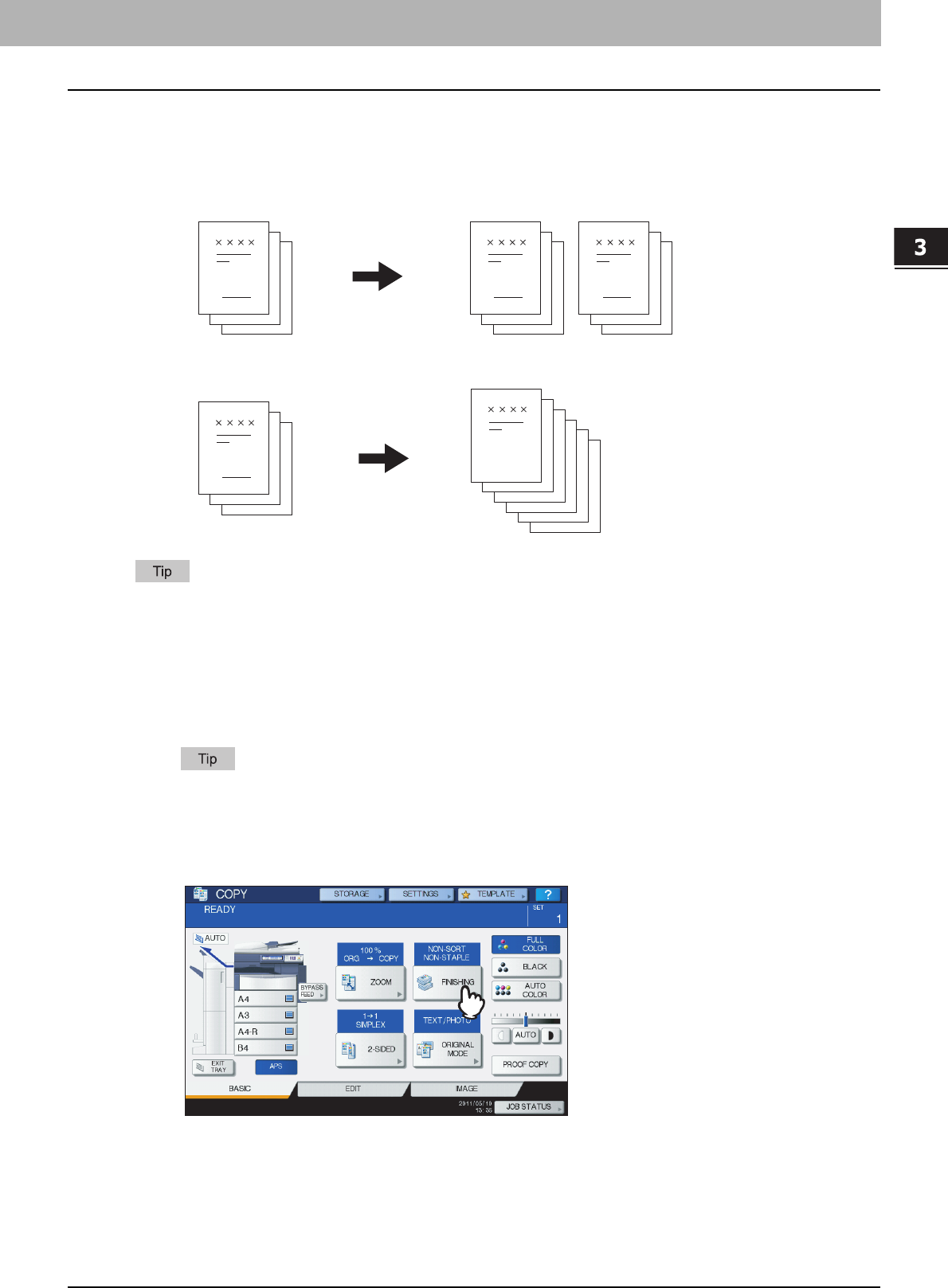
3.BASIC COPY MODES
Selecting Finishing Mode 67
3 BASIC COPY MODES
Sort/Group mode
When you make more than one set of copies, they can be made to exit in the same page order as that of the originals.
This mode is called the sort mode. Copies can also be made to exit grouped by page. This mode is called the group mode.
Sort mode
Group mode
When you use large-size paper, such as A3, B4, LD and LG, pull out the sub-tray in advance so that the copied paper
will not fall off and will be sorted neatly.
1
Place paper in the drawer(s).
2
Place the original(s).
When you place originals on the RADF (Reversing Automatic Document Feeder, optional), the display of the
sorting mode button will change to “SORT”.
3
Press [FINISHING] on the touch panel.
3
2
1
3
2
1
3
2
1
3
2
1
3
3
2
2
1
1
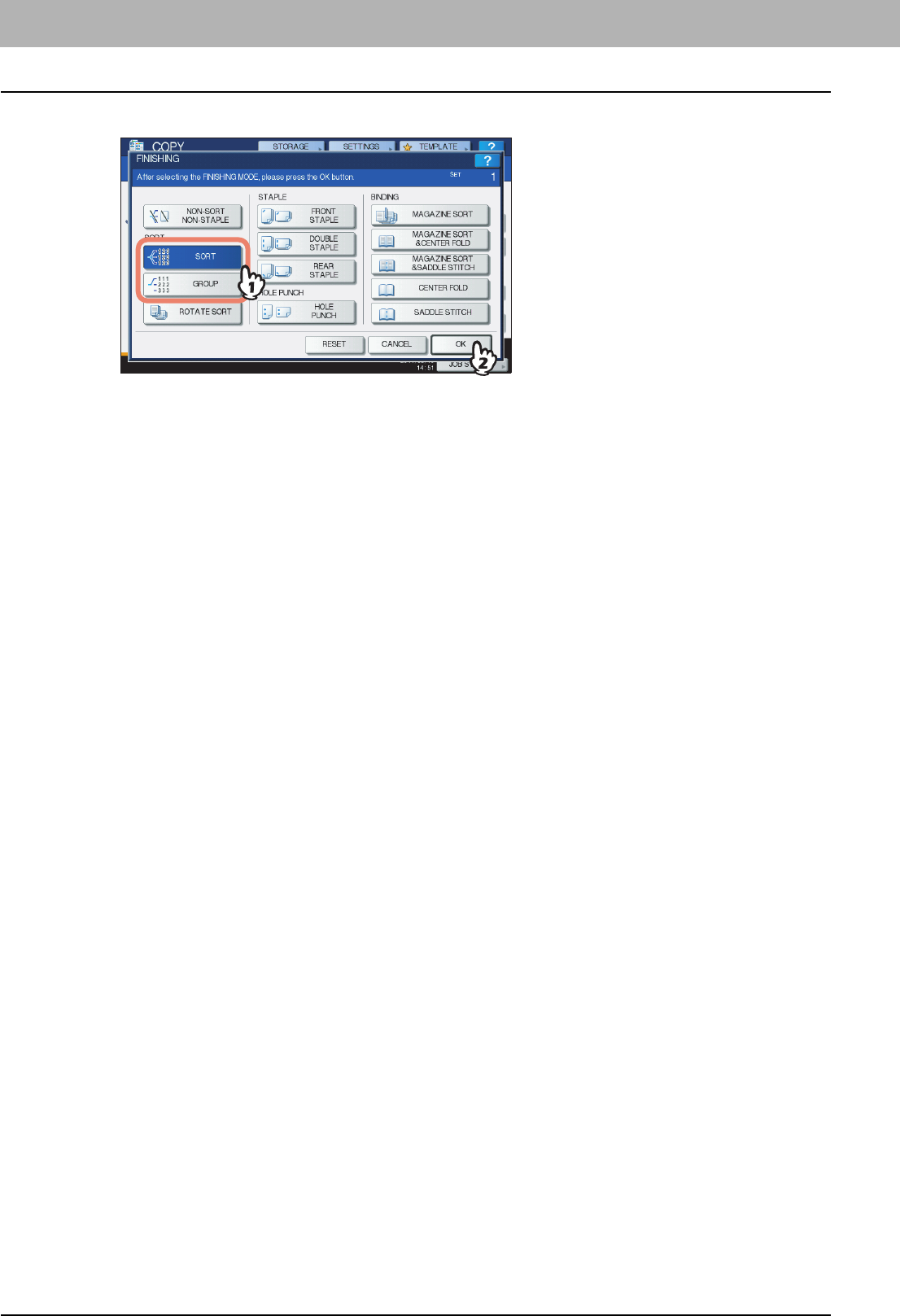
3 BASIC COPY MODES
68 Selecting Finishing Mode
4
Select [SORT] or [GROUP], and then press [OK].
5
Key in the desired number of copies.
6
Select other copy modes as required, and then press the [START] button on the control
panel.
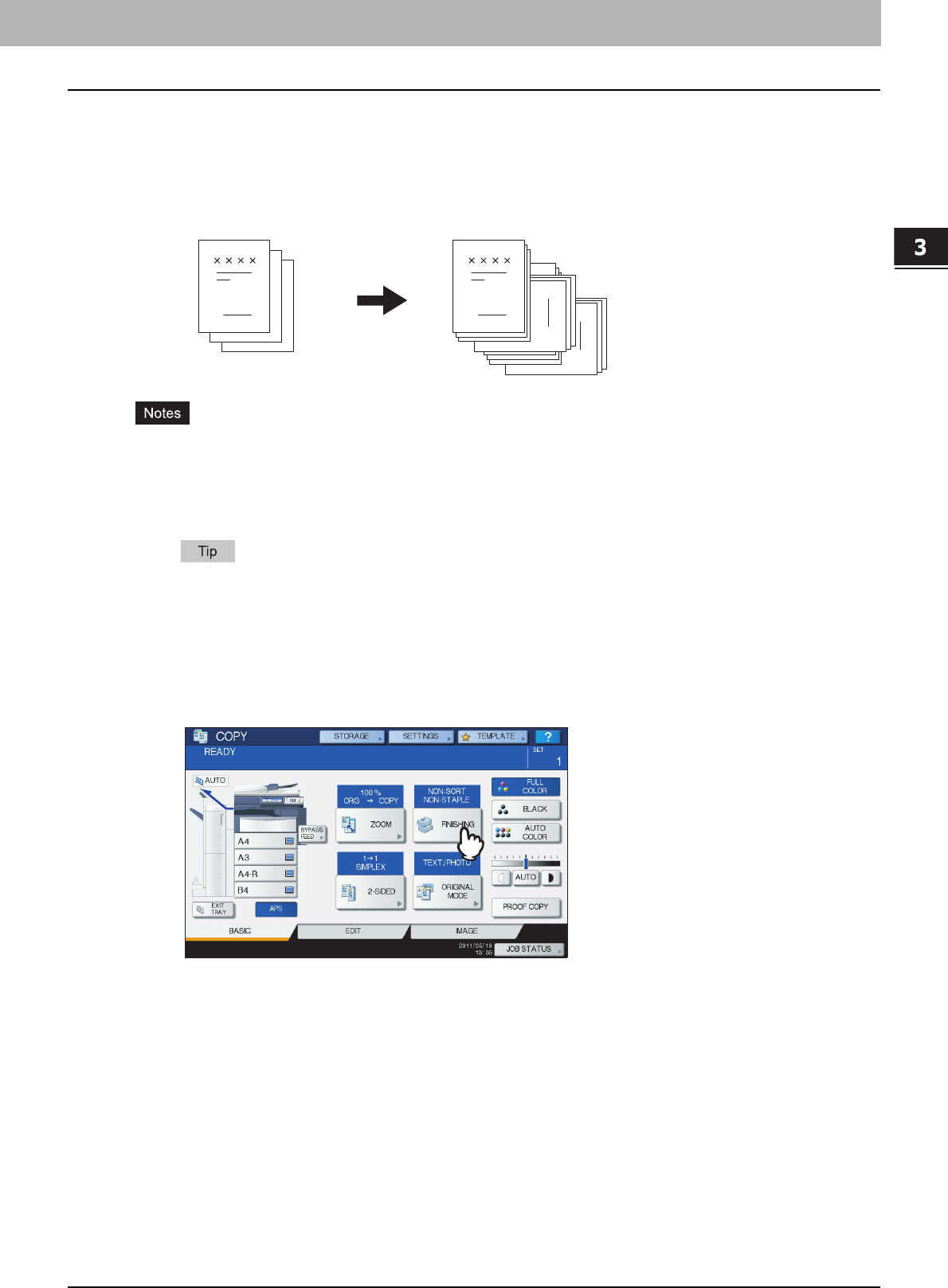
3.BASIC COPY MODES
Selecting Finishing Mode 69
3 BASIC COPY MODES
Rotate sort mode
When you make more than one set of copies, one set can be made to exit on top of another set, alternating in portrait and
landscape directions. This mode is called the rotate sort mode. Use 2 drawers and 2 stacks of paper of the same size.
Place one stack of paper in one drawer in a portrait direction and place the other in another drawer in a landscape
direction before you start copying.
yA4, B5 and LT sized paper placed on the drawer or bypass tray can be used.
yThe rotate sort mode is not available when Automatic Paper Selection is selected.
1
Place paper in the drawer(s).
Place one stack of paper in one drawer in a portrait direction and place the other in another drawer in a
landscape direction.
2
Place the original(s).
3
Press [FINISHING] on the touch panel.
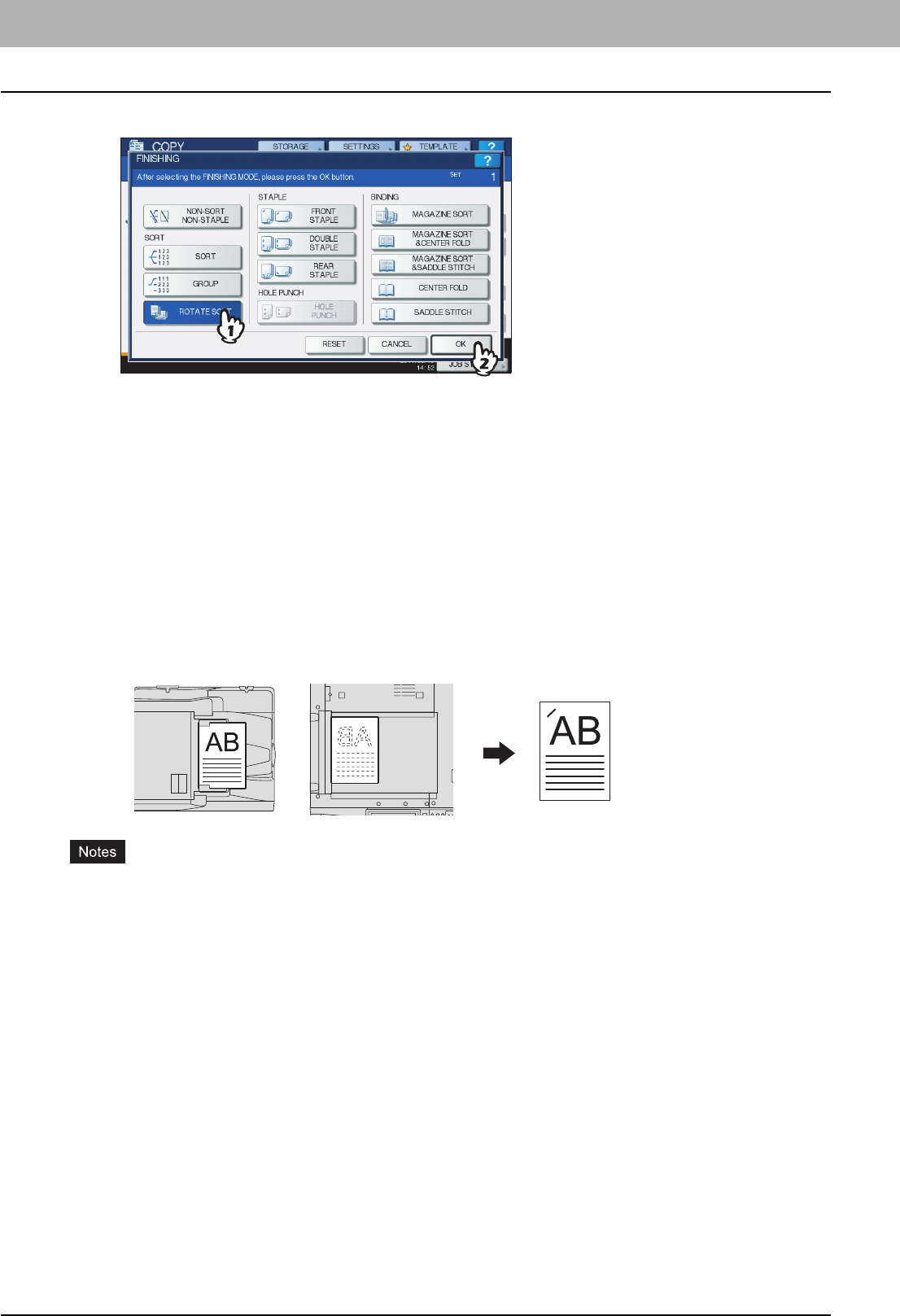
3 BASIC COPY MODES
70 Selecting Finishing Mode
4
Select [ROTATE SORT], and then press [OK].
5
Key in the desired number of copies.
6
Select other copy modes as required, and then press the [START] button on the control
panel.
Staple sort mode
When you make more than one set of copies, the copied paper can be automatically stapled set by set. This mode is
called the staple sort mode. If you are using the Finisher MJ-1101 (optional) or the Saddle Stitch Finisher MJ-1106
(optional), you can choose from 3 different stapling positions.
Example: When [FRONT STAPLE] is selected
ySpecial paper such as OHP film or sticker labels is not applicable.
yIn the MJ-1101/MJ-1106, copies in different sizes cannot be stapled unless their length is the same. In the MJ-
1031, they can be stapled even if their length is different.
1
Place paper in the drawer(s).
When using bypass copying, be sure to set the paper size.
2
Place the original(s).
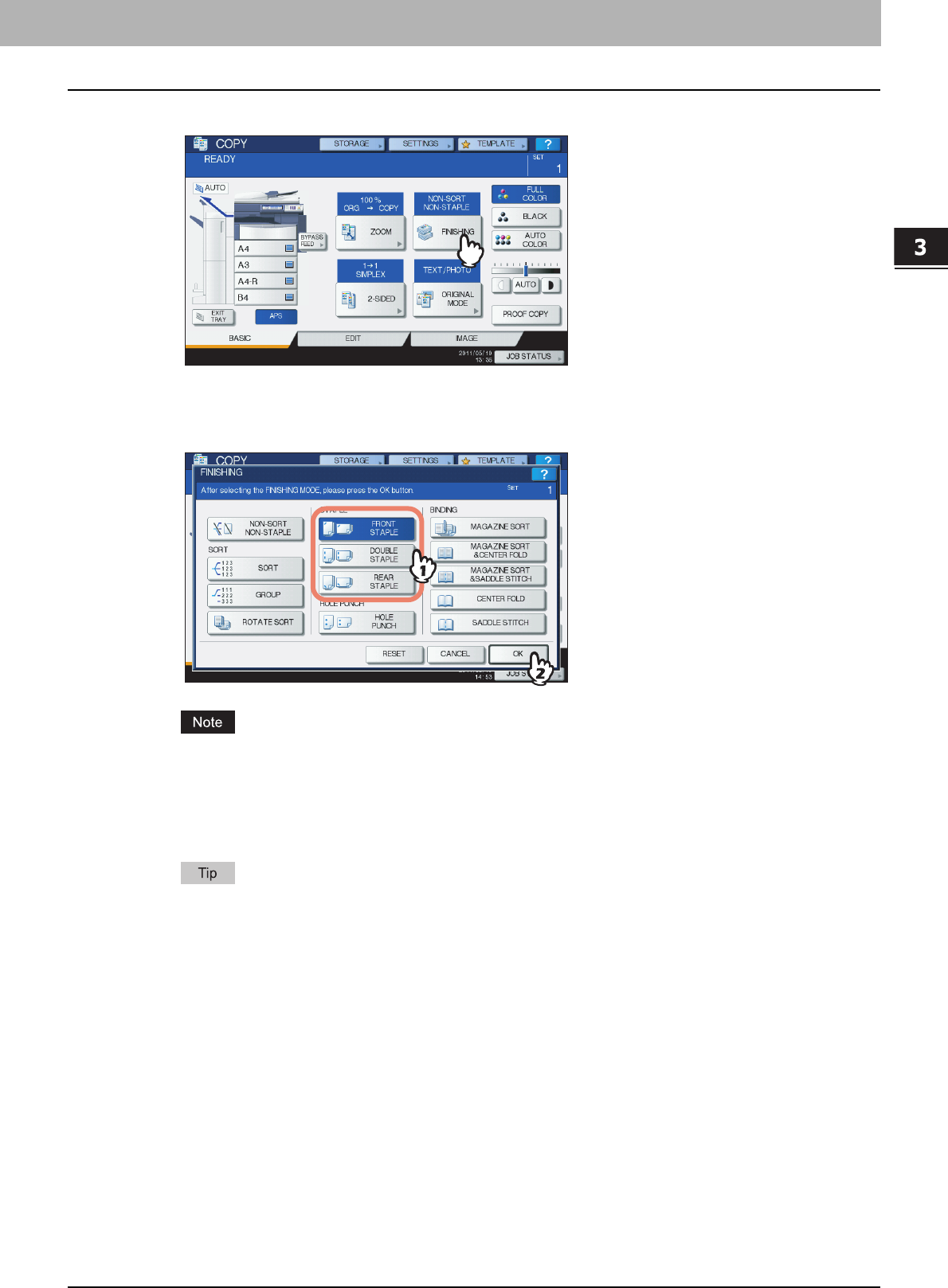
3.BASIC COPY MODES
Selecting Finishing Mode 71
3 BASIC COPY MODES
3
Press [FINISHING] on the touch panel.
4
Select the desired stapling position from [FRONT STAPLE], [DOUBLE STAPLE] or
[REAR STAPLE], and then press [OK].
Only [FRONT STAPLE] is selectable when the Hanging Finisher MJ-1031 (optional) is installed.
5
Select other copy modes as required, and then press the [START] button on the control
panel.
When the number of sheets exceeds the maximum number of sheets available for stapling, this equipment
automatically enters into the sort mode.
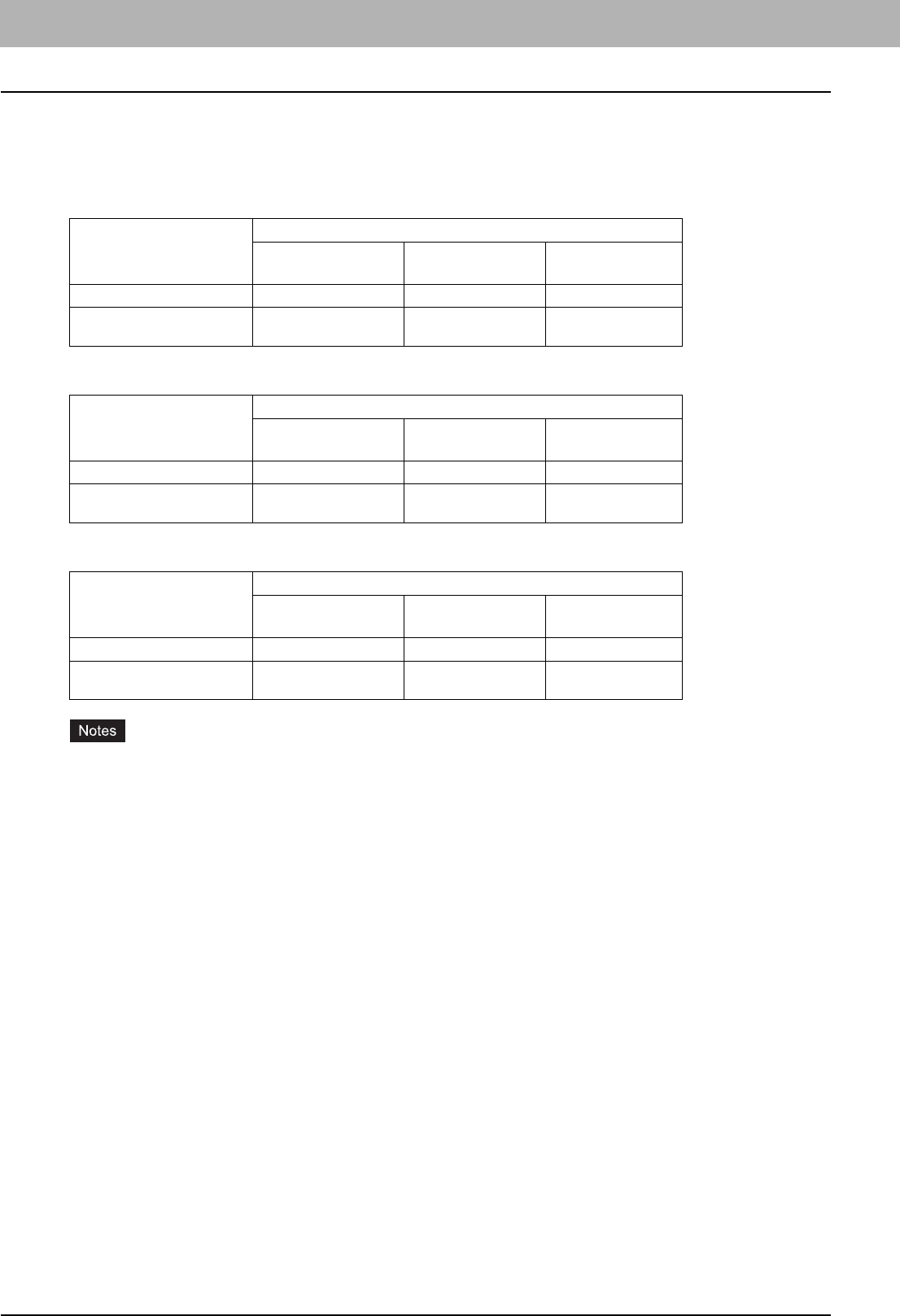
3 BASIC COPY MODES
72 Selecting Finishing Mode
Maximum number of sheets available for stapling
The maximum number of sheets available for stapling differs depending on the type of the finishing device installed, paper
size or paper weight.
Finisher MJ-1101
Saddle Stitch Finisher MJ-1106
Hanging Finisher MJ-1031
y2 cover sheets can be added to paper whose weight is 64 to 256 g/m2 (17 lb. Bond to 140 lb. Index). In this case,
the number of sheets available includes the 2 cover sheets.
yFor the maximum number of sheets loadable on the tray, refer to the Quick Start Guide.
Paper size
Paper weight
64 - 80 g/m2
(17 - 20 lb. Bond)
81 - 90 g/m2
(21 - 24 lb. Bond)
91 - 105 g/m2
(25 - 28 lb. Bond)
A4, B5, LT 50 sheets 30 sheets 30 sheets
A3, A4-R, B4, FOLIO, LD,
LG, LT-R, COMP
30 sheets 15 sheets 15 sheets
Paper size
Paper weight
64 - 80 g/m2
(17 - 20 lb. Bond)
81 - 90 g/m2
(21 - 24 lb. Bond)
91 - 105 g/m2
(25 - 28 lb. Bond)
A4, B5, LT 50 sheets 50 sheets 30 sheets
A3, A4-R, B4, FOLIO, LD,
LG, LT-R, COMP
30 sheets 30 sheets 15 sheets
Paper size
Paper weight
64 - 80 g/m2
(17 - 20 lb. Bond)
81 - 90 g/m2
(21 - 24 lb. Bond)
91 - 105 g/m2
(25 - 28 lb. Bond)
A4, B5, LT 50 sheets 26 sheets 24 sheets
A3, A4-R, B4, FOLIO, LD,
LG, LT-R, COMP
30 sheets 15 sheets 15 sheets
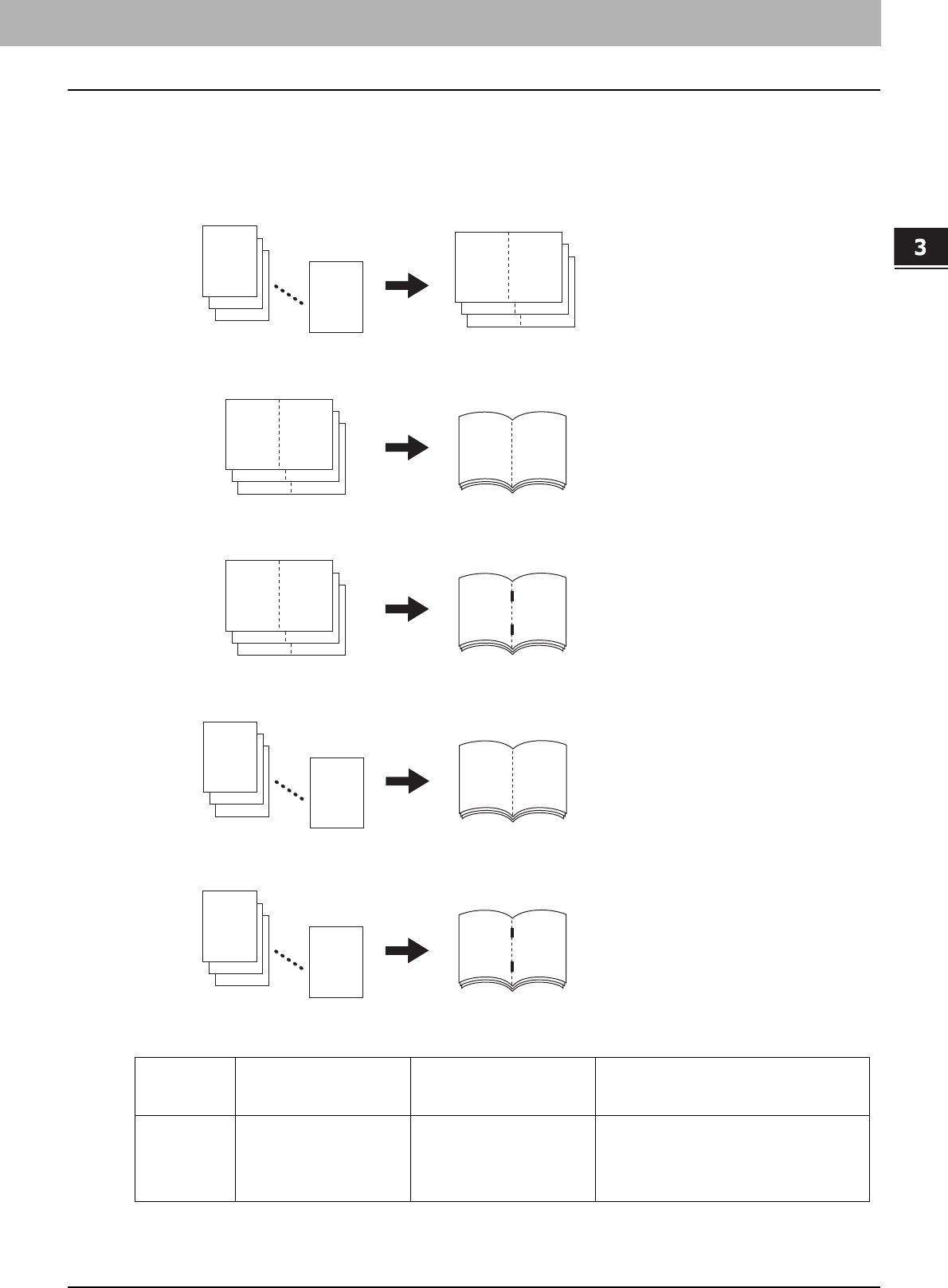
3.BASIC COPY MODES
Selecting Finishing Mode 73
3 BASIC COPY MODES
Magazine sort / Center fold / Saddle stitch
You can copy more than one original and bind them in a booklet format (Magazine sort). With the Saddle Stitch Finisher,
you can also have the copied booklet folded at its center (Center fold) and stapled (Saddle stitch).
Magazine sort mode
Center fold mode
Saddle stitch mode
Magazine sort & center fold mode
Magazine sort & saddle stitch mode
Requirements for center folding
*1 1 cover sheet (64 to 256 g/m2 (17 lb. Bond to 140 lb. Index)) can be added. In this case the number of sheets per set shall include the
cover sheet.
Paper size Paper weight
Maximum number of
sheets available for center
folding *1
Maximum number of sets loadable on
the saddle stitch tray
A3, A4-R, B4,
LD, LT-R, LG
64 - 105 g/m2
(17 - 28 lb. Bond) 25 sheets
21 - 25 sheets/set: 5 sets
16 - 20 sheets/set: 6 sets
11 - 15 sheets/set: 8 sets
6 - 10 sheets/set: 12 sets
Less than 5 sheets/set: 25 sets
112
94
76
12
3
2
1
58
310
112 76
58
310
112 76
76
12
3
2
1
76
12
3
2
1
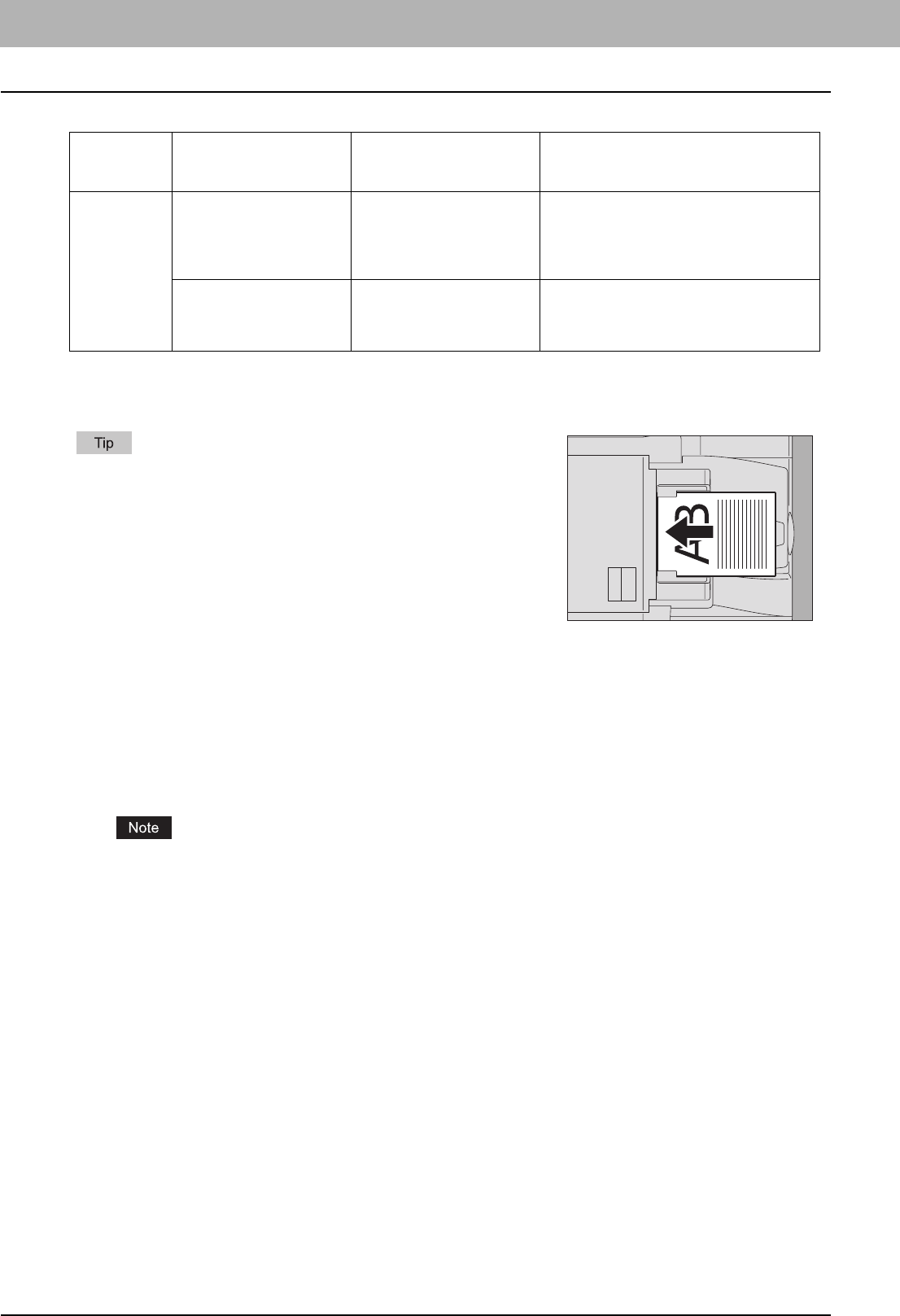
3 BASIC COPY MODES
74 Selecting Finishing Mode
Requirements for saddle stitching
*1 When the paper weights are mixed, take the value of the heavier one.
*2 1 cover sheet (64 to 256 g/m2 (17 lb. Bond to 140 lb. Index)) can be added. In this case the number of sheets per set shall include the
cover sheet.
The magazine sort mode can also be selected on the EDIT menu. If you select it on the EDIT menu, you can adjust the
binding margin. For details, see the following page:
P.103 “Magazine Sort Mode”
1
Place paper in the drawer(s).
Special paper such as OHP film or sticker labels is not applicable.
2
Select the desired paper size.
A3, A4-R, A5-R *1, B4 or B5-R *1 size paper can be used.
*1 A5-R and B5-R are acceptable only for the magazine sort mode.
3
Place the original(s).
When placing the originals on the RADF (optional), place them according to the illustration on the previous page.
When placing the originals on the original glass, place them in the following order:
Magazine sort, Magazine sort & center fold, Magazine sort & saddle stitch: Place the first page of the
original first.
Center fold, Saddle stitch: For example, if the total number of pages is 12, place pages 1 and 12 together,
and then pages 2 and 11, 10 and 3, 4 and 9, 8 and 5, and finally pages 6 and 7.
Paper size Paper weight *1
Maximum number of
sheets available for saddle
stitching *2
Maximum number of sets loadable on
the saddle stitch tray
A3, A4-R, B4,
LD, LT-R, LG
64 - 90 g/m2
(17 - 24 lb. Bond) 15 sheets
11 - 15 sheets: 25 sets (10 sets if cover sheets
are added)
6 - 10 sheets: 30 sets (15 sets if cover sheets
are added)
Less than 5 sheets: 50 sets
91 - 105 g/m2
(25 - 28 lb. Bond) 10 sheets
6 - 10 sheets: 25 sets (15 sets if cover sheets
are added)
Less than 5 sheets : 40 sets (30 sets if cover
sheets are added)
When placing portrait originals in a landscape direction as shown on the
right in the magazine sort mode, magazine sort & center fold mode or
the magazine sort & saddle stitch mode, set the image direction function
to ON on the EDIT menu.
P.122 “Image Direction”
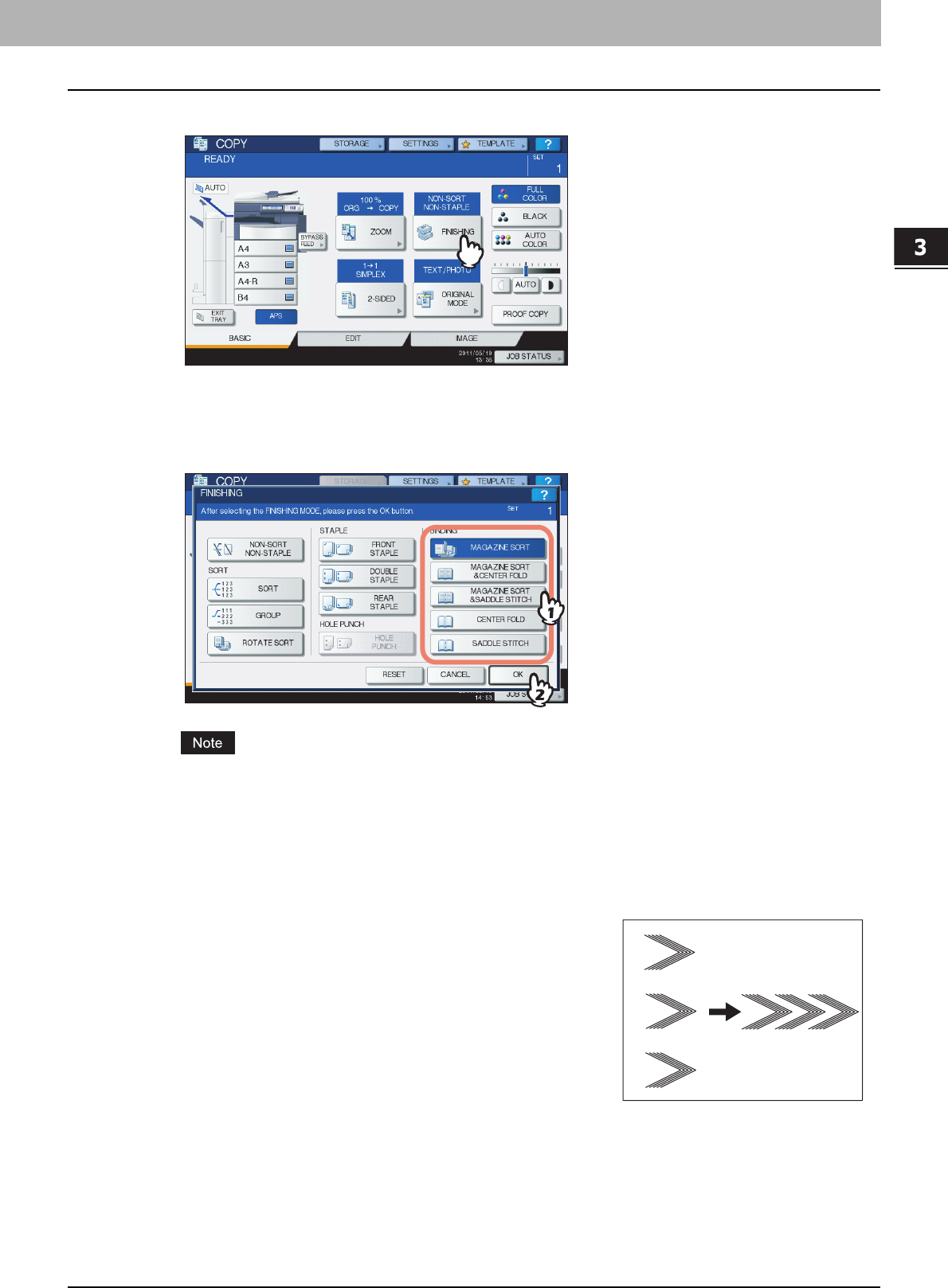
3.BASIC COPY MODES
Selecting Finishing Mode 75
3 BASIC COPY MODES
4
Press [FINISHING] on the touch panel.
5
Select the desired mode from [MAGAZINE SORT], [MAGAZINE SORT & CENTER
FOLD], [MAGAZINE SORT & SADDLE STITCH], [CENTER FOLD] or [SADDLE STITCH].
Then press [OK].
Modes other than [MAGAZINE SORT] are selectable only when the Saddle Stitch Finisher (optional) is
installed.
6
Select other copy modes as required, and then press the [START] button on the control
panel.
7
Combine the copied paper if the center fold mode or
magazine sort & center fold mode is used.
In the center fold mode, paper is folded at the center for every 5 sheets
before exiting. If more than 5 sheets of paper are copied, combine
them as shown in the figure.
10~15
6~10
1~5
1~56~1011~15
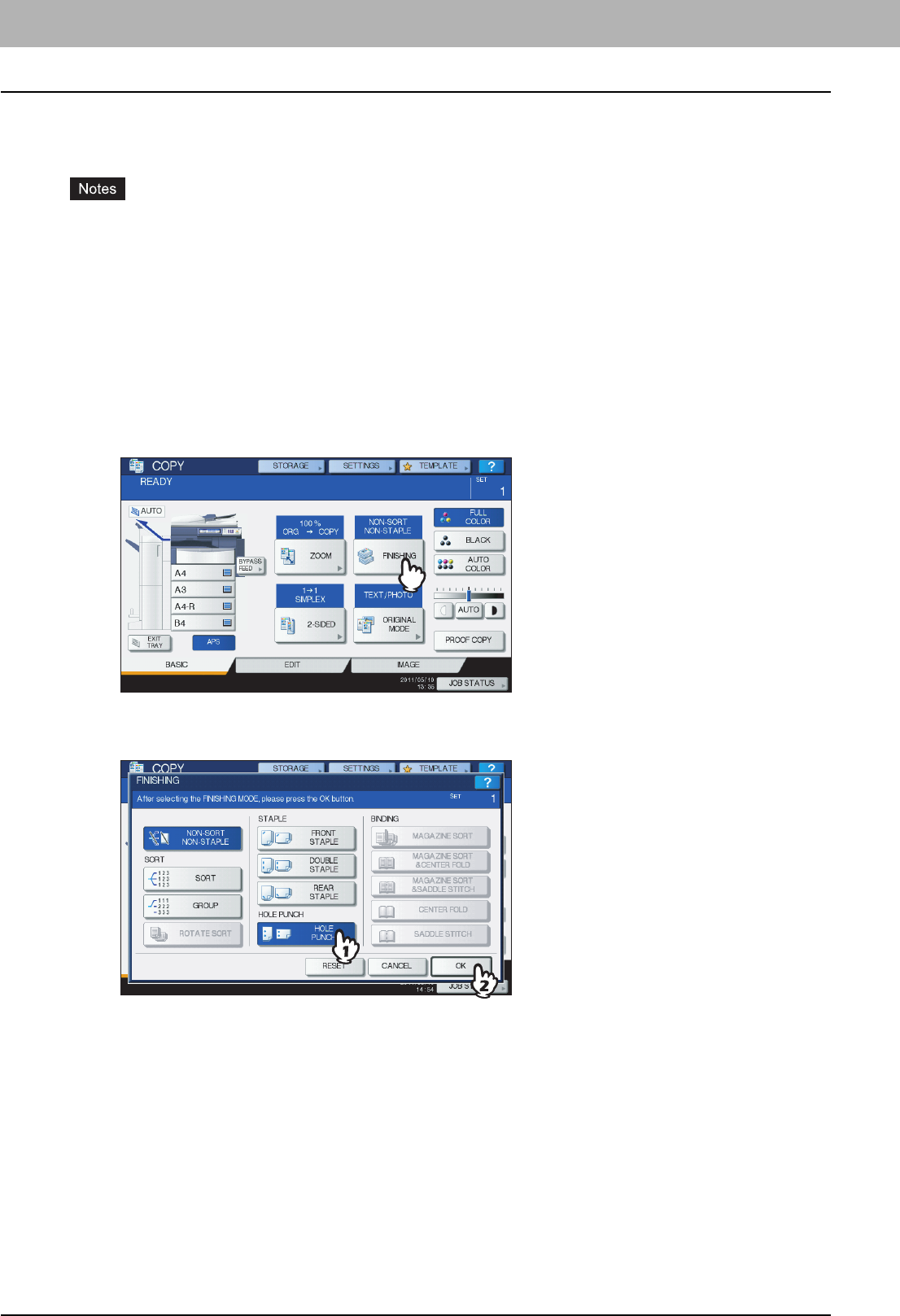
3 BASIC COPY MODES
76 Selecting Finishing Mode
Hole punch mode
You can punch copied paper when the Hole Punch Unit (optional) is installed on the Finisher.
yPaper whose size is any of A3, A4, A4-R, B4, B5, B5-R, FOLIO, LD, LG, LT, LT-R, ST-R and COMP, and whose
weight is 64 to 256 g/m2 (17 lb. Bond to 140 lb. Index) is available.
ySpecial paper such as OHP film or sticker labels is not applicable.
1
Place paper in the drawer(s).
When using bypass copying, be sure to set the paper size.
2
Place the original(s).
3
Press [FINISHING] on the touch panel.
4
Select [HOLE PUNCH], and then press [OK].
5
Select other copy modes as required, and then press the [START] button on the control
panel.
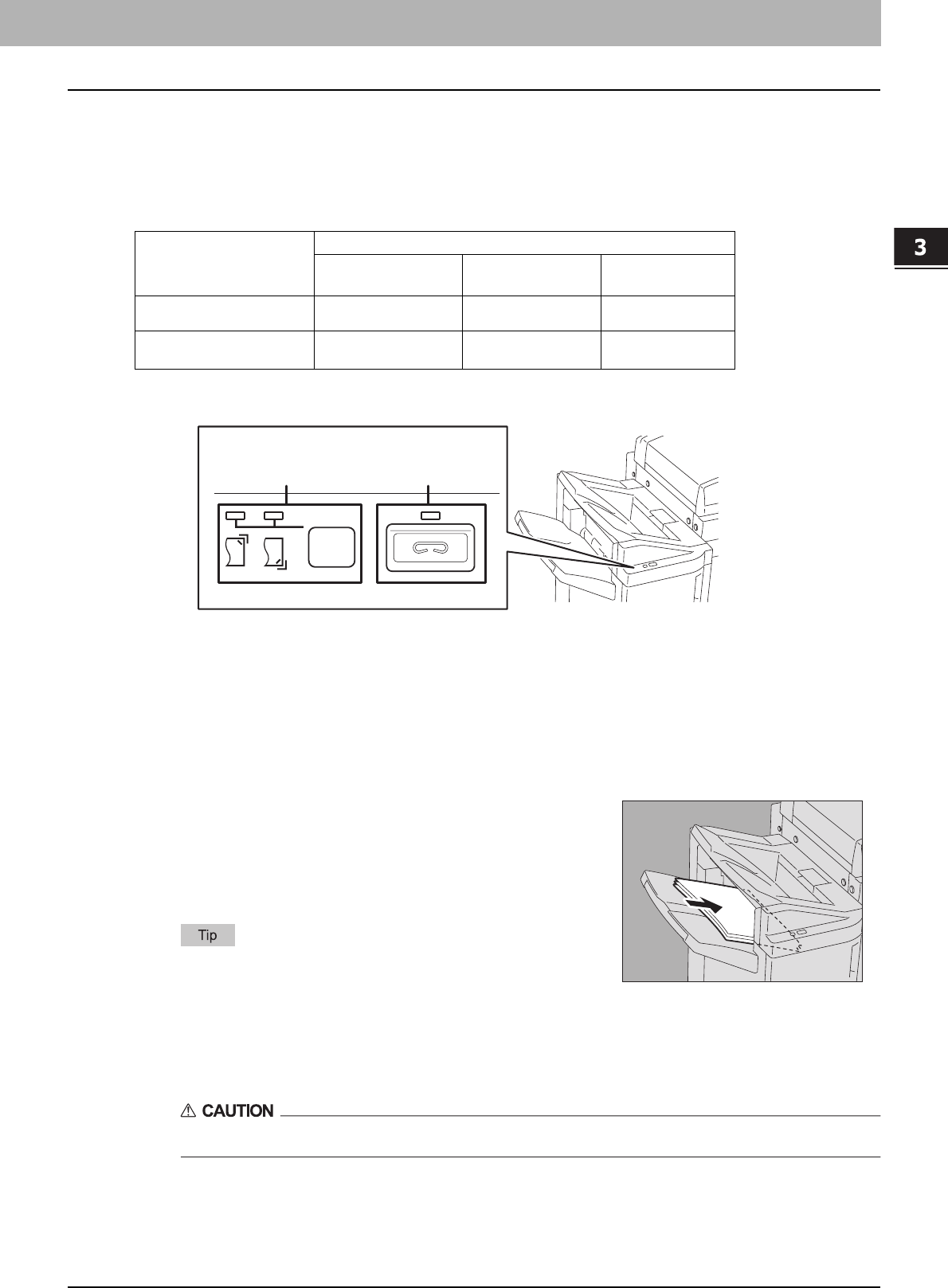
3.BASIC COPY MODES
Selecting Finishing Mode 77
3 BASIC COPY MODES
Manual staple mode
You can staple copied paper manually without any copying operation. This is useful when you have forgotten to set the
staple sort mode before starting copying, or when you want to staple originals. (Available only with the Finisher MJ-1101 or
Saddle Stitch Finisher MJ-1106)
Maximum number of sheets available for manual stapling
Use the buttons on the stapling control section of the Finisher (optional) for manual stapling.
1
Press the stapling button on the stapling control section.
The shutter of the paper exit area is opened and this equipment enters into the manual staple mode.
2
Press the stapling position switching button to switch the staple position (front or
rear).
4
Let go of the paper, and then press the stapling button.
Stapling starts. When the stapling position switching lamps start blinking, it means the stapling has finished. Then
remove the stapled paper.
Be sure that your hands are away from the paper while stapling is in progress.
Finishing the manual staple mode
Remove the stapled paper from the lower receiving tray, and then press the stapling button. The shutter of the
paper exit area closes. This means that manual stapling is finished. If no operation is performed for approx. 15
seconds, the manual staple mode will be automatically finished.
Paper size
Paper weight
64 - 80 g/m2
(17 - 20 lb. Bond)
81 - 90 g/m2
(21 - 24 lb. Bond)
91 - 105 g/m2
(25 - 28 lb. Bond)
A4, B5, LT 50 sheets MJ-1101: 30 sheets
MJ-1106: 50 sheets
30 sheets
A3, A4-R, B4, FOLIO, LD,
LG, LT-R, COMP
30 sheets MJ-1101: 15 sheets
MJ-1106: 30 sheets
15 sheets
3
Place paper on the lower receiving tray of the Finisher
(optional).
Fan and jog the paper well. Place it with its face down.
When you staple them at their corner on the front side, place the
sheets of paper aligned to the front side. When you staple them on the
rear side, place the sheets of paper aligned to the rear side.
The stapling lamp lights when the paper is properly placed. If it
does not light, replace the paper.
Stapling position
button / lamps
Stapling
button / lamp
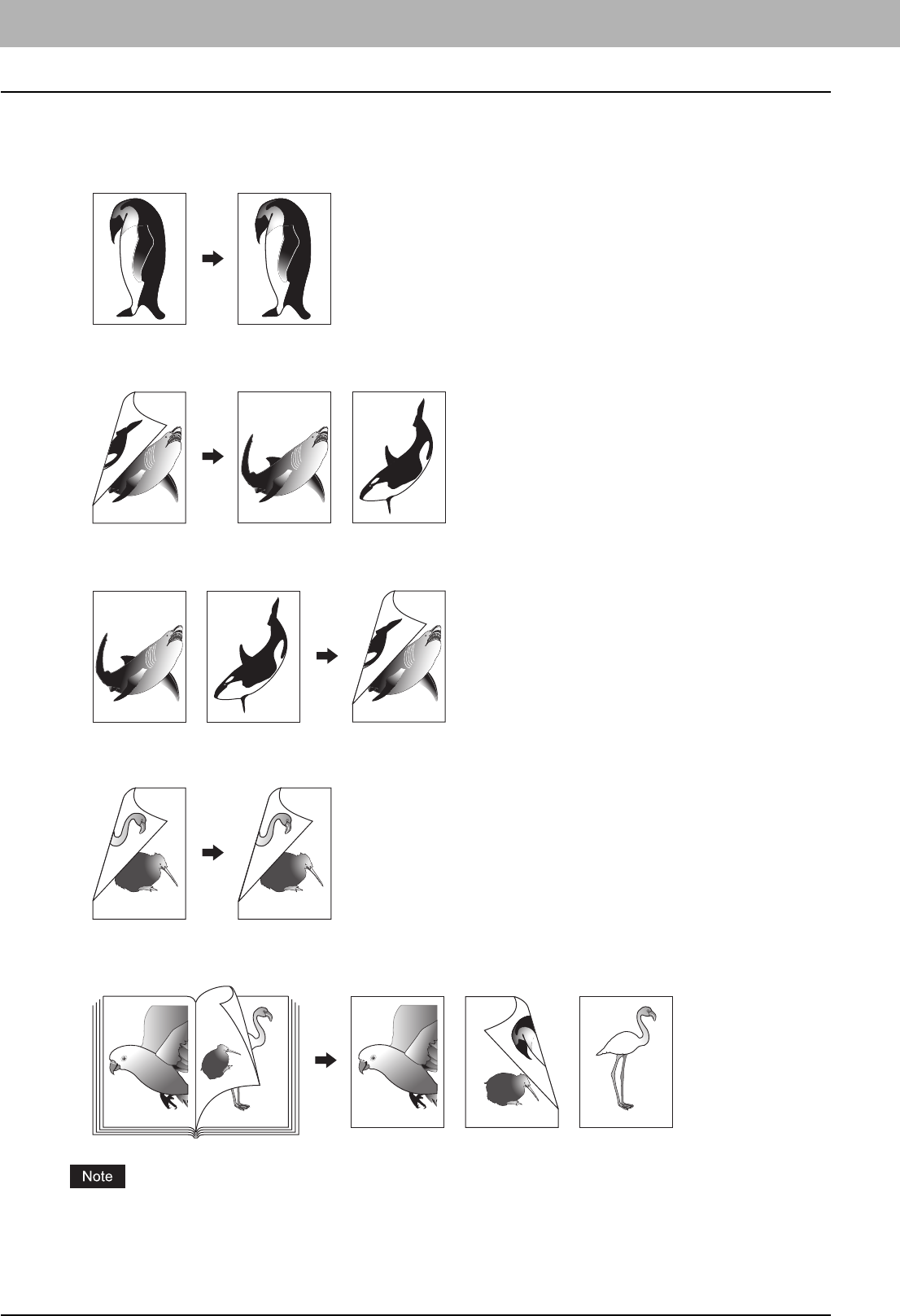
3 BASIC COPY MODES
78 Duplex Copying
Duplex Copying
You can copy a 1-sided original to a 2-sided copy or vice versa, or copy a 2-sided original to a 2-sided copy. This is useful
when you want to save the paper, or when you want to copy a book-type original maintaining the same page order.
1-sided original -> 1-sided copy ( P. 7 9 )
2-sided original -> 1-sided copy ( P. 7 9 )
1-sided original -> 2-sided copy ( P. 8 0 )
2-sided original -> 2-sided copy ( P. 8 0 )
Book-type original -> 2-sided copy ( P. 81 )
Use plain paper, recycled paper, THICK 1, THICK 2, THICK 3, special paper 1 or special paper 2 for duplex copying.
-12- -15-
-13-
-13-
-12-
-13-
-15-
-13-
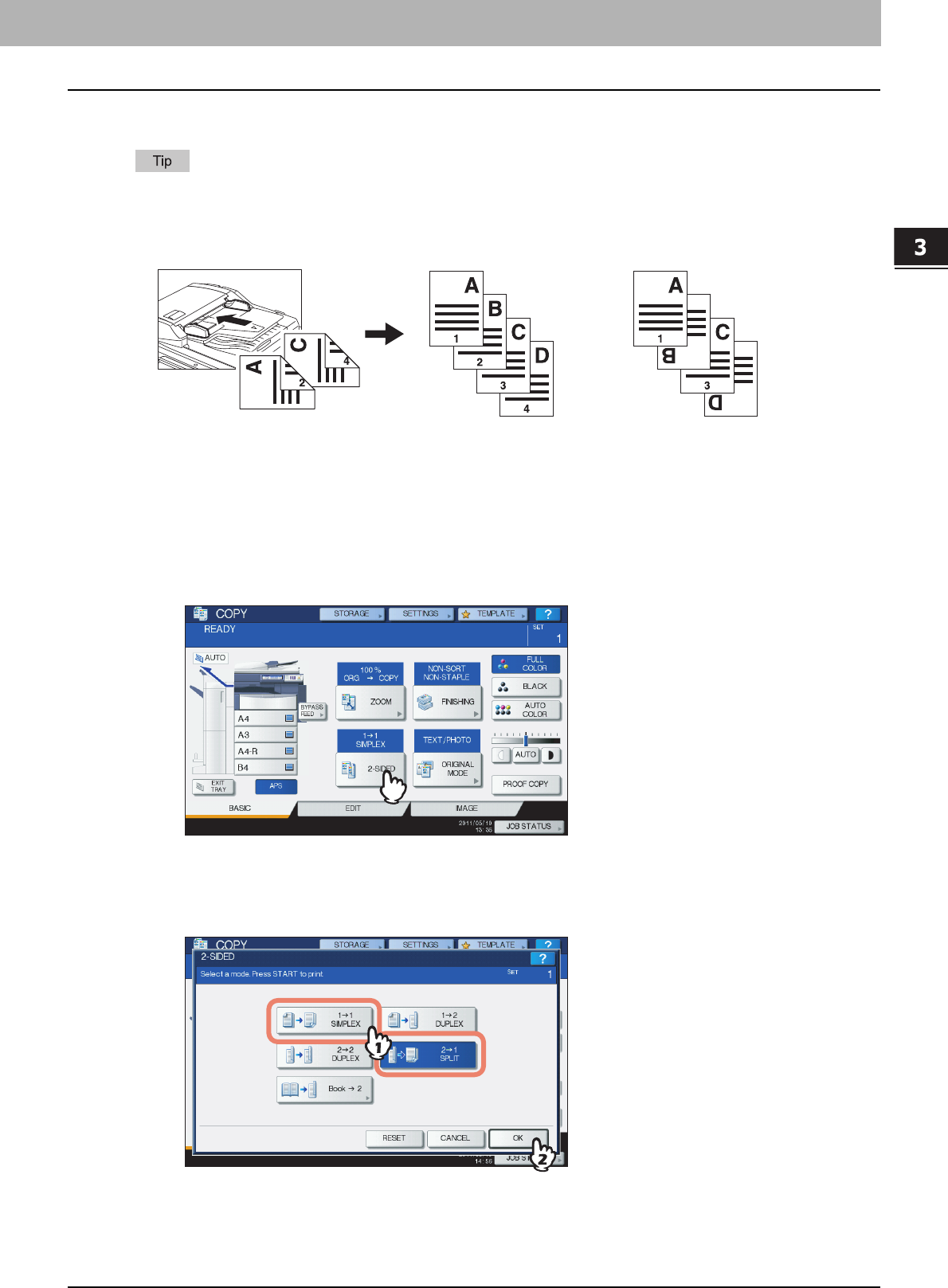
3.BASIC COPY MODES
Duplex Copying 79
3 BASIC COPY MODES
Making a 1-sided copy
When you copy 2-sided portrait originals which open to the left/right on only 1 side of the paper, use the image
direction function on the EDIT menu so that all the copied paper will exit in the proper direction.
P.122 “Image Direction”
1
Place paper in the drawer(s).
When using bypass copying, be sure to set the paper size.
2
Place the original(s).
3
Press [2-SIDED] on the touch panel.
4
Select the desired mode, and then press [OK].
[1->1 SIMPLEX]: 1-sided original to 1-sided copy
[2->1 SPLIT]: 2-sided original to 1-sided copy
5
Select other copy modes as required, and then press the [START] button on the control
panel.
No setting“IMAGE DIRECTION” set
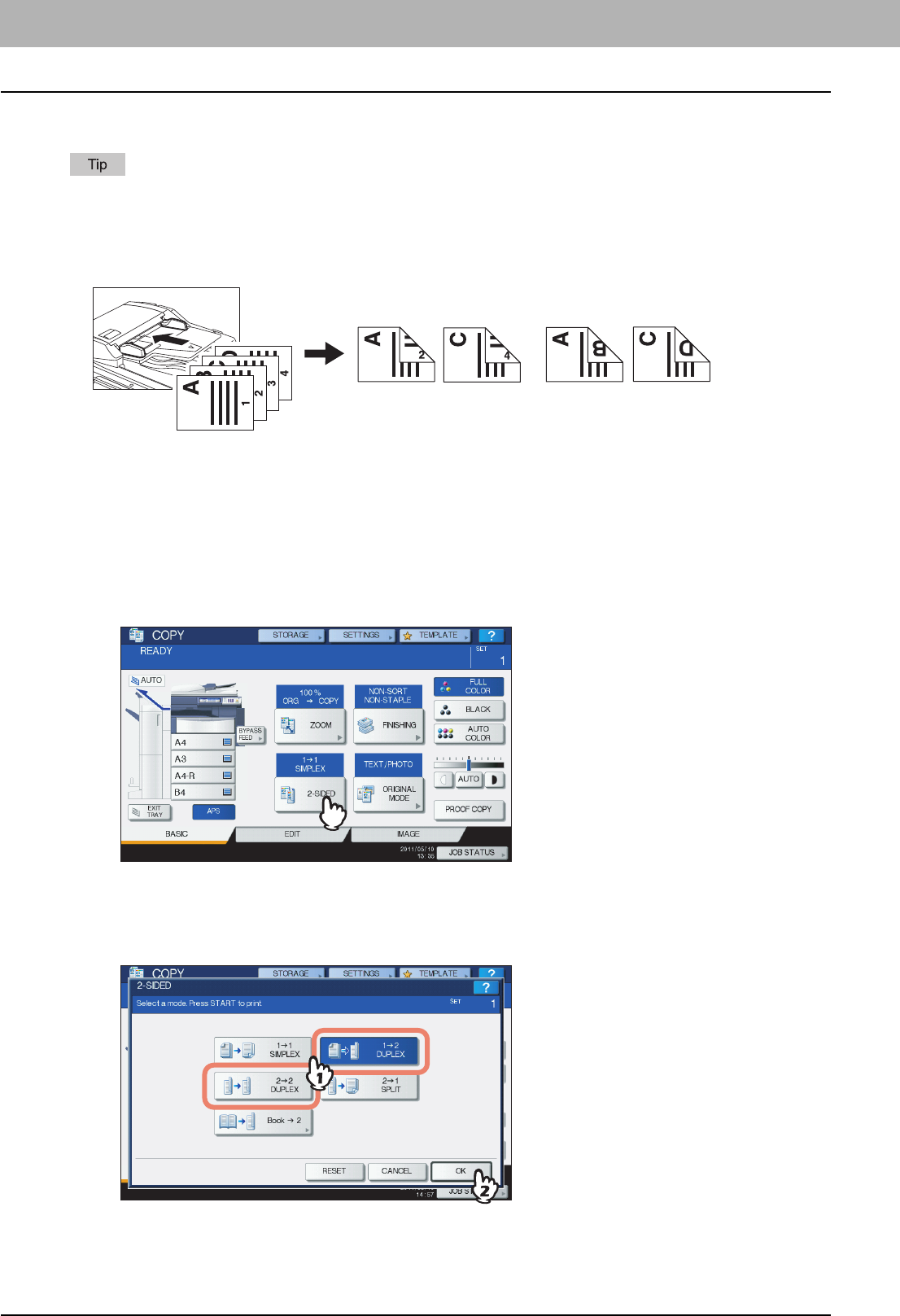
3 BASIC COPY MODES
80 Duplex Copying
Making a 2-sided copy
If 1-sided portrait originals have been placed in a landscape direction and you copy them on both sides of the paper,
copied sheets are usually in the open to top/bottom direction. You can make copies in the open to left/right direction
with the image direction function.
P.122 “Image Direction”
1
Place paper in the drawer(s).
When using bypass copying, be sure to set the paper size.
2
Place the original(s).
3
Press [2-SIDED] on the touch panel.
4
Select the desired mode, and then press [OK].
[1 -> 2 DUPLEX]: 1-sided original to 2-sided copy
[2 -> 2 DUPLEX]: 2-sided original to 2- sided copy
No setting“IMAGE DIRECTION” set
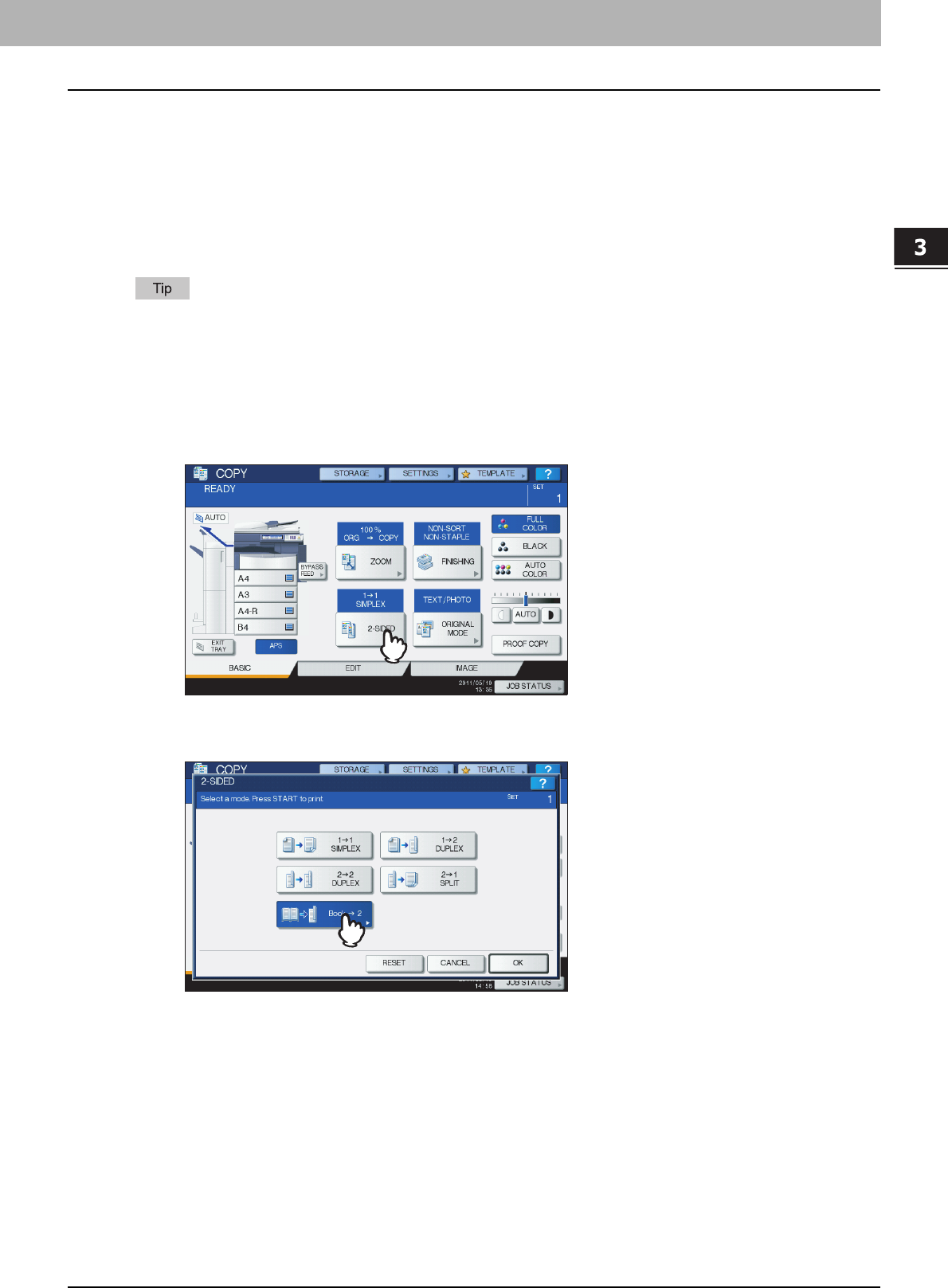
3.BASIC COPY MODES
Duplex Copying 81
3 BASIC COPY MODES
5
Select other copy modes as required, and then press the [START] button on the control
panel.
When placing the original on the original glass, follow steps 6 and 7 on P.28 “Basic copying procedure”.
Making a 2-sided copy from a book-type original
You can make 2-sided copies from book-type originals such as books or catalog as in the same page order.
A4, B5 and LT sizes are applicable.
1
Place paper in the drawer(s).
When using bypass copying, be sure to set the paper size.
2
Press [2-SIDED] on the touch panel.
3
Select [Book -> 2].
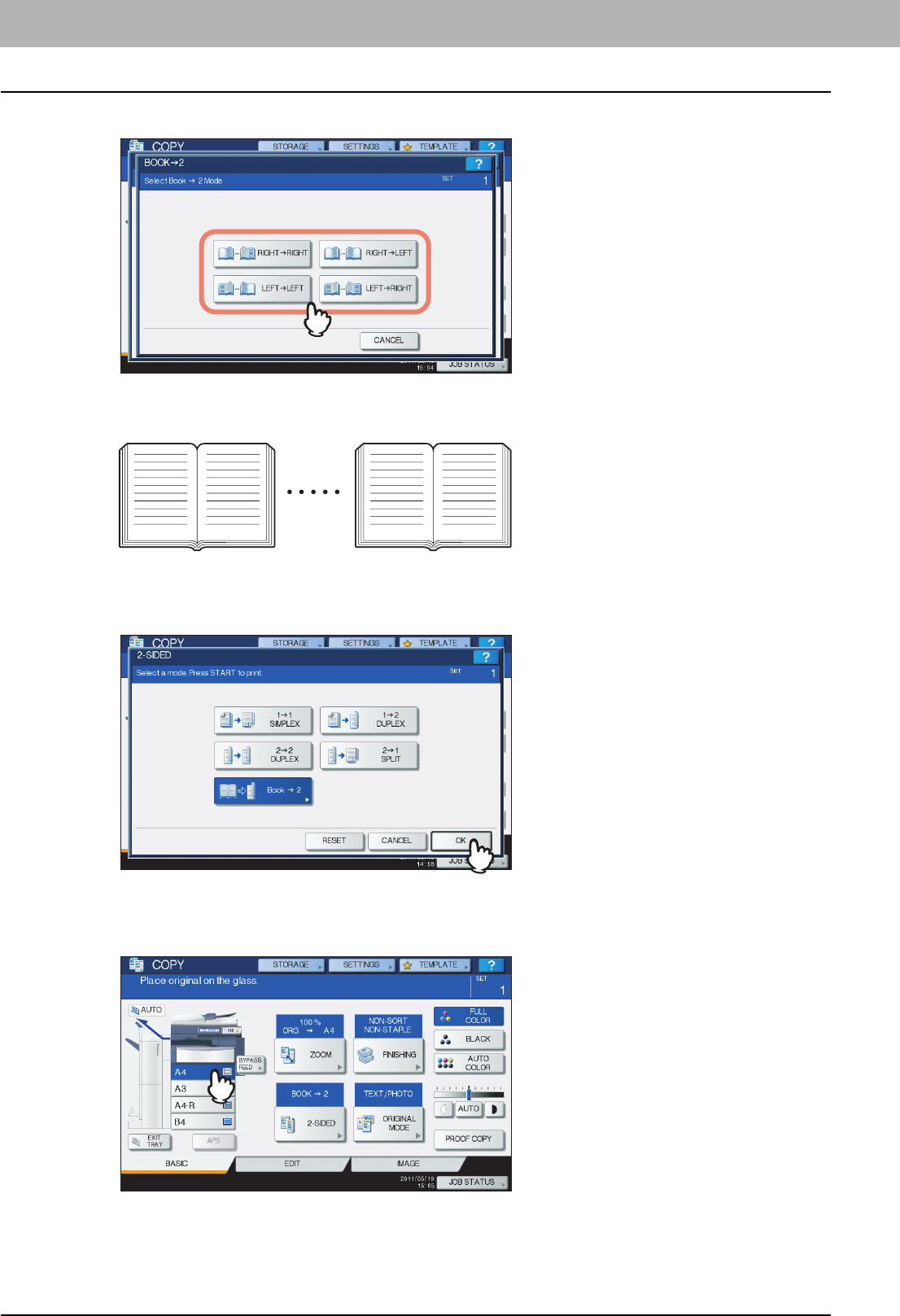
3 BASIC COPY MODES
82 Duplex Copying
4
Select the book copying type.
Example: If pages 2 to 6 of a book which opens to the left are to be copied, select [LEFT -> LEFT].
5
Press [OK].
The menu returns to the BASIC menu.
6
Press the drawer button corresponding to the desired paper size.
Only A4, B5 and LT sizes are applicable.
23 67
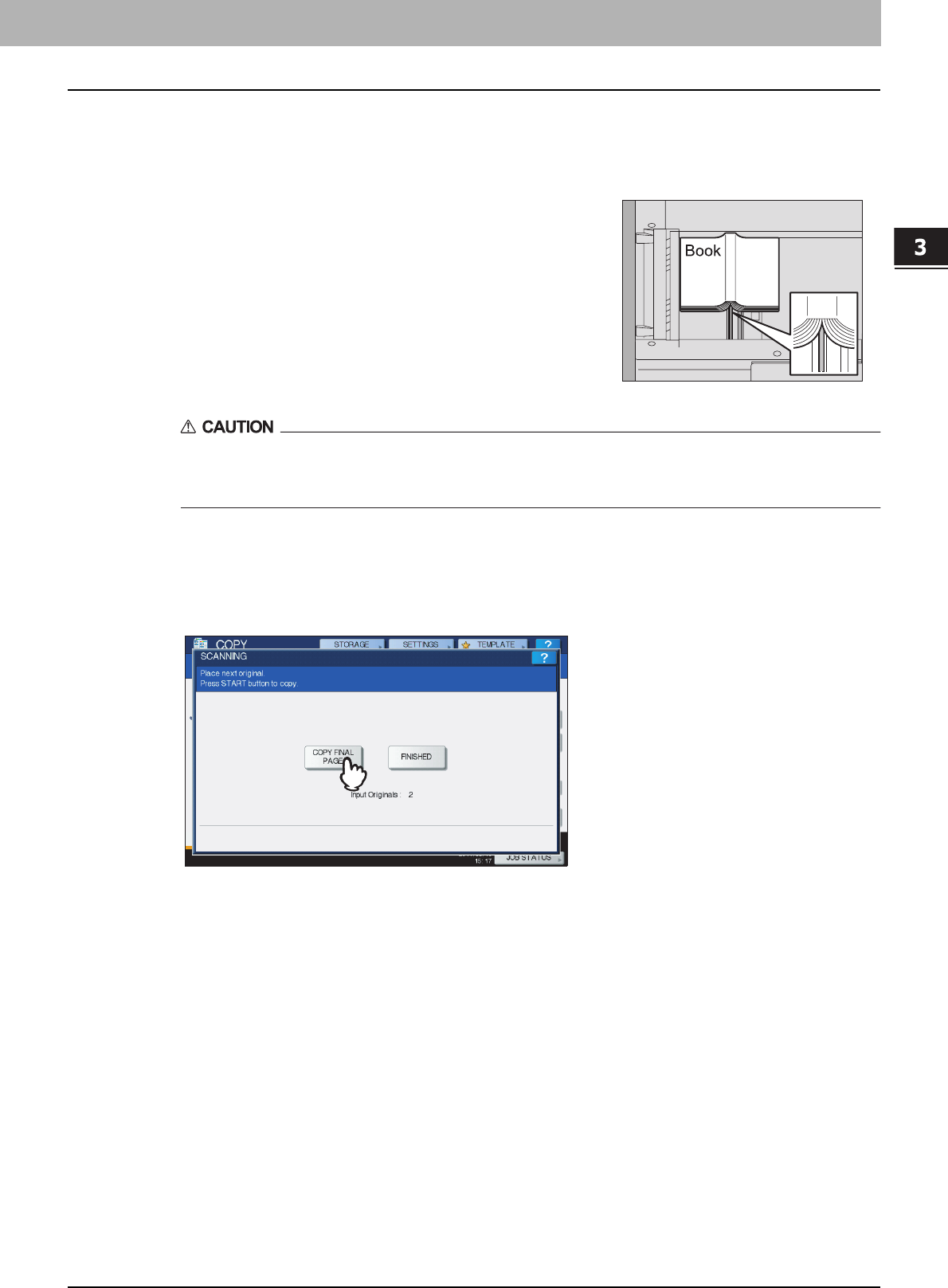
3.BASIC COPY MODES
Duplex Copying 83
3 BASIC COPY MODES
7
Select other copy modes as required.
If the copy needs a binding space, select the book margin mode on the EDIT menu.
P.93 “Creating bookbinding margin”
Do not place any heavy objects (4 kg (9 lb.) or over) on the original glass and do not press on it with
force.
Breaking the glass could injure you.
9
Press the [START] button on the control panel. Once the pages are scanned, set the
next ones on the original glass.
Repeat this step until all the desired pages have been scanned. If the last page is a single page, press [COPY
FINAL PAGE] on the touch panel, and then press the [START] button on the control panel to start scanning. The
scanned pages will be copied.
10
When all the pages have been scanned, press [FINISHED].
The scanned pages will be copied.
8
Place the original on the original glass.
Place the original with its bottom toward you, aligning its center with the
yellow indicator under the original glass.
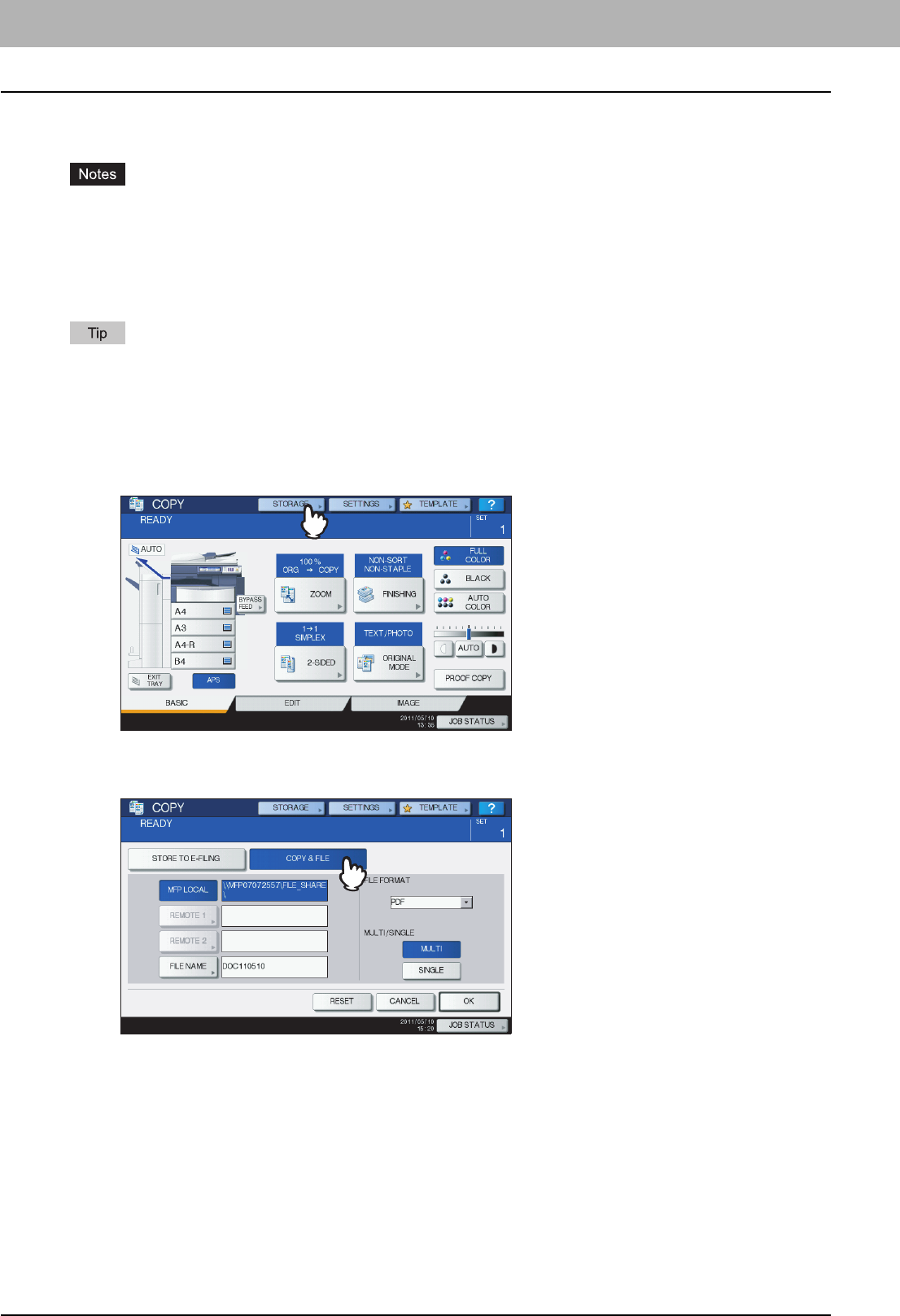
3 BASIC COPY MODES
84 Performing Copy & File
Performing Copy & File
With the Copy & File function, you can store the copied data in the share folder of the hard disk of this equipment or a
specified PC on a network. The data can be stored in any of PDF, TIFF and XPS formats.
yThe data will be stored as black images. (Resolution: 600 dpi only) The data stored with this function are suited for
printing but not for being imported as an image into your PC. To obtain the optimal image quality for importing, it is
recommended to store the data with the Scan to File function of this equipment.
yThe network administrator must make settings for Copy & File in advance. For details, refer to the TopAccess
Guide.
yIt is recommended to back up the data stored in the share folder.
You can store data in an e-Filing box with the Store to e-Filing function. For details, refer to the e-Filing Guide.
1
Place the original(s).
2
Press [STORAGE] on the touch panel.
3
Press [COPY & FILE] on the touch panel.
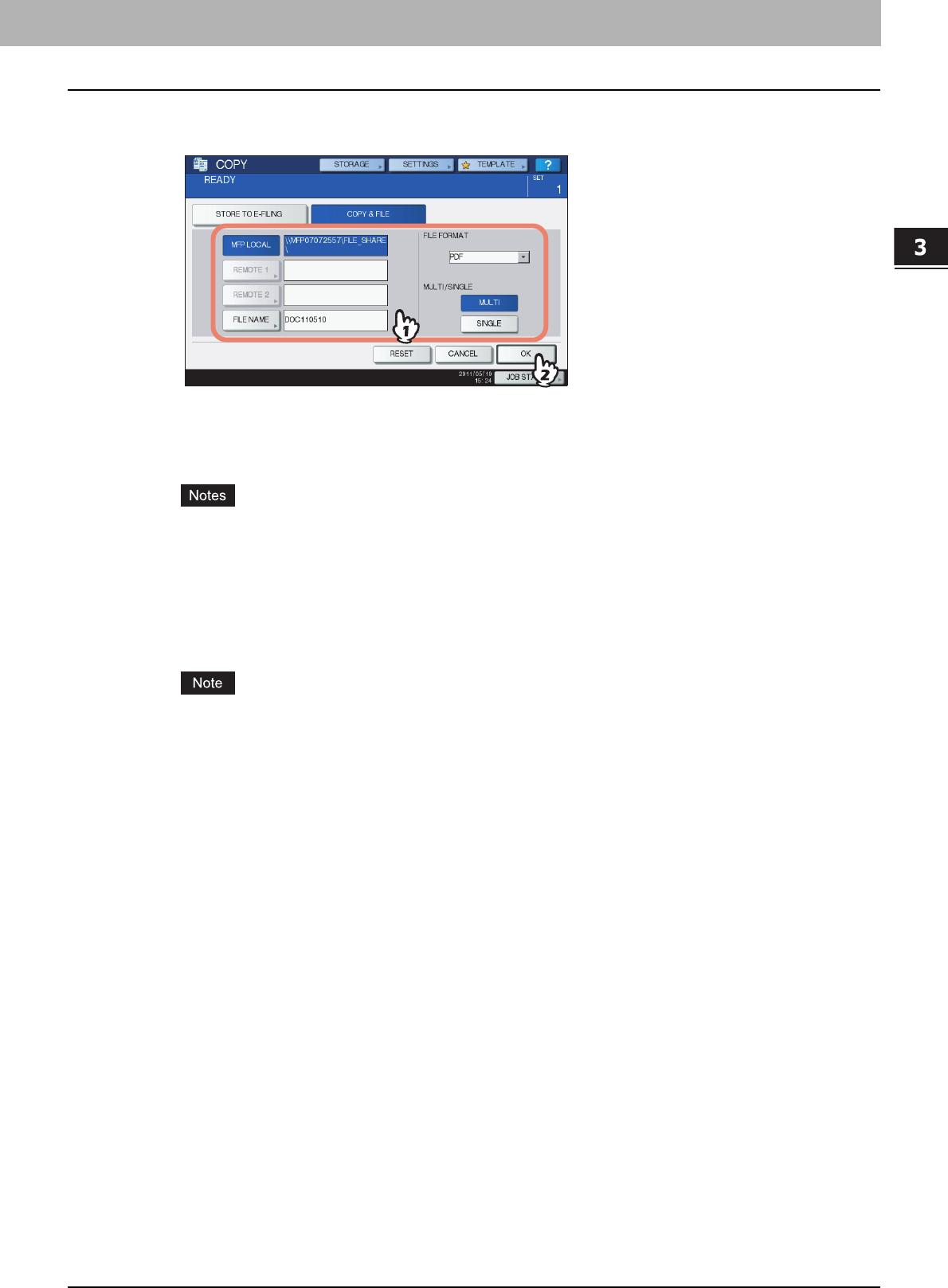
3.BASIC COPY MODES
Performing Copy & File 85
3 BASIC COPY MODES
4
Press the necessary buttons for entering information about the data to be stored. Then
press [OK].
MFP LOCAL: Press this to store the data into the share folder of this equipment.
REMOTE 1, REMOTE 2: Press either of them to store the data into the share folder of a PC that is connected with
this equipment via a network.
yYou can select up to 2 of [MFP LOCAL], [REMOTE 1] and [REMOTE 2]. You can cancel the selected item
by pressing the same button again.
yWhen a user who has the privilege of changing the setting of [REMOTE 1] and [REMOTE 2] has pressed
either of them, the menu for specifying a directory appears. In this case, see the following page to specify
the directory:
P.86 “Setting share folder”
FILE NAME: Press this to display the on-screen keyboard. Then enter the file name within 128 letters.
The trailing characters in a file name (maximum 74) may be deleted depending on the type of letters used.
FILE FORMAT: Select the file format in which the data are stored from PDF, TIFF or XPS.
MULTI / SINGLE: These are for selecting whether the data are stored as a multiple page file or a single page file. If
you select “MULTI”, all the scanned data will be stored as one file. If you select “SINGLE”, a folder is created
and each page of the scanned data will be stored individually as one file in the folder.
5
Press the [START] button on the control panel.
When the original is placed on the RADF (Reversing Automatic Document Feeder, optional), copying and storing
start simultaneously.
When the original is placed on the original glass, follow the procedure below.
6
Place the next original on the original glass, and then press [NEXT COPY] on the touch
panel or the [START] button on the control panel.
Repeat this step until the scanning of all the originals is finished.
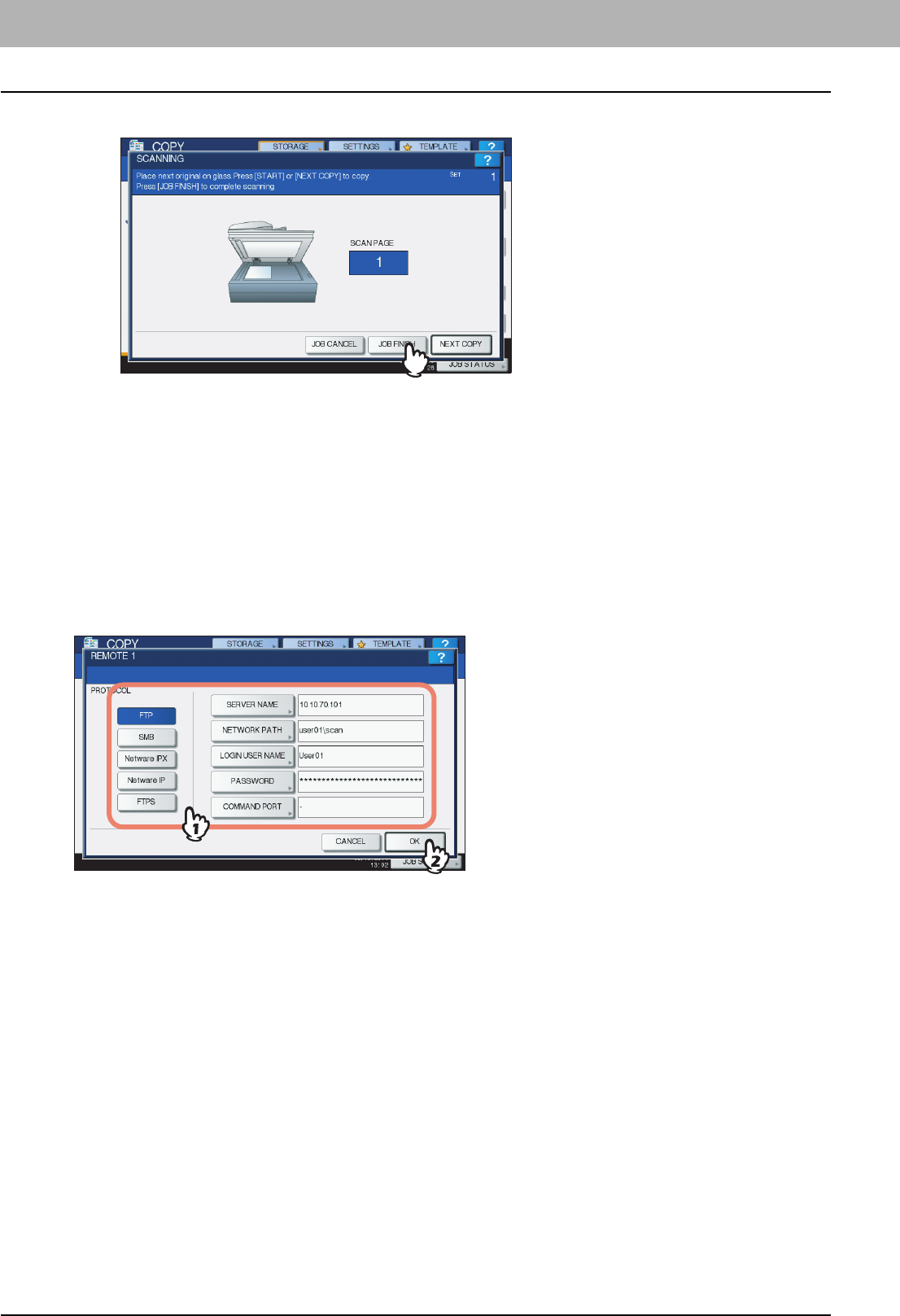
3 BASIC COPY MODES
86 Performing Copy & File
7
When all have been scanned, press [JOB FINISH] on the touch panel.
Copying and storing start.
Setting share folder
When a user who has the privilege of setting a share folder has pressed [REMOTE 1] or [REMOTE 2], the menu for
specifying a directory appears.
The setting items differ depending on the file transfer protocol to be used. FTP, SMB, NetWare IPX/SPX, NetWare TCP/IP
and FTPS are selectable for a file transfer protocol.
FTP / FTPS
When you press any of the buttons below, the on-screen keyboard appears. Enter with the buttons on the touch panel or
the digital keys on the control panel. When you finish the entry, press [OK].
SERVER NAME: Press this to enter the IP address of FTP server. For example, if the data should be transferred to an
FTP folder ftp://10.10.70.101/user01/scan/, key in “10.10.70.101”.
NETWORK PATH: Press this to enter a network path to an FTP folder where the data are to be stored. For example, if the
data should be transferred to an FTP folder ftp://10.10.70.101/user01/scan/, enter “user01\scan”.
LOGIN USER NAME: Press this to enter a user name to login to the FTP server. Enter this as required.
PASSWORD: Press this to enter a password to login to the FTP server. Enter this as required.
COMMAND PORT: Press this to key in a command port number for executing commands. Normally “-” is entered in this
field, which means that a port number set by the administrator will be used. Change this only when you want to use
any other port number.
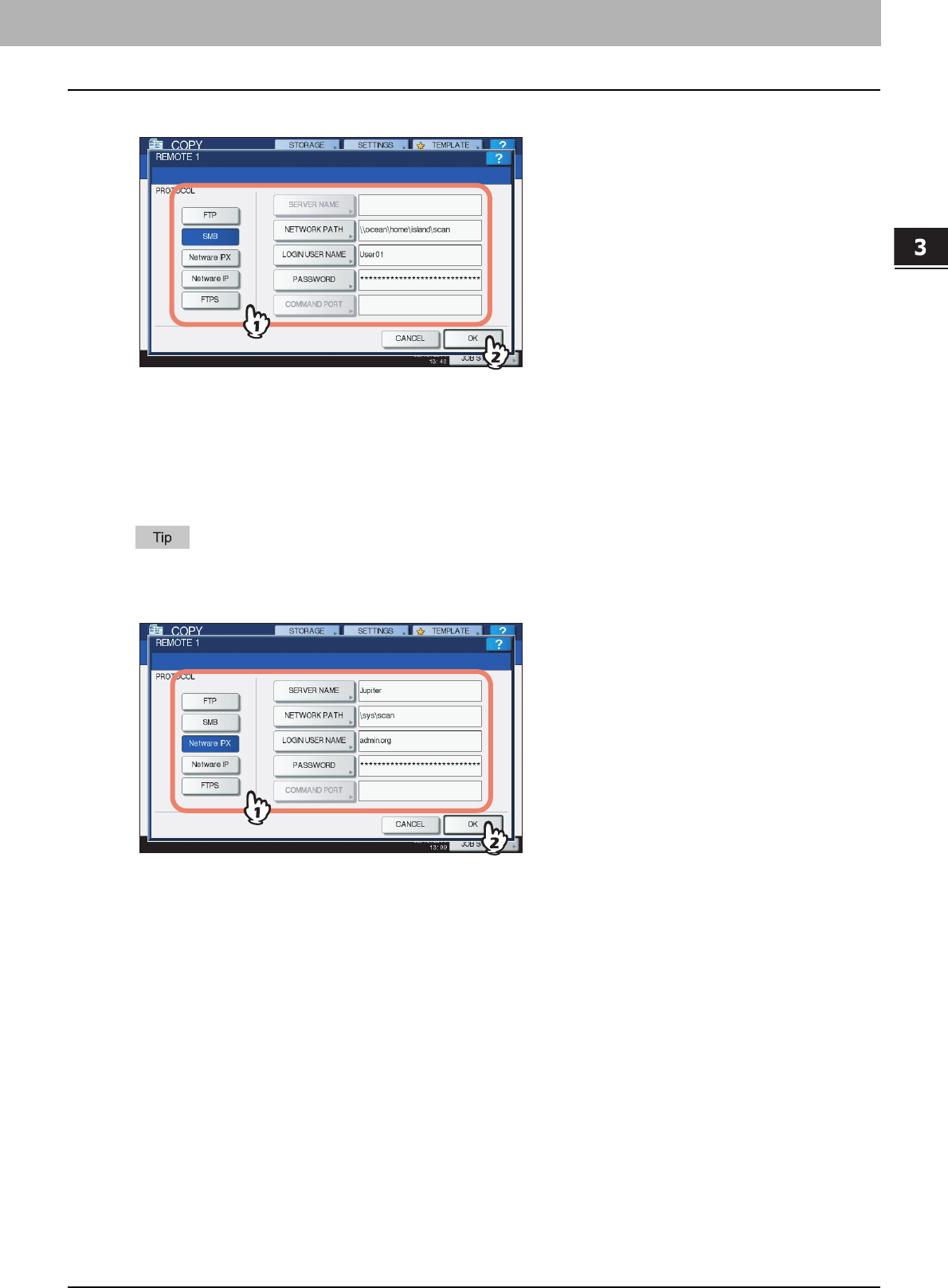
3.BASIC COPY MODES
Performing Copy & File 87
3 BASIC COPY MODES
SMB
When you press any of the buttons below, the on-screen keyboard appears. Enter with the buttons on the touch panel or
the digital keys on the control panel. When you finish the entry, press [OK].
NETWORK PATH: Press this to enter a network path to the folder where the data are to be stored.
LOGIN USER NAME: Press this to enter a user name to access the network folder. Enter this as required.
PASSWORD: Press this to enter a password to access the network folder. Enter this as required.
If you selected [SMB], the settings for [SERVER NAME] and [COMMAND PORT] are not required.
NetWare IPX / NetWare IP
When you press any of the buttons below, the on-screen keyboard appears. Enter with the buttons on the touch panel or
the digital keys on the control panel. When you finish the entry, press [OK].
SERVER NAME: When you select [NetWare IPX], enter either the server name of NetWare server or Tree/Context (if NDS
is useable). When you select [NetWare IP], enter the IP address of NetWare server.
NETWORK PATH: Press this to enter a network path to a NetWare server folder where the data are to be stored. For
example, if the data should be transferred to a folder “sys\scan” of NetWare server, enter “\sys\scan”.
LOGIN USER NAME: Press this to enter a user name to login NetWare server. Enter this as required.
PASSWORD: Press this to enter a password to login NetWare server. Enter this as required.

4.EDITING FUNCTIONS
This chapter describes how to use various copying functions on the EDIT menu.
Displaying EDIT Menu............................................................................................................90
Image Shift .............................................................................................................................. 91
Creating top/bottom margin or left/right margin....................................................................................................91
Creating bookbinding margin ...............................................................................................................................93
Edge Erase.............................................................................................................................. 95
Book Center Erase ................................................................................................................. 96
Dual Page................................................................................................................................ 98
2IN1 / 4IN1 ............................................................................................................................. 100
Magazine Sort Mode.............................................................................................................103
Image Editing........................................................................................................................ 105
Trimming / Masking ............................................................................................................................................105
Mirror image / Negative/positive reversal ...........................................................................................................108
XY Zoom................................................................................................................................ 109
Cover Sheet .......................................................................................................................... 111
Sheet Insertion ..................................................................................................................... 113
Time Stamp ........................................................................................................................... 116
Page Number ........................................................................................................................ 117
Job Build............................................................................................................................... 119
Image Direction .................................................................................................................... 122
Book - Tablet......................................................................................................................... 124
ADF -> SADF......................................................................................................................... 125
Full Image.............................................................................................................................. 127
Image Repeat........................................................................................................................ 128
Omit Blank Page................................................................................................................... 130
Outside Erase ....................................................................................................................... 132
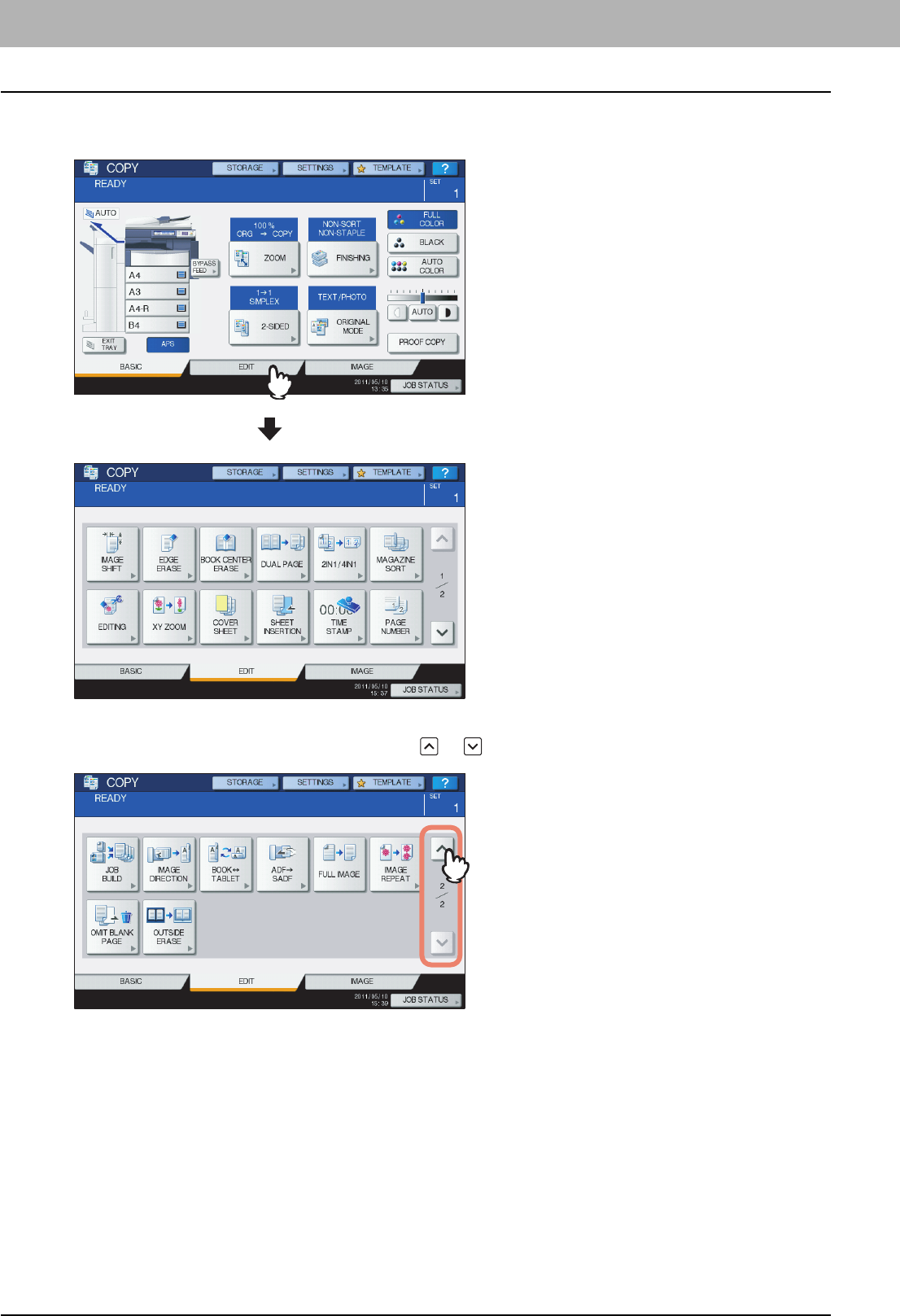
4 EDITING FUNCTIONS
90 Displaying EDIT Menu
Displaying EDIT Menu
You can display the EDIT menu by pressing the [EDIT] tab on the touch panel when you want to use various editing
functions.
The EDIT menu has 2 pages. To switch the pages, press or .
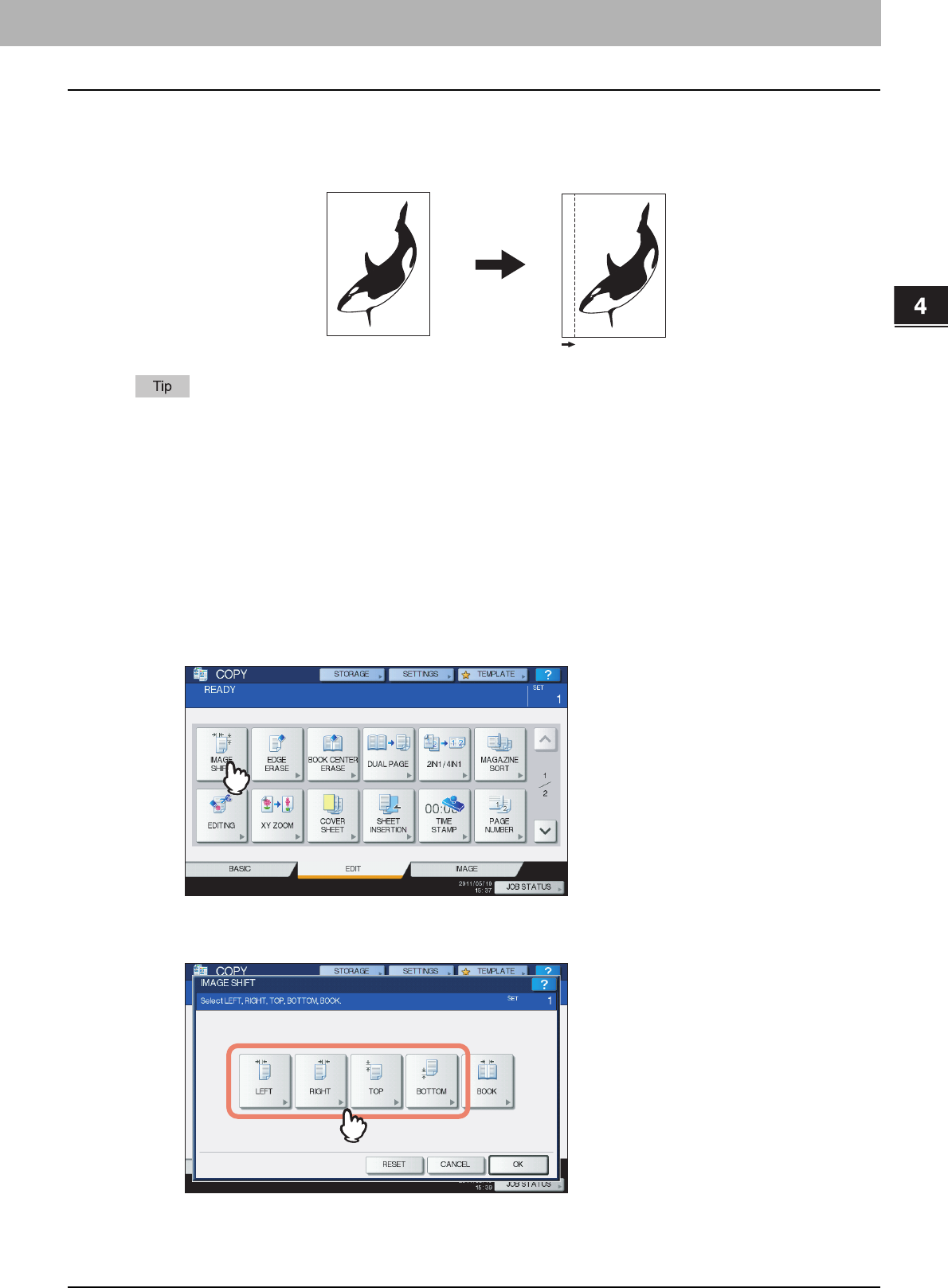
4 EDITING FUNCTIONS
Image Shift 91
Image Shift
You can create a binding margin by shifting an image to the left, right, top or bottom of the copy paper. This function is
called “image shift”. It is useful when you wish to punch or staple a stack of paper after copying it. With this function you
can easily make a binding margin when you copy a book-type original on both sides of the paper.
You can make a binding margin in the combinations as follows:
yTop/bottom margin and left/right margin
yTop/bottom margin and bookbinding margin
Creating top/bottom margin or left/right margin
1
Place paper in the drawer(s).
When using bypass copying, be sure to set the paper size.
2
Place the original(s).
3
Press [IMAGE SHIFT] on the EDIT menu.
4
Select the type of binding margin.
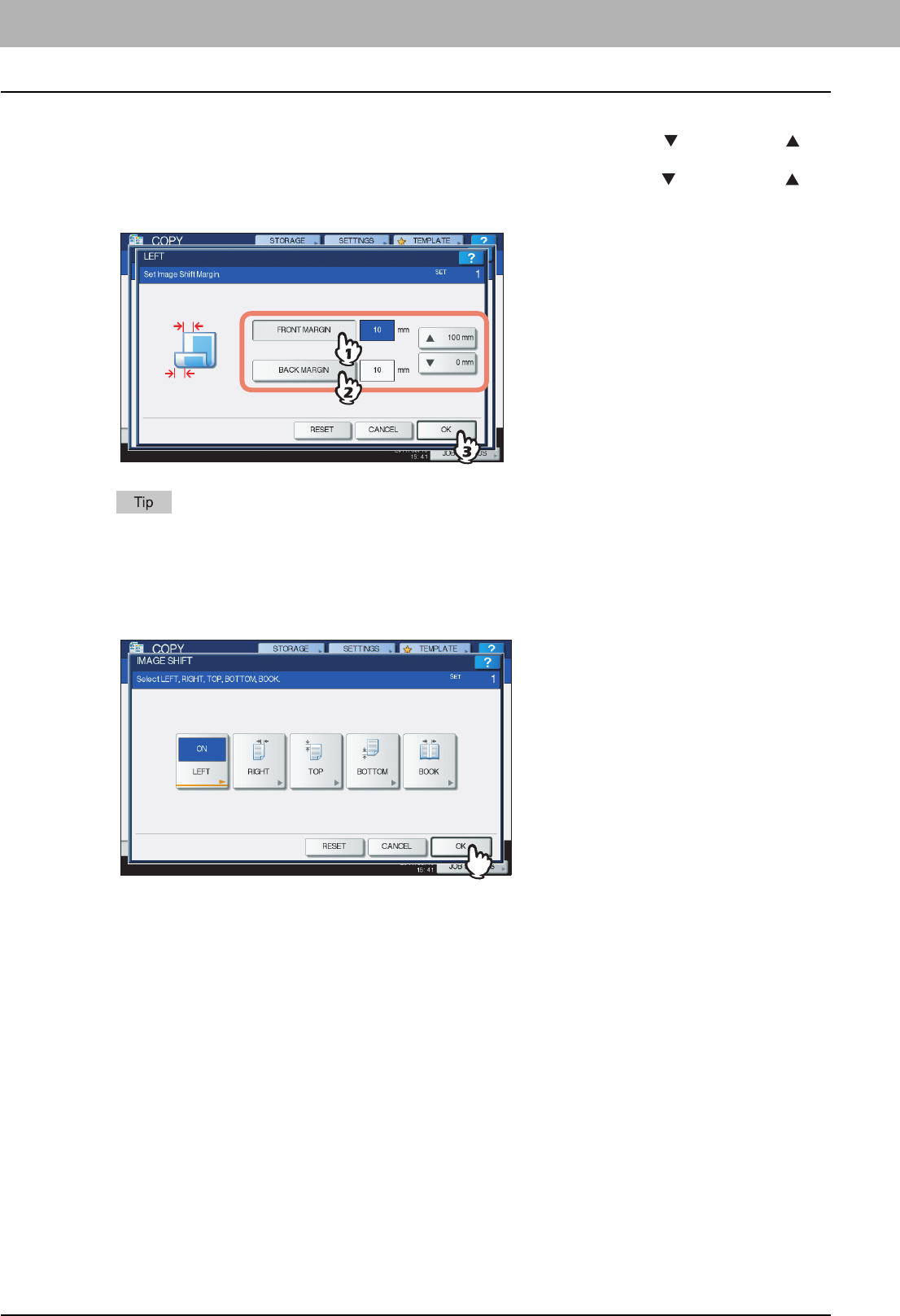
4 EDITING FUNCTIONS
92 Image Shift
5
Adjust the width of the binding margin.
1) Press [FRONT MARGIN] and adjust the binding margin width on the front side using [ 0 mm] (0") and [ 100
mm] (3.94"). (The width on the back side will be also adjusted in the same way.)
2) Press [BACK MARGIN] and adjust the binding margin width on the back side using [ 0 mm] (0") and [ 100
mm] (3.94"). (Only the width on the back side will be adjusted.)
3) Press [OK].
Note that a left/right binding margin will be created on the opposite side on the back side of paper in duplex
copying. (For example, when a binding margin is created on the right of the front side of the paper, it will be
created on the left of the back side.)
6
Press [OK].
7
Select other copy modes as required, and then press the [START] button on the control
panel.
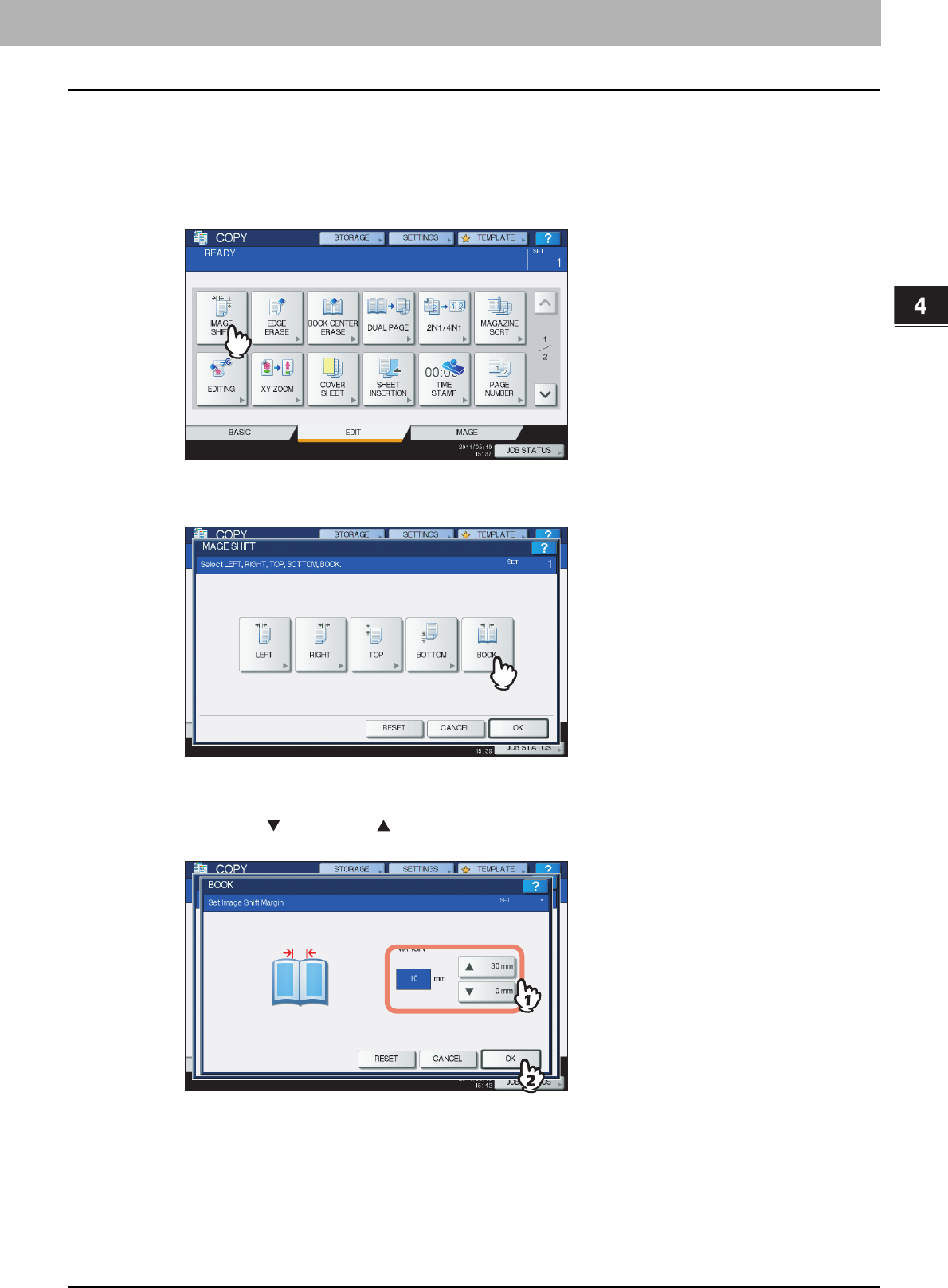
4.EDITING FUNCTIONS
Image Shift 93
4 EDITING FUNCTIONS
Creating bookbinding margin
You can easily make a binding margin when you copy a book-type original on both sides of the paper.
P.81 “Making a 2-sided copy from a book-type original”
1
Press [IMAGE SHIFT] on the EDIT menu.
2
Press [BOOK].
3
Adjust the width of the binding margin.
1) Press either [ 0 mm] (0") or [ 30 mm] (1.18").
2) Press [OK].
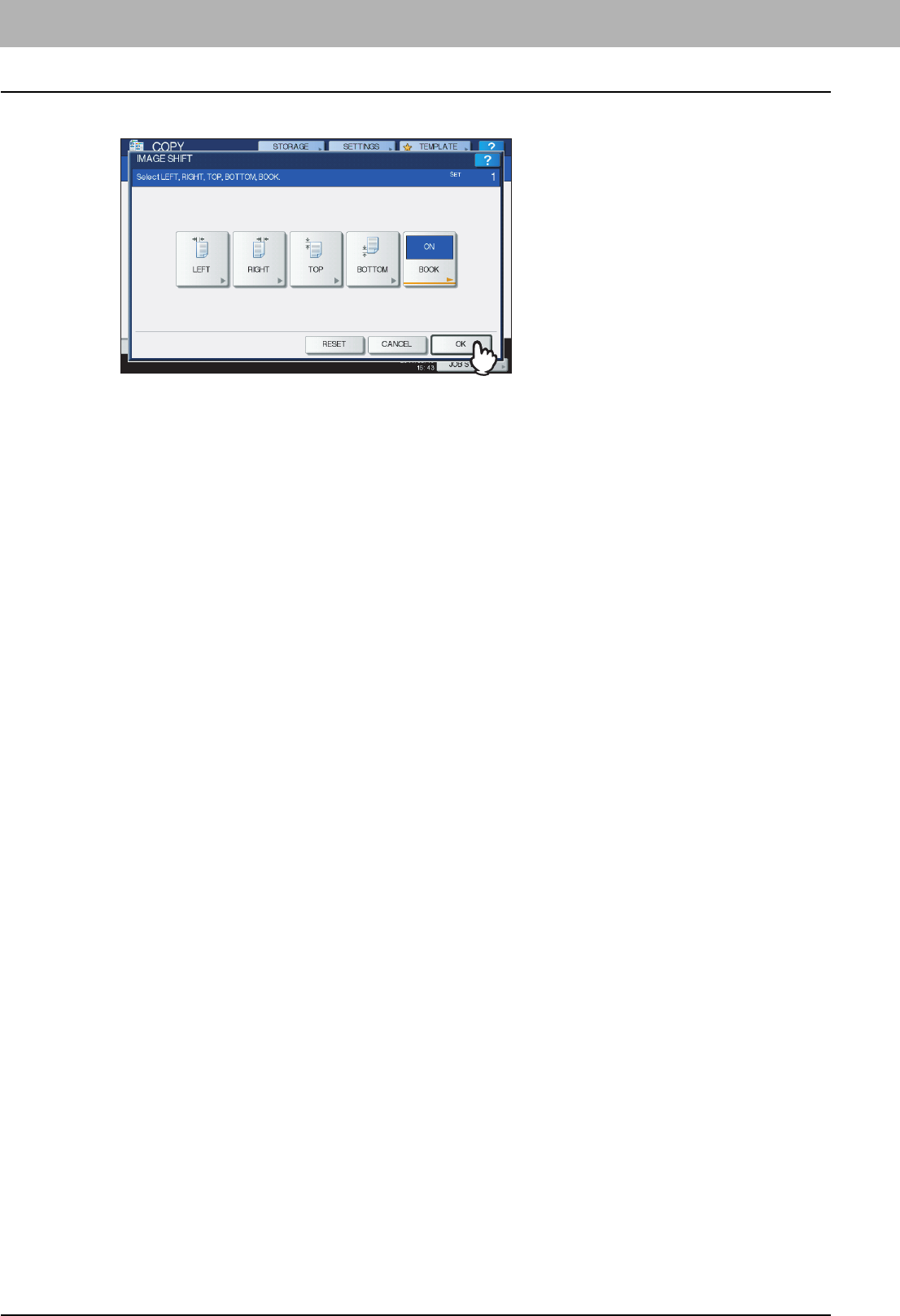
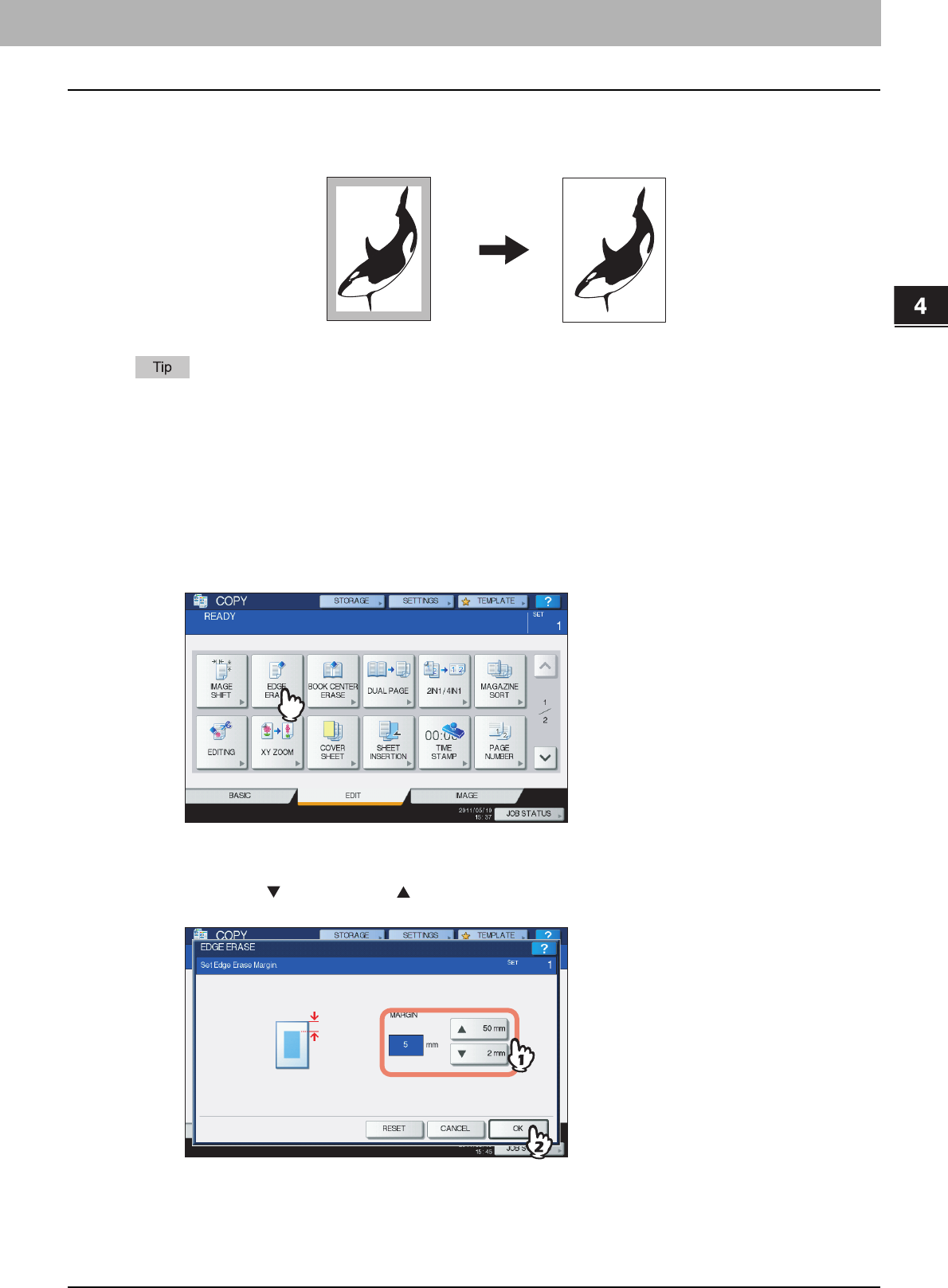
4 EDITING FUNCTIONS
Edge Erase 95
Edge Erase
You can whiten the edge of the copied image when a shadow-like dark part appears on it. This function is called “edge
erase”. It is useful when you want to make the copied image neat and clear if the edge of the original is dirty or torn.
Only standard size originals are applicable.
1
Place paper in the drawer(s).
When using bypass copying, be sure to set the paper size.
2
Place the original(s).
3
Press [EDGE ERASE] on the EDIT menu.
4
Adjust the width of the part to be erased.
1) Press either [ 2 mm] (0.08") or [ 50 mm] (1.97").
2) Press [OK].
5
Select other copy modes as required, and then press the [START] button on the control
panel.
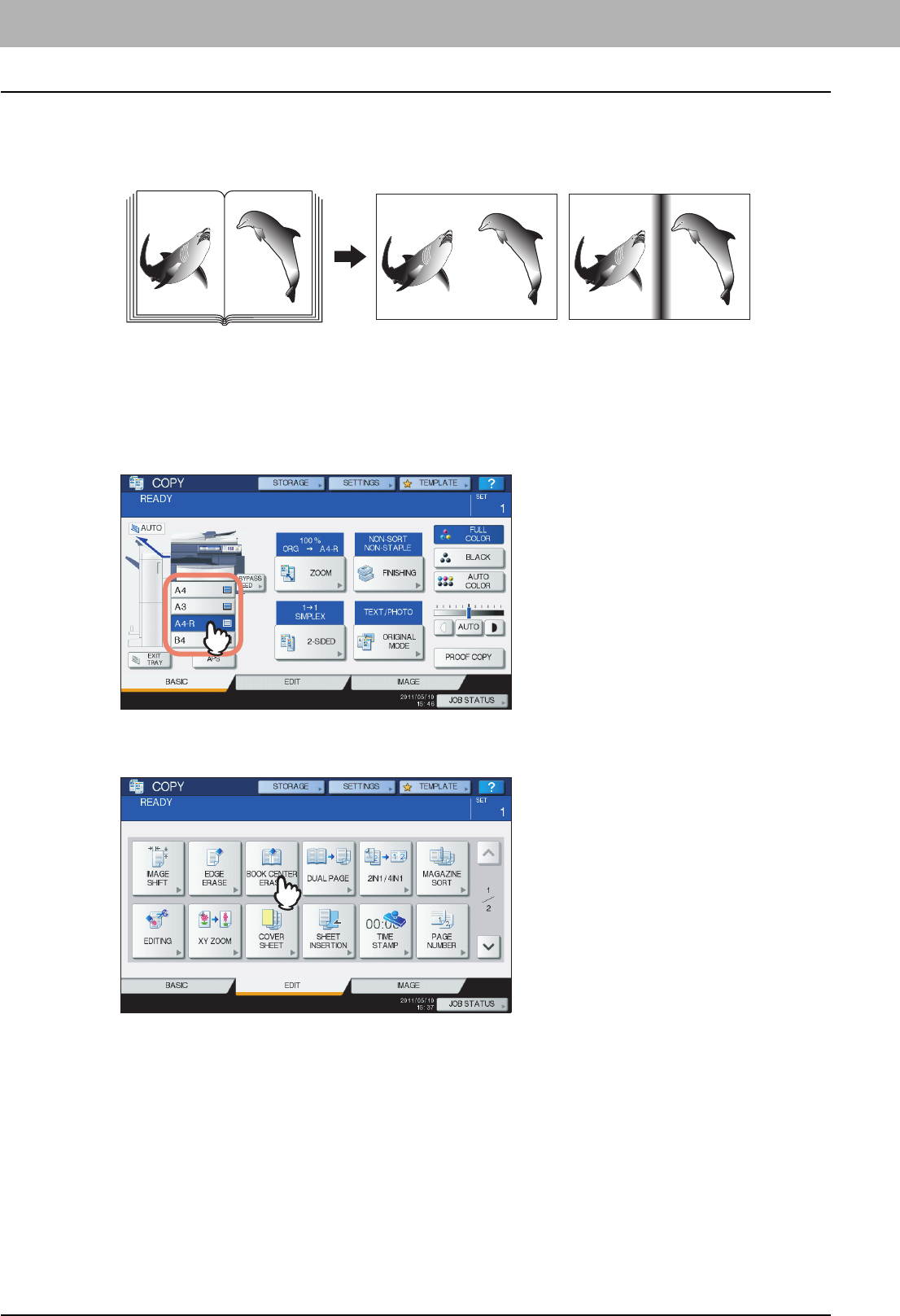
4 EDITING FUNCTIONS
96 Book Center Erase
Book Center Erase
You can whiten the center of the copied image when a shadow-like part appears on it. This function is called “book center
erase”. It is useful when you copy book-type originals.
1
Place paper in the drawer(s).
When using bypass copying, be sure to set the paper size.
2
Select the drawer for the desired paper size.
3
Press [BOOK CENTER ERASE] on the EDIT menu.
Book center erase set No setting
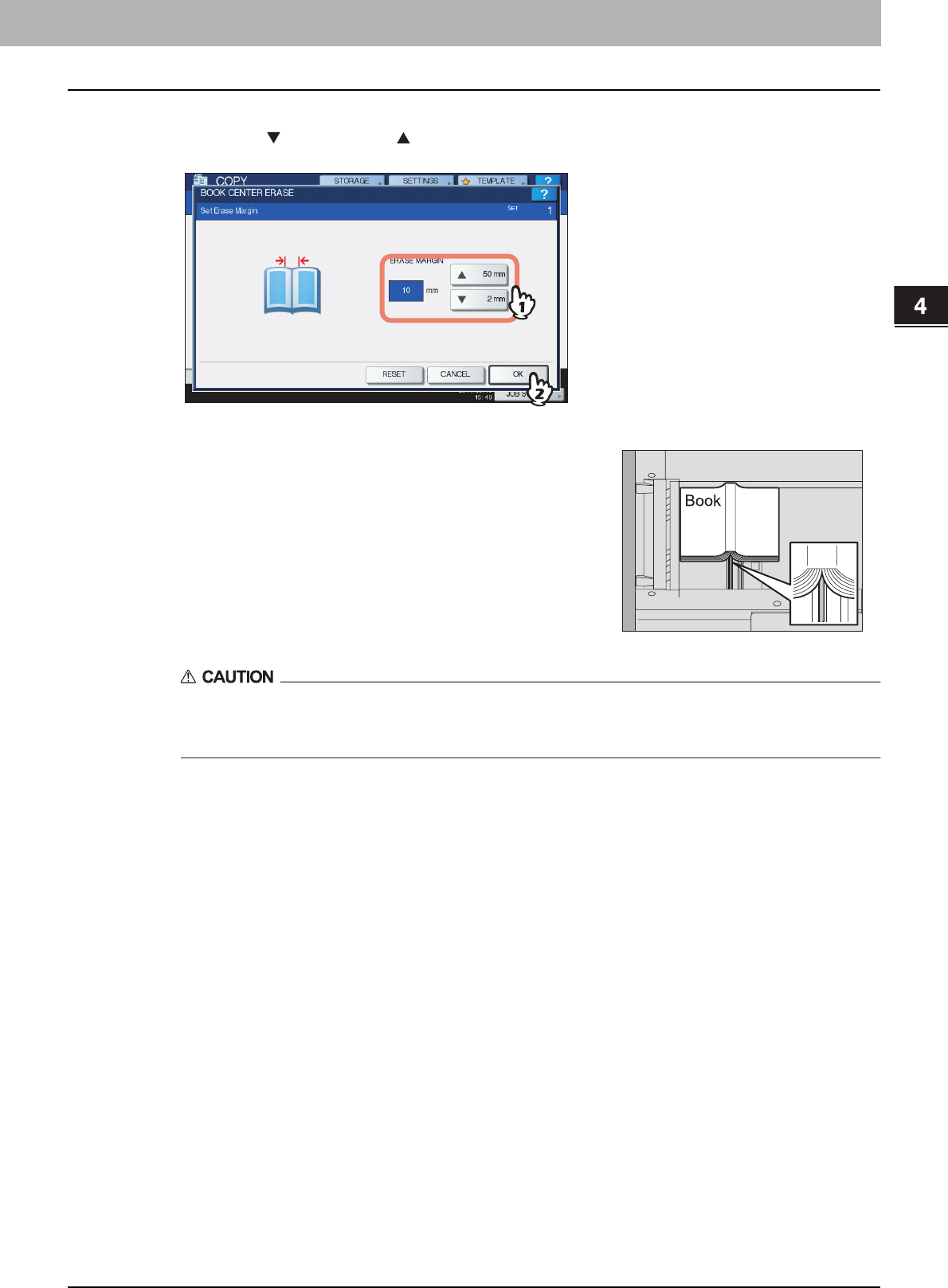
4.EDITING FUNCTIONS
Book Center Erase 97
4 EDITING FUNCTIONS
4
Adjust the width of the part to be erased.
1) Press either [ 2 mm] (0.08") or [ 50 mm] (1.97").
2) Press [OK].
Do not place any heavy objects (4 kg (9 lb.) or over) on the original glass and do not press on it with
force.
Breaking the glass could injure you.
6
Select other copy modes as required, and then press the [START] button on the control
panel.
5
Place the original on the original glass.
Place the original with its bottom toward you, aligning its center with the
yellow indicator under the original glass.
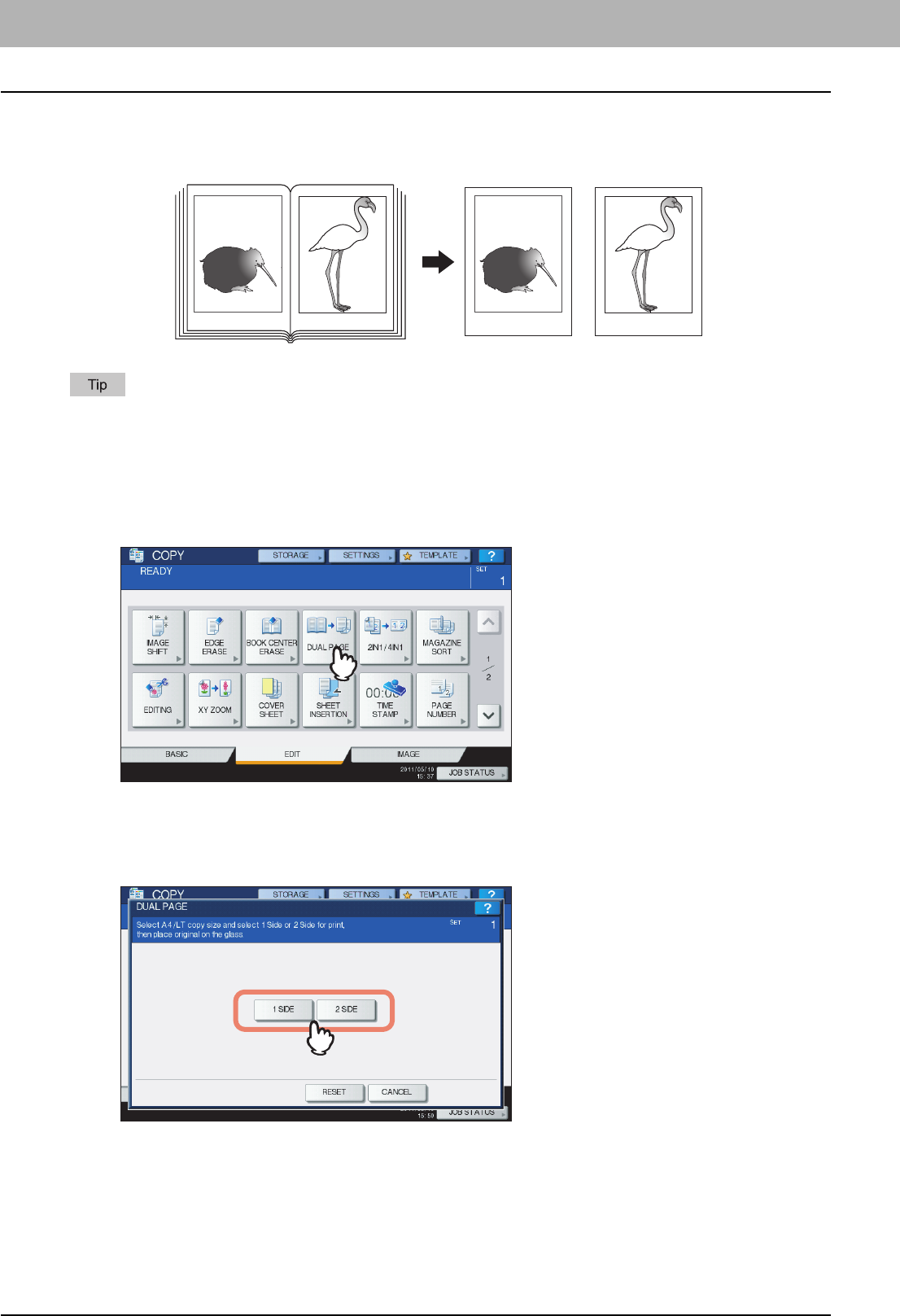
4 EDITING FUNCTIONS
98 Dual Page
Dual Page
You can copy the 2 facing pages of a book-type original or 2 original sheets placed side by side onto 2 separate sheets of
paper or on both sides of 1 sheet of paper. This function is called “dual page”. You do not have to shift the original on the
original glass.
Only A4, B5 and LT sizes are applicable.
1
Place paper in the drawer(s).
2
Press [DUAL PAGE] on the EDIT menu.
3
Press [1 SIDE] or [2 SIDE].
1 SIDE: Copying the 2 facing pages of the original to only 1 side of 2 separate sheets of paper
2 SIDE: Copying the 2 facing pages of the original to 2 sides of 1 sheet of paper
4
Select other copy modes as required.
You can select “image shift” as well.
P.91 “Creating top/bottom margin or left/right margin”
-12- -13- -12- -13-
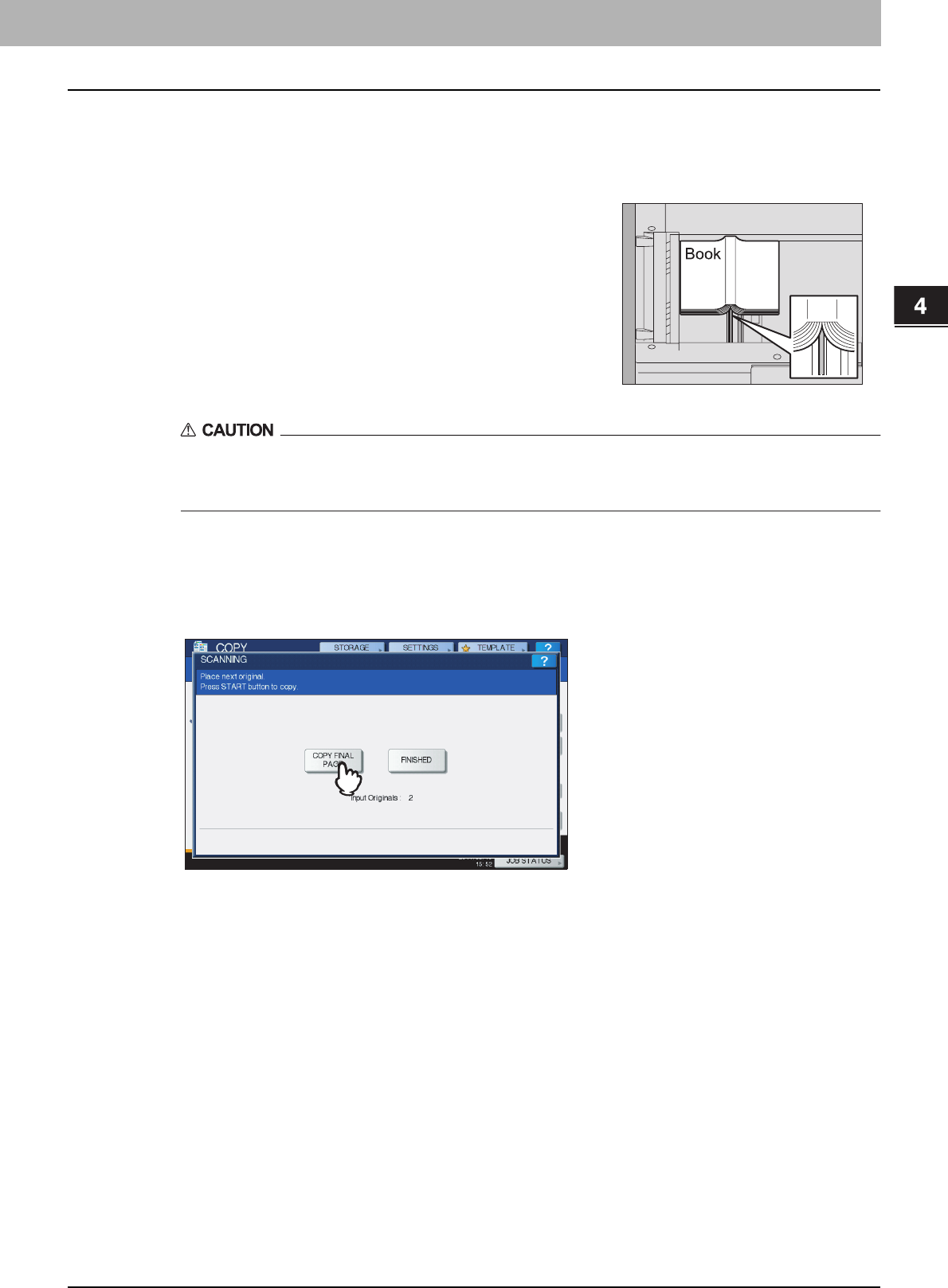
4.EDITING FUNCTIONS
Dual Page 99
4 EDITING FUNCTIONS
5
Press the [BASIC] tab to display the BASIC menu, and then select A4, B5 or LT as the
copy paper size.
When using bypass copying, be sure to set the paper size.
Do not place any heavy objects (4 kg (9 lb.) or over) on the original glass and do not press on it with
force.
Breaking the glass could injure you.
7
Press the [START] button on the control panel. When the scanning of the opened pages
is finished, open the next pages and place them.
Repeat this procedure until all the desired pages have been scanned. If the last page is a single page, press
[COPY FINAL PAGE] on the touch panel, and then press the [START] button on the control panel to start scanning.
The scanned pages will be copied.
8
When all the pages have been scanned, press [FINISHED].
The scanned pages will be copied.
6
Open the desired page of the original and place it on
the original glass.
Place the original with its bottom toward you, aligning its center with the
yellow indicator under the original glass.
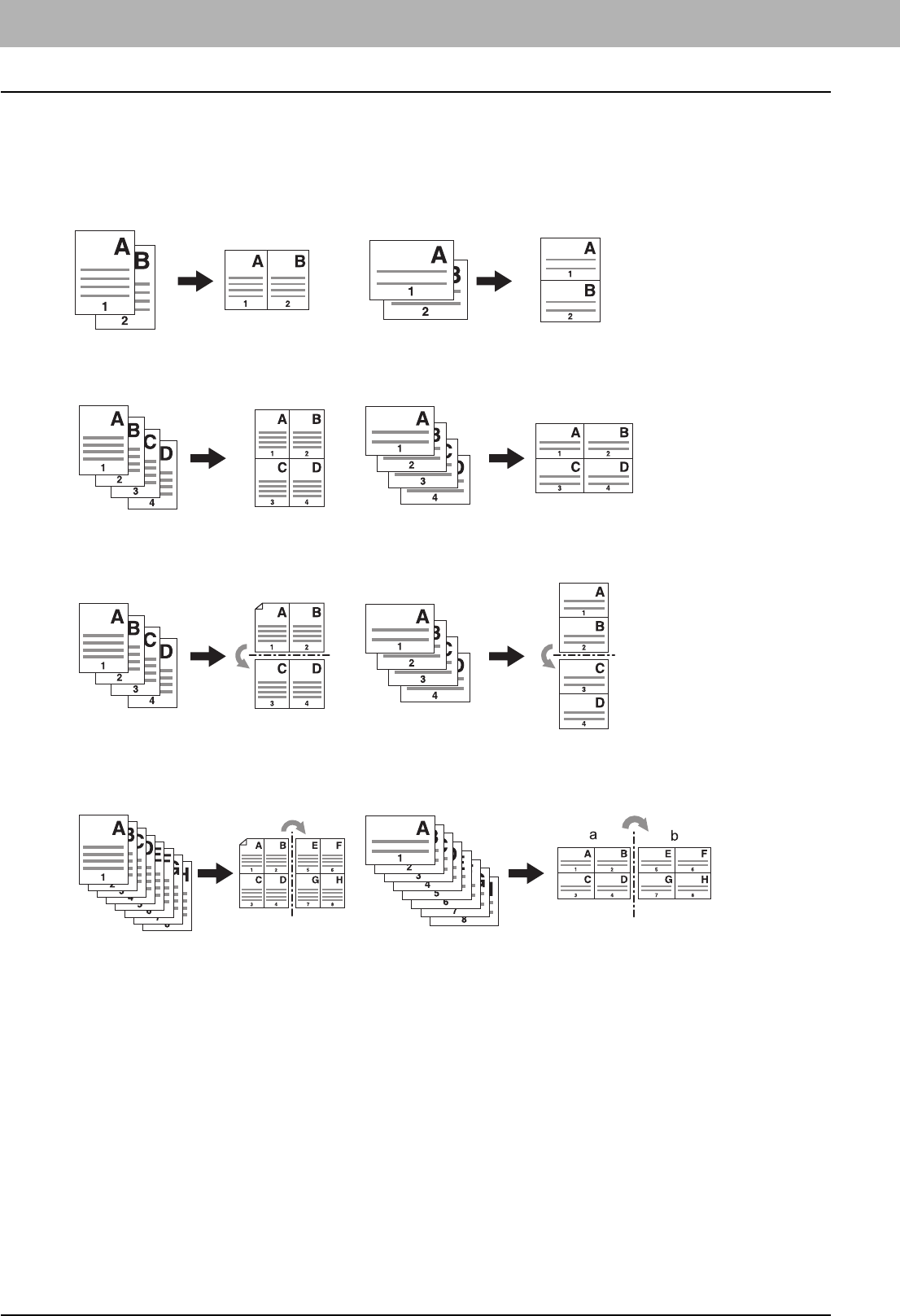
4 EDITING FUNCTIONS
100 2IN1 / 4IN1
2IN1 / 4IN1
You can copy 2 or 4 originals to 1 sheet of paper by shrinking them. This function is called “2IN1” or “4IN1”. If you use this
function together with duplex copying, you can make a total of 8 images on 1 sheet of paper.
The illustrations below show how you can arrange the images.
2IN1
4IN1
2IN1 & duplex copying (a: side 1, b: side 2)
4IN1 & duplex copying (a: side 1, b: side 2)
aa
bb
ab
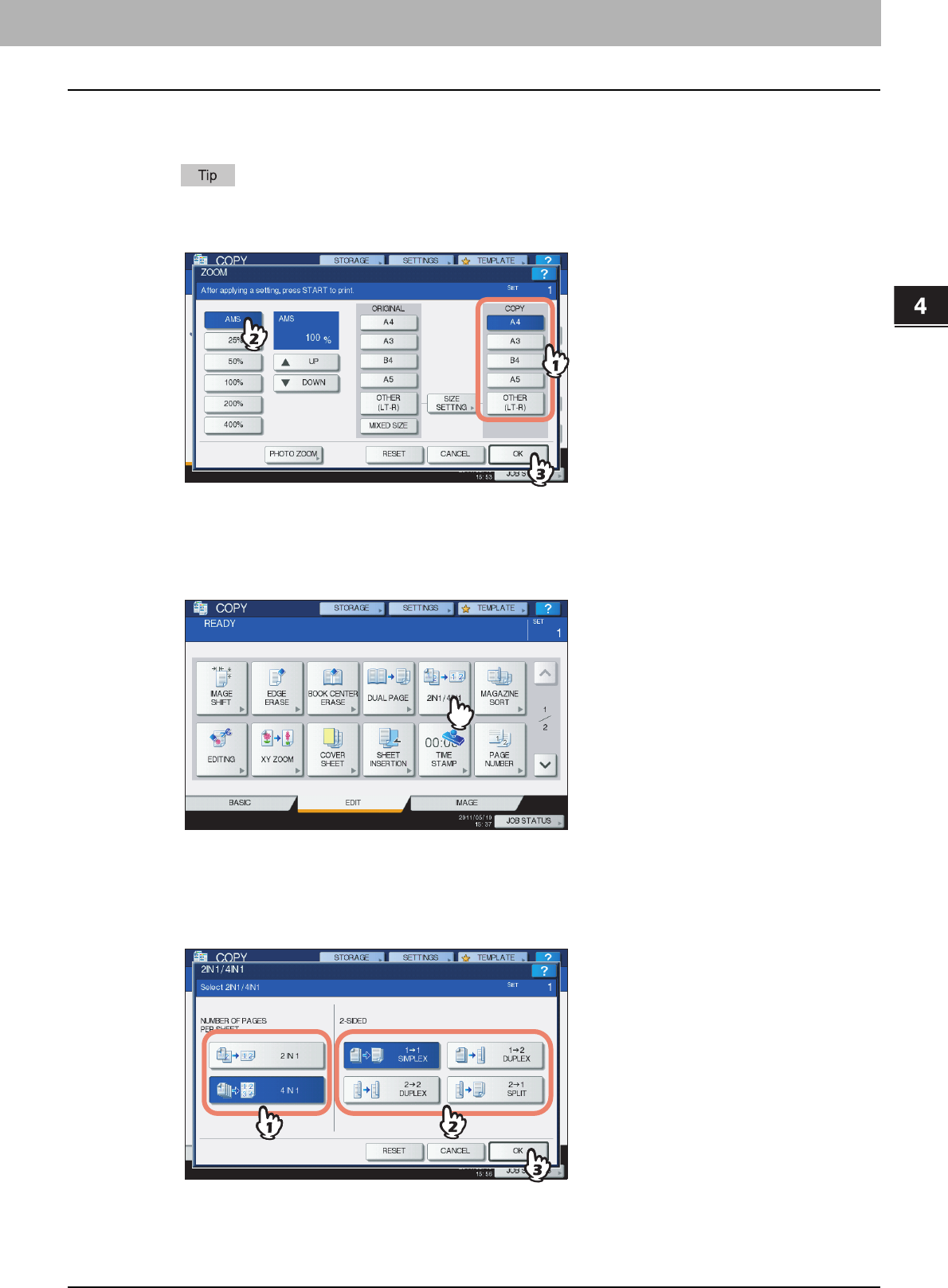
4.EDITING FUNCTIONS
2IN1 / 4IN1 101
4 EDITING FUNCTIONS
1
Place paper in the drawer(s).
When using bypass copying, be sure to set the paper size.
If you select paper of a different size to that of the original, press [ZOOM] on the BASIC menu. Next select the
desired paper size, press [AMS] and then [OK] in the menu shown below.
2
Place the original(s).
3
Press [2IN1 / 4IN1] on the EDIT menu.
4
Perform 2IN1 / 4IN1 setting.
1) If you want to copy 2 originals on 1 page, select [2IN1]. If you want 4 on 1 page, select [4IN1].
2) Select the duplex mode.
3) Press [OK].

4 EDITING FUNCTIONS
102 2IN1 / 4IN1
5
Select other copy modes as required, and then press the [START] button on the control
panel.
When the originals are placed on the RADF (optional), scanning and copying start. When they are placed on the
original glass, follow steps 6 and 7.
6
Place the next original, and then press [NEXT COPY] on the touch panel or the [START]
button on the control panel.
Scanning of the next original starts. If you have more than one original, repeat this step until the scanning of all the
originals is finished.
7
When the scanning of all the originals is finished, press [JOB FINISH] on the touch
panel.
Copying starts.
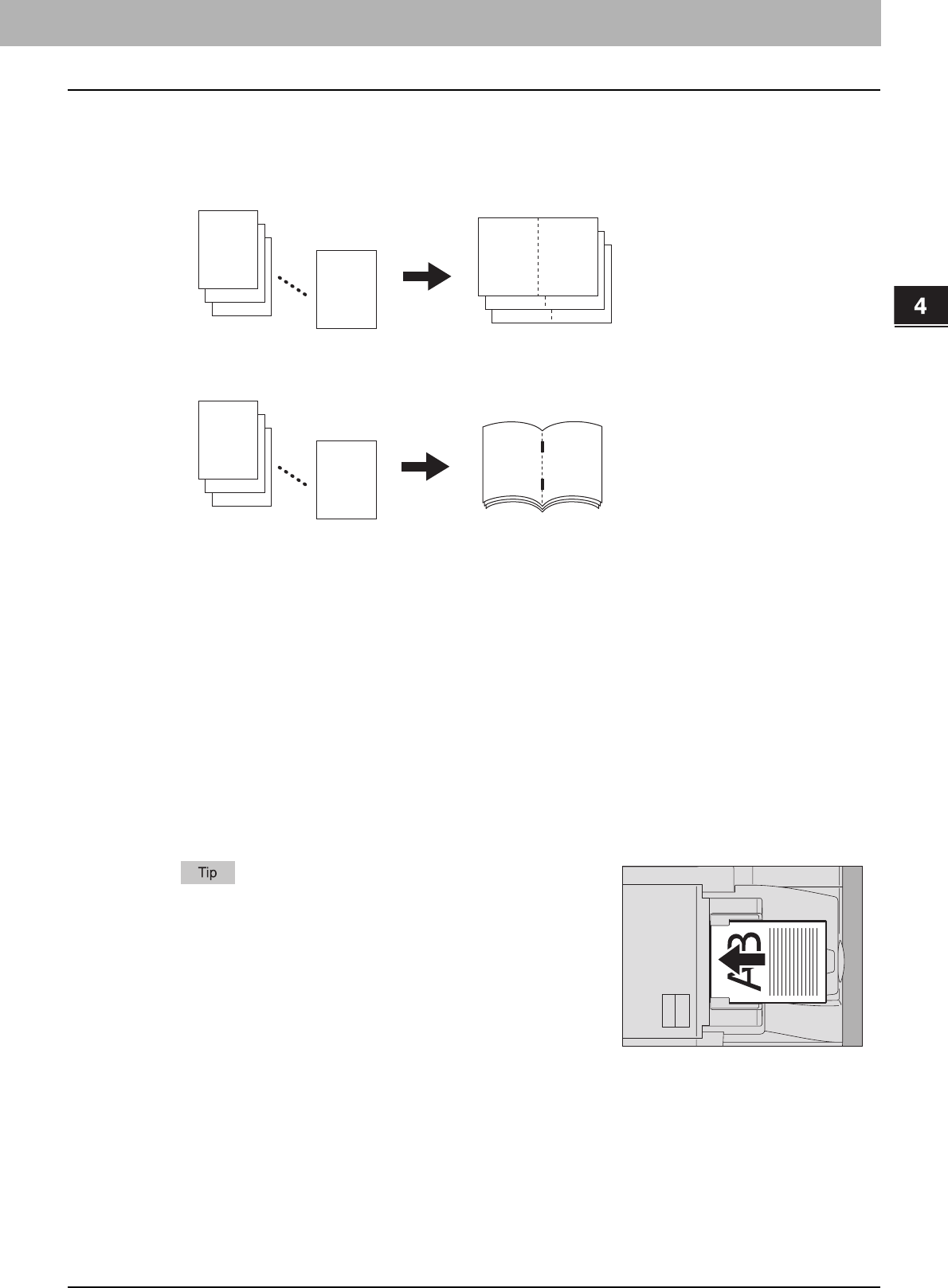
4 EDITING FUNCTIONS
Magazine Sort Mode 103
Magazine Sort Mode
You can copy more than one original in the book-type page order. This mode is called the magazine sort mode. Also you
can do this as well as fold and staple the copied sheets at their center. This mode is called the magazine sort & saddle
stitch mode.
Magazine sort mode
Magazine sort & saddle stitch mode
The magazine sort mode can also be selected on the BASIC menu. For details, see the following page:
P.73 “Magazine sort / Center fold / Saddle stitch”
1
Place paper in the drawer(s).
Sizes are available as follows:
Magazine sort: A3, A4-R, A5-R, B4, B5-R, LD, LG, LT-R, ST-R
Magazine sort & saddle stitch: A3, A4-R, B4, LD, LG, LT-R
2
Select the paper size.
Drawer: P.50 “Automatic Paper Selection (APS)”
Bypass tray: P.36 “Bypass Copying”
3
Place the original(s).
When placing portrait originals in a landscape direction as shown
on the right in the magazine sort mode or the magazine sort &
saddle stitch mode, set the image direction function to ON on the
EDIT menu. Otherwise the originals will not be copied in the proper
page order.
P.122 “Image Direction”
12
3
2
1
112
94
76
76
12
3
2
1
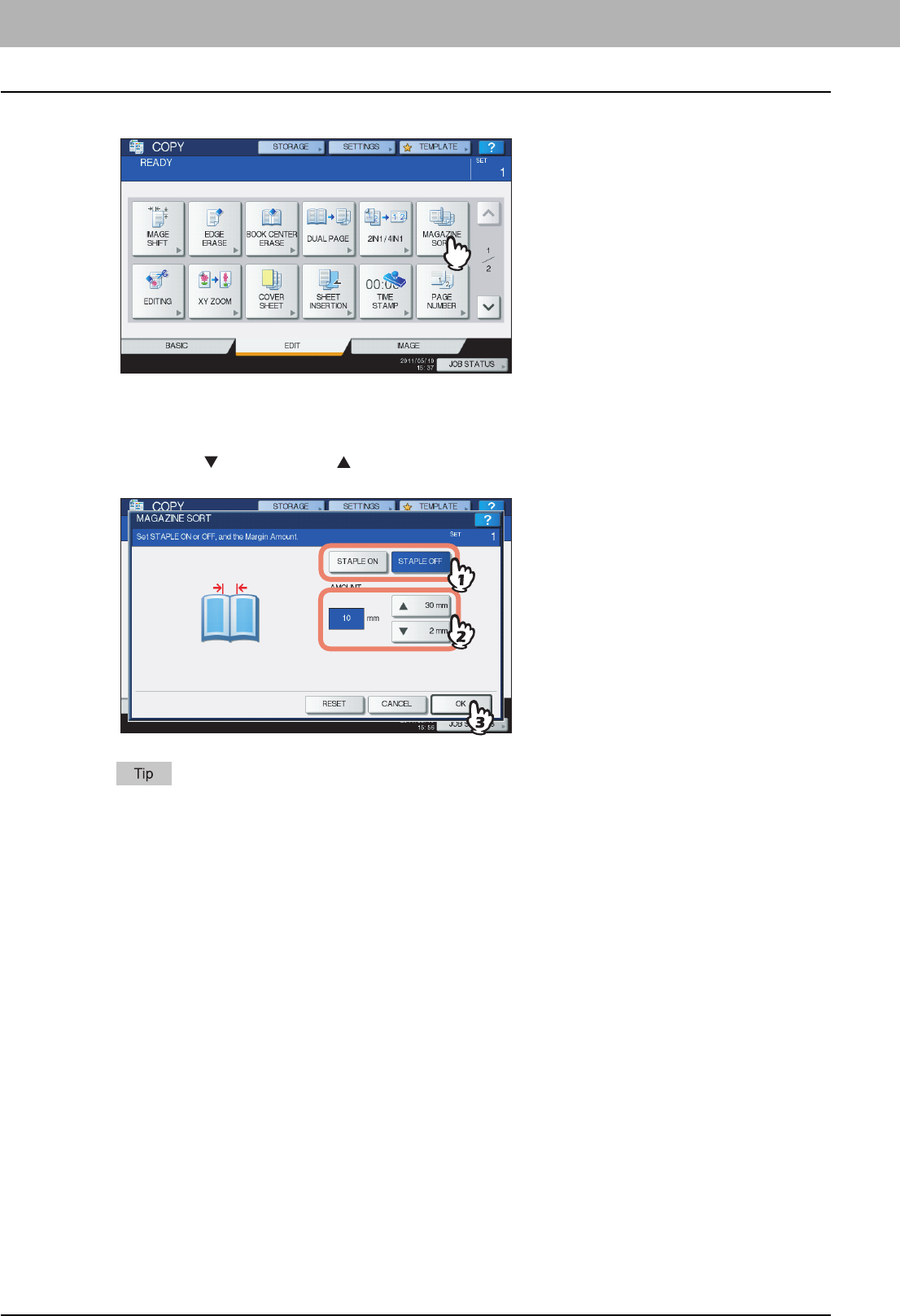
4 EDITING FUNCTIONS
104 Magazine Sort Mode
4
Press [MAGAZINE SORT] on the EDIT menu.
5
Set the saddle stitch mode and the binding margin width as required.
1) When setting the saddle stitch mode, press [STAPLE ON]. If not required, press [STAPLE OFF].
2) Press either [ 2 mm] (0.08") or [ 30 mm] (1.18") to adjust the binding margin width.
3) Press [OK].
For the maximum number of sheets available for saddle stitching, see the following page:
P.73 “Magazine sort / Center fold / Saddle stitch”
6
Select other copy modes as required, and then press the [START] button on the control
panel.
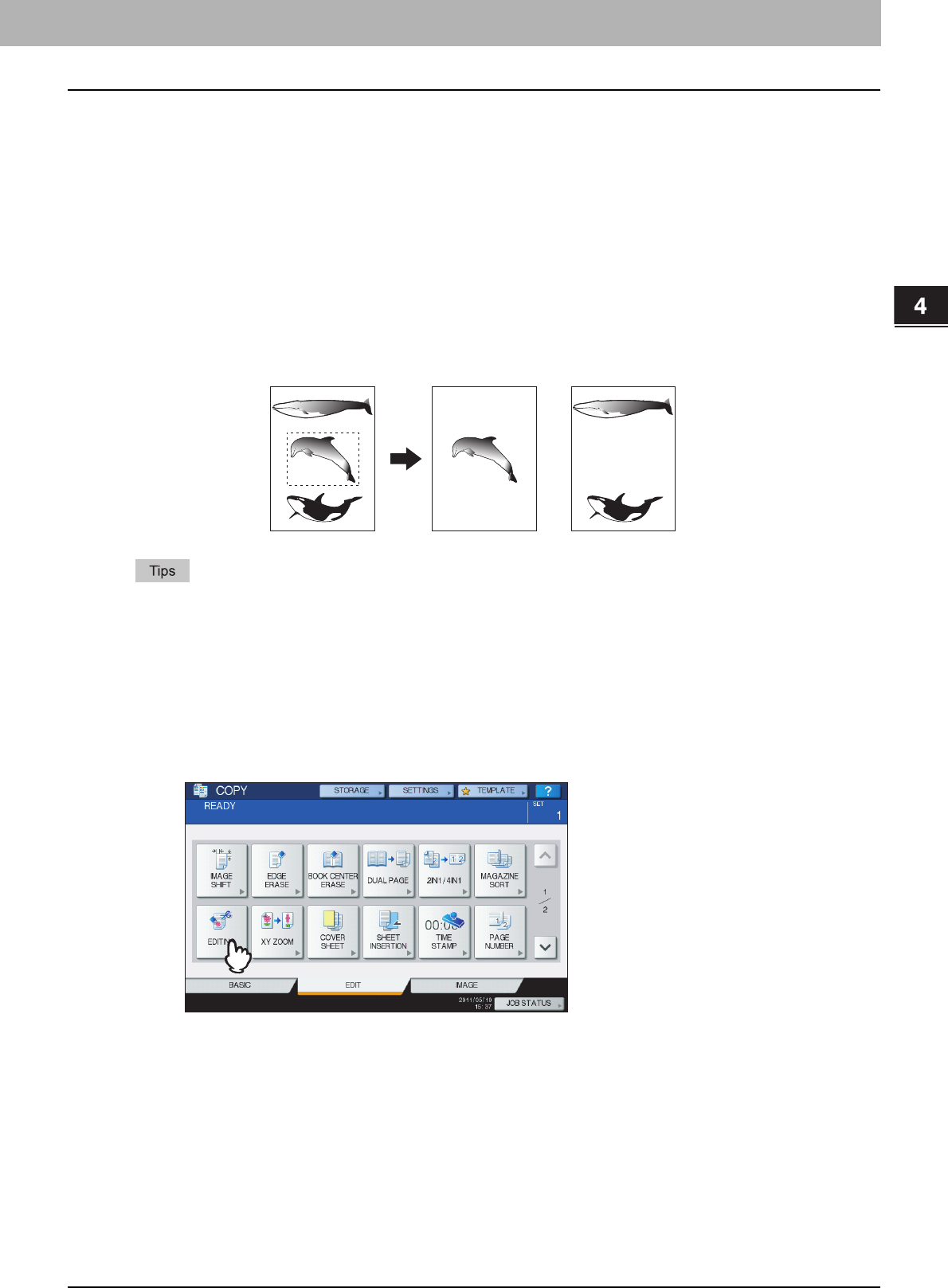
4 EDITING FUNCTIONS
Image Editing 105
Image Editing
You can select the various editing functions shown below for scanned images.
Trimming: You can select a certain area of an original and copy only the selected area.
Masking: You can mask a certain area of an original and copy only the unmasked area.
Mirror image: You can reverse an image like a mirror.
Negative/Positive reversal: You can reverse the light-and-dark of an image.
Trimming / Masking
You can select the desired area of an original and copy only the selected area (trimming). You can also mask the desired
area of an original and copy only the unmasked area (masking). On both functions you can select up to 4 areas on 1
original. The selected area should be in a rectangle.
yOnly standard size originals are applicable.
yNote that the entire image of the selected area may not be copied if you do not select proper sizes for the original
and copy paper.
1
Place paper in the drawer(s).
When using bypass copying, be sure to set the paper size.
2
Press [EDITING] on the EDIT menu.
Trimming Masking
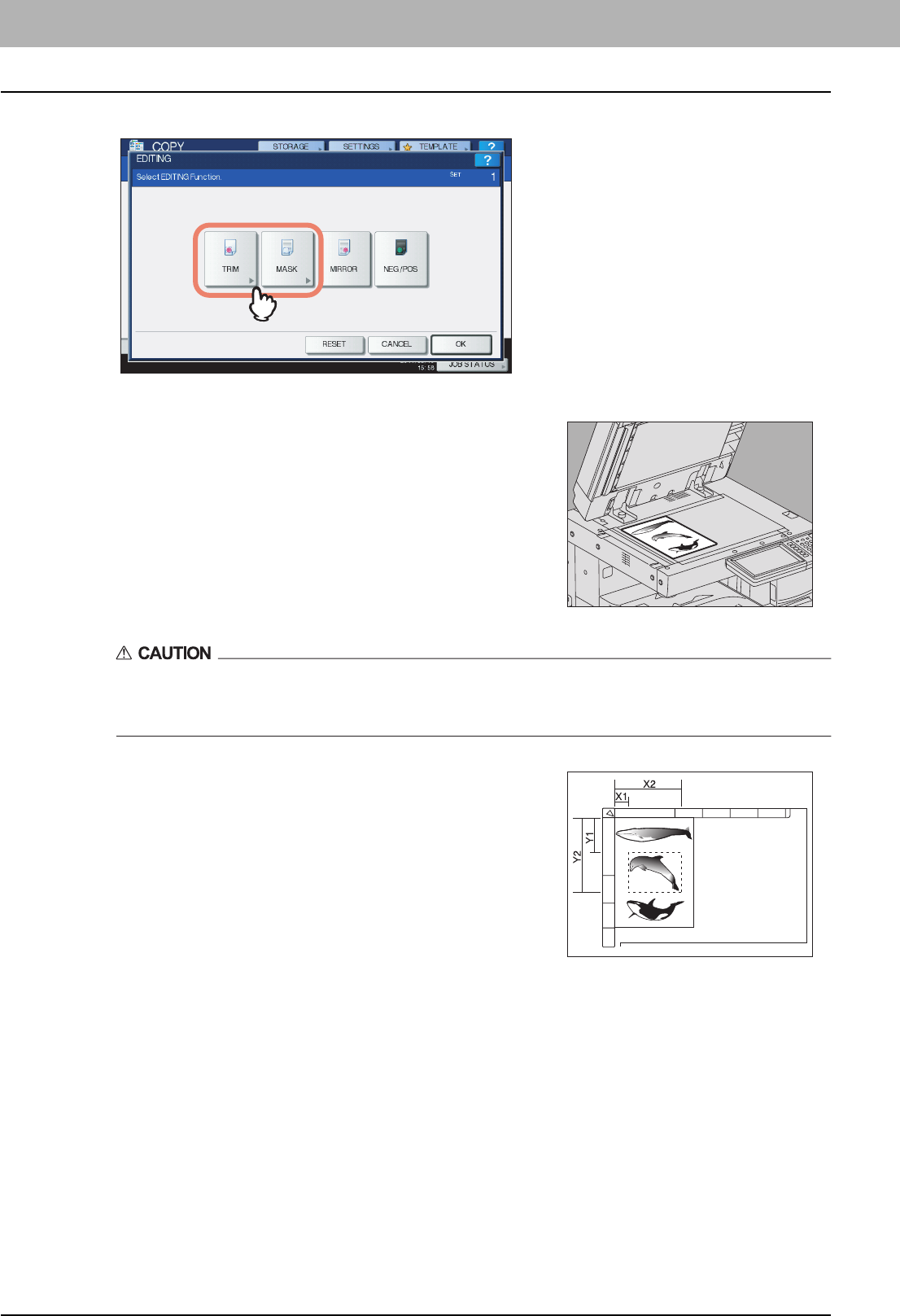
4 EDITING FUNCTIONS
106 Image Editing
3
Select [TRIM] or [MASK].
Do not place any heavy objects (4 kg (9 lb.) or over) on the original glass and do not press on it with
force.
Breaking the glass could injure you.
4
Place the original on the original glass with its face
up.
Place it with its bottom toward you. Align its top left corner against that
of the original glass so that the original will be aligned with the original
scales.
5
Read the following 4 values to specify the area using
the left and top scales on the original glass.
X1: From the top left to the left edge of the selected area
X2: From the top left to the right edge of the selected area
Y1: From the top left to the upper edge of the selected area
Y2: From the top left to the lower edge of the selected area
Note that the marks of the original scales have a 2 mm (0.08") pitch.
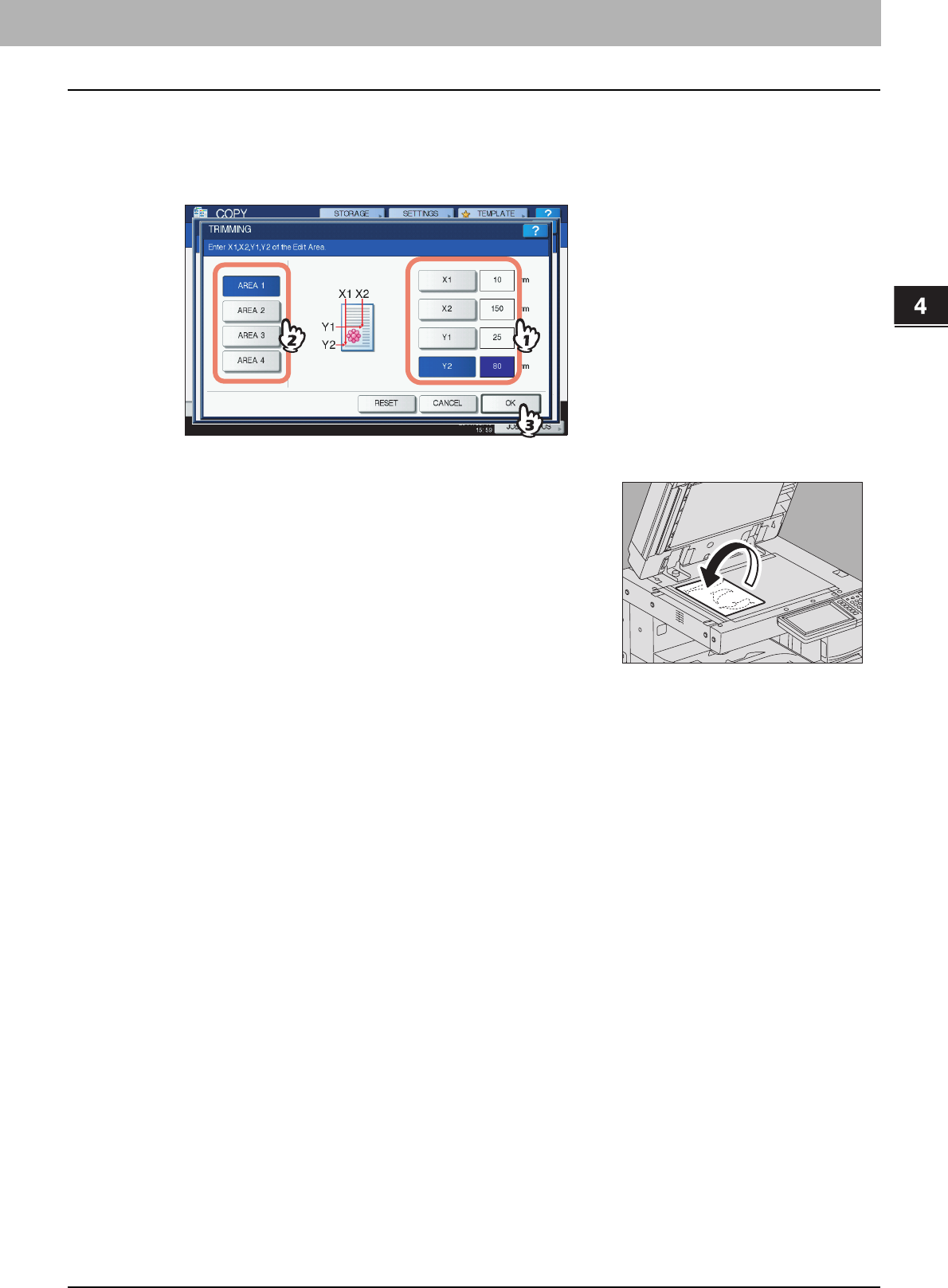
4.EDITING FUNCTIONS
Image Editing 107
4 EDITING FUNCTIONS
6
Key in the read values.
1) Press [X1], [X2], [Y1] and [Y2], and then key in the read values correspondingly.
2) You can specify up to 4 areas on 1 page. When you want to specify more than one area, press [AREA 1] to
[AREA 4] to switch the area, and then key in the values correspondingly.
3) Press [OK] after you have specified all the areas.
8
Select other copy modes as required, and then press the [START] button on the control
panel.
7
Place the original again on the original glass with its
face down.
Place it with its bottom toward you. Align its top left corner against that
of the original glass.
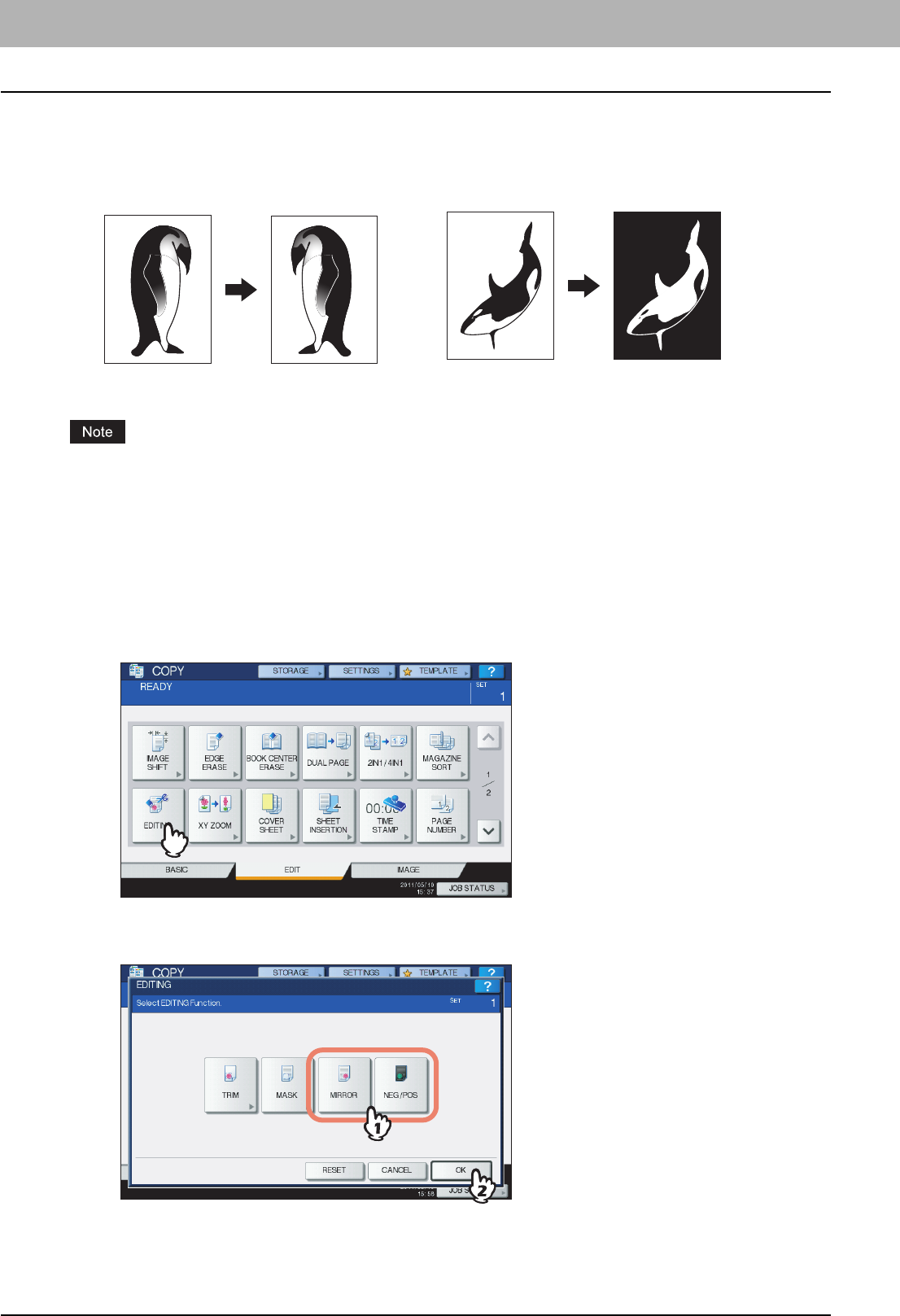
4 EDITING FUNCTIONS
108 Image Editing
Mirror image / Negative/positive reversal
You can reverse an image like a mirror (mirror image), or you can reverse light-and-dark of an image (negative/positive
reversal).
Negative/positive reversal is available only when BLACK or FULL COLOR is selected as a color mode.
1
Place paper in the drawer(s).
When using bypass copying, be sure to set the paper size.
2
Place the original(s).
3
Press [EDITING] on the EDIT menu.
4
Select [MIRROR] or [NEG/POS], and then press [OK].
5
Select other copy modes as required, and then press the [START] button on the control
panel.
Mirror image
Negative/Positive reversal
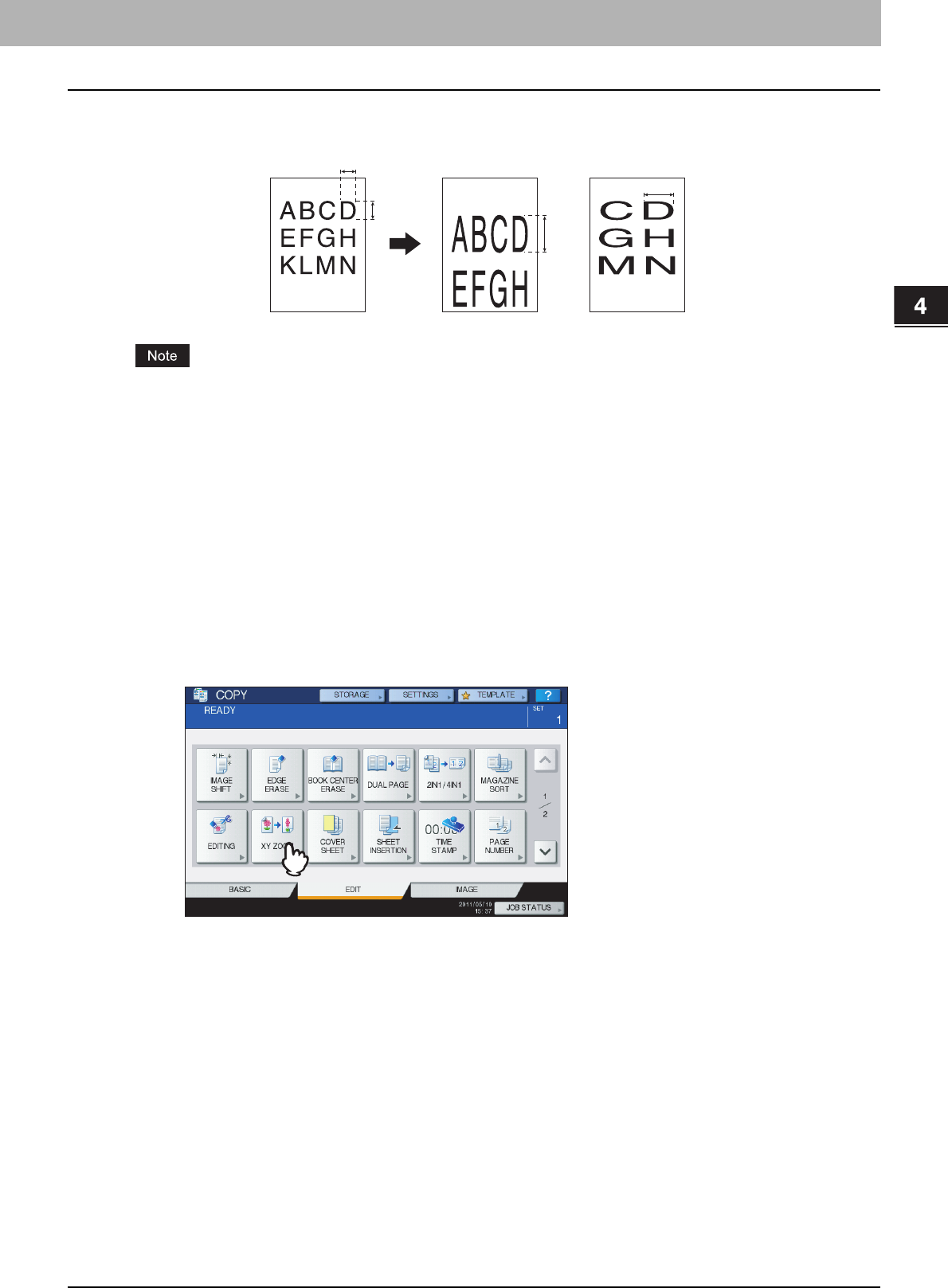
4 EDITING FUNCTIONS
XY Zoom 109
XY Zoom
You can change the reproduction ratio in both vertical and horizontal directions separately. This function is called “XY
zoom”.
The reproduction ratio is changeable from 25 to 400%. However in the following cases, this range is 25 to 200%.
yWhen the color mode is FULL COLOR or AUTO COLOR
yWhen the original mode is IMAGE SMOOTHING
yWhen the color mode is BLACK and the original mode is PHOTO
yWhen TWIN COLOR COPY is selected
yWhen MONO COLOR is selected
yWhen the original is placed on the RADF (optional)
1
Place paper in the drawer(s).
When using bypass copying, be sure to set the paper size.
2
Place the original(s).
3
Press [XY ZOOM] on the EDIT menu.
100%
100%
200%
200%
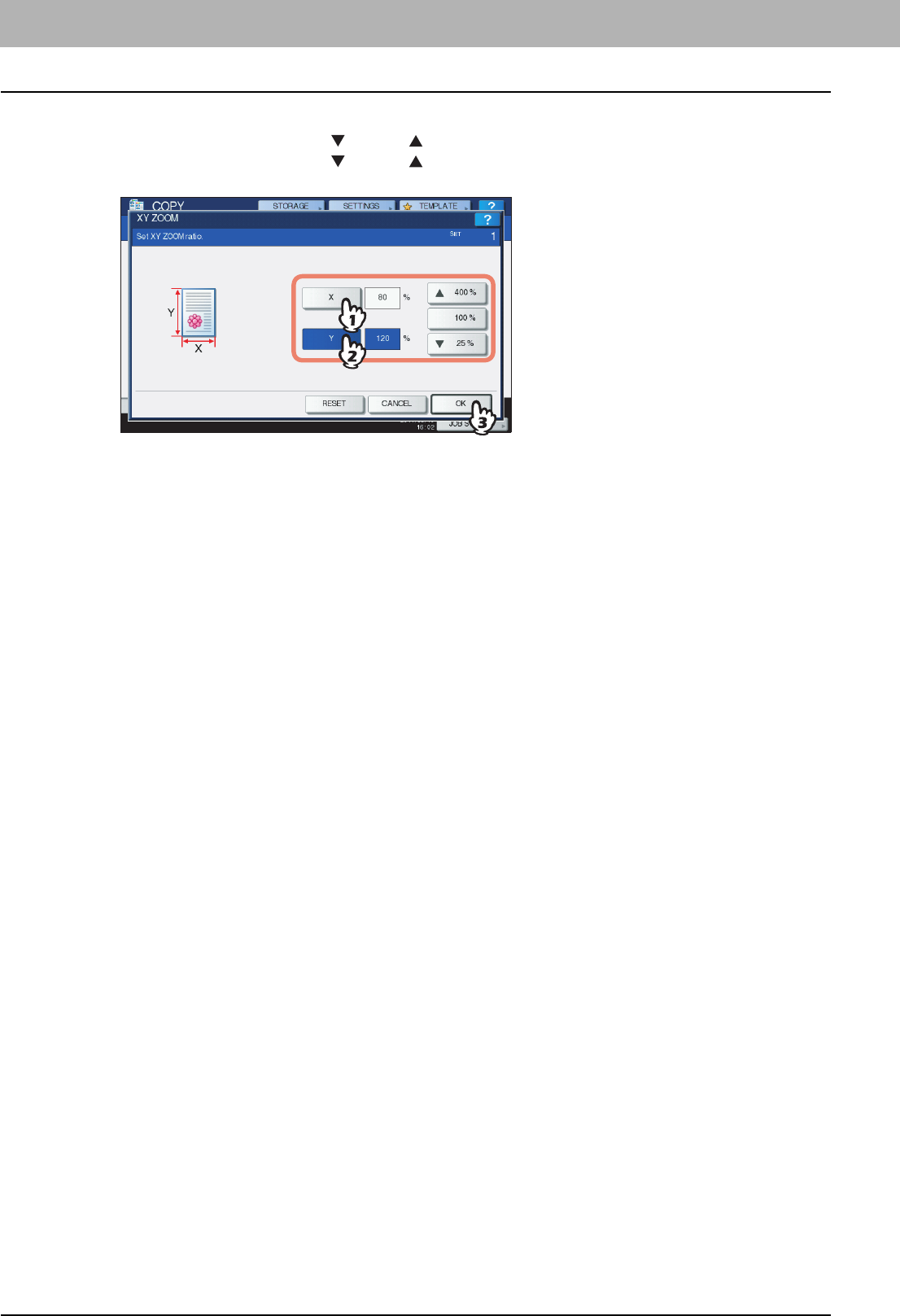
4 EDITING FUNCTIONS
110 XY Zoom
4
Set the reproduction ratio in both vertical and horizontal directions.
1) Press [X], and then press either [ 25%] or [ 400%] for a horizontal direction.
2) Press [Y], and then press either [ 25%] or [ 400%] for a vertical direction.
3) Press [OK].
5
Select other copy modes as required, and then press the [START] button on the control
panel.
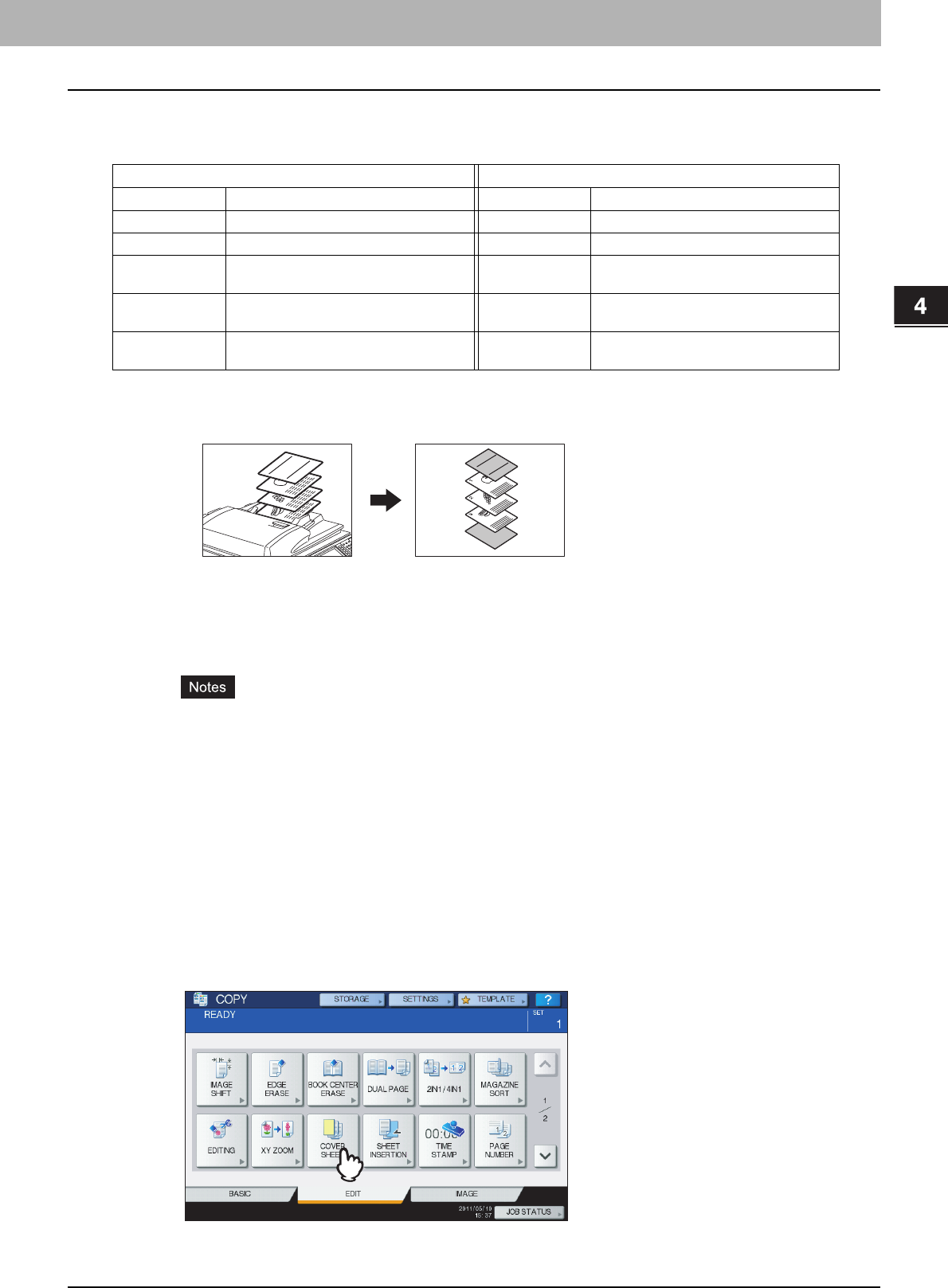
4 EDITING FUNCTIONS
Cover Sheet 111
Cover Sheet
You can add a special type of paper such as colored paper as a front cover sheet or a back cover sheet. This function is
called “cover sheet”. In the cover sheet mode, you can select whether or not to copy the front or back cover sheet as
shown in the table below.
Example: Selecting “TOP COPIED” for the front cover and “BLANK” for the back cover
A sheet copied on the top is added as the front cover and a blank sheet as the back cover.
1
Place the paper for the cover sheets.
Place it on the bypass tray or in a drawer previously set for cover sheets. The paper for the cover sheets must be
placed in a different paper source than normal paper.
yWhen placing paper in a drawer for cover sheets, be sure to select “COVER” as the paper type, and also set
the paper size and thickness.
P.17 “Setting paper type”
yWhen placing paper on the bypass tray, be sure to set the paper size and thickness.
P.36 “Bypass Copying”
yPlace the paper for cover sheets of the same size as normal paper in the same direction.
2
Place the normal paper in the drawer(s).
3
Place the original(s).
When placing them on the original glass, they must be placed from the first page.
4
Press [COVER SHEET] on the EDIT menu.
Front cover Back cover
Mode Description Mode Description
NONE Does not add a sheet as the front cover NONE Does not add a sheet as the back cover
BLANK Adds a blank sheet as the front cover BLANK Adds a blank sheet as the back cover
TOP COPIED Adds a sheet copied on the top side as
the front cover
TOP COPIED Adds a sheet copied on the top side as
the back cover
BOTH COPIED Adds a sheet copied on both sides as the
front cover
BOTH COPIED Adds a sheet copied on both sides as the
back cover
ONLY BACK
COPIED
Adds a sheet copied on the back side as
the back cover
REPORT
2003
3
2
1
REPORT
2003
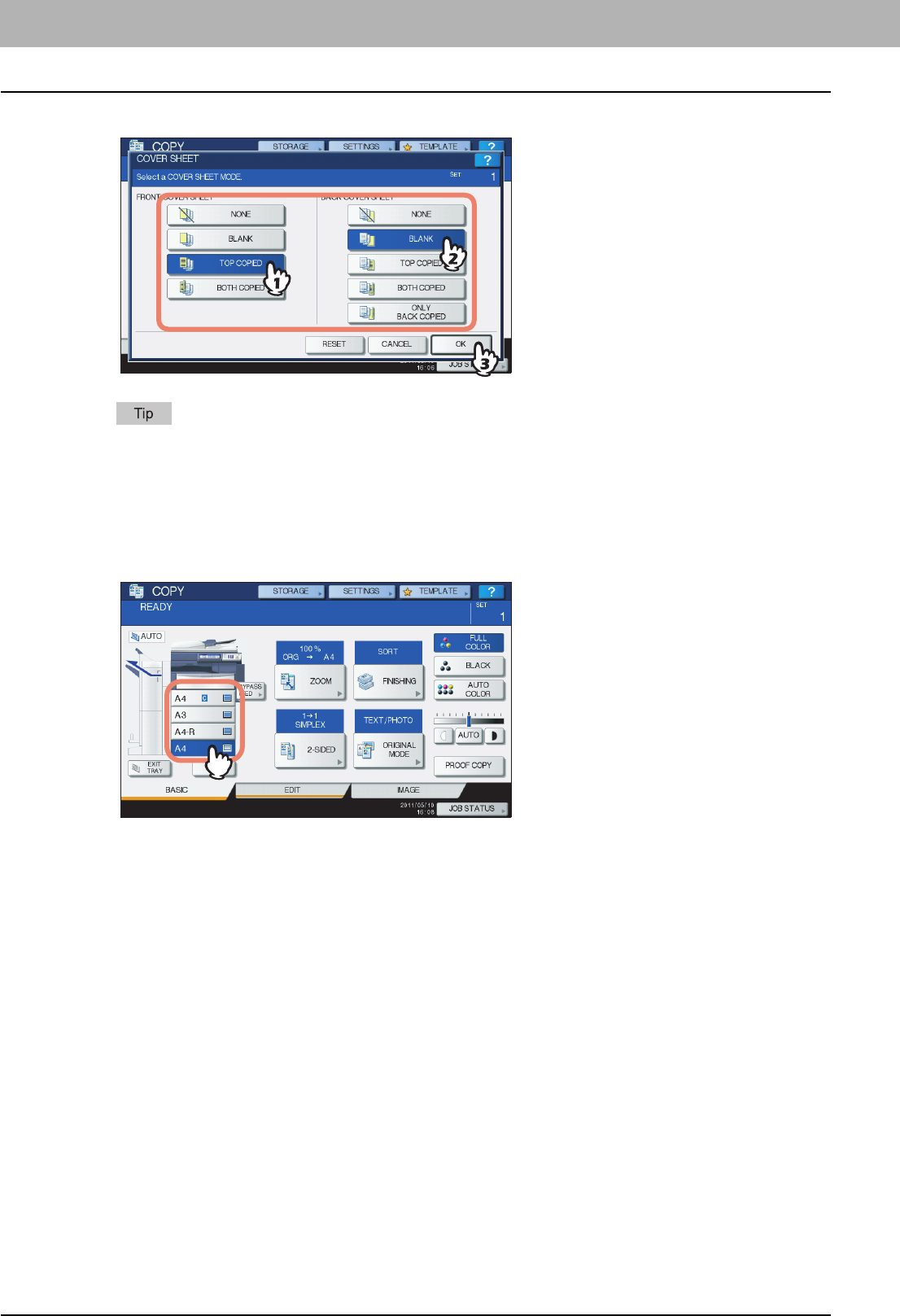
4 EDITING FUNCTIONS
112 Cover Sheet
5
Select the front and back cover settings, and then press [OK].
You can select [BOTH COPIED] for the front or back cover sheet only when [1->2 DUPLEX] or [2->2 DUPLEX]
is set for the 2-sided copy mode on the basic menu.
6
Press the [BASIC] tab to display the BASIC menu. Then select a drawer in which
normal paper is placed (not the one for the cover sheets).
You must place the normal paper of the same size and direction as that for the cover sheets in advance.
7
Select other copy modes as required, and then press the [START] button on the control
panel.
When the originals are placed on the RADF (optional), scanning and copying start.
When they are placed on the original glass, follow steps 8 and 9.
8
Place the next original, and then press [NEXT COPY] on the touch panel or the [START]
button on the control panel.
Scanning of the next original starts. Repeat this procedure until the scanning of all the originals is finished.
9
When the scanning of all the originals is finished, press [JOB FINISH] on the touch
panel.
Copying starts.
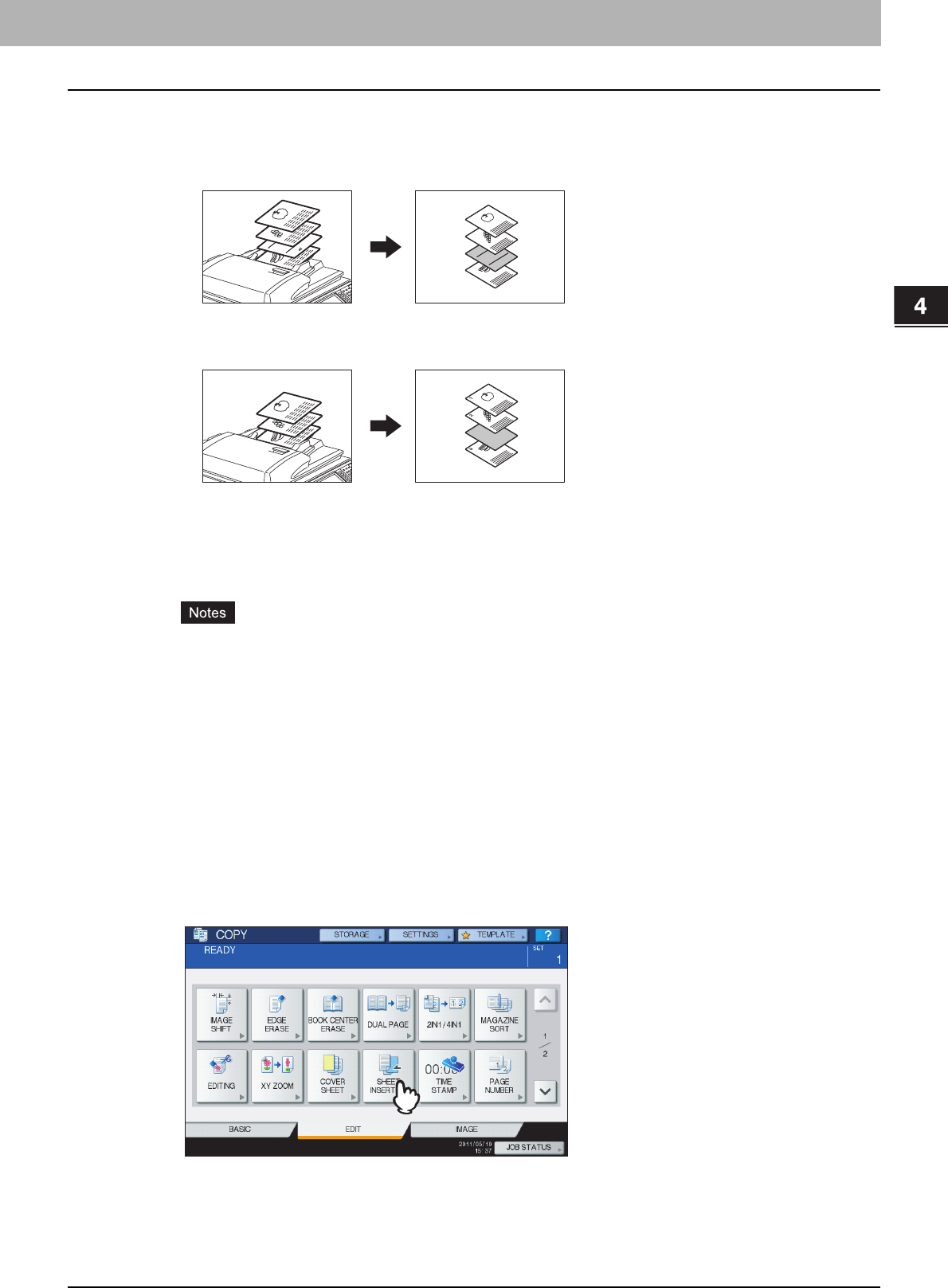
4 EDITING FUNCTIONS
Sheet Insertion 113
Sheet Insertion
You can insert a special type of paper such as colored paper at the desired page. This function is called “sheet insertion”.
You can insert up to 2 types of sheets for a total of 50 pages. The sheet insertion mode has the following 2 types:
COPIED: Inserts a copied sheet, replacing the specified page.
BLANK: Inserts a blank sheet before the specified page.
1
Place sheets for sheet insertion.
Place them on the bypass tray or in a drawer previously set for insertion sheets. The paper for the insertion sheets
must be placed in a different paper source than normal paper.
yWhen placing paper in a drawer for sheet insertion, be sure to select “INSERT 1” or “INSERT 2” as a paper
type, and also set the paper size and thickness.
P.17 “Setting paper type”
yWhen placing paper on the bypass tray, be sure to set the paper size and thickness.
P.36 “Bypass Copying”
yPlace the paper for insertion sheets of the same size as normal paper in the same direction.
2
Place the normal paper in the drawer(s).
3
Place the original(s).
When placing them on the original glass, they must be placed from the first page.
4
Press [SHEET INSERTION] on the EDIT menu.
REPORT
2003
1
2
3
4
4
REPORT
2003
2
3
1
3
2
1
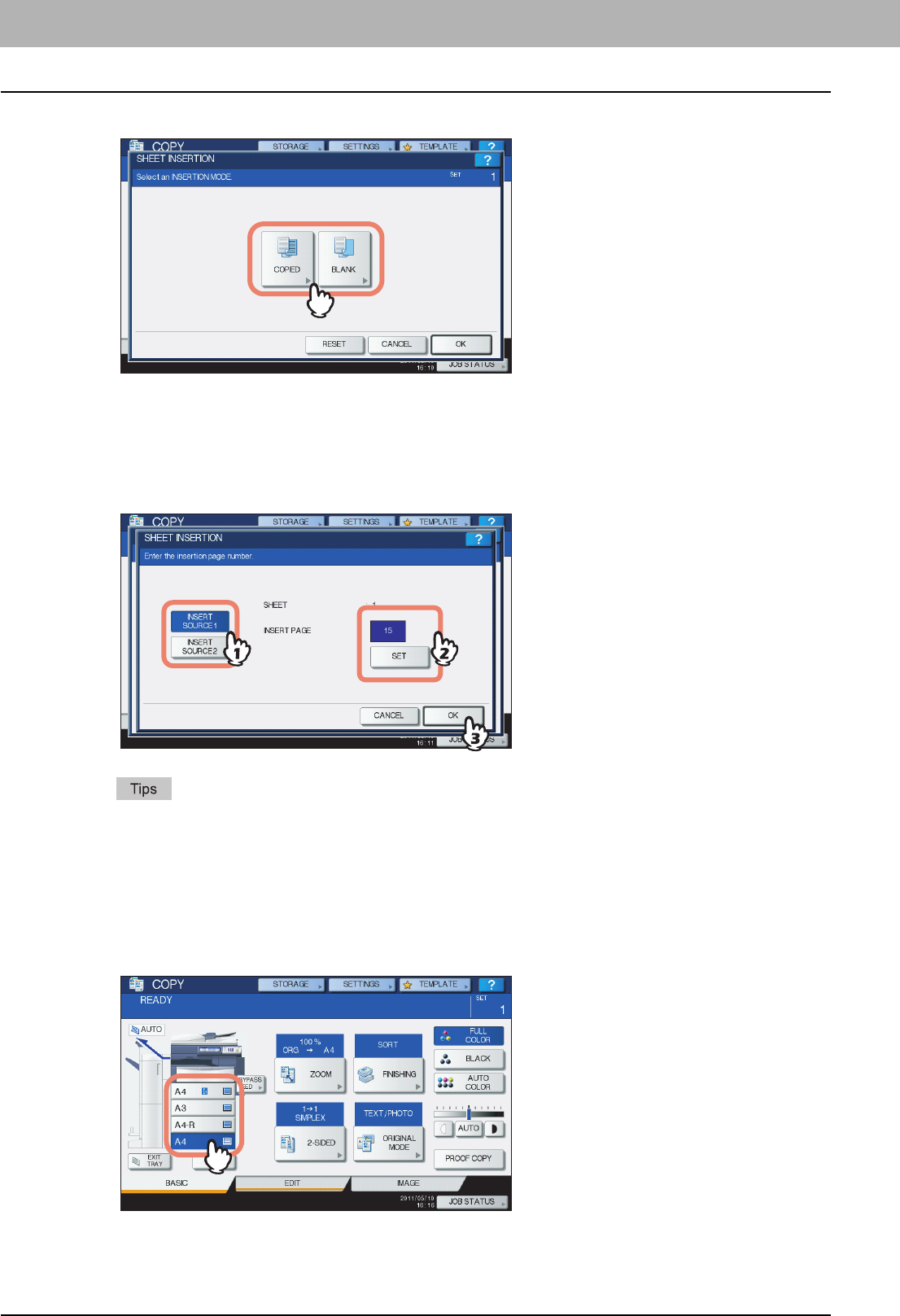
4 EDITING FUNCTIONS
114 Sheet Insertion
5
Select either [COPIED] or [BLANK].
6
Select the page where the insertion sheets will be inserted.
1) Select the type of the insertion sheets ([INSERT SOURCE 1] or [INSERT SOURCE 2]).
2) Key in page numbers (1 to 1000) where the insertion sheets will be inserted, and then press [SET]. Repeat
steps 1) and 2) if you want to insert sheets at more than one page.
3) Press [OK] after you have keyed in the page numbers.
yIf you selected [COPIED] in step 5, the selected page will be replaced with a copied insertion sheet. If you
selected [BLANK], a blank insertion sheet will be inserted before the selected page.
yUp to 50 pages in total can be selected for [INSERT SOURCE 1] and [INSERT SOURCE 2].
7
Press the [BASIC] tab to display the BASIC menu. Then select the drawer in which
normal paper is placed (not the one for sheet insertion).
You must place the normal paper of the same size and direction as that for the insertion sheets in advance.

4.EDITING FUNCTIONS
Sheet Insertion 115
4 EDITING FUNCTIONS
8
Select other copy modes as required, and then press the [START] button on the control
panel.
When the originals are placed on the RADF (optional), scanning and copying start.
When they are placed on the original glass, follow steps 9 and 10.
9
Place the next original, and then press [NEXT COPY] on the touch panel or the [START]
button on the control panel.
Scanning of the next original starts. Repeat this procedure until the scanning of all the originals is finished.
10
When the scanning of all the originals is finished, press [JOB FINISH] on the touch
panel.
Copying starts.
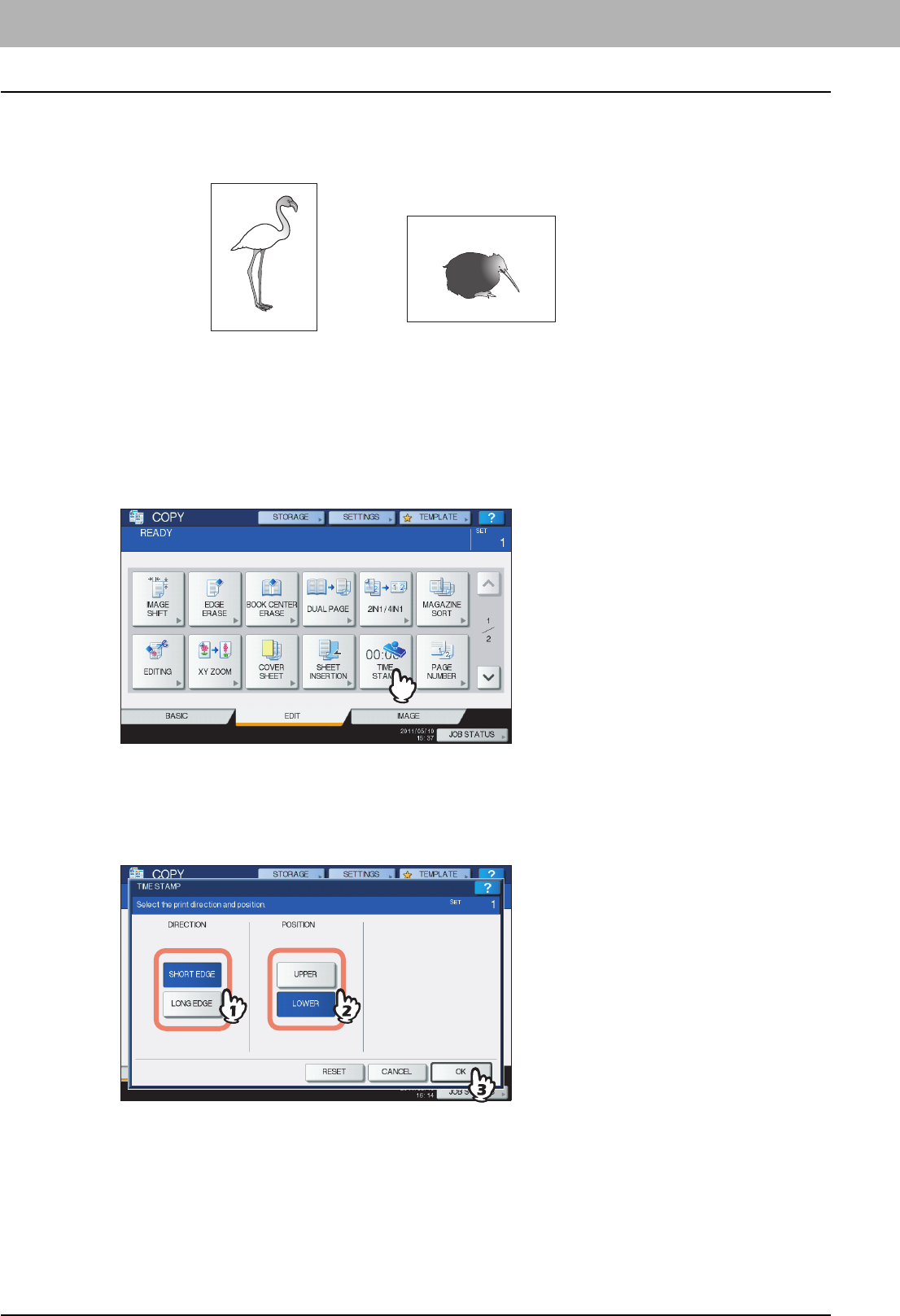
4 EDITING FUNCTIONS
116 Time Stamp
Time Stamp
You can add the date and time on the copied paper.
1
Place paper in the drawer(s).
2
Place the original(s).
3
Press [TIME STAMP] on the EDIT menu.
4
Select the direction and position of the time stamp.
1) Select the direction ([SHORT EDGE] or [LONG EDGE]).
2) Select the position ([UPPER] or [LOWER]).
3) Press [OK].
5
Select other copy modes as required, and then press the [START] button on the control
panel.
MM.DD.YYYY 14:54
MM.DD.YYYY 14:54
Printed at the bottom
of a portrait copy
Printed at the top
of a landscape copy
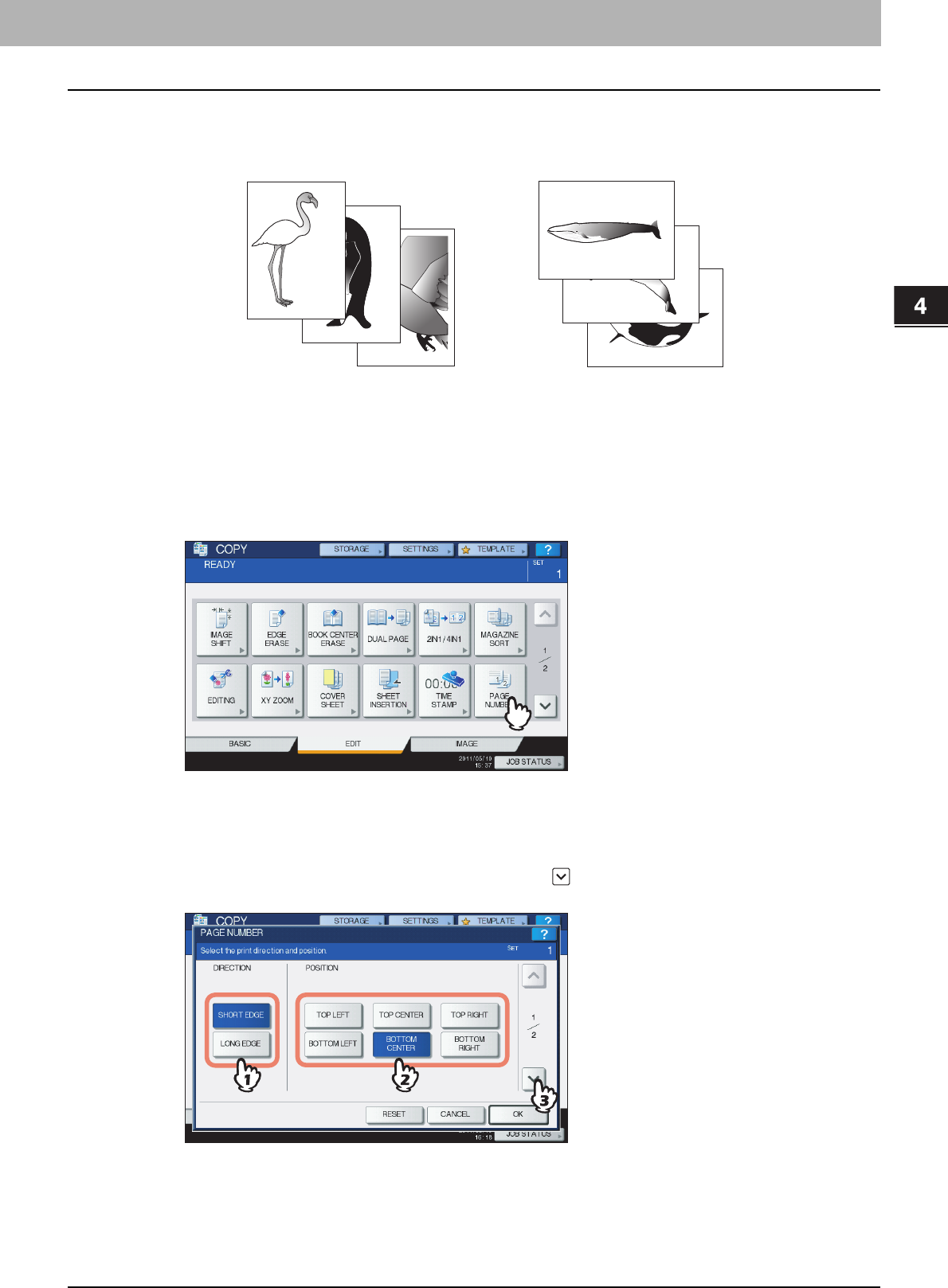
4 EDITING FUNCTIONS
Page Number 117
Page Number
You can add a page number on the copied paper.
1
Place paper in the drawer(s).
2
Place the original(s).
3
Press [PAGE NUMBER] on the EDIT menu.
4
Select the direction and position of a page number.
1) Select the direction ([SHORT EDGE] or [LONG EDGE]).
2) Select the position ([TOP LEFT], [TOP CENTER], etc.).
3) If you want to specify the page number to start with, press and go to step 5. Otherwise, press [OK] and go
to step 6.
3
2
1
3
2
1
Printed at the bottom center
of a portrait copy
Printed at the top right
of a landscape copy
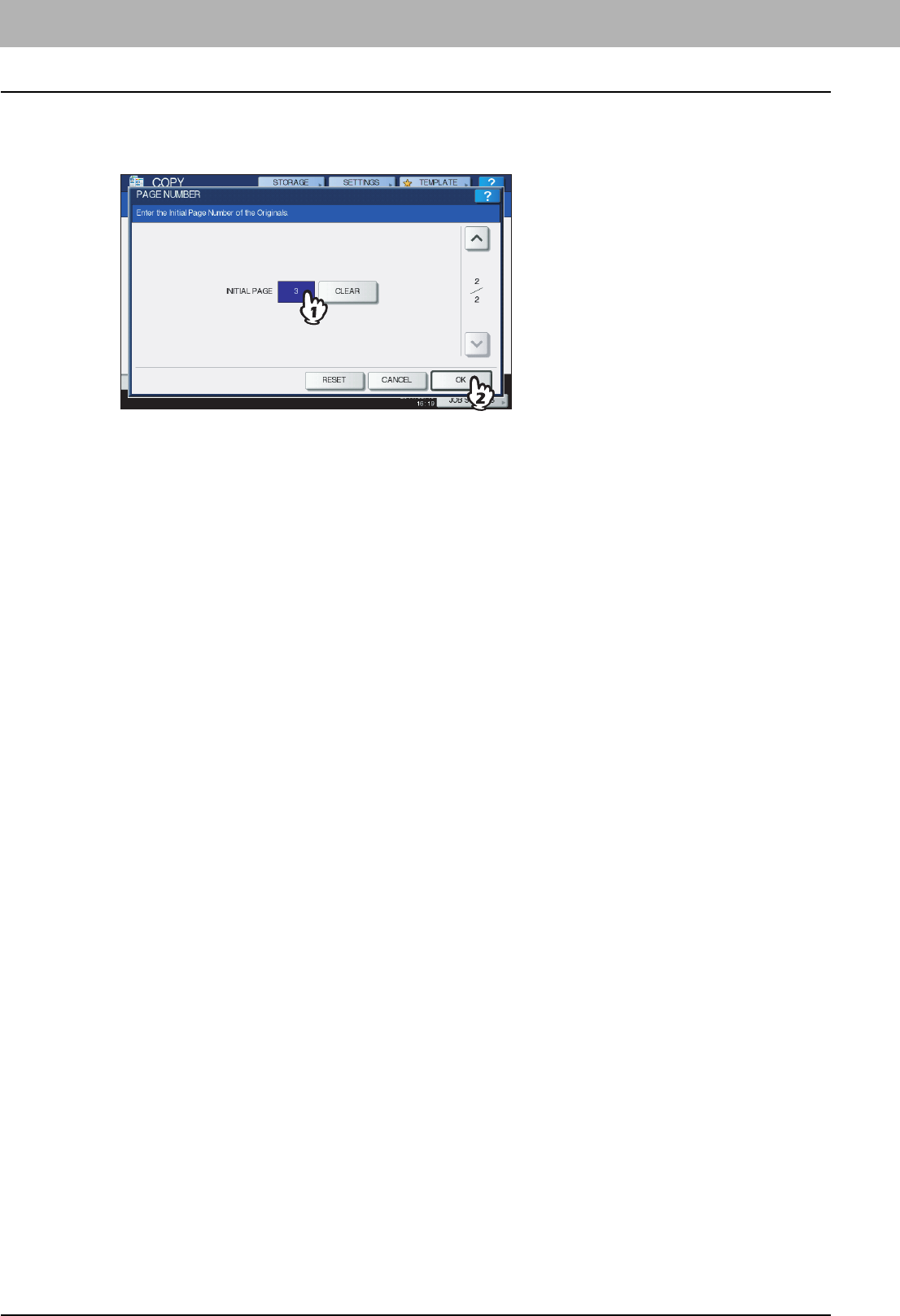
4 EDITING FUNCTIONS
118 Page Number
5
Specify the page number you want to start with.
1) Key in the page number.
2) Press [OK].
6
Select other copy modes as required, and then press the [START] button on the control
panel.
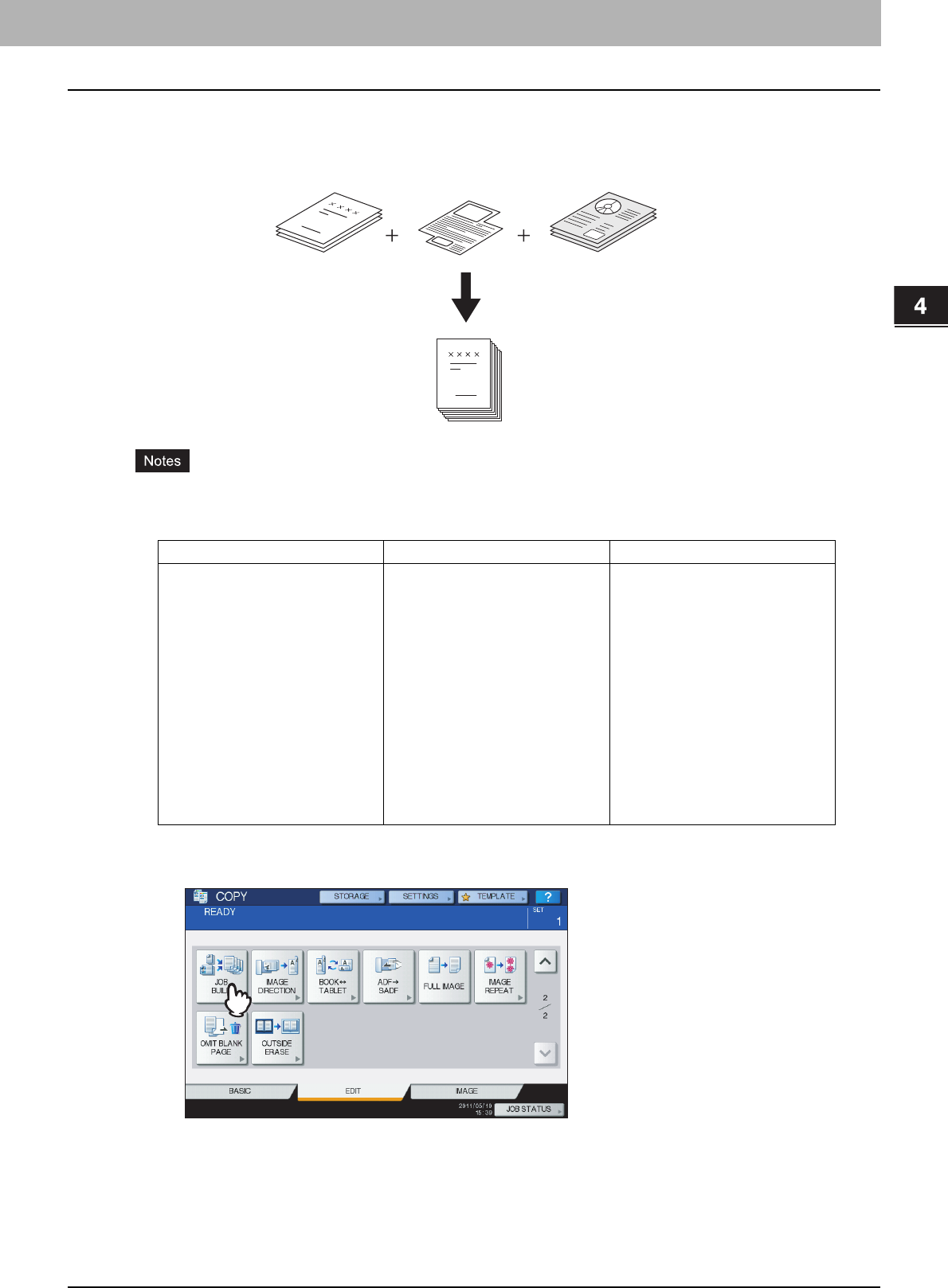
4 EDITING FUNCTIONS
Job Build 119
Job Build
You can scan several stacks of originals whose settings are individually different, and then copy or store them in one
operation. This function is called “job build”. For example, news clips (in the TEXT mode) and photographs in magazines
(in the PHOTO mode) in A3 size and photographs in A4 size can be scanned in the optimal settings for each, and copied
in one operation.
yUp to 1000 pages of originals can be copied in one operation. There is no limit for the number of jobs.
ySome settings are not available for job build, and some settings for the first job will be applied to all of the other
jobs. See the table below before setting job build.
1
Press [JOB BUILD] on the EDIT menu.
Settings not available Settings applied for all jobs Settings changeable for each job
Automatic Paper Selection
BOOK -> 2 (Book-type original -> 2-
sided copy)
Twin color copying
Editing
XY zoom
Cover sheet
Sheet insertion
Magazine sort
Magazine sort & saddle stitch
Magazine sort & center fold
2IN1 / 4IN1
Full image
Image repeat
e-Filing / File
Mixed-size originals
Copy paper size
Finishing mode
Photo zoom
Image shift
Book center erase
Time stamp
Page number
Image direction
Book - tablet
Omit blank page
Reproduction ratio
Automatic Magnification Selection
(Default setting for job build)
Original size
Original mode
Color mode
Simplex/Duplex copying settings
other than Book-type original -> 2-
sided copy (1->1 SIMPLEX, 2->1
SPLIT, 1->2 DUPLEX, 2->2 DUPLEX)
Background adjustment
Sharpness
Edge erase
Dual page
Document feeder (Feeding mode)
Outside erase
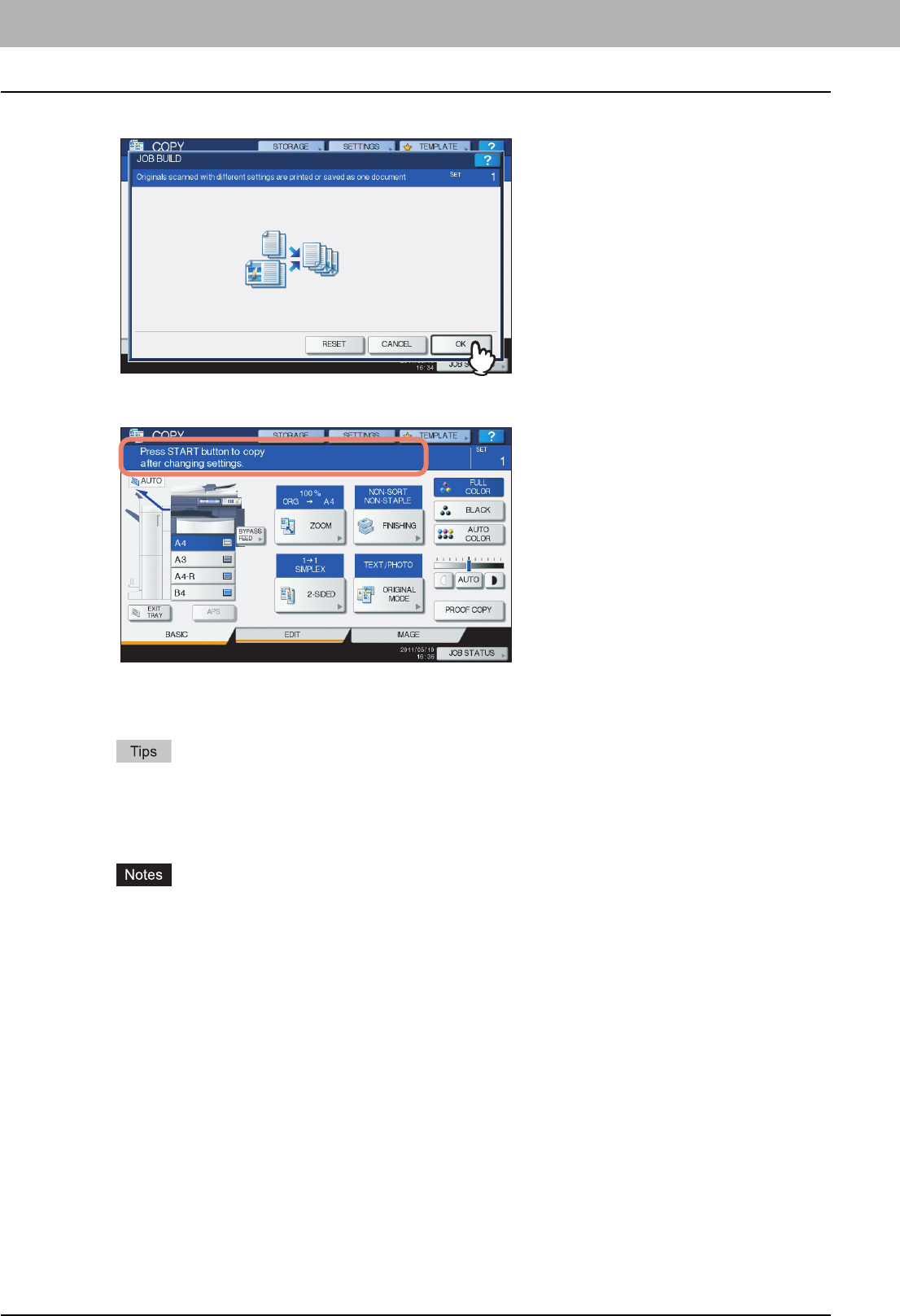
4 EDITING FUNCTIONS
120 Job Build
2
Press [OK].
Job build is now set and the message below appears.
3
Place the first stack of originals, and then select settings.
yWhen placing the original on the original glass, remember that 1 page is equal to 1 job.
yWhen placing mixed-size originals on the RADF (optional), see the following page:
P.52 “Copying mixed-size originals in one operation”
yIf you want to use a particular drawer, select it.
yPress [SETTINGS] on the touch panel to confirm the current settings.
yIf you want to change the settings, press the [FUNCTION CLEAR] button on the control panel, and then
restart the procedure from step 1.
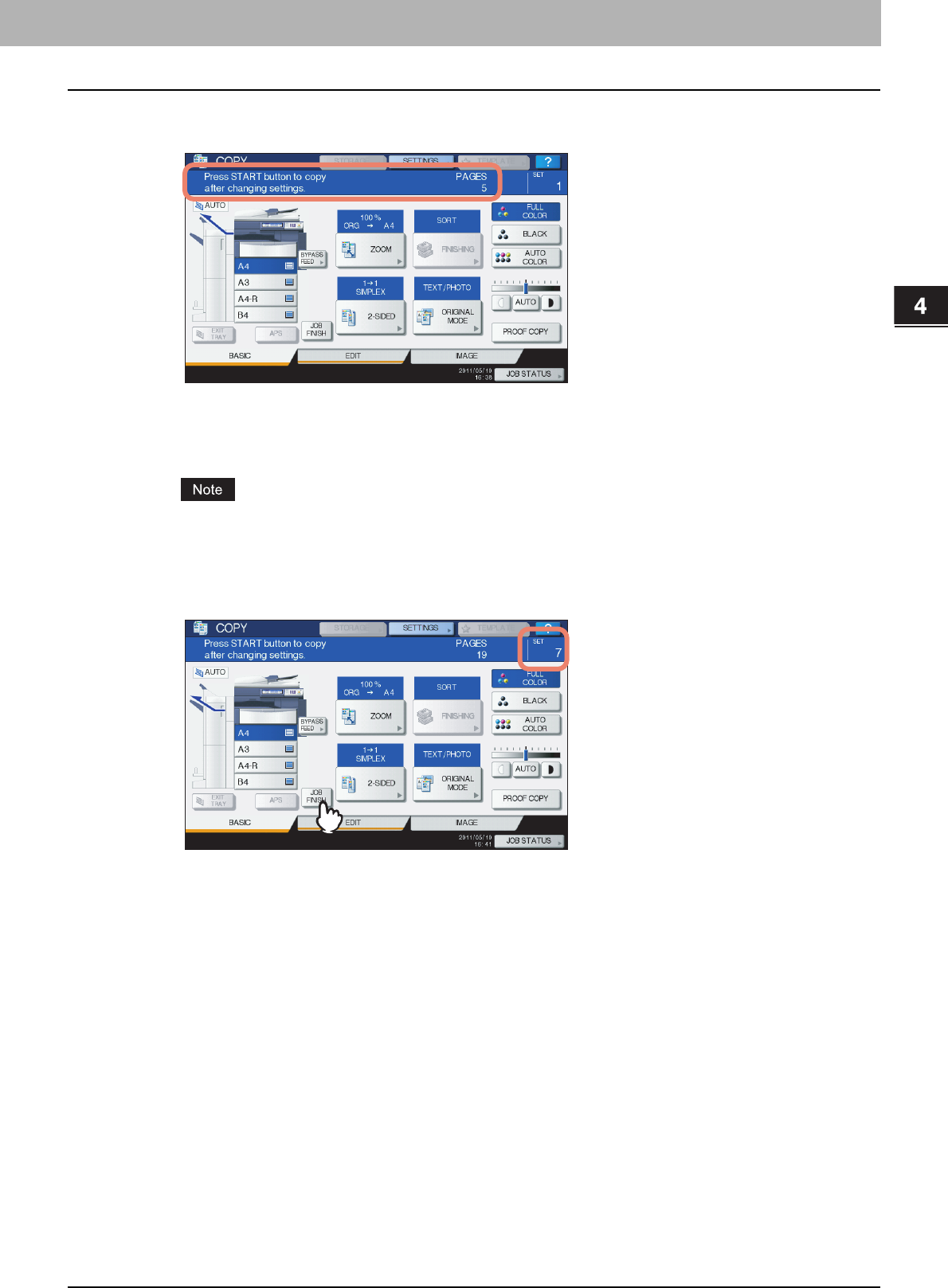
4.EDITING FUNCTIONS
Job Build 121
4 EDITING FUNCTIONS
4
Press the [START] button on the control panel.
Scanning starts. When the scanning of all the originals is finished, the message below appears.
5
Place the next stack of originals, and then select the settings.
Repeat steps 4 and 5 until all the desired pages have been scanned.
If you do not change any settings, those for the last job will be applied.
6
When the scanning of all the originals is finished, change the number of copy sets as
required. Then press [JOB FINISH] on the touch panel.
Copying starts. If any storing function is set, that will also start.
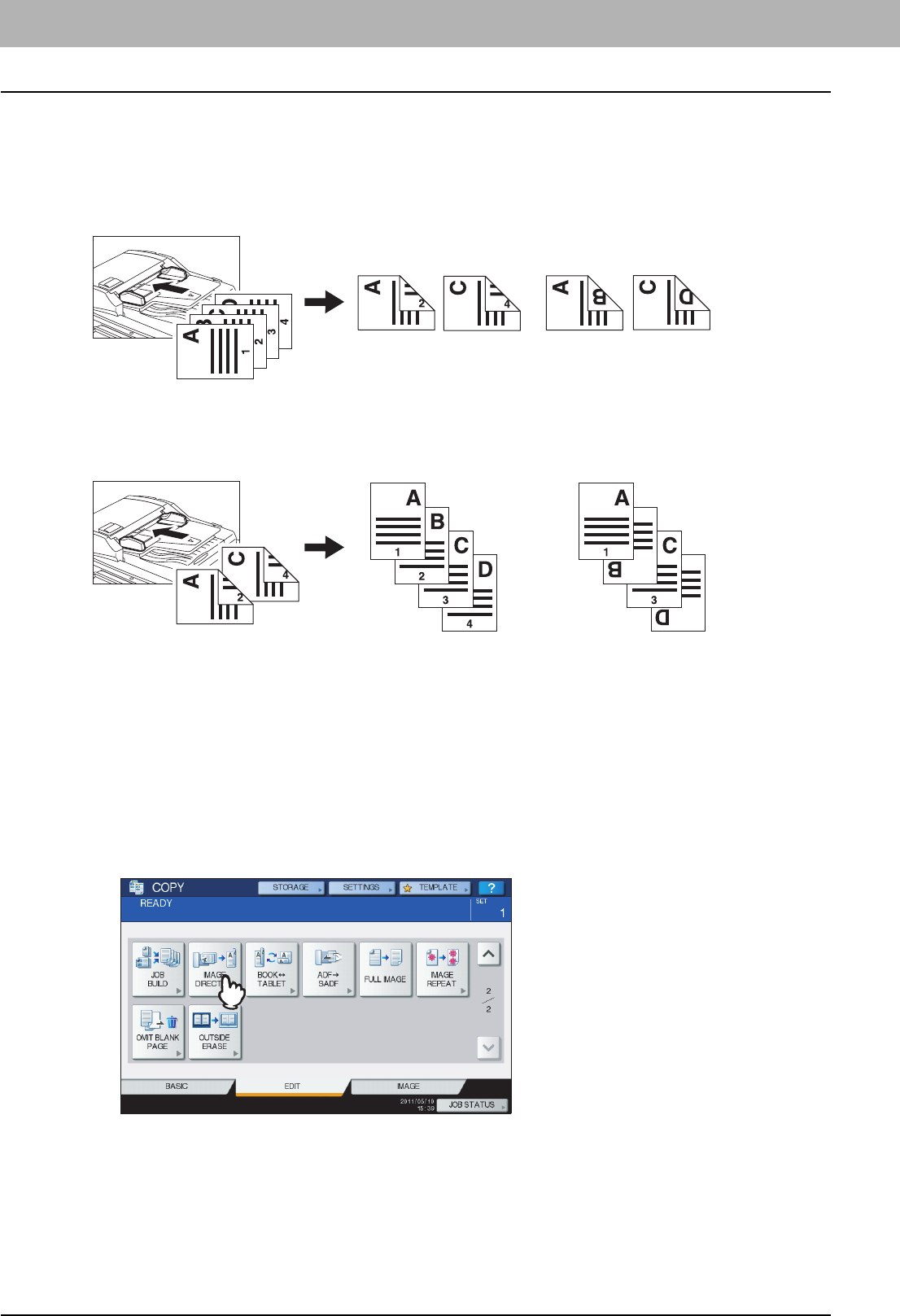
4 EDITING FUNCTIONS
122 Image Direction
Image Direction
When you make 1-sided portrait originals to 2-sided copy by placing them in a landscape direction, normally the copied
pages are “open to top”. With this function you can make them “open to left”. This function is called “image direction”.
When you make 2-sided “open to left” portrait originals to 1-sided copy, normally the copied pages exit in a different
direction alternately. With this function, you can make them all exit in the same direction.
1-sided portrait original (placed in a landscape direction) -> 2-sided copy
2-sided “open to left” portrait original -> 1-sided copy
1
Place paper in the drawer(s).
2
Place the original(s).
3
Set duplex copying setting.
P.78 “Duplex Copying”
4
Press [IMAGE DIRECTION] on the EDIT menu.
No setting“IMAGE DIRECTION” set
No setting“IMAGE DIRECTION” set
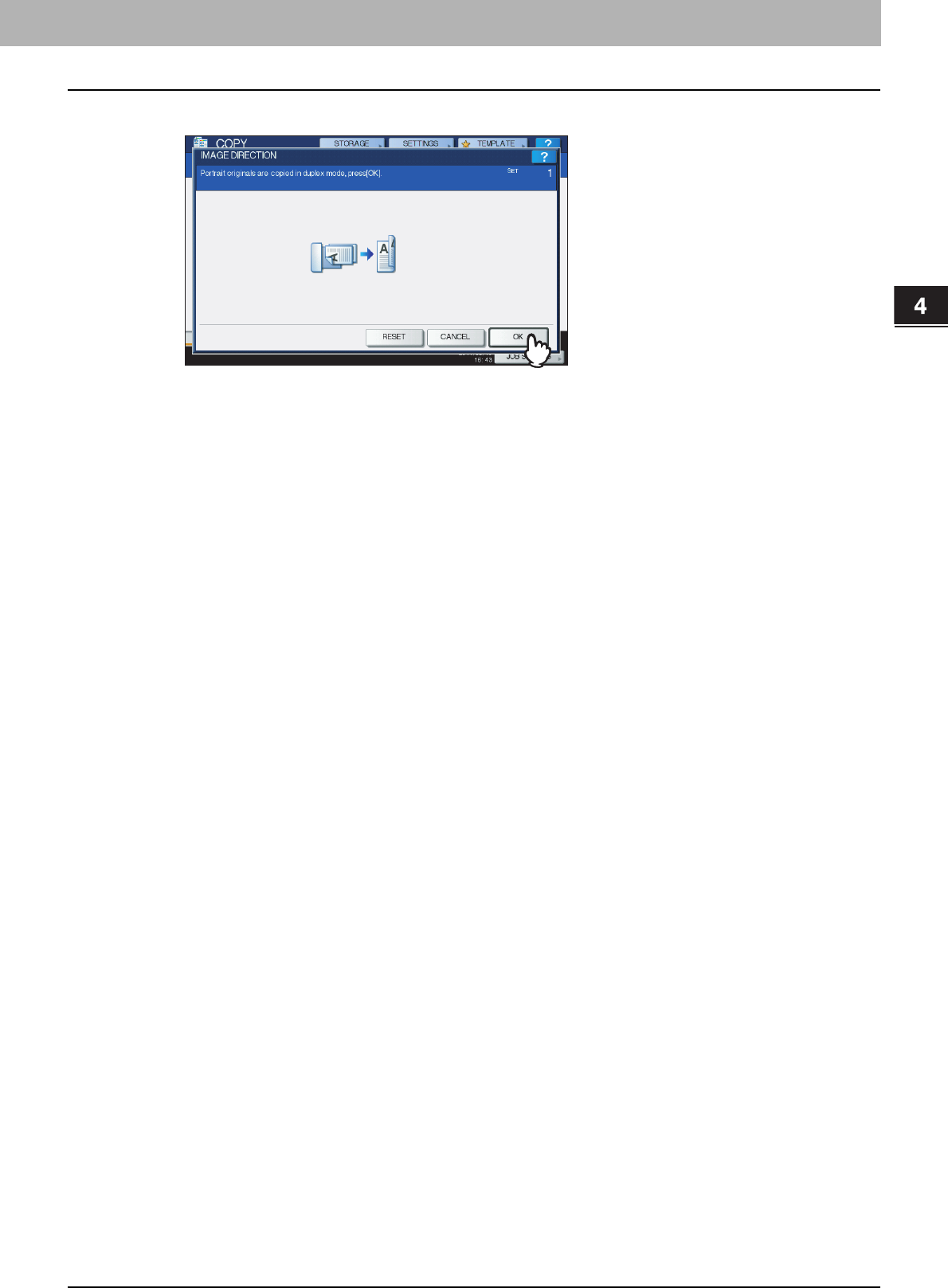
4.EDITING FUNCTIONS
Image Direction 123
4 EDITING FUNCTIONS
5
Press [OK].
Image direction is now set.
6
Select other copy modes as required, and then press the [START] button on the control
panel.
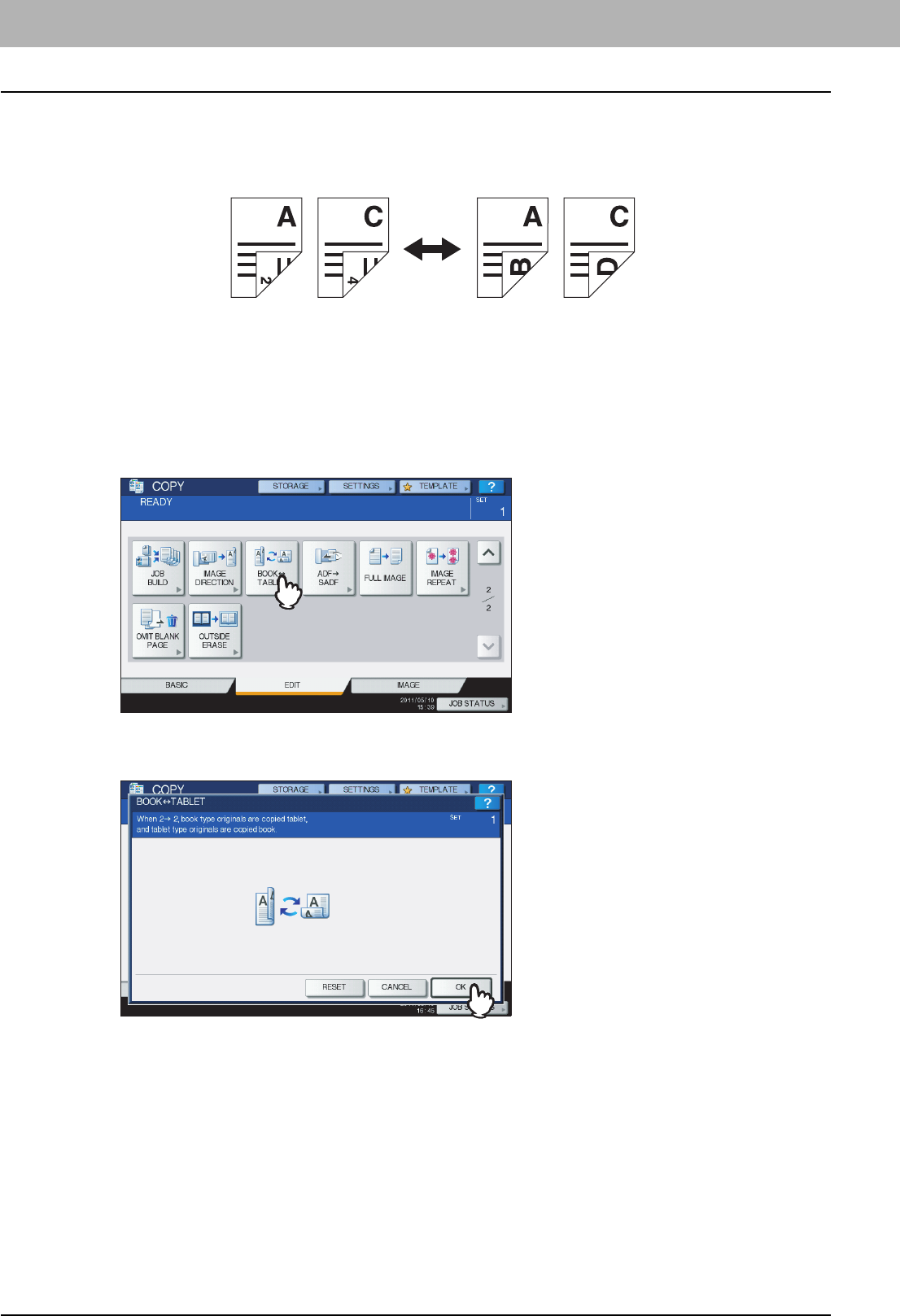
4 EDITING FUNCTIONS
124 Book - Tablet
Book - Tablet
As for the directions of originals or copied images, “open to left” is called “book” and “open to top” is called “tablet”. With
this function you can make 2-sided originals to 2-sided copy, rotating only the back side of the copied page by 180
degrees, namely, you can copy “book” originals to “tablet” copy, or vice versa.
1
Place paper in the drawer(s).
2
Place the original(s).
3
Press [BOOK <->TABLET] on the EDIT menu.
4
Press [OK].
Book - tablet is now set.
5
Select other copy modes as required, and then press the [START] button on the control
panel.
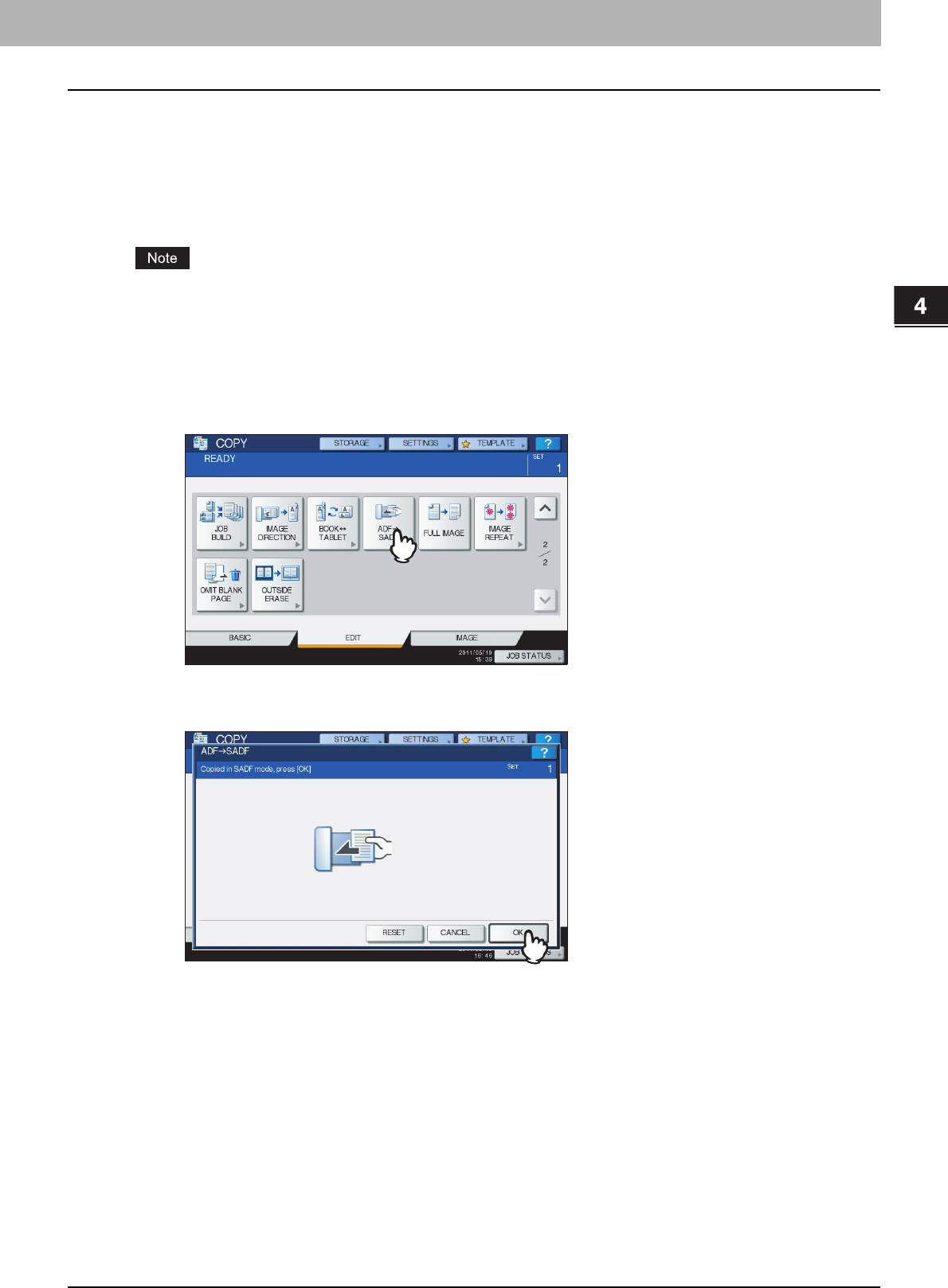
4 EDITING FUNCTIONS
ADF -> SADF 125
ADF -> SADF
You can switch the feeding mode when the RADF (Reversing Automatic Document Feeder, optional) is used, from “ADF”
to “SADF”. The paper feeding mode has 2 types as follows:
ADF (Continuous feed mode): Feeds originals continuously when you press the [START] button on the control panel
while originals are being placed on the RADF (optional). This is useful when you make more than one copy in one
operation. (Default setting)
SADF (Single feed mode): Feeds originals one by one automatically. This is useful when you usually only have 1 original.
When the single feed mode (SADF) is set, place originals one sheet at a time. If you place more than one original, the
copied image may be skewed or the originals may jam.
1
Place paper in the drawer(s).
2
Press [ADF -> SADF] on the EDIT menu.
3
Press [OK].
The feeding mode is now set at “single feed mode”.
4
Select other copy modes as required.
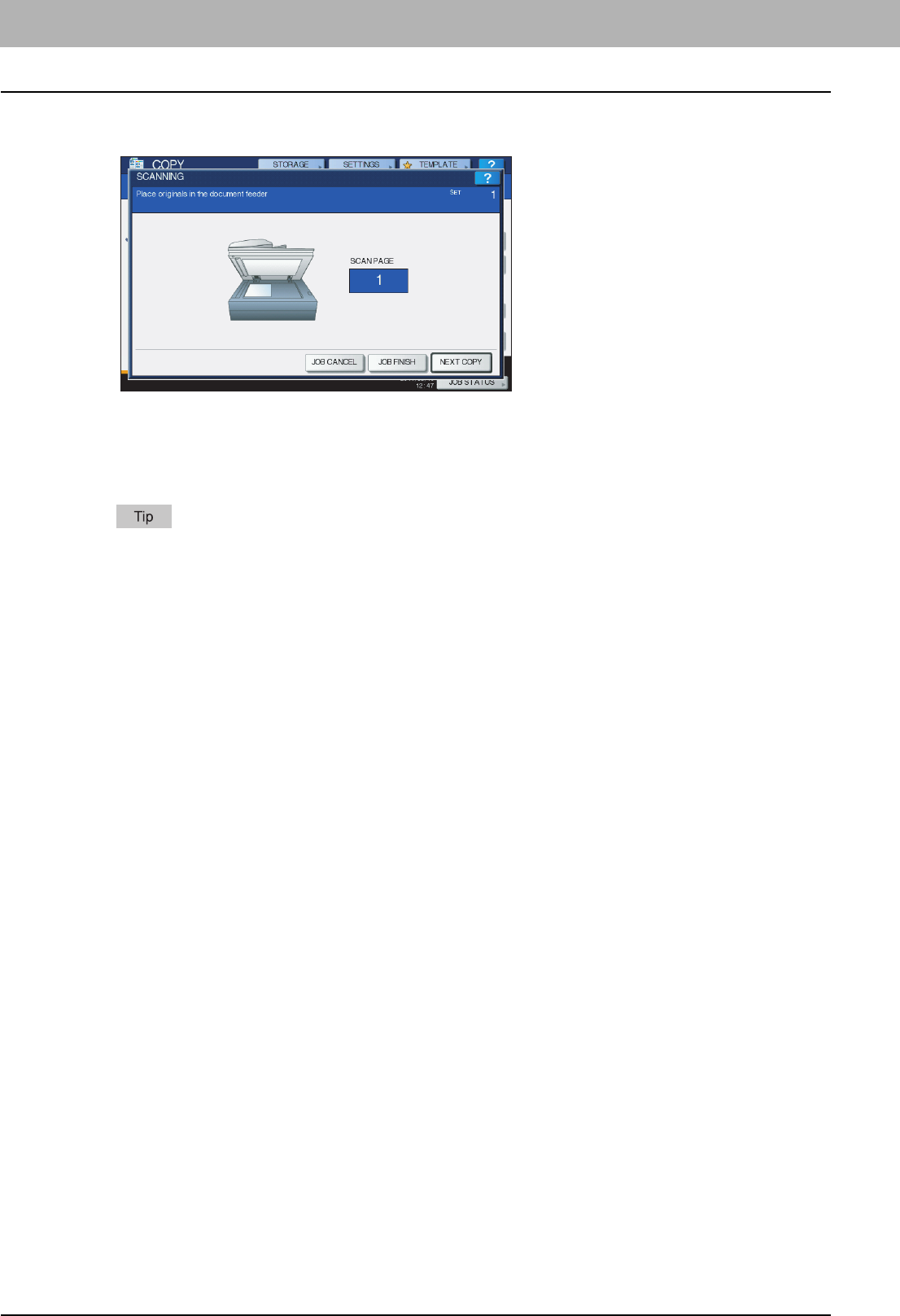
4 EDITING FUNCTIONS
126 ADF -> SADF
5
Place the original(s) on the RADF (optional) one sheet at a time.
The original is pulled into the RADF (optional) automatically, and then the menu below appears.
Repeat step 5 if you have another original. The placed original will be pulled into the RADF (optional) automatically
even if you do not press [NEXT COPY] on the touch panel.
6
When the scanning of all the originals is finished, press [JOB FINISH].
If you want to stop copying, press [JOB CANCEL].
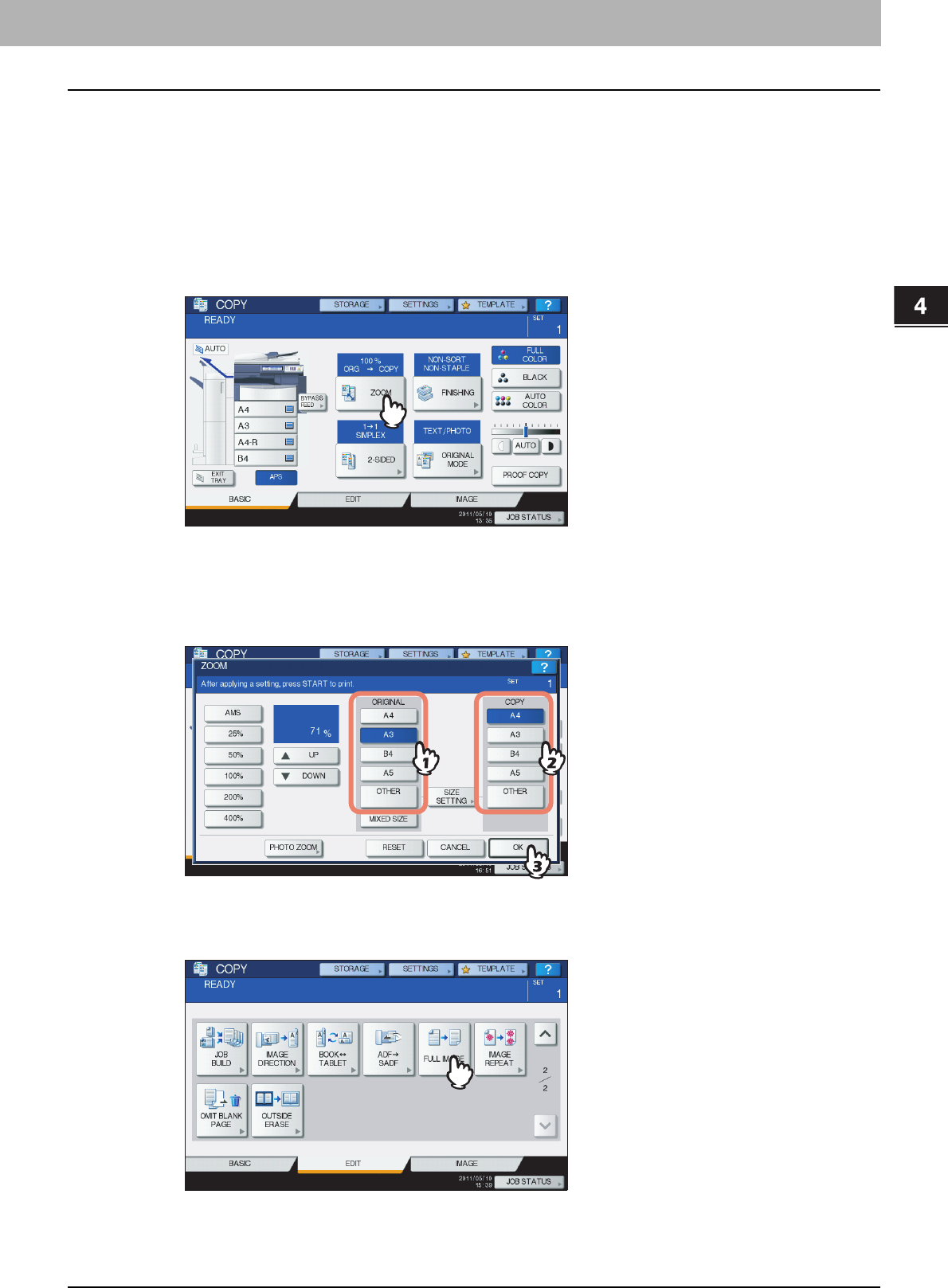
4 EDITING FUNCTIONS
Full Image 127
Full Image
You can copy the entire image of an original including any fine text at its edge. This function is called “full image”. With this
function, the image will be copied with its reproduction ratio reduced by approx. 1 to 5%.
1
Place paper in the drawer(s).
2
Place the original(s).
3
Press [ZOOM] on the touch panel.
4
Select sizes for the original and copy paper.
1) Select the original size.
2) Select the paper size.
3) Press [OK].
The menu returns to the BASIC menu.
5
Press [FULL IMAGE] on the EDIT menu.
6
Select other copy modes as required, and then press the [START] button on the control
panel.
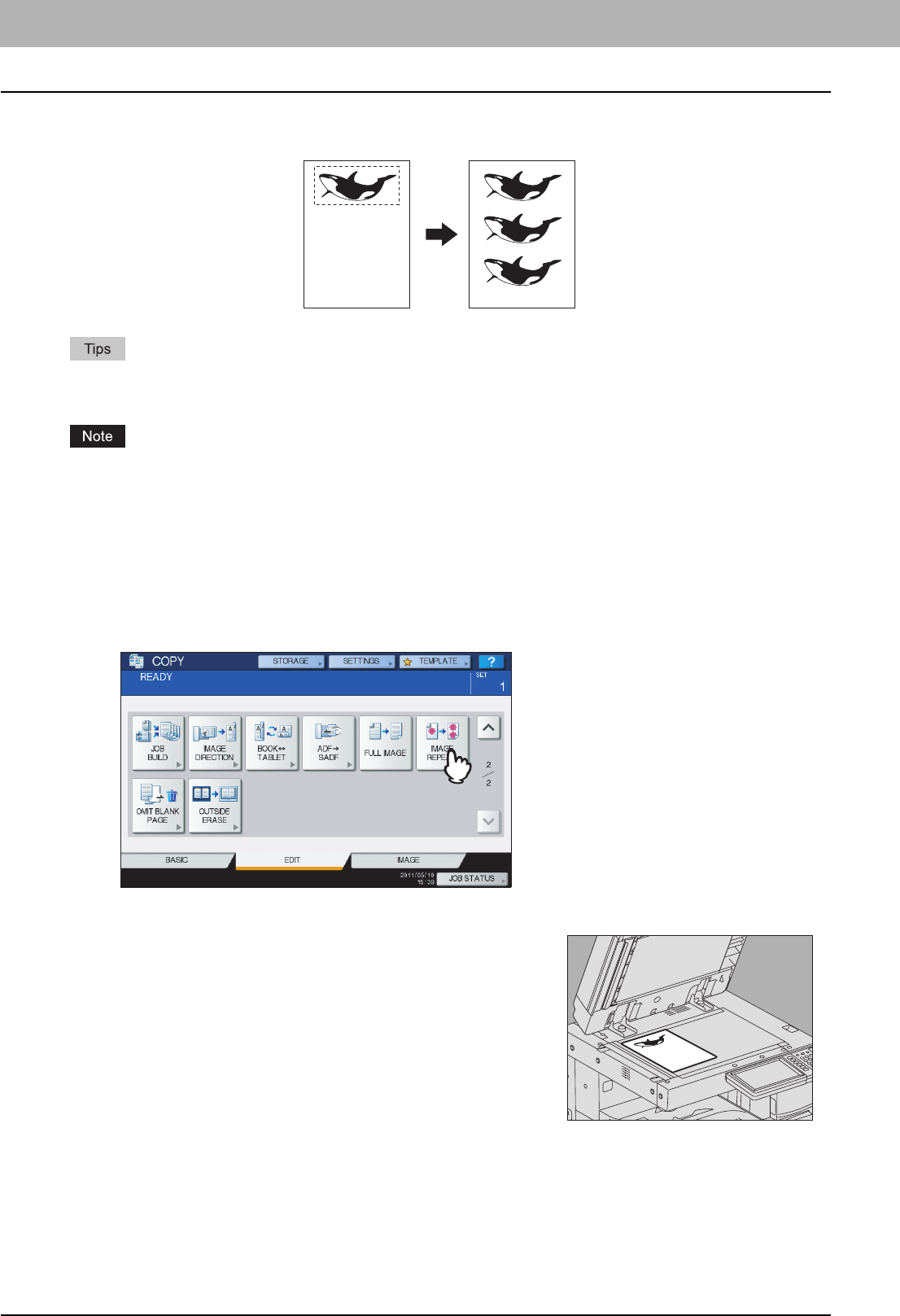
4 EDITING FUNCTIONS
128 Image Repeat
Image Repeat
You can copy a certain area on an original repeatedly in the times that you specified. This function is called “image repeat”.
yYou can repeat copying up to 8 times.
yOnly standard size originals are available.
When registering this function into a template, be sure to select [DISABLE] of “AUTOMATIC START”. If [ENABLE] is
selected, copies may not be made correctly because the original size is not detected.
P.151 “TEMPLATES”
1
Place paper in the drawer(s).
When using bypass copying, be sure to set the paper size.
2
Press [IMAGE REPEAT] on the EDIT menu.
3
Place the original on the original glass with its face
up.
Place it with its bottom toward you. Align its top left corner against that
of the original glass so that the original will be aligned with the original
scales.
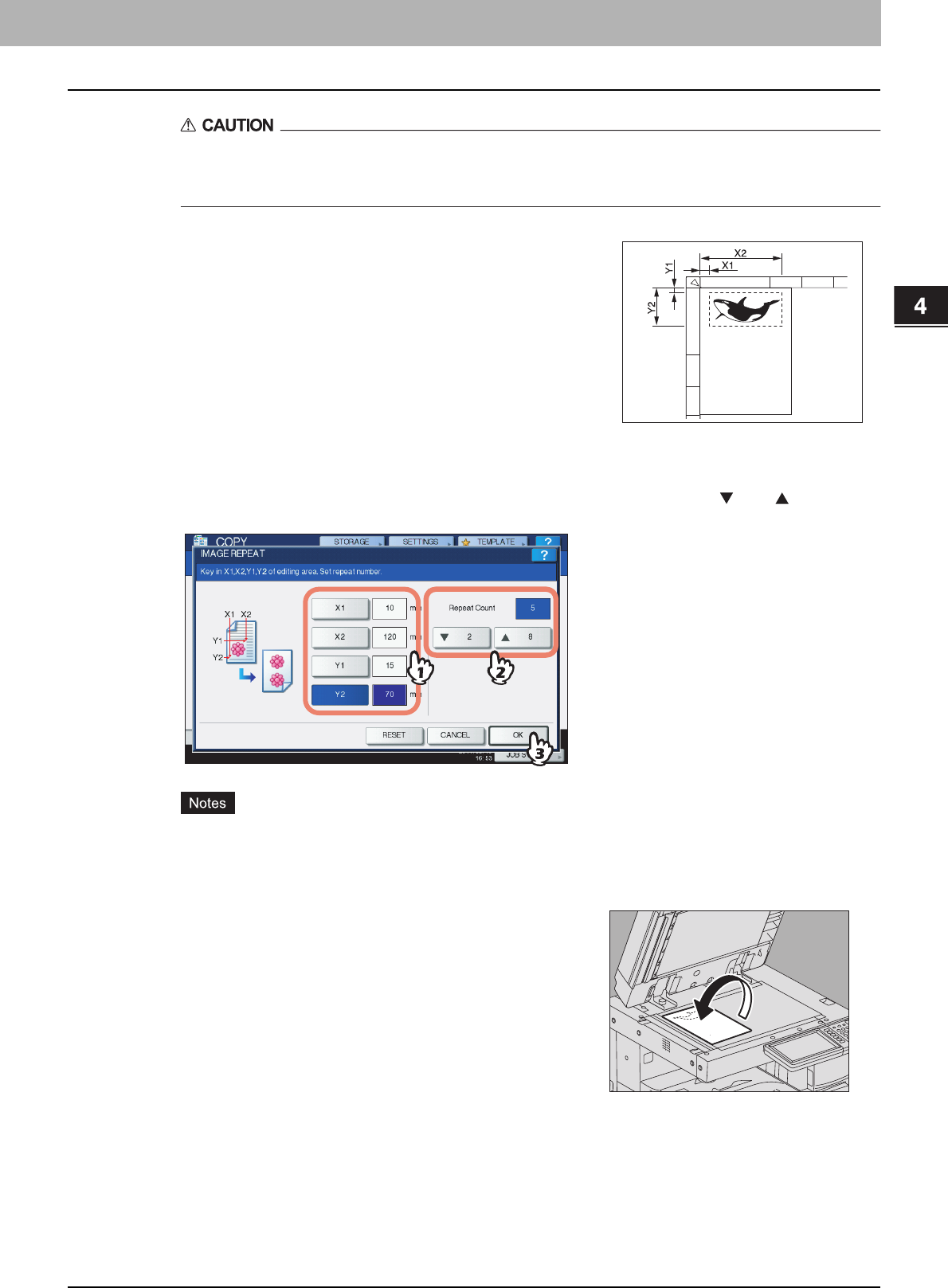
4.EDITING FUNCTIONS
Image Repeat 129
4 EDITING FUNCTIONS
Do not place any heavy objects (4 kg (9 lb.) or over) on the original glass and do not press on it with
force.
Breaking the glass could injure you.
5
Key in the read values and specify the repeat count.
1) Press [X1], [X2], [Y1] and [Y2], and then key in the read value correspondingly.
2) Change the number of times you repeat the image (repeat count) by pressing either [ 2] or [ 8].
3) Press [OK].
yThe selected area will be copied from the top right corner in a vertical direction.
yIf the repeated image runs over the paper size, that part will not be copied.
7
Select other copy modes as required, and then press the [START] button on the control
panel.
4
Read the following 4 values to specify the area using
the left and top scales on the original glass.
X1: From the top left to the left edge of the selected area
X2: From the top left to the right edge of the selected area
Y1: From the top left to the upper edge of the selected area
Y2: From the top left to the lower edge of the selected area
Note that the marks of the original scale have a 2 mm (0.08") pitch.
6
Place the original again on the original glass with its
face down.
Place with its bottom toward you. Align its top left corner against that of
the original glass.
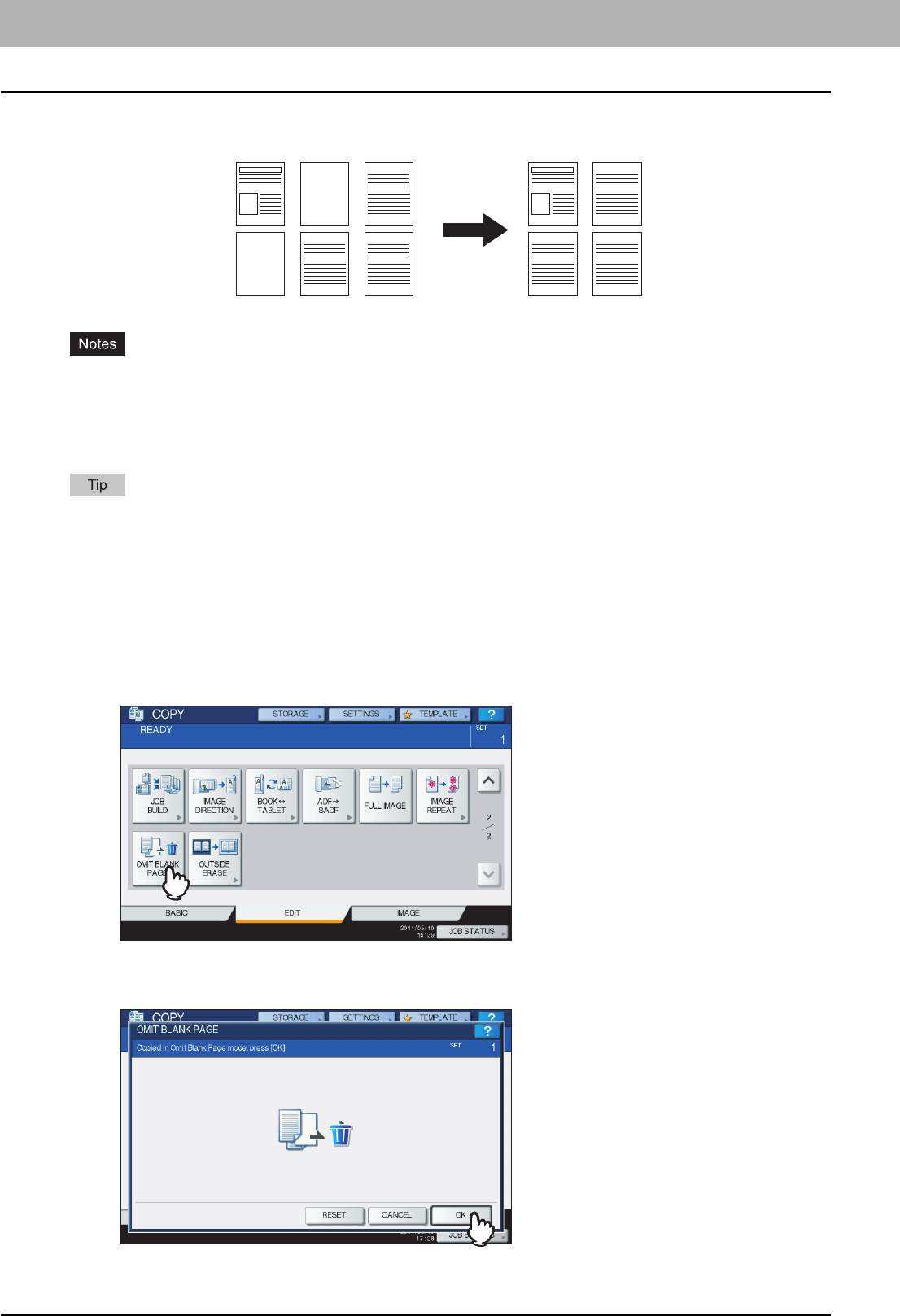
4 EDITING FUNCTIONS
130 Omit Blank Page
Omit Blank Page
You can remove blank sheets included in the scanned originals before copying is started. This function is called “omit
blank page”.
yThis function may not properly detect blank sheets included in the following types of originals:
- Half-tone originals
- Originals including sheets almost blank (e.g. blank pages having only page numbers)
yIf you copy 2-sided originals including blank sheets to 2-sided copy while this function is enabled, the front and
back sides of the originals and the copies will not match.
The sensitivity to detect blank pages can be changed. For details, refer to the MFP Management Guide.
1
Place paper in the drawer(s).
When using bypass copying, be sure to set the paper size.
2
Place the original(s).
3
Press [OMIT BLANK PAGE] on the EDIT menu.
4
Press [OK].
Omit blank page is now set.
1 3
5 6
1 3
5 6
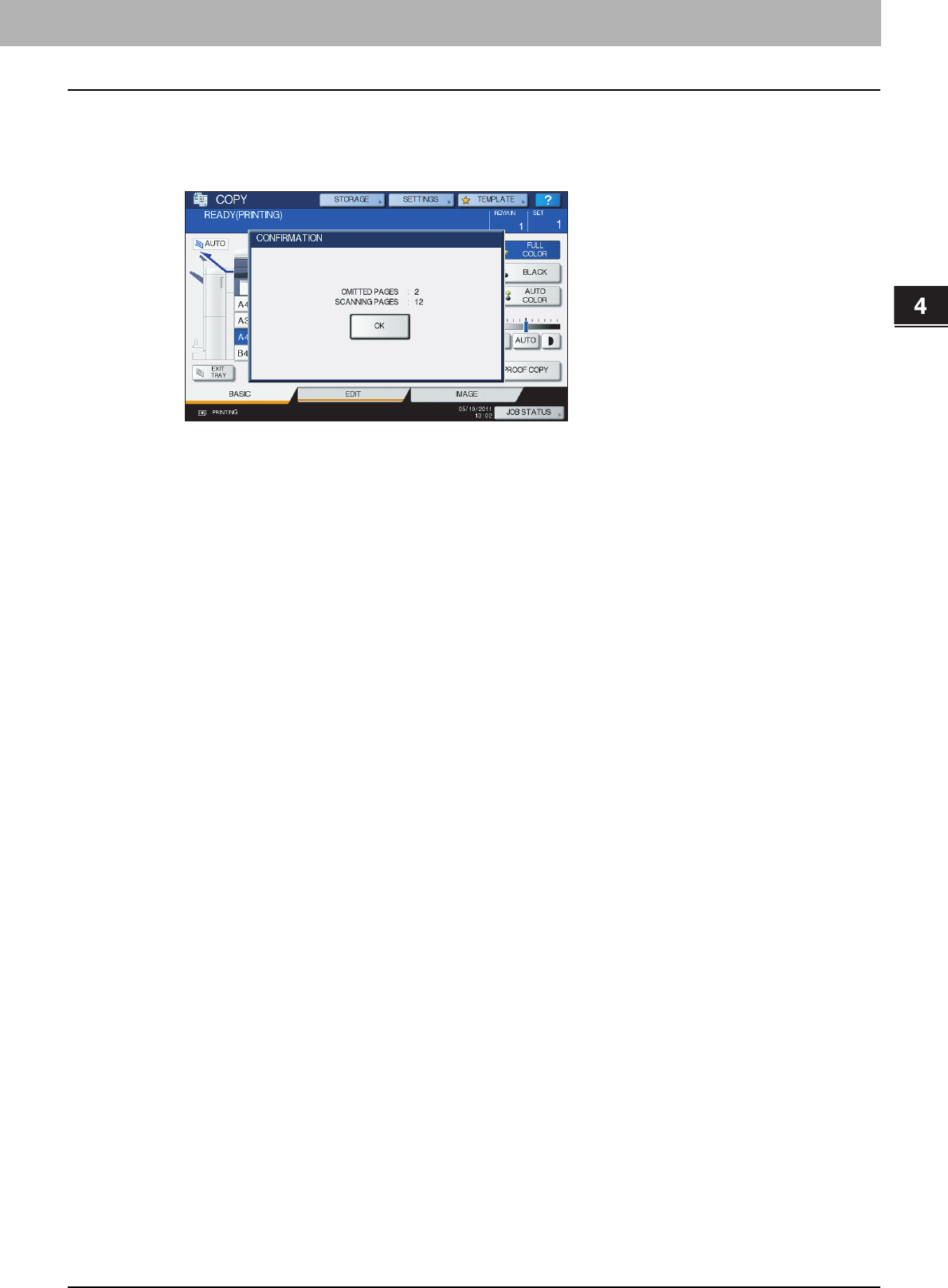
4.EDITING FUNCTIONS
Omit Blank Page 131
4 EDITING FUNCTIONS
5
Select other copy modes as required, and then press the [START] button on the control
panel.
Scanning and copying start. A message notifying you of the number of the blank sheets appears for approx. 5
seconds.
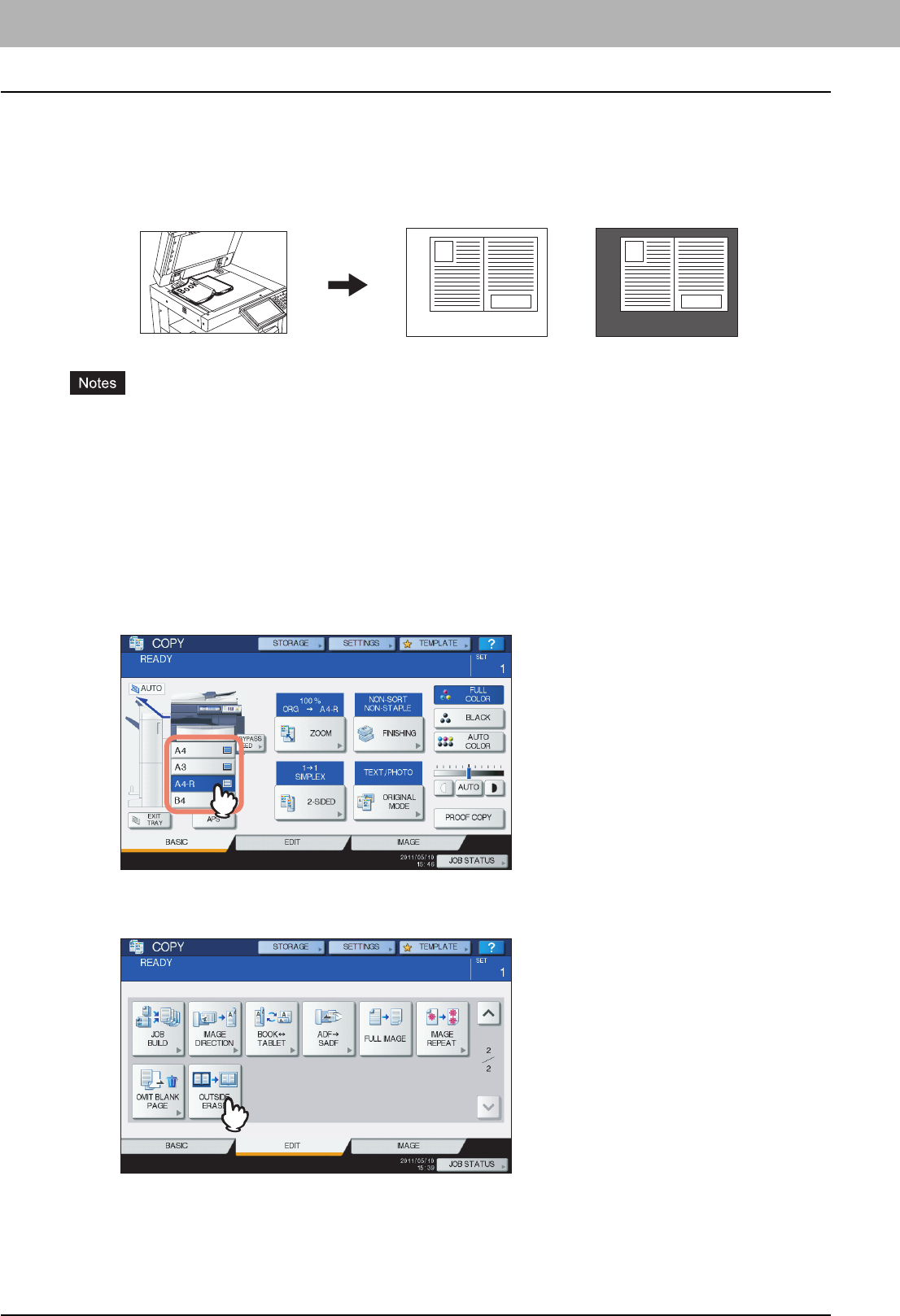
4 EDITING FUNCTIONS
132 Outside Erase
Outside Erase
You can whiten a shadow-like dark part which has appeared outside of the copied image; this has been caused by a gap
between the original glass and the platen sheet. This function is called “outside erase”. It is useful when you place thick
originals such as booklets on the original glass.
yThis function is disabled when you place originals on the RADF (optional) or you place them on the original glass
with the RADF or the Original Cover (optional) closed fully.
yWhen this function is enabled, the automatic density adjustment is disabled. Adjust the density level manually.
yOriginals with an intricate outer shape (e.g. an original with cut-out parts on its edge) may not be copied properly
because this function may not detect the border between the original and areas not belonging to it.
1
Place paper in the drawer(s).
When using bypass copying, be sure to set the paper size.
2
Select the drawer for the desired paper size.
3
Press [OUTSIDE ERASE] on the EDIT menu.
No settingOutside erase set
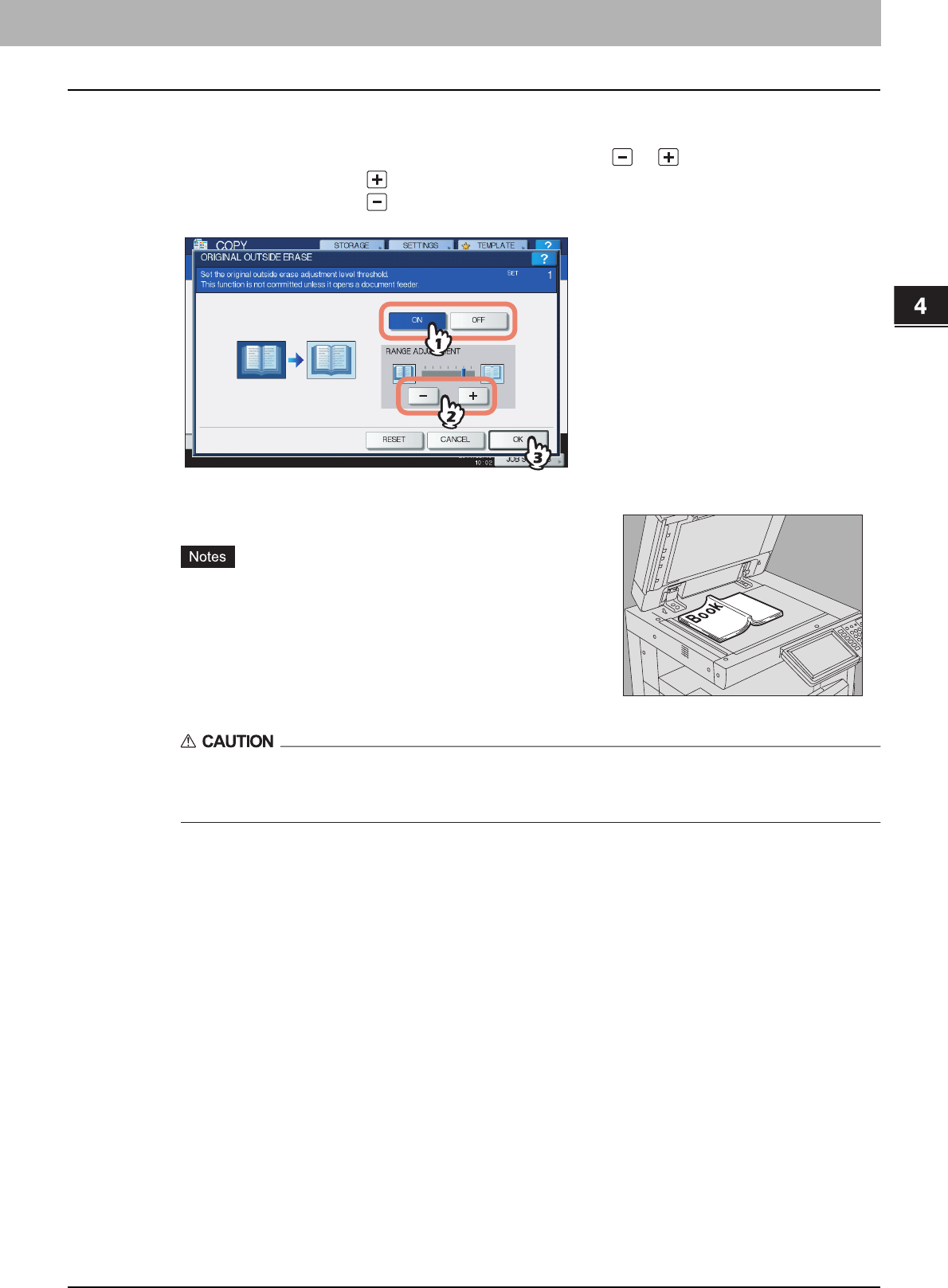
4.EDITING FUNCTIONS
Outside Erase 133
4 EDITING FUNCTIONS
4
Set “outside erase”.
1) Press [ON].
2) Adjust the width of the border around the original by pressing either or as required.
When you adjust it to the side, the area to be detected as not belonging to the original is widened.
When you adjust it to the side, the area to be detected as not belonging to the original is narrowed.
3) Press [OK].
Do not place any heavy objects (4 kg (9 lb.) or over) on the original glass and do not press on it with
force.
Breaking the glass could injure you.
6
Select other copy modes as required, and then press the [START] button on the control
panel.
5
Place the original on the original glass.
yWhen placing the original, be sure that the Original Cover
(optional) or the RADF (optional) is fully raised. If not, this
function may not properly be able to detect the border between
the original and areas not belonging to it.
yDo not directly look at the original glass during copying since an
intense light may leak.

5.IMAGE ADJUSTMENT
This chapter describes the image adjustment functions allowing you to change the overall color balance of a copied
image, copy an original in a specified color, and so on.
Displaying IMAGE Menu...................................................................................................... 136
Using Image Adjustment Functions................................................................................... 137
Color balance (YMCK adjustment).....................................................................................................................137
RGB adjustment .................................................................................................................................................139
One-touch adjustment ........................................................................................................................................140
Background adjustment......................................................................................................................................141
Sharpness ..........................................................................................................................................................142
Twin color copying ..............................................................................................................................................143
Mono color copying ............................................................................................................................................148
Hue.....................................................................................................................................................................149
Saturation ...........................................................................................................................................................150
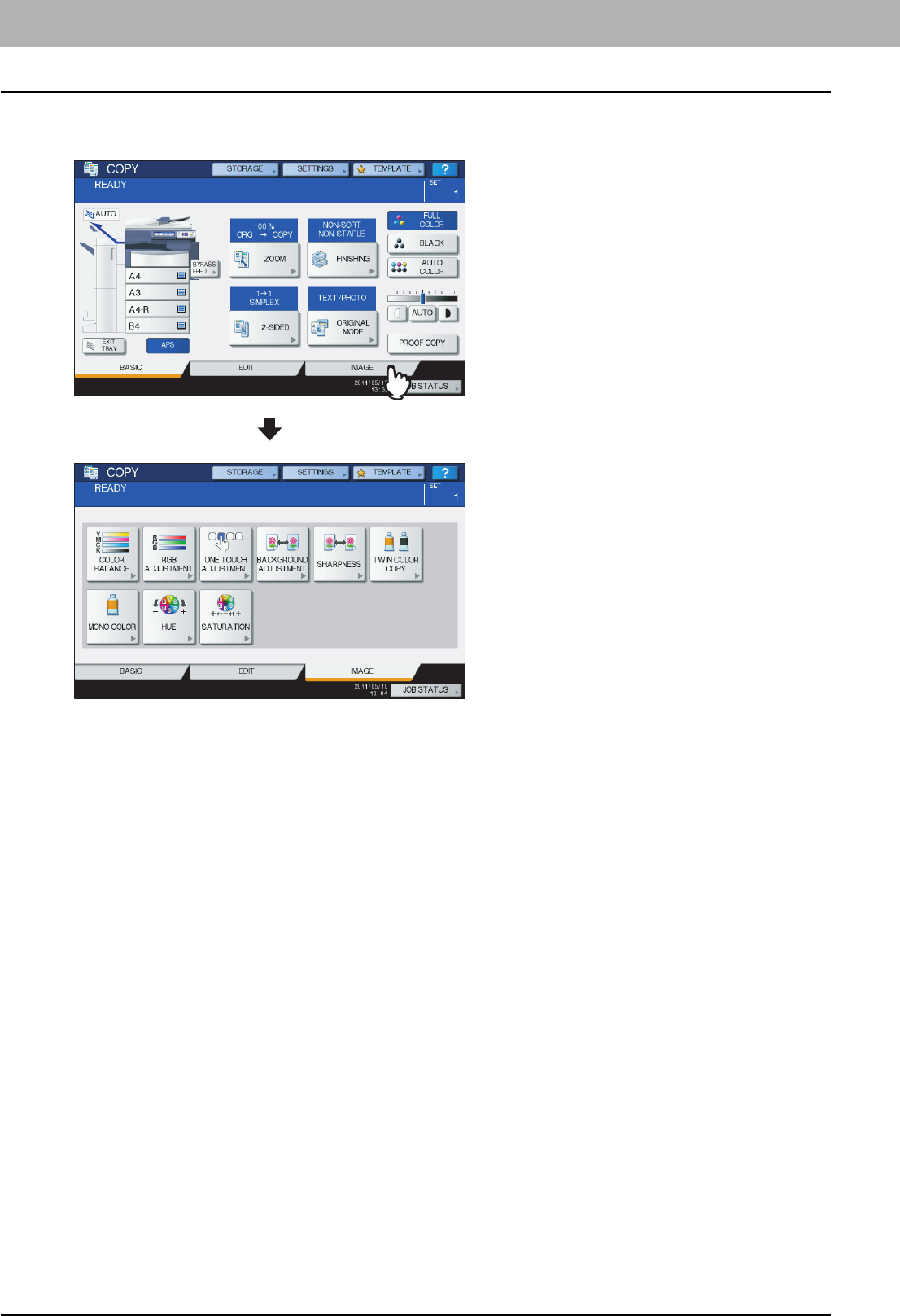
5 IMAGE ADJUSTMENT
136 Displaying IMAGE Menu
Displaying IMAGE Menu
You can display the IMAGE menu by pressing the [IMAGE] tab on the touch panel when you want to use various image
adjustment functions.
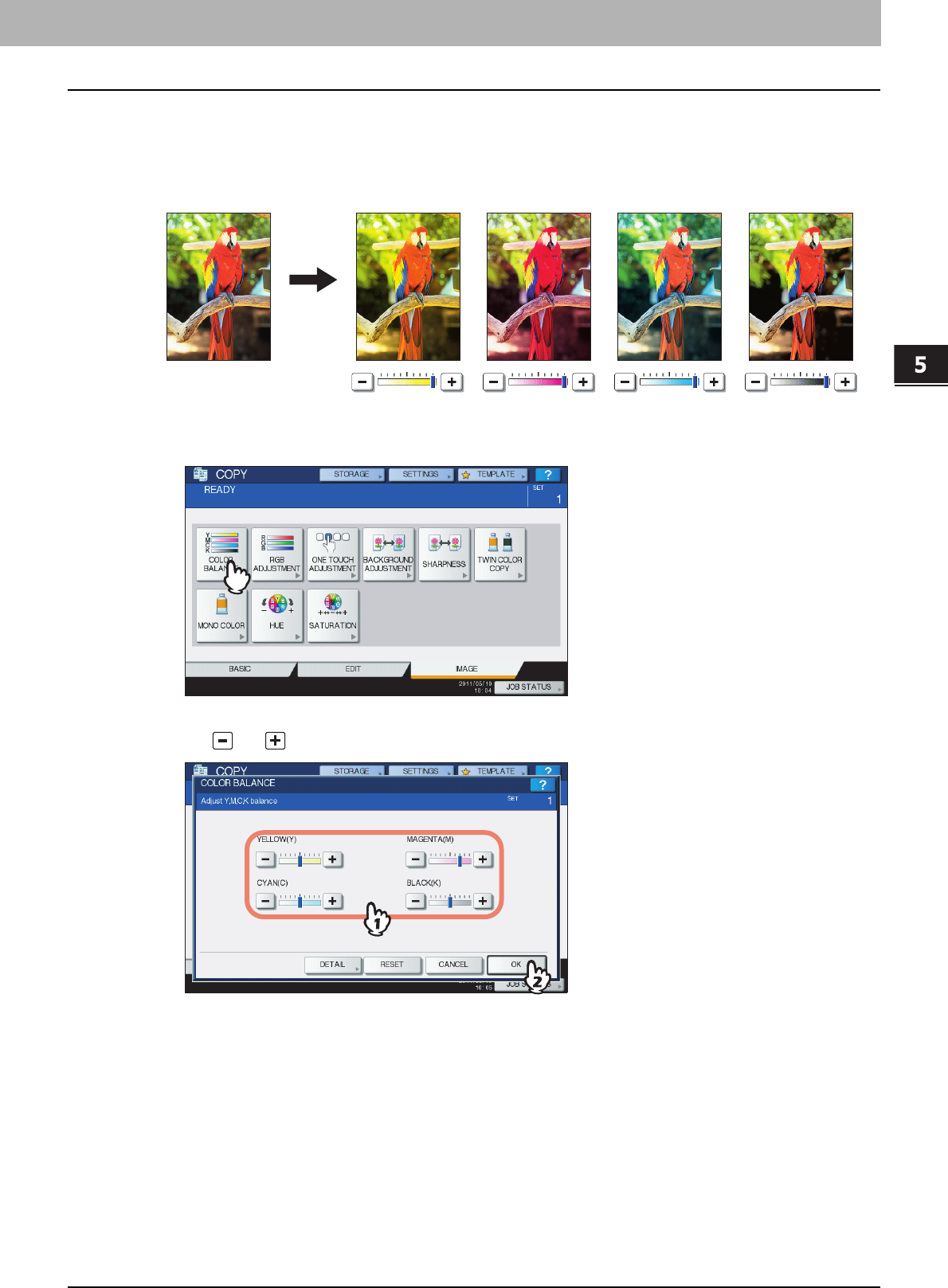
5 IMAGE ADJUSTMENT
Using Image Adjustment Functions 137
Using Image Adjustment Functions
Color balance (YMCK adjustment)
This function allows you to adjust the overall color balance of the copied image by changing the strength of YELLOW (Y),
MAGENTA (M), CYAN (C) and BLACK (K). This function is available in the full color mode or the auto color mode.
1
Press [COLOR BALANCE] in the IMAGE menu.
2
Press or of each color to obtain the desired color balance.
After completing the color balance adjustment, press [OK]. This is the end of the setting.
If you want to adjust each color balance on every density area, press [DETAIL] and go to the next step.
YELLOW (Y)MAGENTA (M)CYAN (C)BLACK (K)
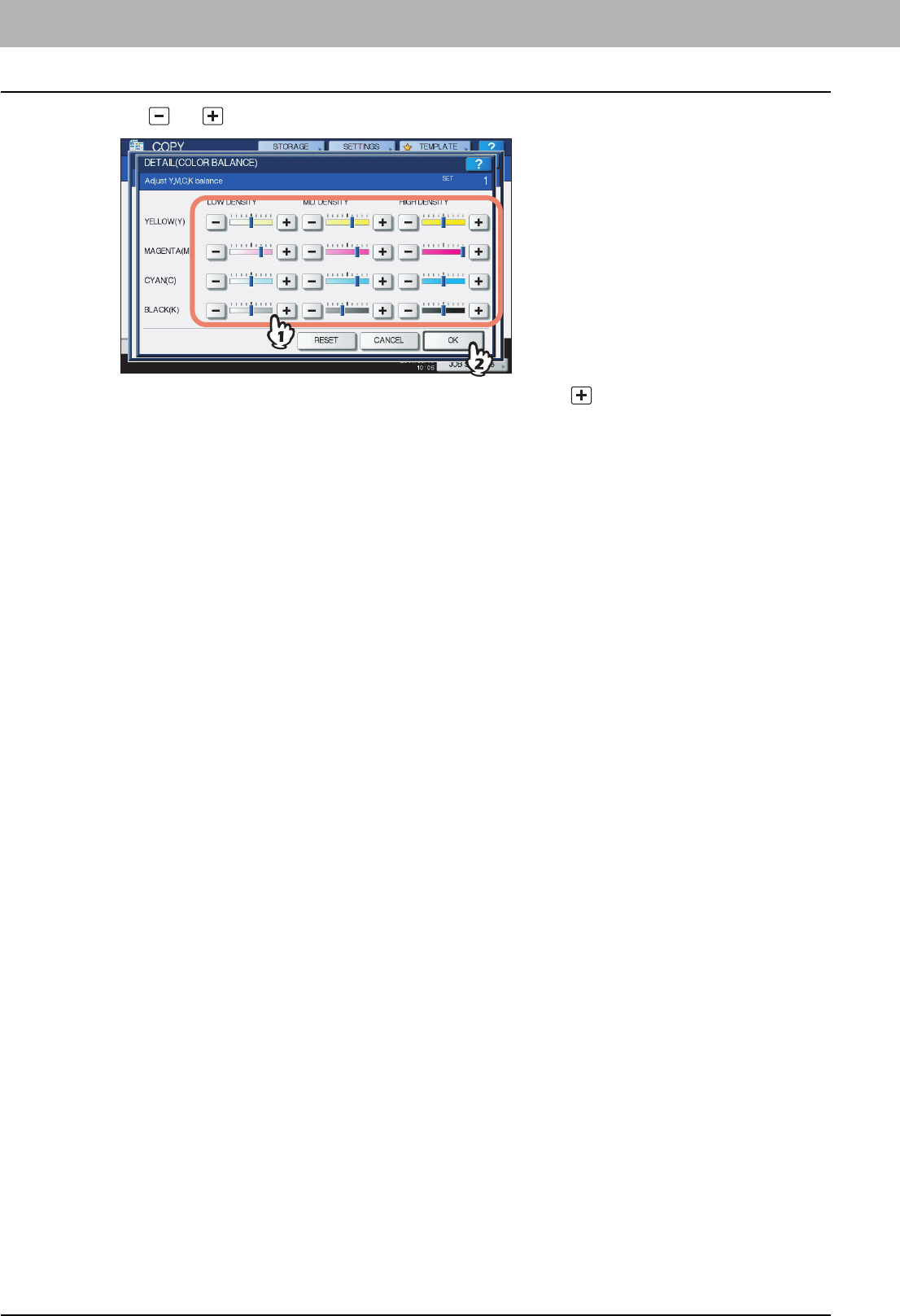
5 IMAGE ADJUSTMENT
138 Using Image Adjustment Functions
3
Press or of the color on each density area to obtain the desired color balance.
For example, when you adjust the high density area of magenta (M) to the side, the magenta in its high density
area becomes darker.
After completing the adjustment, press [OK].
Canceling color balance adjustment
yMove the indicator of the color whose adjustment you want to cancel to the middle, and then press [OK].
yIf you want to cancel the adjustment of all colors, press [RESET], and then [OK].
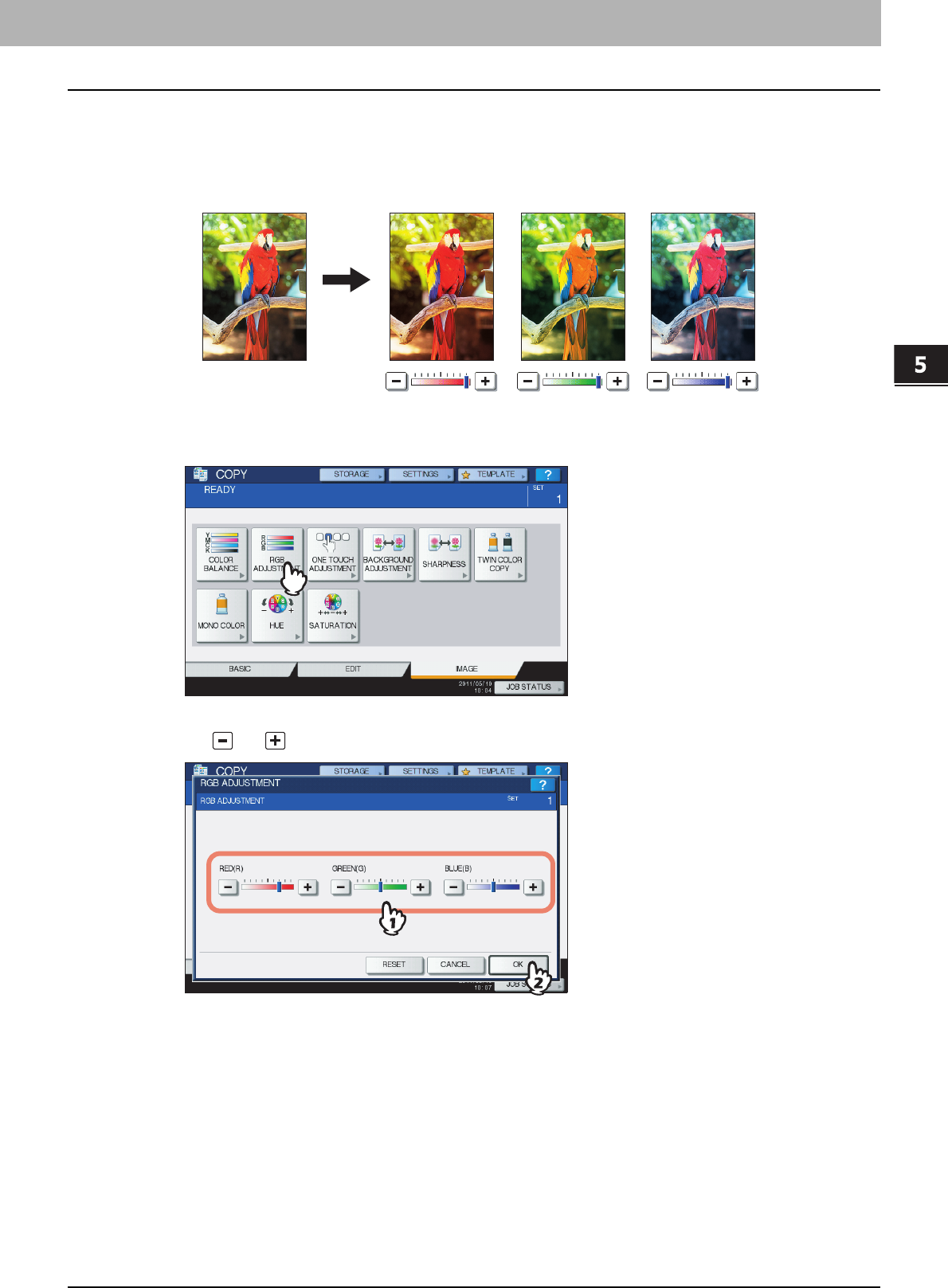
5.IMAGE ADJUSTMENT
Using Image Adjustment Functions 139
5 IMAGE ADJUSTMENT
RGB adjustment
This function allows you to adjust the overall color balance of the copied image by changing the strength of RED (R),
GREEN (G) and BLUE (B). This function is available in the full color mode or the auto color mode.
1
Press [RGB ADJUSTMENT] in the IMAGE menu.
2
Press or of the color to obtain the desired color balance, and then press [OK].
Canceling RGB adjustment
yMove the indicator of the color whose adjustment you want to cancel to the middle, and then press [OK].
yIf you want to cancel the adjustment of all colors, press [RESET], and then [OK].
RED (R)GREEN (G)BLUE (B)
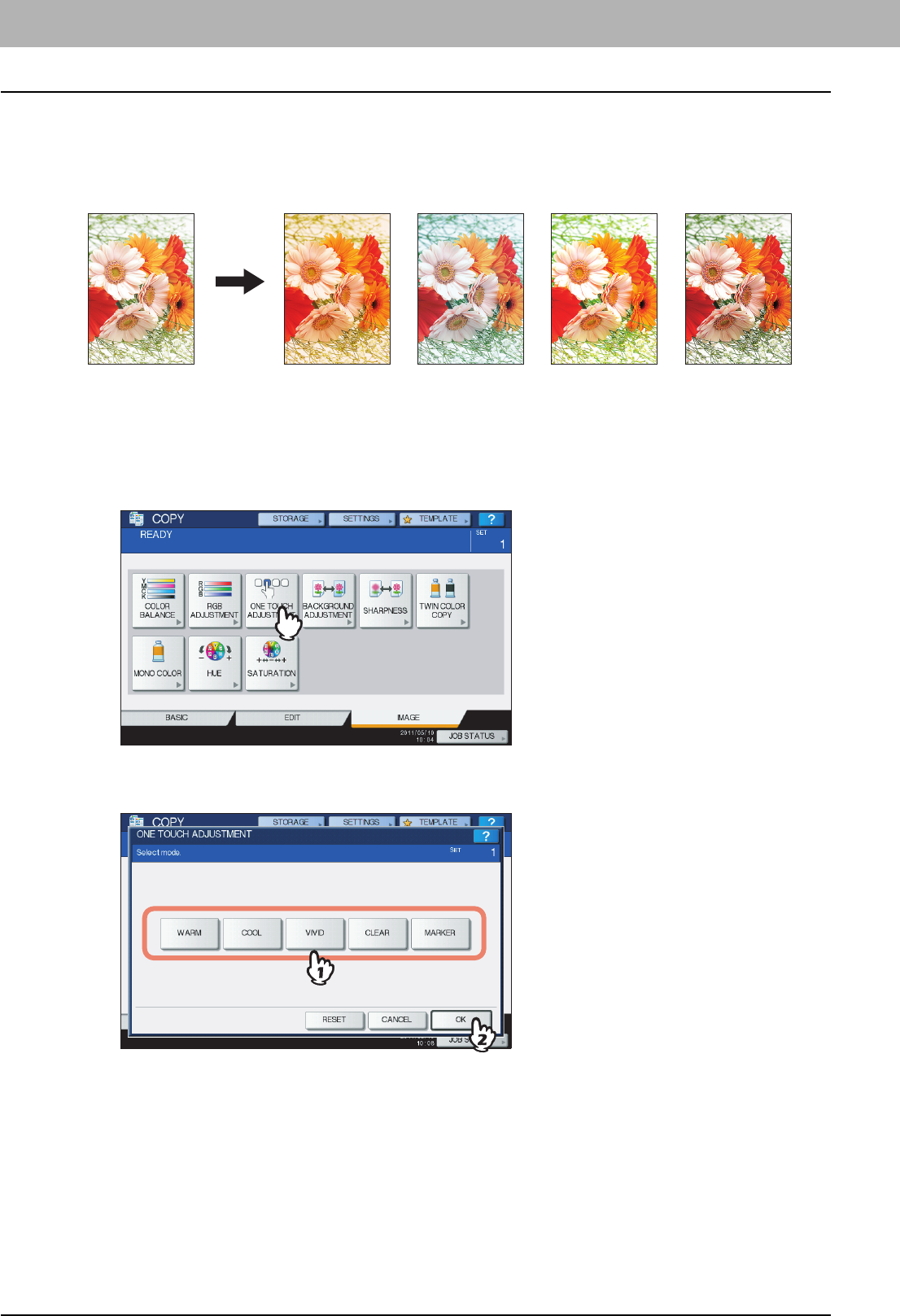
5 IMAGE ADJUSTMENT
140 Using Image Adjustment Functions
One-touch adjustment
This function allows you to obtain the image quality already registered in this equipment. You can select the image quality
from “WARM”, “COOL”, “VIVID”, “CLEAR” and “MARKER”. This function is available only in the full color mode.
When [MARKER] is selected
Multiple colors drawn with a highlight pen on the original can be copied so as to be distinguished clearly; however, the
color shade may not be the same as that of the original depending on the color of the highlight pen.
1
Press [ONE TOUCH ADJUSTMENT] in the IMAGE menu.
2
Select the image quality, and then press [OK].
Canceling one-touch adjustment
Press [RESET].
WARM COOL VIVID CLEAR
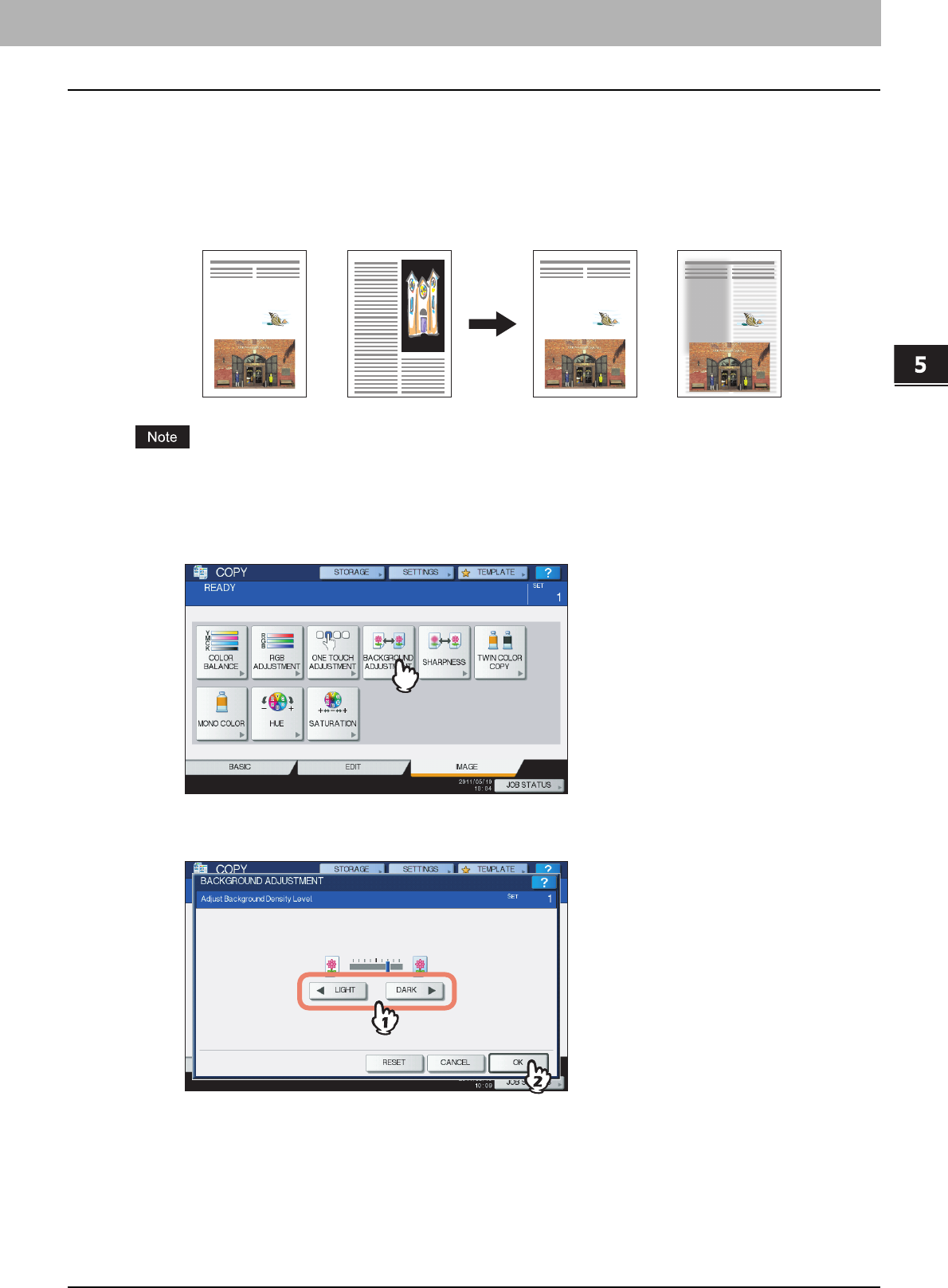
5.IMAGE ADJUSTMENT
Using Image Adjustment Functions 141
5 IMAGE ADJUSTMENT
Background adjustment
This function allows you to adjust the density of the original’s background. It avoids the back side of a 2-sided original
becoming visible on its front side.
This mode cannot be used with the automatic density adjustment function.
P.56 “Density Adjustment”
1
Press [BACKGROUND ADJUSTMENT] in the IMAGE menu.
2
Press [LIGHT] or [DARK] to adjust the density, and then press [OK].
Canceling background adjustment
yMove the indicator to the middle, and then press [OK].
yPress [RESET] and then [OK].
Front Back Not adjusted
Adjusted to have
a lightened
background
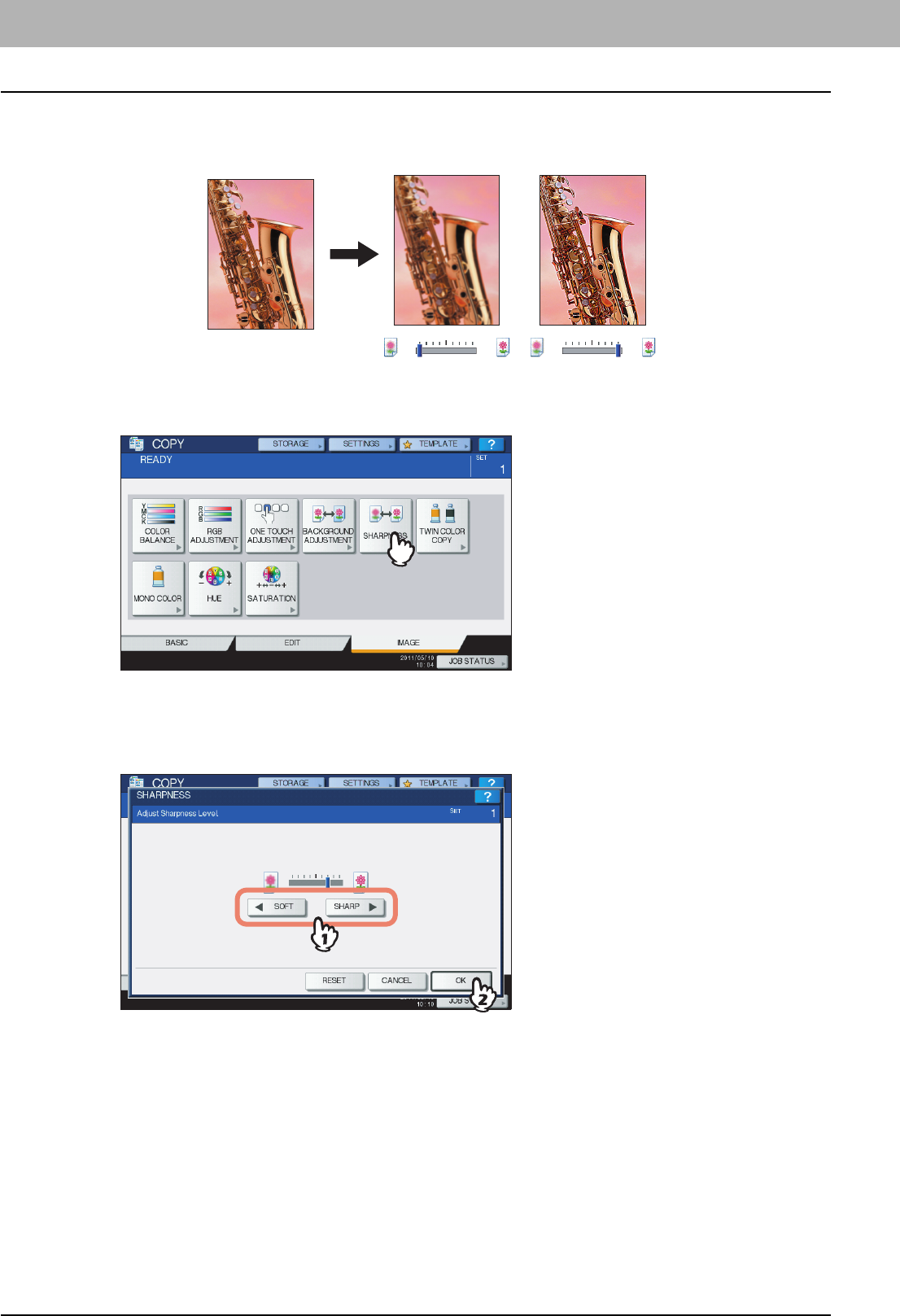
5 IMAGE ADJUSTMENT
142 Using Image Adjustment Functions
Sharpness
This function allows you to emphasize or blur the outline of the image.
1
Press [SHARPNESS] in the IMAGE menu.
2
Press [SOFT] or [SHARP] to adjust the sharpness, and then press [OK].
When the sharpness level is adjusted to the [SOFT] side, the moire fringes on the printed photos, etc. are softened.
If it is adjusted to the [SHARP] side, the letters and fine lines become sharper.
Canceling sharpness adjustment
yMove the indicator to the middle, and then press [OK].
yPress [RESET] and then [OK].
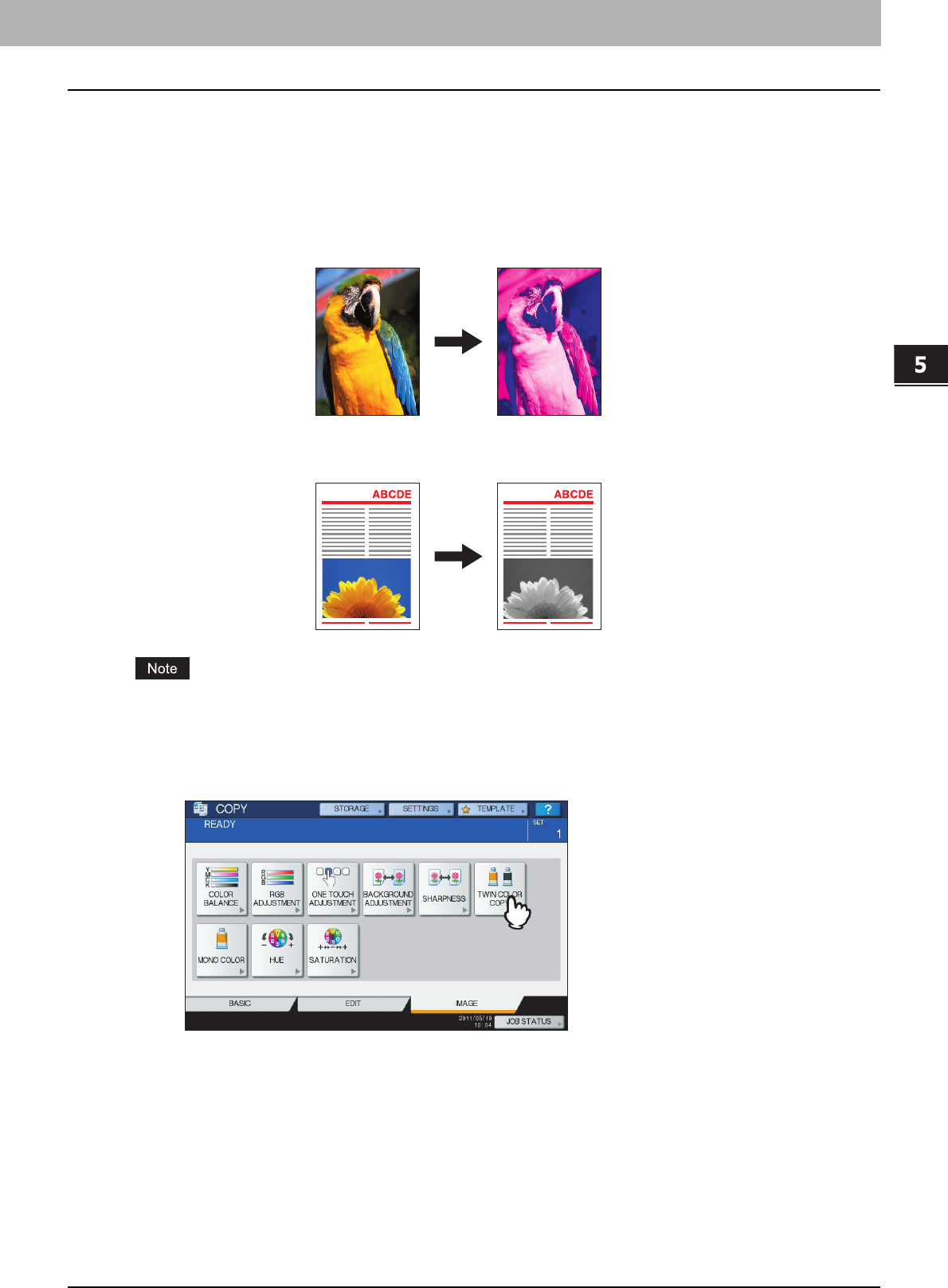
5.IMAGE ADJUSTMENT
Using Image Adjustment Functions 143
5 IMAGE ADJUSTMENT
Twin color copying
This function allows you to copy a colored original in 2 specified colors. There are 2 types of twin color copying as follows:
TWIN COLOR SELECTABLE: The black part and the parts other than black in the original are copied in 2 specified
colors.
RED & BLACK: The red part in the original is copied in red and the parts other than red are copied in black and white.
The color may not be correctly reproduced in some originals. In that case, copy them in the full color mode.
Twin color selectable
1
Press [TWIN COLOR COPY] in the IMAGE menu.
“CHANGE BLACK TO”: BLUE
“SECOND COLOR”: MAGENTA
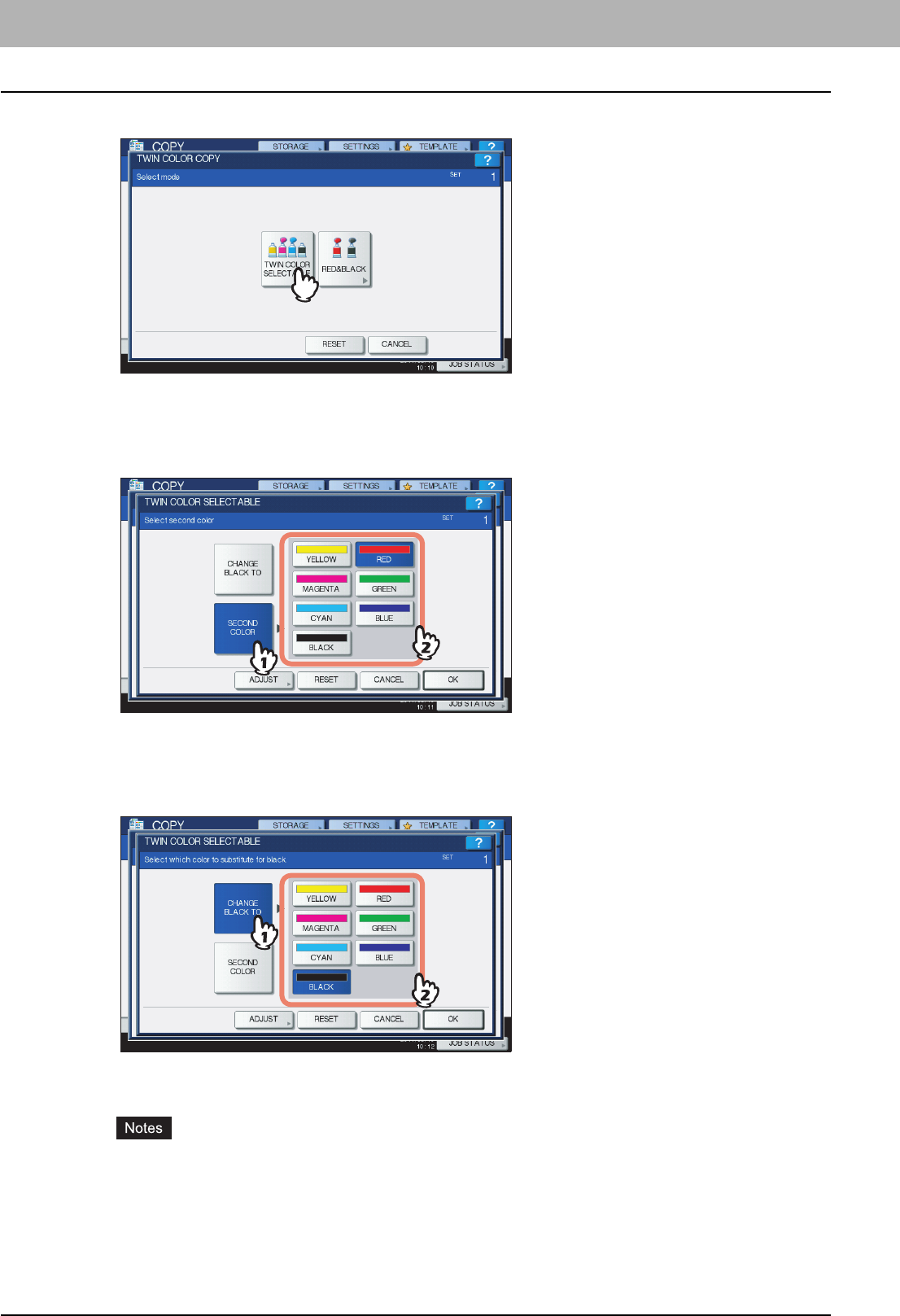
5 IMAGE ADJUSTMENT
144 Using Image Adjustment Functions
2
Press [TWIN COLOR SELECTABLE].
3
Select a color for the parts other than black in the original.
1) Press [SECOND COLOR].
2) Select the desired color.
4
Select a color for the black part in the original.
1) Press [CHANGE BLACK TO].
2) Select the desired color.
After selecting the color, press [OK]. This is the end of the setting.
If you want to adjust the color balance, press [ADJUST] and go to the next step.
yWhen the two colors specified are the combination of black and a color other than black, color balance
adjustment is enabled. When neither of the two colors is black, or when both of them are black, this
adjustment is disabled.
yThe color balance of a color other than black can be adjusted.
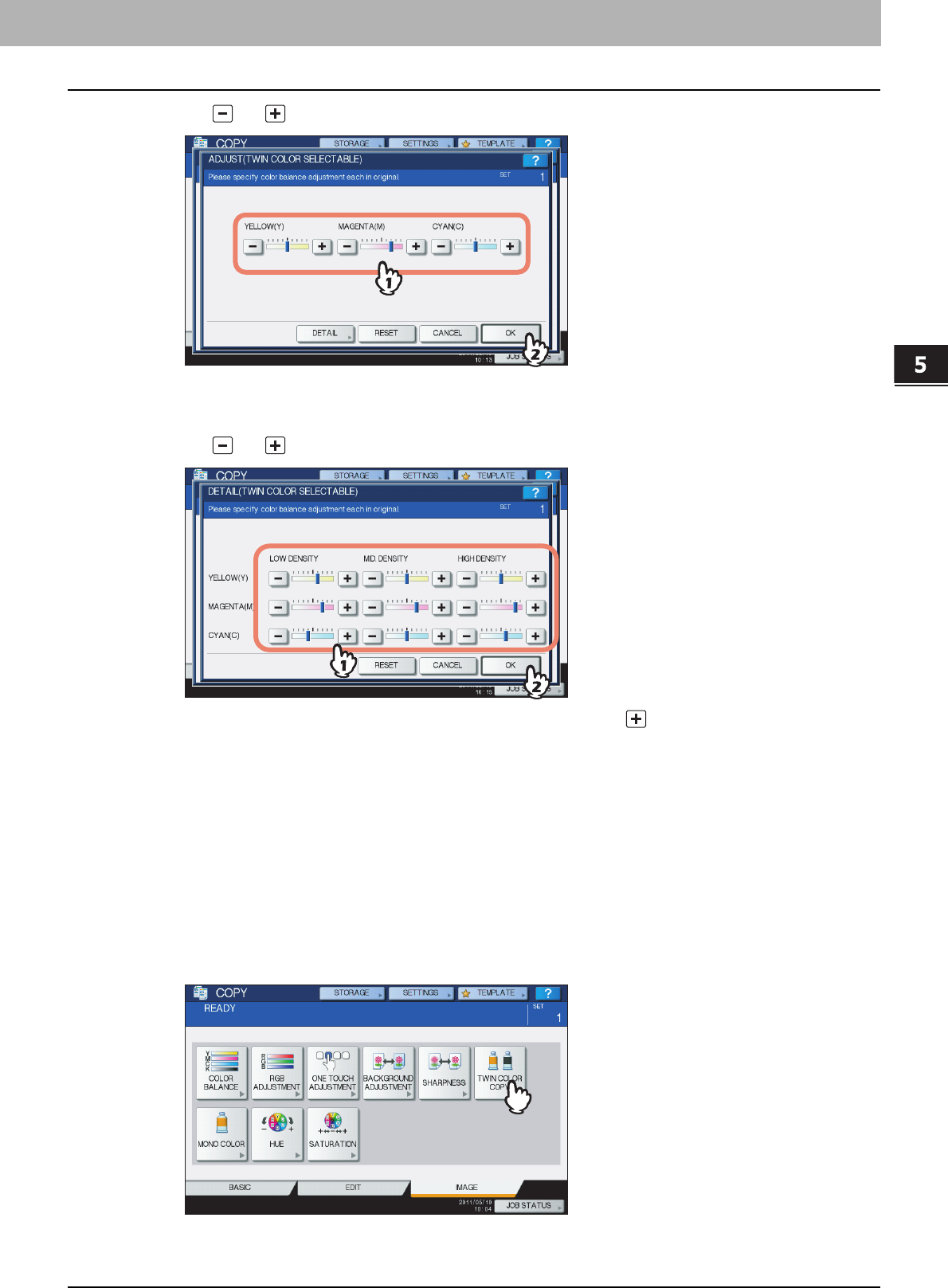
5.IMAGE ADJUSTMENT
Using Image Adjustment Functions 145
5 IMAGE ADJUSTMENT
5
Press or of the color to obtain the desired color balance.
After completing the adjustment, press [OK]. This is the end of the setting.
If you want to adjust each color balance on every density area, press [DETAIL] and go to the next step.
6
Press or of the color on each density area to obtain the desired color balance.
For example, when you adjust the high density area of magenta (M) to the side, the magenta in its high density
area becomes darker.
After completing the adjustment, press [OK].
Canceling color balance adjustment
yMove the indicator of the color whose adjustment you want to cancel to the middle, and then press [OK].
yIf you want to cancel the adjustment of all colors, press [RESET], and then [OK].
RED & BLACK
1
Press [TWIN COLOR COPY] in the IMAGE menu.
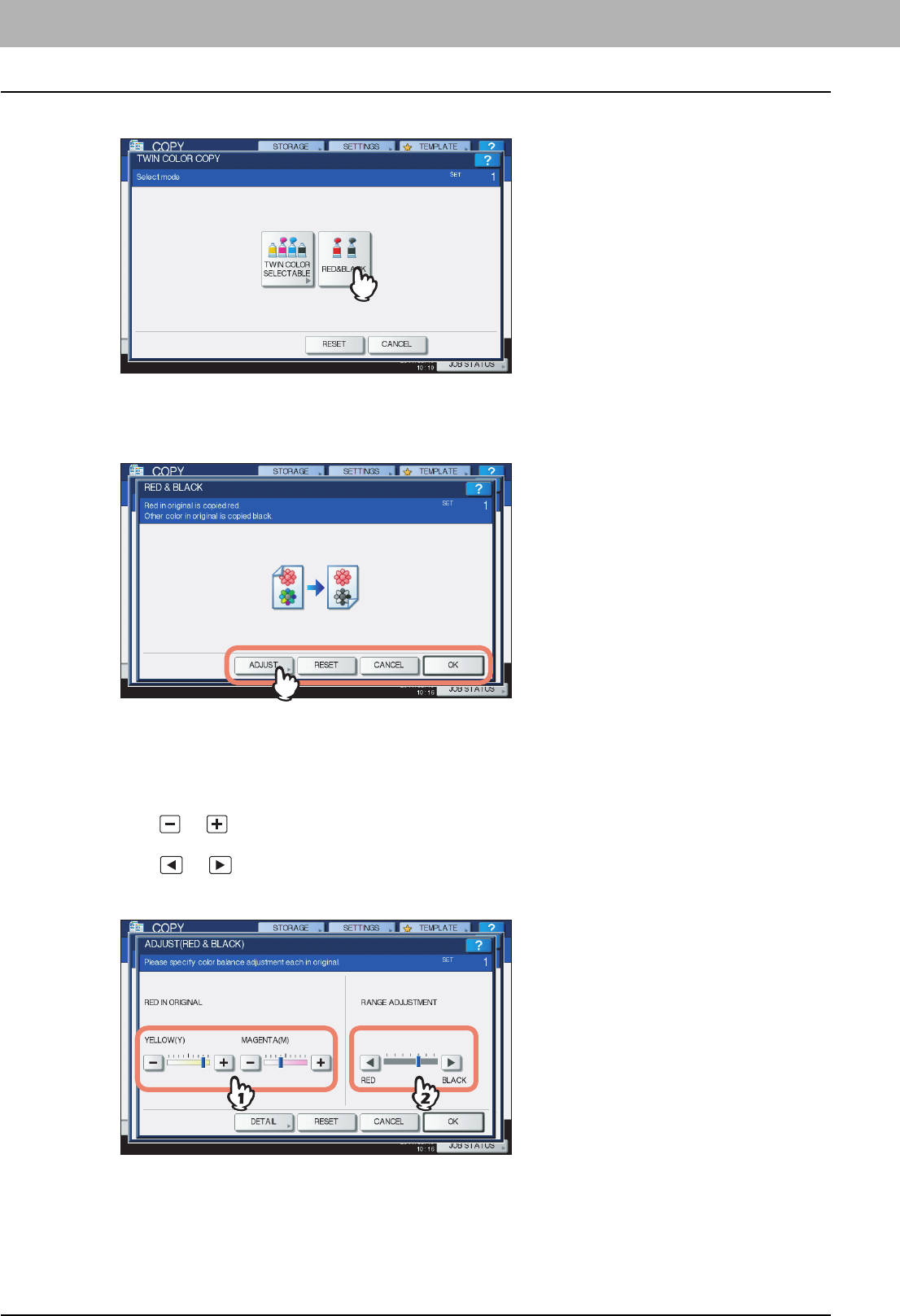
5 IMAGE ADJUSTMENT
146 Using Image Adjustment Functions
2
Press [RED & BLACK].
3
To adjust the red color or the red-and-black area, press [ADJUST]. If you do not want to
adjust the color, press [OK].
If you do not adjust the red color or the red-and-black area, this is the end of the setting.
If you want to adjust it, go to the next step.
4
Adjust the red color or the red-and-black area.
Red in original
Press or of yellow or magenta to adjust the red color balance.
Range Adjustment
Press or to adjust the red-and-black area. When you set the red area to be larger, the area to be
copied in red becomes larger. When you set the black area to be larger, the area to be copied in black becomes
larger.
After completing the adjustment, press [OK]. This is the end of the setting.
If you want to adjust color balance of yellow and magenta on every density area, press [DETAIL] and go to the next
step.
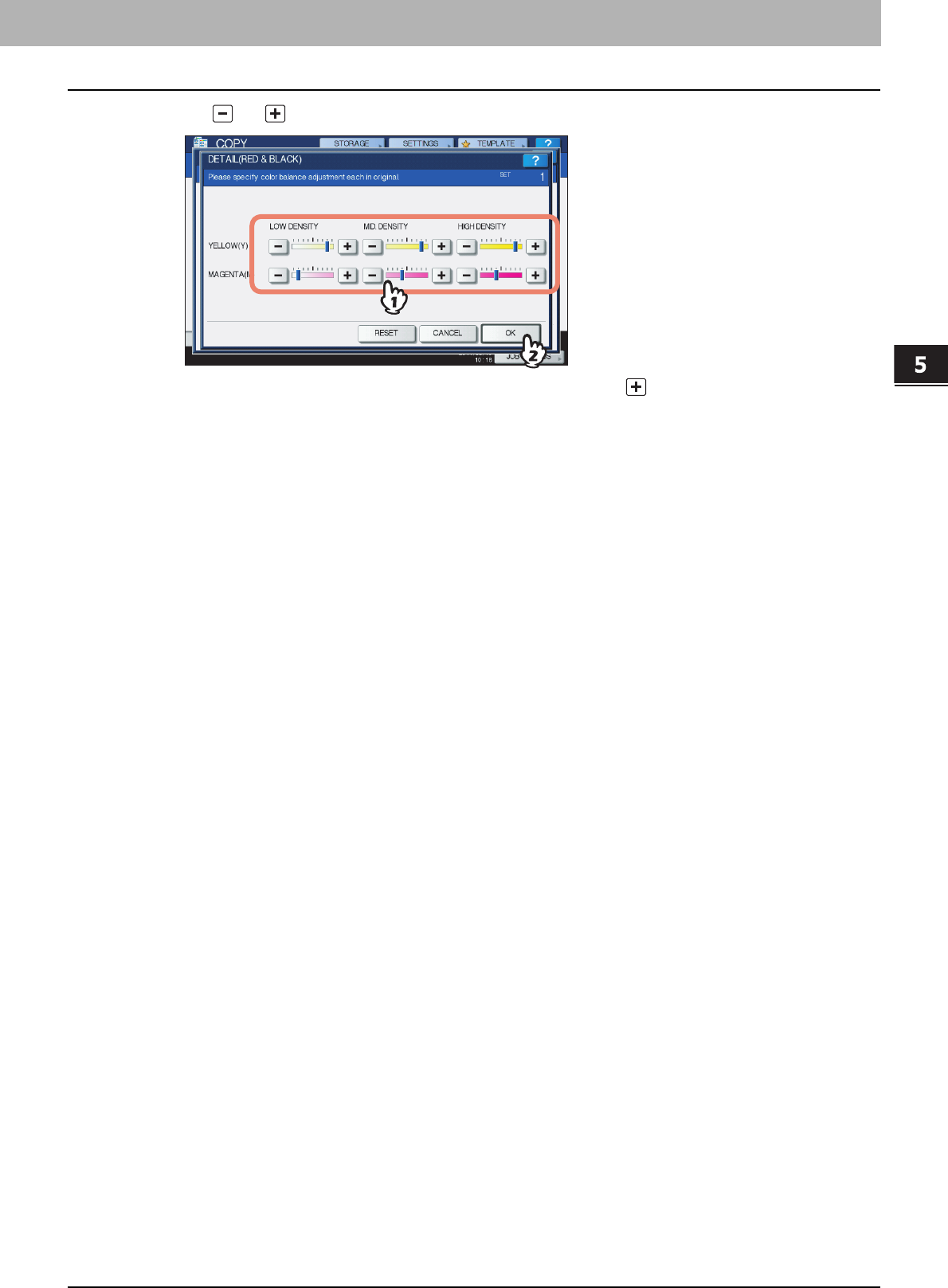
5.IMAGE ADJUSTMENT
Using Image Adjustment Functions 147
5 IMAGE ADJUSTMENT
5
Press or on each density area to obtain the desired color balance.
For example, when you adjust the high density area of magenta (M) to the side, the magenta in its high density
area will become darker.
After completing the adjustment, press [OK].
Canceling color balance adjustment
yMove the indicator of the color whose adjustment you want to cancel to the middle, and then press [OK].
yIf you want to cancel the adjustment of all colors, press [RESET], and then [OK].
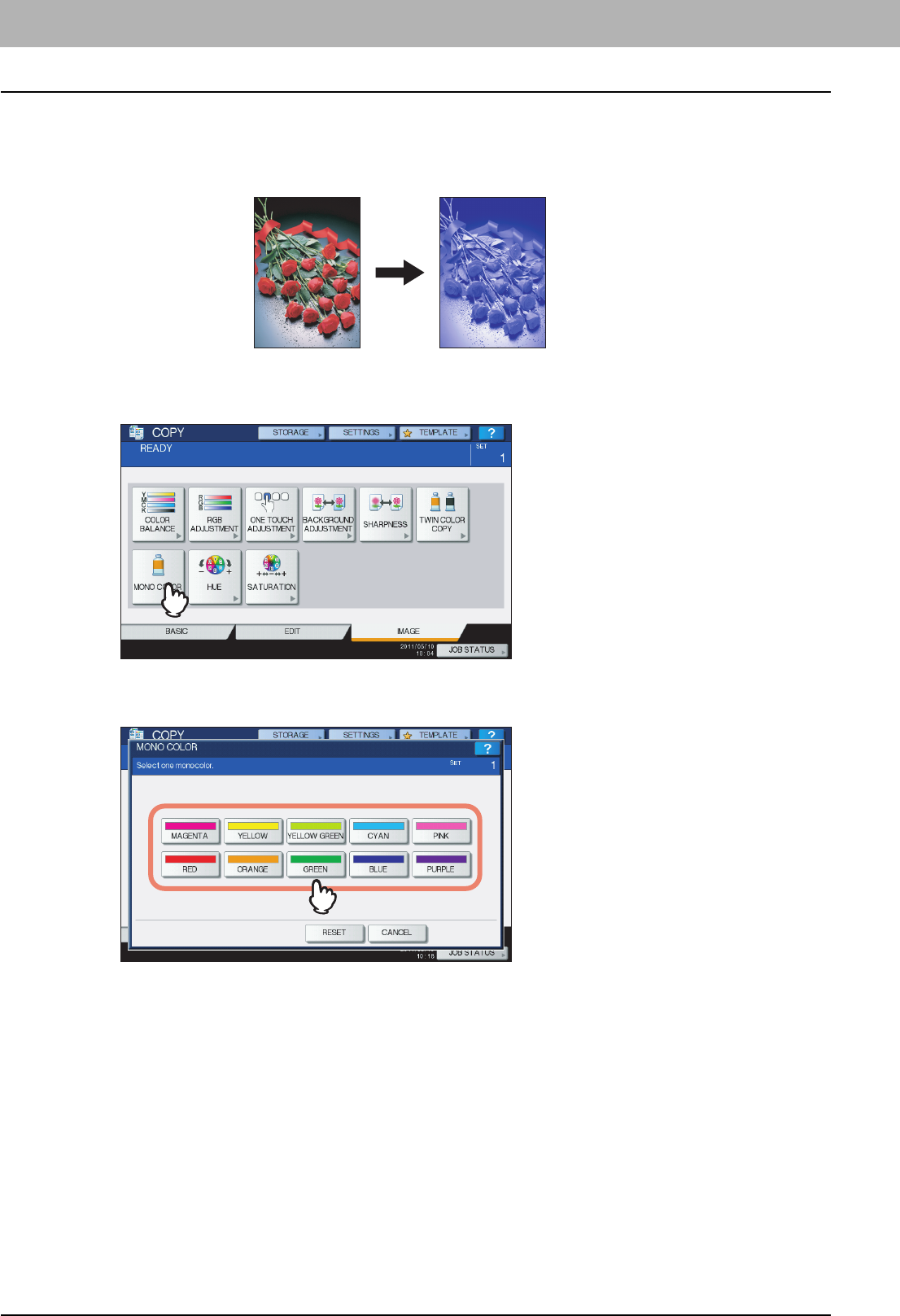
5 IMAGE ADJUSTMENT
148 Using Image Adjustment Functions
Mono color copying
This function allows you to make copies in a single color except black.
1
Press [MONO COLOR] in the IMAGE menu.
2
Press the button corresponding to the desired color.
Canceling mono color copying
Press [RESET].
BLUE
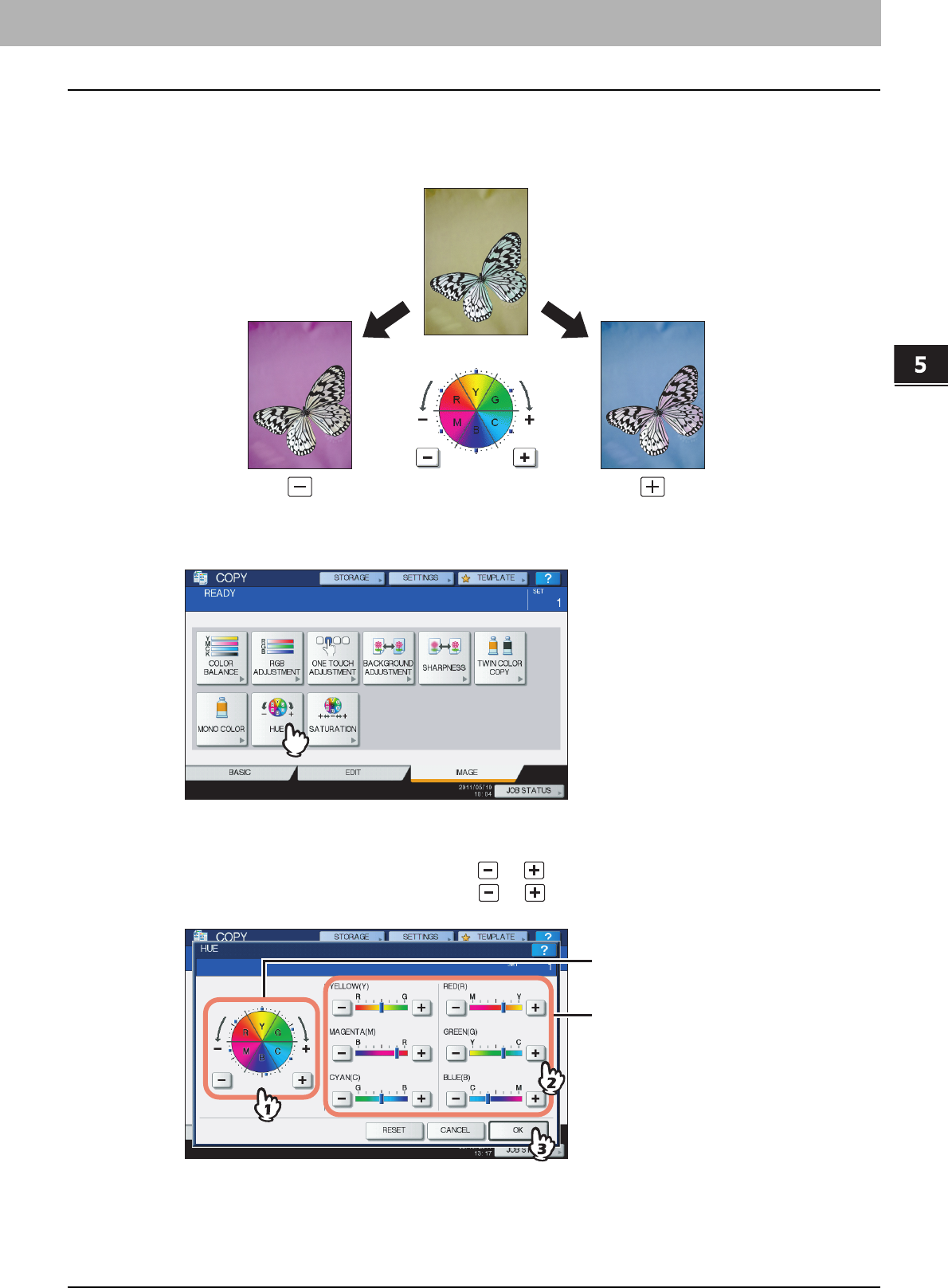
5.IMAGE ADJUSTMENT
Using Image Adjustment Functions 149
5 IMAGE ADJUSTMENT
Hue
This function allows you to adjust the hue of the basic color. This function is available in the full color mode or the auto
color mode.
1
Press [HUE] in the IMAGE menu.
2
Adjust the hue.
1) Adjust the hue of the entire image by pressing or , in section A.
2) Adjust the hue of each basic color by pressing or , in section B.
3) Press [OK].
Canceling hue adjustment
yMove the indicator of the color whose adjustment you want to cancel to the middle, and then press [OK].
yIf you want to cancel the adjustment of all colors, press [RESET], and then [OK].
A
B
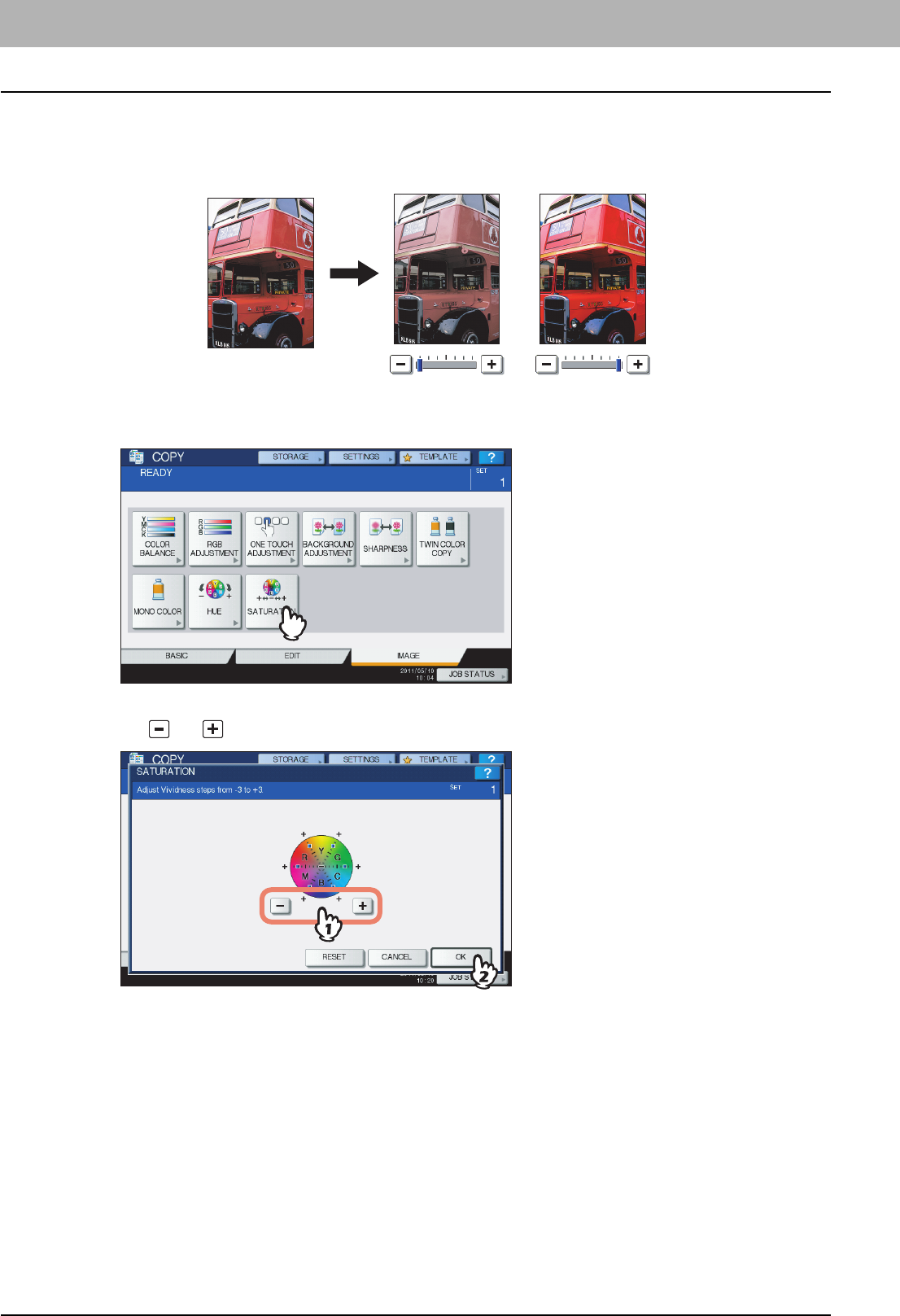
5 IMAGE ADJUSTMENT
150 Using Image Adjustment Functions
Saturation
This function enables you to adjust the color saturation of the entire image. This function is available in the full color mode
or the auto color mode.
1
Press [SATURATION] in the IMAGE menu.
2
Press or to adjust the saturation, and then press [OK].
Canceling saturation adjustment
y Move the indicator to the middle, and then press [OK].
y Press [RESET], and then [OK].

6.TEMPLATES
This chapter describes how to use templates.
Templates.............................................................................................................................. 152
Displaying template menu ..................................................................................................................................152
Using “Useful Templates” ...................................................................................................................................153
Registering Templates ......................................................................................................... 155
Registering templates into the public template group ........................................................................................155
Creating a new private group .............................................................................................................................158
Registering templates into a private group .........................................................................................................159
Recalling Templates............................................................................................................. 161
Changing Data ...................................................................................................................... 164
Changing private group data ..............................................................................................................................164
Changing template data .....................................................................................................................................165
Deleting Groups or Templates ............................................................................................ 167
Deleting private groups.......................................................................................................................................167
Deleting templates..............................................................................................................................................168
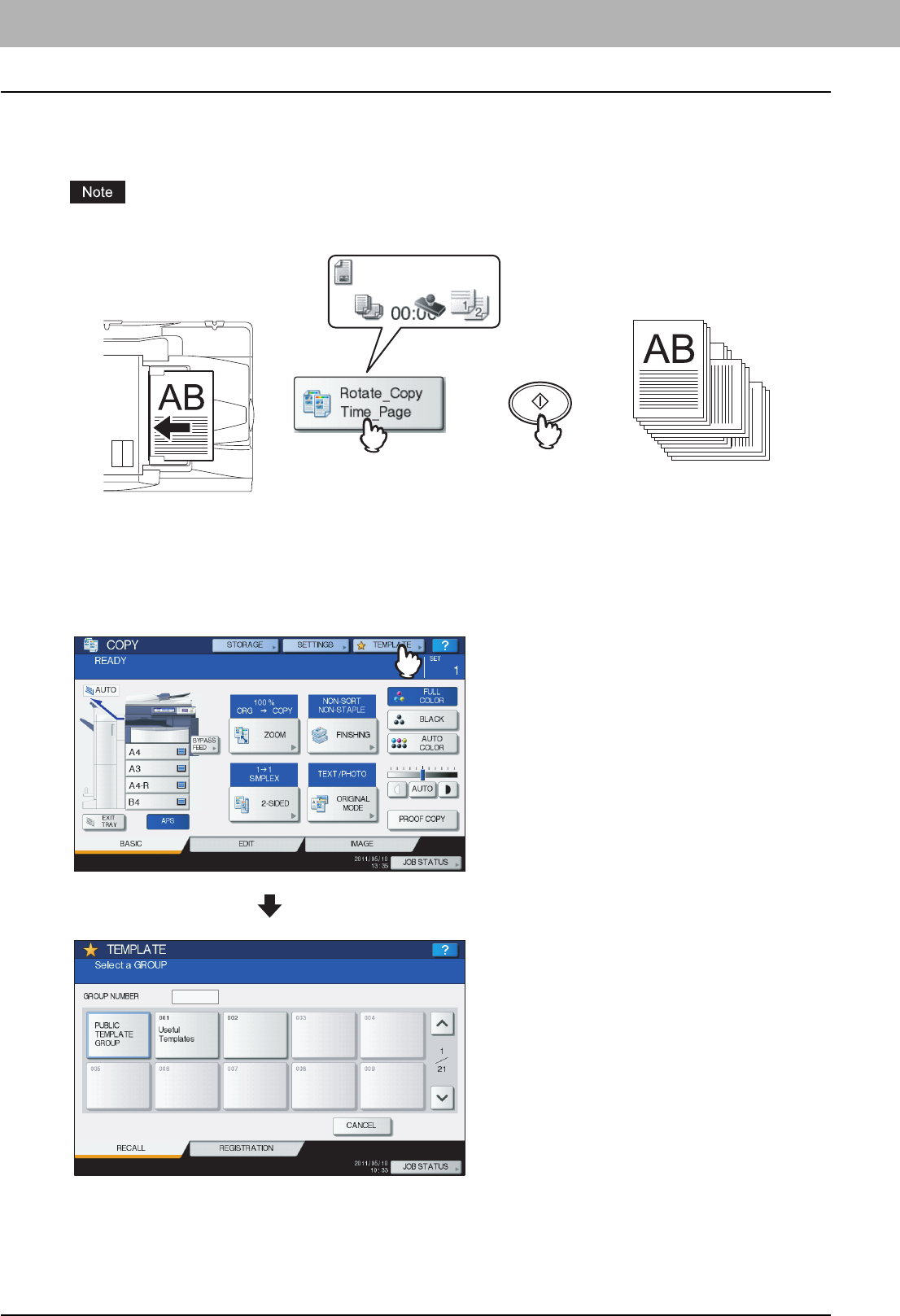
6 TEMPLATES
152 Templates
Templates
You can create a template with several functions that are frequently used so that they can be employed whenever you
want by recalling the template, thus eliminating the need to perform complicated settings every time. Templates can be
used in copying, scanning and sending a fax.
Fax functions are available only when the FAX Unit (optional) is installed.
Displaying template menu
You can display the template menu by pressing [TEMPLATE] on the touch panel when you want to register or recall
templates.
2011.5.5
1
2011.5.5
1
2011.5.5
1
2011.5.5
1
=++
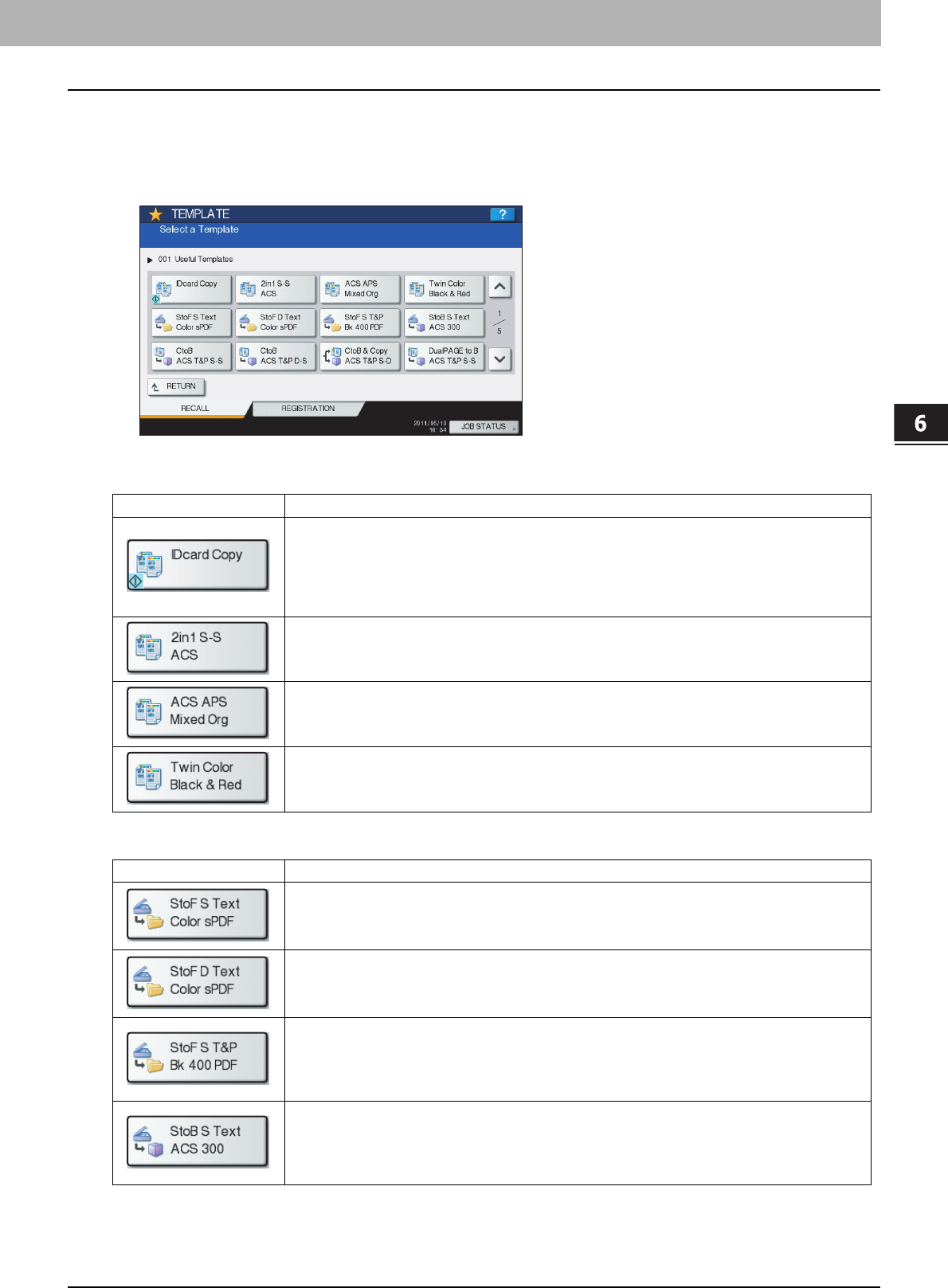
6.TEMPLATES
Templates 153
6 TEMPLATES
Using “Useful Templates”
This equipment has 12 default templates that can be used immediately. They are registered to the group number 001
“Useful Templates”. For how to recall them, see the following page:
P.161 “Recalling Templates”
Templates with copying functions
Templates with scanning functions
Button Function *1
Original size: 2-sided small originals, such as business cards
Paper size: A4 (equipment for the A/B format), LT (equipment for the LT format)
2IN1 / 4IN1: 2IN1
(Place the original on the original glass before recalling the template since the automatic start is
enabled in this template. After scanning the front side and then the back of the 2-sided original, press
[JOB FINISH] to start copying.)
Color mode: AUTO COLOR
2IN1 / 4IN1: 2IN1
Simplex/Duplex: 1 -> 1 SIMPLEX
Color mode: AUTO COLOR
Paper selection: Automatic Paper Selection
Original size: Mixed-size
TWIN/MONO COLOR: TWIN COLOR (BLACK & RED)
Button Function *1
Original: 1-sided
Color mode: FULL COLOR
Original mode: TEXT
Storing method: Stored in the share folder of this equipment as a high-compression PDF file (multi)
Original: 2-sided
Color mode: FULL COLOR
Original mode: TEXT
Storing method: Stored in the share folder of this equipment as a high-compression PDF file (multi)
Original: 1-sided
Color mode: BLACK
Original mode: TEXT/PHOTO
Resolution: 400 dpi
Storing method: Stored in the share folder of this equipment as a PDF file (multi)
Original: 1-sided
Color mode: AUTO COLOR
Original mode: TEXT
Resolution: 300 dpi
Storing method: Stored in the e-Filing box (public box)
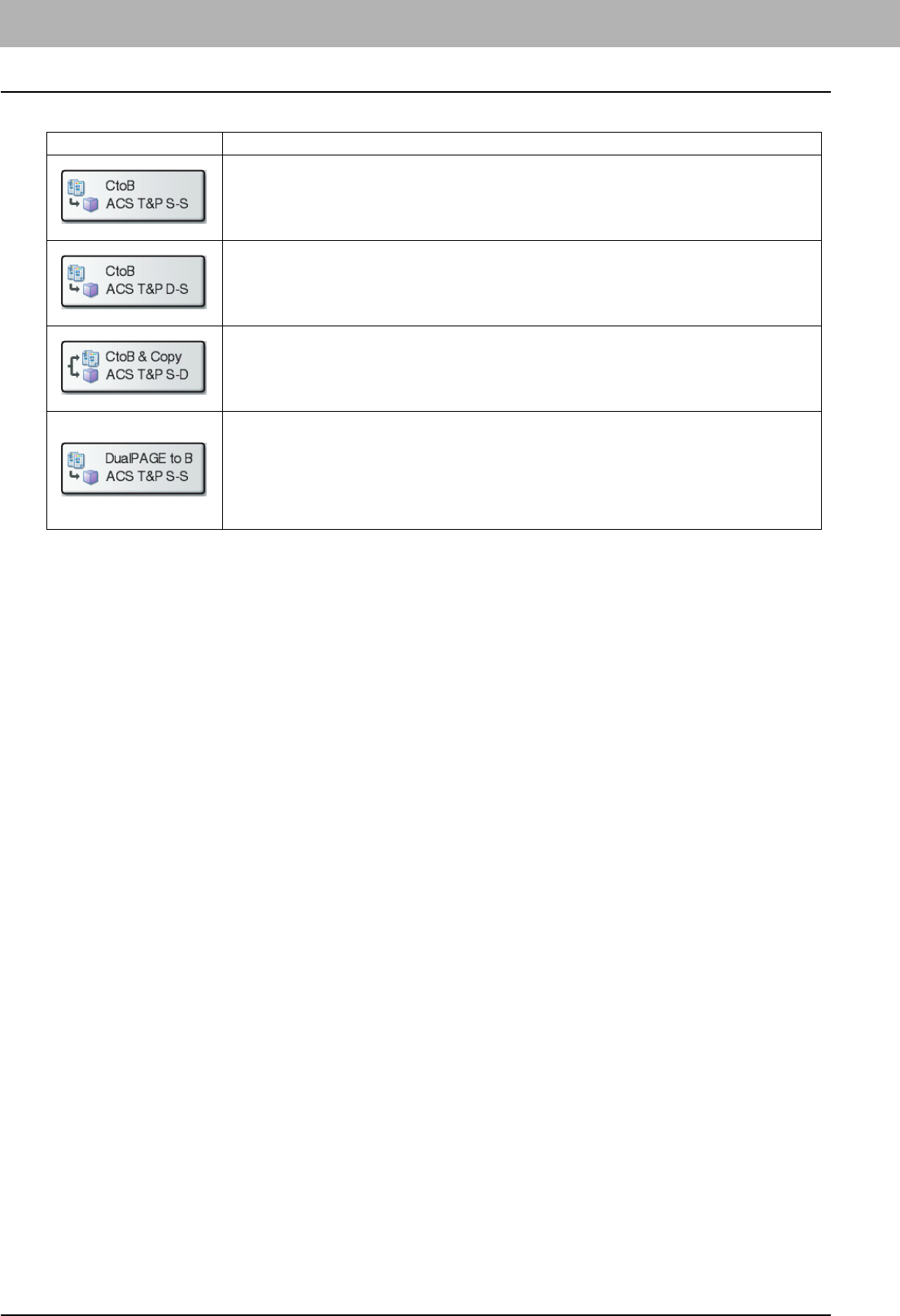
6 TEMPLATES
154 Templates
Templates with e-Filing functions
*1 Functions other than those noted here are in their default settings.
Button Function *1
Color mode: AUTO COLOR
Original mode: TEXT/PHOTO
Simplex/Duplex: 1 -> 1 SIMPLEX
Storing method: Stored in the e-Filing box
No copying
Color mode: AUTO COLOR
Original mode: TEXT/PHOTO
Simplex/Duplex: 2 -> 1 SPLIT
Storing method: Stored in the e-Filing box
No copying
Color mode: AUTO COLOR
Original mode: TEXT/PHOTO
Simplex/Duplex: 1 -> 2 DUPLEX
Storing method: Stored in the e-Filing box
Copying performed
Color mode: AUTO COLOR
Original mode: TEXT/PHOTO
Simplex/Duplex: 1 -> 1 SIMPLEX
Editing function: Dual page
Storing method: Stored in the e-Filing box (public box)
No copying
(The dual page function is available only for A4, LT and B5 sizes.)
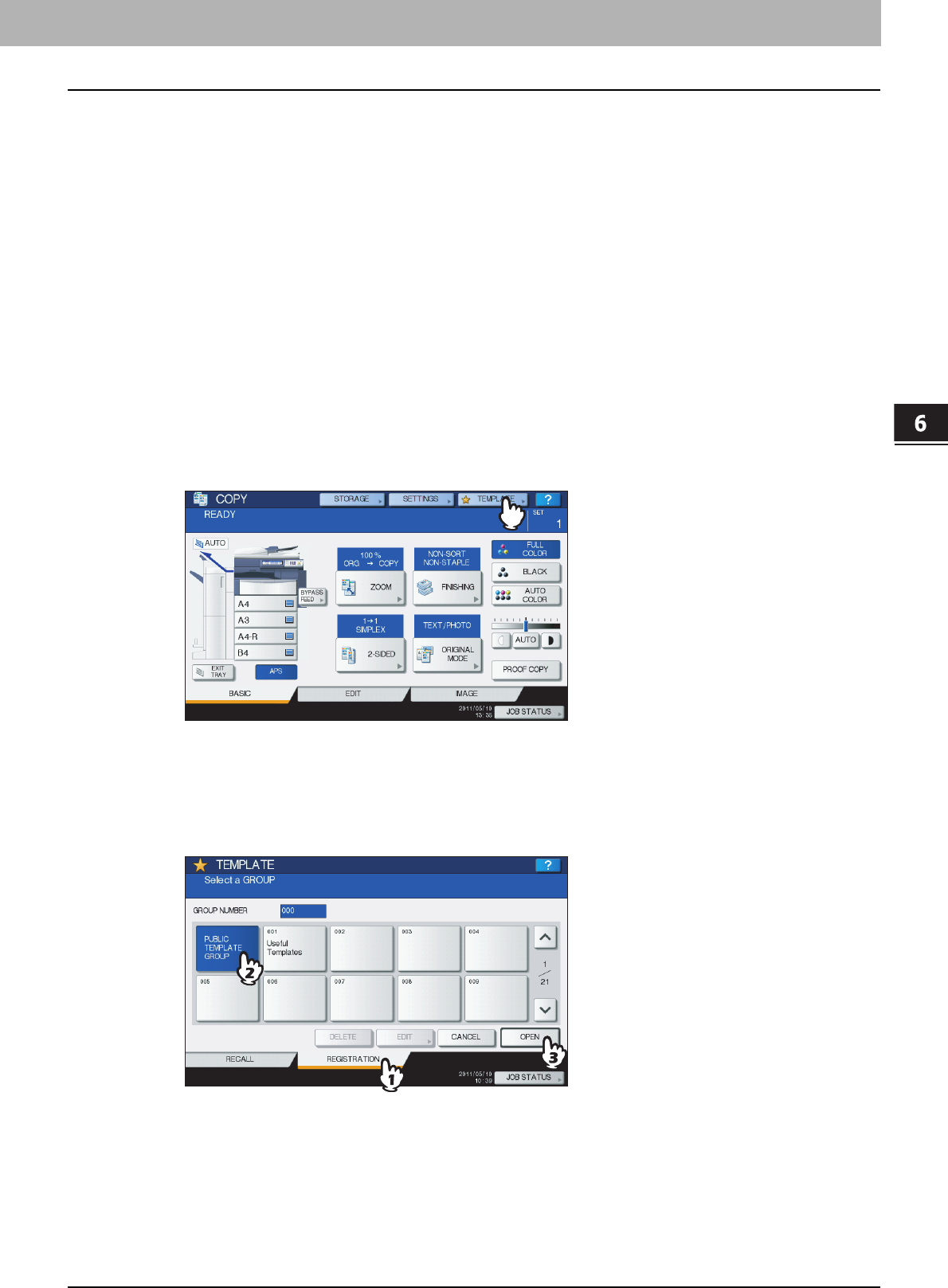
6 TEMPLATES
Registering Templates 155
Registering Templates
Templates must be registered to either the “public template group” or “private groups”. You can set a password to restrict
the use of registered templates.
Public template group:
Provided by default. Templates in this group can be used by everyone. It is useful to register several combinations of
functions frequently used in the entire office or department. Up to 60 templates can be registered to the public group. The
Admin (administrator) Password is required when you wish to register, delete or change templates in the public template
group.
Private group:
You can create up to 200 private groups. These are useful for each department, section or user. Up to 60 templates can be
registered per group. You can set a password to restrict the use of the registered templates. “Useful Templates” are
registered under the group 001 by default.
Registering templates into the public template group
1
Set all the required functions.
Example: Editing function – image shift, reproduction ratio – 90%, number of copy sets –10
2
Press [TEMPLATE] on the touch panel.
The template menu appears.
3
Select the public template group.
1) Press the [REGISTRATION] tab.
2) Press [PUBLIC TEMPLATE GROUP].
3) Press [OPEN].
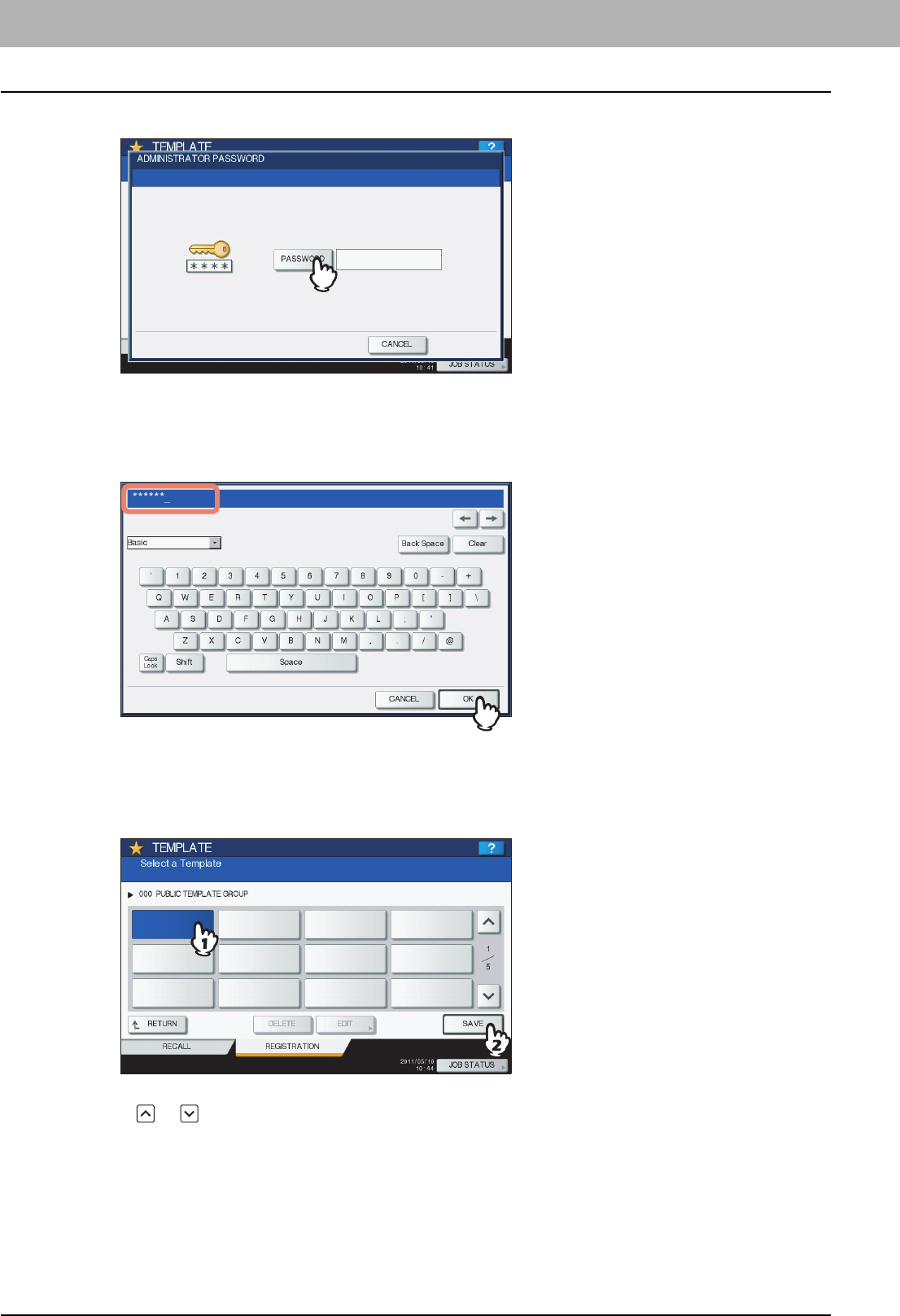
6 TEMPLATES
156 Registering Templates
4
Press [PASSWORD].
The on-screen keyboard appears.
5
Enter the Admin Password using the on-screen keyboard or the digital keys. Then
press [OK].
6
Select a template.
1) Press a blank button.
2) Press [SAVE].
To switch the menu
Press or .
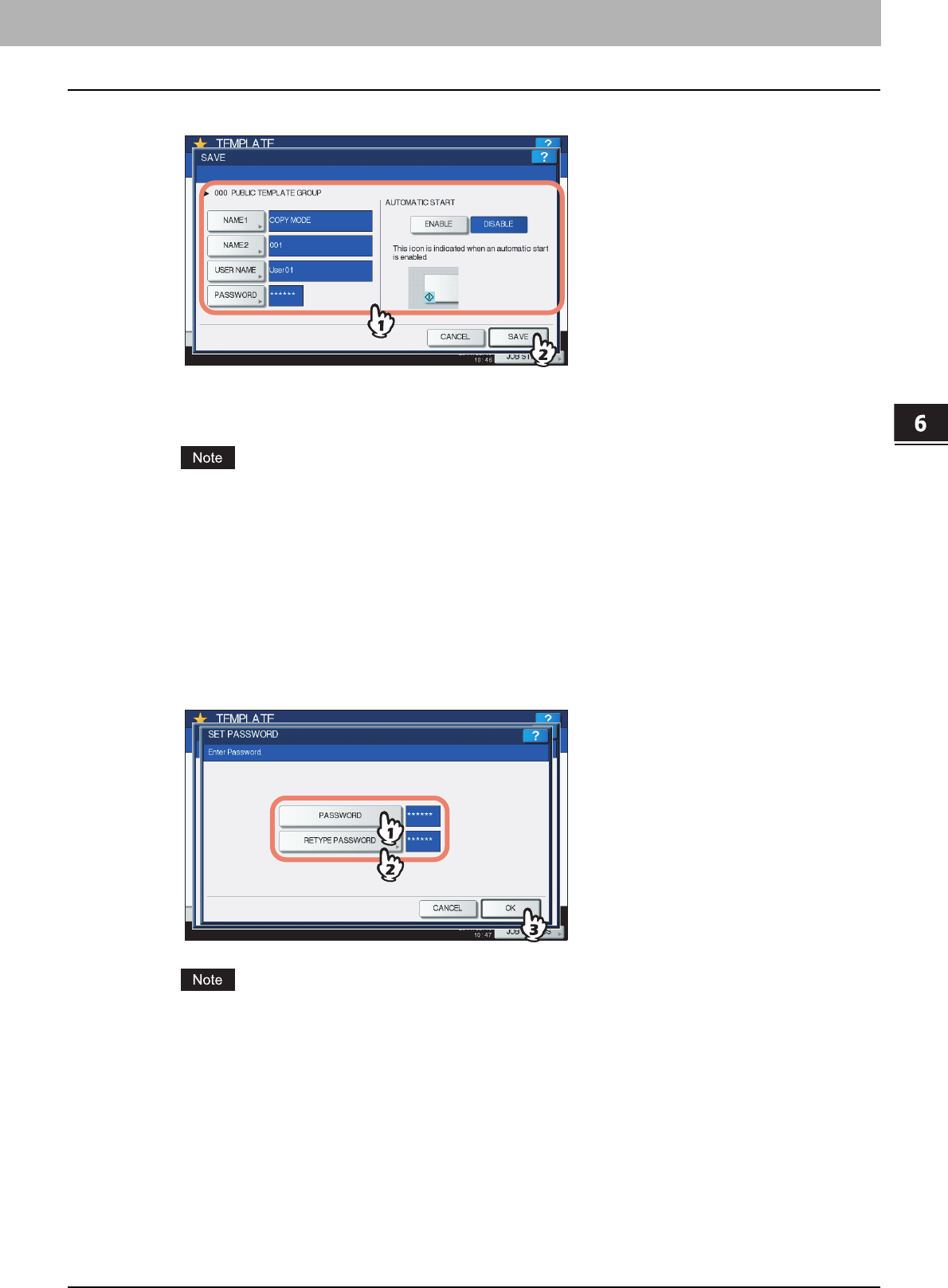
6.TEMPLATES
Registering Templates 157
6 TEMPLATES
7
Enter the necessary information about the template.
NAME 1 & 2: Enter the name of the template. NAME 1 appears above the template button and NAME 2 appears
below. Be sure to enter at least one of them. When you press either of them, the on-screen keyboard appears.
Enter within 11 characters.
The symbols below cannot be used.
; : / \ " = | * < > ? + [ ] , .
USER NAME: Enter the name of the template owner as required. When you press it, the on-screen keyboard
appears. Enter within 30 characters.
PASSWORD: Key in a password here, if you want to require a password to recall the template. When you press it,
the on-screen keyboard appears. Key in following the procedure below.
1) Press [PASSWORD] and then enter the password (up to 20 characters) with the buttons on the touch panel or
the digital keys on the control panel. The characters keyed in appear as asterisks (*).
2) Press [RETYPE PASSWORD], and then key in the password again.
3) Press [OK].
The symbols below cannot be used.
' \ $ % & < > [ ]
AUTOMATIC START: Press [ENABLE] if you want the operation of set functions to start immediately after pressing
a button for the corresponding template. Press [DISABLE] if you do not want it to start until you press the
[START] button on the control panel.
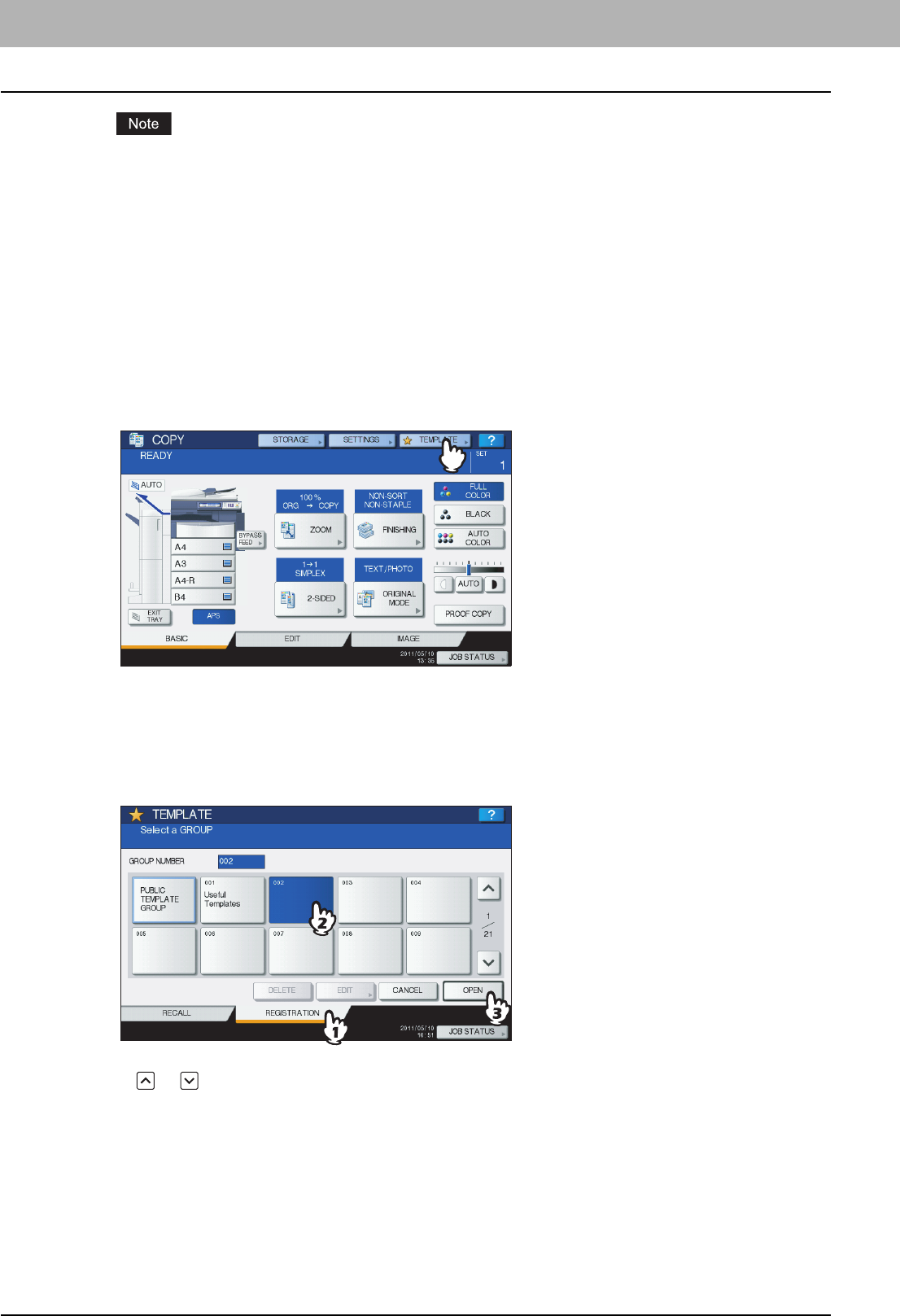
6 TEMPLATES
158 Registering Templates
Even when the automatic start function is enabled, you need to enter the user name and password when
recalling the template in the following cases. For details of the User Authentication for Scan to E-mail and the
user management function, ask your administrator.
yWhen the User Authentication for Scan to E-mail is enabled and the user management function is disabled
yWhen both the User Authentication for Scan to E-mail and the user management function are enabled, but
the user names and passwords are different
When you have entered all the necessary items, press [SAVE].
The template is now registered and the menu returns to the one immediately before registration.
Creating a new private group
1
Press [TEMPLATE] on the touch panel.
The template menu appears.
2
Select a group.
1) Press the [REGISTRATION] tab.
2) Select the desired group by pressing its button or keying in its group number (3 digits).
3) Press [OPEN].
To switch the menu
Press or .
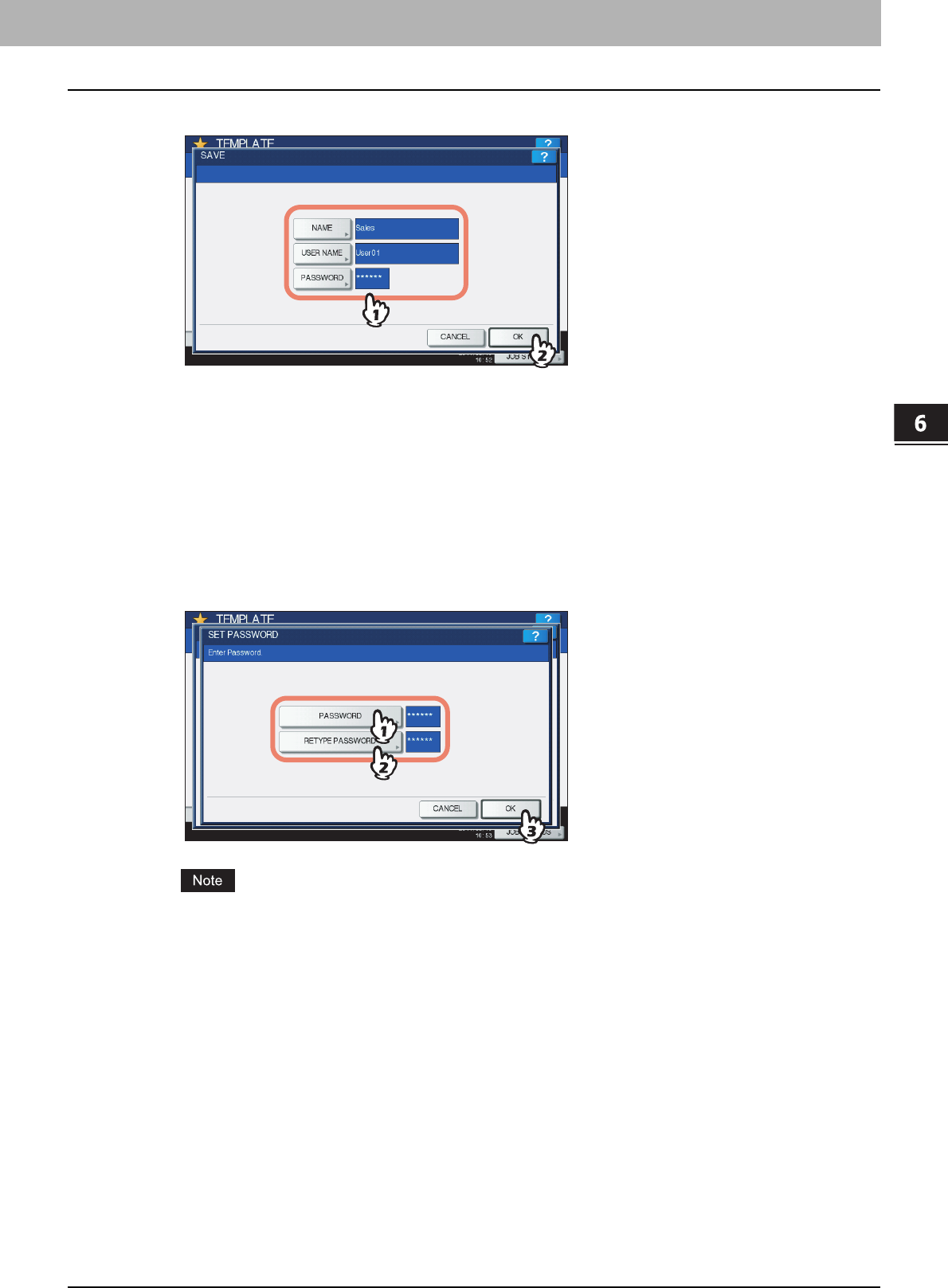
6.TEMPLATES
Registering Templates 159
6 TEMPLATES
3
Enter the necessary information about the group.
NAME: Enter the name of the group. When you press it, the on-screen keyboard appears. Enter within 20
characters. Be sure to enter it.
USER NAME: Enter the name of the group owner as required. When you press it, the on-screen keyboard
appears. Enter within 30 characters.
PASSWORD: Key in a password here, if you want to require a password to view the group or register templates
into the group. When you press it, the on-screen keyboard appears. Key in following the procedure below.
1) Press [PASSWORD] and then enter the password (up to 20 characters) with the buttons on the touch panel or
the digital keys on the control panel. The characters keyed in appear as asterisks (*).
2) Press [RETYPE PASSWORD], and then key in the password again.
3) Press [OK].
The symbols below cannot be used.
' \ $ % & < > [ ]
When you have entered all the necessary items, press [OK].
The new group is now registered and the menu moves to the one for registering templates.
4
Press the [FUNCTION CLEAR] button on the control panel.
The menu returns to the BASIC menu.
Registering templates into a private group
1
Set all the required functions.
Example: Editing function – image shift, reproduction ratio – 90%, number of copy sets – 10
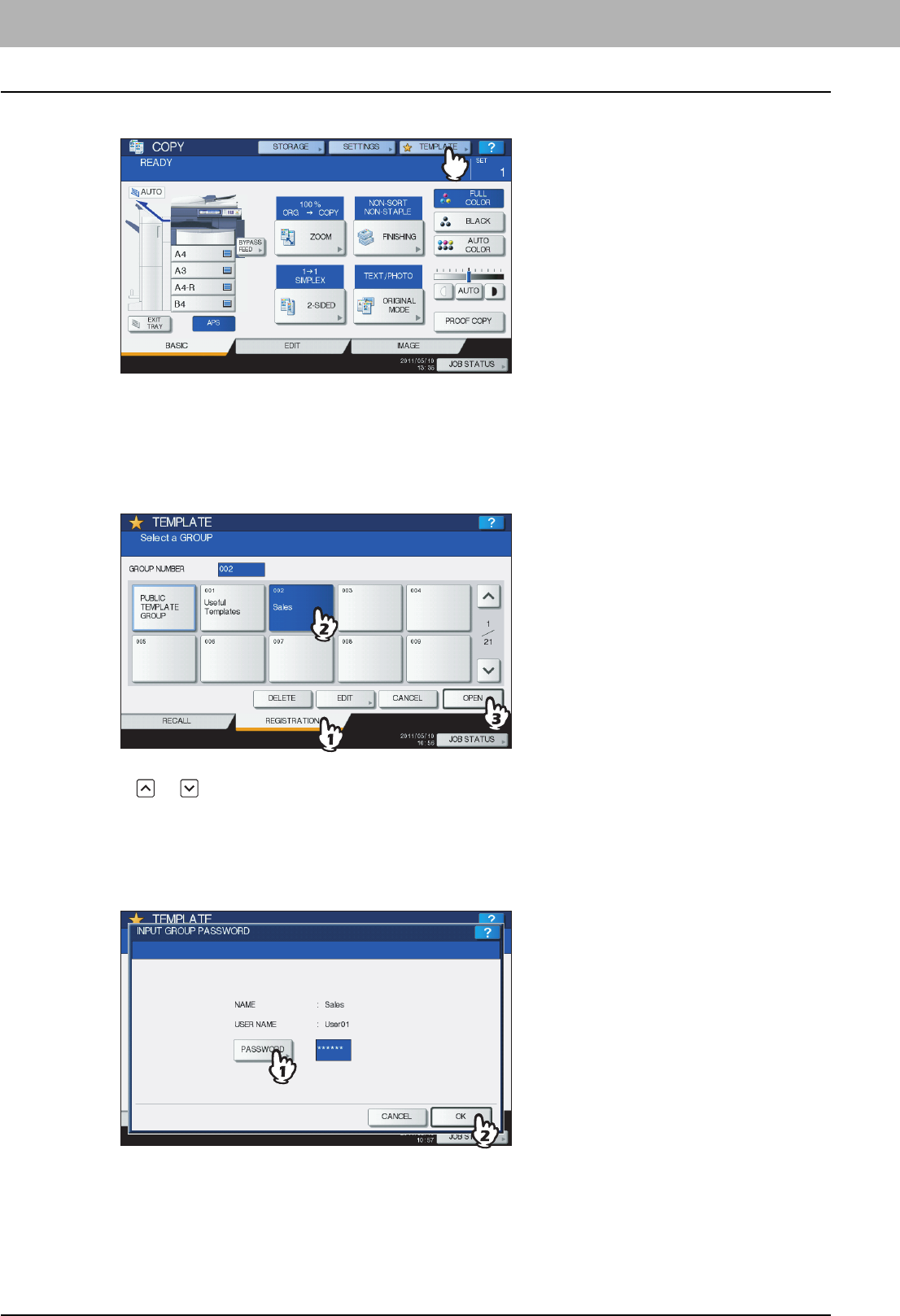
6 TEMPLATES
160 Registering Templates
2
Press [TEMPLATE] on the touch panel.
The template menu appears.
3
Select the desired group.
1) Press the [REGISTRATION] tab.
2) Select the desired group by pressing its button or keying in its group number (3 digits).
3) Press [OPEN].
To switch the menu
Press or .
4
Key in the password for the selected group. (If no password is set, go to step 5.)
1) Press [PASSWORD] and then enter the password with the buttons on the touch panel or the digital keys on the
control panel.
2) Press [OK].
5
Register a template following steps 6 and 7 on P.155 “Registering templates into the
public template group”.
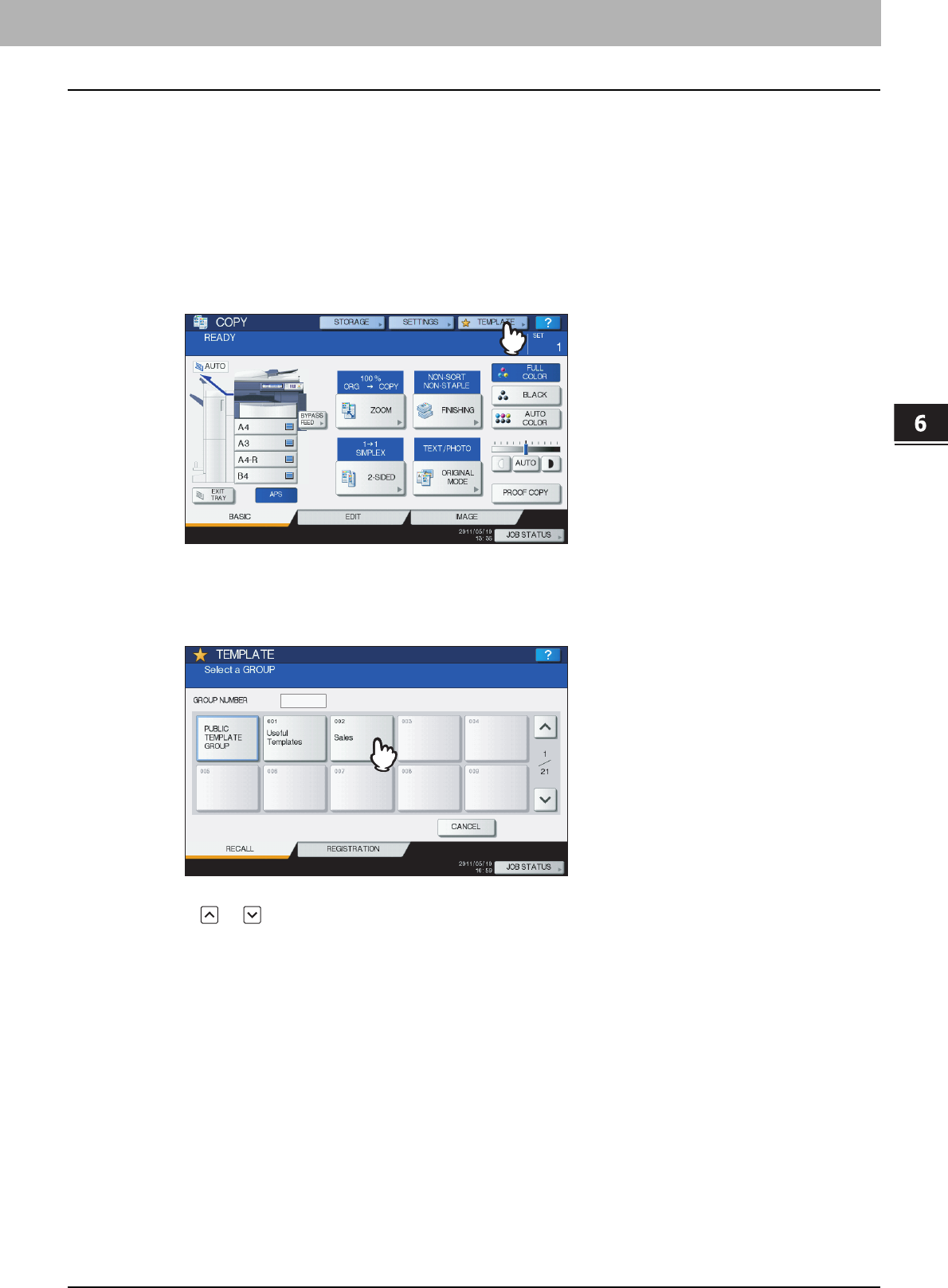
6 TEMPLATES
Recalling Templates 161
Recalling Templates
When you recall a template, the functions set in the template will be available automatically. If the automatic start function
is enabled, this equipment will automatically start the operation of each function when you press the button for the
corresponding template.
1
Place paper in the drawer(s).
2
Place the original(s).
3
Press [TEMPLATE] on the touch panel.
The template menu appears.
4
Press the button for the group to which the desired template is registered.
You can also select the group by keying in its group number (3 digits).
To switch the menu
Press or .
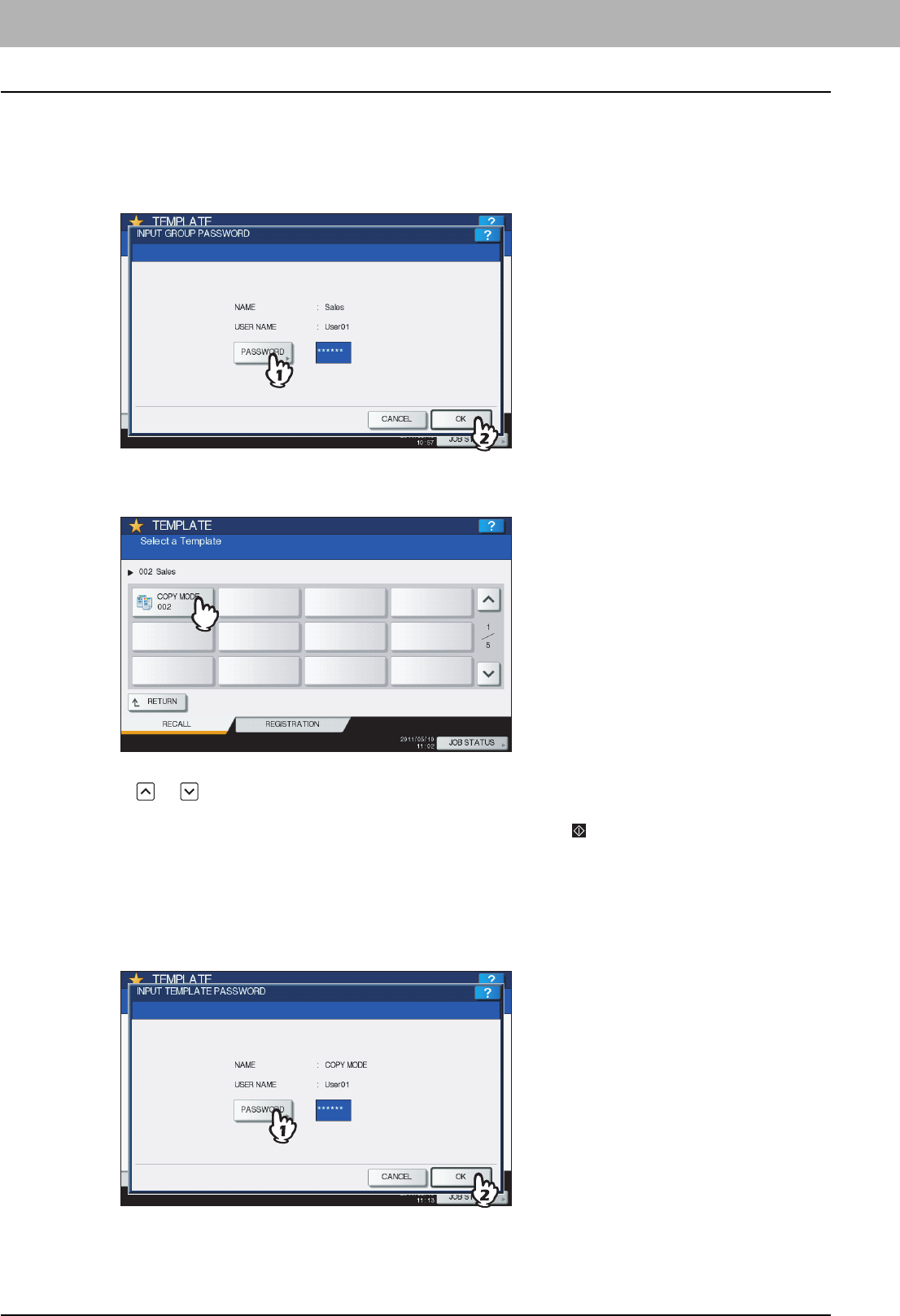
6 TEMPLATES
162 Recalling Templates
5
Key in the password when you have selected the private group. (If no password is set,
go to step 6.)
1) Press [PASSWORD] and then enter the password with the buttons on the touch panel or the digital keys on the
control panel.
2) Press [OK].
6
Press the button for the desired template.
To switch the menu
Press or .
Templates with the automatic start function enabled can be identified with . If this mark is displayed, you can
press it to immediately start the operation of the functions set in the template.
7
Key in the password for the selected template. (If no password is set, go to step 8.)
1) Press [PASSWORD] and then enter the password with the buttons on the touch panel or the digital keys on the
control panel.
2) Press [OK].
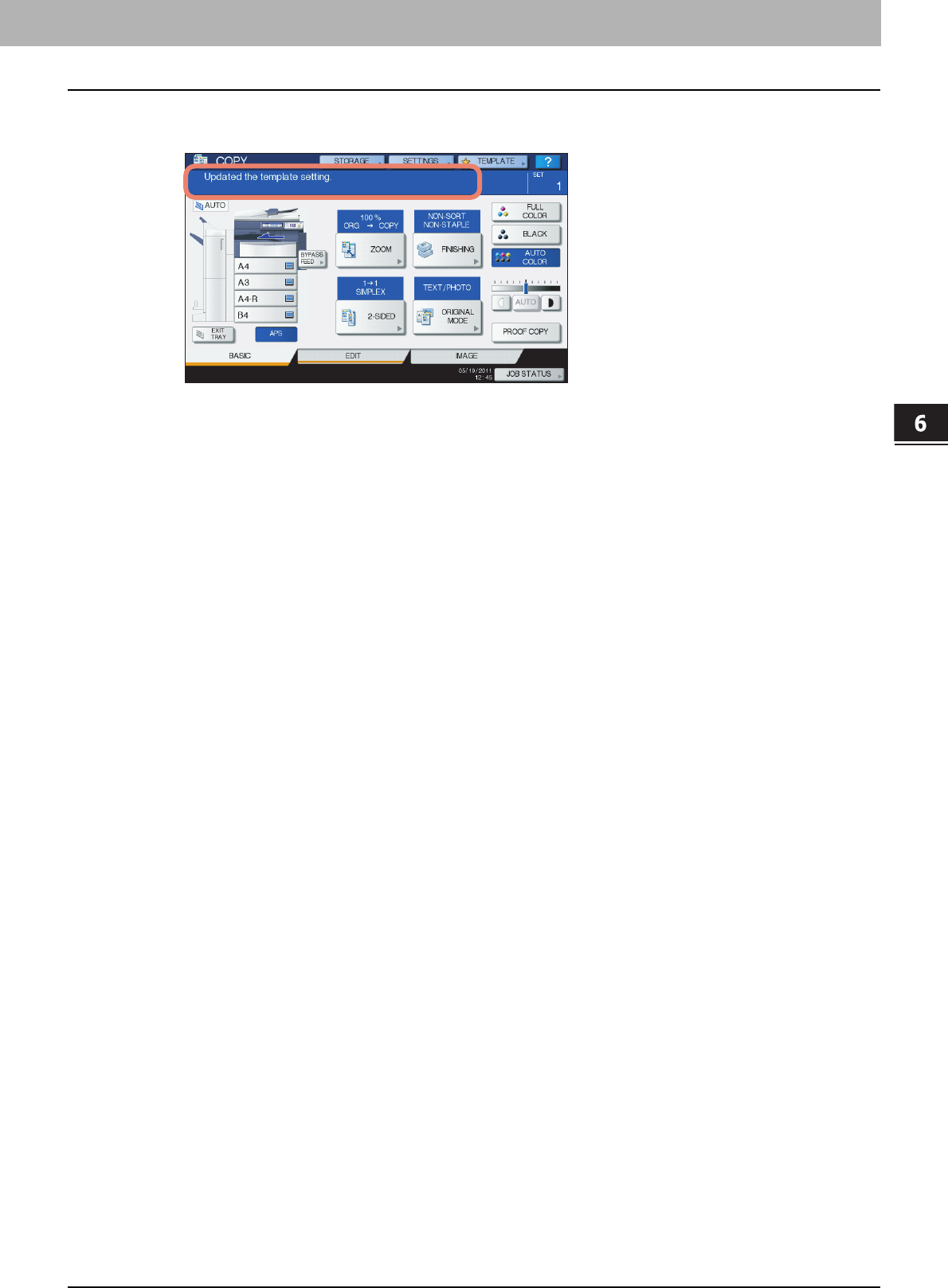
6.TEMPLATES
Recalling Templates 163
6 TEMPLATES
8
Confirm that “Updated the template setting” is displayed on the touch panel.
The message is displayed for approx. 3 seconds.
9
Select other copy modes as required, and then press the [START] button on the control
panel.
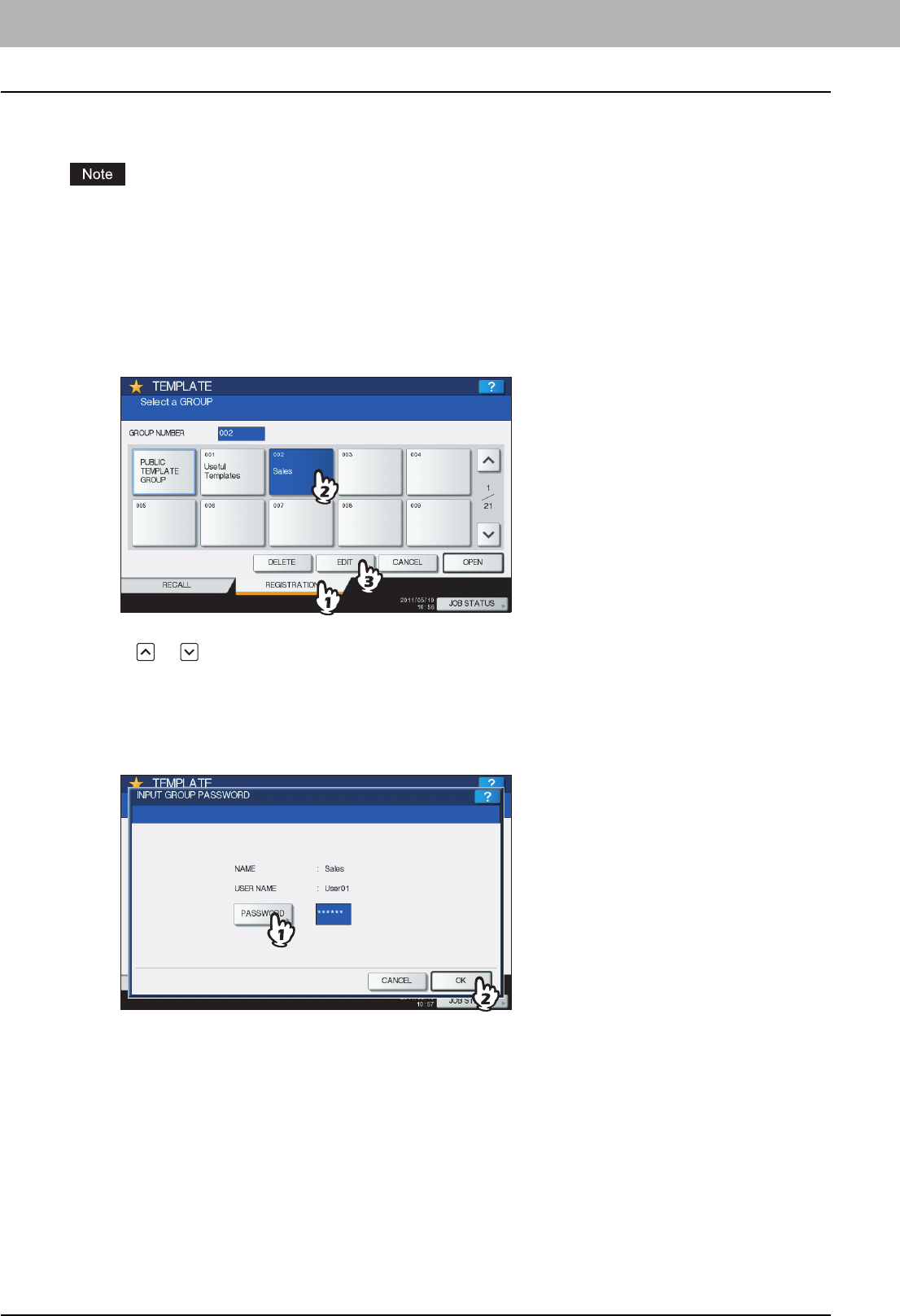
6 TEMPLATES
164 Changing Data
Changing Data
You can change the data of templates or private groups that are already registered, such as the template name, user
name, password and setting of the automatic start function.
The data of the public template group can be changed from the TopAccess menu but this cannot be done from the
control panel. For how to change them from the TopAccess menu, refer to the TopAccess Guide.
Changing private group data
1
In the template menu, select the desired group.
1) Press the [REGISTRATION] tab.
2) Select the desired group by pressing its button or keying in its group number (3 digits).
3) Press [EDIT].
To switch the menu
Press or .
2
Key in the password for the selected group. (If no password is set, go to step 3.)
1) Press [PASSWORD] and then enter the password with the buttons on the touch panel or the digital keys on the
control panel.
2) Press [OK].
3
Change the data following step 3 on P.158 “Creating a new private group”.
4
Press the [FUNCTION CLEAR] button on the control panel.
The menu returns to the BASIC menu.
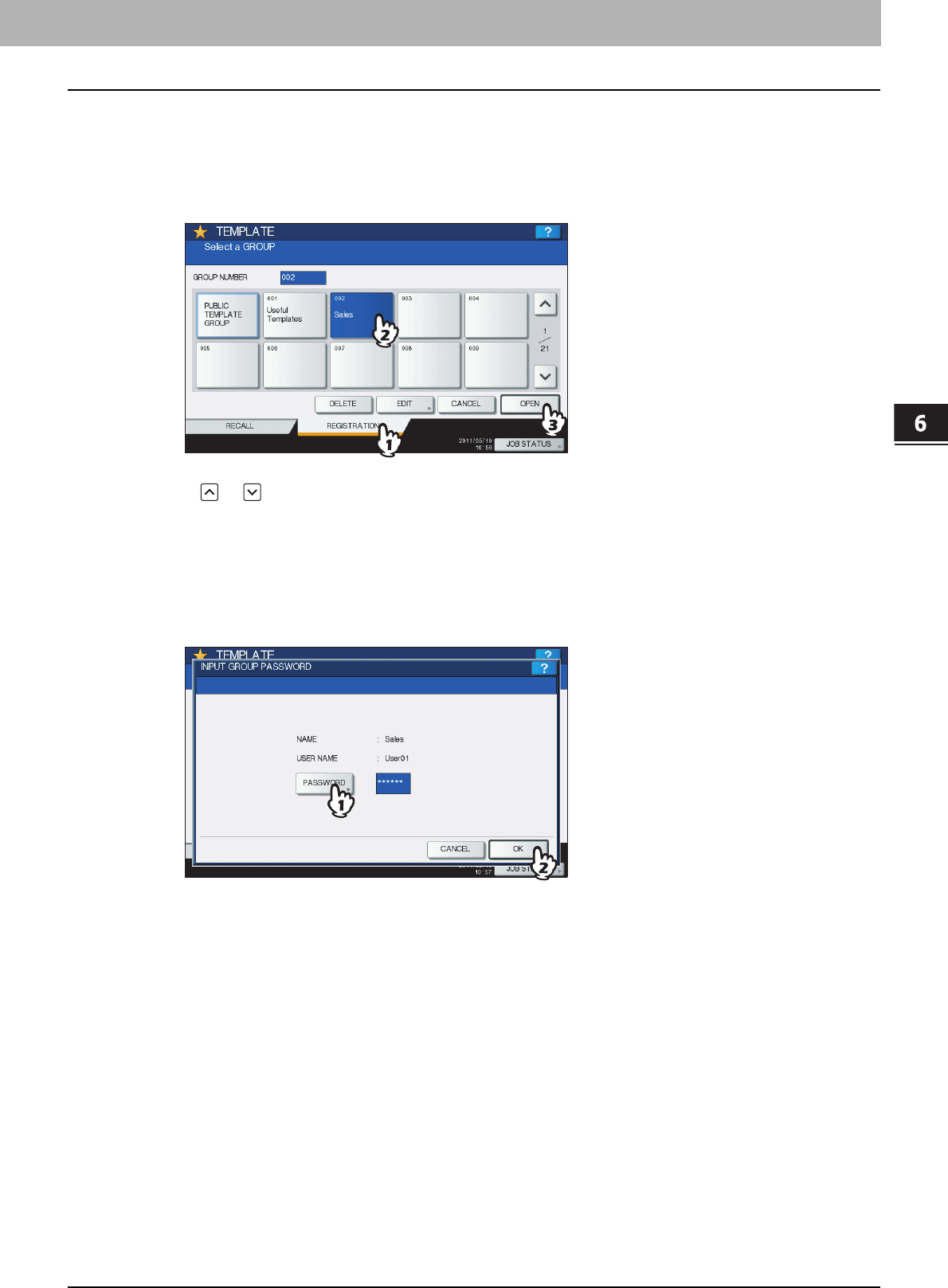
6.TEMPLATES
Changing Data 165
6 TEMPLATES
Changing template data
1
In the template menu, select the group to which the desired template is registered.
1) Press the [REGISTRATION] tab.
2) Select the desired group by pressing its button or keying in its group number (3 digits).
3) Press [OPEN].
To switch the menu
Press or .
2
Enter the password as follows and then press [OK].
When the public template group is selected: Press [PASSWORD] and then enter the Admin Password (6 to 64
characters) with the buttons on the touch panel or the digital keys on the control panel.
When a private group is selected: Press [PASSWORD] and then enter the password (up to 20 characters) with
the buttons on the touch panel or the digital keys on the control panel. If no password is set, go to step 3.
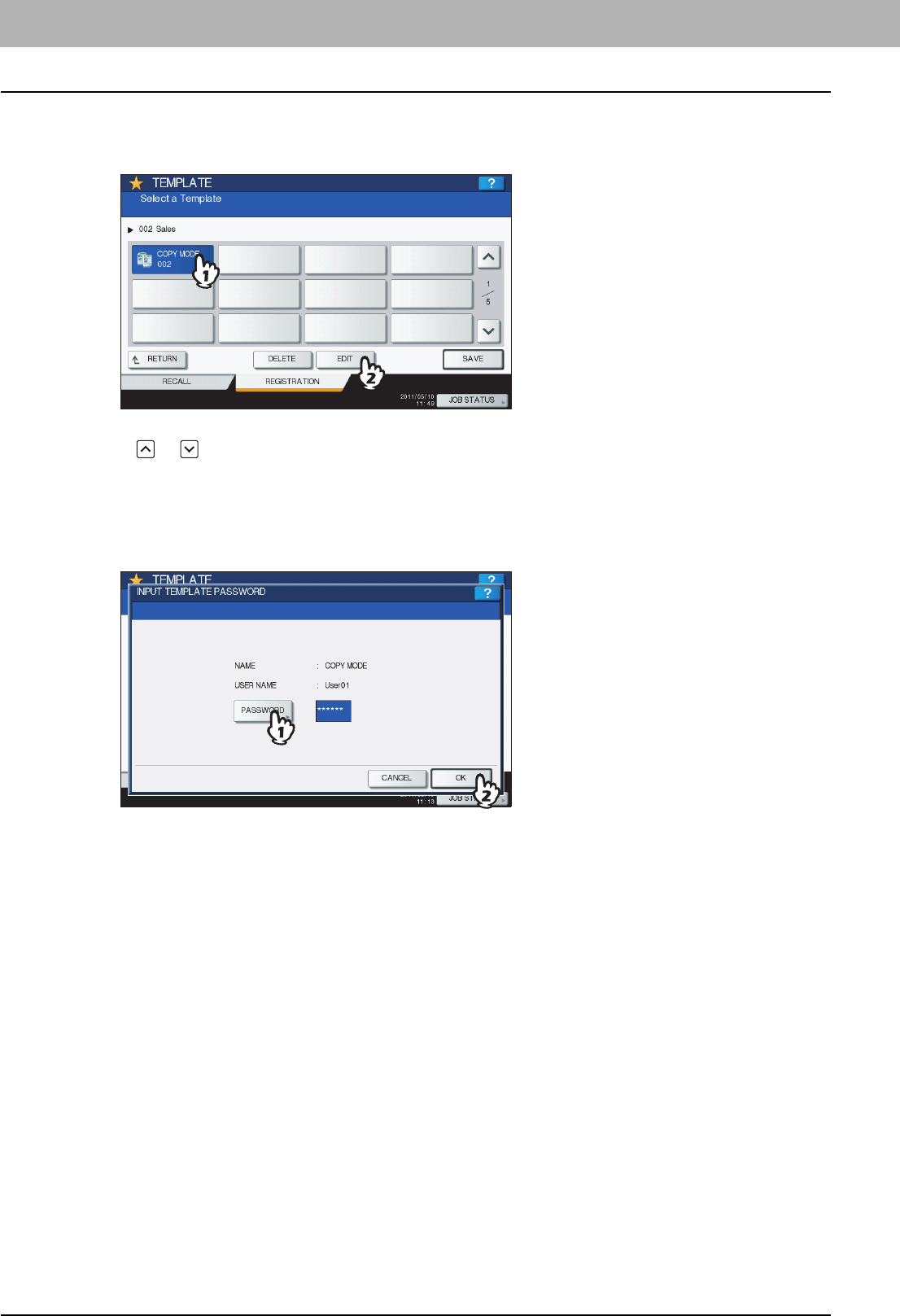
6 TEMPLATES
166 Changing Data
3
Select the desired template.
1) Press the button for the corresponding template.
2) Press [EDIT].
To switch the menu
Press or .
4
Key in the password for the selected template. (If no password is set, go to step 5.)
1) Press [PASSWORD] and then enter the password with the buttons on the touch panel or the digital keys on the
control panel.
2) Press [OK].
5
Change the data following step 7 on P.155 “Registering templates into the public
template group”.
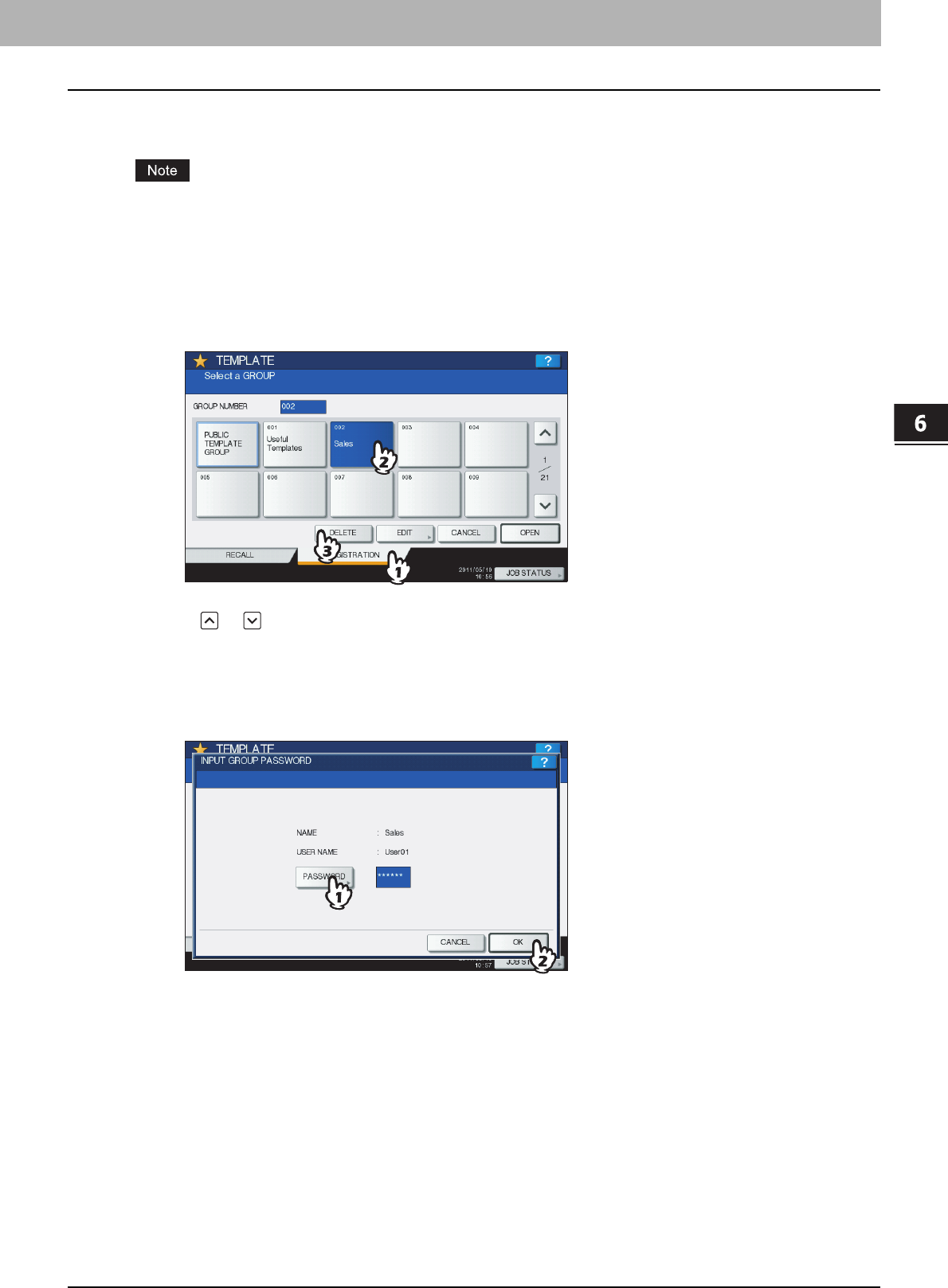
6 TEMPLATES
Deleting Groups or Templates 167
Deleting Groups or Templates
You can delete private groups or templates no longer needed. If a private group is deleted, all the templates in the private
group are also deleted.
The public template group cannot be deleted.
Deleting private groups
1
In the template menu, select the desired private group.
1) Press the [REGISTRATION] tab.
2) Select the desired group by pressing its button or keying in its group number (3 digits).
3) Press [DELETE].
To switch the menu
Press or .
2
Key in the password for the selected group. (If no password is set, go to step 3.)
1) Press [PASSWORD] and then enter the password with the buttons on the touch panel or the digital keys on the
control panel.
2) Press [OK].
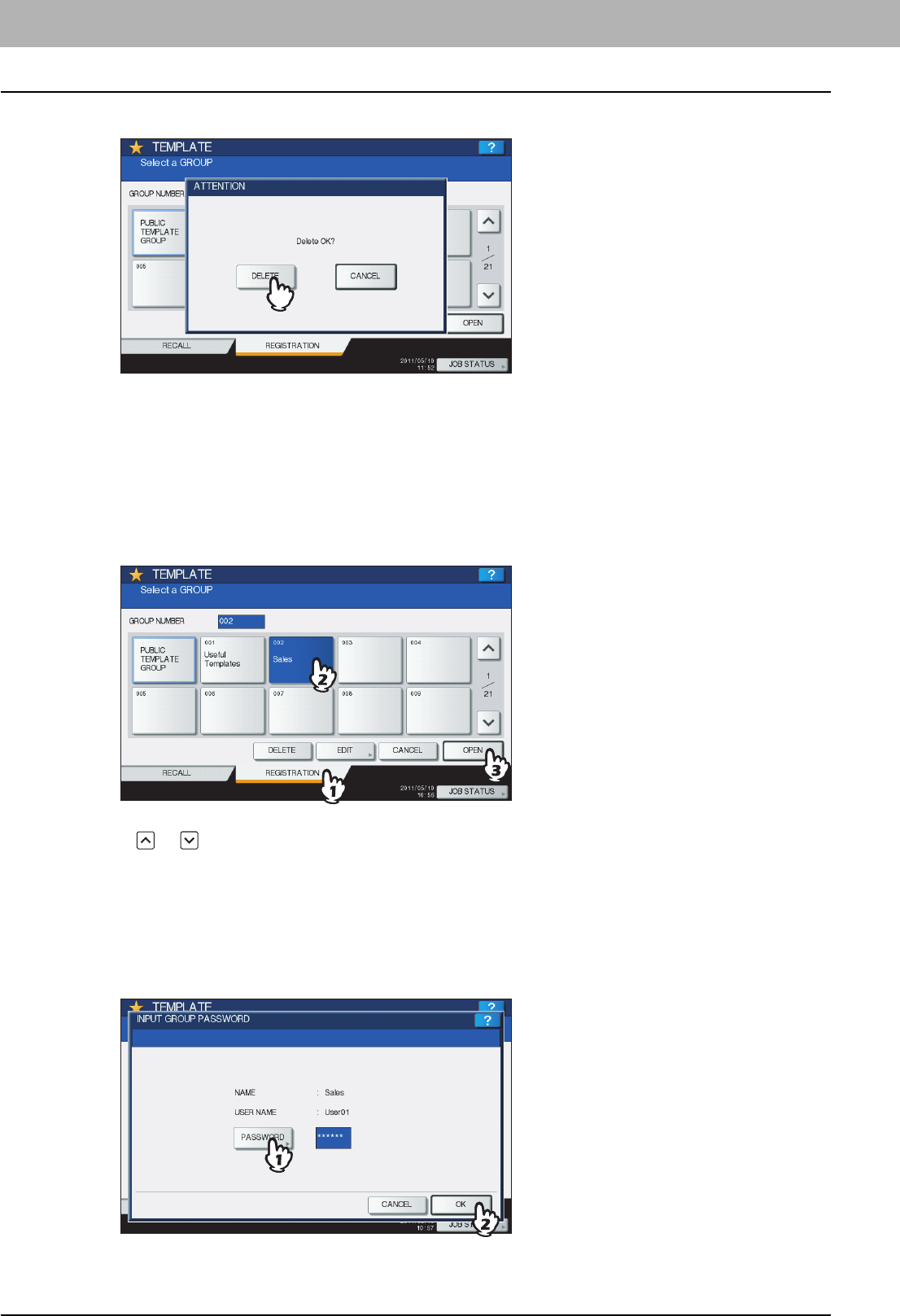
6 TEMPLATES
168 Deleting Groups or Templates
3
Press [DELETE].
The private group is now deleted.
Deleting templates
1
In the template menu, select the group to which the desired template is registered.
1) Press the [REGISTRATION] tab.
2) Select the desired group by pressing its button or keying in its group number (3 digits).
3) Press [OPEN].
To switch the menu
Press or .
2
Enter the password as follows and then press [OK].
When the public template group is selected: Press [PASSWORD] and then enter the Admin Password (6 to 64
characters) with the buttons on the touch panel or the digital keys on the control panel.
When a private group is selected: Press [PASSWORD] and then enter the password (up to 20 characters) with
the buttons on the touch panel or the digital keys on the control panel. If no password is set, go to step 3.
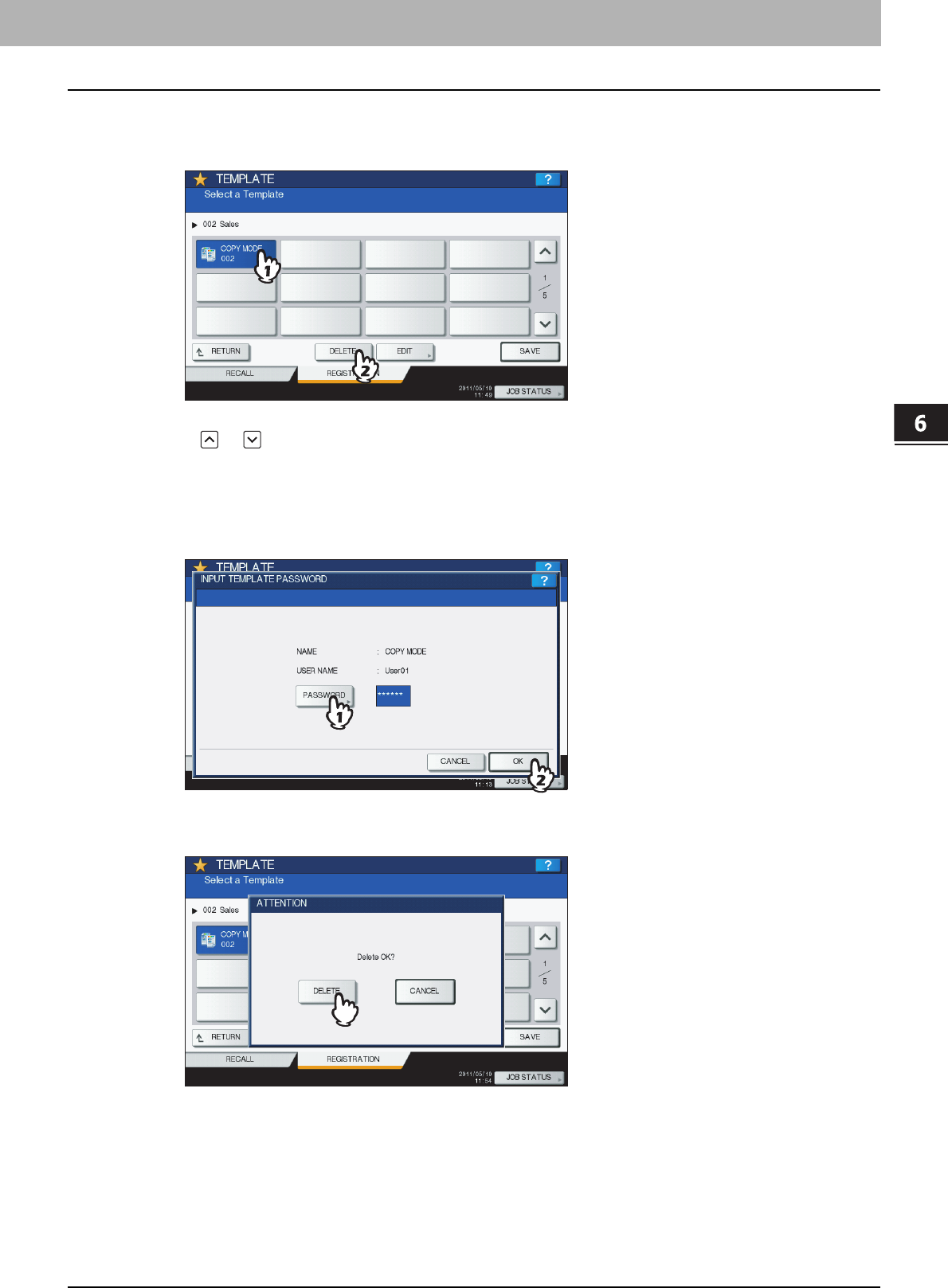
6.TEMPLATES
Deleting Groups or Templates 169
6 TEMPLATES
3
Select the desired template.
1) Press the button for the desired template.
2) Press [DELETE].
To switch the menu
Press or .
4
Key in the password for the selected template. (If no password is set, go to step 5.)
1) Press [PASSWORD] and then enter the password with the buttons on the touch panel or the digital keys on the
control panel.
2) Press [OK].
5
Press [DELETE].
The template is now deleted.

7.CONFIRMING JOB STATUS
This chapter describes how to confirm the processing status and the history of copy jobs performed, and the amount of
toner remaining in the toner cartridges.
Confirming Copy Job Status ............................................................................................... 172
Confirming jobs in progress or ones in waiting...................................................................................................172
Confirming copy job history ................................................................................................................................177
Confirming drawers ............................................................................................................................................178
Confirming amount of toner remaining ...............................................................................................................179
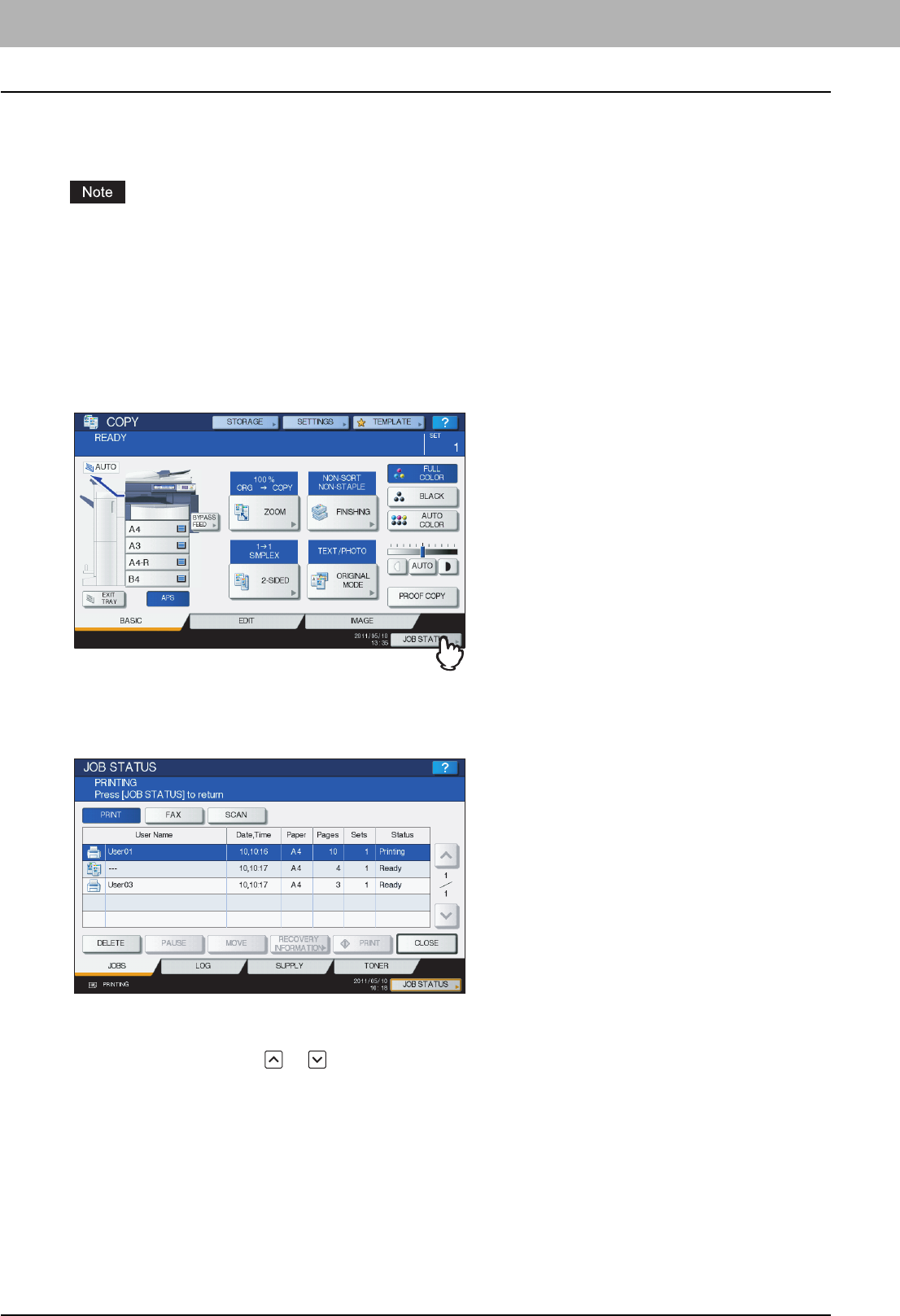
7 CONFIRMING JOB STATUS
172 Confirming Copy Job Status
Confirming Copy Job Status
You can confirm jobs in progress or ones in waiting, on the touch panel. Also you can delete, pause or resume jobs in
waiting, and change their order. You can also confirm the history of copy jobs performed, the status of drawers and the
amount of toner remaining in the toner cartridges.
When this equipment is managed with the user management function, copy jobs in waiting only for a user who has
logged in can be deleted, paused or their order changed, and the job history only for such a user is displayed on the
print log list.
However, if the user has an administrator privilege, all copy jobs in waiting can be deleted, paused or their order
changed, and the entire job history is displayed on the print log list.
Confirming jobs in progress or ones in waiting
You can confirm the jobs in progress or the ones in waiting, on the touch panel.
To view them, press [JOB STATUS] on the touch panel.
The print job list appears. (Press the [JOBS] tab if another tab menu is displayed.) Copy jobs appear on the print job list as
well as print jobs.
On the print job list, you can confirm the icon of the job type, the name of the user who sent the job, the date and time the
job was sent, the paper size, the number of pages and copy sets and the processing status. 5 jobs appear on 1 page of
the print job list. When you press or on the touch panel, the menu will be changed to the previous one or the next
one, so that you can view up to 1000 jobs.
Press [CLOSE] when you finish the confirmation. The menu returns to the one shown before you pressed [JOB STATUS].
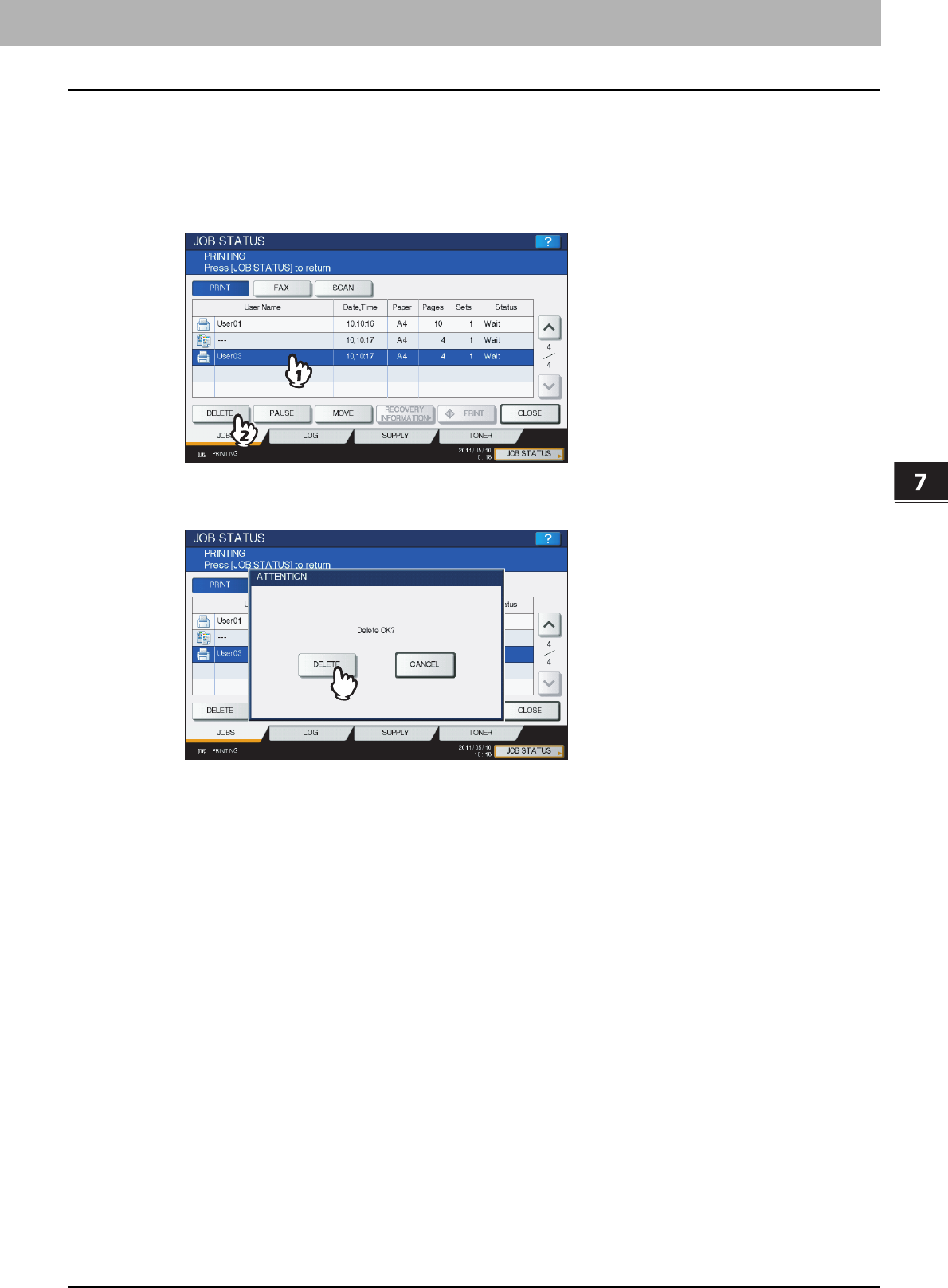
7.CONFIRMING JOB STATUS
Confirming Copy Job Status 173
7 CONFIRMING JOB STATUS
Deleting jobs
You can delete jobs that you no longer need to print.
1
Select the desired job on the print job list, and then press [DELETE]. You can select
more than one job.
2
Press [DELETE].
The job is now deleted.
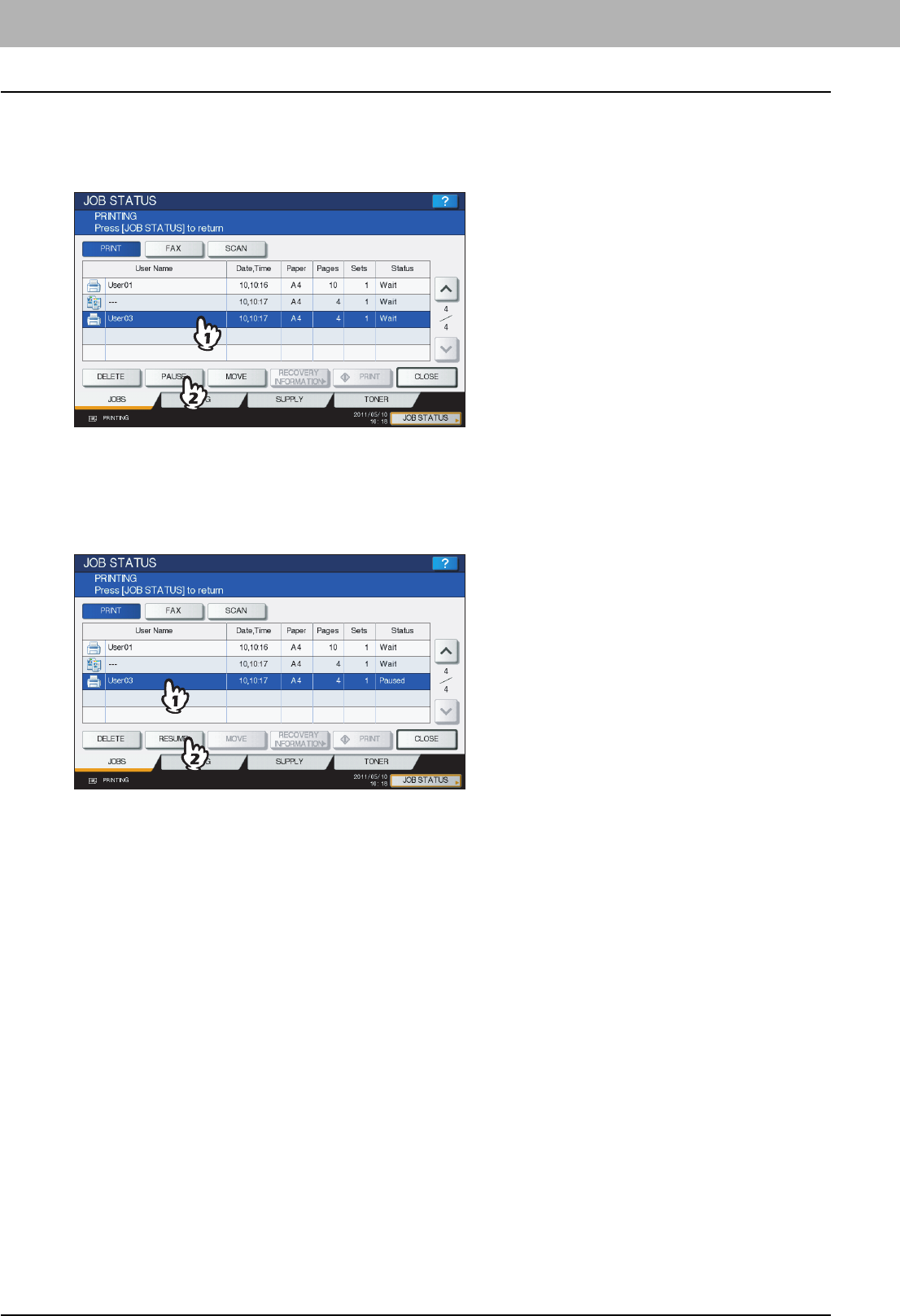
7 CONFIRMING JOB STATUS
174 Confirming Copy Job Status
Pausing jobs
Jobs whose status is “Wait” can be held in the queue (Pausing).
Select the desired job on the print job list, and then press [PAUSE].
The job is now paused. The paused job is not printed even when its turn comes. Printing of the next job starts.
Resuming the paused job
Select the desired job, and then press [RESUME].
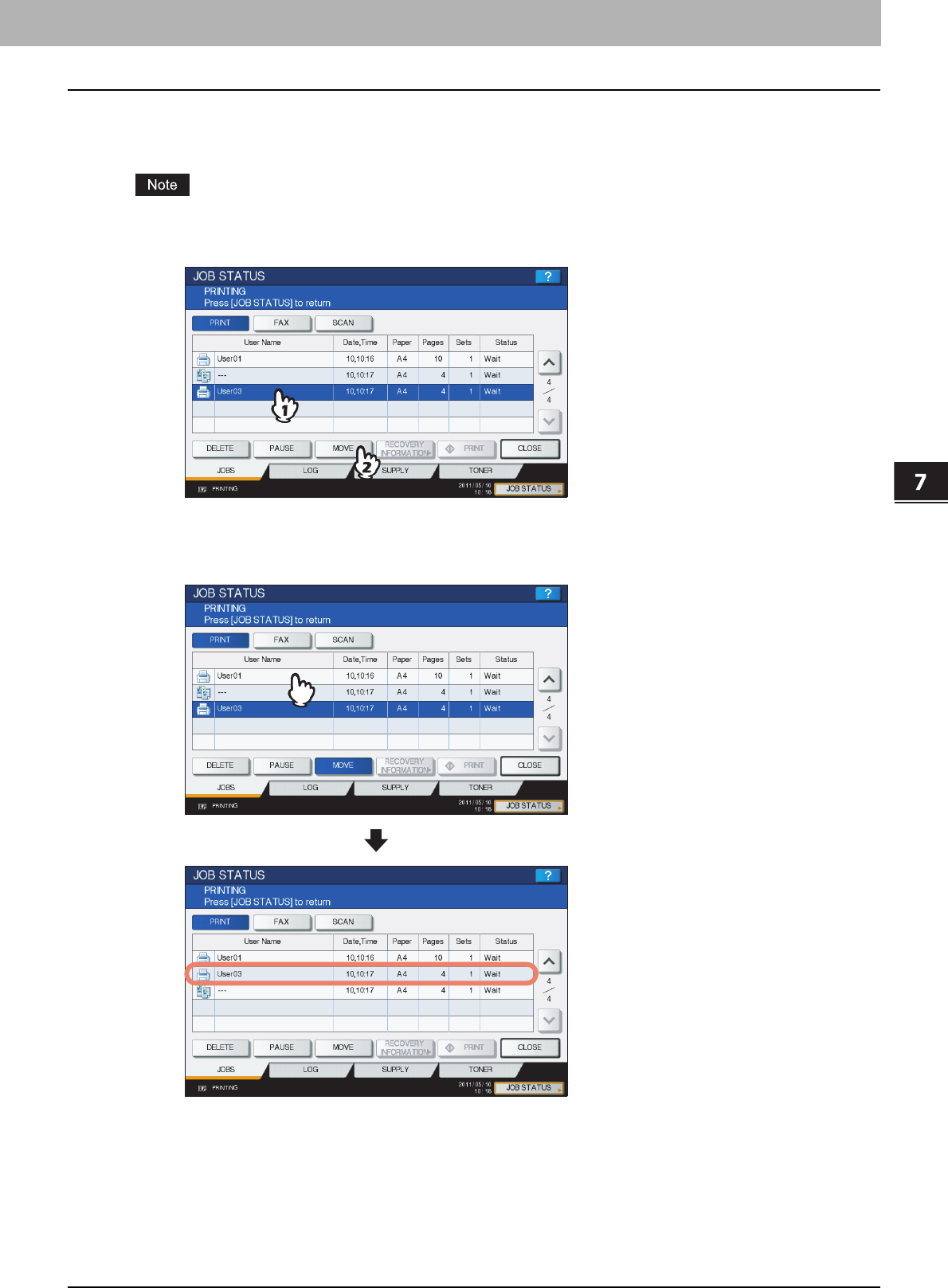
7.CONFIRMING JOB STATUS
Confirming Copy Job Status 175
7 CONFIRMING JOB STATUS
Moving jobs
You can change the order of the jobs in waiting by moving them within the list.
You can only move jobs from and to those whose status is “Wait”.
1
Select the desired job on the print job list, and then press [MOVE].
2
Select the position that you want the job to move to. (It will come under the selected
job.)
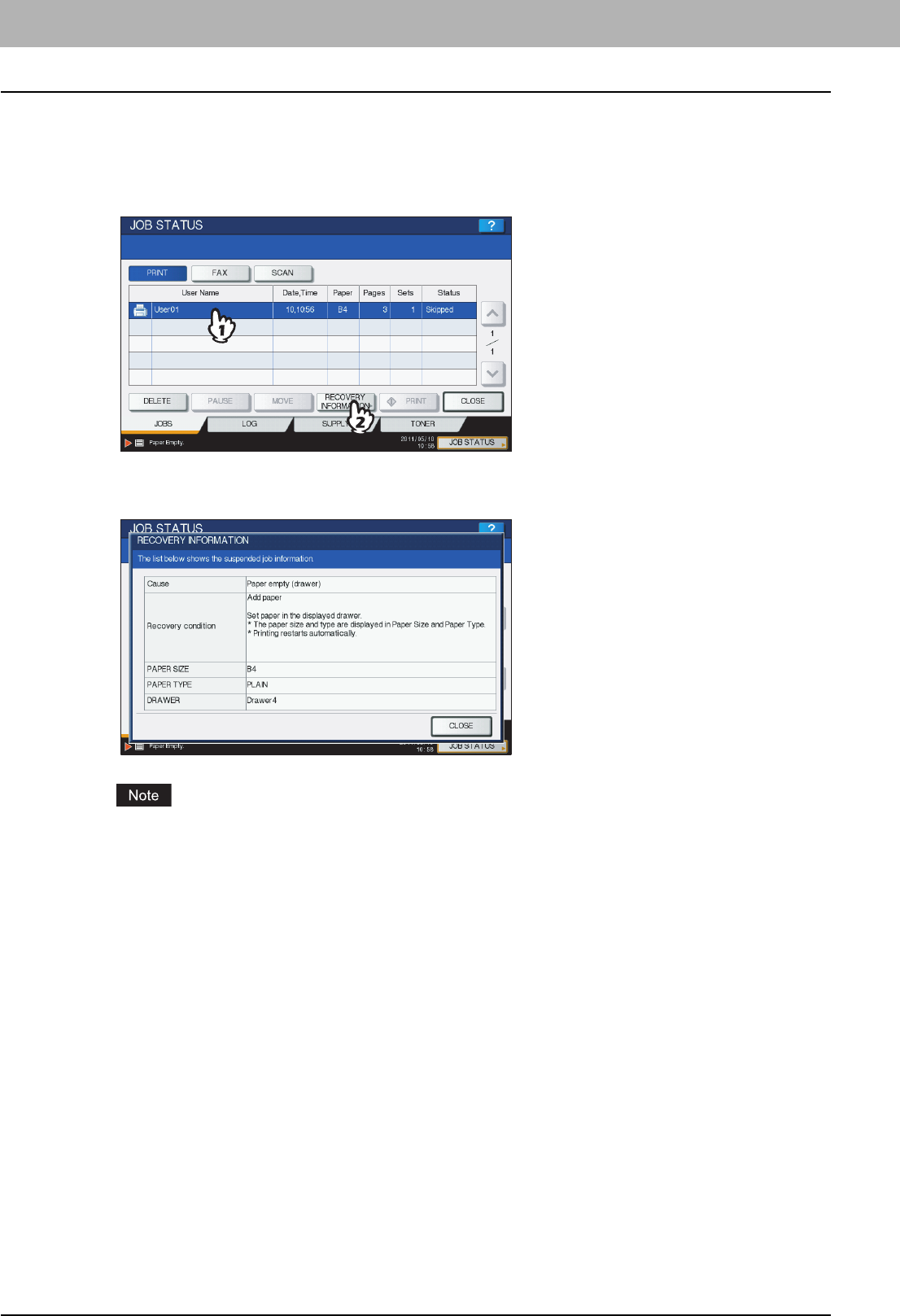
7 CONFIRMING JOB STATUS
176 Confirming Copy Job Status
Confirming the information of a skipped job
Copy jobs may not be performed because the specified paper or staples have run out, etc. These will be suspended and
the next job will be performed (Job Skip function). Check on the touch panel how you can recover the suspended jobs.
1
Select the skipped job in the print job list, and press [RECOVERY INFORMATION].
2
Resolve the cause of the skip following the instructions on the screen.
If multiple causes exist, the second cause is displayed after you resolve the first one. Resolve all causes
accordingly.
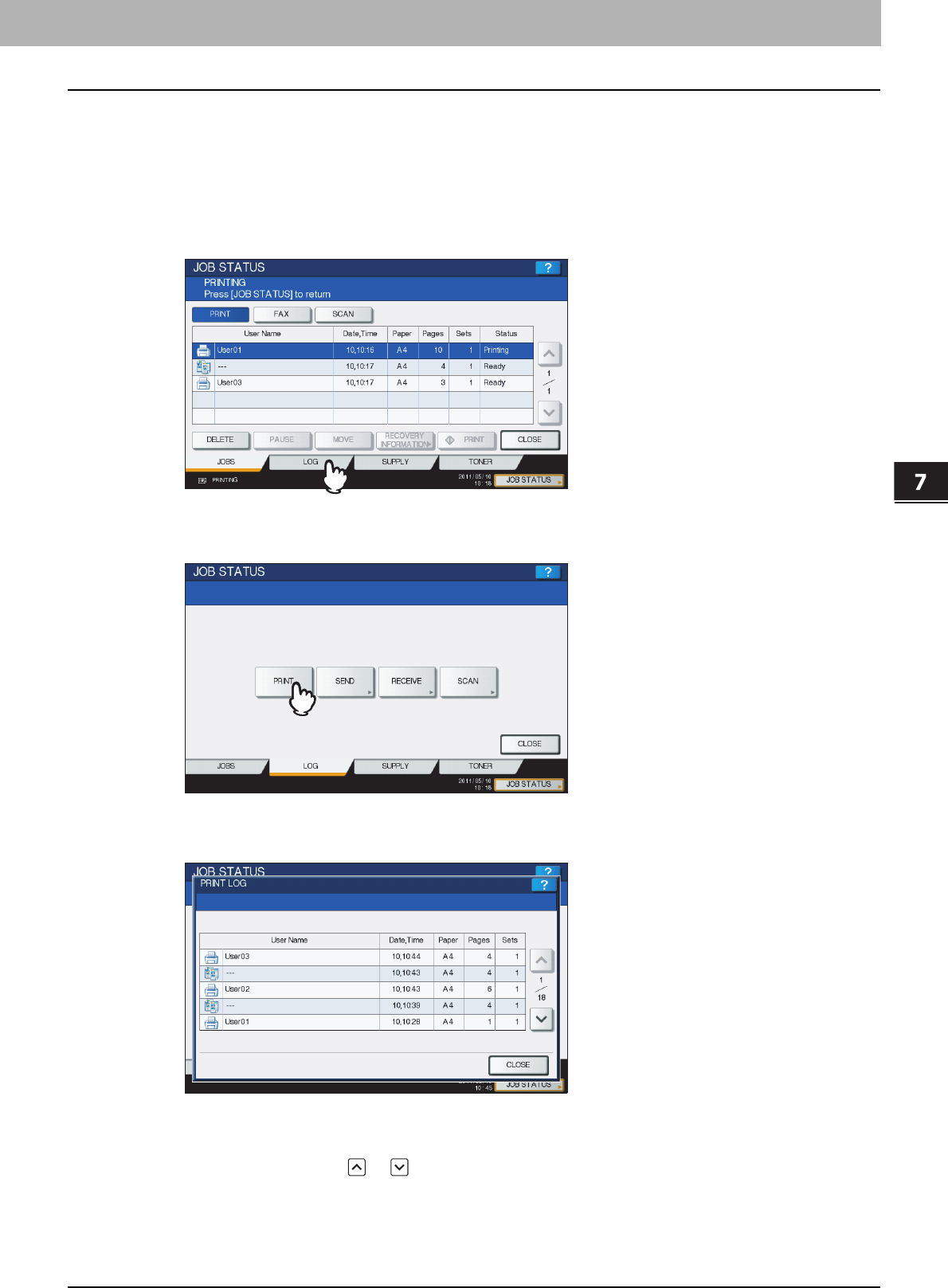
7.CONFIRMING JOB STATUS
Confirming Copy Job Status 177
7 CONFIRMING JOB STATUS
Confirming copy job history
You can confirm the history of copy jobs performed on the touch panel.
1
Press [JOB STATUS] on the touch panel.
2
Press the [LOG] tab.
3
Press [PRINT].
The print log list appears. Copy jobs appear on the print log list as well as print jobs.
On the print log list, you can confirm the icon of the job type, the name of the user who performed the job, the date
and time the job was printed, the paper size and the number of pages or copy sets. 5 jobs appear on 1 page of the
print log list. When you press or on the touch panel, the menu will be changed to the previous one or the
next one, so that you can view up to 120 jobs.
When you finish the confirmation, press [CLOSE] so that the menu returns to the one in step 3, and then press
[CLOSE]. The menu returns to the one shown before you pressed [JOB STATUS].
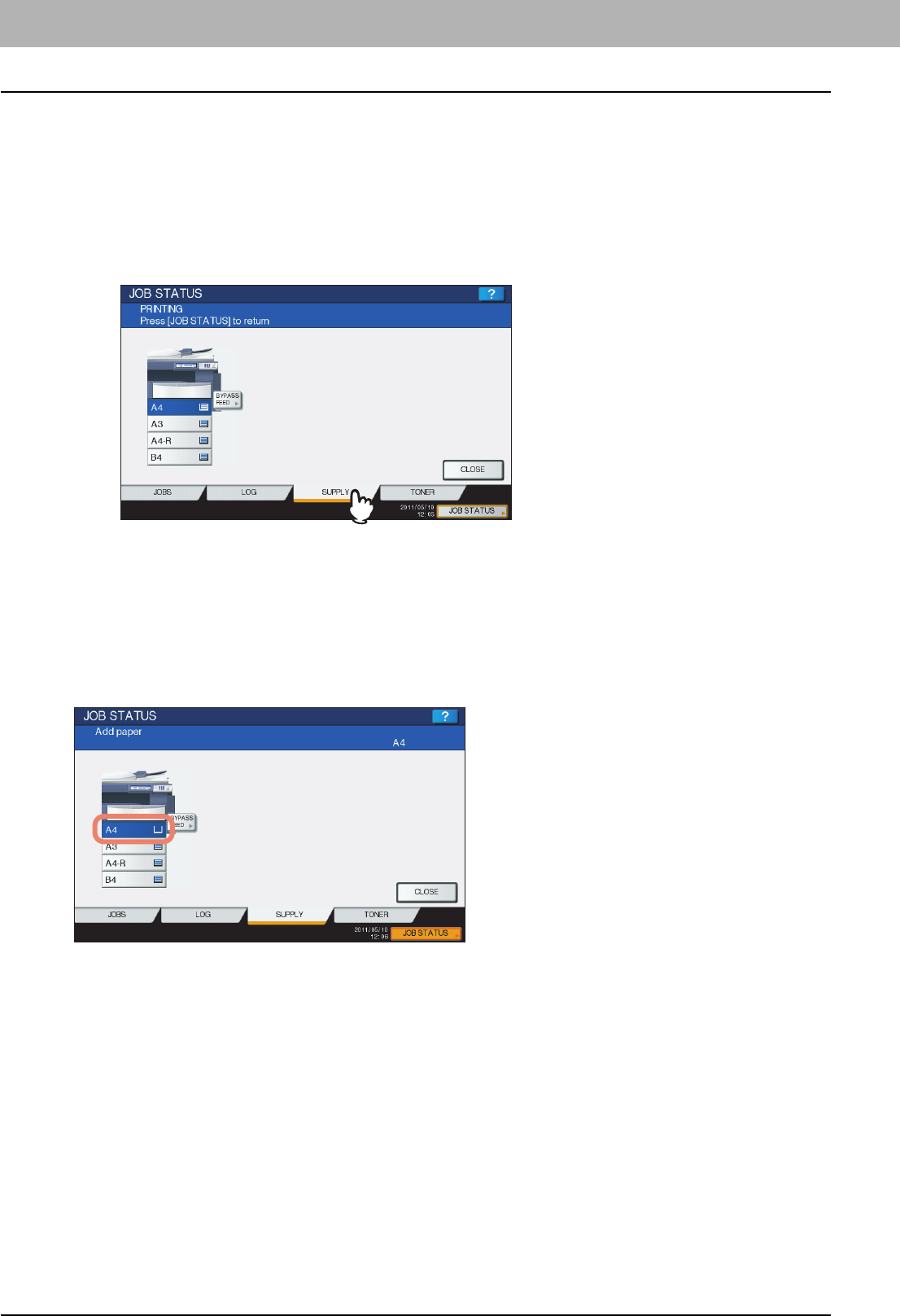
7 CONFIRMING JOB STATUS
178 Confirming Copy Job Status
Confirming drawers
You can confirm the size and type-setting of the paper or the amount remaining in the drawers. During printing you can
confirm which drawer is feeding paper.
1
Press [JOB STATUS] on the touch panel.
2
Press the [SUPPLY] tab.
During printing, the button for the drawer from which the paper is fed is highlighted.
Press [CLOSE] when you finish the confirmation. The menu returns to the one shown before you pressed [JOB
STATUS].
When the paper in the drawer has run out during printing, [JOB STATUS] on the touch panel blinks. In this case, press
[JOB STATUS] so that the menu for displaying the printing status will appear and the button for the drawer whose paper
has run out will blink on this menu. Printing resumes when you add paper to this drawer.
P.11 “Placing Paper”
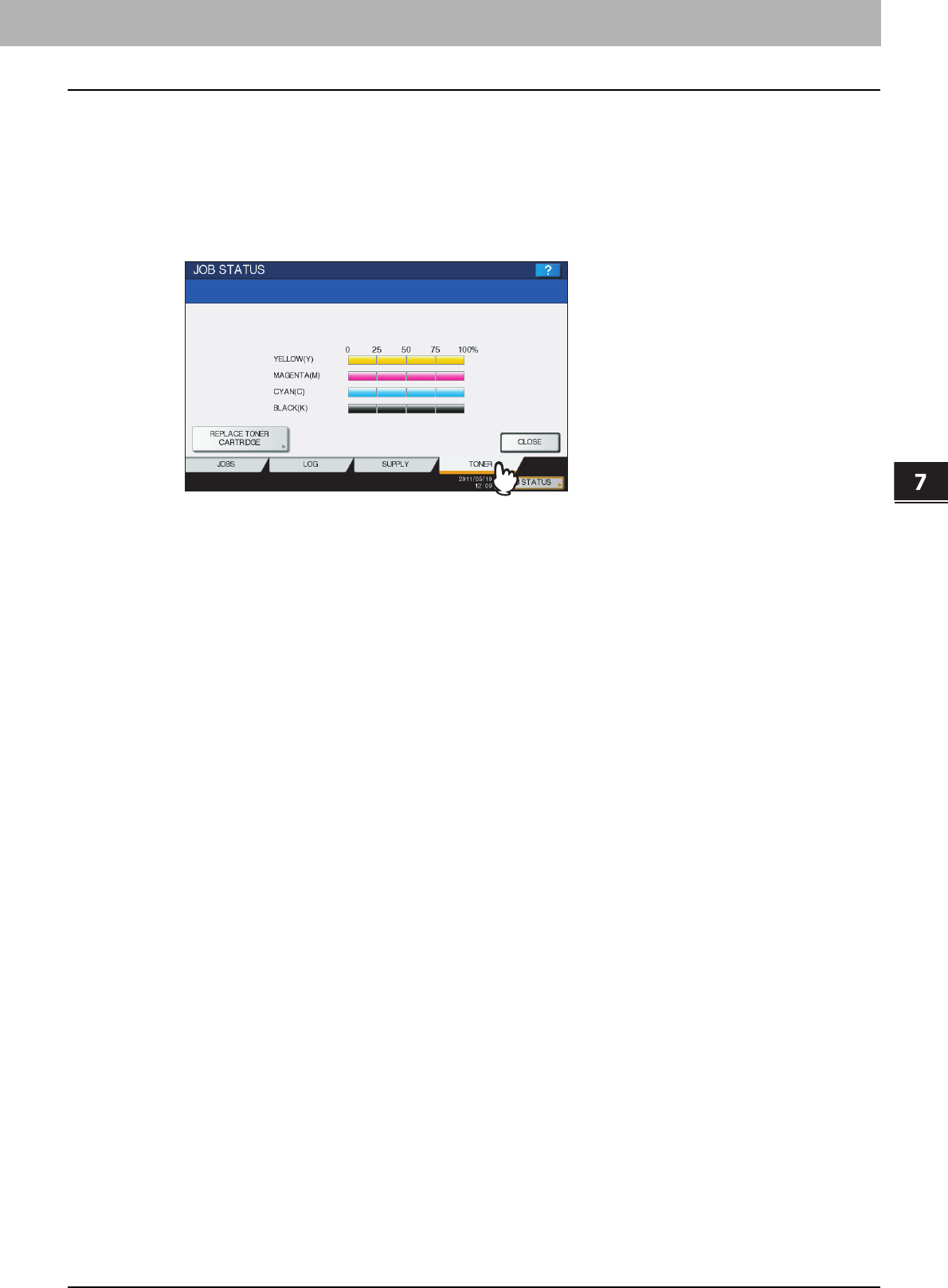
7.CONFIRMING JOB STATUS
Confirming Copy Job Status 179
7 CONFIRMING JOB STATUS
Confirming amount of toner remaining
You can confirm the approximate amount of toner remaining in the toner cartridge.
1
Press [JOB STATUS] on the touch panel.
2
Press the [TONER] tab.
Press [CLOSE] when you finish the confirmation. The menu returns to the one shown before you pressed [JOB
STATUS].

8.OTHER INFORMATION
Continuous Copying Speed ................................................................................................ 182
Copying Function Combination Matrix .............................................................................. 185
Combination matrix 1/2 ......................................................................................................................................185
Combination matrix 2/2 ......................................................................................................................................186
Image Adjustment Function Combination Matrix ............................................................. 187
Combination matrix 1/2 ......................................................................................................................................187
Combination matrix 2/2 ......................................................................................................................................188
8 OTHER INFORMATION
182 Continuous Copying Speed
Continuous Copying Speed
Copy speeds under the condition in which originals are placed on the original glass and single-side copies are made
continuously with 100% reproduction ratio in the non-sort mode (unit: sheet/minute).
e-STUDIO2040C
e-STUDIO2540C
Paper size Feeder
Paper type
PLAIN/
RECYCLED
PAPER
THICK1 THICK2 THICK3 THICK4
B&W Color
*1 B&W Color
*1 B&W Color
*1 B&W Color
*1 B&W Color
*1
A4, A5-R, B5, LT, ST-R,
8.5"SQ
Drawer 20 20 17.5 17.5 17.5 17.5 17.5 17.5 — —
Bypass
tray 20 20 17.5 17.5 17.5 17.5 17.5 17.5 17.5 17.5
A4-R, B5-R, LT-R Drawer 15 15 13 13 13 13 13 13 — —
Bypass
tray 15 15 13 13 13 13 13 13 13 13
B4, FOLIO, LG, COMP,
13"LG
Drawer 12 12 10.5 10.5 10.5 10.5 10.5 10.5 — —
Bypass
tray 12 12 10.5 10.5 10.5 10.5 10.5 10.5 10.5 10.5
A3, LD Drawer 10 10 8.5 8.5 8.5 8.5 8.5 8.5 — —
Bypass
tray 10 10 8.5 8.5 8.5 8.5 8.5 8.5 8.5 8.5
305 mm x 457 mm,
320 mm x 450 mm
Drawer ——————————
Bypass
tray 9988888888
Paper size Feeder
Paper type
PLAIN/
RECYCLED
PAPER
THICK1 THICK2 THICK3 THICK4
B&W Color
*1 B&W Color
*1 B&W Color
*1 B&W Color
*1 B&W Color
*1
A4, A5-R, B5, LT, ST-R,
8.5"SQ
Drawer 25 25 17.5 17.5 17.5 17.5 17.5 17.5 — —
Bypass
tray 25 25 17.5 17.5 17.5 17.5 17.5 17.5 17.5 17.5
A4-R, B5-R, LT-R Drawer 20 20 13 13 13 13 13 13 — —
Bypass
tray 20 20 13 13 13 13 13 13 13 13
B4, FOLIO, LG, COMP,
13"LG
Drawer 17 17 10.5 10.5 10.5 10.5 10.5 10.5 — —
Bypass
tray 17 17 10.5 10.5 10.5 10.5 10.5 10.5 10.5 10.5
A3, LD Drawer 15 15 8.5 8.5 8.5 8.5 8.5 8.5 — —
Bypass
tray 15 15 8.5 8.5 8.5 8.5 8.5 8.5 8.5 8.5
305 mm x 457 mm,
320 mm x 450 mm
Drawer ——————————
Bypass
tray 141488888888
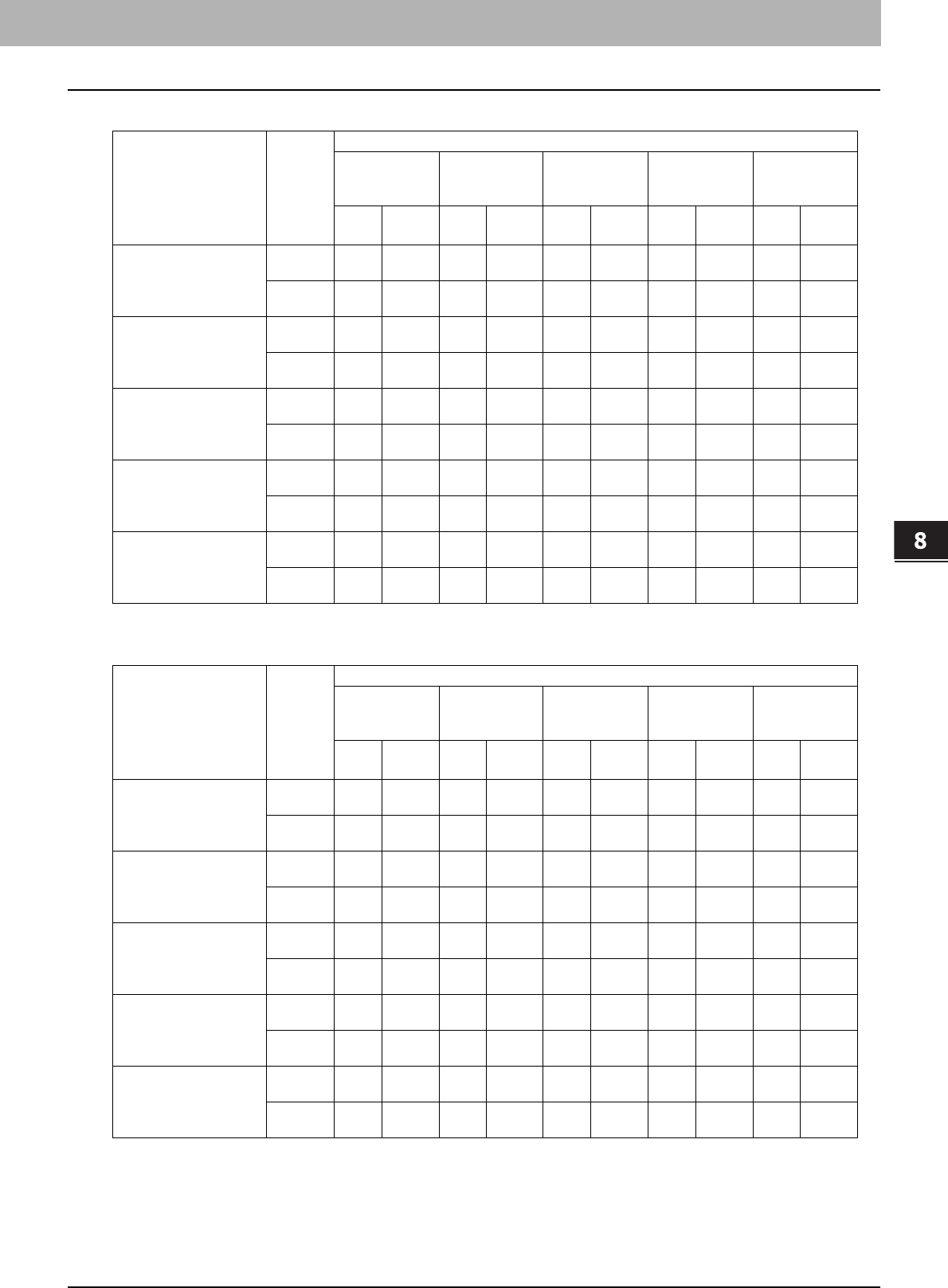
8.OTHER INFORMATION
Continuous Copying Speed 183
8 OTHER INFORMATION
e-STUDIO3040C
e-STUDIO3540C
Paper size Feeder
Paper type
PLAIN/
RECYCLED
PAPER
THICK1 THICK2 THICK3 THICK4
B&W Color
*1 B&W Color
*1 B&W Color
*1 B&W Color
*1 B&W Color
*1
A4, A5-R, B5, LT, ST-R,
8.5"SQ
Drawer 30 30 17.5 17.5 17.5 17.5 17.5 17.5 — —
Bypass
tray 30 30 17.5 17.5 17.5 17.5 17.5 17.5 17.5 17.5
A4-R, B5-R, LT-R Drawer 23 23 13 13 13 13 13 13 — —
Bypass
tray 23 23 13 13 13 13 13 13 13 13
B4, FOLIO, LG, COMP,
13"LG
Drawer 19 19 10.5 10.5 10.5 10.5 10.5 10.5 — —
Bypass
tray 19 19 10.5 10.5 10.5 10.5 10.5 10.5 10.5 10.5
A3, LD Drawer 16 16 8.5 8.5 8.5 8.5 8.5 8.5 — —
Bypass
tray 16 16 8.5 8.5 8.5 8.5 8.5 8.5 8.5 8.5
305 mm x 457 mm,
320 mm x 450 mm
Drawer ——————————
Bypass
tray 151588888888
Paper size Feeder
Paper type
PLAIN/
RECYCLED
PAPER
THICK1 THICK2 THICK3 THICK4
B&W Color
*1 B&W Color
*1 B&W Color
*1 B&W Color
*1 B&W Color
*1
A4, A5-R, B5, LT, ST-R,
8.5"SQ
Drawer 35 35 17.5 17.5 17.5 17.5 17.5 17.5 — —
Bypass
tray 35 35 17.5 17.5 17.5 17.5 17.5 17.5 17.5 17.5
A4-R, B5-R, LT-R Drawer 26 26 13 13 13 13 13 13 — —
Bypass
tray 26 26 13 13 13 13 13 13 13 13
B4, FOLIO, LG, COMP,
13"LG
Drawer 22 22 10.5 10.5 10.5 10.5 10.5 10.5 — —
Bypass
tray 22 22 10.5 10.5 10.5 10.5 10.5 10.5 10.5 10.5
A3, LD Drawer 18 18 8.5 8.5 8.5 8.5 8.5 8.5 — —
Bypass
tray 18 18 8.5 8.5 8.5 8.5 8.5 8.5 8.5 8.5
305 mm x 457 mm,
320 mm x 450 mm
Drawer ——————————
Bypass
tray 171788888888
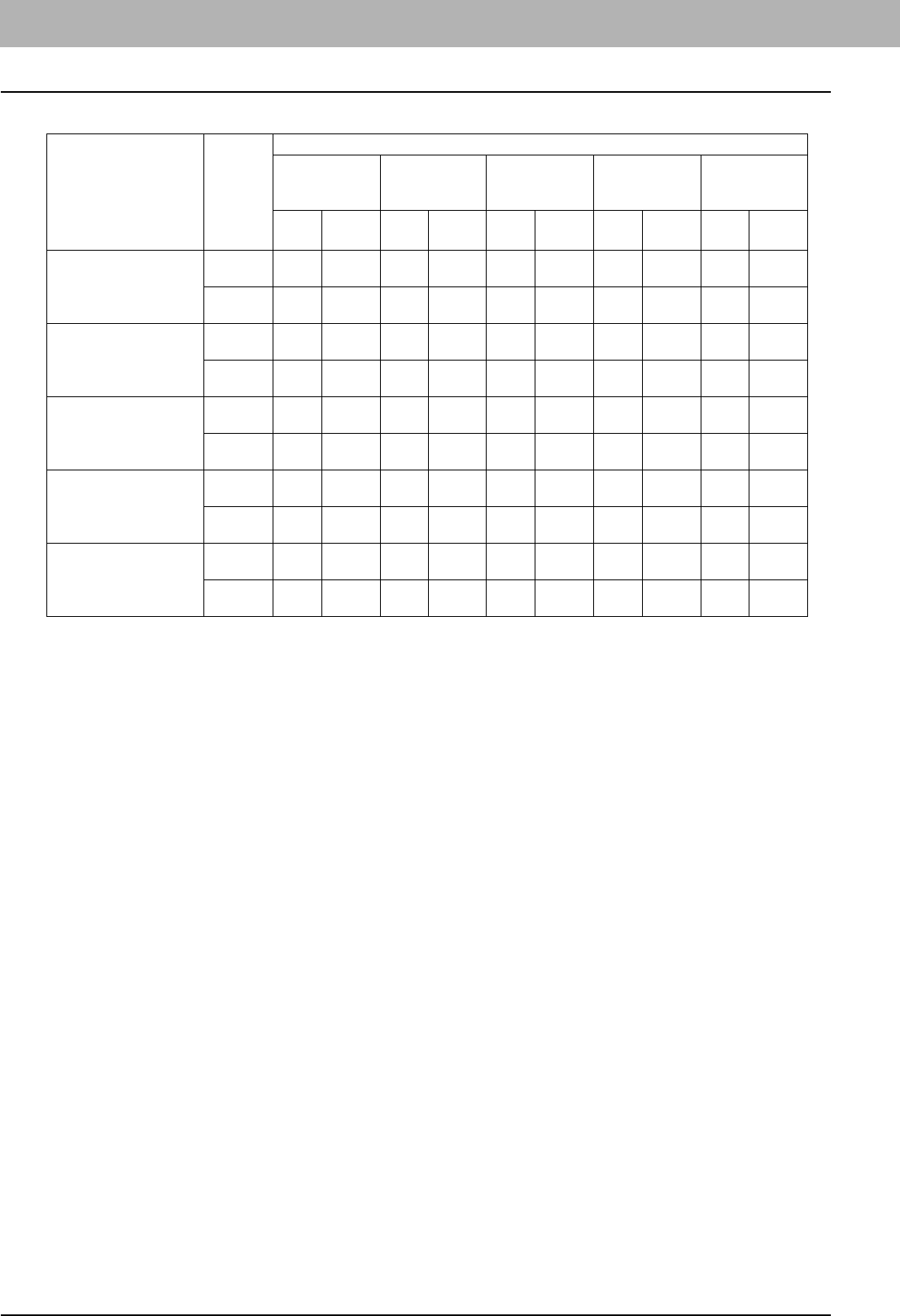
8 OTHER INFORMATION
184 Continuous Copying Speed
e-STUDIO4540C
*1 FULL COLOR, TWIN COLOR, MONO COLOR, IMAGE SMOOTHING
yThe bypass copying speed when the paper size is specified is as listed above.
yTOSHIBA-recommended paper is used for the values of the specifications above.
yThese specifications vary depending on the copying conditions and the environment.
Paper size Feeder
Paper type
PLAIN/
RECYCLED
PAPER
THICK1 THICK2 THICK3 THICK4
B&W Color
*1 B&W Color
*1 B&W Color
*1 B&W Color
*1 B&W Color
*1
A4, A5-R, B5, LT, ST-R,
8.5"SQ
Drawer 45 45 17.5 17.5 17.5 17.5 17.5 17.5 — —
Bypass
tray 45 45 17.5 17.5 17.5 17.5 17.5 17.5 17.5 17.5
A4-R, B5-R, LT-R Drawer 32 32 13 13 13 13 13 13 — —
Bypass
tray 32 32 13 13 13 13 13 13 13 13
B4, FOLIO, LG, COMP,
13"LG
Drawer 26 26 10.5 10.5 10.5 10.5 10.5 10.5 — —
Bypass
tray 26 26 10.5 10.5 10.5 10.5 10.5 10.5 10.5 10.5
A3, LD Drawer 22 22 8.5 8.5 8.5 8.5 8.5 8.5 — —
Bypass
tray 22 22 8.5 8.5 8.5 8.5 8.5 8.5 8.5 8.5
305 mm x 457 mm,
320 mm x 450 mm
Drawer ——————————
Bypass
tray 222288888888
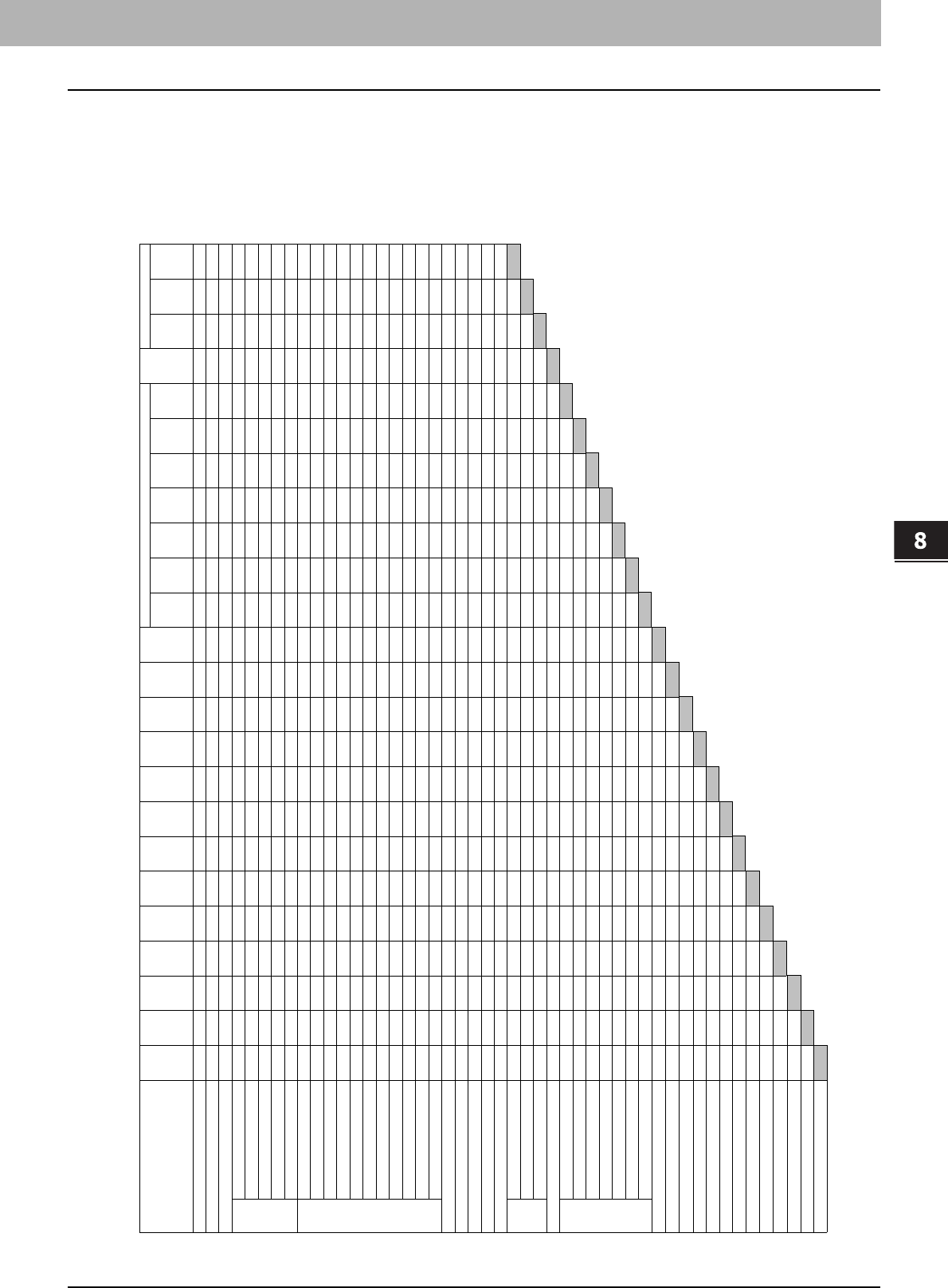
8 OTHER INFORMATION
Copying Function Combination Matrix 185
Copying Function Combination Matrix
Combination matrix 1/2
Back -
Only back
copied
Back -
Both
copied
Back - Top
copied
Back -
Blank
Front -
Both
copied
Front - Top
copied
Front -
Blank
Nega/Pos Mirror Trim /
Mask
*1 *1 Yes Yes *1 *1 Yes *1 Yes *4 *1 *1 *3 *3 *3 *3 *3 *3 *3 *3 Yes *1 *1 *1
Yes Yes Yes Yes No Yes Yes Yes Yes *4 No No No No No No No No No No No No No No
No No Yes Yes *3 *3 Yes No No *4 No No Yes Yes Yes Yes Yes Yes Yes Yes *3 Yes Yes Yes
1 - 1 Simplex
Yes Yes Yes Yes Yes Yes Yes *3 Yes Yes Yes Yes Yes No *3 Yes Yes *3 Yes Yes Yes Yes Yes Yes
1 - 2 Duplex
Yes Yes Yes Yes No Yes Yes *3 Yes Yes Yes Yes Yes Yes Yes Yes Yes Yes Yes Yes Yes No Yes Yes
2 - 1 Split
Yes Yes Yes Yes No Yes Yes *3 Yes Yes Yes Yes Yes No *3 Yes Yes *3 Yes Yes Yes No Yes Yes
2 - 2 Duplex
Yes Yes Yes Yes No Yes Yes Yes Yes Yes Yes Yes Yes Yes Yes Yes Yes Yes Yes Yes Yes No Yes Yes
Book - 2
Yes Yes Yes No No No -- No Yes No Yes Yes No No No No No No No No No No No No
Non-sort / Non-staple
*3 Yes Yes Yes Yes Yes Yes Yes Yes *4 Yes Yes *3 *3 *3 *3 *3 *3 *3 *3 Yes Yes Yes Yes
Sort
Yes Yes Yes Yes Yes Yes Yes Yes Yes *4 Yes Yes Yes Yes Yes Yes Yes Yes Yes Yes Yes Yes Yes Yes
Group
Yes Yes Yes Yes Yes Yes Yes Yes Yes *4 Yes Yes No No No No No No No No Yes Yes Yes Yes
Staple sort
Yes Yes Yes Yes Yes Yes Yes Yes Yes *4 Yes Yes Yes Yes Yes Yes Yes Yes Yes Yes Yes Yes Yes Yes
Magazine sort
No No Yes Yes No No Yes No Yes No Yes Yes No No No No No Yes Yes Yes No No No No
Center fold
Yes Yes Yes No No No Yes No Yes *4 No No No No No No No Yes Yes Yes No No No No
Magazine sort & Saddle stitch
No No Yes Yes No No Yes No Yes No Yes Yes No No No No No Yes Yes Yes No No No No
Magazine sort & Center fold
No No Yes Yes No No Yes No Yes No Yes Yes No No No No No Yes Yes Yes No No No No
Hole punch
Yes Yes Yes Yes No Yes Yes Yes Yes *4 Yes Yes Yes Yes Yes Yes Yes Yes Yes Yes Yes Yes Yes Yes
Saddle stitch
Yes Yes Yes No No No Yes No Yes *4 No No No No No No No Yes Yes Yes No No No No
Rotate sort
Yes Yes Yes Yes No No Yes Yes Yes *4 Yes Yes No No No No No No No No No Yes Yes Yes
*3 *3 Yes Yes No No Yes No Yes *4 Yes Yes Yes Yes Yes Yes Yes Yes Yes Yes Yes Yes Yes Yes
Yes Yes No Yes No No Yes Yes Yes Yes Yes Yes Yes Yes Yes Yes Yes Yes Yes Yes Yes No No No
Yes Yes Yes Yes No No -- No Yes *4 Yes Yes No No No No No No No No Yes No Yes No
Yes Yes Yes Yes No No -- No Yes Yes Yes Yes No No No No No No No No No No No No
*3 *3 Yes Yes No No Yes No Yes No Yes Yes No No No No No No No No No No No No
Trim / Mask
Yes Yes No Yes No No Yes Yes Yes No Yes Yes Yes Yes Yes Yes Yes Yes Yes Yes No -- --
Mirror
Yes Yes No Yes No Yes Yes Yes Yes No Yes Yes Yes Yes Yes Yes Yes Yes Yes Yes No --
Nega/Pos
Yes Yes No Yes No Yes Yes No Yes No Yes Yes Yes Yes Yes Yes Yes Yes Yes Yes No
Yes Yes Yes Yes No Yes Yes Yes Yes No Yes Yes Yes Yes Yes Yes Yes Yes Yes Yes
Front - Blank
*3 *3 Yes *3 No No Yes Yes Yes No Yes Yes Yes Yes Yes Yes Yes *3 *3
Front - Top copied
*3 *3 Yes *3 No No Yes Yes Yes No Yes Yes Yes Yes Yes Yes Yes *3
Front - Both copied
*3 *3 Yes *3 No No Yes Yes Yes No Yes Yes Yes Yes Yes Yes Yes
Back - Blank
*3 *3 Yes *3 No No Yes Yes Yes No Yes Yes Yes *3 *3 *3
Back - Top copied
*3 *3 Yes *3 No No Yes Yes Yes No Yes Yes Yes *3 *3
Back - Both copied
*3 *3 Yes *3 No No Yes Yes Yes No Yes Yes Yes *3
Back - Only back copied
*3 *3 Yes *3 No No Yes Yes Yes No Yes Yes Yes
*3 *3 Yes No No No Yes Yes Yes No Yes Yes
*3 *3 Yes Yes No No Yes No Yes *4 Yes
*3 *3 Yes Yes No No Yes No Yes *4
*4 *4 Yes *4 No No Yes *4 *4
Yes Yes Yes Yes *3 Yes Yes Yes *1 Size selection is required.
Yes Yes Yes Yes No Yes Yes *2 Size selection is required for [DOUBLE STAPLE] and [REAR STAPLE].
Yes Yes Yes Yes -- Yes *3 The function set later will be valid.
*3 *3 No Yes No *4 The setting cannot be changed from 2nd job or later.
No No No Yes *5 Bookbinding margin is not available.
Yes Yes Yes
Yes Yes
No
Copy &
File
Full image
2-sided
Book center erase
Image shift
Edge erase
Time stamp
Page number
Editing
Finishing
2IN1 / 4IN1
Copy & File
Store to e-Filing
Job build
Full image
Outside erase
Image repeat
Omit blank page
ADF -> SADF
Book <-> TABLET
Image direction
XY zoom
Dual page
Mixed original sizes
Page
number
Omit blank
page
Outside
erase
Image
repeat
Book <->
TABLET
EditingJob buildADF ->
SADF
Image
direction
XY zoomTime
stamp
Cover sheetSheet
insertion
Sheet insertion
Cover
sheet
Store to e-
Filing
Bypass copy
Photo zoom
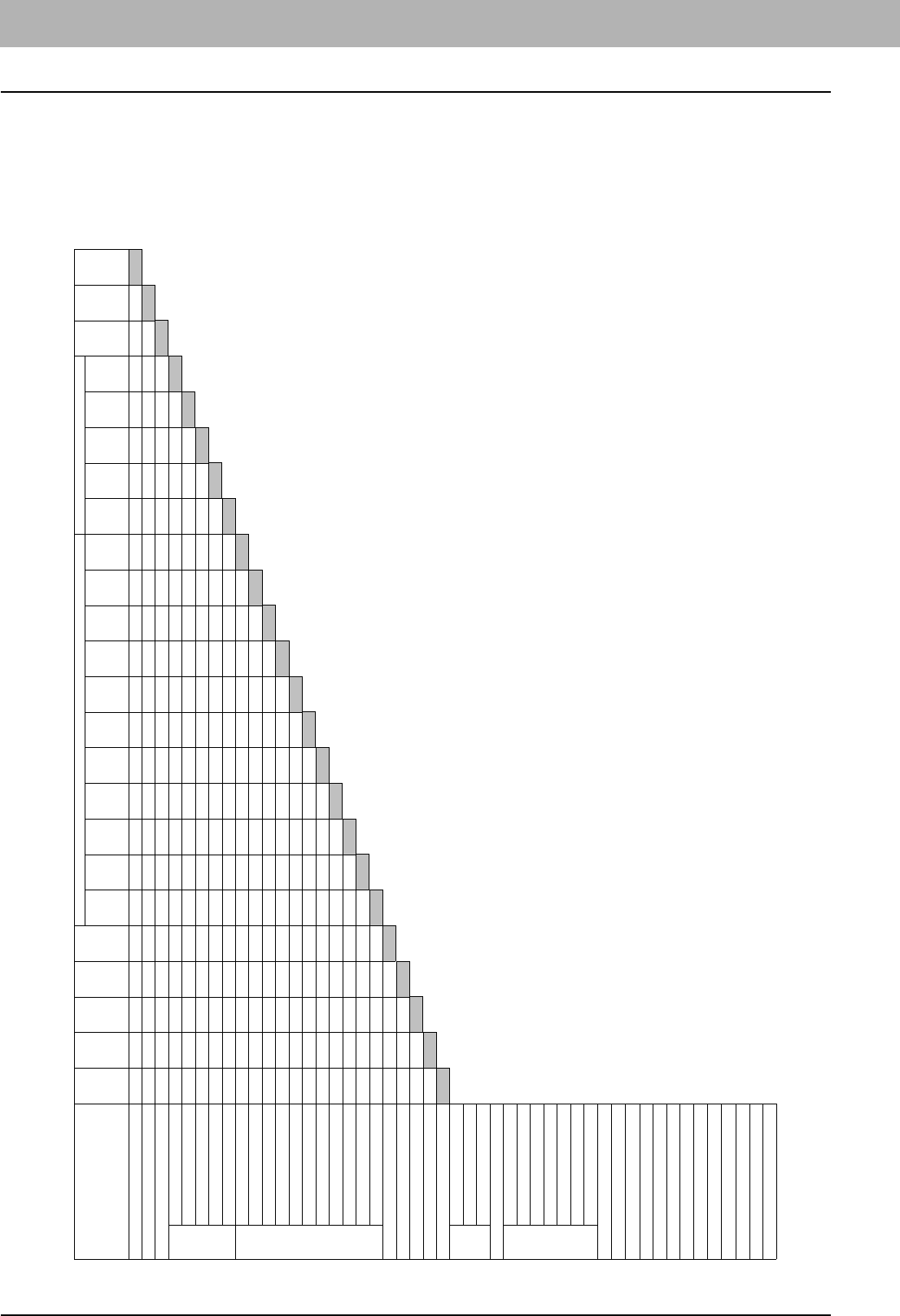
8 OTHER INFORMATION
186 Copying Function Combination Matrix
Combination matrix 2/2
1 - 1 Simplex
1 - 2 Duplex
2 - 1 Split
2 - 2 Duplex
Book - 2
Non-sort / Non-staple
Sort
Group
Staple sort
Magazine sort
Center fold
Magazine sort & Saddle stitch
Magazine sort & Center fold
Hole punch
Saddle stitch
Rotate sort
Trim / Mask
Mirror
Nega/Pos
Front - Blank
Front - Top copied
Front - Both copied
Back - Blank
Back - Top copied
Back - Both copied
Back - Only back copied
2-sided
Book center erase
Image shift
Edge erase
Time stamp
Page number
Editing
Finishing
2IN1 / 4IN1
Copy & File
Store to e-Filing
Job build
Full image
Outside erase
Image repeat
Omit blank page
ADF -> SADF
Book <-> TABLET
Image direction
XY zoom
Dual page
Mixed original sizes
Sheet insertion
Cover
sheet
Bypass copy
Photo zoom
Rotate sort Saddle
stitch
Hole
punch
Magazine
sort &
Center fold
Magazine
sort &
Saddle
stitch
Center fold Magazine
sort
Staple sort Group Sort Non-sort /
Non-staple
Book - 2 2 - 2
Duplex
2 - 1 Split 1 - 2
Duplex
1 - 1
Simplex
*3 *1 *1 *1 *1 *1 *1 *1 *1 *1 *1 *1 *2 Yes Yes Yes *1 *1 Yes *1 Yes *1 *1
No No No No No No No Yes No No No No Yes Yes Yes Yes No Yes Yes Yes Yes No
*3 No Yes Yes Yes No *3 Yes *3 *3 *3 *3 Yes Yes Yes Yes No Yes Yes Yes Yes
*3 *3 Yes Yes Yes Yes *3 Yes *3 *3 *3 *3 Yes Yes Yes Yes *3 *3 *3 *3
*3 *3 Yes Yes Yes Yes *3 Yes Yes Yes *3 Yes Yes Yes Yes Yes *3 *3 *3
*3 No No Yes Yes Yes *3 Yes No No *3 No Yes Yes Yes Yes *3 *3
*3 No No Yes Yes Yes Yes Yes Yes Yes Yes Yes Yes Yes Yes Yes *3
No No No Yes Yes No *3 Yes No No *3 No Yes Yes Yes Yes
Yes Yes Yes Yes Yes *3 *3 Yes *3 *3 *3 *3 *3 *3 *3
Yes Yes Yes Yes Yes *3 *3 Yes *3 *3 *3 *3 *3 *3
Yes Yes Yes Yes Yes *3 *3 Yes *3 *3 *3 *3 *3
Yes Yes Yes Yes Yes *3 *3 Yes *3 *3 *3 *3
No No No Yes No *3 *3 No *3 *3 *3
No No No Yes No *3 *3 No *3 *3
No No No Yes No *3 *3 No *3
No No No Yes No *3 *3 No
Yes Yes No Yes Yes No No
No No No Yes No *3
Yes No Yes Yes Yes
Yes *5 Yes Yes
Yes Yes No
No No
No
*1 Size selection is required.
*2 Size selection is required for [DOUBLE STAPLE] and [REAR STAPLE].
*3 The function set later will be valid.
*4 The setting cannot be changed from 2nd job or later.
*5 Bookbinding margin is not available.
2-sided Bypass
copy
Image shiftEdge
erase
Photo
zoom
Mixed
original
sizes
2IN1 /
4IN1
FinishingDual page Book
center
erase
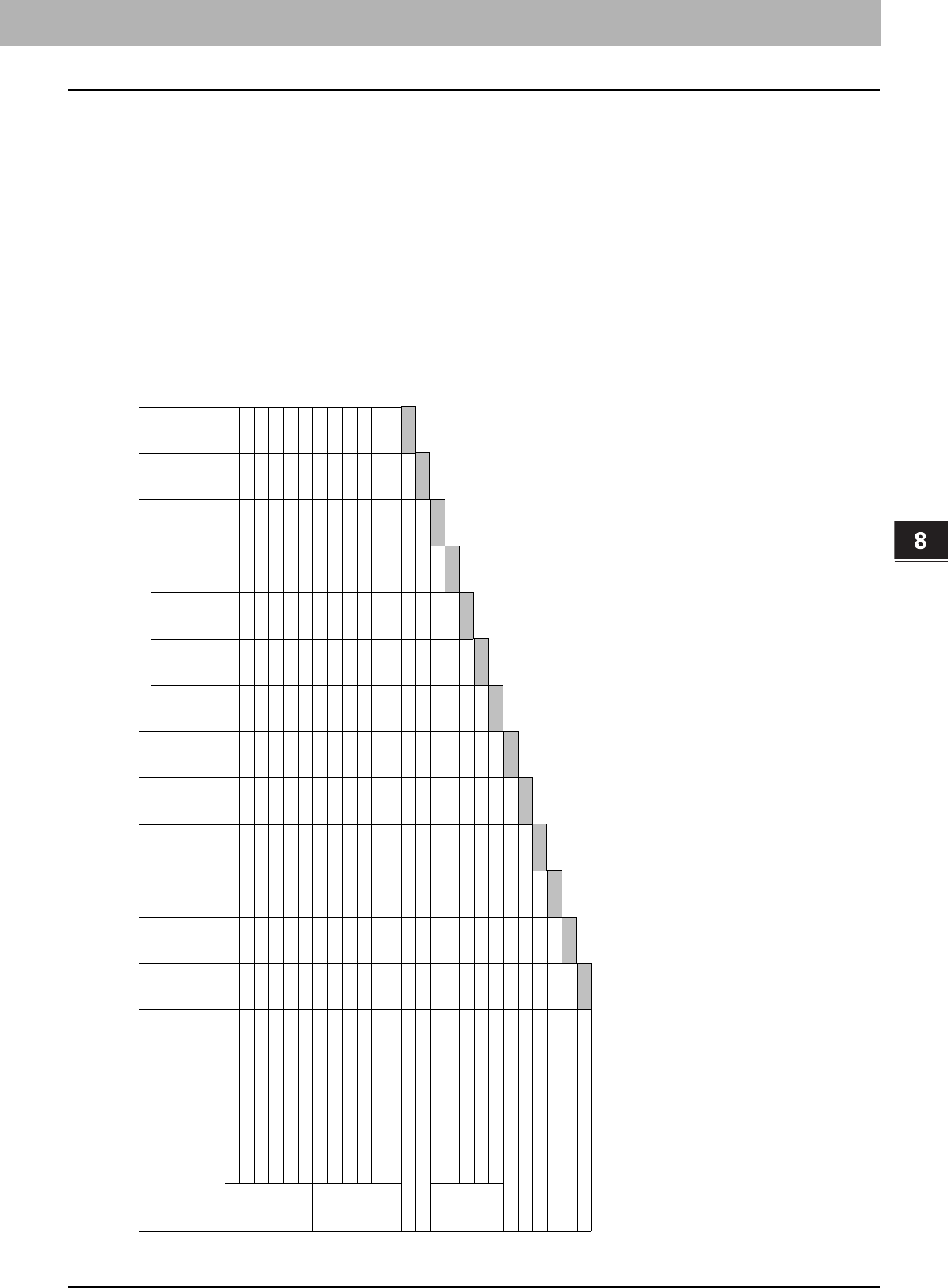
8 OTHER INFORMATION
Image Adjustment Function Combination Matrix 187
Image Adjustment Function Combination Matrix
Combination matrix 1/2
Marker Clear Vivid Cool Warm
Yes Yes Yes Yes Yes *1 Yes Yes Yes Yes Yes Yes Yes
Full color
Yes Yes No No Yes Yes Yes Yes Yes Yes Yes Yes Yes
Auto color
Yes Yes No No Yes Yes No No No No No Yes Yes
Black
No No No No Yes Yes No No No No No No No
Twin color copy ʊ Twin color selectable
No No No Yes Yes Yes No No No No No No No
Twin color copy ʊ Red & Black
No No Yes Yes Yes Yes No No No No No No No
Mono color
No No No No Yes Yes No No No No No No No
Text/Photo
Yes Yes Yes Yes Yes Yes Yes Yes Yes Yes Yes Yes Yes
Text
Yes Yes Yes Yes Yes Yes Yes Yes Yes Yes Yes Yes Yes
Photo
Yes Yes No No Yes Yes Yes Yes Yes Yes Yes Yes Yes
Printed image
Yes Yes Yes Yes Yes Yes Yes Yes Yes Yes Yes Yes Yes
Map
Yes Yes No No Yes Yes Yes Yes Yes Yes Yes Yes Yes
Image smoothing
No No No No Yes Yes No No No No No No No
Yes Yes No No Yes Yes No No No No No No
Yes Yes No No Yes Yes No No No No No
Warm
No No No No No No No No No No
Cool
No No No No No No No No No
Vivid
No No No No No No No No
Clear
No No No No No No No
Marker
No No No No No No
Yes Yes Yes Yes Yes
Yes Yes Yes Yes
No No No
No No
Yes
*1 Only available with manual adjustment
Background
adjustment
Saturation Hue Red & Black
range
adjustment
Color
balance
Sharpness RGB
adjustment
One touch adjustmentTwin color
selectable
adjustment
Red & Black range adjustment
One touch
adjustment
Twin color selectable adjustment
RGB adjustment
Sharpness
Background adjustment
Original
Mode
Saturation
Color mode
Density Manual /Auto
Hue
Color balance
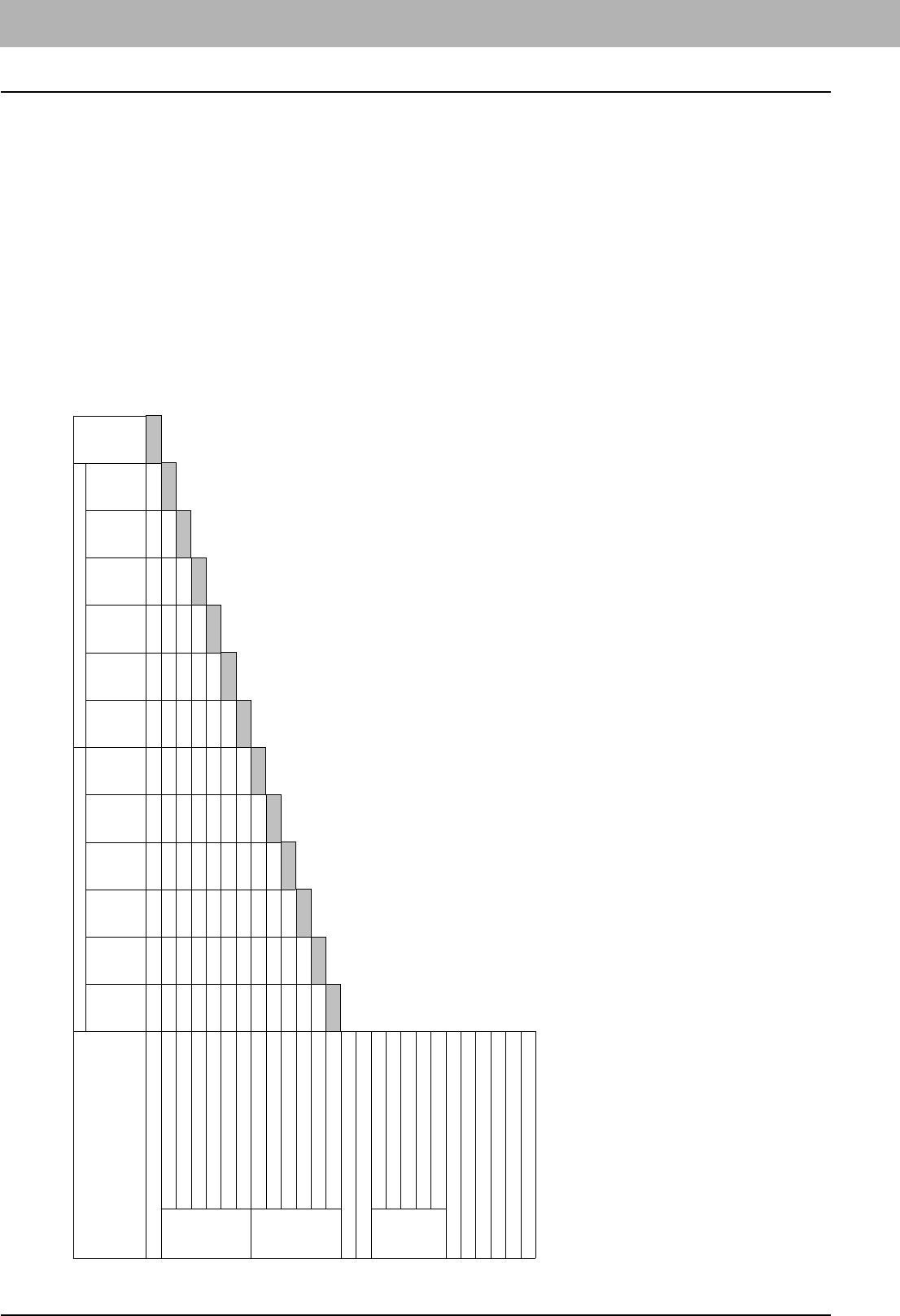
8 OTHER INFORMATION
188 Image Adjustment Function Combination Matrix
Combination matrix 2/2
Full color
Auto color
Black
Twin color copy ʊ Twin color selectable
Twin color copy ʊ Red & Black
Mono color
Text/Photo
Text
Photo
Printed image
Map
Image smoothing
Warm
Cool
Vivid
Clear
Marker
Red & Black range adjustment
One touch
adjustment
Twin color selectable adjustment
RGB adjustment
Sharpness
Background adjustment
Original
Mode
Saturation
Color mode
Density Manual /Auto
Hue
Color balance
Image
smoothing
Map Printed
image
Photo Text Text/Photo Mono color Twin color
copy ʊ Red
& Black
Twin color
copy ʊ
Twin color
selectable
Black Auto color Full color
Yes Yes Yes Yes Yes Yes Yes Yes Yes Yes Yes Yes
No Yes Yes Yes Yes Yes No No No No No
No No Yes No Yes Yes No No No No
Yes No No Yes Yes Yes No No No
No No Yes No Yes Yes No No
No No Yes No Yes Yes No
No Yes Yes Yes Yes Yes
No No No No No
No No No No
No No No
No No
No
*1 Only available with manual adjustment
Original Mode Density
Manual
/Auto
Color mode

INDEX 189
INDEX
Numerics
2IN1 / 4IN1 ..............................................................100
[2-SIDED] ...................................................................8
A
A/B format .................................................................11
ADF ........................................................................125
ADF -> SADF ..........................................................125
Alert message indication area .......................................8
AMS (Automatic Magnification Selection) .....................57
[APS] ................................................................... 8, 50
APS (Automatic Paper Selection) ................................50
AUTO COLOR ...........................................................54
Auto job start .............................................................31
Automatic function clear .............................................36
Automatic Magnification Selection (AMS) .....................57
Automatic Paper Selection (APS) ................................50
B
BACKGROUND ADJUSTMENT ................................141
BASIC menu ...............................................................8
[BASIC] tab .................................................................8
BLACK .....................................................................54
BOOK - TABLET ......................................................124
BOOK CENTER ERASE .............................................96
Bypass copying
bypass copying .......................................................36
non-standard size paper ..........................................43
standard size paper .................................................37
[BYPASS FEED] ........................................................10
Bypass tray ........................................... 11, 36, 37, 43
C
Center fold ......................................................... 65, 73
Clearing the set functions ............................................49
COLOR BALANCE ..................................................137
Color mode
AUTO COLOR ........................................................54
BLACK ..................................................................54
color mode ...................................................... 48, 54
FULL COLOR .........................................................54
Color mode buttons ......................................................9
Confirmation screen ...................................................48
Continuous feed mode ...............................................26
COPY & FILE ............................................................84
Copy quantity ............................................................48
Copying
auto job start ..........................................................31
basic procedure ......................................................28
before making copies ..............................................22
book-type originals ........................................... 24, 81
bypass copying .......................................................36
continuous copying speed ......................................182
copy & file ..............................................................84
copy quantity ..........................................................48
duplex copying .......................................................78
interrupting .............................................................32
making copies ........................................................28
mixed-size originals .................................................52
non-standard size paper ..........................................43
number of copies ....................................................28
photo originals ........................................................62
proof copy ..............................................................33
reproduction ratio ............................................. 48, 57
restarting ...............................................................30
stopping .................................................................30
Copying function combination matrix ......................... 185
Copying functions
before using copying functions ................................ 48
clearing the set functions ........................................ 49
confirming the set functions ..................................... 48
COVER SHEET ...................................................... 111
D
Default settings ......................................................... 48
Density adjustment .............................................. 48, 56
Density adjustment buttons .......................................... 9
Department management function ................................ 8
Drawer buttons ......................................................... 10
Drawers
acceptable copy paper ............................................ 11
buttons ................................................................. 10
confirming current status ....................................... 178
placing paper ......................................................... 12
DUAL PAGE ............................................................. 98
Duplex copying
1-sided original -> 1-sided copy ............................... 78
1-sided original -> 2-sided copy ............................... 78
2-sided original -> 1-sided copy ............................... 78
2-sided original -> 2-sided copy ............................... 78
book-type original -> 2-sided copy ........................... 78
simplex/duplex setting ............................................ 78
E
EDGE ERASE .......................................................... 95
EDIT menu ............................................................... 90
[EDIT] tab ................................................................... 8
EDITING ................................................................ 105
masking .............................................................. 105
mirror image ........................................................ 108
negative/positive reversal ...................................... 108
trimming .............................................................. 105
Editing functions ....................................................... 89
2IN1 / 4IN1 .......................................................... 100
ADF -> SADF ...................................................... 125
BOOK - TABLET .................................................. 124
BOOK CENTER ERASE ......................................... 96
COVER SHEET ................................................... 111
DUAL PAGE .......................................................... 98
EDGE ERASE ....................................................... 95
EDITING ............................................................. 105
FULL IMAGE ....................................................... 127
IMAGE DIRECTION ............................................. 122
IMAGE REPEAT .................................................. 128
IMAGE SHIFT ....................................................... 91
JOB BUILD ......................................................... 119
MAGAZINE SORT ............................................... 103
OMIT BLANK PAGE ............................................. 130
OUTSIDE ERASE ................................................ 132
PAGE NUMBER .................................................. 117
SHEET INSERTION ............................................. 113
TIME STAMP ...................................................... 116
XY ZOOM ........................................................... 109
End guide ................................................................. 12
Equipment status indication area ............................8, 10
[EXIT TRAY] ............................................................. 10
F
Feeding mode .......................................................... 26

190 INDEX
Finisher
Finisher .................................................................65
Hanging Finisher ....................................................65
name of each part ...................................................66
Saddle Stitch Finisher .............................................65
[FINISHING] ................................................................8
Finishing mode
center fold ....................................................... 65, 73
finishing mode ........................................................48
group .............................................................. 65, 67
hole punch ...................................................... 65, 76
magazine sort .................................................. 65, 73
magazine sort & center fold ......................................65
magazine sort & saddle stitch ............................ 65, 73
manual staple .................................................. 65, 77
non-sort non-staple .................................................65
rotate sort ....................................................... 65, 69
saddle stitch .................................................... 65, 73
selecting ................................................................65
sort ................................................................. 65, 67
staple sort ....................................................... 65, 70
FTP ..........................................................................86
FTPS ........................................................................86
FULL COLOR ............................................................54
FULL IMAGE ...........................................................127
[FUNCTION CLEAR] button ...........................36, 48, 49
G
Group ................................................................ 65, 67
H
Help button .................................................................9
Hole punch ......................................................... 65, 76
Hole Punch Unit .........................................................65
HUE .......................................................................149
I
Image adjustment function combination matrix ............187
Image adjustment functions
BACKGROUND ADJUSTMENT .............................141
COLOR BALANCE ...............................................137
HUE ....................................................................149
image adjustment functions ....................................135
MONO COLOR ....................................................148
ONE-TOUCH ADJUSTMENT .................................140
RGB ADJUSTMENT .............................................139
SATURATION ......................................................150
SHARPNESS .......................................................142
TWIN COLOR COPY ............................................143
IMAGE DIRECTION .................................................122
IMAGE menu ...........................................................136
IMAGE REPEAT ......................................................128
IMAGE SHIFT ...........................................................91
IMAGE SMOOTHING .................................................55
[IMAGE] tab ....................................................... 8, 136
[INTERRUPT] button ..................................................32
Interrupting copying ....................................................32
J
JOB BUILD .............................................................119
Job history ..............................................................177
[JOB STATUS] ............................................................9
Job status ...............................................................172
Job status menu ......................................................172
Jobs
confirming ........................................................... 172
deleting ............................................................... 173
moving ................................................................ 175
pausing / resuming ............................................... 174
recovery information ............................................. 176
skipped ............................................................... 176
K
K format ................................................................... 11
L
Large Capacity Feeder ........................................ 11, 20
Log ........................................................................ 177
LT format ................................................................. 11
M
MAGAZINE SORT .................................................. 103
Magazine sort ..................................................... 65, 73
Magazine sort & center fold ........................................ 65
Magazine sort & saddle stitch ............................... 65, 73
Manual staple ..................................................... 65, 77
MAP ........................................................................ 55
Message indication area .............................................. 8
MONO COLOR ....................................................... 148
N
NetWare IP .............................................................. 87
NetWare IPX ............................................................ 87
Non-sort Non-staple .................................................. 65
Number of copies .................................................. 9, 28
Number of remaining copy sets .................................... 9
O
OHP film ......................................................11, 36, 40
OMIT BLANK PAGE ................................................ 130
ONE-TOUCH ADJUSTMENT ................................... 140
Original glass ............................................................ 23
[ORIGINAL MODE] ............................................... 8, 55
Original mode
IMAGE SMOOTHING ............................................. 55
MAP ..................................................................... 55
original mode ................................................... 48, 55
PHOTO ................................................................. 55
PRINTED IMAGE ................................................... 55
TEXT .................................................................... 55
TEXT/PHOTO ....................................................... 55
Original stopper ........................................................ 26
Originals
acceptable originals ................................................ 23
mixed-size originals ................................................ 52
placing .................................................................. 23
using the RADF (optional) ....................................... 25
OUTSIDE ERASE ................................................... 132
P
PAGE NUMBER ..................................................... 117
Paper
acceptable copy paper ............................................ 11
amount of paper remaining ..................................... 10
out of paper ........................................................... 29
paper type setting ......................................17, 38, 42
placing ......................................................11, 12, 20
precautions for storing copy paper ........................... 12
registering paper size ............................................. 16
unacceptable copy paper ........................................ 12

INDEX 191
Paper holder .............................................................36
Paper selection ................................................... 48, 50
Paper size indicator ....................................................14
Paper type on the bypass tray .....................................10
Paper type setting .........................................17, 38, 42
PHOTO ....................................................................55
Photo zoom ...............................................................62
Plain paper ................................................................11
PRINTED IMAGE ......................................................55
Private group
changing private group data ...................................164
creating ...............................................................158
deleting ................................................................167
private group ........................................................155
registering templates .............................................159
[PROOF COPY] ...........................................................9
Proof copy .................................................................33
Public template group ...............................................155
R
RADF (Reversing Automatic Document Feeder)
precautions ............................................................25
unacceptable originals .............................................25
using the RADF (optional) ........................................25
Receiving tray indication .............................................10
Receiving tray selection ..............................................35
Recommended paper .................................................11
Recycled paper ..........................................................11
Registering paper size ................................................16
Reproduction ratio ............................................... 48, 57
Reversing Automatic Document Feeder (RADF)
precautions ............................................................25
unacceptable originals .............................................25
using the RADF (optional) ........................................25
RGB ADJUSTMENT ................................................139
Rotate sort ......................................................... 65, 69
S
Saddle stitch ...................................................... 65, 73
SADF .....................................................................125
SATURATION .........................................................150
[SETTINGS] ................................................................9
Share folder ..............................................................86
SHARPNESS ..........................................................142
SHEET INSERTION .................................................113
Side guide lock ..........................................................13
Side guides of the bypass tray .............................. 37, 43
Side guides of the drawer ...........................................13
Side guides of the RADF
(Reversing Automatic Document Feeder) ........... 26, 27
Simplex/duplex setting ................................................48
Single feed mode .......................................................27
SMB .........................................................................87
Sort ................................................................... 65, 67
Staple sort .......................................................... 65, 70
Stapling control section ...............................................77
[START] button ................................................... 29, 31
Sticker labels ...................................................... 11, 36
[STOP] button ...........................................................30
[STORAGE] ................................................................9
Storage of color copies ...............................................22
T
[TEMPLATE] ...................................................... 9, 152
Template menu ........................................................152
Templates
changing data .............................................. 164, 165
deleting ....................................................... 167, 168
recalling .............................................................. 161
registering ................................................... 155, 159
templates ............................................................ 152
useful templates ................................................... 153
TEXT ....................................................................... 55
TEXT/PHOTO .......................................................... 55
Thick paper .............................................................. 11
TIME STAMP ......................................................... 116
Toner remaining amount .......................................... 179
TopAccess ............................................................. 164
Touch panel ............................................................... 8
TWIN COLOR COPY .............................................. 143
U
Useful templates ..................................................... 153
[USER FUNCTIONS] button ....................................... 16
User management function .......................................... 8
W
Waterproof paper ...................................................... 11
X
XY ZOOM .............................................................. 109
Y
YMCK adjustment ................................................... 137
Z
[ZOOM] ................................................................ 8, 57

192 INDEX
FC-2040C/2540C/3040C/3540C/4540C
OME100040A0

2-17-2, HIGASHIGOTANDA, SHINAGAWA-KU, TOKYO, 141-8664, JAPAN
MULTIFUNCTIONAL DIGITAL COLOR SYSTEMS
Copying Guide
©2011 TOSHIBA TEC CORPORATION All rights reserved
R100520I9401-TTEC (SYS V1.0)
Ver01 2011-07
