Be Awesome In Ggplot2: A Practical Guide To Highly Effective R Software And Data Visualization Easy Guides Wiki STHDA Ggplot2
ggplot2_practical_guide
User Manual:
Open the PDF directly: View PDF  .
.
Page Count: 136 [warning: Documents this large are best viewed by clicking the View PDF Link!]
Sign in
Register
Forgotten password
Welcome!
Want to Learn More on R
Programming and Data
Science?
Follow us by Email
Home / Easy Guides / R software / Data Visualization / ggplot2 - Essentials / Be Awesome in ggplot2: A Practical Guide
to be Highly Eective - R software and data visualization
STHDA
Statistical tools for high-throughput data analysis
Search...
Licence:
Home Basics Data Visualize Analyze Products Contribute Support About
Login
Login
Password
Password
Auto connect Sign in
Actions menu for module Wiki
Be Awesome in ggplot2: A Practical Guide to be Highly Eective - R
software and data visualization
Basics
ggplot2 is a powerful and a exible R package, implemented by Hadley Wickham, for producing elegant graphics. The gg in
ggplot2 means Grammar of Graphics, a graphic concept which describes plots by using a “grammar”.
According to ggplot2 concept, a plot can be divided into dierent fundamental parts : Plot = data + Aesthetics + Geometry.
The principal components of every plot can be dened as follow:
data is a data frame
Aesthetics is used to indicate x and y variables. It can also be used to control the color, the size or the shape of points,
the height of bars, etc…..
Geometry corresponds to the type of graphics (histogram, box plot, line plot, density plot, dot plot, ….)
Tools
Create PDF in your applications with the Pdfcrowd HTML to PDF API PDFCROWD
Subscribe
by FeedBurner
on Social Networks
R Packages
Our Books
factoextra
survminer
ggpubr
ggcorrplot
fastqcr
Two main functions, for creating plots, are available in ggplot2 package : a qplot() and ggplot() functions.
qplot() is a quick plot function which is easy to use for simple plots.
The ggplot() function is more exible and robust than qplot for building a plot piece by piece.
The generated plot can be kept as a variable and then printed at any time using the function print().
After creating plots, two other important functions are:
last_plot(), which returns the last plot to be modied
ggsave(“plot.png”, width = 5, height = 5), which saves the last plot in the current working directory.
Types of graphs for data visualization
This document describes how to create and customize dierent types of graphs using ggplot2. Many examples of
code and graphics are provided.
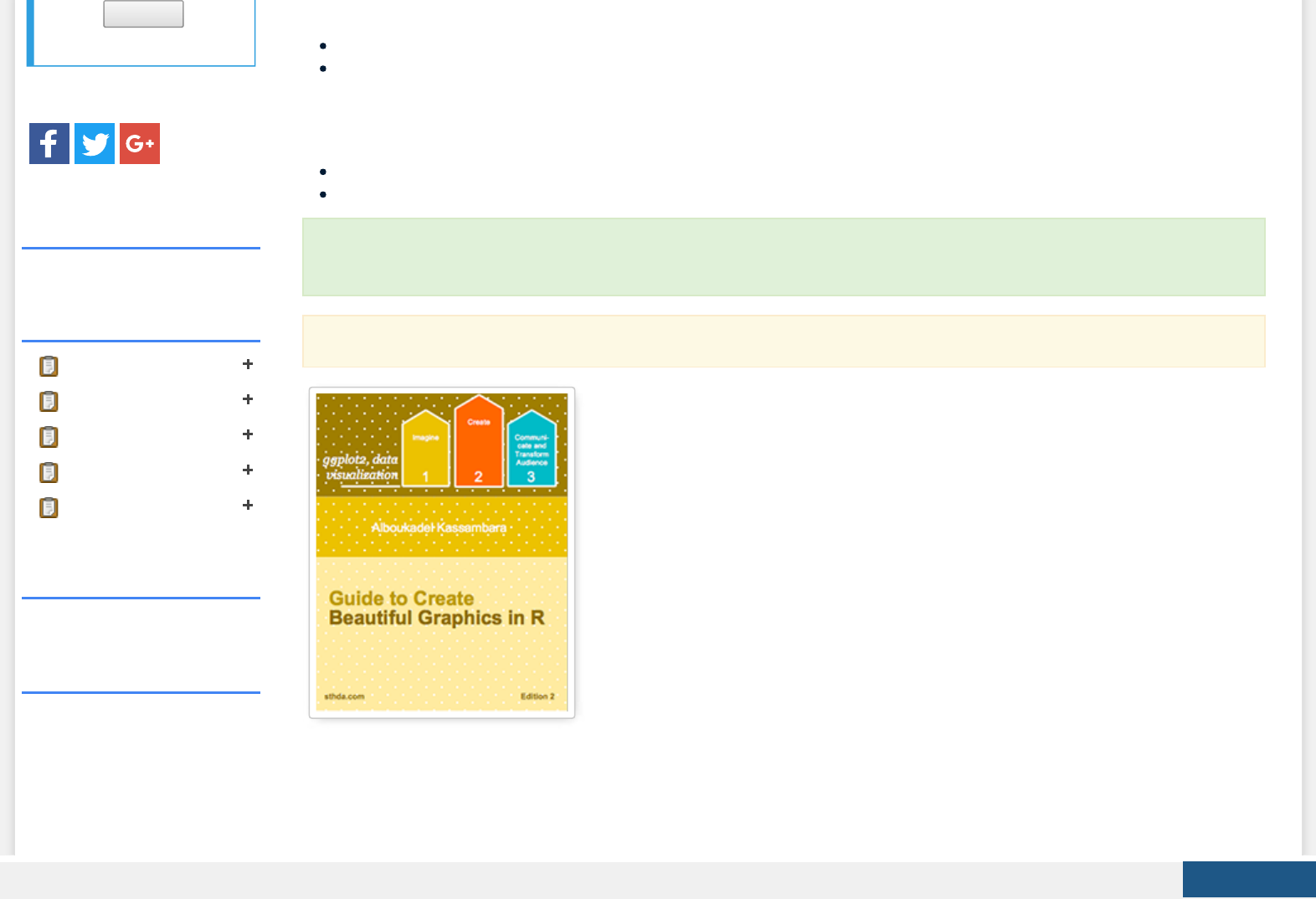
If you want be highly eective, download our book: Guide to Create Beautiful Graphics in R
Create PDF in your applications with the Pdfcrowd HTML to PDF API PDFCROWD
R Graphics Essentials for
Great Data Visualization:
200 Practical Examples
You Want to Know for
Data Science
NEW!!
Practical Guide to Cluster
Analysis in R
3D Plots in R
The type of plots, to be created, depends on the format of your data. The ggplot2 package provides methods for visualizing
the following data structures:
1. One variable - x: continuous or discrete
2. Two variables - x & y: continuous and/or discrete
3. Continuous bivariate distribution - x & y (both continuous)
4. Continuous function
5. Error bar
6. Maps
7. Three variables
In the current document we’ll provide the essential ggplot2 functions for drawing each of these seven data formats.
How this document is organized?
Basics
Types of graphs for data visualization
How this document is organized?
Install and load ggplot2 package
Data format and preparation
qplot(): Quick plot with ggplot2
Scatter plots
Box plot, violin plot and dot plot
Histogram and density plots
ggplot(): build plots piece by piece
One variable: Continuous
geom_area(): Create an area plot
geom_density(): Create a smooth density estimate
geom_dotplot(): Dot plot
geom_freqpoly(): Frequency polygon
geom_histogram(): Histogram
stat_ecdf(): Empirical Cumulative Density Function
stat_qq(): quantile - quantile plot
One variable: Discrete
Two variables: Continuous X, Continuous Y
geom_point(): Scatter plot
Create PDF in your applications with the Pdfcrowd HTML to PDF API PDFCROWD
Practical Guide to
Principal Component
Methods in R
Guest Book
Love this site, amazing
resource for ggplot2 and
statistics
By Visitor
Guest Book
geom_smooth(): Add regression line or smoothed conditional mean
geom_quantile(): Add quantile lines from a quantile regression
geom_rug(): Add marginal rug to scatter plots
geom_jitter(): Jitter points to reduce overplotting
geom_text(): Textual annotations
Two variables: Continuous bivariate distribution
geom_bin2d(): Add heatmap of 2d bin counts
geom_hex(): Add hexagon bining
geom_density_2d(): Add contours from a 2d density estimate
Two variables: Continuous function
Two variables: Discrete X, Continuous Y
geom_boxplot(): Box and whiskers plot
geom_violin(): Violin plot
geom_dotplot(): Dot plot
geom_jitter(): Strip charts
geom_line(): Line plot
geom_bar(): Bar plot
Two variables: Discrete X, Discrete Y
Two variables: Visualizing error
geom_crossbar(): Hollow bar with middle indicated by horizontal line
geom_errorbar(): Error bars
geom_errorbarh(): Horizontal error bars
geom_linerange() and geom_pointrange(): An interval represented by a vertical line
Combine geom_dotplot and error bars
Two variables: Maps
Three variables
Other types of graphs
Graphical primitives: polygon, path, ribbon, segment, rectangle
Graphical parameters
Main title, axis labels and legend title
Legend position and appearance
Change colors automatically and manually
Point shapes, colors and size
Add text annotations to a graph
Create PDF in your applications with the Pdfcrowd HTML to PDF API PDFCROWD
Blogroll
Datanovia: Online
Data Science Courses
R-Bloggers
Line types
Themes and background colors
Axis limits: Minimum and Maximum values
Axis transformations: log and sqrt scales
Axis ticks: customize tick marks and labels, reorder and select items
Add straight lines to a plot: horizontal, vertical and regression lines
Rotate a plot: ip and reverse
Faceting: split a plot into a matrix of panels
Position adjustements
Coordinate systems
Extensions to ggplot2: R packages and functions
Ressources to improve your ggplot2 skills
Books
Blog posts
Cheat Sheets
Acknoweledgment
Infos
Install and load ggplot2 package
Use the R code below:
# Installation
install.packages('ggplot2')
# Loading
library(ggplot2)
Data format and preparation
The data should be a data.frame (columns are variables and rows are observations).
Create PDF in your applications with the Pdfcrowd HTML to PDF API PDFCROWD

The data set mtcars is used in the examples below:
# Load the data
data(mtcars)
df <- mtcars[, c("mpg", "cyl", "wt")]
# Convert cyl to a factor variable
df$cyl <- as.factor(df$cyl)
head(df)
## mpg cyl wt
## Mazda RX4 21.0 6 2.620
## Mazda RX4 Wag 21.0 6 2.875
## Datsun 710 22.8 4 2.320
## Hornet 4 Drive 21.4 6 3.215
## Hornet Sportabout 18.7 8 3.440
## Valiant 18.1 6 3.460
mtcars : Motor Trend Car Road Tests.
Description: The data comprises fuel consumption and 10 aspects of automobile design and performance for 32
automobiles (1973 - 74 models).
Format: A data frame with 32 observations on 3 variables.
[, 1] mpg Miles/(US) gallon
[, 2] cyl Number of cylinders
[, 3] wt Weight (lb/1000)
qplot(): Quick plot with ggplot2
Create PDF in your applications with the Pdfcrowd HTML to PDF API PDFCROWD
The qplot() function is very similar to the standard R plot() function. It can be used to create quickly and easily dierent types
of graphs: scatter plots, box plots, violin plots, histogram and density plots.
A simplied format of qplot() is :
qplot(x, y = NULL, data, geom="auto")
x, y : x and y values, respectively. The argument y is optional depending on the type of graphs to be created.
data : data frame to use (optional).
geom : Character vector specifying geom to use. Defaults to “point” if x and y are specied, and “histogram” if only x is
specied.
Other arguments such as main, xlab and ylab can be also used to add main title and axis labels to the plot.
Scatter plots
The R code below creates basic scatter plots using the argument geom = “point”. It’s also possible to combine dierent
geoms (e.g.: geom = c(“point”, “smooth”)).
# Basic scatter plot
qplot(x = mpg, y = wt, data = df, geom = "point")
# Scatter plot with smoothed line
qplot(mpg, wt, data = df,
geom = c("point", "smooth"))
Read more about qplot(): Quick plot with ggplot2.
Create PDF in your applications with the Pdfcrowd HTML to PDF API PDFCROWD
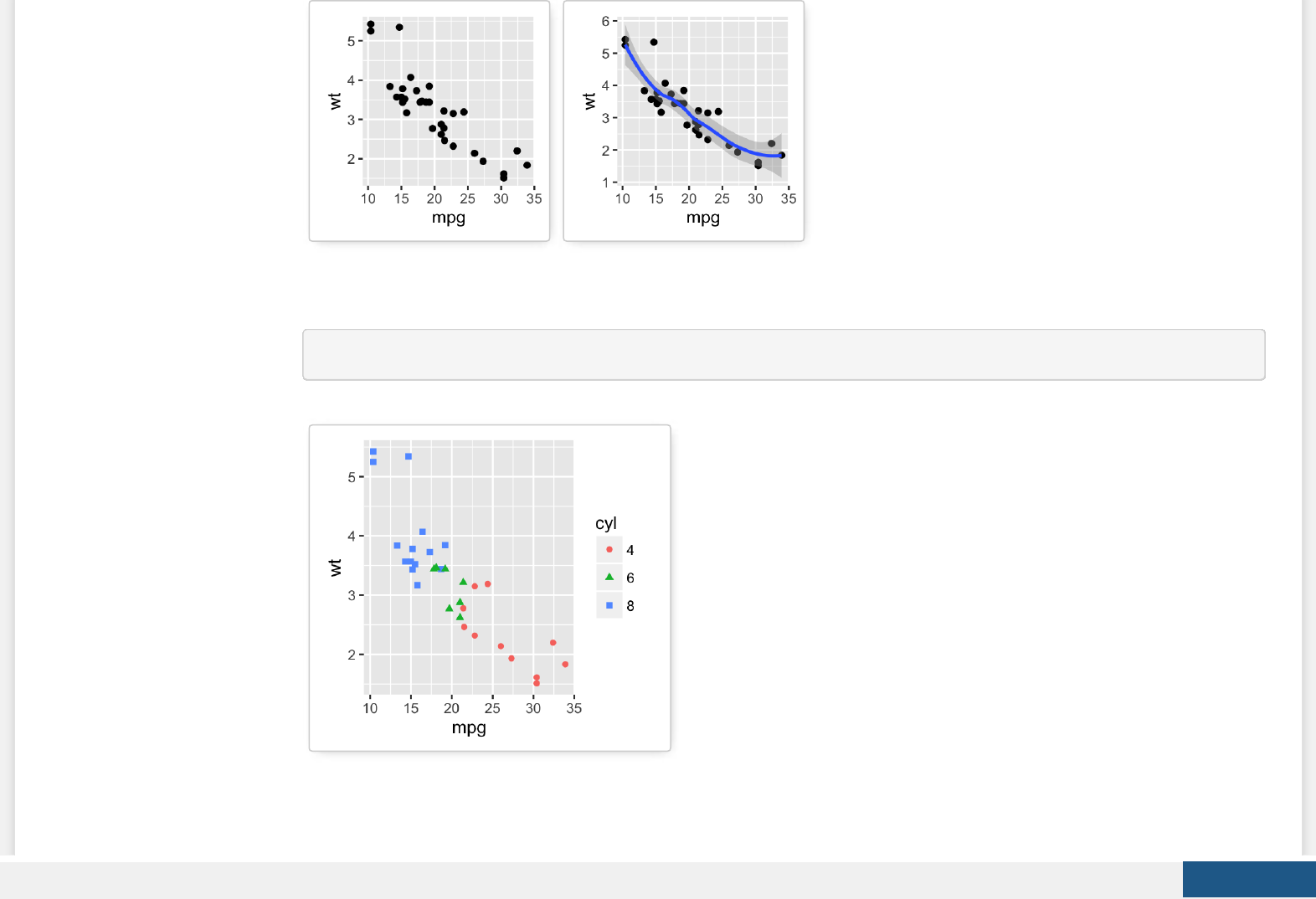
The following R code will change the color and the shape of points by groups. The column cyl will be used as grouping
variable. In other words, the color and the shape of points will be changed by the levels of cyl.
qplot(mpg, wt, data = df, colour = cyl, shape = cyl)
Box plot, violin plot and dot plot
Create PDF in your applications with the Pdfcrowd HTML to PDF API PDFCROWD

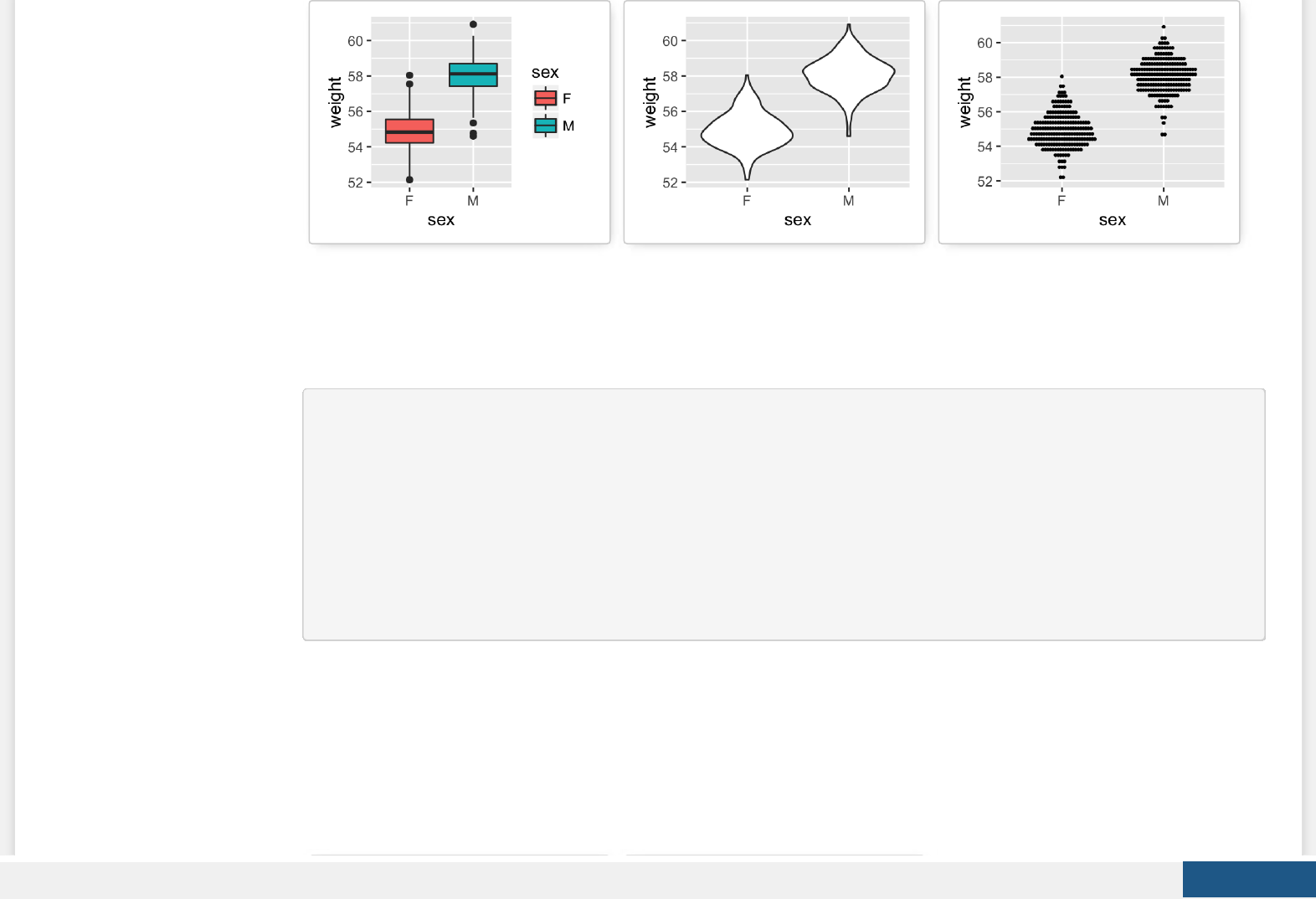
The R code below generates some data containing the weights by sex (M for male; F for female):
set.seed(1234)
wdata = data.frame(
sex = factor(rep(c("F", "M"), each=200)),
weight = c(rnorm(200, 55), rnorm(200, 58)))
head(wdata)
## sex weight
## 1 F 53.79293
## 2 F 55.27743
## 3 F 56.08444
## 4 F 52.65430
## 5 F 55.42912
## 6 F 55.50606
# Basic box plot from data frame
qplot(sex, weight, data = wdata,
geom= "boxplot", fill = sex)
# Violin plot
qplot(sex, weight, data = wdata, geom = "violin")
# Dot plot
qplot(sex, weight, data = wdata, geom = "dotplot",
stackdir = "center", binaxis = "y", dotsize = 0.5)
Create PDF in your applications with the Pdfcrowd HTML to PDF API PDFCROWD
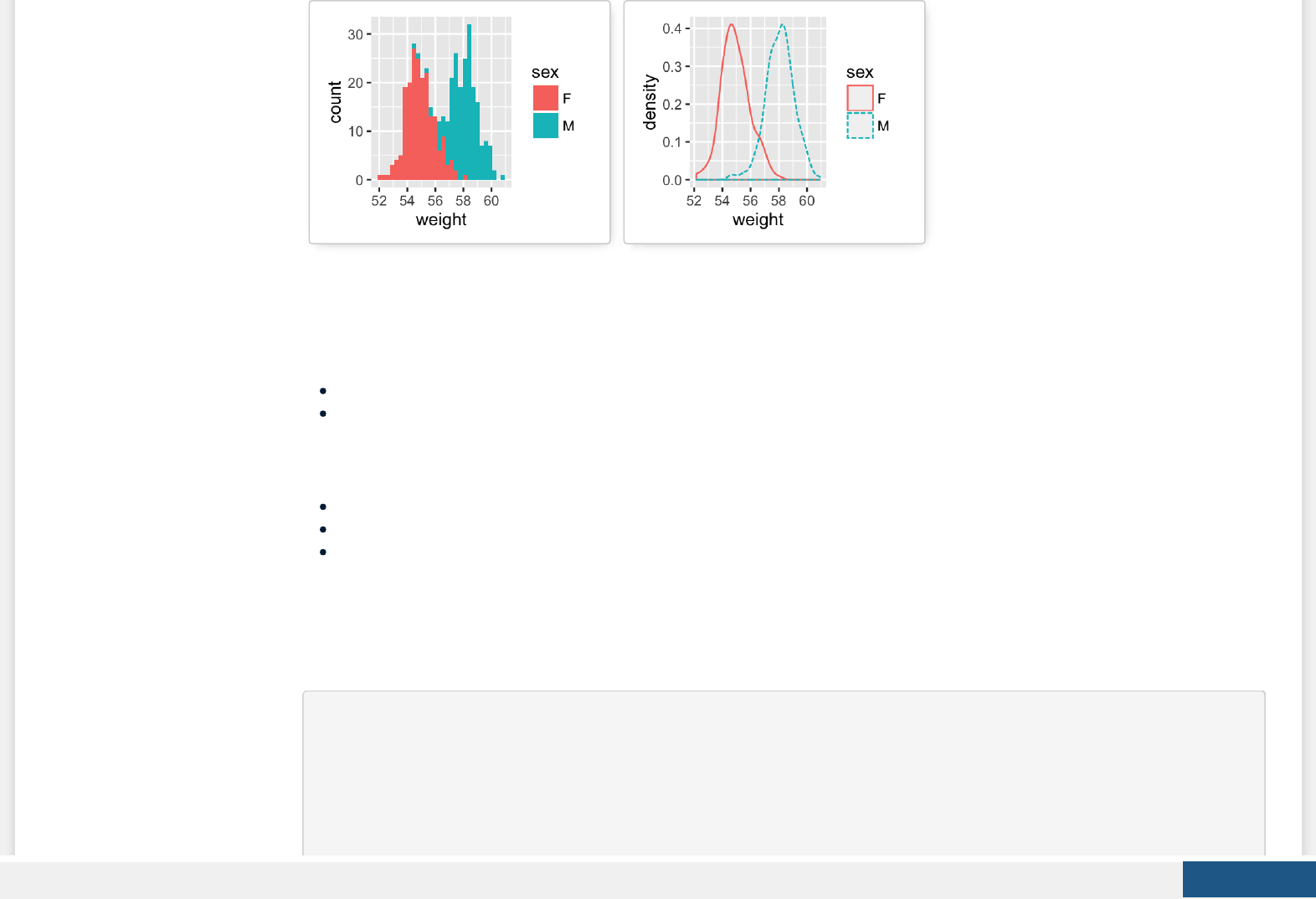
Histogram and density plots
The histogram and density plots are used to display the distribution of data.
# Histogram plot
# Change histogram fill color by group (sex)
qplot(weight, data = wdata, geom = "histogram",
fill = sex)
# Density plot
# Change density plot line color by group (sex)
# change line type
qplot(weight, data = wdata, geom = "density",
color = sex, linetype = sex)
Create PDF in your applications with the Pdfcrowd HTML to PDF API PDFCROWD
ggplot(): build plots piece by piece
As mentioned above, there are two main functions in ggplot2 package for generating graphics:
The quick and easy-to-use function: qplot()
The more powerful and exible function to build plots piece by piece: ggplot()
This section describes briey how to use the function ggplot(). Recall that, the concept of ggplot divides a plot into three
dierent fundamental parts: plot = data + Aesthetics + geometry.
data: a data frame.
Aesthetics: used to specify x and y variables, color, size, shape, ….
Geometry: the type of plots (histogram, boxplot, line, density, dotplot, bar, …)
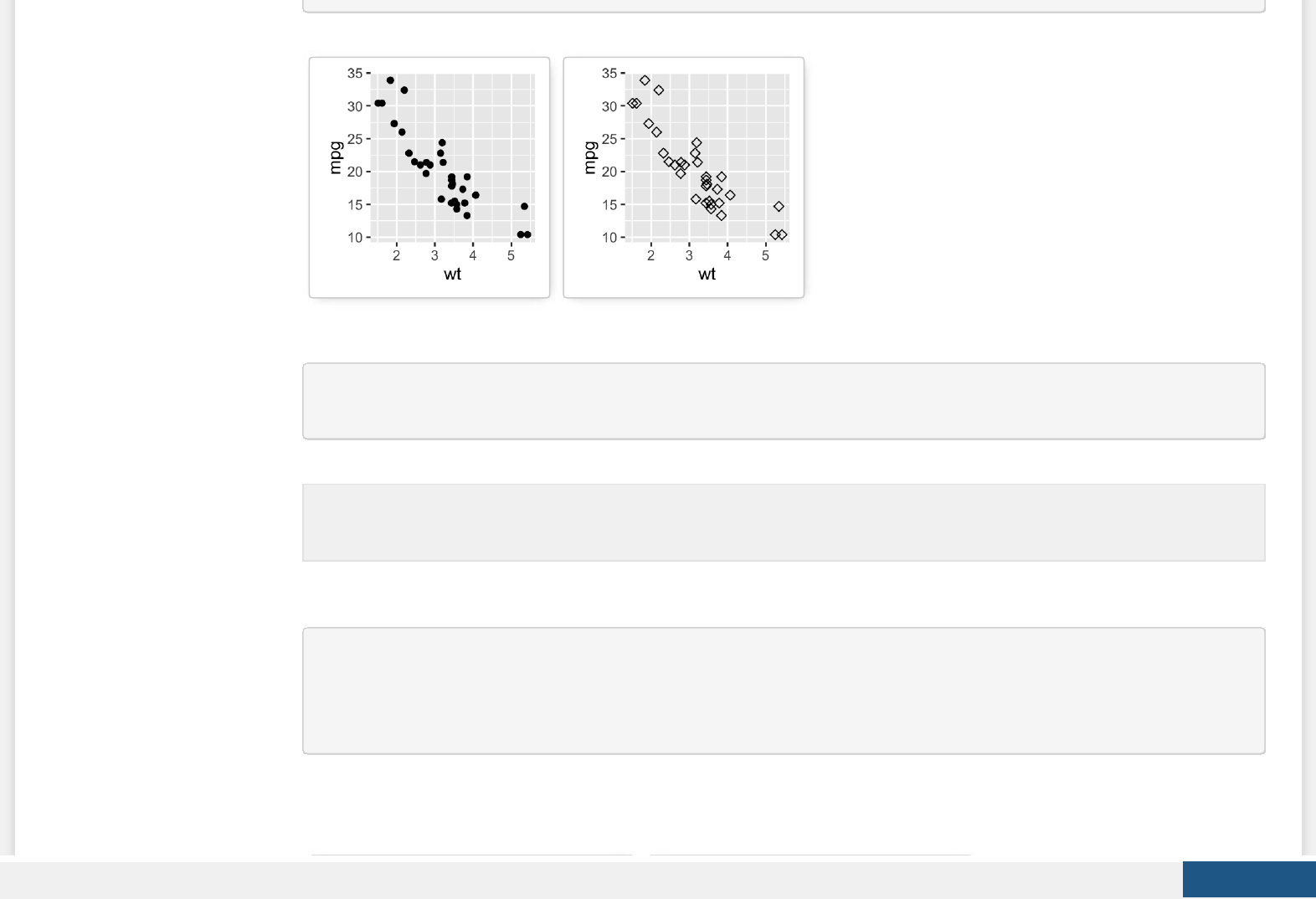
To demonstrate how the function ggplot() works, we’ll draw a scatter plot. The function aes() is used to specify aesthetics. An
alternative option is the function aes_string() which generates mappings from a string. aes_string() is particularly useful when
writing functions that create plots because you can use strings to dene the aesthetic mappings, rather than having to use
substitute to generate a call to aes()
# Basic scatter plot
ggplot(data = mtcars, aes(x = wt, y = mpg)) +
geom_point()
# Change the point size, and shape
ggplot(mtcars, aes(x = wt, y = mpg)) +
geom_point(size = 2, shape = 23)
Create PDF in your applications with the Pdfcrowd HTML to PDF API PDFCROWD
The function aes_string() can be used as follow:
ggplot(mtcars, aes_string(x = "wt", y = "mpg")) +
geom_point(size = 2, shape = 23)
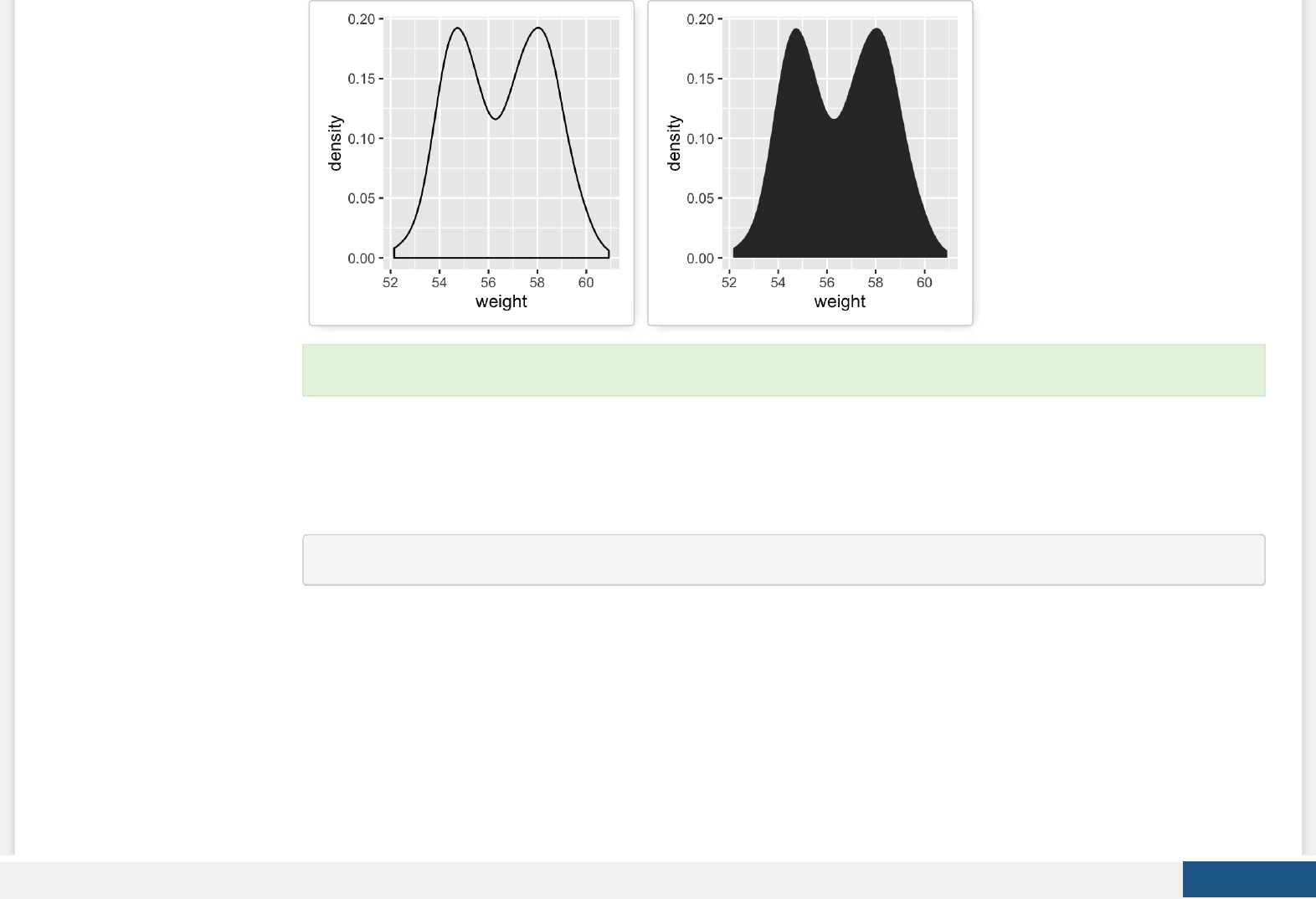
In the following example, the function geom_density() does the same as the function stat_density():
# Use geometry function
ggplot(wdata, aes(x = weight)) + geom_density()
# OR use stat function
ggplot(wdata, aes(x = weight)) + stat_density()
Note that, some plots visualize a transformation of the original data set. In this case, an alternative way to build a
layer is to use stat_*() functions.
Create PDF in your applications with the Pdfcrowd HTML to PDF API PDFCROWD
One variable: Continuous
We’ll use weight data (wdata), generated in the previous sections.
head(wdata)
## sex weight
## 1 F 53.79293
## 2 F 55.27743
## 3 F 56.08444
## 4 F 52.65430
## 5 F 55.42912
## 6 F 55.50606
The following R code computes the mean value by sex:
For each plot type, we’ll provide the geom_*() function and the corresponding stat_*() function (if available).
Create PDF in your applications with the Pdfcrowd HTML to PDF API PDFCROWD
library(plyr)
mu <- ddply(wdata, "sex", summarise, grp.mean=mean(weight))
head(mu)
## sex grp.mean
## 1 F 54.94224
## 2 M 58.07325
a <- ggplot(wdata, aes(x = weight))
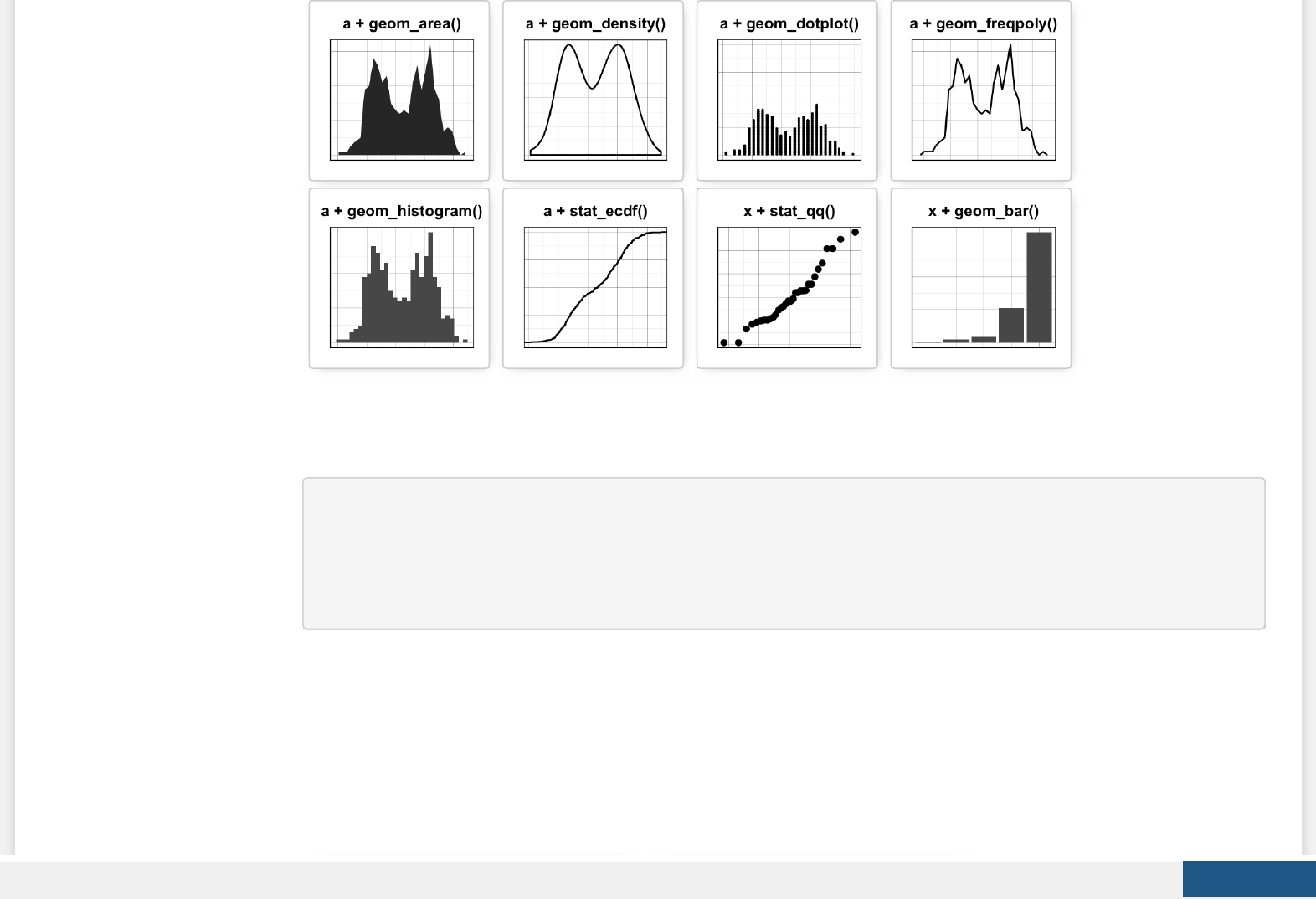
Possible layers are:
For one continuous variable:
geom_area() for area plot
geom_density() for density plot
geom_dotplot() for dot plot
geom_freqpoly() for frequency polygon
geom_histogram() for histogram plot
stat_ecdf() for empirical cumulative density function
stat_qq() for quantile - quantile plot
For one discrete variable:
geom_bar() for bar plot
We start by creating a plot, named a, that we’ll nish in the next section by adding a layer.
Create PDF in your applications with the Pdfcrowd HTML to PDF API PDFCROWD
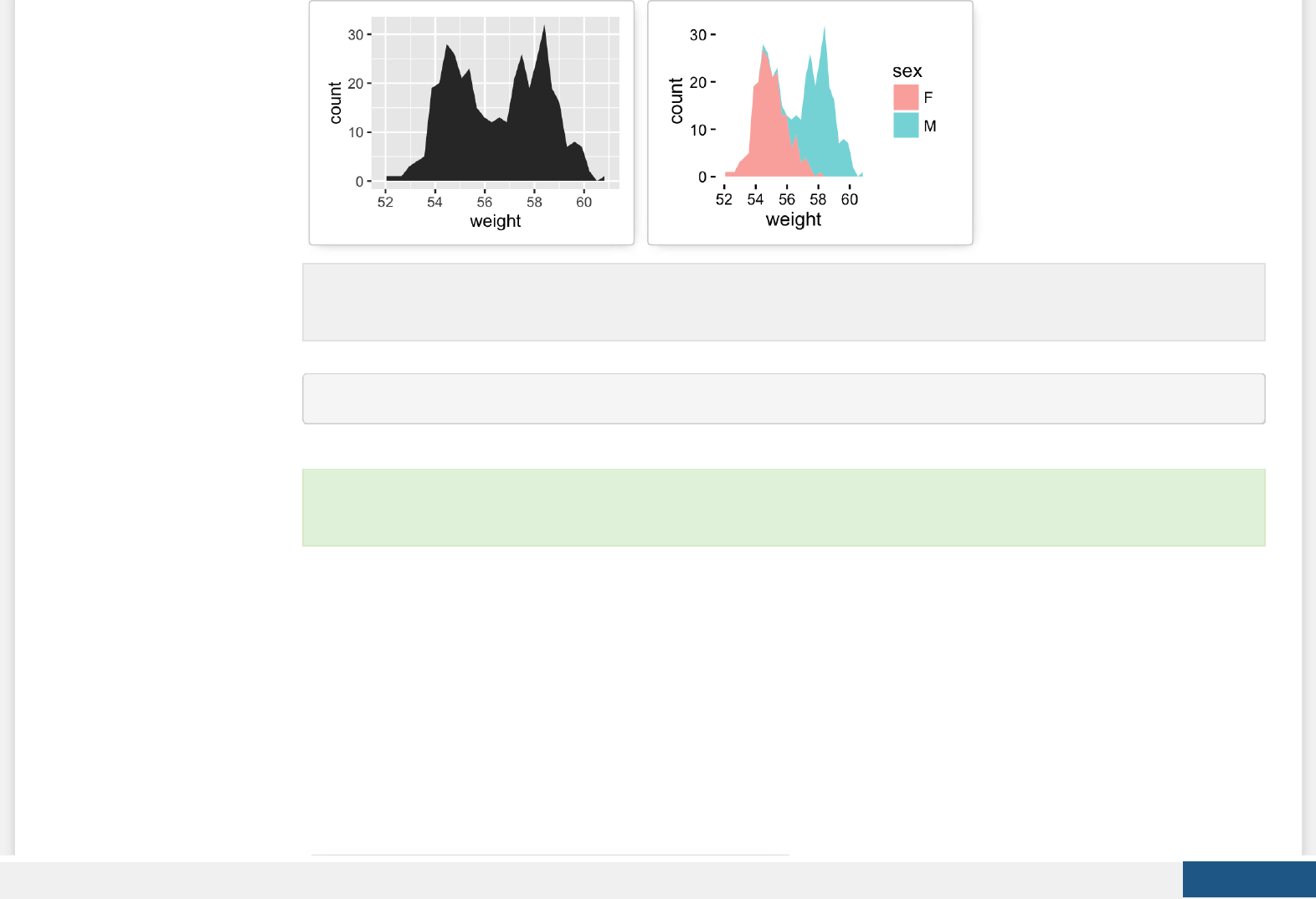
a + geom_area(aes(y = ..density..), stat ="bin")
Note that, by default y axis corresponds to the count of weight values. If you want to change the plot in order to have
the density on y axis, the R code would be as follow.
To customize the plot, the following arguments can be used: alpha, color, ll, linetype, size. Learn more here: ggplot2
area plot.
Create PDF in your applications with the Pdfcrowd HTML to PDF API PDFCROWD
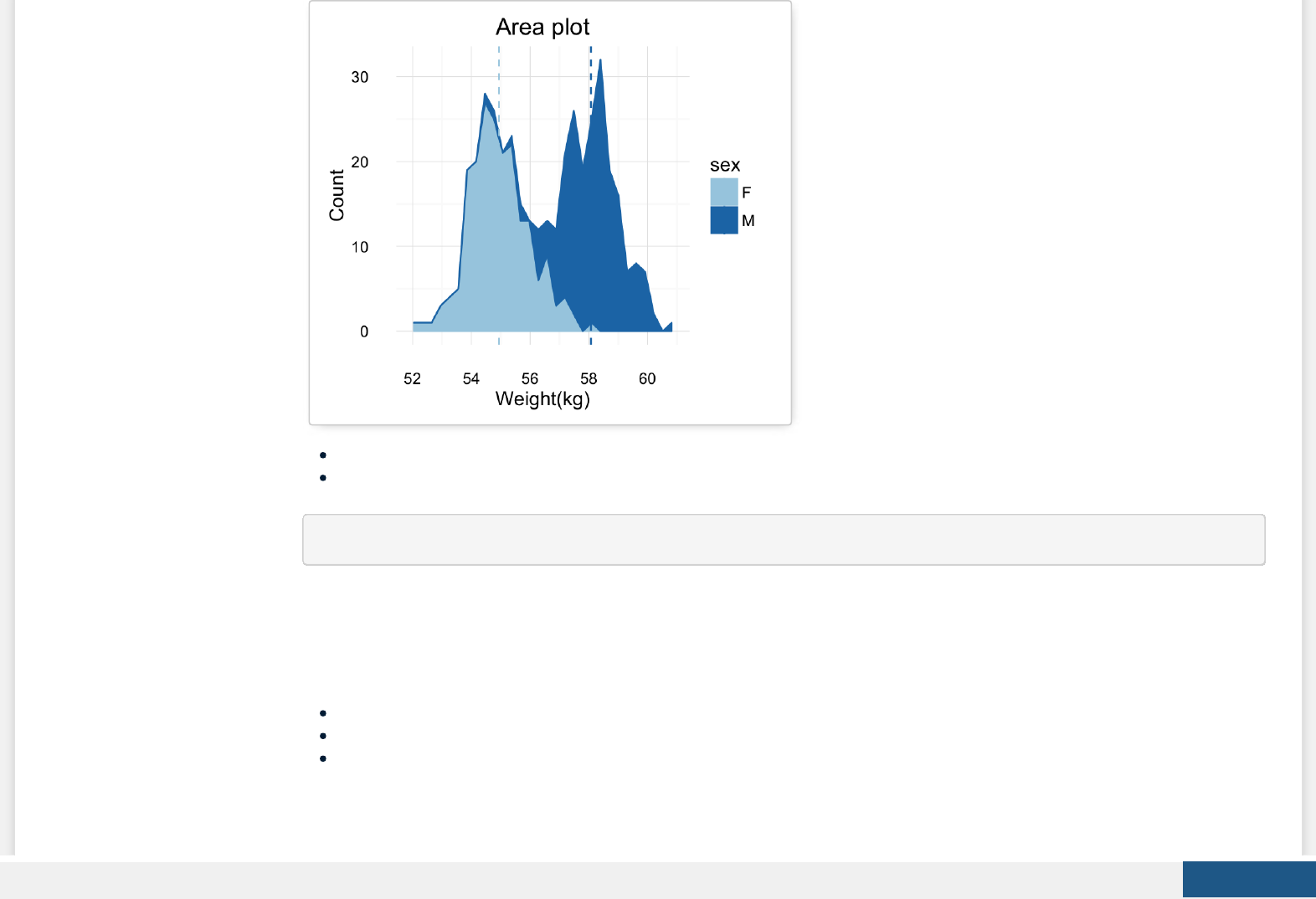
Key function: geom_area()
Alternative function: stat_bin()
a + stat_bin(geom = "area")
geom_density(): Create a smooth density estimate
We’ll use the following functions:
geom_density() to create a density plot
geom_vline() to add a vertical lines corresponding to group mean values
scale_color_manual() to change the color manually by groups
Create PDF in your applications with the Pdfcrowd HTML to PDF API PDFCROWD

# Basic plot
a + geom_density()
# change line colors by sex
a + geom_density(aes(color = sex))
# Change fill color by sex
# Use semi-transparent fill: alpha = 0.4
a + geom_density(aes(fill = sex), alpha=0.4)
# Add mean line and Change color manually
a + geom_density(aes(color = sex)) +
geom_vline(data=mu, aes(xintercept=grp.mean, color=sex),
linetype="dashed") +
scale_color_manual(values=c("#999999", "#E69F00"))
Create PDF in your applications with the Pdfcrowd HTML to PDF API PDFCROWD
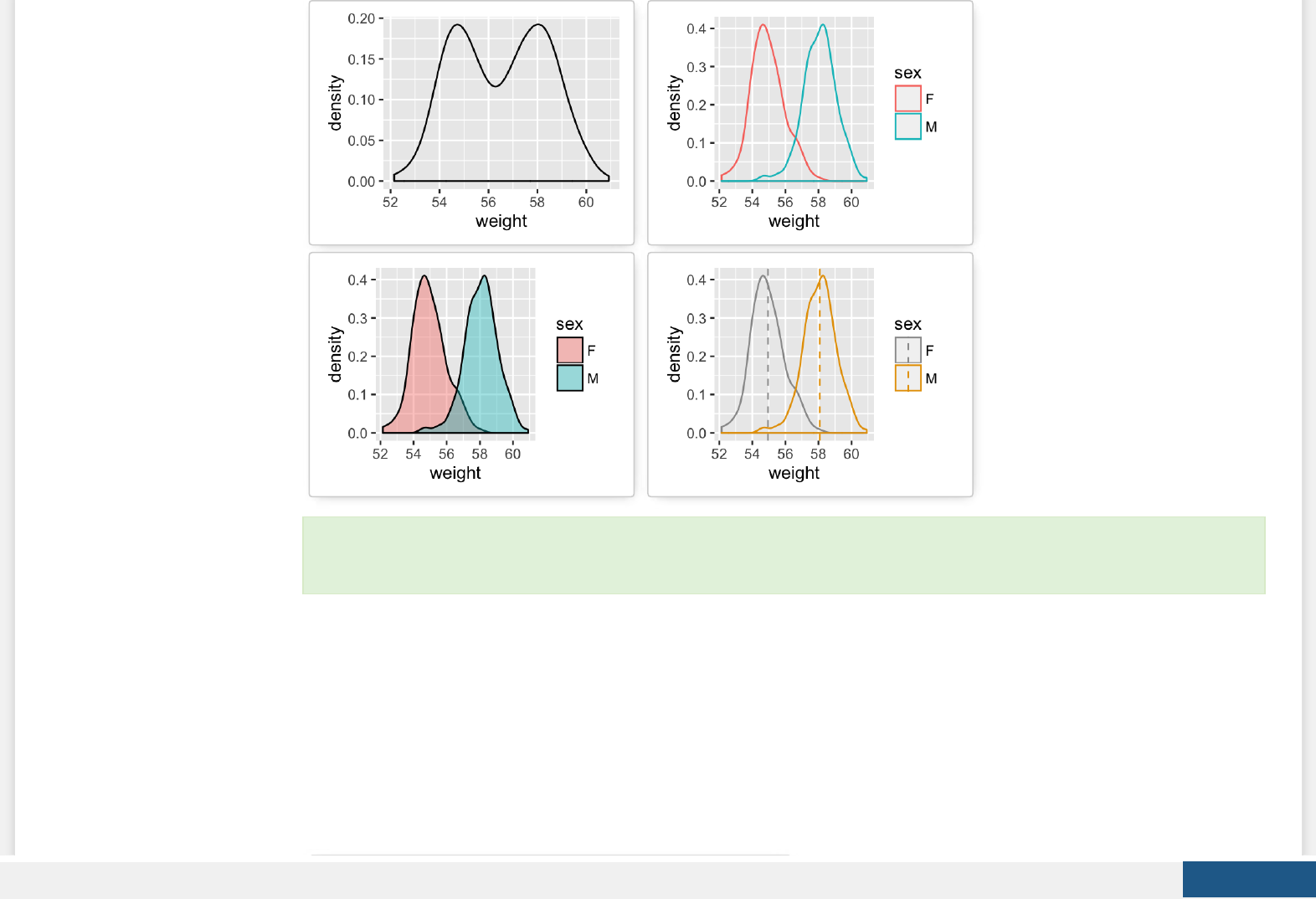
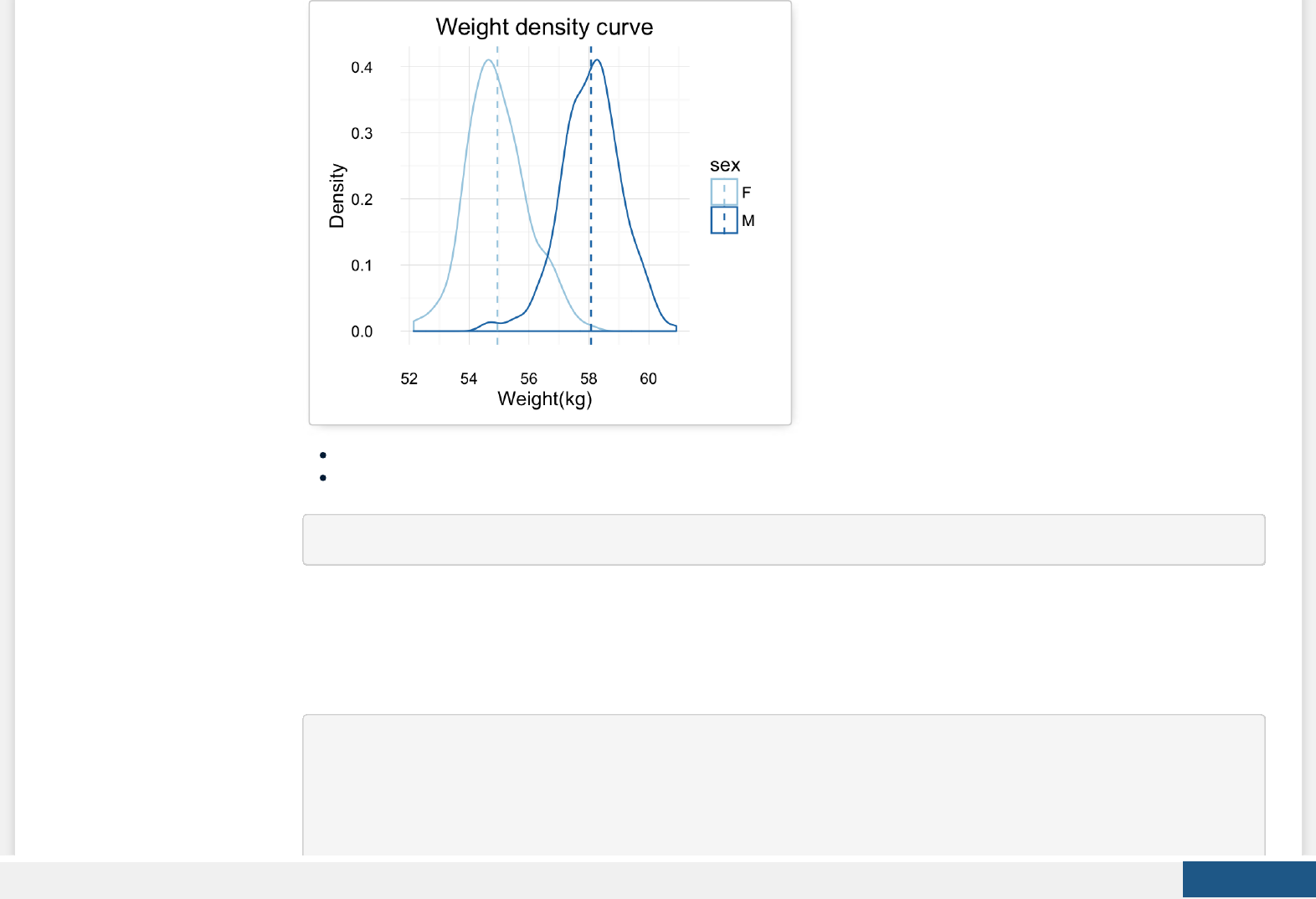
Key function: geom_density()
Alternative function: stat_density()
a + stat_density()
geom_dotplot(): Dot plot
In a dot plot, dots are stacked with each dot representing one observation.
# Basic plot
a + geom_dotplot()
# change fill and color by sex
a + geom_dotplot(aes(fill = sex))
# Change fill color manually
Create PDF in your applications with the Pdfcrowd HTML to PDF API PDFCROWD
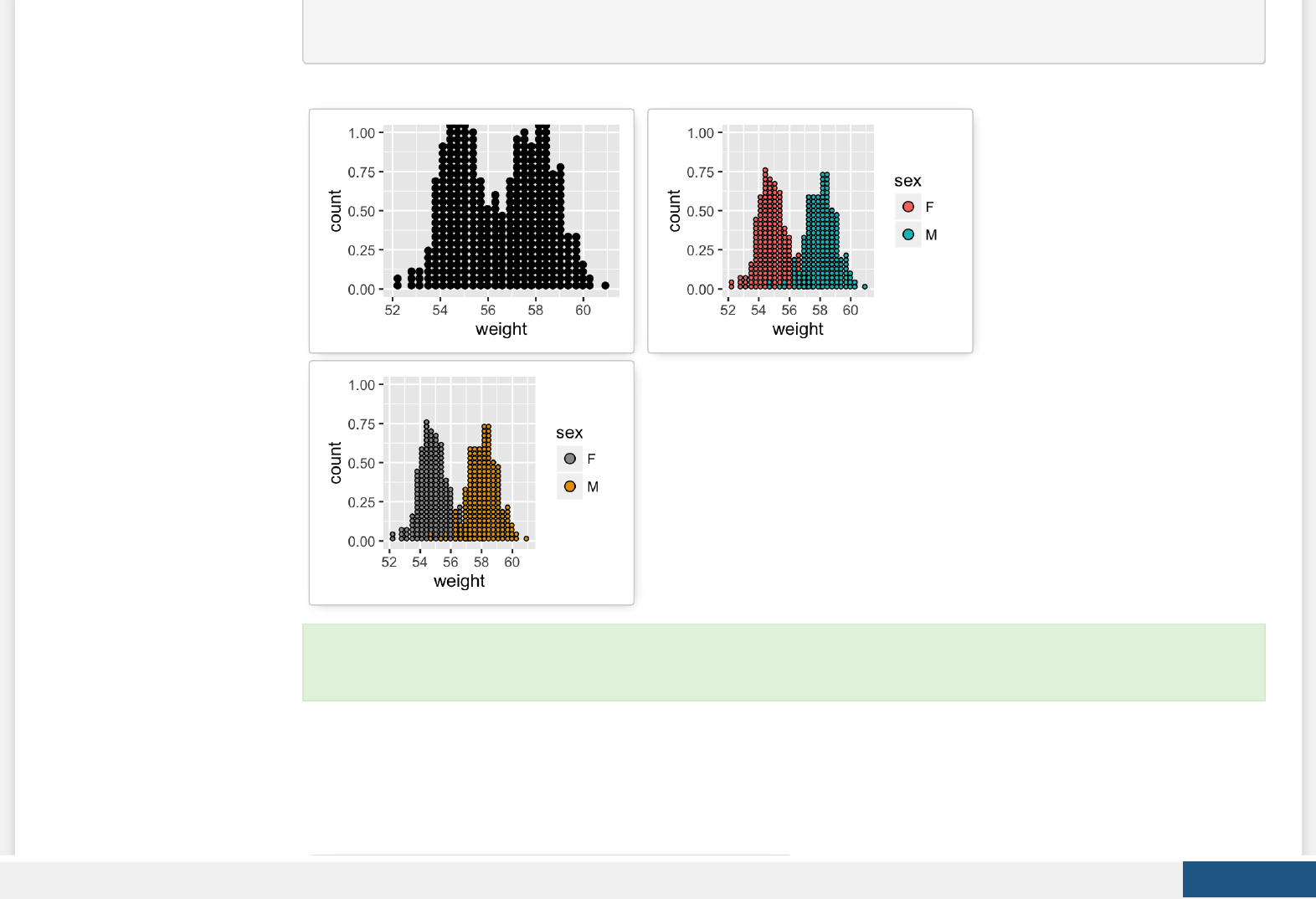
Key functions: geom_dotplot()
geom_freqpoly(): Frequency polygon
# Basic plot
a + geom_freqpoly()
# change y axis to density value
# and change theme
a + geom_freqpoly(aes(y = ..density..)) +
theme_minimal()
# change color and linetype by sex
a + geom_freqpoly(aes(color = sex, linetype = sex)) +
theme_minimal()
Create PDF in your applications with the Pdfcrowd HTML to PDF API PDFCROWD
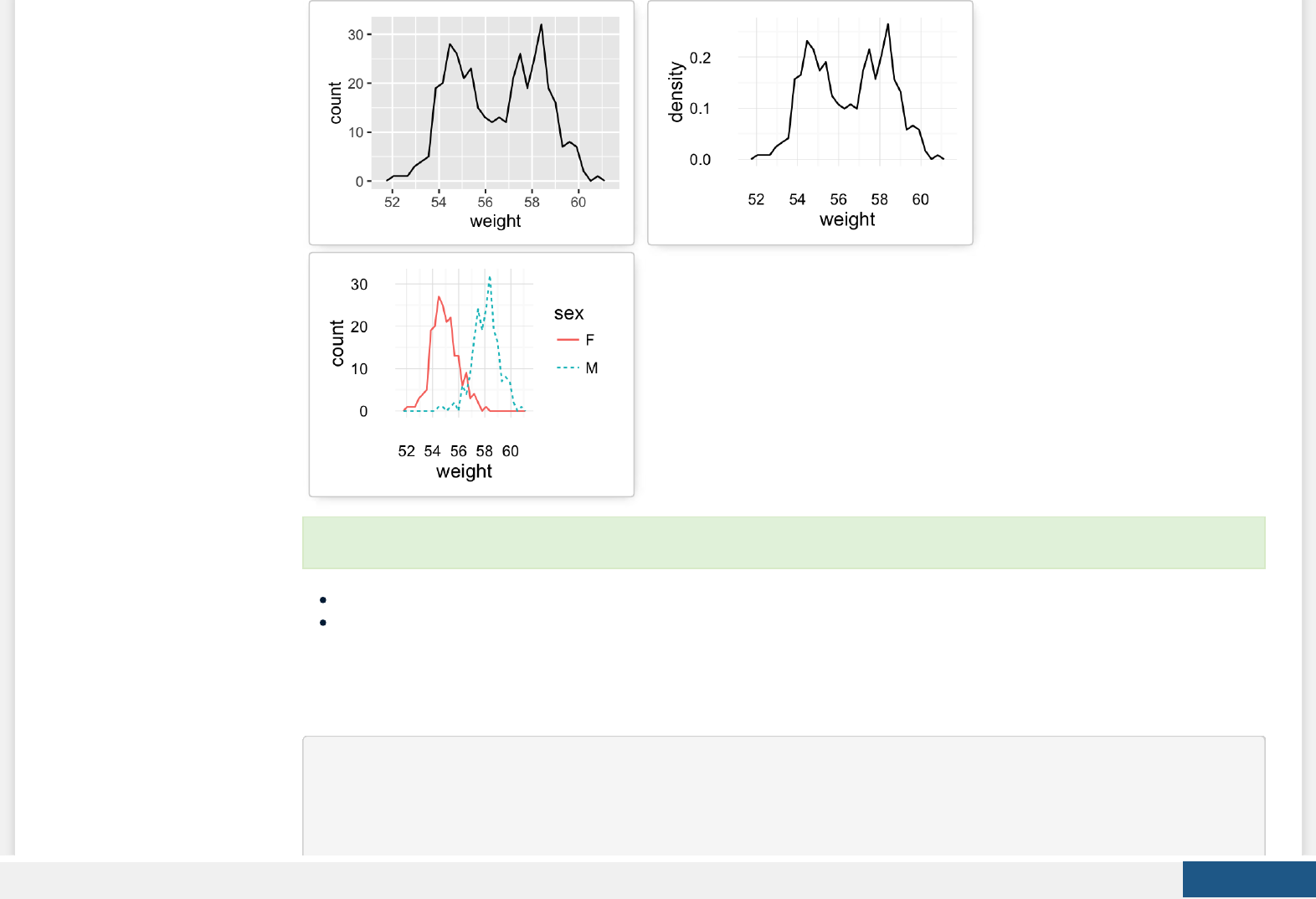
Key function: geom_freqpoly()
Alternative function: stat_bin()
geom_histogram(): Histogram
# Basic plot
a + geom_histogram()
# change line colors by sex
To customize the plot, the following arguments can be used: alpha, color, linetype and size.
Create PDF in your applications with the Pdfcrowd HTML to PDF API PDFCROWD
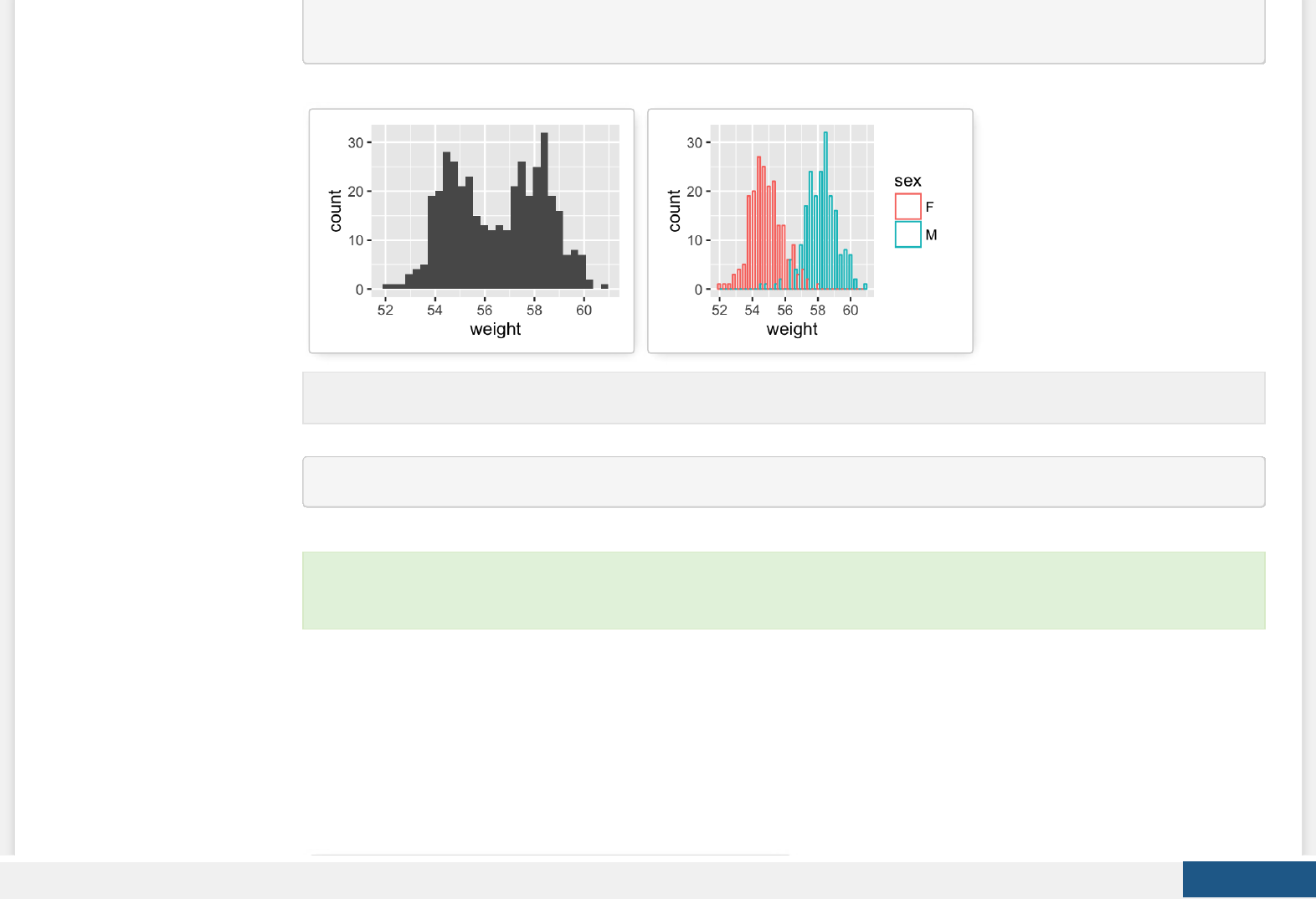
a + geom_histogram(aes(color = sex), fill = "white",
position = "dodge")
a + geom_histogram(aes(y = ..density..))
If you want to change the plot in order to have the density on y axis, the R code would be as follow.
To customize the plot, the following arguments can be used: alpha, color, ll, linetype and size. Learn more here:
ggplot2 histogram plot.
Create PDF in your applications with the Pdfcrowd HTML to PDF API PDFCROWD
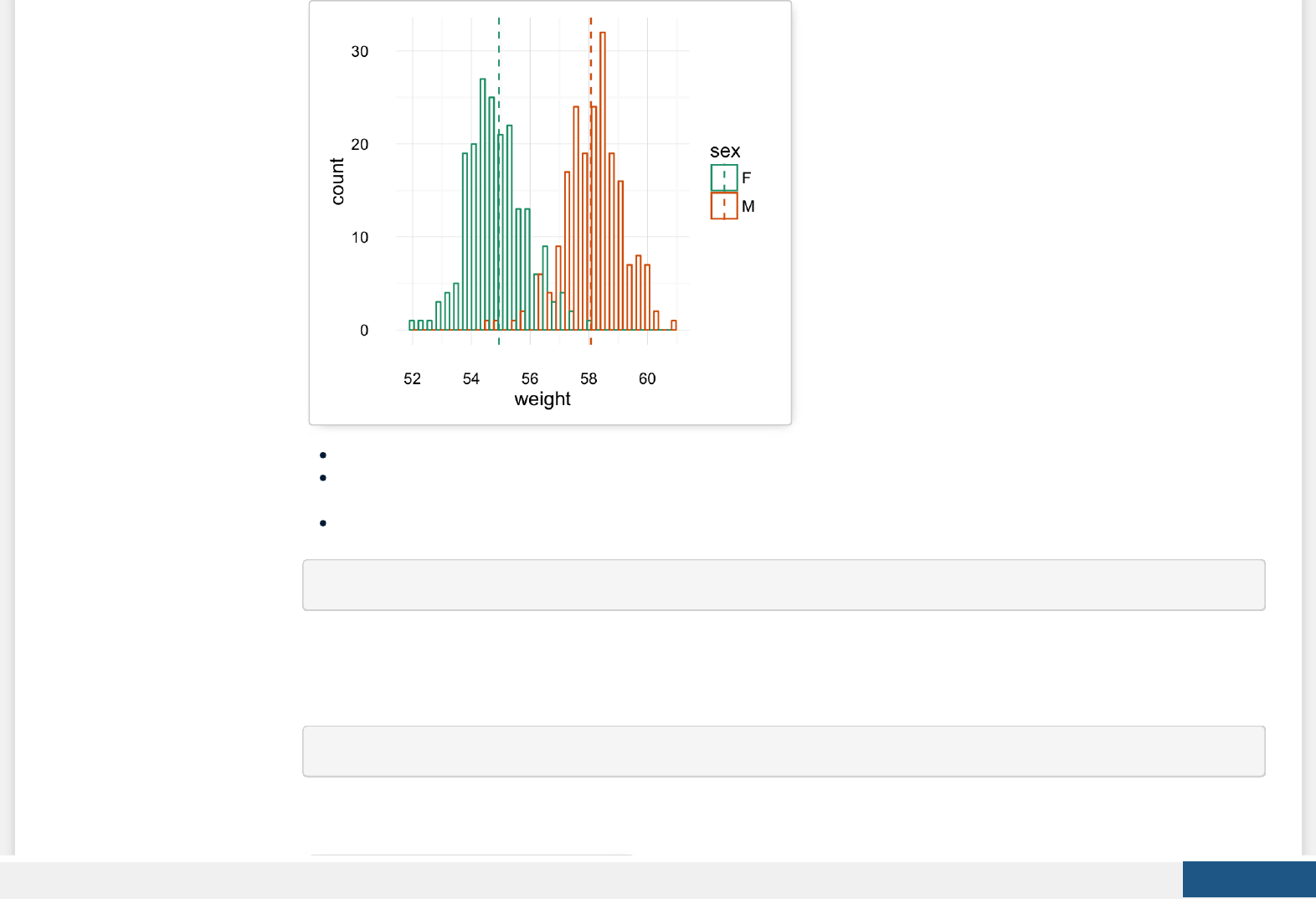
Key functions: geom_histogram()
Position adjustments: “identity” (or position_identity()), “stack” (or position_stack()), “dodge” ( or position_dodge()). Default
value is “stack”
Alternative function: stat_bin()
a + stat_bin(geom = "histogram")
stat_ecdf(): Empirical Cumulative Density Function
a + stat_ecdf()
Create PDF in your applications with the Pdfcrowd HTML to PDF API PDFCROWD
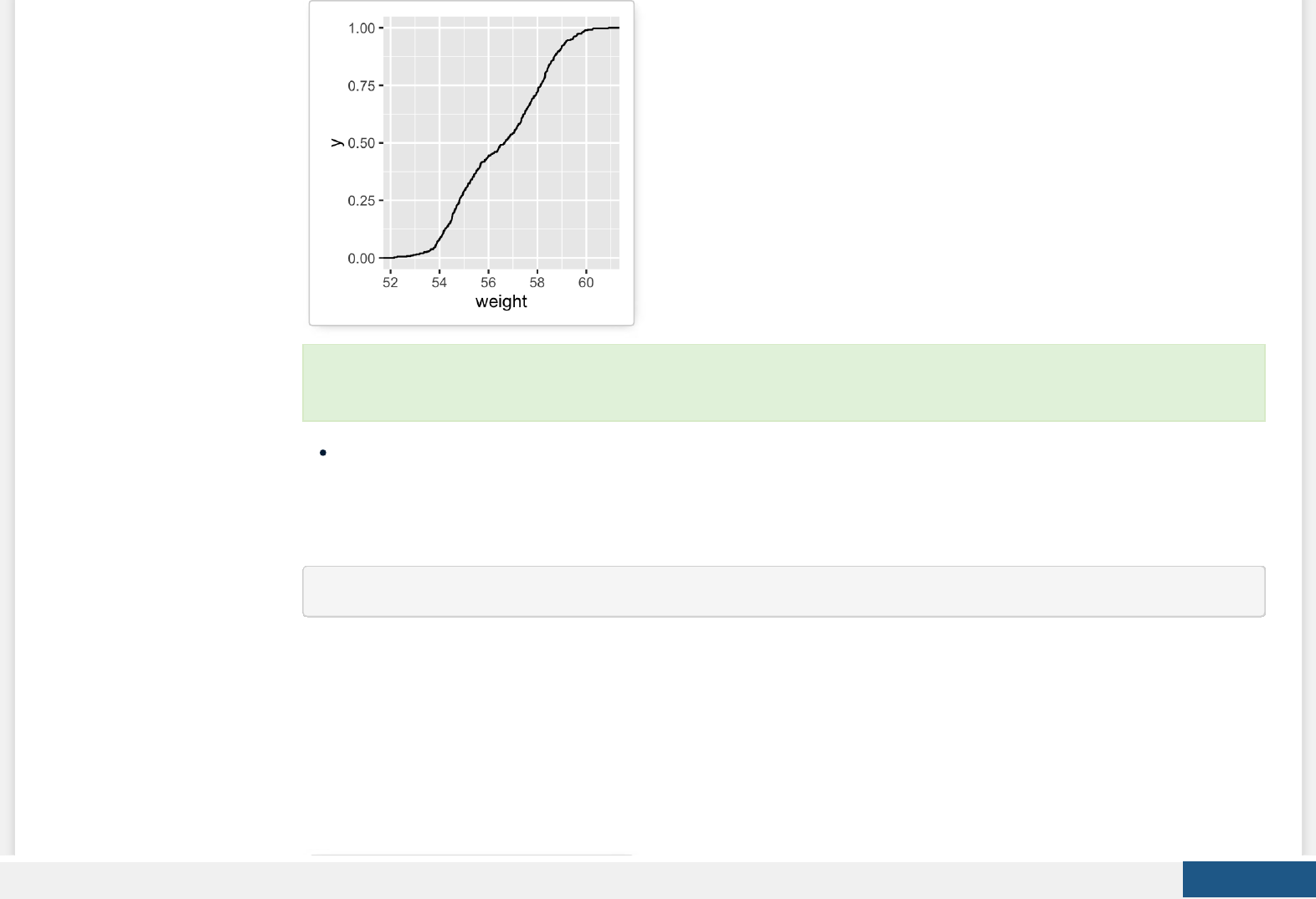
Key function: stat_ecdf()
stat_qq(): quantile - quantile plot
ggplot(mtcars, aes(sample=mpg)) + stat_qq()
To customize the plot, the following arguments can be used: alpha, color, linetype and size. Learn more here: ggplot2
ECDF.
Create PDF in your applications with the Pdfcrowd HTML to PDF API PDFCROWD
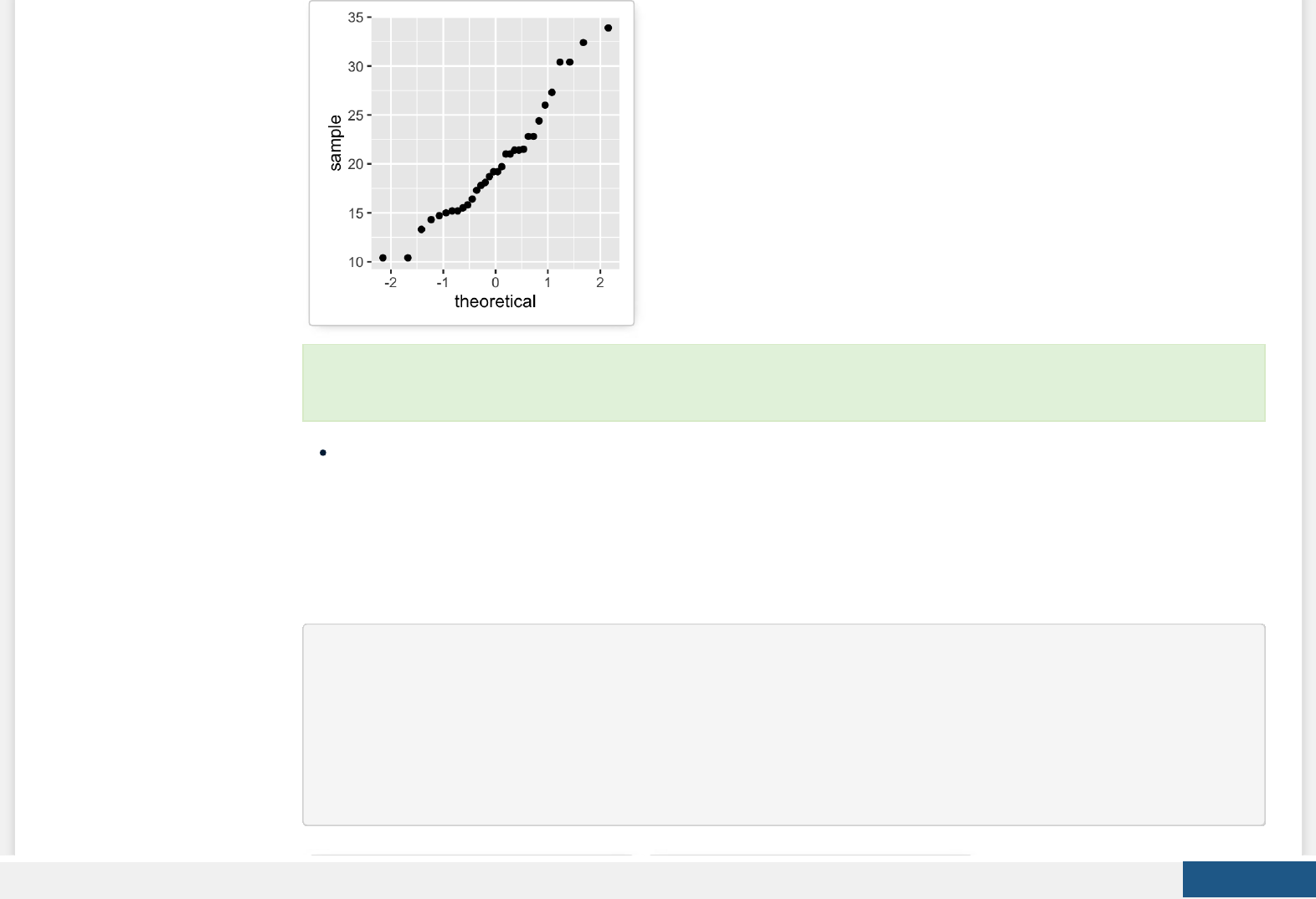
Key function: stat_qq()
One variable: Discrete
The function geom_bar() can be used to visualize one discrete variable. In this case, the count of each level is plotted. We’ll use
the mpg data set [in ggplot2 package]. The R code is as follow:
data(mpg)
b <- ggplot(mpg, aes(fl))
# Basic plot
b + geom_bar()
# Change fill color
b + geom_bar(fill = "steelblue", color ="steelblue") +
theme_minimal()
To customize the plot, the following arguments can be used: alpha, color, shape and size. Learn more here: ggplot2
quantile - quantile plot.
Create PDF in your applications with the Pdfcrowd HTML to PDF API PDFCROWD
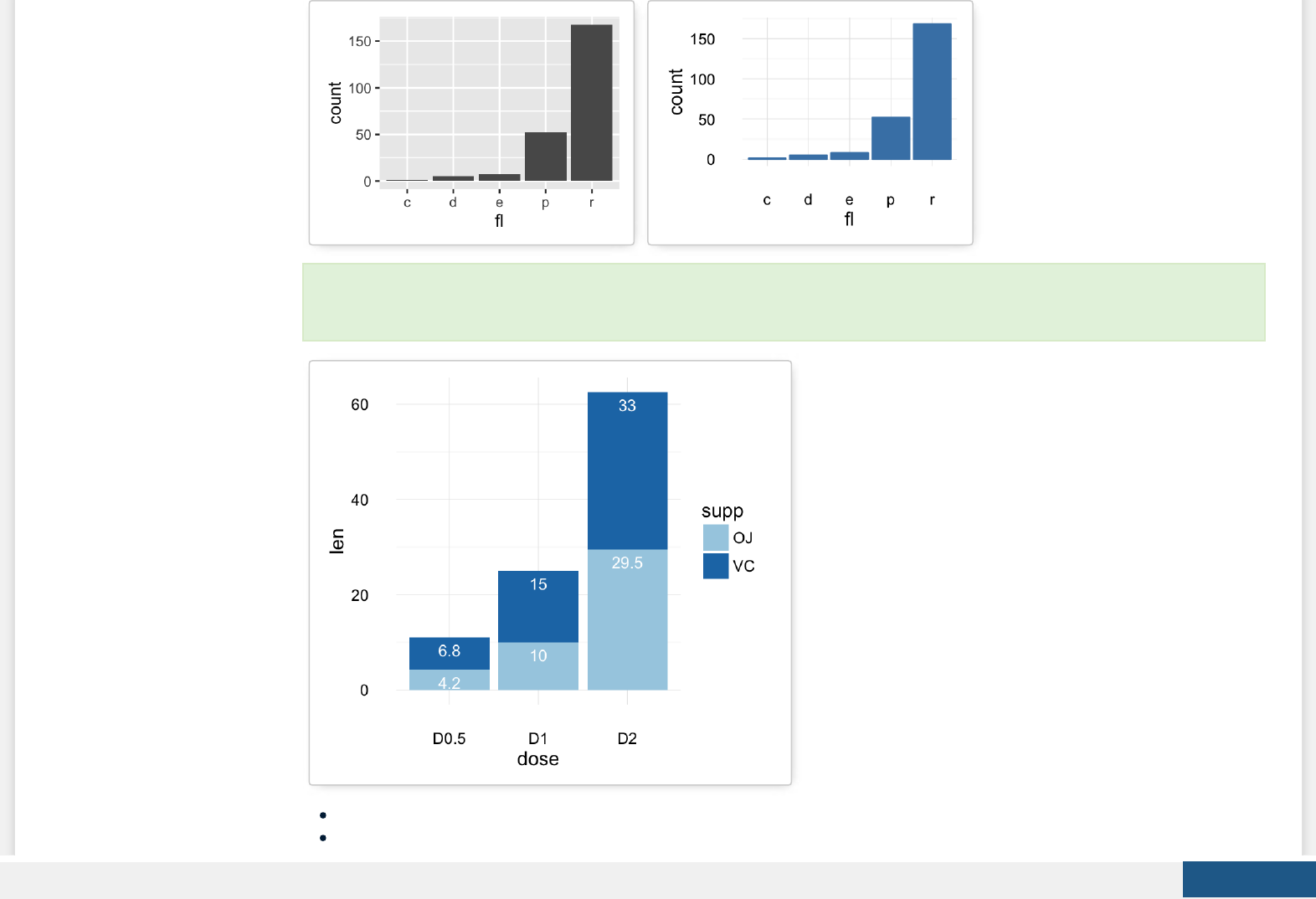

b + stat_count()
Two variables: Continuous X, Continuous Y
We’ll use the mtcars data set. The variable cyl is used as grouping variable.
data(mtcars)
mtcars$cyl <- as.factor(mtcars$cyl)
head(mtcars[, c("wt", "mpg", "cyl")])
## wt mpg cyl
## Mazda RX4 2.620 21.0 6
## Mazda RX4 Wag 2.875 21.0 6
## Datsun 710 2.320 22.8 4
## Hornet 4 Drive 3.215 21.4 6
## Hornet Sportabout 3.440 18.7 8
## Valiant 3.460 18.1 6
b <- ggplot(mtcars, aes(x = wt, y = mpg))
Possible layers include:
geom_point() for scatter plot
geom_smooth() for adding smoothed line such as regression line
geom_quantile() for adding quantile lines
geom_rug() for adding a marginal rug
We start by creating a plot, named b, that we’ll nish in the next section by adding a layer.
Create PDF in your applications with the Pdfcrowd HTML to PDF API PDFCROWD
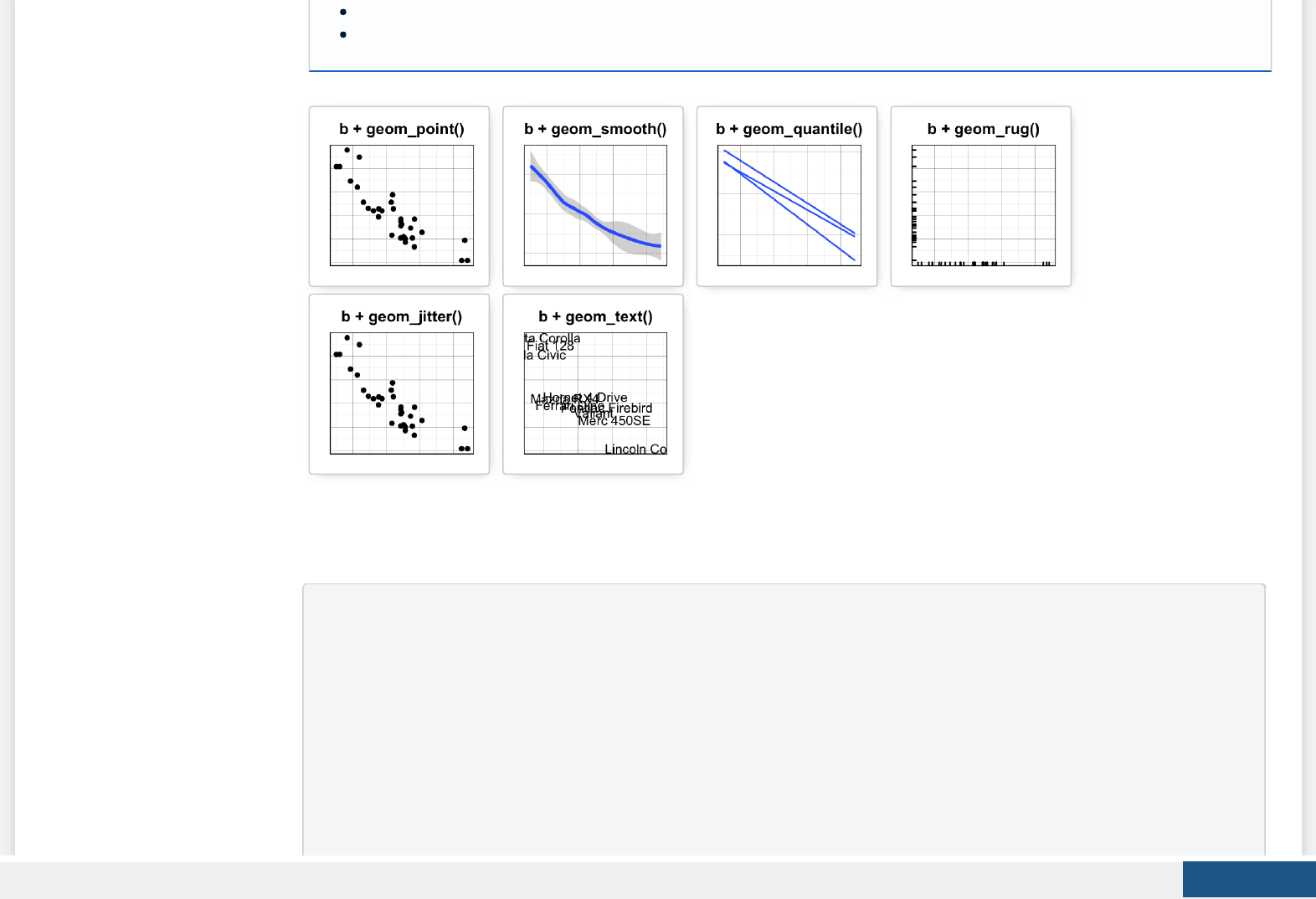
geom_jitter() for avoiding overplotting
geom_text() for adding textual annotations
geom_point(): Scatter plot
# Basic plot
b + geom_point()
# change the color and the point
# by the levels of cyl variable
b + geom_point(aes(color = cyl, shape = cyl))
# Change color manually
b + geom_point(aes(color = cyl, shape = cyl)) +
scale_color_manual(values = c("#999999", "#E69F00", "#56B4E9"))+
theme_minimal()
Create PDF in your applications with the Pdfcrowd HTML to PDF API PDFCROWD
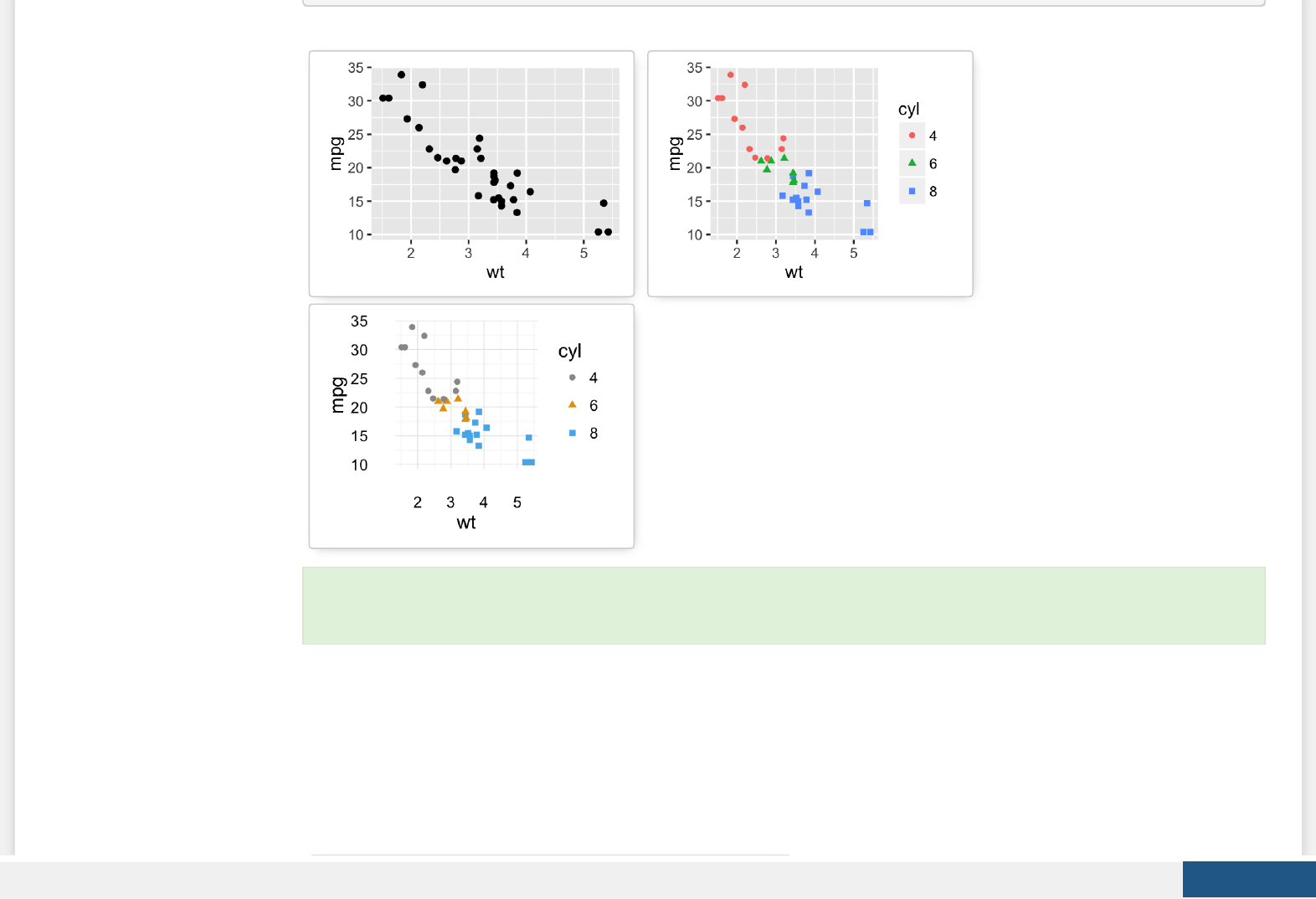
key function: geom_point()
geom_smooth(): Add regression line or smoothed conditional mean
To add a regression line on a scatter plot, the function geom_smooth() is used in combination with the argument method =
lm. lm stands for linear model.
# Regression line only
b + geom_smooth(method = lm)
# Point + regression line
# Remove the confidence interval
b + geom_point() +
geom_smooth(method = lm, se = FALSE)
# loess method: local regression fitting
Create PDF in your applications with the Pdfcrowd HTML to PDF API PDFCROWD
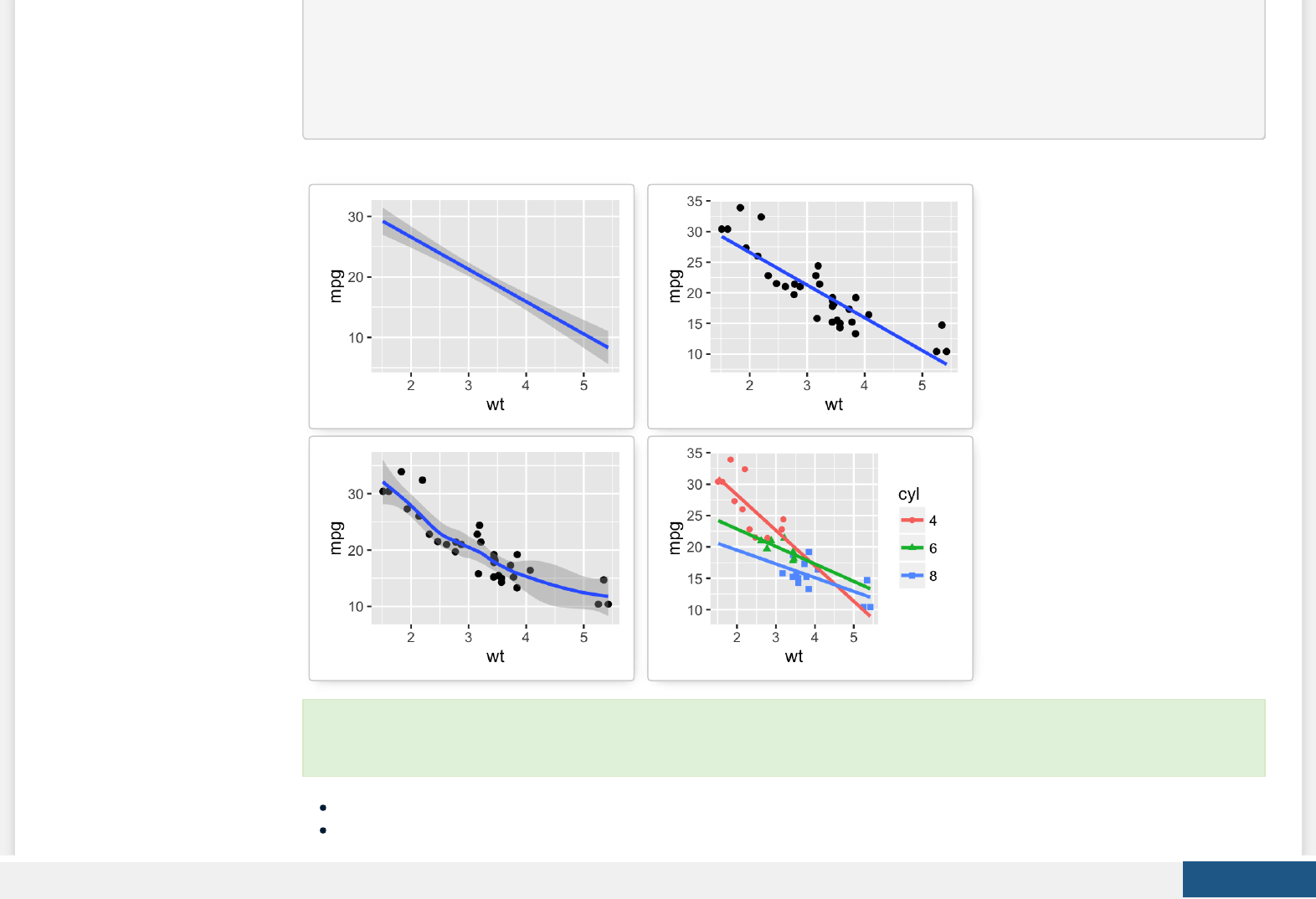
b + geom_point() + geom_smooth()
# Change color and shape by groups (cyl)
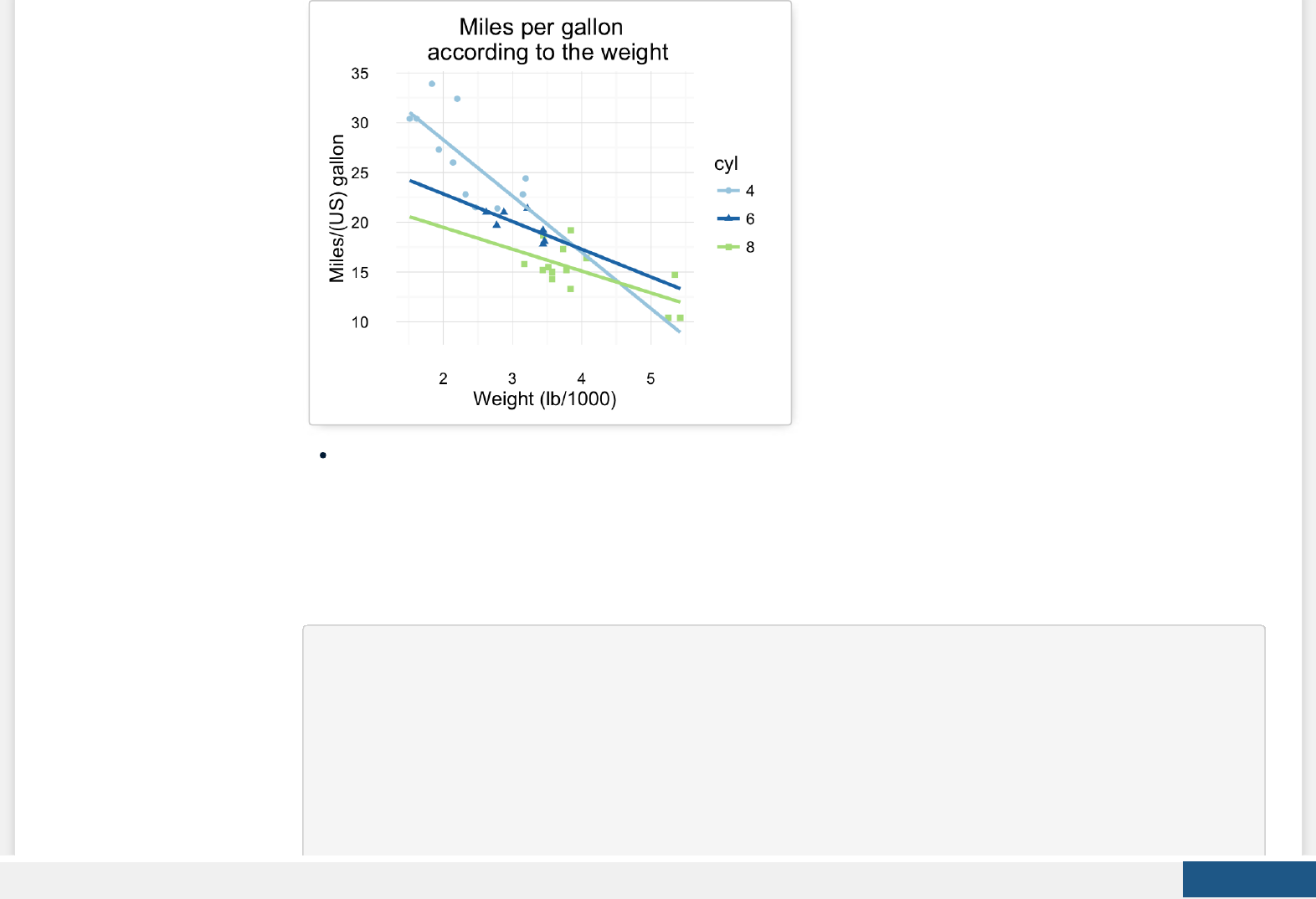
b + geom_point(aes(color=cyl, shape=cyl)) +
geom_smooth(aes(color=cyl, shape=cyl),
method=lm, se=FALSE, fullrange=TRUE)
key function: geom_smooth()
Alternative function: stat_smooth()
To customize the plot, the following arguments can be used: alpha, color, ll, shape , linetype and size. Learn more
here: ggplot2 scatter plot
Create PDF in your applications with the Pdfcrowd HTML to PDF API PDFCROWD
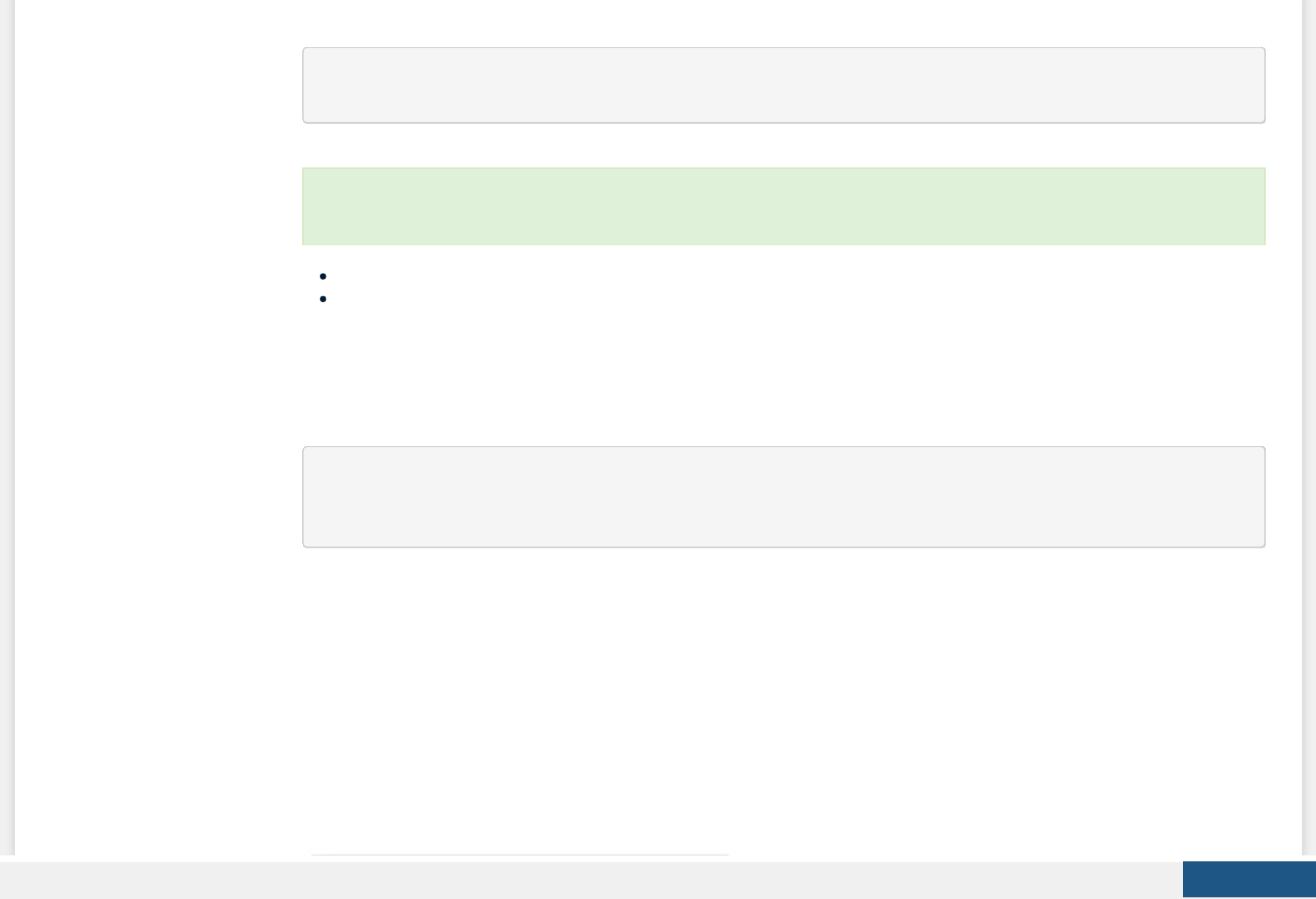
b + stat_smooth(method = "lm")
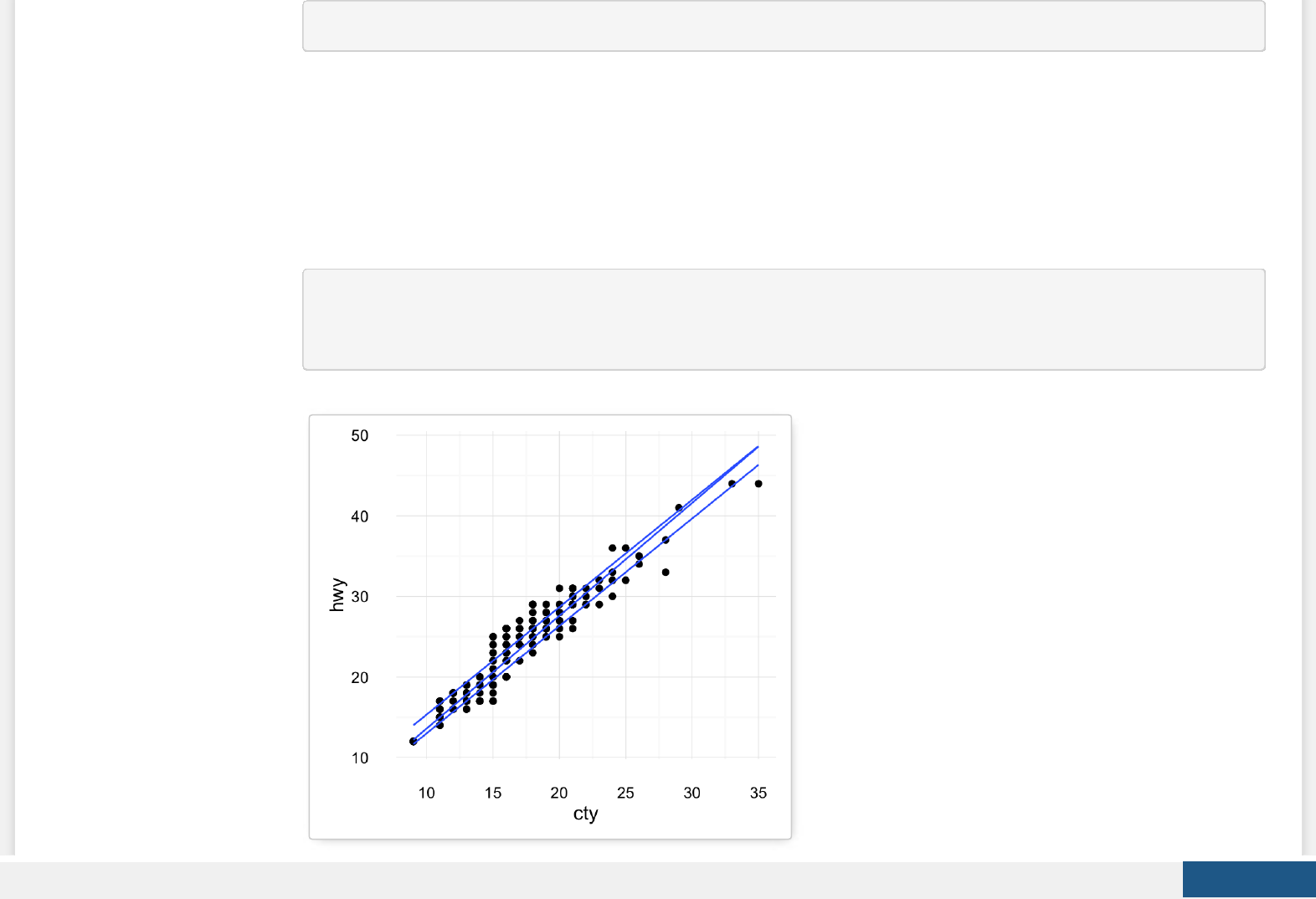
geom_quantile(): Add quantile lines from a quantile regression
Quantile lines can be used as a continuous analogue of a geom_boxplot().
We’ll use the mpg data set [in ggplot2].
The function geom_quantile() can be used for adding quantile lines:
ggplot(mpg, aes(cty, hwy)) +
geom_point() + geom_quantile() +
theme_minimal()
Create PDF in your applications with the Pdfcrowd HTML to PDF API PDFCROWD
An alternative to geom_quantile() is the function stat_quantile():
ggplot(mpg, aes(cty, hwy)) +
geom_point() + stat_quantile(quantiles = c(0.25, 0.5, 0.75))
Key function: geom_quantile()
Alternative function: stat_quantile()
geom_rug(): Add marginal rug to scatter plots
We’ll use faithful data set.
# Add marginal rugs using faithful data
ggplot(faithful, aes(x=eruptions, y=waiting)) +
geom_point() + geom_rug()
To customize the plot, the following arguments can be used: alpha, color, linetype and size. Learn more here:
Continuous quantiles
Create PDF in your applications with the Pdfcrowd HTML to PDF API PDFCROWD
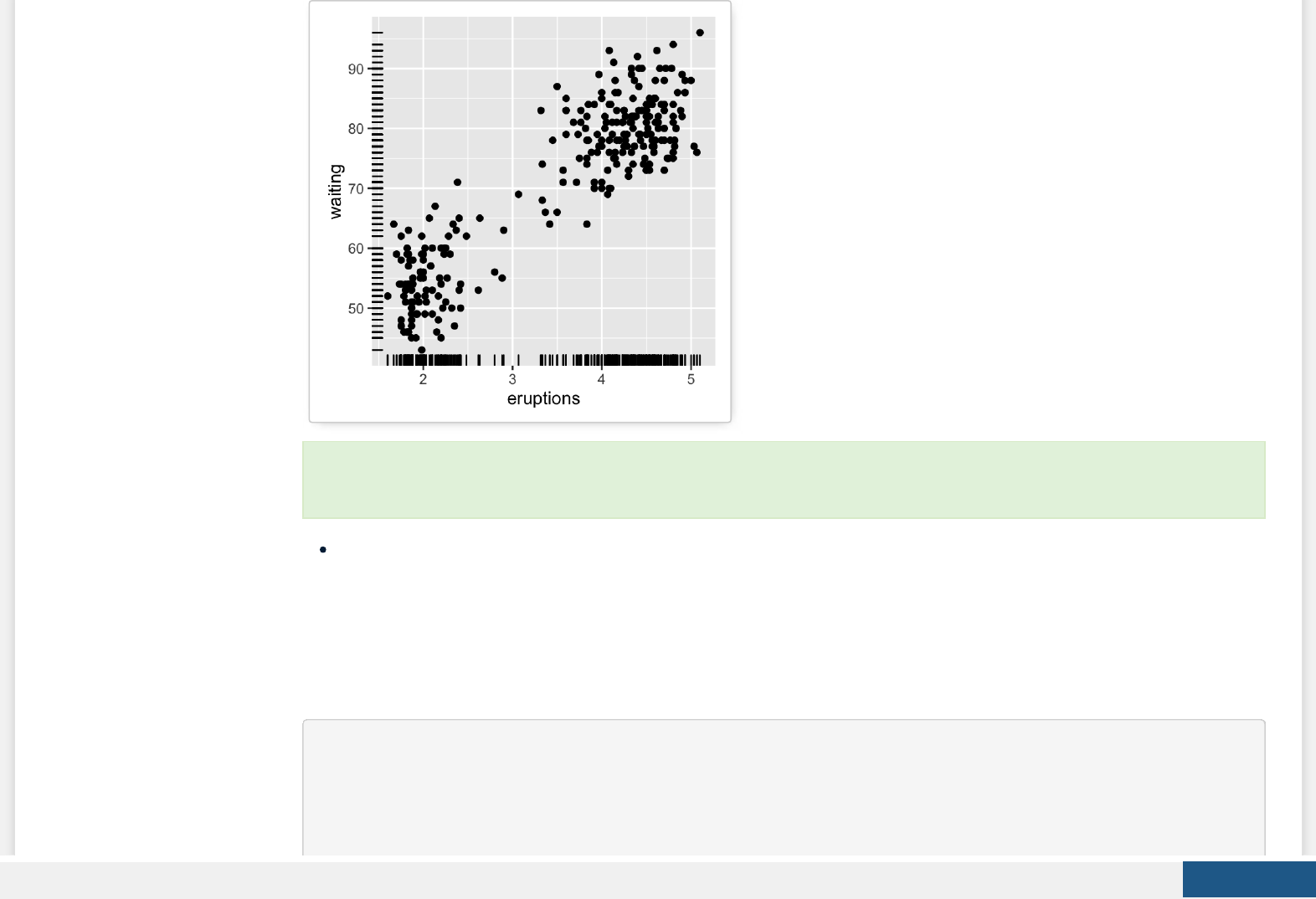
key function: geom_rug()
geom_jitter(): Jitter points to reduce overplotting
The function geom_jitter() is a convenient default for geom_point(position = ‘jitter’). The mpg data set [in ggplot2] is used in
the following examples.
p <- ggplot(mpg, aes(displ, hwy))
# Default scatter plot
p + geom_point()
# Use jitter to reduce overplotting
To customize the plot, the following arguments can be used: alpha, color, linetype and size. Learn more here: ggplot2
scatter plot
Create PDF in your applications with the Pdfcrowd HTML to PDF API PDFCROWD
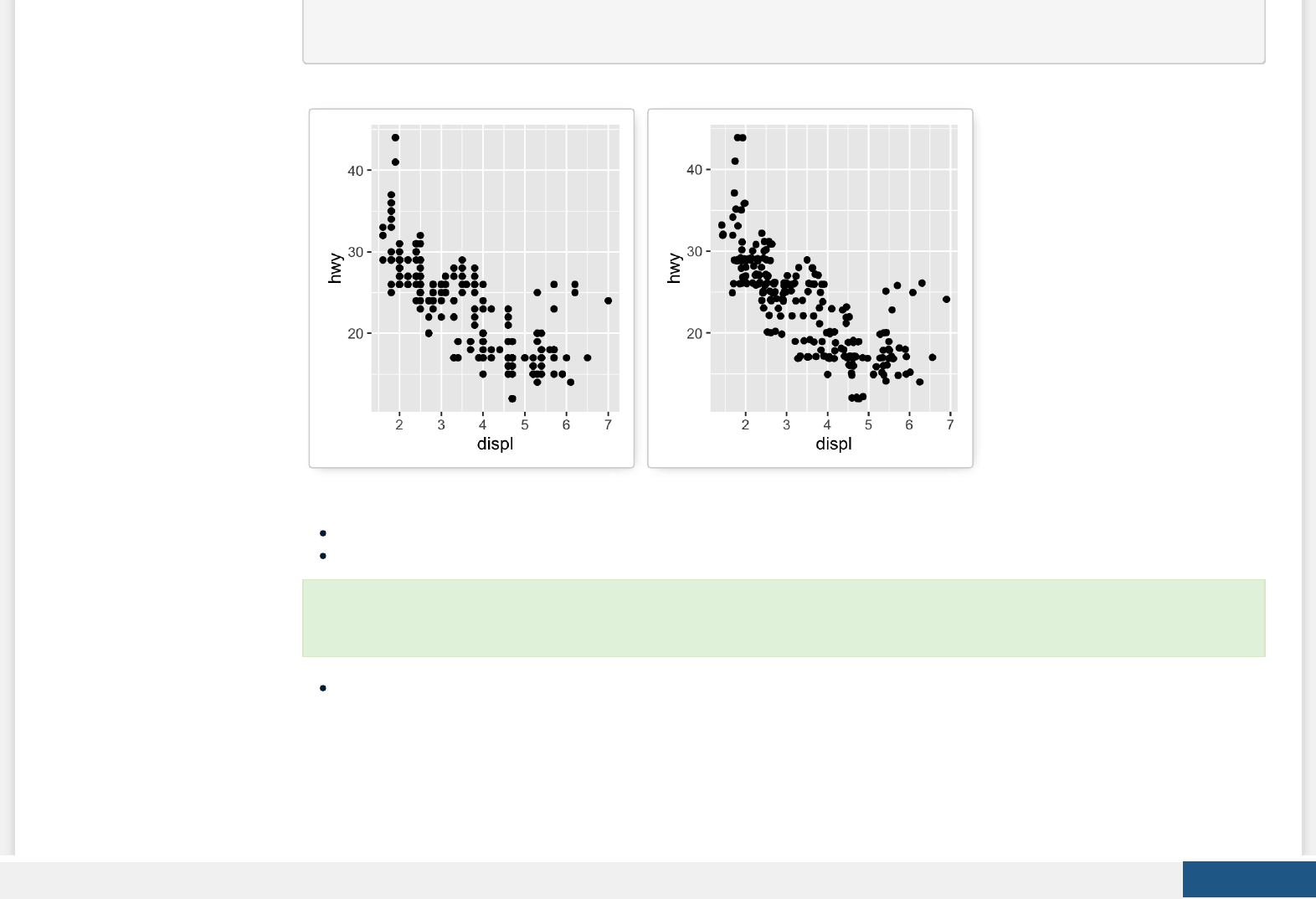
p + geom_jitter(
position = position_jitter(width = 0.5, height = 0.5))
To adjust the extent of jittering, the function position_jitter() with the arguments width and height are used:
width: degree of jitter in x direction.
height: degree of jitter in y direction.
Key functions: geom_jitter(), position_jitter()
geom_text(): Textual annotations
The argument label is used to specify a vector of labels for point annotations.
To customize the plot, the following arguments can be used: alpha, color, ll, shape and size. Learn more here: ggplot2
jitter
Create PDF in your applications with the Pdfcrowd HTML to PDF API PDFCROWD
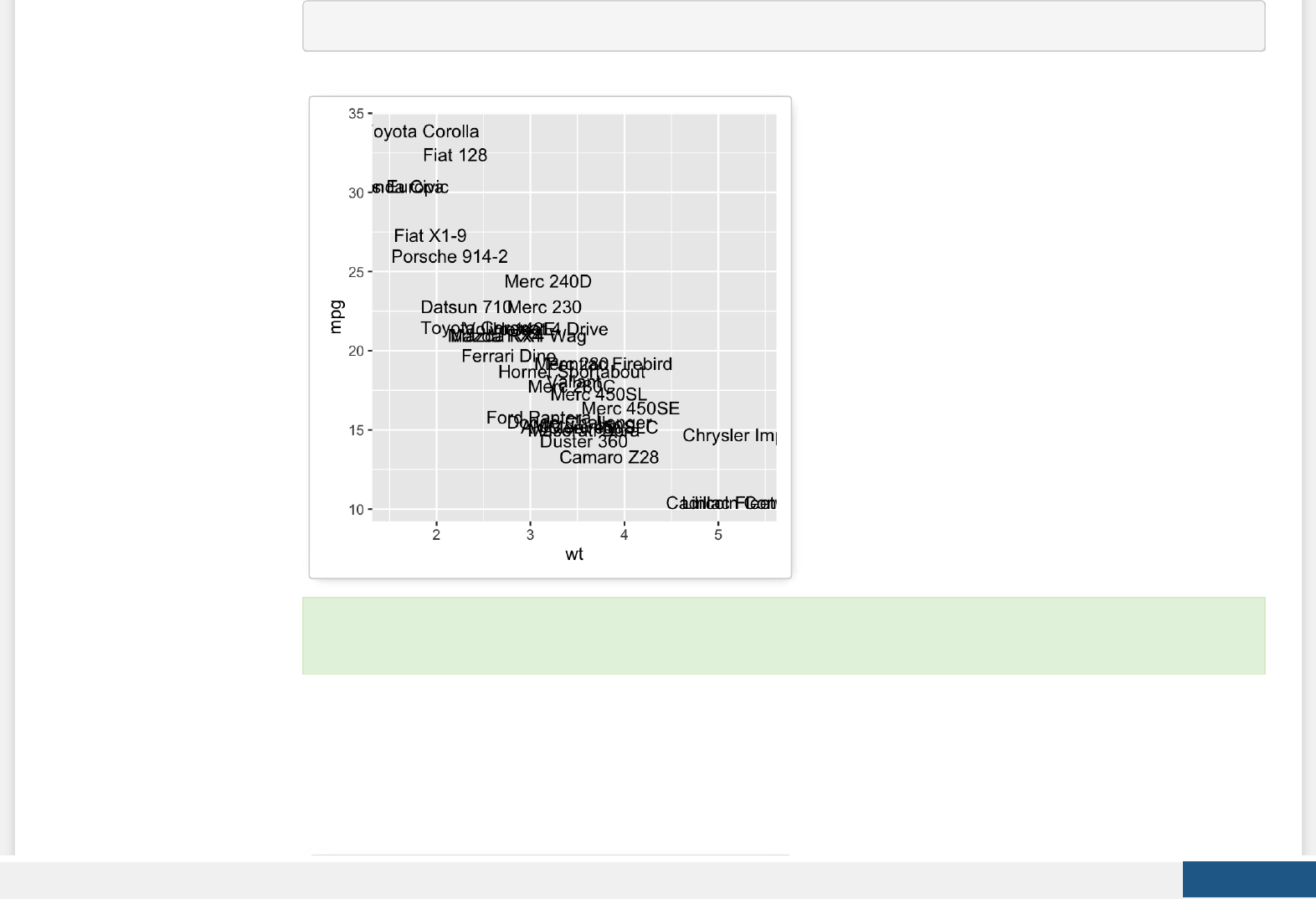
b + geom_text(aes(label = rownames(mtcars)))
To customize the plot, the following arguments can be used: label, alpha, angle, color, family, fontface, hjust, lineheight,
size, and vjust. Learn more here: ggplot2 add textual annotations
Create PDF in your applications with the Pdfcrowd HTML to PDF API PDFCROWD
key function: geom_text(), annotation_custom()
Two variables: Continuous bivariate distribution
We start by using the diamonds data set [in ggplot2].
data(diamonds)
head(diamonds[, c("carat", "price")])
## carat price
## 1 0.23 326
## 2 0.21 326
## 3 0.23 327
## 4 0.29 334
Create PDF in your applications with the Pdfcrowd HTML to PDF API PDFCROWD
## 5 0.31 335
## 6 0.24 336
c <- ggplot(diamonds, aes(carat, price))
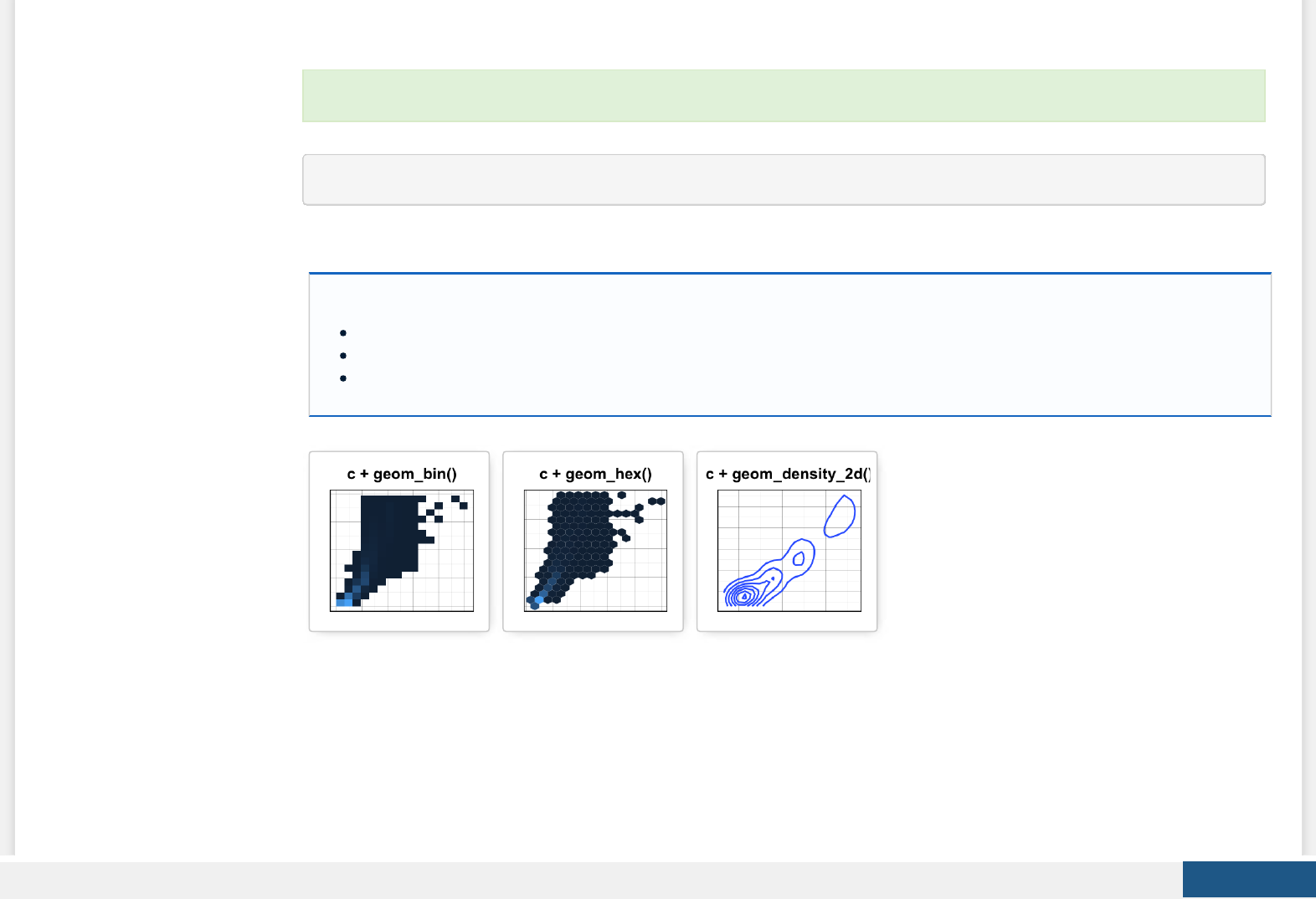
Possible layers include:
geom_bin2d() for adding a heatmap of 2d bin counts. Rectangular bining.
geom_hex() for adding hexagon bining. The R package hexbin is required for this functionality
geom_density_2d() for adding contours from a 2d density estimate
geom_bin2d(): Add heatmap of 2d bin counts
The function geom_bin2d() produces a scatter plot with rectangular bins. The number of observations is counted in each bins
and displayed as a heatmap.
We start by creating a plot, named c, that we’ll nish in the next section by adding a layer.
Create PDF in your applications with the Pdfcrowd HTML to PDF API PDFCROWD
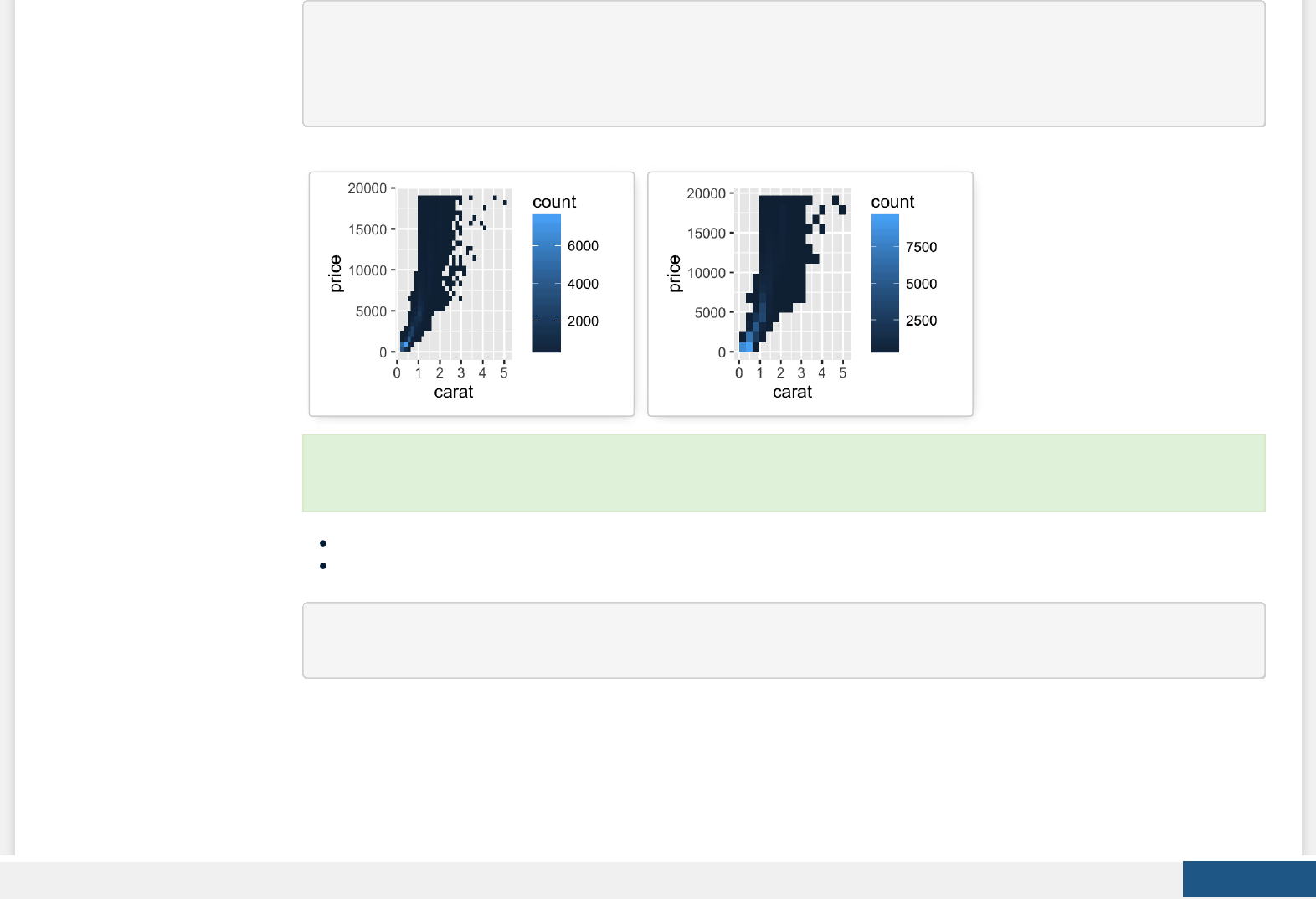
# Default plot
c + geom_bin2d()
# Change the number of bins
c + geom_bin2d(bins = 15)
Key functions: geom_bin2d()
Alternative functions: stat_bin_2d(), stat_summary_2d()
c + stat_bin_2d()
c + stat_summary_2d(aes(z = depth))
geom_hex(): Add hexagon bining
The function geom_hex() produces a scatter plot with hexagon bining. The hexbin R package is required for hexagon bining. If
you don’t have it, use the R code below to install it:
To customize the plot, the following arguments can be used: xmax, xmin, ymax, ymin, alpha, color, ll, linetype and size.
Learn more here: ggplot2 Scatter plots with rectangular bins
Create PDF in your applications with the Pdfcrowd HTML to PDF API PDFCROWD
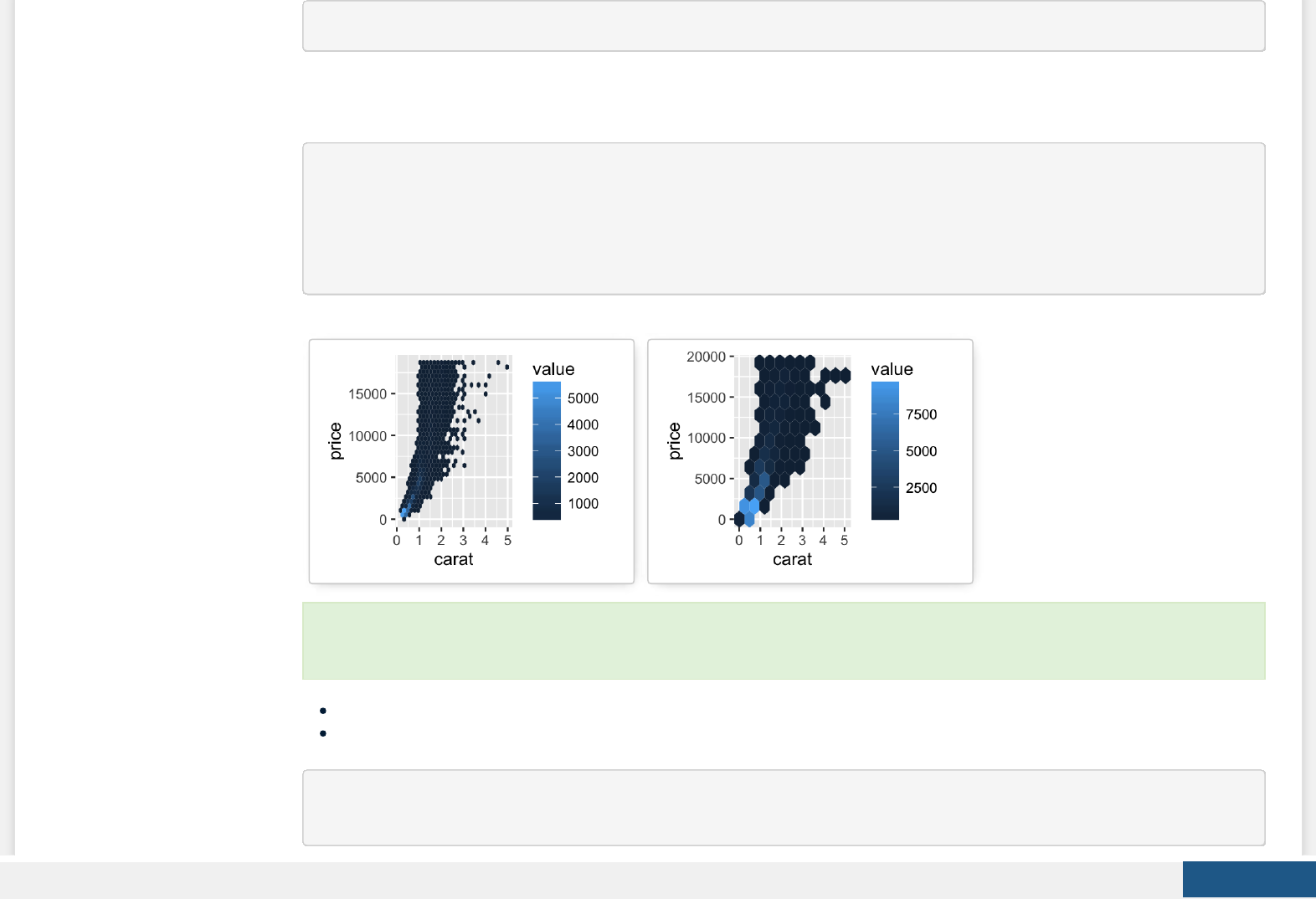
install.packages("hexbin")
The function geom_hex() can be used as follow:
require(hexbin)
# Default plot
c + geom_hex()
# Change the number of bins
c + geom_hex(bins = 10)
Key function: geom_hex()
Alternative functions: stat_bin_hex(), stat_summary_hex()
c + stat_bin_hex()
c + stat_summary_hex(aes(z = depth))
To customize the plot, the following arguments can be used: alpha, color, ll and size. Learn more here: ggplot2
Scatter plots with rectangular bins
Create PDF in your applications with the Pdfcrowd HTML to PDF API PDFCROWD

geom_density_2d(): Add contours from a 2d density estimate
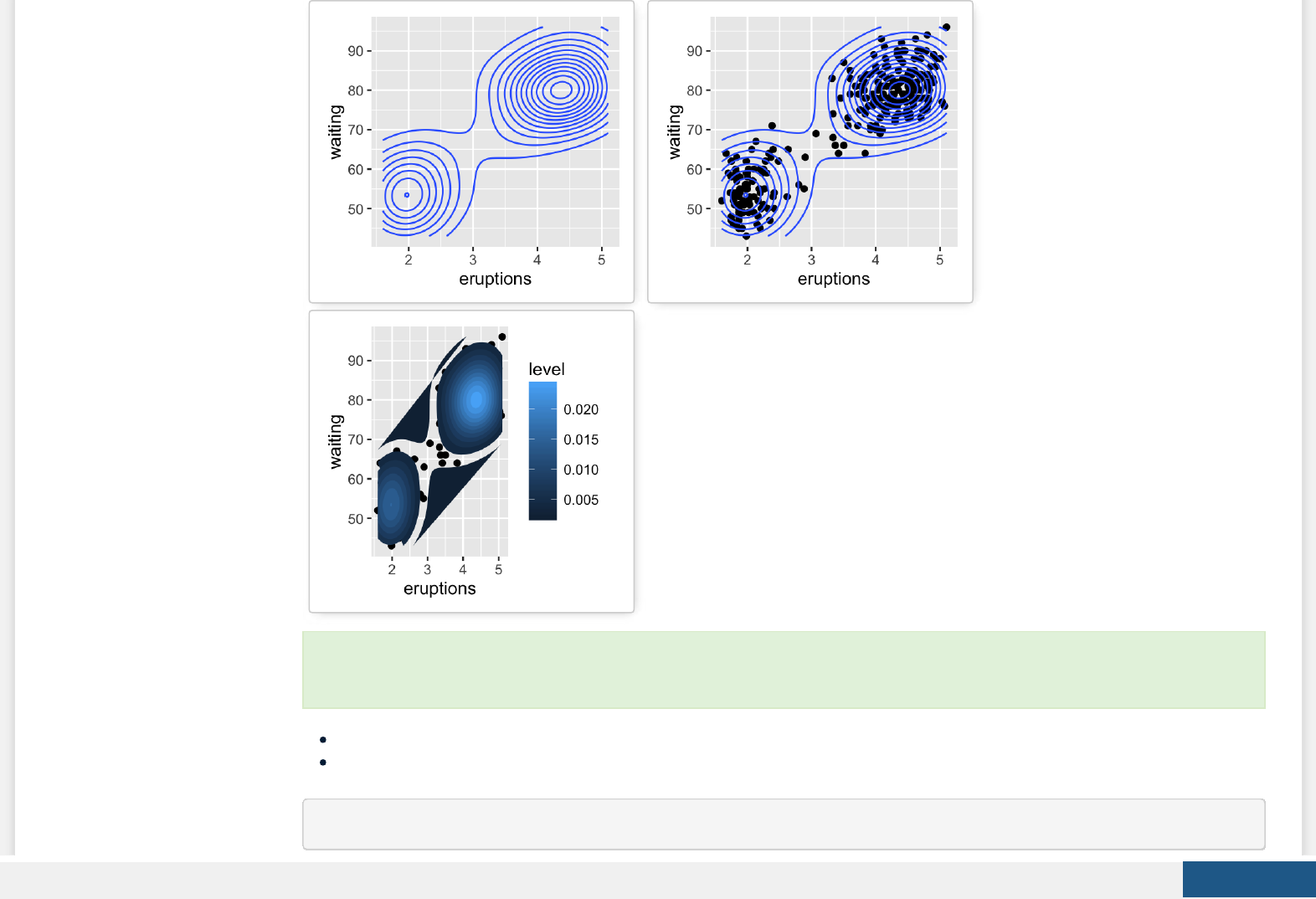
The functions geom_density_2d() or stat_density_2d() can be used to add 2d density estimate to a scatter plot.
faithful data set is used in this section, and we rst start by creating a scatter plot (**sp*) as follow:
# Scatter plot
sp <- ggplot(faithful, aes(x=eruptions, y=waiting))
# Default plot
sp + geom_density_2d()
# Add points
sp + geom_point() + geom_density_2d()
# Use stat_density_2d with geom = "polygon"
sp + geom_point() +
stat_density_2d(aes(fill = ..level..), geom="polygon")
Create PDF in your applications with the Pdfcrowd HTML to PDF API PDFCROWD
Key function: geom_density_2d()
Alternative functions: stat_density_2d()
sp + stat_density_2d()
To customize the plot, the following arguments can be used: alpha, color, linetype and size. Learn more here: ggplot2
Scatter plots with the 2d density estimation
Create PDF in your applications with the Pdfcrowd HTML to PDF API PDFCROWD

See also: stat_contour(), geom_contour()
Two variables: Continuous function
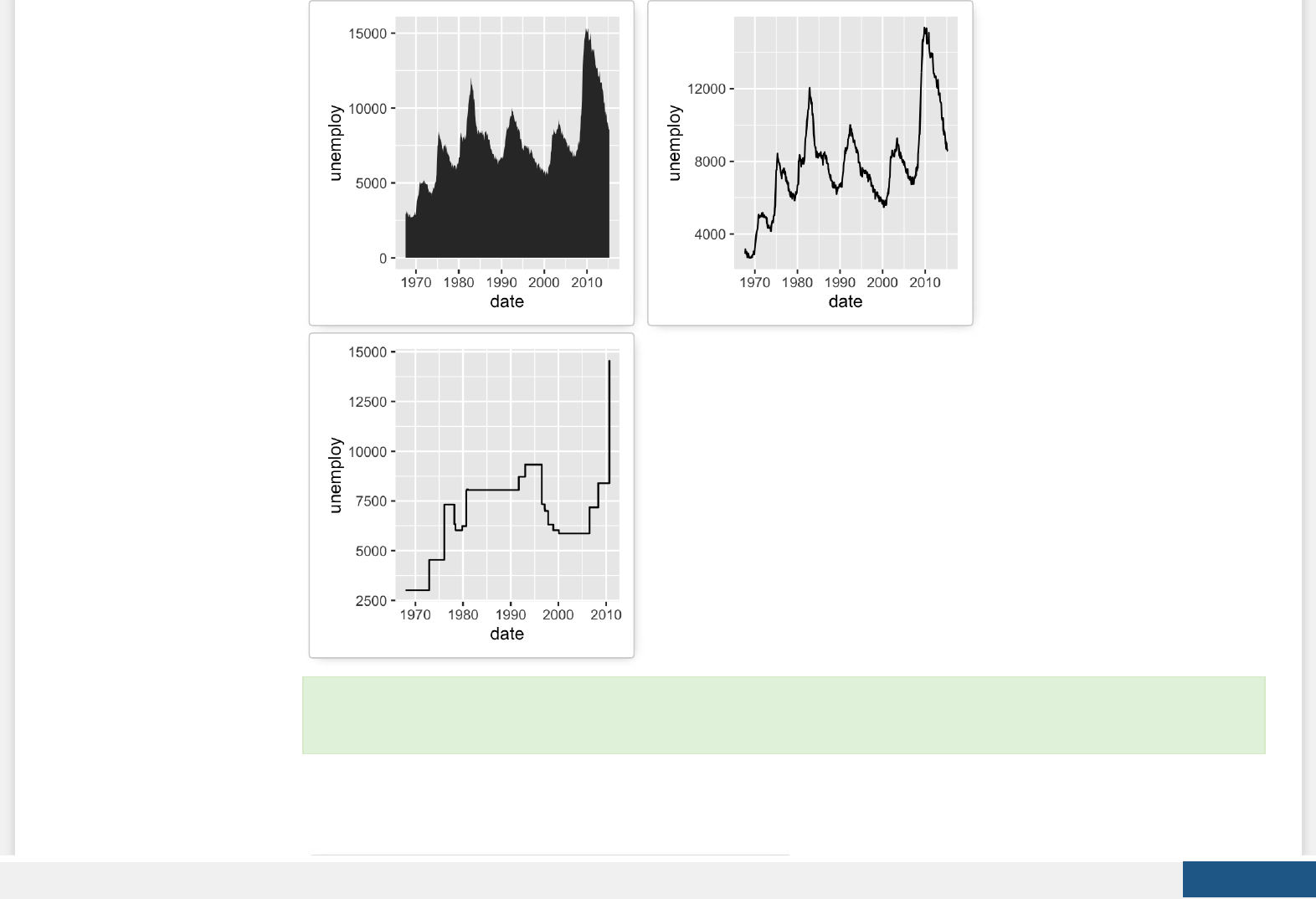
In this section, we’ll see how to connect observations by line. The economics data set [in ggplot2] is used.
data(economics)
head(economics)
## date pce pop psavert uempmed unemploy
## 1 1967-07-01 507.4 198712 12.5 4.5 2944
## 2 1967-08-01 510.5 198911 12.5 4.7 2945
## 3 1967-09-01 516.3 199113 11.7 4.6 2958
## 4 1967-10-01 512.9 199311 12.5 4.9 3143
## 5 1967-11-01 518.1 199498 12.5 4.7 3066
## 6 1967-12-01 525.8 199657 12.1 4.8 3018
d <- ggplot(economics, aes(x = date, y = unemploy))
Possible layers include:
geom_area() for area plot
geom_line() for line plot connecting observations, ordered by x
geom_step() for connecting observations by stairs
We start by creating a plot, named d, that we’ll nish in the next section by adding a layer.
Create PDF in your applications with the Pdfcrowd HTML to PDF API PDFCROWD

# Area plot
d + geom_area()
# Line plot: connecting observations, ordered by x
d + geom_line()
# Connecting observations by stairs
# a subset of economics data set is used
set.seed(1234)
ss <- economics[sample(1:nrow(economics), 20), ]
ggplot(ss, aes(x = date, y = unemploy)) +
geom_step()
Create PDF in your applications with the Pdfcrowd HTML to PDF API PDFCROWD
Key functions: geom_area(), geom_line(), geom_step()
Two variables: Discrete X, Continuous Y
The ToothGrowth data set we’ll be used to plot the continuous variable len (for tooth length) by the discrete variable dose.
The following R code converts the variable dose from a numeric to a discrete factor variable.
data("ToothGrowth")
ToothGrowth$dose <- as.factor(ToothGrowth$dose)
head(ToothGrowth)
## len supp dose
## 1 4.2 VC 0.5
## 2 11.5 VC 0.5
## 3 7.3 VC 0.5
Create PDF in your applications with the Pdfcrowd HTML to PDF API PDFCROWD
## 4 5.8 VC 0.5
## 5 6.4 VC 0.5
## 6 10.0 VC 0.5
e <- ggplot(ToothGrowth, aes(x = dose, y = len))
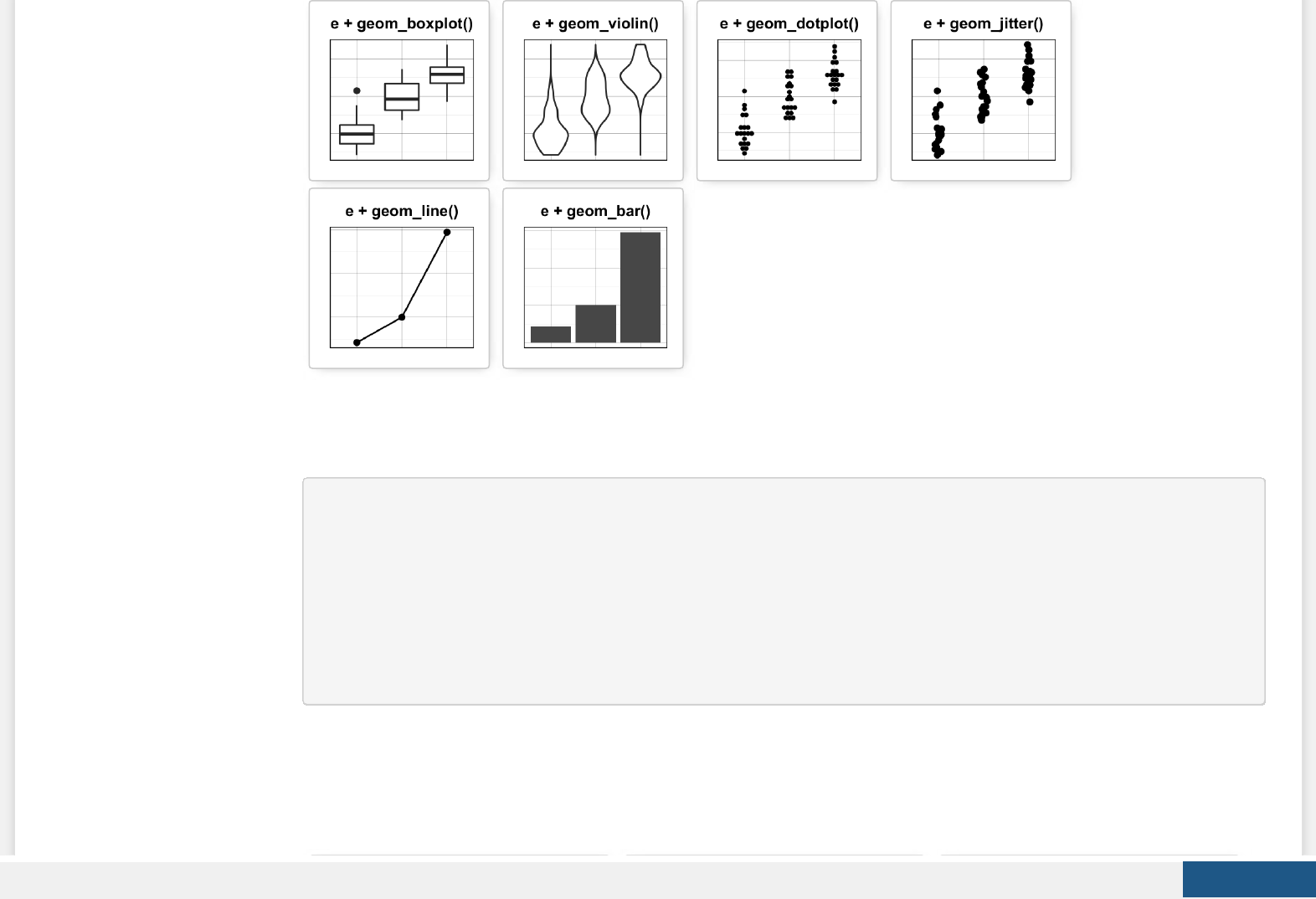
Possible layers include:
geom_boxplot() for box plot
geom_violin() for violin plot
geom_dotplot() for dot plot
geom_jitter() for stripchart
geom_line() for line plot
geom_bar() for bar plot
We start by creating a plot, named e, that we’ll nish in the next section by adding a layer.
Create PDF in your applications with the Pdfcrowd HTML to PDF API PDFCROWD
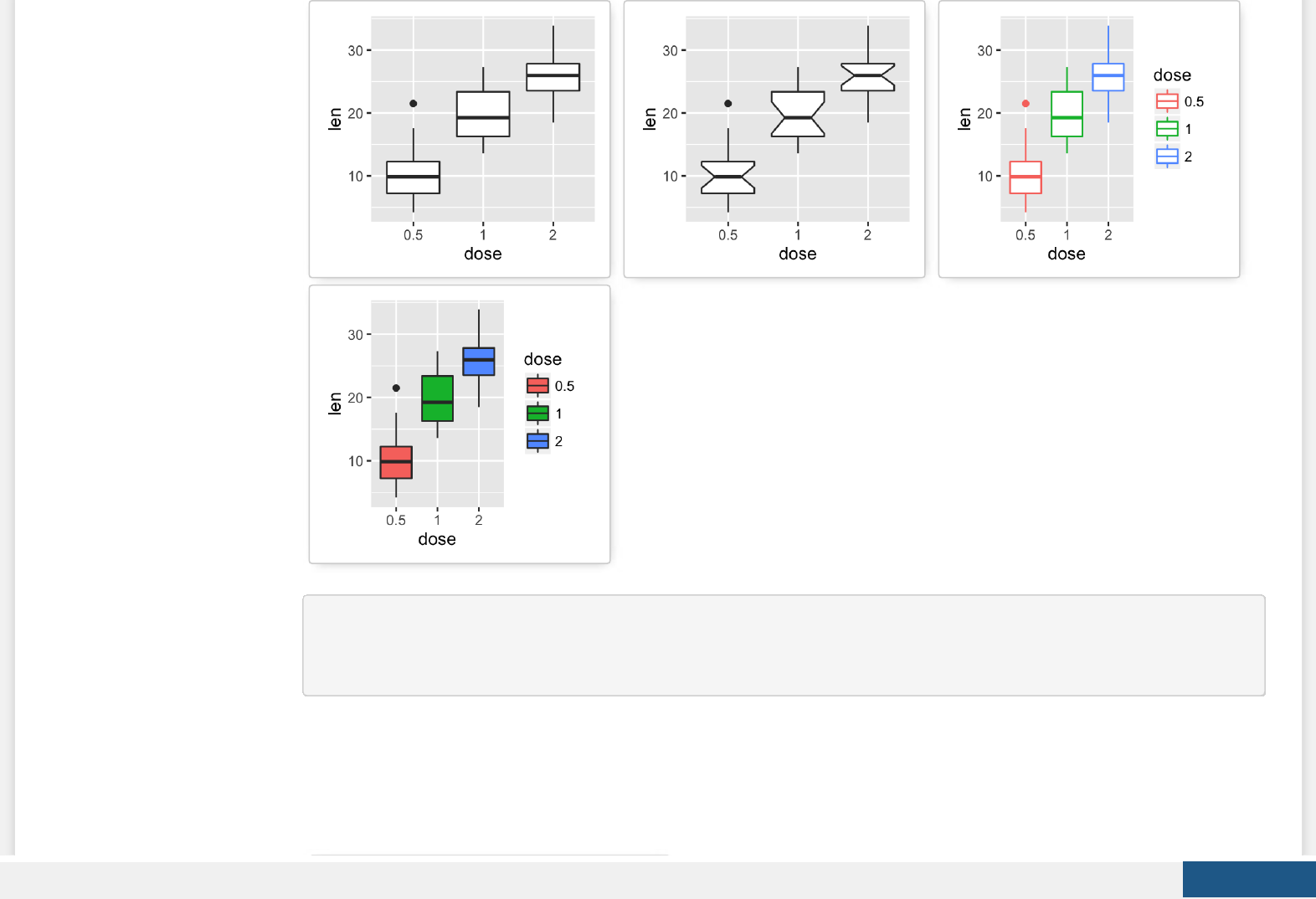
geom_boxplot(): Box and whiskers plot
# Default plot
e + geom_boxplot()
# Notched box plot
e + geom_boxplot(notch = TRUE)
# Color by group (dose)
e + geom_boxplot(aes(color = dose))
# Change fill color by group (dose)
e + geom_boxplot(aes(fill = dose))
Create PDF in your applications with the Pdfcrowd HTML to PDF API PDFCROWD
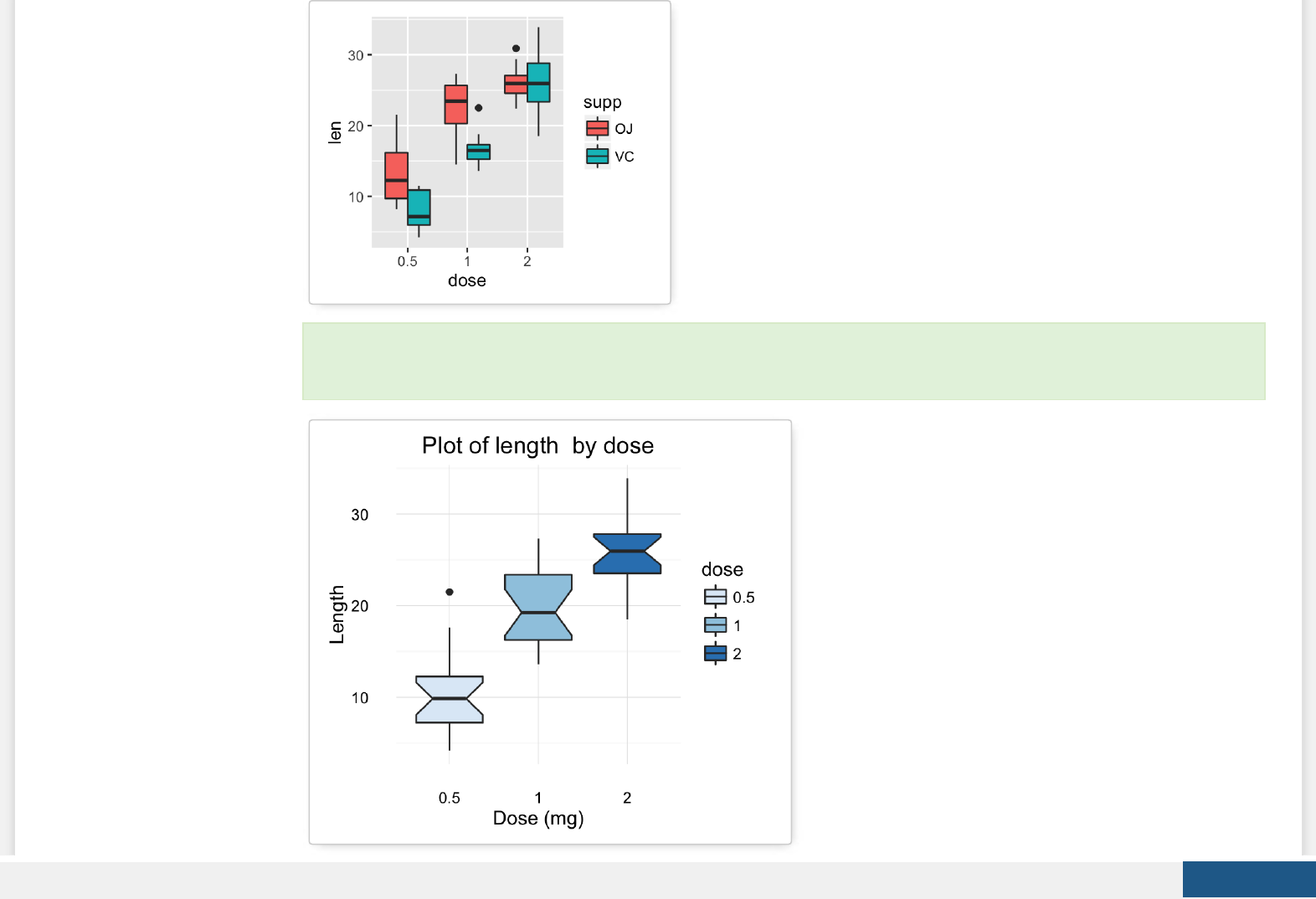

Key function: geom_boxplot()
Alternative functions: stat_boxplot()
e + stat_boxplot(coeff = 1.5)
geom_violin(): Violin plot
Violin plots are similar to box plots, except that they also show the kernel probability density of the data at dierent values.
# Default plot
e + geom_violin(trim = FALSE)
# violin plot with mean points (+/- SD)
e + geom_violin(trim = FALSE) +
stat_summary(fun.data="mean_sdl", fun.args = list(mult=1),
geom="pointrange", color = "red")
# Combine with box plot
e + geom_violin(trim = FALSE) +
geom_boxplot(width = 0.2)
# Color by group (dose)
e + geom_violin(aes(color = dose), trim = FALSE)
Create PDF in your applications with the Pdfcrowd HTML to PDF API PDFCROWD
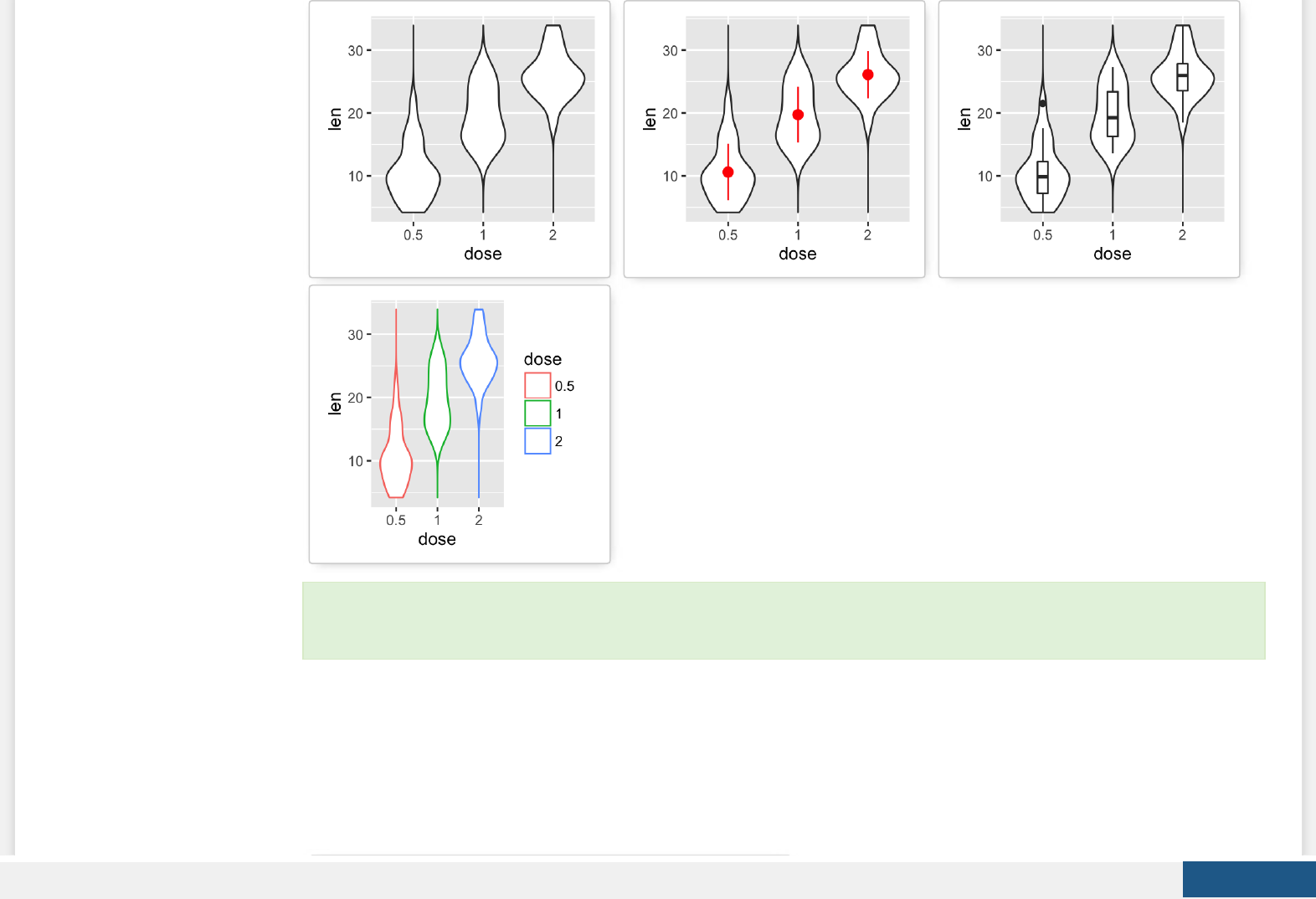
Key functions: geom_violin()
Alternative functions: stat_ydensity()
e + stat_ydensity(trim = FALSE)
geom_dotplot(): Dot plot
# Default plot
e + geom_dotplot(binaxis = "y", stackdir = "center")
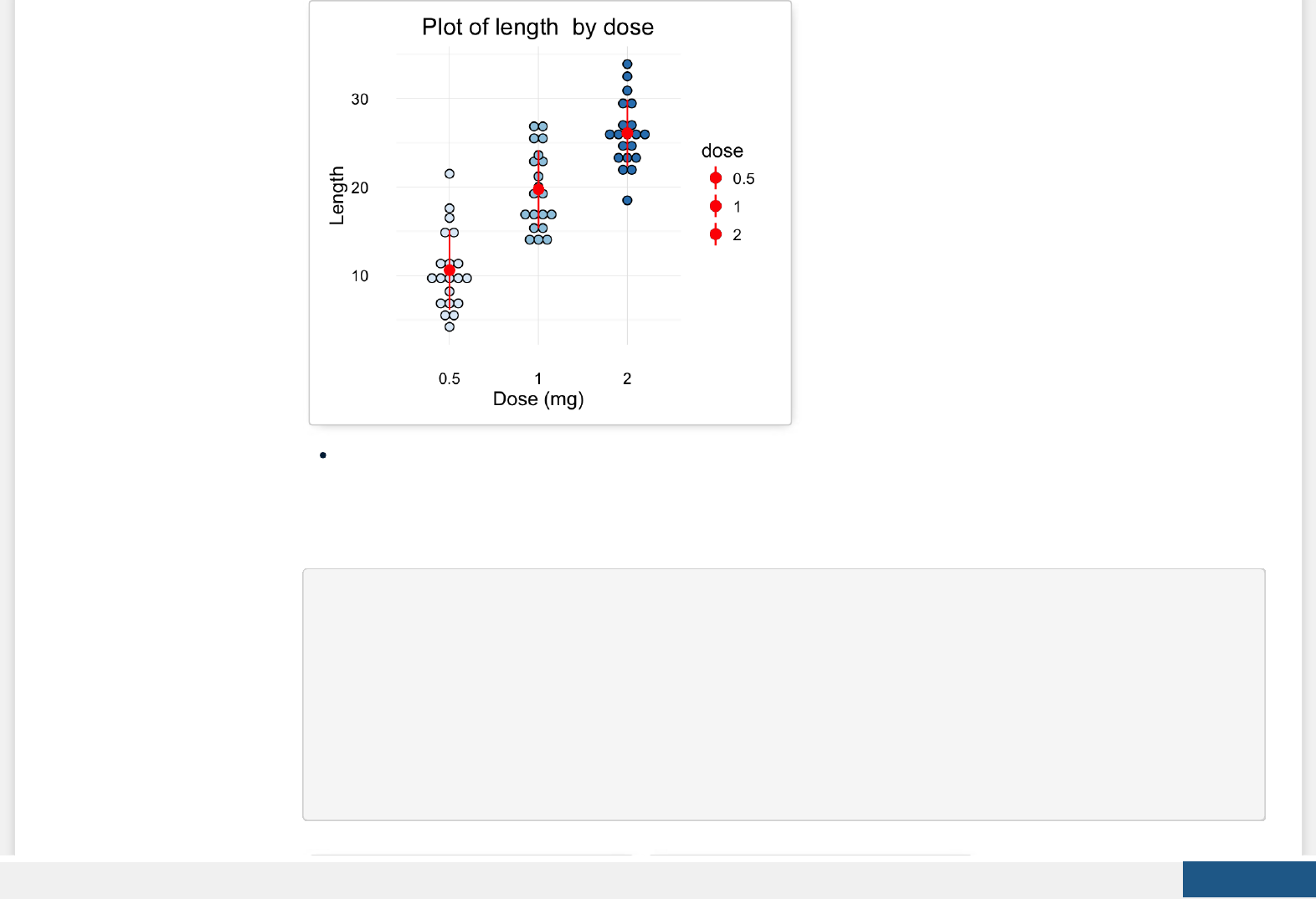
# Dot plot with mean points (+/- SD)
e + geom_dotplot(binaxis = "y", stackdir = "center") +
stat_summary(fun.data="mean_sdl", fun.args = list(mult=1),
geom="pointrange", color = "red")
Create PDF in your applications with the Pdfcrowd HTML to PDF API PDFCROWD
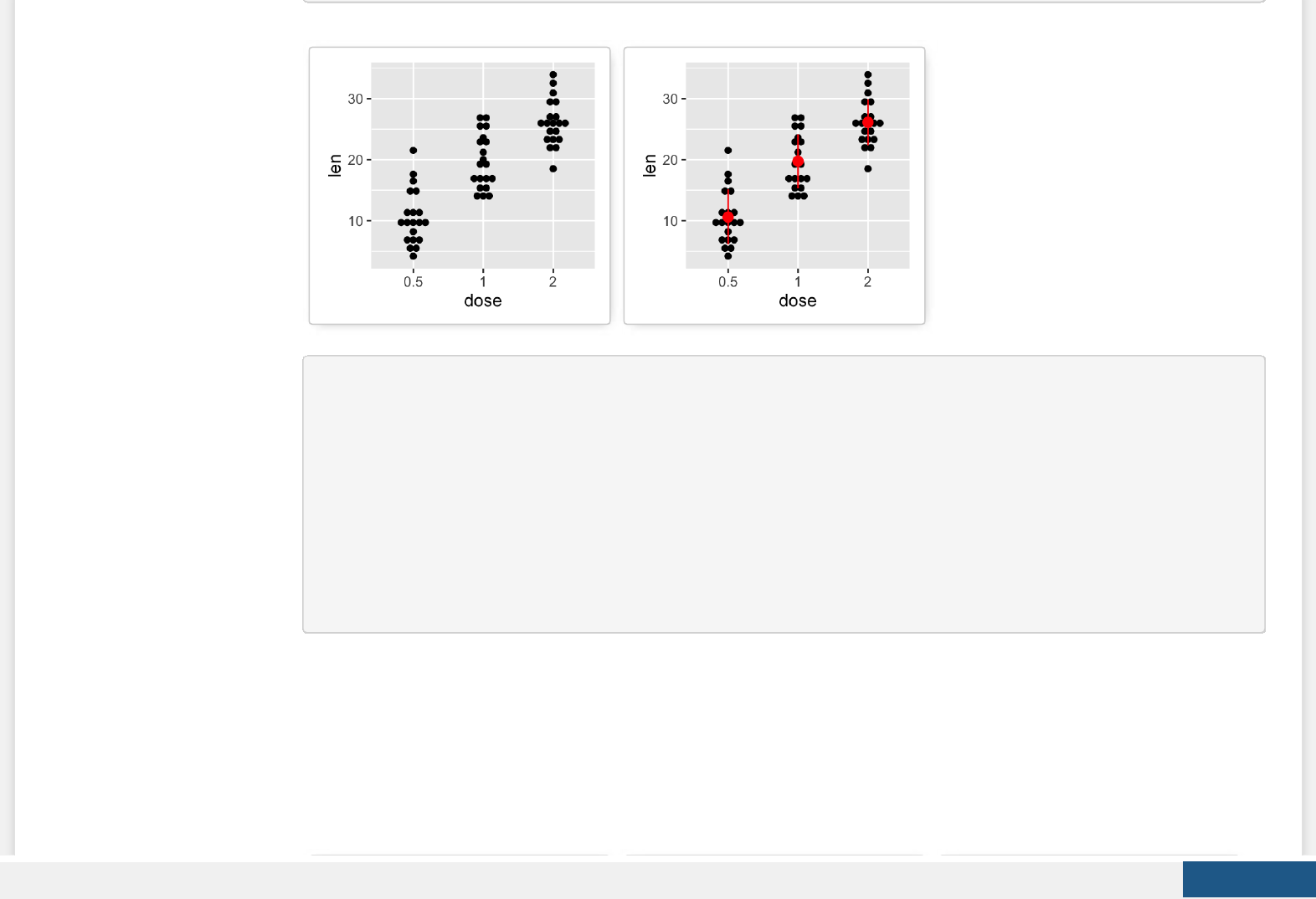
# Combine with box plot
e + geom_boxplot() +
geom_dotplot(binaxis = "y", stackdir = "center")
# Add violin plot
e + geom_violin(trim = FALSE) +
geom_dotplot(binaxis='y', stackdir='center')
# Color and fill by group (dose)
e + geom_dotplot(aes(color = dose, fill = dose),
binaxis = "y", stackdir = "center")
Create PDF in your applications with the Pdfcrowd HTML to PDF API PDFCROWD
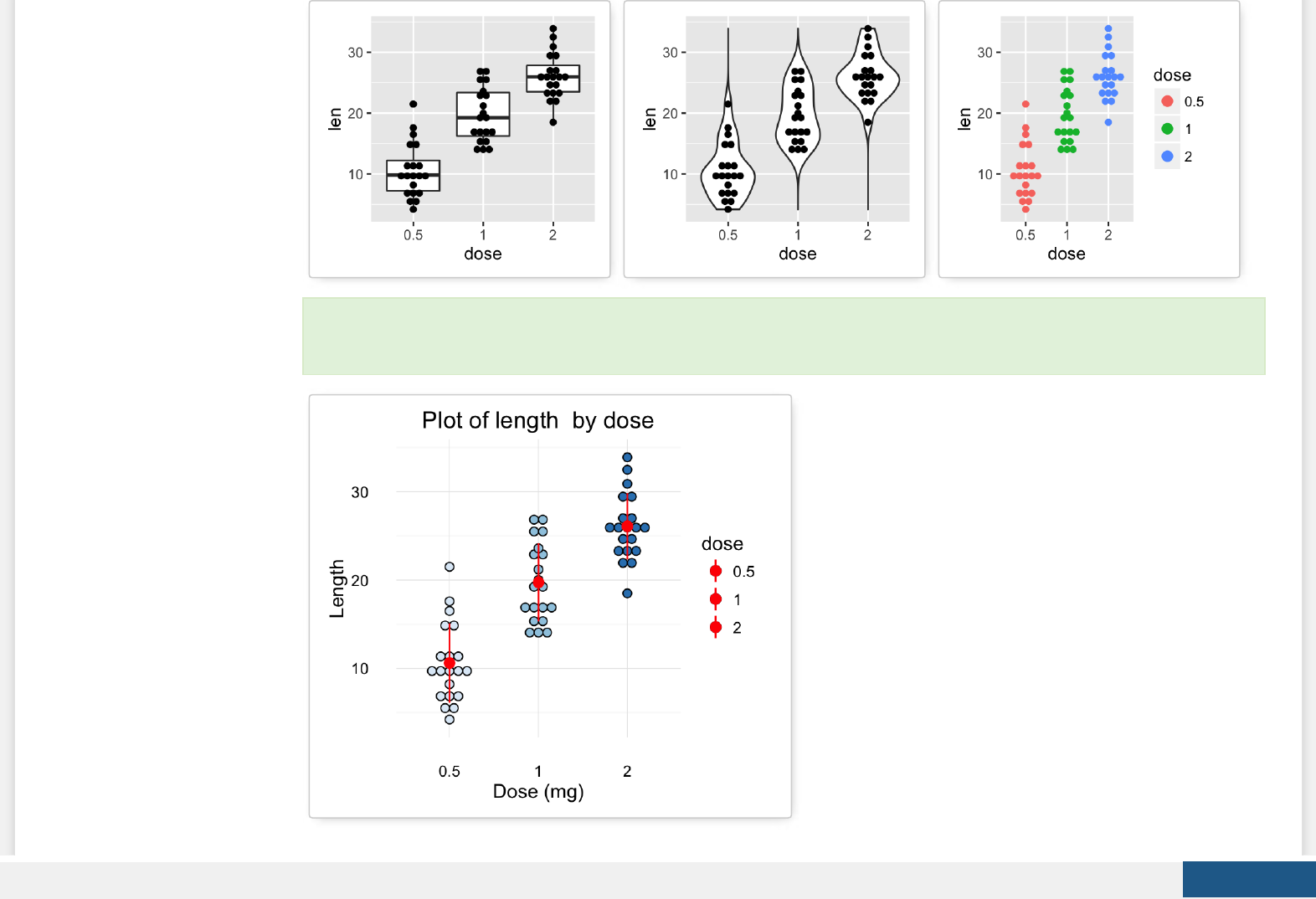
Key functions: geom_dotplot(), stat_summary()
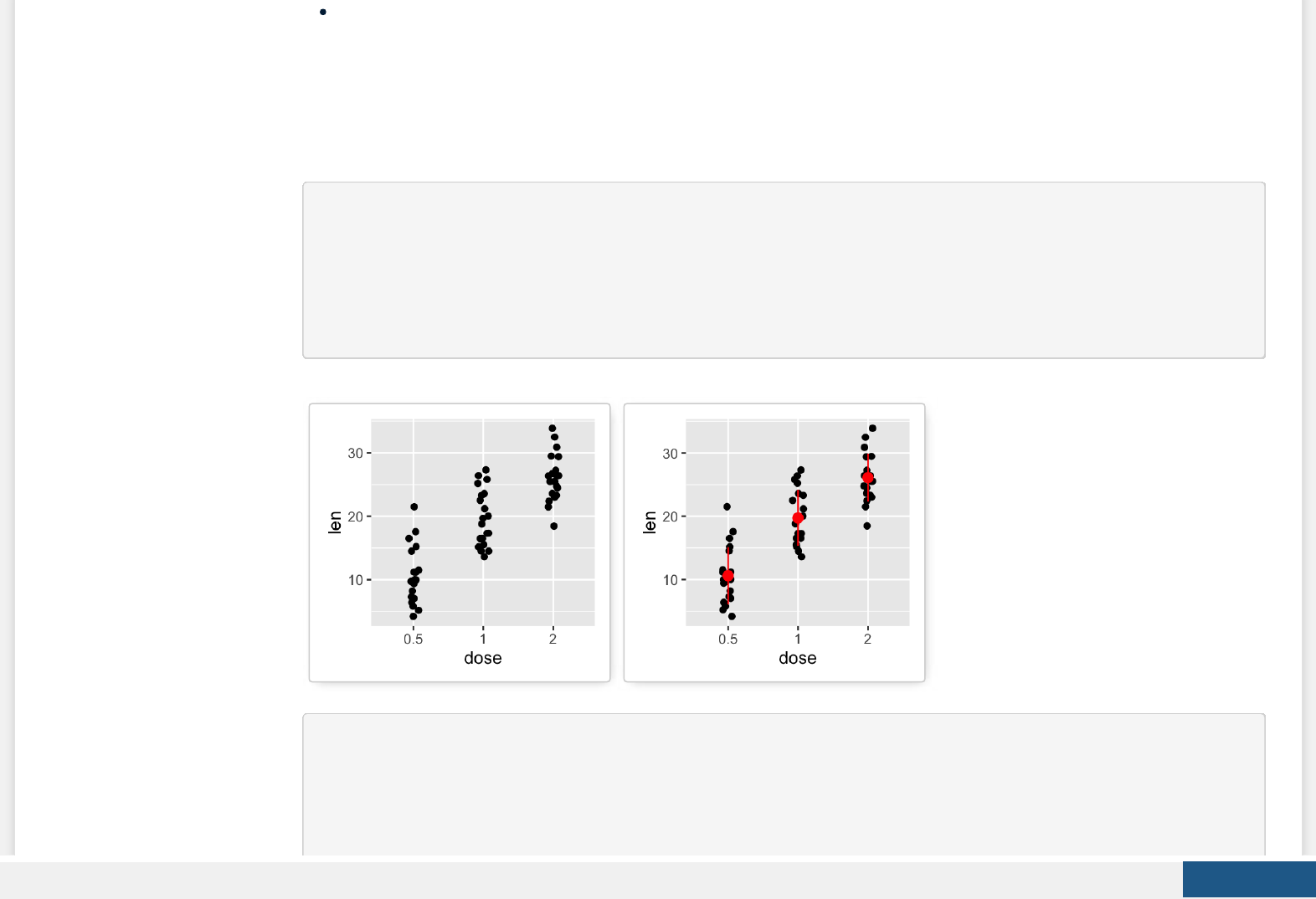
geom_jitter(): Strip charts
Stripcharts are also known as one dimensional scatter plots. These plots are suitable compared to box plots when sample
sizes are small.
# Default plot
e + geom_jitter(position=position_jitter(0.2))
# Strip charts with mean points (+/- SD)
e + geom_jitter(position=position_jitter(0.2)) +
stat_summary(fun.data="mean_sdl", fun.args = list(mult=1),
geom="pointrange", color = "red")
# Combine with box plot
e + geom_jitter(position=position_jitter(0.2)) +
geom_dotplot(binaxis = "y", stackdir = "center")
# Add violin plot
e + geom_violin(trim = FALSE) +
Create PDF in your applications with the Pdfcrowd HTML to PDF API PDFCROWD
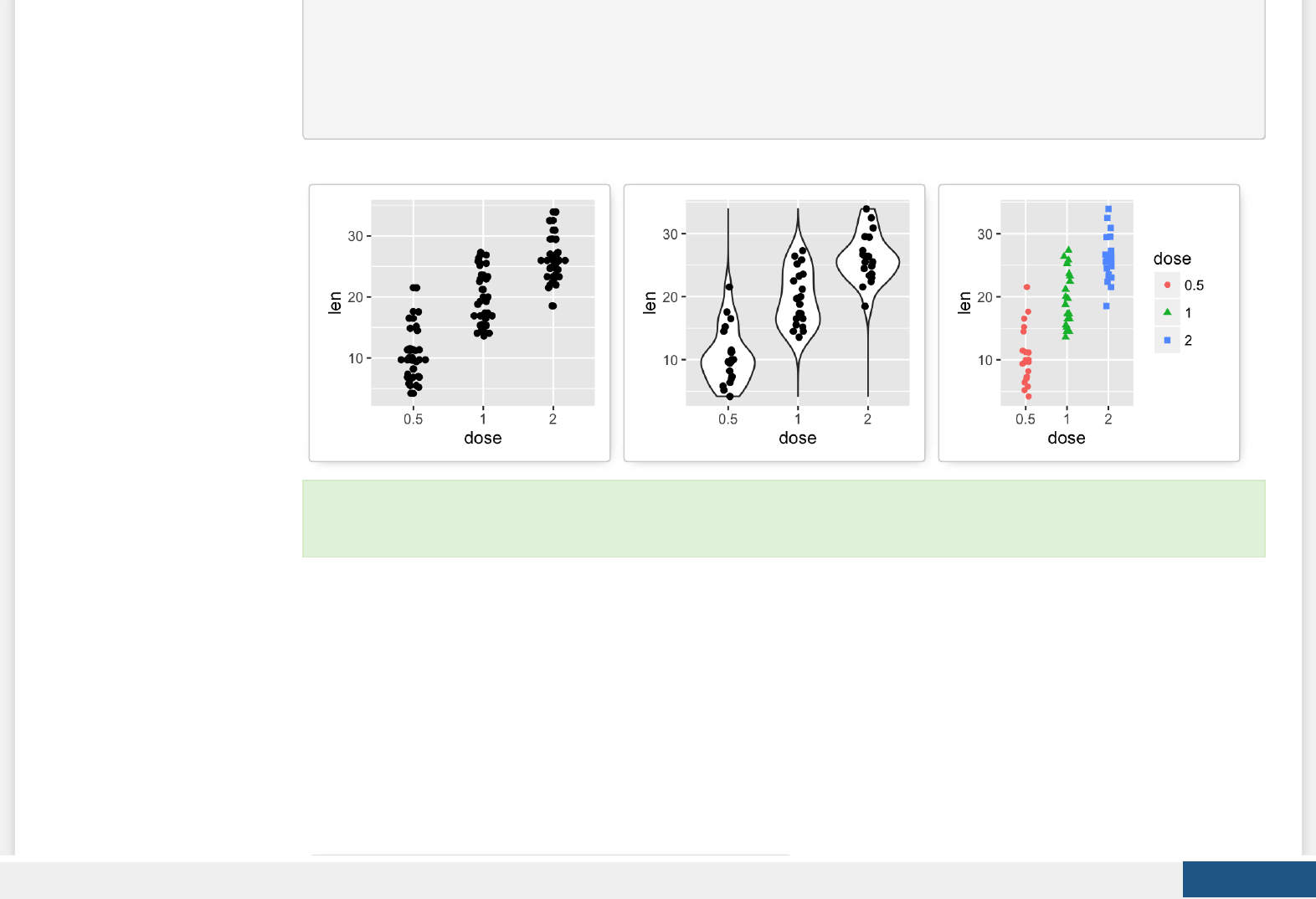
geom_jitter(position=position_jitter(0.2))
# Change color and shape by group (dose)
e + geom_jitter(aes(color = dose, shape = dose),
position=position_jitter(0.2))
To customize the plot, the following arguments can be used: alpha, color, shape, size and ll. Learn more here: ggplot2
strip charts.
Create PDF in your applications with the Pdfcrowd HTML to PDF API PDFCROWD
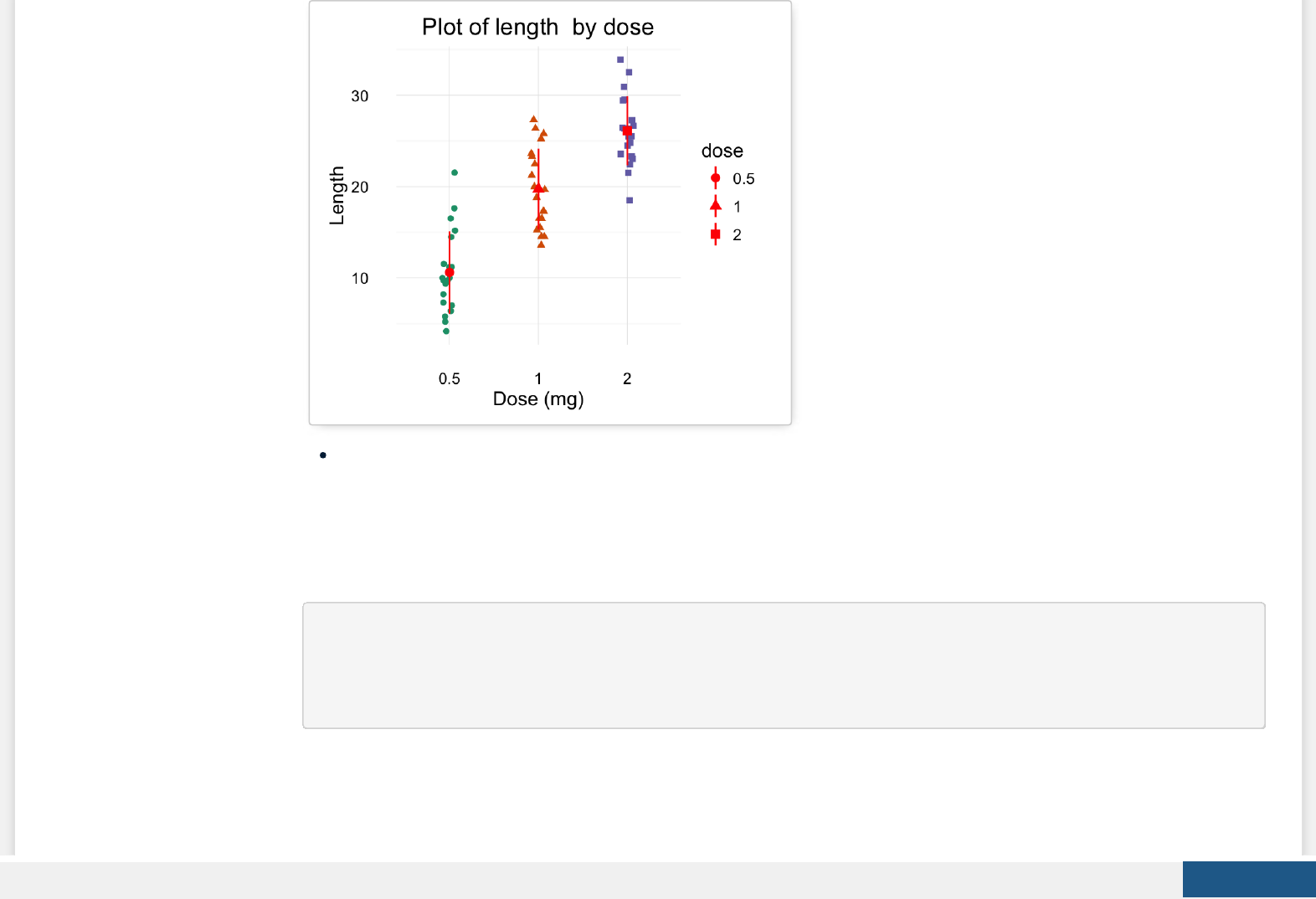
Key functions: geom_jitter(), stat_summary()
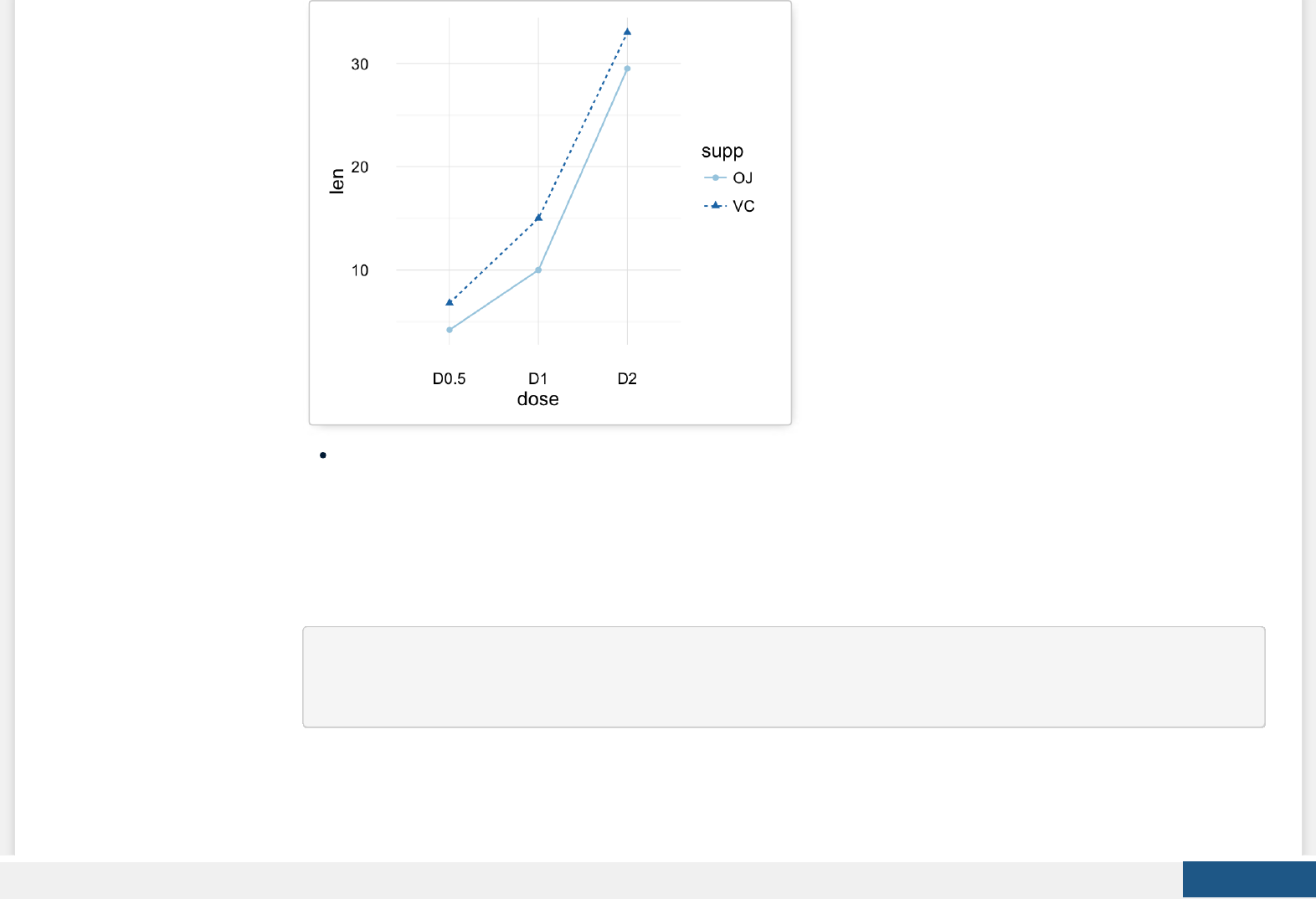
geom_line(): Line plot
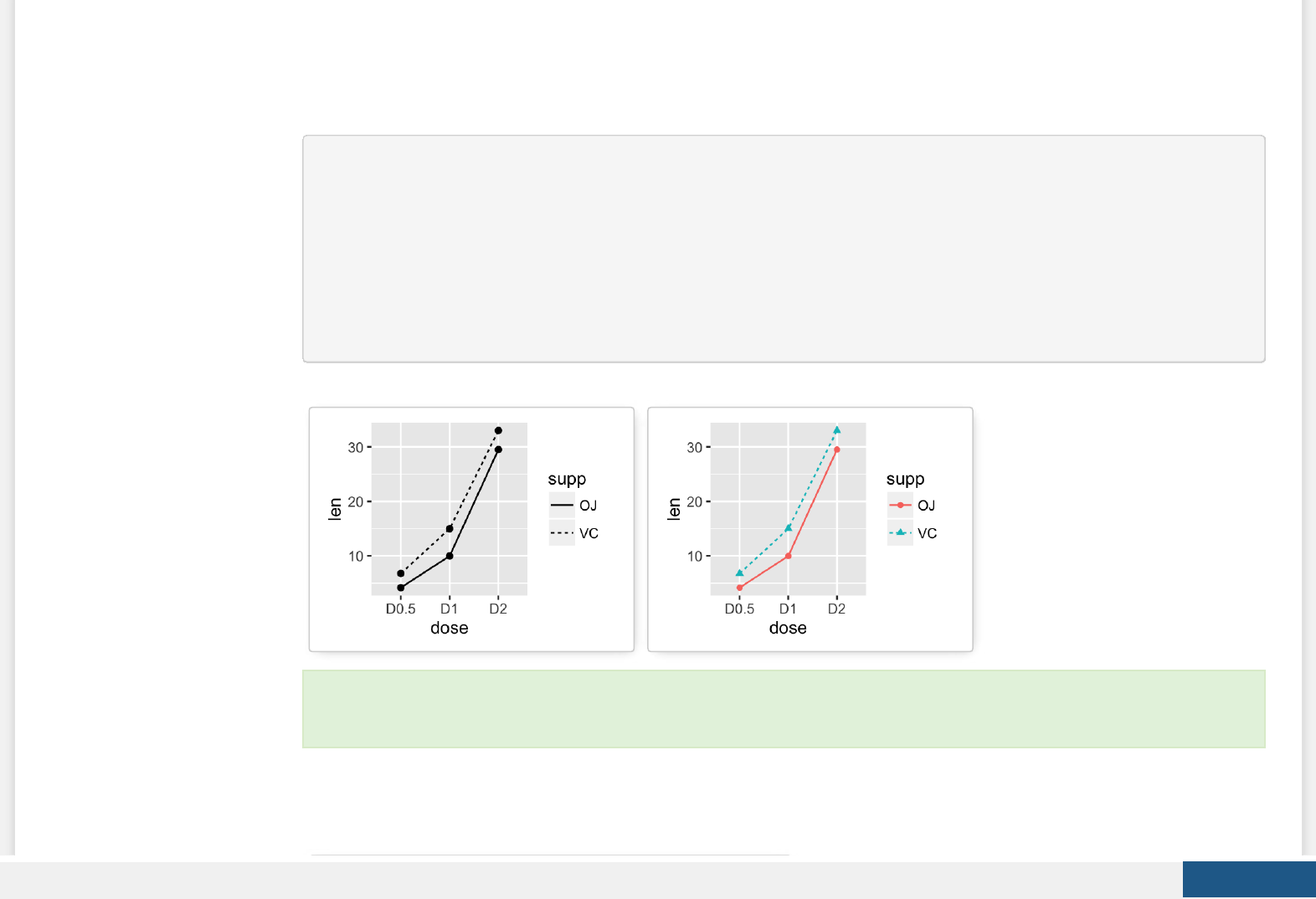
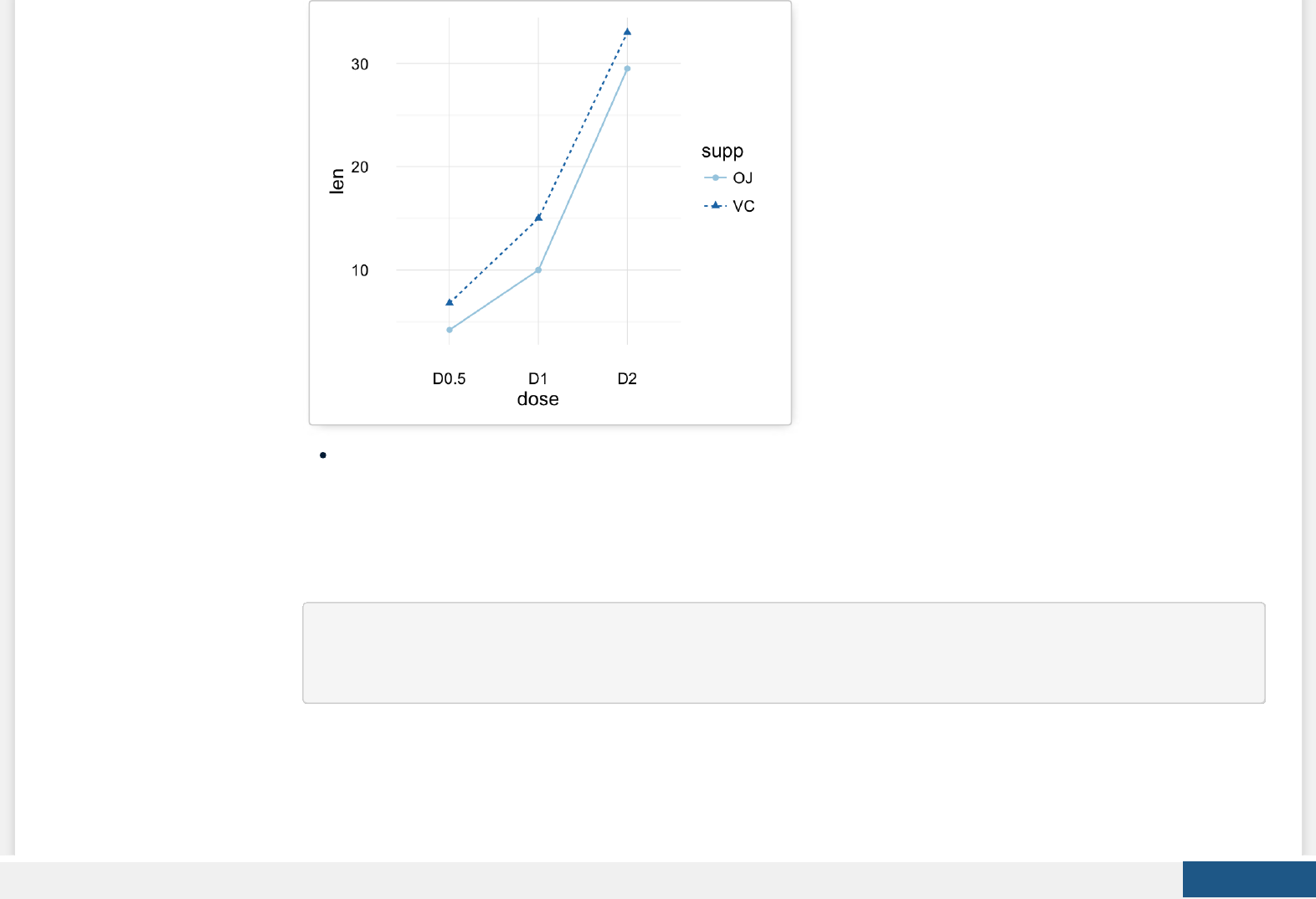
Data derived from ToothGrowth data sets are used.
df <- data.frame(supp=rep(c("VC", "OJ"), each=3),
dose=rep(c("D0.5", "D1", "D2"),2),
len=c(6.8, 15, 33, 4.2, 10, 29.5))
head(df)
## supp dose len
## 1 VC D0.5 6.8
## 2 VC D1 15.0
## 3 VC D2 33.0
Create PDF in your applications with the Pdfcrowd HTML to PDF API PDFCROWD
## 4 OJ D0.5 4.2
## 5 OJ D1 10.0
## 6 OJ D2 29.5
In the graphs below, line types and point shapes are controlled automatically by the levels of the variable supp :
# Change line types by groups (supp)
ggplot(df, aes(x=dose, y=len, group=supp)) +
geom_line(aes(linetype=supp))+
geom_point()
# Change line types, point shapes and colors
ggplot(df, aes(x=dose, y=len, group=supp)) +
geom_line(aes(linetype=supp, color = supp))+
geom_point(aes(shape=supp, color = supp))
To customize the plot, the following arguments can be used: alpha, color, linetype and size. Learn more here: ggplot2
line plot.
Create PDF in your applications with the Pdfcrowd HTML to PDF API PDFCROWD
Key functions: geom_line(), geom_step()
geom_bar(): Bar plot
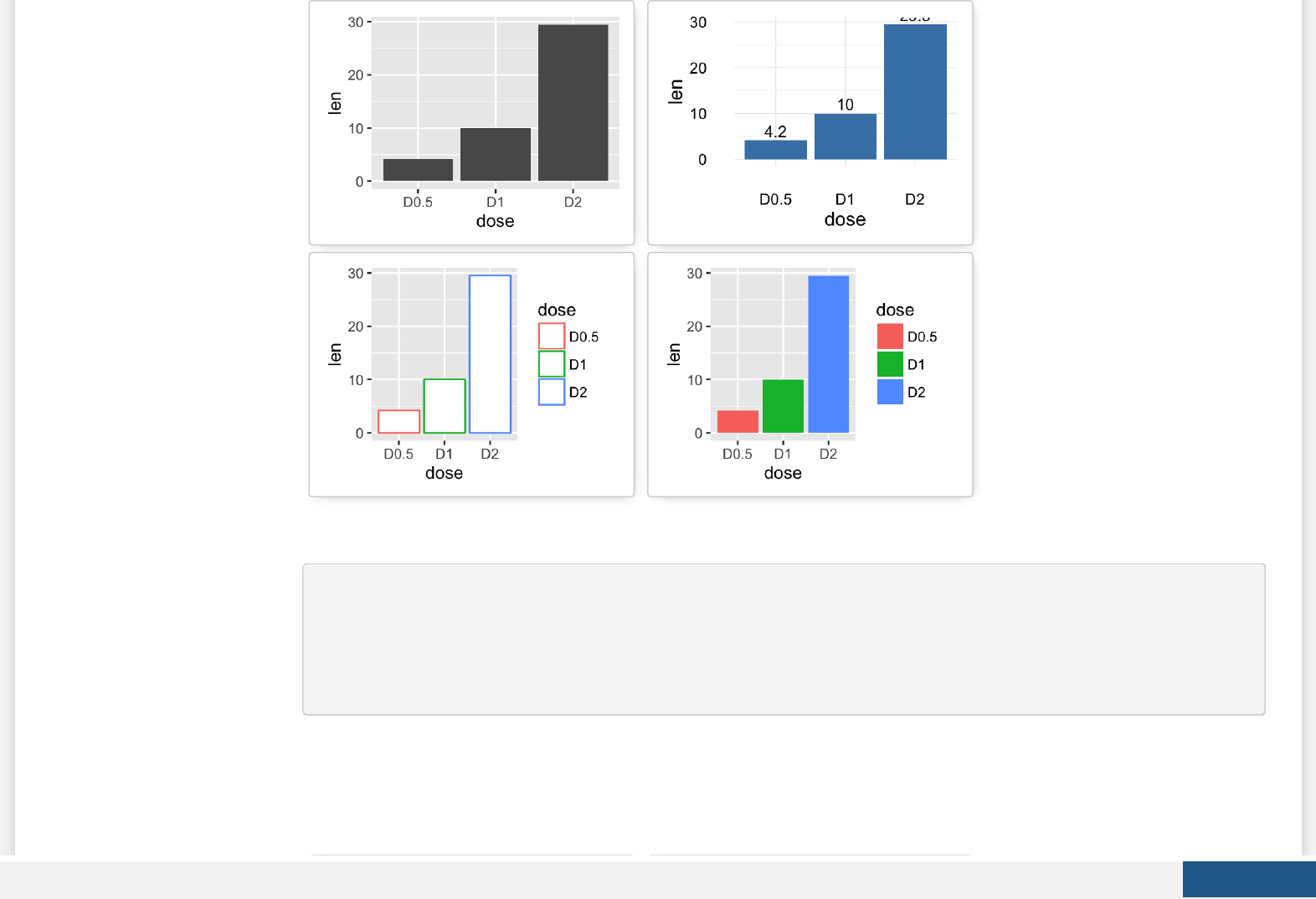
Data derived from ToothGrowth data sets are used.
df <- data.frame(dose=c("D0.5", "D1", "D2"),
len=c(4.2, 10, 29.5))
head(df)
## dose len
## 1 D0.5 4.2
## 2 D1 10.0
## 3 D2 29.5
Create PDF in your applications with the Pdfcrowd HTML to PDF API PDFCROWD

df2 <- data.frame(supp=rep(c("VC", "OJ"), each=3),
dose=rep(c("D0.5", "D1", "D2"),2),
len=c(6.8, 15, 33, 4.2, 10, 29.5))
head(df2)
## supp dose len
## 1 VC D0.5 6.8
## 2 VC D1 15.0
## 3 VC D2 33.0
## 4 OJ D0.5 4.2
## 5 OJ D1 10.0
## 6 OJ D2 29.5
We start by creating a simple bar plot (named f) using the df data set:
f <- ggplot(df, aes(x = dose, y = len))
# Basic bar plot
f + geom_bar(stat = "identity")
# Change fill color and add labels
f + geom_bar(stat="identity", fill="steelblue")+
geom_text(aes(label=len), vjust=-0.3, size=3.5)+
theme_minimal()
# Change bar plot line colors by groups
f + geom_bar(aes(color = dose),
stat="identity", fill="white")
# Change bar plot fill colors by groups
f + geom_bar(aes(fill = dose), stat="identity")
Create PDF in your applications with the Pdfcrowd HTML to PDF API PDFCROWD
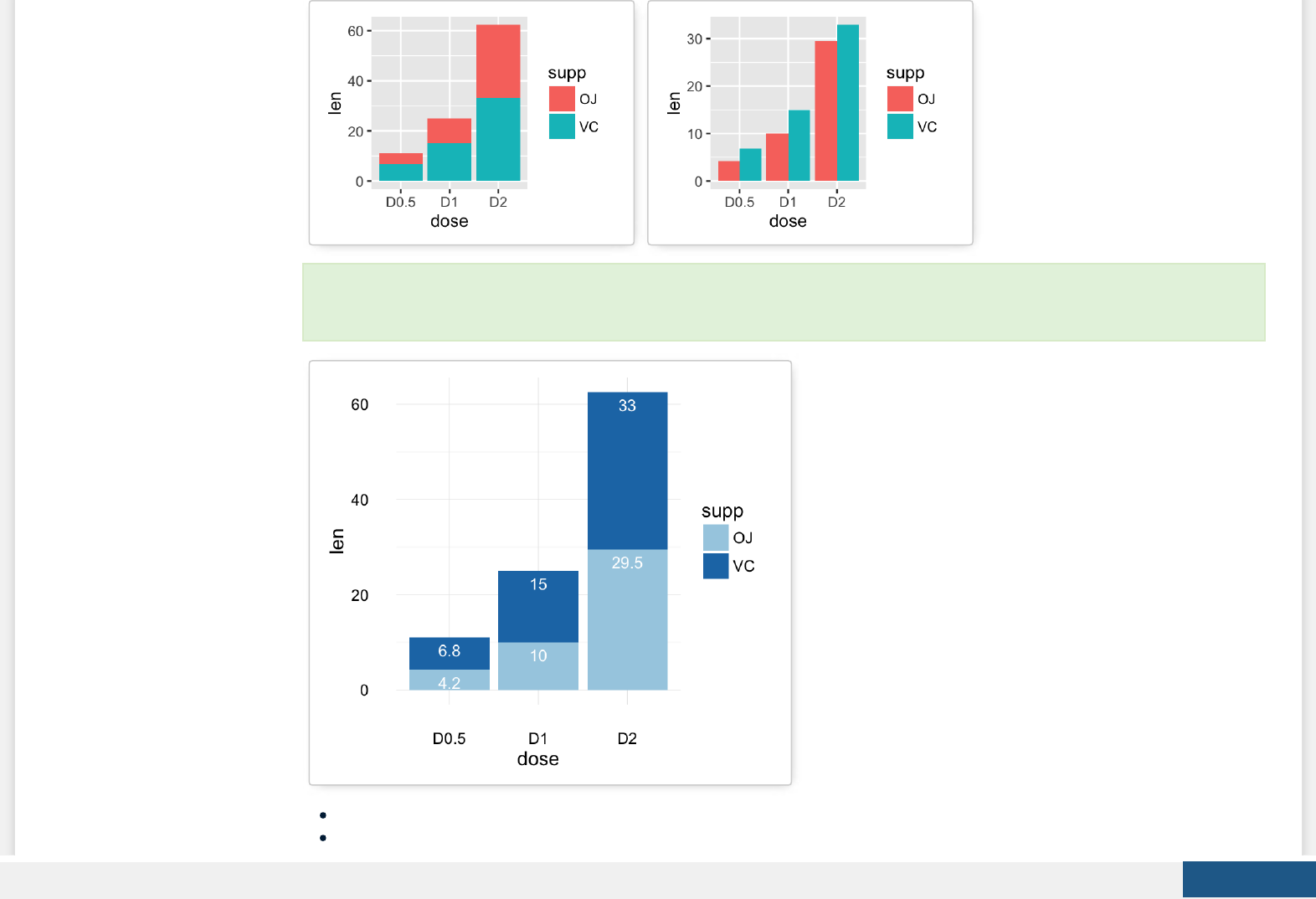

g + stat_identity(geom = "bar")
g + stat_identity(geom = "bar", position = "dodge")
Two variables: Discrete X, Discrete Y
The diamonds data set [in ggplot2] we’ll be used to plot the discrete variable color (for diamond colors) by the discrete
variable cut (for diamond cut types). The plot is created using the function geom_jitter().
ggplot(diamonds, aes(cut, color)) +
geom_jitter(aes(color = cut), size = 0.5)
Create PDF in your applications with the Pdfcrowd HTML to PDF API PDFCROWD
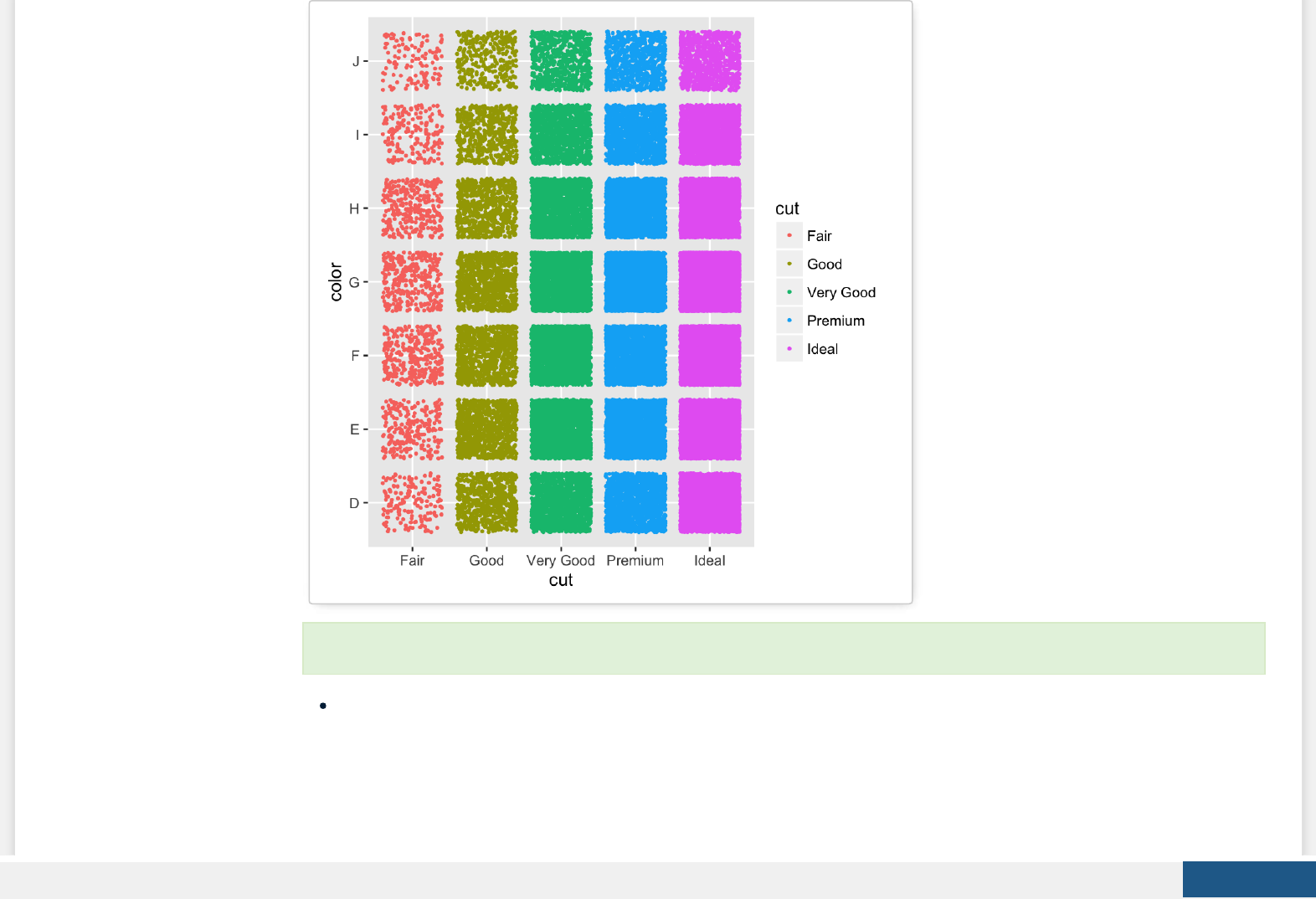
Key function: geom_jitter()
Two variables: Visualizing error
The ToothGrowth data set we’ll be used. We start by creating a data set named df which holds ToothGrowth data.
To customize the plot, the following arguments can be used: alpha, color, ll, shape and size.
Create PDF in your applications with the Pdfcrowd HTML to PDF API PDFCROWD

# ToothGrowth data set
df <- ToothGrowth
df$dose <- as.factor(df$dose)
head(df)
## len supp dose
## 1 4.2 VC 0.5
## 2 11.5 VC 0.5
## 3 7.3 VC 0.5
## 4 5.8 VC 0.5
## 5 6.4 VC 0.5
## 6 10.0 VC 0.5
The helper function below (data_summary()) will be used to calculate the mean and the standard deviation (used as error),
for the variable of interest, in each group. The plyr package is required.
# Calculate the mean and the SD in each group
#+++++++++++++++++++++++++
# data : a data frame
# varname : the name of the variable to be summariezed
# grps : column names to be used as grouping variables
data_summary <- function(data, varname, grps){
require(plyr)
summary_func <- function(x, col){
c(mean = mean(x[[col]], na.rm=TRUE),
sd = sd(x[[col]], na.rm=TRUE))
}
data_sum<-ddply(data, grps, .fun=summary_func, varname)
data_sum <- rename(data_sum, c("mean" = varname))
return(data_sum)
}
Create PDF in your applications with the Pdfcrowd HTML to PDF API PDFCROWD
Using the function data_summary(), the following R code creates a data set named df2 which holds the mean and the SD of
tooth length (len) by groups (dose).
df2 <- data_summary(df, varname="len", grps= "dose")
# Convert dose to a factor variable
df2$dose=as.factor(df2$dose)
head(df2)
## dose len sd
## 1 0.5 10.605 4.499763
## 2 1 19.735 4.415436
## 3 2 26.100 3.774150
f <- ggplot(df2, aes(x = dose, y = len,
ymin = len-sd, ymax = len+sd))
Possible layers include:
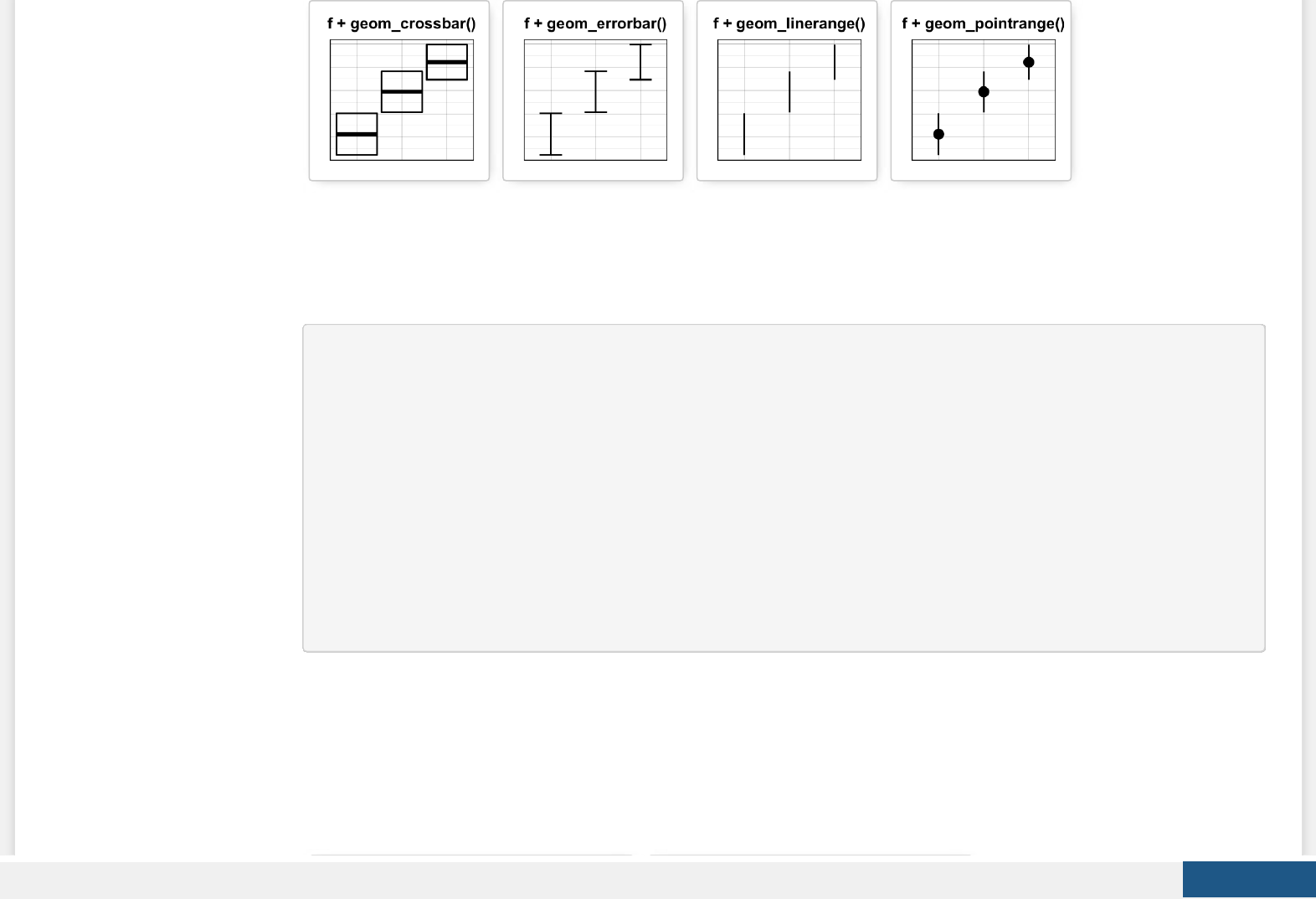
geom_crossbar() for hollow bar with middle indicated by horizontal line
geom_errorbar() for error bars
geom_errorbarh() for horizontal error bars
geom_linerange() for drawing an interval represented by a vertical line
geom_pointrange() for creating an interval represented by a vertical line, with a point in the middle.
We start by creating a plot, named f, that we’ll nish in the next section by adding a layer.
Create PDF in your applications with the Pdfcrowd HTML to PDF API PDFCROWD
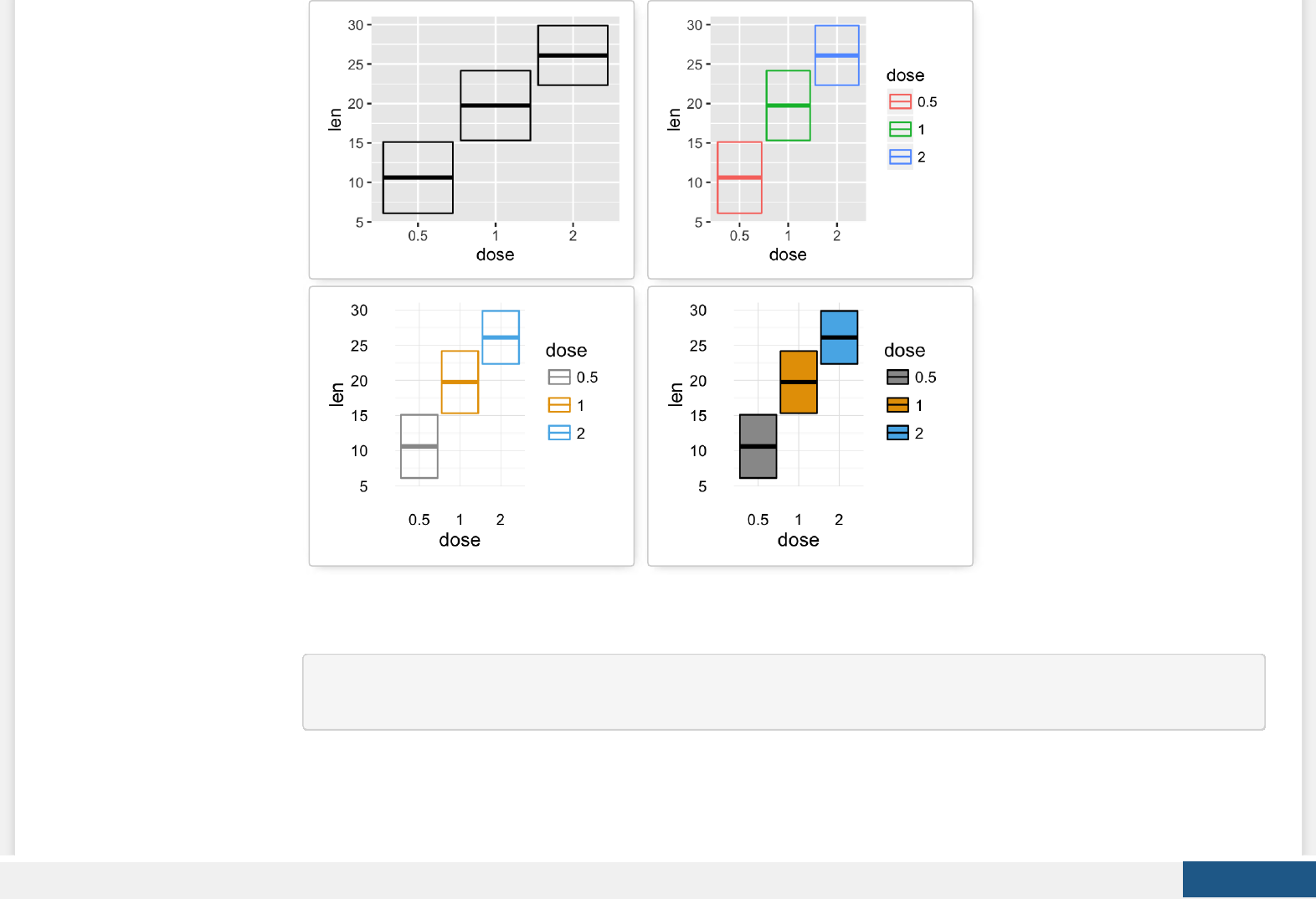
geom_crossbar(): Hollow bar with middle indicated by horizontal line
We’ll use the data set named df2, which holds the mean and the SD of tooth length (len) by groups (dose).
# Default plot
f + geom_crossbar()
# color by groups
f + geom_crossbar(aes(color = dose))
# Change color manually
f + geom_crossbar(aes(color = dose)) +
scale_color_manual(values = c("#999999", "#E69F00", "#56B4E9"))+
theme_minimal()
# fill by groups and change color manually
f + geom_crossbar(aes(fill = dose)) +
scale_fill_manual(values = c("#999999", "#E69F00", "#56B4E9"))+
theme_minimal()
Create PDF in your applications with the Pdfcrowd HTML to PDF API PDFCROWD
Cross bar with multiple groups: Using the function data_summary(), we start by creating a data set named df3 which holds
the mean and the SD of tooth length (len) by 2 groups (supp and dose).
df3 <- data_summary(df, varname="len", grps= c("supp", "dose"))
head(df3)
## supp dose len sd
## 1 OJ 0.5 13.23 4.459709
## 2 OJ 1 22.70 3.910953
## 3 OJ 2 26.06 2.655058
Create PDF in your applications with the Pdfcrowd HTML to PDF API PDFCROWD
## 4 VC 0.5 7.98 2.746634
## 5 VC 1 16.77 2.515309
## 6 VC 2 26.14 4.797731
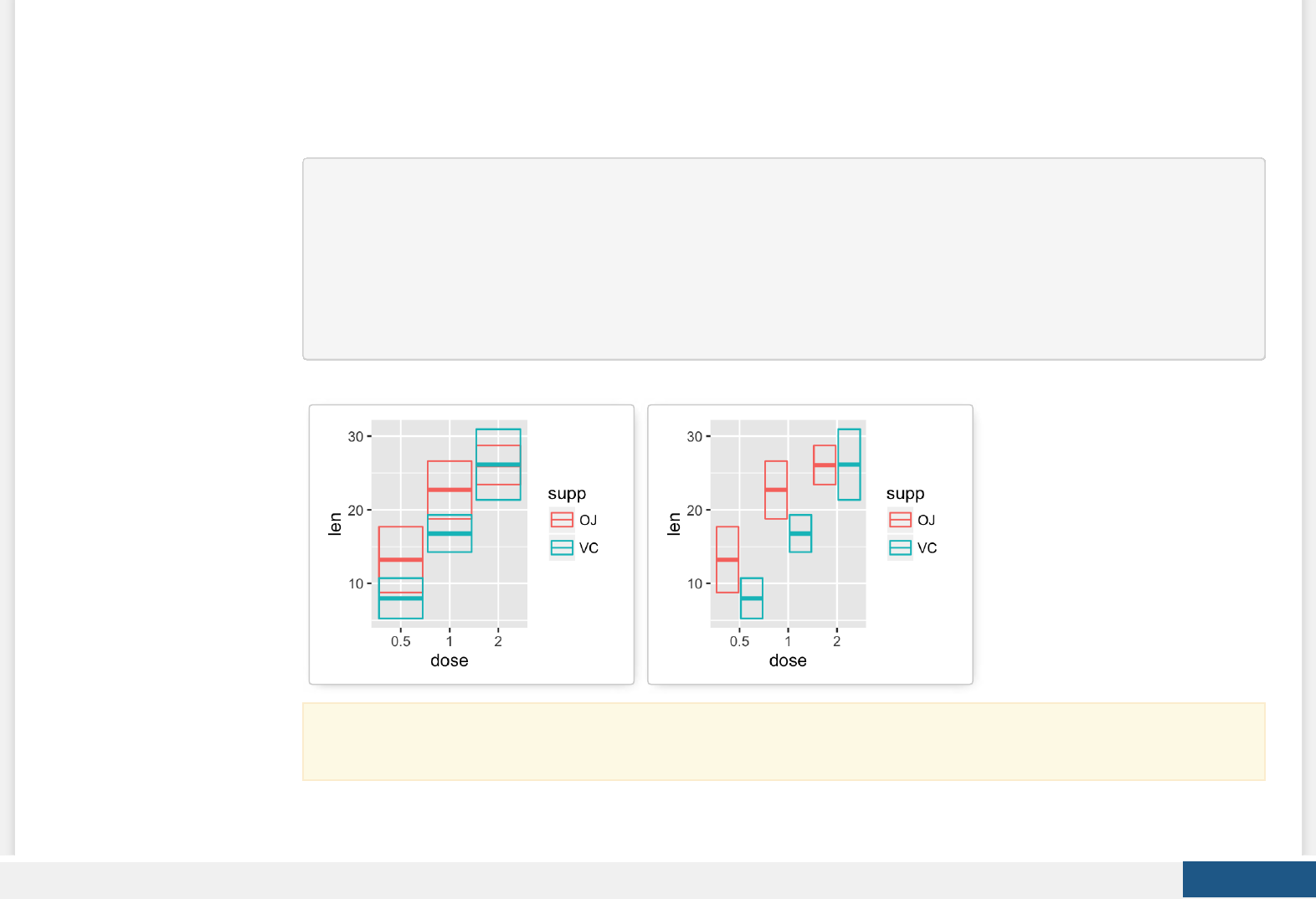
The data set df3 is used to create cross bars with multiple groups. For this end, the variable len is plotted by dose and the
color is changed by the levels of the factor supp.
f <- ggplot(df3, aes(x = dose, y = len,
ymin = len-sd, ymax = len+sd))
# Default plot
f + geom_crossbar(aes(color = supp))
# Use position_dodge() to avoid overlap
f + geom_crossbar(aes(color = supp),
position = position_dodge(1))
A simple alternative to geom_crossbar() is to use the function stat_summary() as follow. In this case, the mean and
the SD can be computed automatically.
Create PDF in your applications with the Pdfcrowd HTML to PDF API PDFCROWD
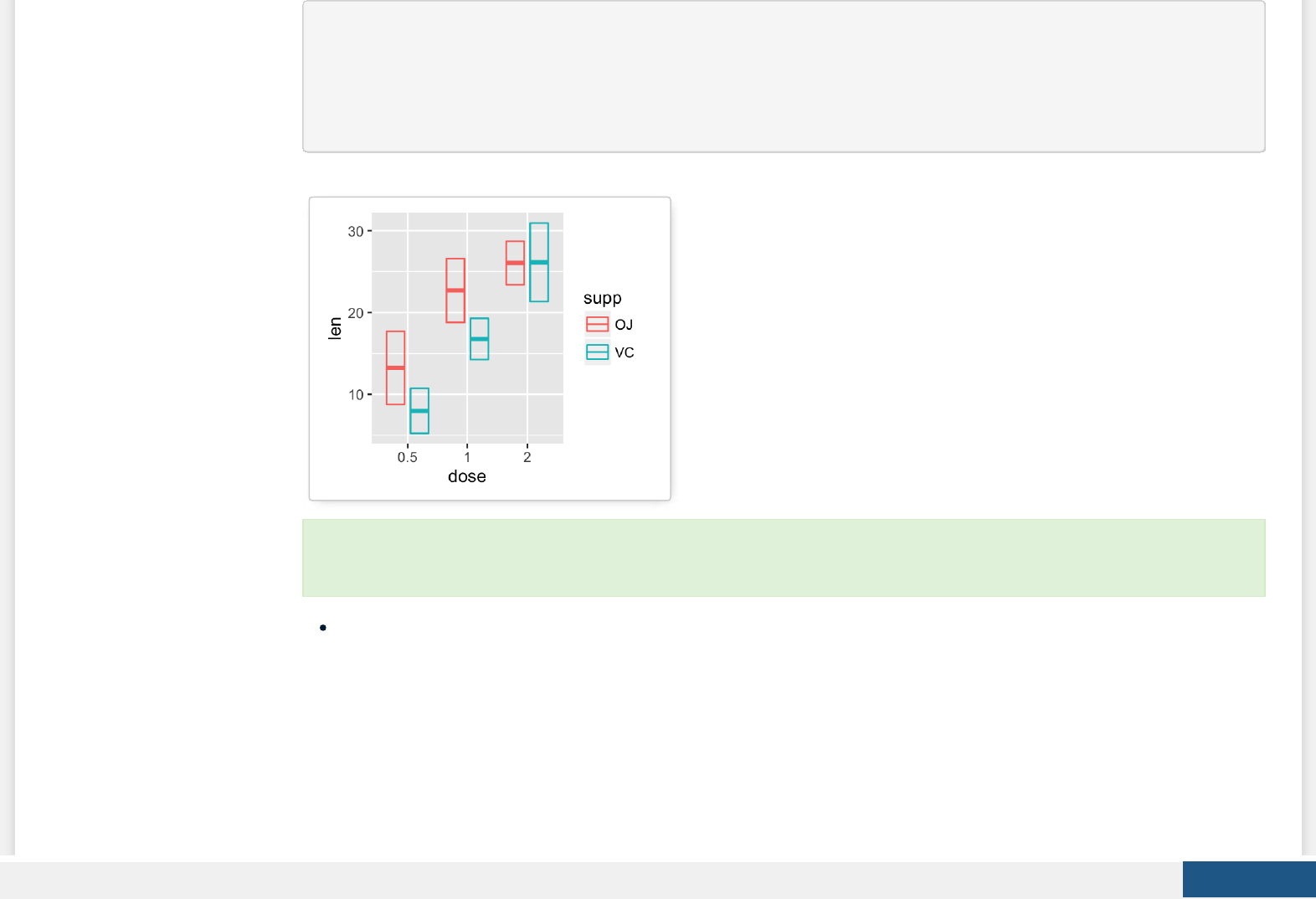
f <- ggplot(df, aes(x = dose, y = len, color = supp))
# Use geom_crossbar()
f + stat_summary(fun.data="mean_sdl", fun.args = list(mult=1),
geom="crossbar", width = 0.6,
position = position_dodge(0.8))
Key functions: geom_crossbar(), stat_summary()
geom_errorbar(): Error bars
We’ll use the data set named df2, which holds the mean and the SD of tooth length (len) by groups (dose).
We start by creating a plot, named f, that we’ll nish next by adding a layer.
To customize the plot, the following arguments can be used: alpha, color, ll, linetype and size. Learn more here:
ggplot2 error bars.
Create PDF in your applications with the Pdfcrowd HTML to PDF API PDFCROWD

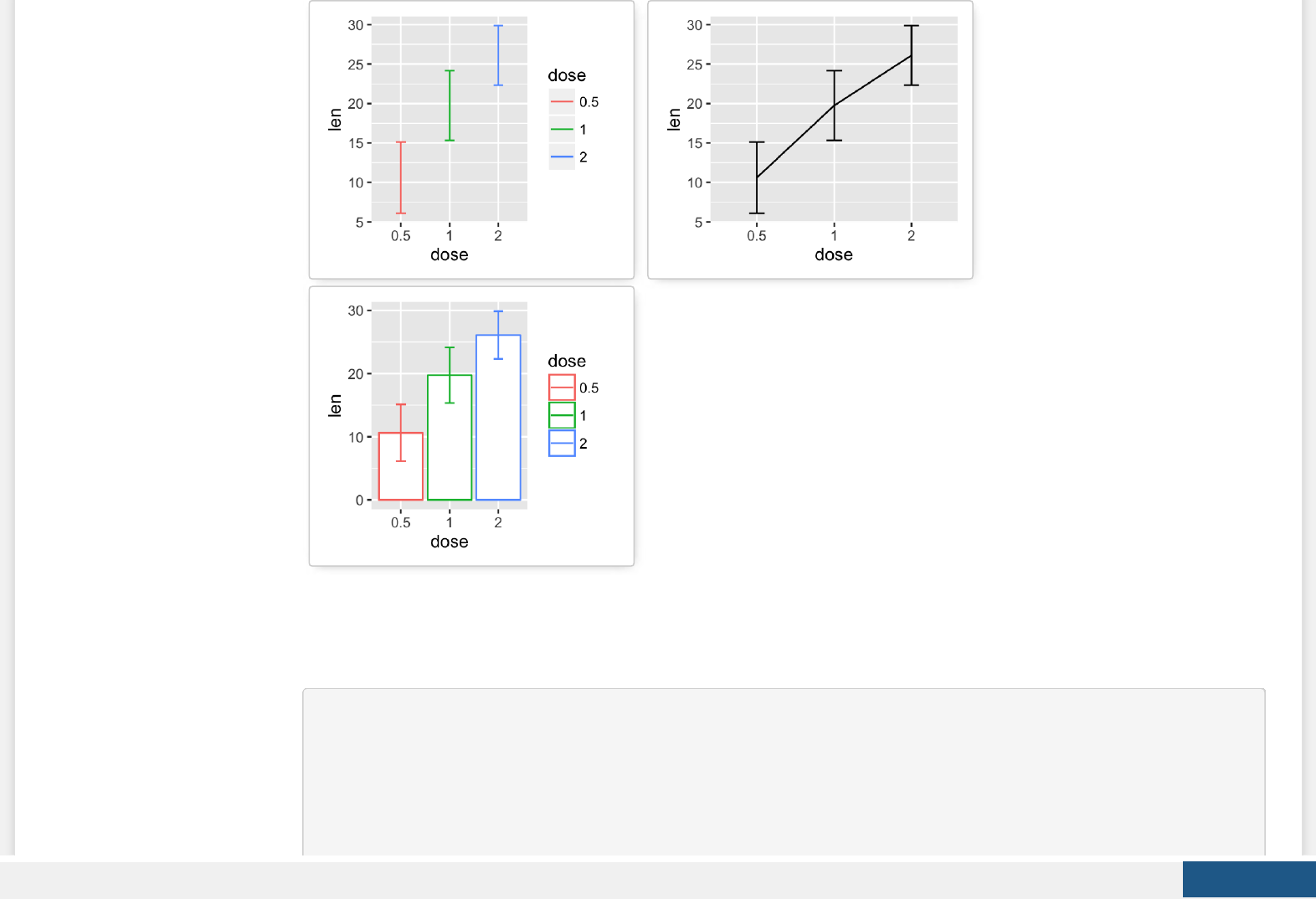
f <- ggplot(df2, aes(x = dose, y = len,
ymin = len-sd, ymax = len+sd))
# Error bars colored by groups
f + geom_errorbar(aes(color = dose), width = 0.2)
# Combine with line plot
f + geom_line(aes(group = 1)) +
geom_errorbar(width = 0.2)
# Combine with bar plot, color by groups
f + geom_bar(aes(color = dose), stat = "identity", fill ="white") +
geom_errorbar(aes(color = dose), width = 0.2)
Create PDF in your applications with the Pdfcrowd HTML to PDF API PDFCROWD
Error bars with multiple groups:
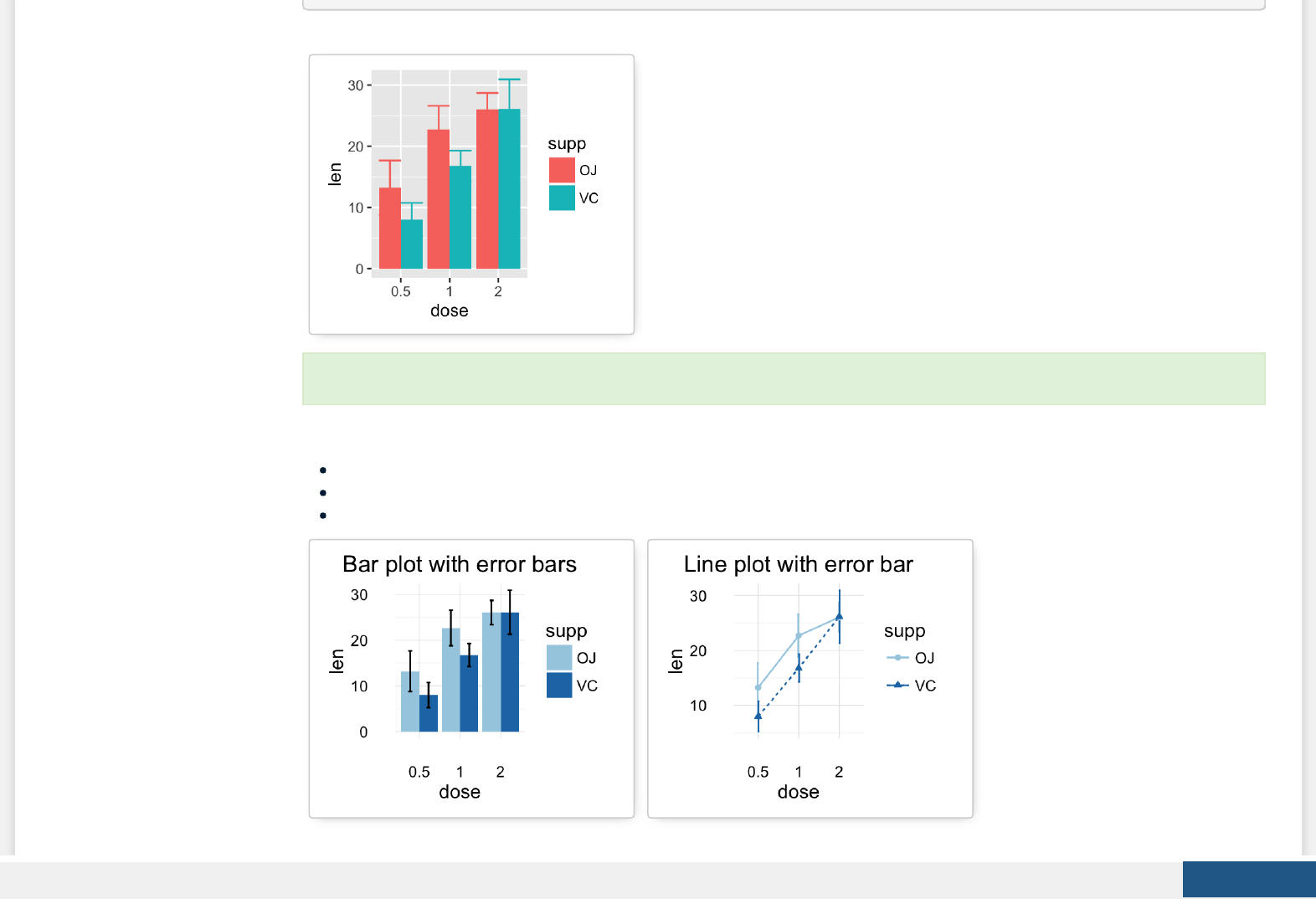
The data set df3 is used to create cross bars with multiple groups. For this end, the variable len is plotted by dose and the
color is changed by the levels of the factor supp.
f <- ggplot(df3, aes(x = dose, y = len,
ymin = len-sd, ymax = len+sd))
# Default plot
f + geom_bar(aes(fill = supp), stat = "identity",
position = "dodge") +
geom_errorbar(aes(color = supp), position = "dodge")
Create PDF in your applications with the Pdfcrowd HTML to PDF API PDFCROWD

Key functions: geom_errorbar(), stat_summary()
geom_errorbarh(): Horizontal error bars
We’ll use the data set named df2, which holds the mean and the SD of tooth length (len) by groups (dose):
df2 <- data_summary(ToothGrowth, varname="len", grps = "dose")
head(df2)
## dose len sd
## 1 0.5 10.605 4.499763
## 2 1 19.735 4.415436
## 3 2 26.100 3.774150
We start by creating a plot, named f, that we’ll nish next by adding a layer.
f <- ggplot(df2, aes(x = len, y = dose ,
xmin=len-sd, xmax=len+sd))
The arguments xmin and xmax are used for horizontal error bars.
Create PDF in your applications with the Pdfcrowd HTML to PDF API PDFCROWD
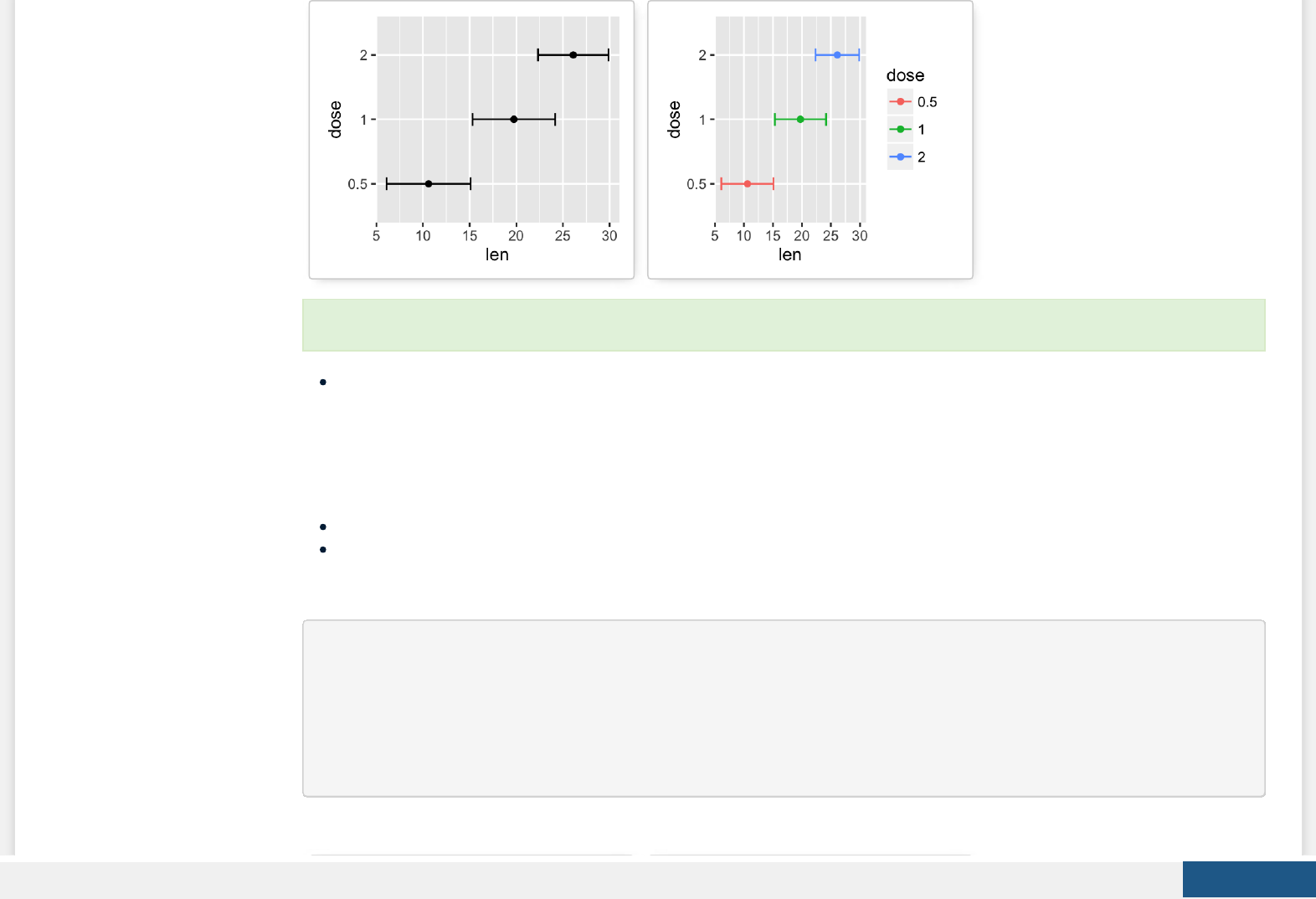
Key functions: geom_errorbarh()
geom_linerange() and geom_pointrange(): An interval represented by a vertical
line
geom_linerange(): Add an interval represented by a vertical line
geom_pointrange(): Add an interval represented by a vertical line with a point in the middle
We’ll use the data set df2.
f <- ggplot(df2, aes(x = dose, y = len,
ymin=len-sd, ymax=len+sd))
# Line range
f + geom_linerange()
# Point range
f + geom_pointrange()
To customize the plot, the following arguments can be used: alpha, color, linetype, size and height.
Create PDF in your applications with the Pdfcrowd HTML to PDF API PDFCROWD
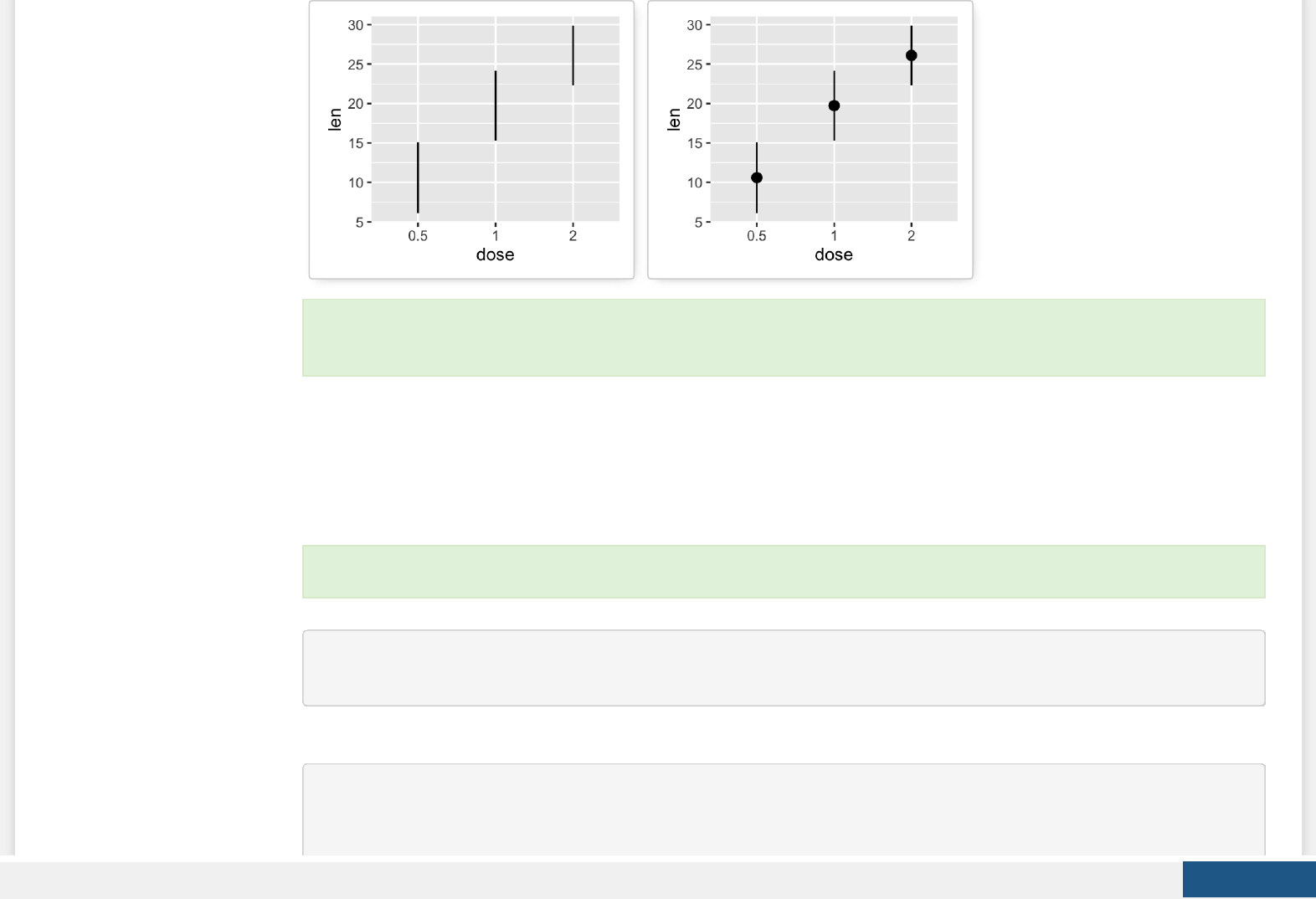
Combine geom_dotplot and error bars
It’s also possible to combine geom_dotplot() and error bars. We’ll use the ToothGrowth data set. You don’t need to compute
the mean and SD. This can be done automatically by using the function stat_summary() in combination with the argument
fun.data = “mean_sdl”.
g <- ggplot(df, aes(x=dose, y=len)) +
geom_dotplot(binaxis='y', stackdir='center')
# use geom_crossbar()
g + stat_summary(fun.data="mean_sdl", fun.args = list(mult=1),
geom="crossbar", width=0.5)
To customize the plot, the following arguments can be used: alpha, color, linetype, size, shape and ll (for
geom_pointrange()).
We start by creating a dot plot, named g, that we’ll nish in the next section by adding error bar layers.
Create PDF in your applications with the Pdfcrowd HTML to PDF API PDFCROWD
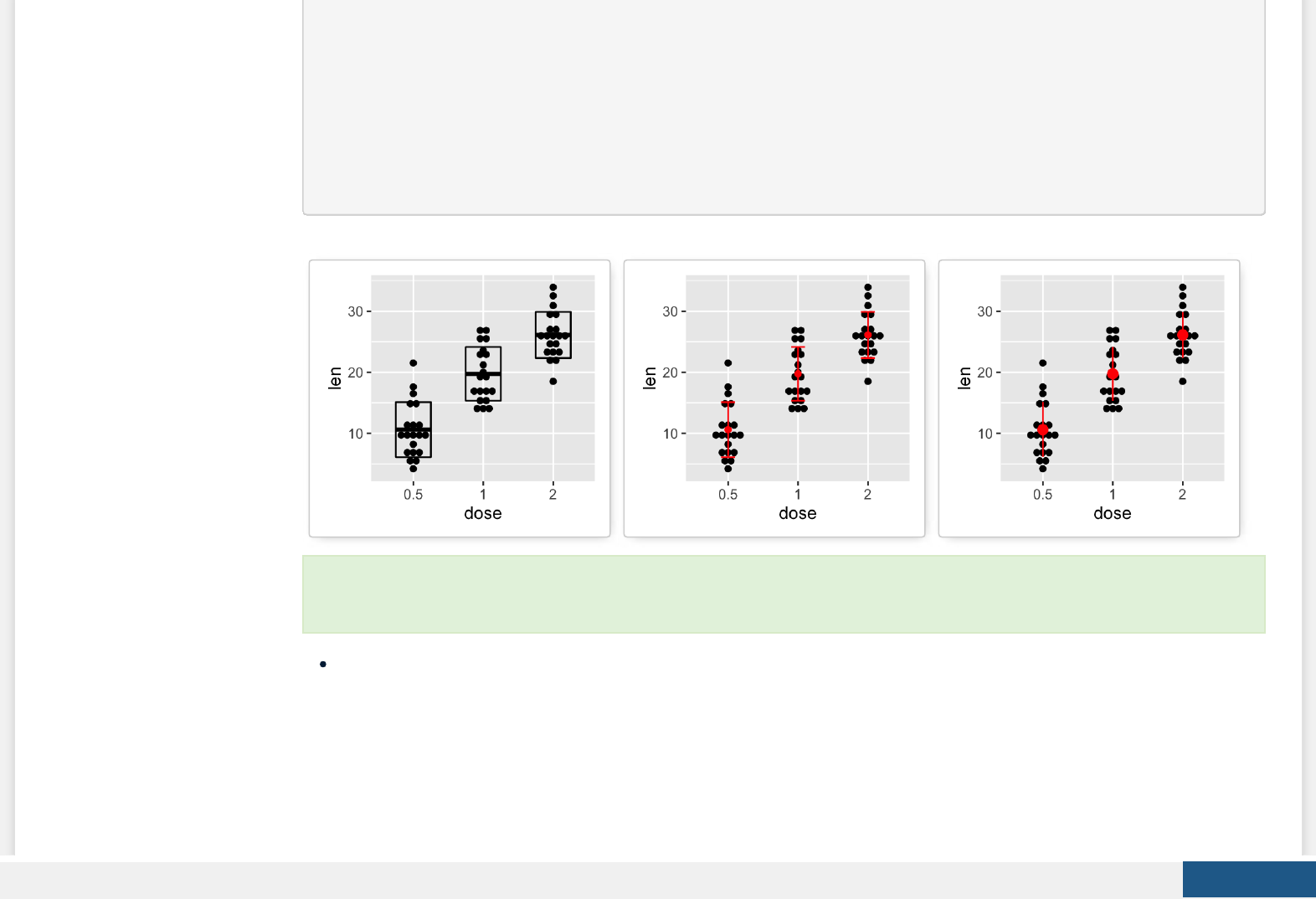
# Use geom_errorbar()
g + stat_summary(fun.data=mean_sdl, fun.args = list(mult=1),
geom="errorbar", color="red", width=0.2) +
stat_summary(fun.y=mean, geom="point", color="red")
# Use geom_pointrange()
g + stat_summary(fun.data=mean_sdl, fun.args = list(mult=1),
geom="pointrange", color="red")
Key functions: geom_errorbarh(), geom_errorbar(), geom_linerange(), geom_pointrange(), geom_crossbar(), stat_summary()
Two variables: Maps
The function geom_map() can be used to create a map with ggplot2. The R package map is required. It contains geographical
information useful for drawing easily maps in ggplot2.
Install map package (if you don’t have it):
To customize the plot, the following arguments can be used: alpha, color, ll, linetype and size. Learn more here:
ggplot2 error bars.
Create PDF in your applications with the Pdfcrowd HTML to PDF API PDFCROWD

install.packages("map")
In the following R code, we’ll create USA map and USArrests crime data to shade each region.
# Prepare the data
crimes <- data.frame(state = tolower(rownames(USArrests)),
USArrests)
library(reshape2) # for melt
crimesm <- melt(crimes, id = 1)
# Get map data
require(maps)
map_data <- map_data("state")
# Plot the map with Murder data
ggplot(crimes, aes(map_id = state)) +
geom_map(aes(fill = Murder), map = map_data) +
expand_limits(x = map_data$long, y = map_data$lat)
Create PDF in your applications with the Pdfcrowd HTML to PDF API PDFCROWD
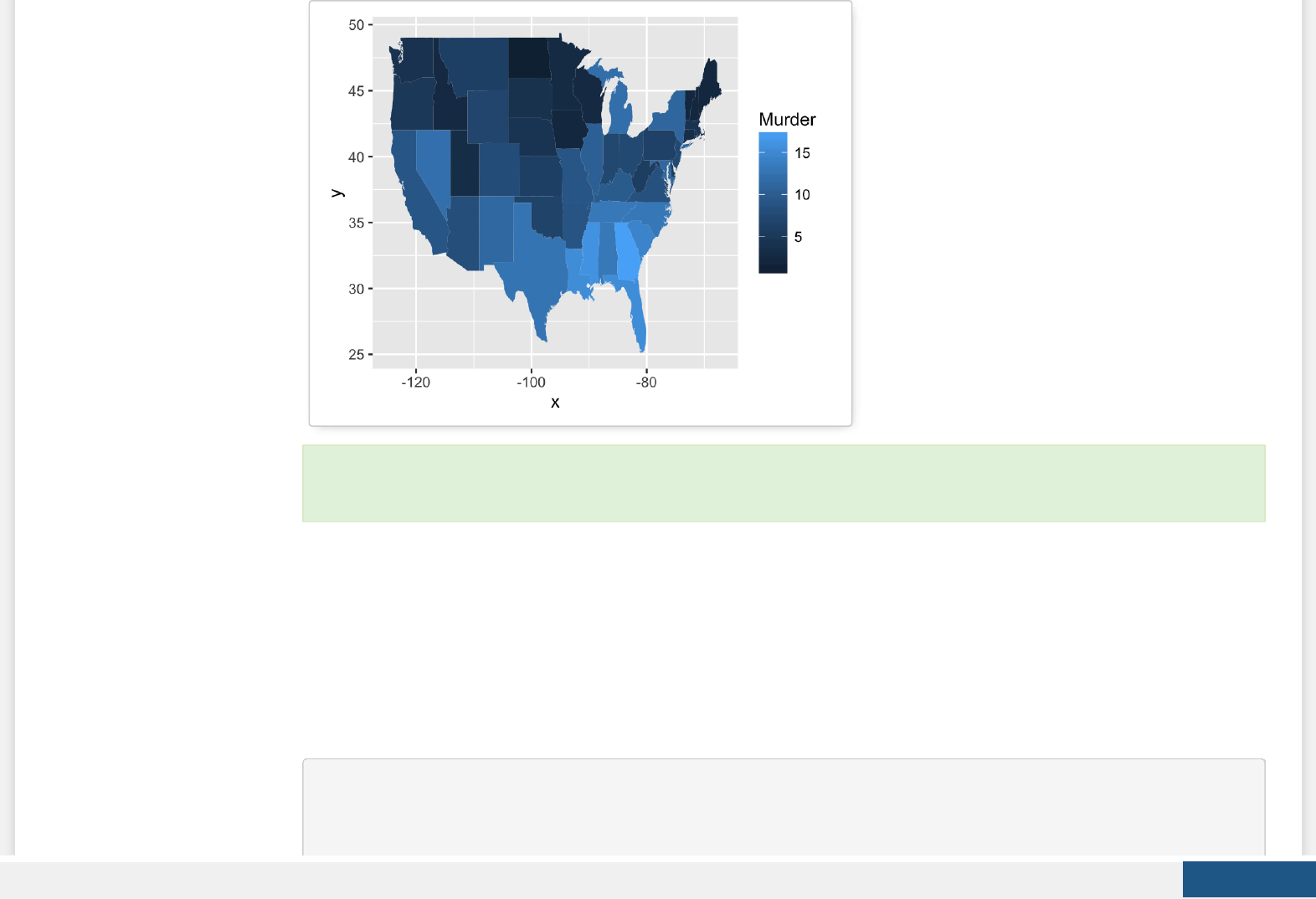
Key function: geom_map()
Three variables
The mtcars data set we’ll be used. We rst compute a correlation matrix, which will be visualized using specic ggplot2
functions.
Prepare the data:
df <- mtcars[, c(1,3,4,5,6,7)]
# Correlation matrix
cormat <- round(cor(df),2)
To customize the plot, the following arguments can be used: alpha, color, ll, linetype and size. Learn more here:
ggplot2 map.
Create PDF in your applications with the Pdfcrowd HTML to PDF API PDFCROWD

# Melt the correlation matrix
require(reshape2)
cormat <- melt(cormat)
head(cormat)
## Var1 Var2 value
## 1 mpg mpg 1.00
## 2 disp mpg -0.85
## 3 hp mpg -0.78
## 4 drat mpg 0.68
## 5 wt mpg -0.87
## 6 qsec mpg 0.42
g <- ggplot(cormat, aes(x = Var1, y = Var2))
Possible layers include:
geom_tile(): Tile plane with rectangles (similar to levelplot and image)
geom_raster(): High-performance rectangular tiling. This is a special case of geom_tile where all tiles are the same
size.
We’ll use the function geom_tile() to visualize a correlation matrix.
Compute and visualize correlation matrix:
# 1. Compute correlation
cormat <- round(cor(df),2)
We start by creating a plot, named g, that we’ll nish in the next section by adding a layer.
Create PDF in your applications with the Pdfcrowd HTML to PDF API PDFCROWD

# 2. Reorder the correlation matrix by
# Hierarchical clustering
hc <- hclust(as.dist(1-cormat)/2)
cormat.ord <- cormat[hc$order, hc$order]
# 3. Get the upper triangle
cormat.ord[lower.tri(cormat.ord)]<- NA
# 4. Melt the correlation matrix
require(reshape2)
melted_cormat <- melt(cormat.ord, na.rm = TRUE)
# Create the heatmap
ggplot(melted_cormat, aes(Var2, Var1, fill = value))+
geom_tile(color = "white")+
scale_fill_gradient2(low = "blue", high = "red", mid = "white",
midpoint = 0, limit = c(-1,1), space = "Lab",
name="Pearson\nCorrelation") + # Change gradient color
theme_minimal()+ # minimal theme
theme(axis.text.x = element_text(angle = 45, vjust = 1,
size = 12, hjust = 1))+
coord_fixed()
Create PDF in your applications with the Pdfcrowd HTML to PDF API PDFCROWD
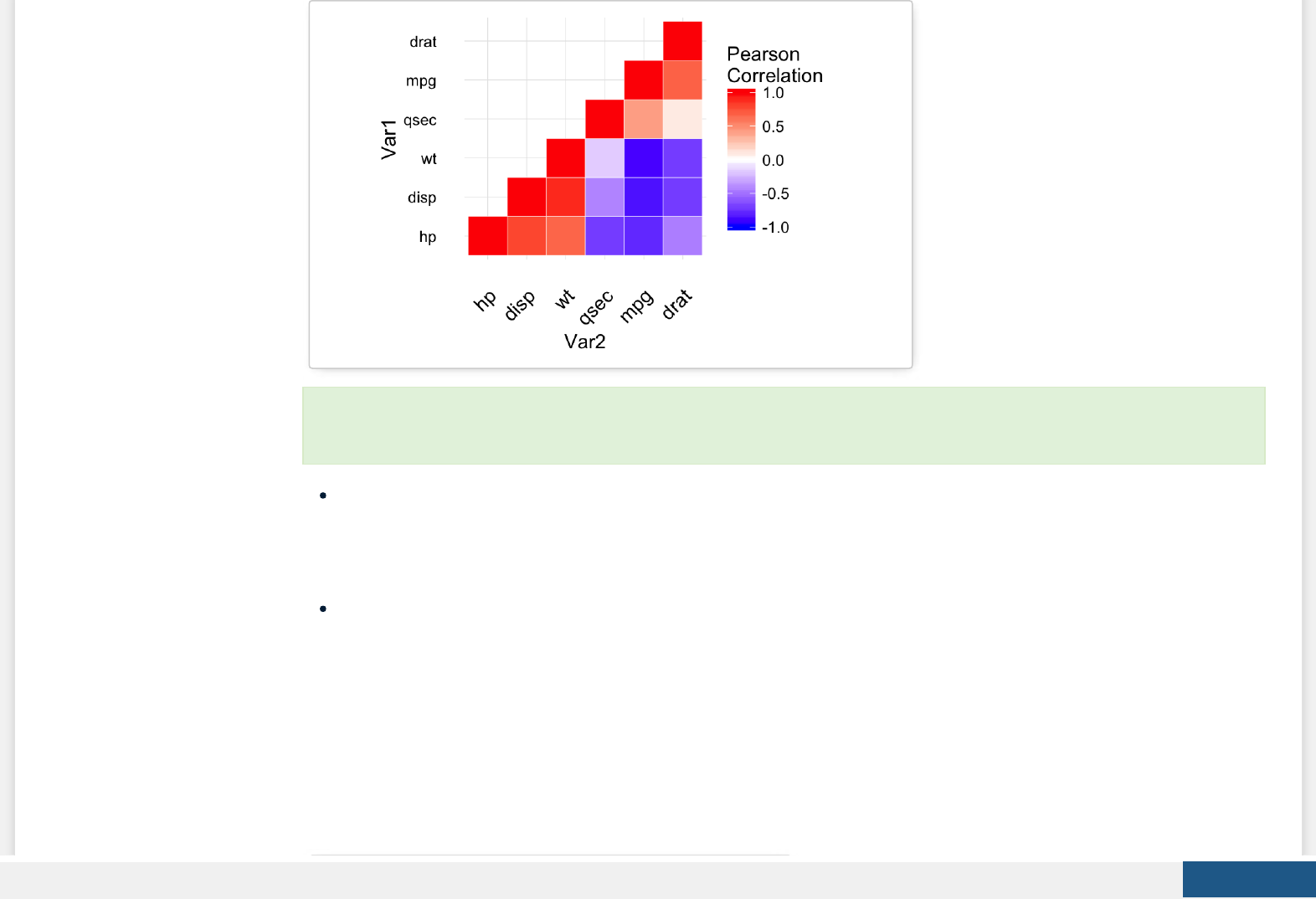
Key functions: geom_tile(), geom_raster()
Other types of graphs
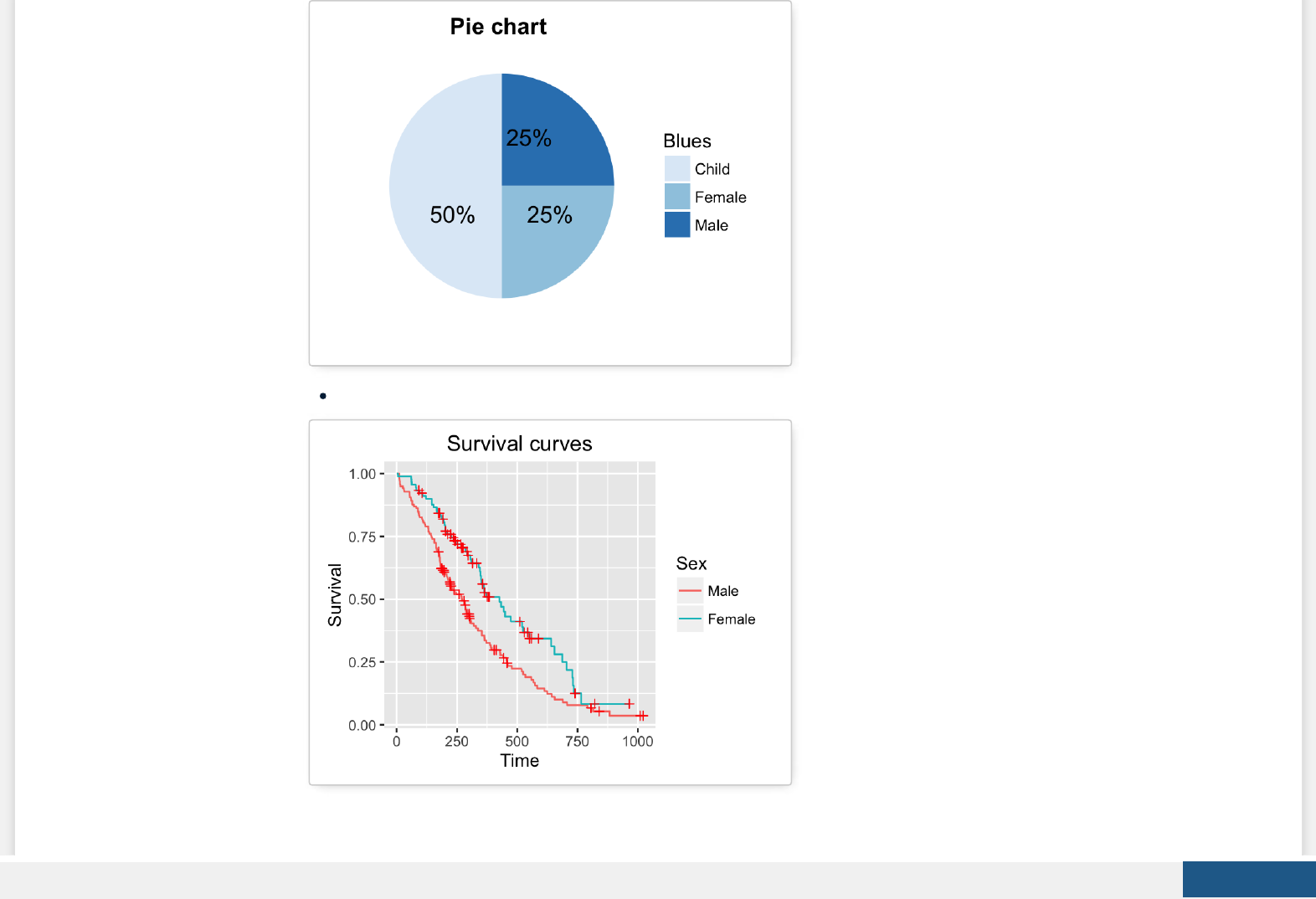
Pie chart: (click to read more)
To customize the plot, the following arguments can be used: alpha, color, ll, linetype and size. Learn more here:
ggplot2 correlation matrix heatmap.
Create PDF in your applications with the Pdfcrowd HTML to PDF API PDFCROWD

Graphical primitives: polygon, path, ribbon, segment, rectangle
This section describes how to add graphical elements to a plot. The functions below we’ll be used:
geom_polygon(): Add polygon, a lled path
geom_path(): Connect observations in original order
geom_ribbon(): Add ribbons, y range with continuous x values.
geom_segment(): Add a single line segments
geom_curve(): Add curves
geom_rect(): Add a 2d rectangles.
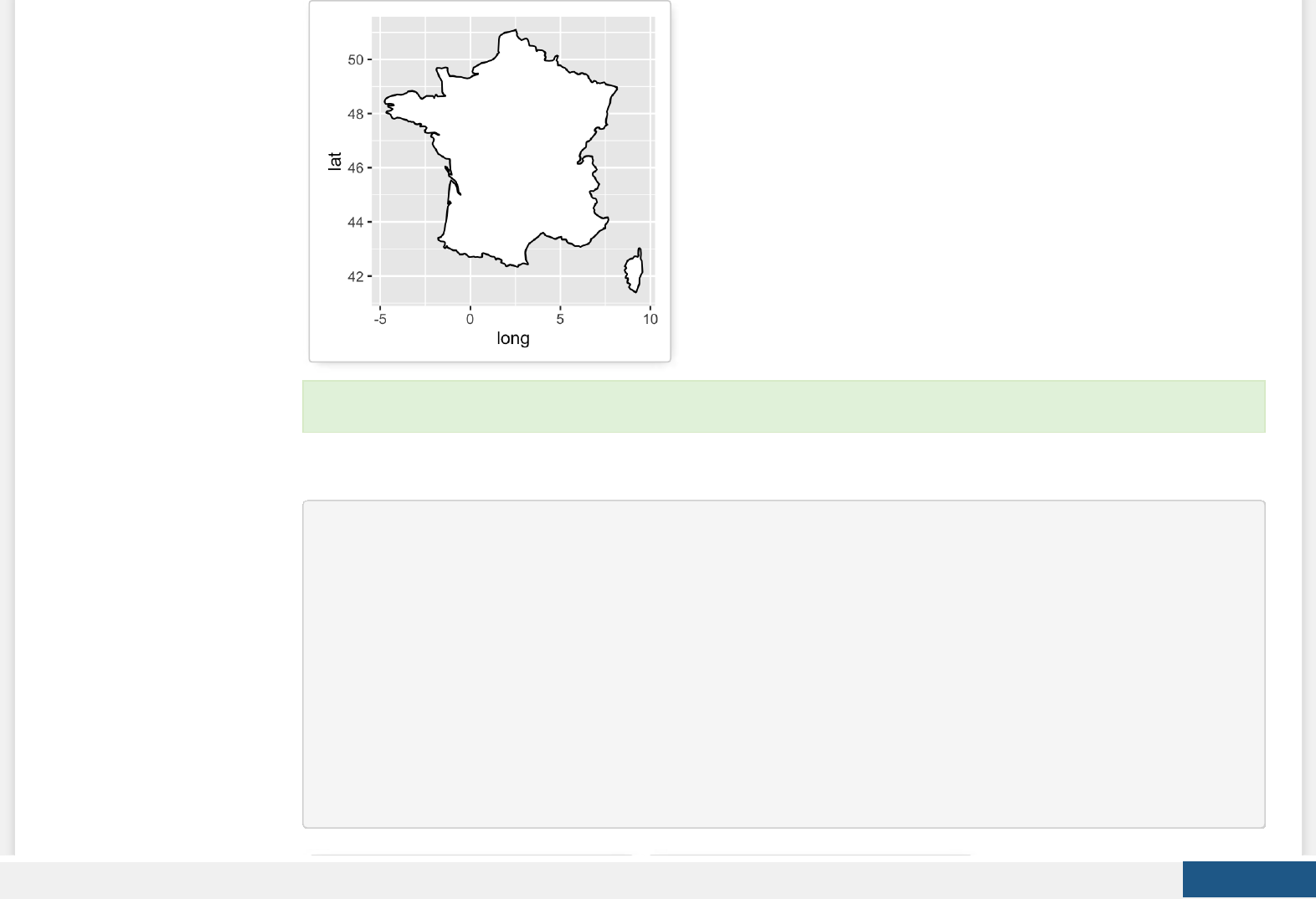
1. The R code below draws France map using geom_polygon():
require(maps)
france = map_data('world', region = 'France')
ggplot(france, aes(x = long, y = lat, group = group)) +
geom_polygon(fill = 'white', colour = 'black')
Create PDF in your applications with the Pdfcrowd HTML to PDF API PDFCROWD
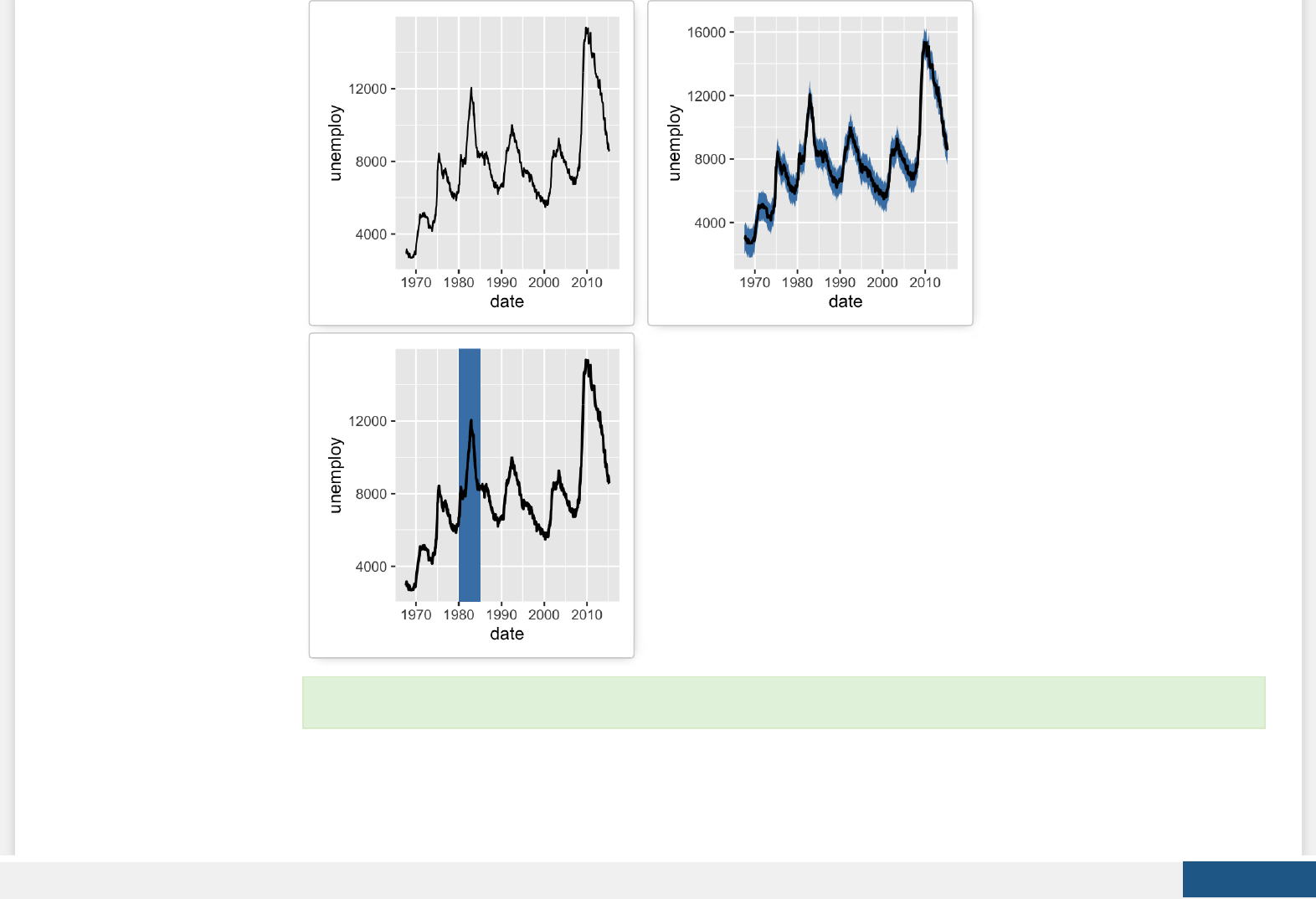
2. The following R code uses econimics data [in ggplot2] and produces path, ribbon and rectangles.
h <- ggplot(economics, aes(date, unemploy))
# Path
h + geom_path()
# Ribbon
h + geom_ribbon(aes(ymin = unemploy-900, ymax = unemploy+900),
fill = "steelblue") +
geom_path(size = 0.8)
# Rectangle
h + geom_rect(aes(xmin = as.Date('1980-01-01'), ymin = -Inf,
xmax = as.Date('1985-01-01'), ymax = Inf),
fill = "steelblue") +
geom_path(size = 0.8)
To customize the plot, the following arguments can be used: alpha, color, ll, linetype and size.
Create PDF in your applications with the Pdfcrowd HTML to PDF API PDFCROWD
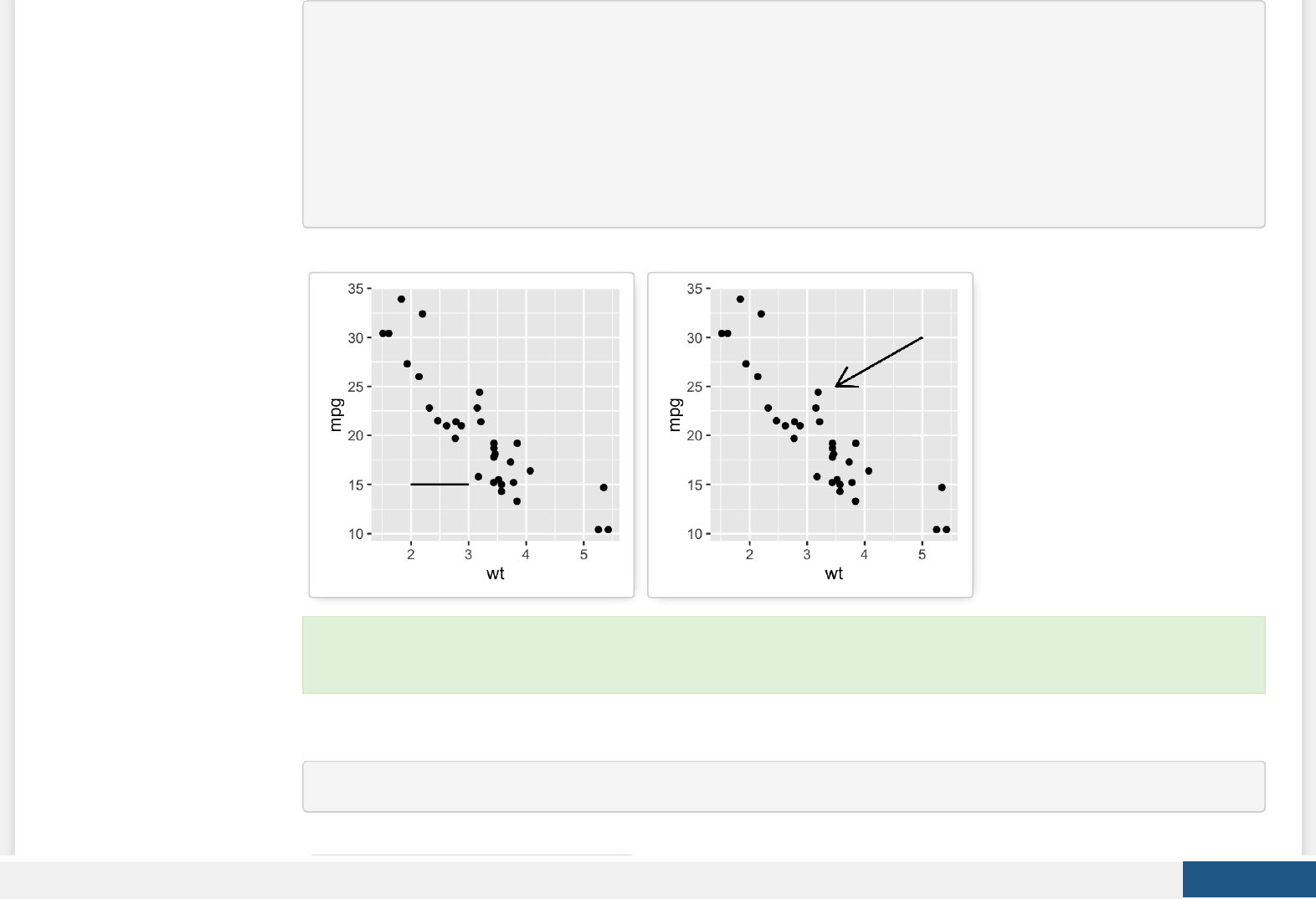
# Create a scatter plot
i <- ggplot(mtcars, aes(wt, mpg)) + geom_point()
# Add segment
i + geom_segment(aes(x = 2, y = 15, xend = 3, yend = 15))
# Add arrow
require(grid)
i + geom_segment(aes(x = 5, y = 30, xend = 3.5, yend = 25),
arrow = arrow(length = unit(0.5, "cm")))
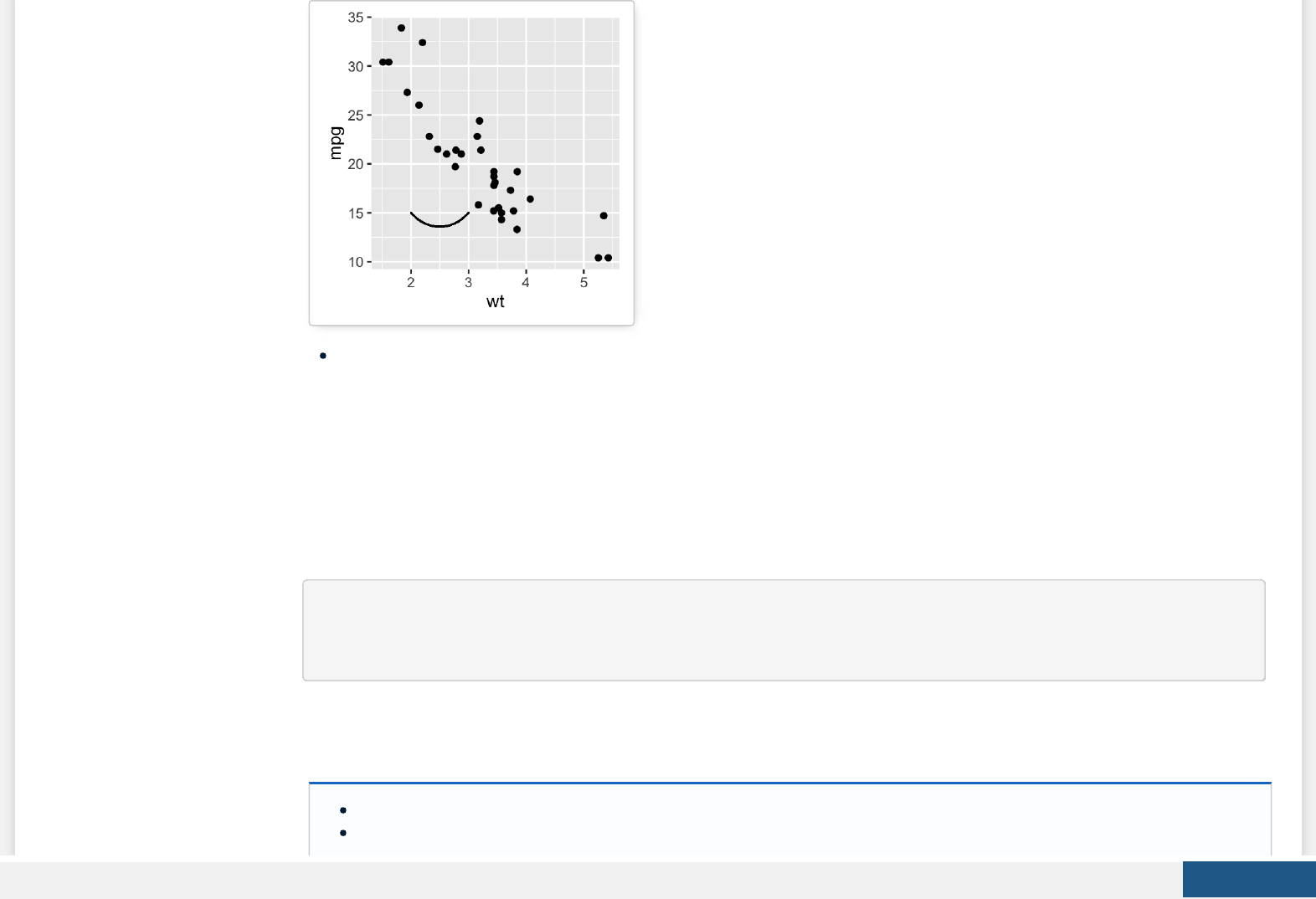
4. Add curves between points (x1, y1) and (x2, y2):
i + geom_curve(aes(x = 2, y = 15, xend = 3, yend = 15))
To customize the plot, the following arguments can be used: alpha, color, linetype and size. Learn more here: ggplot2
add line segment.
Create PDF in your applications with the Pdfcrowd HTML to PDF API PDFCROWD
Key functions: geom_path(), geom_ribbon(), geom_rect(), geom_segment()
Graphical parameters
Main title, axis labels and legend title
We start by creating a box plot using the data set ToothGrowth:
# Convert the variable dose from numeric to factor variable
ToothGrowth$dose <- as.factor(ToothGrowth$dose)
p <- ggplot(ToothGrowth, aes(x=dose, y=len)) + geom_boxplot()
The function below can be used for changing titles and labels:
p + ggtitle(“New main title”): Adds a main title above the plot
p + xlab(“New X axis label”): Changes the X axis label
Create PDF in your applications with the Pdfcrowd HTML to PDF API PDFCROWD
p + ylab(“New Y axis label”): Changes the Y axis label
p + labs(title = “New main title”, x = “New X axis label”, y = “New Y axis label”): Changes main title and axis labels
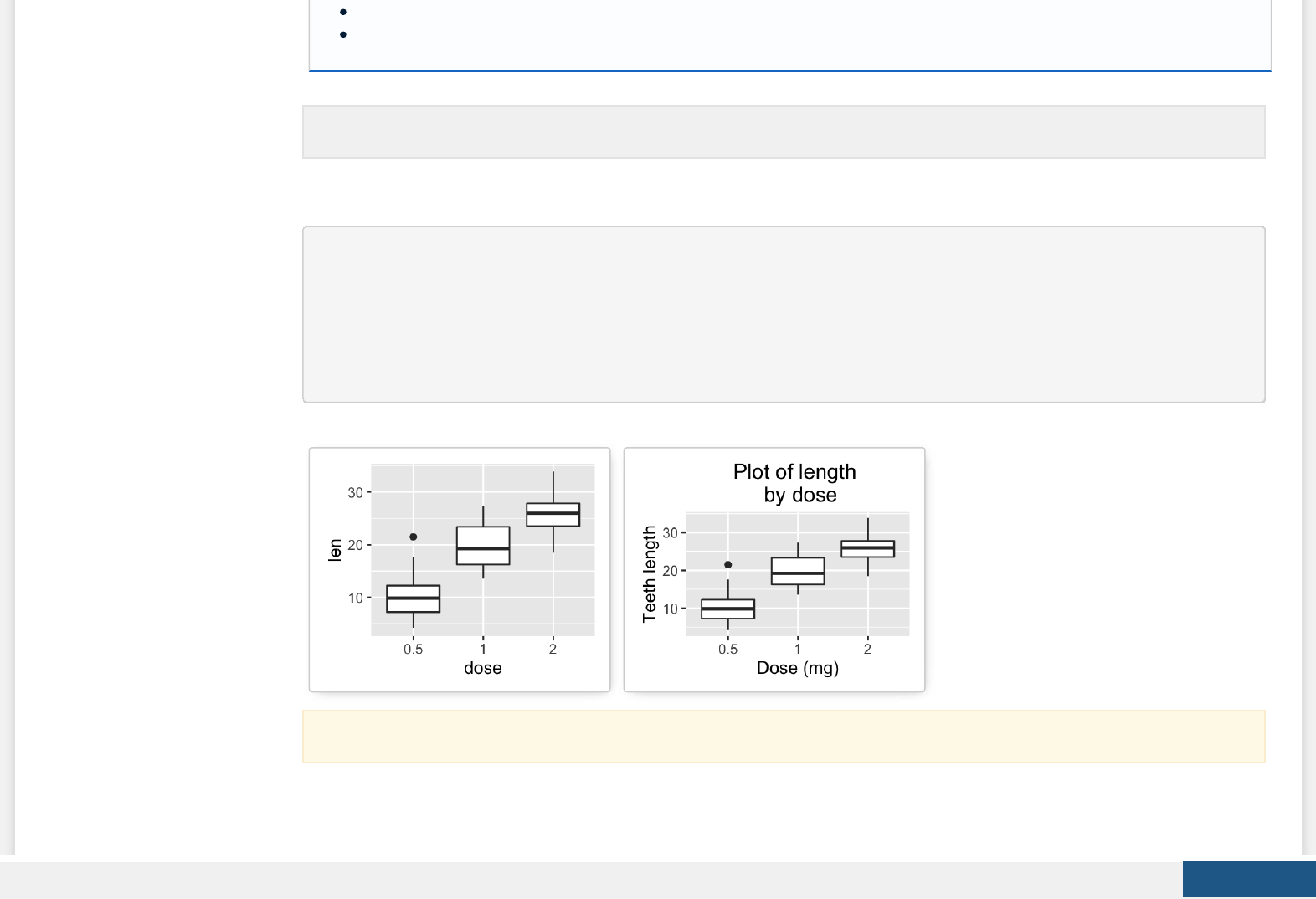
1. Change main title and axis labels
# Default plot
print(p)
# Change title and axis labels
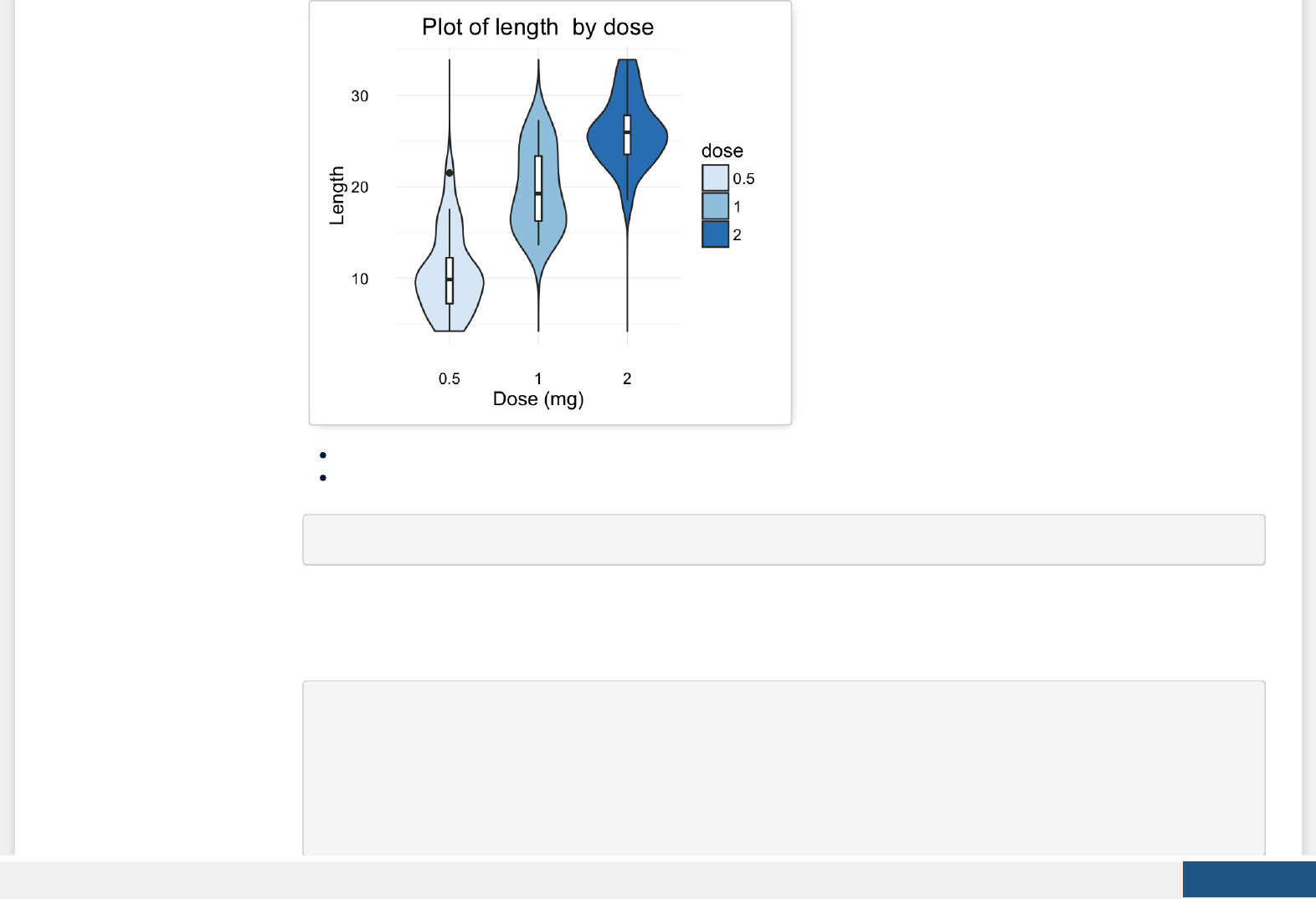
p <- p +labs(title="Plot of length \n by dose",
x ="Dose (mg)", y = "Teeth length")
p
2. Change the appearance of labels:
To change the appearance(color, size and face ) of labels, the functions theme() and element_text() can be used.
The function labs() can be also used to change the legend title.
Note that, \n is used to split long title into multiple lines.
Create PDF in your applications with the Pdfcrowd HTML to PDF API PDFCROWD
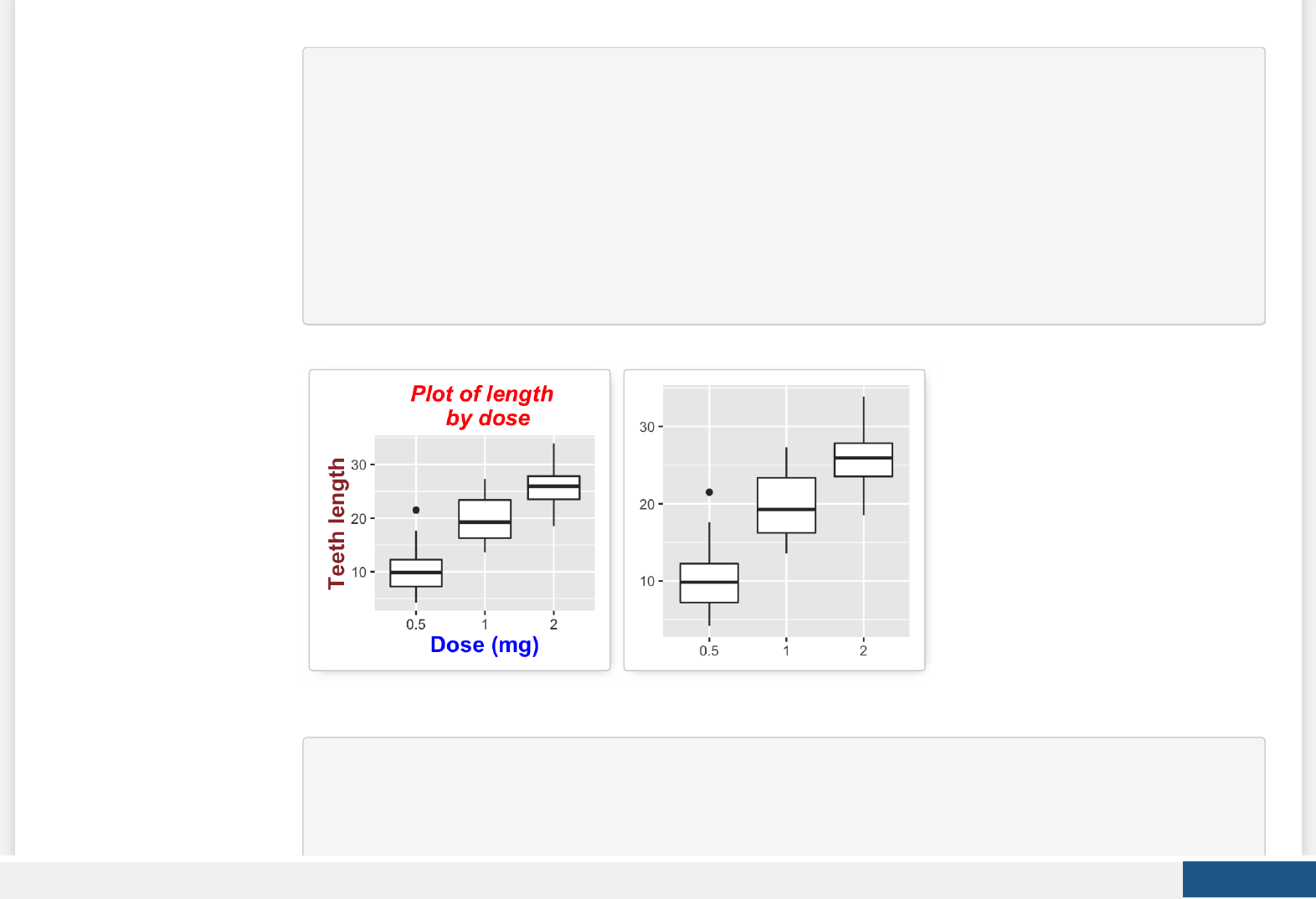
The function element_blank() hides the labels.
# Change the appearance of labels
p + theme(
plot.title = element_text(color="red", size=14, face="bold.italic"),
axis.title.x = element_text(color="blue", size=14, face="bold"),
axis.title.y = element_text(color="#993333", size=14, face="bold")
)
# Hide labels
p + theme(plot.title = element_blank(),
axis.title.x = element_blank(),
axis.title.y = element_blank())
3. Change legend titles: Scale functions (ll, color, size, shape, …) are used to update legend titles.
# Default plot
p <- ggplot(ToothGrowth, aes(x=dose, y=len, fill=dose))+
geom_boxplot()
p
Create PDF in your applications with the Pdfcrowd HTML to PDF API PDFCROWD
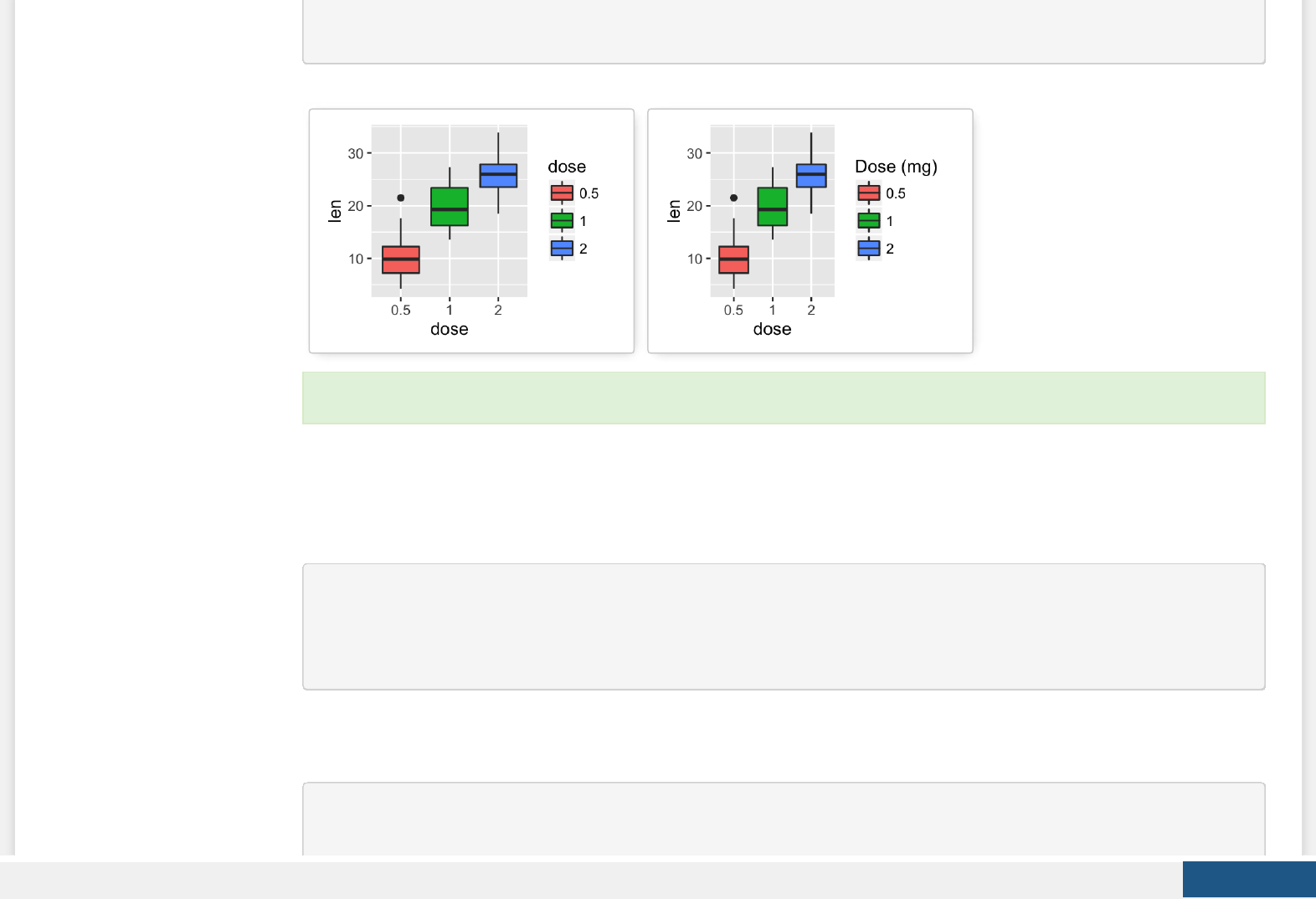
# Modify legend titles
p + labs(fill = "Dose (mg)")
Legend position and appearance
1. Create a box plot
# Convert the variable dose from numeric to factor variable
ToothGrowth$dose <- as.factor(ToothGrowth$dose)
p <- ggplot(ToothGrowth, aes(x=dose, y=len, fill=dose))+
geom_boxplot()
2. Change legend position and appearance
# Change legend position: "left","top", "right", "bottom", "none"
p + theme(legend.position="top")
Learn more here: ggplot2 title: main, axis and legend titles.
Create PDF in your applications with the Pdfcrowd HTML to PDF API PDFCROWD
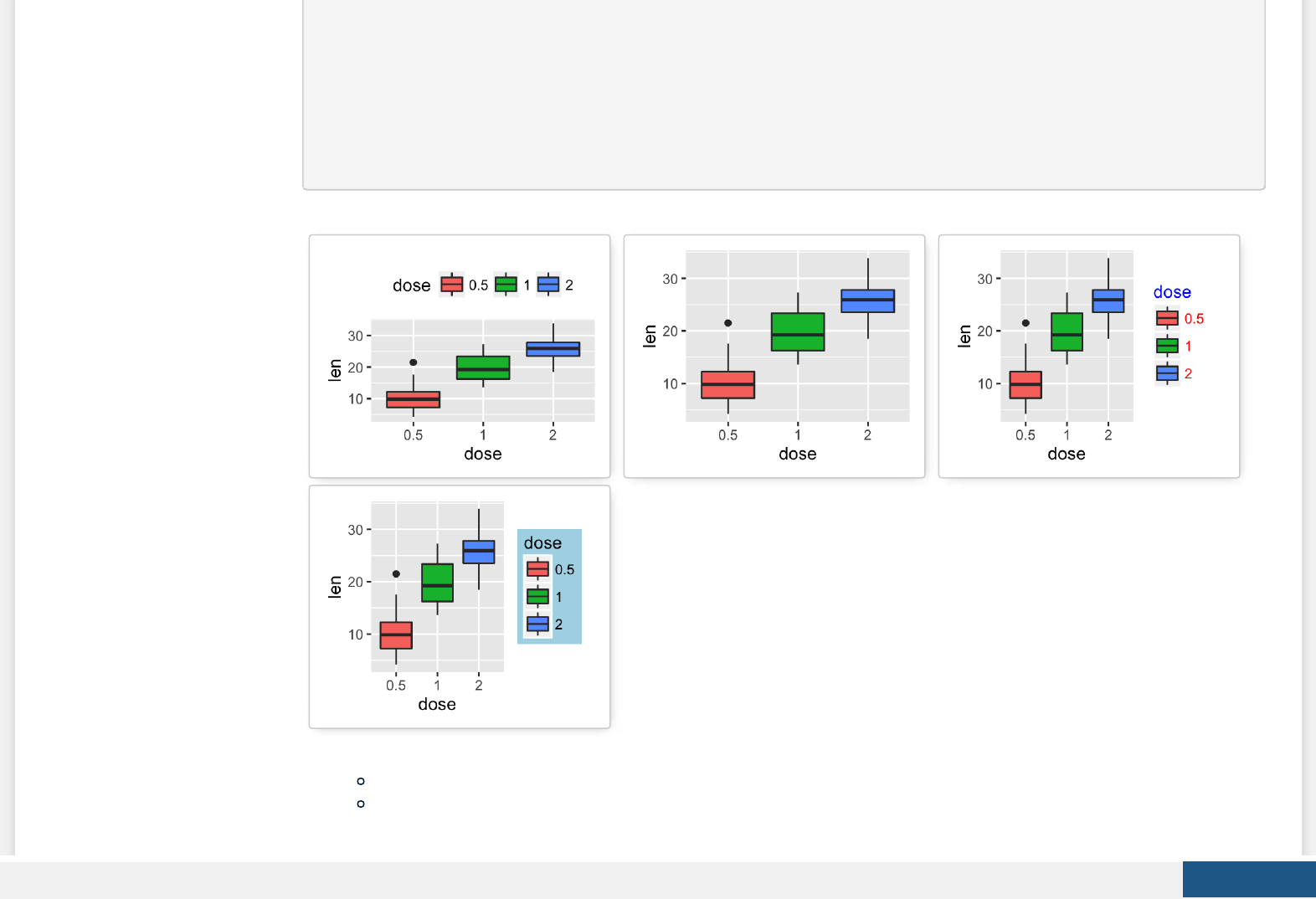
# Remove legends
p + theme(legend.position = "none")
# Change the appearance of legend title and labels
p + theme(legend.title = element_text(colour="blue"),
legend.text = element_text(colour="red"))
# Change legend box background color
p + theme(legend.background = element_rect(fill="lightblue"))
3. Customize legends using scale functions
Change the order of legend items: scale_x_discrete()
Set legend title and labels: scale_ll_discrete()
Create PDF in your applications with the Pdfcrowd HTML to PDF API PDFCROWD
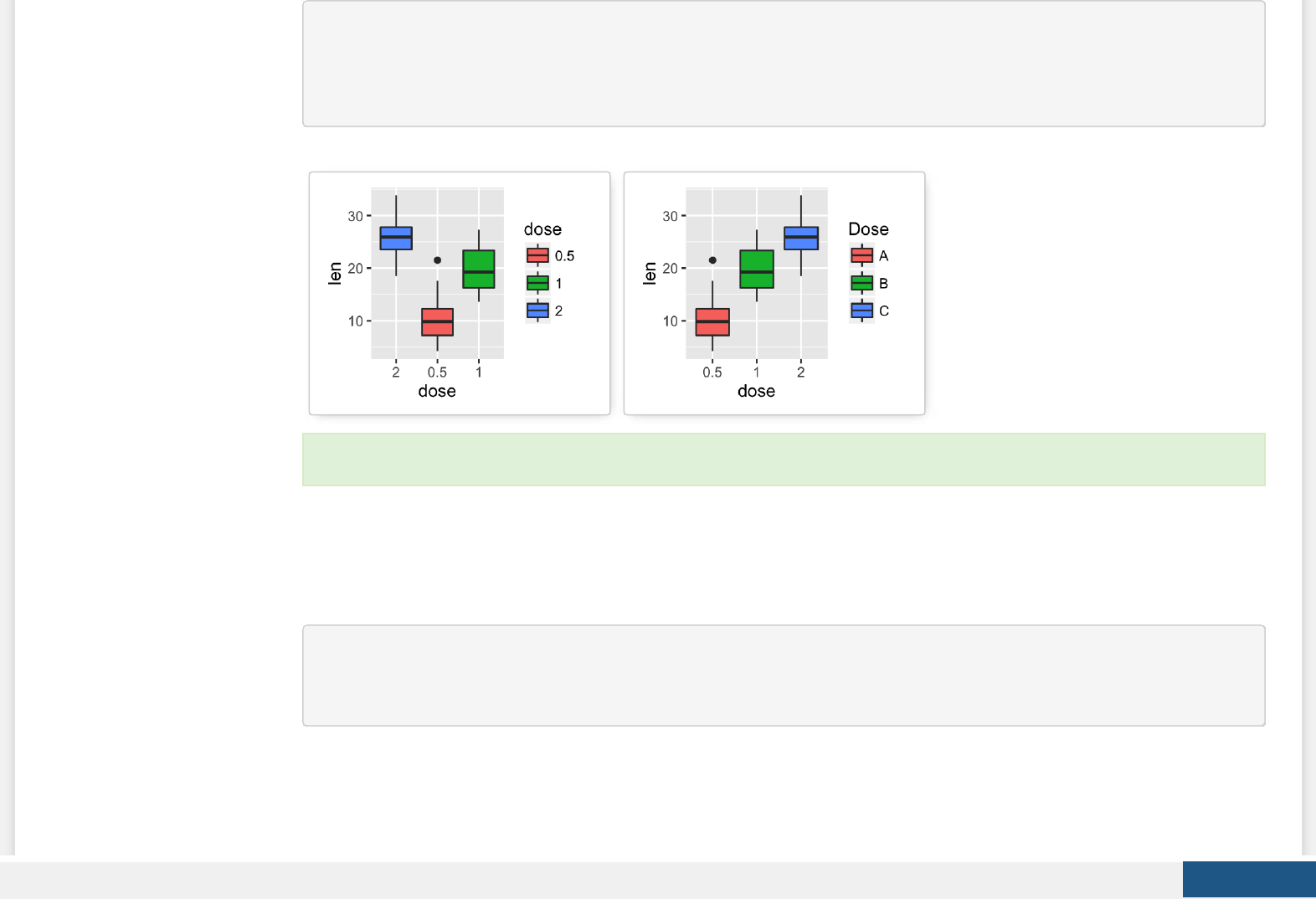
# Change the order of legend items
p + scale_x_discrete(limits=c("2", "0.5", "1"))
# Set legend title and labels
p + scale_fill_discrete(name = "Dose", labels = c("A", "B", "C"))
Change colors automatically and manually
ToothGrowth and mtcars data sets are used in the examples below.
# Convert dose and cyl columns from numeric to factor variables
ToothGrowth$dose <- as.factor(ToothGrowth$dose)
mtcars$cyl <- as.factor(mtcars$cyl)
We start by creating some plots which will be nished hereafter:
Learn more here: ggplot2 legend position and appearance.
Create PDF in your applications with the Pdfcrowd HTML to PDF API PDFCROWD
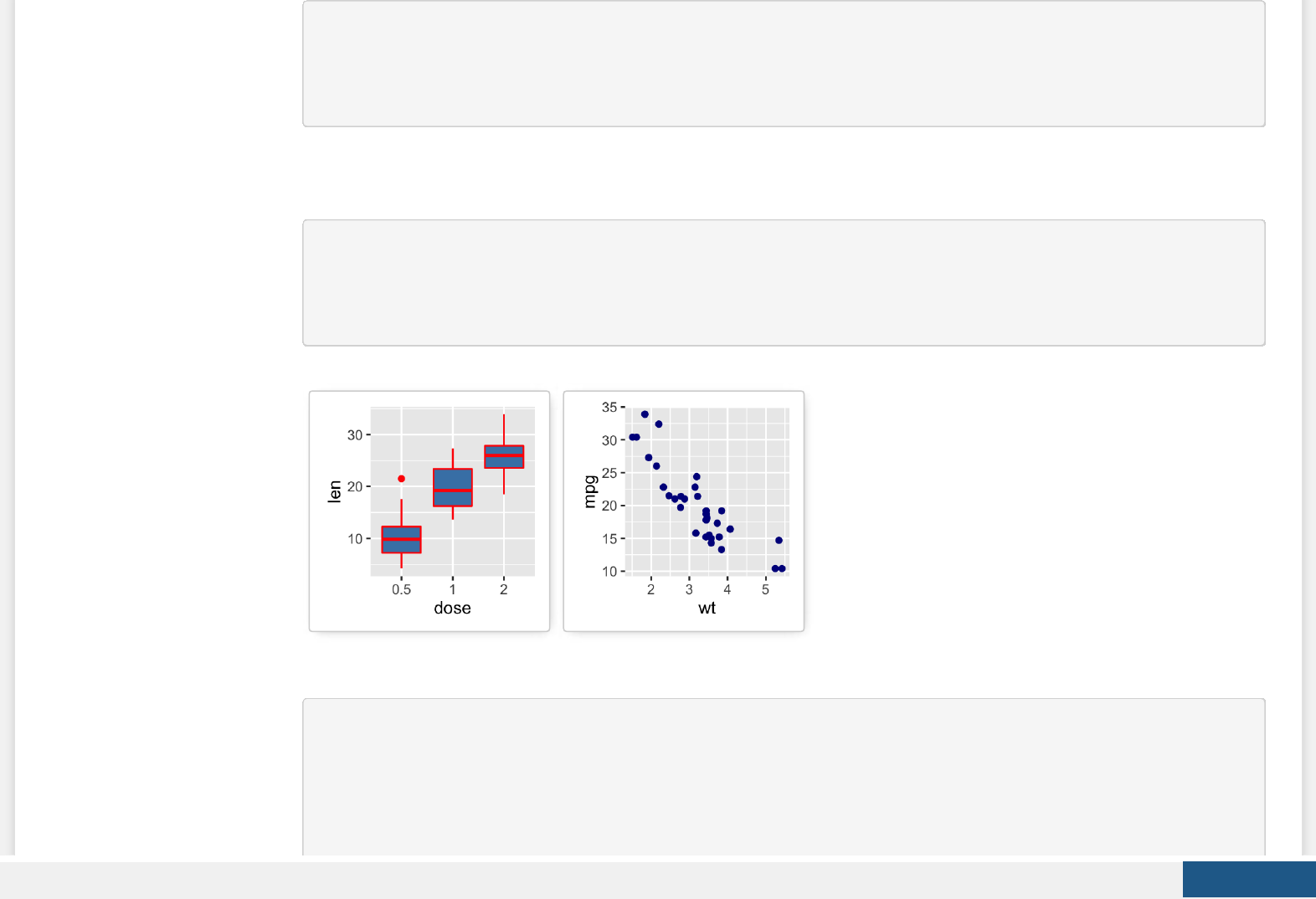
# Box plot
bp <- ggplot(ToothGrowth, aes(x=dose, y=len))
# Scatter plot
sp <- ggplot(mtcars, aes(x=wt, y=mpg))
1. Draw plots: change ll and outline colors
# box plot
bp + geom_boxplot(fill='steelblue', color="red")
# scatter plot
sp + geom_point(color='darkblue')
2. Change color by groups using the levels of dose variable
# Box plot
bp <- bp + geom_boxplot(aes(fill = dose))
bp
# Scatter plot
Create PDF in your applications with the Pdfcrowd HTML to PDF API PDFCROWD
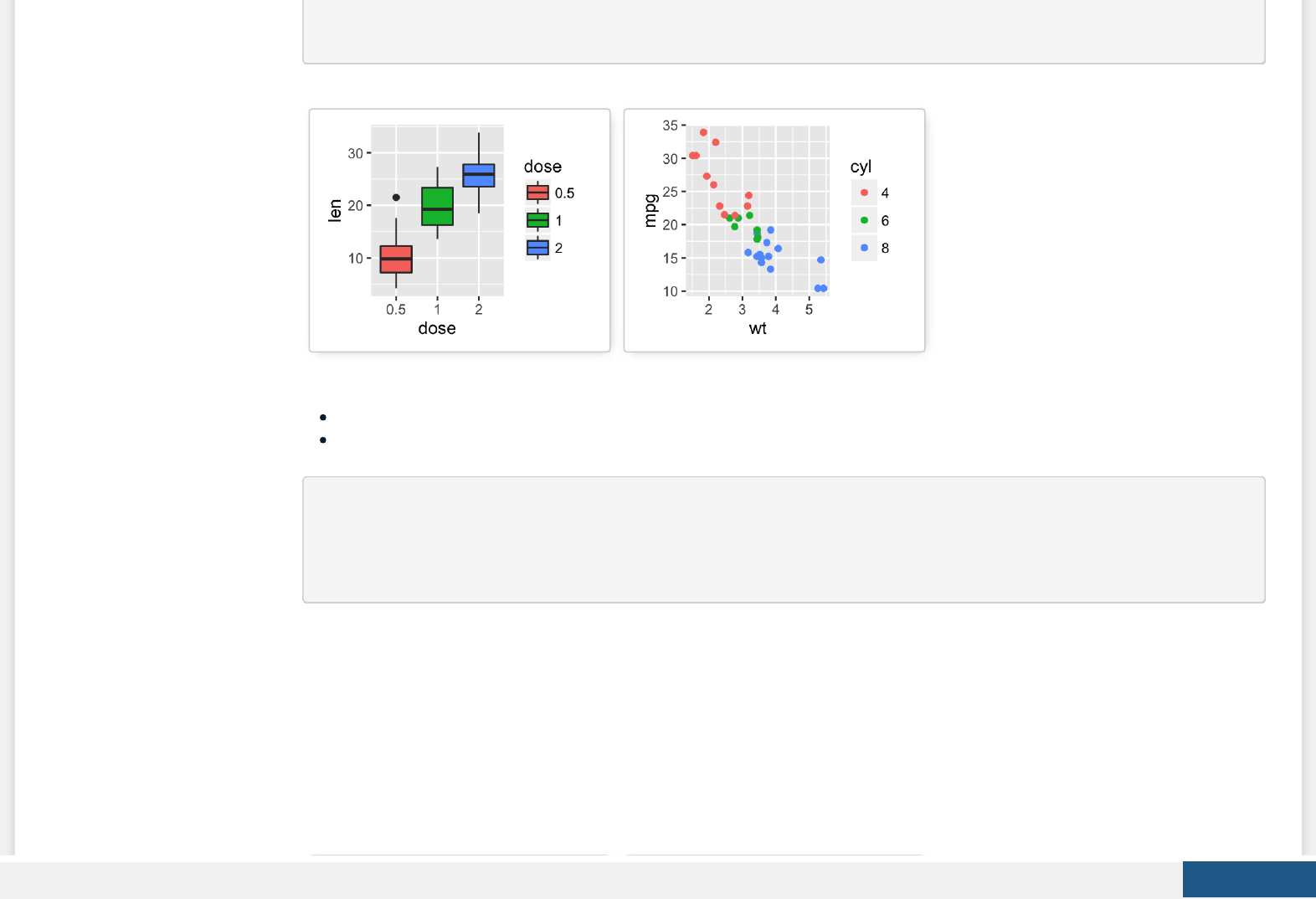
sp <- sp + geom_point(aes(color = cyl))
sp
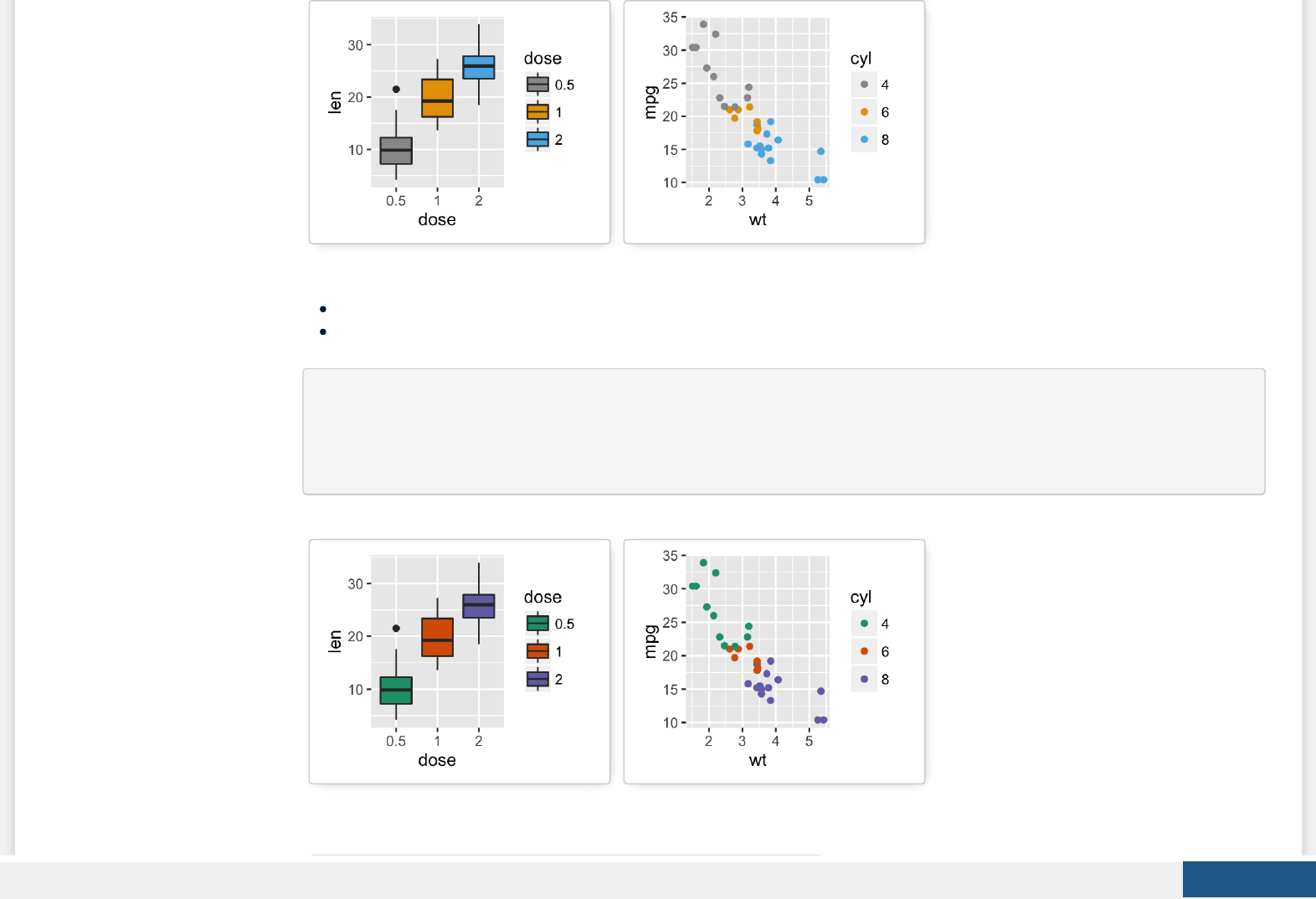
3. Change colors manually:
scale_ll_manual() for box plot, bar plot, violin plot, etc
scale_color_manual() for lines and points
# Box plot
bp + scale_fill_manual(values=c("#999999", "#E69F00", "#56B4E9"))
# Scatter plot
sp + scale_color_manual(values=c("#999999", "#E69F00", "#56B4E9"))
Create PDF in your applications with the Pdfcrowd HTML to PDF API PDFCROWD
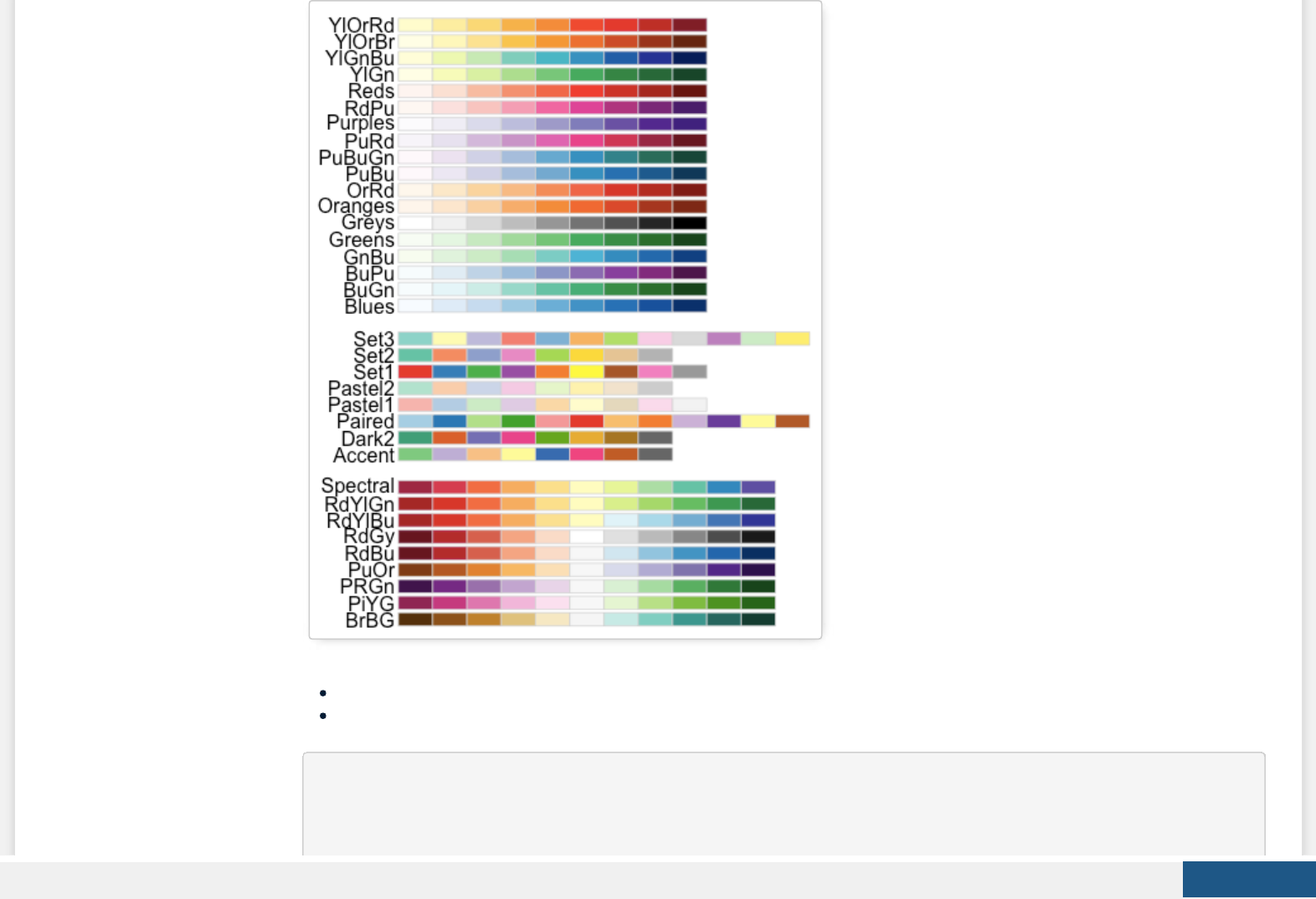
4. Use RColorBrewer palettes: (Read more about RColorBrewer: color in R)
scale_ll_brewer() for box plot, bar plot, violin plot, etc
scale_color_brewer() for lines and points
# Box plot
bp + scale_fill_brewer(palette="Dark2")
# Scatter plot
sp + scale_color_brewer(palette="Dark2")
Available color palettes in the RColorBrewer package:
Create PDF in your applications with the Pdfcrowd HTML to PDF API PDFCROWD
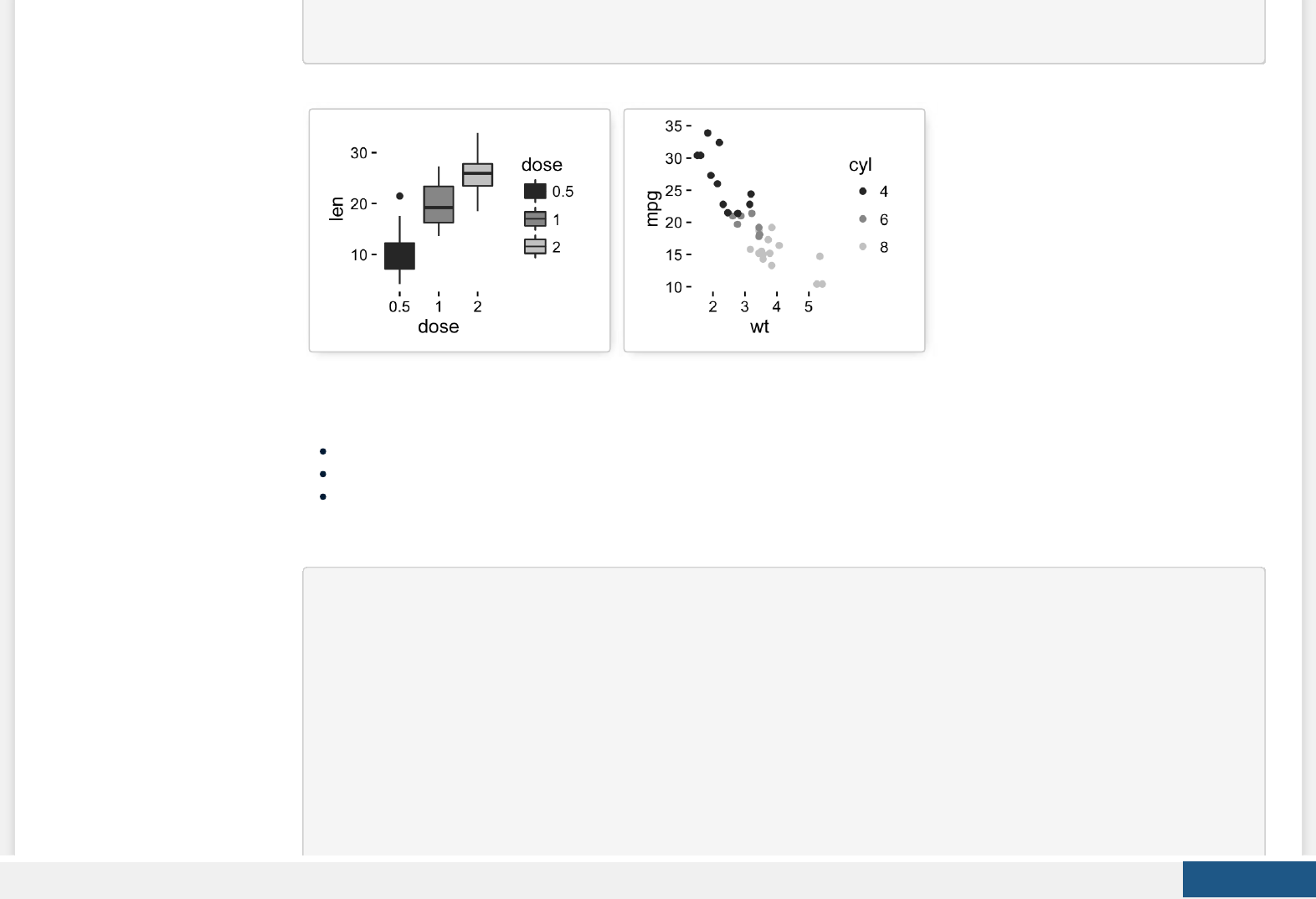
# Scatter plot
sp + scale_color_grey() + theme_classic()
6. Gradient or continuous colors:
Plots can be colored according to the values of a continuous variable using the functions :
scale_color_gradient(), scale_ll_gradient() for sequential gradients between two colors
scale_color_gradient2(), scale_ll_gradient2() for diverging gradients
scale_color_gradientn(), scale_ll_gradientn() for gradient between n colors
Gradient colors for scatter plots: The graphs are colored using the qsec continuous variable :
# Color by qsec values
sp2<-ggplot(mtcars, aes(x=wt, y=mpg)) +
geom_point(aes(color = qsec))
sp2
# Change the low and high colors
# Sequential color scheme
sp2+scale_color_gradient(low="blue", high="red")
# Diverging color scheme
mid<-mean(mtcars$qsec)
Create PDF in your applications with the Pdfcrowd HTML to PDF API PDFCROWD
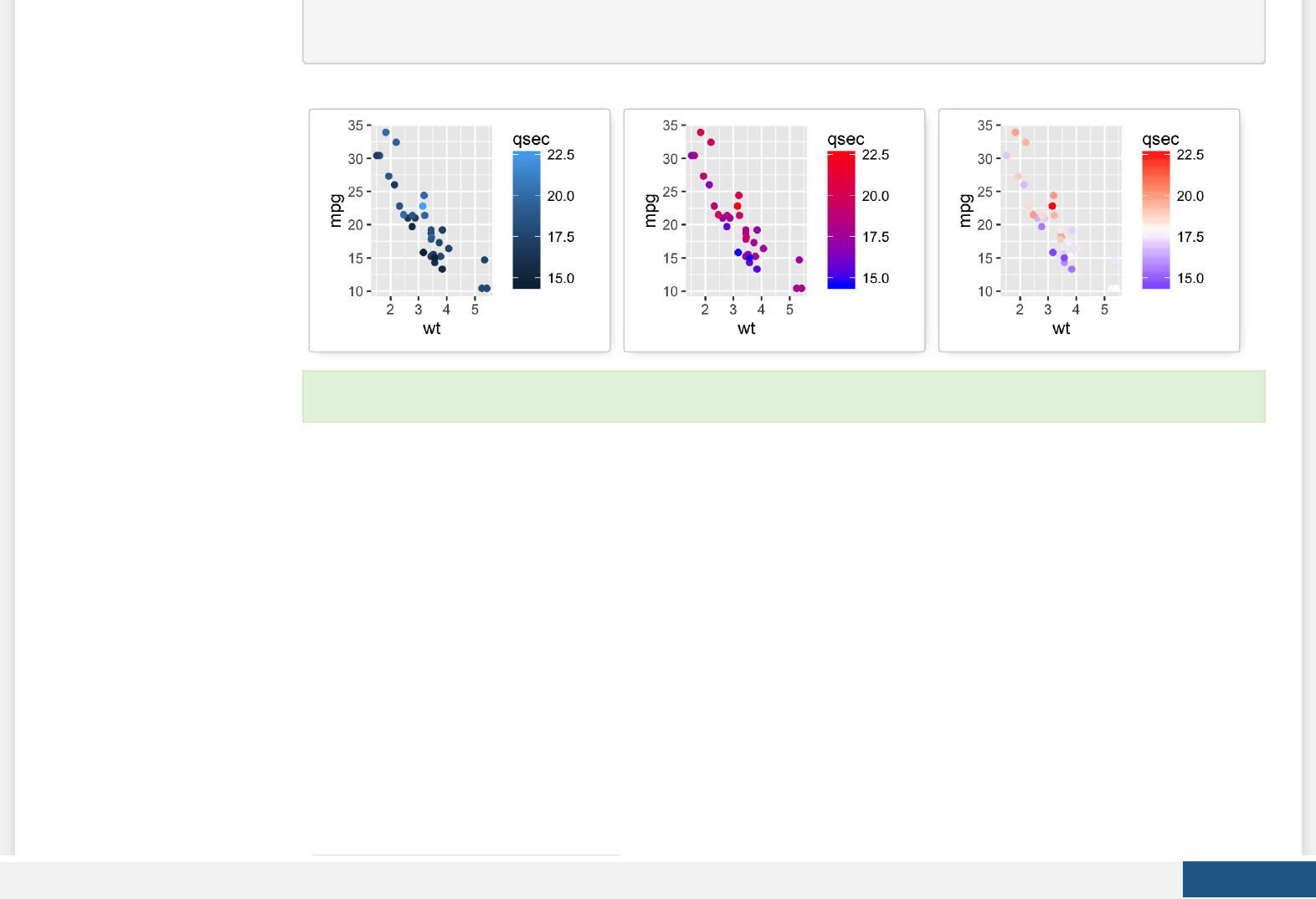
sp2+scale_color_gradient2(midpoint=mid, low="blue", mid="white",
high="red", space = "Lab" )
Point shapes, colors and size
The dierent points shapes commonly used in R are shown in the image below:
Learn more here: ggplot2 colors.
Create PDF in your applications with the Pdfcrowd HTML to PDF API PDFCROWD
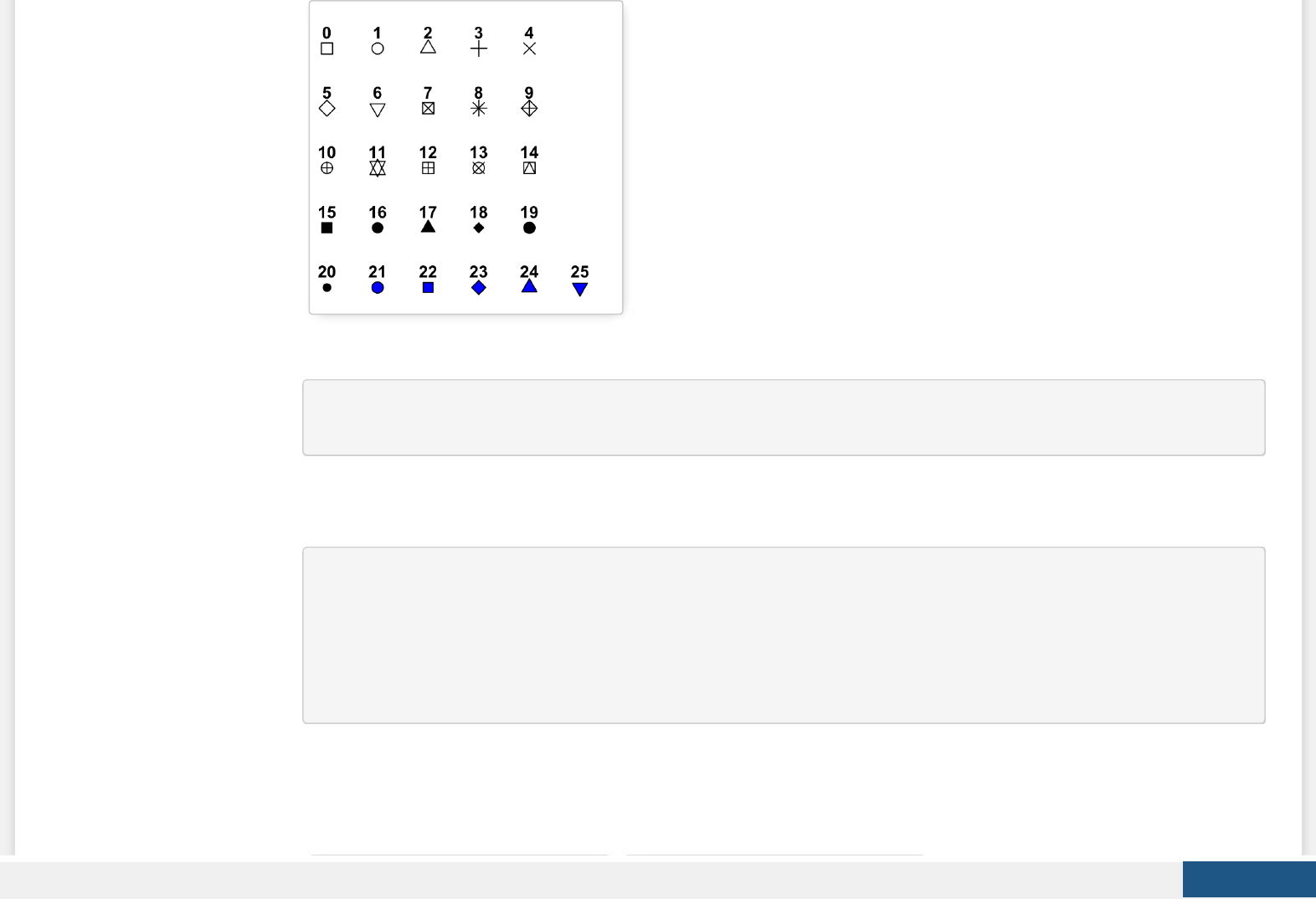
mtcars data is used in the following examples.
# Convert cyl as factor variable
mtcars$cyl <- as.factor(mtcars$cyl)
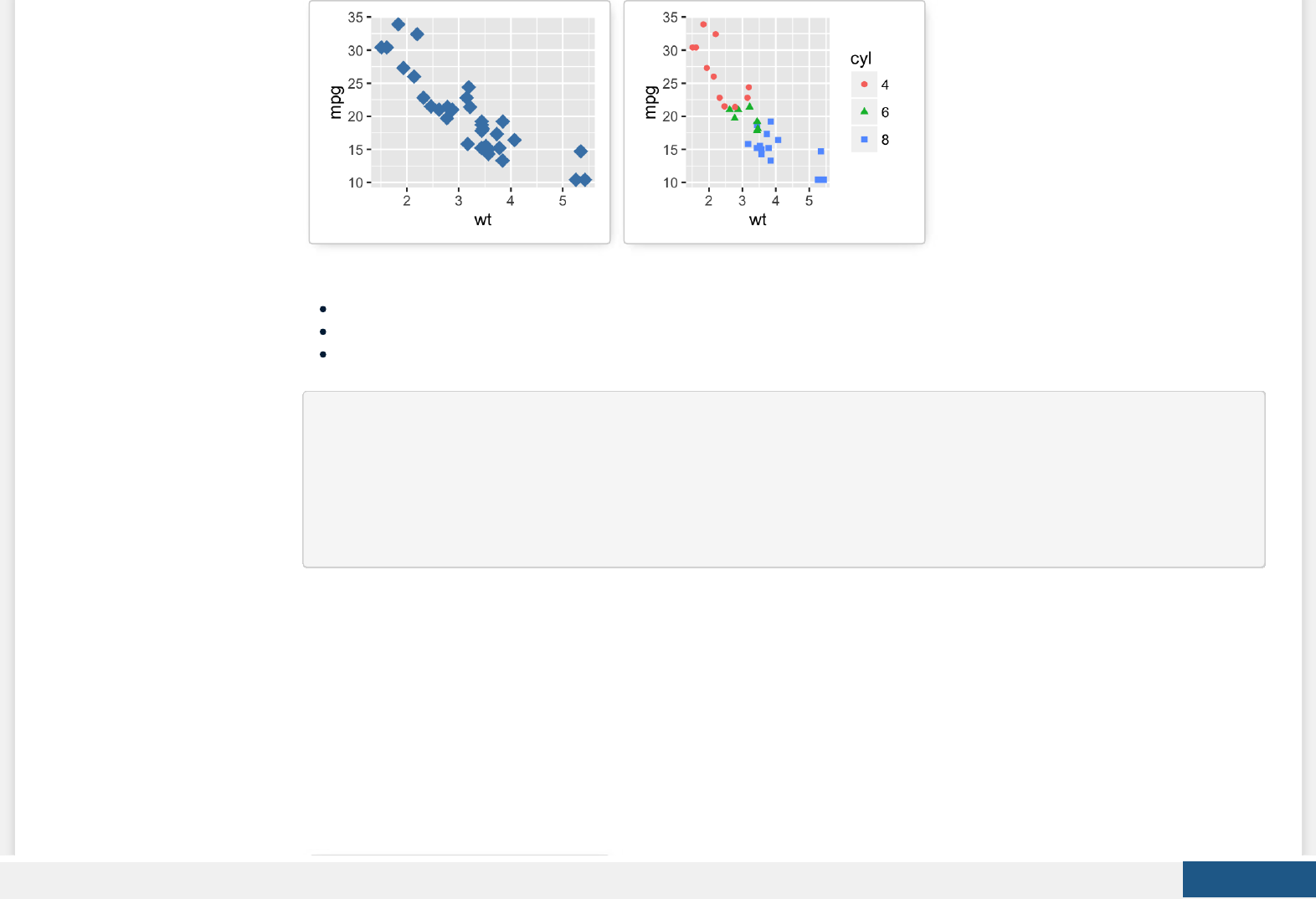
Create a scatter plot and change point shapes, colors and size:
# Basic scatter plot
ggplot(mtcars, aes(x=wt, y=mpg)) +
geom_point(shape = 18, color = "steelblue", size = 4)
# Change point shapes and colors by groups
ggplot(mtcars, aes(x=wt, y=mpg)) +
geom_point(aes(shape = cyl, color = cyl))
Create PDF in your applications with the Pdfcrowd HTML to PDF API PDFCROWD
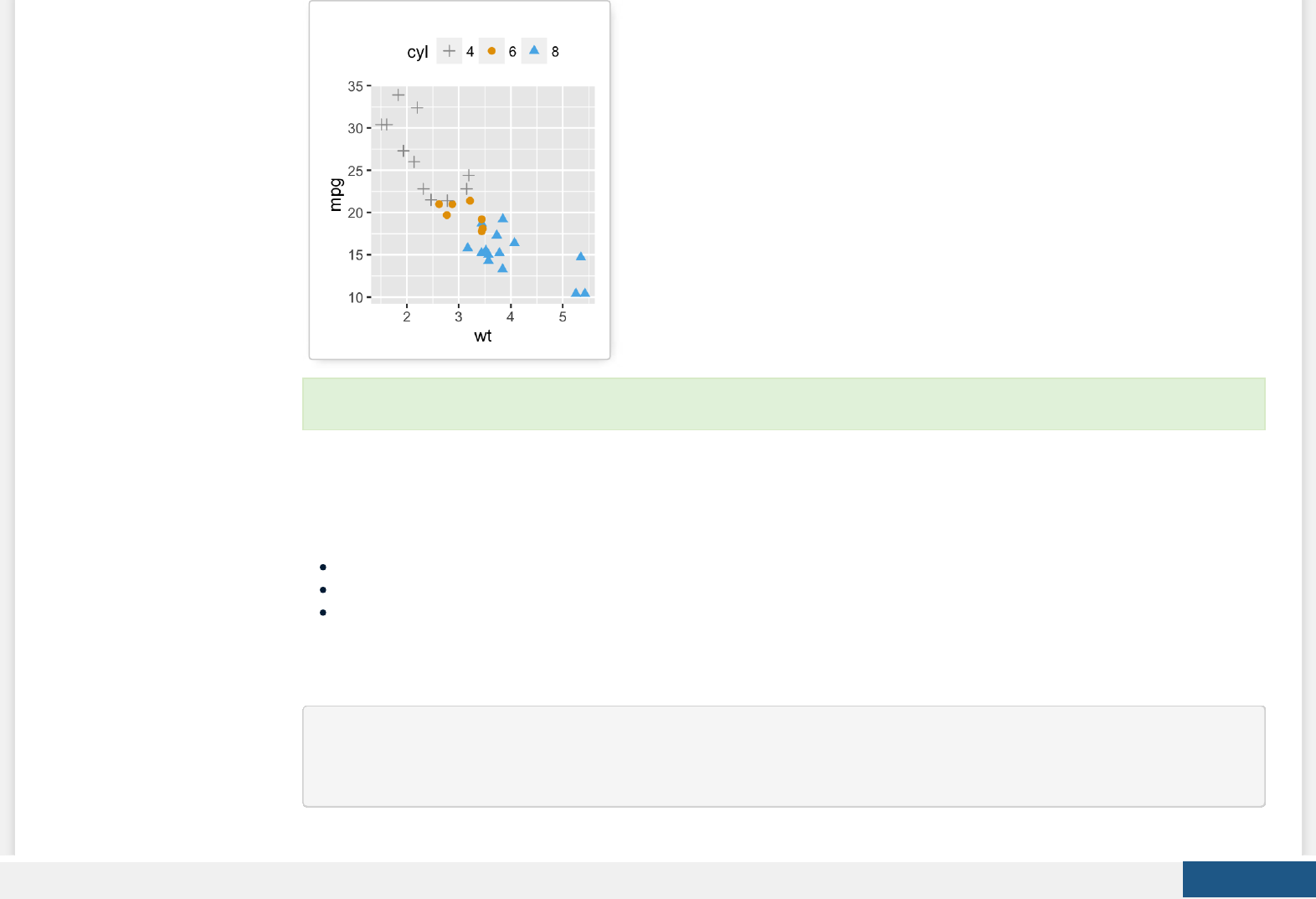
It’s also possible to manually change the appearance of points:
scale_shape_manual() : to change point shapes
scale_color_manual() : to change point colors
scale_size_manual() : to change the size of points
# Change colors and shapes manually
ggplot(mtcars, aes(x=wt, y=mpg, group=cyl)) +
geom_point(aes(shape=cyl, color=cyl), size=2)+
scale_shape_manual(values=c(3, 16, 17))+
scale_color_manual(values=c('#999999','#E69F00', '#56B4E9'))+
theme(legend.position="top")
Create PDF in your applications with the Pdfcrowd HTML to PDF API PDFCROWD
Add text annotations to a graph
There are three important functions for adding texts to a plot:
geom_text(): Textual annotations
annotate(): Textual annotations
annotation_custom(): Static annotations that are the same in every panel. These annotations are not aected by the plot
scales.
A subset of mtcars data is used:
set.seed(1234)
df <- mtcars[sample(1:nrow(mtcars), 10), ]
df$cyl <- as.factor(df$cyl)
Learn more here: ggplot2 point shapes, colors and size.
Create PDF in your applications with the Pdfcrowd HTML to PDF API PDFCROWD
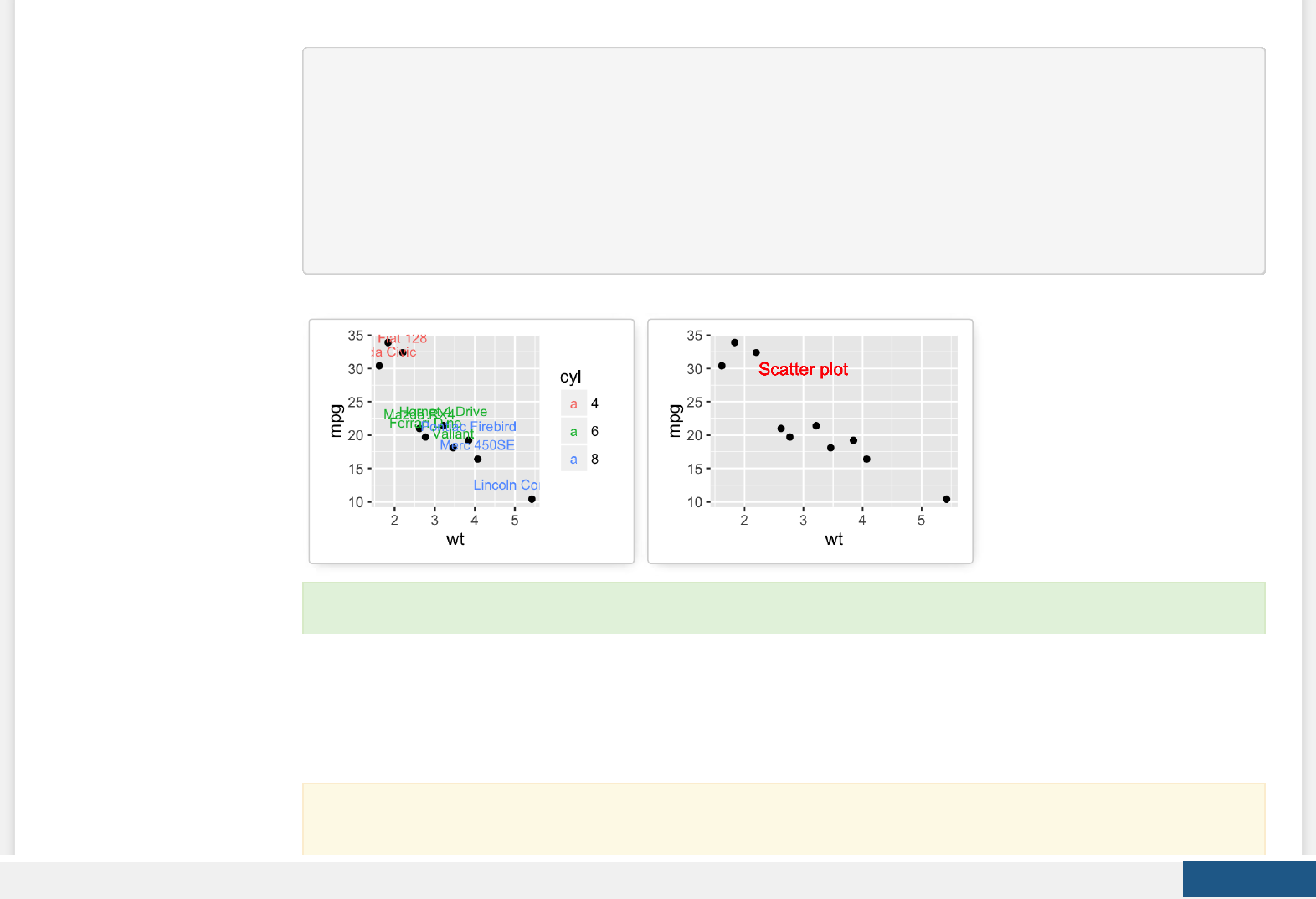
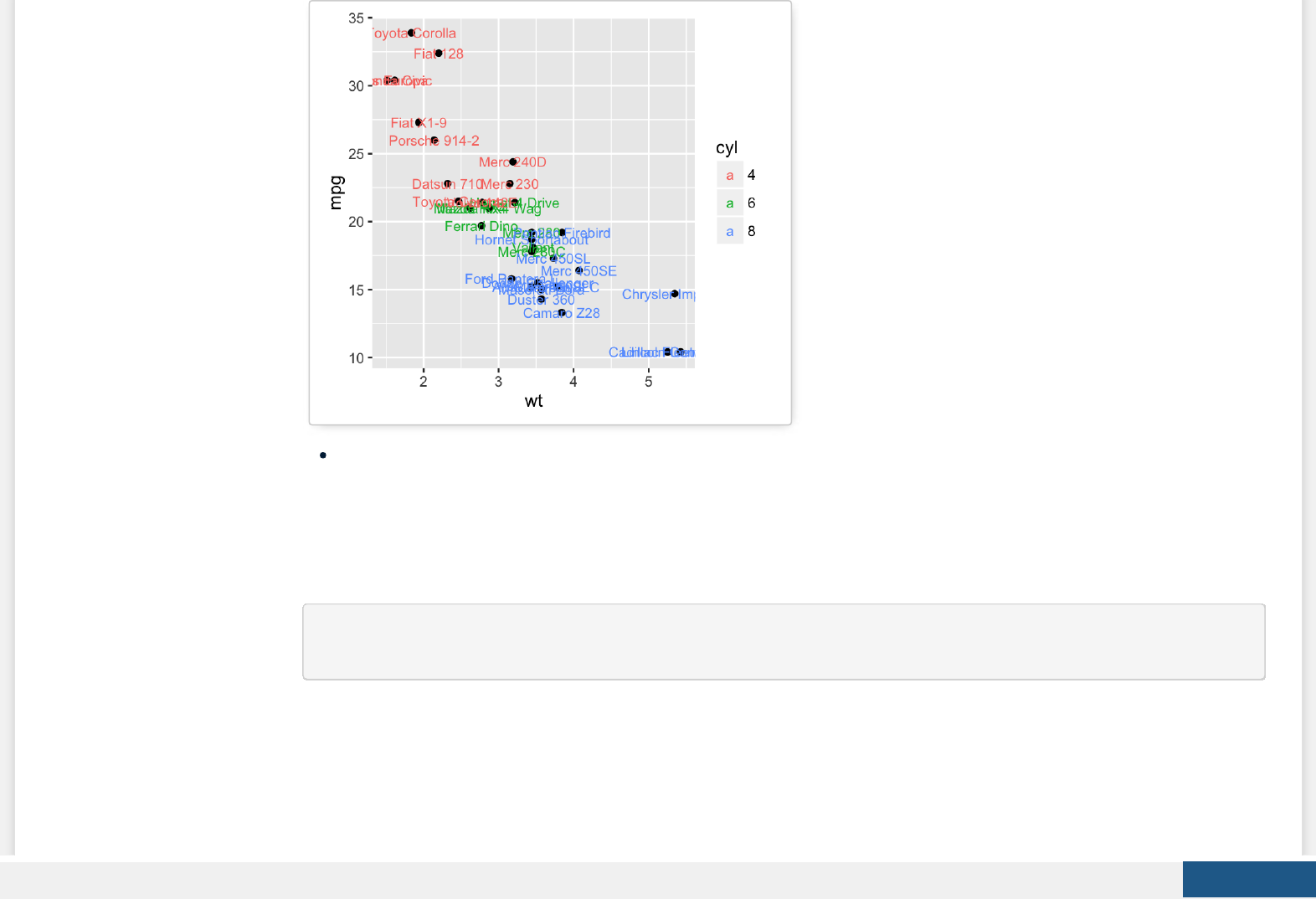
Scatter plots with textual annotations:
# Scatter plot
sp <- ggplot(df, aes(x=wt, y=mpg))+ geom_point()
# Add text, change colors by groups
sp + geom_text(aes(label = rownames(df), color = cyl),
size = 3, vjust = -1)
# Add text at a particular coordinate
sp + geom_text(x = 3, y = 30, label = "Scatter plot",
color="red")
Line types
The dierent line types available in R software are : “blank”, “solid”, “dashed”, “dotted”, “dotdash”, “longdash”,
“twodash”.
Learn more here: ggplot2 text: Add text annotations to a graph.
Note that, line types can be also specied using numbers : 0, 1, 2, 3, 4, 5, 6. 0 is for “blank”, 1 is for “solid”, 2 is for
“dashed”, ….
Create PDF in your applications with the Pdfcrowd HTML to PDF API PDFCROWD
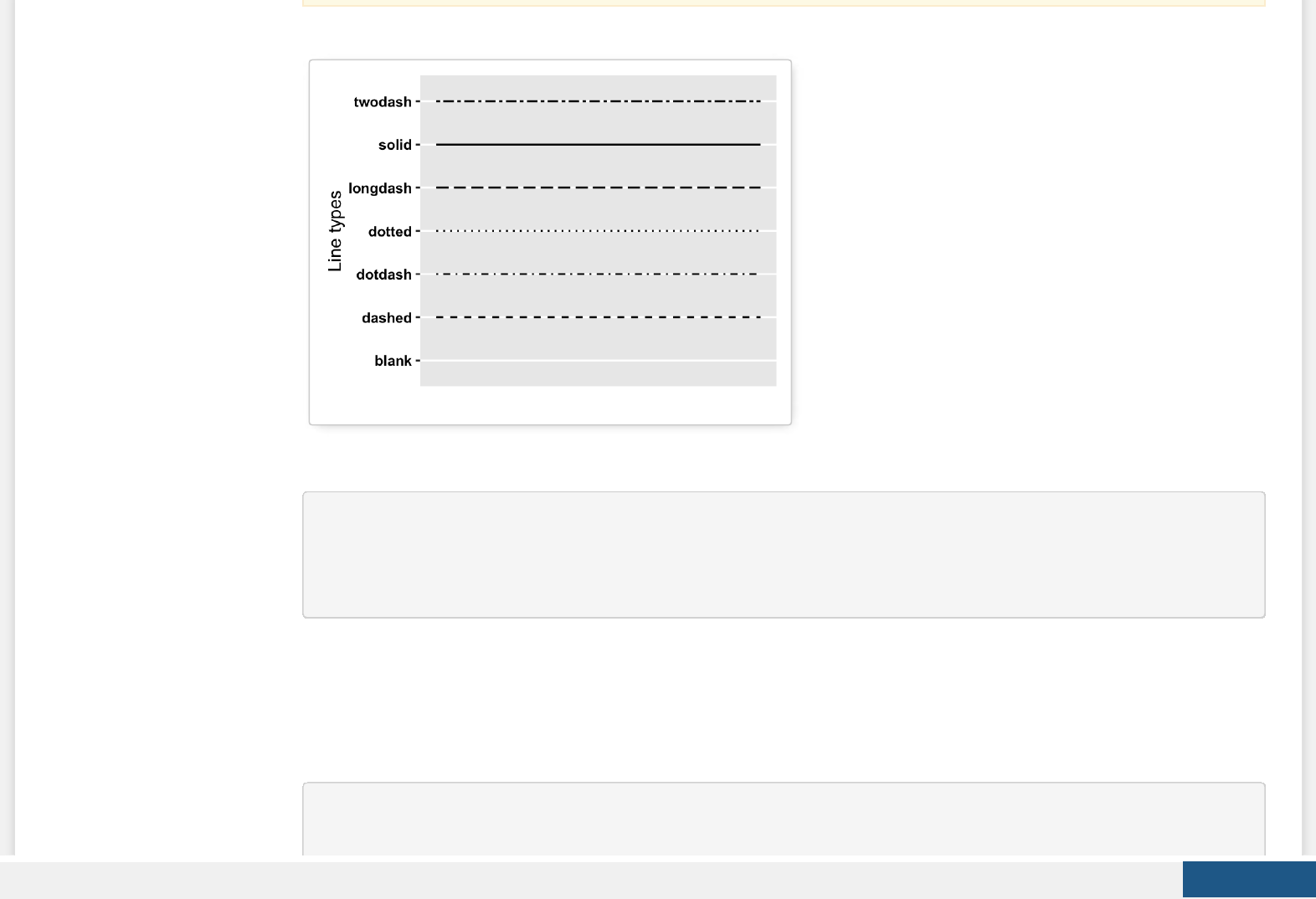
A graph of the dierent line types is shown below :
1. Basic line plot
# Create some data
df <- data.frame(time=c("breakfeast", "Lunch", "Dinner"),
bill=c(10, 30, 15))
head(df)
## time bill
## 1 breakfeast 10
## 2 Lunch 30
## 3 Dinner 15
# Basic line plot with points
# Change the line type
Create PDF in your applications with the Pdfcrowd HTML to PDF API PDFCROWD
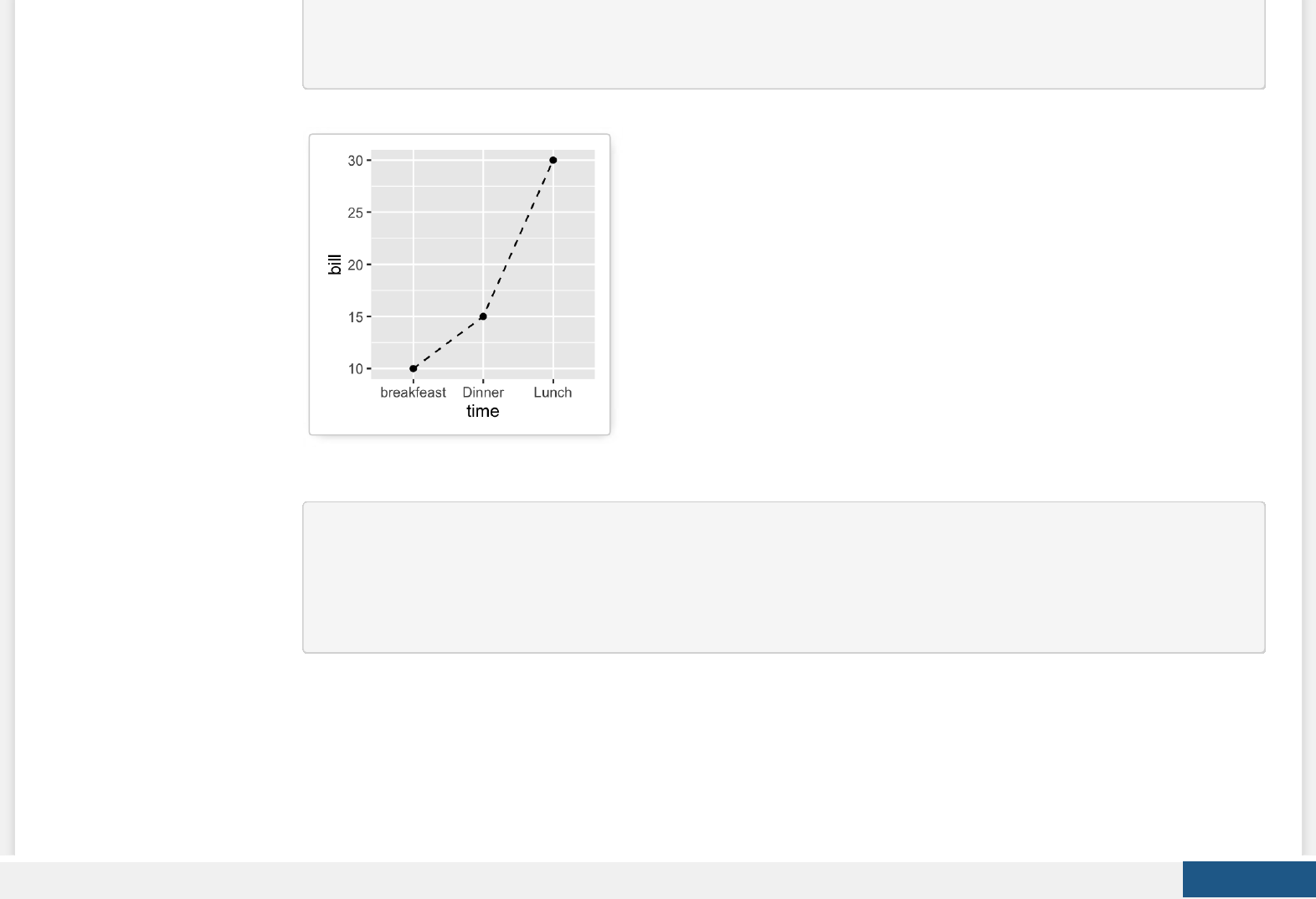
ggplot(data=df, aes(x=time, y=bill, group=1)) +
geom_line(linetype = "dashed")+
geom_point()
2. Line plots with multiple groups
# Create some data
df2 <- data.frame(sex = rep(c("Female", "Male"), each=3),
time=c("breakfeast", "Lunch", "Dinner"),
bill=c(10, 30, 15, 13, 40, 17) )
head(df2)
## sex time bill
## 1 Female breakfeast 10
## 2 Female Lunch 30
## 3 Female Dinner 15
## 4 Male breakfeast 13
## 5 Male Lunch 40
## 6 Male Dinner 17
Create PDF in your applications with the Pdfcrowd HTML to PDF API PDFCROWD
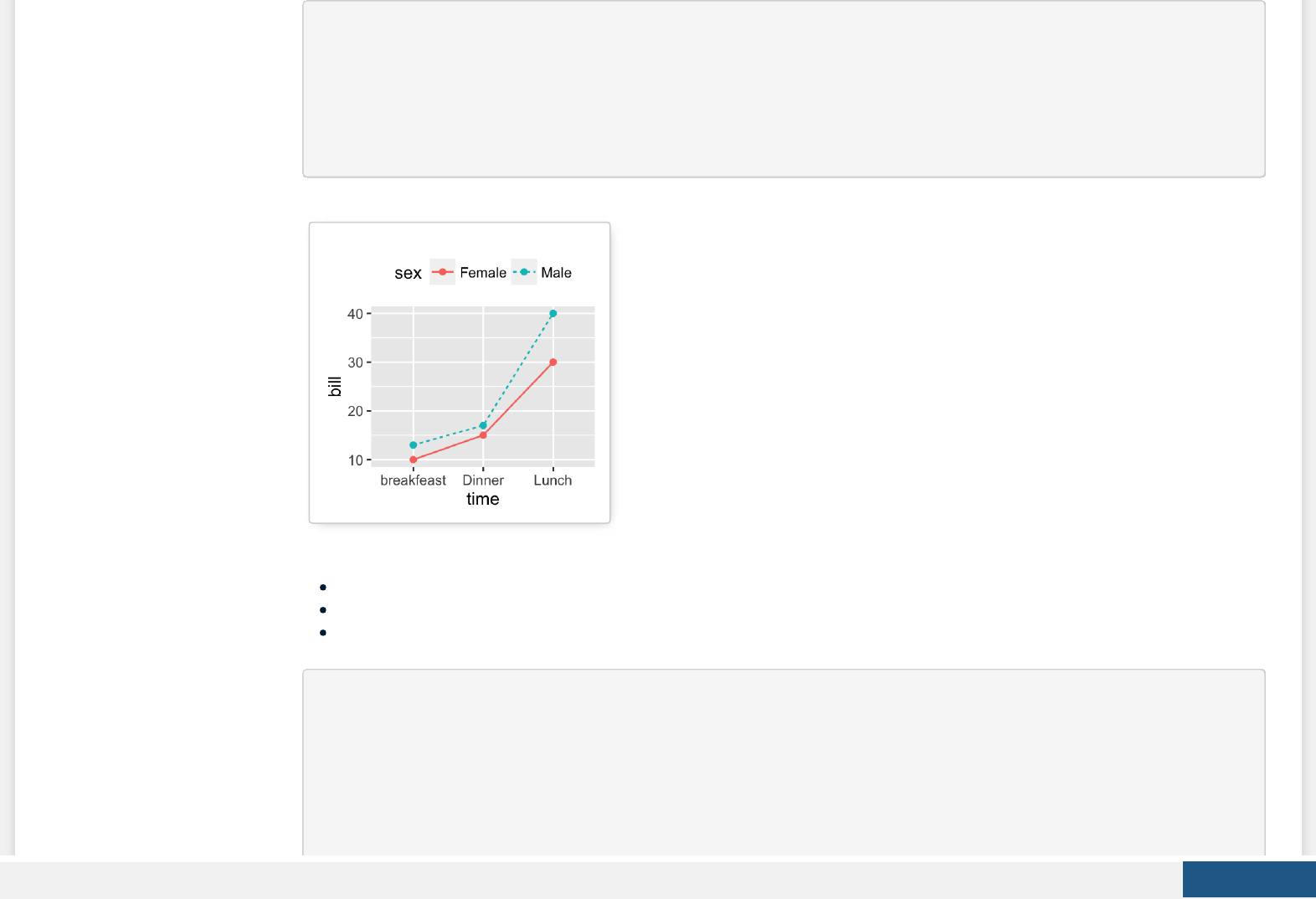
# Line plot with multiple groups
# Change line types and colors by groups (sex)
ggplot(df2, aes(x=time, y=bill, group=sex)) +
geom_line(aes(linetype = sex, color = sex))+
geom_point(aes(color=sex))+
theme(legend.position="top")
The functions below can be used to change the appearance of line types manually:
scale_linetype_manual() : to change line types
scale_color_manual() : to change line colors
scale_size_manual() : to change the size of lines
# Change line types, colors and sizes
ggplot(df2, aes(x=time, y=bill, group=sex)) +
geom_line(aes(linetype=sex, color=sex, size=sex))+
geom_point()+
scale_linetype_manual(values=c("twodash", "dotted"))+
scale_color_manual(values=c('#999999','#E69F00'))+
Create PDF in your applications with the Pdfcrowd HTML to PDF API PDFCROWD
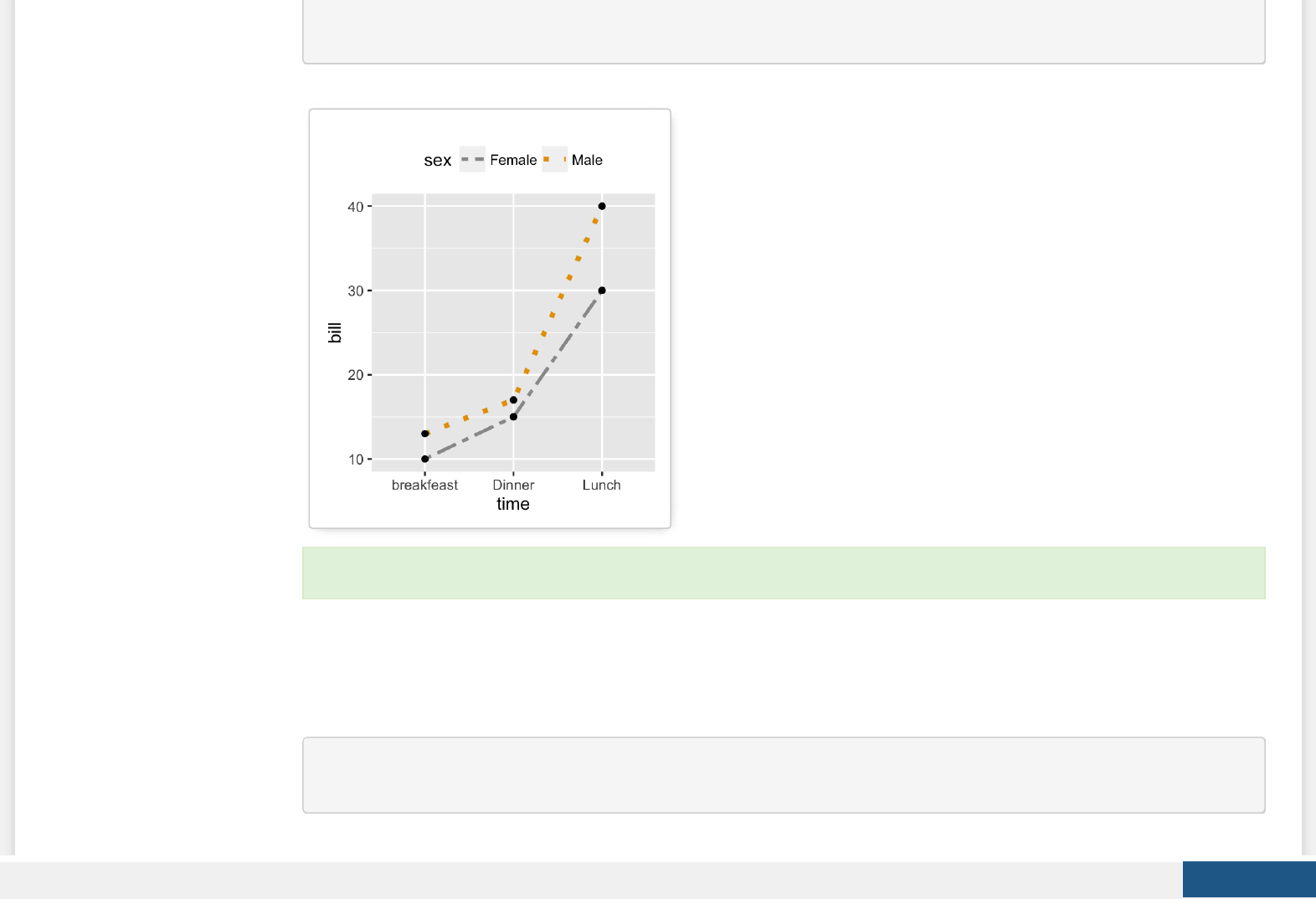
scale_size_manual(values=c(1, 1.5))+
theme(legend.position="top")
Themes and background colors
ToothGrowth data is used :
# Convert the column dose from numeric to factor variable
ToothGrowth$dose <- as.factor(ToothGrowth$dose)
Learn more here: ggplot2 line types.
Create PDF in your applications with the Pdfcrowd HTML to PDF API PDFCROWD
1. Create a box plot
p <- ggplot(ToothGrowth, aes(x=dose, y=len)) +
geom_boxplot()
2. Change plot themes
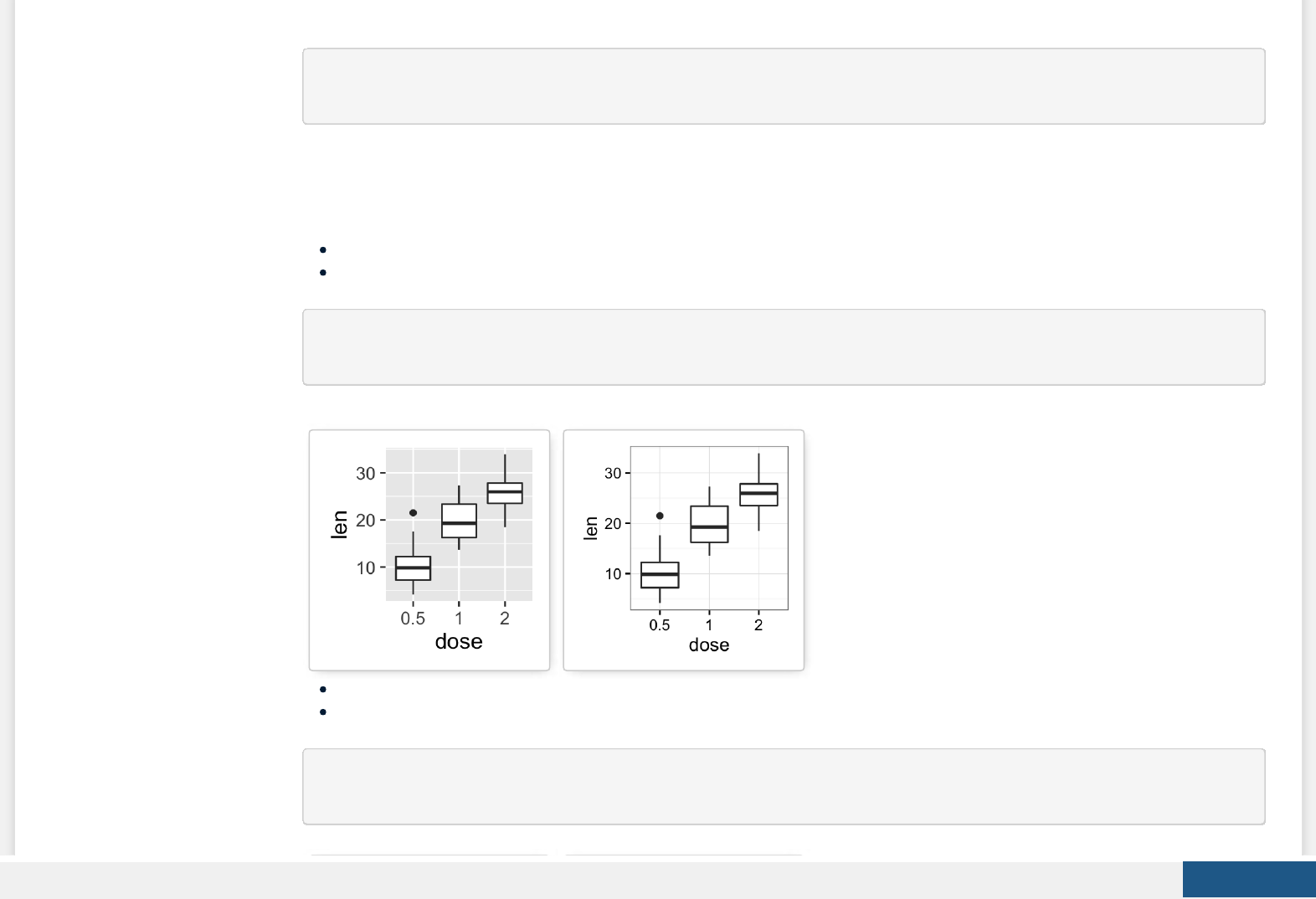
Several functions are available in ggplot2 package for changing quickly the theme of plots :
theme_gray(): gray background color and white grid lines
theme_bw() : white background and gray grid lines
p + theme_gray(base_size = 14)
p + theme_bw()
theme_linedraw : black lines around the plot
theme_light : light gray lines and axis (more attention towards the data)
p + theme_linedraw()
p + theme_light()
Create PDF in your applications with the Pdfcrowd HTML to PDF API PDFCROWD
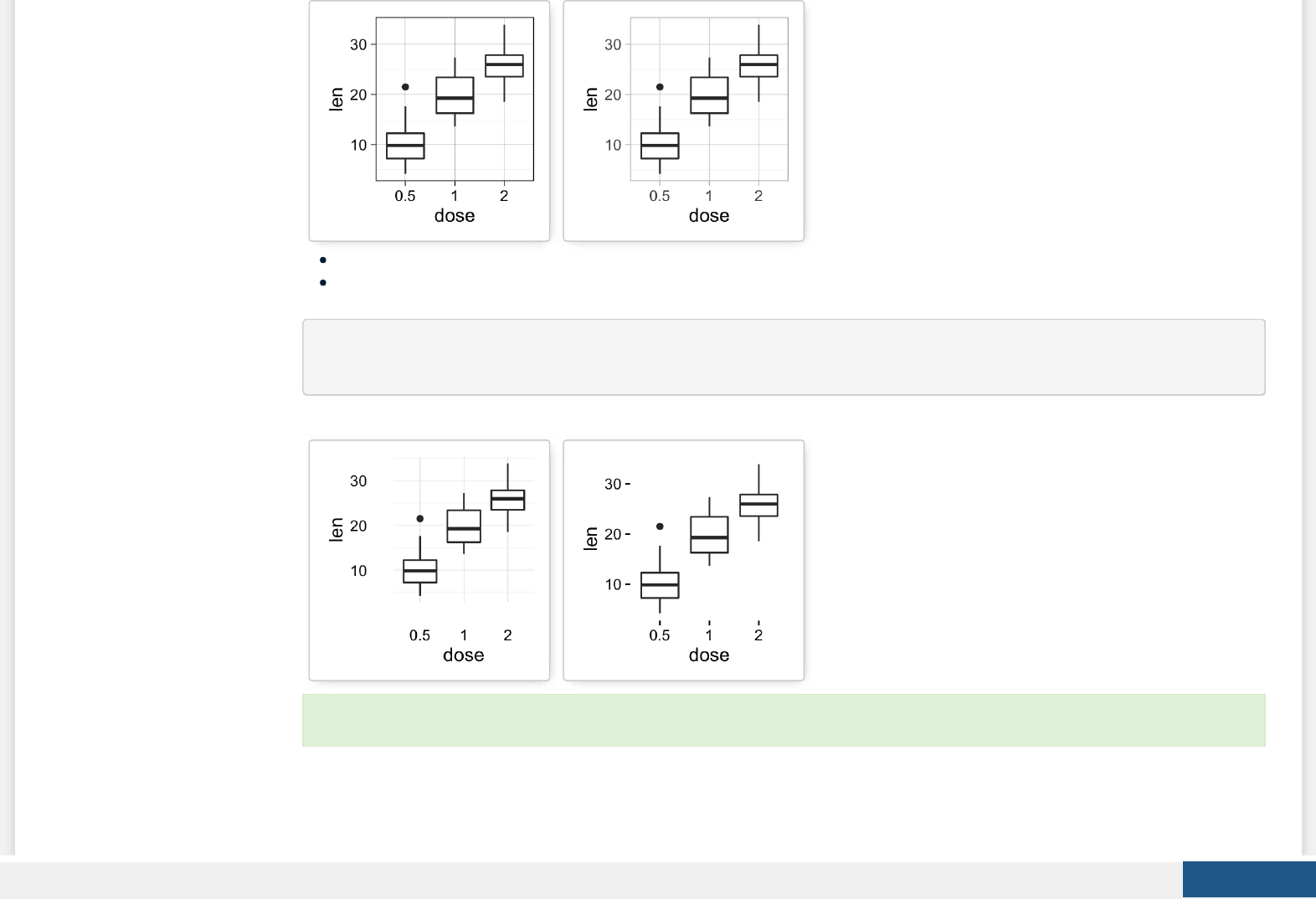
theme_minimal: no background annotations
theme_classic : theme with axis lines and no grid lines
p + theme_minimal()
p + theme_classic()
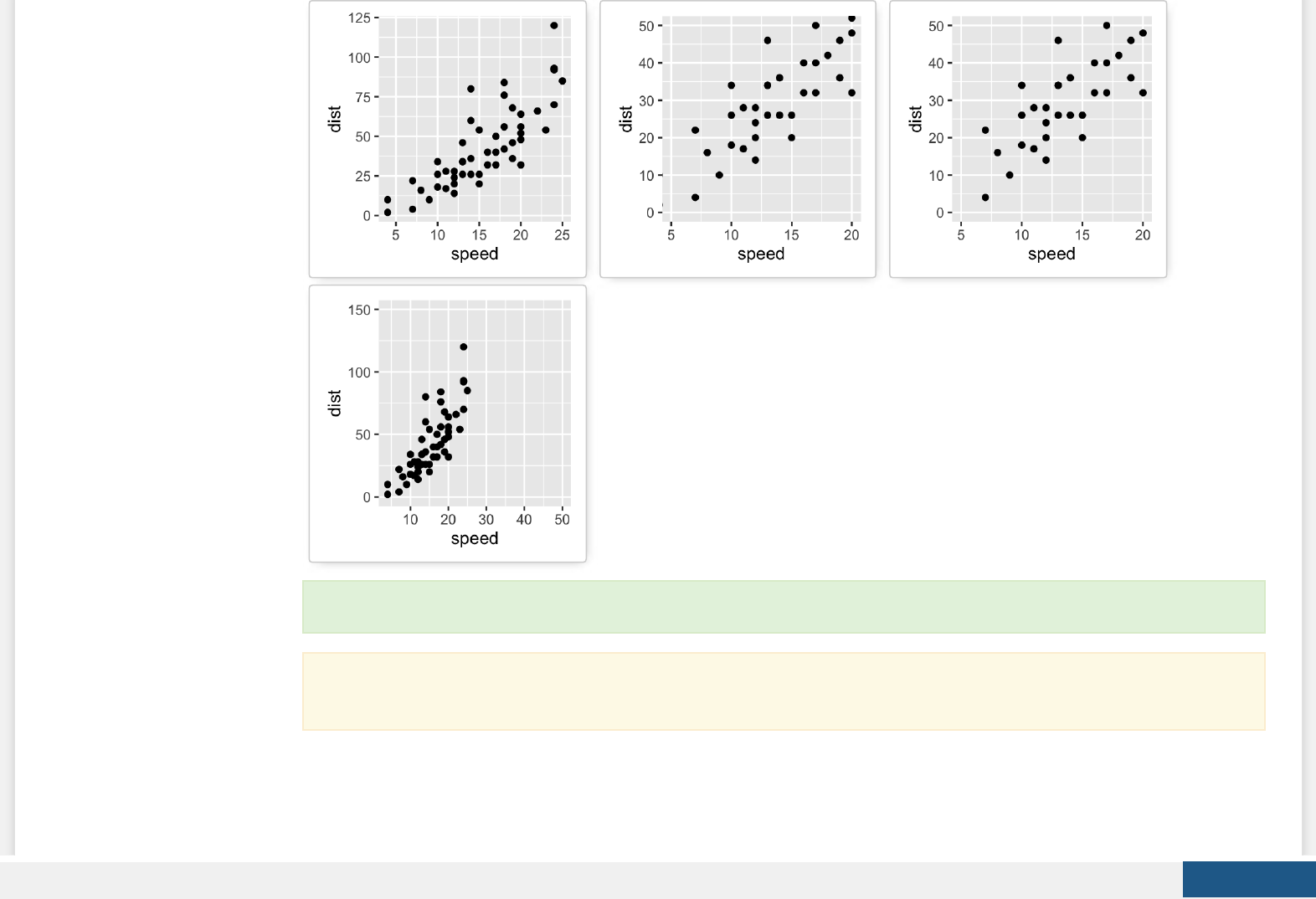
Axis limits: Minimum and Maximum values
Learn more here: ggplot2 themes and background colors.
Create PDF in your applications with the Pdfcrowd HTML to PDF API PDFCROWD
Create a plot:
p <- ggplot(cars, aes(x = speed, y = dist)) + geom_point()
Dierent functions are available for setting axis limits:
1. Without clipping (preferred):
p + coord_cartesian(xlim = c(5, 20), ylim = (0, 50)): Cartesian coordinates. The Cartesian coordinate system is
the most common type of coordinate system. It will zoom the plot (like you’re looking at it with a magnifying
glass), without clipping the data.
2. With clipping the data (removes unseen data points): Observations not in this range will be dropped completely and
not passed to any other layers.
p + xlim(5, 20) + ylim(0, 50)
p + scale_x_continuous(limits = c(5, 20)) + scale_y_continuous(limits = c(0, 50))
3. Expand the plot limits with data: This function is a thin wrapper around geom_blank() that makes it easy to add
data to a plot.
p + expand_limits(x = 0, y = 0): set the intercept of x and y axes at (0,0)
p + expand_limits(x = c(5, 50), y = c(0, 150))
# Default plot
print(p)
# Change axis limits using coord_cartesian()
p + coord_cartesian(xlim =c(5, 20), ylim = c(0, 50))
# Use xlim() and ylim()
p + xlim(5, 20) + ylim(0, 50)
# Expand limits
p + expand_limits(x = c(5, 50), y = c(0, 150))
Create PDF in your applications with the Pdfcrowd HTML to PDF API PDFCROWD
Axis transformations: log and sqrt scales
1. Create a scatter plot:
Learn more here: ggplot2 axis limits.
Note that, date axis limits can be set using the functions scale_x_date() and scale_y_date(). Read more here: ggplot2
date axis.
Create PDF in your applications with the Pdfcrowd HTML to PDF API PDFCROWD

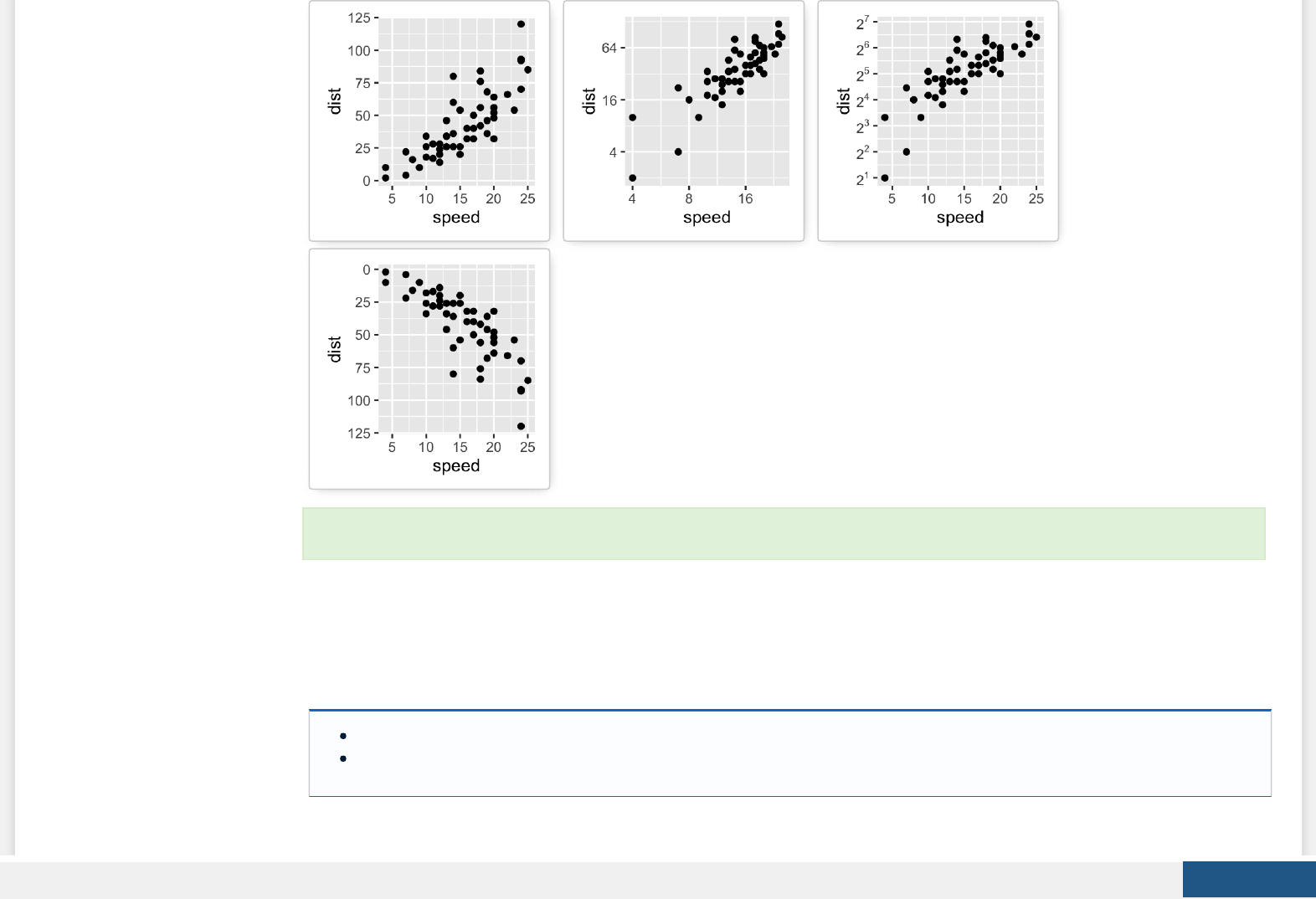
p <- ggplot(cars, aes(x = speed, y = dist)) + geom_point()
2. ggplot2 functions for continuous axis transformations:
p + scale_x_log10(), p + scale_y_log10() : Plot x and y on log10 scale, respectively.
p + scale_x_sqrt(), p + scale_y_sqrt() : Plot x and y on square root scale, respectively.
p + scale_x_reverse(), p + scale_y_reverse() : Reverse direction of axes
p + coord_trans(x =“log10”, y=“log10”) : transformed cartesian coordinate system. Possible values for x and y are
“log2”, “log10”, “sqrt”, …
p + scale_x_continuous(trans=‘log2’), p + scale_y_continuous(trans=‘log2’) : another allowed value for the argument
trans is ‘log10’
3. The R code below uses the function scale_xx_continuous() to transform axis scales:
# Default scatter plot
print(p)
# Log transformation using scale_xx()
# possible values for trans : 'log2', 'log10','sqrt'
p + scale_x_continuous(trans='log2') +
scale_y_continuous(trans='log2')
# Format axis tick mark labels
require(scales)
p + scale_y_continuous(trans = log2_trans(),
breaks = trans_breaks("log2", function(x) 2^x),
labels = trans_format("log2", math_format(2^.x)))
# Reverse coordinates
p + scale_y_reverse()
Create PDF in your applications with the Pdfcrowd HTML to PDF API PDFCROWD
Axis ticks: customize tick marks and labels, reorder and select items
1. Functions for changing the style of axis tick mark labels:
element_text(face, color, size, angle): change text style
element_blank(): Hide text
2. Create a box plot:
Learn more here: ggplot2 axis limits.
Create PDF in your applications with the Pdfcrowd HTML to PDF API PDFCROWD
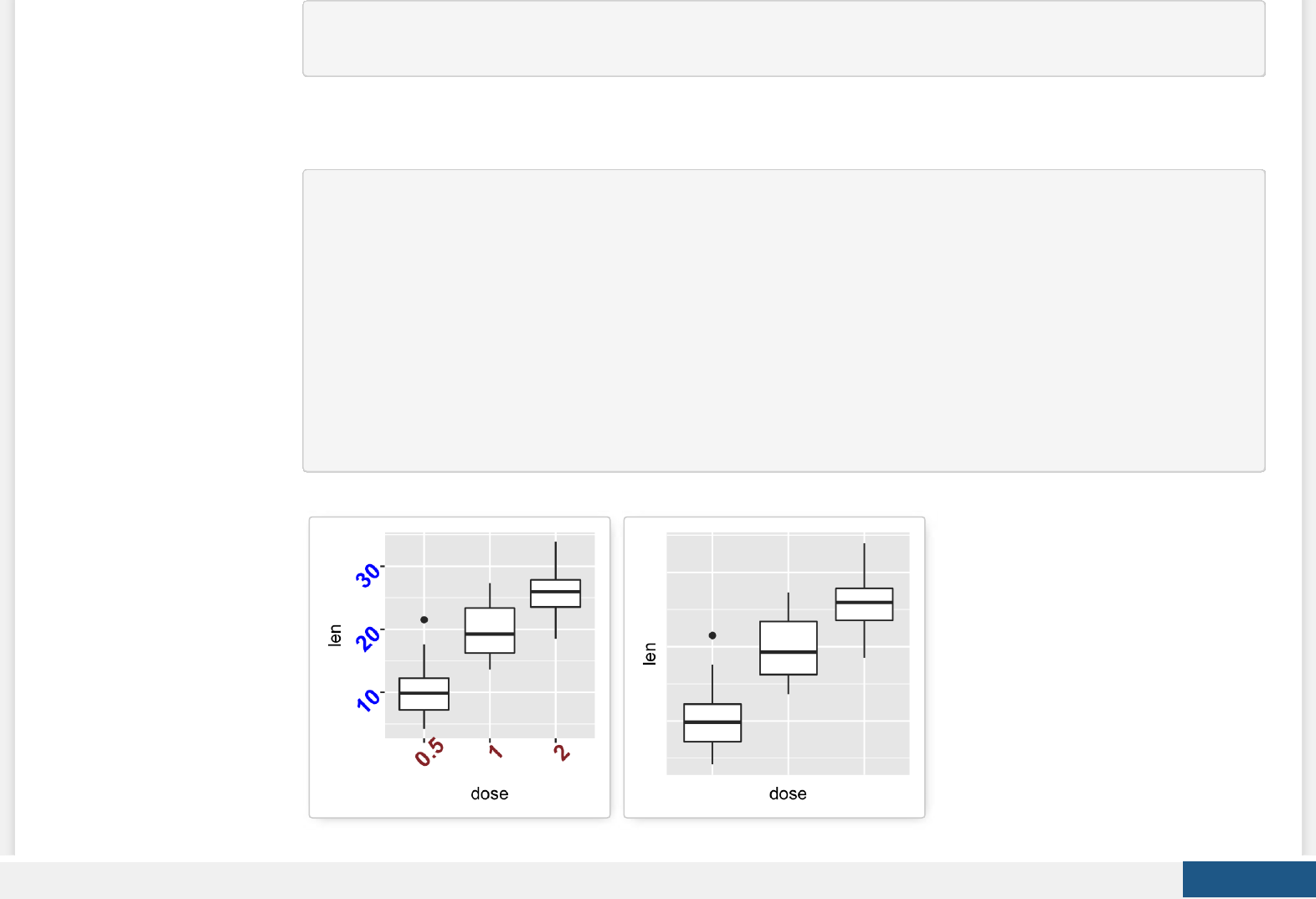
p <- ggplot(ToothGrowth, aes(x=dose, y=len)) + geom_boxplot()
# print(p)
3. Change the style and the orientation angle of axis tick labels
# Change the style of axis tick labels
# face can be "plain", "italic", "bold" or "bold.italic"
p + theme(axis.text.x = element_text(face="bold", color="#993333",
size=14, angle=45),
axis.text.y = element_text(face="bold", color="blue",
size=14, angle=45))
# Remove axis ticks and tick mark labels
p + theme(
axis.text.x = element_blank(), # Remove x axis tick labels
axis.text.y = element_blank(), # Remove y axis tick labels
axis.ticks = element_blank()) # Remove ticks
Create PDF in your applications with the Pdfcrowd HTML to PDF API PDFCROWD
4. Customize continuous and discrete axes:
Discrete axes
scale_x_discrete(name, breaks, labels, limits): for X axis
scale_y_discrete(name, breaks, labels, limits): for y axis
Continuous axes
scale_x_continuous(name, breaks, labels, limits, trans): for X axis
scale_y_continuous(name, breaks, labels, limits, trans): for y axis
Briey, the meaning of the arguments are as follow:
name : x or y axis labels
breaks : vector specifying which breaks to display
labels : labels of axis tick marks
limits : vector indicating the data range
(Read more here: Set axis ticks for discrete and continuous axes)
scale_xx() functions can be used to change the following x or y axis parameters :
axis titles
axis limits (data range to display)
choose where tick marks appear
manually label tick marks
4.1. Discrete axes:
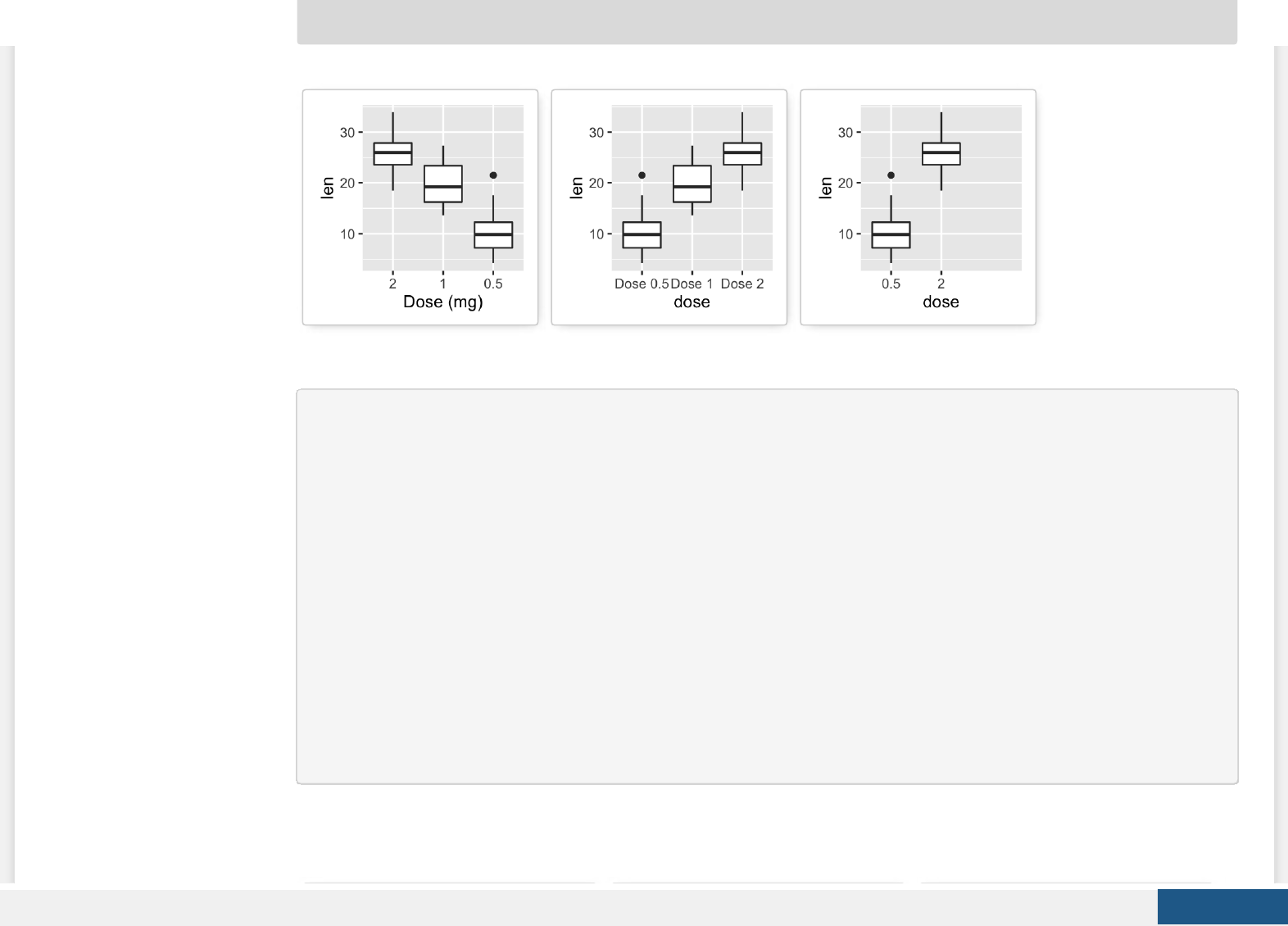
# Change x axis label and the order of items
p + scale_x_discrete(name ="Dose (mg)",
limits=c("2","1","0.5"))
# Change tick mark labels
p + scale_x_discrete(breaks=c("0.5","1","2"),
labels=c("Dose 0.5", "Dose 1", "Dose 2"))
# Choose which items to display
p + scale_x_discrete(limits=c("0.5", "2"))
Create PDF in your applications with the Pdfcrowd HTML to PDF API PDFCROWD
4.2. Continuous axes:
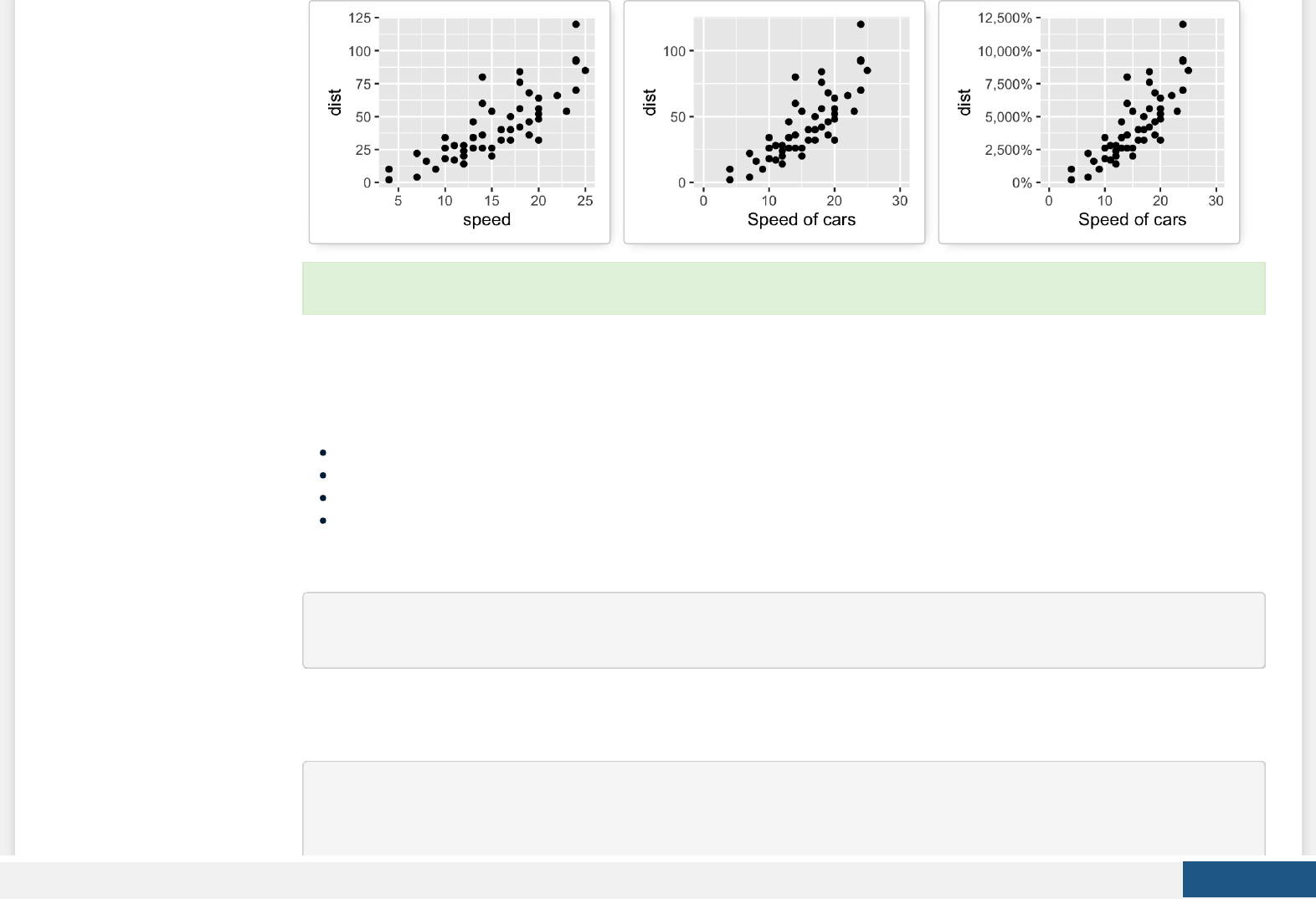
# Default scatter plot
# +++++++++++++++++
sp <- ggplot(cars, aes(x = speed, y = dist)) + geom_point()
sp
# Customize the plot
#+++++++++++++++++++++
# 1. Change x and y axis labels, and limits
sp <- sp + scale_x_continuous(name="Speed of cars", limits=c(0, 30)) +
scale_y_continuous(name="Stopping distance", limits=c(0, 150))
# 2. Set tick marks on y axis: a tick mark is shown on every 50
sp + scale_y_continuous(breaks=seq(0, 150, 50))
# Format the labels
# +++++++++++++++++
require(scales)
sp + scale_y_continuous(labels = percent) # labels as percents
Create PDF in your applications with the Pdfcrowd HTML to PDF API PDFCROWD
Add straight lines to a plot: horizontal, vertical and regression lines
The R function below can be used :
geom_hline(yintercept, linetype, color, size): for horizontal lines
geom_vline(xintercept, linetype, color, size): for vertical lines
geom_abline(intercept, slope, linetype, color, size): for regression lines
geom_segment() to add segments
1. Create a simple scatter plot
# Simple scatter plot
sp <- ggplot(data=mtcars, aes(x=wt, y=mpg)) + geom_point()
2. Add straight lines
# Add horizontal line at y = 2O; change line type and color
sp + geom_hline(yintercept=20, linetype="dashed", color = "red")
# Add vertical line at x = 3; change line type, color and size
Learn more here: ggplot2 Axis ticks: tick marks and labels.
Create PDF in your applications with the Pdfcrowd HTML to PDF API PDFCROWD
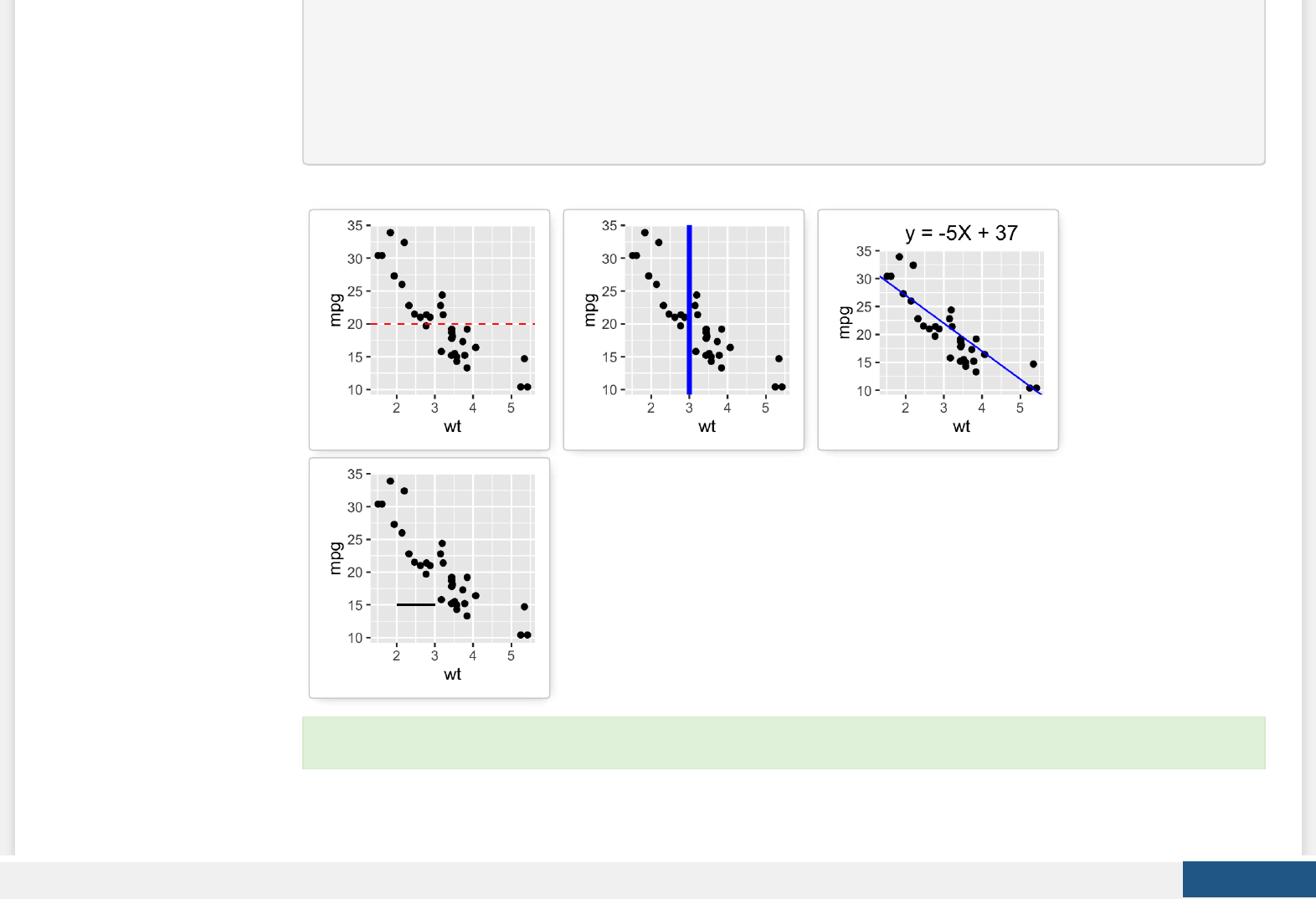
sp + geom_vline(xintercept = 3, color = "blue", size=1.5)
# Add regression line
sp + geom_abline(intercept = 37, slope = -5, color="blue")+
ggtitle("y = -5X + 37")
# Add horizontal line segment
sp + geom_segment(aes(x = 2, y = 15, xend = 3, yend = 15))
Rotate a plot: ip and reverse
Learn more here: ggplot2 add straight lines to a plot.
Create PDF in your applications with the Pdfcrowd HTML to PDF API PDFCROWD
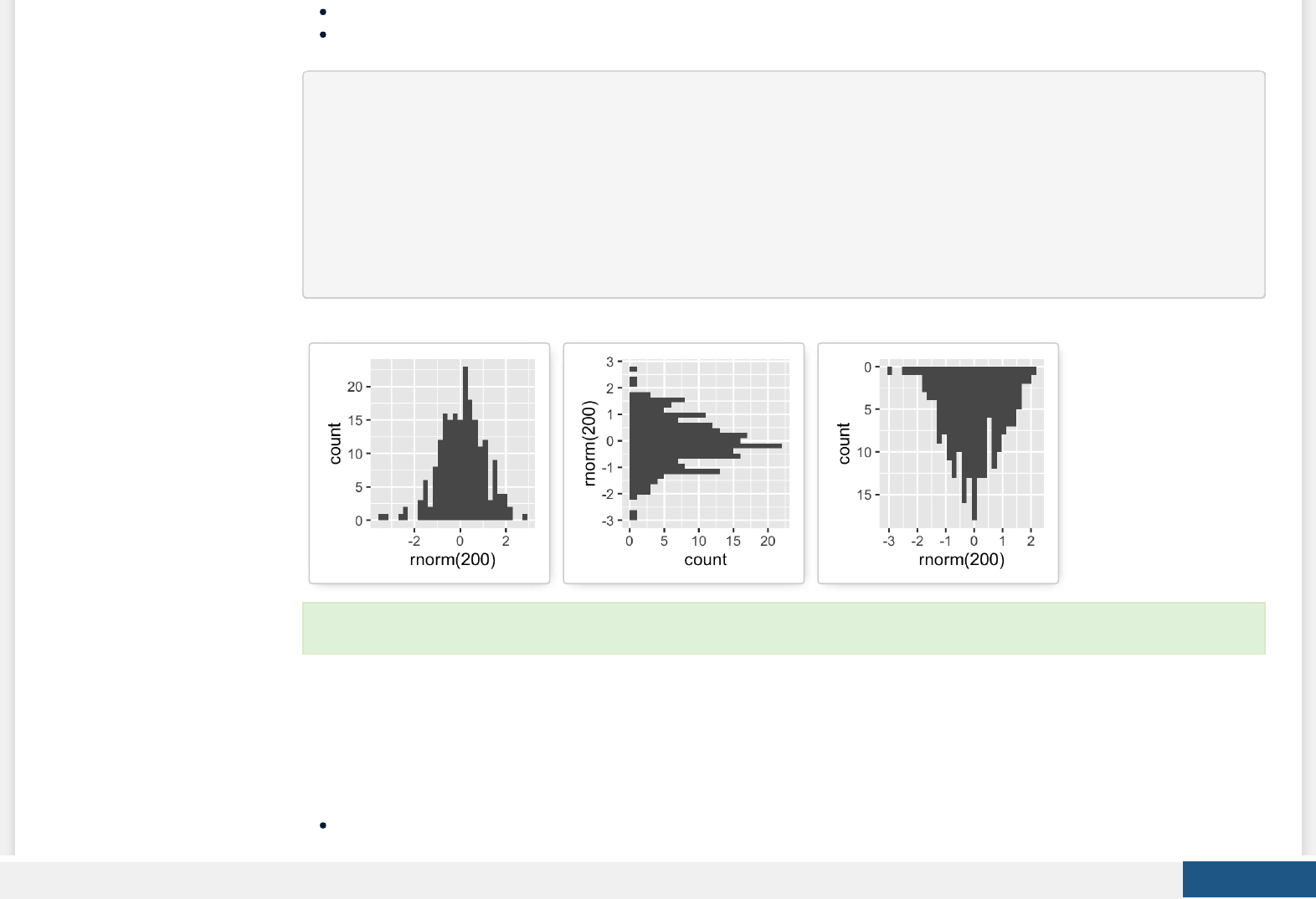
coord_ip(): Create horizontal plots
scale_x_reverse(), scale_y_reverse(): Reverse the axes
set.seed(1234)
# Basic histogram
hp <- qplot(x=rnorm(200), geom="histogram")
hp
# Horizontal histogram
hp + coord_flip()
# Y axis reversed
hp + scale_y_reverse()
Faceting: split a plot into a matrix of panels
Facets divide a plot into subplots based on the values of one or more categorical variables.
There are two main functions for faceting :
facet_grid()
Learn more here: ggplot2 rotate a graph.
Create PDF in your applications with the Pdfcrowd HTML to PDF API PDFCROWD
facet_wrap()
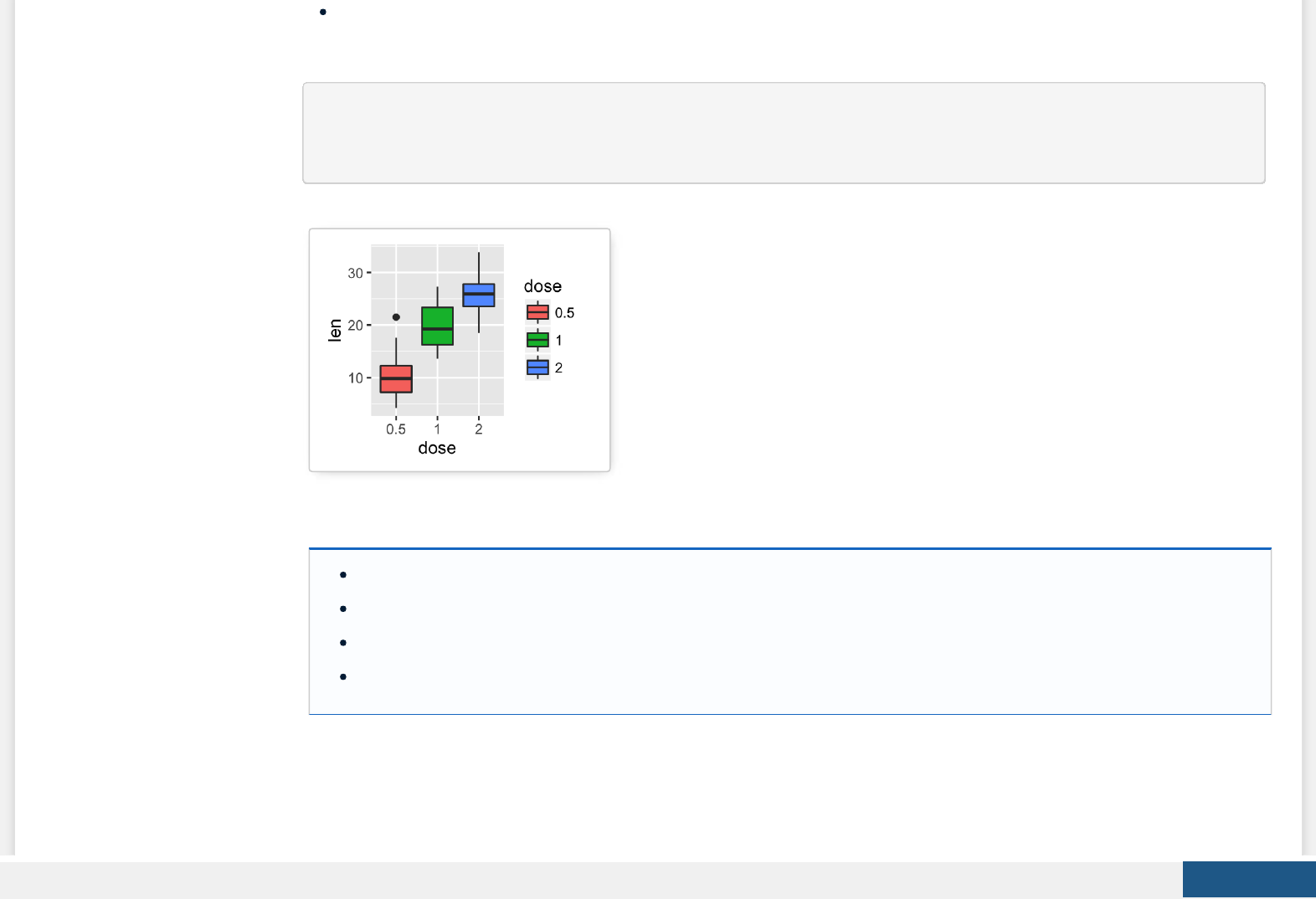
Create a box plot lled by groups:
p <- ggplot(ToothGrowth, aes(x=dose, y=len, group=dose)) +
geom_boxplot(aes(fill=dose))
p
The following functions can be used for facets:
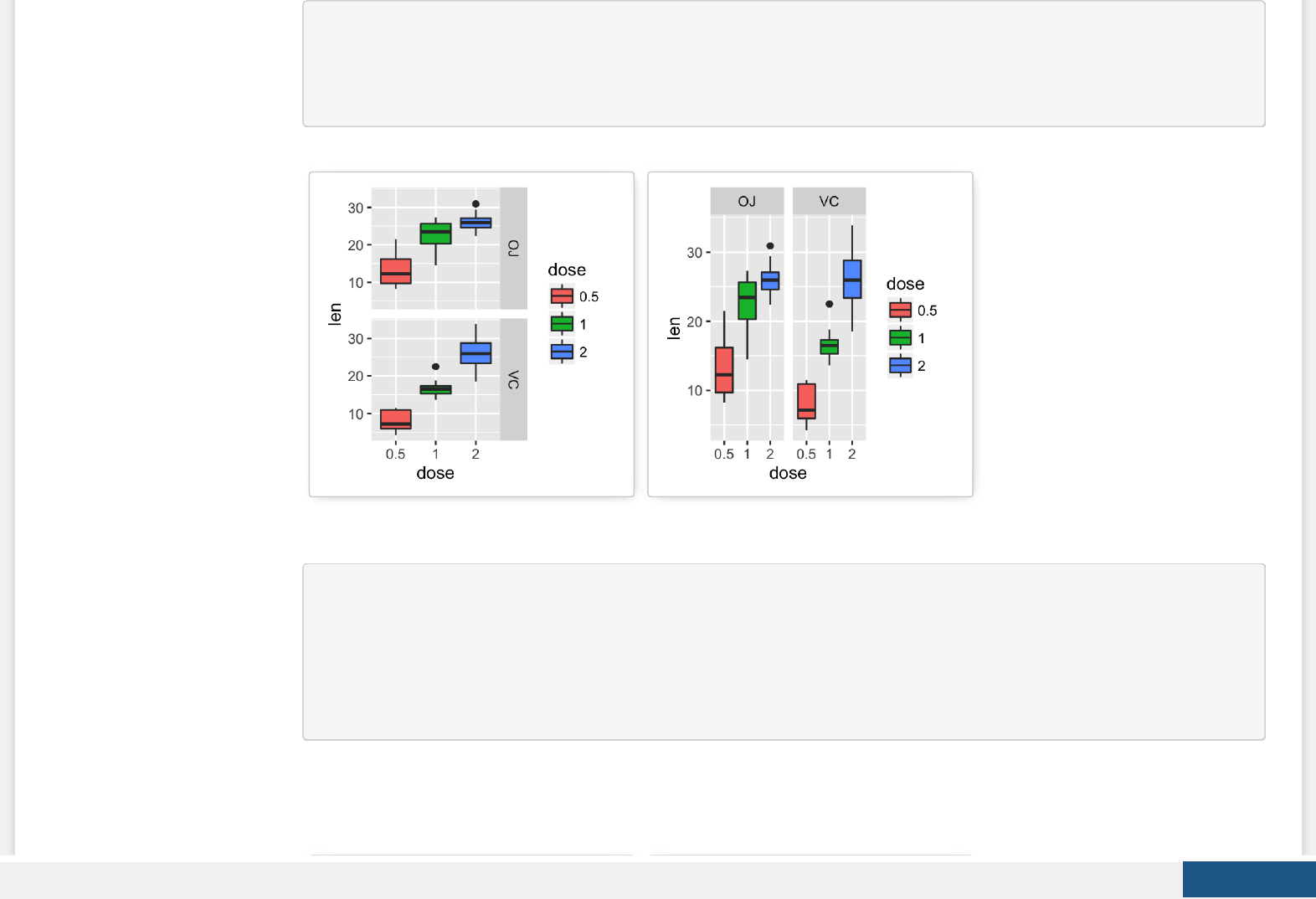
p + facet_grid(supp ~ .): Facet in vertical direction based on the levels of supp variable.
p + facet_grid(. ~ supp): Facet in horizontal direction based on the levels of supp variable.
p + facet_grid(dose ~ supp): Facet in horizontal and vertical directions based on two variables: dose and supp.
p + facet_wrap(~ ): Place facet side by side into a rectangular layout
1. Facet with one discrete variable: Split by the levels of the group “supp”
Create PDF in your applications with the Pdfcrowd HTML to PDF API PDFCROWD
# Split in vertical direction
p + facet_grid(supp ~ .)
# Split in horizontal direction
p + facet_grid(. ~ supp)
2. Facet with two discrete variables: Split by the levels of the groups “dose” and “supp”
# Facet by two variables: dose and supp.
# Rows are dose and columns are supp
p + facet_grid(dose ~ supp)
# Facet by two variables: reverse the order of the 2 variables
# Rows are supp and columns are dose
p + facet_grid(supp ~ dose)
Create PDF in your applications with the Pdfcrowd HTML to PDF API PDFCROWD
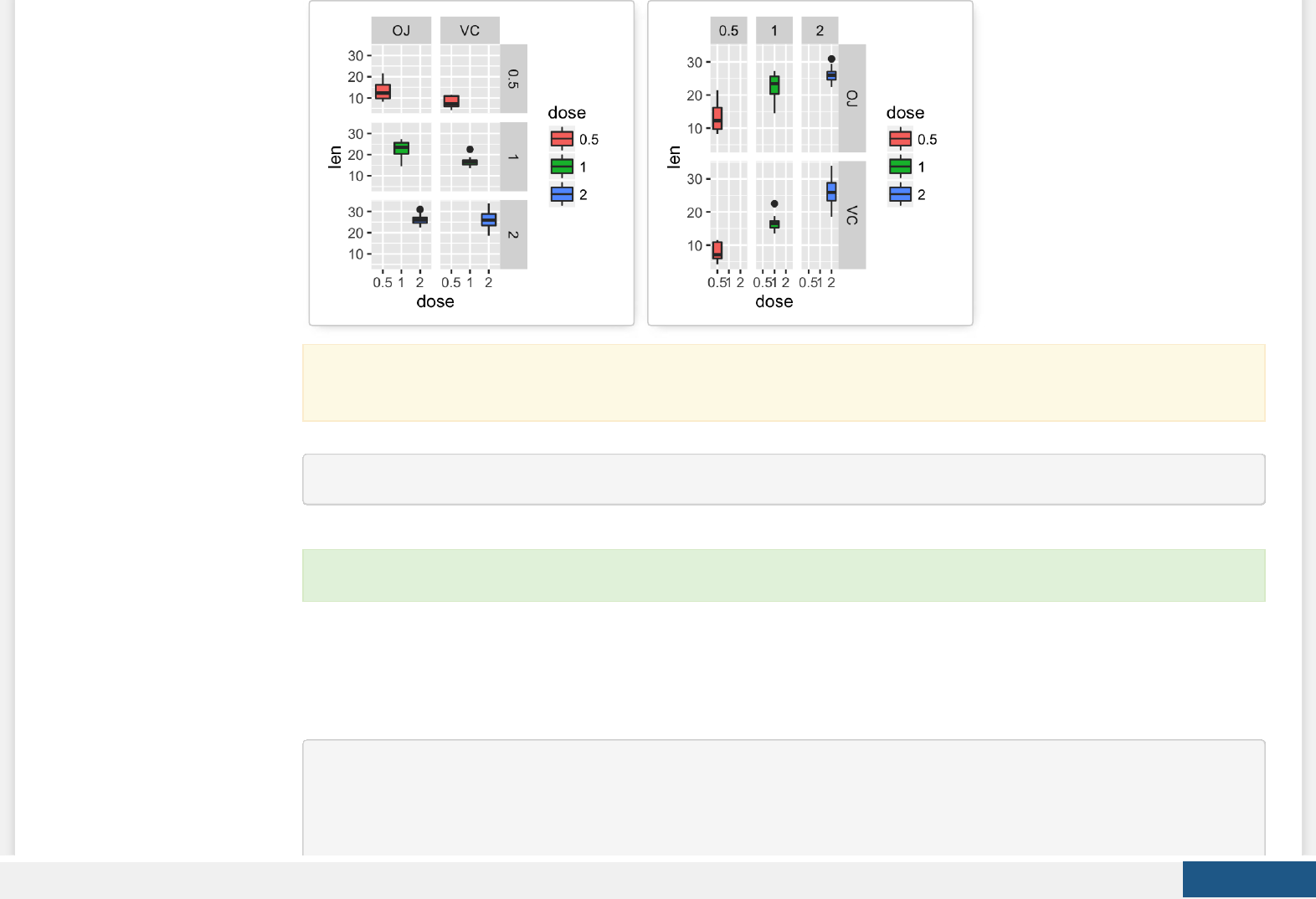
p + facet_grid(dose ~ supp, scales='free')
Position adjustements
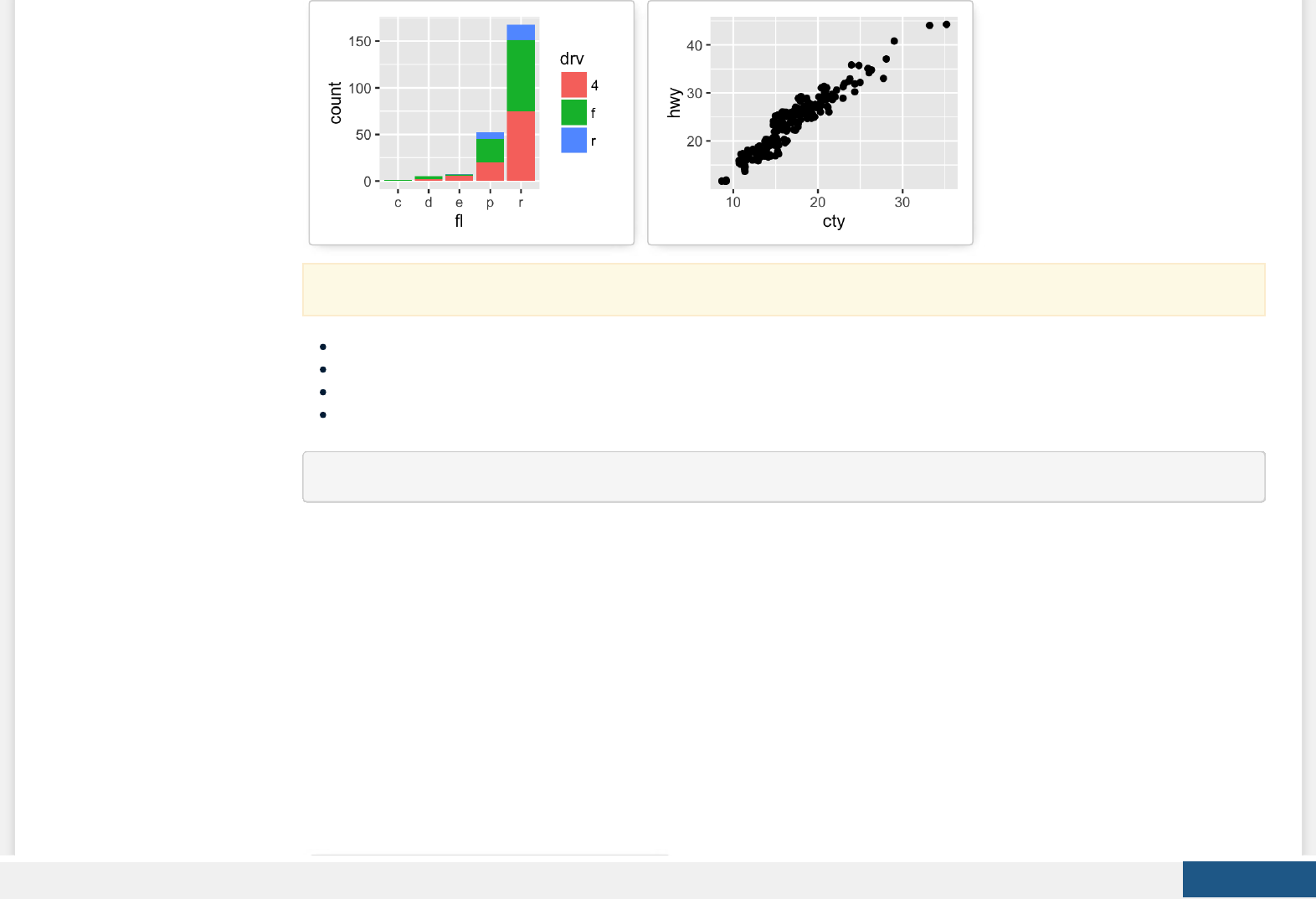
Position adjustments determine how to arrange geoms. The argument position is used to adjust geom positions:
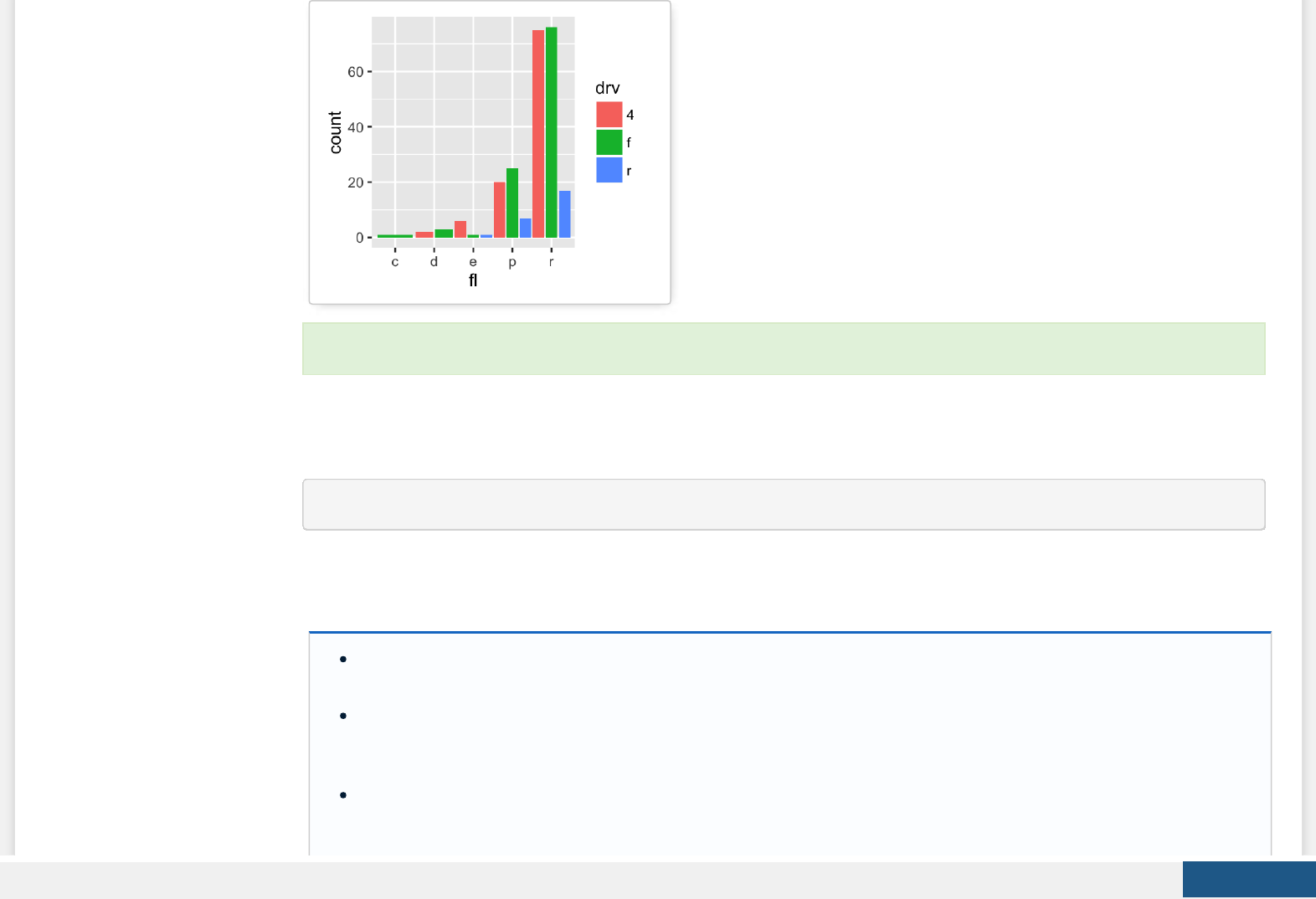
p <- ggplot(mpg, aes(fl, fill = drv))
# Arrange elements side by side
p + geom_bar(position = "dodge")
# Stack objects on top of one another,
By default, all the panels have the same scales (scales=“xed”). They can be made independent, by setting scales to
free, free_x, or free_y.
Learn more here: ggplot2 facet : split a plot into a matrix of panels.
Create PDF in your applications with the Pdfcrowd HTML to PDF API PDFCROWD
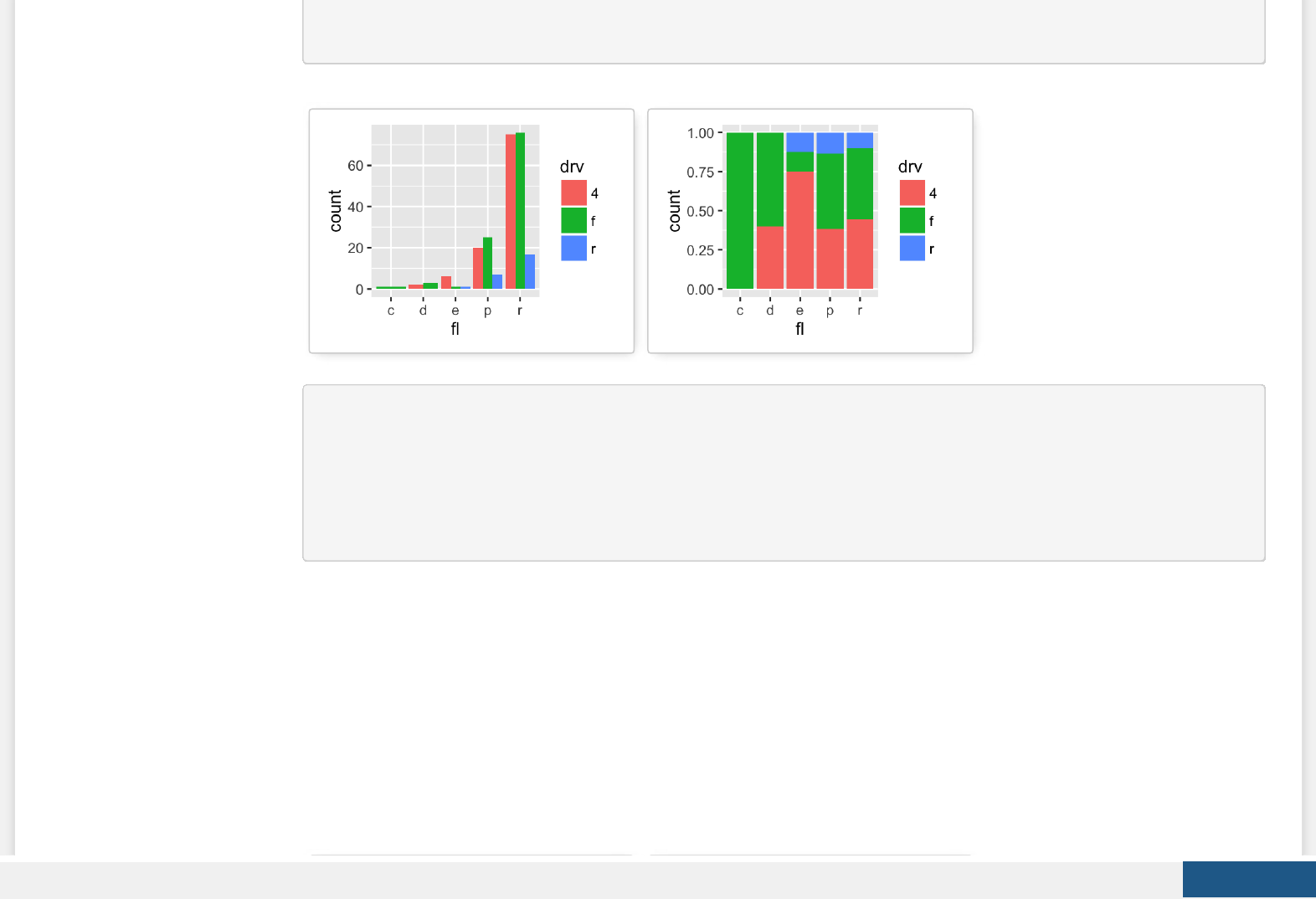
# and normalize to have equal height
p + geom_bar(position = "fill")
# Stack elements on top of one another
p + geom_bar(position = "stack")
# Add random noise to X and Y position
# of each element to avoid overplotting
ggplot(mpg, aes(cty, hwy)) +
geom_point(position = "jitter")
Create PDF in your applications with the Pdfcrowd HTML to PDF API PDFCROWD
position_dodge(width, height)
position_ll(width, height)
position_stack(width, height)
position_jitter(width, height)
p + geom_bar(position = position_dodge(width = 1))
Note that, each of these position adjustments can be done using a function with manual width and height argument.
Create PDF in your applications with the Pdfcrowd HTML to PDF API PDFCROWD
Coordinate systems
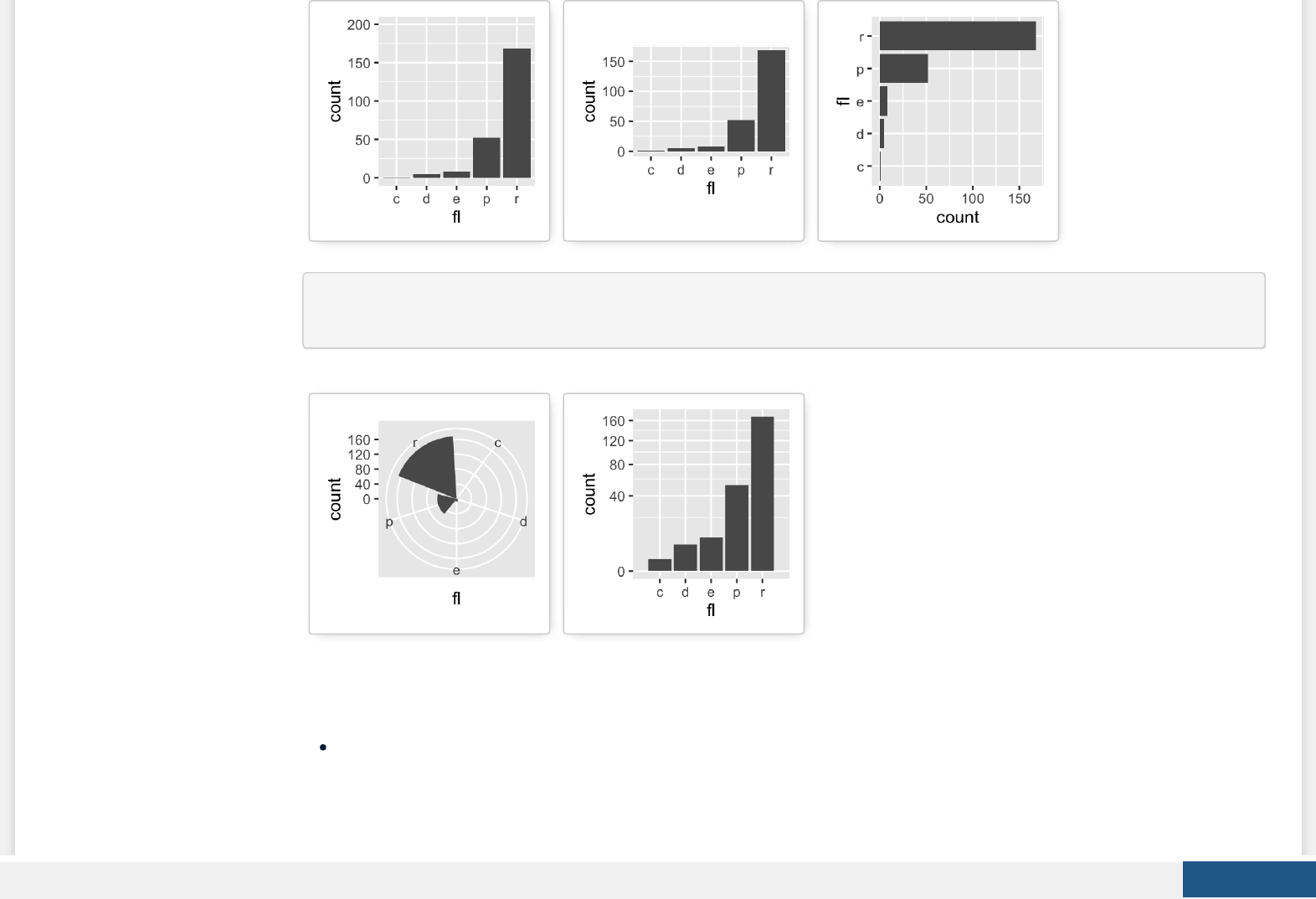
p <- ggplot(mpg, aes(fl)) + geom_bar()
The coordinate systems in ggplot2 are:
p + coord_cartesian(xlim = NULL, ylim = NULL): Cartesian coordinate system (default). It’s the most familiar and
common, type of coordinate system.
p + coord_xed(ratio = 1, xlim = NULL, ylim = NULL): Cartesian coordinates with xed relationship between x and
y scales. The ratio represents the number of units on the y-axis equivalent to one unit on the x-axis. The default, ratio
= 1, ensures that one unit on the x-axis is the same length as one unit on the y-axis.
p + coord_ip(…): Flipped cartesian coordinates. Useful for creating horizontal plot by rotating.
Learn more here: ggplot2 bar plots.
Create PDF in your applications with the Pdfcrowd HTML to PDF API PDFCROWD

p + coord_polar(theta = “x”, start = 0, direction = 1): Polar coordinates. The polar coordinate system is most
commonly used for pie charts, which are a stacked bar chart in polar coordinates.
p + coord_trans(x, y, limx, limy): Transformed cartesian coordinate system.
coord_map(): Map projections. Provides the full range of map projections available in the mapproj package.
1. Arguments for coord_cartesian(), coord_xed() and coord_ip()
xlim: limits for the x axis
ylim: limits for the y axis
ratio: aspect ratio, expressed as y/x
…: Other arguments passed onto coord_cartesian
2. Arguments for coord_polar()
theta: variable to map angle to (x or y)
start: oset of starting point from 12 o’clock in radians
direction: 1, clockwise; -1, anticlockwise
3. Arguments for coord_trans()
x, y: transformers for x and y axes
limx, limy: limits for x and y axes.
p + coord_cartesian(ylim = c(0, 200))
p + coord_fixed(ratio = 1/50)
p + coord_flip()
Create PDF in your applications with the Pdfcrowd HTML to PDF API PDFCROWD
p + coord_polar(theta = "x", direction = 1)
p + coord_trans(y = "sqrt")
Extensions to ggplot2: R packages and functions
factoextra: factoextra : Extract and Visualize the outputs of a multivariate analysis. factoextra provides some easy-
to-use functions to extract and visualize the output of PCA (Principal Component Analysis), CA (Correspondence Analysis)
and MCA (Multiple Correspondence Analysis) functions from several packages (FactoMineR, stats, ade4 and MASS). It
contains also many functions for simplifying clustering analysis workows. Ggplot2 plotting system is used.
Create PDF in your applications with the Pdfcrowd HTML to PDF API PDFCROWD
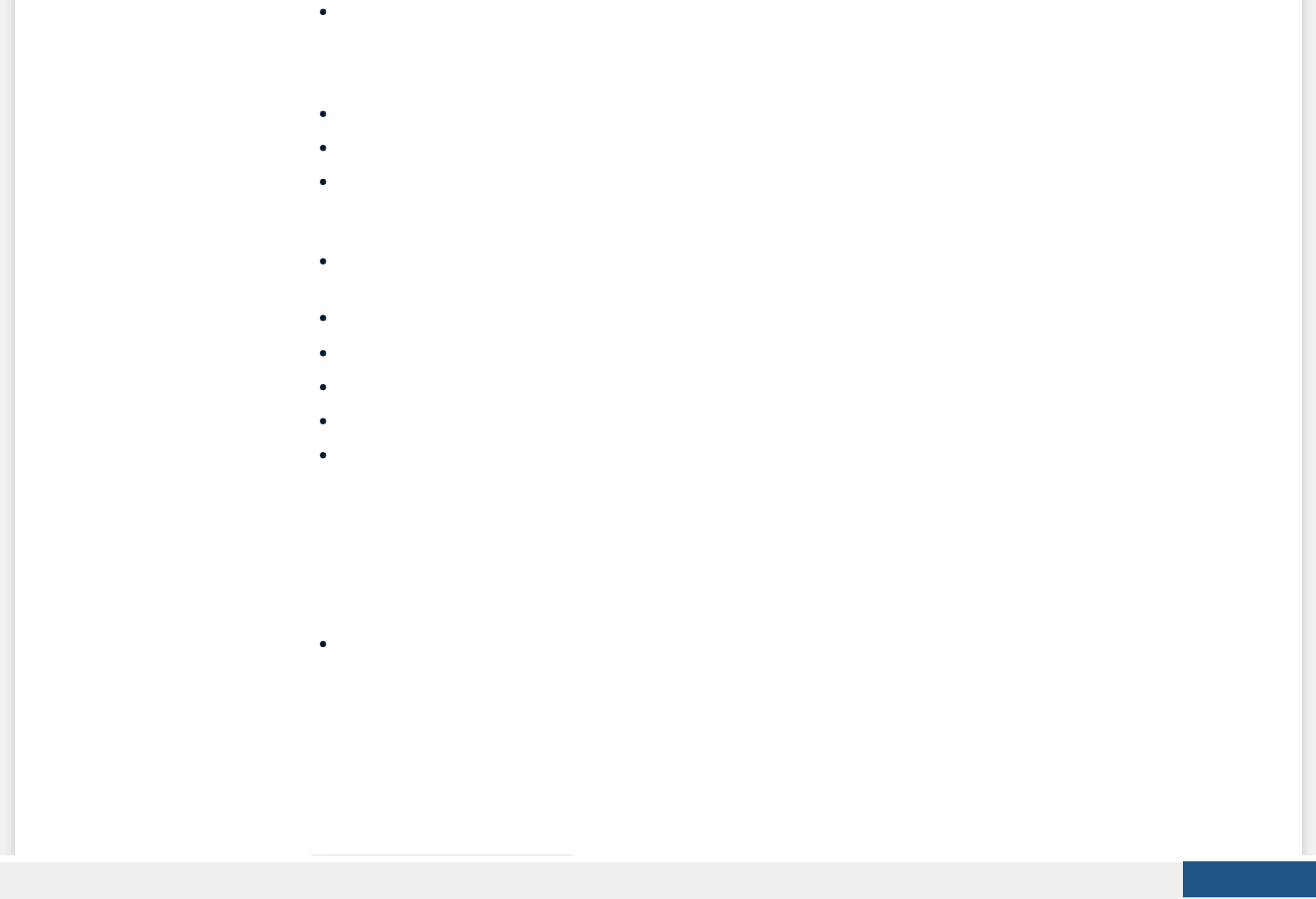
easyggplot2: Perform and customize easily a plot with ggplot2. The idea behind ggplot2 is seductively simple but the
detail is, yes, dicult. To customize a plot, the syntax is sometimes a tiny bit opaque and this raises the level of diculty.
easyGgplot2 package (which depends on ggplot2) to make and customize quickly plots including box plot, dot plot, strip
chart, violin plot, histogram, density plot, scatter plot, bar plot, line plot, etc, …
ggplot2 - Easy way to mix multiple graphs on the same page: The R package gridExtra and cowplot are used.
ggplot2: Correlation matrix heatmap
ggfortify: Dene fortify and autoplot functions to allow ggplot2 to handle some popular R packages. These include
plotting 1) Matrix; 2) Linear Model and Generalized Linear Model; 3) Time Series; 4) PCA/Clustering; 5) Survival Curve; 6)
Probability distribution
GGally: GGally extends ggplot2 by providing several functions including pairwise correlation matrix, scatterplot plot
matrix, parallel coordinates plot, survival plot and several functions to plot networks.
ggRandomForests: Graphical analysis of random forests with the randomForestSRC and ggplot2 packages.
ggdendro: Create dendrograms and tree diagrams using ggplot2
ggmcmc: Tools for Analyzing MCMC Simulations from Bayesian Inference
ggthemes: Package with additional ggplot2 themes and scales
Theme used to create journal ready gures easily
Ressources to improve your ggplot2 skills
Books
ggplot2: The Elements for Elegant Data Visualization in R
Create PDF in your applications with the Pdfcrowd HTML to PDF API PDFCROWD
Cookbook for R
Blog posts
Build a plot layer by layer
Cheat Sheets
Data Visualization with ggplot2, RStudio cheat sheet
Beautiful plotting in R: A ggplot2 cheatsheet
Acknoweledgment
Thanks to Hadley Wickham for ggplot2 package: ggplot2 online documentation
Thanks to RStudio for ggplot2 cheatseet)
Create PDF in your applications with the Pdfcrowd HTML to PDF API PDFCROWD
Infos
Recommended for You!
This analysis was performed using R (ver. 3.2.4) and ggplot2 (ver 2.1.0).
Enjoyed this article? I’d be very grateful if you’d help it spread by emailing it to a friend, or sharing it on Twitter,
Facebook or Linked In.
Show me some love with the like buttons below... Thank you and please don't forget to share and comment below!!
Tweet
Share
Share
Share
Share 0
Like 0
Save
Create PDF in your applications with the Pdfcrowd HTML to PDF API PDFCROWD
Machine Learning Essentials:
Practical Guide in R
Practical Guide to Cluster Analysis in
R
Practical Guide to Principal
Component Methods in R
R Graphics Essentials for Great Data
Visualization
Network Analysis and Visualization in
R
More books on R and data science
Want to Learn More on R Programming and Data Science?
Follow us by Email
On Social Networks:
Subscribe
by FeedBurner
Create PDF in your applications with the Pdfcrowd HTML to PDF API PDFCROWD
Newsletter
Email
Boosted by PHPBoost
Recommended for you
on Social Networks
Get involved :
Click to follow us on Facebook and Google+ :
Comment this article by clicking on "Discussion" button (top-right position of this page)
This page has been seen 155888 times
Create PDF in your applications with the Pdfcrowd HTML to PDF API PDFCROWD
AddThis
Guide to Create
Beautiful Graphics in...
www.sthda.com
Bagging and Random
Forest Essentials - Arti...
www.sthda.com
ggplot2.stripchart : Easy
one dimensional scatt...
www.sthda.com
RNA-Seq dierential
expression work ow...
www.sthda.com
Create PDF in your applications with the Pdfcrowd HTML to PDF API PDFCROWD
