Git The Simple Guide
User Manual:
Open the PDF directly: View PDF  .
.
Page Count: 17
3/1/2018 git - the simple guide - no deep shit!
http://rogerdudler.github.io/git-guide/ 1/17
git - the simple guide
just a simple guide for getting started with git. no deep shit ;)
Tweet
by Roger Dudler
credits to @tfnico, @fhd and Namics
this guide in deutsch, español, français, indonesian, italiano, nederlands, polski, português, русский, türkçe,
ြမန်မာ, 日本語, 中文, 한국어 Vietnamese
please report issues on github
Kubernetes made easy
with Google Container
Engine. Try it free.
ADS VIA CARBON
setup
Download git for OSX

3/1/2018 git - the simple guide - no deep shit!
http://rogerdudler.github.io/git-guide/ 2/17
Download git for Windows
Download git for Linux
create a new repository
create a new directory, open it and perform a
git init
to create a new git repository.
checkout a repository
create a working copy of a local repository by running the command
git clone /path/to/repository
when using a remote server, your command will be
git clone username@host:/path/to/repository
3/1/2018 git - the simple guide - no deep shit!
http://rogerdudler.github.io/git-guide/ 3/17
workflow
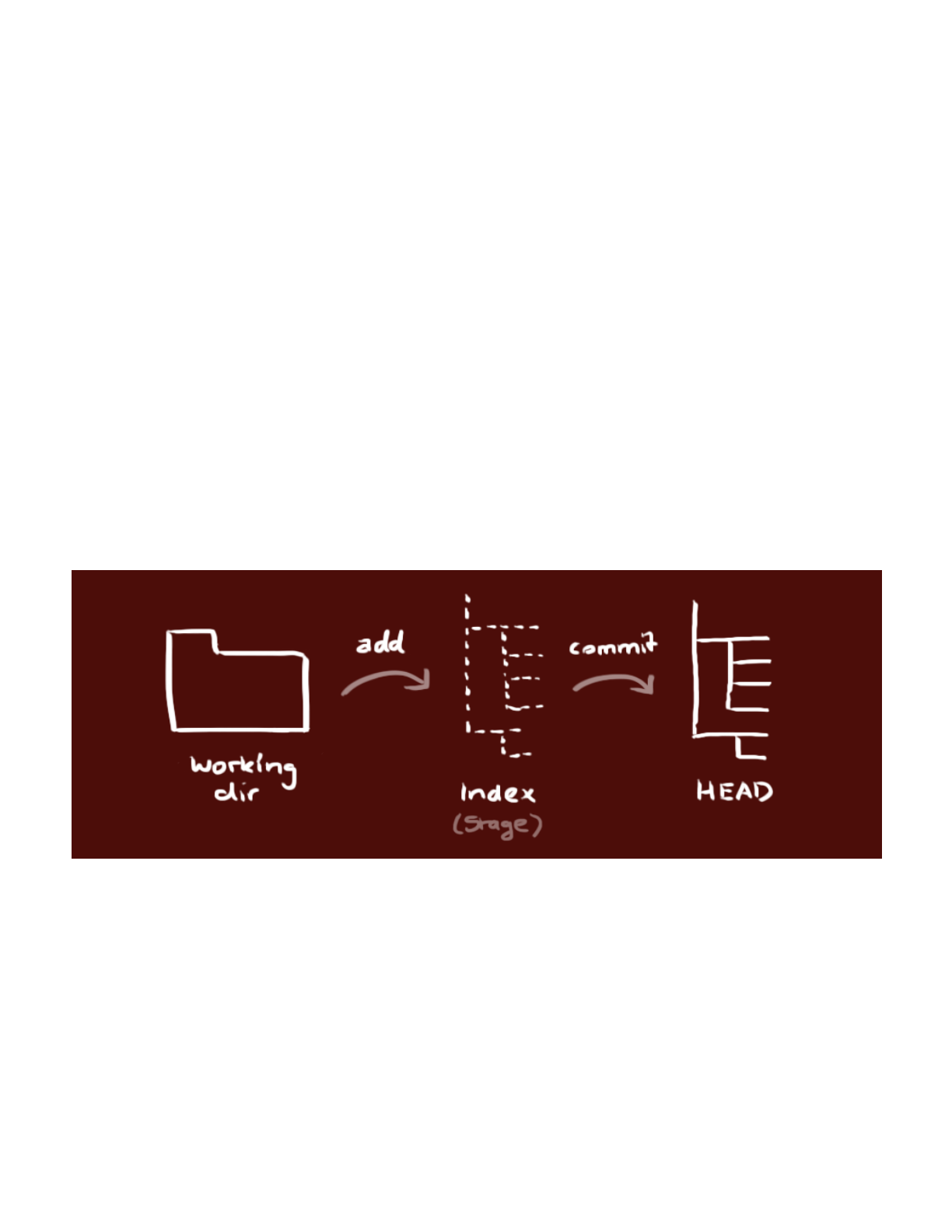
your local repository consists of three "trees" maintained by git. the first
one is your Working Directory which holds the actual files. the
second one is the Index which acts as a staging area and finally the
HEAD which points to the last commit you've made.
add & commit

3/1/2018 git - the simple guide - no deep shit!
http://rogerdudler.github.io/git-guide/ 4/17
You can propose changes (add it to the Index) using
git add <filename>
git add *
This is the first step in the basic git workflow. To actually commit these
changes use
git commit -m "Commit message"
Now the file is committed to the HEAD, but not in your remote
repository yet.
pushing changes
Your changes are now in the HEAD of your local working copy. To send
those changes to your remote repository, execute
git push origin master
Change master to whatever branch you want to push your changes to.
If you have not cloned an existing repository and want to connect your
repository to a remote server, you need to add it with
3/1/2018 git - the simple guide - no deep shit!
http://rogerdudler.github.io/git-guide/ 5/17
git remote add origin <server>
Now you are able to push your changes to the selected remote server
branching
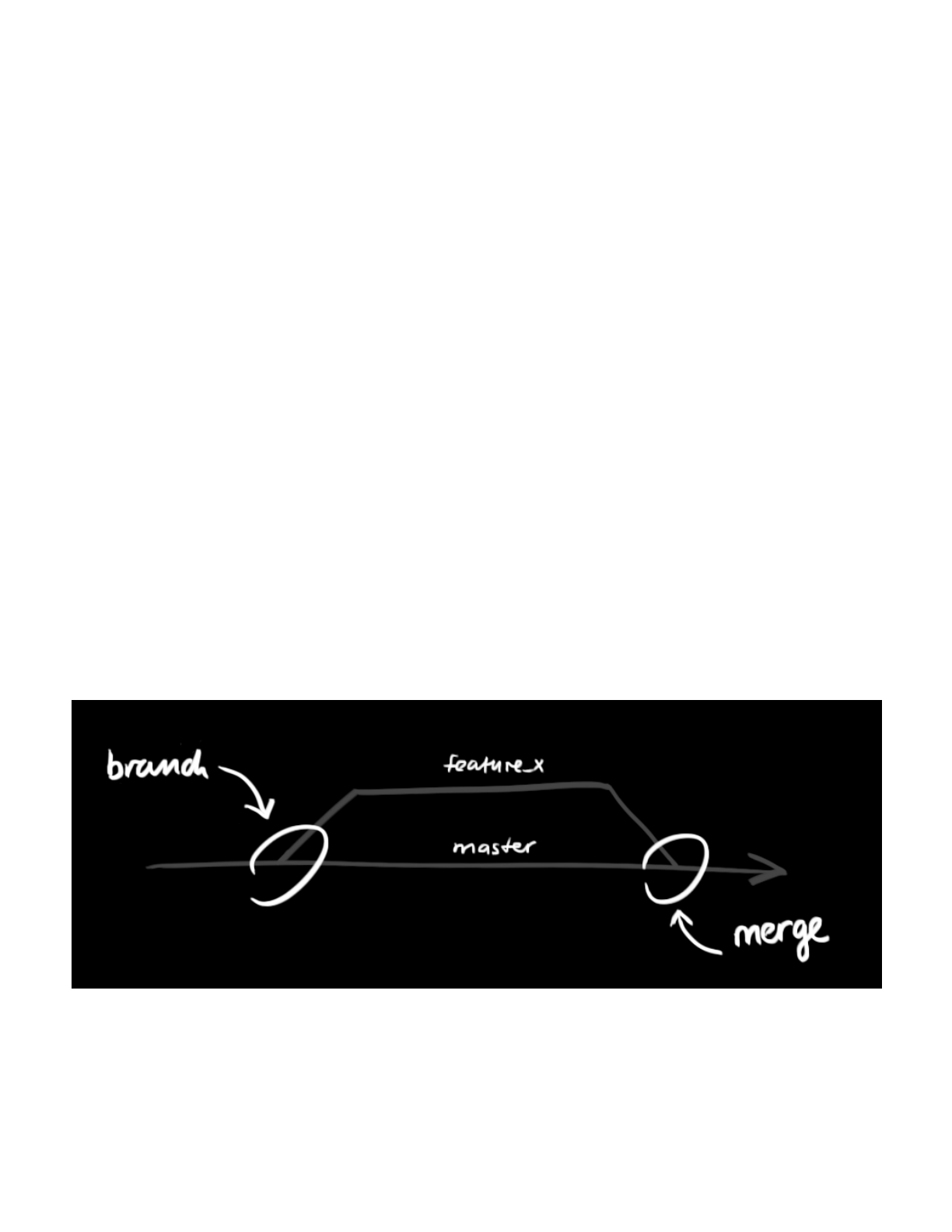
Branches are used to develop features isolated from each other. The
master branch is the "default" branch when you create a repository. Use
other branches for development and merge them back to the master
branch upon completion.
create a new branch named "feature_x" and switch to it using
git checkout -b feature_x

3/1/2018 git - the simple guide - no deep shit!
http://rogerdudler.github.io/git-guide/ 6/17
switch back to master
git checkout master
and delete the branch again
git branch -d feature_x
a branch is not available to others unless you push the branch to your
remote repository
git push origin <branch>
update & merge
to update your local repository to the newest commit, execute
git pull
in your working directory to fetch and merge remote changes.
to merge another branch into your active branch (e.g. master), use
git merge <branch>
in both cases git tries to auto-merge changes. Unfortunately, this is not
always possible and results in conflicts. You are responsible to merge
those conflicts manually by editing the files shown by git. After

3/1/2018 git - the simple guide - no deep shit!
http://rogerdudler.github.io/git-guide/ 7/17
changing, you need to mark them as merged with
git add <filename>
before merging changes, you can also preview them by using
git diff <source_branch> <target_branch>
tagging
it's recommended to create tags for software releases. this is a known
concept, which also exists in SVN. You can create a new tag named 1.0.0
by executing
git tag 1.0.0 1b2e1d63ff
the 1b2e1d63ff stands for the first 10 characters of the commit id you
want to reference with your tag. You can get the commit id by looking at
the...

3/1/2018 git - the simple guide - no deep shit!
http://rogerdudler.github.io/git-guide/ 8/17
log
in its simplest form, you can study repository history using.. git log
You can add a lot of parameters to make the log look like what you want.
To see only the commits of a certain author:
git log --author=bob
To see a very compressed log where each commit is one line:
git log --pretty=oneline
Or maybe you want to see an ASCII art tree of all the branches,
decorated with the names of tags and branches:
git log --graph --oneline --decorate --all
See only which files have changed:
git log --name-status
These are just a few of the possible parameters you can use. For more,
see git log --help

3/1/2018 git - the simple guide - no deep shit!
http://rogerdudler.github.io/git-guide/ 9/17
replace local changes
In case you did something wrong, which for sure never happens ;), you
can replace local changes using the command
git checkout -- <filename>
this replaces the changes in your working tree with the last content in
HEAD. Changes already added to the index, as well as new files, will be
kept.
If you instead want to drop all your local changes and commits, fetch the
latest history from the server and point your local master branch at it
like this
git fetch origin
git reset --hard origin/master
useful hints

3/1/2018 git - the simple guide - no deep shit!
http://rogerdudler.github.io/git-guide/ 10/17
built-in git GUI
gitk
use colorful git output
git config color.ui true
show log on just one line per commit
git config format.pretty oneline
use interactive adding
git add -i
links & resources
graphical clients
GitX (L) (OSX, open source)
Tower (OSX)
Source Tree (OSX & Windows, free)
GitHub for Mac (OSX, free)
GitBox (OSX, App Store)
guides
Git Community Book
Pro Git

3/1/2018 git - the simple guide - no deep shit!
http://rogerdudler.github.io/git-guide/ 11/17
Think like a git
GitHub Help
A Visual Git Guide
get help
Git User Mailing List
#git on irc.freenode.net
comments
1017 Comments git - the simple guide
Hope Tambala
Share
⤤Sort by Newest
Join the discussion…
•Reply •
Zheng Guo • 2 days ago
−
Great
△
▽
•Reply •
Bwogi Ignatius • 4 days ago −
Hello guys,i have just installed Git and it has brought a mini windows, what
commands am i exactly suppossed to xecute
△
▽
•Reply •
Mustafa Irshad • a day ago −
> Bwogi Ignatius
GitBash or Desktop app of GitHub?
△
▽
•Reply •
Bwogi Ignatius • a day ago −
> Mustafa Irshad
i used GitBash
△
▽
Mustafa Irshad • a day ago −
> Bwogi Ignatius
So if you want to start a new Git repository for an existing
code base
$ cd /path/to/my/codebase
$ git init (Initialize)
$ git clone [URL] (to clone a copy of repo in local)
$ i h k b [ b h ] ( h
Recommend
534
Share ›
Share ›
Share ›
Share ›

3/1/2018 git - the simple guide - no deep shit!
http://rogerdudler.github.io/git-guide/ 12/17
•Reply •
$ git checkout -b [new branch name] (to create new the
branch)
then make some changes in local
$ git checkout [branch name] (to switch the branch)
$ git status (to check the status of your changes in local, it
should be in RED color)
$ git add . (to add those changes in repo)
$ git status (to check the status of your changes in local, it
should be in GREEN color)
$ git commit (to commit those change with some
comments/remarks)
then enter :wq
$ git push origin [branch name] (to push those changes)
$ git merge (if you want to merge that branch with Master
branch)
△
▽
•Reply •
Neale • 7 days ago −
Thanks - very helpful. N
△
▽
•Reply •
Rob Pi • 12 days ago −
Great! Thanks!
△
▽
•Reply •
Cliodyn Cycwatch • 14 days ago −
Nice
△
▽
•Reply •
Alex • 14 days ago
−
For the Graphical Clients at the end we could add GITKRAKEN, very usefull and
working on UNIX too :
https://www.gitkraken.com/
Thanks for that guide !
1
△
▽
•Reply •
Matt Shelley • 17 days ago −
Great post, you just saved me from writing my own list of common commands!
:D
△
▽
•Reply •
Alberth Adolfo Molano Cubillos • 17 days ago
−
nice one dude really awesome
△
▽
•Reply •
t • 24 days ago
−
could you add git fetch and git checkout remote_branch_name?
△
▽
•Reply •
Glenn McGrew II • 24 days ago −
Thank you, but could you add how to connect to your GitHub account via Git?
△
▽
•Reply •
Althaea • 25 days ago
−
Great guide. Extremely useful! Go from 0 to 120 with Git in a few minutes!
△
▽
Joshua Burkhalter •a month ago
−
Share ›
Share ›
Share ›
Share ›
Share ›
Share ›
Share ›
Share ›
Share ›
Share ›

3/1/2018 git - the simple guide - no deep shit!
http://rogerdudler.github.io/git-guide/ 13/17
•Reply •
Joshua Burkhalter • a month ago
This is awesome - thank you for putting this very simple explanation of such a
potentially complex CLI together. Helps a ton!
△
▽
•Reply •
Dariusz Hildebrandt • a month ago −
Thank you for your work and this simple explanation.
△
▽
•Reply •
john • a month ago
−
Would love to see an advanced version, e.g. the 3 repo sync pattern (fork, clone,
branch, push, pull request, checkout master, merge upstrea,master, push
origin/master) then the same thing but with a non-master branch (this is where it
gets tricky, e.g. because when you clone your fork, although your fork gets the
develop branch, your local cloned repo doesnt for some unknown reason)
1
△
▽
•Reply •
slick555 • a month ago −
amazing!!!
△
▽
•Reply •
Snail • a month ago −
Thank you for this guide!
5
△
▽
•Reply •
Arielle • 2 months ago
−
Oh wow. Never thought I would understand Git but this made it so simple. Thank
you!
△
▽
•Reply •
jovenbarola • 2 months ago
−
Thank you for this guide!
△
▽
•Reply •
Lydon • 2 months ago −
Yes, PERFECT! You are a scholar and a gentleman.
1
△
▽
•Reply •
Zahid Efe • 2 months ago
−
You're awesome man, thank you so much!
△
▽
•Reply •
Rajesh Sri Muthu • 2 months ago −
awesome.... new interactive learning.
△
▽
•Reply •
Ali • 2 months ago
−
Can somebody help to create patch file for my changes which is not yet commited
or push but present in local
△
▽
•Reply •
Martins Divine Okoi • 2 months ago −
The best git beginner tutorial I have seen. Nice job
1
△
▽
•Reply •
Candra Nur Ihsan • 2 months ago −
youuu this should be a official basic guidelines, may i repost and translate to my
language?
1
△
▽
Share ›
Share ›
Share ›
Share ›
Share ›
Share ›
Share ›
Share ›
Share ›
Share ›
Share ›
Share ›
Share ›

3/1/2018 git - the simple guide - no deep shit!
http://rogerdudler.github.io/git-guide/ 14/17
Reply
1
•Reply •
Thomas Phifer • 3 months ago −
And now I finally "get" git!
2
△
▽
•Reply •
Taxi E-saad • 3 months ago −
Thank you for your great work
△
▽
•Reply •
Amr Saeed • 3 months ago
−
Thank you for the great tutorial!
△
▽
•Reply •
jesus • 3 months ago
−
Nice tutorial man, thanks!
△
▽
•Reply •
David Johns • 3 months ago −
Sweet... Probably the best git tutorial I have come across...
△
▽
•Reply •
Akouri Ammar • 3 months ago
−
Thank you so much !
△
▽
•Reply •
Alejandro Alexiades • 3 months ago
−
I love this tutorial, very clear and usefull. Good job!
△
▽
•Reply •
moodforaday • 4 months ago −
Okay, I get lost right between "create a new repository" and "checkout a
repository". I inited a repo and so it's all empty and now I'm checking out the
empty repo? Where do my _files_ go? I mean the existing source code for the app
I am in the process of writing, which for the moment lives in a folder such as
/projects/ThisApp/source? Do I copy them somewhere? Where? Do I always
copy them into the "checked out repository", and where is it physically? And, I
used to keep backups of that /projects/ folder. Which folders on disk do I keep
backup of now?
Never found a guide that answers any of this. They all start with "check out a
project from a repo", but what if there is no repo, there is nothing to check out,
there is only my own source code on my own physical system?
△
▽
−
This comment was deleted.
−
•Reply •
Clive Grant • 3 months ago −
> Guest
Steph,
This Command line stuff takes me back to the old (MSDOS) days.
At the risk of sounding pedantic, I take it the first two lines should
refer to projects & c:\projects\ (plural). But why not
c:\projects\ThisApp\ ? Do you only need just one local repo, rather
than one per project?
△
▽
Dario Fumagalli • 3 months ago −
> moodforaday
The **** FIRST **** thing you have to do, is to backup your files.
Seriously. If you are a beginner and use git bad, you could end up deleting
Share ›
Share ›
Share ›
Share ›
Share ›
Share ›
Share ›
Share ›
Share ›
Avatar
Share ›

3/1/2018 git - the simple guide - no deep shit!
http://rogerdudler.github.io/git-guide/ 15/17
•Reply •
see more
Se ous y. you a e a beg e a d use g t bad, you cou d e d up de et g
your stuff with no way to restore it.
A clean and simple way to do get git running, after you have backupped
your stuff, is:
- go to the directory (on your computer) where you want to store your
versioned project.
- make sure it's empty. If you developed unversioned files, it's safest and
simplest you just move them out for now.
- initialize an empty repository. A full repository. There is an option to
create a repository with no working files, but you don't want that as a
beginner.
- check out from remote so you get a mirror of the GitHub / remote
repository on your computer.
△
▽
•Reply •
Keith Wallace • 4 months ago −
> moodforaday
Hi moodforaday,
I am also trying to figure out this git thing and am pretty lost so far.
However this is what I have figured out:
Your _files_ stay in the folder that you put them in, which is
/projects/ThisApp/source. You don't need to copy them anywhere.
Remember when you did 'git init'? You were hopefully in the
/projects/ThisApp/source directory at the time...
Git has now made a hidden folder called .git in your
/projects/ThisApp/source directory - this is what git uses to store its own
files that it uses to keep track of your changes. (you can see it with 'ls -a'.)
When you do 'git add file1.txt' for instance, you aren't copying that file,
you're telling git that you want it to monitor any changes when you
commit. This 'moves' it into the staging area, aka index, and when you
next run 'git commit' it will remember any changes you made between this
file and the previously checked out version.
For backup, you'd need to copy the entire folder where your source files
are, *including hidden files and directories*.
1
△
▽
•Reply •
moodforaday • 4 months ago −
> Keith Wallace
Oh lovely, thanks! Makes sense, now I may finally get it :-)
△
▽
•Reply •
DeezNuts • 4 months ago −
Best article about git, simple yet more useful.
2
△
▽
•Reply •
Carkod • 4 months ago −
shouldn't
git --tag push
Also be included in the tagging section? it took me a while to realize that you have
to push the tags....
△
▽
reddy910 • 4 months ago −
Share ›
Share ›
Share ›
Share ›
Share ›

3/1/2018 git - the simple guide - no deep shit!
http://rogerdudler.github.io/git-guide/ 16/17
•Reply •
wonderful document.
1
△
▽
•Reply •
disqus_SDuHGwj5tN • 4 months ago −
In your section:
Checkout a repository
Remote Server
There is a much simpler method that requires no setup on the client, at least
under Windows.:
git clone https://github.com/yourid/r...
△
▽
•Reply •
hariharan • 4 months ago −
Very good material thanks a lot :)
2
△
▽
•Reply •
Daniel • 4 months ago −
Hi I'm kinda new with git, and I have been facing many issues with my team
lately, I was wondering if I'm following the right procedure:
1: take a git pull before working on anything else, or committing anything
2: if I have changes , I use git stash to put them aside, then git pull again, then git
stash apply
3: If I got any conflict, I go manually file by file and approve the appropriate
change for each using the "VS Code"
4: git add -A
5: git commit
6: git push
They say I comment their code and that it takes a while for them to merge
anything from my commits. Also they say they are "basically" following the same
procedure.
Am I doing anything wrong that may be causing them conflicts?
Thank you!
△
▽
•Reply •
Carlos Aleman • 5 months ago −
Thank you!! This is great information :)
△
▽
Ashish Gupta • 5 months ago
−
I think good summary for people who know version control and git. To get a nice
introduction, you can check out:
▶
Share ›
Share ›
Share ›
Share ›
Share ›

3/1/2018 git - the simple guide - no deep shit!
http://rogerdudler.github.io/git-guide/ 17/17
Load more comments
•Reply •
△
▽
•Reply •
David Kirui • 5 months ago −
Really helpful
△
▽
•Reply •
seema mittal • 5 months ago −
interesting way to share important things, really helpfull
△
▽
Subscribe
✉Add Disqus to your siteAdd DisqusAdd
dPrivacy🔒
Share ›
Share ›
Share ›
