Guide Request For Action
guide-request-for-action
guide-request-for-action
guide-request-for-action
User Manual:
Open the PDF directly: View PDF  .
.
Page Count: 4
1
Step-by-Step Guide for Managing Request for Action (RFA)
Certificate of Registration and Hotel-keeper’s Licence
The Request for Action (RFA) feature allows the agency officer to request for additional
information or supporting documents (if any) pertaining to the application. It also allows
applicants to view and respond to the enquiries sent by the agency officer.
RFA includes the following:
• Clarification: Request general clarification about the application.
• Form Changes: Request applicant to amend the submitted application form.
• Request for Document: Request applicant to provide a specific document.
You will receive an email to inform you if a RFA is pending your action. A copy of the
correspondence can also be found at the “Correspondence” tab in LicenceOne.
S/N
Step
Screenshot
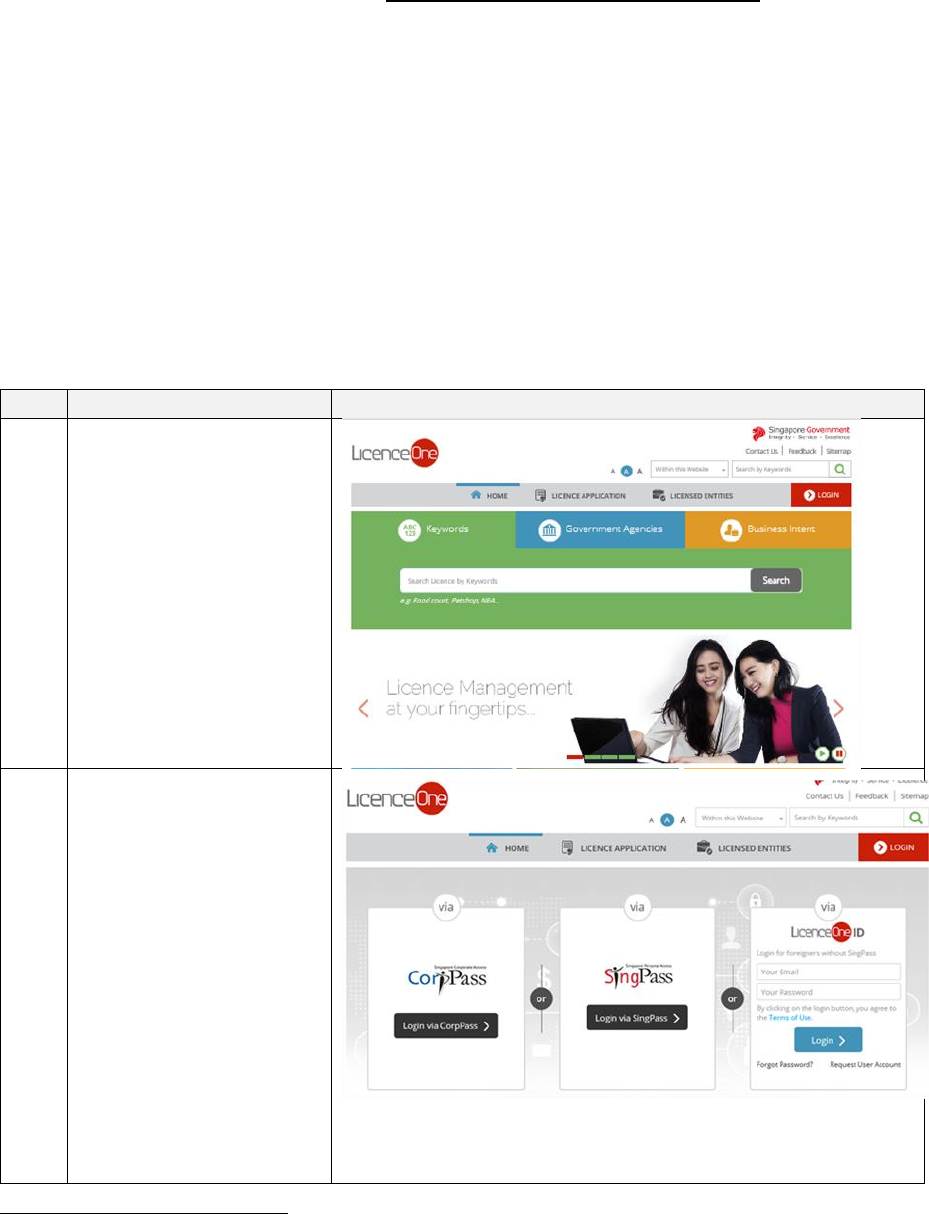
1
Go to LicenceOne
website
https://licence1.business.
gov.sg and click on
“Login”
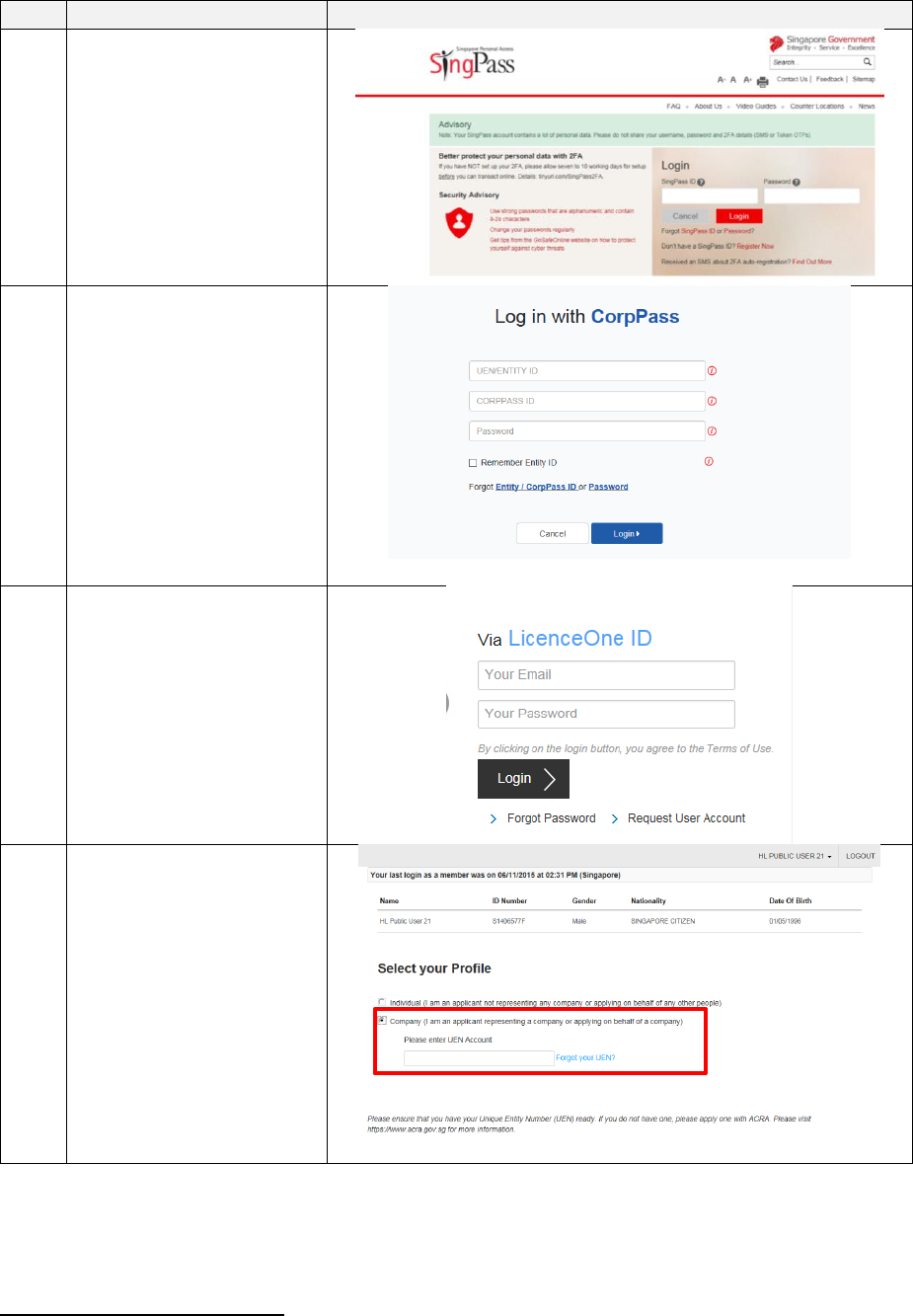
2
Log in to LicenceOne
For user with valid
SingPass ID and
password: Login via
SingPass
For company who has
activated CorpPass1 in
LicenceOne: Login via
CorpPass
For foreigner user:
Login via LicenceOne
ID
1
Singapore Corporate Access (or CorpPass) is the new digital identity business users will need to conduct
Government-to-Businesses (G2B) transactions. Business users will now have the option of using CorpPass as a
login mechanism to access LicenceOne, when transacting with the government online. For information on the
registration & set up CorpPass for your business entity, please visit www.corppass.gov.sg. For information on
how to activate CorpPass in LicenceOne, please visit
https://licence1.business.gov.sg/web/frontier/help/corppass-in-licenceone. Once CorpPass is activated,
authorised CorpPass user can only use CorpPass to access LicenceOne.
2
S/N
Step
Screenshot
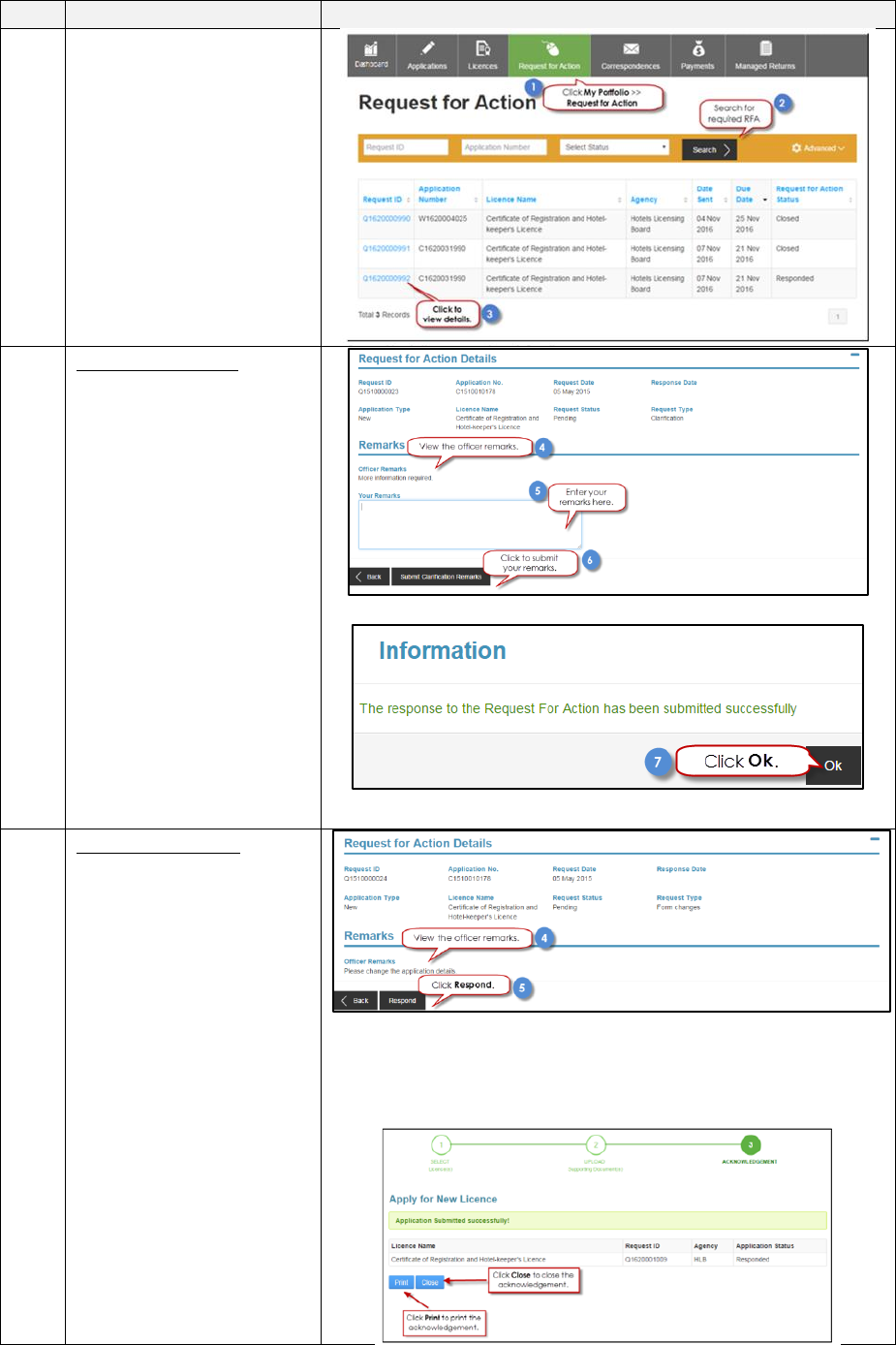
2a
For user with valid
SingPass ID and
password: Log in to
LicenceOne via
SingPass
2b
For company who has
activated CorpPass in
LicenceOne
2c
For foreigner user: Log
in to LicenceOne using
the email and password
that you have registered
with LicenceOne.
3
[Only applicable for
those who login using
SingPass or LicenceOne
ID.]
Select “Company”2 and
enter the company’s
Unique Entity Number
(UEN)3
2
Only the existing Hotel-keeper or Company Director of the entity can amend the details of the licence.
3
UEN is a multi-agency initiative aiming to develop one number that enables entitles' convenient interactions
with government agencies
3
S/N
Step
Screenshot
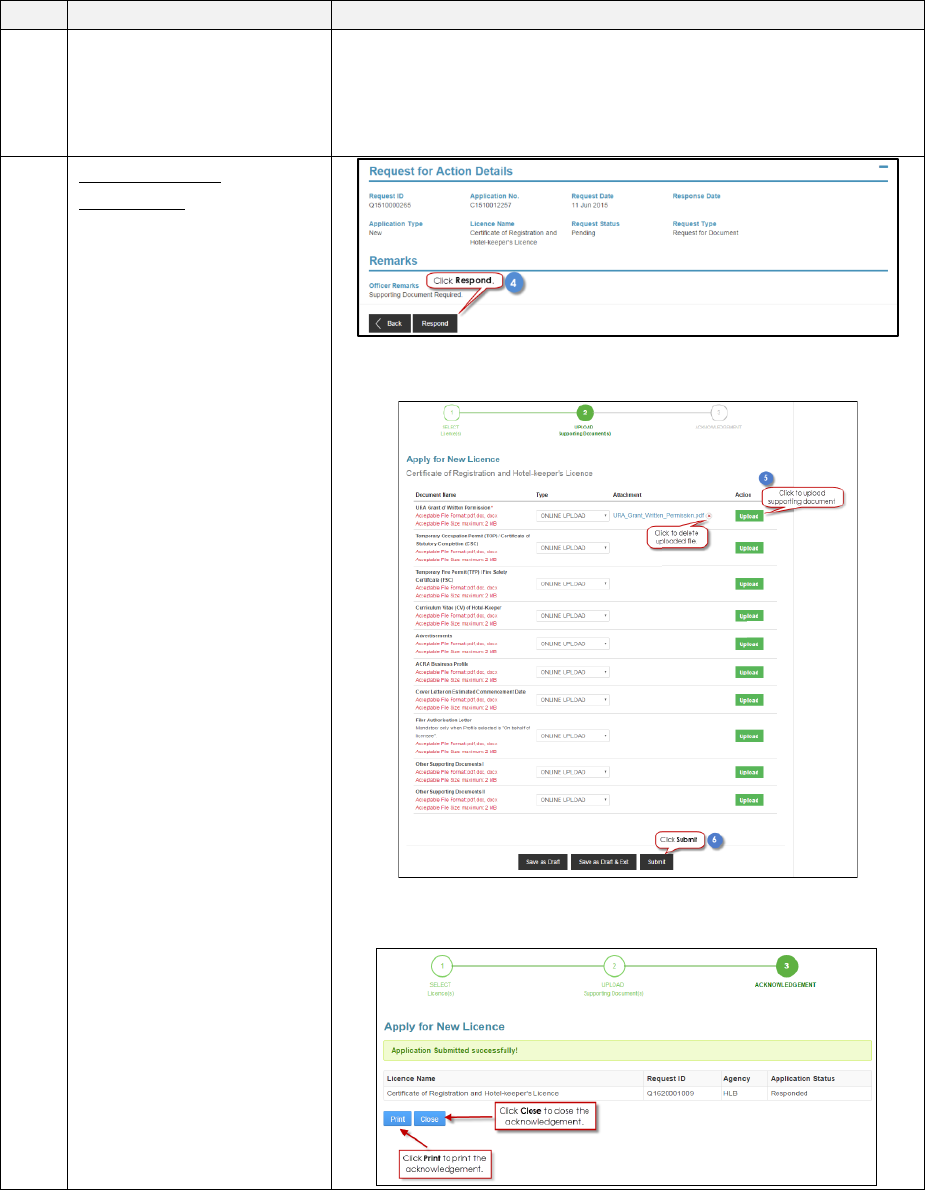
4
Click on “My Portfolio
> Request for Action”
Enter the Request ID
and Click on “Search’
Click on the Request ID
to view the details.
5a
For Clarification:
View the officer remarks
and enter your response
at the “Your Remarks”
section. Click on
“Submit Clarification
Remarks” once you have
entered your response .
Once you submit the
application, the system
will provide you with an
acknowledgement page.
Click on “OK” to close
this page.
5b
For form changes
View the officer remarks
and Click on “Respond”.
The application form
will launch. Applicant
can proceed to make the
necessary changes to the
form and click on
“Submit”.
Once you submit the
application, the system
will provide you with an
acknowledgement page
and an application
number which starts
with “Q”.
4
S/N
Step
Screenshot
You may choose to print
or close the
acknowledgement page
5c
For Request of
Document:
View the officer remarks
and Click on “Respond”.
The “Upload Supporting
Document” section will
launch. Applicant can
proceed to upload the
required documents.
Click on “Submit” once
you have uploaded the
required document.
Once you submit the
application, the system
will provide you with an
acknowledgement page
and an application
number which starts
with “Q”.
You may choose to print
or close the
acknowledgement page.
