SNMP For InfiniSolar 3KW & 10KW Quick Guide (hybrid) Card Box Hybrid
User Manual: (hybrid) SNMP card box-for-hybrid 3KW & 10KW-quick-guide
Open the PDF directly: View PDF  .
.
Page Count: 2
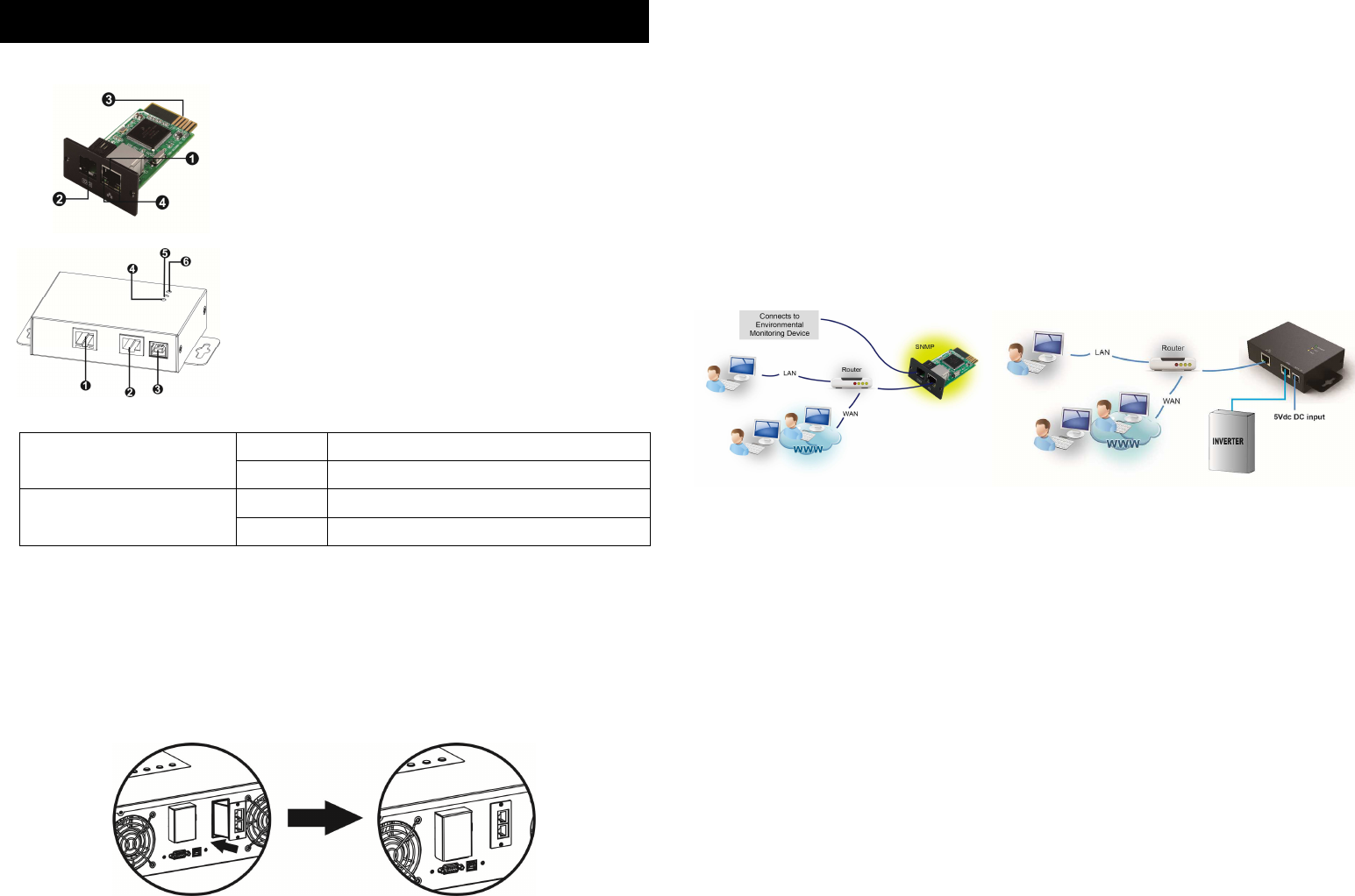
1.
Overlook
Ethernet port status LEDs:
100M LED (Green) Flash Port is operating at 100Mbit/s
Off Card is not connected to the network
10M LED (Yellow) Flash Port is operating at 10Mbit/s
Off Card is not connected to the network
2.
Installation and Connection
If using SNMP card, please follow below steps to install SNMP card first:
Step 1: Remove the cover of intelligent slot on the back panel of device and retain
the screws
Step 2: Slide the card into the open slot and secure with the screws from step 1.
(see chart 2-1)
Chart 2-1
3. Connection
Refer to chart 2-2 for connecting the SNMP card and chart 2-3 for connecting
SNMP box.
If using SNMP card:
Plug Ethernet cable to the Ethernet port (RJ-45) on the SNMP card. Use one more
Ethernet cable. Connect one end to the sensor port on the SNMP card and the
other end to the optional environmental monitoring device.
If using SNMP box:
Use one Ethernet cable to connect to Ethernet port () of the box. Use one RJ45
cable to connect to RS-232 port () of the box and RS-232 port of the device
Then, use bundled USB cable to connect to USB port () of the box and 5V DC
USB power source.
Chart 2-2 Chart 2-3
3.
Configuration
a) Please install SolarPower Pro monitoring software in your PC. After
software is installed successfully, it will pop up a plug icon in the
tray. SNMP manager will be automatically activated. Select
“SNMP manager” by clicking right button of the mouse.
SNMP Card/Box for Hybrid Inverter Quick Guide
Ethernet port (10/100Base-T)
Sensor port
Golden finger: connects to device slot
Ethernet port status LEDs
Ethernet port(10/100Base
-
T)
RS-232 port
5Vdc DC input
Data receiving indicator
Data transmission indicator
Power indicator
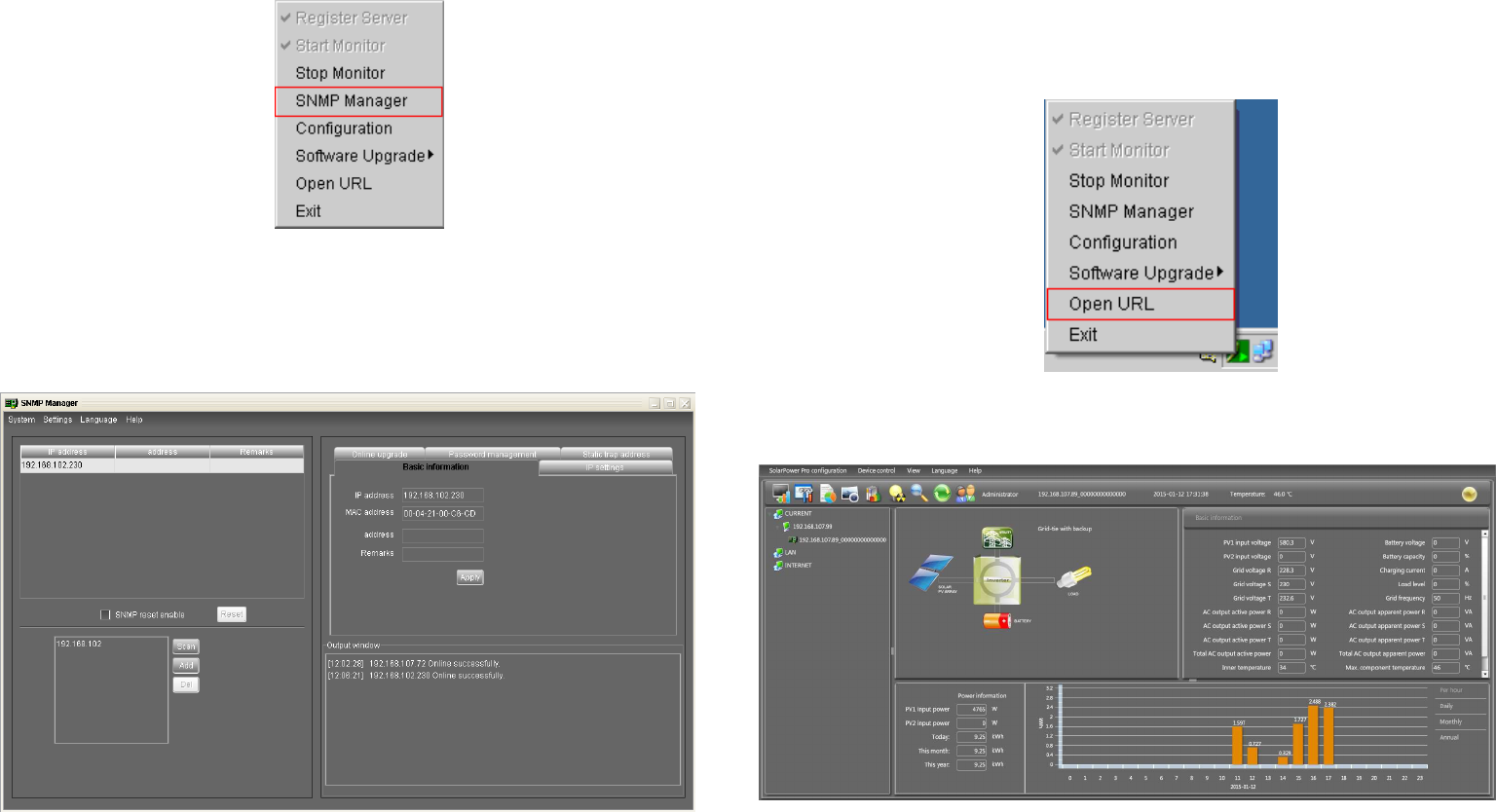
Chart 3-1
b) Enter specific IP address to search all SNMP devices in LAN. (The SNMP
manager will automatically collect the IP address from sever by default
via a DHCP server. It will apply default IP address of 192.168.102.230,
default subnet mask as 255.255.255.0, and default gateway as 0.0.0.0
without a DHCP server.
Chart 3-2
c) User can modify IP setting, online upgrade, password management, and
static trap address setting in SNMP Manager interface. It is necessary to
enter password for any medications. The default password is 12345678.
Please check SNMP Manager User Manual for detailed configuration.
4. Monitoring
As chart 4-1, select “Open URL” by clicking right button of the mouse.
Chart 4-1
Then, it will activate SolarPower Pro software and list SNMP devices on the left side
of screen. Refer to Chart 4-2.
Chart 4-2
Please check SolarPower Pro software for detailed operation.
