IC M504 Instruction Manual
User Manual: ic-m504
Open the PDF directly: View PDF  .
.
Page Count: 80
- Front cover
- FOREWORD
- IMPORTANT
- EXPLICIT DEFINITIONS
- IN CASE OF EMERGENCY
- NOTE
- RADIO OPERATOR WARNING
- TABLE OF CONTENTS
- PRECAUTIONS
- 1 OPERATING RULES
- 2 PANEL DESCRIPTION
- 3 BASIC OPERATION
- 4 SCAN OPERATION
- 5 DUALWATCH/TRI-WATCH
- 6 DSC OPERATION
- 7 OTHER FUNCTIONS
- 8 SET MODE
- 9 CONNECTIONS AND MAINTENANCE
- 10 TROUBLESHOOTING
- 11 SPECIFICATIONS AND OPTIONS
- 12 CHANNEL LIST
- 13 TEMPLATE
- 14 FCC INFORMATION
- Back cover
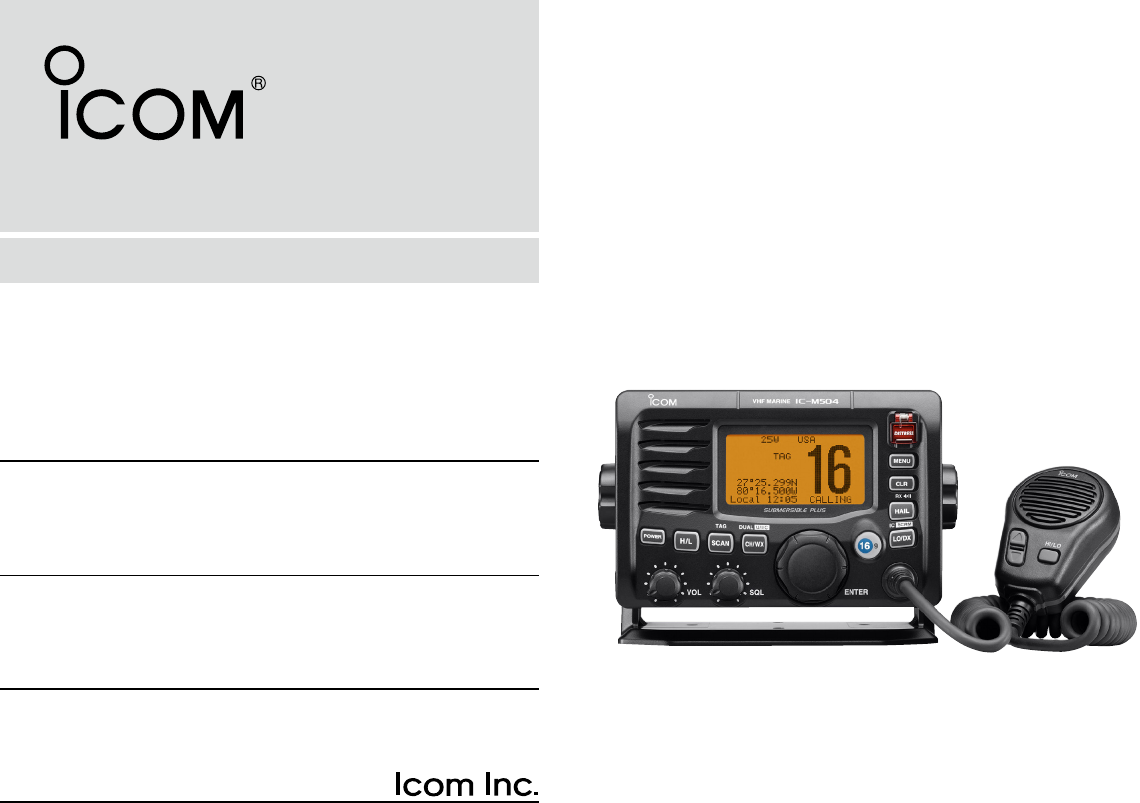
INSTRUCTION MANUAL
New2001
iM504
VHF MARINE TRANSCEIVER
New2001
i
FOREWORD
Thank you for purchasing this Icom product. The IC-M504
vhf marine transceiver is designed and built with Icom’s
state of the art technology and craftsmanship. With proper
care, this product should provide you with years of trouble-
free operation.
We want to take a couple of moments of your time to thank
you for making the IC-M504 your radio of choice, and hope
you agree with Icom’s philosophy of “technology first.” Many
hours of research and development went into the design of
your IC-M504.
D FEATURES
❍ Simple operation with large keys
❍ Easy to hear speaker
❍ Built-in DSC meets ITU Class D requirement
❍ Rugged waterproof construction
❍ Optional COMMANDMIC (HM-162/HM-157)
are available
IMPORTANT
READ ALL INSTRUCTIONS carefully and completely
before using the transceiver.
SAVE THIS INSTRUCTION MANUAL — This in-
struction manual contains important operating instructions
for the IC-M504.
EXPLICIT DEFINITIONS
WORD DEFINITION
RWARNING Personal injury, fire hazard or electric
shock may occur.
CAUTION Equipment damage may occur.
NOTE
If disregarded, inconvenience only. No risk
of personal injury, fire or electric shock.
CLEAN THE TRANSCEIVER AND MICROPHONE
THOROUGHLY WITH FRESH WATER after exposure to
water including salt, otherwise, the keys and switch may
become inoperable due to salt crystallization.
Icom, Icom Inc. and the logo are registered trademarks of Icom Incor-
porated (Japan) in the United States, the United Kingdom, Germany, France,
Spain, Russia and/or other countries.
COMMANDMIC II and COMMANDMIC III is a trademark of Icom Incorporated
(Japan) in the United States.
IN CASE OF EMERGENCY
If your vessel requires assistance, contact other vessels and
the Coast Guard by sending a Distress call on Channel 16.
Or, transmit your Distress call using digital selective calling
on Channel 70.
NOTE
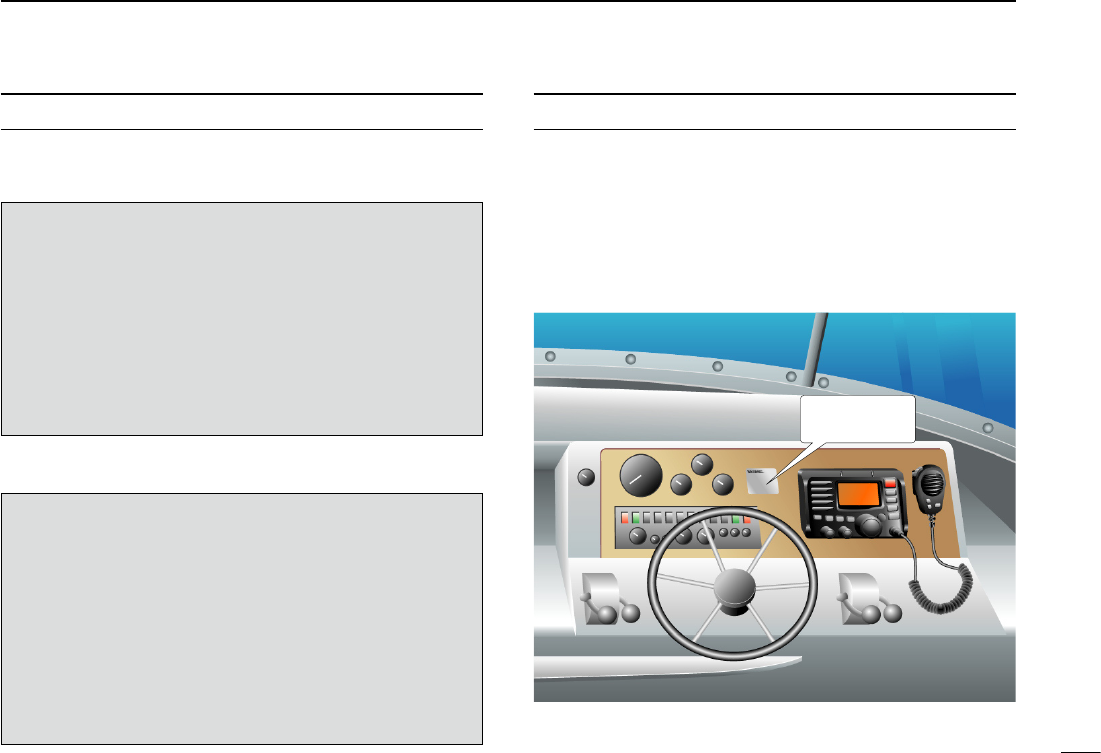
A WARNING STICKER is supplied with the transceiver.
To comply with FCC regulations, this sticker must be affixed in
such a location as to be readily seen from the operating con-
trols of the radio as in the diagram below. Make sure the cho-
sen location is clean and dry before applying the sticker.
EXAMPLE
WARNING
STICKER
USING CHANNEL 16
DISTRESS CALL PROCEDURE
1. “MAYDAY MAYDAY MAYDAY.”
2. “THIS IS ...............” (name of vessel).
3. Say your call sign or other indication of the vessel (AND
9-digit DSC ID if you have one).
4. “LOCATED AT ...............” (your position).
5. State the nature of the distress and assistance required.
6. Give any other information which might facilitate the
rescue.
USING DIGITAL SELECTIVE CALLING (Ch 70)
DISTRESS CALL PROCEDURE
1. Whi l e lift i ng up the key c over, p ush an d h o ld
[DISTRESS] for 5 sec. until you hear 5 short beeps
change to one long beep.
2. Wait for an acknowledgment on Channel 70 from a
coast station.
• After the acknowledgement is received, Channel 16 is auto-
matically selected.
3. Push and hold [PTT], then transmit the appropriate
information as listed above.
ii
New2001
iii
New2001
RADIO OPERATOR WARNING
W AR N IN G
Icom requires the radio operator to meet the
FCC Requirements for Radio Frequency Expo-
sure. An omnidirectional antenna with gain not
greater than 9 dBi must be mounted a mini-
mum of 5 meters (measured from the lowest
point of the antenna) vertically above the main
deck and all possible personnel. This is the minimum safe
separation distance estimated to meet all RF exposure com-
pliance requirements. This 5 meter distance is based on the
FCC Safe Maximum Permissible Exposure (MPE) distance
of 3 meters added to the height of an adult (2 meters) and is
appropriate for all vessels.
For watercraft without suitable structures, the antenna must
be mounted so as to maintain a minimum of 1 meter verti-
cally between the antenna, (measured from the lowest point
of the antenna), to the heads of all persons AND all persons
must stay outside of the 3 meter MPE radius.
Do not transmit with radio and antenna when persons are
within the MPE radius of the antenna, unless such persons
(such as driver or radio operator) are shielded from antenna
field by a grounded metallic barrier. The MPE Radius is the
minimum distance from the antenna axis that person should
maintain in order to avoid RF exposure higher than the al-
lowable MPE level set by FCC.
FAILURE TO OBSERVE THESE LIMITS MAY ALLOW
THOSE WITHIN THE MPE RADIUS TO EXPERIENCE RF
RADIATION ABSORPTION WHICH EXCEEDS THE FCC
MAXIMUM PERMISSIBLE EXPOSURE (MPE) LIMIT.
IT IS THE RESPONSIBILITY OF THE RADIO OPERATOR
TO ENSURE THAT THE MAXIMUM PERMISSIBLE EXPO-
SURE LIMITS ARE OBSERVED AT ALL TIMES DURING
RADIO TRANSMISSION. THE RADIO OPERATOR IS TO
ENSURE THAT NO BYSTANDERS COME WITHIN THE
RADIUS OF THE MAXIMUM PERMISSIBLE EXPOSURE
LIMITS.
Determining MPE Radius
THE MAXIMUM PERMISSIBLE EXPOSURE (MPE) RA-
DIUS HAS BEEN ESTIMATED TO BE A RADIUS OF
ABOUT 3M PER OET BULLETIN 65 OF THE FCC.
THIS ESTIMATE IS MADE ASSUMING THE MAXIMUM
POWER OF THE RADIO AND ANTENNAS WITH A MAXI-
MUM GAIN OF 9dBi ARE USED FOR A SHIP MOUNTED
SYSTEM.
iv
New2001
TABLE OF CONTENTS 1
2
3
4
5
6
7
8
9
10
11
12
13
14
15
16
FOREWORD ..................................................................................... i
IMPORTANT ...................................................................................... i
EXPLICIT DEFINITIONS ................................................................... i
IN CASE OF EMERGENCY ............................................................. ii
NOTE ................................................................................................ ii
RADIO OPERATOR WARNING ...................................................... iii
TABLE OF CONTENTS ................................................................... iv
PRECAUTIONS ................................................................................ v
1 OPERATING RULES ..................................................................1
2 PANEL DESCRIPTION ...........................................................2−5
■ Front panel ...............................................................................2
■ Function display .......................................................................4
■ Microphone ..............................................................................5
3 BASIC OPERATION .............................................................6−11
■ Channel selection.....................................................................6
■ Receiving and transmitting ....................................................... 8
■ Call channel programming .......................................................9
■ Channel comments ................................................................10
■ Microphone Lock function ......................................................10
■ Display backlight .................................................................... 10
■ Optional voice scrambler operation ........................................11
4 SCAN OPERATION ............................................................12−13
■ Scan types ............................................................................. 12
■ Setting TAG channels ............................................................ 13
■ Starting a scan .......................................................................13
5 DUALWATCH/TRI-WATCH .......................................................14
■ Description .............................................................................14
■ Operation ............................................................................... 14
6 DSC OPERATION ...............................................................15−49
■ MMSI code programming ......................................................15
■ MMSI code check ..................................................................16
■ DSC address ID .....................................................................17
■
Position and time programming ........................................................ 21
■ Position and time indication ...................................................22
■ GPS information indication ....................................................22
■ Distress call ...........................................................................23
■ Transmitting DSC calls ...........................................................26
■ Receiving DSC calls ..............................................................41
■ Received messages ..............................................................45
■ DSC Set mode .......................................................................47
7 OTHER FUNCTIONS ..........................................................50−54
■ Intercom operation .................................................................50
■ RX Speaker function ..............................................................51
■ Hailer operation .....................................................................52
■ Automatic foghorn function ....................................................53
8 SET MODE ..........................................................................55−57
■ Set mode programming .........................................................55
■ Set mode items ......................................................................55
9 CONNECTIONS AND MAINTENANCE..............................58−66
■ Connections ...........................................................................58
■ Fuse replacement ..................................................................59
■ Supplied accessories .............................................................59
■ Antenna .................................................................................59
■ Mounting the transceiver .......................................................60
■ MB-75 installation ..................................................................61
■ UT-112 installation .................................................................62
■ HM-162/HM-157 installation ..................................................63
10 TROUBLESHOOTING ..............................................................67
11 SPECIFICATIONS AND OPTIONS .....................................68−69
■ Specifications.........................................................................68
■ Options ..................................................................................69
12 CHANNEL LIST ........................................................................70
13 TEMPLATE ...............................................................................71
14 FCC INFORMATION .................................................................73
v
New2001
PRECAUTIONS
RWARNING! NEVER connect the transceiver to an
AC outlet. This may pose a fire hazard or result in an electric
shock.
CAUTION: Changes or modifications to this device, not
expressly approved by Icom Inc., could void your authority to
operate this device under FCC regulations.
NEVER connect the transceiver to a power source of more
than 16 V DC or use reverse polarity. This will ruin the trans-
ceiver.
NEVER cut the DC power cable between the DC plug at
the back of the transceiver and fuse holder. If an incorrect
connection is made after cutting, the transceiver may be
damaged.
NEVER place the transceiver where normal operation of the
vessel may be hindered or where it could cause bodily injury.
KEEP the transceiver at least 3.3 ft (1 m) away from the
ship’s navigation compass.
DO NOT use or place the transceiver in areas with tem-
peratures below –4°F (–20°C) or above +140°F (+60°C) or,
in areas subject to direct sunlight, such as the dashboard.
DO NOT use chemical agents such as benzine or alcohol
when cleaning, as they may damage the transceiver sur-
faces. If the transceiver becomes dusty or dirty, wipe it clean
with a soft, dry cloth.
BE CAREFUL! The transceiver rear panel will become
hot when operating continuously for long periods.
Place the transceiver in a secure place to avoid inadvertent
use by children.
BE CAREFUL! The transceiver and the optional HM-162
commandmic iii™/HM-157 commandmic ii™ employ wa-
terproof construction, which corresponds to IPX8 of the
international standard IEC 60529 (2001). However, once the
transceiver or microphone has been dropped, waterproofing
cannot be guaranteed due to the fact that the case may be
cracked, or the waterproof seal damaged, etc.
Icom optional equipment is designed for optimal perform-
ance when used with this transceiver. We are not respon-
sible for the transceiver being damaged or any accident
caused when using non-Icom optional equipment.
1
1
OPERATING RULES
D PRIORITIES
• Read all rules and regulations pertaining to priorities and
keep an up-to-date copy handy. Safety and Distress calls
take priority over all others.
• You must monitor Channel 16 when you are not operating
on another channel.
• False or fraudulent distress signals are prohibited and pun-
ishable by law.
D PRIVACY
• Information overheard but not intended for you cannot law-
fully be used in any way.
• Indecent or profane language is prohibited.
D RADIO LICENSES
(1) SHIP STATION LICENSE
You must have a current radio station license before using
the transceiver. It is unlawful to operate a ship station which
is not licensed.
Inquire through your dealer or the appropriate government
agency for a Ship-Radiotelephone license application. This
government-issued license states the call sign which is your
craft’s identification for radio purposes.
(2) OPERATOR’S LICENSE
A Restricted Radiotelephone Operator Permit is the license
most often held by small vessel radio operators when a radio
is not required for safety purposes.
The Restricted Radiotelephone Operator Permit must be
posted or kept with the operator. Only a licensed radio op-
erator may operate a transceiver.
However, non-licensed individuals may talk over a trans-
ceiver if a licensed operator starts, supervises, ends the call
and makes the necessary log entries.
Keep a copy of the current government rules and regulations
handy.
Radio license for boaters (U.S.A. only)
The Telecommunications Act of 1996 permits recreational
boaters to have and use a VHF marine radio, EPIRB, and
marine radar without having an FCC ship station license.
Boaters traveling on international voyages, having an HF
single sideband radiotelephone or marine satellite termi-
nal, or required to carry a marine radio under any other
regulation must still carry an FCC ship station license.
For further information, see the FCC Ship Radio Stations
Fact Sheet.
1
2
New2001
PANEL DESCRIPTION
2
■ Front panel
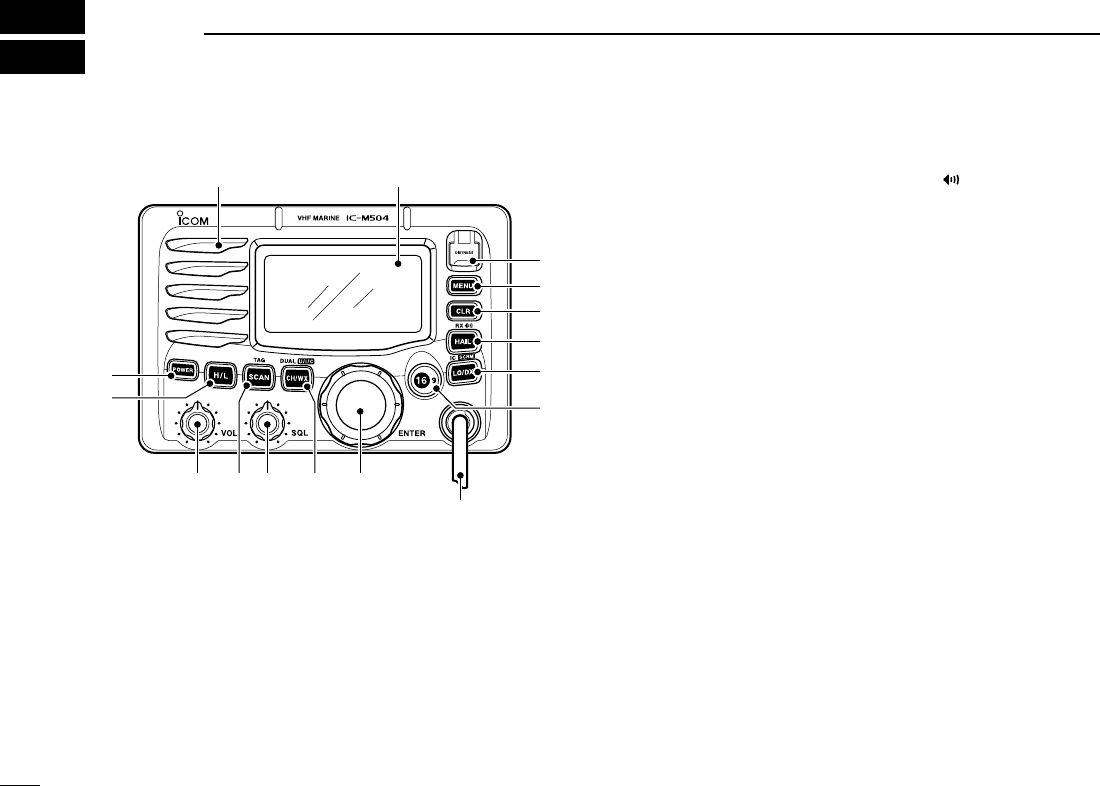
q DISTRESS KEY [DISTRESS]
Push for 5 sec. to transmit a Distress call. (p. 23)
w DSC MENU KEY [MENU]
Push to toggle the DSC menu appear or disappear. (p. 15)
e CLEAR KEY [CLR]
Push to cancel the entered function, exit Set mode. (p. 55)
r HAIL/RX SPEAKER KEY [HAIL•RX ]
➥ Push to turn the hailer mode ON or OFF. (p. 52)
➥ Push and hold for 1 sec. to turn the RX Speaker mode
ON or OFF. (p. 51)
➥ While pushing and holding [H/L], push to turn the auto
foghorn function ON. (p. 54)
t ATTENUATOR/INTERCOM KEY [LO/DX•IC•SCRM]
➥ Push to turn the Attenuator function ON or OFF. (p. 8)
• “LOC” appears when the Attenuator function is turned ON.
➥ Push and hold for 1 sec. to activate an optional Inter-
com function. (p. 50)
➥ Push and hold to call the optional command micro-
phone while in Intercom mode. (p. 50)
➥ While pushing and holding [H/L], push to turn the voice
scrambler function ON or OFF. (p. 11)
y CHANNEL 16/CALL CHANNEL KEY [16•9]
➥ Push to select Channel 16. (p. 6)
➥ Push and hold for 1 sec. to select Call channel. (p. 6)
• “CALL” appears when Call channel is selected.
➥ Push and hold for 3 sec. to enter Call channel program-
ming condition when Call channel is selected. (p. 9)
➥ While pushing and holding [H/L], push to enter the
channel comment programming condition. (p. 10)
➥ Advance the cursor while in the channel comment pro-
gramming condition. (p. 10)
➥ While turning power ON, push to enter Set mode.
(p. 55)
Function display (p. 4)Speaker
q
e
r
t
y
w
uio!0!1
!2
!3
Depends on version

3
2
PANEL DESCRIPTION
New2001
u CHANNEL SELECTOR [DIAL•ENTER]
➥ Rotate to select the operating channels, Set mode set-
tings, etc. (pgs. 6–8, 55)
➥ While pushing and holding [H/L], rotate to adjust the
brightness of the LCD and key backlight. (p. 10)
➥ Push to enter the input channel comment, selected
item, etc. (pgs. 10, 55)
➥ Rotate to check TAG channels, changes scanning di-
rection or resumes the scan manually during scan.
(p. 13)
➥ While pushing and holding [HAIL•RX ], rotate to ad-
just the audio level in RX Speaker mode. (p. 51)
➥ Push and hold for 1 sec. to display the GPS information
when a GPS receiver is connected. (p. 22)
i CHANNEL/WEATHER CHANNEL KEY
[CH/WX•DUAL•U/I/C]
➥ Selects and toggles the regular channel and Weather
channel when pushed momentarily. (p. 7)
➥ Push and hold for 1 sec. to start Dualwatch or Tri-
watch. (p. 14)
➥ Push to stop Dualwatch or Tri-watch when either is ac-
tivated. (p. 14)
➥ Move the cursor backward while in the channel com-
ment programming condition. (p. 10)
➥ While pushing and holding [H/L], push to select one of
three channel groups in sequence. (p. 7)
• U.S.A., International and Canadian channels are available.
o SQUELCH CONTROL [SQL]
Rotate to set the squelch threshold level. (p. 8)
!0 SCAN/TAG KEY [SCAN•TAG] (p. 13)
➥ Push to start and stop Normal or Priority scan.
➥ Push and hold for 1 sec. to set or clear the displayed
channel as a TAG (scanned) channel.
➥ While pushing and holding [H/L], push for 3 sec. to
clear or set all TAG channels in the selected channel
group.
!1 VOLUME CONTROL [VOL] (p. 8)
Rotate to adjust the audio level.
!2 TRANSMIT POWER KEY [H/L]
➥ Push to toggle the power high or low. (p. 8)
• Some channels are set to low power only.
➥ While pushing this key, some keys perform secondary
functions.
!3 POWER KEY [POWER] (p. 8)
➥ Push to turn power ON.
➥ Push and hold for 1 sec. to turn power OFF.
2
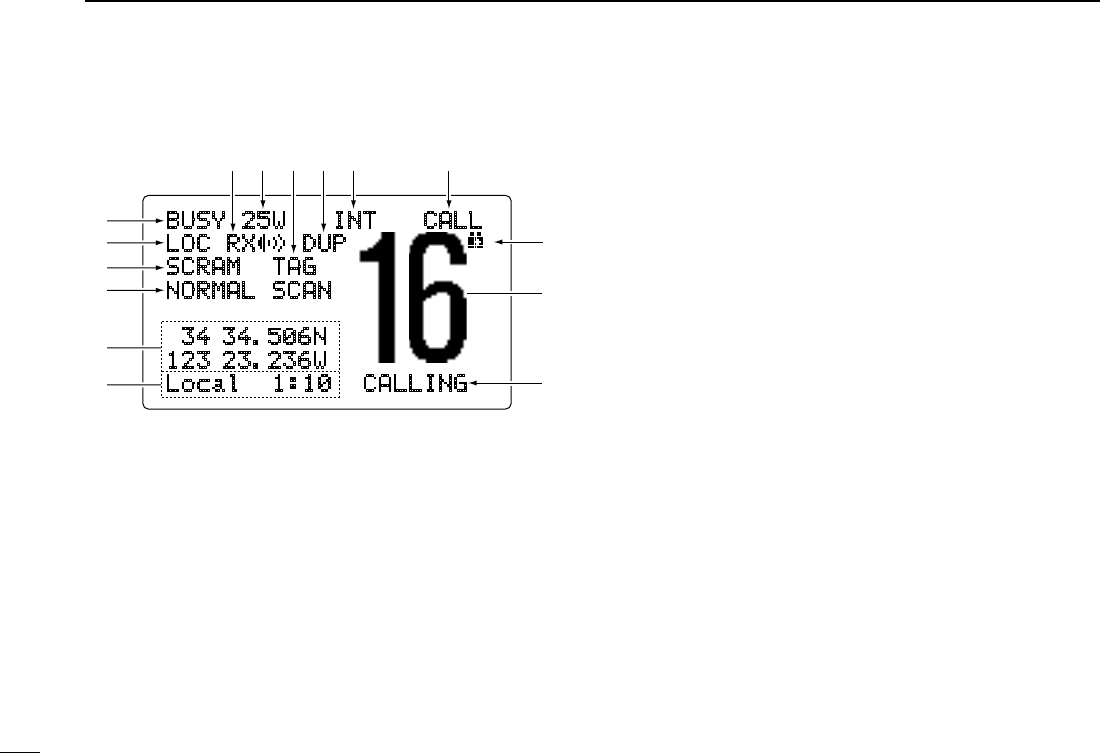
4
2PANEL DESCRIPTION
New2001
■ Function display
BUSY 25W INT CALL
LOC RX DUP
SCRAM TAG
NORMAL SCAN
-34 34.506N
123 23.236W
Local 1:10 CALLING
q w e r t y
!5
!4
!3
!1
!0
!2 i
o
u
q RX SPEAKER INDICATOR (p. 51)
Appears during the RX Speaker mode.
w POWER INDICATOR (p. 8)
➥ “25W” appears when high power is selected.
➥ “1W” appears when low power is selected.
e TAG CHANNEL INDICATOR (p. 13)
Appears when a TAG channel is selected.
r DUPLEX INDICATOR (p. 7)
Appears when a duplex channel is selected.
t CHANNEL GROUP INDICATOR (p. 7)
Indicates whether an U.S.A. “USA,” International “INT,”
Canadian “CAN” or weather “WX” channel is in use.
y CALL CHANNEL INDICATOR (pgs. 6, 9)
Appears when the call channel is selected.
u LOW BATTERY INDICATOR
Blinks when the battery voltage drops to approx. 10 V DC
or below.
i CHANNEL NUMBER READOUT
Indicates the selected operating channel number.
o CHANNEL COMMENT INDICATOR
Channel comment appears if programmed. (p. 10)
!0 TIME ZONE INDICATOR
➥ Shows the current time data when a GPS receiver is
connected.
• “??” may blink every 2 sec. instead of current time data
when the GPS current time data is invalid.
• “??” may blink every 2 sec. instead of current time data
4 hours after the time data is input manually, up until 23.5
hours have past.
➥ “Local” appears when the offset time data is set.
(p. 47)
➥ “No Time” appears when no GPS receiver is con-
nected and no time data is input manually.
5
2
PANEL DESCRIPTION
New2001
2
!1 POSITION INDICATOR
➥ Shows the GPS position data.
• “??” may blink every 2 sec. instead of position data when
the GPS position data is invalid. In such a case, the last po-
sition data is held for up to 23.5 hours.
• “??” may blink every 2 sec. instead of position data 4 hours
after the position data is input manually, up until 23.5 hours
have past.
➥ “No Position” appears when no GPS receiver is
connected and no position data is input manually.
!2 SCAN INDICATOR
➥ “PRI-SCAN 16” appears during Priority scan;
“NORMAL SCAN” appears during Normal scan. (p. 13)
➥ “DUAL 16” appears during Dualwatch; “TRI 16” ap-
pears during Tri-watch. (p. 14)
!3 SCRAMBLER INDICATOR (p. 11)
Appears when the voice scrambler function is activated.
(only when the optional scrambler unit is installed.)
!4 LOCAL INDICATOR (p. 8)
Appears when the Attenuator function is turned ON.
!5 BUSY/TRANSMIT INDICATOR (p. 8)
➥ “BUSY” appears when receiving a signal or when the
squelch opens.
➥ “TX” appears while transmitting.
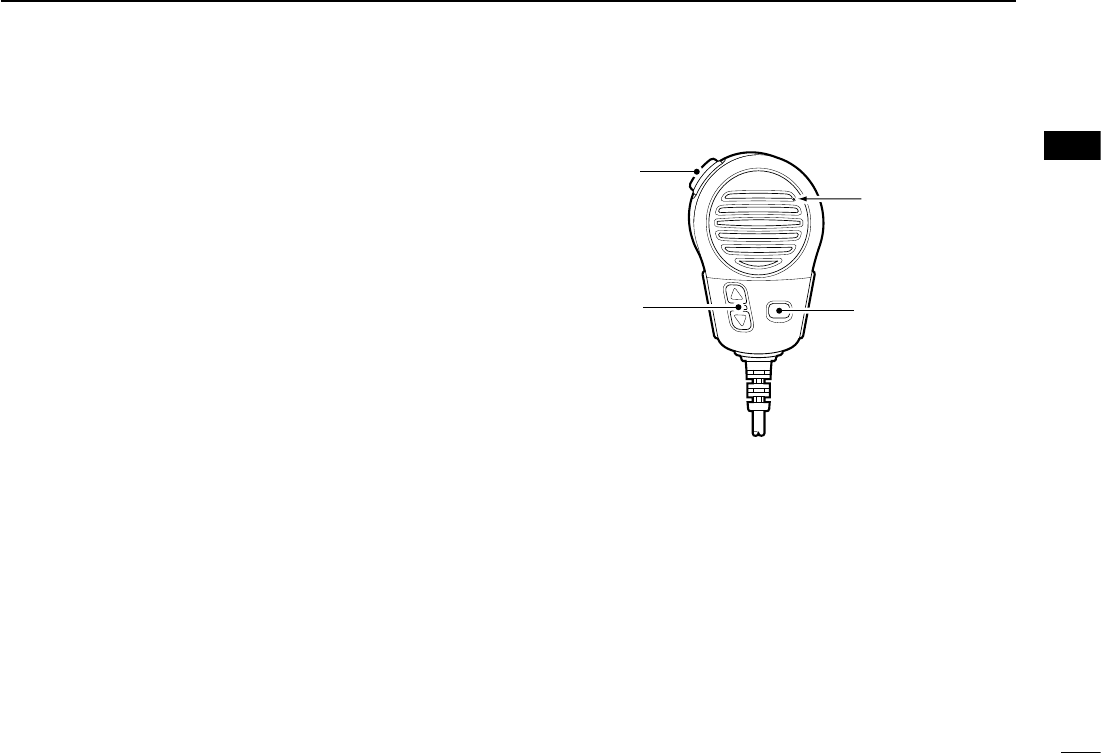
■ Microphone
Microphone
w
q
e
q PTT SWITCH [PTT]
Push and hold to transmit; release to receive. (p. 8)
w CHANNEL UP/DOWN KEYS [Y]/[Z]
➥ Push either key to change the operating memory chan-
nel, Set mode settings, etc. (pgs. 6, 7, 55)
➥ Checks TAG channels, changes scanning direction or
resumes the scan manually during scan. (p. 13)
e TRANSMIT POWER KEY [HI/LO]
➥ Toggles power high and low when pushed. (p. 8)
• Some channels are set to low power only.
➥ While pushing and holding [HI/LO], turn power ON
to toggle the Microphone Lock function ON and OFF.
(p. 10)
6
New2001
BASIC OPERATION
3
■ Channel selection
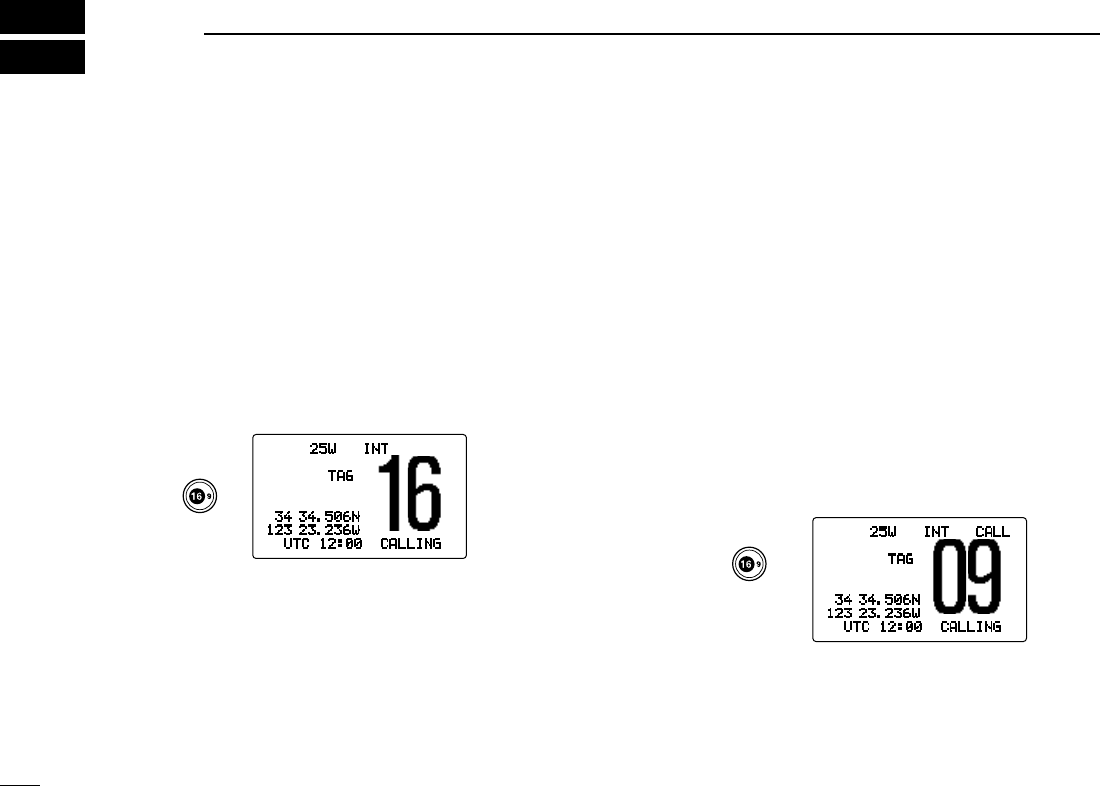
D Channel 16
Channel 16 is the distress and safety channel. It is used for
establishing initial contact with a station and for emergency
communications. Channel 16 is monitored during both Du-
alwatch and Tri-watch. While standing by, you must monitor
Channel 16.
➥ Push [16•9] momentarily to select Channel 16.
➥ Push [CH/WX•DUAL•U/I/C] to return to the condition be-
fore selecting Channel 16, or rotate [DIAL] to select an op-
erating channel.
D Channel 9 (Call channel)
Each regular channel group has a separate leisure-use call
channel. The call channel is monitored during Tri-watch. The
call channels can be programmed (p. 9) and are used to
store your most often used channel in each channel group
for quick recall.
➥ Push [16•9] for 1 sec. to select the call channel of the se-
lected channel group.
• “CALL” and call channel number appear.
• Each channel group may have an independent call channel
after programming a call channel. (p. 9)
➥ Push [CH/WX•DUAL•U/I/C] to return to the condition
before selecting call channel, or rotate [DIAL] to select an
operating channel.
25W INT
TAG
34 34.506N
123 23.236W
UTC 12:00 CALLING
Push
25W INT CALL
TAG
34 34.506N
123 23.236W
UTC 12:00 CALLING
Push
for 1 sec.
7
3
BASIC OPERATION
New2001
3
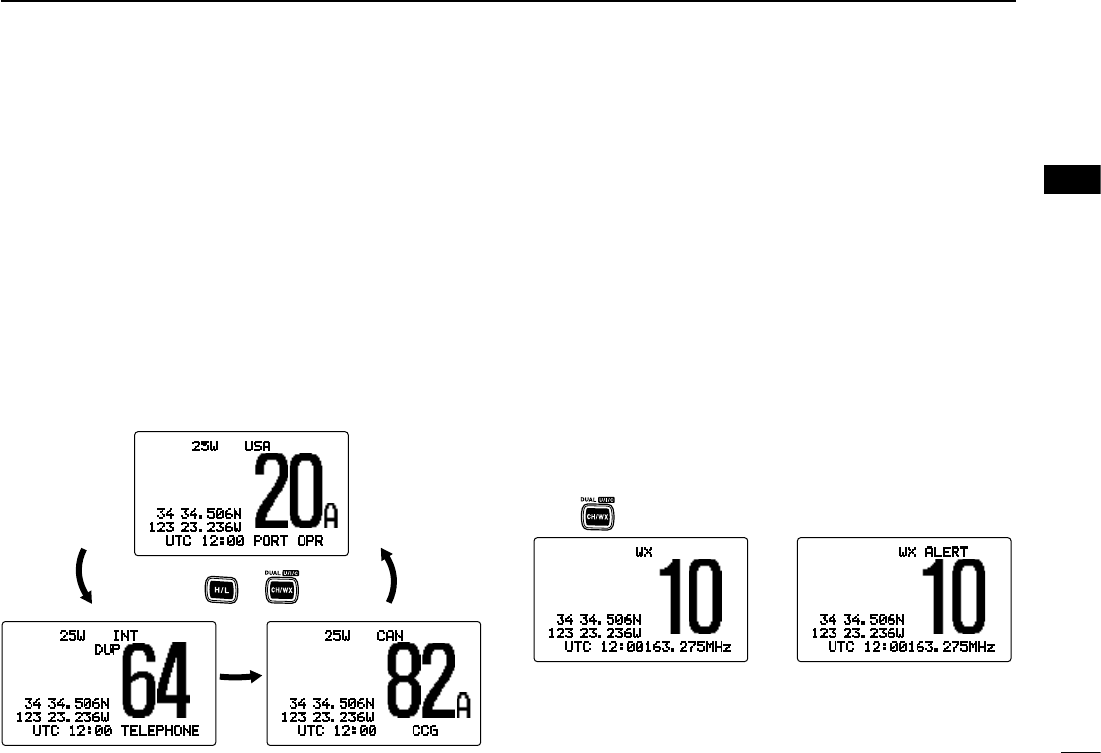
D
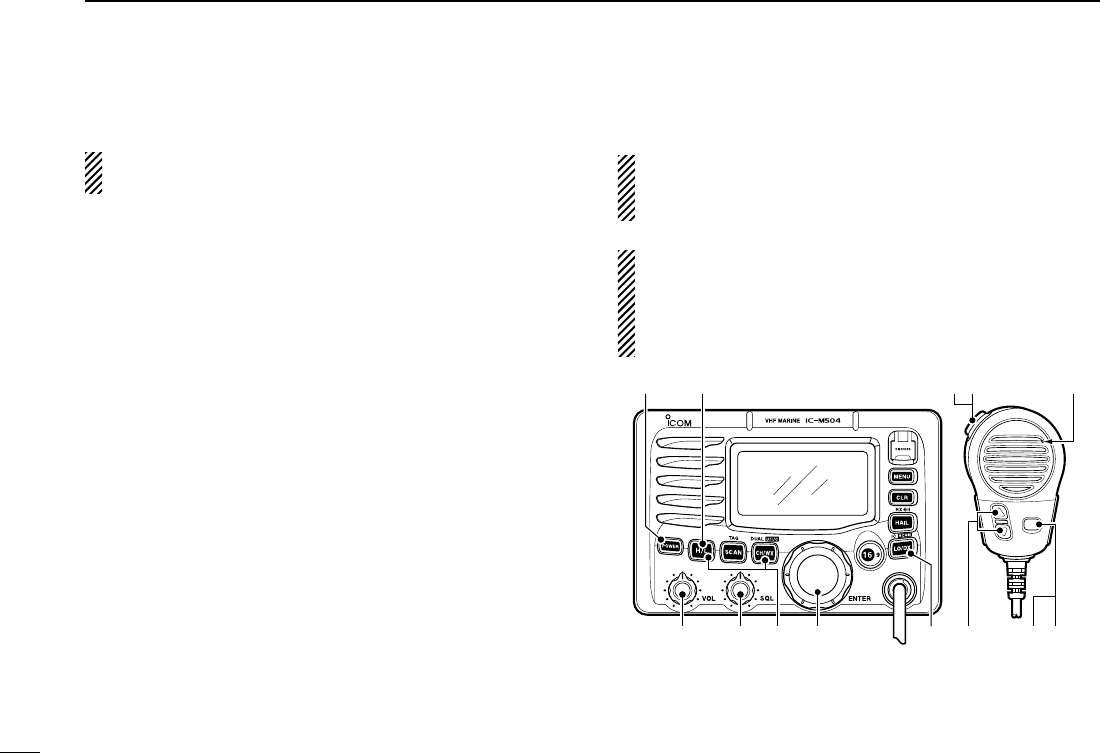
U.S.A., international and Canadian channels
The IC-M504 is pre-programmed with 57 U.S.A., 57 inter-
national and 61 Canadian channels. These channel groups
may be specified for the operating area.
q Push [CH/WX•DUAL•U/I/C] to select a regular channel.
•
If a weather channel appears, push [CH/WX•DUAL•U/I/C] again.
w While pushing and holding [H/L], push [CH/WX•DUAL•
U/I/C] to change the channel group, if necessary.
• U.S.A., International and Canadian channel groups can be se-
lected in sequence.
e Rotate [DIAL] to select a channel.
• “DUP” appears for duplex channels.
D Weather channels
The IC-M504 has 10 pre-programmed weather channels.
These are used for monitoring broadcasts from NOAA (Na-
tional Oceanographic and Atmospheric Administration.)
The transceiver can automatically detect a weather alert
tone on the selected weather channel while receiving the
channel, during standby on a regular channel or while scan-
ning. (p. 56)
q Push [CH/WX•DUAL•U/I/C] once or twice to select a
weather channel.
• “WX” appears when a weather channel is selected.
• “WX ALERT” appears when the Weather Alert function is in
use. (p. 56)
w Rotate [DIAL] to select a channel.
25W USA
34 34.506N
123 23.236W
UTC 12:00 PORT OPR
25W INT
DUP
34 34.506N
123 23.236W
UTC 12:00 TELEPHONE
25W CAN
34 34.506N
123 23.236W
UTC 12:00 CCG
Push +
WX ALERT
34 34.506N
123 23.236W
UTC 12:00163.275MHz
WX
34 34.506N
123 23.236W
UTC 12:00163.275MHz
Push once or twice
When weather alert is OFF. When weather alert is ON.
8
3BASIC OPERATION
New2001
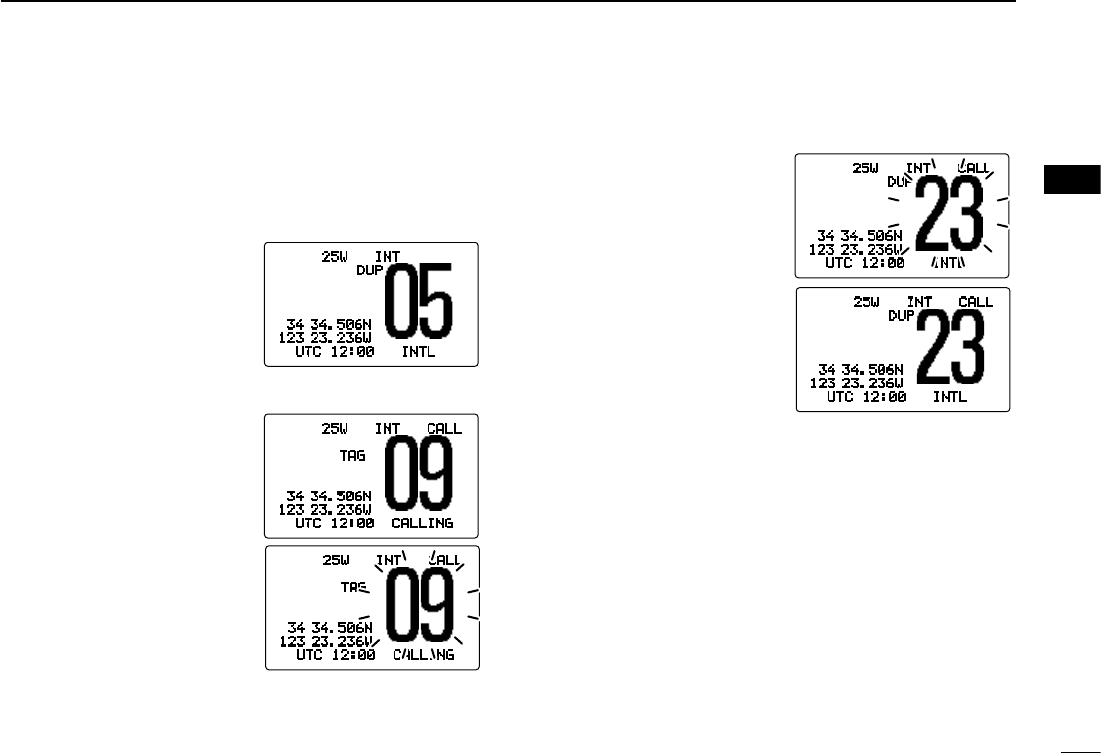
■ Receiving and transmitting
CAUTION: Transmitting without an antenna may dam-
age the transceiver.
q Push [POWER] to turn power ON.
w Set the audio and squelch levels.
➥ Rotate [SQL] fully counterclockwise in advance.
➥ Rotate [VOL] to adjust the audio output level.
➥ Rotate [SQL] clockwise until the noise disappears.
e While pushing and holding [H/L], push [CH/WX•DUAL•
U/I/C] to change the channel group. (p. 7)
r Rotate [DIAL] to select the desired channel. (pgs. 6, 7)
• When receiving a signal, “BUSY” appears and audio is emitted
from the speaker.
• Further adjustment of [VOL] may be necessary.
t Push [LO/DX•IC•SCRM] to turn the receive Attenuator
function ON or OFF, if necessary.
• “LOC” appears when the receive Attenuator function is in use.
y Push [H/L] to select the output power if necessary.
• “25W” or “1W” appears when high or low power is selected, re-
spectively.
• Choose low power for short range communications, choose
high power for longer distance communications.
• Some channels are for low power only.
u Push and hold [PTT] to transmit, then speak into the mi-
crophone.
• “TX” appears.
• Channel 70 cannot be used for transmission other than DSC.
i Release [PTT] to receive.
Simplex channels, 3, 21, 23, 61, 64, 81, 82 and 83 CAN-
NOT be lawfully used by the general public in U.S.A. wa-
ters.
IMPORTANT: To maximize the readability of your trans-
mitted signal, pause a few sec. after pushing [PTT], hold
the microphone 2 to 4 inches (5 to 10 cm) from your
mouth and speak into the microphone at a normal voice
level.
t
Microphone
qy
reww
iu
r e y
9
3
BASIC OPERATION
New2001
3
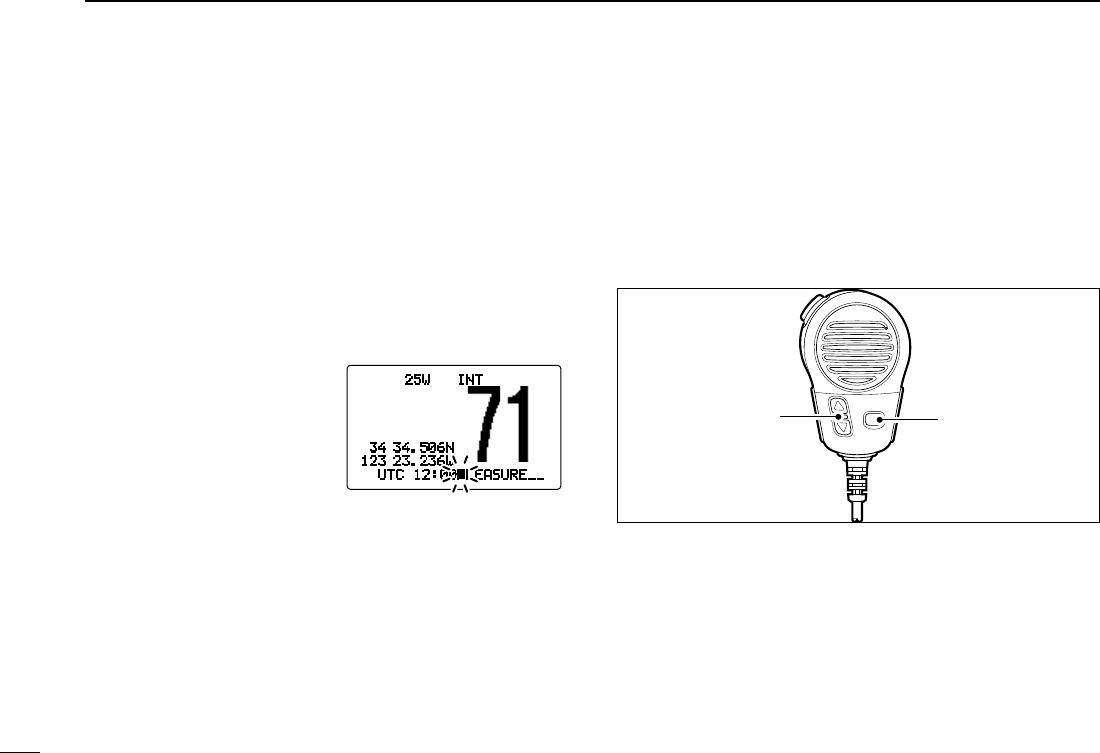
■ Call channel programming
Call channel is used to select Channel 9 (default); however,
you can program the call channel with your most often-used
channels in each channel group for quick recall.
q
While pushing and hold-
ing [H/L], push [CH/WX•
DUAL•U/I/C] one or more
times to select the desired
channel group (U.S.A., In-
ternational or Canada) to be
programmed.
w Push [16•9] for 1 sec. to
select the call channel of
the selected channel group.
• “CALL” and call channel
number appear.
e Push [16•9] again for 3 sec.
(until a long beep changes
to 2 short beeps) to enter
call channel programming.
• Channel number starts blink-
ing.
r Rotate [DIAL] to select the
desired channel.
t Push [16•9] to program the
displayed channel as the
call channel.
• Push [CLR] to cancel.
• The channel number stops
blinking.
25W INT
DUP
34 34.506N
123 23.236W
UTC 12:00 INTL
25W INT CALL
TAG
34 34.506N
123 23.236W
UTC 12:00 CALLING
25W INT CALL
TAG
34 34.506N
123 23.236W
UTC 12:00 CALLING
25W INT CALL
DUP
34 34.506N
123 23.236W
UTC 12:00 INTL
25W INT CALL
DUP
34 34.506N
123 23.236W
UTC 12:00 INTL
10
3BASIC OPERATION
New2001
■ Channel comments
Memory channels can be labelled with a unique alphanu-
meric ID of up to 10 characters.
Capital letters, small letters, 0 to 9, some symbols (– . /) and
space can be used.
q Select the desired channel.
• Cancel Dualwatch, Tri-watch or Scan in advance.
w While pushing and holding [H/L], push [16•9] to edit the
channel comment.
• A cursor and the first char-
acter start blinking alter-
nately.
e Select the desired char-
acter by rotating [DIAL].
• Push [16•9] or [CH/WX•
DUAL•U/I/C] to move the
cursor forward or backward,
respectively.
r Repeat step e to input all characters.
t Push [DIAL•ENTER] to input and set the comment.
• Push [CLR] to cancel.
• The cursor and the character stop blinking.
y Repeat steps q to t to program other channel com-
ments, if desired.
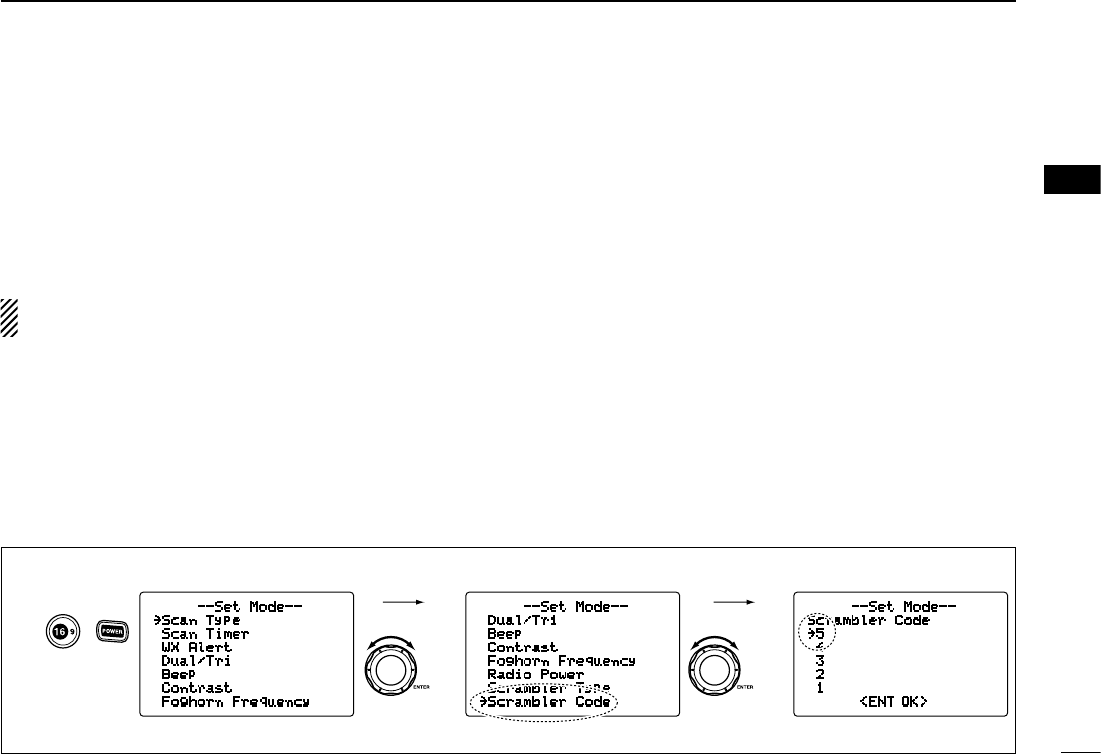
■ Microphone Lock function
The Microphone Lock function electrically locks [Y]/[Z] and
[HI/LO] keys on the supplied microphone. This prevents ac-
cidental channel changes and function access.
➥ While pushing and holding [HI/LO] on the microphone,
turn power ON to toggle the Lock function ON and OFF.
[HI/LO]
[Y]/[Z]
■ Display backlight
The function display and keys can be backlit for better visibil-
ity under low light conditions.
➥ While pushing and holding [H/L], rotate [DIAL] to adjust
the brightness of the LCD and key backlight.
• The backlight is adjustable in 7 levels and OFF.
25W INT
34 34.506N
123 23.236W
UTC 12:00PLEASURE__
11
3
BASIC OPERATION
New2001
3
■ Optional voice scrambler operation
D Activating the scrambler
The optional voice scrambler provides private communica-
tions. In order to receive or send scrambled transmissions you
must first activate the scrambler function. To activate the func-
tion, an optional scrambler unit is necessary. See pgs. 57, 62
for setting the scrambler unit. Ask your dealer for details.
The scrambler function automatically turns OFF when
Channel 16 or 70 is selected.
q Rotate [DIAL] to select an operating channel other than
Channel 16 and 70.
w While pushing and holding [H/L], push [LO/DX•IC•SCRM]
to turn the optional scrambler function ON.
• “SCRAM” appears.
e To turn the scrambler function OFF, repeat step w.
• “SCRAM” disappears.
D Programming scrambler codes
There are 32 codes (1 to 32) or 128 codes (0 to 127)* avail-
able for programming when an optional scrambler unit is
installed. In order to understand one another, all transceivers
in your group must have the same scramble code. This func-
tion may not be available depending on dealer setting.
*Depends on the installed scrambler unit.
q Turn power OFF.
w While pushing [16•9], turn power ON to enter set mode.
e After the display appears, release [16•9].
r Rotate [DIAL] to select the “Scrambler Code,” push
[DIAL•ENTER].
t Rotate [DIAL] to select the desired scrambler code.
y Push [DIAL•ENTER] to set and exit the scrambler code
item.
u Push [CLR], or rotate [DIAL] to select “Exit,” push
[DIAL•ENTER] to exit set mode.
--Set Mode--
Scrambler Code
˘5
4
3
2
1
<ENT OK>
--Set Mode--
Dual/Tri
Beep
Contrast
Foghorn Frequency
Radio Power
Scrambler Type
˘Scrambler Code
--Set Mode--
˘Scan Type
Scan Timer
WX Alert
Dual/Tri
Beep
Contrast
Foghorn Frequency
+
to enter set mode.
Push
to select code,
then push.
Rotate
to select item,
then push.
Rotate
Select
Select
[Example]: Programming scrambler code 5.
12
New2001
SCAN OPERATION
4
■ Scan types
Scanning is an efficient way to locate signals quickly over a
wide frequency range. The transceiver has Priority scan and
Normal scan.
When the Weather Alert function is turned ON, the previ-
ously selected (last used) weather channel is also checked
while scanning. (p. 56)
Set the TAG channels (scanned channel) before scanning.
Clear the TAG channels which inconveniently stop scanning,
such as those for digital communication use. (Refer to right
page for details.)
Choose Priority or Normal scan in Set mode. (p. 55)
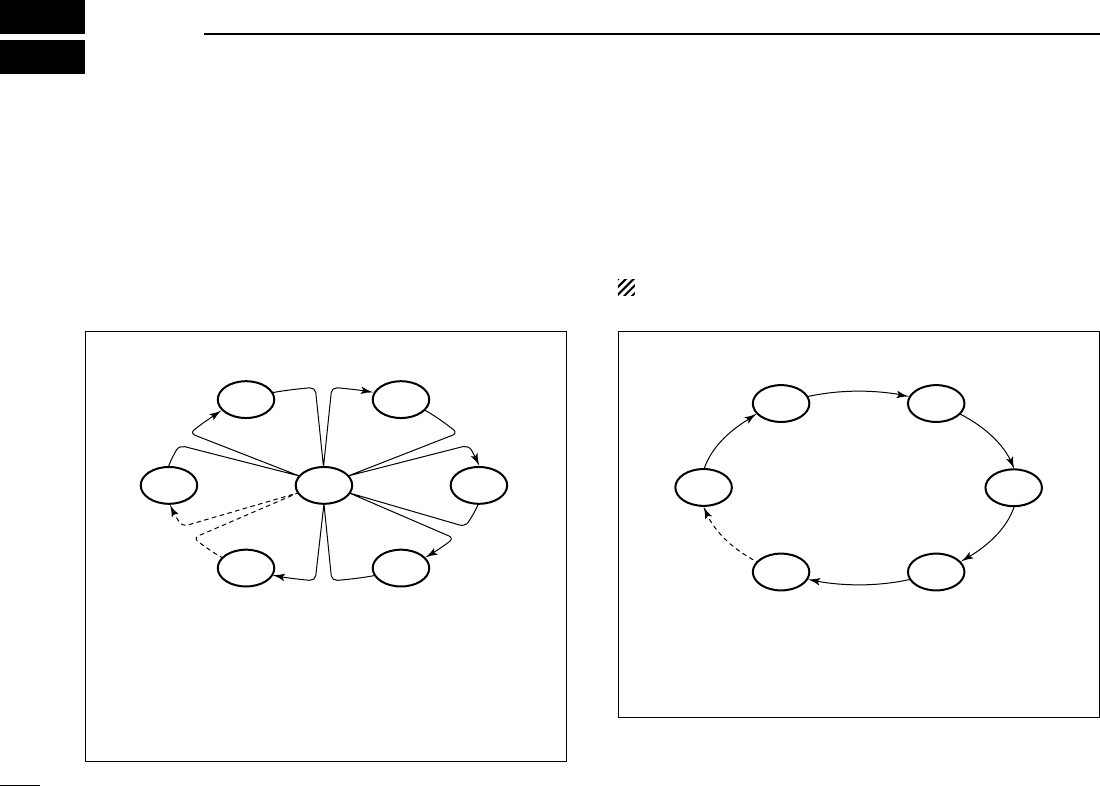
PRIORITY SCAN
Priority scan searches through all TAG channels in se-
quence while monitoring Channel 16. When a signal is
detected on Channel 16, scan pauses until the signal
disappears; when a signal is detected on a channel other
than Channel 16, scan becomes Dualwatch until the sig-
nal disappears.
NORMAL SCAN
Normal scan, like Priority scan, searches through all TAG
channels in sequence. However, unlike Priority scan,
Channel 16 is not checked unless Channel 16 is set as a
TAG channel.
CH 06
CH 01
CH 16
CH 02
CH 05 CH 04
CH 03
CH 01 CH 02
CH 06
CH 05 CH 04
CH 03
13
4
SCAN OPERATION
New2001
4
■ Setting TAG channels
For more efficient scanning, add the desired channels as
TAG channels or clear the TAG for unwanted channels.
Channels that are not tagged will be skipped during scan-
ning. TAG channels can be assigned to each channel group
(USA, INT, CAN) independently.
q
While pushing and holding [H/L], push [CH/WX•DUAL•U/I/C]
to select the desired channel group (USA, INT or CAN.)
w Select the desired channel to be set as a TAG channel.
e Push [SCAN•TAG] for 1 sec. to set the displayed channel
as a TAG channel.
• “TAG” appears in the display.
r To cancel the TAG channel setting, repeat step e.
• “TAG” disappears.
✔ Clearing (or setting) all tagged channels
While pushing and holding [H/L], push [SCAN•TAG] for 3
sec. (until a long beep changes to 2 short beeps) to clear all
TAG channels setting in the channel group.
• Repeat above procedure to set all TAG channels.
■ Starting a scan
Set scan type (Priority or Normal scan) and scan resume
timer in advance, using Set mode. (p. 55)
q While pushing and holding [H/L], push [CH/WX•DUAL•
U/I/C] to select the desired channel group (USA, INT,
CAN) if desired.
w Set TAG channels as described at left.
e Make sure the squelch is closed to start a scan.
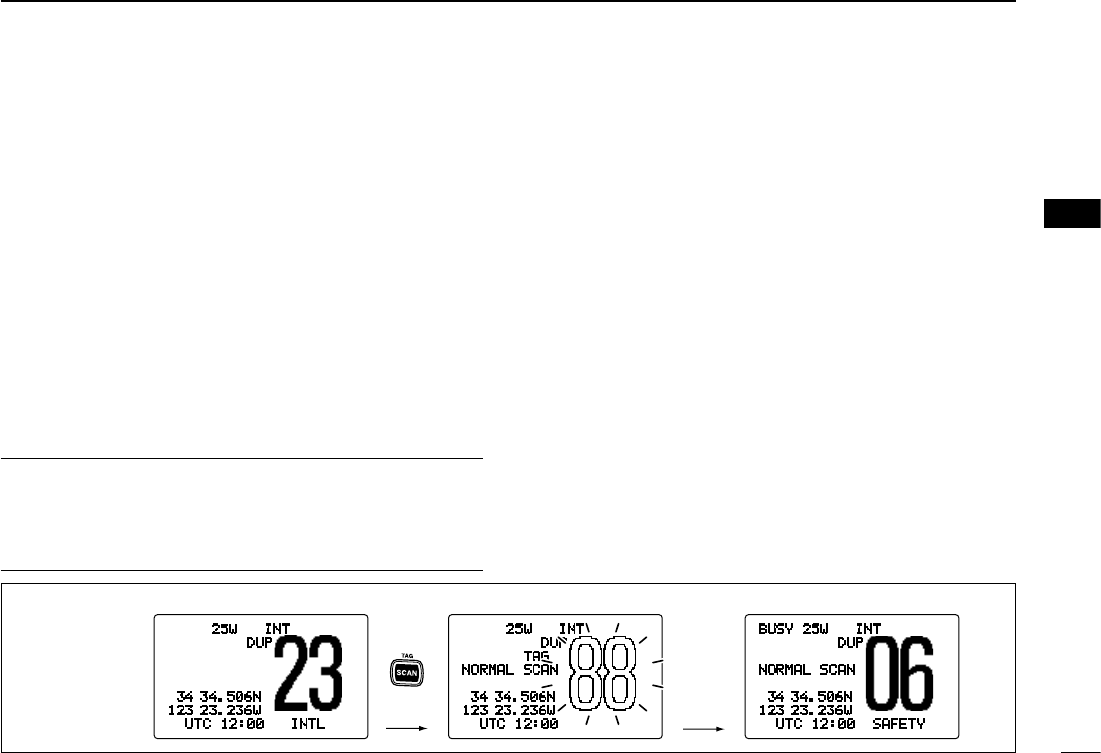
r Push [SCAN•TAG] to start Priority or Normal scan.
• “PRI-SCAN 16” appears at the channel comment indicator
during Priority scan.
• “NORMAL SCAN” appears at the channel comment indicator
during Normal scan.
• When a signal is detected, scan pauses until the signal disap-
pears or resumes after pausing 5 sec. according to Set mode
setting. (Channel 16 is still monitored during Priority scan.)
• Rotate [DIAL] to check the scanning TAG channels, to change
the scanning direction or resume the scan manually.
• A beep tone sounds and “16” blinks at the channel comment
indicator when a signal is received on Channel 16 during Prior-
ity scan.
Push
Scan starts. When a signal is received
25W INT
DUP
34 34.506N
123 23.236W
UTC 12:00 INTL
BUSY 25W INT
DUP
NORMAL SCAN
34 34.506N
123 23.236W
UTC 12:00 SAFETY
25W INT
DUP
TAG
NORMAL SCAN
34 34.506N
123 23.236W
UTC 12:00
[Example]: Starting a normal scan.

14
New2001
DUALWATCH/TRI-WATCH
5
■ Description
Dualwatch monitors Channel 16 while you are receiving
on another channel; Tri-watch monitors Channel 16 and the
call channel while receiving another channel. Dualwatch/Tri-
watch is convenient for monitoring Channel 16 when you are
operating on another channel.
■ Operation
q Select Dualwatch or Tri-watch in Set mode. (p. 56)
w Rotate [DIAL] to select the desired operating channel.
e Push [CH/WX•DUAL•U/I/C] for 1 sec. to start Dualwatch
or Tri-watch.
• “DUAL 16” appears during Dualwatch; “TRI 16” appears
during Tri-watch.
• A beep tone sounds when a signal is received on Channel 16.
r To cancel Dualwatch/Tri-watch, push [CH/WX•DUAL•U/I/C]
again.
DUALWATCH/TRI-WATCH SIMULATION
• If a signal is received on Channel 16, Dualwatch/Tri-
watch pauses on Channel 16 until the signal disappears.
• If a signal is received on the call channel during Tri-
watch, Tri-watch becomes Dualwatch until the signal dis-
appears.
• To transmit on the selected channel during Dualwatch/
Tri-watch, push and hold [PTT].
[Example]: Operating Tri-watch on INT Channel 25
Dualwatch Tri-watch
Call channel
25W INT
DUP
TRI 16
34 34.506N
123 23.236W
UTC 12:00 TELEPHONE
BUSY 25W INT CALL
TAG
TRI 16
34 34.506N
123 23.236W
UTC 12:00 CALLING
Tri-watch starts. Signal is received on call
channel.
BUSY 25W INT
DUP
TRI 16
34 34.506N
123 23.236W
UTC 12:00 TELEPHONE
Signal received on Channel
16 takes priority.
25W INT
DUP
TRI 16
34 34.506N
123 23.236W
UTC 12:00 TELEPHONE
Tri-watch resumes after the
signal disappears.
15
6
DSC OPERATION
5
6
■ MMSI code programming
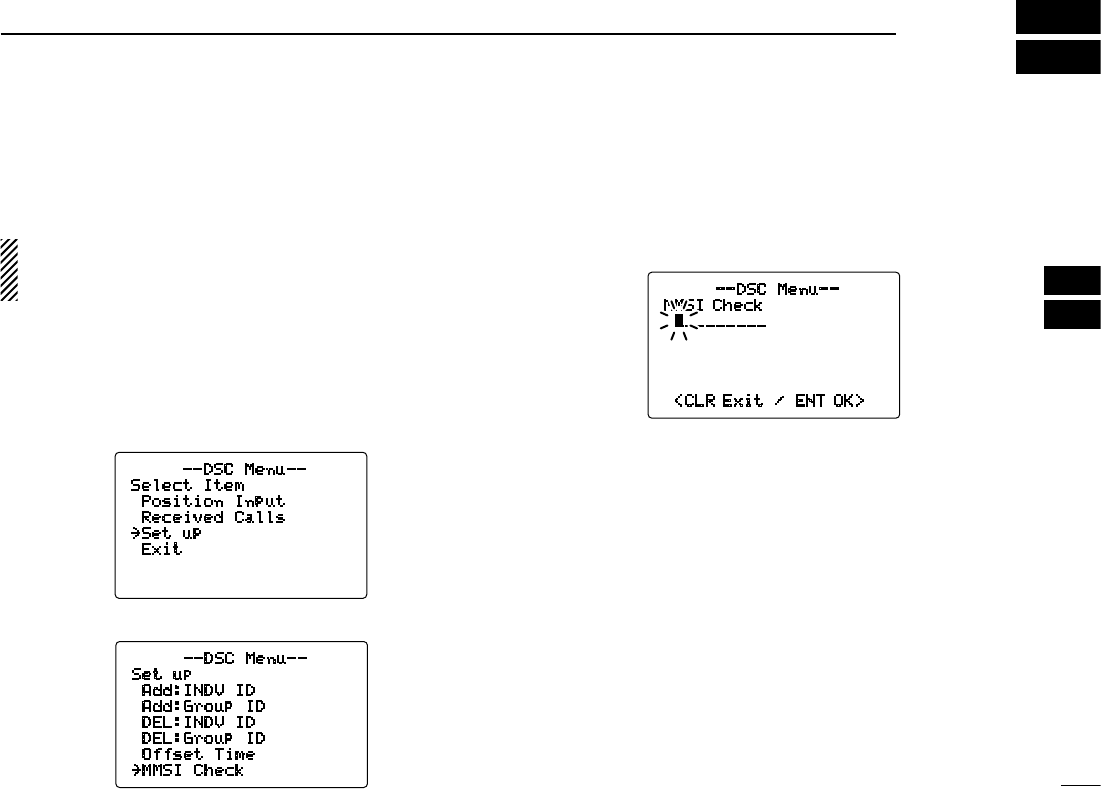
The 9-digit MMSI (Maritime Mobile Service Identity: DSC
self ID) code can be programmed at power ON.
This code programming can be performed only twice.
After the code programming, it can be changed only by
your dealer or distributor.
q Turn power OFF.
w While pushing [MENU], turn power ON to enter MMSI
code programming condition.
e After the display appears, release [MENU].
r Push [MENU] again to enter the DSC menu.
t Rotate [DIAL] to select “Set up,” push [DIAL•ENTER].
y
Rotate [DIAL] to select “MMSI Check,” push [DIAL•ENTER].
u Rotate [DIAL]
to set
the specific 9-digit MMSI code.
• Push [16•9] or [CH/WX•DUAL•U/I/C] to move the cursor for-
ward or backward, respectively.
• Push [CLR] to cancel and return to the set up menu.
i After entering the 9-digit code, push [DIAL•ENTER] to set
the code.
• Returns to the set up menu.
o Push [CLR] or rotate [DIAL] to select “Exit,” push
[DIAL•ENTER].
• Returns to the DSC menu.
• Repeat again to return to the normal operation condition.
--DSC Menu--
Select Item
Position Input
Received Calls
˘Set up
Exit
--DSC Menu--
Set up
Add:INDV ID
Add:Group ID
DEL:INDV ID
DEL:Group ID
Offset Time
˘MMSI Check
--DSC Menu--
MMSI Check
_________
<CLR Exit / ENT OK>
16
6DSC OPERATION
New2001
■ MMSI code check
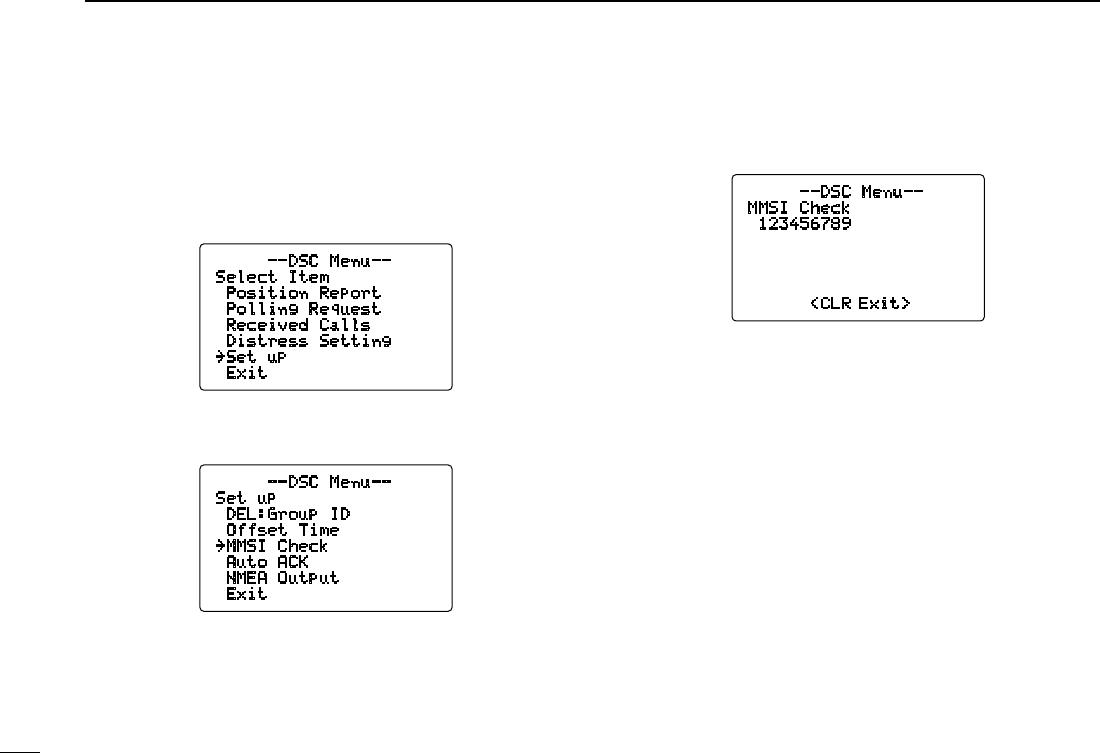
The 9-digit MMSI (DSC self ID) code can be checked.
q Push [MENU] to enter the DSC menu.
w Rotate [DIAL] to select “Set up,” push [DIAL•ENTER].
e
Rotate [DIAL]
to se l ect “ MMSI Check,” pu sh
[DIAL•ENTER]
.
r Check the 9-digit MMSI (DSC self ID) code.
t Push [CLR] or rotate [DIAL] to select “Exit,” push
[DIAL•ENTER].
• Returns to the DSC menu.
• Repeat again to return to the normal operation condition.
--DSC Menu--
Set up
DEL:Group ID
Offset Time
˘MMSI Check
Auto ACK
NMEA Output
Exit
--DSC Menu--
Select Item
Position Report
Polling Request
Received Calls
Distress Setting
˘Set up
Exit
--DSC Menu--
MMSI Check
123456789
<CLR Exit>
17
6
DSC OPERATION
New2001
6
■ DSC address ID
A total of 100 DSC address IDs can be programmed and
named with up to 10 characters.
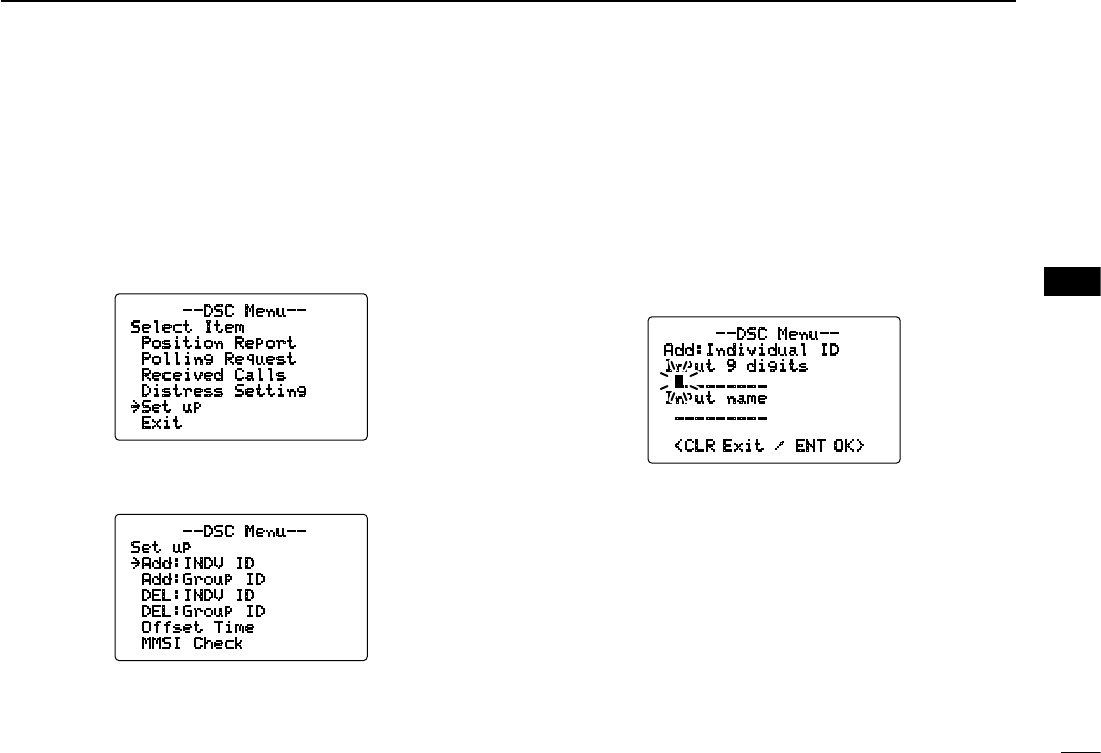
D Programming Individual ID
q Push [MENU] to enter the DSC menu.
w Rotate [DIAL] to select “Set up,” push [DIAL•ENTER].
e
Rotate [DIAL]
to select “Ad d: I N D V I D ,” push
[DIAL•ENTER]
.
r Rotate [DIAL]
to s
et the individual ID and ID name.
• Push [16•9] or [CH/WX•DUAL•U/I/C] to move the cursor for-
ward or backward, respectively.
• Push [CLR] to cancel and return to the set up menu.
• “Full ID” appears when 100 DSC address IDs are already
set.
• After inputting the 9-digit MMSI number, push [DIAL•ENTER]
or [16•9] to enter a 10-character ID name.
t After inputting, push [DIAL•ENTER] to program.
y Push [CLR] or rotate [DIAL] to select “Exit,” push
[DIAL•ENTER].
• Returns to the DSC menu.
• Repeat again to return to the normal operation condition.
--DSC Menu--
Add:Individual ID
Input 9 digits
_________
Input name
_________
<CLR Exit / ENT OK>
--DSC Menu--
Set up
˘Add:INDV ID
Add:Group ID
DEL:INDV ID
DEL:Group ID
Offset Time
MMSI Check
--DSC Menu--
Select Item
Position Report
Polling Request
Received Calls
Distress Setting
˘Set up
Exit
18
6DSC OPERATION
New2001
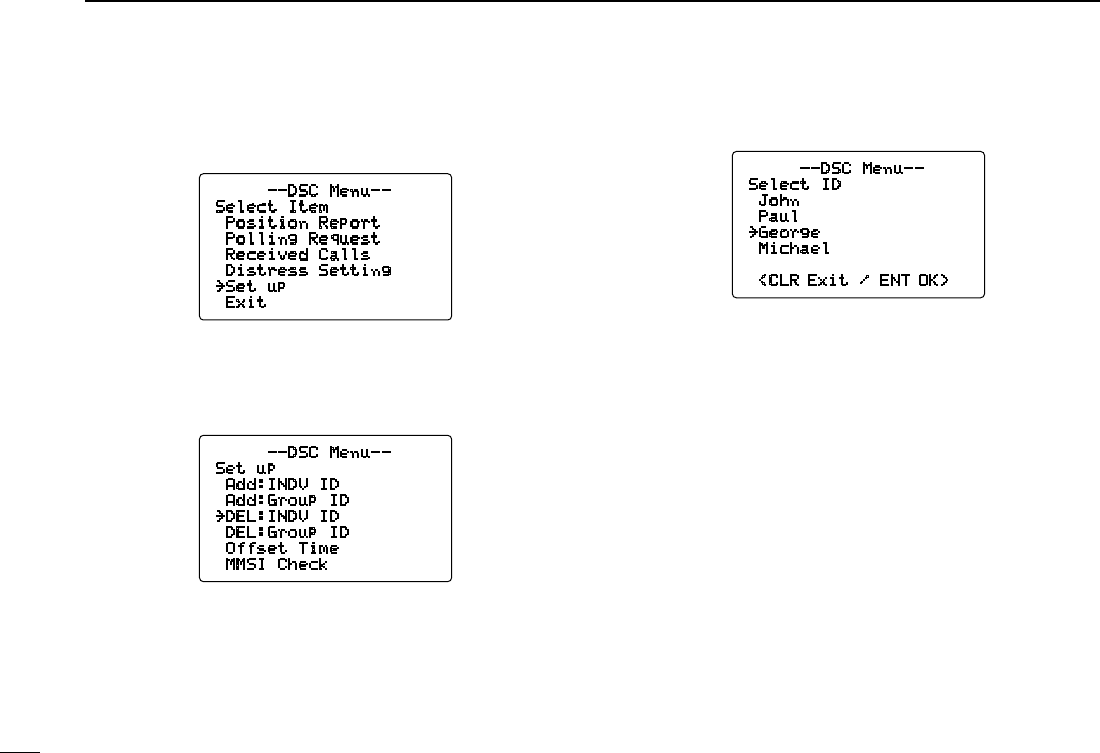
D Deleting Individual ID
q Push [MENU] to enter the DSC menu.
w Rotate [DIAL] to select “Set up,” push [DIAL•ENTER].
e Rotate [DIAL]
to select “DE L: I N D V I D ,” push
[DIAL•ENTER]
.
• When no address ID is programmed, “
No ID
” is displayed.
Push [CLR] to exit.
r Rotate [DIAL] to select the desired ID name for deleting.
t Push [DIAL•ENTER] to delete the address ID and return
to the set up menu.
y Push [CLR] or rotate [DIAL] to select “Exit,” push
[DIAL•ENTER].
• Returns to the DSC menu.
• Repeat again to return to the normal operation condition.
--DSC Menu--
Select Item
Position Report
Polling Request
Received Calls
Distress Setting
˘Set up
Exit
--DSC Menu--
Set up
Add:INDV ID
Add:Group ID
˘DEL:INDV ID
DEL:Group ID
Offset Time
MMSI Check
--DSC Menu--
Select ID
John
Paul
˘George
Michael
<CLR Exit / ENT OK>
19
6
DSC OPERATION
New2001
6
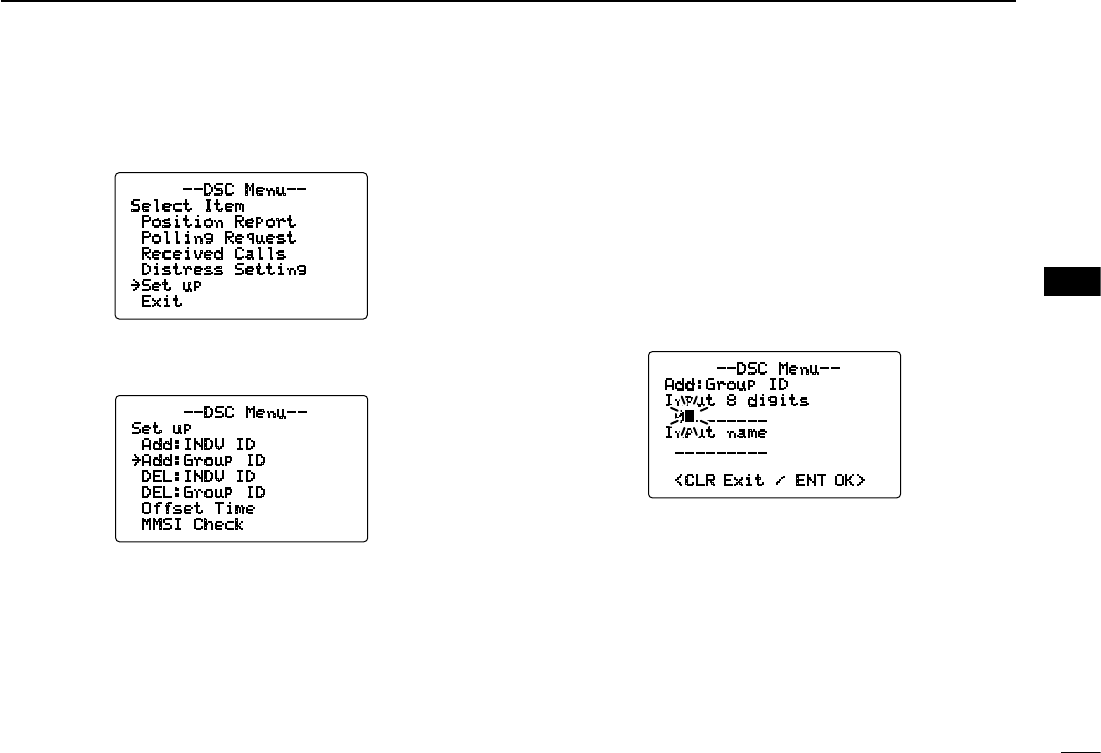
D Programming Group ID
q Push [MENU] to enter the DSC menu.
w Rotate [DIAL] to select “Set up,” push [DIAL•ENTER].
e
Rotate [DIAL]
to select “Add:Group ID,” push
[DIAL•ENTER]
.
r Rotate [DIAL]
to s
et the group ID and ID name.
• The group ID is a unique number that you create for your group.
The ID name is an associated text name for that group.
• Push [16•9] or [CH/WX•DUAL•U/I/C] to move the cursor for-
ward or backward, respectively.
• Push [CLR] to cancel and return to the set up menu.
• “Full ID” appears when 100 DSC address IDs are already
set.
• After entering an 8-digit ID code, push [DIAL•ENTER] or [16•9]
to enter a 10-character ID name.
• 1st digit ‘0’ is fixed for a group ID.
t After inputting, push [DIAL•ENTER] to program.
y Push [CLR] or rotate [DIAL] to select “Exit,” push
[DIAL•ENTER].
• Returns to the DSC menu.
• Repeat again to return to the normal operation condition.
--DSC Menu--
Select Item
Position Report
Polling Request
Received Calls
Distress Setting
˘Set up
Exit
--DSC Menu--
Add:Group ID
Input 8 digits
0________
Input name
_________
<CLR Exit / ENT OK>
--DSC Menu--
Set up
Add:INDV ID
˘Add:Group ID
DEL:INDV ID
DEL:Group ID
Offset Time
MMSI Check
20
6DSC OPERATION
New2001
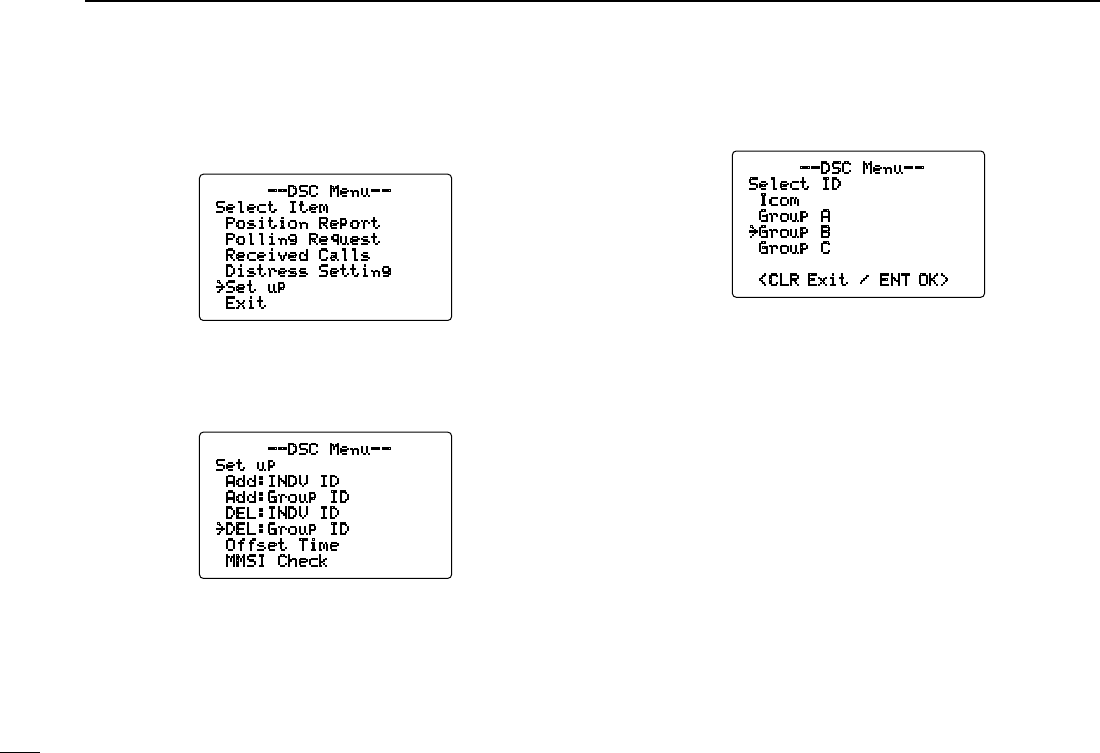
D Deleting Group ID
q Push [MENU] to enter the DSC menu.
w Rotate [DIAL] to select “Set up,” push [DIAL•ENTER].
e Rotate [DIAL]
to select “DEL:Group ID,” push
[DIAL•ENTER]
.
• When no address ID is programmed, “
No ID
” is displayed.
Push [CLR] to exit.
r Rotate [DIAL] to select the desired ID name for deleting.
t Push [DIAL•ENTER] to delete the group ID and return to
the set up menu.
y Push [CLR] or rotate [DIAL] to select “Exit,” push
[DIAL•ENTER].
• Returns to the DSC menu.
• Repeat again to return to the normal operation condition.
--DSC Menu--
Select Item
Position Report
Polling Request
Received Calls
Distress Setting
˘Set up
Exit
--DSC Menu--
Set up
Add:INDV ID
Add:Group ID
DEL:INDV ID
˘DEL:Group ID
Offset Time
MMSI Check
--DSC Menu--
Select ID
Icom
Group A
˘Group B
Group C
<CLR Exit / ENT OK>
21
6
DSC OPERATION
New2001
6
■
Position and time programming
A distress call should include the ship’s position and time
data. If no GPS is connected, your position and UTC (Uni-
versal Time Coordinated) time should be input manually.
They are included automatically when a GPS receiver
(NMEA0183 ver. 2.0 or 3.01) is connected.
q Push [MENU] to enter the DSC menu.
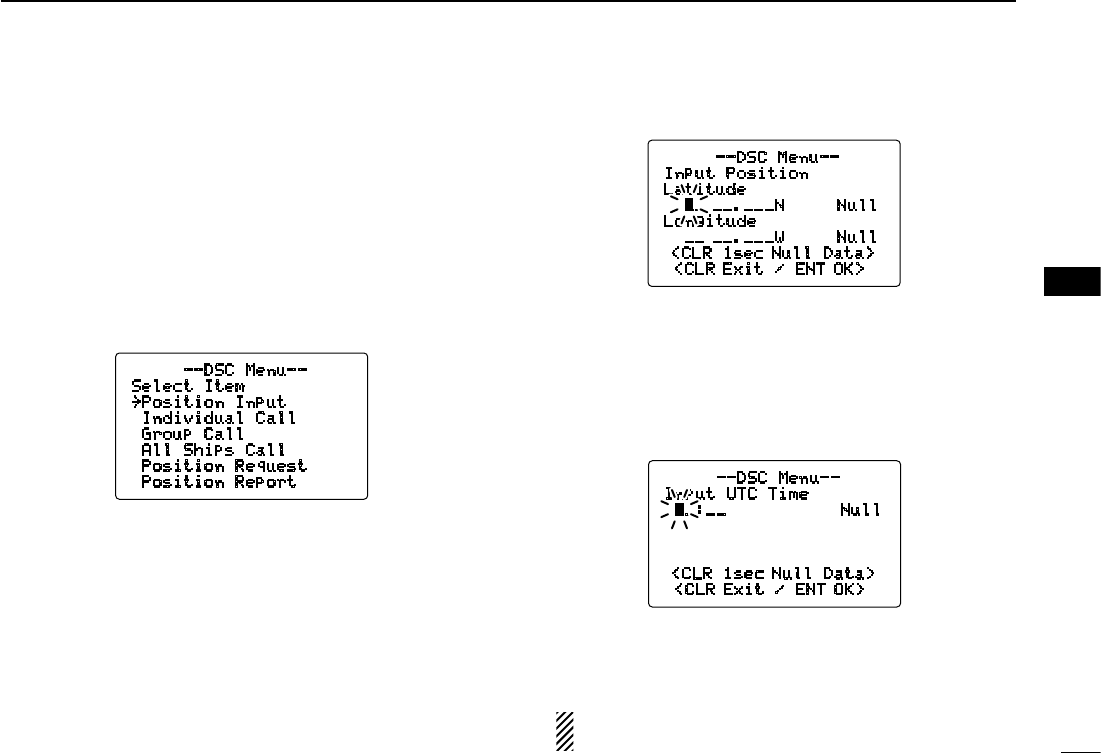
w Rotate [DIAL] to select “Position Input,” and push
[DIAL•ENTER].
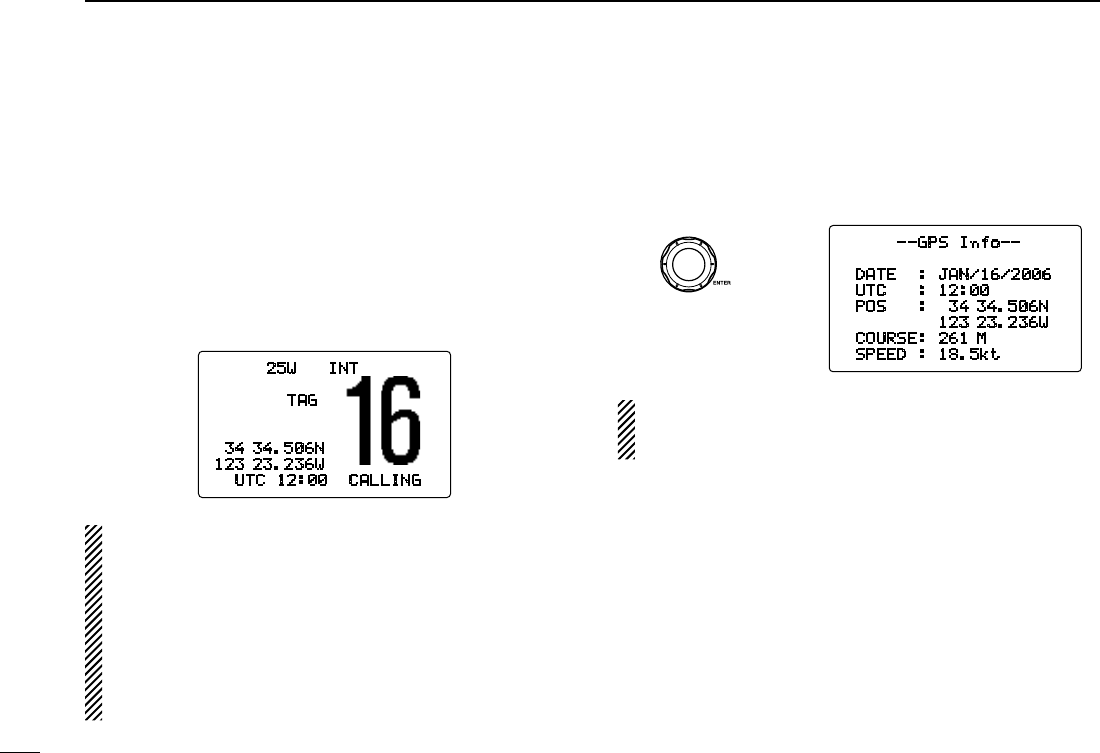
e The position information appears. Set your position (lati-
tude and longitude) data by rotating [DIAL].
• Push [16•9] or [CH/WX•DUAL•U/I/C] to move the cursor for-
ward or backward, respectively.
• Rotate [DIAL] to edit N; North latitude or S; South latitude when
the cursor is on the ‘N’ or ‘S’ position, and W; West longitude or
E; East longitude when the cursor is on the ‘W’ or ‘E’ position.
• Push [CLR] for 1 sec. to clear the latitude/
longitude
data.
• Push [CLR] to cancel and return to the DSC menu.
r After setting the position data, push [DIAL•ENTER] to set
the current UTC time. Set the current UTC time by rotat-
ing [DIAL], then push [DIAL•ENTER].
• Push [16•9] or [CH/WX•DUAL•U/I/C] to move the cursor for-
ward or backward, respectively.
• Push [CLR] for 1 sec. to clear the UTC time data.
• Push [CLR] to cancel and return to the DSC menu.
t Push [CLR] or rotate [DIAL] to select “Exit,” push
[DIAL•ENTER].
• Returns to the DSC menu.
• Repeat again to return to the normal operation condition.
Manually programmed position data will be held for
23.5 hours only.
--DSC Menu--
Select Item
˘Position Input
Individual Call
Group Call
All Ships Call
Position Request
Position Report
--DSC Menu--
Input Position
Latitude
__ __.___N Null
Longitude
__ __.___W Null
<CLR 1sec Null Data>
<CLR Exit / ENT OK>
--DSC Menu--
Input UTC Time
__:__ Null
<CLR 1sec Null Data>
<CLR Exit / ENT OK>
■ Position and time indication
When a GPS receiver (NMEA0183 ver. 2.0 or 3.01) is con-
nected, the transceiver displays the current position and
time. When no GPS receiver is connected, the transceiver
displays the manually entered position and time.
A GPS receiver appropriate for the IC-M504 is not supplied
by Icom. A GPS receiver with NMEA0183 ver. 2.0 or 3.01
format is required for position and time indication. Ask your
dealer about suitable GPS receivers.
➥ When the connecting GPS receiver is compatible with
several sentence formatters, the order of input prece-
dence is ‘RMC,’ ‘GGA,’ ‘GNS’ and ‘GLL.’
➥ When sentence formatter ‘RMC’ is received, time indi-
cation includes a date. Thus, the ‘UTC’ or ‘Local’ indica-
tion is not displayed.
➥ “??” may blink instead of position and time indications
when the GPS data is invalid, or has not been manually
updated after 4 hours.
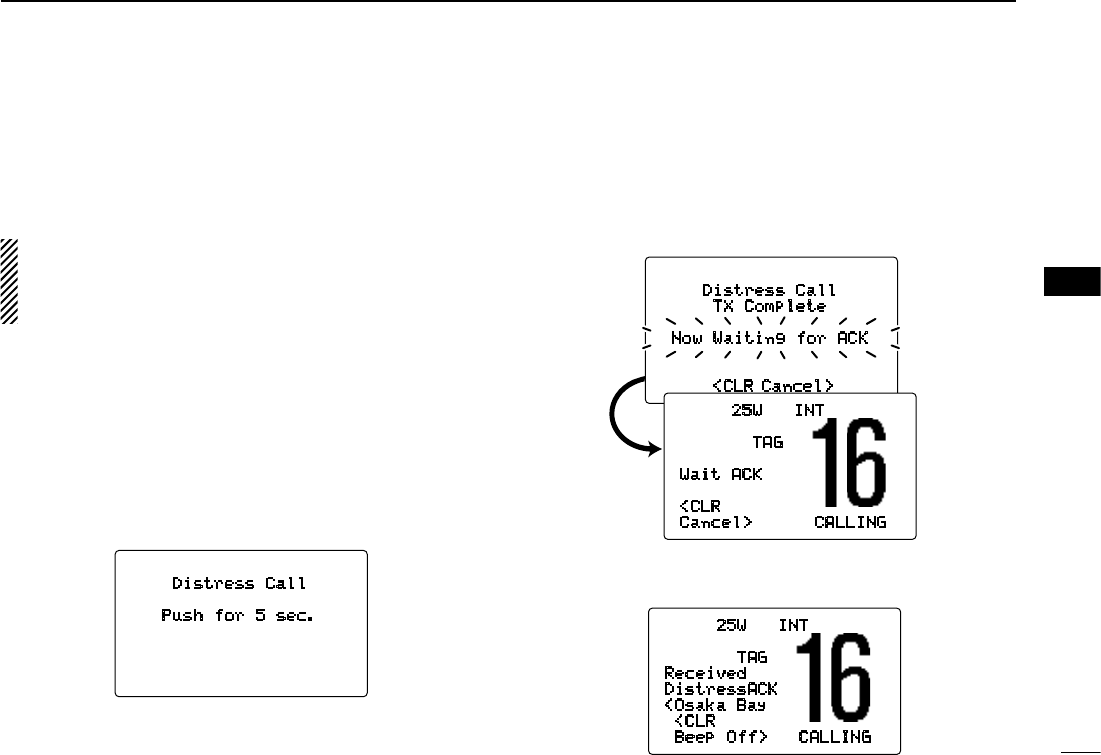
■ GPS information indication
When a GPS receiver (NMEA0183 ver. 2.0 or 3.01) is con-
nected, the transceiver displays the GPS information after
pushing and holding [DIAL•ENTER] for 1 sec.
When connecting GPS receiver is compatible with several
sentence formatters, the order of input precedence is
‘RMC,’ ‘GGA,’ ‘GNS’, ‘GLL’ and ‘VTG.’
22
6DSC OPERATION
New2001
--GPS Info--
DATE : JAN/16/2006
UTC : 12:00
POS : 34 34.506N
123 23.236W
COURSE: 261 M
SPEED : 18.5kt
Push for 1 sec.
25W INT
TAG
34 34.506N
123 23.236W
UTC 12:00 CALLING
23
6
DSC OPERATION
New2001
6
■ Distress call
A distress call should be transmitted, if in the opinion of the
Master, the ship or a person is in distress and requires im-
mediate assistance.
NEVER USE THE DISTRESS CALL WHEN YOUR
SHIP OR A PERSON IS NOT IN AN EMERGENCY.
A DISTRESS CALL CAN BE USED ONLY WHEN
IMMEDIATE HELP IS NEEDED.
D Simple call
q Confirm no distress call is being received.
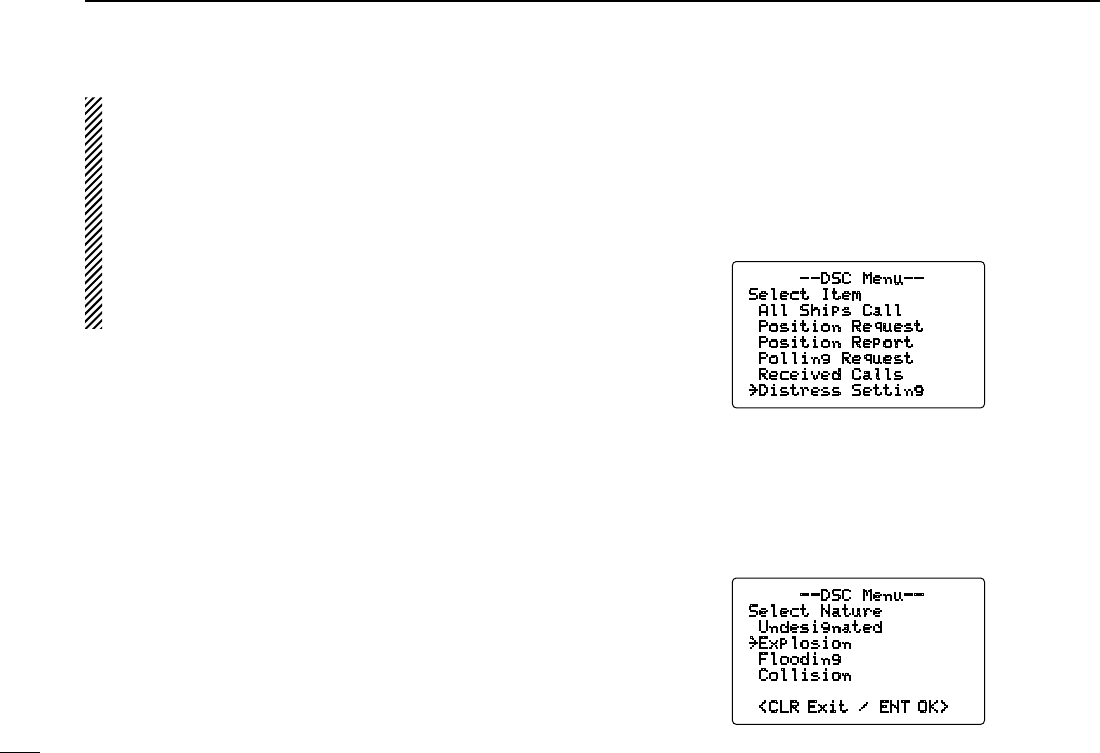
w While lifting up the key cover, push [DISTRESS] for
5 sec. to transmit the distress call.
• Emergency channel (Channel 70) is automatically selected and
the distress call is transmitted.
• When no GPS is connected, input your position and UTC time,
if possible.
• While pushing [DISTRESS], the key backlighting blinks.
e After transmitting the distress call, the transceiver waits
for an acknowledgment call on Channel 70.
• The distress call is automatically transmitted every 3.5 to 4.5
minutes.
• After 2 sec., the transceiver is set to Channel 16 automatically.
r After receiving the acknowledgment, reply using the mi-
crophone.
Distress Call
Push for 5 sec.
Distress Call
TX Complete
Now Waiting for ACK
<CLR Cancel>
After 2 sec.
25W INT
TAG
Wait ACK
<CLR
Cancel> CALLING
25W INT
TAG
Received
DistressACK
<Osaka Bay
<CLR
Beep Off> CALLING
24
6DSC OPERATION
New2001
➥ A distress alert contains (default);
• Nature of distress : Undesignated distress
• Position data : GPS or manual input position data held
for 23.5 hrs or until the power is turned
OFF.
➥ The distress call is repeated every 3.5–4.5 min., until
receiving an ‘acknowledgement.’
➥ Push [CLR] to cancel the ‘Call repeat’ mode.
➥ “??” may blink instead of position and time indications
when the GPS data is invalid, or has not been manually
updated after 4 hours.
D Regular call
The nature of the distress call should be included in the dis-
tress call.
q Push [MENU] to enter the DSC menu.
w Rotate [DIAL] to select “Distress Setting,” and
push [DIAL•ENTER].
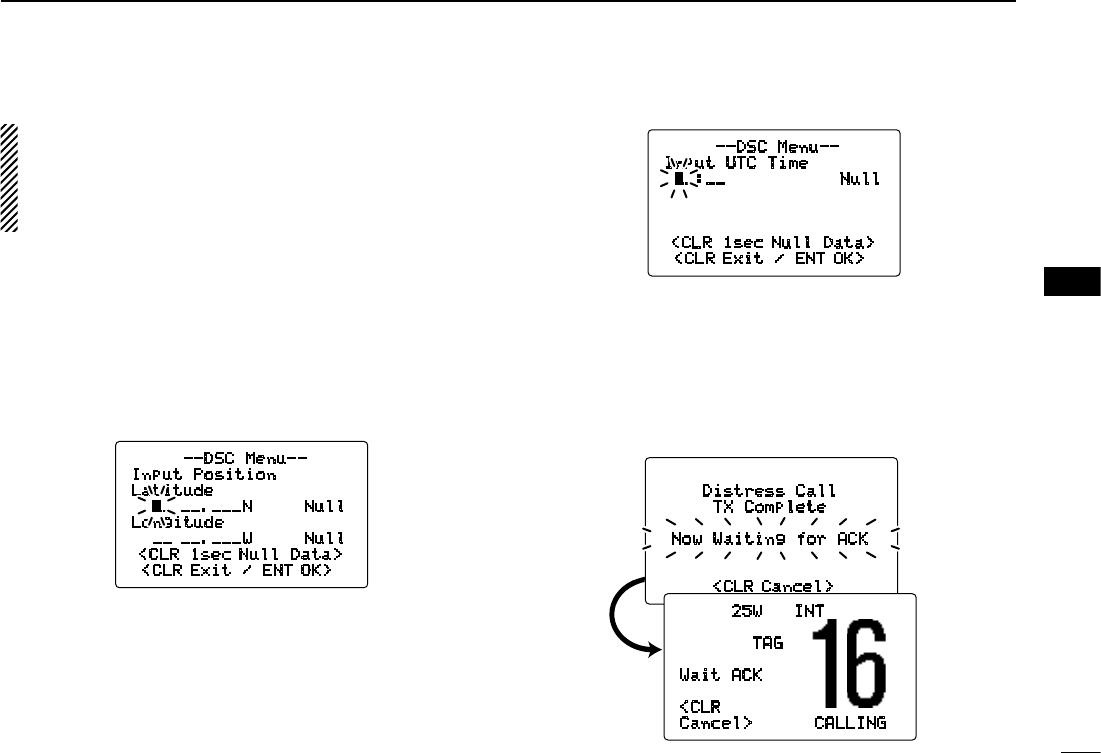
e Rotate [DIAL] to select the nature of the distress, push
[DIAL•ENTER].
• ‘Undesignated,’ ‘Explosion,’ ‘Flooding,’ ‘Colli-
sion,’ ‘Grounding,’ ‘Capsizing,’ ‘Sinking,’ ‘Adrift
(Disable adrift),’ ‘Abandoning (Abandoning ship),’ ‘Piracy
(Piracy attack)’ and ‘MOB (Man overboard)’ are available.
• The selected nature of the distress is stored for 10 minutes.
--DSC Menu--
Select Nature
Undesignated
˘Explosion
Flooding
Collision
<CLR Exit / ENT OK>
--DSC Menu--
Select Item
All Ships Call
Position Request
Position Report
Polling Request
Received Calls
˘Distress Setting
25
6
DSC OPERATION
New2001
6
Regardless of a GPS receiver (NMEA0183 ver. 2.0 or
3.01) connection, the current position/time information
appears in steps r and t. If the information is not nec-
essary to be changed, push [DIAL•ENTER] or [16•9]
several times to skip the data input steps.
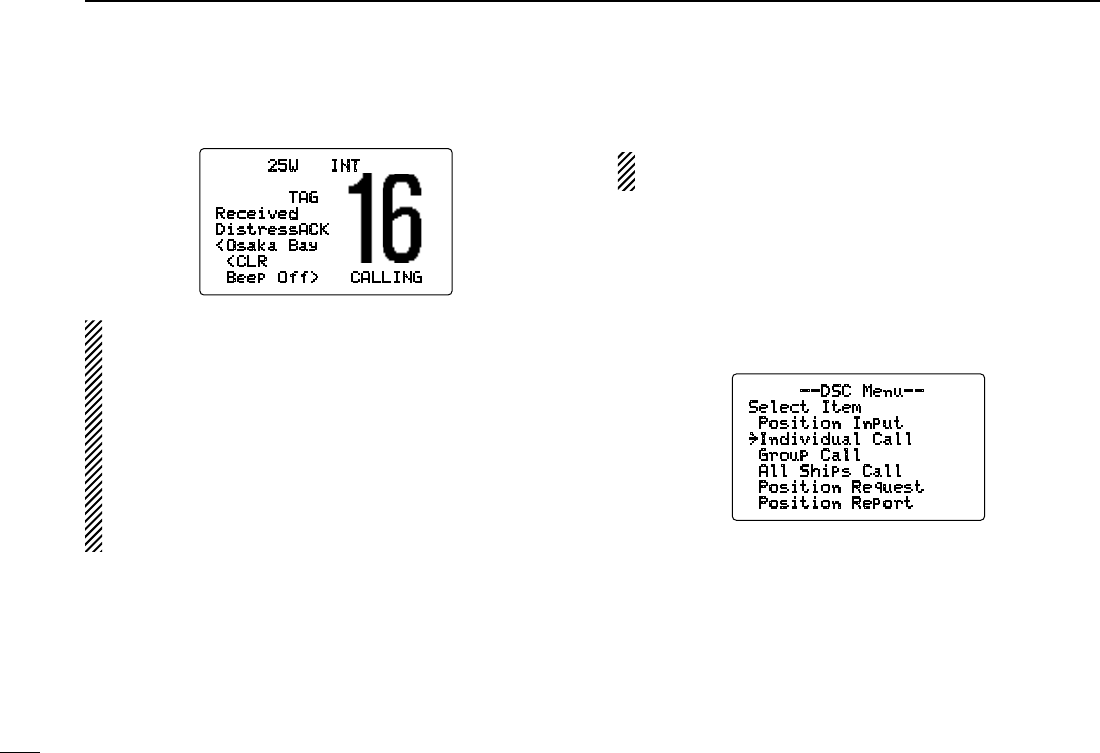
r The position information appears. Set your position (lati-
tude and longitude) data by rotating [DIAL].
• Push [16•9] or [CH/WX•DUAL•U/I/C] to move the cursor for-
ward or backward, respectively.
• Rotate [DIAL] to edit N; North latitude or S; South latitude when
the cursor is on the ‘N’ or ‘S’ position, and W; West longitude or
E; East longitude when the cursor is on the ‘W’ or ‘E’ position.
• Push [CLR] for 1 sec. to clear the latitude/
longitude
data.
• Push [CLR] to cancel and return to the DSC menu.
t After setting the position data, push [DIAL•ENTER] to set
the current UTC time. Set the current UTC time by rotat-
ing [DIAL], then push [DIAL•ENTER].
• Push [16•9] or [CH/WX•DUAL•U/I/C] to move the cursor for-
ward or backward, respectively.
• Push [CLR] for 1 sec. to clear the UTC time data.
• Push [CLR] to cancel and return to the DSC menu.
y Push [DISTRESS] for 5 sec. to transmit the distress call.
• While pushing [DISTRESS], the key backlighting blinks.
u After transmitting the distress call, the transceiver waits
for an acknowledgment call on Channel 70.
• The distress call is automatically transmitted every 3.5 to 4.5
min.
• After 2 sec., the transceiver is set to Channel 16 automatically.
--DSC Menu--
Input UTC Time
__:__ Null
<CLR 1sec Null Data>
<CLR Exit / ENT OK>
Distress Call
TX Complete
Now Waiting for ACK
<CLR Cancel>
After 2 sec.
25W INT
TAG
Wait ACK
<CLR
Cancel> CALLING
--DSC Menu--
Input Position
Latitude
__ __.___N Null
Longitude
__ __.___W Null
<CLR 1sec Null Data>
<CLR Exit / ENT OK>
26
6DSC OPERATION
New2001
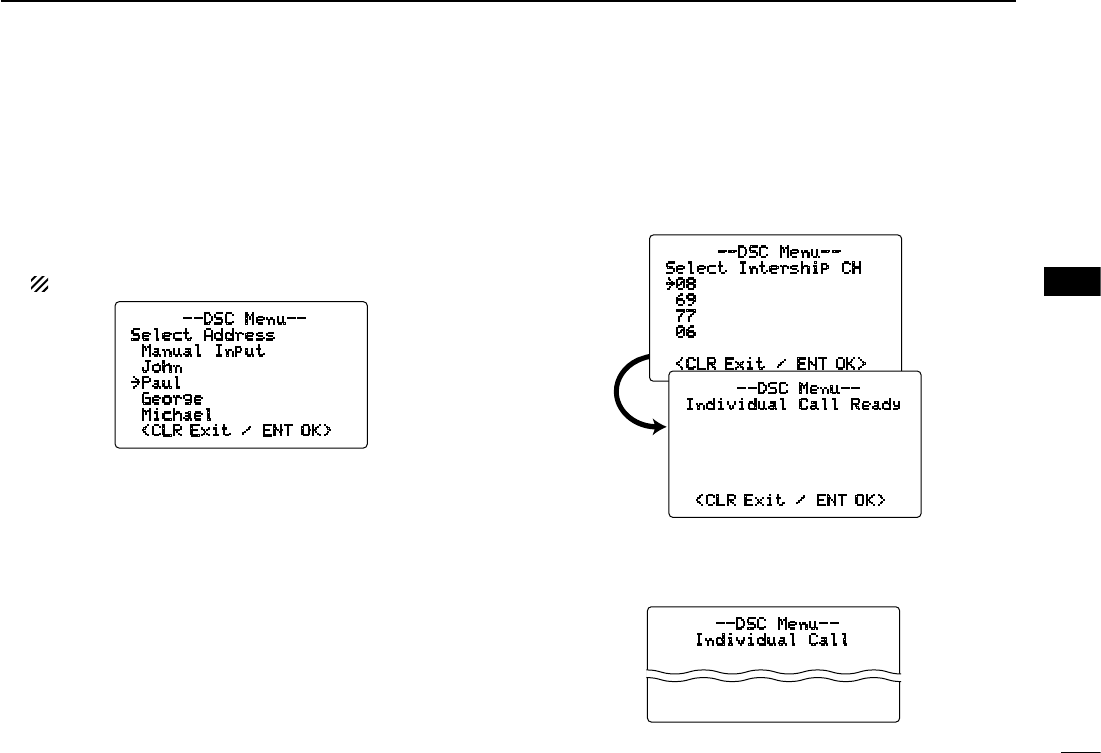
i After receiving the acknowledgment, reply using the mi-
crophone.
➥ A distress alert contains (default);
• Nature of distress : Selected nature of the distress
• Position data : GPS or manual input position data is held
for 23.5 hrs or until the power is turned
OFF.
➥ The distress call is repeated every 3.5–4.5 min., until
receiving an ‘acknowledgement.’
➥ Push [CLR] to cancel the ‘Call repeat’ mode.
➥ “??” may blink instead of position and time indications
when the GPS data is invalid, or has not been manually
updated after 4 hours.
■ Transmitting DSC calls
To ensure correct operation of the DSC function, please
make sure you set the squelch correctly. (p. 8)
D Transmitting an individual call
The individual call function allows you to transmit a DSC sig-
nal to a specific ship only.
q Push [MENU] to enter the DSC menu.
w Rotate [DIAL] to select “Individual Call,” push
[DIAL•ENTER].
25W INT
TAG
Received
DistressACK
<Osaka Bay
<CLR
Beep Off> CALLING
--DSC Menu--
Select Item
Position Input
˘Individual Call
Group Call
All Ships Call
Position Request
Position Report
27
6
DSC OPERATION
New2001
6
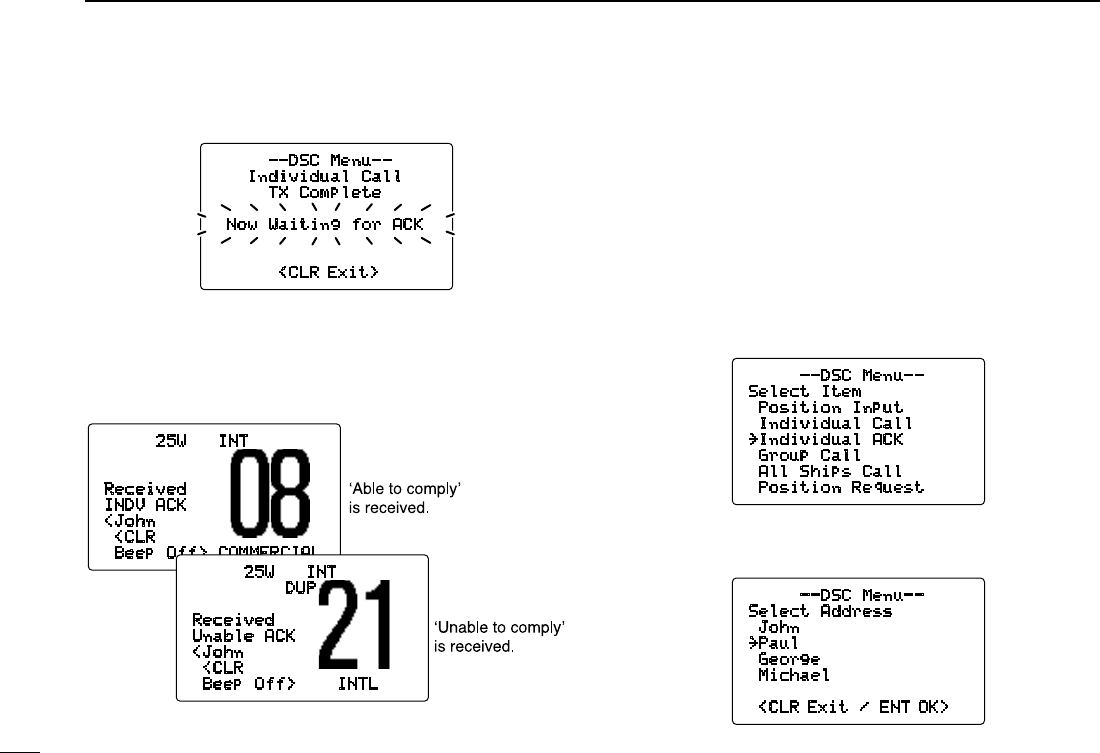
e Rotate [DIAL] to select the desired pre-programmed
individual address or “Manual Input,” push [DIAL•
ENTER].
• The ID code for the individual call can be set in advance. (p. 17)
• When “Manual Input” is selected, set the 9-digit MMSI
number for the individual you wish to call by rotating [DIAL].
1st digit must not be ‘0’.
r Rotate [DIAL] to select a desired intership channel, push
[DIAL•ENTER].
• Intership channels are already preset into the transceiver in rec-
ommended order.
t Push [DIAL•ENTER] to transmit the individual call.
• If Channel 70 is busy, the transceiver stands by until the chan-
nel becomes clear.
--DSC Menu--
Individual Call
Transmitting
--DSC Menu--
Select Intership CH
˘08
69
77
06
<CLR Exit / ENT OK>
--DSC Menu--
Individual Call Ready
<CLR Exit / ENT OK>
--DSC Menu--
Select Address
Manual Input
John
˘Paul
George
Michael
<CLR Exit / ENT OK>
28
6DSC OPERATION
New2001
y Standby on Channel 70 until an acknowledgement is re-
ceived.
u When the acknowledgement ‘Able to comply’ is received,
the specified channel (in step r) is selected with beeps
automatically. Or, when the acknowledgement ‘Unable to
comply’ is received, the display returns to the operated
channel (before enter the DSC menu) with beeps.
i Push [CLR] to stop the beep, then push and hold [PTT]
to communicate your message to the responding ship.
D Transmitting an individual acknowledgement
When receiving an individual call, you can transmit an ac-
knowledgement (‘Able to comply’ or ‘Unable to comply’) by
using the on screen prompts (see page 42 for details). You
can also send an acknowledgement through the menu sys-
tem as follows.
q Push [MENU] to enter the DSC menu.
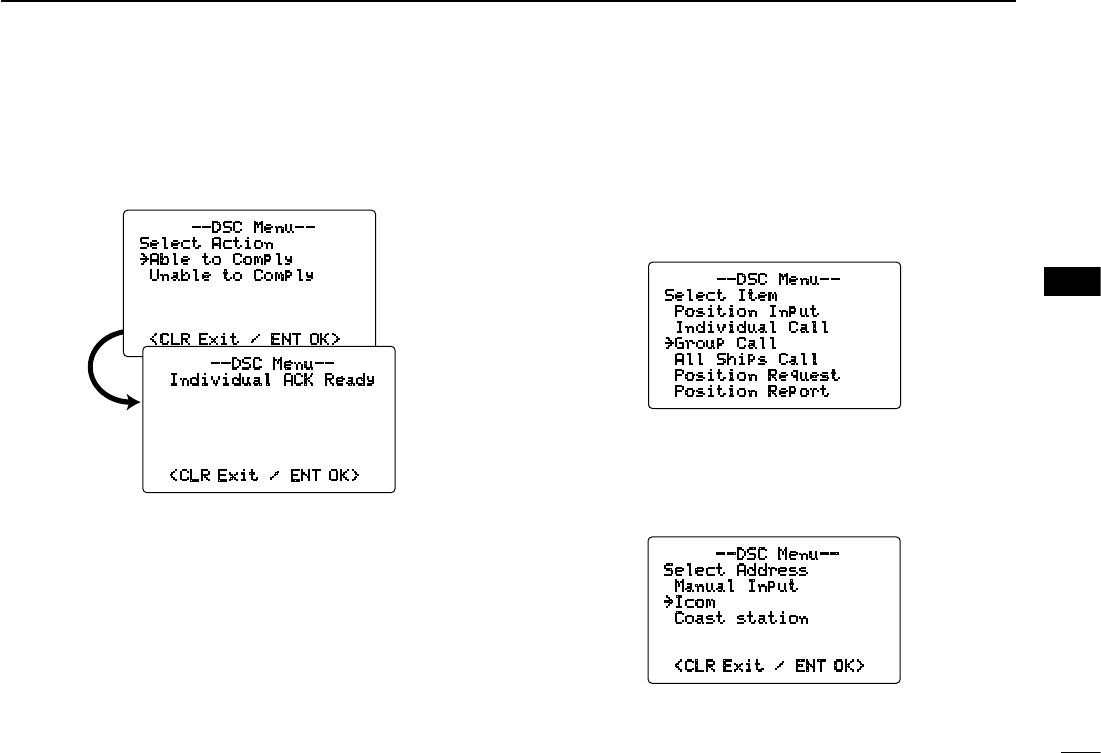
w Rotate [DIAL] to select “Individual ACK,” push
[DIAL•ENTER].
• “Individual ACK” item appears after an individual call is
received.
e Rotate [DIAL] to select the desired individual address or
ID code, push [DIAL•ENTER].
--DSC Menu--
Individual Call
TX Complete
Now Waiting for ACK
<CLR Exit>
25W INT
Received
INDV ACK
<John
<CLR
Beep Off> COMMERCIAL
25W INT
DUP
Received
Unable ACK
<John
<CLR
Beep Off> INTL
--DSC Menu--
Select Item
Position Input
Individual Call
˘Individual ACK
Group Call
All Ships Call
Position Request
--DSC Menu--
Select Address
John
˘Paul
George
Michael
<CLR Exit / ENT OK>
29
6
DSC OPERATION
New2001
6
r Rotate [DIAL] to select “Able to Comply” or “Un-
able to Comply,” push [DIAL•ENTER].
• When “Unable to Comply” is selected, “No Reason
Given” will be transmitted.
t Push [DIAL•ENTER] to transmit the acknowledgement
call to the selected station.
y After the individual acknowledgement call has been
transmitted, the specified channel (specified by the call-
ing station) is selected automatically when “Able to
Comply” is selected, or returns to the previous condition
(before entering the DSC menu) when “Unable to
Comply” is selected in step r.
D Transmitting a group call
The group call function allows you to transmit a DSC signal
to a specific group only.
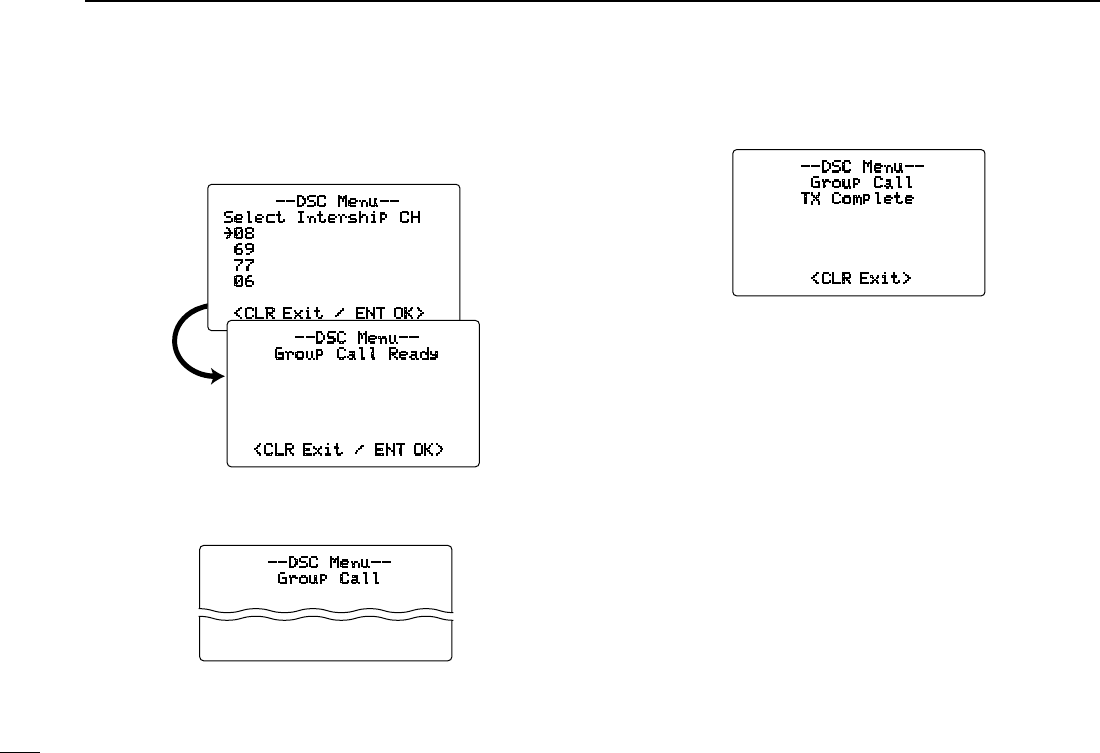
q Push [MENU] to enter the DSC menu.
w Rotate [DIAL] to s ele ct “ Group Call,” pu sh
[DIAL•ENTER].
--DSC Menu--
Select Item
Position Input
Individual Call
˘Group Call
All Ships Call
Position Request
Position Report
e
Rotate [DIAL] to select the desired pre-programmed group
address or “Manual Input,” push [DIAL•ENTER].
• The ID code for the group call can be set in advance. (p. 19)
• When “Manual Input” is selected, set the 8-digit ID code
for the group you wish to call by rotating [DIAL].
--DSC Menu--
Select Action
˘Able to Comply
Unable to Comply
<CLR Exit / ENT OK>
--DSC Menu--
Individual ACK Ready
<CLR Exit / ENT OK>
--DSC Menu--
Select Address
Manual Input
˘Icom
Coast station
<CLR Exit / ENT OK>
30
6DSC OPERATION
New2001
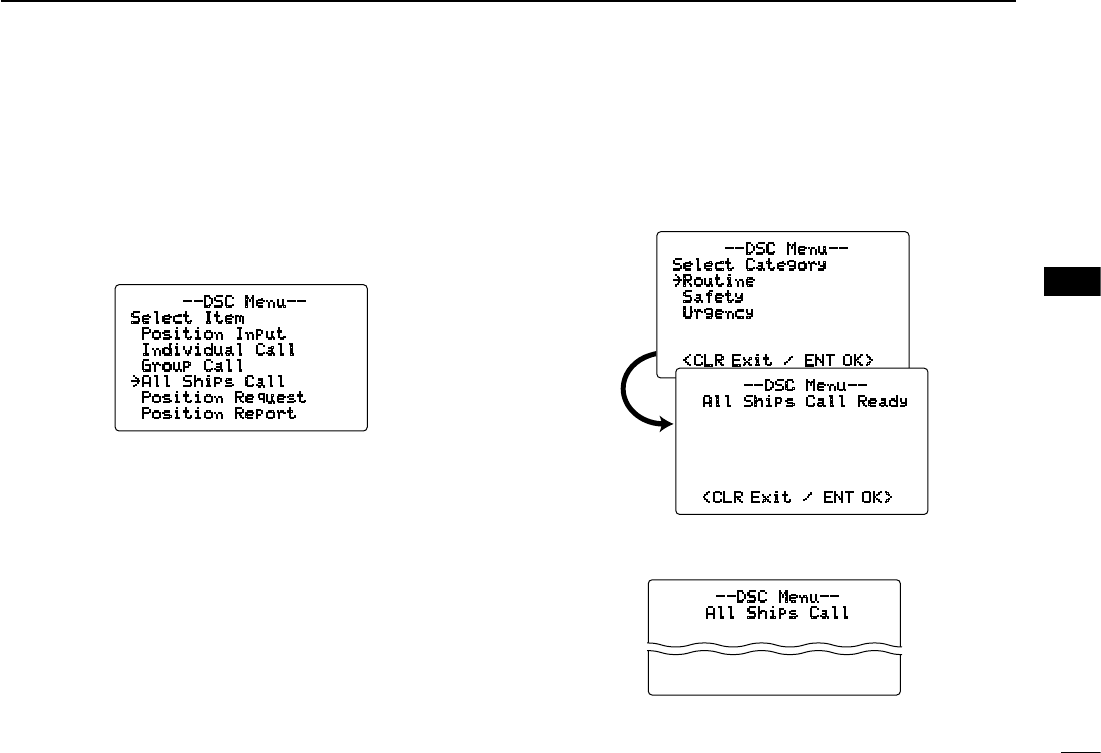
r Rotate [DIAL] to select a desired intership channel, push
[DIAL•ENTER].
• Intership channels are already preset into the transceiver in rec-
ommended order.
t Push [DIAL•ENTER] to transmit the group call.
• If Channel 70 is busy, the transceiver stands by until the chan-
nel becomes clear.
y After the group call has been transmitted, the following
indication is displayed.
u Push [CLR] to exit and the transceiver selects the inter-
ship channel specified in step r automatically.
• Even if [CLR] hasn’t been pushed, the transceiver selects the
specified intership channel in step r automatically after 2 sec.
of inactivity.
--DSC Menu--
Group Call
Transmitting
--DSC Menu--
Group Call
TX Complete
<CLR Exit>
--DSC Menu--
Select Intership CH
˘08
69
77
06
<CLR Exit / ENT OK>
--DSC Menu--
Group Call Ready
<CLR Exit / ENT OK>
31
6
DSC OPERATION
New2001
6
D Transmitting an all ships call
Large ships use Channel 70 as their ‘listening channel.’
When you want to announce a message to all ships within
range, use the all ships call function.
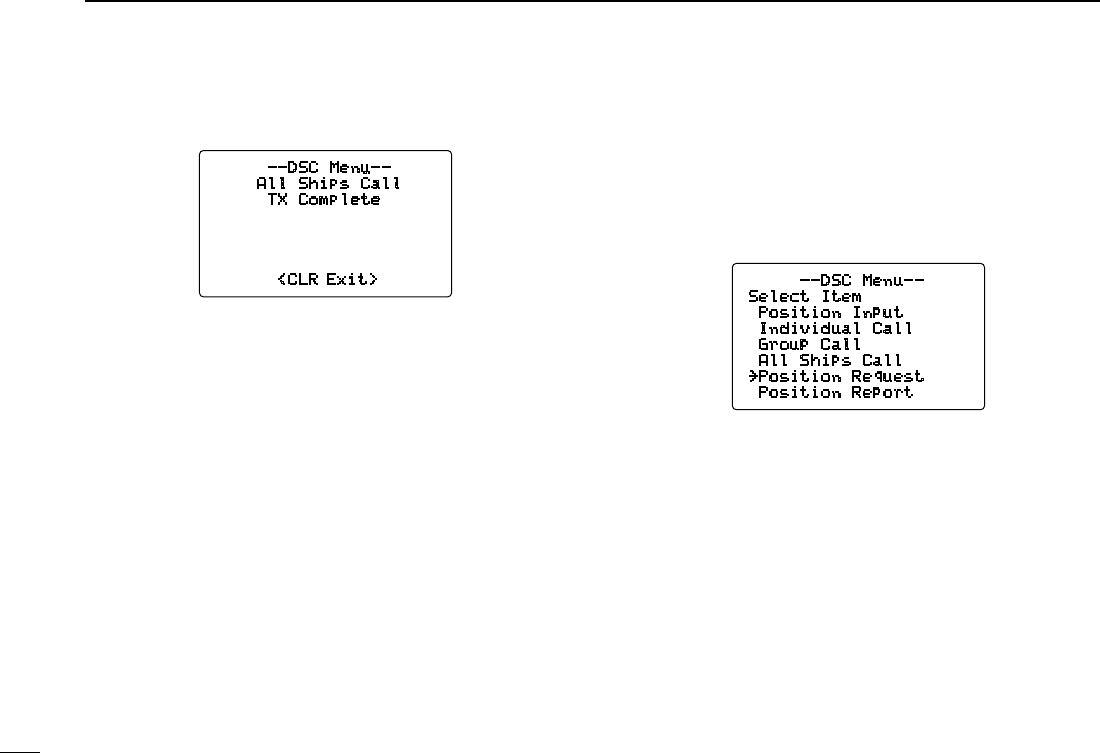
q Push [MENU] to enter the DSC menu.
w Rotate [DIAL] to select “All Ships Call,” and push
[DIAL•ENTER].
e Rotate [DIAL] to select the desired category, push [DIAL•
ENTER].
• Output power of ‘Routine’ category is 1 W (low power) only.
• The selectable category may differ according to the pro-
grammed setting. Ask your dealer for the available categories.
r Push [DIAL•ENTER] to transmit the all ships call.
• Channel 70 is selected and the all ships call is transmitted.
--DSC Menu--
Select Item
Position Input
Individual Call
Group Call
˘All Ships Call
Position Request
Position Report
--DSC Menu--
Select Category
˘Routine
Safety
Urgency
<CLR Exit / ENT OK>
--DSC Menu--
All Ships Call Ready
<CLR Exit / ENT OK>
--DSC Menu--
All Ships Call
Transmitting
32
6DSC OPERATION
New2001
t After the all ships call has been transmitted, the following
indication is displayed.
y Push [CLR] to exit and the transceiver selects Channel
16 automatically.
• Even if [CLR] hasn’t been pushed, the transceiver automatically
selects Channel 16 after 2 sec. of inactivity.
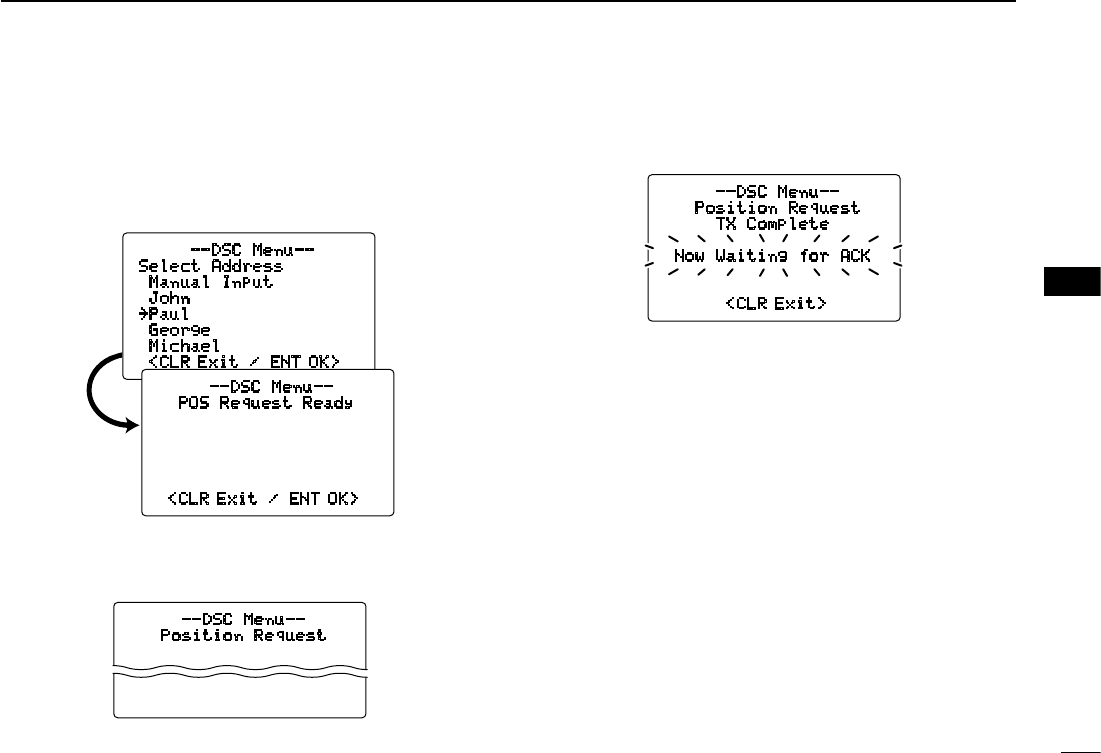
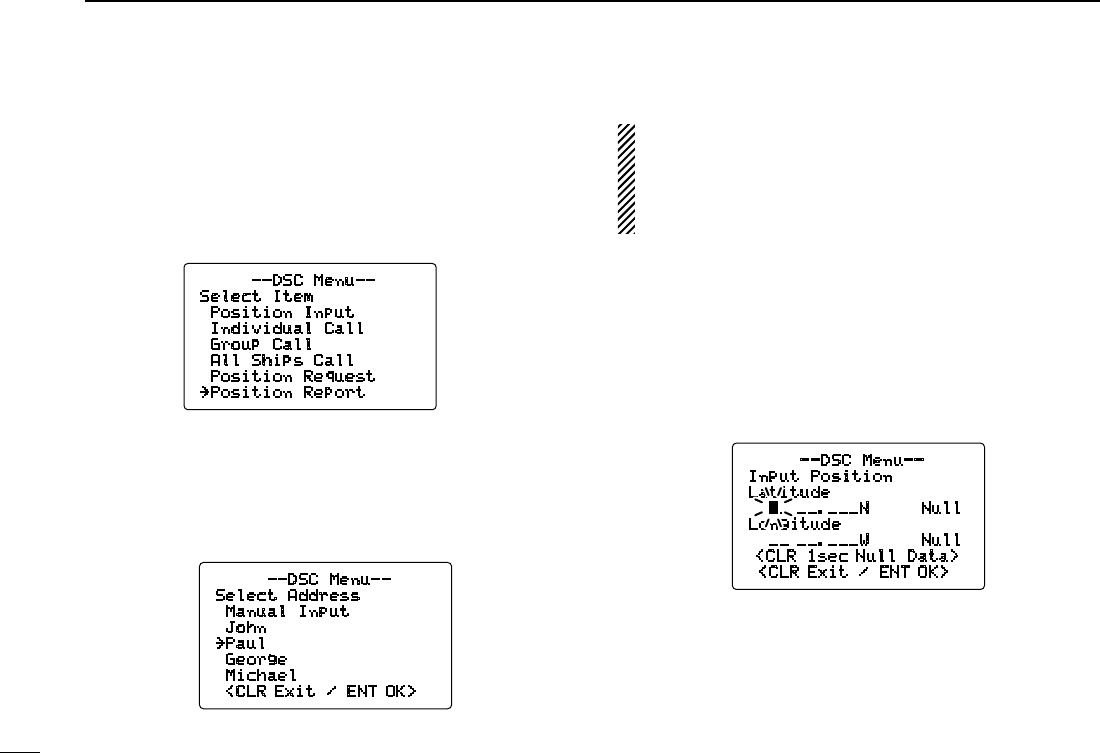
D Transmitting a position request call
Transmit a position request call when you want to know a
specific ship’s current position, etc.
q Push [MENU] to enter the DSC menu.
w Rotate [DIAL] to select “Position Request,” push
[DIAL•ENTER].
--DSC Menu--
Select Item
Position Input
Individual Call
Group Call
All Ships Call
˘Position Request
Position Report
--DSC Menu--
All Ships Call
TX Complete
<CLR Exit>
33
6
DSC OPERATION
New2001
6
e
Rotate [DIAL] to select the desired pre-programmed individ-
ual address or “Manual Input,” push [DIAL•ENTER].
• The ID code can be set in advance. (p. 17)
• When “Manual Input” is selected, set the 9-digit MMSI
number for the individual you wish to call by rotating [DIAL].
r Push [DIAL•ENTER] to transmit the position request call.
• If Channel 70 is busy, the transceiver stands by until the chan-
nel becomes clear.
t After the position request call has been transmitted, the
following indication is displayed.
y Push [CLR] to return to the previous indication before en-
tering the DSC menu.
• Even if [CLR] hasn’t been pushed, the display automatically
returns to the previous indication after 2 sec. of inactivity.
--DSC Menu--
Position Request
TX Complete
Now Waiting for ACK
<CLR Exit>
--DSC Menu--
Position Request
Transmitting
--DSC Menu--
Select Address
Manual Input
John
˘Paul
George
Michael
<CLR Exit / ENT OK>
--DSC Menu--
POS Request Ready
<CLR Exit / ENT OK>
34
6DSC OPERATION
New2001
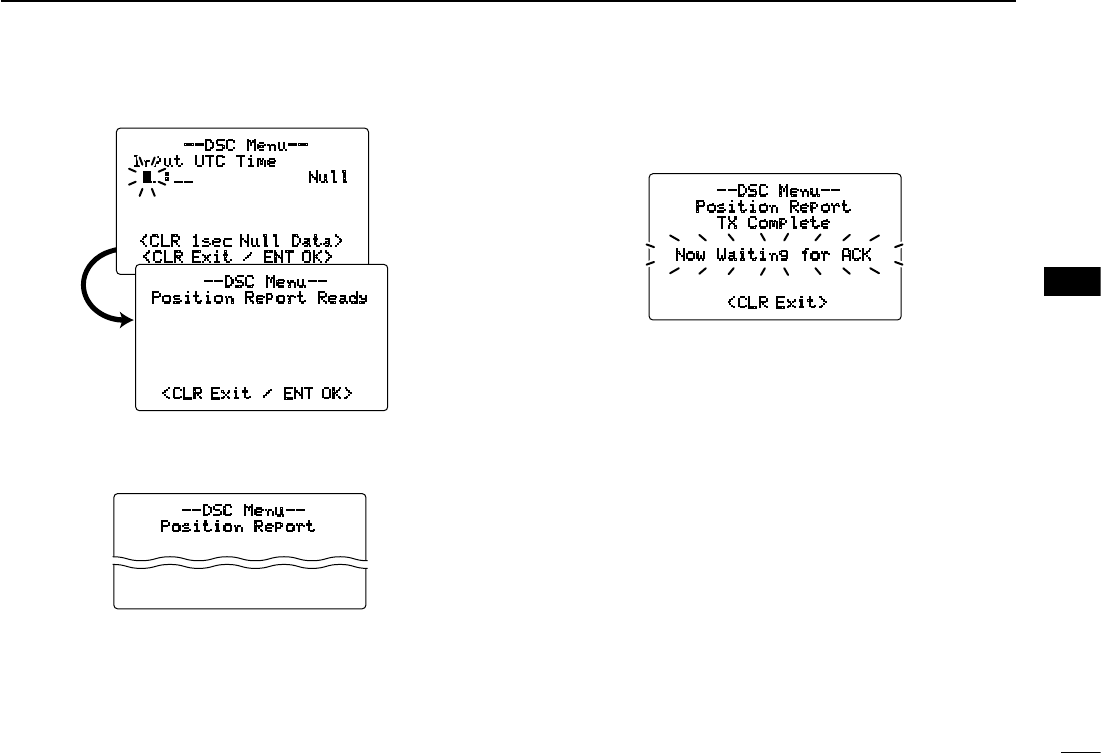
D Transmitting a position report call
Transmit a position report call when you want to announce
your own position to a specific ship and to get an answer, etc.
q Push [MENU] to enter the DSC menu.
w Rotate [DIAL] to select “Position Report,” push
[DIAL•ENTER].
e Rotate [DIAL] to select the desired pre-programmed
individual address or “Manual Input,” push [DIAL•
ENTER].
• The ID code can be set in advance. (p. 17)
• When “Manual Input” is selected, set the 9-digit MMSI
number for the individual you wish to call by rotating [DIAL].
Regardless of a GPS receiver (NMEA0183 ver. 2.0 or
3.01) connection, the current position/time information
appears in steps r and t. If the information is not nec-
essary to be changed, push [DIAL•ENTER] or [16•9]
several times to skip the data input steps.
r The position information appears. Set your position (lati-
tude and longitude) data by rotating [DIAL].
• Push [16•9] or [CH/WX•DUAL•U/I/C] to move the cursor for-
ward or backward, respectively.
• Rotate [DIAL] to edit N; North latitude or S; South latitude when
the cursor is on the ‘N’ or ‘S’ position, and W; West longitude or
E; East longitude when the cursor is on the ‘W’ or ‘E’ position.
• Push [CLR] for 1 sec. to clear the latitude/
longitude
data.
• Push [CLR] to cancel and return to the DSC menu.
t After setting the position data, push [DIAL•ENTER] to set
the current UTC time. Set the current UTC time by rotat-
ing [DIAL], then push [DIAL•ENTER].
• Push [16•9] or [CH/WX•DUAL•U/I/C] to move the cursor for-
ward or backward, respectively.
• Push [CLR] for 1 sec. to clear the UTC time data.
• Push [CLR] to cancel and return to the DSC menu.
--DSC Menu--
Input Position
Latitude
__ __.___N Null
Longitude
__ __.___W Null
<CLR 1sec Null Data>
<CLR Exit / ENT OK>
--DSC Menu--
Select Address
Manual Input
John
˘Paul
George
Michael
<CLR Exit / ENT OK>
--DSC Menu--
Select Item
Position Input
Individual Call
Group Call
All Ships Call
Position Request
˘Position Report
35
6
DSC OPERATION
New2001
6
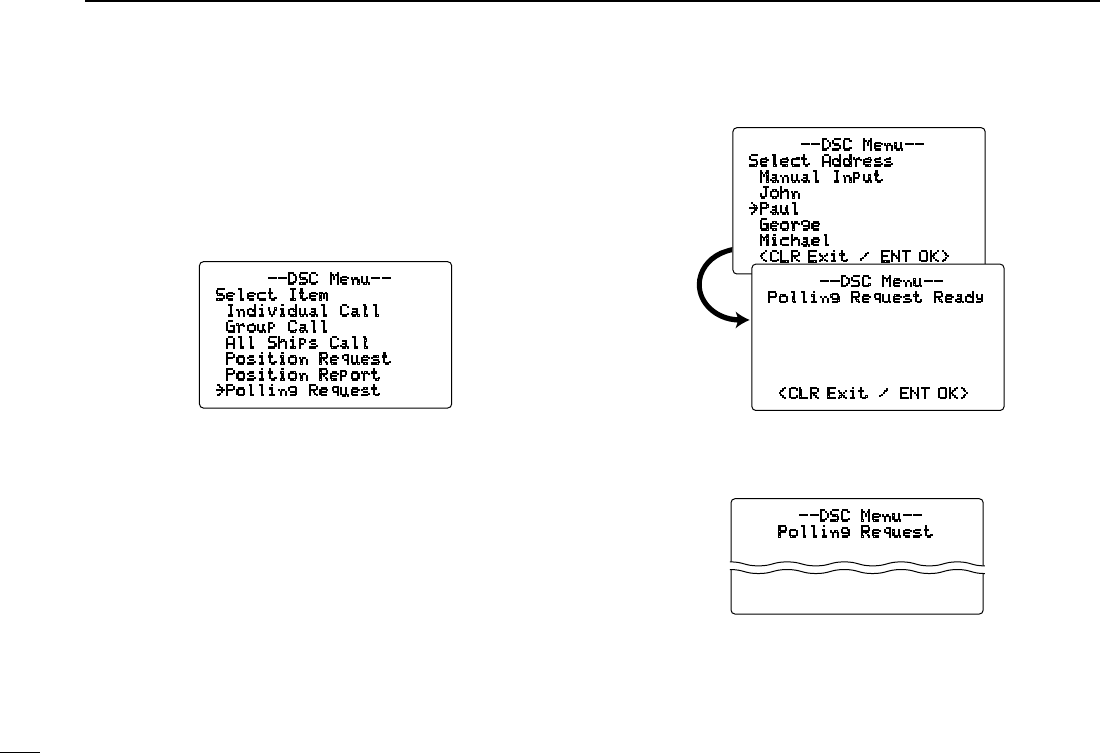
y Push [DIAL•ENTER] to transmit the position report call.
• If Channel 70 is busy, the transceiver stands by until the chan-
nel becomes clear.
u After the position report call has been transmitted, the fol-
lowing indication is displayed.
i Push [CLR] to return to the previous indication before en-
tering the DSC menu.
• Even if [CLR] hasn’t been pushed, the display automatically
returns to the previous indication after 2 sec. of inactivity.
--DSC Menu--
Position Report
Transmitting
--DSC Menu--
Input UTC Time
__:__ Null
<CLR 1sec Null Data>
<CLR Exit / ENT OK>
--DSC Menu--
Position Report Ready
<CLR Exit / ENT OK>
--DSC Menu--
Position Report
TX Complete
Now Waiting for ACK
<CLR Exit>
36
6DSC OPERATION
New2001
D Transmitting a polling request call
Transmit a polling request call when you want to know if a
specific vessel is within communication range.
q Push [MENU] to enter the DSC menu.
w Rotate [DIAL] to select “Polling Request,” push
[DIAL•ENTER].
e Rotate [DIAL] to select the desired pre-programmed
individual address or “Manual Input,” push [DIAL•
ENTER].
• The ID code can be set in advance. (p. 17)
• When “Manual Input” is selected, set the 9-digit MMSI
number for the individual you wish to call by rotating [DIAL].
r Push [DIAL•ENTER] to transmit the polling request call.
• If Channel 70 is busy, the transceiver stands by until the chan-
nel becomes clear.
--DSC Menu--
Polling Request
Transmitting
--DSC Menu--
Select Item
Individual Call
Group Call
All Ships Call
Position Request
Position Report
˘Polling Request
--DSC Menu--
Select Address
Manual Input
John
˘Paul
George
Michael
<CLR Exit / ENT OK>
--DSC Menu--
Polling Request Ready
<CLR Exit / ENT OK>
37
6
DSC OPERATION
New2001
6
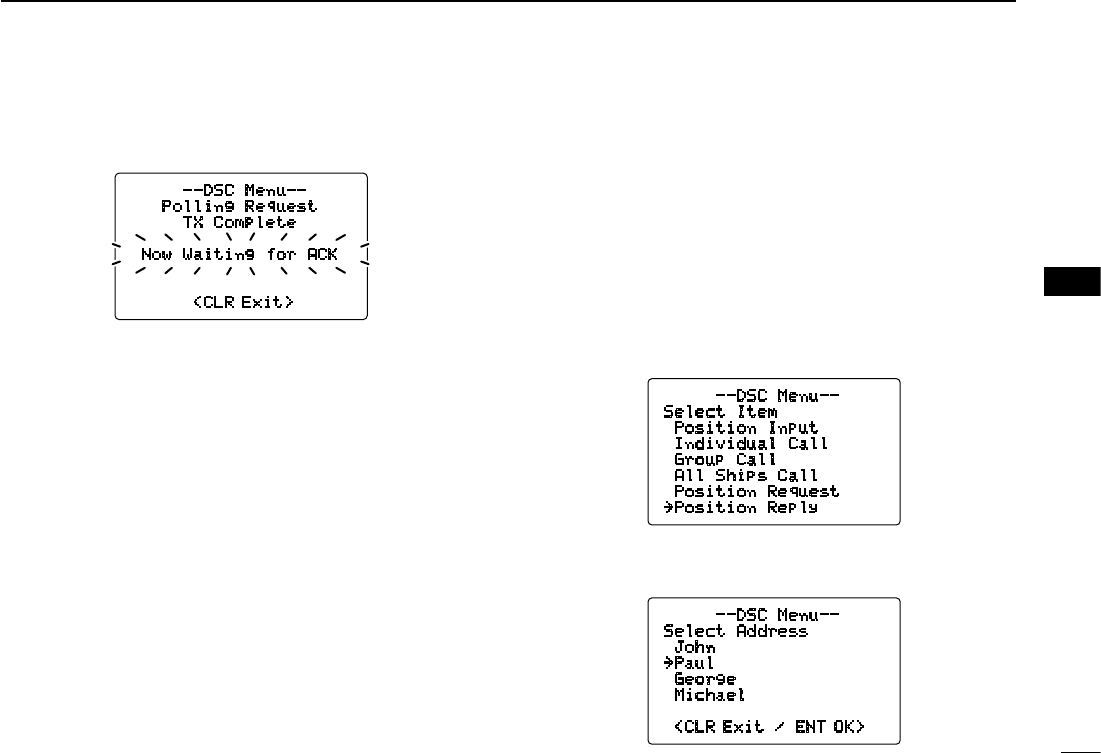
t After the polling request call has been transmitted, the fol-
lowing indication is displayed.
y Push [CLR] to return to the previous indication before en-
tering the DSC menu.
• Even if [CLR] hasn’t been pushed, the display automatically
returns to the previous indication after 2 sec. of inactivity.
D Transmitting a position request reply call
Transmit a position request reply call when a position re-
quest call is received.
When the automatic acknowledgement function is ON (p. 48),
the transceiver automatically transmits a reply call after re-
ceiving a position request call.
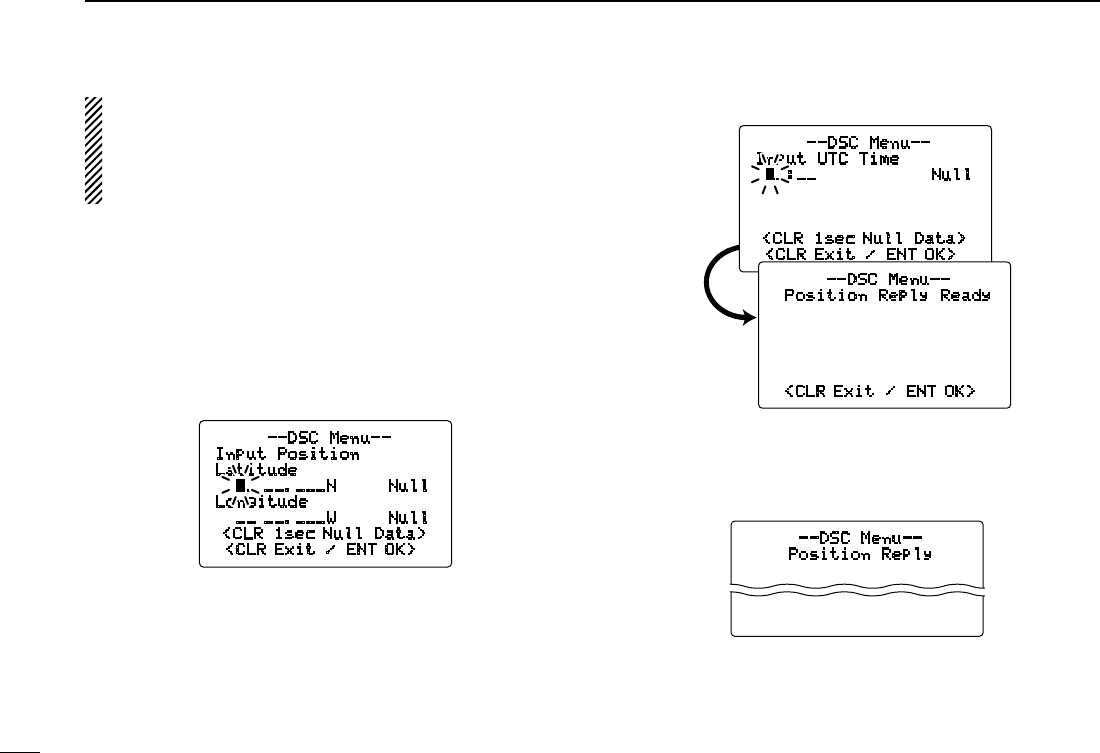
q Push [MENU] to enter the DSC menu.
w Rotate [DIAL] to select “Position Reply,” push
[DIAL•ENTER].
• “Position Reply” item appears after a position request
call is received.
e Rotate [DIAL] to select the desired individual address or
ID code, push [DIAL•ENTER].
--DSC Menu--
Polling Request
TX Complete
Now Waiting for ACK
<CLR Exit>
--DSC Menu--
Select Item
Position Input
Individual Call
Group Call
All Ships Call
Position Request
˘Position Reply
--DSC Menu--
Select Address
John
˘Paul
George
Michael
<CLR Exit / ENT OK>
38
6DSC OPERATION
New2001
Regardless of a GPS receiver (NMEA0183 ver. 2.0 or
3.01) connection, the current position/time information
appears in steps r and t. If the information is not nec-
essary to be changed, push [DIAL•ENTER] or [16•9]
several times to skip the data input steps.
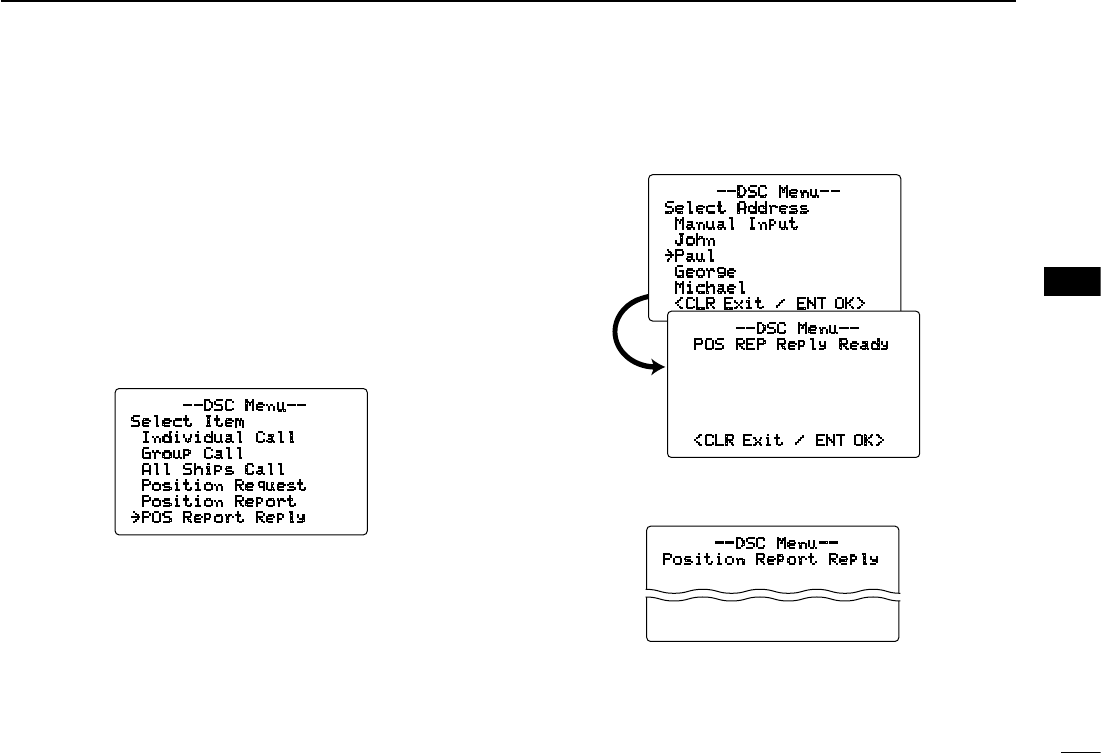
r The position information appears. Set your position (lati-
tude and longitude) data by rotating [DIAL].
• Push [16•9] or [CH/WX•DUAL•U/I/C] to move the cursor for-
ward or backward, respectively.
• Rotate [DIAL] to edit N; North latitude or S; South latitude when
the cursor is on the ‘N’ or ‘S’ position, and W; West longitude or
E; East longitude when the cursor is on the ‘W’ or ‘E’ position.
• Push [CLR] for 1 sec. to clear the latitude/
longitude
data.
• Push [CLR] to cancel and return to the DSC menu.
t After setting the position data, push [DIAL•ENTER] to set
the current UTC time. Set the current UTC time by rotat-
ing [DIAL], then push [DIAL•ENTER].
• Push [16•9] or [CH/WX•DUAL•U/I/C] to move the cursor for-
ward or backward, respectively.
• Push [CLR] for 1 sec. to clear the UTC time data.
• Push [CLR] to cancel and return to the DSC menu.
y Push [DIAL•ENTER] to transmit the position request
reply call to the selected station.
• Your position data is transmitted, when [DIAL•ENTER] is
pushed.
--DSC Menu--
Position Reply
Transmitting
--DSC Menu--
Input Position
Latitude
__ __.___N Null
Longitude
__ __.___W Null
<CLR 1sec Null Data>
<CLR Exit / ENT OK>
--DSC Menu--
Input UTC Time
__:__ Null
<CLR 1sec Null Data>
<CLR Exit / ENT OK>
--DSC Menu--
Position Reply Ready
<CLR Exit / ENT OK>
39
6
DSC OPERATION
New2001
6
D Transmitting a position report reply call
Transmit a position report reply call when a position report
call is received.
When the automatic acknowledgement function is ON (p. 48),
the transceiver automatically transmits a reply call after re-
ceiving a position report call.
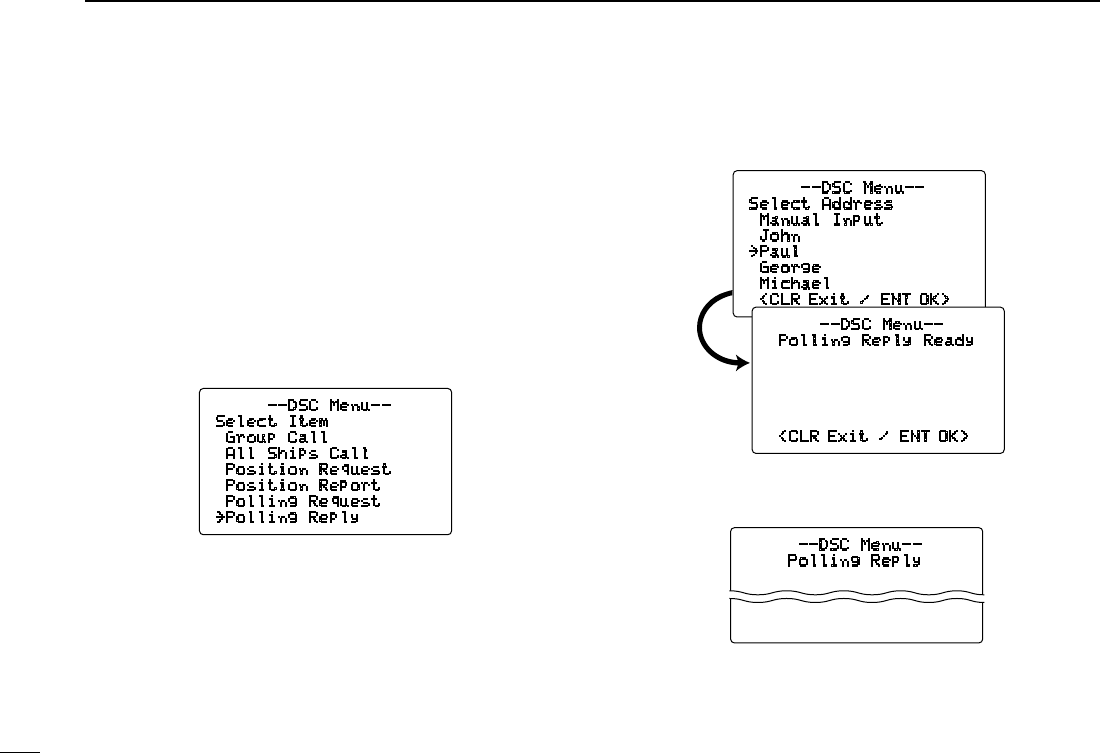
q Push [MENU] to enter the DSC menu.
w Rotate [DIAL] to select “POS Report Reply,” push
[DIAL•ENTER].
• “POS Report Reply” item appears after a position report
call is received.
e Rotate [DIAL] to select the desired individual address or
ID code, push [DIAL•ENTER].
r Push [DIAL•ENTER] to transmit the position report reply
call to the selected station.
--DSC Menu--
Position Report Reply
Transmitting
--DSC Menu--
Select Item
Individual Call
Group Call
All Ships Call
Position Request
Position Report
˘POS Report Reply
--DSC Menu--
Select Address
Manual Input
John
˘Paul
George
Michael
<CLR Exit / ENT OK>
--DSC Menu--
POS REP Reply Ready
<CLR Exit / ENT OK>
40
6DSC OPERATION
New2001
D Transmitting a polling request reply call
Transmit a polling reply call when a polling request call is re-
ceived.
When the automatic acknowledgement function is ON (p. 48),
the transceiver automatically transmits a reply call after re-
ceiving a polling request call.
q Push [MENU] to enter the DSC menu.
w Rotate [DIAL] to select “Polling Reply,” push
[DIAL•ENTER].
• “Polling Reply” item appears after a polling request call
is received.
e Rotate [DIAL] to select the desired individual address or
ID code, push [DIAL•ENTER].
r Push [DIAL•ENTER] to transmit the polling request reply
call to the selected station.
--DSC Menu--
Polling Reply
Transmitting
--DSC Menu--
Select Item
Group Call
All Ships Call
Position Request
Position Report
Polling Request
˘Polling Reply
--DSC Menu--
Select Address
Manual Input
John
˘Paul
George
Michael
<CLR Exit / ENT OK>
--DSC Menu--
Polling Reply Ready
<CLR Exit / ENT OK>
41
6
DSC OPERATION
New2001
6
■ Receiving DSC calls
D Receiving a distress call
While monitoring Channel 70 and a distress call is received:
➥ The emergency alarm sounds for 2 minutes.
• Push [CLR] to stop the alarm.
➥ “Received Distress” appears in the display, then
Channel 16 is automatically selected.
➥ Continue monitoring Channel 16 as a coast station may
require assistance.
D Receiving a distress acknowledgement
While monitoring Channel 70 and a distress acknowledge-
ment to other ship is received:
➥ The emergency alarm sounds for 2 minutes.
• Push [CLR] to stop the alarm.
➥ “Received DistressACK” appears in the display,
then Channel 16 is automatically selected.
D Receiving a distress relay call
While monitoring Channel 70 and a distress relay acknowl-
edgement is received:
➥ The emergency alarm sounds for 2 minutes.
• Push [CLR] to stop the alarm.
➥ “Received DistressRLY” appears in the display,
then Channel 16 is automatically selected.
25W INT
TAG
Received
DistressRLY
<John
<CLR
Beep Off> CALLING
25W INT
TAG
Received
Distress
<Paul
<CLR
Beep Off> CALLING
25W INT
TAG
Received
DistressACK
<Osaka Bay
<CLR
Beep Off> CALLING
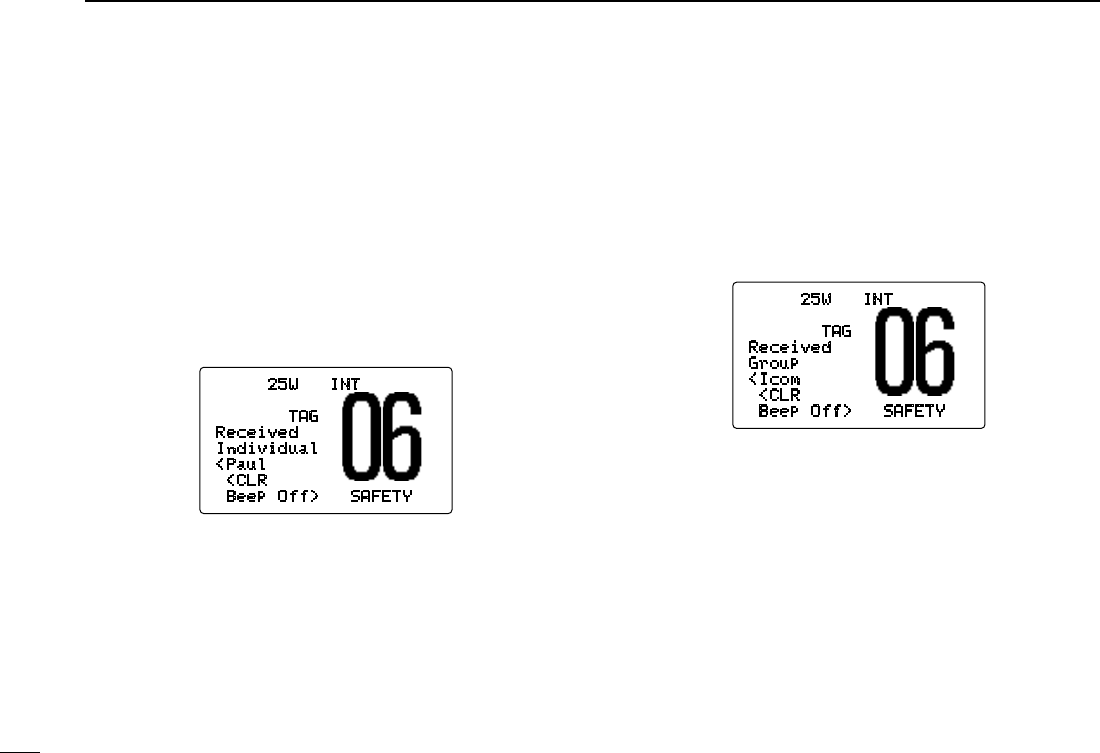
42
6DSC OPERATION
New2001
D Receiving an individual call
While monitoring Channel 70 and an individual call is re-
ceived:
➥ The emergency alarm or beeps sound depending on the
received category.
➥ “Received Individual” appears in the display.
➥ Push [CLR] to stop the beep, then push [DIAL•ENTER] to
reply the call and select the channel specified by the call-
ing station for voice communication (depending on your
replying condition see p. 28 for individual acknowledge-
ment call procedure for details.); push [CLR] to ignore the
individual call.
D Receiving a group call
While monitoring Channel 70 and a group call is received:
➥ The emergency alarm or beeps sound depending on the
received category.
➥ “Received Group” appears in the display.
➥ Push [CLR] to stop the beep, then push [DIAL•ENTER]
to select the channel specified by the calling station for
voice communication; push [CLR] to ignore the group call.
D Receiving an all ships call
While monitoring Channel 70 and an all ships call is re-
ceived:
➥ The emergency alarm sounds when the category is ‘Dis-
tress’ or ‘Urgency’; beeps sound for 2 minutes.
➥ “Received All Ships” appears in the display.
➥ Push [CLR] to stop the beep, then push [DIAL•ENTER]
to monitor channel 16 for an announcement from the call-
ing vessel; push [CLR] to ignore the call.
25W INT
TAG
Received
Individual
<Paul
<CLR
Beep Off> SAFETY
25W INT
TAG
Received
Group
<Icom
<CLR
Beep Off> SAFETY
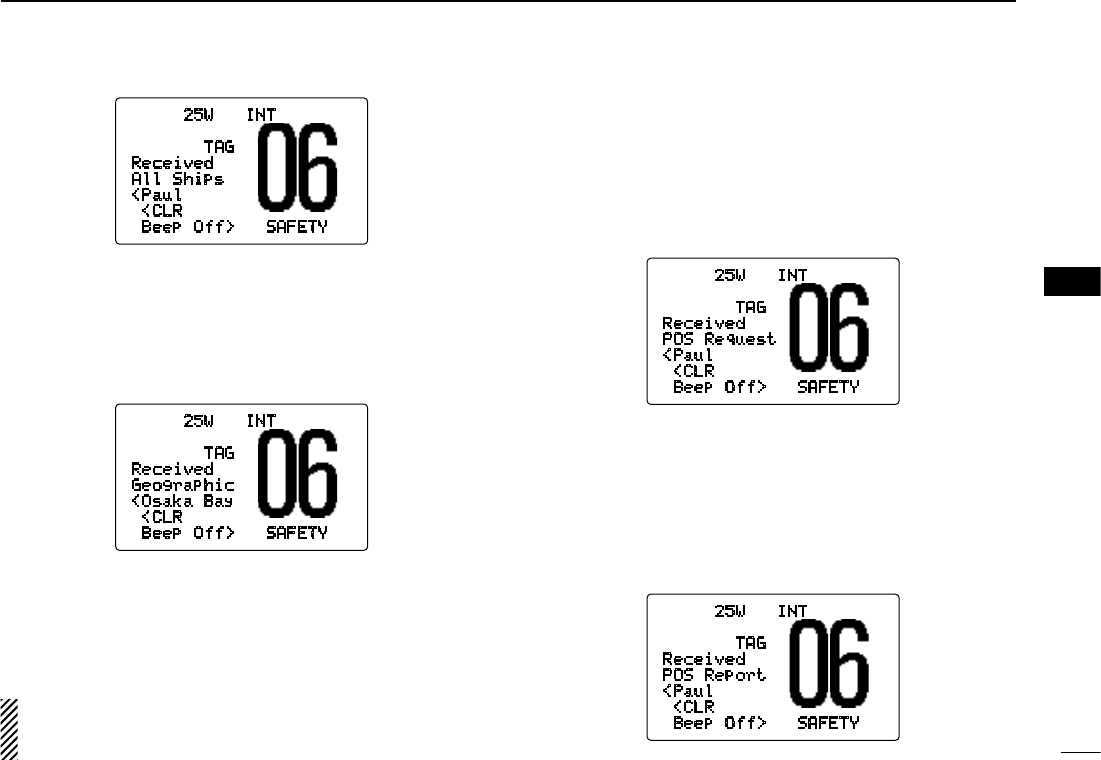
43
6
DSC OPERATION
New2001
6
D Receiving a geographical area call
While monitoring Channel 70 and a geographical area call
(for the area you are in) is received:
➥ Emergency alarm or beeps sound depending on the re-
ceived category.
➥ “Received Geographic” appears in the display.
➥ Push [CLR] to stop the beep, then push [DIAL•ENTER]
to change to the channel specified by the calling station
for voice communication; push other key to ignore the
geographical area call.
➥ Monitor the selected channel for an announcement from
the calling station.
When no GPS receiver is connected or if there is a prob-
lem with the connected receiver, all geographical area
calls are received, regardless of your position.
D Receiving a position request call
While monitoring Channel 70 and a position request call is
received:
➥ “Received POS Request” appears in the display.
➥ Push [CLR] to stop the beep, then push [DIAL•ENTER]
to reply to the position request call; push [CLR] to ignore
the position request call.
D Receiving a position report call
While monitoring Channel 70 and a position report call is re-
ceived:
➥ “Received POS Report” appears in the display.
➥ Push [CLR] to stop the beep, then push [DIAL•ENTER]
to reply to the position report call; push [CLR] to ignore
the position report call.
25W INT
TAG
Received
All Ships
<Paul
<CLR
Beep Off> SAFETY
25W INT
TAG
Received
POS Request
<Paul
<CLR
Beep Off> SAFETY
25W INT
TAG
Received
POS Report
<Paul
<CLR
Beep Off> SAFETY
25W INT
TAG
Received
Geographic
<Osaka Bay
<CLR
Beep Off> SAFETY
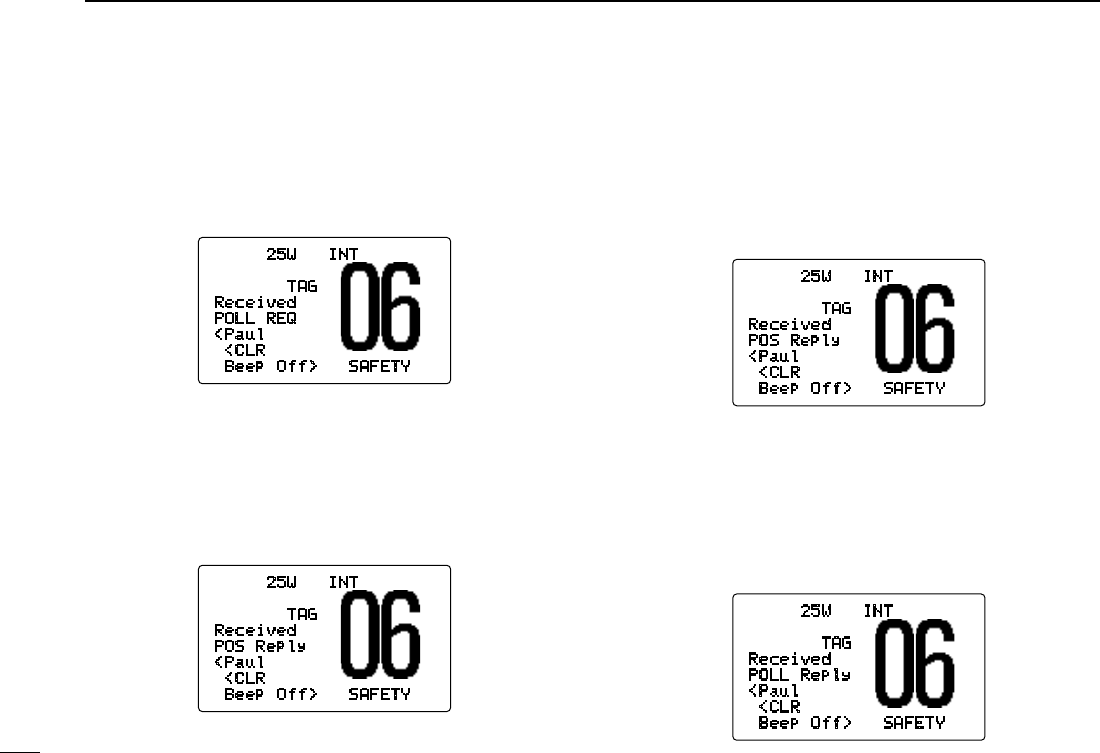
44
6DSC OPERATION
New2001
D Receiving a polling request call
While monitoring Channel 70 and a polling request call is
received:
➥ “Received POLL REQ” appears in the display.
➥ Push [CLR] to stop the beep, then push [DIAL•ENTER]
to reply to the call; push [CLR] to ignore the call.
D Receiving a position request reply call
While monitoring Channel 70 and a position request reply
call is received:
➥ “Received POS Reply” appears in the display.
➥ Push [CLR] to stop the beep, then push [DIAL•ENTER]
to display the position information; push [CLR] to ignore
the reply call.
D Receiving a position report reply call
While monitoring Channel 70 and a position report reply call
is received:
➥ “Received POS Reply” appears in the display.
➥ Push [CLR] to stop the beep, then push [DIAL•ENTER]
to display the position information; push [CLR] to ignore
the reply call.
D Receiving a polling request reply call
While monitoring Channel 70 and a polling request reply call
is received:
➥ “Received POLL Reply” appears in the display.
➥ Push [CLR] to stop the beep, then push [DIAL•ENTER]
to display the position information; push [CLR] to ignore
the reply call.
25W INT
TAG
Received
POLL REQ
<Paul
<CLR
Beep Off> SAFETY
25W INT
TAG
Received
POS Reply
<Paul
<CLR
Beep Off> SAFETY
25W INT
TAG
Received
POLL Reply
<Paul
<CLR
Beep Off> SAFETY
25W INT
TAG
Received
POS Reply
<Paul
<CLR
Beep Off> SAFETY
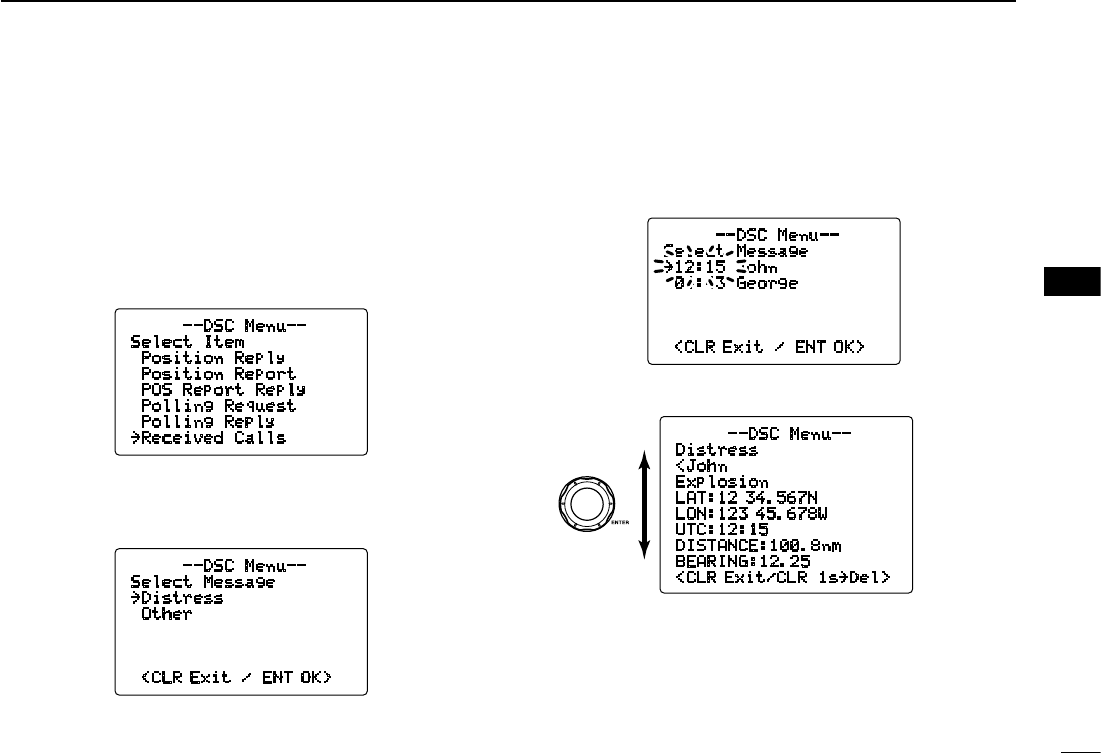
45
6
DSC OPERATION
New2001
6
■ Received messages
The transceiver automatically stores up to 20 distress mes-
sages and 20 other messages. The messages can be used
as an assistance to the logbook.
q Push [MENU] to enter the DSC menu.
w Rotate [DIAL] to select “Received Calls,” push
[DIAL•ENTER].
D Distress message
q Rotate [DIAL] to select “Distress,” push [DIAL•
ENTER].
w Rotate [DIAL] to scroll to the desired message, push
[DIAL•ENTER].
• Messages which are blinking have not been read.
e Rotate [DIAL] to scroll the message.
r Push [CLR] to exit or push [CLR] for 1 sec. to delete the
displayed message and return to the DSC menu.
--DSC Menu--
Distress
<John
Explosion
LAT:12 34.567N
LON:123 45.678W
UTC:12:15
DISTANCE:100.8nm
BEARING:12.25
<CLR Exit/CLR 1s˘Del>
Rotate
--DSC Menu--
Select Item
Position Reply
Position Report
POS Report Reply
Polling Request
Polling Reply
˘Received Calls
--DSC Menu--
Select Message
˘Distress
Other
<CLR Exit / ENT OK>
--DSC Menu--
Select Message
˘12:15 John
04:43 George
<CLR Exit / ENT OK>
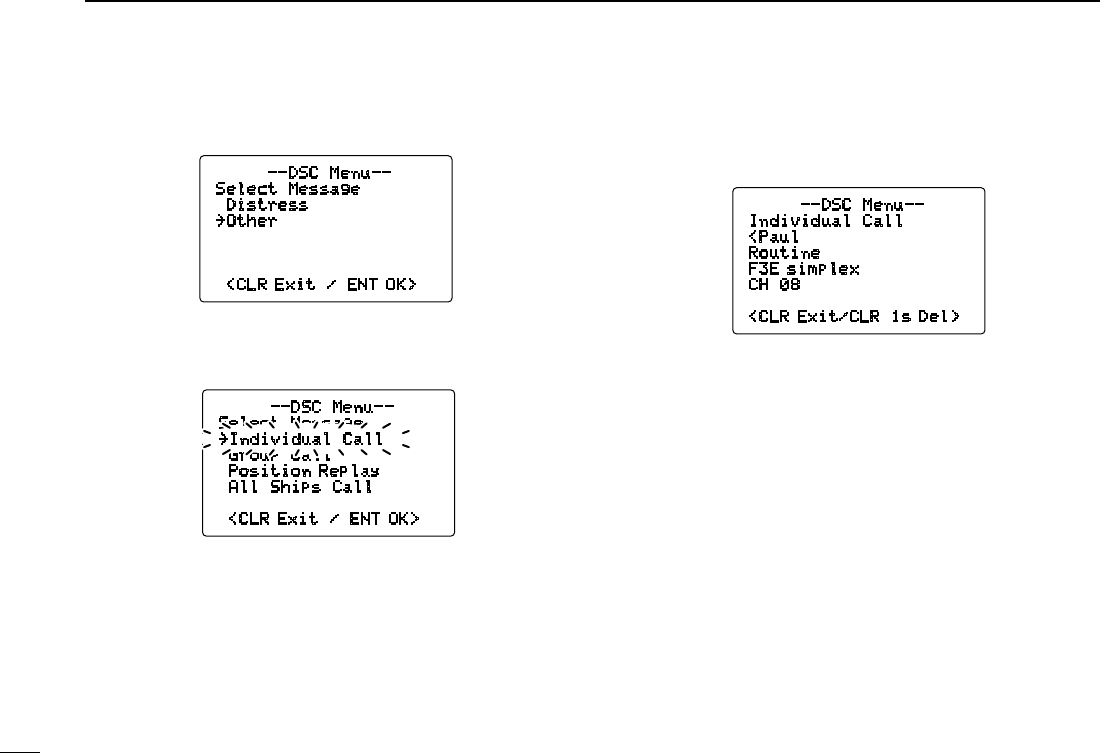
46
6DSC OPERATION
New2001
D Other messages
q Rotate [DIAL] to select “Other,” push [DIAL•ENTER].
w Rotate [DIAL] to scroll to the desired message, push
[DIAL•ENTER].
• Messages which are blinking have not been read.
e Rotate [DIAL] to scroll the message.
• The stored message has various information, depending on the
type of distress call.
--DSC Menu--
Individual Call
<Paul
Routine
F3E simplex
CH 08
<CLR Exit/CLR 1s Del>
r Push [CLR] to exit or push [CLR] for 1 sec. to delete the
displayed message and returns to the DSC menu.
--DSC Menu--
Select Message
Distress
˘Other
<CLR Exit / ENT OK>
--DSC Menu--
Select Message
-Individual Call
Group Call
Position Replay
All Ships Call
<CLR Exit / ENT OK>
˘Individual Call
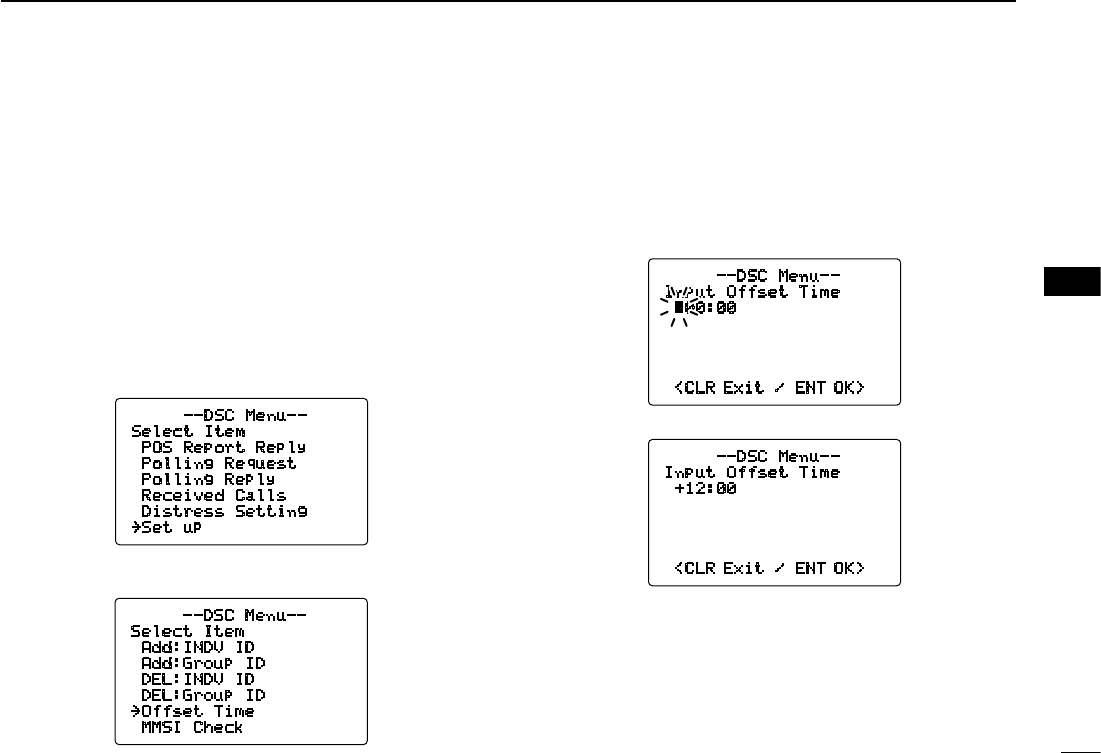
47
6
DSC OPERATION
New2001
6
■ DSC Set mode
D MMSI code check (See p. 16)
D Add Individual ID/Group ID (See pgs. 17, 19)
D Delete Individual ID/Group ID (See pgs. 18, 20)
D Offset time
This item sets the offset time from the UTC (Universal Time
Coordinated) time.
q Push [MENU] to enter the DSC menu.
w Rotate [DIAL] to select “Set up,” and push [DIAL•
ENTER].
e Rotate [DIAL]
to select “Offset Time,”
push [DIAL•
ENTER]
.
r Set the offset time from the UTC (Universal Time Coordi-
nated) time by rotating [DIAL].
• Push [16•9] or [CH/WX•DUAL•U/I/C] to move the cursor for-
ward or backward, respectively.
• Push [CLR] to cancel and return to the set up menu.
t Push [DIAL•ENTER] to program and to return to the set
up menu.
--DSC Menu--
Select Item
POS Report Reply
Polling Request
Polling Reply
Received Calls
Distress Setting
˘Set up
--DSC Menu--
Input Offset Time
+12:00
<CLR Exit / ENT OK>
--DSC Menu--
Input Offset Time
00:00
<CLR Exit / ENT OK>
No offset time (default)
+12 hours
--DSC Menu--
Select Item
Add:INDV ID
Add:Group ID
DEL:INDV ID
DEL:Group ID
˘Offset Time
MMSI Check
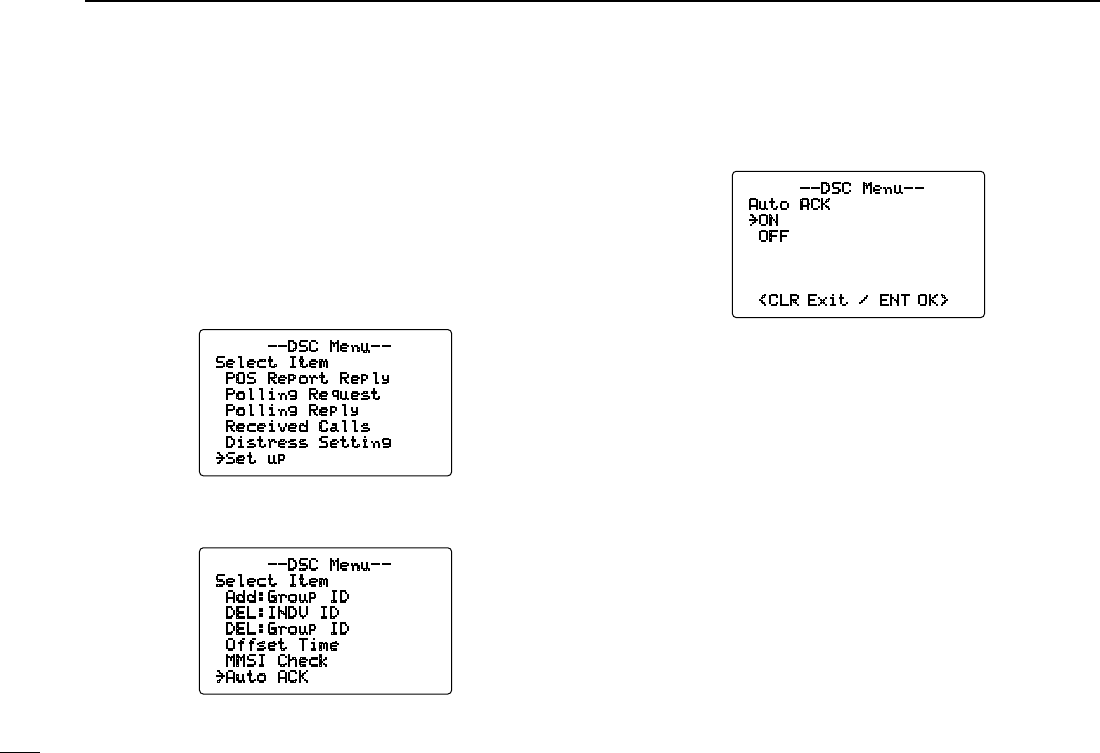
48
6DSC OPERATION
New2001
D Automatic acknowledgement
This item sets the automatic acknowledgement function to
ON or OFF.
When a position request, position report or polling request
call is received, the transceiver automatically transmits a po-
sition request reply, position report reply or polling reply call,
respectively.
q Push [MENU] to enter the DSC menu.
w Rotate [DIAL] to select “Set up,” push [DIAL•ENTER].
e R o t a t e [ D I A L ]
t o s e l e c t “ Auto ACK,”
p u s h
[DIAL•ENTER]
.
r Rotate [DIAL]
to turn the
automatic acknowledgement
function ON or OFF
.
t Push [DIAL•ENTER] to set the condition.
• Push [CLR] to cancel and return to the set up menu.
--DSC Menu--
Select Item
Add:Group ID
DEL:INDV ID
DEL:Group ID
Offset Time
MMSI Check
˘Auto ACK
--DSC Menu--
Auto ACK
˘ON
OFF
<CLR Exit / ENT OK>
--DSC Menu--
Select Item
POS Report Reply
Polling Request
Polling Reply
Received Calls
Distress Setting
˘Set up
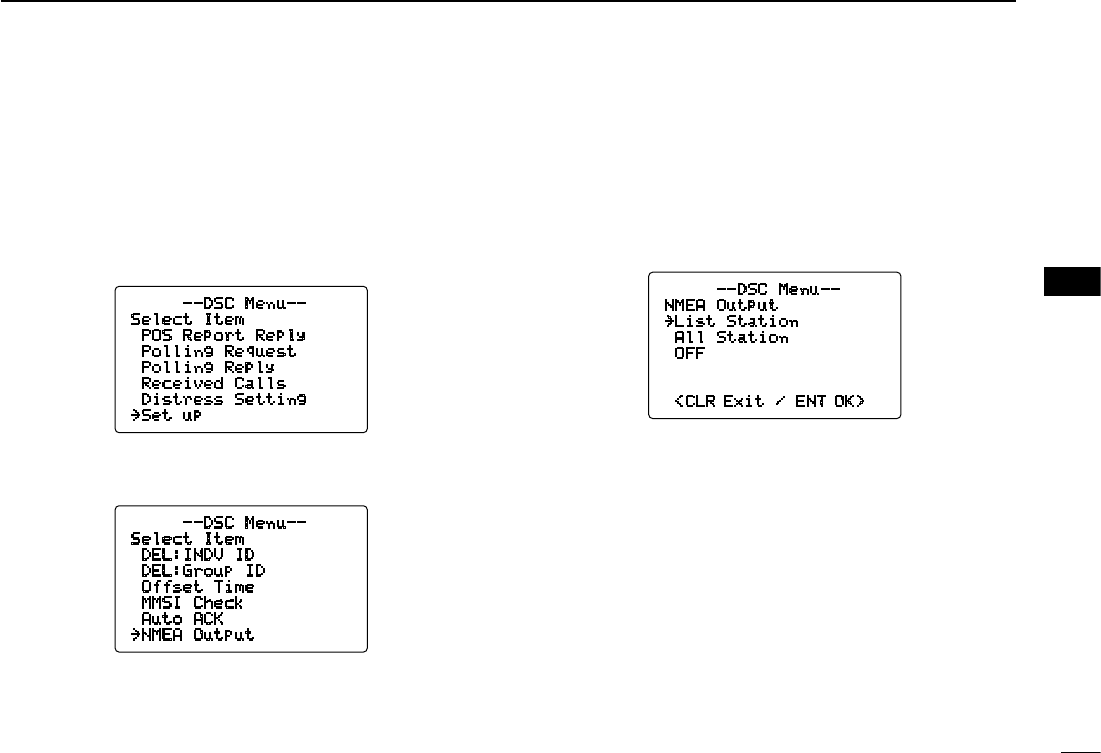
49
6
DSC OPERATION
New2001
6
D NMEA Output
Select an NMEA Output function from OFF, All Station or
List Station.
When receiving position acknowledgment, the transceiver
outputs it to the external equipment via the NMEA connector.
q Push [MENU] to enter the DSC menu.
w Rotate [DIAL] to select “Set up,” push [DIAL•ENTER].
e Rotate [DIAL]
to select “NMEA Output,”
push
[DIAL•ENTER]
.
r Rotate [DIAL]
to s
elect the NMEA Output function from
OFF, All Station or List Station.
• List Station : Outputs the position data from the specified ves-
sels listed on the DSC individual ID screen.
• All Station : Outputs the position data from all vessels.
• OFF : Does not output any position data to external
equipment.
t Push [DIAL•ENTER] to set the condition.
• Push [CLR] to cancel and return to the set up menu.
--DSC Menu--
Select Item
DEL:INDV ID
DEL:Group ID
Offset Time
MMSI Check
Auto ACK
˘NMEA Output
--DSC Menu--
Select Item
POS Report Reply
Polling Request
Polling Reply
Received Calls
Distress Setting
˘Set up
--DSC Menu--
NMEA Output
˘List Station
All Station
OFF
<CLR Exit / ENT OK>

50
New2001
OTHER FUNCTIONS
7
■ Intercom operation
The optional Intercom function allows you to talk to the
deck from the cabin. The optional command microphone is
required for Intercom operation.
Connect an optional command microphone as described on
p. 63.
• Transmitting is impossible during Intercom operation.
• The received signal is muted during Intercom operation.
q Push and hold [LO/DX•IC•SCRM] for 1 sec. to enter In-
tercom mode.
• The optional command microphone power is automatically
turned ON, even if the power is OFF.
w Push and hold [LO/DX•IC•SCRM] for 1 sec. again to call
up the optional command microphone side.
• The transceiver and the optional command microphone emit
call beeps.
e Push and hold [PTT] and speak at a normal voice level
into the microphone.
• “TALK” or “LISTEN”* appears on the caller or listener func-
tion display.
* “ ” or “ ” appears on the HM-157.
• To adjust the IC-M504’s speaker output level, rotate [VOL].
• To adjust the HM-162’s speaker output level, rotate [SELEC-
TOR] after pushing [VOL] on the HM-162.
• To adjust the HM-157’s speaker output level, push [Y] or [Z]
after pushing [VOL• DIM PA/RX ] on the HM-157.
r After releasing [PTT] you can hear the response through
the speaker.
t To return to the normal operation, push [LO/DX•IC•
SCRM] momentarily.
• [16•9] and [DISTRESS] keys are also available.
INTERCOM
IC-M504/HM-162 HM-157
Push and hold for 1 sec.
INTERCOM
TALK
IC-M504 (caller)
HM-157 (listener)
INTERCOM
LISTEN
HM-162 (listener)
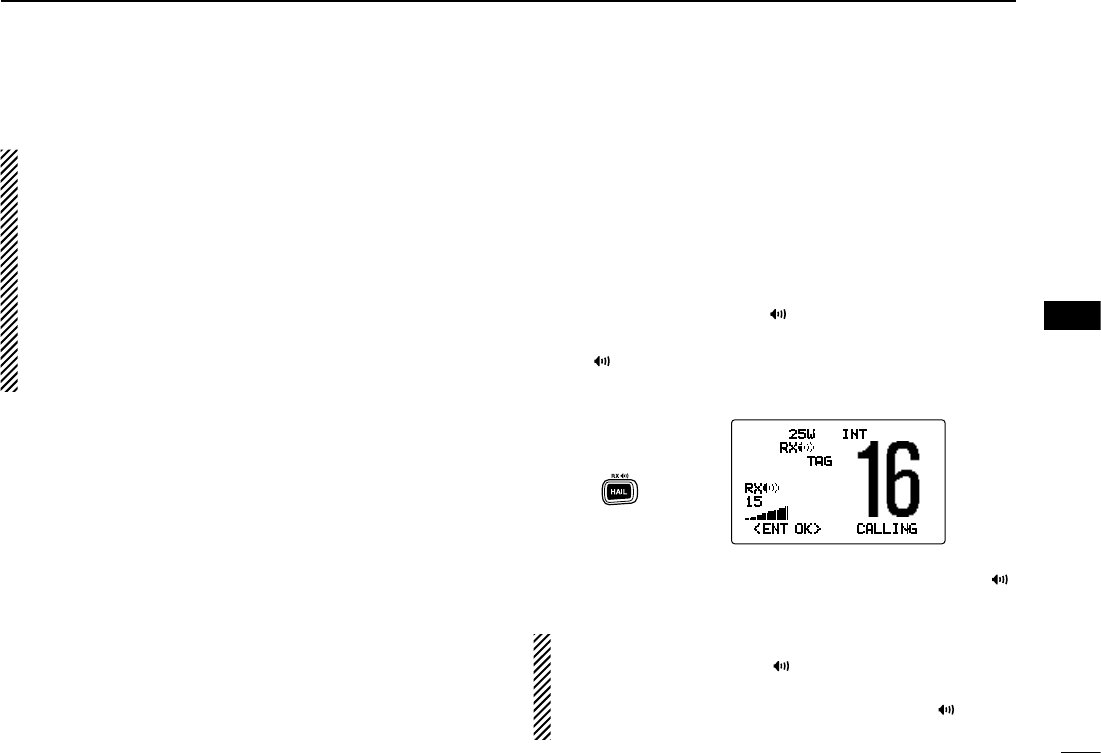
51
7
OTHER FUNCTIONS
New2001
7
• While in the Intercom mode, the transceiver functions
(transmit and receive) are interrupted. If the transceiver
is in transmit condition, the Intercom function is not avail-
able.
• When a DSC call is received, the intercom function is
interrupted with an automatic return to the transceiver
mode. The transceiver’s display indicates ‘Receiving
DSC calls.’ (p. 41)
• When a WX alert is received, “WX ALERT” blinks and
a beep sounds. The WX alert sounds after the Intercom
use is finished.
■ RX Speaker function
The IC-M504 has an RX Speaker function. When this func-
tion is turned ON, the received audio can be heard on the
deck or tower via an external speaker or hailer speaker.
Connect an external speaker or hailer speaker as described
on p. 58.
q Push and hold [HAIL•RX ] for 1 sec. to enter the RX
Speaker mode.
• “RX ” appears
• Rotate [DIAL] to adjust the audio output level, push [DIAL•
ENTER].
w To return to normal operation, push and hold [HAIL•RX ]
for 1 sec.
While in the RX Speaker mode, rotate [DIAL] while push-
ing and holding [HAIL•RX ] to adjust the audio output
level. After adjusting, push [DIAL•ENTER].
• Rotate [DIAL] within 1 sec. after pushing [HAIL•RX ]. Other-
wise the transceiver returns to the normal operation.
25W INT
RX
TAG
RX
15
<ENT OK> CALLING
Push and hold
for 1 sec.

52
7OTHER FUNCTIONS
New2001
■ Hailer operation
The IC-M504 has a hailer function for voice amplification
over a loudspeaker, making it unnecessary to leave the
bridge to talk a hailing party.
Connect an external hailer speaker (25 W nominal at 13.8
V/4 ˘) as described on p. 58.
• Transmitting is not possible during hailer operation.
• The received signal is muted during hailer operation.
q Push [HAIL•RX ] to enter hailer mode.
w Push and hold [PTT] and speak at a normal voice level
into the microphone.
• “TALK” appears.
• “WAIT” appears at the channel comment indicator when the
optional command microphone is in use.
• To adjust the hailer level, rotate [DIAL].
e
To return to normal operation, push [CLR] or [HAIL•RX ].
•
While in the hailer mode, the transceiver functions (trans-
mit and receive) are interrupted. If the transceiver is in
transmit condition, the hailer function is not available.
• When a DSC call is received, the hailer function is inter-
rupted with an automatic return to the transceiver mode.
The transceiver’s display indicates ‘Receiving DSC calls.’
(p. 41)
HAILER
15
Push
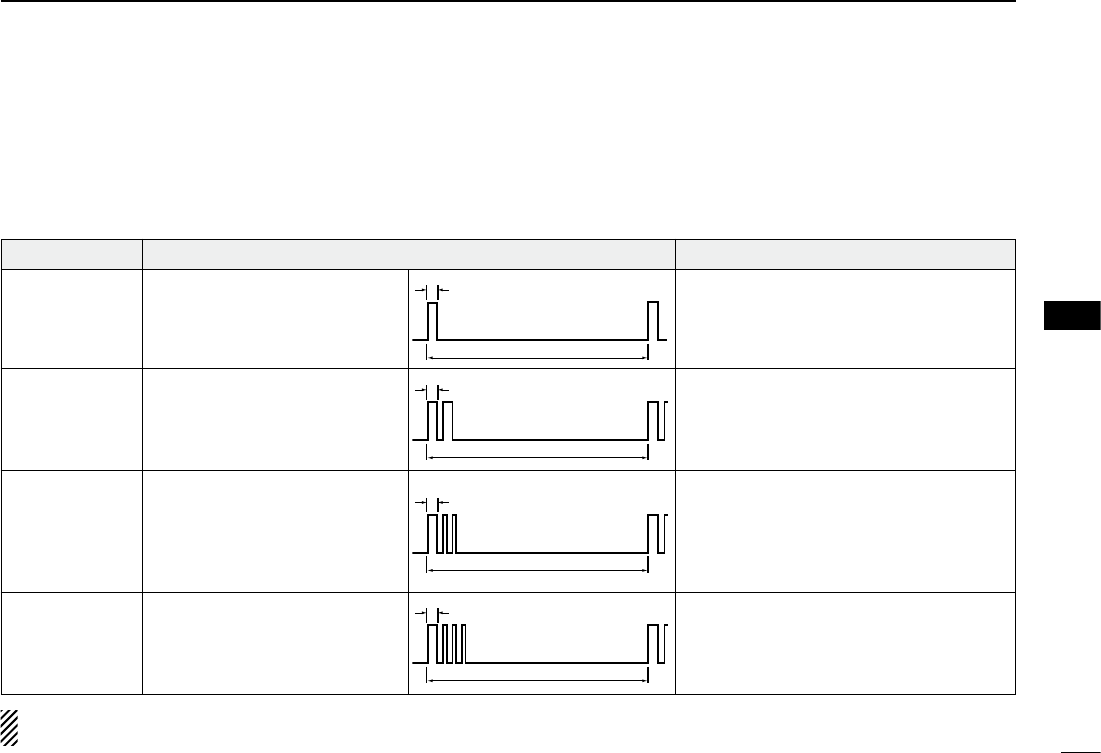
53
7
OTHER FUNCTIONS
New2001
7
■ Automatic foghorn function
The automatic foghorn function sounds a horn repeatedly
until the function is turned OFF. Four patterns are available
for varying conditions.
The foghorn outputs from the hailer speaker. To use this
function, the hailer speaker must be connected to the trans-
ceiver. See p. 58 for connection details.
The audio frequency of the foghorn is selectable.
See p. 57 for details on selecting the audio frequency.
TYPE PATTERN USAGE
UNDERWAY
STOP
SAIL
TOW
One 5-second blasts every 120
seconds.
Two 5-second blasts (separated
by 2 seconds) every 120 sec-
onds.
One 5-second blast followed
by two 1-second blasts (each
separated by 2 seconds) every
120 seconds.
One 5-second blast followed
by three 1-second blasts (each
separated by 2-seconds) every
120 seconds.
Motor vessel underway and making way.
Motor vessel underway but stopped (not
making way).
Sailing vessel underway, fishing vessel
(underway or anchored), vessel not under
command, a vessel restricted in her ability
to maneuver (underway or at anchor), or a
vessel towing or pushing another ahead.
Vessel under tow (manned).
5s1
120s
5s1
2s
1s
120s
5s1
2s
1s
120s
5s1
2s 120s
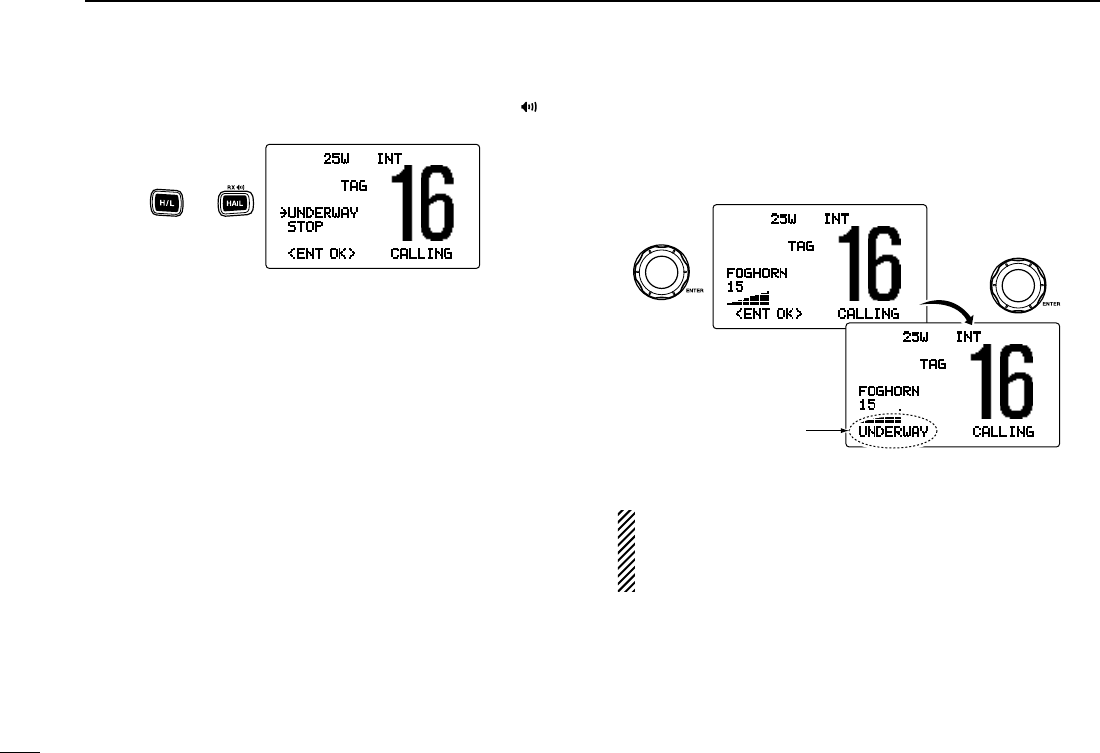
54
7OTHER FUNCTIONS
New2001
q While pushing and holding [H/L], push [HAIL•RX ] to
enter auto foghorn mode.
w Rotate [DIAL] to select the desired foghorn pattern, push
[DIAL•ENTER].
• ‘UNDERWAY,’ ‘STOP,’ ‘SAIL,’ ‘TOW’ are available. (p. 53)
• Even if [DIAL•ENTER] hasn’t been pushed, the display auto-
matically changes to the next step after 5 sec. of inactivity.
e Rotate [DIAL] to adjust the foghorn level, push [DIAL•
ENTER].
• The foghorn level is adjustable in 30 steps.
• Even if [ENT] hasn’t been pushed, the display automatically
changes to the next step after 5 sec. of inactivity.
r To return to normal operation, repeat step q.
When a DSC call is received, the automatic foghorn func-
tion is interrupted with an automatic return to the trans-
ceiver mode. The transceiver’s display indicates ‘Receiv-
ing DSC calls.’ (p. 41)
25W INT
TAG
FOGHORN
15
<ENT OK> CALLING
Rotate
Push
25W INT
TAG
FOGHORN
15
UNDERWAY CALLING
The selected foghorn
pattern is displayed.
25W INT
TAG
˘UNDERWAY
STOP
<ENT OK> CALLING
Push and
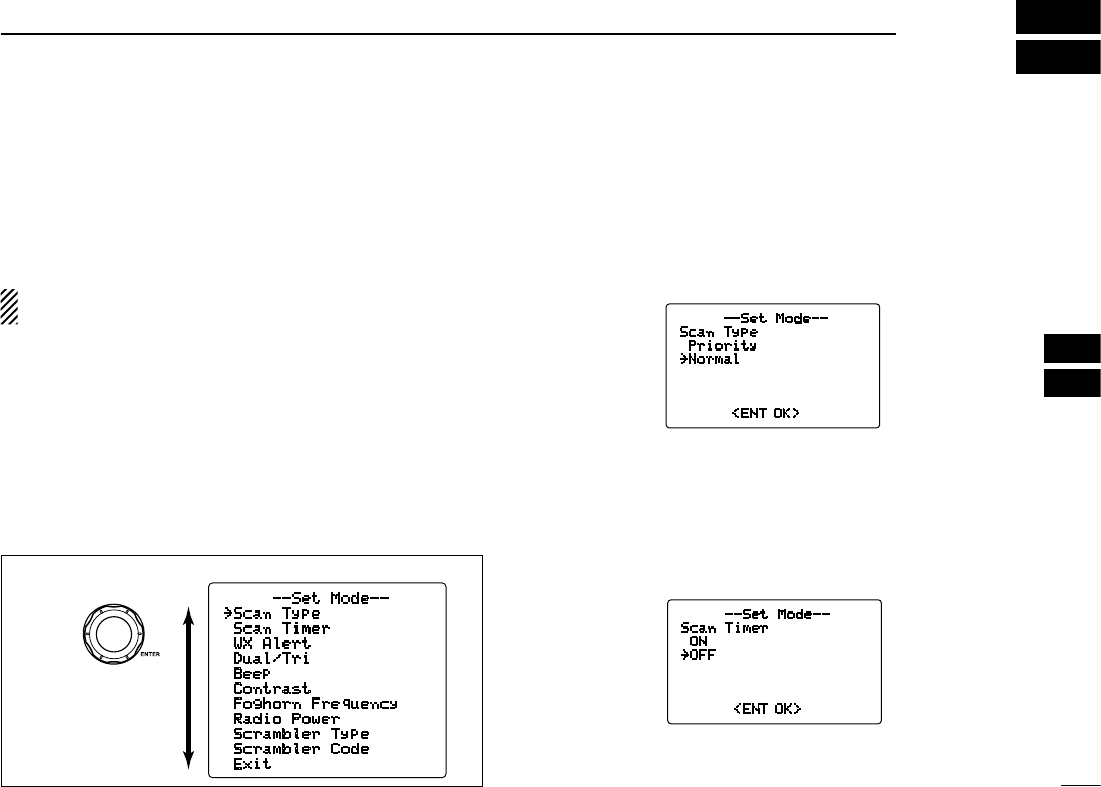
55
8
SET MODE
7
8
■ Set mode programming
Set mode is used to change the conditions of the transceiver’s
functions: Scan type, Scan resume timer, Weather alert, Dual/
Tri-watch, Beep tone, LCD contrast, Automatic foghorn fre-
quency, Radio power, Scrambler type* and Scrambler code.*
*Appears only when the optional scrambler unit is installed.
Available functions may differ depending on how they are
set by the dealer.
q
Turn power OFF.
w While pushing and holding
[16•9], turn power ON to enter
Set mode.
e After the display appears, release [16•9].
r
Rotate [DIAL] to select the desired item, push [DIAL•
ENTER].
t Rotate [DIAL] to select the desired condition of the item.
y
Push [CLR], or rotate [DIAL] to select “Exit,” then push
[DIAL•ENTER] to exit set mode and returns to normal op-
eration condition.
■ Set mode items
D Scan type
The transceiver has 2 scan types: Normal scan and Priority
scan. Normal scan searches all TAG channels in the se-
lected channel group. Priority scan searches all TAG chan-
nels in sequence while monitoring Channel 16.
D Scan resume timer
The scan resume timer can be selected as a pause (OFF)
or timer scan (ON). When OFF is selected, the scan pauses
until the signal disappears. When ON is selected, the scan
pauses 5 sec. and resumes even if a signal has been re-
ceived on any other channel than Channel 16.
--Set Mode--
Scan Timer
ON
˘OFF
<ENT OK>
Default: OFF
Rotate
--Set Mode--
˘Scan Type
Scan Timer
WX Alert
Dual/Tri
Beep
Contrast
Foghorn Frequency
Radio Power
Scrambler Type
Scrambler Code
Exit
• SET MODE CONSTRUCTION
--Set Mode--
Scan Type
Priority
˘Normal
<ENT OK>
Default: Normal
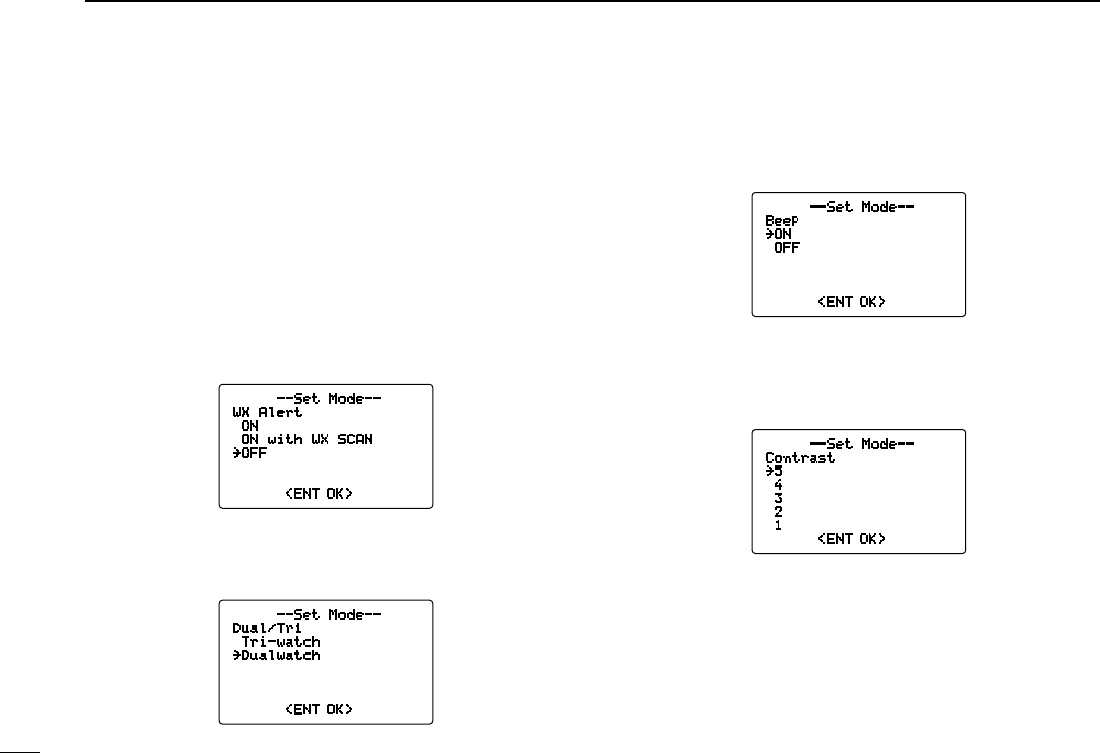
56
8SET MODE
New2001
D Weather alert
A NOAA broadcast station transmits a weather alert tone
before important weather information.
When “ON” is selected, the previously selected (used)
weather channel is checked any time during standby or while
scanning.
When “ON with WX SCAN” is selected, the weather
channels are checked in sequence during standby or while
scanning.
The “WX ALERT” indicator blinks until the transceiver is op-
erated after the transceiver detects the alert.
• “WX ALERT” appears instead of “WX” indication when the function
is set ON.
D Dual/Tri-watch
This item can be selected as Dualwatch or Tri-watch. (p. 14)
D Beep tone
You can select the silent operation by turning beep tones
OFF or you can have confirmation beeps sound at the push
of a key by turning beep tones ON.
D LCD contrast
The LCD contrast can be adjustable to 8 levels. The level 1
is the lowest contrast, and the level 8 is the highest contrast.
--Set Mode--
Dual/Tri
Tri-watch
˘Dualwatch
<ENT OK>
Default: Dualwatch
--Set Mode--
WX Alert
ON
ON with WX SCAN
˘OFF
<ENT OK>
Default: OFF
--Set Mode--
Beep
˘ON
OFF
<ENT OK>
Default: ON
--Set Mode--
Contrast
˘5
4
3
2
1
<ENT OK>
Default: 5
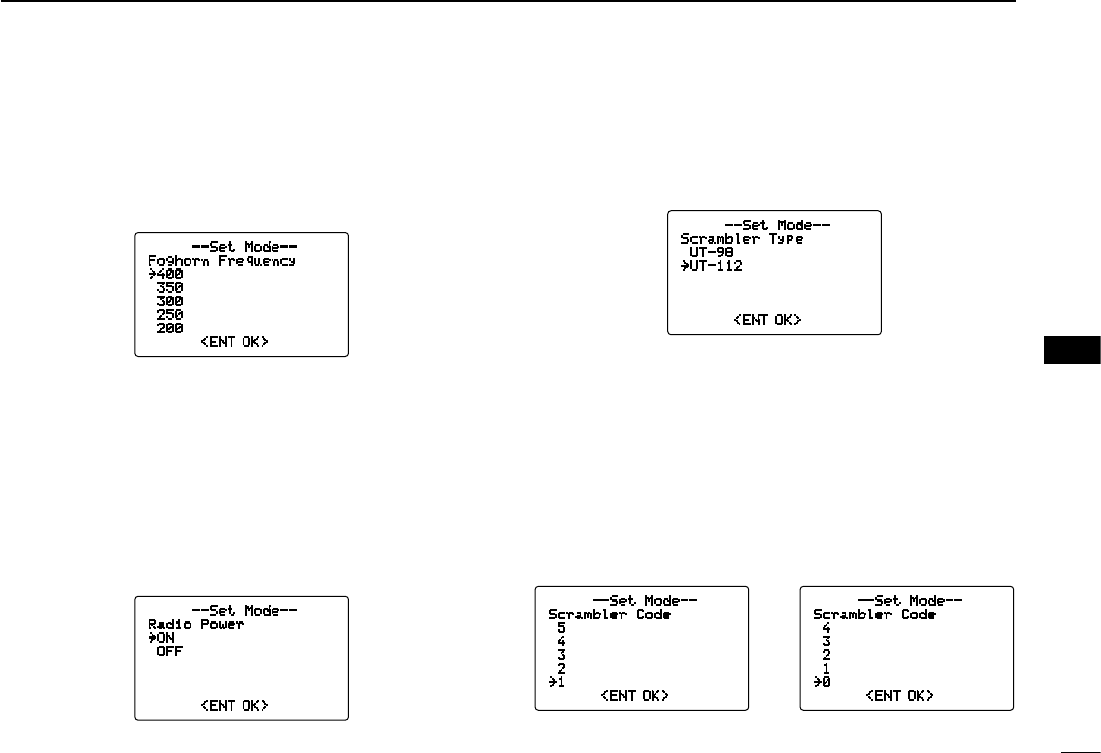
57
8
SET MODE
New2001
8
D Automatic foghorn frequency
The audio frequency of the automatic foghorn can be ad-
justed to suit your preference. While this item is selected,
pushing [PTT] outputs the foghorn— experiment with the
frequencies available until you find one you like.
• Available frequency range is 200 Hz to 850Hz in 50 Hz steps.
D Radio power
This item sets the Radio Power function ON or OFF.
ON : The transceiver’s power is controlled by the optional
command microphone. When the command micro-
phone is turned OFF, the transceiver will also be
turned OFF automatically.
OFF :
The transceiver’s power is not controlled by the optional
command microphone. Even if the command microphone
is turned OFF, the transceiver will continue to work.
D Scrambler type
(Appears when a scrambler unit is installed)
When an optional scrambler unit is installed, the scrambler
type can be selected in set mode depending on how it is set
by the dealer.
D Scrambler code
(Appears when a scrambler unit is installed)
When an optional scrambler unit is installed, the scrambler
code can be set depending on how it is set by the dealer.
When the UT-112 is installed, 32 codes (1 to 32) can be se-
lected.
When the UT-98 is installed, 128 codes (0 to 127) can be
selected.
--Set Mode--
Scrambler Code
5
4
3
2
˘1
<ENT OK>
--Set Mode--
Scrambler Code
4
3
2
1
˘0
<ENT OK>
Default: 0
(When UT-98 is installed)
Default: 1
(When UT-112 is installed)
--Set Mode--
Scrambler Type
UT-98
˘UT-112
<ENT OK>
Default: UT-112
--Set Mode--
Foghorn Frequency
˘400
350
300
250
200
<ENT OK>
Default: 400
--Set Mode--
Radio Power
˘ON
OFF
<ENT OK>
Default: ON
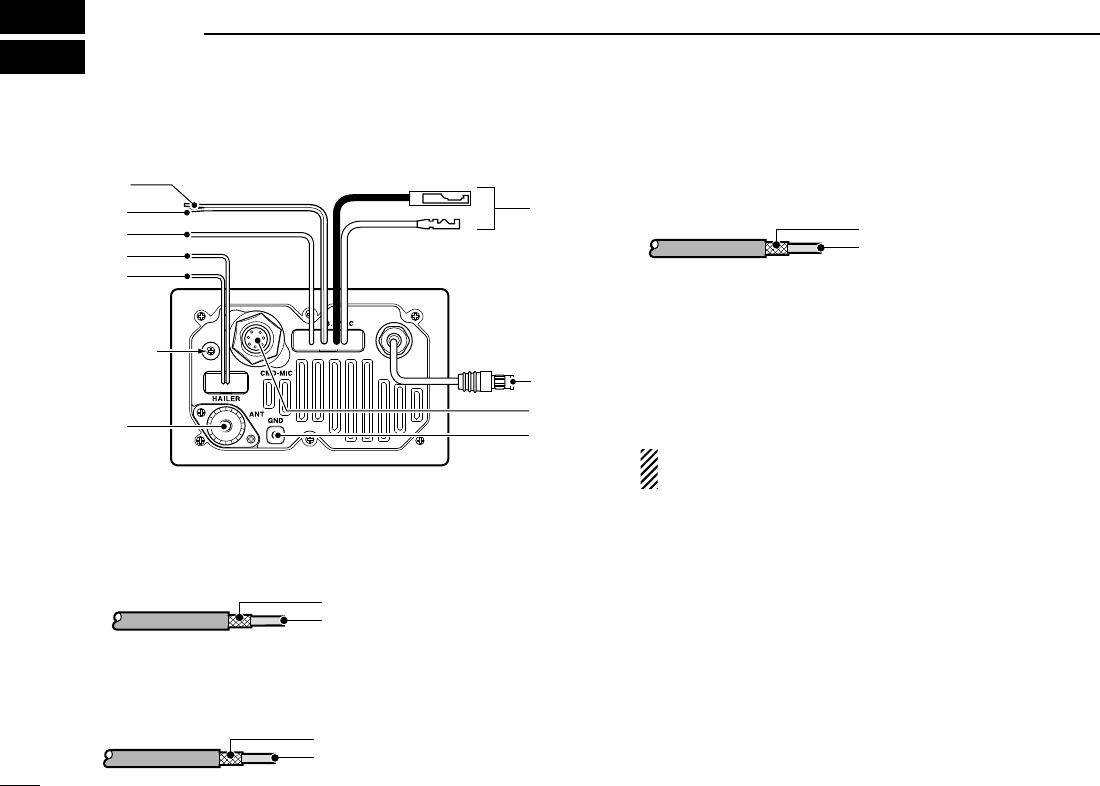
58
New2001
CONNECTIONS AND MAINTENANCE
9
■ Connections
q NMEA IN LEAD (Red)
Connects to a GPS receiver for position indication.
• A NMEA0183 ver. 2.0 or 3.01 (sentence formatters RMC, GGA,
GNS, GLL and VTG) compatible GPS receiver is required. Ask
your dealer about suitable GPS receivers.
w NMEA OUT LEAD (White)
Connects to a PC or navigation equipment (NMEA0183
ver. 3.01 sentence formatters DSC, DSE compatible) for
position data received from other ships.
e EXTERNAL SPEAKER LEAD (Yellow)
Connects to an external speaker.
r HAILER/FOGHORN (–) LEAD (Black)
Connects to a hailer speaker (25 W nominal at 13.8 V/4 ˘).
t HAILER/FOGHORN (+) LEAD (Blue)
Connects to a hailer speaker (25 W nominal at 13.8 V/4 ˘).
y ANTENNA CONNECTOR
Connects a marine VHF antenna with a PL-259 connec-
tor to the transceiver.
CAUTION: Transmitting without an antenna may dam-
age the transceiver.
u GROUND TERMINAL
Connect this terminal to a vessel ground to prevent elec-
trical shocks and interference from other equipment oc-
curring. Use a self-tapping screw (3 × 8 mm.)
i EXTERNAL MICROPHONE JACK
Connects the optional command microphone.
o MICROPHONE CONNECTOR
Connects the supplied microphone depending on version.
Ask your dealer for details.
!0 DC POWER CONNECTOR
Connects the supplied DC power cable from this connec-
tor to an external 12 V battery.
Do not
loose!
!0
r
t
y
w
q
e
u
i
o
Inner conductor
Outer conductor: NMEA OUT (+)
: NMEA OUT (−)
Inner conductor
Outer conductor: NMEA IN (+)
: NMEA IN (−)
Inner conductor
Outer conductor: Speaker (+)
: Speaker (−)
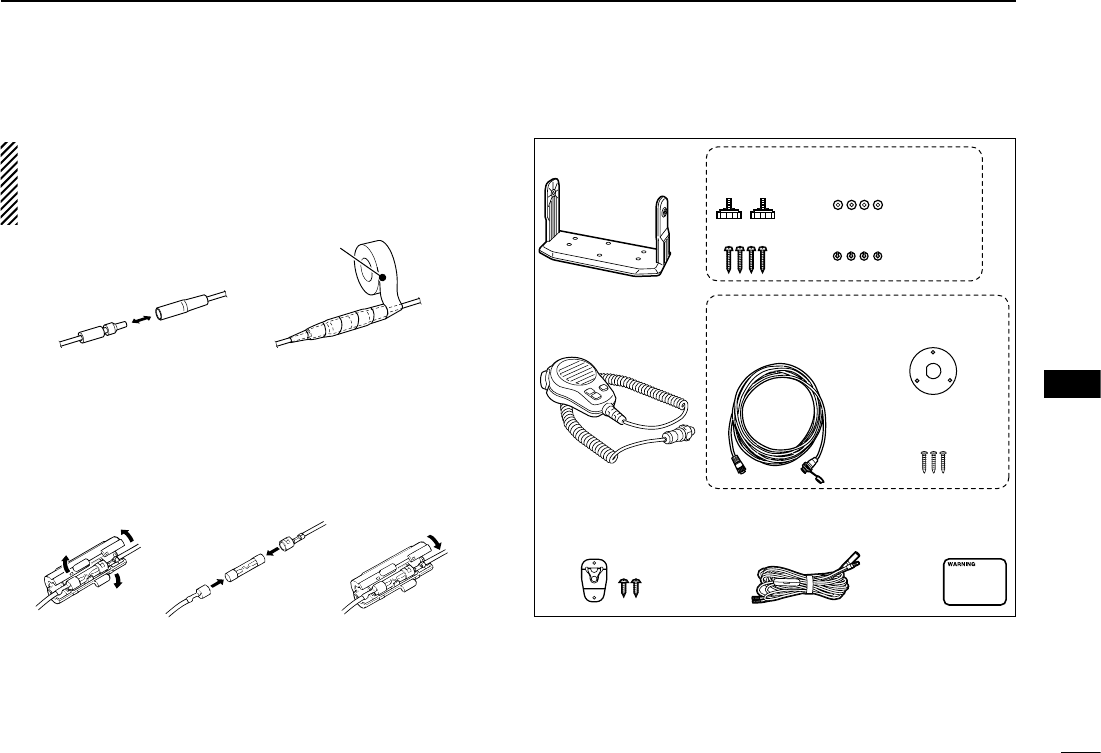
59
9
CONNECTIONS AND MAINTENANCE
New2001
9
CAUTION: After connecting the DC power cable, NMEA IN/
OUT leads, external speaker lead and hailer/foghorn lead,
cover the connector and leads with an adhesive tape as
shown below, to prevent water seeping into the transceiver.
■ Fuse replacement
One fuse is installed in the supplied DC power cable. If a
fuse blows or the transceiver stops functioning, track down
the source of the problem if possible, and replace the dam-
aged fuse with a new one of the proper rating.
■ Supplied accessories
■ Antenna
A key element in the performance of any communication
system is the antenna. Ask your dealer about antennas and
the best place to mount them.
Fuse rating: 10 A
Connection cable*
(OPC-1000: 6m; 20 ft)
Mounting bracket For mounting bracket
DC power cable
(OPC-891A)
Microphone hanger
and screws (3×16)
Knob bolts
Screws (5×20)
Flat washers (M5)
Spring washers (M5)
Warning
sticker
Mounting base*
Tapping screws*
(M3×16)
For microphoneMicrophone*
*Depending on version
Rubber vulcanizing
tape
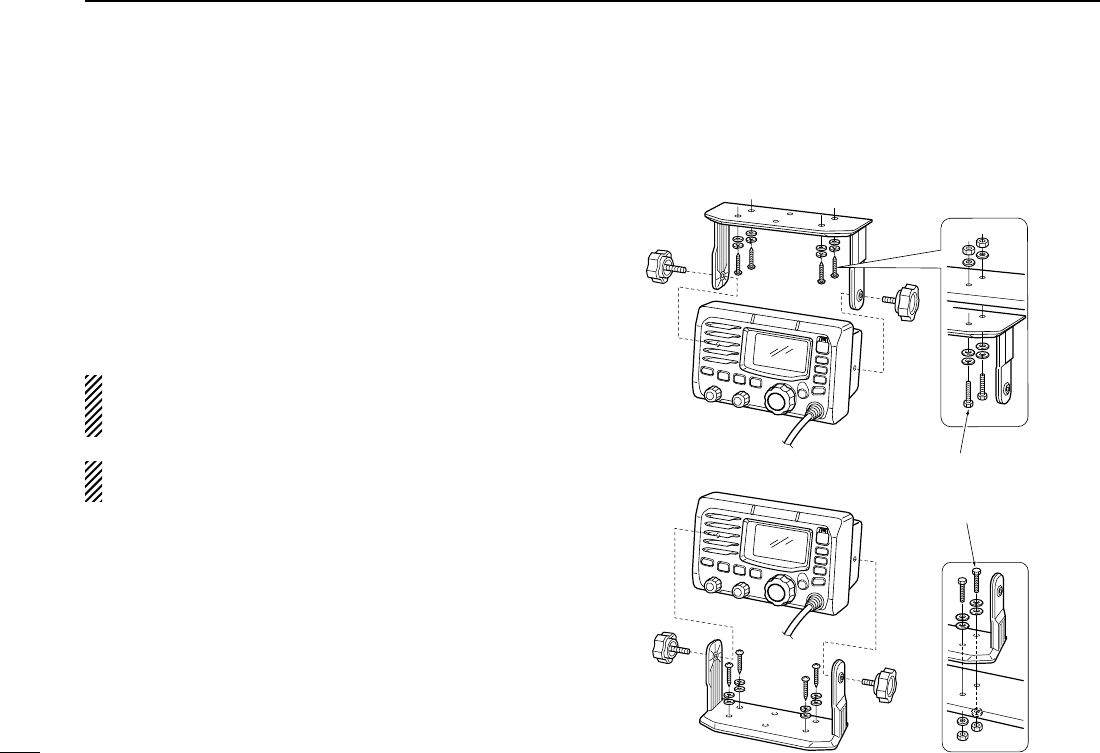
60
9CONNECTIONS AND MAINTENANCE
New2001
■ Mounting the transceiver
D Using the supplied mounting bracket
The universal mounting bracket supplied with your trans-
ceiver
allows overhead or dashboard mounting.
• Mount the transceiver securely with the 4 supplied screws
(5 × 20) to a surface which is more than 10 mm thick and
can support more than 5 kg.
• Mount the transceiver so that the face of the transceiver is
at 90° to your line of sight when operating it.
CAUTION: KEEP the transceiver and microphone at least
1 meter away from your vessel’s magnetic navigation
compass.
NOTE: Check the installation angle; the function display
may not be easy-to-read at some angles.
• OVERHEAD MOUNTING
• MOUNTING ON THE BOARD These screws are shown a
mounting example only.
Not supplied with accesso-
ries.
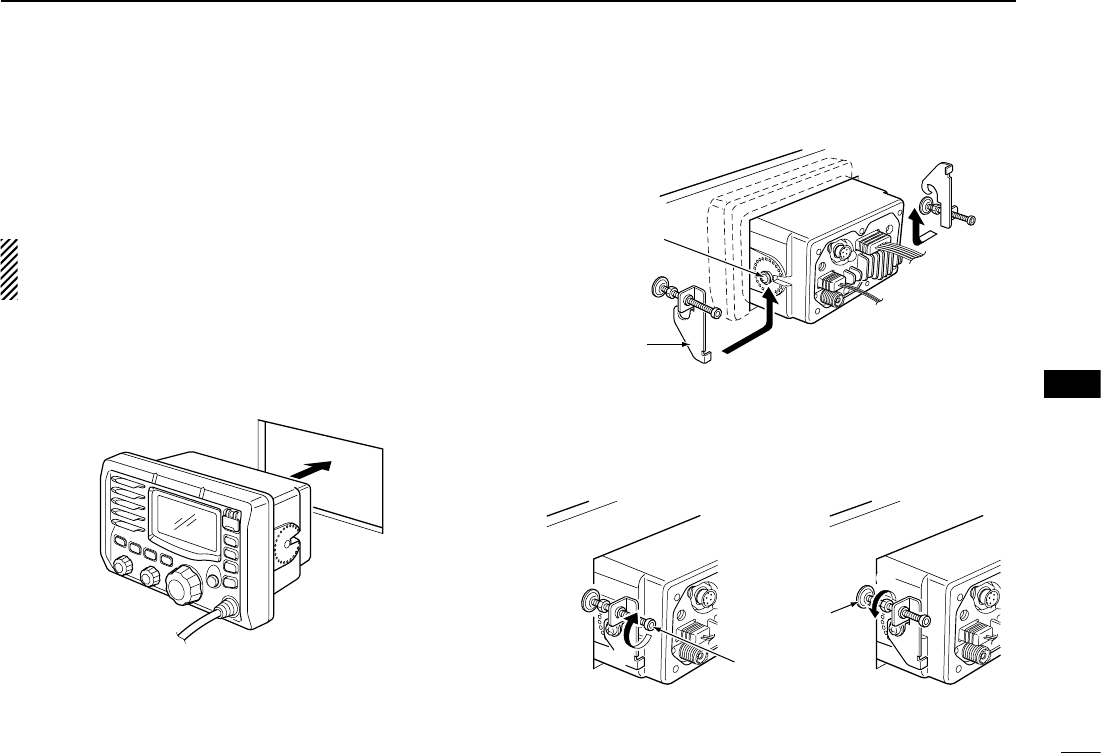
61
9
CONNECTIONS AND MAINTENANCE
New2001
9
■ MB-75 installation
An optional MB-75 FLUSH MOUNT KIT is available for
mounting the transceiver to a flat surface such as an instru-
ment panel.
CAUTION: KEEP the transceiver and microphone at least
1 meter away from your vessel’s magnetic navigation
compass.
q Using the template on the last page, carefully cut a hole
into the instrument panel (or wherever you plan to mount
the transceiver).
w Slide the transceiver through the hole as shown below.
e Attach the 2 supplied bolts (M5 × 8 mm) on either side of
the IC-M504.
r Attach the clamps on either side of the IC-M504.
• Make sure that the clamps align parallel to the IC-M504’s body.
t Tighten the end bolts on the clamps (rotate clockwise) so
that the clamps press firmly against the inside of the in-
strument control panel.
y Tighten the locking nuts (rotate counterclockwise) so that
the IC-M504 is securely mounted in position as below.
u Connect the antenna and power cable, then return the
instrument control panel to its original place.
r
r
Clamp
Supplied bolt
t
y
End bolt
Locking nut
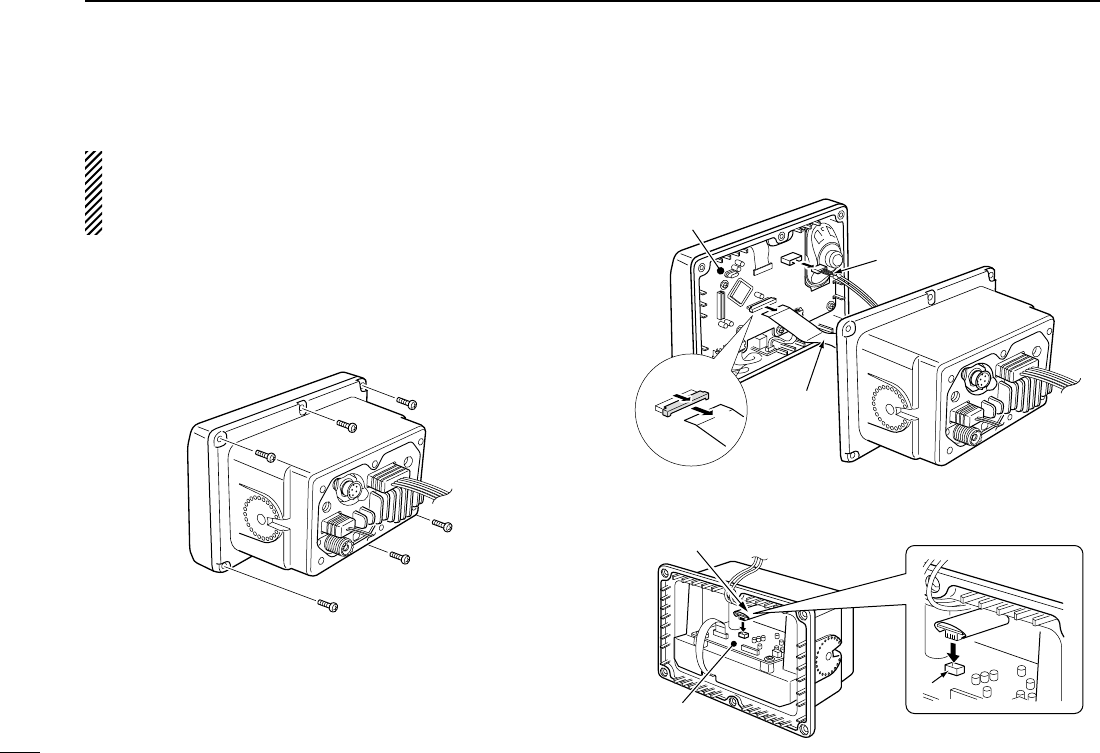
62
9CONNECTIONS AND MAINTENANCE
New2001
■ UT-112 installation
CAUTION: DISCONNECT the DC power cable from the
transceiver before performing any work on the trans-
ceiver. Otherwise, there is danger of electric shock and/or
equipment damage.
Follow the case opening procedure shown here when you
want to install an optional scrambler unit.
q Remove the 6 screws as shown below and open the
transceiver.
w Disconnect the flat cable and NMEA (4 pin) from J5 of the
LOGIC unit.
e Install an optional unit (UT-112) to J3 on the AF unit as
shown below.
q
LOGIC unit
NMEA (4 pin)
Flat cable
w
AF unit
Optional unit
J3
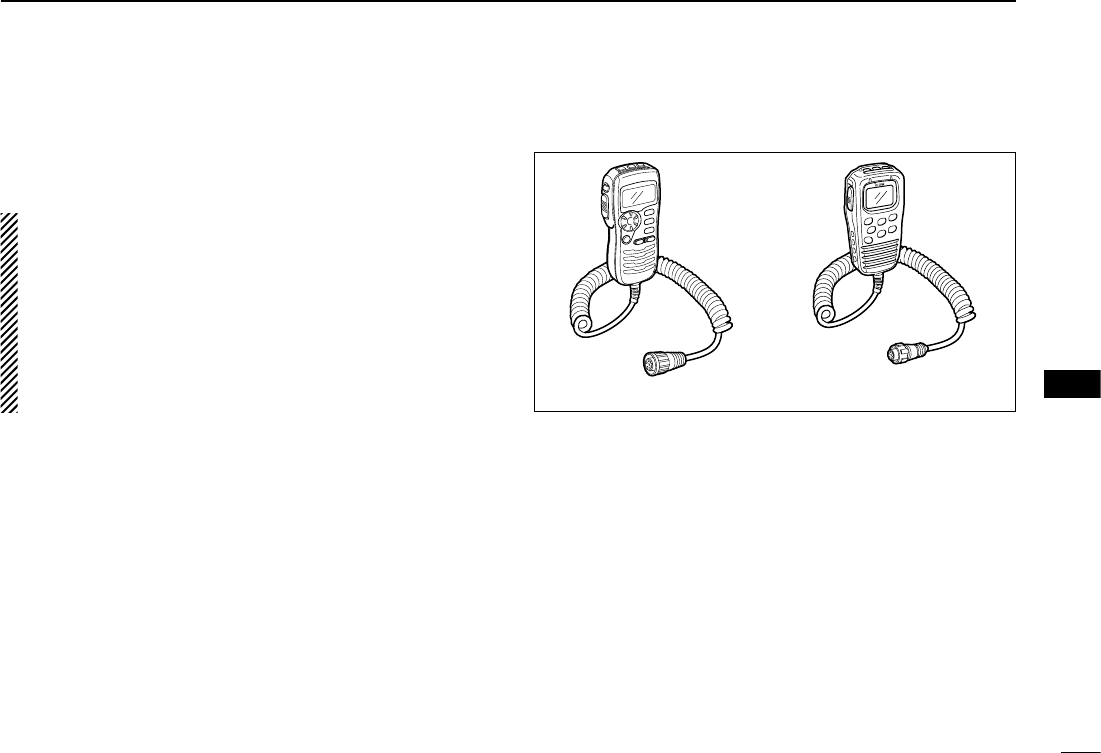
63
9
CONNECTIONS AND MAINTENANCE
New2001
9
r Return the cables and screws to the original position.
• Be sure not upside down the flat cable.
CAUTION:
• When re-assembling the case and tightening the
screws, you must keep the specified torque (0.5±0.07
N.m). Otherwise the transceiver may be damaged
(torque too high) or lose waterproof efficiency (torque
too low).
• When uninstalling the optional unit, remove it vertically.
Wiggling the unit from side to side may damage the op-
tional unit's connector.
■ HM-162/HM-157 installation
The optional HM-157 can be connected to the transceiver di-
rectly, as well as via the supplied connection cable for longer
distance remote operation. The connector of the connection
cable can be installed into a cabinet, wall, etc., as a built-in plug.
• The optional HM-162 should be installed to the transceiver using
the supplied connection cable.
For longer distance remote operation, the optional extension
cable, OPC-1541/OPC-999* (6 m; 20 ft/connecting between
transceiver and the connection cable), is available, and up to
two OPC-1541/OPC-999* can be added.
* OPC-1541 : For the HM-162
OPC-999 : For the HM-157
Do not connect the HM-162 to the OPC-999, and the
HM-157 to the OPC-1541.
HM-157HM-162
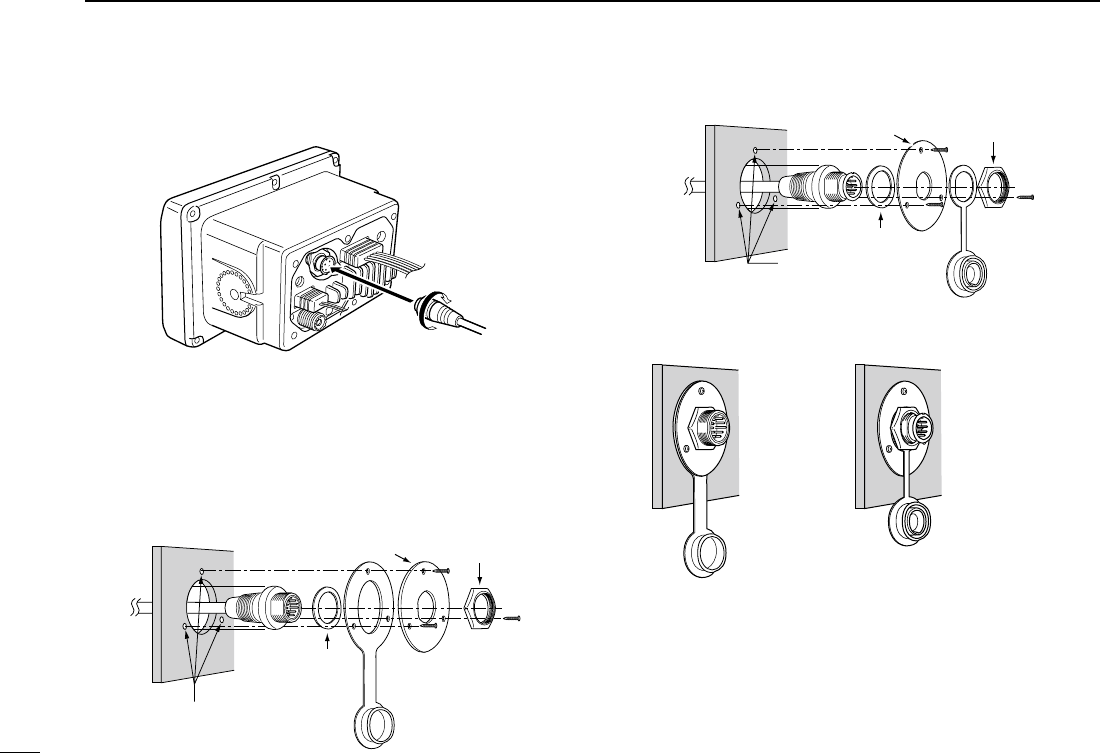
64
9CONNECTIONS AND MAINTENANCE
New2001
q Insert the supplied cable into the external microphone
jack and tighten the cable nut as shown below.
w To use the supplied cable as a wall socket, perform the
following steps.
e
Using the mounting base as a template, carefully mark the
holes where the cable and three screws will be fastened.
r Drill holes at these marks.
t Install the mounting base using the supplied screws as
shown below.
• HM-162
• HM-157
y The completed installation should look like this.
• HM-162 • HM-157
Gasket
Cap
Mounting base Nut
Screw holes
(approx. 2 (d) mm; 3⁄32˝)
Gasket
Cap
Mounting base Nut
Screw holes
(approx. 2 (d) mm; 3⁄32˝)
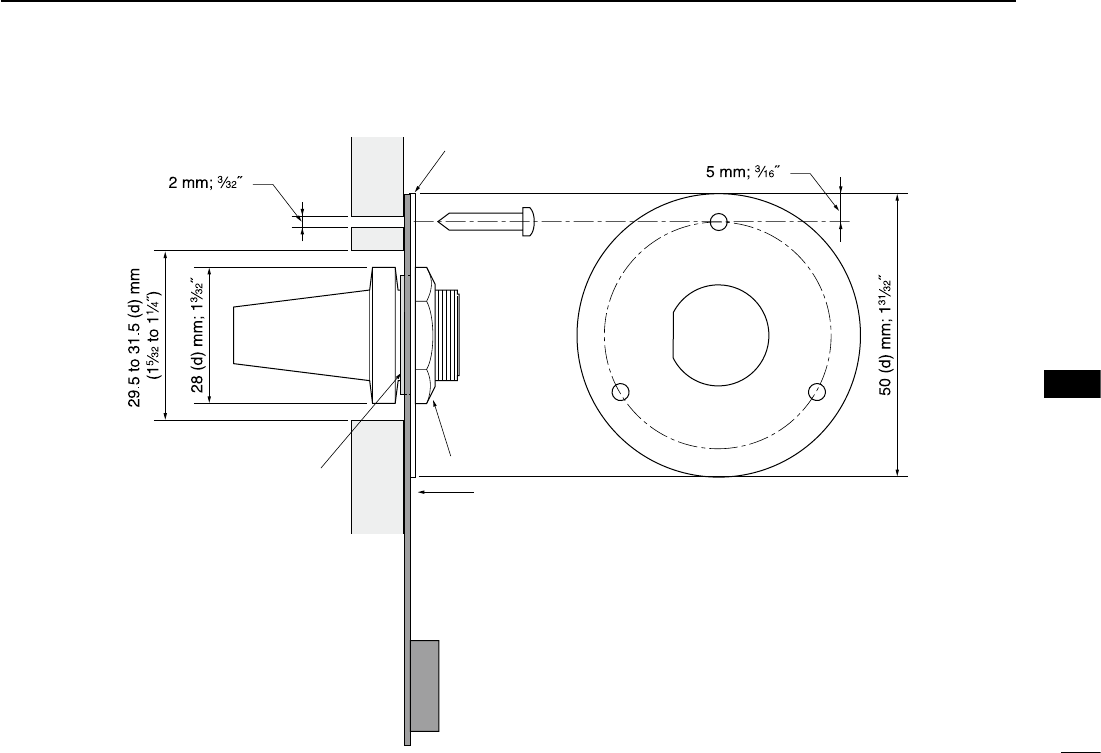
65
9
CONNECTIONS AND MAINTENANCE
New2001
9
Gasket
Mounting base
Cap
Nut
50 (d) mm; 131Ú32ý
28 (d) mm; 13Ú32ý
29.5 to 31.5 (d) mm
(15Ú32 to 11Ú4ý)
5 mm; 3Ú16ý
2 mm; 3Ú32ý
D HM-162
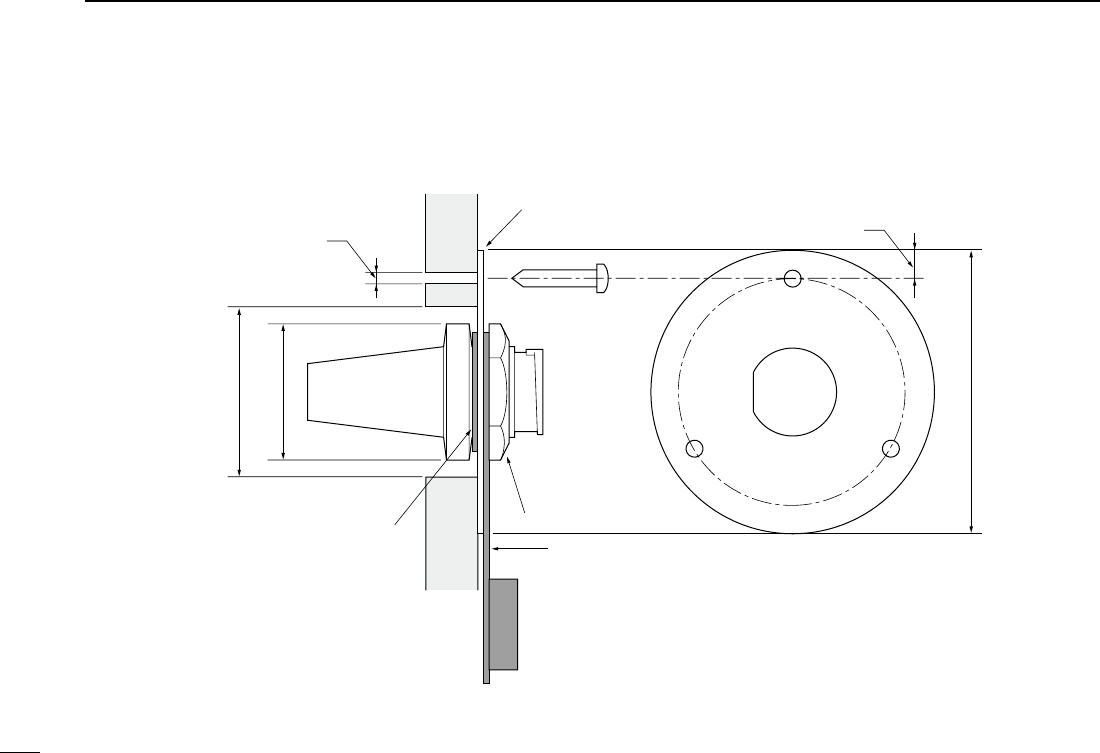
66
9CONNECTIONS AND MAINTENANCE
New2001
50 (d) mm; 131⁄32˝
23 (d) mm; 29⁄32˝
24 to 27 (d) mm
(15⁄16 to 11⁄16˝)
5 mm; 3⁄16˝
Gasket
Mounting base
Cap
Nut
2 mm; 3⁄32˝
D HM-157
67
10
TROUBLESHOOTING
9
10
PROBLEM POSSIBLE CAUSE SOLUTION REF.
No sound from speaker.
• Squelch level is too high.
• Volume level is too low.
• Speaker has been exposed to water.
p. 8
p. 8
—
• Set [SQL] to the threshold point.
• Set [VOL] to a suitable level.
• Drain water from the speaker.
The transceiver does
not turn ON.
• Bad connection to the power supply. p. 58• Check the connection to the transceiver.
Transmitting is impossi-
ble, or high power can
not be selected.
• Some channels are programmed for low
power or receive only in regulations.
• The output power is set to low.
pgs. 6,
7, 70
p. 8
• Change channels.
• Push [H/L] to select high power.
Scan does not start. • TAG channel is not programmed. • Set the desired channels as TAG channels. p. 13
No beeps. • Beep tones are turned OFF.
• The squelch is open.
• Turn the beep tone ON in Set mode.
• Set [SQL] to the threshold point.
p. 56
p. 8
Distress call cannot be
transmitted.
• MMSI (DSC self ID) code is not pro-
grammed.
• Program the MMSI (DSC self ID) code. p. 15
Sensitivity is low. • The Attenuator is activated. • Push [LO/DX•IC•SCRM] to turn the function
OFF.
p. 8

68
New2001
SPECIFICATIONS AND OPTIONS
11
■ Specifications
D General
• Frequency coverage : Tx 156.025–157.425 MHz
Rx 156.050–163.275 MHz
• Mode :
FM (16K0G3E), DSC (16K0G2B)
• Channel spacing : 25 kHz
• Current drain (at 13.8 V) : TX high 5.5 A max.
Max. audio 1.5 A max.
• Power supply requirement : 13.8 V DC ±15%
(negative ground)
• Frequency stability : ±10 ppm
(–20°C to +60°C; –4°F to +140°F)
• Antenna impedance : 50 Ω nominal
• Dimensions : 165(W) × 110(H) × 123.2(D) mm
(Projections not included) 6 1⁄2(W) × 4 11⁄32(H) × 4 27⁄32(D) in
• Weight : Approx. 1450 g; 3 lb 19 oz
D Transmitter
• Output power : 25 W/1 W
• Modulation system : Variable reactance frequency
modulation
• Max. frequency deviation : ±5.0 kHz
• Spurious emissions : Less than 70 dBc @ 25 W
Less than 56 dBc @ 1 W
D Receiver
• Receive system : Double conversion
superheterodyne
• Sensitivity (12 dB SINAD) : 0.22 µV (typical)
• Squelch sensitivity : Less than 0.32 µV
• Intermodulation rejection ratio : 80 dB (typical)
•
Spurious response rejection ratio
: 80 dB (typical)
• Adjacent channel selectivity : 80 dB (typical)
• Audio output power : 4.5 W (typical) at 10% distortion
with a 4 Ω load
All stated specifications are subject to change without notice
or obligation.
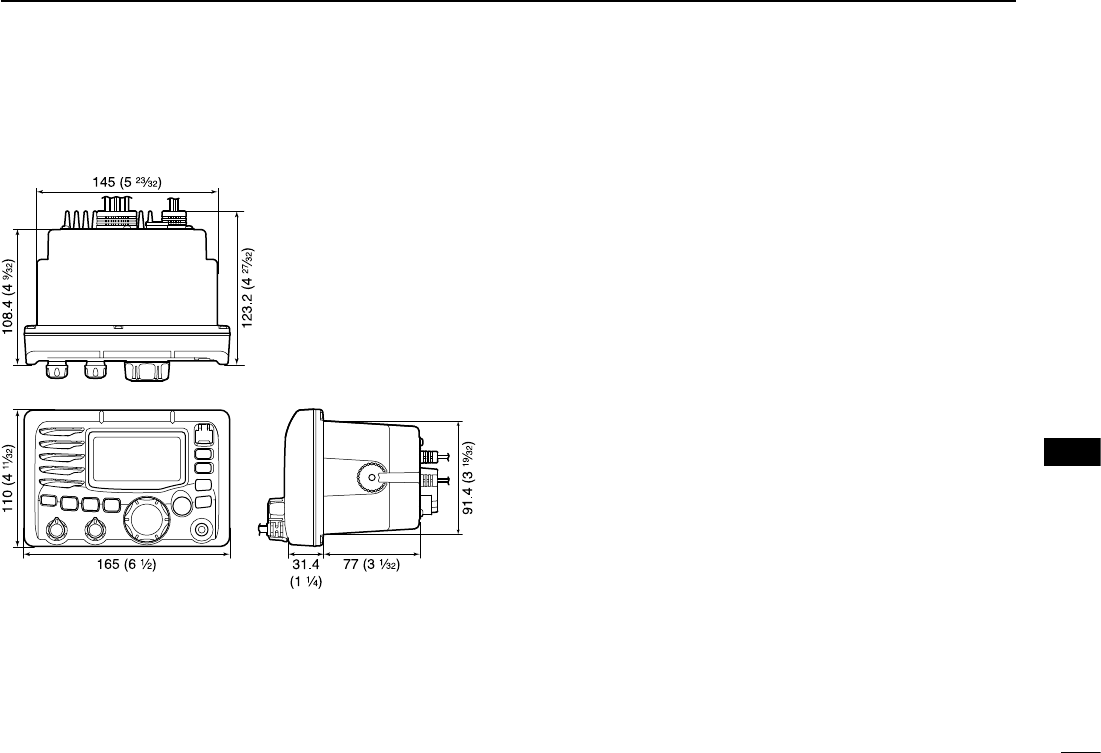
69
11
SPECIFICATIONS AND OPTIONS
New2001
11
D Dimensions
■ Options
• MB-75 flush mount kit
For mounting the transceiver to a panel.
• HM-162 commandmic iii™
External microphone-type controller. Provides optional inter-
com operation. 6 m (20 feet) microphone cable and mount-
ing base included. Black and white colors are available.
Do not connect the HM-162 to the OPC-999.
• HM-157 commandmic ii™
External microphone-type controller. Provides optional inter-
com operation. 6 m (20 feet) microphone cable and mount-
ing base included. Black and white colors are available.
Do not connect the HM-157 to the OPC-1541.
• OPC-1541 microphone extension cable
6 m (20 feet) microphone extension cable for optional
HM-162 commandmic iii™. Up to 2 OPC-1541 can be con-
nected. (18 m; 60 feet maximum)
• OPC-999 microphone extension cable
6 m (20 feet) microphone extension cable for optional
HM-157 commandmic ii™. Up to 2 OPC-999 can be con-
nected. (18 m; 60 feet maximum)
• UT-112 voice scrambler unit
Ensures private communications. 32 codes are available.
Not available in some countries.
Unit: mm (inch)
110 (4
11
Ú
32
)108.4 (4
9
Ú
32
)
165 (6
1
Ú
2
)
145 (5
23
Ú
32
)
31.4
(1
1
Ú
4
)
91.4 (3
19
Ú
32
)
77 (3
1
Ú
32
)
123.2 (4
27
Ú
32
)
70
New2001
CHANNEL LIST
12
NOTE: Simplex channels, 3, 21, 23, 61, 64, 81, 82 and 83 CANNOT
be lawfully used by the general public in U.S.A. waters.
*1 Low power only. *2 Momentary high power. *3 DSC operation only.
Channel number Frequency (MHz)
03 156.150 160.75003
03A 156.150 156.150
156.200 160.80004
02 156.100 160.70002
04A 156.200 156.200
156.250 160.85005
05A 05A 156.250 156.250
06 06 156.300 156.30006
156.350 160.95007
07A 07A 156.350 156.350
08 08 156.400 156.40008
09 09 156.450 156.45009
10 10 156.500 156.50010
11 11 156.550 156.55011
12 12 156.600 156.60012
13*213*1
156.650 156.650
13
14 14
156.700 156.700
14
15*215*1
156.750 156.750
15*1
16 16
156.800 156.800
16
17*117*1
156.850 156.850
17
156.900 161.500
18
18A 18A
156.900 156.900
156.950 161.550
19
19A 19A 156.950 156.950
20 20*1157.000 161.60020
20A 157.000 157.000
01A 156.050 156.050
USA
01
156.050 160.65001
CAN
Transmit Receive
INT
Channel number Frequency (MHz)
157.100 161.70022
22A 22A 157.100 157.100
23 157.150 161.75023
21b Rx only 161.650
23A 157.150 157.150
24 24 157.200 161.80024
25 25 157.250 161.85025
25b Rx only 161.850
26 26 157.300 161.90026
27 27 157.350 161.95027
28 28 157.400 162.00028
28b Rx only 162.000
60 156.025 160.62560
156.075 160.67561
61A 61A 156.075 156.075
156.125 160.72562
62A 156.125 156.125
156.175 160.77563
63A 156.175 156.175
64 156.225 160.82564
64A 64A 156.225 156.225
156.275 160.87565
65A 65A 156.275 156.27565A
156.325 160.92566
66A 66A*1156.325 156.32566A
67*267 156.375 156.37567
21A 21A 157.050 157.050
USA
21 157.050 161.65021
CAN
Transmit Receive
INT
Channel number Frequency (MHz)
71 71 156.575 156.57571
72 72 156.625 156.62572
73 73 156.675 156.67573
70*370*3156.525 156.52570*3
74 74 156.725 156.72574
75*175*1156.775 156.77575*1
76*176*1156.825 156.82576*1
77*177*1156.875 156.87577
156.925 161.52578
78A 78A 156.925 156.925
156.975 161.57579
79A 79A 156.975 156.975
157.025 161.62580
80A 80A 157.025 157.025
157.075 161.67581
81A 81A 157.075 157.075
157.125 161.72582
82A 82A 157.125 157.125
83 157.175 161.77583
83A 83A 157.175 157.175
83b Rx only 161.775
84 84 157.225 161.82584
84A 157.225 157.225
85 85 157.275 161.87585
85A 157.275 157.275
86 86 157.325 161.92586
69 69 156.475 156.47569
68
USA
68 156.425 156.42568
CAN
Transmit Receive
INT
Channel number Frequency (MHz)
88 88 157.425 162.02588
88A 157.425 157.425
87A 157.375 157.375
87 87 157.375 161.97587
86A
USA
157.325 157.325
CAN
Transmit Receive
INT
Frequency (MHz)
RX only 162.425
RX only 162.450
RX only 162.500
RX only 162.475
RX only 162.525
RX only 161.650
RX only 161.775
RX only 163.275
RX only 162.400
RX only 162.550
Transmit Receive
WX channel
4
5
6
3
7
8
9
10
2
1
New2001
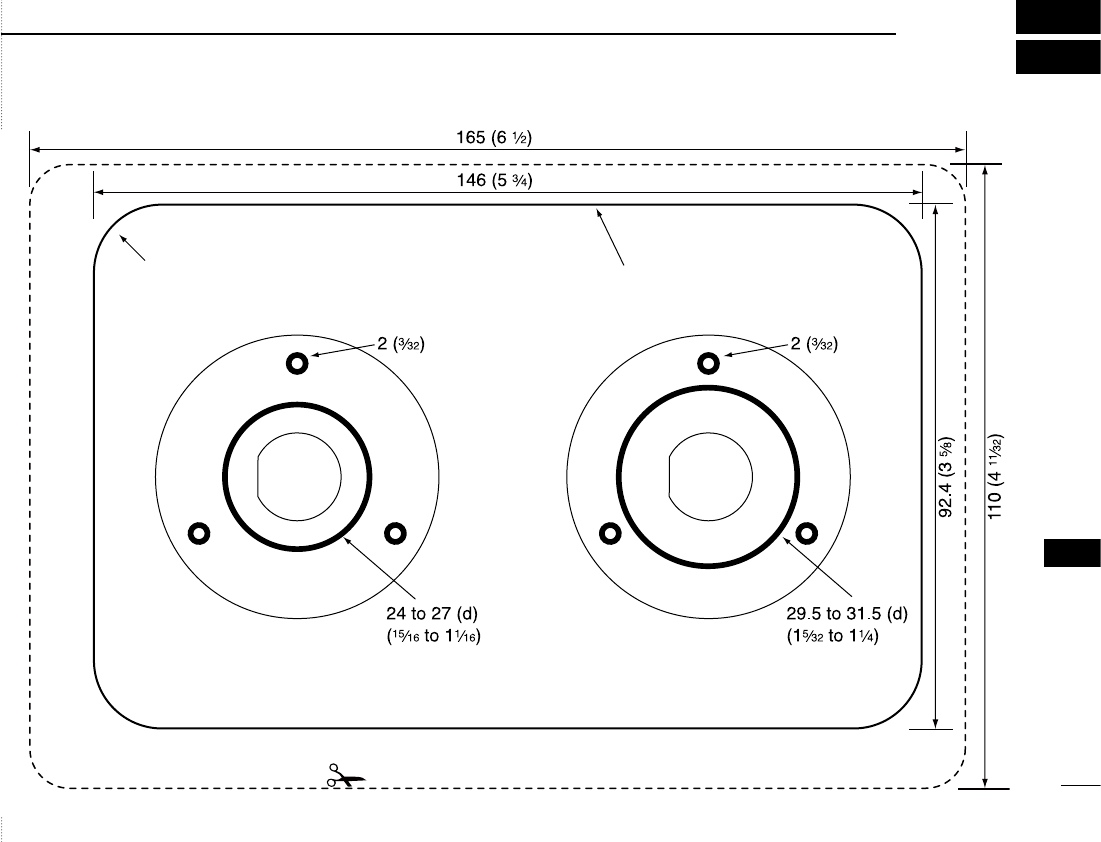
Cut here
HM-157 HM-162
Unit: mm (inch)
24 to 27 (d)
(15Ú16 to 11Ú16)
2 (3Ú32)
165 (6 1Ú2)
110 (4 11Ú32)
146 (5 3Ú4)
92.4 (3 5Ú8)
R12 (Max.) MB-75
New2001
71
13
TEMPLATE
1
2
3
4
5
6
7
8
9
10
11
12
13
14
15
16
New2001

73
14
FCC INFORMATION
New2001
1
2
3
4
5
6
7
8
9
10
11
12
13
14
15
16
• FOR CLASS B UNINTENTIONAL RADIATORS:
This equipment has been tested and found to comply with
the limits for a Class B digital device, pursuant to part 15 of
the FCC Rules. These limits are designed to provide reason-
able protection against harmful interference in a residential
installation. This equipment generates, uses and can radiate
radio frequency energy and, if not installed and used in ac-
cordance with the instructions, may cause harmful interfer-
ence to radio communications. However, there is no guaran-
tee that interference will not occur in a particular installation.
If this equipment does cause harmful interference to radio or
television reception, which can be determined by turning the
equipment off and on, the user is encouraged to try to cor-
rect the interference by one or more of the following meas-
ures:
• Reorient or relocate the receiving antenna.
• Increase the separation between the equipment and re-
ceiver.
• Connect the equipment into an outlet on a circuit differ-
ent from that to which the receiver is connected.
• Consult the dealer or an experienced radio/TV techni-
cian for help.
1-1-32 Kamiminami, Hirano-ku, Osaka 547-0003, Japan
New2001
A-6483H-1US-e
Printed in Japan
© 2003–2008 Icom Inc.
Printed on recycled paper with soy ink.
