Ijse Billing System User Guide KMLG Amila Wasantha
User Manual:
Open the PDF directly: View PDF  .
.
Page Count: 31

IJSE BILLING SYSTEM USER
GUIDE
KMLG Amila wasantha kumamara
SEPTEMBER 1, 2018
INSTITUE OF JAVA AND SOFTWEAR ENGINEER
Ijse gale rd. panadura, TEL[] ,FAX[], www.ijse.lk
Table of Contents
USER INTERFACE
DETAILS
USER LOGIN
ENTER E-MAIL AND PASSWORD
HOME
IT HAS ALL OPERATIONS OF THIS PROCESS
DASH BOARD
VIEW SOME REPORTS
MANAGE STUDENT
REGISTER NEW STUDENT
MANAGE COURSE
REGISTER NEW COURSE
MANAGE BATCH
REGISTER NEW BATCH
MANAGE BATCH TRANSFER
TRANSFER STUDETNS
MANAGE PAYMENT
HANDLE SUDENTS PAYMENT
REPORT
GET ALL REPORTS
BACK UP OPTION
BACK UP DATABASE
SING IN OPTION
NEW USER
HIGHLIGHTS
The IJSE assignment management system has following functions.
• Reception can Register New Course Reception can Register New Batch
• Reception can register members etc.
After developed this system the Reception can manage all manual works using
system. And can get all details of Student & Payment & about Batch & Courses
etc.
This system may be covered by all Reception working sides of this education
center.
When we talking about this system main role are payment manage and
Registration.
Summary
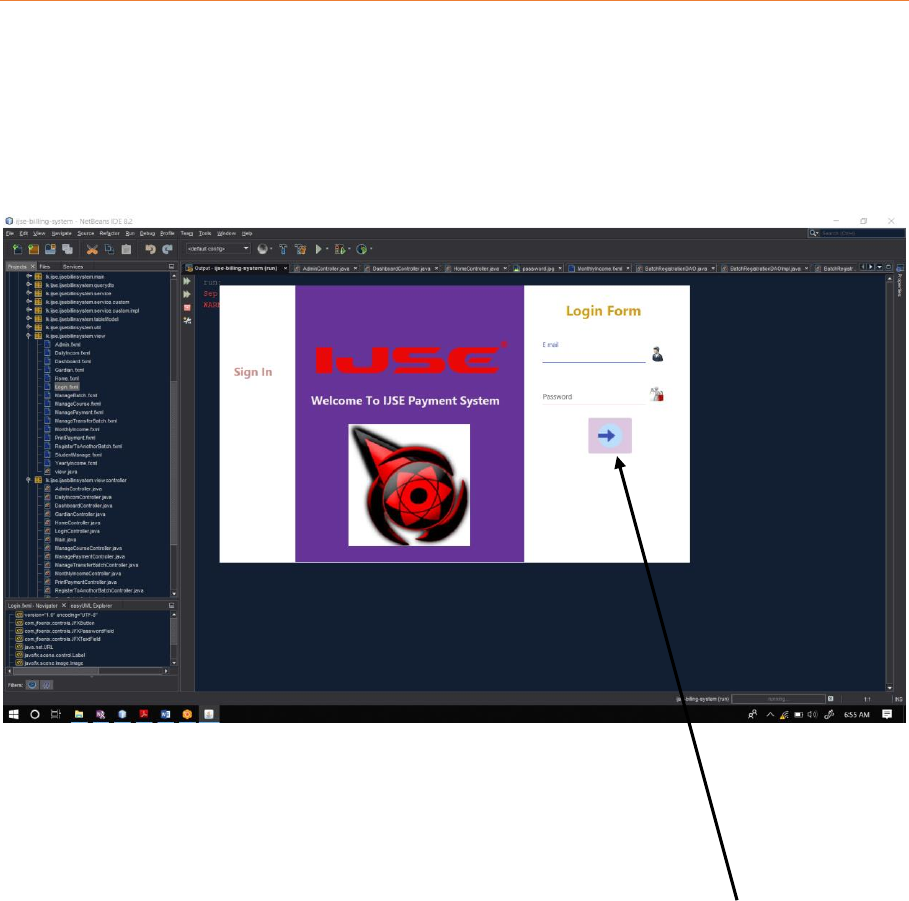
You can see, this is the entry point of the system when you run system. So I hope
any one will can know how to manage this system process after using my
documentation.
You can login this system, after fill your e-mail and password click on this login
button.
You can enter to the system typing your email and password. When the system use
first time, you will have default email and password to login. After logged you can
change it.
Now you can click login button and go ahead.
Home
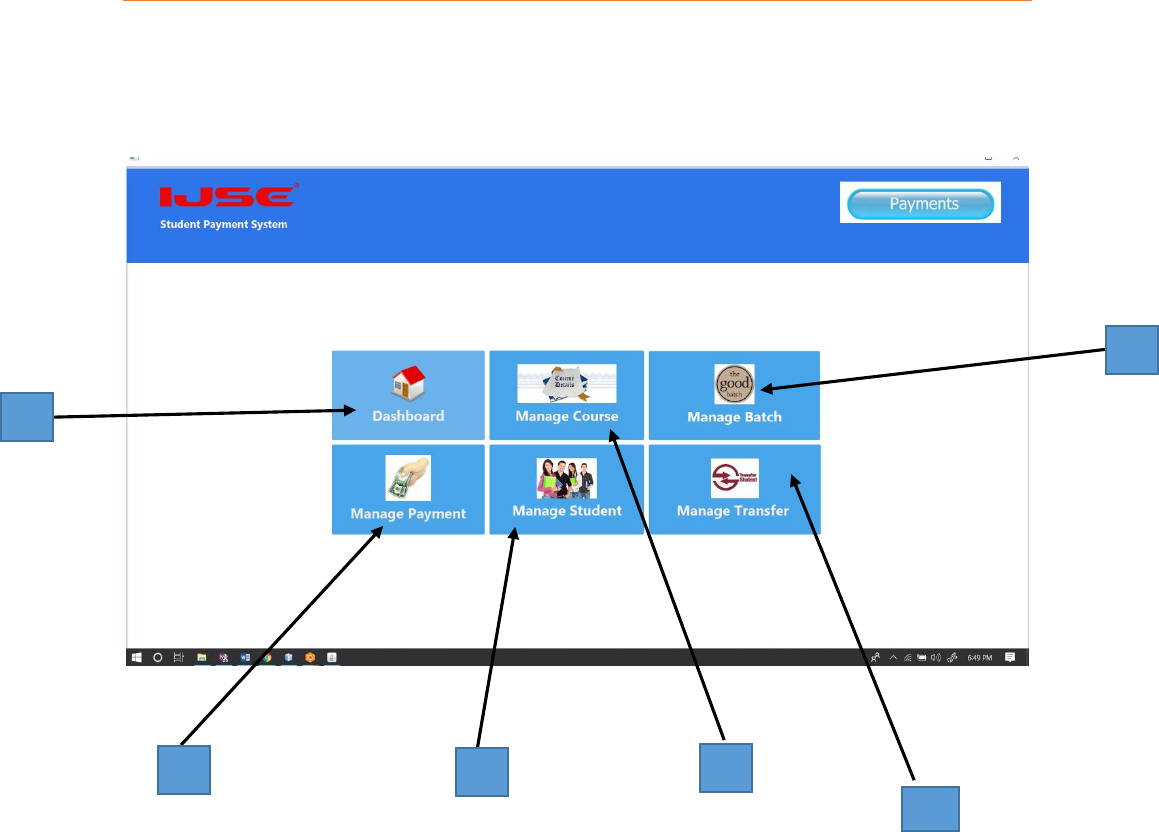
You can see the all process in this system by home page.
01: we can click the dashboard button and open the dashboard form.
02: we can click the manage payment button and open the students payment form
03: we can click the manage student button and open the student registration form
04: we can click the manage course button and open the manage course form
05: we can click the manage transfer button and open the manage transfer from
06: we can click the manage batch button and open the manage batch form
01
02
03
04
05
06
Student registration
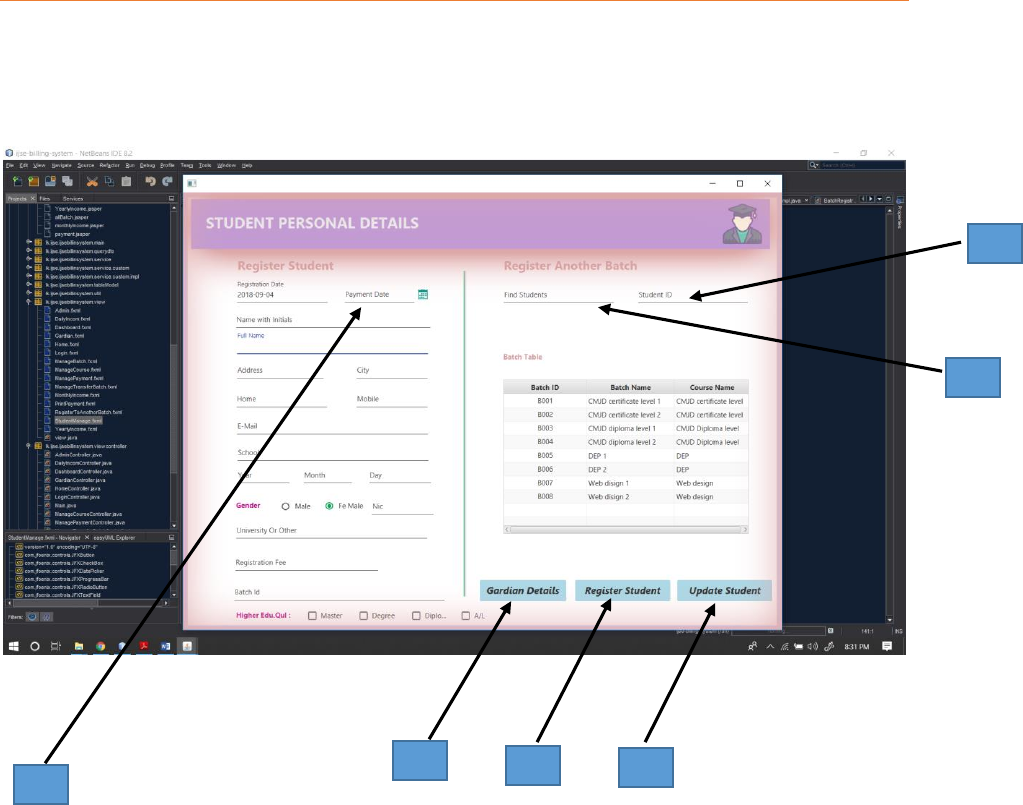
This process is use, for register new student to the ijse institute.
01: you must give the date for pay the course fee.
02: when you click the guardian button, you can see the guardian interface
03: when you click the register student button , then you can registerd new student .
04: you can update the student details after search student details by student nic.
05: Type student nic and search student for register another batch if student want, but when you
search a student by his nic , isn’t student , give a message “This student is not exit” , as well as that
student is available, you can register student to another batch.
01
02
03
04
05
07
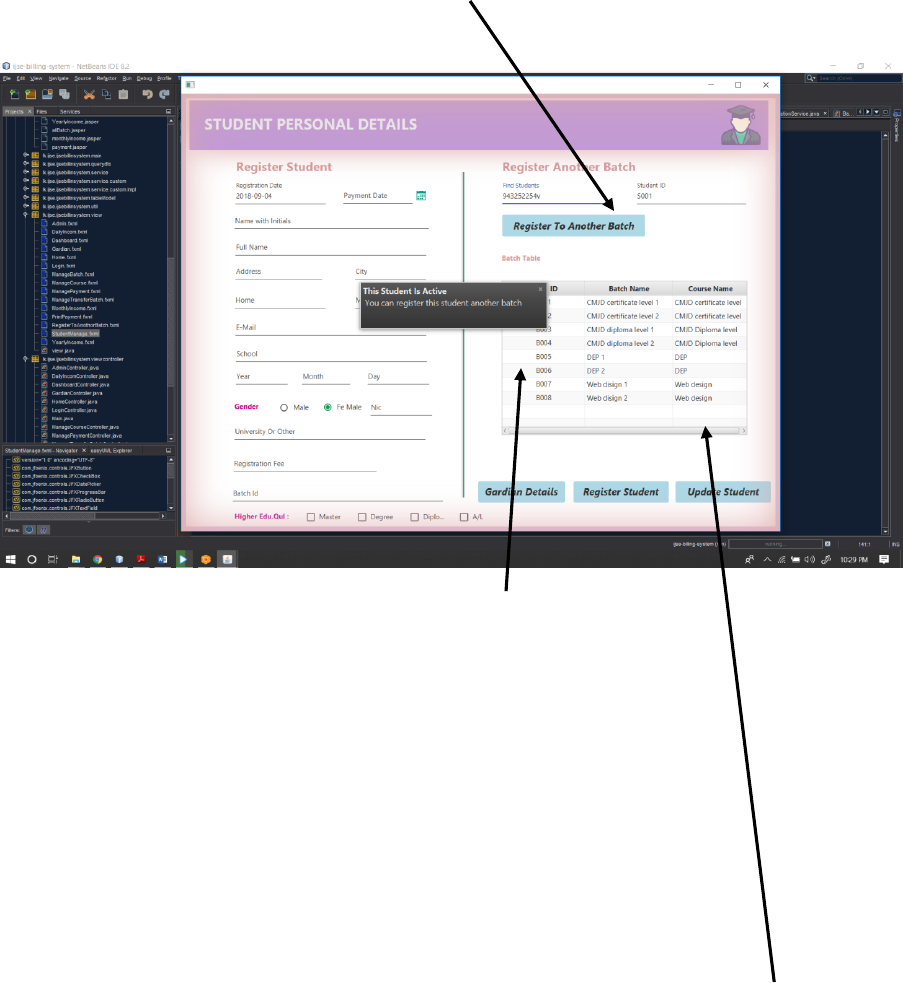
So when we search student by hic nic, if student is available you can see the gui given bellow.
This table has , not started batch yet
I plan by this process, register new student to the Ijse institute.
So first of all register new student, your must fill all details of student, include guardian details.
After you can register new student to the ijse institute.
As well as that, you must follow under the rules before register the new student
I. Fill details of student.
II. You must click the guardian button and fill the guardian details.
III. You must give the date for pay the course fee.
IV. You must select the batch according to the course witch student requester by table.
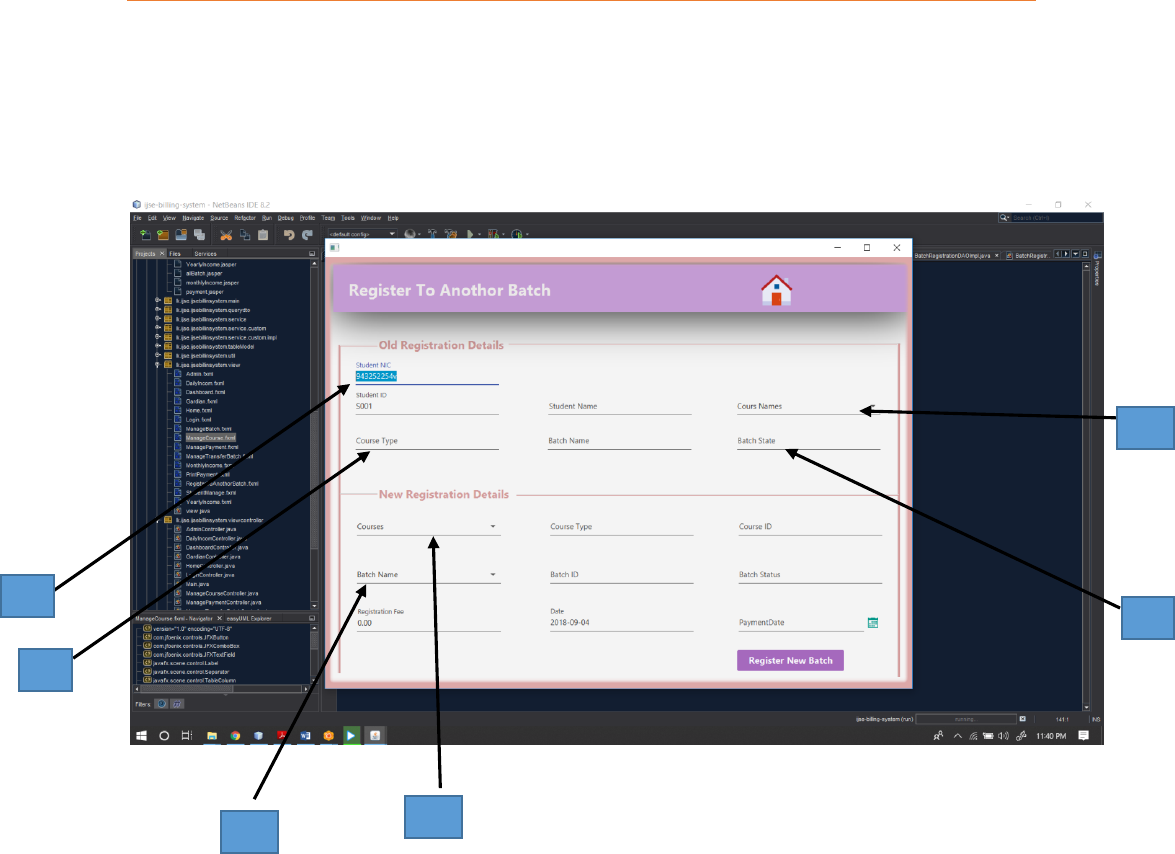
Student register to another batch
This process is use to register student for another batch
01. You can find the student and search his details by using his nic.
02. Courses names of currently following by student who found student.
03. Courses type of currently following by student who found student.
04. batch status of currently following by student, so we have two type for batch , for example “Part
time” and “Full time”
so Student’s details filling by automatically about when we found that student such as student
name, current courses name, batch name, batch state. By student old details.
05: load all courses what have ijse institute, in to combo box.
After you can select the courses what student want register new batch. As well as that
when we select the course by the combo box , auto fill all details that course. Such as
course type, course Id, batch name, batch id, batch status.
06: when you click the course name, what student want, auto load batch, what
not started yet, in to [06]
01
1
03
05
04
02
06
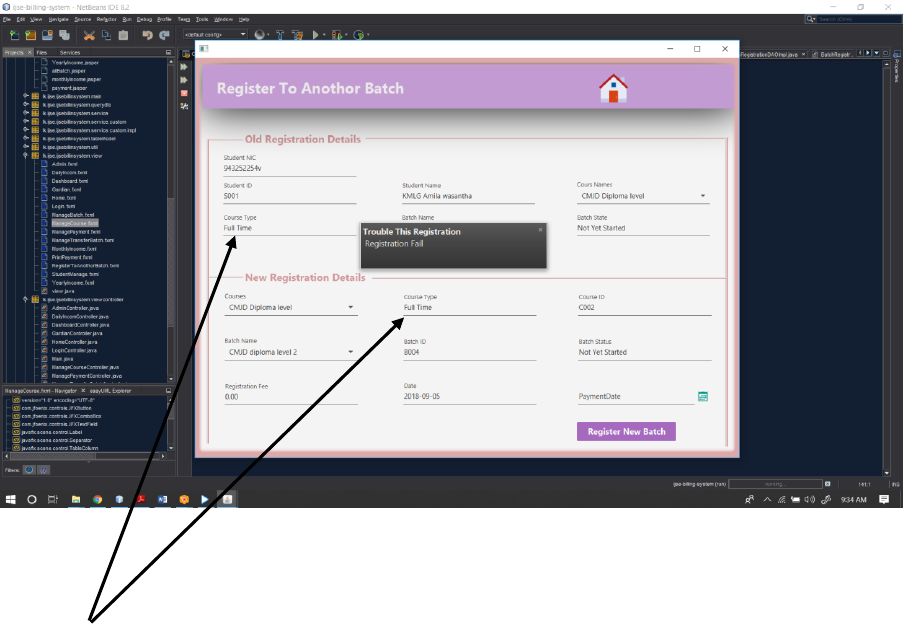
After you can register student new batch, but if student register new batch you must following
under the rules. See it next gui ->
This registration is fail, because of, student can not register have same course type.
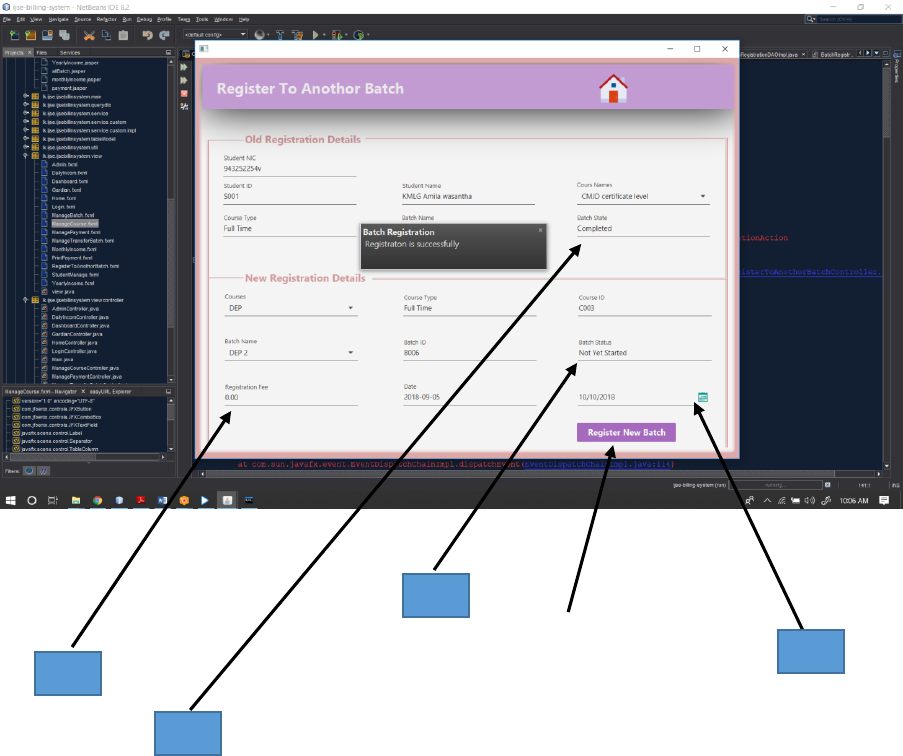
01: This registration is successfully, because , although course type name same, but student
previous course completed
02: doesn't fee, for this registration, because this student registered one time in to this ijse
institute.
03: student can register only batch, what not started yet. So I load batch, what only not started
batch yet.
04: you must give the date for payment for course.
05: Now you can register student to another batch, what student want.
01
02
03
04
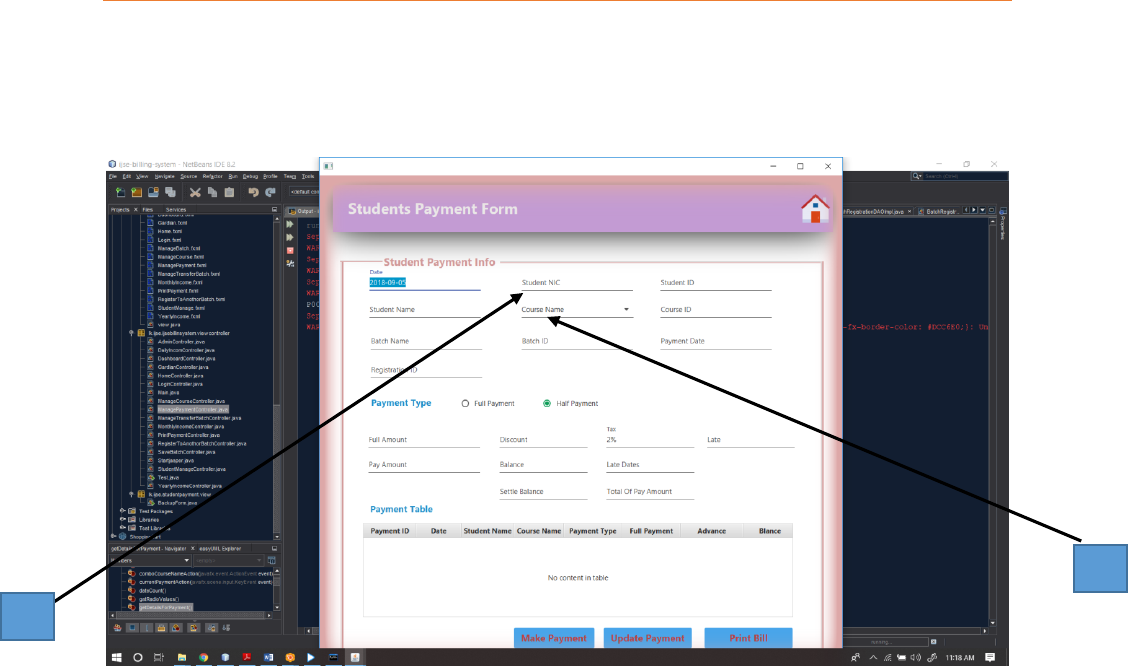
Manage Payment
This process I use to manage payment for all students.
01 : Before when you going payment to any one of student, first off all you should do, enter the student
nic and find about student payment details and confirm student previously payment do or not his courses.
02: after find the student, load all courses details ,what that courses of student following now.
So, after, when you select the course, auto fill, what applies to the student details such as courseId,
batch name, batchId and if student have payment previously that payment date.
01
02
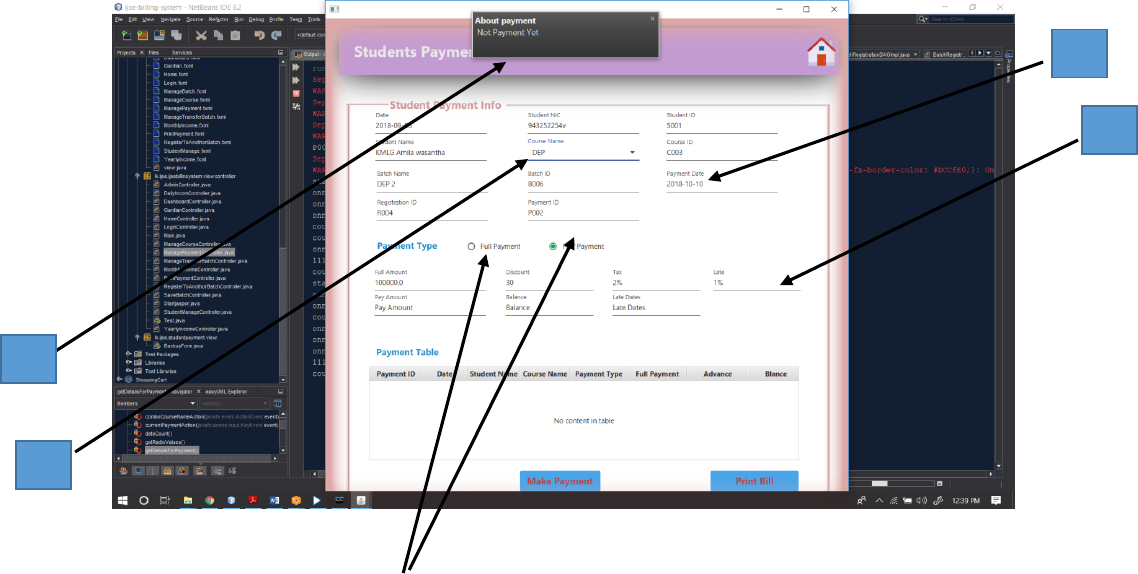
Payment Type
01: Now you can see the notify “Not payment Yet”, because ,when click on a course, this
student not payment yet that course.
02: for a example of, this student not payment yet for DEP course.
03: As well as that you should remember this date, because , this is the date when this student
register this batch you gave the date for payment.
04: So, this system automatically calculate date count by current date and payment date, then
calculate automatically count of date for late payment.
you can see the two type of payment, such as full payment and half payment.
You can choose full payment or half payment type as willing student.
When you choose full payment, system calculate last amount automatically. You may need press make
payment button only.
But when you choose half payment, system request focus you to input values text field automatically.
Then you need to type current hand money amount of student, and please select a next payment
date.
Tax discount late fee automatically calculate by the system.
01
02
03
04
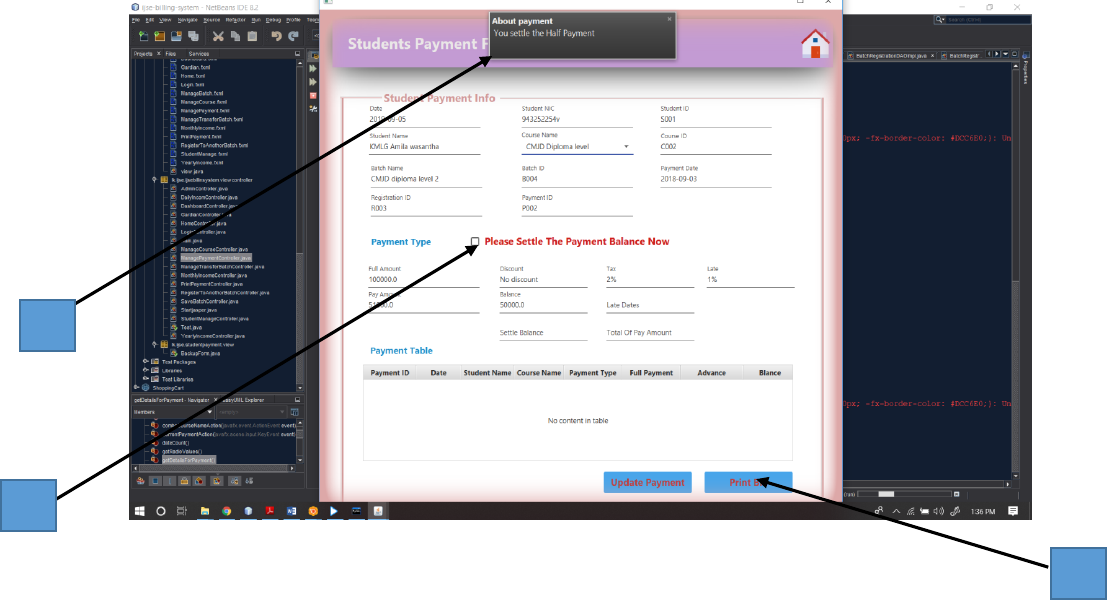
01: you can see the by this notification, this student payed half payment for this course
02: so after when you click the check box, system calculate last amount automatically and press
update payment button.
03: print payment bill.
01
02
03
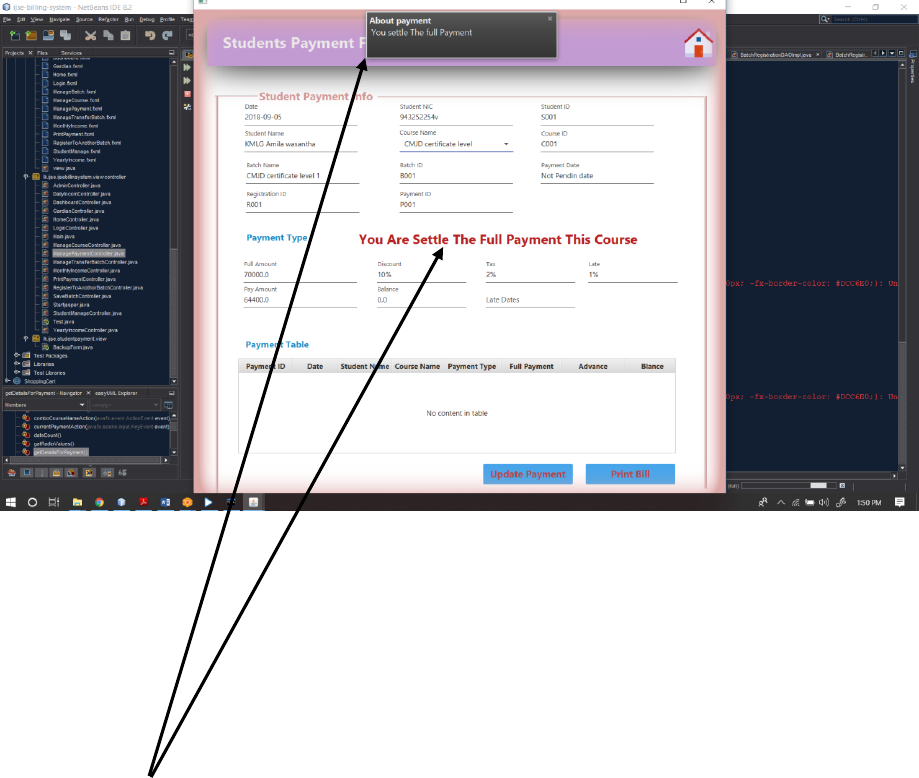
you can see the by this notification, this student payed full payment for this
course.
Manage Batch Transfer
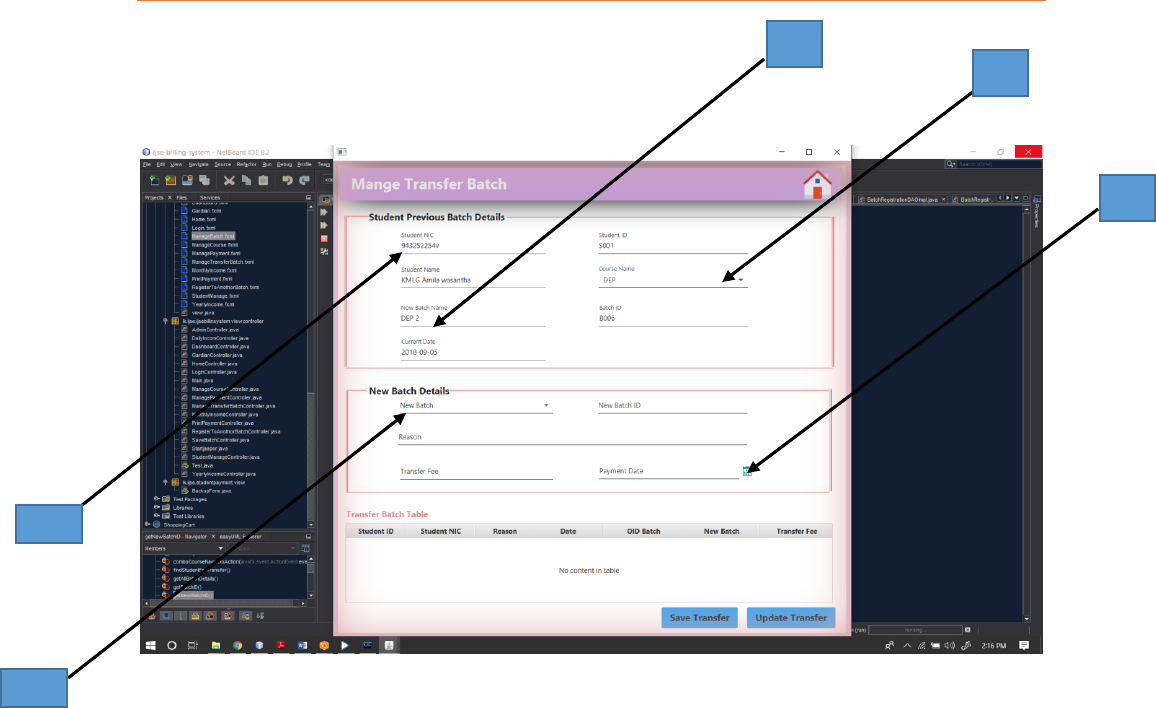
This process I use to manage Transfer Batch for all students.
01: first of all enter the student nic and find student details for batch transfer.
02: load all course names in to course combo, what student now following
03: then select the course, what student want continue again, after auto fill current batch that
course has.
04: after clicking the course what student want continue again, auto fill new batch what not
started yet.
05: pending date.
This process I check before transfer student, what student pay or not last batch.
If student not paid into last batch, he can’t transfer to another batch.
01
02
03
04
05
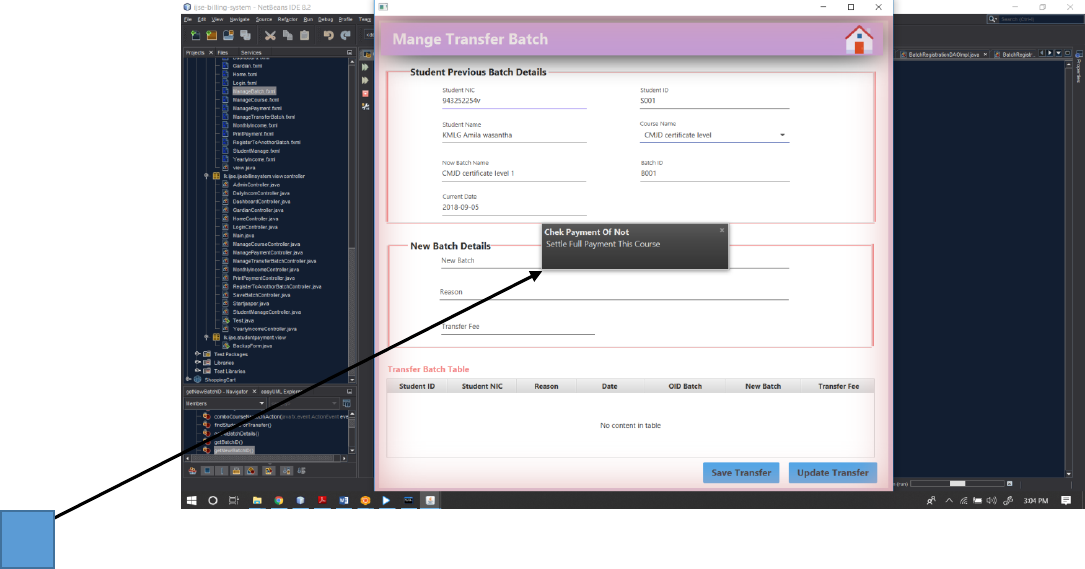
01: you can see by the notification , this student is paid out full payment last batch.
So this student can transfer to new batch without problem.
You can click the save transfer button now.
01
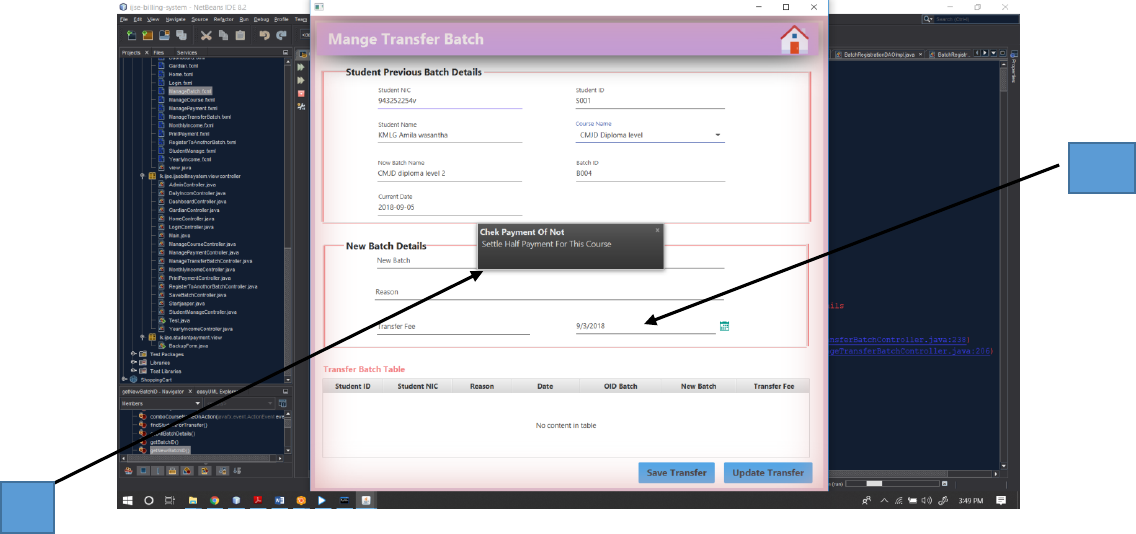
01: you can see by the notification , this student is paid out alf payment last batch.
02: if any one student settle half payment, we can see the pending date.
So you can update this pending date and give the new pending date for new batch.
01
02
Manage course
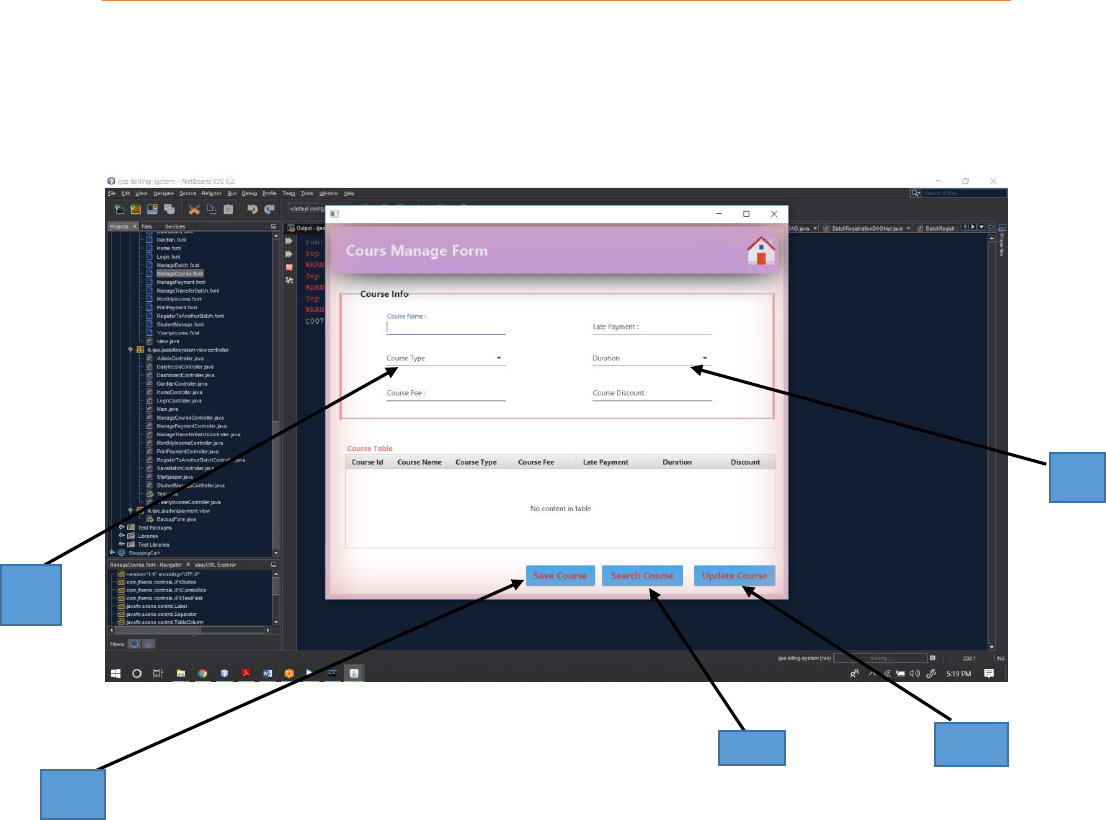
This process I use to manage Course for all students.
Fill all details about course and click save button to save new course.
After click update button, type course id and press enter key. Course details filling
automatically.
Course table retrieve all course details.
After saving course show good alert.
01: click to save course button and save course.
02: click to search course button and find course details.
03: click to update button and update course.
04: All courses have two type such as full time and part time.
05: All Courses have some duration.
01
02
03
04
05
Manage batch
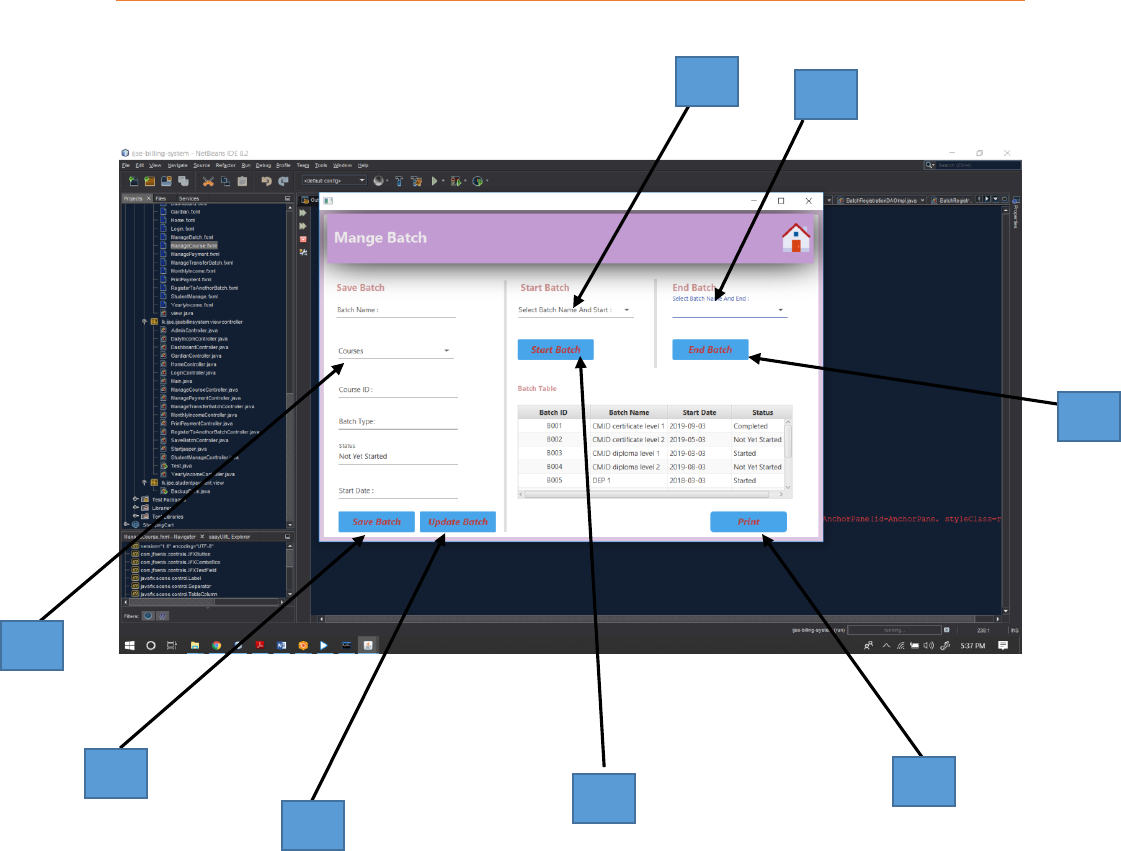
This process I use to manage batch for all students.
01: All courses load in to this combo box.
Remember, when you save new batch you should a select course for that batch
02: you can after fill all details and save new batch.
03: as well as you can update batch.
04: all batches what, “not started yet” load in to this combo box.
01
02
03
06
08
07
05
04
05: all batches what, “started” load in to this combo box.
06: you can started batch what, not started yet.
07: you can complete batch what, now started batch.
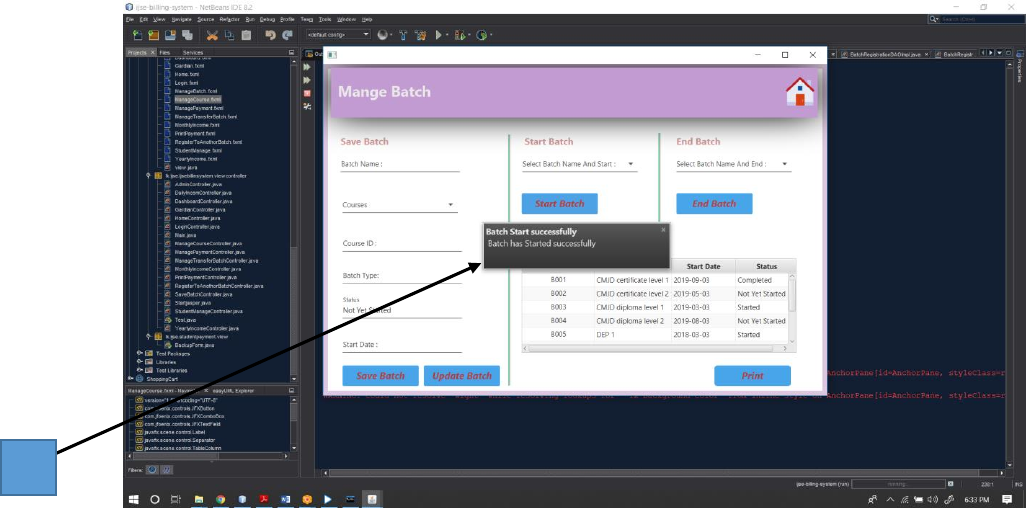
01: you can see the notification when start a batch
01
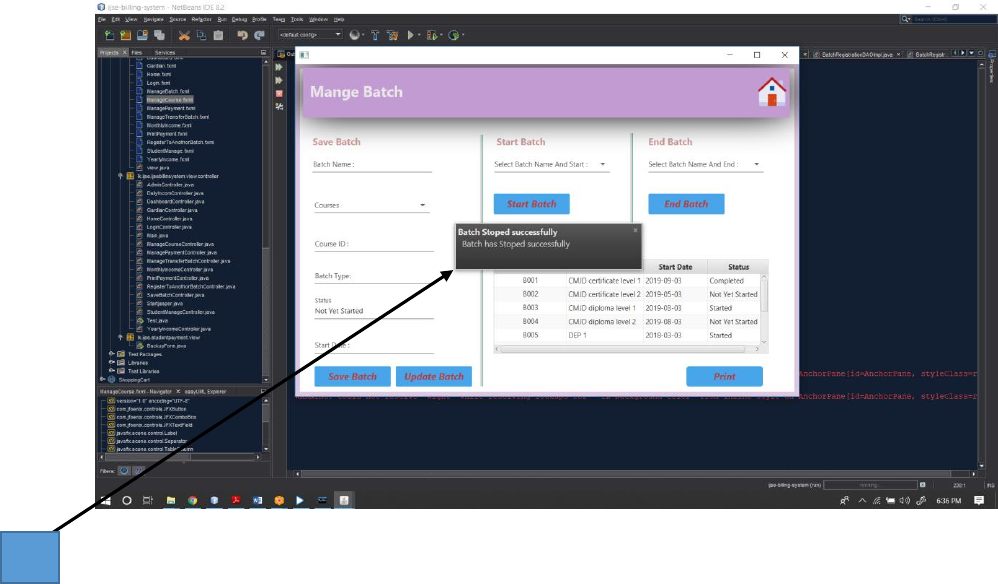
01 : You can see the notification when stopped batch.
01
Dashboard
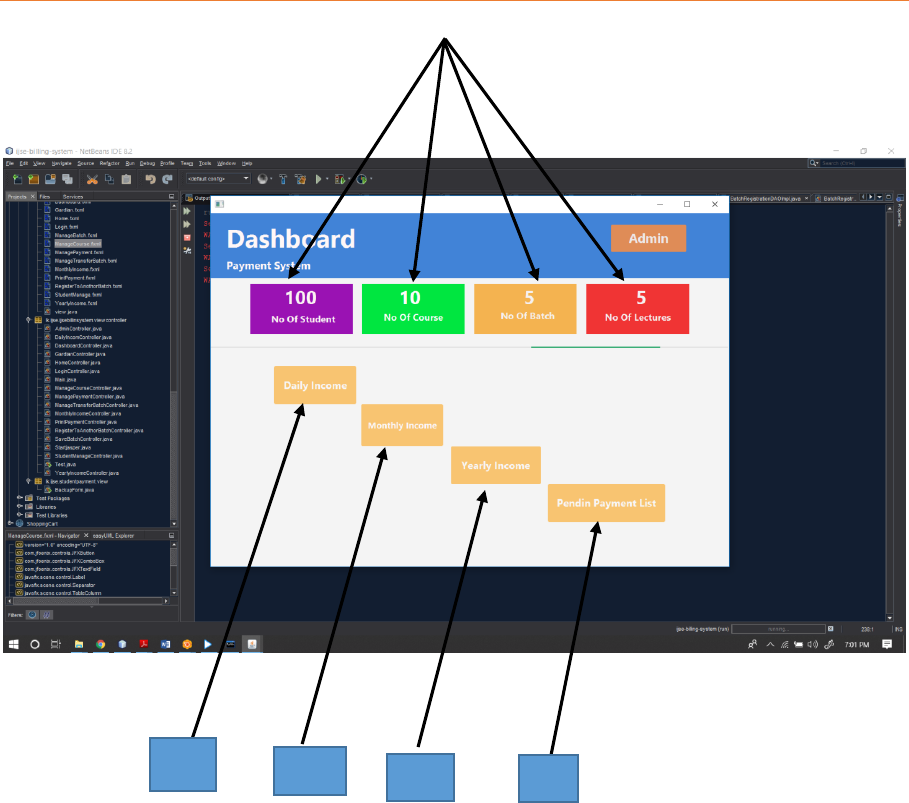
Total of All details
01: we can see daily collection of registration, batch transfer and payment.
02: we can see monthly collection of registration, batch transfer and payment.
03: we can see yearly collection of registration, batch transfer and payment.
04: we can see the pending payment list of students
01
02
03
04
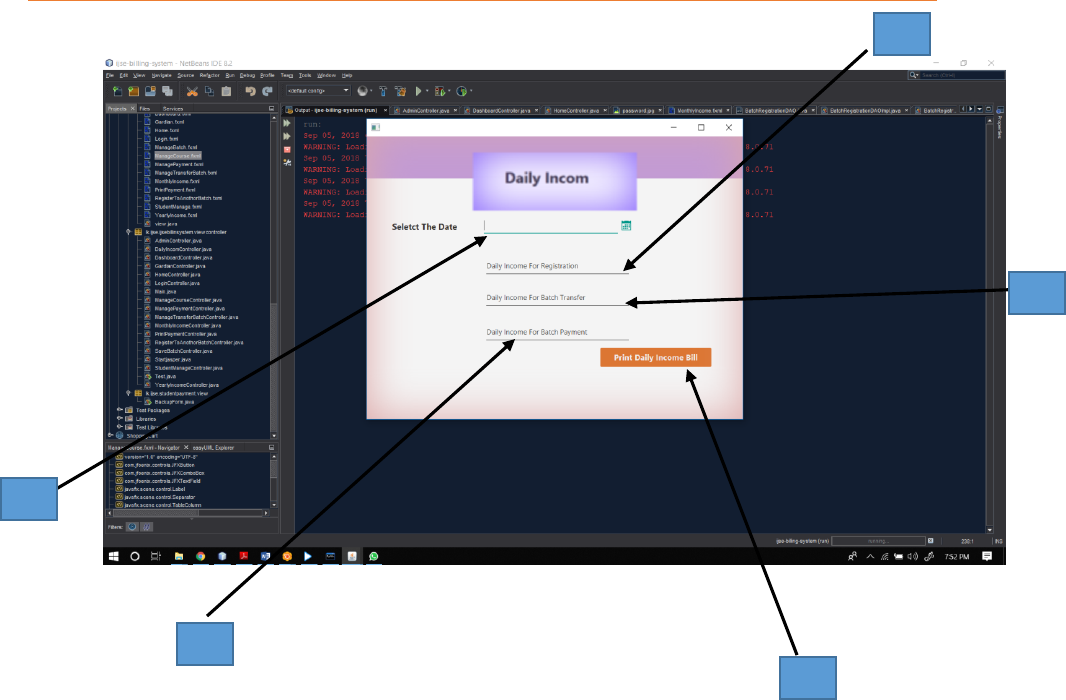
Daily collection
01: you should select the date and find daily collection.
02: daily collection by payment
03: daily collection by batch transfer
04: daily collection by registration
05: we can see the daily collection by print the bill.
01
02
03
04
05
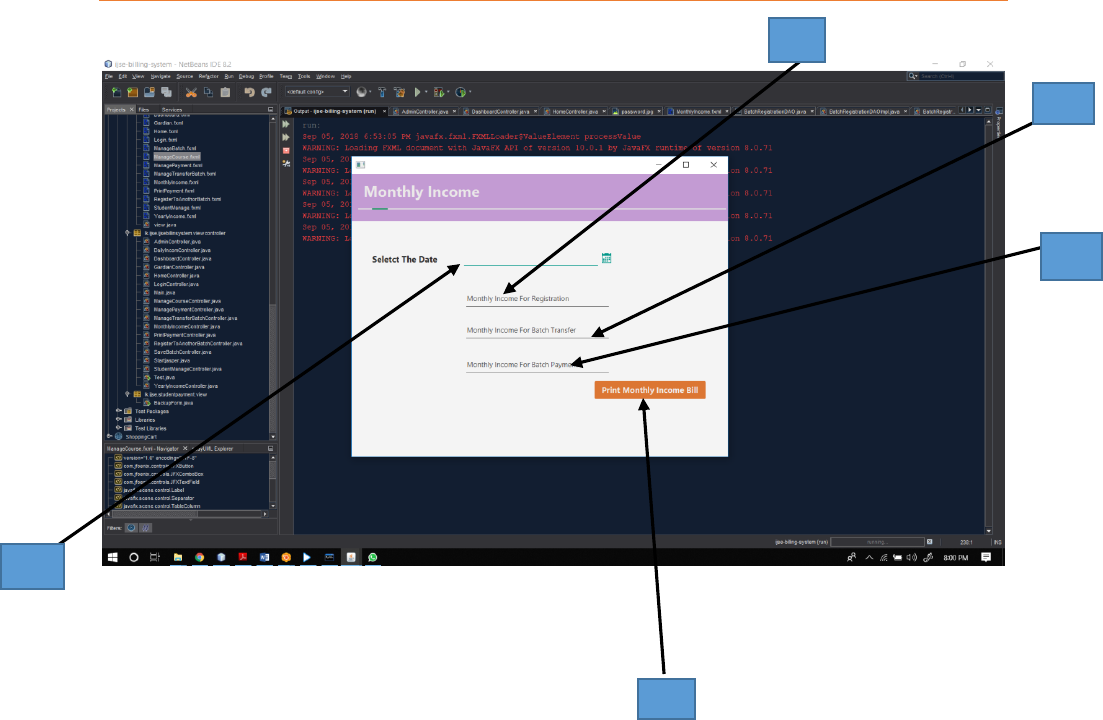
Monthly collection
01: you should select the month and find monthly collection.
02: monthly collection by payment
03: monthly collection by batch transfer
04: monthly collection by registration
05: we can see the monthly collection by print the bill.
01
04
03
02
05
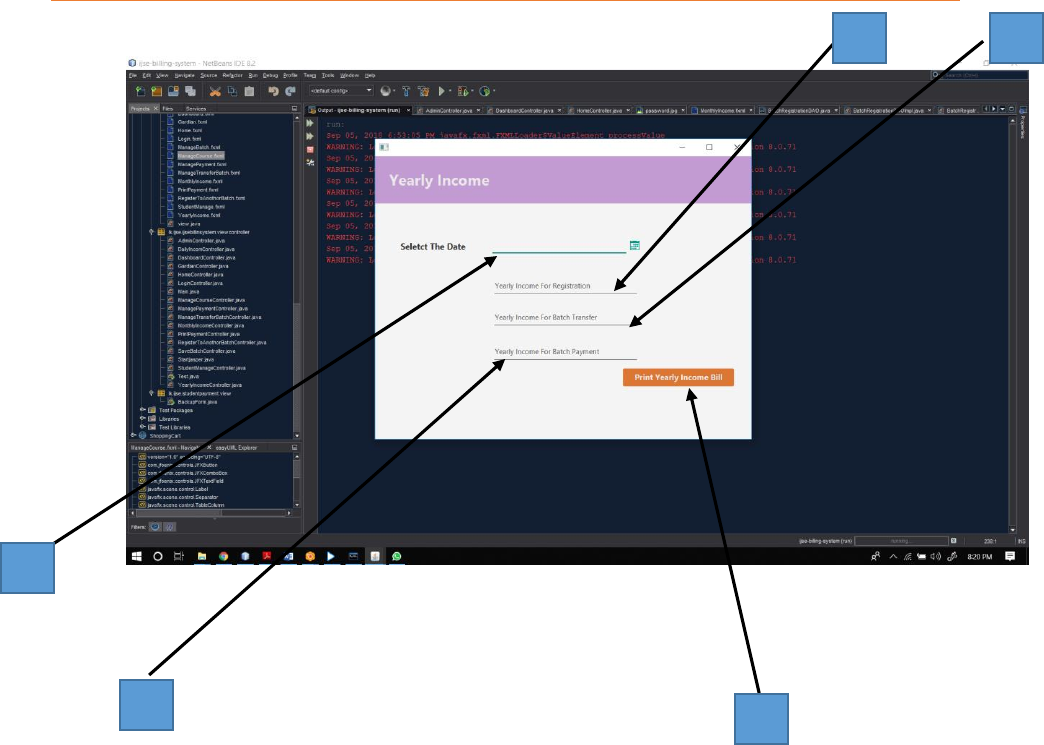
Yearly colletion
01: you should select the yearly and find monthly collection.
02: yearly collection by payment
03: yearly collection by batch transfer
04: yearly collection by registration
05: we can see the yearly collection by print the bill.
01
02
05
03
04
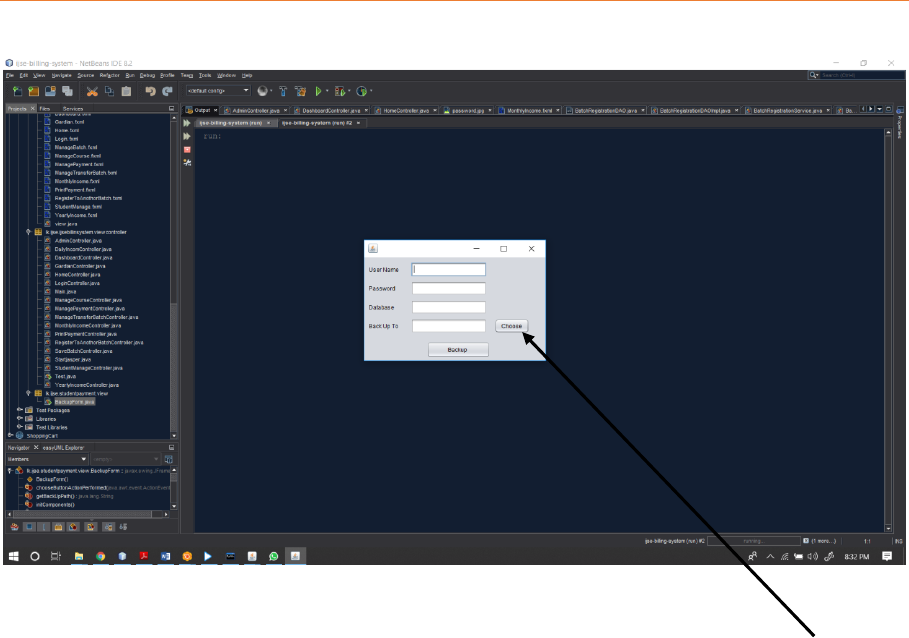
Back up data
Back up path
After choose back up path, click full back up button only.
The backup will working after that.
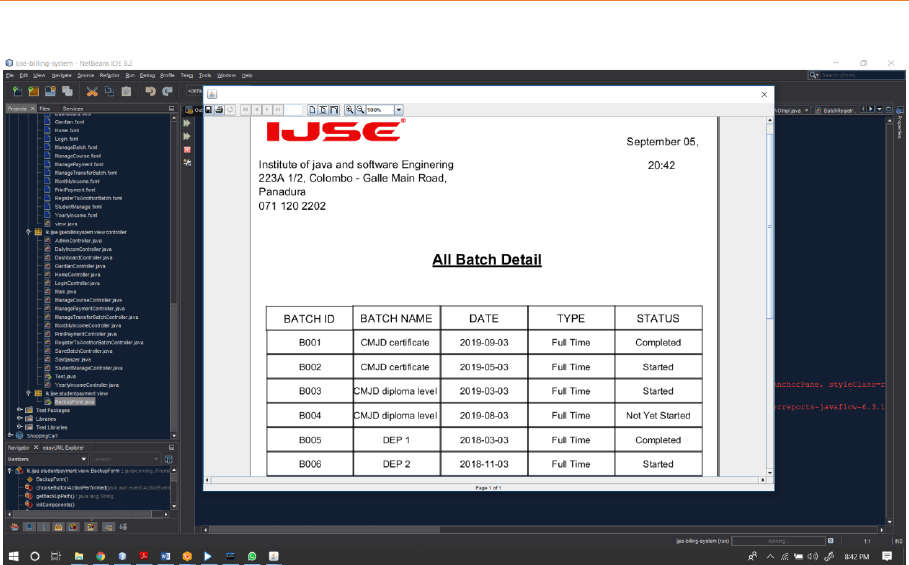
All batch details report
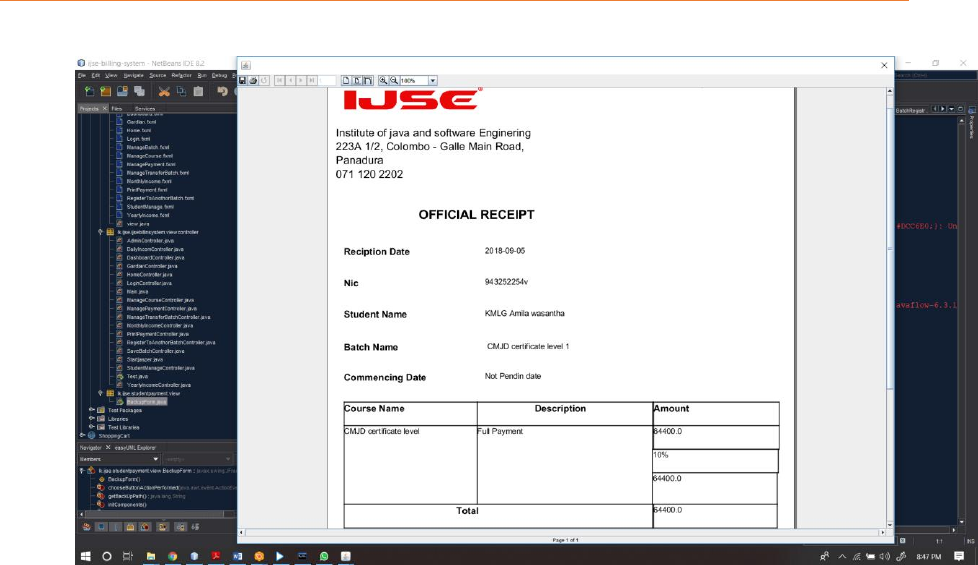
Payment report of student
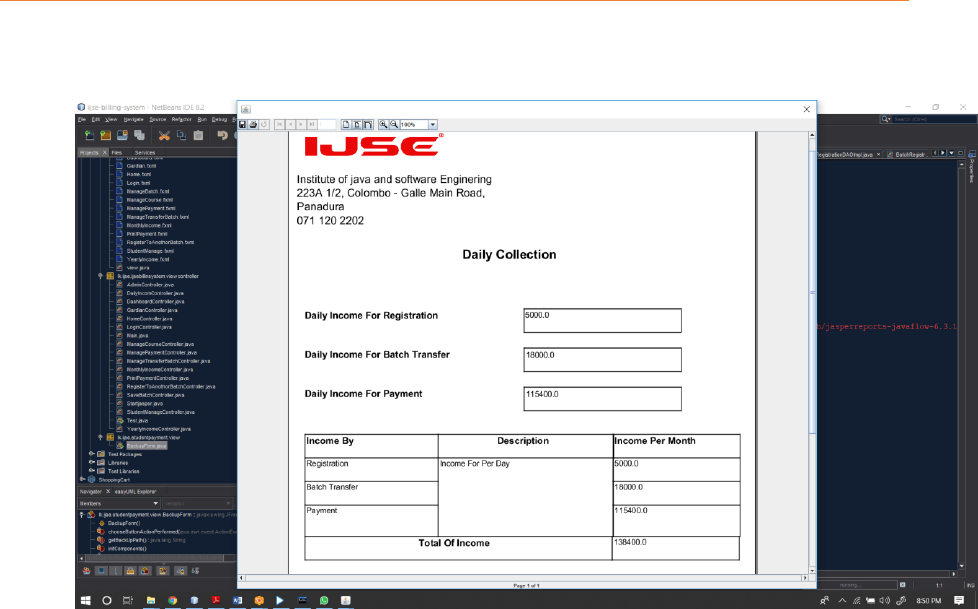
Daily collection report
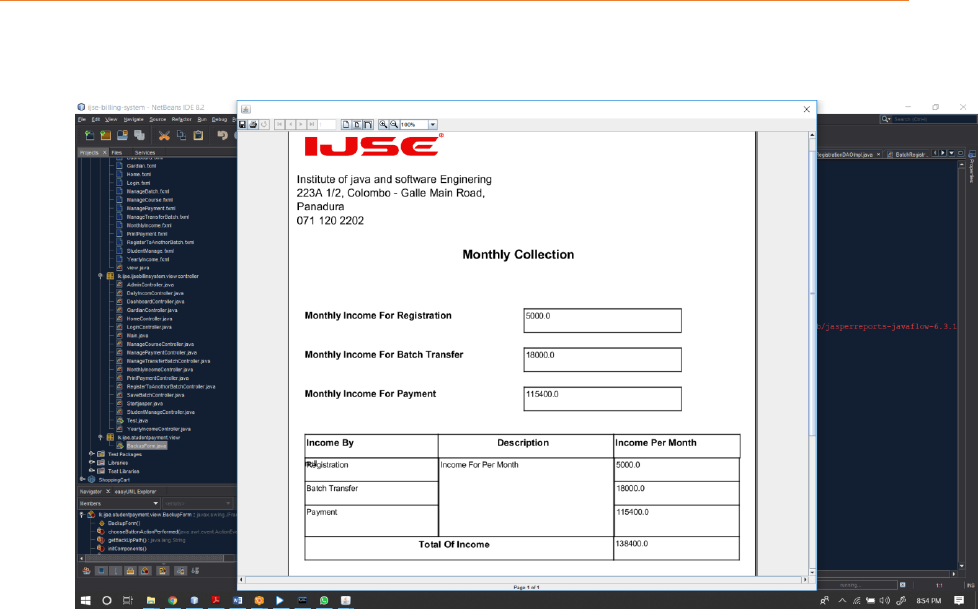
Monthly collection report
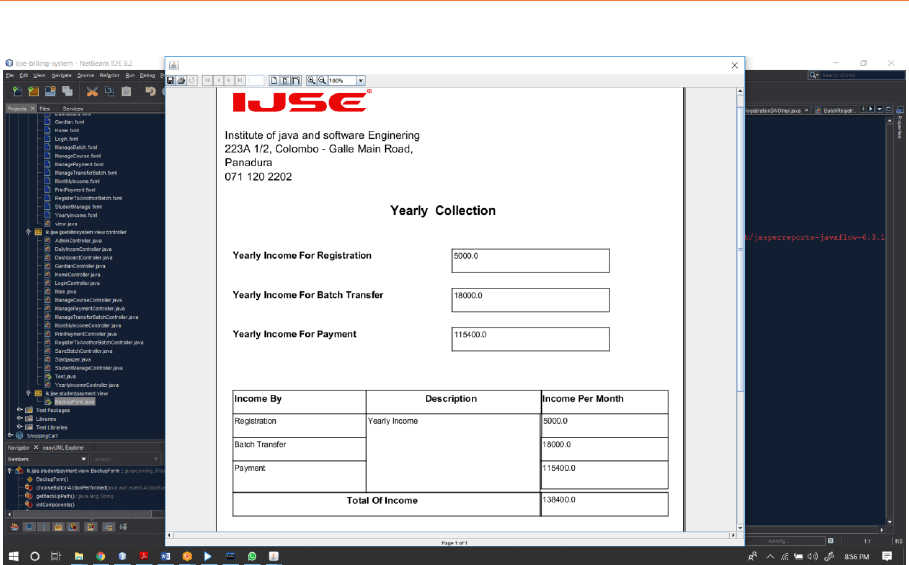
Yearly collection
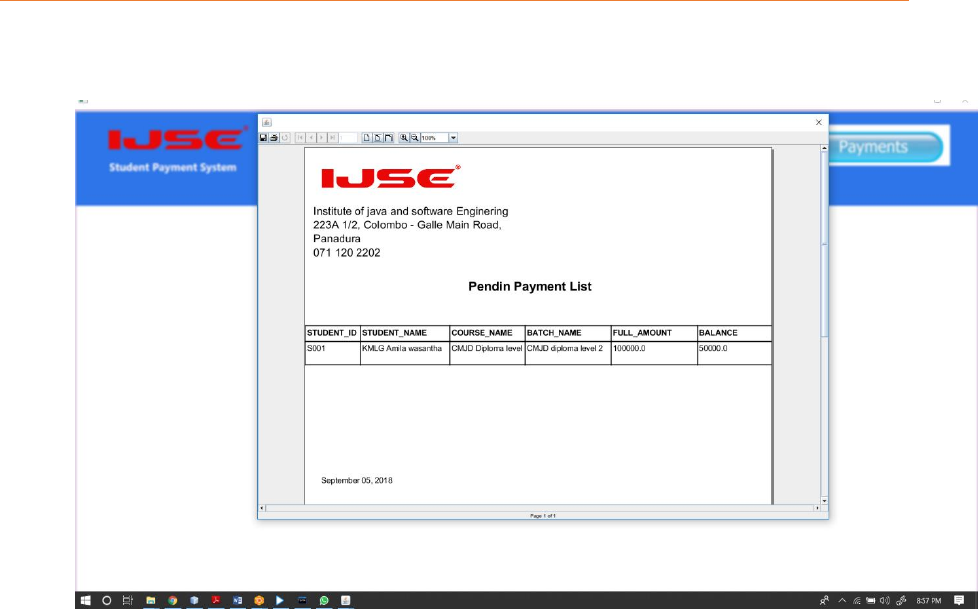
Pending payment report
