SOFTIMAGE|XSI Setup & Licensing Install Guide
User Manual:
Open the PDF directly: View PDF  .
.
Page Count: 17

mental ray® Standalone 2011
Installation Guide
For Windows®, Linux®, and Mac OS® X Systems
Copyright and Disclaimer
© 2010 Autodesk, Inc. All rights reserved. Except as otherwise permitted by Autodesk, Inc.,
this publication, or parts thereof, may not be reproduced in any form, by any method, for any
purpose.
Certain materials included in this publication are reprinted with the permission of the
copyright holder.
The following are registered trademarks or trademarks of Autodesk, Inc., and/or its
subsidiaries and/or affiliates in the USA and other countries: 3DEC (design/logo), 3December,
3December.com, 3ds Max, Algor, Alias, Alias (swirl design/logo), AliasStudio, Alias|Wavefront
(design/logo), ATC, AUGI, AutoCAD, AutoCAD Learning Assistance, AutoCAD LT, AutoCAD
Simulator, AutoCAD SQL Extension, AutoCAD SQL Interface, Autodesk, Autodesk Envision,
Autodesk Intent, Autodesk Inventor, Autodesk Map, Autodesk MapGuide, Autodesk
Streamline, AutoLISP, AutoSnap, AutoSketch, AutoTrack, Backburner, Backdraft, Built with
ObjectARX (logo), Burn, Buzzsaw, CAiCE, Civil 3D, Cleaner, Cleaner Central, ClearScale,
Colour Warper, Combustion, Communication Specification, Constructware, Content
Explorer, Dancing Baby (image), DesignCenter, Design Doctor, Designer's Toolkit,
DesignKids, DesignProf, DesignServer, DesignStudio, Design Web Format, Discreet, DWF,
DWG, DWG (logo), DWG Extreme, DWG TrueConvert, DWG TrueView, DXF, Ecotect,
Exposure, Extending the Design Team, Face Robot, FBX, Fempro, Fire, Flame, Flare, Flint,
FMDesktop, Freewheel, GDX Driver, Green Building Studio, Heads-up Design, Heidi,
HumanIK, IDEA Server, i-drop, ImageModeler, iMOUT, Incinerator, Inferno, Inventor,
Inventor LT, Kaydara, Kaydara (design/logo), Kynapse, Kynogon, LandXplorer, Lustre,
MatchMover, Maya, Mechanical Desktop, Moldflow, Moonbox, MotionBuilder, Movimento,
MPA, MPA (design/logo), Moldflow Plastics Advisers, MPI, Moldflow Plastics Insight, MPX,
MPX (design/logo), Moldflow Plastics Xpert, Mudbox, Multi-Master Editing, Navisworks,
ObjectARX, ObjectDBX, Open Reality, Opticore, Opticore Opus, Pipeplus, PolarSnap,
PortfolioWall, Powered with Autodesk Technology, Productstream, ProjectPoint,
ProMaterials, RasterDWG, RealDWG, Real-time Roto, Recognize, Render Queue,
Retimer,Reveal, Revit, Showcase, ShowMotion, SketchBook, Smoke, Softimage, Softimage|XSI
(design/logo), Sparks, SteeringWheels, Stitcher, Stone, StudioTools, ToolClip, Topobase, Toxik,
TrustedDWG, ViewCube, Visual, Visual LISP, Volo, Vtour, Wire, Wiretap, WiretapCentral,
XSI, and XSI (design/logo).
mental ray is a registered trademark of mental images GmbH licensed for use by Autodesk,
Inc.
All other brand names, product names or trademarks belong to their respective holders.
Disclaimer
THIS PUBLICATION AND THE INFORMATION CONTAINED HEREIN IS MADE
AVAILABLE BY AUTODESK, INC. "AS IS." AUTODESK, INC. DISCLAIMS ALL
WARRANTIES, EITHER EXPRESS OR IMPLIED, INCLUDING BUT NOT LIMITED TO
ANY IMPLIED WARRANTIES OF MERCHANTABILITY OR FITNESS FOR A
PARTICULAR PURPOSE REGARDING THESE MATERIALS.
Contents
Installation Guide • 1
Contents
Installation Guide
About mental ray Standalone . . . . . . . . . . . . . . . . . . . . 2
Combining Licenses On An Existing Autodesk License Server . . . . 3
Installing and Configuring An Autodesk License Server . . . . . . . . 4
Installing mental ray Standalone . . . . . . . . . . . . . . . . . . . . . . . . . . . 8
Starting and Troubleshooting mental ray Standalone . . . . . . . . 12
Modifying Service Ports for Network Rendering . . . . . . . . . . . . . 14
Installation Guide • 2
About mental ray Standalone
mental ray® Standalone 3D rendering software is a high-performance
ray-trace render engine for generating imagery ranging from stylized
to photorealistic. Although mental ray 3D rendering technology is
integrated in many Autodesk® applications, the stand-alone version is
best suited for large volume rendering projects and is available for
Autodesk® 3ds Max®, Autodesk® 3ds Max® Design, Autodesk®
Maya®, and Autodesk® Softimage®. The 2011 releases of these
Autodesk 3D applications all use the same version of mental ray —
mental ray Standalone 2011 (also known as mental ray version 3.8.1).
You can use mental ray Standalone from the command line to read
and render scene data as files using the .mi scene description
language. You can also manually override render options in these .mi
files to define extra shaders, create objects, swap textures, or perform
other special tasks. In addition, each installation of mental ray
Standalone can participate in tile-based distributed renders over a
network. mental ray Standalone supports render nodes running
Microsoft® Windows®, Linux®, and Mac OS® X operating systems.
Visit www.autodesk.com/mentalray for a complete listing of the
features and system requirements.
mental ray Standalone 2011 is installed and run with Autodesk
network licensing. This means that each installation of mental ray
Standalone requests a license from an Autodesk network license
server. You must install the license server before installing mental ray
Standalone itself. If you already have a license server up and running,
then you can simply add your mental ray Standalone licenses to the
existing license file.
Topics
•Combining Licenses On An Existing Autodesk License Server
•Installing and Configuring An Autodesk License Server
•Installing mental ray Standalone
•Starting and Troubleshooting mental ray Standalone
•Modifying Service Ports for Network Rendering
3• mental ray Standalone 2011
About mental ray Standalone
Combining Licenses On An Existing Autodesk
License Server
If you already have an Autodesk license server that provides licenses
for several Autodesk products, you can continue to use this license
server for your mental ray Standalone licenses. You do this by copying
the mental ray Standalone license information into the existing license
file.
You can combine licenses for different products if the products use the
same vendor daemon. For example, you can combine licenses for 3ds
Max 2011, 3ds Max Design 2011, Softimage 2011, Maya 2011, and
mental ray Standalone 2011 because these products use the same
adskflex vendor daemon.
The basics steps are as follows:
1. Copy the INCREMENT section of your mental ray Standalone
license file and paste it into your current license file.
For details about combining licenses, refer to the technical
solution http://usa.autodesk.com/getdoc/id=TS13816872
on autodesk.com.
2. Run the LMTOOLS Utility (lmtools).
3. Click the Start/Stop/Reread tab.
4. Click “ReRead License File” to refresh the Network License
Manager with the changes made to the license file.
5. The license server is ready to respond to new license requests.
6. If you haven’t done so already, you can install mental ray
Standalone and point to this server to obtain licenses. See
Installing mental ray Standalone on page 8.

Installing and Configuring An Autodesk License Server
Installation Guide • 4
Installing and Configuring An Autodesk License
Server
These are the basic steps for installing and configuring the Autodesk
Network License Manager (LMTools Utility). Once your license server
is set up, you can install and run network-licensed versions of mental
ray Standalone as render slaves.
Installing the Autodesk Network License Manager
The Network License Manager consists of the following files: lmgrd,
adskflex, and lmutil. lmgrd is the license server manager and it is
controlled from a command-line.
1. The Autodesk Network License Manager for a standard IPv4
network is available on the mental ray Standalone DVD in the
Support\nlm folder.
2. Run the Autodesk Network License Manager Setup program on
the computer that will be your license server.
3. Accept the End User License Agreement (EULA).
-Select your Country or Region.
- Select I Accept and click Next.
4. Select Autodesk Network License Manager as the product to
configure.
5. To modify the installation location, click Configure and specify a
new folder. Once you are done, click Configuration Complete.
If you are running the license server on a pure IPv6 network, you
must install the Autodesk Network License Manager for IPv6.
This package is available for download according to your
operating system at:
-http://www.autodesk.com/nlm2011-ipv6-windows
-http://www.autodesk.com/nlm2011-ipv6-mac
-http://www.autodesk.com/nlm2011-ipv6-linux
5• mental ray Standalone 2011
About mental ray Standalone
6. If the information in the Current settings box is correct, click
Install.
7. Click Finish once the installation has successfully completed.
Registering and Activating Your Network Licenses
You license mental ray Standalone by requesting a license and
installing the license file you obtain from Autodesk on your network
license server.
1. Go online at https://registeronce.autodesk.com to register and
activate your mental ray Standalone licenses.
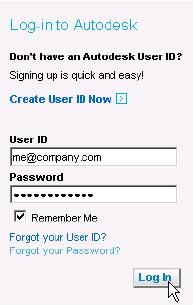
2. Log in to your Autodesk account with your User ID and Password.
3. If you do not have an Autodesk user account, you must create one:
Click “Create User ID Now”.
4. Select the Account for which you are registering your product.
Click Next.
5. On the Product Registration & Activation page, make the
following selections:
- Select the product’s operating system.
- Enter the product’s serial number.
Installing and Configuring An Autodesk License Server
Installation Guide • 6
6. Enter your network server information:
- Choose your network server type.
- Enter the host name (computer name) of your server. You can
use the lmutil command line tool to get the server’s name:
lmutil lmhostid -hostname
- Enter the server ID. You can use the lmutil command line tool to
get the server’s ID:
lmutil lmhostid
7. Click Next.
8. When the License(s) Received window is displayed, your license
file is ready to be saved. Click “Save License File”.
9. Specify the location where you want to save your license file.
10. Click Save and wait for the download to complete. Click Close.
11. You can Log Off and close your browser.
Configuring the License Server
1. Run the LMTOOLS Utility (lmtools).
2. Click the Service/License File tab and select “Configuration Using
Services”.
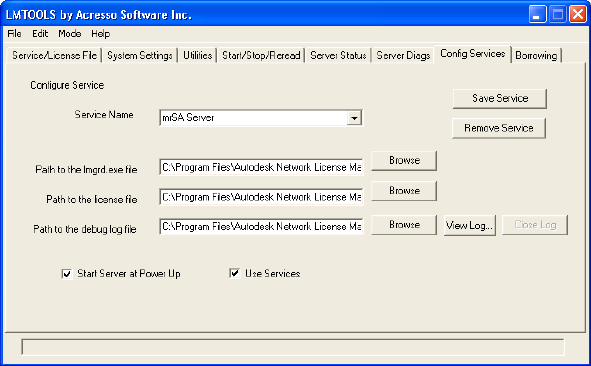
3. Click the Config Services tab:
7• mental ray Standalone 2011
About mental ray Standalone
-Service Name: Select the service you want to use to manage
licenses. When two products use different vendor daemons, you
must create a separate license server service for each vendor
daemon. Note that mental ray Standalone 2011, 3ds Max 2011,
3ds Max Design 2011, Maya 2011, and Softimage 2011 all use
the same adskflex vendor daemon.
-Path to the lmgrd.exe file: Enter the path to the Network License
Manager daemon (lmgrd.exe).
-Path to the license file: Enter the path where you saved your
license file.
-Path to the debug log file: Enter a path to create a debug log and
be sure to include the .log file extension in the name.
-Select Use Services.
-Select Start Server at Power Up.
-Click Save Service to save the new configuration.
Installing mental ray Standalone
Installation Guide • 8
4. Click the Start/Stop/Reread tab:
-Click “Start Server” to start the license server.
-Click “ReRead License File” to refresh the Network License
Manager with any changes made to the license file.
5. The license server is ready to respond to license requests.
6. If you haven’t done so already, you can install mental ray
Standalone and point to this server to obtain licenses.
Installing mental ray Standalone
These are the basic steps for installing and running a network-licensed
version of mental ray Standalone on a Windows, Linux, or Mac OS X
workstation. The Setup program installs the mental ray software files
and then prompts you to enter the name of the Autodesk license
server from where you will obtain your activated licenses.
To successfully complete this task you must have already installed
mental ray Standalone licenses on your Autodesk license server. If you
have not, follow the procedures described in Combining Licenses On
An Existing Autodesk License Server on page 3 or Installing and
Configuring An Autodesk License Server on page 4.
1. Run the mental ray Standalone Setup program.
2. If you have downloaded the package then extract its contents to a
chosen location and click Next.
3. Accept the End User License Agreement (EULA).
-Select your Country or Region.
- Select I Accept and click Next.
4. Enter your product information: the serial number and product
key. For mental ray Standalone 2011 the product key is 718C1.
5. Network is the only license type that you can use to run mental
ray Standalone. It is enabled by default.

9• mental ray Standalone 2011
About mental ray Standalone
6. In the Server name text box, enter the host name (computer
name) of your license server.
You can use the lmutil command line tool to get the server’s host
name:
lmutil lmhostid -hostname
7. Select the Complete installation option. Click Next.
By default, a Complete installation of mental ray Standalone is
installed to the following locations:
Windows:
C:\Program Files\Autodesk\mrstand3.8.1-adsk2011
Linux:
/usr/autodesk/mrstand3.8.1-adsk2011
Mac OS X:
/Application/Autodesk/mrstand3.8.1-adsk2011
8. If you want to install to a different location, choose Custom and
click the Change button to specify a new installation path. Click
Next.
9. Click Install.
10. When the installation is complete, click Finish.
If you are running a license server and the mental ray Standalone
software on the same dual stack IPV4 and IPV6 machine (which is the
default for Vista and Windows 7), then in order for the client to
correctly access the license server do not use the hostname or the
“localhost” alias in the Server name text box. Instead, the server name
must be set to 127.0.0.1 (the “loopback” IP address).

Installing mental ray Standalone
Installation Guide • 10
Checklist of Default Install Settings
These are the default settings and destination folders for all
components of a mental ray Standalone 2011 installation. You can use
this information to configure or troubleshoot your mental ray
rendering setup.
Component Default Location Description
mental ray Standalone
software
Windows:
C:\Program
Files\Autodesk\mrstand3.8.1
-adsk2011\bin
Linux:
/usr/autodesk/mrstand3.8.1-
adsk2011/bin
Mac OS X:
/Application/Autodesk/mrsta
nd3.8.1-adsk2011/bin
The default installation
location of the mental
ray Standalone binaries
and utilities.
To modify the install
directory, select the
Custom install option
and enter the location
of your choice.
adskmr381 38010/tcp The name of the mental ray
service and its TCP port
number specified in the
system services file.
Each installation of
mental ray Standalone
is configured to run
the mental ray service
which listens, by
default, on TCP port
number 38010.
To edit the TCP port
number, see Modifying
Service Ports for
Network Rendering on
page 14.
Autodesk Network
License Manager
software
Windows:
C:\Program
Files\Autodesk\Autodesk
Network License Manager
Linux:
/usr/autodesk/Autodesk
Network License Manager
Mac OS X:
/Application/Autodesk/Autod
esk Network License
Manager
The Autodesk Network
License Manager
handles the allocation
of mental ray
Standalone licenses
when rendering is
initiated.

11 • mental ray Standalone 2011
About mental ray Standalone
MRSA_LICENSE Environment Variable
Your Autodesk network license file contains information that
identifies your license server, namely the hostname and host ID. This
information is specified by the first line in your license file:
SERVER MyServerName 0000000a0b0c
In the case where you want specific mental ray Standalone render
nodes to obtain licenses from a license server other than the one
specified in the original license file, you can set the MRSA_LICENSE
environment variable to point to a folder containing a different
license file with the appropriate network license information. This
alternate license file can be located any where that is accessible on the
network.
VENDOR adskflex
port=2080
The license server port
specified in the license file.
The port used by
mental ray to
communicate with the
Autodesk network
license daemon which
is configured, by
default, on port
number 2080.
mental ray shaders The shaders folder under
the mental ray Standalone
installation path.
mental ray Standalone
automatically installs
the factory shaders for
all the supported
Autodesk 3D
applications.
Component Default Location Description
Starting and Troubleshooting mental ray Standalone
Installation Guide • 12
Starting and Troubleshooting mental ray
Standalone
mental ray can be started from a command line using the ray
command in a command prompt or Terminal window. For example,
to render the “flick” MI file:
ray flick.mi
When started from a command line, mental ray accepts a large
number of options. When an option is given on the command line, it
overrides the corresponding command or statement in the scene file,
which in turn overrides the defaults. The defaults for certain options
apply only if the corresponding command or statement is not present
in the scene file.
Getting Information About mental ray Standalone Options
•mental ray Documentation: You can find detailed descriptions for
all of the mental ray Standalone options in the mental ray
documentation available in the doc subfolder of the directory
where mental ray Standalone is installed.
•Command Line Help: You can also get brief quick-reference style
descriptions of all of the mental ray Standalone options by typing
ray -h at the command prompt or in a Terminal window.
Troubleshooting mental ray Standalone Rendering
This section contains solutions to common problems when rendering
with mental ray Standalone.
mental ray Verbose
In general, to find the specific cause of a problem, open a shell or
command prompt and enter:
ray -verbose on
This produces a detailed account of mental ray’s actions.
13 • mental ray Standalone 2011
About mental ray Standalone
Slaves Not Rendering
If a slave is not participating in the distributed rendering, check to see
if:
• It uses a different version of mental ray from the other computers
in the network. All computers in a distributed rendering network
must use the same version of mental ray.
• Its shaders are located in the same path as the master.
Render Not Starting
• Make sure that you have enough licenses available. Check the
license server log for license request information.
• If you are running the license server and the mental ray
Standalone software on the same dual stack IPV4 and IPV6
machine, then in order for the client to correctly access the license
server, the server name must be set to 127.0.0.1 (the “loopback” IP
address) in the license file.
Corrupted Images
If your rendered images have corrupted tiles, a slave may be losing its
connection to the license server. Ensure that the license server is not
running any memory-intensive tasks.
Machine Won’t Load For a Network Render
If a machine won’t load for a network render with mental ray, try the
following to see if the machine is responding:
For example, if sparky won’t load, type:
telnet sparky adskmr381
• If you see some messages (“Escape character is...”), this is good.
• If you see “Unable to connect...”, there is a problem with the slaves’
/etc/inetd.conf or /etc/services.
Modifying Service Ports for Network Rendering
Installation Guide • 14
Modifying Service Ports for Network Rendering
By default, the Setup program automatically chooses port 38010 for
mental ray to use when communicating with other computers during
rendering sessions.
If you need to use a TCP service port other than 38010 for mental ray
network rendering, then you can modify the TCP service to listen on a
different port of your choice. This modification must be done on each
machine running mental ray Standalone.
It is strongly recommended that all computers in a distributed
rendering network run the same version of the mental ray software
and that they also use the same TCP port number. It is particularly
important to use the same TCP port number if you are doing
distributed rendering across different platforms.
To edit the service ports on Windows you must have administrator
privileges on your machine. On Linux, you must log in as root. On
Mac OSX, you can make these modifications as sudo root.
To edit the service port on Windows and Linux
1. In a text editor, open the services file:
-Windows:
C:\Windows\system32\drivers\etc\services
-Linux:
/etc/services
2. Edit the line:
adskmr381 38010/tcp
to
adskmr381 <newportnumber>/tcp
3. Save the file.
15 • mental ray Standalone 2011
About mental ray Standalone
To edit the service port on Mac OSX
1. Open a Terminal window.
2. To determine the port you’re currently using, type:
dscl . -read /Services/adskmr381
3. To edit the mental ray service port, type:
sudo /bin/dscl . -change /Services/adskmr381 port
<currentportnumber> <newportnumber>
