Instructions
instructions
instructions
User Manual:
Open the PDF directly: View PDF  .
.
Page Count: 42
- Using These Instructions
- Registering the Component and Getting Started
- Import and Export of Images
- Image Resize and Manipulation
- Drawing on the Image
- Adding Text to an Image
- IPTC Text / File Info
- EXIF Attributes
- Streaming an Image to the Browser
- Language Specific Issues
- Utility Functions
- Web Examples
- Supported Image Formats
- Revision History
- Other Products From Chestysoft
- Alphabetical List of Commands
1
Website: www.chestysoft.com Email: info@chestysoft.com
csImageFile - Version 5.0
COM Object for Image Resize, Editing and Manipulation
This is a COM object that enables images of various formats to be created, resized or edited. It is a
non-visual component developed for server side scripting, especially Active Server Pages, and
functionality allows dynamically produced images to be sent straight to the browser. It can also be used
by other COM enabled tools including Cold Fusion and ASP.NET.
A free, fully functional trial version of csImageFile is available. This trial version has a built in expiry
date that causes most of the functions to stop working after that time. This is the only difference in
functionality between the trial and full versions. This means that you can fully test if this component is
suitable for your application before considering whether to license the full version.
Using These Instructions
These instructions are divided into a number of sections with the relevant methods and properties
described in each. There are quick links to some sections below. A full Table of Contents is available
on the next page and an index listing all commands in alphabetical order is included at the back for
easy reference. The PDF version also has bookmarks for direct navigation to each heading.
Click on one of the links below to go directly to the section of interest:
• Registering the Component and Getting Started
• Import and Export of Images
• Image Resize and Manipulation
• Drawing on the Image
• Adding Text to an Image
• Streaming an Image to the Browser
• Language Specific Issues (ASP, Cold Fusion, Visual Basic and ASP.NET)
• Web Examples
• Alphabetical List of Commands
Chestysoft, April 2006
www.chestysoft.com

2
TABLE OF CONTENTS
1. REGISTERING THE COMPONENT AND GETTING STARTED........................................ 4
1.1. REGISTRATION AND SERVER PERMISSIONS............................................................................... 4
1.2. OBJECT CREATION.................................................................................................................... 4
1.3. THE TRIAL VERSION................................................................................................................. 4
1.4. ACCESSING FILES ACROSS A NETWORK ................................................................................... 5
2. IMPORT AND EXPORT OF IMAGES ...................................................................................... 6
2.1. METHODS FOR IMPORT AND EXPORT........................................................................................ 6
2.2. PROPERTIES FOR IMPORT AND EXPORT..................................................................................... 7
2.3. PROPERTIES FOR BINARY IMAGE EXPORT AND STREAMING ..................................................... 9
2.4. TIFF COMPRESSION AND MULTIPAGE SUPPORT..................................................................... 10
3. IMAGE RESIZE AND MANIPULATION ............................................................................... 12
3.1. METHODS FOR IMAGE MANIPULATION ................................................................................... 12
3.2. PROPERTIES FOR IMAGE MANIPULATION ................................................................................ 14
3.3. THE MERGE METHODS AND PROPERTIES................................................................................ 14
4. DRAWING ON THE IMAGE.................................................................................................... 16
4.1. METHODS FOR DRAWING........................................................................................................ 16
4.2. PROPERTIES FOR DRAWING..................................................................................................... 17
5. ADDING TEXT TO AN IMAGE............................................................................................... 20
6. IPTC TEXT / FILE INFO........................................................................................................... 22
6.1. IPTC / FILE INFO PROPERTIES ................................................................................................ 22
6.2. IPTC / FILE INFO METHODS ................................................................................................... 24
7. EXIF ATTRIBUTES................................................................................................................... 25
7.1. READING EXIF ATTRIBUTES ................................................................................................... 25
7.2. WRITING EXIF ATTRIBUTES.................................................................................................... 25
7.3. EXIF DATA TYPES................................................................................................................... 26
7.4. EXIF HELPER FUNCTIONS ....................................................................................................... 26
8. STREAMING AN IMAGE TO THE BROWSER.................................................................... 28
9. LANGUAGE SPECIFIC ISSUES.............................................................................................. 29
9.1. ACTIVE SERVER PAGES .......................................................................................................... 29
9.1.1. ASP with Javascript .......................................................................................................29
9.2. COLD FUSION.......................................................................................................................... 29
9.3. VISUAL BASIC ........................................................................................................................ 30
9.4. ASP.NET ............................................................................................................................... 30
9.4.1. Early Binding................................................................................................................. 31
10. UTILITY FUNCTIONS .......................................................................................................... 32
11. WEB EXAMPLES................................................................................................................... 34
12. SUPPORTED IMAGE FORMATS........................................................................................ 35
12.1. BMP (BITMAP)................................................................................................................... 35
12.2. JPG / JPEG / JPE (JOINT PHOTOGRAPHIC EXPERTS GROUP).............................................. 35
12.3. GIF (GRAPHICS INTERCHANGE FORMAT)........................................................................... 36
12.4. PNG (PORTABLE NETWORK GRAPHICS)............................................................................. 36
12.5. TIF / TIFF (TAGGED IMAGE FILE FORMAT) ....................................................................... 36
12.6. PSD (PHOTOSHOP FORMAT)............................................................................................... 37
12.7. PCX (ZSOFT PAINTBRUSH FORMAT).................................................................................. 37
12.8. WBMP / WBM (WIRELESS BITMAP)................................................................................. 37

3
13. REVISION HISTORY ............................................................................................................ 38
14. OTHER PRODUCTS FROM CHESTYSOFT ..................................................................... 40
15. ALPHABETICAL LIST OF COMMANDS.......................................................................... 41

4
1. Registering the Component and Getting Started
1.1. Registration and Server Permissions
Before the component can be used the DLL file, csImageFile.dll (or csImageFileTrial.dll for the trial
version) must be registered on the server. This can be done using the command line tool
REGSVR32.EXE which should be in the Windows System folder. The syntax is:
regsvr32 dllname
where dllname is the path and name of the DLL to register. Chestysoft has a free utility that performs
this function through a Windows interface which can be easier although the result is identical. This tool
can be downloaded from the Chestysoft web site: www.chestysoft.com/dllregsvr/default.asp
The application that uses the component must have permission to read and execute the DLL. In a web
application like ASP this means giving the Internet Guest User account Read and Execute permission
on the file. This account must also have the appropriate permissions for file handling. Read permission
is required to read/open an image from disk. Write permission is required to create a new file or edit an
existing file and Modify is required to delete an existing file. These permissions can be set in Windows
Explorer and applied to either a folder or individual files.
1.2. Object Creation
In any script or programme that uses the component an object instance must be created. The syntax in
ASP is as follows.
For the full version:
Set Image = Server.CreateObject("csImageFile.Manage")
For the trial version:
Set Image = Server.CreateObject("csImageFileTrial.Manage")
In both cases the object name is "Image", but any variable name could be used.
1.3. The Trial Version
The trial version of the component is supplied as a separate DLL called csImageFileTrial.dll, with a
class name of "csImageFileTrial.Manage". This trial version is fully functional but it has an expiry
date, after which time it will stop working. The object can still be created after the expiry date but it
cannot load or create images.
The expiry date can be found by reading the Version property.
Version - String, read only. This returns the version information and for the trial, the expiry date.
Example:
Set Image = Server.CreateObject("csImageFileTrial.Manage")
Response.Write Image.Version
Visit the Chestysoft web site for details of how to buy the full version - www.chestysoft.com

5
1.4. Accessing Files Across a Network
When csImageFile is called from a server side IIS application it runs as the Internet Guest User account
(IUSR_machine_name). This is an internal user account and it is not recognised by other computers on
the network, so csImageFile will not be able to access network files for reading or writing without
further configuration. One solution is to configure Component Services and create a COM+
Application containing csImageFile. This allows a different Windows account to be used when
csImageFile is running.
To configure Component Services (found in Administrative Tools) expand the tree view on the left
starting with the Component Services node. Below this is "Computers", "My Computer" and "COM+
Applications". Right click on COM+ Applications and select New Application and this opens the COM
Application Install Wizard. On the first page of the wizard click the button to create an empty
application, give it a name and leave the radio button set to "server application". The next page allows
you to select an account that will be used when the component runs. The default is the current logged
on user but any network account can be used and the username and password entered. That completes
the wizard and the application now appears on the tree. Expand this and right click on the Components
folder and select New Component to begin the COM Component Install Wizard. If the component is
already registered the middle button can be clicked and csImageFile selected from the list. The
configuration is now complete but IIS must be restarted before it will take effect.
It is not necessary to perform this configuration unless files need to be accessed across a network. It
may be required in order to use the ReadURL command.

6
2. Import and Export of Images
An image must be loaded into memory if it is to be processed in some way or converted to another
format. Images can be loaded from disk, from a variant array variable (which may be a database field
or a file uploaded through our csASPUpload component), from a remote URL or by using the handle to
a Windows bitmap.
The image in memory can be exported by saving to disk, or as a variant array variable (which may be
sent to the browser using the ASP Response.BinaryWrite function, or saved into a binary database
field). The image can be exported using the Windows bitmap handle and this is an efficient way of
copying images between instances of csImageFile.
Supported file formats are BMP, GIF, JPG, PCX, PNG, PSD, TIF and WBMP. Some description of
these formats is provided in Section 12.
2.1. Methods for Import and Export
ReadFile Path - This loads an image into memory from disk where Path must be the full
physical path and filename of the image. Version 5 of csImageFile will read an image, even if the
extension is incorrect, if the data is in a valid supported format.
Example:
Image.ReadFile "C:\images\somefile.jpg"
WriteFile Path - This saves the current image to disk, where Path is the full physical path
and filename of the new file. The file extension determines the format used and it must be one of the
supported formats. It can be a different extension to that of the original file and this is how images can
be converted between formats.
ReadVariant FileData - This reads an image into memory from binary data. FileData must
be a variant array containing the file information in one of the supported image formats. The variant
array (or OLE Variant) is an ActiveX data type commonly used in ASP but it is not supported in all
programming environments. ReadVariant may be used to read from our csASPUpload component,
another instance of csImageFile, a VBScript variable or a binary database field.
Example of reading a file directly from csASPUpload:
Image.ReadVariant Upload.FileData(0)
This will read the file from the csASPUpload object called "Upload" assuming it is the first file in the
array, or the only uploaded file. If the file is not a valid image it will generate an error.
Example of reading a file from a binary database field:
FileData = RS("Image")
Image.ReadVariant FileData
The data must first be passed to a VBScript variable before the ReadVariant command will accept it.
The field name is called "Image" and the recordset is called "RS".
ReadStream ImgType, FileData- This command has been replaced by ReadVariant
although it is still supported to retain compatibility. FileData is the image as a variant array variable
and ImgType is a string containing the extension of the file format, e.g. "jpg", "bmp" etc. ReadStream
could be used if it is important to verify that a file is in a particular format.
ReadURL URL - This loads an image into memory from a remote web server where URL is
the location of the image complete with the protocol prefix "http://" or "https://". Version 5 of

7
csImageFile will read the image if it is in a supported format regardless of the extension or content
type. A username and password can be sent with the request by setting the URLUsername and
URLPassword properties before calling ReadURL.
Note that if the computer running the script is connecting to the internet through a proxy, csImageFile
must be added to a COM+ Application as described in Section 1.4. If a firewall is restricting which
applications are allowed to access the internet it is "inetinfo.exe" which must be given permission for a
script running in IIS. Refer to your firewall documentation for more information.
DPMToDPI(dpm)- Integer return value. Converts a dots per metre value, dpm, to dots
per inch. dpm is an integer.
DPIToDPM(dpi)- Integer return value. Converts a dots per inch value, dpi, to dots per
metre. dpi is an integer.
2.2. Properties for Import and Export
The following properties are related to the import and export of images and they include general
properties such as Width, Height and DPI. Some are specific to certain formats such as JpegQuality
and ProgressiveJpeg. Some are set when the image is read or created while others can be set before
export to alter some feature of the image.
Height - Integer, read only. The height of the currently loaded image in pixels. This is read
only. To change the size use Resize, Scale or ResizeFit.
Width - Integer, read only. The width of the currently loaded image in pixels. This is read
only. To resize the image use Resize, Scale or ResizeFit. To check if an image is loaded in memory, test
for either the Width or Height having a non zero value.
ColorDepth - Integer, must be 1, 4, 8 or 24. This is the bits per pixel for the current image
where 1 bit is a 2 colour image, 4 bit is 16 colours, 8 bit is 256 colours and 24 bit is 16 million RGB
colour. These are the only colour depths supported by csImageFile. The property is set when an image
is imported and it defaults to 24 for an image created with NewImage. ColorDepth can be edited.
Reducing the colour depth may reduce the memory requirement of the image while some image
processing requires a 24 bit setting. Use ConvertToBW to convert to 1-bit black and white.
DPI - Integer. The pixel density of the image in dots per inch. csImageFile has one
property for the pixel density so setting DPI sets both X and Y pixel density and when an image is
loaded it is the X pixel density that sets the property. Note that PNG, GIF and WBMP images do not
use this property.
When an image contains Exif data which includes the XResolution and YResolution tags, these values
are changed when the DPI property is changed. This is new in version 5.
JpegQuality - Integer in the range 1 to 100. This determines the amount of compression
used when an image is exported in JPEG format. A high value is a high quality, large file size. Saving
files with a lower value for JpegQuality is one method of reducing file size but it does reduce image
quality. (Default = 90)
ProgressiveJpeg - Boolean. If true a JPG will be saved using progressive compression
instead of baseline. This property is set when a JPG is loaded. Note that Internet Explorer does not
display a progressive JPG until the entire file is loaded, which is the opposite of what the name
suggests. (Default = false)
JpegGrayScale - Boolean. JPG images can be stored in an 8-bit greyscale format and
this property is set when a JPG is loaded. Setting JpegGrayScale to true will convert a colour image to
8 bit greyscale and it will be exported in this format if saved as a JPG. (Default = false)

8
JpegHigherSpeed - Boolean. When set to true any JPG will be loaded using a reduced
colour depth. The image will load at a higher speed at the expense of some image quality. Set the
property before calling ReadFile, ReadVariant or ReadURL. (Default = false)
BGColor - String, as a six character "RRGGBB" colour. This is used as the transparent
colour when an image is exported in GIF or PNG format, if the Transparent property is set. BGColor is
set when a GIF or PNG image with transparency is loaded. BGColor is used in the merge functions
when foreground transparency is used. It also determines the background colour of rotations that are
not multiples of 90 degrees and when the Crop method is used to enlarge the image area. (Default =
white, "FFFFFF")
*** Note *** Colours in csImageFile are always specified as a string value, in the same way as
HTML. For example, red is "FF0000" and blue is "0000FF". These strings are not case sensitive and
any leading "#" character will be automatically removed.
Transparent - Boolean. When true any image output in GIF or PNG format will contain a
transparent colour and this colour is specified by BGColor. This property is set when a GIF or PNG is
loaded. Transparent is also used in the merge functions to allow foreground transparency. (Default =
false)
FileSize - Integer, read only. This is the size of the image in memory when it was first
loaded from disk or a binary variable.
OriginalimageType - Integer, read only. When an image is loaded this property is
assigned an integer value to represent the format of that image. It can be used to identify the format if
the image was loaded with ReadVariant or ReadURL, or if the original file was saved using the wrong
extension. The possible values are: -1 - no image loaded, 0 - BMP, 1 - GIF, 2 - JPG, 3 - PCX, 4 - PNG,
5 - WBMP, 6 - PSD, 7 - TIF.
IgnoreInputFileType - Boolean. csImageFile version 5 can read an image that has the
wrong extension, and this is the default behaviour. Set IgnoreInputFileType to true to raise an error if
an image format does not match the extension. (Default = false)
OverwriteMode - Integer, must be 0, 1 or 2. Used with the WriteFile method to
determine what to do with duplicate file names. The default is 0 and this causes files to be saved with
the name specified in WriteFile, even if a file by that name already exists. 1 will prevent WriteFile
from saving a file if the file name exists. 2 to will cause the file to be renamed if the name is already
used and ~n is added to the end of the name where n is the lowest available number. A typical use of
OverwriteMode is to set it to 2 when reading in files from our csASPUpload component to prevent
deletion of duplicate file names.
OverwriteChr - String. If OverwriteMode is set to 2 and a numbered suffix is added
to the file name the value of OverwriteChr is used to separate the file name and the suffix number. The
default is "~" but this can prevent a file from being downloaded on Windows 2003 or if URLScan is
being used.
FileName - String, read only. After saving a file with WriteFile the full path and name
actually used for the file is stored in this property. This may be different from the path specified if
OverwriteMode is used.
NewFileSize(Type)- Integer, read only. This is the file size that will be produced if the
current image is exported in the format specified by Type. Type must be the string value "jpg", "bmp",
"png", "pcx", "psd", "gif", "tif" or "wbmp".
WasCMYK - Boolean, read only. This gets set to true if a JPG, TIF or PSD image is read
in CMYK format. It indicates that the image has been converted to RGB.
UseLZW - Boolean. When false support for LZW compression (for GIFs and some
TIFs) is disabled. It was introduced when there was a patent relating to LZW compression but this has
since expired and the property is unlikely to be needed. (Default = true)

9
2.3. Properties for Binary Image Export and Streaming
The following properties return the current image as a variant array, which is the format used by the
ASP Response.BinaryWrite command. They are used to stream an image to the browser, as described
in more detail in Section 8. This format can also be used to copy an image into a binary database field.
Not all programming environments support the variant array data type.
A separate property is used for each supported image type.
JPGData - Variant array, read only. The image in JPG format.
Example of sending a JPG to the browser:
Response.ContentType = "image/jpeg"
Response.BinaryWrite Image.JPGData
This would be used inside a script that is called from inside a <IMG> tag, as described in Section 8.
GIFData - Variant array, read only. The image in GIF format.
Example of saving a GIF into a binary database field:
RS("ImageField") = Image.GIFData
This assumes the binary database field is called "ImageField" and that the recordset is called "RS".
BMPData - Variant array, read only. The image in bitmap format.
PNGData - Variant array, read only. The image in PNG format.
TIFData - Variant array, read only. The image in TIF format.
PCXData - Variant array, read only. The image in PCX format.
PSDData - Variant array, read only. The image in PSD format.
WBMPData - Variant array, read only. The image in wireless bitmap format.
The following property is used for import and export .
BMPHandle - Integer. The Windows handle of the image stored in memory. This can be
used to exchange images with other COM enabled tools, such as Visual Basic, but it is also an efficient
way to pass an image between instances of csImageFile. Reading the property returns the handle to a
copy of the image so any modifications done to the exported image do not affect the image in memory.
Example of copying images between instances of csImageFile:
Image1.BMPHandle = Image2.BMPHandle
This copies the image from an instance called Image2 to the instance called Image1. It does not copy
any of the properties, such as DPI, Transparent or any of the metadata. Use ReadVariant with one of
the above properties to copy the image and the associated properties.

10
2.4. TIFF Compression and Multipage Support
This section only applies to TIF files.
CompressionType - Integer, must be 0, 1 or 2. This specifies the compression type that
will be used when a TIF file is saved. 0 is no compression, 1 is Packbits compression and 2 is Group 4
compression, which can only be used on black and white images. If a colour image is saved as Group 4
(CompressionType = 2) it will be saved with no compression. CompressionType is set when an image
is loaded. (Default = 0)
CompressionType can also take the values 3 and 4 when a TIF is loaded and these indicate that the
original compression was Group 3 and LZW respectively. csImageFile does not save TIFs using these
compression types and attempting to do so will result in Group 3 compression saved as Group 4 and
LZW compression saved as Packbits.
The TIF format allows for multiple images, or pages, to be saved in a single file. This is most
commonly used with black and white images that have been scanned or faxed but it can be used with
any TIF images. csImageFile provides functionality to count the number of pages, extract a specified
page, or manipulate the pages within the file.
ImageCount (FileName)- Integer property, read only. This returns the number of
images contained within a file. FileName is a string and must be a complete physical path to the file,
including the file extension. Note that reading of multiple images is currently only possible with TIF
files, so for other files this function will normally return the value 1. FileName can alternatively be a
remote URL, beginning with "http://".
ImageCountBinary (ImageData)- Integer property, read only. This returns the
number of images contained within a TIF stored in the variant array variable, ImageData. It could be
used when the image is stored in a binary database field or after uploading with our csASPUpload
component.
ReadImageNumber - Integer property. Specifies the image that will be read from a TIF
file or variant array in TIF format containing multiple images. This property is used by the ReadFile,
ReadURL and ReadVariant methods, as well as the merge functions. (Default = 1).
Example of reading the last page from a multipage TIF:
Image.ReadImageNumber = Image.ImageCount("C:\images\sample.tif")
Image.ReadFile "C:\images\sample.tif"
In summary the number of pages is found using ImageCount or ImageCountBinary. The required page
is specified by setting the ReadImageNumber property before calling one of the methods that loads an
image.
The InsertTIF and DeleteTIF methods are used to manipulate the pages of an existing TIF file that is
stored on disk.
InsertTIF Source, Destination, Page - Inserts the image as an additional page into an
existing TIF file. The existing file is read from disk, and a new file is saved with the additional image
added. The new file can either overwrite the existing one, or be saved with a different name. Source
must be a complete path to the existing file, Destination is a complete path to the new file to be created,
and Page is the position in the TIF file where the image will be inserted with the first image in the file
being Page = 1. Source and Destination are strings, Page is an integer.
Source and Destination can be identical, in which case, the existing file is replaced. If Destination is an
empty string, the existing file will be replaced. If Source is an empty string or if it cannot be found,
Destination will be created new with only the single image. If Page is set to zero, the image will be
inserted at the end of the file.

11
DeleteTIF Source, Destination, First, Count - Deletes a range of consecutive images
from an existing TIF file and saves the file, either overwriting the existing file, or creating a new file.
Source must be a complete path to the existing file, Destination is a complete path to the new file to be
created, First is the position in the TIF file of the first image to be deleted and Count is the number of
images to be deleted. For example, if First is 4 and Count is 3, the images numbered 4, 5 & 6 would be
deleted. Source and Destination are strings, First and Count are positive integers. If First and Count are
invalid values, no deletion will take place but no error will be generated.
Source and Destination can be identical, in which case, the existing file is replaced. If Destination is an
empty string, the existing file will be replaced.
The AddToTIF method allows a multipage TIF to be built in memory so that it can be exported as a full
file. The pages stored in memory are compressed as specified by CompressionType. A black and white
image using Group 4 compression should not take up much memory but using AddToTIF with coloured
images can use up large amounts of memory so this function should be used with caution.
AddToTIF Page - Stores the image temporarily in memory as a page which is ready
to be written to a TIF file. Page is the number of the page in the TIF file where the image will be saved.
If Page is set to zero, the image will be positioned at the end of the file. Any TIF exported by WriteFile
or TIFData will include all the pages added by AddToTIF. AddToTIF does not need to be called when
working with single page TIFs. Page is an integer.
ClearTIF - Clears all the images from memory that have been stored using AddToTIF.

12
3. Image Resize and Manipulation
3.1. Methods for Image Manipulation
The most common type of image manipulation for which csImageFile is used is the resizing of images.
Three methods are provided for this, Resize, ResizeFit and Scale.
Resize Width, Height - The current image will be resized to new pixel dimensions Width
and Height. If either parameter is zero the other will be used to determine the new size and the aspect
ratio will be maintained. Width and Height are integers.
Example:
Image.Resize 100, 0
This resizes the image to 100 pixels wide while maintaining the aspect ratio. In VBScript there are no
brackets around method parameters. There is no equals sign because it is a method call.
ResizeFit MaxWidth, MaxHeight - If the current image has a width or height greater
than MaxWidth or MaxHeight it will be resized to fit within those dimensions while maintaining aspect
ratio. If the image already fits within MaxWidth and MaxHeight it will be unchanged. MaxWidth and
MaxHeight are integers.
Scale Factor - The current image will be scaled by Factor percent, where Factor is an
integer. Images that are scaled always maintain aspect ratio.
Example:
Image.Scale 50
This scales the current image to 50% of original size. (The width is scaled by 50% and the height is
scaled by 50% so the area is reduced to 25% of its original size.)
NewScale Factor - This is identical to the Scale function and was introduced to avoid a
clash of names for Visual Basic users.
The following method, NewImage, is important because it is used to create a blank image which can be
used for drawing or writing onto or as a background with one of the merge functions.
NewImage Width, Height, Color - This loads a blank image into memory, deleting any
previously loaded image. It is Width x Height pixels in size and the colour is determined by the Color
parameter. ColorDepth is set to 24 after calling NewImage. Width and Height are integers and Color is
a 6 character string representing the "RRGGBB" colour value.
The following methods provide simple image manipulation functions.
Crop X1, Y1, X2, Y2 - The parts of the rectangle outside the area defined by the opposite
corners (X1, Y1) and (X2, Y2) will be removed. Note that coordinates are measured across and down
from the top left corner of the image. The parameters are integers.
Crop can also be used to increase the area of the image by specifying coordinates that are outside the
image. In this case the new area will be the colour of BGColor.
Rotate Angle - Rotates the image by Angle degrees anticlockwise. If the angle is not a right
angle the new image will be centred on a larger rectangle, the colour of which will be defined by the
BGColor property. If Resample is true and if the image has a colour depth of 24 bit the image will be
smoothed during rotation. Angle is a floating point number.

13
FlipX - The image is reflected about an axis parallel to the x-axis running through the centre
of the image. The top row of pixels becomes the bottom row and the bottom becomes the top.
FlipY - The image is reflected about an axis parallel to the y-axis running through the centre
of the image. The left column of pixels becomes the right column and the left becomes the right.
The following methods perform image effects and colour adjustments.
Brightness Value - This adjusts the brightness of the image. Value is an integer
between 0 and 100 where 0 is very dark, 100 is very bright and 50 is unchanged.
Contrast Value - This adjusts the contrast of the image. Value is an integer between 0 and 100
where 0 is zero contrast, 100 is maximum contrast and 50 is unchanged.
ColorAdjust Value, Red, Green, Blue - This adjusts the brightness of one or more of the
primary colours. Value is an integer between 0 and 100 which describes the adjustment to the
brightness. 0 is very dark, 100 is very bright and 50 is unchanged. Red, Green and Blue are Boolean
values and specify which colours are adjusted. If all three are true it is identical to the Brightness
method. When used after a GrayScale command ColorAdjust produces an image that appears to be
viewed through a coloured filter.
Example:
Image.ReadFile "c:\images\photo.jpg"
Image.Greyscale
Image.ColorDepth = 24
Image.ColorAdjust 70, true, true, false
This would give the image a kind of sepia tinge. Two ColorAdjust commands could be used to adjust
the colours by different amounts of red and green.
Sharpen - Applies a sharpening filter to the image.
SharpenBy Value - Applies a sharpening filter where the amount of sharpening is
defined by Value, which is an integer between 1 and 16. 1 is high sharpening, 16 is low and 8 is the
same as the Sharpen method.
Blur - Applies a blurring filter to the image.
BlurBy Value - Applies a blurring filter where the amount of blurring is defined by Value,
which is an integer between 1 and 32. 1 is the most blurring, 32 is the least and 16 is the same as the
Blur method.
GrayScale - Converts the image to a 256 colour greyscale image. The alternative spelling
"GreyScale" is also accepted.
ConvertToBW - Converts the image to a 2 colour black and white image.
The following functions can convert between OLE_COLOR values and the 6 character strings that
csImageFile uses for colours.
OLEColorToStr(Color)- This function takes a 4 byte OLE_COLOR value, Color, and
returns a 6 character string of the form "RRGGBB".
StrToOLEColor(ColorStr)- This function takes a 6 character string of the form
"RRGGBB" and returns a 4 byte OLE_COLOR value.

14
3.2. Properties for Image Manipulation
The properties listed in this section can be used to control resampling of resized and rotated images.
Resample - Boolean. When true a resampling filter will be applied during an image
resize or rotation. The filter used during resizing is specified by the FilterType property. When
resampling is used the image will be converted to 24 bit colour.
For image resizing the quality is usually high enough when applied to 24 bit images and Resample does
not need to be set. On the NT Server operating system the images can become grainy on resize and
setting Resample to true will prevent this.
For rotations using an angle that is not a multiple of 90 degrees the image will develop some jagged
edges and setting Resample can reduce this effect.
FilterType - Integer in the range 1 to 6. Determines the filter algorithm used when the
image is resampled during a resize or scale operation (but not for rotations). This filter is also used
when drawing shapes or lines with antialiasing or when BlurText is used with the Text method. The
values for FilterType are 1 - Bilinear, 2 - Hermite, 3 - Bell, 4 - B-Spline, 6 - Mitchell. (Default = 1)
3.3. The Merge Methods and Properties
There are 6 methods available for combining the current image with a second image. MergeFront and
MergeBack take the second image from a file stored on disk. MergeFrontBin and MergeBackBin take
the second image as a binary data stream which can come from a database or an upload.
MergeFrontHDC and MergeBackHDC take the second image as a Windows handle which can come
from another instance of the component. The "Front" methods make the current image the foreground
and the "Back" methods make the current image the background. The foreground image can be
partially transparent by setting the TransPercent property. TransPercent is a percentage, taking a value
between 0 and 100 where 0 is fully opaque and 100 is fully transparent (invisible). A single colour in
the foreground can be fully transparent by setting the Transparent property to true and setting BGColor
to the required colour.
The foreground image can be made to tile over the background by setting the Tile property to true. This
ignores the X and Y coordinates and completely covers the background image. It would often be used
with some transparency settings to create a watermark.
If the foreground image is 24 bit and the background image uses a palette the result will only contain
the colours of the palette. This can be prevented by using the MergeBack method and using
ColorDepth to change the paletted image to 24 bit before merging.
MergeFront Background, X, Y-Background is the full physical path and filename for
another image. The current image in memory is placed onto this background image. The top left corner
is X and Y pixels across and down from the top left of the background image. Background is a string, X
and Y are integers.
MergeBack Foreground, X, Y-Foreground is the full physical path and filename for
another image. This foreground image is placed onto the current image. The top left corner is X and Y
pixels across and down from the top left of the current image. Foreground is a string, X and Y are
integers.
MergeFrontBin BackgroundData, ImgType, X, Y- This is the same as the
MergeFront command except that it reads the background image from binary data. BackgroundData is
a variant array containing another image (see also ReadVariant). The current image in memory is
placed onto this background image. The top left corner is X and Y pixels across and down from the top
left of the background image. ImgType is a string indicating the format of the background image and it
must be one of "jpg", "gif", "bmp", "png", "psd", "pcx", "tif", "wbmp". Version 5 will also accept an
empty string for ImgType and it will use the image if it is a supported format. X and Y are integers.

15
Example:
FileData = RS("ImageField")
Image.MergeFrontBin FileData, "jpg", 25, 50
This places the current image onto another JPG image read from a database field. The top left corner of
the current image will be at coordinates 25, 50 on the background image.
MergeBackBin ForegroundData, ImgType, X, Y- This is the same as the MergeBack
method except it reads the foreground image from binary data. ForegroundData is a variant array
containing another image (see also ReadVariant). This image is placed on top of the current image. The
top left corner is X and Y pixels across and down from the top left of the current image. ImgType is a
string indicating the format of the background image and it must be one of "jpg", "gif", "bmp", "png",
"psd", "pcx", "tif", "wbmp". Version 5 will also accept an empty string for ImgType and it will use the
image if it is a supported format. X and Y are integers.
MergeFrontHDC BackgroundHandle, X, Y- This is the same as the MergeFront
method except that it reads the background image from a Windows bitmap handle. The current image
is placed onto this background image. The top left corner is X and Y pixels across and down from the
top left of the background image.
Example:
Image1.MergeFrontHDC Image2.BMPHandle, 25, 50
This places the image stored in the first instance of csImageFile (Image1) onto an image stored in a
second instance of csImageFile (Image2). The top left corner of the first image will be at coordinates
25, 50 on the second image. Note that the resulting image is stored in Image1 and the image in Image2
is unchanged.
MergeBackHDC ForegroundHandle, X, Y- This is the same as the MergeBack
method except that it reads the foreground image from a Windows bitmap handle. This image is placed
on top of the current image. The top left corner is X and Y pixels across and down from the top left of
the current image.
The following properties affect image merging.
TransPercent - Floating point number between 0 and 100. When images are merged this
specifies the percentage transparency of the foreground image. By setting this to a high value a
watermark is produced. The background image needs to be 24 bit colour for this to be effective.
Tile - Boolean. Used with the merge functions. When true the foreground image is
tiled to fill the background and the coordinates are ignored. (Default = false)

16
4. Drawing on the Image
Lines and shapes can be drawn on the image. Shapes and areas can be filled with a choice of simple fill
patterns. The colour and thickness of lines is defined by the pen properties, PenColor, PenThickness
and PenStyle. The fill colour and patterns are defined by the brush properties, BrushColor and
BrushStyle. Individual pixels can be read or written to using the Pixel property. An image must be
loaded, or created with NewImage, before any of these functions can be used.
All coordinate parameters are integers.
4.1. Methods for Drawing
Arc X1, Y1, X2, Y2, X3, Y3, X4, Y4 - Draws an elliptically curved line the colour of
PenColor. The arc follows the perimeter of the ellipse bounded by (X1, Y1) and (X2, Y2), and moves
anticlockwise from the start point to the end point. The start point is defined by the intersection of the
ellipse with a line drawn from the centre to the point (X3, Y3). The end point is defined by the
intersection of the ellipse with a line drawn from the centre to the point (X4, Y4).
Arc3XY X1, Y1, X2, Y2, X3, Y3 - Draws a an arc which traverses the perimeter of a circle
between the points (X1, Y1) and (X2, Y2), passing through (X3, Y3). The shape is filled using the
pattern defined by BrushStyle and the colour defined by BrushColor.
Chord X1, Y1, X2, Y2, X3, Y3, X4, Y4 - Draws a shape bounded by an arc and a line that
joins the endpoints of the arc. The arc is an elliptically curved line that follows the perimeter of the
ellipse bounded by (X1, Y1) and (X2, Y2), and moves anticlockwise from the start point to the end
point. The start point is defined by the intersection of the ellipse with a line drawn from the centre to
the point (X3, Y3). The end point is defined by the intersection of the ellipse with a line drawn from the
centre to the point (X4, Y4). The shape is filled using the pattern defined by BrushStyle and the colour
defined by BrushColor.
Ellipse X1, Y1, X2, Y2 - Draws a circle or ellipse that fits into the rectangle defined by the
top left corner (X1, Y1) and the bottom right corner (X2, Y2). The shape is filled using the pattern
defined by BrushStyle and the colour defined by BrushColor.
Circle3XY X1, Y1, X2, Y2, X3, Y3 - Draws a circle which passes through the points
(X1, Y1), (X2, Y2) and (X3, Y3). The shape is filled using the pattern defined by BrushStyle and the
colour defined by BrushColor.
CircleCR X, Y, R- Draws a circle with centre (X, Y) and radius R. The shape is filled
using the pattern defined by BrushStyle and the colour defined by BrushColor.
Pie X1, Y1, X2, Y2, X3, Y3, X4, Y4 - Draws a pie shaped wedge defined by an arc of
an ellipse and lines joining the ends of the arc with the centre of the ellipse. The arc follows the
perimeter of the ellipse bounded by (X1, Y1) and (X2, Y2), and moves anticlockwise from the start
point to the end point. The start point is defined by the intersection of the ellipse with a line drawn from
the centre to the point (X3, Y3). The end point is defined by the intersection of the ellipse with a line
drawn from the centre to the point (X4, Y4). The shape is filled using the pattern defined by BrushStyle
and the colour defined by BrushColor.
Rectangle X1, Y1, X2, Y2 - Draws a rectangle defined by the top left corner (X1, Y1)
and the bottom right corner (X2, Y2). The shape is filled using the pattern defined by BrushStyle and
the colour defined by BrushColor.
RoundRect X1, Y1, X2, Y2, X3, Y3 - Draws a rectangle defined by the top left corner
(X1, Y1) and the bottom right corner (X2, Y2). The corners will be rounded with a curve matching an
ellipse with width X3 and height Y3. The shape is filled using the pattern defined by BrushStyle and the
colour defined by BrushColor.

17
Line X1, Y1, X2, Y2 - Draws a line from point (X1, Y1) up to but not including the point
(X2, Y2). The style, colour and width of the line are determined by the properties PenStyle, PenColor
and PenThickness.
DrawLine X1, Y1, X2, Y2 - Alternative name for the Line method for Visual Basic
users.
FloodFill X, Y- Fills an area on the current image with BrushColor spreading outward from
the point (X, Y) until a different colour is reached. All the pixels filled will have the same original
colour as the pixel at (X, Y).
FillToBorder X, Y, Color - Fills an area on the current image with BrushColor
spreading outward from the point (X, Y) until a boundary of Color is reached. Color must be a 6
character string representing the hexadecimal "RRGGBB" value.
PointAdd X, Y- Adds a point to use as a vertex by the Polygon method.
Polygon - Draws a polygon using the points added by PointAdd as vertices.
The shape is filled using the pattern defined by BrushStyle and the colour defined by BrushColor. The
points stored by PointAdd are cleared after the polygon is drawn.
BezierPointAdd X, Y- Adds a point to be used by the PolyBezier method.
PolyBezier - Draws a set of cubic Bezier curves using the points added by
BezierPointAdd. The first curve is drawn from the first point to the fourth point, using the second and
third points as control points. Each subsequent curve in the sequence requires exactly three more
points. The ending point of the previous curve is used as the starting point, the next two points in the
sequence are control points and the third is the ending point. The style, colour and width of the line are
determined by the properties PenStyle, PenColor and PenThickness. The points stored by
BezierPointAdd are cleared after calling PolyBezier.
SetBitmapBrush Path - Sets a bitmap to be the pattern used for filling shapes. The bitmap
used is defined by Path which is the physical path and filename for the file. This will override the
BrushStyle and BrushColor settings.
Example:
Image.SetBitmapBrush "C:\images\pattern.bmp"
Image.Rectangle 10, 10, 50, 50
This will draw a rectangle and fill it with the image "pattern.bmp". If this is smaller than the rectangle
it will be tiled.
SetBitmapBrushHandle Handle - Sets a bitmap to be the pattern used for filling
shapes. The bitmap is defined by its Windows handle, Handle, which is an integer value. This could be
used with the BMPHandle property to get the pattern from another instance of csImageFile. The
BrushStyle and BrushColor properties are overridden.
ClearBitmapBrush - This removes any bitmap that was used as a fill pattern and reverts
back to using BrushStyle and BrushColor.
Note that using a bitmap as the fill pattern will not work adequately for full colour pattern images
unless the server is running in a full colour mode.
4.2. Properties for Drawing
The pen and brush properties are used to define the lines and filled shapes from the previous section.
18
PenColor - String. The colour used for drawing lines and the outlines of shapes. This is
a 6 character string of the form "RRGGBB". (Default = "000000", black)
PenThickness - Integer. The width in pixels for lines and shape outlines. Line widths greater
than one are only shown for solid pen styles. (Default = 1)
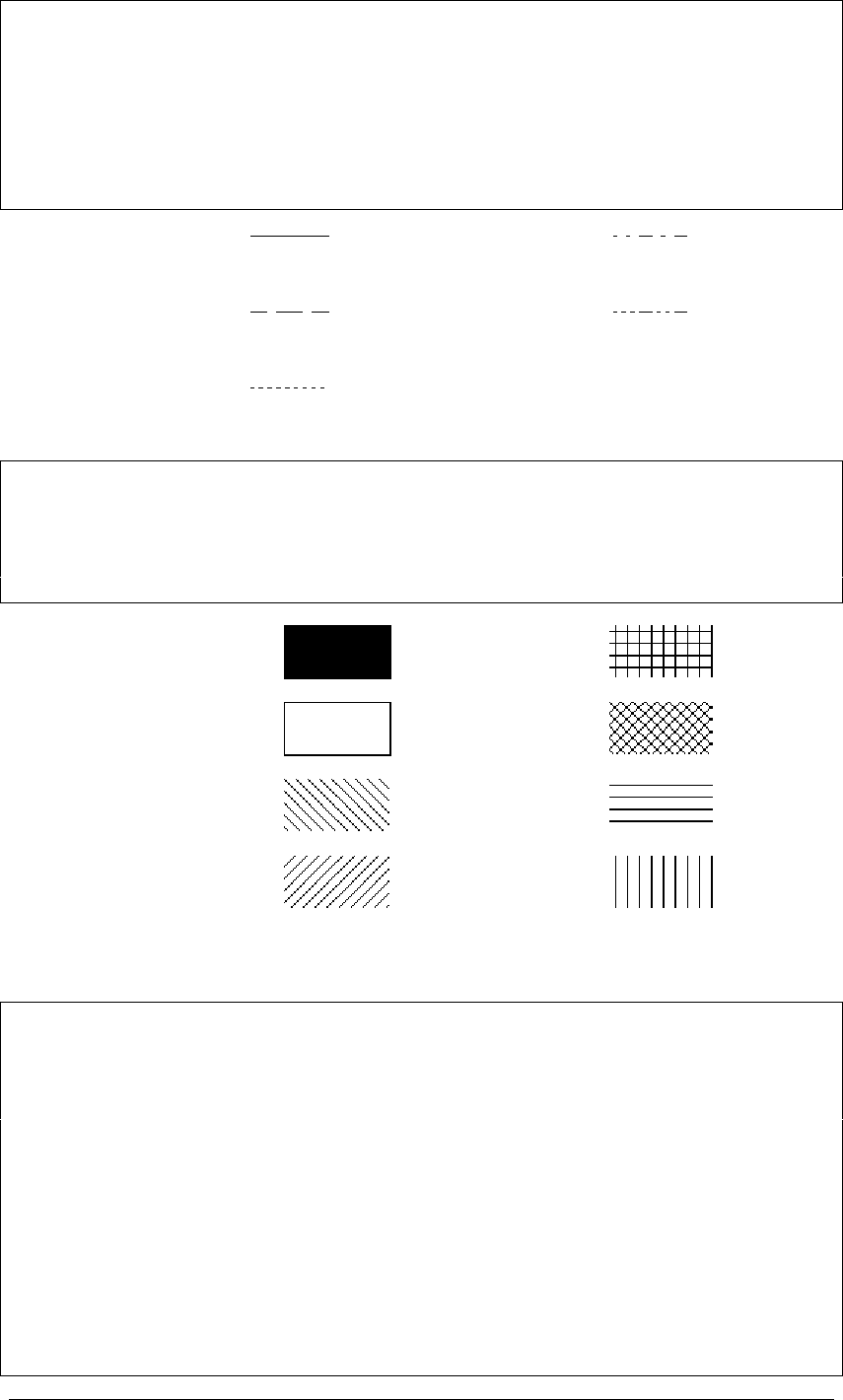
PenStyle - Integer in the range 0 to 5. This determines the pattern used to draw a line or
shape outline. Use Clear (PenStyle = 5) when the outline is not required on filled shapes. (Default = 0,
solid)
0, Solid 3, DashDot
1, Dash 4, DashDotDot
2, Dot 5, Clear
BrushColor - String. The colour used for filling shapes when the BrushStyle is not clear.
This is a 6 character string of the form "RRGGBB". (Default = "FFFFFF", white)
BrushStyle - Integer in the range 0 to 7. BrushStyle determines the pattern used when
filling shapes. The fill pattern is the same colour as BrushColor. Use Clear (BrushStyle = 1) when no
fill is required. (Default = 1, clear)
0, Solid 4, Cross
1, Clear 5, DiagCross
2, BDiagonal 6, Horizontal
3, FDiagonal 7, Vertical
The Pixel property allows access to read or set the colour of individual pixels.
Pixel(X, Y)- String. The colour of the pixel at (X, Y) as a 6 character hexadecimal string.
X and Y are integers.
Example 1:
Image.Pixel(10, 10) = "000000"
This makes the pixel at (10, 10) black.
Example 2:
Image.BGColor = Image.Pixel(0,0)
This sets the BGColor property to the same colour as the pixel at the top left of the image.
Avoid filling large areas of an image by using Pixel in a loop because it is not particularly fast.

19
Antialias - Boolean. When true, text, lines or shapes drawn will be antialiased. (Default
= false)
In the case of text it will only appear antialiased if the font is large enough or small enough to support it
and if the image is 24 bit colour depth. If necessary the ColorDepth property should be set to 24 before
drawing the text. If the computer running csImageFile has the display properties set to smooth screen
fonts this will overrule the Antialias property and text will be antialiased even when the property is
false. There is an alternative type of text antialiasing provided by the BlurText property, described in
the next section.
For lines and shapes the exact appearance will be controlled by the value of the FilterType property and
setting this to 3 or 4 will give a smoother appearance. Drawing an antialiased line or shape will
automatically convert the image to 24 bit colour depth.

20
5. Adding Text to an Image
Text can be placed on the current image using the Text method. Properties are available to control the
font, style, size, colour and angle of rotation. Unicode characters can be used if the font supports them.
Carriage returns can be placed in the string to allow the text to span multiple lines and there is a choice
of justification options for this multi-line text.
Two methods of antialiasing are available. Setting the Antialias property to true enables Windows font
smoothing. This requires the text to be above a certain size before antialiasing takes place, for example
the Arial font does not antialias until the size is at least 18. Setting BlurText to true uses a resampling
filter to blend the text with the background. This applies to all text sizes and fonts but the results are not
as clear as when using the Antialias property. Either method should be avoided if the image is to be
exported as a GIF with background transparency because the antialiased pixels are not the same colour
as the background and are therefore visible.
Text X, Y, TextString - This places a string of text onto the image. The string is TextString,
and the top left corner of the text is positioned at the point (X, Y). The text will break onto the next line
if the string contains a carriage return, line feed or CRLF pair (in VBScript the constant vbCRLF can
be used). Unicode characters will be displayed if the font specified by TextFont supports them. X and Y
are integers, TextString is a string.
TextFont - String. The name of the font to be used. It defaults to the system font for the
server and this font will be used if TextFont specifies an unavailable font. Note that if a font is installed
on a remote server using Terminal Services, the server must be rebooted before csImageFile will be
able to use the font.
TextColor - String. The colour of the text as a 6 character string. (Default = "000000",
black)
TextSize - Integer. The height of the text in pixels. (Default = 16)
TextBG - String. The colour of the text background as a 6 character string. (Default =
"FFFFFF", white)
TextOpaque - Boolean. When true the text is drawn on a background the colour of
TextBG. When false the background is transparent. (Default = true).
TextBold, TextItalic, TextUnderline, TextStrikeout - Boolean values to set text
styles. All default to false.
TextAngle - Integer. The angle of rotation of the text, in degrees, measured anticlockwise
from the horizontal. Only true type fonts can be drawn rotated. (Default = 0)
TextJustify - Integer, must be 0, 1 or 2. This applies to text containing carriage returns
and determines the justification. Text on a single line is not affected. 0 - Left, 1 - Centre, 2 - Right.
(Default = 0, Left)
Text example:
Image.TextSize = 20
Image.TextBold = true
Image.TextFont = "Arial"
Image.TextOpaque = false
Image.Text 100, 50, "Some Text"
This sets the size and the font and sets the style to bold before drawing some text at coordinates (100,
50). TextOpaque is set to false so that the text background is transparent. Note that the text properties
require an equals sign to assign a value but Text is a method and does not use an equals sign.

21
BlurText - Boolean. When true, a resampling filter is applied to the text to soften the
edges. The filter used is determined by the FilterType property. It will overrule the Antialias property.
This effect is identical to the antialiased text used by csImageFile before version 4.4. (Default = false)
FontNames - Collection. This returns a list of all the fonts installed on the server in
alphabetical order. It is a collection and so it can be accessed using For..Each. FontName.Count returns
the total number of fonts available, and FontNames.Item(X) returns the name of the font at position X in
the list.
Example:
For Each Font in Image.FontNames
Response.Write Font & "<br>"
Next
This will list all the fonts installed on the server.
The TextHeight and TextWidth functions return the height and width of a text string. This can be useful
when positioning an item of text because the X and Y parameters of the Text method always set the top
left corner of the text.
TextHeight(Text)- Integer return value. This returns the height in pixels if the string
Text is to be drawn using the current font and size settings.
TextWidth(Text)- Integer return value. This returns the width in pixels if the string
Text is to be drawn using the current font and size settings.
Text can be made to span multiple lines by adding carriage returns to the string in the Text method.
Alternatively, text can be made to fit into a rectangle. Text drawn in this way does not recognise the
TextJustify property.
TextWrap - Boolean. When true the text will wrap onto multiple lines depending on the
length and the values of the TextRectX and TextRectY properties. The line will only break at a space
between characters and it will always be left justified. (Default = false)
TextRectX - Integer. When TextWrap is true TextRectX is the width of the rectangle
containing the text, in pixels. If zero, the text will extend to the right of the image before wrapping to
the next line. (Default = 0)
TextRectY - Integer. When TextWrap is true TextRectY is the height of the rectangle
containing the text in pixels. If zero, the text will fill as many lines as required up to the height of the
image. (Default = 0)

22
6. IPTC Text / File Info
The JPEG file format allows for additional data to be embedded in the file header and this is called
meta data. One type of JPEG meta data is IPTC text (the initials stand for the International Press
Telecommunications Council), which is a range of text fields that describe the image. csImageFile
exposes each of these fields as properties for reading and writing. Adobe Photoshop supports some of
these properties and refers to them as File Info and we have also used this terminology and our IPTC
methods and properties are prefixed with "FFO_".
The HasFileInfo property indicates whether the current image contains File Info. It is set when an
image is loaded. It is set to true if any FFO_ properties are written to, and set to clear if they are
removed by calling the FFO_Clear method.
The File Info properties can be read from or written to a separate file, either the older .FFO format or
the newer XML based .XMP format.
Although IPTC text is most commonly used with JPEGs because it is aimed at digital photographs, the
PSD and TIF formats also support it.
6.1. IPTC / File Info Properties
HasFileInfo - Boolean. When an image is loaded that contains File Info this property is set
to true. Setting any File Info property will set HasFileInfo to true. To remove the File Info from an
image use the FFO_Clear method, which also sets HasFileInfo to false. (Default = false)
These properties are the IPTC / File Info fields.
FFO_Caption - String.
FFO_CaptionWriter - String.
FFO_Headline - String.
FFO_Specialinstructions - String.
FFO_Category - String.
FFO_Byline - String.
FFO_BylineTitle - String.
FFO_Credit - String.
FFO_Source - String.
FFO_ObjectName - String.
FFO_City - String.
FFO_ProvinceState - String.
FFO_CountryName - String.
FFO_OTR - String. (Original Transmission Reference)
FFO_CopyrightNotice - String.
FFO_ImageURL - String.
FFO_Urgency - Integer in the range 0 - 7. Not saved/empty if set to 0.
FFO_DateCreated - Date.
FFO_CopyrightFlag - Boolean.
The following three properties are aliases of properties shown above. They reflect the fact that Adobe
Photoshop 7 uses different property names from previous versions.
FFO_Title - String. Alias of FFO_ObjectName.
FFO_Author - String. Alias of FFO_Byline.
FFO_AuthorsPosition - String. Alias of FFO_BylineTitle.
Setting one property value also sets the corresponding alias property, so FFO_Title will always have
the same value as FFO_ObjectName.

23
The following property extends the copyright status to work with Adobe Photoshop 7 where 3
copyright states are possible, "Copyrighted Work", "Public Domain" and "Unmarked".
FFO_Marked - Boolean. Defaults to true.
"Copyrighted Work" corresponds to FFO_CopyrightFlag = true and FFO_Marked = true.
"Public Domain" corresponds to FFO_Marked = false and either value for FFO_CopyrightFlag.
"Unmarked" corresponds to FFO_CopyrightFlag = false and FFO_Marked = true.
In .xmp files these values are interpreted slightly differently:
"Copyrighted Work" corresponds to FFO_CopyrightFlag = true and either value for FFO_Marked.
"Public Domain" corresponds to FFO_Marked = false and FFO_Marked = true.
"Unmarked" corresponds to FFO_CopyrightFlag = false and FFO_Marked = true.
The Keywords and Supplemental Categories properties are zero based arrays of strings. Some
additional properties and methods are needed to read and write them.
FFO_Keywords(Index)- String. The keyword defined by the integer Index.
FFO_KeywordsCount - Integer, read only. The number of items in the list.
FFO_KeywordsAdd Keyword - Adds the string Keyword to the end of the list. Returns the
new number of items in the list as an integer.
FFO_KeywordsDelete Index - Deletes the keyword defined by the integer Index.
FFO_KeywordsInsert Index, Keyword - Inserts the string Keyword at position Index in
the list. Index is an integer.
FFO_KeywordsClear - Deletes all the keywords.
FFO_SuppCat(Index)- String. The category defined by the integer Index.
FFO_ SuppCatCount - Integer, read only. The number of items in the list.
FFO_ SuppCatAdd Cat- Adds the string Cat to the end of the list. Returns the new number
of items in the list as an integer.
FFO_ SuppCatDelete Index - Deletes the category defined by the integer Index.
FFO_ SuppCatInsert Index, Cat - Inserts the string Cat at position Index in the list.
Index is an integer.
FFO_ SuppCatClear - Deletes all the categories.
Version 4.3 of csImageFile introduced support for more IPTC fields. These are shown separately as
fewer software packages support these fields.
FFO_EditStatus - String.
FFO_FixtureIdentifier - String.
FFO_DateReleased - Date.
FFO_TimeReleased - Date.
FFO_ReferenceService - String.
FFO_ReferenceDate - Date.
FFO_ReferenceNumber - String.
FFO_TimeCreated - Date.
FFO_OriginatingProgram - String.
FFO_ProgramVersion - String.
FFO_ObjectCycle - String.
FFO_Sublocation - String.
FFO_CountryCode - String.
FFO_LocalCaption - String.
FFO_CustomField1 - String.
FFO_CustomField2 - String.
There are 20 custom fields in total.
FFO_CustomField19 - String.
FFO_CustomField20 - String.
FFO_ImageNotes - String.

24
6.2. IPTC / File Info Methods
FFO_Clear - Deletes all IPTC / File Info values and sets HasFileInfo to false.
FFO_Save FileName - Writes the File Info data to a file. FileName is the physical path
and file name, complete with extension. The extension must be either .ffo or .xmp and this determines
the format used. FileName is a string.
FFO_Load FileName - Loads File Info data from a file. FileName is the physical path and
file name, complete with extension. The file must be either FFO or XMP format. FileName is a string.
OverwriteMetaData FileName - This writes the File Info and Exif data of the current
image to the JPG file specified by FileName. It leaves the image part of FileName unchanged and so
prevents the loss caused by recompressing the image. It must only be used if FileName is a JPG file.
For TIF and PSD files, save the file using WriteFile. FileName is a string.
Example:
Image.ReadFile "C:\directory\image.jpg"
Image.FFO_Caption = "New Caption"
Image.OverwriteMetaData "C:\directory\image.jpg"
This will change the Caption property of the image and modify it on disk without changing the image
data. It will lose any meta data that is not supported by csImageFile.

25
7. EXIF Attributes
Another form of meta data that can be stored inside JPEG files are EXIF attributes (Exchangeable
Image File Format). These are typically recorded by a digital camera at the time the image is created
and many of them describe the camera and its configuration. csImageFile will preserve this data when a
JPG image is saved, unless it is specifically cleared by calling the ExifClear method.
The Exif attributes (or tags) can be read, written or deleted using csImageFile. As there are over 100
different attributes we have not provided a property for each, in the way we have with IPTC text.
Instead the attributes are held in an indexed array as strings. Each attribute can be accessed by its index
in this array, or by name. Attributes can be written using the attribute name, which is not case sensitive.
csImageFile supports reading and writing Exif attributes with JPEG and TIFF files.
7.1. Reading Exif Attributes
ExifValueByIndex(Index)- Returns the value of the Exif attribute as a string given the
index within the array. Index is an integer.
ExifValueByName(Name)- Returns the value of the Exif attribute as a string given the
name of the attribute. Name is a string.
ExifName(Index)- Returns the name of the Exif attribute as a string given the index
within the array. Index is an integer.
ExifCount - Integer property, read only. The number of Exif attributes.
ExifClear - This method clears all the Exif attributes. After calling ExifClear any JPG
saved will have no Exif attributes.
Example:
Set Image = Server.CreateObject("csImageFileTrial.Manage")
Image.ReadFile "C:\path\to\image.jpg"
ForI=0toImage.ExifCount - 1
Response.Write Image.ExifName(I) & ": " & Image.ExifValueByIndex(I)
Response.Write "<br>"
Next
This uses the trial version of csImageFile to list all the Exif attributes stored in the image.
ExifConvertUTF8 - Boolean property. When true, UTF-8 encoded characters in strings
will be automatically converted on reading and writing. (Default = true)
7.2. Writing Exif Attributes
Individual Exif attributes can be written or deleted. They are always specified by the name of the
attribute.
ExifSetAttribute Name, Value - Boolean return value. The Exif attribute Name is set to
Value. Name and Value are both strings. If the attribute is set successfully the return value is true,
otherwise it is false. If the name is invalid or if the value is not in the correct format the attribute will
not be set.
ExifDelete Name - Boolean return value. The Exif attribute Name is deleted. Name is a
string. If the deletion is successful the return value will be true. If Name is not a valid attribute name
the return value will be false.

26
7.3. Exif Data Types
Each Exif attribute is stored as one of the data types listed below.
BYTE - An 8 bit unsigned integer.
ASCII - An ASCII character.
SHORT - A 16 bit (2 byte) unsigned integer.
LONG - A 32 bit (4 byte) unsigned integer.
RATIONAL - Two LONGs. The first is the numerator and the second is the denominator.
The RationalToReal function can convert one of these values to a real number. The ExifSetAttribute
function can accept either a real number or a rational number, in string format. So "3/2" and "1.5"
would both be accepted by ExifSetAttribute.
UNDEFINED - An 8 bit byte that can take any meaning depending on the field definition.
This will be returned as a 2 character string of the hexadecimal byte value. Where multiple values are
stored in the same attribute they are returned as a comma separated string. The ExifVersion attribute
would return "30,32,32,30" for Exif 2.2. The ExifVersion attribute is defined to contain 4 bytes and
each byte represents an ASCII character, so the bytes shown here translate to "0220". Other
"Undefined" attributes will have different meanings and will not necessary represent ASCII characters.
SLONG - A 32 bit (4 byte) signed integer.
SRATIONAL - Two SLONGs. The first is the numerator and the second the denominator.
Date and time attributes are stored as strings in the format "YYYY:MM:DD HH:MM:SS". The
ExifStringToDate and ExifDateToString functions can convert between this string format and the
date/time format used by ActiveX components.
7.4. Exif Helper Functions
The following functions convert data from values stored in the Exif attributes into more usable forms,
or convert data into a string value for use with the ExifSetAttribute method.
RationalToReal(Value)-Value is a string of the form "A/B" where A and B are integers and
it returns a real number. It is used for converting a value stored as RATIONAL or SRATIONAL into a
real number for further processing.
ExifStringToDate(Value)-Value is a string containing a date/time of the form
"YYYY:MM:DD HH:MM:SS", which is how date/time Exif attributes are stored. The return value is
in the format of an ActiveX date/time variable. If Value is not in the correct format the return value will
be zero. It will not generate an error.
ExifDateToString(Value)-Value is an ActiveX date/time and the return value is the
date and time in the form "YYYY:MM:DD HH:MM:SS". This can be used for converting a date/time
into a string that can be used by the ExifSetAttribute function.
The following functions return information about the Exif attributes. This information can be found in
the Exif specification but these functions can provide a useful reference and also clarify the values that
csImageFile uses.
ExifAttributeName(Tag)-Tag is the 2 byte integer ID for the attribute. The return
value is the string value of the attribute name as it is used by the other functions in this section.

27
ExifDataType(Name)- This returns the Exif data type for the Name attribute. Possible
return values are 1 - BYTE, 2 - ASCII, 3 - SHORT, 4 - LONG, 5 - RATIONAL, 7 - UNDEFINED, 9 -
SLONG, 10 - SRATIONAL. Name is a string, the return value is an integer.
ExifDataCount(Name)- This returns the size of the Name attribute. It is the number of data
items, not the number of bytes occupied. For ASCII and UNDEFINED data types of variable length
this value is zero. Name is a string.

28
8. Streaming an Image to the Browser
An active server page will return HTML output by default. An HTML page is formatted text which can
include spaces to display images. The images themselves are not part of the HTML but are separate
files, the location of which is specified inside the <IMG> tag. An ASP page can be an image if the
ContentType is set to "image/gif" or "image/jpeg" and the binary data of the image is output using the
Response.BinaryWrite command. The ASP image is generated by placing the path to the script inside
the <IMG> tag.
For example, this page will display the image produced by "resize.asp":
<html>
<head><title>HTML page containing an image</title></head>
<body>
<img src="resize.asp">
</body>
</html>
Resize.asp may look like this:
<%@ language=vbscript %>
<%
Response.Expires = 0
Response.Buffer = true
Response.Clear
Set Image = Server.CreateObject("csImageFile.Manage")
Image.ReadFile "c:\images\bigimage.jpg"
Image.Scale 25
Response.ContentType = "image/jpeg"
Response.BinaryWrite Image.JPGData
%>
When the first HTML page is loaded it looks for the image at "resize.asp", runs the script and is sent a
stream of binary data in JPG format, so the browser displays the image. It is not possible to place the
BinaryWrite command inside the IMG tag to produce the image, it must be in a separate file.
If the line setting the ContentType is missing the image should still display in Internet Explorer but it
might not in other browsers. It is important to specify the correct ContentType to maintain
compatibility.
It is useful to know that parameters can be passed to the ASP image script using the URL string and
this can be read using Request.QueryString and used somewhere in the script.
Example:
<img src="resize.asp?NewSize=150">
This can be used by resize.asp:
Image.Resize Request.QueryString("NewSize"), 0

29
9. Language Specific Issues
All the examples that are shown so far in these instructions use ASP and VBScript. The csImageFile
component is a COM object and can be used in most COM enabled environments running on a
Windows platform. We cannot begin to cover all the possible development environments here so
instead we concentrate on ASP and in this section we show the syntax for Cold Fusion, Visual Basic
and ASP.NET.
9.1. Active Server Pages
ASP and VBScript is already covered in these instructions but the following points are worth noting.
Calls to methods (functions) do not use brackets, although their use does not generate an error if there
is only one parameter. For example the correct syntax for Resize is:
Image.Resize 200, 0
These instructions show methods without brackets surrounding the parameters.
If the method has a return value that is assigned to another variable, the brackets are required. For
example:
Success = Image.ExifSetAttribute("ImageDescription", "New
description")
If the return value is not assigned, the brackets will give an error.
Assigning a property value requires an equals sign. Missing the equals sign results in the unhelpful
error "Object doesn't support this property or method". The correct syntax is:
Image.JpegQuality = 70
A lot of ASP syntax errors are caused by adding brackets when they are not required, or missing them
when they are required, missing equals signs when assigning a property, or accidentally including an
equals sign in a method call.
9.1.1. ASP with Javascript
We don't provide any examples of using ASP with other scripting languages, other than VBScript. We
will mention the following about using Javascript with ASP.
Brackets are needed around function parameters.
The backslash character is used as an escape character in Javascript and two should be used together
when a backslash is needed:
Image.WriteFile("C:\\output\\newimage.gif");
9.2. Cold Fusion
In Cold Fusion, a COM object is created using the <cfobject> tag:
<cfobject action="create" name="Image" class="csImageFile.Manage">

30
Each command must be placed inside a <cfset> tag and all method parameters must be enclosed by
brackets:
<cfset Image.ReadFile("c:\images\bigimage.jpg")>
<cfset Image.Scale(20)>
<cfset Image.WriteFile("c:\images\smallimage.jpg")>
Alternatively, the commands can be put inside a <cfscript> block:
<cfscript>
Image.ReadFile("c:\images\bigimage.jpg");
Image.Scale(20);
Image.WriteFile("c:\images\smallimage.jpg");
</cfscript>
Cold Fusion does not support variant arrays and so commands such as GIFData, JPGData and
ReadVariant cannot be used. Images cannot be streamed directly to the browser so any dynamically
produced image must be saved to a temporary file first and then displayed using a <cfcontent> tag.
For more on using csImageFile with Cold Fusion visit www.chestysoft.com/imagefile/cf.htm.
9.3. Visual Basic
For best results import the csImageFile type library into VB by selecting "Project" from the menu bar,
then "References". The dialogue box will then show available type libraries. Scroll down to
"csImageFile Library", check the box and click OK. This will add the "Manage" class from
csImageFile to the Object Browser, making it available for early binding.
To create an instance of the object called "Image" use the following code:
Dim Image As Manage
Set Image = CreateObject("csImageFile.Manage")
Displaying an image from csImageFile in a VB picture box is not simple as it involves an API call to
create a bitmap. There is a description of this and some sample code on our web site at:
www.chestysoft.com/imagefile/vbimage.asp
We have an OCX control called csXImage which is much more suited for use with Visual Basic:
www.chestysoft.com/ximage/default.asp
9.4. ASP.NET
csImageFile can be used with ASP.NET. The component must be registered on the server as described
earlier and it can be called using Server.CreateObject. For example:
Dim Image = Server.CreateObject("csImageFile.Manage")
The object is created using Dim instead of Set. For the trial version the class name is
"csImageFileTrial.Manage".
The image cannot be streamed to the browser in a single line because of incompatibilities between
ActiveX and .NET, but there is a workaround which we describe in the VB.NET example below.
<%@ Page language="vb" debug="true" %>
<%

31
Response.Expires = 0
Response.Buffer = true
Response.Clear
Dim Image = Server.CreateObject("csImageFile.Manage")
Image.NewImage(150, 50, "00ff00")
Image.TextOpaque = false
Image.TextSize = 22
Image.Text(5, 10, "Sample image")
Dim OutArray As Array = Image.GIFData
Dim ByteArray(OutArray.Length - 1) As Byte
Array.Copy(OutArray, ByteArray, OutArray.Length)
Response.ContentType = "image/gif"
Response.BinaryWrite(ByteArray)
%>
This creates a new image and draws some text onto it. In order to stream it to the browser the output
from the GIFData property needs to be passed to an array of bytes so that it can be sent out through
BinaryWrite. Brackets are used to enclose function parameters.
csImageFile can be used in C# scripts, but early binding must be used as described in the next section.
The code needed to stream the image is shown below:
Array OutArray = (Array)(Image.GIFData);
Byte[] ByteArray = new Byte[OutArray.Length];
Array.Copy(OutArray, ByteArray, OutArray.Length);
Response.ContentType = "image/gif";
Response.BinaryWrite(ByteArray);
9.4.1. Early Binding
The previous example used late binding, which is the easier way of calling an ASP component in
ASP.NET. It is more efficient to use early binding, but this requires the creation of a .NET Framework
Interop Assembly using the TLBIMP tool, supplied with the Framework. This assembly is a DLL
which acts as a wrapper for the ASP component.
After registering the component, run TLBIMP.exe from the command prompt or from the Run box in
the Start Menu. The syntax is:
TLBIMP ComponentName.dll /out:NewName.dll
Full paths are required for both DLLs. The new DLL needs to be put in the website's BIN directory.
The script that calls the component must import the Interop Assembly as a NameSpace. The
component instance is created using the following VB.NET syntax:
Dim ObjName As New ClassNameClass()
ObjName is the name of the object instance and ClassName is the name of the class in the ASP
component, which is Manage in csImageFile.
The script that uses the component must import the Interop Assembly as a Namespace. If the Interop
Assembly is called "csimagefilenet.dll" the following line imports it:
<%@ Import Namespace = "csimagefilenet" %>
In the previous example the only other change required is to replace the Server.CreateObject line with:
Dim Image As New ManageClass()

32
10. Utility Functions
There are a number of utility functions provided for convenience which are mostly related to file
handling. Some of them are restricted to use in ASP. For a full range of file handling functions use the
File System Object instead.
FileExists(FileName)- Boolean property, read only. Checks for the existence of the file
defined by FileName. FileName is a string and must be a physical path.
CurrentDir - String property, read only. This can only be used in ASP scripts and it
returns the physical path of the directory containing the script, complete with trailing backslash.
ParentDir(Directory)- String property, read only. This returns the physical path of the
parent directory to Directory. Directory is a string.
Example:
Response.Write Image.ParentDir(Image.CurrentDir)
This would display the directory immediately above the directory containing the script.
DirName - String property. This is the directory that will be listed in the FileList
collection. It is a physical path and can include a single filter in the name.
Example 1:
Image.DirName = "C:\images\"
This will assign all the files in the "images" directory to the FileList collection.
Image.DirName = "C:\images\*.jpg"
This will assign all the files in the "images" directory with a .jpg extension to the FileList collection.
FileList - Collection of strings. When a directory is assigned to the DirName property
this collection will be populated by a list of the files in that directory. As a Collection it can be accessed
by index using the Item property, or in a For..Each loop, and it has a Count property.
Example:
Image.DirName = "C:\images\*.jpg"
For Each JPG in Image.FileList
Response.Write JPG & "<br>"
Next
This would display all the .jpg files in the specified directory.
Delete FileName - This deletes the file specified by the physical path FileName. Note
that it is permanently deleted NOT placed in the Recycle Bin. FileName is a string.
Copy OldName, NewName - This copies the file OldName to the location and name
given by NewName. Full paths are required. OldName and NewName are strings.
Rename OldName, NewName - This renames the file OldName to NewName. Physical
paths are required. Renaming to a different directory is the equivalent of moving the file. OldName and
NewName are strings.
GetFileName(Path)- This function returns the file name, complete with extension but
without the directory structure, where Path is a physical path and file name. Path is a string.

33
GetExtension(Path)- This function returns the extension, complete with the period
character, where Path is a physical path and file name. Path is a string.
AppendToFile FileName, NewLine - This function appends the string NewLine to the
text file FileName. If the text file does not exist it will be created if possible. The physical path is
required. FileName and NewLine are strings.
Example:
Image.AppendToFile Image.CurrentDir & "test.txt", "Testing"
This will append the line "Testing" at the end of a text file called "test.txt" which is in the same
directory as the script. If the file does not exist it will create it.
AppendToFile is the only command in this component for manipulating text files. It is useful for
maintaining a simple log or to assist in debugging. For a complete set of commands for working with
text files, use the File System Object.
All the file handling routines require that the Internet Guest User account has the appropriate
permissions. If files are to be accessed across a network, Component Services will need to be
configured as described in Section 1.4.
GetTickCount - Integer property, read only. This returns the number of milliseconds that
have elapsed since the computer was switched on. It can be used for timing sections of code.
Example:
T = Image.GetTickCount
' Code that is to be timed
T = Image.GetTickCount - T
Response.Write T
This will display the number of milliseconds taken for the code to run. If it is less than 0.5 milliseconds
it will return zero.

34
11. Web Examples
There are a number of web pages on the Chestysoft web site that provide further reference. These
include some tips on getting started and troubleshooting, code examples that can be downloaded, and
working examples on our demonstration site.
ASP Examples: www.chestysoft.com/imagefile/examplesasp.asp
Cold Fusion Examples: www.chestysoft.com/imagefile/examplescf.htm
Both of these pages contain links to all the available examples and tutorials.

35
12. Supported Image Formats
csImageFile supports the reading and writing of files in most popular formats commonly found on the
web. These formats are briefly summarised here.
12.1. BMP (Bitmap)
BMP is the standard graphics format for Windows systems. The image is stored uncompressed and can
be in either 24 bit or a paletted format. The palette can be either 256 colour (8 bit), 16 colour (4 bit) or
monochrome (1 bit).
Bitmaps are usually larger file sizes than other images because they are uncompressed but they are
often faster to import and export because there is no compression to calculate.
12.2. JPG / JPEG / JPE (Joint Photographic Experts Group)
The JPEG file format is probably the most common method of saving full colour images, typically
photographs, when a high level of compression is required. It uses a "lossy" compression method,
which means that the image read from a saved file will not be identical to the original image before it
was saved.
Repeated loading and saving of a JPEG file will result in deterioration of the quality, and should be
avoided, but at the levels of compression typically used for saving photographs, the loss of quality is
hardly noticeable when the file is saved once from its original. The type of compression used by JPEGs
does not produce good quality images that contain sharp edges and text as these edges often become
blurred on saving, even using a low compression level. The JpegQuality property controls the amount
of compression used when a JPEG is saved.
JPEG compression / quality is not a universal value and different software packages use different
scales. It cannot be read directly from an image, although csImageFile has a read only property,
JpegApproxQuality, that gives an approximate value. This could be useful when reading images that
have already been compressed in order to save them again with a similar level of compression. If
JpegQuality is set to a higher value than that originally used to save the image, the new image will
have a larger file size without gaining any quality, and it is better to avoid this if possible.
JpegApproxQuality - Integer in the range 0 to 100, read only. When a JPG is loaded, this
property contains an approximate value for the compression (quality) used when the image was saved.
It corresponds to the same range of values as JpegQuality except 0 indicates the value is undefined.
JpegApproxQualityError - Double, read only. When a JPG is loaded, this property
contains an indication of the accuracy of the JpegApproxQuality property. A lower value indicates a
higher level of accuracy. A value of less than 1 indicates that JpegApproxQuality is a reliable measure
of the quality while a value of tens or hundreds indicates that JpegApproxQuality is merely an
approximate estimate.
JPEG files stored in CMYK colour space can be read by csImageFile and are automatically converted
to RGB. The WasCMYK property is set to true to indicate a conversion has taken place. Saving to
CMYK is not supported.
IPTC text (File Info) and Exif data can be stored in JPEG files and this data can be read and edited with
csImageFile.
JPEG images are usually stored as 24 bit RGB images but they can also be stored as 8 bit greyscale.
See the JpegGrayScale property for details.

36
csImageFile provides an option for opening JPEG files at a higher speed while reducing image quality.
This can be useful if speed is important, for example when creating thumbnails dynamically. Set the
JpegHigherSpeed property to true before loading the image for this to take effect.
12.3. GIF (Graphics Interchange Format)
GIF format saves files using 256 colours or less. It can compress images with large areas of a single
colour very efficiently and is commonly used in web pages for backgrounds, logos, etc. The
compression is "lossless". GIFs use the LZW compression method.
GIF images support the use of a transparent colour. See the Transparent and BGColor properties for
details.
GIF files can contain multiple images (or frames) and these are usually used to create animations for
use in web pages. csImageFile does not support multi frame GIFs and will only read the first frame.
We have a component that can work with multi frame GIFs called csASPGif -
www.chestysoft.com/aspgif/default.asp.
12.4. PNG (Portable Network Graphics)
The PNG format provides an efficient lossless compression of image data and it uses the same
compression method as zip files. It provides a wide range of colour depths, but these are not all
supported by csImageFile. Supported colour depths are 24 bit, 8 bit, 4 bit and 1 bit. Paletted images
support single colour transparency in the same way as GIF files. The PNG format also allows for an
alpha channel for variable transparency but this is not supported by csImageFile.
12.5. TIF / TIFF (Tagged Image File Format)
The TIF file format allows images to be stored in many different ways. The baseline TIF specification
is fully supported by csImageFile and this allows for images to be stored as 24 bit RGB, paletted (8 bit
or 4 bit), greyscale or black and white. The image can be uncompressed or stored using the Packbits
compression method which is a lossless run-length compression.
In addition to the baseline specification, some extensions to the TIF format are supported as described
below.
Images stored using the CCITT Group 3 or Group 4 fax compression schemes can be read. Files can be
written using Group 4 compression. These compression schemes apply to black and white images only
and are very efficient.
Files stored in CMYK colour space can be read and are automatically converted to RGB. The
WasCMYK property is set to true to indicate a conversion has taken place. Saving to CMYK is not
supported.
Files stored using LZW compression can be read, but this compression method is not available for
writing.
TIF files can contain multiple pages and support for this is described in Section 2.4.
IPTC text (File Info) and Exif data can be stored in TIF files. csImageFile supports IPTC as described
in Section 6. Exif is not currently supported.
There are further extensions to the TIF format that are not supported by csImageFile including JPEG
compression, YcbCr and LAB.

37
12.6. PSD (Photoshop Format)
This is the standard format used by Adobe Photoshop to save images. A PSD file can contain multiple
layers of an image, as well as the composite image created by combining the layers together. As
csImageFile only holds a single image, it simply reads the composite image and ignores the layers. A
PSD file saved by csImageFile will only have a composite image and no layers.
Files stored in CMYK colour space can be read and are automatically converted to RGB. The
WasCMYK property is set to true to indicate a conversion has taken place. Saving to CMYK is not
supported.
Reading and writing IPTC text (File Info) in PSD files is supported.
12.7. PCX (ZSoft Paintbrush Format)
PCX is an old format for saving images of all colour depths. It uses a simple run length encoding
compression system which is lossless but not very efficient. It is not commonly used today.
12.8. WBMP / WBM (Wireless Bitmap)
The WBMP format is used by WAP devices. It only supports black and white images.

38
13. Revision History
The current version of csImageFile is 5.0.
The main changes since version 3.0 are described below.
New in Version 3.0:
IPTC / File Info properties added (JPEG metadata).
Sharpen and Blur functions added.
GreyScale method added.
ColorAdjust method added.
Colour depth can be reduced to produce a paletted image.
OverwriteMode added to control renaming uploaded files.
New in version 4.0
Support for PSD and TIF files added.
Support for compressed GIF files added.
File Info properties now include support for .XMP file format.
EXIF attributes can now be read from JPG files.
FileList collection added.
ReadURL can now identify files from the MIME type.
Basic Authentication password and username added to ReadURL method.
ConvertToBW method added.
New in version 4.1
TIF support extended to include LZW and Group 4 compression.
JPG and TIF images using CMYK colour space can be read.
OLE_COLOR conversion functions added.
Polygon method added.
SharpenBy and BlurBy methods added.
ProgressiveJpeg property added.
Use of a bitmap as the fill pattern included.
Unicode support added to Text method.
New in version 4.2
Antialias property for text and drawing functions.
TextJustify property.
Carriage returns can be used with the Text method.
OverwriteChr property.
WasCMYK property.
TIF support extended to include Group 3 compression.
New in version 4.3
OverwriteMetaData method added.
Additional IPTC fields supported.
PSD images using CMYK colour space can be read.
MergeFrontHDC and MergeBackHDC methods added.
Modifications to ReadURL allowing SSL connections and Integrated Windows Authentication.
New in version 4.4
Changes to the way antialiased text is drawn. This is not fully compatible with previous component
versions although the overall results are improved. Now the ColorDepth property must be set to 24
before drawing the text, and small font sizes will not be antialiased.

39
IPTC support added for TIF images.
New in version 5.0
Images can now be read when they have the wrong extension, or in the case of binary imports, when
the format is not known. ReadVariant, OriginalImageType, IgnoreInputFileType added.
Arc3XY, Circle3XY, CircleCR and PolyBezier methods added.
BlurText property added to allow text to be antialiased as versions 4.2 and 4.3.
ResizeFit added to resize to a specified maximum width and height.
Support for 8 bit greyscale JPEGS, JpegGrayScale property added.
Multi-page TIF support.
Exif support upgraded to Exif version 2.2 with ability to write attributes.

40
14. Other Products From Chestysoft
Visit the Chestysoft web site for details of other COM objects.
ActiveX Controls
csXImage - An OCX control to display, edit and scan images.
csXGraph - An OCX control to draw pie charts, bar charts and line graphs.
csXPostUpload - Uploads batches of files from a client to a server using an HTTP post.
ASP Components
csDrawGraph - Draw pie charts, bar charts and line graphs in ASP.
csASPGif - Create and edit animated GIFs.
csIniFile - Read and Edit Windows style inifiles.
csASPUpload - Process file uploads through a browser.
csASPZipFile - Create zip files and control binary file downloads.
csFileDownload - Control file downloads with an ASP script.
ASP.NET
csASPNetGraph - A .NET component to draw pie charts, bar charts and line graphs.
csNetUpload - ASP.NET component for saving HTTP uploads.
Web Hosting
We can offer ASP enabled web hosting with our components installed. Click for more details.

41
15. Alphabetical List of Commands
Command Page no.
AddToTIF 11
Antialias 19
AppendToFile 33
Arc 16
Arc3XY 16
BezierPointAdd 17
BGColor 8
Blur 13
BlurBy 13
BlurText 21
BMPData 9
BMPHandle 9
Brightness 13
BrushColor 18
BrushStyle 18
Chord 16
Circle3XY 16
CircleCR 16
ClearBitmapBrush 17
ClearTIF 11
ColorAdjust 13
ColorDepth 7
CompressionType 10
Contrast 13
ConvertToBW 13
Copy 32
Crop 12
CurrentDir 32
Delete 32
DeleteTIF 11
DirName 32
DPI 7
DPIToDPM 7
DPMToDPI 7
DrawLine 17
Ellipse 16
ExifAttributeName 26
ExifClear 25
ExifConvertUTF8 25
ExifCount 25
ExifDataCount 27
ExifDataType 27
ExifDateToString 26
ExifDelete 25
ExifName 25
ExifSetAttribute 25
ExifStringToDate 26
ExifValueByIndex 25
ExifValueByName 25
FFO_Author 22
FFO_AuthorsPosition 22
FFO_Byline 22
FFO_BylineTitle 22
FFO_Caption 22
FFO_CaptionWriter 22
FFO_Category 22
Command Page no.
FFO_City 22
FFO_Clear 24
FFO_CopyrightFlag 22
FFO_CopyrightNotice 22
FFO_CountryCode 23
FFO_CountryName 22
FFO_Credit 22
FFO_CustomField1 23
FFO_CustomField20 23
FFO_DateCreated 22
FFO_DateReleased 23
FFO_EditStatus 23
FFO_FixtureIdentifier 23
FFO_Headline 22
FFO_ImageNotes 23
FFO_ImageURL 22
FFO_Keywords 23
FFO_KeywordsAdd 23
FFO_KeywordsClear 23
FFO_KeywordsCount 23
FFO_KeywordsDelete 23
FFO_KeywordsInsert 23
FFO_Load 24
FFO_LocalCaption 23
FFO_Marked 23
FFO_ObjectCycle 23
FFO_ObjectName 22
FFO_OriginatingProgram 23
FFO_OTR 22
FFO_ProgramVersion 23
FFO_ProvinceState 22
FFO_ReferenceDate 23
FFO_ReferenceNumber 23
FFO_ReferenceService 23
FFO_Save 24
FFO_Source 22
FFO_SpecialInstructions 22
FFO_Sublocation 23
FFO_SuppCat 23
FFO_SuppCatAdd 23
FFO_SuppCatClear 23
FFO_SuppCatCount 23
FFO_SuppCatDelete 23
FFO_SuppCatInsert 23
FFO_TimeCreated 23
FFO_TimeReleased 23
FFO_Title 22
FFO_Urgency 22
FileExists 32
FileList 32
FileName 8
FileSize 8
FillToBorder 17
FilterType 14
FlipX 13
FlipY 13

42
Command Page no.
FloodFill 17
FontNames 21
GetExtension 33
GetFileName 32
GetTickCount 33
GIFData 9
GrayScale 13
HasFileInfo 22
Height 7
IgnoreInputFileType 8
ImageCount 10
ImageCountBinary 10
InsertTIF 10
JpegApproxQuality 35
JpegApproxQualityError 35
JpegGrayScale 7
JpegHigherSpeed 8
JpegQuality 7
JPGData 9
Line 17
MergeBack 14
MergeBackBin 15
MergeBackHDC 15
MergeFront 14
MergeFrontBin
MergeFrontHDC
NewFileSize
NewImage
NewScale
OLEColorToStr
OriginalImageType
OverwriteChr
OverwriteMetaData
15
15
8
12
12
13
8
8
24
OverwriteMode 8
ParentDir 32
PCXData 9
PenColor 18
PenStyle 18
PenThickness 18
Pie 16
Pixel 18
PNGData 9
PointAdd 17
PolyBezier 17
Polygon 17
ProgressiveJpeg 7
PSDData 9
Command Page no.
RationalToReal 26
ReadFile 6
ReadImageNumber 10
ReadStream 6
ReadURL 6
ReadVariant 6
Rectangle 16
Rename 32
Resample 14
Resize 12
ResizeFit 12
Rotate 12
RoundRect 16
Scale 12
SetBitmapBrush 17
SetBitmapBrushHandle 17
Sharpen 13
SharpenBy 13
StrToOLEColor 13
Text 20
TextAngle 20
TextBG 20
TextBold 20
TextColor 20
TextFont 20
TextHeight 21
TextItalic 20
TextJustify 20
TextOpaque 20
TextRectX 21
TextRectY 21
TextSize 20
TextStrikeout 20
TextUnderline 20
TextWidth 21
TextWrap 21
TIFData 9
Tile 15
Transparent 8
TransPercent 15
UseLZW 8
Version 4
WasCMYK 8
WBMPData 9
Width 7
WriteFile 6
