BlueZeal SoftNet Magento1.9.0.1 Ccavenue MCPG Payment Manual V2.1
User Manual:
Open the PDF directly: View PDF  .
.
Page Count: 6
Mandatory requirements:
Please cross check with your hosting service provider that latest iOnCube PHP
Loader is installed on your server or not. If not then please request them to
install/update according to their requirements. All loaders are available at here
www.ioncube.com/loaders.php
You don’t need to install it; it is LAMP server’s standard plugins, if it is absent in
your server then you will get error after installation of the CCAvenue module.
Our module is prepare in PHP version 5 we have module also for PHP 3.4 if you
need then please contact with our support team at
https://www.bluezeal.in/support
Module Installation process:
Step 1: Install Magento
1.8.1.0
on your server.
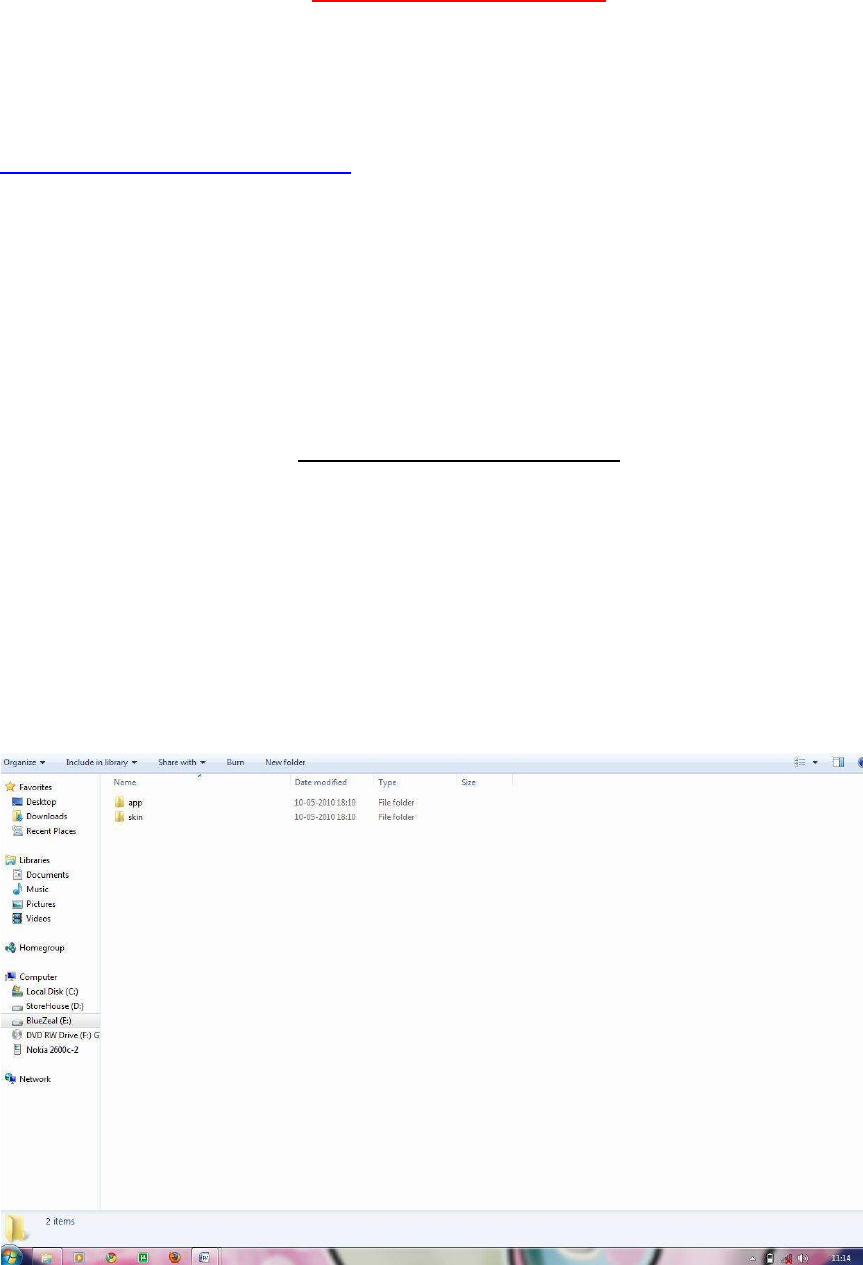
Step 2: Unzip the “
magento1.8.1.0_ccavenueMCPG_payment_module.zip
”
Step 3:Upload the “app” and “skin” folder into your Magento root directory
through FTP client.
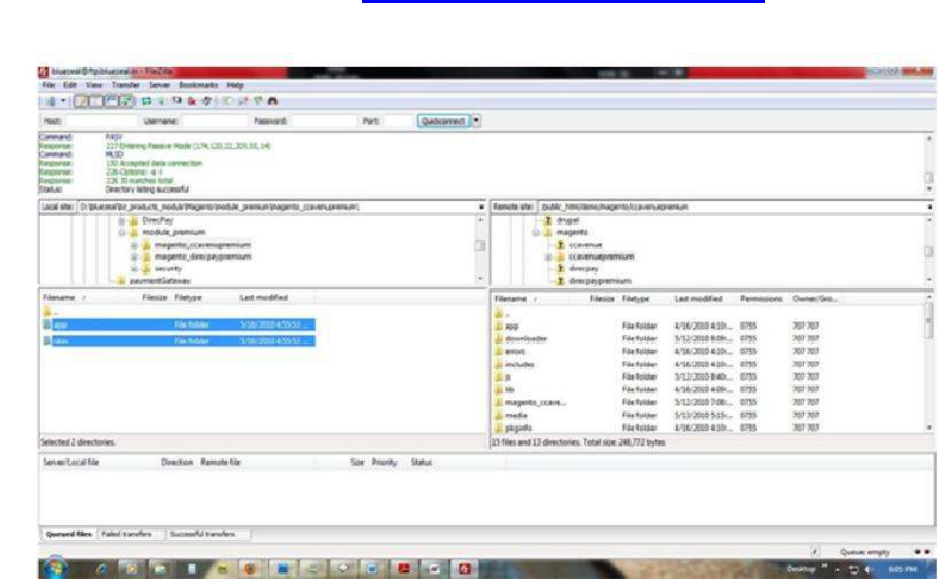
tep 4: You can use FTP Client http://www.filezilla-project.org ; it is for
free or any other FTP Client.
Step 5: If the front end template is different please copy the 'ccavenuepay'
folder to the site template folder.
e.g.-
"
app\design\frontend\base\default\template\
"
folder files and
paste it into the corresponding template folder path
.
"
app\design\frontend\[template_folder]\[template
_sub_folder]\template\
"
As well as skin folder too.
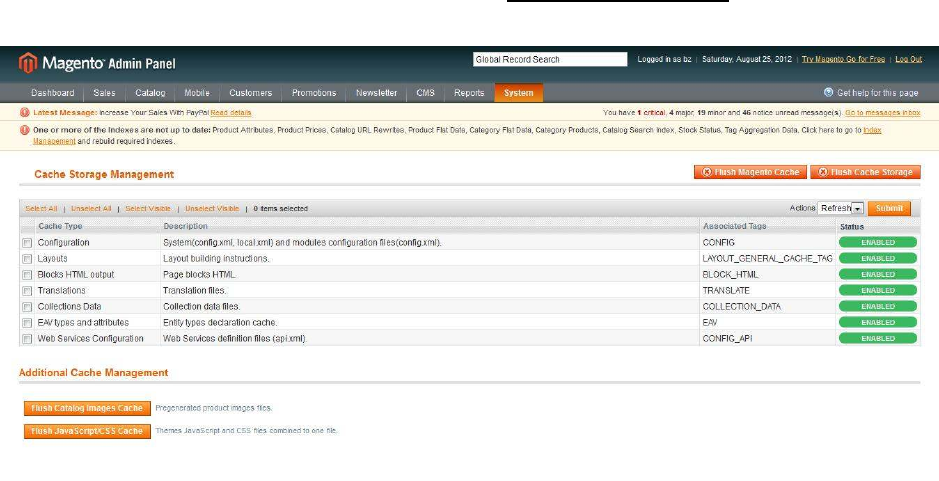
Step 6: Now go to your Magento admin and Flush Cache Storage.
I. Login your magento Admin using your admin ID and password.
II. System => Cache Management.
III. Select “All Cache” option as shown above.
IV. Click “Flush Magento Cache” and “Flush Storage” to clear the cache.
V. Select “Save cache setting” to save your selection.
VI.
Now your module is installed.Now you need to configure it for your store
with ccavenue credential details.
Step 7: Go to your Magento back end. Go to System>Configurations. Select
“Payment Methods” option in the left block under “Sales” option and select
“CCAvenuepay MCPG Payment”.
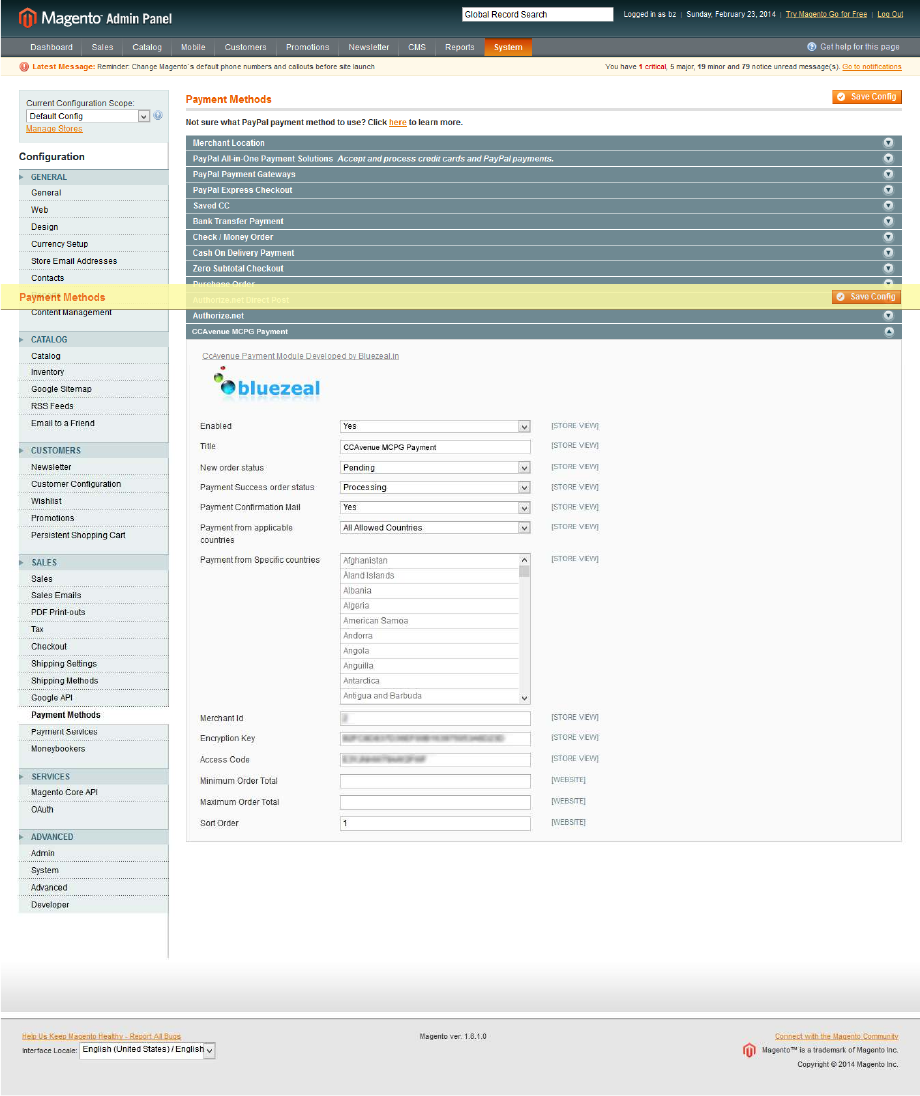
Step 8: Now set the Merchant Id, Encryption Key and Access Code
given by CCAvenue on your store module and active it by following
these easy
steps:
(i) Go to “Enabled” option and select “yes” to activate the module.
(ii) Type the Module name as ‘CCAvenue MCPG Payment’ or as you like.
(iii) Select “New order status” to “pending” by default.
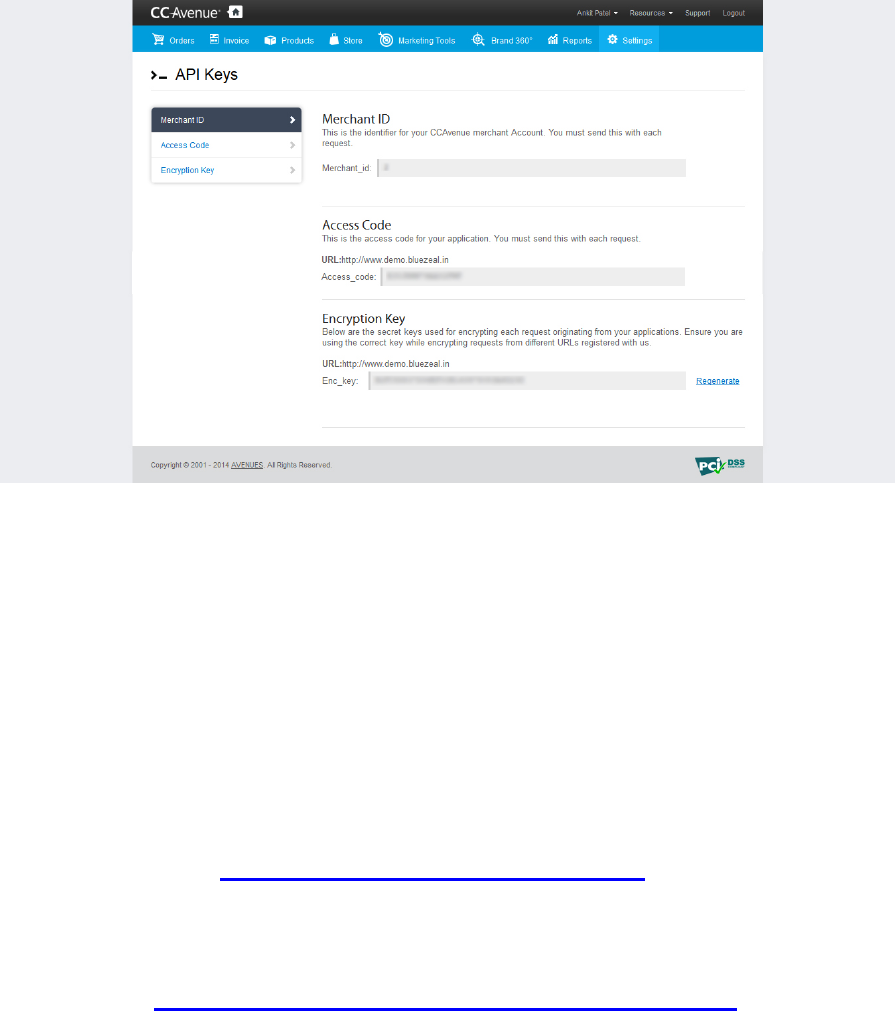
(iv) Select Payment from applicable countries option and select the
“All Allowed countries” By default select “All Allowed Countries”.
(v) Give Merchant Id which you will find in CCAvenue website under
Settings > API Keys in your merchant account. If you don’t have yet,
then please contact with
CCAvenue.com at service@ccavenue.com
Step 10: Now the payment module is successfully installed. Test it on your
front end and enjoy using the payment module in INR with
CCAvenue MCPG.
Thank you!
We need your valuable comment and product rating for this
product. Please leave valuable feedback under the product page on
customer review section www.bluezeal.in
Please Visit our https://www.bluezeal.in/support for your any help.
Please like us on Facebook to get product update
https://www.facebook.com/BlueZealSoftNet
