Manual En
manual_en
User Manual:
Open the PDF directly: View PDF  .
.
Page Count: 6

Introducon
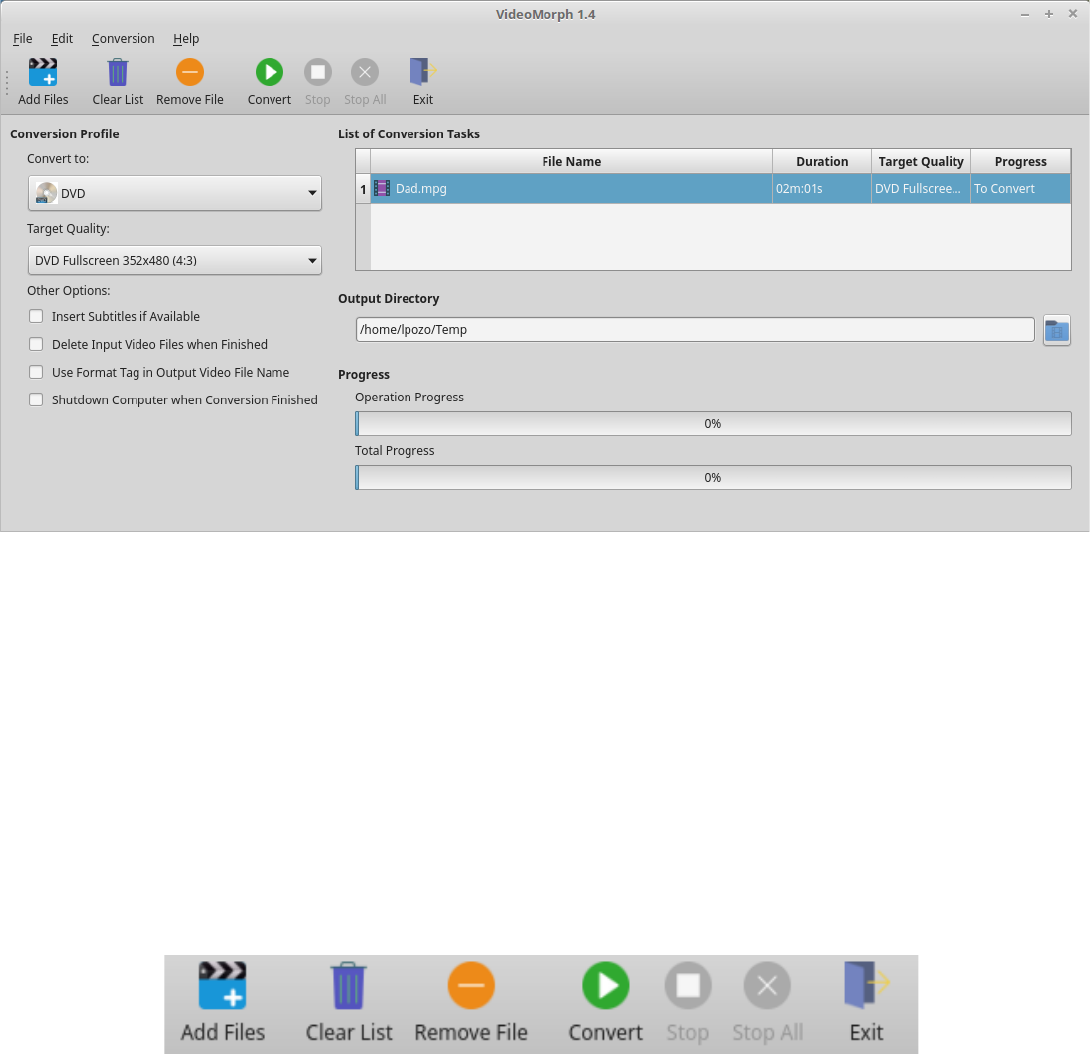
VideoMorph is a mul-plaorm applicaon, dedicated to the conversion of video formats. There are
many applicaons for these purposes, but all of them have many opons that can be complicated for new
users, so we decided to focus on the main task, facilitang the conversion of your audiovisual materials in
an intuive and easy way. VideoMorph was developed with Python 3 programming language, Ffmpeg
mulmedia processing library and PyQt5 for the Graphical User Interface. With VideoMorph is possible
to convert to the most popular video formats at present, such as MP4, AVI, DVD, VCD, MOV, MPG, FLV,
WEBM, OGV, as well as extracng the audio in MP3 format.
Tools Bar
It contains the elements:
•Add Files: Opens a dialog to select the video *les you want to convert. Once selected, they are
placed in the List of Conversion Tasks
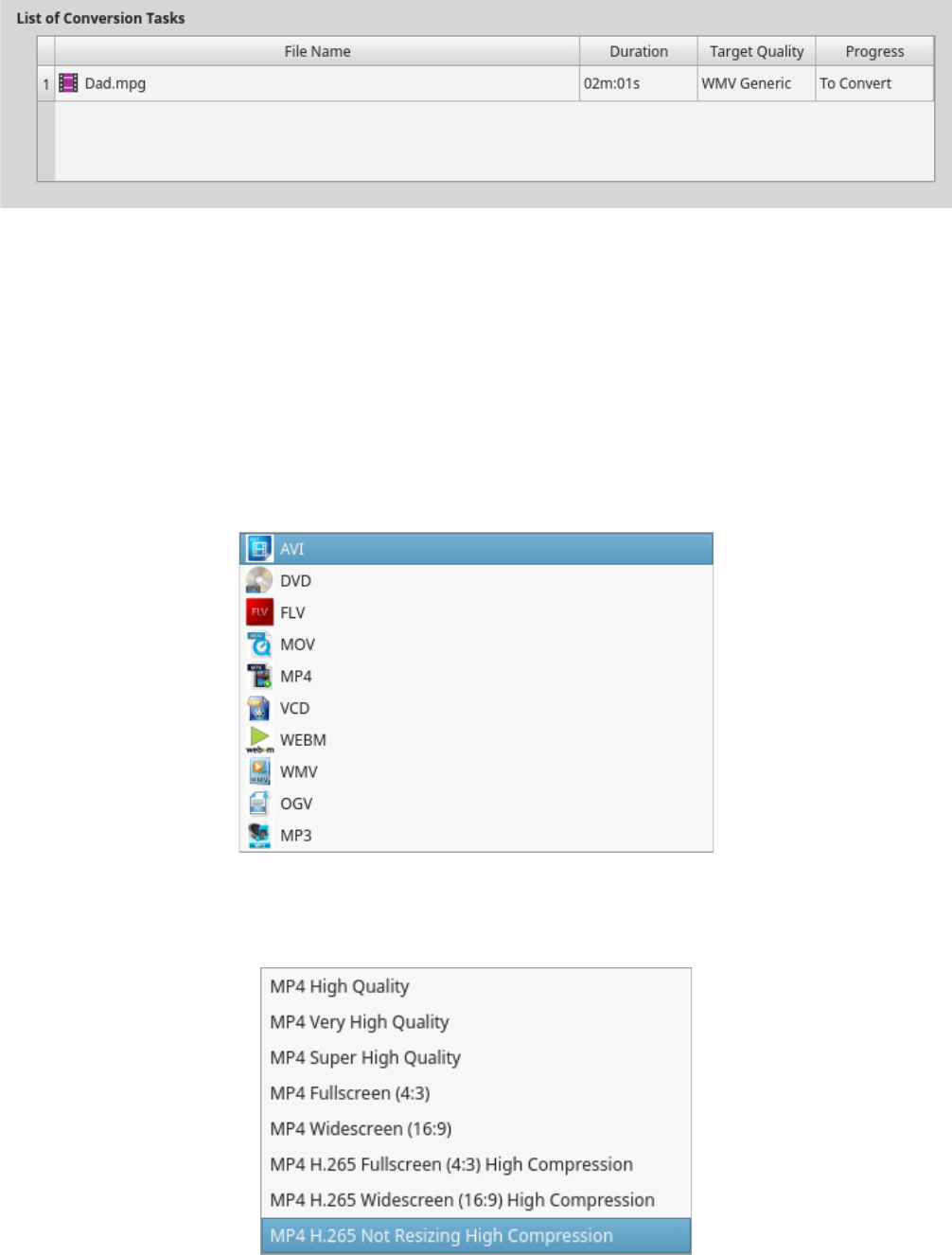
•Clear List: Deletes the enre Llist of Conversion Tasks
•Remove File: Deletes an individual *le selected from the *les in the List of Conversion Tasks.
Main Window’s Opons
•Convert to: Select the output video format, that is, the format you want to give to the *les
arranged in the List of Conversion Tasks, from list of available video formats in the Convert to
drop-down list
•Target Quality: Select the quality you want to use in the conversion process from the Target
Quality drop-down list
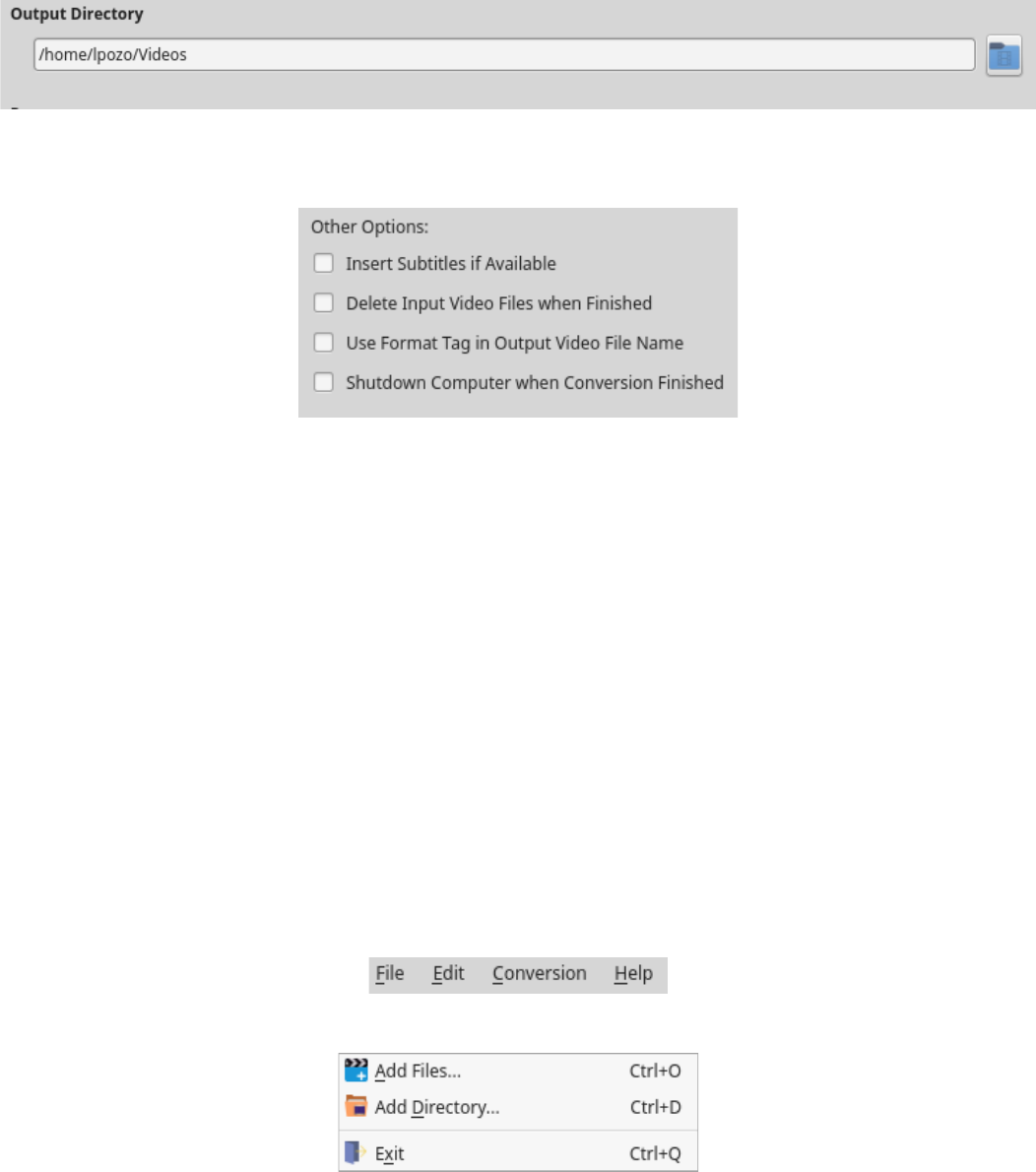
•Output Directory: Selected the folder where the converted video *les will be saved
•Other Opons: Several opons appear that may be useful:
✔Insert Subtles if Available: This opon is very interesng, because it allows us to embed the
subtle inside the video you are converng, as long as you have the subtle *le in SRT format
✔Delete Input Video Files when Finished: This allows you to delete the original video *le when the
conversion is *nished, this way you will not have two idencal video *les, saving disk space
✔Use Format Tag in Output Video File Name: This allows us to include, in the name of the converted
*le, a format iden*caon tag. It is useful when you want to do several conversions to several
formats of the same video *le
✔Shutdown Computer when Conversion Finished: It allows to shutdown the computer once the
conversion process *nished. It is useful when the List of Conversion Tasks is large and you don’t
want to wait for the conclusion of the process to shutdown the computer.
Main Menu
The Main Menu of the applicaon is composed of 4 elements: File, Edit, Convert and Help
•File Menu: Allows you to perform the following acons:
a) Add *les to the Conversion Task List
b) Add a folder to convert all the video *les contained in it
c) Exing the Applicaon.
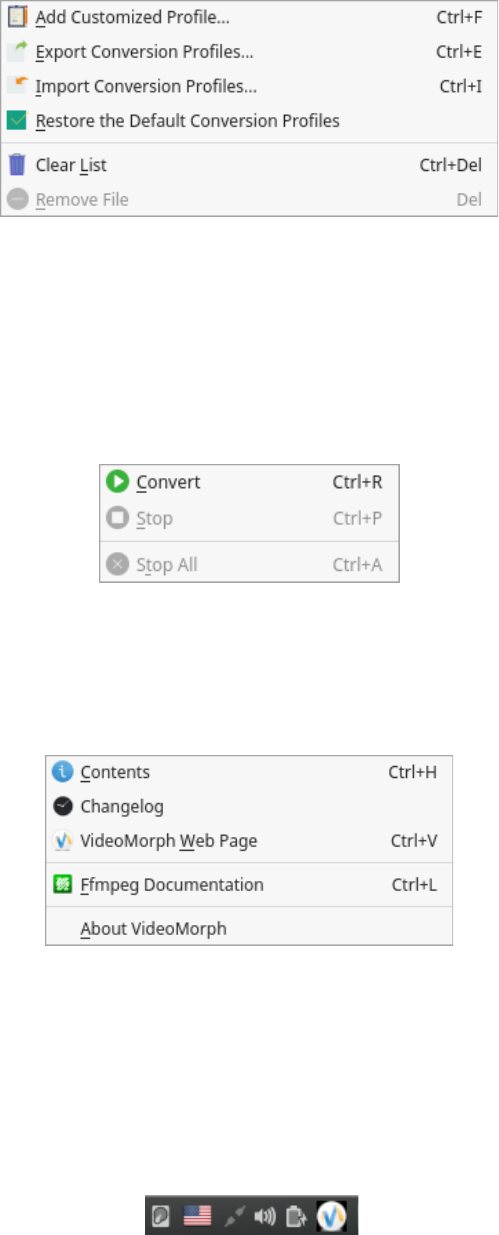
•Edit Menu: Includes the following acons:
a) This opon is for users who master the conversion library, create their own conversion pro*les
b) Export custom conversion pro*les
c) Import custom conversion pro*les
d) Resets the default conversion pro*les of the applicaon
e) Delete the selected video *le from the List of Conversion Tasks
f) Delete all video *les from the List of Conversion Tasks.
•Conversion Menu: Allows you to perform the following acons:
a) Starts the conversion process
b) Stops the conversion of the video *le in process
c) Stops all processing of the videos included in the List of Conversion Tasks.
•Help Menu: Includes opons:
a) Shows the contents of this manual
b) View the applicaon changelog
c) Open VideoMorph Web Page
d) Open the Online Documentaon page for Ffmpeg library
e) Display the About dialog…
System Tray Icon
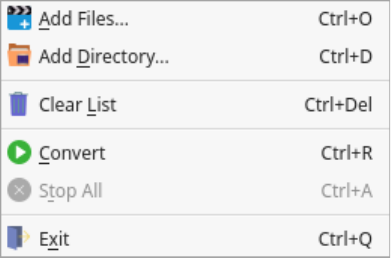
VideoMorph now shows a system tray icon. Clicking over this icon we can have access to the following
context menu:
The opons available on this menu perform the same acons we have described before.
