Moosefs 3 0 Users Manual
User Manual:
Open the PDF directly: View PDF  .
.
Page Count: 90
- About MooseFS
- Moose File System Requirements
- Installing MooseFS 3.0
- Configuring DNS Server
- Adding repositories
- Differences in package names between MooseFS Pro and MooseFS
- MooseFS Master Server(s) installation
- MooseFS CGI Monitor, CGI Server and Command Line Interface installation
- Chunk servers installation
- MooseFS Clients installation
- Enabling MooseFS services during OS boot
- Basic MooseFS use
- Stopping MooseFS
- Storage Classes
- Introduction to Storage Classes functionality in MooseFS 3.0
- How to use Storage Classes?
- Machines configuration
- Example of MooseFS installation without Storage Classes
- Labelling Chunkservers
- Creating Storage Classes
- Listing Storage Classes
- Assigning Storage Class to files / directories
- Creation, keep, archive labels
- Chunkserver states
- Chunk creation modes
- Preferred labels during read/write (in mfsmount)
- Storage Classes tools
- Common use scenarios
- Troubleshooting
- MooseFS Tools
- MooseFS Configuration Files
- Frequently Asked Questions
- What average write/read speeds can we expect?
- Does the goal setting influence writing/reading speeds?
- Are concurrent read and write operations supported?
- How much CPU/RAM resources are used?
- Is it possible to add/remove chunkservers and disks on the fly?
- How to mark a disk for removal?
- My experience with clustered filesystems is that metadata operations are quite slow. How did you resolve this problem?
- What does value of directory size mean on MooseFS? It is different than standard Linux ls -l output. Why?
- When I perform df -h on a filesystem the results are different from what I would expect taking into account actual sizes of written files.
- Can I keep source code on MooseFS? Why do small files occupy more space than I would have expected?
- Do Chunkservers and Metadata Server do their own checksumming?
- What resources are required for the Master Server?
- When I delete files or directories, the MooseFS free space size doesn't change. Why?
- When I added a third server as an extra chunkserver, it looked like the system started replicating data to the 3rd server even though the file goal was still set to 2.
- Is MooseFS 64bit compatible?
- Can I modify the chunk size?
- How do I know if a file has been successfully written to MooseFS?
- What are limits in MooseFS (e.g. file size limit, filesystem size limit, max number of files, that can be stored on the filesystem)?
- Can I set up HTTP basic authentication for the mfscgiserv?
- Can I run a mail server application on MooseFS? Mail server is a very busy application with a large number of small files – will I not lose any files?
- Are there any suggestions for the network, MTU or bandwidth?
- Does MooseFS support supplementary groups?
- Does MooseFS support file locking?
- Is it possible to assign IP addresses to chunk servers via DHCP?
- Some of my chunkservers utilize 90% of space while others only 10%. Why does the rebalancing process take so long?
- I have a Metalogger running – should I make additional backup of the metadata file on the Master Server?
- I think one of my disks is slower / damaged. How should I find it?
- How can I find the master server PID?
- Web interface shows there are some copies of chunks with goal 0. What does it mean?
- Is every error message reported by mfsmount a serious problem?
- How do I verify that the MooseFS cluster is online? What happens with mfsmount when the master server goes down?

MooseFS 3.0 User’s Manual
Core Technology Development & Support Team
January 7, 2017
Contents
1 About MooseFS 6
1.1 Architecture....................................... 6
1.2 Howdoesthesystemwork............................... 8
1.3 Faulttolerance ..................................... 9
1.4 Platforms ........................................ 10
2 Moose File System Requirements 11
2.1 Networkrequirements ................................. 11
2.2 Requirements for Master Servers . . . . . . . . . . . . . . . . . . . . . . . . . . . 11
2.2.1 CPU....................................... 11
2.2.2 RAMsize.................................... 12
2.2.3 HDDfreespace................................. 12
2.3 Requirements for Metalogger(s) . . . . . . . . . . . . . . . . . . . . . . . . . . . . 12
2.4 Requirements for Chunkservers . . . . . . . . . . . . . . . . . . . . . . . . . . . . 13
2.4.1 CPU....................................... 13
2.4.2 RAMsize.................................... 13
2.4.3 HDDspace ................................... 13
2.5 Requirements for Clients / Mounts . . . . . . . . . . . . . . . . . . . . . . . . . . 13
3 Installing MooseFS 3.0 15
3.1 ConfiguringDNSServer ................................ 15
3.2 Addingrepositories................................... 16
3.2.1 Ubuntu/Debian................................ 16
3.2.2 RedHat / CentOS (EL7) . . . . . . . . . . . . . . . . . . . . . . . . . . . . 16
3.2.3 RedHat / CentOS (EL6) . . . . . . . . . . . . . . . . . . . . . . . . . . . . 17
3.2.4 AppleMacOSX ................................ 17
3.3 Differences in package names between MooseFS Pro and MooseFS . . . . . . . . 17
3.4 MooseFS Master Server(s) installation . . . . . . . . . . . . . . . . . . . . . . . . 18
3.5 MooseFS CGI Monitor, CGI Server and Command Line Interface installation . . 19
3.6 Chunk servers installation . . . . . . . . . . . . . . . . . . . . . . . . . . . . . . . 20
3.7 MooseFS Clients installation . . . . . . . . . . . . . . . . . . . . . . . . . . . . . 20
3.8 Enabling MooseFS services during OS boot . . . . . . . . . . . . . . . . . . . . . 22
3.8.1 RedHat / Centos (EL6) . . . . . . . . . . . . . . . . . . . . . . . . . . . . 22
3.8.2 RedHat / Centos (EL7) . . . . . . . . . . . . . . . . . . . . . . . . . . . . 22
3.8.3 Debian/Ubuntu................................ 23
3.8.4 FreeBSD..................................... 23
3.9 BasicMooseFSuse................................... 25
3.10StoppingMooseFS ................................... 25
2
4 Storage Classes 26
4.1 Introduction to Storage Classes functionality in MooseFS 3.0 . . . . . . . . . . . 26
4.1.1 What is a Storage Class? . . . . . . . . . . . . . . . . . . . . . . . . . . . 26
4.1.2 Whatarelabels?................................ 26
4.2 How to use Storage Classes? . . . . . . . . . . . . . . . . . . . . . . . . . . . . . . 27
4.2.1 Machines configuration . . . . . . . . . . . . . . . . . . . . . . . . . . . . 27
4.2.2 Example of MooseFS installation without Storage Classes . . . . . . . . . 27
4.2.3 Labelling Chunkservers . . . . . . . . . . . . . . . . . . . . . . . . . . . . 28
4.2.4 Creating Storage Classes . . . . . . . . . . . . . . . . . . . . . . . . . . . . 30
4.2.5 Listing Storage Classes . . . . . . . . . . . . . . . . . . . . . . . . . . . . . 31
4.2.6 Assigning Storage Class to files / directories . . . . . . . . . . . . . . . . . 31
4.2.7 Creation, keep, archive labels . . . . . . . . . . . . . . . . . . . . . . . . . 33
4.2.8 Chunkserverstates............................... 34
4.2.9 Chunk creation modes . . . . . . . . . . . . . . . . . . . . . . . . . . . . . 34
4.2.10 Preferred labels during read/write (in mfsmount).............. 35
4.3 StorageClassestools.................................. 36
4.3.1 MooseFS Storage Class administration tool – mfsscadmin ......... 36
4.3.2 MooseFS Storage Class management tools – mfssclass .......... 39
4.4 Commonusescenarios................................. 41
4.4.1 Scenario 1: Two server rooms (A and B) . . . . . . . . . . . . . . . . . . . 41
4.4.2 Scenario 2: SSD and HDD drives . . . . . . . . . . . . . . . . . . . . . . . 42
4.4.3 Scenario 3: Two server rooms (A and B) + SSD and HDD drives . . . . . 44
4.4.4 Scenario 4: Creation, Keep and Archive modes . . . . . . . . . . . . . . . 46
5 Troubleshooting 47
5.1 Metadatasave ..................................... 47
5.2 Master metadata restore from Metaloggers . . . . . . . . . . . . . . . . . . . . . . 48
5.3 Maintenancemode ................................... 48
5.4 Chunk replication priorities . . . . . . . . . . . . . . . . . . . . . . . . . . . . . . 49
6 MooseFS Tools 50
6.1 For MooseFS Master Server(s) . . . . . . . . . . . . . . . . . . . . . . . . . . . . 50
6.1.1 mfsmaster ................................... 50
6.1.2 mfsmetarestore ................................ 51
6.1.3 mfsmetadump .................................. 51
6.2 ForMooseFSSupervisor................................ 55
6.2.1 mfssupervisor ................................. 55
6.3 For MooseFS Command Line Interface . . . . . . . . . . . . . . . . . . . . . . . . 56
6.3.1 mfscli ..................................... 56
6.4 ForMooseFSCGIServer ............................... 58
6.4.1 mfscgiserv ................................... 58
6.5 For MooseFS Metalogger(s) . . . . . . . . . . . . . . . . . . . . . . . . . . . . . . 59
6.5.1 mfsmetalogger ................................. 59
6.6 For MooseFS Chunkserver(s) . . . . . . . . . . . . . . . . . . . . . . . . . . . . . 60
6.6.1 mfschunkserver ................................ 60
6.7 ForMooseFSClient .................................. 61
6.7.1 mfsmount .................................... 61
6.7.2 mfstools .................................... 64
7 MooseFS Configuration Files 68
3
7.1 For MooseFS Master Server(s) . . . . . . . . . . . . . . . . . . . . . . . . . . . . 68
7.1.1 mfsmaster.cfg ................................. 68
7.1.2 mfsexports.cfg ................................ 71
7.1.3 mfstopology.cfg ............................... 73
7.2 For MooseFS Metalogger(s) . . . . . . . . . . . . . . . . . . . . . . . . . . . . . . 74
7.2.1 mfsmetalogger.cfg .............................. 74
7.3 For MooseFS Chunkservers . . . . . . . . . . . . . . . . . . . . . . . . . . . . . . 75
7.3.1 mfschunkserver.cfg ............................. 75
7.3.2 mfshdd.cfg ................................... 76
8 Frequently Asked Questions 77
8.1 What average write/read speeds can we expect? . . . . . . . . . . . . . . . . . . 77
8.2 Does the goal setting influence writing/reading speeds? . . . . . . . . . . . . . . 77
8.3 Are concurrent read and write operations supported? . . . . . . . . . . . . . . . . 77
8.4 How much CPU/RAM resources are used? . . . . . . . . . . . . . . . . . . . . . . 78
8.5 Is it possible to add/remove chunkservers and disks on the fly? . . . . . . . . . . 78
8.6 How to mark a disk for removal? . . . . . . . . . . . . . . . . . . . . . . . . . . . 79
8.7 My experience with clustered filesystems is that metadata operations are quite
slow. How did you resolve this problem? . . . . . . . . . . . . . . . . . . . . . . . 79
8.8 What does value of directory size mean on MooseFS? It is different than standard
Linux ls -l output.Why? .............................. 79
8.9 When I perform df -h on a filesystem the results are different from what I would
expect taking into account actual sizes of written files. . . . . . . . . . . . . . . . 80
8.10 Can I keep source code on MooseFS? Why do small files occupy more space than
Iwouldhaveexpected? ................................ 80
8.11 Do Chunkservers and Metadata Server do their own checksumming? . . . . . . . 81
8.12 What resources are required for the Master Server? . . . . . . . . . . . . . . . . . 82
8.13 When I delete files or directories, the MooseFS free space size doesn’t change.
Why? .......................................... 82
8.14 When I added a third server as an extra chunkserver, it looked like the system
started replicating data to the 3rd server even though the file goal was still set
to2. ........................................... 83
8.15 Is MooseFS 64bit compatible? . . . . . . . . . . . . . . . . . . . . . . . . . . . . . 83
8.16 Can I modify the chunk size? . . . . . . . . . . . . . . . . . . . . . . . . . . . . . 83
8.17 How do I know if a file has been successfully written to MooseFS? . . . . . . . . 83
8.18 What are limits in MooseFS (e.g. file size limit, filesystem size limit, max number
of files, that can be stored on the filesystem)? . . . . . . . . . . . . . . . . . . . . 84
8.19 Can I set up HTTP basic authentication for the mfscgiserv? . . . . . . . . . . . . 85
8.20 Can I run a mail server application on MooseFS? Mail server is a very busy
application with a large number of small files – will I not lose any files? . . . . . 85
8.21 Are there any suggestions for the network, MTU or bandwidth? . . . . . . . . . . 85
8.22 Does MooseFS support supplementary groups? . . . . . . . . . . . . . . . . . . . 85
8.23 Does MooseFS support file locking? . . . . . . . . . . . . . . . . . . . . . . . . . 85
8.24 Is it possible to assign IP addresses to chunk servers via DHCP? . . . . . . . . . 85
8.25 Some of my chunkservers utilize 90% of space while others only 10%. Why does
the rebalancing process take so long? . . . . . . . . . . . . . . . . . . . . . . . . . 86
8.26 I have a Metalogger running – should I make additional backup of the metadata
fileontheMasterServer? ............................... 86
8.27 I think one of my disks is slower / damaged. How should I find it? . . . . . . . . 87
4
8.28 How can I find the master server PID? . . . . . . . . . . . . . . . . . . . . . . . . 87
8.29 Web interface shows there are some copies of chunks with goal 0. What does it
mean? .......................................... 87
8.30 Is every error message reported by mfsmount a serious problem? . . . . . . . . . 88
8.31 How do I verify that the MooseFS cluster is online? What happens with mfsmount
when the master server goes down? . . . . . . . . . . . . . . . . . . . . . . . . . . 88
5
Chapter 1
About MooseFS
MooseFS is a fault-tolerant distributed file system. It spreads data over several physical loca-
tions (servers), which are visible to user as one resource. For standard file operations MooseFS
acts as any other Unix-alike filesystem:
•Hierarchical structure (directory tree)
•Stores POSIX file attributes (permissions, last access and modification times)
•Supports special files (block and character devices, pipes and sockets)
•Symbolic links (file names pointing to target files, not necessarily on MooseFS) and hard
links (different names of files that refer to the same data on MooseFS)
•Access to the file system can be limited based on IP address and/or password
Distinctive features of MooseFS are:
•High reliability (several copies of the data can be stored on separate physical machines)
•Capacity is dynamically expandable by adding new computers/disks
•Deleted files are retained for a configurable period of time (a file system level ”trash bin”)
•Coherent snapshots of files, even while the file is being written/accessed
1.1 Architecture
MooseFS consists of four components:
1. Managing servers (master servers) – In MooseFS one machine, in MooseFS Pro any
number of machines managing the whole filesystem, storing metadata for every file (infor-
mation on size, attributes and file location(s), including all information about non-regular
files, i.e. directories, sockets, pipes and devices).
2. Data servers (chunk servers) – any number of commodity servers storing files’ data and
synchronizing it among themselves (if a certain file is supposed to exist in more than one
copy).
6
3. Metadata backup server(s) (metalogger server) – any number of servers, all of which
store metadata changelogs and periodically download main metadata file.
In MooseFS (non-Pro) machine with Metalogger can be easily set up as a master in case
of main master failure.
In MooseFS Pro Metalogger can be set up to provide an additional level of security.
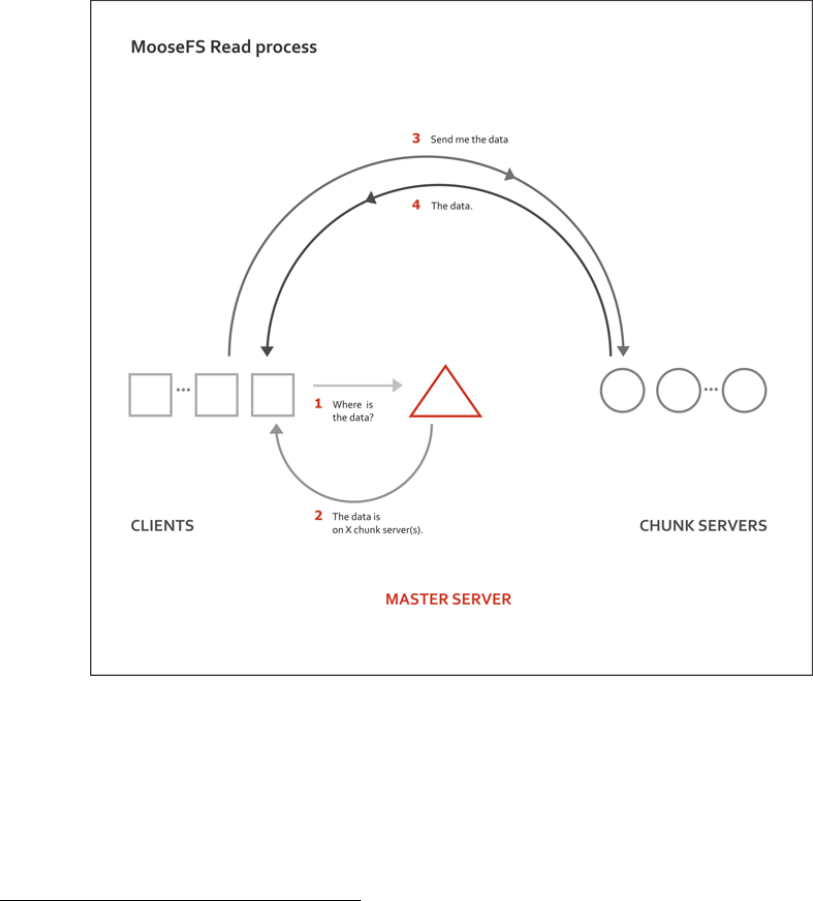
4. Client computers that access (mount) the files in MooseFS – any number of machines
using mfsmount process to communicate with the managing server (to receive and modify
file metadata) and with chunkservers (to exchange actual file data).
mfsmount is based on the FUSE1mechanism (Filesystem in USErspace), so MooseFS is available
on every Operating System with a working FUSE implementation (Linux, FreeBSD, MacOS X,
etc.)
1You can read more about FUSE at http://fuse.sourceforge.net
7

Metadata is stored in the memory of the managing server and simultaneously saved to disk (as a
periodically updated binary file and immediately updated incremental logs). The main binary
file as well as the logs are synchronized to the metaloggers (if present) and to spare master
servers in Pro version.
File data is divided into fragments (chunks) with a maximum size of 64MiB each. Each chunk
is itself a file on selected disks on data servers (chunkservers).
High reliability is achieved by configuring as many different data servers as appropriate to assure
the ”goal” value (number of copies to keep) set for the given file.
1.2 How does the system work
All file operations on a client computer that has mounted MooseFS are exactly the same as
they would be with other file systems. The operating system’s kernel transfers all file operations
to the FUSE module, which communicates with the mfsmount process. The mfsmount process
communicates through the network subsequently with the managing server and data servers
(chunk servers). This entire process is fully transparent to the user.
mfsmount communicates with the managing server every time an operation on file metadata is
8
required:
•creating files
•deleting files
•reading directories
•reading and changing attributes
•changing file sizes
•at the start of reading or writing data
•on any access to special files on MFSMETA
mfsmount uses a direct connection to the data server (chunk server) that stores the relevant
chunk of a file. When writing a file, after finishing the write process the managing server receives
information from mfsmount to update a file’s length and the last modification time.
Furthermore, data servers (chunk servers) communicate with each other to replicate data in
order to achieve the appropriate number of copies of a file on different machines.
1.3 Fault tolerance
Administrative commands allow the system administrator to specify the ”goal”, or number of
copies that should be maintained, on a per-directory or per-file level. Setting the goal to more
than one and having more than one data server will provide fault tolerance. When the file data
is stored in many copies (on more than one data server), the system is resistant to failures or
temporary network outages of a single data server.
This of course does not refer to files with the ”goal” set to 1, in which case the file will only
exist on a single data server irrespective of how many data servers are deployed in the system.
Exceptionally important files may have their goal set to a number higher than two, which will
allow these files to be resistant to a breakdown of more than one server at the same time.
In general the setting for the number of copies available should be one more than the anticipated
number of inaccessible or out-of-order servers.
In the case where a single data server experiences a failure or disconnection from the network,
the files stored within it that had at least two copies, will remain accessible from another data
server. The data that is now ’under its goal’ will be replicated on another accessible data server
to again provide the required number of copies.
It should be noted that if the number of available servers is lower than the ”goal” set for a
given file, the required number of copies cannot be preserved. Similarly if there are the same
number of servers as the currently set goal and if a data server has reached 100% of its capacity,
it will be unable to hold a copy of a file that is now below its goal due to another data server
going offline. In these cases a new data server should be connected to the system as soon as
9
possible in order to maintain the desired number of copies of the file.
A new data server can be connected to the system at any time. The new capacity will immedi-
ately become available for use to store new files or to hold replicated copies of files from other
data servers.
Administrative utilities exist to query the status of the files within the file system to determine
if any of the files are currently below their goal (set number of copies). This utility can also be
used to alter the goal setting as required.
The data fragments stored in the chunks are versioned, so re-connecting a data server with older
copy of data (i.e. if it had been offline for a period of time), will not cause the files to become
incoherent. The data server will synchronize itself to hold the current versions of the chunks,
where the obsolete chunks will be removed and the free space will be reallocated to hold the
new chunks.
Failures of a client machine (that runs the mfsmount process) will have no influence on the
coherence of the file system or on the other clients’ operations. In the worst case scenario the
data that has not yet been sent from the failed client computer may be lost.
1.4 Platforms
MooseFS is available on every Operating System with a working FUSE implementation:
•Linux (Linux 2.6.14 and up have FUSE support included in the official kernel)
•FreeBSD
•MacOS X
•OpenIndiana Hipster
The Master Server, Metalogger and Chunkservers can also be run on Windows with Cygwin.
Unfortunately without FUSE it won’t be possible to mount the filesystem within this operating
system.
10
Chapter 2
Moose File System Requirements
2.1 Network requirements
MooseFS requires TCP/IP network. The faster the network is, the better is performance. It
is recommended to connect all servers to the same switch or at least try to minimize network
latencies, because they may have significant impact on performance.
MooseFS requires the following ports to be open (it can be configured in appropriate configu-
ration files):
•9419..9421 – Master Server(s)
•9422 – Chunkservers
•9425 – CGI Server
2.2 Requirements for Master Servers
As the managing server (master) is a crucial element of MooseFS, it should be installed on a
machine which guarantees high stability and access requirements which are adequate for the
whole system. It is advisable to use a server with a redundant power supply, ECC memory, and
disk array RAID 1 / RAID 5 / RAID 10. The managing server OS has to be POSIX compliant
(systems verified so far: Linux, FreeBSD, MacOS X and OpenSolaris).
2.2.1 CPU
Because Master Server is a single-threaded process, it is recommended to use modern CPU with
high clock (e.g. 3.7 GHz) and small number of cores (e.g. 4) – especially in MooseFS instances
which handle a lot of small files.
Additionally, disabling CPU power management in BIOS (or enable mode like ”maximum per-
formance”) may have positive impact on efficiency.
You can compare CPUs on the following website – please pay attention to ”single-thread points”:
https://www.cpubenchmark.net/singleThread.html.
11

2.2.2 RAM size
The most important factor in sizing requirements for the Master Server machine is RAM, as
the full file system structure is cached in RAM for speed. The Master Server should have
approximately 300-350 MiB of RAM allocated to handle 1 million objects (files, directories,
pipes, sockets, ...).
Example:
•Leader Master RAM usage: 20 GiB (21 017 505 792 Bytes exactly)
•”All FS objects” (from MFS CGI): 67 552 270
•21 017 505 792 / 67 552 270 = ∼311.13 Bytes per one object
2.2.3 HDD free space
The necessary size of HDD depends both on the number of files and chunks used (main metadata
file) and on the number of operations made on the files (metadata changelog); for example the
space of 20 GiB is enough for storing information for 25 million files and for changelogs to be
kept for up to 50 hours.
You can calculate the minimum amount of space we recommend using the following formula:
•RAM – amount of RAM
•BACK LOGS – number of metadata change log files, default is 50 (from /etc/mfs/mfsmaster.cfg)
•BACK META KEEP PREVIOUS – number of previous metadata files to be kept (default is 1)
(also from /etc/mfs/mfsmaster.cfg)
The formula:
SPACE = RAM * (BACK META KEEP PREVIOUS + 2) + 1 * (BACK LOGS + 1) [GiB]
(If default values from /etc/mfs/mfsmaster.cfg are used, it is RAM * 3 + 51 [GiB])
The value 1(before multiplying by BACK LOGS + 1) is an estimation of size used by one
changelog.[number].mfs file. On highly loaded MooseFS instance it uses a bit less than
1 GB.
Example:
If you have 128 GiB of RAM, using the formula above, you should reserve for /var/lib/mfs:
128*3 + 51 = 384 + 51 = 435 GiB minimum.
2.3 Requirements for Metalogger(s)
MooseFS metalogger simply gathers metadata backups from the MooseFS Master Server – so
the hardware requirements are not higher than for the Master Server itself; it needs about the
same disk space. Similarly to the Master Server – the OS has to be POSIX compliant (Linux,
FreeBSD, Mac OS X, OpenSolaris, etc.).
12

MooseFS Metalogger should have at least the same amount of HDD space (especially the free
space in /var/lib/mfs!) as the main Master Server.
If you would like to use the Metalogger as a Master Server in case of the main Master’s failure,
the Metalogger machine should have at least the same amount of RAM as the main Master
Server.
2.4 Requirements for Chunkservers
Chunkservers, like other MooseFS machines have to have POSIX compliant OS.
2.4.1 CPU
MooseFS Chunkserver is a multi-threaded process, so the best choice is to have a CPU with a
number of cores.
2.4.2 RAM size
MooseFS Chunkserver uses approximately 250 MiB of RAM allocated to handle 1 million
chunks.
Example:
•Chunkserver RAM usage: 661 MiB
•Chunks stored on this Chunkserver (from MFS CGI): 3 275 062
•(661 * 220) / 3 275 062 = ∼211.63 Bytes per one chunk
2.4.3 HDD space
Chunkserver machines should have appropriate disk space (dedicated exclusively for MooseFS).
Typical and recommended usage is to create one partition on each HDD, mount them and enter
paths to mounted partitions in /etc/mfs/mfshdd.cfg.
Minimal configuration should start from several gigabytes of storage space (only disks with more
than 256 MB and Chunkservers reporting more than 1 GB of total free space are accessible for
new data).
2.5 Requirements for Clients / Mounts
mfsmount requires FUSE to work; FUSE is available on several operating systems: Linux,
FreeBSD, OpenSolaris and MacOS X, with the following notes:
•In case of Linux a kernel module with API 7.8 or later is required (it can be checked
with dmesg command – after loading kernel module there should be a line fuse init (API
version 7.8)). It is available in fuse package 2.6.0 (or later) or in Linux kernel 2.6.20 (or
13

later). Due to some minor bugs, the newer module is recommended (fuse 2.7.2 or Linux
2.6.24, although fuse 2.7.x standalone doesn’t contain getattr/write race condition fix).
•In case of FreeBSD we recommed using fuse-freebsd1, which is a successor to fuse4bsd.
•For MacOSX we recommend using OSXFUSE2, which is a successor to MacFUSE and
has been tested on MacOSX 10.6, 10.7, 10.8, 10.9 and 10.11.
1https://github.com/glk/fuse-freebsd
2http://osxfuse.github.com
14
Chapter 3
Installing MooseFS 3.0
This is a Very Quick Start Guide describing basic MooseFS 3.0 installation in configuration of
two Master Servers and three Chunkservers.
Please note that complete installation process is described in ”MooseFS Step by Step Tutorial”.
For the sake of this document, it’s assumed that your machines have following IP addresses:
•Master servers: 192.168.1.1, 192.168.1.2
•Chunkservers: 192.168.1.101, 192.168.1.102 and 192.168.1.103
•Users’ computers (clients): 192.168.2.x
In this tutorial it is assumed that you have MooseFS 3.0 Pro version. If you use MooseFS 3.0
(non-Pro), please remove ’-pro’ from packages names.
In this tutorial it is also assumed that you have Ubuntu/Debian installed on your machines. If
you have another distribution, please use appropriate package manager instead of apt.
Notice, that most of commands below are preceded by #sign, which means, that you have to
run such command as root ($sign means normal user). The easiest way to become root is to
run:
Listing 3.1: Becoming root
$ sudo su -
3.1 Configuring DNS Server
Before you start installing MooseFS, you need to have working DNS. It’s needed for MooseFS
to work properly with several master servers, because DNS can resolve one host name as more
than one IP address.
All IPs of machines which will be master servers must be included in DNS configuration file
and resolved as ”mfsmaster” (or any other selected name), e.g.:
Listing 3.2: DNS entries
mfs ma st er IN A 192.1 68 .1 .1 ; add res s of first ma ster s erver
mfs ma st er IN A 192.1 68 .1 .2 ; add res s of s eco nd mas ter se rve r
15
More information about configuring DNS server is included in supplement to ”MooseFS Step
by Step Tutorial”.
3.2 Adding repositories
Before installing MooseFS you need to add MooseFS Official Supported Repositories to your
system.
3.2.1 Ubuntu / Debian
First, add the key:
Listing 3.3: Adding the repo key
# w ge t - O - http :// ppa . m oo sef s . co m / moo se fs . key | apt - key add -
Then add the appropriate entry in /etc/apt/sources.list:
•For Ubuntu 14.04 Trusty:
deb http://ppa.moosefs.com/moosefs-3/apt/ubuntu/trusty trusty main
•For Ubuntu 12.04 Precise:
deb http://ppa.moosefs.com/moosefs-3/apt/ubuntu/precise precise main
•For Ubuntu 10.10 Maverick:
deb http://ppa.moosefs.com/moosefs-3/apt/ubuntu/maverick maverick main
•For Debian 7.0 Wheezy:
deb http://ppa.moosefs.com/moosefs-3/apt/debian/wheezy wheezy main
•For Debian 6.0 Squeeze:
deb http://ppa.moosefs.com/moosefs-3/apt/debian/squeeze squeeze main
•For Debian 5.0 Lenny:
deb http://ppa.moosefs.com/moosefs-3/apt/debian/lenny lenny main
After that do:
# apt-get update
3.2.2 RedHat / CentOS (EL7)
Red Hat 7 familiy OS use systemd Linux system and service manager to start processes. To
use systemctl command to start MooseFS processes use this steps to add systemd repository.
Add the appropriate key to package manager:
Listing 3.4: Adding the repo key
# c ur l " h tt p :/ / pp a . mo ose fs . com / RP M - GPG - KEY - M o ose FS " > / e tc / p ki / r pm - gp g / RP M - GPG - KEY -
MooseFS
16
Next you need to add the repository entry to yum repo:
Listing 3.5: Adding MooseFS repo
# c ur l " ht tp :// ppa . m oose fs . com / MooseFS -3 - e l7 . r ep o " > / etc / yum . re po s .d / Moo seFS . repo
# yum up date
3.2.3 RedHat / CentOS (EL6)
Red Hat 6 family OS use SysV init runlevel system to start processes. To use service command
to start MooseFS processes use this steps to add SysV repository.
Add the appropriate key to package manager:
Listing 3.6: Adding the repo key
# c ur l " h tt p :/ / pp a . mo ose fs . com / RP M - GPG - KEY - M o ose FS " > / e tc / p ki / r pm - gp g / RP M - GPG - KEY -
MooseFS
Next you need to add the repository entry to yum repo:
Listing 3.7: Adding the MooseFS repo
# c ur l " ht tp :// ppa . m oose fs . com / MooseFS -3 - e l6 . r ep o " > / etc / yum . re po s .d / Moo seFS . repo
# yum up date
3.2.4 Apple MacOS X
It’s possible to run all components of the system on Mac OS X systems, but most common
scenario would be to run the client (mfsmount) that enables Mac OS X users to access resources
available in MooseFS infrastructure.
In case of MacOS X – since there’s no default package manager – we release .pkg files containing
only binaries without any startup scripts, that normally are available in Linux packages.
To install MooseFS on Mac please follow these steps:
•download and install FUSE for Mac OS X package from
http://osxfuse.github.io
•download and install MooseFS packages from
http://ppa.moosefs.com/moosefs-3/osx/
You should be able to mount MooseFS filesystem in /mnt/mfs issuing the following command:
$ sudo mfsmount mfsmount -H mfsmaster.host.name /mnt/mfs
If you’ve exported filesystem with additional options like password protection, you should in-
clude those options in mfsmount invocation as in documentation.
3.3 Differences in package names between MooseFS Pro and
MooseFS
The packages in MooseFS 3.0 Pro are named according to following pattern:
•moosefs-pro-master
17
•moosefs-pro-metalogger
•moosefs-pro-chunkserver
•moosefs-pro-client
•moosefs-pro-cli
•moosefs-pro-cgi
•moosefs-pro-cgiserv
•moosefs-pro-netdump
•moosefs-pro-supervisor
In MooseFS 3.0 (non-Pro) the packages are named according to the following pattern:
•moosefs-master
•moosefs-metalogger
•moosefs-chunkserver
•moosefs-client
•moosefs-cli
•moosefs-cgi
•moosefs-cgiserv
•moosefs-netdump
3.4 MooseFS Master Server(s) installation
Install package moosefs-pro-master by running the following command:
For Debian OS family:
# apt - g et i ns t all m oosefs - pro - ma st e r
For RedHat OS family:
# y um i ns ta l l m oo se fs - pro - m as t er
Sample configuration files will be created in /etc/mfs with the extension *.sample (MooseFS
3.0+) or *.dist (MooseFS 2.0). Use these files as your target configuration files:
# cd / e tc / mfs
# cp m fsm ast er . cfg . s ampl e m fs ma st er . c fg
# cp m fse xpo rts . c fg . s am ple m fs ex po rt s . cf g
File mfsexports.cfg specifies which users’ computers can mount the file system and with what
privileges. For example, to specify that only machines addressed as 192.168.2.x can use the
whole structure of MooseFS resources (/) in read/write mode, in the first line which is not
commented out change the asterisk (*) to 192.168.2.0/24, so that you’ll have:
19 2.1 68. 2.0 /24 / rw , alldirs , ma pr oot =0
18

Now, if you use MooseFS Pro, place proper mfslicence.bin file into /etc/mfs directory. This
file must be available on all Master Servers.
At this point it is possible to run the MooseFS Master Server:
# mfs ma st er sta rt
If you use SysV init script manager, which is by default available in Debian, Ubuntu and RedHat
6 family operating systems, you can also start Master by issuing the following command:
# se rv ic e m oo sefs - pro - m a st e r s ta rt
To start MooseFS Master Server with latest systemd Linux system and service manager, which
is available in RedHat 7 family operating systems, use this command:
# s ys t em ct l s ta rt m oo sefs - pro - ma st e r . s e rvi ce
You need to repeat these steps on each machine intended for running MooseFS Master Server
(in this example – on 192.168.1.1 and 192.168.1.2).
You can also find more detailed description how to add Master Followers in MooseFS Upgrade
Guide - Chapter 6: Adding master follower(s) server(s) procedure (Pro only).
3.5 MooseFS CGI Monitor, CGI Server and Command Line
Interface installation
MooseFS CGI Monitor and MooseFS CGISERV can be installed on any machine, but good
practice tells that it should be installed on every Master Server.
MooseFS Command Line Interface (CLI) tool allows you to see various information about
MooseFS status. The mfscli with -SIN option displays basic info similar to the ”Info” tab in
CGI. To install CGI, CGISERV and CLI, use the following commands.
For Debian OS family:
# apt - get i ns tal l moosefs - pro - c gi
# apt - g et i ns t all m oosefs - pro - cg is e rv
# apt - get i ns tal l moosefs - pro - c li
Set MFSCGISERV ENABLE variable to true in file /etc/default/mfs-cgiserv to configure mfscgiserv
autostart.
For RedHat OS family:
# y um i ns ta l l m oo se fs - pro - cgi
# y um i ns ta l l m oo se fs - pro - c gi se r v
# y um i ns ta l l m oo se fs - pro - cli
Run MooseFS CGI Monitor with SysV:
# se rv ic e m oo sefs - pro - cg is e rv s ta rt
Run MooseFS CGI Monitor with systemd:
# sys temc tl st art moosefs -pro - c gi se rv . s er vi ce
MooseFS CGI Monitor website should now be available at http://192.168.1.1:9425 ad-
dress(for the moment there would be no data about chunk servers).
19

3.6 Chunk servers installation
For Debian OS family:
# apt - g et i ns t all m oosefs - pro - c hu n k se r v er
For RedHat OS family:
# y um i ns ta l l m oo se fs - pro - c h un k s er v er
Now you need to prepare basic configuration files for the mfschunkserver:
# cd / e tc / mfs
# cp mfschunkserver.cfg.sample mfschunkserver.cfg
# cp m fs hdd . cfg . s ampl e mf sh dd . cfg
In the mfshdd.cfg file you’ll give locations in which you have mounted hard drives/partitions
designed for the chunks of the system. It is recommended that they are used exclusively for
the MooseFS – this is necessary to manage the free space properly. For example if you’ll use
/mnt/mfschunks1 and /mnt/mfschunks2 locations, add these two lines to mfshdd.cfg file:
/ mnt / m fsc hu nk s1
/ mnt / m fsc hu nk s2
Before you start chunkserver, make sure that the user mfs has rights to write in the mounted
partitions (which is necessary to create a .lock file):
# chown - R mfs : mfs / m nt / m fs ch un ks 1
# chown - R mfs : mfs / m nt / m fs ch un ks 2
At this moment you are ready to start the chunk server:
For SysV init script system
# se rv ic e m oo sefs - pro - c hu n k se r v er s t ar t
For systemd Linux system and service manager
# sys te mc tl st art moosefs -pro - c hu nkse rv er . serv ice
You need to repeat these steps on each machine intended for running MooseFS Chunkserver (in
this example – on 192.168.1.101,192.168.1.102 and 192.168.1.103.
Now at http://192.168.1.1:9425 full information about the system is available, including
the master server and chunk servers.
3.7 MooseFS Clients installation
MooseFS client uses FUSE library. During installation process, your operating system also
downloads and installs FUSE library if it is not installed.
Debian OS family:
# apt - g et i ns t all m oosefs - pro - cl ie n t
RedHat OS family:
20
# y um i ns ta l l m oo se fs - pro - c li e nt
Let’s assume that you want to mount the MooseFS share in a /mnt/mfs folder on a client’s
machine. Issue the following commands:
# mkdir - p / mnt / mfs
# mf sm oun t / mnt / mfs -H m fs ma st er
Now after running the df -h | grep mfs command you should get information similar to this:
/ sto ra ge / m fsch un ks / mfsch unks 1
2.0 G 69 M 1.9 G 4% / mnt / m fsc hun ks1
/ sto ra ge / m fsch un ks / mfsch unks 2
2.0 G 69 M 1.9 G 4% / mnt / m fsc hun ks2
mfs # m fsm as ter :94 21
3.2 G 0 3.2 G 0% / mnt / mfs
You need to repeat these steps on each machine intended to be MooseFS 3.0 Client (in this
example – on 192.168.2.x.
To enable MooseFS Client automount during boot, first of all check if the fuse and fuse-libs
packages are installed. If fuse and fuse-libs packages are installed, add similar entry to the
following one in /etc/fstab:
mfs mo un t / mnt / mfs fuse defaults , mfs ma st er = mfs ma st er . e xa mpl e . lan , mfsp or t
=9421 0 0
If MooseFS Client has to be mounted on the same machine that MooseFS Master Server runs,
please put the following fstab entry instead of the one listed above:
mfs mount / mnt / mfs fuse defaults , mfsdel ayedi ni t , mf smas te r = mfsm aste r . ex am pl e .
lan , mf spo rt =9421 0 0
21

3.8 Enabling MooseFS services during OS boot
Each operating system has it’s own method to manage services start during boot. Below you
can find a few examples of enabling MooseFS autostart in supported operating systems.
3.8.1 RedHat / Centos (EL6)
MooseFS Chunkserver:
To enable MooseFS Chunkserver autostart during OS boot, use chkconfig command like in
example below:
chk conf ig moosefs - chu nk serv er on
MooseFS Master Server:
To enable MooseFS Master Server autostart during OS boot, use chkconfig command like in
example below:
chk conf ig moosef s - m as ter on
MooseFS Client:
To enable MooseFS Client automount during boot, first of all check if the fuse and fuse-libs
packages are installed:
# rpm -qa | grep fuse
fu se - 2. 8. 3 - 4. e l6 . x 86_6 4
fu se - lib s -2. 8. 3 -4. el6 . x8 6_ 64
If fuse and fuse-libs packages are installed, add similar entry to the following one in /etc/fstab:
mfs mo un t / mnt / mfs fuse de faults , mfs ma ster = m fsm aste r . exa mp le . lan , mfs po rt
=9421 0 0
If MooseFS Client has to be mounted on the same machine that MooseFS Master Server runs,
please put the following fstab entry instead of the one listed above:
mfs mount / mnt / mfs fuse defaults , mfsd el ay ed in it , m fs mast er = mf smas te r . example .
lan , mf spo rt =9421 0 0
3.8.2 RedHat / Centos (EL7)
In operating systems with systemd, use systemctl command to manage init processes at boot:
MooseFS Chunkserver:
To enable MooseFS Chunkserver autostart during OS boot:
sys te mctl en able moosefs - c hu nk serv er . serv ice
MooseFS Master Server:
To enable MooseFS Master Server autostart during OS boot:
sys temc tl e na bl e moosefs - maste r . servi ce
22

MooseFS Client:
To enable MooseFS Client automount during boot, first of all check if the fuse and fuse-libs
packages are installed:
# rpm -qa | grep fuse
fu se - 2. 9. 2 - 6. e l7 . x 86_6 4
fu se - lib s -2. 9. 2 -6. el7 . x8 6_ 64
If fuse and fuse-libs packages are installed, add similar entry to the following one in /etc/fstab:
mfs mount / mnt / mfs fuse m fsma st er = mfsma ster . e xa mp le . lan , mfsp or t =942 1 0
0
If MooseFS Client has to be mounted on the same machine that MooseFS Master Server runs,
please put the following fstab entry instead of the one listed above:
mfs mount / mnt / mfs fuse defaults , mfsd el ay ed in it , m fs mast er = mf smas te r . example .
lan , mf spo rt =9421 0 0
3.8.3 Debian / Ubuntu
This method works in Debian 6, Debian 7, Ubuntu 12, Ubuntu 14.
MooseFS Chunkserver:
To enable MooseFS Chunkserver autostart during OS boot, find /etc/default/moosefs-chunkserver
file and change MFSCHUNKSERVER ENBLE variable to true:
MF SCH UN KSE RVE R_ EN AB LE = tru e
MooseFS Master:
To enable MooseFS Master Server autostart during OS boot, edit /etc/default/moosefs-master
file and change MFSMASTER ENBLE variable to true:
MFSMASTER_ENABLE=true
MooseFS Client:
To enable MooseFS Client automount during boot, first of all check if the fuse and fuse-libs
packages are installed. If fuse and fuse-libs packages are installed, add similar entry to the
following one in /etc/fstab:
mfs mount / mnt / mfs fuse m fsma st er = mfsma ster . e xa mp le . lan , mfsp or t =942 1 0
0
If MooseFS Client has to be mounted on the same machine that MooseFS Master Server runs,
please put the following fstab entry instead of the one listed above:
mfs mount / mnt / mfs fuse defaults , mfsd el ay ed in it , m fs mast er = mf smas te r . example .
lan , mf spo rt =9421 0 0
3.8.4 FreeBSD
MooseFS Chunkserver:
To enable MooseFS Chunkserver autostart during OS boot, add an entry to /etc/rc.conf:
23

mf sc hun ks erv er _en ab le = " YES "
MooseFS Master:
To enable MooseFS Chunkserver autostart during OS boot, add entry to /etc/rc.conf:
mfsmaster_enable="YES"
MooseFS Client:
To enable MooseFS Client automount during boot add the following entry in /boot/loader.conf
to let FreeBSD load fuse module during boot:
fu se_ lo ad = " YES "
And add the entry in /etc/fstab:
mf sm ou nt _ma gi c / mnt / mfs m oos ef s rw , m fs mas ter = mfs ma st er , m oun tp rog =/ usr / lo ca l / bi n /
mfsmount ,late 0 0
24
3.9 Basic MooseFS use
Create folder1 in /mnt/mfs, in which you store files in one copy (setting goal=1):
mkd ir - p / mnt / mfs / f olde r1
and folder2, in which you store files in two copies (setting goal=2):
mkd ir - p / mnt / mfs / f olde r2
The number of copies for the folder is set with the mfssetgoal -r command:
# mf sse tg oa l - r 1 / mnt / mfs / f olde r1
/ mnt / mfs / f ol der1 :
inodes with goal cha ng ed : 0
inodes with goal not ch an ge d : 1
inodes with pe rmis sio n den ie d : 0
# mf sse tg oa l - r 2 / mnt / mfs / f olde r2
/ mnt / mfs / f ol der2 :
inodes with goal cha ng ed : 0
inodes with goal not ch an ge d : 1
inodes with pe rmis sio n den ie d : 0
3.10 Stopping MooseFS
In order to safely stop the MooseFS cluster you have to perform the following steps:
•Unmount the file system on all machines using umount command (in our example it would
be: umount /mnt/mfs)
•Stop the Chunk Servers processes:
For SysV:service moosefs-pro-chunkserver stop
For systemd:systemctl stop moosefs-pro-chunkserver.service
•Stop the Master Server processes (starting from the FOLLOWER, you shuould stop the
LEADER Master Server as the last one):
For SysV:service moosefs-pro-master stop
For systemd:systemctl stop moosefs-pro-master.service
•Stop the Metalogger process:
For SysV:service moosefs-pro-metalogger stop
For systemd:systemctl stop moosefs-pro-metalogger.service
25
Chapter 4
Storage Classes
4.1 Introduction to Storage Classes functionality in MooseFS
3.0
4.1.1 What is a Storage Class?
Since MooseFS 3.0 goal has been extended to Storage Class. Storage Classes allow you to specify
on which Chunkservers copies of files should be stored. Storage Classes are defined using label
expressions.
To maintain compatibility with standard goal semantics, there are predefined Storage Classes
from 1 to 9 that, unless changed behave like goals from MooseFS 2.0 or 1.6 (see Subsection
”Predefined Storage Classes” of Section 4.3.1: MooseFS Storage Class administra-
tion tool – mfsscadmin of this manual or man mfsscadmin). Goal tools simply work only on
these classes.
4.1.2 What are labels?
Labels are letters (A-Z – 26 letters) that can be assigned to Chunkservers. Each chunkserver
can have multiple (up to 26) labels.
Labels expression is a set of subexpressions separated by commas, each subexpression specifies
the storage schema of one copy of a file. Subexpression can be: an asterisk or a label schema.
Label schema can be one label or an expression with sums, multiplications and brackets. Sum
means a file can be stored on any chunkserver matching any element of the sum (logical or).
Multiplication means a file can be stored only on a chunkserver matching all elements (logical
and). Asterisk means any chunkserver.
Identical subexpressions can be shortened by adding a number in front of one instead of repeating
it a number of times.
For more information about labels expressions, refer to Subsection ”Labels expressions”
of Section 4.3.1: MooseFS Storage Class administration tool – mfsscadmin of this
manual.
26
4.2 How to use Storage Classes?
4.2.1 Machines configuration
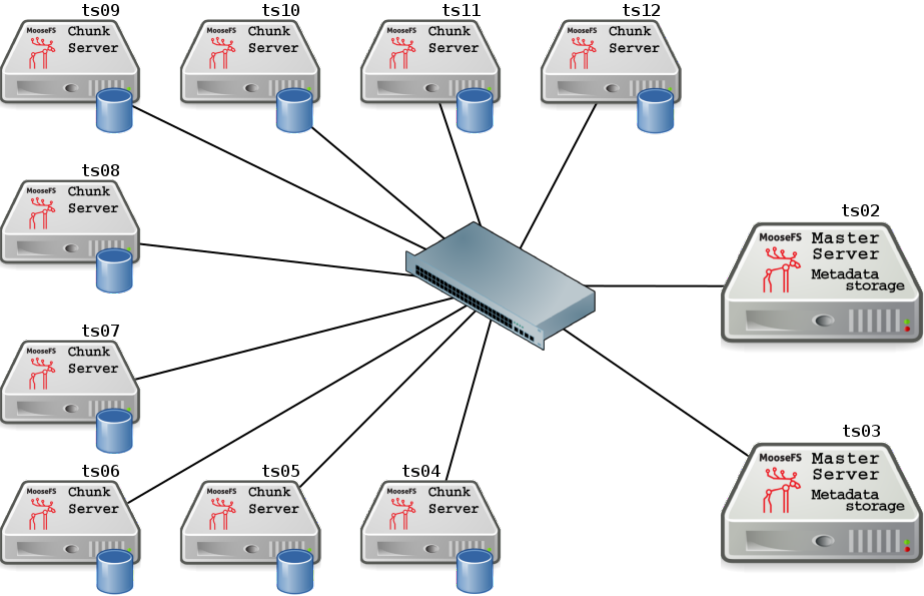
In this example we have MooseFS 3.0 installed on 11 machines:
•ts02,ts03 – Master Servers
•ts04..ts12 – Chunkservers
Assumption:
•On the MooseFS instance there is some initial data stored with goal 2(Storage Class 2).
4.2.2 Example of MooseFS installation without Storage Classes
To run MooseFS without any user-defined Storage Classes, you don’t have to make any changes
in configuration. Just install MooseFS with default configuration. The process is described in
”MooseFS Step by Step Tutorial”.
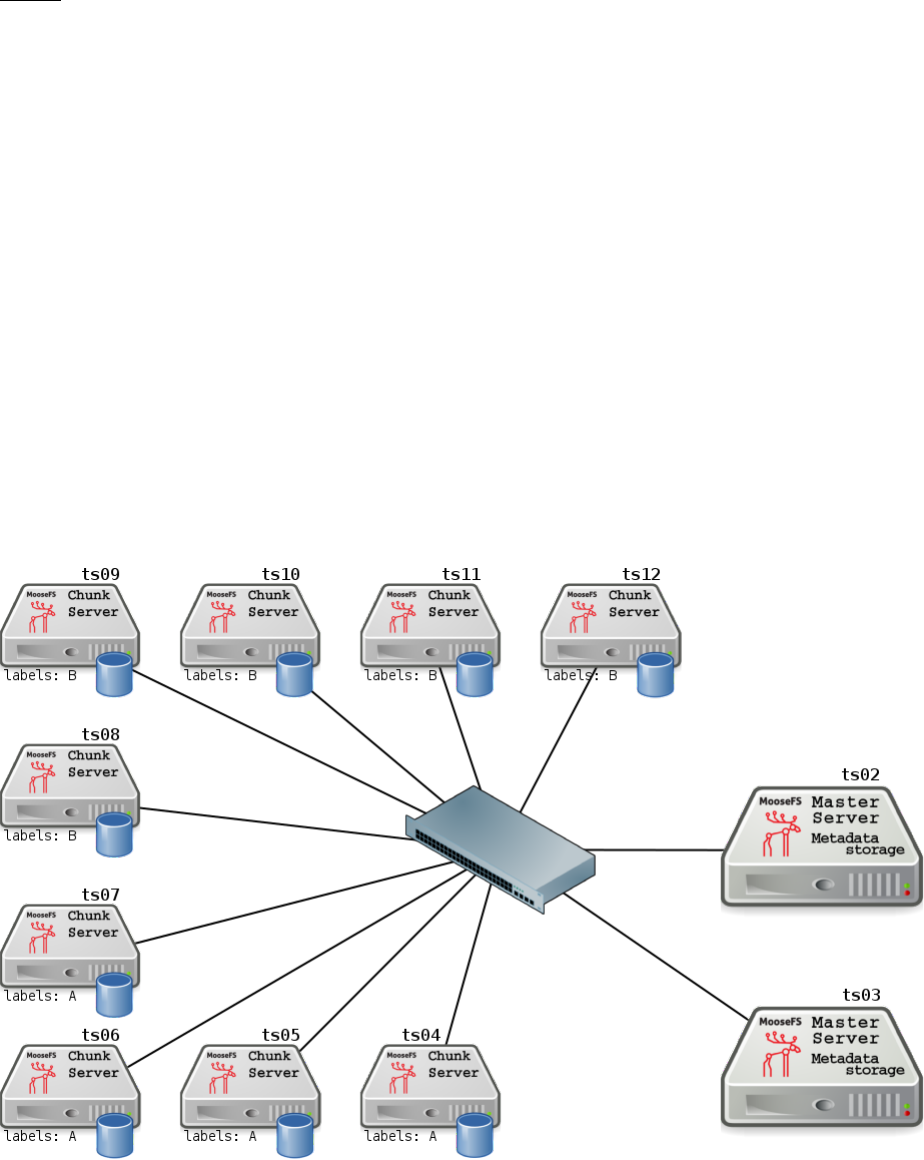
The picture below shows the discussed installation:
27
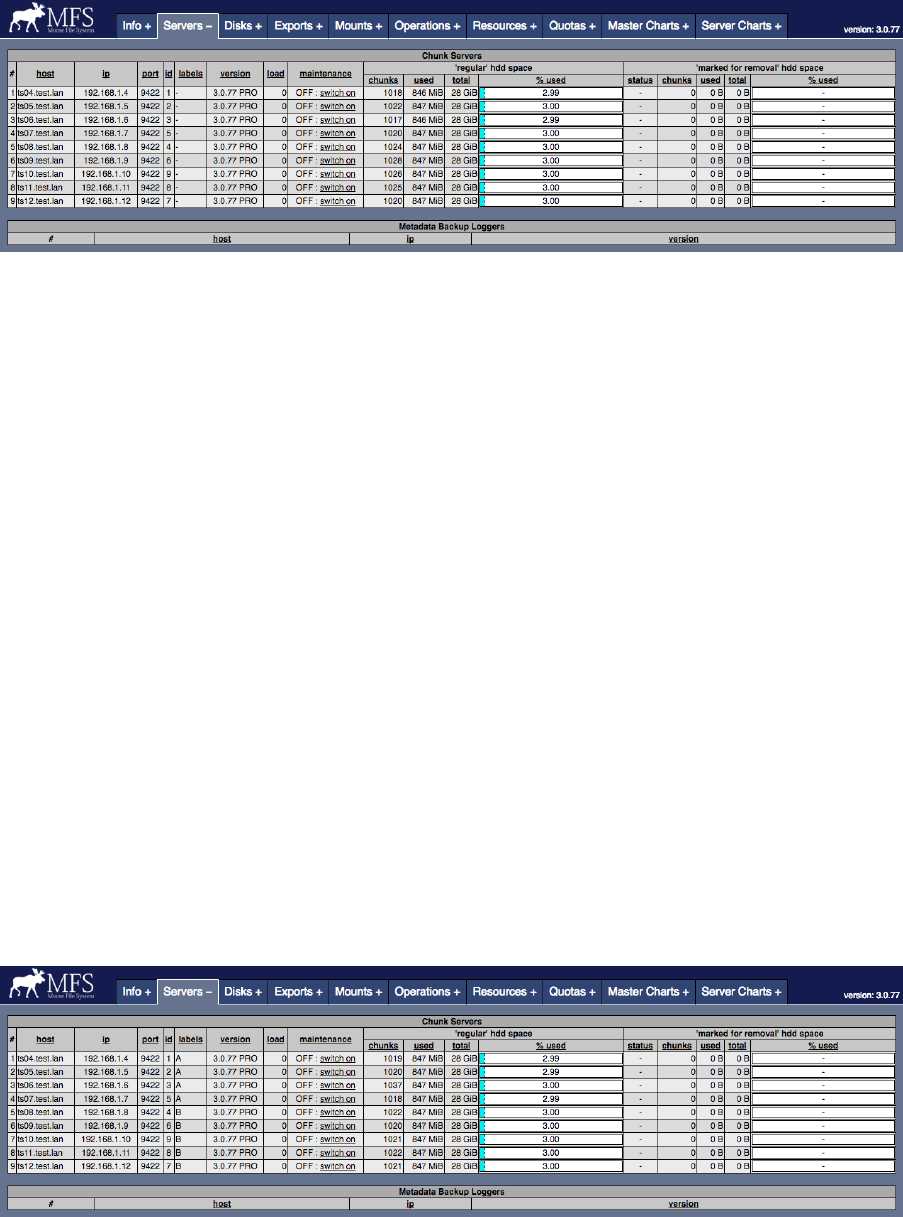
If labels on Chunkservers are not set up, the system is balanced like MooseFS 2.0. The image
below presents system balance at this point:
4.2.3 Labelling Chunkservers
To add labels to the system, i.e. assign them to Chunkservers, you need to edit their configura-
tion files (/etc/mfs/mfschunkserver.cfg). Open the file, uncomment the following line and
after the equation character type labels you want to set on specific Chunkserver. For example
to set label Aon Chunkservers ts04, ts05, ts06 and ts07, their configuration should look like
this:
[...]
# label s s tring ( d efa ult is empty - no lab els )
LABELS = A
[...]
The next step is to ”inform” the Chunkserver, that the Configuration file has changed. Issue
the command:
r oo t@ c hu nk se rv er :~ # s er v ice m oosefs - pro - c hu nk s e rv e r r e lo a d
or:
r oo t@c hu nk se rv er :~ # m f sc hu n ks er ve r r el oa d
Similarly set label Bfor Chunkservers ts08, ts09, ts10, ts11, ts12.
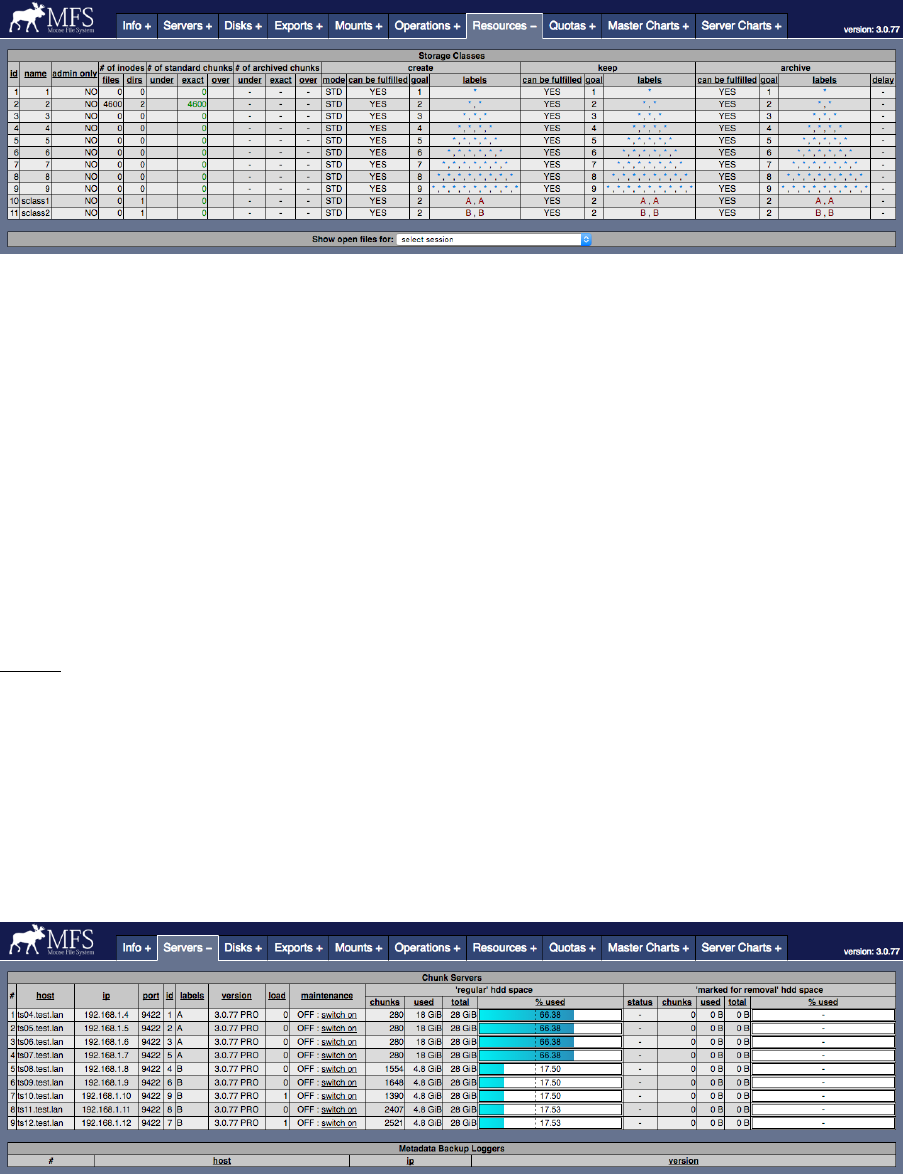
After this step in CGI monitor you can observe, that Chunkservers ts04..ts07 have label Aand
Chunkservers ts08..ts12 – label B:
28
Notice: If you want to set more than one label for a Chunkserver, just enter appropriate labels in
configuration file (/etc/mfs/mfschunkserver.cfg). MooseFS supports schemes listed below,
so you can choose the one, which fits for you the best, e.g.:
[...]
# label s s tring ( d efa ult is empty - no lab els )
LABELS = XYZ
[...]
or:
[...]
# label s s tring ( d efa ult is empty - no lab els )
LA BE LS = X , Y , Z
[...]
or:
[...]
# label s s tring ( d efa ult is empty - no lab els )
LABELS = X Y Z
[...]
The picture below presents current system configuration:
29

4.2.4 Creating Storage Classes
In order to create a Storage Class on MooseFS, use the mfsscadmin tool. Below you can find a
simple example, you can read a full description of mfsscadmin usage in Chapter 4.3: Storage
Classes tools or in man mfsscadmin.
Let’s create a storage class named sclass1:
First of all, mount MooseFS:
Listing 4.1: Mounting MooseFS (Linux only)
ro ot@ cli ent :~ # mount - t m oo sef s m fs ma st er . t es t . lan : / mnt / mfs
mfs mast er 19 2. 168 .1 .2 - f oun d lead er : 1 92.1 68. 1. 3
mfs ma st er a ccept ed c on ne ct ion with pa ra me ters : read - write , restricted_ip , admin ; root
map pe d to ro ot : ro ot
r oot @c li e nt :~ #
or
Listing 4.2: Mounting MooseFS (universal)
ro ot@ cli ent :~ # mfs mou nt -H m fs mas ter . test . lan / mnt / mfs
mfs mast er 19 2. 168 .1 .2 - f oun d lead er : 1 92.1 68. 1. 3
mfs ma st er a ccept ed c on ne ct ion with pa ra me ters : read - write , restricted_ip , admin ; root
map pe d to ro ot : ro ot
r oot @c li e nt :~ #
Then, navigate to mounted file system:
ro ot@ cli ent :~ # cd / mnt / mfs
ro ot@ cli ent :/ m nt / mfs #
Let’s assume, you want to have your files stored in 2 copies on Chunkservers labelled as A.
Create a Storage Class with appropriate definition:
ro ot@ cli ent :/ m nt / mfs # m fs sc ad mi n cr ea te 2 A scl ass1
create ; 0
sto ra ge cl ass make sc la ss 1 : ok
ro ot@ cli ent :/ m nt / mfs #
It means that every file with sclass1 assigned will be stored in two copies: one will be kept on
Chunkserver with label A, another one – on another Chunkserver with label A.
Similarly, create a Storage Class sclass2, which keep 2 copies on Chunkservers labelled as B:
ro ot@ cli ent :/ m nt / mfs # m fs sc ad mi n cr ea te 2 B scl ass2
create ; 0
sto ra ge cl ass make sc la ss 2 : ok
ro ot@ cli ent :/ m nt / mfs #
Notice: You don’t have to navigate to mounted file system to create a Storage Class – it is also
possible to do it from any location. In such case just let mfsscadmin tool know, where MooseFS
is mounted (in first parameter), e.g.:
ro ot@ cli ent :~ # mf ss ca dmi n / mnt / mfs c reat e 2 B s clas s2
It applies to all Storage Classes tools.
30
4.2.5 Listing Storage Classes
Now, let’s check, if the classes has been properly created and are available to use:
ro ot@ cli ent :/ m nt / mfs # m fs sc ad mi n list
list ; 1
1
2
3
4
5
6
7
8
9
sclass1
sclass2
ro ot@ cli ent :/ m nt / mfs #
You can also see more detailed view by issuing the command with -l switch:
ro ot@ cli ent :/ m nt / mfs # m fs sc ad mi n list - l
list ; 1
[...]
scl ass 1 : 2 ; a dmin_ on ly : NO ; c re at e_ mo de : STD ; c re at e_ la bels : [A] , [A ] ;
keep_labe ls : [ A] , [A ]
scl ass 2 : 2 ; a dmin_ on ly : NO ; c re at e_ mo de : STD ; c re at e_ la bels : [B] , [B ] ;
keep_labe ls : [ B] , [B ]
ro ot@ cli ent :/ m nt / mfs #
4.2.6 Assigning Storage Class to files / directories
There are several tools to manage Storage Classes assignment to files, directories etc.: mfsgetsclass,
mfssetsclass,mfscopysclass,mfsxchgsclass,mfslistsclass. You can find out more about
them in Section 4.3.2: MooseFS Storage Class management tools – mfssclass or by
issuing man mfssclass.
Now it’s time to store some data on this MooseFS instance. Create two directories, let’s say
dataX and dataY.
ro ot@ cli ent :~ # cd / mnt / mfs
ro ot@ cli ent :/ m nt / mfs # mkd ir da ta X
ro ot@ cli ent :/ m nt / mfs # mkd ir da ta Y
ro ot@ cli ent :/ m nt / mfs #
Next, assign Storage class sclass1 to /mnt/mfs/dataX:
ro ot@ cli ent :/ m nt / mfs # m fs se tsc las s s cl ass 1 dat aX
d at aX : s to ra g e c la ss : ’ scl as s1 ’
ro ot@ cli ent :/ m nt / mfs #
It means that this directory, its subdirectories, files and so on will be stored according to
sclass1 policy.
Similarly, assign Storage class sclass2 to /mnt/mfs/dataY:
ro ot@ cli ent :/ m nt / mfs # m fs se tsc las s s cl ass 2 dat aY
d at aY : s to ra g e c la ss : ’ scl as s2 ’
ro ot@ cli ent :/ m nt / mfs #
It means that this directory, its subdirectories, files and so on will be stored according to
sclass2 policy.
31
For more information about assigning Storage Classes to files, refer to Section 4.3.2: MooseFS
Storage Class management tools – mfssclass.
Now on MooseFS Monitor (”Resources” tab) you can observe, that goal is set and it can be
fulfilled.
Creating files
In this step you will create some files in previously created directories (labelA and labelB)
to fill MooseFS instance with data. This operation may take some time. Issue the following
commands:
ro ot@ cli ent :/ m nt / mfs # cd d at aX
ro ot@ cli ent :/ m nt / mfs / d at aX # f or i in ‘ seq 1 35 ‘; do dd if =/ dev / u rand om of = dd 1G _$i .
bin bs =1 M c oun t = 10 24 ; d on e
[...]
ro ot@ cli ent :/ m nt / mfs / d at aX # cd ../ da ta Y
ro ot@ cli ent :/ m nt / mfs / d at aY # f or i in ‘ seq 1 10 ‘; do dd if =/ dev / u rand om of = dd 1G _$i .
bin bs =1 M c oun t = 10 24 ; d on e
[...]
ro ot@ cli ent :/ m nt / mfs / d at aY #
Notice: These commands create approx. 90 GiB (45 GiB multiplied by goal 2) of data – 35 GiB
in dataX directory (RAW size: 70 GiB) and 10 GiB in dataY directory (RAW size: 20 GiB), so
adjust them for your testing purposes.
Filesystem balance with Storage Classes applied
Now you can observe, that filesystem is balanced according to Storage Classes policy: Chunkservers
with label A store the data data with goal 2A applied, similarly – Chunkservers with label B
store the data with goal 2B:
32

Notice, that the system looks ”unbalanced”, but it is, in fact, balanced as much,
as the requirements of Storage Classes allow it to be.
Also in tab ”Resources” number of inodes has changed:
4.2.7 Creation, keep, archive labels
In MooseFS 3.0 a possibility to ”plan” changing labels has been added.
Now you can ”tell” MooseFS (crate appropriate Storage Class), what label expression it should
use for file(s) while creating it (them), to what label expression change it after the creation and
to what label expression change it after a specific time since last modification.
You can define it while creating a Storage Class by mfsscadmin tool.
Synopsis
mfsscadmin [/MOUNTPOINT] create|make [-a admin only] [-m creation mode]
[-C CREATION LABELS] -K KEEP LABELS [-A ARCH LABELS -d ARCH DELAY] SCLASS NAME...
Creation labels
”Creation labels” (-C CREATION LABELS) – optional parameter, that tells the system to which
Chunkservers, defined by the CREATION LABELS expression, the chunk should be first written
just after creation; if this parameter is not provided for a class, the KEEP LABELS Chunkservers
will be used.
Keep labels
”Keep labels” (-K KEEP LABELS) – mandatory parameter (assumed in the second, abbrevi-
ated version of the command), that tells the system on which Chunkservers, defined by the
KEEP LABELS expression, the chunk(s) should be kept always, except for special conditions like
creating and archiving, if defined.
33

Archive labels
”Archive labels” (-A ARCH LABELS -d ARCH DELAY) – optional parameter, that tells the sys-
tem on which Chunkservers, defined by the ARCH LABELS expression, the chunk(s) should be
kept for archiving purposes; the system starts to treat a chunk as archive, when the last
modification time (mtime) of the file it belongs to is older than the number of days specified
with -d parameter.
How to set it?
For more information about the command to issue, refer to Section 4.3.1: MooseFS Storage
Class administration tool – mfsscadmin or issue man mfsscadmin.
4.2.8 Chunkserver states
Chunkserver can work in 3 states: normal,overloaded and (since MooseFS 3.0.62) internal
rebalance:
•Normal state is a standard state. In ”Servers” CGI tab you can see load as a normal
number, e.g.: 7.
•Internal rebalance state is a special Chunkserver state. It is activated when e.g. you
add a new, empty HDD to a Chunkserver. Then Chunkserver enters this special mode
and rebalances chunks between all HDDs to make all HDDs utilization as close to equal
as possible. In ”Servers” CGI tab you can see load as number in round brackets, e.g.:
(7).
•Overloaded is a special, temporary Chunkserver state. It is activated when Chunkserver
load is high and Chunkserver is not able to perform more operations at the moment. In
such case, Chunkserver sends an information to Master Server that it is overloaded. If
the load lowers to the normal level, Chunkserver sends an information to Master Server,
that it is not overloaded any more. In ”Servers” CGI tab you can see load as a number
in square brackets, e.g.: [77].
4.2.9 Chunk creation modes
While you store your data on labelled Chunkservers, a situation may occur that there is no
more space on appropriate Chunkservers or they are overloaded.
To decide what MooseFS should do when free space ends or when Chunkserver you want to
store data to is overloaded, you need to use creating chunks modes.
You can define these modes for each file, directory, it’s subdirectories and so on, because they
can be set (or modified) when you set the goal for your data.
There are three modes:
•loose mode (-m L flag to mfsscadmin) – in this mode the system will use other servers in
case of overloaded servers or no space on servers and will replicate data to correct servers
when it becomes possible.
34

•default mode (no flag or -m D flag to mfsscadmin) – in case of overloaded servers system
will wait for them, but in case of no space available will use other servers and will replicate
data to correct servers when it becomes possible.
•strict mode (-m S flag to mfsscadmin) – in this mode the system will return error
(ENOSPC) in case of no space available on servers marked with labels specified for chunk
creation. It will still wait for overloaded servers.
A table below presents MooseFS behavior for these modes:
Chunkserver is full Chunkserver is overloaded
Loose use servers with other labels use servers with other labels
Default use servers with other labels wait for available Chunkserver
Strict no write (returns ENOSPC) wait for available Chunkserver
You can observe current states in Resources CGI tab.
4.2.10 Preferred labels during read/write (in mfsmount)
It is possible to specify preferred labels for choosing Chunkservers during read and write oper-
ations at the MooseFS Client (mfsmount) side:
-o mf spre flabe ls = L ABE LEXP R
spe cif y pr eferr ed label s for ch oo sin g Ch un ks er ve rs du ring I/ O
You can set different preferred labels for each mountpoint.
Preferred labels in MooseFS Client are a list (up to 9) of labels expressions, e.g. E1,E2,E3.
While a client performs a read operation, Master Server returns a list of chunks’ locations (in
random order) in the following form (CS means Chunkserver): CSa,CSb,CSc, ...
Each of CSxentry contains a list of labels assigned to specific Chunkserver.
Priority of each CSxis calculated as the minimum yvalue, where labels from CSxmatch
expression Ey. If no expression matches, the priority is set as a number of expressions +1.
The lowest number means the highest priority.
Then, the list of Chunkservers is sorted by priorities. The first Chunkserver from the list (which
has the highest priority / the lowest number) is used while reading.
If more than one Chunkserver has the same priority, Client picks the one that got the least
number of operations from this Client so far.
If a specific chunk read ends with an error, Client can use a chunk copy with lower priority
(greater number).
In case of writing, the list of Chunkservers is sorted similarly and data is written to Chunkserver
with the highest priority. The difference is, if more that one Chunkserver has the same priority,
the order form Master Server is used.
If no mfspreflabels is set, the order of list from MooseFS Master is used with no further
modifications.
35

4.3 Storage Classes tools
4.3.1 MooseFS Storage Class administration tool – mfsscadmin
Synopsis
•mfsscadmin [/MOUNTPOINT] create|make [-a admin only] [-m creation mode] [-C
CREATION LABELS] -K KEEP LABELS [-A ARCH LABELS -d ARCH DELAY] SCLASS NAME...
•mfsscadmin [/MOUNTPOINT] create|make [-a admin only] [-m creation mode] LABELS
SCLASS NAME...
•mfsscadmin [/MOUNTPOINT] change|modify [-f] [-a admin only] [-m creation mode]
[-C CREATION LABELS] [-K KEEP LABELS] [-A ARCH LABELS] [-d ARCH DELAY] SCLASS NAME...
•mfsscadmin [/MOUNTPOINT] delete|remove SCLASS NAME...
•mfsscadmin [/MOUNTPOINT] copy|duplicate SRC SCLASS NAME DST SCLASS NAME...
•mfsscadmin [/MOUNTPOINT] rename SRC SCLASS NAME DST SCLASS NAME
•mfsscadmin [/MOUNTPOINT] list [-l]
Description
mfsscadmin is a tool for defining storage classes, which can be later applied to MooseFS objects
with mfssetsclass, mfsgetsclass etc.
Storage class is a set of labels expressions and options that indicate, on which chunkservers the
files in this class should be written and later kept.
Commands
•create|make creates a new storage class with given options, described below and names
it SCLASS NAME; there can be more than one name provided, multiple storage classes with
the same definition will be created then
•change|modify – changes the given options in a class or classes indicated by SCLASS NAME
paremeter(s)
•delete|remove – removes the class or classes indicated by SCLASS NAME paremeter(s); if
any of the classes is not empty (i.e. it is still used by some MooseFS objects), it will not
be removed and the tool will return an error and an error message will be printed; empty
classes will be removed in any case
•copy|duplicate – copies class indicated by SRC SCLASS NAME under a new name provided
with DST SCLASS NAME
•rename – changes the name of a class from SRC SCLASS NAME to DST SCLASS NAME
•list – lists all the classes
36

Options
•-C – optional parameter, that tells the system to which chunkservers, defined by the
CREATION LABELS expression, the chunk should be first written just after creation; if this
parameter is not provided for a class, the KEEP LABELS chunkservers will be used
•-K – mandatory parameter (assumed in the second, abbreviated version of the command),
that tells the system on which chunkservers, defined by the KEEP LABELS expression, the
chunk(s) should be kept always, except for special conditions like creating and archiving,
if defined
•-A – optional parameter, that tells the system on which chunkservers, defined by the
ARCH LABELS expression, the chunk(s) should be kept for archiving purposes; the system
starts to treat a chunk as archive, when the last modification time of the file it belongs to
is older than the number of days specified with -d option
•-d – optional parameter that must be defined when -A is defined, ARCH DELAY parameter
defines after how many days from last modification time a file (and its chunks) are treated
as archive
•-a – can be either 1 or 0 and indicates if the storage class is available to everyone (0) or
admin only (1)
•-f – force the changes on a predefined storage class (see below), use with caution!
•-m – is described below in ”Creation modes” section
•-l – list also definitions, not only the names of existing storage classes
Labels expressions
Labels are letters (A-Z – 26 letters) that can be assigned to chunkservers. Each chunkserver
can have multiple (up to 26) labels. Labels are defined in mfschunkserver.cfg file, for more
information refer to the appropriate manpage.
Labels expression is a set of subexpressions separated by commas, each subexpression specifies
the storage schema of one copy of a file. Subexpression can be: an asterisk or a label schema.
Label schema can be one label or an expression with sums, multiplications and brackets. Sum
means a file can be stored on any chunkserver matching any element of the sum (logical or).
Multiplication means a file can be stored only on a chunkserver matching all elements (logical
and). Asterisk means any chunkserver. Identical subexpressions can be shortened by adding a
number in front of one instead of repeating it a number of times.
Examples of labels expressions:
•A,B – files will have two copies, one copy will be stored on chunkserver(s) with label A,
the other on chunkserver(s) with label B
•A,* – files will have two copies, one copy will be stored on chunkserver(s) with label A,
the other on any chunkserver(s)
•*,* – files will have two copies, stored on any chunkservers (different for each copy)
37
•AB,C+D – files will have two copies, one copy will be stored on any chunkserver(s) that has
both labels Aand B(multiplication of labels), the other on any chunkserver(s) that
has either the Clabel or the Dlabel (sum of labels)
•A,B[X+Y],C[X+Y] – files will have three copies, one copy will be stored on any chunkserver(s)
with A label, the second on any chunkserver(s) that has the Blabel and either Xor Ylabel,
the third on any chunkserver(s), that has the Clabel and either Xor Ylabel
•A,A expression is equivalent to 2A expression
•A,BC,BC,BC expression is equivalent to A,3BC expression
•*,* expression is equivalent to 2* expression is equivalent to 2expression
Creation modes
It is important to specify what to do in case when there is no space available on all servers
marked with labels needed for new chunk creation. Also all servers marked with such labels can
be temporarily overloaded. The question is if the system should create chunks on other servers
or not.
Answer to this question should be resolved by user and hence the -m option.
•By default (no options or option -m D) in case of overloaded servers system will wait for
them, but in case of no space available will use other servers and will replicate data to
correct servers when it becomes possible.
•Option -m S turns on STRICT mode. In this mode the system will return error (ENOSPC)
in case of no space available on servers marked with labels specified for chunk creation.
It will still wait for overloaded servers.
•Option -m L turns on LOOSE mode. In this mode the system will use other servers in case
of overloaded servers or no space on servers and will replicate data to correct servers when
it becomes possible.
Predefined Storage Classes
For compatibility reasons, every fresh or freshly upgraded instance of MooseFS has 9 predefined
storage classes. Their names are single digits, from 1to 9, and their definitions are *to 9*.
They are equivalents of simple numeric goals from previous versions of the system. In case of
an upgrade, all files that had goal Nbefore upgrade, will now have Nstorage class.
These classes can be modified only when option -f is specified. It is advised to create new
storage classes in an upgraded system and migrate files with mfsxchgsclass tool, rather than
modify the predefined classes. The predefined classes cannot be deleted nor renamed.
38

4.3.2 MooseFS Storage Class management tools – mfssclass
Synopsis
•mfsgetsclass [-r] [-n|-h|-H|-k|-m|-g] OBJECT...
•mfssetsclass [-r] [-n|-h|-H|-k|-m|-g] SCLASS NAME OBJECT...
•mfscopysclass [-r] [-n|-h|-H|-k|-m|-g] SOURCE OBJECT OBJECT...
•mfsxchgsclass [-r] [-n|-h|-H|-k|-m|-g] SRC SCLASS NAME DST SCLASS NAME OBJECT...
•mfslistsclass [-l] [MOUNT POINT]
Description
These tools operate on object’s Storage Class name. This is an extended version of classic goal.
There are predefined storage classes provided as equivalents of goals 1 to 9 (names are simply
1,2, ... , 9). Other classes can be created / modified / deleted etc. by administrator using
mfsscadmin tool.
•mfsgetsclass prints current storage class of given object(s). -r option enables recursive
mode, which works as usual for every given file, but for every given directory additionally
prints current storage class of all contained objects (files and directories).
•mfssetsclass changes current storage class of given object(s). -r option enables recursive
mode.
•mfscopysclass copies storage class from one object to given object(s).
•mfsxchgsclass sets storage class to DST SCLASS NAME of given objects(s) but only when
current storage class is set to SRC SCLASS NAME.
•mfslistsclass lists currently defined storage classes. -l option enables long format –
whole class definition is printed for each class, not only its name. For description of storage
class definition refer to mfsscadmin manpage.
General options
Most of mfstools use -n,-h,-H,-k,-m and -g options to select format of printed numbers.
•-n causes to print exact numbers,
•-h uses binary prefixes (Ki, Mi, Gi as 210, 220 etc.) while -H uses SI prefixes (k, M, G as
103, 106etc.).
•-k,-m and -gshow plain numbers respectivaly in kibis (binary kilo – 1024), mebis (binary
mega – 10242) and gibis (binary giga – 10243).
The same can be achieved by setting MFSHRFORMAT environment variable to: 0 (exact numbers),
1 or h (binary prefixes), 2 or H (SI prefixes), 3 or h+ (exact numbers and binary prefixes), 4 or
H+ (exact numbers and SI prefixes). The default is to print just exact numbers.
39
Inheritance
When new object is created in MooseFS, attributes such as storage class, trashtime and extra
attributes are inherited from parent directory. So if you set i.e. ”noowner” attribute and storage
class to ”important” in a directory then every new object created in this directory will have
storage class set to ”important” and ”noowner” flag set.
A newly created object inherits always the current set of its parent’s attributes. Changing a
directory attribute does not affect its already created children. To change an attribute for a
directory and all of its children use -r option.
40
4.4 Common use scenarios
4.4.1 Scenario 1: Two server rooms (A and B)
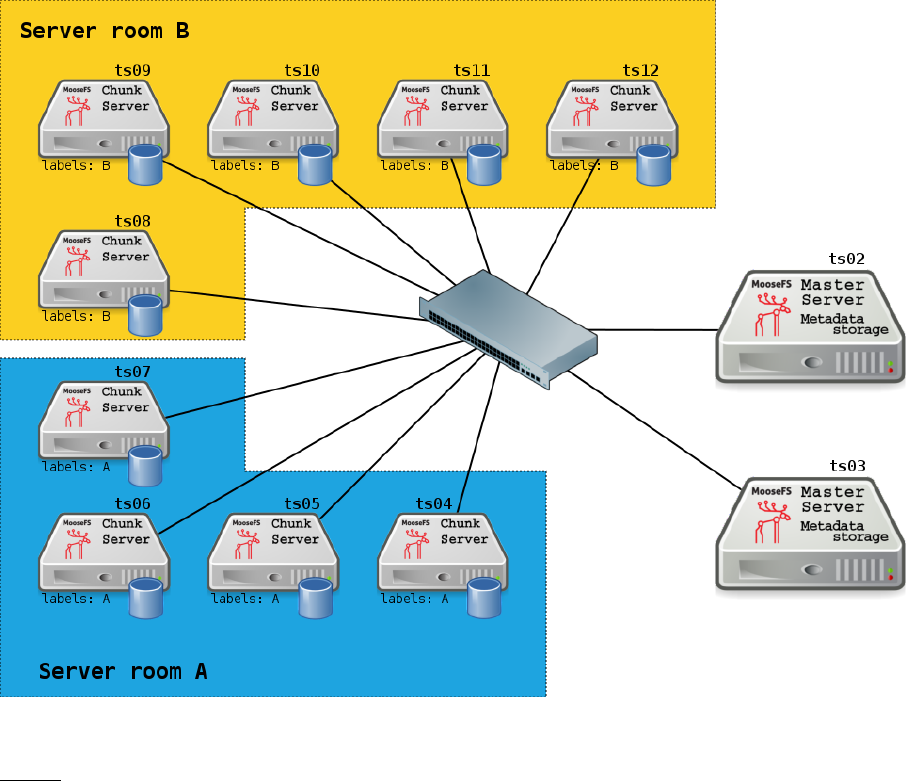
Let’s assume that chunkservers with label A are in server room A, and with label B – in server
room B (divided exactly as in steps above):
Using Storage Classes, you can simply decide, which server room your data is stored to.
Notice: Slow link between the sites (server room A and server room B in above example) will
slow down I/O write operations to files with chunks stored in both sites due to synchronous
nature of I/O write operations. Because of that reason alone, it is recommended to have a very
fast connection between sites.
41

4.4.2 Scenario 2: SSD and HDD drives
Let’s assume, that chunkservers ts04..ts07 have SSD drives and chunkservers ts08..ts12 have
HDD drives. For example, you can label chunkservers with HDD drives as H, and with SSD
drives – as S:
You can configure Storage Classes, so that your frequently used data is stored on SSD Chunkservers
(e.g. Storage Class ssd), and data not accessed very often – on HDD Chunkservers (e.g. Storage
Class hdd).
You can also easily move some data (e.g. after end of the year) from SSD to HDD chunkservers
– you just need to change the Storage Class assignment from ssd to hdd for this data and
MooseFS will automatically take care of moving process.
Example: you have a directory named Reports2015 located on MooseFS mountpoint. This
directory and its subdirectories and files are used very often by a lot of processes. You want to:
•store this directory in four copies – these are very important files
•speed up access to this directory,
so you set up and define a Storage Class e.g. 4ssdcopies defined as 4S (four copies on
Chunkservers with fast, SSD drives) and assign it to the directory recursively. Issue the com-
mands below:
42
ro ot@ cli ent :~ # cd / mnt / mfs
ro ot@ cli ent :/ m nt / mfs # m fs sc ad mi n cr ea te 4 S 4 s sdc op ie s
create ; 0
sto ra ge clas s make 4 ssd co pi es : ok
ro ot@ cli ent :/ m nt / mfs # m fs se tsc las s -r 4 s sdc op ies R ep or ts 201 5
Reports20 15 :
inodes with s tor age c lass c han ged : 5685
inodes with st or ag e class not c ha ng ed : 0
inodes with pe rmis sio n den ie d : 0
ro ot@ cli ent :/ m nt / mfs #
But year 2015 has passed, and now Reports2015 is used infrequently and you want to free some
space on SSD drives to store new data. So you want to move this directory, its subdirectories
and files to HDD drives and store it only in three copies.
You just need to set up and define a Storage Class e.g. 3hddcopies defined as 3H (three copies
on Chunkservers with HDD drives) and exchange the Storage Class for files which currently
have 4ssdcopies Storage Class applied with 3hddcopies Storage Class:
ro ot@ cli ent :~ # cd / mnt / mfs
ro ot@ cli ent :/ m nt / mfs # m fs sc ad mi n cr ea te 3 H 3 h ddc op ie s
create ; 0
sto ra ge clas s make 3 hdd co pi es : ok
ro ot@ cli ent :/ m nt / mfs # m fsx chg scl ass -r 4 s sdc opie s 3 h dd cop ies R epo rts 201 5
Reports20 15 :
inodes with s tor age c lass c han ged : 5685
inodes with st or ag e class not c ha ng ed : 0
inodes with pe rmis sio n den ie d : 0
ro ot@ cli ent :/ m nt / mfs #
MooseFS takes care of moving process and your data is safe and accessible during moving from
SSD to HDD drives (Chunkservers).
43
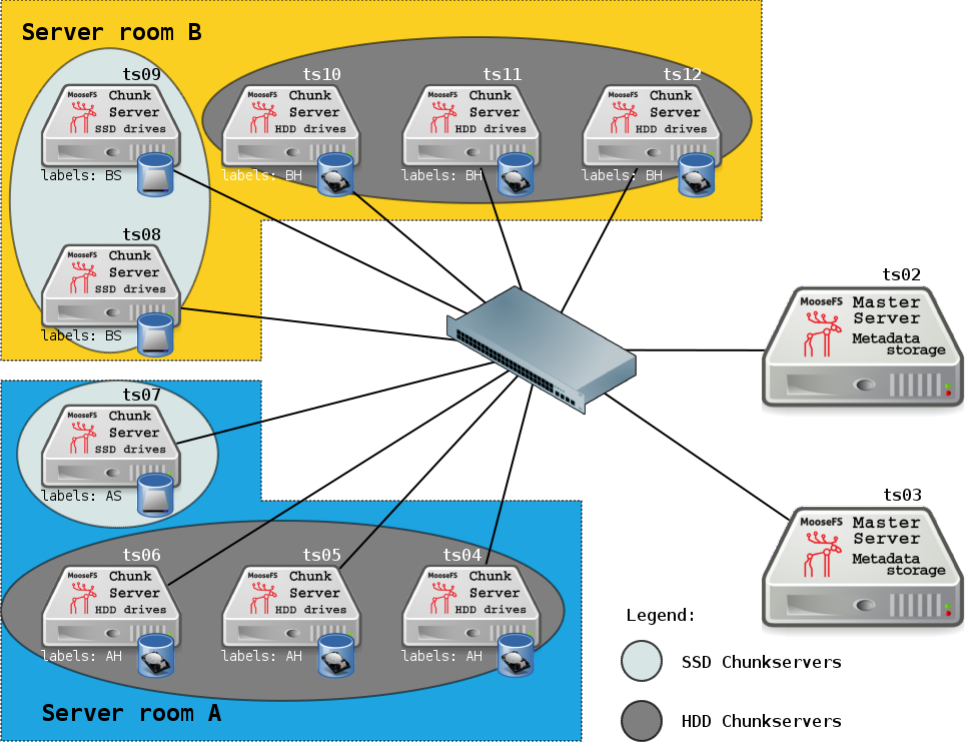
4.4.3 Scenario 3: Two server rooms (A and B) + SSD and HDD drives
As shown in the picture above, this Scenario is a combination of Scenario 1 and Scenario 2. Let’s
assume, that in two server rooms you have two types of chunkservers: some of them containing
HDD drives, some – SSD drives.
Now you want to store e.g. frequently used data on chunkservers with SSD drives and data
used from time to time – on chunkservers with HDD drives. You also want to have a copy of
all data in each server room.
In scenario presented above, you need to set the following labels:
•Server room A, SSD chunkservers: labels Aand S,
•Server room A, HDD chunkservers: labels Aand H,
•Server room B, SSD chunkservers: labels Band S,
•Server room B, HDD chunkservers: labels Band H.
Then you need to set up and define appropriate Storage Classes and apply them to your files.
Directory used very often named Frequent – you want to store it in 2 copies on SSD drives
(Chunkservers): one copy in server room A, another in server room B.
ro ot@ cli ent :~ # cd / mnt / mfs
44

ro ot@ cli ent :/ m nt / mfs # m fs sc ad mi n cr ea te AS , BS f req ue nt
create ; 0
sto ra ge clas s make f requent : ok
ro ot@ cli ent :/ m nt / mfs # m fs se tsc las s -r fr eq uen t F re que nt
Fre qu ent :
inodes with s tor age c lass c han ged : 564 513
inodes with st or ag e class not c ha ng ed : 0
inodes with pe rmis sio n den ie d : 0
ro ot@ cli ent :/ m nt / mfs #
Directory used from time to time named Rare – you want to store it in 2 copies on HDD drives
(Chunkservers): one copy in server room A, another in server room B.
ro ot@ cli ent :~ # cd / mnt / mfs
ro ot@ cli ent :/ m nt / mfs # m fs sc ad mi n cr ea te AH , BH rar e
create ; 0
sto rage cl as s make ra re : ok
ro ot@ cli ent :/ m nt / mfs # m fs se tsc las s -r rare R are
Rare:
inodes with s tor age c lass c han ged : 497 251
inodes with st or ag e class not c ha ng ed : 0
inodes with pe rmis sio n den ie d : 0
ro ot@ cli ent :/ m nt / mfs #
So your directory Frequent (and its subdirectories and files) is stored now on Chunkservers
which have both Aand Slabels and on Chunkservers having both Band Slabels.
Your directory Rare (and its subdirectories and files) is stored now on Chunkservers which have
both Aand Hlabels and on Chunkservers having both Band Hlabels.
You also want to store your directory named Backup in three copies. You want to store one
copy in server room Aon SSD chunkservers, and two copies in server room B, either on HDD
or SSD chunkservers. Issue the following commands:
ro ot@ cli ent :~ # cd / mnt / mfs
ro ot@ cli ent :/ m nt / mfs # m fs sc ad mi n cr ea te AS ,2 B [H +S] b ac ku p
create ; 0
sto ra ge cl as s make b ac ku p : ok
ro ot@ cli ent :/ m nt / mfs # m fs se tsc las s -r bac ku p B ac ku p
Backup:
inodes with s tor age c lass c han ged : 879 784
inodes with st or ag e class not c ha ng ed : 0
inodes with pe rmis sio n den ie d : 0
ro ot@ cli ent :/ m nt / mfs #
The labels expression AS,2B[H+S] is a multiplication and sum of labels. For more information,
refer to Section 4.3.1: Labels expressions of this document.
For more information about mfsscadmin and mfssetsclass, refer to Chapter 4.3: Storage
Classes tools of this document.
Notice: Slow link between the sites (server room A and server room B in above example) will
slow down I/O write operations to files with chunks stored in both sites due to synchronous
nature of I/O write operations. Because of that reason alone, it is recommended to have a very
fast connection between sites.
45
4.4.4 Scenario 4: Creation, Keep and Archive modes
Let’s assume you want to write fast a big amount of important data and your computer is
located closer to server room A than to server room B. So you want to create chunks in server
room A, on SSD chunkservers, in two copies (-C 2AS).
But your goal is to have one copy of this data in server room A, and the other one in server room
B, both on SSD chunkservers. MooseFS will take care of the replication process (-K AS,BS).
And finally, after 30 days, you want MooseFS to move this data to HDD chunkservers in both
server room A and B (-A AH,BH -d 30).
First of all, create a directory:
ro ot@ cli ent :~ # cd / mnt / mfs
ro ot@ cli ent :/ m nt / mfs # mkd ir I mp or ta ntF ile s
Then, set up and define a Storage Class, e.g. important, defined as -C 2AS -K AS,BS -A
AH,BH -d 30 and assign it to the newly created directory directory:
ro ot@ cli ent :~ # cd / mnt / mfs
r oo t @cl ie nt :/ m nt / m fs # mf ssc ad mi n c re ate - C 2 AS -K AS , BS - A AH , BH -d 30
important
create ; 0
sto ra ge clas s make i mpor ta nt : ok
ro ot@ cli ent :/ m nt / mfs # m fs se tsc las s i mpo rt an t I mpo rta nt Fi le s
ImportantFiles:
inodes with s tor age c lass c han ged : 1
inodes with st or ag e class not c ha ng ed : 0
inodes with pe rmis sio n den ie d : 0
ro ot@ cli ent :/ m nt / mfs #
And that’s all! Now you can write the data to this directory.
Your data will be safe, stored very fast on SSD chunkservers in server room A while creating
(you are close to this server room), copied by MooseFS also to server room B and after 30 days
– automatically moved to HDD chunkservers.
46
Chapter 5
Troubleshooting
5.1 Metadata save
Sometimes MFS master server freezes during the metadata save. To overcome this problem
you should change one setting in your system. On your master machines, you should enable
overcommit memory setting by issuing the following command as root:
# e cho 1 > / p roc / s ys / v m / o ve rco mm it _m em or y
To do it permanently, you can add the following line to your /etc/sysctl.conf file (it works
only on Linux):
vm . o v er co m mi t_ me mo ry =1
More detail about the reasons for this behavior:
Master server performs a fork operation, effectively spawning another process to save metadata
to disk. Theoretically, when you fork a process, the process memory is copied. In real life it
is done the lazy way – the memory is marked, so that if any changes are to occur, a block
with changes is copied as needed, but only then. Now, if you fork a process that has 180GB
of memory in use, the system can ”just do it”, or check if it has 180GB of free memory and
reserve it for the forked ”child”, and only then do it and, when it doesn’t have enough memory,
the fork operation fails – this is the case in Linux, so actually saving metadata is done in the
main process, because fork operation failed.
This behavior differs between systems and even between distributions of one system.
It is safe to enable overcommit memory (the ”just do it” way) with mfsmaster, because the
forked process is short lived. It terminates as soon as it manages to save metadata, and during
the time that it works, there are usually not that many changes to the main process’ memory,
so the amount of additional RAM needed is relatively small.
Alternatively, you can add huge (at least equal to the amount of physical RAM or even more)
amounts of swap space on your master servers – then the fork should succeed, because it should
always find the needed memory space in your swap.
47

5.2 Master metadata restore from Metaloggers
MooseFS (non-Pro) have only one Master Server, but can have several Metaloggers deployed
for backup. If for some reason you loose all metadata files and changelogs from master server
you can use data form metalogger to restore your data. To start dealing with recovery first
you need to transfer all data stored on metalogger in /var/lib/mfs to master metadata folder.
Files on metalogger will have ml prefix prepended to the filenames. After all files are copied,
you need to create metadata.mfs file from changelogs and metadata.back files. To do this
we need to use the command mfsmaster -a.Mfsmaster starts to build new metadata file and
starts mfsmaster process.
5.3 Maintenance mode
Maintenance mode in general is helpful when there is need for maintenance on Chunkserver(s),
like Chunkserver package upgrade to a newer version, adding new HDD / replacing broken ones
or system upgrade (and e.g. reboot).
Maintenance mode has been introduced, because in MooseFS 1.6, when there was need for
maintenance on Chunkserver(s) and necessity to turn server(s) off, a lot of replications were
being performed, because MooseFS had started to replicate all undergoal chunks from another
available copy to fulfill the goal (it’s one of MooseFS principals). Then, when it was back
again – a lot of deletions were running, because of presence of overgoal chunks, created during
replications. So a lot of unnecessary I/O operations.
By enabling maintenance mode before stopping Chunkserver(s) process(es) / turning machine(s)
off or post factum, you can prevent MooseFS from replicating chunks from such turned off
Chunkserver(s). Note: Server(s) in maintenance mode must match currently off
(disconnected) servers. If they don’t match, all chunks are replicated.
Additionally, MooseFS treats Chunkservers in maintenance mode as overloaded (no chunk cre-
ations, replications etc.). It means, that new chunks are not created on Chunkservers in main-
tenance mode. The reason of such behavior is because when you want to turn Chunkserver off
/ stop the Chunkserver process, at the moment of stopping, some I/O operations may go to
this Chunkserver and when you just stop it, some write operations must be re-tried (because
they haven’t been finished on this stopped Chunkserver). When you turn maintenance mode
on for specific Chunkserver a few seconds before stop, MooseFS will finish write operations and
won’t start a new ones on this Chunkserver.
Maintenance mode is designed to be a temporary state and it is not recommended
to put Chunkservers in this mode for a long time.
You can enable or disable maintenance mode in CGI monitor by clicking ”switch on / switch
off” in ”maintenance” column, or sending a command using:
•mfscli -CM1/ip/port – to switch maintenance mode on
•mfscli -CM0/ip/port – to switch maintenance mode off
Note: If number of Chunkservers in maintenance mode is equal or greater than
20% of all Chunkserver, MooseFS treats all Chunkservers like maintenance mode
wouldn’t be enabled at all.
48
5.4 Chunk replication priorities
In MooseFS 2.0 a few chunk replication classes and priorities have been introduced:
•Replication limit class 0 and class 1 – replication for data safety
•Replication limit class 2 and class 3 – equalization of used disk space
These classes and priorities are described below:
•Replication limit class 0 (for endangered chunks):
◦priority 0: 0 (chunk) copies on regular disks and 1 copy on disk marked for removal
◦priority 1: 1 copy on regular disks and 0 copies on disks marked for removal
•Replication limit class 1 (for undergoal chunks):
◦priority 2: 1 copy on regular disk and some copies on disks marked for removal
◦priority 3: >1 copy on regular disks and at least 1 copy on disks marked for removal
◦priority 4: just undergoal chunks (”goal” >”valid copies”, no copies on disks marked
for removal)
•Replication limit class 2: Rebalancing between chunkservers with disk space usage around
arithmetic mean
•Replication limit class 3: Rebalancing between chunkserver with disk space usage strongly
above or strongly below arithmetic mean (very low or very high disk space usage, e.g. when
new chunkserver is added)
49
Chapter 6
MooseFS Tools
6.1 For MooseFS Master Server(s)
6.1.1 mfsmaster
mfsmaster – start, restart or stop Moose File System master process
SYNOPSIS
•mfsmaster [-c CFGFILE] [-u] [-i] [-a] [-e] [-x[x]] [-t LOCKTIMEOUT] [ACTION]
•mfsmaster -v
•mfsmaster -h
DESCRIPTION
mfsmaster is the master program of Moose File System.
OPTIONS
•-v print version information and exit
•-h print usage information and exit
•-c CFGFILE specify alternative path of configuration file (default is mfsmaster.cfg in
system configuration directory)
•-u log undefined configuration values (when default is assumed)
•-f run in foreground, don’t daemonize
•-t LOCKTIMEOUT how long to wait for lockfile (in seconds; default is 1800 seconds)
•-i ignore some metadata structure errors
•-a automatically restore metadata from change logs
•-e start without metadata (usable only in pro version – used to start additional masters)
•-x produce more verbose output
50

•-xx even more verbose output
•ACTION is the one of start,stop,restart,reload,test or kill. Default action is
restart. The test action will yield one of two responses: ”mfsmaster pid: PID” or
”mfsmaster is not running”. The kill action will send a SIGKILL to the currently
running master process. SIGHUP or reload action forces mfsmaster to reload all config-
uration files.
FILES
•mfsmaster.cfg configuration file for MooseFS master process; refer to mfsmaster.cfg(5)
manual for details
•mfsexports.cfg MooseFS access control file; refer to mfsexports.cfg(5) manual for details
•mfstopology.cfg Network topology definitions; refer to mfstopology.cfg(5) manual for
details
•.mfsmaster.lock lock file of running MooseFS master process (created in data directory)
•metadata.mfs,metadata.mfs.back MooseFS filesystem metadata image (created in data
directory)
•changelog.*.mfs MooseFS filesystem metadata change logs (created in data directory;
merged into metadata.mfs once per hour)
•data.stats MooseFS master charts state (created in data directory)
6.1.2 mfsmetarestore
mfsmetarestore – doesn’t exist this version of MooseFS
DESCRIPTION
This tool was removed as of version 1.7. To achieve the same effect, simply start your mfsmaster
with -a parameter.
6.1.3 mfsmetadump
mfsmetadump – dump MooseFS metadata info in human readable format.
SYNOPSIS
mfsmetadump metadata file
DESCRIPTION mfsmetadump dumps MooseFS metadata info in human readable format.
Output consists of several sections with different types of information. Every section consist of
header data – rows starting with hash (#) sign - and content data (may be empty).
51
FILE HEADER
•mfsmaster.cfg configuration file for MooseFS master process; refer to mfsmaster.cfg(5)
manual for details
•header – MooseFS version
•version – metadata file version
•fileid – metadata file id
SECTION HEADER
•section header – section header (section type + version)
•length – length of section
•section type – name of section
•version – hexadecimal representation of section version
SESS SECTION
•nextsessionid – first free session id
•statscount – number of stats remembered in each session
•SESSION – line describing a single session
◦s– session id
◦p– IP address
◦r– root inode number
◦f– session flags
◦g– mingoal and maxgoal
◦t– mintrashtime and maxtrashtime
◦m– maproot uid,gid and mapall uid,gid
◦d– disconnection time (optional)
◦c– current hour stats data
◦l– last hour stats data
◦i– session name (usually local mount point)
NODES SECTION
•maxinode – maximum inode number used by system
•hashelements – number of inodes in hash table
•NODE – line with node (inode) description
◦k– node type (-,D,S,F,B,C,L,T,R)
•-– file
52
•D– directory
•S– socket
•F– fifo
•B– block device
•C– character device
•L– symbolic link
•T– trash file
•R– sustained file (removed open file)
◦i– inode number
◦#– labelset number (10+) or goal (1-9)
◦e– flags
◦m– mode
◦u– uid
◦g– gid
◦a,m,c – atime, mtime and ctime timestamps
◦t– trashtime
◦d– rdevhi,rdevlo (only block and character devices)
◦p– path (only symbolic links)
◦l– file length (only files)
◦c– chunk list (only files)
◦r– sessions that have this file open (only files)
EDGES SECTION
•nextedgeid – next available edge id (descending)
•EDGE – line with edge description
◦p– parent inode number
◦c– child inode number
◦i– edge id
◦n– edge name
FREE SECTION
•free nodes – number of free (reusable) nodes
•FREEID – line with free inode description
◦i– inode number
53
◦f– deletion timestamp
QUOTA SECTION
•quota nodes – number of nodes with quota
•QUOTA – line with quota description
◦i– inode number
◦g– grace period
◦e– exceeded
◦f– flags
◦s– soft quota exceeded timestamp
◦si – soft inode quota
◦hi – hard inode quota
◦sl – soft length quota
◦hl – hard length quota
◦ss – soft size quota
◦hs – hard size quota
◦sr – soft real size quota
◦hr – hard real size quota
XATTR SECTION
•XATTR – line with xattr description
◦i– inode number
◦n– xattr name
◦v– xattr value
POSIX ACL SECTION
•POSIXACL – line with acl description
◦i– inode number
◦t– acl type
◦u– user (file owner) permissions
◦g– group permissions
◦o– other permissions
◦m– permission mask
◦n– named permissions – list of objects:
54
•u(U):P – permissions Pfor user with uid U
•g(G):P – permissions Pfor group with gid G
OPEN SECTION
•chunk servers – number of chunkservers
•CHUNKSERVER – line with chunk server description
◦i– server ip
◦p– server port
◦#– server id
◦m– maintenance mode
CHUNKSERVERS SECTION
•OPENFILE – line with open file description
◦s– session id
◦i– inode number
CHUNKS SECTION
•nextchunkid – first available chunk number
•CHUNK – line with chunk description
◦i– chunk number
◦v– chunk version
◦t– ”locked to” timestamp
◦a– archive flag
6.2 For MooseFS Supervisor
6.2.1 mfssupervisor
mfssupervisor – choose or switch leader master
SYNOPSIS
•mfssupervisor [-xdfi] [-l new leader ip] [-H master host name]
[-P master supervising port]
•mfssupervisor -v
•mfssupervisor -h
55

DESCRIPTION
mfssupervisor is the supervisor program of Moose File System. It is needed to start a com-
pletely new system or a system after a big crash. It can be also used to force select a new leader
master.
OPTIONS
•-v – print version information and exit
•-h – print usage information and exit
•-x – produce more verbose output
•-d – dry run (print info, but do not change anything)
•-f – force electing not synchronized follower; use this option to initialize a new system
•-i – print info only about masters state
•-l – try to switch current leader to given ip
•-H – use given host to find your master servers (default: mfsmaster)
•-P – use given port to connect to your master servers (default: 9419)
6.3 For MooseFS Command Line Interface
6.3.1 mfscli
mfscli – CGI in TXT mode
SYNOPSIS
•/usr/bin/mfscli [-pn28] [-H master host] [-P master port] [-f 0..3]
-S(IN|IM|LI|IG|MU|IC|IL|CS|MB|HD|EX|MS|MO|QU) [-s separator] [-o order id [-r]]
[-m mode id]
•/usr/bin/mfscli [-pn28] [-H master host] [-P master port] [-f 0..3]
-C(RC/ip/port|BW/ip/port|M[01]/ip/port|RS/sessionid)
•mfscli -h
DESCRIPTION
mfscli is a commandline counterpart to MooseFS’s CGI interface. All the information available
in CGI (except for graphs) can be obtained via CLI using different ”monitoring options”
OPTIONS:
•-h – print help message
•-p – force plain text format on tty devices
56

•-n – do not resolve ip adresses (default when output device is not tty)
•-s separator – field separator to use in plain text format on tty devices (forces -p)
•-2 – force 256-color terminal color codes
•-8 – force 8-color terminal color codes
•-H master host – master address (default: mfsmaster)
•-P master port – master client port (default: 9421)
•-f 0..3 – set frame charset to be displayed as table frames in ttymode
◦0– use simple ascii frames +,-,|(default)
◦1– thick unicode frames
◦2– thin unicode frames
◦3– double unicode frames (dos style)
•-o order id – sort data by column specified by order id (depends on data set)
•-r – reverse sort order
•-m mode id – show data specified by mode id (depends on data set)
MONITORING OPTIONS:
•-SIN – show full master info
•-SIM – show only masters states
•-SLI – show only licence info
•-SIG – show only general master (leader) info
•-SIC – show only chunks info (goal/copies matrices)
•-SIL – show only loop info (with messages)
•-SCS – show connected chunk servers
•-SMB – show connected metadata backup servers
•-SHD – show hdd data
•-SEX – show exports
•-SMS – show active mounts
•-SMO – show operation counters
•-SQU – show quota info
•-SMC – show master charts data
•-SCC – show chunkserver charts data
COMMANDS:
•-CRC/ip/port – remove given chunkserver from list of active chunkservers
57

•-CBW/ip/port – send given chunkserver back to work (from grace state)
•-CM1/ip/port – switch selected chunkserver to maintenance mode
•-CM0/ip/port – switch selected chunkserver to standard mode (from maintenance mode)
•-CRS/sessionid – remove given session
EXAMPLES:
•mfscli -SIC -2 – shows table with chunk state matrix (number of chunks for each com-
bination of valid copies and goal set by user) using extended terminal colors (256-colors)
chunkservers
•mfscli -SCS -f 1 – shows table with all chunkservers using unicode thick frames
•mfscli -SMS -p -s ’,’ – shows current sessions (mounts) using plain text format and
coma as a separator
6.4 For MooseFS CGI Server
6.4.1 mfscgiserv
mfscgiserv – start HTTP/CGI server for Moose File System monitoring
SYNOPSIS
•mfscgiserv [-H BIND HOST] [-P BIND PORT] [-R ROOT PATH] [-t LOCKTIMEOUT] [-f
[-v]] [ACTION]
•mfscgiserv -h
DESCRIPTION
mfscgiserv is a very simple HTTP server capable of running CGI scripts for Moose File System
monitoring.
OPTIONS
•-h – print usage information and exit
•-H BIND HOST – local address to listen on (default: any)
•-P BIND PORT – port to listen on (default: 9425)
•-R ROOT PATH – local path to use as HTTP document root (default is CGIDIR set up at
configure time)
•-f –run in foreground, don’t daemonize
•-v – log requests on stderr
•-t LOCKTIMEOUT – how long to wait for lockfile (in seconds; default is 60 seconds)
58
ACTION is one of start,stop,restart or test. Default action is restart. The test action
will yeld one of two responses: ”mfscgiserv pid: PID” or ”mfscgiserv is not running”.
6.5 For MooseFS Metalogger(s)
6.5.1 mfsmetalogger
mfsmetalogger – start, restart or stop Moose File System metalogger process
SYNOPSIS
•mfsmetalogger [-f] [-c CFGFILE] [-u] [-d] [-t LOCKTIMEOUT] [ACTION]
•mfsmetalogger -s [-c CFGFILE]
•mfsmetalogger -v
•mfsmetalogger -h
DESCRIPTION
mfsmetalogger is the metadata replication server of Moose File System. Depending on pa-
rameters it can start, restart or stop MooseFS metalogger process. Without any options it
starts MooseFS metalogger, killing previously run process if lock file exists.
SIGHUP (or ’reload’ACTION) forces mfsmetalogger to reload all configuration files.
mfsmetalogger exists since 1.6.5 version of MooseFS; before this version mfschunkserver was
responsible of logging metadata changes.
•-v – print version information and exit
•-h – print usage information and exit
•-f – (deprecated, use start action instead) forcily run MooseFS metalogger process,
without trying to kill previous instance (this option allows to run MooseFS metalogger if
stale PID file exists)
•-s – (deprecated, use stop action instead) stop MooseFS metalogger process
•-c CFGFILE – specify alternative path of configuration file (default is mfsmetalogger.cfg
in system configuration directory)
•-u – log undefined configuration values (when default is assumed)
•-d – run in foreground, don’t daemonize
•-t LOCKTIMEOUT – how long to wait for lockfile (default is 60 seconds)
ACTION is the one of start,stop,restart,reload,test or kill. Default action is restart
unless -s (stop) or -f (start) option is given. Note that -s and -f options are deprecated,
likely to disappear and ACTION parameter to become obligatory in MooseFS 1.7+.
59

FILES
•mfsmetalogger.cfg – configuration file for MooseFS metalogger process; refer to mfs-
metalogger.cfg(5) manual for details
•mfsmetalogger.lock – PID file of running MooseFS metalogger process (created in
RUN PATH by MooseFS <1.6.9)
•.mfsmetalogger.lock – lock file of running MooseFS metalogger process (created in data
directory since MooseFS 1.6.9)
•changelog ml.*.mfs – MooseFS filesystem metadata change logs (backup of master
change log files)
•metadata.ml.mfs.back – Latest copy of complete metadata.mfs.back file from MooseFS
master.
•sessions.ml.mfs – Latest copy of sessions.mfs file from MooseFS master.
6.6 For MooseFS Chunkserver(s)
6.6.1 mfschunkserver
mfschunkserver – start, restart or stop Moose File System chunkserver process
SYNOPSIS
•mfschunkserver [-c CFGFILE] [-u] [-f] [-t LOCKTIMEOUT] [ACTION]
•mfschunkserver -v
•mfschunkserver -h
DESCRIPTION
mfschunkserver is the data server of Moose File System.
OPTIONS
•-v – print version information and exit
•-h – print usage information and exit
•-c CFGFILE – specify alternative path of configuration file (default is mfschunkserver.cfg
in system configuration directory)
•-u – log undefined configuration values (when default is assumed)
•-f – run in foreground, don’t daemonize
•-t LOCKTIMEOUT – how long to wait for lockfile (in seconds; default is 60 seconds)
60
ACTION is the one of start,stop,restart,reload,test or kill. Default action is restart.
The test action will yield one of two responses: ”mfschunkserver pid: PID” or ”mfschunkserver
is not running”. The kill action will send a SIGKILL to the currently running chunkserver
process. SIGHUP or reload action forces mfschunkserver to reload all configuration files.
FILES
•mfschunkserver.cfg – configuration file for MooseFS chunkserver process; refer to mf-
schunkserver.cfg(5) manual for details
•mfshdd.cfg – list of directories (mountpoints) used for MooseFS storage; refer to mf-
shdd.cfg(5) manual for details
•.mfschunkserver.lock – lock file of running MooseFS chunkserver process (created in
data directory)
•data.csstats – chunkserver charts state (created in data directory)
6.7 For MooseFS Client
6.7.1 mfsmount
mfsmount – mount Moose File System
SYNOPSIS
•mfsmount mountpoint [-d] [-f] [-s] [-m] [-n] [-p] [-H HOST] [-P PORT] [-S PATH]
[-o opt[,opt]...]
•mfsmount -h|--help
•mfsmount -V|--version
DESCRIPTION
Mount Moose File System.
General options:
•-h,--help – display help and exit
•-V – display version information and exit
FUSE options:
•-d,-o debug – enable debug mode (implies -f)
•-f – foreground operation
•-s – disable multi-threaded operation
61

MooseFS options:
•-c CFGFILE, -o mfscfgfile=CFGFILE – loads file with additional mount options
•-m,--meta,-o mfsmeta – mount MFSMETA companion filesystem instead of primary
MooseFS
•-n – omit default mount options (-o allow other,default permissions)
•-p – prompt for password (interactive version of -o mfspassword=PASS)
•-H HOST,-o mfsmaster=HOST – connect with MooseFS master on HOST (default is mfs-
master)
•-P PORT,-o mfsport=PORT – connect with MooseFS master on PORT (default is 9421)
•-B HOST,-o mfsbind=HOST – local address to use for connecting with master instead of
default one
•-S PATH,-o mfssubfolder=PATH – mount specified MooseFS directory (default is /, i.e.
whole filesystem)
•-o mfspassword=PASSWORD – authenticate to MooseFS master with PASSWORD
•-o mfsmd5pass=MD5 – authenticate to MooseFS master using directly given MD5 (only if
mfspassword option is not specified)
•-o mfsdonotrememberpassword – do not remember password in memory – more secure,
but when session is lost then new session is created without password
•-o mfsdebug – print some MooseFS-specific debugging information
•-o mfsdelayedinit – connection with master is done in background – with this option
mount can be run without network (good for being run from fstab / init scripts etc.)
•-o mfsmkdircopysgid=N – sgid bit should be copied during mkdir operation (default
depends on operating system)
•-o mfssugidclearmode=SMODE – set sugid clear mode (see SUGID CLEAR MODES;
default depends on operating system)
•-o mfscachemode=CMODE – set cache mode (see DATA CACHE MODES; default is AUTO)
•-o mfscachefiles – (deprecated) preserve file data in cache (equivalent to ’-o mfs-
cachemode=YES’)
•-o mfsattrcacheto=SEC – set attributes cache timeout in seconds (default: 1.0)
•-o mfsxattrcacheto=SEC – set extended attributes (xattr) cache timeout in seconds (de-
fault: 30.0)
•-o mfsentrycacheto=SEC – set file entry cache timeout in seconds (default: 0.0, i.e. no
cache)
•-o mfsdirentrycacheto=SEC – set directory entry cache timeout in seconds (default: 1.0)
•-o mfsnegentrycacheto=SEC – set negative entry cache timeout in seconds (default: 1.0)
•-o mfsgroupscacheto=SEC – set supplementary groups cache timeout in seconds (default:
300.0)
62
•-o mfsrlimitnofile=N – try to change limit of simultaneously opened file descriptors on
startup (default: 100000)
•-o mfsnice=LEVEL – try to change nice level to specified value on startup (default: -19)
•-o mfswritecachesize=N – specify write cache size in MiB (in range: 16..2048 - default:
250)
•-o mfsioretries=N – specify number of retiries before I/O error is returned (default: 30)
General mount options (see mount(8) manual):
•-o rw | -o ro – Mount file-system in read-write (default) or read-only mode respectively.
•-o suid | -o nosuid – Enable or disable suid/sgid attributes to work.
•-o dev | -o nodev – Enable or disable character or block special device files interpreta-
tion.
•-o exec | -o noexec – Allow or disallow execution of binaries.
SUGID CLEAR MODE
During attribute change file systems sometimes clear flags suid and/or sgid. Behavior is different
on different file systems. MFS tries to mimic behavior of most popular file system on given
operating systems.
•NEVER – MFS will not change suid and sgid bit on chown
•ALWAYS – clear suid and sgid on every chown - safest operation
•OSX – standard behavior in OS X and Solaris (chown made by unprivileged user clear suid
and sgid)
•BSD – standard behavior in *BSD systems (like in OSX, but only when something is really
changed)
•EXT – standard behavior in most file systems on Linux (directories not changed, others:
suid cleared always, sgid only when group exec bit is set)
•XFS – standard behavior in XFS on Linux (like EXT but directories are changed by
unprivileged users)
DATA CACHE MODES
There are three cache modes: NO,YES and AUTO. Default option is AUTO and you shouldn’t
change it unless you really know what you are doing. In AUTO mode data cache is managed
automatically by mfsmaster.
•NO,NONE or NEVER – never allow files data to be kept in cache (safest but can reduce
efficiency)
•YES or ALWAYS – always allow files data to be kept in cache (dangerous)
•AUTO – file cache is managed by mfsmaster automatically (should be very safe and efficient)
63

6.7.2 mfstools
mfstools – perform MooseFS-specific operations
SYNOPSIS
•mfsgetgoal [-r] [-n|-h|-H|-k|-m|-g] OBJECT...
•mfsrgetgoal [-n|-h|-H|-k|-m|-g] OBJECT...
•mfssetgoal [-r] [-n|-h|-H|-k|-m|-g] [+|-]N OBJECT...
•mfsrsetgoal [-n|-h|-H|-k|-m|-g] [+|-]N OBJECT...
•mfsgettrashtime [-r] [-n|-h|-H|-k|-m|-g] OBJECT...
•mfsrgettrashtime [-n|-h|-H|-k|-m|-g] OBJECT...
•mfssettrashtime [-r] [-n|-h|-H|-k|-m|-g] [+|-]SECONDS OBJECT...
•mfsrsettrashtime [-n|-h|-H|-k|-m|-g] [+|-]SECONDS OBJECT...
•mfsgeteattr [-r] [-n|-h|-H|-k|-m|-g] OBJECT...
•mfsseteattr [-r] [-n|-h|-H|-k|-m|-g] -f ATTRNAME [-f ATTRNAME ...] OBJECT...
•mfsdeleattr [-r] [-n|-h|-H|-k|-m|-g] -f ATTRNAME [-f ATTRNAME ...] OBJECT...
•mfscheckfile FILE...
•mfsfileinfo FILE...
•mfsdirinfo [-n|-h|-H|-k|-m|-g] OBJECT...
•mfsfilerepair [-n|-h|-H|-k|-m|-g] FILE...
•mfsappendchunks SNAPSHOT FILE OBJECT...
•mfsmakesnapshot [-o] SOURCE... DESTINATION
•mfsgetquota [-n|-h|-H|-k|-m|-g] DIRECTORY...
•mfssetquota [-n|-h|-H|-k|-m|-g] [-i|-I inodes] [-l|-L length] [-s|-S size] [-r|-R
realsize] DIRECTORY...
•mfsdelquota [-a|-A|-i|-I|-l|-L|-s|-S|-r|-R] [-n|-h|-H|-k|-m|-g] -f DIRECTORY...
•mfsfilepaths OBJECT|INODE...
DESCRIPTION
•mfsgetgoal and mfssetgoal operate on object’s goal value, i.e. the number of copies
in which all file data are stored. It means that file should survive failure of one less
chunkservers than its goal value. Goal must be set between 1and 9(note that 1is
strongly unadvised). mfsgetgoal prints current goal value of given object(s). -r option
enables recursive mode, which works as usual for every given file, but for every given direc-
tory additionally prints current goal value of all contained objects (files and directories).
mfssetgoal changes current goal value of given object(s). If new value is specified in +N
form, goal value is increased to Nfor objects with lower goal value and unchanged for the
64
rest. Similarly, if new value is specified as -N, goal value is decreased to Nfor objects with
higher goal value and unchanged for the rest. -r option enables recursive mode. These
tools can be used on any file, directory or deleted (trash) file.
•mfsrgetgoal and mfsrsetgoal are deprecated aliases for mfsgetgoal -r and mfssetgoal
-r respectively.
•mfsgettrashtime and mfssettrashtime operate on object’s trashtime value, i.e. the
number of seconds the file is preserved in special trash directory before it’s finally removed
from filesystem. Trashtime must be non-negative integer value. mfsgettrashtime prints
current trashtime value of given object(s). -r option enables recursive mode, which works
as usual for every given file, but for every given directory additionally prints current
trashtime value of all contained objects (files and directories). mfssettrashtime changes
current trashtime value of given object(s). If new value is specified in +N form, trashtime
value is increased to Nfor objects with lower trashtime value and unchanged for the rest.
Similarly, if new value is specified as -N, trashtime value is decreased to Nfor objects with
higher trashtime value and unchanged for the rest. -r option enables recursive mode.
These tools can be used on any file, directory or deleted (trash) file.
•mfsrgettrashtime and mfsrsettrashtime are deprecated aliases for mfsgettrashtime
-r and mfssettrashtime -r respectively.
•mfsgeteattr,mfsseteattr and mfsdeleattr tools are used to get, set or delete some
extra attributes. Attributes are described below.
•mfscheckfile checks and prints number of chunks and number of chunk copies belonging
to specified file(s). It can be used on any file, included deleted (trash).
•mfsfileinfo prints location (chunkserver host and port) of each chunk copy belonging
to specified file(s). It can be used on any file, included deleted (trash).
•mfsdirinfo is extended, MooseFS-specific equivalent of du -s command. It prints sum-
mary for each specified object (single file or directory tree). If you only want to see one
parameter, then add one of show options (see SHOW OPTIONS)
•mfsfilerepair deals with broken files (those which cause I/O errors on read operations)
to make them partially readable. In case of missing chunk it fills missing parts of file with
zeroes; in case of chunk version mismatch it sets chunk version known to mfsmaster to
highest one found on chunkservers. Note: because in the second case content mismatch
can occur in chunks with the same version, it’s advised to make a copy (not a snapshot!)
and delete original file after ”repairing”.
•mfsappendchunks (equivalent of mfssnapshot from MooseFS 1.5) appends a lazy copy
of specified file(s) to specified snapshot file (”lazy” means that creation of new chunks is
delayed to the moment one copy is modified). If multiple files are given, they are merged
into one target file in the way that each file begins at chunk (64MB) boundary; padding
space is left empty.
•mfsmakesnapshot makes a ”real” snapshot (lazy copy, like in case of mfsappendchunks)
of some object(s) or subtree (similarly to cp -r command). It’s atomic with respect to
each SOURCE argument separately. If DESTINATION points to already existing file, error
will be reported unless -o (overwrite) option is given. Note: if SOURCE is a directory, it’s
copied as a whole; but if it’s followed by trailing slash, only directory content is copied.
65
•mfsgetquota,mfssetquota and mfsdelquota tools are used to check, define and delete
quotas. Quota is set on a directory. It can be set in one of 4 ways: for number of inodes
inside the directory (total sum of the subtree’s inodes) with -i,-I options, for sum of
(logical) file lengths with -l,-L options, for sum of chunk sizes (not considering goals)
with -s,-S options and for physical hdd space (more or less chunk sizes multiplied by
goal of each chunk) with -r,-R options. Small letters set soft quota, capital letters set
hard quota. -a and -A options in mfsdelquota mean all kinds of quota. Quota behavior
is described below.
•mfsfilepaths tool can be used to find all occurrences (hard links) of given file in filesys-
tem. Also can be used to find file by number of i-node. In case of searching by i-node tool
has to be run in mfs mounted directory.
GENERAL OPTIONS
Most of mfstools use -n,-h,-H,-k,-m and -g options to select format of printed numbers. -n
causes to print exact numbers, -h uses binary prefixes (Ki,Mi,Gi as 210, 220 etc.) while -H
uses SI prefixes (k,M,Gas 103, 106etc.). -k,-m and -g show plain numbers respectivaly in
kibis (binary kilo – 1024), mebis (binary mega – 10242) and gibis (binary giga – 10243). The
same can be achieved by setting MFSHRFORMAT environment variable to: 0 (exact numbers), 1
or h(binary prefixes), 2or H(SI prefixes), 3or h+ (exact numbers and binary prefixes), 4or
H+ (exact numbers and SI prefixes). The default is to print just exact numbers.
SHOW OPTIONS
•-i – show number of inodes
•-d – show number of directories
•-f – show number of files
•-c – show number of chunks
•-l – show length
•-s – show size
•-r – show realsize
EXTRA ATTRIBUTES
•noowner – This flag means, that particular object belongs to current user (uid and gid
are equal to uid and gid values of accessing process). Only root (uid=0) sees the real
uid and gid.
•noattrcache – This flag means, that standard file attributes such as uid, codegid, mode,
length and so on won’t be stored in kernel cache. In MooseFS 1.5 this was the only
behavior, and mfsmount always prevented attributes from being stored in kernel cache,
but in MooseFS 1.6 attributes can be cached, so in very rare ocassions it could be useful
to turn it off.
•noentrycache – This flag is similar to above. It prevents directory entries from being
cached in kernel.
66
QUOTAS
Quota is always set on a directory. Hard quota cannot be exceeded any time. Soft quota can
be exceeded for a period of time (7 days). Once a quota is exceeded in a directory, user must go
below the quota during the next 7 days. If not, the soft quota for this particular directory starts
to behave like a hard quota. The 7 days period is global and cannot currently be modified.
INHERITANCE
When new object is created in MooseFS, attributes such as goal,trashtime and extra at-
tributes are inherited from parent directory. So if you set i.e. ”noowner” attribute and goal
to 3in a directory then every new object created in this directory will have goal set to 3and
”noowner” flag set. A newly created object inherits always the current set of its parent’s at-
tributes. Changing a directory attribute does not affect its already created children. To change
an attribute for a directory and all of its children use ”-r” option.
67

Chapter 7
MooseFS Configuration Files
7.1 For MooseFS Master Server(s)
Warning: Configuration files on all Master Servers must be consistent!
7.1.1 mfsmaster.cfg
mfsmaster.cfg – main configuration file for mfsmaster
DESCRIPTION
The file mfsmaster.cfg contains configuration of MooseFS master process.
SYNTAX
Syntax is:
OPTION = VALUE
Lines starting with #character are ignored as comments.
OPTIONS
Configuration options:
•WORKING USER – user to run daemon as
•WORKING GROUP – group to run daemon as; optional value - if empty then default user
group will be used
•SYSLOG IDENT – name of process to place in syslog messages; default is mfsmaster
•LOCK MEMORY – whether to perform mlockall() to avoid swapping out mfsmaster process;
default is 0, i.e. no
68

•NICE LEVEL – nice level to run daemon with; default is -19; note: process must be started
as root to increase priority, if setting of priority fails, process retains the nice level it
started with
•FILE UMASK – set default umask for group and others (user has always 0); default is 027
– block write for group and block all for others
•DATA PATH – where to store metadata files and lock file
•EXPORTS FILENAME – alternate location/name of mfsmaster.cfg file
•TOPOLOGY FILENAME – alternate location/name of mfstopology.cfg file
•LICENCE FILENAME – alternate location/name of mfslicence.bin file (pro version only)
•BACK LOGS – number of metadata change log files (default is 50)
•BACK META KEEP PREVIOUS – number of previous metadata files to be kept (default is 1)
•CHANGELOG PRESERVE SECONDS – how many seconds of change logs have to be preserved
in memory (default is 1800; this sets the minimum, actual number may be a bit bigger
due to logs being kept in 5k blocks; zero disables extra logs storage)
•MISSING LOG CAPACITY – how many missing chunks will be stored in master (up to
100*MISSING LOG CAPACITY bytes of memory will be allocated; default value is 100000)
•MATOML LISTEN HOST – IP address to listen on for metalogger,masters and supervisors
connections (* means any)
•MATOML LISTEN PORT – port to listen on for metalogger,masters and supervisors con-
nections
•MASTER RECONNECTION DELAY – delay in seconds before next try to reconnect to master-leader
if not connected (default is 5)
•MASTER TIMEOUT – timeout in seconds for master-leader connections (pro version only;
default is 10)
•BIND HOST – local address to use for connecting with master-leader (pro version only;
default is *, i.e. default local address)
•MATOCS LISTEN HOST – IP address to listen on for chunkserver connections (*means
any)
•MATOCS LISTEN PORT – port to listen on for chunkserver connections
•MATOCS TIMEOUT – timeout in seconds for master-chunkserver connection (default is 10)
•REPLICATIONS DELAY INIT – initial delay in seconds before starting replications (default
is 300)
•CHUNKS LOOP MAX CPS – Chunks loop shouldn’t check more chunks per seconds than given
number (default is 100000)
•CHUNKS LOOP MIN TIME – Chunks loop shouldn’t be done in less seconds than given number
(default is 300)
•CHUNKS SOFT DEL LIMIT – Soft maximum number of chunks to delete on one chunkserver
(default is 10)
69

•CHUNKS HARD DEL LIMIT – Hard maximum number of chunks to delete on one chunkserver
(default is 25)
•CHUNKS WRITE REP LIMIT – Maximum number of chunks to replicate to one chunkserver
(default is 2,1,1,4 – see NOTES)
•CHUNKS READ REP LIMIT – Maximum number of chunks to replicate from one chunkserver
(default is 10,5,2,5 – see NOTES)
•CS HEAVY LOAD THRESHOLD – Threshold for chunkserver load (default is 100 – see NOTES)
•CS HEAVY LOAD RATIO THRESHOLD – Threshold ratio for chunkserver load (default is 5.0 –
see NOTES)
•CS HEAVY LOAD GRACE PERIOD – Defines how long chunkservers will remain in ’grace’ mode
(default is 900 – see NOTES)
•ACCEPTABLE DIFFERENCE – Maximum difference between space usage of chunkservers (dep-
recated, use ACCEPTABLE PERCENTAGE DIFFERENCE instead)
•ACCEPTABLE PERCENTAGE DIFFERENCE – Maximum percentage difference between space
usage of chunkservers (default is 1 = 1%)
•PRIORITY QUEUES LENGTH – Length of priority queues (for endangered, undergoal etc.
chunks – chunks that should be processed first – default is 1000000)
•MATOCL LISTEN HOST – IP address to listen on for client (mount) connections (*means
any)
•MATOCL LISTEN PORT – port to listen on for client (mount) connections
•SESSION SUSTAIN TIME – How long to sustain a disconnected client session (in seconds;
default is 86400 = 1 day)
•QUOTA TIME LIMIT – Time limit in seconds for soft quota (default is 604800 = 7 days)
•ATIME MODE – Set atime modification mode (default is 0 = always modify atime – see
NOTES)
NOTES
Chunks in master are tested in a loop. Speed (or frequency) is regulated by two options
CHUNKS LOOP MIN TIME and CHUNKS LOOP MAX CPS. First defines minimal time between itera-
tions of the loop and second defines maximal number of chunk tests per second. Typically at the
beginning, when number of chunks is small, time is constant, regulated by CHUNK LOOP MIN TIME,
but when number of chunks becomes bigger then time of loop can increase according to
CHUNKS LOOP MAX CPS.
Example: CHUNKS LOOP MIN TIME is set to 300, CHUNKS LOOP MAX CPS is set to 100000 and there
is 1000000 (one million) chunks in the system. 1000000/100000 = 10, which is less than 300,
so one loop iteration will take 300 seconds. With 1000000000 (one billion) chunks the system
needs 10000 seconds for one iteration of the loop.
Deletion limits are defined as ’soft’ and ’hard’ limit. When number of chunks to delete increases
from loop to loop, current limit can be temporary increased above soft limit, but never above
hard limit.
70

Replication limits are divided into four cases:
•first limit is for endangered chunks (chunks with only one copy)
•second limit is for undergoal chunks (chunks with number of copies lower than specified
goal)
•third limit is for rebalance between servers with space usage around arithmetic mean
•fourth limit is for rebalance between other servers (very low or very high space usage)
Usually first number should be grater than or equal to second, second greater than or equal to
third, and fourth greater than or equal to third (1st >= 2nd >= 3rd <= 4th). If one number
is given, then all limits are set to this number (for backward compatibility).
Whenever chunkserver load is higher than CS HEAVY LOAD THRESHOLD and
CS HEAVY LOAD RATIO THRESHOLD times higher than average load, then chunkserver is switched
into ’grace’ mode. Chunkserver stays in grace mode for CS HEAVY LOAD GRACE PERIOD seconds.
There are five values for ATIME MODE (all other values are treated as 0):
•0= Always modify atime for files, folders and symlinks.
•1= Always modify atime but only in case of files (do not modify atime in case of folders
and symlinks).
•2= Modify atime only when it is lower than ctime or mtime and when current time is
higher than ctime or mtime respectively, also modify atime when current atime is older
than 24h. Do it for all objects during access (like ”relatime” option in Linux).
•3= Same as above but only in case of files. In case of folders and symlinks do not modify
atime.
•4= Never modify atime during access (like ”noatime” option).
7.1.2 mfsexports.cfg
mfsexports.cfg – MooseFS access control for mfsmounts
DESCRIPTION
The file mfsexports.cfg contains MooseFS access list for mfsmount clients.
SYNTAX
Syntax is: ADDRESS DIRECTORY [OPTIONS]
Lines starting with #character are ignored as comments.
ADDRESS can be specified in several forms:
•*– all addresses
•n.n.n.n – single IP address
•n.n.n.n/b – IP class specified by network address and number of significant bits
•n.n.n.n/m.m.m.m – IP class specified by network address and mask
71

•f.f.f.f-t.t.t.t – IP range specified by from-to addresses (inclusive)
DIRECTORY can be /or path relative to MooseFS root; special value .means MFSMETA
companion filesystem.
OPTIONS list:
•ro,readonly – export tree in read-only mode; this is default
•rw,readwrite – export tree in read-write mode
•alldirs – allows to mount any subdirectory of specified directory (similarly to NFS)
•dynamicip – allows reconnecting of already authenticated client from any IP address (the
default is to check IP address on reconnect)
•ignoregid – disable testing of group access at mfsmaster level (it’s still done at mfsmount
level) – in this case ”group” and ”other” permissions are logically added; needed for
supplementary groups to work (mfsmaster receives only user primary group information)
•admin – administrative privileges – currently: allow changing of quota values
•maproot=USER[:GROUP] – maps root (uid=0) accesses to given user and group (similarly
to maproot option in NFS mounts); USER and GROUP can be given either as name or
number; if no group is specified, USER’s primary group is used. Names are resolved on
mfsmaster side (see note below).
•mapall=USER[:GROUP] – like above but maps all non privileged users (uid!=0) accesses
to given user and group (see notes below).
•password=PASS,md5pass=MD5 – requires password authentication in order to access spec-
ified resource
•minversion=VER – rejects access from clients older than specified
•mingoal=N,maxgoal=N – specify range in which goal can be set by users
•mintrashtime=TDUR,maxtrashtime=TDUR – specify range in which trashtime can be set
by users
Default options are:
ro,maproot=999:999,mingoal=1,maxgoal=9,mintrashtime=0,maxtrashtime=4294967295.
NOTES
USER and GROUP names (if not specified by explicit uid/gid number) are resolved on mfsmaster
host.
TDUR can be specified as number without time unit (number of seconds) or combination of
numbers with time units. Time units are: W,D,H,M,S. Order is important – less significant
time units can’t be defined before more significant time units. Time units are case insensitive.
Option mapall works in MooseFS in different way than in NFS, because MooseFS is using
FUSE’s ”default permissions” option. When mapall option is used, users see all objects
72
with uid equal to mapped uid as their own and all other as root’s objects. Similarly objects
with gid equal to mapped gid are seen as objects with current user’s primary group and all
other objects as objects with group 0 (usually wheel). With mapall option set attribute cache
in kernel is always turned off.
EXAMPLES
* / ro
192.168.1.0/24 / rw
1 92 . 168 .1 .0 / 24 / rw , alldi rs , m ap ro ot =0 , pa ssw or d = pa ssc od e
10. 0.0. 0 -1 0.0. 0. 5 / test rw , m ap ro ot = nobody , pass wo rd = test
10 .1. 0.0 /25 5.2 55. 0.0 / pu bl ic rw , ma pa ll =1 000: 1000
1 0. 2. 0. 0/ 1 6 / rw , alldirs , m apr oo t =0 , m in t ra s ht i me =2 h30 m , m a xt r as h ti m e
=2 w
7.1.3 mfstopology.cfg
mfstopology.cfg – MooseFS network topology definitions
DESCRIPTION
The file mfstopology.cfg contains assignments of IP addresses into network locations (usually
switch numbers). This file is optional. If your network has one switch or decreasing traffic
between switches is not necessary then leave this file empty.
SYNTAX
Syntax is:
ADDRESS SWITCH-NUMBER
Lines starting with #character are ignored as comments.
ADDRESS can be specified in several forms:
•*– all addresses
•n.n.n.n – single IP address
•n.n.n.n/b – IP class specified by network address and bits number
•n.n.n.n/m.m.m.m – IP class specified by network address and mask
•f.f.f.f-t.t.t.t – IP range specified by from-to addresses (inclusive)
SWITCH-NUMBER can be specified as any positive 32-bit numer.
NOTES
If one IP belongs to more than one definition then last definition is used.
As for now distance between switches is constant. So distance between machines is calculated
as: 0 when IP numbers are the same, 1 when IP numbers are different, but switch numbers are
the same and 2 when switch numbers are different
Distances are used only to sort chunkservers during read and write operations. New chunks are
still created randomly. Also rebalance routines do not take distances into account.
73

7.2 For MooseFS Metalogger(s)
7.2.1 mfsmetalogger.cfg
codemfsmetalogger.cfg – configuration file for mfsmetalogger
DESCRIPTION
The file mfsmetalogger.cfg contains configuration of MooseFS metalogger process.
SYNTAX
Syntax is:
OPTION = VALUE
Lines starting with #character are ignored as comments.
OPTIONS
Configuration options:
•DATA PATH – where to store metadata files
•LOCK FILE – (deprecated) daemon lock/pid file
•WORKING USER – user to run daemon as
•WORKING GROUP – group to run daemon as (optional – if empty then default user group
will be used)
•SYSLOG IDENT – name of process to place in syslog messages (default is mfsmetalogger)
•LOCK MEMORY – whether to perform mlockall() to avoid swapping out mfsmetalogger pro-
cess (default is 0, i.e. no)
•NICE LEVEL – nice level to run daemon with (default is -19 if possible; note: process must
be started as root to increase priority)
•BACK LOGS – number of metadata change log files (default is 50)
•BACK META KEEP PREVIOUS – number of previous metadata files to be kept (default is 3)
•META DOWNLOAD FREQ – metadata download frequency in hours (default is 24, at most
BACK LOGS/2)
•MASTER HOST – address of MooseFS master host to connect with (default is mfsmaster)
•MASTER PORT – number of MooseFS master port to connect with (default is 9420)
•MASTER RECONNECTION DELAY – delay in seconds before trying to reconnect to master after
disconnection (default is 30)
•MASTER TIMEOUT – timeout (in seconds) for master connections (default is 60)
74

7.3 For MooseFS Chunkservers
7.3.1 mfschunkserver.cfg
mfschunkserver.cfg – main configuration file for mfschunkserver
DESCRIPTION
The file mfschunkserver.cfg contains configuration of MooseFS chunkserver process.
SYNTAX
Syntax is:
OPTION = VALUE
Lines starting with #character are ignored as comments.
OPTIONS
Configuration options:
•WORKING USER – user to run daemon as
•WORKING GROUP – group to run daemon as; optional value – if empty then default user
group will be used
•SYSLOG IDENT – name of process to place in syslog messages; default is mfschunkserver
•LOCK MEMORY – whether to perform mlockall() to avoid swapping out mfschunkserver
process; default is 0, i.e. no
•NICE LEVEL – nice level to run daemon with; default is -19; note: process must be started
as root to increase priority, if setting of priority fails, process retains the nice level it
started with
•FILE UMASK – set default umask for group and others (user has always 0); default is 027
– block write for group and block all for others
•DATA PATH – where to store daemon lock file
•HDD CONF FILENAME – alternate location/name of mfshdd.cfg file
•HDD TEST FREQ – chunk test period in seconds; default is 10
•HDD LEAVE SPACE DEFAULT – how much space should be left unused on each hard drive;
number format: [0-9]*(.[0-9]*)?([kMGTPE]|[KMGTPE]i)?B?; default is 256MiB; exam-
ples: 0.5GB,.5G,2.56GiB,1256M etc.
•HDD REBALANCE UTILIZATION – percent of total work time the chunkserver is allowed to
spend on hdd space rebalancing; default is 20
•HDD ERROR TOLERANCE COUNT,HDD ERROR TOLERANCE PERIOD – how many i/o errors (COUNT)
to tolerate in given amount of seconds (PERIOD) on a single hard drive; if the number of
errors exceeds this setting, the offending hard drive will be marked as damaged; defaults
are 2 and 600
75
•HDD FSYNC BEFORE CLOSE – enables/disables fsync before chunk closing; deafult is 0 (off)
•WORKERS MAX,WORKERS MAX IDLE – maximum number of active workers and maximum
number of idle workers; defaults are 150 and 40
•BIND HOST – local address to use for master connections; default is *, i.e. default local
address
•MASTER HOST – MooseFS master host, IP is allowed only in single-master installations;
default is mfsmaster
•MASTER PORT – MooseFS master command port; default is 9420
•MASTER CONTROL PORT – MooseFS master control port; default is 9419
•MASTER TIMEOUT – timeout in seconds for master connections; default is 60
•MASTER RECONNECTION DELAY – delay in seconds before trying to reconnect to master after
disconnection (default is 5)
•BIND HOST – local address to use for connecting with master (default is *, i.e. default local
address)
•CSSERV LISTEN HOST – IP address to listen on for client (mount) connections (*means
any)
•CSSERV LISTEN PORT – port to listen on for client (mount) connections (default is 9422)
•CSSERV TIMEOUT – timeout (in seconds) for client (mount) connections (default is 5)
7.3.2 mfshdd.cfg
mfshdd.cfg – list of MooseFS storage directories for mfschunkserver
DESCRIPTION
The file mfshdd.cfg contains list of directories (mountpoints) used for MooseFS storage.
SYNTAX
Syntax is: [*]PATH [SPACE LIMIT]
Lines starting with #character are ignored as comments.
*means this directory (hard drive) is ”marked for removal” and all data will be replicated to
other hard drives, usually on other chunkservers
PATH is path to the mounting point of storage directory, usually a single hard drive.
SPACE LIMIT is optional space limit, that allows to set one of two values: how much space
should be left unused on this device or how much space is to be used on this device. Definition
format: [0-9]*(.[0-9]*)?([kMGTPE]|[KMGTPE]i)?B?, positive value means how much space
to use, negative value means how much space should be left unused.
76
Chapter 8
Frequently Asked Questions
8.1 What average write/read speeds can we expect?
Aside from common (for most filesystems) factors like: block size and type of access (sequential
or random), in MooseFS the speeds depend also on hardware performance. Main factors are
hard drives performance and network capacity and topology (network latency). The better
the performance of the hard drives used and the better throughput of the network, the higher
performance of the whole system.
8.2 Does the goal setting influence writing/reading speeds?
Generally speaking, it does not. In case of reading a file, goal higher than one may in some
cases help speed up the reading operation, i. e. when two clients access a file with goal two or
higher, they may perform the read operation on different copies, thus having all the available
throughtput for themselves. But in average the goal setting does not alter the speed of the
reading operation in any way.
Similarly, the writing speed is negligibly influenced by the goal setting. Writing with goal
higher than two is done chain-like: the client send the data to one chunk server and the chunk
server simultaneously reads, writes and sends the data to another chunk server (which may in
turn send them to the next one, to fulfill the goal). This way the client’s throughtput is not
overburdened by sending more than one copy and all copies are written almost simultaneously.
Our tests show that writing operation can use all available bandwidth on client’s side in 1Gbps
network.
8.3 Are concurrent read and write operations supported?
All read operations are parallel – there is no problem with concurrent reading of the same data
by several clients at the same moment. Write operations are parallel, execpt operations on the
same chunk (fragment of file), which are synchronized by Master server and therefore need to
be sequential.
77
8.4 How much CPU/RAM resources are used?
In our environment (ca. 1 PiB total space, 36 million files, 6 million folders distributed on 38
million chunks on 100 machines) the usage of chunkserver CPU (by constant file transfer) is
about 15-30% and chunkserver RAM usually consumes in between 100MiB and 1GiB (dependent
on amount of chunks on each chunk server). The master server consumes about 50% of modern
3.3 GHz CPU (ca. 5000 file system operations per second, of which ca. 1500 are modifications)
and 12GiB RAM. CPU load depends on amount of operations and RAM on the total number
of files and folders, not the total size of the files themselves. The RAM usage is proportional
to the number of entries in the file system because the master server process keeps the entire
metadata in memory for performance. HHD usage on our master server is ca. 22 GB.
8.5 Is it possible to add/remove chunkservers and disks on the
fly?
You can add/remove chunk servers on the fly. But keep in mind that it is not wise to disconnect
a chunk server if this server contains the only copy of a chunk in the file system (the CGI monitor
will mark these in orange). You can also disconnect (change) an individual hard drive. The
scenario for this operation would be:
1. Mark the disk(s) for removal (see How to mark a disk for removal?)
2. Reload the chunkserver process
3. Wait for the replication (there should be no ”undergoal” or ”missing” chunks marked in
yellow, orange or red in CGI monitor)
4. Stop the chunkserver process
5. Delete entry(ies) of the disconnected disk(s) in mfshdd.cfg
6. Stop the chunkserver machine
7. Remove hard drive(s)
8. Start the machine
9. Start the chunkserver process
If you have hotswap disk(s) you should follow these:
1. Mark the disk(s) for removal (see How to mark a disk for removal?)
2. Reload the chunkserver process
3. Wait for the replication (there should be no ”undergoal” or ”missing” chunks marked in
yellow, orange or red in CGI monitor)
4. Delete entry(ies) of the disconnected disk(s) in mfshdd.cfg
5. Reload the chunkserver process
6. Unmount disk(s)
7. Remove hard drive(s)
78
If you follow the above steps, work of client computers won’t be interrupted and the whole
operation won’t be noticed by MooseFS users.
8.6 How to mark a disk for removal?
When you want to mark a disk for removal from a chunkserver, you need to edit the chunkserver’s
mfshdd.cfg configuration file and put an asterisk ’*’ at the start of the line with the disk that
is to be removed. For example, in this mfshdd.cfg we have marked ”/mnt/hdd” for removal:
/ mnt / hda
/ mnt / hdb
/ mnt / hdc
*/ mnt / hdd
/ mnt / hde
After changing the mfshdd.cfg you need to reload chunkserver (on Linux Debian/Ubuntu:
service moosefs-pro-chunkserver reload).
Once the disk has been marked for removal and the chunkserver process has been restarted, the
system will make an appropriate number of copies of the chunks stored on this disk, to maintain
the required ”goal” number of copies.
Finally, before the disk can be disconnected, you need to confirm there are no ”undergoal”
chunks on the other disks. This can be done using the CGI Monitor. In the ”Info” tab select
”Regular chunks state matrix” mode.
8.7 My experience with clustered filesystems is that metadata
operations are quite slow. How did you resolve this prob-
lem?
During our research and development we also observed the problem of slow metadata operations.
We decided to aleviate some of the speed issues by keeping the file system structure in RAM
on the metadata server. This is why metadata server has increased memory requirements. The
metadata is frequently flushed out to files on the master server.
Additionally, in MooseFS (non-Pro), the Metadata logger server(s) also frequently receive up-
dates to the metadata structure and write these to their file systems.
In Pro version metaloggers are optional, because master followers are keeping synchronised with
leader master. They’re also saving metadata to the hard disk.
8.8 What does value of directory size mean on MooseFS? It is
different than standard Linux ls -l output. Why?
Folder size has no special meaning in any filesystem, so our development team decided to give
there extra information. The number represents total length of all files inside (like in mfsdirinfo
-h -l) displayed in exponential notation.
You can ”translate” the directory size by the following way:
79

There are 7 digits: xAAAABB. To translate this notation to number of bytes, use the following
expression:
AAAA.BB xBytes
Where x:
•0 =
•1 = kibi
•2 = Mebi
•3 = Gibi
•4 = Tebi
Example:
To translate the following entry:
drwxr - xr - x 164 root root 201 0616 May 24 11 :47 test
xAAAABB
Folder size 2010616 should be read as 106.16 MiB.
When x=0, the number might be smaller:
Example:
Folder size 10200 means 102 Bytes.
8.9 When I perform df -h on a filesystem the results are dif-
ferent from what I would expect taking into account actual
sizes of written files.
Every chunkserver sends its own disk usage increased by 256MB for each used partition/hdd,
and the master sends a sum of these values to the client as total disk usage. If you have 3
chunkservers with 7 hdd each, your disk usage will be increased by 3*7*256MB (about 5GB).
The other reason for differences is, when you use disks exclusively for MooseFS on chunkservers
df will show correct disk usage, but if you have other data on your MooseFS disks df will count
your own files too.
If you want to see the actual space usage of your MooseFS files, use mfsdirinfo command.
8.10 Can I keep source code on MooseFS? Why do small files
occupy more space than I would have expected?
The system was initially designed for keeping large amounts (like several thousands) of very
big files (tens of gigabytes) and has a hard-coded chunk size of 64MiB and block size of 64KiB.
Using a consistent block size helps improve the networking performance and efficiency, as all
80

nodes in the system are able to work with a single ’bucket’ size. That’s why even a small file
will occupy 64KiB plus additionally 4KiB of checksums and 1KiB for the header.
The issue regarding the occupied space of a small file stored inside a MooseFS chunk is really
more significant, but in our opinion it is still negligible. Let’s take 25 million files with a goal set
to 2. Counting the storage overhead, this could create about 50 million 69 KiB chunks, that may
not be completely utilized due to internal fragmentation (wherever the file size was less than
the chunk size). So the overall wasted space for the 50 million chunks would be approximately
3.2TiB. By modern standards, this should not be a significant concern. A more typical, medium
to large project with 100,000 small files would consume at most 13GiB of extra space due to
block size of used file system.
So it is quite reasonable to store source code files on a MooseFS system, either for active use
during development or for long term reliable storage or archival purposes.
Perhaps the larger factor to consider is the comfort of developing the code taking into account
the performance of a network file system. When using MooseFS (or any other network based
file system such as NFS, CIFS) for a project under active development, the network filesystem
may not be able to perform file IO operations at the same speed as a directly attached regular
hard drive would.
Some modern integrated development environments (IDE), such as Eclipse, make frequent IO
requests on several small workspace metadata files. Running Eclipse with the workspace folder
on a MooseFS file system (and again, with any other networked file system) will yield slightly
slower user interface performance, than running Eclipse with the workspace on a local hard
drive.
You may need to evaluate for yourself if using MooseFS for your working copy of active devel-
opment within an IDE is right for you.
In a different example, using a typical text editor for source code editing and a version control
system, such as Subversion, to check out project files into a MooseFS file system, does not
typically resulting any performance degradation. The IO overhead of the network file system
nature of MooseFS is offset by the larger IO latency of interacting with the remote Subversion
repository. And the individual file operations (open, save) do not have any observable latencies
when using simple text editors (outside of complicated IDE products).
A more likely situation would be to have the Subversion repository files hosted within a MooseFS
file system, where the svnserver or Apache + mod svn would service requests to the Subversion
repository and users would check out working sandboxes onto their local hard drives.
8.11 Do Chunkservers and Metadata Server do their own check-
summing?
Chunk servers do their own checksumming. Overhead is about 4B per a 64KiB block which is
4KiB per a 64MiB chunk. Metadata servers don’t. We thought it would be CPU consuming.
We recommend using ECC RAM modules.
81
8.12 What resources are required for the Master Server?
The most important factor is RAM of mfsmaster machine, as the full file system structure is
cached in RAM for speed. Besides RAM mfsmaster machine needs some space on HDD for
main metadata file together with incremental logs. The size of the metadata file is dependent
on the number of files (not on their sizes). The size of incremental logs depends on the number
of operations per hour, but length (in hours) of this incremental log is configurable.
8.13 When I delete files or directories, the MooseFS free space
size doesn’t change. Why?
MooseFS does not immediately erase files on deletion, to allow you to revert the delete operation.
Deleted files are kept in the trash bin for the configured amount of time (default: 24h / 86400
seconds) before they are deleted.
You can configure for how long files are kept in trash and empty the trash manually (to release
the space).
You cant mount the trash e.g. in the following way: First of all, create the directory to mount
mfsmeta
# mkdir / mnt / m fsme ta
Then, mount mfsmeta (like normally, but with -m parameter:
# mfs moun t -H mast er . h os t . name - m / mnt / mf sm et a
or:
# mfs moun t -H mast er . h os t . name - o m fs me ta / mnt / m fsme ta
Then, go into trash subdirectory:
# cd / m nt / m fsm et a / tr as h
You can see 4096 sub-trashes in this directory (named 000 .. FFF). The reason of divide the
trash into sub-trashes is a huge amount of files in trash on big instances. In such case, commands
like ls or even find are not able to functionate properly. So since MooseFS 3, deleted files are
located inside these directories (sub-trashes). The best way to locate a file you are looking for
is to use find command.
If you use MooseFS 3 and you want to see the old trash structure, known from MooseFS 2
(because you e.g. don’t have a lot of files in trash and you like old, simple structure), you
should mount the trash with a specific mfsflatrash parameter, e.g.:
# mfs moun t -H mast er . h os t . name - o mfsmeta , mf sfl at tra sh / mnt / mfs me ta
If you want to delete files from trash on MooseFS 3 with new trash structure, you should
combine find and rm commands together, e.g.:
# mkdir / mnt / m fsme ta
# mfs moun t -H mast er . h os t . name - o m fs me ta / mnt / m fsme ta
# cd / m nt / m fsm et a / tr as h
# find . - type f - exec rm {} \;
82
In case you want to delete files from trash with old structure on MooseFS 3, just issue rm
command like above, but firstly mount it with mfsflattrash parameter, e.g.:
# mkdir / mnt / m fsme ta
# mfs moun t -H mast er . h os t . name - o mfsmeta , mf sfl at tra sh / mnt / mfs me ta
# cd / m nt / m fsm et a / tr as h
# rm *
The time of storing a deleted file can be verified by the mfsgettrashtime command and changed
with mfssettrashtime.
8.14 When I added a third server as an extra chunkserver, it
looked like the system started replicating data to the 3rd
server even though the file goal was still set to 2.
Yes. Disk usage balancer uses chunks independently, so one file could be redistributed across
all of your chunkservers.
8.15 Is MooseFS 64bit compatible?
Yes!
8.16 Can I modify the chunk size?
No. File data is divided into fragments (chunks) with a maximum of 64MiB each. The value
of 64 MiB is hard coded into system so you cannot modify its size. We based the chunk size
on real-world data and determined it was a very good compromise between number of chunks
and speed of rebalancing / updating the filesystem. Of course if a file is smaller than 64 MiB
it occupies less space.
In the systems we take care of, several file sizes significantly exceed 100GB with no noticable
chunk size penalty.
8.17 How do I know if a file has been successfully written to
MooseFS?
Let’s briefly discuss the process of writing to the file system and what programming consequences
this bears.
In all contemporary filesystems, files are written through a buffer (write cache). As a result,
execution of the write command itself only transfers the data to a buffer (cache), with no actual
writing taking place. Hence, a confirmed execution of the write command does not mean that
the data has been correctly written on a disk. It is only with the invocation and completion
of the fsync (or close) command that causes all data kept within the buffers (cache) to get
physically written out. If an error occurs while such buffer-kept data is being written, it could
cause the fsync (or close) command to return an error response.
83
The problem is that a vast majority of programmers do not test the close command status
(which is generally a very common mistake). Consequently, a program writing data to a disk
may ”assume” that the data has been written correctly from a success response from the write
command, while in actuality, it could have failed during the subsequent close command.
In network filesystems (like MooseFS), due to their nature, the amount of data “left over” in
the buffers (cache) on average will be higher than in regular file systems. Therefore the amount
of data processed during execution of the close or fsync command is often significant and if an
error occurs while the data is being written [from the close or fsync command], this will be
returned as an error during the execution of this command. Hence, before executing close, it is
recommended (especially when using MooseFS) to perform an fsync operation after writing to
a file and then checking the status of the result of the fsync operation. Then, for good measure,
also check the return status of close as well.
NOTE! When stdio is used, the fflush function only executes the ”write” command, so correct
execution of fflush is not sufficient to be sure that all data has been written successfully – you
should also check the status of fclose.
The above problem may occur when redirecting a standard output of a program to a file in
shell. Bash (and many other programs) do not check the status of the close execution. So
the syntax of ”application > outcome.txt” type may wrap up successfully in shell, while in
fact there has been an error in writing out the ”outcome.txt” file. You are strongly advised
to avoid using the above shell output redirection syntax when writing to a MooseFS mount
point. If necessary, you can create a simple program that reads the standard input and writes
everything to a chosen file, where this simple program would correctly employ the appropriate
check of the result status from the fsync command. For example, ”application | mysaver
outcome.txt”, where mysaver is the name of your writing program instead of application >
outcome.txt.
Please note that the problem discussed above is in no way exceptional and does not stem di-
rectly from the characteristics of MooseFS itself. It may affect any system of files – network
type systems are simply more prone to such difficulties. Technically speaking, the above recom-
mendations should be followed at all times (also in cases where classic file systems are used).
8.18 What are limits in MooseFS (e.g. file size limit, filesystem
size limit, max number of files, that can be stored on the
filesystem)?
•The maximum file size limit in MooseFS is 257 bytes = 128 PiB.
•The maximum filesystem size limit is 264 bytes = 16 EiB = 16 384 PiB
•The maximum number of files, that can be stored on one MooseFS instance is 231 – over
2.1 bln.
84

8.19 Can I set up HTTP basic authentication for the mfscgis-
erv?
mfscgiserv is a very simple HTTP server written just to run the MooseFS CGI scripts. It
does not support any additional features like HTTP authentication. However, the MooseFS
CGI scripts may be served from another full-featured HTTP server with CGI support, such as
lighttpd or Apache. When using a full-featured HTTP server such as Apache, you may also take
advantage of features offered by other modules, such as HTTPS transport. Just place the CGI
and its data files (index.html,mfs.cgi,chart.cgi,mfs.css,acidtab.js,logomini.png,
err.gif) under chosen DocumentRoot. If you already have an HTTP server instance on a given
host, you may optionally create a virtual host to allow access to the MooseFS CGI Monitor
through a different hostname or port.
8.20 Can I run a mail server application on MooseFS? Mail
server is a very busy application with a large number of
small files – will I not lose any files?
You can run a mail server on MooseFS. You won’t lose any files under a large system load.
When the file system is busy, it will block until its operations are complete, which will just
cause the mail server to slow down.
8.21 Are there any suggestions for the network, MTU or band-
width?
We recommend using jumbo-frames1(MTU=9000). With a greater amount of chunkservers,
switches should be connected through optical fiber or use aggregated links2.
8.22 Does MooseFS support supplementary groups?
Yes.
8.23 Does MooseFS support file locking?
Yes, since MooseFS 3.0.
8.24 Is it possible to assign IP addresses to chunk servers via
DHCP?
Yes, but we highly recommend setting ”DHCP reservations” based on MAC addresses.
1https://en.wikipedia.org/wiki/Jumbo_frame
2https://en.wikipedia.org/wiki/Link_aggregation
85

8.25 Some of my chunkservers utilize 90% of space while others
only 10%. Why does the rebalancing process take so long?
Our experiences from working in a production environment have shown that aggressive repli-
cation is not desirable, as it can substantially slow down the whole system. The overall per-
formance of the system is more important than equal utilization of hard drives over all of the
chunk servers. By default replication is configured to be a non-aggressive operation. At our
environment normally it takes about 1 week for a new chunkserver to get to a standard hdd
utilization. Aggressive replication would make the whole system considerably slow for several
days.
Replication speeds can be adjusted on master server startup by setting these two options:
•CHUNKS WRITE REP LIMIT
Maximum number of chunks to replicate to one chunkserver (default is 2,1,1,4).
One number is equal to four same numbers separated by colons.
◦First limit is for endangered chunks (chunks with only one copy)
◦Second limit is for undergoal chunks (chunks with number of copies lower than spec-
ified goal)
◦Third limit is for rebalance between servers with space usage around arithmetic mean
◦Fourth limit is for rebalance between other servers (very low or very high space usage)
Usually first number should be grater than or equal to second, second greater than or
equal to third, and fourth greater than or equal to third (1st >= 2nd >= 3rd <= 4th)
•CHUNKS READ REP LIMIT
Maximum number of chunks to replicate from one chunkserver (default is 10,5,2,5).
One number is equal to four same numbers separated by colons. ´
Limit groups are the
same as in write limit, also relations between numbers should be the same as in write
limits (1st >= 2nd >= 3rd <= 4th)
Tuning these in your environment requires some experiments.
8.26 I have a Metalogger running – should I make additional
backup of the metadata file on the Master Server?
Yes, it is highly recommended to make additional backup of the metadata file. This provides a
worst case recovery option if, for some reason, the metalogger data is not useable for restoring
the master server (for example the metalogger server is also destroyed).
The master server flushes metadata kept in RAM to the metadata.mfs.back binary file every
hour on the hour (xx:00). So a good time to copy the metadata file is every hour on the half
hour (30 minutes after the dump). This would limit the amount of data loss to about 1.5h of
data. Backing up the file can be done using any conventional method of copying the metadata
file – cp, scp, rsync, etc.
After restoring the system based on this backed up metadata file the most recently created files
will have been lost. Additionally files, that were appended to, would have their previous size,
86
which they had at the time of the metadata backup. Files that were deleted would exist again.
And files that were renamed or moved would be back to their previous names (and locations).
But still you would have all of data for the files created in the X past years before the crash
occurred.
In MooseFS Pro version, master followers flush metadata from RAM to the hard disk once an
hour. The leader master downloads saved metadata from followers once a day.
8.27 I think one of my disks is slower / damaged. How should
I find it?
In the CGI monitor go to the ”Disks” tab and choose ”switch to hour” in ”I/O stats” column and
sort the results by ”write” in ”max time” column. Now look for disks which have a significantly
larger write time. You can also sort by the ”fsync” column and look at the results. It is a
good idea to find individual disks that are operating slower, as they may be a bottleneck to the
system.
It might be helpful to create a test operation, that continuously copies some data to create
enough load on the system for there to be observable statisics in the CGI monitor. On the
”Disks” tab specify units of ”minutes” instead of hours for the ”I/O stats” column.
Once a ”bad” disk has been discovered to replace it follow the usual operation of marking the
disk for removal, and waiting until the color changes to indicate that all of the chunks stored
on this disk have been replicated to achieve the sufficient goal settings.
8.28 How can I find the master server PID?
Issue the following command:
# mfsmaster status
8.29 Web interface shows there are some copies of chunks with
goal 0. What does it mean?
This is a way to mark chunks belonging to the non-existing (i.e. deleted) files. Deleting a file
is done asynchronously in MooseFS. First, a file is removed from metadata and its chunks are
marked as unnecessary (goal=0). Later, the chunks are removed during an ”idle” time. This is
much more efficient than erasing everything at the exact moment the file was deleted.
Unnecessary chunks may also appear after a recovery of the master server, if they were created
shortly before the failure and were not available in the restored metadata file.
87
8.30 Is every error message reported by mfsmount a serious prob-
lem?
No. mfsmount writes every failure encountered during communication with chunkservers to
the syslog. Transient communication problems with the network might cause IO errors to be
displayed, but this does not mean data loss or that mfsmount will return an error code to the
application. Each operation is retried by the client (mfsmount) several times and only after the
number of failures (reported as try counter) reaches a certain limit (typically 30), the error is
returned to the application that data was not read/saved.
Of course, it is important to monitor these messages. When messages appear more often from
one chunkserver than from the others, it may mean there are issues with this chunkserver –
maybe hard drive is broken, maybe network card has some problems – check its charts, hard
disk operation times, etc. in the CGI monitor.
Note: XXXXXXXX in examples below means IP address of chunkserver. In mfsmount version <
2.0.42 chunkserver IP is written in hexadecimal format. In mfsmount version >= 2.0.42 IP is
”human-readable”.
What does
file: NNN, index: NNN, chunk: NNN, version: NNN - writeworker: connection with
(XXXXXXXX:PPPP) was timed out (unfinished writes: Y; try counter: Z)
message mean?
This means that Zth try to write the chunk was not successful and writing of Y blocks, sent to
the chunkserver, was not confirmed. After reconnecting these blocks would be sent again for
saving. The limit of trials is set by default to 30.
This message is for informational purposes and doesn’t mean data loss.
What does
file: NNN, index: NNN, chunk: NNN, version: NNN, cs: XXXXXXXX:PPPP - readblock
error (try counter: Z)
message mean?
This means that Zth try to read the chunk was not successful and system will try to read the
block again. If value of Z equals 1 it is a transitory problem and you should not worry about
it. The limit of trials is set by default to 30.
8.31 How do I verify that the MooseFS cluster is online? What
happens with mfsmount when the master server goes down?
When the master server goes down while mfsmount is already running, mfsmount doesn’t dis-
connect the mounted resource, and files awaiting to be saved would stay quite long in the queue
while trying to reconnect to the master server. After a specified number of tries they eventually
return EIO – ”input/output error”. On the other hand it is not possible to start mfsmount
when the master server is offline.
There are several ways to make sure that the master server is online, we present a few of these
below. Check if you can connect to the TCP port of the master server (e.g. socket connection
test). In order to assure that a MooseFS resource is mounted it is enough to check the inode
88
number – MooseFS root will always have inode equal to 1. For example if we have MooseFS
installation in /mnt/mfs then stat /mnt/mfs command (in Linux) will show:
$ s ta t / mnt / mfs
File : ‘/ mnt / mfs ’
Size : xxx xx x Bloc ks : xx x IO Blo ck : 4096 d ir ect ory
De vi ce : 13 h /19 d In od e : 1 Lin ks : xx
(...)
Additionaly mfsmount creates a virtual hidden file .stats in the root mounted folder. For
example, to get the statistics of mfsmount when MooseFS is mounted we can cat this .stats
file, eg.:
$ c at / mn t / mfs /. s ta ts
fus e_op s . st at fs : 241
fus e_op s . ac ce ss : 0
fus e_op s .lookup - cache d : 70 7553
fus e_op s . lo ok up : 60 33 35
fu se _op s . ge tattr - cac he d : 2 49 27
fus e_ops . get at tr : 68 7750
fus e_ops . set at tr : 240 18
fus e_op s . mk no d : 0
fus e_op s . un li nk : 230 83
fus e_op s . mk di r : 4
fus e_op s . rm di r : 1
fus e_ops . sym li nk : 3
fus e_ ops . re adl in k : 454
fus e_op s . re na me : 269
(...)
If you want to be sure that master server properly responds you need to try to read the goal of
any object, e.g. of the root folder:
$ mf sge tg oa l / mnt / mfs
/ mnt / mfs : 2
If you get a proper goal of the root folder, you can be sure that the master server is up and
running.
89
