M_s2425_100 If Not Then M S2425 100
User Manual: If not then Manual: ftp://ftp.tyan.com/manuals/m_s2425_100
Open the PDF directly: View PDF  .
.
Page Count: 44

1
http://www.tyan.com
Tomcat i815ef S2425
User’s Manual
Revision 1.00
Copyright © TYAN Computer Corporation, 2001. All rights reserved. No part of this manual may
be reproduced or translated without prior written consent from TYAN Computer Corp.
All registered and unregistered trademarks and company names contained in this manual are
property of their respective owners including, but not limited to the following.
TYAN, Tomcat S2425 are trademarks of TYAN Computer Corporation.
Intel, Intel Pentium, i815, combinations thereof are trademarks of Intel Corporation.
AMI, AMIBIOS are trademarks of American Megatrends Inc.
Microsoft, Windows are trademarks of Microsoft Corporation.
IBM, PC, AT, PS/2 are trademarks of IBM Corporation.
Winbond is a trademark of Winbond Electronics Corporation.
Micronics is a trademark of Micronics Corporation.
Portable Document Format (PDF) is a trademark of Adobe Corporation.
Information contained in this document is furnished by TYAN Computer Corporation and has been
reviewed for accuracy and reliability prior to printing. TYAN assumes no liability whatsoever, and
disclaims any express or implied warranty, relating to sale and/or use of TYAN products including
liability or warranties relating to fitness for a particular purpose or merchantability. TYAN retains
the right to make changes to product descriptions and/or specifications at any time, without notice.
In no event will TYAN be held liable for any direct or indirect, incidental or consequential damage,
loss of use, loss of data or other malady resulting from errors or inaccuracies of information
contained in this document.

2
http://www.tyan.com
Table of Contents
Before you begin…
Chapter 1: Introduction
1.1 Congratulations
1.2 Hardware Specifications
1.3 Software Specifications
Chapter 2: Board Installation
2.1 Front Panel Connector
2.2 CMOS Reset
2.3 Disabled/Enable LAN1
2.4 Disabled/Enable LAN2
2.5 Hard Drive activity LED
2.6 Flash Open Jumper
2.7 COM2 Connector
2.8 Chassis Intrusion Connector
2.9 USB Connector
2.10 Speaker Jumper
2.11 ACPI LED
2.12 Mounting the motherboard
2.13 Installing memory
2.14 Installing the CPU and Cooling Fan
2.15 Connecting IDE and Floppy Drives
2.16 Installing Add-in Cards
2.17 Connecting PS/2, USB, Serial
Devices
2.18 Connecting the power supply
2.19 You’re done!
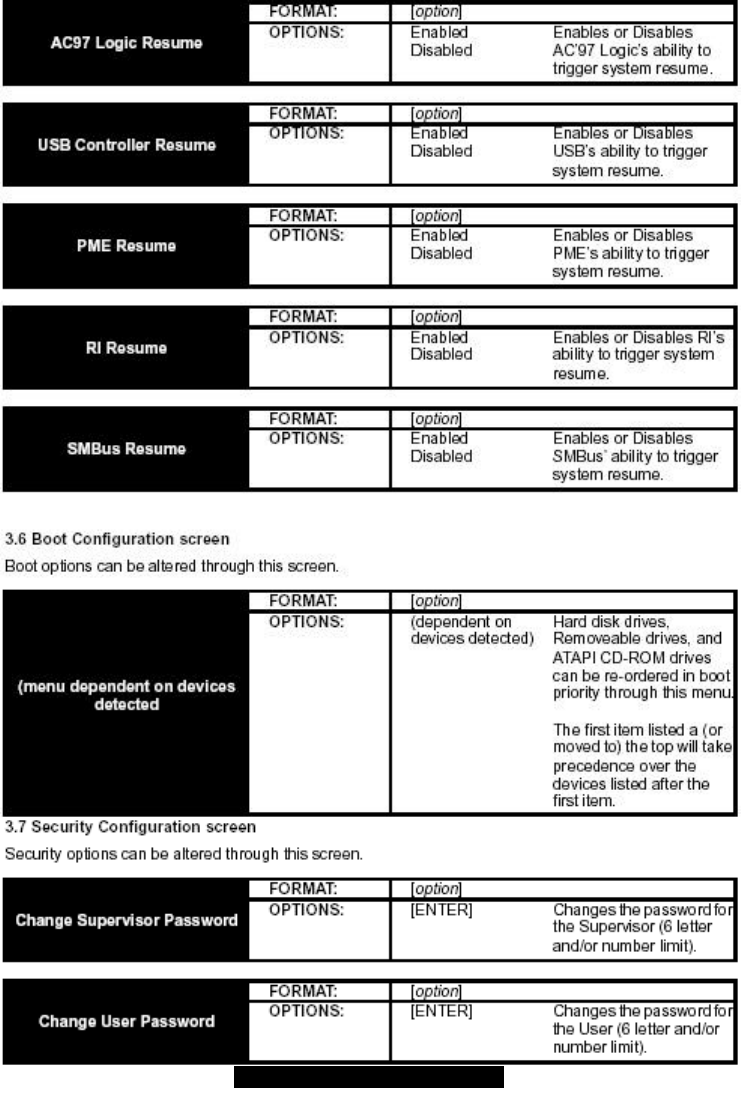
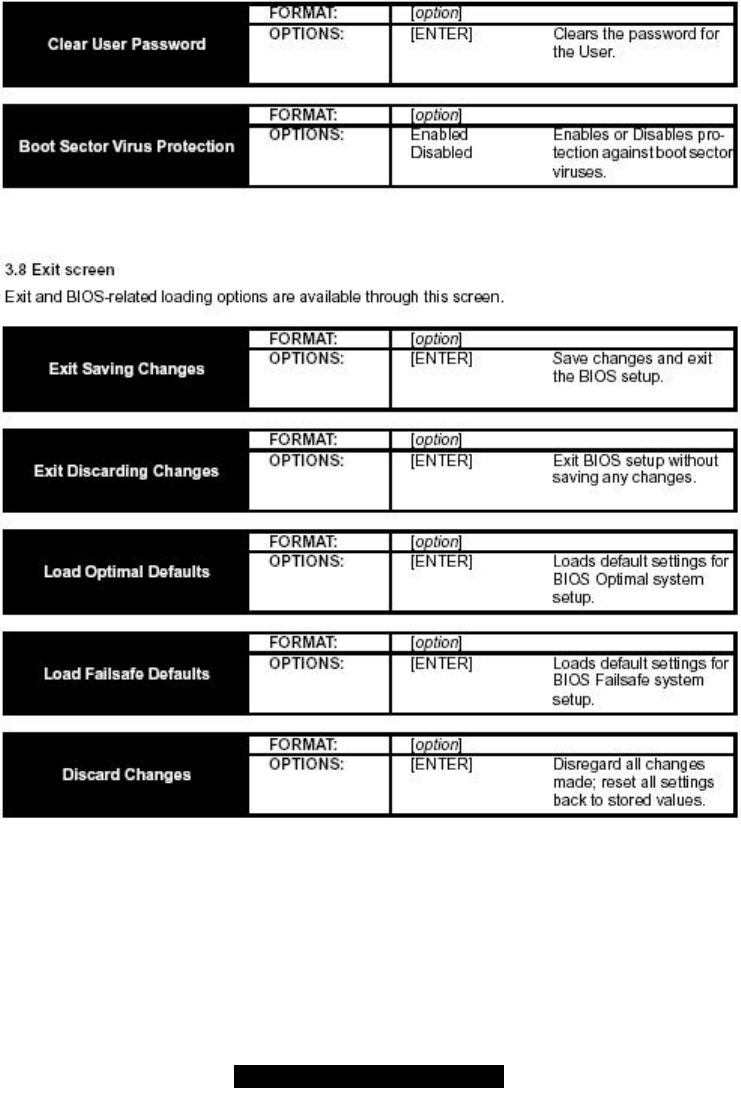
Chapter 3: BIOS Setup
3.1 Standard CMOS Features
3.2 Advanced Setup
3.2d Bootup Settings
3.3 Chipset Configuration
3.3a CH Configuration
3.4 PnP/PCI Configuration
3.6 Power Configuration
Chapter 4: Installing the Hard Drives
Chapter 5: System Resources
5.1 Beep Codes
5.2 Flash Utility
Appendix : Glossary
Technical Support
……………………………………………..Page 3
……………………………………………..Page 4
……………………………………………..Page 5
……………………………………………..Page 6
………………………………………….….Page 7
…………………………………………..…Page 8
..……………………………………………Page 9
……………………………………………Page 10
……………………………………………Page 11
……………………………………………Page 13
……………………………………………Page 15
……………………………………………Page 16
……………………………………………Page 17
……………………………………………Page 18
……………………………………………Page 19
……………………………………………Page 20
……………………………………………Page 21
……………………………………………Page 24
……………………………………………Page 27
……………………………………………Page 30
……………………………………………Page 31
……………………………………………Page 36
……………………………………………Page 37
……………………………………………Page 38
……………………………………………Page 44
3
http://www.tyan.com
Before you begin…
Check the box contents!
The retail motherboard package should contain the following:
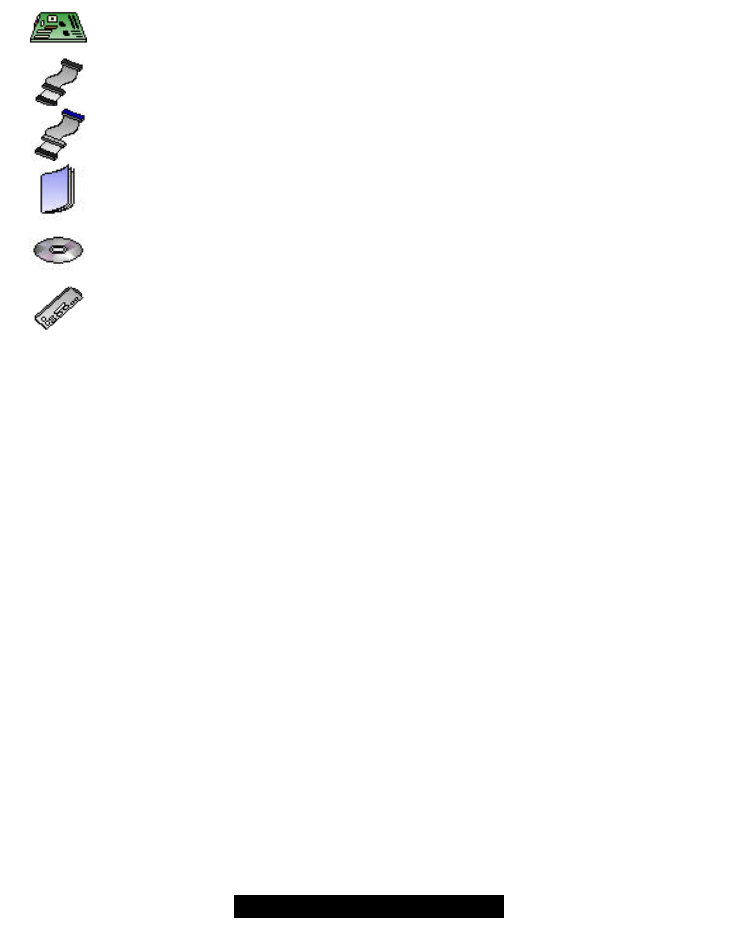
1x Tomcat i815ef motherboard
1x 34-Pin floppy drive cable
1x Ultra-DMA-100/66/33 IDE cable
1x Tomcat i815ef user’s manual
1x TYAN driver CD
1x I/O shield plate with dual LAN ports
If any of these items are missing, please contact your vendor/dealer for replacement before
continuing with the installation process.
4
http://www.tyan.com
Chapter 1: Introduction
1.1 Congratulations!
You are now the owner of the TYAN Tomcat i815ef motherboard. The TYAN Tomcat i815ef
provides leading edge features and performance for systems based on the Flex ATX form factor.
Utilizing the Intel 815e (B-Step) chipset, this system board supports Intel’s Celeron, Pentium III as
In addition to flexible processor support, the Tomcat i815ef features dual LAN ports, perfect for
supporting simultaneous connections to a network and a broadband communications device. This
platform also features two DIMM sockets, two PCI slots, dual-channel UltraDMA-100, USB and
more! *Please see TYAN’s website for updates and information concerning CPU information and
support:
http://www.TYAN.com
While the Tomcat i815ef is designed to fit into tight quarters, it also offers expansion options via
two PCI slots. However, with all critical devices and tool built onboard already, the Tomcat i815ef
cuts down on costs as well as time.
Remember to visit TYAN’s Website at http://www.tyan.com. There you can find information on all
of TYAN’s products with FAQs, distributors list and BIOS setting explanations.
1.2 Hardware Specifications
Processor
• Single PGA370 ZIF sockets
• Supports one Intel Celeron or Pentium III
processor, including the new Tualatin CPU
• SDR bus support for 133MHz
• Integrated VRM (VRM 8.5 spec)
Chipset
• Intel i815e (B-Step) Chipset
• National PC87366 Super I/O ASIC
Memory
• Two 3.3v 168-pin DIMM sockets
• Supports up to 512MB of unbuffered PC133
SDRAM (only)
Expansion Slots
• 2 32-bit/33MHz PCI bus mastered slots (5V)
Integrated PCI IDE
• Two 40-pin IDE connectors for up to 4
devices
• PIO mode 3, 4, UltraDMA 33/66/100 support
• ATAPI, HDD, CDROM device support
Integrated LAN
• Two Intel 10/100 LAN controllers (per
controller)
• One via 82599 controller and one via Intel’s
ICH2 (8252EM)
Integrated 2D/3D Graphics
• Onboard Intel 815e graphics accelerator
• Standard 15-pin analog VGA out
BIOS
• AMI 4Mb BIOS Flash ROM
• Fully Plug-and-Play
• APM 1.2/ACPI 1.0/PC99 compliant
• DMI 2.0 compliant
• Soft Power Down
• Multiple boot options
Form Factor
• Flex ATX footprint (9” x7.5”
228.6mmx190.5mm)
• One 20-pin ATX power connector
• Stacked USB (two) ports
• Stacked keyboard and mouse ports

5
http://www.tyan.com
Integrated I/O
• One floppy connector supports up to two
drives
• Two 9-pin 16550-based serial ports
• One 25-pin SPP/ECP/EPP parallel port
• One IR Tx/Rx header
• 2 USB ports (additional via optional cable)
• PS/2 keyboard and mouse ports
Regulatory
• FCC DoC (declaration of Conformity)
• European Community of CE (declaration of
Conformity)
1.3 Software Specifications
OS Windows 9x/ME/NT/2000

6
http://www.tyan.com
Chapter 2: Board Installation
Installation
You are now ready to install your motherboard. The mounting hole pattern of the Tomcat i815ef
matches the ATX system board specifications. Your chassis should support a standard ATX
motherboard form factor.
How to install our products right… the first time
The first thing you should do is read this user’s manual. It contains important information which will
make configuration and setup much easier. Here are some precautions you should take when
installing your motherboard:
(1) Ground yourself properly before removing your motherboard from the antistatic bag.
Unplug the power from your computer power supply and then touch the power supply.
For the safest conditions, Tyan recommends wearing a static safety wrist strap.
(2) Hold the motherboard by its edges and do not touch the bottom of the board.
(3) Avoid touching the motherboard components, IC chips, connectors, and leads.
(4) Avoid touching memory module contacts and IC chips
(5) Place the motherboard on a grounded antistatic surface or on the antistatic bag from
which it came in.
Having reviewed the precautions above, the next step is to take the motherboard out of the
cardboard box and static bag, hold it by its edges and place it on a grounded antistatic surface,
component side up. Inspect the board for damage.
NOTE DO NOT APPLY POWER TO THE BOARD IF IT HAS BEEN DAMAGED
7
http://www.tyan.com
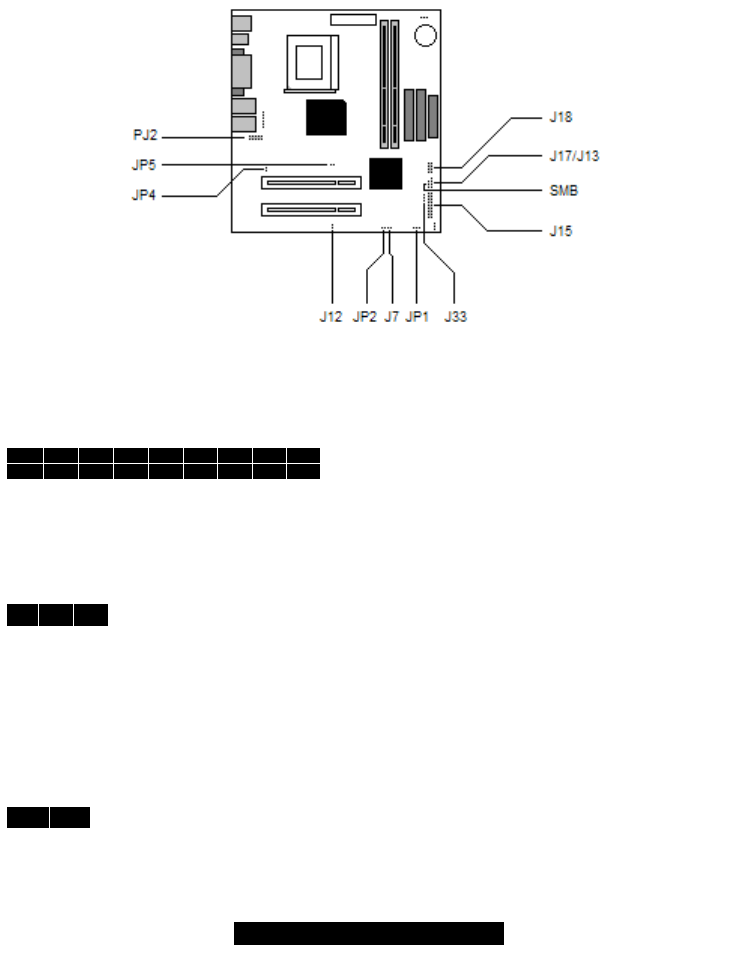
2.1 – Jumper Section
Pin outs for certain connectors are available on the Tyan website: http://www.tyan.com
2.1a Front Panel Connector (J15)
Your chassis will usually come with connectors to install onto the motherboard, such as HDD and
Power LEDs. The Front Panel Connector (J80) has been implemented for such purposes.
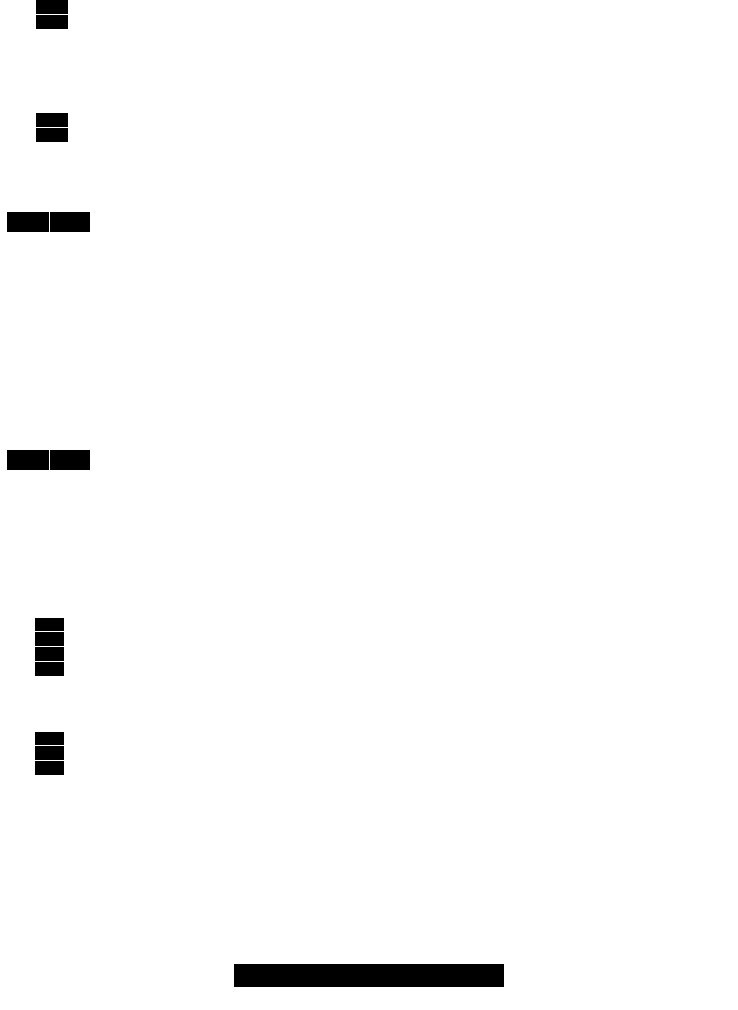
17 15 13 11 9 7 5 3 1
18 16 14 12 10 8 6 4 2 1,3: HD LED
2,4: Power LED
5,7: Reset Switch
6,8: Power Switch
11-17: Infra Red (IR) On/Off
2.6b – CMOS Reset (JP1)
1 2 3 1,2: Connect these two pins together to reset the CMOS settings in case an
incorrect setting causes system instability or you have forgotten your system/setup
password of have just flashed your BIOS.
- Power off the system and disconnect the power supply.
- Close pins 2 and 3 on JP1
- Wait about 5 seconds
- Close pins 1 and 2 on JP1
- Reconnect the power supply and power on the system
2.6c – Disable/Enable LAN1 (JP5)
1 2 Closed (default): LAN1 port is disabled.
Open: LAN1 port is enabled.
8
http://www.tyan.com
2.6d – Disable/Enable LAN2 (JP4)
1
2
Closed (default): LAN1 port is disabled.
Open: LAN1 port is enabled.
2.6e – Hard drive activity LED (J12)
1
2
Use this jumper to connect your chassis’ hard drive LED.
2.6f – Flash Open (JP2)
1 2 Closed (default): Allows you to upgrade the onboard CMOS
Open: Prevents onboard CMOS from being upgraded
2.6g – COM2 connector (PJ2)
This connector allows you to use the supplied serial extension cable if you need to use more than
1 serial devices.
2.6h – Chassis Intrusion header (J7) [optional]
1 2 Use these connectors if your chassis has intrusion detection, otherwise, leave it as is.
2.6i–USB connector (J18)
This connector allows you to use your chassis’ front panel USB connector if it comes with one.
1
2
3
4
If 3 and 4 are connected (default), the motherboard will use the onboard speaker for
audio related purposes. If 3 and 4 are not connected, you may use you chassis’
internal speaker. Either one will be fine.
2.6k –ACPI LED (J33)
1
2
3
Use this connector if your chassis has front LEDs for notification for sleep or suspend
modes.
9
http://www.tyan.com
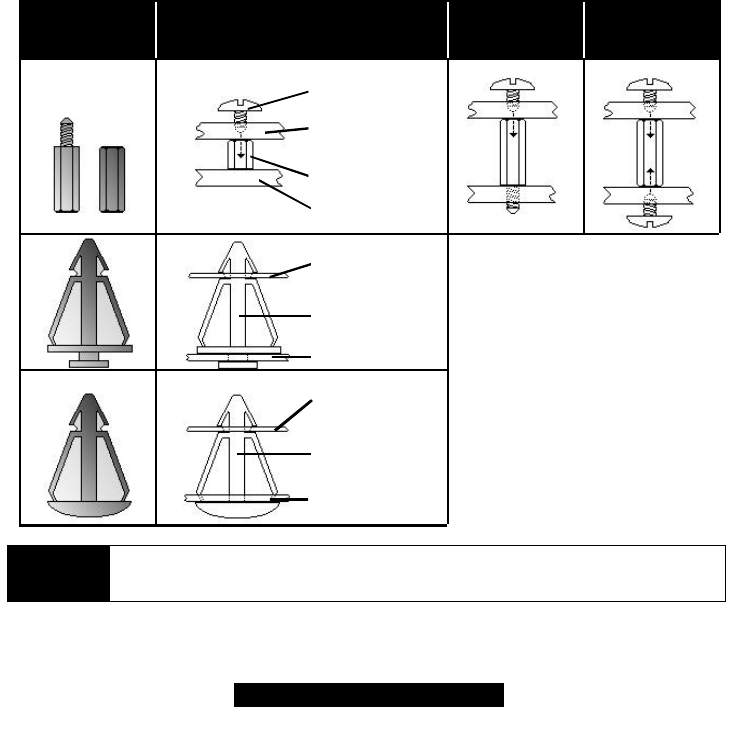
2.7 Mounting the motherboard
Your chassis may include mounting hardware. If mounting hardware was included, you can use
the following examples to help you in stalling your motherboard into the chassis.
If your chassis has the studs integrated into the chasses wall, then you would only need to use
screws (possibly included with your chassis) to install the motherboard. See examples (Figure 2.0,
shown below for more details.
If the chassis includes mounting hardware without the studs pre-installed, then you will need to
install the motherboard using the mounting hardware as shown in the examples below.
Remember not to over tighten any of the screws, or you may risk breaking internal traces in the
surrounding area, or damage the motherboard in some other way.
Other examples of how to install your motherboard using other hardware (that may or may not
have been included with your chassis) are shown below.
One solution for installing motherboardType of hardware Another solution
NOTE The diagrams above are only representative of a few solutions for installing a
motherboard into the chassis. The installation procedure for installing your
motherboard into the chassis may differ.
10
http://www.tyan.com
2.8 Installing Memory
Please keep in mind that although some memory modules may appear to be high-quality, they
may contain inferior or substandard parts. The type of memory you choose to install should be
checked against the memory compatibility list, which is available from Tyan’s website at
http://www.tyan.com.
Here are some details of memory installation for this board:
- At least one SDRAM DIMM must be installed for the system to POST.
- Supports 128MB, 256MB, and 512MB PC133/100 SDRAM.
- All installed memory will be automatically detected.
- The motherboard supports up to 512MB of PC133 unregistered/unbuffered SDRAM
memory.
Memory Installation Procedure
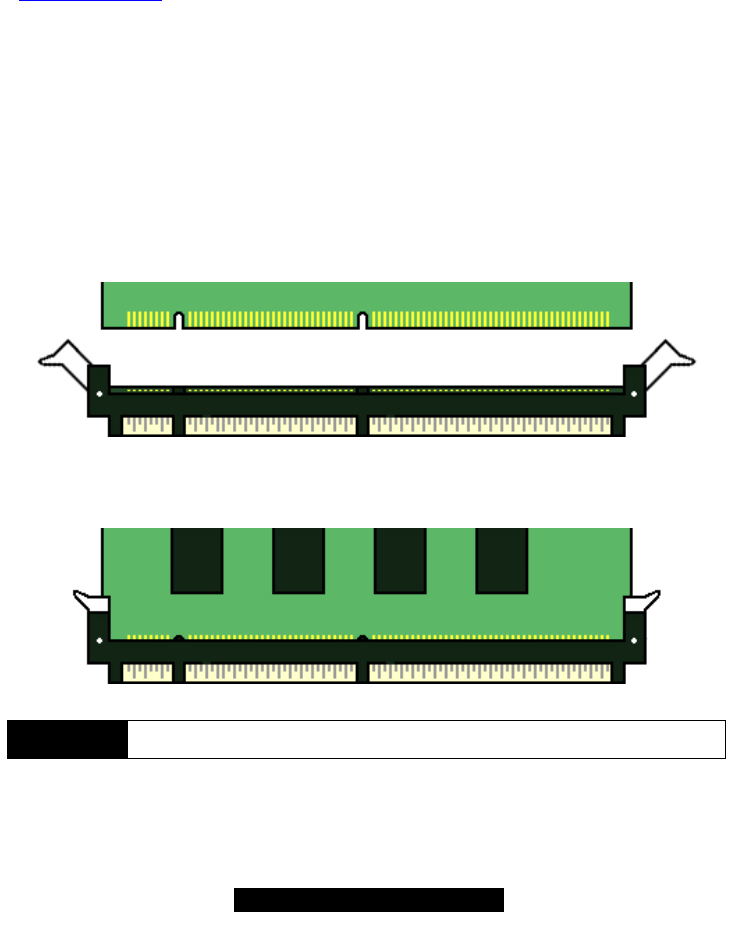
Step1: Line your module up so that the pins fit into the socket. There is only one way your DIMM
can fit properly. Make sure that the short row of pins is lined up with the short gap in the DIMM
socket, just as the long row of pins should line up with the long gap in the DIMM socket.
Step2: Insert the DIMM by pushing the module into the socket with even force Do not insert one
end and then the other: install the whole module at once or you might bend the DIMM pins. Make
sure the DIMM is securely seated.
NOTE Your memory modules may not look like those in the above diagram; they are
used simply as examples.
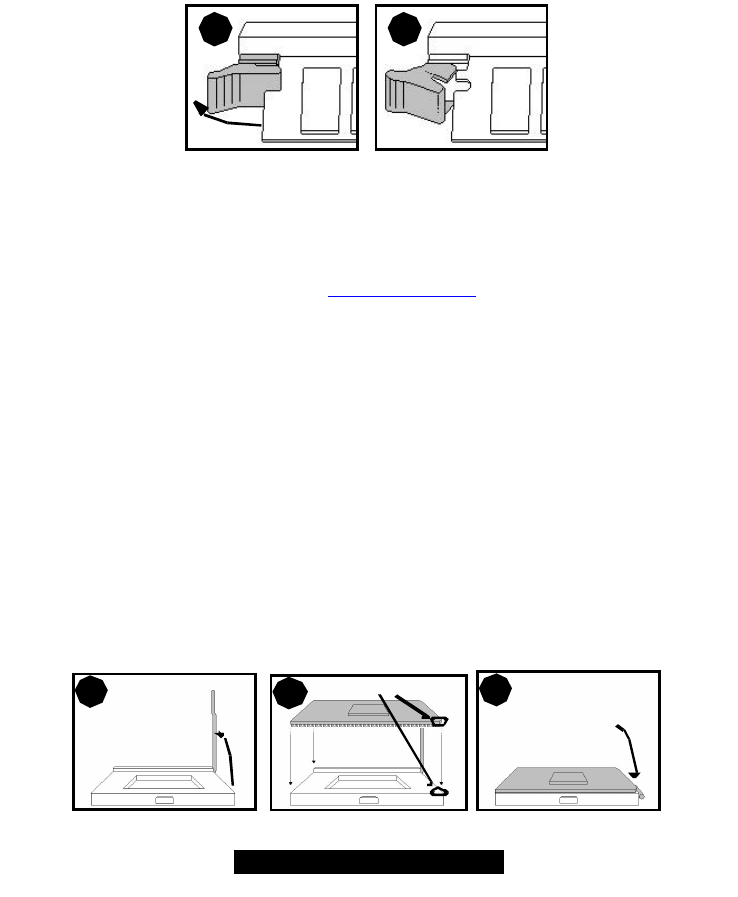
Look the DIMM into place by pushing the clips back on either end of the socket onto the notches
in the ends of the DIMM (see pictures above details).
11
http://www.tyan.com
Removing a DIMM
Removing a DIMM is just the reverse: pull back the clips from the DIMM (see pictures on previous
page), and carefully pull the module straight out. Place the DIMMs in an anti-static bag as soon as
you remove them to avoid static damage.
1 2
2.9 Installing the CPU and Cooling Fan
Intel Pentium III processors up to 1.13GHz can be used on this board. For more information on
CPU compatibility, check Tyan’s website at http://www.tyan.com/
When installing your CPU, remember the following:
- The CPU is a sensitive electronic component and can easily be damaged by static
electricity
- Do not touch the CPU pins with your fingers
- You should be able to insert the CPU into the socket with virtually no force
- Do not press down hard on the CPU as you might bend or break pins, or otherwise
damage the CPU.
- The CPU voltage will automatically be detected by the motherboard, so there is not
need to set any jumpers or BIOS setting.
Installing the CPU
Before installing the CPU, check it for any visible damage. Make sure none of the pins are bent or
missing. Be sure where Pin 1 is on both the CPU and the socket. The following steps each have
corresponding picture next to it to help guide you through the installation.
Careful lift the arm of the ZIF socket until it is at 90 degree angle pointing away from the
motherboard. Be very careful not to damage any components that might be next the socket.
1
2
3
12
http://www.tyan.com
There are two beveled corners on the CPU, which will match the two angled corners on the
socket. Careful install the CPU by lining both Pin 1 on the CPU and Pin 1 on the socket, making
sure the pins actually fit into the socket. Do not force the CPU into the socket: check the pin
alignment of the CPU pins to socket holes.
Push down lightly on the CPU while lowering the arm on the socket to secure the CPU (see right).
A squeaking noise may be heard while lowering the arm or the socket may make a ‘click’ noise
when the arm is locked into position: these noises are normal.
Installing the Cooling Fans
After a CPU has been installed, you will need to install the proper cooling device for the CPU. This
device, a heatsink/fan combination can be purchased at many computer retail stores. Installation
of the cooling device may vary depending on the fan manufacturer’s design. You should also take
space into consideration when installing a cooling device: make sure the cooling device is not too
big, or else you may end up damaging components around the CPU socket.
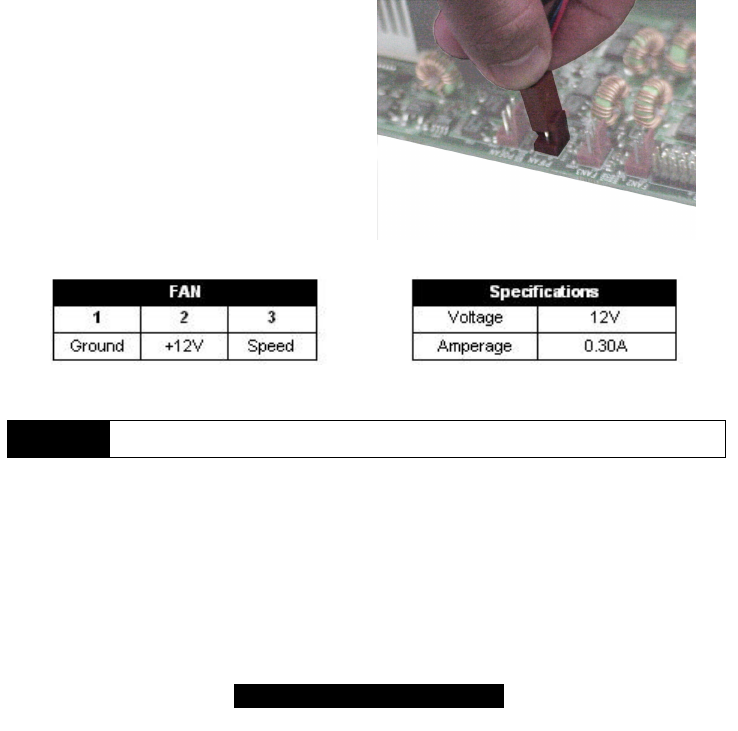
Tyan highly recommends that you use a thin
layer of some type of thermal compound
(available from many computer retail stores),
between the CPU and the heatsink, to
maximize distribution of heat away from the
CPU. Please use extra caution when installing
any type of clamp-style fan, or else damage
may occur to the CPU socket and or the CPU
itself.
NOTE The FAN connector has a 12V, 0.30A limitation. Tyan takes no responsibility and
will not be held liable for damage related to the misuse of any FAN jumper.
Alternatively, if you wish to also install chassis fans for increased cooling, headers are provided to
power those fans as well. Chassis fan installation will vary depending on your chassis
manufacturer’s design. Please check with your chassis manufacturer for details on proper chassis
fan installation.
13
http://www.tyan.com
2.10 Connecting IDE and Floppy Drives
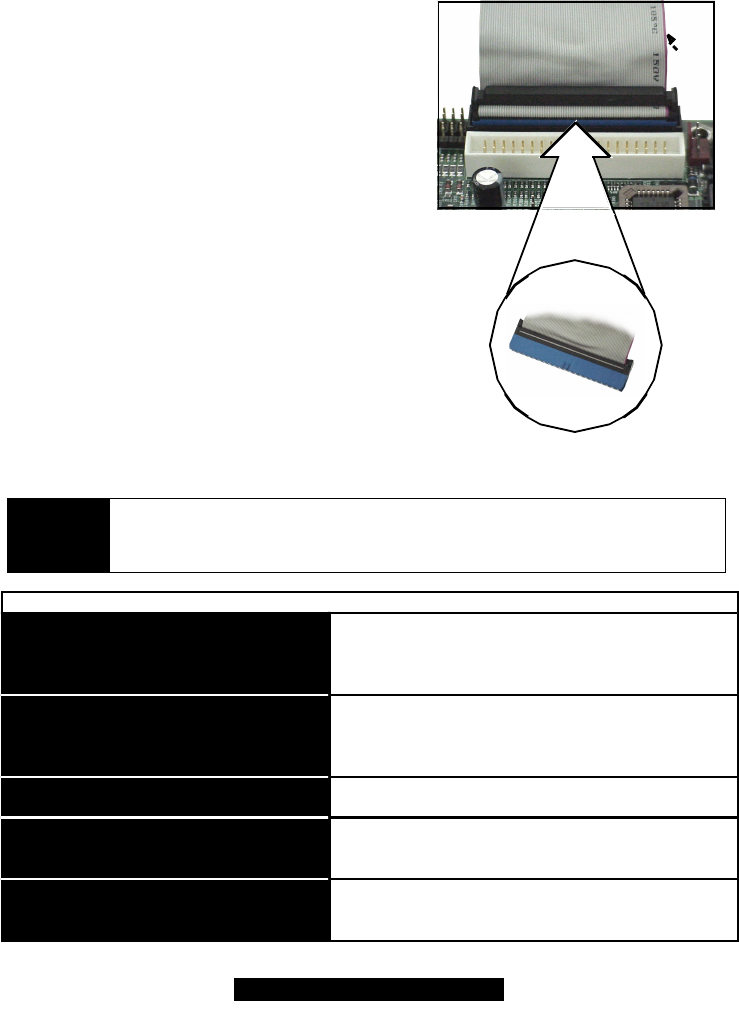
A variety of IDE and ATAPI-compliant devices can be
installed on this motherboard, such as hard disk drives
(HDDs) and CD-ROMs.
Please keep in mind that on this motherboard, the
primary IDE connector is BLACK, and the secondary
IDE connector is WHITE. See the picture to the rightfor
an example of the IDE cable properly connected to the
motherboard, with the BLUE end of the IDE cable
installed on the motherboard.
Pin 1 on the IDE cable is usually denoted by a red or
colored stripe down one side of the cable. That side of
the cable must match Pin 1 on the motherboard’s IDE
connector. There will also be a key pin on the cable that
matches with a notch in the IDE connector, to ensure
proper installation. Consult the documentation that
came with your IDE/ATAPI device, or contact the
device’s manufacturer for more details on installation.
Please note that UltraDMA-100/66 IDE HDDs require a
special 80-wire cable (see picture at right), which has
additional grounding wires. This cable has been
included with this motherboard for your convenience.
The UltraDMA-100/66 cable is backwards compatible
with UltraDMA-33 and legacy IDE HDDs.
BLUE end goes to IDE connector
Pin 1
NOTE
Only Tyan-approved cables are recommended for this motherboard. If you are
using an existing configuration with older cables, your system might not function
properly. Use only Tyan-approved cables (i.e. the ones included with your new
motherboard).
Some symptoms of incorrectly installed HDDs are...
May be a Master/Slave configuration problem, bad
IDE cable, or BIOS mis-configuration. Consult the
HDD documentation or contact your HDD vendor.
May be a bad cable or lack of power going to the
drive. Check the cables for damage and bad con-
nections.
Usually means the cable was installed backwards.
Bad IDE cable or defective drives/motherboard. Try
another HDD, or contact your HDD vendor.
Check power cables and cabling. May be a bad
power supply or IDE drive problem.
HDD lights are constantly on
HDDs are not auto-detected
No video or beeps during bootup
HDD does not power on
Hard Disk Drive Fail message at bootup
14
http://www.tyan.com
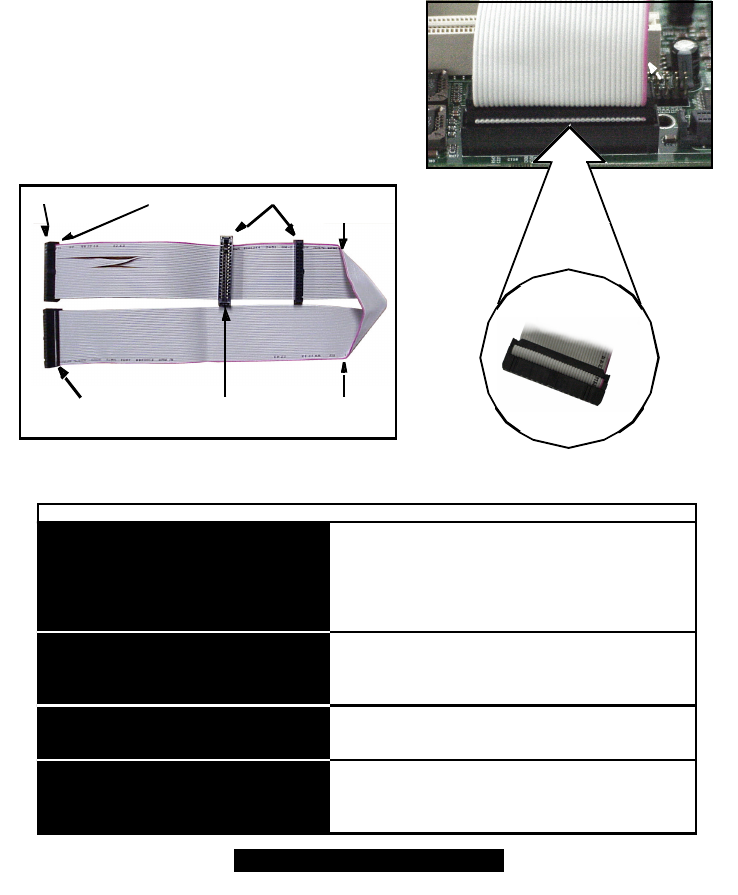
Connecting Floppy Drives
See the picture below for an example of a floppy cable. Most of the current floppy drives on the
market require that the cable be installed with the colored stripe positioned next to the power
connector. In most cases, there will be a key pin on the cable which will force a proper connection
of the cable.
The first floppy drive (sometimes denoted as A:) is
usually attached to the end of the cable with the twist
in it. Drive B: is usually connected to the second or
third connector in the cable (the second or third
connector after you install Drive A:). Refer to your
floppy drive’s installation instructions (if available), or
contact your dealer if you are unsure about how to
attach the floppy drive(s). Remember, you can only
have 2 floppy drives connected at any given time.
Figure 2.
4*
3.5” connector
5.25” connector Colored stripe
indicates Pin 1
Drive B:Drive A: Colored stripe
indicates Pin 1
Match striped side with Pin 1
Usually caused by faulty cables, cables put in back-
wards, or a bad floppy or motherboard. Try another
floppy drive to verify the problem or try another
cable. Also check to see if the onboard floppy is
enabled in the BIOS.
The cable, floppy, or motherboard may be faulty. Try
another cable or floppy drive to verify.
Usually signifies that the cable is on backwards.
Reverse the cable at the floppy drive end and try
again.
Check power cables and cabling. May be a bad
power supply or IDE drive problem.
FDD light is constantly on
FDDs are not auto-detected
FDD does not power on
Floppy Drive Fail message at bootup
Some symptoms of incorrectly installed FDDs are...
15
http://www.tyan.com
2.11 Installing Add-in Cards
There are a few rules you need to follow when installing add-on cards. In order to assure proper
operation and a quick installation, adhere to the following guidelines:
- If you are going to install a PCI-bus interface card on your system, be aware that any one of the
five PCI slots can support a Master or Slave device.
- ALWAYS make sure the power supply is disconnected.
- NEVER force a card into a slot. If it won’t fit properly, look at the socket on the motherboard to
make sure there are no wires or other obstructions to the slot. Damage may occur otherwise.
- NEVER plug an ISA card into a PCI slot. You will void your warranty, and you will damage your
system board if you try to do this.
- When plugging the card in, especially when installing long cards, try to push the entire card in at
one time. Don’t force one end of the card into the socket first and then the other, or a rocking
motion between the card and the slot might occur, and could damage the pins within the socket.
- Make sure the cards are seated securely into their slots.
- Before turning on the system, make sure no cards are touching.
- Check the PCI device specifications with the PCI slot specifications BEFORE installing!
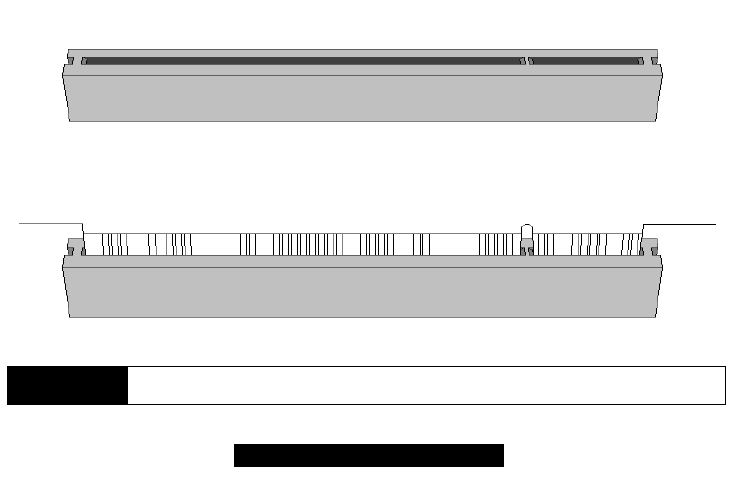
When installing the add-on cards, make sure the cards are installed with even force; do not insert
one end and then the other. See the before (Figure 2.1a) and after (Figure 2.1b) example
installation images below for details.
Figure 2.1a:
Then insert the expansion card as follows:
Figure 2.1b:
NOTE *Your PCI slot may not look like those in the above diagrams; they are used
simply as examples.
16
http://www.tyan.com
2.12 Connecting PS/2, USB, and Serial Devices
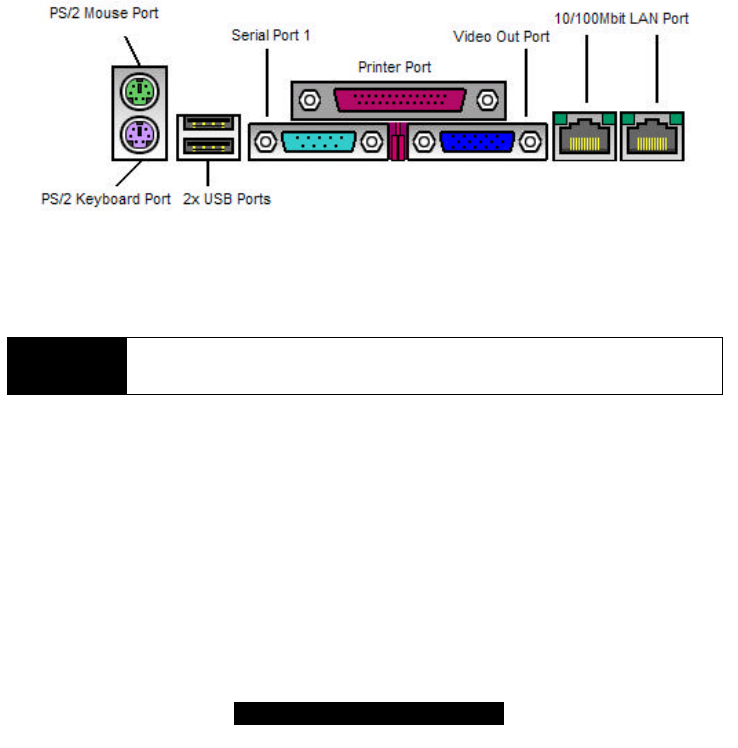
This motherboard includes ports for PS/2 mouse and keyboard, Universal Serial Bus (USB)
devices, and serial and parallel devices. Please note that the upper PS/2 port is the mouse port,
and the lower PS/2 port is for the keyboard (see Figure 2.3 below).
Installation of peripheral/external devices may vary. For details on installation of devices into the
various ports shown below, please consult your device’s documentation, device manufacturer, or
your dealer for details.
Connecting Serial and Parallel Ports
The serial and parallel ports can be used to connect various devices such as a mouse or printer.
The connectors can only be connected one way: be sure and check the orientation of the
connector before installing it into the port.
NOTE On some Tomcat 2425 models, the ATX I/O stack may not look like the diagram
above because some of the features are optional, it is only used for example
purposes.
17
http://www.tyan.com
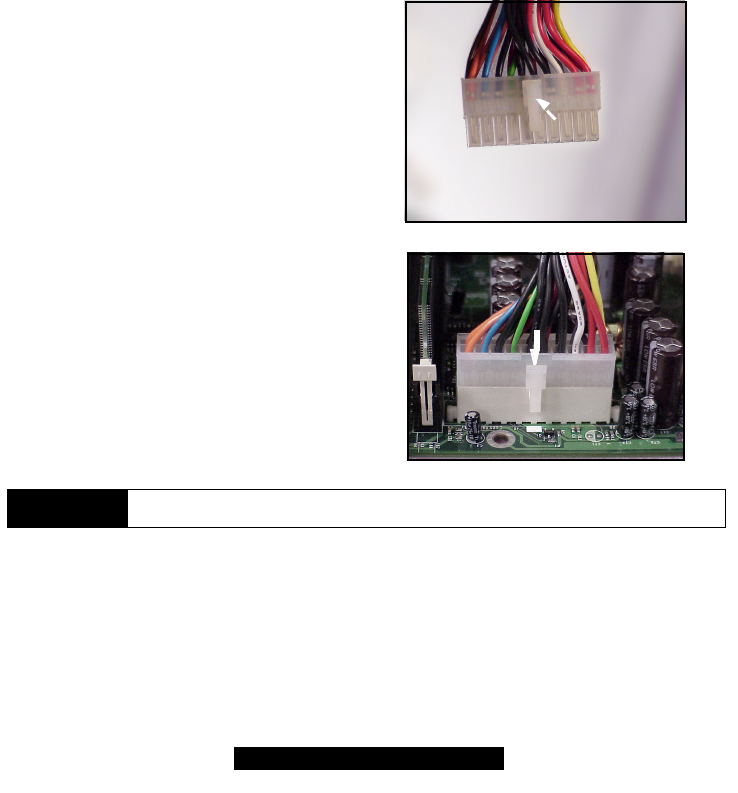
2.13 Connecting the power supply*
This motherboard requires the following:
• ATX power supply, one that conforms to ATX standard 2.01 or better.
The clip on the power connector should lock over the tab on the onboard connector. You shouldn’t
be able to plug the power connector in any other way but just to be safe, make sure it looks like
Figure 2.4b. Make certain that you do not miss connecting any of the pins because if you do, you
will void your warranty and possibly cause damage to yourself and/or your motherboard when the
power is turned on. After connecting the power, make sure the connector is seated firmly into its
socket so it will not become loose or fall off when the computer is jostled or moved.
Step 1: Shown on the right, in Figure 2.4a, is
the 20-pin connector of the ATX power supply.
Note the clip in the image: it will help you install
the plug correctly.
Step 2: Shown on the right, in Figure 2.4b, is
the 20-pin connector plugged into the board*.
The clip is over the TAB of the onboard
connector.
When you connect the cable into the
motherboard’s 20-pin onboard connector, it will
make a CLICK noise as it is installed.
This is normal.
Figure 2.4b**
Note the TAB
NOTE Your ATX power connector may not look like those in the above diagram; they
are used simply as examples.

18
http://www.tyan.com
2.14 You are done!
Other than checking the jumper settings and cable connections, and putting the case back
together, you are done.
Installing a new motherboard may seem difficult, but by following these directions, you should
have a fairly uneventful time installing our products. If you do encounter problems, your
vendor/dealer will be able to help you, or you can consult one of our many technical support
options such as our website and or technical support line.
19
http://www.tyan.com
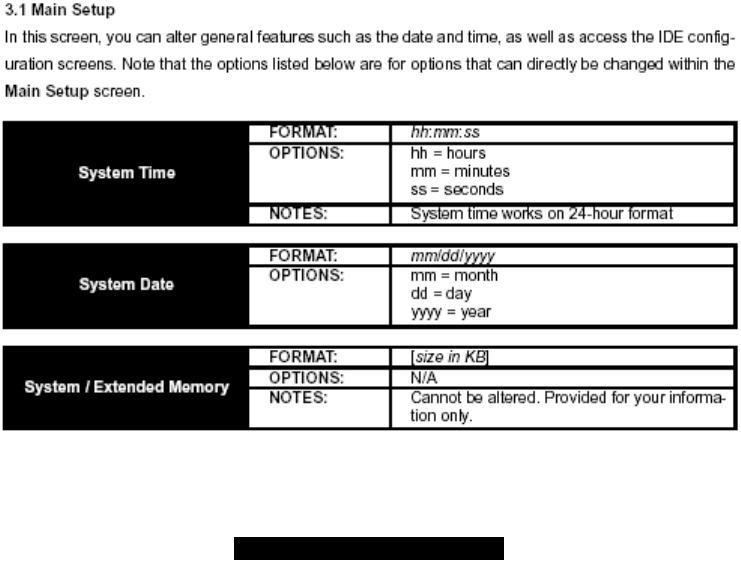
Chapter 3: BIOS Setup
Introduction to the BIOS setup
The BIOS is the basic input/output system, required by the computer to perform functions such as
CPU and hard drive support. This chapter describes different settings for the BIOS that can be
used to configure your system.
The BIOS section of the manual is subject to change without notice and is provided here for
reference purposes only. The settings and configurations of the BIOS are current at the time of
print, and therefore they may not be exactly the same as that displayed on your screen.
This manual describes the BIOS setup program. The setup program lets you modify basic
configuration settings. The settings are then stored in a dedicated battery-backed memory, called
NVRAM, that retains the information when the power is turned off.
The BIOS in your motherboard is a customized version of industry-standard BIOS for IBM PC AT-
compatible personal computers. It supports Intel x86 and compatible processors. The BIOS
provides critical low-level support for the system central processing, memory, and I/O subsystems.
The BIOS has been customized by adding important, but non-standard, features such as virus
and password protection, power management, and detailed fine-tuning of the chipset controlling
the system. The rest of this manual is intended to guide you through the process of configuring
your system using this BIOS setup program.
Starting Setup
The BIOS is immediately activated when you first turn on the computer. The BIOS reads system
configuration information in CMOS RAM and begins the process of checking out the system and
configuring it through the Power-On Self Test (POST).
When these preliminaries are finished, the BIOS will seek an operating system on one of the data
storage devices (HDD, floppy drive, etc.) If one is found, the BIOS will launch that operating
system and hand control of system operations to it. You can start the setup program by pressing
the [F2] key while the system is booting up.
Setup Keys
The table below shows how to navigate in the setup program using the keyboard.
Key Function
Tab Moves from one selection to the
next
Left/Right Arrow Keys Change from one menu to the
next
Up/Down Arrow Keys Move between selections
Enter Opens highlighted selection
PgUp/PgDn Keys Change highlighted selection
20
http://www.tyan.com
Getting Help
Press F1 to display a small help window that describes the appropriate keys to use and the
possible selections for the highlighted item. To exit the Help Window, press ESC or the F1 key
again.
In Case of Problems
If you discover that you have trouble starting the computer after making and saving changes with
the BIOS setup program, you can restart the computer by either:
Ø Holding the Power button down until the machine turns off.
The best advice is to alter only settings that you thoroughly understand. In particular, do not
change settings in the Chipset section unless you’re absolutely sure you need to. The Chipset
defaults were carefully chosen by Tyan and or your system manufacturer for the best performance
and reliability. Even a seemingly small change to anyone of the Chipset options without
consideration, can cause your system to become unstable immediately or progressively.
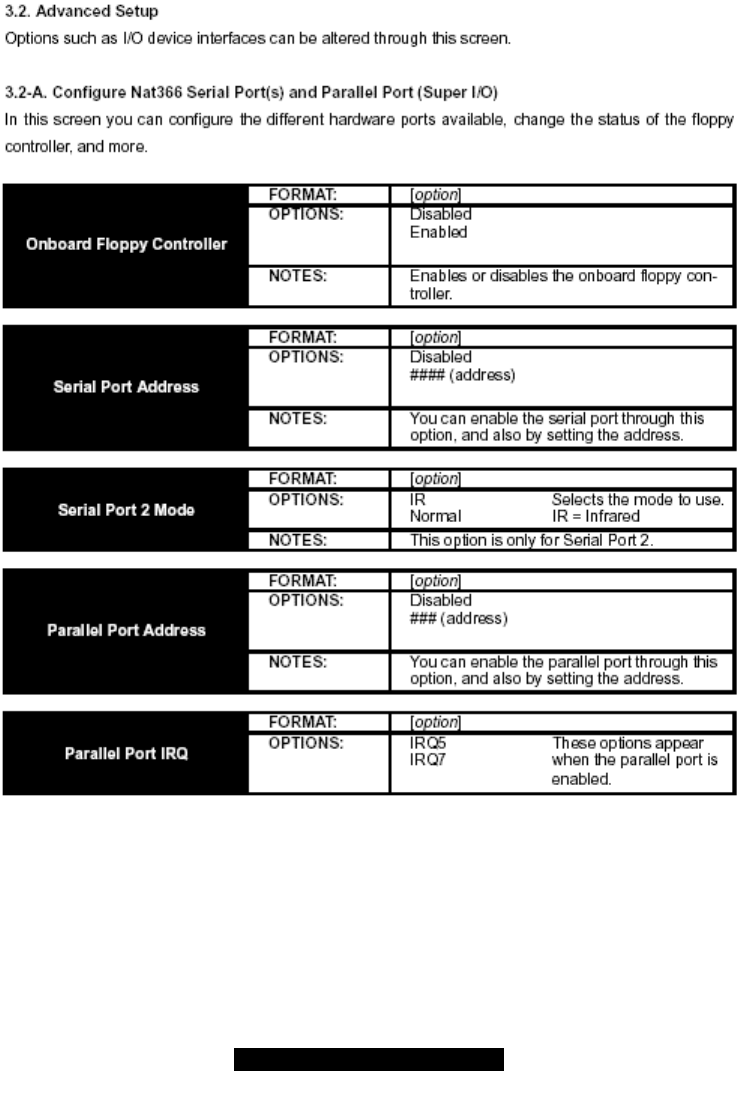
Setup Variations
Not all systems have the same setup program. While the basic look and function of the setup
program remains more or less the same for all systems, the appearance of your Setup options
may or may not follow the same order listed in this manual. In addition, the final layout of all Setup
options depends on your system designer. They can decide that certain items that are listed in the
following pages remain hidden from user alteration.
21
http://www.tyan.com
22
http://www.tyan.com
23
http://www.tyan.com
24
http://www.tyan.com
25
http://www.tyan.com
26
http://www.tyan.com
27
http://www.tyan.com
28
http://www.tyan.com
29
http://www.tyan.com
30
http://www.tyan.com
31
http://www.tyan.com
32
http://www.tyan.com
33
http://www.tyan.com
34
http://www.tyan.com
35
http://www.tyan.com
36
http://www.tyan.com
4.0 Installing the hard drives
Hard drives must be of the Fast ATA-2, EIDE, or UltraDMA-33/66/100 type. For best performance,
we recommend that you use drives of identical model and capacity. By matching drives, you
ensure compatibility as well. If you are planning to use an UDMA-66 or 100 drive, you must use an
UltraDMA-66/100 cable (Tyan has included that cable with the motherboard).
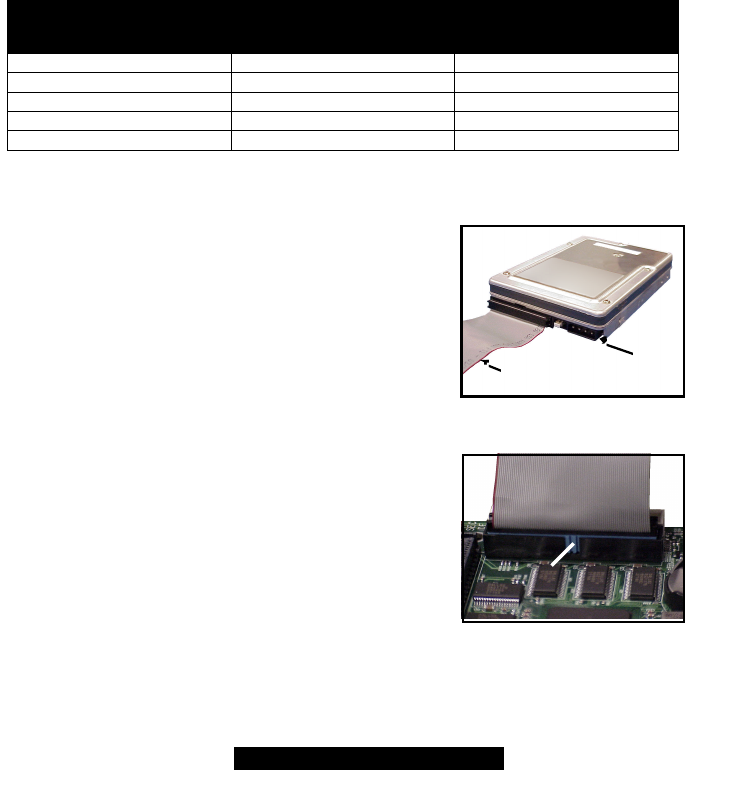
Step 1: The first step is to set the hard drive to Master, Slave, or Cable Select setting, and install
them according to the table below. Note: Sometimes the Master drive with no Slave attached is
called “single”. The Master/Slave setting differentiates two drives connected on the same cable.
NOTE: Check your HDD documentation for master, slave, and cable select settings.
Jumper Settings (see your HDD documentation for jumper settings)
# of Drives IDE Channel 1 IDE Channel 2
1M-
2M M
3M & S M
4M & S M & S
M=Master, S=Slave
Step 2: Next, you should install the drives into your
system, and connect the power. Attach one UltraDMA
cable (black connector) to each drive (if you have a Slave
drive, connect that drive to the second connector (grey
connector) on the UltraDMA cable). Make sure that Pin 1
on the cable (indicated by the colored stripe) is connected
to Pin 1 of the hard drive. See Figure I-1 (to the right) for
an example.
Step 3: The blue end of the cable (see Figure I-2 to the
right for an example) goes to the Primary or Secondary
connector on the motherboard (see p. 7 for location). Make
sure Pin 1 of the ATA-100/66 cable connects to Pin 1 of the
Primary IDE connector (see p. 7 for location). Check all
connections after completing this step, before you continue
to the next part of the installation.
Figure I-2
Blue end of the
ATA-66/100 cable
37
http://www.tyan.com
Chapter 5: System Resources
Note: if you experience problems with setting up your system, always check the following things in
the following order:
Memory, Video, CPU
By checking these items, you will most likely find out what the problem might have been when
setting up your system. For more information on troubleshooting, check the Tyan website at:
http://www.tyan.com.
5.1 Beep Codes
Fatal errors, which halt the boot process are communicated through a series of audible beeps. For
example, if the BIOS POST can initialize the video but an error occurs, an error message will be
displayed. If it cannot display the message, it will report the error as a series of beeps.
If you hear one long beep followed by two short beeps, then a video problem has probably
occurred and the BIOS is having difficulty initializing the video display. Any other beep sequences
that may or may not occur are probably due to memory problems. If calling Tyan Tech Support, be
sure that you know how many beeps your board made, and how long the beeps were. Also have
other information such as your attached add-in cards, drives and OS to help speed up the support
process and come to a possible solution faster.
5.2 Flash Utility
Every BIOS file is unique for the motherboard it was designed for. For Flash Utilities, BIOS
downloads, and information on how to properly use the Flash Utility with your motherboard, you
must check the Tyan website: http://www.tyan.com/
NOTE
Please be aware that by flashing your BIOS, you agree that in the even of a BIOS
flash failure, you must contact your dealer for a replacement BIOS. There are no
exceptions. Tyan does not have a policy of replacing BIOS chips directly with end
users. In no even will Tyan be held responsible for damage done to the BIOS by the
end user.

38
http://www.tyan.com
Appendix: Glossary
ACPI (Advanced Configuration and Power Interface): a power management specification that
allows the operating system to control the amount of power distributed to the computer’s devices.
Devices not in use can be turned off, reducing unnecessary power expenditure.
AGP (Accelerated Graphics Port): a PCI-based interface which was designed specifically for
demands of 3D graphics applications. The 32-bit AGP channel directly links the graphics controller
to the main memory. While the channel runs at only 66 MHz, it supports data transmission during
both the rising and falling ends of the clock cycle, yielding an effective speed of 133 MHz.
ATAPI (AT Attachment Packet Interface): also known as IDE or ATA; a drive implementation
that includes the disk controller on the device itself. It allows CD-ROMs and tape drives to be
configured as master or slave devices, just like HDDs.
ATX: the form factor designed to replace the AT form factor. It improves on the AT design by
rotating the board 90 degrees, so that the IDE connectors are closer to the drive bays, and the
CPU is closer to the power supply and cooling fan. The keyboard, mouse, USB, serial, and
parallel ports are built-in.
Bandwidth: refers to carrying capacity. The greater the bandwidth, the more data the bus, phone
line, or other electrical path, can carry. Greater bandwidth, then, also results in greater speed.
BBS (BIOS Boot Specification): is a feature within the BIOS that creates, prioritizes, and
maintains a list of all Initial Program Load (IPL) devices, and then stores that list in NVRAM. IPL
devices have the ability to load and execute an OS, as well as provide the ability to return to the
BIOS if the OS load process fails for some reason. At that point, the next IPL device is called upon
to attempt loading of the OS.
BIOS (Basic Input/Output System): the program that resides in the ROM chip, and provides the
basic instructions for controlling your computer’s hardware. Both the operating system and
application software use BIOS routines to ensure compatibility.
Buffer: a portion of RAM which is used to temporarily store data, usually from an application,
though it is also used when printing, and in most keyboard drivers. The CPU can manipulate data
in a buffer before copying it, all at once, to a disk drive. While this improves system performance --
- reading to or writing from a disk drive a single time is much faster than doing so repeatedly ---
there is also the possibility of losing your data should the system crash. Information stored in a
buffer is temporarily stored, not permanently saved.
Bus: a data pathway. The term is used especially to refer to the connection between the
processor and system memory, and between the processor and PCI or ISA local buses.
Bus mastering: allows peripheral devices and IDEs to access the system memory without going
through the CPU (similar to DMA channels).
Cache: a temporary storage area for data that will be needed often by an application. Using a
cache lowers data access times, since the needed information is stored in the SRAM instead of in
the slow DRAM. Note that the cache is also much smaller than your regular memory: a typical
cache size is 512KB, while you may have as much as 4GB of regular memory.
Cache size: refers to the physical size of the cache onboard. This should not be confused with
the cacheable area, which is the total amount of memory which can be scanned by the system in
search of data to put into the cache. A typical setup would be a cache size of 512KB, and a

39
http://www.tyan.com
cacheable area of 512MB. In this case, up to 512KB of the main memory onboard is capable of
being cached. However, only 512KB of this memory will be in the cache at any given moment.
Any main memory above 512MB could never be cached.
Closed and open jumpers: jumpers and jumper pins are active when they are “on” or “closed”,
and inactive when they are “off” or “open”.
CMOS (Complementary Metal-Oxide Semiconductors): chips that hold the basic startup
information for the BIOS.
COM port: another name for the serial port, which is called as such because it transmits the eight
bits of a byte of data along one wire, and receives data on another single wire (that is, the data is
transmitted in serial form, one bit after another). Parallel ports transmit the bits of a byte on eight
different wires at the same time (that is, in parallel form, eight bits at the same time).
DDR (Double Data Rate): is a technology designed to double the clock speed of the memory. It
activates output on both the rising and falling edge of the system clock rather than on just the
rising edge, potentially doubling output.
DIMM (Dual In-line Memory Module): faster and more capacious form of RAM than SIMMs, and
do not need to be installed in pairs.
DIMM bank: sometimes called DIMM sockets, because the physical slot and the logical unit are
the same. That is, one DIMM module fits into one DIMM socket, which is capable of acting as a
memory bank.
DMA (Direct Memory Access): channels that are similar to IRQs. DMA channels allow hardware
devices (like soundcards or keyboards) to access the main memory without involving the CPU.
This frees up CPU resources for other tasks. As with IRQs, it is vital that you do not double up
devices on a single line. Plug-n-Play devices will take care of this for you.
Doze mode: in this mode, only the CPU’s speed is slowed.
DRAM (Dynamic RAM): widely available, very affordable form of RAM which has the unfortunate
tendency to lose data if it is not recharged regularly (every few milliseconds). This refresh
requirement makes DRAM three to ten times slower than non-recharged RAM such as SRAM.
ECC (Error Correction Code or Error Checking and Correcting): allows data to be checked for
errors during run-time. Errors can subsequently be corrected at the same time that they’re found.
EEPROM (Electrically Erasable Programmable ROM): also called Flash BIOS, is a ROM chip
which can, unlike normal ROM, be updated. This allows you to keep up with changes in the BIOS
programs without having to buy a new chip. Tyan’s BIOS updates can be found at
http://www.tyan.com
ESCD (Extended System Configuration Data): a format for storing information about Plug-n-
Play devices in the system BIOS. This information helps properly configure the system each time
it boots.
Fault-tolerance: a term describing a system where one component can quickly be replaced
without causing a loss of service, such as in a RAID system.
Firmware: low-level software that controls the system hardware.

40
http://www.tyan.com
Form factor: an industry term for the size, shape, power supply type, and external connector type
of the Personal Computer Board (PCB) or motherboard. The standard form factors are the AT and
ATX, although Tyan also makes some Baby-AT and ATX Footprint boards.
Global timer: onboard hardware timer, such as the Real-Time Clock (RTC).
Handshaking: a form of encryption. One system, typically the server, sends an encryption
scheme to another agent, typically a client. Thus, the client’s data is protected during transmittal to
the server.
HDD: stands for Hard Disk Drive, a type of fixed drive.
H-SYNC: controls the horizontal synchronization/properties of the monitor.
IC (Integrated Circuit): the formal name for the computer chip.
IDE (Integrated Device/Drive Electronics): a simple, self-contained HDD interface. It can handle
drives up to 8.4 GB in size. Almost all IDEs sold now are in fact Enhanced IDEs (EIDEs), with
maximum capacity determined by the hardware controller.
IDE INT (IDE Interrupt): a hardware interrupt signal that goes to the IDE.
I/O (Input/Output): the connection between your computer and another piece of hardware
(mouse, keyboard, etc.)
Initial Program Load (IPL): a feature built into BBS-compliant devices, describing those devices
as capable of loading and executing an OS, as well as being able to provide control back to the
BIOS if the loading attempt fails.
IPL: see Initial Program Load.
IRQ (Interrupt Request): an electronic request that runs from a hardware device to the CPU. The
interrupt controller assigns priorities to incoming requests and delivers them to the CPU. It is
important that there is only one device hooked up to each IRQ line; doubling up devices on IRQ
lines can lock up your system. Plug-n-Play operating systems can take care of these details for
you.
ISA (Industry Standard Architecture): a slower 8- or 16-bit bus (data pathway).
Latency: the amount of time that one part of a system spends waiting for another part to catch up.
This is most common when the system sends data out to a peripheral device, and it waiting for the
peripheral to send some data back (peripherals tend to be slower than onboard system
components).
Mirroring: see RAID.
NVRAM: ROM and EEPROM are both examples of Non-Volatile RAM, memory that holds its data
without power. DRAM, in contrast, is volatile.
OEMs (Original Equipment Manufacturers): Compaq or IBM package other companies’
motherboards and hardware inside their case and sell them.
Parallel port: transmits the bits of a byte on eight different wires at the same time (that is, in
parallel form, eight bits at the same time).

41
http://www.tyan.com
PCI (Peripheral Component Interconnect): a 32 or 64-bit local bus (data pathway) which is
faster than the ISA bus. Local buses are those which operate within a single system (as opposed
to a network bus, which connects multiple systems).
PCI PIO (PCI Programmable Input/Output) modes: the data transfer modes used by IDE drives.
These modes use the CPU for data transfer (in contrast, DMA channels do not). PCI refers to the
type of bus used by these modes to communicate with the CPU.
PCI-to-PCI bridge: allows you to connect multiple PCI devices onto one PCI slot.
Pipeline burst SRAM: a fast secondary cache. It is used as a secondary cache because SRAM
is slower than SDRAM, but usually larger. Data is cached first to the faster primary cache, and
then, when the primary cache is full, to the slower secondary cache.
Pipelining: improves system performance by allowing the CPU to begin executing a second
instruction before the first is completed. A pipeline can be likened to an assembly line, with a given
part of the pipeline repeatedly executing a set part of an operation on a series of instructions.
PM timers (Power Management timers): software timers that count down the number of
seconds or minutes until the system times out and enters sleep, suspend, or doze mode.
PnP (Plug-n-Play): a design standard that has become ascendant in the industry. Plug-n-Play
devices require little set-up to use. Novice end users can simply plug them into a computer that is
running on a Plug-n-Play aware operating system (such as Windows 98), and go to work. Devices
and operating systems that are not Plug-n-Play require you to reconfigure your system each time
you add or change any part of your hardware.
PXE (Preboot Execution Environment): one of four components that together make up the
Wired for Management 2.0 baseline specification. PXE was designed to define a standard set of
preboot protocol services within a client, towards the goal of allowing networked-based booting to
boot using industry standard protocols.
RAID (Redundant Array of Independent Disks): a way for the same data to be stored in
different places on many hard drives. By using this method, the data is stored redundantly, also
the multiple hard drives willl appear as a single drive to the operating system. RAID level 0 is is
known as striping, where data is striped (or overlapped) across multiple hard drives, but offers no
fault-tolerance. RAID level 1 is known as mirroring, which stores the data within at least two hard
drives, but does not stripe. RAID level 1 also allows for faster access time and fault-tolerance,
since either hard drive can be read at the same time. RAID level 0+1 is both striping and
mirroring, providing fault-tolerance, striping, and faster access all at the same time.
RAM (Random Access Memory): technically refers to a type of memory where any byte can be
accessed without touching the adjacent data, is often used to refer to the system’s main memory.
This memory is available to any program running on the computer.
ROM (Read-Only Memory): a storage chip which contains the BIOS; the basic instructions
required to boot the computer and start up the operating system.
SDRAM (Synchronous Dynamic RAM): called as such because it can keep two sets of memory
addresses open simultaneously. By transferring data alternately from one set of addresses and
then the other, SDRAM cuts down on the delays associated with non-synchronous RAM, which
must close one address bank before opening the next.

42
http://www.tyan.com
Serial port: called as such because it transmits the eight bits of a byte of data along one wire, and
receives data on another single wire (that is, the data is transmitted in serial form, one bit after
another).
SCSI Interrupt Steering Logic (SISL): Architecture that allows a RAID controller, such as
AcceleRAID 150, 200 or 250, to implement RAID on a system board-embedded SCSI bus or a set
of SCSI busses.
SIMM (Single In-line Memory Module): formally the most common form of RAM for
motherboards. They must be installed in pairs, and do not have the carrying capacity or the speed
of DIMM modules.
Sleep/Suspend mode: in this mode, all devices except the CPU shut down.
SDRAM (Static RAM): unlike DRAM, this type of RAM does not need to be refreshed in order to
prevent data loss. Thus, it is faster and more expensive.
Standby mode: in this mode, the video and hard drives shut down; all other devices continue to
operate normally.
Striping: see RAID
UltraDMA-33/66/100: a fast version of the old DMA channel. UltraDMA is also called UltraATA.
Without proper UltraDMA controller, your system cannot take advantage of higher data transfer
rates of the new UltraDMA/UltraATA hard drives.
USB (Universal Serial Bus): a versatile port. This one port type can function as a serial, parallel,
mouse, keyboard or joystick port. It is fast enough to support video transfer, and is capable of
supporting up to 127 daisy-chained peripheral devices.
VGA (Video Graphics Array): the PC video display standard
V-SYNC: controls the vertical scanning properties of the monitor.
ZIF Socket (Zero Insertion Force socket): these sockets make it possible to insert CPUs without
damaging the sensitive CPU pins. The CPU is lightly placed in an open ZIF socket, and a lever is
pulled down. This shift the processor over and down, guiding into the board and locking it into
place.

43
http://www.tyan.com
Technical Support
If a problem arises with your system, you should turn to your dealer for help first. Your system has
most likely been configured by them, and they should have the best idea of what hardware and
software your system contains. Hence, they should be of the most assistance. Furthermore, if you
purchased your system from a dealer near you, you can actually bring your system to them to
have it serviced, instead of attempting to do so yourself (which can have expensive
consequences).
Help Resources:
1. See the FAQ and beep codes section of this manual.
2. See the Tyan website for FAQ, bulletins, driver updates, and other
information: http://www.tyan.com
3. Contact your dealer for help BEFORE calling Tyan.
4. Check the Tyan user group: alt.comp.periphs.mainboard.tyan
Returning Merchandise for Service
During the warranty period, contact your distributor or system vendor FIRST for any product
problems. This warranty only covers normal customer use and does not cover damages incurred
during shipping or failure due to the alteration, misuse, abuse, or improper maintenance of
products.
NOTE: A receipt or copy of your invoice marked with the date of purchase is required
before any warranty service can be rendered. You may obtain service by calling the
manufacturer for a Return Merchandise Authorization (RMA) number. The RMA number
should be prominently displayed on the outside of the shipping carton and the package
should be mailed prepaid. Tyan will pay to have the board shipped back to you.
44
http://www.tyan.com
Notice for the USA
Compliance Information Statement (Declaration of Conformity Procedure) DoC
FCC Part 15: This device complies with part 15 of the FCC Rules
Operation is subject to the following conditions:
1) This device may not cause harmful interference, and
2) This device must accept any interference received including interference that may
cause undesired operation. If this equipment does cause harmful interference to radio
or television reception, which can be determined by turning the equipment off and on,
the user is encouraged to try one or more of the following measures:
• Reorient or relocate the receiving antenna.
• Increase the separation between the equipment and the receiver.
• Plug the equipment into an outlet on a circuit different from that of the
receiver.
• Consult the dealer on an experienced radio/television technician for help.
Notice for Canada
This apparatus complies with the Class B limits for radio interference as specified in the Canadian
Department of Communications Radio Interference Regulations. (Cet appareil est conforme aux
norms de Classe B d’interference radio tel que specifie par le Ministere Canadien des
Communications dans les reglements d’ineteference radio.)
Notice for Europe (CE Mark)
This product is in conformity with the Council Directive 89/336/EEC,
92/31/EEC (EMC).
CAUTION: Lithium battery included with this board. Do not puncture, mutilate, or dispose of
battery in fire. Danger of explosion if battery is incorrectly replaced. Replace only with the same or
equivalent type recommended by manufacturer. Dispose of used battery according to
manufacturer instructions and in accordance with your local regulations.
Document #: D 1466-100
