Patient Record Flags User Guide
User Manual:
Open the PDF directly: View PDF  .
.
Page Count: 82
- Introduction
- Use of the Software
- Patch DG*5.3*960 – Updates to Assignment Action Not Linked, Flag Assignment and Record Flag Transmission Error Report
- Patch DG*5.3*869 - Missing Patient, Patient Record Flag
- Patch TIU*1*279 – New Progress Note Title
- DG*5.3*864 - DGPF New Category I Flag Patch
- DG*5.3*849 - DGPF New Category I Flag and Conversion Patch
- DG*5.3*836 Patch – HRMH - Vista Changes For National Reminder & Flag
- Patient Record Flag Main Menu [DGPF RECORD FLAG MAIN MENU]
- Record Flag Reports Menu
- Assignment Action Not Linked Report [DGPF ACTION NOT LINKED REPORT]
- Flag Assignment Report [DGPF FLAG ASSIGNMENT REPORT]
- Patient Assignments Report [DGPF PATIENT ASSIGNMENT REPORT]
- Assignments Due For Review Report [DGPF ASSIGNMENT DUE REVIEW RPT]
- Assignments Approved By Report [DGPF APPROVED BY REPORT]
- Assignments by Principal Investigator Report [DGPF PRINCIPAL INVEST REPORT]
- Behavioral PRF Disruptive Behavior Data Report [DGPF DISRUPT BEHAVIOR REPORT]
- SP - Select Patient
- DA - Display Assignment Details
- AF - Assign Flag
- EF - Edit Flag Assignment
- CO - Change Assignment Ownership
- FT – PRF Owner Transfer Request
- Record Flag Management [DGPF RECORD FLAG MANAGEMENT]
- Record Flag Transmission Mgmt
- Record Flag Enable Divisions [DGPF ENABLE DIVISIONS]
- Additional Patient Record Flag Information
- Glossary
- APPENDIX A: Memorandum
- National Patient Record Flag for Missing Patients
- APPENDIX B: Memorandum
- National Patient Record Flag for High Risk for Suicide
- APPENDIX C: VHA DIRECTIVE 2010-053 PATIENT RECORD FLAGS
- ATTACHMENT A
- ATTACHMENT B
- ATTACHMENT C
- ATTACHMENT D

Patient Record Flags (PRF)
User Guide
Patches
DG*5.3*892
DG*5.3*869
TIU*1.0*279
DG*5.3*960
DG*5.3*951
Version 5.3
March 2019

Patient Record Flags (PRF) User Guide i March 2019
Revision History
Date Page # Description Author
03-2019 4
14, 15
16
17
18
25
27
28
28 - 31
31, 32
32, 33
39, 40
41, 42
DG*5.3*951 – Provided high level description of what
is included in patch
Added new TR action into Main Menu tables
Added new DBRS Historical report into Record Flags
Reports Menu table
Added new FT action into Record Flag Assignment
table
Added new TR - Record Flag Transfer Requests
option
Added in Behavioral PRF Disruptive Behavior Data
Report details/usage
Added in new DBRS fields on DA Display Assignment
details screen (National Category 1 Behavioral Flags
only)
Added in business rules for addition of DBRS data on
National Category 1 PRFs in the AF – Add Flag
Action
Added in business rules for addition of, editing of and
deletion of DBRS data on National Category 1 PRFs
in the differing EF – Edit Flag Actions
(including usage
of new Edit Flag’s ‘X’ action ‘DBRS/Other Field Edit
Only’
Updated CO-Change Assignment Ownership section
to include recalculation of Review Date value for the
PRF
Added in new FT – PRF Owner Transfer Request
section to explain usage/details
Added in new Record Flag Transfer Request section
to explain usage/details
Added in new Record Flag Refresh section to explain
usage/details
Added items into the glossary
K. Kriwox and
D. Kelly,
Technical Writers
L. Behuniak,
Project Manager

Revision History
March 2019 Patient Records Flags (PRF) Users Guide ii
09-2018 4-6, 19,
20, 36
DG*5.3*960:
Added section: Patch DG*5.3*960 – Updates to
Assignment Action Not Linked, Flag Assignment, and
Record Flag Transmission Errors Reports.
Updated sections: Assignment Action Not Linked
Report [DGPF ACTION NOT LINKED REPORT], Flag
Assignment Report [DGPF FLAG ASSIGNMENT
REPORT], and Record Flag Transmission Errors
[DGPF TRANSMISSION ERRORS].
D. Kelly,
Technical Writer
L. Behuniak,
Project Manager
04-2015
4 DG*5.3*892 - Updated the description of DGPF
MISSING PT FLAG REVIEW mail group.
T Dawson,
Technical Writer
T Downing,
Project Manager
11-2013
3-6 Removed first few sections such as Orientation to
align with current User Guide template. Reordered
patch numbers to correct chronological order. Added
TIU*1.0*279 and DG*5.3*869 patch content. Added
Training Materials with training PDF attachment from
Dr. Garcia (page 2.)
Rachel Wilder
07-2013
4 Added info about new patient record flag (URGENT
ADDRESS AS FEMALE)
JoAnn Green,
Technical Writer
Al Ebert, Project
Manager

Patient Records Flags (PRF) User Guide iii March 2019
04-2013
10
54
29
The Patient Record Flag (PRF) User Guide Title Page
was changed to include Patch DG*5.3*849 and the
date of April 2013.
The DG*5.3*849 DGPF NEW CATEGORY I FLAG
AND CONVERSION patch implements the following
new functionality:
National Patient Record Flag (PRF) for suicide
prevention (HIGH RISK FOR SUICIDE)
Convert Local HRMH PRF to National [DGPF LOCAL
TO NATIONAL CONVERT] Option
DGPF CLINICAL HR FLAG REVIEW mail group
Added copy of Memorandum For National Patient
Record Flag For High Risk For Suicide.
VHA Directive 2010-053, Embedded PDF document.
New operating directions include updated screen
captures and new DG routines.
Some naming conventions were addressed
Added descriptions of functions.
Added Technical Publications upgrades.
Raymond Steele,
Technical Writer
Al Ebert, Project
Manager
02-2012
DG*5.3*836 - Registration patch with Patient Record
Flag APIs. This Registration Patient Record Flag
patch provides new interfaces used by the Scheduling
and Reminder patches to determine the High Risk for
Suicide Flag status on a specified date.
This patch implements two new Application
Programming Interfaces (APIs) for retrieving Patient
Record Flag (PRF) information in support of the High
Risk Mental Health initiatives.
Raymond Steele,
Technical Writer
Al Ebert, Project
Manager
01-2006
The original release of this manual was titled Patient
Record Flag Phase III User Guide DG*5.3*650 and
released on November 2006.
PIMS Technical
Writer
Patient Record Flags (PRF) User Guide iv March 2019
Table of Contents
Revision History ...................................................................................... i
Introduction ............................................................................................. 1
Patient Record Flag Usage .................................................................................... 1
Updated PRF Narratives ......................................................................................... 1
Reference Materials and Related Manuals ........................................................... 2
Training Materials ................................................................................................... 3
Patient Record Flag Manuals ................................................................................ 3
General Support .................................................................................................... 3
Use of the Software ................................................................................. 4
Patch DG*5.3*960 – Updates to Assignment Action Not Linked, Flag
Assignment and Record Flag Transmission Error Report .................................. 4
Patch DG*5.3*869 - Missing Patient, Patient Record Flag ................................... 6
Patch TIU*1*279 – New Progress Note Title ......................................................... 8
DG*5.3*864 - DGPF New Category I Flag Patch ................................................... 8
DG*5.3*849 - DGPF New Category I Flag and Conversion Patch ....................... 10
New National Patient Record Flag (PRF) for Suicide Prevention (HIGH RISK FOR
SUICIDE) .............................................................................................................. 11
New DGPF CLINICAL HR Flag Review Mail Group .............................................. 11
New Convert Local HRMH PRF to National [DGPF LOCAL TO NATIONAL
CONVERT] Option ................................................................................................ 11
DG*5.3*836 Patch – HRMH - Vista Changes For National Reminder & Flag ...... 13
Patient Record Flag Main Menu [DGPF RECORD FLAG MAIN MENU] .............. 14
RM - Record Flag Reports Menu .......................................................................... 16
FA - Record Flag Assignment ............................................................................... 17
FM - Record Flag Management ............................................................................ 17
TM - Record Flag Transmission MGMT ................................................................ 18
ED - Record Flag Enable Divisions ....................................................................... 18
TR - Record Flag Transfer Requests .................................................................... 18
Record Flag Reports Menu .................................................................................... 19
Assignment Action Not Linked Report [DGPF ACTION NOT LINKED REPORT] . 19
Orientation
Patient Records Flags (PRF) User Guide v March 2019
Flag Assignment Report [DGPF FLAG ASSIGNMENT REPORT] ........................ 20
Patient Assignments Report [DGPF PATIENT ASSIGNMENT REPORT] ............ 21
Assignments Due For Review Report [DGPF ASSIGNMENT DUE REVIEW RPT]
.............................................................................................................................. 22
Assignments Approved By Report [DGPF APPROVED BY REPORT] ................. 23
Assignments by Principal Investigator Report [DGPF PRINCIPAL INVEST
REPORT] .............................................................................................................. 24
Behavioral PRF Disruptive Behavior Data Report [DGPF DISRUPT BEHAVIOR
REPORT] .............................................................................................................. 25
SP - Select Patient ................................................................................................ 27
DA - Display Assignment Details ........................................................................... 27
AF - Assign Flag .................................................................................................... 28
EF - Edit Flag Assignment ..................................................................................... 28
CO - Change Assignment Ownership ................................................................... 31
FT – PRF Owner Transfer Request ...................................................................... 32
Record Flag Management [DGPF RECORD FLAG MANAGEMENT] ................... 34
CC - Change Category .......................................................................................... 34
CS - Change Sort .................................................................................................. 34
DF - Display Flag Detail ........................................................................................ 34
AF - Add New Record Flag ................................................................................... 35
EF - Edit Record Flag ............................................................................................ 35
Record Flag Transmission Mgmt .......................................................................... 36
Record Flag Transmission Errors [DGPF TRANSMISSION ERRORS] ................ 36
Record Flag Manual Query [DGPF MANUAL QUERY] ......................................... 37
Record Flag Enable Divisions [DGPF ENABLE DIVISIONS] ............................... 38
Additional Patient Record Flag Information ......................................... 43
PRF Display on Patient Look-up ........................................................................... 43
Patient Record Flag in CPRS ................................................................................. 44
Creating, Assigning, and Maintaining PRFs ........................................................ 44
Documenting PRF .................................................................................................. 44
Prerequisites to Writing PRF Progress Notes ...................................................... 45
PRF Note Titles ....................................................................................................... 46
Linking PRF Notes to Flag Actions ....................................................................... 46
Table of Contents
Patient Record Flags (PRF) User Guide vi March 2019
Marking PRF as Entered in Error .......................................................................... 48
Viewing PRF in CPRS GUI ..................................................................................... 48
Glossary ................................................................................................... 52
APPENDIX A: Memorandum ................................................................. 54
National Patient Record Flag for Missing Patients .............................. 54
APPENDIX B: Memorandum ................................................................. 56
National Patient Record Flag for High Risk for Suicide ...................... 56
APPENDIX C: VHA DIRECTIVE 2010-053 PATIENT RECORD FLAGS 57
ATTACHMENT A .................................................................................... 63
ATTACHMENT B ..................................................................................... 67
ATTACHMENT C .................................................................................... 69
ATTACHMENT D .................................................................................... 72

Patient Record Flags (PRF) User Guide 1 March 2019
Introduction
Patient Record Flag Usage
Patient Record Flags (PRFs) are used to alert Veterans Health Administration (VHA) medical
staff and employees of patients whose behavior and characteristics may pose a threat either to
their safety, the safety of other patients, themselves, or compromise the delivery of quality health
care. PRFs’ assignments are displayed during the patient look-up process.
The Patient Record Flag (PRF) software described within provides users with the ability to
create, assign, inactivate, edit, produce reports, and view patient record flag alerts.
Patient record flags are divided into Category I (National) and Category II (Local) flags.
Category I flags are nationally approved and distributed by VHA nationally released software for
implementation by all facilities.
• Category I (National) flags are shared across all known treating facilities for the patient,
utilizing VistA HL7 messaging. This uses the abstract messaging approach and encoding
rules specified by HL7 for communicating data associated with various events in health
care environments. For example, when a National Patient Record Flag assignment occurs
in VistA, the event will trigger an update patient information message.
• Category II (Local) flags are locally established by individual VISNs or facilities. They
are not shared between facilities.
Each PRF includes a narrative that describes the reason for the flag and may include some
suggested actions for users to take when they encounter the patient. Other information displayed
to the user includes the Flag Type, Flag Category, Assignment Status, Initial Assignment Date,
Approved by, Next Review Date, Owner Site, and Originating Site. When assigning a flag,
authorized users must write a progress note that clinically justifies each flag assignment action.
Updated PRF Narratives
NOTE: Please note that values between “<” and “>” in the narratives are placeholders and will
be replaced with an actual value at run time.
NARRATIVE
DESCRIPTION
Narrative Text For
National PRF Assignment
Created By Auto-
Conversion
This national PRF entry was auto-created on <DT>, by the
'Convert Local HRMH PRF to National' option, and run by
<USER>. The fields are based on the local PRF <FLAG>
which was inactivated by the auto conversion.
Narrative For The
Inactivated Local PRF
Assignment History
This local PRF entry was inactivated by the 'Convert Local
HRMH PRF to National' option run on <DT> by <USER>. A
new national HIGH RISK FOR SUICIDE PRF was created

Introduction
Patient Record Flags (PRF) User Guide 2 March 2019
using the information in this local PRF entry.
Inactivated Local
Assignment History Text
For National Conversion
At Another Site
Since a national HIGH RISK FOR SUICIDE PRF entry has
been activated by another site in VistA, this local PRF entry
was inactivated by the 'Convert Local HRMH PRF to National'
option, run on <DT> by <USER>.
Assignment History
Narrative For New
National PRF
New assignment for national PRF entry auto-created on <DT>,
by the 'Convert Local HRMH PRF to National' option.
Reference Materials and Related Manuals
The use of Patient Record Flags must be strictly controlled and implemented following the
instruction provided in the documents listed below.
• APPENDIX A - Memorandum National Patient Record Flag for Missing Patients.
• APPENDIX B - Memorandum National Patient Record Flag for High Risk for Suicide.
• APPENDIX C- VHA Directive 2010-053, Patient Record Flags.
• VHA Directives are available on-line at the following link.
http://vaww1.va.gov/vhapublications/index.cfm
Use of the Software
Patient Records Flags (PRF) User Guide 3 March 2019
Training Materials
Refer to the following attachment (Cat I MP PRF Guidance-Nov-2013.pdf) for additional
background and training information for Missing Patient - Patient Record Flag.
Cat I MP PRF
Guidance-Nov-2013.p
Readers who wish to learn more about PRF operations, features, files, options, and user
information can view the VistA VA Software Document Library (VDL) at the following link.
http://www.va.gov/vdl/
Patient Record Flag Manuals
Manual Name File Name
Patient Record Flag HL7 Interface Specification prfhl7is.pdf
Patient Record Flag Phase I Release Notes Prfrn.pdf
Patient Record Flag Phase II Release Notes Prfi_rn.pdf
Patient Record Flag Phase III Release Notes Prfii_rn.pdf
Patient Record Flags User Guide Patient Record Flags_User
Guide.pdf
USH PRF Legal Solution Release Notes
General Support
For support, site questions, and problems with the Patient Record Flag software packages, please
enter a National Remedy ticket to Patient Information Management System (PIMS)-Patient
Record Flags or call the National Service Desk-Tuscaloosa at 1-888-596-4357 for assistance.
Patient Record Flags (PRF) User Guide 4 March 2019
Use of the Software
This section of the PRF User Guide provides instructions for the end-Users to successfully use
the software with little or no assistance. It also lists and describes the menus/options with
examples to implement and use the software.
New Functionality
Patch DG*5.3*951 – Suicide High Risk Patient Enhancements
Project Updates
Patch DG*5.3*951 makes several enhancements to PRFs to provide support to the VA to help:
reduce Patient suicides, ensure patient and healthcare worker safety, and make the process of
managing ownership of flags and flag data, more efficient and timely.
Patch DG*5.3*951;
• Adds in new fields to track and maintain DBRS (Disruptive Behavior Reporting System)
data on National Category 1 Behavioral PRFs
• Provides a corresponding PRF DBRS Historical Report which shows who added/edited
the DBRS data on a single Behavioral PRF
• Includes a new PRF action to request Ownership Transfer of active PRFs and take
ownership of inactive PRFs, complete with a corresponding new action to Approve or
Reject the Ownership Transfer requests
• Includes a new option to refresh PRF data to all sites where the Patient is registered
• Includes updates made to the CO-Change Ownership action and new FT-Ownership
Transfer action to recalculate the ‘Review Date’ value upon ownership transfer
Important: Users must be assigned the DGPF ASSIGNMENT security key AND programmer
mode access (“@”) to utilize the new Refresh option.
Patch DG*5.3*960 – Updates to Assignment Action Not
Linked, Flag Assignment and Record Flag Transmission
Error Report
Patch DG*5.3*960 updates the existing report selection criteria and report outputs for the Patient
Record Flag (PRF) Assignment Action Not Linked, Flag Assignment and Transmission Error
reports.
The Assignment Action Not Linked report has been updated;
• To include new report selection criteria which allows the report to be generated for a
single Category I OR Category II PRF
• To include new report selection criteria which allows the report to be generated for
Inactive as well as a combination of Active and Inactive PRFs
Use of the Software
Patient Records Flags (PRF) User Guide 5 March 2019
• To include new report selection criteria which allows the report to be generated for PRFs
with actions performed on the PRF by their local facility, by other facilities or by all
facilities.
• Changed report selection criteria so that if report is generated only for Category II PRFs,
the ‘Ownership Type’ criteria is no longer presented to the user.
• Changed report selection criteria so that if report is generated for either ‘Category I’ or
‘Both’ Category I and II PRFs, the prompt to the user now states: “Choose Type of
History Record”
• Changed report selection criteria so that if report is generated for either ‘Category I’ or
‘Both’ Category I and II PRFs, the “Choose Type of History record” selection criteria
choices have been changed to;
o “Actions performed by Local Facility Only
o Actions performed by Other Facilities
o Actions performed by All Facilities”
• In the report output, the header contains “Action By” and then a truncated version of the
user’s choice made; i.e. “Other Facilities”
• In the report output, the Patient’s Social Security Number has been truncated from
displaying all 8 numbers, to displaying a combination of last initial of Last Name + last 4
digits of the Patient’s SSN.
The Flag Assignment report has been updated;
• The report output has been re-configured for correct display at 132 column width
• The report header has been updated to include report selection criteria selected by the
user
• To include new report selection criteria which allows the report to be generated for
Active, Inactive or a combination of both Active and Inactive status PRFs
• To include new report selection criteria which allows the report to be generated for PRFs
only owned by the user’s local Facilty, those owned by Facilities other than the user’s
local Facility, or those owned by all Facilities.
• Changed report selection criteria so that if report is generated only for Category II PRFs,
the ‘Ownership Type’ criteria is no longer presented to the user.
• In the report output, the Patient’s Social Security Number has been truncated from
displaying all 8 numbers, to displaying a combination of last initial of Last Name + last 4
digits of the Patient’s SSN.
• If the report was generated for Inactive flags only, the ‘Review On’ and ‘Overdue’
columnsand data are replaced with ‘Inactivated Date’ (most recent date of PRF
inactivation).
• To include a new column in the report output ‘Orig AssignDate’ displaying the original
date the PRF was assigned to the Patient
• To include a new column in the report output ‘Activated On’displaying the most recent
date this PRF was assigned to/activated for the Patient
• To include a new column in the report output ‘Days Active’displaying the total number
of days since this assignment was active OR if the assignment was still active at the end
of the user input date range, then the number of days active calculates up to the report end
Use of the Software
Patient Record Flags (PRF) User Guide 6 March 2019
• To include a new column in the report output ‘Review On’ if the assignment is currently
active, this is next date for review.
• To include a new column in the report output ‘Overdue?’displaying
Y - if the review is past its due date
N – if the review is not yet past its due date
N/A – if no review date is present for the PRF
• To include a new column in the report output ‘# Times Activated’displaying a numerical
value showing how many times this particular PRF has been activated for this Patient
during the date range selected
• To include a new column in the report output ‘Current Owning Site’ this is the value of
the OWNER SITE field on the PRF
• To include the report header information so that if the report was generated for a single
PRF, the PRF name is included in the header details.
Note: For a single flag assignment to show in this report, there must be at least one
History record recorded within the report date range.
The Record Flag Transmission Error report has been updated;
• So that it only returns Transmission Errors for Locally-Owned, currently Active National
Category I PRFs
• To include new report selection criteria which allows the report to be generated for a
Single PRF specified by the user or all PRFs
• To include new report selection criteria which prompts the User to enter a Single PRF
title/name if they chose to generate the report for a Single PRF
• The report title has been updated to include report selection criteria selected by the user
• By changing the ‘Received’column title in the report output to be ‘Error On’
• By totally removing the ‘Owner Site’ column and data
• The ‘Item Number’ column/field was changed from 6 characters/spaces to 3
• The ‘Transmitted To’ column/field will show 29 characters (of 30)
Patch DG*5.3*869 - Missing Patient, Patient Record Flag
Patch DG*5.3*869 installs a NEW National Category I Patient Record Flag (PRF), MISSING
PATIENT and creates a new mail group, DGPF MISSING PT FLAG REVIEW. Members of this
mail group will receive messages when the patient’s flag needs to be reviewed, following
existing PRF review processes of continue, inactivate or delete.
The Missing Patient, Patient Record Flag will identify a missing patient from a VA facility. This
short term Flag will identify a missing patient while in a missing status, so should the patient
appear elsewhere in the system, it is immediately known that they are missing from another
facility.
The addition of the Missing Patient PRF includes the following.
• Creates National Category I Missing Patient, Patient Record Flag.

Use of the Software
Patient Records Flags (PRF) User Guide 7 March 2019
• Creates mail group, DGPF MISSING PT FLAG REVIEW.
• Updates file #.84 (field #4), Dialog Number 261132-Patient has local ICN, to change
the message that is displayed when there is an attempt by a user to assign any
National, CAT I PRF to the record of a patient that does not have a National ICN.
This component updates the Text (field #4) so that it does not reference any specific
National, Category I PRF (i.e. BEHAVIORAL) to be assigned.
• Updates the following reports to reflect the new Missing Patient, Patient Record Flag
(*Note: See the Record Flag Reports Menu section for more details on each report.
.
Assignment Action Not Linked Report
Flag Assignment Report
Patient Assignments Report
Assignments Due For Review Report
Assignments Approved by Report.
Important: Users must be assigned the DGPF ASSIGNMENT security key to assign the
Missing Patient PRF.
Use of the Software
Patient Record Flags (PRF) User Guide 8 March 2019
Patch TIU*1*279 – New Progress Note Title
Patch TIU*1*279 includes the following updates.
• Creates and installs a new TIU Note Title, PATIENT RECORD FLAG CATEGORY I -
MISSING PATIENT. This flag will have the MENTAL HEALTH PATIENT RECORD
FLAG Enterprise Standard Title, and PATIENT RECORD FLAG CAT I Document
Class.
• Creates a new entry in the TIU DOCUMENT DEFINITION File #8925.1 to create the
new TIU Note Title.
DG*5.3*864 - DGPF New Category I Flag Patch
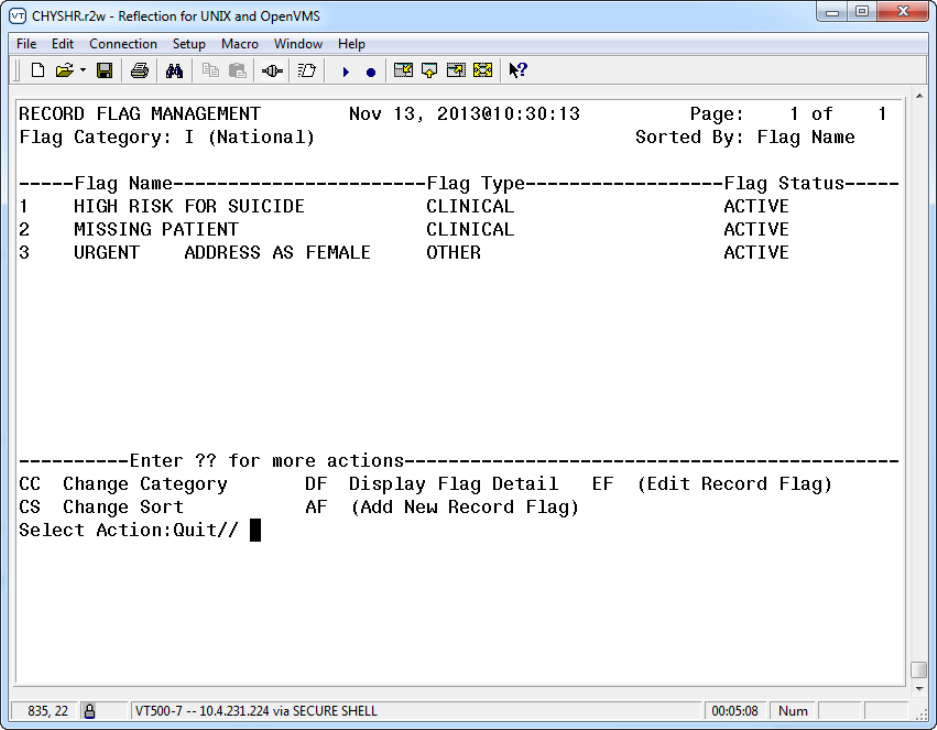
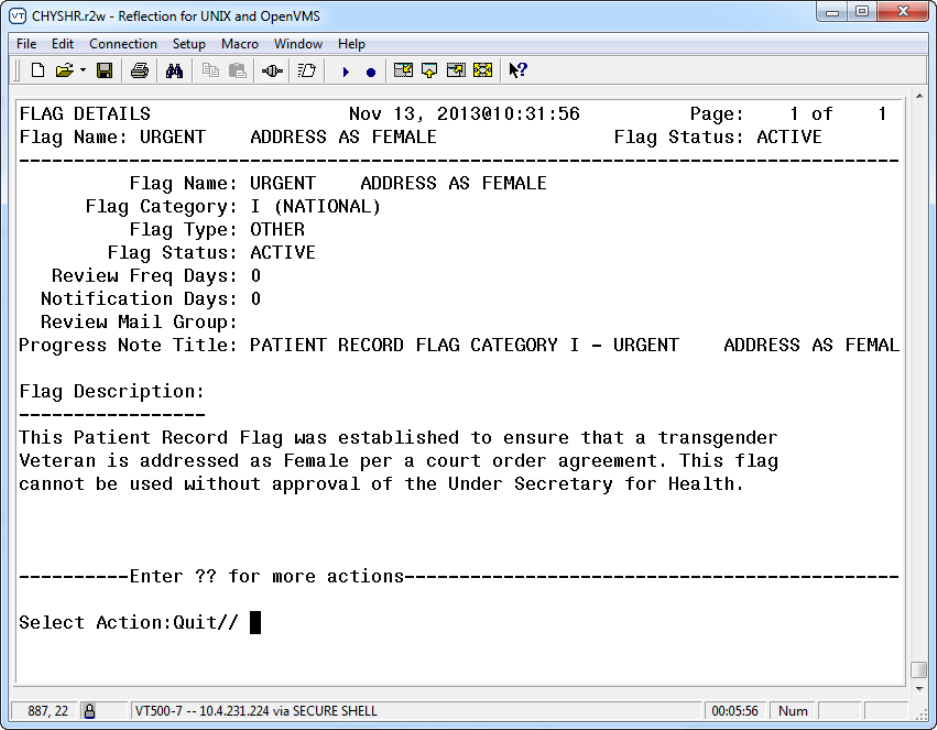
Patch DG*5.3*864 installs a new national Category I patient record flag, URGENT
ADDRESS AS FEMALE PRF, and associates the new PATIENT RECORD FLAG
CATEGORY I – URGENT ADDRESS AS FEMALE progress note title with the new flag.
This Patient Record Flag was established to ensure that a transgender Veteran is addressed as
Female per a court order agreement. This flag cannot be used without approval of the Under
Secretary for Health.
The ability to assign the new URGENT ADDRESS AS FEMALE PRF will be limited to one
identified IRM staff member with programmer access, or an identified clinician with temporary
programmer access assigned by IRM staff at one pre-determined site. The identified person with
programmer access at the pre-determined site will assign the URGENT ADDRESS AS
FEMALE PRF to a pre-determined patient, identified by Under Secretary of Health (USH). The
text used during the assignment will be based on very specific pre-defined text provided by the
Office of the Under Secretary of Health.
Once the USH-specified patient is assigned the URGENT ADDRESS AS FEMALE flag, the
PRF cannot be inactivated for the patient. NOTE: Only one site will be assigning this flag to
the patient. There will be no Review frequency for this flag assignment.
The patch also includes a change to the Register a Patient [DG REGISTER PATIENT] option
and the Load/Edit Patient Data [DG LOAD PATIENT DATA] option to ensure Category I
Patient Record Flags are updated when a patient registers at a new facility. The updates are
provided from the existing VistA treating facility where the patient has been seen. This change
is required to address a Patient Safety Issue (PSPO #2365) and Remedy Ticket #801785 –
Category I Flag.
DG*5.3*864 is part of a bundle that includes TIU*1.0*275 and DG*5.3*864. Patch
TIU*1*275 installs one new Progress Note Title: PATIENT RECORD FLAG CATEGORY I –
URGENT ADDRESS AS FEMALE and links the title to the existing document class,
PATIENT RECORD FLAG CAT I. This title will be automatically linked to the URGENT
ADDRESS AS FEMALE Patient Record Flag during the install of DG*5.3*864. Patch
GMTS*2.7*103 provides two new Health Summary Types: VA-PT RECORD FLAG STATUS
for local display of active and inactive patient record flags and REMOTE PT RECORD FLAG
STATUS for use from Remote Data Views to see another treating facilities active and inactive
patient record flags. Both of these Health Summary Types include a new Health Summary
Use of the Software
Patient Records Flags (PRF) User Guide 9 March 2019
Component, CAT I PT RECORD FLAG STATUS, which displays the active and inactive
Category I Patient Record Flags assigned to a given patient.
Example
Use of the Software
Patient Record Flags (PRF) User Guide 10 March 2019
Use DF (Display Flag Action) to see the flag definition.
DG*5.3*849 - DGPF New Category I Flag and Conversion
Patch
The DG*5.3*849 DGPF NEW CAT I FLAG AND CONVERSION patch supports the Improve
Veteran Mental Health (IVMH) Initiative #5, High Risk Mental Health (HRMH) National
Reminder & Flag. This patch implements the following new functionality.
• National Patient Record Flag (PRF) for suicide prevention (HIGH RISK FOR SUICIDE)
• Convert Local HRMH PRF to National [DGPF LOCAL TO NATIONAL CONVERT]
Option
• DGPF CLINICAL HR FLAG REVIEW mail group.
Use of the Software
Patient Records Flags (PRF) User Guide 11 March 2019
New National Patient Record Flag (PRF) for Suicide Prevention (HIGH
RISK FOR SUICIDE)
The purpose of this National Category I Patient Record Flag is to alert Veterans Health
Administration (VHA) Mental Health staff regarding patients who have a high risk for suicide
that may pose a threat to themselves.
The process to generate the new National Patient Record Flag (PRF) for suicide prevention
(HIGH RISK FOR SUICIDE) (Category I) from a local (Category II) Patient Record Flag (PRF)
will take the existing, active, local PRFs for high risk for suicide and determine whether a
national PRF can be created. If there is an issue with generating a national PRF, an error
message will be logged, or the record will be flagged for manual action by appropriate staff. In
this case no national PRF is created and the local PRF will remain intact.
When creating the new national PRF, the information from the local PRF will be used in the new
national PRF. Upon successful creation of the new national PRF, the local PRF will be
inactivated with a comment indicating a new national PRF has been created.
Upon creation of the new national PRF, the existing Health Level 7 (HL7) messaging
functionality will be used to transmit the national PRF information to other known treating
facilities as is currently done when a National PRF is created through the Record Flag
Assignment [DGPF RECORD FLAG ASSIGNMENT] option.
The new national flag record entry (HIGH RISK FOR SUICIDE) is added in the PRF
NATIONAL FLAG file (#26.15).
New DGPF CLINICAL HR Flag Review Mail Group
DGPF CLINICAL HR FLAG REVIEW mail group receives reports generated by the Convert
Local HRMH PRF [DGPF LOCAL TO NATIONAL CONVERT] to National option. This mail
group will also receive messages when the patient’s flag needs to be reviewed, following
existing PRF review processes of continue, inactivate or delete.
New Convert Local HRMH PRF to National [DGPF LOCAL TO
NATIONAL CONVERT] Option
The new Convert Local HRMH PRF to National [DGPF LOCAL TO NATIONAL CONVERT]
option allows the generation of the national PRF from local, active high risk for suicide PRFs.
This option can be run in either
Report-only
or
Processing mode.
When this new option runs in the report-only mode, reports will be generated and sent to the
new DGPF CLINICAL HR FLAG REVIEW mail group. This report displays:
• local PRFs that can be processed to a national flag
• local PRFs with potential errors needing corrections
• local PRFs required to be processed manually.

Use of the Software
Patient Record Flags (PRF) User Guide 12 March 2019
When the option runs in the processing mode, the actual processing of local PRFs to national
PRFs will take place.
Example: The new Convert Local HRMH PRF to National [DGPF LOCAL TO NATIONAL
CONVERT] option
CHOOSE 1-10: 7 DGPF LOCAL TO NATIONAL CONVERT Convert Local HRMH PRF to
National Convert Local HRMH PRF to National
This option can be run in a report only mode which will provide a report of
what actions the local-to-national processing will perform. Enter 'R' to run
the Report Only mode, or 'P' to begin the local-to-national PRF processing.
Select one of the following:
R Report Only
P Process Local-to-National
Select which mode to run: R// Report Only
...EXCUSE ME, LET ME PUT YOU ON 'HOLD' FOR A SECOND...
>> Results have been sent to the 'DGPF CLINICAL HR FLAG' mail group>
CHOOSE 1-10: 7 DGPF LOCAL TO NATIONAL CONVERT Convert Local HRMH PRF to
National
Convert Local HRMH PRF to National
This option can be run in a report only mode which will provide a report of
what actions the local-to-national processing will perform. Enter 'R' to run
the Report Only mode, or 'P' to begin the local-to-national PRF processing.
Select one of the following:
R Report Only
P Process Local-to-National
Select which mode to run: P// Process Local-to-National
...HMMM, JUST A MOMENT PLEASE...
>> Results have been sent to the 'DGPF CLINICAL HR FLAG' mail group
Use of the Software
Patient Records Flags (PRF) User Guide 13 March 2019
DG*5.3*836 Patch – HRMH - Vista Changes For National
Reminder & Flag
1) DG*5.3*836 implements two new Application Programming Interface (APIs) used by
the (2) Scheduling and (3) Reminder patches to determine the High Risk for Suicide flag
status on a specified date.
• The first API call point will return the multiple assignment statuses, if applicable, for
a specified Flag Name during a specified patient and date range. The Assignment
History should be returned for assignment statuses that overlap the specified date
range.
• The second API will return the list of patients with the specific Patient Record Flag
active within a specified date range.
2) The scheduling patch includes two new scheduling reports that identify no-show “High
Risk for Suicide” patients that missed their MH appointments.
3) The Reminder patch includes a new national reminder and reminder dialog that will be
used by providers to document results of following up with a high risk for suicide patient
that missed a MH appointment and a health summary type with MH-specific supporting
information.
During the installation of this patch sites were provided the opportunity to update the Parameter
Definition for the local Patient Record Flag related to High Risk for Suicide. The default value is
“HIGH RISK FOR SUICIDE”, which sites were encouraged to use. The value of this parameter
can be changed by sites using the following programmer utility.
D UPD^DG53836P: This utility will prompt for a new value for the Parameter Definition.

Use of the Software
Patient Record Flags (PRF) User Guide 14 March 2019
Patient Record Flag Main Menu [DGPF RECORD FLAG MAIN
MENU]
Example: Patient Record Flag Main Menu options
Select Patient Record Flag Main Menu
RM Record Flag Reports Menu ...
FA Record Flag Assignment
FM Record Flag Management
TM Record Flag Transmission Mgmt ...
ED Record Flag Enable Divisions
TR Record Flag Transfer Requests
Patient Record Flag Main Menu
ABBR
OPTION/MENU NAME
TECHNICAL
NAME
DESCRIPTION
RM
Record Flag Reports Menu
[DGPF RECORD
FLAG REPORTS
MENU]
This menu contains patient
record flag report functions.
FA
Record Flag Assignment
Locked with DGPF
ASSIGNMENT Security
Key
[DGPF RECORD
FLAG
ASSIGNMENT]
This option provides a List
Manager user interface for
assigning Patient Record
Flag(s) to patients and also
provides the ability to review
and manage Patient Record
Flag assignments.
The following actions are
provided within the patient
Record Flag Assignment
option.
• Assign a Patient Record
Flag(s) to a patient.
• Display the details of a
patient's record flag
assignments including
the history of the
assignment.
• Review/Edit a patient's
record flag assignment.
• Change the site
ownership of a patient's
record flag assignment.
FM
Record Flag Management
[DGPF RECORD
This option provide users

Use of the Software
Patient Records Flags (PRF) User Guide 15 March 2019
Locked with DGPF
MANAGER Security Key
FLAG
MANAGEMENT]
with the ability to:
• Create Category II
(Local) Patient Record
Flags
• Edit Category II (Local)
Patient Record Flags
• List Category I
(National) and Category
II (Local) Patient Record
Flags
• Display details of
Category I and Category
II Patient Record Flag
TM
Record Flag Transmission
Mgmt. Locked with DGPF
TRANSMISSIONS
[DGPF -
TRANSMISSION
MGMT]
This option acts as a
submenu containing options
available to manage patient
record flag transmissions.
ED
Record Flag Enable
Divisions
Locked with DGPF
MANAGER
[DGPF ENABLE
DIVISIONS]
This option allows multi-
divisional facilities to
enable/disable individual
medical center divisions
stored in the MEDICAL
CENTER DIVISION (#40.8)
file as Patient Record Flag
assignment owners.
Disabling a medical center
division will only be allowed
if there are no active Patient
Record Flag assignments
associated with the division.
TR
Record Flag Transfer
Requests
Locked with DGPF
ASSIGNMENT
[DGPF PRF
TRANSFER
REQUESTS]
This option enables users to
view and Approve/Reject
pending Ownership Transfer
requests (FT) for Active
flags currently owned by
their site.

Use of the Software
Patient Record Flags (PRF) User Guide 16 March 2019
RM - Record Flag Reports Menu
MENU ITEM
DESCRIPTION
Assignment Action Not
Linked Report [DGPF
ACTION NOT LINKED
REPORT]
This option is used to display PRF assignment history actions
that are not linked to a TIU progress note for a specified date
range.
Flag Assignment Report
[DGPF FLAG
ASSIGNMENT REPORT]
This option is used to display all of the patient assignments for
Category I flags, Category II flags, or both by date range.
Patient Assignments Report
[DGPF PATIENT
ASSIGNMENT REPORT]
This option is used to display all of the patient record flag
assignments for a particular patient.
Assignments Due For
Review Report [DGPF
ASSINMENT DUE
REVIEW RPT]
This option is used to display all of the patient assignments for
Category I flags, Category II flags, or both that are due for
review within a selected date range.
Assignments Approved By
Report [DGPF APPROVED
BY REPORT]
This option is used to display all of the PRF assignment history
actions for a single individual or all individuals who approved
the assignment of patient record flags.
Assignments by Principal
Investigator Report [DGPF
PRINCIPAL INVEST
REPORT]
This option is used to display all of the PRF assignment history
actions for a single principal investigator or all principal
investigators for a specified date range (research flags only).
Behavioral PRF Disruptive
Behavior Data Report
[DGPF DISRUPT
BEHAVIOR REPORT]
This option is used to display all of the PRF DBRS data sets for
a single patient’s National Category 1 Behavioral PRF,
providing detail as to who added, edited or removed them and
the date of each action.

Use of the Software
Patient Records Flags (PRF) User Guide 17 March 2019
FA - Record Flag Assignment
FM - Record Flag Management
MENU ITEM
DESCRIPTION
SP - Select Patient
Information provided on the selected patient includes social
security number, Internal Control Number (ICN); Coordinating
Master of Record (CMOR) site (site that is the authoritative
source for the demographic fields); and date of birth.
DA - Display Assignment
Details
The "Approved By" field will display "Chief of Staff" if the site
does not have ownership of the flag assignment.
AF - Assign Flag
This action is used to assign a flag to a patient.
EF - Edit Flag Assignment
This action is used to continue a flag assignment, inactivate the
assignment, or to designate that the assignment was entered in
error.
CO - Change Assignment
Ownership
This action is used to change the ownership of a record flag
assignment
FT- PRF Owner Transfer
Request This is a ‘pull’ action used to request ownership transfer of
Active flags or to take ownership of Inactive flags. Can request
flag transfer to division in Integrated VISN (VISNs 2,15 and 23
only) with Facility type=VAMC (exception: cannot request
transfer to 636A4 or 636A5).
MENU ITEM
DESCRIPTION
CC - Change Category
The Category I flags are displayed on the screen when the option
opens.
CS - Change Sort
This action allows users to sort the flag list by flag name
(alphabetically) or flag type.
DF - Display Flag Detail
This action is used to display information about the selected flag
such as flag name, type, category, status, TIU Progress Note
Title, description, etc.
AF - Add New Record Flag
This action allows the entry of a new Category II (local) patient
record flag.
EF - Edit Record Flag.
This action allows editing of the fields associated with a Category
II (local) patient record flag

Use of the Software
Patient Record Flags (PRF) User Guide 18 March 2019
TM - Record Flag Transmission MGMT
ED - Record Flag Enable Divisions
TR - Record Flag Transfer Requests
MENU ITEM
DESCRIPTION
Record Flag Transmission
Errors [DGPF
TRANSMISSION
ERRORS]
This option provides the means to review rejected PRF HL7
update messages and retransmit them.
Record Flag Manual Query
[DGPF MANUAL
QUERY]
This option allows a user to query a selected treating facility for
existing Category I Patient Record Flag (PRF) assignments for a
selected patient.
MENU ITEM
DESCRIPTION
Record Flag Enable
Divisions [DGPF ENABLE
DIVISIONS]
This option gives multi-divisional facilities the ability to
enable/disable medical center divisions as a PRF owner site.
Divisions are disabled by default.
MENU ITEM
DESCRIPTION
Record Flag Transfer
Requests [DGPF PRF
TRANSFER REQUESTS]
This option enables users to view and Approve/Reject pending
Ownership Transfer requests for Active flags currently owned by
their site.

Use of the Software
Patient Records Flags (PRF) User Guide 19 March 2019
Record Flag Reports Menu
Assignment Action Not Linked Report [DGPF ACTION NOT LINKED
REPORT]
This option is used to display PRF assignment history actions that are not linked to a TIU
progress note for a specified date range. The report can be printed for Category I flags, Category
II flags, or both. If the report is selected to be run for Category I or II flags, the user can select to
run it specifically just for Category I Behavioral, High Risk for Suicide or Missing Patient flags
or for any Category II flag individually. Further, the report can be run to include flags with
action performed on them by their local facilities, by other facilities, or by both.
Examples: Assignment Action Not Linked To A Progress Note Report
PATIENT RECORD FLAGS
ASSIGNMENT ACTION NOT LINKED TO A PROGRESS NOTE REPORT Page: 1
REPORT TYPE: Category I (National) STATUS: Inactive
FLAG: BEHAVIORAL ACTION BY: Local Facility Only
DATE RANGE: 04/29/2018 TO 5/29/2018 PRINTED: MAY 29, 2018 1:49PM
----------------------------------------------------------------------------
CATEGORY: Category I (National)
PATIENT SSN FLAG NAME ACTION ACTION DATE
------------------ ---------- --------------- --------------- -----------
ADTPATIENT,ONE A0015 BEHAVIORAL NEW ASSIGNMENT 05/09/18
INACTIVE 05/29/18
ADTPATIENT,TWO A9873 BEHAVIORAL INACTIVE 05/15/18
Total Actions not linked for Category I: 2
<End of Report>
PATIENT RECORD FLAGS
ASSIGNMENT ACTION NOT LINKED TO A PROGRESS NOTE REPORT Page: 1
REPORT TYPE: Category II (Local) STATUS: Both active and
inactive
FLAG: All flags ACTION BY: All Facilities
DATE RANGE: 05/09/2018 To 05/29/2018 PRINTED: May 29, 2018 2:09 pm
-----------------------------------------------------------------------------
CATEGORY: Category II (Local)
PATIENT SSN FLAG NAME ACTION ACTION
DATE
------------------ ---------- ----------------- ---------------- --------
SHRPE,DJWTEST ONE S9481 WANDERING PATIENT NEW ASSIGNMENT 05/09/18
SHRPE,DJWTEST FIVE S5757 MH RRTP CHERRY ST NEW ASSIGNMENT 05/09/18
SHRPE,DJWTEST ONE S9481 MH RRTP CHERRY ST NEW ASSIGNMENT 05/09/18
CONTINUE 05/09/18
Total Actions not Linked for Category II: 4
<End of Report>

Use of the Software
Patient Record Flags (PRF) User Guide 20 March 2019
Flag Assignment Report [DGPF FLAG ASSIGNMENT REPORT]
This option is used to display all of the patient assignments for Category I flags, Category II
flags, or both, Owned by the user’s Local Facility, other than the user’s Local Facility or both,
Active or Inactive, for a single flag or for all flags, by date range.
The report has been re-configured for correct output display in 132 columns.
Information provided in the report header has been updated to include the Category of Flag the
report was generated for, the Status of the Flags the report was generated for and the Ownership
of the Flags the report was generated for (Local, etc).
Information provided on the display for each Active flag includes patient name, social security
number, date flag was originally assigned to the patient, last date the flag was activated for the
patient, the number of days the flag has been Active for the patient, flag review on date, whether
or not the Review is Overdue, the # of the times this flag has been activated for this patient, and
the Current Owning Site. Information provided on the display for each Inactive flag includes
patient name, social security number, date flag was originally assigned to the patient, last date
the flag was activated for the patient, the number of days the flag has been Active for the patient,
the most recent date the flag was inactivated, the # of the times this flag has been activated for
this patient, and the Current Owning Site.
The report will provide the combined total number of assignments included in the report.
Example: Flag Assignment Report
FLAG ASSIGNMENT REPORT Page:
1
----------------------------------------------------------------------------------------------------------
--
CATEGORY:II (Local) STATUS: Active OWNERSHIP: Local Facility DATE RANGE: 01/01/05 TO 05/05/05
PRINTED: May 05,2005
----------------------------------------------------------------------------------------------------------
--
PATIENT NAME SSN ORIG ACTIVATED DAYS REVIEW OVERDUE? #TIMES CURRENT OWNING
SITE
ASSIGNDT ON ACTIVE ON ACTIVATED
-------------------- --------- -------- -------- ------- ------ ------ ---------- -----------------
-
Flag: CONTROLLED SUBSTANCE WARNING [CATEGORY II (Local)]
SHRPEPATIENT,ONE S6789 05/02/18 05/02/18 42 10/29/18 No 1 CHEYENNE VA MEDICAL
SHRPEPATIENT, TWO S3456 03/01/17 08/25/17 30 01/01/18 No 2 VA CNTRL WSTRN
MASSACHUS
-------------------------------
SUMMARY OF TOTAL ASSIGNMENTS
-------------------------------
Category II (Local) : 1
CONTROLLED SUBSTANCE WARNING: 1
<End of Report>

Use of the Software
Patient Records Flags (PRF) User Guide 21 March 2019
Patient Assignments Report [DGPF PATIENT ASSIGNMENT REPORT]
This option is used to display all of the patient record flag assignments for a particular patient.
The report may be printed for active flags, inactive flags, or both.
Example: Patient Assignments Report
PATIENT RECORD FLAG
PATIENT ASSIGNMENTS REPORT Page: 1
Report Selected: Both (ACTIVE & INACTIVE) Printed: Oct 15, 2005@11:29
-----------------------------------------------------------------------
Patient: ADTPATIENT,ONE 666-01-0122
FLAG NAME CATEGORY APPROVED BY ENTERED REVIEW DT STATUS OWNING SITE
----------- --- ------ -- --------- ------ -----------------------
BEHAVIORAL I APPROVER,ON 11/12/0 11/11/06 ACTIVE MASTER PATI
APEX STUDY II APPROVER,TWO 03/26/05 04/25/07 ACTIVE ALBANY
<End of Report>

Use of the Software
Patient Record Flags (PRF) User Guide 22 March 2019
Assignments Due For Review Report [DGPF ASSIGNMENT DUE
REVIEW RPT]
This option is used to display all of the patient assignments for Category I flags, Category II
flags, or both that are due for review within a selected date range. If a single category is chosen,
the report may be displayed for a single flag or all flags of that category.
Information provided on the display for each flag includes patient name, social security number,
date flag assigned, flag review date, and whether or not the review notification mail message has
been sent. Reviews that are past due are signified by an asterisk (*) next to the date in the
Review Date column.
If both Category I and II flags are selected, the total number of assignments for review for each
category will be displayed as well as the combined total number of assignments for review.
Example: Assignments Due For Review Report
PATIENT RECORD FLAG
ASSIGNMENTS DUE FOR REVIEW REPORT Page: 1
--------------------- Printed: May 05, 2005@14:57
CATEGORY: Category II (Local)
DATE RANGE: 01/01/05 TO 12/31/06
FLAG NAME: RESEARCH
PATIENT NAME SSN ASSIGNED REVIEW DT NOTIFICATION SENT
-------------- --------- -------- --------- -------------
ADTPATIENT,ONE 666456789 05/05/05 05/15/06 NO
ADTPATIENT,TWO 000990909 04/17/05 04/16/06 NO
Total Review Assignments for Flag: 2
Note: " * " indicates that review date is past due
<End of Report>

Use of the Software
Patient Records Flags (PRF) User Guide 23 March 2019
Assignments Approved By Report [DGPF APPROVED BY REPORT]
This option is used to display all of the PRF assignment history actions for a single individual or
all individuals who approved the assignment of patient record flags. The report may be printed
for Cat I flags, Cat II flags, or both; active flags, inactive flags, or both.
Example: Assignments Approved By Report.
PATIENT RECORD FLAG
ASSIGNMENTS APPROVED BY REPORT Page: 1
Date Range: 06/01/05 to 10/15/05 Printed: Oct 15, 2005@11:09
-----------------------------------------------------------------------------
Approved By: ADTPROVIDER,ONE
Flag Name: BEHAVIORAL - Category I (National)
PATIENT SSN ACTION ACTION DT REVIEW DT STATUS
================ ========== ============= ========= ========= =========
ADTPATIENT,ONE 666120565 NEW ASSIGNMENT 07/23/05 07/23/07 ACTIVE
ADTPATIENT,TWO 666769873 NEW ASSIGNMENT 08/11/05 08/11/07 ACTIVE
Approved By: ADTPROVIDER,TWO
Flag Name: BOB1 TEST LOCAL FLAG - Category II (Local)
PATIENT SSN ACTION ACTION DT REVIEW DT STATUS
================ ========== ============= ========= ========= =========
ADTPATIENT,TEN 666880015 NEW ASSIGNMENT 09/29/05 10/09/05 ACTIVE
CONTINUE 09/29/05 10/09/05 ACTIVE
CONTINUE 09/29/05 10/09/05 ACTIVE
Approved By: ADTPROVIDER,TWO
Flag Name: BOB1 TEST LOCAL FLAG - Category II (Local)
PATIENT SSN ACTION ACTION DT REVIEW DT STATUS
================ ========== ============= ========= ========= =========
ADTPATIENT,TEN 666880015 CONTINUE 09/29/05 10/09/05 ACTIVE
CONTINUE 09/29/05 10/09/05 ACTIVE
Flag Name: BOBS TIU TEST FLAG - Category II (Local)
PATIENT SSN ACTION ACTION DT REVIEW DT STATUS
================ ========== ============= ========= ========= =========
ADTPATIENT,TWO 666769873 NEW ASSIGNMENT 08/11/05 08/11/07 ACTIVE
<End of Report>

Use of the Software
Patient Record Flags (PRF) User Guide 24 March 2019
Assignments by Principal Investigator Report [DGPF PRINCIPAL
INVEST REPORT]
This option is used to display all of the PRF assignment history actions for a single principal
investigator or all principal investigators for a specified date range. The user may choose to print
the report for active flags, inactive flags, or both.
Investigators are associated with research type flags. For each flag listed on the report, all
principal investigator names for that flag are displayed.
Example: Assignments By Principal Investigator Report.
PATIENT RECORD FLAG
ASSIGNMENTS BY PRINCIPAL INVESTIGATOR REPORT Page: 1
Date Range: 10/01/05 to 10/18/05 Printed: Oct 18, 2005@10:57
Sorted By: (All Principal Investigators
-----------------------------------------------------------------------------
Flag Name: RESEARCH STUDY - Category II (Local)
Principal Investigator: ADTINVESTIGATOR,ONE; ADTINVESTIGATOR,TWO
PATIENT SSN ACTION ACTION DT REVIEW DT STATUS
================ ========== ================ ========= ========= ======
ADTPATIENT,ONE 000880015 NEW ASSIGNMENT 10/04/05 02/01/06 ACTIVE
ADTPATIENT,TEN 666223333 NEW ASSIGNMENT 10/08/05 04/05/06 ACTIVE
<End of Report>

Use of the Software
Patient Records Flags (PRF) User Guide 25 March 2019
Behavioral PRF Disruptive Behavior Data Report [DGPF DISRUPT
BEHAVIOR REPORT]
This option is used to display a single patient’s National Category 1 Behavioral flag and the
DBRS data which was added, edited or deleted from the flag. It provides details of users who
performed the action, as well as the date the action occurred. The user must select the Patient,
the beginning date and the ending date for the report.
Important: The report output will show the user’s name who performed the action on the DBRS
data. However, the system can only ascertain the user’s details if the user is part of the same
VistA instance as the user running the report. If the system cannot determine the user’s name for
the action to the DBRS data, it will display ‘Postmaster’.
Example: Behavioral PRF Disruptive Behavior Data Report
BEHAVIORAL PRF DISRUPTIVE BEHAVIOR DATA REPORT Page: 1
Patient: SHRPE,PRFHL FOUR (8823) Dates: 09/01/18 - 10/02/18
=============================================================================
DBRS Number Date DBRS Other Information
------------------ -------- -----------------------------------------------
442 CHEYENNE VA MEDICAL Current
------------------ -------- -----------------------------------------------
442AA.345678 09/11/18 [ADDED] SEE DBRS SYSTEM FOR DETAILS
442AA.345679 09/11/18 [ADDED] DBRS CASE OPENED 9/1/2018
442 CHEYENNE VA MEDICAL 09/11/18 PROVIDER, HEALTHCARE
------------------ -------- -----------------------------------------------
442AA.345678 09/11/18 [ADDED] SEE DBRS SYSTEM FOR DETAILS
442AA.345679 09/11/18 [ADDED] DBRS CASE OPENED 9/1/2018
631AA.345678 09/11/18 [DELETED] RELATED TO DBRS 760CC.345678
631AA.345679 09/11/18 [DELETED] CASE JUST OPENED
631 VA CNTRL WSTRN MASSCHUSETS HCS 09/11/18 Postmaster, Postmaster
------------------ -------- -----------------------------------------------
631AA.345678 09/11/18 RELATED TO DBRS 760CC.345678
631AA.345679 09/11/18 [NEW] CASE JUST OPENED
Note: The first section of the report, denoted as ‘Current’ is displaying the current Owning Site
of the flag, as well as providing a snapshot of the current DBRS data on the flag. Subsequent
sections of the report show historical actions on the flag which added, edited or deleted DBRS
data from the flag.

Use of the Software
Patient Record Flags (PRF) User Guide 26 March 2019
Record Flag Assignment [DGPF RECORD FLAG ASSIGNMENT]
The Record Flag Assignment option is used to assign a flag(s) to a patient and to maintain those
assignments.
The "Review Date" field will display "N/A" (not applicable) when any of the following
conditions exist:
• The most recent update to the PRF assignment was received from a remote system.
• The current PRF assignment status is Inactive.
All PRF Record Flags assigned to a patient must be linked to a TIU Progress Note Title or the
user will be unable to proceed with this option.
The DGPF ASSIGNMENT security key is required for access to this option.
A description of each action in this option is provided below.
Example: Record Flag Assignment
RECORD FLAG ASSIGNMENT Aug 06, 2012@10:20:57 Page: 1 of 1
Patient: ZZTEST,VADOD FOR (000009242) DOB: 9/11/59
ICN: 1017279300V523655 CMOR: TAMPA VAMC
Flag Assigned Review Date Active Local Owner Site___
1 SUICIDE RISK 08/01/12 10/30/12 YES YES NORTH VAMC
2 HIGH RISK FOR SUICIDE 08/01/12 N/A NO NO NORTH VAMC
Enter ?? for more actions
SP Select Patient EF Edit Flag Assignment
DA Display Assignment Details CO Change Assignment Ownership
AF Assign Flag
Select Action:Quit//
Use of the Software
Patient Records Flags (PRF) User Guide 27 March 2019
SP - Select Patient
Information provided on the selected patient includes social security number, Internal Control
Number (ICN); Coordinating Master of Record (CMOR) site (site that is the authoritative source
for the demographic fields); and date of birth. Flag assigned to the patient will be listed with the
following data elements.
• Flag Name
• Assigned - Date flag was assigned.
• Review Date - Date flag will be up for review.
• Active - Is the flag active? Yes or No.
• Local - Is the flag local? Yes or No.
• Owner Site - Site that has ownership of the flag.
DA - Display Assignment Details
This action is used to display the following information on a selected flag assignment.
The "Approved By" field will display "Chief of Staff" if the site does not have ownership of the
flag assignment. The Progress Note field will only be displayed if the site has assignment
ownership.
• Flag Name
• Flag Type
• Flag Category
• Assignment Status
• Date of Initial Assignment
• Last Review Date
• Next Review Date
• Owner Site
• Originating Site
• DBRS Number
• DBRS Other Information
• Flag Assignment Narrative
• Flag Assignment History
o Action
o Action Date
o Entered By

Use of the Software
Patient Record Flags (PRF) User Guide 28 March 2019
o Approved By
o Progress Note
o Action Comments
AF - Assign Flag
This action is used to assign a flag to a patient. Assigning a flag consists of entering the
following fields. After completion, the data will be displayed for review before filing.
• Name of the flag (to see a list of the available flag names enter L.? for local flag and N.?
for national flag)
• Owner Site
• Name of the individual who approved the assignment
• Narrative text (reason) for the assignment
• Review Date
IF the flag is a National Category 1 Behavioral Flag;
Disruptive Behavior Report System Number
• Enter DBRS Number
(Answer must be 10-17 characters in length, <site#>.NNNNNN)
• DBRS Other:
Disruptive Behavior Report System Number
The following DBRS Numbers have already been entered:
(It displays back the DBRS numbers just entered <site#>.NNNNNN)
(User hits Enter at ‘Enter DBRS Number’ prompt when complete adding DBRS data OR if no
DBRS data is to be entered on the flag)
Note: Multiple DBRS data sets (DBRS Number + Other DBRS information) can be added onto a
National Category 1 Behavioral PRF.
EF - Edit Flag Assignment
This action is used to continue a flag assignment, inactivate the assignment, or to designate that
the assignment was entered in error. It can also be used to update the assignment narrative. The
reason must be entered for editing the assignment. Note: Category I flag assignments may only
be edited by the owner site.
For National Category 1 Behavioral Flags ONLY:
1. A new action has been added: “(X) DBRS/Other Field Edit only”
Use of the Software
Patient Records Flags (PRF) User Guide 29 March 2019
This allows authorized VistA users/current owning site the ability to edit the National
Category 1 Behavioral PRF, but only allows edit to the two DBRS related fields; “DBRS
Number” and “DBRS Other”.
The system prompts for the new ‘X DBRS/Other Field Edit Only’ are as follows;
Select Action:Quit// EF Edit Flag Assignment
Select Record Flag Assignment: (1-4): 2
Select one of the following:
C Continue Assignment
I Inactivate Assignment
E Entered in Error
X DBRS/Other Field Edit Only
Select an assignment action: X DBRS/Other Field Edit Only
You may add, edit, or delete a DBRS entry for this assignment.
To delete an entry, use the '@' sign after '//'.
Select DBRS NUMBER:
a. To ADD an existing DBRS Number on the flag:
Select DBRS NUMBER: ?
(User enters ‘?‘ to view any pre-existing DBRS numbers)
Answer with DBRS NUMBER
Choose from:
(this is the system listing out existing DBRS case #s entered
on this flag previously)
123.555555
123.666666
You may enter a new DBRS NUMBER, if you wish
Answer must be 10-17 characters in length, <site#>.NNNNNN
Select DBRS NUMBER:631.123456
(User enters this new DBRS case number to add
it onto the Behavioral flag)
Are you adding '631.123456' as a new DBRS NUMBER? No// Y (Yes)
DBRS NUMBER "DBRS Other": New case opened 11/20/18
(User enters text
corresponding to the newly added DBRS case number)
Select DBRS NUMBER:
(User hits enter here and system takes user through remaining steps of adding
‘Edit Reason Text’, the Review of Edit Flag Assignment Data Input Before Filing, Record Flag Assignment
Narrative and Filing the Assignment Changes. NEW DBRS case and corresponding ‘Other’ text has been
added to the flag.
b. To EDIT an existing DBRS Number on the flag:
Use of the Software
Patient Record Flags (PRF) User Guide 30 March 2019
Select DBRS NUMBER:?
(User enters ‘?‘ to view any pre-existing DBRS
numbers)
Answer with DBRS NUMBER
Choose from:
123.555555
123.666666
631.123456
You may enter a new DBRS NUMBER, if you wish
Answer must be 10-17 characters in length, <site#>.NNNNNN
Select DBRS NUMBER: 631.123456
(User enters the pre-existing DBRS case
number to edit it)
DBRS NUMBER: 631.123456// 631.123457
(The system prompt shows it has
the DBRS number ‘selected‘ and the User enters the new DBRS case number
which will replace it on the flag)
OTHER DBRS DATA: New case opened 11/20/18 Replace New case opened
11/20/18 With
Case 631.123456 replaced by case 631.123457 11/23/18
Replace
Case 631.123456 replaced by case 631.123457 11/23/18
(Here the
system asked which text should be replaced, the user copied all
existing text and pasted it to be replaced. Then the system asks for
new text to replace the old text ‘With‘? and the User entered in new
text to be stored with the changed DBRS case number of ‘Case 631.123456
replaced by case 631.123457 11/23/18‘.)
Select DBRS NUMBER:
(User hits enter here and system takes user through remaining steps of
adding ‘Edit Reason Text’, the Review of Edit Flag Assignment Data Input Before Filing, Record Flag
Assignment Narrative and Filing the Assignment Changes. NEW DBRS case and corresponding
‘Other’ text has been added to the flag.
c. To DELETE an existing DBRS number and its corresponding ‘Other‘ text
from the flag:
Select DBRS NUMBER: ?
(User enters ‘?‘ to view any pre-existing DBRS
numbers)
Answer with DBRS NUMBER
Choose from:
123.555555
123.666666
631.123457
You may enter a new DBRS NUMBER, if you wish
Answer must be 10-17 characters in length, <site#>.NNNNNN
Select DBRS NUMBER: 631.123457
(User enters the pre-existing DBRS case
number to select it for deletion off the flag)
Use of the Software
Patient Records Flags (PRF) User Guide 31 March 2019
DBRS NUMBER: 631.123457// @
(The system prompt shows it has the DBRS
number ‘selected‘ and the User enters the ‘@‘ sign to delete it off the
flag)
SURE YOU WANT TO DELETE THE ENTIRE '631.123457' DBRS NUMBER? Y
(Yes)
Select DBRS NUMBER:
? (Looking again at the DBRS numbers on the flag,
shows the selected DBRS number has been removed from the flag.)
Answer with DBRS NUMBER
Choose from:
123.555555
123.666666
You may enter a new DBRS NUMBER, if you wish
Answer must be 10-17 characters in length, <site#>.NNNNNN
Select DBRS NUMBER:
(User hits enter here and system takes user through remaining steps of
adding ‘Edit Reason Text’, the Review of Edit Flag Assignment Data Input Before Filing, Record Flag
Assignment Narrative and Filing the Assignment Changes. NEW DBRS case and corresponding
‘Other’ text has been added to the flag.
2. The existing (I) Inactivate action will NOT allow addition to, edit of, or deletion of any of
the DBRS data sets on the Flag by any user. Pre-existing DBRS data sets will remain on
the flag when it is Inactivated.
3. The existing (C) Continue, (R) Reactivate and new ‘(X) DBRS Data Edit Only’ options
will allow;
• Addition of new DBRS data set(s)
• Edit of existing DBRS data sets
• Deletion of existing DBRS data sets entered by any other user in
same Facility
4. The existing (E) Entered in Error option will; remove all DBRS data sets when this
option is processed. Warning is displayed on the screen that all DBRS data are being
removed prior to submit of action.
CO - Change Assignment Ownership
This action is used to change the ownership of a record flag assignment. The action is considered
a “push” in that the current owning site is the one invoking the action to change ownership of the
flag. The ownership of Category I flags may be changed to any of the patient’s treating facilities
(parent facilities i.e. 442) or to any local parent or division (any permutation). The ownership of
Category I flags may not be changed to any non-local division (i.e. 442A6).
The CO action has been updated with patch DG*5.3*951 to recalculate and populate the
‘Review Date’ value upon completion of the change in ownership for National Category 1 Flags.
It has also been updated to move DBRS data on National Category 1 Behavioral PRFs with the
flag, when Ownership changes.

Use of the Software
Patient Record Flags (PRF) User Guide 32 March 2019
The Review Date recalculation is;
(date of change in Ownership) + (number of days based on type of flag) = new Review Date
displayed on owning site’s PRF.
Type of National Flag and corresponding number of days for recalculation:
BEHAVIORAL – 730 calendar days
HIGH RISK FOR SUICIDE – 90 calendar days
URGENT ADDRESS AS FEMALE - 0
MISSING PATIENT – 30 calendar days
Important Note: With the addition of the new “FT PRF Owner Transfer Request” action, if
there is an Ownership Transfer request which is PENDING via the FT action, the flag will NOT
be allowed to be transferred using the CO action. The user will receive a message indicating they
must complete the Ownership Transfer via the FT action/process.
FT – PRF Owner Transfer Request
This action is used to request a change in, or take ownership of, a flag. This action is considered
a “pull” in that, the site who wants ownership of the flag, *requests it* for an Active flag through
this action, or just *takes ownership* of an Inactive flag through this action.
The ownership of Category I flags may be requested to be changed to any of the patient’s
treating (parent, 3 digit) facilities AND to any division within Integrated VISNs with Facility
type=VAMC (exception: cannot request transfer to 636A4 or 636A5).
The ownership of Category I flags may NOT be requested to be changed to divisions in non-
integrated VISNs OR from a local parent facility (636) or division (636A6) to local parent
facility (637) or division (636A6) (any permutation).
From the Record Flag Assignment screen, the user Selects the Patient, then selects FT action.
• If the user attempting to use the FT action is signed-into a site which is not designated as
a Parent site (top level i.e. 442) OR is not designated as a Division within one of the
VA’s three Integrated VISNs (VISNs 2, 15 and 23) (division 528A8, 589A4 or 636A6 for
example) they will receive an error message;
“Unable to proceed, the following error has occurred:
Error Text:
Action not permitted - You are signed into a division which is neither a parent
facility, nor a VAMC type division in an integrated site.”
• The user selects a Patient, then selects the FT action and is prompted to select which flag
to transfer ownership on. They are then prompted to enter ‘Ownership Request Reason’.
This is the justification for why this site wants Ownership changed to their site for this
Patient/flag. User enters justification and hits return.
• System displays
Use of the Software
Patient Records Flags (PRF) User Guide 33 March 2019
“You're about to request ownership transfer of the following
record flag assignment to division XXXXXXXX XXXXXXXX (station #NNN):
Patient: LASTNAME,FIRST
PRF flag: HIGH RISK FOR SUICIDE
PRF flag status: ACTIVE
Current owner: SIDNEY VA CLINC
Request reason: user is moving to our state
o Do you wish to send this request? NO//”
• Once the user sends the request they will see a message stating the transfer request was
sent successfully.
• If the assignment is active, a Mailman message will be sent to the current owner’s mail
group requesting approval.
If the assignment is inactive, the transfer will be done immediately and a Mailman
message will be sent notifying the current owner of the change of ownership action.
User must have DGPF ASSIGNMENT key to access this new action.

Use of the Software
Patient Record Flags (PRF) User Guide 34 March 2019
Record Flag Management [DGPF RECORD FLAG
MANAGEMENT]
The Record Flag Management option is used to create and maintain Category II patient record
flags. It can also be used to display a list of Category I and II flags including the details of each.
DGPF MANAGER Security key is required for access to this option.
A description of each action in this option is provided below.
Example: Record Flag Management
RECORD FLAG MANAGEMENT May 05, 2003@14:40:52 Page: 1 of 1
Flag Category: II (Local) Sorted By: Flag Name
Flag Name Flag Type Flag Status
1 CANCER PROTOCOL RESEARCH ACTIVE
2 DRUG SEEKING BEHAVIOR BEHAVIORAL ACTIVE
3 INFECTIOUS DISEASE CLINICAL ACTIVE
Enter ?? for more actions
CC Change Category DF Display Flag Detail EF Edit Record Flag
CS Change Sort AF Add New Record Flag
Select Action:Quit//
CC - Change Category
The Category I flags are displayed on the screen when the option opens. Currently there are three
National Category I Flags, Behavioral, High Risk for Suicide, and URGENT Address as
Female. This action allows users to change the category of the flag list being viewed.
CS - Change Sort
The flag list can be sorted alphabetically or by type of flag. Flag types are distributed with the
software and cannot be added to or edited.
DF - Display Flag Detail
This action is used to display information about the selected flag such as flag name, type,
category, status, TIU Progress Note Title, description, etc. The enter/edit history of the flag is a
part of this display.

Use of the Software
Patient Records Flags (PRF) User Guide 35 March 2019
AF - Add New Record Flag
This action allows the entry of a new Category II (local) patient record flag.
Entering a new flag consists of completing the following fields.
FIELD
DESCRIPTION
Record Flag Name
Locally assigned name of the flag.
Status of the Flag
Active or Inactive
Type of Flag
Clinical, Research, etc. Entries are distributed with the
software.
Principal Investigator
This prompt will only appear if the flag type is
RESEARCH. Enter the investigator(s) associated with this
research flag.
Review Frequency Days
Number of days that may elapse between reviews of this
flag assignment. Flags must be reviewed at least every
two years. A value of zero indicates that NO automatic
review will occur.
Notification Days
Number of days prior to this flag assignment's review date
that a notification is sent to the review group. A value of
zero indicates that NO prior notification is required.
Review Mail Group
Name of the mail group that will receive notification that
this flag assignment is due for review. Mail group name
must begin with DGPF. It is further recommended that
locally-defined mail groups begin with DGPFZ.
Progress Note Title
Name of TIU Progress Note linked with the flag.
Description of the Flag
A brief description of this patient record flag.
EF - Edit Record Flag
This action allows editing of the fields associated with a Category II (local) patient record flag.
The reason for editing the flag must be entered. If the STATUS field is changed from ACTIVE
to INACTIVE, all patient record flag assignments associated with this flag will be inactivated.

Use of the Software
Patient Record Flags (PRF) User Guide 36 March 2019
Record Flag Transmission Mgmt
Record Flag Transmission Errors [DGPF TRANSMISSION ERRORS]
This option provides the means to review rejected PRF HL7 update messages for locally-owned,
Active Patient Record Flags and retransmit them. The report can now be generated for all
locally-owned, Active PRFs or a single PRF the user enters. The list may be sorted by patient
name or date/time message received.
The view message action will display details of the selected message. Data items may include
error received date/time, message control ID, flag name, owner site, assignment transmitted to,
assignment transmission date/time, and rejection reasons.
The retransmit message action will retransmit all of the patient’s PRF assignment and history
records to the site where the rejection message occurred.
The DGPF TRANSMISSIONS security key is required for access to this option.
NOTE: The Record Flag Transmission Mgmt [DGPF TRANSMISSION MGMT] option and
DGPF TRANSMISSIONS security key should only be assigned to a very few staff members at
each site.
Example: Transmission Errors Screen.
TRANSMISSION ERRORS Aug 02, 2018@13:16:01 Page: 1 of 1
Active, Locally-Owned, Category I Flags: ALL
List Sorted By: Patient Name
Patient Name SSN Error On Transmitted To____________
1. SHRPEPATIENT, ONE 2323 12/03/17 VA CNTRL WSTRN MASSCHUSETS
2. SHRPEPATIENT, TWO 0565 01/20/18 VA CNTRL WSTRN MASSCHUSETS
3. SHRPEPATIENT, SIX 0888 02/23/18 VA CNTRL WSTRN MASSCHUSETS
4. SHRPEPATIENT, TEN 4811 03/29/18 VA CNTRL WSTRN MASSCHUSETS
Enter?? For more actions
CS Change Sort RM Retransmit Message
VM View Message
Select Action:Quit//
Use of the Software
Patient Records Flags (PRF) User Guide 37 March 2019
Record Flag Manual Query [DGPF MANUAL QUERY]
This option allows a user to query a selected treating facility for existing Category I Patient
Record Flag (PRF) assignments for a selected patient.
The option displays a list of all Category I PRF assignments found at the queried treating facility.
The query result details for a selected assignment can be displayed. Any Category I PRF
assignment returned by the query that does not already exist at the facility is automatically
added. If active flag assignments already exist at the requesting facility for the selected patient,
they are displayed. The flag details for each flag may be viewed before sending the query.
Example: This message is displayed when the Record Flag Manual Query [DGPF MANUAL
QUERY] option successfully returns and files a PRF assignment that was missing at the
requesting facility.
The following Category I Patient Record Flag Assignments were returned and
filed on your system: BEHAVIORAL
Example: If no Category I flag assignments are found in the queried treating facility database
for the selected patient, the following message is displayed.
No Category I Patient Record Flag Assignments found for this patient at {site
name}.
Example: The following message is displayed when the HL7 software has a problem
communicating between the two facilities.
The facility failed to respond to the query request.
Example: Record Flag Manual Query Results Screen
RECORD FLAG QUERY RESULTS Apr 20, 2006@10:16:14 Page: 1 of 1
Patient: ADTPATIENT,ONE (000004321) DOB: 01/01/45
ICN: 100123456 FACILITY QUERIED: ZZ ALBANY
Flag Assigned Active #Actions Owner Site
1 BEHAVIORAL 02/03/05 YES 2 VISTARPM
Enter ?? for more actions
DR Display Query Result Details
Select Action:Quit//
Use of the Software
Patient Record Flags (PRF) User Guide 38 March 2019
Record Flag Enable Divisions [DGPF ENABLE DIVISIONS]
This option gives multi-divisional facilities the ability to enable/disable medical center divisions
as a PRF owner site. Divisions are disabled by default.
Once a division has been enabled, disabling it will only be allowed if there are no active
assignments associated with that division.
Users may choose to view a list of medical center divisions for the site. Data items displayed
may include medical center division, PRF assignment ownership (enabled/disabled), edited by,
edit date/time, and active PRF assignments (Yes/No).
The DGPF MANAGER Security key is required for access to this option.

Use of the Software
Patient Records Flags (PRF) User Guide 39 March 2019
Record Flag Transfer Requests [DGPF PRF Transfer
Requests]
This option enables users to view pending Ownership Transfer requests for Active flags
currently owned by their site.
The site who owns the Active flag will receive a Mailman message (sent to the current owner’s
mail group) alerting them there is a request to transfer ownership of a flag, pending.
The user then selects the TR action from the Record Flags Main Menu and is brought to the
following screen:
PRF TRANSFER REQUESTS Oct 02, 2018@12:41:03 Page 1 of 1
Current view:
Query Id: ALL Req. Status: PENDING Dates: ALL
Patient: ALL Flag: ALL
Patient Name Record Flag Status Rq. Date
1 LASTNAME,FIRST BEHAVIORAL PENDING 10/02/18
Enter ?? for more actions
CV Change current view RR Review pending request
SD Show request details Q Quit
Select Action:Quit//
The user can select;
CV – Change current view enabling the user to search for single/all query ids, patients, flags,
statuses, dates
SD – Show request details which provides; Request date/time, requester name, request reason,
patient name, record flag name, request status, Reviewer Name, Reviewer Date/time, Review
Reason, Query ID, HL7 message ID, Requesting Facility and Error message.
RR – Review pending request which allows the user to review the pending request.
To Approve or Reject the Pending Ownership Transfer Request:
The user selects RR – Review Pending Request
Select PRF Transfer Request: (1-2): 1
Review transfer request:
Use of the Software
Patient Record Flags (PRF) User Guide 40 March 2019
------------------------
Request date/time: SEP 19, 2018@13:43:15
Requester name: PROVIDER,HEALTHCARE
Request reason: TRANSFER OWNERSHIP
Patient name: LASTNAME,FIRSTNAME
Record flag name: BEHAVIORAL
Request status: PENDING
Reviewer name: N/A
Review date/time: N/A
Review reason: N/A
Query id: 137
HL7 message id: 63188377628
Requesting facility: VA CNTRL WSTRN MASSCHUSETS HCS
Error message: N/A
Do you wish to approve or reject this transfer request? (A/R):
The user would then select A(Approve) or R (Reject).
Whether the user selects to Approve OR Reject the request the user is asked to provide an
‘Ownership Request Approval/Rejection Reason’.
Once a Pending Request has been Approved or Rejected, it will be removed from the user’s PRF
Transfer Requests list.
Important Note: With the addition of the new “FT PRF Owner Transfer Request” action, if
there is an Ownership Transfer request which is PENDING via the FT action, the flag will NOT
be allowed to be transferred using the CO action. The user will receive a message indicating they
must complete the Ownership Transfer via the FT action/process.
Also: Multiple ownership transfer requests can be sent by the requesting site. The owning site
needs to only respond to the most current request and when they do, the system will clean up
duplicate requests.
User must have DGPF ASSIGNMENT key.
Use of the Software
Patient Records Flags (PRF) User Guide 41 March 2019
Record Flag Data Refresh [DGPF RECORD REFRESH]
This option enables users with appropriate DGPF ASSIGNMENT security key AND
programmer mode access (“@”) to utilize the new Refresh option to propagate one version of a
PRF to all sites where the Patient is registered. Sometimes due to failed HL7 messaging updates,
versions of a PRF can become out of synch between sites. Once the business and Tier II have
determined which version of the flag should be considered the authoritative source (all data is
correct) they can select to run this option on that VistA instance, to refresh this version of the
data to all instances of the flag.
The user selects to run the option;
‘This option is designed to resynchronize a Flag Assignment which has
differing values at various VAMC facilities where the patient has
been registered. The data on this system will be considered the
authorized source of that information for this flag assignment at
this time.
Please make sure all the data associated with this Flag Assignment
is correct. If not, make those corrections before running this
option for all flag assignment fields except for the OWNER SITE
field.
If you are running this option because a previous CHANGE OF
OWNERSHIP action failed to properly update all facilities, then this
option will prompt you for the name of that facility which is to be
the OWNER SITE for this flag assignment.
Select a Patient Record Flag Assignment
Select PATIENT:‘
The user selects the Patient and is prompted further;
‘Select one of the following:
U Update failed
O Ownership transfer failed
Reason for refreshing data:‘
If the flag is being refreshed out to all instances because it is known that an update attempted to
be made, failed in its HL7 processing, the user would select ‘U Update failed’.
‘Reason for refreshing data: Update failed
This assignment will now be refreshed/resent to all sites where this
this patient has been registered.
Do you wish to send an HL7 update message now? NO//‘
Use of the Software
Patient Record Flags (PRF) User Guide 42 March 2019
If the flag became out of sync between sites due to a failed Ownership Transfer, the user would
select ‘O Ownership Transfer Failed’ and can then select the site to assign ownership of the flag,
to.
‘Reason for refreshing data: Ownership transfer failed
Select new owner site for this record flag assignment:
NNN VA XXXXX
XXXXXX XXXXXX
You have selected this Facility/Division as the OWNER SITE:
NNN VA XXXXX XXXXXX XXXXXX
This assignment will now be refreshed/resent to all sites where this
this patient has been registered.
Do you wish to send an HL7 update message now? NO// Y
Creating a PRF Assignment History record of this action.
HL7 message sent...updating patient's sites of record.‘
Note: The Refresh option follows the same business rules as the CO – Change Ownership action
does, for allowing assignment to facilities.

Use of the Software
Patient Records Flags (PRF) User Guide 43 March 2019
Additional Patient Record Flag Information
PRF Display on Patient Look-up
The following is an example of the patient record flag assignment information displayed on
patient look-up for those patients with flag assignments. Category I flags will be listed first with
the Category designation (Cat I or II) displayed. It is strongly recommended the user answer
YES to view the active patient record flag details, especially for National Category I flags and
then review the detailed information that is possibly critical to patient and employee safety.
Example: PRF Assignment Information on Patient Lookup
Select Registration Menu Option: Load/Edit Patient Data
Select PATIENT NAME: adtpatient, one ADTPATIENT,ONE 2-3-20 000456789
1 YES NSC VETERAN
>>> Active Patient Record Flag(s):
<BEHAVIORAL> CATEGORY I
Do you wish to view active patient record flag details? YES// <RET>
Patient Record Flag Jun 05, 2003@07:22:55 Page: 1 of 4
Patient: ADTPATIENT, ONE (000456789) DOB: 02/03/20
ICN: 5000000003V639492 CMOR: 1ALBANY
<<< Active Patient Record Flag Assignments >>>
____________________________________________________________________
1. Flag Name: <BEHAVIORAL>
Category: I (NATIONAL)
Type: BEHAVIORAL
Assignment Narrative:
On 4/8/03, this veteran was disruptive and threatening toward numerous
staff. RECOMMEND: VA Police should be immediately called to standby
until they and the clinician decide that standby is no longer necessary.
Assignment Details:
Initial Assignment: May 20, 2003
Approved By: ADTAPPROVER, ONE
Next Review Date: May 20, 2005
Owner Site: ALBANY VAMC (UPSTATE NEW YORK HCS)
Originating Site: EL PASO VA HCS (EL PASO VA HCS)
Progress Note Linked: No
+ Enter?? for more actions
Select Action: Quit//
Use of the Software
Patient Record Flags (PRF) User Guide 44 March 2019
Patient Record Flag in CPRS
Patient Record Flags (PRF) are advisories that authorized users place on a patient’s chart to
improve employee safety and the efficient delivery of health care. Each advisory or flag includes
a narrative that describes the reason for the flag and may include some suggested actions for
users to take when they encounter the patient. Other information displayed to the user includes
the Flag Type, Flag Category, Assignment Status, Initial Assignment Date, Approved by, Next
Review Date, Owner Site, and Originating Site. When assigning a flag, authorized users must
write a progress note that clinically justifies each flag assignment action.
Creating, Assigning, and Maintaining PRFs
Some sites may have two different groups of users who work with Patient Record Flags.
• Administrative users who create, maintain, and assign flags
• Clinical users that document why the flag was placed on the patient’s record.
Authorized users can define Category II flags and edit their definitions. They assign and
maintain the flag(s) on a patient’s record using the assignment actions in the PRF software
through the List Manager interface: new assignment, continue, inactivate, mark as entered in
error, and reactivate.
When a PRF is removed, a note explaining why it is being removed must be added. In practice, it
is best to have the note well-planned and written when the flag is removed.
Documenting PRF
Each Patient Record Flag action (new assignment, continue, inactivate, reactivate, or mark as
entered in error) must have a linked progress note that clinically justifies any action taken.
Previously, each flag needed to have a progress note, but there was no link between the note and
the flag action. Now when the user writes a PRF progress note, the user must link the note to a
flag action. The note might also contain references to supporting documentation.
In each flag definition, the user must select the previously created PRF progress note title that
will document the reasons for any flag action. This is referred to as associating a progress note
title with a PRF. Before a title can be associated with a PRF, the title must be created either by a
patch for a national flag or by someone at the site for a local flag.
Once the flag and the progress note title are associated, when the user writing a new progress
note selects a PRF progress note title, CPRS displays the flag actions on the selected patient and
whether each action has been linked to PRF progress note (Yes or No). For the new PRF note,
the user then selects the available flag action to create the link between the note and the flag
action.

Use of the Software
Patient Records Flags (PRF) User Guide 45 March 2019
SYMBOL DESCRIPTION
NOTE/REF: There is a one-to-one correspondence between flag actions and
progress notes. Each PRF action for a patient can only be linked to one progress
note; each progress note can only be linked to one flag action.
Prerequisites to Writing PRF Progress Notes
Before users can write progress notes that document PRF’s, PRF progress note titles must be set
up correctly. Each PRF progress note title must be associated with a specific flag definition, and
users must be assigned to the appropriate user classes to write specific kinds of notes. Also,
someone must have assigned the flag to the patient.
For users to write a progress note and correctly link the note to a flag action, sites must complete
the following set up.
• To write a PRF note for a Category I flag, the user must belong to the DGPF PATIENT
RECORD FLAG MGR user class. Each site will be responsible for populating this user
class.
• Because Category II Patient Record Flags are local, each site must determine if the site
will create a user class and business rules to govern which users can write Category II
PRF progress notes.
• The PRF note titles should follow the naming conventions described in the directive and
be descriptive enough that users can tell which note title corresponds to which flag.
• The flag definition must contain the progress note title that documents actions for that
flag - each PRF note title can only be associated with one flag.
Category II PRF progress note titles must be in the Patient Record Flag Cat II document class
under the Progress Notes document class to allow users to associate them with a PRF Category II
definition. If the titles are not in this document class, they will not display when the user attempts
to associate the title with a PRF Category II flag nor will CPRS get the information about which
flag actions are linked. Progress note titles for Category I patient record flags are defined and
associated by national patch.
Use of the Software
Patient Record Flags (PRF) User Guide 46 March 2019
PRF Note Titles
With patch DG*53*869, there are now four Category I flags: Behavioral, High Risk for Suicide,
Urgent Address as Female and Missing Patient PRF.
The Progress Note titles for the four flags are:
• Patient Record Flag Category I (for the Behavioral flag)
• Patient Record Flag Category I – High Risk for Suicide
• Patient Record Flag Category I – Urgent Address As Female
• Patient Record Flag Category I – Missing Patient
To help sites that will be creating local Category II flags, four partially customizable Progress
Note titles have been distributed.
• Patient Record Flag Category II – Risk, Fall
• Patient Record Flag Category II – Risk, Wandering
• Patient Record Flag Category II – Research Study
• Patient Record Flag Category II – Infectious Disease
Clinical Application Coordinators (CACs) can customize these Category II titles by changing the
text after the dash using TIU utilities. For example, the first title could be changed from “Patient
Record Flag Category II – Risk, Fall” to “Patient Record Flag Category II – Behavioral, Drug
Seeking” or other titles sites create.
CACs can also create their own titles, but the title must follow the naming convention “Patient
Record Flag Category II – other text” where other text is the text specific to the local note title.
Linking PRF Notes to Flag Actions
In the CPRS GUI, users must link a PRF progress note to a flag action when the user writes a
PRF note. This linking can also be done through the List Manager interface using TIU options.
In the CPRS GUI’s Progress Note Properties dialog, when a user selects a Patient Record Flag
progress note title, CPRS displays a list of flag actions to which the note can be linked at the
bottom of the dialog. This list shows all the actions for the flag and whether each action has been
linked.
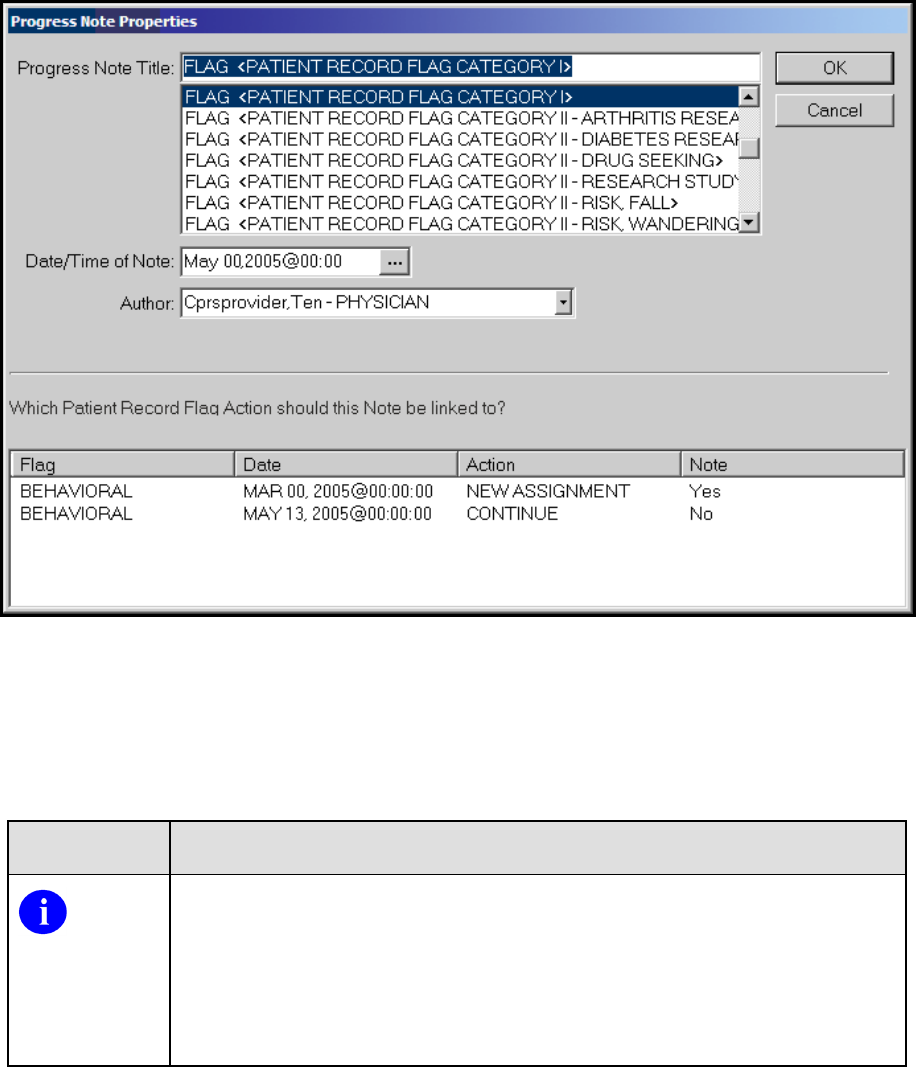
Use of the Software
Patient Records Flags (PRF) User Guide 47 March 2019
For progress note titles that document the justification for a Patient Record Flag, users will be
able to link the progress note to the specific flag action they are documenting. The example
shown here is of a Category I PRF progress note and the Continue action to which the user
would choose to link.
SYMBOL DESCRIPTION
NOTE: For PRF notes, users must select a flag action to link the note to
before they can write the note—the same way users link a note with a
consult. CPRS will not allow the user to write the note unless an unused
flag action is selected. If the user does not select a flag action, CPRS
displays a dialog that states, “Notes of this title require the selection of a
Patient Record Flag action”.
When the user selects a PRF progress note title, CPRS displays this list of note actions only if
sites have done the correct set-up as described earlier. The user must then pick the action (new
assignment, inactivate, reactivate, continue, or entered in error) that the note is documenting.
If a user is viewing a note and wants to see to which PRF action the note is linked, the user can
select View | Details on the Notes tab. The details include the flag name, the date, and the action
that was linked.

Use of the Software
Patient Record Flags (PRF) User Guide 48 March 2019
If a user writing a new progress note chooses a PRF progress note but CPRS does not display
any flag actions for linking, one of the following has probably occurred.
• The flag has not been assigned to this patient yet.
• The user has selected the wrong progress note title for the flag.
• If it is a Category I flag, the site may not own the flag.
Marking PRF as Entered in Error
Marking a PRF as entered in error terminates the flag’s display in the patient’s record. However,
if there was a progress note linked to the flag, the progress note is still in the patient’s record. If
the flag was entered in error, an authorized TIU user should retract or retract and reassign the
linked progress note.
SYMBOL DESCRIPTION
NOTE: Users should be aware that although the flag does not display, a
history of this flag is kept in the Patient Record Flag software and users can
reactivate the flag. To prevent users from entering notes on previous,
inaccurate PRF actions, all previous PRF actions are hidden when a flag is
marked as entered in error.
Viewing PRF in CPRS GUI
Patient Record Flags are displayed in the applications that use the patient look-up, including the
CPRS GUI. In the CPRS GUI, there are three places where users can see if a patient has PRF.
• The Patient Record Flag pop-up box
• The CPRS Cover Sheet
• The Flag button (available from any tab)
When the user selects a patient name, CPRS begins to load the record, displays any relevant
messages (“means test required”, deceased patient, sensitive record, etc.), and then, if the record
is flagged, displays a pop-up box with the flag titles for the selected patient to ensure that the
user sees the flag. The pop-up box is shown below.
The Patient Record Flag pop-up box displays a list of all flags for the patient, with the first flag
in the list highlighted and the narrative for that flag displayed below the flag list and a list of
links to notes that have been linked to flag actions. Category I (National) flags are displayed first,
followed by any Category II (Local) flags.
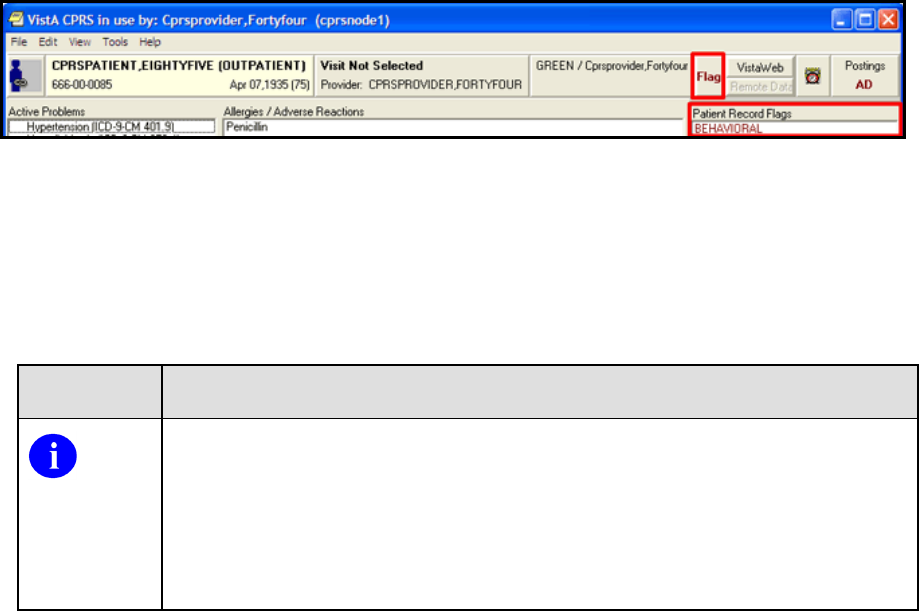
Use of the Software
Patient Records Flags (PRF) User Guide 49 March 2019
The flag narrative is the text the person assigning the flag enters that they want the user to see. It
should give the purpose of the flag and may also contain examples of past behavior and
instructions for users to follow when encountering the patient. For example, the narrative for a
particular Behavioral flag might state that a patient has been known to carry weapons and has
verbally threatened VHA staff in the past. It may also recommend that users call the VA police if
this patient comes in for care. However, Patient Record Flags are not intended to stigmatize nor
discriminate, rather it is to protect VHA staff and patients to ensure the efficient delivery of
health care.
On the bottom of the Patient Record Flag popup box, CPRS displays a list of notes that are
linked to specific flag actions. Links will only display for those notes that have been signed and
linked to a flag action. When the user selects a link, CPRS displays the linked progress note for
the action in a detailed display window.
Users can review the flag or close the box.
When the user is viewing a patient’s record, the Patient Record Flags can be viewed on the
Cover Sheet or the Flag button. On the CPRS Cover Sheet, a new box called Patient Record
Flags has been added above the Postings area. Flags for the selected patient are listed in the box.
The Flag button is visible from all CPRS tabs. The Flag button will be red if any Patient Record
Flags are assigned. If no flags are assigned the Flag button is grayed out. The Cover Sheet and
Flag button are shown in the graphic below.
This screen capture shows the red text on the Flag button indicating this patient’s record has
PRF(s) and shows the flag list on the CPRS Cover Sheet.
To View a Patient Record Flag when entering a Record, use the following Steps.
1. Select a patient from the Patient Selection screen by either double-clicking on a patient
name or highlighting the name and pressing the <Enter> key.
SYMBOL DESCRIPTION
NOTE: When the record loads, CPRS checks to see if the record is sensitive
and displays a warning to the user that the user must acknowledge to
proceed. Then, if the record has one or more flags, CPRS displays a pop-up
box with the patient’s record flag title. The first flag is highlighted and the
narrative details displayed below. If CPRS displays the pop-up box, the user
must close this box before CPRS will load the patient chart.
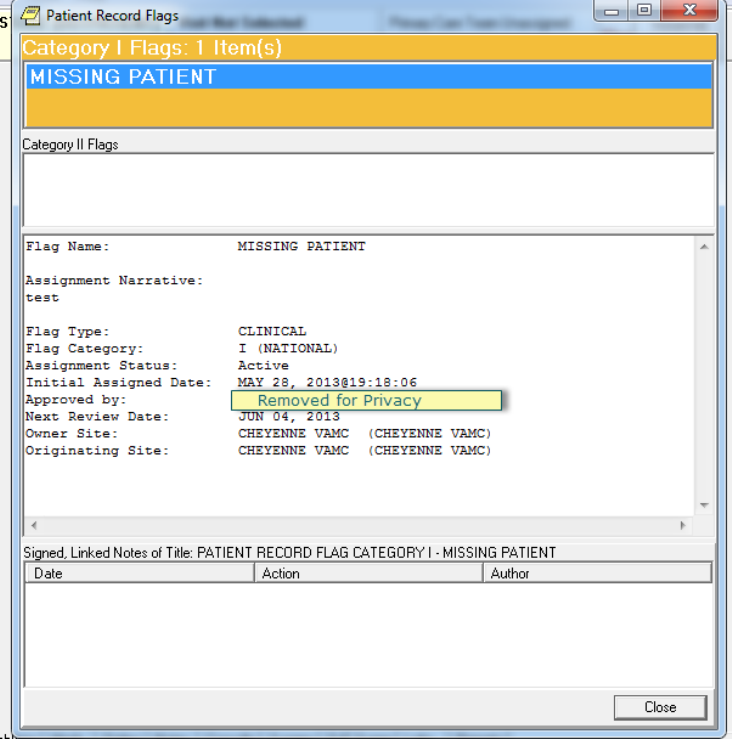
Use of the Software
Patient Record Flags (PRF) User Guide 50 March 2019
2. Then, select the Flag title to view the narrative by clicking the flag name or highlighting
the flag name with the tab and arrow keys and pressing <Tab> (note that the number of
flags in each category is listed after the category label).
This graphic shows the Patient Record Flag pop-up box listing the patient’s flag(s), the narrative
for the highlighted flag, and the links to any signed, linked progress notes documenting the
reasons for the flag(s). Using the Flag button or clicking on a flag title on the Cover Sheet also
displays this pop-up box. Category I flags are in the orange field, they blink, and the text changes
color from white to black and back. Category II flags are in the field below.
To view the linked progress note, select the appropriate link in the lower part of the dialog.
When finished, select Close.
When finished viewing the narrative, close the narrative box by choosing Close or pressing
<Enter>.
To view a Patient Record Flag when already viewing a record, use the following steps.
Go to the Cover Sheet by clicking the Cover Sheet tab or pressing Ctrl + S or use the Flag
button by clicking Flag or pressing tab until the Flag button is highlighted and press <Enter>.
Use of the Software
Patient Records Flags (PRF) User Guide 51 March 2019
Select the flag title to see the narrative details by clicking the title or using the Up and Down
arrows to highlight the name and pressing <Enter>.
When finished, close the box by clicking Close or pressing <Enter>.

Patient Record Flags (PRF) User Guide 52 March 2019
Glossary
TERM DEFINITION
AF
Assign Flags / Add New Flags
API Application Program Interface
CPRS COMPUTERIZED PATIENT RECORD SYSTEM - An
integrated, comprehensive suite of clinical applications in
VistA that work together to create a longitudinal view of the
veteran’s Electronic Medical Record (EMR). CPRS
capabilities include a Real Time Order Checking System, a
Notification System to alert clinicians of clinically significant
events, Consult/Request tracking and a Clinical Reminder
System. CPRS provides access to most components of the
patient chart.
CAC Clinical Application Coordinator
CC Change Category
CO Change Assignment Ownership
CS Change / Sort
DA Display Assignment Details
DF Display Flag Details
ED Enable Divisions
EF Edit Flag Assignments
FA Record Flag Assignments
FM Record Flag Management
FT PRF Owner Transfer Request
GMTS Health Summary namespace
GUI Graphic User Interface
HL7 Health Level Seven
HRMH High Risk Mental Health
IVMH Improve Veteran Mental Health

Glossary
Patient Records Flags (PRF) User Guide 53 March 2019
TERM DEFINITION
N/A Not Applicable
NSR New Service Request
PIMS Patient Information Management System
PRF Patient Record Flag
RM Record Flag Reports Menu
SP Select Patient
TIU Text Integration Utility
TM Record Flags Transmission Management
TR Record Flag Transfer Requests
VA Department of Veterans Affairs
VDL VA Software Document Library
VHA Veterans Health Administration
VistA Veterans Health Information System and Technology
Architecture
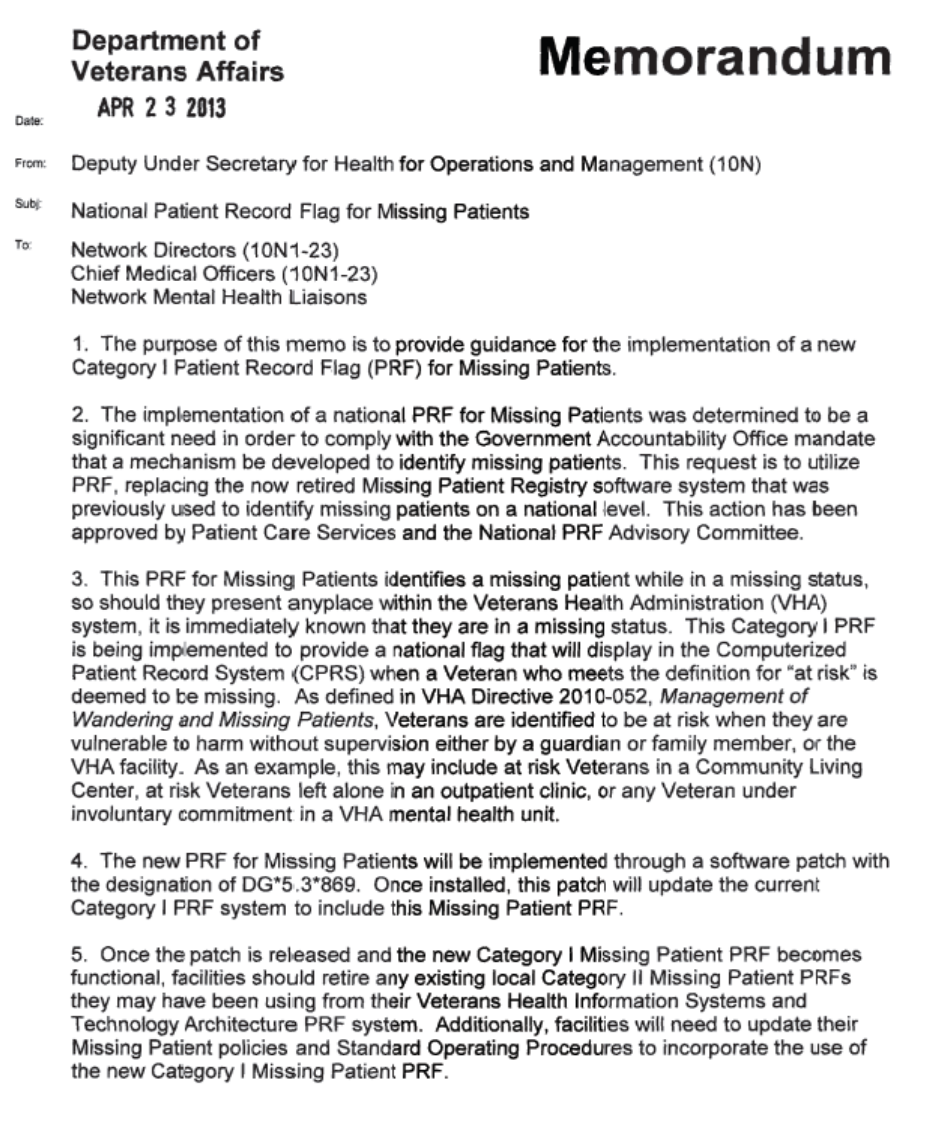
Patient Record Flags (PRF) User Guide 54 March 2019
APPENDIX A: Memorandum
National Patient Record Flag for Missing Patients
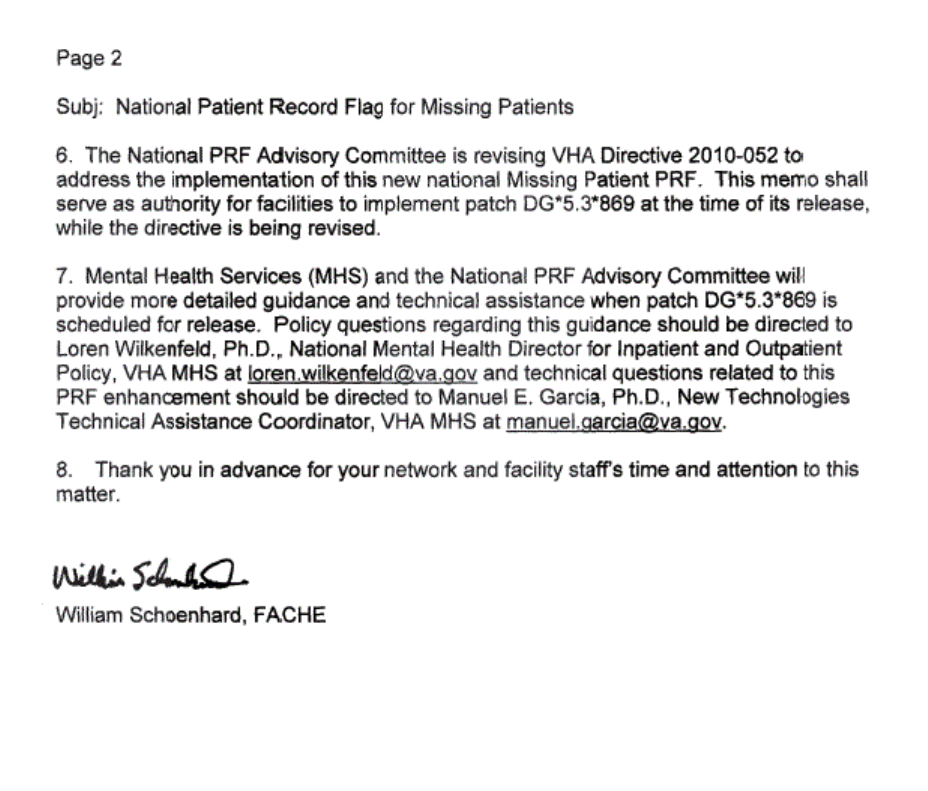
Patient Records Flags (PRF) User Guide 55 March 2019
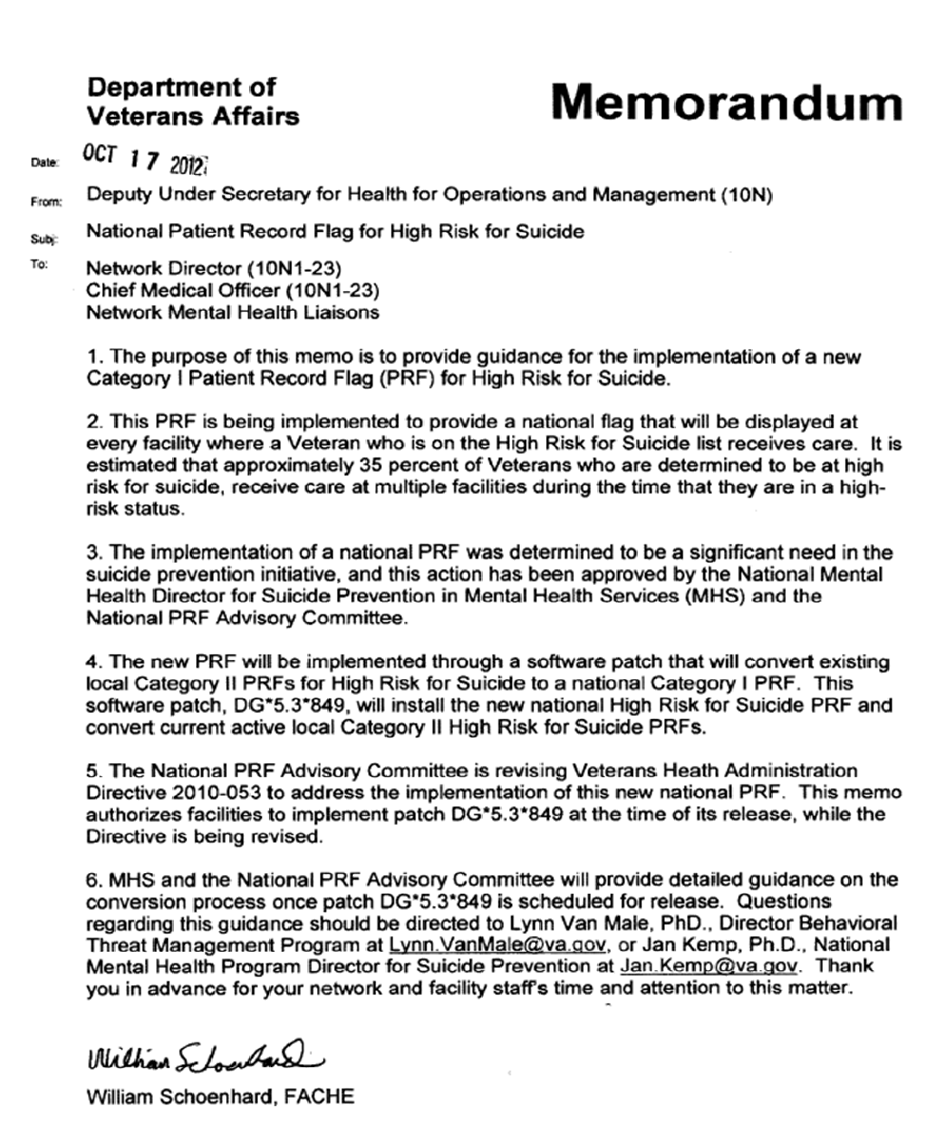
Patient Record Flags (PRF) User Guide 56 March 2019
APPENDIX B: Memorandum
National Patient Record Flag for High Risk for Suicide

Patient Records Flags (PRF) User Guide 57 March 2019
APPENDIX C: VHA DIRECTIVE 2010-053 PATIENT
RECORD FLAGS
Corrected Copy
Department of Veterans Affairs 02/03/2011 VHA DIRECTIVE 2010-053
Veterans Health Administration
Washington, DC 20420 December 3, 2010
PATIENT RECORD FLAGS
1. PURPOSE
This Veterans Health Administration (VHA) Directive outlines policy and guidance for the
proper use of Patient Record Flags (PRF) to enhance safety for patients, employees, and visitors.
2. BACKGROUND
a. VHA is committed to a safety program that is systems based and focused on prevention, not
on punishment or retribution. Preventative methods that target root causes are favored.
b. A PRF alert, VHA employees to patients whose behavior, medical status, or characteristics
may pose an immediate threat either to that patient’s safety, the safety of other patients or
employees, or may otherwise compromise the delivery of safe health care in the initial moments
of the patient encounter. PRF enhance both the right of all patients to receive confidential, safe,
and appropriate health care, as well as the right of employees to a safe work environment. PRF
permit employees to develop strategies for offering health care to even the most behaviorally
challenging patients who, in an earlier era, might have been excluded from receiving VHA health
care.
c. PRF was originally developed for the specific purpose of improving safety in providing health
care to patients who are identified as posing an unusual risk for violence. The use of PRF has
expanded to address a limited number of additional safety vulnerabilities that present in the
initial moments of a patient encounter. These PRFs are to be used very judiciously and approved
either by appropriate local or VHA authorities.
d. The effectiveness of PRF is paradoxically based upon the degree to which their appearance on
the computer screen is so unusual that it captures the attention of the user. Inappropriate use of
any PRF reduces the effectiveness of all PRFs. Frequent training of busy clinic clerks,
emergency department triage nurses, pharmacy technicians, and other typical PRF users is
necessary to ensure appropriate use, and to maintain alertness to any PRF.
e. For ethical reasons, it is inappropriate to use a PRF in the absence of a clear risk to safety. The
use of PRF can be ethically problematic for two reasons. First, a PRF stigmatizes patients,
labeling them as difficult, whether for clinical or behavioral reasons. Second, a PRF
compromises privacy because it reveals private patient information to anyone who opens the
patient’s chart, regardless of whether that person has the need to know that would normally
justify revealing such information. Accordingly, a PRF must only be used for a compelling
safety reason which outweighs these ethical concerns.
f. The use of PRF is limited to addressing immediate clinical safety issues. However, PRF are not
an appropriate tool with which to alert employees to every potential safety issue. For example, a

Patient Record Flags (PRF) User Guide 58 March 2019
patient’s human immunodeficiency virus status is not an immediate threat to the safety of the
patient or staff and thus is not appropriate as a PRF and additionally, would be in violation of the
patient’s privacy as all users of the Computerized Patient Record System (CPRS) would see the
PRF. With the practice of universal precautions, such flags may be redundant.
g. The use of PRF for administrative or law enforcement purposes is strictly prohibited.
Signaling a Veteran’s theatre or era of service, unresolved felony warrants, or fee-basis
eligibility would be examples of prohibited uses of PRF. Only safety issues of an immediate
clinical nature (e.g., recurring violence, high risk for suicide, missing patient) are permitted.
h. A PRF is not the only tool available that may function as an alert for selected problems.
Within CPRS some alert alternatives are: the patient problem list; Crisis Warning Allergies and
Directives (CWAD) notes; and Veterans Heath Information Systems and Technology
Architecture (VistA). However, only Category I PRF is to be used to signal high risk for
seriously disruptive, threatening, or violent behavior.
i. Blanket program or facility-level access restrictions, based upon the mere presence of a
Category I PRF, are prohibited by this Directive. Category I PRF is intended to make it possible
for VHA to offer clinical services even to patients who present significant clinical (risk of danger
to others) safety challenges. The presence of a Category I PRF on a patient’s health record shall
not, by itself, be grounds for refusing admission or services to a patient seeking care in a VHA
facility or program. Nor should any PRF be automatic grounds for discharging a patient from a
program to which the patient is entitled, and for which the patient is clinically appropriate. Each
patient with a PRF is to be evaluated individually for appropriateness for any VHA service. The
presence of any PRF should only be one factor in that calculation. Program managers or
admission screeners may wish to seek consultation in assessing the suitability of a patient with a
Category I PRF for entry into a program or use of a Department of Veterans Affairs (VA) service
from the Disruptive Behavior Committee (DBC) or, depending upon the specific type of flag, the
relevant body with responsibility for that flag.
j. Category I PRF–-Violent or Disruptive Behavior. Category I PRF is nationally approved and is
distributed by VHA as nationally released software for implementation in all VHA facilities. The
Category I flag is shared across all known treating facilities for a given patient. Use of Category I
PRF is not optional. Individual Category I PRF is assigned locally in accordance with standards
developed nationally for the Category I PRF type in question. Category I PRF become national
information as part of the Master Patient Index and is displayed at all VHA facilities where the
patient is registered. As a result, patients with a Category I PRF who present an immediate safety
risk for seriously disruptive, threatening, or violent behavior, may be safely treated within VHA
wherever they are registered and seek care. A Text Integrated Utility (TIU) Progress Note in the
CPRS describing the rational for the PRF assignment must accompany all Category I PRF.
k. Category II Local PRF—Patient at Risk
(1) Category II PRF may be locally established by individual Veterans Integrated Service
Networks (VISN) or facilities. Category II PRF is used in various VHA facilities for a range of
purposes. Appropriate uses include:
(a) Flagging patients who are enrolled in research trials involving potentially risky
investigatory pharmaceuticals;
(b) Flagging patients with a documented history of narcotics diversion or theft;

Patient Records Flags (PRF) User Guide 59 March 2019
(c) Flagging patients at high risk for suicidal behavior;
(d) Flagging patients with spinal cord injuries;
(e) Flagging homeless Veterans who have urgent medical test results pending; and
(f) Flagging missing and wandering patients.
(2) The use of Category II PRF, like Category I PRF, must be strictly limited to information that
is immediately needed for the delivery of safe and appropriate health care. A TIU Progress Note
in the CPRS describing the rationale for the PRF assignment must also accompany all Category
II PRFs.
l. Inappropriate Use of PRF. PRF must never be used for law enforcement or administrative
purposes. An inappropriate use of PRF for law enforcement might include flagging of fugitive
felon status. An inappropriate use of PRF for administrative purposes might include name
changes, Operation Enduring Freedom or Operation Iraqi Freedom (OEF/OIF) status, etc.
3. POLICY
It is VHA’s policy that all VHA facilities must install all PRF related patches by the mandatory
installation date and initiate facility-wide use of PRF.
4. ACTION
a. Deputy Under Secretary for Health for Operations and Management. The Deputy Under
Secretary for Health for Operations and Management (10N) is responsible for providing
oversight to the VISNs to ensure that PRF is appropriately implemented by each VISN.
b. VISN Director. The VISN Director, or designee (e.g., the Network Mental Health Committee
or other comparable VISN group), is responsible for oversight and implementation of this
Directive at the VISN level.
c. Medical Facility Director. The medical facility Director, or designee, is responsible for:
(1) Ensuring that Category I PRF is originated and accessible. Individual Networks and
facilities determine whether optional Category II PRF is to be used. NOTE: Attachment
B, Standards for PRF, defines the standards for the origination of, and access to, both
Category I and Category II PRF.
(2) Establishing a process for requesting, assigning, reviewing, and evaluating PRF.
(3) Establishing a plan to transition previous VistA, CPRS, local Class III Advisories, and any
other behavioral alerts or warnings system in use, to VHA’s nationally released PRF software.
NOTE: As of September 25, 2003, only PRF computerized advisories as described in
Attachment B are approved for use in the identification of patients who are at significant risk for
violence.
(4) Ensuring that each Category I PRF assigned to a patient is reviewed at least every 2 years;
however, reviews may be appropriate anytime a patient’s violence risk factors change
significantly, the patient requests a review, or for other appropriate reasons.
(5) Training appropriate staff in determining when a PRF is to be entered, how PRFs are
entered, and how PRF and PRF-related documents are to be maintained and reviewed.
(6) Evaluating the facility process to ensure that PRF is assigned appropriately.

Patient Record Flags (PRF) User Guide 60 March 2019
(7) Ensuring that each PRF in a patient’s record is accompanied by a TIU Progress Note. The
TIU titles utilized must be:
(a) PRF Category I, or
(b) PRF Category II.
d. Clinical Executives: Chief of Staff (COS) and Nurse Executive. The COS and Nurse
Executive are responsible for:
(1) Instituting procedures to ensure that the utilization of PRF and the associated
processes for recommending PRF are ethical, clinically appropriate, supported by
adequate resources, and used in accordance with this Directive.
(2) Ensuring that patients are notified that a PRF has been placed in their health record
and that they are informed of its contents.
(3) Establishing a DBC or a Disruptive Behavior Board (DBB). (a) The DBC or DBB is
responsible for:
1. Coordinating, when possible and appropriate, with the clinicians responsible for the patient’s
medical care, and recommending amendments to the treatment plan that may address factors that
may reduce the patient’s risk of violence.
2. Implementing the standards in Attachments A and B.
3. Collecting and analyzing incidents of patient disruptive, threatening, or violent behavior.
4. Assessing the risk of violence in individual patients.
5. Informing patients they have a right to request amendment to the contents of a PRF, and
providing the information for contacting the facility privacy officer in the event the patient wants
to pursue an amendment.
6. Identifying system problems.
7. Identifying training needs relating to the prevention and management of disruptive behavior.
8. Recommending to the COS other actions related to the problem of patient violence. (b) The
DBC or DBB must be comprised of:
1. A senior clinician chair that has knowledge of, and experience in, assessment of
violence;
2. A representative of the Prevention Management of Disruptive Behavior Program in
the facility (see subpar. 5i);
3. VA Police;
4. Health Information Management Service and/or Privacy Officer (ad hoc);
5. Patient Safety and/or Risk Management official;
6. Regional Counsel (ad hoc);
7. Patient Advocate;

Patient Records Flags (PRF) User Guide 61 March 2019
8. Other members as needed, with special attention to representatives of facility areas
that are at high risk for violence, (e.g., emergency department, nursing home, inpatient
psychiatry, and community-based outpatient clinics).
9. Representative of the Union Safety Committee; and
10. Clerical and administrative support staff to accomplish the required tasks.
(c) The DBC or DBB, whose primary focus is upon reducing the risk of patient violence toward
employees and others, will offer technical advice to other PRF software users as appropriate.
(4) Identifying a Suicide Prevention Coordinator who will be responsible for entering,
maintaining, and deactivating Category II Suicide PRFs in accordance with VHA policy
regarding the use of PRFs to identify patients at high risk for suicide.
(5) Identifying an employee or employees who will be responsible for entering, reviewing,
maintaining, and deactivating Category II PRFs for missing or wandering patients in accordance
with VHA policy regarding management of wandering and missing patient events.
e. Facility Privacy Officer. The facility privacy officer is responsible for:
(1) Receiving requests from patients regarding an amendment to a PRF that has been placed in
the patient’s health record.
(2) Amending the health record, as appropriate, according to VHA Handbook 1907.01.
5. REFERENCES
a. Appelbaum PS, Dimieri RJ. “Protecting Staff from Assaults by Patients: OSHA Steps
In,” Psychiatric Services. 46(4): 333-338, 1995.
b. Guidelines for Preventing Workplace Violence for Health Care and Social Service
Workers; U.S. Department of Labor, Occupational Safety and Health Administration,
OSHA 3148, 1996.
c. Environment of Care Guidebook, JCAHO, 1997.
d. VA Suicide and Assaultive Behavior Task Force. Report of a Survey on Assaultive
Behavior in VA Health Care Facilities; Feb. 15, 1995.
e. Blow, FC; Barry, KL; et al. “Repeated Assaults by Patients in VA Hospital and Clinic
Settings,” Psychiatric Services. 50(3): 390-394: 1999.
f. OIG Evaluation of VHA’s Policies and Procedures for Managing Violent and
Potentially
Violent Psychiatric Patients (Report No. 6HI-A28-038).
g. Drummond, D, et al., “Hospital Violence Reduction in High-risk Patients,” Journal of
the American Medical Association (JAMA). 261(17) 531-34, 1989.
h. United States Postal Commission. Report of the Commission on a Safe and Secure
Workplace. National Center on Addiction and Substance Abuse at Columbia University,
New York 2000.(Goldstein N et al) Columbia University, August 2000.
i. Hodgson MJ, Reed R, Craig T, Belton L, Lehman L, Warren N. Violence in healthcare
facilities: lessons from VHA. J Occup Environ Med. 2004; 46:1158-1165.

Patient Record Flags (PRF) User Guide 62 March 2019
j. Secretary’s Letter to All VA Employees October 19, 2001
http://vaww1.va.gov/VASAFETY/DashoLetters/AllVAEmployeesAndVolunteersLett.pd
f NOTE: This is an internal VA Web site not available to the public.
k. VA Office of Occupational Safety and Health Intranet Site:
http://vaww.va.gov/vasafety . NOTE: This is an internal VA Web site not available to the
public. Includes links to the Prevention and Management of Disruptive Behavior, VA
training program.
l. Public Law 105-220, Section 508.
m. Calhoun, FS, Weston, S.W. (2003). Contemporary threat Management: A Practical
guide for Identifying, Assessing, and Managing Individuals of Violent Intent. Sand
Diego, CA: Specialized Training Services.
n. Employee Education System, US Dept. of Veterans Affairs Training DVD: Preventing
Violence in Healthcare: Identifying, assessing, and Managing Violence-Prone Patients,
2005.
o. Meloy, J.R. (2000). Violence risk & threat Assessment: A Practical Guide for Mental
Health & Criminal Justice Professionals. San Diego, CA: Specialized Training Services.
p. Elbogen, EB; Beckham, JC;Butterfield, MI; Swartz, M; Swanson, J. “Assessing Risk
of Violent Behavior Among Veterans with Severe Mental Illness.” Journal of Traumatic
Stress, Vol. 21. February 2008, pp. 113-117.
q. Association of Threat Assessment Professionals (ATAP)
http://www.atapworldwide.org/ . r. RAGE-V, Risk Assessment Guideline Elements for
Violence (2006). May be downloaded at no cost from http://www.atapworldwide.org/
associations/8976/files/ documents/RAGE-V.pdf .
s. White, SG, Meloy, JR. (2007) WAVR-21, A Structured Professional Guide for the
Workplace Assessment of Violence Risk. San Diego, CA: Specialized Training Services.
t. Mental Health Initiatives memo, Deputy Undersecretary for Health Operations and
Management, June 1, 2007.
u. Department of Veterans Affairs Office of the Inspector General. Implementing VHA
Mental Health Initiatives for Suicide Prevention; May 10, 2007.
v. Suicide Risk Assessment Guide Reference Manual, which can be found at:
http://vaww.mentalhealth.va.gov/files/suicideprevention/SuicideRiskGuide.doc NOTE:
This is an internal VA Web site not available to the public.
6. RESPONSIBLE OFFICE: The Office of Patient Care Services, Office of Mental Health
(116) is responsible for the contents of this VHA Directive. Questions may be referred to (202)
461-7364.
7. RESCISSIONS: VHA Directive 2003-048, dated August 28, 2003 is rescinded. This
Directive expires on December 31, 2015. Robert A. Petzel, M.D. Under Secretary for Health
Patient Records Flags (PRF) User Guide 63 March 2019
VHA DIRECTIVE 2010-053
December 3, 2010
ATTACHMENT A
STANDARDS FOR CATEGORY I AND CATEGORY II
PATIENT RECORD FLAGS
1. BACKGROUND: A diverse group of patients present with certain behavioral or clinical risk
factors that place special demands upon the health care system. It is both a privilege and a
challenge for the Department of Veterans Affairs (VA) health care employees and facilities to
offer safe and appropriate care to all patients. The safety of patients and the safety of staff who
treat them, can be enhanced when carefully designed Patient Record Flags (PRF) immediately
alert care providers to the presence of risk factors that must be made known in the initial
moments of a patient encounter.
a. Because some of the most challenging patients may be nomadic, and because a
patient’s electronic health record is increasingly available to other facilities, it is essential
that conventions for creating, supporting, and maintaining computerized advisories be
made uniform throughout VA’s health care system.
b. PRFs should never be used to punish or to discriminate against patients, nor should
they be constructed merely for staff convenience. The effectiveness of PRFs depends
upon limiting their use to those unusual risks that threaten the safe delivery of health care.
Threats to the effective use of PRFs are their misuse and overuse.
c. Providing an environment that is safe for patients, visitors, and employees is a critical
factor in health care. The safety of patients and staff, as well as the effectiveness of care
and patients’ right to privacy and dignity, need not be compromised by threats of
violence or other clinical safety risk factors. Risks associated with a history of violence or
other risk factors can be limited when those risks are recognized and reported. Risks need
to be addressed by an interdisciplinary group under senior clinical leadership and
documented, when appropriate, in the patient's treatment plan. They must also be
communicated in a standardized manner to those most at risk in an encounter with a
“flagged” patient.
2. PROCEDURES: Each facility must demonstrate its readiness to use PRF in a manner which
is consistent with the standards and protocols outlined in this Directive.
a. As part of the patient health record, all PRFs are entered under the authority of the
Chief of Staff (COS) or designee at each facility. NOTE: PRF must be accorded the
same confidentiality and security as any other part of the health record.
b. The COS, or designee, at each facility is responsible for identifying those employees
authorized to initiate, enter, and access PRF. The COS, or designee, must ensure that only
those employees with a demonstrated need to know are permitted access to PRF menu
options.
c. Access to viewing PRFs is recommended for employees who are likely to be the first
to encounter a “flagged” patient, prior to or at the time of the patient's visit. Access
VHA DIRECTIVE 2010-053
Patient Record Flags (PRF) User Guide 64 March 2019
December 3, 2010
includes viewing the type of PRF and the narrative associated with it. Those who access a
PRF are responsible for communicating the PRF advisory to doctors, nurses, and others
who have a need to know. The following are examples of medical center staff who have
direct patient contact needing to view, or be made aware of PRF.
(1) Emergency room clerks and receptionists;
(2) Administrative Officer of the Day;
(3) Pharmacists and pharmacy technicians; (4) VA police officers;
(5) Enrollment clerks;
(6) Social Work staff;
(7) Triage and telephone care staff;
(8) Ward and clinic clerks;
(9) Insurance and billing staff;
(10) Receptionists;
(11) Travel clerks;
(12) Laboratory clerks and technicians; (13) All medical staff;
(14) Patient advocates; (15) All Nursing staff;
(16) Decedent Affairs Clerk; (17) Scheduling staff;
(18) Fee clerks; and
(19) Release of Information Clerks.
d. PRF software is in place. Although facilities may respond appropriately to PRF
transmitted from other facilities, only facilities that employ the criteria in this Directive may
enter new Category I PRFs.
e. A Text Integration Utility (TIU) Progress Note must be entered at the same time as the
entry of any PRF. This note must provide general guidance to PRF users, and should include a
brief summary of the rationale for the existence of the specific PRF. The progress note, however,
is not the same narrative as the PRF itself.
f. A process exists for the review of each flag for risk of violent behavior at least every 2
years. A review may be appropriate when: the risk factors change significantly; a patient with a
PRF requests a review; or for other appropriate reasons as determined by the facility that
established the flag. A reminder for an upcoming review must be generated 60 days prior to the
2-year anniversary date of each PRF.

Patient Records Flags (PRF) User Guide 65 March 2019
VHA DIRECTIVE 2010-053
December 3, 2010
g. PRFs serve only to preserve and enhance the safety and appropriateness of patient care.
h. PRFs alert staff to a potential risk only; they are advisories. At each patient encounter, the
examining physician or other clinician remains responsible for making appropriate clinical
decisions.
i. Each facility must have clearly written definitions and entry criteria (that are consistent
with this VHA Directive) for all Category I and Category II PRFs.
j. PRF should be entered, only by employees who have been trained in the technical aspects
of entry, with the appropriate criteria, and in the conventions for security, format, and
terminology.
k. PRF must be free of redundant language, slanderous or inflammatory labels, and must
provide sufficient information or guidance for action. PRF narratives must be written in language
sufficiently specific as to inform readers of the nature of the risk and recommended actions to
reduce that risk. The PRF narrative should also avoid alluding to site-specific persons, acronyms,
abbreviations, processes, buildings, or other descriptors unique to the originating site that would
have no meaning for other sites where the Veteran may appear.
l. In order for PRFs to be effective, they must be used only when necessary. PRFs should be
deactivated when their usefulness has passed. Overuse dilutes the importance of a PRF. Each
facility must exercise great care in establishing optional Category II PRFs. Only when there is a
compelling immediate clinical safety issue should additional PRF types be utilized. PRF is not to
be used for staff convenience, or to address administrative or law enforcement concerns.
Category II PRF types must adhere to the standards as spelled out in this attachment.
m. Patients may request an amendment to the presence or content of a PRF advisory through
the facility privacy officer.
n. The Deputy Under Secretary for Health for Operations and Management (10N) provides
oversight to the Veterans Integrated Service Networks (VISN) to ensure that PRFs are
appropriately implemented by the facilities.
o. All VHA staff must respond appropriately to the appearance of PRF.
p. All VISNs must establish processes for the origination and appropriate use of Category I
PRFs.
(1) All facilities are required to implement and respond to Category I PRFs, regardless of
which facility originated the flag.
(2) All facilities must participate in utilization of PRF, regardless of the originating
facility for any individual advisory or type of PRF advisory. Only the nationally
developed PRF is to be utilized.
VHA DIRECTIVE 2010-053
Patient Record Flags (PRF) User Guide 66 March 2019
December 3, 2010
q. The responsibility for ensuring the quality, timeliness, routine review, and documentation in
support of a PRF advisory belongs to the originating facility.
(1) The advisory itself will reference the authorizing facility and the COS or designee
who can provide additional information about a specific PRF advisory. A facility that, in
the course of providing care to a patient who was “flagged” by another facility, discovers
new information that could influence the status of that advisory should not amend the
original advisory, but instead should contact the originating facility with the new
information.
(2) The responsibility for ownership and maintenance of PRF needs to be transferred
when it appears that a flagged patient has relocated to a new facility. The originating
facility should make available to the new facility, copies of all documents and records in
support of the advisory.
r. PRF Training.
(1) Training must provide instruction on how to utilize PRF software on the assignment,
continuation, inactivation, and review of flags.
(2) Training content must address:
(a) Various types of PRF;
(b) Appropriate responses; (c) PRF confidentiality; and
(d) Compliance with Public Law 105-220 Section 508 (see subpars. 5h and 5i).

Patient Records Flags (PRF) User Guide 67 March 2019
VHA DIRECTIVE 2010-053
December 3, 2010
ATTACHMENT B
CATEGORY I PATIENT RECORD FLAGS (PRF):
SPECIAL REQUIREMENTS
a. Category I Violent and Disruptive Behavior are currently the only implemented types of
Category I PRFs that are designed to appear in all Department of Veterans Affairs (VA) facilities
where a Veteran is registered to receive care. All Category I PRFs require a Text Integrated
Utility (TIU) Progress Note in the Computerized Patient Record System (CPRS).
b. Category I Violent and Disruptive Behavior PRF describe patient risk factors that may
pose an immediate threat to the safety of other patients, visitors, or employees. Category I
Violent and Disruptive Behavior PRF also recommend specific behavioral limit settings or
treatment-planning actions designed to reduce violence risk.
c. Health care workers experience one of the highest rates of nonfatal injuries from
workplace assault of any occupation in the United States (U.S.). Health care is one of only two
industries that have merited special attention from the U.S. Occupational Safety and Health
Administration (OSHA) (see subpars. 5a and 5b). When compared to employees of other health
care systems, Veterans Heath Administration (VHA) employees are two and a half times more
likely to suffer injuries in violent incidents involving patients (United States Postal Commission,
2000; Hodgson et al, 2004). In recognition, VHA has initiated a broad-based program of
violence prevention, including performance monitors through the Office of the Deputy Under
Secretary for Operations and Management. Efforts have included the redesign of the basic course
for all employees, “Prevention and Management of Disruptive Behaviors,” and the development
of new courses for geriatrics and other disciplines.
d. The Joint Commission recently made patient violence and its prevention, a focus of the
Environment of Care Standards (see subpar. 5c).
e. VA’s Office of Inspector General (OIG) in its report “Evaluation of VHA’s Policies and
Practices for Managing Violent or Potentially Violent Psychiatric Patients” (6HI-A28-038, dated
March 28, 1996) recommended that facilities communicate among themselves so that staff are
aware of high risk patients regardless of where in VHA’s system they may seek health care (see
subpar. 5f).
f. For PRF to assist in the prevention of adverse events when high risk patients travel
between facilities, all facilities must follow uniform processes as described in current VHA
policy on inter-facility transfer. This would include noting any existing Patient Record Flag. The
effectiveness of PRFs depends upon limiting their use to those unusual clinical risks that
immediately threaten health care safety and quality in the initial moments of a patient encounter.

Patient Record Flags (PRF) User Guide 68 March 2019
VHA DIRECTIVE 2010-053
December 3, 2010
g. The safety of patients and employees, the effectiveness of care, and the patient’s right to
privacy need not be compromised by threats of violence. Risk of violence can be mitigated by
reporting, assessing, documenting, communicating, and developing treatment plans that
specifically make violence reduction a treatment objective.
h. The decision to enter a Category I Violent and Disruptive Behavior PRF must be made by
the Disruptive Behavior Committee (DBC) or the Disruptive Behavior Board only after
completion of an evidence-based, multidisciplinary, and multi-dimensional threat assessment,
which considers static and dynamic violence risk factors present in the patient, violence risk
mitigators, and violence risk factors associated with the setting where the incident occurred (see
subpar. 5o). Attachment C describes a threat assessment protocol that meets these requirements.
There may be other protocols or instruments that are suitable, but the burden is on any DBC to
use a threat assessment protocol that is evidence-based.
i. Competent prediction of violence is always multi-dimensional, and a thorough assessment
of violence risk should consider factors relating not only to the patient but also to the training
and behavior of the Department of Veterans Affairs (VA) employees, and to aspects of the
situation in which the patient is treated.
j. The facility must develop a systematic approach for collecting reports involving incidents
of disruptive, threatening, or violent behavior.
k. Interdisciplinary review and threat assessment of patient behavior is documented, and the
documentation of this review and of all associated incident reports are kept in a secure location.
In many cases, a summary of the threat assessment should be shared with the patient’s care
providers in an effort to address the problem of violence risk in the patient’s treatment plan.
l. Appropriate training of staff, who in the course of their duties, must assess and document
violence risk, as well as implement or recommend behavioral limits and treatment plans, will be
documented. All DBC members should avail themselves of ongoing training opportunities
available through the Employee Education System and VA’s Office of Occupational Safety and
Health (see http://vaww1.va.gov/VASAFETY/OSH_Education.asp ). NOTE: This is an internal
VA Web site not available to the public.

Patient Records Flags (PRF) User Guide 69 March 2019
VHA DIRECTIVE 2010-053
December 3, 2010
ATTACHMENT C
THREAT ASSESSMENT
The purpose of Disruptive Behavior Committees (DBC) or Disruptive Behavior Boards
(DBB) is to evaluate the risk of violence in a given setting or situation, with a given patient and
to recommend measures that may be taken to mitigate that violence risk. This is often called
“threat assessment.” In their 2007 guide entitled, WAVR-21, A Structure Professional guide for
the Workplace Assessment of Violence Risk, White and Meloy describe the purpose of groups
like DBCs:
“They will gather information concerning the context and critical aspects of the behavior in
question, and about the employee or third party whose behavior has generated concern. The risk
assessment professional will then synthesize and evaluate the data and apply careful
professional judgment to answer the ultimate questions: Does the person whose conduct has
generated concern pose a threat? And if so, what is the general level of threat? What steps can
be taken to mitigate any risk, and what actions might exacerbate it?”
Examples of common sentinel events that should lead to a violence risk assessment by the
DBC or DBB include, but are not limited to: a report of physical violence against patients or
staff at a medical center or clinic; documented acts of repeated violence against others; credible
reports verbal threats of harm against specific individuals, patients, staff, or the Department of
Veterans Affairs’ (VA) property; reports of possession of weapons or objects used as weapons in
a health care facility; a documented history of repeated nuisance, disruptive or larcenous
behavior that disrupts the environment of care; or a documented history of repeated sexual
harassment toward patients or staff.
However, the mere occurrence of a sentinel event should not be cause to initiate a Category
I Violent and Disruptive Behavior PRF. DBCs or DBBs are not “Flagging Committees.”
Patients are not “flagged” because they have demonstrated disruptive behavior or because their
Primary Care Provider or other provider, having been verbally abused or threatened, is upset and
demands that the patient be flagged. DBCs apply a Category I Violent and Disruptive
Behavior PRF to a patient’s record only when the DBC concludes in a review of violence risks
and mitigators that to do so will likely reduce violence risk.
All members of DBCs or DBBs should take advantage of training offered by VA Employee
Education System (EES), and when possible, by outside vendors. The references in this Directive
provide suggested resources for training and information on violence prediction and threat
management.

Patient Record Flags (PRF) User Guide 70 March 2019
VHA DIRECTIVE 2010-053
December 3, 2010
The following is one evidence-based threat assessment protocol suggested for use by DBCs or
DBBs (adapted from Meloy, 2000 see subpar. 5o):
Patient Risk Factors: (list of factors is not exhaustive and factors not equally weighted)
Static Risk Factors: (Include additional detail for each item checked) Male Gender (10X risk
for females).
Veteran’s history of violence in and outside of health care facilities.
Consider frequency and recency of violence, and severity of injury to
victims, if any.
Additional Comments:
Veteran’s self-report of arrests and convictions for violent crimes.
(Criminal background investigation data may be available in selected cases,
if VA Police conclude that there is probable cause for obtaining and
sharing this information on a need-to-know basis.)
Additional Comments:
Documented credible threats toward VA employees or patients.
Additional Comments:
Prior supervision/treatment plan failures, (e.g., probation, mandated Drug
and Alcohol treatment.
Additional Comments:
Presence of serious psychiatric disorder, especially psychopathy or
paranoia.
Additional Comments:
Head injury with Loss of Consciousness by history.
Additional Comments:
Dynamic Risk Factors: (Include additional detail for each item checked)
Recent incidents of disruptions, threats, or violence in or out of health care
settings.
Additional Comments:
Recent (past 6 mos) abuse of Central Nervous System (CNS) stimulants,
including Cocaine and Methamphetamines.
Additional Comments:
Recent abuse of ETOH or other CNS disinhibitors.
Additional Comments:

Patient Records Flags (PRF) User Guide 71 March 2019
Presence of situational stressors and destabilizing events, such as recent
incarceration, death of loved ones, financial problems, estrangement from
his or her family, homelessness, onset of acute medical problems, and other
destabilizing events.
Additional Comments:
Chronic pain or narcotics seeking behavior.
Additional Comments:
Documented impulsivity (e.g., financial, sexual, or other decision making).
Additional Comments:
Veteran’s claims of weapons in his possession, especially new acquisition
or relocation of firearms.
Additional Comments:
Risk Mitigation Factors: (Include additional detail for each item checked)
Numerous visits to Medical Center without incidents.
Additional Comments:
Positive recommendation of Veteran’s health care providers.
Additional Comments:
Documentation of successful participation in substance abuse recovery
program with a significant (60 days or more) period of sobriety.
Additional Comments:
Documented resolution of destabilizing events or factors.
Additional Comments:
Patient’s acknowledgement of his previous disruptive behavior with plans
for preventing recurrence.
Additional Comments:
Changes in patient’s health status or mobility that would mitigate any threat
the patient previously posed.
Additional Comments:
SETTING RISK FACTORS
− Staffing issues (please describe):
− Training deficits (please describe):
− Supervisory issues (please describe):

Patient Record Flags (PRF) User Guide 72 March 2019
VHA DIRECTIVE 2010-053
December 3, 2010
ATTACHMENT D
NEW SERVICE REQUESTS
CATEGORY I PATIENT RECORD FLAG (PRF)
1. BACKGROUND
Patient Record Flags were initially mandated by the Veterans Health Administration
(VHA) Under Secretary for Health at the urging of the Department of Veterans Affairs (VA)
Office of Inspector General (OIG) solely as a tool for reducing the risk of imminent violence
associated with ‘high risk’ patients. On August 28, 2003, Directive 2003-048, National Patient
Record Flags, was issued in conjunction with a release of revised Veterans Information System
and Technology Architecture (VistA) Computerized Patient Record System (CPRS) software.
By alerting VHA employees to a significant immediate risk of violence, this software enables
health care providers and other VA employees who may encounter a high-risk patient to take
measures to offer the patient safe and appropriate health care regardless of where, in the VHA
system, the patient appears and regardless of where the PRF originated. While initially intended
to address the problem of high-risk-for-violence patients only, the PRF software was recognized
as offering potential additional uses. It is expected that New Service Requests (NSR) for
additional types of Category I PRF may be proposed. This packet is intended to assist those who
are considering the proposal of NSR for Category I PRF types.
2. PROCESS
a. Applicants should thoroughly familiarize themselves with the VHA Patient Record Flag
policy prior to completing the attached application. The policy addresses the specific use of
Category I PRF for preventing violence, but also includes many standards that will be used to
measure the appropriateness of any future Category I PRF uses. These standards have been
reviewed in depth and approved by the VA OIG, the VA Center on Ethics, and others that
continue to monitor the use of Category I PRF. Applicants can also find more information about
the intent and proper use of PRFs on the PRF Web site:
http://vaww.vistau.med.va.gov/vistau/PRF/default.htm . NOTE: This is an internal VA Web site
not available to the public.
b. Category I PRF are, by definition, disseminated throughout all VHA facilities where the
patient is registered. Category II PRF, in contrast, are entered locally and appear only locally at
the originating facility. The present packet relates to Category I (national) PRF only. However,
Directive 2003-048 is clear that even ‘local’ (Category II) PRF should be used judiciously and,
as with Category I PRF, only for alerting users to immediate threats to the clinical care and safety
of patients or staff. The more PRFs of any type to which receptionists, clerks, and other VA
employees must attend in the initial moments of an encounter with a patient, the less potent any
PRF alert will be. More is not better when it comes to PRF.
c. The responsibility for PRFs is assigned to the Office of Mental Health (116) under Patient
Care Services (11). The Deputy Chief Patient Care Services, Officer for Mental Health Services

Patient Records Flags (PRF) User Guide 73 March 2019
VHA DIRECTIVE 2010-053
December 3, 2010
(116) has authorized the formation of a PRF Advisory Review Board to review NSRs for new
Category I PRFs. The PRF Advisory Review Board considers the NSR and other input required
(textual or verbal presentation) and makes recommendation(s) back to the PRF Program Office
(116A) to approve or disapprove with comments. The PRF Program Office (116A) then responds
to the NSR with recommendation(s).
d. The PRF Program Office (116A) forwards the decision to the Chief Officer of Patient
Care Services (11) for any other action that may be required.
e. Current membership of the PRF Advisory Group includes:
(1) The Deputy Under Secretary for Health for Operations and Management (10N).
(2) Patient Care Service, VA Central Office (11).
(3) Health Information Management (HIM) Program Office, VHA Office of Health
Information (19).
(4) VA Office of Information and Technology (OI&T) (005), PRF Project Manager.
(5) Field Subject Matter Experts, at least two at any given time.
(6) Office of the General Counsel, VA Central Office (02).
(7) National Center for Ethics, VA Central Office (10E).
(8) VHA Occupation Health Program (136A).
f. At the discretion of the chair, Deputy Chief Patient Care Services Officer for Mental
Health (116), other subject matter experts may be called upon to evaluate specific NSRs.
3. APPLICATION
a. An online NSR application is available at: http://vista.med.va.gov/nsrd/ and is accessed
by pressing the New Request button.
b. When filling out the form it is important to identify the unique issues of a PRF:
(1) Describe the clinical safety issue to be addressed. Note that the use of PRFs is
restricted to the communication of information of a clinical safety nature that must be
available in the initial moments of a patient encounter. As PRFs are effective only to the
extent that they are unusual stimuli in the user’s visual field, Category I PRF are to be
used only for immediate clinical safety purposes, and only when there are no viable
alternatives. Describe all possible alternatives to a PRF that you explored to meet your
safety goals and objectives.
(2) Other factors might include any additional factors that make this request a high
clinical safety priority that must be available in the initial moments of a patient encounter.
Provide all relevant VHA references, (e.g., Congressional Mandate, Directive,
Secretary’s Performance Measure, studies). Note factors both inclusive and exclusive
that would justify entry of a PRF of this proposed type into the health record of a given
patient, and also the factors that would be used to determine that the PRF would be no
Patient Record Flags (PRF) User Guide 74 March 2019
longer necessary. Describe the frequency with which a PRF of this type would be
reviewed and by whom. Note on what basis this frequency of review is proposed. Also
note that the PRF must be accompanied by a CPRS progress note.
