Planetphattownersmanual
E-MU Systems Planet Phat Owner's Manual planetphattownersmanual E-MU Systems - Planet Phat - Owner's Manual
E-MU Systems Planet Phat Owner's Manual planetphattownersmanual E-MU Systems - Planet Phat - Owner's Manual
User Manual: Synthesizer Manuals
Open the PDF directly: View PDF  .
.
Page Count: 140 [warning: Documents this large are best viewed by clicking the View PDF Link!]

OPERATION MANUAL
E-mu Systems, Inc.
Fhlanett Phatt
Important Notice:
In order to obtain warranty service on your Planet Phatt unit, the serial number
sticker must be intact and you must have a sales receipt or other proof of purchase.
If there is no serial number sticker on your Planet Phatt, please contact E-mu
Systems at once.
Operation Manual
© 1996 E-mu Systems, Inc.
All Rights Reserved
• FI542 Rev. B
PRINTED AND MADE IN THE USA
E-mu World Headquarters
E-mu Systems, Inc. U.S.A.
P.O. Box 660015
Scotts Valley, CA USA
95067–0015
Telephone: 408-438-1921
Fax: 408-438-8612
Europe, Africa, Middle East
E-mu Systems, Ltd.
Suite 6, Adam Ferguson House
Eskmills Industrial Park
Musselburgh, East Lothian
Scotland, EH21 7PQ
Telephone: +44 (0) 131-653-6556
Fax: +44 (0) 131-665-0473
This product is covered under one or more of the following U.S. patents:
4,404,529; 4,506,579; 4,699,038; 4,987,600; 5,013,105; 5,072,645;
5,111,727; 5,144,676; 5,170,367; 5,248,845; 5,303,309; 5,317,104; 5,342,990;
5,430,244 and foreign patents and/or pending patents. Planet Phatt is a registered
trademark of E-mu Systems, Inc.
WARNING: READ THIS FIRST!
This symbol is intended to alert
the user to the presence of
important operating and
maintenance (servicing)
instructions in the literature
accompanying the appliance.
This symbol is intended to alert
the user to the presence of
uninsulated dangerous voltage
within the product's enclosure
that may be of sufficient
magnitude to constitute a risk of
electric shock to persons.
IMPORTANT SAFETY INSTRUCTIONS
Use in countries other than the U.S.A. may require the use of a different line
cord or attachment plug, or both. To reduce the risk of fire or electric shock,
refer servicing to qualified service personnel. To reduce risk of fire or electric
shock do not expose this product to rain or moisture.
GROUNDING INSTRUCTIONS
This product must be grounded. If it should malfunction or break down,
grounding provides a path of least resistance for electric current, reducing the
risk of electric shock. This product is equipped with a cord having an equip-
ment-grounding conductor and a grounding plug. The plug must be plugged
into an appropriate outlet properly installed and grounded in accordance
with all local codes and ordinances.
DANGER
Improper connection of equipment grounding conductor can result in the
risk of electric shock. Check with a qualified electrician or service personnel
if you are in doubt as to whether the product is properly grounded. Do not
modify the plug provided with this product — if it will not fit the outlet,
have a proper outlet installed by a qualified technician.
CAUTION
If the 9091, Planet Phatt is rack mounted, a standard 19-inch open frame
rack must be used.
USER-MAINTENANCE INSTRUCTIONS
1. Planet Phatt should be kept clean and dust free. Periodically wipe the unit
with a clean, lint free cloth. Do not use solvents or cleaners.
2. There are no user lubrication or adjustment requirements.
3. Refer all other servicing to qualified service personnel.
INSTRUCTIONS PERTAINING TO A RISK OF FIRE,
ELECTRIC SHOCK, OR INJURY TO PERSONS
WARNING; When using electric products, basic precautions should
always be followed, including the following:
1. Read all instructions before using Planet Phatt.
2. To reduce the risk of injury, close supervision is necessary when Planet
Phatt is used near children.
3. Do not use Planet Phatt near water — for example near a bathtub, wash-
bowl, kitchen sink, in a wet basement, on a wet bar, or near or in a swim-
ming pool.

SAVE THESE INSTRUCTIONS
4. Planet Phatt should be situated so that its location or position does not
interfere with its proper ventilation.
5. Planet Phatt should be located away from heat sources such as radiators,
heat registers, fireplaces, stoves, or ovens.
6. Planet Phatt should only be connected to a power supply of the type
described in the operating instructions and as marked on the product.
7. This product, in combination with an amplifier, headphones, and speak-
ers, may be capable of producing sound levels that could cause full or
partial hearing loss or damaged equipment. Do not operate for long
periods of time at high volume levels or at a level that is uncomfortable.
Additionally, care must be taken when programming any of the filters
contained herein using extreme operating parameters. This action could
also produce signals which result in unacceptable high sound levels as
noted previously. If you experience any hearing loss or ringing of the ears
consult your physician.
8. Planet Phatt may be equipped with a polarized line plug (one blade wider
that the other). This is a safety feature. If you are unable to insert this plug
into the outlet, do not defeat the safety purpose of the plug. Contact an
electrician to replace your obsolete outlet.
9. The power supply cord of Planet Phatt should be unplugged from the
outlet when left unused for a long period of time.
10. Care should be taken so that objects do not fall and liquids are not spilled
into the enclosure of Planet Phatt through openings.
11. The product should be serviced by qualified service personnel when:
A. The power supply cord has been damaged; or
B. Objects have fallen, or liquid has been spilled into the product; or
C. The product has been exposed to rain; or
D. The product does not appear to operate normally or exhibits a
marked change in performance; or
E. The product has been dropped or the enclosure damaged.
12. All servicing should be referred to qualified service personnel.
SAVE THESE INSTRUCTIONS

CONTENTS
INTRODUCTION & BASIC SETUP 1
Introduction ............................................................................................... 3
Planet Phatt Architecture ........................................................... 4
Connection Instructions .............................................................. 5
BASIC OPERATION 9
Main Controls .......................................................................... 11
Selecting MIDI Channels ........................................................... 12
Selecting Presets ....................................................................... 12
Adjusting Volume & Pan Position ............................................. 12
Beats/Song Mode ..................................................................... 13
Multi-Timbral Operation .......................................................... 17
About Planet Phatt ................................................................... 18
MASTER MENU 19
Enabling the Master Menu ....................................................... 21
Master Tune ............................................................................. 21
Transpose ................................................................................. 22
Global Bend .............................................................................. 22
Global Velocity Curve ............................................................... 22
Mix Output ............................................................................... 24
MIDI Mode ............................................................................... 24
MIDI Mode Change .................................................................. 25
MIDI Overflow .......................................................................... 25
MIDI Enable ............................................................................. 25
MIDI Bank Select ...................................................................... 25
MIDI Program ➔ Preset ............................................................ 26
Preset Change .......................................................................... 27
MIDI Controller Assign ............................................................. 27
X Factor Control ....................................................................... 27
Tempo Control ......................................................................... 28
Retrigger ................................................................................... 28
Pitch Wheel -> Scratch ............................................................. 29
MIDI Footswitch Assign ............................................................ 29
Send MIDI Data........................................................................ 30
Beats MIDI Out ......................................................................... 31
User Key Tuning........................................................................ 31
Song Start/Stop ........................................................................ 31
Global Tempo ........................................................................... 32

MASTER MENU (continued)
Beats Control ............................................................................ 32
Beats Mode ............................................................................... 33
Demo Sequence ........................................................................ 33
Viewing Angle .......................................................................... 34
PROGRAMMING BASICS 35
Modulation .............................................................................. 38
Modulation Sources ................................................................. 39
Envelope Generators ................................................................. 40
Low Frequency Oscillators ........................................................ 41
MIDI Patch ............................................................................... 42
Filter Modulation ...................................................................... 43
What is a Filter? ....................................................................... 43
Parametric Filters ..................................................................... 46
The Z-Plane Filter ..................................................................... 46
Planet Phatt Signal Flow .......................................................... 48
Keyboard & Velocity Modulation ............................................. 49
Key Number .............................................................................. 50
Velocity Curves ......................................................................... 50
Realtime Modulation ................................................................ 51
MIDI Realtime Controls ............................................................ 52
Stereo Mix Outputs ................................................................... 54
EDIT MENU 55
Enabling the Edit Menu ............................................................ 57
Preset Name ............................................................................. 58
Primary Instrument .................................................................. 59
Secondary Instrument............................................................... 59
Key Range................................................................................. 59
Primary Key Range ................................................................... 60
Secondary Key Range ............................................................... 60
Coarse Tuning .......................................................................... 61
Fine Tuning .............................................................................. 61
Volume ..................................................................................... 61
Pan ........................................................................................... 61
Alternate Envelope On/Off ........................................................ 62
Primary Alternate Envelope Parameters ................................... 62
Secondary Alternate Envelope Parameters ............................... 62
Delay ........................................................................................ 63
Sound Start .............................................................................. 63
CONTENTS

EDIT MENU (continued)
Reverse Sound........................................................................... 63
Solo Mode ................................................................................ 64
Portamento Rate ...................................................................... 64
Chorus ...................................................................................... 64
Crossfade Mode ........................................................................ 65
Crossfade Direction .................................................................. 66
Crossfade Balance .................................................................... 66
Crossfade Amount .................................................................... 67
Cross-switch Point .................................................................... 67
Primary Filter Type ................................................................... 67
Primary Filter Cutoff & Q.......................................................... 69
Secondary Filter Type ............................................................... 69
Secondary Filter Cutoff & Q ...................................................... 69
Auxiliary Envelope .................................................................... 70
LFO 1 - Shape & Amount.......................................................... 71
LFO 1 - Rate, Delay & Variation ............................................... 71
LFO 2 - Shape & Amount.......................................................... 72
LFO 2 - Rate, Delay & Variation ............................................... 72
Keyboard & Velocity Modulation Control................................. 73
Realtime Modulation Control ................................................... 74
Footswitch Control ................................................................... 75
Pitch Bend Range ..................................................................... 75
Pressure Amount ....................................................................... 75
MIDI Controller Amount ........................................................... 75
Velocity Curve ........................................................................... 76
Keyboard Center ....................................................................... 77
Keyboard Tuning ...................................................................... 77
Mix Output Assign .................................................................... 78
Preset Links ............................................................................... 78
Save Preset ............................................................................... 79
STEP-BY-STEP 81
Linking Presets .......................................................................... 83
Editing Presets ..........................................................................84
Changing the Tuning of an Instrument .................................... 84
Chorus ...................................................................................... 85
Reversing the Instrument .......................................................... 85
Alternate Volume Envelope ....................................................... 86
Working with the Filter ............................................................. 87
Using Planet Phatt with a Sequencer........................................ 92
CONTENTS

CONTENTS
REFERENCE SECTION 95
Preset Listing ............................................................................ 96
Instrument Listing .................................................................. 101
Beat Maps .............................................................................. 106
Technical Specifications .......................................................... 109
MIDI Specifications ................................................................. 110
Warranty ................................................................................ 126
Index ...................................................................................... 127

1Chapter 1: Basic Setup
INTRODUCTION
& BASIC SETUP

Planet Phatt Operation Manual2
3Chapter 1: Basic Setup
INTRODUCTION
PLANET PHATT - The Swing System
Planet Phatt is a professional tone module created specifically for Hip-
Hop, Rap, Acid Jazz and Trip-Hop musicians. Planet Phatt is 16 part
multi-timbral, featuring 32 voices of polyphony and 640 presets
(384 ROM, 256 RAM). It is a superb song writing tool and a perfect
addition to the modern keyboard player's studio or live setup.
Planet Phatt is also equipped with our exclusive “BEATS” mode. 100
user-editable drum loops are stored in memory and can be synchro-
nized to internal or external MIDI clock. The combination of beats,
tempo, any preset and the powerful “X-Factor” control allow you to
create literally millions of new groove ideas. Your custom Beats can
also be linked into 28 user-programmable Songs with looping and
programmable jumps. Beats and Songs can be easily modified to fit
your style.
There are 640 presets on Planet Phatt, created by talented E-mu
programmers and other industry experts. Of course you can edit or
modify any and all parameters to create a limitless number of entirely
new sounds. Edit and tweak Planet Phatt’s sounds the way you like
them by using its powerful filters, MIDI synced LFO’s, and MIDIpatch
modulation system. Planet Phatt has plenty of real-time controls and
destinations that allow users to create floor-slamming, heart-pounding
masterpieces. Creating your own original sounds is easy, thanks to
Planet Phatt's logical user interface.
Other features include 3 stereo outputs for externally processing
sounds (also configurable as 6 polyphonic submixes with fully
programmable dynamic panning), integral sends and returns to allow
the addition of external effects units without the need for a separate
mixer, user-definable alternate tuning, and of course, an extensive
MIDI implementation.
In addition, when coupled with E-mu's Launchpad Performance
Controller, Planet Phatt becomes a self-contained interactive groove
machine for the stage or studio. Check it out…
PHONES VOLUME
EDITMASTER
BEATS
CURSOR
<>
HOME/ENTER
DATA POWER
MIDI
C01 Vol127 Pan=P
002 led:Romance
0
Planet Phatt Operation Manual4
PLANET PHATT ARCHITECTURE
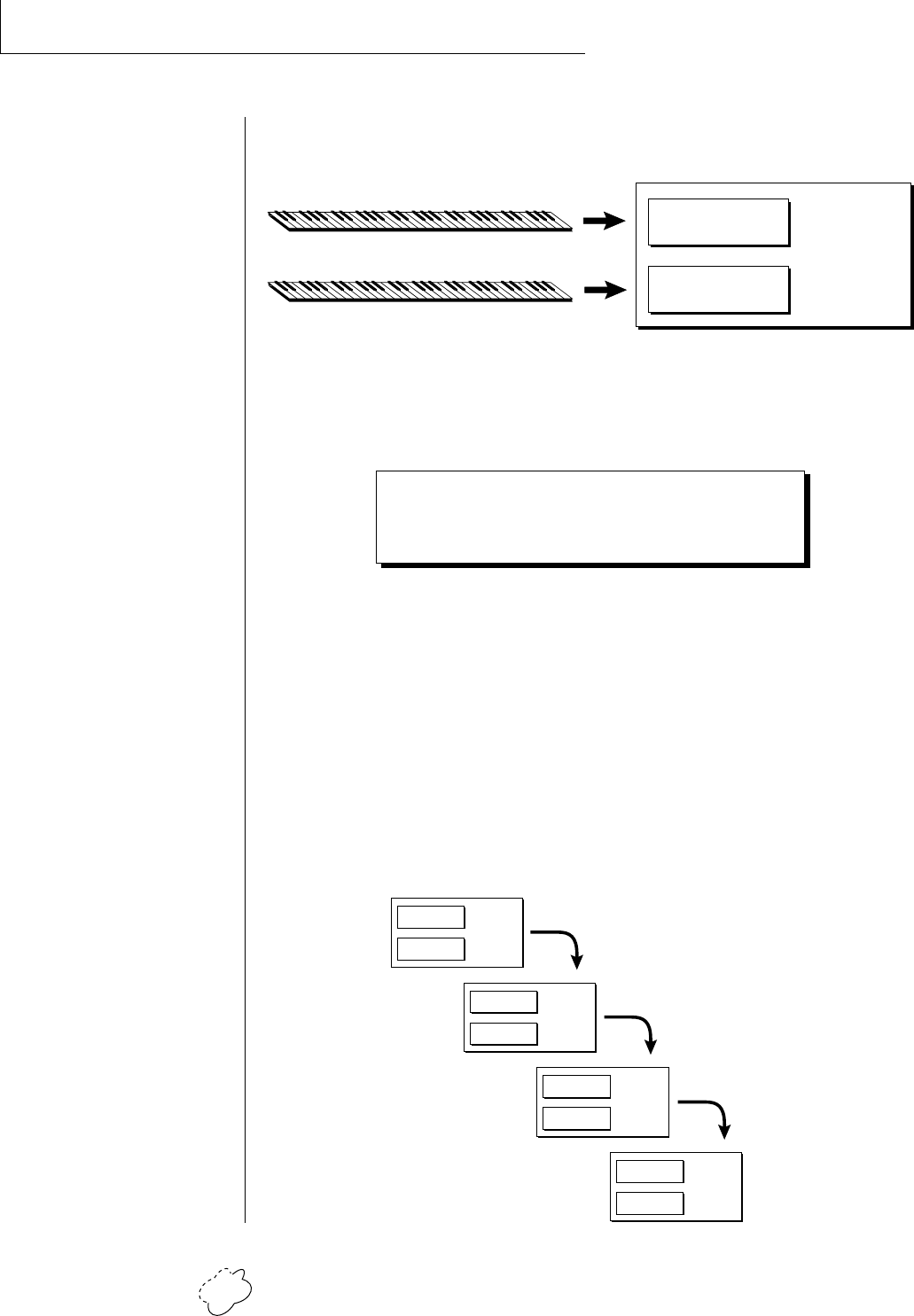
Planet Phatt is organized as shown in the diagram below.
The Preset is a complete set of all program parameters for a complete
Planet Phatt sound. The fully programmable user presets and the
unalterable ROM presets are organized into five banks of 128 presets
each.
BANKS 0 & 1 USER PRESETS
BANKS 2 - 4 ROM PRESETS
Each preset consists of one or more instruments. An instrument is a
complete set of samples or a digital waveform which covers the entire
keyboard range. An instrument can be assigned to each of the Primary
and Secondary layers of the preset.
The primary and secondary layers are essentially two complete sounds,
stacked or placed adjacent to each other, which can be switched or
crossfaded together in various ways.
Up to four presets can be Linked in order to have more than one preset
on the keyboard at a time. The linked presets may overlap each other
for layered sounds or be adjacent to each other to create keyboard
“splits”.
• User Presets can be
moved, erased or modified as
desired.
• ROM Presets cannot be
moved or altered unless they
are first copied to a user
location.
INSTRUMENT
INSTRUMENT
PRESET
PRIMARY
SECONDARY
PRESET
PRIMARY
SECONDARY
PRESET
PRIMARY
SECONDARY
PRESET
PRIMARY
SECONDARY
PRESET
PRIMARY
SECONDARY
5Chapter 1: Basic Setup
CONNECTION INSTRUCTIONS
• • • If Planet Phatt does not
seem to be responding
correctly, make sure that
both Planet Phatt and your
MIDI controller are set to the
same MIDI channel.
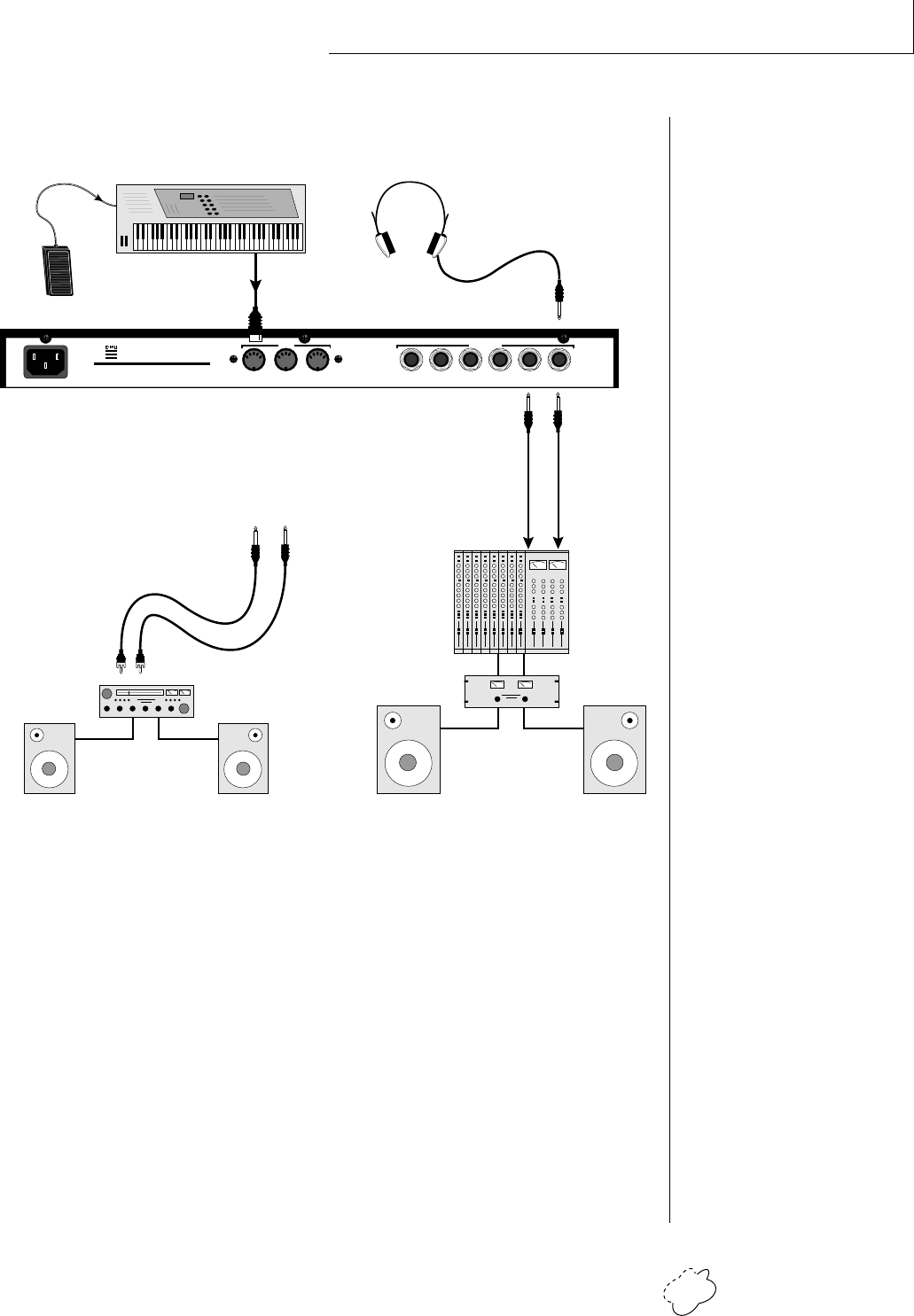
SETUP #1 BASIC SETUP
MIDI In
Planet Phatt is controlled by MIDI messages received at the MIDI
In connector. Connect the MIDI In of the Planet Phatt to the
MIDI Out connector of a MIDI controller such as a MIDI keyboard
or MIDI drum pads.
Outputs
Planet Phatt is a high quality, stereo audio device. In order to
reproduce its wide dynamic range and frequency response, use a
high quality amplification and speaker system such as a keyboard
amplifier or home stereo system. A stereo setup is highly desirable
because of the added realism of stereophonic sound. Headphones
can be used if an amplifier and speaker system is not available.
Plug stereo headphones into the headphone jack located on the
left side of the front panel. The Right Main output jack serves as a
mono output when the Left Main plug is not plugged in.
R - SUB2 - L R - SUB1 - L R - MAIN - L
MONO STEREO
THRUOUTIN
OUTPUTS
MIDI
Scotts Valley, California U.S.A.
100-250VAC 50/60 Hz ~
E-MU SYSTEMS, INC.
WARNING: TO REDUCE THE RISK OF FIRE
OR ELECTRIC SHOCK, DO NOT EXPOSE
THIS PRODUCT TO RAIN OR MOISTURE.
Main Outs to Mixer In
MIDI Controller
(MIDI Keyboard, Sequencer, etc.)
MIDI Out
Aux. or
Tape In
Male RCA plug
to
Male Phono Plug
To
Main Outs
Home Stereo
System
Home Studio
System
Speakers
Amp
Mixer
The Headphone
Output is located
on the Front Panel
Control
Pedal
▼ The headphone output
monitors the main outputs
only.
The submix outputs do NOT
feed into the headphone
output.
Planet Phatt Operation Manual6
CONNECTION INSTRUCTIONS
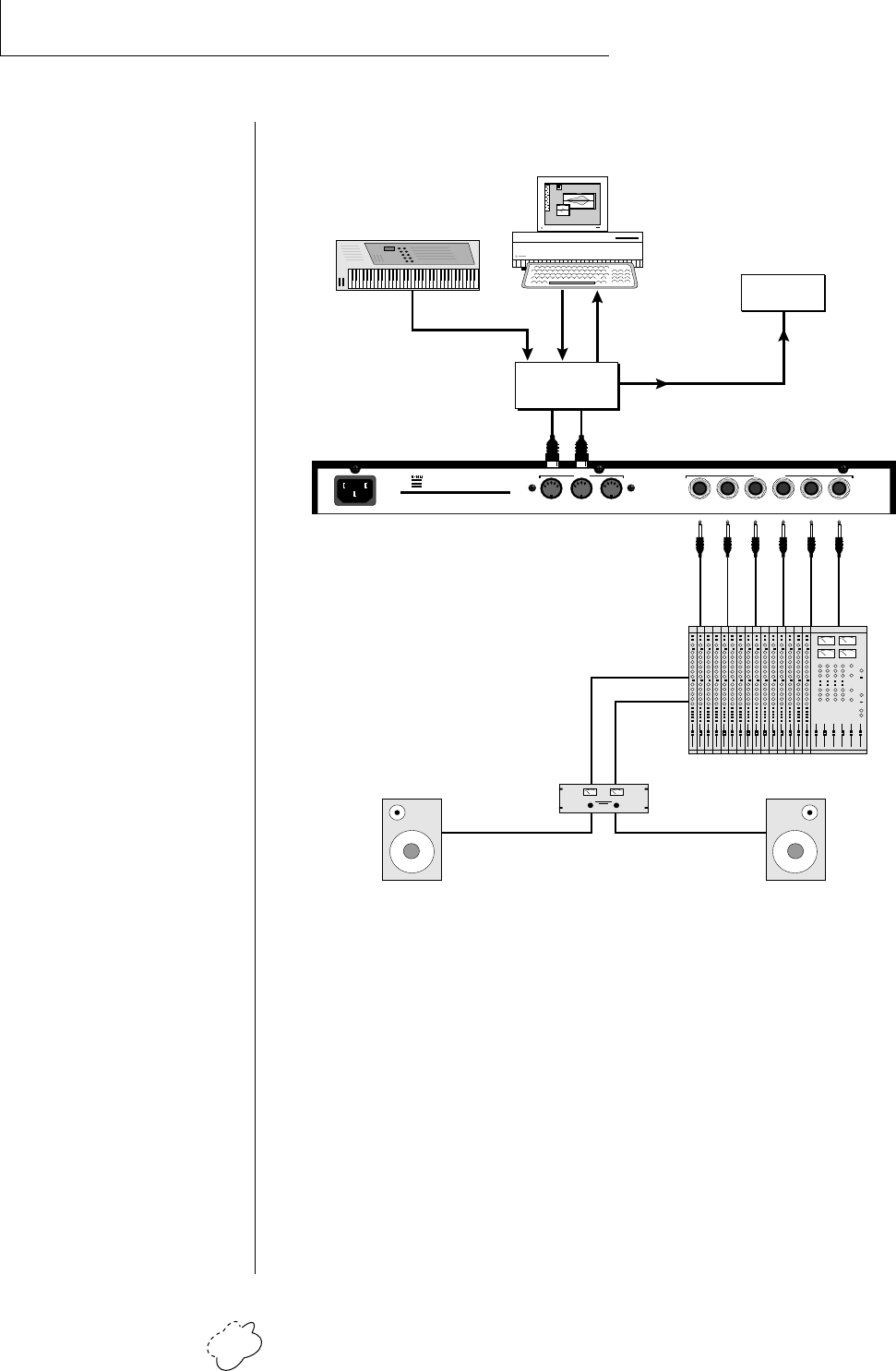
SETUP #2 STUDIO SETUP
MIDI In
In this setup, Planet Phatt is controlled by MIDI messages received
at the MIDI In connector which have been routed by a MIDI
switcher. The MIDI switcher allows any MIDI controller such as a
MIDI keyboard, MIDI drum pads or a computer to be easily
connected.
MIDI Out
The MIDI Out jack is normally used to transmit program data to a
computer or other device.
Outputs
Planet Phatt has three sets of programmable stereo outputs; Main,
Sub 1, and Sub 2. Specific Planet Phatt presets (or MIDI channels)
can be routed to one of these stereo pairs in order to be further
processed or mixed separately.
Sub 2 Outputs
Sub 1 Outputs
Main Outputs
MIDI Out
MIDI Controller
(MIDI Keyboard, Sequencer, etc.)
MIDI In
Additional
MIDI
Devices
MIDI Switcher
MIDI
Out
Out In
Out
OutInIn
R - SUB2 - L R - SUB1 - L R - MAIN - L
MONO STEREO
THRUOUTIN
OUTPUTS
MIDI
Scotts Valley, California U.S.A.
100-250VAC 50/60 Hz ~
E-MU SYSTEMS, INC.
WARNING: TO REDUCE THE RISK OF FIRE
OR ELECTRIC SHOCK, DO NOT EXPOSE
THIS PRODUCT TO RAIN OR MOISTURE.
MIDI
In
Computer
7Chapter 1: Basic Setup
CONNECTION INSTRUCTIONS
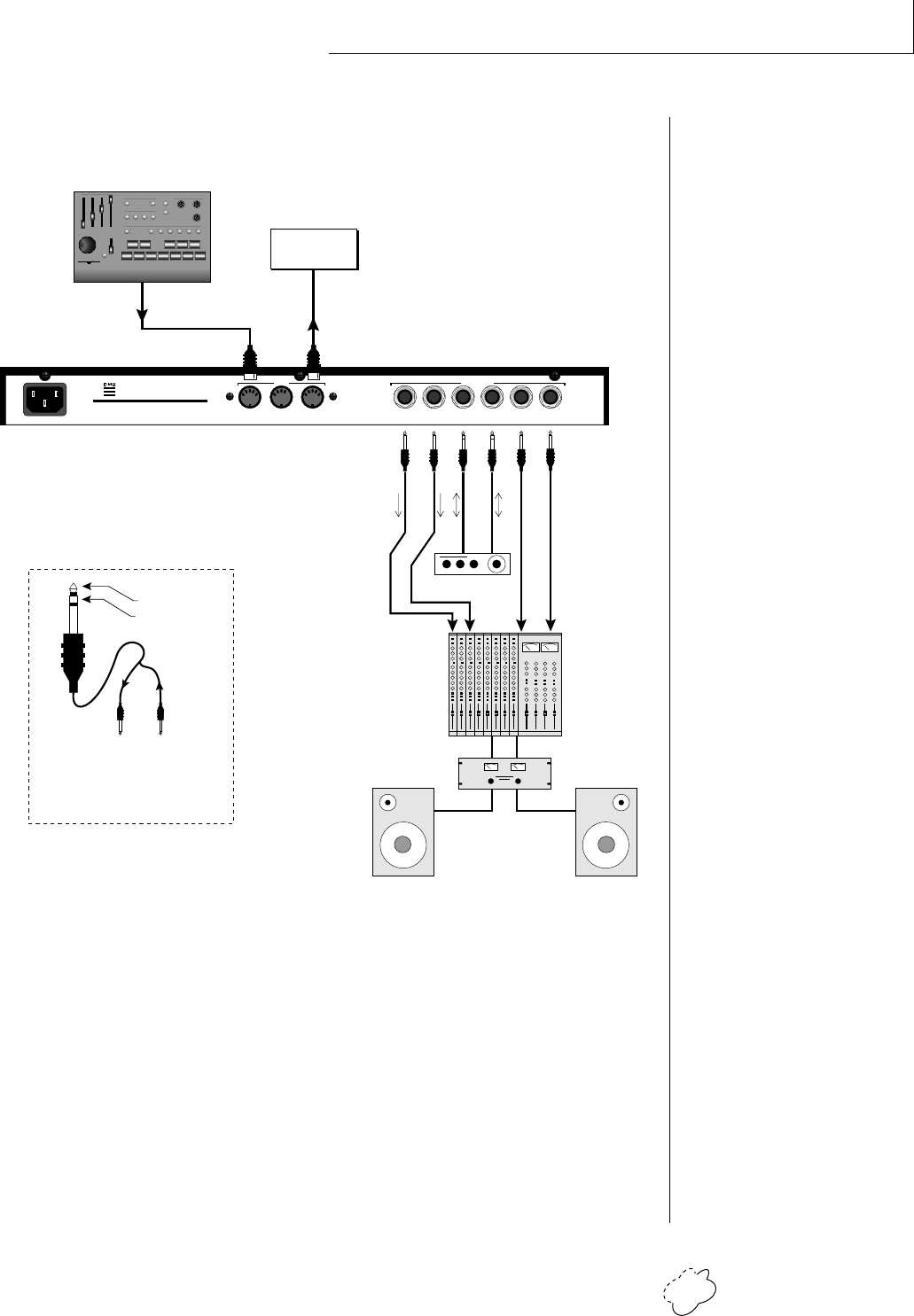
SETUP #3 PERFORMANCE SETUP
MIDI In
Planet Phatt is controlled by MIDI messages received at the MIDI
In connector. Connect the MIDI In of Planet Phatt to the MIDI
Out connector of a MIDI controller such as E-mu's Launchpad, a
MIDI keyboard, MIDI drum pads or a MIDI sequencer.
MIDI Thru
The MIDI Thru jack is used to connect additional MIDI devices
onto the MIDI chain. MIDI Thru transmits an exact copy of the
messages received at the MIDI In jack.
Outputs
The Sub 1 and Sub 2 output jacks on Planet Phatt are stereo jacks.
The tip of each jack (accessed when a standard phone plug is
inserted) connects to the left or right output of that group.
R - SUB2 - L R - SUB1 - L R - MAIN - L
MONO STEREO
THRUOUTIN
OUTPUTS
MIDI
Scotts Valley, California U.S.A.
100-250VAC 50/60 Hz ~
E-MU SYSTEMS, INC.
WARNING: TO REDUCE THE RISK OF FIRE
OR ELECTRIC SHOCK, DO NOT EXPOSE
THIS PRODUCT TO RAIN OR MOISTURE.
Sub Output
Return
(To Main Output)
Tip Ring
To Effect From Effect
SEND/RETURN CABLE
Send/Return
Effect Device
Main Outs to Mixer In
Additional
MIDI
Devices
MIDI Controller
(Launchpad, MIDI Keyboard, Sequencer)
MIDI Out
MIDI In
Send
Signal is sent out on tip of plug and
returned to main outputs via ring of plug.
SONG BANK PRESET
SAVESELECT CONTROL
DEC
INC
REC
PLAY
STOPFFWDREW
RTZMODE
PITCH
MODULATION
TRIGGERS
TRANSPORT
MIDI CLOCK
TRIGGERS/TRANSPORT
PERFORMANCE SELECT
EDIT PARAMETERS TRANSPOSE
CONTROLLERS
13 6810
11975421
LAUNCH PAD
PERFORMANCE CONTROLLER
CC#
D
D#
E
F
F#
G
G#
A
A#
BOFF
+2OCT
+OCT
+3OCT
MIDI CHANNEL
-2OCT
-OCT
-3OCT
12
4
5
6
7
8
9
10
11
12
13
14
15
16
3
Planet Phatt Operation Manual8
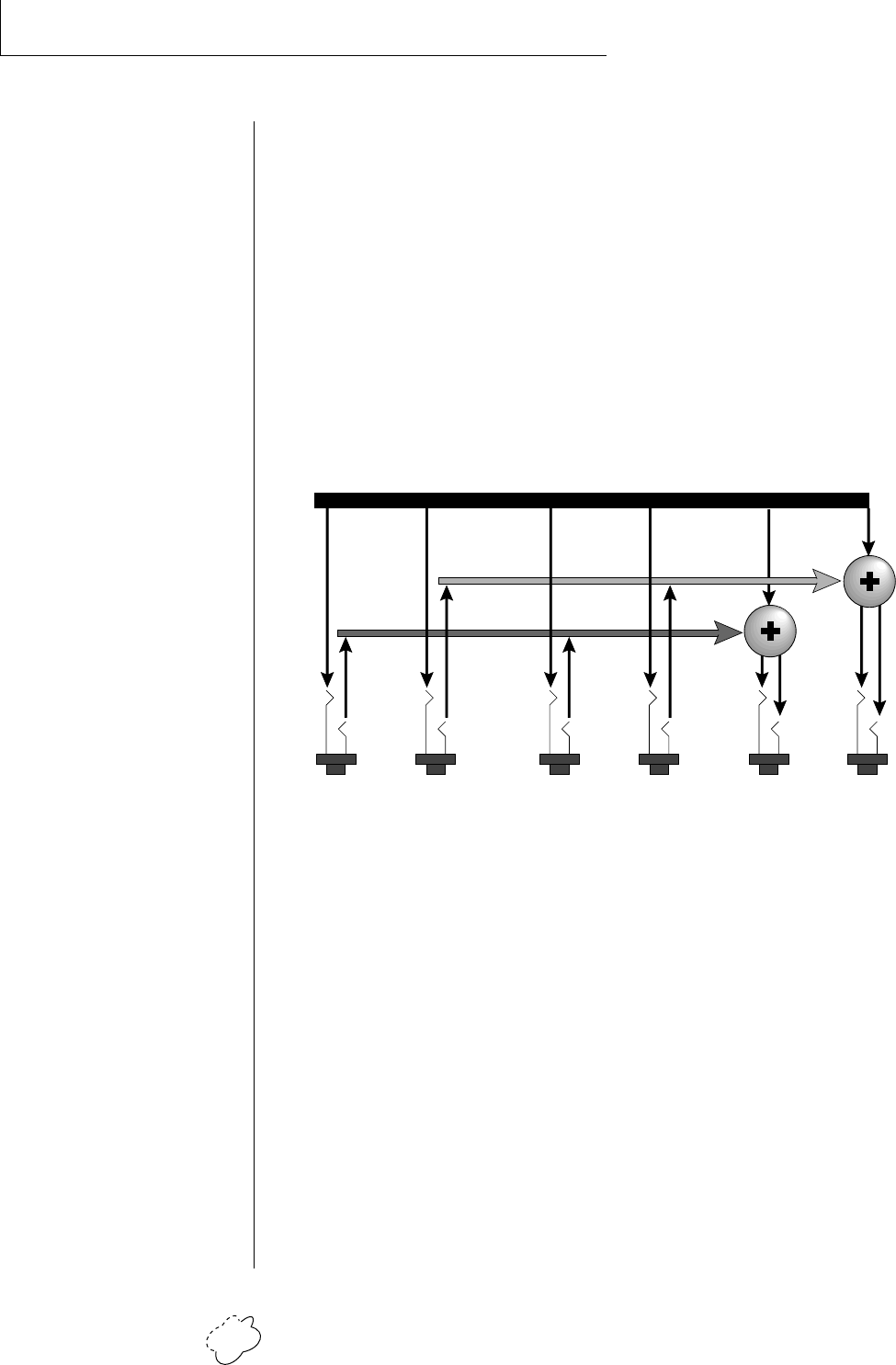
If a stereo plug is inserted, the Ring of the stereo plug serves as a signal
Return which sums into the Main outputs.
Therefore, the Sub 1 and Sub 2 jacks can serve as effect sends and
returns in order to further process selected instruments and then
return them to the main mix.
The diagram shows the Sub 1 and Sub 2 jacks being used as
send/returns in order to further process selected Planet Phatt presets
without using the effects bus on the mixing board. In a pinch, the
effect returns could also be used to sum additional instruments into
the main outputs.
The Sub 1 and Sub 2 jacks can be used as effect returns to the Main Outputs.
POWER UP!
The power switch is located on the right side of the front panel. Planet
Phatt and its MIDI controller may be turned on in any order. When
power is applied, the liquid crystal display will light, indicating that
Planet Phatt is operating. You may have noticed that there is no
110/220 Volt power selector switch on Planet Phatt.
PLANET PHATT AUTOMATICALLY SWITCHES ITSELF TO
THE PROPER LINE VOLTAGE.
CONNECTIONS
••• Inserting a standard
mono phone plug halfway
into the jack allows you to
sum into the main outputs
without a special cable.
MAINS
RL
R Bus
L Bus
Output Section
Tip
Ring
Tip
Ring
SUB 1
RL
Tip
Ring
Tip
Ring
SUB 2
RL

Chapter 2: Basic Operation 9
BASIC
OPERATION

Planet Phatt Operation Manual10
BASIC OPERATION
Chapter 2: Basic Operation 11
BASIC OPERATION
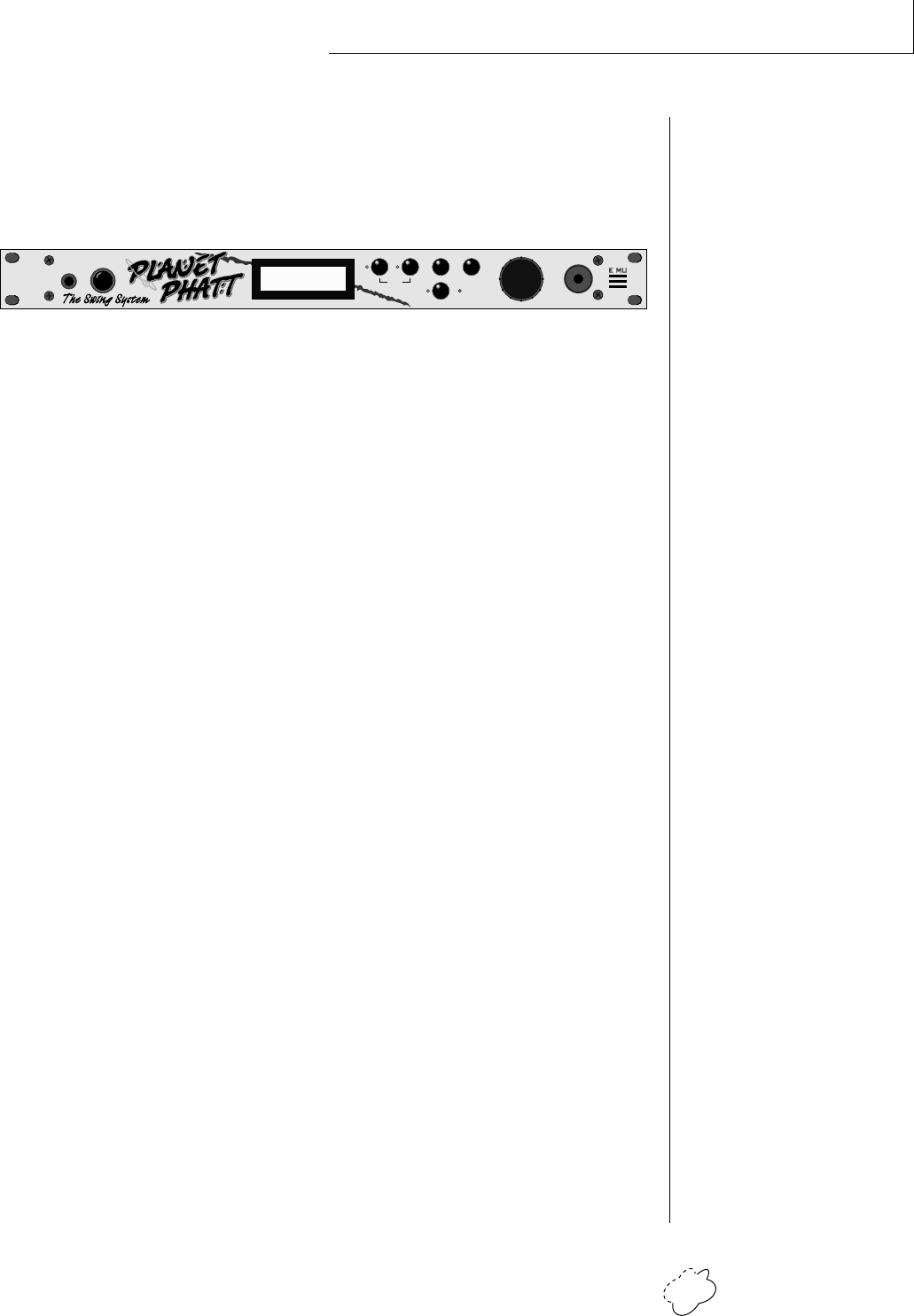
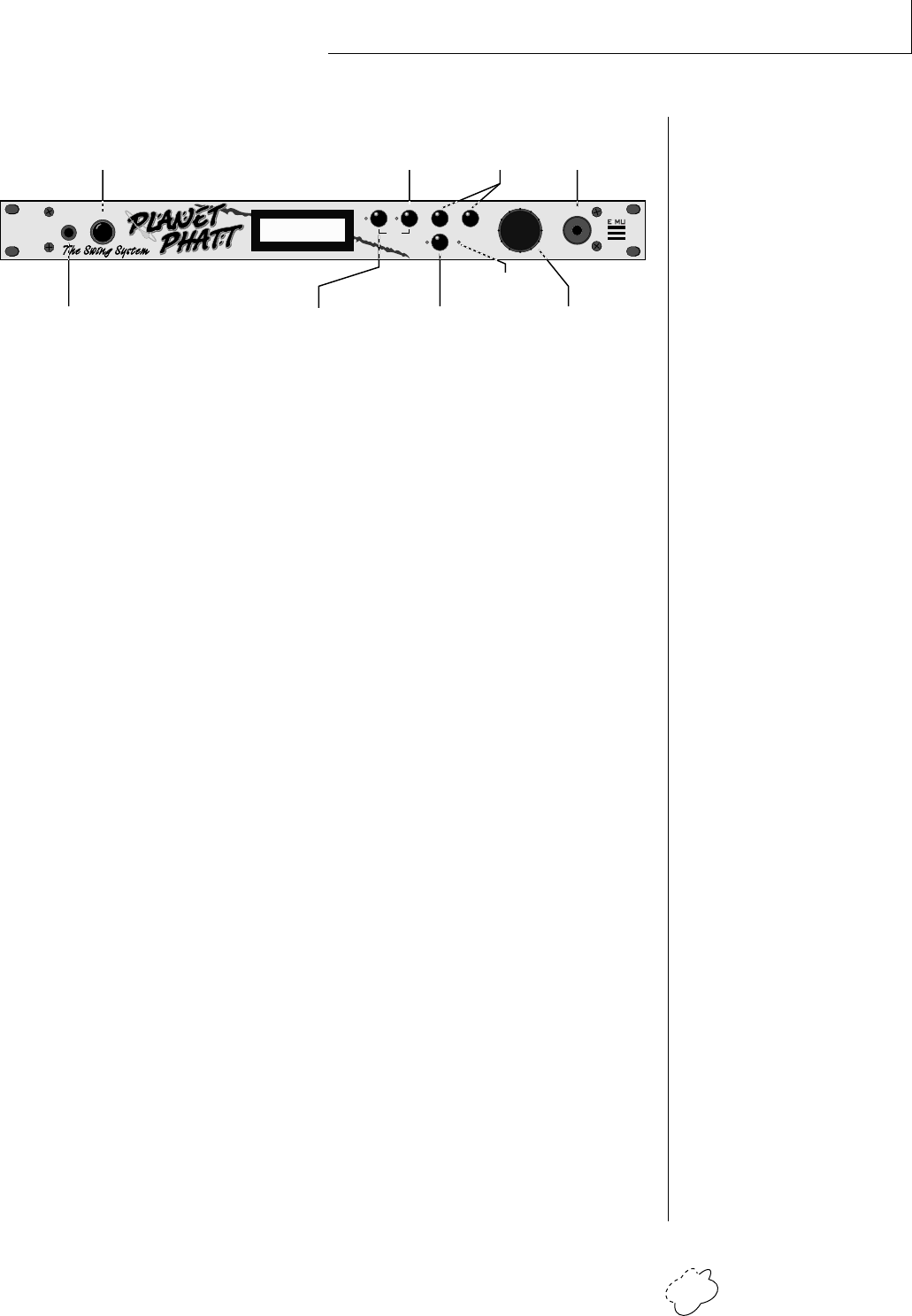
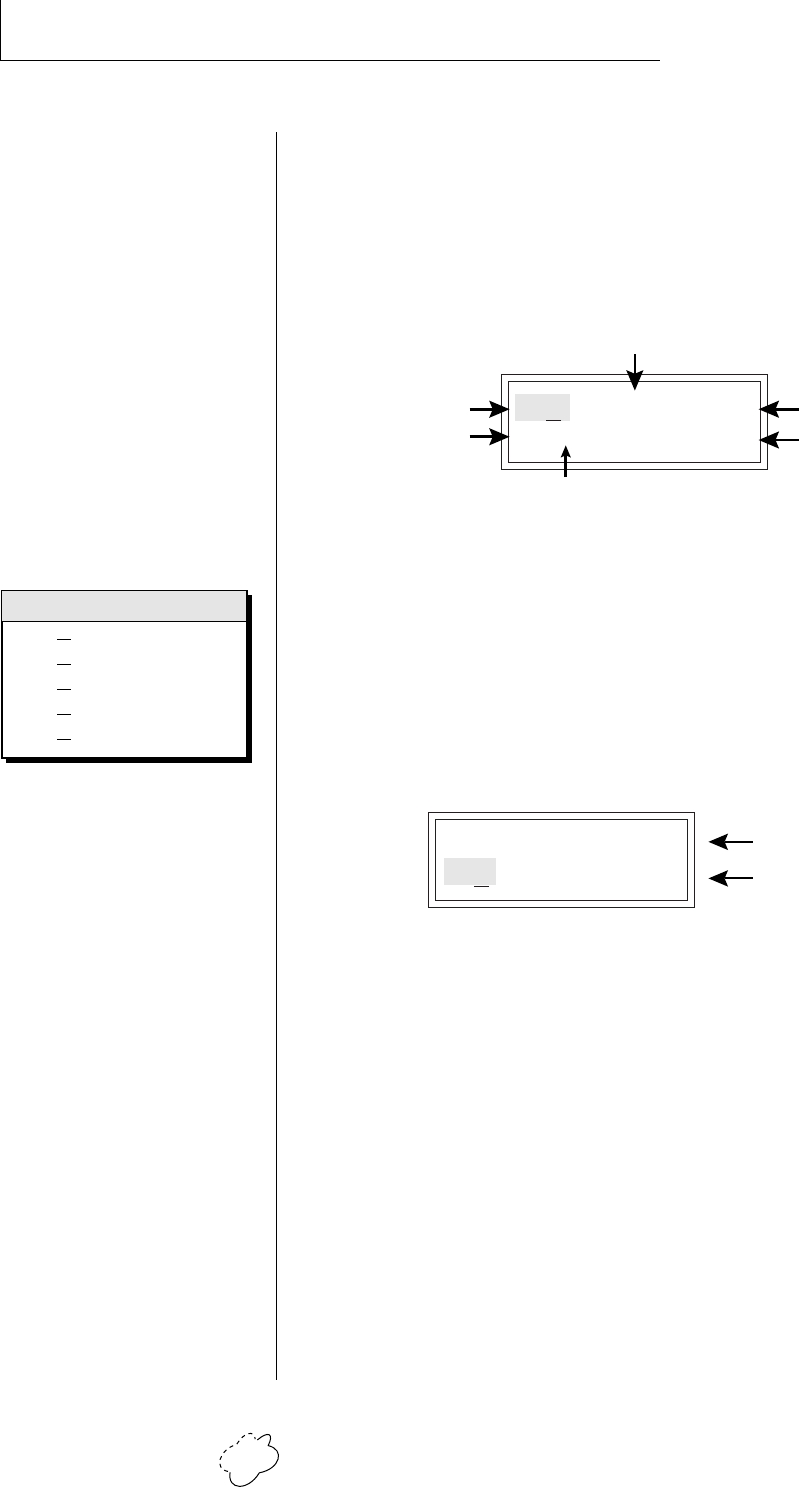
MAIN CONTROLS
Power Switch
Switches AC power to Planet Phatt On and Off.
MIDI Activity LED
Indicates that MIDI data is being received.
Master Menu Select Button
The Master menu contains parameters that affect the entire
machine, not just certain presets. An illuminated LED to the left
of the button indicates that you are in the Master menu.
Edit Menu Select Button
The Edit menu is used when you want to change parameters of a
preset. An illuminated LED to the left of the button indicates that
you are in the Edit menu.
Home/Enter Button
The Home/Enter button is used to initiate a particular operation.
The red LED to the left of the enter button flashes to let you know
that Planet Phatt is waiting for your response.
Cursor Controls
These buttons move the cursor to the next parameter on the
display. (The cursor is a little flashing line underneath one of the
parameters in the display.) Press either cursor control repeatedly
until the cursor is underneath the desired parameter. The cursor
can also be moved bi-directionally using the data entry control
while the right cursor select button is being held down (i.e. Press
and hold the right cursor button and turn the data entry knob).
Data Entry Control
The data entry control is a stepped, variable control which is used
to change parameter values. The control increments or decre-
ments the current value one unit with each click. This control
incorporates acceleration (values advance faster if the control is
turned quickly).
Volume Control
This is the master volume control for all audio outputs. Note: For
maximum dynamic range, set this control to full level.
PHONES VOLUME
EDITMASTER
BEATS
CURSOR
<>
HOME/ENTER
DATA POWER
MIDI
C01 Vol127 Pan=P
002 led:Romance
HEADPHONE
JACK
MASTER MENU
SELECT
HOME/ENTER
BUTTON
MIDI
ACTIVITY
DATA ENTRY
CONTROL
VOLUME
CONTROL
DISPLAY
EDIT MENU
SELECT
CURSOR
CONTROLS
POWER
SWITCH
0
Planet Phatt Operation Manual12
BASIC OPERATION
0
••• Channel Pan should
normally be set to “P” unless
realtime control of panning is
desired. This will allow the
programmed pan setting for
each preset to be used.
• • • If Planet Phatt is not
responding properly or plays
the wrong preset, make sure
that both Planet Phatt and
your MIDI controller are set
to the same MIDI channel
and that the MIDI Volume is
turned up.
For more information about
MIDI, see MIDI Realtime
Controls on page 52.
MIDI Channel Parameters
Preset Information
0
Bank Contents
0
1
2
3
4
128 RAM Presets
128 RAM Presets
128 ROM Presets
128 ROM Presets
128 ROM Presets
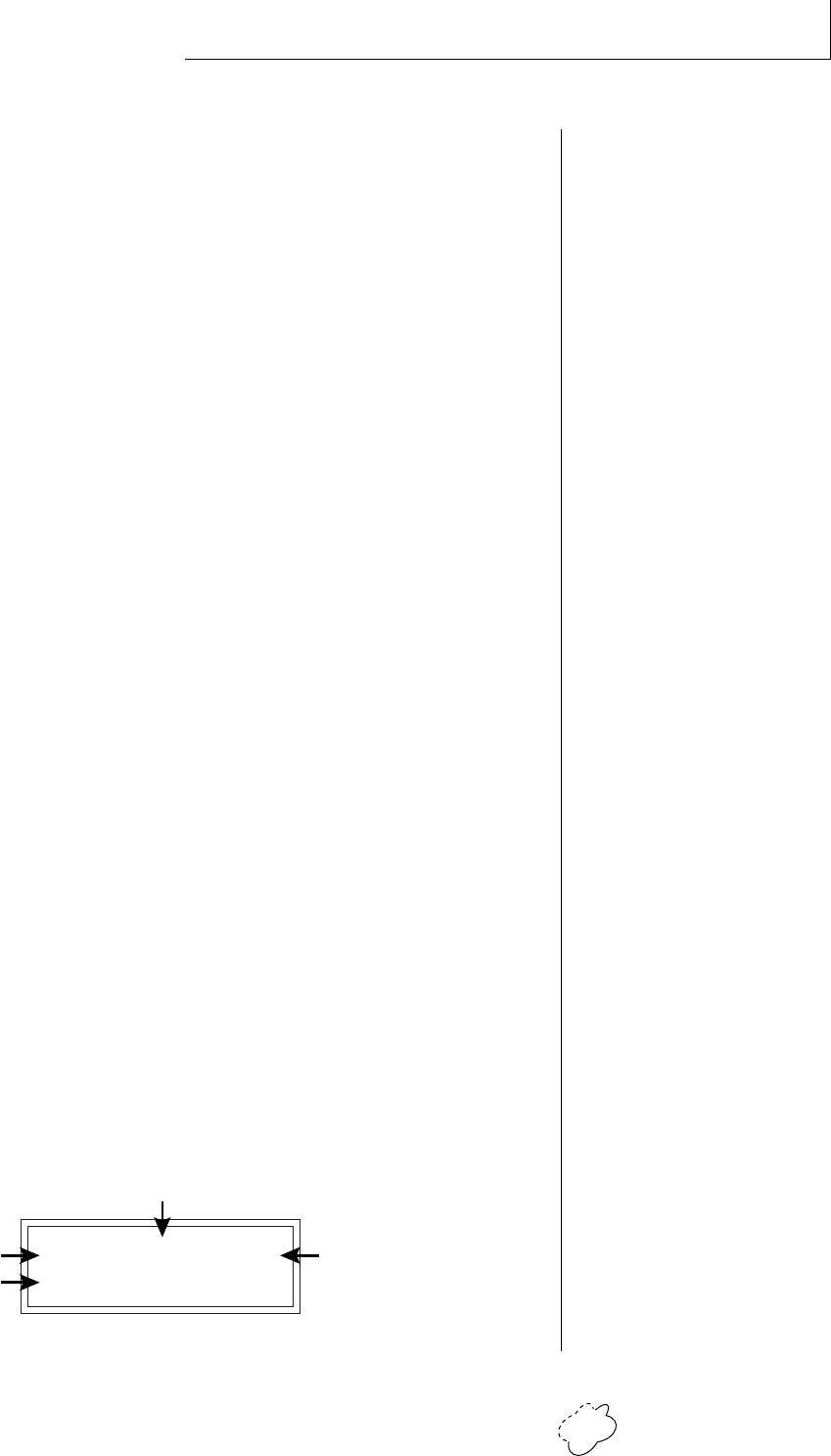
MIDI CHANNEL SELECTION
Press the cursor key repeatedly untiil the cursor is underneath the
channel number. (The cursor is a little flashing line underneath one of
the parameters in the display.) Rotate the data entry control to select
MIDI channel 01-16. As the channel is changed, the display will
change to show the preset, volume and pan associated with the
displayed channel.
C01 Vol127 Pan=P
000 Preset Name
PRESET SELECTION
Press the cursor key repeatedly until the cursor is underneath the
program number. (The cursor is a little flashing line underneath one
of the parameters in the display.) As the data entry control is rotated,
the preset number and name will change. The displayed preset will be
assigned to the displayed MIDI channel. Programs are arranged into
banks of 128, as shown in the diagram at left. Banks can be selected
independently of the of the program number by pressing the the
Home/Enter button while turning the data entry knob.
C01 Vol127 Pan=P
000 Preset Name
CHANNEL VOLUME
Press the cursor key repeatedly until the cursor is underneath the
volume value. Rotate the data entry control to select volume 000-127.
(This is the same parameter as MIDI volume control #7, and changes
made over MIDI will be shown in the display.)
CHANNEL PAN
Press the cursor key repeatedly until the cursor is underneath the pan
value. Rotate the data entry control to select pan values -7 to +7 or
“P”. When “P” is selected, the pan value specified in the preset is
selected. Any other value will override the pan parameter in the pre-
set. (This is the same parameter as MIDI pan control #10, and changes
made over MIDI will be shown in the display.)
MIDI Channel
Program No.
Volume
Stereo Position
Program Name
Bank No.
Chapter 2: Basic Operation 13
BASIC OPERATION
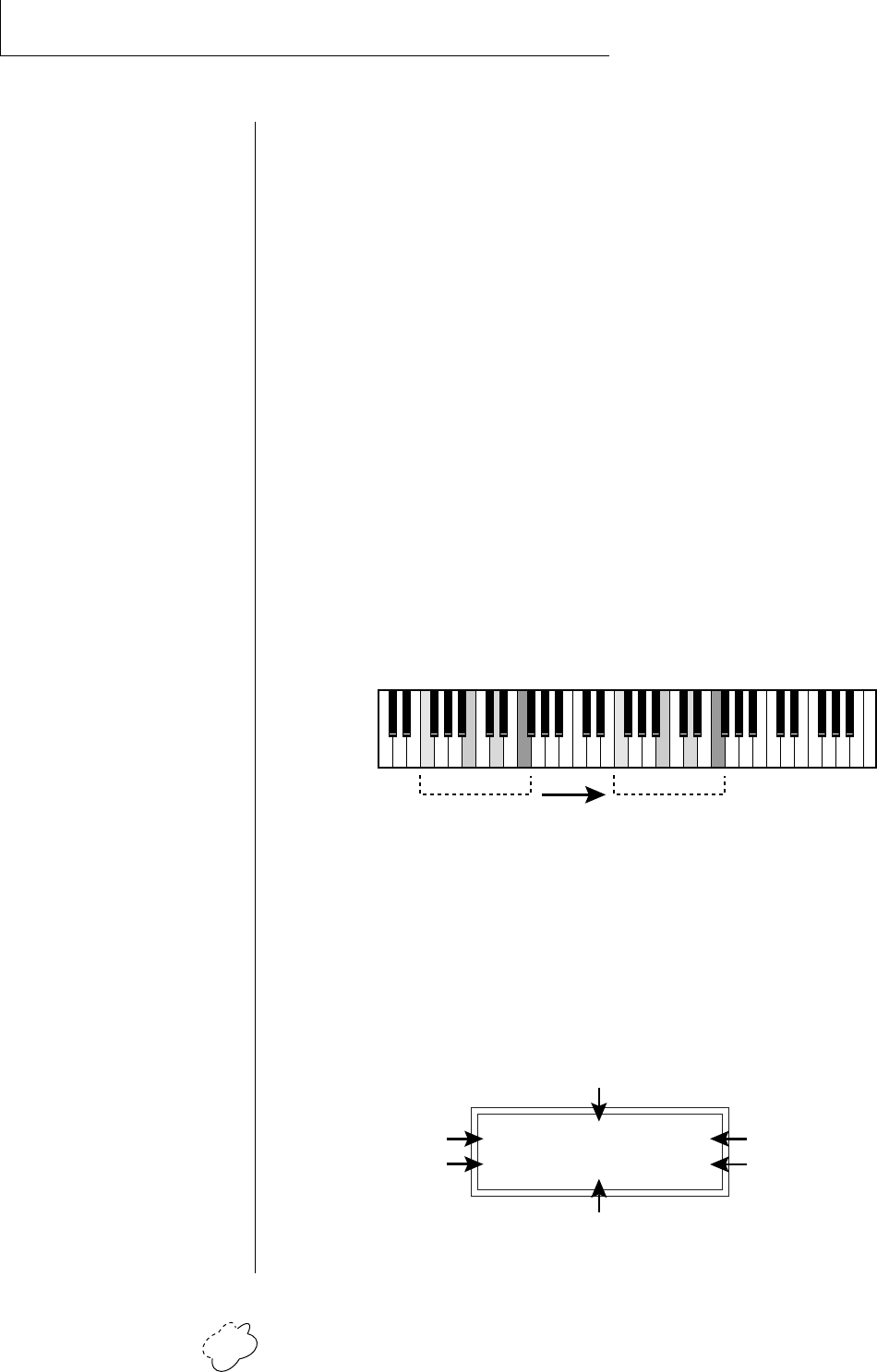
BEATS MODE
Planet Phatt contains a “Beat Sequencer” which can play any of 100
pre-programmed drum sequences called Beats. Any of Planet Phatt's
640 presets can be used with any beat. The X-Factor␣ control further
multiplies the number of possible beat combinations by changing
which instrument is assigned to each individual drum hit.
Beats can be also linked together to form Songs. Each song can have up
to 10 steps and each step can be programmed to loop up to 64 times
or loop indefinitely. Each step of a song can select a certain beat
pattern, jump to another step in the song, or jump to the beginning of
another song. Because of this jumping capability, songs can be made
as complex as you want. Planet Phatt holds a maximum of 28 songs
which can be quickly and easily transferred to a MIDI sequencer for
backup.
To Enter Beats or Song Mode
1. Press and hold both the Master button and the Edit button. The
Beats menu shown below will appear and the Enter LED will be
flashing.
2. Press the Enter button to Start the beat or song. The Enter LED
will be solidly on and the Master and Edit LEDs will flash once
each time the Beat pattern loops.
3. Press either cursor button and use the data entry control to select
a new beat or song, change the tempo, transpose the sequence
(X-Factor) or change the preset. Song numbers are located imme-
diately after beat 99.
4. Press the Enter button again to Stop the beat or song.
5. Press and hold both the Master button and the Edit button again
to return to the main screen. The song or beat will continue
playing unless you stopped it using the Enter button. The Master
and Edit LEDs will continue to flash, indicating Beats mode is On.
•To Turn Beats Off - Return to the Beats menu and press Enter.
Beats mode plays the preset assigned to MIDI channel 16. If you are in
Multi-mode, you can play along with beats mode on any of the MIDI
channels.
B:03 T:120 X:+00
492 bts:Danzin
• • • The Beat number can
be selected remotely by using
a MIDI Song Select
command. Beats mode can
also be started and stopped
via a MIDI Song Start and
Stop command when the
Beats screen is displayed.
• • • There are four different
Beats modes:
Factory,
1:Constant Tempo,
2:Constant T,X,P
3:User Settings.
See page 33 for details.
Beat/Song Select
Program No.
Tempo
X-Factor
▼ Warning: Beware of using
Omni mode on multiple
channels while Beats are
playing. Unpredictable results
may occur.
Planet Phatt Operation Manual14
BASIC OPERATION
• Beats Mode Parameters
B: Selects the beat number. There are 100 different beats to choose
from. Unless the Master menu Beats mode is set to option 2:Con-
stant T, X, P, the preset will change when you change the beat.
T: Sets the Tempo of the sequence. The tempo is variable from 1
beats-per-minute to 255 bpm. Turning the tempo all the way down
selects External Clock mode (Ext). In external clock mode, the
tempo is derived from incoming MIDI clock pulses.
X: Selects the “X Factor” or transposition interval. Rather than change
the pitch of the instruments, transposition shifts the keyboard
position up and down. On “Beats” presets this has the effect of
changing the instruments on each beat. By combining the various
beats, presets and transpositions, you can create literally hundreds
of thousands of different grooves. On presets where there is one
sound stretched across the entire keyboard, transpose will trans-
pose the pitch.
1 324 1 324
808 Kick
Snare
Chord
Scratch
Lawn Mower
Synth Pad
Deep Kick
Noise Burst
Transpose +24
Beat Same Beat
Transposing a “beats” preset shifts the keyboard and changes the sounds assigned to each beat.
SONG MODE
Song mode allows you to link beats together to form more complex
and repeatable song structures. Planet Phatt can record up to 28 songs
of up to 10 events each, numbered E0 through E9.
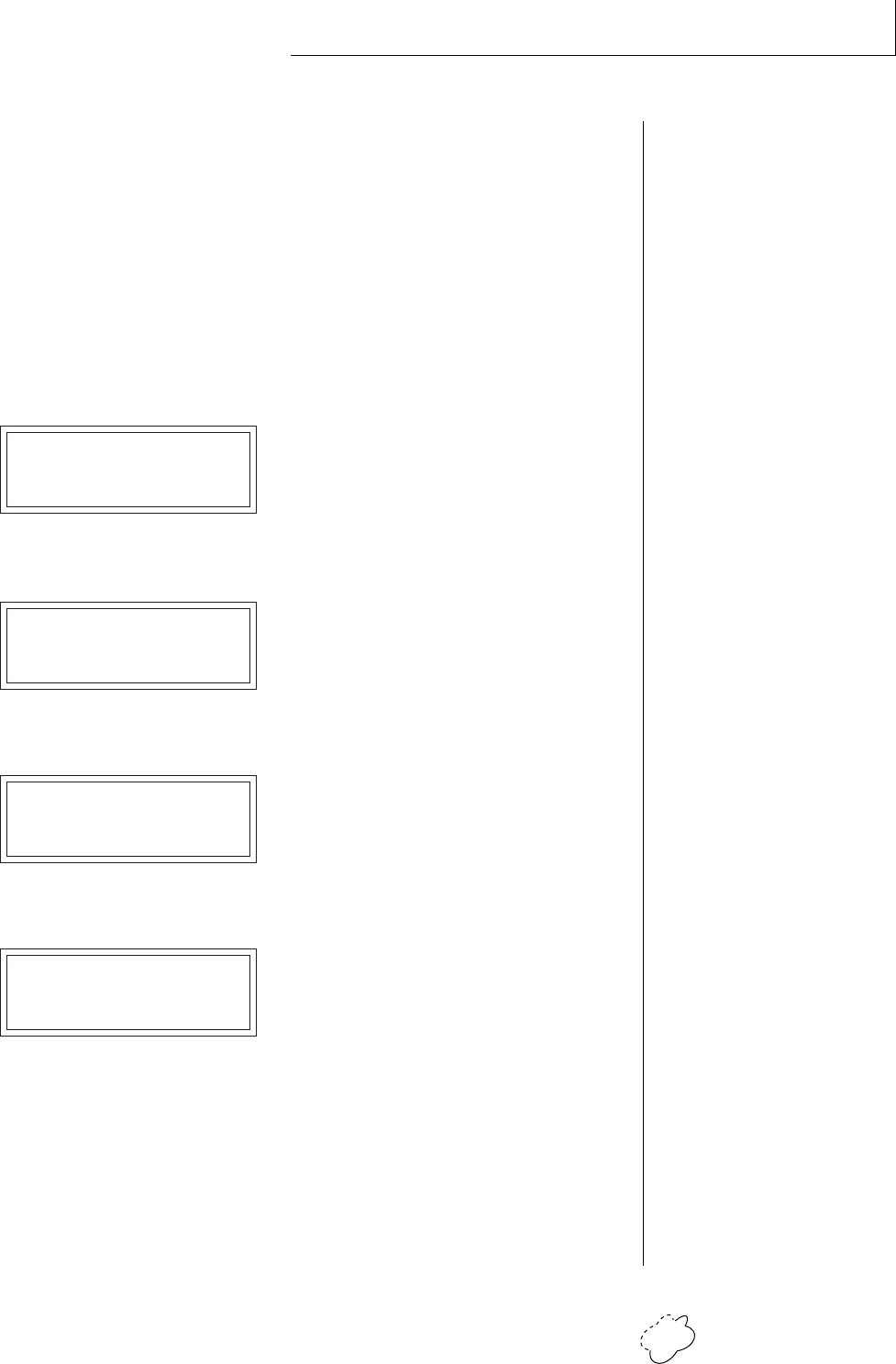
S:03 T:120 X:+00
E1 do B23 [01]
• • • MIDI Song Numbers
(0-127) can select either
Beats (0-99) or Songs
(100-127)
Beat/Song Select
Event No.
Tempo
X-Factor
No. of Times Played
Event Type
Chapter 2: Basic Operation 15
BASIC OPERATION
• Song Mode Parameters
S: Selects the Song number from S00 to S27. Moving the data entry
control one increment past B99 selects the first Song (S00).
T & X: The Tempo and X-Factor can be edited for each event, but will
only be saved and recalled if the Beats Mode in the Master
menu is set to 3:User Settings.
E: Selects the Event number. An Event can do one of the following
things:
• Play a particular Beat, a specified number of times.
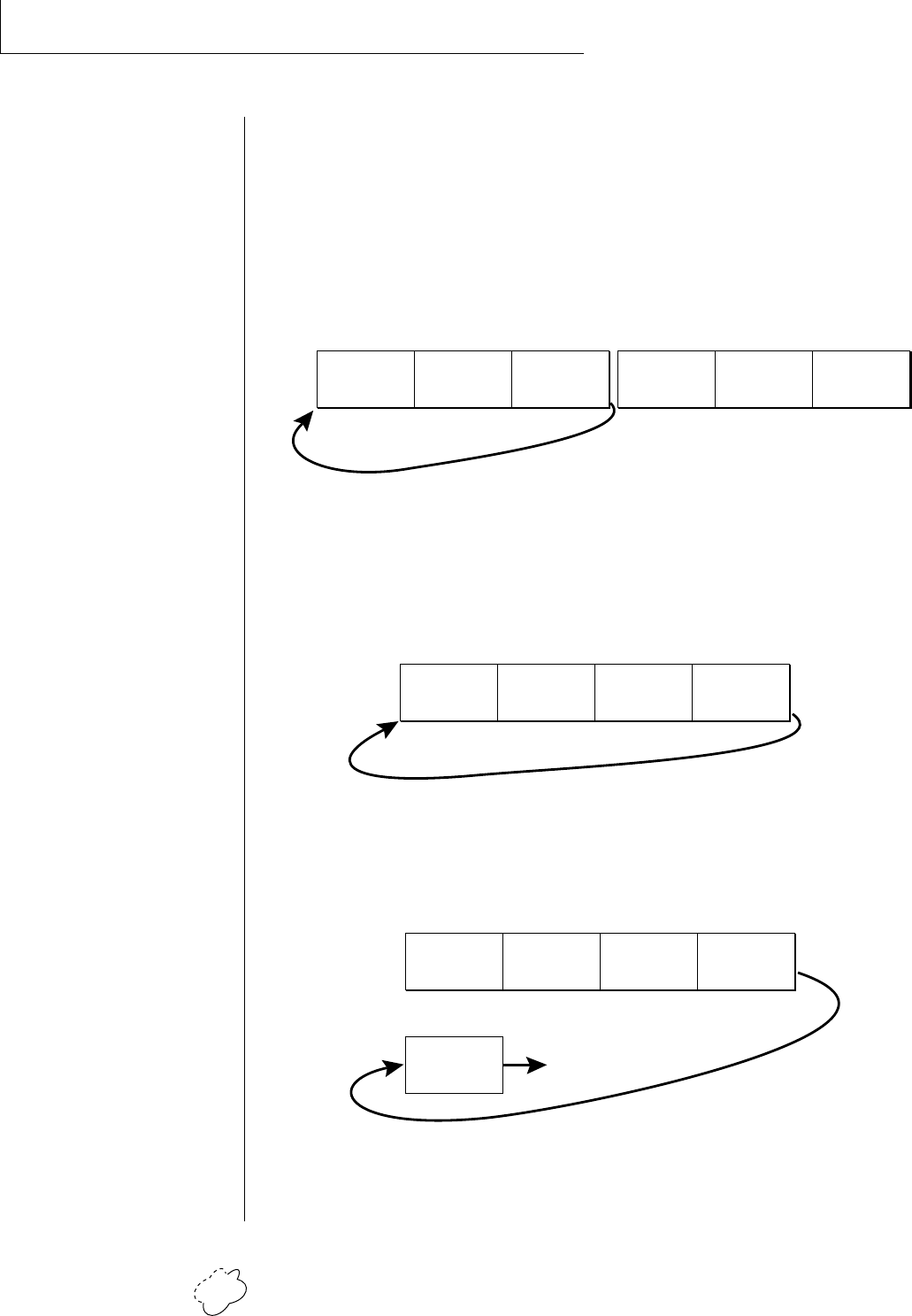
S:00 T:120 X:+00
E1: do B:05 [10] ➜ plays Beat 05 10 times
• GoTo a Previous Event, and play it a specified number of times.
S:00 T:120 X:+00
E2: to E1 [04] ➜ go back to event E1, play 4 times
• GoTo a particular new Song.
S:00 T:120 X:+00
E2: to S05 [--] ➜ go to Song S05 NO REPEATS!
• Stop the Song
S:00 T:120 X:+00
E2: Stop [--] ➜ end of Song NO REPEATS!
[ ]: Number of times played from 1 to 64. Multiple plays are not
allowed on GoTo Song or Stop events. Moving the data entry
control one increment past 64 selects Infinite Repeat [<>]
▼ Warning: The first Event
in a Song is always a
“Play Beat” Event.
• • • Song Beats do not have
to begin at event 00. If you
select Event 05 and press
Enter, the Song will begin
playing from event 5.
If the cursor is underneath
the Song number, the Song
will always begin at Event 0.
• • • See Beats Mode in the
Master Menu for additional
information.
Planet Phatt Operation Manual16
BASIC OPERATION
• Song Examples
Because of the Repeat and Jump functions, Songs can be made as
complex as you like. Remember to set Beats mode (in the Master
menu) to “3:User Settings” if you want the Song to play back your
own Tempo, X-Factor and Preset settings.
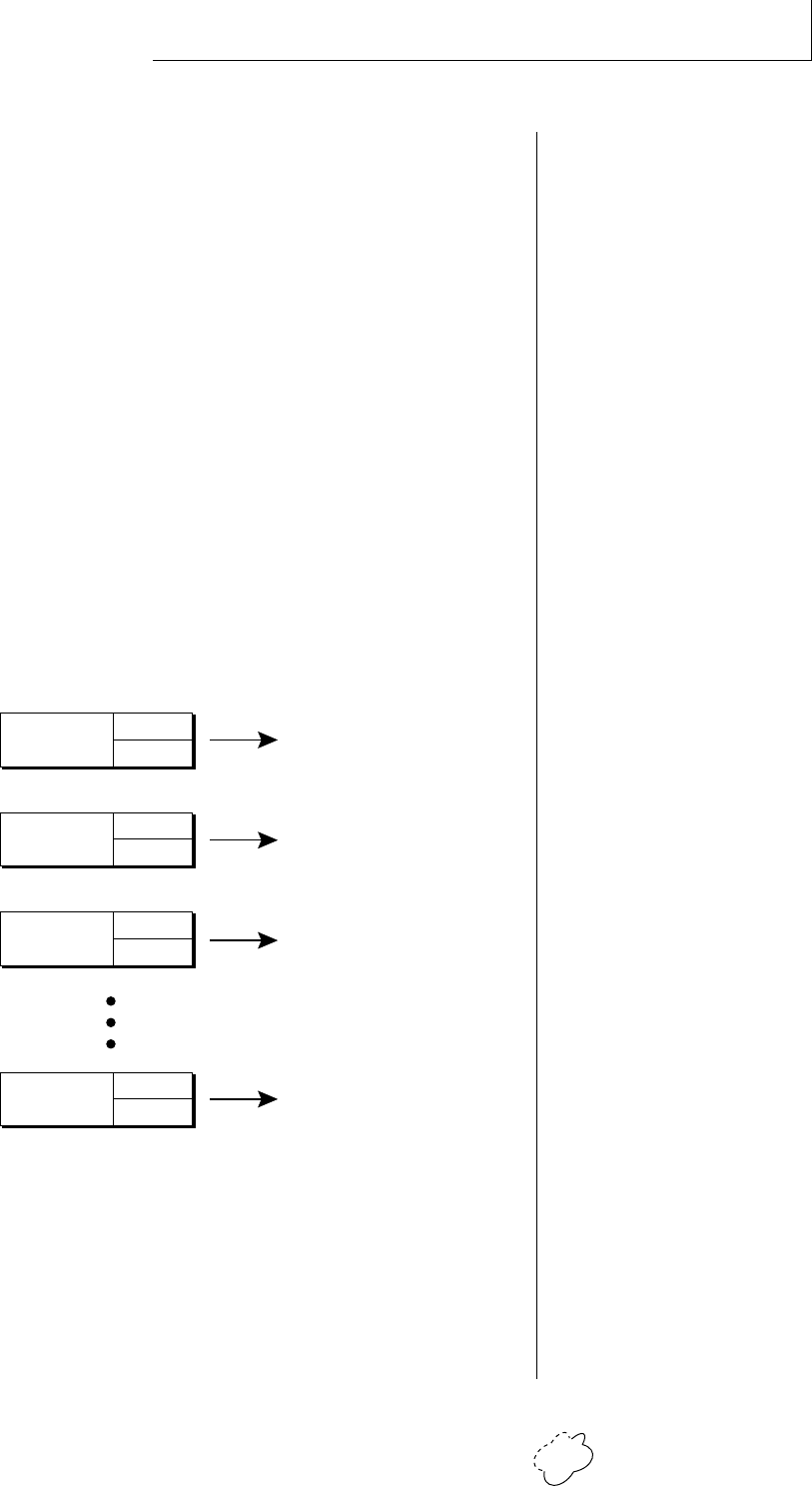
The diagrams below show a few examples of how songs can be
constructed.
In the above example, beat 7 plays once and then beat 18 plays once.
At event E2, the song jumps back and repeats E0 and E1. When events
E0 and E1 have looped 16 times, the song moves on to steps E3, E4,
and E5, which stops the song.
Beat 07
Play [01]
E0
Beat 18
Play [01]
E1
GoTo E1
Play [16]
E2
Beat 48
Play [01]
E3
Beat 23
Play [01]
E4
Stop
Play [--]
E5
16 times
S21
Beat 21
Play [01]
E0
Beat 30
Play [01]
E1
Beat 62
Play [01]
E2
GoTo E0
Play [<>]
E3
Infinite Repeat
S22
In the above example, beats 21, 30 and 62 are simply repeated indefi-
nitely until you turn off Beat/Song mode.
Instead of jumping to a previous step, song 23 jumps to song 20 in the
example above. This technique might be used to add a “lead in” to a
previously stored song.
Beat 02
Play [01]
E0
Beat 7
Play [01]
E0
Beat 51
Play [01]
E1
Beat 40
Play [01]
E2
GoTo S20
Play [--]
E3
Jump to Song 20
S23
S20 etc.
Chapter 2: Basic Operation 17
BASIC OPERATION
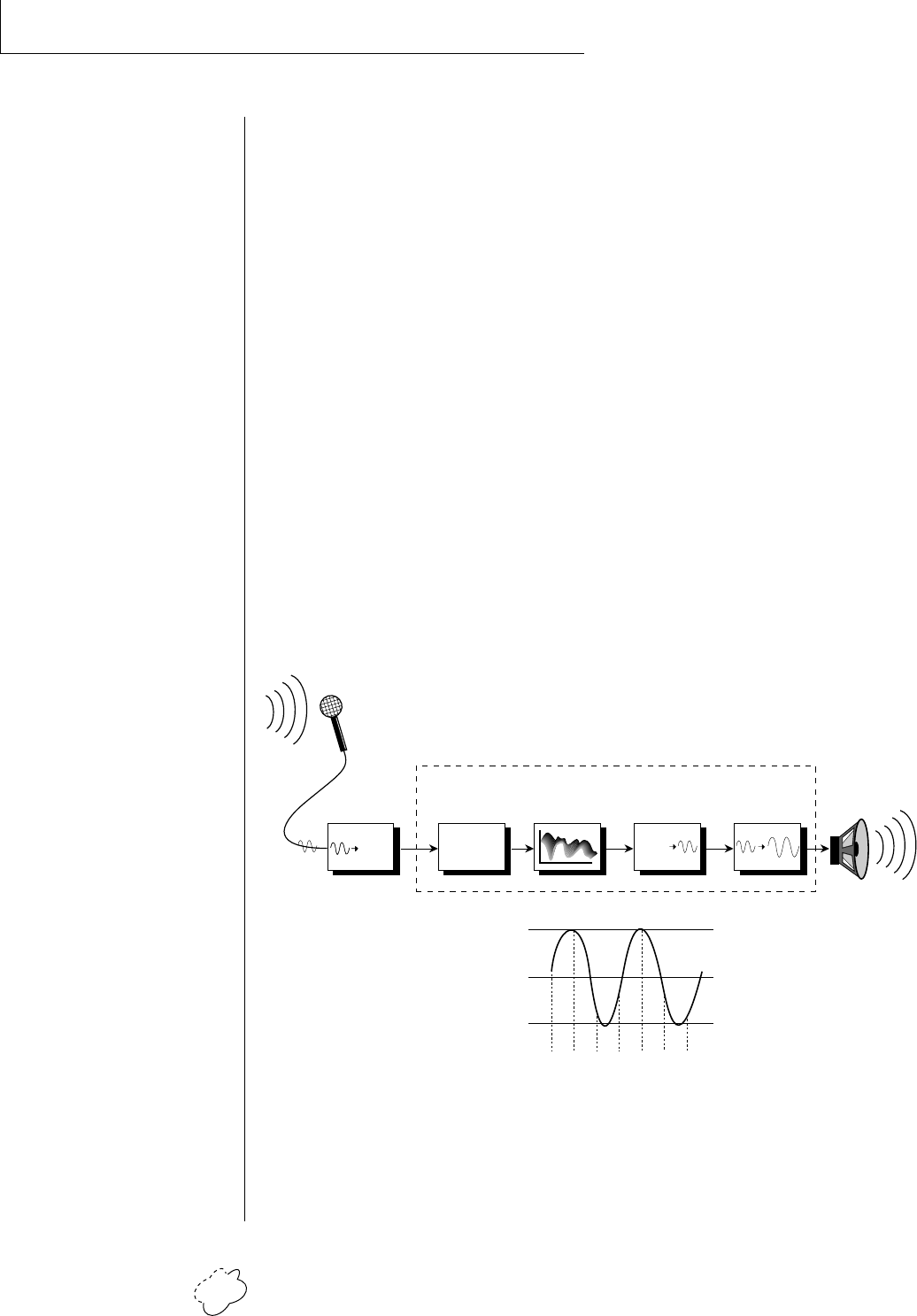
Each of the 16 MIDI channels can be assigned to play a specific Planet Phatt preset.
Channel 01 Volume
Pan
Channel 02 Volume
Pan
Channel 03 Volume
Pan
Channel 16 Volume
Pan
PRESET
PRESET
PRESET
PRESET
MULTI-TIMBRAL OPERATION
Multi-timbral operation means that Planet Phatt can play more than
one sound at the same time. To access multiple presets on different
MIDI channels simultaneously, follow these instructions:
1. Set the MIDI mode to MULTI-Mode, using the MIDI mode
function in the Master menu (page 24).
2. Decide which MIDI channels you wish the Planet Phatt to receive,
and turn all other channels OFF using the MIDI Enable function
in the Master menu (page 25). Up to 16 channels can be selected
simultaneously!
3. Select the desired preset for each of the MIDI channels you wish
the Planet Phatt to receive using the MIDI Channel/Preset
selection screen (see previous instructions).
4. Planet Phatt will now respond multi-timbrally on the MIDI chan-
nels you have specified. The volume and pan position parameters
can be adjusted over MIDI (for each MIDI channel) or using the
Cursor and Data Entry control in the MIDI Channel/Preset
selection screen.
Planet Phatt Operation Manual18
BASIC OPERATION
Memory
10100101001
01010010100
10101010100
10101001010
Digital/Analog
Converter
1011001
Z-Plane Filter Amplifier
Basic Sampling System
Planet Phatt
Analog/Digital
Converter
1011001
1011001
-1V -2V3V-1V-2V3V1V
0V
3V
-3V
ABOUT PLANET PHATT
Planet Phatt utilizes digital recordings of real instruments for the basis
of its sound. This is similar to a tape recorder except that inside Planet
Phatt, the sounds are permanently recorded on digital memory chips.
To perform this modern miracle, sounds and instrument waveforms
are first digitally recordered or “sampled”. After the sounds and wave-
forms have been truncated, looped and processed, they are “masked”
into the Planet Phatt ROM (Read Only Memory) chips.
Conceptually, the sampling process is very simple, as shown in the
Basic Sampling System diagram. As a sound wave strikes the dia-
phragm of a microphone, a corresponding voltage is generated. To
sample the sound, the voltage level is repeatedly measured at a very
high rate and the voltage measurements are stored in memory. To play
the sound back, the numbers are read back out of memory, converted
back into voltages, then amplified and fed to a speaker which converts
the voltage back into sound waves. Of course, playing back 32 chan-
nels at different pitches tends to complicate matters, but this is basi-
cally how it works. In Planet Phatt, we have left out the Analog/Digital
converter stage since the sounds are already sampled for you.

Chapter 3: Master Menu 19
MASTER
MENU

Planet Phatt Operation Manual20
MASTER MENU
Chapter 3: Master Menu 21
MASTER MENU
The Master menu contains functions that affect the overall operation
of Planet Phatt. For example, changing the Master Tune will change
the tuning of all the presets, not just the one currently displayed.
To enable the Master menu
Press the Master key, lighting the LED. The current screen will be
the one most recently selected since powering up Planet Phatt.
The cursor will appear underneath the first character of the screen
heading on line one.
To select a new screen
Press the cursor key repeatedly (or hold the right cursor key while
turning the data entry control) until the cursor is underneath the
screen title heading. Rotate the data entry control to select an-
other screen.
To modify a parameter
Press the either of the cursor keys repeatedly (or hold the right
cursor key while turning the data entry control) until the cursor is
underneath the parameter value. Rotate the data entry control to
change the value.
To return to Preset Select mode
Press the Master key, turning off the LED.
MASTER MENU FUNCTIONS
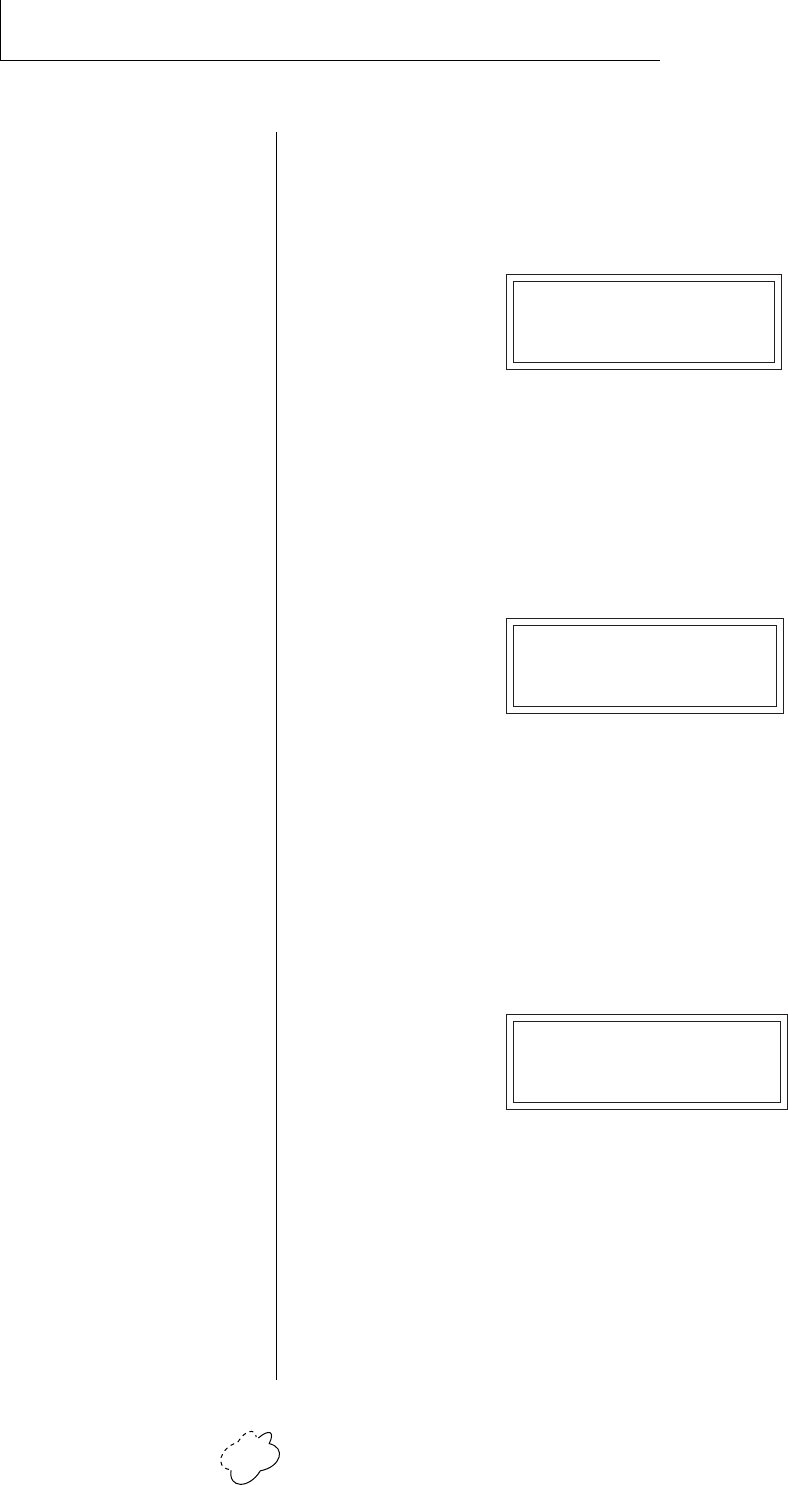
• Master Tune
Master Tune adjusts the overall tuning of all presets so that Planet
Phatt can be tuned to other instruments. The master tuning range is ±
1 semitone in 1/64th semitone increments. A master tune setting of
“00” would indicate that Planet Phatt is perfectly tuned to concert
pitch (A=440 Hz).
MASTER TUNE
+63
Planet Phatt Operation Manual22
MASTER MENU
• Transpose
This function transposes the key of Planet Phatt in half-step intervals
by shifting the keyboard position relative to middle C. The transpose
range is ± 12 semitones or one octave.
TRANSPOSE
+12 semitones
• Global Bend
This function sets the range of the pitch wheel only when it is routed
to control pitch. The maximum pitch bend range is ± 12 semitones.
This function only affects presets which have their individual pitch
bend range set to global.
GLOBAL BEND
+/- 12 semitones
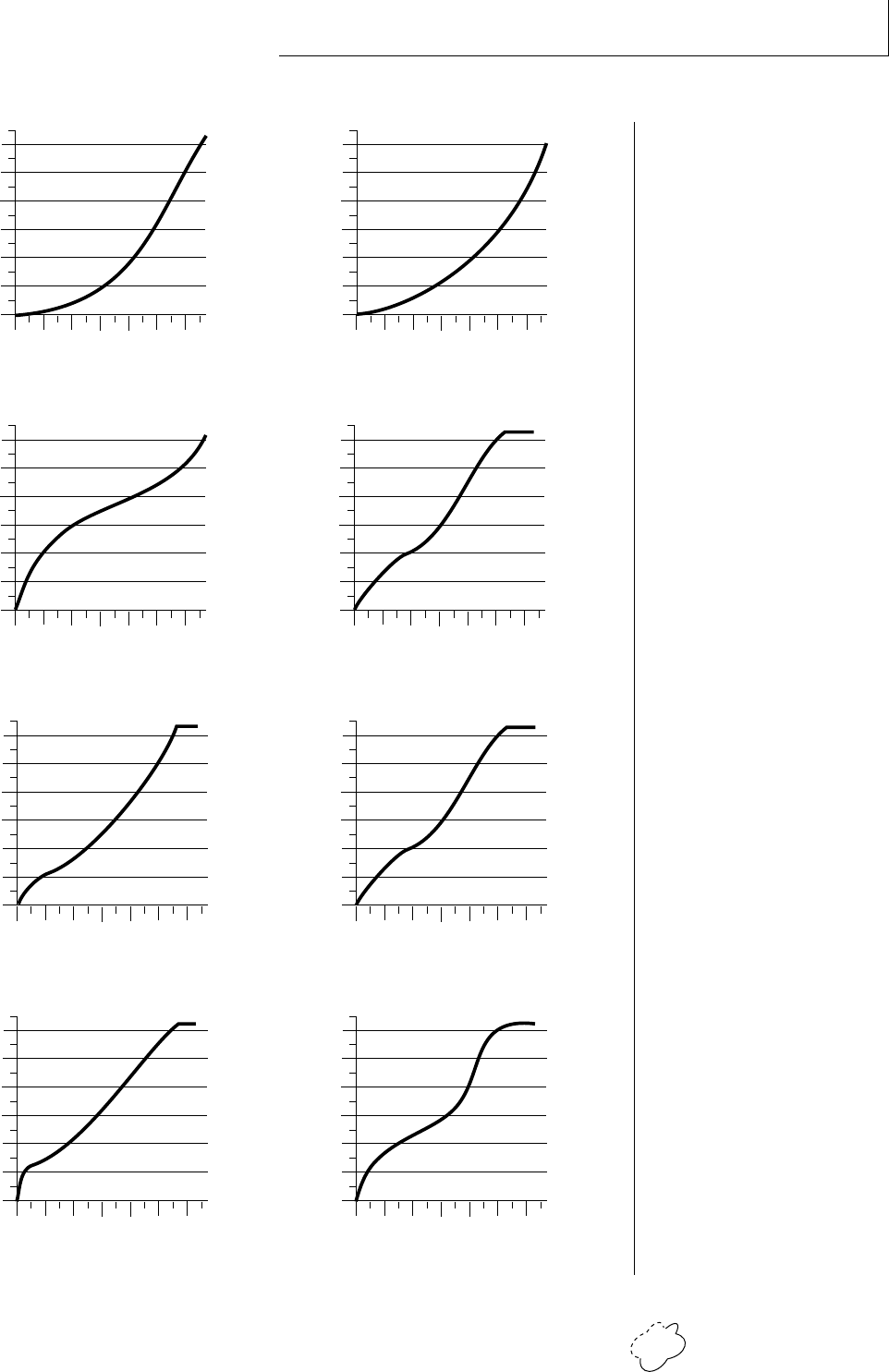
• Global Velocity Curve
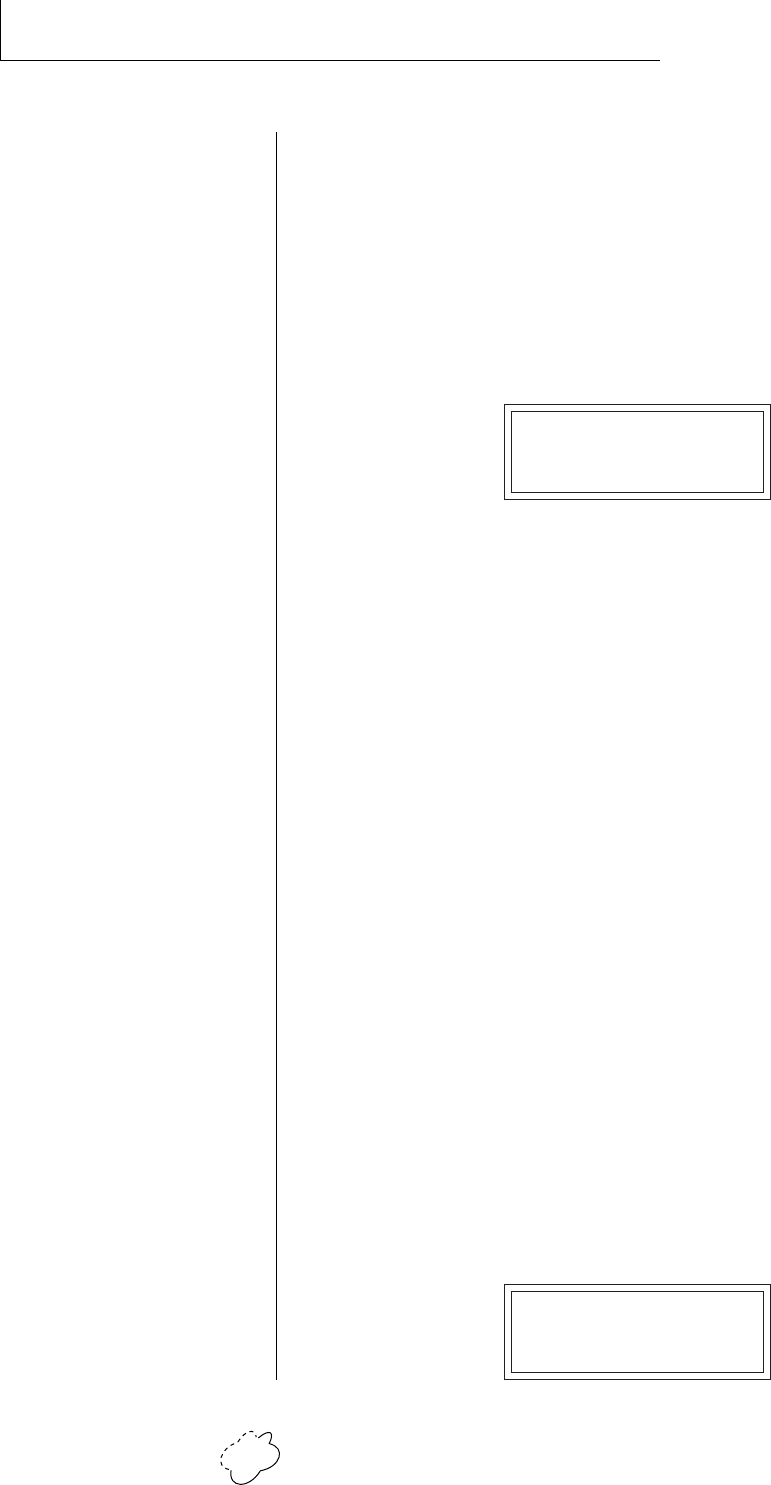
Incoming velocity data can be modified by a velocity curve in order to
provide different types of dynamics in response to your playing or to
better adapt to a MIDI controller. This function allows you to select
one of eight global velocity curves or leave the velocity data unaltered
(off). Global velocity curve only affects presets which have their indi-
vidual velocity curve set to global.
GLOBAL VEL CURVE
8
Chapter 3: Master Menu 23
MASTER MENU
GLOBAL VELOCITY CURVES
Curve 1
0
20
40
60
80
100
120
020 40 60 80 100
Played Velocity
120
Result Velocity
Curve 2
0
20
40
60
80
100
120
020 40 60 80 100
Played Velocity
120
Result Velocity
Curve 3
0
20
40
60
80
100
120
020 40 60 80 100
Played Velocity
120
Result Velocity
0
20
40
60
80
100
120
020 40 60 80 100
Played Velocity
120
Result Velocity
Curve 5
0
20
40
60
80
100
120
020 40 60 80 100
Played Velocity
120
Result Velocity
Curve 6
0
20
40
60
80
100
120
020 40 60 80 100
Played Velocity
120
Result Velocity
Curve 4
0
20
40
60
80
100
120
020 40 60 80 100
Played Velocity
120
Result Velocity
Curve 7
0
20
40
60
80
100
120
020 40 60 80 100
Played Velocity
120
Result Velocity
Curve 8
Planet Phatt Operation Manual24
MASTER MENU
• Mix Output
This function allows you to override the output assignments made in
each preset and instead assign the outputs according to MIDI channel.
This also allows you to change the output assignment of the factory
presets. For each of the 16 MIDI channels, you can select the Main,
Sub 1, or Sub 2 outputs, or “P”. When “P” is selected, the output
assignment selected in the preset is used. If no plugs are inserted into
the sub outputs, the audio will be automatically directed to the main
outputs.
MIX OUTPUT
channel 01:P
• MIDI Mode
This function selects one of the four MIDI modes and the MIDI system
exclusive ID number.
Omni mode
Planet Phatt responds to note information on all MIDI channels
and plays the preset currently displayed in the main screen.
Poly mode
Planet Phatt only responds to note information received on the
currently selected MIDI channel (on the preset selection screen)
and plays that channel’s associated preset.
Multi mode
Planet Phatt responds to data on any combination of MIDI chan-
nels and plays the specific preset associated with each of the MIDI
channels.
Mono mode
Planet Phatt responds to data on any combination of MIDI chan-
nels but plays each channel monophonically. If a new note on a
channel is played before the last note is released, the envelopes
will not be retriggered (legato).
ID number
This function allows a computer patch editor to distinguish
between multiple Planet Phatt units. In the case of multiple
Planet Phatt units, each unit should have a different ID number.
MIDI MODE ID
Omni 00
••• This function is useful
when sequencing because it
allows you route specific
MIDI channels to the Submix
outputs. From there they can
be externally processed with
reverb or other effects.
▼ Warning: To transfer
presets between two Planet
Phatt units, the ID numbers
of both units must match.
Chapter 3: Master Menu 25
MASTER MENU
• MIDI Mode Change
This function selects whether or not MIDI mode change commands
are accepted or ignored when received over MIDI (see MIDI Mode).
MIDI MODE CHANGE
Disabled
• MIDI Overflow
When on, if you play more notes than Planet Phatt has channels (32),
the additional note data will be directed out the MIDI Out port to a
second Planet Phatt, thus doubling the number of available channels.
MIDI Overflow can be turned On or Off.
MIDI OVERFLOW
Off
• MIDI Enable
When in MIDI Multi mode, this function lets you turn each MIDI
channel On or Off. This is useful when you have other MIDI devices
connected and do not want the Planet Phatt to respond to the MIDI
channels reserved for the other devices. MIDI Enable only operates in
Multi Mode.
MIDI ENABLE
channel 01: On
• MIDI Bank Select
The MIDI specification only allows for 128 presets per MIDI channel.
This function selects which bank of 128 presets will be used for incom-
ing MIDI program change commands. Banks can be set for each MIDI
channel. This function allows you to access all 640 presets in Planet
Phatt without using a MIDI bank select command.
MIDI BANK
channel 01: 4
MIDI Preset Bank
MIDI Channel
Planet Phatt Operation Manual26
MASTER MENU
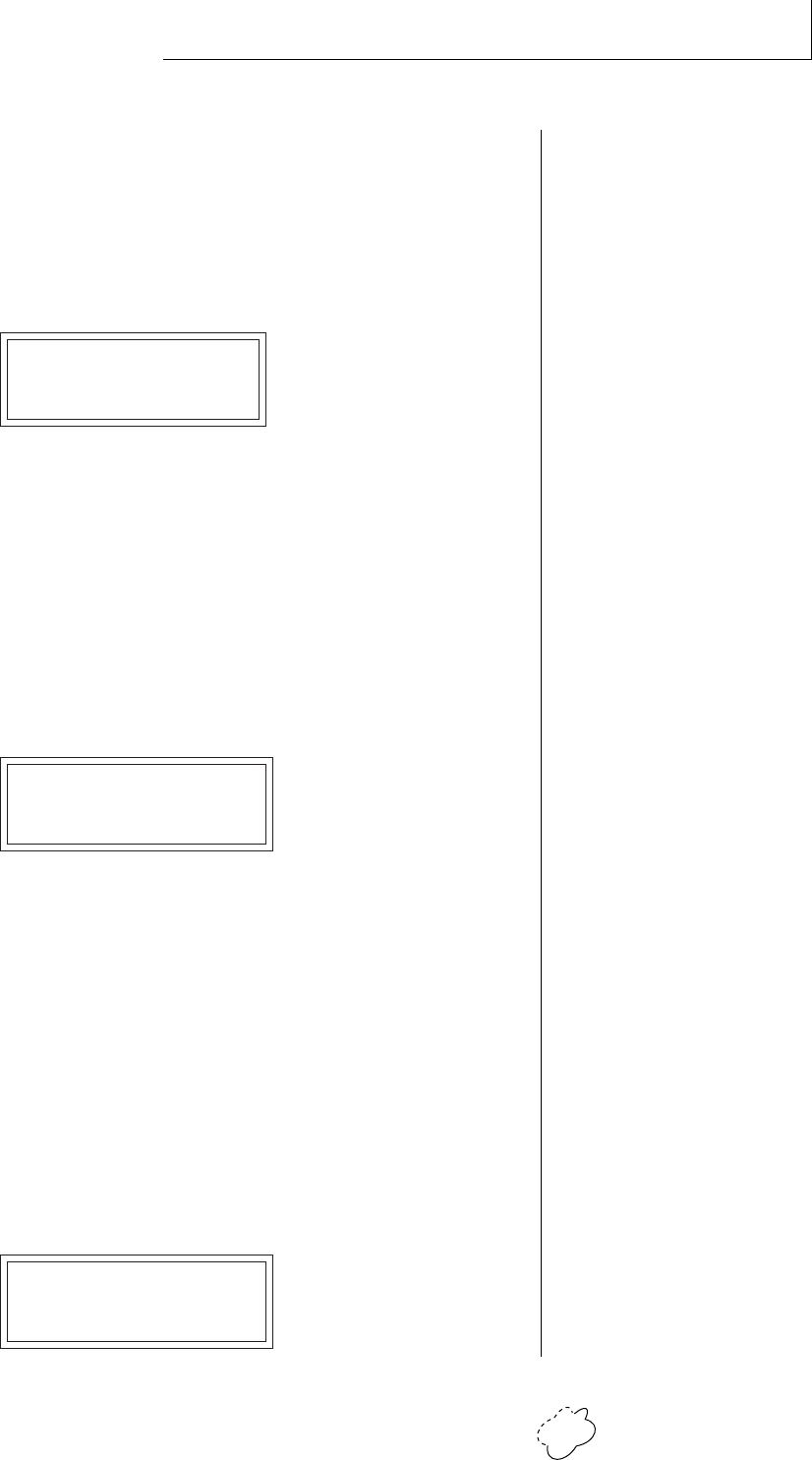
• MIDI Program ➔ Preset
Incoming MIDI program changes can be “remapped” to call a different
numbered preset. This is a handy feature when you want a specific
preset number sent from the master synth to be linked with a specific
preset on Planet Phatt. For example, the Program ➔ Preset Map could
be set to call up preset 12 whenever Planet Phatt receives program
change number 26. Any of the presets in Planet Phatt can be mapped
to any incoming MIDI program change number. This feature also
allows you to select presets in banks 1-4, which are not normally
accessible over MIDI without sending bank change commands.
Note: The MIDI Program->Preset Map only works when you are in
Bank 0.
MIDI PROG>PRESET
026 –> 0120
This chart shows how MIDI preset changes can be re-mapped. In this example, program
changes 10-29 have been re-mapped. All other programs will be selected normally.
Selected
Program
Mapped
Program
0 1 2 3 4 5 6 7 8 9
10
20
30
40
50
60
70
80
90
100
110
120
00 01 02 03 04 05 06 07 08 09
30 31 32 33 34 35 36 37 38 39
40 41 42 43 44 45 46 47 48 49
50 51 52 53 54 55 56 57 58 59
60 61 62 63 64 65 66 67 68 69
70 71 72 73 74 75 76 77 78 79
80 81 82 83 84 85 86 87 88 89
90 91 92 93 94 95 96 97 98 99
100 101 102 103 104 105 106 107 108 109
110 111 112 113 114 115 116 117 118 119
120 121 122 123 124 125 126 127
44 91 50 01 15 88 99 78 32 88
34 73 106 55 43 75 120 121 100
12
41
0000000000
201000 0 0
10 0
0200 00 2
0000000000
0000000000
0000000000
0000000000
0000000000
0000000000
0000000000
0000000000
0000000000
00000000
Chapter 3: Master Menu 27
MASTER MENU
••• A few of the standard-
ized MIDI Controller
numbers are listed below.
1 - Modulation Wheel
2 - Breath Controller
3 - Aftertouch
4 - Foot Pedal
5 - Portamento Time
6 - Data Entry
7 - Volume
8 - Balance
9 - Undefined
10 - Pan
11 - Expression
• Preset Change
This function lets the Planet Phatt utilize or ignore incoming MIDI
preset change or Bank Select commands for each channel. Note that a
MIDI program change command can only select presets in bank 0. The
presets in banks 1-4 can be selected manually, by changing the MIDI
bank, by using a MIDI bank select command, or by using the mapping
function “MIDI PROGRAM ➙ PRESET”.
PRESET CHANGE
channel 01: On
• MIDI Controller Assign
Planet Phatt allows you to assign up to four realtime control sources
from your MIDI controller. These control sources could be modulation
wheels, data sliders or whatever. In this screen, you set up which
controllers will be received by Planet Phatt. What effect the control-
ler will have is programmed separately for each preset. Planet Phatt
MIDI controllers are each assigned a letter, A-D. Each controller letter
can be assigned to a MIDI realtime controller from 00-31. Note: If
controller numbers 7 or 10 are selected, they will override the
standard MIDI volume and pan control routings.
CONTROLLER# ABCD
01 02 03 04
• X Factor Control
This function allows any MIDI controller number from 0-31, mono
pressure, or the pitch wheel to change the X Factor (transpose) of
Beats mode. Two controllers can be assigned to move the X Factor
both up and down from its initial position. With a wheel assigned to
the up control, moving the wheel up adds a positive offset to the X
Factor setting. Moving the wheel back down returns the X Factor to its
original setting. The maximum controller offset is ±36, which is added
to the initial setting. The pitch wheel (pwh) can be assigned to both
up and down settings to allow bidirectional control. When “Off” is
selected, external control of X Factor is disabled. This controller is
only recognized on MIDI channel 16, unless Planet Phatt is in Omni
mode, in which case all channels are accepted.
X FACTOR CONTROL
up:14 down:15
••• The X Factor, Tempo
Control Retrigger and Scratch
settings are sent and received
with the Master Settings. See
Send MIDI Data.
••• For more information on
controller assignments, see
MIDI Realtime Controls in the
Programming Basics section.
••• When X Factor Control is
being used, the last setting of
the MIDI controller remains
in effect when a new Beat is
selected.
Planet Phatt Operation Manual28
MASTER MENU
• Tempo Control
This function allows MIDI controllers to change the Global Tempo
which is used for Beats mode, Retrigger, and the synced LFOs. Any
controller number from 0-31, mono pressure, or the pitch wheel can
be assigned to change the Global Tempo. A different controller can be
used to change the tempo up or down. The Pitch Wheel can be
assigned to both the up and down parameters to vary the tempo up
and down from a single controller. MIDI Controller values are added
to the Global Tempo with an offset range of ±64. When the controller
is set to zero (off) the tempo returns to its original setting. This con-
troller is only recognized on MIDI channel 16, unless Planet Phatt is in
Omni mode, in which case all channels are accepted. This control has
no effect when External Clock is being used.
TEMPO CONTROL
up:pwh down:pwh
• Retrigger
The Retrigger function creates a “stuttering” effect by resetting the
sample start point and envelope generators to their starting point
every time a trigger is received. The rate of retriggering is based on the
Global Tempo which is divided down by the Retrigger Rate parameter.
A MIDI continuous controller (0-31 or Mono Pressure) can also be
assigned to control the Global Tempo divisor. Set the rate parameter
to “Off”␣ to disable retriggering.
RETRIGGER
ch:01 rate:1/16
The following Retrigger divisors are available:
Dbl - Double Whole Notes
Dbl T - Double Whole Note Triplets
Whole - Whole Notes
Whl T - Whole Note Triplets
Half - Half Notes
Half T - Half Note Triplets
1/4 - Quarter Notes
1/4 T - Quarter Note Triplets
1/8 - Eighth Notes
1/8 T - Eighth Note Triplets
1/16 - Sixteenth Notes
1/16 T - Sixteenth Note Triplets
1/32 - Thirty-second Notes
1/32 T - Thirty-second Note Triplets
1/64 - Sixty-fourth Notes
1/64 T - Sixty-fourth Note Triplets
••• When Tempo Control is
being used, the last setting of
the MIDI controller remains
in effect when a new Beat is
selected.
••• When a MIDI controller
is used to control Retrigger,
the last setting of the MIDI
controller remains in effect
when a new Preset or Beat is
selected.
▼ When the Global Tempo is
set to “External”␣ , the 1/64th
note divisor is not possible.
1/64 T will be substituted,
even though the display
reads 1/64.
▼ When the Global Tempo is
set to “External”␣ , the Tempo
Control parameter will not
have any effect.
Chapter 3: Master Menu 29
MASTER MENU
••• A few of the standard-
ized MIDI switch numbers
are listed below.
64 - Sustain Switch (on/off)
65 - Portamento (on/off)
66 - Sostenuto (on/off)
67 - Soft Pedal (on/off)
69 - Hold Pedal 2 (on/off)
• Pitch Wheel -> Scratch
This function allows the pitch wheel to simulate record scratching.
When this function is On, the speed that you move the pitch wheel
back and forth determines the pitch of the keys being played. There-
fore the faster you move the wheel back and forth, the faster the
sound plays through. The amount of control the wheel has is adjust-
able from 1 to 100. Adjust the amount depending on the type of
sound being scratched and to suit your personal preference. Scratch
can be assigned to any MIDI channel from 1-16 or to “All” channels.
Setting the channel to “None” turns scratch mode off.
PITCH WH->SCRATCH
ch:01 amt:50
• MIDI Footswitch Assign
Like the MIDI Controllers, 3 MIDI footswitches can be assigned to
MIDI footswitch numbers. Footswitches can be assigned numbers from
64-79. Destinations for the footswitch controllers are programmed in
the Edit menu.
FOOTSWITCH #
1:64 2:65 3:66
Planet Phatt Operation Manual30
MASTER MENU
• Send MIDI Data
This function will send MIDI System Exclusive data to the MIDI Out
port of Planet Phatt. The MIDI data can either be sent to a computer/
sequencer or to another Planet Phatt. Using the cursor key and the
data entry control, select the type of MIDI data you wish to transmit.
User Beat Data
Transmits all User Beat data (tempos, X factor, preset) and all user
Song Beat data (events, repeats, jumps).
Master Settings
Transmits all parameters in the Master menu except tuning table,
program/preset map and viewing angle.
Program/ Preset Map
Transmits only the program/preset map.
Tuning Table
Transmits only the user tuning table.
Factory Presets
Transmits all the factory ROM presets.
User Presets
Transmits all the user presets.
Any Individual Preset
Transmits only the selected preset.
The Enter LED will be flashing. Press the Enter button to confirm the
operation. To receive MIDI data, simply send the MIDI data into
Planet Phatt from another Planet Phatt or your sequencer.
SEND MIDI DATA
000 sbs:1st Bass
To Record MIDI Data into a Sequencer:
1. Setup sequencer to receive system exclusive data.
2. Place sequencer into record mode, then Send Preset Data.
To Receive MIDI Data from a Sequencer:
1. Simply play back the sequence into Planet Phatt.
▼ Warning: Send data as you would a regular sequence. Sending data
in one huge chunk may clog Planet Phatt's MIDI input buffer.
••• The Preset, Volume, and
Pan information for all 16
channels is included when
the Master settings are
transmitted or received.
▼ Warning: When transfer-
ring SysEx data from one
Planet Phatt to another, the
ID numbers of both units
must match.
Chapter 3: Master Menu 31
MASTER MENU
• Beats MIDI Out
This function allows Beat note and controller data to be sent out
MIDI as the Beats are playing. Selecting “Transmit” sends the MIDI
data as the beats play. Selecting “Transmit & Mute”␣ sends the data
over MIDI data but does not play internal voices.
BEATS MIDI OUT
Transmit
• User Key Tuning
In addition to standard twelve tone equal temperament, Planet Phatt
contains four additional preset tuning tables (Just C, Vallotti, 19 tone,
and Gamelan) and one user definable tuning. User Key Tuning allows
you to alter the parameters of the user definable tuning. The pitch of
every key can be individually tuned, facilitating the creation of alter-
nate scales. Using the cursor key and the data entry control, select the
key name, the MIDI key number and the fine tuning. The key name is
variable from C-2 to G8. MIDI key number is variable from 0 to 127.
The fine tuning is variable from 00 to 63 in increments of 1/64 of a
semitone (approx. 1.56 cents). For each preset, the specific tuning
table is selected in the Edit menu.
USER KEY TUNING
Key:C1 036-00
• Song Start/Stop
This function enables or disables MIDI Song Start/Stop for Beats mode.
In some cases you may want to start Beats mode along with an exter-
nal sequencer. In other cases you may want to start Beats mode inde-
pendently. This control allows you either option. Song Select or MIDI
clocks are not affected by this function. You can also use the Beats
Control number (see the following page) to control Song Start/Stop even
when this function is disabled.
SONG START/STOP
Enabled
••• The Beats MIDI Out
settings are sent and received
with the Master Settings.
See Send MIDI Data.
••• Application: The user
key tuning can be used to
tune individual percussion
instruments.
Key Name Fine Tuning
Coarse Tuning
Planet Phatt Operation Manual32
MASTER MENU
• Global Tempo
This function sets the tempo for Beats mode, Synced LFOs and the
Retrigger features. This tempo setting is the same as shown in Beats
mode and any changes you make will be shown in either window. The
global tempo is variable from 1 beats-per-minute (bpm) to 255 bpm.
Turning the tempo down below 1 bpm sets the tempo to “External”
mode. In external mode, the tempo is determined by incoming MIDI
clocks and Beats mode will not start if there is no incoming MIDI
clock to set the tempo.
GLOBAL TEMPO
120 bpm
• Beats Control
This function allows you to control Beats mode using standard MIDI
Note-on messages. The selectable options are: “Mute Key”, “Start Key”,
and “Stop Key”. The Mute Key, while pressed, silences the beat or song
without stopping it and also silences MIDI transmission of beats. Any
MIDI key number can be assigned to the three controls, but they must
be received on MIDI channel 16 to be recognized unless Planet Phatt is
in Omni mode, in which case all channels are accepted. These keys
only work when the beats screen is displayed.
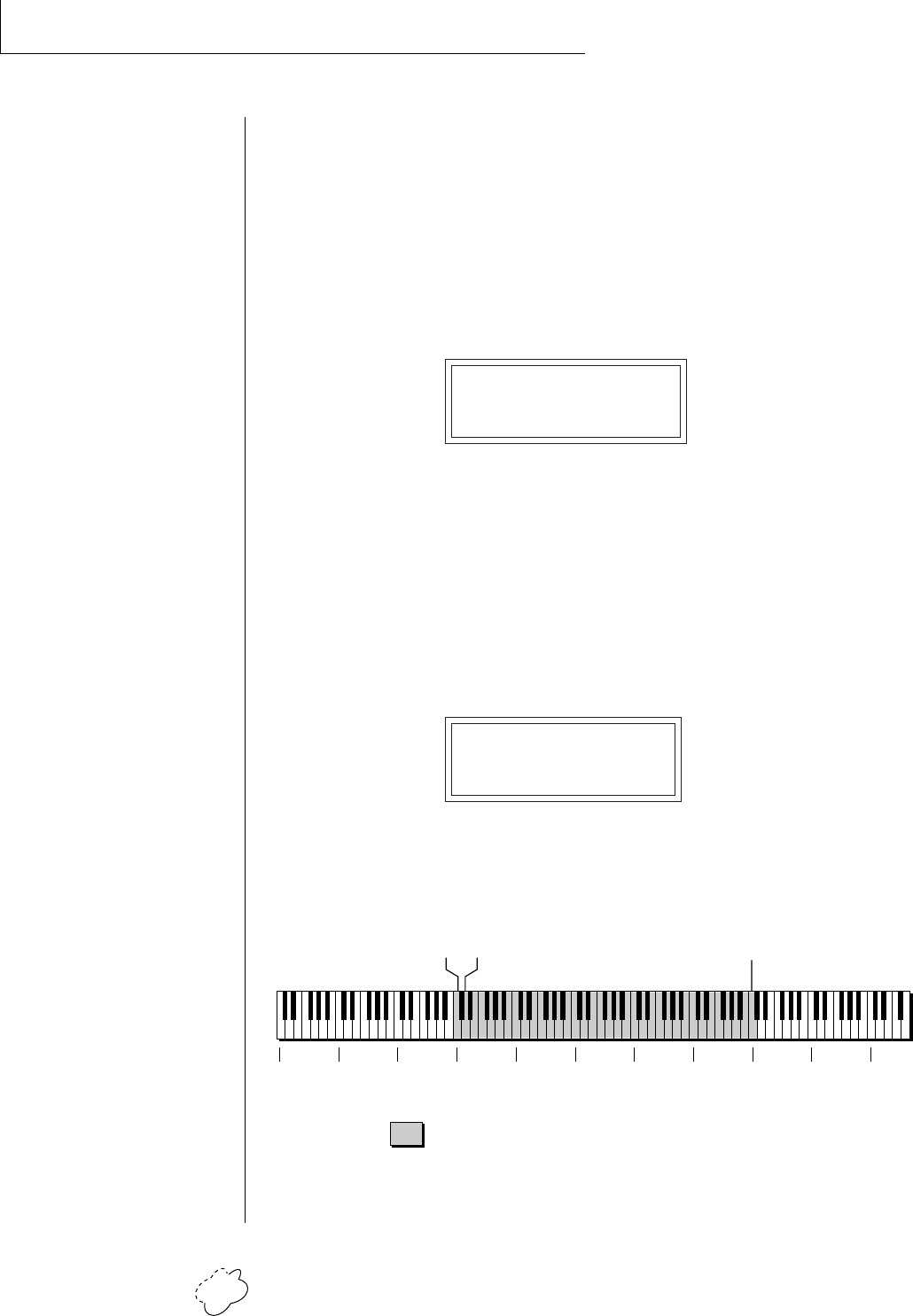
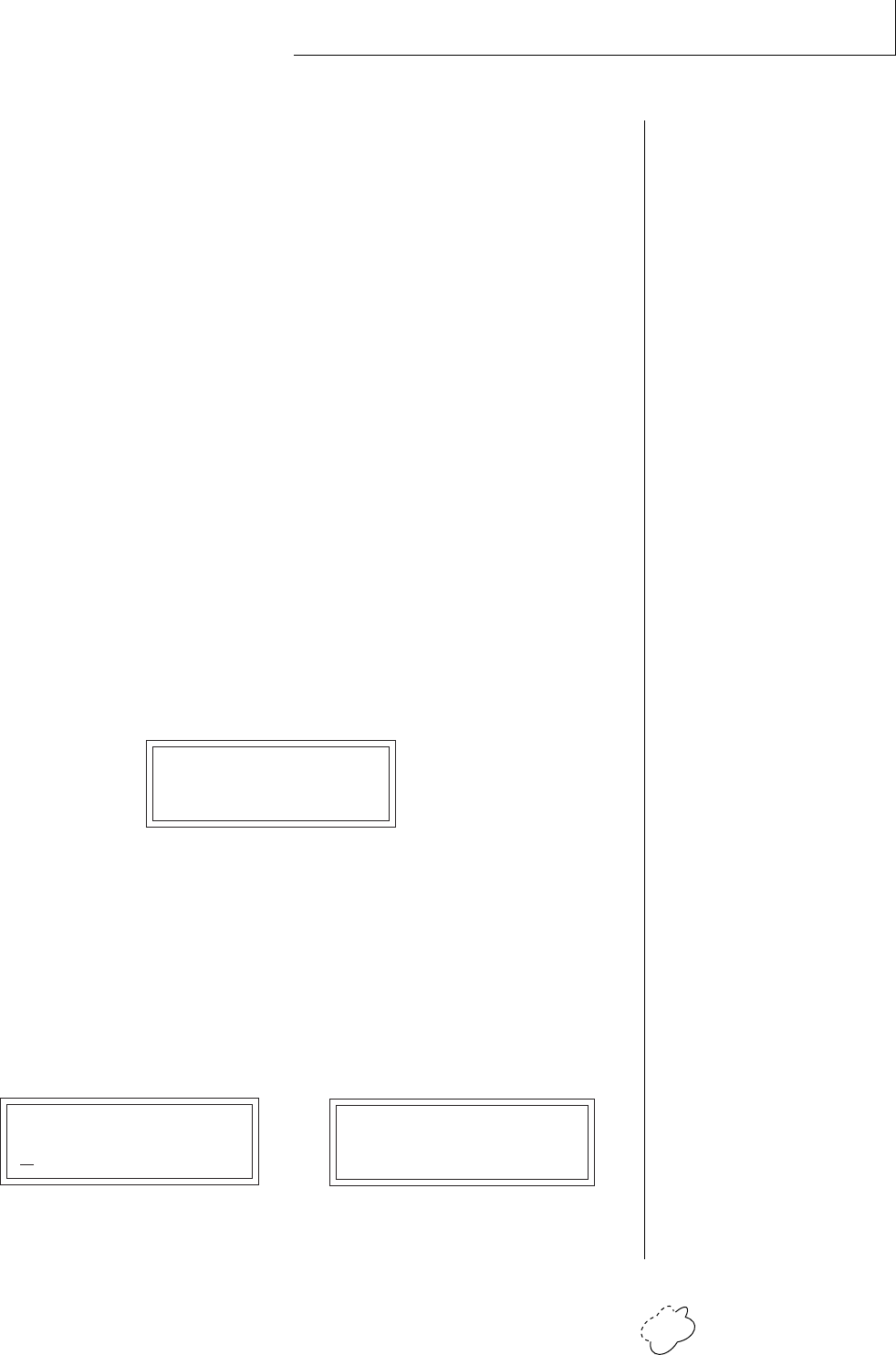
BEATS CONTROL
Mute Key: C6
Control keys can be placed out of the way at the ends of the keyboard or anywhere you prefer.
C-2 C-1 C0 C1 C2 C3 C4 C5 C6 C7 C8
= Standard 5 Octave Keyboard Range
Start Key
Mute Key
Stop Key
▼ When the Global Tempo is
set to “External”␣ , the Tempo
Control parameter will not
have any effect.
Chapter 3: Master Menu 33
MASTER MENU
• Beats Mode
There are four options when in Beats mode: Factory Settings, Constant
Tempo, Constant T, X, P and User Settings. These modes affect the
way Planet Phatt responds to parameter changes in Beats Mode. The
characteristics of each mode are detailed below.
Factory Settings ........ The Tempo, X Factor (transpose) and Preset are
preset at the factory. These can be changed, but
any changes are lost when the beat number is
changed.
1:Constant Tempo .... The Factory settings of Preset and X Factor will
be used whenever a new beat is selected, but the
Tempo can be user-adjusted and will remain
constant when new beats are selected.
2:Constant T, X, P..... Tempo, X Factor and Preset are user-adjustable
and will remain constant when new beats are
selected.
3:User Settings ......... All Beat parameters (Tempo, X-Factor, Preset) are
user-adjustable and are immediately saved to
non-volatile RAM. These user settings remain
stored in RAM even if another Beats mode (such
as factory settings) has been selected.
BEATS MODE
Factory Settings
• Demo Sequence
Planet Phatt contains a play-only demo sequencer to give you an idea
of what is possible using this Phantastic machine. Press either cursor
key to move the cursor to the lower line of the display and press Enter.
The Demo Select screen will appear and the first sequence will begin
playing. All four sequences will play in sequential order. Use the
cursor keys to select a particular sequence. Pressing the Enter button
again will stop the sequence and return you to the first Demo screen.
DEMO SEQUENCE DEMO 1 2 3 4
Start ENTER=Stop >=Next
➔
Planet Phatt Operation Manual34
MASTER MENU
• Viewing Angle
This function allows you to change the viewing angle of the display so
that it may be easily read from either above or below. The angle is
adjustable from +7 to -8. Positive values will make the display easier to
read when viewed from above. Negative values make the display easier
to read from below.
VIEWING ANGLE
+7

Chapter 4: Programming Basics 35
PROGRAMMING
BASICS

Planet Phatt Operation Manual36
PROGRAMMING BASICS
Chapter 4: Programming Basics 37
PROGRAMMING BASICS
This chapter explains how sounds are constructed on Planet Phatt and
contains important background information on how to create your
own custom presets.
Your initial involvement with Planet Phatt will most likely consist of
using the existing presets and selecting MIDI channels. While the
factory presets are very good, there are probably some things you
would like to change, perhaps the LFO speed, the filter cutoff or the
attack time. You may also want to make your own custom presets
using complex modulation routings. There are 256 user locations
(Banks 0 & 1) available to store your own creations or edited factory
presets. Best of all, it’s easy to edit or create new presets using the edit
menu.
Presets can be made up of both a primary and secondary instrument.
Presets can also be “linked” with up to 3 additional presets to create
layering or splits.
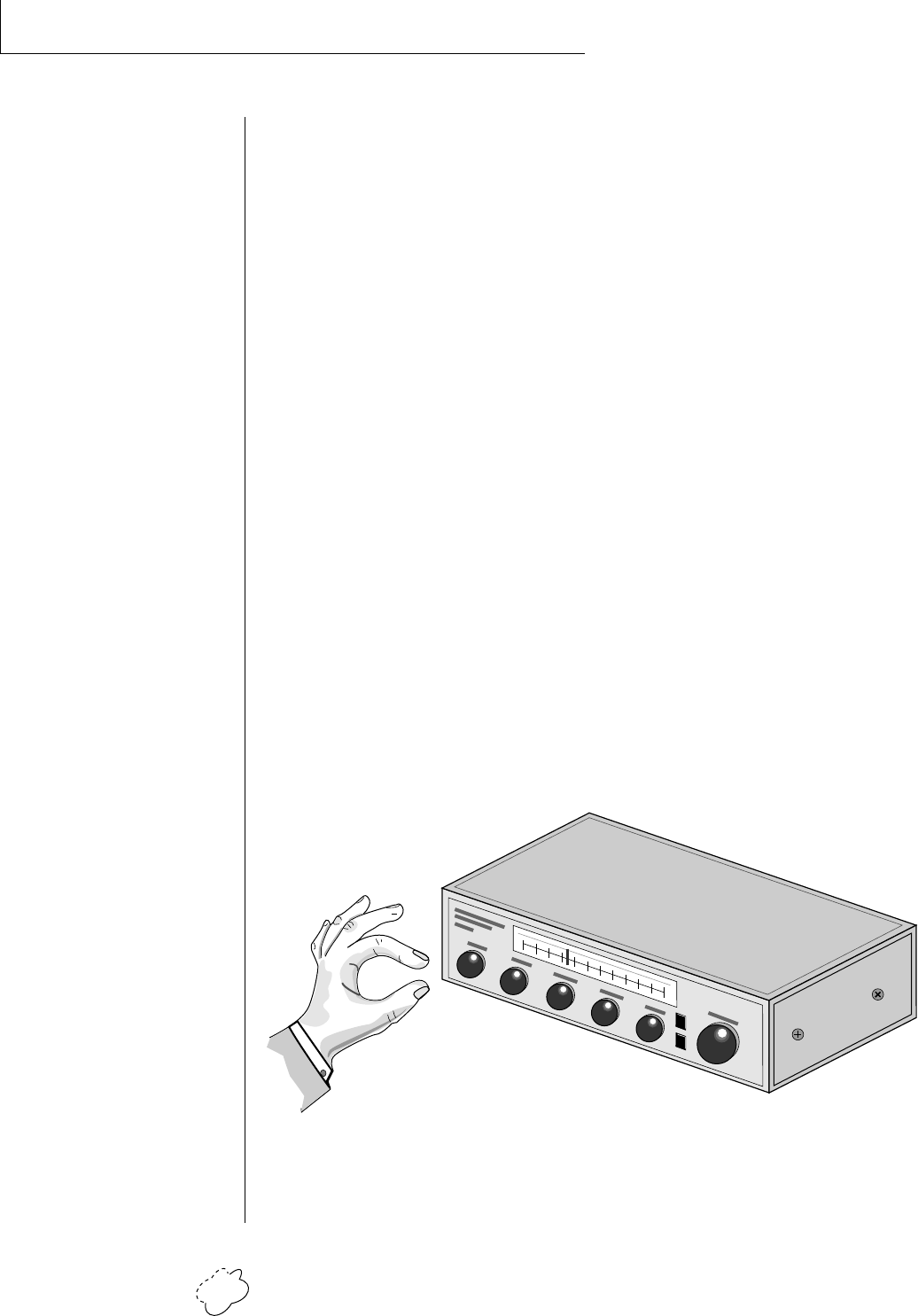
One way to create a keyboard split is assign an instrument to a specific
range and then link it to other presets which fill in the empty keys.
Using a combination of 4 linked presets and the primary and second-
ary instrument ranges, up to 8 keyboard splits can be produced. If
linked presets overlap on the same keyboard range, the presets will be
doubled or stacked.
These diagrams show how keyboard splits and layers can be created by linking presets.
Remember that each preset can consist of both a primary and secondary instrument.
Preset #1
Preset #2
LAYERING TWO PRESETS
Key Range
Zone 1
Zone 2
Key Range
Key Range
CREATING A SPLIT KEYBOARD
LINK
Planet Phatt Operation Manual38
PROGRAMMING BASICS
Planet Phatt has an extensive modulation implementation using two
multi-wave LFO’s (Low Frequency Oscillators), two envelope genera-
tors and the ability to respond to multiple MIDI controllers. You can
simultaneously route any combination of these control sources to
multiple destinations.
MODULATION
Modulation means to dynamically change a parameter, whether it be
the volume (amplitude modulation), the pitch (frequency modula-
tion), or whatever. Turning the volume control on your home stereo
rapidly back and forth would be an example of amplitude modulation.
To modulate something we need a modulation source and a modula-
tion destination. The source is your hand turning the knob, and the
destination is the volume control. If we had a device that would
automatically turn the volume control, we would also call that device
a modulation source. The Planet Phatt is designed so that for each of
the variable parameters, such as the volume, there is an initial setting
which can be changed by a modulation source. Therefore in the case
of volume, we have an initial volume and we can change or modulate
that volume with a modulation source. Two main types of modulation
sources on Planet Phatt are Envelope Generators and Low Frequency
Oscillators. In the example above, an envelope generator could be
routed to automatically turn the volume control as programmed by
the envelope. Or, a low frequency oscillator could be routed to auto-
matically turn the volume control up and down in a repeating fash-
ion.
Turning the volume control back and forth on your home stereo is an example of
Amplitude Modulation.

Chapter 4: Programming Basics 39
PROGRAMMING BASICS
MODULATION SOURCES
Planet Phatt uses three kinds of modulation sources.
• KEYBOARD AND VELOCITY MODULATION
Values which are generated at the start of a note and do not change
during the note.
Keyboard Key
Which key is pressed.
Key Velocity
How hard the key is pressed.
• REALTIME MODULATION
Values which can be continuously changed during the entire duration
of the sound.
Pitch Wheel
A synthesizer pitch bend wheel.
Miscellaneous Controllers (4)
Any type of MIDI controller data.
Keyboard Pressure (mono aftertouch)
Key pressure applied after the key is initially pressed.
Polyphonic Key Pressure
Pressure from a controller capable of generating polyphonic
pressure data.
Low Frequency Oscillators (2)
Generate repeating waves.
Envelope Generators (3)
Generate a programmable “contour” which changes over time
when a key is pressed.
• FOOTSWITCH MODULATION
Changes a parameter when one of the three footswitches are pressed.
The footswitches can be programmed to switch: Sustain (pri/sec/both),
Alternate Volume Envelope (pri/sec/both), Alternate Volume Release
(pri/sec/both), or Cross-Switch between the primary and secondary
instruments.
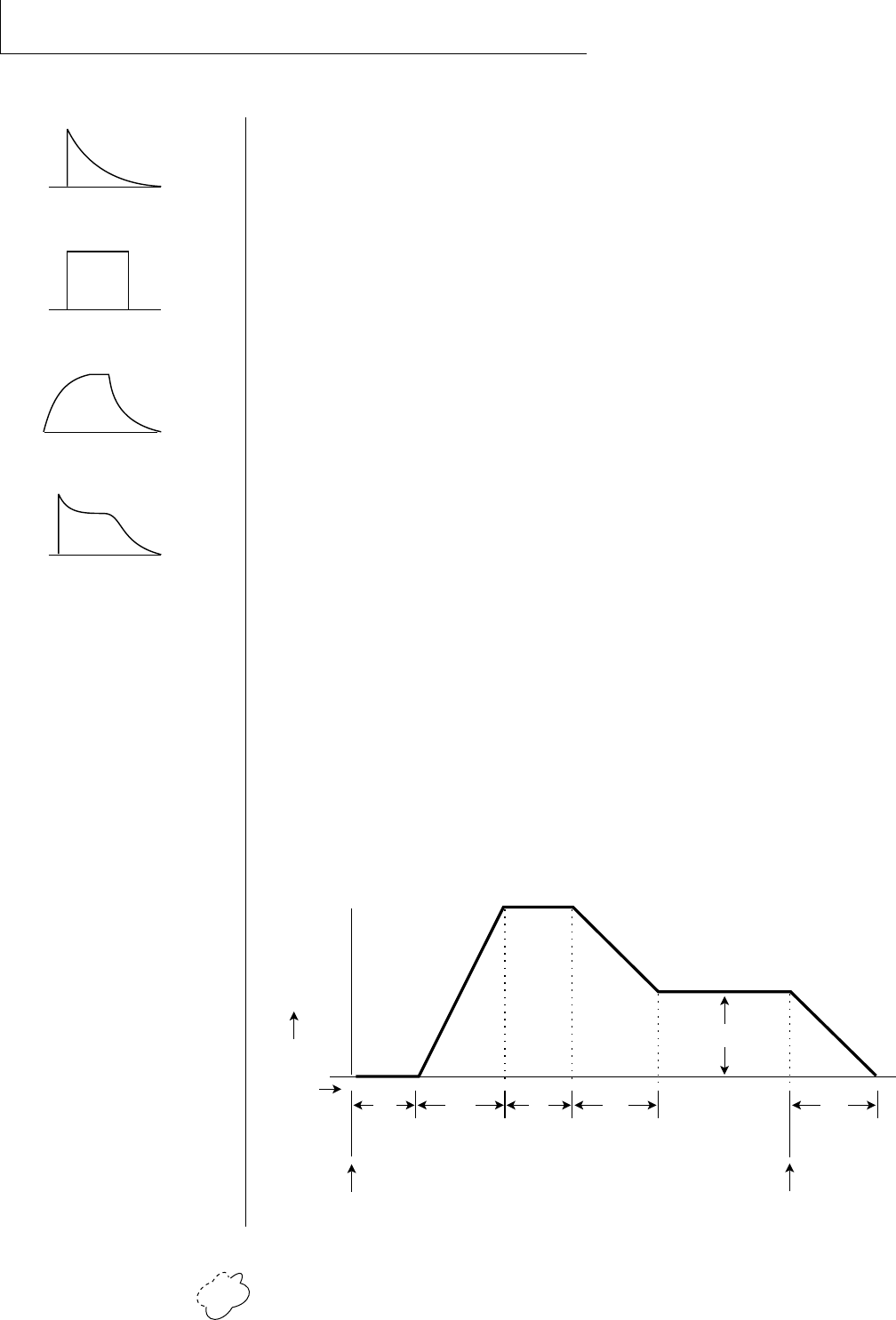
Planet Phatt Operation Manual40
PROGRAMMING BASICS
ENVELOPE GENERATORS
An envelope can be described as a “contour” which can be used to
shape the sound in some way over time. Each channel of the Planet
Phatt contains two envelope generators. One of the envelope genera-
tors, the Alternate Volume Envelope, controls the volume of the
primary or secondary instrument over time and has 5 stages, Attack,
Hold, Decay, Sustain, and Release. The other envelope, the Auxiliary
Envelope, can be routed to any realtime control destination and is a
general purpose envelope. The Auxiliary Envelope has 6 stages: Delay,
Attack, Hold, Decay, Sustain, and Release. The time of each stage can
be adjusted to create myriad envelope shapes, which in turn shape the
sound. The Envelope parameters can be described as follows:
• Delay
The time between when a key is played and when the attack
phase begins.
•␣ Attack
The time it takes to go from zero to the peak (full) level.
•␣ Hold
The time the envelope will stay at the peak level before starting
the decay phase.
•␣ Decay
The time it takes the envelope to go from the peak level to the
sustain level.
•␣ Sustain
The level at which the envelope remains as long as a key is held
down.
•␣ Release
The time it takes the envelope to fall to the zero level after the
key is released.
Percussion
Organ
String
Plucked
••• The generalized envelope
shapes of a few types of
sounds are shown above.
D
e
l
a
y
level
time
key
down
A
t
t
a
c
k
H
o
l
d
D
e
c
a
y
Sustain
R
e
l
e
a
s
e
key
released
••• Long release times can
increase the incidence of
“channel ripoff”. If you are
running out of voice
channels, try reducing the
volume envelope release
time.
Chapter 4: Programming Basics 41
PROGRAMMING BASICS
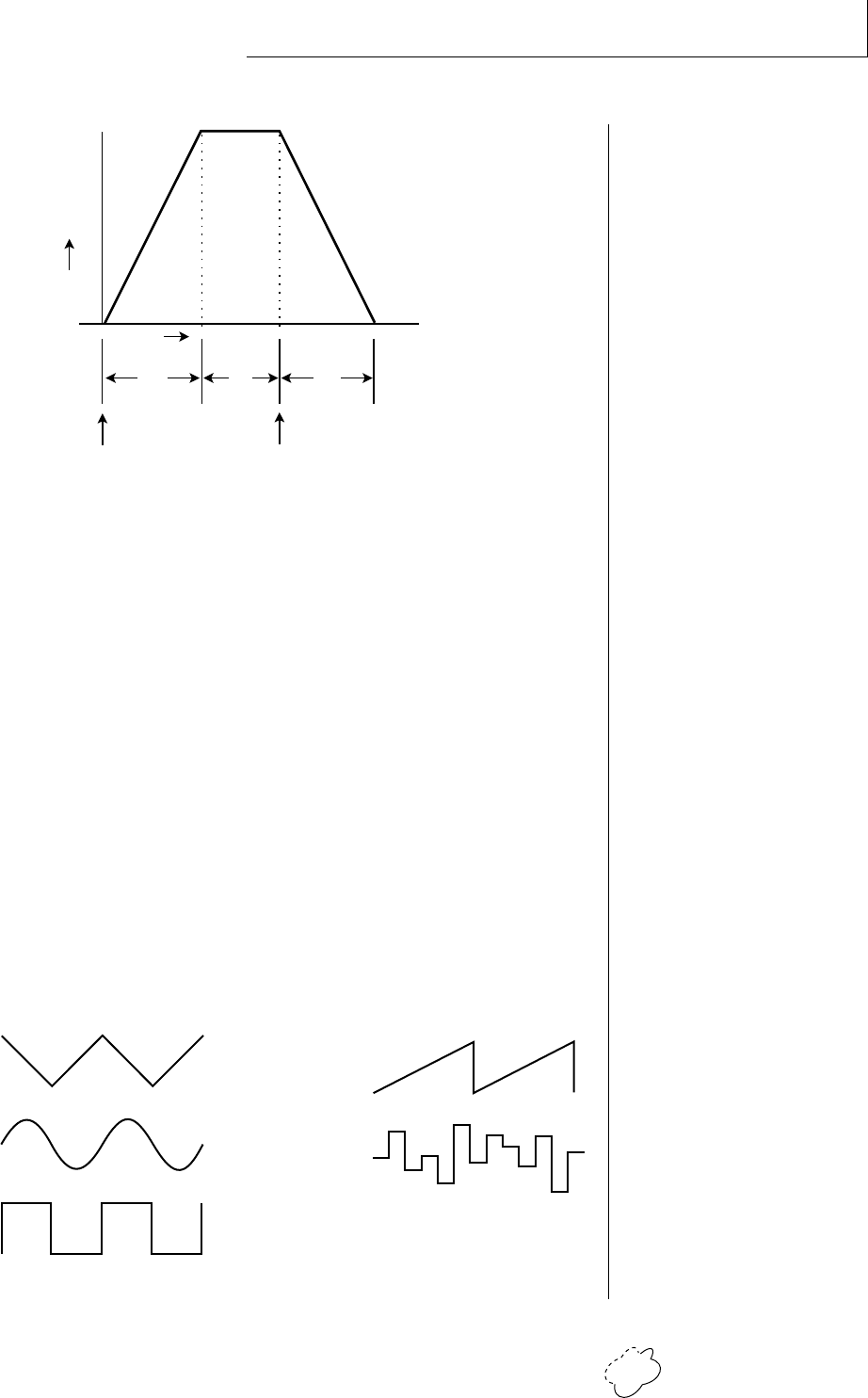
If the key is released during the Hold (H) phase, the Release phase begins.
LOW FREQUENCY OSCILLATORS (LFOS)
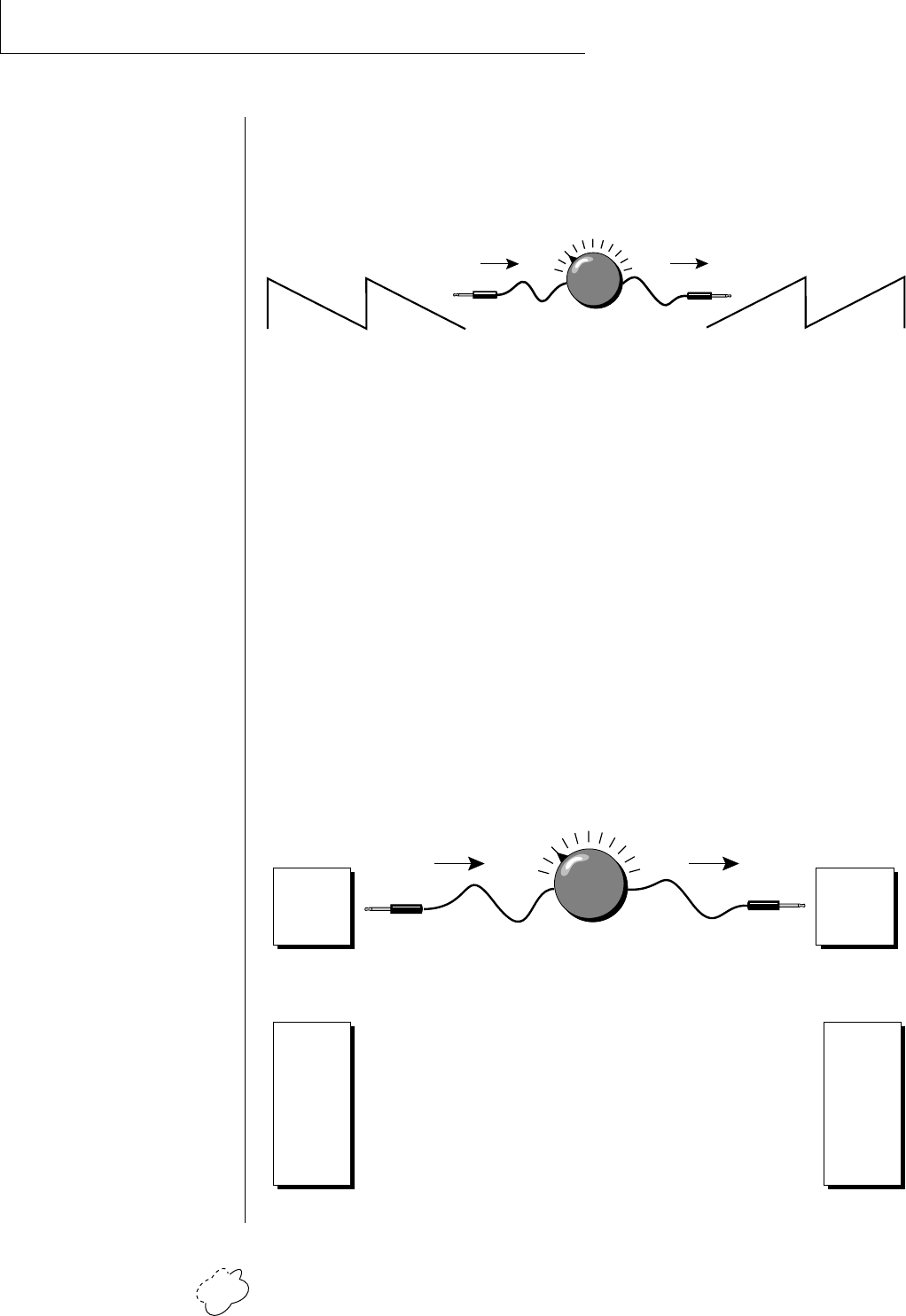
A Low Frequency Oscillator is simply a wave which repeats at a slow
rate. The Planet Phatt has two multi-wave LFOs for each of its 32
channels. The LFO waveforms are: Triangle, Sine, Square, Sawtooth,
and Random, which is a random “sample and hold” type of wave.
Other LFO waves are “Synced” which means that their rates will
follow the tempo as set in Beats mode.
By examining the diagram of the LFO waveforms, you can see how the
LFO will affect a modulation destination. Suppose we are modulating
the pitch of an instrument. The sine wave looks smooth, and will
smoothly change the pitch. The square wave changes abruptly, and
will abruptly change the pitch from one pitch to another. The
sawtooth wave smoothly decreases, then abruptly changes back up.
The sound’s pitch will follow the same course. Controlling the pitch
of an instrument is an easy way to hear the effects of the LFO waves.
level
key
down
key
released
AHR
time
Triangle
Square
Sine
Sawtooth
Random
Planet Phatt Operation Manual42
PROGRAMMING BASICS
When the amount of an LFO is a negative value, the LFO shape will be
inverted. For example, inverting the sawtooth wave produces a wave
that smoothly increases, then instantly resets down.
The LFO can also be Synced the tempo programmed in the beats
menu. When synced, the LFO rate will increase or decrease to follow
the beats/global tempo.
MIDIPATCH
Connecting a modulation source to a destination is called a patch.
Planet Phatt lets you connect the modulation sources in almost any
possible way to the modulation destinations. You can even modulate
other modulators. Each patch also has an amount parameter which
determines “how much” modulation is applied to the destination. The
modulation amount can be positive or negative and will either add or
subtract from the initial value. Keyboard and velocity sources can be
simultaneously patched to any 6 of the 42 destinations for each preset.
Realtime modulation sources can be simultaneously patched to any 8
of the 33 destinations for each preset.
Inverted Sawtooth
Negative Amount
+-
Sawtooth
Sources
LFO 1
LFO 2
Aux Env
Wheel
Pressure
MIDI
etc.
Destinations
Pitch
X-Fade
Volume
LFO Amt.
Filter Fc
Attack
etc.
Modulation
Source Destination
Amount +/-
LFO 1 Primary
Volume
+-
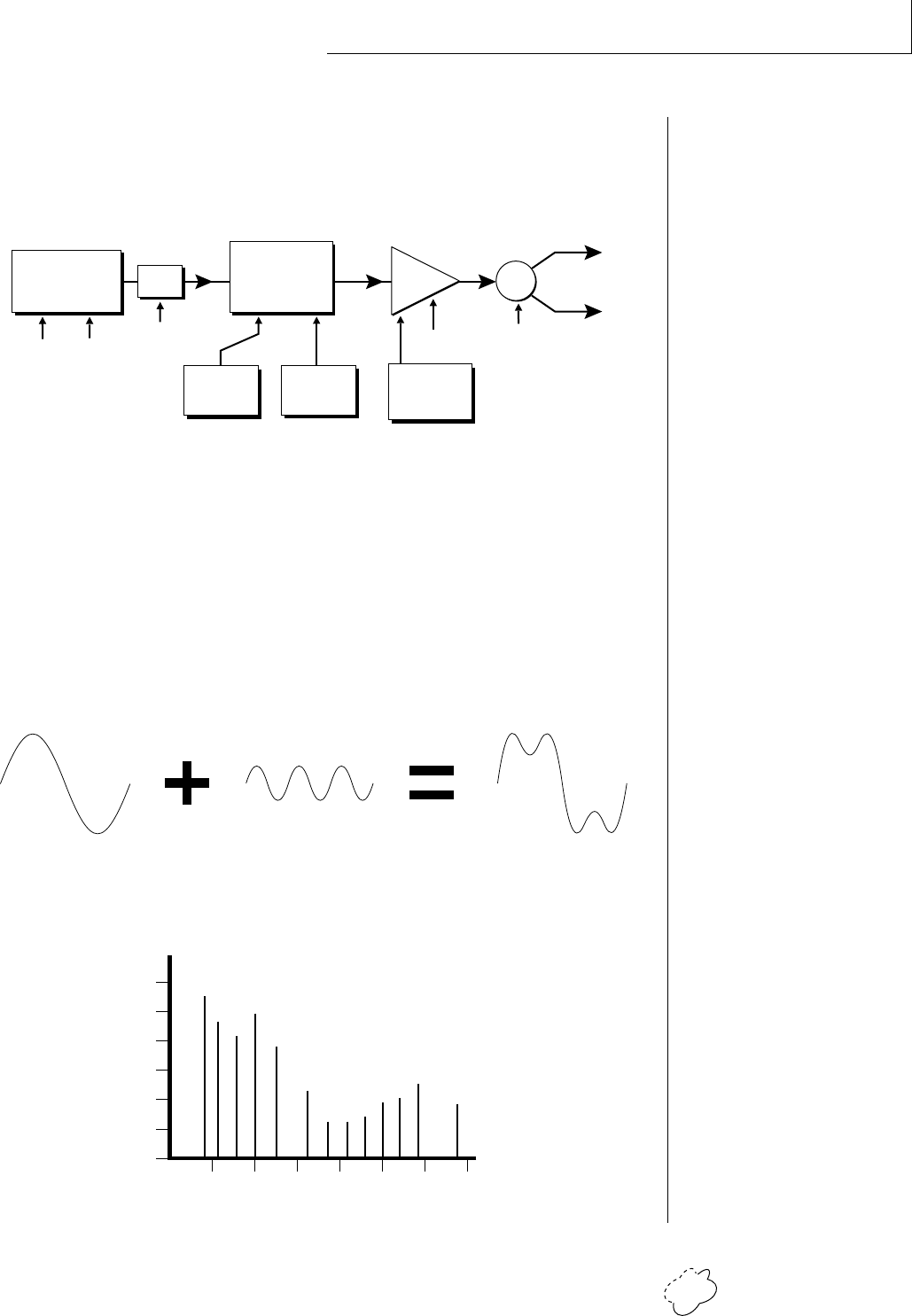
Chapter 4: Programming Basics 43
PROGRAMMING BASICS
FILTER MODULATION
Planet Phatt contains a Z-plane filter for each of its 32 channels. The
block diagram of a single channel is shown below.
The Tone filter is a simple tone control and can be used to brighten
or darken the tone of an instrument. Each of the 17 Z-plane filters is a
powerful synthesizer filter which can dramatically alter the sound of
an instrument.
WHAT IS A FILTER?
To understand how a filter works we need to understand what makes
up a sound wave. A sine wave is the simplest form of sound wave. Any
waveform except a sine wave can be analyzed as a mix of sine waves at
specific frequencies and amplitudes.
One way to represent complex waveforms is to use a chart with fre-
quency on one axis and amplitude on the other. Each vertical line of
the chart represents one sine wave at a specific amplitude.
R
L
Volume
Pan
Volume
AHDSR
Instrument
Pitch Sample
Start
Tone
Z-Plane
Filter DCA
Aux.
DAHDSR Velocity
Morph Q
40 80 160 360 720 1440 2880
Frequency
Amplitude
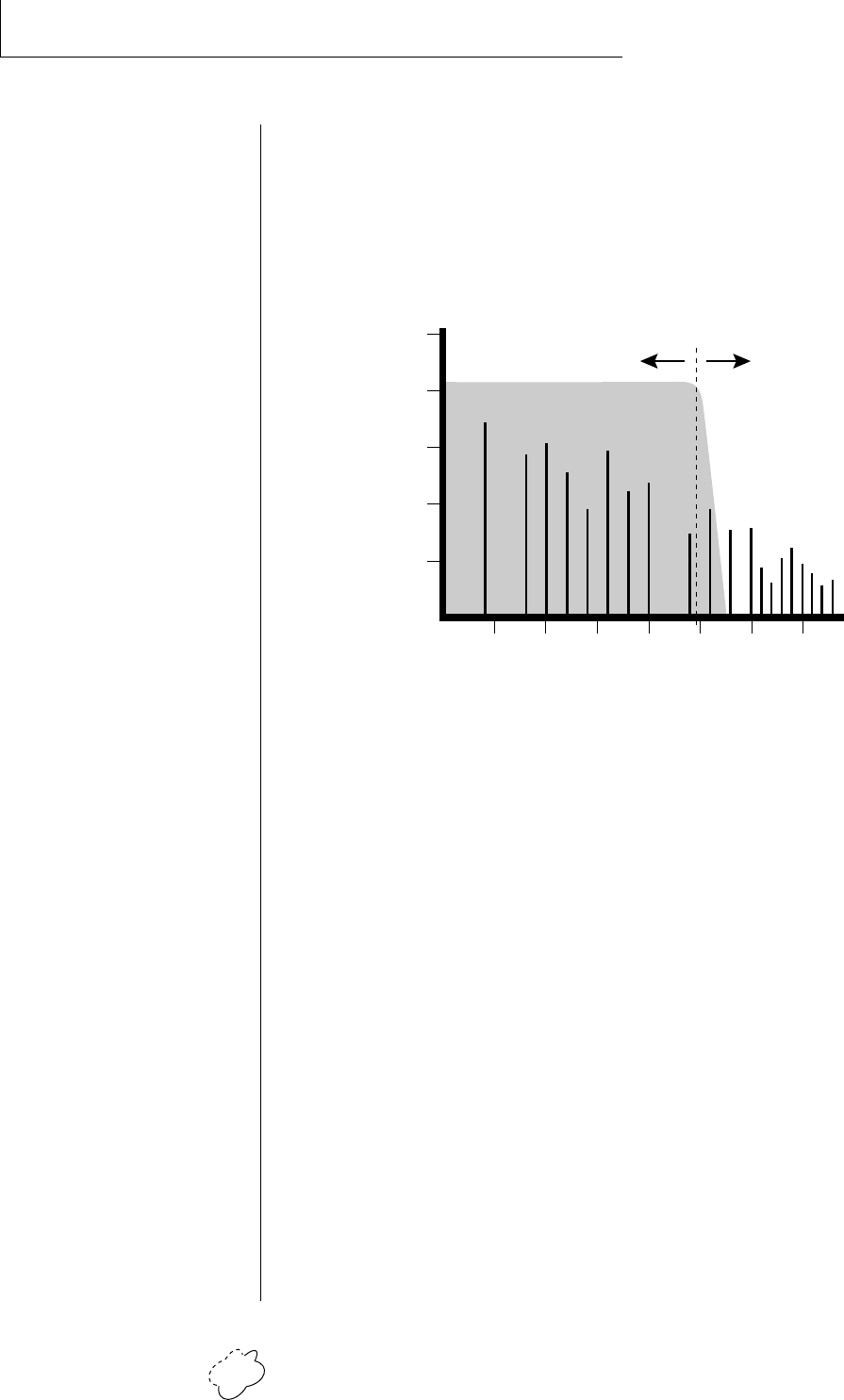
Planet Phatt Operation Manual44
PROGRAMMING BASICS
Most of the instruments on Planet Phatt are complex waves contain-
ing many sine waves of various amplitudes and frequencies. A filter is
a device which allows us to remove certain components of a sound
depending on its frequency. For example, a Low Pass Filter, one of
the Z-plane filter types in Planet Phatt, lets the low frequencies pass
and removes only the high frequencies.
The point at which the frequencies begin to be cut is called the Cutoff
Frequency (or Fc for short). A filter that let only the high frequencies
pass would be called a High Pass filter. Using a filter, we now have a
way to control the harmonic content of a sampled sound. As it turns
out, a low pass filter can simulate the response of many natural
sounds.
For example, when a piano string is struck by its hammer, there are
initially a lot of high frequencies present. If the same note is played
softer, there will be fewer of the high frequencies generated by the
string. We can simulate this effect by routing the velocity of the
keyboard to control the amount of high frequencies that the low pass
filter lets through. The result is expressive, natural control over the
sound.
The auxiliary envelope generator is commonly used to control the
cutoff frequency of the Z-plane filter. This allows the frequency
content to be varied dynamically over the course of the note.
Dynamic filtering coupled with all the different instruments available,
makes for almost endless possibilities in the final sound. Any modula-
tion source can be used to modulate the filter.
••• The initial filter Fc and
all Fc modulators ADD
algebraically to determine
the actual Fc. If you are not
getting sound, adjust the
initial Fc or reduce the
amount of modulation.
Careful adjustment of all the
filter parameters is the secret
to getting great sounds.
20
40
60
80
100
40 80 160 360 720 14402880
Frequency
...
Amplitude
Output of Filter
Cutoff Frequency
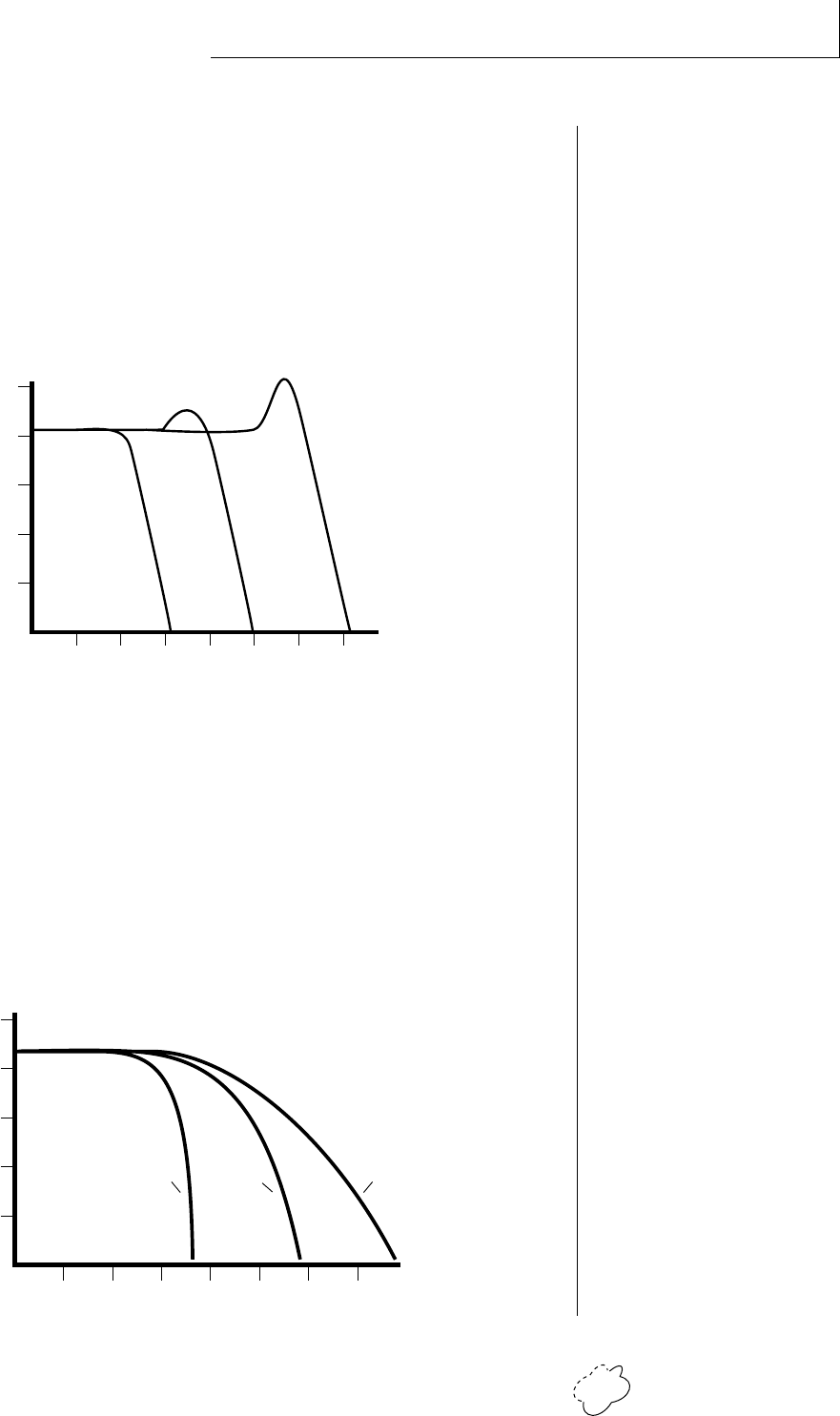
Chapter 4: Programming Basics 45
PROGRAMMING BASICS
Another control on the filter is called Q or resonance. On a lowpass or
highpass filter, turning up the Q of the filter emphasizes the frequen-
cies around the cutoff frequency. The chart below shows how different
amounts of Q affect the lowpass filter response. In terms of sound,
frequencies around the cutoff will tend to “ring” with high Q settings.
If the filter is swept back and forth slowly with a high Q, various
overtones will be “picked out” of the sound and amplified as the
resonant peak sweeps over them. Bells and gongs are real world ex-
amples of sounds which have a high Q.
Turning up the “Q” will emphasize the frequencies around the cutoff point.
Another important feature of a filter is the number of poles it con-
tains. The lowpass filters on Planet Phatt can be either 2-pole, 4-pole
or 6-pole filters. The highpass and bandpass filters can be either 2nd or
4th order filters another way to describe the number of filter sections
they contain. The number of poles in a filter describes the steepness of
its slope and the more poles the steeper the slope, which in turn
affects the sound. In general, the 2-pole filter will have a buzzier
sound and the 4-pole filter has the classic low pass resonant filter
sound. Planet Phatt's 6-pole low pass filters create a tight, modern
sound.
Frequency
Amplitude
Low Q Med Q High Q
Frequency
2-pole6-pole
Amplitude
4-pole
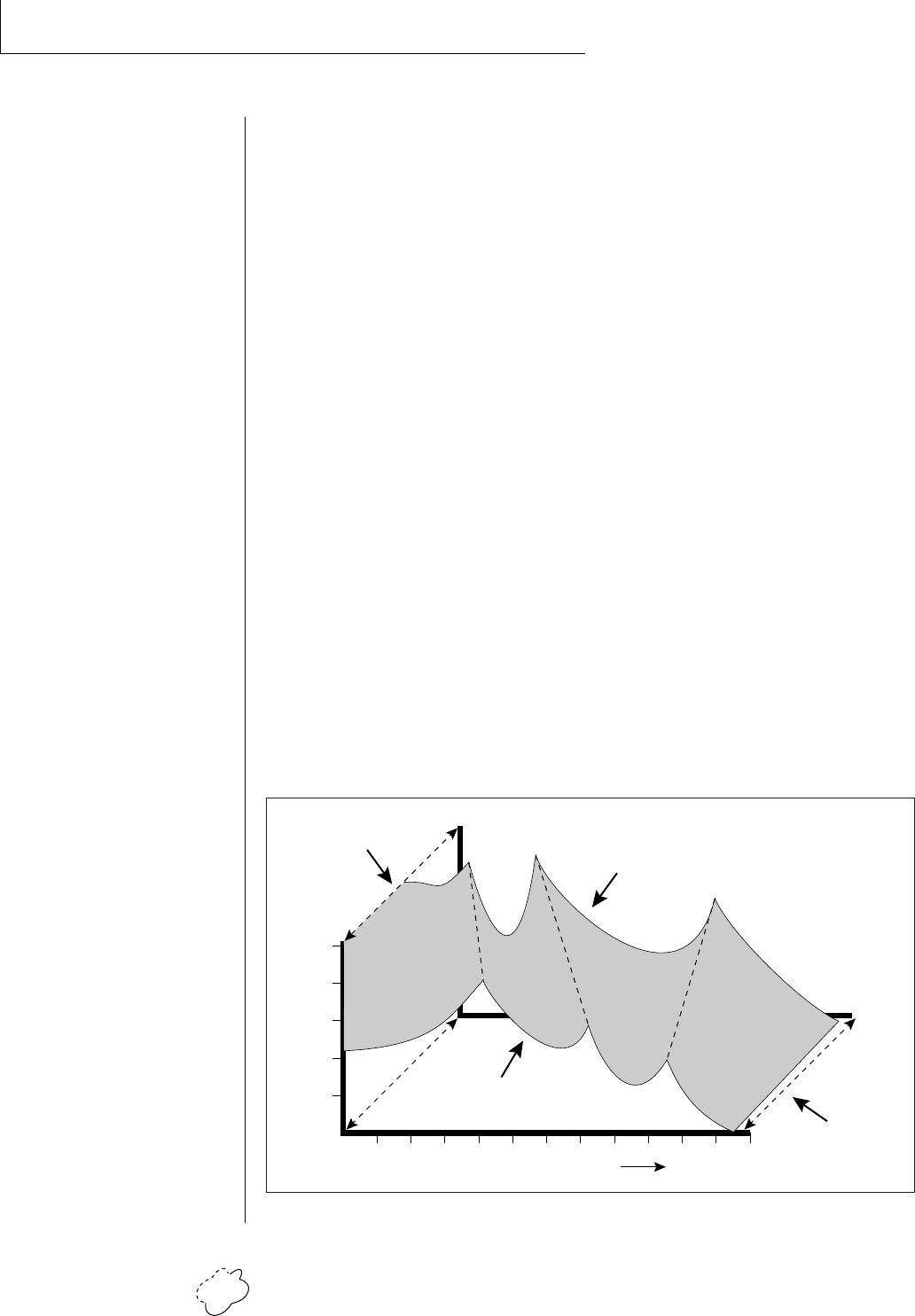
Planet Phatt Operation Manual46
PROGRAMMING BASICS
PARAMETRIC FILTERS
A more complex type of filter is called a parametric filter or Swept EQ.
A parametric filter allows control over three basic parameters of the
filter. The three parameters are: Frequency, Bandwidth, and Boost/Cut.
The Frequency parameter (Fc on Planet Phatt filters) allows you to
select a range of frequencies to be boosted or cut, the Bandwidth
parameter allows you to select the width of the range, and the Boost/
Cut parameter (Q on Planet Phatt filters) either boosts or cuts the
frequencies within the selected band by a specified amount.
Frequencies not included in the selected band are left unaltered. This
is different from a band pass filter which attenuates (reduces)
frequencies outside the selected band.
The parametric filter is quite flexible. Any range of frequencies can be
either amplified or attenuated. Often times, several parametric
sections are cascaded (placed one after another) in order to create
complex filter response curves.
THE Z-PLANE FILTER
The Z-plane filter can change its function over time. In a simple
Z-plane filter, we start with two complex filter types and interpolate
between them using a single parameter. Refer to the diagram below.
Filters A and B represent two different complex filters. By changing a
single parameter, the Morph, many complex filter parameters can now
be changed simultaneously. Following along the Morph axis you can
see that the filter response smoothly interpolates between the two
filters.
Frequency
Amplitude
Morph
A Filter
B Filter
Morph
The Z-plane filter has the unique ability to change its function over time.

Chapter 4: Programming Basics 47
PROGRAMMING BASICS
This is the essence of the Z-plane filter. Through the use of
interpolation, many complex parameters are condensed down into
one manageable entity.
Consider, as an example, the human vocal tract, which is a type of
complex filter or resonator. There are dozens of different muscles
controlling the shape of the vocal tract. When speaking, however, we
don't think of the muscles, we just remember how it feels to form the
vowels. A vowel is really a configuration of many muscles, but we
consider it a single object. In changing from one vowel to another,
you don't need to consider the frequencies of the resonant peaks! You
remember the shape of your mouth for each sound and interpolate
between them.
Filter morphing can be controlled by an envelope generator, an LFO,
modulation wheels or pedals, keyboard velocity, key pressure, etc. The
filter Fc parameter controls morphing on certain Planet Phatt filters.
The Q parameter on the Planet Phatt filters can only be changed at
note-on time but can control various parameters such as boost/cut and
mouth cavity size and of course, resonance or Q.
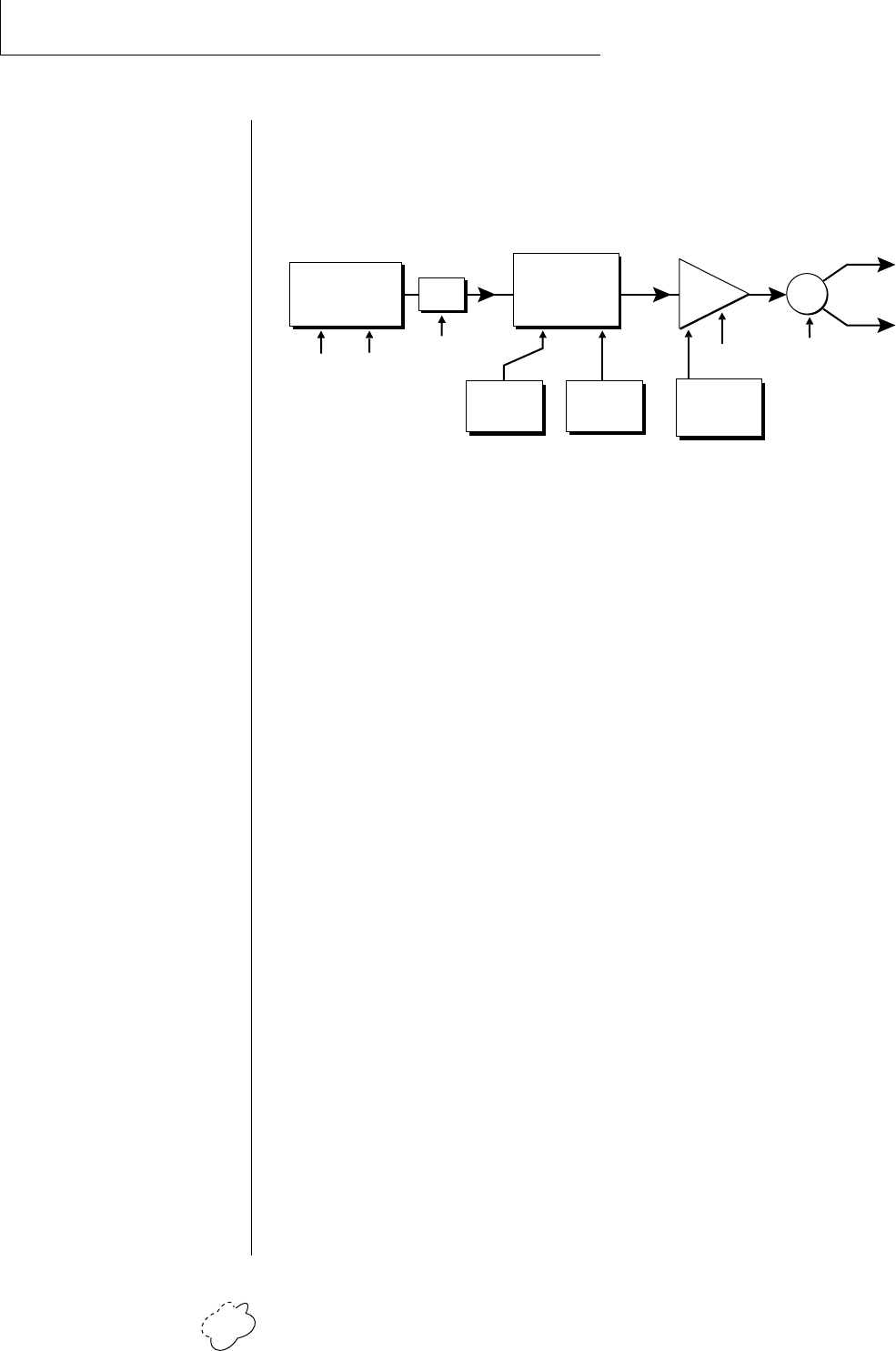
Planet Phatt Operation Manual48
PROGRAMMING BASICS
PLANET PHATT SIGNAL FLOW
Going back to the block diagram for a single channel we can
re-examine the complete signal path.
Instrument
This is the sampled sound wave. The pitch of the instrument can
be modulated by any modulation source. The sample start point
can only be modulated by a velocity or key source (see the next
page).
Tone
Tone is a simple tone control which can be used to brighten or
mute the sound. Tone can only be modulated by a velocity or key
source (see the next page). Key velocity is commonly used to modu-
late the tone so that the harder you play, the brighter the sound
becomes.
Morphing Filter
The Morphing Filter is used to shape the harmonic content of an
instrument. The Fc can be modulated by any source. The auxiliary
envelope is commonly used to dynamically shape the harmonic
content over time. The Q parameter can only be modulated by a
velocity or key source. There are 17 types of filters available. See
page 67 for complete descriptions of each filter type.
DCA
Digitally Controlled Amplifier. Together with the Volume
AHDSR, the DCA is used to shape the volume contour of a sound.
The DCA can be controlled by any modulation source. Key
Velocity is often used as a modulation source for the DCA so that
the harder you play, the louder the sound becomes.
Pan
Adjusts the balance of sound to the left and right channels. Pan
can be modulated by any realtime or note-on modulation source.
R
L
Volume
Pan
Volume
AHDSR
Instrument
Pitch Sample
Start
Tone
Z-Plane
Filter DCA
Aux.
DAHDSR Velocity
Morph Q
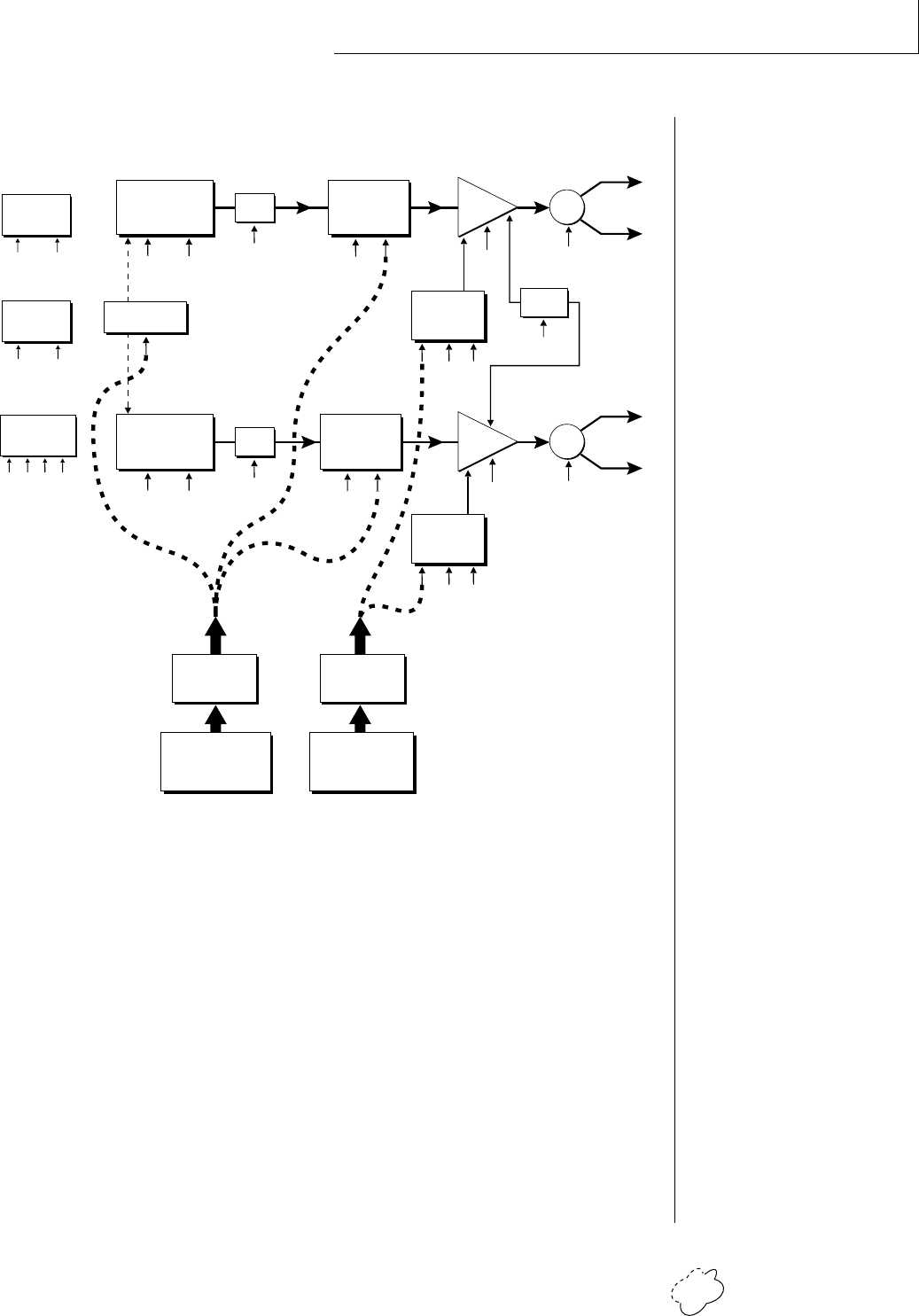
Chapter 4: Programming Basics 49
PROGRAMMING BASICS
KEYBOARD AND VELOCITY MODULATION
The Keyboard and Velocity Modulation diagram shows the possible
routing of Key Number (which key is pressed), and Velocity (how hard
the key is pressed). These modulation sources can control any of the
destinations indicated by the small arrows. Up to six key and velocity
modulation routings can be programmed for each preset. Keyboard
and velocity modulation routings are completely flexible as shown in
the example above.
Keyboard
Modulation Sources
Key Number, Key Velocity
Destinations
Off, Pitch, Primary Pitch,
Secondary Pitch,
Volume, Primary Volume,
Secondary Volume,
Attack, Primary Attack,
Secondary Attack,
Decay, Primary Decay,
Secondary Decay,
Release, Primary Release,
Secondary Release,
Crossfade,
LFO 1 Amount, LFO 1 Rate,
LFO 2 Amount, LFO 2 Rate,
Auxiliary Envelope Amount,
Auxiliary Envelope Attack,
Auxiliary Envelope Decay,
Auxiliary Envelope Release,
Portamento Rate,
Primary Portamento Rate,
Secondary Portamento Rate,
Filter Fc, Primary Filter Fc,
Secondary Filter Fc,
Filter Q, Primary Filter Q,
Secondary Filter Q,
Sample Start,
Primary Sample Start,
Secondary Sample Start,
Pan, Primary Pan,
Secondary Pan,
Tone, Primary Tone,
Secondary Tone
LFO 1
Amount Rate
LFO 2
Amount Rate
R
L
Volume
Pan
Primary
Instrument
Pitch Sample
Start
Tone
VELOCITY
VELOCITY
CURVE
KEY NUMBER
KEYBOARD
CENTER
Keyboard and Velocity Modulation Sources
X-Fade
Atk Dec Rel
Volume
AHDSR
R
L
Volume
Pan
Secondary
Instrument
Pitch Sample
Start
Tone
Atk Dec Rel
Volume
AHDSR
Portamento
Rate
DCA
DCA
Auxiliary
DAHDSR
AmtAtk Dec Rel
Z-Plane
Filter
QFc
Z-Plane
Filter
QFc
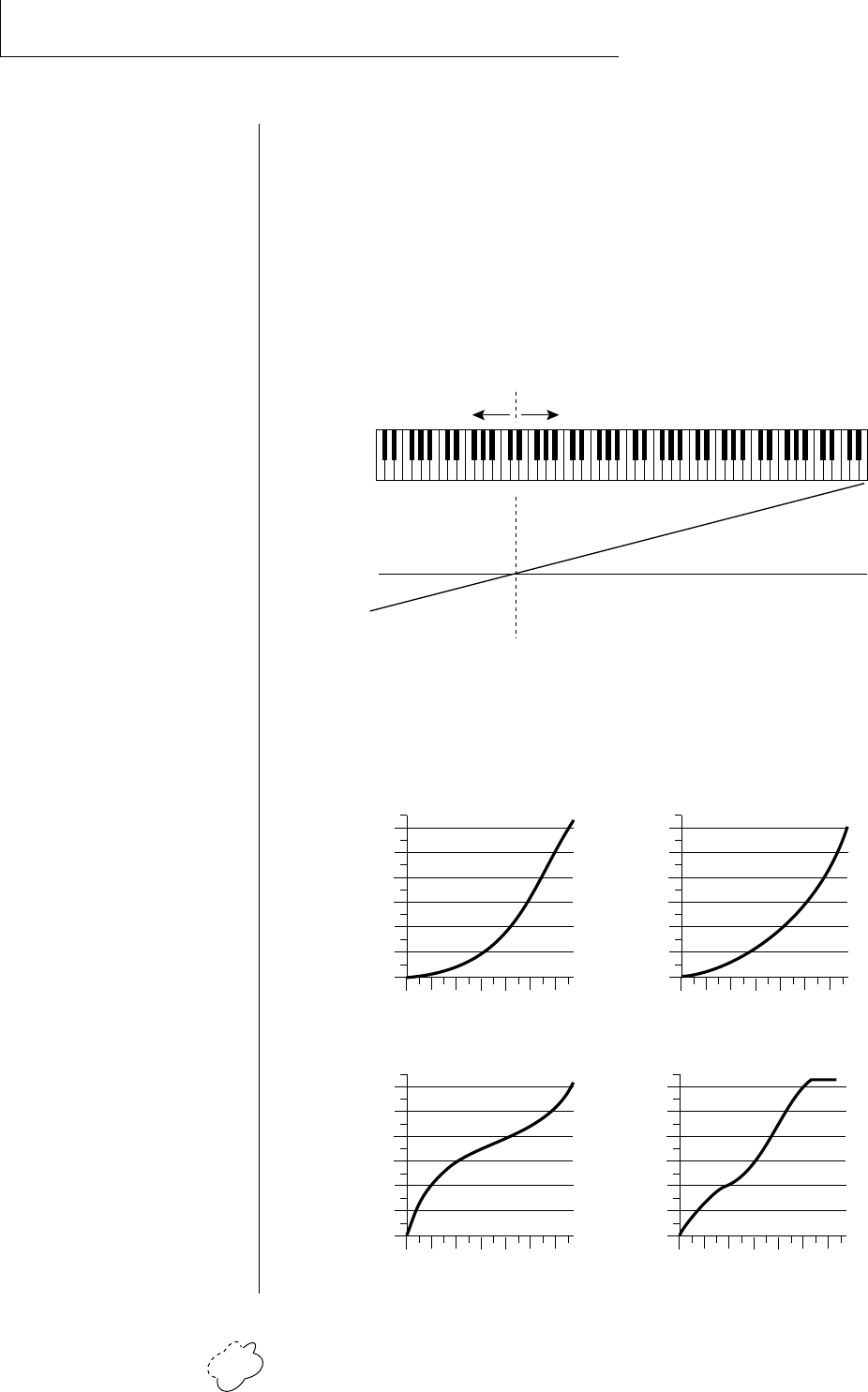
Planet Phatt Operation Manual50
PROGRAMMING BASICS
KEY NUMBER
The Key Number is affected by the Keyboard Center parameter which
can be set to any key from A-2 to G8. The keyboard center establishes
a reference point for keyboard modulation; keys above this point will
have a positive value, while keys below it will be negative.
For example, if we wished to change the volume of an instrument
using key number and the key center were set to middle C,
the instrument would get progressively louder above middle C and
progressively softer below middle C.
VELOCITY CURVES
Incoming velocity values can be scaled by one of the velocity curves in
order to match your playing style or better adapt to the MIDI
controller. Experiment with the curves to find the one that works best
for your style and MIDI controller.
KEY CENTER
+
-
0
-
+
Curve 1
0
20
40
60
80
100
120
020 40 60 80 100
Played Velocity
120
Resulting Velocity
Curve 2
0
20
40
60
80
100
120
020 40 60 80 100
Played Velocity
120
Resulting Velocity
Curve 3
0
20
40
60
80
100
120
020 40 60 80 100
Played Velocity
120
Resulting Velocity
0
20
40
60
80
100
120
020 40 60 80 100
Played Velocity
120
Resulting Velocity
Curve 4
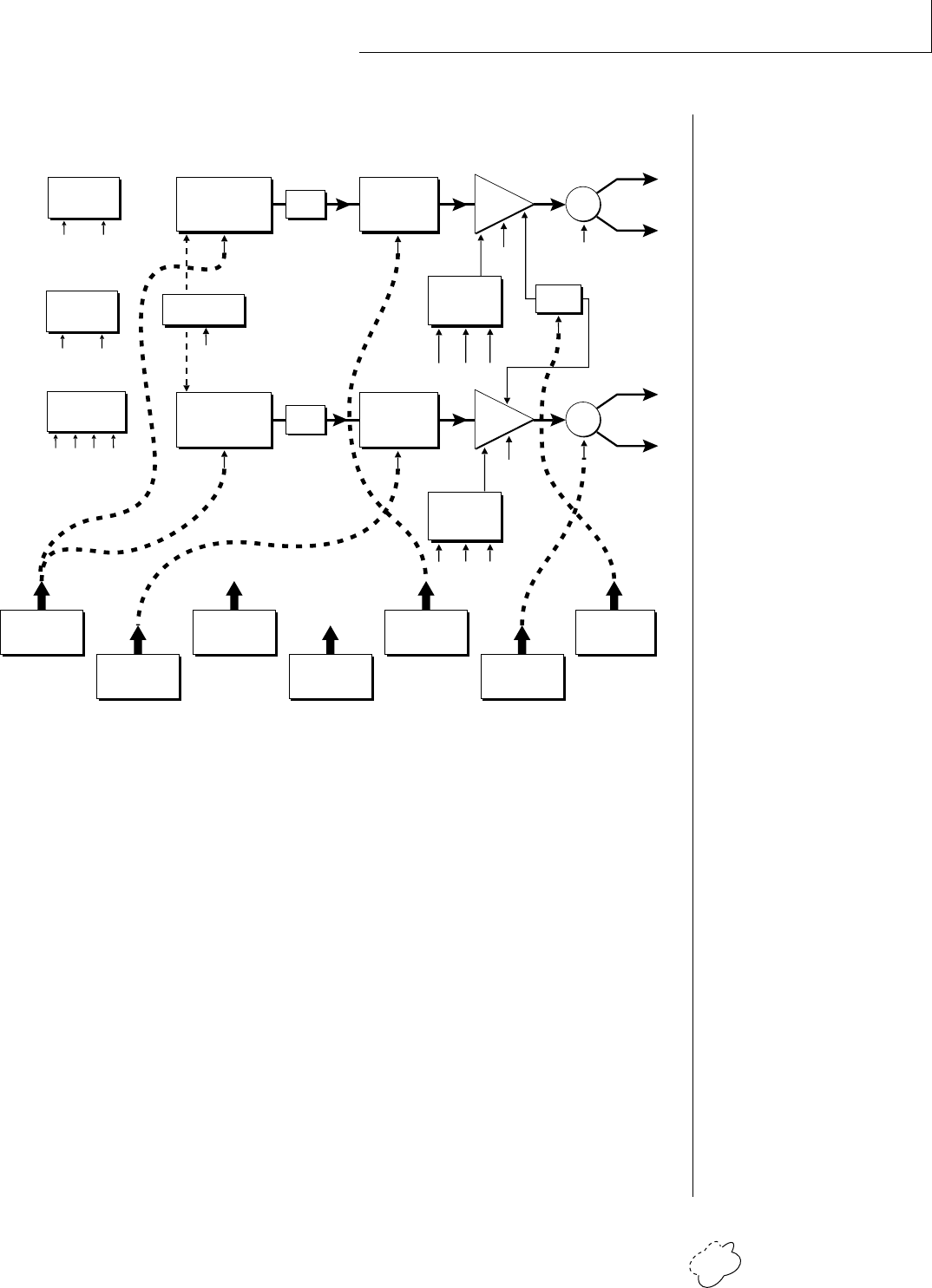
Chapter 4: Programming Basics 51
PROGRAMMING BASICS
REALTIME MODULATION
In addition to keyboard and velocity modulation, Planet Phatt has
multiple realtime modulation sources. Realtime modulation sources
are parameters which can be continuously varied over time. The
velocity and keyboard modulations, in comparison, are set at the key
depression. The realtime modulation sources can control any of the
destinations except sample start, Q, and tone, as indicated by the
small arrows. Up to eight modulation routings can be programmed for
each preset. The realtime modulation routings are completely flexible
as shown in the example above.
Realtime
Modulation Sources
Pitch Wheel,
MIDI Control A,
MIDI Control B,
MIDI Control C,
MIDI Control D,
Mono Pressure,
Polyphonic Pressure,
LFO 1, LFO 2,
Auxiliary Envelope
Destinations
Off,
Pitch, Primary Pitch,
Secondary Pitch,
Volume, Primary Volume,
Secondary Volume,
Attack, Primary Attack,
Secondary Attack,
Decay, Primary Decay,
Secondary Decay,
Release, Primary Release,
Secondary Release,
Crossfade,
LFO 1 Amount, LFO 1 Rate,
LFO 2 Amount, LFO 2 Rate,
Auxiliary Envelope Amount,
Auxiliary Envelope Attack,
Auxiliary Envelope Decay,
Auxiliary Envelope Release,
Portamento Rate, Primary
Portamento Rate,
Secondary Portamento Rate,
Filter Fc, Primary Filter Fc,
Secondary Filter Fc,
Pan, Primary Pan,
Secondary Pan
Realtime Modulation Sources
POLY
PRESSURE
MONO
PRESSURE
MIDI
CONTROLLER
A/B/C/D
LFO 2
AUXILIARY
ENVELOPE
LFO 1PITCH WHEEL
Auxiliary
DAHDSR
AmtAtk Dec Rel
LFO 1
Amount Rate
LFO 2
Amount Rate
R
L
Volume
Pan
Atk Dec Rel
Volume
AHDSR
Primary
Instrument
Pitch
Tone
Z-Plane
Filter
X-Fade
R
L
Volume
Pan
Atk Dec Rel
Volume
AHDSR
Secondary
Instrument
Pitch
Tone
Z-Plane
Filter
Fc
Fc
Portamento
Rate
DCA
DCA
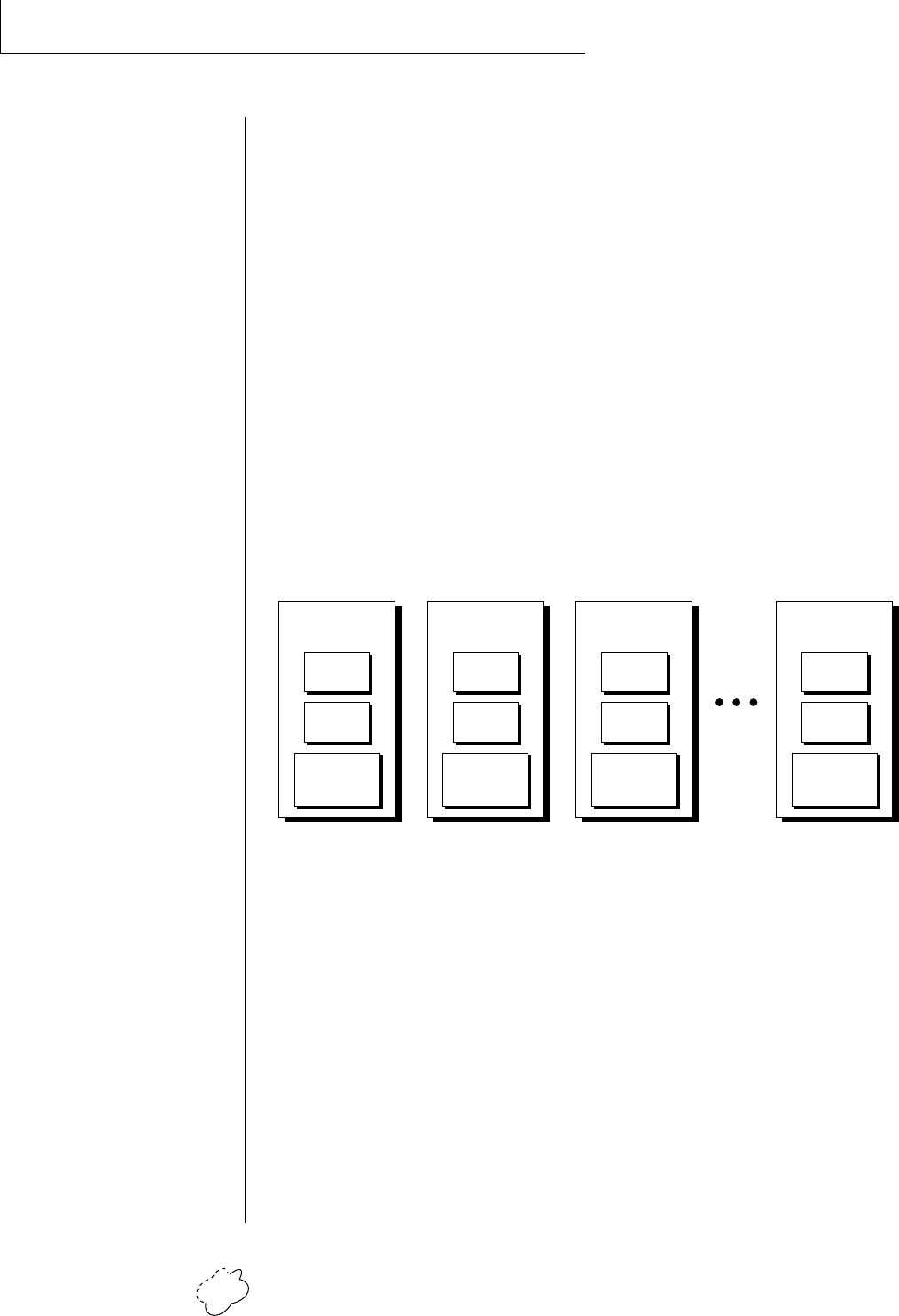
Planet Phatt Operation Manual52
PROGRAMMING BASICS
MIDI REALTIME CONTROLS
The MIDI realtime controllers may seem confusing at first, but they
are really very simple to understand. You probably already know that
there are 16 MIDI channels that can be used. Each of the 16 MIDI
channels uses basically 3 types of messages; note on/off, program
changes, and continuous controller messages. Your MIDI keyboard, in
addition to telling Planet Phatt which note was played, may also send
realtime control information, which simply means occurring in real
time or live. (You may be using a MIDI device other than a keyboard,
but for simplicity's sake we'll presume that you're using a keyboard.)
Realtime control sources include such things as pitch wheels or levers,
modulation wheels or levers, control pedals, aftertouch, etc. and are
used to add more expression or control. Your MIDI keyboard sends out
realtime controller information on separate continuous controllers.
There is a set of 32 continuous controllers for each of the 16 MIDI
channels. Some of the controllers, such as pitch wheel, volume, and
pan have been standardized. For example, volume is usually sent on
continuous controller #7.
Common realtime controllers such as the modulation wheel (or mod
wheel), volume, pan and pressure are pre-programmed to their proper
destinations. Your keyboard may have other realtime controls such as
a control pedal or data slider which can also be programmed to con-
trol most of the parameters on Planet Phatt.
Planet Phatt is equipped with a sophisticated MidiPatch™ system,
which allows you to route any continuous controller to any realtime
modulation destination. The MidiPatch system is also very easy to use.
First, you must know which controller numbers your keyboard can
transmit.
••• MIDI wind controllers
may work better if you assign
one of the MIDI A, B, C, D
controllers to control volume.
This will allow the MIDI
volume to be added to the
current volume.
Note
On/Off
Continuous
Controllers
MIDI
Channel 16
Program
Change
Note
On/Off
Continuous
Controllers
MIDI
Channel 3
Program
Change
Note
On/Off
Continuous
Controllers
MIDI
Channel 2
Program
Change
Note
On/Off
Continuous
Controllers
MIDI
Channel 1
Program
Change
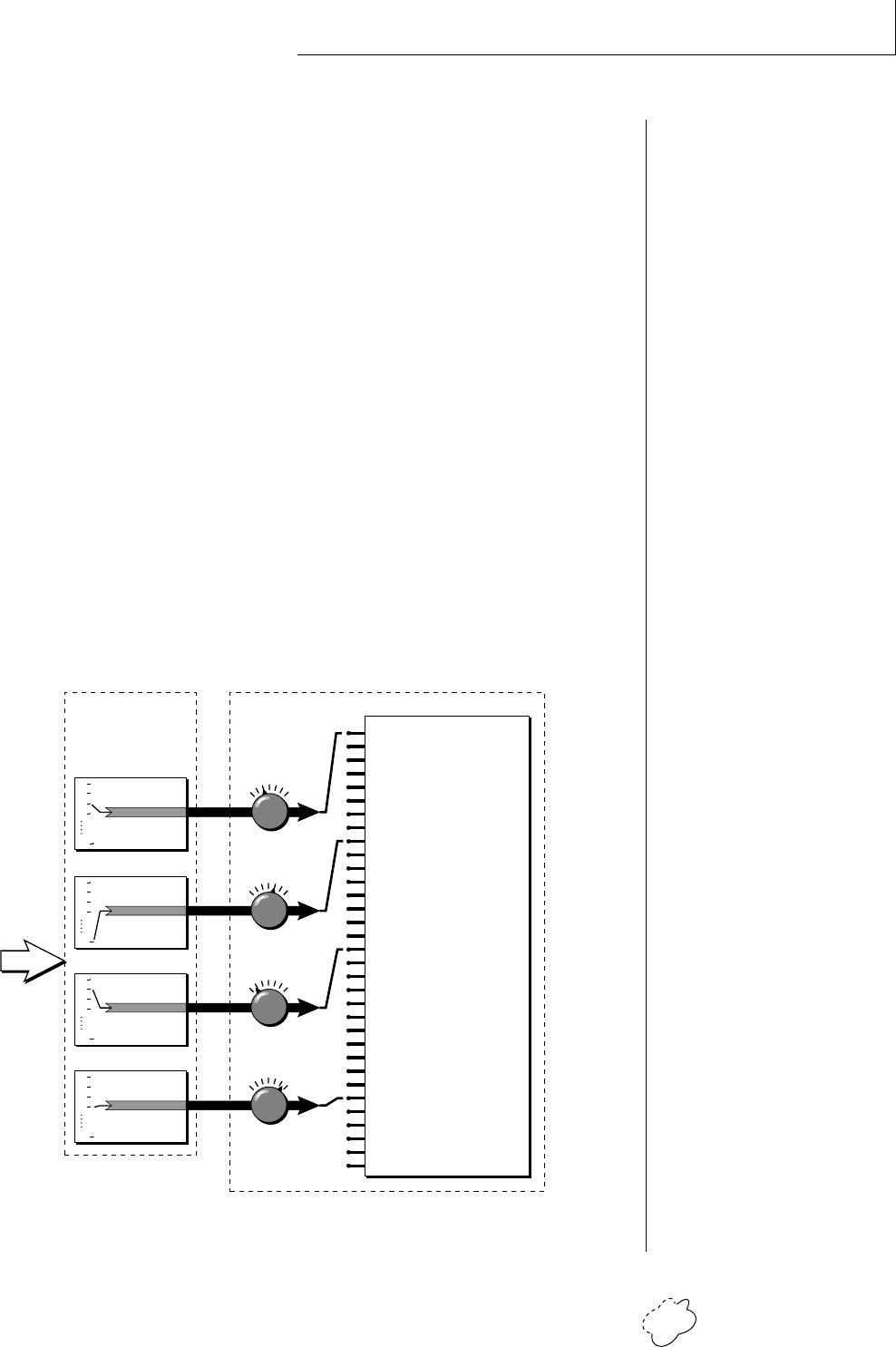
Chapter 4: Programming Basics 53
PROGRAMMING BASICS
The MIDI controllers A-B-C-D must have both a source (0-31), and a destination
assigned.
Standard MIDI
Controller Numbers
1 Modulation Wheel
2 Breath Controller
3 Pressure Rev 1 DX7
4 Foot Pedal
5 Portamento Time
6 Data Entry
7 Volume
8 Balance
9 Undefined
10 Pan
Let's say for example, that you are using a Yamaha DX7 as your master
keyboard. The DX7 has pitch and mod wheels, a breath controller, a
data slider and a foot pedal, all of which transmit their values over
MIDI. The standard MIDI controller numbers for the controls are
listed below (the pitch wheel has a dedicated controller, PWH). First,
we would go to the Master menu, MIDI Controller Assign and define
the 4 MIDI controllers that we wish to use. Assign each controller
number to one of the letters A-B-C-D.
01 - Modulation Wheel A
02 - Breath Controller B
04 - Foot Pedal C
06 - Data Entry D
To complete the connections for a particular preset, go to the Edit
menu, Realtime Control, and route the MIDI A, B, C, D to the desired
destinations. These could be patched to any 4 destinations or even to
the same destination. The MIDI Controller Amount menu, (in the Edit
menu) allows you to scale the amounts of each of the controllers by a
positive or negative value. The signal flow is shown in the diagram
below.
0
1
2
3
31
MIDI
Controller
C
Control Destinations
+-
Master
Menu
Edit
Menu
A
B
C
D
0
1
2
3
31
MIDI
Controller
A
0
1
2
3
31
MIDI
Controller
B
0
1
2
3
31
MIDI
Controller
D
MIDI
Amount
+-
+-
+-
Pitch
Primary Pitch only
Secondary Pitch only
Volume
Primary Volume only
Secondary Volume only
Attack
Primary Attack only
Secondary Attack only
Decay
Primary Decay only
Secondary Decay only
Release
Primary Release only
Secondary Release only
Crossfade
LFO 1 Rate
LFO 1 Amount
LFO 2 Rate
LFO 2 Amount
Auxiliary Envelope Amount
Auxiliary Envelope Attack
Auxiliary Envelope Decay
Auxiliary Envelope Release
Portamento Rate
Primary Portamento Rate
Secondary Portamento Rate
Filter Morph
Primary Filter Morph
Secondary Filter Morph
Pan
Primary Pan
Secondary Pan
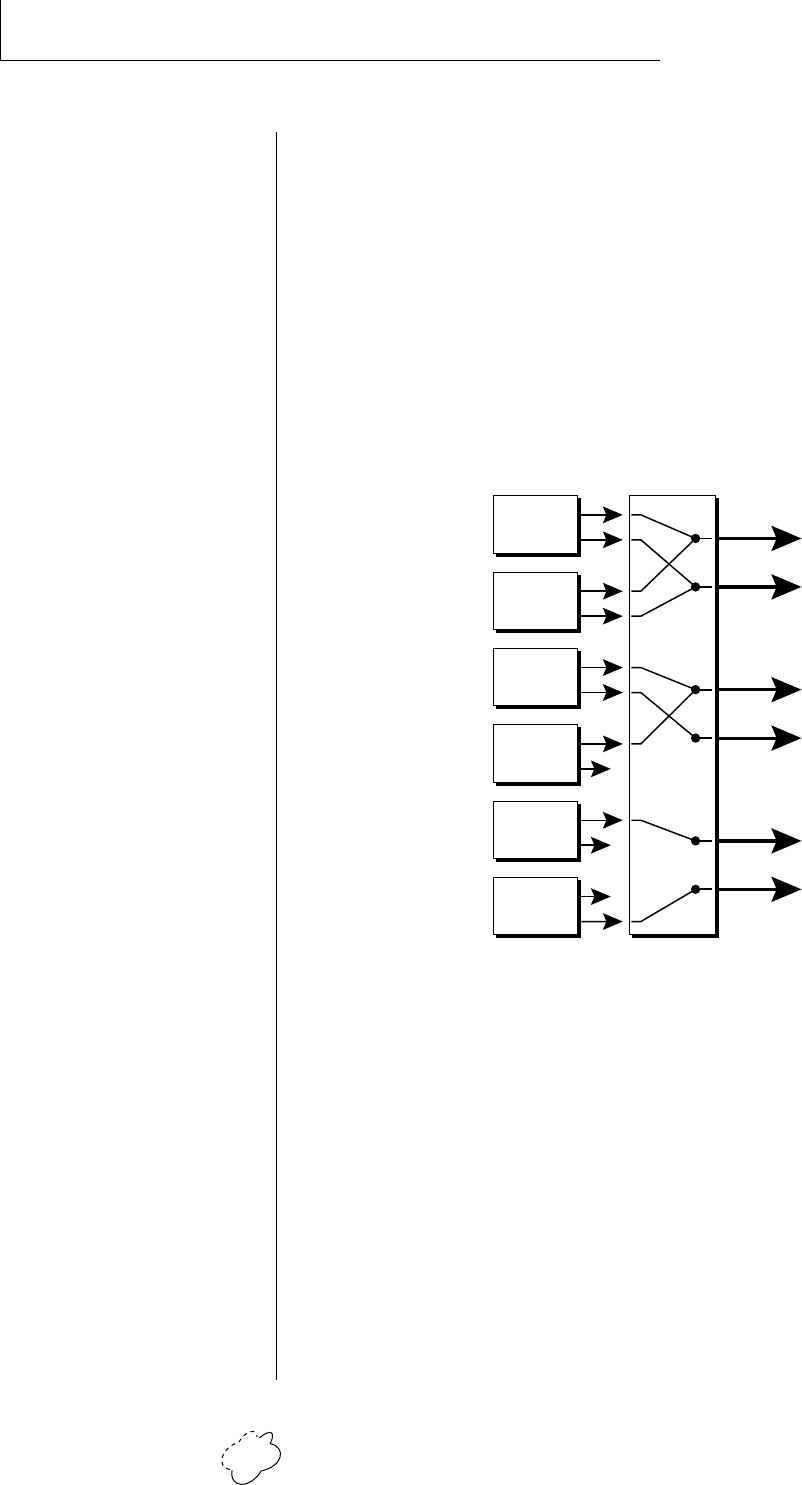
Planet Phatt Operation Manual54
PROGRAMMING BASICS
Each preset can be routed to one (and only one) set of stereo outputs.
Preset
01
MIX
OUTPUT
Preset
22
Preset
12
Preset
127
Preset
18
Preset
120
L
Main
Sub 1
Sub 2
R
L
R
L
R
etc.
STEREO MIX OUTPUTS
Planet Phatt has three sets of polyphonic stereo outputs (Main, Sub 1,
Sub 2). The channels used by a particular preset may be directed to
appear at any one of these three stereo outputs. This feature is useful
for signal processing (EQ, reverb, etc.) of individual sounds prior to
final mixdown. By panning a preset completely left or right, it can be
routed to a single output jack.
Note: All presets will be automatically routed to the Main outputs
unless plugs are inserted into the Sub 1 or Sub 2 outputs.

Chapter 5: Edit Menu 55
EDIT MENU

Planet Phatt Operation Manual56
EDIT MENU
Chapter 5: Edit Menu 57
EDIT MENU
The Edit menu contains functions that can be modified by the user
and then saved as preset information in one of the user presets. For
example, the LFO speed or other parameter can be edited, then the
preset can be saved to a user location (Banks 0 & 1).
WARNING
Changes made in the Edit menu will be forever lost unless
the preset is “saved” using the Save Preset function (page
79) before changing the preset.
To enable the Edit menu
Press the Edit key, lighting the LED. The current screen will be the
one most recently selected since powering up the machine. The
cursor will appear underneath the first character of the screen
heading on line one.
To select a new screen
Press either cursor key repeatedly (or hold the right cursor key
while turning the data entry control) until the cursor is under-
neath the parameter name. Rotate the data entry control to select
the screen.
To modify a parameter
Press either cursor key repeatedly (or hold the right cursor key
while turning the data entry control) until the cursor is under-
neath the parameter value. Rotate the data entry control to
change the value.
To return to Preset Select mode
Press the Edit button, turning off the LED.
••• While the Edit menu is
activated, incoming MIDI
preset changes are ignored.
This is a quick and easy way
to temporarily turn MIDI
Preset Change OFF.
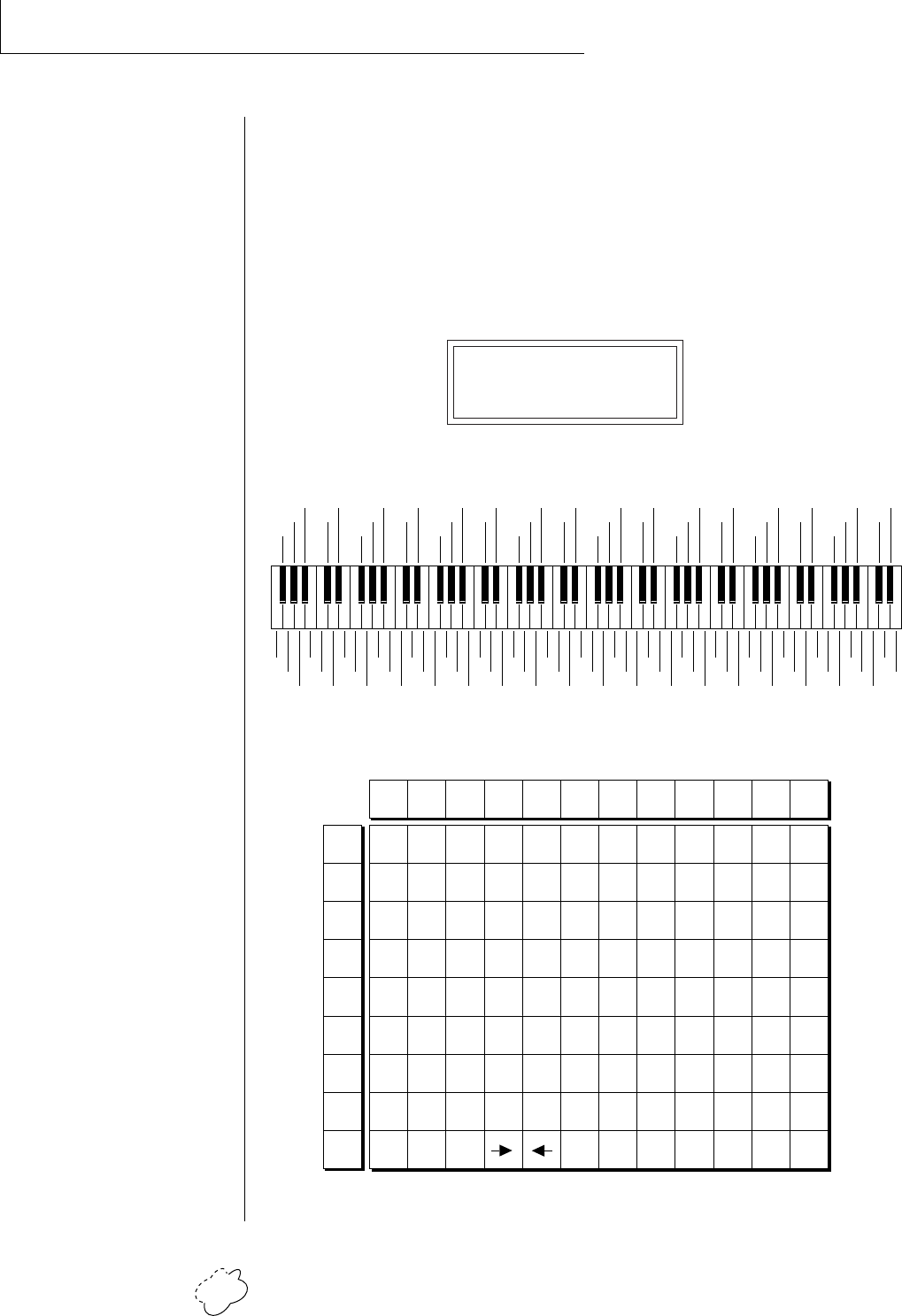
Planet Phatt Operation Manual58
EDIT MENU
EDIT MENU FUNCTIONS
• Preset Name
Preset Name allows you to name each of the user presets with a name
of up to 12 characters. Position the cursor under the character location
and use the data entry control to change the character. The keyboard
can also be used to select characters. The charts below show the key-
board character assignment.
PRESET NAME
000 Untitled
0
2
3
5
7
8
:
<
>
?
A
C
D
F
H
J
K
M
O
P
R
T
V
W
Y
[
¥
^
`
b
c
e
g
h
j
l
n
o
q
s
t
v
x
z
{
}
<-
+
,
.
&
'
)
b
l
a
n
k
"
$
4
6
9
;
=
@
B
E
G
I
L
N
Q
S
U
X
Z
]
_
a
d
f
i
k
m
p
r
u
w
y
|
->
-
/
1
(
*
!
#
%
C C# D D# E F F# G G# A A# B Pitch
Octave
No.
-1
0
1
2
3
4
5
6
"!#$%&
blank
'()*+,-./012
3456789 : ; < >=
?@ABCDE FGH I J
K LMNOPQR S TUV
WXYZ[¥]^_`ab
cdefghijklmn
opqrstuvwxyz
{|}
-2
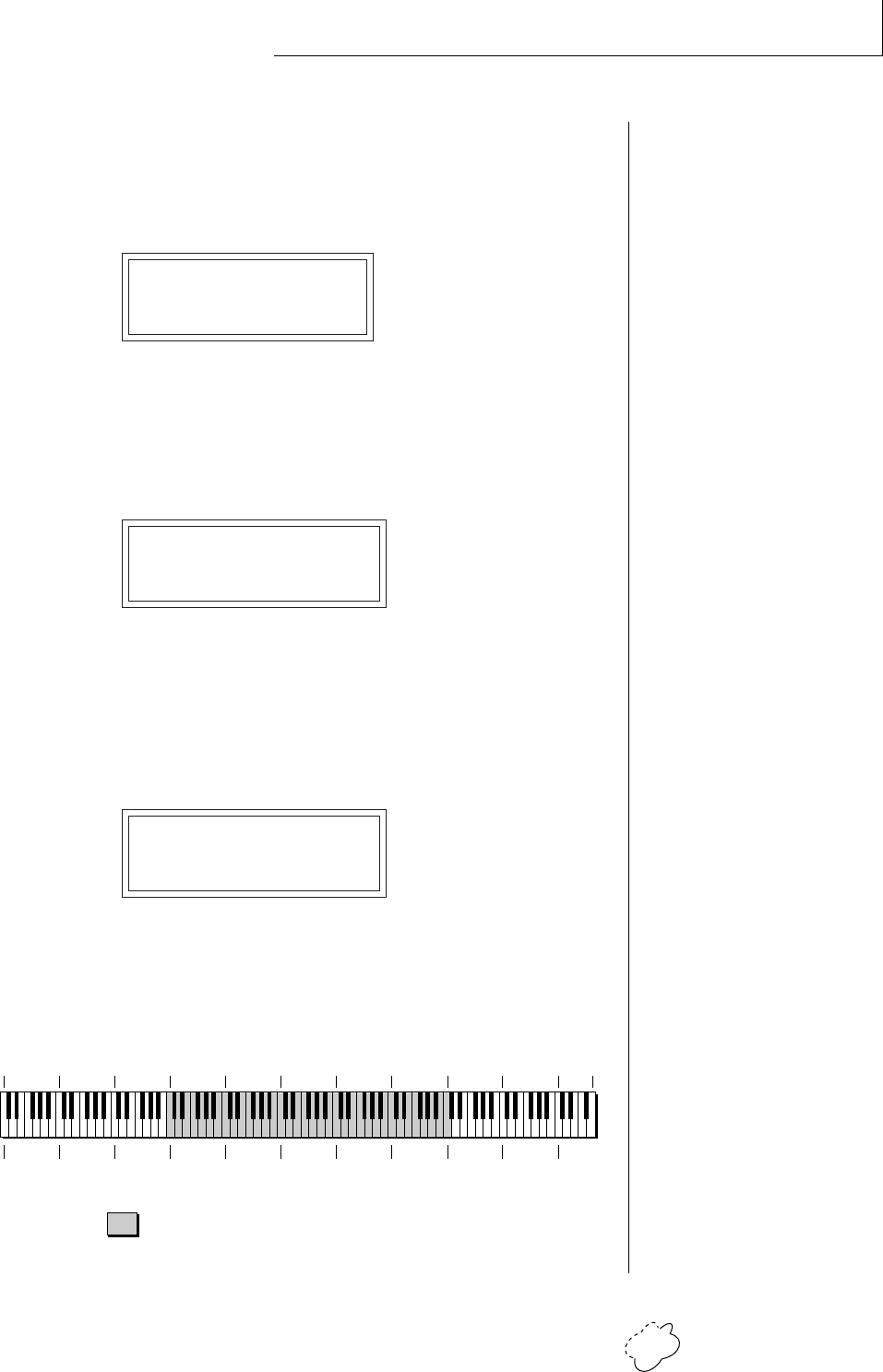
Chapter 5: Edit Menu 59
EDIT MENU
• Primary Instrument
This function allows you to select which of the available instrument
sounds (or none) will be placed on the primary layer of the current
user preset.
INSTRUMENT pri
I002 SE Sub 2
• Secondary Instrument
This function allows you to select which of the available instrument
sounds (or none) will be placed on the secondary layer of the current
user preset.
INSTRUMENT sec
I013 Bass Slap 1
• Key Range
Key range sets the keyboard range of both primary and secondary
instruments. This sets the keyboard range for the entire preset and will
further limit the primary and secondary keyboard ranges. The key
range can be set anywhere from C-2 to G8.
KEY RANGE
C-2 -> G8
••• Simply changing the
instrument creates a new
sound while retaining all
other parameters of the
preset.
C-2 C-1 C0 C1 C2 C3 C4 C5 C6 C7 C8
= Standard 5 Octave Keyboard Range
Planet Phatt Keyboard Range
MIDI
Key #
Key
Name
0 12 24 36 48 60 72 84 96 108 120 127
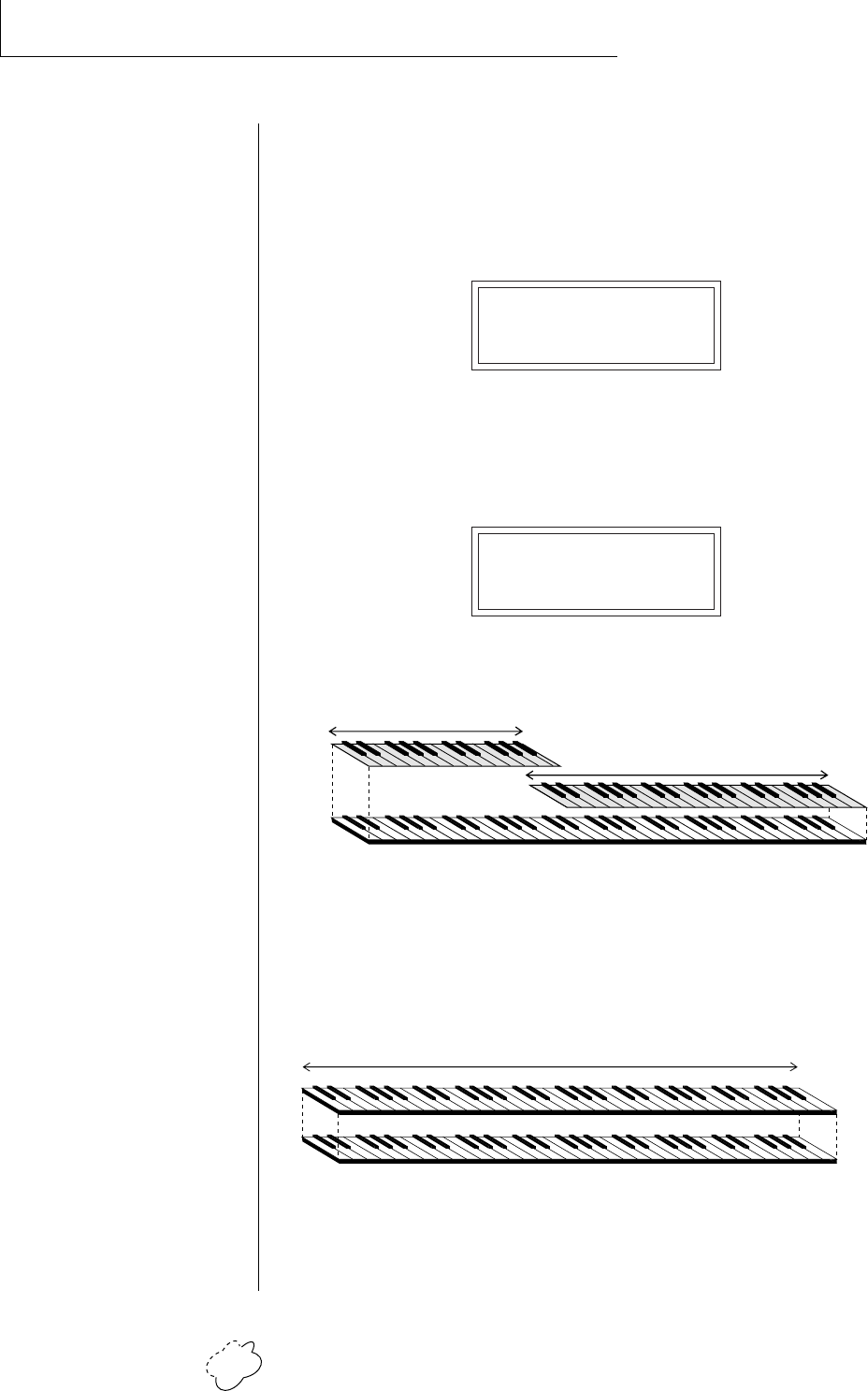
Planet Phatt Operation Manual60
EDIT MENU
• Primary Key Range
Key range sets the keyboard range of the primary instrument. This is
useful for creating positional crossfades and keyboard splits between
the primary and secondary layers. The key range can be set anywhere
from C-2 to G8.
KEY RANGE pri
C-2 -> G4
• Secondary Key Range
Key range sets the keyboard range of the secondary instrument. The
key range can be set anywhere from C-2 to G8.
KEY RANGE sec
G#4 -> G8
This diagram shows how instruments can be layered or “stacked” using the primary
and secondary instruments.
This diagram shows how a “split” keyboard can be programmed using the primary
and secondary instruments.
••• Entire presets can also be
Linked to form split or layered
keyboards.
Primary Instrument
Key Range
Key Range
SPLIT KEYBOARD
Secondary Instrument
Pri Instr.
Sec Instr.
LAYERING TWO INSTRUMENTS
Key Range
Chapter 5: Edit Menu 61
EDIT MENU
• Coarse Tuning
This function allows you to change the tuning of the primary and
secondary instruments in semitone intervals. The coarse tuning range
is -36 to +36 semitones. A coarse tuning setting of “00” would indicate
that the instrument is tuned to concert pitch (A=440 Hz).
TUNING coarse
pri:+00 sec:+00
• Fine Tuning
This function allows you to change the tuning of the primary and
secondary instruments in 1/64 semitone intervals (approx. 1.56 cents).
The fine tuning range is ± 1 semitone.
TUNING fine
pri:+00 sec:+00
• Volume
Volume sets the amplitude of the primary and secondary instruments.
This function also allows you to compensate for the relative volume
differences between instruments.
VOLUME
pri:127 sec:64
• Pan
Pan allows you to independently set the initial pan position of the
primary and secondary instruments. A value of -7 pans the instrument
hard left and a value of +7 pans the instrument hard right. This pan
setting is only valid if “P”, for preset pan, is selected in the main
display.
PAN
pri:-7 sec:+7
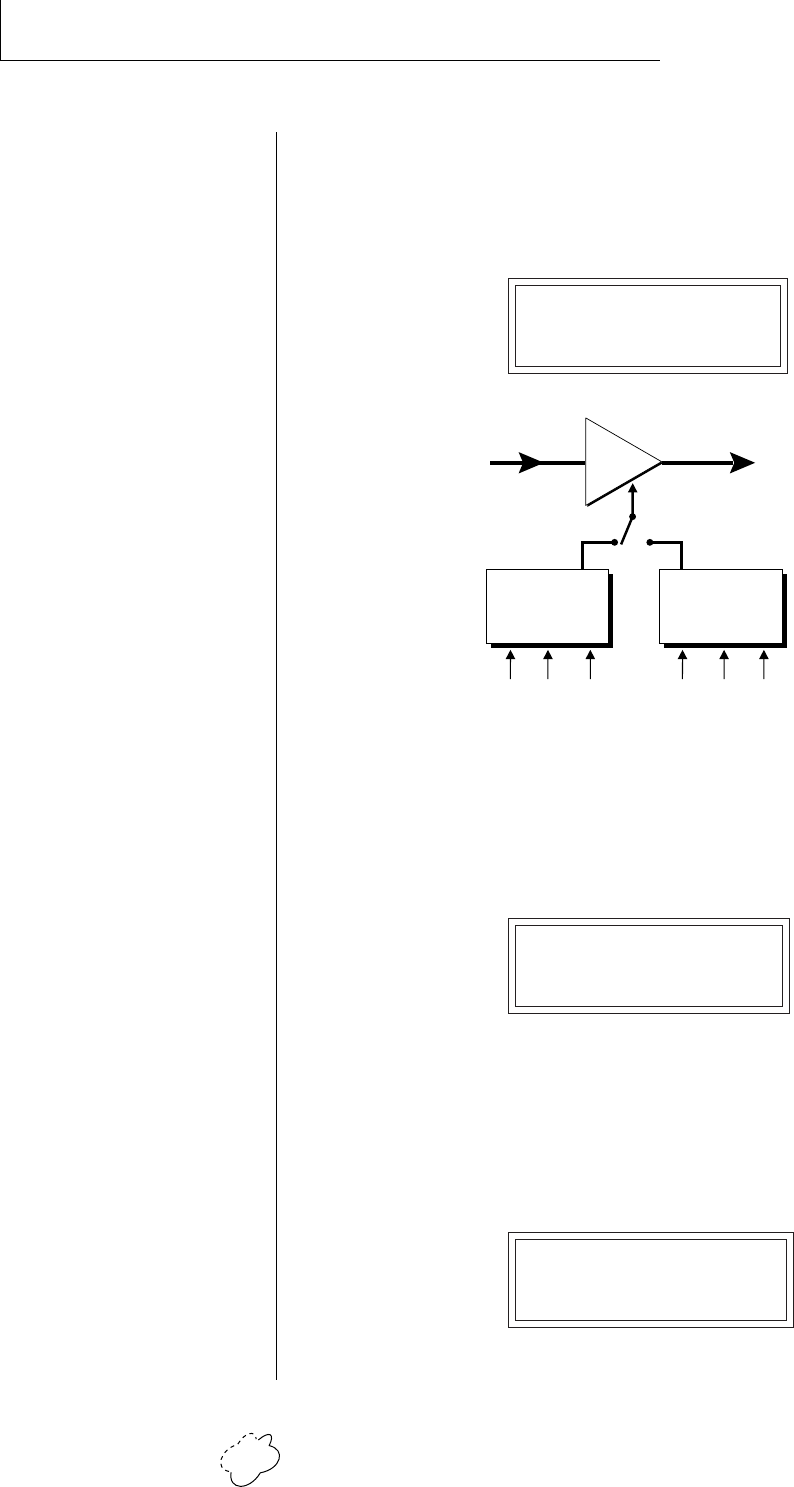
Planet Phatt Operation Manual62
EDIT MENU
• Alternate Volume Envelope On/Off
Each instrument has its own factory preset AHDSR volume envelope
which is normally employed. If a programmable volume envelope is
desired, the alternate envelope is used.
ALT VOL ENVELOPE
pri:Off sec:On
• Primary Alternate Envelope Parameters
This function allows you to adjust the alternate volume envelope
parameters for the primary instrument. The parameters are Attack
time, Hold time, Decay time, Sustain level, and Release time and are
adjustable from 00 to 99.
P: A H D S R
00 00 00 99 16
• Secondary Alternate Envelope Parameters
This function allows you to adjust the alternate volume envelope
parameters for the secondary instrument. The parameters are Attack
time, Hold time, Decay time, Sustain level, and Release time and are
adjustable from 00 to 99.
S: A H D S R
00 00 00 99 16
DCA
Atk Dec Rel
Normal
Envelope
Atk Dec Rel
Alternate
Envelope
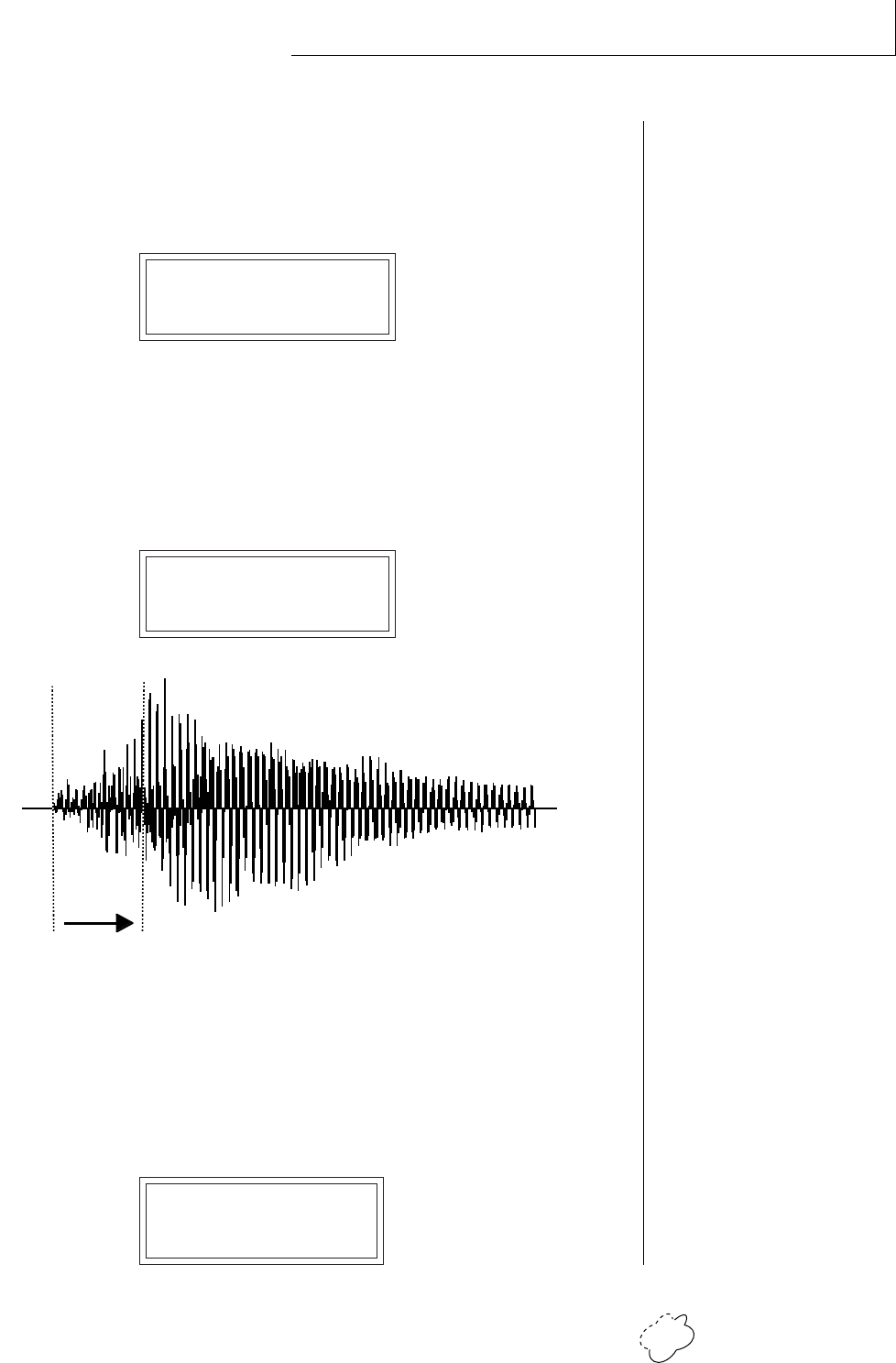
Chapter 5: Edit Menu 63
EDIT MENU
• Delay
Delay varies the time between when a MIDI Note On message is re-
ceived and the onset of a note. The delay time is adjustable from 0 to
13 seconds (000-127).
DELAY
pri:000 sec:000
• Sound Start
This function allows you to set where a sample begins playing when
you hit a key. A setting of 000 plays a sound from the beginning,
higher values move the sample start point toward the end of the
sound.
SOUND START
pri:000 sec:000
• Reverse Sound
When reverse sound is turned On, the instrument will be played
backwards. When an instrument is reversed, any loops in the sound
will be ignored, which means that the sound will not sustain indefi-
nitely.
REVERSE SOUND
pri:Off sec:On
The Sound Start parameter allows you to cut off the beginning of the sound. Higher
values move the start point toward the end of the sound.
Sound
Start
Planet Phatt Operation Manual64
EDIT MENU
• Solo Mode
Solo mode provides the playing action of a monophonic instrument.
This mode does not allow you to play a chord. Two types of solo mode
are provided: wind controller mode and synth mode. Both modes
have single triggering and last-note priority. In either solo mode, if a
new note is played while another is being held, the envelope genera-
tors will not retrigger. This allows a legato playing technique to be
used. Wind controller mode, as its name suggests, provides more
realistic effects when working with wind controllers.
Wind mode
The envelope generator attack always begins at the start of the
attack phase.
Synth mode
The envelope generator attack begins at whatever point the
envelope is in when a new key is pressed.
SOLO MODE pri
Off
• Portamento Rate
Portamento is a smooth gliding between notes instead of the normal
instantaneous change in pitch when a new key is pressed. The porta-
mento rate is the time it takes to glide to the new pitch. The larger the
value, the slower the glide rate. The rate is adjustable from 1-127 or it
can be turned Off. Portamento glides at a linear rate between notes
and can be set separately for the primary and secondary layers.
Portamento works both in and out of Solo Mode.
PORTAMENTO RATE
pri:127 sec:Off
• Chorus
Chorus “thickens” the sound by doubling the sound and then
detuning it. The chorus amount is variable over a range of 1 to 15.
When Chorus is on, the number of channels used by an instrument
will be doubled.
CHORUS
pri:Off sec:07
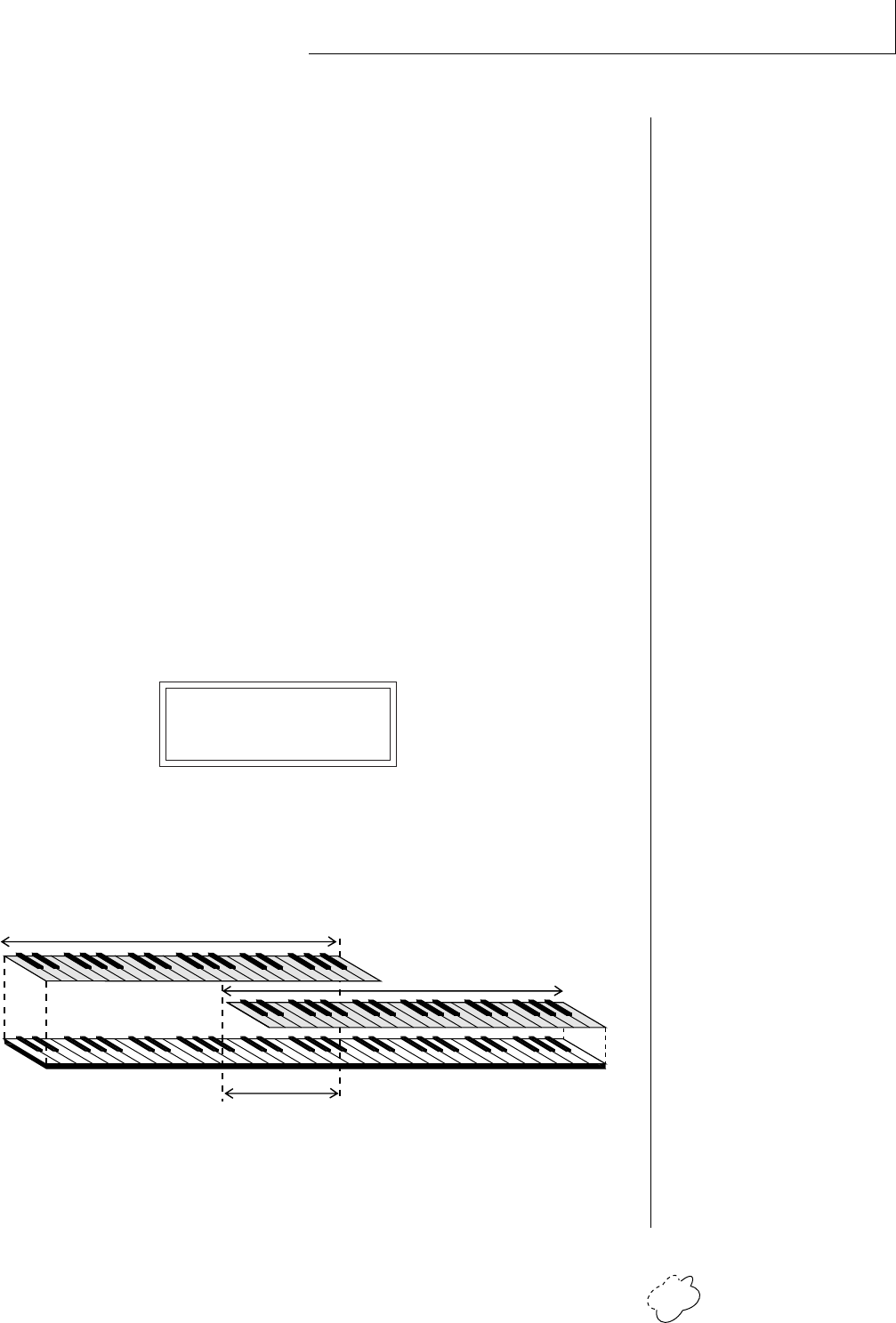
Chapter 5: Edit Menu 65
EDIT MENU
• Crossfade Mode
This function determines which of the following crossfade modes will
be selected: Off, Crossfade, or Cross-Switch.
Off
When “Off” is selected, none of the crossfade parameters will
have any effect.
Crossfade
When “Xfade” is selected, a control input is used to fade between
the primary and secondary. Any modulation source may be used
as an input (velocity, wheel, etc.).
Cross-switch
When “Xswitch” is selected, the switched layer is selected if the
input crosses a certain threshold or if a footswitch controlling
cross-switch is activated. The switch occurs only at the start of the
note; no further switching takes place while the key is held down.
If key position or velocity is routed to cross-switch, the threshold
is the switch point. Realtime controllers do not have any effect
when routed to cross-switch. For more information, see Cross-
Switch Point on page 67.
XFADE MODE
Off
By overlapping the primary and secondary instruments, you can crossfade or cross-
switch between the layers.
••• To use the keyboard for
crossfade, set the Crossfade
Balance to 64 and the Key
Center to the split point.
Primary
Instrument
Key Range
Key Range
Secondary
Instrument
Crossfade Range
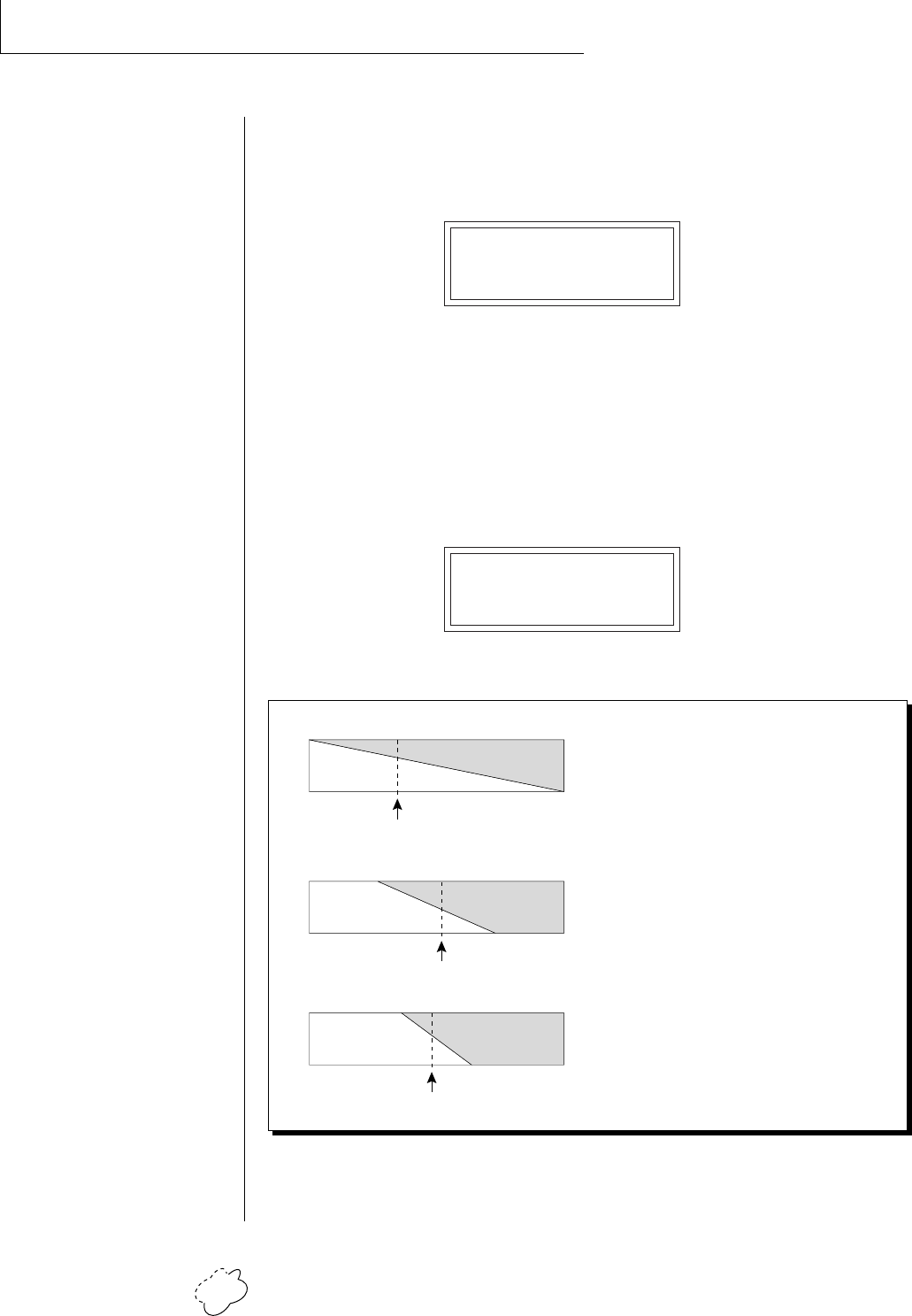
Planet Phatt Operation Manual66
EDIT MENU
• Crossfade Direction
This function determines the polarity of the crossfade or cross-switch.
The direction is either primary ➝ secondary, or secondary ➝ primary.
XFADE DIRECTION
Pri -> Sec
• Crossfade Balance
The crossfade balance parameter determines the initial balance
between the primary and secondary layers. Higher values shift the
balance to the secondary instrument. When the Crossfade Direction is
Pri->Sec, modulation subtracts from the primary volume and adds to
the secondary volume. When crossfade modulation and balance equal
64, the two instruments are at equal volume.
XFADE BALANCE
064
Modulation and Crossfade Balance are added together to determine the mixture of
primary and secondary instruments. Higher values increase the secondary volume.
▼ Crossfade must be
assigned to a modulation
source in the Realtime or
Key/Velocity modulation
screens.
••• A Crossfade Balance
setting of 000 would be
appropriate with a source
such as a modulation wheel
or footpedal, either of which
can only change the value in
a positive direction.
0 255
Pri Sec Medium Crossfade Amount
0 255
Pri Sec
0 255
Pri Sec
Balance + Mod
Balance + Mod
Balance + Mod
Large Crossfade Amount
Small Crossfade Amount
Chapter 5: Edit Menu 67
EDIT MENU
• Crossfade Amount
The crossfade amount parameter determines the range over which
crossfading will occur. Crossfade amount is variable from 000 to 255.
The larger the value, the more modulation will be required to effect a
complete crossfade.
XFADE AMOUNT
128
• Cross-switch Point
The cross-switch point determines the point at which cross-switching
will occur when key position or velocity is controlling cross-switch.
SWITCH POINT
064 (E3)
• Primary Filter Type
This function selects the type of filter for the primary layer. 17 differ-
ent filter types are provided. If no filtering is desired, you can bypass
the filter by turning it Off.
FILTER TYPE pri
2 Pole Lowpass
FILTER TYPES
2-pole Lowpass
Lowpass filter with 12dB/octave rolloff and Q control.
4-pole Lowpass
Lowpass filter with 24dB/octave rolloff and Q control.
6-pole Lowpass
Lowpass filter with 36dB/octave rolloff and Q control.
2nd Order Highpass
Highpass filter with 12dB/octave rolloff and Q control.
4th Order Highpass
Highpass filter with 24dB/octave rolloff and Q control.
▼ To enable the cross-switch
function, you must assign
Crossfade to a modulation
source in the Realtime or
Key/Velocity Modulation
screen.
Velocity Key

Planet Phatt Operation Manual68
EDIT MENU
2nd Order Bandpass
Bandpass filter with 6dB/octave rolloff on either side of the
passband and Q control.
4th Order Bandpass
Bandpass filter with 12dB/octave rolloff on either side of the
passband and Q control.
Swept EQ, 1-octave
Parametric filter with 24 dB of boost or cut and a one octave
bandwidth. Fc controls center frequency and Q controls boost or
cut.
Swept EQ, 2->1-octave
Parametric filter with 24 dB of boost or cut. The bandwidth of the
filter is two octaves wide at the low end of the audio spectrum,
gradually changing to one octave wide at the upper end of the
spectrum. Fc controls center frequency and Q controls boost or
cut.
Swept EQ, 3->1-octave
Parametric filter with 24 dB of boost or cut. The bandwidth of the
filter is three octaves wide at the low end of the audio spectrum,
gradually changing to one octave wide at the upper end of the
spectrum. Fc controls center frequency and Q controls boost or
cut.
Phaser 1
Creates a comb filter effect, typical of phase shifters. Filter Fc
moves the position of the notches. Q varies the depth of the
notches.
Phaser 2
Comb filter with slightly different notch spacing than Phaser 1.
Filter Fc moves the position of the notches. Q varies the depth of
the notches.
Bat-Phaser
Phase shifter with peaks as well as notches.
Flanger Lite
Contains three notches. Filter Fc moves frequency and spacing of
the notches. Q increases flanging depth.
Vocal Ah-Ay-Ee
Vowel formant filter which sweeps from the “Ah”␣ sound, through
“Ay” sound to “Ee” sound at maximum Fc. Q varies the apparent
size of the mouth cavity.
Chapter 5: Edit Menu 69
EDIT MENU
Vocal Oo-Ah
Vowel formant filter which sweeps from the “Oo”␣ sound, through
“Oh” sound to “Ah” sound at maximum Fc. Q varies the apparent
size of the mouth cavity.
Bottom Feeder
This is a specialized distortion filter, useful for adding punch and
drive to low frequency sounds such as bass and drums. Set the Fc
low (less than 45) for best effect. Q has no effect on this filter.
• Primary Filter Cutoff & Q
This function allows you to set the cutoff frequency (the frequency at
which filtering begins) and the Q or resonance for the lowpass and
highpass filters. On a lowpass or highpass filter, turning up the Q
causes the frequencies near the cutoff to be emphasized. On the other
filter types, Fc and Q control various other parameters. See the filter
descriptions of these functions.
FILTER pri
Fc:255 Q:05
• Secondary Filter Type
Selects the filter type for the secondary instrument or the filter can be
turned Off. See Primary Filter Type.
FILTER TYPE sec
Vocal Ah-Ay-Ee
• Secondary Filter Cutoff & Q
This is the same as the Primary Cutoff and Q for the secondary filter.
FILTER sec
Fc:255 Q:05
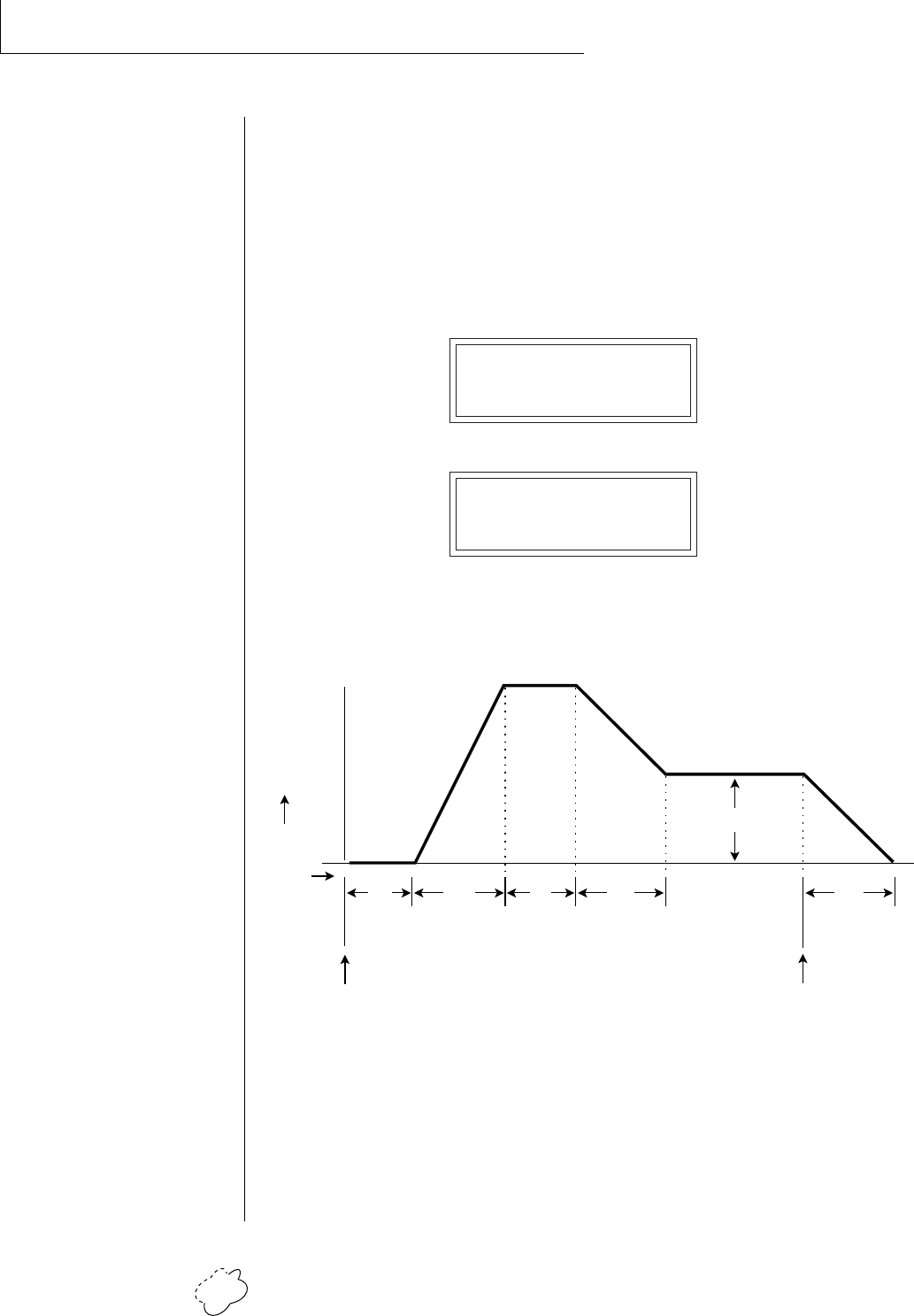
Planet Phatt Operation Manual70
EDIT MENU
• Auxiliary Envelope
This is a supplementary, utility envelope that can be routed to any
realtime control destination including the filter. The auxiliary enve-
lope parameters are: Envelope Amount, Delay, Attack Time, Hold
Time, Decay Time, Sustain Level, and Release Time. The delay time is
variable from 0 to 13 seconds (000-127). The envelope amount is
variable from -128 to +127. Negative values will produce inverted
envelopes.
AUX ENV AMT DLY
+127 000
A: A H D S R
00 00 00 99 20
This diagram shows the six stages of the Auxiliary Envelope Generator.
D
e
l
a
y
level
time
key
down
A
t
t
a
c
k
H
o
l
d
D
e
c
a
y
Sustain
R
e
l
e
a
s
e
key
released
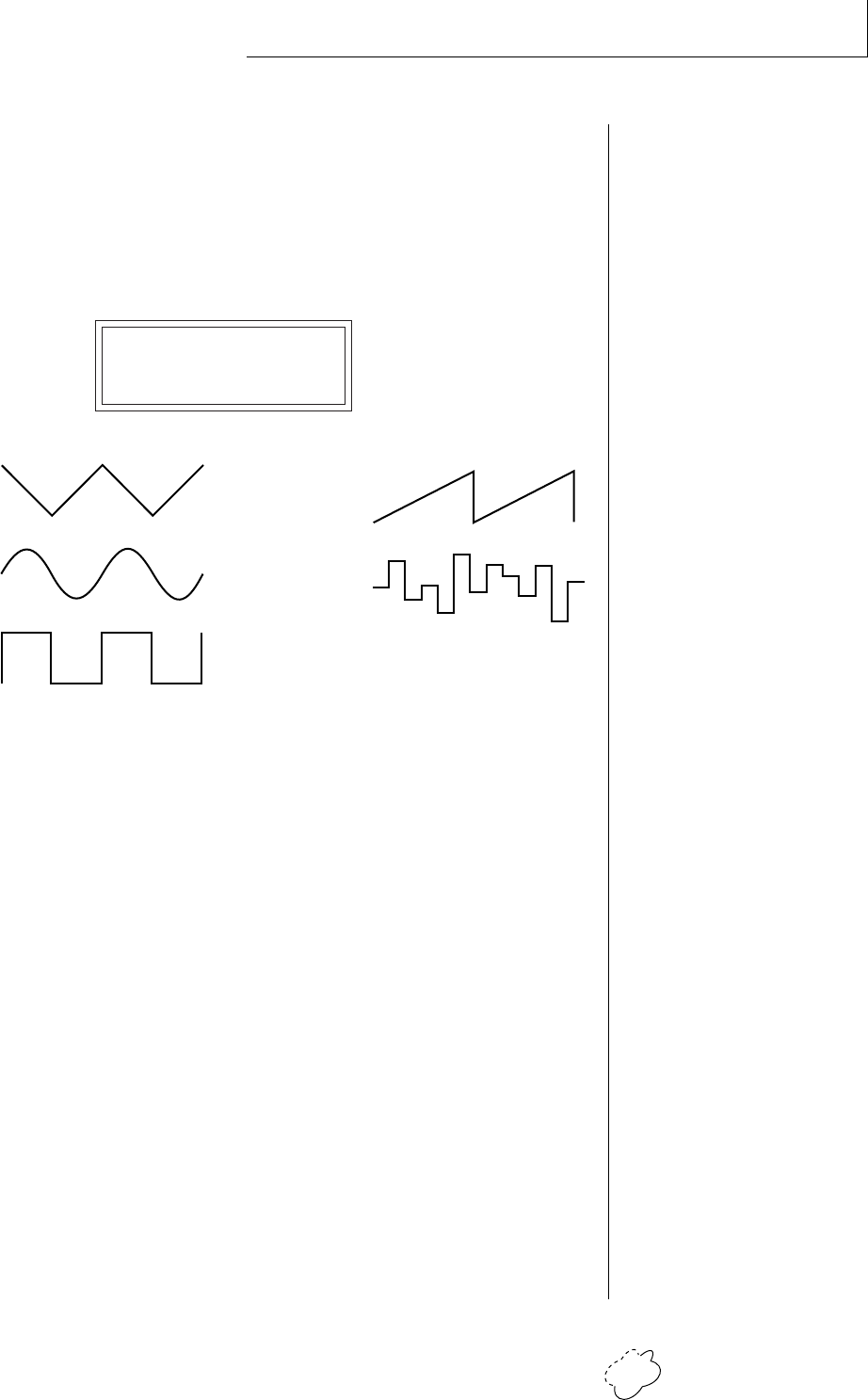
Chapter 5: Edit Menu 71
EDIT MENU
• LFO 1 - Shape & Amount
This screen controls the waveshape and amount of Low Frequency
Oscillator 1. The LFO can be used to produce vibrato (when routed to
pitch), or tremolo (when routed to volume). The five LFO waveshapes
are: Triangle, Sine, Square, Sawtooth, and Random. The amount can
be varied from -128 to +127. Negative values will produce inverted
waveshapes.
LFO1 SHAPE AMT
SynSaw +127
The Triangle, Sine, Sawtooth and Square LFO shapes can also be
Synced to the Beats tempo or to external MIDI clock. The LFO
waveforms preceded by “Syn”␣ are synced LFO's. With the LFO synced
to the beats tempo, the LFO rate will follow any changes in the beats
tempo.
• LFO 1 - Rate, Delay & Variation
This screen controls the rate, delay and variation of LFO 1.
LFO Rate
Varies the LFO speed from 0.052 Hz to 25 Hz (000-127).
• Certain LFO rates are marked on Synced LFOs to show you that
they correspond to various note values when synced to the Beats
tempo.
LFO Delay
Sets the amount of time between hitting a key and the onset of
modulation. This can be used to simulate an effect often used by
acoustic instrument players, where the vibrato is brought in only
after the initial note pitch has been established. The delay range
is variable from 0 to 13 seconds (000-127).
••• LFO Rates to Beats:
004 ..... Double Whole Note
006 ..... Double Whole Trip.
013 ..... Whole Note Triplet
017 ..... Half Note
024 ..... Half Note Triplet
030 ..... Quarter Note
042 ..... Quarter Note Triplet
051 ..... Eighth Note
066 ..... Eighth Note Triplet
077 ..... 16th Note
095 ..... 16th Note Triplet
109 ..... 32nd Note
Triangle
Square
Sine
Sawtooth
Random
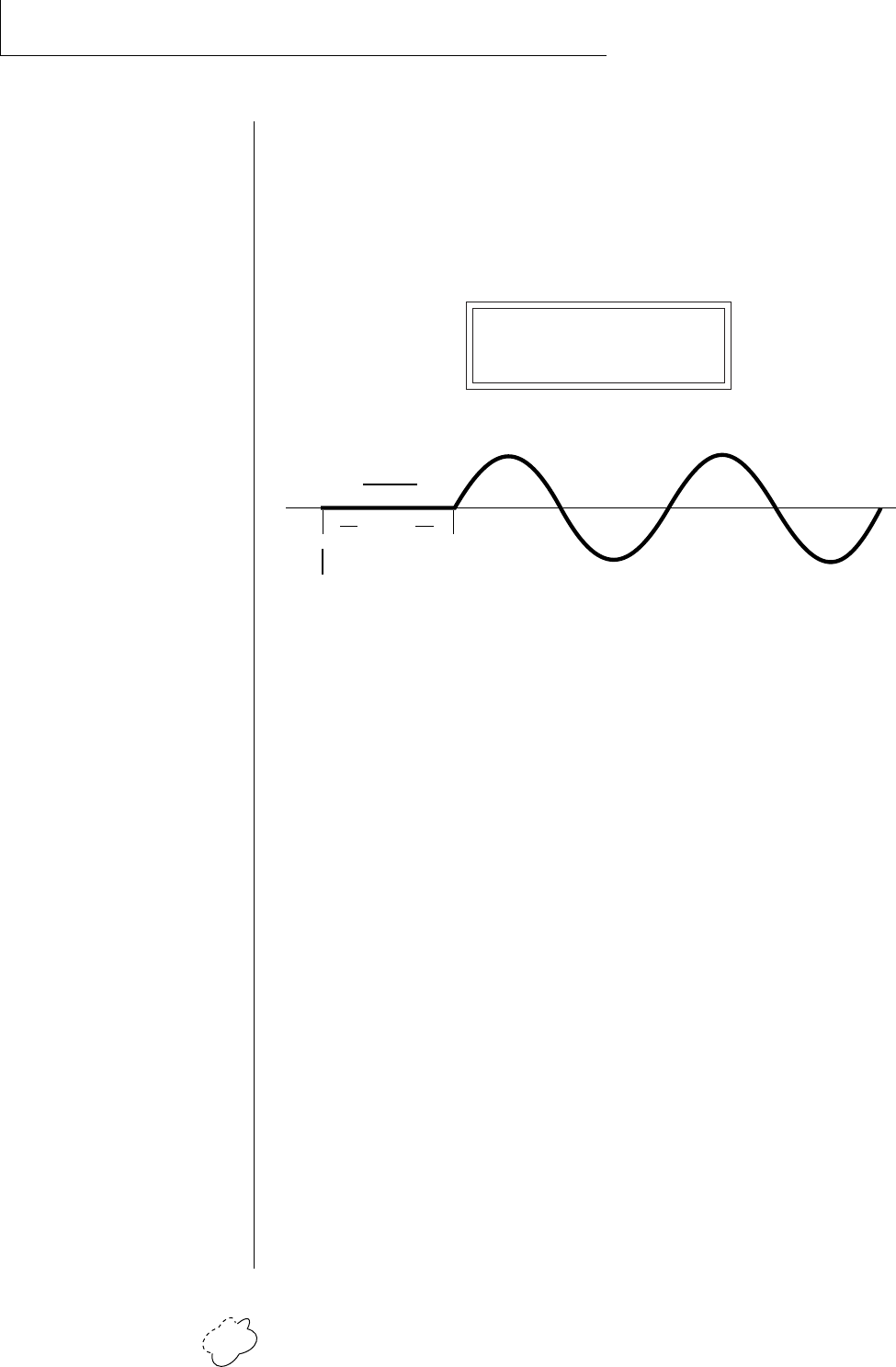
Planet Phatt Operation Manual72
EDIT MENU
LFO Variation
Sets the amount of random variation of an LFO each time a key is
pressed. This function is useful for ensemble effects, where each
note played has a slightly different modulation rate. The higher
the number, the greater the note to note variation in LFO rate.
LFO variation is variable from 000-127.
LFO1 RT DLY VAR
000 000 000
The LFO wave begins after the specified delay time has elapsed.
• LFO 2 - Shape & Amount
LFO 2 is functionally identical to LFO 1.
• LFO 2 - Rate, Delay & Variation
LFO 2 is functionally identical to LFO 1.
time
key
down
Delay
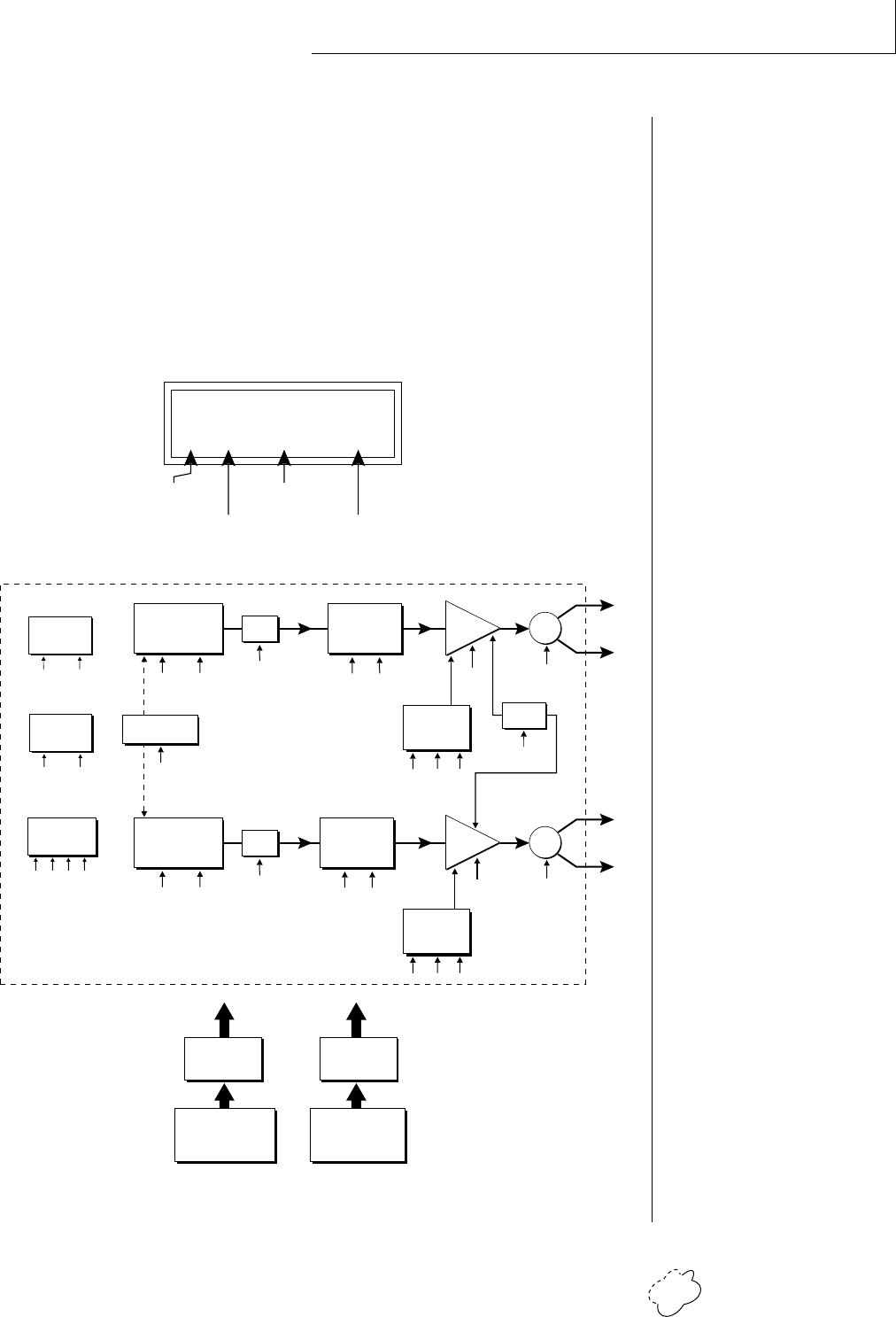
Chapter 5: Edit Menu 73
EDIT MENU
• Keyboard & Velocity Modulation Control
These functions allow you to route keyboard and velocity information
to any of the modulation destinations. Up to 6 simultaneous paths or
“patches” may be programmed. For each modulation patch, there is a
source (keyboard or velocity), and a corresponding amount parameter
which is variable from -128 to +127. Place the cursor under the
appropriate parameter and change the patch number, modulation
source, modulation destination, or the amount using the data
entry control. If a parameter is not labeled either primary or
secondary, it affects both.
When Modulating Enve-
lope Attack, Decay or
Release Times:
Positive amounts of modula-
tion increase the time.
Negative amounts of modu-
lation decrease the time.
Keyboard
Modulation Sources
Key Number, Key Velocity
Destinations
Off,
Pitch, Primary Pitch,
Secondary Pitch,
Volume, Primary Volume,
Secondary Volume,
Attack, Primary Attack,
Secondary Attack,
Decay, Primary Decay,
Secondary Decay,
Release, Primary Release,
Secondary Release,
Crossfade,
LFO 1 Amount, LFO 1 Rate,
LFO 2 Amount, LFO 2 Rate,
Auxiliary Envelope Amount,
Auxiliary Envelope Attack,
Auxiliary Envelope Decay,
Auxiliary Envelope Release,
Portamento Rate,
Primary Portamento Rate,
Secondary Portamento Rate,
Filter Fc, Primary Filter Fc,
Secondary Filter Fc,
Filter Q, Primary Filter Q,
Secondary Filter Q,
Sample Start,
Primary Sample Start,
Secondary Sample Start,
Pan, Primary Pan,
Secondary Pan,
Tone, Primary Tone,
Secondary Tone
LFO 1
Amount Rate
LFO 2
Amount Rate
R
L
Volume
Pan
Primary
Instrument
Pitch Sample
Start
Tone
VELOCITY
VELOCITY
CURVE
KEY NUMBER
KEYBOARD
CENTER
Keyboard and Velocity Modulation Sources
X-Fade
Atk Dec Rel
Volume
AHDSR
R
L
Volume
Pan
Secondary
Instrument
Pitch Sample
Start
Tone
Atk Dec Rel
Volume
AHDSR
Portamento
Rate
DCA
DCA
Modulation Destinations
Auxiliary
DAHDSR
AmtAtk Dec Rel
Z-Plane
Filter
QFc
Z-Plane
Filter
QFc
KEY/VELOCITY CTL
1 V>Attack -064
Modulation
Source
Modulation
Destination
Modulation
Amount
Patch
Number
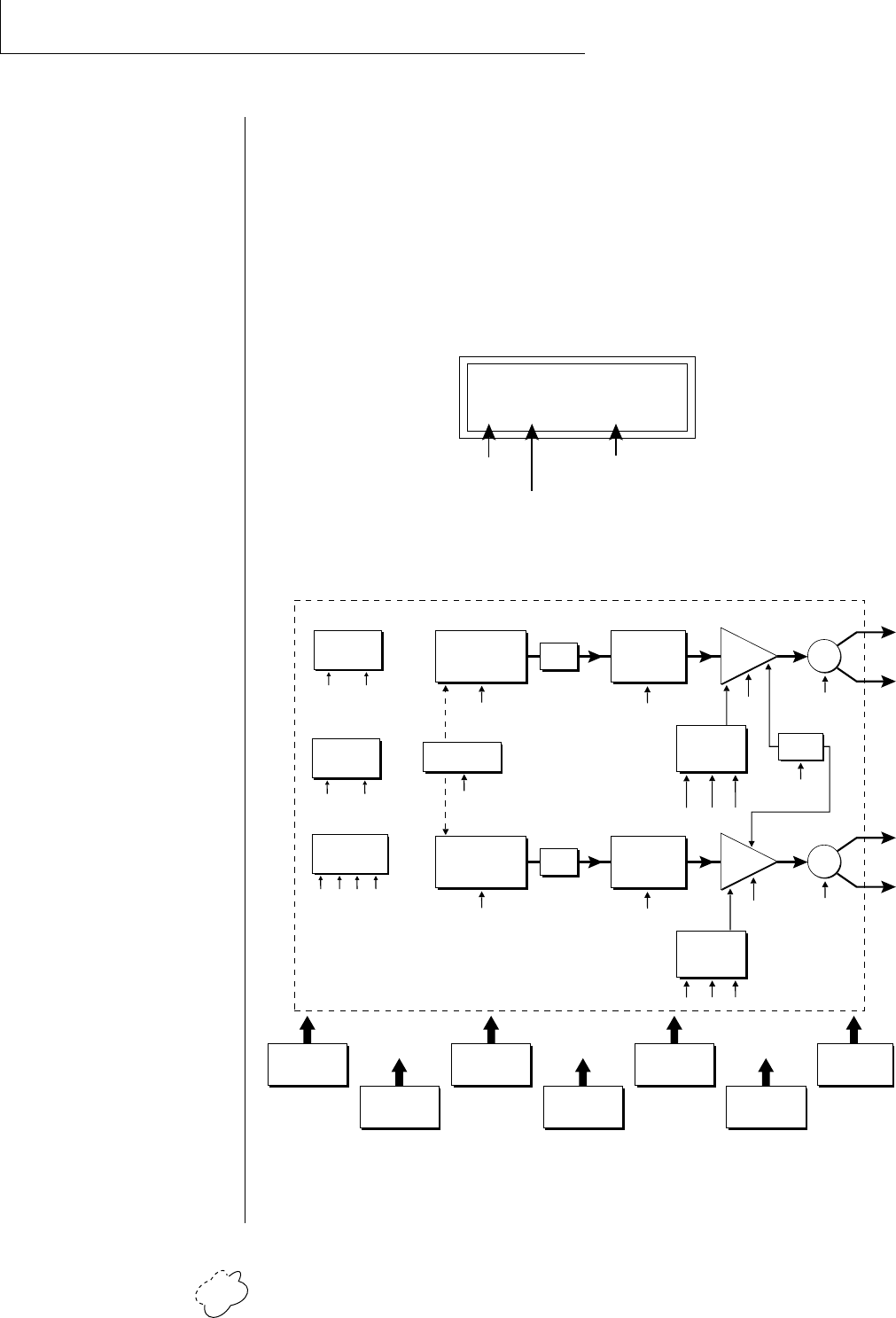
Planet Phatt Operation Manual74
EDIT MENU
• Realtime Modulation Control
These functions allow you to route realtime controllers to any of the
modulation destinations on except Tone, Sample Start, Q and Pan. Up
to 8 simultaneous patches may be programmed. For each modulation
patch, there is a source and a destination parameter. Place the cursor
under the appropriate parameter and change the patch number,
modulation source or modulation destination using the data entry
control. If a parameter is not labeled either primary or secondary, it
affects both.
REALTIME CTL
1 LFO1 ->Pitch
Modulation
Source
Modulation
Destination
Patch
Number
Realtime
Modulation Sources
Pitch Wheel,
MIDI Control A,
MIDI Control B,
MIDI Control C,
MIDI Control D,
Mono Pressure,
Polyphonic Pressure,
LFO 1, LFO 2,
Auxiliary Envelope
Destinations
Off,
Pitch, Primary Pitch,
Secondary Pitch,
Volume, Primary Volume,
Secondary Volume,
Attack, Primary Attack,
Secondary Attack,
Decay, Primary Decay,
Secondary Decay,
Release, Primary Release,
Secondary Release,
Crossfade,
LFO 1 Amount, LFO 1 Rate,
LFO 2 Amount, LFO 2 Rate,
Auxiliary Envelope Amount,
Auxiliary Envelope Attack,
Auxiliary Envelope Decay,
Auxiliary Envelope Release,
Portamento Rate,
Primary Portamento Rate,
Secondary Portamento Rate,
Filter Fc, Primary Filter Fc,
Secondary Filter Fc,
Pan, Primary Pan,
Secondary Pan
Realtime Modulation Sources
POLY
PRESSURE
MONO
PRESSURE
MIDI
CONTROLLER
A/B/C/D
LFO 2
AUXILIARY
ENVELOPE
LFO 1PITCH WHEEL
Auxiliary
DAHDSR
AmtAtk Dec Rel
LFO 1
Amount Rate
LFO 2
Amount Rate
Modulation Destinations
R
L
Volume
Pan
Atk Dec Rel
Volume
AHDSR
Primary
Instrument
Pitch
Tone
Z-Plane
Filter
X-Fade
R
L
Volume
Pan
Atk Dec Rel
Volume
AHDSR
Secondary
Instrument
Pitch
Tone
Z-Plane
Filter
Fc
Fc
Portamento
Rate
DCA
DCA
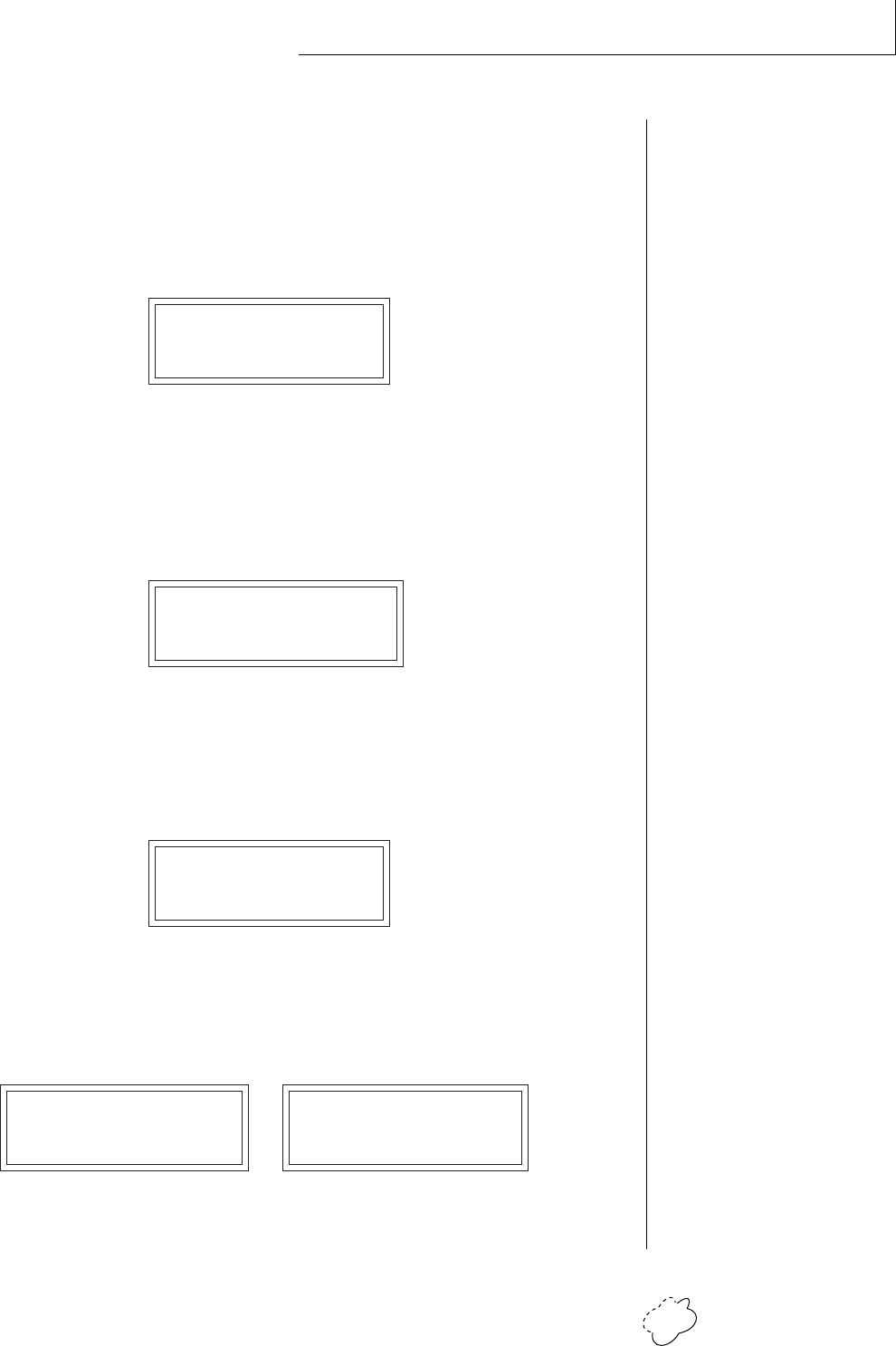
Chapter 5: Edit Menu 75
EDIT MENU
• Footswitch Control
This function allows you route the 3 footswitch controllers (1, 2 or 3)
to any of the footswitch destinations. The footswitches can be routed
to switch: Sustain (pri/sec/both), alternate volume envelope (pri/sec/
both), alternate volume release (pri/sec/both), or cross-switch between
the primary and secondary instruments.
FOOTSWITCH CTL
1 -> Sustain
• Pitch Bend Range
This function allows you to specify the pitch wheel range for the
current preset or it can be set to be controlled globally (set in the
Master menu). Pitch bend range is only applied when the pitch wheel
is used to control pitch.
PITCH BEND RANGE
+/- 12 semitones
• Pressure Amount
This function allows you to specify an amount parameter for mono or
poly keyboard pressure data. The pressure amount is variable from
-128 to +127.
PRESSURE AMOUNT
+127
• MIDI Controller Amount
This function allows you to specify an amount parameter (variable
from -128 to +127) for each of the MIDI controllers.
CONTROLLER AMT CONTROLLER AMT
A:+127 B:-090 C:+030 D:+060
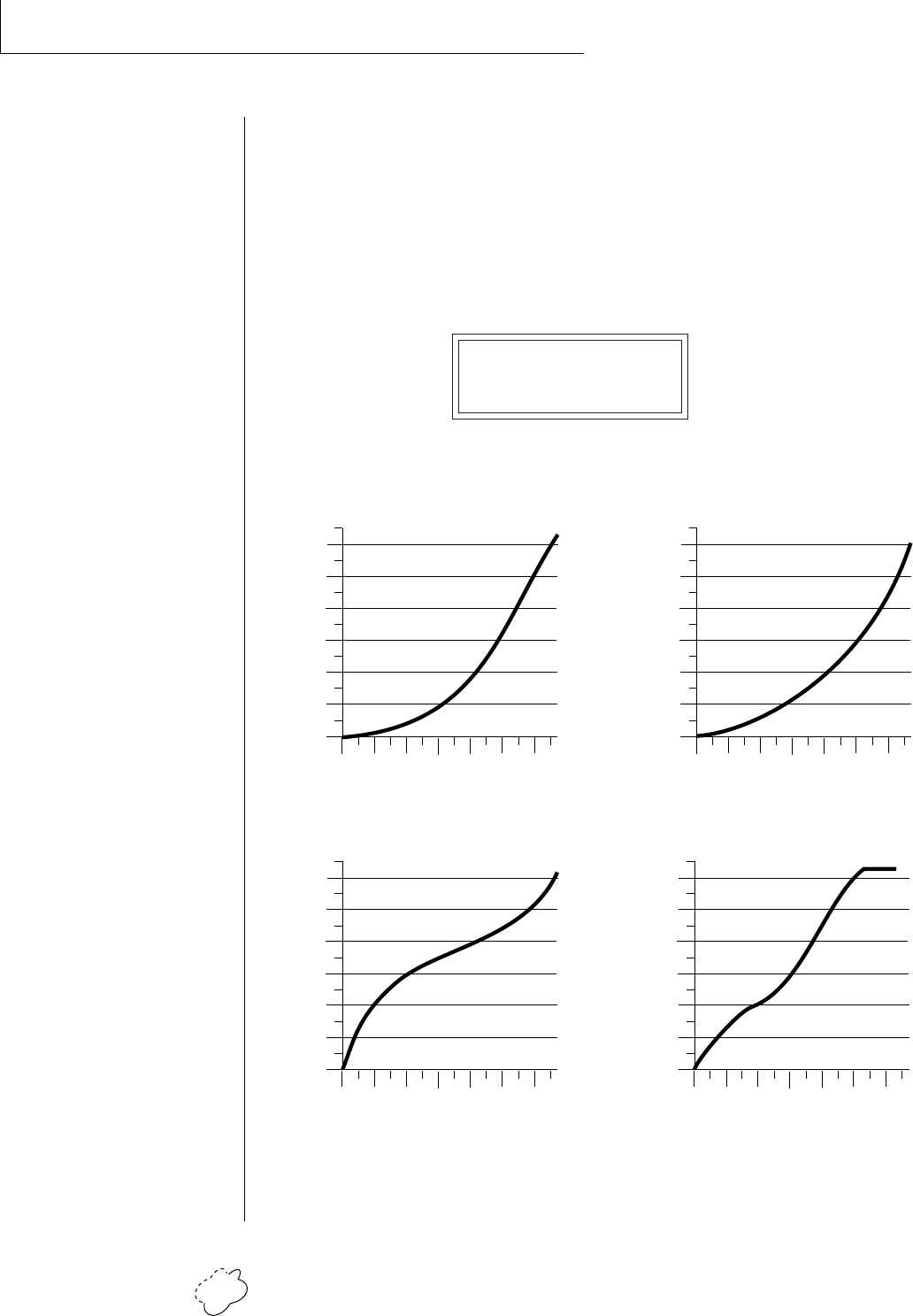
Planet Phatt Operation Manual76
EDIT MENU
• Velocity Curve
Incoming velocity data can be modified by a velocity curve in order to
provide different types of dynamics in response to your playing or
better adapt to the MIDI controller. This function allows you to select
one of the four velocity curves or leave the velocity data unaltered
(Off). In addition, the velocity curve can be set to “Global”, which
means that the global velocity curve (programmed in the Master
menu) is used.
VELOCITY CURVE
Global
Curve 1
0
20
40
60
80
100
120
020 40 60 80 100
Played Velocity
120
Resulting Velocity
Curve 2
0
20
40
60
80
100
120
020 40 60 80 100
Played Velocity
120
Resulting Velocity
Curve 3
0
20
40
60
80
100
120
020 40 60 80 100
Played Velocity
120
Resulting Velocity
0
20
40
60
80
100
120
020 40 60 80 100
Played Velocity
120
Resulting Velocity
Curve 4
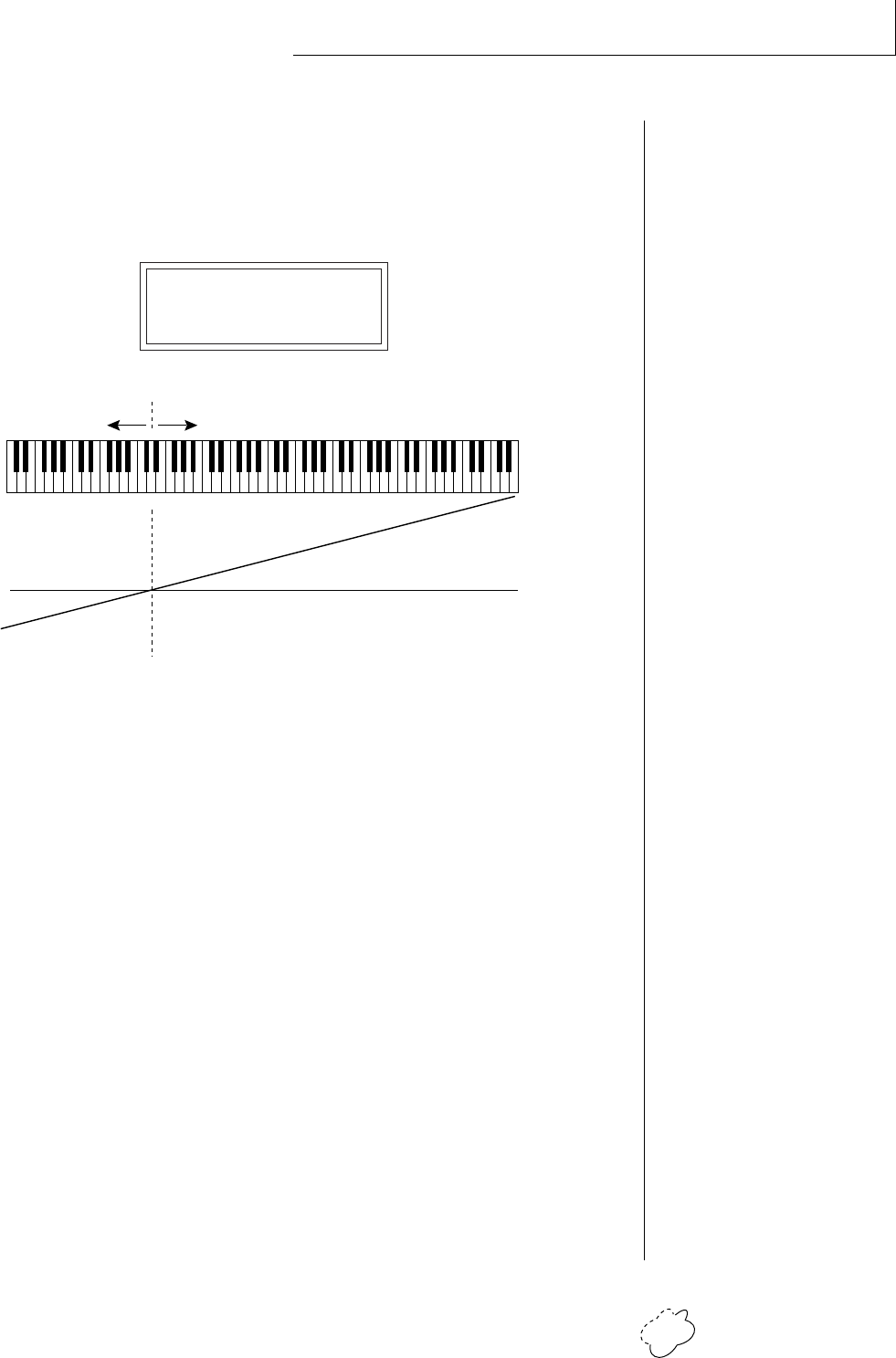
Chapter 5: Edit Menu 77
EDIT MENU
• Keyboard Center
The Keyboard Center parameter establishes a reference point for
keyboard modulation. Keys above this point will have a positive value
and keys below it will be negative. The keyboard center can be set to
any key within the range C-2 to G8.
KEYBOARD CENTER
C#3
• Keyboard Tuning
In addition to the standard equally divided octave tuning, Planet Phatt
contains three other types of scale tuning and one user-definable
tuning. This function selects which tuning will be used in the current
preset. The choices of keyboard tunings are:
Equal tuning (12 tone equal temperament)
Standard Western tuning.
Just C tuning (just intonation)
Based on small interval ratios. Sweet and pure, non-beating inter-
vals.
Vallotti tuning (Vallotti & Young non-equal temperament)
Similar to 12 tone equal temperament. For a given scale, each key
has a different character
19 Tone tuning (19 tone equal temperament)
19 notes per octave. Difficult to play, but works well with a se-
quencer.
Gamelan (Javanese) tuning (5 tone Slendro and 7 tone Pelog)
Pelog-white keys, Slendro-black keys. Exotic tunings of Gamelan
flavor.
User Tuning
Defined in the Master menu.
KEY CENTER
+
-
0
-
+
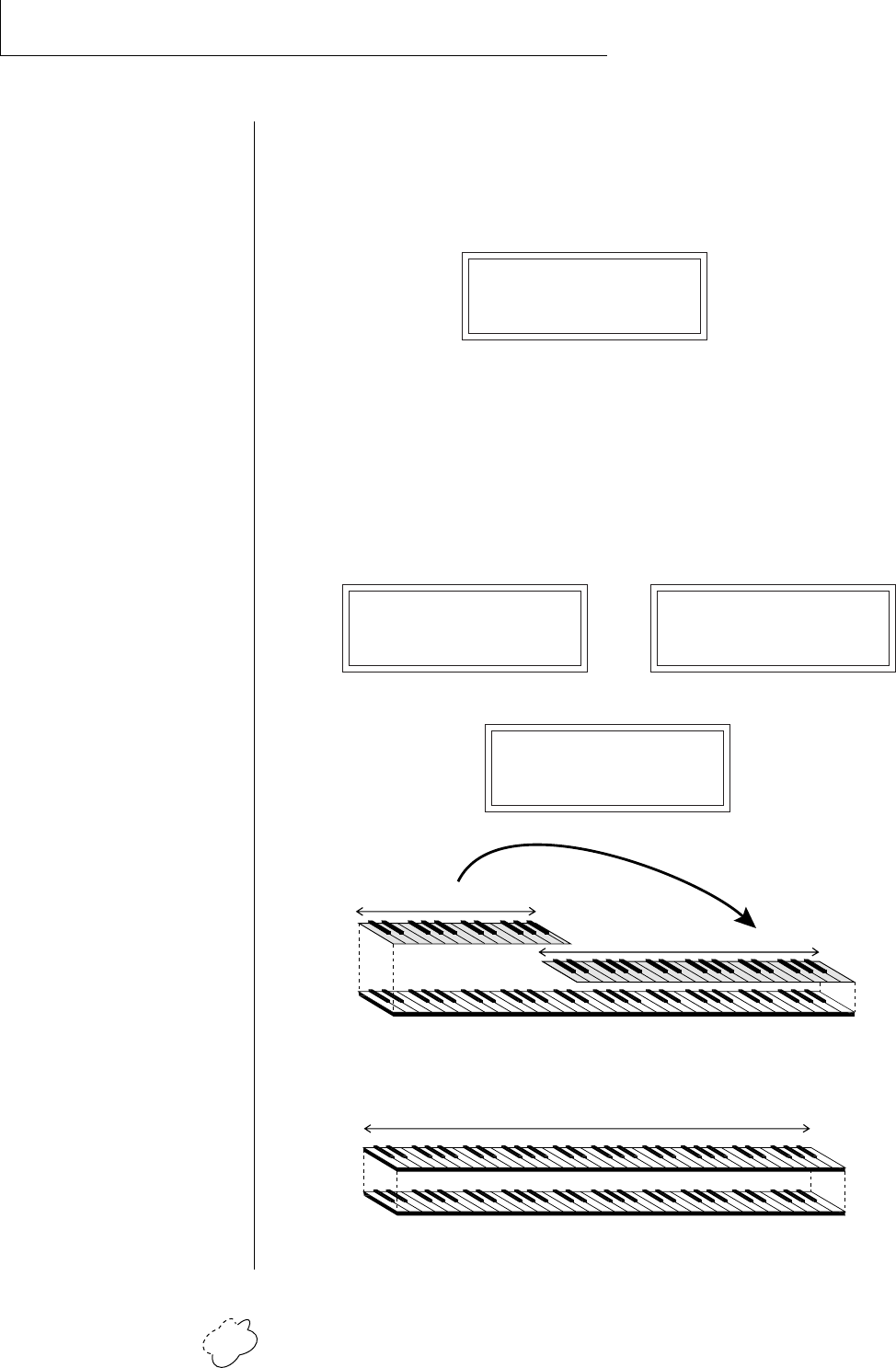
Planet Phatt Operation Manual78
EDIT MENU
• Mix Output
This function allows you to direct the channels used by a particular
preset to appear at one of these three stereo outputs (Main, Sub 1,
Sub 2).
MIX OUTPUT
Main
• Preset Links
Presets may be linked to other presets in order to create layering or
keyboard splits. The current preset can be linked with up to three
other presets. Each linked preset can be assigned to a specific range in
order to easily create keyboard splits. The modulation parameters and
Mix Output assignments specified in each preset remain in effect for
each preset in the link.
LINK 1 C#1->F#4 LINK 2 C#1->F#4
000 Preset Name 122 Preset Name
LINK 3 C-2 ->G8
Off
Key Range
Key Range
CREATING A SPLIT KEYBOARD
LINK
Preset #1
Preset #2
LAYERING TWO PRESETS
Key Range
Zone 1
Zone 2
••• Presets assigned to the
Sub 1 or Sub 2 outputs will
appear at the Main outputs if
plugs are not inserted into
the Sub 1 or Sub 2 jacks.
2
Chapter 5: Edit Menu 79
EDIT MENU
• Save Preset
Changes made to a preset in the Edit menu are not made permanent
until the preset is Saved. To save a preset, move the cursor to the
bottom line and select the location for the new preset with the data
entry control. The Enter LED will be flashing. Pressing the Enter
switch will confirm the operation. Any user preset (Banks 0 & 1) may
be selected using the data entry control. Writing to a user preset erases
the existing preset in that location. Make sure that the destination
preset does not contain information that you want to keep.
SAVE PRESET to
064 Preset Name
To Save a Preset
1. Select the new location.
2. Press Enter.
0

Planet Phatt Operation Manual80
EDIT MENU

Chapter 6: Step-By-Step 81
STEP-BY-STEP

Planet Phatt Operation Manual82
STEP-BY-STEP
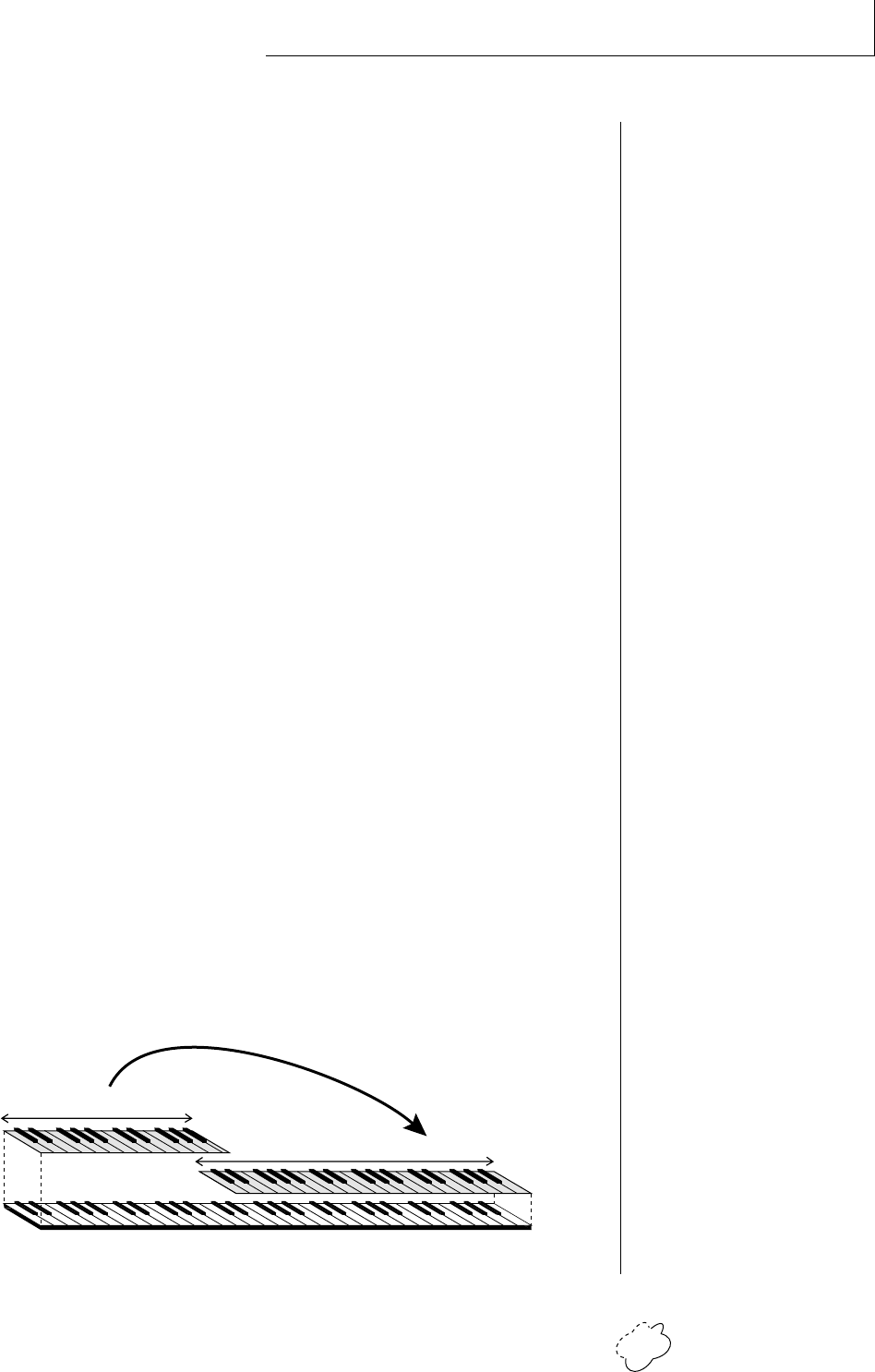
Chapter 6: Step-By-Step 83
STEP-BY-STEP
This section contains step-by-step instructions on how to get started in
programming your own custom sounds. It is recommended that you
actually try each example on Planet Phatt unit, rather than just read-
ing through. The best way to learn something is by actually doing it.
LINKING PRESETS
Linking presets is a quick and easy way to create new sounds by “layer-
ing” presets and also to “split” a keyboard into sections containing
different sounds.
• Layering Two Presets
1) Select the first preset you wish to layer.
2) Press the Edit button.
3) Use the data entry control to move through the screens until you
find one of the “LINK” screens.
4) Move the cursor to the second line of the display, then select the
preset that you want to be linked with this preset. You may want
to play the keyboard as you scroll through the various presets in
order to hear the results.
5) If you want the link to be a permanent part of the preset, be sure
to “SAVE PRESET”. Otherwise, simply change the preset to erase
your work.
• Create a Split Keyboard Using Links
1) Follow steps 1 through 4 above.
2) Now set the range of the linked preset while still in the LINK
menu.
3) Save the preset.
4) Now go back to the first preset, press the Edit button and use the
data entry control to move through the screens to KEY RANGE.
5) Set the range of this preset so that it fills the remaining range of
your keyboard.
6) Save the preset.
••• To get the most out of
this section, please read
Chapter 4, Programming
Basics first.
Key Range
Key Range
CREATING A SPLIT KEYBOARD
LINK
Planet Phatt Operation Manual84
STEP-BY-STEP
EDITING PRESETS
The easiest way to make a new preset is to edit an existing preset. This
is also an excellent way of becoming familiar with Planet Phatt. If you
don’t like what you hear, simply change the preset and Planet Phatt
reverts back to the original sound. Changes are not made permanent
until you Save them using the “SAVE PRESET” function, which is the
last screen in the Edit menu. Let’s experiment and modify a few
parameters of an existing preset. We’ll start with functions that have
an obvious effect on the sound: Instrument Select, Coarse Tuning,
Chorus and Reverse Sound. First, choose any cool preset and press the
Edit button.
• Changing the Instrument
This is probably the easiest and most dramatic way to modify an
existing preset. Scroll through the Edit menu functions until you come
to:
INSTRUMENT pri
IXXX Instr Name
Move the cursor down to the bottom line (using the cursor button)
and change the primary instrument with the data entry control. Play
the keyboard as you scroll through the various instruments. When
you find an interesting instrument, move the cursor back up to the
first line and select:
INSTRUMENT sec
IXXX Instr Name
Repeat the process for the secondary instrument. Find an instrument
that sounds good when combined with the first one you selected. You
can probably see that with all these great instruments to work with,
you really can’t go wrong. Now let’s play with the tuning.
CHANGING THE TUNING OF AN INSTRUMENT
Scroll through the Edit menu functions until you come to:
TUNING coarse
pri:+00 sec:+00
Chapter 6: Step-By-Step 85
STEP-BY-STEP
If the numbers are “00” as in the previous screen, it means that the
instruments are tuned to concert pitch (A=440 Hz). Each whole num-
ber in coarse tuning represents a semitone interval. To tune one or
both of the instruments up an octave, move the cursor to the number
(using the cursor button) and set the number to +12 using the data
entry control. Try tuning one of the instruments to a perfect fifth
above the other. Simply set the coarse tuning to +7.
Tuning an instrument far out of its normal range will completely
change the character of the sound. For example, if you tune a bass
guitar up 2 octaves, it's going to sound rather petite. On the other
hand, if you tune it down 2 octaves, you can probably rattle plaster off
the walls! Experiment with radical pitch shifting. You'll be surprised at
the results.
CHORUS
This is an easy one. With the cursor on the top line of the display,
turn the data control until you find CHORUS. Various amounts of
chorusing can be selected for each of the primary and secondary
instruments. Chorus works by doubling the instruments, detuning
and panning them slightly. The larger the number, the more detuning
will occur. Warning: Since it works by doubling the instruments, chorus
halves the number of notes you can play on Planet Phatt. Chorus is useful
when you want to “fatten up” a part quickly and easily. Just turn
chorus on!
CHORUS
pri:07 sec:Off
REVERSING THE INSTRUMENT
A simple concept. The instrument sounds can be played in reverse.
This will normally make an instrument sound quite a bit different. It
also virtually doubles the number of raw instruments you have to
work with, and it’s fun.
REVERSE SOUND
pri:Off sec:Off
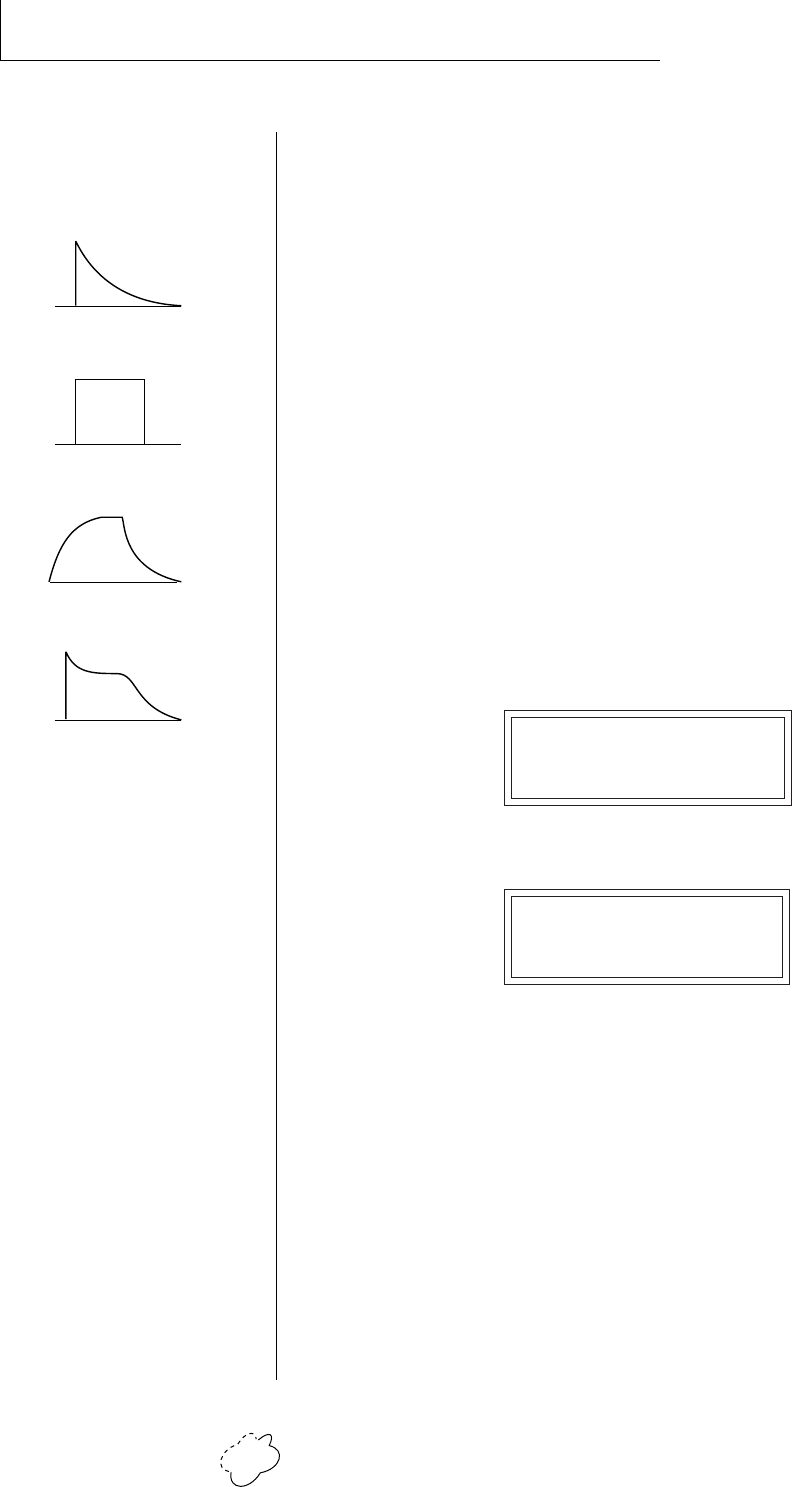
Planet Phatt Operation Manual86
STEP-BY-STEP
ALTERNATE VOLUME ENVELOPE
Every sound you hear, be it a piano note, a drum, a bell or whatever,
has a characteristic volume curve or envelope, which grows louder or
softer in various ways during the course of the sound. The volume
envelope of a sound is one of the clues that our brain uses to
determine what type of sound is being produced.
Each instrument has it's own volume envelope which is used when
the Alternate Envelope parameter is turned Off. By turning the Alter-
nate Envelope On, we can re-shape the instrument's natural volume
envelope any way we want. By reshaping the volume envelope of a
instrument, you can dramatically change the way the sound is per-
ceived. For example, by adjusting the envelope parameters, you can
make “bowed” pianos or backwards gongs. The diagrams at the left
show the volume envelopes of a few common sounds.
In preparation for this experiment choose a fairly “normal” preset (like
an organ or synth) which continues to sustain when the key is held
down. Go to the Secondary Instrument screen and set it to “None”.
Next go to the Alt. Volume Envelope screen and turn the Primary
Volume Envelope On.
ALT VOL ENVELOPE
pri:On sec:Off
Now move on to the next screen:
P: A H D S R
00 00 10 99 10
Increase the Attack time and play a note. The attack controls the time
it takes for the sound to reach full volume when a key is pressed and
held.
Now increase the Release time and note the effect as you release the
note. The Release time controls the time it takes for the sound to die
away when a note is released.
• Anatomy of an Envelope
When a key is pressed, the envelope generator starts increasing at the
Attack rate. When it reaches full level, it Holds at that level for the
Hold time. After the Hold time has elapsed, the envelope begins to
Decay back down at the specified Decay rate until it reaches the
Sustain Level. Note that all the other parameters are Times, but the
Sustain is a Level.
Percussion
Organ
String
Plucked
••• The generalized volume
envelope shapes of a few
types of sounds are shown
above.
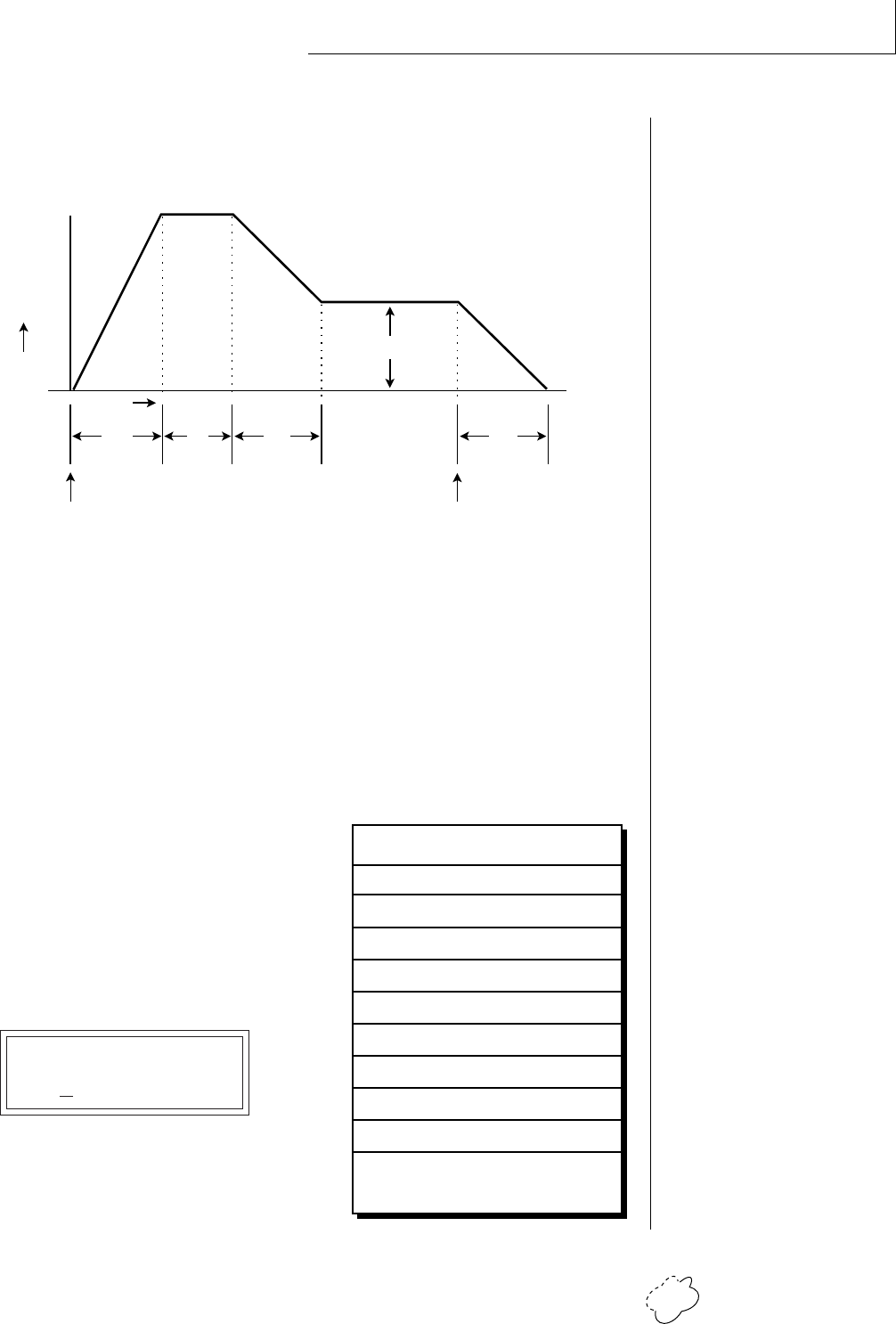
Chapter 6: Step-By-Step 87
STEP-BY-STEP
The envelope will stay at the Sustain level for as long as the key is
held. When the key is released, the envelope falls back down to zero at
the Release rate.
WORKING WITH THE FILTER
The low pass filter makes it possible to remove certain components of
the sound. A low pass filter removes the high frequency components
or put another way, it “lets the lows pass”. In preparation for this
experiment choose a fairly “normal” preset (like an organ or synth).
Go to the Secondary Instrument screen and set it to “None”, then set
the Primary Instrument to one which is rich in harmonics, such as
Instrument I074 Clavinet. (Since filters work by removing or accentu-
ating certain frequencies, we want to make sure that we have a lot of
frequencies to start with.) Set the
parameters as listed in the chart
below in order to “clean the slate” for
your filter investigation.
Go to the primary filter cutoff and Q
screen shown on the following page
and position the cursor below the Fc
value.
FILTER pri
Fc:255 Q:00
Instrument: 074 Clavinet
Tuning course: +00
Volume: +127
Alt. Vol. Envelope: Off
Realtime CTL: 1-8 -> All Off
Filter Type Pri: 4 Pole Lowpass
Filter Fc: 255
Filter Q: 00
Aux Envelope Amt: +100
Aux Env: A H D S R
28 00 33 00 16
Primary
level
time
key
down
AHD
S
R
key
released
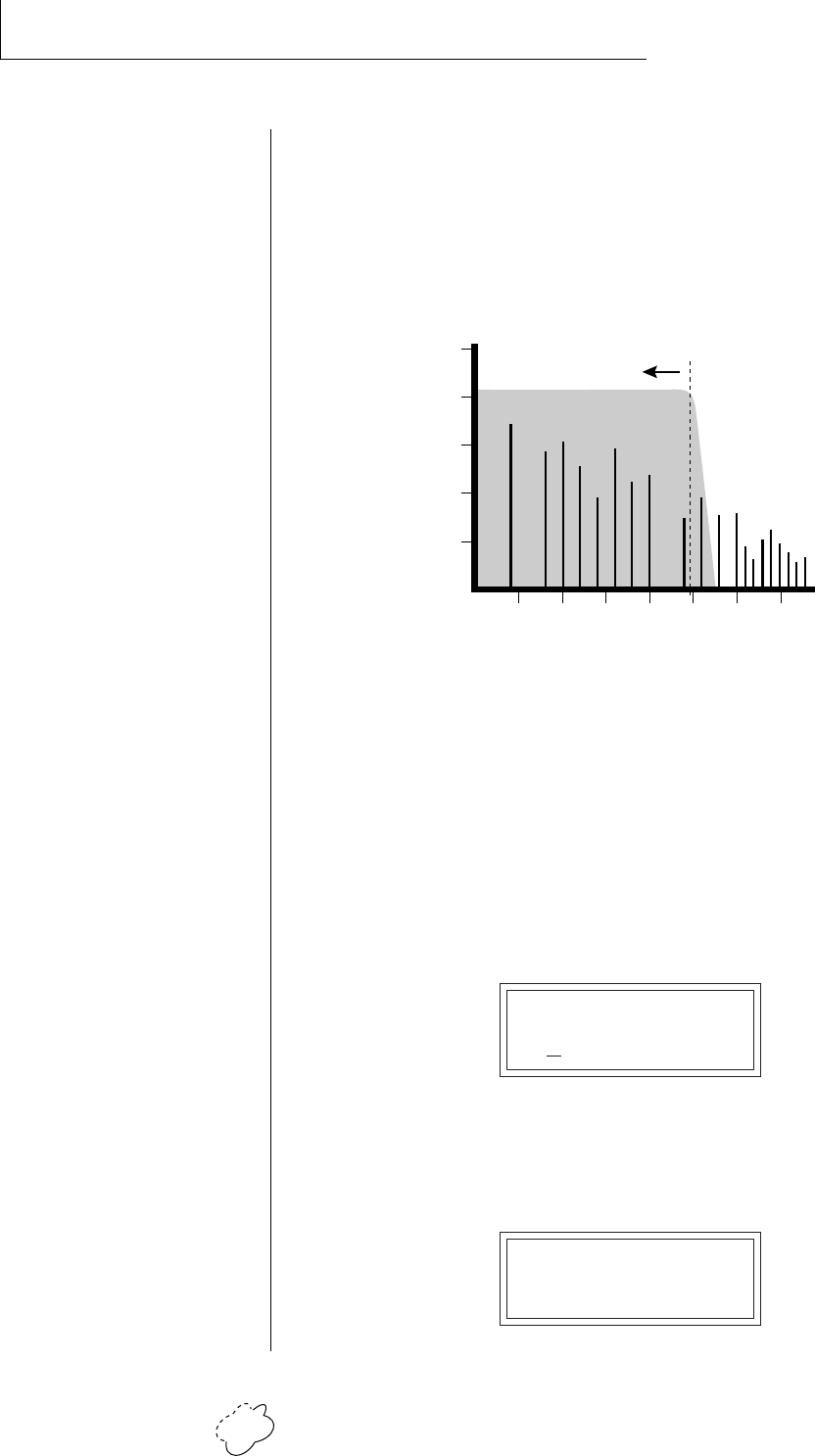
Planet Phatt Operation Manual88
STEP-BY-STEP
Playing the keyboard now, you should hear the raw Clavinet sound.
Slowly decrease the filter Fc as you play the keyboard. The sound will
get duller and duller as more and more high frequencies are filtered
out until at some point the sound will completely disappear. (You
have filtered out everything.) The chart below illustrates what you just
did. You moved the cutoff frequency down.
Open the filter back up to 255, then move the cursor underneath the
Q. Set the Q to 10, then move the cursor back under the Fc. As you
change the Fc, notice that the sound now has a sharp, nasal quality.
With a high Q, frequencies at the cutoff frequency (Fc) are being
boosted or amplified.
Now let's modulate the filter Fc with the Auxiliary envelope generator.
The envelope generator is a device that can automatically change the
filter Fc during the course of the note. Set the Fc way down until you
can just hear the sound (about 60), then press Enter and go to the
REALTIME CTL screen.
REALTIME CTL
1 PWhl -> Off
Move the cursor down underneath the source and set it to Aux (for
Auxiliary Envelope). Next move the cursor underneath the destination
and set it to Filter Fc. The screen should look like this:
REALTIME CTL
1 Aux -> FiltFc
20
40
60
80
100
40 80 160 360 720 14402880
Frequency
...
Amplitude
Output of Filter
Cutoff Frequency
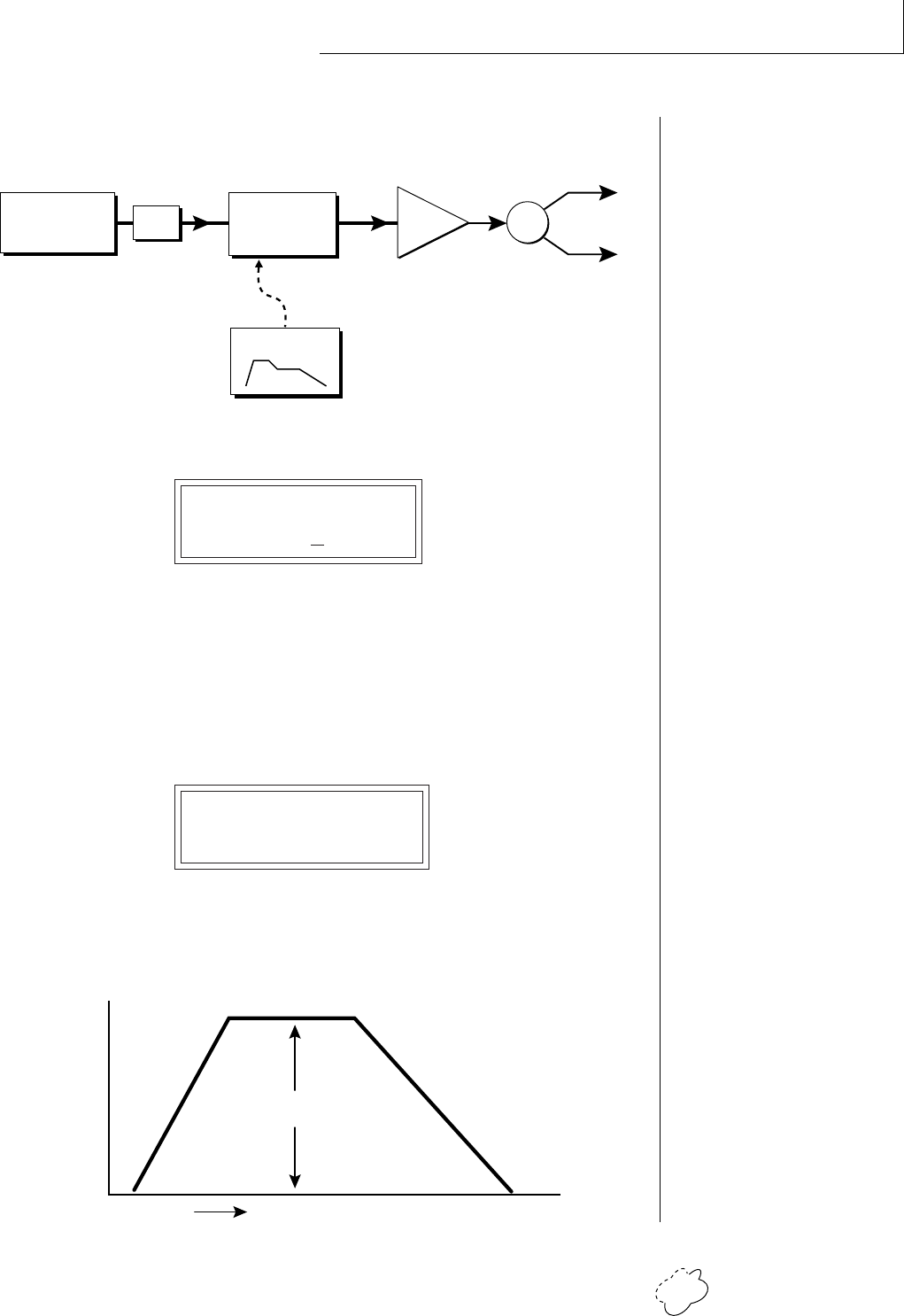
Chapter 6: Step-By-Step 89
STEP-BY-STEP
You have just connected the Auxiliary Envelope Generator to the
Filter Cutoff as shown in the diagram below.
Now go back to the Aux Envelope screen.
AUX ENV AMT DLY
+100 000
Move the cursor underneath the envelope amount and change the
value to about +100. Now when you press a key the filter will slowly
sweep up. Because the filter Q is set high, you can hear the different
harmonics of the sound being accentuated as the filter cutoff sweeps
past.
Now, scroll back to the Auxiliary Envelope parameter screen.
A: A H D S R
15 00 00 99 50
Change the attack rate and note the change in the sound. The diagram
below shows approximately how the envelope looks when the param-
eters are set as shown above.
••• Note that all the enve-
lope parameters are Rates
except for Sustain, which is
a Level.
R
L
Pan
Instrument
Tone
Filter
DCA
Aux. AHDSR
Fc Q
Attack Time
Sustain Level
Release Time
time
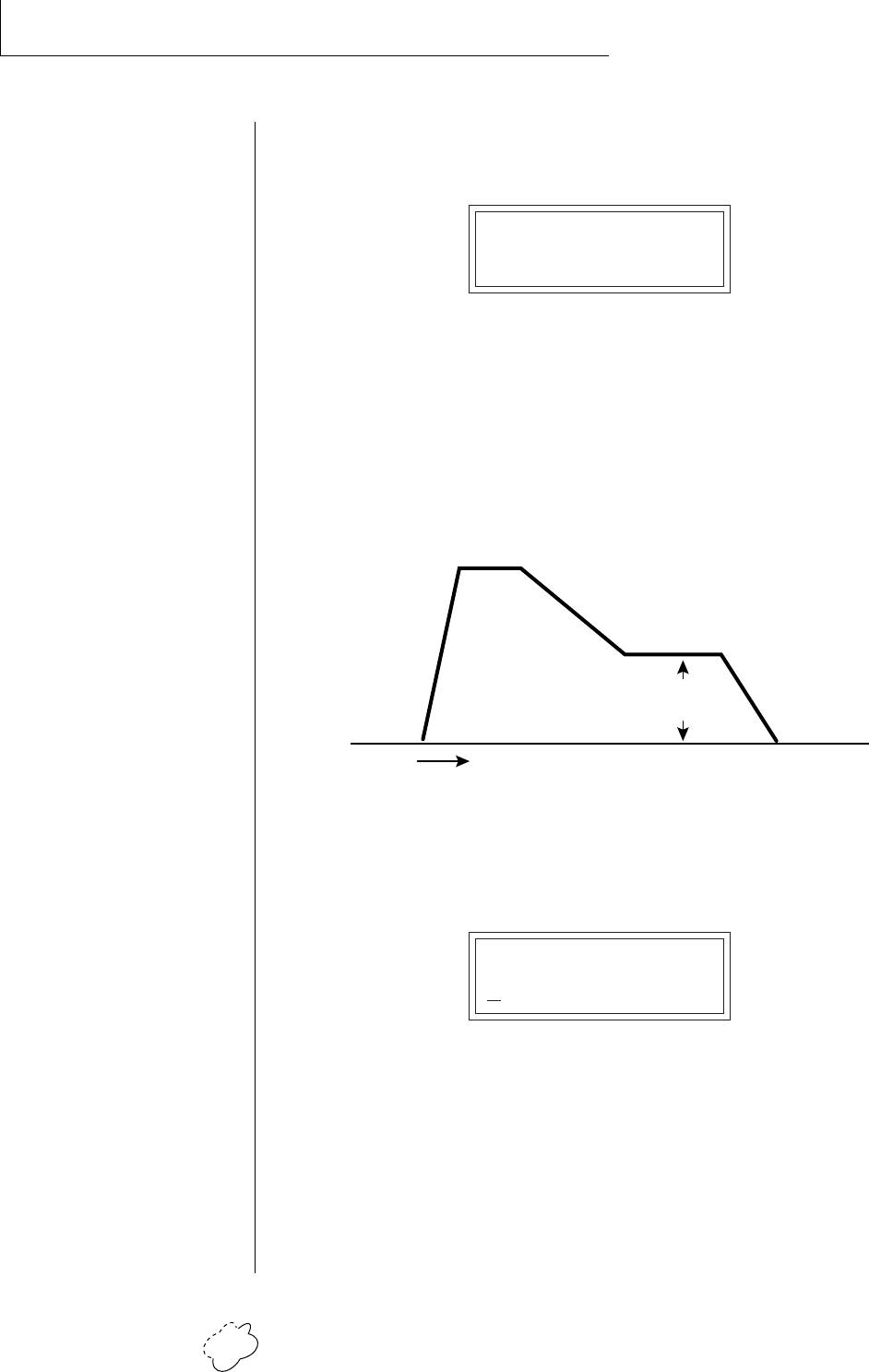
Planet Phatt Operation Manual90
STEP-BY-STEP
Because the Sustain level is set to maximum, the decay parameter has
no effect. Set the parameters as shown below.
A: A H D S R
03 06 24 36 12
Now the filter sweeps up, Holds there for a bit, then Decays back
down to the Sustain Level until you release the key. Then it sweeps
down at the Release rate. Play with the envelope parameters for
awhile to get a feel for their function. (If you're having trouble under-
standing the Envelope Generators, please refer to the Programming
Basics section in this manual.)
Attack Time
Hold
Time
Decay Time
Sustain
Level
Release
time
Go back to the Primary Filter Type screen shown below and move the
cursor down the lower line of the display. Change the filter type while
playing the keyboard.
FILTER TYPE pri
2nd Ord Hipass
These filters are extremely powerful and have been carefully crafted to
offer maximum flexibility and musical control. You may want to
change the Envelope Amount, Q and/or the Filter Cutoff to get the
right sound for each filter and instrument. These three controls,
coupled with the Aux. Envelope, are perhaps the most important
controls on Planet Phatt. Take the time to learn how they interact
with each other and you will be able to create just about any type of
sound you want.
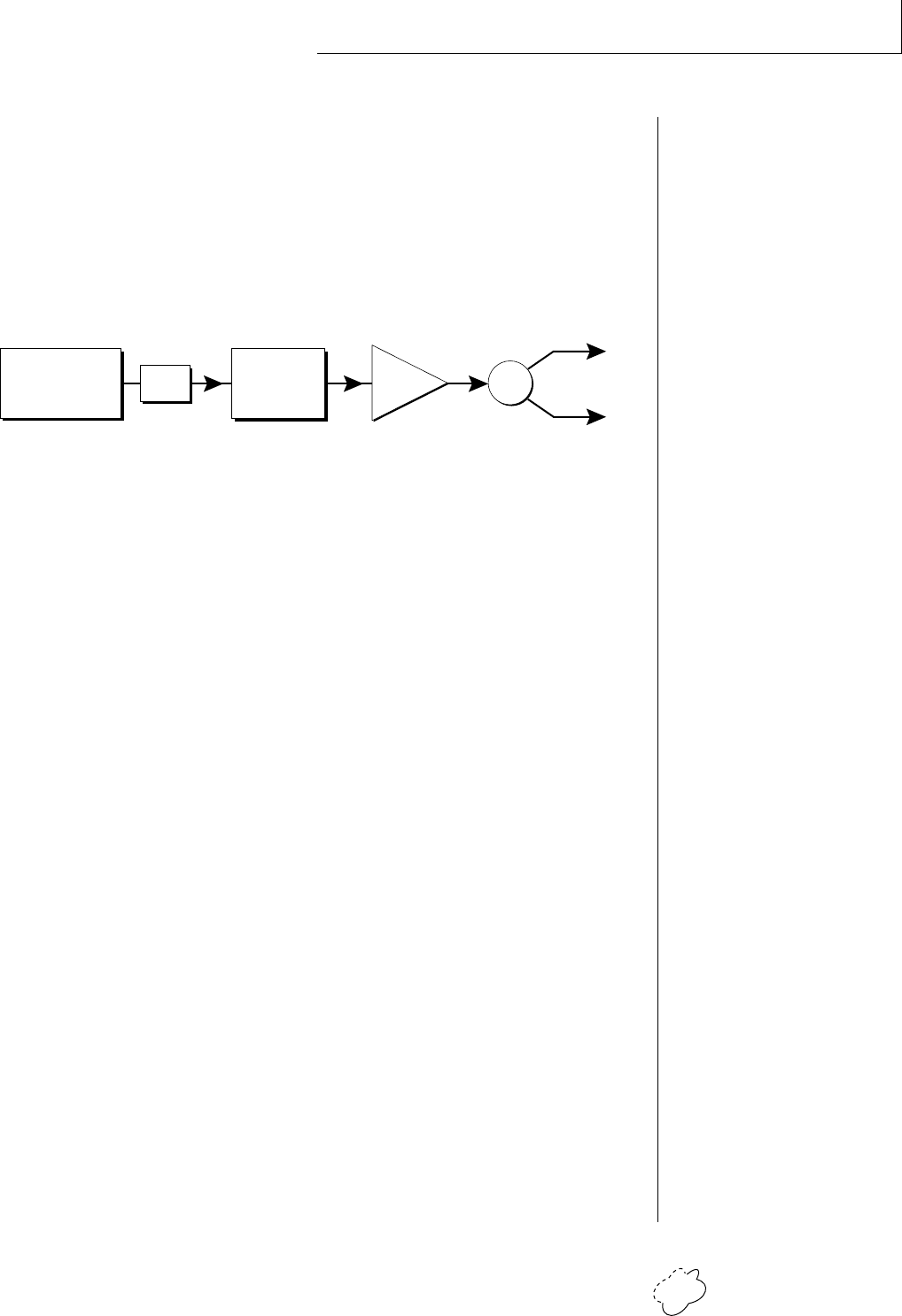
Chapter 6: Step-By-Step 91
STEP-BY-STEP
• Troubleshooting
A common source of confusion when working with the filter envelope
is that the Attack or Release parameter might not seem to be working
correctly. Referring to the diagram below which shows the Planet
Phatt signal flow, you will notice that the DCA comes after the Filter.
The DCA controls the final volume of the sound, so if the filter's
release is longer than the release for the DCA, you won't hear it, be-
cause the DCA has already shut off the sound.
••• Presets can be stored in
any of the non-volatile RAM
locations (Banks 0 & 1).
R
L
Pan
Instrument Tone DCA
Z-Plane
Filter
This is just an example of why troubleshooting is important. If you are
not getting the expected result, try to analyze the situation. There will
be many times when you will have to stop for a minute and think,
“What am I trying to do and why isn't it working?” When this hap-
pens (and it will), don't panic. Troubleshooting is a normal part of the
synthesis process. Simply examine the various parameters and try to
be as analytical as possible as you solve the problem. Usually the
solution will be simple. (The filter is already wide open and can't open
any more.) Learning to play an instrument takes… Practice.
You’re probably getting the general idea by now. Remember not to
change presets or the preset will return to normal. If you want to save
your creation, select the last screen in the Edit menu and select a
destination preset location for your masterpiece, then press Enter.
Practice Modulating
• Try modulating the pitch with the Aux. Envelope generator
• Use velocity to modulate the Aux Envelope Amount or the filter
Fc. (Key/Vel. screen). This will brighten the sound as you play
harder.
• Program the LFO to modulate filter Fc and volume (Realtime
modulation screen).
• Modulate the LFO with the other LFO, with velocity, and with the
modulation wheel.
• Think of ten different modulation routings, then try them out. The
key to learning about Planet Phatt is to experiment.
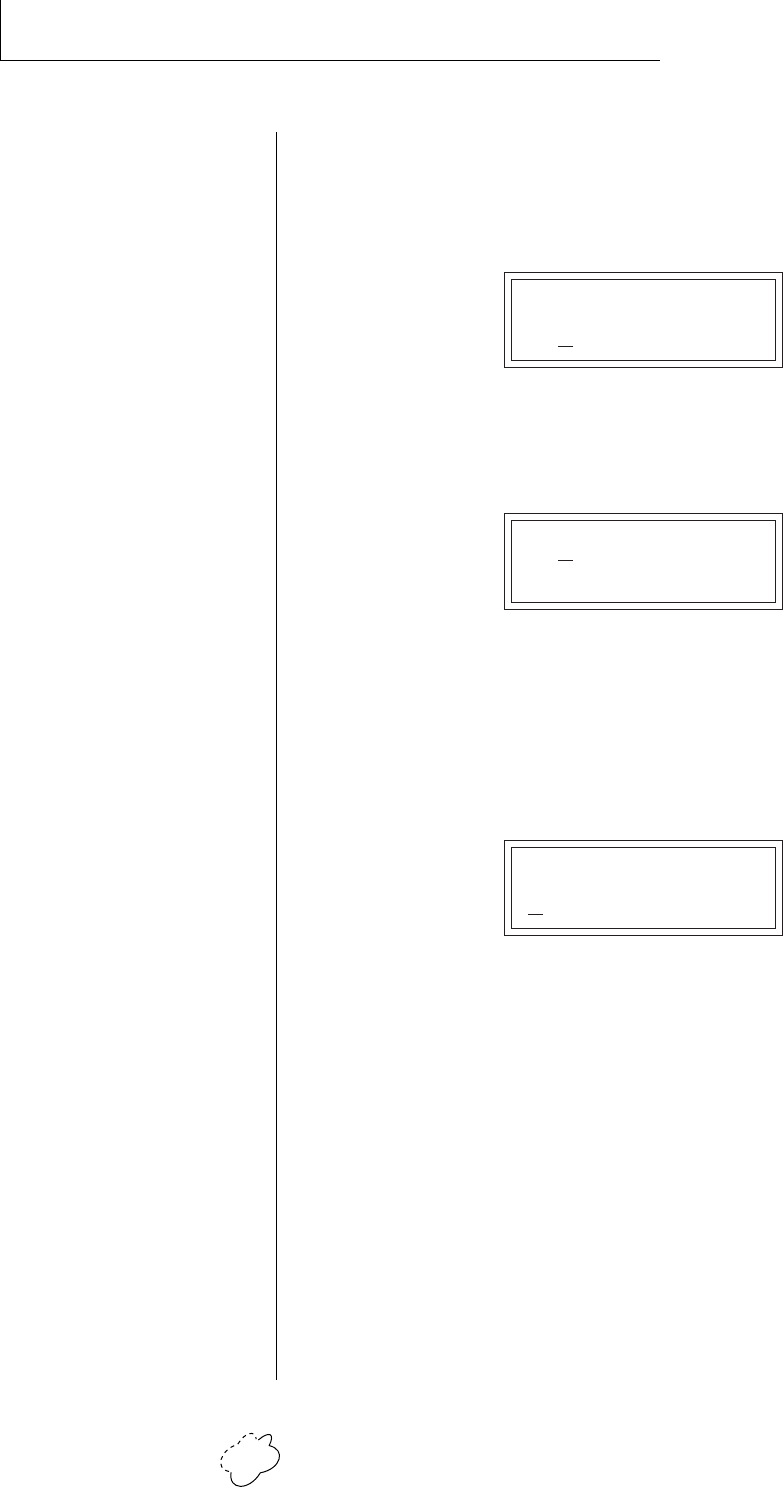
Planet Phatt Operation Manual92
STEP-BY-STEP
USING PLANET PHATT WITH A SEQUENCER
We thought you’d never ask. Planet Phatt was designed from its con-
ception with multi-timbral sequencing in mind. Just take a look at the
main screen.
C01 Vol127 Pan=P
000 Preset Name
The preset for each MIDI channel is selected from the main screen.
Press the cursor button to move the cursor up so that it is underneath
the channel number.
C01 Vol127 Pan=P
000 Preset Name
Turn the data entry control and you will see that every MIDI channel
has a preset assigned to it. Just select a preset for each of the MIDI
channels. It’s simple! In order to respond to multiple MIDI channels,
Planet Phatt must be in Multi-Mode. Multi-Mode is selected in the
Master menu. Press the Master menu button and use the data entry
control to scroll through the screens until you find MIDI MODE.
MIDI MODE ID
Multi 00
Move the cursor down to the second line and change the mode to
Multi as shown. Planet Phatt will now respond to multiple MIDI
channels.
MORE ADVANCED SEQUENCING
• Pre-Sequence Setup
Suppose that you want to have your sequencer set up everything for
you before the start of the song. Good idea. This will make the setup
procedure automatic and prevent the wrong presets from playing.
The basic idea of a pre-sequence setup is to send out MIDI information
just before the start of the song. This MIDI information will select all
the proper presets, adjust the mix, and pan positions of each preset.

Chapter 6: Step-By-Step 93
STEP-BY-STEP
Note: Planet Phatt setup information should be transmitted from the
sequencer before the song actually starts, perhaps during a lead-in
measure or countdown. DO NOT send setup information just before
the first beat of the song or MIDI timing errors could result.
• Initial Setup
In the Master menu:
1) Turn ON Multi-Mode
2) Turn ON Preset Change enable for each channel.
3) Turn OFF MIDI Enable on MIDI channels that are to be used for
other synthesizers.
• Preset, Volume & Pan Setup
Program your MIDI sequencer to transmit the following information
before the song starts.
1) Select the proper presets for each MIDI channel used on Planet
Phatt.
2) Send MIDI volume information (controller #7) for each MIDI
channel used on Planet Phatt.
3) Send MIDI pan information (controller #10) for each MIDI chan-
nel used on Planet Phatt.
Now your song will play perfectly every time using the proper presets,
volumes and pan positions. In addition, presets, volumes and pan
positions (or anything else for that matter) can be adjusted in realtime
during the song. Note: If the wrong presets are being selected, check
the MIDI Program -> Preset map.
To carry the pre-sequence setup even further, you can even include
preset data for each preset used in the sequence. See page 30 for
details.
•␣ Using the 32 Channels
As stated earlier, Planet Phatt has 32 independent audio channels
which are utilized dynamically. With 32 channels and 640 presets,
you have a universe of sonic textures at your disposal. You may have
noticed that some of the very big sounding presets in Planet Phatt are
linked with other presets or they have chorus applied to them. While
this is fine when the preset is played solo, you may begin to run out of
channels when Planet Phatt is played multi-timbrally. Linking and
chorusing cause twice as many channels to be used by the preset.
Learn to “budget” your output channels for maximum efficiency.
••• The Preset, Volume and
Pan information for all 16
channels is included when
the Master Settings are
transmitted or received over
MIDI.
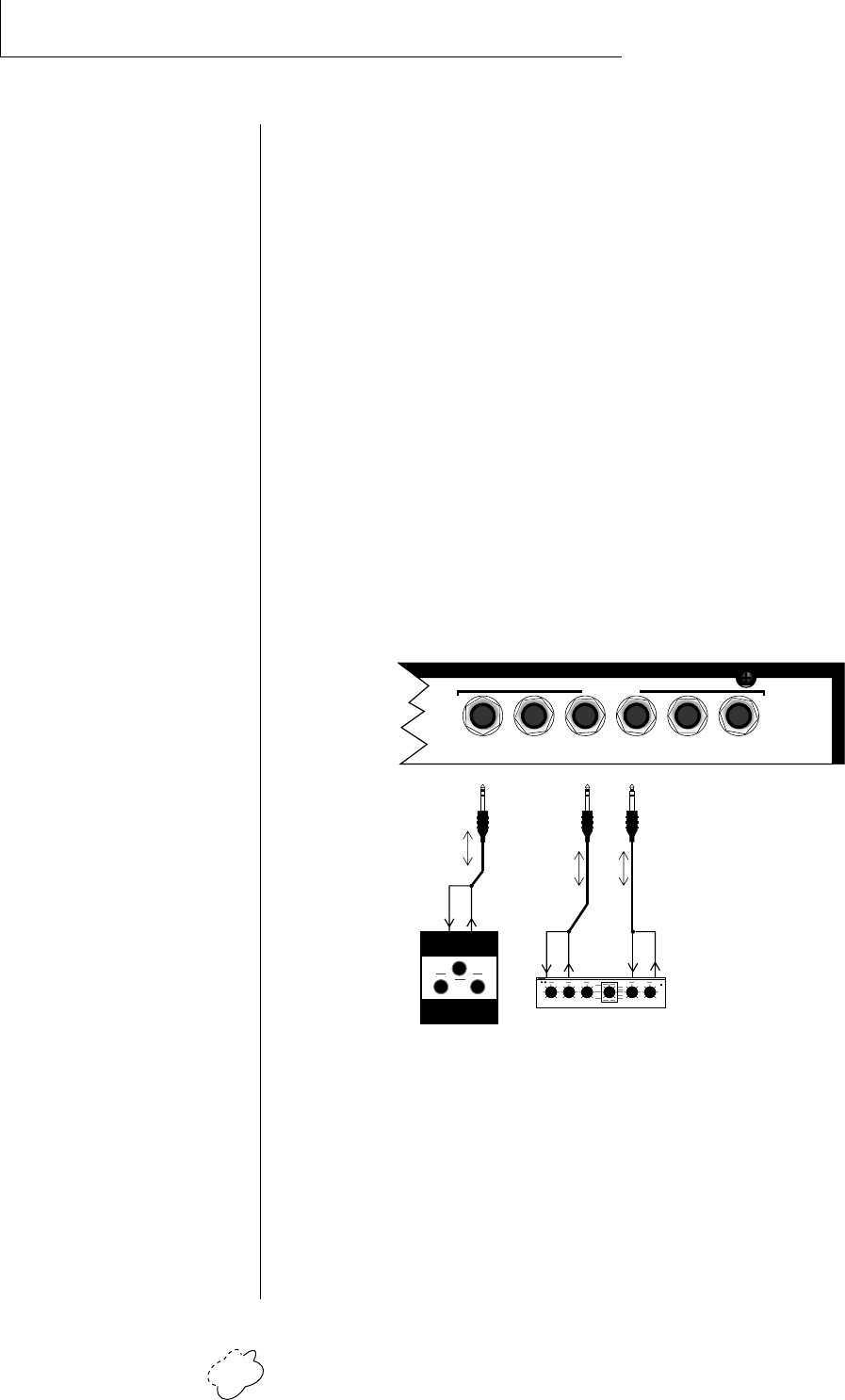
Planet Phatt Operation Manual94
STEP-BY-STEP
•␣ Channel Ripoff
When Planet Phatt uses up all its 32 channels and needs more, it steals
a channel from the key that has been in the release phase longest. This
is commonly known as “channel rip-off”. You will most commonly
encounter this “rip-off” when using Planet Phatt in multi-timbral
mode or when using massive preset links. Since Planet Phatt dynami-
cally allocates channels as needed, to eliminate rip-off you must
either, play fewer notes, use simpler sounds, turn off doubling (pri/sec,
chorus, or linked presets), or use MIDI overflow to another Planet
Phatt unit.
• Using External Processing
Don't be afraid to use external processing on specific sounds if you feel
the urge. The submix sends and returns on Planet Phatt are there for a
reason. In many instances a bit of reverb or EQ will be just the thing
an instrument needs to give it a distinct identity. Incidentally, an
external fuzz box can work wonders on otherwise harmless sounds. By
dedicating one of your old fuzz boxes to a submix out/in, you can
have programmable distortion for use on basses, organs or whatever.
Using the programmable outputs and returns, specific presets can be routed through
your favorite effects without using up precious mixer channels.
R - SUB2 - L R - SUB1 - L R - MAIN - L
MONO STEREO
OUTPUTS
RingTip RingTip
Stereo
Effect Unit
Fuzz Boz
RingTip

Chapter 7: Reference Section 95
REFERENCE
SECTION
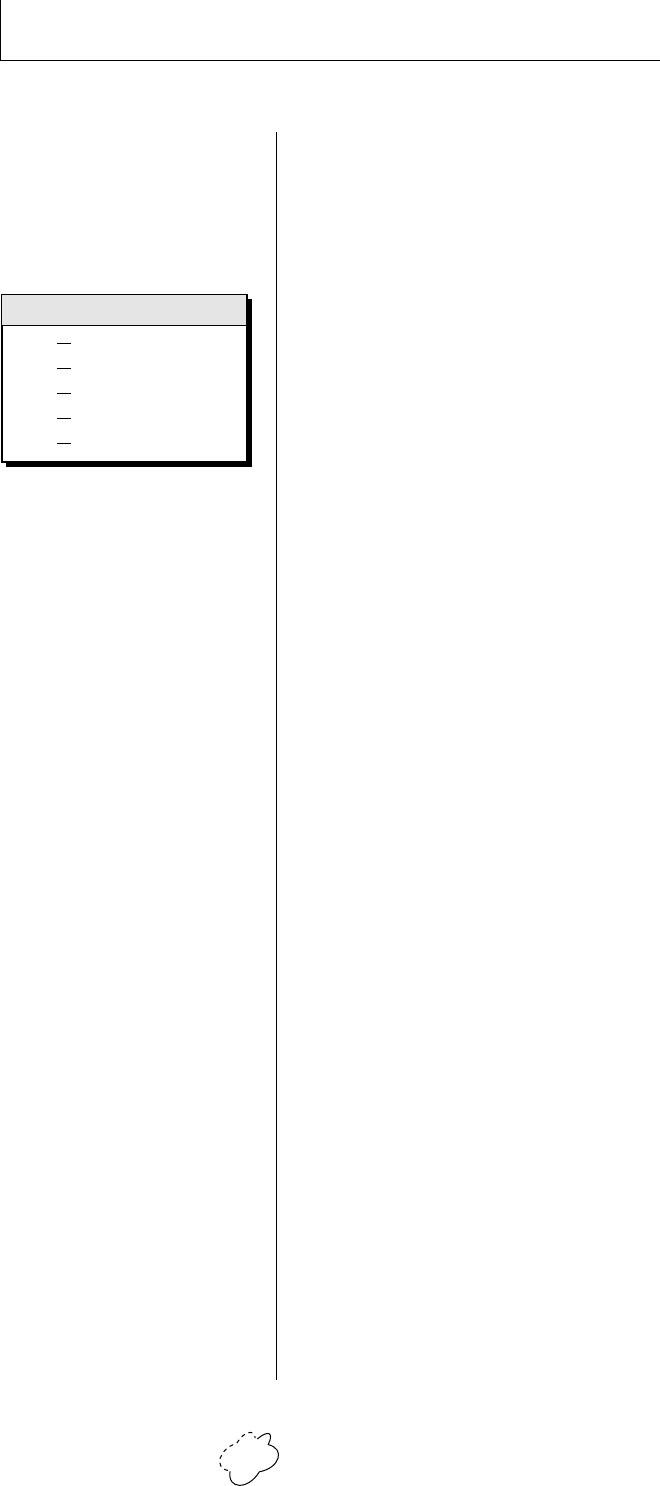
Planet Phatt Operation Manual96
FACTORY RAM PRESETS - BANK 0
0. sbs:1st Bass
1. sbs:Glibby
2. led:Romance
3. gtr:Guit Hit
4. brs:Brassy
5. epo:Wrodes
6. cmp:DirtRoll
7. hit:DanceBak
8. scr:Skratch
9. prc:RuffDrum
10. sbs:Wetnick
11. sbs:Thipit
12. sbs:LoDowner
13. bas:Subbin’
14. bas:MoogOut
15. bas:SpitSlap
16. bas:Basic
17. bas:Finger-O
18. bas:Frettnot
19. bas:EP Bass
20. bas:EP Bass2
21. bas:Slipped
22. bas:Jupiters
23. bas:Ultimate
24. bas:MonoMan
25. bas:Thunder
26. bas:Bakatit
27. led:Zingie
28. led:Glider
29. led:Axxel
30. led:Sqeelead
31. led:BiggMini
32. led:Mini OD
33. led:Sassy
34. led:Sweepoid
35. led:Digilead
36. led:HeavenLd
37. led:Zipworm
38. led:Calliope
39. gtr:WaFade
40. gtr:Mutes +
41. gtr:DisThick
42. org:Shanty
86. pad:Lokke
87. vox:Cumming
88. vox:Funee
89. vox:SoulWhl
90. vox:ModTalkr
91. vox:Voxxin
92. sfx:Uluoo
93. sfx:Phad
94. sfx:Rekerdz
95. sfx:Assidik
96. sfx:RomPlayz
97. sfx:Dirt
98. sfx:MoreDirt
99. sfx:MostDirt
100. sfx:LFOVox
101. hit:MinorVox
102. hit:Dance 3
103. hit:FX Slap
104. hit:Combo
105. hit:GtrSlap
106. hit:BigBand
107. gtr:WahNnot?
108. gtr:SwipeHit
109. gtr:MarleyCk
110. gtr:Lick
111. gtr:MetalHit
112. gtr:Strummer
113. scr:Trails
114. scr:Skrachd3
115. scr:Vhocal
116. prc:PhatSnrs
117. prc:PhatBds
118. prc:PhatPerc
119. prc:PhatBlks
120. prc:PhatSnps
121. prc:PhatClps
122. prc:PhatBels
123. prc:PhatHats
124. prc:PhatTbls
125. prc:PhatBong
126. prc:SplitKit
127. prc:Flexit
43. org:Thudder
44. org:Cheezey1
45. org:Hitted
46. org:Low Harm
47. org:KorusBoy
48. org:EnsOrgn
49. org:DanceOrg
50. org:Dissinit
51. org:OldTimes
52. org:Swirl
53. org:EnsOrgn
54. epo:Tine EP
55. epo:The EP
56. epo:Grit EP
57. cmp:Wet Clav
58. cmp:WahsUp
59. cmp:Jazzed
60. cmp:Sawcy
61. cmp:Polysynn
62. cmp:PolyMini
63. cmp:PolyWall
64. cmp:Polysyn4
65. brs:Wonder
66. brs:HarmChar
67. brs:NonBari
68. brs:TrumpHit
69. brs:Sax Riff
70. brs:Rise
71. brs:Fall
72. brs:Swole
73. syn:Barisyn
74. syn:Buzzy B
75. syn:Hallow
76. syn:Dis Axe
77. syn:Hansembl
78. syn:JupiDiss
79 syn:Krookid
80. syn:Dreemo
81. pad:WatRGhst
82. pad:WishMakr
83. pad:Swirls
84. pad:PowerOrk
85. pad:Sunrise
••• Preset Categories:
bas:.. Bass
bts: .. Used in beats preset
cmp: Comp
epo: . Electric piano
led: .. Lead instrument
gtr: .. Guitar
hit: ... Orchestra hit
org: .. Organ
pad: . Thick sustained sound
prc: .. Percussion
rif: .... Short musical line
sbs: .. Sub bass
scr: ... Record scratch
sfx: ... Sound effect
syn: .. Synthesizer
vox:.. Human voice
Bank Contents
0
1
2
3
4
128 RAM Presets
128 RAM Presets
128 ROM Presets
128 ROM Presets
128 ROM Presets

Chapter 7: Reference Section 97
FACTORY RAM PRESETS - BANK 1
0. sbs:Zopo
1. sbs:Lopitt
2. sbs:Capetbag
3. sbs:Melodown
4. bas:Non-Slap
5. bas:Doped
6. bas:Doped 2
7. bas:Fingerus
8. bas:Sawzy 5
9. bas:Sawzy 6
10. bas:Sawzy 7
11. bas:Sawzy 8
12. bas:Sawzy 9
13. bas:Sawzy 10
14. bas:Sawzy 11
15. bas:Moogy 2
16. bas:MorMoogy
17. bas:Ultibass
18. dbs:Jaa rof
19. gtr:Guitoo
20. gtr:Phaker
21. led:WurmHole
22. led:Wormy
23. led:Fazelead
24. led:Shad Up!
25. led:Gwishey
26. led:Sys 700
27. led:Phlote
28. led:Monica
29. led:Vox Toot
30. led:Muteworm
31. led:Flotzy
32. led:P5Lead
33. org:Moody
34. org:Odd Job!
35. org:GothVox
36. cmp:Muteinet
37. cmp:Serenade
38. cmp:Polysyn6
39. cmp:Polysyn9
40. cmp:D’Toon
41. cmp:Boinksyn
42. cmp:Poly
43. cmp:Polysyn5
44. syn:Brssss
45. syn:Dropping
46. syn:Droppng2
47. syn:Droppng3
48. syn:Crowded
49. syn:Voxsteps
50. syn:Phander
51. syn:Psiance
52. syn:SloSci!
53. syn:Chicked
54. syn:Seq Bell
55. syn:Bubbles
56. syn:Mosquito
57. syn:Sublime
58. syn:UnderPad
59. syn:MusiCrwd
60. syn:Dorothy
61. syn:Cool-luv
62. syn:Dream
63. syn:Planet
64. vox:EthnoVox
65. vox:She Said
66. vox:OhYeaLaf
67. vox:Ether
68. sfx:Skarface
69. sfx:Strumbel
70. sfx:LFOPhatt
71. sfx:E and E
72. sfx:Oleo
73. hit:Dance 9
74. hit:HanSoLow
75. hit:Dance 1
76. hit:Dance 2
77. hit:Dance 4
78. hit:Dance 5
79. hit:Dance 6
80. hit:Dance 7
81. hit:Dance 8
82. hit:FX 3
83. hit:FX 4
84. hit:FX 5
85. hit:BassHit1
86. hit:BassHit2
87. gtr:HappySad
88. gtr:Phlanged
89. gtr:Bridge
90. gtr:Faze Hit
91. gtr:Hit 12
92. gtr:Hit 15
93. gtr:Hit 16
94. gtr:Hit 25
95. scr:Skrachd4
96. scr:Skrachd6
97. scr:Skrachd7
98. scr:Skrachd8
99. scr:Skrach13
100. scr:Skrach11
101. scr:Skrach15
102. scr:Blarf
103. scr:BackN4th
104. scr:Ahmm
105. scr:Plhuckz
106. scr:Harder
107. scr:Khordal
108. scr:2 Bit
109. scr:Dwn Bits
110. scr:Oh Ohh
111. scr: Hardly
112. scr:CamTalk
113. scr:Arm Up
114. scr:FizzyStx
115. prc:Timbales
116. prc:Blokhead
117. prc:Getkickn
118. prc:Drumrush
119. prc:Tree
120. prc:Replay
121. prc:Skanky
122. prc:Wiggle
123. prc:Flex Pad
124. prc:Phased
125. prc:Snares
126. prc:All Toms
127. prc:All Claps
Planet Phatt Operation Manual98
FACTORY ROM PRESETS - BANK 2
0. sbs:Downeo
1. bas:EPlace
2. led:Bizz TTT
3.. gtr:Ur Kiss
4. org:Filteree
5. syn:Phat Pad
6. pad:Angelica
7. hit:DanceOn
8. scr:Skratch
9. prc:HiHat It
10. sbs:WubaDubb
11. sbs:Justass
12. sbs:Lopitt
13. bas:Ultisub
14. bas:Soake
15. bas:FretFree
16. bas:SpitSlap
17. bas:EP Bass
18. bas:Fatsynbs
19. bas:HupRight
20. bas:Street
21. bas:Slider
22. bas:Sawzy 1
23. bas:Sawzy 2
24. bas:Sawzy 3
25. bas:Moogy 1
26. bas:Moogy 2
27. bas:Moogy 3
28. bas:Bigsaw
29. bas:Bigmoog
30. bas:Bigmoog2
31. bas:Bigmoog3
32. bas:Filtoy
33. bas:Boink
34. bas:Oowww
35. gtr:Conway
36. gtr:KikStart
37. gtr:PhatFedr
38. gtr:Krunge
39. gtr:Fif
40. gtr:MuTrahn
41. gtr:Spooky
42. gtr:Mutes
43. led:Zippo
44. led:Hye Lowe
45. led:Dancer
46. led:Windworm
47. led:Minilead
48. led:Scurry
49. led:Phazee
50. led:Flatulnt
51. led:Urbanize
52. led:PassedOn
53. led:Spliffed
54. led:JD
55. led:No Sax!
56. led:PowrPhat
57. led:Belltron
58. led:Leuy Wu
59. led:Restron
60. led:WaterMuV
61. led:WishMakr
62. led:disWorm
63. led:AnglHair
64. org:OleTimey
65. org:Perky
66. org:Swirl
67. org:Hi Harm
68. org:Grungete
69. org:Low Tick
70. org:SlowSpin
71. org:Voxey
72. org:Voxhit
73. brs:Mutefret
74. brs:Stevie
75. brs:Harmonia
76. brs:BrasKord
77. brs:Sinbrass
78. brs:Boink
79. cmp:ClavenIt
80. cmp:Wirlibid
81. cmp:EPeazy
82. cmp:Rodezy
83. cmp:Rolled
84. cmp:Polysensi
85. cmp:Hiss Man
86. cmp:EepRoll
87. cmp:GlokMute
88. cmp:Polytown
89. cmp:Dirty EP
90. cmp:DirtWave
91. cmp:Philterz
92. cmp:Lownoise
93. cmp:Poly’syn
94. syn:Cutoff
95. syn:Mood Hit
96. syn:LFONo
97. syn:FazDream
98. syn:UnderPad
99. syn:7th Vox
100. syn:Synbellz
101. syn:Xyloot
102. syn:MoodPhat
103. syn:PhatFlow
104. syn:WormPad
105. syn:PowerStr
106. syn:PowerEns
107. syn:ClavPan
108. vox:Spacey
109. vox:Grunts
110. vox:Yuranis
111. vox:HeGotIt
112. sfx:TarsGars
113. sfx:Flex
114. sfx:InTheGrv
115. sfx:LSD
116. sfx:OleTimes
117. sfx:RomPhatt
118. hit:Musica
119. hit:Voxit
120. hit:BrassAge
121. hit:PhatHits
122. hit:PhatGtrs
123. hit:Phat Fx
124. hit:Brass
125. rif:Blk Jett
126. rif:Stealy Z
127. rif:FripRTrn
••• Preset Categories:
bas:.. Bass
bts: .. Used in beats preset
cmp: Comp
epo: . Electric piano
led: .. Lead instrument
gtr: .. Guitar
hit: ... Orchestra hit
org: .. Organ
pad: . Thick sustained sound
prc: .. Percussion
rif: .... Short musical line
sbs: .. Sub bass
scr: ... Record scratch
sfx: ... Sound effect
syn: .. Synthesizer
vox:.. Human voice
Bank Contents
0
1
2
3
4
128 RAM Presets
128 RAM Presets
128 ROM Presets
128 ROM Presets
128 ROM Presets

Chapter 7: Reference Section 99
FACTORY ROM PRESETS - BANK 3
0. rif:ThomThum
1. rif:QweeXhum
2. rif:PhoneCal
3. scr:PhatScrs
4. scr:Skrach10
5. scr:Skrachd
6. scr:Skreem
7. scr:Skrachd5
8. prc:Kix
9. prc:Snares
10. prc:Bells
11. prc:Blocks
12. prc:DopePerc
13. prc:Scratchd
14. prc:PhatrHat
15. prc:PhatCyms
16. prc:PhatBels
17. prc:PhatTams
18. prc:PhatToms
19. prc:PhatShks
20. sbs:Booty
21. bas:SoloMan
22. bas:SlapIt
23. bas:Bigsaw 2
24. bas:Bigsaw 3
25. bas:Bigsaw 4
26. bas:Bigmoog1
27. bas:Gitter
28. bas:Thumby
29. bas:Whomp
30. bas:Tempest
31. bas:Shinya
32. bas:Nasstee
33. bas:Vango
34. bas:SlamTime
35. bas:RuberRez
36. bas:Quaszy
37. bas:Res-Sine
38. bas:T-CatchR
39. bas:BlipBazz
40. bas:BlipBaz2
41. bas:BlipBaz3
42. bas:BlipBaz4
43. bas:BlipBaz5
44. bas:EP Bass
45. bas:Basasalt
46. bas:Ultimate
47. bas:Ultima2
48. gtr:Growl
49. gtr:Growl2
50. led:Trumclav
51. led:Clartron
52. led:BlipSlip
53. led:Blip 2
54. led:Blip 3
55. led:Harmonizin
56. led:JazSplit
57. led:Trumpbel
58. led:Troompet
59. cmp:EPee 1
60. cmp:Wrodes
61. cmp:Bellza
62. cmp:Syntho
63. cmp:Xylitzer
64. cmp:Krouded
65. cmp:Douser
66. cmp:fogAdirt
67. brs:Lo&Dirty
68. pad:SubCrowd
69. pad:UpStairs
70. pad:DlbHeadr
71. pad:DreamOn
72. pad:BigStrng
73. pad:Mulatron
74. sfx:Effex Ya
75. sfx:Trix Ya
76. sfx:SpakDirt
77. sfx:Hal 999
78. sfx:TronDite
79. sfx:Distonit
80. sfx:Juicy Q
81. sfx:Released
82. sfx:Ofaji
83. hit:Whisk
84. hit:Ahoy
85. hit:Bonk
86. gtr:Slider
87. gtr:DimStrum
88. gtr:Whah
89. hit:Whakt
90. hit:Drisbitt
91. hit:PhatDanz
92. hit:KhylaTue
93. hit:TangaToe
94. hit:QandaVaz
95. scr:ButrCrem
96. scr:GoonSqad
97. scr:BackScrz
98. prc:Plush
99. prc:Wiped
100. prc:Rerun
101. prc:Skary
102. prc:Cushion
103. prc:Wrapped
104. prc:Phased
105. bts:Game 1
106. bts:Speed
107. bts:Swingin’
108. bts:Chill
109. bts:Deep
110. bts:Working
111. bts:Check It
112. bts:Graf
113. bts:GrvReady
114. bts:Bunch
115. bts:Say What
116. bts:System
117. bts:Dope
118. bts:Talking
119. bts:And How
120. bts:Smooth
121. bts:IntheAir
122. bts:Phattttt
123. bts:Phun
124. bts:Phunky
125. bts:4 Real
126. bts:Box
127. bts:State
Planet Phatt Operation Manual100
FACTORY ROM PRESETS - BANK 4
0. bts:Blow Up
1. bts:Row
2. bts:Shorty’s
3. bts:Foxxy
4. bts:Mobb
5. bts:Lunar
6. bts:Kontrol
7. bts:Kit
8. bts:Farm
9. bts:Vapor
10. bts:Space
11. bts:KikLoc
12. bts:Cool
13. bts:Sensi
14. bts:Rude
15. bts:Test It
16. bts:Pocket
17. bts:Peeps
18. bts:BigUp
19. bts:Happy
20. bts:Drumm
21. bts:Perky
22. bts:Sloe
23. bts:Ice
24. bts:ReddHot
25. bts:Down
26. bts:Juicy
27. bts:It
28. bts:On
29. bts:Off
30. bts:Skillz
31. bts:Metro
32. bts:Zombie
33. bts:Wacked
34. bts:Not Only
35. bts:OutaSpace
36. bts:Trip
37. bts:Assault!
38. bts:Ill
39. bts:Bangin’
40. bts:Slammin’
41. bts:Killa
42. bts:Busta
43. bts:Passit2U
44. bts:Meaty
45. bts:Sweet
46. bts:PhatFaze
47. bts:Space
48. bts:Revva
49. bts:Revva 2
50. bts:Mee2
51. bts:OleSkool
52. bts:BoomBip
53. bts:Cruzin’
54. bts:DaDirty
55. bts:GetFunky
56. bts:Get Up
57. bts:Ole Days
58. bts:WitHelp
59. bts:Busy
60. bts:IllMatic
61. bts:ISawU
62. bts:LARide
63. bts:Leavin’
64. bts:OohYeah
65. bts:PPPhatt
66. bts:Ragga
67. bts:Remember
68. bts:Spice It
69. bts:StillZon
70. bts:UKnew
71. bts:WestUp
72. bts:Wicked
73. bts:UTrip
74. bts:Yukka
75. bts:Zonin’
76. bts:Combo
77. bts:Deluxe
78. bts:Bomb
79. bts:Freestyl
80. bts:Playa
81. bts:Tasty
82. bts:G-Funk
83. bts:Big Up
84. bts:Props
85. bts:Droppin’
86. bts:Got It
87. bts:Betta
88. bts:Dry Wood
89. bts:HardWood
90. bts:GiveItUp
91. bts:Flavor
92. bts:Laurel
93. bts:Nu Jak
94. bts:Brass
95. bts:Copper
96. bts:Zink
97. bts:Steel
98. bts:Potash
99. bts:Iron
100. bts:Lithium
101. bts:Platinum
102. bts:Gold
103. bts:Silver
104. bts:Joint
105. bts:Blunted
106. bts:Fly
107. bts:Fly Ltd
108. bts:Chronic
109. bts:Buggin
110. bts:RUNdaGrv
111. bts:Urb
112. bts:Split 1
113. bts:Split 2
114. bts:Split 3
115. bts:Split 4
116. bts:Split 5
117. bts:Split 6
118. bts:Split 7
119. bts:Split 8
120. bts:Split 9
121. bts:Split10
122. bts:Split11
123. bts:Split12
124. bts:Split13
125. bts:Split14
126. bts:Split15
127. -default-
••• Preset Categories:
bas:.. Bass
bts: .. Used in beats preset
cmp: Comp
epo: . Electric piano
led: .. Lead instrument
gtr: .. Guitar
hit: ... Orchestra hit
org: .. Organ
pad: . Thick sustained sound
prc: .. Percussion
rif: .... Short musical line
sbs: .. Sub bass
scr: ... Record scratch
sfx: ... Sound effect
syn: .. Synthesizer
vox:.. Human voice
Bank Contents
0
1
2
3
4
128 RAM Presets
128 RAM Presets
128 ROM Presets
128 ROM Presets
128 ROM Presets

Chapter 7: Reference Section 101
INSTRUMENT LISTING
001. SE Sub 1
002. SE Sub 2
003. SE Sub 3
004. SE Sub 4
005. SE Sub 5
006. SE Sub 6
007. SE Sub 7
008. SE Sub 8
009. SE Sub 9
010. SE Sub 10
011. SE Sub 11
012. Subtle Bass
013. Bass Slap 1
014. Bass Slap 2
015. FingerBass1
016. FingerBass2
017. E P Bass 1
018. E P Bass 2a
019. E P Bass 2b
020. UprightBass
021. Fretless 1
022. Fretless 2
023. Fretless 3
024. Fretless 4
025. Street Bass
026. TBazz
027. Dope Bass 1
028. Dope Bass 2
029. DopeBassHit
030. Slider Bass
031. Saw Bass
032. Moog Saw
033. Ultimate 2a
034. Ultimate 2b
035. BigSaw Bass
036. BigMoogSaw1
037. BigMoogSaw2
038. Mini Moog
039. Filter Bass
040. Fat SynBass
041. Jupiter Bass
042. Syn Tone
043. BassBalls1
044. BassBalls2
045. Bas Boy Syn
046. All Purpose
047. Standard
048. Buzz Bass
049. Home Bass
050. Gtr Mutes
051. Sine Wave
052. Saw Wave
053. Synth Axe 1
054. Synth Axe 2
055. Zippy Lead
056. Mini OD2
057. Bell Synth
058. BuzzSynth 1
059. BuzzSynth 2
060. Dance Lead
061. Worm Lead 1
062. Worm Lead 2
063. Worm Lead 3
064. Worm Lead 4
065. Worm Lead 5
066. Worm Lead 6
067. ElectriWorm
068. Electron
069. Tone Organ
070. Disco Organ
071. DX Organ
072. JX Organ
073. Oddd Organ
074. Clavinet
075. Wurlitzer
076. FM EP 1a
077. FM EP 1b
078. Tine EP
079. Rhodes
080. EP Fog
081. EP Roll1 C
082. EP Roll2 F6
083. EP Roll3Bbm
084. HarmonTpt
085. Harmon FX 1
086. Harmon FX 2
087. Bari Wave
088. P5 Brass
089. Spacy Tpt
090. Sax Riff Eb
091. WackTptC#m7
092. Synth Flute
093. Boink
094. Brass Bb
095. Harmonica
096. Gtr Wah Bm
097. Alt Gtr Wah
098. DisTar Pad
099. SynthHiStrg

Planet Phatt Operation Manual102
INSTRUMENT LISTING
100. SynthEnsble
101. Synth Vox
102. Jupiter Syn
103. MoodStrings
104. Xylo Pad
105. Jupiter
106. Dreamyy C
107. Phat Pad
108. UnderPad Fm
109. Science
110. MusiCrowd
111. Crowd 2
112. Crowd 2 NTP
113. Dirt 1
114. Dirt NTP
115. Dirt 2
116. Dirt 2 NTP
117. Dirt 3
118. Dirt 3 NTP
119. Oow
120. Soul Oohs
121. Dance Hits
122. FX Hits
123. Gtr Riffs
124. Bass Hits 1
125. Bass Hits 2
126. Brass Hits
127. Vox Hits1
128. Vox Hits 2
129. Scratches
130. ScrtchLoops
131. ScratchBits
132. Kicks
133. Snares
134. Toms
135. Timbales
136. CongasBngos
137. Hats
138. Cymbals
139. Shakers
140. Bells
141. Blocks
142. Tams
143. Claps
144. Snaps
145. Misc Perc
146. DanceHit1 E
147. DanceHit2F#
148. DanceHit3G#
149. DanceHt4C#m
150. DanceHit5C#
151. DanceHit6 G
152. DanceHit7Gm
153. DanceHit8 A
154. DanceHit9 D#
155. DanceHt10Cm
156. FX Hit1
157. FX Hit2
158. FX Hit3 F#m
159. FX Hit4 F#
160. FX Hit5
161. FX Hit6 E
162. FX Hit7 B
163. GtrHit1 D#s
164. GtrHit2 D
165. GtrHit3 F
166. GtrHit4 D
167. GtrHit5 Bm
168. GtrHit6 F
169. GtrHit7 E
170. GtrHit8 F#
171. GtrHit9
172. GtrHit10
173. GtrHit11 D#
174. GtrHit12 Am
175. GtrHit13 E
176. GtrHit14 G
177. GtrHit15
178. GtrHit16 D
179. GtrHit17 G
180. GtrHit18 A
181. GtrHit19
182. GtrHit20 D#
183. GtrHit21
184. GtrHit22 F#
185. GtrHit23
186. GtrHit24
187. GtrHit25 A7
188. GtrHit26 D
189. GtrHit27
190. GtrHit28 A
191. GtrHit29 F7
192. GtrHit30A#m
193. Bass Hit1
194. Bass Hit2
195. Bass Hit3
196. Bass Hit4
197. BassHit5
198. Tpt FX 1

Chapter 7: Reference Section 103
INSTRUMENT LISTING
199. Tpt FX 2
200. Tpt FX 3
201. Tpt FX 4
202. Tpt FX 5
203. Sax FX 1
204. Sax FX 2
205. Brs Hit1Bbm
206. Brs Hit2
207. Brs Hit3 F#
208. Brs Hit4 D#
209. Brs Hit5 D#
210. Brs Hit6
211. Brs Hit7 C
212. Brs Hit8 G
213. Brs Hit9
214. Brs Ht10 E7
215. Brs Hit11 B
216. Brs Ht12 G#
217. Brs Ht13A#m
218. Brs Hit14
219. Brs Ht15 G#
220. Brs Ht16 G#
221. Brs Hit17 D
222. Brs Hit18 A
223. Vox Hit 1
224. Vox Hit 2
225. Vox Hit 3
226. Vox Hit 4
227. Vox Hit 5
228. Vox Hit 6
229. Scratch 1
230. Scratch 2
231. Scratch 3
232. Scratch 4
233. Scratch 5
234. Scratch 6
235. Scratch 7
236. Scratch 8
237. Scratch 9
238. Scratch 10
239. Scratch 11
240. Scratch 12
241. Scratch 13
242. Scratch 14
243. Scratch 15
244. Scratch 16
245. Scratch 17
246. Kick 1
247. Kick 2
248. Kick 3
249. Kick 4
250. Kick 5
251. Kick 6
252. Kick 7
253. Kick 8
254. Kick 9
255. Kick 10
256. Kick 11
257. Kick 12
258. Kick 13
259. Kick 14
260. Kick 15
261. Kick 16
262. Kick 17
263. Kick 18
264. Kick 19
265. Kick 20
266. Kick 21
267. Kick 22
268. Kick 23
269. Kick 24
270. Kick 25
271. Kick 26
272. Kick 27
273. Kick 28
274. Kick 29
275. Kick 30
276. Snare 1
277. Snare 2
278. Snare 3
279. Snare 4
280. Snare 5
281. Snare 6
282. Snare 7
283. Snare 8
284. Snare 9
285. Snare 10
286. Snare 11
287. Snare 12
288. Snare 13
289. Snare 14
290. Snare 15
291. Snare 16
292. Snare 17
293. Snare 18
294. Snare 19
295. Snare 20
296. Snare 21
297. Snare 22

Planet Phatt Operation Manual104
INSTRUMENT LISTING
298. Snare 23
299. Snare 24
300. Snare 25
301. Snare 26
302. Snare 27
303. Snare 28
304. Snare 29
305. Snare 30
306. Snare 31
307. Snare 32
308. Snare 33
309. Snare 33b
310. Snare 34
311. Snare 35
312. Snare 36
313. Snare 37
314. Snare 38
315. Snare 39
316. Snare 40
317. Snare 41
318. Snare 42
319. Snare 43
320. Snare 44
321. Snare 45
322. Snare 46
323. Snare 47
324. Snare 48
325. Snare 49
326. Snare 50
327. Snare 51
328. Snare 52
329. Snare 53
330. Snare 54
331. Snare 55
332. Snare 56
333. Snare 57
334. Snare 58
335. Snare 59
336. Snare 60
337. Snare 61
338. Tom 1
339. Tom 2
340. Tom 3
341. Tom 4
342. Tom 5
343. Tom 6
344. Tom 7
345. Tom 8
346. Tom 9
347. Timbale 1
348. Timbale 2
349. Conga 1
350. Conga 2
351. Conga 3
352. Conga 4
353. Conga 5
354. Conga 6
355. Conga 7
356. Bongo 1
357. Hat 1
358. Hat 2
359. Hat 3
360. Hat 4
361. Hat 5
362. Hat 6
363. Hat 7
364. Hat 8
365. Hat 9
366. Hat 10
367. Hat 11
368. Hat 12
369. Hat 13
370. Hat 14
371. Hat 15
372. Hat 16
373. Hat 17
374. Hat 18
375. Hat 19
376. Hat 20
377. Hat 21
378. Hat 22
379. Hat 23
380. Hat 24
381. Hat 25
382. Hat 26
383. Hat 27
384. Hat 28
385. Hat 29
386. Hat 30
387. Hat 31
388. Hat 32
389. Hat 33
390. Cymbal 1
391. Cymbal 2
392. Cymbal 3
393. Cymbal 4
394. Cymbal 5
395. Cymbal 6
396. Cymbal 7

Chapter 7: Reference Section 105
INSTRUMENT LISTING
397. Cymbal 8
398. Cymbal 9
399. Cymbal 10
400. Cymbal 11
401. Cymbal 12
402. Shaker 1
403. Shaker 2
404. Shaker 3
405. Shaker 4
406. Shaker 5
407. Shaker 6
408. Shaker 7
409. Shaker 8
410. Shaker 9
411. Shaker 10
412. Shaker 11
413. Shaker 12
414. Shaker 13
415. Shaker 14
416. Shaker 15
417. Shaker 16
418. Shaker 17
419. Bell 1
420. Bell 2
421. Bell 3
422. Bell 4
423. Bell 5
424. Bell 6
425. Bell 7
426. Bell 8
427. Bell 9
428. Bell 10
429. Bell 11
430. Bell 12
431. Bell 13
432. Block 1
433. Block 2
434. Block 3
435. Block 4
436. Block 5
437. Block 6
438. Tam 1
439. Tam 2
440. Tam 3
441. Tam 4
442. Tam 5
443. Clap 1
444. Clap 2
445. Clap 3
446. Clap 4
447. Clap 5
448. Clap 6
449. Clap 7
450. Clap 8
451. Clap 9
452. Clap 10
453. Clap 11
454. Clap 12
455. Scraa
456. Snap 1
457. Snap 2
458. Snap 3
459. Snap 4
460. Snap 5
461. Snap 6
462. Misc Perc 1
463. Misc Perc 2
464. Misc Perc 3
465. Misc Perc 4
466. Misc Perc 5
467. Misc Perc 6
468. Misc Perc 7
469. Misc Perc 8
470. Misc Perc 9
471. Kit 1
472. Kit 2
473. Kit 3
474. Kit 4
475. Kit 5
476. Kit 6
477. Kit 7
478. Kit 8
479. Kit 9
480. Kit 10
481. Rom Play
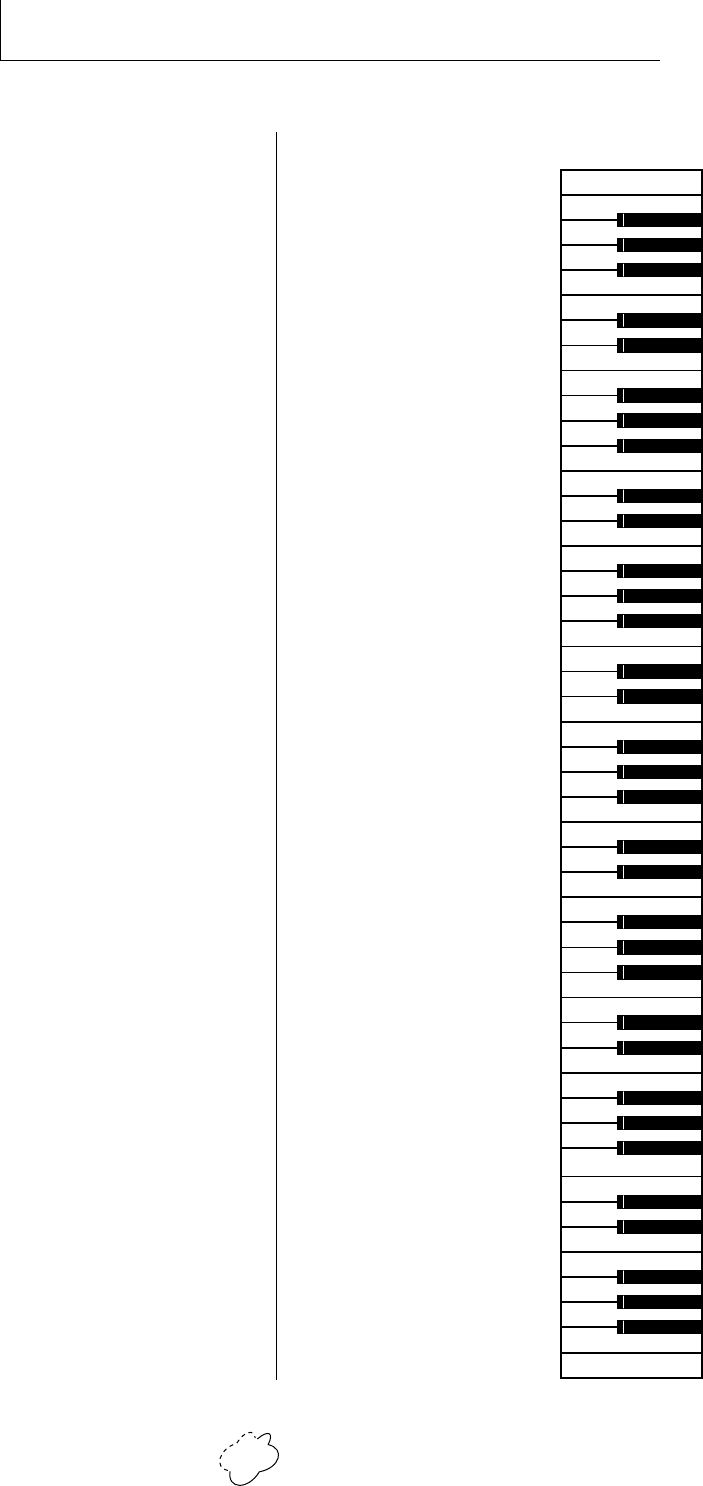
Planet Phatt Operation Manual106
BEAT KIT 1
Snare 35 (Hollow)
Tom 5
Hi Hat 13 (Mid)
Hi Hat 14 (Closed)
Hi Hat 13 (Mid)
Snare 10 (Brush)
Hi Hat 1 (Closed)
Hi Hat 9 (Mid)
Hi Hat 10 (Brush)
Hi Hat 11 (Open)
Kick 17 (Electronic)
Kick 17 (Electronic)
Kick 17 (Electronic)
Kick 17 (Electronic)
Kick 17 (Electronic)
Kick 17 (Electronic)
Kick 17 (Electronic)
Kick 17 (Electronic)
Kick 17 (Electronic)
Snare 27
Scratch 9
Tom 6 (Low)
Tom 6 (Mid 1)
Tom 3 (Mid 2)
Tom 3 (High)
Kick 29 (Tite)
Snare 19 (Rim)
Snare 9 (Brush)
Tom 2 (Brush Low)
Tom 2 (Brush Mid)
Tom 2 (Brush High)
Cymbal 10 (Ride)
Kick 12 (Jungle)
Snare 29 (Jungle)
Snare 23
Finger Snap 2
Finger Snap 3
Clap 5
Tambourine 1
Kick 11 (R&B)
Snare 34 (R&B)
Snare 33 (Buzz Roll)
Snare 33 (Buzz Roll)
Tom 9 (R&B)
Tom 9 (R&B)
Kick 15 (Rap)
Snare 6 (Rim)
Hi Hat 7 (open/Closed)
Hi Hat 16 (Closed Tip)
Hi Hat 17 (Semi)
Hi Hat 32 (Open Tip)
Snare 2 (Stick)
Snare 31 (R&B)
Hi Hat 8 (Closed Electronic)
Hi Hat 6 (Open Electronic)
Cymbal 2 (Rap Ride)
Kick 16 (Rap)
28
29
31
33
35
36
38
40
41
43
45
47
48
50
52
53
55
57
59
60
62
64
65
67
69
71
72
74
76
77
79
81
83
84
86
88
89
91
93
95
96
98
100
101
103
105
107
108
C3
Cymbal 2 (Rap)
Snare 37 (Rap)
Brass Hit 12
Brass Hit 12
Brass Hit 12
Brass Hit 12
Brass Hit 12
Brass Hit 12
Brass Hit 12
Brass Hit 12
Snare 61 (Rap)
Snare 58 (Rap)
Brass Hit 12
Brass Hit 12
Brass Hit 12
Brass Hit 12
Brass Hit 12
Brass Hit 12
Brass Hit 12
Brass Hit 12
Brass Hit 12
Brass Hit 12
Brass Hit 12
Brass Hit 12
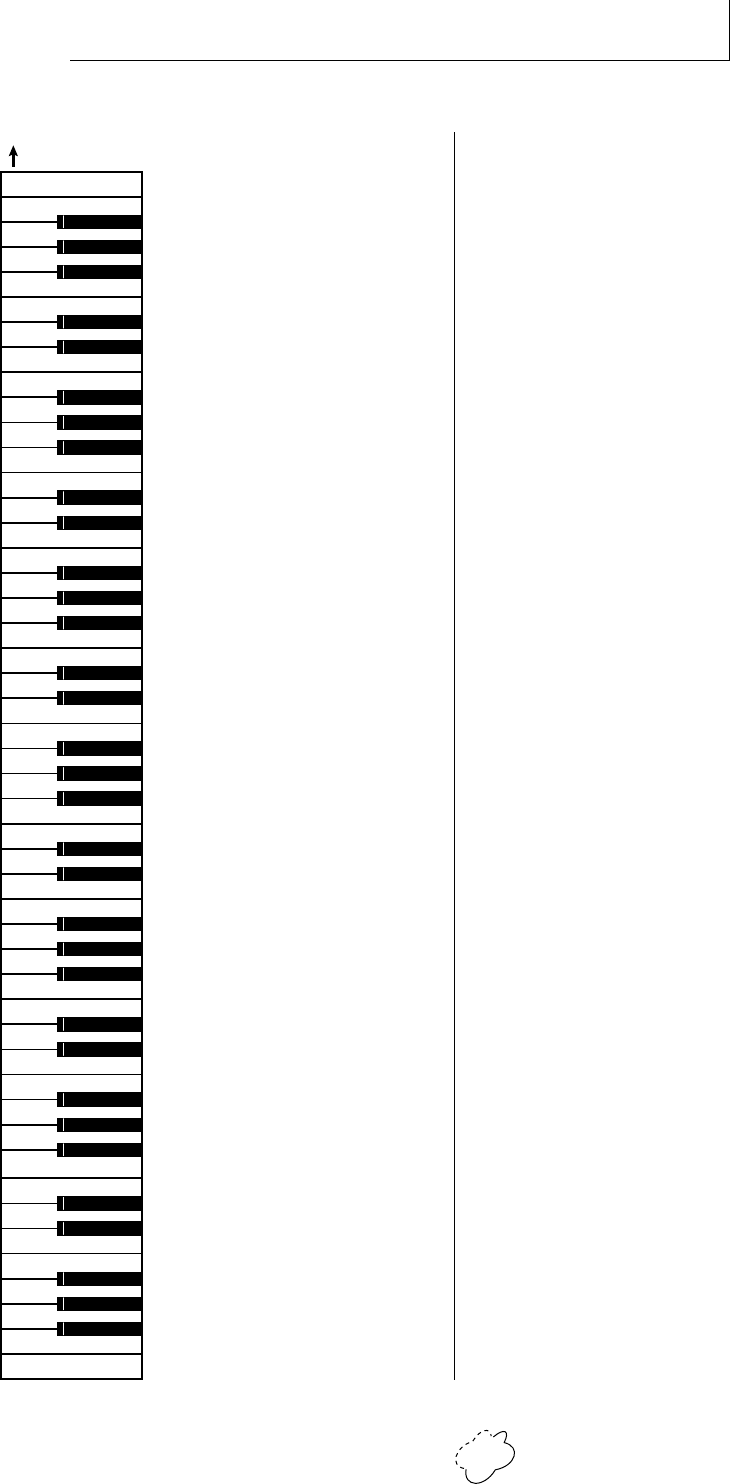
Chapter 7: Reference Section 107
BEAT KIT 2 (GM)
Snare 1 (Rim)
Hand Clap 1
Hi Hat 2 (Closed)
Hi Hat 3 (Foot)
Hi Hat 4 (Open/Closed)
Cymbal 4 (Crash)
Cymbal 5 (Ride)
Tambourine 2
Bell 12 (Cowbell)
Shaker 14
Kick 2 (Sine)
Kick 2 (Sine)
Kick 10
Snare 15
Scratch 9
Tom 6
Tom 2 (Brush)
Tom 9 (R&B)
Tom 3
Tom 2 (Brush)
Tom 3 (Roto)
Cymbal 11 (Ride)
Cymbal 8 (Ride)
Cymbal 1 (Splash)
Cymbal 3 (Crash)
Cymbal 7 (Ride)
Bongo 1
Conga 6
Conga 3
Timbale 2
Bell 1 (Cowbell)
Shaker 6
Bell 1
bell 2 (Flexitone)
Shaker 10
Block 1
Block 5
Hand Clap 3
Bell 4 (Triangle Open)
Bell 5 (Sleigh Bells)
Bongo 1
Conga 7 (Slap)
Timbale 1
Bell 9 (Cowbell)
Shaker 7 (Maraca)
Shaker 12
Block 3 (Clave)
FX Hit 5
Bell 3 (Triangle Closed)
Shaker 4
Bell 3 (BellTree)
28
29
31
33
35
36
38
40
41
43
45
47
48
50
52
53
55
57
59
60
62
64
65
67
69
71
72
74
76
77
79
81
83
84
86
88
89
91
93
95
96
98
100
101
103
105
107
108
C3
Scratch 6
Gtr Hit 27
Brass Hit 5
Sax FX 2 (Squeal)
UnderPad
Gtr Hit 19
Spacy Trumpet
Spacy Trumpet
Spacy Trumpet
Spacy Trumpet
Scratch 7
Vox Hit 4 (Female Laugh)
Vox Hit 6 (Male Laugh)
Scraa (FX)
Brass Hit 17
UnderPad
UnderPad
Gtr Hit 19
Spacy Trumpet
Spacy Trumpet
Spacy Trumpet
Spacy Trumpet
Spacy Trumpet
Spacy Trumpet
Kick 2 (Sine)
Kick 2 (Sine)
Kick 2 (Sine)
Kick 2 (Sine)
Kick 2 (Sine)
Kick 2 (Sine)
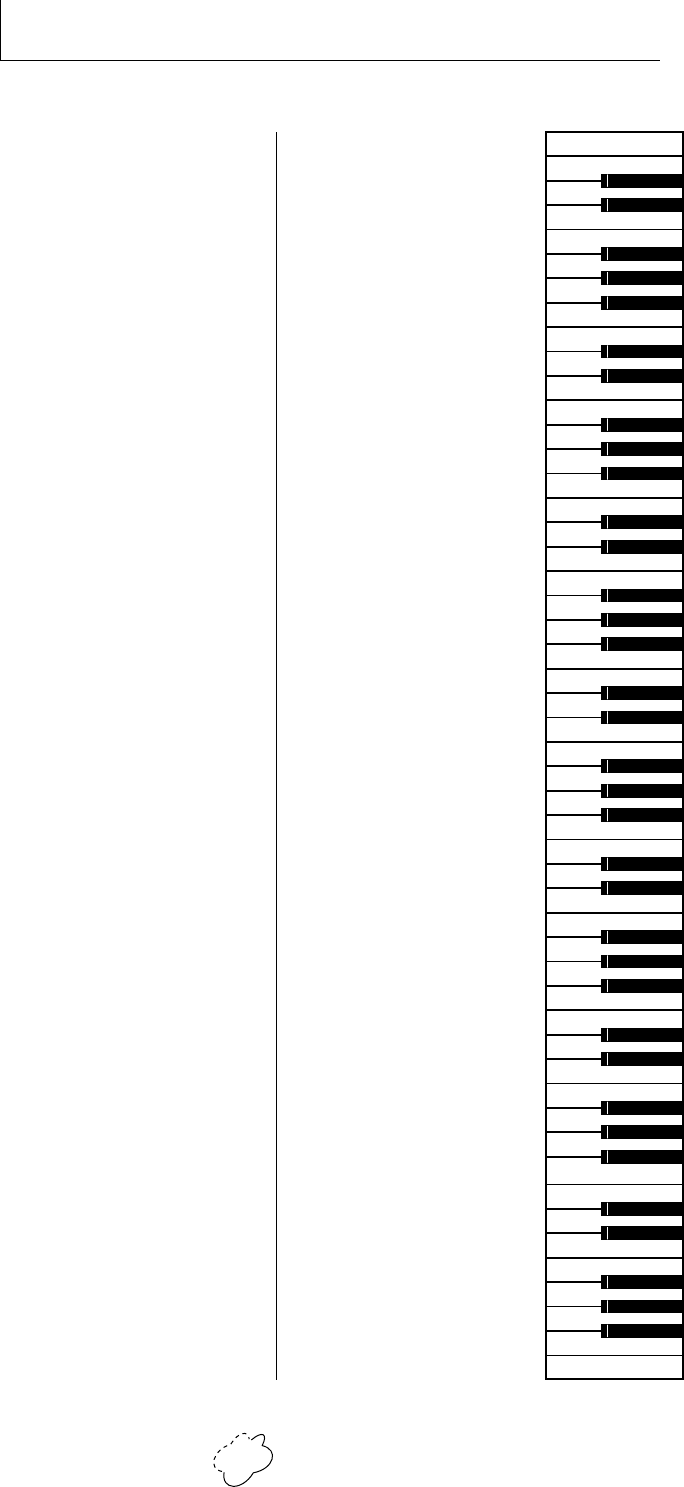
Planet Phatt Operation Manual108
BEAT KIT 5
Kick 5
Cymbal 4
Cymbal 2
Cymbal 2
Kick 17
Kick 17
Kick 6
Hi Hat 16 (Closed Tip)
Hi Hat 15 (Pedal Closed)
Hi Hat 32 (Open Tip)
Dirt 2 (Record Noise)
Block 4
Hat 11
Hi Hat 10 (Brush)
Shaker 3
Kick 17 (Electronic)
Tom 3
Tom 3
Tom 3
Snare 52
Snare 52
Kick 16
Kick 17
Kick 21
Snare 56
Snare 56
Scratch 9
Tom 6
Tom 6
Tom 6
Kick 28
Snare 16
Snare 8 (Brushes)
Snare 9 (Brushes)
Tom 2 (Brush Low)
Tom 2 (Brush High)
Cymbal 3 (Ride)
Kick 12 (Jungle)
Snare 29 (Jungle)
Snare 23
Bell 4 (Chimes)
Cymbal 2
Hand Clap 5
Tambourine 1
Kick 4 (Electronic)
Snare 34 (R&B)
Snare 33 (Buzz Roll)
Scratch 17
Tom 9 (R&B)
Tom 9 (R&B)
Kick 15 (Rap)
Snare 30
Hi Hat 26
Tambourine 4
Scraa
Bass Hit 2
Snare 56
Snare 56
Hat 8 (Closed Electronic)
Hat 6 (Open Electronic)
Cymbal 2 (Rap Ride)
Kick 16 (Rap)
28
29
31
33
23
24
26
35
36
38
40
41
43
45
47
48
50
52
53
55
57
59
60
62
64
65
67
69
71
72
74
76
77
79
81
83
84
86
88
89
91
93
95
96
98
100
101
103
105
107
108
C3
Cymbal 4 (Crash)
Gtr Hit 23
Brass Hit 6
Oow
Science
Scratch 4
Misc Perc 4
Hi Hat 5
Hi Hat 22
Hat 27
Snare 13 (Rap)
Scraa (FX)
Brass Hit 13
Vox Hit 3
FX Hit 2
Music Crowd
Guitar Hit 22
Tambourine 2
Scraa (FX)
Scratch 5
Cymbal 2
Block 6
Timbale 2
Timbale 1

Chapter 7: Reference Section 109
TECHNICAL SPECIFICATIONS
Audio Channels: ................. 32
Audio Outputs: ................... 6 (2 main, 4 submix)
Submix Inputs: ................... 4
Max. Output Level: ............+4 dBv
Output Impedance: ........... 1KΩ
MIDI: .....................................In, Out, Thru
Data Encoding: ................... 16 bit linear data, 18 bit linear outputs
Sample Playback Rate: ..... 39 kHz
Signal to Noise: ................... >90 dB
Dynamic Range: ................. >90 dB
Frequency Response: ......... 20 Hz-15 kHz
THD +N: ................................ <.05%
IMD: .......................................<.05%
Stereo Phase: .......................Phase Coherent ±1˚ at 1 kHz
Power Requirements: ....... 25 watts
Dimensions: .........................H: 1.75" W: 19" L: 8.5"
Weight: .................................6 lb, 14 oz (3.1 Kg)
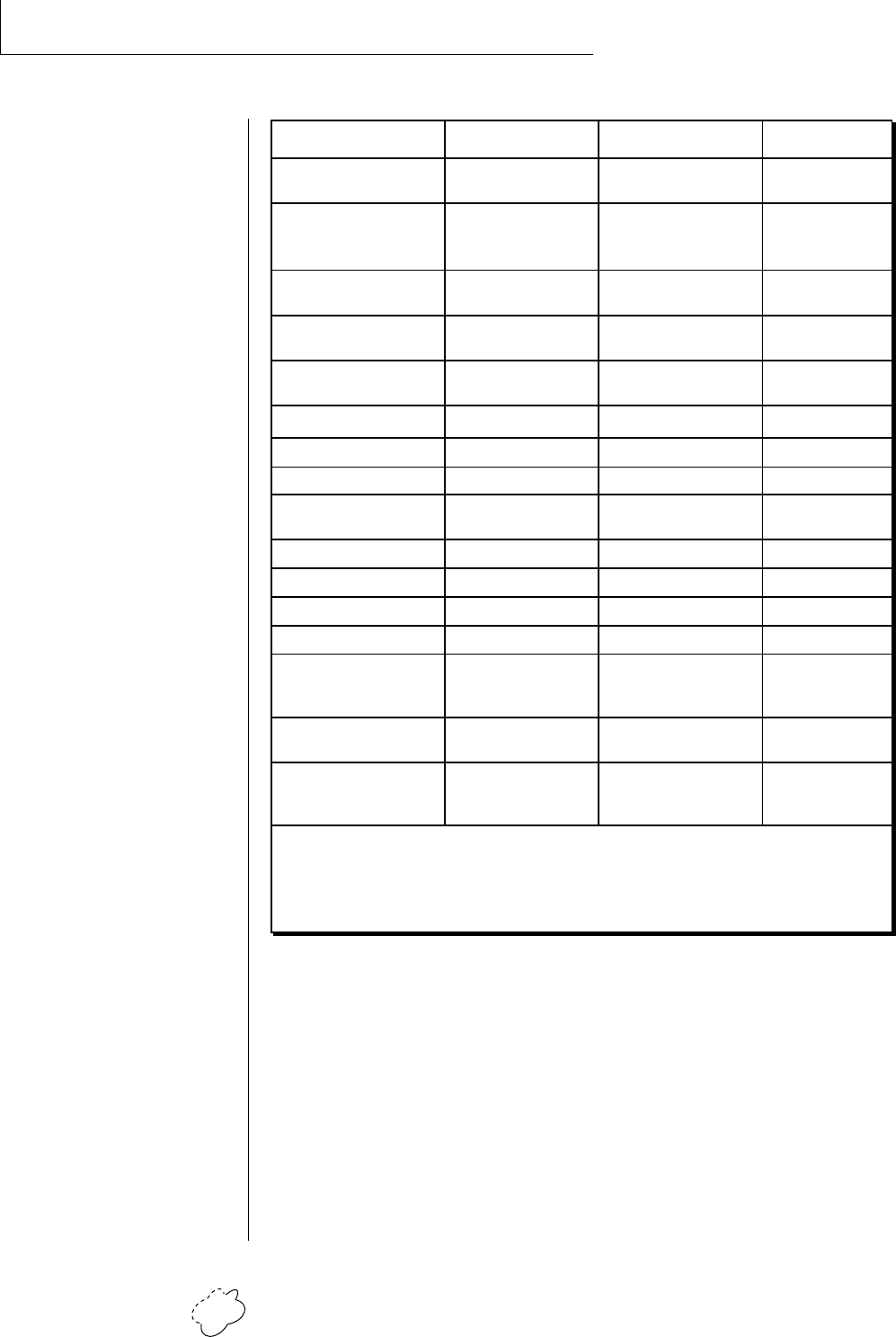
Planet Phatt Operation Manual110
MIDI IMPLEMENTATION CHART
GENERAL INFORMATION FOR PLANET PHATT SYSEX
• Product ID for Planet Phatt is 0A.
• Device ID is [00-0F] (0-15 decimal).
• Parameter Number and Parameter Value are 2 bytes each.
• Since MIDI data bytes cannot be greater than [7F] (127 decimal), the
data values are “nibble-ized” to a 14-bit signed 2's complement format.
• There is only one edit buffer which is for the current preset (the
preset shown in the display). Only one preset at a time can be edited
via SysEx commands and changing the current preset erases the edit
buffer.
Transmitted Recognized Remarks
Basic
Channel
Default
Changed
Mode Default
Messages
Note
Number True Voice
Velocity Note ON
Note OFF
After
Touch
Keys
Channels
Pitch Bender
Control Change
Program
Change True Number
System Exclusive
System
Common
:Song Pos
:Song Sel
:Tune
System
Real Time
:Clock
:Commands
Aux
Messages
:Local On/Off
:Active Sense
:Reset
No
No
1
1-16
Memorized
No Mode 1, 3, 4
MONO, POLY
OMNI, ON/OFF
Memorized
No
No
0-127
0-127
No
No
Yes
No
v=1-127
No
No
Yes
Yes
No Yes
No Yes
No
No
Yes 0-127
Yes 0-127
Yes Yes
No
No
No
No
Yes
No
No
No
Yes
Yes
No
No
No
No
No
No
Notes:
Pan 0=hard left 127=hard right
Function…
Mode 1: OMNI ON, POLY
Mode 3: OMNI OFF, POLY
Mode 2: OMNI ON, MONO
Mode 4: OMNI OFF, MONO
0-31
Bank Select No Yes
64-79
All Sound Off
Reset All Controllers
No Yes
No Yes
All Notes Off No Yes
Song Sel - F3 ss
0-99 = Beats
100-127 = Songs
Beats Mode Only
Song Select is only enabled when the Beats mode screen is showing in the display.

Chapter 7: Reference Section 111
MIDI SPECIFICATIONS
RECEIVED CHANNEL COMMANDS
Channels number (n) = 0-15. Message bytes are represented in hex. All
other numbers are decimal. Running Status is supported.
Command Message Comments
Note Off 8n kk vv release velocity is ignored
Note On 9n kk vv velocity 0 = note off
Key Aftertouch An kk vv kk = 0-127 vv = 0-127
Program Change Cn vv vv = 0-127
Channel Aftertouch Dn vv vv = 0-127
Pitch Bend En ll mm l = lsb, m = msb
Realtime Controller Bn cc vv cc = 00-31, vv = 0-127
Footswitch Bn cc vv cc = 64-79, vv ≥ 64 = on
Volume Bn 07 vv vv = 0-127
Pan Bn 0A vv 0=left, 127=right, 64=center
All Sound Off Bn 78 00 turns all sound off
Reset All Controllers Bn 79 00 ignored in omni mode
All Notes Off Bn 7B 00 ignored in omni mode
Omni Mode Off* Bn 7C 00 forces all notes & controls off
Omni Mode On* Bn 7D 00 forces all notes & controls off
Mono Mode On (Poly Off)* Bn 7E 00 forces all notes & controls off
Poly Mode On (Mono Off)* Bn 7F 00 forces all notes & controls off
Bank Select Bn 00 00 20 bb bb = bank #
* Special Notes:
From Omni Mode ... Omni Off turns Poly On.
From Poly Mode ..... Omni On turns Omni On; Mono On turns Mono On.
From Mono Mode ... Mono Off turns Poly On; Omni On turns Omni On.
From Multi Mode ... Omni On turns Omni On; Omni Off or Mono Off
turns Poly On; Mono On turns Mono On.
All other changes have no effect.
••• Running Status is
supported in Planet Phatt.

Planet Phatt Operation Manual112
MIDI SPECIFICATIONS
MIDI SYSEX COMMANDS
For system exclusive commands, the following format is used:
F0 system exclusive status byte
18 E-mu ID byte
0A product ID byte (will also respond to ID 04 - Proteus)
dd device ID byte
cc command byte
... data bytes
F7 EOX
SysEx Editing
Preset and setup parameters may be edited individually using system
exclusive commands. The preset being edited is the active preset (the
preset on the basic or global channel and the one which is shown in
the LCD). The value of a given parameter may be changed by sending
a parameter value command. The value of a parameter may be read by
sending a parameter value request, to which the machine will respond
by sending back the parameter value.
Two MIDI bytes (lsb, msb) are required for each 14 bit data word. Bits
0-6 are sent first, followed by bits 7-13 in the next MIDI byte. All data
words are signed 2's complement values with sign-extension out to the
most significant bit (bit 13). This convention applies to all data words,
regardless of the parameter's value range.
Preset data may also be transmitted or received in a single block (one
complete preset) using system exclusive commands. A preset data
request may be issued by a host computer, to which the machine will
respond sending the data block for the requested preset. Conversely,
the computer may send new preset data which will replace the speci-
fied preset currently in the machine. Additionally, a front panel com-
mand will transmit one or all user presets for backup onto an external
sequencer. These presets may be restored by simply playing back the
sequence into the machine.
Warning: When transferring preset banks and tuning table data back
and forth from Planet Phatt to a computer, the data should be
recorded as you would a regular sequence. Sending the data in one
huge chunk will clog the input buffer on Planet Phatt unless a time
period of approximately 100 mS is inserted between each preset.
••• Planet Phatt will receive
Proteus presets, but will fill in
the extra parameters with
default values and set
instruments to “None”.
▼ There is only one edit
buffer which is for the current
preset (the preset shown in
the display). Only one preset
at a time can be edited via
SysEx commands and
changing the current preset
erases the edit buffer.

Chapter 7: Reference Section 113
MIDI SPECIFICATIONS
RECEIVED SYSTEM EXCLUSIVE COMMANDS
Command Message Comments
Preset Data Request F0 18 0A dd 00 ll mm F7 ll= preset # lsb
see note 6 mm = msb
Preset Data F0 18 0A dd 01 ll mm … ... cs F7
cs=checksum
Parameter Value F0 18 0A dd 02 pl pm F7
Request pl = parameter # lsb pm = msb
Parameter Value F0 18 0A dd 03 pl pm vl vm F7
pl = parameter # lsb pm = msb vl = value lsb vm = msb
Tuning Table Request F0 18 0A dd 04 F7 see note 7
Tuning Table F0 18 0A dd 05 ... ... F7 262 bytes
Program Map Request F0 18 0A dd 06 F7 see note 8
Program Map Data F0 18 0A dd 07 ... ... F7 262 bytes
Master Setting Request F0 18 0A dd 08 F7
Version Request F0 18 0A dd 0A F7 see note 1
Configuration Request F0 18 0A dd 0C F7 see note 2
Instrument List Request F0 18 0A dd 0E F7 see note 3
Preset List Request F0 18 0A dd 12 F7 see note 4
MMA Tuning Dump F0 7E dd 08 01 tt <name (16 ascii)> … F7
see note 5
User Beat Data Request F0 18 0A dd 30 ll mm F7 ll= beat # lsb
mm = msb
Song Beat Data Request F0 18 0A dd 32 ll mm F7 ll= beat # lsb
mm = msb
••• 281 bytes per preset
(272 data + 9 MIDI header)

Planet Phatt Operation Manual114
MIDI SPECIFICATIONS
TRANSMITTED SYSTEM EXCLUSIVE COMMANDS
Command Message Comments
Preset Data F0 18 0A dd 01 ll mm ... ... CS F7
ll= preset # lsb mm = msb cs = checksum
Parameter Value F0 18 0A dd 03 pl pm vl vm F7
pl = parameter # lsb pm = msb
vl = value lsb vm = msb
Tuning Table F0 18 0A dd 05 ... ... F7 TT data = 256 bytes
Program Map Data F0 18 0A dd 07 ... ... F7 see note 8
Config. Message F0 18 0A dd 0D pl pm s1 l1 m1 s2 l2 m2 F7
see note 2
Instr. List F0 18 0A dd 0F (14 bytes per instr.) ... F7 see note 3
Preset List F0 18 0A dd 13 (13 bytes per preset) ... F7 see note 4
Set User Beat Data F0 18 0A dd 31 ll mm ll mm ll mm ll mm F7
Set User Song Data F0 18 0A dd 33 ll mm… F7 80 bytes
ll, mm Song Beat # (0-27) see note 11
• Note 1 - Version Request
This command allows identification of machine type and software
revision. Planet Phatt will respond to the request with the version
data: F0 18 0A dd 0B ss r1 r2 r3 F7
r1, r2, r3 = software revision # in ascii (decimal point between r1 & r2).
ss = E-mu module type, 02 = Orbit, 03 = Planet Phatt
• Note 2 - Configuration Message
This MIDI command is used to identify the sound sets in a given
Planet Phatt. The configuration request command is:
F0 18 0A dd 0C F7
Planet Phatt will respond to this command with the configuration
message: F0 18 0A dd 0D pl pm 0D l1 m1 0E l2 m2 F7
where pl and pm are the lsb and msb of the total number of presets, s1
and s2 are the ID numbers of the sound sets contained in this unit,
and n1=l1, m1 and n2=l2, m2 represent the lsb and msb of the num-
ber of instruments in each sound set. If no expansion set is present, s2
will be 7F and n2 will be zero.
Planet Phatt Sound Set IDs = 13 & 14 (0D & 0E - hex)
1st ll mm pair = beat # 0-99
2nd pair = tempo 0-240
3rd pair = X factor -36 to +36
4th pair = preset # 0-639

Chapter 7: Reference Section 115
MIDI SPECIFICATIONS
• Note 3 - Instrument List
This MIDI command allows external software to upload the instru-
ment list as an array of ASCII strings. The instrument list request
command is:
F0 18 0A dd 0E F7
Planet Phatt will respond to this command with the instrument list
message:
F0 18 0A dd 0F (14 bytes per instrument) ... ... F7
The instruments are transmitted in the same order they appear to the
user on Planet Phatt. Note that a given instrument’s position in this
list may be different from its actual number within the sound set.
instrument entry: il im (11 ascii bytes) 00
Each instrument entry in the list consists of the actual instrument
number (as defined in “Sound Sets” - note 9) in lsb, msb format,
followed by the instrument name (11 ascii characters plus a zero
terminator) for a total of 14 (decimal) bytes. The first instrument is #1
as displayed on Planet Phatt. The total number of instrument names is
equal to (n1+n2) in the configuration message above.
Note that there are less than 255 instruments in the first sound set,
therefore there will be a ‘hole’ in the instrument numbering.
• Note 4 - Preset List
This MIDI command allows external software to upload all preset
names as an array of ASCII strings. The preset list request command is:
F0 18 0A dd 12 F7
Planet Phatt will respond to this command with the preset list mes-
sage:
F0 18 0A dd 13 (13 bytes per preset) ... ... F7
Each preset name is 12 ascii characters, plus a zero terminator, for a
total of 13 (decimal) bytes. The first preset is #0. The total number of
preset names is equal to pp in the configuration message above.

Planet Phatt Operation Manual116
MIDI SPECIFICATIONS
• Note 5 - Bulk Tuning Dump
Planet Phatt can receive MIDI Tuning Standard dumps in addition to
its own SysEx tuning table dumps. Planet Phatt will only transmit in
it's own SysEx tuning format. The MIDI Tuning Standard is as follows:
F0 7E dd 08 01 tt <tuning name (16 ascii)> … F7
dd= device ID tt= tuning prog # (ignored) tuning name =
(ignored)
… = data (xx yy zz) frequency data for one note repeated 128x
xx yy zz = 0xxxxxxx 0abcdefg 0hijklmn
xxxxxxx = semitone abcdefghijklmn = fraction of semitone in
.0061 cent units. Examples: Middle C = 3C 00 00 A-440 = 45 00 00
• Note 6 - Preset Data Request
Planet Phatt presets are organized into ranks. Each rank consists of 64
presets. Planet Phatt has ten ranks of presets (0-639). Banks may be
requested using the preset request command and the appropriate
preset code listed below.
Rank Preset Range Preset Code MIDI Message
0 0-63 1024 F0 18 0A dd 00 00 08 F7
1 64-127 1025 F0 18 0A dd 00 01 08 F7
2 128-191 1026 F0 18 0A dd 00 02 08 F7
3 192-255 1027 F0 18 0A dd 00 03 08 F7
4 256-319 1028 F0 18 0A dd 00 04 08 F7
5 320-383 1029 F0 18 0A dd 00 05 08 F7
6 384-447 1030 F0 18 0A dd 00 06 08 F7
7 448-511 1031 F0 18 0A dd 00 07 08 F7
8 512-575 1032 F0 18 0A dd 00 08 08 F7
9 576-639 1033 F0 18 0A dd 00 09 08 F7
1 64-127 -1 F0 18 0A dd 00 7F 7F F7
0 0-63 -2 F0 18 0A dd 00 7E 7F F7
0-3 0-255 -3 F0 18 0A dd 00 7D 7F F7
4-9 256-639 -4 F0 18 0A dd 00 7C 7F F7
▼ Warning: Do not confuse
the Preset Data Request
Ranks with Standard MIDI
Banks. Preset Data Request
Banks are System Exclusive
requests.
Chapter 7: Reference Section 117
See Note 9
MIDI SPECIFICATIONS
• Note 7 - Alternate Tuning
The “user tuning table” allows any key to be tuned to an arbitrary
pitch over an 8 octave range. If selected in the preset, an alternate
tuning may be achieved by modifying the tuning values from the
front panel or downloading a new table into the machine. The table
consists of 128 words, corresponding to the MIDI key range, kept in
non-volatile memory. Each word is a pitch value expressed in 1/64
semitones, offset from key number 0 (c-2). Therefore, for equal tem-
perament, each entry in the table would be equal to its key number
times 64.
• Note 8 - Program Mapping
MIDI program changes will normally correspond to internal preset
numbers 0-127. However, the user may “re-map” any MIDI program
number, assigning it to an arbitrary internal preset. This feature allows
any of the internal presets to be selected from a MIDI keyboard
controller.
See Program ➔ Preset on page 26.
PRESET DATA FORMAT
Preset data is transmitted and received using the following format: The
standard system exclusive header is followed by the preset number
(lsb, msb), a 14 bit word for each preset parameter value (lsb, msb)
starting at parameter #0 and continuing upward, a one-byte check-
sum, and the end-of-exclusive byte (F7). The checksum is the modulo
128 sum of all the parameter value bytes; that is, all of the data bytes
following the preset number and before the checksum.
PRESET PARAMETERS
Parameter No. Parameter Name Range
0-11 preset name (12 ascii characters) 32-127
12-14 preset link 1-3 0-639
15-18 preset, link 1-3 low key 0-127
19-22 preset, link 1-3 high key 0-127
23 pri instrument - - -
24 pri sound start offset 0-127
25 pri tuning (coarse) -36 to +36
26 pri tuning (fine) -64 to +64
27 pri volume 0-127
28 pri pan -7 to +7
29 pri delay 0-127
30 pri low key 0-127
A value of -1 = “Off”
Planet Phatt Operation Manual118
See Note 9
MIDI SPECIFICATIONS
Parameter No. Parameter Name Range
31 pri high key 0-127
32 pri alt. volume attack 0-99
33 pri alt. volume hold 0-99
34 pri alt. volume decay 0-99
35 pri alt. volume sustain 0-99
36 pri alt. volume release 0-99
37 pri alt. volume envelope on 0-1
38 pri solo mode 0-2
39 pri chorus 0-15
40 pri reverse sound 0-1
41 sec instrument - - -
42 sec sound start offset 0-127
43 sec tuning (coarse) -36 to +36
44 sec tuning (fine) -64 to +64
45 sec volume 0-127
46 sec pan -7 to +7
47 sec delay 0-127
48 sec low key 0-127
49 sec high key 0-127
50 sec alt. volume attack 0-99
51 sec alt. volume hold 0-99
52 sec alt. volume decay 0-99
53 sec alt. volume sustain 0-99
54 sec alt. volume release 0-99
55 sec alt. volume envelope on 0-1
56 sec solo mode 0-2
57 sec chorus 0-15
58 sec reverse sound 0-1
59 crossfade mode 0-2
60 crossfade direction 0-1
61 crossfade balance 0-127
62 crossfade amount 0-255
63 switch point 0-127
64 LFO 1 shape 0-8
Chapter 7: Reference Section 119
See Note 10
MIDI SPECIFICATIONS
See Note 10
A value of 13 = “Global”
A value of 5 = “Global”
Parameter No. Parameter Name Range
65 LFO 1 rate 0-127
66 LFO 1 delay 0-127
67 LFO 1 variation 0-127
68 LFO 1 amount -128 to +127
69 LFO 2 shape 0-8
70 LFO 2 rate 0-127
71 LFO 2 delay 0-127
72 LFO 2 variation 0-127
73 LFO 2 amount -128 to +127
74 aux. envelope delay 0-127
75 aux. envelope attack 0-99
76 aux. envelope hold 0-99
77 aux. envelope decay 0-99
78 aux. envelope sustain 0-99
79 aux. envelope release 0-99
80 aux. envelope amount -128 to +127
81-86 key/vel source 1-6 0-1
87-92 key/vel dest 1-6 0-42
93-98 key/vel amount 1-6 -128 to +127
99-106 realtime source 1-8 0-9
107-114 realtime dest 1-8 See list
115-117 footswitch dest 1-3 0-10
118-121 controller amount A-D -128 to +127
122 pressure amount -128 to +127
123 pitch bend range 0-13
124 velocity curve 0-5
125 keyboard center 0-127
126 submix 0-2
127 keyboard tuning 0-5
128 pri portamento rate 0-127
129 sec portamento rate 0-127
130 pri filter type 0-17
131 pri filter Fc 0-255
132 pri filter Q 0-15
133 sec filter type 0-17
134 sec filter Fc 0-255
135 sec filter Q 0-15
Planet Phatt Operation Manual120
MIDI SPECIFICATIONS
GLOBAL/SETUP PARAMETERS
Parameter No. Parameter Name Range
256 MIDI basic channel 0-15
257 MIDI volume (basic channel) 0-127
258 MIDI pan (basic channel) -8 to +7
259 current preset (basic channel) 0-639
260 master tune -64 to +64
261 transpose -12 to +12
262 global pitch bend range 0-12
263 global velocity curve 0-4
264 MIDI mode 0-3
265 MIDI overflow 0-1
266-269 controller A-D numbers 0-31
270-272 footswitch 1-3 numbers 64-79
273 mode change enable 0-1
274 device ID number 0-15
336 Global Tempo 0-255
337 Song start/stop enable 0-1
338 Beats/Song number 0-127
339 Beats/Song transpose (x factor) ±36
340 Beats/Song mode 0-3
341 X factor up 0-34
342 X factor down 0-34
343 Beat MIDI Out 0-2
344 Beat mute Key 0-127
345 Beat start key 0-127
346 Beat stop key 0-127
347 Retrigger channel 0-15
348 Retrigger rate 0-49
349 Tempo up 0-34
350 Tempo down 0-34
351 Pitch wheel scratch channel 0-17
352 Pitch wheel scratch amount 1-100
367-383 MIDI channel bank 0-4
384-399 MIDI channel enable 0-1
400-415 MIDI program change enable 0-1
416-431 mix out 0-3
512-639 MIDI program/preset map 0-511
See Note 12
Per MIDI Channel
0=None, 1-16 chan, 17=All
0-31, 32=Mpr, 33= Pwh
34 = off
A value of 0 = External Clock
A value of -8 = “P”
Entire message to set pan to P:
F0 18 0A dd 03 02 02 78 7F F7
Chapter 7: Reference Section 121
MIDI SPECIFICATIONS
• Note 9 - Sound Sets
A Planet Phatt sound set consists of sample data (sound ROMs), plus
additional instrument data in the program ROMs. Each sound set has
a unique ID number. The sound sets for Planet Phatt are #13 & #14.
It is necessary to include the sound set number as part of the instru-
ment number when exchanging data. The complete instrument num-
ber contains two fields: bits 8-12 specify the sound set (0-31) and bits
0-7 specify the instrument within the sound set (0-255).
Instrument Bit Fields:
12 8 7 0
<— sound set —> <——— instrument # ———>
(5 bits) (8 bits)
Within any given sound set, the first instrument is #1 and #0 selects
“None”.
The “magic numbers” 3328 & 3584 represents the start number for
the two banks of Planet Phatt instruments. To calculate the complete
instrument number follow the instructions below.
SysEx Instr. No. (Bank 1) = 3328 + Planet Phatt Instr. No.
Next you must convert the SysEx instrument number to a 14-bit MIDI
number. See the information on the following pages.
Example:
Suppose we want to change the instrument to I003 SE Sub 3
1) 3328 + 3 = 3331 (3328 + Instr. No.)
2) 3331 ÷ 128 = 26 r-3 = 26 (ignore remainder)
3) 26 in Hex = 1A = msb
4) remainder 3 in Hex = 03 = lsb
5) SysEx Instrument Number = lsb msb
03 1A
The complete message to change the primary instrument to #03:
F0 18 0A dd 03 17 00 03 1A F7
••• Magic Numbers
3328 = Instruments 1-242
3584 = Instruments 243-482
Planet Phatt Operation Manual122
MIDI SPECIFICATIONS
• 14-bit Signed 2's Complement Numbers
If the data value is negative, you must first take the 2's complement of
the number: In the case of a 14-bit number this is equivalent to
adding 16384 to the original negative value.
To fit the 7-bit MIDI protocol, numbers must be “nibble-ized”.
To get the 14-bit nibble-ized value (of a positive value or a 2's
complemented negative value):
msb = value DIV 128 (divide and ignore the remainder)
lsb = value MOD 128 (divide and use only the remainder)
To go the other way (convert 14 bit signed 2's complement to a signed
real number)
raw Value = (msb*128) + lsb (gives you the unsigned raw value)
if raw Value ≥ 8192 (8192 = 2^13)
then signed Value = raw value - 16384 (16384 = 2^14)
Example: To find the “nibble-ized” Hex value of -127:
1) -127 + 16384 = 16252
2) 16252 ÷ 128 = 126 r-124
3) 126 in Hex = 7E = msb
4) 124 in Hex = 7C = lsb
5) Parameter value would be transmitted as 7C 7E
Example: To find the “nibble-ized” Hex value of parameter number
257:
1) 257 ÷ 128 = 2 r-1
2) 2 in Hex = 02 = msb
3) 1 in Hex = 01 = lsb
4) Parameter number would be transmitted as 01 02
00000000 00000000
{
{
data bits data bits
Status
Bit Status
Bit
Status Bit MUST be “0”
in MIDI data bytes.

Chapter 7: Reference Section 123
MIDI SPECIFICATIONS
• Note 10 - Patchcord Destinations
The order in which patchcord destinations appear on the screen does
not necessarily match the SysEx ordering. This is necessary for various
reasons, one being to maintain Proteus compatibility.
Key/Velocity Controllers
MIDI value Destination
0 Off
1 Pitch
2 Pri. Pitch
3 Sec. Pitch
4 Volume
5 Pri. Volume
6 Sec. Volume
7 Attack
8 Pri. Attack
9 Sec. Attack
10 Decay
11 Pri. Decay
12 Sec. Decay
13 Release
14 Pri. Release
15 Sec. Release
16 Crossfade
17 LFO 1 Amount
18 LFO 1 Rate
19 LFO 2 Amount
20 LFO 2 Rate
21 Aux. Envelope Amount
22 Aux. Envelope Attack
23 Aux. Envelope Decay
24 Aux. Envelope Release
25 Sound Start
26 Pri. Sound Start
27 Sec. Sound Start
28 Pan
29 Pri. Pan
30 Sec. Pan
31 Tone
32 Pri. Tone
33 Sec. Tone

Planet Phatt Operation Manual124
MIDI SPECIFICATIONS
Key/Velocity Controllers (cont)
MIDI value Destination
34 Filter Fc
35 Pri. Filter Fc
36 Sec. Filter Fc
37 Filter Q
38 Pri. Filter Q
39 Sec. Filter Q
40 Portamento Rate
41 Pri. Portamento Rate
42 Sec. Portamento Rate
Realtime Controllers
MIDI value Destination
0 Off
1 Pitch
2 Pri. Pitch
3 Sec. Pitch
4 Volume
5 Pri. Volume
6 Sec. Volume
7 Attack
8 Pri. Attack
9 Sec. Attack
10 Decay
11 Pri. Decay
12 Sec. Decay
13 Release
14 Pri. Release
15 Sec. Release
16 Crossfade
17 LFO 1 Amount
18 LFO 1 Rate
19 LFO 2 Amount
20 LFO 2 Rate
21 Aux. Envelope Amount
22 Aux. Envelope Attack
23 Aux. Envelope Decay
24 Aux. Envelope Release

Chapter 7: Reference Section 125
MIDI SPECIFICATIONS
Realtime Controllers (cont)
MIDI value Destination
28 Pan
29 Pri. Pan
30 Sec. Pan
34 Filter Fc
35 Pri. Filter Fc
36 Sec. Filter Fc
40 Portamento Rate
41 Pri. Portamento Rate
42 Sec. Portamento Rate
• Note 11 - Set User Song Beat Data
The User Song Beat Data is arranged in the following order.
F0 18 0A dd 33 ll mm … ll,mm= Song Beat # (0-27)
ll mm ll mm ll mm ll mm - Event 0's Tempo, X-Factor, Type, Repeats
ll mm ll mm ll mm ll mm - Event 1's Tempo, X-Factor, Type, Repeats
ll mm ll mm ll mm ll mm - Event 2's Tempo, X-Factor, Type, Repeats
ll mm ll mm ll mm ll mm - Event 3's Tempo, X-Factor, Type, Repeats
ll mm ll mm ll mm ll mm - Event 4's Tempo, X-Factor, Type, Repeats
ll mm ll mm ll mm ll mm - Event 5's Tempo, X-Factor, Type, Repeats
ll mm ll mm ll mm ll mm - Event 6's Tempo, X-Factor, Type, Repeats
ll mm ll mm ll mm ll mm - Event 7's Tempo, X-Factor, Type, Repeats
ll mm ll mm ll mm ll mm - Event 8's Tempo, X-Factor, Type, Repeats
ll mm ll mm ll mm ll mm - Event 9's Tempo, X-Factor, Type, Repeats
… F7 (EOX)
If this command is being received: it is ignored if the Song Beat
number is greater than 27. Repeats are clipped to (1 to 65), with 65 =
infinite.
Type Field:
0-99 Play Beat 0-99
100-127 To Song 0-27
128 Stop
129-137 To Event # (0-8)
• Note 12 - Retrigger Channel Values
0-31 = MIDI Controller 0-31, 32 = Mono Pressure, 33 = double whole
notes, 34 = double whole note triplets, 35 = whl, 36 = whl-trip,
37 = half, 38 = half-trip, 39 = 1/4, 40 = 1/4-trip, 41 = 1/8, 42 = 1/8 trip,
43 = 1/16, 44 = 1/16 trip,45 = 1/32, 46 = 1/32 trip, 47 = 1/64, 48 = 1/64
trip (96th notes), 49 = Off
▼ Warning: Event 0 MUST
be a Play Beat. Wrong data
will substitute “Play Beat 0”.
Phatt won't allow a “To
Event” to the same or future
event. Wrong data will force
to “Stop Song”
••• Master menu “Send User
Beat Data” sends Set User
Beat Data for all 100 beats,
followed by Set User Song
Beat Data for all 28 songs.

Planet Phatt Operation Manual126
WARRANTY
Please read this warranty, as it gives you specific legal rights.
Length of Warranty
This warranty covers all defects in materials and workmanship for a period of one
year from the date of purchase by the original owner, provided that the Warranty
Registration Card is filled out and returned to E-mu Systems within 14 days from the
date of purchase. Cases may arise where E-mu's Service Department or one of E-mu's
authorized service centers will ask for a copy of your sales receipt to facilitate war-
ranty service. Please keep your purchase receipt in a safe place.
How To Obtain Warranty Service
If your instrument requires warranty service, it may be done by any authorized E-mu
service center in the country in which you purchased the product (“Country of
Purchase”). If you are unable to locate a service center in your Country of Purchase,
please contact E-mu Systems Service Department at (408) 438-1921. They will either
refer you to an authorized service center in your Country of Purchase or ask that you
return your instrument to the factory. When returning an instrument to the factory,
you will be issued a Return Authorization number (RA). Please label all cartons,
shipping documents and correspondence with this number. E-mu suggests you
carefully and securely pack your instrument for return to the factory or authorized
service center. Mark the outside of the shipping carton clearly with your RA number.
Send to E-mu Systems, Inc. 1600 Green Hills Road, Scotts Valley, California, 95066.
You must pre-pay shipping charges to the service location. E-mu Systems will pay
return shipping fees. You will be responsible for any damage or loss sustained during
shipment in any direction.
E-mu Systems does not cover:
• Damages due to improper or inadequate maintenance, accident, abuse, misuse,
alteration, unauthorized repairs, tampering, or failure to follow normal operating
procedures as outlined in the owner's manual.
• Deterioration or damage of the cabinet.
• Damages occurring during any shipment of the product for any reason.
• An E-mu product that has in any way been modified by anyone other than E-mu
Systems, Inc.
Limitation of Implied Warranties
This limited warranty is the sole and exclusive warranty provided by E-mu. No other
warranties are expressed or implied. E-mu Systems specifically disclaims the implied
warranties of merchantability and fitness for a particular purpose.
Exclusion of Certain Damages
E-mu Systems' liability for a product found defective is limited to repair or replace-
ment of the unit, at E-mu's option. In no event shall E-mu Systems be liable for
damages based on inconvenience, whether incidental or consequential, loss of use of
the unit, loss of time, interrupted operation or commercial loss, or any other conse-
quential damages.
Some states do not allow limitation of the duration of implied warranties or the exclusion or
limitation of incidental or consequential damages, so the above limitations and exclusions
may not apply to you.
3/96

Chapter 7: Reference Section 127
INDEX
Symbols
19-tone tuning 77
2-pole 45
A
Aftertouch 39
See also Pressure
Alternate tunings 77
Alternate volume envelope 40, 62, 86
Attack 40, 70
Auxiliary envelope 70
B
Balance 12, 61, 48
Banks, preset 4, 12
Basic operation 9
Basic sampling system diagram 18
Basic setup 5
Block diagram, Planet Phatt 73, 74
Beats control 32
Beat maps 106-108
Beats MIDI out 31
Beats mode 13, 33
C
Channel pan 12
Channel ripoff 94
Channel volume 12
Character chart 58
Chorus 64, 85
Coarse tuning 61
Constant tempo 33
Constant T, X, P 33
Continuous controller 52
Contour
See Envelope generator
Crossfade
Amount 67
Balance 66
Direction 66
Mode 65
Cross-switch 65
Curves, velocity 50
Cutoff frequency 44, 69
D
Data entry control 11
DCA 48
Decay 40, 70
Delay
Envelope 40, 70
Instrument 63
LFO 71
Demo sequences 33
Dimensions: 109
Display 34
E
Edit menu select 11
Editing presets 84
Effect returns 8
Effect devices 7, 8, 94
Enter 11
Envelope generators 40, 70
Equal tuning 77
Event number 15
External Clock mode 32
External processing 94
F
Factory presets 4, 12, 96-100
Factory settings, beat mode 33
Fc 44, 69
Filter 43-47, 67-69
Filter modulation 43
Fine tuning 61
Footswitch 29, 75
G
Gamelan tuning 77
Glide
See portamento
Global
Bend 22
Tempo 32
Velocity curve 22, 23
H
Headphone 5
Hold 40, 62, 70
Home/Enter button 11
I
ID number 24
Instrument 4, 48, 84
Listing 101-105
Selection 59
Inverting 42

Planet Phatt Operation Manual128
INDEX
J
Javanese tuning 77
Just C tuning 77
K
Key number 59, 67
Key range 59
Key velocity 39, 73
Keyboard
Center 50, 77
Connection 5-7
Layered 37, 60, 78, 83
Modulation 39, 49, 73, 77
Pressure 39
Split 37, 60, 78, 83
Tuning 21, 31, 77
L
Layering 37, 60, 78, 83
Legato 64
LFO 38, 41, 71
Delay 71
Rate 71
Synced 42, 71
Variation 72
Link preset 37, 78, 83
Low frequency oscillators 38, 41, 71
Low pass filter 44, 67, 87
M
Main controls 11
Main outputs 6
Master menu select 11
Master settings, send 30
Master tune 21
MIDI 52
Activity LED 11
Bank select 25
Basic info 52, 53
Connections 5, 7
Channel selection 12
Controller 27, 39, 52
Controller amount 75
Controller assign 27
Controllers A-B-C-D 27, 52, 75
Enable 25
Footswitch assign 29
Implementation chart 110
In 5-7
Mode 24
Mode change 25
MIDI (cont)
Mono mode 24
Multi mode 24
Omni mode 24
Out 6, 30
Out, beats 31
Overflow 25
Poly mode 24
Program ➔ Preset 26
Realtime controllers 27, 52, 74, 75
Recording SysEx data 30, 112
Specifications 110-125
System exclusive 112-125
Thru 7
MIDI-patch 42
Mix outputs 24, 54, 78
Modulation 38
destination 38
source 39-41, 73, 74
Mono mode 24
Mono output 5
Morph 46
Morphing filter 46, 68
Multi-mode 24
Multi-timbral operation 14
O
Omni mode 24
Organization, basic 4
Output impedance: 109
Output level: 109
Outputs 5, 6, 7, 78
Overflow 25
P
Pan 12, 51, 61
Channel pan 12
Modulation 73, 74
Preset pan 61
Patch 42
Performance setup 7
Pitch bend range 22, 75
Pitch wheel 39
Pitch wheel scratch 29
Poly mode 24
Poly key pressure 39
Portamento 64
Rate 64
Power 8, 109
110/220 8
Power switch 11

Chapter 7: Reference Section 129
INDEX
Preset 4, 12
Change 27
Factory preset listing 96-100
Links 78
Mapping 26
Naming 58
Recording to a sequencer 30
Saving 79
Selection 12
Pressure amount 75
Primary 4
Filter type 67
Instrument 59
Key range 59
Program/Preset map 26
Programming basics 35
Q
Q 45, 69
R
Random 41, 71
Rate
LFO 71
Portamento 64
Realtime modulation 39, 51
Record scratch mode 29
Release 40, 70
Resonance 45, 69
Retrigger 28
Reverse sound 63
Ripoff 94
S
Sample & hold 41, 71
Sample playback rate: 109
Sample start point 63, 74
Save preset 79
Sawtooth 41
Scratch mode 29
Secondary 4
Instrument 59
Key range 60
Send MIDI data 30
Send/Return cables 7
Setup 5-7
Sequencing 92
Multi-timbral 17
Sequencer hookup 6
Signal flow 43, 73, 74
Sine wave 41
Solo mode 64
Song examples 16
Song mode 13, 15
Song start/stop 31
Sound start 63, 74
Split keyboard 37, 60, 78, 83
Square wave 41
Stereo outputs, 5-8, 54
Studio setup 6
Sub 1 & 2 outputs 8, 54
Submix returns 7, 8, 94
Sustain
Envelope generator 40, 70
Pedal/footswitch 75
Synced LFO 42, 71
Synth mode 64
SysEx 30, 112-125
T
Technical specifications 109
Temperament 31, 77
Tempo 14, 32
Tempo control 28
Tone 43, 48, 73
Transpose
Beats 13
Keyboard 22
Tremolo 71
Triangle wave 41
Tuning
Master 21
Preset coarse & fine 61
Tuning table 31, 77
U
User beat data, send 30
User key tuning 31
User presets
Location 4
Send 30
User settings, beats 33
V
Vallotti tuning 77
Variation, LFO 72
Velocity, def 39
Velocity curve 50
Global velocity curve 76
Velocity modulation 39, 49, 73
Vibrato 71
Viewing angle 34

Planet Phatt Operation Manual130
Volume
MIDI channel volume 12
Preset volume 61
Volume control 11
W
Warranty 126
Waveform, LFO 41
Weight: 109
Wind controller mode 64
X
X-factor 13, 14
X-factor control 27
Xfade 65
Xswitch 65
Z
Z-Plane Filter 46
PROPS
Special thanks to the following developers for their contributions to
making Planet Phatt:
David Ritch
Clark Salisbury
Andrew Schlesinger
Robert Semrow
Michael Von Struble
Sam Ward
Fred Z.
… and all the Emu folks who helped.
Ron E. Beck
Mark Blasquez
Eric Cunningham
Jay Dittamo
G.L.O.W.O.r?m.
Chris Lang
Rob Lodes
Jason Miles
INDEX
Please take the time right now to fill out and mail in this warranty
registration card. By doing so, you are assured of receiving news of all
updates, product bulletins, new product accessories and manual
revisions. Thank you.
E-MU SYSTEMS WARRANTY REGISTRATION (U.S.A.)
MODEL NUMBER: SERIAL NUMBER:
PRODUCT NAME:
DATE PURCHASED:
YOUR NAME:
ADDRESS:
CITY: STATE: ZIP CODE:
For what activities will you use this E-mu product?
(Check all that apply)
What percentage of your income is derived from music?
Where did you first learn about this E-mu product?
Why did you choose this E-mu product?
How would you rate your MIDI knowledge?
Will you use this product with a computer?
If so, what type?
Which of the following magazines do you read?
What other products would you like to see from E-mu?
How would you describe your buying experience?
Composition
MUSIC FILM/VIDEO PROD. PERSONAL/HOBBY
TELEPHONE:
DEALER'S NAME:
We would appreciate your answers to the following questions:
Please fold this card along the dotted line and return within 10 days of your purchase. Thank-you.
Performance
Recording
Scoring
PC
(or compatible)
Mac
Yes
Expert Moderate Struggling to Learn
No
Atari Amiga Other
100% 50-99% 25-49% 1-24% 0%
FX/Sound Design
Multimedia Authoring
Performance Solo?
Home Recording
Just Messing Around
Modern Drummer
(12)
Studio Sound
(14)
Music Technology
(16)
Post
(17)
Millimeter
(18)
Sound-On-Sound
(19)
EQ
(21)
Future Music
(22)
Keyboards
(Germany)
(23)
Home/Studio Recording
(24)
Keys
(25)
Audio Media
(26)
Canadian Musician
(27)
Film & Video
(28)
Keyboard
(1)
Musician
(2)
Mix
(5)
Downbeat
(9)
Elec. Musician
(10)
Splendid Very Good Fair Poor Abysmal
Additional Comments:
NO POSTAGE
NECESSARY IF
MAILED IN THE
UNITED STATES
BUSINESS REPLY MAIL
FIRST CLASS PERMIT NO. 209 SANTA CRUZ, CA
E-mu Systems, Inc.
1600 GREEN HILLS ROAD
P.O. BOX 660015
SCOTTS VALLEY, CA 95067-0015
POSTAGE WILL BE PAID BY ADDRESSEE
Fold Here
