PODxt Basic Features Guide – Electrophonic Limited Edition Rev H Line 6 POD Xt Manual Version 2 English
Line 6 POD xt Live Manual - Version 2 podxt_manual_version_2_rev_h_english Line 6 - POD xt Live - Manual - Version 2
Line 6 POD xt Pro Manual - Version 2 podxt_manual_version_2_rev_h_english Line 6 - POD xt Pro - Manual - Version 2
Line 6 POD xt Manual - Version 2 PODxt Manual - Version 2 (Rev H) - English Line 6 - POD xt - Manual - Version 2
Line 6 POD xt Manual - Version 2 podxt_manual_version_2_rev_h_english Line 6 - POD xt - Manual - Version 2
Line 6 POD xt Live Manual - Version 2 podxt_manual_version_2_rev_h_english Line 6 - POD xt Live - Manual - Version 2
User Manual: Line 6 POD xt Manual - Version 2 Line 6 - POD xt - Manual - Version 2
Open the PDF directly: View PDF  .
.
Page Count: 150 [warning: Documents this large are best viewed by clicking the View PDF Link!]
- Quick Start Guide
- PODxt & The GearBox Platform
- GearBox computer software showing PODxt tone controls
- Controls & Connections
- Getting Set Up
- Creating & Storing Sounds
- Modeled Amps & Cabs
- Effect Model Details

POD
ULTIMATE TONE FOR GUITAR
XT
POD
ULTIMATE TONE FOR GUITAR
XT
POD
ULTIMATE TONE FOR GUITAR +DIG I/O
PRO
XT
POD
ULTIMATE TONE FOR GUITAR +DIG I/O
PRO
XT
Basic Features Guide
An in-depth exploration of the revolutionary technologies and pulsing
tonal pleasures that lurk within PODxt, PODxt Live and PODxt Pro.
Includes detail on Version 3 features.
use Free Line 6 Monkey to Be sure your Podxt is uP to date:
www.line6.com/monkey
Electrophonic Limited Edition. Also available at www.line6.com. Revision H.
PODxt Pilot’s Handbook © 2006, Line 6, Inc.
The serial number can be found on the underside of your PODxt, or back panel of your PODxt Pro
or PODxt Live. It’s the number that begins with “(21)”. Please note it here for future reference:
SERIAL NO:
WARNING: To reduce the risk of fire or electric
shock, do not expose this appliance to rain or moisture.
CAUTION: To reduce the risk of fire or electric shock, do not
remove screws. No user-serviceable parts inside. Refer servicing to
qualified service personnel.
CAUTION: This equipment has been tested and found to comply with the limits for a Class B digital device pursuant to Part
15 of FCC Rules. Operation is subject to the following two conditions: (1) This device may not cause harmful interference, and
(2) this device must accept any interference received, including interference that may cause undesired operation.
The lightning symbol within a triangle means
“electrical caution!” It indicates the presence
of information about operating voltage and
potential risks of electrical shock.
The exclamation point within a
triangle means “caution!” Please
read the information next to all
caution signs.
You should read these Important Safety Instructions
Keep these instructions in a safe place
Before using your PODxt, carefully read the applicable items of these operating instructions and safety suggestions:
1. Obey all warnings on the PODxt and in this Pilot’s Handbook.
2. Do not place near heat sources, such as radiators, heat registers, or appliances which produce heat.
3. Guard against objects or liquids entering the enclosure.
4a. PODxt: Connect only to AC power outlets rated 100-120V or 230V 47-63Hz (depending on the voltage range of
the included power supply).
4b. PODxt Pro: Connect only to AC power outlets rated 100-120V or 220-240V 47-63Hz (depending on the voltage
range of the unit).
4c. PODxt Live: Connect only to AC power outlets rated 100-120V or 230V 47-63Hz (depending on the voltage
range of the included power supply).
5. Do not step on power cords. Do not place items on top of power cords so that they are pinched or leaned on. Pay
particular attention to the cord at the plug end and the point where it connects to the PODxt.
6. Unplug your PODxt when not in use for extended periods of time.
7. Do not perform service operations beyond those described in the PODxt Pilot’s Handbook. In the following
circumstances, repairs should be performed only by qualified service personnel:
• liquid is spilled into the unit
• an object falls into the unit
• the unit does not operate normally or changes in performance in a significant way
• the unit is dropped or the enclosure is damaged
8. Prolonged listening at high volume levels may cause irreparable hearing loss and/or damage. Always be sure to
practice “safe listening.”
Please Note:
Line 6, POD, Podxt, Podxt Live, Podxt Pro, Vetta, FBV,
FBV Shortboard, FBV Express, FBV4, GearBox, Amp Farm,
Variax and Custom Tone are trademarks of Line 6, Inc. All
other product names, trademarks, and artists’ names are
the property of their respective owners, which are in no
way associated or affiliated with Line 6. Product names,
images, and artists’ names are used solely to identify the
products whose tones and sounds were studied during
Line 6’s sound model development for this product. The
use of these products, trademarks, images, and artists’
names does not imply any cooperation or endorsement.

Quick
Reference
PODXT
Open this booklet to the spread for your version
of PODXT, and refer to its numbered illustration
when reading the Basic Features guide.

1. On the rear panel, turn the small OUTPUT LEVEL knob all the way down to zero, flip the switch
to the amp position if you’re plugging into an amp, or the line position if you’re plugging into
line level equipment such as a recorder or mixer, or using only headphones.
2. Connect the LEFT and RIGHT OUTPUTS to your recorder or mixer’s inputs, or plug the left output
into your guitar amp’s input. Or connect headphones to the PHONES jack on your PODXT Live
for silent jamming.
3. Connect the included power pack to your PODXT Live, and the other end to a power jack.
4. Connect your guitar to PODXT Live’s INPUT. Flip the switch there to NORM for most guitars or
PAD for extra-hot-output pickups.
5. Got a Variax guitar? Connect it to the PODXT Live’s rear panel Variax jack, using only Line 6-
supplied Variax cables. See Variax on page 3•2.
6. Flip the rear panel POWER switch to fire up.
7. Press the OUTPUT MODE/SYSTEM button. Press the button below DEST (Destination), then turn
the EFFECT TWEAK knob to tell your PODXT Live what you’re connecting to. This setting will be
overridden when you plug in headphones, so you don’t have to do anything to get great headphone
sound.
8. Turn up the rear panel OUTPUT LEVEL knob so you can hear PODXT Live’s output, but don’t turn
up so high that you’re overdriving the input of whatever you’re plugging into.
9. Turn the SELECT knob to choose from preset sounds, organized in 32 Banks of 4 Channels, with
Channels labeled A, B, C, D. Banks 1-8 are great for use with headphones, mixers and recorders.
Banks 9-16 are designed for in front of an amp. Banks 17-32 are ready to fill with your own
sounds, or ones you download from the Line 6 web site. With the EDIT button NOT lit, press
the left button under the display for “MANUAL Override,” where-the-knobs-are-is-how-it-sounds
operation.
10. Turn the knobs to further adjust. CHAN VOL adjusts the volume of this Channel Memory relative
to the others.
11. Step on the AMP, STOMP, MOD, or DELAY switches to turn those parts of your sound on/off.
Double-stomp one of these to go straight to its edit page.
QUICK START: PODXT Live
Refer to the illustration on the right
when reading the Basic Features Guide.
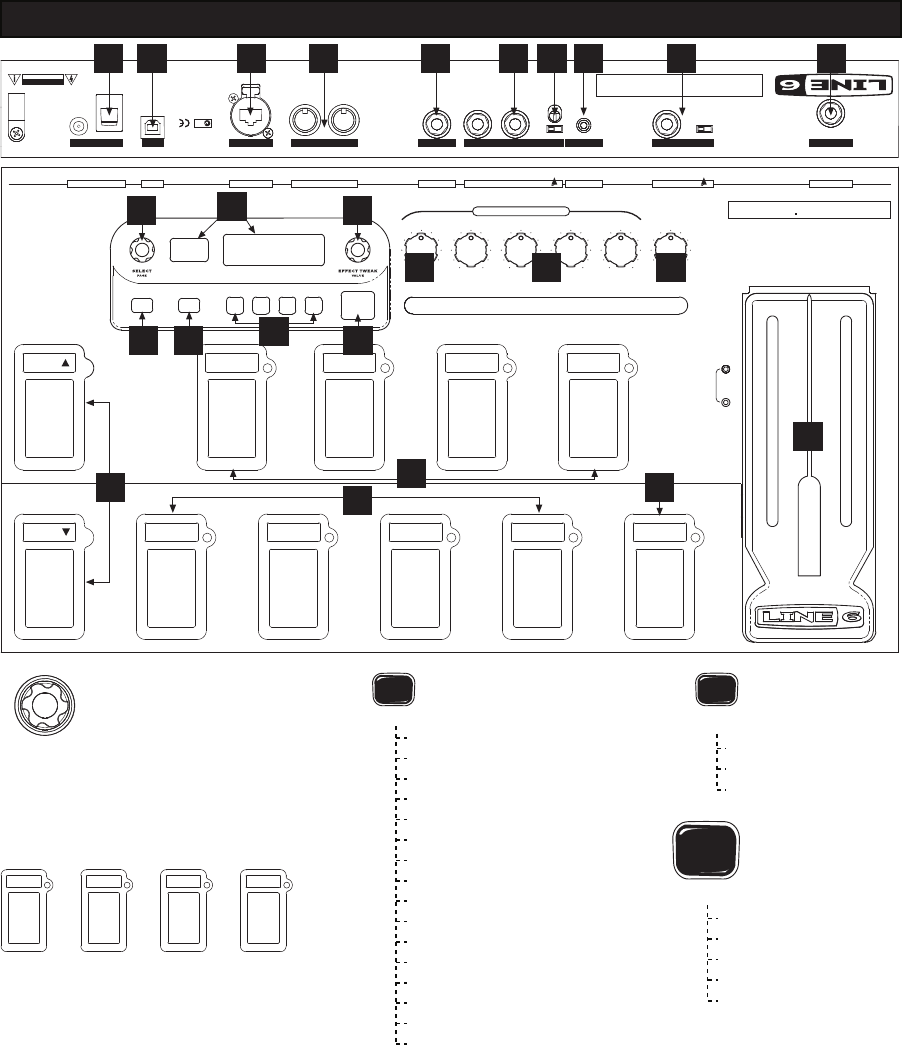
PODXT LIVE HARDWARE/NAVIGATION REFERENCE
SELECT
•When EDIT, SAVE or TUNER is lit, “SELECT” selects pages.
• Otherwise, “SELECT” chooses Channel Memories.
• Comp, Stomp, Mod, Delay: on when lit.
• CAB/A.I.R.: lit when using a cab simulation.
• Double-stomp a switch to go straight to its EDIT pages.
OUTPUT
MODE
SYSTEM
SAVE PAGES
SYSTEM PAGES
SAVE
• Save Sound to Channel Memory
• Custom Save Amp Model
• MIDI Dump
• Tuner
• What are you connecting to?
• Display contrast
• MIDI/Variax
• PODXT Live Software Version
EDIT
EDIT PAGES
• Amp Settings
• Amp Bypass Settings
• A.I.R. Settings
• Compressor and Gate Settings
• EQ Settings
• Stomp Select and Settings
• Stomp Settings (page 2 for some models)
• Modulation Select and Settings
• Modulation Settings (page 2)
• Delay Select and Settings
• Delay Settings (page 2)
• Reverb Select and Settings
• Reverb Settings (page 2)
• Wah Settings
•Volume Settings
• Switch Pedal, Effect Tweak and Tempo Settings
POD
DRIVE BASS MID TREBLE PRESENCE CHAN VOL
VOLUME WAH
PRO GUITAR TONE ON THE FLOOR
LIVE
XT
TWEAK
Custom Tone Recording Outputs
Pro Modeled Vintage & Modern FX
PEDAL 2POWER PHONES AUX INPUTVARIAXUSB OUT/THRU MIDI IN LEVEL INPUT PAD
AMP TONE CONTROLS
RIGHT OUTPUT L/MONO
BANK
BANK
AMP STOMP MOD DELAY
A B C D TAP
HOLD/TUNER
WARNING/AVIS:
SHOCK HAZARD – DO NOT OPEN. RISQUE DE CHOC ÉLECTRIQUE – NE PAS OUVRIR. TO REDUCE THE RISK OF FIRE OR ELECTRIC SHOCK DO NOT EXPOSE THIS EQUIPMENT TO RAIN OR MOISTURE. TO REDUCE THE RISK OF ELECTRIC SHOCK DO NOT REMOVE COVER. NO USER SERVICEABLE PARTS INSIDE. REFER SERVICING TO QUALIFIED
SERVICE PERSONNEL. THIS DEVICE COMPLIES WITH PART 15 OF THE FCC RULES. OPERATION IS SUBJECT TO THE FOLLOWING TWO CONDITIONS: (1) THIS DEVICE MAY NOT CAUSE HARMFUL INTERFERENCE, AND (2) THIS DEVICE MUST ACCEPT ANY INTERFERENCE RECEIVED, INCLUDING INTERFERENCE THAT MAY CAUSE UNDESIRED OPERATION.
U.S. Patent No. 5,789,689
N222
MIDI
PHONES VARIAX USB
AUX INPUTINPUT
CAUTION
RISK OF ELECTRIC SHOCK
DO NOT OPEN
STEREOLEFT/MONO RIGHTLEVEL
NORM/PAD
LINE/AMP VARIAX USBMIDI
IN OUT/THRU
POWER REQUIREMENTS
9v AC 2000 mA minimum
OFF
ON
PEDAL 2 POWEROUTPUT TO AMP/LINE
SERIAL NUMBER STICKER
PHONES
SAVE EDIT OUTPUT
MODE
SYSTEM
A B C D
123 5 47 8
9 10 11
1416 17
18
19
232221
25 26
2830
24
29
27

1. Turn the small OUTPUT LEVEL knob all the way down to zero.
2. Connect the LEFT and RIGHT OUTPUTS to your recorder or mixer’s inputs, or plug the left output
into your guitar amp’s input. Or connect headphones to the PHONES jack on your PODXT for
silent jamming.
3. Connect the included power pack to your PODXT, and plug the other end into a power jack.
4. Connect your guitar to PODXT Live’s INPUT.
5. Flip the rear panel POWER switch to fire up.
6. PODxt comes ready to rock for direct connection to your recording setup. If you’re connecting
to a guitar amp, it’s essential to let your PODXT know so it gives you the best tone. Do this
by pressing TUNE/SYSTEM button, then turning the SELECT knob one step clockwise. Press the
button below DEST (Destination), then turn the EFFECT TWEAK knob to tell your PODXT what
you’re connecting to. This setting will be overridden when you plug in headphones, so you don’t
have to do anything to get great headphone sound.
7. Turn up the OUTPUT LEVEL knob so you can hear PODXT’s output, but don’t turn up so high that
you’re overdriving the input of whatever you’re plugging into.
8. Select an Amp Model using the AMP MODEL knob. Set CHAN VOL to the max and the DRIVE,
BASS, MID and TREBLE to your heart’s desire.
9. Turn the SELECT knob to load an Effects Setup, wthen twist the REVERB and EFFECT TWEAK knobs
so you’re happy with the sound. Tap the TAP tempo button to set the speed of the selected effect.
10. Browse pre-programmed tones using the SELECT knob. Press the far left button under the display
when the EDIT button is NOT lit for “MANUAL Override,” where-the-knobs-are-is-how-it-sounds
operation.
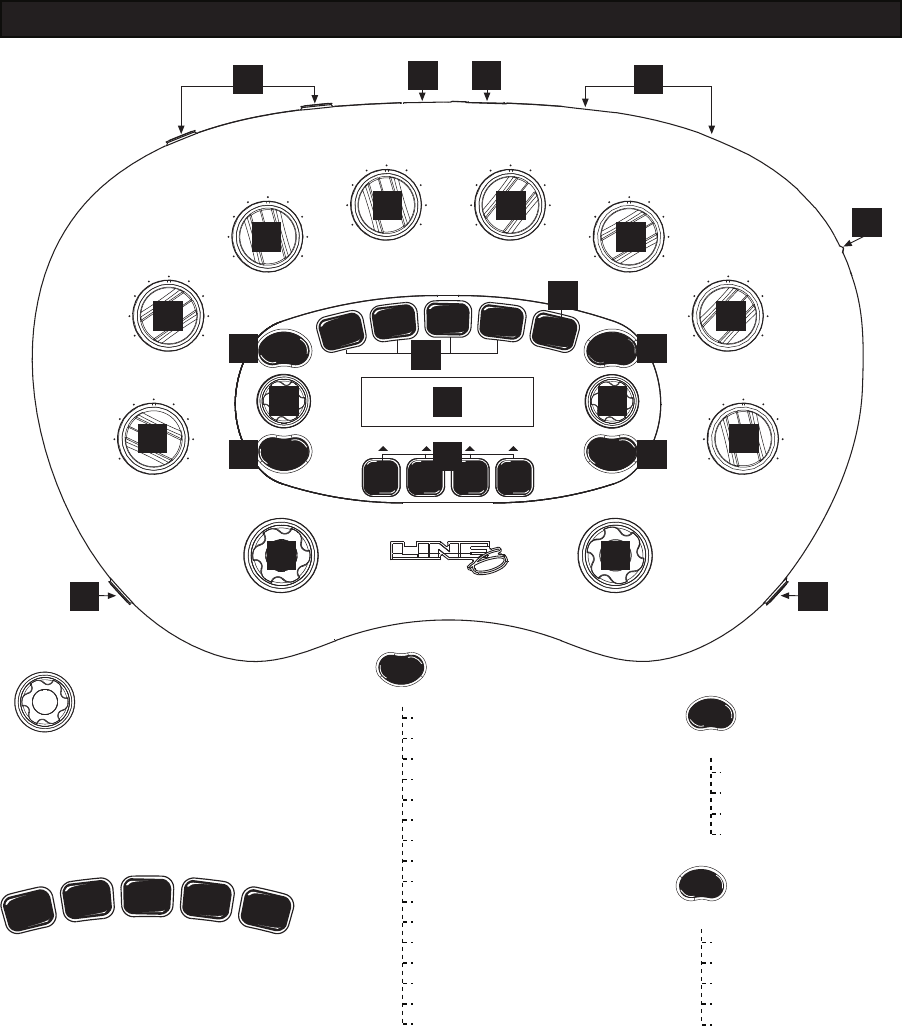
QUICK START: PODXT
Refer to the illustration on the right
when reading the Basic Features Guide.
1
2
7
17
T
U
N
E
S
Y
S
T
E
M
6
MIDDLE
0 10 TREBLE
0 10
BASS
0 10
DRIVE
0 10
PRESENCE
0 10
CHAN VOL
0 10
REVERB
0 10
POD
ULTIMATE TONE FOR GUITAR
XT
PODXT HARDWARE/NAVIGATION REFERENCE
COMP
STOMP
MOD
DELAY
CAB/
A.I.R.
• Comp, Stomp, Mod, Delay: on when lit.
• CAB/A.I.R.: lit when using a cab simulation.
• Double-press a button to go straight to its EDIT page.
OUTPUT
EFFECTSAMP MODELS
0 10
P
H
O
N
E
S
M
I
D
I
I
N
M
IDI
OU
T
U
SB
P
EDAL
R
IGH
TOU
TP
UT
L
E
F
TO
U
T
P
UT
I
N
P
U
T
EFFECT
TWEAK
SELECT
4
9
10
10 10
10
11
12
15 13
1416
18
22
21 23
24
20
85
3
19
T
A
P
S
A
V
E
E
D
I
T
COMP
STOMP
MOD
DELAY
CAB/
A.I.R.
SELECT
•When EDIT, SAVE or TUNER is lit, “SELECT” selects pages.
• Otherwise, “SELECT” chooses Channel Memories.
S
A
V
E
SAVE PAGES
SYSTEM PAGES
E
D
I
T
EDIT PAGES
• Amp Settings
• Amp Bypass Settings
• A.I.R. Settings
• Compressor and Gate Settings
• EQ Settings
• Stomp Select and Settings
• Stomp Settings (page 2 for some models)
• Modulation Select and Settings
• Modulation Settings (page 2)
• Delay Select and Settings
• Delay Settings (page 2)
• Reverb Select and Settings
• Reverb Settings (page 2)
• Wah Settings
•Volume Settings
• Pedal, Effect Tweak and Tempo Settings
T
U
N
E
S
Y
S
T
E
M
• Save Sound to Channel Memory
• Custom Save Amp Model
• Custom Save Effect Model
• MIDI Dump
• Tuner
• What are you connecting to?
• Display contrast
• MIDI/Variax
• PODXT Software Version
17
PODXT Quick Start
(on previous page)
gives a fast run
through of basic
setup.
Connections &
Configurations
chapter of Basic
Features Guide has
step-by-step-step
setup instruction for
the various options
of PODXT Pro,
including more
advanced setups.
21
22
14
16
37 38 39 40 41
36
1
18
20
T
U
N
E
T
A
P
S
A
V
E
E
D
I
T
COMP
STOMP
MOD
DELAY
CAB/
A.I.R.
(GATE)
S
Y
S
T
E
M
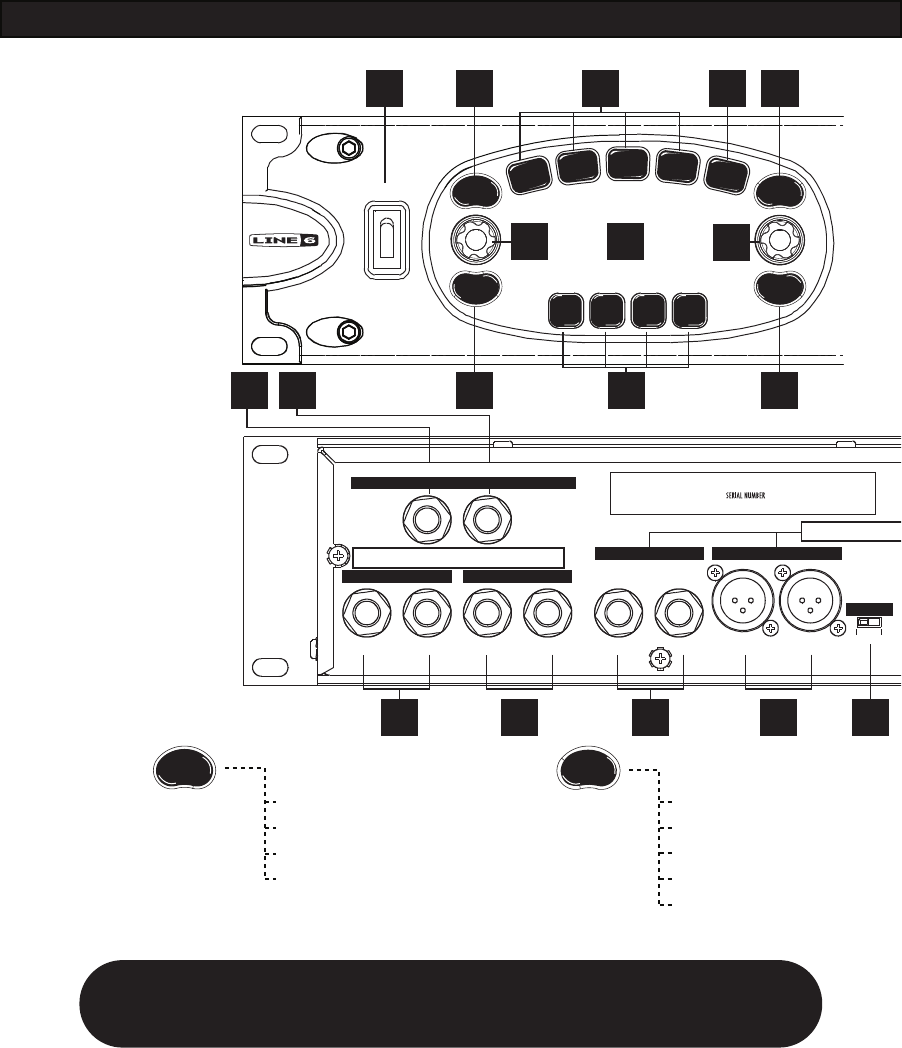
PODXT PRO HARDWARE/NAVIGATION REFERENCE
24
2319
35
GROUND LIFT
L/MONO R/MONO LEFT RIGHT
GROUND
ANALOG REAMPING INPUT/OUTPUT
LEFT/MONO RIGHT LEFT/MONO RIGHT
BALANCED ANALOG OUT
Line Level
Input Unprocessed
Guitar Out
UNBAL ANALOG OUT
EFFECTS RETURNEFFECTS SEND Unbalanced
Balanced: Tip = + / Ring = -
SERIES/PARALLEL VIA
I/O & DIG SELECT
BUTTON
STUDIO:
RECORDING OUTPUT
LIVE:
FEED TO ONSTAGE AMP
STUDIO:
+4 dBu
LIVE:
-10 dBV
POWER
SET MODES & LEVELS VIA
I/O & DIG SELECT
BUTTON
SYSTEM PAGES
T
U
N
E
S
Y
S
T
E
M
• Tuner
• What are you connecting to?
• Display contrast
• MIDI/Variax
• PODXT Software Version
S
A
V
E
SAVE PAGES • Save Sound to Channel Memory
• Custom Save Amp Model
• Custom Save Effect Model
• MIDI Dump
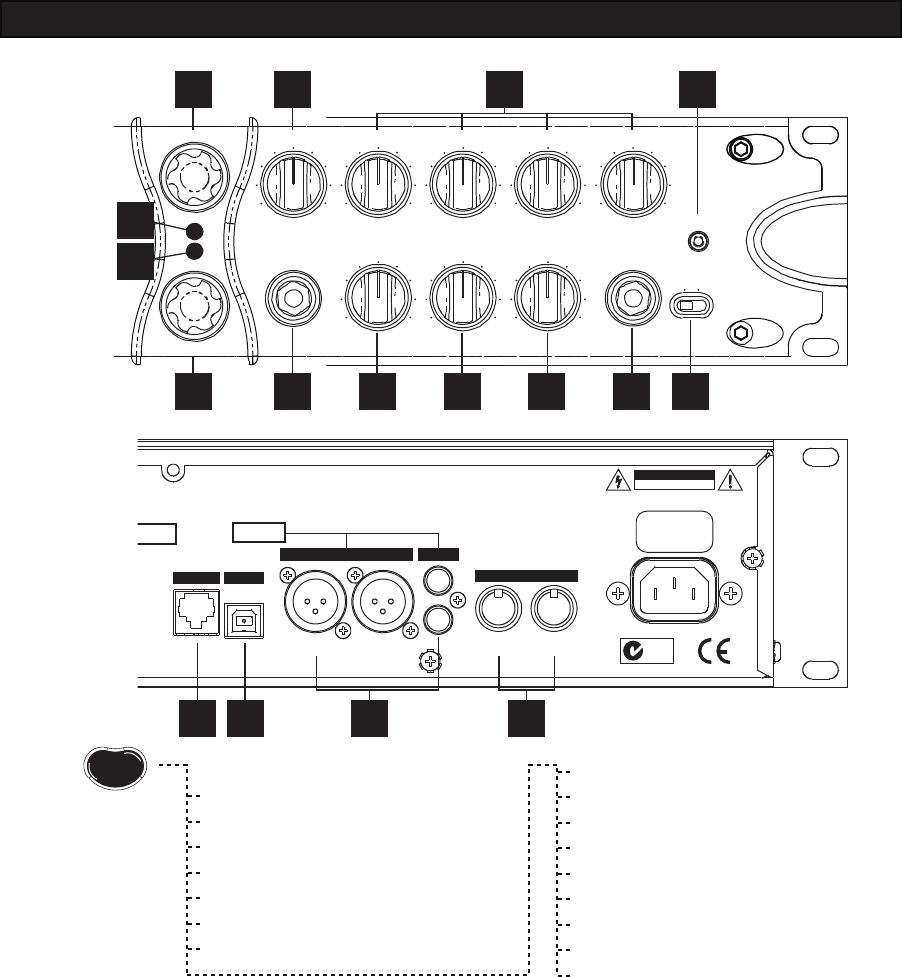
Refer to the illustration above when
reading the Basic Features Guide.
3
7
33
34
42
6
4
9
10
11
12 2
15
13 31
32
PODXT PRO HARDWARE/NAVIGATION REFERENCE
8
OUT/THRUIN
FBV Class Foot Controller only
(not compatible with Floor Board or FB4)
OUTIN
IN
OUT
AES/EBU S/PDIF
MIDI
100 - 120V ~
50 - 60Hz
100 W Max.
POWER REQUIREMENTS
USBPEDAL
N222
CAUTION
RISK OF ELECTRIC SHOCK
DO NOT OPEN
0 10 0 10 0 10
0 100 100 10
CLIP
SIGNAL
MIDDLE TREBLEBASSDRIVE PRESENCE
CHAN VOLREVERB OUTPUT
AMP MODELS
EFFECTS
Guitar inPHONES
0 10 I/O & DIG
SELECT
INPUT LEVEL
NORMAL PAD
PODPRO
XT
ULTIMATE TONE FOR GUITAR + DIG I/O
0 10
WARNING/AVIS:
SHOCK HAZARD – DO NOT OPEN. RISQUE DE CHOC ÉLECTRIQUE – NE PAS
OUVRIR. TO REDUCE THE RISK OF FIRE OR ELECTRIC SHOCK DO NOT
EXPOSE THIS EQUIPMENT TO RAIN OR MOISTURE. TO REDUCE THE RISK
OF ELECTRIC SHOCK DO NOT REMOVE COVER. NO USER SERVICEABLE
PARTS INSIDE. REFER SERVICING TO QUALIFIED SERVICE PERSONNEL.
THIS DEVICE COMPLIES WITH PART 15 OF THE FCC RULES.
OPERATION IS SUBJECT TO THE FOLLOWING TWO
CONDITIONS: (1) THIS DEVICE MAY NOT CAUSE HARMFUL
INTERFERENCE, AND (2) THIS DEVICE MUST ACCEPT ANY
INTERFERENCE RECEIVED, INCLUDING INTERFERENCE THAT
MAY CAUSE UNDESIRED OPERATION.
SET MODES & LEVELS VIA
I/O & DIG SELECT
BUTTON
E
D
I
T
EDIT PAGES • Amp Settings
• Amp Bypass Settings
• A.I.R. Settings
• Compressor and Gate Settings
• EQ Settings
• Stomp Select and Settings
• Stomp Settings (page 2 for some models)
• Modulation Select and Settings
• Modulation Settings (page 2)
• Delay Select and Settings
• Delay Settings (page 2)
• Reverb Select and Settings
• Reverb Settings (page 2)
• Wah Settings
• Volume Settings
• Pedal, Effect Tweak and Tempo Settings
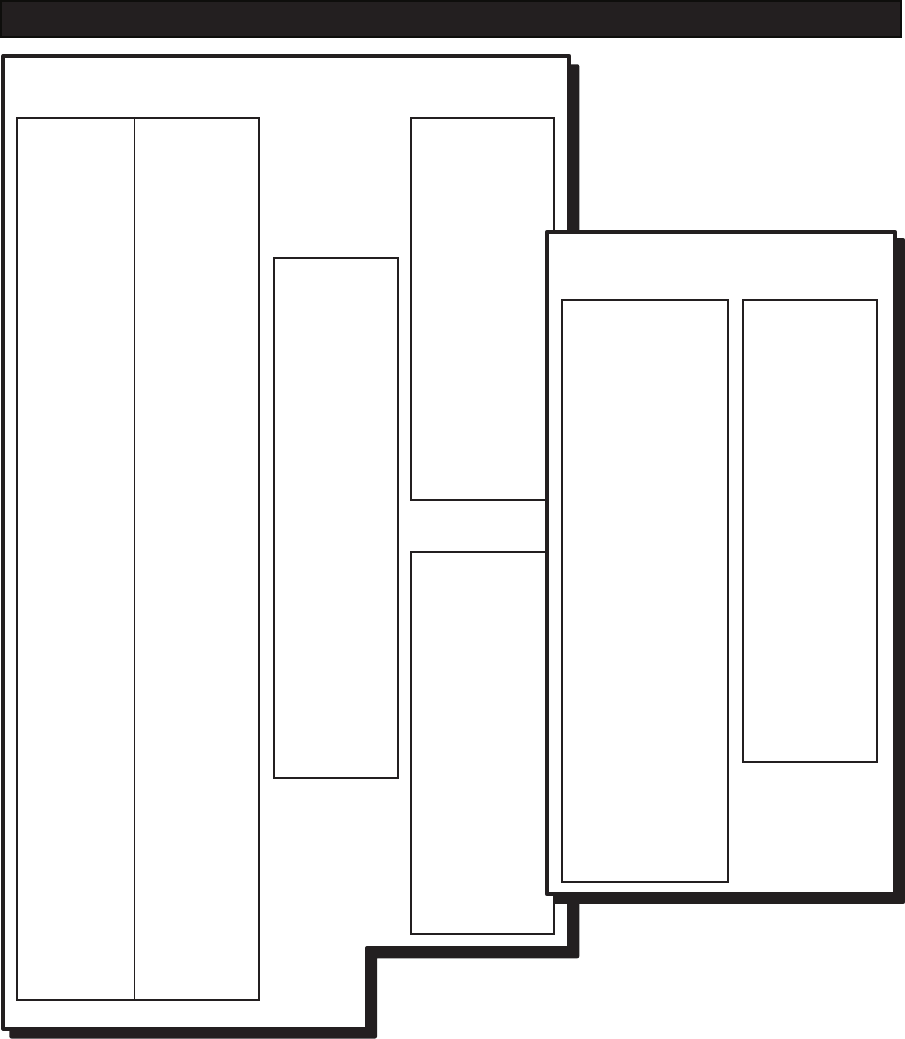
PODXT FAMILY AMP & CAB MODELS
PODXT, PODXT Live and
PODXT Pro all include the
Standard and Power Pack Models
plus all guitar Cab Models. Metal
Shop, Collector Classics and
Bass Expansion are optional
Model Packs.
STANDARD & POWER PACK AMPS
# Standard Power Pack
0 BYPASS
1 TUBE PREAMP
2 LINE 6 CLEAN
3 LINE 6 JTS-45
4 LINE 6 CLASS A
5 LINE 6 MOOD
6 SPINAL PUPPET
7 LINE 6 CHEM X
8 LINE 6 INSANE
9 LINE 6 ACO 2
10 ZEN MASTER
11 SMALL TWEED
12 TWEED B-MAN
13 TINY TWEED
14 BLACKFACE LUX
15 DOUBLE VERB
16 TWO-T0NE
17 HIWAY 100
18 PLEXI 45 PP
19 PLEXI LEAD 100
20 PLEXI JUMP LEAD
21 PLEXI VARIAC
22 BRIT J-800
23 BRIT JM PRE
24 MATCH CHIEF
25 MATCH D-30
26 TREADPLATE DUAL
27 CALI CRUNCH
28 JAZZ CLEAN
29 SOLO 100
30 SUPER O
31 CLASS A-15
32 CLASS A-30 TB
33 L6 AGRO
33 L6 LUNATIC
34 L6 TREADPLATE
36 VARIAX ACOUSTIC
101 CITRUS D-30
102 CLASS A-30 FAWN
103 BRIT GAIN 18
104 J-2000 #2
105 LINE 6 BOUTIQUE
106 LINE 6 MODERN GAIN #1
CABS
# Cab Model
0 NO CAB
1 1X6 SUPER O
2 1X8 TWEED
3 1X10 GIBTONE
4 1X10 G-BRAND
5 1X12 LINE 6
6 1X12 TWEED
7 1X12 BLACKFACE
8 1X12 CLASS A
9 2X2 MINI T
10 2X12 LINE 6
11 2X12 BLACKFACE
12 2X12 MATCH
13 2X12 JAZZ
14 2X12 CLASS A
15 4X10 LINE 6
16 4X10 TWEED
17 4X12 LINE 6
18 4X12 GREEN 20’S
19 4X12 GREEN 25’S
20 4X12 BRIT T75
21 4X12 BRIT V30’S
22 4X12 TREADPLATE
23 1X15 THUNDER
24 2X12 WISHBOOK
GUITAR AMPS & CABS
COLLECTOR CLASSICS
# Amp Model
55 BOMBER X-TC
56 DEITY CRUNCH
57 BLACKFACE VIBRO
58 DOUBLE SHOW
59 SILVERFACE BASS
60 MINI DOUBLE
61 GIBTONE EXPO
62 BRIT BASS
63 BRIT MAJOR
64 SILVER TWELVE
65 SUPRO ‘62 THUNDER
66 L6 BAYOU
67 L6 CRUNCH
68 L6 PURGE
69 L6 SPARKLE
70 L6 SUPER CLN
71 L6 SUPERSPARK
72 L6 TWANG
METAL SHOP
# Amp Model
37 BOMBER UBER
38 CONOR 50
39 DEITY LEAD
40 DEITY’S SON
41 ANGEL P-BALL
42 BRIT SLIVER
43 BRIT J-900 CLN
44 BRIT J-900 DST
45 BRIT J-2000
46 DIAMOND PLATE
47 CRIMINAL
48 L6 BIG BOTTOM
49 L6 CHUNK CHUNK
50 L6 FUZZ
51 L6 OCTONE
52 L6 SMASH
53 L6 SPARKLE CLN
54 L6 THROTTLE
BASS EXPANSION AMPS
# Amp Model
73 TUBE PREAMP
74 L6 CLASSIC JAZZ
75 L6 BRIT INVADER
76 L6 SUPER THOR
77 L6 FRANKENSTEIN
78 L6 EBONY LUX
79 L6 DOPPELGANGER
80 SUB DUB
81 AMP 360
82 JAGUER
83 ALCEMIST
84 ROCK CLASSIC
85 FLIP TOP
86 ADAM AND EVE
87 TWEED B-MAN
88 SILVERFACE BASS
89 DOUBLE SHOW
90 EIGHTIES
91 HIWAY 100
92 HIWAY 200
93 BRIT MAJOR
94 BRIT BASS
95 CALIFORNIA
96 JAZZ TONE
97 STADIUM
98 STUDIO TONE
99 MOTOR CITY
100 BRIT CLASS A100
BASS EXPANSION CABS
# Cab Model
25 1X12 BOUTIQUE
26 1X12 MOTOR CITY
27 1X15 FLIP TOP
28 1X15 JAZZ TONE
29 1X18 SESSION
30 1X18 AMP 360
31 1X18 CALIFORNIA
32 1X18+12 STADIUM
33 2X10 MODERN UK
34 2X15 DOUBLESHOW
35 2X15 CALIFORNIA
36 2X15 CLASS A
37 4X10 LINE 6
38 4X10 TWEED
39 4X10 ADAM EVE
40 4X10 SILVERCONE
41 4X10 SESSION
42 4X12 HIWAY
43 4X12 GREEN 20’S
44 2X12 GREEN 25’S
45 4X15 BIG BOY
46 8X10 CLASSIC
BASS AMPS & CABS
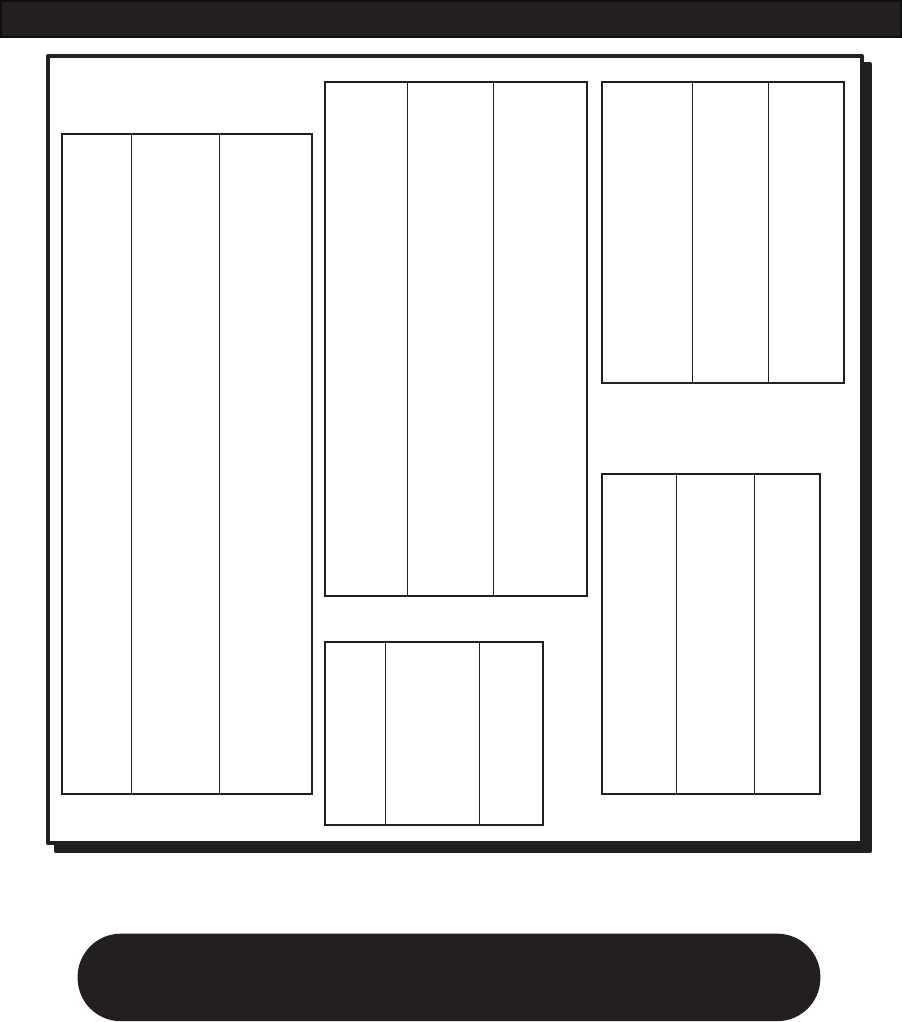
PODXT FAMILY EFFECT MODELS
FX Junkie is included with PODXT Live and can be added to PODXT and PODXT Pro.
STOMPS
Standard Power Pack FX Junkie
FACIAL FUZZ
FUZZ PI
SCREAMER
CLASSIC DIST
OCTAVE FUZZ
BLUE COMP
RED COMP
VETTA COMP
AUTO SWELL
AUTO WAH
KILLER Z
TUBE DRIVE
VETTA JUICE
BOOST + EQ
BLUE COMP TREB
DINGO-TRON
CLEAN SWEEP
SEISMIK SYNTH
DOUBLE BASS
BUZZ WAVE
REZ SYNTH
SATURN 5 RING M
SYNTH ANALOG
SYNTH FX
SYNTH HARMONY
SYNTH LEAD
SYNTH STRING
BASS OVERDRIVE
BRONZE MASTER
SUB OCTAVES
BENDER
REVERBS
Standard Power Pack FX Junkie
LUX SPRING
STD SPRING
KING SPRING
SMALL ROOM
TILED ROOM
BRITE ROOM
DARK HALL
MEDIUM HALL
LARGE HALL
RICH CHAMBER
CHAMBER
CAVERNOUS
SLAP PLATE
VINTAGE PLATE
LARGE PLATE
MODS
Standard Power Pack FX Junkie
SINE CHORUS
ANALOG CHORUS
LINE 6 FLANGER
JET FLANGER
PHASER
U-VIBE
OPTO TREM
BIAS TREM
ROTARY DRUM
+HORN
ROTARY DRUM
AUTO PAN
ANALOG SQUARE
SQUARE CHORUS
EXPO CHORUS
RANDOM CHORUS
SQUARE FLANGE
EXPO FLANGE
LUMPY PHASE
HI-TALK
SWEEPER
POD PURPLE X
RANDOM S/H
TAPE EATER
WARBLE-MATIC
DELAY
Standard Power Pack FX Junkie
ANALOG DELAY
ANALOG W/ MOD
TUBE ECHO
MUTLI-HEAD
SWEEP ECHO
DIGITAL DELAY
STEREO DELAY
PING PONG
REVERSE
ECHO PLATTER
TAPE ECHO
LOW REZ
PHAZE EKO
BUBBLE ECHO
DELAYS
Standard Power Pack FX Junkie
ANALOG DELAY
ANALOG W/ MOD
TUBE ECHO
MUTLI-HEAD
SWEEP ECHO
DIGITAL DELAY
STEREO DELAY
PING PONG
REVERSE
ECHO PLATTER
TAPE ECHO
LOW REZ
PHAZE EKO
BUBBLE ECHO
WAHS
Standard Power Pack FX Junkie
VETTA WAH
JEN FASSEL
WEEPER
CHROME
CHROME CUSTOM
THROATY
CONDUCTOR
COLORFUL
EFFECTS
Learn about adding Model Pack Models:
www.line6.com/modelpacks
1
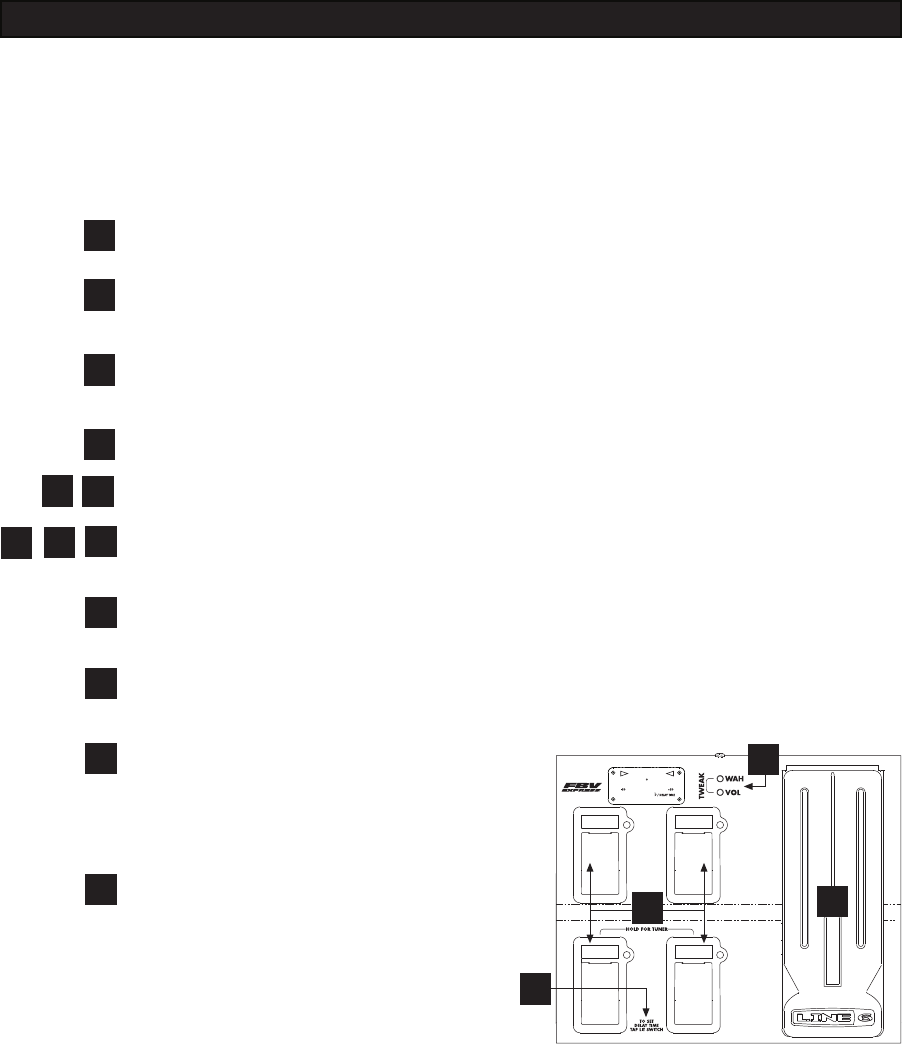
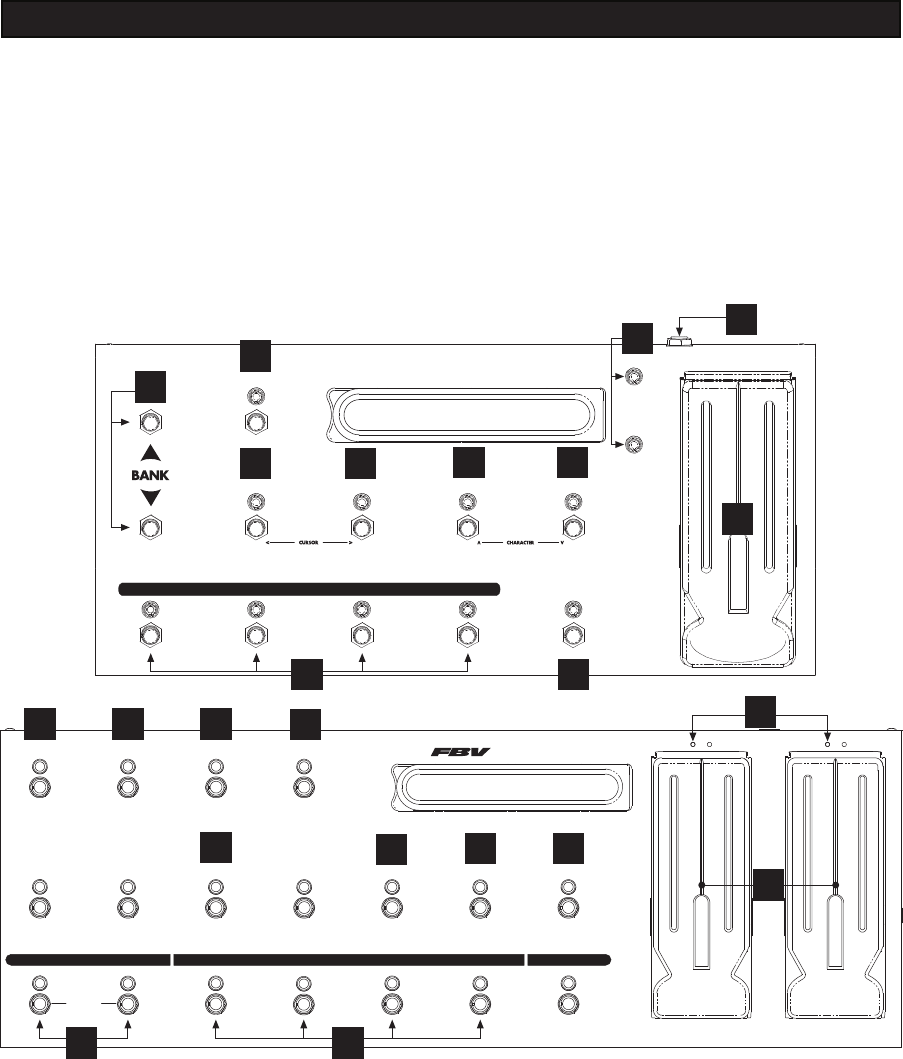
FBV foot controllers are optional, adding foot control to PODXT and PODXT Pro. They
include the necessary hookup cable: plug it into the jack on the back of your PODXT that’s labeled
Pedal. The pedal is powered over the cable, so there’s no need for a ‘wall-wart’ or other external
power supply for the FBV—one cable, and you’re done! If you ever need to replace the cable, it’s
a standard CAT-5 Ethernet cable, available just about everywhere these days.
2
4
3
56
789
11
10
12
FBV REFERENCE
13
Choose any of the 32 Banks of Channel Memories, then step on A, B, C, or D to actually
load the Channel Memory. (FBV Express doesn’t provide Bank select from its footswitches.)
Load one of the four Channel Memories in the current Bank.
PODXT Pro only: Turn effect loop on off. Unlike other FBV switches, this one
doesn’t switch until you lift your foot off of it.
PODXT only: rather than let this go to waste, it’s used to turn Comp On/Off.
Turn the Stomp effect on and off. Light above the switch is lit when effect is on.
FBV only: Switch Comp and Gate on and off. Lights shown if these effects are on.
Switch Modulation and Delay and Reverb on and off. Light on, effect on.
Tap twice to set Tempo on PODXT. Light flashes to show you current tempo. Hold for
two seconds to activate PODXT’s tuner. The FBV display shows the note you’re playing
and lets you know whether you’re sharp or flat.
Lights show what the pedal(s) are controlling. (See Chapter 4 for details.)
Press fully forward to click the toe-switch,
switching the pedal’s function and/or
switching the wah on/off. (See Chapter
4 for details.)
FBV Shortboard only: Connect an
expression pedal (such as the Line 6
EX-1) to control Volume or Effect
Tweak. (See Chapter 4 for details.)
AB
CD
2
A B
C D
11
12
10
10
Name & Save with FBV and FBV Shortboard only:
• Hold FX Loop until NAME EDIT is displayed.
•Stomp and Mod on FBV Shortboard (Reverb and Tremolo on FBV) move left and
right, selecting a character in the name.
•Delay and Reverb on FBV Shortboard (Mod and Delay on FBV) change selected character.
•Then use the Bank Up/Down switches to choose a bank to save to, and A, B, C or D to
complete the save to that Channel Memory.
•Press TAP any time to cancel saving.
FX LOOP STOMP BOX 1 STOMP BOX 2 STOMP BOX 3
WAH PEDAL 1 PEDAL 2VOLUME
DELAYMODULATIONTREMOLOREVERB TAP TEMPOAMP 2AMP 1
HOLD FOR TUNER
CUSTOM FOOT CONTROLLER
FACTORY/USER
CHANNEL A CHANNEL B CHANNEL C CHANNEL D FAVORITE CHANNELBANK DOWN BANK UP
1
4
789
3
2
5611
12
FBV REFERENCE
4
1
7
89
STOMP MODULATION REVERB
FX LOOP
HOLD FOR TUNER
TAP
CHANNEL BCHANNEL A CHANNEL DCHANNEL C
VOLUME WAH
FBV SHORTBOARD
DELAY
3
4
210
11 13
12

The FBV Shortboard allows you to connect an expression pedal, such as the Line 6
EX-1, to provide dedicated volume pedal control or act as remote control over the parameter
assigned to the Effect Tweak knob. This lets you remotely control the Rotary Drum Speed, for
example, while allowing the on-board pedal to control Wah or Volume. And since the Effect
Tweak and pedal assignements are stored with a Channel Memory, you can even change setups per
Channel Memory.
To set up this pedal:
1. Press the Edit button and turn Select until you see this page (LOOP is shown only for
PODXT Pro):
2. Press the button under ASSIGN and select either VOLUME, to control the volume, or
TWEAK, to control the parameter.
3. Be sure to save if you want to keep your changes.
When ASSIGN is set to TWEAK, moving a connected EX-1 from heel to toe will move the
assigned parameter from its minimum value to its maximum value. When ASSIGN is set to
VOLUME, the FBV Shortboard’s Volume light will go out, the EX-1 will control the PODxt’s
volume and the on-board pedal will be your dedicated wah pedal. Turn Select to the previous
page to choose the position of the volume pedal: PRE (before the Amp Model), or POST (after
the Amp Model).
USING AN ADDED EX-1 EXPRESSION PEDAL WITH FBV SHORTBOARD

I
contents
PODxt & The GearBox Platform 1•1
GearBox computer software showing PODxt tone controls 1•1
Line 6 Monkey, Online Account Setup & Registration . . . . 1•1
GearBox Software . . . . . . . . . . . . . . . . . 1•2
Where’d all this stuff come from? . . . . . . . . . . . 1•2
Modeling. . . . . . . . . . . . . . . . . . . . 1•3
Amp, Cab and Effect Models . . . . . . . . . . . . 1•4
There’s Magic in the A.I.R.. . . . . . . . . . . . . . 1•4
And Away We Go.... . . . . . . . . . . . . . . . . 1•6
Controls & Connections 2•1
PODxt Live . . . . . . . . . . . . . . . . . . . 2•10
PODxt Pro . . . . . . . . . . . . . . . . . . . 2•12
Getting Set Up 3•1
Getting The Right Tone With An Amp. . . . . . . . . . 3•3
FX Loop (PODXT PRO only) . . . . . . . . . . . . . 3•4
Setting Levels . . . . . . . . . . . . . . . . . . 3•6
Radiation Alert . . . . . . . . . . . . . . . . . 3•7
PODxt Pro — Input Select, Digital In/Out and Reamping . . . 3•8
Selecting An Input . . . . . . . . . . . . . . . . 3•8
Input & Digital Out Options . . . . . . . . . . . . . 3•9
FORMAT: Sample rate, word length (bit depth), and clock source 3•9

II
MODE: Normal or Dry Guitar . . . . . . . . . . . . 3•10
GAIN: Extra gain on the digital outs . . . . . . . . . . 3•10
Re-Amping with PODxt Pro . . . . . . . . . . . . . 3•11
Analog Re-amping . . . . . . . . . . . . . . . . 3•11
Digital Re-amping . . . . . . . . . . . . . . . . 3•12
MIDI . . . . . . . . . . . . . . . . . . . . . 3•14
What’s MIDI? . . . . . . . . . . . . . . . . . . 3•14
In/Out . . . . . . . . . . . . . . . . . . . . 3•14
MIDI Settings . . . . . . . . . . . . . . . . . . 3•15
Backing Up PODxt Data to Other Devices . . . . . . . 3•16
MIDI via USB . . . . . . . . . . . . . . . . . . 3•16
Creating & Storing Sounds 4•1
GearBox . . . . . . . . . . . . . . . . . . . . 4•1
Editing Basics . . . . . . . . . . . . . . . . . . 4•1
Double Press for Easy Access . . . . . . . . . . . . 4•1
Inside the Edit Menu . . . . . . . . . . . . . . . . 4•2
Amp knob settings . . . . . . . . . . . . . . . . 4•2
Amp Bypass Channel Volume . . . . . . . . . . . . 4•3
Cabinet and Mic settings (There’s magic in the A.I.R.!) . . . 4•3
EQ settings . . . . . . . . . . . . . . . . . . . 4•4
Stomp settings . . . . . . . . . . . . . . . . . 4•5
Mod and Delay settings . . . . . . . . . . . . . . 4•6
Setting your Tone to Tempo . . . . . . . . . . . . . . 4•6
Config . . . . . . . . . . . . . . . . . . . . . 4•7
Reverb settings . . . . . . . . . . . . . . . . . . 4•8
Wah Settings . . . . . . . . . . . . . . . . . . 4•8

III
Volume Settings . . . . . . . . . . . . . . . . . 4•9
Saving Yourself . . . . . . . . . . . . . . . . . . 4•14
Saving a Channel Memory . . . . . . . . . . . . . 4•14
Custom Saving Amp Models . . . . . . . . . . . . . 4•15
Custom Saving Effect Setups on PODXT & PODXT PRO . . . 4•16
MIDI Dumps . . . . . . . . . . . . . . . . . . 4•17
Modeled Amps & Cabs 5•1
Which Amps and Cabs Are Modeled? . . . . . . . . . . 5•1
Cabinet Models . . . . . . . . . . . . . . . . . . 5•34
Effect Model Details 6•1
Comp . . . . . . . . . . . . . . . . . . . . . 6•1
Gate . . . . . . . . . . . . . . . . . . . . . 6•2
The Stomp Effects: Fuzz, Distortion, Overdrive . . . . . . . 6•3
Stomp Effects: Compressors . . . . . . . . . . . . . 6•9
The Stomp Effects: Synths and Filters . . . . . . . . . . 6•15
The Wah Pedals . . . . . . . . . . . . . . . . . 6•18
The Modulation Effects . . . . . . . . . . . . . . . 6•20
The Delay Effects . . . . . . . . . . . . . . . . . 6•30
Reverb . . . . . . . . . . . . . . . . . . . . . 6•39
Quick Start Guide
1•1
Podxt & the GearBox PLatForM
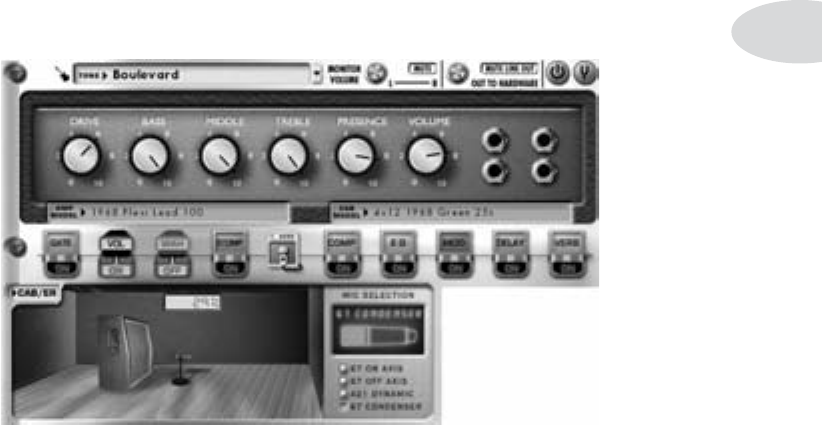
GearBox computer software showing PODxt tone controls
Your new PODxt brings you a whole lot more than just what’s inside its metal casing.
Plug a USB cable into it, hook that to your Internet-connected computer, and you’re
ready to tap into the world’s most advanced tone platform for guitarists.
Line 6 Monkey, Online Account Setup & Registration
www.line6.com/monkey is the place to begin. That’s where you’ll get Line 6 Mon-
key, the intelligent software update utility that makes it easy to get the latest software,
updates and options for your PODxt. Use it to set up a Line 6 account and register your
PODxt purchase (you can also used the enclosed, postage-paid card for registration if you
don’t have Internet access). Registering is very important because it ensures that you’re
dialed in for warranty service and makes it possible for us to contact you if new software
versions or other cool enhancements are offered — cutting edge technology and such!
Once you’ve got Line 6 Monkey, run it and follow Monkey’s lead to get the free GearBox
software, driver, and any available updates for your PODxt.

Quick Start Guide
1•2
GearBox Software
The GearBox software is tone control central. It gives you visual control of your PODxt,
makes it easy to backup your PODxt’s memory, includes plenty more great presets, and
connects you directly to our exclusive online library of thousands of Tones professionally
programmed by Line 6 to match the greatest guitarists, songs, bands and gear of all time.
GearBox can run alongside your favorite recording software, letting you easily control
every detail of your PODxt right from your computer during recording. And our exten-
sive online documentation includes step-by-step instruction for using GearBox with
some of the most popular Windows® and Macintosh® recording software, to help make
your computer recording experience a great one. GearBox even connects you to Guitar-
Port Online, our exclusive online world for guitarists who want to play along with the
latest and greatest tracks, lessons and licks, covering the greatest guitarists of all time.
Check it out when you’re looking to pick up a few new tricks, or just have a great time
playing some tunes.
Where’d all this stuff come from?
As you may know, Line 6 first came on the scene a number of years back with a new kind
of guitar amplifier — the first to put digital software modeling technology to work in a
combo amp for guitarists. We also knew then that guitarists need great amp tone when
recording, but generally don’t have the room to crank up that classic stack, or the money
to hire a team of ace engineers to get it to tape. So we squished our patented modeling
technology down into a small, kidney-bean-shaped wonder called POD, and forever
changed the world of guitar recording.
Once we’d gotten this whole modeling amp and POD thing started, it was time to see
what we could do if we really cranked up the horsepower and took our modeling to the
next level. I mean, once you’ve climbed to the top of the mountain, it’s on to the next
mountain, right? So, eyes glowing like power tubes, we stocked up on the Pepsi, gathered
our genius engineers into a secret lab, fired up our extensive collection of amplifiers and
stomp boxes... and spirited their treasured tones into a newly-supercharged modeling
technology we dubbed Point-to-Point modeling. It first hit the streets in the award-win-
ning Vetta amp, whose superb tone and unparalleled selection of dream amps, cabinets
and effects make it a pretty good contender for the world heavyweight amp title. After
that, we poured the same magic elixir into the classic POD and—ta-dah!—PODxt was
born.

Quick Start Guide
1•3
To make all this good stuff really rock in the world of computer recording, we added
GearBox software, free for every owner of PODxt and our TonePort and GuitarPort
recording and modeling interfaces. Combine that with Line 6 Monkey, our world class
driver software technology, options like GuitarPort Online and Model Packs, plus our
massive online tone library, and it’s all added up to be the world’s most advanced tone
system for guitarists. We call the whole shooting match The GearBox Platform.
Of course, the single most important thing about the GearBox Platform and your PODxt
is the way they give you the world’s greatest sound for guitar. And at the heart of it all
are the Amp, Cab, Mic and Effects Models that you only get from Line 6.
Modeling
Modeling: just what is it, and why is it so important?
To answer that question, we’ll start with tubes (better know as “valves” to our friends in
England and elsewhere). Tubes, we can all agree, are the heart and soul of pretty much
every legendary guitar amp, and are key to the warm, harmonic-rich tone quality of
those amps. Solid state devices (transistors) are simply unable to duplicate tube warmth
and performance. And “hybrids” — a tube in a circuit along with a bunch of transistors
— are really a vain attempt at warming up a transistor-based tone. They fall short in any
comparison to a 100% tube circuit. So that’s it — tubes or nothin’, right? Well, not any
more....
You see, Line 6’s team of crack engineer-guitarists has spent years understanding pretty
much everything there is to know about tube-powered gear, including exactly how dif-
ferent types of tubes respond under various conditions typical of guitar amplifier design.
How tubes process an input signal, how the signal is colored and shaped, at what point it
begins to distort, the quality and characteristic of the distortion, what happens when the
signal gets to other parts of the system — complicated stuff, but all analyzable as elec-
tronic data. A guitar pickup output, after all, is an electronic signal, and tubes and all the
rest are really just a complex form of signal processing.
Having sussed it all out, the Line 6 engineers translated all this arcane knowledge into
software that simulates the signal processing of guitar amps’ tubes and other electronics,
entirely within the digital domain. Cool, huh? The Line 6 crew also directed their caf-
feine-enhanced modeling attention to a study of guitar speaker cabinets and the impor-
tant part they play in communicating great guitar tone. And the great variety of stomp
box and rack effects that guitarists use to juice things up. They translated it all into

Quick Start Guide
1•4
yet more powerful software, and it’s this revolutionary DSP (Digital Signal Processing)
software-based modeling technology that gives Line 6 the power to create super silicon-
based life forms like PODxt.
Amp, Cab and Effect Models
The tone and technology know-how of Line 6 thus comes to you as Amp, Cab and Effect
Models based on a collection of gear recognized by guitarists the world over as true “tone
classics.” These models were tweaked through careful, scientific A/B comparisons to the
gear that inspired them, with an ear open for the effects of different volume levels and
settings of the originals’ tone and gain controls. The gain and equalization characteris-
tics of the modeled gear were carefully measured so that changes to knobs on the models
would mirror the effects of these changes on the originals as closely as possible. We’re
talkin’ major attention to detail here. Tone control center frequencies, slopes, and cut/
boost range were painstakingly analyzed, in addition to a whole host of factors unique
to each piece of gear. Not only that, but since many classic amps and effects have highly
interactive circuits, we paid careful attention to the way that the setting of one knob
changes the way that another knob may behave. All in an effort to make our Models as
much like the amps, cabs and effects in our collection as possible. The resulting Amp,
Cab and Effect Models are the foundation of PODxt.
Now, then — here are a couple of things we want to be completely crystal clear on:
1. The Line 6 modeling process is a patented, 100% digital soft-
ware-based technology exclusive to Line 6.
2. Line 6 Modeling is not sampling, nor is it solid state; no special
guitar, pickup, or cabling is needed.
There’s Magic in the A.I.R.
PODxt delivers its modeling tones through another innovation: Line 6’s A.I.R. direct
recording output. The A.I.R. (acoustically integrated recording) technology is the result
of intensive research and careful study of the tonal characteristics produced by the inter-
action of amplifiers, cabinets, speakers, microphones and the recording room during the
recording process.

Quick Start Guide
1•5
The direct output of many preamps, amplifiers and direct box-style amp replacements
available today offer some limited form of cabinet simulation or speaker emulation.
Those that happen to be more than simple high end roll-offs have little or no control
options. Generic cabinet simulations cannot reproduce the markedly different tones
resulting from the choice of speakers, wood, and other details of a great real-life speaker
cabinet. Other equipment also fails to reproduce the significant tonal contribution of
microphone selection and placement, and do nothing to reproduce the subtle ambience
of the recording space.
The result is the familiar dissatisfaction with direct recording products — even those
that deliver a reasonably usable basic tone fail to reproduce the “life” of the guitar sound,
and destroy the proper feel in the process. It is as if your guitar strings became heavier
and less responsive, like they just went up a couple of gauges when you plugged into your
direct box. And your sound lost its life.
PODxt’s combination of Amp Models and A.I.R. technology provides superior direct
tones by recreating all the elements contributing to a great recorded guitar sound, and
giving you that tone with the same feel as playing through a real amp and speaker cabi-
net:
• The effect of the guitar amplifier circuit is emulated by the Amp Model you choose.
Each model was developed from extensive study of a classic amplifier treasured as a
tone classic.
• In a guitar amp, once the guitar signal passes through the electronics, it is output
to one or more speakers in a speaker cabinet. The specific design of the speakers, how
many there are, and how they are arranged contributes significantly to your guitar
tone, as does the construction and resulting tone of the wood box itself. A Marshall
head driving a single 12-inch speaker in an open-back cabinet, for instance, will sound
dramatically different from the same head driving a 4x12 closed-back cabinet. Line 6
has carefully constructed virtual software speaker cabinets that emulate the contribu-
tion made by real speaker cabinets to get great guitar sound.
• Once the sound makes it out of the speaker cabinet, the next important link in the
recording system is the microphone that receives that sound. Guitar recordists select
different microphones, and arrange them in different placements, to get particular
sounds. A microphone pointing directly into the cone of a speaker will hear something
different than one positioned off-axis. Line 6 carefully analyzed the coloring that vari-
ous microphones add to the guitar sound, as well as the effects of different mic place-
ment techniques, and gave you control of these details in your PODxt.

Quick Start Guide
1•6
• The guitar amp, cabinet, and microphone don’t just sit in empty space. The room
that they are in contributes importantly to the guitar sound you will record. Reverb
can be used to capture the basic character of the space, simulating the effect of the
sound reflecting off the room’s walls, floors and ceiling. But there are other subtle
details that have more to do with the “spread” of the sound as it passes through the air
between the speaker and microphone. This final component is the key to the sense
that the listener is in one position in the room, and the guitar sound is in another
position, and that the two are separated by a mass of air that sound spreads through to
reach the listener.
All these important sound-shaping components are accounted for in your PODxt.
Turn the Amp Model knob to call up the amplifier emulation you want. PODxt auto-
matically matches that amplifier with an appropriate cabinet and microphone setup,
giving you the sound of that setup coming through the air of a recording space. Turn
the reverb knob to taste, and start recording incredible mic’d up sound. Press a button
and twiddle a knob or two, and you can switch cabinets, change out mics and their
placement, and adjust the “spread” of the sound in your virtual room as well.
The A.I.R. direct recording output is exclusive to Line 6. In combination with the Line
6 Amp, Cab, Mic and Effect Models, it is the key to PODxt’s phenomenally satisfying
direct recording sound.
And Away We Go....
Now that we’ve completed our little technology tour, it’s time to experience PODxt for
yourself. Grab your favorite axe, plug in, open the handy Quick Reference booklet to
the spread for your particular PODxt, and follow me, my friend, for the non-stop excite-
ment of the PODxt Grand Tour....

Controls & Connections
2•1
controLs & connections
Numbers below refer to Quick Reference booklet.
1 Power Switch - Flip this to bring your PODxt to life.
PODxt & PODxt LIve: use only the included PX-2 power pack.
PODxt PrO: ncludes a standard IEC grounded power cable.
2 Input/Guitar In - Plug your guitar in here. (You techies will want to know
this is a mono, un-balanced connection).
PODxt LIve: set the switch to norm for use with most guitars. The pad position
may work better with guitar pickups that have particularly high output levels, to
prevent them from overdriving the front end of your PODxt Live in an unpleas-
ant-sounding way.
3 Phones - Plug your headphones in here to avoid noise complaints from the
neighbors (or the rest of your family). The volume is set by the Output knob. Any time
you use headphones, it important to be sure they’re not set for ridiculous volume before
your slap them on your ears. Try an Output knob setting of about 10 o’clock to start,
them turn up from there if you need more volume.
To give you great sound through the headphones, your PODxt automatically switches
to Studio Mode whenever headphones are connected (for more on Studio Mode, see
“What are you connecting to?” on page 3•2).
A quick note about headphones: Earbuds and headphones designed for use with portable
MP3 players and tape players are very low impedance, and often are not very accurate
in frequency response (hey, we’re just telling it like it is!). This makes them not suitable
for use with PODxt. We recommend a pair of 150-600 ohm pro or semi-pro level studio
headphones for best results.
4 Output - This controls the overall output level of PODxt and also sets the
headphone level. Changing the Output level does not change your tone, so you can get

Controls & Connections
2•2
the tone you want at any volume level. This setting is not saved when you store settings
into one of the PODxt’s memory locations.
When running into line level gear (like recorders, mixers and PA’s), PODxt will give the
best signal-to-noise performance when you have the Output control at max. With the
Output control turned down low, you may get extra hiss—which obviously ain’t what
you want—if you turn up your mixer or recorder’s output to compensate. In order to al-
low you to set the Output as high as possible when connecting to recording, mixing, and
other studio gear, be sure you are plugging PODxt’s outputs into line level, not
microphone or guitar level inputs. Line level inputs should allow you to turn PODxt’s
Output up all the way (or close to it) and thereby get the best sound possible. If your
gear has inputs that function as mic/line level inputs, try to set the trim for those inputs
to the minimum level, and PODxt’s Output to maximum, when setting levels.
PODxt LIve: Flick the rear panel switch to amp when you’ve got your PODxt Live
feeding into the front of a guitar amp, and otherwise choose line. When run-
ning into a guitar amp, you’ll want to avoid setting the level knob so high that
you’re overdriving the front end of your amp. Try turning any drive-type control
on your amp low so that it’s not adding more “dirt” to your sound, and compare
the PODxt Live sound on headphones to the sound coming from your amp to
be sure the sound from the amp isn’t getting too crunchy because you’re feed-
ing it too much level from the PODxt. The tone from the headphones and from
the amp will of course sound different, depending on the “color” that your amp
adds. You just want to make sure that you’re not getting extra distortion degrad-
ing your sound and preventing you from achieving the tones you want with your
PODxt-Live-and-amp-setup.
PODxt PrO: The Output knob does not effect the level of the XLR Outputs in
Live Mode (see page 3•5).
5 Left & Right Outputs
PODxt LIve: The unbalanced 1/4-inch connectors here get your PODxt Live’s
sound to a guitar amplifier, recorder, mixer or PA system.
PODxt: These balanced 1/4-inch TRS (tip/ring/sleeve) connectors are ready to
rock with pro +4dBu balanced equipment. They will also work happily with
unbalanced –10dBV equipment and standard guitar cables. If you need mono
output, you can use either one.

Controls & Connections
2•3
PODxt PrO: See 39 and 40 for info on outputs.
6 Pedal
PODxt LIve: Not included. (You’ve already got your footswitches and pedal!)
PODxt & PODxt PrO: Connect optional Line 6 FBV or FBV Shortboard foot
controllers here. See the end of the Quick Reference booklet for FBV details.
PODxt’s do not work with the older Line 6 Floor Board and FB4.
7 USB - PODxt’s USB jack lets you connect directly to compatible computer, and
take advantage of the many computer-powered features of the GearBox Platform, includ-
ing direct digital recording with a wide variety of popular recording software, visual tone
control, a huge online tone library, easy access to updates, and a whole lot more! To get
started, visit www.line6.com/monkey.
8 MIDI In & Out - Connect PODxt to your MIDI equipment to select Chan-
nel Memories (via Program Change messages), or control PODxt settings (via MIDI
continuous controller messages and/or MIDI SySex messages). The PODxt MIDI OUT
connects to another device’s MIDI IN; its MIDI IN goes to another device’s MIDI
OUT. Chapter 3 has more info on MIDI.
9 Drive - This knob controls how hard you’re driving the input of the chosen Amp
Model. Like the input volume control on a non-master volume guitar amp, higher set-
tings give you more “dirt.”
10 Tone Controls - Bass, middle, treBle, presence. Just like any guitar amp,
only when you change Amp Models, the response and interactivity of the controls
changes, too — so they act like the tone controls of the original amp that inspired the
Amp Model you’ve selected.
11 Chan Vol - This knob controls the relative volume level of the “channel” you
are playing through — thus, channel vOlume. Use this to balance levels between the
sounds you store in two different PODxt Channel Memories (say between your rhythm
and lead tones). In general, you want to set the chan vOl as high as possible to insure
you’re getting the best signal-to-noise ratio performance — but back off on this control if
you’re seeing CLIP in PODxt’s display.
You probably want all of your favorite sounds as loud as possible, while also hav-
ing the right difference in volume between your lead and rhythm sounds, clean

Controls & Connections
2•4
and dirty sounds, etc. Right? OK, then, to get this happy balance, start with your
favorite ‘clean’ sounds. Turn up their Chan Vol as high as you can without getting
the CLIP indicator in PODxt’s display when you strum hard. and save them that
way. Then switch amongst them to see if some are too loud, and turn them down
a bit to match well with the others. Next, move on to select your ‘dirtier’ crunch
and lead tones, comparing them to the clean sounds and saving them with lower
Chan Vol settings to match well with those clean sounds. Now, each time you use
your PODxt, you just have to set an Output volume level you like, and you can
switch amongst your various sounds without unhappy volume differences.
12 Reverb
PODxt LIve: Reverb level is adjustable from the Reverb Edit page, described on on
page 4•8.
PODxt & PODxt PrO: Spin this knob to set Reverb level.
13 Effects
PODxt LIve: Not included. You have all the same effects capabilities as PODxt &
PODxt Pro; Effect Setups are simply preset combinations of those capabilities.
PODxt & PODxt PrO: This knob selects from Effect Setups — preset combina-
tions of effects. Think of each Effect Setup as a virtual pedal board or outboard
gear rack that you can match with any Amp Model. When you turn the effects
knob, PODxt shows the name of the Effect Setup that gets loaded and you’ll
hear the effects change instantly. The effect buttons light to show which effects
are on. There are 64 of these effect “rigs” pre-programmed and ready for you to
use.
14 Effect Tweak - When the Edit, Output Mode/System, and Save buttons
AREN’T lit, this knob varies some aspect of the effect you’ve chosen. Turn it up and the
effect will generally go deeper, louder, faster, longer or just plain more. You’ll know what
you’re tweakin’ because a window will pop up on PODxt’s display to show you. The de-
lay time is usually set by the tap button/footswitch. For the inside scoop, including how
you can customize the effect tweak knob see Chapter 4, Creating & Storing Sounds.
If the effect that effect tweak is “targeting” is off, then, big surprise, effect tweak won’t
change anything!
While the edit or tune/system button is lit, the effect tweak knob adjusts the

Controls & Connections
2•5
currently highlighted value instead.
15 Amp Models
PODxt LIve: Not included. Double-press amp footswitch to pick an Amp Model.
From there, you get the same results as the PODxt & PODxt Live get from their
dedicated Amp Model knob.
PODxt & PODxt PrO: When you spin this knob, it’s essentially like changing what
electronic “circuitry” is running inside PODxt to make your amp sound. (See the
groovy details in Chapter 5, Modeled Amps and Cabs.) You’ll see the Amp
Model names change in PODxt’s display. When you choose an Amp Model,
Cabinet and Microphone Models are also loaded automatically. For instance,
when you choose the Brit Hi Gain model (based on the classic Marshall JCM
800 head), a Cabinet Model based on a Marshall 4x12 will be loaded with it.
You can also choose a different cabinet/mic setup by pressing the caB/a.i.r.
button (below).
In fact, Amp Models automatically load with all the amp-related settings pre-set for
a ready to go tone. Drive, Bass, Mid, Treble, Presence, Cab/A.I.R., EQ etc. will all be
determined by the Amp Model you choose — giving you a ready-to-rock sound with
the turn of just this one knob. Once you get familiar with PODxt, you can change these
amp-associated defaults to customize the settings of each of the Amp Models to fit your
tastes. Note that when you’re in Manual Mode, Drive, Bass, Mid, Treble, Presence, Channel
Volume and Reverb are set by the physical knob positions instead of being automatically set with
the amp selection. Complete details are in Chapter 5.
16 Select - The PODxt has 128 Channel Memories. They are arranged in 32 banks
of four channels each. (The four are called A, B, C, and D.) You can think of each bank
as a sort of virtual four-channel guitar amp — and you’ll find that the same layout is used
on the optional Line 6 foot controllers for PODxt (the FBV and FBV Shortboard) which
are discussed later in Chapter 8.
PODxt LIve: The first 32 Channel Memories (Banks 1-8) store a variety of com-
plete amp-and-effect selections pre-programmed by the tone mavens at Line 6 to
sound great when feeding a recorder, mixer, PA or headphones. The second 32
(Banks 9-16) are designed to run in front of a guitar amp. The next 16 (Banks
17-20) are specifically set up to use with the Line 6 Variax modeling guitar,
which fully integrates with the PODxt Live (see the section on using with a
Variax in Chapter 3 for more detail). The last 48 (Banks 21-32) are left for your

Controls & Connections
2•6
own creations — or you can load them up with some of the thousands of great
tones you’ll find in the online tone library accessible from the GearBox software.
PODxt & PODxt PrO: The first 64 Channel Memories (Banks 1-16) store a variety
of complete amp-and-effect selections pre-programmed by the tone mavens at
Line 6. The second 64 (Banks 17-32) are left for your own creations (or you can
load them up with some of the thousands of great tones you’ll find in the online
tone library accessible from the GearBox software.
You load PODxt channels by turning the select knob (or stepping on the Bank up/dOwn
and a, B, c, d switches included on the PODxt Live or available on the optional FBV
foot controllers). When recalling a channel, you may have left the physical Bass knob at
minimum, whereas the just-recalled channel has this control set to max. To change Bass
(or anything else), just grab the knob you want and tweak.
When the edit, save or Output mOde/system button is lit, the select knob selects from
the available display pages. When you press edit, it selects pages of amp, effect and chan-
nel parameters; when you press Output mOde/system (on PODxt Live) or tune/system
(on PODxt & PODxt Pro), it takes you through all of the Tuner and system-wide set-
tings. When save is lit, you’ll find amp and effect customization features as well as MIDI
dump operations. The vertical “scroll bar” on the left side of each display page shows you
where you are in that group of pages.
PODxt LIve: To leave the Channel Memory world and enter Manual operation,
step on the a, B, c or d footswitch and hold it for 2 seconds. In this mode,
PODxt Live’s display will show “Manual Mode” in place of the Channel Memory
name, and the physical positions of the amp tOne cOntrOls and channel vOl-
ume knobs will determine your sound.
PODxt & PODxt PrO: To leave the Channel Memory world and enter Manual op-
eration, make sure the edit button is not lit, and press the Soft Button below the
word manual. The display will read Manual Mode to let you know you’ve got
WYSIWYG (what-you-see-is-what-you-get) operation, and all the physical knob
positions are being used to determine your sound. More on all this later.
17 Display - PODxt’s LCD (liquid crystal display) is your window into every param-
eter and setting available. Here’s how to get around:
1. When the save, edit and Output mOde/system buttons are NOT lit, the display
shows you the name of the selected Channel Memory, and the Amp Model that
Controls & Connections
2•7
it uses. (And lets you use the Soft Buttons as described in 18.)
2. When the save, edit or Output mOde/system button IS lit, a scroll bar on the
left side of PODxt’s display shows you where you are in the available display
“pages.” Press one of these buttons to see the scroll bar now. For those that really
need to get all the nerdy details, each dot in that bar represents a page. As you
turn the select knob, you move through the pages and so does the little square.
When you’re on the first page, the little square is at the top. When you get to the
last page, the square’s at the bottom. Square goes up, square goes down. Square
goes up, square goes down. Fun for the whole family!
3. Each page typically has words that appear in the bottom of the display. These
words label things you can adjust. Press the button below the thing you want to
adjust, then turn the Effect Tweak knob to do your adjusting.
18 Soft Buttons - These four buttons operate differently depending on what
you’re doing.
If the edit button IS lit, the Soft Buttons will let you select which displayed setting
you’d like to tweak. See Chapter 4 for the detail on that.
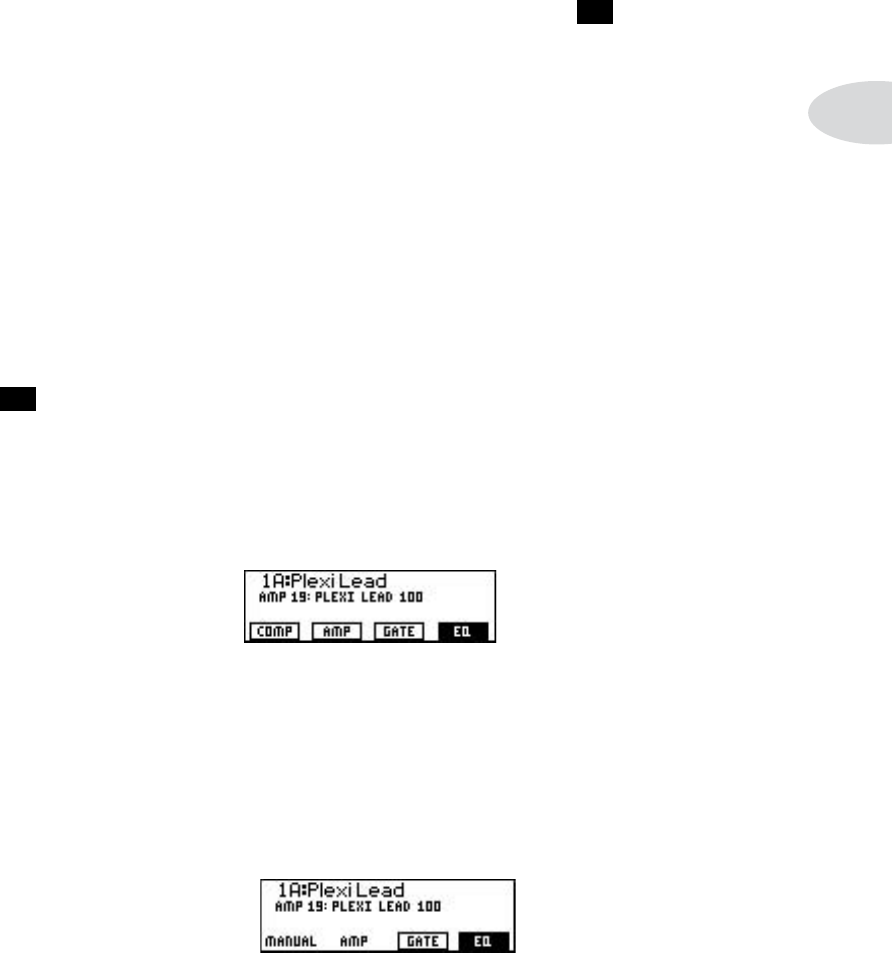
PODxt LIve: If the edit button is NOT lit, the PODxt Live’s display will look
about like this:
Press any one of the Soft Buttons below the display to turn the item above that
button on or off. In the example above, the cOmp, amp, and Gate processing are
off, and the eQ is on. Double-press any of these Soft Buttons to show the set-
tings for that item, then press the lit edit button to exit that display when you’re
done tweaking details.
PODxt & PODxt Pro: If the edit button is NOT lit, the PODxt’s display will
look about like this:

Controls & Connections
2•8
You can press the far left Soft Button to enable manual mode. Press the second
Soft Button from the left to show the saved settings of the Amp Model’s tone
controls, then press the lit edit button to exit that display. Press one of the two
Soft Buttons on the right to turn the Gate and eQ effects on/off (in the illustra-
tion, the Gate effect is off, and the EQ effect is on). Double-pressing the button
for Gate or eQ will jump you right to the detailed settings for those effects. You
can then press the lit edit button when you’re finished tweaking.
19 Effect On/Off Buttons/Switches
PODxt LIve: These footswitches show you which of these “blocks” of sound pro-
cessing is currently running. Light on means that item is active. Light off means
it’s bypassed. Step on a switch to switch it on/off. Chapter 4 tells you about edit-
ing the details of the Amp, Stomp, Mod and Delay. Chapter 5 tells you about
the individual Amp Models that PODxt Live gives you, while Chapter 6 tells
you all about the individual Stomp, Mod and Delay Models.
PODxt & PODxt PrO: These four buttons allow you to quickly turn the cOmp,
stOmp, mOd and delay effects on or off (the effects are on when the buttons are
lit). Double-press one of these buttons to adjust the loaded effect or load a differ-
ent one. For example, just press the cOmp button two times quickly and you’re
instantly taken to the Compressor and Gate edit page. Double-pressing the
stOmp button will quickly take you to the first Stomp Box edit page. Double-
press the same button again (or press the edit button) to leave Edit Mode.
20 CAB/A.I.R.
PODxt LIve: Cab/A.I.R. settings are adjustable from the A.I.R. Settings Edit page,
described on on page 4•4, with all the same features as PODxt & PODxt Pro.
PODxt & PODxt PrO: Press the caB/a.i.r. button once to pick a Cab Model to
pair with your amplifier, select the microphone used on the cabinet and even set
the amount of “room” that the mic captures. Unlike the effect On/Off buttons,
this button is not an on/off type control. A single press of this button simply lets
you change cabs and mics quickly. When the Cabinets are off, this button’s light
will be off as well.

Controls & Connections
2•9
21 Save - When you want to store your own tweaked-up sounds in your PODxt this
button is the key. Press it, choose what to store and where to store it, and press the but-
ton again to complete the Save. All the details are in Chapter 4, Creating & Storing
Sounds.
22 Edit - A deep-dive into tone central is available at the press of the edit button.
While edit is lit, the select knob selects pages of everything that makes up a Channel
Memory. From here, you set all the effect parameters, select cabinets and microphones,
and assign a parameter to the effect tweak knob. To learn more about deep editing,
please see Chapter 4.
23 Output Mode/Sytem & Tune/System
PODxt LIve: The Output mOde/system button takes you to the System pages,
the “What are you connecting to?” page. Holding the tap footswitch takes you
directly to the system page for the tuner. Once on a system page, you can turn
the select knob to see the other system pages.
PODxt & PODxt PrO: The tune/system button takes you directly to the system
page for the tuner. Turning the Select knob one step clockwise takes you to the
“What are you connecting to?” page. Once on a system page, you can turn the
select knob to see the other system pages.
When the tuner page is selected — shazam! Instant digital chromatic tuner. All Amp
Model and effects processing are bypassed so you can hear those questionably-tuned
strings clearly, should you choose to do so.
Play a note on your guitar and PODxt will show you what it is on that handy display; all
notes are displayed as flats, so you’ll see Ab instead of G#. Play that string you’re trying
to tune again, spin its tuning key so it goes sharp and flat, and the little ball will move to
the right if it’s sharp and back down to the left when the note’s flat. The little ball will
sit right in the middle when you’ve got it just right. Give PODxt’s tune/system button a
push and the tuner disappears just as swiftly as it came, taking you right back to normal
operation.
Tuner Bypass/Volume - Normally, the audio will be muted while you’re tuning, but if
you prefer to hear yourself tune, press the button labeled Mute, and turn effect tweak

Controls & Connections
2•10
counter-clockwise to select Bypass.
Tuner Reference - Want a different reference than A=440Hz? When you’re in the
tuner mode, press the button labeled 440 Hz and turn the effect tweak knob on PODxt
while watching the display. This control lets you set the reference frequency anywhere
from 430-450 Hz. This setting is stored so you don’t have to reset it every time you turn
on PODxt if you decide you want to be different (or if that piano in your rehearsal room
has decided to be different).
24 Tap - PODxt allows you to control the time and speed of your effects by simply
tapping on this button. To use the tap control, just tap the button at the tempo you
want and the effects that are set to “lock” to that tempo will change to match what you
tapped. There’s also a Tempo parameter near the end of the edit pages, so you’ll see ex-
actly what Tempo you’ve Tapped. This is especially useful if you are trying to nudge your
tap setting to just the right value. See Chapter 4 to learn how to set up effects to follow
the tempo that you’ve tapped.
PODxt LIve: Hold the tap footswitch about 2 seconds to activate the tuner.
(PODxt & PODxt PrO users can add footswitch tuner activation with an FBV.)
PODxt Live
The following controls and connections are found on PODxt Live only. PODxt & PODxt Pro
users can add an FBV for equivalent footswitch features, and can connect a Variax using the
standard 1/4-jack, without special Variax digital control features.
25 Bank Up/Down - These choose amongst PODxt Live’s 32 banks of Chan-
nel Memories, similar to the select knob. Once you’ve footswitched your way to a new
bank, you’ll then also need to step on the A, B, C or D footswitch to actually load one of
the channels from that bank. (We set things up this way so your audience won’t hear you
switching through channels as you make your way to your next bank of sounds.)
26 A, B, C, D - The lights on these footswitches show you which of the Chan-
nels in the current Bank is running. You can step on any of them to choose a different
channel — basically the same thing you can do with the select knob. You can also step
on one of these switches and hold it for two seconds to activate a Manual Mode. In this

Controls & Connections
2•11
mode, PODxt Live’s display will show “Manual Mode” in place of the Channel Memory
name, and the physical positions of the amp tOne cOntrOls and channel vOlume knobs
will determine your sound.
27 Onboard Pedal - The lights to the left of this pedal show whether it will
operate the Wah effect, Volume Pedal, or (when both lights are lit) Tweak, which is the
same thing controlled by the effect tweak knob. When operating the Wah, you can
press hard with your toe at the top of the pedal, and the wah — as well as the wah light
to the left of the pedal — will turn on and off. To learn how to change what the pedal
controls, see page 4•9. (PODxt & PODxt Pro users can add pedal features with an FBV.)
28 Pedal - Connect a standard expression pedal, such as the Line 6 EX-1, and you’ll
be able to assign it to control the Volume Pedal or Effect Tweak functions. See page 4•9
for the detail on that.
29 Aux Input - Connect a CD player, MP3 player, drum machine or other device
here, and you’ll hear it at PODxt Live’s headphone and Amp/Line outputs. Very handy
for jamming along! Use the output volume control on the connected device to set its
level. This aux input signal will NOT be fed to the USB digital audio output.
30 Variax - Connect a Line 6 Variax guitar here, and experience a whole new world
of possibility and sound-control power. In addition to a direct digital audio connection
between the guitar and PODxt Live, you can even have the Variax change sounds each
time you choose a new Channel Memory from your PODxt Live’s footswitches or Select
knob. You can learn more about the Variax family of guitars — each one giving you the
sound of an entire guitar collection in one instrument — at the Line 6 website.
Be sure to keep the protective plastic cap on this connection when it’s not con-
nected to a Variax, so you won’t damage it by mistakenly inserting a 1/4-inch guitar
cable or other connection. When you are ready to connect a Variax, use only Line 6
supplied Variax-compatible cables — not standard Ethernet or other cables — to
avoid damage to the jack.

Controls & Connections
2•12
PODxt Pro
The following controls and connections are found on the PODxt Pro only.
31 Input Level - The Normal setting of this switch is appropriate for most guitars.
If you see the Clip light coming on, that means you’re overloading PODxt Pro’s input. If
that happens frequently, try the Pad setting here. This switches in input circuitry that’s
appropriate for hotter signals output by some guitars with active pickups, or from key-
boards and other sources. For those non-guitar sources you may also want to try the rear
panel Line Level Input, which is a balanced TRS connection. A separate CLIP indica-
tor shows in the display if you are clipping in the internal DSP.
32 I/O & Dig Select - Press this to tell your PODxt Pro what it’s connected to
so it can give you the best sound, and to choose digital audio and other options.
• Press it once to select where you’re going to connect your input source to the
PODxt Pro, and exactly what you want to come out of the digital outputs.
• Press it a second time to tell PODxt Pro whether you’re using it in
the studio or live, how you have connected your effects loop and
what kind of digital gear you have connected to PODxt Pro.
• Press it a third time and it will dismiss the pages and take you back to whatever was
in the display before you pressed the button.
33 Signal Light - This lights to say, “Yep, I’m hearing some input.” If you’ve got
something feeding audio to your PODxt Pro but you can’t hear it and don’t see it here,
press the i/O & diG select button and be sure you’ve got the right input selected.
(This light doesn’t show input from USB, by the way.)
34 Clip Light - This lights to say, “Whoa, Nelly! That’s too much input!” (And,
again, it doesn’t show the status of USB audio.) Reduce the output level of the device
that’s feeding your PODxt Pro, or try the Pad setting of the handy input level switch.
For non-guitar sources, you may instead want to use the...
35 Line Level Input - Here’s a balanced connector for non-guitar sources (or
the line level output of a wireless guitar system). It’s also perfect for “re-amping”—feed-
ing an already-recorded guitar into PODxt Pro for further processing. To use it, you’ll
also need to press the i/O & diG select button and select the Line Input. The front
panel’s Signal light shows you when you’ve got some signal coming, and the clip light
shows you when you’re overdoing it and need to reduce the level you’re feeding to

Controls & Connections
2•13
PODxt Pro.
30 Unprocessed Guitar Out - This connector actually has at least a couple
of potential uses. If you’ve got a separate rack-mount tuner, you can feed it with this
signal for instance. But the real reason it’s here is to let you do the kind of after the fact
adjustments to your guitar tone that Pro Tools users with our Amp Farm plug-in software
have come to rely on.
The idea is this: you record this unprocessed guitar out signal to your recording system.
Then, you play it back through the Line Level Input 29 of your PODxt Pro when
you’re mixing, and you can change amps, effects and every other aspect of your guitar
tone with complete flexibility.
’Course, it would be pretty hard to record a good guitar take without hearing the amp
and effects sound that you were planning to use, right? I mean, who can solo with a dry
guitar signal? The answer is that you don’t listen to this unprocessed signal while record-
ing—instead, you monitor your PODxt Pro’s left/right processed outputs during the re-
cording process. You can even record both the unprocessed guitar out and the processed
left/right outputs at the same time, so you’re ready for complete flexibility in later tone
adjustments, or you can just stick with what you had. Page 3•11 has details.
PODxt Pro’s digital outputs can also send unprocessed signal, if you prefer to capture
this signal digitally. You can set them to do this from the display pages of the i/O & diG
select button 26.
31 32 Effect Send & Return - The effects loop is designed for line level
devices, like rackmount effect processors, not for stomp boxes (which you can run hap-
pily in front of your PODxt Pro). Use the left jacks if you want to run the send or return
mono. You can choose to run the loop series or parallel from the display pages of the i/O
& diG select button 26. If you have the loop set to series, but nothing plugged into
the loop return, PODxt Pro is smart enough to see this and disable the loop so you still
get sound. See page 3•4 for more details.
33 Unbalanced Analog Out - The display pages of the i/O & diG select
button 26 configure these outputs for Studio or Live Use. In Studio Mode, they’re
ready to plug into a recorder with unbalanced –10 dBV inputs. In Live Mode, they
don’t have speaker simulation, and are ready for connection to an on stage power amp.
Whichever you choose, the front panel Output knob 4 determines how much signal

Controls & Connections
2•14
you’ll get at these jacks. You can use either jack as a mono output, by the way.
34 Balanced Analog Out - The i/O & diG select button 26 display
“pages” configure these outputs for Studio or Live Use. In Studio Mode, they’re ready to
plug into a recorder with balanced +4 dBu inputs. In Live Mode, they’re ready to send
great sounding –10dBV signals to the house sound system or P.A. The front panel Out-
put knob 4 does not affect the volume at these jacks in Live Mode. This lets you make
on stage adjustments to your volume without affecting the P.A.’s levels.
35 Ground - This switch lets you lift the grounds of PODxt Pro’s XLR Balanced
Analog Outs. This can be handy if you get an audible hum caused by a ground loop
when connecting to other grounded equipment.
36 AES/EBU & S/PDIF Inputs & Outputs - These jacks send and
receive digital audio signals. The display “pages” of the i/O & diG select button 26
choose which of these connections to use, along with sample rate, word length (“bits”)
and other details. You can use digital input at the same time as analog output, or analog
output as the same time as digital input, or any combination. You can even send digital
audio into PODxt Pro with one rate and word length, and choose a different rate and
word length for output.
PODxt Pro does not include a separate clock connector, but it can clock to the digital
audio being received at either of its digital inputs, even if you are using an analog input
to get audio into your PODxt Pro. You can, for instance, connect a digital output from
your digital mixer PODxt Pro’s S/PDIF input, press the i/O & diG select button
26 set the fOrmat to match spdif, and PODxt Pro will clock to your mixer. PODxt Pro
will also format the digital audio it outputs to match the incoming format. Note: The
FX Loop in the PODxt Pro exists entirely after all of the digital processing and is in the
analog signal path, directly before the main outputs. This means that anything run in the
loop will not be present in the digital output signal.
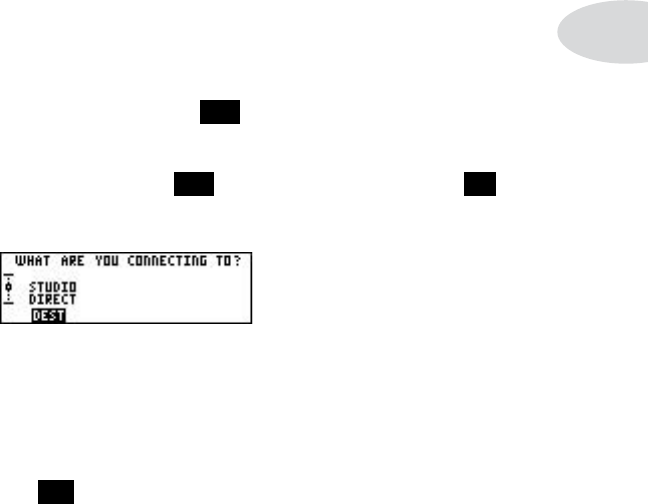
Getting Set Up
3•1
GettinG set uP
What are yOu cOnnecting tO?
Your PODxt needs to adjust itself to deliver the best possible sound depending on what
you’re connecting to.
PODxt LIve: Press the Output Mode/System 23 button to light it up and see
the “What are you connecting to?” page.
PODxt & PODxt PrO: Press the tune/system 23 button and turn the select 16
knob clockwise until the display asks, “What are you connecting to?”
DestinatiOn chOices
studiO direct—When connecting your PODxt for direct recording, running it
straight into a P.A., or using in-ear monitoring systems, press the Soft Button below dest
and turn the effect tweak knob 14 to select studiO: direct.
cOmBO frOnt, cOmBO pwramp, stack frOnt & stack pwramp—Press
the Soft Button below dest and choose one of these modes when you’re plugging your
PODxt into another guitar amp, or a power amp and guitar speakers. The Mic and Room
components of A.I.R. will be turned off, and the Cabinet Models revoiced to sound their
best coming through the kind of speaker you choose. (On a PODxt PrO, the XLR out-
puts have additional speaker emulation processing in these modes, so you can connect
them to a P.A. or house sound system while using the 1/4-inch outs to drive an amp.)
Use a pwramp setting when running straight into a poweramp driving speakers, or run-
ning into the effect return of an amp so that its own preamp is bypassed and you’re get-
ting your PODxt’s signal right to the power amp section.
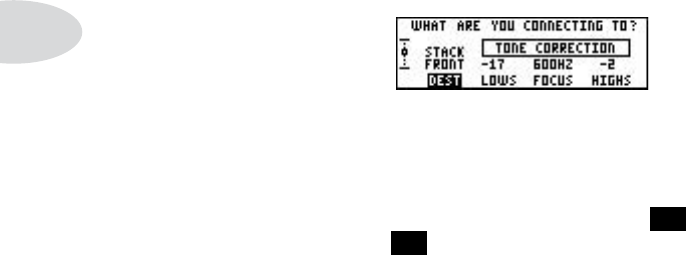
Getting Set Up
3•2
Choose a frOnt setting when plugging right into the front of a combo amp or head, and
some extra Tone Correction controls will appear.
tOne cOrrectiOn—With cOmBO frOnt or stack frOnt chosen for dest, you get
Tone Correction controls:
These are for adjusting PODxt’s overall sound to compensate for the tonal response of
the preamp section of the amp that you’re plugging into. We’ve found that it is often
necessary to reduce the low frequency or high frequency parts of the PODxt sound
to get decent results in this sort of a configuration, and sometimes it helps to shift
the focus of the mid frequencies. Press the Soft Button 18 below lOws or hiGhs and
twiddle the effect tweak 14 knob to reduce the amount of low or high frequencies.
Use fOcus to choose which mid frequencies to emphasize.
Note: When running PODxt into a guitar amp (as opposed to studio monitors or
headphones) remember that different speaker/amp combinations sound wildly
different. Consider the name of each dest choice as a recommendation only,
and experiment with all the options to see which sounds best for your particu-
lar setup.
BOSE PS1—Press the Soft Button below dest and choose this when plugging into a
Bose PS1 Cylindrical Radiator™ loudspeaker system. We specially tuned this mode for
great sound from the innovative new sound system that you can learn more about from
www.bose.com. (On a PODxt PrO, the 1/4-inch outputs do not output correct sound
in this special mode.)
PODxt remembers the “What are you connected to?” settings you choose, so you don’t
have to re-set them every time you power up. If you change to a different setting when
using a different setup, don’t forget to change back to your standard setting once you get
back to your regular setup.

Getting Set Up
3•3
Getting The Right Tone With An Amp
The first thing to consider when running PODxt in front of an amp is what you want to
achieve.
If you want to use your amp for its tone, with PODxt supplying effects and some extra
distortion when needed, you’ll generally get the best results by turning the amp modeling
off on PODxt, and using PODxt’s Stomp when you want to add distortion. The sounds
pre-programmed in Banks 9-16 are set up this way, to complement the tone provided
by your amp. For this setup, you’ll want to plug right into your amp’s front panel guitar
input, and choose cOmBO frOnt or stack frOnt on the “What are you connecting to?”
system page (see page 3•1).
On the other hand, if you want to use PODxt’s amp modeling ability to transform the
basic tone of your amp to make it sound more like another amp, you’ll probably want
the amp modeling on. For this kind of setup, we recommend you connect PODxt’s
output to your amp’s effect return or power amp input jack, and choose cOmBO pwramp
or stack pwramp on the “What are you connecting to?” system page (see page 3•1). If
you don’t have these jacks on your amp, go ahead and connect to the guitar input on
the front of your amp, and try cOmBO frOnt or stack frOnt mode on the “What are you
connecting to?” system page. Then set your amp’s sound to “neutral”: if you only have
one volume control on your amp, set it low enough to get a “clean” tone; so PODxt’s
sounds come through as purely as possible. If you have a master volume in addition to
a volume control on the input, set them both so that the first volume doesn’t overdrive
the master volume (so you’re getting a clean tone). This will vary from amp to amp, but
usually the input volume is going to be less than the master volume to get a clean, non-
distorted sound. If you have passive tone controls, try setting your mid control at max,
and your treble and bass controls at zero (this is actually “flat” equalization-wise on most
amps). Active tone controls may vary, but just be sure you’re not overdriving the amp so
the PODxt tone comes through without extra coloration. Once you get going, you can
tweak the amplifier settings to suit your tastes. Try to set PODxt’s Output so you’re not
overdriving the input of the amp.
It’s also important to be realistic about what you’re going to achieve here — as good as it
is, PODxt won’t be able to make a $100 combo amp with a cheap speaker sound exactly
like the vintage amp of your dreams.
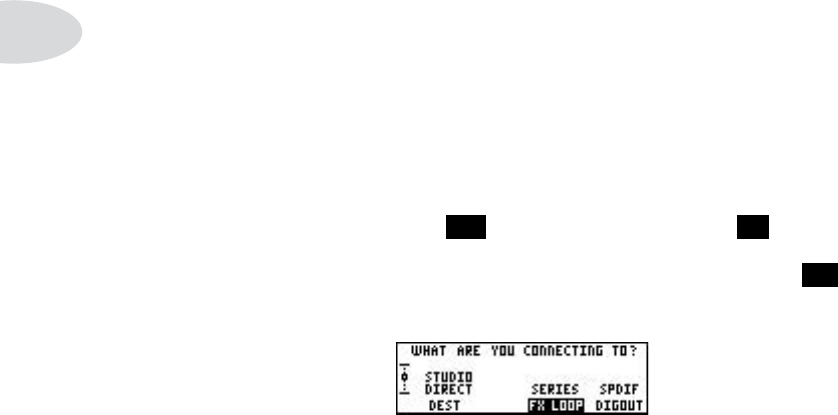
Getting Set Up
3•4
External Stomp Boxes and PODxt
If you’ve been playing guitar for a while, you probably have some favorite pedals that you
dig. And even though PODxt has now graced your life with some pretty hip stomp box
and rack Effect Models, you probably still want the option of keeping those old pedals
in your arsenal. No problem! Note that some distortion boxes may sound overly harsh if
you max their output volume into your PODxt. If that happens, try lowering the distor-
tion box’s volume, and you can always add more gain with PODxt’s drive knob or its
own stOmp effects. And of course when you use effect units in front of your PODxt, and
switch Amp Models, you’re going to get different results depending on the PODxt Amp
Model you’ve selected.
FX Loop (PODxt PrO only)
When you press the tune/system 23 button and turn the select 16 knob clockwise
until the display asks, “What are you connecting to?” with a PODxt PrO, you’ve got an
fx lOOp setting. Press the Soft Button below it, and spin the effect tweak 14 knob to
choose series or parallel operation for the loop.
Setting lOOp to series means PODxt PrO will send its full signal out to the effect, and
then output the signal that returns from the effect. If you turn the effect off, or turn its
output level all the way down, you won’t hear anything. Use the mix control on the ef-
fect unit that’s connected to the loop to determine how much effect you hear versus how
much of the uneffected PODxt PrO sound. Please note that the PODxt PrO’s effects loop
is entirely analog and is placed directly before the analog outputs, so anything run in the
loop will not be present in the digital out. This is a great way to record “wet cab/dry cab”,
as you can record dry signal from the digital outs, then use the main outputs to record
the loop-effected signal separately.
If you set lOOp to parallel, PODxt Pro will send a parallel copy of its signal to the loop,
while simultaneously sending its signal to its own outputs as usual. Some people prefer
this type of setup, because only a small portion of their tone is run through the effect,
preventing some effect units from degrading their overall tone. When running parallel,
you should set the mix control on the effect unit that’s connected to the loop to 100%
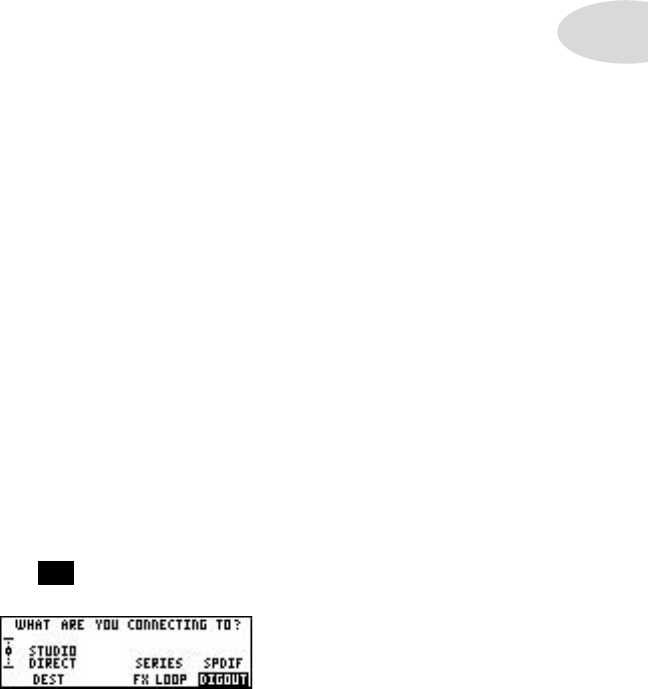
Getting Set Up
3•5
wet. Then adjust the balance of effect versus uneffected PODxt Pro sound by adjusting
the output volume control of the connected effect unit.
PLEASE NOTE: Many effects can result in compromised sound when run in paral-
lel, because the signal coming back from the effect unit is out of phase with the
signal that has stayed in the PODxt Pro. This is generally not a problem for delay
or reverb, as long as the external effect is running 100% wet. It is often a problem
with modulation effects (chorus, phase, flange, etc.), compression, or any other ef-
fect that includes some unprocessed sound mixed with processed sound. For these
effects, series is generally the way to go with the effects loop.
You can turn the loop on/off from a connected FBV foot controller or the loop on/off pa-
rameter in the last edit displays. This on/off state is stored with Channels that you save,
so you can have some with the loop on, and some with the loop off.
Choosing AES/EBU or S/PDIF Data Format (PODxt PrO only)
PODxt Pro’s AES/EBU and S/PDIF digital outputs are both active at the same time, and
each have the electrical properties appropriate to their respective digital standards. The
ones-and-zeroes digital data that is transmitted in the AES/EBU and S/PDIF standard is
almost—but not exactly—the same.
Since both of PODxt Pro’s physical digital outputs always sends the same data, we’ve
given you the diGOut parameter to decide whether this data should be formatted accord-
ing to the AES/EBU standard, or the S/PDIF standard. In practice, many pieces of equip-
ment will accept either data format from either connector, but if you want to be sure you
are sending exactly the right format that you prefer, press the Soft Button below diGOut
and turn the effect tweak knob 14 to select the format that you prefer:

Getting Set Up
3•6
the ins anD Outs Of great tOne
If you’re hooking your PODxt up to a recorder, mixer, or other equipment, be sure you
are plugging its outputs into line level inputs on your other gear, as opposed to micro-
phone level or guitar level inputs. This will insure that you get the best signal-to-noise
ratio (lots of juicy guitar tone, not too much hiss) with PODxt. Some equipment only
gives you a single input for both mic & line level sources, allowing you to trim low level
signals (like mics) up to a high level at the inputs. If you are plugging your PODxt into
one of these inputs, try setting the trim to minimum, and twisting the Output 4 and
channel vOlume 11 knobs up to maximum. If your equipment has a couple of open
line-level only inputs, you’ll probably get better performance by plugging into these,
rather than the wide-ranging mic-to-line level trimmed inputs.
Setting Levels
Start by setting PODxt to the sound you intend to use, strum hard, and set channel
vOlume 11 as close to max as you can without getting the CLIP indicator in PODxt’s
display. Now play with the PODxt Output knob and any input volume control on your
system so you can get the maximum sound level out of your PODxt without going so far
that you overdrive the input on your system and cause unwanted distortion.
TIP: You probably want to have all of your favorite sounds as loud as possible,
while also having the right difference in volume between your lead and rhythm
sounds, clean and dirty sounds, etc. Right? OK, then, to get this happy balance,
start with your favorite ‘clean’ sounds. Turn up their Chan Vol as high as you can
without getting the CLIP indicator in PODxt’s display when you strum hard. and
save them that way. Then switch amongst them to see if some are too loud, and
turn them down a bit to match well with the others. Next, move on to select
your ‘dirtier’ crunch and lead tones, comparing them to the clean sounds and
saving them with lower Chan Vol settings to match well with those clean sounds.
Now, each time you use your PODxt, you just have to set an Output volume level
you like, and you can switch amongst your various sounds without unhappy vol-
ume differences.

Getting Set Up
3•7
Radiation Alert
You’re also likely to find, especially if you are using a guitar with single coil pickups, that
it is quite easy to pick up some serious noise from any computer CRT (which stands for
cathode ray tube) display you might have in your studio. CRT displays are, after all, just
special purpose ray guns that shoot photons at you all day long. Your guitar pickups re-
ceive and amplify the electro-magnetic fields that your display radiates, and you hear this
in your audio signal as buzz and hum. Moving farther from the CRT, and turning your
guitar so it does not directly face the computer’s display, will minimize this problem. But
if you find yourself in a tight studio setup, needing to lay down some quick tracks, and
being pestered by CRT-induced buzz, you may find it helpful to do as we have sometimes
done: set up your track to record and start your pre-roll; reach up and flick your computer
monitor’s power switch off; record your guitar part; stop your recording, flick the monitor
back on, and check out the buzz-free playback. Flatscreen LCD monitors generally don’t
cause hum and buzz. And just in case you’re looking for an excuse to buy one... Line 6
Variax guitars are immune to this sort of radiation-induced hum also, since they don’t
use traditional magnetic pickups.
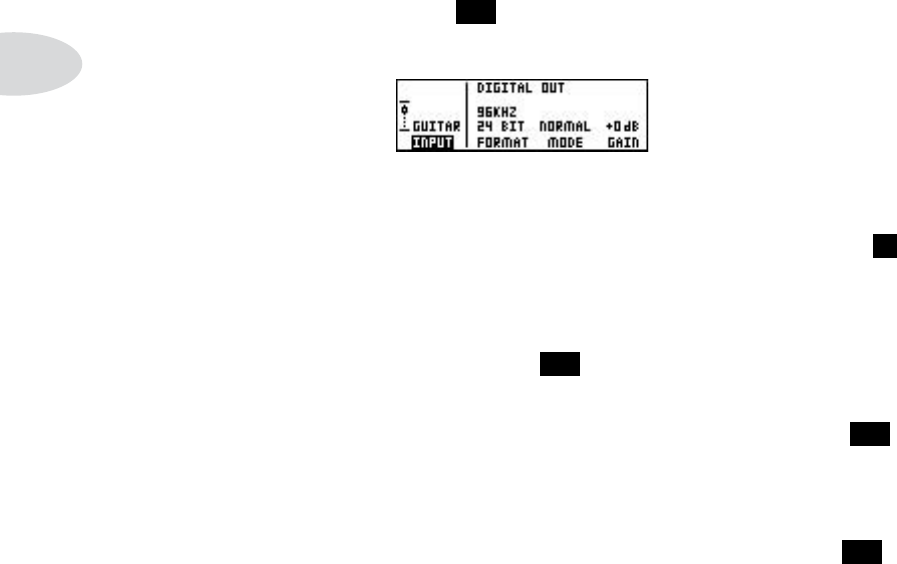
Getting Set Up
3•8
PODxt Pro — Input Select, Digital In/Out and Reamping
Selecting An Input
Press the i/O & diG select button 26 once to see this page where you select from
PODxt Pro’s many inputs and digital options:
Press the far-left Soft Button below input and select from these options:
Guitar in—Pick this when plugging your guitar straight into the front panel input 2
jack. When this is selected, audio from the rear panel’s line level input and digital inputs
is ignored.
line in—Select this option when whatever you want to run through PODxt Pro is
plugged into the rear panel line level input 29. When this is selected, audio from the
front panel input and the digital inputs is ignored.
aes left, aes riGht, aes l+r—Select one of these to use the rear panel aes/eBu 36
digital inputs. The aes l+r option merges the left and right AES inputs to mono, since
PODxt Pro only allows a mono input. When this is selected, the front and rear panel
analog inputs are ignored.
spdif left, spdif riGht, spdif l+r—Select one of these for the rear panel s/pdif 36 digi-
tal inputs. The spdif l+r option merges the left and right S/PDIF inputs to mono, since
PODxt Pro only allows a mono input. When this is selected, the front and rear panel
analog inputs are ignored.
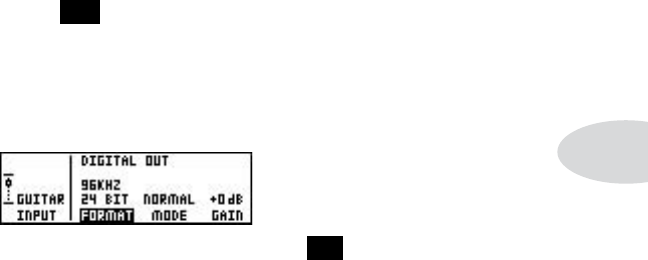
Getting Set Up
3•9
Input & Digital Out Options
Press the i/O & diG select button 26 once to see this page and select from PODxt
Pro’s many inputs and several digital options:
FORMAT: Sample rate, word length (bit depth), and clock source
Press the Soft Button below fOrmat and spin the effect tweak 14 knob to choose to
output any combination of 16, 20 or 24 bits along with 44.1, 48, 88.2 or 96 KHz. PODxt
Pro will use its internal clock to generate the sample rate you choose.
Or choose match aes in or match spdif in from the fOrmat options, to have PODxt Pro
clock to the sample rate being received, and output data in the same rate/bit format.
Clocking to external gear: Whatever you’ve selected as your input (including analog
Guitar In or Line In), you can still pick match aes in or match spdif in for fOrmat to have
PODxt Pro slave to the clock of your other digital equipment. For instance, feed PODxt
Pro’s digital input with an output from your digital mixer, choose that source for fOrmat,
and PODxt Pro slaves to your digital mixer’s clock and matches its digital audio format.
Sweet.
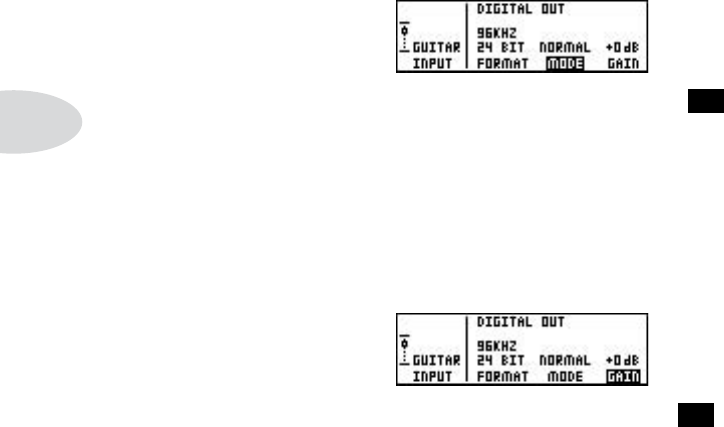
Getting Set Up
3•10
MODE: Normal or Dry Guitar
Press the Soft Button below mOde and spin the effect tweak 14 knob to choose nOr-
mal (delicious amp-cab-fx-mic-room processed sound comes out of the digital outs) or
dryGtr (unprocessed guitar comes out of the digital outs). See page 3•11 for more info
on why this can be cool.
GAIN: Extra gain on the digital outs
Press the Soft Button below Gain and spin the effect tweak 14 knob to add up to 12 db
of gain on the digital outs only. This can be used to increase the digital output level of
sounds that don’t have a lot of distortion or other settings that are driving their levels up.
“Danger, Will Robinson!” Well, not danger, really, but important to know: If you are
recording the dry guitar signal via the digital output and intend to re-amp the signal by
digitally feeding it back to PODxt Pro later, DO NOT add gain—leave the signal at
+0db—and play the signal back from your recorder to PODxt Pro’s digital input without
an increase or decrease in level. If you dash madly forward and don’t follow this advice,
you’ll be feeding the re-amp signal to PODxt Pro at a different level than the signal that
was used while you were tracking the guitar in the first place, and the change in input
gain to PODxt Pro will make it impossible to get a clean sound, or will give you a less
gainy sound than you expect. Of course, if you’re a danger-lover looking for unpredict-
able versatility during re-amping, this may be just your thing.... See page 3•11 for more
on that.
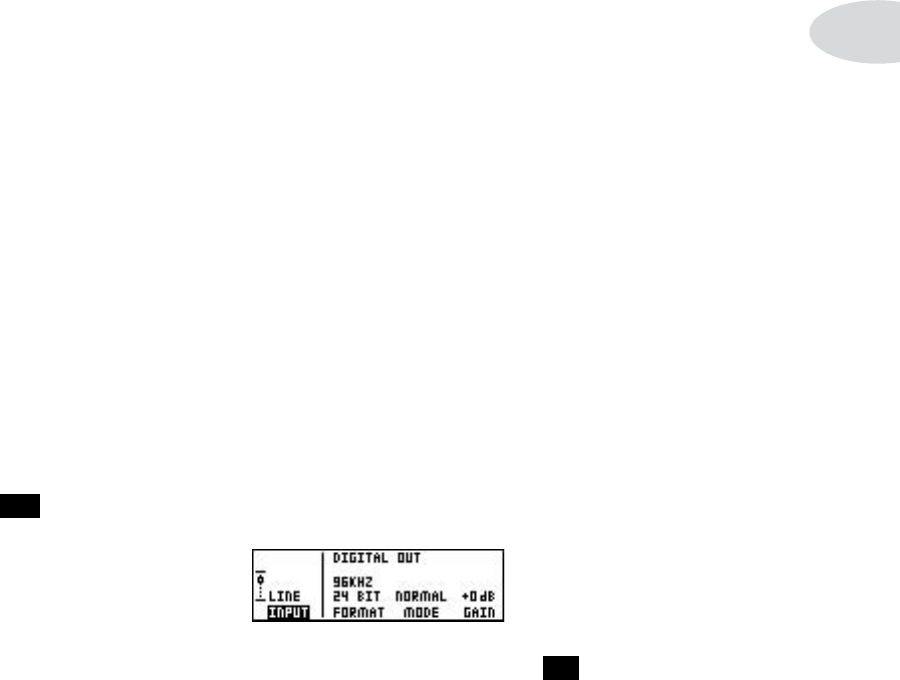
Getting Set Up
3•11
Re-Amping with PODxt Pro
Having issues with commitment? PODxt Pro address your needs with its support for
re-amping—the process of recording “dry,” unprocessed guitar and then processing
it “live” during mixing so that you have totally flexibility to adjust your tone. This is
similar to the way most people record vocals without reverb—they may “audition” some
reverb while tracking, but the vocal signal sent to their recorder is generally sent without
the reverb, so they can make the final choice of reverb tone and amount during mix-
down. Even if you don’t plan to rely on re-amping all the time, you may find it handy
to record a re-amp-ready dry guitar at the same time as your standard processed guitar
signal, so the dry guitar is standing by if you need to salvage what might otherwise turn
out to be an unusable take of a once-in-a-lifetime performance.
Analog Re-amping
Just like you would for normal recording, connect your guitar to the Guitar In jack on
the front of the PODxt Pro. And connect PODxt Pro’s left and right Analog Outs to
your audio system to you can hear what’s coming out of them. Play a little guitar just to
make sure you’re hearing it. OK so far.
Now, connect the rear panel Unprocessed Guitar Out to an analog input of your
recording device, and route it to a record track. This is the signal you will be recording
so that it can be used for re-amping during mixdown. You may also, if you wish, track
PODxt Pro’s left and right outputs to your recorder at the same time.
Connect the monitor output from this record track that’s receiving the unprocessed gui-
tar signal to the rear panel line in jack of PODxt Pro. Press the i/O & diG select button
26 once to see this page:
Press the Soft Button below input and spin the effect tweak 14 knob to choose line in.
PODxt Pro is now ready to process the signal that’s received at the line in, while simul-
taneously sending your unprocessed guitar signal to the Unprocessed Guitar Out, so
you can record it.
Dial up your tone as you normally would, and record. The dry signal will be recorded,
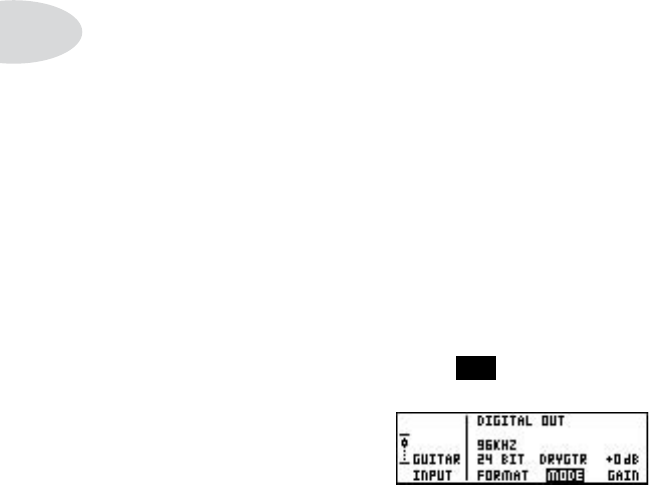
Getting Set Up
3•12
and all the while you will hear the full Amp, Cab and Effects processing of your PODxt
Pro at the same time. Like listening to reverb on your vocal while recording, without
committing it to the recorded track. Pretty cool, huh?
Now, as you mix, you can adjust the guitar tone to your heart’s content. Turn up the
Drive a little, back off on the Chorus—heck, change the Amp Model and use a differ-
ent modeled microphone selection. When you are ready to commit a processed sound to
a track, you can record the left and right analog or digital outputs of the PODxt Pro to
your recording system.
Digital Re-amping
In this scenario, we’re going to track PODxt Pro’s analog outputs, while also recording
a “safety” track of dry guitar digitally, so the dry guitar can be used later if you need to
make a tone change.
Connect your guitar to the Guitar In jack on the front of the PODxt Pro. Connect
PODxt Pro’s left and right Analog Outs to your audio system so you can record them
while you are also listening to what’s coming out of them. Play a little guitar. Hear it?
OK so far.
Press the i/O & diG select button 26 once to see this page if it’s not already shown:
Press the Soft Button below input and spin the effect tweak knob to choose Guitar in.
Select dryGtr for the mOde option. Connect PODxt Pro’s aes/eBu or
s/pdif digital outputs to your recorder. Do not monitor this signal while recording—
you’re simply “saving it for a rainy day” so that you can “fix it in the mix.”
Also, be sure Gain is set to +0dB; adding gain to get a hotter signal to your record track
won’t improve signal to noise ratio or any other aspect of audio quality, and will cause
problems when you actually attempt to use this signal later for re-amping, so take our
advice: don’t do it!
Now, the idea is to record the main analog outputs to your recorder, while the dry guitar
is also being recorded on a separate track. Monitoring the processed guitar signal and
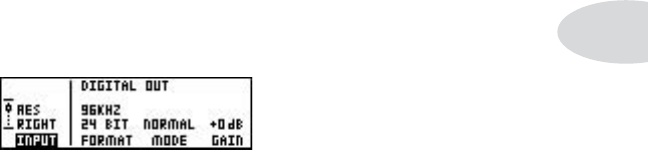
Getting Set Up
3•13
punching in/out works exactly as you would expect it to if you were recording any other
analog signal into your recording app/device. The bonus here is that you also have a digi-
tally recorded unprocessed guitar signal that can be used to create a new (or additional)
sound that you can use later. Speaking of which...
When you want to make use of that digitally recorded dry guitar signal, send it out of
your recorder to one of PODxt Pro’s digital inputs, and select that input as AES left has
been selected here:
Don’t change (increase or decrease) the playback level of the dry guitar track; send it out
to PODxt Pro at exactly the same level it was recorded at. Then connect PODxt Pro’s
analog or digital outputs to your recorder, and you record processed guitar sound while
making whatever tone changes best fit the needs of your final production.
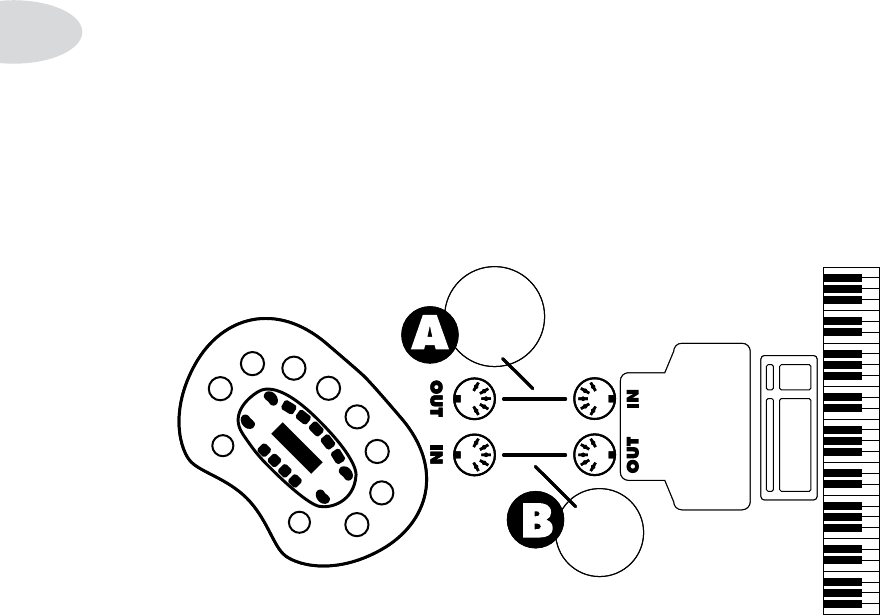
Getting Set Up
3•14
MIDI
What’s MIDI?
MIDI (Musical Instrument Digital Interface) is a communications protocol designed
to let various music-making machines exchange information. It allows one device to
control another, and several devices to all be used together in coordination. We’ll give
you basic info on MIDI here. More details on MIDI and your PODxt is available online
at www.line6.com/manuals .
In/Out
Every PODxt has two MIDI connections: In & Out. You connect PODxt to other MIDI
devices by connecting MIDI cables to these connectors. Each connection is a one-way
street: information flows from the Out of one device to the In of another device. For
information to flow back, you must connect a second cable, from In to Out:
POD SENDS
INFO TO YOUR
OTHER GEAR
THRU THIS
CABLE....
.... AND
RECEIVES
INFO THRU
THIS CABLE
POD SENDS
INFO TO YOUR
OTHER GEAR
THRU THIS
CABLE....
.... AND
RECEIVES
INFO THRU
THIS CABLE
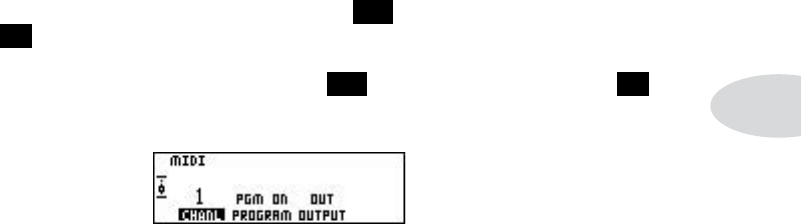
Getting Set Up
3•15
MIDI Settings
PODxt provides several MIDI-related settings.
PODxt LIve: Press the Output Mode/System 23 button to light it up turn the
select 16 knob clockwise to the MIDI setting page.
PODxt & PODxt PrO: Press the tune/system 23 button and turn the select 16
knob clockwise to the MIDI setting page.:
MIDI Channel— MIDI allows 16 different channels of information to be transmit-
ted and received through one MIDI cable. The MIDI channel is independent of, and
has nothing to do with, PODxt’s Channel Memories. You tune PODxt in to listen to
a particular MIDI channel (like choosing a channel on a TV or a station on a radio),
and make sure the device that you want PODxt to listen to is transmitting on that
same MIDI Channel. Press the button under chanl and start spinning the effect
tweak knob to change any MIDI Channel from 1 to 16. Or turn one clock farther to
choose OMNI—this means PODxt will ‘listen’ on all MIDI channels, which is fine if
it’s your only connected MIDI device. PODxt always accepts SysEx data on any chan-
nel, so if you are only working with Sysex data, this channel setting is only important
to determine what channel your PODxt will send on.
Program Change—PODxt allows you to respond to incoming MIDI Program
Change messages (pGm On), ignore these messages (pGm Off), or pass the received
program change regardless of the MIDI Output setting (pGm echO). Program change
messages tell a device to switch from one sound or setup to another. With PODxt, pro-
gram changes change from one Channel Memory to another. So, for instance, when
PODxt receives program change number 0, it will select Bank 1, Channel A. When it
gets program change number 1, it will select Bank 1, Channel B. And so on.
Output—PODxt’s MIDI Out generally sends out the MIDI messages generated by
your PODxt when this parameter is set to Out. You also have the option of changing it
to act as a MIDI Thru. When you choose thru for the Output, PODxt will not gener-

Getting Set Up
3•16
ate any outgoing MIDI messages. Instead, it will take whatever comes in at its MIDI In
and send it straight “thru” to the MIDI Out so you can get this same info to some other
MIDI device. Note that in Thru mode, the MIDI Out simply passes on what’s received
at its MIDI In; it does not combine PODxt MIDI messages with this incoming MIDI
data.
Backing Up PODxt Data to Other Devices
We recommend using GearBox software to backup PODxt memory data for safety. You
can get it from Line 6 Monkey (www.line6.com/monkey). Chapter 4 also provides infor-
mation on using MIDI to backup PODxt memory.
MIDI via USB
If you want to send and receive MIDI between your PODxt and a computer, you have
the option of using USB for this, instead of MIDI cables. You’ll need to install the
PODxt driver using Line 6 Monkey, and select PODxt as the MIDI device in the soft-
ware that you’re doing your MIDI communications with. If you’re using GearBox, there’s
no need to separately configure the MIDI communication. Just select your PODxt as the
device for GearBox to use, as described in GearBox’s Help.

Creating & Storing Sounds
4•1
creatinG & storinG sounds
GearBox
GearBox software is free to download using Line 6 Monkey. It lets you tweak PODxt
with the help of your computer. Get it from Line 6 Monkey: www.line6.com/monkey
Of course, everything is also tweakable directly from your PODxt’s own controls, starting
with...
Editing Basics
To begin your editing adventure, all you have to do is press the edit button to light it up.
Now turn the select knob. Well lookey here, everything you’d ever want to tweak on
your PODxt is right there in front of you. To change something shown on the display,
simply press the Soft Button 18 directly below it and spin effect tweak. Everything
here is remembered when you press save and choose a Channel Memory to save to.
Double Press for Easy Access
Want to change the Mod effect, or pick a different Delay model? Just press twice quickly
on PODxt Live’s amp, stOmp, mOd or delay footswitches 19 or double-press PODxt
& PODxt PrO’s cOmp, stOmp, mOd or delay buttons 19 to go straight to the first page
of controls for that footswitch or button. (You’ll also see that the edit button lights up.)
Another double-press will pop you right back out of Edit, so you can surf for more tone.
PODxt & PODxt PrO: the caB/a.i.r. button just takes a single press to select its
page, or leave Edit.
When the edit button is NOT lit, the Soft Buttons 18 give you direct access to other
features. Press for on/off, or double-press to jump to an effect’s Edit page. Then press the
edit button to leave again.
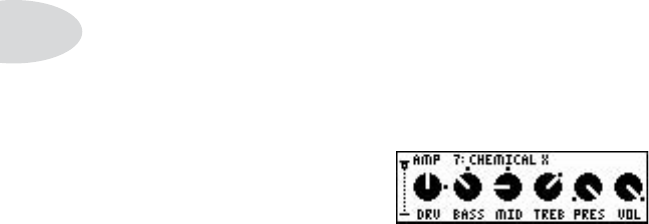
Creating & Storing Sounds
4•2
Inside the Edit Menu
When the edit button is lit, there’s is a graphic representation of the edit “menu” on
the left side of the PODxt’s display. Turn the select knob, and notice that the box in the
graphic slides up and down, with each dot representing one of the available edit pages.
This should help you keep your place in the great circle of life — er, edit pages.
Amp knob settings
With the edit button lit, spin the select knob counterclockwise all the way to the first
edit page, showing the current settings of the Amp Model. (You can also get here by
double-pressing the Soft Button below the word amp when the edit button is NOT lit.
On a PODxt Live, double-pressing the amp footswitch will also do the trick.)
The top of the display shows the Amp Model name.
PODxt LIve: Spin the effect tweak knob to choose from the Amp Models.
PODxt & PODxt PrO: The amp mOdels knobs picks your Amp Model.
As you select Amp Models, notice how the tone controls change. This shows you the
settings that the helpful elves at Line 6 have programmed for each Amp Model. (Read
on to find out how to customize them for your taste._
Look carefully now... do you see the little ‘dots’ by the knobs? These tell you where the
knobs were last saved. Reach up and spin the Drive knob. Notice that the knob moves
but the little dot beside it stays put. This let you compare your edit with the saved set-
tings for this Channel Memory. Now, that’s handy!
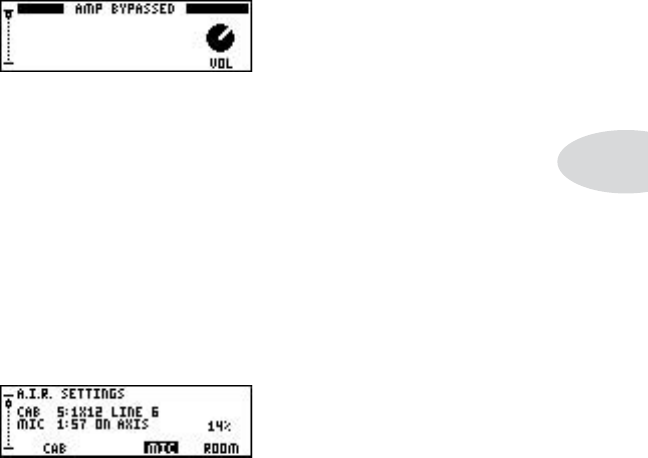
Creating & Storing Sounds
4•3
Amp Bypass Channel Volume
Turn the effect tweak knob one click past the amp knob page for this page::
This is the volume that this channel will be set to when amp is off. It doesn’t affect the
volume you hear with amp on.
Cabinet and Mic settings (There’s magic in the A.I.R.!)
From the amp bypass volume display, turn Select one click to the right. (On a PODxt
& PODxt PrO, you can also get here by pressing the Cab/A.I.R. button). You’re now
looking at something like this:
These are the advanced A.I.R. settings where you can mix and match any cabinet model
with any amp, as well as dial in the perfect microphone setup.
Press the button under the word caB, then use the effect tweak knob to spin through
the available Cabinet models. You can change the microphone selection the same way:
press the button under mic and give effect tweak a spin.
Low settings of rOOm give you the sound of moving the virtual microphone closer to
the virtual cabinet (you’ll hear only a small amount of the early reflections caused by
the sound echoing in the room). Higher settings increase the early reflections, as if you
moved the mic farther from the cabinet, to get more room tone as part of the sound.
Together, these settings allow you to completely customize the sound of the virtual re-
cording environment we call A.I.R. — all without leaving the privacy of your own mind!
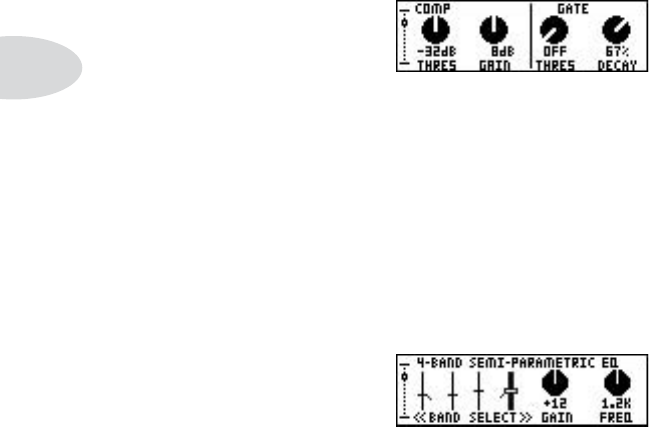
Creating & Storing Sounds
4•4
Comp/Gate settings
From the A.I.R. settings page, turn select one click to the right. (On a PODxt &
PODxt PrO, you can also get here by pressing the Comp/(Gate) button. Or on a
PODxt Live, double-press the Soft Button below the word cOmp when the edit button is
NOT lit.) You’re now looking at something like this:
Just like any other edit page, you can press a Soft Button below the display, then turn the
effect tweak knob to adjust the settings shown here. Chapter 6 tells you more about
getting the most out of the Comp and Gate effects.
EQ settings
From the Comp/Gate settings page, turn select one click to the right. (Or double-press
the Soft Button below the word eQ when the edit button is NOT lit.) Hello, eQ:
The 4 graphic sliders on the left side of the page show you the gain settings of the four
bands of PODxt’s 4 Band Semi-Parametric EQ. The bands toward the left are for lower
frequencies, the bands toward the right are for higher frequencies, and you can adjust
the gain and frequency of each of them. The far left band is a low shelf, affecting all
the sound at and below the frequency you select for it, and the far right is a high shelf,
affecting the sound at and above its frequency. The middle two are band pass filters,
affecting the sound centered on their frequency. The currently selected band is shown
with heavier graphics, like the fourth band in the illustration. Press one of the two Soft
Buttons on the left to select one of the four bands for adjusting.
Pressing the two left Soft Buttons simultaneously will set the EQ “flat,” so all bands have
a gain setting of 0 and a default setting for frequency. Press the third Soft Button from
the left and turn the effect tweak knob to adjust Gain for the correctly selected band.
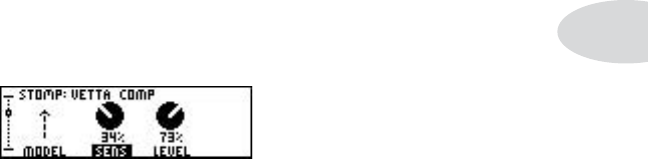
Creating & Storing Sounds
4•5
Press the far right Soft Button and turn the effect tweak knob to adjust freQ for the cor-
rectly selected band. As you do all this, you can press two right Soft Buttons simultane-
ously any time to turn the EQ off (“EQ Bypassed” will show at the top of the display) and
on to see what difference the EQ is making, and ensure that the changes you’re making
are truly improving your sound.
Stomp settings
Turn select one click clockwise from the EQ display or double-press stOmp for the
Stomp edit page:
The left button below the display lets you choose the Stomp Model. You can also see
that the model selected here, Vetta Comp, has ‘knobs’ for Sensitivity and Level. Pressing
the button under sens selects it for tweaking via the Effect Tweak knob.
Some Stomp effects will have a second page, which you’ll see if you turn the Select
knob. See Chapter 6 to learn the details of the many Stomp models, and how to get the
most out of each one of them.
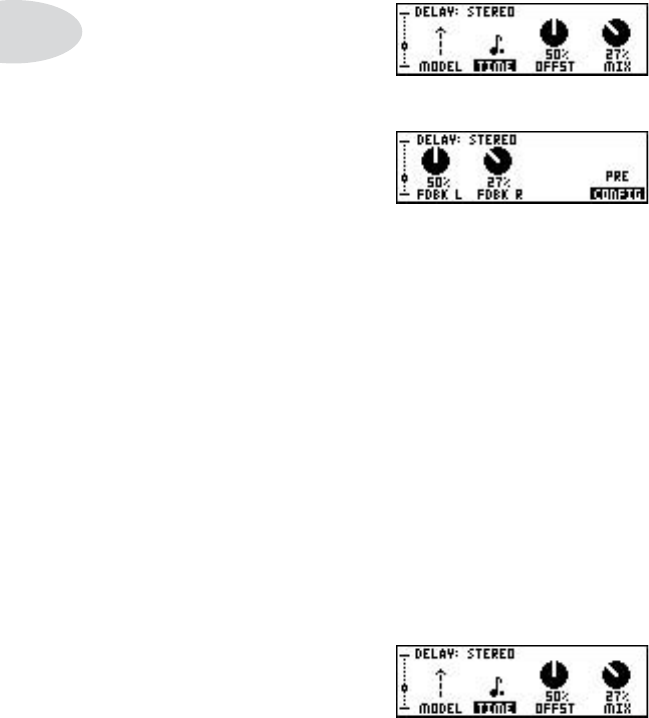
Creating & Storing Sounds
4•6
Mod and Delay settings
Turn select one click clockwise from the Stomp page(s) or double-press mOd to see
the first Mod edit page. Turn it one more click to see the second Mod page. Turn select
another click or double-press Delay to see the first Delay page, then one more click to
see the second Delay page. For the most part, things here work like the other edit pages
already described (and Chapter 6 will tell you about all the Mod and Delay models in
detail). The pages look something like this:
Delay Edit Page 1
Delay Edit Page 2
Setting your Tone to Tempo
Mod Speed or Delay Time can optionally be set using note values and tempo:
1. Select Delay time or Mod speed by pressing the button below it.
2. Spin effect tweak counter-clockwise until you start seeing notes. Pick the note
value you’d like your time or speed to match.
3. Tap twice on the tap button to set your tempo, and your Delay and/or Mod now
match the tempo you tapped.
When you set your Delay time to match dotted-eighth notes, for instance, its time con-
trol will look like this:
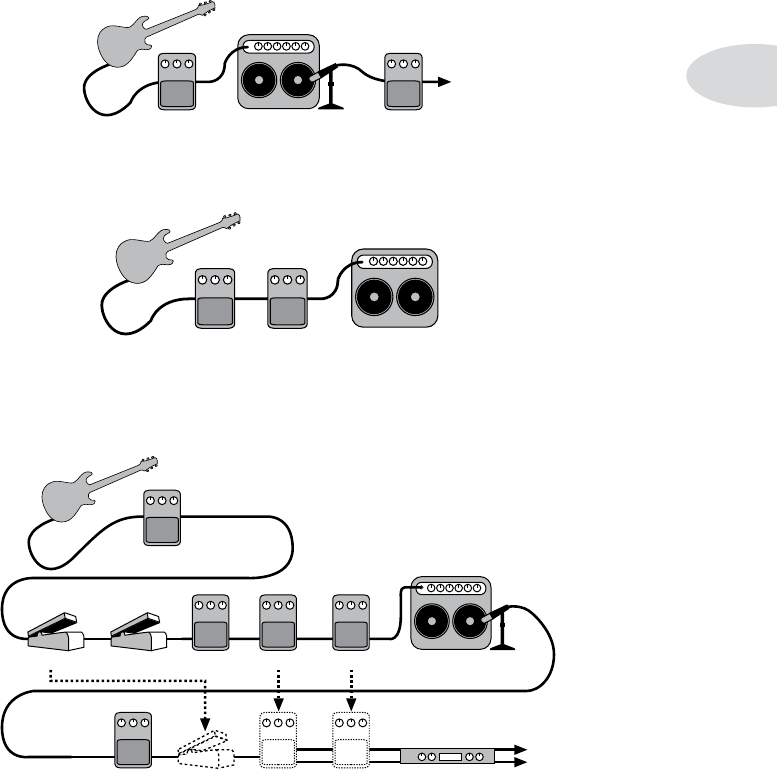
Creating & Storing Sounds
4•7
Config
The config parameter on the second Mod and Delay pages determines whether those
effects will come before (pre) the amp or after it (pOst) in the signal flow.
Here’s a typical routing with a mOd effect pre and a delay running pOst:
Here’s another routing with both mOd and delay effects in the pre position:
And this is what the full signal flow looks like inside your PODxt, including the pre and
post options for Mod, Delay and the Volume pedal:
AMP/CAB – A.I.R. II DELAYMODULATION
AMP/CABMODULATION DELAY
AMP/CAB + A.I.R. II
REVERBCOMP
GATE
VOLUME
MODULATION DELAY
WAH STOMP DELAYMODULATION
VOLUME
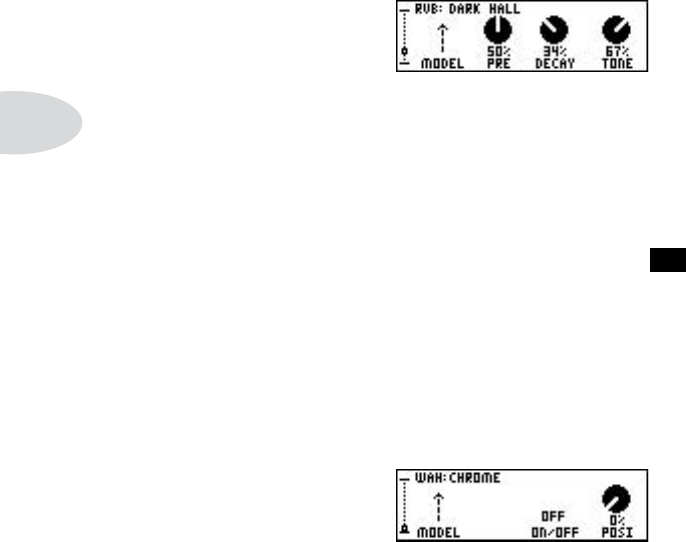
Creating & Storing Sounds
4•8
Reverb settings
Our next stop on our little trip through the edit wonderland is the Reverb page. To get
there, turn the select knob one click clockwise from delay’s last edit page:
Here you’ve got the ability to change the Reverb Model (PODxt’s got plenty of them),
as well as the associated settings necessary to get that really groovy verb going on.
PODxt LIve: Turn select one more click clockwise to show a second reverb edit
page, where you can change the mic level of the reverb. (
PODxt & PODxt PrO: Set reverb mix from the reverB 12 knob.
Wah Settings
From the last Reverb edit page, spin the select knob one click clockwise and you’ll find
the Wah Model settings. The display now looks something like this:
Here you can choose the Wah Model and save the on/off state of the wah with a Chan-
nel Memory. That way when you recall that channel, the wah comes on (nor not)
automatically.
The wah effect is generally expected to be controlled by the pedal built into a PODxt
Live, or the one on an FBV or MIDI controller. The pOsi setting represents the current
angle of that pedal, with 0% meaning the pedal is fully heel down, and 100% meaning
it’s fully toe down. If you don’t have a pedal connected, you can still adjust pOsi to get a
“parked wah” sound.
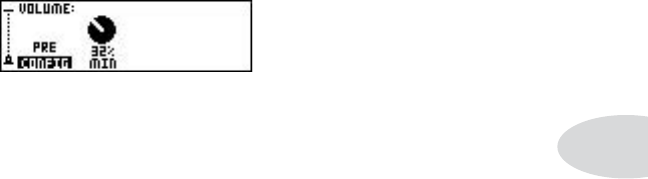
Creating & Storing Sounds
4•9
Volume Settings
Spin the select knob one more click clockwise and you’ve got the volume pedal page:
Here you can choose the position of the volume pedal in your signal flow: pre (before the
amp model), or pOst. The min setting determines how much volume you’ll hear when
the volume pedal is at its minimum (heel down) setting. Set it to 0% to have silence in
the heel down position.
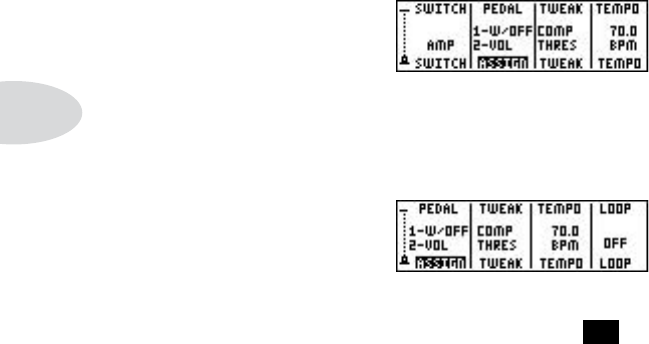
Creating & Storing Sounds
4•10
Amp Switch, Pedal, Tweak, Tempo and Loop Settings
PODxt LIve: Light up the edit button and spin the select knob clockwise to the
second to last page:
PODxt & PODxt PrO: Light up the edit button and spin the select knob clock-
wise to the last page:
switch: (pOdxt live Only) Press the Soft Button 18 under switch and spin effect
tweak to assign the amp switch to control Amp or Comp.
assiGn: Press the Soft Button under assiGn and spin effect tweak to pick what the
pedal(s) of your setup will control. PODxt Live provides a built-in pedal (we’ll refer to
this as Pedal 1), and the option to connect a Pedal 2 such as the Line 6 EX-1. PODxt &
PODxt PrO give equivalent features when you add an optional FBV family foot control-
er. Your choices for pedal assignments are shown on the opposite page.
tweak: Press the Soft Button under tweak and spin effect tweak to pick which setting
you’d like to control from the effect tweak knob or a pedal set to control Tweak.
tempO: Press the Soft Button under tempO and spin effect tweak to fine tune the tempo
that is set by the tap button/footswitch.
lOOp: (pOdxt prO Only) Press the Soft Button under lOOp and spin effect tweak to
turn the effect loop on/off.
Creating & Storing Sounds
4•11
PODxt LIve Or PODxt & PODxt PrO wIth FBv Or FBv ShOrtBOarD:
ASSIGN Setting Pedal 1 Pedal 2
1-w/OFF
2-vOL
Controls wah. Press forward to acti-
vate toe switch, and turn wah on/off. Controls Volume.
1-twk
2-vOL Controls Tweak. Controls Volume.
1-w/v
2-twk
Press forward on pedal to activate
toe switch and change from Wah to
Volume control.
Controls Tweak.
PODxt & PODxt PrO wIth FBv exPreSS:
ASSIGN Setting Pedal
1-w/v
(2-vOL)
Press forward on pedal to activate
toe switch and change from Wah to
Volume control.
1-twk
(2-vOL)Controls Tweak.
1-w/v
(2-twk)
Same as first option above, switching
control from Wah to Volume.
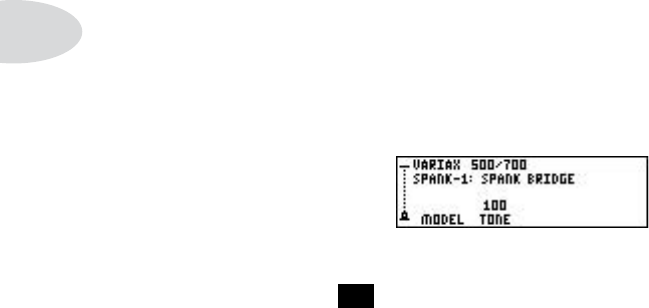
Creating & Storing Sounds
4•12
Variax Digital Connection & PODxt Live
The Variax line of guitars is unique, thanks to Line 6 modeling technology that gives you
a whole collection of guitars in one single instrument. (You can learn more about Variax
at www.line6.com.) Connect one to your PODxt Live, and you can take charge of your
entire guitar-amp-effects sound with your feet.
PODxt & PODxt PrO: You can also enjoy a Variax with a PODxt, PODxt Pro or
any other guitar tone setup. In that case, you won’t get the special digital control
features described here, but you will get the full range of standard Variax fea-
tures.
On a PODxt Live, the last Edit page gives you the ability to decide, for each Channel
Memory, how the Variax will respond when you select the channel on the PODxt Live.
Light up the edit button and spin select until you get to this last page:
Press the Soft Button 18 under mOdel, and you can choose dOn’t chanGe (PODxt Live
will not force Variax to change sounds when this PODxt Live channel is selected) or any
of the available models in the Variax — in which case PODxt Live will force the Variax
to this model when you load up this PODxt Live channel, allowing you to change your
entire guitar-amp-effects sound via footswitch!
The other Soft Buttons give you access to the other settings that your Variax lets you
save with your PODxt Live Channel Memory to give you a dialed-in guitar sound when
you select this PODxt Live channel.
If you select Variax Models by pressing the left Soft Button here and twiddling effect
tweak, you’ll see that in addition to the Variax’s Custom models, there are versions of
the rest of the Models whose names are preceded by “F-” and a set preceded by “U-”. The
“U-” Models are the same ones that you get when you operate the Variax’s own hardware
controls for Model selection. These are the same Models that you can customize using
the Variax Workbench hardware/software package (details at the Line 6 website). The
“F-” Models are a “Factory” copy of these same models that are never edited. The reason
they’re there is so that PODxt Live sound programmers can always have a known set of
Models available in a connected Variax — even one that’s been fully customized with

Creating & Storing Sounds
4•13
Variax Workbench. All Line 6 provided sounds will be programmed to use these Factory
versions of your Variax Models. You should restrict yourself to these Models if you want
to be able to share your PODxt Live + Variax settings with other Variax owners, and get
predictable results even if they’ve customized their Variax. If you’d prefer to use some
other Model instead, you can choose a new one from your Variax while you’re on this
Edit page, and you’ll see that PODxt Live updates to show this Model’s name. If you then
save that PODxt Live channel, it will select that Variax Model for you each time.
One other detail: each PODxt Live channel actually stores a separate set of parameters
for different types of Variax guitars. This way, a programmed sound can be ready to
call up one Model on one type of Variax, while selecting a different Model (or none at
all) if a different type of Variax happens to be connected. For instance, a classic rock
lead sound might be set to pull up a LESTER Model on a Variax electric, while leaving
the Model selection of a Variax Acoustic alone. We did it this way so that Line 6 pro-
grammed preset sounds for PODxt Live would be able to “do the right thing” regardless
of which kind of Variax might be connected. As of this writing, there are two families of
Variax guitars available that include the Variax Digital Connector enabling these special
control features from PODxt Live: the Variax 300/500/600/700 electric family (all guitars
in this family use the same Model set), and the Variax Acoustic.

Creating & Storing Sounds
4•14
Saving Yourself
PODxt’s lets you save adjustments to its 128 Channel Memories, as well as other details.
Saving a Channel Memory
One of the simplest things to do with PODxt is call up a Channel Memory, make a few
tweaks, and save that Channel without changing its name. To simply save a Channel
you’ve changed, press save, then save again. That’s it.
Of course, you might want to stick your sound somewhere else, or at least change the
name so you know which one it is. In that case, after you’ve pressed save for the first tim,
and you’re looking at something like this:
To save your edit to a new location - While on this save page, press the button
under the display that reads dest (short for destination) and turn the effect tweak
knob to pick a different Channel Memory. Pressing save again will confirm your deci-
sion, and save your sound to that Channel Memory, replacing what was there before.
(Or press tap to cancel and leave things un-saved.)
Give your tone a name - While on this save page, use the two Soft Buttons under
<cursOr> to move the cursor under the letters you want to change. Then press the
button under char (short for character) and turn effect tweak to change the selected
character. When you’re done, press save again to complete the job.
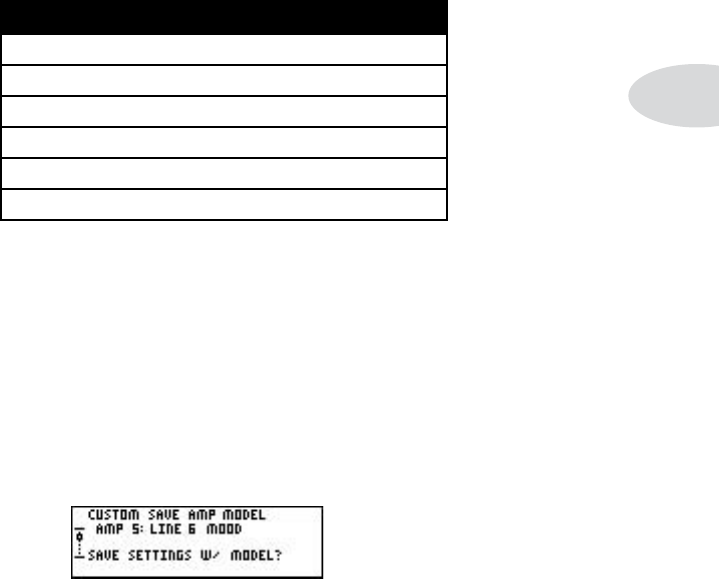
Creating & Storing Sounds
4•15
Custom Saving Amp Models
Using this powerful feature, you can pack your PODxt with all the special amp tweaking
genius that only you possess, so when you first select the Plexi-45 model, you’ll get your
personal Plexi-45, with all the amp-related settings just the way you like them. PODxt
loads the following controls along with an Amp Model:
Settings loaded with an Amp Model:
Amp Model selection
Cabinet Model selection
Microphone Model and Room amount
Drive, Bass, Middle, Treble, and Presence controls
Channel Volume
EQ settings
PODxt LIve: Once you’ve custom saved an Amp Model, it will load with these settings
when you turn effect tweak from the Amp edit page.
PODxt & PODxt PrO: Once you’ve custom saved an Amp Model, it will load with these
settings when you turn the amp mOdels knob.
To do the customizing, choose an Amp Model, change the cab, tweak the room,
choose the mic setup, and tweak up some EQ if you’d like. Then press the save button,
are turn the select knob to show the display that looks like this:
Press save again.

Creating & Storing Sounds
4•16
Custom Saving Effect Setups on PODxt & PODxt PrO
(thIS Feature IS nOt IncLuDeD On PODxt LIve) Saving your own Effect Setup means you can
then load those effect settings from the effects knob. This is handy if you want to use
the same combination of effect settings over and over again, without altering your amp-
related settings. Once you’ve got your combination of effects running, press save and use
the select knob to scroll down to the page that looks like this:
Where to put it — Press the button under the display that’s labeled dest (destina-
tion) and turn the effect tweak knob to select one of the 64 Effect Setup memories.
What to name it — If you want to give your new Effect Setup a name, now’s the
time to do it! Use the cursOr < and > buttons to move the cursor under the letters you
want to change. Press the button under char (short for character) and then use effect
tweak to change the selected character.
Commitment — Pressing save again will now take a snapshot of your current cOmp,
Gate, stOmp, mOd, delay and reverB settings, and keep them forever and ever.
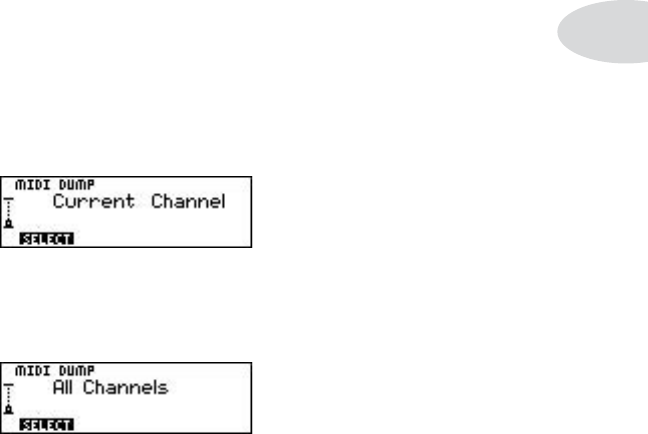
Creating & Storing Sounds
4•17
MIDI Dumps
If you just want to backup your memory, we recommend GearBox, available from Line 6
Monkey (www.line6.com/monkey). It works with a standard USB cable connecting
PODxt to your computer.
If you want to transfer one or more tones directly from one PODxt to another PODxt,
or between PODxt and a MIDI data recorder, workstation, computer or sequencer, you’ll
need a standard MIDI cable to do the deed. Connect the MIDI Out of your PODxt to
the MIDI In of the receiving device, as described in Chapter 3.
Transferring All Channel Memories - This feature will let you send all of your
PODxt Channel Memories out via MIDI for a complete back-up of the 128 Channel
Memories:
Press save once, and use the select knob to scroll down to this page:
Press the button under select. Turn the effect tweak knob to the left (counterclock-
wise) until the display reads:
Now, if you press save again, the entire set of 128 Channel Memories of your PODxt
will be dumped out of its MIDI jack. If another PODxt is connected, its brain will be
taken over by this data, making it a virtual clone of your own PODxt channels! Who
knew cloning was so easy?
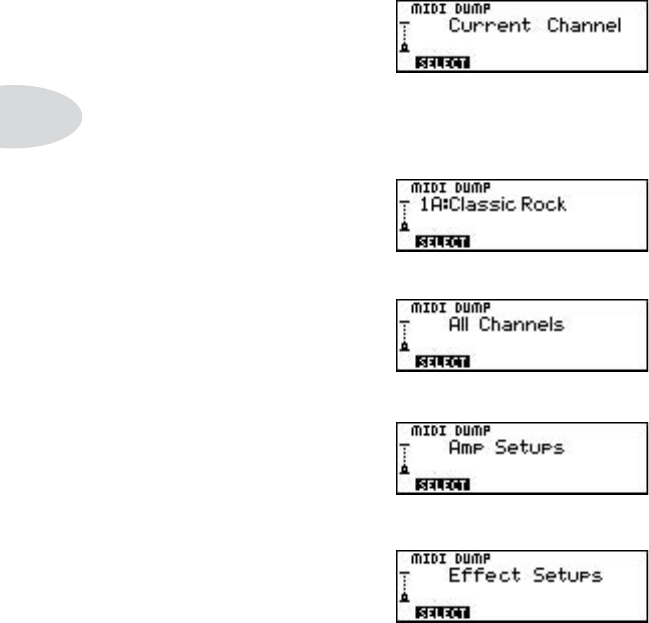
Creating & Storing Sounds
4•18
Transferring Only Some Channels - To transfer only one or more individual Chan-
nel Memories, Effects Setups or Amp Models from one PODxt to another, do this:
Press save once, and turn the select knob to show the page that looks like this:
Turn the effect tweak knob to tell PODxt what to transfer:
Any Channel Memory:
All Channel Memories:
All Amp Models:
All Effects Setups: (this feature is not included on PODxt Live):
Now, if you press save again, the MIDI dump you’ve selected will be transmitted out
the MIDI jack, into the brain of a receiving PODxt, or into your computer or other
MIDI device for backup.
Restoring Data - You don’t have to do anything special to restore data to your
PODxt. Just send the data to PODxt via MIDI, and it will recognize and receive the
data and show messages on its display to tell you what data it successfully receives.

Modeled Amps & Cabs
5•1
ModeLed aMPs & caBs
Which Amps and Cabs Are Modeled?
General Notes About the Models
As you may have guessed, we’re tone fanatics here at Line 6. Once we’ve set our sights
on creating a software emulation of a particular kind of amp, we will scour the globe in
search of just the right specimen—that one, very particular amplifier that has the magic.
We are also intensely mindful of the fact that, although amp model names may stay the
same over the years, the circuit designs sometimes change radically. Amps from ’57, ’62,
’65, ’67, ’75, and 2001 may all bear the same model name, yet sometimes have totally dif-
ferent sound and response, and quite often a different look as well. And as we all know,
even two amps with the same circuit design, from the same era, can sound radically dif-
ferent, just on the basis of variance in component tolerances, among other things. Plus,
there’s the fact that every amp has its own special way of settling in over the years. And,
just like people, some of them only get better with age. That’s exactly why we went to
so much trouble to find the very best examples we could of every amp that we wanted
to model for PODxt. And it’s why, when describing the software amp models that are
emulations of other amplifiers, we’ve included photos here of the actual, individual amps
that we lovingly selected, studied and measured—so that you’ll know exactly which amp
we’re talking about.
So, now that you know what’s in store, let’s take a tour of the amp models that live inside
your PODxt, and the original equipment that helped to make them possible.
There are 42 Amp Models living within your PODxt, plus 24 Cabinet Model selections.
When you turn the effect tweak knob, you select an Amp/Cab combination. You can
then mix’n’ match different cabs with the amp (see Chapter 4 for details). Chapter 4
also tells you how you can customize PODxt to call up your favorite Amp/Cab combina-
tions.

Modeled Amps & Cabs
5•2
Line 6’s OriginaLs
We’ll start the introductions with the original Amp Models that Line 6 created to give
you even more tonal options than you could get from vintage gear alone:
Line 6 Clean
To create this Amp Model, we essentially grafted the preamp and tone stack of our
model based on* a JC-120 (Roland®’s popular “Jazz Chorus” solid state combo) onto
the poweramp and transformer of our model based on* a classic Marshall® JTM-45 tube
head, thereby giving you the crisp and clear front end typical of a solid state amp, but
with a rich, satisfying tube amp-style bite as you turn it up.
Line 6 JTS-45
Since the design of early Marshall®s was based on the Fender® Tweed Bassman circuitry,
we wondered what it would be like if we took the preamp and tone stack of our model
based on* the Marshall® JTM 45 and ran it into the poweramp and transformer of our
model based on* the Fender® ’58 Tweed Bassman. What we got was way happening, as
JTS-45 will attest. Great grind and nice punch. A tone the whole family can enjoy.
Line 6 Class A
One of the most satisfying tonal experiences as a guitarist is to play through an amp
that’s driven to the point where the poweramp is just starting to distort, but before it
achieves full clipping. For many players, this is the coveted ‘sweet spot’ they look for on
an amp. Because we’re not limited to physical reality when we’re creating amps in the
digital world, our goal for this one was to make an amp model that was nothing but sweet
spot. One of the great side effects is the ease of coaxing feedback out of this one.
Line 6 Mood
And here we give you a fantasia tone, based on our memories of grunge guitar tones we
have known and loved.
*
All product names are trademarks of their respective owners, which are in no way associated or af-
filiated with Line 6. These product names, descriptions and images are provided for the sole purpose
of identifying the specific products that were studied during Line 6’s sound model development.
ROLAND® and JAZZ CHORUS are registered trademarks of Roland Corporation. MARSHALL is
a registered trademark of Marshall® Amplification PLC. FENDER® and BASSMAN® are registered
trademarks of Fender Musical Instruments Corporation.

Modeled Amps & Cabs
5•3
Line 6 Spinal Puppet
You know how, when you’re playing head-bangin’ music, you look out into the audience
and see all those heads bobbing up and down? Those are Spinal Puppets. Need we say
more?
Line 6 Chemical X
Just like those secret ingredients that detergent companies used to crow about (Now
with Ingredient X-27!), the Line 6 sound design guys wouldn’t tell us anything about the
inspiration for this one or who it might have belonged to (no matter what type of bribery
we attempted). Suffice to say that it’s a very punchy hi-gain sound that also cleans up
quite nicely when you roll your volume back.
Line 6 Insane
Our goal here was to provide you with as much input gain distortion as possible short of
complete meltdown. You get ridiculous, rich tube drive to shame the distortion of pretty
much any amp on the planet (sort of like a Mesa/Boogie® Dual Rectifier® on 10 being
used as a preamp for a Soldano®), while still retaining tonal definition and character. As
a result, you’ll enjoy lots of bottom end and cabinet character with tons of wide-ranging
tone shaping. Crank up the Drive and take no prisoners!
Line 6 Piezacoustic 2
This one is designed to work with the piezo output of solidbody electrics that have one
of those newfangled bridges with the ‘acoustic’ pickup built in. Since you don’t have to
worry about the body shaking itself to pieces with feedback on that type of guitar, we’ve
cooked up this model with more low-mids and low frequencies.
Line 6 Agro
An aggressive high gain amp with a unique Mid control that will take you though the
entire gamut of tone on one knob. How did we do it? The mid knob for this model
changes the character of the distortion. When set to minimum the distortion exhibits
Fuzz pedal characteristics. When the Mid is set to noon it creates creamy modern high
gain amp tones a la Soldano®. And when the Mid knob is turned up to Max it’s very
much reminiscent of that Class A Vox® sound. Of course, then there are all the places in
between...
*
All product names are trademarks of their respective owners, which are in no way associated or af-
filiated with Line 6. These product names, descriptions and images are provided for the sole purpose
of identifying the specific products that were studied during Line 6’s sound model development.
DUAL RECTIFIER® is a registered trademark of Mesa/Boogie®, Limited. VOX® is a registered trade-
mark of Korg Europe Limited.

Modeled Amps & Cabs
5•4
Line 6 Lunatic
High gain with lots of high mids and no mud. Great for layering with other amps to cut
through on the high end. A wide range of top is available with the Treble and Presence
controls (maybe to the edge of lunacy).
Line 6 Treadplate
The original POD and POD 2.0 had a popular amp model that was our best attempt at
the time to make a model based on* the Mesa Boogie® Rectifier® series of amplifiers.
In addition to the Boogie® vibe, that model had some unique qualities that were all its
own, and people it liked so much, they asked us to let them get that same sound with the
newest generation PODxt. So here it is. In a way, Treadplate marks the first time we’ve
actually modeled another Line 6 product! Here is an excerpt from the old POD manual
to describe it: “...modeled after* a 1994 Mesa Boogie® Dual Rectifier Tremoverb®. You can
use this Amp Model to get that tight, high gain sound used by bands like Dream Theater or
Metallica.”
Line 6 Variax Acoustic
One of the great features of the Variax Digital Modeling Guitars from Line 6 are their
models of acoustic instruments. These sounds are best appreciated through a full range
monitor or P.A., due to their high frequency content. This Amp Model was created in
order to allow the Variax’s acoustic models to sound as full-range as possible through the
speakers of typical guitar amps. This can come in handy when you’re using an acoustic
model from a Variax, and listening to it through a guitar amp’s speakers. Keep in mind
that since this model provides a large amount of high frequency boost (to compensate for
the natural roll-off of typical guitar speakers) and overdriving a model playing an acous-
tic guitar is not usually a desired thing, this model will likely appear softer than most
of its compatriots. If you need more gain, the Drive knob can be used to add some tube
preamplification.
*
All product names are trademarks of their respective owners, which are in no way associated or af-
filiated with Line 6. These product names, descriptions and images are provided for the sole purpose
of identifying the specific products that were studied during Line 6’s sound model development.
MESA/BOOGIE® and RECTIFIER® are registered trademarks of Mesa/Boogie®, Limited.
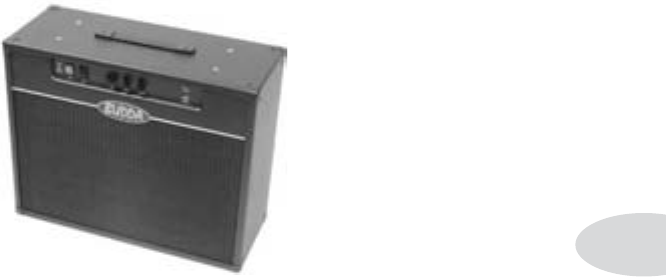
Modeled Amps & Cabs
5•5
Zen Master - Based on* a Budda Twinmaster 2x12 combo
The Budda has a great, warm, Class A/B, sound. The Budda philosophy is all about
power tube distortion. Simplicity is the key. With relatively low front end gain, highly
interactive tone controls, and tube rectifier “sag,” it’s great at getting a classic cranked
sound for small gigs and recording (it’s all of 18 watts). Since the original Twinmaster has
no mid control, we’ve added a little bonus to our model in the form of some post-Amp
Model mid contouring available via PODxt’s middle control. As is true for all such “bo-
nus” tone controls on PODxt’s models, you should set this control to 12 o’clock to get
groovy with the unadorned Budda-style vibe.
We used the Twinmaster’s Input 2, which is lower gain, when creating this model.
*
All product names are trademarks of their respective owners, which are in no way associated or af-
filiated with Line 6. These product names, descriptions and images are provided for the sole purpose
of identifying the specific products that were studied during Line 6’s sound model development.
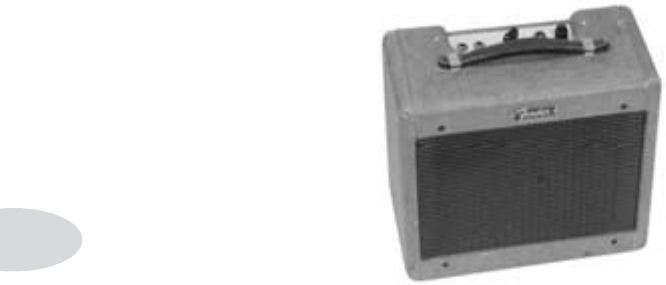
Modeled Amps & Cabs
5•6
Small Tweed - Based on* a 1953 “wide panel” Fender® Tweed Deluxe®
This Amp Model will snarl with the best of them. The original amp had only a single
tone control, essentially a treble roll off. We set up the treBle knob to give you this
treble roll off when using this Amp Model. Which left us with the Bass and middle
knobs just sitting there, so we set up the Bass and middle as post-Amp Model controls,
which essentially lets you EQ up your tone as you would do on a mixing console after
recording your amp. Set the Bass and middle knobs at halfway to put them in ‘neutral’,
turn the presence to 0, and try the treBle knob somewhere above halfway for a classic
Tweed sound.
*
All product names are trademarks of their respective owners, which are in no way associated
or affiliated with Line 6. These product names, descriptions and images are provided for the sole
purpose of identifying the specific products that were studied during Line 6’s sound model develop-
ment. FENDER® and DELUXE REVERB® are registered trademarks of Fender Musical Instruments
Corporation.
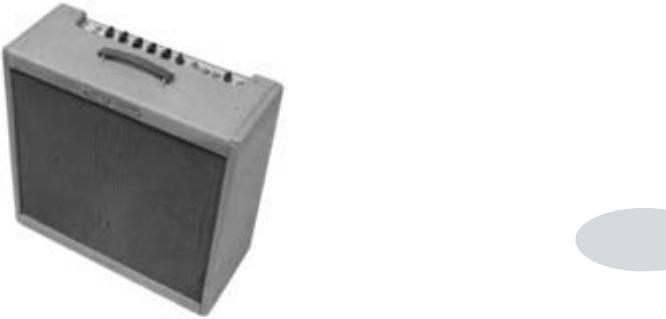
Modeled Amps & Cabs
5•7
Tweed B-Man - Based on* a 1958 Fender® Bassman® 4x10 combo
The Bassman® 4x10 combo was the amp that started it all—instant rock and roll tone.
Originally a bass guitar amp, the Bassman® became a Blues staple for 6-string guitar-
ists. It has the fat bottom end you’d expect from a bass amp, but also has the Fender®
twang on the top. Incidentally, when Jim Marshall built his first amps with Ken Bran
they were heavily influenced by the early Bassman®. One of the interesting things about
the Bassman® is just how interactive the middle and treBle controls are. The middle
control isn’t a bandpass, as in most tone control setups. Instead, it’s almost like a second
treble control. The two are additive, so if you’re running PODxt’s middle knob higher
than halfway up with this model, you’ll find that the treBle control might give you more
bright than you really want. On the other hand, when you turn the middle knob down,
you’ll probably want to boost the treBle. The Bassman®, like many of the amps modeled
for PODxt, didn’t have a master volume. So to get the kind of tone that the Bassman®
can deliver at higher gain settings, you had to crank it up loud enough to do some serious
damage to anyone who might be standing close by. With PODxt, you can get that kind
of tone at a bedroom or studio level — or even through your headphones! Try a Drive
setting of about 4 or 5—it’s guaranteed to dredge up the best R&B licks you know.
*
All product names are trademarks of their respective owners, which are in no way associated or af-
filiated with Line 6. These product names, descriptions and images are provided for the sole purpose
of identifying the specific products that were studied during Line 6’s sound model development.
FENDER® and BASSMAN® are registered trademarks of Fender Musical Instruments Corporation.
Modeled Amps & Cabs
5•8
Tiny Tweed - Based on* a 1961 Fender® Tweed Champ®
This model has a great sound when the Drive is cranked (not bad clean, either). These
amps were originally designed to be sold to beginners, but rock and rollers quickly dis-
covered that you could get a great distorted sound at fairly low volume levels. Many of
the classic guitar solos of the 50’s were recorded through a Champ®. The Champ® had no
tone control, only volume. With your PODxt, it’s easy to get a classic Champ® tone. Just
leave the Bass, middle and treBle controls parked at 12 o’clock, which means they are
“flat,” making no contribution to the tone. Set presence to 0, and it will also be letting
the unadorned classic Champ® tone through. When you’re ready to explore further sonic
territory, spin those and work your magic.
*
All product names are trademarks of their respective owners, which are in no way associated or af-
filiated with Line 6. These product names, descriptions and images are provided for the sole purpose
of identifying the specific products that were studied during Line 6’s sound model development.
CHAMP® is a registered trademark of Fender Musical Instruments Corporation.
Modeled Amps & Cabs
5•9
Blackface Lux - Based on* a 1964 Fender® Blackface Deluxe Reverb®
The Holy Grail for many blues, country, and “roots” players has been a blackface Fender®
Deluxe Reverb®. After listening to quite a few candidates back when we were seeking
the ultimate Deluxe Reverb® to model during our development of Flextone and POD, we
stumbled upon an extremely cool ’64 Deluxe. We still haven’t found one better.
Most players love a Deluxe when it’s turned up to about 7 for a nice gritty sound that
cleans up when you back off your guitar’s volume knob just a little. Notice how the tone
control response changes as this Amp Model’s Drive is changed: clean settings are crisp
and present, while more driven settings will mellow the high end. This is typical of what
you get from a Deluxe and is nicely captured here. The Deluxe itself has only Bass and
treBle controls, leaving us, once again, with the prospect of a couple knobs with noth-
ing to say for themselves. But fear not; in this case, we’ve set up PODxt’s middle knob
so you can add some post-Amp Model Midrange contouring for a little more flexibility,
while presence adds, well, Presence. Once again, set the middle knob to its “neutral” 12
o’clock position and the presence knob to 0 for the classic Deluxe sound. Tweaked up
right, this tone will cut through and sing. We jacked into Input 1 of the Vibrato Channel
to get this model cooked up for PODxt.
*
All product names are trademarks of their respective owners, which are in no way associated
or affiliated with Line 6. These product names, descriptions and images are provided for the sole
purpose of identifying the specific products that were studied during Line 6’s sound model develop-
ment. FENDER® and DELUXE REVERB® are registered trademarks of Fender Musical Instruments
Corporation.
Modeled Amps & Cabs
5•10
Double Verb - Based on* a 1965 Fender® Twin Reverb®
The classic blackface Fender® Twin® was a real workhorse. Everybody used it, from jazz
and country players to serious rockers. I myself remember seeing Johnny Winter at a
concert where both he and Rick Derringer—am I dating myself or what?—were using six
Twins stacked in a pyramid. Each. We were in the second balcony and it was REALLY
loud even all the way back there. The Twin® has a lot of tonal flexibility and is at home
in a great many different situations. It never gets extremely overdriven and dirty, mostly
just louder—a lot louder. This is the amp for the classic surf sound. Dial up the spring
reverb, switch on the tremolo, crank up the volume, and look out for bikinis.
Like most everyone who owns one, we plugged into Input 1 of the Normal Channel for
modeling purposes.
*
All product names are trademarks of their respective owners, which are in no way associated or af-
filiated with Line 6. These product names, descriptions and images are provided for the sole purpose
of identifying the specific products that were studied during Line 6’s sound model development.
FENDER® and TWIN REVERB® are registered trademarks of Fender Musical Instruments Corpora-
tion.
Modeled Amps & Cabs
5•11
Two-Tone - Based on* a Gretsch® 6156
Another amp made by Valco/Supro, this is the Gretsch® 6156. One of its curiosities is
that the output transformer is actually mounted on its single 10-inch speaker, rather than
on the amp chassis. It also has a lovely wraparound grill cloth, for a real futuristic look
(or what passed for it in the ’50s).
*
All product names are trademarks of their respective owners, which are in no way associated or af-
filiated with Line 6. These product names, descriptions and images are provided for the sole purpose
of identifying the specific products that were studied during Line 6’s sound model development.
GRETSCH® is a registered trademark of Fred W. Gretsch Enterprises, Ltd.
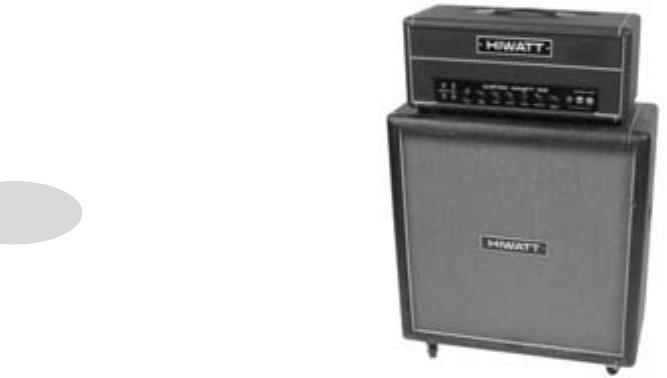
Modeled Amps & Cabs
5•12
Hiway 100 - Based on* a Hiwatt® DR-103
Based on a Hiwatt® DR-103, this model gives a great, punchy sound that will cut
through almost anything and retains great definition even when cranked. That’s ex-
actly what designer Dave Reeves was looking for when he left the Sound City division
of Dallas Arbiter in 1966 to form HyLight Electronics. Though his first designs were
more reminiscent of the Vox® and Selmer
®
amps of the day, it wasn’t long before Reeves
had started producing the amps that ’60s Brit-Rock fans have become familiar with.
Renowned for their ‘tank-like’ construction (due in part to Reeves’ hiring of ‘mil-spec’
wiring specialist Harry Joyce), it was no small wonder this amp was the choice of Pete
Townshend for so many years. It wasn’t just Townshend using Hiwatt®, either. Many
of the then-current crop of British rockers like Pink Floyd, The Moody Blues, Manfred
Mann, and Jethro Tull were also Hiwatt® endorsees. Crank this one up and you can see
for miles.
*
All product names are trademarks of their respective owners, which are in no way associated or af-
filiated with Line 6. These product names, descriptions and images are provided for the sole purpose
of identifying the specific products that were studied during Line 6’s sound model development.
HIWATT® is a registered trademark of Fernandes Company Ltd. VOX® is a registered trademark of
Korg Europe Limited. SELMER® is a registered trademark of The Selmer Company.
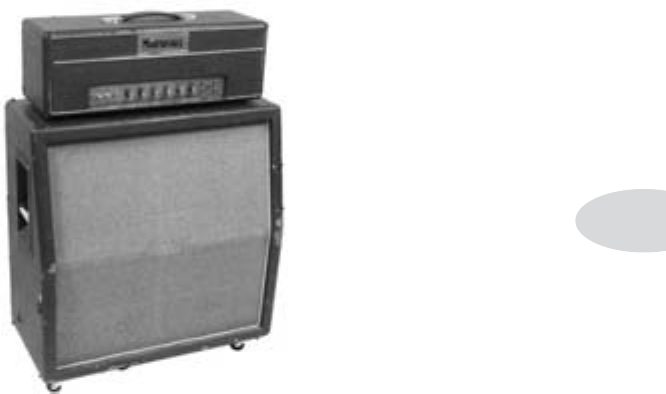
Modeled Amps & Cabs
5•13
Plexi 45 - Based on* a 1965 Marshall® JTM-45
This Amp Model is based on a ’65 ‘block logo’ (predates the “scrolled” Marshall® logo)
JTM-45 head, complete with a gold Plexiglas front panel. When the royal agents we had
dispatched to the U.K. found this particular amp, we instantly fell in love. The amp even
has the original KT-66s in it, still in great shape! It’s one of the finest examples of a JTM-
45 we’ve ever heard, and it’s a constant battle at Line 6 to see who gets to take it home
for the weekend.
Those interested in the genealogy of tone will be interested to note that the JTM-45
marked the beginning of Marshall®’s transition from a mellower Fender®-like tone to the
distinctive, bright “crunchy” sound of the later Marshalls®.
*
All product names are trademarks of their respective owners, which are in no way associated or af-
filiated with Line 6. These product names, descriptions and images are provided for the sole purpose
of identifying the specific products that were studied during Line 6’s sound model development.
MARSHALL® is a registered trademark of Marshall Amplification PLC. FENDER® is a registered
trademark of Fender Musical Instruments Corporation.
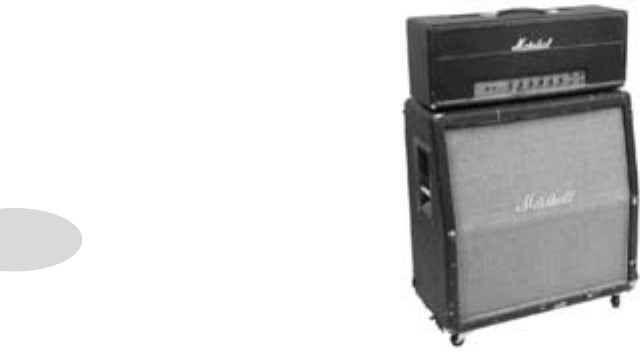
Modeled Amps & Cabs
5•14
Plexi Lead 100 - Based on* a 1968 Marshall® ‘Plexi’ Super Lead
Modeled after the infamous ‘68 Marshall® ‘Plexi’ Super Lead—coveted by tone connois-
seurs the world over. We literally scoured the world for this particular amp, finally finding
a great example of a Super Lead languishing (we like to think fate preserved it for us) in
Holland. By the time this amp was built (ca. 1968), Marshall® had completely changed
the circuitry away from the Fender® 6L6 power tube heritage and moved to an EL34
tube. Another major tone difference was due to the necessary output & power supply
transformer changes. All this mucking about added up to create a tone forever linked
with Rock Guitar. Amps of this era didn’t have any sort of master volume control, so to
get the sound you’d have to crank your Super Lead to max—just the thing to help you re-
ally make friends with the neighbors. Hendrix used Marshall®s of this era; a decade later
Van Halen’s first two records owed their “brown sound” to a 100-watt Plexi (Our Super
Lead, in fact, has the ‘lay down’ transformer that was unique to ’68 models, the same as
Hendrix and Van Halen’s Marshall®s.). To get a crunch sound out of a Plexi, you would
likely crank the input volume and tone controls (to 10!). You’ll find that, in keeping
with our “make-it-sound-a-whole-lot-like-the-original” concept, PODxt’s model is set up
to do pretty darned near the same thing.
*
All product names are trademarks of their respective owners, which are in no way associated or af-
filiated with Line 6. These product names, descriptions and images are provided for the sole purpose
of identifying the specific products that were studied during Line 6’s sound model development.
MARSHALL® is a registered trademark of Marshall Amplification PLC. FENDER® is a registered
trademark of Fender Musical Instruments Corporation.ts Corporation.
Modeled Amps & Cabs
5•15
Plexi Jump Lead - Based on* a 1968 Marshall® ‘Plexi’ Super Lead
Guitar playing is all about experimentation, isn’t it? That, and finding all the possible
ways to get more distortion out of whatever gear you have at hand.
One of the fun things you can do with a Plexi is take a short guitar cable and jumper
channel I and channel II (as they’re frequently numbered) together for a little extra
saturation. Some guys loved this sound so much that they pulled the chassis and perma-
nently wired a jumper into the amp.
Being the obsessive/compulsive tone freaks we are, we just had to give you a model of
this setup, too.
*
All product names are trademarks of their respective owners, which are in no way associated or af-
filiated with Line 6. These product names, descriptions and images are provided for the sole purpose
of identifying the specific products that were studied during Line 6’s sound model development.
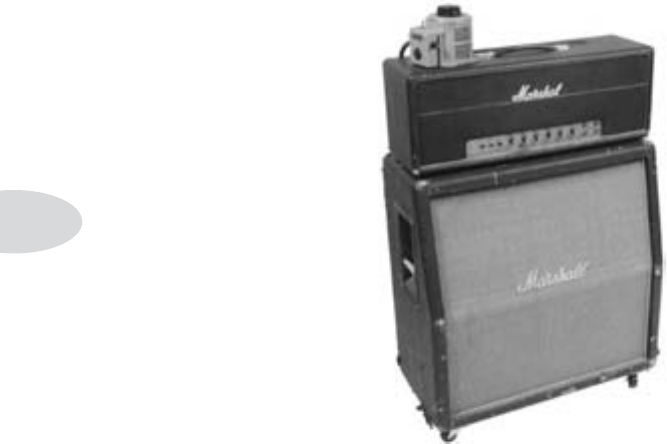
Modeled Amps & Cabs
5•16
Plexi Variac - Based on* a Marshall® Super Lead Variac
Ahhh, the stuff of legend. According to the stories, part of the magic behind Edward
Van Halen’s ‘Brown Sound’ was a Marshall® 100 watt Super Lead being purposely run at
higher voltage through the auspices of a Variable AC Transformer (aka a ‘Variac’).
While we don’t generally recommend experiments with high voltage sources, especially
ones that might blow up precious gear, we felt it was our duty to see if the stories were
true. So we cranked the Variac up to 140v AC and gave the ’68 Super Lead a power
workout. (Don’t worry, it survived to rock again.) We’re thinking those stories must not
be too far from wrong.
*
All product names are trademarks of their respective owners, which are in no way associated or af-
filiated with Line 6. These product names, descriptions and images are provided for the sole purpose
of identifying the specific products that were studied during Line 6’s sound model development.
MARSHALL® is a registered trademark of Marshall Amplification PLC.
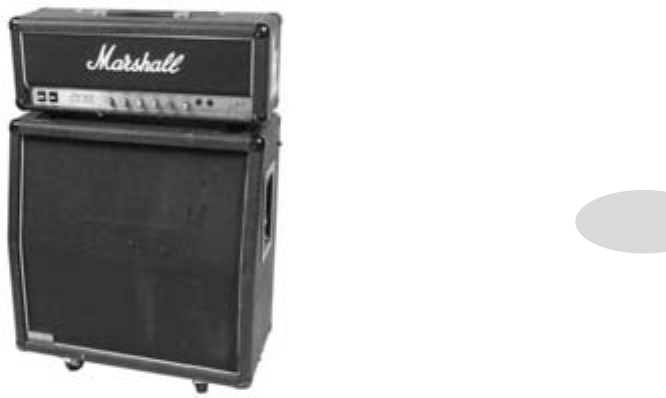
Modeled Amps & Cabs
5•17
Brit J-800 - Based on* a 1990 Marshall® JCM-800
Turn to this Amp Model to conjure up tones of the coveted JCM 800, one of Marshall®’s
most universally-acclaimed modern amps. This updated version of the Plexi continued
Marshall®’s heritage with added gain and edge for a new generation of rock guitarists.
One of the biggest differences here is that the tone controls are located after the preamp
tubes.
Incidentally, some versions of JCM 800’s get their distortion by clipping a diode. The
amp we modeled uses a tube for distortion.
The JCM 800 is, of course, the metal sound Marshall® made famous. And although not
many people play Marshall®s clean, it is a great tone, so you should also be sure to check
out this model with a low Drive setting. Of course, you can always pump up the drive
and rage...
*
All product names are trademarks of their respective owners, which are in no way associated or af-
filiated with Line 6. These product names, descriptions and images are provided for the sole purpose
of identifying the specific products that were studied during Line 6’s sound model development.
MARSHALL® is a registered trademark of Marshall Amplification PLC.
Modeled Amps & Cabs
5•18
Brit JM Pre - Based on* a Marshall® JMP-1
Marshall®’s entry into the rackmount preamp world, the JMP-1, has been a favorite of
‘big-hair’ metal guitarists as well as many others looking for a tight, highly saturated tone
without the compression of poweramp ‘sag.’ It was also one of the first MIDI-controllable
preamps.
The overdrive flavor of the JMP is somewhat “Boogie®-esque” and many people saw the
JMP as Marshall®’s answer to the ADA MP-1 and Mesa Boogie® preamps. First intro-
duced in the early nineties, the JMP has enjoyed a recent surge of popularity with new
metal bands looking for a really tight, aggressive, well focused tone without being overly
scooped. Your seven string is gonna love our model developed from our careful study of
the JMP-1.
*
All product names are trademarks of their respective owners, which are in no way associated or af-
filiated with Line 6. These product names, descriptions and images are provided for the sole purpose
of identifying the specific products that were studied during Line 6’s sound model development.
MARSHALL® is a registered trademark of Marshall Amplification PLC. ADA is a registered trade-
mark of Audio Design Associates, Inc. MESA/BOOGIE® is a registered trademark of Mesa/Boogie,
Limited.
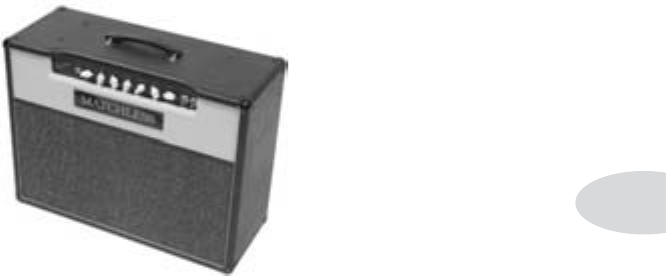
Modeled Amps & Cabs
5•19
Match Chief - Based on* a Matchless® Chieftain
We crafted this model from our studies of the Matchless® Chieftain. The Matchless® has
an EL34-powered “modern class A” design — hence this model’s name — and a unique
tone (largely due to the complicated EQ scheme).
The Chieftain was designed by Mark Sampson at Matchless® to blend a Fender®/Mar-
shall® type front end with a classic ‘spongy’ and very reactive Class A power section.
With higher gain than the DC-30 (which is next in our hit parade), the Chieftain is a
great roots-music amp. It also features the incredibly sexy feature of a light up front logo
name plate, which may not affect tone, but it sure does look cool.
When, sad to say, Matchless® went out of business, both the Chieftain and the DC-30
became highly collectable pieces of gear, with used ones often fetching up to a thousand
dollars more than their original price. We’re happy to do our part to keep the Matchless®
legacy alive with the Matchless® models in your PODxt.
*
All product names are trademarks of their respective owners, which are in no way associated or af-
filiated with Line 6. These product names, descriptions and images are provided for the sole purpose
of identifying the specific products that were studied during Line 6’s sound model development.
MATCHLESS® is a registered trademark of Matchless, LLC. FENDER is a registered trademark of
Fender Musical Instruments Corporation. MARSHALL® is a registered trademark of Marshall Am-
plification PLC.
Modeled Amps & Cabs
5•20
Match D-30 - Based on* a Matchless® DC-30
The DC-30 was the amp that really put Matchless® on the map. Mark Sampson, the
amp’s designer, who was generous enough to tell us the story of this amp’s creation, set
out to create a road-worthy Class A amp that could cover a wide range of tones.
Built like a tank (and weighing nearly as much), the DC-30 paid tribute to early Vox
amps. So if you like a Vox® AC-30 (or PODxt’s model based on one), you’ll also want to
check out PODxt’s model of the DC-30.
*
All product names are trademarks of their respective owners, which are in no way associated or af-
filiated with Line 6. These product names, descriptions and images are provided for the sole purpose
of identifying the specific products that were studied during Line 6’s sound model development.
MATCHLESS® is a registered trademark of Matchless, LLC. VOX® is a registered trademark of Korg
Europe Limited.
Modeled Amps & Cabs
5•21
Treadplate Dual - Based on* a 2001 Mesa Boogie® Dual Recitifier® Solo
The Dual Rectifier® was part of Boogie®’s more modern, high gain approach for that “big
hair” sound. In contrast to the earlier Boogie®s, the Dual Rectifier®’s tone controls have
more influence at high gain settings, so you can scoop the mids and increase the bottom
end.
We used Channel 3 on the Modern setting for this one with the rear switches set to Bold
and Tube Rectifier, respectively.
*
All product names are trademarks of their respective owners, which are in no way associated or af-
filiated with Line 6. These product names, descriptions and images are provided for the sole purpose
of identifying the specific products that were studied during Line 6’s sound model development.
MESA/BOOGIE® and RECTIFIER® are registered trademarks of Mesa/Boogie, Limited.
Modeled Amps & Cabs
5•22
Cali Crunch - Based on* a Mesa Boogie® Mark IIc+
Mesa® Engineering started out with Randall Smith souping up old Fender® Princeton
amps for SF Bay area musicians. Over the years, the amps evolved, adding effects loops,
switchable channels, and Randall’s Simul-Class design, in which one pair of output tubes
is run Class AB and the second pair run Class A. Boogie®s were really the first modern
guitar amplifiers and were quickly adopted by many players looking for more ‘oomph’ in a
smaller package.We used the Drive channel to do our modeling.
*
All product names are trademarks of their respective owners, which are in no way associated or af-
filiated with Line 6. These product names, descriptions and images are provided for the sole purpose
of identifying the specific products that were studied during Line 6’s sound model development.
MESA/BOOGIE® and MESA ENGINEERING® are registered trademarks of Mesa/Boogie, Limited.
FENDER® and PRINCETON® are registered trademarks of Fender Musical Instruments Corpora-
tion.
Modeled Amps & Cabs
5•23
Jazz Clean - Based on* a Roland® JC-120
This transistor amp was known for a strident clean sound and built-in stereo chorus.
When using the JC-120 model, try cranking up the Treble for a shimmering clean sound
that’ll cut through just about any mix. It’s also perfect for that 80’s “new wave” sound
(after all, it was Andy Summers’ favorite amp with The Police).
You should also try setting all the tone controls at 12 o’clock for a darker jazz tone. It’ll
give you an essentially flat response, providing a balanced tone across the fret board for
jazz chord melodies or single-line phrasing.
*
All product names are trademarks of their respective owners, which are in no way associated or af-
filiated with Line 6. These product names, descriptions and images are provided for the sole purpose
of identifying the specific products that were studied during Line 6’s sound model development.
ROLAND® is a registered trademark of Roland Corporation.
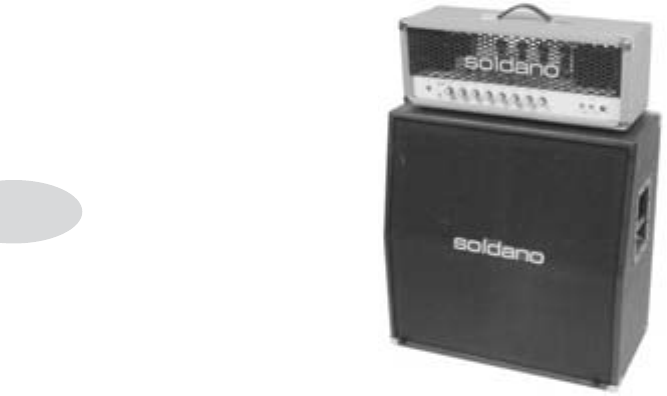
Modeled Amps & Cabs
5•24
Solo 100 - Based on* a Soldano SLO-100
Mike Soldano first came to fame as the guy who could do all the really cool mods to your
Marshall®. It wasn’t long before he started building his own ‘hot-rod’ amps—sporting
chromed transformers and chassis, no less. Mike’s amps are also famous for their bullet-
proof construction and military spec wiring and components.
While primarily known for its high gain personality, the SLO-100 has a great clean tone
as well. Eric Clapton put Soldano on the map when he played “Saturday Night Live”
with his Soldano SLO-100.
*
All product names are trademarks of their respective owners, which are in no way associated or af-
filiated with Line 6. These product names, descriptions and images are provided for the sole purpose
of identifying the specific products that were studied during Line 6’s sound model development.
MARSHALL® is a registered trademark of Marshall Amplification PLC.
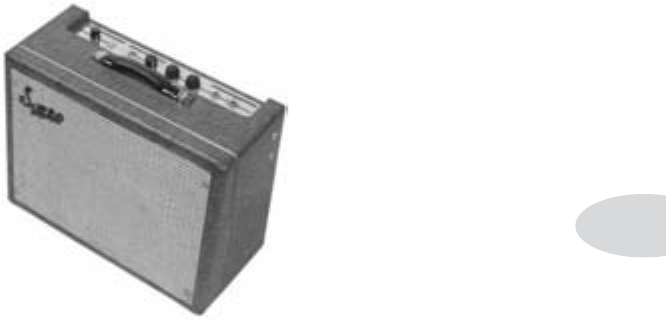
Modeled Amps & Cabs
5•25
Super O - Based on* a Supro® S6616
Yet more of the stuff of legend. Jimmy Page has admitted to using his ’58 Tele® and a
Supro® amp to record most of the first two Led Zeppelin albums. The only problem is,
he’s never really copped to which Supro® model he used, since his simply saying the word
‘Supro®’ caused a run on pawnshops and music stores everywhere, making it virtually
impossible to find another one of whichever model it was that he used.
We went so far as to impose on our friendship with people we know who were actually
present during the recording of “Led Zeppelin II” to see if they remembered anything
about that particular amp. They didn’t recall the specific model number, only that it was
“a grey and silver tiny little bastard.” Other sources have claimed that it was the 1x12-
inch version. So, until Pagey speaks, the mystery remains, but, whatever the truth of
those Zep sessions may be, we’re confident that this Supro® S6616 model can be a fine
entrance ticket to the Houses of the Holy.
By the way, that’s a 6x9-inch speaker in this amp, just like in your car stereo. Go figure.
*
All product names are trademarks of their respective owners, which are in no way associated or af-
filiated with Line 6. These product names, descriptions and images are provided for the sole purpose
of identifying the specific products that were studied during Line 6’s sound model development.
TELE® is a registered trademark of Fender Musical Instruments Corporation. Supro® is a registered
trademark of Zinky Electronics.
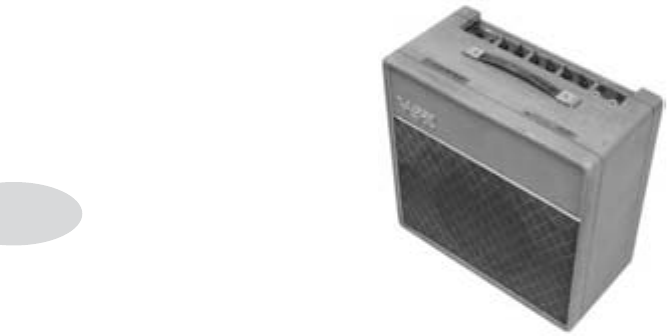
Modeled Amps & Cabs
5•26
Class A-15 - Based on* a 1960 Vox® AC 15
Here’s another Vox®-inspired Amp Model. This model is based on Channel 1 of a won-
derful 1960 AC 15. The sound is similar to the more famous Vox® AC 30, but this is a
smaller amp (one, instead of two, 12-inch speakers) with a warmer, more “woody” sound.
Once again, the original amp had only a single tone control—a treble cut. We faithfully
modeled that and then slipped in some post-Amp Model Bass and Mid contouring. Set
the Bass and middle in neutral (12 o’clock, or halfway up), presence to 0, and play with
the treBle control to get yourself some of those classic British invasion sounds.
To model this, we plugged into Input 2, which is slightly darker than Input 1, and gives
you more of that classic warm sound that the AC 15 is famous for.
*
All product names are trademarks of their respective owners, which are in no way associated or af-
filiated with Line 6. These product names, descriptions and images are provided for the sole purpose
of identifying the specific products that were studied during Line 6’s sound model development.
VOX® is a registered trademark of Korg Europe Limited.
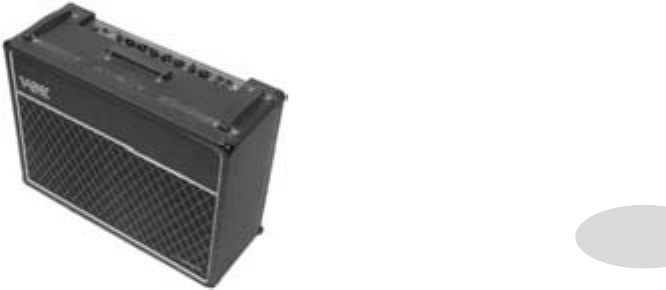
Modeled Amps & Cabs
5•27
Class A-30 TB - Based on* a 1967 Vox® AC-30 Top Boost
Music was changing in the early ’60s and guitarists were asking for more brilliance &
twang. So the Jennings Company, makers of Vox® amps, decided to add Treble and Bass
controls (and an extra 12AX7 gain stage, incidentally) in addition to the Treble Cut
knob it already had (which in actuality was a sliding bandpass filter that always seemed
like it was working backwards); this additional circuit became known as Top Boost.
The AC 30 with Top Boost was the amp made famous by many British invasion bands.
Much of the unique character of the Vox® sound can be attributed to the fact that Class
A amps overdrive in a very different way than Class AB. Brian May of Queen, Mike
Campbell of Tom Petty’s Heartbreakers, and The Edge of U2 have all used classic AC
30s to make their music. Although usually played fairly clean, a cranked AC 30 has a
great saturated lead tone, a la Brian May on the early Queen albums.
On this Amp Model, PODxt’s middle control acts like the original Cut knob on the AC
30.
For this model, we used the Hi gain input of the Brilliant channel. We also turned the
tone controls around, since original Top Boost amps had the bass and treble turned all
the way down when the knob was all the way up. Must be that ‘driving on the left’ thing.
*
All product names are trademarks of their respective owners, which are in no way associated or af-
filiated with Line 6. These product names, descriptions and images are provided for the sole purpose
of identifying the specific products that were studied during Line 6’s sound model development.
VOX® is a registered trademark of Korg Europe Limited.

Modeled Amps & Cabs
5•28
Tube Preamp
Not even close to being a guitar amp, but once we got started, we just couldn’t stop
ourselves. The thinking went like this: ‘Once people get this PODxt, they’re gonna wish
they could use it for everything — warming up keyboards, crunching up drums, fuzzing
up vocals. We’ve gotta give ’em something to do that!’ So we did. The Tube Preamp
Model lets you warm up any sound source the way producers and engineers often do
in the studio with vintage tube gear. For more “edge” on vocals, try running your vo-
cal tracks through PODxt. Or punch up (or munch up) a synth bass track by sending it
through PODxt and cranking up the Drive and EQ controls to suit your taste. Although
this is not actually a guitar amp model, you can even get some great guitar tones out of
it. Also try using it as a direct box for bass. When you do this stuff, you want to use the
Drive control like a mix knob on a reverb to control how much processing you want
to hear. You generally don’t want to mix the pre-PODxt sound with the post-PODxt
sound because of the comb filtering that results. Instead, jack the sound source right into
PODxt and then only monitor it through PODxt. With the tone controls at 12 o’clock,
the EQ is “flat.”
Modeled Amps & Cabs
5•29
Citrus D-30 - Based on* a 2005 Orange® AD30TC
In 1968, in a little music store on Old Compton St. in London, Clifford Cooper was
having trouble getting amplifier manufacturers to take him seriously as a dealer, as they
thought he was too young, and his shop too small. So he did what seemed only logical to
an enthusiatic young man with a background in electrical engineering – he designed and
built his own amplifiers, Since he had come into a large quantiy of bright orange vinyl,
that was what he used to cover his cabinets. It wasn’t long before high-profile musicians
like Fleetwood Mac, Stevie Wonder, and Frank Zappa were beating a path to his door.
This model is based on a Orange® AD30TC head, a 30 watt, Class A number with a
great personality that gracefully marries vintage british mid-gain breakup with modern
shimmer and presence. Back off the drive and you’ll get chimey boutique tones, dig in
with the drive up and the AD30 purrs pure Brit Rock tone.
*
All product names are trademarks of their respective owners, which are in no way associated or af-
filiated with Line 6. These product names, descriptions and images are provided for the sole purpose
of identifying the specific products that were studied during Line 6’s sound model development.
ORANGE is a registered trademark of Orange Musical Electronic Company, Ltd.
Modeled Amps & Cabs
5•30
Class A-30 Fawn - Based on* a Non Top Boost Vox® AC-30
This Amp Model is based on the Normal Channel of a Non Top Boost Vox® AC-30.
The early Vox® amps were the first designed especially for electric guitar (Hey, some
early amps from other manufacturers have Accordion inputs! Polka, anyone?), and used
Class A power amp designs, rather than the much more common Class AB type. We
were lucky enough to find what we are told was one of Bryan Adams’ favorite AC 30s
for recording. Lenny Kravitz happened to be using it the week before we began testing.
It was one of the gems in a great collection of vintage amplifiers offered for rental in
Los Angeles, where Line 6 is located. We later bought this amp, and continued to hone
our emulation of it. This is definitely a good place to start to get yourself some of those
classic British invasion sounds. Like the Model A-15, the AC 30 NTB has only a single
treble control, so PODxt’s Bass and Middle controls here are set up for cut/boost after
the Amp Model processing to add a little extra flexibility without compromising the ac-
curacy of the model. The 12 o’clock setting on these controls is flat response.
Here we modeled the Normal Channel and, as we did on the Class A-15 and Class A-30
TB model, we reversed the action of the Treble knob, so it doesn’t behave ‘backwards’
from every other amp.
*
All product names are trademarks of their respective owners, which are in no way associated or af-
filiated with Line 6. These product names, descriptions and images are provided for the sole purpose
of identifying the specific products that were studied during Line 6’s sound model development.
VOX® is a registered trademark of Korg Europe Limited.
Modeled Amps & Cabs
5•31
Brit Gain 18 - Based on* a Marshall® 1974X “authentic re-issue”
Based on the Marshall® 1974X “authentic re-issue” of the famous 1974 18W Combo
from the late ‘60’s. (brief editorial aside: Marshall® has had a long tradition of coming up
with model numbers that can easily be taken for years. The Model 1974 combo was man-
ufacturer from 1965 to 1968, the Model 1961 and 1962 combos were first made in 1965.
Is it any wonder we look confused sometimes?). The 1974 has a basic preamp, (gain and
tone controls) and a cathode biased twin EL84 power amp. It is a great recording ampli-
fier, with a wonderfully com-pressed and harmonically rich tone.
*
All product names are trademarks of their respective owners, which are in no way associated or af-
filiated with Line 6. These product names, descriptions and images are provided for the sole purpose
of identifying the specific products that were studied during Line 6’s sound model development.
MARSHALL® is a registered trademark of Marshall Amplification PLC.
Modeled Amps & Cabs
5•32
J-2000 #2 - Based on* a Marshall® JCM2000 DSL
Hre’s a model based on* a Marshall® JCM2000 DSL’s Classic Gain - Crunch channel
with the Deep switch in and the Tone Shift switch out. In addition the front end was
driven with a Prescription Electronics Germ pedal, (moded for a flat tonality). The
Germ gives it this incredible extra kick to the crunch, and opens up the top end. The rig
belongs to Matt Scanell from Vertical Horizon. It’s his studio rig, for which he takes out
a duplicate set live. Thanks for the tip, Matt.
*
All product names are trademarks of their respective owners, which are in no way associated or af-
filiated with Line 6. These product names, descriptions and images are provided for the sole purpose
of identifying the specific products that were studied during Line 6’s sound model development.
MARSHALL® is a registered trademark of Marshall Amplification PLC.

Modeled Amps & Cabs
5•33
Line 6 Boutique #1 - Based on* a Dumble Overdrive Special
Based on* the POD 2.0 model of the Clean Channel from the Dumble Overdrive Spe-
cial. The Dumble Overdrive Special is one of those incredibly expensive, custom amps
that most people never get a chance to actually get close to in this lifetime. Each incar-
nation of the Dumble magic is a little bit different, because each of these amps is hand
built for a specific customer, and voiced to match their playing and desires. With that in
mind, we based this TubeTone Amp Model on the analysis of several different Dumble
Overdrive Specials. Despite this tuning to the individual owner, these amplifiers tend to
have a number of features in common; the clean channel is very sensitive to attack, and
dynamically responsive, and the drive channel has a thick, liquid, singing sustain that
doesn’t lose string definition when driven hard. The tone controls on this Amp Model
are quite subtle, like those of the Dumble itself.
Line 6 Modern High Gain #1 - Based on* a Soldano X88R
Based on* the POD 2.0 model of the Soldano X88R. The Soldano sound is intensely
overdriven, and also has EQ after the preamp distortion. This oversaturated tone is well-
suited to thrash metal and grunge bands, but has also been used more subtly by artists
like Eric Clapton. This is a good Amp Model to use if you want to get a current Van
Halen or Joe Satriani sound. The POD Modern Hi Gain Amp Model is based on one of
Mike Soldano’s rackmount preamps. Talk about high gain preamp tube distortion! The
X88R we studied to create this Amp Model would have been the rage for Los Angeles
studio use in the late ‘80s.
*
All product names are trademarks of their respective owners, which are in no way associated or af-
filiated with Line 6. These product names, descriptions and images are provided for the sole purpose
of identifying the specific products that were studied during Line 6’s sound model development.

Modeled Amps & Cabs
5•34
Cabinet Models
The following Cabinet Models are available on PODxt, and are accessed by pressing the
caB/a.i.r. button, then turning the Effect Tweak knob:
Cabinet Model Based On*...
1x6 Super O 6x9 Supro S6616
1x8 Tweed 1961 Fender® Tweed Champ®
1x10 Gibtone 1x10 Gibson®
1x10 G-Brand Gretsch® 6156
1x12 Line 6 Line 6 1x12
1x12 Tweed 1953 Fender® Tweed Deluxe
1x12 Blackface 1964 Fender Blackface Deluxe®
1x12 Class A 1960 Vox® AC-15
2x2 Mini T 2x2” Fender® Mini Twin
2x12 Line 6 Line 6 2x12
2x12 Blackface 1965 Fender® Blackface Twin Reverb®
2x12 Match 1995 Matchless® Chieftain
2x12 Jazz Roland® JC-120
2x12 Class A 1967 Vox® AC-30
4x10 Line 6 Line 6 4x10
4x10 Tweed 1959 Fender® Bassman®
4x12 Line 6 Line 6 4x12
4x12 Green 20’s 1967 Marshall® Basketweave with Greenbacks
4x12 Green 25’s 1968 Marshall® Basketweave with Greenbacks
4x12 Celest T-75 1978 Marshall® with stock 70s
4x12 Celest V-30 1996 Marshall® with Vintage 30s
4x12 Treadplate 4x12 Mesa Boogie®
1x15 Thunder 1x15 Supro ‘62 Thunderbolt
2x12 Wishbook 2x12 Silvertone® ‘67 Twin Twelve
No Cab You will probably want to use this Cabinet model with the Tube Preamp model
for non-guitar sources. It is selected by default when you pull up the Tube Preamp
Amp Model.
*All product names are trademarks of their respective owners, which are in no way associated or affiliated with
Line 6. These product names, descriptions and images are provided for the sole purpose of identifying the specific
products that were studied during Line 6’s sound model development. FENDER®, CHAMP®, DELUXE REVERB®,
TWIN REVERB®, and BASSMAN® are registered trademarks of Fender Musical Instruments Corporation. GIB-
SON® is a registered trademark of Gibson Guitar Corp. VOX is a registered trademark of Korg Europe Limited.
MATCHLESS® is a registered trademark of Matchless, LLC. ROLAND® is a registered trademark of Roland Cor-
poration. MARSHALL® is a registered trademark of Marshall Amplification PLC. MESA/BOOGIE® is a registered
trademark of Mesa/Boogie, Limited. SILVERTONE® is a registered trademark of Samick Music Corporation.
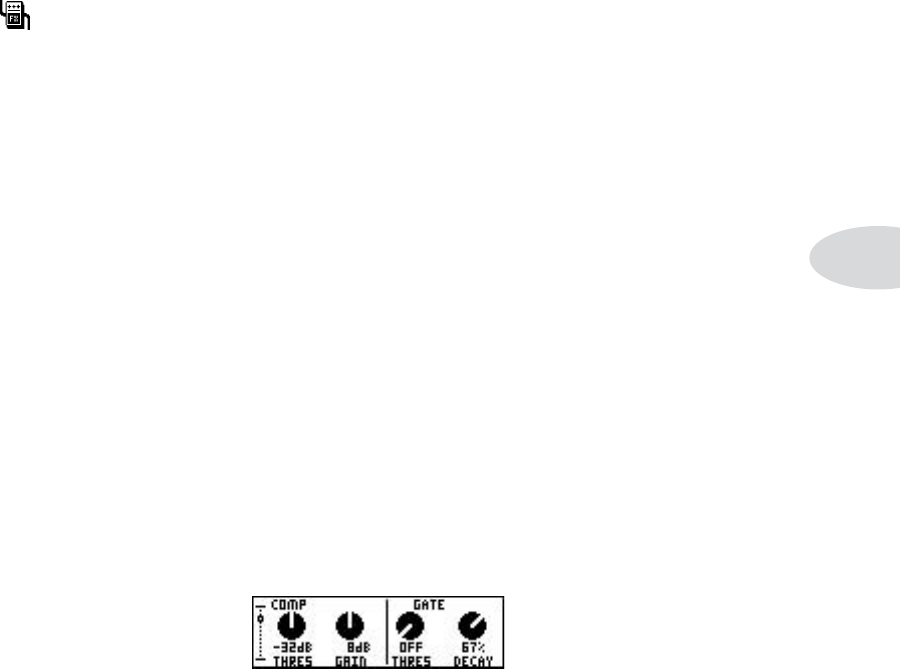
Effect Model Details
6•1
eFFect ModeL detaiLs
This symbol indicates Models from the FX Junkie Pack, included free with PODxt Live and
available as an optional add-on for PODxt and PODxt Pro. Visit www.line6.com/
modelpacks to learn more about this and other Model Packs.
What guitarist doesn’t like stomp boxes and effects? PODxt’s got a bunch of great stomp
box and effect models adapted from Line 6’s DM4 Distortion Modeler, MM4 Modula-
tion Modeler, and DL4 Delay Modeler pedals, and some brand spankin’ new models that
come straight from our flagship combo, Vetta. You’ll also find the ol’ standby’s like Ping
Pong and Stereo Delay, as well as important tone shapers like Comp and Gate. Who says
you can get too much of a good thing?
In this chapter, we’ll have a look at just which stomp boxes and effects are modeled, and
talk about the special possibilities each one holds. So hold onto your hats and glasses,
and please keep your hands and feet inside the car at all times...
Comp
The Compressor effect available from the Comp button is just the thing when you want
to smooth out your levels the way that you would typically do in a recording studio. The
thres (Threshold) knob determines how aggressive you want the Compressor to be in
smoothing things out. More negative numbers make the Compressor more active in tam-
ing your levels, so -32dB is a more aggressive setting than -16dB, say. The Gain control
controls (what else?) gain, so that even when you’re really squashing your signal with an
aggressive threshold setting, you’ll be able to get good volume levels out of your PODxt.

Effect Model Details
6•2
Gate
The Gate effect helps eliminate unwanted noise when you’re not playing, and can be
especially valuable when using high gain sounds. Like a security gate, it’s supposed to
quickly open to pass the things that you want, and then swing closed to keep out the
things that you don’t want. Turn the thresh all the way down to minimum to disable
the Gate (thresh’s value will then be off, as shown above). The thresh knob determines
how loud your playing has to be to open the gate. More negative numbers (where the
knob is near its fully-counterclockwise setting) mean that the gate will open and allow
sound through even when you are playing quietly, and less negative numbers (where
the knob is near its fully-clockwise setting) mean that the gate will only allow sound to
pass when you are playing pretty hard. The decay knob determines how fast the gate will
swing closed. Like a gate in the real world, a fast decay means the gate might catch your
trailing foot as you pass through—in this case, that means the gate will chop off the de-
cay of your notes. And a slow decay means that as the gate swings slowly closed behind
you, someone might have time to slip through behind you—in this case, that would be
the unwanted noise that you hear as your notes decay. You’ll have to experiment with
the decay to get just the right happy medium for your particular guitar, playing style, and
sound settings.
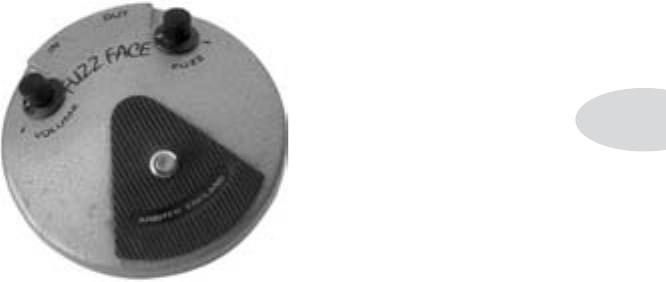
Effect Model Details
6•3
The Stomp Effects: Fuzz, Distortion, Overdrive
Back before fuzzes, distortions, and overdrives, guitar players used to do stuff like slice
speakers with a razor blade to get that raunchy, distorted, lovely sound (check out Link
Wray’s ‘Rumble’ for an example). While it sounded great, it did make it impractical to
turn around and play a nice smooth ballad on the same amp. Enter the ‘fuzz’ box...
Facial Fuzz
Sometime in late 1966, an infamous circular stompbox hit the London music scene.
Designed and built by Arbiter® Music, the Fuzz Face would soon begin its famous associa-
tion with guitar legend Jimi Hendrix.
Like all stompboxes from the early era, the Fuzz Face would see many design changes, as
well as re-issues. Our model is based on* the germanium diode-powered treasure pic-
tured here: an original, very early “gray with black screening” Arbiter Fuzz Face. Call
the PODxt Facial Fuzz model up, and treat yourself to our faithful re-creation of the
original’s fuzz and glory. Crank up the drive, and you’ll be seeing Purple Haze right before
your eyes.
All product names are trademarks of their respective owners, which are in no way associated or af-
filiated with Line 6. These product names, descriptions and images are provided for the sole purpose
of identifying the specific products that were studied during Line 6’s sound model development.
ARBITER® is a registered trademark of Arbiter Group PLC.
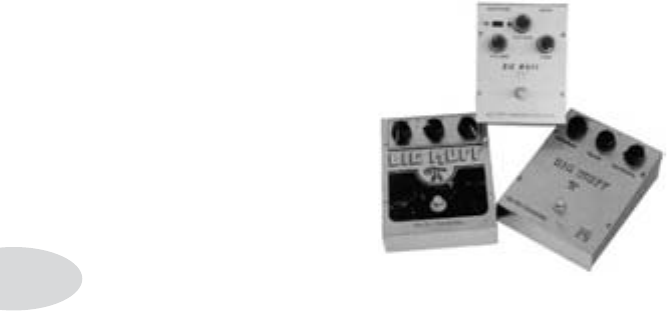
Effect Model Details
6•4
Fuzz Pi
Not to be outdone by the Brits, the colonies came up with their own twist on the fuzz
rage. Mike Matthews and his band of merry men at Electro-Harmonix® had been cook-
ing up all sorts of nifty effects when their attention turned to the distortion/fuzz pedal.
Their most popular offering—which this model is based on*—was the Electro-Harmo-
nix® Big Muff Pi®, known more for its sweet sustain than for its buzz.
Electro-Harmonix® was famous for their use of surplus parts, and the results of this prac-
tice were ever-changing circuit designs and parts specs. As you can see in the picture of
our collection of Big Muff®s, these pedals had several looks determined by the parts that
Mike and the gang found at hand. Our sweetheart of the bunch is the one in the middle,
known as the “triangle knob pattern” model. We know you’ll agree, there’s nothing like
a slice of Pi.
All product names are trademarks of their respective owners, which are in no way associated or affil-
iated with Line 6. These product names, descriptions and images are provided for the sole purpose of
identifying the specific products that were studied during Line 6’s sound model development. ELEC-
TRO-HARMONIX® and BIG MUFF PI® are registered trademarks of New Sensor Corporation.
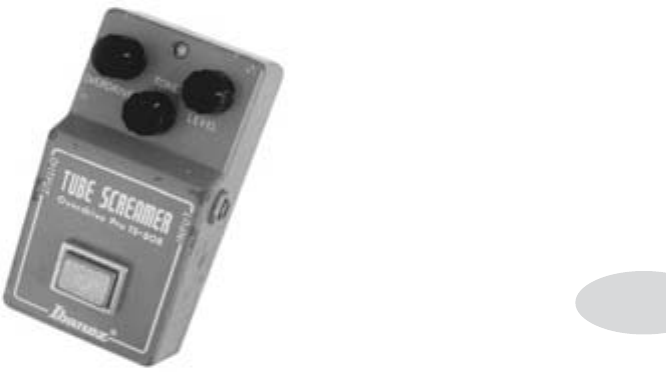
Effect Model Details
6•5
Screamer
From Stevie Ray Vaughan to Michael Landau, the simple Ibanez® Tube Screamer® is the
overdrive heard round the world. This medium-gain pedal was introduced in the early
’80s, and in many blues circles, you’re not allowed to solo without one.
Over the years, Ibanez® issued several variations of the venerable Tube Screamer®, but
none have reached the fabled status of the TS-808. Of course, we obsessed over which
of our vintage 808s to model, and in the end we think you’ll agree that our model based
on* this classic green jewel makes a precious addition to PODxt.
All product names are trademarks of their respective owners, which are in no way associated or af-
filiated with Line 6. These product names, descriptions and images are provided for the sole purpose
of identifying the specific products that were studied during Line 6’s sound model development.
IBANEZ® and TUBESCREAMER® are registered trademarks of Hoshino Gakki Co. Ltd.
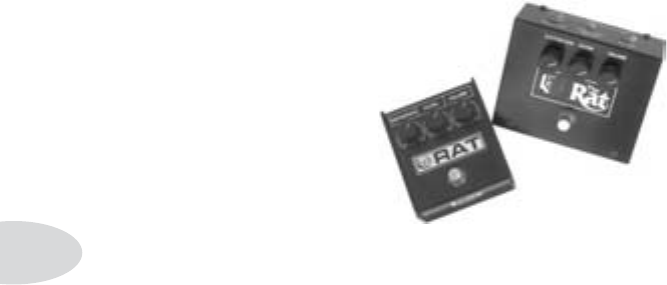
Effect Model Details
6•6
Classic Distortion
Born and bred in the late ’70s, the ProCo Rat (which this model is based on*) was the
beginning of a new generation of distortion boxes. With a sound that was angrier and
more aggressive than a fuzz, the Rat put teeth into a new breed of metal that was begin-
ning to crawl to the surface of the music scene.
Through its life span, the Rat has seen several changes, and the unanimous choices for
tone are the originals pictured here. Inside, these two Rats use the same board, and their
circuits are identical. (For those that need to know, we modeled the smaller one.)
The tOne knob on this model functions like the original Rat’s “filter” control, which
gives you brighter tone at lower settings, and darker tone at higher settings. Once bitten,
you’ll know why we call this one tone with teeth!
All product names are trademarks of their respective owners, which are in no way associated or af-
filiated with Line 6. These product names, descriptions and images are provided for the sole purpose
of identifying the specific products that were studied during Line 6’s sound model development.
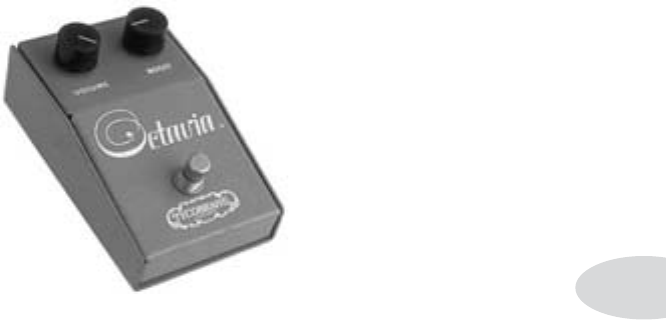
Effect Model Details
6•7
Octave Fuzz
What was that? If it sounded like a phantom guitar possessed by The Ghost of Great
Guitarists Past, then it probably was a Tycobrahe Octavia—or this model based on* that
classic effect box.
The Octavia is an example of a fuzz+octave effect. One pioneering user of this type of
effect was Jimi Hendrix. The Tycobrahe Octavia in particular was used by Jeff Beck, and
continues to be an essential part of Michael Landau’s tone making tool kit.
The Octavia uses an audio output transformer and two germanium diodes to rectify (a
fancy word for whack) the guitar signal, thus creating the high octave type sound. For
our model, we studied the sweet-sounding original pictured here. We knew we had a
keeper when every guitarist in the building wanted to take it home for a little of their
own after hours “research.”
All product names are trademarks of their respective owners, which are in no way associated or af-
filiated with Line 6. These product names, descriptions and images are provided for the sole purpose
of identifying the specific products that were studied during Line 6’s sound model development.

Effect Model Details
6•8
Bass Overdrive
This model was inspired by our look at the Tech 21 Bass Sans Amp, plus a few extra
liberties taken by the Line 6 sound design team. The Sans Amp is famous for delivering
a very quiet and crisp signal under all circumstances, while also serving up a very distinct
distortion. Is pleasingly metallic quality makes it a favorite with the Post-Metal crowd
and Industrial bands, and producers in all genres of music have come to favor the Bass
Sans Amp for crunching up loops. The Bass Overdrive covers the same sort of territory,
with a bit of a uniquely Line 6 bent. Choose this distortion for your bass or any other
signal and it will immediately become a very close and furry friend. Note for non-bass
players: this stompbox absolutely rocks on signals other than bass. No, really, try it.
Bronze Master
The Maestro® Bass Brassmaster is considered by many to be the Holy Grail of bass distor-
tion units, and ultra-rare bird designed in the early ‘70’s for Maestro® by synth genius
Tom Oberheim. It showed up on Chris Squire’s gear list in a mid-70’s Yes tour program.
In fact, the Brassmaster was the first distortion unit we can think of designed primar-
ily with the bassist in mind, and man, did Mr. Oberheim get it right! The original has a
fairly elaborate set of controls, include two separate volumes and toggles for accentuating
different harmonic voicings. We weren’t able to make an exact duplicate of some of that
complexity when creating the Bronze Master for your PODxt, but you’ll find that this
model does give you a luscious palette of super-sweet bass fuzz in the style of the Brass-
Master, with righteous distortion that doesn’t take away that all-important low end. For
guitar players, think of it as somewehere between an Octave Fuzz and a synth. You can
get positively freaky with this one.
All product names are trademarks of their respective owners, which are in no way associated or af-
filiated with Line 6. These product names, descriptions and images are provided for the sole purpose
of identifying the specific products that were studied during Line 6’s sound model development.
MAESTRO® is a registered trademark of Gibson Guitar Corp.
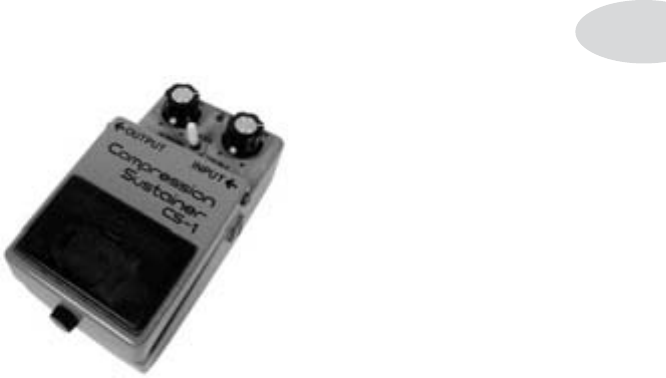
Effect Model Details
6•9
Stomp Effects: Compressors
A compressor takes quiet sounds and loud sounds coming into it, and makes them have
a more similar volume, so the loudest sounds aren’t so loud versus the quiet sounds, and
the quiet sounds are closer to the level of the loudest sounds. The result is that a com-
pressor can be set to keep boosting the level of your guitar signal as a note dies away, giv-
ing your guitar a longer note decay. In other words, plop a stomp box compressor down
in front of an amp and you’ve got an instant sustain enhancer! As a side benefit, the
compressor evens out your attacks and enables you to make up some gain (so you can hit
the front end of your amp a bit hotter, but without extra before-the-amp distortion that
a distortion box would create when boosting input level to your amp). We’ve provided
you with a number of stompbox compression options in PODxt, so you can squash your
signal’til the cows come home.
Blue Comp
Roland®/Boss® jumped on the compressor stompbox bandwagon with the CS-1 Com-
pression Sustainer. It has a fixed ratio, so the PODxt model based on* it has the sustain
control varying the threshold of the compressor circuitry. level does what you’d expect.
All product names are trademarks of their respective owners, which are in no way associated or af-
filiated with Line 6. These product names, descriptions and images are provided for the sole purpose
of identifying the specific products that were studied during Line 6’s sound model development.
BOSS® is a registered trademark of Roland Corporation.
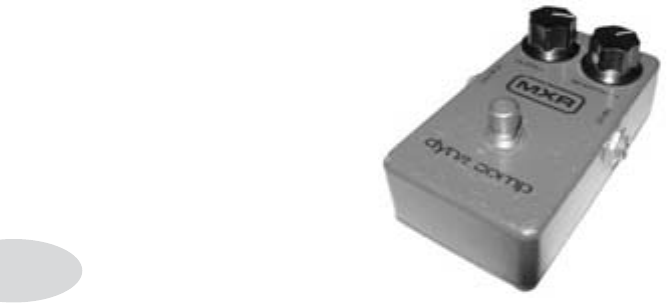
Effect Model Details
6•10
Red Comp
Probably the most widely used stompbox compressor, and pretty much the standard
against which others are judged, the MXR® Dynacomp has a fixed compression ratio
with variable threshold and gain, which is what you get in the PODxt model based on*
this classic workhorse pedal.
The sustain knob varies your compression threshold, and level varies your (wait for it)
level.
All product names are trademarks of their respective owners, which are in no way associated or af-
filiated with Line 6. These product names, descriptions and images are provided for the sole purpose
of identifying the specific products that were studied during Line 6’s sound model development.
MXR® is a registered trademark of Applied Research and Technology, Inc.

Effect Model Details
6•11
Vetta Comp
A Line 6 original, Vetta Comp has a fixed ratio (2.35:1, in case you’re asking) with the
threshold (that would be your sens knob) adjustable from -9dB to -56dB and up to 12dB
of gain available at the level knOB. In other words, turn the sens knob til you like the
way your signal’s compressed, then set the volume with level.
Auto Swell
This effect is an envelope generator, similar to the Boss® SG-1 Slow Gear and other
pedals. Each note or chord that you play ramps up. You can dial in the ramp time here
to give you the kind of ‘bowed’ attacks that might otherwise require you to have your
pinky rolling the volume knob on your guitar with every pick attack. Longer ramp times
in combination with delay and reverb can keep you occupied for a pleasant hour or two,
seeing what kind of chords you can come up with to blend into each other. You’ve got
ramp time to set over how long the swell takes to happen, plus depth to determine how
much the volume of your attacks is reduced.
All product names are trademarks of their respective owners, which are in no way associated or af-
filiated with Line 6. These product names, descriptions and images are provided for the sole purpose
of identifying the specific products that were studied during Line 6’s sound model development.
BOSS® is a registered trademark of Roland Corporation.
Effect Model Details
6•12
Auto Wah
What self-respecting filter-junkie would be without a Mu-Tron III envelope follower?
Part auto-wah, part triggered filter, it’s all about wacky, and this model based on* the
Mu-Tron III gives it to you both coming and going. Go ahead – unbutton that shirt, put
on the flares, and get down with your bad self!
The sens knob varies the filter’s response to your playing, and Q adjusts the filter’s width.
All product names are trademarks of their respective owners, which are in no way associated or af-
filiated with Line 6. These product names, descriptions and images are provided for the sole purpose
of identifying the specific products that were studied during Line 6’s sound model development.

Effect Model Details
6•13
KIller Z (included with PODxt Live, optional for PODxt & PODxt Pro)
Since about 1989 the Boss® Metal Zone® MT-2 has been the industry standard distortion
pedal for metal players. Equipped with a dual gain circuit, the MT-2 provides amazing
sustain plus heavy mids and lows similar to a stack of overdriven amps. We’ve simplified
the EQ controls a bit to make the Killer Z model for your PODxt Live, but you’ll still
find the sought after flavor of the MT-2 that it’s based on*.
Tube Drive (included with PODxt Live, optional for PODxt & PODxt Pro)
Designed by keyboardist Brent Butler, the first Chandler Tube Driver was born to add
grind and girth to his Farfisa. Brent was also the father of one of the rarest overdrive
boxes—the Mini Matrix (aka Mini Boogie). But it’s his Tube Driver that drives us crazy.
Utilizing a single 12AX7 preamp tube, the original Chandler Tube Driver delivers the
sweet singing sustain craved by guitarists worldwide, and has been a staple of Eric John-
son’s rig since the mid ’80s.
Our model based on* this classic offers sweet tone, with our bass and treble emulating
the Hi and Lo EQ controls of the original. To further enhance your tone shaping op-
tions, we added an optional mid control that allows you to boost or cut the mids to tailor
the tone for you and your guitar. mid in the 12 o’clock position has no effect.
Vetta Juice (included with PODxt Live, optional for PODxt & PODxt Pro)
A Line 6 original originally created for our flagship Vetta II guitar amplifier, the ‘Juice’ in
Vetta Juice comes from the 30dB of available gain in the level knob. Holy smokes, this
thing’s packin’ some heat! It’s got a fixed threshold of -40dB with the sens knob varying
compression ratio from 1.5: 1 all the way up to 20:1 (which is a whole heck of a lot).
This combination of design features gives you the option of cranking the level enough
to get some serious gain boost, or setting the gain lower and dialing up a smooth, clean
sustain. Take your pick, and dial away.
All product names are trademarks of their respective owners, which are in no way associated or af-
filiated with Line 6. These product names, descriptions and images are provided for the sole purpose
of identifying the specific products that were studied during Line 6’s sound model development.
BOSS®, METAL ZONE® and ROLAND® are registered trademarks of Roland Corporation.

Effect Model Details
6•14
Boost+EQ (included with PODxt Live, optional for PODxt & PODxt Pro)
The name pretty much says it all. This is a stompbox compressor that also provides you
with some EQ controls so you can further shape the tone. Since this EQ is applied before
the amp processing, it has a different tonal effect — especially if you’re using a strongly
overdriven Amp Model —than it would if applied with the dedicated EQ block of
PODxt Live processing. Many players, in fact, rely on stompbox EQ like this to get their
specially tailored sound from their amp.
All product names are trademarks of their respective owners, which are in no way associated or af-
filiated with Line 6. These product names, descriptions and images are provided for the sole purpose
of identifying the specific products that were studied during Line 6’s sound model development.
BOSS® and ROLAND® are registered trademarks of Roland Corporation.

Effect Model Details
6•15
The Stomp Effects: Synths and Filters
The rest of the Stomp effects are synths and filters. All of these effects that have a wave
parameter allow you to choose between 8 different waves. These are basically 8 different
presets from the style of synth the name infers. The mix control is the same as all other
effects, a wet to dry ratio.
The filter available on some of these effects is a “low pass” filter: frequencies above the
low pass filter frequency are cut. filter picks the frequency of the low pass filter. Turn it to
the left to lower the frequency, and less high frequencies get through. Turn right to raise
the frequency of the filter so more high frequencies get through.
The attack has a minimum setting of 10ms and a maximum setting of 300ms. A lower
setting makes for a faster attack, while a higher setting makes for a slower attack. The
higher the setting, the more substantial the affect. For more staccato style scales, try set-
ting the attack to the minimum value.
Dingo-Tron (included with PODxt Live, optional for PODxt & PODxt Pro)
This is similar to the sound of a Mutron III (modeled for PODxt Live’s Auto Wah
model) when you flip the “down” switch. It’s kind of like a reverse auto wah. Pick hard to
get the most out of this effect.
Clean Sweep (included with PODxt Live, optional for PODxt & PODxt Pro)
This is a wide range sweeping filter with a slow decay. It’s similar to Auto Wah, but with
a band pass filter shape. Try setting the decay all the way up, the sensitivity half way up
and the Q all the way down.
Seismik Synth (included with PODxt Live, optional for PODxt & PODxt Pro)
This effect has an oscillator that tracks the pitch of your guitar. You can choose between
8 different wave shapes which give you different “flavors” – all of them one or two oc-
taves down from the original pitch. DEATH TO ALL SUBWOOFERS!!
All product names are trademarks of their respective owners, which are in no way associated or af-
filiated with Line 6. These product names, descriptions and images are provided for the sole purpose
of identifying the specific products that were studied during Line 6’s sound model development.

Effect Model Details
6•16
Double Bass (included with PODxt Live, optional for PODxt & PODxt Pro)
This effect has two oscillators that track the pitch of your guitar. One square wave tuned
one octave down, and one saw tooth wave two octaves down. The parameters on page 2
are gain controls for each oscillator.
Buzz Wave (included with PODxt Live, optional for PODxt & PODxt Pro)
These are cool combinations of saw and square waves with fast vibrato. The 8 different
wave parameters offer different vibrato speeds and different pitches.
Rez Synth (included with PODxt Live, optional for PODxt & PODxt Pro)
These are all sweeping low pass filter effects with the resonance set high. Resonance is a
peak at the frequency of the low pass filter.
Saturn 5 Ring M (included with PODxt Live, optional for PODxt & PODxt Pro)
Ring modulators take two signals (one from your guitar, the other generated), then add
and subtract similar frequencies. Electro-Harmonix® makes a ring modulator pedal called
the Frequency Analyzer that is a popular guitar effect. But the pitch it generates is con-
stant, so you must stick to that pitch’s key to be musical. In a GIANT leap forward for
ring modulator effects, Saturn 5 RM “tracks” the pitch of your guitar signal so you can
use it in ANY key! The rm/am parameter on page 2 sets the amount of ring modulation.
Synth analog (included with PODxt Live, optional for PODxt & PODxt Pro)
These are great for funky synth guitar (or bass) lines! These sounds were made popular
by Moog and ARP.
Synth FX (included with PODxt Live, optional for PODxt & PODxt Pro)
These sounds aren’t really designed to be musical. These are more “special effects”
sounds. You’ll hear a lot of these kinds of sounds in movie sound tracks.
All product names are trademarks of their respective owners, which are in no way associated or af-
filiated with Line 6. These product names, descriptions and images are provided for the sole purpose
of identifying the specific products that were studied during Line 6’s sound model development.
ELECTRO-HARMONIX® is a registered trademark of New Sensor Corporation.

Effect Model Details
6•17
Synth Harmony (included with PODxt Live, optional for PODxt & PODxt Pro)
If you loved those big synth leads from 70’s era prog bands then you’ll love this effect.
There are two synth waves at work here. Your first two parameters allow you to choose a
pitch interval of your original note played. Your wave parameter works differently from
what you’d expect with the other synth models. Here the wave parameter controls the
gain of the saw wave, while the square wave gain remains constant.
Synth Lead (included with PODxt Live, optional for PODxt & PODxt Pro)
These are styled after popular analog monophonic synth lead sounds from Moog, ARP
and Sequential Circuits.
Synth String (included with PODxt Live, optional for PODxt & PODxt Pro)
This emulates classic synth string sounds like those found in the ARP Solina String En-
semble and the Elka® Synthex. The harder you pick, the brighter the sound.
All product names are trademarks of their respective owners, which are in no way associated or af-
filiated with Line 6. These product names, descriptions and images are provided for the sole purpose
of identifying the specific products that were studied during Line 6’s sound model development.
ELKA® is a registered trademark of Generalmusic S.p.A.

Effect Model Details
6•18
The Wah Pedals
PODxt offers 8 different wah pedal models. “What’s that?”, you say, “8 models? Why
so many?” Well, guitar players being guitar players. and despite the fact that the basic
circuit designs of most of them are remarkably similar, there’s as much difference of opin-
ion over which wah pedal is the ultimate as there is over which amp is, or over whether
the bass player should pay for the pizza delivery (the answer, by the way, is always yes. It
was a trick question). One person’s ‘thin and whiny’ is another person’s perfect wah and
all that sort of thing. So, in the interest of balance and variety (and because they each
sound cool in their own way), we present for your edification and enjoyment:
Vetta Wah
This is the original PODxt/Vetta Wah Model, from back in the dark ages when a PODxt
and Vetta had only one Wah model. ‘Course, nowadays you’ve got a whole crowd of ad-
ditional models to choose from:
Fassel
Based on* a Cry Baby Super made by Jen Electronics. Jen Electronics in Italy manu-
factured wah pedals for many companies, including Vox®, Thomas Organ, Arbiter®,
and others. This particular pedal has the highly desireable mojo of the Fasel (an Italian
manufacturer of electronic components) inductor. Some have credited the unique satu-
ration characteristics of the Fasel inductor to the fact that it was a really cheaply made
component. File this one under ‘Irony.’.
Weeper
Modeled after* an Arbiter® Cry Baby, this is yet another variation on the original Vox®
wah design. The biggest variation between many of these wah pedals is the inductor
and the tolerances of the capacitors and resistors that make up the filter circuit. Just like
vintage guitar amps, two of them made on the same day, by the same person, from the
same parts bin might sound totally different. As always, we went for the best examples
we could find.
All product names are trademarks of their respective owners, which are in no way associated or af-
filiated with Line 6. These product names, descriptions and images are provided for the sole purpose
of identifying the specific products that were studied during Line 6’s sound model development.
VOX® is a registered trademark of Korg Europe Limited. ARBITER® is a registered trademark of
Arbiter Group PLC.

Effect Model Details
6•19
Chrome
Based on* a Vox® V847. This pedal was a reissue of the original 1967 Vox® V846 wah
pedal, which was the successor to the original Clyde McCoy wah (Clyde McCoy was a
trumpet player who had asked Vox® to make an effect that would make a keyboard sound
like you were using a plunger mute on it. Guitar players everywhere thank him).
Chrome Custom
Based on* a modded Vox® V847 that belongs to one of the Line 6 crew. This pedal had
the gain staging on the first transistor stage tweaked, a aftermarket Fasel inductor, the Q
widened at the top end, and the 100k pot replaced with a 470k pot to better match the
original V846 specs.
Throaty
Based on* the RMC Real McCoy 1. For many guitarists, the original Vox® Clyde McCoy
signature (or even rarer, picture) pedal is the ‘holy grail’ of wahs. Geoffrey Teese of RMC
did a lot of research, even tracking down a supply of the original ‘stack of dimes’ induc-
tors and having pots that duplicate the taper characteristics of the original ICAR parts to
produce a clone of these highly sought-after wahs.
Conductor
Based on* the Maestro® Boomerang - According to the original Maestro advertising
material , this was not a ‘wah-wah’ pedal, but a ‘wow-wow’ pedal. Po-tay-to - Po-tah-to.
In 1968 or so, Maestro went to Richard Mintz of All Test Devices, who had first become
known for his design of a sustainer for Leslie West, and hired him to redesign most of
their effects units. This pedal was Curtis Mayfield’s choice for wah, so it’s perfect for
R’n’B ‘wacka-wacka’ retro madness.
Colorful
This model is based on* the wah part of a vintage Colorsound Wah-Fuzz. The Color-
sound is different from the other wah pedals here in that it was an inductor-less design.
For you non-electronics minded folks, this basically means that it used a different type of
circuit to get its frequency resonance and would saturate (distort) in a different manner
than the inductor-based designs.
All product names are trademarks of their respective owners, which are in no way associated or af-
filiated with Line 6. These product names, descriptions and images are provided for the sole purpose
of identifying the specific products that were studied during Line 6’s sound model development.
VOX® is a registered trademark of Korg Europe Limited. MAESTRO® is a registered trademark of
Gibson Guitar Corp.

Effect Model Details
6•20
The Modulation Effects
Modulation effects are things that swoosh, pulse and warble—from phase shifters to
flangers to choruses. Why are they called modulation effects? Well, if we consult a dic-
tionary, we discover that ‘modulate,’ in the electronic world means to “alter the ampli-
tude or frequency of (a wave) by (using) a wave of a lower frequency to carry a signal”
(definition courtesy of The Oxford Encyclopedic English Dictionary, Third Edition, thank
you very much). That modulating wave is what causes all that swooshing, pulsing, and
warbling.
For Modulation effects, there are controls for speed and depth. speed controls how fast
(or slow) the modulating waveform sweeps. depth controls the overall amplitude of the
modulating wave, which usually determines just how intense the effect will be. There’s
always a mix control, and sometimes there are also other controls, as you’re about to
learn...
Sine Chorus
Your basic digital chorus (as opposed to the analog type vibe of the Analog model), with
a sine wave as the modulator. Smooth going down, with Bass and treBle controls for
bassing and trebling.
Line 6 Flanger
Cooked up in the Line 6 labs, this creation really shines when you set cOnfiG to pOst,
letting its stereo sweep offset serve up luscious harmonic shimmer.
All product names are trademarks of their respective owners, which are in no way associated or af-
filiated with Line 6. These product names, descriptions and images are provided for the sole purpose
of identifying the specific products that were studied during Line 6’s sound model development.

Effect Model Details
6•21
Opto Trem
This one is based on* the optical tremolo circuit that was used in the blackface Fender
amps, like the ’64 Deluxe® and ’65 Twin Reverb®. Basically a light bulb and a photo-
resistor, when the light got brighter, the tremolo got louder. It’s a very smooth, even
tremolo, and the obvious choice for use with the amp models that are based on Fender
originals.
Bias Trem
One of our long time favorite pieces of ‘Rube Goldberg’ engineering, the old Vox®
tremolo (and a similar circuit in some blonde and brown Fender amps) got its pulse by
literally varying the bias of the power amp tubes. While this tended to reduce the life
span of the output tubes in these amps, it gave a beautifully liquid, uneven, and rather
‘lumpy’ sound that bears a distinct resemblance to a Uni-Vibe or other phase shifter
(mainly because treating the tube bias in such a cavalier manner actually caused some
phase shift to occur). And of course, that’s what you’ll get from this model which is based
on those classic circuits.
Auto Pan
Also known as a panner, this effect makes your sound go back and forth between the left
and right channels. Sure to keep you up late at night.
All product names are trademarks of their respective owners, which are in no way associated or af-
filiated with Line 6. These product names, descriptions and images are provided for the sole purpose
of identifying the specific products that were studied during Line 6’s sound model development.
FENDER®, TWIN REVERB® and DELUXE REVERB® are registered trademarks of Fender Musical
Instruments Corporation. VOX® is a registered trademark of Korg Europe Limited.
Effect Model Details
6•22
Analog Chorus
The PODxt wouldn’t be complete without a model based on*the original stompbox cho-
rus, the Boss® CE-1 Chorus Ensemble. The CE-1 came onto the music scene in 1977 and
made waves with its big, warm and groovy chorus tones. It quickly found its way onto
Andy Summers’ pedal board and then into our homes via the classic albums recorded by
The Police. The CE-1’s controls included speed, depth and a switch to go from chorus to
vibrato mode (see below). The CE-1 is spacious, and sounds great feeding into a dis-
torted amp.
The PODxt CE-1 model is every bit as warm and gooey as its inspiration. Dial up some
lush landscape and enter into chorus heaven.
“Hey, wait a second!” you say, “The original CE-1 had a cool pitch vibrato mode, too.
Whatcha gonna do about that?” Well, no worries, mate, we’ve got you covered. Since a
chorus is, when you come right down to it, a pitch vibrato mixed with a dry signal, what
the vibrato mode switch on a CE-1 did was simply turn off the dry signal. To get that
effect here, just set the mix knob to 100% wet (in other words, crank it all the way up),
and, presto change-o, you’ve got vibrato. You can use the depth knob to get as seasick as
you want, too.
All product names are trademarks of their respective owners, which are in no way associated or af-
filiated with Line 6. These product names, descriptions and images are provided for the sole purpose
of identifying the specific products that were studied during Line 6’s sound model development.
BOSS® is a registered trademark of Roland Corporation.
Effect Model Details
6•23
Jet Flanger
This is our model based on* the A/DA “studio quiet” Flanger. Introduced in 1977, this
stompbox has a sweep range of 35-to-1 and a built-in compressor that work together with
the tone circuitry to give the A/DA its signature jet-like sweep. It can be very dramatic
with its unique wave shape and ability to create almost ring modulator-like effects at
extreme settings.
When the model of the A/DA Flanger is selected for editing on PODxt, the knob below
depth controls the sweep range. fdBk adjusts feedback (in other words, how much of the
effected signal is fed back to the input of the effect), and the manual knob controls the
length of the very short delay that’s applied to the sweep to make the flanging effect hap-
pen.
Plug in, spin up the depth and feedBack, and get ready for take-off!
All product names are trademarks of their respective owners, which are in no way associated or af-
filiated with Line 6. These product names, descriptions and images are provided for the sole purpose
of identifying the specific products that were studied during Line 6’s sound model development.
Effect Model Details
6•24
Phaser
The unassuming metal box pictured above is the phaser that changed the world—the
MXR® Phase 90. The Phase 90 is relatively subtle compared to other phasers, and when
you use it, it becomes part of the overall guitar tone rather than trying to grab the spot-
light all to itself. Its lush, organic, and groovy swirl can be heard all over the first two
Van Halen albums, as well as Jimmy Page’s work on Physical Graffiti.
The Phase 90 is a four stage phaser; its single knob controlled only speed. PODxt’s
Phaser model-based on* that MXR® classic gives you additional flexibility with a mix
control and a feedBack control to adjust the intensity of the effect.
All product names are trademarks of their respective owners, which are in no way associated or af-
filiated with Line 6. These product names, descriptions and images are provided for the sole purpose
of identifying the specific products that were studied during Line 6’s sound model development.
MXR® is a registered trademark of Applied Research and Technology, Inc.
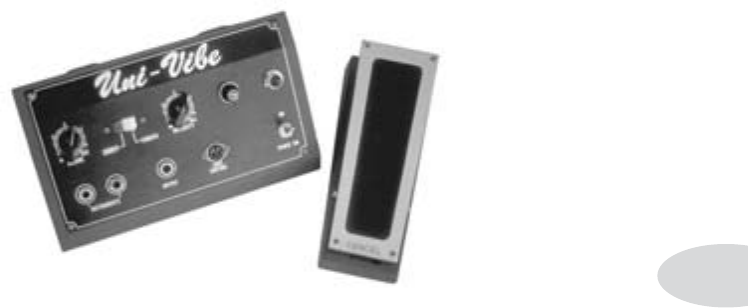
Effect Model Details
6•25
U-Vibe
The now-legendary Uni-Vibe that this model was based on* was put on the map in 1969
by Jimi Hendrix. Essentially a four-stage phase shifter, the Uni-Vibe is best known for its
watery texture and sultry tones. One listen to “Machine Gun” and you’ll know what we
mean.
As with the Analog Chorus model’s stealth vibrato mode, you can recreate the effect of
the original Uni-Vibe’s vibrato switch by turning the mix control to 100% wet. (That’s
what the switch did on the original.) The depth control acts like the Uni-Vibe’s “Inten-
sity” knob.
All product names are trademarks of their respective owners, which are in no way associated or af-
filiated with Line 6. These product names, descriptions and images are provided for the sole purpose
of identifying the specific products that were studied during Line 6’s sound model development.
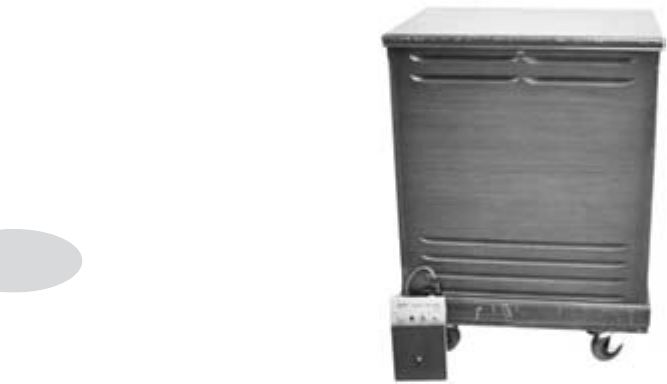
Effect Model Details
6•26
Rotary Drum+Horn
Fine furniture and cool tones—the Leslie® 145 gave you both at once. This tube-driven
behemoth (you definitely don’t want to try picking one up on your own) features a belt-
drive rotating high frequency horn along with a downward-facing 15-inch speaker that
had a segmented drum spinning under it to disperse the sound. It was originally designed
to be used with electric organs like the Hammond® B3, but once guitarists (and even
vocalists!) heard it, they just had to get in on the rotate-o-rama. Our model based on*
the classic gives you all that whirligig glory, without giving you a herniated disc.
The speed knob for our model based on the Leslie® acts like the Fast/Slow switch that
came on the unit’s preamp, ramping between the two speeds. This effect also gives you
tOne and mix settings. For the truly authentic kind of spin that a Leslie delivers, you’ll
want to set the mix knob to max, since a Leslie® had no ‘dry’ path.
All product names are trademarks of their respective owners, which are in no way associated or af-
filiated with Line 6. These product names, descriptions and images are provided for the sole purpose
of identifying the specific products that were studied during Line 6’s sound model development. LES-
LIE® is a registered trademark of Suzuki Musical Instrument Manufacturing Co. Ltd. HAMMOND® is
a registered trademark of Suzuki Musical Instrument Manufacturing Co. Ltd..

Effect Model Details
6•27
Rotary Drum
When they noticed that guitar players had started using Leslie®s, Fender® decided to
come out with its own, guitar-specific whirling dervish of a tone machine. Dubbed the
Vibratone, it used a styrofoam baffle spinning in front of a 12-inch speaker, kicking all
the sound out the sides of the box. One of the best known examples of a Vibratone tone
is Stevie Ray Vaughan’s classic ‘Cold Shot’.
The editing controls for this model based on* the Vibratone are the same as for the Ro-
tary Drum+Horm model. Take it for a spin!
All product names are trademarks of their respective owners, which are in no way associated or af-
filiated with Line 6. These product names, descriptions and images are provided for the sole purpose
of identifying the specific products that were studied during Line 6’s sound model development..
LESLIE® is a registered trademark of Suzuki Musical Instrument Manufacturing Co. Ltd. FENDER®
is a registered trademark of Fender Musical Instruments Corporation

Effect Model Details
6•28
Analog Square (included with PODxt Live, optional for PODxt & PODxt Pro)
A basic digital chorus, like the Sine Chorus, only in this case there’s a square wave act-
ing as the magical modulator. As you’ll hear, using a square wave gives you more sudden
changes in the chorusing, and is slightly less smooth than the sine wave. Try ’em both
and see what suits you. The bass and treble controls make an appearance here on page 2.
This should be a good choice for country chicken pickin’ licks.
Square Chorus (included with PODxt Live, optional for PODxt & PODxt Pro)
This one’s a bit smoother than the Analog Square, but the basic vibe is similar, thanks to
the square wave modulator at the heart of the effect. You’ll find Bass and Treble controls
for a bit of extra tone tweaking when desired.
Expo Chorus (included with PODxt Live, optional for PODxt & PODxt Pro)
A Line 6 creation, the “Expo” in this Chorus stands for exponential, which is a fancy
way of saying that the sweep of the flanging spends extra time in the ‘swooshy’ part of
the Chorus.
Random Chorus (included with PODxt Live, optional for PODxt & PODxt Pro)
This chorus uses three different modulating filters all running randomly. A very busy
chorus sound to be sure.
Square Flange (included with PODxt Live, optional for PODxt & PODxt Pro)
This the same as the Line 6 Flanger, but using a square waveform instead of a sine wave.
Expo Flange (included with PODxt Live, optional for PODxt & PODxt Pro)
Here’s that exponential sweep we first found in the Expo Chorus, this time applied to
a flange effect. The Feedback and Pre-delay knobs on Page 2 can help you keep it in
check or make it as strange as you want. We think you know which way we’re leaning on
that one.
Lumpy Phase (included with PODxt Live, optional for PODxt & PODxt Pro)
A Line 6 original, Lumpy Phase is exactly that—‘lumpy.’ Kinda like a Uni-Vibe, but
more radical. It also has some built in overdrive and more of a ‘flange-y’ type of sound
due to our clever blending of a short delay into the swept signal. Bass and Treble knobs
on page 2 give you extra flexibility.

Effect Model Details
6•29
Hi Talk (included with PODxt Live, optional for PODxt & PODxt Pro)
The Line 6 tone chefs managed to combine a moog-like filter and a rotary speaker in a
touch-sensitive, tap-tempo package. As a result, the Hi Talk can make heads spin with
its high-passed filtered frequencies. Try this one to dress up some mean distortion!
Sweeper (included with PODxt Live, optional for PODxt & PODxt Pro)
Imagine having 2 wah pedals on steroids separated in a stereo field that are pulsating in
opposite positions and you’re close to what you’ll hear here. Use the Q and Freq to set
the character of the sweep and adjust your depth to go from subtle to full on freak out.
Any resemblance to guitar tracks heard in a particular genre of B films is strictly coinci-
dental.
POD Purple X (included with PODxt Live, optional for PODxt & PODxt Pro)
This is definitely a “sound effect.” We wanted something crazy that had a “broken”
sound to it. If played properly you can emulate the sound of a Pod Racer from Star Wars
Episode I.
Random S H (Sample and Hold) (included with PODxt Live, optional for
PODxt & PODxt Pro)
This has a similar effect as the old Oberheim® Voltage Controlled Filter. It creates
changes in tone by randomly emphasizing certain frequencies. Try locking this effect to
the tap tempo and playing single chords to that tempo. This effect is so inspiring, you’ll
probably write a few new tunes based around the effect.
Tape Eater (included with PODxt Live, optional for PODxt & PODxt Pro)
If you’ve ever had a cassette player eat a tape before you’ll know what we’re talking
about. After fixing the tape (if you’re lucky!) and reinserting it in to the player it always
had a warbled sound on that section of the tape. Now think of your guitar tone being
recorded on that section of the tape! That’s the crazy effect we were after. Try this with a
slow speed setting and a 100% wet mix.
Warble-Matic (included with PODxt Live, optional for PODxt & PODxt Pro)
This effect is reminiscent of the Sweeper model, but when used subtly it can produce a
nice mild phasey sound or with the depth maxed you can simulate the sound of an alien
spacecraft landing in one of those old 50’s sci-fi movies!
All product names are trademarks of their respective owners, which are in no way associated or af-
filiated with Line 6. These product names, descriptions and images are provided for the sole purpose
of identifying the specific products that were studied during Line 6’s sound model development.
OBERHEIM® is a registered trademark of Gibson Guitar Corp.
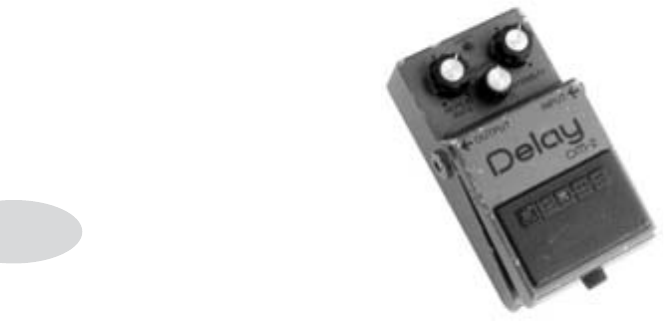
Effect Model Details
6•30
The Delay Effects
Analog Echo
Analog echo units like the DM-2 were designed as improvements over the tape echoes
that came before them, using “bucket brigade” electronics to give guitarists echo units
that were more reliable than the tape-based delays, with the added advantage of a low-
power circuit that can be run on batteries.
Analog delays are treasured for the warm, distorted tones they produce, and PODxt’s
model based on* the Boss® DM-2 gets you the same sort of thing in a new digital realm
of existence.
All product names are trademarks of their respective owners, which are in no way associated or af-
filiated with Line 6. These product names, descriptions and images are provided for the sole purpose
of identifying the specific products that were studied during Line 6’s sound model development.
BOSS® is a registered trademark of Roland Corporation.
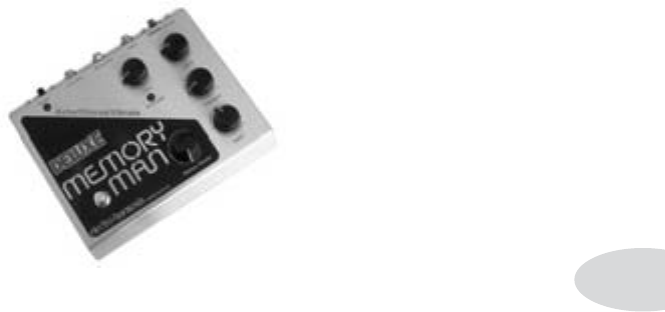
Effect Model Details
6•31
Analog w/Mod
Here’s a model based on* the Electro-Harmonix® Deluxe Memory Man which is a pedal
that uses the “bucket brigade” electronics of other analog echoes, and adds a chorus
circuit to boot. This adjustable chorus is applied to the echoes only, leaving the direct
sound unaffected.
The Memory Man, with its warm, distorted tone and swimming echoes, became an im-
portant tool for many guitarists, and was an essential part of the guitar sounds for the first
U2 album.
Part of the Deluxe in Deluxe Memory Man was the increased delay time of 500 milli-
seconds. Your PODxt’s Analog w/Mod emulates that classic Memory Man tone with the
added advantage of 2 seconds of delay time.
On page 2, you’ll find the mOd speed and depth control to set up the chorus on the de-
lays.
All product names are trademarks of their respective owners, which are in no way associated or af-
filiated with Line 6. These product names, descriptions and images are provided for the sole purpose
of identifying the specific products that were studied during Line 6’s sound model development.
ELECTRO-HARMONIX® is a registered trademark of New Sensor Corporation
Effect Model Details
6•32
Tube Echo
The classic 1963 Maestro® EP-1 that this model is based on* was the first of a series of
“Echoplex” designs distributed by the company, and made by Harris-Teller in Chicago.
As touted in a Maestro® advertisement, the Echoplex’s “...special effects range all the
way from a controlled high speed reverberation to a full, throbbing echo”!
The main feature of the Echoplex design is a special cartridge of looped 1/4-inch audio
tape that wraps past separate record and playback heads. The position of the playback
head can be moved to adjust the delay time from 60 to 650 milliseconds. PODxt’s EP-1
model emulates the classic Echoplex tone with the extra advantage of up to 2 seconds of
delay time.
On page 2, you’ll find flut (wow and flutter) and drive controls so that you can not only
dial up some tube warmth like the original, but add that unique sound of a slipping, dirty
capstan as well.
All product names are trademarks of their respective owners, which are in no way associated or af-
filiated with Line 6. These product names, descriptions and images are provided for the sole purpose
of identifying the specific products that were studied during Line 6’s sound model development.
MAESTRO is a registered trademark of Gibson Guitar Corp.
Effect Model Details
6•33
Multi-Head
Long before Boss® pedals, the RE-101 Space Echo (which this model is based on*) was
Roland®’s first venture into the world of effects processing. Instead of having one mov-
able playback head (like the Echoplex) this machine has multiple stationary heads. You
change delay times by switching amongst these heads, and then fine-tune delay time
with a motor speed control. The groovy part is that you can play back on multiple heads
at the same time to get multi-tap delay effects.
Page 2 controls includes a control for heads, which enables you to choose from the avail-
able combinations of the Multi-Head model’s 4 virtual tape heads. There’s also a flut
(wow and flutter) control like the Echoplex EP-1 model.
All product names are trademarks of their respective owners, which are in no way associated or af-
filiated with Line 6. These product names, descriptions and images are provided for the sole purpose
of identifying the specific products that were studied during Line 6’s sound model development.
BOSS® and ROLAND® are registered trademarks of Roland Corporation

Effect Model Details
6•34
Sweep Echo
This model is a Line 6 original. It first appeared on our DL4 Delay Modeler and has
turned out to be a special favorite amongst the many DL4 users that we’ve spoken to.
The Page 2 knobs adjust the speed and depth of the sweeping filter part of the effect.
sweep speed sets how fast the filter sweeps, and sweep depth sets the range of frequencies
that the filter affects, allowing you to create and explore your own shifting landscape of
tonal possibilities. There’s both subtle texture and serious weirdness to be found in this
one. Try assigning one of the FBV pedals to control the Mix, and use a relatively short
delay for some fun.
Digital Delay
This model is a straight up digital delay with Bass and treBle tone controls (located on
Page 2, of course). Nothing fancy here, just basic echo-cho-cho-cho. After all, it’s good
to cleanse the palate every once in a while.
Stereo Delay
Ever asked yourself, “How did The Edge (U2) get that groovy sound on Where the
Streets Have No Name”? Stereo delays, my friend. It’s the secret to many a U2 song, as
well as the “Big L.A. Solo” sound of the late ’80s. Set one side as a fast echo with many
repeats, and the other as a slow delay with just a few repeats. Voila, you’re famous!
Run this effect post in order to hear it in stereo, with one delay on the left, and another
on the right. The time parameter sets the left delay’s time, while Offset sets the right
delay time as a percentage of the left. So, if you set time to 500ms, and Offset to 50%,
your right delay time will be 50% of 500ms—in other words, 250ms. Ignoring the par-
ticular value of the left delay time, 50% just means that your right delay happens in half
the time. So if you think of the left delay as a quarter note, the right delay is an eighth
note. The second page of parameters for this model gives you independent left and right
feedBack controls, so for instance you can have your left delay feedback set low for a
small number of repeats, while the right feedback is set high to give you a large number
of repeats.
Effect Model Details
6•35
Ping Pong Delay
The Ping Pong Delay is the one delay that can be run as a Post Delay Effect, but not as
a stompbox (since this kind of delay requires a stereo output to do its stuff). It has two
separate channels of delay, with the output of each channel flowing into the other, going
back and forth like a game of ping pong.
The time knob on Page 1 sets the time for the left side delay line.
The Offset knob on Page 2 sets the time for the right side delay line, as a percentage of
the left delay’s time. And spread sets the stereo spread of the delays from mono to hard-
panned left and right.
Sound too tricky? Just use the time knob (or Tap Tempo Button, if you want to set that
up) to set the longer delay time you hear, and then turn Offset to adjust the shorter delay
time. If you set Offset straight up at 12 o’clock, your left and right delays are evenly
spaced. Then, once you’ve got your delay times set, use the spread knob to adjust where
the delay repeats appear in the stereo field.
Effect Model Details
6•36
Reverse Delay
!seltaeB eht dna xirdneH imiJ ekil tsuJ — Take a step back in time with your cool new
reverse delay. Whatever you play in comes back out at you backwards, delayed by the
time you set (up to 2 seconds). To use this little wonder most effectively, try playing a
legato lick, ignoring the reverse playback as well as you can. Longer licks can translate
into very cool reverse phrases. We’ve seen Tom Petty guitarist Mike Campbell taking
advantage of the Reverse Delay on the Line 6 DM4 Delay Modeler stompbox to play a
backwards guitar solo live—on a worldwide TV broadcast, no less.
When using Reverse, try setting the mix knob to full (100% wetness) so all you hear is
the reversed sound—instant backwards guitar solo fun.
Echo Platter (included with PODxt Live, optional for PODxt & PODxt Pro)
The Echo Platter model was based on* the Binson EchoRec, a magnetic platter echo
used by psychedeli-clinicians like Pink Floyd. These units had a spinning metal platter, a
record head, and multiple playback heads that floated on the platter. (Hey, it’s kinda like
a really primitive hard drive!) This delay is somewhere between the tube and solid-state
Echoplexes in tone, with a different type of wow and flutter than tape delays have. Page
2 controls give you access to wOw/flutter and configurations of the heads
All product names are trademarks of their respective owners, which are in no way associated or af-
filiated with Line 6. These product names, descriptions and images are provided for the sole purpose
of identifying the specific products that were studied during Line 6’s sound model development.
Effect Model Details
6•37
Tape Echo (included with PODxt Live, optional for PODxt & PODxt Pro)
After the tube-based EP-1 and EP-2, Maestro® introduced the solid state EP-3, with tran-
sistors instead of tubes for the sound electronics. The EP-3 uses the same basic mechani-
cal design as the original Echoplex, including the looped 1/4-inch tape, but does not
have the tube distortion sound of the EP-1. EP-3s contributed to many classic recordings
of the ’70s, with a large list of avid users including Eddie Van Halen and Jimmy Page.
Unlike our EP-1 model, which gives you control of wow, flutter and distortion, this
model based on* the EP-3 is designed to give you a less distorted tape emulation with
adjustable Bass and treBle controls on page 2.
All product names are trademarks of their respective owners, which are in no way associated or af-
filiated with Line 6. These product names, descriptions and images are provided for the sole purpose
of identifying the specific products that were studied during Line 6’s sound model development.
MAESTRO® is a registered trademark of Gibson Guitar Corp.
Effect Model Details
6•38
Lo-Rez (included with PODxt Live, optional for PODxt & PODxt Pro)
The first digital delay units were introduced in the early ’80s. These pedals and rack
boxes took advantage of emerging digital technology to provide guitarists with longer
delay times. Unlike the 16 bit digital of today’s CDs, and the even higher resolution
provided by some audio gear (like the 32 Bit processing of your Vetta), these early digital
units generally had only 8 bit resolution. Low bit resolution can create a unique sort of
grunge and noise that is sometimes just the sound you’re looking for, and that’s why these
old delays are still used to give a particular shape to the sounds that are run through
them. Early model digital samplers are sometimes used in modern-day industrial and
electronica to achieve these effects as well. Try this model on a low resolution setting to
get that characteristic digital grunge.
The Bits knob, on Page 2, lets you adjust the delay anywhere from its normal sparklin’,
pristine 32 bit resolution down to as few as 6 truly nasty bits. Bear in mind that as you
turn the knob clockwise, you’re reducing the bit resolution, so maximum bit reduction
is achieved when the knob is all the way up (think of it as a more control for how many
less bits you want). Your direct sound, of course, stays full resolution. Tone control of the
delay is also provided, via the appropriately labeled tOne knob.
Phaze Eko (included with PODxt Live, optional for PODxt & PODxt Pro)
This is a new-fangled delay dreamed up by the free thinking sound design crew here at
Line 6. Starting with the basic tone of our EP-1 tape delay emulation, they’ve added
something very much like a Uni-Vibe to the delay repeats. The result is an echo unit
that gives you unique new creative possibilities for adjusting the tone of your delays with
a beautiful, burbling texture. If we do say so ourselves. Page 2 gives you access to mOd
speed and mOd depth.
Bubble Echo (included with PODxt Live, optional for PODxt & PODxt Pro)
Bubble Echo has a Sample and Hold filter on the repeats. A Sample and Hold filter, if
you haven’t run across one before, takes a filter sweep (like the one on Sweep Echo),
chops it up into little bits, and rearranges them semi-randomly, so that it sounds like
sudden little bits of wah pedal randomly sprinkled about. Crazy, huh? Page 2 lets you get
busy with the sweep speed and sweep depth.

Effect Model Details
6•39
Reverb
When we set out to create PODxt, we devoted our fanatical modeling technology and
energy for innovation to developing no-compromise reverb effects. PODxt’s collection
of reverb models emulate physical environments (rooms and halls), plate reverbs (which
traditionally feature a big steel plate with some sort of speaker driving it, and usually
multiple pickups to pick up the vibrations of the plate), spring reverbs (the kind guitar
players know best), and even a couple of unique new models that you’ll have to hear to
appreciate.
Springs
Ahh, the ‘sproing’ of a good spring reverb tank. Ya say you wanna play surf music, neigh-
bor? Well sir, you’ve come to the head of the stream! The only thing missing is the ugly
crash when the bass player stumbles over your amp.
Lux Spring
The blackface Fender® Deluxe Reverb® amp had a two spring reverb tank, which this
model is based on.*
Standard Spring
One of the many things that people have loved about the blackface Fender® Twin
Reverb® over the years has been its rich, dense reverb sound. The three-spring tank
offered a more complex sound than Fender®’s earlier spring reverbs, and its what this
model is based on.* Go find yourself a bevy of bikini-clad beauties, wax up your board,
and dig in.
King Spring
A Line 6 original, inspired by the Sealy Posturepedic. If three springs are cool, how
about a whole mattress full of Slinkies? Richer, denser, wigglier. A good night sleep is
guaranteed, or we’ll give you your money back.
All product names are trademarks of their respective owners, which are in no way associated or af-
filiated with Line 6. These product names, descriptions and images are provided for the sole purpose
of identifying the specific products that were studied during Line 6’s sound model development.
FENDER®, DELUXE REVERB®, and TWIN REVERB® are registered trademarks of Fender Musical
Instruments Corporation.

Effect Model Details
6•40
Rooms
Over the years, inventive recording engineers have pressed all sorts of rooms into service
as reverb chambers. Stairwells, hallways, and basements have been some of the popular
choices. We’ve tried to present a good cross-section in your PODxt.
Small Room
As its name implies, this reverb model will give you the kind of sound you’d get when
recording an amp that’s mic’d up in a small room. Fortunately, unlike the small rooms
that you might have handy at home, say, this room has well-tuned acoustics, no traffic
noise coming from the nearby street, and you don’t have to worry about the upstairs
neighbors yelling, “Turn it down!”—don’t you hate it when people ruin a good take
like that?
Tiled Room
Think of this one as recording your guitar in the hall bathroom. All that porcelain has
always made for great reverb, and lots of classic recordings were done by making the
saxophone player stand in the ‘necessary’ and wail. Or at least that’s what they told
them. Sax players can be so naive.
Brite Room
A live, bright room to add life to any guitar track.
Halls
We’re not talking about the passageway between your living room and bedroom. We’re
talking large, cavernous spaces here.
Dark Hall
A large concert hall with many reflections. This one is all about size and is great for
that huge backdrop of reverb that doesn’t get in the way even when turned all the way
up.
Medium Hall
A medium sized hall with heavy reflections, this one is meant to be heard.
Large Hall
A very large concert hall. It doesn’t get much bigger than this.

Effect Model Details
6•41
Chambers
Back in the day, there was no such thing as digital reverb. But people still wanted to be
able to add more ‘room’ to the sounds they were recording. Someone got the bright idea
of building a big empty room where sound bounced around nicely. They stuck a speaker
in there, fed the sounds that needed loving through said speaker, and arranged micro-
phones to pick up all the resulting ambience so it could be mixed back in with the music.
These early reverb chambers all had a different personality, and some studio’s reputations
were made based on their individual reverb sound.
Rich Chamber
A rich chamber great for making that crunch tone even fatter.
Chamber
Typical of a studio chamber, this reverb goes well with just about anything.
Cavernous
Okay, so it does get bigger than Large Hall. Fire this verb up and get set for a long
night of dandelion dreams.
Plates
Plate reverbs were the first type of ‘mechanical’ reverb. The basic design includes a big
steel plate or sheet of gold foil with some sort of speaker driving it, and usually multiple
pickups to capture the vibrations of the plate.
Slap Plate
This reverb dishes up the vibe of early rock and roll recordings, like Sam Phillips’ great
work at Sun Studios. Thank you very much.
Vintage Plate
A classic plate reverb that you won’t forget.
Large Plate
Well with Large Hall and Cavernous lying around, we just had to dish up a big ol’
Plate of goodness. This one makes a great bed of reverb for playing over and washes up
real good with soap and water.
