Sbig Control Manual
User Manual:
Open the PDF directly: View PDF  .
.
Page Count: 46
- Copyright
- Registration
- Contacting Microprojects
- Introduction
- This Manual
- Initial Installation
- Connect Tab
- Image Tab
- Guide Tab
- AO-7/8/L Controls
- Display Tab
- Color Tab
- File Tab
- Alignment Window
- Sequence Generator
- Exposure Timer
- Status Panel
- Photometry
- Astrometry
- DSS-7 Spectrograph
- Optec Focuser
- Robo-Focus Focuser
- JMI Smart Focus
- Optec Pyxis
- Equinox 6
- Drift Scan
- Differential Deflection
Equinox Image 1
Equinox Image
SBIG Control Manual
Microprojects
Equinox Image 1.11.2
September 2010

Equinox Image 2
Contents
Copyright ..................................................................................................... 4
Registration .................................................................................................. 4
Contacting Microprojects ............................................................................. 4
Introduction .................................................................................................. 5
This Manual ................................................................................................. 5
Initial Installation .......................................................................................... 5
Connect Tab ................................................................................................. 6
Accessories ............................................................................................................................... 6
Connection ................................................................................................................................ 7
Temperature .............................................................................................................................. 7
Show When Inactive ................................................................................................................. 7
Camera ...................................................................................................................................... 8
Event Notication ..................................................................................................................... 8
Image Tab .................................................................................................... 9
Exposure ................................................................................................................................... 9
Image Control ......................................................................................................................... 10
Status ....................................................................................................................................... 10
File Control ............................................................................................................................. 10
Focus and Grid ........................................................................................................................ 10
Scope ....................................................................................................................................... 10
Guide Tab ................................................................................................... 11
Exposure ................................................................................................................................. 11
Settings .................................................................................................................................... 11
Trend ....................................................................................................................................... 12
Autoguide Calibration ............................................................................................................. 13
Guide Dec Compensation ....................................................................................................... 14
Guide Direction ....................................................................................................................... 14
Autoguide Notes ..................................................................................................................... 15
AO-7/8/L Controls ...................................................................................... 16
AO Calibration ........................................................................................................................ 16
AO Guiding ............................................................................................................................. 16
Display Tab ................................................................................................ 17
Star Prole .............................................................................................................................. 18
Star Prole 3D......................................................................................................................... 19
Color Tab .................................................................................................... 20
Files ......................................................................................................................................... 20
Processing ............................................................................................................................... 21
Histogram ................................................................................................................................ 21
Save Image .............................................................................................................................. 21
Notes About Color Cameras ................................................................................................... 21
Equinox Image 3
File Tab ...................................................................................................... 22
Image Processing Order .......................................................................................................... 22
File Processing ........................................................................................................................ 23
File Control ............................................................................................................................. 24
Alignment Window ..................................................................................... 26
Image Control ......................................................................................................................... 26
Align Tools .............................................................................................................................. 27
Sequence Generator ................................................................................. 28
Exposure Timer .......................................................................................... 29
Status Panel .............................................................................................. 29
Photometry ................................................................................................ 30
Astrometry ................................................................................................. 31
DSS-7 Spectrograph .................................................................................. 33
Optec Focuser ........................................................................................... 34
Robo-Focus Focuser ................................................................................. 36
JMI Smart Focus ........................................................................................ 37
Optec Pyxis ................................................................................................ 38
Equinox 6 ................................................................................................... 39
Drift Scan ................................................................................................... 41
Equipment ............................................................................................................................... 41
Camera Setup .......................................................................................................................... 41
Calibration ............................................................................................................................... 42
Scan Setup ............................................................................................................................... 42
Scan Update box ..................................................................................................................... 43
Information box ...................................................................................................................... 43
File .......................................................................................................................................... 43
Dark Frame / Flat Field ........................................................................................................... 43
Dec Scan Automation ............................................................................................................. 44
Differential Deection .................................................................................46
Equinox Image 4
Copyright
© Copyright 2009 Microprojects. All rights reserved.
Equinox Image v1.11+ requires a G4, G5 or Intel Apple Macintosh computer and OS
X 10.5+. If you have OS X 10.4 you need Equinox Image v1.9.0.
Mac, the Mac Logo and the Universal Logo are trademarks of Apple Computer, Inc.,
registered in the U.S. and other countries.
SBIG is a trademark of Santa Barbara Instrument Group, Inc.
All trade names, trademarks and registered trademarks are the property of their re-
spective owners.
Microprojects does not assume any liability arising out of the application or use of
Equinox Image software or any product described herein.
Registration
Once Equinox Image is installed on your Mac you have 30 days to try it out. All the
features of Equinox Image are available during this trial period. After 30 days you
will not be able to run Equinox Image until you register.
Please support Mac shareware. This is not a free program.
If you use Equinox Image please register.
Contacting Microprojects
email: support@microprojects.ca
web: www.microprojects.ca
users group: http://groups.yahoo.com/group/mpj-equinox
Equinox Image 5
Introduction
This manual describes the SBIG camera control features and image processing func-
tions of Equinox Image. It is assumed that you are familiar with your SBIG camera.
The planetarium and telescope control program Equinox 6 can be used in conjunc-
tion with Equinox Image, but it is not a requirement.
Getting that perfect deep sky image with crisp detail, accurate color and round stars is
not easy. You need experience, patience, good equipment and stable skies. However,
the learning experience on that road to the perfect image is rewarding and hopefully
Equinox Image will help you get there.
This Manual
This manual does not document the obvious, but many of the SBIG control features
in Equinox Image do need some explanation. It is designed so that you can look up
just the information you are looking for. It is recommended, however, that you read
through this manual before using your SBIG camera with Equinox Image.
If you want to print this manual it is recommended that you use Apple’s Preview ap-
plication.
Initial Installation
The Equinox Image installer contains the application, folders and this manual in a
new Equinox Image folder. Your Applications folder is the default location for Equi-
nox Image but you can put this folder anywhere you wish.
The SBIG driver (.kext) and framework les must be installed on your Macintosh
before you launch Equinox Image. Equinox Image can not run until the SBIG driver
is installed. These les have a separate installer supplied by SBIG. Equinox Im-
age version 1.11+ requires the SBIG driver version 6.65+. You can use the SBIG
installer contained in the Equinox Image install folder or you can download the SBIG
driver installer at:
ftp://ftp.sbig.com/pub/devsw/SBIGDriverInstallerUniv.dmg
Equinox Image 6
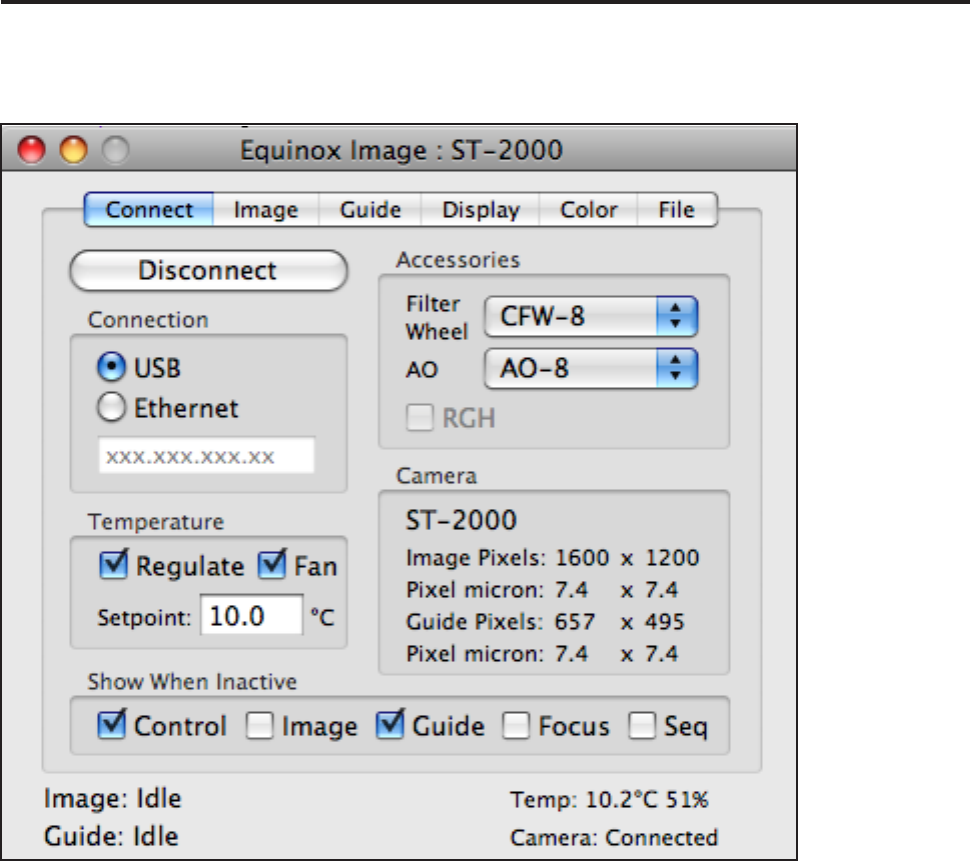
Connect Tab
From the Connect tab you can establish what accessory devices you are using, the
type of connection to your camera, temperature setpoint and other basic information.
Accessories
If you are using a lter wheel you must select your model from the Filter Wheel
popup menu. If you are not using a lter wheel or have a color camera, select None.
If you have a CFW-6A you have to calibrate it so each lter position is centered. Un-
der the Edit menu you can call up a calibration panel that allows you to adjust each
lter position.
You can change the names of the lters in your lter wheel from the Filter Names
item in the Files Menu. The default order of the lters is the SBIG factory order - it is
recommended that you do not change this order.
Select the AO device you are using from the AO popup menu. If you do not have an
AO device attached or if you do not wish to use it select None.
Equinox Image 7
If your camera has a remote guide head, and you wish to use it, check the Remote
Guide Head (RGH) box after you are connected to your camera. If you have a remote
guide head but do not wish to use it, do not check this box. If your camera does not
support a remote guide head this box will not be enabled.
If you have a single chip SBIG camera a Guide box will appear once you are con-
nected. If you wish to use your camera for autoguiding rather than imaging, check
this box.
Connection
Select your camera connection type (USB or Ethernet) from the connection radio but-
tons. If you have multiple USB cameras connected Equinox Image will select the rst
one it nds. If you select Ethernet the ip address text box will be enabled. Enter your
camera’s ethernet ip address in this box.
After you power up your camera wait at least 30 seconds before you hit the Connect
button, otherwise the connection can stall. If this happens you may have to Force
Quit Equinox Image or even reboot your Mac.
Temperature
Enter your target temperature (setpoint) and check the Regulate box to start SBIG
cooling. You should enter a temperature that the SBIG can maintain without using
100% of its power. The camera’s current temperature and power consumption (%) is
shown in the “Temp:” status line at the bottom right of the Equinox Image window.
If you want to ramp down the power before you disconnect and turn off your camera
you can uncheck the Regulate checkbox. A progress wheel will spin until the ramp
down is complete. You can also turn the camera’s fan on and off with the Fan box.
If you experience moisture or frost forming on the imaging chip during the cool down
you should recharge the desiccant - moisture can damage the CCD chip! However, if
you absolutely have to image before then you can hold down the option key and then
check the Regulate checkbox. Equinox Image will slowly ramp the temperature down
to your entered setpoint value. This may help prevent moisture and frost from form-
ing but the cool down will take a very long time.
Show When Inactive
These boxes represent the Equinox Image window (Control), the image and guide
windows, the focuser control panels and the Sequence panel. If you have other ap-
plications that you run along with Equinox Image these preferences allow you select
windows that will remain visible when Equinox Image is not the active application.
Note: Inactive is Apple’s term when an application is not the active or “front” appli-
cation. Equinox Image is still running when inactive!
Equinox Image 8
Camera
Your camera name and pixel information is displayed in this area after you connect to
your camera. Camera related setup information (lter wheel, AO, calibration, etc.) is
saved on a per camera basis, so if you have multiple cameras you only need to enter
this information once for each camera. If you want to control multiple cameras at the
same time please contact Microprojects support.
Event Notication
Select the Beep at Events item in the Edit menu if you want an audible indication of
certain events. These events include the completion and download of an image ex-
posure or series of exposures, the completion of a sequence generator program, AO
device scope bump and if the guide star is lost during guiding. This audible signal can
be useful if you are not watching the Equinox Image displays but need to be notied
when these events occur.
Equinox Image 9
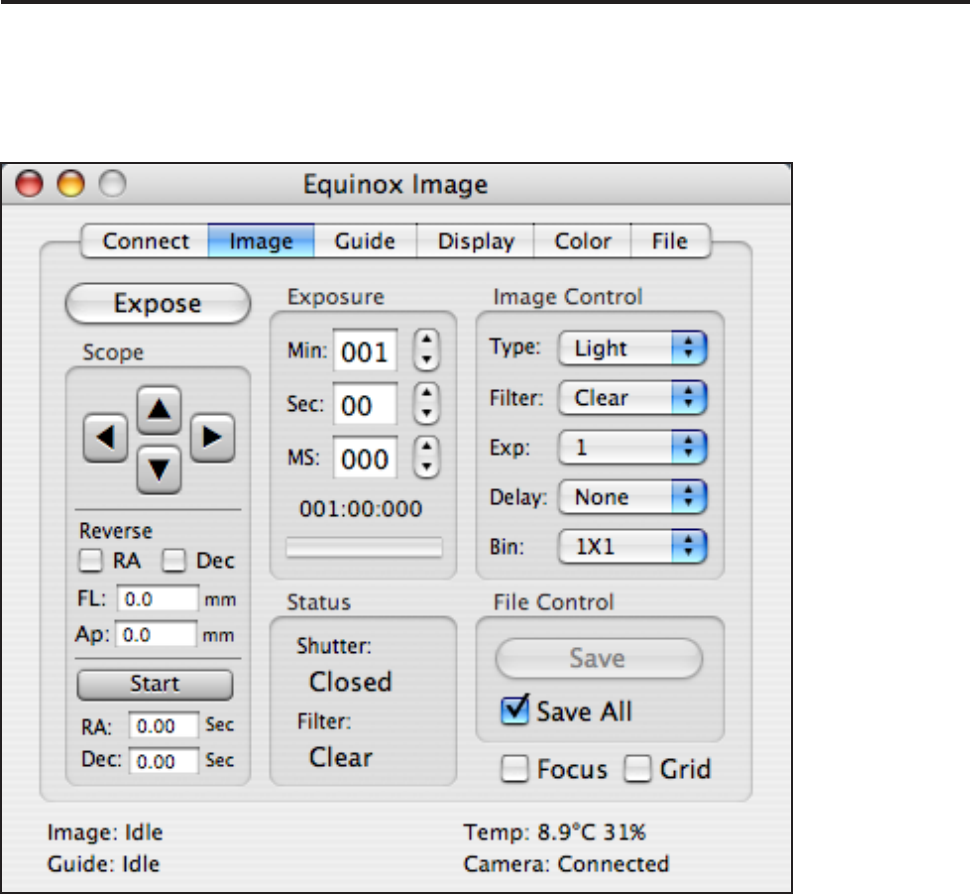
Image Tab
The Image tab is where you control your camera’s image exposure, lter selec-
tion, binning, and other information. From this tab you can also control your scope
through the autoguide connection between your camera and mount.
Exposure
Enter your desired image exposure time from the controls in this area. If you enter
values in the text boxes you must hit the return key to register your entry. The cur-
rent exposure time is displayed under the entry boxes. If no exposure time has been
entered the minimum exposure time that your camera allows will be used.
The bar graph will indicate the current exposure time during an exposure as well as
the download progress after the exposure completes. During an exposure the Abort
button allows you to stop the exposure. If you hold down the option key when you hit
the Abort button the partially exposed image will be downloaded and can be saved.
Equinox Image 10
Image Control
From this area you can select what type of an image to take, what lter to use, the
number of exposures, the delay time between exposures and the camera binning. If
you select “---” exposures you need to hit Abort to stop taking exposures.
The exposure type “Light” means to take an image without subtracting a dark frame.
“D&L” means to take a dark frame, then a light frame and subtract the dark frame
from the light frame. Once this is done all additional exposures will use the same
dark frame until something is changed about the exposure (exposure time, binning,
etc.). “DD&L” will take a dark frame for display only - saved images will not have
the dark frame subtracted. “Dark” means take a dark frame (the shutter is closed dur-
ing the exposure). This dark frame can be subtracted from your images at a later time.
“Bias” is a specialized dark frame used in some scientic applications. It is essen-
tially a zero exposure time dark frame.
Status
In this area the current state of the shutter is displayed (Open, Closed, Moving) and
the currently selected lter. The lter status also indicates when the lter wheel is
moving and any error conditions.
File Control
Save All means that every exposure taken will be saved to disk. If you do not select
this box you can use the Save button to save any image after it has been taken. You
can save images as TIFF or FITS les - see the File tab for more information.
Focus and Grid
The Focus box will cause repeated exposures to be taken until you stop them. These
images can be saved if you want. Use this function to manually focus your camera.
When the Focus box is checked you can drag an outline in the image. Only this area
will be exposed and focusing will be faster. It is recommended that you use the D&L
or DD&L image type whenever focusing. You can focus while guiding. The Grid box
will draw a center grid on the image.
Scope
The scope controls allow you to move your scope through the autoguide connection
between your camera and your mount. These controls are a convenient way to center
an object or locate a guide star without having to use the scope’s hand controller or
another scope control program. You can reverse the control action in RA and Dec.
The focal length (FL) and Aperture (Ap) of your scope should be entered (see the
Equinox 6 section of this manual). These values are used for several calculations in
Equinox Image. You can also move your scope in RA and Dec by xed amounts of
time. Enter the drive time and then hit the Start button. Experienced users often know
the drive time between favourite objects and this control can be used for that purpose.
Equinox Image 11
Guide Tab
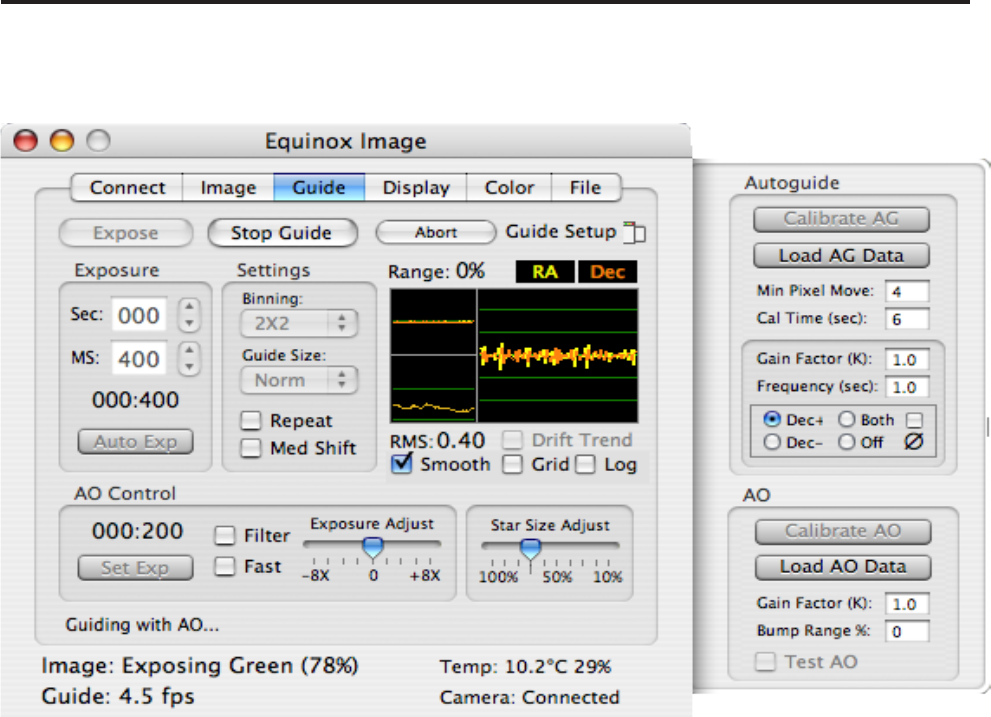
The Guide tab controls the guide chip exposure and has all the controls for auto-
guiding, AO guiding and calibration.
Exposure
You can enter a guide chip exposure in this area (remember to hit return after you
enter a time). The Expose button will start (or abort) a guide image exposure and will
return the image to full size if needed. Click on a guide star to form the small guide
image. Clicking in the small guide image will also return the image to full size. The
Start Guide button starts (or stops) autoguiding and the Exp Image button allows you
to start an image exposure without going to the Image tab. Once you have clicked on
the guide star you can run the Auto Exp function. This will take a series of exposures,
analyse the images, and set the exposure time to the shortest exposure possible while
still allowing a good star position to be calculated. You can then manually increase
this value if you nd you get better autoguiding with a longer exposure.
Settings
Autoguiding uses the connection between your camera and the scope’s autoguide
port. Unlike an AO this type of control physically moves the scope. The update
rate for autoguide corrections is determined by the frequency value entered in the
Autoguide calibration side drawer. You can enter a frequency from 0 seconds (as fast
as possible) to 60 seconds. This frequency sets the delay time from the end of one
relay closure to the start of the next relay closure. One or two seconds is usually best.
Equinox Image 12
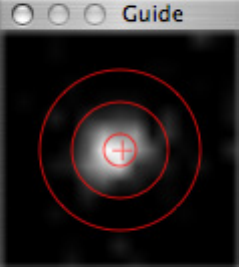
The Guide Size determines how large an image is downloaded during
guiding. Normal is adequate for most situations, including AO guiding.
However, if the guide star is bouncing around close to the edge of the
guide window (strong winds) the Large size may be needed. If you are
guiding with the AO and you have very stable skies, the Small setting
may give you faster corrections. The guide image window will display a
red boarder based on the selected guide size. Guide stars must be inside
this boarder. The Grid checkbox selection will draw lines indicating the
camera angle in the small guide window.
The Repeat checkbox will cause exposures to be repeatedly taken. This can be used
to help position the guide star prior to calibration. The Median Shift function offsets
the guide center for up to 25 images in an image sequence. Once aligned each image
in the sequence is offset slightly so that hot pixels do not line up. The median stack
function can then eliminate the hot pixels. This is sometimes called image dithering.
Trend
The Trend area is divided into three separate trends. The large area trends RA and
Dec errors. Each horizontal line represents one pixel. This trend can be used to adjust
the guide settings to maximize guiding accuracy. This trend also has a Drift Trend
box which allows you to see in what RA and Dec direction your scope will drift when
no corrections are applied. This is important information (see the calibration section
below). If you want a text log of the drift trend data hold down the option key and
then select the Drift Trend checkbox. The log will be in the Misc folder.
The top left trend displays the X and Y range of an AO. If you do not have an AO this
trend is inactive. You can use this trend to manually recenter the guide star if the AO
gets close to its range limit.
The bottom left trend is a running Root Mean Square (RMS) error calculation. The
value is in image pixel error. You want this value as low as possible as it is a good
indicator of how round your stars will appear in the nal image. During an image ex-
posure the average RMS error is calculated and displayed in the image window title.
This value is also stored in the FITS header.
The Smooth checkbox shows a “smoothed” star image. Uncheck this box to see the
individual pixels in the star image. The Grid checkbox displays a center grid. Log
stretches the image to display faint detail but is not normally used when guiding.
Equinox Image 13
Autoguide Calibration
Calibration controls are in a side drawer, displayed by clicking on the Guide Setup
button in the top right corner of the tab. Hold down the option key when you click
on this button if you want the side drawer to remain open from all tabs. Your camera
must be rotated to the position you want before you calibrate - if you rotate the cam-
era after calibration you will have to calibrate again. Calibration assumes your scope
is mounted equatorially - Alt/Az mounted scopes can not be calibrated.
The rst step to autoguide calibration is to center a bright star (3rd or 4th magnitude
and close to the object you want to image) in the guide image and use a short expo-
sure time. No other bright star should be close enough to get into the image as the
calibration moves the scope. Make sure the scope speed is set to Guide or the slowest
setting and then hit the Calibrate AG button. The scope will be moved in the RA Plus
direction rst, then in the Dec Plus direction. After calibration the scope will move
the star back to its starting location. If all goes well you will have a successful cali-
bration. Hold down the option key when you hit the Calibrate button and the calibra-
tion will be done twice and the calibration values will be averaged.
It may happen that your rst attempt to calibrate your scope will not be successful. If
the star marker ever “misses” the star you should stop the calibration and start over. If
you have a hot pixel and the calibration is locking onto it you can hold down the shift
key when you hit the Calibrate button - that might help. The guide star should move
about 1/4 of the frame during calibration. If it does not then you can increase the Cal
Time setting - this drives the scope for a longer time. If the star should move out of
the frame then you can reduce this time.
If your eld of view is very wide you may not be able to isolate a suitable calibration
star without another bright star moving into the frame during calibration. If this hap-
pens and the star marker jumps to this new star you should abort the calibration. You
can select the star that you want to use for calibration. Hold down the option key and
click on the star you want to use. An alert will be displayed to indicate that a limited
range calibration is in effect. Now hit the Calibrate AG button. A yellow box will be
displayed as the calibration proceeds. Only the star in this box will be used for cali-
bration and another bright star coming into the frame should not cause the calibration
to fail. If the calibration star ever moves outside of this yellow box you should abort
the calibration. If you need a larger range hold down the shift key when you click on
the calibration star rather than the option key. Option + shift gives a huge range.
The calibration tries to detect backlash. This is when the scope is told to move but it
doesn’t because the drive gears are not in contact. Usually you have much more Dec
backlash than you do RA backlash. The Min Pixel Move value sets how many pixels
the guide star has to move to indicate the mount is out of backlash. This value should
be lower than what the scope drive will move the star in one second.
Successful calibration data is written to disk. If you need to re-establish the calibra-
tion and nothing has changed, you can load the last saved data with the Load AG
Data button. With a good calibration the Gain value should be left at 1.0.
Equinox Image 14
Guide Dec Compensation
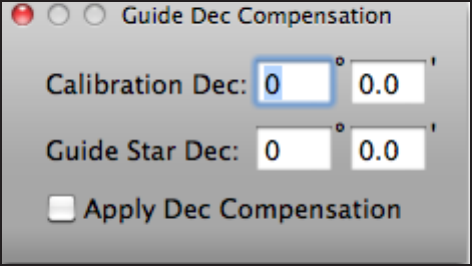
The Guide Dec Compensation panel is displayed from the View menu Guide Dec
item. The Apply checkbox must be selected to activate Dec compensation. However,
it is always best to recalibrate any time you move your scope to a new object. For
this reason the Apply checkbox defaults to off and it is not saved as a preference. If
you want to use Dec compensation you must check the Apply checkbox before you
calibrate or start guiding.
If Equinox 6 is running and it is connected to
your scope the scope’s Dec value is saved as
part of the calibration data. If you move the
scope to another object and do not recalibrate an
RA correction value is calculated based on the
difference between the calibration Dec and the
new object’s Dec. The scope’s Dec values are
written to this panel at the end of calibration and
when you hit the Guide button.
If Equinox 6 is not running or connected to your scope you can manually enter the
calibration and guide star Dec values from this panel.
Guide Direction
The guide direction buttons allow you to control how Dec correction values are ap-
plied during guiding. Because of Dec backlash you do not want to drive the Dec cor-
rection in both directions, otherwise you will get stuck in backlash and your guiding
will not work. Of course if your mount has no Dec backlash you can select Both, but
that is unlikely. The Off selection turns off Dec autoguiding. If your mount can not
autoguide in both the RA and Dec directions simultaneously check the ∅ checkbox.
In order to know which button to select (Dec+ or Dec-) you need to know what
direction your scope will drift when no corrections are applied. That is what the Drift
Trend box is for. The drift trend works whether you have calibrated or not, but if you
have not calibrated the camera should not be rotated. Check the Drift Trend box and
see which Dec direction the trend moves. Normally up is Dec+, down is Dec- but
your optics may reverse this. You want to check the box (Dec+ or Dec-) that indicates
the opposite direction - in other words you want to apply Dec corrections to oppose
the normal drift but you do not want to apply corrections in the direction the scope
will drift anyway. Once this direction is determined, check the appropriate Dec+ or
Dec- box and stop the drift trend. Click on the guide star in the guide image and you
can start autoguiding with the Start Guide button.
Equinox Image 15
Autoguide Notes
Most mounts can autoguide with an RMS error between one or two pixels if eve-
rything is set up perfectly. Here are some notes on what you can do to get the best
autoguiding performance from your mount.
• Your scope must have an equatorial mount. Alt/Az mounts can not autoguide.
• Calibrate before you run the Drift Tend.
• You really should run the Drift Trend.
• Based on the drift trend, you must select Dec+ or Dec- to oppose the Dec
drift. A selection of Both only works if you have very little Dec backlash.
• You must have a good RA axis balance.
• You must have a good Dec axis balance - but not perfect! If your scope drifts
up the Dec- selection will drive the scope down to oppose it. A slightly heavy
back end balance will help keep the Dec gears in contact. If your scope drifts
down the Dec+ selection will drive the scope up, so a slightly heavy front end
is best.
• Never ever use your mount’s anti-backlash feature.
• Run your mount’s RA PEC function. It may or may not help.
• Adjust the Star Size control for the lowest RMS value.
• If you need to alter EI’s gain your calibration is no good.
• Calibrate on a star with nearly the same Dec as your guide star and if it is
bright enough calibrate on your guide star.
• If you change your camera angle you have to calibrate again.
• You need to set the mount’s speed to Guide or its slowest speed. Calibrate and
autoguide at this speed. However, if you have a very wide eld of view or
your camera’s pixels are very large you might need to increase this speed.
• Before you calibrate take up the Dec backlash with the mount’s hand
controller in the Dec+ direction.
• Before you start guiding manually take up the Dec backlash with the mount’s
hand controller - in the direction you have selected (Dec+ or Dec-).
• If you have an AO device you still need to calibrate the autoguide.
• Do not use the Log display feature when guiding.
• If you use the option key when you hit Calibrate the average calibration
values from two runs will be used and autoguiding will be more accurate.
The accuracy of autoguiding, and guiding with an AO device, is also very dependant
on how well Equinox Image can calculate the guide star’s position. This effects both
the calibration and the guiding. Two things effect the “centroid” calculation - guide
star exposure and the dark frame. With most SBIG cameras the fastest exposure pos-
sible is 120 ms when the shutter is used. There is no limit on how fast the exposure
can be during an image exposure (when the shutter is open). For most guide stars a
much longer exposure is required so this is not a consideration. However, the dark
frames are. Equinox Image tries to take accurate dark frames for both situations but
it is possible that on occasion the dark frame does not match the exposure time. If the
guiding shows a large and distinct oscillation this is probably the cause. You can force
Equinox Image to retake the dark frames when the little guide window is visible and
you are not guiding buy holding down the option key and hitting the Expose button.

Equinox Image 16
AO-7/8/L Controls
If you have an AO-7, AO-8 or AOL the Guide tab has several controls to adjust AO
guiding as well as AO calibration controls in the side drawer.
AO Calibration
Before you can guide with the AO you must calibrate it. Center a reasonably bright
star in the guide image, set an exposure time and hit the Calibrate AO button in the
side drawer. As long as the star marker does not “miss” the star the calibration will be
successful. The calibration data will be written to disk and can be reloaded with the
Load AO Data button. This data can be reused any time you need to re-establish the
calibration, but it can not be used if the optics have been altered. Option: hold down
the option key when you hit the Calibrate button and the calibration will be done
twice. The average calibration data will be used.
AO Guiding
The AO Control area has exposure and adjustment controls. You must click on the
guide star in the guide image before you can use these controls. The Set Exp button
will set the AO guiding exposure to the exposure time entered in the Exposure area.
The Auto Exp button will determine the shortest exposure time possible while still
being able to calculate a good star position. This will give you the fastest possible
guide frequency but it may not be the best exposure for accurate guiding. When an
image is not being exposed AO guide images are taken at the autoguide frequency.
Once the exposure time has been set and the AO has been calibrated you can use
the Test AO button in the side drawer. This simulates the conditions when an image
exposure is being taken with the Fast checkbox selected. Watch the trend and RMS
values. Move the Exposure Adjust slider control to the point where the smallest er-
ror trend and RMS value appears. This is probably the best exposure time, although
not necessarily at the fastest frequency possible. You can also try different Star Size
Adjust settings. This control alters what percentage of the star image is used to deter-
mine its position. Watch the RMS value as you adjust this setting.
If your AO exposure time is several seconds long you may encounter more noise in
the guide image and have guiding problems when you start exposing an image. If this
occurs turn off the Fast selection. The Filter checkbox applies a slight ltering action
to the guide star position error. This may help remove the random errors that can be
generated when the exposure is too short.
The Bump Range % value determines at what point the scope is moved to recenter
the guide star (autoguide calibration is required). The guiding frequency has to be
fast enough to keep the star within the guide image while the scope is being moved,
otherwise the guide star will be lost. Watch the Range trend to see when a bump oc-
curs (you will hear a beep) and if it was successful. If the guide star was lost enter a
lower percent value. You can also enter a bump percent of zero and Equinox Image
will bump the scope at the maximum range possible while making sure that the guide
star will not be lost.
Equinox Image 17
Display Tab
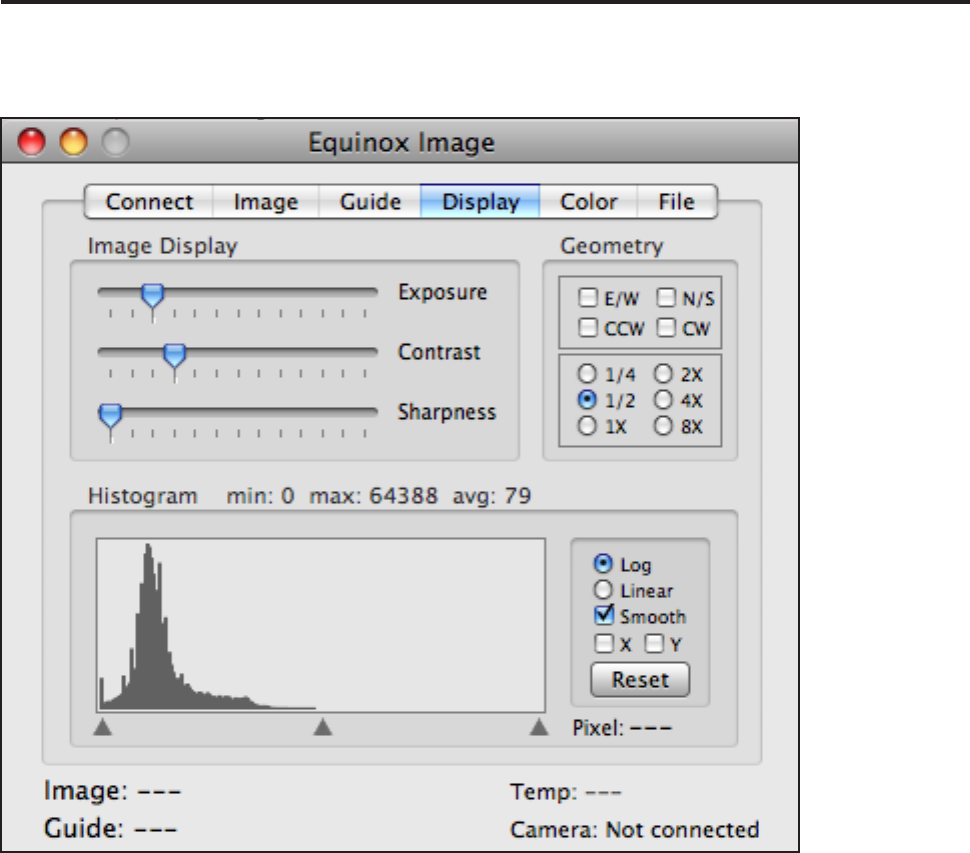
The controls in the Display tab allow you to see the faint detail in your image so that
you can evaluate your exposure settings.
The controls in the Display tab give you several different ways to manipulate the
image. Note that none of these controls change the raw image saved to disk. You can
alter the effective exposure, contrast and sharpness with slider controls, ip the im-
age, rotate the image 90° CCW or CW and scale the image size from 1/4 to 8X.
The Histogram displays the density spread of the image. You can adjust the low, mid
and high densities with the triangle controls under the histogram. You can also see
a log stretch or linear representation of the image. The log setting can help see faint
detail that the other controls may miss. Turn off Smooth to see individual pixels. The
Reset button sets all the controls back to default values.
The X and Y checkboxes display a graph if you have a spectrogram image. The X
shows a single row and the Y shows a single column. Click in the image window and
move the cursor over the spectrograms to view the graph. The graph can also be used
to check for uneven eld illumination (vignetting). Graph data can be logged (⌘-P)
into the Misc folder.
Equinox Image 18
Above the histogram the minimum, maximum and average pixel densities are dis-
played (0 to 65535). If you move the cursor over the image the pixel density under
the cursor will be displayed in the Pixel area to the right of the histogram. These
values can be very useful to help you determine what exposure changes the image
may require.
You can save an image (TIFF or JPEG) that incorporates all the changes you have
made with the Save buttons (in the Color tab). However, this is not a substitute for a
true image processing application (which Equinox Image is not). The saved image is
an 8-bit RGB image and can not be read back into Equinox Image.
Often it is useful to compare two images to see what adjustments might be needed.
Once you have exposed an image (or done a le read) you can copy that image to a
second window with the Edit menu item Duplicate Image.
Star Prole
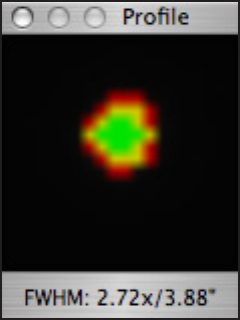
If you option + click on a star in the image a Star Prole panel will be
displayed. This panel will analyse the star shape and represents various
densities in different colors. The green central area is the full width half
maximum (FWHM) area, literally the area of the star that is measured
from half the star density range to its maximum value. The green shape
should be round. An oval shape indicates poor guiding or a collimation
problem with your scope. If the green area is not reasonably round your
stars will not look round in the nal image.
The yellow area represents the star density from the “toe” of the prole
(9% above background) to the FWHM value. You want this area to be as
narrow as possible. A star with a wide yellow prole will probably look
“fuzzy” in the nal image and may indicate a poor focus or bad seeing. Images taken
when the humidity is high often show wide yellow star proles.
The red area represents the star density from 3% above the background to 9%. Again,
this should be narrow for sharp looking stars but unless the nal image is severely
stretched this area may not be noticeable.
At the bottom of the prole the FWHM value is displayed in pixels (2.72x) and
arcsec (3.88”). In order for the arcsec value to be calculated Equinox Image must
know information about your scope and camera. If Equinox 6 was running at the time
the image was taken this information is read from Equinox 6 and stored in the FITS
header. The scope information entered from the Image tab is also saved. This is the
preferred information (see the Equinox 6 section of this manual). If you are saving
your images as TIFF les this information is not saved. The FWHM calculation is ac-
curate only if the exposure type is D&L or DD&L.
Equinox Image 19
If you are focusing with a section of the image (you have dragged a focus rectangle)
you can option+click in the focus image and the star prole will be updated with each
new image. This can be helpful in determining your best focus.
Star Prole 3D
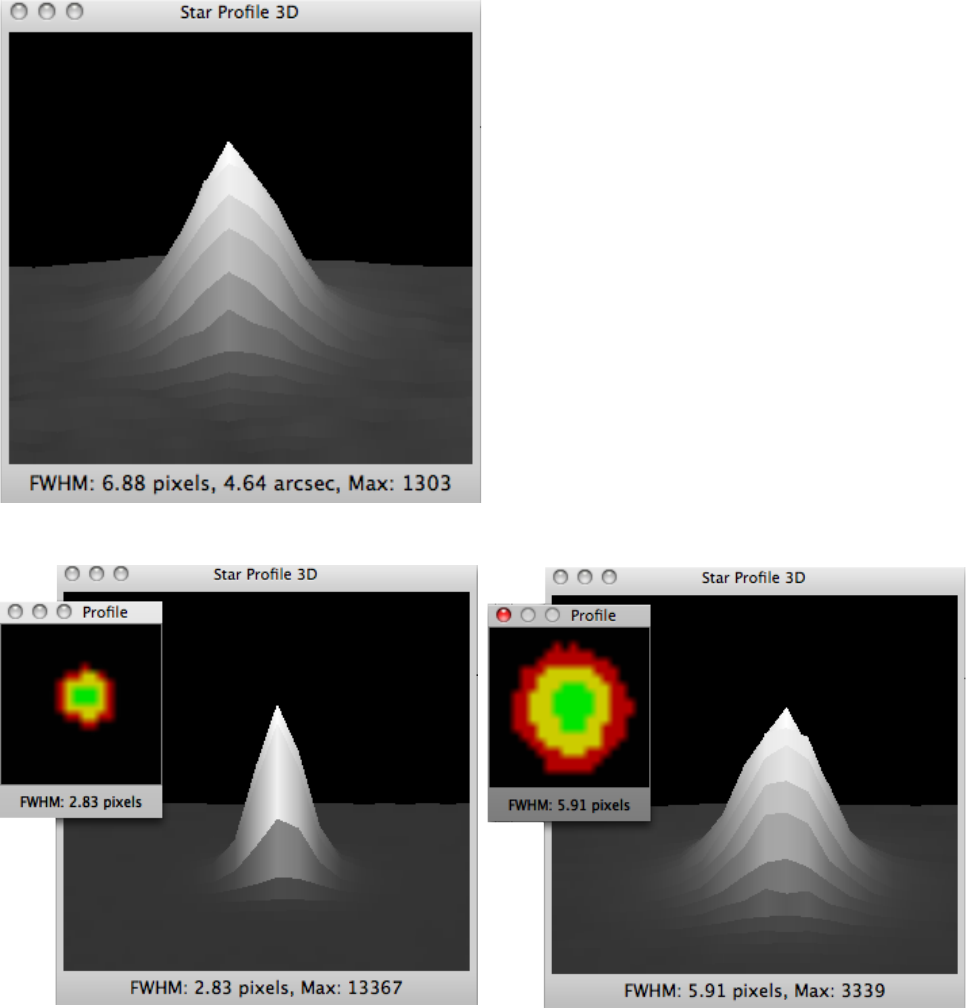
If you control+click on a star in an image or if
you are in Focus mode and you control+click
in the focus image you will get a three dimen-
sional “terrain” type image of the star prole.
This panel can be viewed with the normal star
prole panel or on its own. The star informa-
tion is the same, just displayed in a different
manner. If you option+control+click on a star
both star prole panels will update together.
The next two images show what a good star
prole looks like and what a poor star prole
looks like. The rst image’s FWHM is small
with very little toe and a steep slope. The sec-
ond image shows a large FWHM and a wide
toe with a gradual slope.
Equinox Image 20
Color Tab
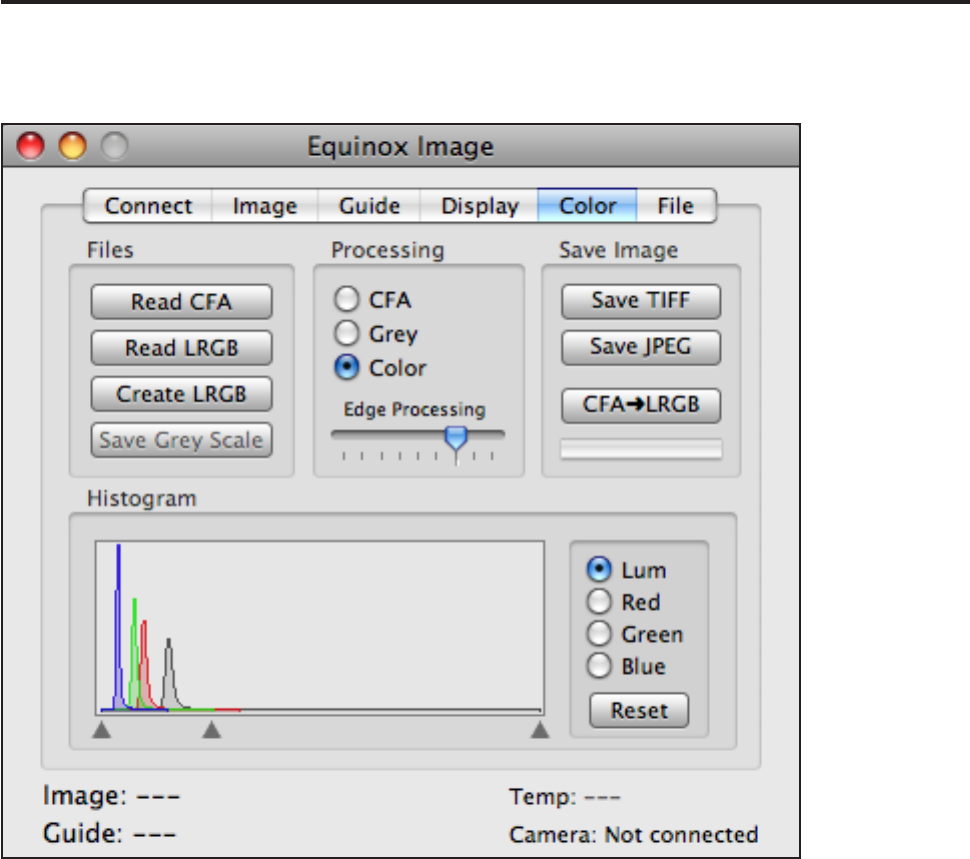
If you have a color camera this tab is where you can manipulate the exposed image
for viewing. You can also create color images here from LRGB grey scale images.
Files
This area has buttons for reading and writing les in various formats. If you have a
color camera the exposed images are saved as a 16-bit grey scale Bayer pattern, also
known as a color lter array (CFA).
The Read CFA button allows you to read in color camera images that were saved to
disk. Once read in these les can be manipulated with the controls in this tab and
saved in various formats. You can ip the image and alter the scale from the controls
in the Display tab.
The Create LRGB button will convert the CFA image to four 16-bit grey scale images
representing the luminance, red, green and blue color channels. This is the format
that most image processing applications require. You can also read in LRGB les that
were created with a grey scale camera and lter wheel with the Read LRGB button.
Equinox Image 21
Processing
The CFA radio button is the default mode and displays the image in its “raw” format.
A CFA image looks “grainy” - this is normal. Grey displays the image in grey but
converts the CFA pattern to a smooth scale. Color displays the image in color. When
you are displaying the image in CFA or grey scale you can use the histogram controls
in the Display tab. When you are displaying the image in color you can use the color
histogram controls in the Color tab.
The Edge Processing slider control alters the CFA to color processing with an algo-
rithm developed by Robert Geddes at MIT. This algorithm enhances edge sharpness.
The default slider position will probably give you the best results but you can experi-
ment with different settings. At the Max position artifacts may become visible. At the
Min setting a conventional linear demosaic algorithm is used.
Histogram
The histogram area allows you to manipulate each color channel separately and ana-
lyse the color components of an image. The Reset button sets all histogram settings
back to the default values. If you hold down the option key when you move the histo-
gram triangles the histogram will expand to show the density distribution changes.
Save Image
You can save processed images (color or grey scale) in TIFF or JPEG format but
those les are 8-bit RGB les, they can not be read back into Equinox Image and
they are not a substitute for a true image processing application.
If you have a number of CFA les that you want to create LRGB les for, you can
use the CFA->LRBG function. Hit this button, select the list of CFA les, select or
create the folder where you want the LRGB les stored and then all the selected CFA
les will have LRGB les created for them.
Notes About Color Cameras
Equinox Image saves exposed color camera images as 16-bit CFA les (TIFF or
FITS). This allows dark frames (also saved in CFA format) to be subtracted. If all
the images do not need to be aligned you can stack CFA images (the log stack is not
recommended because it can alter the color balance). Otherwise you MUST create
LRGB images and align and stack those.
CFA images can not be used to process a at eld unless you have a completely color
neutral image. You can, however, take your at eld image, select the Grey mode and
Save Grey Scale. The grey scale image is saved as a 16-bit grey scale image (not as
a CFA image) and then it can be used as the at eld image when processing CFA im-
ages.
Equinox Image 22
File Tab
From this tab you can process your exposed images in a variety of ways, establish le
names and folders and convert les between FITS and TIFF formats.
Image Processing Order
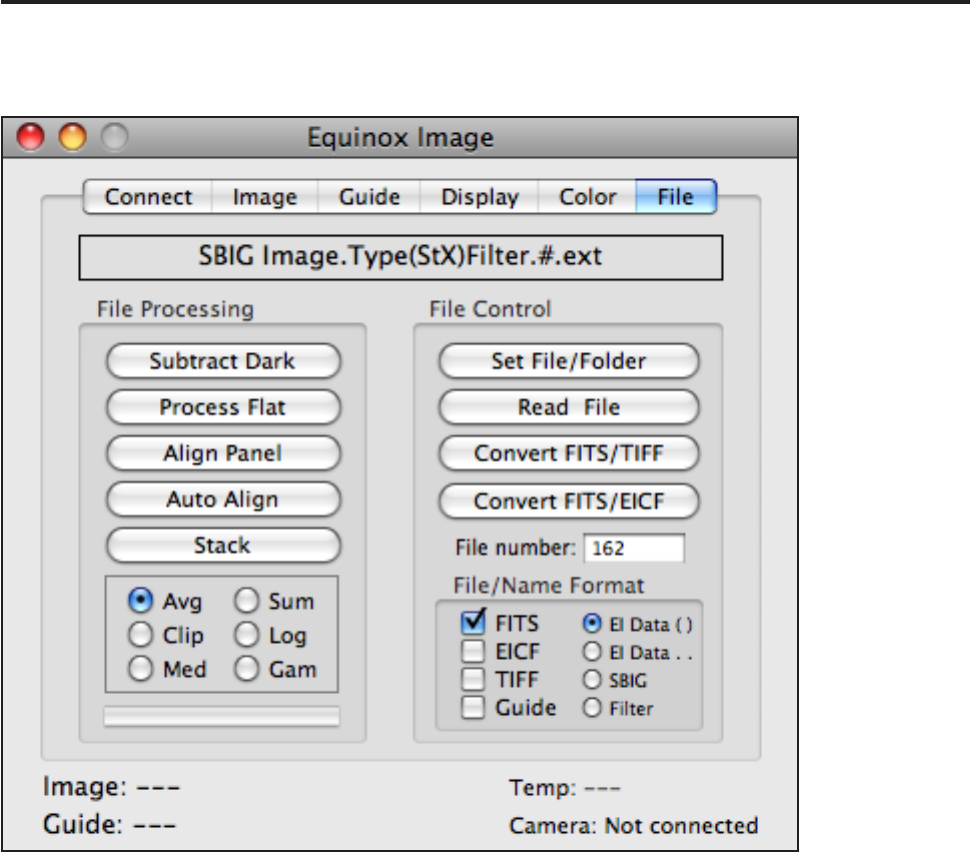
The order of image processing is important. You must dark subtract all the images
rst if they were not D&L type images. Then do at eld processing if you have a
at eld image. Alignment of all the images to a single master image is next. If all
the images were taken in sequence without changing the guide star the images may
already be aligned. If not align luminance, red, green and blue images to the master
(which can be any image in the sequence). Once all that is done you can then stack
all the luminance images, all the red, green and blue images. The last step is to read
in the LRGB images in the Color tab and form your color image. If you are using an
image processing application you will do your color processing there.
Equinox Image 23
File Processing
If your images were not taken as D&L type (dark subtracted at the time of exposure)
you can subtract dark frames with the Subtract Dark button. You can subtract a dark
frame from multiple images. Just be sure the dark frame you select matches the im-
ages for exposure time, temperature and binning.
The Process Flat button will process a at eld image with multiple images. Taking a
good at eld image is not simple but there are many good web sites that explain the
procedure.
Aligning images can be complicated. A special alignment panel has been created
that allows you to visually align your images (see the next section in this manual).
The Auto Align function is designed to do a coarse alignment of many images where
manual alignment is not feasible. It will not rotate or scale, is not accurate to sub
pixel range and can not align images that have shifted by more than ±50 pixels.
Stacking images improves the signal to noise ratio (S/N) and keeps stars small. The
purpose of stacking is generally not to increase image density. You will want to take
several (or many) images and stack them. Before you stack images each image must
be dark subtracted, possibly at eld processed, and nally aligned. You stack lumi-
nance, red, green and blue images separately, but they must be all aligned the same.
There are many ways to stack images. Each method has its advantages and disad-
vantages. Sum simply adds up each pixel value in all the images to produce a nal
image. In this case image density is increased (along with an improved S/N ratio) but
stars and hot areas in the image can saturate.
An average stack (Avg) produces a nal image where each pixel is the average of all
the stacked images. This improves the S/N ratio but hot or dark pixels in any image
will degrade the improvement. The clip stack improves on the average stack by elimi-
nating the brightest and darkest value from the stack for each pixel before calculating
the average value. This is usually the best choice for improved S/N ratio but the clip
stack should have at least ve images in the stack.
Log stacking is designed to emphasize the faint detail without saturating the bright
star images. It is a sum type stack, but it adds a logarithmic value of each pixel. The
log curve is very steep so even the darkest areas (and background noise) of the im-
age may be emphasized and the S/N ratio improvement will not match that of a sum
or average stack. The gamma log stack (Gam) is a log stack but a gamma function is
applied which reduces the severity of the log curve. These log stacks may improve
images of globular clusters but are not recommended for galaxy and nebula images.
The Median (Med) stack uses the median value of each pixel from all of the images.
Median stacks require at least three images and more processing time but often pro-
duce cleaner, more dened images. The S/N ratio is not improved as much as with an
average stack but it does completely eliminate hot or dark pixels. The Median Shift
function can be used when exposing images to improve the results of median stacks.
Equinox Image 24
File Control
Set File/Folder allows you to establish a le name prex and a default folder. If you
do not create a new folder the default folder is the Images folder inside the Equinox
Image folder.
The Read File button allows you to read in a specic image for processing or view-
ing. If you want to read a color le (CFA) that was not saved by Equinox Image you
must use the Read CFA button in the Color tab instead.
The Convert FITS/TIFF button allows you to make multiple le selections and then
Equinox Image converts each one from FITS to TIFF or TIFF to FITS. You can mix
FITS and TIFF les in your selection and each le will be converted to its alternate
format.
The Convert FITS/EICF button allows you to make multiple le selections and then
Equinox Image will compress the FITS les and uncompress the EICF les. You can
mix FITS and EICF les in your selection and each le will be converted to its alter-
nate format.
EICF (Equinox Image Compressed FITS) les use a lossless compression algorithm
to compress FITS les. With deep sky images the compression ratio is about 2:1. If
your Mac has limited disk space you can save your images in EICF format. You can
also use this format to store images. However, you can not use EICF format to proc-
ess images. Other applications can not read this format.
The le number is an incrementing value that assures a unique le name. The le
number starts at 1 and increments every time you save an image. You can, however,
set the number to a specic value with the File Number entry, or reset it to one from
the File menu.
The Equinox Image EI Data () format uses a le naming convention that includes
data about how the image was exposed and what processing has been done on it. You
might end up with a le name like: NGC6853.Light(60S-20X1)Red.248.ts
The NGC6853 is your prex. Then comes the type of Image (Light, Dark, Bias, Flat).
Inside the () is the exposure time in seconds (60S means 60 seconds), the temperature
(-20 is -20 deg C) and the binning (X1 is 1X1). Next comes the lter used. If you
used a color camera it will say CFA. Then the le number and format extension (.ts
or .tiff) is added.
SBIG format (CCDOps) is “lename.000lenum.ext”, the Filter format is “lename.
lter.lenum.ext” and EI Data .. is like the EI Data () format except the parentheses
are replaced with dots (some applications don’t like le names with parentheses).
If you have done some processing on the le additional letters may be added to the
le name, A for aligned, S for stacked, etc. If you used the D&L image type (auto-
matic dark subtraction) a D will be appended to the le number.
Equinox Image 25
You can save your images as TIFF les, FITS les or compressed FITS (EICF) by
checking the appropriate boxes. The preferred format is FITS for several reasons.
FITS les can store additional information in header records and you can add your
own custom records from either the File menu or by modifying the FitsHeader le in
the Misc folder. Camera information, like the binning, pixel size and guide star loca-
tion is stored in the header so the alignment window can do rotations.
If you want to save guide chip (internal or RGH) images you can select the Guide
checkbox. All guide images will be saved when they are downloaded (as long as you
are not guiding), using the selected le name format.
Telescope and object location (RA and Dec) information is stored in FITS les if
Equinox 6 is running during the exposures. If you do not have Equinox 6 running the
scope information entered from the Image tab is stored.
Equinox Image 26
Alignment Window
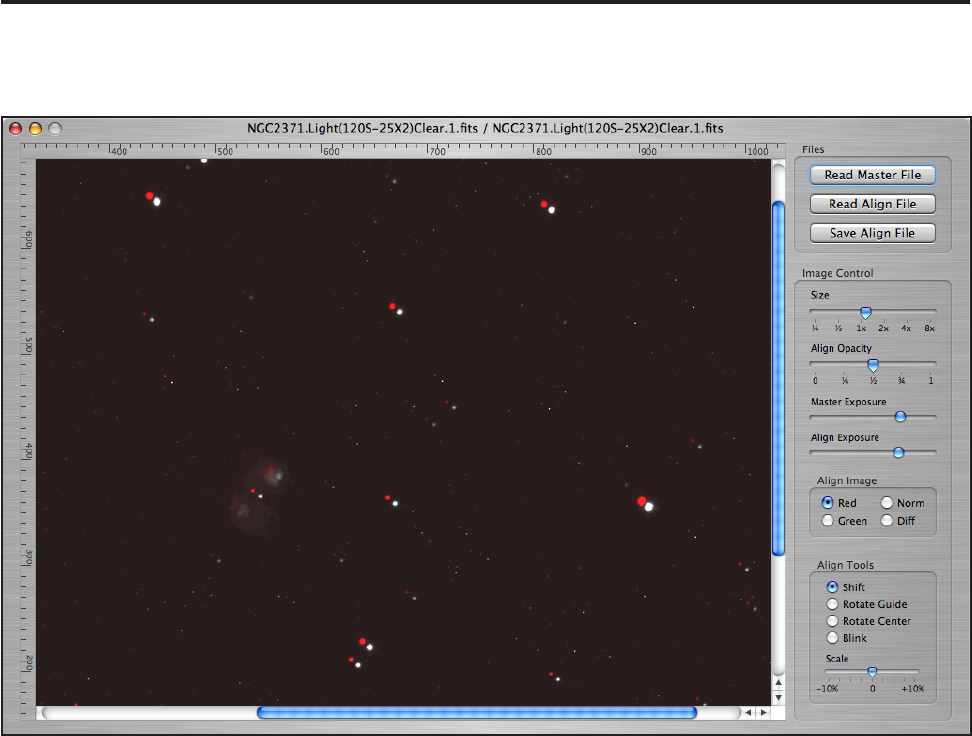
When you hit the Align Panel button in the File tab an alignment window will open.
From this window you can visually align your images.
The st thing to do is read in a master le with the Read Master File button. This
will be the image that all the other images will be aligned to. Then select your align-
ment images with the Read Align Files button. Once you are nished with the current
alignment save the le with the Save Align File button - an “A” will be appended to
the le name. The next image to align will be read in automatically. All the original
images will not be altered.
It is a common practice to take the red, green and blue images with more binning
than the luminance images. If you have done this those images will be scaled up to
match the master image using a Lanczos5 lter and saved in the correct size.
Image Control
You can alter the image size to magnify an area or reduce the size to see the entire
image. When you magnify the images you can align to sub-pixel accuracy.
The Align Opacity determines how much of the underlying master image “shows
through”. Both the master and align images can be exposure adjusted. Use these
controls to make the alignment operation as visually accurate as possible - the star
images should match in size.
Equinox Image 27
Align Tools
You have shift and rotate alignment tools. Most images will require shift alignment
but may not need a rotate alignment and rarely need a scale adjustment.
The align image can appear in red, green, grey scale (Norm) or show a difference
only (Diff). Often the difference selection can give you the most accurate alignment -
when aligned everything disappears! However, the align image exposure must match
the master exposure very precisely.
You can shift the align image by selecting the Shift tool or holding down the shift key
and dragging the mouse. Once you have a rough alignment you can then magnify the
image and do a ne adjustment with the arrow keys. The higher the magnication the
more sub-pixel resolution you have. It is best to align on stars, not faint nebula or gal-
axy images. Once you have a good alignment move around the entire image to make
sure the alignment is valid for all areas of the image.
If you nd that some portions of the image are aligned while others are not you may
need to do a rotate alignment. If you saved your images as FITS les each image
knows where the guide star was located. You need this information because images
rotate over time around the guide star - which is not within the image! If you have
saved your images as TIFF, this information is not available and you can not do a
guide rotation. Select the Rotate Guide tool or hold down the control key.
It is best to go to the bottom of the image and do the rotational alignment there. The
portion of the image that is furthest away from the guide star will show the most dis-
placement. Again, use the arrow keys under magnication for sub-pixel accuracy.
Under some circumstances you may have a slight rotation around the center of the
image. Equatorial mounts that are not aligned well can cause this. Choose the Rotate
Center tool or hold down the option key and the center of rotation will be the mid
point of the image.
If, over time, the focus changed between exposures, that can alter the effective focal
length of the scope and also the size of the image. This is usually a minor effect but
you can correct for this with the scale slider control.
Once you have the image aligned as accurately as possible, save the le with the Save
Align File button. The next alignment image will be read in automatically.
The Alignment window Blink tool can be used for supernova and comet searches.
Read in the two images you want to compare (Master and Align). Set the color to
normal and adjust the Align exposure until the two images match (do not use the
align opacity). If the images do not line up use the alignment tools to align them and
then select the Blink tool. The display will alternate between the two images. Any
star that has gone supernova will blink and any object that has moved will jump back
and forth. You can adjust the blink rate with the slider control.
Equinox Image 28
Sequence Generator
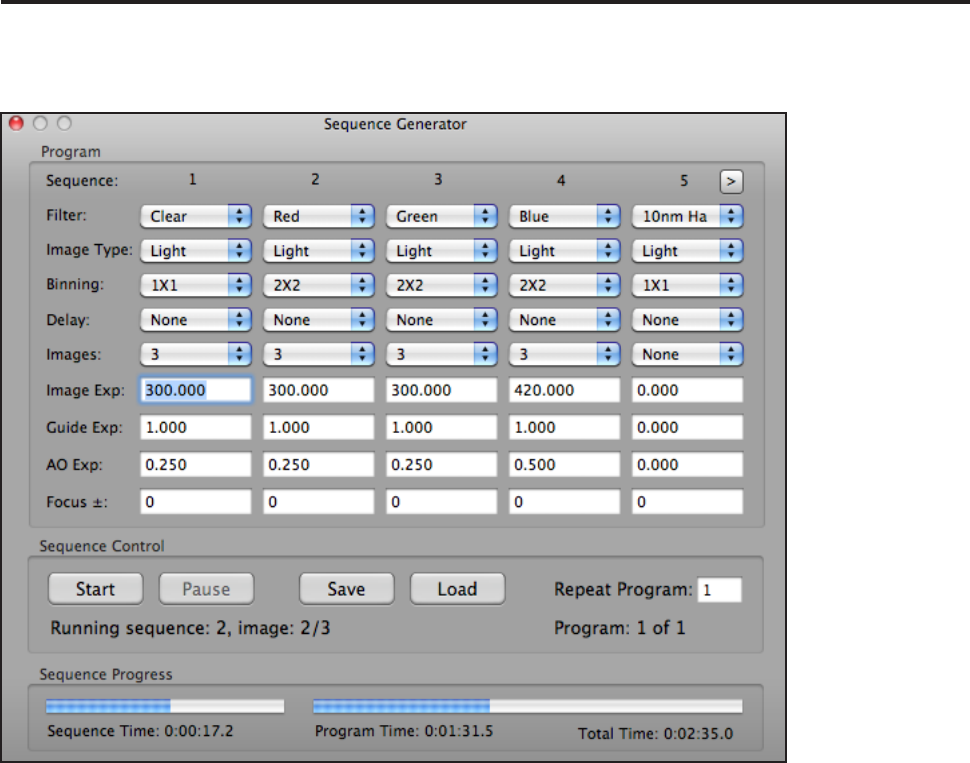
The Sequence Generator is displayed from the View menu. This panel allows you to
program a sequence of exposures, lter changes and other options.
You can dene up to ten sequences (top right button “>” switches to sequences 6-10).
All the normal exposure settings are available, including exposure type, lter, bin-
ning, delay time and exposure times (entered as seconds). The Focus entry allows you
to enter a focus position change if you are connected to a supported focuser and the
lter requires a different focus position. This value is in focuser step units and moves
the focuser out (+) or in (-) from the current focuser position. The Repeat Program
entry allows you to process the sequences in order and then repeat the program.
There are two guide exposure times, one for autoguiding and one for the AO if you
are using an AO. These guide times should be determined before you start the pro-
gram. This is very important and will take some effort and experimenting with the
guide star you are using.
Before you start the sequence you must initiate autoguiding from the Guide tab. Then
hit the Start button. An estimated total time for the entire program will be calculated
and displayed in the Total Time text. As the program runs the remaining time for both
the current sequence and the entire program will be displayed, along with progress
bars. During an exposure you can Pause the sequence (useful if a cloud causes the
guiding to fail) and then Resume (re-exposing the image that was aborted during the
pause). Make sure you have Save All checked in the Image tab.
Equinox Image 29
Exposure Timer
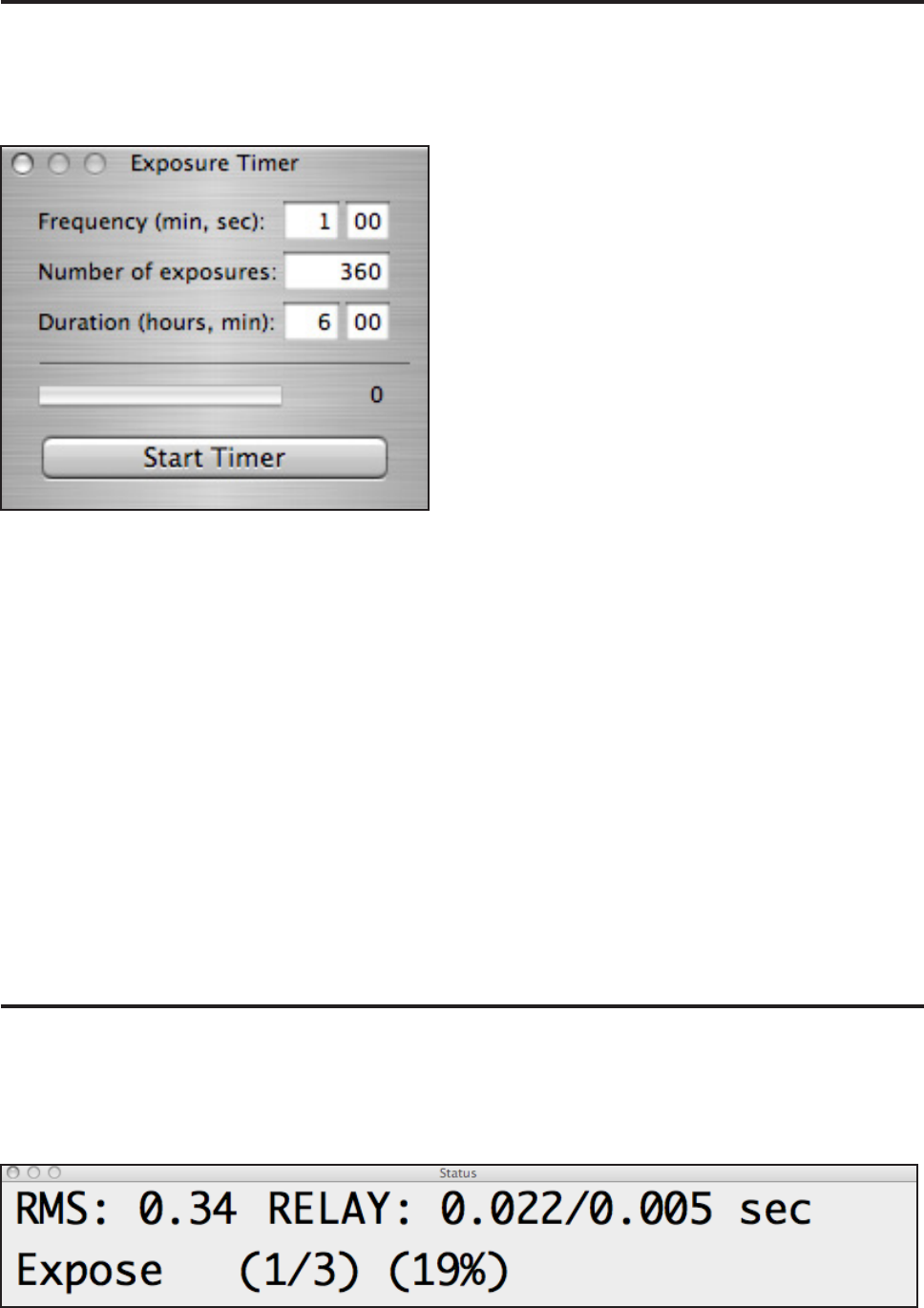
The Exposure Timer allows you to take quick images of the same section of the sky
at regular intervals over an extended period of time. You access the Exposure Timer
panel from the View menu.
Before you start the timer you must enter all the
exposure settings from the Image tab. Make sure
you have Save All selected. Dene a le name and
folder for the image les from the File tab. If you
are autoguiding that must be started before starting
the timer.
You can enter a frequency in minutes and seconds.
Register your entries with the return key. The fre-
quency can not be faster than the image exposure
time plus the download and le write times. A new
image will be taken at the entered frequency with
about a 1/4 second accuracy.
You can enter the total number of exposures to take or how long you want to run the
timer (hours and minutes). If you enter the number of exposures the duration will be
calculated. If you enter a duration the number of exposures will be calculated.
Once you start the timer the progress bar will indicate how far along the timer has
progressed. To the right of the bar the total number of images taken so far will be
listed.
If you want to change the frequency or the number of exposures to take you must
stop the timer rst. Enter the new values and then start the timer again. When all the
exposures have been taken the timer will stop.
If you want the panel to remain visible when Equinox Image is inactive you can se-
lect the Seq checkbox in the Connect tab.
Status Panel
The Status Panel is a large window that displays the current RMS error, AO range
and frequency or autoguiding relay time, the image exposure status and FWHM if
the Star Prole is running. This panel allows you to monitor this information from a
distance away from the computer. You access the Status Panel from the View menu.
Equinox Image 30
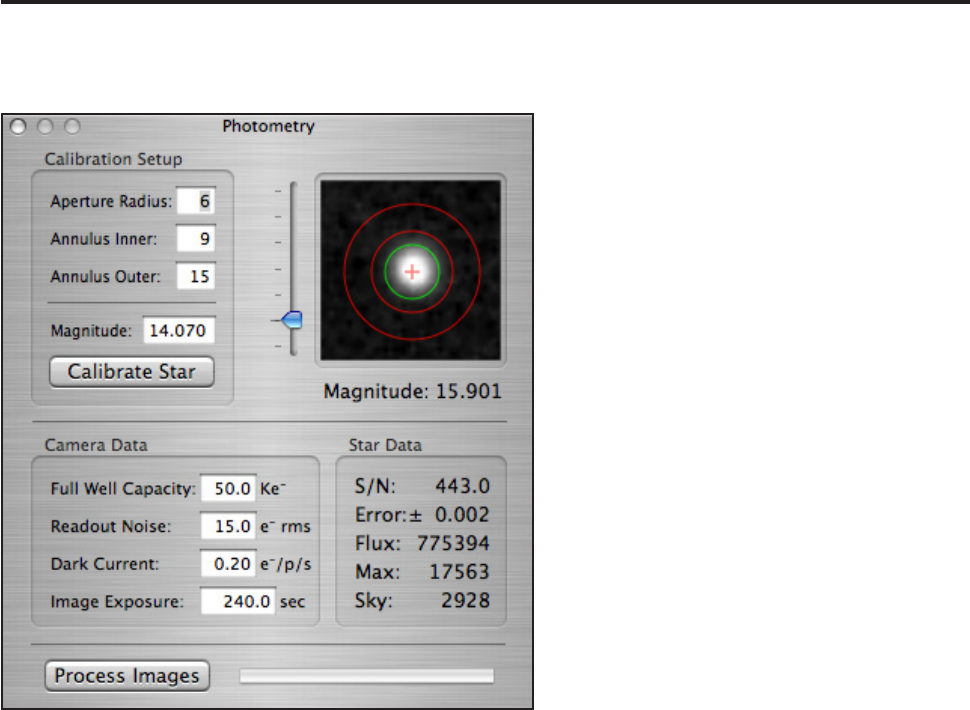
Photometry
The Photometry panel (View menu) allows you to determine the magnitude of vari-
able stars, nova, minor planets and comets in your images.
The aperture radius denes the area where
the object’s total ux is measured. It
should be large enough to encompass the
entire object. The annulus settings deter-
mine the area between the outer and inner
rings where the sky background ux is
calculated. You can use the slider control
to see faint detail that may require adjust-
ments to the radii settings.
The camera data is used to determine the
signal to noise ratio (S/N) and error (±
magnitude sigma error). You can go to
the SBIG web site to look up this data for
your camera.
The rst step is to dene your calibration
star. Read in your image, display the Pho-
tometry panel (from the View menu) and
click on a star with a known magnitude
(see the astrometry section in this manu-
al). Enter its magnitude and hit the Calibrate Star button. Now you can click on any
other star or object in your image and its magnitude will be calculated. Your objects
should not be saturated (Max at 65535).
If you click on a star in your image it will be processed and magnied 3X. If you
drag the mouse in the image you can center the star if needed. If you option+click the
star data will be logged in the Misc folder. A shift + click will center the brightest star
in the area automatically.
If you are recording the variations in magnitude of some object you will probably end
up with many or even hundreds of images taken over an evening, several nights or
even weeks. The Process Images function can analyze all those images and produce
a text le log listing the data for each image. Before you can run the Process Images
function you MUST align all the images. Manual alignment of hundreds of images is
not feasible, so you can use the Auto Align function in the Files tab.
Once you have aligned all the images read in one of them (Read File from the Files
tab), select and calibrate the calibration star, and then click on the variable object.
You MUST perform these steps in this order. Now hit the Process Images button and
select all the aligned images. When the analysis is nished you will nd a text le
named PhotometryLog.txt in the folder where the aligned les are located. The Pho-
tometryLog le is in TSV (tab separated value) format so you can copy the data from
the log into a spreadsheet or another application for analysis.
Equinox Image 31
Astrometry
The Astrometry panel allows you to determine the coordinates of minor planets,
comets, stars and other objects in your images. The reference star data is downloaded
from the Naval Observatory Merged Astrometric Dataset (NOMAD). You access the
Astrometry panel from the View menu.
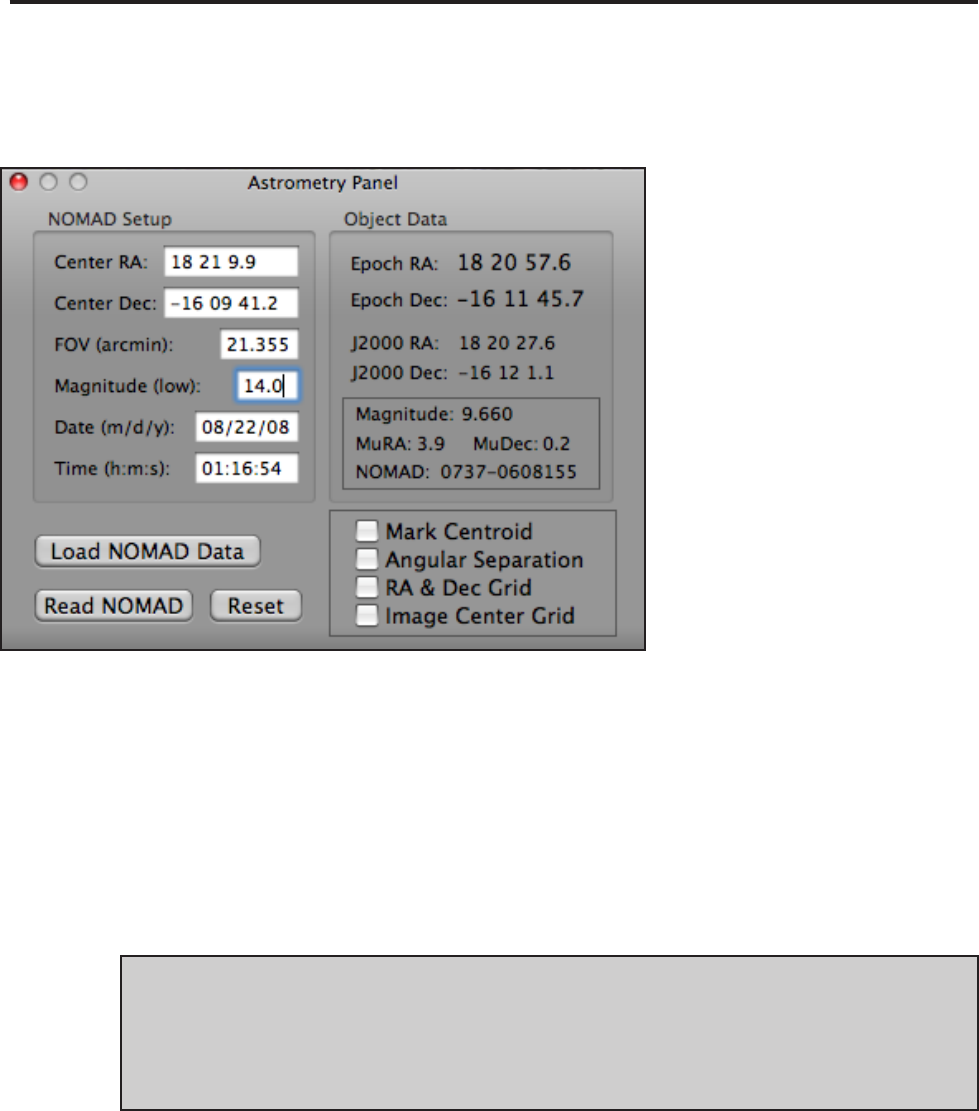
The rst step is to read in the
image that contains the object
you want to locate. If the im-
age is FITS and Equinox 6 was
running when you took the ex-
posure all the NOMAD Setup
information will be loaded.
Otherwise you will have to
manually enter the missing
data. The image center RA is
entered as hh mm ss.s and Dec
is entered as ±dd mm ss.s. FOV
is the eld of view in arc min-
utes corner to corner. The mag-
nitude entry sets the low limit
for the reference star data.
Once all the NOMAD setup information is entered you need to download the NO-
MAD reference le over the internet with the Load NOMAD Data button. This le
will contain the coordinates of reference stars down to the magnitude limit that you
have entered. Usually magnitude 15 is faint enough. Once downloaded each refer-
ence star will be identied with a red circle - the brighter the star the larger the circle.
Chances are nothing lines up. You will probably have to ip the image E/W and/or
N/S from the Image tab to orient the image with RA increasing toward the left and
Dec increasing toward the top. Chances are nothing lines up, still!
You have three methods to align the star circles over the stars in your image. Hold
down the shift key and drag in the image to shift the star circles laterally. Hold down
the option key to rotate the star circles around the NOMAD center (marked with a
cross hair). Hold down the control key to scale the NOMAD data (dragging away
from the center expands while dragging toward the center contracts).
This takes a bit of practice. The best approach is to nd matching star patterns and
shift the circles rst to line up the stars nearest the center. Then go to a corner of the
image and rotate the circles until they are oriented correctly. If your image is FITS
taken with Equinox Image the NOMAD stars are pre-rotated according to the rotation
angle recorded in the header. Scale the circles last to put the star images inside the red
circles. Repeat these steps as necessary to rene the alignment. Note, however, that
not all the stars will line up perfectly, not all bright stars are in the NOMAD reference
le and there may be circles for which your image does not have a star.
Equinox Image 32
Why can’t you line up all the stars perfectly? The NOMAD le may contain errors,
but there can be other reasons as well. The NOMAD data is for the year 2000 (J2000)
while your image was taken on a later date. Equinox Image takes your NOMAD Set-
up data and converts it to J2000 before the request is sent. Once the data is received
the reference data is converted back to your image date and each reference star’s
proper motion is added to the conversion. With all this conversion going on slight er-
rors can occur. Your optics may also introduce at eld errors. Just line up the circles
to your image stars as best you can.
Once the NOMAD circles are aligned to your image you can then nd out the RA and
Dec coordinates of any object in your image. If you click in a red circle the NOMAD
data is displayed. If you click on a different object its coordinates are displayed. If
you command+click on any object the object’s centroid is calculated giving you a
more accurate center location.
If you have already downloaded the NOMAD le and want to read it again hit the
Read Nomad button. If you have tried to align the data to your image and are totally
lost you can reset the shift, rotate and scale values back to zero with the Reset button.
There are checkboxes that allow you to mark the centroid location of stars when you
click on them, calculate the angular separation between objects (click and drag), to
overlay the image with an RA and Dec grid and to display a center grid. If you click
in the exact center of the image that will give you the RA and Dec coordinates of the
image (plate solving).
The NOMAD data includes each star’s visual magnitude so any NOMAD star can be
used as the calibration star in the Photometry panel. If you have the Photometry panel
open when you click on a NOMAD star (not with the Command key) that star’s mag-
nitude will be sent to the Photometry panel’s calibration star magnitude entry. You
will still have to hit the Calibrate Star button. Note that you must align the NOMAD
star circles before you open the Photometry panel.
Equinox Image 33
DSS-7 Spectrograph
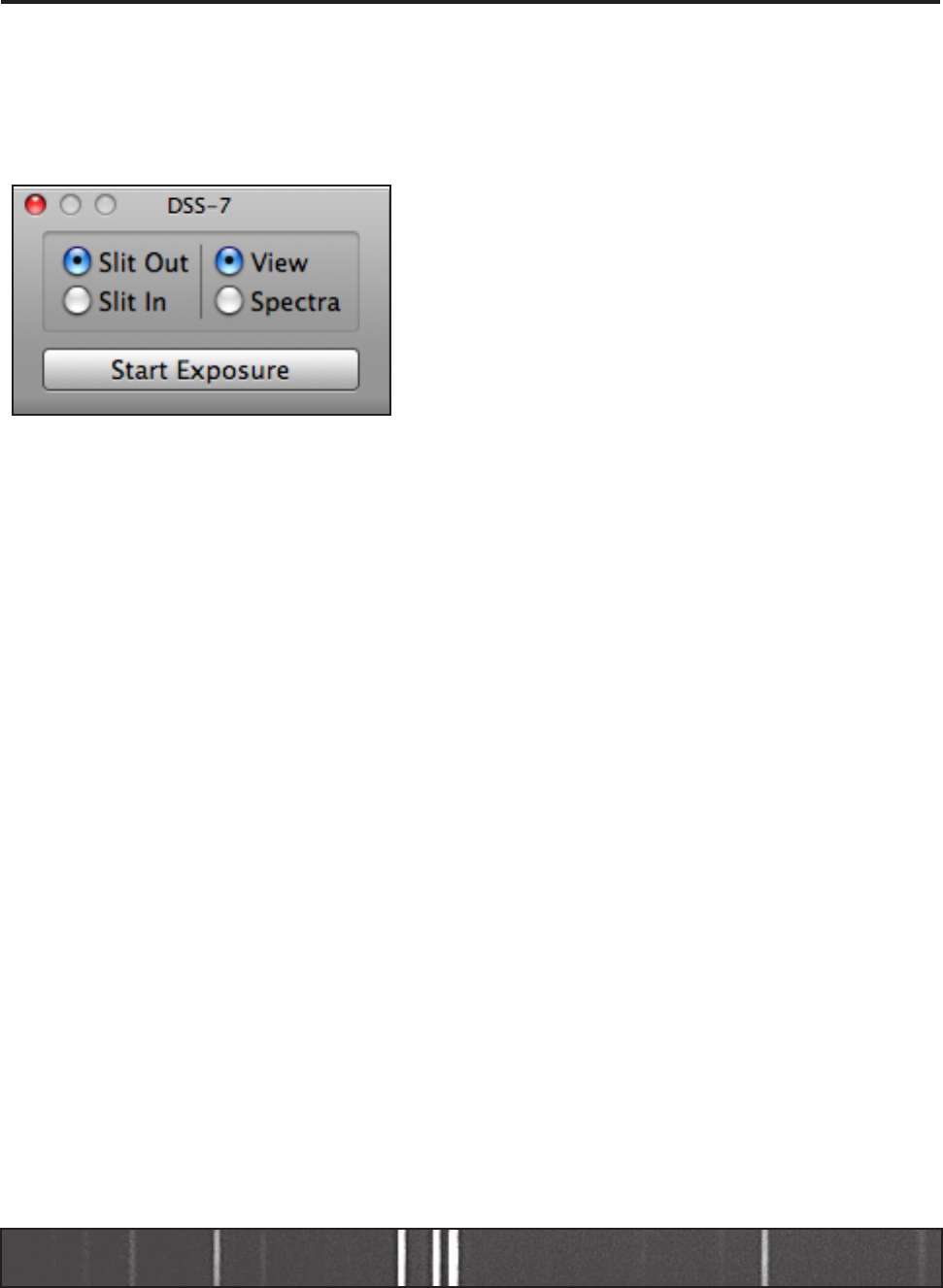
The SBIG DSS-7 spectrograph can be controlled with Equinox Image. The best
cameras to use are the ST-7 or ST-402 but other ST cameras can be used. Once you
are connected to the camera you can display the DSS-7 control panel from the View
menu. It is assumed that the camera’s autoguide port is connected to the DSS-7.
When you rst display the DSS-7 control panel the slit
will be rotated out and the grating will be rotated to the
view position. You can manually control the slit and
grating positions with the radio buttons in the control
panel. The Start Exposure button will rotate the slit in
and the grating to spectra. It will then start the image
exposure. You will need to set up your exposure settings
rst from the Image tab. To image other combinations of
slit and grating use the Image tab expose button.
When you are calibrating the DSS-7 you can mark the slit position by rst taking an
image of the slit (see the DSS-7 manual). Make sure that the DSS-7 control panel is
visible. From the Image tab select the Focus checkbox and drag an outline around
the slit image. This outline size and position will be saved as a preference. Uncheck
the Focus checkbox. Now you can select the Grid checkbox and the slit outline will
appear over all the images that you expose. You can move the slit out, take images of
the star eld and move the scope so that the star or object you wish to image is inside
the slit outline.
You can use the Focus function for repeatedly taking images so that you can align
the star to the slit outline but you can not use a reduced area of the image - you must
expose the entire frame.
Equinox Image does not do the analysis of the spectra that you expose. However,
there are some spectrogram tools that you can use. In the Display tab there are X
and Y checkboxes. Select one of these and click in your spectrogram image. As you
move the cursor back and forth over the image the histogram area will show a graph
of the spectra. You can also export that graph data (from the Export Spec item of the
File menu) into a text le that can be brought into a spreadsheet application or other
analysis tools.
Note that because the autoguide port of the SBIG camera is used to control the DSS-
7 you can not use the camera for autoguiding, but keeping a star within a 50 micron
slit for 10 or 20 minutes is not going to happen without some sort of guiding. There
are several things you can do, including using a guide scope, a webcam and Equinox
6 or other application to do the guiding.
Equinox Image 34
Optec Focuser
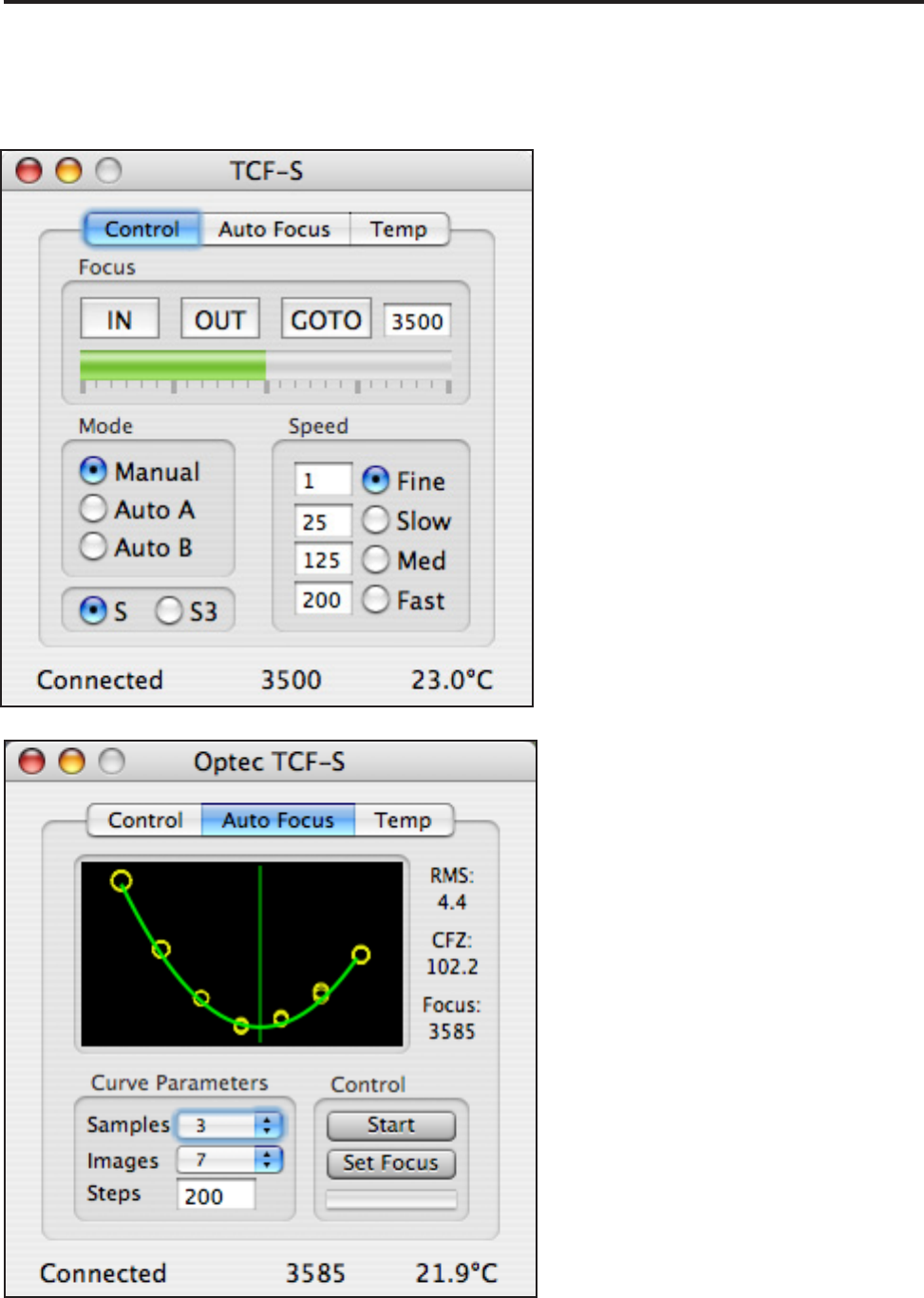
Connect to the Optec TCF focuser from the Focuser menu. The focuser is cabled to
your Mac by means of a USB/Serial adaptor and the Optec PC serial port converter
and cable. Select your focuser model (S or S3) from the Control tab.
From the control tab you can move the
focuser in and out at various speeds or
set it to a particular position. You can
set the focuser to the A or B tempera-
ture compensation modes. The current
position and temperature are always
displayed at the bottom of the window.
From the Auto Focus tab you can cal-
culate the best focus position. First, fo-
cus as accurately as you can manually.
Once you have a reasonably good focus
in the image, make sure you are on the
Auto Focus tab in the Optec panel and
click on a star. A small focus window
will be exposed centered around your
click point. You should choose a star
and exposure such that the star will not
saturate at the best focus and the star is
not near any other bright stars.
The Samples menu sets how many im-
ages to take at each focus position. The
Images menu sets how many different
focus positions to use and the Steps
value sets how many focuser steps to
move between images.
To start the auto focus process hit
the Start button. This will move the
focuser inward by half the total move-
ment range. Images will be taken and
the focuser will be moved until all
the images have been recorded. The
graph should show a curve similar to
the example here. If you do not end
up with a curve you may have to start
the sequence over again from a differ-
ent starting focus position. The Steps
value should be large enough to clearly
record variations in focus. Once the
exposure sequence is complete a curve
Equinox Image 35
t routine will run and the best focus position will be calculated. Hit the Set Focus
button to move the focuser to this position.
A sigma 2 level RMS error value will be calculated. As long as the error value is
within the critical focus zone (CFZ in steps) for your telescope, you are at best focus.
You may want to try different Samples, Images and Steps settings to get the lowest
RMS error possible.
Note: The auto focus functions have to take control of the SBIG camera, so you can
not be autoguiding or using the camera for other purposes while auto focusing.
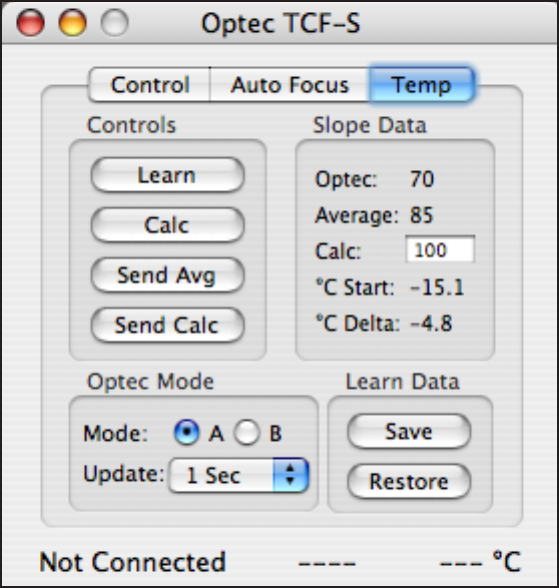
The Temp tab allows you to moni-
tor and control the Optec temperature
compensation functions. You need to
establish your best focus rst. Select ei-
ther mode A or B and then hit the Learn
button. To save the start learn data hit
the Learn Data Save button. After your
scope cools by several degrees you can
run the auto focus routine again and
then hit the Calc button to calculate the
slope data. Each time you do this an
average slope value is calculated. You
can also enter a slope value manually
if you know what it should be. You can
send either the current calculation or
the average value to the Optec focuser
with the Send buttons.
Once you have a good slope value and
have sent it to the focuser you can turn
on automatic temperature compensa-
tion by selecting the mode (A or B) from the Control tab. Do NOT use the mode
switch on the Optec hand controller. However, if you disconnect from the focuser
you can use the mode switch on the Optec hand controller instead.
You can close the Optec panel with the panel’s close button or with the Panel menu
item. The Optec controls are still running. The Panel menu item will display the
Optec panel again. The Optec menu item will disconnect the Optec focuser. The
Optec focuser can generate a lot of serial trafc so once the learn data is established
and saved it is usually a good idea to disconnect from the Optec. At the end of the
evening you can reconnect, run the auto focus again, restore the learn data and cal-
culate the slope with a maximum temperature change. Send the slope to the Optec
before disconnecting again.
Be sure to select Manual from the Control tab before you disconnect from the Optec
or want to use the focuser’s hand controller.
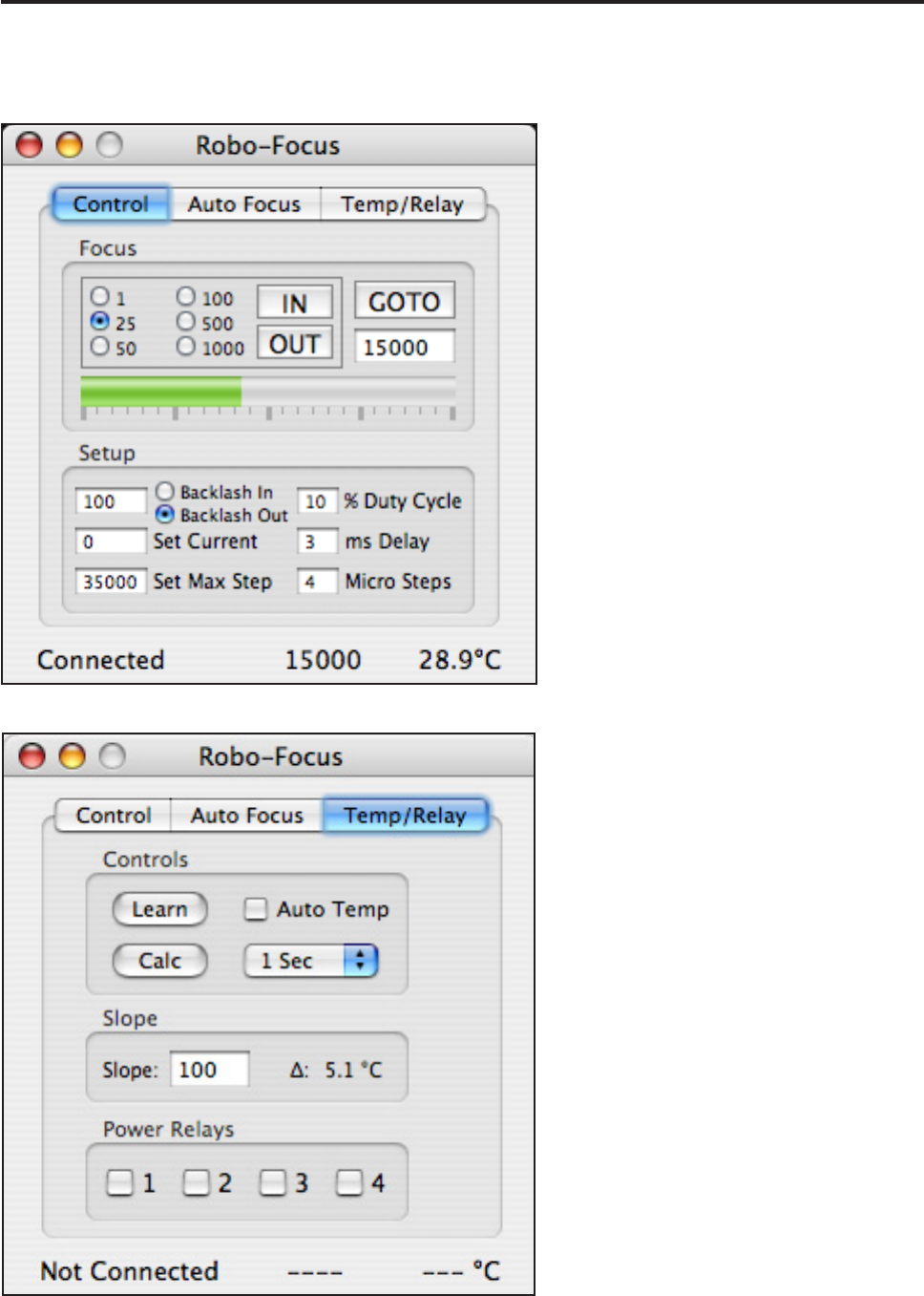
Equinox Image 36
Robo-Focus Focuser
Connect to the Robo-Focus focuser from the Focuser menu. The focuser is connected
to your Mac by means of a USB/Serial adaptor and the RS-232 connecting cable.
From the Control tab you can click
on the IN and OUT buttons (click on/
click off) to move the focuser. The
GOTO button will move the focuser
to the entered position. The indicator
bar shows the relative position of the
focuser from 0 to the Max Step value.
Note: backlash is not applied with the
In/Out buttons.
The Robo-Focus conguration set-
tings are displayed in the Setup box.
When you enter new values they will
be stored in the Robo-Focus. See the
Robo-Focus manual for information
about these values.
The Auto Focus controls operate in
an identical way to the Optec focuser.
See the Optec focuser section in this
manual for instructions.
From the Temp/Relay tab you can es-
tablish automatic temperature compen-
sation and control the Remote Power
Module if you have one.
To enable automatic temperature com-
pensation you need to establish your
best focus rst. Hit the Learn button
and the current focus position and tem-
perature will be saved. After the tem-
perature has dropped several degrees
refocus and then hit the Calc button.
The temperature compensation slope
value will be calculated. Choose an
update rate and check the Auto Temp
box to start automatic temperature
compensation. The slope value will be
saved and unless you change scopes
or optics you will not have to run the
Learn sequence again.
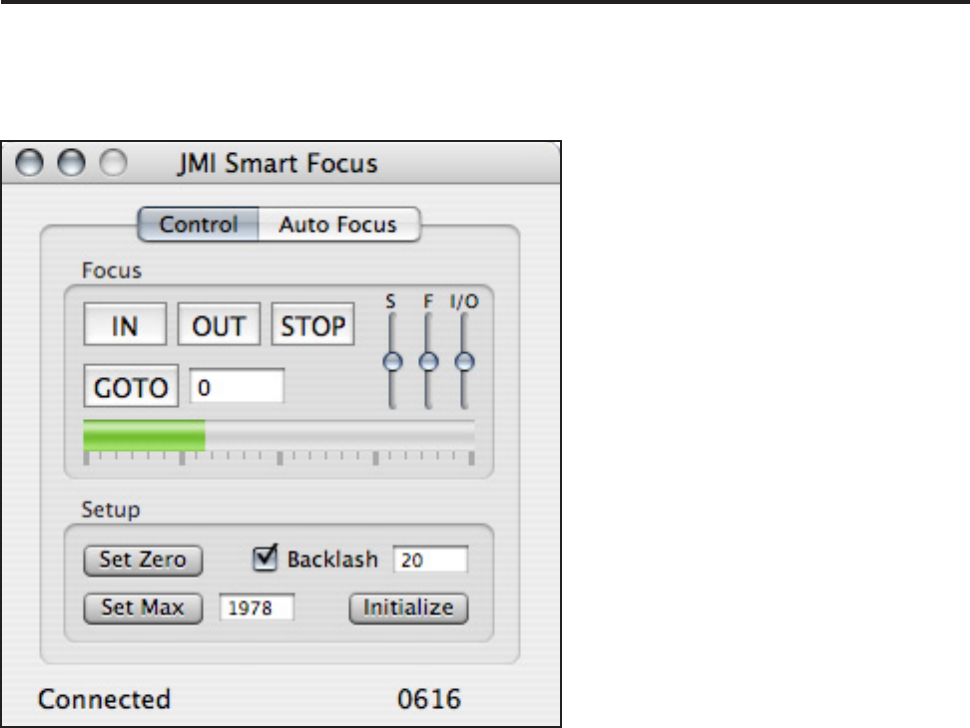
Equinox Image 37
JMI Smart Focus
Connect to the JMI Smart Focus from the Focuser menu. The focuser is connected to
your Mac by means of a USB/Serial adaptor and the RS-232 connecting cable.
From the Control tab you can click on
the IN and OUT buttons to start focus-
er movement or enter a value and hit
the Goto button to move the focuser.
Hit the Stop button during movement
and the focuser will stop (without
backlash). The IN and OUT buttons
do not apply backlash. The indicator
bar shows the relative position of the
focuser from 0 to the Maximum value.
The three slider controls allow you to
adjust the focuser speed. The slow (S)
slider adjusts the speed when a goto
movement is close to the target posi-
tion. The fast (F) slider adjusts the
speed when a goto movement is far
from the target position. The IN/OUT
(I/O) slider adjusts the speed when the
IN or OUT buttons are selected.
The Setup area has controls to es-
tablish the zero point, maximum value and backlash amount. Read the JMI manual
before you hit the Initialize button. It is very important to establish the correct zero
point and maximum value before you operate the focuser, and this must be done at
least once or Equinox 6 will not be able to accurately move the focuser.
The Auto Focus controls operate in an identical way to the Optec focuser. See the
Optec focuser section in this manual for instructions. The JMI Smart Focus does not
have temperature compensation.
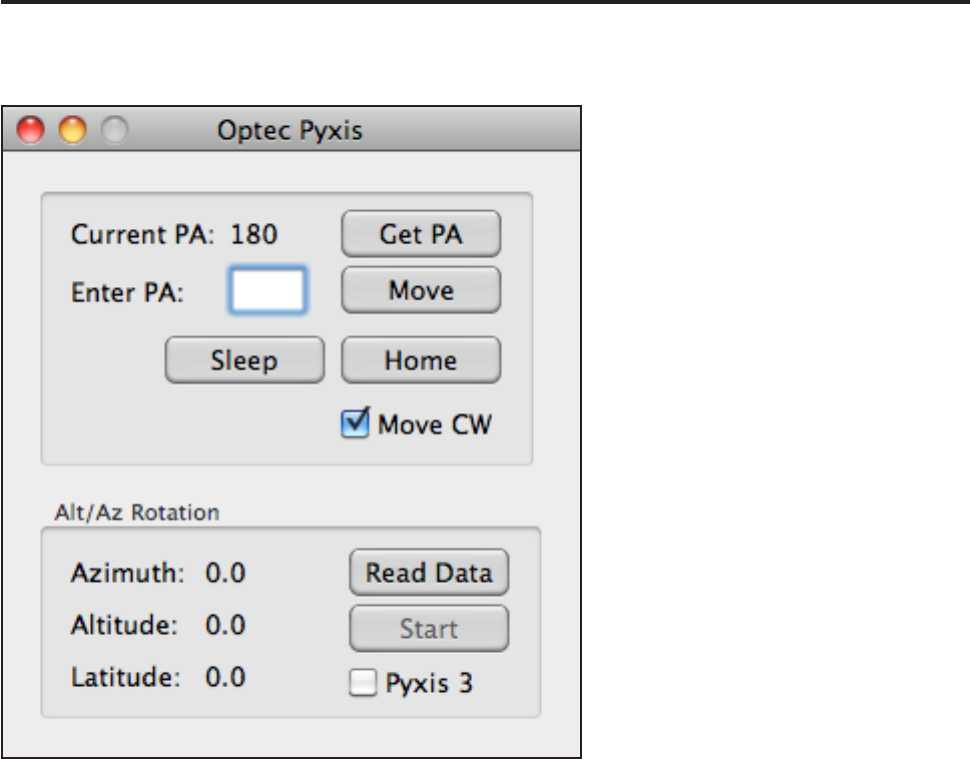
Equinox Image 38
Optec Pyxis
The Optec Pyxis eld rotator allows you to rotate the camera to any angle. This can
be very useful if you are controlling your telescope and camera remotely.
Once you power the Pyxis it runs a
homing routine and will not respond
to commands until that is completed.
The Get PA button will read the
current position angle. Angle values
range from 0° to 359° where 0° is
north, 90° is east, 180° is south and
270° is west.
To rotate the camera to a desired po-
sition enter the angle in the Enter PA
edit box and hit the Move button.
The Home button will tell the Pyxis
to run its homing routine and go to
angle 0°.
The default rotation direction is
clockwise. If your optics require
you to reverse that direction you can
uncheck the Move CW checkbox.
If your scope mount is Alt/Az you will get the best tracking for imaging by using a
wedge. With an Alt/Az mount the image will suffer from eld rotation throughout the
exposure. If you have to keep your mount in Alt/Az the Pyxis can compensate for this
eld rotation. However, the amount of eld rotation depends on your location (site),
the time and where your scope is pointing - and this information needs to be updated
during the exposure.
To do this you must have Equinox 6 running and controlling your scope. The Read
Data button will get the required information from Equinox 6 and enable the Start
button. To begin the eld rotation compensation hit the Start button. You can keep
this running for multiple exposures as long as you don’t change the scope’s tracking
location. The scope data will be automatically updated once a minute.
If you are using the Pyxis 3 device you must check the Pyxis 3 checkbox. The gear-
ing for the Pyxis and Pyxis 3 are different so the eld rotation calculation needs
to know which device you are using. While you are running the eld rotation you
should not send any other commands to the Pyxis. When you stop the eld rotation
the current PA value will be in error so you need to run the Home routine.
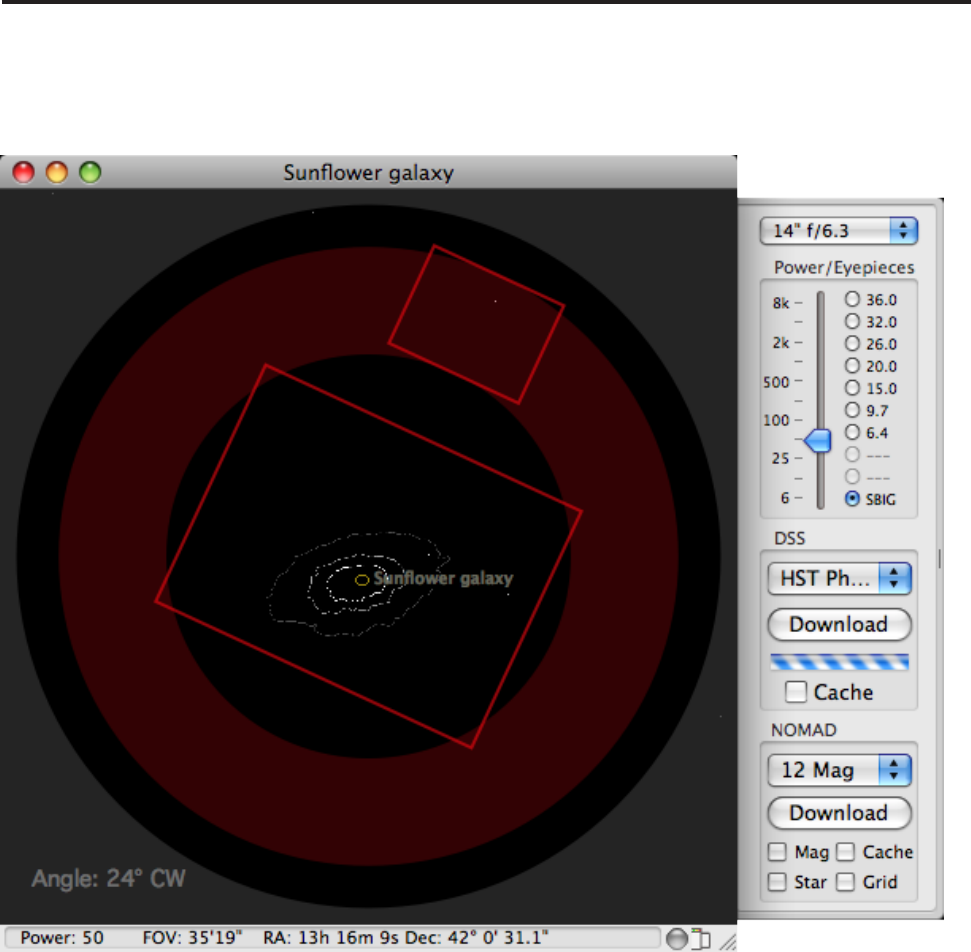
Equinox Image 39
Equinox 6
Equinox Image and Equinox 6 can talk to each other if both are running at the same
time. Equinox 6 can supply scope information to Equinox Image and Equinox Image
can supply SBIG camera information to Equinox 6.
Equinox 6 can display an SBIG outline in the Scope View window if it knows what
camera is being used. Eyepiece 10 is reserved for SBIG outline use in this case. The
SBIG outline can be used to help locate guide stars, centering faint objects and deter-
mining what camera angle is required to put a guide star into the guide chip image.
The guide chip outline will rotate to the current camera angle if the autoguide calibra-
tion has been done. Depending on your optics you may need to check the Flip Guide
180° or E/W checkboxes in the eyepiece 10 preference to view the camera rotation
correctly. Be sure to Save Eyepieces to save your selections.
You can also use this feature when you are not connected to your camera. When you
rst connect the camera information is saved as a preference. Equinox 6 can access
this information when Equinox Image is running even if it is not connected. If you
read in a FITS image le the camera rotation record will be used to orient the outline.
Equinox Image 40
Eyepiece 10 can be used to adjust the SBIG outline to exactly match your images.
Start by setting the eyepiece adjustment value to 100.0%. Then compare an actual
image taken with your camera to the SV image. Adjust the eyepiece value to scale
the SV image to match your actual image. If you have a focal reducer this adjustment
will be large. If not the adjustment should be smaller.
By running Equinox 6 and Equinox Image together during an imaging session you
have access to all the scope control features of Equinox 6 with all the camera con-
trols of Equinox Image. However, if you want to do advance planning and guide star
selection check out AstroImageBrowser (http://homepage.mac.com/astrod/Sites/soft-
ware/astroimagebrowser/aib.html).
While Equinox 6 can get camera information from Equinox Image to use in the
Scope View window, Equinox Image can access the current scope information and
object location from Equinox 6. This information is saved in the FITS header of all
the images you save. Not only do you get this information recorded with the images
but the FWHM calculation can use this information to give you accurate arcsec val-
ues - even when you read in the le later on.
You do not have to do anything to initiate this cross application communication. If
both applications are running the data is passed between them automatically when-
ever needed.
Equinox Image calculates arcsec values for several functions (Star Prole, Drift
Trend log, etc.). Your scope’s focal length should be entered from the Image tab.
However, this should be the effective focal length, not the actual focal length. Every-
thing that is attached to your scope effects the effective focal length, including focus-
ers, lter wheels, focal reducers, and so on.
To calculate the effective focal length with a particular set up you need to know the
eld of view from one of your images. You may know this from star charts, or if you
have scaled the Scope View image with eyepiece 10 in Equinox 6 you can measure it
there (option + drag across the width of the SBIG outline). The astrometry function
can also calculate an image’s eld of view (after alignment and scaling).
Once you know the eld of view of your image width, you can calculate the effective
focal length from the following equation:
FLe = chipWidth * 206.265 * pixelWidth / imageFOV
The chipWidth is the width of your SBIG image chip in pixels (binned 1X1), the
pixelWidth is in microns and the imageFOV is in arcseconds. As an example, my
chipWidth is 1600 pixels (ST-2000), the pixelWidth is 7.4 microns and I measured an
image width of 17’ 59” (1079”) with a f/6.3 focal reducer. This gave me an effective
focal length of 2263mm for my 14” LX200 (focal length 3556mm).
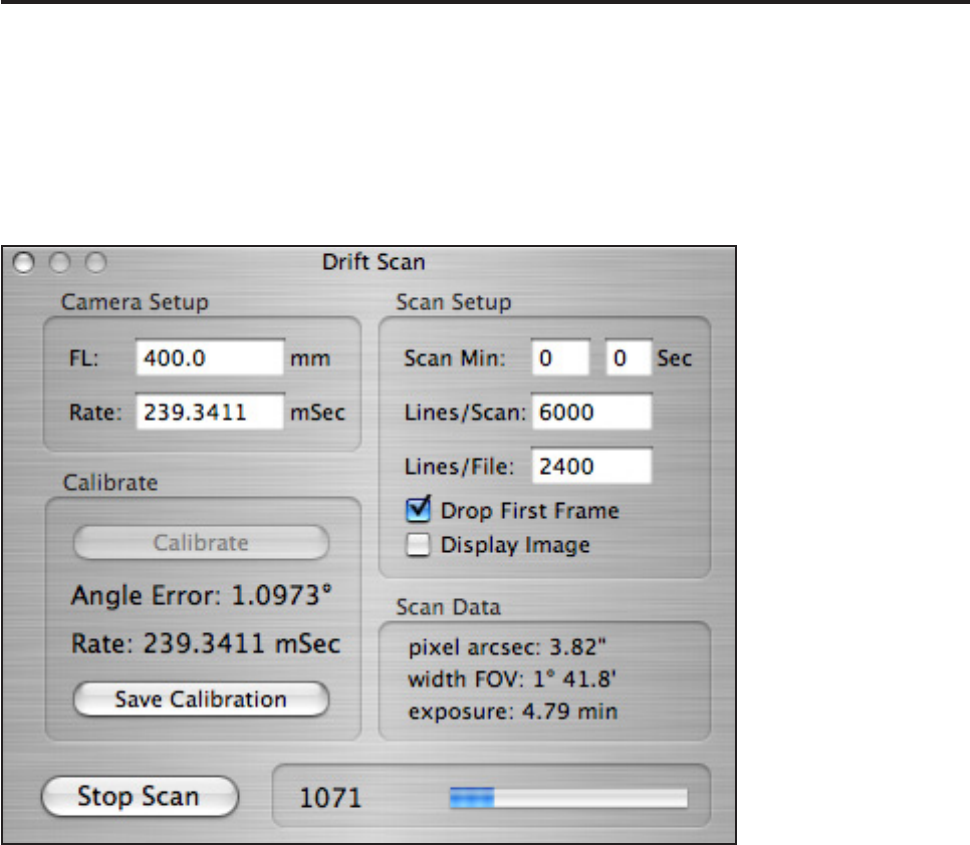
Equinox Image 41
Drift Scan
Drift Scanning or Time Delayed Integration (TDI) is an imaging method that keeps
the camera xed and lets the sky drift across the CCD at sidereal rate (RA scanning)
or tracks the sky at sidereal rate and drives the scope’s Dec at some rate (Dec scan-
ning). This allows you to take huge images of the sky with long exposure times. If
you are unfamiliar with TDI techniques you should read the available literature be-
fore you try this with Equinox Image.
Equipment
You need a dual processor Mac for best results. While drift scanning your Mac should
be dedicated to the task and not running any other applications. Color cameras can
not be used for drift scanning and interline cameras (ST-2000XM) are not suitable be-
cause of their dark current levels. The use of a focal reducer is not recommended.
Camera Setup
Enter your scope’s focal length in the FL text entry box. You must hit the return key
to register your entry. If you know the required scan rate you can enter it in the Rate
text box. The Calibration operation will calculate the required scan rate and is the
preferred method to determine this value if it is not known exactly.
Equinox Image 42
Calibration
Drift scanning requires the image CCD to be aligned precisely. The rows must be
pointing north/south for RA scanning or east/west for Dec scanning. This allows the
stars to drift up through the CCD on the same column. The calibrate function allows
you to align your camera and also calculate the correct scan rate. The scan rate is
the time it takes a star to move from one CCD row to the next. For RA scanning the
closer you are to a Dec of 0° the better the results.
The calibration function uses the image focus capabilities of Equinox Image. First,
align your camera as accurately as you can in the correct orientation. If you are RA
scanning make sure your mount is not tracking. If you are Dec scanning make sure
your scope is tracking and start the Dec drive.
From the Image tab take a normal image exposure with a fast exposure time (you
only want to image the bright stars in the eld), Select the Focus checkbox and drag a
tall, narrow focus rectangle in the image with a bright star near the bottom. The idea
is that you want the bright star to drift straight up. Hit the Expose button to start the
focus operation. If a brighter star should drift into the focus area you will have to stop
the calibration and start over.
Once the focus exposures are being taken open the Drift Scan panel (from the View
menu) and hit the Calibrate button. The position of the bright star will be calculated
and used as the start point. As the star drifts up in the focus image the angle will be
calculated. You need to align the camera so that the angle error is zero or very close
to zero.
Of course, each time you change the camera orientation you will probably have to
stop the focus, take a new image and start the calibration over. Once you get the cam-
era accurately aligned let the calibration run for awhile. This will give you a more ac-
curate rate calculation. When you have a good camera alignment and rate calculation
stop the calibration and save the calibration values. The save button also saves all the
setup data as preferences. You are now ready to start the drift scan exposure.
Scan Setup
You can enter the desired scan time in minutes and seconds or the total number of
lines to scan but not both. If you enter zero time and zero lines the scan will run until
you manually stop it. At the start of a scan the rst frame does not receive a consis-
tent exposure time so normally the Drop First Frame checkbox is selected. When
selected the rst frame of image data is not written to the le and the scan timer is
started at the beginning of the second frame.
The Lines/File entry allows you to specify the maximum number of lines per le. If
you enter 0 just one le will be created with the entire scanned image. Otherwise the
current le will be closed and a new le opened every time the Lines/File number of
lines have been scanned, including 25 lines of overlap.
Equinox Image 43
Select the Display Image checkbox and a 1/4 size image will be displayed. Use this
to make sure you are recording a good image but it is recommended that you turn this
off once you have veried the scan as it uses a lot of CPU processing time.
Scan Update box
The numerical readout in the update box displays the total number of image lines
(CCD rows) that have been downloaded. The progress bar indicates the percent of
completion of the scan. If no scan time or lines/scan have been entered, or if the rst
frame is being downloaded and dropped, the progress bar is indeterminate and ani-
mated.
Information box
Pixel arcsec is the eld of view of each pixel (height) as determined by the pixel size
and the scope’s focal length. The width eld of view (FOV) is the width of the image
in arc degrees and minutes. The exposure value is the time it takes for one complete
frame to be exposed in minutes. This is the time it takes for a star to drift up through
the entire height of the CCD.
File
When you start a scan a FITS le will be created with the le name preface and loca-
tion that you have specied from the File tab. Once the rst frame is past (if you have
selected to drop it) scan data is written to the le. When the scan is stopped, either
manually, when the time runs out or when the lines/scan have been recorded, the le
is closed. A new scan will open a new le. Note that these les can be very large so
make sure you have selected a disk that has sufcient capacity.
If you have specied a Lines/File value each additional le will have the same le
name but the le number will be incremented by one.
Dark Frame / Flat Field
Usually a dark frame is not required for drift scan images - hot pixels are averaged
out over the entire height of the CCD. However, if you have a bad column it can
show up as a streak along the entire length of the image. Equinox Image can mini-
mize this, but not completely eliminate it. You need to take a normal dark frame at
the frame exposure time and temperature of your scan. Then use the normal Subtract
Dark function from the File tab. Equinox image will gure out that the image is a
drift scan and subtract the appropriate amount from each column pixel in the image.
You can also process the scanned images with the appropriate at eld image.

Equinox Image 44
Dec Scan Automation
You can automate Dec scanning with AppleScript and Equinox 6. This functionality
is primarily used if you have a permanent setup and need to do identical scans ex-
tending over many nights.
You need to set up your scope with the Dec guide speed established (this may be
difcult with some mounts), the exact scan rate determined and the camera aligned.
Once this is done an AppleScript can automate multiple Dec scans with several dif-
ferent setup values and different start locations in the sky.
The Dec scanning parameters are established in one or more text les which must be
located in the Misc folder. Use the sample le as a guide.
SCANRA = 135.0 // RA in deg. enter -1.0 for no scope action
SCANDEC = -10.0 // Dec in deg.
SCOPEDLY= 60.0 // scope move time in seconds
SCANRATE= 0.048694 // seconds. enter 0.0 to use default
SCANMIN = 0 // enter 0 for scan line
SCANSEC = 0 // enter 0 for scan line
SCANLINE= 9000 // total lines/scan. enter 0 for scan time
SCANFILE= 2400 // lines per le
SCANDROP= YES // drop rst frame. enter YES or NO
SCANIMAG= NO // display image. enter YES or NO
SCANDEC+= UP // dec scanning. enter UP. DN, or NA
The SCANDEC+ parameter tells the scope which direction to move in Dec. The ac-
tual control used is the Equinox Image scope control function, so the control is driven
by the autoguide port connection in the SBIG camera. The SCANRA and SCANDEC
parameters are sent to Equinox 6 so the goto command is via the serial scope connec-
tion. The sequence is:
1) goto the RA and Dec (via Equinox 6 with SCOPEDLY seconds delay)
2) drive the Dec control (Up or Down via autoguide port) while taking the scan
3) once the scan is complete move the scope back to the start RA and Dec
4) then repeat.
You can establish many different parameter les and from the AppleScript select the
ones to use.
There are many ways to design an automation AppleScript. The following sample
starts both Equinox 6 (you must have version 6.5.0+) and Equinox Image. It then tells
Equinox Image to connect to the camera and Equinox 6 to connect to scope number
1. After a minute (return 60) it then takes three scans using setup le 1, three scans
using setup le 2, and then shuts everything down. To use an Idle handler like this
sample the AppleScript should be saved as a “Stay Open” application.

Equinox Image 45
property mycount : 0
set mycount to 0
run application “Equinox 6”
run application “Equinox Image”
on idle
set mycount to mycount + 1
if mycount = 1 then
tell application “Equinox Image”
set drift Cmd to “CONNECT”
end tell
tell application “Equinox 6”
set scope Connect to 1
end tell
return 60
else if mycount < 5 then
tell application “Equinox Image”
set drift Cmd to “ScanSetup1.txt”
end tell
else if mycount < 8 then
tell application “Equinox Image”
set drift Cmd to “ScanSetup2.txt”
end tell
else
tell application “Equinox Image”
set drift Cmd to “STOP”
end tell
tell application “Equinox Image”
quit
end tell
tell application “Equinox 6”
quit
end tell
quit
end if
return 300
end idle
When designing your AppleScript you have to be very careful about the timing. You
do not want to start a new scan before the previous one has nished or start driving
the scope to a new location in the middle of a scan. It will probably take several at-
tempts and a few bad scans before you get everything timed just right and working
the way you want.
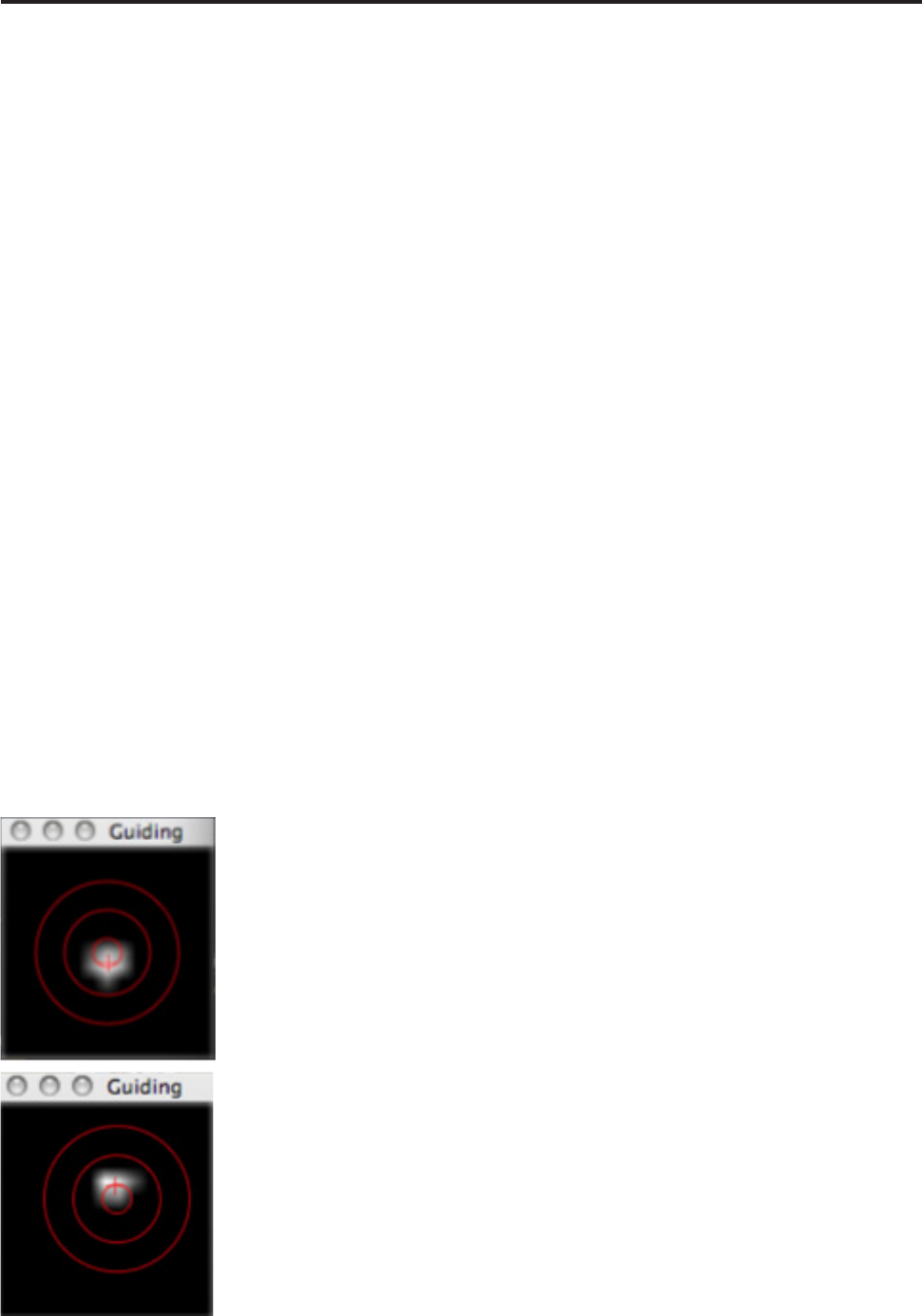
Equinox Image 46
Differential Deection
Differential deection or exure refers to the optical axis changes that can occur
between the main imaging scope and a separate guide scope. These variations are
caused by gravity and the changing position of the scope.
In order to correct for this effect you need two SBIG cameras (unless you have a new
STX camera). However, one of the cameras can be a single chip camera like the ST-
402ME. A remote guide head can be used with the guide scope camera but it can not
replace the camera itself. You will also have to run two instances of Equinox Image at
the same time on your Mac. You can do this by duplicating the entire Equinox Image
folder in some other directory and then launching the two apps separately.
The main imaging camera will use its internal guide chip to detect the position of
a faint star within the guide frame. The guide exposure time can be seconds long,
whatever is required to calibrate and guide on this faint star. This guiding action will
be used to send exure correction values to the second camera doing the fast guiding
on the guide scope.
The camera on the guide scope will calibrate and guide on a much brighter star and
can have a much shorter guide exposure time and a faster guide frequency. It is this
camera that will connect to your mount’s autoguide port - the imaging camera will
not have a connection to the autoguide port.
In the Connect tab of the SBIG panel you will see an “Image” checkbox appear once
two instances of Equinox Image are running. You need to tell these two instances
which one of them is connected to the imaging camera and will be passing exure
corrections to the other instance. You do this by checking the Image checkbox only in
the Equinox Image instance that is connected to the imaging camera. You must check
this box before you calibrate either camera.
Once you have calibrated on both guide stars in the two cameras you can
start guiding in both cameras. Once the guiding has stabilized you can be-
gin taking your image exposures. Note that exure corrections will prob-
ably not be in the same direction as your scope’s normal drift, so use the
Dec +- checkboxes with caution.
The differential deection correction values are sent by the imaging cam-
era’s Equinox Image instance to the guide camera’s Equinox Image in-
stance. The guide camera’s instance uses these values to offset the position
of its guide control point to compensate for the exure. This control point
is normally in the center of the guide frame. If you have a lot of exure
it is possible that the guide control point will shift right out of the guide
frame. In the Guide Size popup menu a new “Flex” size has been added.
If the Large guide size is not big enough this larger Flex guide frame will
slow down the guiding frequency but it should be large enough to prevent
the control point from shifting out of the frame.
