PFM 42V1/42V1E/42V1N/42V1P/42V1A Sony Flat Panel Television 42V1 PFM42V1P User
User Manual: Sony Flat Panel Television PFM-42V1
Open the PDF directly: View PDF  .
.
Page Count: 54
PFM-42V1/42V1E/42V1N/42V1P/42V1A
4-097-590-03 (1)
2003 Sony Corporation
Operating Instructions
Mode d’emploi
Bedienungsanleitung
Manual de instrucciones
Istruzioni per l’uso
GB
FR
DE
ES
IT
取扱説明書
PFM-42V1/42V1E/42V1N/42V1P/
42V1A
Flat Panel Display
JP
この取扱説明書には、事故を防ぐための重要な注意事項と製品の取り扱
いかたを示してあります。この取扱説明書をよくお読みのうえ、製品を
安全にお使いください。お読みになったあとは、いつでも見られるとこ
ろに必ず保管してください。
お買い上げいただきありがとうございます。
電気製品は安全のための注意事項を守らないと、
火災や人身事故になることがあります。
CS
2 (GB)
WARNING
Owner’s Record
The model and serial numbers are located on the rear.
Record the model and serial numbers in the spaces
provided below. Refer to these numbers whenever you call
upon your Sony dealer regarding this product.
Model No. Serial No.
To prevent fire or shock hazard, do not
expose the unit to rain or moisture.
To avoid electrical shock, do not open the
cabinet. Refer servicing to qualified
personnel only.
On transportation
When you carry the display unit, hold the unit itself, not the
speakers. If you fail to do so, the speakers may come out of
the unit and the unit may fall. This can cause injury.
For customers in the U.S.A.
If you have any questions about this product, you may
call; Sony Customer Information Services Center
1-800-222-7669 or http://www.sony.com/
Declaration of Conformity
Trade Name: SONY
Model: PFM-42V1/PFM-42V1P/
PFM-42V1A
Responsible Party: Sony Electronics Inc.
Address: 16450 W. Bernardo Dr,
San Diego, CA 92127 U.S.A.
Telephone Number: 858-942-2230
This device complies with Part 15 of the FCC Rules.
Operation is subject to the following two conditions: (1) This
device may not cause harmful interference, and (2) this
device must accept any interference received, including
interference that may cause undesired operation.
This equipment has been tested and found to comply with
the limits for a Class B digital device, pursuant to Part 15 of
the FCC Rules. These limits are designed to provide
reasonable protection against harmful interference in a
residential installation. This equipment generates, uses, and
can radiate radio frequency energy and, if not installed and
used in accordance with the instructions, may cause harmful
interference to radio communications. However, there is no
guarantee that interference will not occur in a particular
installation. If this equipment does cause harmful
interference to radio or television reception, which can be
determined by turning the equipment off and on, the user is
encouraged to try to correct the interference by one or more
of the following measures:
•Reorient or relocate the receiving antenna.
•Increase the separation between the equipment and
receiver.
•Connect the equipment into an outlet on a circuit different
from that to which the receiver is connected.
• Consult the dealer or an experienced radio/TV technician
for help.
You are cautioned that any changes or modifications not
expressly approved in this manual could void your authority
to operate this equipment.
For customers in Canada
This class B digital apparatus complies with Canadian
ICES-003.
Voor de klanten in Nederland
•Dit apparaat bevat een vast ingebouwde batterij die niet
vervangen hoeft te worden tijdens de levensduur van het
apparaat.
•Raadpleeg uw leverancier indien de batterij toch
vervangen moet worden. De batterij mag alleen
vervangen worden door vakbekwaam servicepersoneel.
•Gooi de batterij niet weg maar lever deze in als klein
chemisch afval (KCA).
•Lever het apparaat aan het einde van de
levensduur in voor recycling, de batterij zal
dan op correcte wijze verwerkt worden.
The socket-outlet should be installed near the equipment
and be easily accessible.
Caution
Risk of explosion if batteries are replaced by an incorrect
type. Dispose of used batteries according to the instructions.
NL
3 (GB)
English
GB
Table of Contents
Precautions ............................................................... 5 (GB)
Features..................................................................... 6 (GB)
Location and Function of Parts and Controls ....... 7 (GB)
Front / Rear / Bottom ............................................... 7 (GB)
1 (standby) Switch / Indicator Section ................... 8 (GB)
Control Button Section (Top) .................................. 8 (GB)
Connector Panel ....................................................... 9 (GB)
Remote Commander RM-971................................ 11 (GB)
Caution .................................................................... 13 (GB)
Connections ............................................................ 15 (GB)
Connecting the Speakers........................................ 15 (GB)
Connecting the AC Power Cord ............................ 15 (GB)
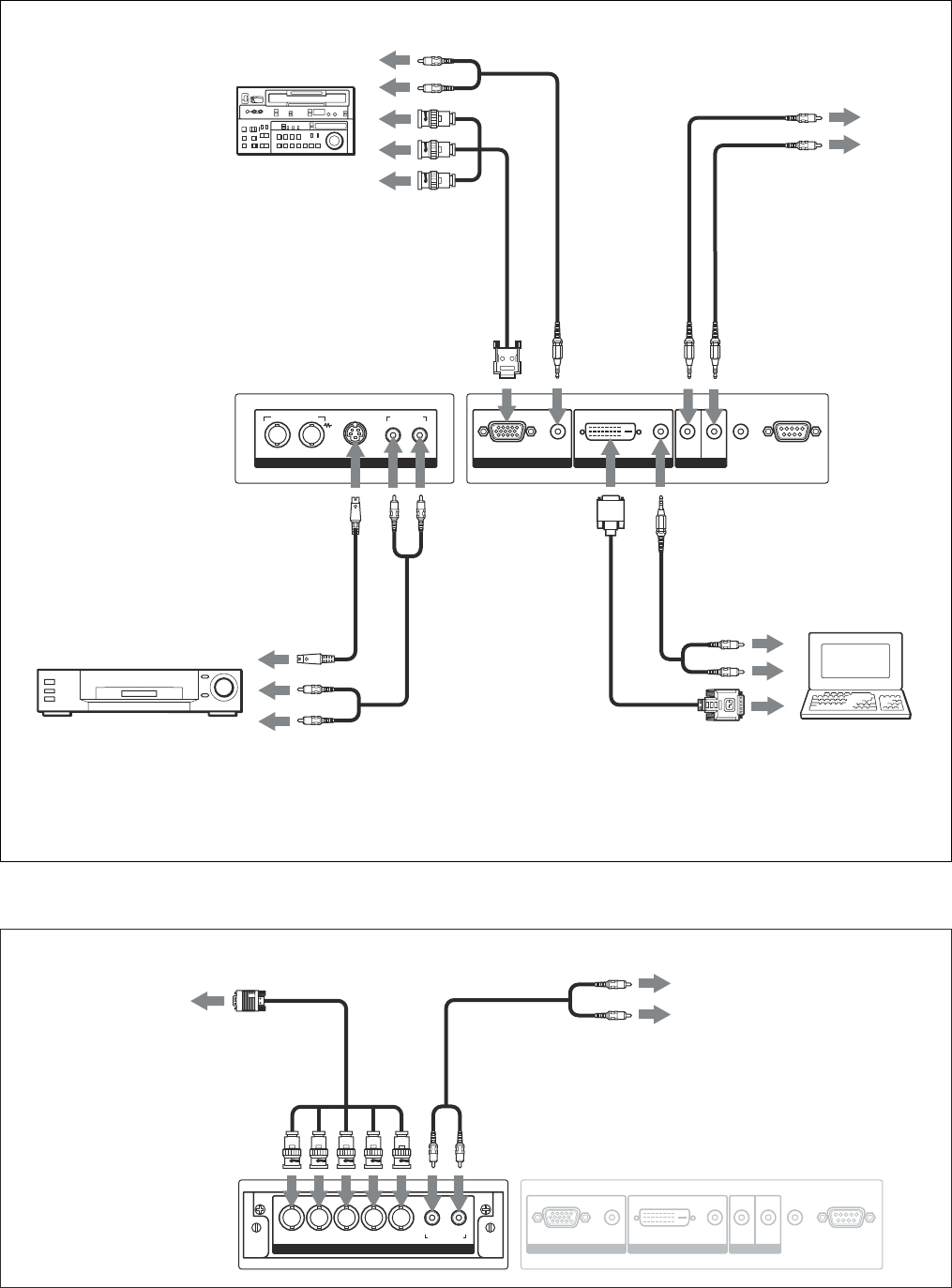
Connection Example .............................................. 16 (GB)
Using On-screen Menus ........................................ 18 (GB)
Operating Through Menus ..................................... 18 (GB)
Menu Guide ........................................................... 18 (GB)
Watching the Picture .............................................. 26 (GB)
Switching the Input Signal..................................... 26 (GB)
Input Signal, Picture Mode and Display Status
Information ....................................................... 27 (GB)
Switching the Display Mode.................................. 29 (GB)
Energy Saving Function......................................... 29 (GB)
Selecting Image Quality ......................................... 30 (GB)
Adjusting the Picture ............................................. 30 (GB)
Adjusting the Contrast, Brightness, Chroma,
and Phase, etc.................................................... 30 (GB)
Restoring the Adjust Picture Menu Items to
Their Original Settings ..................................... 33 (GB)
Picture Enlargement............................................... 34 (GB)
Setting Auto Wide ................................................. 34 (GB)
Setting the Wide Mode .......................................... 35 (GB)
Resizing and Positioning the Picture ................... 36 (GB)
Resizing the Picture ............................................... 36 (GB)
Adjusting the Picture Position ............................... 36 (GB)
Adjusting the Pixels ............................................... 37 (GB)
Restoring the Screen Control Menu
Adjustment Values............................................ 37 (GB)
4 (GB)
Viewing two pictures at the same time................. 38 (GB)
Activating a picture................................................ 38 (GB)
Switching the position of the two pictures............. 38 (GB)
Zooming in on a picture ......................................... 39 (GB)
Adjusting the Sound Quality ................................. 39 (GB)
Adjusting the Treble, Bass, and Balance, etc. ....... 39 (GB)
Restoring the Adjust Sound Menu Items to
Their Original Settings ..................................... 40 (GB)
Using the Memory Function .................................. 40 (GB)
Storing the Current Setting .................................... 40 (GB)
Calling Up a Stored Setting ................................... 41 (GB)
Selecting the On-screen Language ...................... 42 (GB)
Screen Saver Function........................................... 42 (GB)
Reversing the Color Tones of the Image ............... 42 (GB)
Changing the Image Position Automatically ......... 44 (GB)
Adjusting Color Matrix ........................................... 44 (GB)
Controlling Power On/Off Automatically (Timer
Function)............................................................. 45 (GB)
Sleep Function ....................................................... 45 (GB)
Adjusting the time.................................................. 46 (GB)
Displaying the time ................................................ 46 (GB)
On/Off Timer Function .......................................... 47 (GB)
Power Saving Function .......................................... 48 (GB)
Operating a Specific Display With the Remote
Commander ........................................................ 49 (GB)
Using Other Remote Commander Models ........... 50 (GB)
Specifications ......................................................... 51 (GB)

5 (GB)
Precautions
Precautions
On safety
•A nameplate indicating operating voltage, power
consumption, etc. is located on the rear of the unit.
•Should any solid object or liquid fall into the cabinet,
unplug the unit and have it checked by qualified
personnel before operating it any further.
•Unplug the unit from the wall outlet if it is not to be
used for several days or more.
•To disconnect the AC power cord, pull it out by
grasping the plug. Never pull the cord itself.
•When you install the unit on the floor, be sure to use
the optional stand.
On installation
•Allow adequate air circulation to prevent internal
heat build-up. Do not place the unit on surfaces
(rugs, blankets, etc.) or near materials (curtains,
draperies) that may block the ventilation holes.
•Do not install the unit in a location near heat sources
such as radiators or air ducts, or in a place subject to
direct sunlight, excessive dust, mechanical vibration
or shock.
•When you install multiple equipment with the unit,
the following problems, such as malfunction of the
Remote Commander, noisy picture, noisy sound,
may occur depending on the position of the unit and
other equipment.
•Communication problems may occur if the infrared
communication equipment (e.g., infrared cordless
headphones or microphones) is used near the display.
Please use headphones or microphones other than
infrared cordless headphones or microphones. If you
must use the infrared communication equipment,
move it away from the display until the noise is
eliminated, or move the transmitter and receiver of
the infrared communication equipment closer
together.
On the PDP (Plasma Display Panel)
•You may see some bright spots of red, blue or green,
or dark spots appearing on the screen. These do not
indicate a malfunction. Although the plasma display
panel is manufactured with extremely high precision
technology, it can generate a few dark or bright
pixels. Dark spots on the edge of the screen, or
striped color and brightness irregularities do not
indicate a malfunction.
•Do not display the same still image on the screen for
a long time. Otherwise, an afterimage or ghost may
appear on a part of the panel. Use the screen saver
function to equalize use of the screen display.
•Because of the way it is made, when this plasma
display panel is used in places with low air pressure,
such as at high altitudes, a buzzing or humming
noise may emanate from the unit.
•If you continue to display the same image on the
screen for a long period of time, part of that image
may burn into the screen and leave a ghosting image
behind. To avoid this, please use the screen saver
function provided to equalize use over the entire
screen. If ghosting occurs, use the screen saver
function, or use video or imaging softwares to
provide constant movement on the screen. If slight
ghosting (image burn-in) occurs, it may become less
conspicuous, but once burn-in occurs, it will never
completely disappear.
•To protect the plasma display, this unit will not
accept commands from the Remote Commander or
from the function buttons on the unit for a certain
period of time after the unit has been switched ON/
STANDBY. After one of these operations, wait
about 8 seconds before entering a command.
On cleaning
To keep the unit looking brand-new, clean it
periodically with a mild detergent solution. Never use
strong solvents such as thinner or benzine, or abrasive
cleansers since these will damage the cabinet. As a
safety precaution, unplug the unit before cleaning it.
Notes on handling and cleaning the display
panel
The display panel’s special surface finish should be
treated with care when cleaning or handling the TV.
When cleaning it, use a soft cleaning cloth to avoid
touching the panel directly.
On repacking
Do not throw away the carton and packing materials.
They make an ideal container in which to transport the
unit. When shipping the unit, repack it as illustrated
on the carton.
If you have any questions on this unit, contact your
authorized Sony dealers.
6 (GB)
Features
Features
The PFM-42V1 Series is 16:9 42-inch flat panel
display utilizing a PDP (Plasma Display Panel), which
can accept various types of signals with the built-in
scan converter.
Bright and clear image
The PFM-42V1 Series utilizes a bright plasma display
panel with 852 dots × 480 lines. This allows bright
and clear image reproduction from a variety of image
sources.
Digital high picture quality circuit
Consistent digital processing of all image signals
results in faithful reproduction of high-quality images.
Audio amp and speaker out sockets
This display is equipped with high sound quality
digital amps, which when combined with optional
speakers, provides you with effective presentation.
a) Note: Use an appropriate rating plug which complies with local regulations.
.........................................................................................................................................................................................................
1) Windows is a registered trademark of the Microsoft Corporation (U.S.A. and other countries).
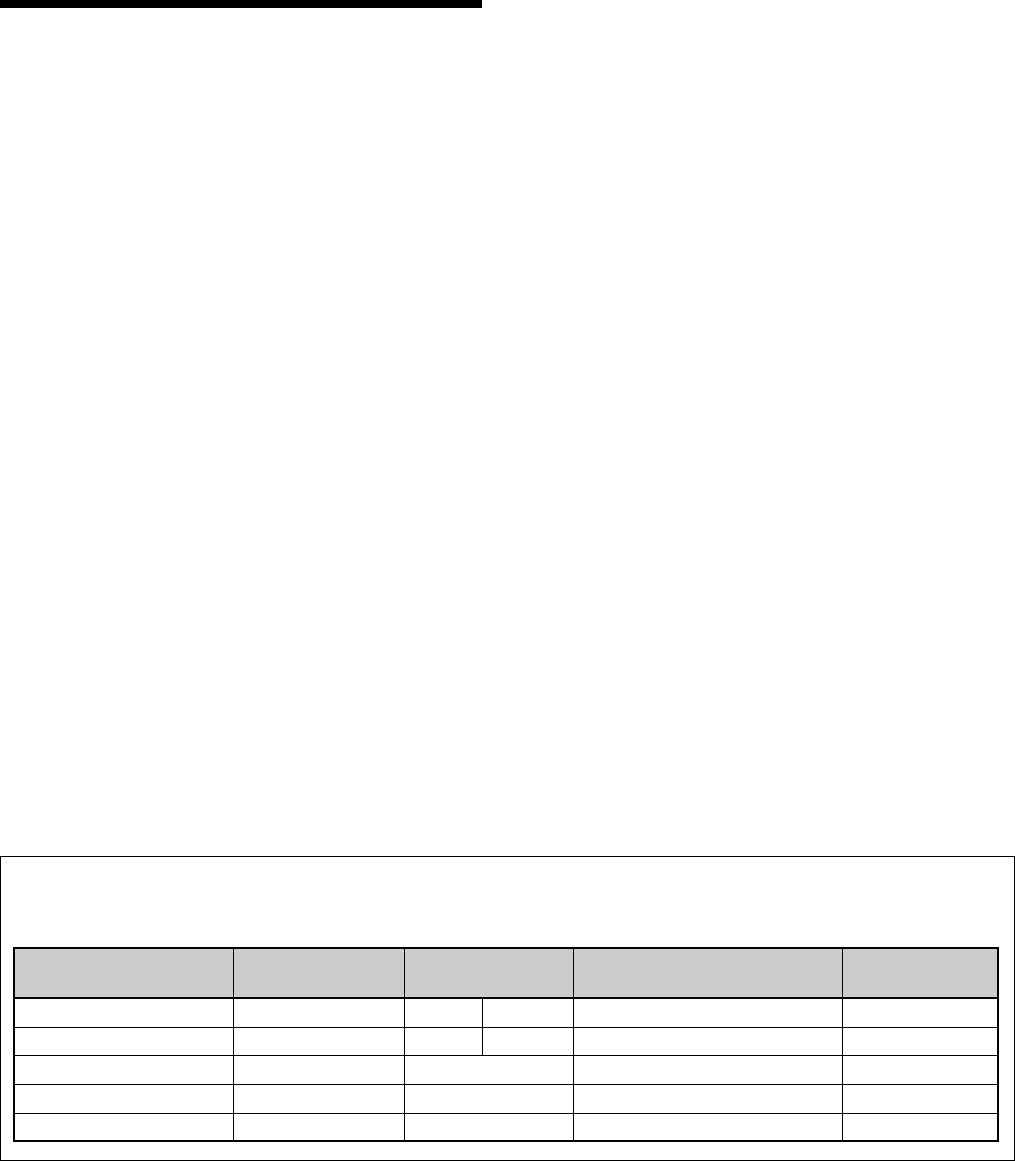
Warning on power connection
Use the proper power cord for your local power supply.
PFM-42V1 Series
United States, Continental United Kingdom, Ireland, Japan
Canada Europe Australia, New Zealand
Plug type VM0233 COX-07 636 —a) VM1296
Female end VM0089 COX-02 VM0310B VM0303B VM1313
Cord type SVT H05VV-F CEE (13) 53rd (O.C) HVCTF
Minimum cord set rating 10A/125V 10A/250V 10A/250V 10A/125V
Safety approval UL/CSA VDE VDE DENAN-HO
Other features
•Speaker out (L/R) sockets
•Control S (IN/OUT)
•DVI-D input* (Does not support copy protection.)
•Displays an HDTV signal with a tri-level sync signal.
•Three dimensional comb filter for NTSC Y/C
separation
•Line correlation comb filter for PAL Y/C separation.
•Automatic input signal detection with on-screen
indication
•Windows1)98/2000/ME/XP PnP (Plug and Play)
compatibility
•Dynamic picture function
•On-screen menu for various adjustments and settings
•On-screen display in six languages for user-friendly
access (Languages: English, German, French, Italian,
Spanish, and Japanese)
•Fine adjustment of image size and position
•Memory function for storage of up to twenty picture
settings
•ID control
•Remote (RS-232C) connector (D-sub 9-pin)
•Accepts commands from infrared Sony Remote
Commanders using SIRCS code
•Closed caption decoder
•Screen saver to reduce afterimage or ghosting
•An option slot is in place for future expansion.
The slot-in optional adaptor allows for quick and
easy system upgrades.
* Except for the PFM-42V1N
7 (GB)
Location and Function of Parts and Controls
Location and Function
of Parts and Controls
Front / Rear / Bottom
Front
Bottom
Rear
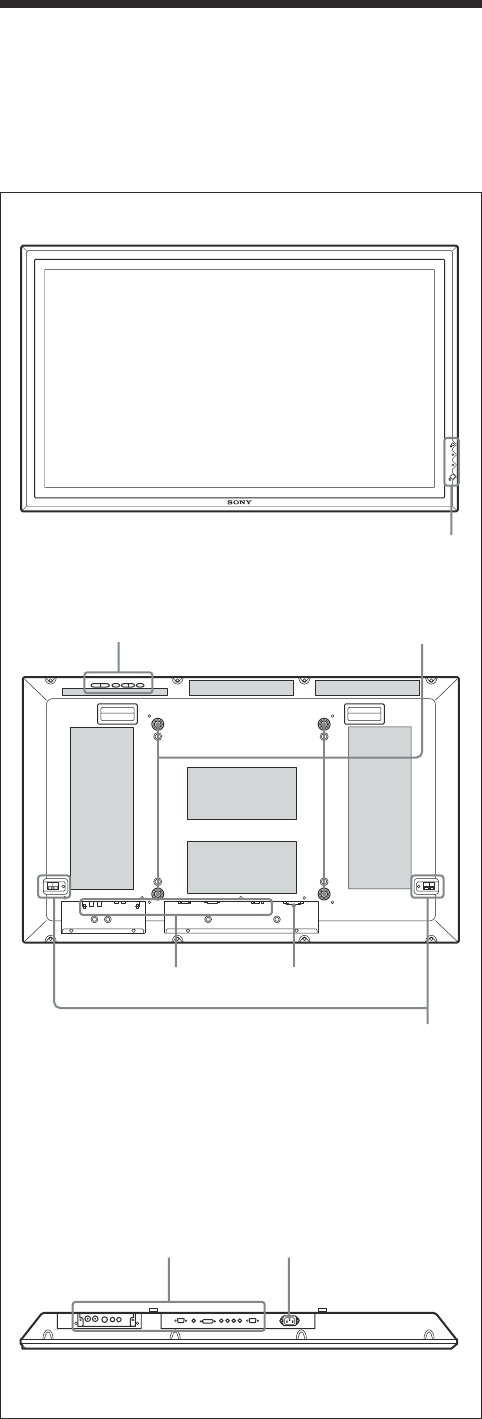
1 1 (standby) switch / indicator section
For details on the 1 (standby) switch / indicator section,
see “1 (standby) Switch / Indicator Section” on page 8
(GB).
2 Control button section
For details on the control button section, see “Control
Button Section (Top)” on page 8 (GB).
3 Stand installation hooks
Use these hooks to install the stand (not supplied).
4 SPEAKER Socket
Connects the speakers (not supplied) to this socket to
output the audio matching the signal displayed on the
screen.
5 Connector panel
For details on the connector panel, see “Connector Panel”
on page 9 (GB).
6 - AC IN socket
Connect the supplied AC power cord to this socket
and to a wall outlet. Once you connect the AC power
cord, the STANDBY indicator lights up in red and the
display goes into the standby mode.
For more details on the power cord, see “Connecting the
AC Power Cord” on page 15 (GB).
ON
STANDBY
1
2 3
56
4
56
The shaded areas shown in the illustration above are all
ventilation holes.
8 (GB)
Location and Function of Parts and Controls
MENU ENTER VOLUME
123 4
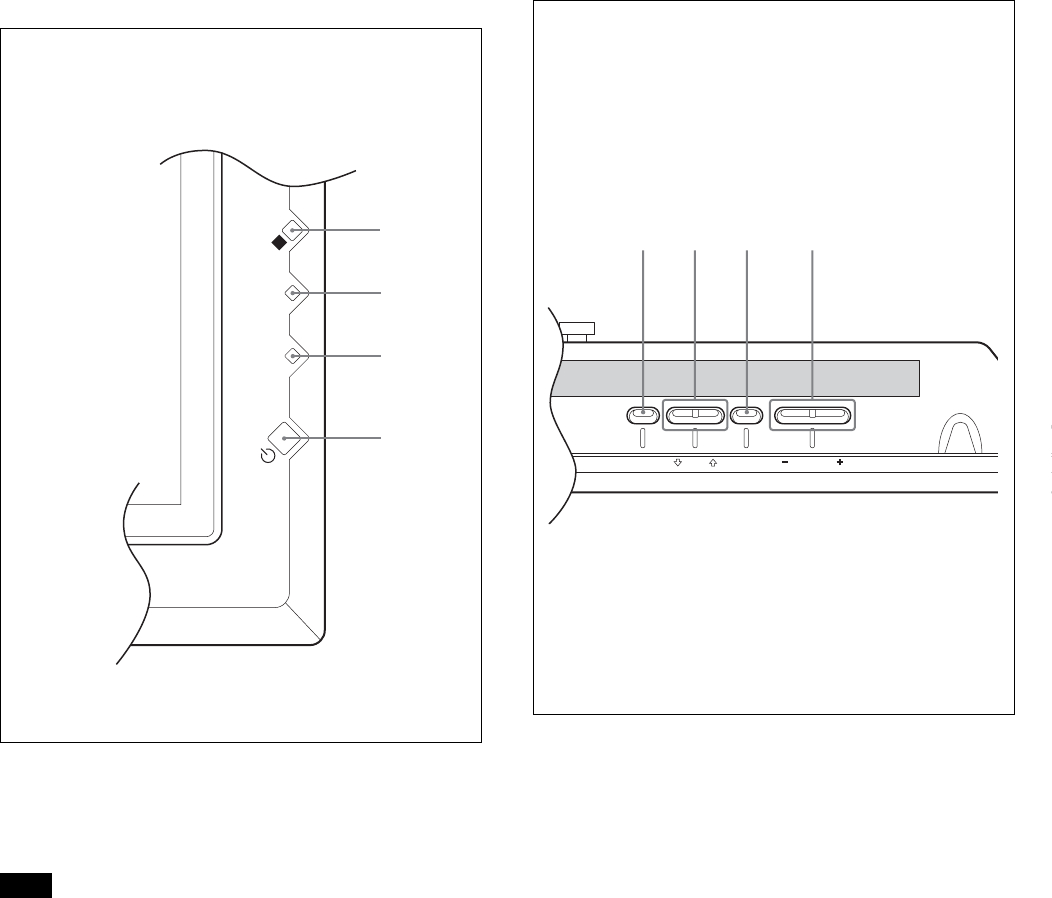
1 (standby) Switch / Indicator
Section
1 1 (standby) switch
Press to power on the display unit. Press again to
return to the standby mode.
Note
To protect the panel, a certain amount of time is
required to turn the unit ON/STANDBY. Wait about 8
seconds after one of these operations before pressing
this switch again.
2 STANDBY indicator
Lights up in red in the standby mode.
3 ON indicator
Lights up in green when the display unit is powered
on.
4 Remote control detector
Receives the signals from the Remote Commander.
Control Button Section (Top)
1 MENU button
Press to show menus. Press again to hide them.
To use the MENU button to return to the previous menu
level, see “Initial Setup menu” on page 23 (GB).
2 m/M buttons
Press to move the cursor (yellow) to an item you want
to select or to adjust a value in a menu.
3 ENTER button
Press to set your choice.
4 VOLUME +/– button
Press to adjust the speaker volume.
ON
STANDBY
2
1
3
4
9 (GB)
Location and Function of Parts and Controls
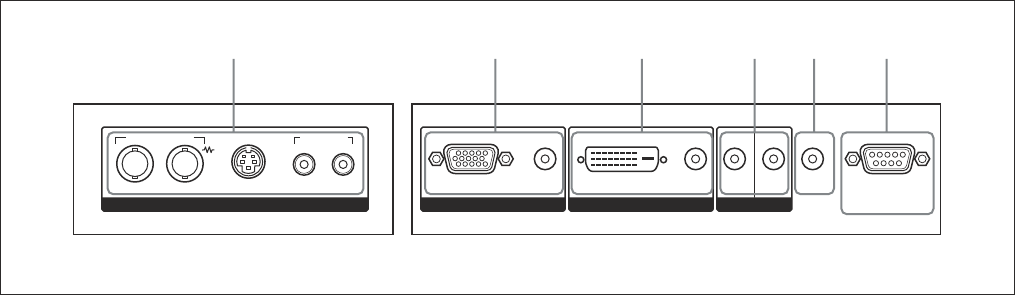
4 CONTROL S IN/OUT (Control S Signal Input/
Output) Connector (Minijack)
You can control multiple devices with a single remote
commander when connected to the CONTROL S
connector of a video device or other display. Connect the
CONTROL S OUT connector on this display to the
CONTROL S IN connector of the other device, and
connect the CONTROL S IN connector on this display
to the CONTROL S OUT connector of the other device.
5 AUDIO OUT (Stereo minijack)
Outputs an audio of the signal currently indicated on
the screen.
6 REMOTE (RS-232C) connector (D-sub 9-pin)
This connector allows remote control of the display
using the RS-232C protocol. For details, contact your
authorized Sony dealers.
* The PFM-42V1N is not equipped with the INPUT2
connectors.
Connector Panel
1 VIDEO connectors
The PFM-42V1E and 42V1N are not equipped with
VIDEO connectors. For these models, composite
video and Y/C input can be input when the Video
Input Adaptor BKM-V10 (not supplied) is installed in
the display.
COMPOSITE IN (BNC) : Connects to the
composite video signal output of a piece of video
equipment.
COMPOSITE OUT (BNC) : Connects to the
composite video signal input of a piece of video
equipment.
Y/C IN (Mini DIN 4-pin) : Connects to the Y/C
signal output of a piece of video equipment.
AUDIO IN L/R (Pinjack) : Inputs an audio signal.
Connects to the audio output of a piece of video
equipment.
2 INPUT1 (ANALOG RGB/YUV IN) connectors
RGB/YUV (D-sub 15-pin) : Connects to the analog
RGB signal or component (YUV) signal output of
a piece of video equipment.
AUDIO (Stereo minijack) : Inputs an audio signal.
Connects to the audio output of a piece of video
equipment.
3 INPUT2 (DIGITAL RGB IN) connectors *
DVI : Connects to the digital RGB signal output of a
computer.
AUDIO (Stereo minijack) : Inputs an audio signal.
Connects to the audio output of a computer.
Connect the supplied cable to the DVI connector.
RGB/YUV AUDIO DVI IN OUT
AUDIO AUDIO
OUT
INPUT 1
AUDIO INCOMPOSITE
IN OUT Y/C IN
VIDEO
L R
INPUT 2
CONTROL S
REMOTE
123456
10 (GB)
Location and Function of Parts and Controls
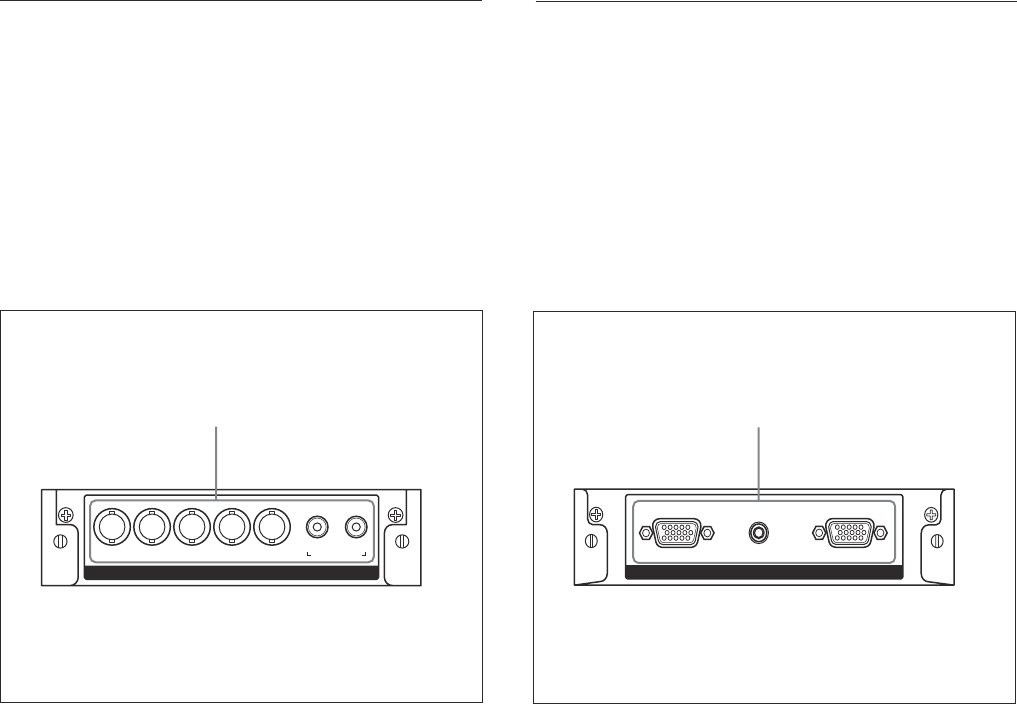
Component/RGB Input Adaptor BKM-V11
(not supplied)
The VIDEO connectors are slot-in connectors. You
can replace the VIDEO connectors (Video Input
Adaptor BKM-V10) with a Component/RGB Input
Adaptor BKM-V11 (not supplied.)
For the PFM-42V1E and 42V1N, you can install
either BKM-V11, BKM-V10 or BKM-V12.
For details on installation, contact your authorized Sony
dealer.
Y/G U/B V/R HD VD
YUV/RGB IN
AUDIO IN
LR
1
1 YUV/RGB IN connectors
YUV/RGB IN (BNC) : Connects to the analog RGB
signal or component (YUV) signal output of a
piece of video equipment.
AUDIO IN L/R (Pinjack) : Inputs an audio signal.
Connects to the audio output of a piece of video
equipment.
RGB/YUV ACTIVE THROUGH
1
OUTAUDIO ININ
1 RGB/YUV ACTIVE THROUGH connectors
RGB/YUV IN (analog RGB/component signal
input) (D-sub 15-pin) : Connects to the analog
RGB signal or component (YUV) signal output of
a piece of video equipment or a computer.
AUDIO IN (Stereo minijack) : Inputs an audio
signal. Connects to the audio output of a piece of
video equipment or a computer.
RGB/YUV OUT (analog RGB/component signal
active through output) (D-sub 15-pin) : Outputs
the signal input through the RGB/YUV IN
(analog RGB/component signal input) connectors
on this adaptor.
RGB/Component Active Through Adaptor
BKM-V12 (not supplied)
The VIDEO connectors are slot-in connectors. You
can replace the VIDEO connectors (Video Input
Adaptor BKM-V10) with an RGB/Component Active
Through Adaptor BKM-V12 (not supplied.)
For the PFM-42V1E and 42V1N, you can install
either BKM-V11, BKM-V10, or BKM-V12.
For details on installation, contact your authorized Sony
dealer.
11 (GB)
Location and Function of Parts and Controls
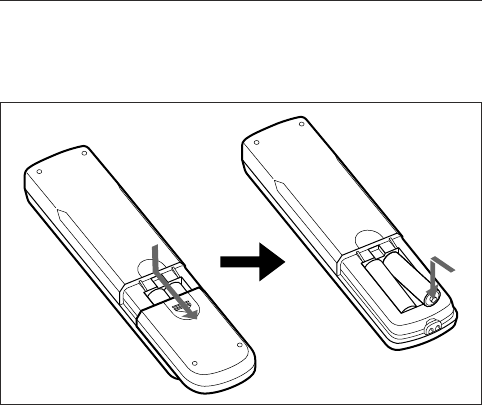
Remote Commander RM-971
1 POWER ON switch
Press to power on the display.
2 STANDBY button
Press to change the display to the standby mode.
3 MUTING button
Press to mute the sound. Press again to restore sound.
4 DISPLAY button
Press to display the input signal information and the
picture mode on the screen. Press again to hide them.
If this displayed information is left undisturbed for a
short time, it will disappear automatically.
5 INPUT1 button
Press to select the signal input to the INPUT1
connectors.
6 INPUT2 button
Press to select the signal input to the INPUT2
connectors.
VOL CONTRAST
ENTER
PFM
MUTING
123
456
78
0
9
DISPLAY STBY
POWER
ID MODE
ON
INPUT 1 INPUT 2 VIDEO OPTION
RGB/YUV
BRIGHT
H SHIFT V SHFT H SIZE
ON SET
RM-971
OFF
VSIZE
CHROMA
S/VIDEO ASPECT
MENU
6
5
2
1
3
4
0
7
qs
8
9
qa
qd
qk
ql
w;
qj
qh
wa
ws
wd
qf
qg
7 RGB/YUV button
Press to select the format matching that of the input
signal connected to the INPUT1 connector. Each press
toggles between RGB and component (YUV).
8 S/VIDEO button
Press to select the signal input to the VIDEO
connectors. Each press toggles between COMPOSITE
IN and Y/C IN.
9 M/m/</,/ENTER buttons
The M/m/</, buttons move the menu cursor
(yellow) and set values, etc. Pressing the ENTER
button sets the selected menu or setting items.
q; BRIGHT button
Adjusts the brightness when Picture Mode is set to
any of “User1” to “User3.” Press this button, then
adjust the brightness with M/m or </, buttons 9.
qa V SHIFT button
Adjusts the vertical centering. Press this button, then
adjust the vertical centering with M/m or </, buttons
9.
qs H SHIFT button
Adjusts the horizontal centering. Press this button,
then adjust the horizontal centering with M/m or
</, buttons 9.
qd VOLUME +/– button
Press to adjust the volume.
qf OPTION button
Selects the signal input to an optional adaptor (except
BKM-V10) when you install one in the unit.
qg VIDEO button
Press to select the signal input to the COMPOSITE IN
or Y/C IN of the VIDEO connectors.
qh Number buttons
Press to enter index numbers.
qj ASPECT button
Press to change the aspect ratio (Wide Mode).
qk MENU button
Press to show menus. Press again to hide them.
To use the MENU button to return to the previous menu
level, see “Initial Setup menu” on page 23 (GB).
ql CHROMA button
Adjusts the chroma when the picture mode is set to
any of “User1” to “User3.” Press this button and
adjust the chroma with the M/m or </, buttons 9.
12 (GB)
Location and Function of Parts and Controls
w; H SIZE button
Adjusts the horizontal picture size. Press this button,
then adjust the horizontal picture size with M/m or
</, buttons 9.
wa V SIZE button
Adjusts the vertical picture size. Press this button,
then adjust the vertical picture size with M/m or </
, buttons 9.
ws CONTRAST +/– button
Adjusts the contrast when Picture Mode is set to any
of “User1” to “User3.”
wd ID MODE (ON/SET/OFF) buttons
Press ON to show an index number on the screen.
Enter the index number of the display you want to
operate with Number buttons qh, then press SET.
Press OFF to return to the normal mode.
For details on the index numbers, see “Operating a
Specific Display With the Remote Commander” on page
49 (GB).
Be sure to
install the
negative <–
end first.
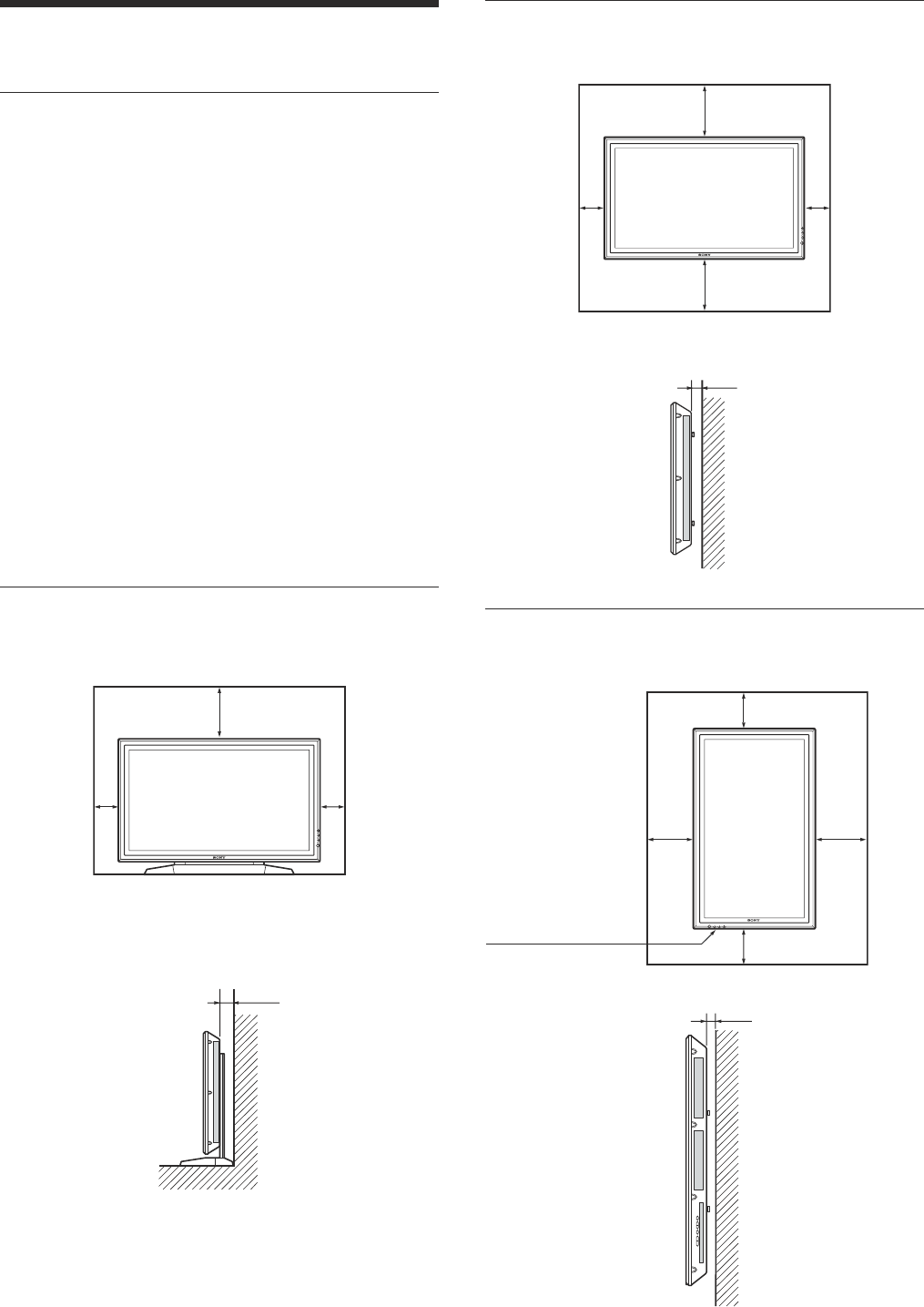
Installing batteries
Insert two size AA (R6) batteries in correct polarity.
e
E
E
e
•In normal operation, batteries will last up to half a
year. If the Remote Commander does not operate
properly, the batteries might be exhausted sooner.
Replace them with new ones.
•To avoid damage from possible battery leakage,
remove the batteries if you do not plan to use the
Remote Commander for a fairly long time.
Caution
Risk of explosion if batteries are replaced by an
incorrect type. Dispose of used batteries according to
the instructions.
When the Remote Commander does not work
Check that the STANDBY indicator lights up and the
Remote Mode in the Remote menu is not set to Off.
The Remote Commander operates the display only
when both of the two conditions below are met.
•The display is turned on, or it is in the standby mode.
•The Remote Mode in the Remote menu is set to
“ON.”
For details on the Remote Mode, see “Remote menu” on
page 24 (GB).
13 (GB)
Caution
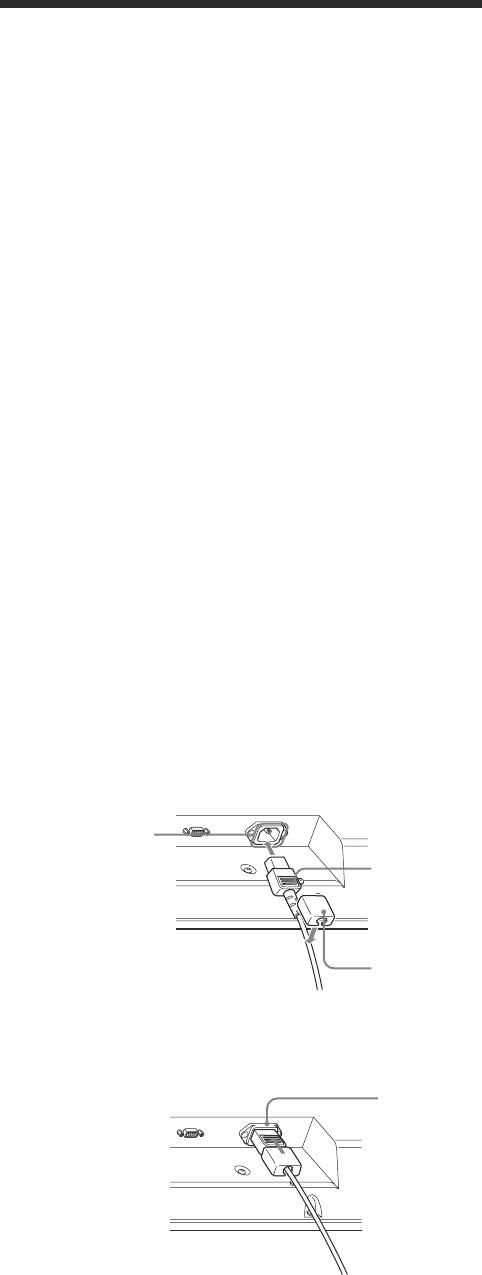
Provide an ample amount of space
around the display
•When you use the display, make sure there is more
space around the display than that shown in the
figure below. This will allow for proper ventilation.
•The ambient temperature must be 0 °C to +35 °C
(32 °F to 95 °F).
•When installing the display horizontally, use the
display stand SU-42B (not supplied) as a stand.
•Regarding the installation of hardware such as
brackets, screws, or bolts, we cannot specify the
products. Actual installation is up to the authorized
local dealers. Consult with qualified Sony personnel
for installation.
•While the unit is on, a certain amount of heat builds
up inside. This can cause burns. Avoid touching the
top or rear of the unit when it is powered on or just
after it has entered standby mode.
When using the stand (not supplied)
Front
20 (7
7
/
8
)
10
(4) 10
(4)
Side
10 (4)
Units: cm (inches)
Caution
5 (2)
When mounting the display horizontally
Front
10
(4) 10
(4)
25 (9
7
/
8
)
25 (9
7
/
8
)
Side
5 (2)
Units: cm (inches)
When mounting the display vertically
Front
25
(9
7
/
8
)
20
(7
7
/
8
)
10 (4)
10 (4)
Side
Units: cm (inches)
Make sure that
the 1 (standby)
switch is at the
bottom.

14 (GB)
Notes on Image Retention
If the 1 – 5 are displayed for an extended period of
time, image retention (afterimage) in areas of the
screen may result due to the characteristics of the
Plasma Display Panel. It is possible to reduce image
retention by following steps A – D.
Situations which can result in burn-in and
picture retention
1Black bars at the top and bottom that appear
with a wide video source (Letter box picture)
2Black bars to the left and right that appear with
a 4:3 video source (conventional TV broadcast)
3Video game
4DVD on-screen menu displays
5On-screen menus, channel numbers, etc., of
connected equipment such as DSS, Cable
boxes, video decks, etc.
Precautions to avoid/reduce burn-in and
picture retention
AUse the automatic orbiting Screen Saver
function.
BAvoid displaying channel numbers, on-screen
menus etc., of connected equipment such as
DSS, Cable boxes, video decks, etc. To erase
channel numbers, on-screen menus, refer to the
user manual of connected equipment.
CReduce brightness of the picture and/or display
video source in “Expd. 4:3” mode or “16:9”
mode.
DIt is possible to reduce minor image retention
with the “Pic. Inversion” (Picture Inversion)
function of “Screen Saver,” however, you
cannot remove it once it has occurred.
Notes on the “Pic. Inversion (Picture
Inversion)” function of “Screen Saver”
If the displayed image appears as an image like a film
negative, “Pic.Inversion (Picture Inversion)” of
“Screen Saver” may be set to “Auto,” or “On.” To
return to a normal image, select “Off” or reset the
specified time in “Auto.”
Pic. Inversion (Picture Inversion) inverts the tint of
the picture (Example: white to black, black to white)
and corrects the image retention (afterimage) with
displayed image on. The image looks like a film
negative during picture inversion. This is not a
malfunction.
Caution
15 (GB)
Connections
Before you start
•First make sure that the power to each piece of
equipment is turned off.
•Use connecting cables suitable for the equipment to
be connected.
•The cable connectors should be fully inserted into
the jacks. A loose connection may cause hum and
other noise.
• To disconnect the cable, pull it out by grasping the
plug. Never pull the cable itself.
•Refer to the instruction manual of the equipment to
be connected.
•Insert the plug securely into the AC IN socket.
•Use one of the two AC plug holders (supplied) that
will securely hold the AC plug.
Connecting the Speakers
You can enjoy viewing with a greater sense of
presence by connecting speakers SS-SP20B (not
supplied). Please be sure to connect the speakers
correctly. For more details on connecting the
speakers, see the operating manual that came with the
speakers.
Connecting the AC Power Cord
1Plug the AC power cord into the AC IN socket.
Then, attach the AC plug holder (supplied) to the
AC power cord.
2Slide the AC plug holder over the cord until it
connects to the AC IN socket cover.
To remove the AC power cord
After squeezing the AC plug holder and freeing it,
grasp the plug and pull out the AC power cord.
AC IN socket
cover
AC plug holder
AC IN socket
AC power cord
Connections
16 (GB)
Connections
AUDIO INCOMPOSITE
IN OUT Y/C IN
VIDEO
R L RGB/YUV AUDIO DVI IN OUT
AUDIO AUDIO
OUT
INPUT 1 INPUT 2
CONTROL S
REMOTE
Computer
to audio output
to video
output
to AUDIO IN
to audio
output
to video
output
to CONTROL S IN
to audio
output
Betacam SP video
cassette recorder
VCR, game machine,
DVD player, etc.
to AUDIO
to CONTROL S OUT
to CONTROL
S OUT
to CONTROL
S IN
Connection Example
to DVI to AUDIO
to RGB/YUV
to Y/C IN
to component
signal output
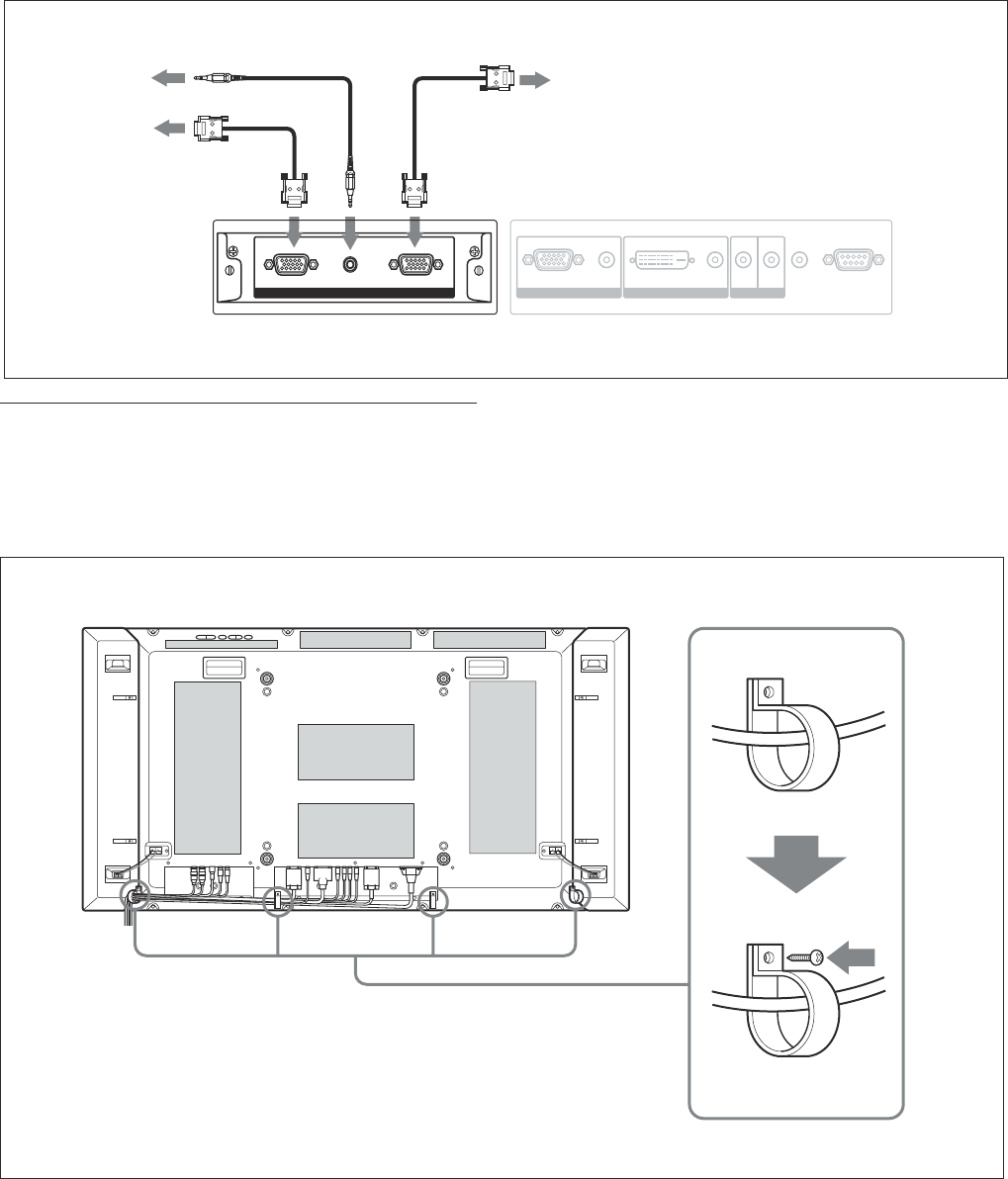
When a Component/RGB Input Adaptor BKM-V11 is installed
Y/G U/B V/R HD VD
YUV/RGB IN
AUDIO IN
LR
RGB/YUV AUDIO DVI IN OUT
AUDIO AUDIO
OUT
INPUT 1 INPUT 2
CONTROL S
REMOTE
to video
output
to audio
output
to AUDIO IN
to YUV/RGB
IN
For the PFM-42V1E and 42V1N, the connection example applies when a Video Input Adaptor BKM-V10 is installed.
The PFM-42V1N is not equipped with the INPUT2 connectors.
17 (GB)
Connections
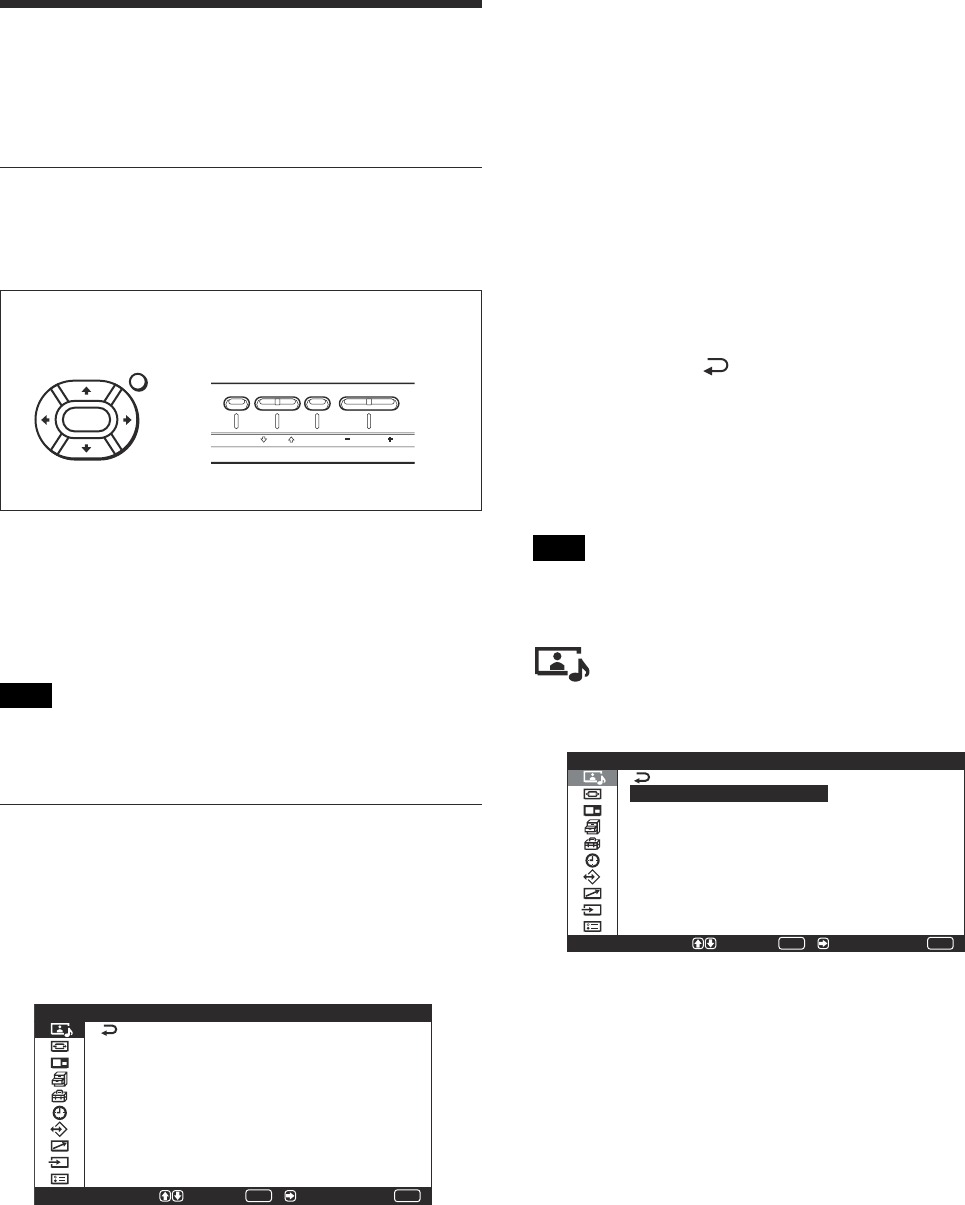
Using the cable holders
You can neatly bundle the cables with the cable
holders (×4) provided. Attach the cable holders as
shown in the illustration below.
Rear
RGB/YUV ACTIVE THROUGH
OUTAUDIO ININ
RGB/YUV AUDIO DVI IN OUT
AUDIO AUDIO
OUT
INPUT 1 INPUT 2
CONTROL S
REMOTE
When an optional RGB/Component Active Through Adaptor BKM-V12 is installed
to video
input
to video
output
to audio
output
to RGB/YUV
IN
to
AUDIO
IN
to RGB/YUV
OUT
18 (GB)
Using On-screen Menus
Using On-screen Menus
Operating Through Menus
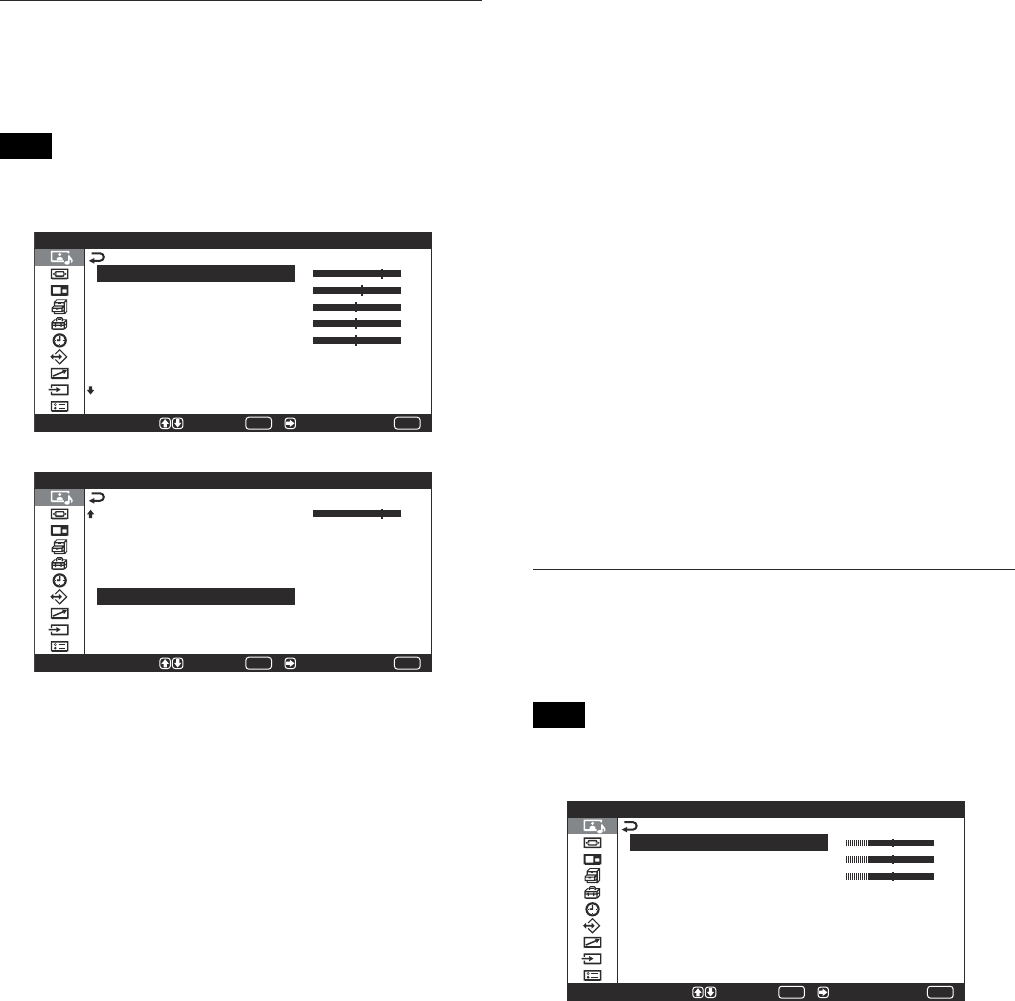
Menu operating buttons
Use the buttons on the display unit or the Remote
Commander for menu operations.
ENTER
MENU
MENU ENTER VOLUME
Operation of the unit is explained in these operating
instructions for the case of operation using the Remote
Commander. The M/m and ENTER buttons on the
Remote Commander have the same functions as the
M/m and ENTER buttons on the display.
Note
Operation may differ in some cases since there is no
</, button on the display.
Configuration of the menu
To select the language of the menus, see “Selecting the On-
screen Language” on page 42 (GB).
1Press MENU.
The main menu appears on the screen.
MENU
P i c t u r e / S o u n d C o n t r o l
S e l e c t E n d
P i c t u r e M o d e :
A d j u s t P i c t u r e
A d j u s t S o u n d
S t a n d a r d
S e t /
ENTER
2Press M/m to move the cursor (yellow) to the main
menu items you want to select and press ENTER
or ,.
The cursor moves to the next menu.
3Press M/m to move the cursor (yellow) to the item
you want to select and press ENTER or ,.
The menu for the selected item appears.
Select an different item by repeating this
procedure.
4Press M/m to adjust or select the setting and press
ENTER to set it.
The setting is registered and the menu returns to
the previous menu.
To complete the configuration and return to the
normal screen, press MENU.
To return to the previous menu level, press M/m to
move the cursor to and press ENTER or <.
If you want to use the MENU button to return to the
previous menu level, see “MENU Function” on page 23
(GB).
Menu Guide
Note
Items that cannot be set or adjusted (depending on the
setting or the type of signal input) show in dark gray.
Picture/Sound Control menu
Adjusts the quality of sound and picture.
ENTER
MENU
S e l e c t S e t / E n d
P i c t u r e / S o u n d C o
P i c t u r e M o d e :
A d j u s t P i c t u r e
A d j u s t S o u n d
S t a n d a r d
n t r o l
Picture Mode
Sets the image quality suitable for the type of picture
or the brightness of the location where the unit is
installed.
For details, see “Selecting Image Quality” on page 30
(GB).
Remote Commander Control button section
19 (GB)
Using On-screen Menus
Adjust Picture menu
You can make fine adjustment of the picture.
Set Picture Mode to any of “User1” to “User3” first.
Note
You cannot adjust the following items when Picture
Mode is set to “Standard” or “Vivid.”
C o n t r a s t
B r i g h t n e s s
C h r o m a
P h a s e
S h a r p n e s s
N o i s e R e d u c t . :
D y n a m i c P i c t u r e
C o l o r T e m p . :
O f f
: O f f
C o o l
MENU
S e l e c t E n d
A d j u s t P i c t u r e
S e t /
ENTER
MENU
S e l e c t E n d S e t /
S h a r p n e s s
N o i s e R e d u c t . :
D y n a m i c P i c t u r e
C o l o r T e m p . :
G a m m a C o r r e c t . :
R e s e t
O f f
: O f f
C o o l
L o w
A d j u s t P i c t u r e
ENTER
Contrast
Press M/, to increase the contrast and press m/< to
decrease it.
Brightness
Press M/, to make the picture brighter and press m/
< to make it darker.
Chroma
Press M/, to increase color saturation and press m/
< to decrease it.
Phase
Press M/, to make the overall picture greenish and
press m/< to make it purplish.
Sharpness
Press M/, to increase the outline correction level of
the image and press m/< to decrease it.
Noise Reduct.
Sets the level by which image graininess and color
noise are reduced to one of four levels, consisting of
“Off”, “Low”, “Mid” and “High”.
For details, see “Noise Reduct.” on page 31 (GB).
Dynamic Picture
Enhances contrast by making white brighter and black
darker.
For details, see “Dynamic Picture” on page 31 (GB).
Color Temp.
Changes the color temperature.
For details, see “Color Temp.” on page 31 (GB).
Gamma Correct.
Sets the balance of the light and dark portions of
images to one of three levels consisting of “High”,
“Mid,” or “Low.”
For details, see “Gamma Correct.” on page 33 (GB).
Reset
Restores the factory presettings to the Adjust Picture
menu items.
For details on using the reset function, see “Restoring the
Adjust Picture Menu Items to Their Original Settings” on
page 33 (GB).
Adjust Sound menu
You can make fine adjustment of the sound.
Set Picture Mode to any of “User1” to “User3” first.
Note
You cannot adjust the following items when Picture
Mode is set to “Standard” or “Vivid.”
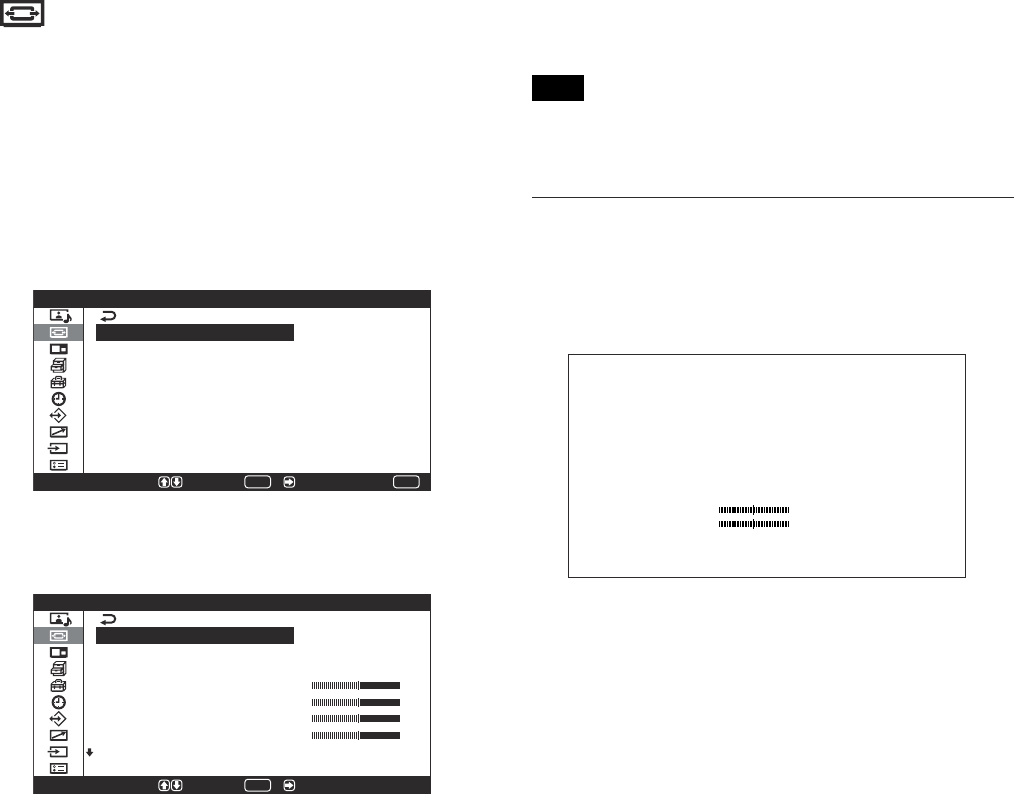
MENU
S e l e c t E n d S e t /
T r e b l e
B a s s
B a l a n c e
S u r r o u n d :
R e s e t
O f f
A d j u s t S o u n d ( U s e r 1 )
ENTER
Treble
Press M/, to increase the treble and press m/< to
decrease it.
Bass
Press M/, to increase the bass and press m/< to
decrease it.
20 (GB)
Using On-screen Menus
Balance
Pressing M/, increases the volume on the right side,
while pressing m/< increases the volume on the left
side.
Surround
The surround function can be set to one of three
levels, consisting of “Off,” “Hall,” or “Simul.”
For details, see “Surround” on page 40 (GB).
Reset
Restores the factory presettings to the Adjust Sound
menu items.
For details on using the reset function, see “Restoring the
Adjust Sound Menu Items to Their Original Settings” on
page 40 (GB).
Screen Control menu
You can resize or adjust the position of a picture.
The screen and operating method of the Screen
Control menu vary depending on the setting of the
MENU Function.
For more details, see “MENU Function” on page 23 (GB).
When MENU Function is set to “On/Off”
(Factory presetting)
S c r e e n C o n t r o l
W i d e S e t u p
W i d e M o d e :
S c r e e n Z o o m :
S c r e e n S i z e
S c r e e n S h i f t
A d j u s t P i x e l
R e s e t
4 : 3
MENU
S e l e c t E n d S e t /
ENTER
When MENU Function is set to “Return”
S e l e c t
S c r e e n C o n t r o l
W i d e S e t u p
W i d e M o d e :
S c r e e n Z o o m :
H S i z e
V S i z e
H S h i f t
V S h i f t
A d j u s t P i x e l
4 : 3
S e t /
ENTER
Wide Setup
Sets the Auto Wide function. The Auto Wide function
is a function which chooses from among ordinary
television broadcasts, or wide screen images, all
having different proportions for horizontal and
vertical display, and automatically expands the picture
to a wide screen image with a 16:9 aspect ratio,
enabling the most appropriate display of different
types of images.
For details, see “Setting Auto Wide” on page 34 (GB).
Wide Mode
Switches the wide screen display to match the size
and type of the picture.
For details, see “Setting the Wide Mode” on page 35 (GB).
Screen Zoom
Enlarges the image (in order) to double (×2), triple
(×3) and quadruple (×4) the original size.
Note
The enlargement function works only when the Wide
Mode is set to “16:9.”
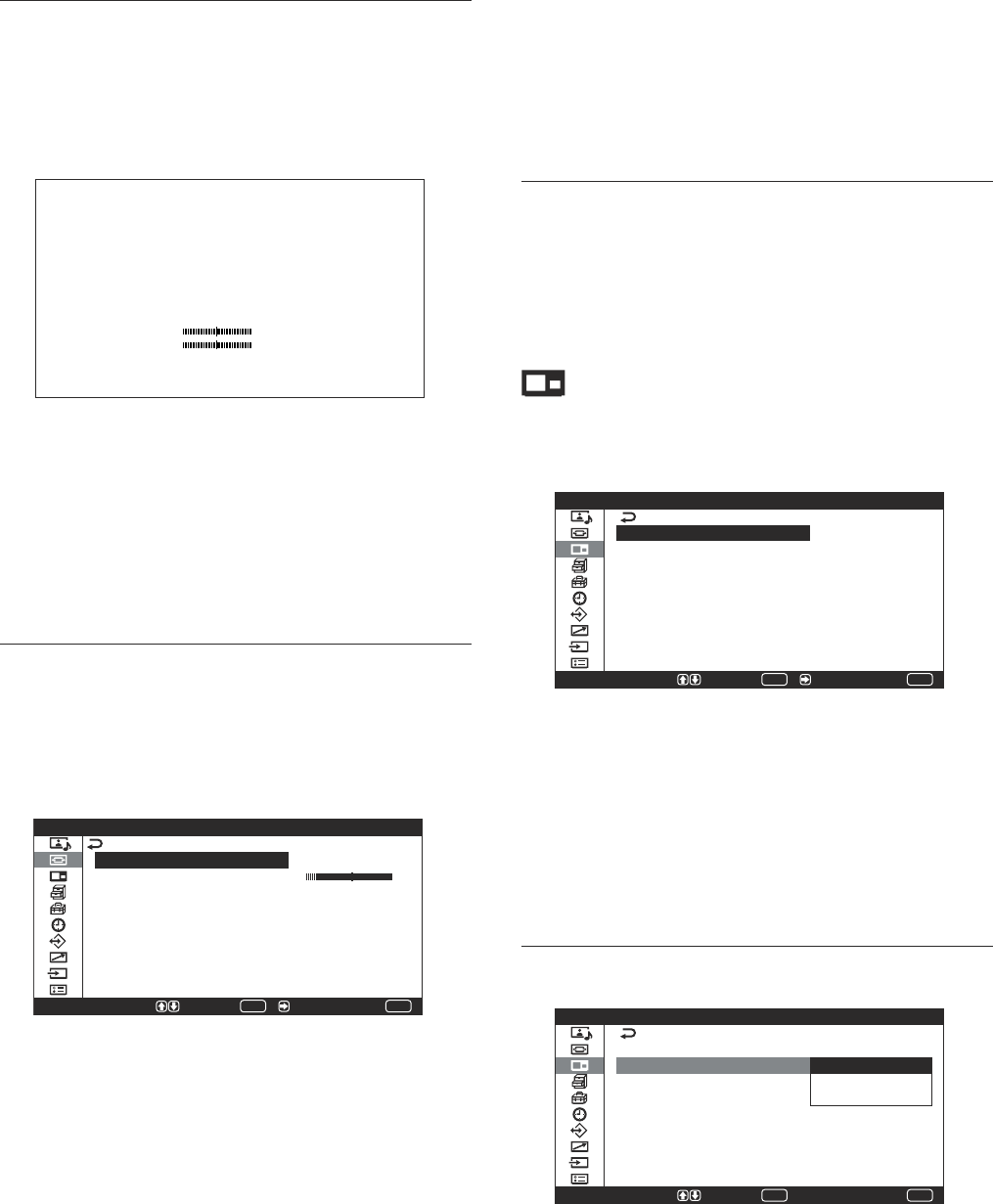
Screen Size menu
This menu is used for adjusting the picture size.
The following screen appears when MENU Function
is set to “On/Off.”
HSize 00
VSize 00
H Size
Adjust the horizontal picture size. Press , to enlarge
the horizontal size and press < to diminish it.
V Size
Adjust the vertical picture size. Press M to enlarge the
vertical size and press m to diminish it.
21 (GB)
Using On-screen Menus
Screen Shift menu
This menu is used for adjusting the centering of the
picture.
The following screen appears when MENU Function
is set to “On/Off.”
HShift 00
VShift 00
H Shift
Adjust the horizontal centering. Press , to move the
picture to the right and press < to move it to the left.
V Shift
Adjust the vertical centering. Press M to move the
picture up and press m to move it down.
Adjust Pixel menu
This menu is used for adjusting the number of picture
pixels.
Adjustment can only be made when a computer signal
is being received.
MENU
S e l e c t E n d
A d j u s t P i x e l
A u t o A d j u s t
D o t P h a s e
T o t a l H P i x e l :
R e s e t
1 3 4 4
S e t /
ENTER
Auto Adjust
Automatically adjusts the dot phase and total number
of horizontal pixels.
For details, see “Adjusting the Pixels” on page 37 (GB).
Dot Phase
Adjusts the dot phase. Press M/, to increase the dot
phase and press m/< to decrease it.
Total H Pixel
Adjusts the total number of horizontal pixels. Press M/
, to increase the number of pixels and press m/<
to decrease it.
Reset
Restores the factory presettings to the Adjust Pixel
menu items.
For details on using the reset function, see “To restore
Adjust Pixel menu items to their original settings” on page
37 (GB).
Reset
Restores the factory presettings to the Screen Control
menu items.
For details on using the reset function, see “Restoring the
Screen Control Menu Adjustment Values” on page 37 (GB).
Picture And Picture (PAP) menu
You can show a PC picture and a video picture side
by side.
P i c t u r e A n d P i c t u r e ( P A P )
P A P :
A c t i v e P i c t u r e :
P i c t u r e S i z e
O f f
L e f t
MENU
S e l e c t E n d S e t /
ENTER
For details, see “Viewing two pictures at the same time” on
page 38 (GB).
PAP
Set it to “ON” to show two pictures at the same time.
The following menus are available when PAP is set to
“ON.”
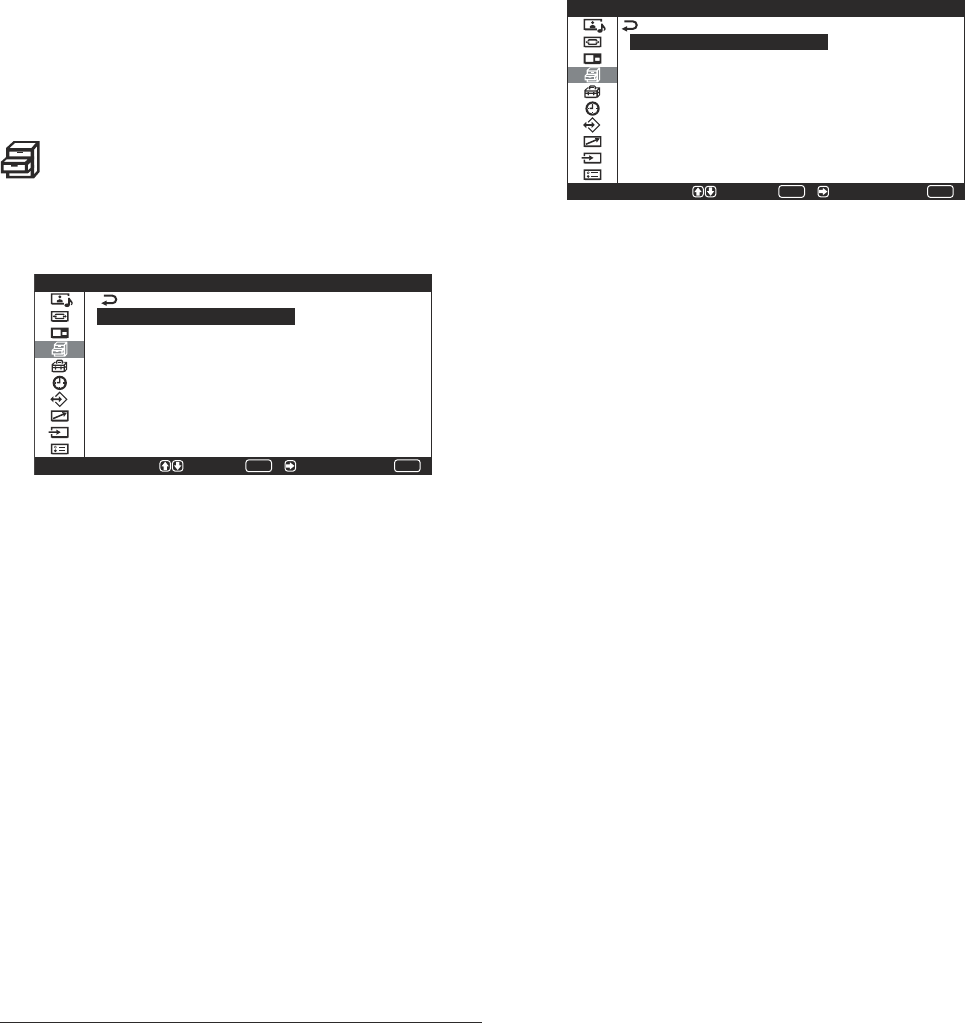
Active Picture menu
MENU
S e l e c t E n d
ENTER
S e t
O n
L e f t
R i g h t
S w a p
P i c t u r e A n d P i c t u r e ( P A P )
P A P :
A c t i v e P i c t u r e :
P i c t u r e S i z e
Left
Activates the left picture for operations.
Right
Activates the right picture for operations.
22 (GB)
Using On-screen Menus
Swap
Switches the position of the two pictures.
Picture Size
Zooms in on one of the two pictures.
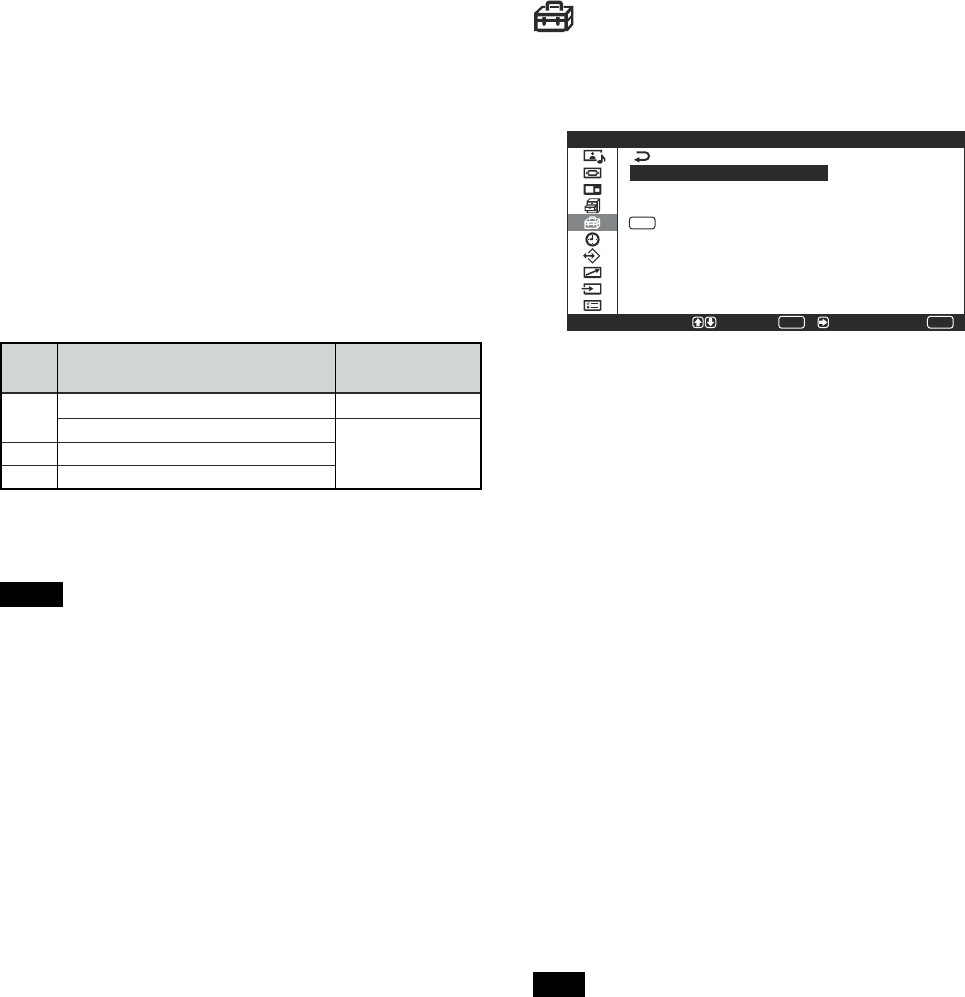
Custom Setup menu
You can reduce power consumption or set a screen
saver and so forth.
C u s t o m S e t u p
P o w e r S a v i n g :
S p e a k e r O u t :
C l o s e d C a p t i o n :
D i s p l a y :
S c r e e n S a v e r
C o l o r M a t r i x
H D M o d e :
R G B M o d e :
S y n c M o d e :
S t a n d a r d
O n
O f f
O n
P C
H / C o m p
MENU
S e l e c t E n d S e t /
ENTER
Power Saving
Reduces power consumption while showing pictures.
For details, see “Energy Saving Function” on page 29
(GB).
Speaker Out
Set it to ON to cause sound to be emmited from the
speakers SS-SP20B (not supplied.)
Closed Caption
Displays closed captions.
For details, see “Displaying closed captions” on page 29
(GB).
Display
Select On to display the input signal information and
Picture Mode for about five seconds on the upper left
corner of the screen when you turn on the unit or
switch the input signal.
Screen Saver menu
Corrects or lessens damage caused by ghosting or
burn-in that may result from the same image being
displayed on the screen for long periods of time.
MENU
S e l e c t E n d
S c r e e n S a v e r
P i c . I n v e r s i o n :
P i c . O r b i t
O f f
S e t /
ENTER
Pic. Inversion
Sets the Screen Saver that inverts the image hue.
For details, see “Screen Saver Function” on page 42 (GB).
Pic. Orbit
Sets the Screen Saver that automatically moves the
position of images after a predetermined amount of
time has elapsed.
For details, see “Screen Saver Function” on page 42 (GB).
Color Matrix
Sets the Color Matrix to show pictures in natural color
tones when a component signal is input.
For details, see “Adjusting Color Matrix” on page 44
(GB).
HD Mode
Selects a mode according to an HD analog component
signal input to the YUV connectors on INPUT1,
BKM-V11 or BKM-V12.
1080I: When a 1080I signal is input
1035I: When a 1035I signal is input
RGB Mode
Sets the mode when a device that outputs RGB signals
is connected to the RGB/YUV IN.
DTV: When connected to an RGB signal digital
tuner, etc.
PC: When connected to a PC.
23 (GB)
Using On-screen Menus
Sync Mode
Sets the mode according to the signal input at pin 13
of the RGB/YUV IN. Signals can be set only to 575/
50I or 480/60I.
H/Comp: When a horizontal signal or a composite
synchronous signal* is input
Video: When a video signal is input
*Depending on the level of the composite
synchronous signal, the image may not be displayed
correctly. In that case, change the Sync Mode
setting.
Input signal and Synchronous mode settings
PIN Signal input over the D-sub Synchronous
mode setting
13 480/60I, 575/50I Composite Video
Composite Sync
13/14 H Sync/V Sync
2Sync On Green
See “Pin assignment” on page 52 (GB) for more
information on the pin assignments of RGB/YUV IN.
Notes
• There are some inputs for which only synchronizing
signals can be selected. In this case, an image will
not be displayed even if a video signal is input to the
13 pin connector. Input horizontal/vertical
synchronization signals through the 13 or 14 pin
connectors, or input Sync On Green signals through
the RGB connector.
•With Sync On Green, if the unit is not set to accept
synchronizing signals, the image will not be
displayed.
•Sync Mode settings cannot be carried out using
option boards.
•This unit does not support the three value sync
format of composite sync and 576/60P.
Initial Setup menu
You can select the on-screen language and the color
system, and set the MENU Function.
MENU
MENU
S e l e c t E n d
I n i t i a l S e t u p
L a n g u a g e :
C o l o r S y s t e m :
P A L 1 0 0 H z :
F u n c t i o n :
E n g l i s h
O n
O n / O f f
S e t /
ENTER
Language
Selects the on-screen language (Japanese, English,
German, French, Spanish, or Italian).
For details, see “Selecting the On-screen Language” on
page 42 (GB).
Color System
Selects the input signal.
Auto: to display NTSC, PAL, SECAM/NTSC4.43
or NTSC/PAL-M/PAL-N signals
NTSC: to display NTSC signals
NTSC4.43: to display NTSC4.43 signals
PAL: to display PAL signals
SECAM: to display SECAM signals
PAL-M: to display PAL-M signals
PAL-N: to display PAL-N signals
PAL60: to display PAL60 signals
When the Color System is set to “Auto,” an additional
color system capable of automatic detection is set in
the level below.
•Automatic detection of NTSC/PAL/SECAM/
NTSC4.43
•Automatic detection of NTSC/PAL-M/PAL-N
Note
•This can only be set when a video signal is being
received.
•You can switch the refresh rate using the “PAL
100Hz” setting when PAL or PAL-N signals are
input.
MENU Function
Selects the operation when the menu key is pressed.
On/Off: The menu display toggles between on and
off each time the menu key is pressed.
Return: The cursor returns to the previous level
each time the menu key is pressed.
Video signal
Synchronizing
signal
24 (GB)
Using On-screen Menus
Timer/Clock menu
You can set the timer, adjust time, display the built-in
clock, or make the unit power on/off at a
predetermined time.
MENU
S e l e c t E n d
T i m e r / C l o c k
S l e e p :
C l o c k S e t
C l o c k D i s p l a y :
O n / O f f T i m e r :
A u t o S h u t O f f :
O f f
O f f
O f f
O f f
S e t /
ENTER
Sleep
Automatically turns off the power when a preset
amount of time elapses. The sleep time can be set to
30, 60, 90 or 120 minutes.
For details, see “Sleep Function” on page 45 (GB).
Clock Set
Sets the time.
For details, see “Adjusting the time” on page 46 (GB).
Clock Display
Displays the currently set time on the screen when set
to On.
For details, see “Displaying the time” on page 46 (GB).
On/Off Timer
Sets the time at which the power is automatically
turned on or off.
For details, see “On/Off Timer Function” on page 47 (GB).
Auto Shut Off
Automatically turns off the power when there is no
input signal to the INPUT1 or INPUT2 connectors
when the input mode is set to RGB.
For details, see “Power Saving Function” on page
48 (GB).
User Memory menu
You can save or recall various settings in the Picture/
Sound Control and Screen Control menus.
U s e r M e m o r y
L o a d
S a v e
MENU
S e l e c t E n d S e t /
ENTER
For details, see “Using the Memory Function” on page
40 (GB).
Load
Recalls your settings.
Save
Saves your settings.
Remote menu
This menu is used for remote control settings.
MENU
S e l e c t E n d
R e m o t e
I n d e x N u m b e r :
R e m o t e M o d e :
R e m o t e O n l y :
1
O n
ENTER
S e t
Index Number
Sets the index number of the display.
Note
When you set the index number, use the buttons on
the display unit. The index number cannot be set with
the Remote Commander.
For details on the Index Number, see “Operating a Specific
Display With the Remote Commander” on page 49 (GB).
25 (GB)
Using On-screen Menus
Remote Mode
Selects the function of the Remote Commander.
ON: Activates a remote commander supplied with
the display or a TV.
Off: Disables the remote control function.
Note
When you change the Remote Commander mode, use the
buttons on the display unit. You cannot change the
Remote Commander mode using the Remote
Commander.
For details, see “Using Other Remote Commander
Models” on page 50 (GB).
Remote Only
Select On to disable the control buttons on the display
unit. The display can only be operated with the
Remote Commander.
To cancel the Remote Only mode, set “Remote Only”
to “Off” with the Remote Commander.
Note
The setting in this item is still retained when the AC
power cord is disconnected or when you turn on/off
the display with the Remote Commander.
If you lose the Remote Commander, you can cancel
the Remote Only mode by pressing the POWER
button and MENU button on the display unit at the
same time.
Input Select menu
This menu is used to switch the input signal.
For details on switching the input signal, see “Switching
the Input Signal” on page 26 (GB).
Unit Status menu
This menu is used for displaying various information,
including information on the internal status of the
display unit.
U n i t S t a t u s
M o d e l N a m e :
S e r i a l N u m b e r :
O p e r a t i o n T i m e :
S o f t w a r e V e r s i o
P F M - 4 2 V 1
2 0 0 0 0 0 1
0 0 0 0 1 H
n : 1 . 0 0
MENU
S e l e c t E n d
Model Name
Indicates the model name.
Serial Number
Indicates the serial number.
Operation Time
Indicates the total number of hours of operation.
Note
Time spent in standby mode is not counted as part of
the Operation Time.
Software Version
Indicates the system software version.
26 (GB)
Watching the Picture
Watching the Picture
Before you start
•Power on the display.
• Power on the connected equipment and play a video
source.
•To display the input signal information and Picture
Mode on the screen when turning on the power or
switching the input signal, set “Display” in the
Custom Setup menu to On.
•To select the language of the menus, see “Selecting
the On-screen Language” on page 42 (GB).
Switching the Input Signal
1Press MENU.
The main menu appears on the screen.
MENU
P i c t u r e / S o u n d C o n t r o l
S e l e c t E n d
P i c t u r e M o d e :
A d j u s t P i c t u r e
A d j u s t S o u n d
S t a n d a r d
S e t /
ENTER
2Press M/m to move the cursor (yellow) to “Input
Select” and press ENTER or ,.
The Input Select menu appears on the screen.
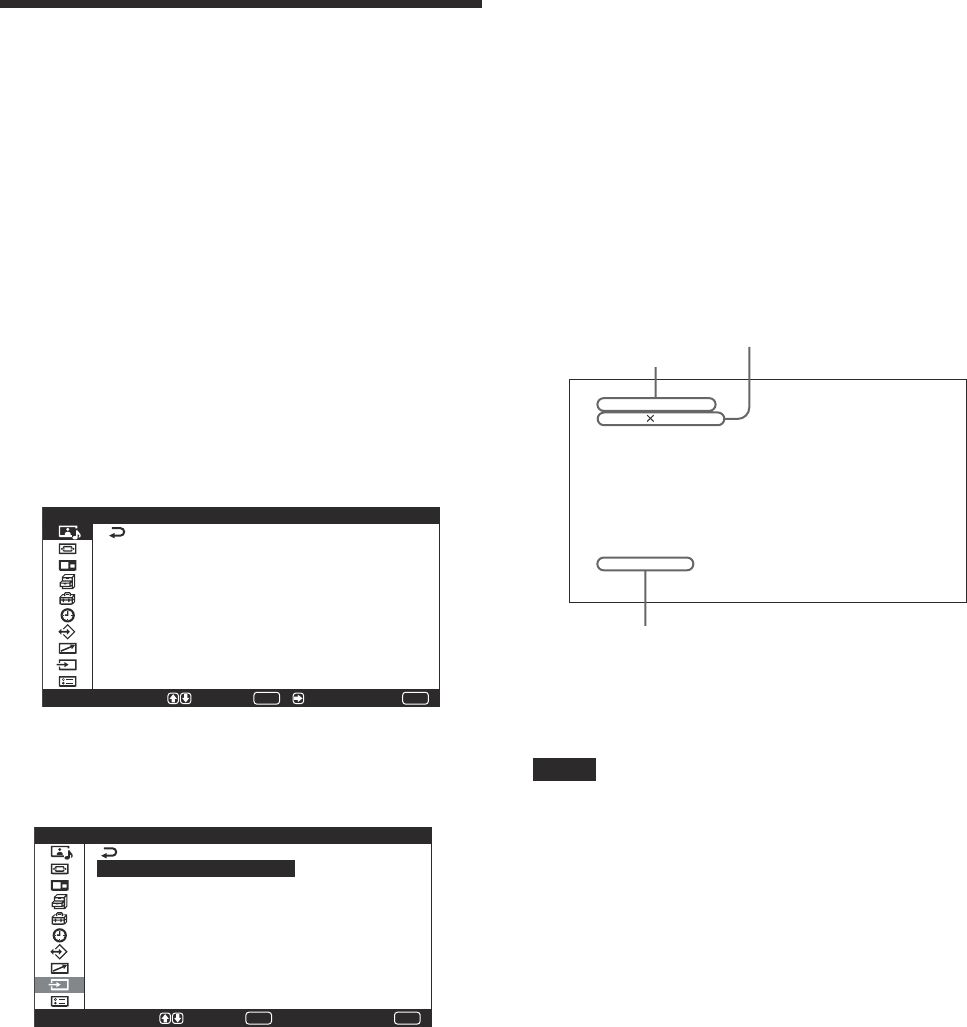
I n p u t S e l e c t
I N P U T 1 R G B
I N P U T 1 Y U V
I N P U T 2 D V I
V I D E O C O M P O S I T E
V I D E O Y / C
MENU
S e l e c t E n d
ENTER
S e t
3Press M/m to move the cursor (yellow) to the
input source to be displayed and press ENTER.
INPUT1 RGB: Selects the signal (analog RGB)
input to the INPUT1 connectors.
INPUT1 YUV: Selects the signal (component)
input to the INPUT1 connectors.
INPUT2 DVI * : Selects the signal (digital RGB)
input to the INPUT2 connectors.
VIDEO COMPOSITE: Selects the signal input
to the COMPOSITE IN of the VIDEO
connectors.
VIDEO Y/C: Selects the signal input to the Y/C
IN of the VIDEO connectors.
* When using the PFM-42V1N, you cannot select
this item because this model is not equipped with
the INPUT2 connectors.
When a Component/RGB Input Adaptor BKM-
V11 or an RGB/Component Active Through
Adaptor BKM-V12 is installed
OPTION YUV: Selects the signal (component)
input to the YUV/RGB IN connectors.
OPTION RGB: Selects the signal (analog RGB)
input to the YUV/RGB IN connectors.
The selected input signal appears on the screen.
OPT I ON RGB
1024 768/ 60
Standard
You can switch the input signal using the supplied
Remote Commander.
Notes
•We recommend input source video equipment
equipped with a TBC (time base corrector). If the
display receives a signal without TBC, the picture
may disappear due to disturbance of the sync signal.
•If signals of the same format are input from multiple
systems, the Picture Quality setting will default to
the most recently set value (Only when the signal
formats are identical).
Color system or horizontal/vertical frequency
Signal type
Picture mode
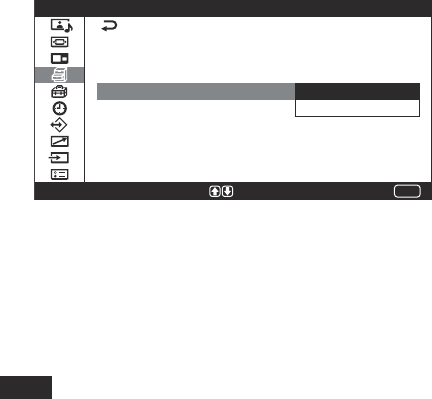
27 (GB)
Watching the Picture
Input Signal, Picture Mode and
Display Status Information
Input signal and Picture Mode information appear on
the screen for about five seconds when the power is
turned on or when the input signal is switched.
To disable this function, follow the steps below.
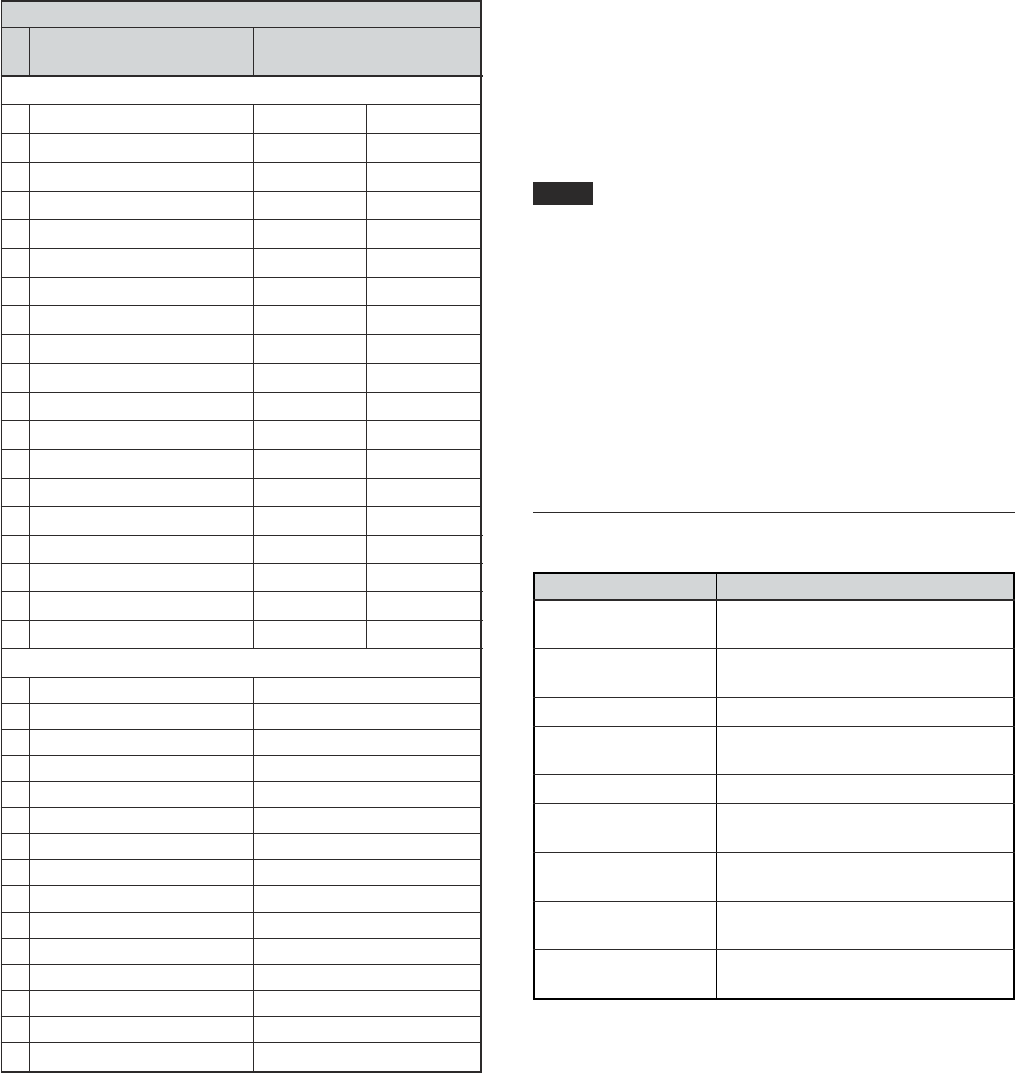
1In the Custom Setup menu, press M/m to move the
cursor (yellow) to “Display” and press ENTER or
,.
The following menu appears on the screen.
C u s t o m S e t u p
P o w e r S a v i n g :
S p e a k e r O u t :
C l o s e d C a p t i o n :
D i s p l a y :
S c r e e n S a v e r
C o l o r M a t r i x
H D M o d e :
R G B M o d e :
S y n c M o d e :
S t a n d a r d
O n
O n
O f f
P C
H / C o m p
MENU
S e l e c t = S e t E n d
2Press M/m to set “Display” to “Off.”
To display the information
Set “Display” to “On” in step 2 above. The factory
default setting is “On.”
Note
You can display the input signal information and the
time anytime by pressing the DISPLAY button on the
Remote Commander, regardless of the above setting.
28 (GB)
Watching the Picture
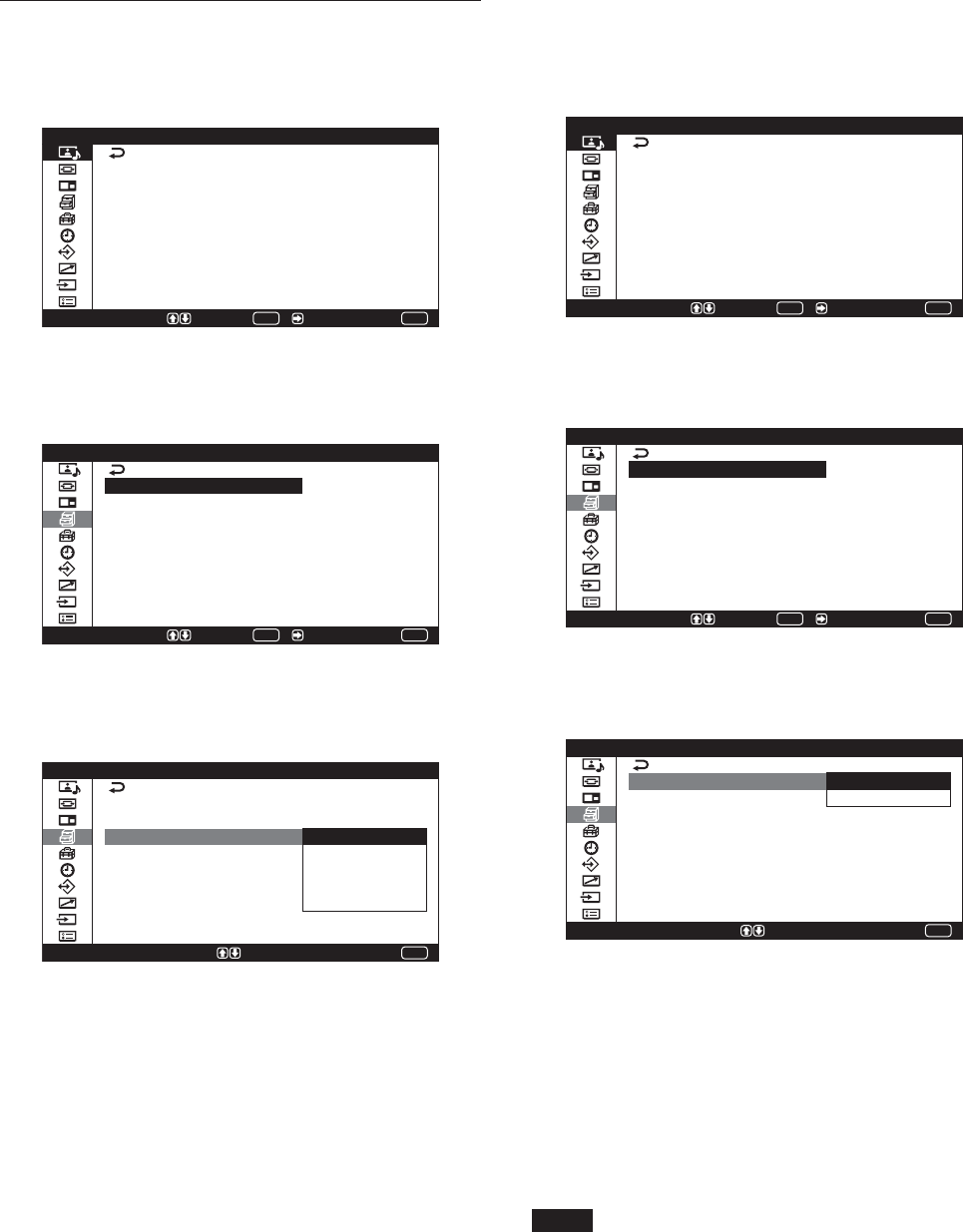
Preset input signals
Signal name
Color system or horizontal/
vertical frequency
Computer signals
1VGA
a)
-1 (VGA 350) 31.5 kHz 70 Hz
2
640×480@60 Hz (VESA
b)
STD)
31.5 kHz 60 Hz
3Mac
c)
13
"
35.0 kHz 67 Hz
4VGA (VGA TEXT) 31.5 kHz 70 Hz
5
800×600@60 Hz (VESA STD)
37.9 kHz 60 Hz
6Mac 16
"
49.7 kHz 75 Hz
7
1024×768@60 Hz (VESA STD)
48.4 kHz 60 Hz
8
1024×768@75 Hz (VESA STD)
60.0 kHz 75 Hz
9
1024×768@85 Hz (VESA STD)
68.7 kHz 85 Hz
10
1152×864@75 Hz (VESA STD)
67.5 kHz 75 Hz
11 Mac 21
"
68.7 kHz 75 Hz
12
1280×960@60 Hz (VESA STD)
60.0 kHz 60 Hz
13
1280×1024@60 Hz (VESA STD)
64.0 kHz 60 Hz
14
1600×1200@60 Hz (VESA STD)
*75.0 kHz 60 Hz
15 848×480@60 Hz (
VESA STD
)29.8 kHz 60 Hz
16 848×480@60 Hz (
VESA STD
)29.5 kHz 60 Hz
17 848×480@75 Hz 37.7 kHz 75 Hz
18 1280×768@60 Hz 47.8 kHz 60 Hz
19 1280×768@60 Hz 47.4 kHz 60 Hz
SDTV/HDTV
1PAL PAL
2NTSC NTSC
3 SECAM SECAM
4 NTSC4.43 NTSC4.43
5PAL60 PAL60
6PAL-M PAL-M
7 PAL-N PAL-N
8575/50i 575/50I
9480/60i 480/60I
10 1080/24psf 1080/48I
11 1080/50i 1080/50I
12 576/50p 576/50P
13 480/60p 480/60P
14 1080/60i 1080/60I
15 720/60p 720/60P
a) VGA is a registered trademark of International Business
Machines Corporation, U.S.A.
b) VESA is a registered trademark of the Video Electronics
Standards Association.
c) Mac (Macintosh) is a registered trademark of Apple
Computer, Inc.
Notes
•When inputting an HDTV signal, input the tri-level
sync signal to the 2nd pin of RGB/YUV (D-sub 15
pin) on the INPUT1 connector.
• If colors appear too light after inputting a DVD
signal to PFM-42V1 series, adjust the “Chroma”
setting in the Adjust Picture menu.
•When the phase is readjusted, the resolution will be
reduced.
•You cannot input the signal indicated with * to DVI
IN.
Actual on-screen display of the unit’s status
On-screen display Significance
640×480 / 60 (e.g.) The selected input signal is
computer RGB.
480 / 60P (e.g.) The selected input signal is
component video.
NTSC (e.g.) The selected input signal is NTSC.
Out of Range The input signal is out of the
capture range.
No Sync There is no input signal.
INPUT1 RGB The signal mode of INPUT1 is set to
RGB.
INPUT1 YUV The signal mode of INPUT1 is set to
component video.
VIDEO COMPOSITE Composite video input is selected
for VIDEO.
VIDEO Y/C Y/C video input is selected for
VIDEO.
29 (GB)
Watching the Picture
Switching the Display Mode
Displaying closed captions
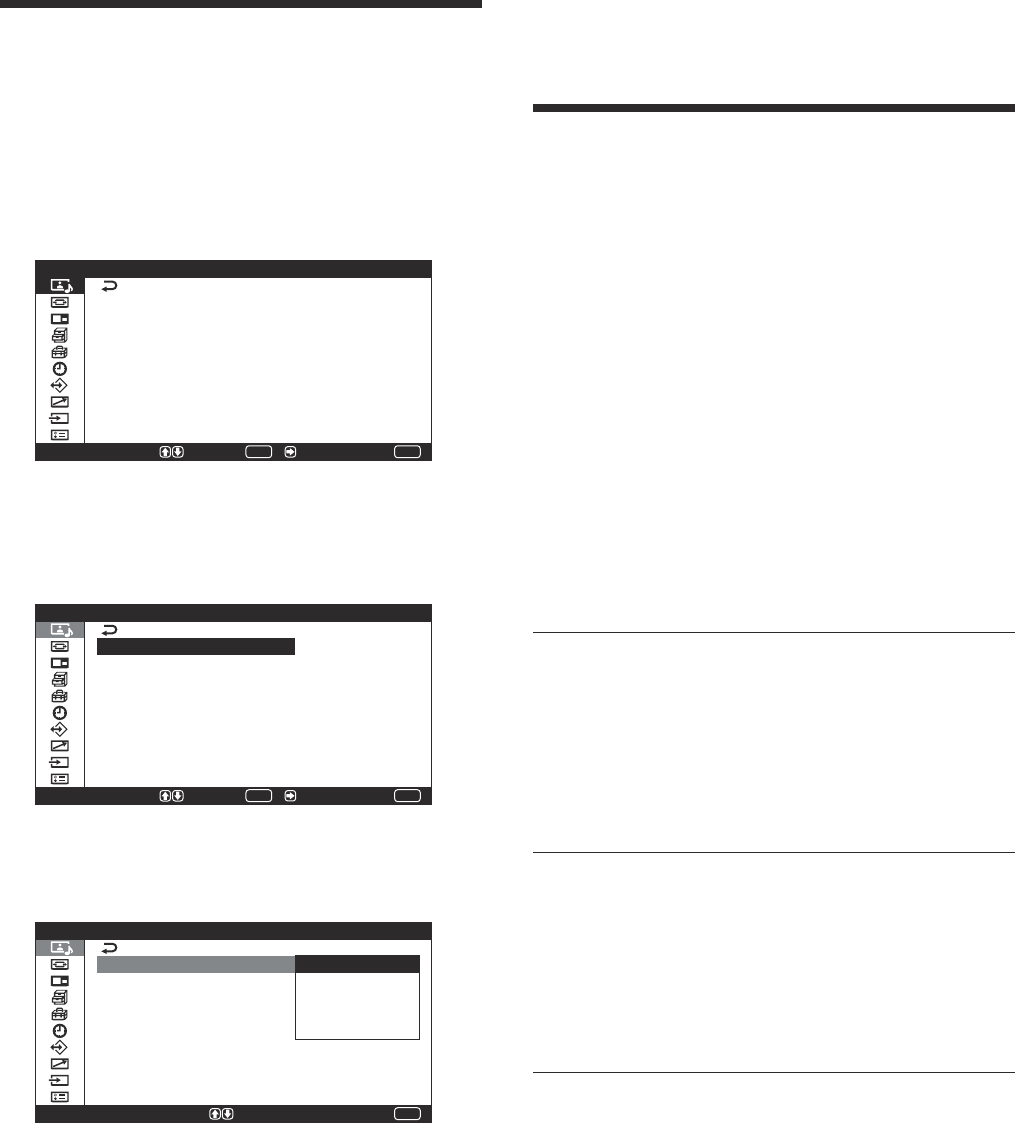
1Press MENU.
The main menu appears on the screen.
MENU
P i c t u r e / S o u n d C o n t r o l
S e l e c t E n d
P i c t u r e M o d e :
A d j u s t P i c t u r e
A d j u s t S o u n d
S t a n d a r d
S e t /
ENTER
2Press M/m to move the cursor (yellow) to
“Custom Setup” and press ENTER or ,.
The Custom Setup menu appears on the screen.
C u s t o m S e t u p
P o w e r S a v i n g :
S p e a k e r O u t :
C l o s e d C a p t i o n :
D i s p l a y :
S c r e e n S a v e r
C o l o r M a t r i x
H D M o d e :
R G B M o d e :
S y n c M o d e :
S t a n d a r d
O n
O f f
O n
P C
H / C o m p
MENU
S e l e c t E n d S e t /
ENTER
3Press M/m to move the cursor (yellow) to “Closed
Caption” and press ENTER or ,.
The following menu appears on the screen.
MENU
E n d
C u s t o m S e t u p
P o w e r S a v i n g :
S p e a k e r O u t :
C l o s e d C a p t i o n :
D i s p l a y :
S c r e e n S a v e r
C o l o r M a t r i x
H D M o d e :
R G B M o d e :
S y n c M o d e :
S t a n d a r d
O n
O f f
C C 1
C C 2
C C 3
C C 4
P C
H / C o m p
S e l e c t = S e t
4Select the caption type with M/m.
Off: The caption is not displayed.
CC1-4 : Superimposes captions.
5Press ENTER or < to return to the Custom Setup
menu.
Energy Saving Function
You can enjoy viewing pictures while reducing power
consumption.
1Press MENU.
The main menu appears on the screen.
MENU
P i c t u r e / S o u n d C o n t r o l
S e l e c t E n d
P i c t u r e M o d e :
A d j u s t P i c t u r e
A d j u s t S o u n d
S t a n d a r d
S e t /
ENTER
2Press
M
/
m
to move the cursor (yellow) to
“Custom Setup” and press ENTER or ,.
The Custom Setup menu appears on the
screen
.
C u s t o m S e t u p
P o w e r S a v i n g :
S p e a k e r O u t :
C l o s e d C a p t i o n :
D i s p l a y :
S c r e e n S a v e r
C o l o r M a t r i x
H D M o d e :
R G B M o d e :
S y n c M o d e :
S t a n d a r d
O n
O f f
O n
P C
H / C o m p
MENU
S e l e c t E n d S e t /
ENTER
3Press
M
/
m
to move the cursor (yellow) to “Power
Saving” and press ENTER or ,.
The following menu appears on the screen.
MENU
E n d
C u s t o m S e t u p
P o w e r S a v i n g :
S p e a k e r O u t :
C l o s e d C a p t i o n :
D i s p l a y :
S c r e e n S a v e r
C o l o r M a t r i x
H D M o d e :
R G B M o d e :
S y n c M o d e :
S t a n d a r d
R e d u c e
O n
P C
H / C o m p
S e l e c t = S e t
4Press
M
/
m
to select the Power Saving mode.
Standard: No energy saving
Reduce: Save energy
When you select “Reduce,” the brightness of the
picture is reduced so that you can enjoy viewing
pictures while reducing power consumption.
5Press ENTER or < to return to the Custom Setup
menu.
Notes
•“Power Saving: Reduce” will be resumed when you
power on the unit again.
• Even when Power Saving is set to “Reduce”, you can
still adjust the quality of the picture. However, note
that you may lose the energy saving effects if you
increase Contrast or Brightness.
30 (GB)
Selecting Image Quality
You can set an image quality suitable for the type of
picture or the brightness of the location where the unit
is installed.
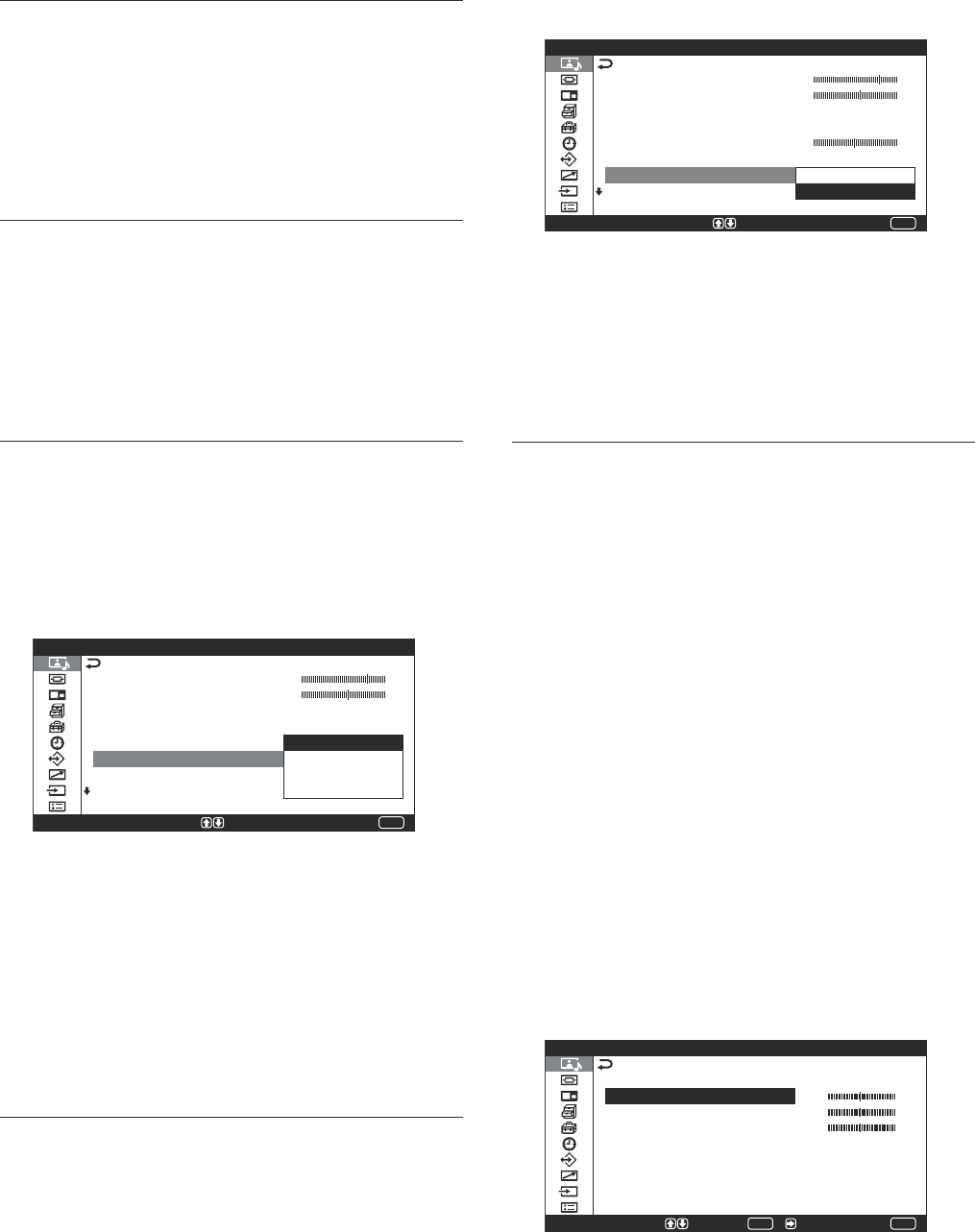
1Press MENU.
The main menu appears on the screen.
MENU
P i c t u r e / S o u n d C o n t r o l
S e l e c t E n d
P i c t u r e M o d e :
A d j u s t P i c t u r e
A d j u s t S o u n d
S t a n d a r d
S e t /
ENTER
2Press M/m to move the cursor (yellow) to
“Picture/Sound Control” and press ENTER or ,.
The Picture/Sound Control menu appears on the
screen.
ENTER
MENU
S e l e c t S e t / E n d
P i c t u r e / S o u n d C o
P i c t u r e M o d e :
A d j u s t P i c t u r e
A d j u s t S o u n d
S t a n d a r d
n t r o l
3Press M/m to move the cursor (yellow) to “Picture
Mode” and press ENTER or ,.
The following menu appears on the screen.
MENU
E n d
P i c t u r e / S o u n d C o n t r o l
P i c t u r e M o d e :
A d j u s t P i c t u r e
A d j u s t S o u n d
S t a n d a r d
V i v i d
U s e r 1
U s e r 2
U s e r 3
S e l e c t = S e t
4Select the Picture Mode with M/m.
Standard: Pictures look real with moderate
contrast and image contour.
Vivid: Pictures get intense sharpness with image
contour and contrast maximized.
User1-3: You can set the image quality to suit
your taste using the Adjust Picture menu.
5Press ENTER or < to return to the Picture/Sound
Control menu.
Adjusting the Picture
While watching the picture, you can adjust contrast,
brightness, chroma, phase, and so on, to suit your
taste. The adjustments can be carried out for each
input signal separately. You can also store the
adjusted levels in memory.
Set the Picture Mode to any of “User1” to “User3.”
Adjusting the Contrast, Brightness,
Chroma, and Phase, etc.
Press MENU to show the main menu and adjust
“Contrast,” “Brightness,” “Chroma,” “Phase,”
“Sharpness,” “Noise Reduct.,” “Dynamic Picture,”
“Color Temp.,” or “Gamma Correct.” of the Adjust
Picture menu.
Contrast
Select “Contrast” with
M/m
and press ENTER.
Adjust the contrast with M/m/</, within the range
of MIN (0) to MAX (100).
M/,: to increase picture contrast
m/<: to decrease picture contrast
Brightness
Select “Brightness” with
M/m
and press ENTER.
Adjust the brightness with M/m/</, within the
range of MIN (–50) to MAX (+50).
M/,: to make the picture brighter
m/<: to make the picture darker
Chroma
Select “Chroma” with
M/m
and press ENTER.
Adjust the chroma with M/m/</, within the range
of MIN (–100) to MAX (+100).
M/,: Increase color intensity.
m/<: Decrease color intensity.
Selecting Image Quality / Adjusting the Picture
31 (GB)
The following menu appears on the screen.
MENU
E n d
A d j u s t P i c t u r e
C o n t r a s t
B r i g h t n e s s
C h r o m a
P h a s e
S h a r p n e s s
N o i s e R e d u c t . :
D y n a m i c P i c t u r e
C o l o r T e m p . :
O f f
: O n
O f f
S e l e c t = S e t
2Select the Dynamic Picture mode with
M/m
.
On: Activates Dynamic Picture function.
Off: Activates Dynamic Picture function.
3Press ENTER or < to return to the Adjust
Picture menu.
Color Temp.
You can set color temperature. Either select one from
“Cool,” “Neutral,” or “Warm,” or set values for each
gain separately. You can store up to three settings and
rename them (up to six characters in length.)
1Select “Color Temp.” with
M/m
and press ENTER
or ,.
2Select the color temperature with
M/m
and press
ENTER.
Cool: Sets the color temperature to high.
Neutral: Sets the color temperature to neutral.
Warm: Sets the color temperature to low.
User1 – 3: Sets values for each gain separately.
When you select “Warm,” “Neutral,” or “Cool,”
the menu returns to the Adjust Picture menu.
When you select “User1” to “User3”
When you select any of “User1” to “User3,” the
following menu appears on the screen.
MENU
S e l e c t E n d S e t /
A d j u s t P i c t u r e
C o l o r T e m p . :
R e d G a i n
G r e e n G a i n
B l u e G a i n
N a m e S e t
U s e r 1
ENTER
Adjusting the Picture
Phase
Select “Phase” with
M/m
and press ENTER.
Adjust the phase with M/m/</, within the range of
RMax (50) to GMax (50).
M/,: Makes the overall picture greenish.
m/<: Makes the overall picture reddish.
Sharpness
Select “Sharpness” with
M/m
and press ENTER.
Adjust the sharpness with M/m/</, within the
range of MIN (–10) to MAX (+10).
M/,: Increases the sharpness of the image.
m/<: Decreases the sharpness of the image.
Noise Reduct.
Reduces image graininess and color noise.
1Select “Noise Reduct.” with
M/m
and press
ENTER or ,.
The following menu appears on the screen.
MENU
E n d
A d j u s t P i c t u r e ( U
C o n t r a s t
B r i g h t n e s s
C h r o m a
P h a s e
S h a r p n e s s
N o i s e R e d u c t . :
D y n a m i c P i c t u r e
C o l o r T e m p . :
O f f
L o w
: M i d
H i g h
S e l e c t = S e t
s e r 1 )
2Select the Noise Reduct. mode with
M/m
.
Off: The image signal is displayed directly.
Low: Sets the Noise Reduct. processing to low.
Mid: Sets the Noise Reduct. processing to
medium.
High: Sets the Noise Reduct. processing to high.
3Press ENTER or < to return to the Adjust
Picture menu.
Dynamic Picture
Enhances contrast by making white brighter and black
darker.
1Select “Dynamic Picture” with
M/m
and press
ENTER or ,.
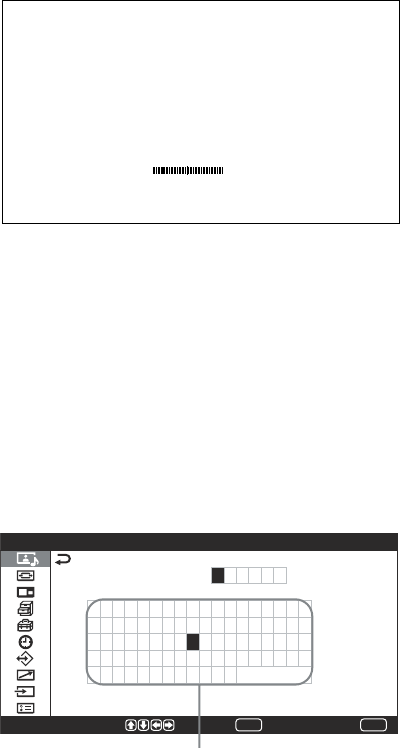
32 (GB)
(1) Press
M/m
to move the cursor (yellow) to the
gain that you want to adjust and press ENTER
or ,.
The following menu appears on the screen.
Red Ga i n 00
(2) Adjust the gain (–15 to +15) with
M/m/</,
and press ENTER.
The menu returns to the Color Temp. menu.
To rename the adjusted color temperature, follow
the steps below.
(3) Press
M/m
to move the cursor (yellow) to
“Name Set” and press ENTER.
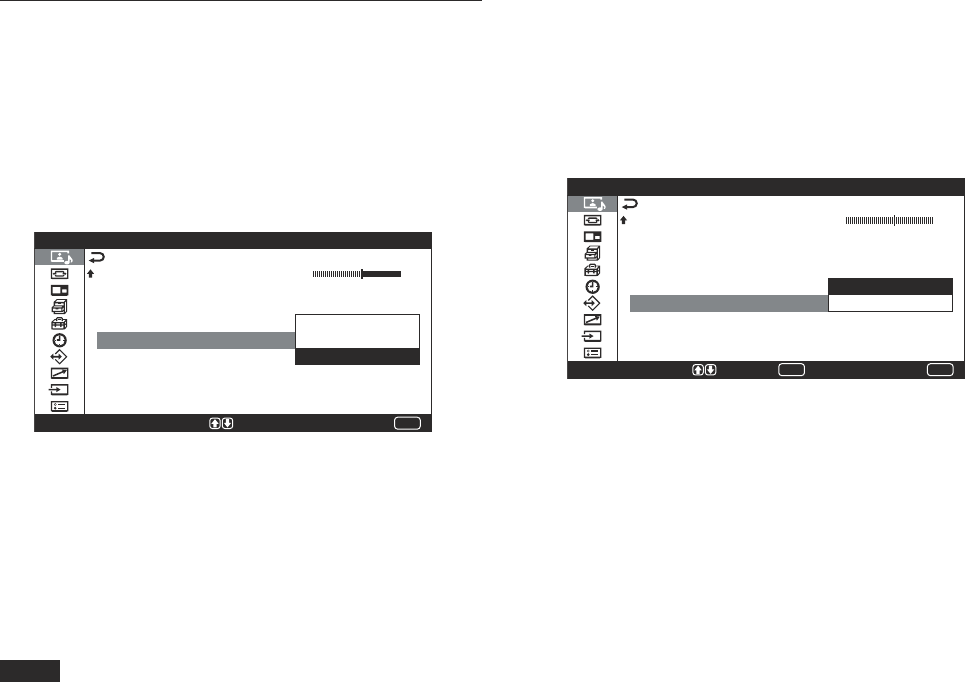
The following menu appears on the screen.
C o l o r T e m p . : U s
N a m e S e t
0 1 2 3 4 5 6 7 8 9 A B C
I J K L M N O P Q R S T U
a b c d e f g h i j k l m
s t u v w x y z ( ) [ ] <
= % °C $ ; : . ’ ,
T t
e r 1
D E F G H
V W X Y Z
n o p q r
> + – × /
E n d
ENTER
MENU
S e l e c t S e t E n d
A d j u s t P i c t u r e
Character list
(4) Select a character or symbol from the
character list with
M/m/</,
and press
ENTER. The selected character is input. If you
input a wrong character or symbol, select
“<” on the screen to backspace the cursor
one character and reselect the right one.
When “MENU Function” (page 23 (GB)) in the
Initial Setup menu is set to “Return,” the
M/m
buttons on the Remote Commander move the
cursor left and right. To make the
M/m
buttons
move the cursor up and down, set “MENU
Function” to “On/Off.”
(5) Repeat step (4) and after you have finished
entering the name, select “End” and press
ENTER.
The menu returns to the Color Temp. menu.
Adjusting the Picture
33 (GB)
Gamma Correct.
Balances the light and dark portions of pictures
automatically.
1Select “Gamma Correct.” with M/m and press
ENTER or ,.
The following menu appears on the screen.
MENU
E n d
A d j u s t P i c t u r e ( U
S h a r p n e s s
N o i s e R e d u c t . :
D y n a m i c P i c t u r e
C o l o r T e m p . :
G a m m a C o r r e c t . :
R e s e t
O f f
: O f f
H i g h
M i d
L o w
S e l e c t = S e t
s e r 1 )
2Select the Gamma Correct. mode with M/m.
High: Sets the Gamma Correct. to high.
Mid: Sets the Gamma Correct. to medium.
Low: Sets the Gamma Correct. to low.
3Press ENTER or < to return to the Adjust
Picture menu.
Notes
•You cannot adjust Chroma and Phase when an RGB
signal is input.
•You cannot adjust Phase when a component signal is
input.
•You cannot adjust Phase with a PAL, PAL-M,
PAL-N, PAL60, or SECAM color system.
•You cannot adjust Chroma or Phase when a black-
and-white signal is input.
Adjusting the Picture
Restoring the Adjust Picture Menu
Items to Their Original Settings
1In the Adjust Picture menu, press M/m to move
the cursor (yellow) to “Reset” and press ENTER.
The following menu appears on the screen.
MENU
S e l e c t E n d
A d j u s t P i c t u r e ( U
S h a r p n e s s
N o i s e R e d u c t . :
D y n a m i c P i c t u r e
C o l o r T e m p . :
G a m m a C o r r e c t . :
R e s e t
O f f
: O f f
C o o l
C a n c e l
O K
ENTER
S e t
s e r 1 )
2Press M/m to move the cursor (yellow) to “OK”
and press ENTER.
The Adjust Picture menu items are restored to
their factory presettings.
To cancel the reset function
Press MENU before pressing ENTER. Alternatively,
select “Cancel” with M/m and press ENTER.
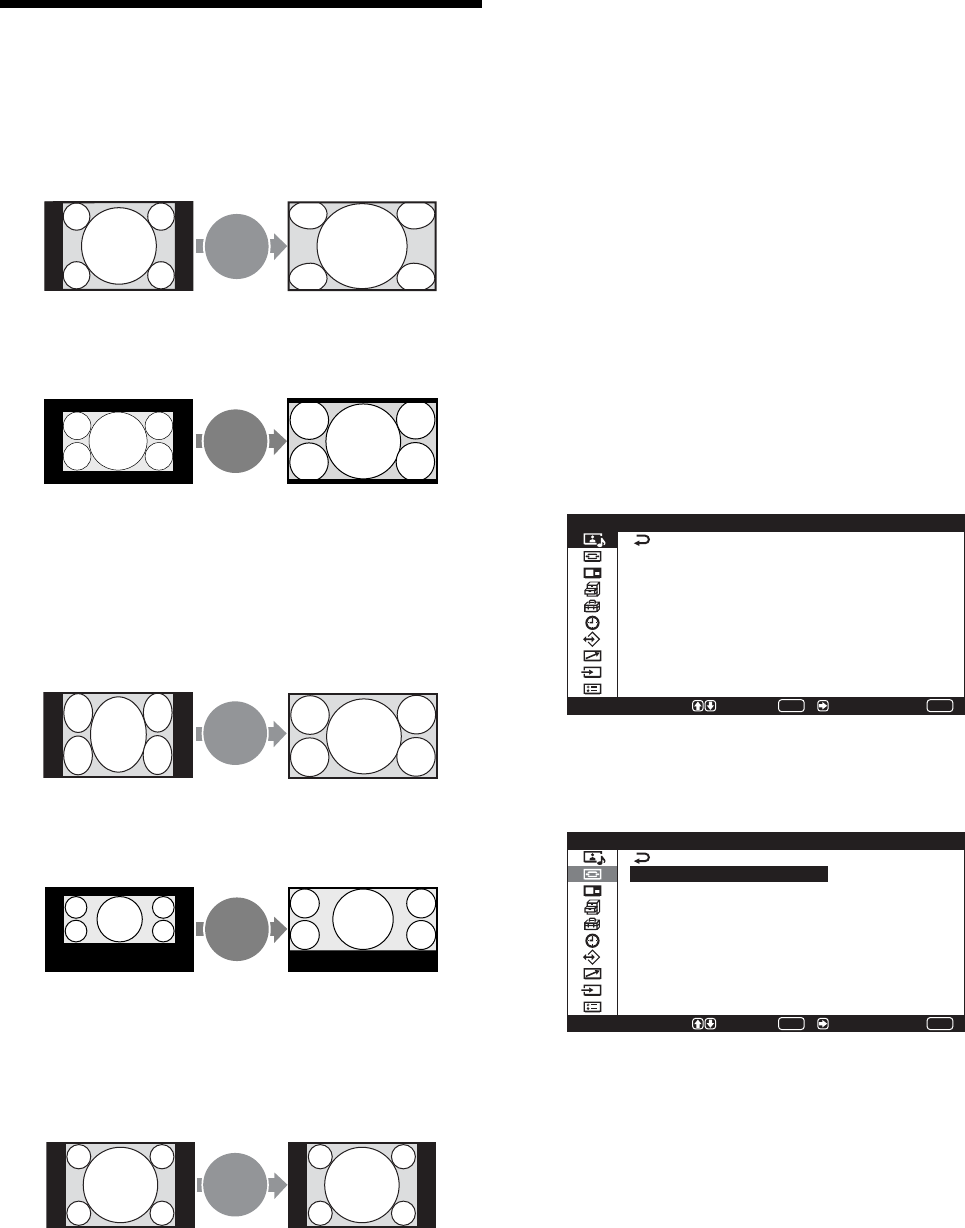
34 (GB)
Picture Enlargement
You can enlarge pictures to suite your taste.
For Wide Mode, the following choices are available.
Original Picture Enlarged Picture
(Picture Type)
Expd.
4:3
Allows ordinary pictures
with a 4:3 aspect ratio to be
set to Wide Zoom (screen
aspect ratio: 4:3).
Letter
bx
Hey! How ya doing?
Hey! How ya doing?
Hey! How ya doing?
Hey! How ya doing? Hey! How ya doing?
•Movies filmed in VistaVision
and so forth that appear long
in the horizontal direction of
the screen and contain
captions within the picture
(aspect ratio: 1.85:1)
•Images from a video camera
or DVD software with aspect
ratio information (ID-1 type)
16:9
Images from a video camera
or DVD software containing
aspect ratio information (ID-
1 type)
Sub
title
Hey! How ya doing?
Hey! How ya doing?
Movies filmed in CinemaVision
and so forth that appear long
in the horizontal direction of
the screen and contain captions
outside the picture (aspect
ratio: 2.35:1)
4:3
When pictures having an
aspect ratio of 4:3 are set to
“4:3” (“4:3” is the factory
setting) and Auto Wide is
set to On.
Setting Auto Wide
The auto wide function faithfully reproduces images
based on this identification control signal or enlarges
various types of pictures to the optimum size
regardless of this identification control signal.
Identification Control Signal
This is a control signal for faithfully reproducing the
aspect ratio of the original image on a display screen.
Images that contain this signal consist of the
following:
•Images recorded with a television camera with
aspect ratio information (ID-1 format).
•Television broadcasts containing a signal for setting
the aspect ratio to 4:3.
1Press MENU.
The main menu appears on the screen.
MENU
P i c t u r e / S o u n d C o n t r o l
S e l e c t E n d
P i c t u r e M o d e :
A d j u s t P i c t u r e
A d j u s t S o u n d
S t a n d a r d
S e t /
ENTER
2Press M/m to move the cursor (yellow) to “Screen
Control” and press ENTER or ,.
The Screen Control menu appears on the screen.
S c r e e n C o n t r o l
W i d e S e t u p
W i d e M o d e :
S c r e e n Z o o m :
S c r e e n S i z e
S c r e e n S h i f t
A d j u s t P i x e l
R e s e t
4 : 3
MENU
S e l e c t E n d S e t /
ENTER
Picture Enlargement
Images are enlarged naturally
to full screen size.
Images are enlarged to full
screen size aligned with the
right and left sides of the
screen. (Black bars may
remain at the top and bottom
of the screen, depending on
the type of picture.)
The left and right edges of the
picture are enlarged to full
screen size without changing
the top and bottom.
The picture is displayed on
the screen by compressing
only the area where captions
are displayed while enlarging
to full screen size and aligning
with the left and right sides of
the screen.
Pictures are displayed in the
original 4:3 aspect ratio
without being enlarged.
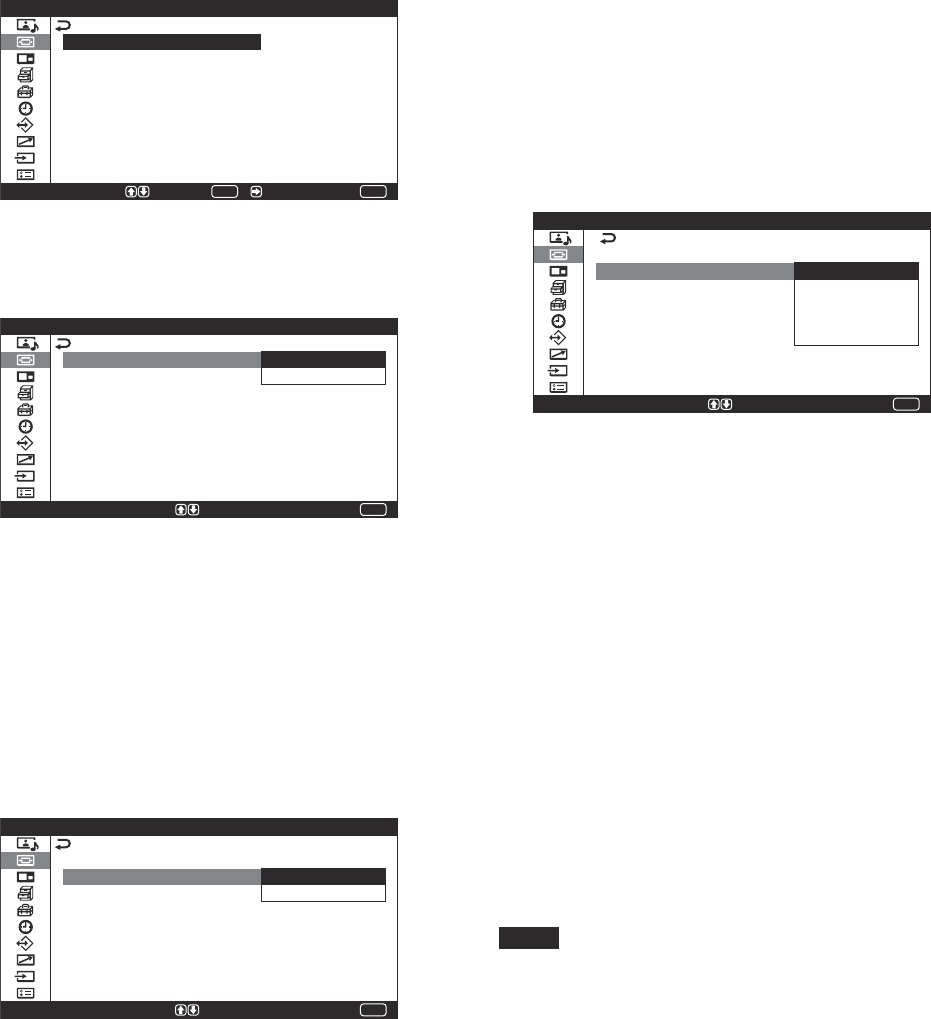
35 (GB)
3Press M/m to move the cursor (yellow) to “Wide
Setup” and press ENTER or ,.
The following menu appears on the screen.
W i d e S e t u p
A u t o W i d e :
4 : 3 M o d e :
O f f
MENU
S e l e c t E n d S e t /
ENTER
4Press M/m to move the cursor (yellow) to “Auto
Wide” and press ENTER or ,.
The following menu appears on the screen.
MENU
E n d
W i d e S e t u p
A u t o W i d e :
4 : 3 M o d e :
O f f
O n
S e l e c t = S e t
5Select the Auto Wide setting with M/m.
Off: Images are reproduced as-is.
On: The image is enlarged and displayed in the
most appropriate aspect ratio.
6Press ENTER or <.
The menu returns to the Wide Setup menu.
7Select “4:3 Mode” with M/m and press ENTER.
The following menu appears on the screen.
MENU
E n d
W i d e S e t u p
A u t o W i d e :
4 : 3 M o d e :
O n
4 : 3
E x p d . 4 : 3
S e l e c t = S e t
8Select the 4:3 Mode with M/m.
4:3: Pictures with a 4:3 aspect ratio are displayed
as-is.
Expd.4:3: Pictures with a 4:3 aspect ratio are
displayed after being enlarged to an aspect
ratio of 16:9. (When there is no distinguishing
control signal.)
9Press ENTER or <.
The menu returns to the Wide Setup menu.
Picture Enlargement
Setting the Wide Mode
Pictures can also be enlarged to the desired wide
mode regardless of the type of picture. When the
signal is input from a computer, you can select either
“16:9” or “4:3.”
1In the Screen Control menu, press M/m to move
the cursor (yellow) to “Wide Mode” and press
ENTER or ,.
The following menu appears on the screen.
MENU
E n d
S c r e e n C o n t r o l
W i d e S e t u p
W i d e M o d e :
S c r e e n Z o o m :
S c r e e n S i z e
S c r e e n S h i f t
A d j u s t P i x e l
R e s e t
E x p d . 4 : 3
L e t t e r b x
1 6 : 9
S u b t i t l e
4 : 3
S e l e c t = S e t
2Select the Wide Mode with M/m.
Expd.4:3: Enlarges 4:3 pictures full-screen to
16:9 pictures.
Letterbx: Enlarges the picture all the way to the
left and right edges of the screen. (Black bars
may remain on the top and bottom of the
screen, depending on the type of picture.)
16:9: Extends the left and right sides of the picture
to cover the entire screen without changing the
top and bottom.
Subtitle: Enlarges the picture all the way to the
left and right edges of the screen and
compresses only the area where captions are
displayed.
4:3: Displays the picture without enlarging it.
3Press ENTER or <.
The menu returns to the Screen Control menu.
Notes
•If you set Wide Mode, the Auto Wide function is
disabled. If you want to use the Auto Wide function,
reset it to “On.”
•The top or bottom of the picture may be cut off or
the captions may not completely be displayed on the
screen depending on the type and size of picture.
•Please note that showing enlarged/compressed
pictures for commercial purposes or public viewing
at hotels or coffee shops can be copyright
infringement as defined under the copyright laws.
36 (GB)
Adjusting the Picture Position
1In the Screen Control menu, press
M/m
to move
the cursor (yellow) to “Screen Shift” and press
ENTER.
The following menu appears on the screen.
HShift 00
VShift 00
2Move the picture vertically and horizontally with
M/m
/</,.
</,: Moves the picture left and right.
M/m
: Moves the picture up and down.
Horizontal picture position is displayed on the
screen within the adjustable range of LMax (30) to
RMax (30). Vertical picture position is displayed
on the screen within the adjustable range of BMax
(30) to TMax (30). The factory presetting is 00.
3Press ENTER.
The menu returns to the Screen Control menu.
Resizing and Positioning the Picture
Resizing and Positioning
the Picture
You can shift the position of the picture to fit the
screen, or adjust the vertical and horizontal size of the
picture separately.
Operation is explained in these operating instructions for
the situation in which the MENU Function is set to “On/
Off.” Refer to “Screen Control menu” on page 20 (GB) for
further details regarding the Screen Control menu.
Resizing the Picture
1In the Screen Control menu, press
M/m
to move
the cursor (yellow) to “Screen Size” and press
ENTER.
The following menu appears on the screen.
HSize 00
VSize 00
2Resize the picture vertically or horizontally with
M/m
/</,.
</,: Resizes the picture horizontally.
M/m
: Resizes the picture vertically.
Horizontal picture size is displayed on the
screen within the adjustable range of Min
(–30) to Max (+30). Vertical picture size is
displayed on the screen within the adjustable
range of Min (–30) to Max (+30). The factory
presetting is 00.
3Press ENTER.
The menu returns to the Screen Control menu.
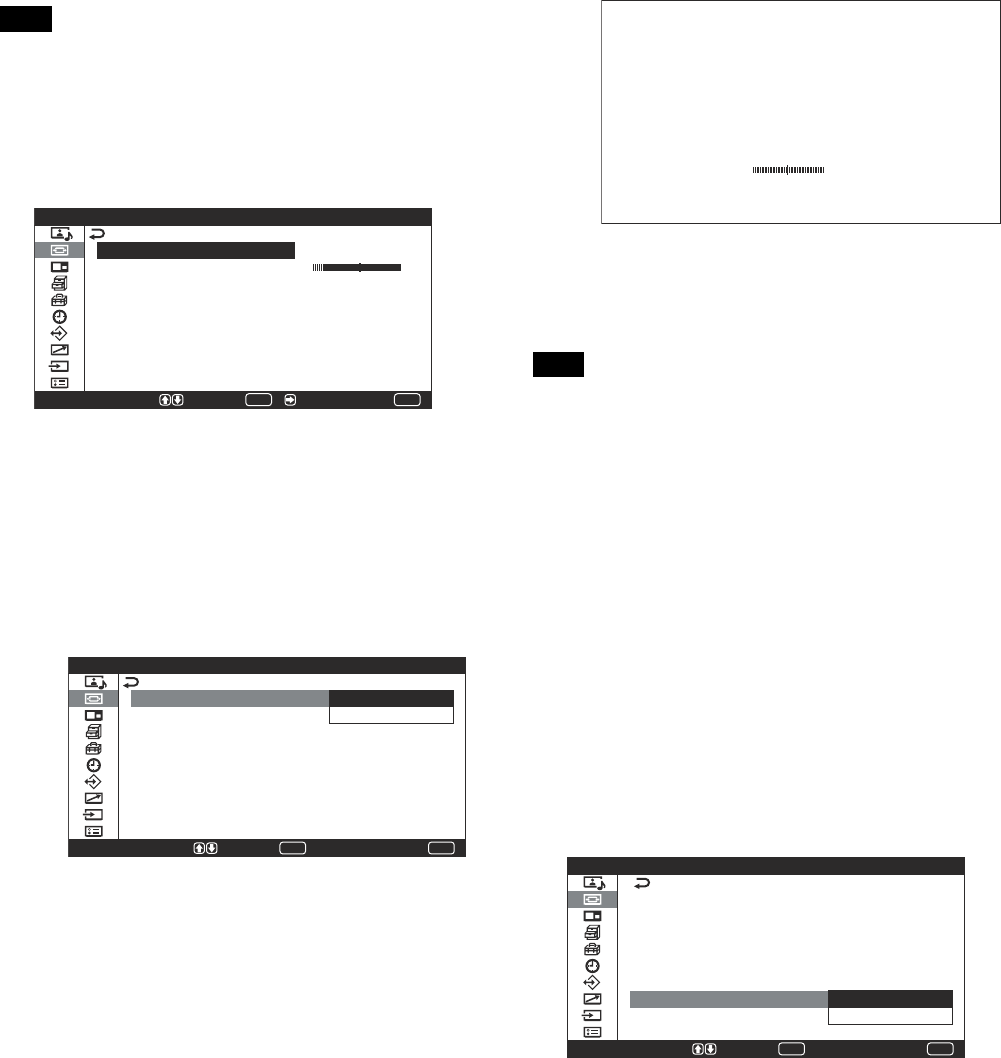
37 (GB)
Adjusting manually
(1) Select “Dot Phase” or “Total H Pixel” with
M
/
m
or
</,
and press ENTER.
The following appears on the screen. (When
you select “Dot Phase”)
Do t Phase 3 1
(2) Adjust the dot phase or the total number of
horizontal pixels with
M
/
m
or
</,
and
press ENTER.
Note
Due to patterns in the image, there may be times when
noise continues to occur even after you have used
Auto Adjust. In such cases, adjust the dot phase
manually.
To restore Adjust Pixel menu items to their
original settings
In the Adjust Pixel menu, press
M
/
m
to move the
cursor (yellow) to “Reset” and press ENTER. Then
select “OK” with
M
/
m
and press ENTER.
Restoring the Screen Control Menu
Adjustment Values
1In the Screen Control menu, press
M/m
to move
the cursor (yellow) to “Reset” and press ENTER.
The following menu appears on the screen.
MENU
S e l e c t E n d
S c r e e n C o n t r o l
W i d e S e t u p
W i d e M o d e :
S c r e e n Z o o m :
S c r e e n S i z e
S c r e e n S h i f t
A d j u s t P i x e l
R e s e t
4 : 3
C a n c e l
O K
ENTER
S e t
2Press M/m to move the cursor (yellow) to “OK”
and press ENTER.
The Screen Control menu items are restored to
their original setting.
To cancel the reset function
Press MENU before pressing ENTER. Alternatively,
select “Cancel” with M/m and then press ENTER.
Resizing and Positioning the Picture
Adjusting the Pixels
If there is too much noise on the edges of characters
or vertical lines, adjust the dot phase and the total
number of horizontal pixels.
Note
This item depends on the computer signal being used.
1In the Screen Control menu, press
M
/
m
to move
the cursor (yellow) to “Adjust Pixel” and press
ENTER.
The following menu appears on the screen.
MENU
S e l e c t E n d
A d j u s t P i x e l
A u t o A d j u s t
D o t P h a s e
T o t a l H P i x e l :
R e s e t
1 3 4 4
S e t /
ENTER
2You can adjust the dot phase and the total number
of horizontal pixels either automatically or
manually.
Adjusting automatically
(1) Select “Auto Adjust” with
M
/
m
and press
ENTER.
The following menu appears on the screen.
MENU
S e l e c t E n d
A d j u s t P i x e l
A u t o A d j u s t
D o t P h a s e
T o t a l H P i x e l :
R e s e t
C a n c e l
O K
1 3 4 4
ENTER
S e t
(2) Select “OK” with
M
/
m
and press ENTER.
The dot phase and the total number of
horizontal pixels are adjusted automatically.
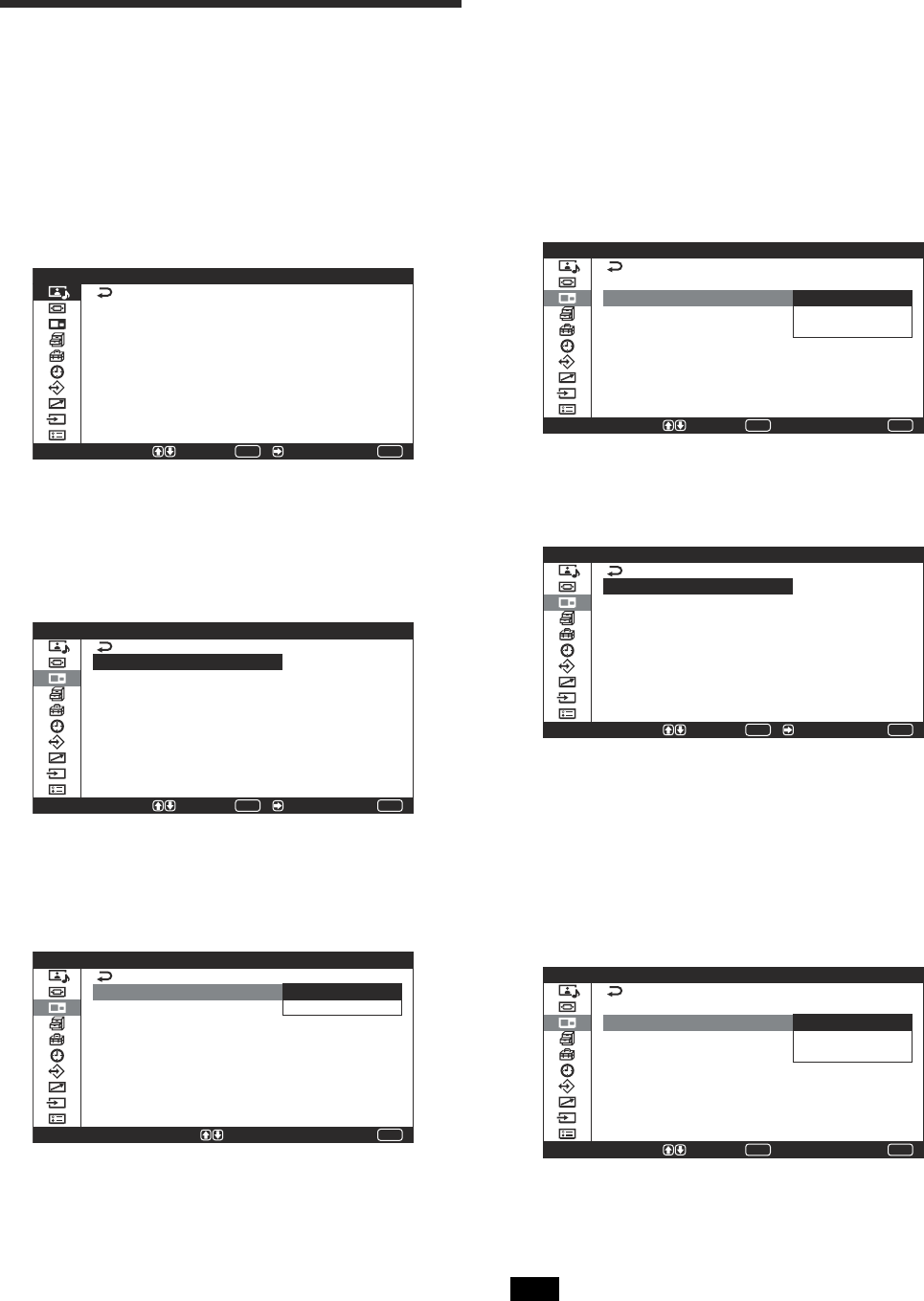
38 (GB)
Viewing two pictures at
the same time
You can show a PC picture and a video picture side
by side.
1Press MENU.
The main manu appears on the screen.
MENU
P i c t u r e / S o u n d C o n t r o l
S e l e c t E n d
P i c t u r e M o d e :
A d j u s t P i c t u r e
A d j u s t S o u n d
S t a n d a r d
S e t /
ENTER
2Press
M
/
m
to move the cursor (yellow) to “Picture
And Picture (PAP)” and press ENTER or ,.
The Picture And Picture (PAP) menu appears on
the screen.
P i c t u r e A n d P i c t u r e ( P A P )
P A P :
A c t i v e P i c t u r e :
P i c t u r e S i z e
O f f
L e f t
MENU
S e l e c t E n d S e t /
ENTER
3Press
M
/
m
to move the cursor (yellow) to “PAP”
and press ENTER or ,.
The following menu appears on the screen.
MENU
E n d
O f f
O n
P i c t u r e A n d P i c t u r e ( P A P )
P A P :
A c t i v e P i c t u r e :
P i c t u r e S i z e
S e l e c t = S e t
4Select “On” with
M
/
m
.
5Press ENTER or < to return to the previous
screen.
Activating a picture
Activate one of the two pictures for operation. (When
you want to perform an operation on the right picture,
for example.)
1Press
M
/
m
to move the cursor (yellow) to “Active
Picture” and press ENTER or ,.
The following menu appears on the screen.
MENU
S e l e c t E n d
ENTER
S e t
O n
L e f t
R i g h t
S w a p
P i c t u r e A n d P i c t u r e ( P A P )
P A P :
A c t i v e P i c t u r e :
P i c t u r e S i z e
2Select “Right” with
M
/
m
and press ENTER.
Now you can operate the right picture.
MENU
S e l e c t E n d S e t /
O n
R i g h t
P i c t u r e A n d P i c
P A P :
A c t i v e P i c t u r e :
P i c t u r e S i z e
t u r e ( P A P )
ENTER
Switching the position of the two
pictures
1Press
M
/
m
to move the cursor (yellow) to “Active
Picture” and press ENTER.
The following menu appears on the screen.
MENU
S e l e c t E n d
ENTER
S e t
O n
L e f t
R i g h t
S w a p
P i c t u r e A n d P i c t u r e ( P A P )
P A P :
A c t i v e P i c t u r e :
P i c t u r e S i z e
2Select “Swap” with
M
/
m
and press ENTER.
The positions of the two pictures reversed.
Note
Please note that we always call the picture showing on
the left “the left picture,” and the one on the right “the
right picture.”
Viewing two pictures at the same time
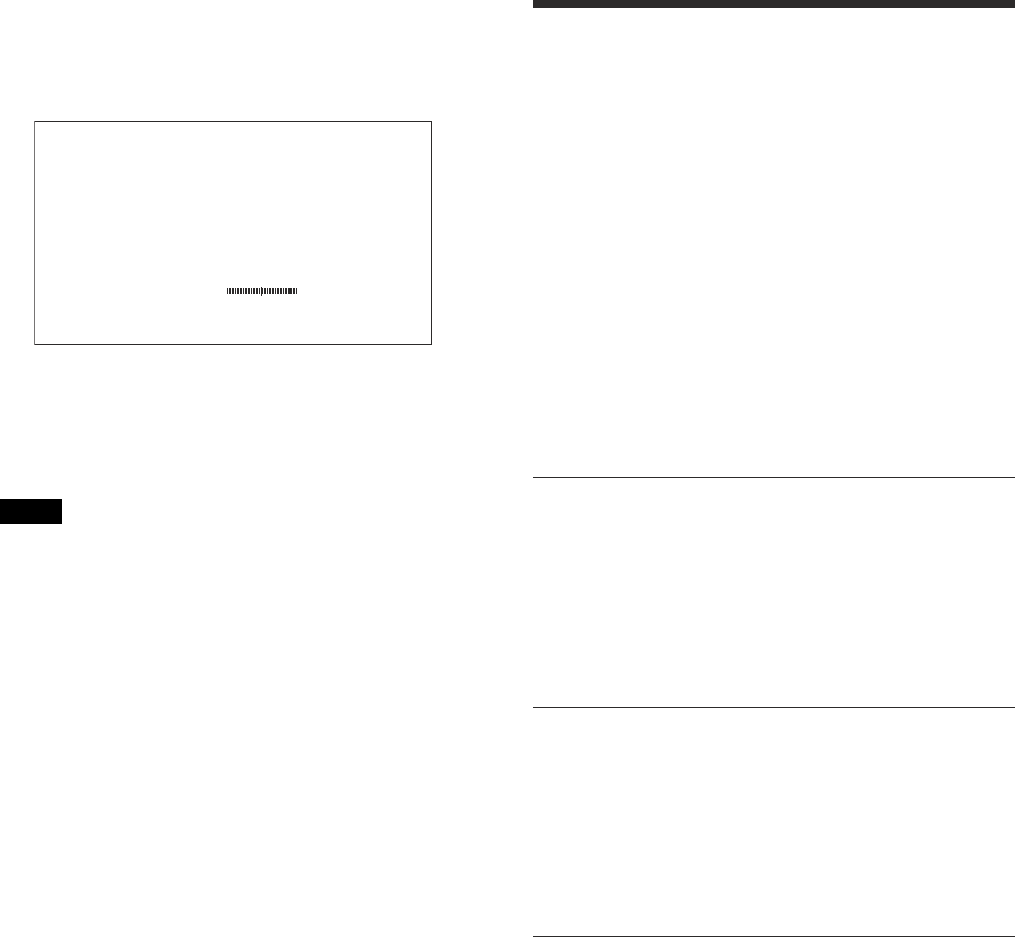
39 (GB)
Zooming in on a picture
1Press
M
/
m
to move the cursor (yellow) to “Picture
Size” and press ENTER.
Picture Size L R
2Keep pressing
</,
to change the size of the
picture.
3Press ENTER to set the size you have selected.
Notes
•Picture And Picture Function can show one RGB
picture from either INPUT1 or INPUT2 and one
video picture from the VIDEO connectors.
•The function is not available for component signal.
•The function is not available for signals input to the
Component/RGB Input Adaptor BKM-V11.
Adjusting the Sound
Quality
When a speaker SS-SP20B (not supplied) installed,
you can adjust sound treble level, bass level, or
balance of the speaker (left and right) volume. The
surround mode can also be set.
Adjusting the Treble, Bass, and
Balance, etc.
Press MENU to show the main menu and adjust
“Treble,” “Bass,” “Balance,” or “Surround” from the
Adjust Sound menu.
Treble
Select “Treble” with M/m and press ENTER.
Adjust the treble with M/m/</, within the range of
MIN (–50) to MAX (+50).
M/,: Increases sound treble.
m/<: Decreases sound treble.
Bass
Select “Bass” with M/m and press ENTER.
Adjust the bass with M/m/</, within the range of
MIN (–50) to MAX (+50).
M/,: Increases sound bass.
m/<: Decreases sound bass.
Balance
Select “Balance” with M/m and press ENTER.
Adjust the balance with M/m/</, within the range
of LEFT (50) to RIGHT (50).
M/,: Increases the volume on the right side.
m/<: Increases the volume on the left side.
Viewing two pictures at the same time / Adjusting the Sound Quality
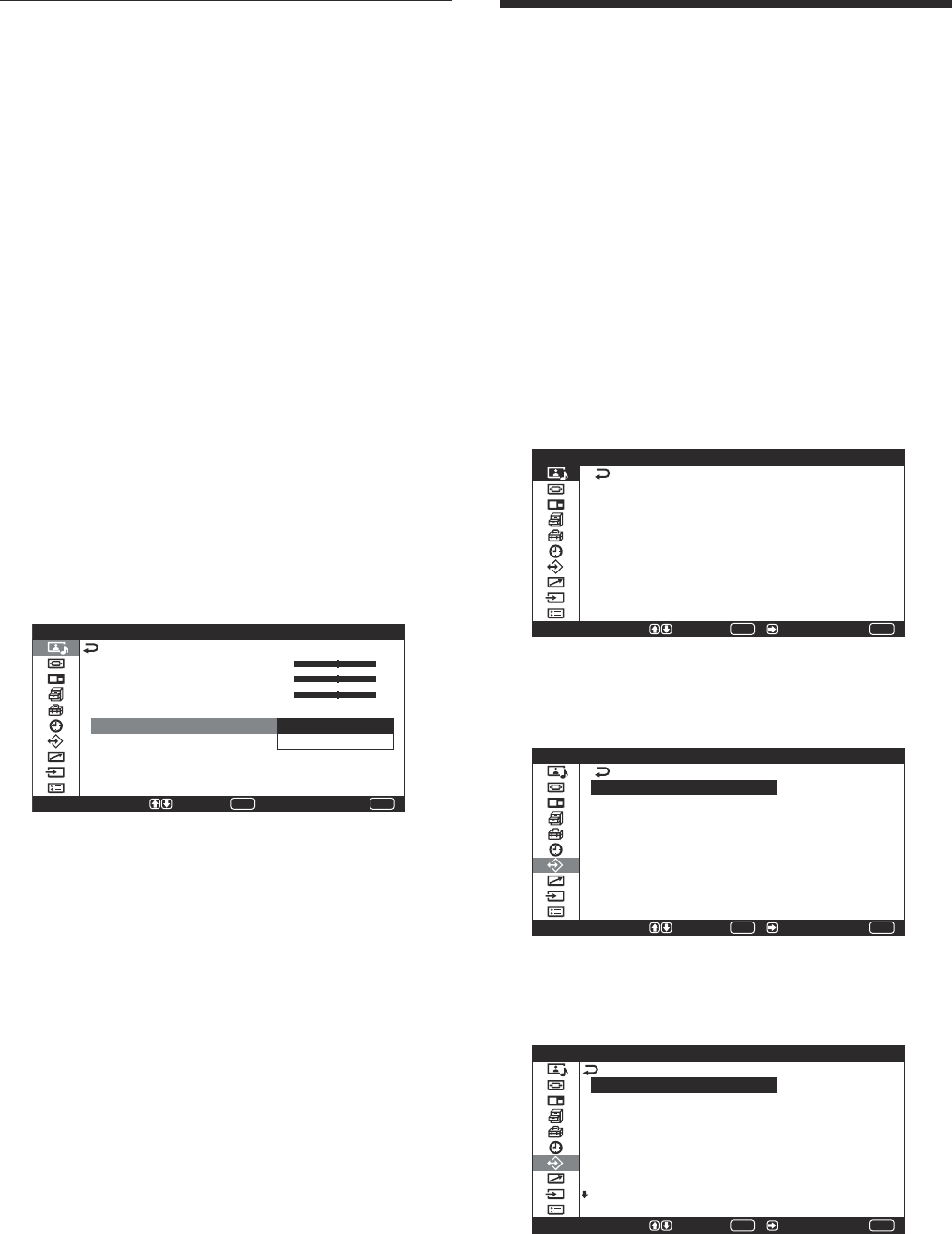
40 (GB)
Surround
Select the Surround mode according to the type of
picture.
1Select “Surround” with M/m and press ENTER.
2Select the Surround mode with M/m and press
ENTER.
Off: No surround output
Hall: When desiring to give the stereo sound of
movies or music programs a greater sense of
presence.
Simul.: When desiring to give ordinary monaural
programs or news telecasts an enhanced sense
of presence using simulated stereo sound.
Restoring the Adjust Sound Menu
Items to Their Original Settings
1In the Adjust Sound menu, press M/m to move the
cursor (yellow) to “Reset” and press ENTER or
,.
The following menu appears on the screen.
MENU
S e l e c t E n d
T r e b l e
B a s s
B a l a n c e
S u r r o u n d :
R e s e t
O f f
C a n c e l
O K
A d j u s t S o u n d ( U s e r 1 )
ENTER
S e t
2Press M/m to move the cursor (yellow) to “OK”
and press ENTER.
The Adjust Sound menu items restore their factory
presettings.
To cancel the reset function
Press MENU before pressing ENTER. Alternatively,
select “Cancel” with M/m and press ENTER.
Using the Memory
Function
You can save your settings for each input signal using
the Memory function. The saved settings can be
restored whenever necessary. The settings for the
Picture/Sound Control and Screen Control menus can
be memorized. You can save up to twenty settings.
You can name the settings (up to 6 characters in
length) as well.
Storing the Current Setting
1Press MENU.
The main menu appears on the screen.
MENU
P i c t u r e / S o u n d C o n t r o l
S e l e c t E n d
P i c t u r e M o d e :
A d j u s t P i c t u r e
A d j u s t S o u n d
S t a n d a r d
S e t /
ENTER
2Press
M
/
m
to move the cursor (yellow) to “User
Memory” and press ENTER or ,.
The User Memory menu appears on the screen.
U s e r M e m o r y
L o a d
S a v e
MENU
S e l e c t E n d S e t /
ENTER
3Press
M
/
m
to move the cursor (yellow) to “Save”
and press ENTER or ,.
The following menu appears on the screen.
S a v e
M E M 0 1
M E M 0 2
M E M 0 3
M E M 0 4
M E M 0 5
M E M 0 6
M E M 0 7
M E M 0 8
MENU
S e l e c t E n d S e t /
ENTER
Adjusting the Sound Quality / Using the Memory Function
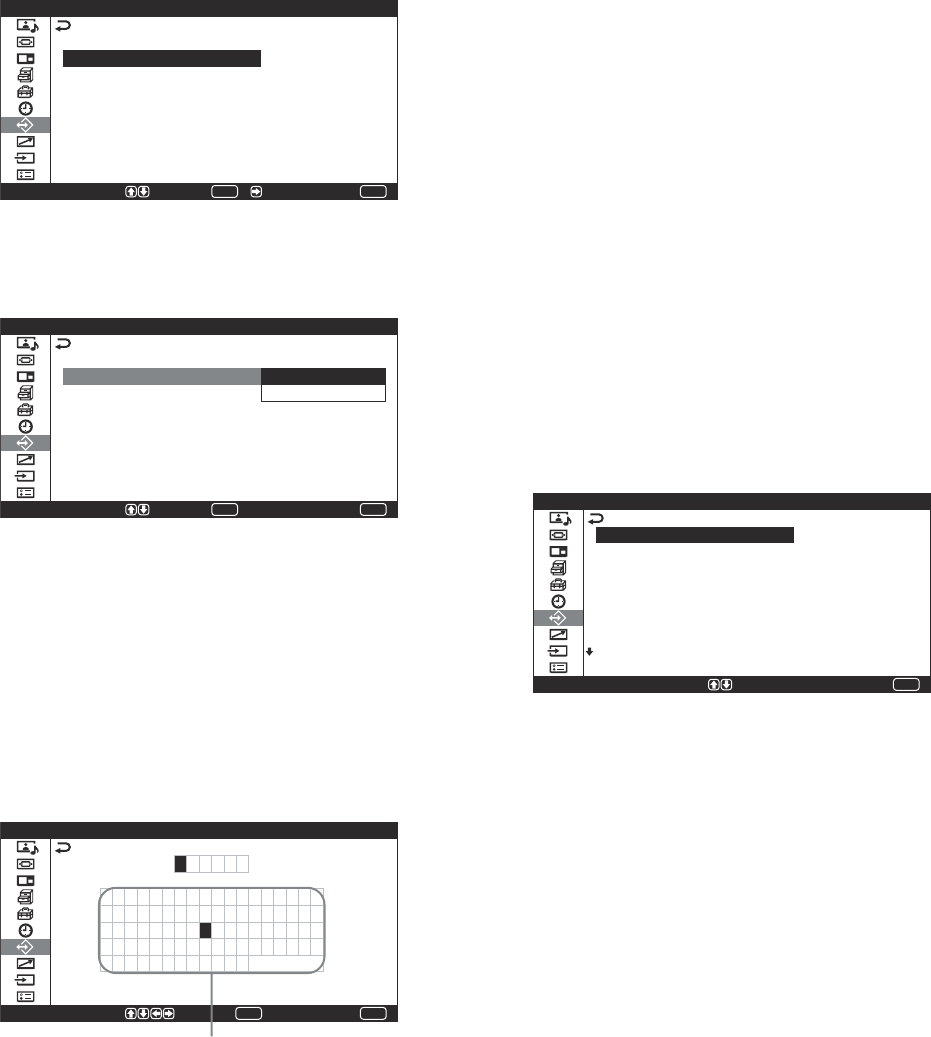
41 (GB)
4Select a memory number (01 to 20) with
M
/
m
and
press ENTER or ,.
The following menu appears on the screen.
MENU
S e l e c t E n d
S a v e
M E M 0 1
S a v e
N a m e S e t
S e t /
ENTER
5Press
M
/
m
to move the cursor (yellow) to “Save”
and press ENTER or ,.
The following menu appears on the screen.
MENU
S e l e c t E n d
S a v e
M E M 0 1
S a v e
N a m e S e t
C a n c e l
O K
ENTER
S e t
6Press M/m to move the cursor (yellow) to “OK”
and press ENTER.
The current data is stored under the selected
memory number.
When you name the setting, follow the steps below.
7Press
M
/
m
to move the cursor (yellow) to “Name
Set” and press ENTER again.
The following menu appears on the screen.
ENTER
MENU
S e l e c t S e t E n d
N a m e S e t : M E M 0 1
0 1 2 3 4 5 6 7 8 9 A B
I J K L M N O P Q R S T
a b c d e f g h i j k l
s t u v w x y z ( ) [ ]
= % °C $ ; : . ’ ,
T t
C D E F G H
U V W X Y Z
m n o p q r
< > + – × /
E n d
S a v e
Character list
8Select a character or symbol from the character
list with
M/m/</,
and press ENTER. The
selected character is input. If you input a wrong
character or symbol, select “
<
” on the screen to
backspace the cursor one character and reselect
the right one.
When “MENU Function” (page 23 (GB)) in the Initial
Setup menu is set to “Return”, the
M/m
buttons on the
Remote Commander move the cursor left and right. To
make the
M/m
buttons move the cursor up and down,
set “MENU Function” to “On/Off.”
9Repeat step 8 and after you have finished entering
the name, select “End” and press ENTER.
The menu returns to the Save menu.
Calling Up a Stored Setting
1In the User Memory menu, press
M
/
m
to move the
cursor (yellow) to “Load” and press ENTER or
,.
The following menu appears on the screen.
R e s t o r e
M E M 0 1
M E M 0 2
M E M 0 3
M E M 0 4
M E M 0 5
M E M 0 6
M E M 0 7
MENU
E n d
L o a d
S e l e c t = S e t
2Move the cursor to the Memory Number (01 to
20) of the setting that you want to recall with
M
/
m
.
The stored adjustment value is recalled.
To restore the previous value
Move the cursor to “Restore.”
3Press the ENTER or <.
The display returns to the User Memory menu.
Using the Memory Function
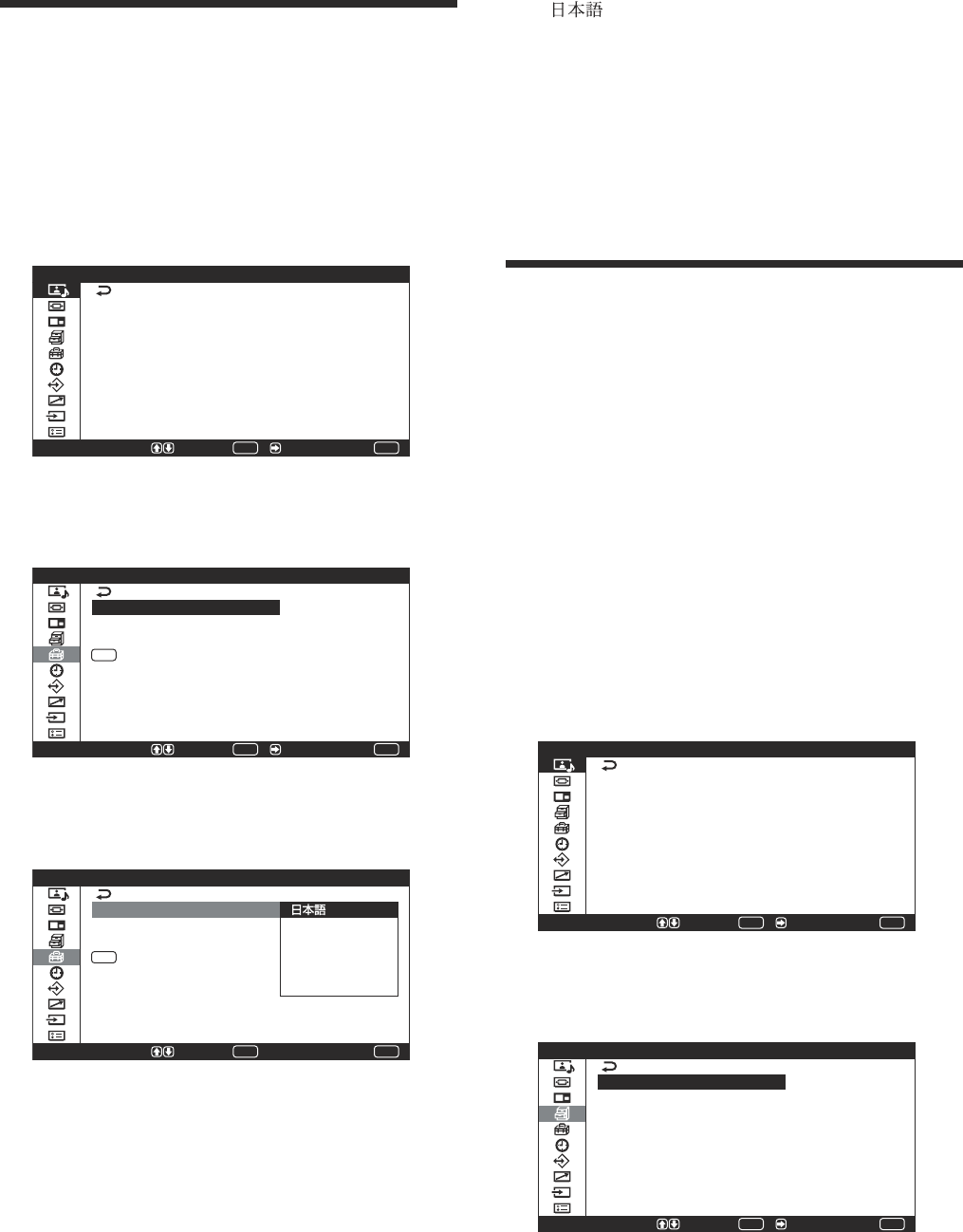
42 (GB)
Selecting the On-screen
Language
You can select the on-screen language from Japanese,
English, German, French, Spanish or Italian.
1Press MENU.
The main menu appears on the screen.
MENU
P i c t u r e / S o u n d C o n t r o l
S e l e c t E n d
P i c t u r e M o d e :
A d j u s t P i c t u r e
A d j u s t S o u n d
S t a n d a r d
S e t /
ENTER
2Press
M
/
m
to move the cursor (yellow) to “Initial
Setup” and press ENTER or ,.
The Initial Setup menu appears on the screen.
MENU
MENU
S e l e c t E n d
I n i t i a l S e t u p
L a n g u a g e :
C o l o r S y s t e m :
P A L 1 0 0 H z :
F u n c t i o n :
E n g l i s h
O n
O n / O f f
S e t /
ENTER
3Press
M
/
m
to move the cursor (yellow) to
“Language” and press ENTER or ,.
The following menu appears on the screen.
MENU
I n i t i a l S e t u p
L a n g u a g e :
C o l o r S y s t e m :
P A L 1 0 0 H z :
F u n c t i o n :
E N G L I S H
D E U T S C H
F R A N Ç A I S
E S P A Ñ O L
I T A L I A N O
MENU
S e l e c t E n d
ENTER
S e t
4Press
M
/
m
to move the cursor (yellow) to the
language of your choice.
The on-screen language is switched to the one you
have selected.
Selecting the On-screen Language / Screen Saver Function
: Japanese
ENGLISH: English
DEUTSCH: German
FRANÇAIS: French
ESPAÑOL: Spanish
ITALIANO: Italian
5Press ENTER or < to return to the Initial Setup
menu.
Screen Saver Function
Leaving a still image or an image with poor change in
brightness (such as the images of computer) showing
for a long time can cause a burn-in or ghosting.
The unit has a screen saver function to fix or reduce
the damage from them.
There are two types of screen saver: one reverses the
color tones of the image (Pic. Inversion), and the other
automatically moves the image around on the screen
at a preset interval (Pic. Orbit).
Reversing the Color Tones of the
Image
1Press MENU.
The main menu appears on the screen.
MENU
P i c t u r e / S o u n d C o n t r o l
S e l e c t E n d
P i c t u r e M o d e :
A d j u s t P i c t u r e
A d j u s t S o u n d
S t a n d a r d
S e t /
ENTER
2Press
M
/
m
to move the cursor (yellow) to
“Custom Setup” and press ENTER or ,.
The Custom Setup menu appears on the screen.
C u s t o m S e t u p
P o w e r S a v i n g :
S p e a k e r O u t :
C l o s e d C a p t i o n :
D i s p l a y :
S c r e e n S a v e r
C o l o r M a t r i x
H D M o d e :
R G B M o d e :
S y n c M o d e :
S t a n d a r d
O n
O f f
O n
P C
H / C o m p
MENU
S e l e c t E n d S e t /
ENTER
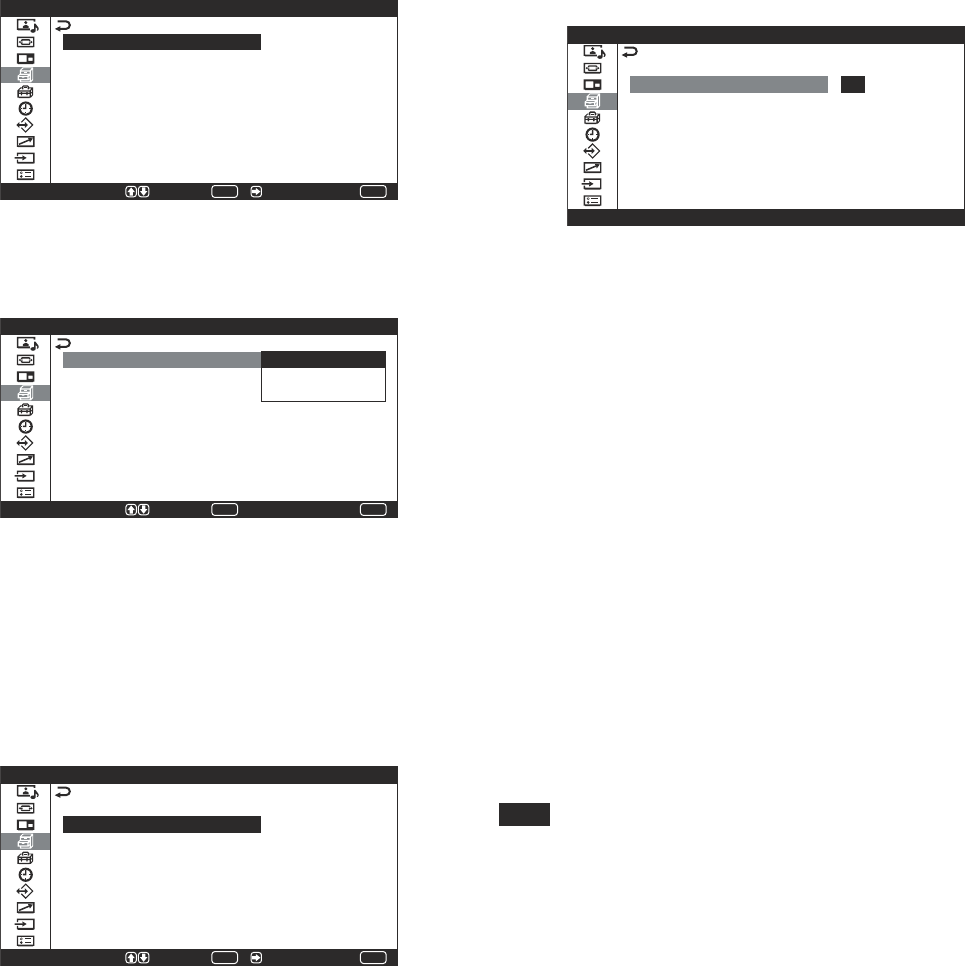
43 (GB)
Screen Saver Function
3Press
M
/
m
to move the cursor (yellow) to “Screen
Saver” and press ENTER or ,.
The following menu appears on the screen.
MENU
S e l e c t E n d
S c r e e n S a v e r
P i c . I n v e r s i o n :
P i c . O r b i t
O f f
S e t /
ENTER
4Press
M
/
m
to move the cursor (yellow) to
“Pic. Inversion” and press ENTER.
The following menu appears on the screen.
MENU
S e l e c t E n d
S c r e e n S a v e r
P i c . I n v e r s i o n :
P i c . O r b i t
O f f
A u t o
O n
ENTER
S e t
5Select Pic. Inversion mode with
M
/
m
.
Off: Sets Pic. Inversion to Off.
Auto: Carries out the Pic. Inversion process once
a day.
On: Reverses the color tones of the image.
When you select “Auto” and press ENTER, the
following menu appears on the screen.
MENU
S e l e c t E n d S e t /
S c r e e n S a v e r
P i c . I n v e r s i o n
S t a r t T i m e :
E n d T i m e :
A u t o
0 0 : 0 0
0 0 : 0 0
ENTER
(1) Press
M
/
m
to move the cursor (yellow) to
“Start Time” and press ENTER.
The following menu appears and the
background of the hour is displayed in yellow.
S c r e e n S a v e r
P i c . I n v e r s i o n :
S t a r t T i m e :
E n d T i m e :
A u t o
0 0 : 0 0
0 0 : 0 0
(2) Set the hour when the image is to be reversed
with
M
/
m
and press ENTER.
The setting for the hour is entered and the
background of the minute is displayed in
yellow.
(3) Set the minute with
M
/
m
and press ENTER.
The setting for the minute is entered. Press <
to return to the screen shown in step 5.
When you use the buttons on the unit, press the
MENU button to close the menu. Set “MENU
Function” (page 23 (GB)) on the Initial Setup
menu to “Return”. The MENU button on the unit
then has the same function as the < button.
(4) Similarly, set the End Time of the Pic.
Inversion.
The picture will be reversed at the Start Time
and will return to the original display image at
the End Time. This cycle is automatically
carried out once a day.
Note
If you set Start Time and End Time to the same time,
the setting of Start Time takes priority over that of
End Time. The display image does not return to the
original image at the End Time.
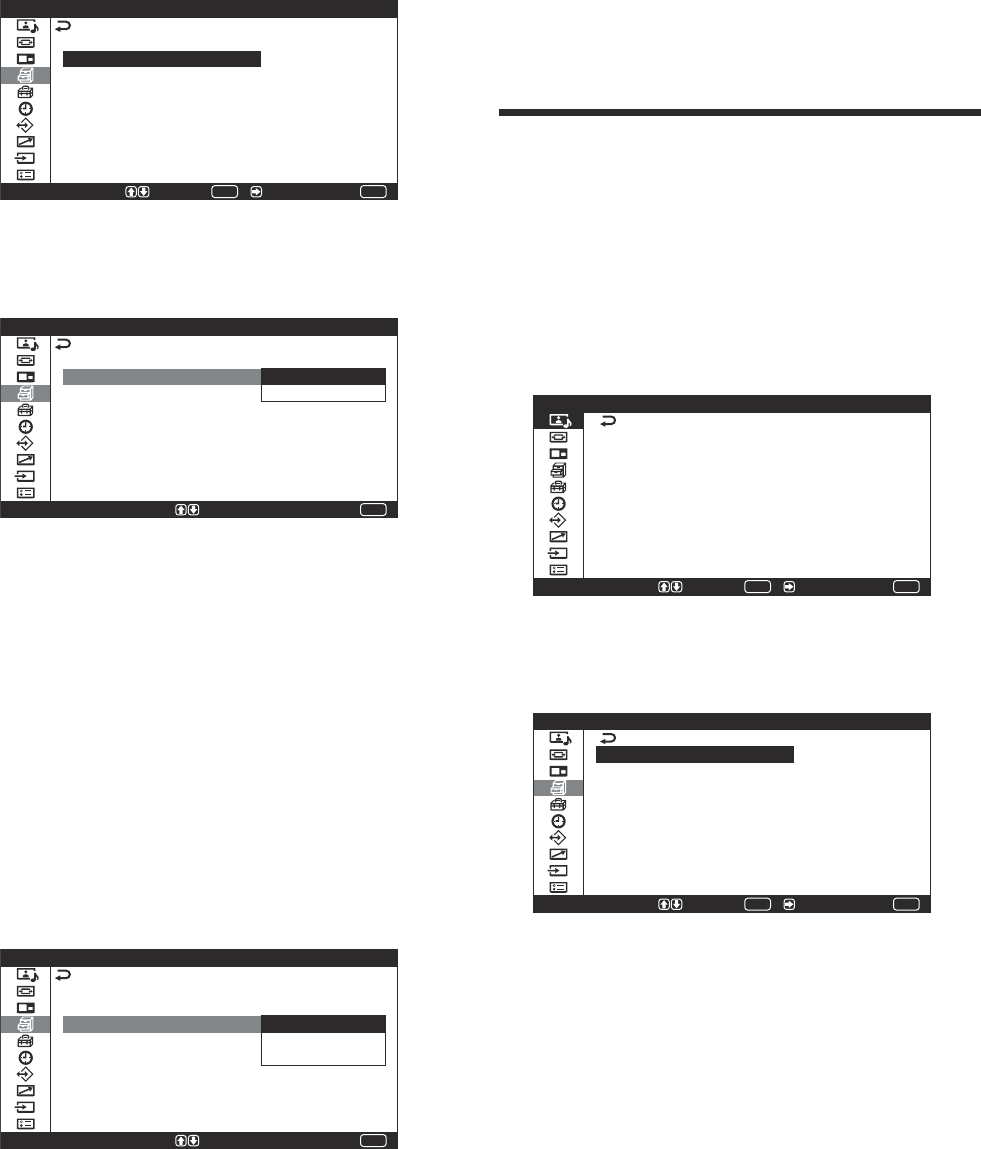
44 (GB)
Screen Saver Function / Adjusting Color Matrix
Changing the Image Position
Automatically
1In the Screen Saver menu, press
M
/
m
to move the
cursor (yellow) to “Pic. Orbit” and press ENTER
or ,.
The following menu appears on the screen.
MENU
S e l e c t E n d S e t /
S c r e e n S a v e r
P i c . O r b i t
O r b i t :
O r b i t R a n g e :
O r b i t C y c l e :
O f f
S m a l l
5 m i n
ENTER
2Press
M
/
m
to move the cursor (yellow) to “Orbit”
and press ENTER or ,.
The following menu appears on the screen.
MENU
E n d
S c r e e n S a v e r
P i c . O r b i t
O r b i t :
O r b i t R a n g e :
O r b i t C y c l e :
O f f
O n
5 m i n
S e l e c t = S e t
3Select the Orbit mode with
M
/
m
.
Off: Cancel the Pic. Orbit function.
On: Set the Pic. Orbit function.
4Press ENTER or <.
The menu returns to the Pic. Orbit menu.
5Select “Orbit Range” (moving distance) or “Orbit
Cycle” (time) with
M
/
m
and press ENTER.
The following values can be selected:
Orbit Range: Small, Mid, Large
Orbit Cycle: 10sec, 30sec, 1min, 5min
The following menu appears on the screen.
(When you select “Orbit Range”)
MENU
E n d
S c r e e n S a v e r
P i c . O r b i t
O r b i t :
O r b i t R a n g e :
O r b i t C y c l e :
O f f
S m a l l
M i d
L a r g e
S e l e c t = S e t
6Adjust the Orbit Range or Orbit Cycle with
M
/
m
.
7Press ENTER or < to return to the previous
screen.
When both Pic. Inversion and Pic. Orbit are
set to ON
If the Pic. Orbit function is actuated while the picture
is reversed, the reversed picture is displayed with
changing its position.
Adjusting Color Matrix
You can set Color Matrix to show pictures in natural
colors when a signal with a signal format
(480P(525P), 1080I(1125I), or 720P(750P)) is input to
the component input adapter.
1Press MENU.
The main menu appears on the screen.
MENU
P i c t u r e / S o u n d C o n t r o l
S e l e c t E n d
P i c t u r e M o d e :
A d j u s t P i c t u r e
A d j u s t S o u n d
S t a n d a r d
S e t /
ENTER
2Press M/m to move the cursor (yellow) to
“Custom Setup” and press ENTER or ,.
The Custom Setup menu appears on the screen.
C u s t o m S e t u p
P o w e r S a v i n g :
S p e a k e r O u t :
C l o s e d C a p t i o n :
D i s p l a y :
S c r e e n S a v e r
C o l o r M a t r i x
H D M o d e :
R G B M o d e :
S y n c M o d e :
S t a n d a r d
O n
O f f
O n
P C
H / C o m p
MENU
S e l e c t E n d S e t /
ENTER
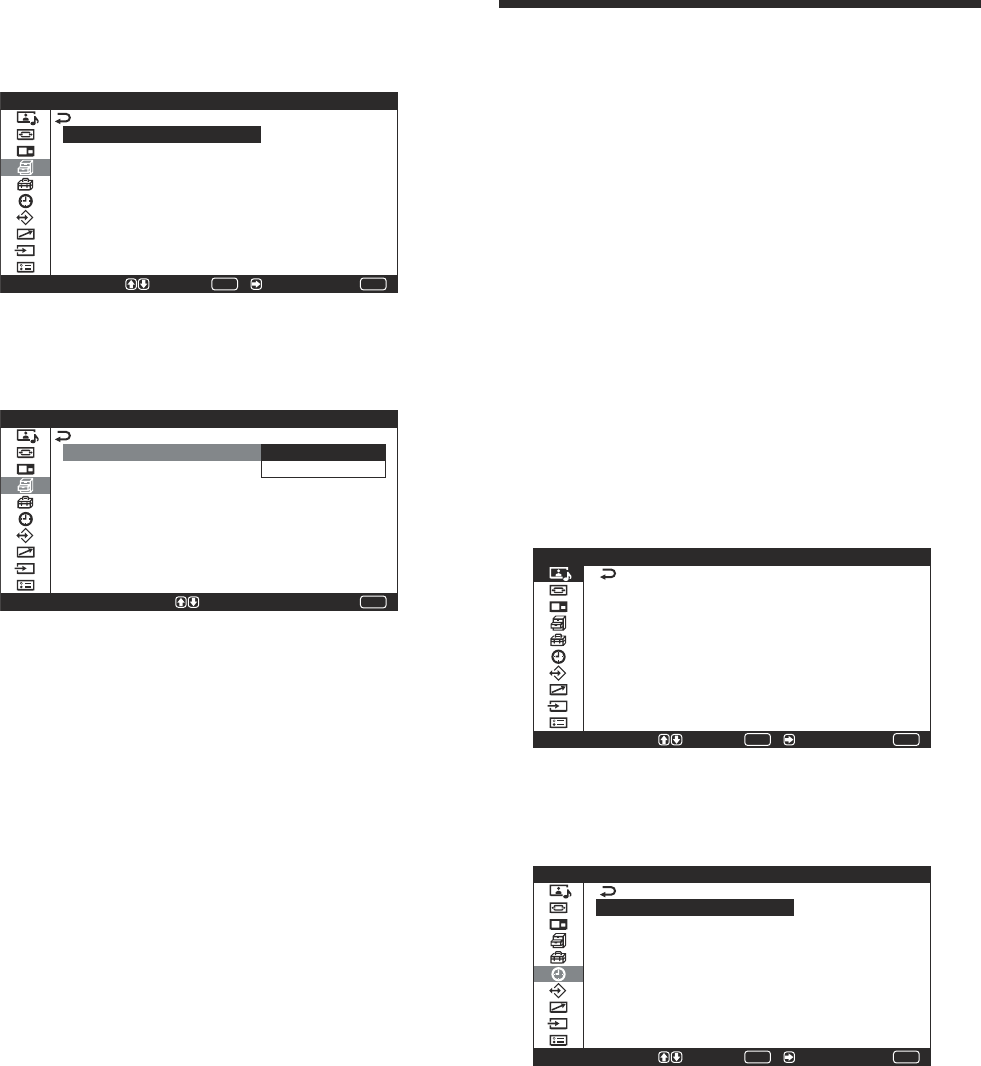
45 (GB)
Adjusting Color Matrix / Controlling Power On/Off Automatically (Timer Function)
3Press M/m to move the cursor (yellow) to “Color
Matrix” and press ENTER or ,.
The following menu appears on the screen.
C o l o r M a t r i x
4 8 0 P
1 0 8 0 I
7 2 0 P
Y / C B / C R
Y / P B / P R
Y / P B / P R
MENU
S e l e c t E n d S e t /
ENTER
4Select the signal format with M/m and press
ENTER or ,.
The following menu appears on the screen.
4 8 0 P
1 0 8 0 I
7 2 0 P
Y / C B / C R
Y / P B / P R
Y / P B / P R
MENU
E n d
C o l o r M a t r i x
S e l e c t = S e t
5Select the color matrix with M/m.
Y/CB/CR: When signal format is 480P.
Y/PB/PR: When signal format is 1080I or 720P.
Refer to the operating instructions of each device for details
on the settings.
6Press ENTER or < to return to the previous
screen.
Controlling Power On/Off
Automatically (Timer
Function)
This display has three power controlling functions.
You can set one to turn off the power automatically if
there is no input signal (Power Saving function). You
can set the time when the power automatically turns
on/off (On/Off Timer function). In addition, a sleep
function is provided that automatically turns off the
power after a preset amount of time has elapsed even
while the screen is displayed.
Sleep Function
1Press MENU.
The main menu appears on the screen.
MENU
P i c t u r e / S o u n d C o n t r o l
S e l e c t E n d
P i c t u r e M o d e :
A d j u s t P i c t u r e
A d j u s t S o u n d
S t a n d a r d
S e t /
ENTER
2Press
M
/
m
to move the cursor (yellow) to
“Timer/Clock” and press ENTER or ,.
The Timer/Clock menu appears on screen.
MENU
S e l e c t E n d
T i m e r / C l o c k
S l e e p :
C l o c k S e t
C l o c k D i s p l a y :
O n / O f f T i m e r :
A u t o S h u t O f f :
O f f
O f f
O f f
O f f
S e t /
ENTER
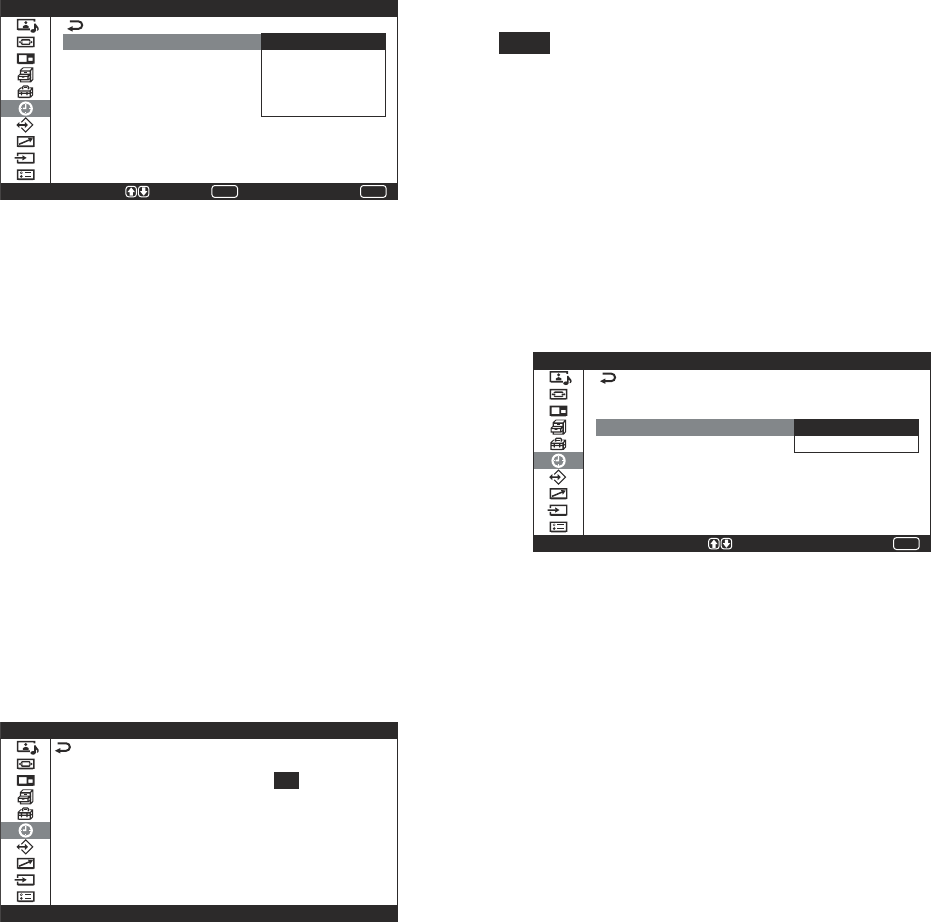
46 (GB)
Controlling Power On/Off Automatically (Timer Function)
3Press
M
/
m
to move the cursor (yellow) to “Sleep”
and press ENTER or ,.
The following menu appears on the screen.
T i m e r / C l o c k
S l e e p :
C l o c k S e t
C l o c k D i s p l a y :
O n / O f f T i m e r :
A u t o S h u t o f f :
O f f
3 0 m i n
6 0 m i n
9 0 m i n
1 2 0 m i n
MENU
S e l e c t E n d
ENTER
S e t
4Select the period of time to power off the display
with
M
/
m
.
Off: Power is not turned off.
30 min: Power off after 30 minutes.
60 min: Power off after 60 minutes.
90 min: Power off after 90 minutes.
120 min: Power off after 120 minutes.
5Press ENTER or < to return to the previous
screen.
Adjusting the time
1In the Timer/Clock menu, press
M
/
m
to move the
cursor (yellow) to “Clock Set” and press ENTER
or ,.
The following menu appears, and the background
color of the time turns to yellow.
T i m e r / C l o c k
C l o c k S e t 0 1 : 2 4 : 1 1
2Adjust the hour with
M
/
m
and press ENTER.
The setting for the hour is entered and the
background of the minute is displayed in yellow.
3Similarly, adjust the minute and press ENTER.
The setting for the minute is entered and the
background of the second turns to yellow.
4Press ENTER.
The second is reset to 00.
5Press MENU.
The display returns to the normal screen. If you
must make further adjustments, or the setting must
be made again, repeat the process from step 1.
Note
If the built-in clock tends to lose time, the internal
battery may be exhausted. Please contact your
authorized Sony dealer to have the battery replaced.
Displaying the time
1In the Timer/Clock menu, press
M
/
m
to move the
cursor (yellow) to “Clock Display” and press
ENTER.
The following menu appears on the screen.
MENU
E n d
T i m e r / C l o c k
S l e e p :
C l o c k S e t
C l o c k D i s p l a y :
O n / O f f T i m e r :
A u t o S h u t o f f :
O f f
O f f
O n
O f f
S e l e c t = S e t
2Select “On” with
M
/
m
.
When you hide the menu, the clock appears on the
lower right corner of the screen.
When you press the DISPLAY button on the Remote
Commander, the clock disappears, and the signal
currently input and the Picture Mode appear. If you
press the DISPLAY button again, the clock appears
again.
If the information is displayed undisturbed for about
10 seconds, it will disappear automatically.
“Clock Display : ON” will not be saved after the unit
is powered off.
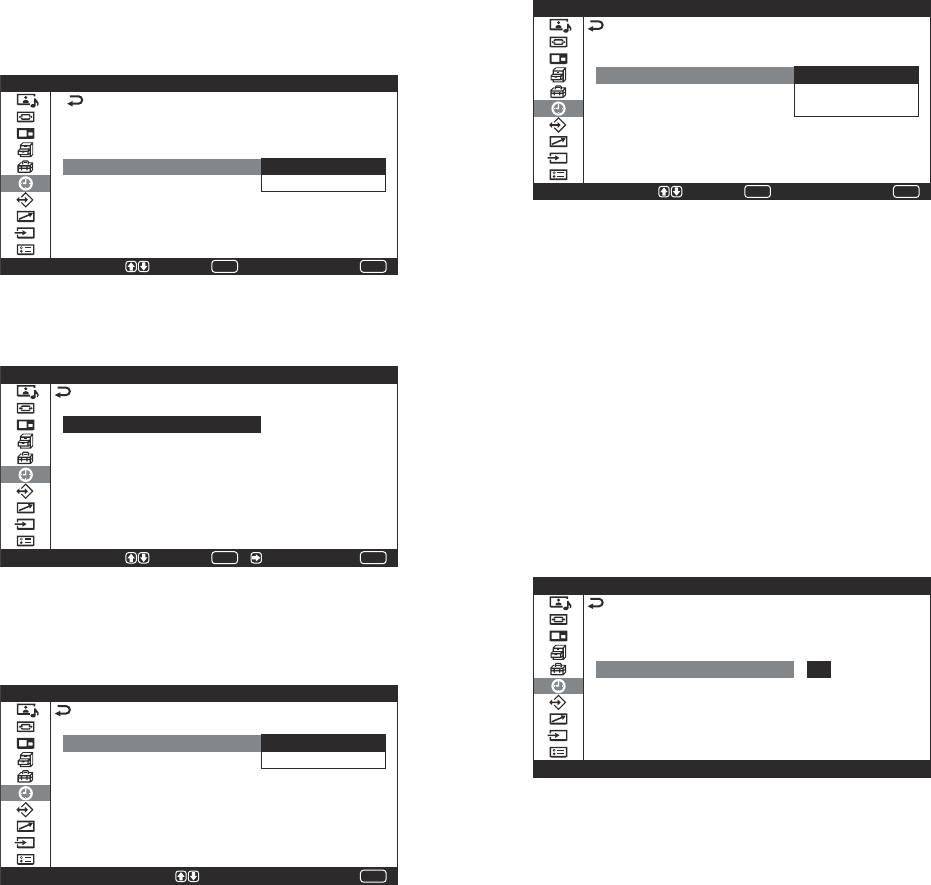
47 (GB)
Controlling Power On/Off Automatically (Timer Function)
On/Off Timer Function
1In the Timer/Clock menu, press
M
/
m
to move the
cursor (yellow) to “On/Off Timer” and press
ENTER.
The following menu appears on the screen.
MENU
S e l e c t E n d
T i m e r / C l o c k
S l e e p :
C l o c k S e t
C l o c k D i s p l a y :
O n / O f f T i m e r :
A u t o S h u t o f f :
O f f
O f f
O f f
O n
ENTER
S e t
2Select “On” with
M
/
m
and press ENTER.
The following menu appears on the screen.
MENU
S e l e c t E n d S e t /
O n / O f f T i m e r
O n / O f f T i m e r :
R e p e a t :
T i m e r M o d e :
O n T i m e :
O f f T i m e :
O n
O f f
O f f
0 0 : 0 0
0 0 : 0 0
ENTER
3Select “Repeat” with
M
/
m
and press ENTER or
,.
The following menu appears on the screen.
MENU
E n d
O n / O f f T i m e r
O n / O f f T i m e r :
R e p e a t :
T i m e r M o d e :
O n T i m e :
O f f T i m e :
O n
O f f
O n
0 0 : 0 0
0 0 : 0 0
S e l e c t = S e t
4Select the repeat mode with
M
/
m
.
Off: Power on/off only once.
On: Power on/off at the predetermined time
every day.
5Press ENTER or <.
The menu returns to the On/Off Timer menu.
6Select “Timer Mode” with
M
/
m
and press ENTER
or ,.
The following menu appears on the screen.
MENU
S e l e c t E n d
O n / O f f T i m e r
O n / O f f T i m e r :
R e p e a t :
T i m e r M o d e :
O n T i m e :
O f f T i m e :
O n
O f f
O f f
O n
O n / O f f
ENTER
S e t
7Press
M
/
m
to select the Timer Mode.
Off: Power off at the time set for Off Time.
On: Power on at the time set for On Time.
On/Off: Power on at the time set for On Time,
and power off at the time set for Off Time.
8Press ENTER or <.
The menu returns to the On/Off Timer menu.
9Press
M
/
m
to move the cursor (yellow) to “On
Time” and press ENTER or ,.
The following menu appears on the screen. The
background of the hour is displayed in yellow.
O n / O f f T i m e r
O n / O f f T i m e r :
R e p e a t :
T i m e r M o d e :
O n T i m e :
O f f T i m e :
O n
O f f
O n / O f f
0 0 : 0 0
0 0 : 0 0
10
Press
M
/
m
to set the hour and press ENTER or
,.
The time is entered and the background of the
minutes is displayed in yellow.
11
Press
M
/
m
to set the minute and press ENTER.
Press < to return to the screen shown in step 2.
When you use the buttons on the unit, press the MENU
button to close the menu. Set “MENU Function” (page
23 (GB)) on the Initial Setup menu to “Return”. The
MENU button on the unit then has the same function as
the < button.
12
Press
M
/
m
to move the cursor (yellow) to “Off
Time” and press ENTER. Do the same thing for
the power on hour and minute.
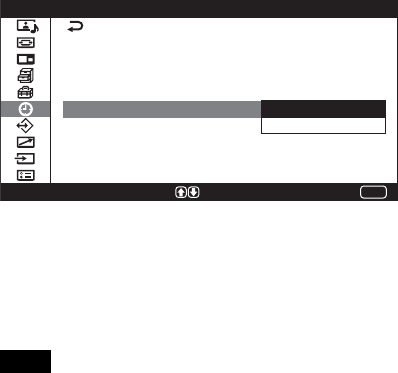
48 (GB)
Power Saving Function
Automatically turns off the power when there is no
input signal to the INPUT1 or INPUT2 connectors
when the input mode is set to RGB.
1In the Timer/Clock menu, press
M
/
m
to move the
cursor (yellow) to “Auto Shutoff” and press
ENTER or ,.
The following menu appears on the screen.
MENU
E n d
T i m e r / C l o c k
S l e e p :
C l o c k S e t
C l o c k D i s p l a y :
O n / O f f T i m e r :
A u t o S h u t O f f :
O f f
O f f
O f f
O f f
O n
S e l e c t = S e t
2Press
M
/
m
to select the length of time until the
change to power saving mode.
Off: The power saving function does not work.
On: The power saving function will work.
Note
Input selection is available during power saving
mode.
The ON indicator flashes when the unit is in the
power saving mode.
3Press ENTER or < to return to the previous
screen.
To cancel the power saving function
Input the signal again, or press the 1 switch on the 1
(standby) switch / indicator section or the POWER
ON switch on the Remote Commander.
Controlling Power On/Off Automatically (Timer Function)
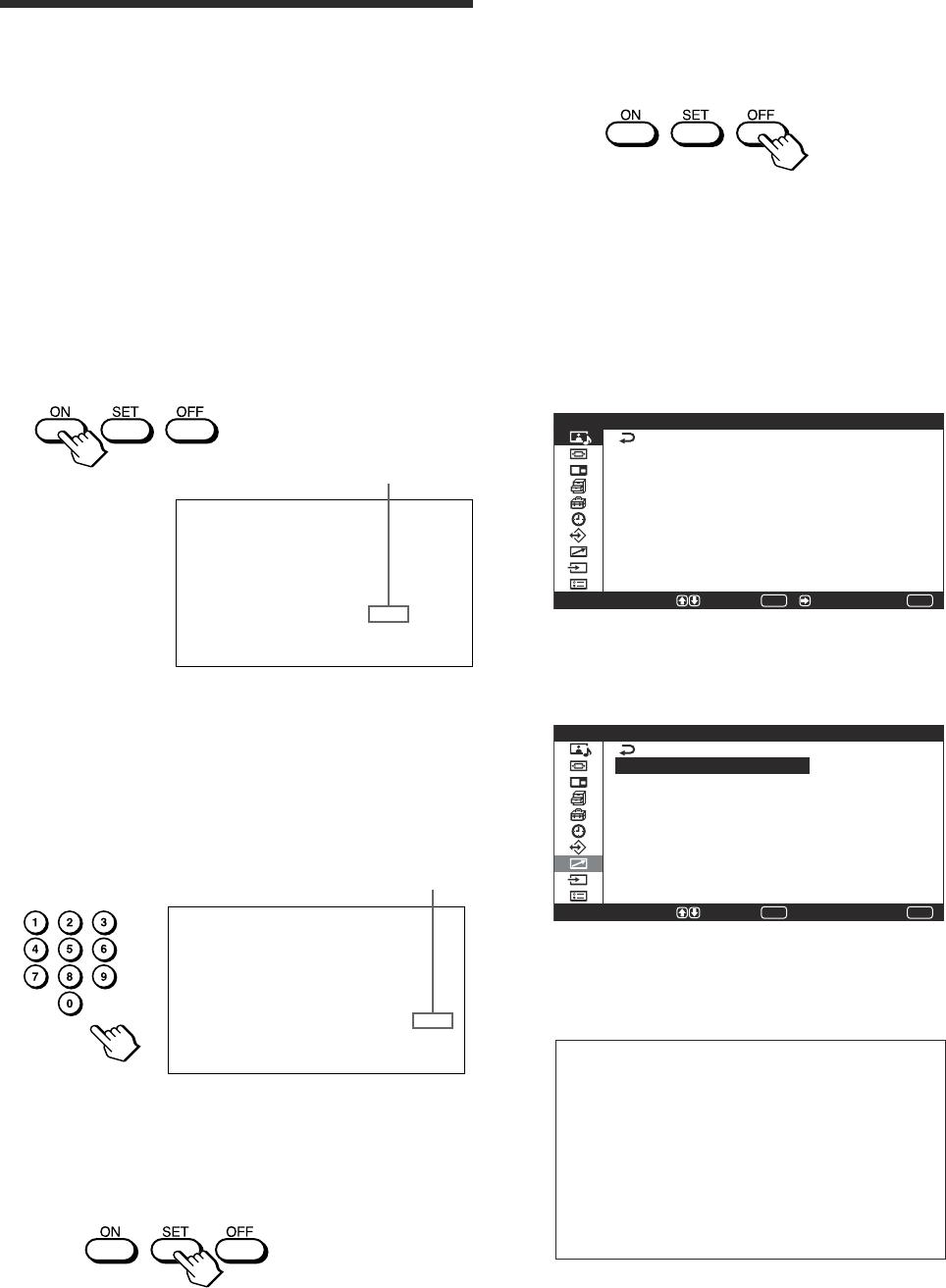
49 (GB)
4When all of the setting changes have been
completed, press the ID MODE OFF button.
The display returns to the normal screen.
To change the index number
You can change the index number if necessary.
When you change the number, use the buttons on the
control button section of the display unit.
1Press MENU.
The main menu appears on the screen.
MENU
P i c t u r e / S o u n d C o n t r o l
S e l e c t E n d
P i c t u r e M o d e :
A d j u s t P i c t u r e
A d j u s t S o u n d
S t a n d a r d
S e t /
ENTER
2Press M/m to move the cursor (yellow) to
“Remote” and press ENTER.
The Remote menu appears on the screen.
MENU
S e l e c t E n d
R e m o t e
I n d e x N u m b e r :
R e m o t e M o d e :
R e m o t e O n l y :
1
O n
ENTER
S e t
3Press M/m to move the cursor (yellow) to “Index
Number” and press ENTER.
The following menu appears on the screen.
Index Number: 1
4Select the index number with M/m and press
ENTER.
The menu returns to the Remote menu.
Operating a Specific Display With the Remote Commander
Input Number
Index number
Operating a Specific Display
With the Remote Commander
Using the supplied Remote Commander, you can
operate a specific display without affecting other
displays installed at the same time.
1Press ID MODE ON on the Remote Commander.
Monitor index numbers appear in white characters
on all the displays. (Every display is allocated an
individual preset index number from 1 to 255.)
For details, see “To change the index number” on page
49 (GB).
Index Number .117 . . .
2Input the index number of the display you want to
operate using the 0 – 9 buttons on the Remote
Commander.
The input number appears right next to the index
number of each display.
Index Number . 117 117
3Press ID MODE SET.
The characters on the selected display change to
green while the others change to red.
You can operate the specified display only.
(Power ON/STANDBY apply to the other
displays, as well.)
50 (GB)
Using Other Remote Commander Models
Using Other Remote
Commander Models
The following operations can be carried out using
other Remote Commander models.
•Power on/off
•Input selection
•Menu operations
• Picture adjustments: Contrast, Phase and Chroma
•On-screen display on/off
The operations available and the buttons to be used
for each operation are limited depending on each
Remote Commander. See the table below.
Remote Commander model RM-921
REMOTE MODE setting ON
Input selection INPUT1 RGB1
INPUT2 RGB2
VIDEO LINE
Menu operation MENU MENU
ENTER ENTER
MM
mm
Picture adjustment Contrast CONTRAST+/–
Chroma CHROMA
Phase —
On-screen information DISPLAY
51 (GB)
Specifications
Specifications
Video processing
Preset signal See page 28 (GB).
Sampling rate 13.5 MHz to 140 MHz
Panel system AC-type Plasma Display Panel
Display resolution 852 dots
(horizontal)
× 480 lines
(vertical)
480 dots
(horizontal)
× 852 lines
(vertical) (PFM-42V1P)
Pixel pitch
1.08 (horizontal) × 1.08 (vertical)
mm
(
1
⁄
32
×
1
⁄
32
inches)
Picture size
920 (horizontal) × 518 (vertical)
mm
(36
7
⁄
32
× 20
13
⁄
32
inches)
518
(horizontal)
× 920
(vertical)
mm
(20
13
⁄
32
× 36
7
⁄
32
inches)
(PFM-42V1P)
Panel size 42-inch (diagonal 1058 mm)
Inputs and Outputs
INPUT1
RGB/YUV D-sub 15-pin (female) (×1) (See
“Pin assignment” on page 52
(GB).)
AUDIO Stereo minijack (×1)
500 mVrms, high impedance
INPUT2 1)
DVI DVI (DVI Specification Rev. 1.0
compliant)
AUDIO Stereo minijack (×1)
500 mVrms, high impedance
CONTROL S IN/OUT
AUDIO OUT Stereo minijack (×1)
REMOTE (RS-232C)
D-sub 9-pin (×1)
VIDEO (NTSC, PAL, SECAM, NTSC4.43,
PAL60, PAL-M, PAL-N) 2)
COMPOSITE INBNC (×1)
Composite video, 1 Vp-p ±2 dB
sync negative, 75 ohms
(automatic termination)
COMPOSITE OUT
BNC (×1) Loop-through
Y/C IN Mini DIN 4-pin (×1)
Y (luminance): 1 Vp-p ±2 dB sync
negative, 75 ohms terminated
C (chrominance): Burst
0.286 Vp-p ±2 dB (NTSC),
75 ohms terminated
Burst 0.3 Vp-p ±2 dB (PAL),
75 ohms terminated
AUDIO IN Pinjack (×2)
500 mVrms, high impedance
SPEAKER 7 W + 7 W (6 ohms), direct
unbalanced impedance:
6-16 ohms
Component/RGB Input Adaptor BKM-V11
(Not supplied)
YUV/RGB IN
YUV/RGB BNC (×5)
AUDIO Pinjack (×2)
500 mVrms, high impedance
RGB/Component Active Through Adaptor
BKM-V12 (Not supplied)
RGB/YUV ACTIVE THROUGH
RGB/YUV IN D-sub 15-pin (female) (×1)
AUDIO IN Stereo minijack (×1)
500 mVrms, high impedance
RGB/YUV OUT D-sub 15-pin (female) (×1)
General
Power requirements
100 V to 240 V AC, 50/60 Hz,
3.7 A to 1.5 A
Power consumption
360 W
Operating conditions
Temperature: 0 °C to 35 °C
(32 °F to 95 °F)
Humidity: 20% to 90%
(no condensation)
Atmospheric pressure: 800 to
1100 hPa
.........................................................................................................................................................................................................
1) The PFM-42V1N is not equipped with the INPUT2 connectors.
2) The PFM-42V1E and 42V1N are not equipped with VIDEO connectors. For these models, composite video and Y/C
input can be input when the Video Input Adaptor BKM-V10 (not supplied) is installed in the display.
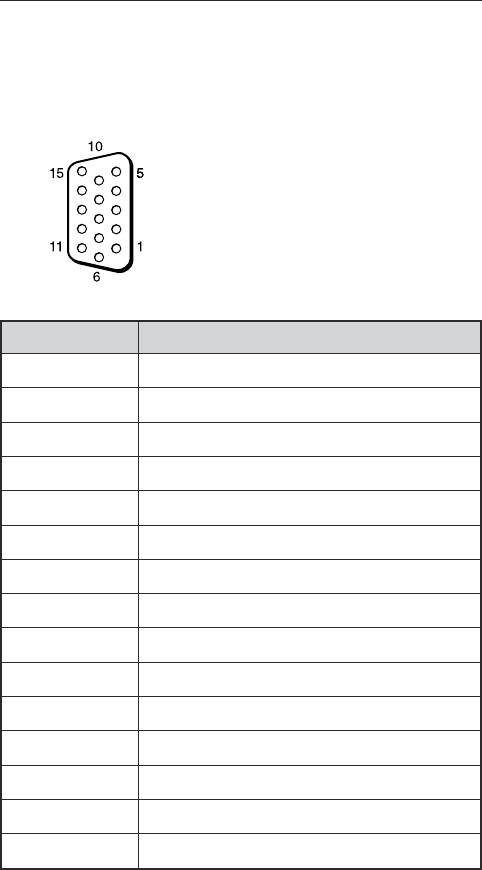
52 (GB)
Specifications
Pin No. Signal
1Red video or R-Y or PR
2Green video or Y or Sync On Green
3Blue video or B-Y or PB
4Ground
5Ground
6Red ground
7Green ground
8Blue ground
9Not used
10 Ground
11 Ground
12 SDA
13 H sync or composite sync
14 V sync
15 SCL
Pin assignment
RGB/YUV connector (D-sub 15-pin)
Storing/transporting conditions
Temperature: –10 °C to +40 °C
(14 °F to 104 °F)
Humidity: 20% to 90%
(no condensation)
Atmospheric pressure: 700 to
1100 hPa
Dimensions 1033 × 631 × 83 mm
(40
3
⁄
4
× 24
7
⁄
8
× 3
3
⁄
8
inches)
PFM-42V1P:
631 × 1033 × 83 mm
(24
7
⁄
8
× 40
3
⁄
4
× 3
3
⁄
8
inches)
(w/h/d, excluding projections)
Mass 27 kg (59 lb 8 oz)
Supplied accessories
AC power cord (1)
AC plug holder (2)
Digital RGB (DVI-D) signal cable:
TMDS (Single Link) (1) *
Cable holder (4)
Remote Commander RM-971 (1)
Size AA (R6) batteries (2)
Operating instructions (1)
* Except for the PFM-42V1N
Optional accessories
Display stand SU-42B
Speaker SS-SP20B
Video Input Adaptor BKM-V10
(for the PFM-42V1E only)
Component/RGB Input Adaptor
BKM-V11
RGB/Component Active Through
Adaptor BKM-V12
Safety regulations
UL1950, CSA No. 950 (c-UL),
FCC Class B, IC Class B,
EN60 950 (NEMKO), CE,
C-Tick
Design and specifications are subject to change
without notice.

2 (FR)
AVERTISSEMENT
Pour prévenir tout risque d’incendie ou
d’électrcution, garder cet appareil à l’abri de la
pluie et de l’humidité.
De dangereuses hautes tensions circulent à
l’intérieur de cet appareil. N’ouvrez pas le
châssis.
Confiez-en l’entretien exclusivement à un
personnel qualifié.
Transport
Lorsque que vous transportez l’écran, tenez le par l’appareil
lui même et non par les haut parleurs. Dans le cas contraire,
ces derniers peuvent se détacher et l’appareil risque de
tomber. Ceci pourrait entraîner des blessures.
Pour les utilisateurs au Canada
Cet appareil est numérique de la classe B est conforme à la
norme NMB-003 du Canada.
La prise doit être près de l’appareil et facile d’accès.
Attention
Risque d’explosion en cas de remplacement des piles par
des piles de type incorrect.
Jetez les piles usées conformément aux instructions.
Sony Corporation Printed in Korea
