Tbs Unify Pro 5g8 Manual
User Manual:
Open the PDF directly: View PDF  .
.
Page Count: 21
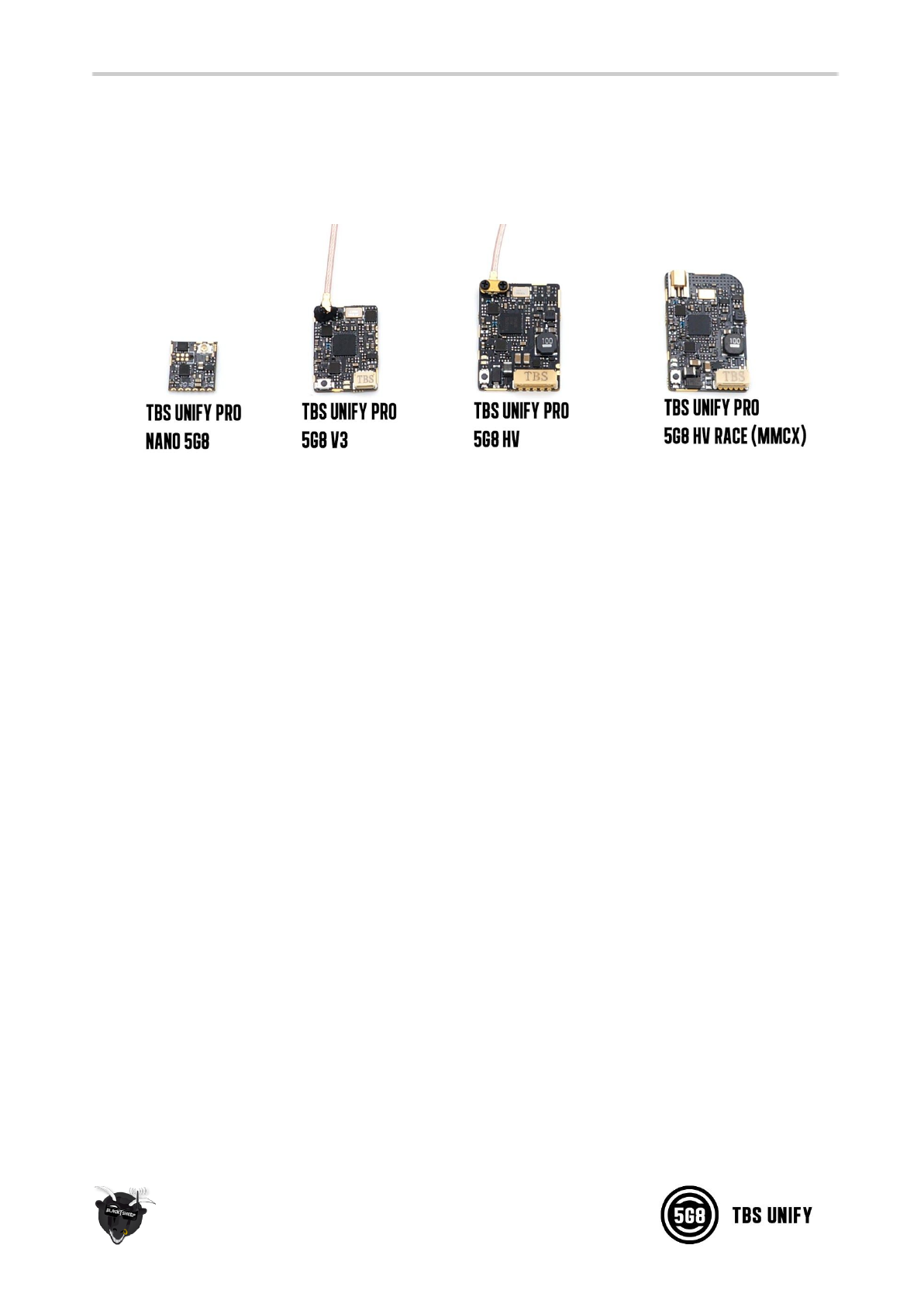
TBS UNIFY PRO 5G8 (HV)
Video Transmitter
High quality, license-free, ultra-tiny, race ready vtx
Revision 2018-10-01
The TBS UNIFY is a new line of video transmitters, optimized for compatibility across multiple “platforms”
and reduced to a small form factor, completely redesigned and tailored for FPV use. Perfect for small
multirotor platforms where flight times are critical.
Key features
• World’s lightest 37ch video transmitter line (unlimited channels via smartaudio)
• Extremely powerful - with integrated heatsink
• 25mW (up to 800mW with HAM license*)
• One button frequency and power setup
• OSD configuration using TBS SmartAudio (via PNP PRO OSD)
• SMA connector with frame mounting holes integrated
• 5V input or 2-6S input with 5V output versions available
• Solder-on module dimensions available on request (Unify PRO 5G8 V3)
•NEW: improved noise filtering on HV version (Batch >1004)
•NEW: optimized heat dissipation on HV version (Batch >1004)
•NEW (Q3 2018): 7-pin connector for dedicated audio channel and smartaudio (data)
•NEW (Q3 2018): Separated GND for Vin and for Camera
•NEW (Q3 2018): Screw secured U.FL connector
1
Specifications
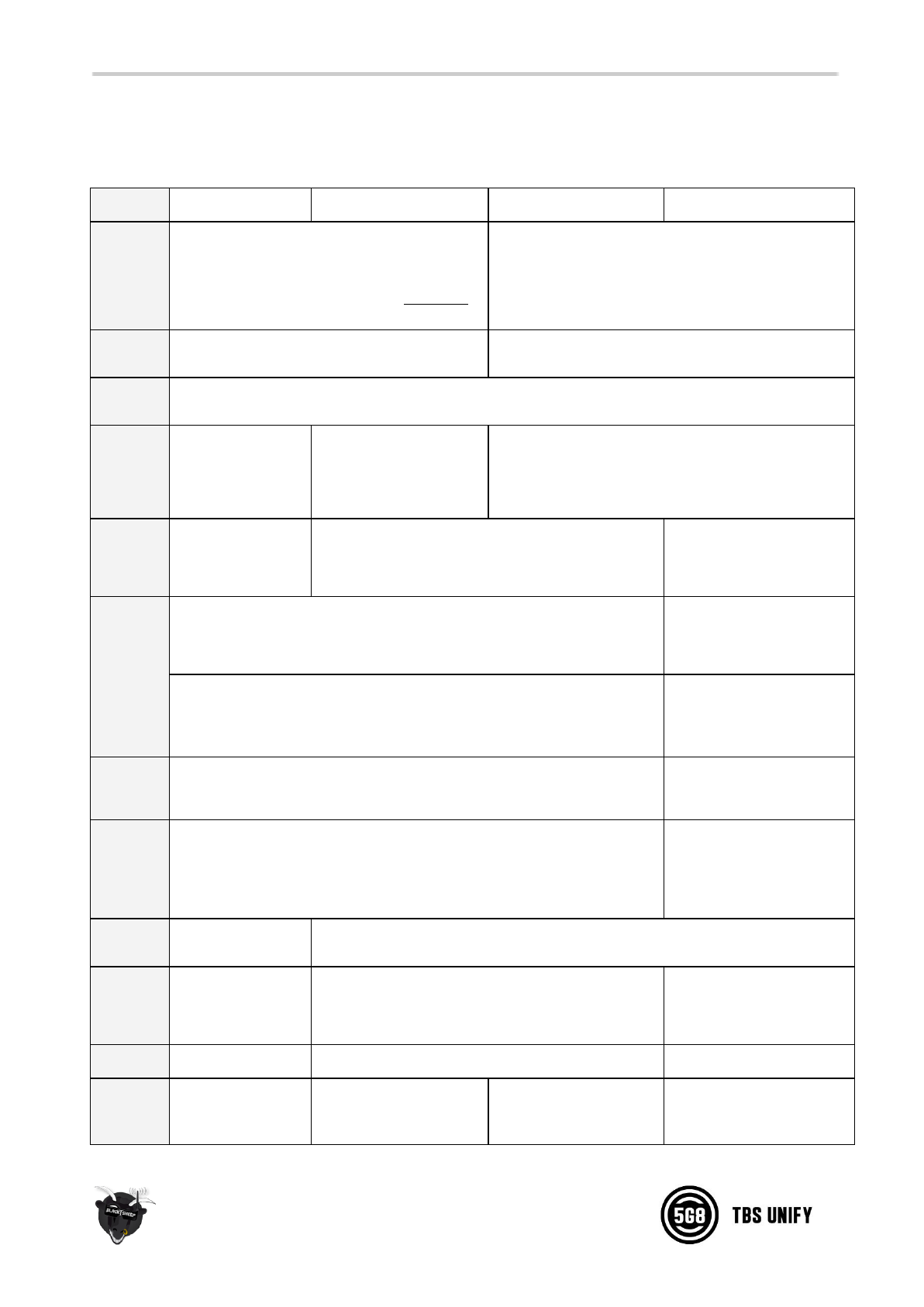
TBS UNIFY PRO nano
TBS UNIFY PRO V2 5G8
TBS UNIFY PRO 5G8 HV
TBS UNIFY PRO HV RACE
Input
voltage:
Regulated 5V
Voltage peaks max 6.0V!!!
(Unify PRO V3 max. 13V peaks)
(Only use DCDC converter with proper LC filtering!
Example: PNP25/PNP50/PNP PRO)
6V to 28V (2S - 6S) VBat, peak max 31V
Please connect directly to battery voltage!
Power
Output
None
5V for Camera @ 0.5A max.
Extra
features:
CleanSwipe
PitMode
Remote
software
protocol
SmartAudio V2.0 LITE
(
requires 3.3V level
and soft- or
hardware pull low
),
Batch No <2xxx: SmartAudio
V1.0
Batch No >2xxx: SmartAudio
V2.0
SmartAudio V2.0
Output
Power
14dBm (25mW)
17dBm (50mW*)
14dBm (25mW)
23dBm (200mW*)
27dBm (500mW*)
29dBm (800mW*)
14dBm (25mW)
23dBm (200mW*)
Pit mode
Activate: press button during powered up.
LED: in menu for channel setting
Activate: press button
during powered up.
LED: red
Deactivate: automatic with next power up
(without pressed button)
Deactivate: press button
during powered up.
LED: blue
(red & blue when unlocked)
Pit mode
-> flight
mode
Reboot VTX
After boot up, press button
for 8sec
Channels:
Band A (8ch), B (8ch), E (5ch)
Fatshark 8ch
Race Band 8ch
Band A (8ch), B (8ch), E
(5ch)
Fatshark 8ch
Race Band 8ch
Low Race Band 8ch **
Audio on
6.5MHz
No
Yes
Power
consumpt
ion
25mW: 250mA
50mW: 300mA
25mW: 250mA
200mW: 320mA
500mW: 460mA
800mW: 600mA
25mW: 250mA
200mW: 320mA
Range:
1km
Up to 4 km with omnidirectional RHCP antennas
Up to 2 km
Antenna
connector
:
U.FL high strength
SMA
RP-SMA
SMA
SMA
or
MMCX
2

Port
connector
Castellated holes,
2mm pitch
JST-SH socket, 4 pin
JST-GH, 7 pin
(5pin until June 2018)
SMA: JST-GH, 7 pin
MMCX: JST-GH, 5 pin
Dimensio
ns:
14.5(H) x 13(W) x 3(D)
mm
18(H) x 25(W) x 4(D) mm
22 (H) x 30 (W) x 4 (D) mm
Weight:
1g
5g excluding antenna
7g excluding antenna
Special
Con-
nections:
5V output filtered for
Camera
New: Audio, connect to Microphone or other audio source
New: Data, connect to Smartaudio serial control source
Kit
contents:
U.FL Antenna
Silicon Cables pre-
tinned
1x TBS UNIFY 5G8, 1x 5V
cable
1x TBS UNIFY 5G8 HV, 1x VTx/Cam cable
* requires HAM license, special unlocking procedure!
** only for RACE version where authorization has been granted
3

Table of Contents
Specifications
Table of Contents
Button menu control
Channel select mode
Band select mode
Unlock & power select mode
PitMode
Save and exit
Button menu structure
LED Flash Codes for Channel, Band and Power
Installation / Mounting
Menu Table
Frequency Table
OSD control via CORE PRO
Channel, Band and Power control
Video transmitter pinout
TBS UNIFY PRO 5G8
TBS UNIFY PRO 5G8 HV (RACE)
Connection to DIY drone build
Connection to TBS CORE products
TBS UNIFY PRO 5G8 nano
The UNIFY PRO 5G8 nano comes with pre tinned silicon wires for easy installation in your build.
Technology showcase
PitMode
CleanSwitch
SmartAudio
SmartAudio LITE
Declaration of Conformity
Good practices
4

Button menu control
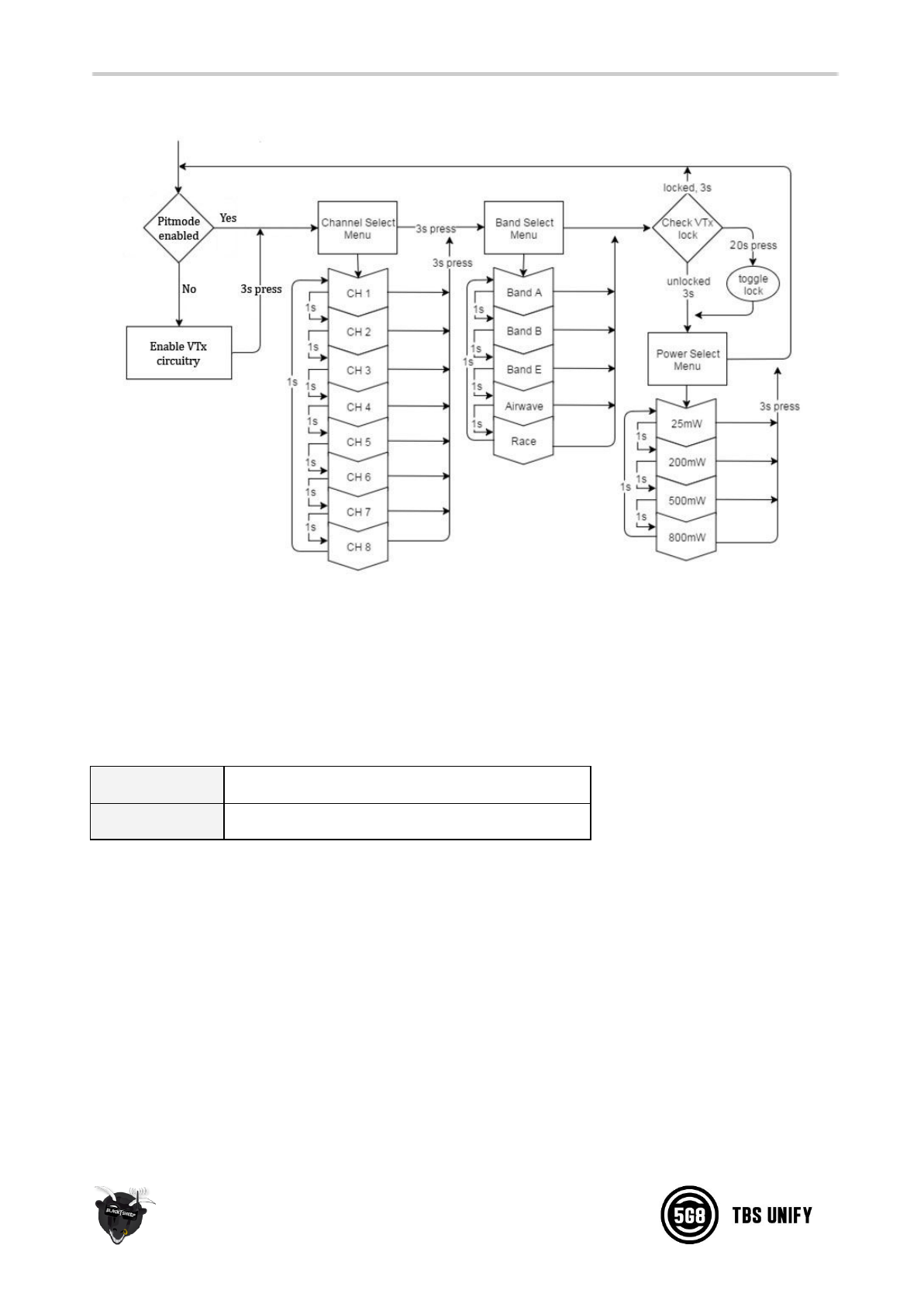
There are categories in the menu, and settings. Pressing the button for 3 seconds will toggle between
categories, pressing it for a short (1 second) press toggles between settings. To enter the menu, hold the
button for 3 seconds. LED colors will signal the state of the menu, for an overview see the following table.
Channel select mode
Enter menu by pressing the button for 3s. Red LED will flash 1 time. Select channels by simple short
presses.
Band select mode
Press button for an additional 3s. Red LED will flash 2 times. Select band by simple short presses.
Unlock & power select mode
(FOR HAM USERS ONLY!) Press button for 20 to 25 seconds. The Red LED will flash 3 times to confirm. You
have unlocked the video transmitter for use with all frequencies (see frequency table below).
NOTE: Unlock only works if you are inside the band selection menu
The power select mode is now accessible. Once unlocked, you can select the power level according to the
table below. To lock the transmitter, go back into band select menu and press the button for 20 to 25
seconds again.
PitMode
While in PitMode you can change channels and set power levels without affecting other pilots signal.
Pit mode function explained HERE
Save and exit
Press button for 3 seconds. Blue LED will turn on, settings are saved and it will exit the menu.
5
Button menu structure
LED Flash Codes for Channel, Band and Power
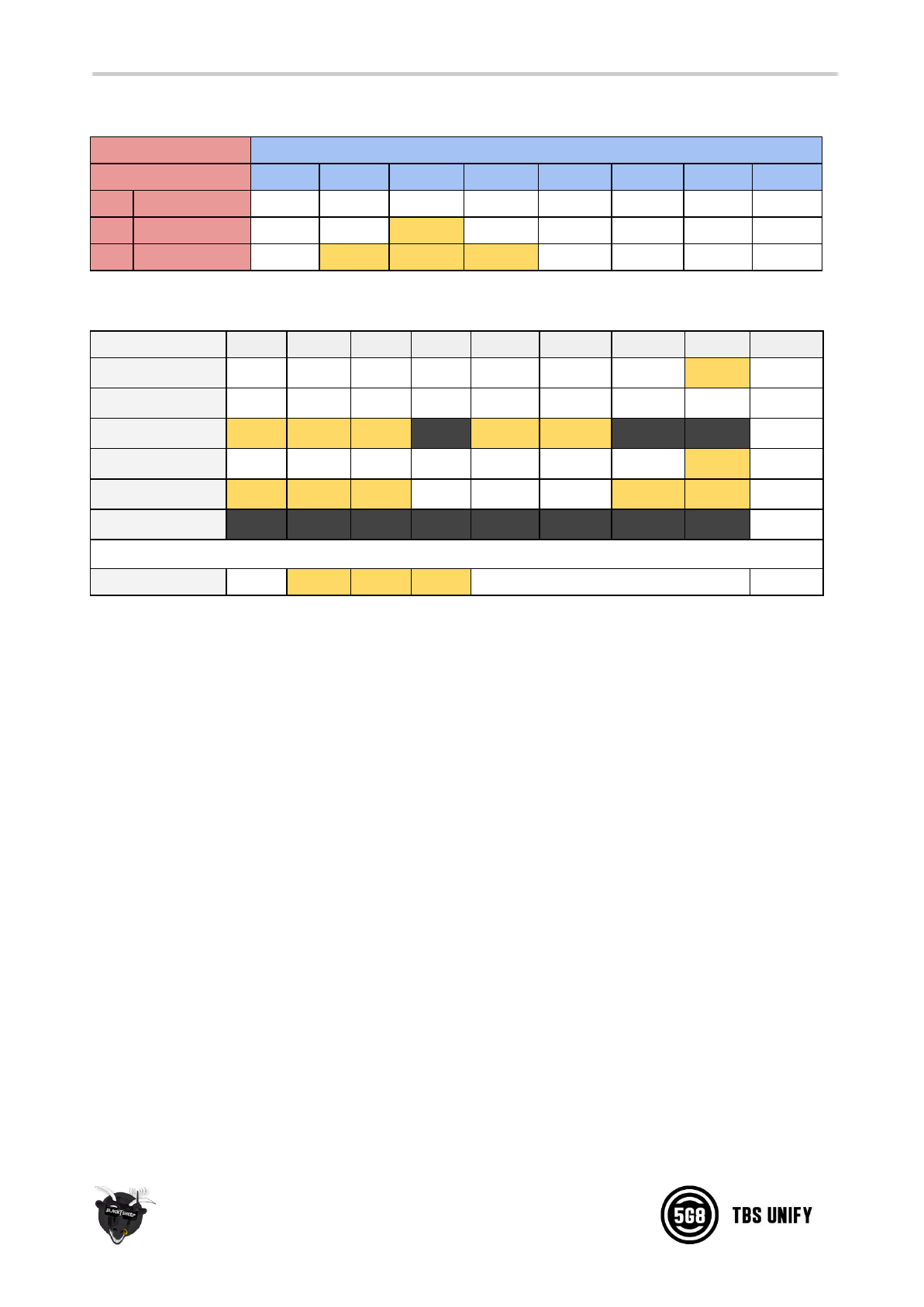
The TBS UNIFY PRO 5G8 signals selected channel, band and power levels using a startup sequence of LED
codes. The same sequence is also repeated in the menu to make it unified. First the RED LED flashes to
indicate the item being shown. One flash for channel, two flashes for band, three flashes for power level.
Subsequently, the BLUE LED will indicate the value.
Red LED:
Indicate item - Channel, band or power setting
Blue LED:
Indicate value
For example, Channel 6, Band B, Power of 500mW, will have the following startup LED code:
●1x Red and 6x Blue = Channel, 6
●2x Red and 2x Blue = Band, 2 (=B)
●3x Red and 3x Blue = Power, 3 (= 500mW)
Once the Video transmitter has successfully booted up, it will show a constant BLUE for locked state, and a
constant RED + BLUE for unlocked state.
For reference, see the following menu table.
6

Installation / Mounting
When installing the Unify Pro, please ensure adequate airflow and - most importantly - heat transfer. This
means mounting the Unify Pro with a bit of pressure against a flat piece of carbon will give you the best
results. Proper mounting will allow the video transmitter to run for extended periods of time while sitting
on the ground, both with 25mW and 200mW power levels. On 500mW / 800mW power levels, we
recommend to start flying after a maximum of 1 minute, so that the airflow can begin to provide adequate
cooling.
When video transmitters heat up they start transmitting with less output power. There is also chance of
the power supply circuit overheating. Don’t worry, the Unify Pro will detect excess heat and shut down
until it recovers. But that will also mean the video transmitter will not transmit. If you are experiencing
that the video transmitter shuts down, check your installation. Ensure that heat can be drained well and
make sure that there is a bit of airflow access to your VTx.
7
Menu Table
RED LED
BLUE LED
1x
2x
3x
4x
5x
6x
7x
8x
1x
Channel
1
2
3
4
5
6
7
8
2x
Band
A
B
E
Airwave
Race
Low Race
3x
Power Level
25
200
500
800
Frequency Table
Channel
1
2
3
4
5
6
7
8
Band A
5865
5845
5825
5805
5785
5765
5745
5725
MHz
Band B
5733
5752
5771
5790
5809
5828
5847
5866
MHz
Band E
5705
5685
5665
5645
5885
5905
5925
5945
MHz
Airwave
5740
5760
5780
5800
5820
5840
5860
5880
MHz
Race Band
5658
5695
5732
5769
5806
5843
5880
5917
MHz
Low Race Band*
5621
5584
5547
5510
5473
5436
5399
5362
MHz
PowerLevel
25
200
500
800
mW
The selections in orange requires HAM license to operate legally. Black selections are only available on
special request (custom firmware for large events with prior legal body approval). The video transmitter
ensures that you cannot select illegal channels or power levels by accident:
●When controlled by the push button, you will need to confirm having a HAM license by following
the steps described above to unlock your video transmitter
●Through the CORE PRO, you are required to enter your HAM license number under the “Callsign”
menu before you can access the high power transmission settings and the locked out channels
* Unify PRO HV Race Special Edition only
8

OSD control via CORE PRO
The TBS UNIFY PRO was built with the TBS CORE PRO in mind. Controlling your drone via the R/C joystick
was a concept first introduced by the BrainFPV FC. TBS has extended this functionality to the entire
POWERCUBE, allowing you to change not only the flight controller settings but also the UNIFY video
transmitter channels and output power.
In order for the CORE PRO to detect the video transmitter, the CORE PRO must be equipped with TBS
SmartAudio technology. You are most likely in luck and as we have rolled this out on the CORE PRO long
before we ever made the video transmitters. Unfortunately, there is no real way to know if your CORE PRO
is compatible. The first batch, 3rd batch and all subsequent batches are compatible, but it is hard to know
if your CORE PRO supports TBS SmartAudio without plugging in the video transmitter. If your CORE PRO
does not support TBS SmartAudio, you can either get a new one or open up a ticket with us to have it sent
to one of our service stations around the globe to have it revised for free.
Channel, Band and Power control
If your CORE PRO supports TBS SmartAudio and
the TBS UNIFY PRO is plugged in, you will see the
“VIDEO TRANSMITTER” setting in the main OSD
menu:
The menu itself is very straightforward, allowing
you to choose Channel, Band and Output power. A
HAM Callsign is required to enter high power
modes or use frequencies outside the ISM band.
9
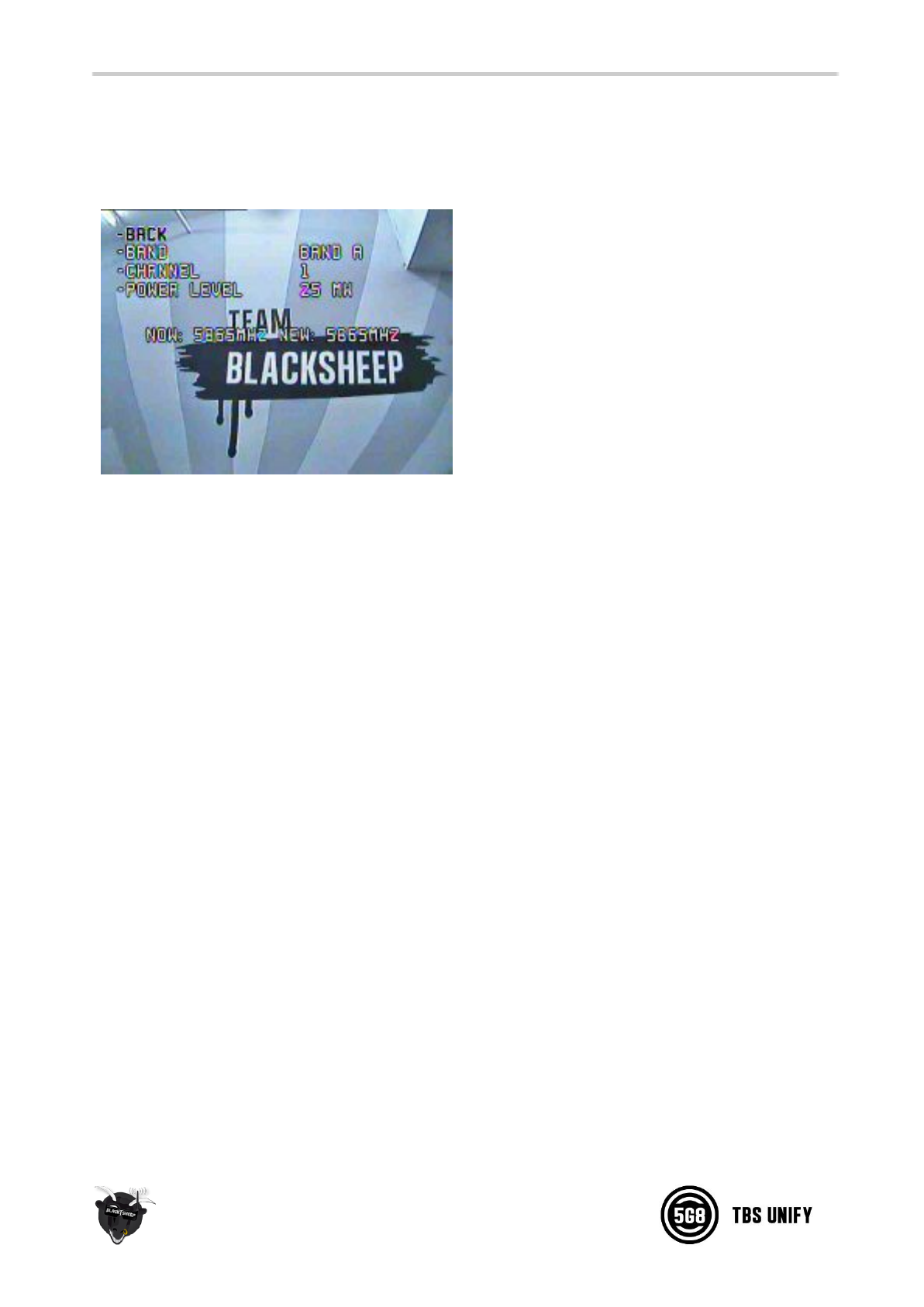
The video frequency does not change instantly. It
will wait for you to exit the menu and then change
to the new frequency as indicated in the last line.
10
Video transmitter pinout
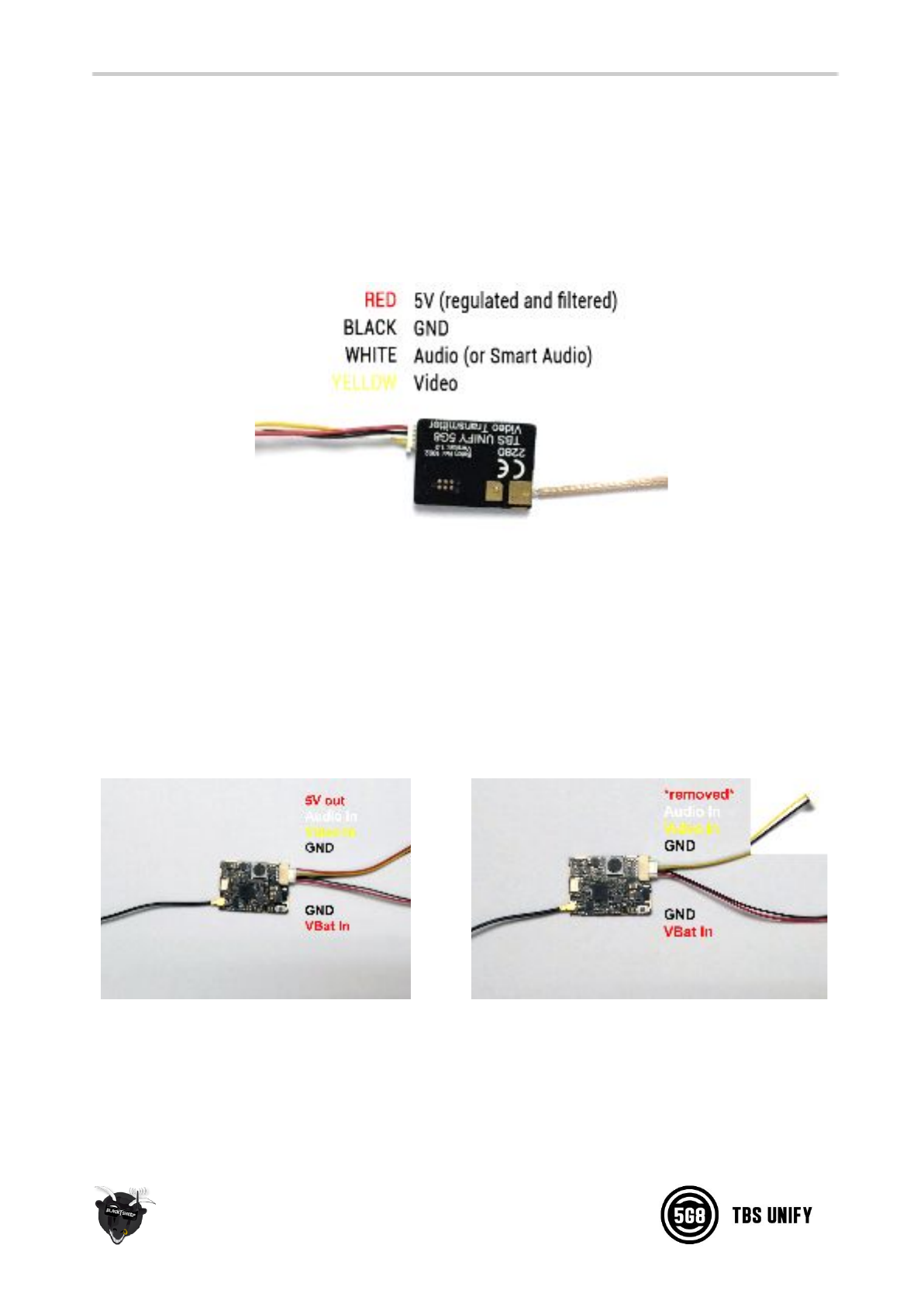
TBS UNIFY PRO 5G8
Despite being plug and play with the TBS CORE , TBS CORE PNP PRO , PNP25, PNP50 - the UNIFY PRO can
also be directly soldered to cameras or custom power distribution boards.
See the pin-out below:
TBS UNIFY PRO 5G8 HV (RACE)
The UNIFY PRO 5G8 HV comes with wires ready to be assembled into your own projects. Should you want
to connect it to TBS products such as the TBS CORE , TBS CORE PNP PRO, PNP25/PNP50, etc, you will need
to modify the camera pin-out to match the UNIFY VTx input socket. You will also need to remove the red
wire (5V) from the connector, to avoid voltage supplies fighting each other.
Connection to DIY drone build
Connection to TBS CORE products
11
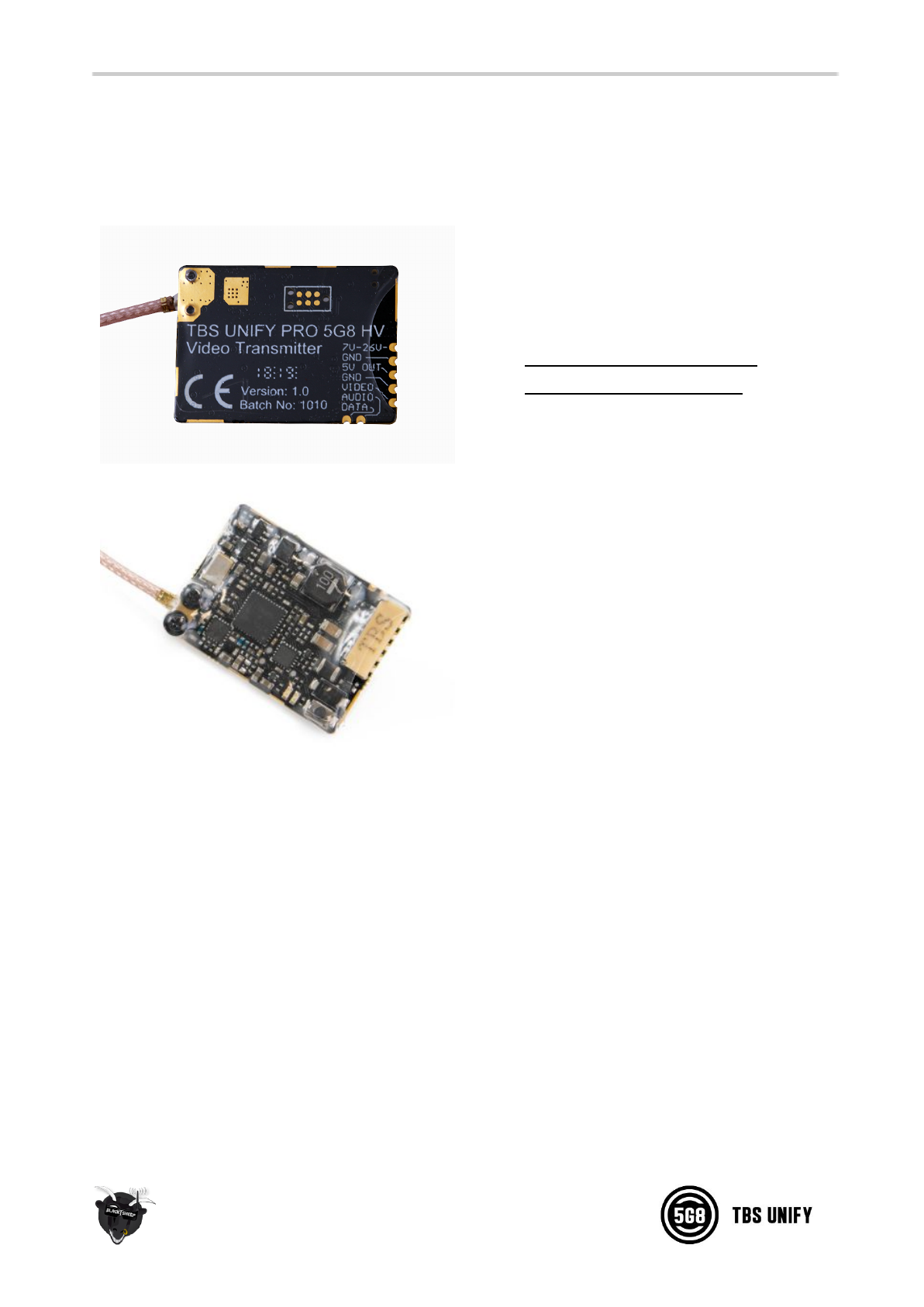
TBS UNIFY PRO 5G8 HV (RACE)
>Q3 2018
-7V-26V (red cable) - Connect directly to
Battery voltage, 2S to 6S LIPO
-GND (black) - Ground connection
-5V out (orange) - Supply for your camera.
Never connect to Battery or it will
permanently damage your VTX!
-GND (black) - Ground connection for
camera
-Video (yellow) - Video input. Make sure
video cable is short and not routed near
any noisy source like ESC, motor cables or
RX Receiver which has a back channel (this
causes video distortion).
-Audio (green) - connect to microphone or
any other audio source.
-Data (white) - Smartaudio VTX remote
control input.
12
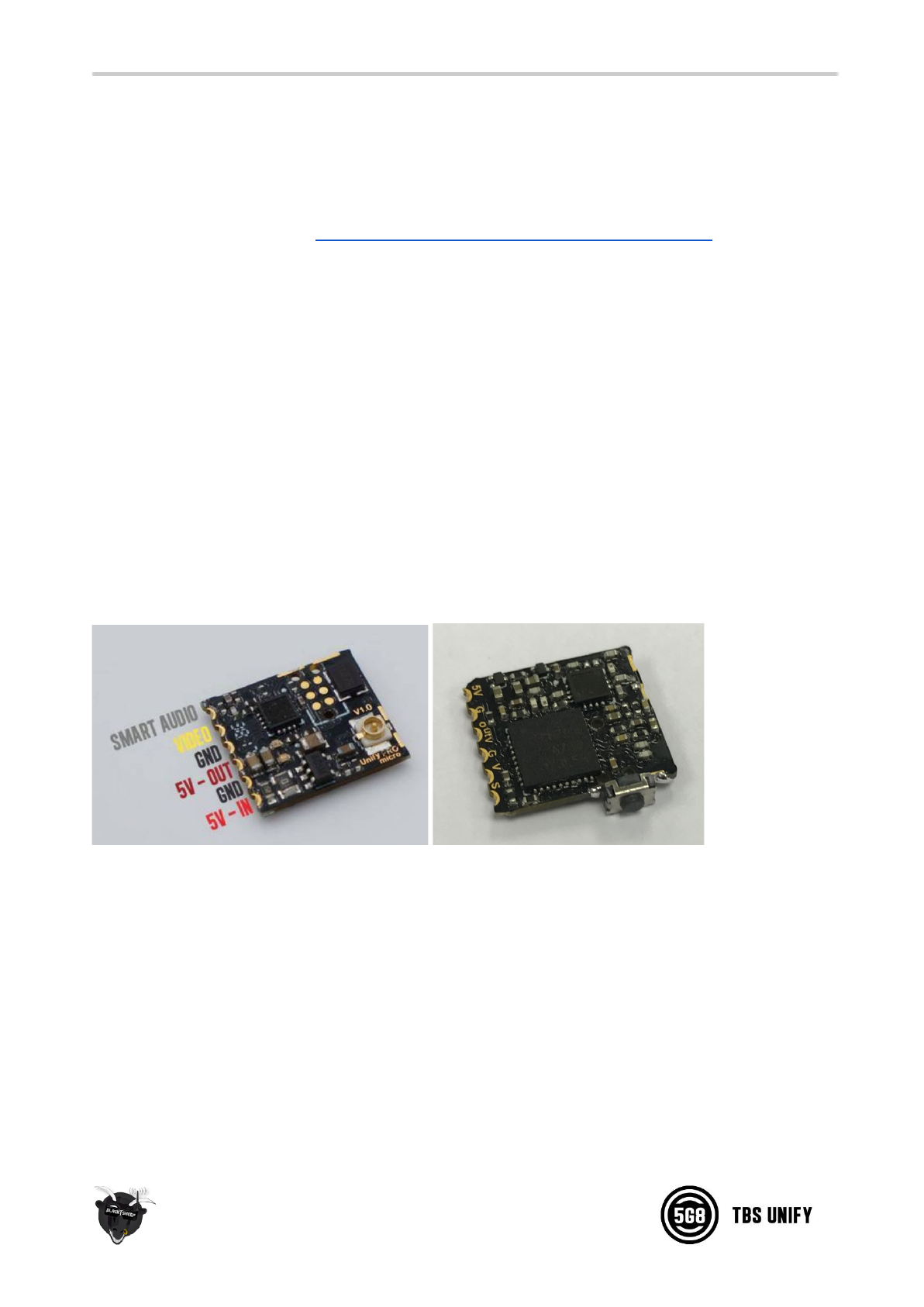
TBS UNIFY PRO 5G8 nano
The UNIFY PRO 5G8 nano comes with pre tinned silicon wires for easy installation in your build.
There is a filtered 5V input with a 5V output for your camera.
The ideal camera for this VTX is: http://team-blacksheep.com/products/prod:tbs_tiny_cam
This Camera is able to supply 5V to the VTX which is required for any 1S Setup.
*Please take care when soldering to the tabs, do not solder with temperatures higher than 350°C for more
than 3-5sec.
*The optional tactile switch installation is optional and not required in any case.
On the side there is a touch surface which works with slightly humid finger surface. However much easier
is to solder on the switch or solder it to any remote location using two wires.
For max. flexibility we did not install it by default.
For remote control the VTX channels we suggest to use smartaudio interface
13

Technology showcase
PitMode
A new feature introduced with the TBS UNIFY PRO 5G8 HV is PitMode. It allows racers to power up their
video transmitters during race events without interfering with other racers and still having the ability to
change VTX settings or do some testing.
There are two types of PitMode supported:
●In-Band PitMode: Range is limited to 2-3m, but transmission happens on the selected frequency
●Out-Band PitMode: Range is limited to 2-3m, transmission is on 5584MHz until leaving PitMode.
Only available in custom firmware for large events, with prior legal body approval.
There are three subcategories:
●Unify Pro HV RACE using push-button:
Activate PitMode: push-button needs to be hold while the Unify Pro RACE is powered up. This will
permanently enable PitMode even during power cycle. Powering up the Unify pro RACE in PitMode
is indicated by a solid red LED only.
Activate VTX to fly: wait until it’s up and running and press the push-button for 8 seconds. The
Unify Pro RACE will set the output power according to the power settings and is ready to fly.
Deactivate PitMode: push-button needs to be hold while the Unify Pro RACE is powered up. This
will permanently disable PitMode even during power cycle. The LED will show blue in case the
Unify Pro RACE is locked and blue and red in case it’s unlocked
●Unify Pro HV and 5V supporting SmartAudioV2 using push-button:
Activate PitMode: push-button needs to be pressed and hold the Unify Pro RACE is powered up.
This will temporarily put the Unify Pro into PitMode. The Unify Pro is now inside the menu and all
settings can be changed.
Activate VTX to fly: just power cycle the system without pressing the push-button on the next
power up
●Unify Pro HV, 5V and RACE supporting SmartAudioV2 used with TBS CORE PRO:
The TBS CORE PRO, it will provide you with full access to PitMode functionality using the OSD
menu. By default the VTX is locked and only In-Band PitMode can be selected. To select Out-Band
PitMode the call sign need to be changed to a custom one and show time need to be set to always.
Using the TBS CORE PRO the PitMode is permanently enabled or disabled (even during power
cycle)
To fly power up the system, wait until the OSD has booted and hold your roll stick right for 3
seconds. A timer will appear on the screen counting up to 3 before enabling your VTx according to
14

your power settings.
CleanSwitch
A new feature introduced with the TBS UNIFY PRO 5G8 HV is CleanSwitch. When video transmitters power
up or change frequency, they usually send a burst across the entire band which disturbs fellow flying
pilots. All UNIFY PRO 5G8 video transmitters will remain in their lowest power output (25mW for UNIFY
PRO 5G8, less than 0.1mW for TBS UNIFY PRO 5G8 HV) while changing channels and powering up. This
ensures interruption-free racing, even with multiple video transmitters changing channels, or powering up.
SmartAudio
SmartAudio is a protocol developed by TBS for OSD to VTx communication. All newer generation OSDs at
TBS, and all UNIFY PRO series VTX support SmartAudio V1.0, with the UNIFY PRO HV line we have launched
SmartAudio V2.0. The new version supports control for the new features (e.g. PitMode). SmartAudio is a
single-wire UART protocol, running over the Audio-wire. If you are a OSD or VTx developer interested in
adding support for SmartAudio, please create a support ticket with us so we can supply you with the
technical documentation:
●http://team-blacksheep.freshdesk.com/
SmartAudio LITE
SmartAudio LITE is used on the tiny Unify PRO nano. The software protocol is the exact same as on
Smartaudio V2.
However there are two limitations/caveats:
●It requires 3.3V level. The standard SmartAudio accepts 0.9V audio level. This means SA Lite is not
compatible with TBS CORE PRO, but compatible with all FC and other devices.
●Some FC targets have hardware incompatibility which does not sufficiently pull logic to zero on idle
or start of SA commands. According to the SA specification, each command has to start with logic
zero. The Unify Pro Nano is more susceptible to incompatibility with SA standard due to different
hardware layout
15
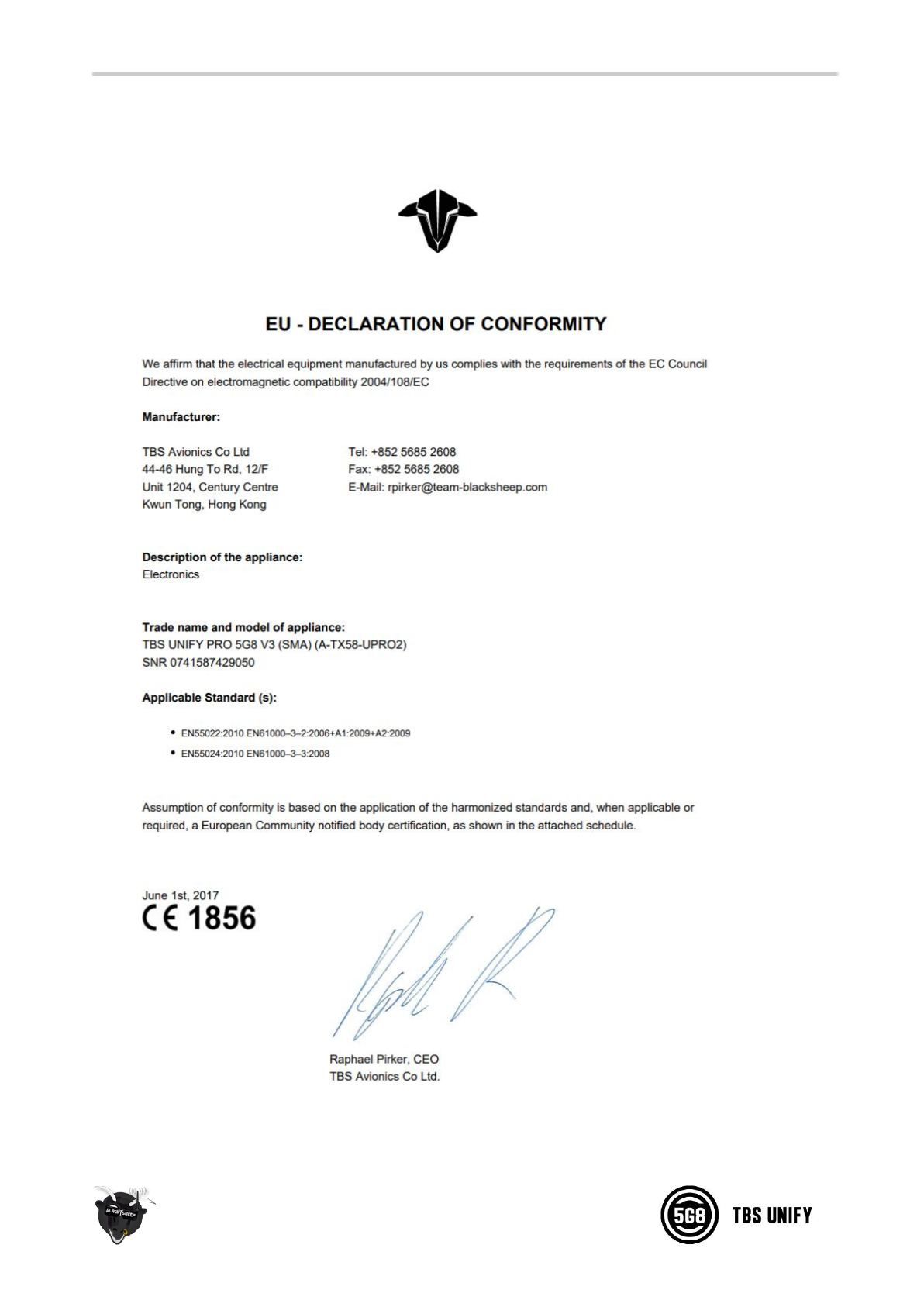
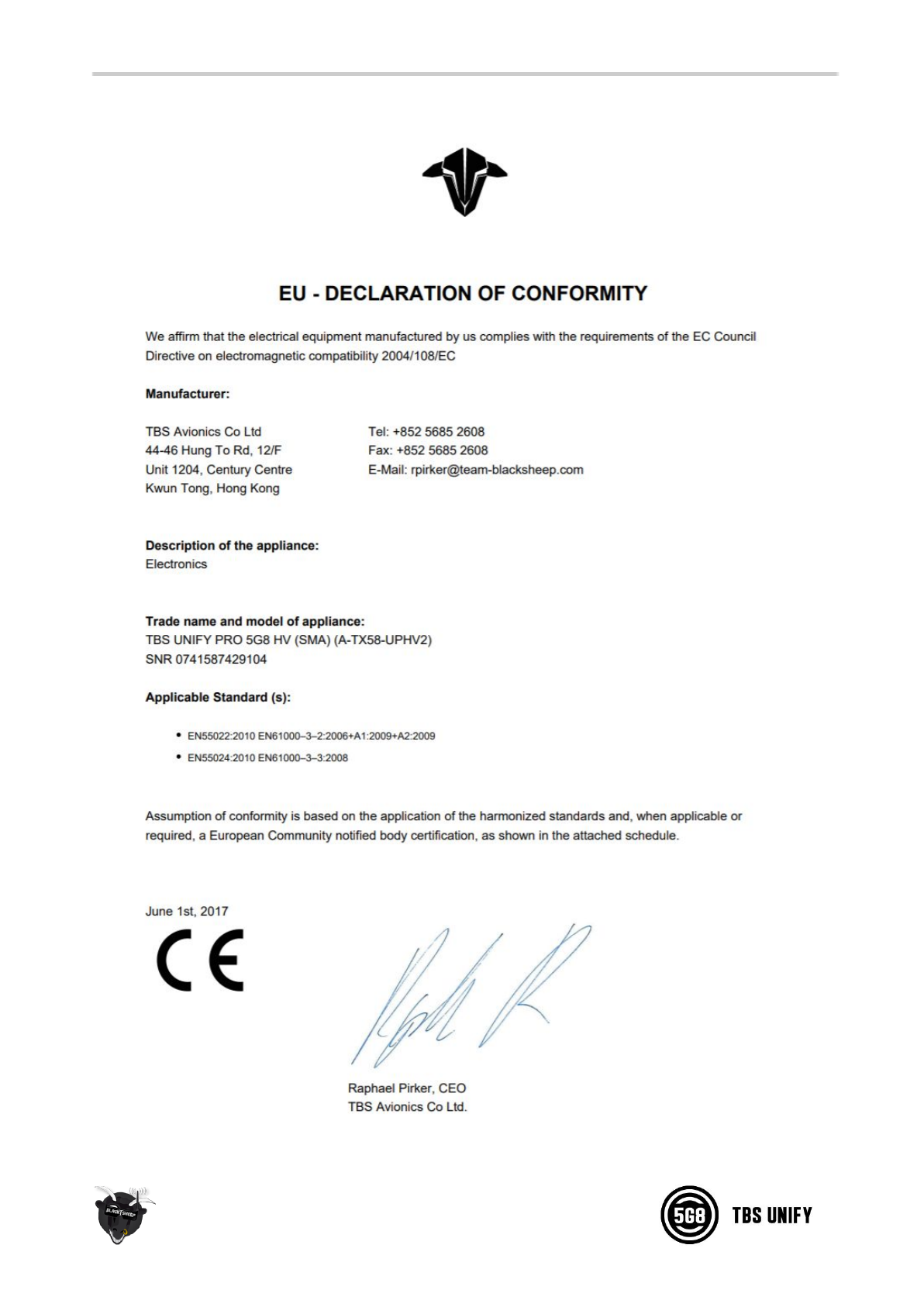
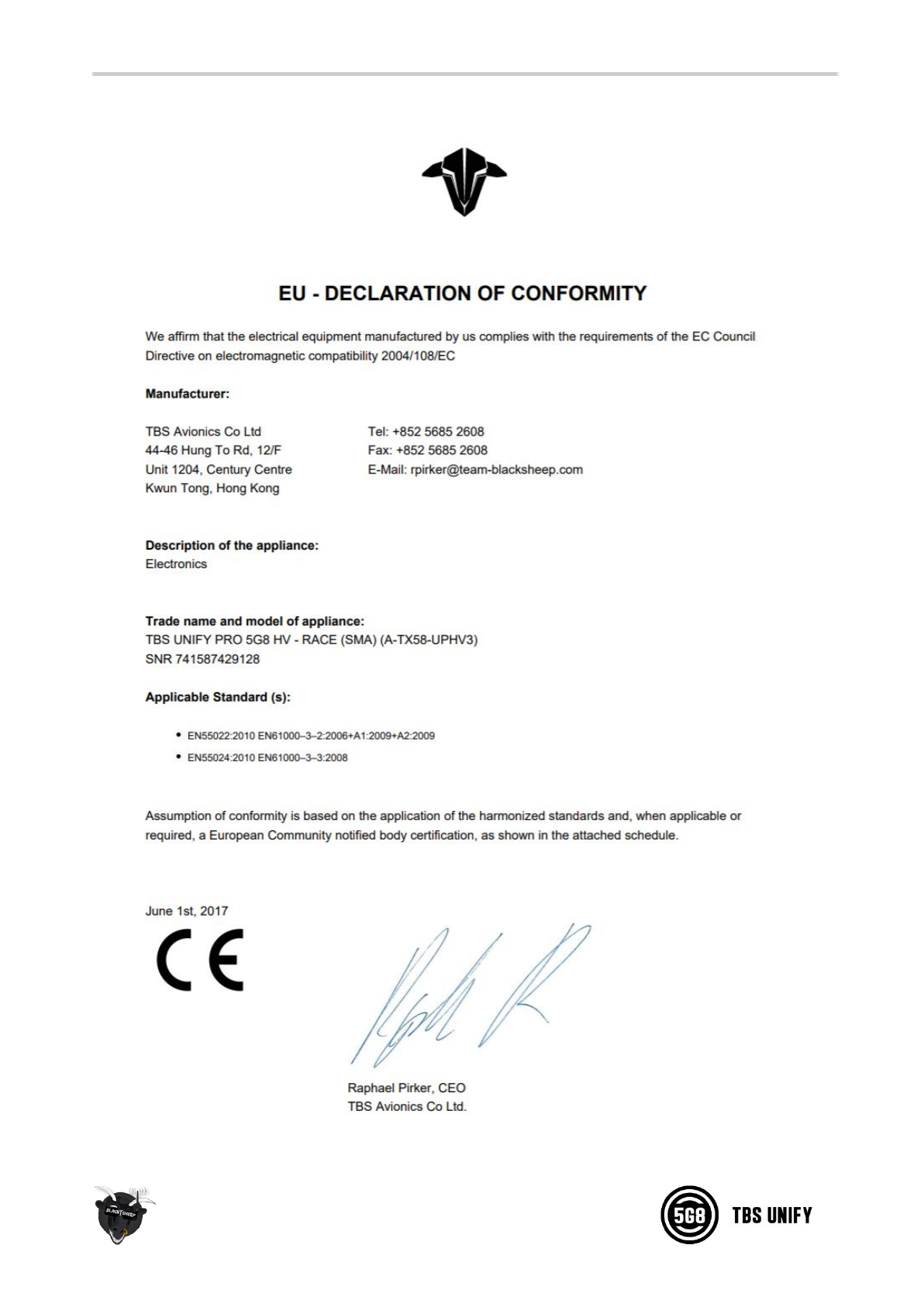
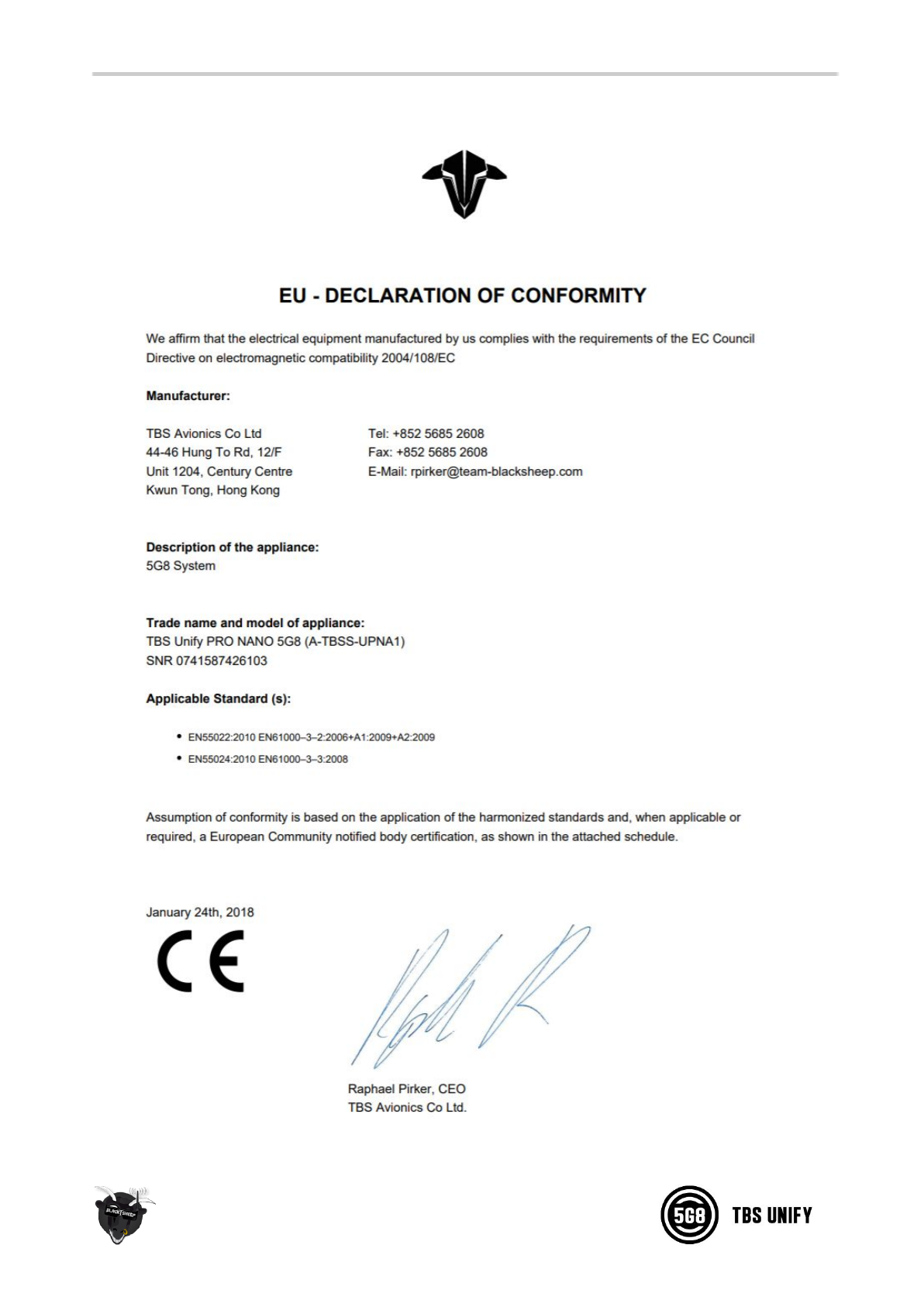
Declaration of Conformity
16
17
18
19

Good practices
We have compiled a list of all of practices which have been tried and tested in countless environments and
situations by the TBS crew and other experienced FPV pilots.
Follow these simple rules, even if rumors on the internet suggest otherwise, and you will have success in
FPV.
●Start with the bare essentials and add equipment one step at a time, after each new equipment
was added to proper range- and stress tests.
●Do not fly with a video system that is capable of outperforming your R/C system in terms of range.
●Do not fly with a R/C frequency higher than the video frequency (e.g. 2.4GHz R/C, 900MHz video).
●Monitor the vitals of your plane (R/C link and battery). Flying with a digital R/C link without RSSI is
dangerous.
●Do not use 2.4GHz R/C unless you fly well within its range limits, in noise-free environments and
always within LOS. Since this is most likely never the case, it is recommended to not use 2.4GHz
R/C systems for longer range FPV.
●Do not fly at the limits of video, if you see noise in your picture, turn around and buy a higher-gain
receiver antenna before going out further.
●Shielded wires or twisted cables only, anything else picks up RF noise and can cause problems.
●When using powerful R/C transmitters, make sure your groundstation equipment is properly
shielded.
●Adding Return-To-Home (RTH) to an unreliable system does not increase the chances of getting
your plane back. Work on making your system reliable without RTH first, then add RTH as an
additional safety measure if you must.
●Avoid powering the VTx directly from battery, step-up or step-down the voltage and provide a
constant level of power to your VTx. Make sure your VTx runs until your battery dies.
●Do not power your camera directly unless it works along the complete voltage range of your
battery. Step-up or step-down the voltage and provide a constant level of power to your camera.
Make sure your camera runs until your battery dies.
●A single battery system is safer than using two dedicated batteries for R/C and FPV. Two batteries
in parallel even further mitigate sources of failure.
●For maximum video range and “law compatibility”, use 2.4GHz video with high-gain antennas.
●When flying with R/C buddies that fly on 2.4GHz, or when flying in cities, it is perfectly possible to
use 2.4GHz video provided you stick to the channels that do not lie in their band (CH5 to CH8 for
Lawmate systems, available from TBS).
●Do not use diversity video receivers as a replacement for pointing your antennas, diversity should
be used to mitigate polarization issues.
●Improving the antenna gain on the receiver end is better than increasing the output power (except
20

in RF-noisy areas). More tx power causes more issues with RF on your plane. 500mW is plenty of
power!
●Try to achieve as much separation of the VTx and R/C receiver as possible to lower the RF noise
floor and EMI interference.
●Do not buy the cheapest equipment unless it is proven to work reliably (e.g. parts falling off,
multitudes of bug fix firmware updates, community hacks and mods are a good indicator of poor
quality and something you do NOT want to buy for a safe system). Do due diligence and some
research before sending your aircraft skyward.
Manual designed by ivc.no, written by TBS and ivc.no.
21
