U Center User Guide(GPS SW 08007)
u-Center_User_Guide(GPS-SW-08007)
User Manual:
Open the PDF directly: View PDF  .
.
Page Count: 57
- Preface
- Contents
- Features
- 2 Getting Started
- 3 Concept and Philosophy
- 4 Menu Structure
- 4.1 Main Frame
- 4.2 Menu Bar
- 4.3 File Menu and Standard Tool Bar
- 4.4 Edit Menu
- 4.5 View Menu and Views Tool Bar
- 4.6 Receiver Menu and Receiver Toolbar
- 4.7 Action Toolbar and Menu
- 4.8 AssistNow Offline Toolbar and Menu
- 4.9 Player Menu and Player Toolbar
- 4.10 View Menu: Docking Windows
- 4.11 Tools Menu
- 4.12 Windows Menu
- 5 How To
- 6 Troubleshooting
- Related Documents
- Revision history
- Contact
u-center-User’sGuide
Document Information
Title u-center
Subtitle GPSevaluationsoftware
Document type User’sGuide
Document number GPS-SW-08007-A
Document status Released
Thisdocumentandtheuseofanyinformationcontainedtherein,issubjecttotheacceptanceoftheu-bloxtermsandconditions.They
canbedownloadedfromwww.u-blox.com.
u-bloxmakesnowarrantiesbasedontheaccuracyorcompletenessofthecontentsofthisdocumentandreservestherighttomake
changestospecificationsandproductdescriptionsatanytimewithoutnotice.
u-bloxreservesallrightstothisdocumentandtheinformationcontainedherein.Reproduction,useordisclosuretothirdpartieswithout
expresspermissionisstrictlyprohibited.Copyright©2009,u-bloxAG.
GPS-SW-08007-APage 2 of 57

u-center-User’sGuide
Preface
Overview
u-centerisu-blox’powerfulGPSevaluationandvisualizationtoolwhichcanbedownloadedfree-of-chargefrom
ourwebsite(www.u-blox.com).Thisuser’sguideprovidesadescriptionofthefeaturesofthissoftware.Itallows
enduserstoassessandtestu-bloxGPSreceiversfornavigationandpositioningperformance.
Thepurposeofu-centeristoenableusersto:
Conductperformancetestsonu-bloxandotherGPSreceivers.
Configureu-bloxGPSreceivers.
AccessanddownloadFirmwareupdates.
Testtheaddedperformanceprovidedbyu-blox’freeAssistNowA-GPSservice.
Using this Guide
Thisguideassumes,theuserhasbasiccomputerskillsandisfamiliarwiththeWindowsGraphicalUserInterface
(GUI)andGPSreceiverenvironments.
Thefollowingsymbolsareusedtohighlightimportantinformation:
Anindexfingerpointsoutkeyinformationpertainingtointegrationandperformance.
A warning symbol indicates actions that could negatively impact or damage the receiver.
Technical Support
Ifyouhavequestionsaboutinstallingorusingu-centerplease:
Readthisuser’sguidecarefully.
Checkourhomepage(http://www.u-blox.com)toensurethatyourGPSreceiver,firmwareandtheu-center
softwarearethelatestversions.
RefertoourwebbasedinformationserviceanddatabaseofFrequentlyAskedQuestions(FAQ).
Worldwide Web
Ourwebsite(www.u-blox.com)isarichpoolofinformation.Productinformation,technicaldocumentsand
helpfulFAQcanbeaccessed24haday.
By E-mail
Ifyouhavetechnicalproblemsorcannotfindtherequiredinformationintheprovideddocuments,contactthe
nearestoftheTechnicalSupportofficesbyemail.Useourservicepoolemailaddressesratherthananypersonal
emailaddressofourstaff.Thismakessurethatyourrequestisprocessedassoonaspossible.Youwillfindthe
contactdetailsattheendofthedocument.
Helpful Information when Contacting Technical Support
WhencontactingTechnicalSupportpleasehavethefollowinginformationready:
Receivertype(e.g.LEA-5H),firmwareversion(e.g.V6.00),andu-centerrelease(e.g.u-center5.07)
Receiverconfigurationandshortdescriptionoftheapplication
Yourcompletecontactdetails
GPS-SW-08007-AReleasedPreface
Page 3 of 57

u-center-User’sGuide
Contents
Preface ................................................................................................................................3
Overview ......................................................................................................................................................... 3
UsingthisGuide .............................................................................................................................................. 3
TechnicalSupport............................................................................................................................................ 3
Contents..............................................................................................................................4
1 Features ........................................................................................................................6
2 Getting Started.............................................................................................................7
2.1 GeneralInformationaboutdisplayedvalues ......................................................................................... 7
2.2 ConnectingaGPSReceivertothePC ................................................................................................... 7
2.3 Installingu-center................................................................................................................................. 7
2.4 ConfiguringtheSerialConnection........................................................................................................ 8
2.4.1 COM-Port...................................................................................................................................... 8
2.4.2 Baudrate ....................................................................................................................................... 8
3 Concept and Philosophy ............................................................................................10
3.1 Colorcodingscheme..........................................................................................................................11
3.2 OperatingModes ............................................................................................................................... 12
3.2.1 OnlineMode ............................................................................................................................... 12
3.2.2 StopMode .................................................................................................................................. 12
3.2.3 RecordMode .............................................................................................................................. 13
3.2.4 PlayerMode ................................................................................................................................ 13
3.2.5 DatabaseLimitation..................................................................................................................... 14
3.2.6 RelationsbetweenModes ........................................................................................................... 14
4 Menu Structure ..........................................................................................................15
4.1 MainFrame ........................................................................................................................................ 15
4.2 MenuBar ........................................................................................................................................... 16
4.3 FileMenuandStandardToolBar........................................................................................................ 17
4.4 EditMenu........................................................................................................................................... 18
4.5 ViewMenuandViewsToolBar .......................................................................................................... 18
4.5.1 TextConsole ............................................................................................................................... 18
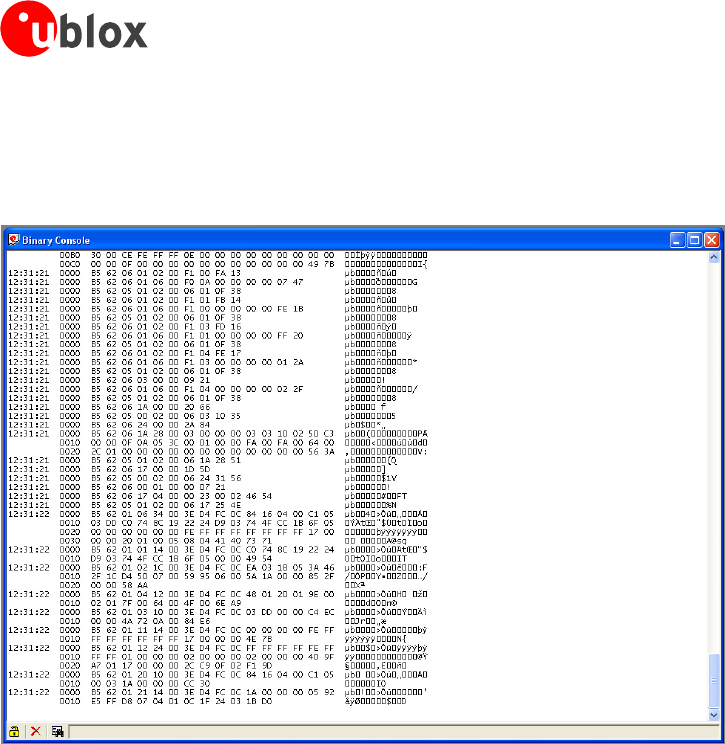
4.5.2 PacketConsole............................................................................................................................ 21
4.5.3 BinaryConsole ............................................................................................................................ 22
GPS-SW-08007-AReleasedContents
Page 4 of 57

u-center-User’sGuide
4.5.4 MessageView ............................................................................................................................. 23
4.5.5 StatisticView............................................................................................................................... 25
4.5.6 TableView .................................................................................................................................. 25
4.5.7 ChartView.................................................................................................................................. 26
4.5.8 HistogramView........................................................................................................................... 29
4.5.9 CameraView .............................................................................................................................. 31
4.5.10 DeviationMap.............................................................................................................................32
4.5.11 MapView.................................................................................................................................... 33
4.5.12 SkyView ..................................................................................................................................... 41
4.6 ReceiverMenuandReceiverToolbar .................................................................................................. 42
4.7 ActionToolbarandMenu................................................................................................................... 42
4.8 AssistNowOfflineToolbarandMenu ................................................................................................. 43
4.9 PlayerMenuandPlayerToolbar.......................................................................................................... 43
4.10 ViewMenu:DockingWindows....................................................................................................... 44
4.11 ToolsMenu..................................................................................................................................... 45
4.11.1 FirmwareUpdate(u-blox5) ......................................................................................................... 45
4.11.2 FirmwareUpdate(ANTARIS4)..................................................................................................... 46
4.11.3 DumpReceiverDiagnostics.......................................................................................................... 47
4.11.4 GPSConfiguration ...................................................................................................................... 47
4.11.5 Hotkeys....................................................................................................................................... 48
4.11.6 Preferences.................................................................................................................................. 48
4.12 WindowMenu................................................................................................................................ 49
5 How To........................................................................................................................50
5.1 ChangeParameters(Baudrate) ........................................................................................................... 50
5.2 SaveParameterstoreceivernon-volatilememory(BBR/Flash).............................................................. 51
5.2.1 SavingParameterswithUBX-CFG-CFG........................................................................................ 51
5.2.2 SavingParameterswithGPSConfiguration ................................................................................. 51
5.3 Recording/PlayingaLogFile................................................................................................................ 52
5.4 ConductSensitivityTests .................................................................................................................... 53
5.5 Read/WriteConfigurationFiles ........................................................................................................... 54
6 Troubleshooting.........................................................................................................55
Related Documents ..........................................................................................................56
Revision history................................................................................................................56
Contact..............................................................................................................................57
GPS-SW-08007-AReleasedContents
Page 5 of 57

u-center-User’sGuide
1 Features
u-centerevaluationsoftwareprovidessystemintegratorsandenduserswithaquickandsimplewaytointerface
withu-bloxGPSchipsets,modulesandboards.Itenableseasyevaluation,performancetesting,development
anddebuggingofGPSreceivers.u-centerallowseasyconnectiontou-bloxproductsandprovidesasuiteof
featurestoview,log,andanalyzeperformance.Thefeaturesinclude:
Supportforu-blox’latestreceiversusingu-blox5positioningtechnology.u-centercancommunicatewith
thesereceiversusingeithertheUBXprotocol,ortheNMEA-0183standardprotocol.
SupportforreceiversthatutilizestandardNMEAstrings.
u-centerpresentsalltheinformationcollectedduringtheoperationoftheGPSreceiver.AllaspectsofGPS
data(position,velocity,time,satellitetracking,etc.)canbemonitoredandloggedundervarioustest
scenariosfortheevaluationofareceiver.u-centersoftwareallowsanalysisofthecollecteddatainorderto
investigateperformanceissuessuchasaccuracy,roadtestpositionandtrajectory,satellitetracking,timeto
firstfix,etc.AllprocesseddatacanbecapturedinASCIIformatandportedintopopularspreadsheetsfor
creatingadditionalplotsandstatistics.
CameraView:photographicdatacanbestoredinthelogfiletogetherwiththenavigationdataandlaterbe
replayedintheapplication.
ExportdatafilestoGoogleEarthandGoogleMaps.
SupportsAssistNowOnlineandAssistNowOffline.
Datarecordingandplaybackfunction.
Structuralandgraphicaldatavisualizationinrealtime.
CutandpasteexporttostandardPCapplicationsoftware.
Dockingviews(real-timecockpitinstruments):
Satelliteconstellation,compass,clock,altimeter,speedometer,GPSandsatelliteinformationviews.
DownloadfirmwareupdatesintoGPSreceivers
GPS-SW-08007-AReleasedFeatures
Page 6 of 57
u-center-User’sGuide
2 Getting Started
2.1 General Information about displayed values
LongitudeandlatitudearedisplayedaccordingtothedatumselectedintheGPSreceiver(usually:WGS-84).
TimeisdisplayedwithreferencetoUTC
ElevationisdisplayedwithreferencetoeitherMSL(HeightabovemeansealevelorOrthometricHeight)or
toHAE(HeightaboveWGS-84-Ellipsoid).ThereferenceiscontrolledbytheGPSconfiguration.
2.2 Connecting a GPS Receiver to the PC
Thissectionassumesthatyouhavepurchasedau-blox5EvaluationKit.ShouldyoutrytoconnectaGPSreceiver
toaPCwithoutusingtheEvalKit,makesureyouuseappropriateRS-232levelshifters.Connectaserialcable
betweenacommunicationsport(COM-port)ofaPCandtheEvalKit.
2.3 Installing u-center
Theu-setupinstallationprogramguidesyouthroughthenecessarystepsforasuccessfulprograminstallation.
u-center uses dynamic link libraries (DLL). The installation program will automatically install the
required DLL’s into the u-center program directory. Should you try to copy a u-center
installation from one location to another after the installation, make sure you copy the DLL files
as well.
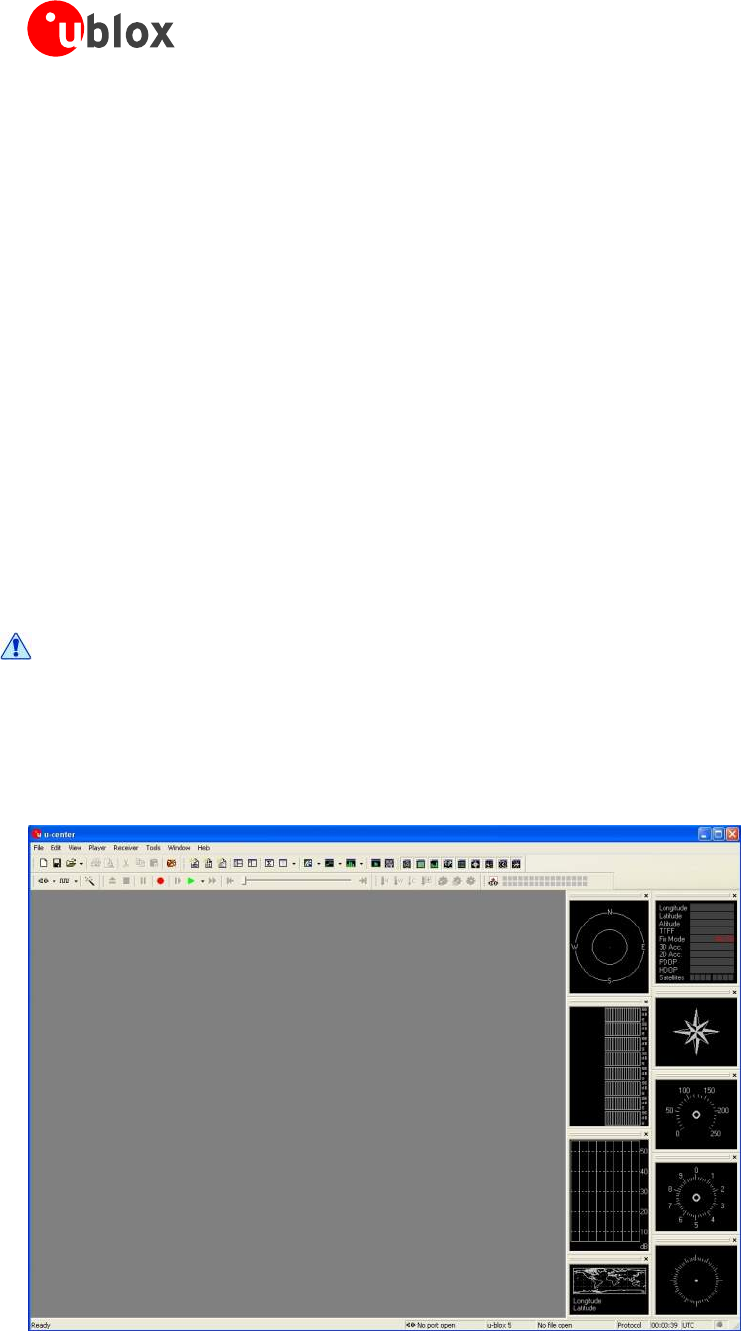
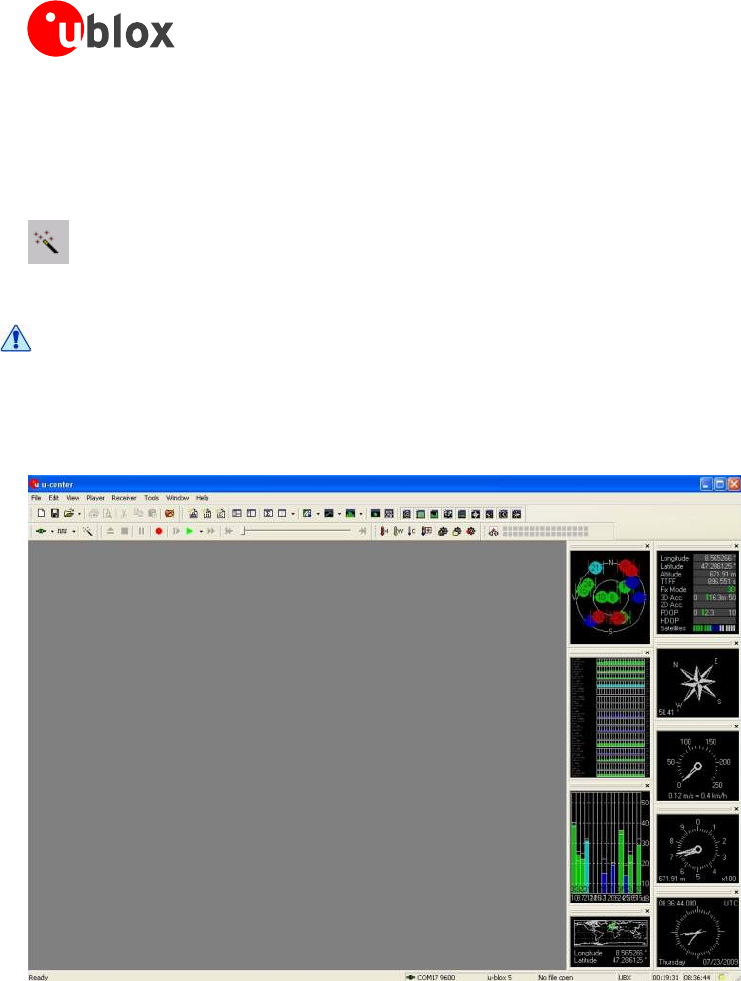
Afterasuccessfulinstallation,u-centerwillstartupasshowninFigure1:
Figure 1: Start Display
GPS-SW-08007-AReleasedGettingStarted
Page 7 of 57
u-center-User’sGuide
2.4 Configuring the Serial Connection
u-centerstorestheserialsettingsandusesthelastconfigurationwhenstarted.Whenu-centerisstartedforthe
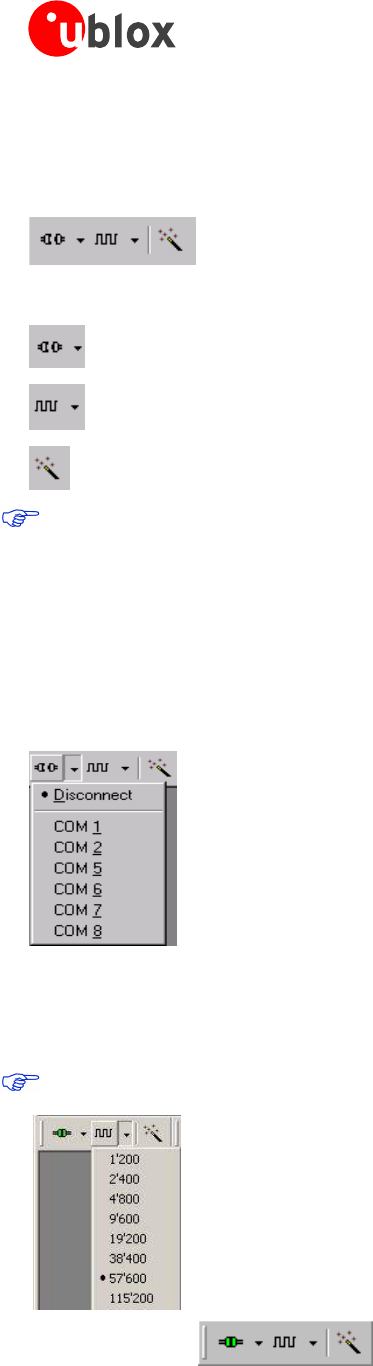
firsttime,theCOMportneedstobeinitialized.ThisistypicallydoneintheReceiverToolBar(Figure2).
Figure 2: Receiver Tool Bar
Connect/Disconnect-ButtonwithCOM-Portselectionarrow
Baudrate-Buttonwithbaudrateselectionarrow
Autobauding-Button
u-centeronlysupportstheCOM-Settingslistedbelow.Allu-bloxGPSreceiversarepre-configuredthis
way.
Parity:None
DataBits:8
StopBits:1
FlowControl:none
2.4.1 COM-Port
PressthearrowintheConnect/Disconnect-ButtonandselecttheusedCOM-Port
2.4.2 Baudrate
2.4.2.1 Manual Selection
DoesnotapplytoUSB.
Thebaudratecanbemanuallysetorautomaticallydetectedbyusingtheautobauding
feature.PressthearrowintheBaudrate-Buttontomanuallyselectthebaudrate.
Assoonasu-centerissynchronizedtotheGPSreceiver,theConnect/Disconnect-Buttonon
theReceiverToolBarchangesthecolortogreen(Figure 3)andthedisplayshows
informationaboutthesatelliteconstellation,signaltonoiseratio,timeetc(Figure 5).Ifthe
baudrateofu-centerandGPSreceiverarenotsettothesamevalue,the“Communication
Information”iconchangestored.Pleaserefertosection4 forfurtherinformation.
Figure 3: COM-Port and Baudrate successfully detected
GPS-SW-08007-AReleasedGettingStarted
Page 8 of 57
u-center-User’sGuide
2.4.2.2 Autobauding
u-centersupportautobauding.Iffrequentbreakerrorsaredetected,u-centerwilllowerthebaudrate,incaseof
framingerrors,thebaudrateisincreaseduntilnofurthererrorsaredetected.
Figure 4 Autobauding Button
Some serial cards or adapters frequently generate errors. The u-center autobauding may not
work reliably in this case. If you experience frequent errors, please set the baudrate manually.
IftheGPSreceiverisworkingcorrectly,thedisplaywillshowinformationaboutthesatelliteconstellation,signal
tonoiseratio,timeetc(Figure5)
Figure 5: Start Display after a successful connection
GPS-SW-08007-AReleasedGettingStarted
Page 9 of 57
u-center-User’sGuide
3 Concept and Philosophy
Understandingthebasicconceptbehindu-centerisimportantinordertogetthehighestbenefitoutofthis
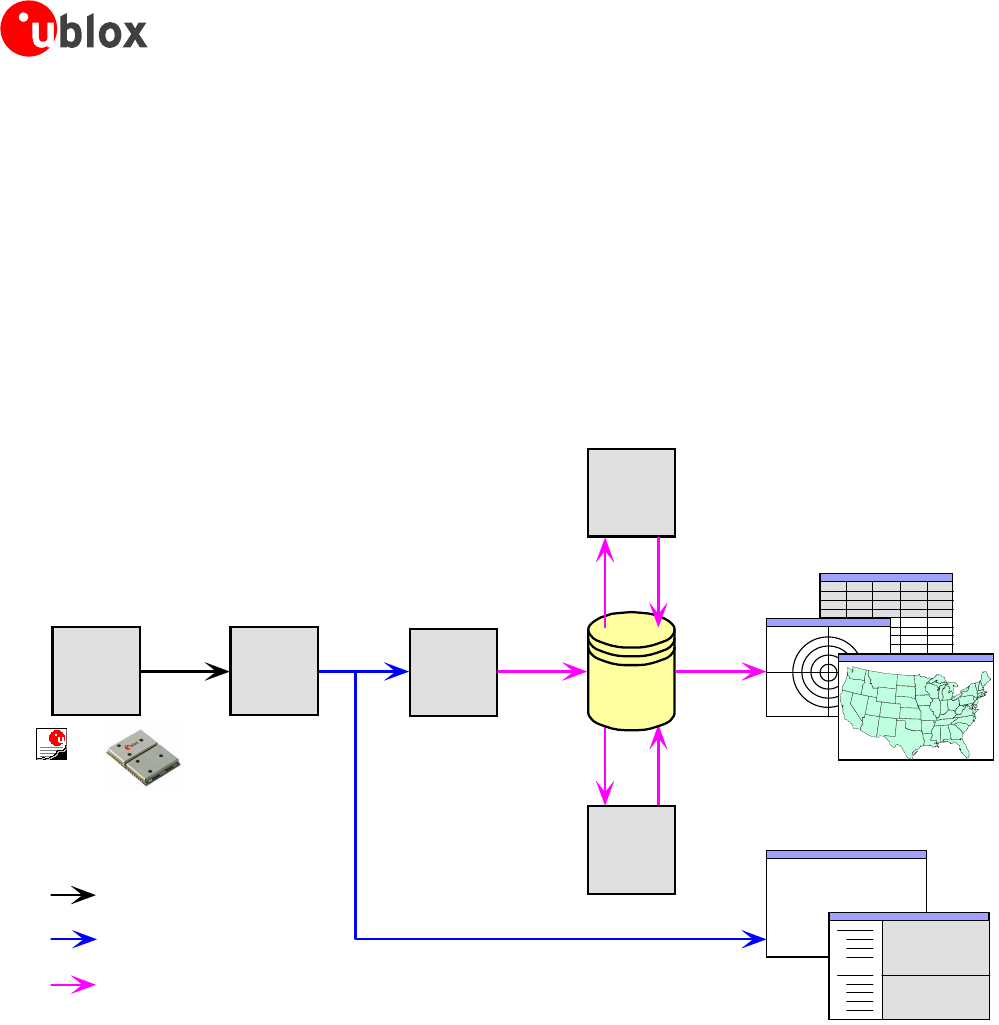
powerfulGPSevaluationsoftware.Figure6depictsthearchitectureofthesoftware.Theprogramgetsadata
streameitherfromaCOMportoralogfileandsplitsthisstreamintoprotocolmessages.Fromthemessages,
relevantparametersareextractedandinsertedintothecurrentdatasetofthedatabase.
Inthecurrentdatasetstatisticalvaluesoftheparametersarecalculated.Average,Minimum,Maximumand
StandardDeviationarecalculatedformostparameters.Ifaprotocoldoesnotprovideaparameter,u-centertries
tocalculatetheparameterfromtheonesthatareavailable.ForExampleifvelocity-northandvelocity-eastare
available,u-centercalculatestheSpeedoverGroundandCourseoverGround,unlessthisdataisalready
availableintheprotocol.
Database
Data
Source
Protocol
Message
Parser
Parameter
Extracter
Calculate
Statistics
Calculate
Parameters
fromother
Parameters TableViews
GraphicalViews
DockingViews
12:00:01 24 47 50 56 54 47
2C 30 2E 30 30 2C
54 2C 2C 4D 2C 30
2E 30 30 30 2C 4E
12:00:02 24 47 50 56 54 47
2C 30 2E 30 30 2C
54 2C 2C 4D 2C 30
2E 30 30 30 2C 4E
2C 30 2E 30 30 30
2C 4B 2C 4E 2A 33
ConsoleViews
MessageView
Data Stream
Messages
Parameters
24 47 50 56 54 47
2C 30 2E 30 30 2C
54 2C 2C 4D 2C 30
2E 30 30 30 2C 00
LogFile.ubx
Figure 6: Engine Architecture
Whenanewepoch(changeintime)isdetected,thecurrentdatasetisstoredashistoryinthedatabase.This
historyhasalimitedsize.IftheSizeisexceededu-centerkeepsonlythelatestdatasetsandtheoldestonesare
removed.Thehistorysizemaybeadjusted.Refertosection3.2.5forthedetails
u-centerprovidesvariousviewclassesforobservation.Mostoftheviewstaketheirdatafromthedatabase.But
therearesomeviews,whichgettheirdatadirectlyfromthemessagewithoutusingthedatabaseatall.The
otherviewsareupdatedwhenthedatabasechanges.
Message ViewDisplaysacopyofeveryknownmessage.Thisviewallowsobservingasinglemessagein
detail.ItmayalsobeusedtosendandconfiguretheGPSreceiver.
Console ViewsDisplaythemessagesintextform.TheyareparticularlyusefulforuserstodevelopGPS
firmwarecode.Thereisalsoawiderangeofinformationavailable,whichisusefulforevaluationand
testing.
GPS-SW-08007-AReleasedConceptandPhilosophy
Page 10 of 57
u-center-User’sGuide
Graphical ViewsDisplayparametersfromthedatabaseingraphicalform.Charts,Histogramsandevena
MapOverlaycanbecreated.Therearetwomoreviews(DeviationView,SkyView)thatmaybeusedfor
statisticalperformanceandantennapatternanalysis.
Tabular ViewsShowtheparametersofthedatabaseintabularform.Theycanbefreelyconfiguredto
allowcustomizedtables.
Docking WindowsCanbedockedtotheframeofu-center.Ananalogwatch,compass,worldmap,
altitudeandspeedmeterareavailable.Therearealsodockingwindowsshowingthecurrentsignalpower
andtheconstellationofthesatellitesreceivedbytheGPSreceiveraswellasasummaryoftheGPSstatus.
DisplayingvariousViewsandDockingWindowsrequireslotsofcomputingpower.Minimizingorclosing
themmaysignificantlyreducetheCPUusage.
3.1 Color coding scheme
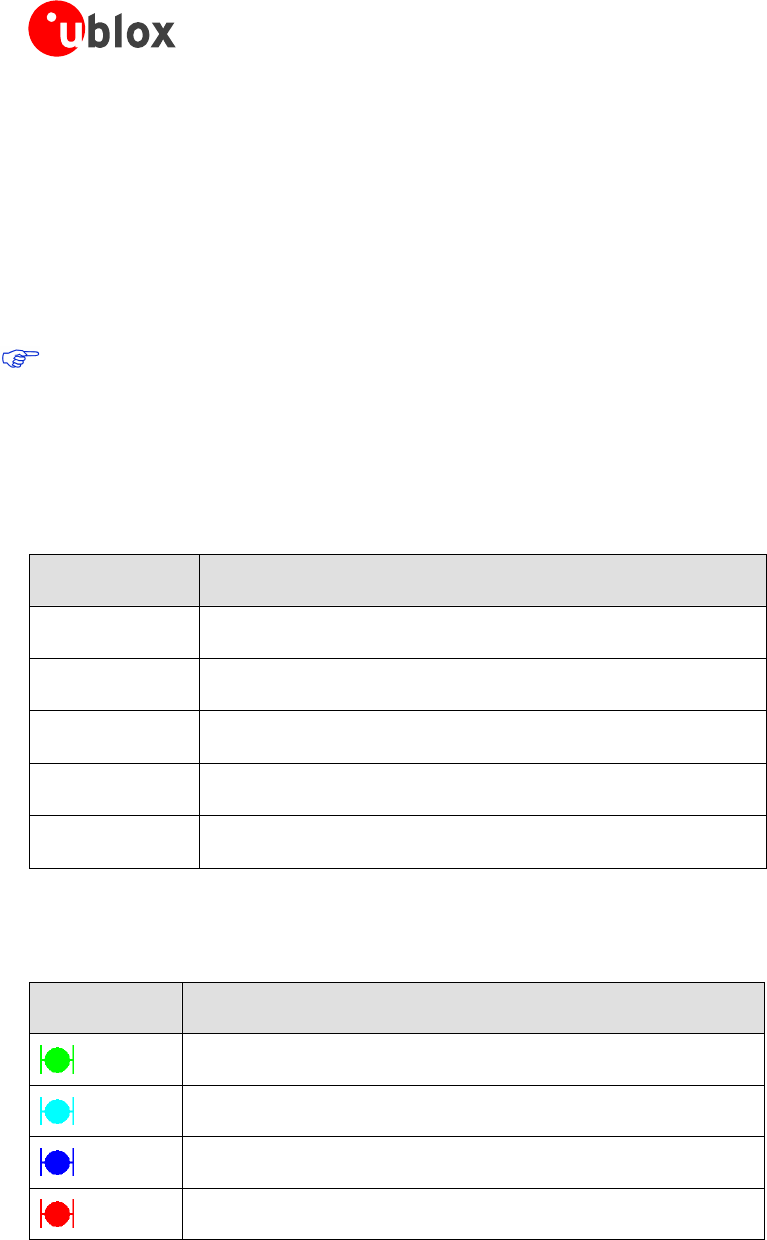
Inthegraphicalviewsandsomeofthedockingwindows,colorsareusedtoindicatethequalityofthedata.
Table 1depictsthecolor-codingschemeparametersforgraphicalviewsdependingonthequalityofthe
navigationsolution.
Color Meaning
+ YellowCurrentvalue
+ Green3Dnavigationsolution
+ Cyan2Dnavigationsolution
+ BlueDegradednavigationsolution(e.g.Deadreckoning)
+ RedNonavigationsolution
Table 1: Color-coding scheme for graphical views
Table2depictsthecolor-codingschemefortheDockingWindowsandSkyView.Itindicatesthestateofeach
satellite.
Color Meaning
GreenSatelliteusedinnavigation
CyanSatellitesignalavailable,availableforuseinnavigation
BlueSatellitesignalavailable,notavailableforuseinnavigation
RedSatellitesignalnotavailable
Table 2: Color-coding scheme for the Docking Windows and Sky View
GPS-SW-08007-AReleasedConceptandPhilosophy
Page 11 of 57
u-center-User’sGuide
3.2 Operating Modes
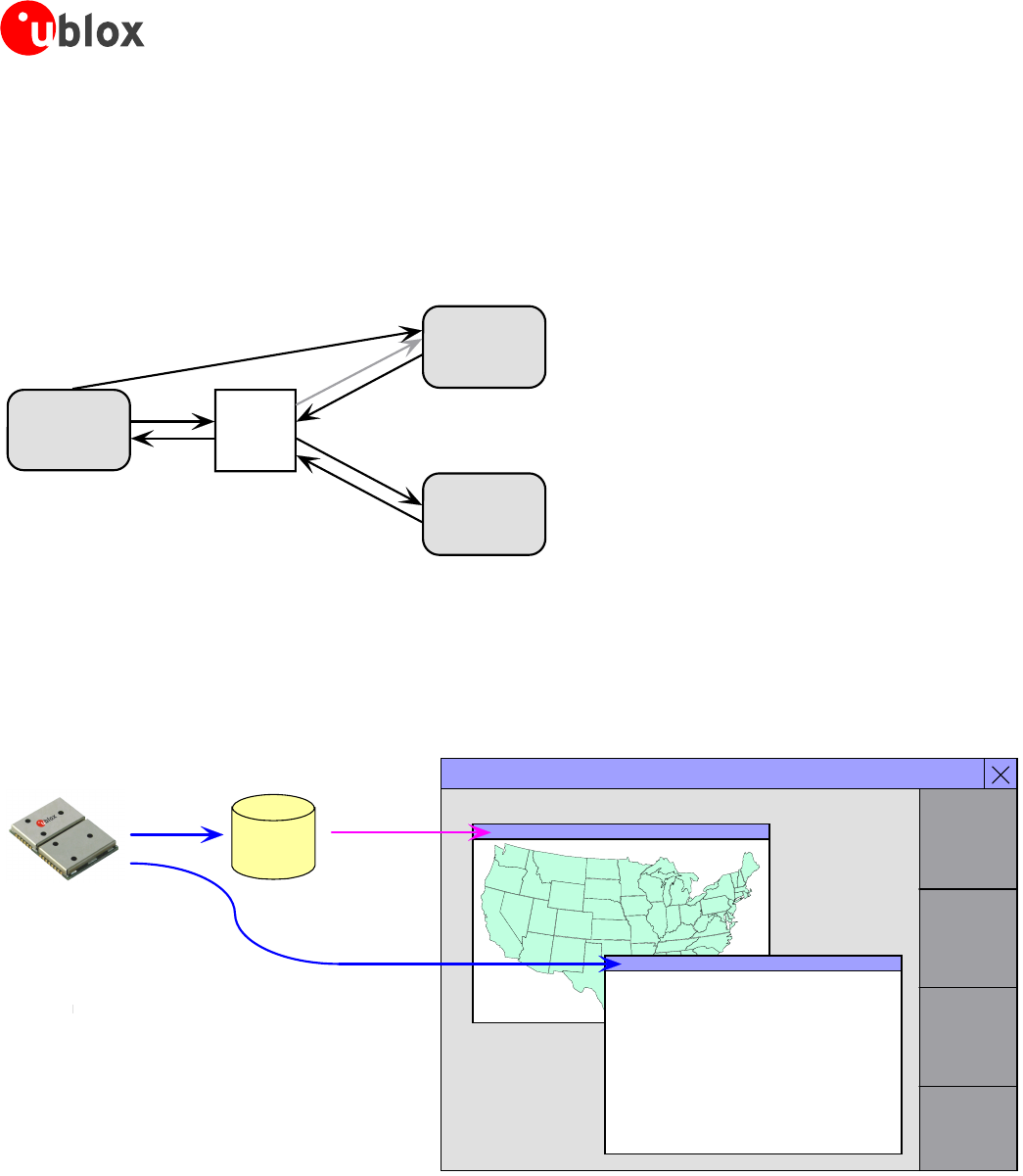
u-center hasdifferentoperatingmodes.Themodechangeswhenyouopenorclosealogfileorwhenyoumake
anactionintheplayer.Tobeabletousetherecordmodeyouhavetocreateanewfile,savetoanewfileor
openanexistingfile.Therecordandplayermodeareonlyavailableifyouhavecreatedanewfileorwhenyou
haveopenedawrite-ablefile.
Stop
Mode
Recorder
Mode
Player
Mode
Online
Mode
Close/Eject
File
Open/Create
File Stop
Record
Play/Step/Scan
Stop
Save
Figure 7: Relations between operating modes
3.2.1 Online Mode
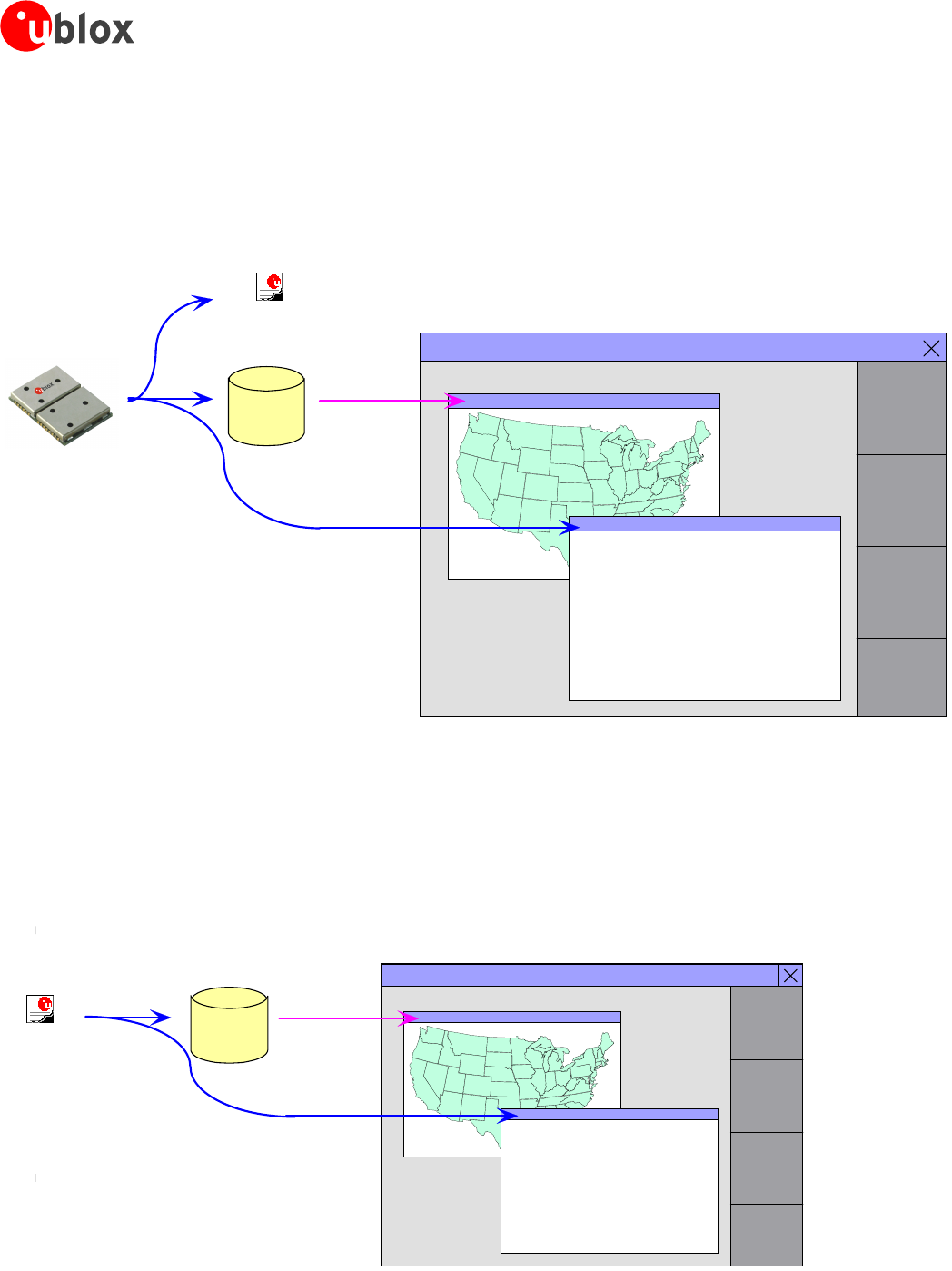
InthismodeaGPSreceiverisdirectlyconnectedtou-centerviaaserialportwith.u-centercancontroland
configurethereceiver,itwilldisplaythedatathatthereceiverissendingperiodically.
12:00:01 24 47 50 56 54 47
2C 30 2E 30 30 2C
54 2C 2C 4D 2C 30
2E 30 30 30 2C 4E
12:00:02 24 47 50 56 54 47
2C 30 2E 30 30 2C
54 2C 2C 4D 2C 30
2E 30 30 30 2C 4E
2C 30 2E 30 30 30
2C 4B 2C 4E 2A 33
u-center
Database
Figure 8: Dataflow in Online Mode
3.2.2 Stop Mode
Inthismodenodatafromreceiverorlogfileisforwardedtothedatabaseandviews.u-centerisinthismode
whenalogfileisopenbutplayerandrecorderarenotactive.
GPS-SW-08007-AReleasedConceptandPhilosophy
Page 12 of 57
u-center-User’sGuide
3.2.3 Record Mode
RecordModeisthesamemodeastheOnlineMode.Butu-centeradditionallycreatesalogfileonyourdisk,
contactingallthemessagessentbythereceiver.Youenterthismodebycreatinganewlogfileoropeningan
existinglogfilewithoutwriteprotectionandpressingtherecordbutton.Anexampleofusingthismodewould
betomakeovernightmeasurementsandevaluatethedataatalatertime.u-bloxcustomersupportmayrequest
alogfilefromyouwhenyouareexperiencingaproblemwithoneofourreceivers.
12:00:01 24 47 50 56 54 47
2C 30 2E 30 30 2C
54 2C 2C 4D 2C 30
2E 30 30 30 2C 4E
12:00:02 24 47 50 56 54 47
2C 30 2E 30 30 2C
54 2C 2C 4D 2C 30
2E 30 30 30 2C 4E
2C 30 2E 30 30 30
2C 4B 2C 4E 2A 33
u-center
Database
LogFile.ubx
Figure 9: Dataflow in Record Mode
3.2.4 Player Mode
ThePlayerModeallowsreplayingapreviouslyrecordedlogfilestepbystep,inreal-timeoratanaccelerated
rate.Youenterthismodebyopeningafileandpressingtheplay,steporscanbutton.
12:00:01 24 47 50 56 54 47
2C 30 2E 30 30 2C
54 2C 2C 4D 2C 30
2E 30 30 30 2C 4E
12:00:02 24 47 50 56 54 47
2C 30 2E 30 30 2C
54 2C 2C 4D 2C 30
2E 30 30 30 2C 4E
2C 30 2E 30 30 30
2C 4B 2C 4E 2A 33
u-center
Database
LogFile.ubx
Figure 10: Dataflow in Player Mode
GPS-SW-08007-AReleasedConceptandPhilosophy
Page 13 of 57
u-center-User’sGuide
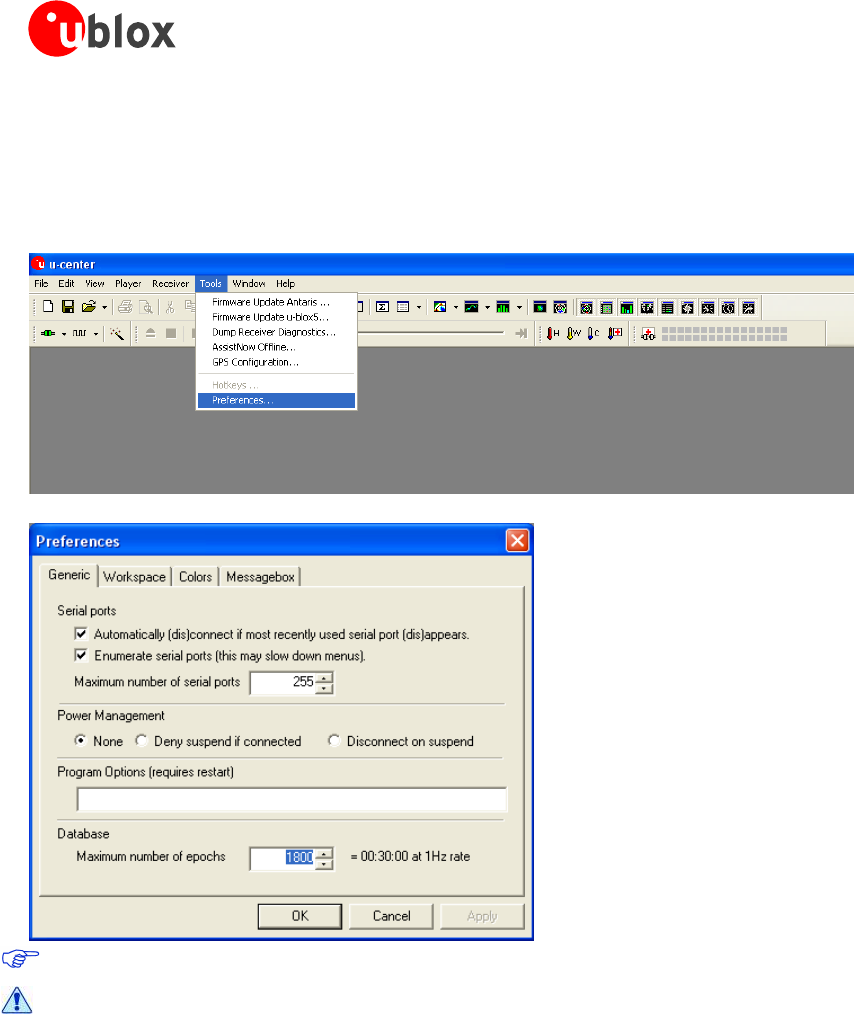
3.2.5 Database Limitation
Thenumberofepochsdisplayedinu-centerislimitedinordertoallowanefficientanalysisoflargelogfiles.The
limitissetto1800epochsbydefault.Thismeansifanepochisavailableeverysecondyoucananalyzedatafor
upto30minutes.Afterthistimetheoldestvaluesarediscarded.Datastoredtoalogfileisnotaffectedbythe
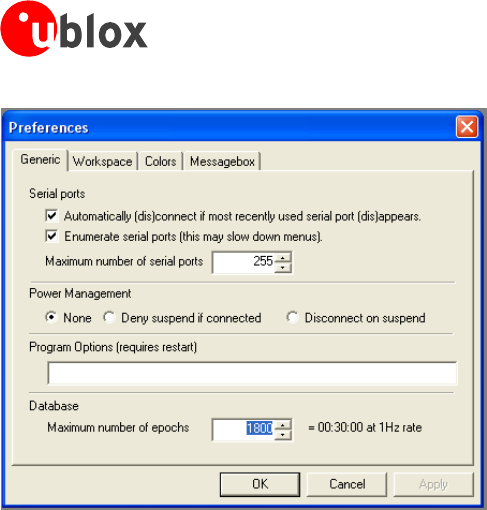
databaselimitation.Thenumberofepochsdisplayedinu-centercanberesetthroughthemenubarasfollows:
Forlong-termobservations,it’srecommendedtostartrecordingalogfilebeforeanalysisbegins.
If a high value of epochs is selected, the display of data in real-time cannot be guaranteed,
especially when graphical views are open.
3.2.6 Relations between Modes
Theoperatingmodedependsonthestatusofthelogfileplayer.Modesarechangedbyuseractions.Eachmode
hasdifferentstatesthatarechangedbyauseractionorbyanevent(Figure 7).
IntheOnlineandRecordmodes,u-centerdisplaysdatafromthereceiver.InPlayermodedatafromalogfile
isdisplayed.Playermodehasdifferentstates.InPlay statemessagesarereadanddisplayedperiodicallyfromthe
logfile.TheveryintuitiveuserinterfaceisderivedfromthatofaCDplayer.u-centerupdatestheviewsafter
eachmessage.StepstateonlygetsonemessagefromthelogfileandimmediatelyreturnstopausedPlay state.
Scanstatealsoreadsmessagesperiodicallybutthedisplayisonlyupdatedwhenpausedorbychangingthe
state.Positioncanbesetinalogfile.ThisbehavesdifferentlyinthePlayerandStopmodes.InStopmodethe
positionisjustsetandnodataisreadanddisplayed.u-centerwillstartrecordingorplayingfromthatposition
whenchangingthemode.IfpositionissetinPlayermode,u-centerwillloadthedatauptothispositionfrom
thelogfileanddisplaythecontents.
GPS-SW-08007-AReleasedConceptandPhilosophy
Page 14 of 57
u-center-User’sGuide
4 Menu Structure
4.1 Main Frame
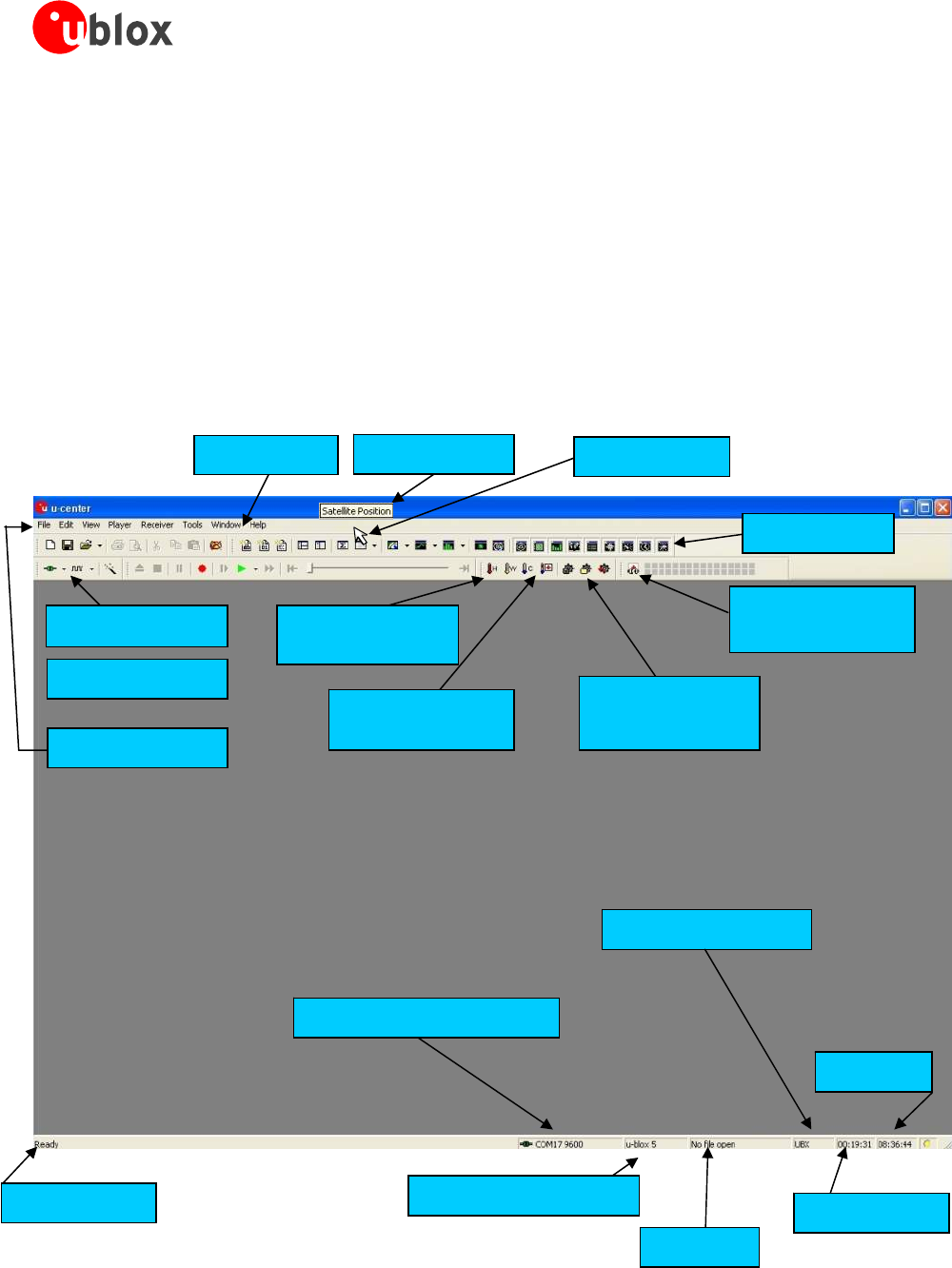
TheMainFrameistheprimarydisplayscreenofu-center.Itdisplaysalltoolbarsandsomeoftheinformation
providedbytheGPSreceiver.Inthestatusbar,informationaboutcommunication,UTCtime,OperatingTime,
usedprotocol(NMEAorUBX),usedfile,etc.isshown.
Button Function:Adescriptionabouteachbuttoninthetoolbarscanbeobtainedbyholdingthemouse
cursoroverthebuttonforafewseconds.AToolTipmessagewillappearneartheIconwithadditional
informationwhileadetaileddescriptionisdisplayedintheStatusDisplay.
MenuBarButtonFunction
MouseCursor
ReceiverToolBar
StandardToolBar
PlayerToolBar
Hot/Warm/Cold
StartToolBar
AssistNowOnline
ToolBar
ViewsToolBar
AssistNowOffline
ToolBar
Configuration
StringToolBar
UTCTime
ProtocolInformation
CommunicationInformation
Fileinuse
u-blox5/AntarisMode
OperatingTime
StatusDisplay
Status Display:displaythecurrentactionorthefunctionofabuttonifthemousecursorisoverthebutton
GPS-SW-08007-AReleasedMenuStructure
Page 15 of 57
u-center-User’sGuide
u-blox 5 / Antaris Mode:u-centerautomaticallydetectsthetypeofGPSreceiverconnectedandactivates
theappropriatemodeofoperationinordertotakeoptimaladvantageofthefeatures.Themodecanalso
bemanuallyselectedthroughthemenubar.
File in use:Assoonasafileisused(thisfilemustfirstbeopened)thenameofthefilewillbedisplayed
(xxxxxx.ubx)
Protocol Information:Thisboxindicatesthecurrentmessagesetthatisbeingusedtocommunicatewith
theGPSreceiver.ThiscanbetheNMEA-0183standardortheUBXprotocol.TheUBXprotocolprovides
moreextensiveinformationwiththereceiver.u-centercanhandlebothprotocols.
Operating Time:Thetimeelapsedsinceyoustartedu-center
UTC Time:ThecurrenttimesentbytheGPSreceiver
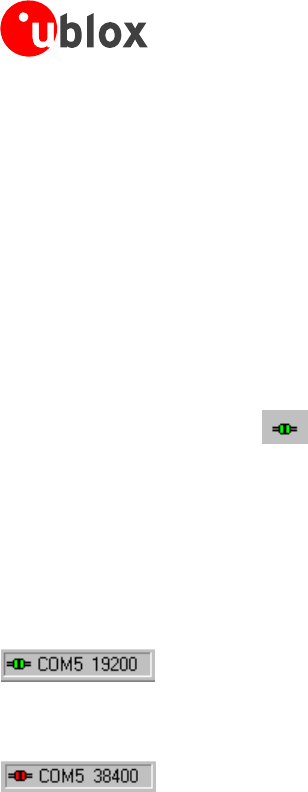
Communication Information:ShowstheactiveCOMportandbaudrate.
Color-Codingofthisicon:
Green:dataisbeingreceivedatthecorrectbaudrate
DarkGreen: thelastdatareceivedwasvalid,butthereisnodatatocollectatthistime.
Red: dataisbeingreceivedbuterrorsaredetected
DarkRed:nodataisbeingreceivedbuterrorshavebeendetectedinthepast
Gray: waitingforfirstdata
Figure 11: u-center and GPS receiver are synchronized (green plug)
Figure 12: u-center and GPS receiver mismatch (red plug)
4.2 Menu Bar
Allu-centerfunctionscanbeaccessedthroughtheMenuBar,alternativelyitmaybeeasiertousetheiconsin
thetoolbars.
GPS-SW-08007-AReleasedMenuStructure
Page 16 of 57
u-center-User’sGuide
4.3 File Menu and Standard Tool Bar
Em
p
t
y
database
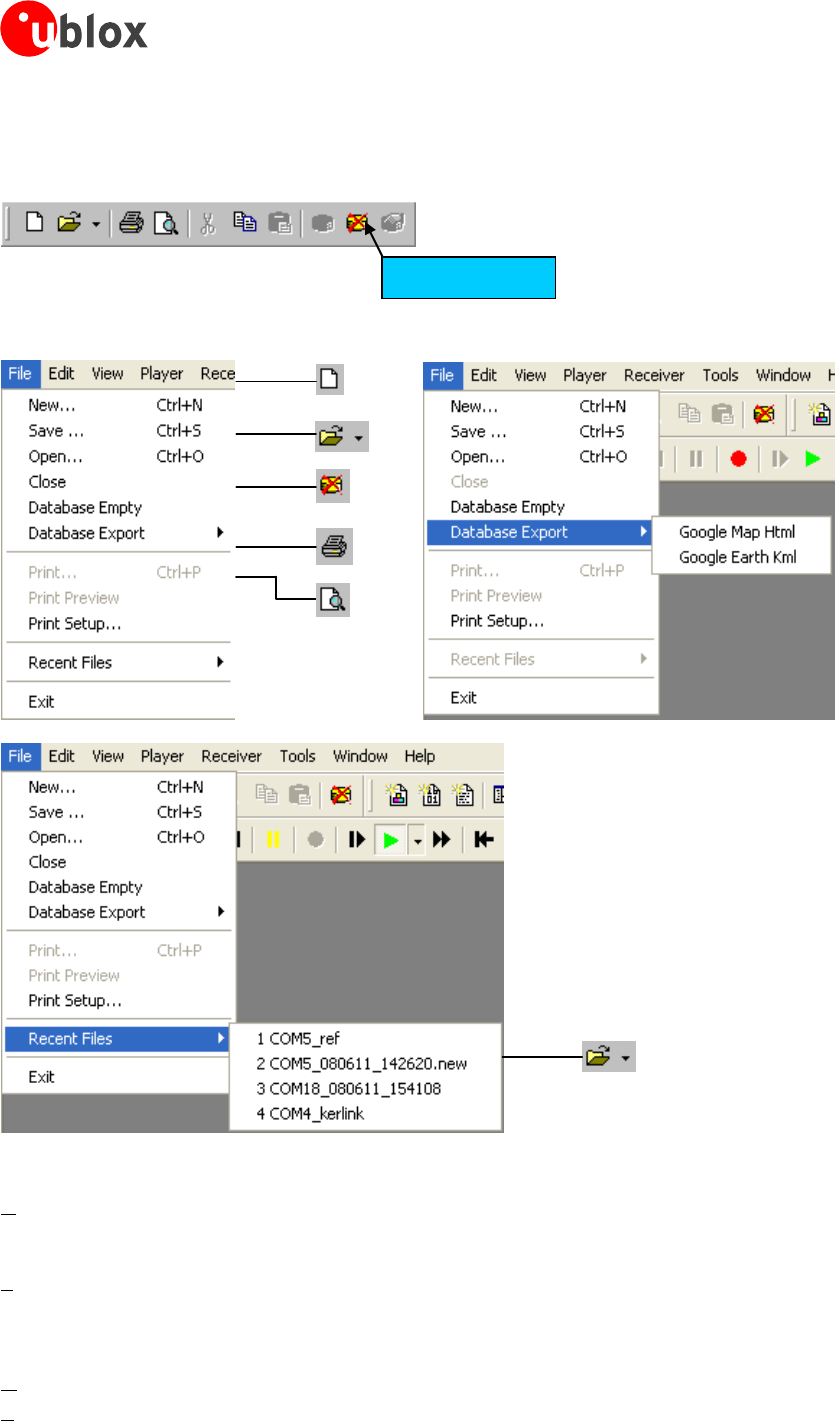
Figure 13: Standard Toolbar
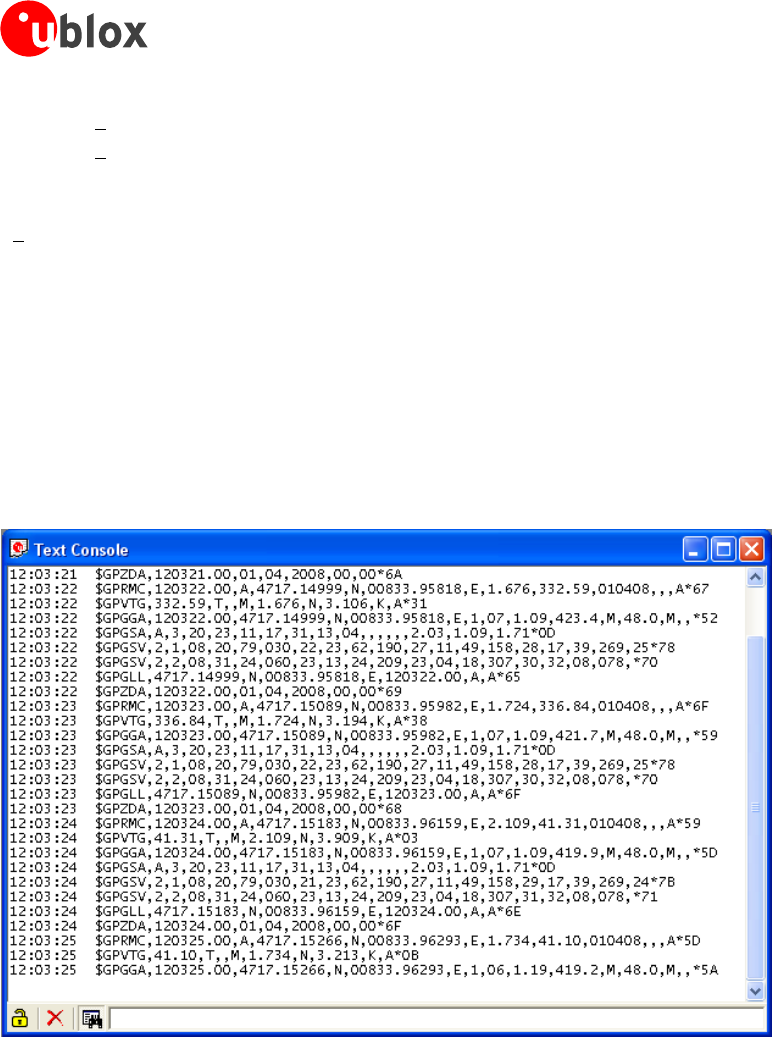
Figure 14: File Menu(s) with corresponding toolbar icons
New… u-centercancapturereceiveroutputdataintoalogfile.However,loggingwillonlystart
afterRecordinthePlayerMenuhasbeenselected.Theelapsedloggingtimeisdisplayed
inthefieldoperatingtime.Thelogfileshavea‘ubx'extension.
Save… Opensanewlogfile,savesthedatafromaringbuffertothelogfileandimmediatelystarts
recordingallnewlyreceiveddata.Thisisusefulwhenerrororanunexpectedevent
occurredandnologfilewasrecorded.Thesizeoftheringbuffer(4MB)islargeenough
toretainthedataforthelasthour(approx.).
Open… Opensa storedlogfiletobereplayed.
Close Closesthelogfile.
GPS-SW-08007-AReleasedMenuStructure
Page 17 of 57
u-center-User’sGuide
Database EmptyAllstoredvaluesaredeleted.
Database ExportStoredu-centerlogfilescanbeconvertedintoHTMLorKMLdataformatsfordisplaywith
GoogleMapandGoogleEarth.
Recent Files Alistofthemostrecentlogfiles.
Exit Terminatesu-center.
4.4 Edit Menu
TheEditMenuisfullyWindows®compliant.
4.5 View Menu and Views Tool Bar
4.5.1 Text Console
TheTextConsoledisplaysthecontentmessagesintextualformsuchasUBX-INForNMEAmessages.
Figure 15: Text Console displaying UBX-INF and NMEA messages
GPS-SW-08007-AReleasedMenuStructure
Page 18 of 57
u-center-User’sGuide
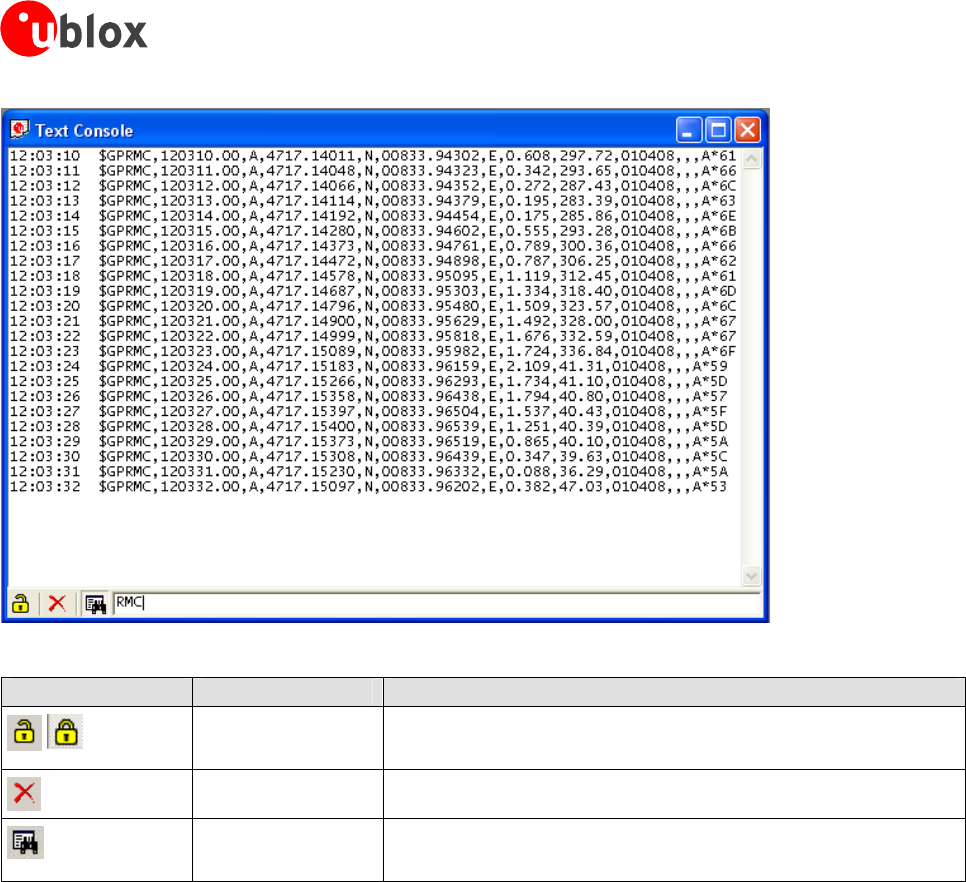
Figure 16: Text Console displaying only RMC messages
Element Name Description
LockPreventstheTextConsolefrombeingupdatedwithnewdata
whenlocked.
ClearAllErasesalldataintheTextConsole
FilterOn/OffFilterunwanteddatafromthedatastream.Thisallowssearching
forcertainexpression,e.g.allRMCmessages(Figure16).
Table 3: Description of the buttons of the different Consoles
4.5.1.1 Regular Expression Evaluation
Normally,whenyousearchforasub-stringinastring,thematchshouldbeexact.Soifwesearchforasub-
string"abc"thenthestringbeingsearchedshouldcontaintheseexactlettersinthesamesequenceforamatch
tobefound.Wecanextendthiskindofsearchtoacaseinsensitivesearchwherethesub-string"abc"willfind
stringslike"Abc","ABC"etc.Thatis,thecaseisignoredbutthesequenceofthelettersshouldbeexactlythe
same.Sometimes,acaseinsensitivesearchisalsonotenough.Forexample,ifwewanttosearchfornumeric
digit,thenwebasicallyendupsearchingforeachdigitindependently.Thisiswhereregularexpressionscomein
toourhelp.Regularexpressionsaretextpatternsthatareusedforstringmatching.Regularexpressionsare
stringsthatcontainamixofplaintextandspecialcharacterstoindicatewhatkindofmatchingtodo.Here'sa
verybrieftutorialonusingregularexpressions.
Suppose,wearelookingforanumericdigitthentheregularexpressionwewouldsearchforis"[0-9]".The
bracketsindicatethatthecharacterbeingcomparedshouldmatchanyoneofthecharactersenclosedwithinthe
bracket.Thedash(-)between0and9indicatesthatitisarangefrom0to9.Therefore,thisregularexpression
willmatchanycharacterbetween0and9,thatis,anydigit.Ifwewanttosearchforaspecialcharacterliterally
wemustuseabackslashbeforethespecialcharacter.Forexample,thesinglecharacterregularexpression"\*"
matchesasingleasterisk.Inthetablebelowthespecialcharactersarebrieflydescribed.Aregularexpression
searchiscasesensitive.
GPS-SW-08007-AReleasedMenuStructure
Page 19 of 57
u-center-User’sGuide
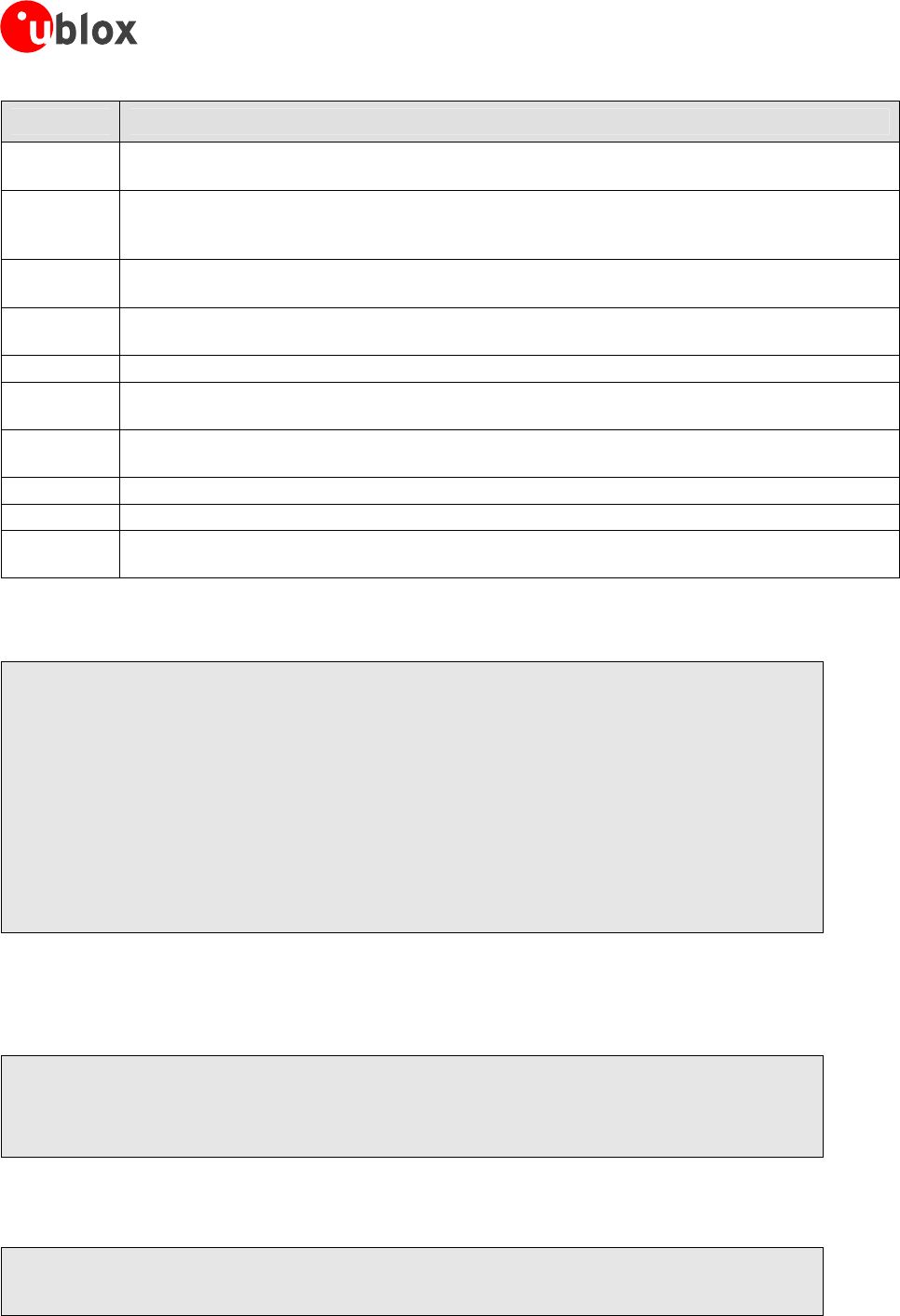
Character Description
^ Beginningofthestring.Theexpression"^A"willmatchan‘A’onlyatthebeginningofthe
string.
[^
Thecaret(^)immediatelyfollowingtheleft-bracket([)hasadifferentmeaning.Itisusedto
excludetheremainingcharacterswithinbracketsfrommatchingthetargetstring.The
expression"[^0-9]"indicatesthatthetargetcharactershouldnotbeadigit.
$ Thedollarsign($)willmatchtheendofthestring.Theexpression"abc$"willmatchthesub-
string"abc"onlyifitisattheendofthestring.
| ThealternationorlogicORcharacter(|)allowseitherexpressiononitssidetomatchthetarget
string.Theexpression"a|b"willmatch‘a’aswellas‘b’.
. Thedot(.)willmatchanycharacter.
* Theasterisk(*)indicatesthatthecharactertotheleftoftheasteriskintheexpressionshould
match0ormoretimes.
+ Theplus(+)issimilartoasteriskbutthereshouldbeatleastonematchofthecharactertothe
leftofthe+signintheexpression.
? Thequestionmark(?)matchesthecharactertoitsleft0or1times.
() Theparenthesisaffectstheorderofpatternevaluation.
[] Brackets([and])enclosingasetofcharactersindicatesthatanyoftheenclosedcharactersmay
matchthetargetcharacter.
4.5.1.2 Example
Let’sassumethatthefollowinglineswouldappearintheNMEAconsolewithoutfiltering.
14:00:03 $GPGGA,140003.242,4717.1126,N,00833.7862,E,1,06,1.3,543.0,M,,,,0000*09
14:00:03 $GPGLL,4717.1126,N,00833.7862,E,140003.242,A*34
14:00:03 $GPGSA,A,3,06,17,25,22,30,10,,,,,,,2.9,1.3,2.6*3A
14:00:03 $GPGSV,2,1,07,06,58,062,44,17,52,161,44,25,45,239,44,22,35,301,44*7F
14:00:03 $GPGSV,2,2,07,30,31,123,44,10,17,059,39,01,05,316,*4E
14:00:03 $GPRMC,140003.242,A,4717.1126,N,00833.7862,E,0.03,80.59,010201,,*36
14:00:03 $GPVTG,80.59,T,,M,0.03,N,0.1,K*56
14:00:04 $GPGGA,140004.242,4717.1126,N,00833.7862,E,1,06,1.3,542.0,M,,,,0000*0F
14:00:04 $GPGLL,4717.1126,N,00833.7862,E,140004.242,A*33
14:00:04 $GPGSA,A,3,06,17,25,22,30,10,,,,,,,2.9,1.3,2.6*3A
14:00:04 $GPGSV,2,1,07,06,58,062,45,17,52,161,44,25,45,239,44,22,35,301,44*7E
14:00:04 $GPGSV,2,2,07,30,31,123,44,10,17,059,39,01,05,316,*4E
14:00:04 $GPRMC,140004.242,A,4717.1126,N,00833.7862,E,0.02,152.96,010201,,*0D
14:00:04 $GPVTG,152.96,T,,M,0.02,N,0.0,K*6B
Inthefollowingexamplesthecharactersmarkedredmatchtheregularexpression.
Example 1:SearchingfortheRMCwithavalidpositionandallGGAMessages
“GP(GGA|RMC,.*,A,)”
14:00:03 $GPGGA,140003.242,4717.1126,N,00833.7862,E,1,06,1.3,543.0,M,,,,0000*09
14:00:03 $GPRMC,140003.242,A,4717.1126,N,00833.7862,E,0.03,80.59,010201,,*36
14:00:04 $GPGGA,140004.242,4717.1126,N,00833.7862,E,1,06,1.3,542.0,M,,,,0000*0F
14:00:04 $GPRMC,140004.242,A,4717.1126,N,00833.7862,E,0.02,152.96,010201,,*0D
Example 2: SearchingforallGSVwiththemessageindexof‘2’or‘3’
“GSV,.*,[2-3],”
14:00:03 $GPGSV,2,2,07,30,31,123,44,10,17,059,39,01,05,316,*4E
14:00:04 $GPGSV,2,2,07,30,31,123,44,10,17,059,39,01,05,316,*4E
GPS-SW-08007-AReleasedMenuStructure
Page 20 of 57
u-center-User’sGuide
Example 3: Searchingforallmessagesstartingwith$GP,whichhavea‘G’inthemessageidentifierbutnot
atthefirstposition
“^\$GP.+G.*,”
14:00:03 $GPGGA,140003.242,4717.1126,N,00833.7862,E,1,06,1.3,543.0,M,,,,0000*09
14:00:03 $GPVTG,80.59,T,,M,0.03,N,0.1,K*56
14:00:04 $GPGGA,140004.242,4717.1126,N,00833.7862,E,1,06,1.3,542.0,M,,,,0000*0F
14:00:04 $GPVTG,152.96,T,,M,0.02,N,0.0,K*6B
Example 4: Searchingforallmessagehavingachecksumofwhichthehighernibbleis3
“\*3.$”
14:00:03 $GPGLL,4717.1126,N,00833.7862,E,140003.242,A*34
14:00:03 $GPGSA,A,3,06,17,25,22,30,10,,,,,,,2.9,1.3,2.6*3A
14:00:03 $GPRMC,140003.242,A,4717.1126,N,00833.7862,E,0.03,80.59,010201,,*36
14:00:04 $GPGLL,4717.1126,N,00833.7862,E,140004.242,A*33
14:00:04 $GPGSA,A,3,06,17,25,22,30,10,,,,,,,2.9,1.3,2.6*3A
4.5.2 Packet Console
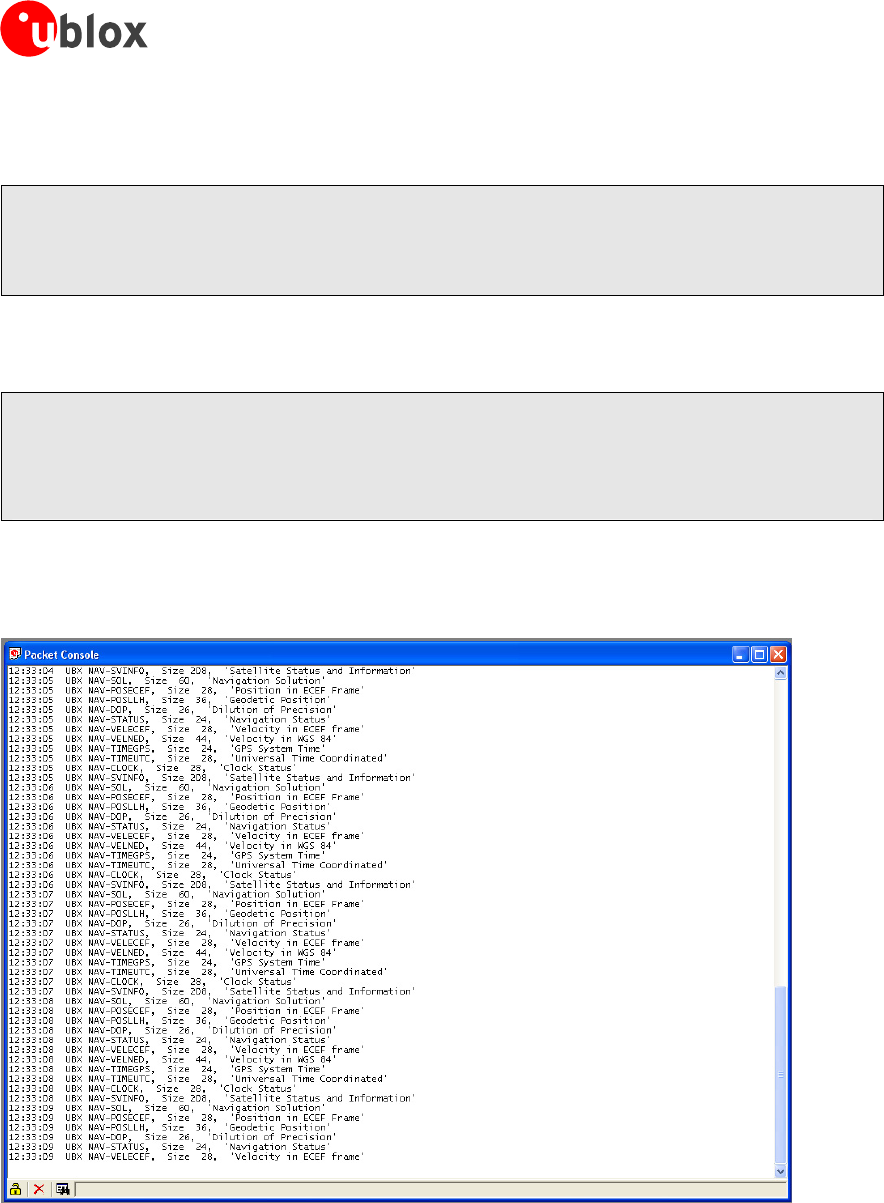
ThePacketConsolelistsallincomingmessagesandprovidesinformationaboutmessagelengthandtype.
Figure 17: Packet Console
RefertoSection4.5.1foranexplanationoftheiconsandtextfields.
GPS-SW-08007-AReleasedMenuStructure
Page 21 of 57
u-center-User’sGuide
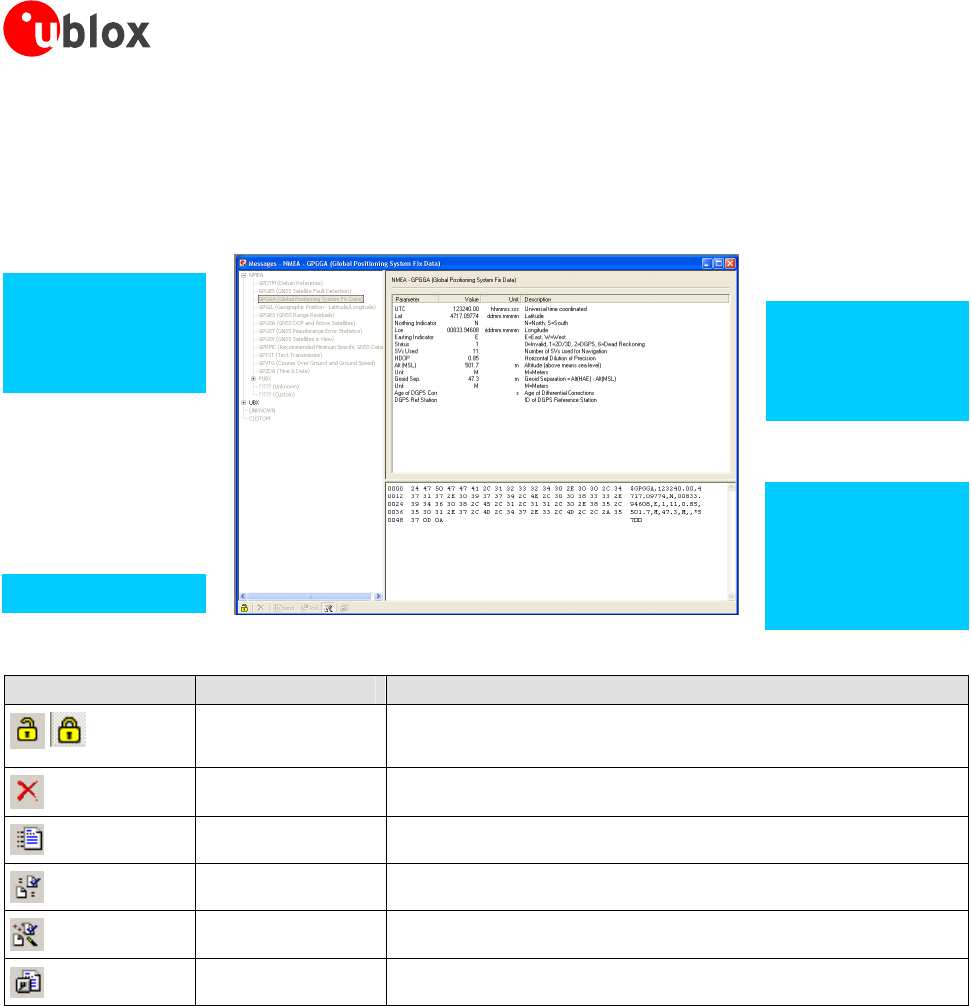
4.5.4 Message View
TheMessageViewisutilizedtocommunicatewiththeGPSreceiver.Receiveroutputmessages(e.g.navigation
output,statusanddebuginformation)aredisplayed;inputmessages(e.g.configurationmessages)canbesent.
TherearedifferentsectionsforNMEAandUBXprotocol.
Figure 19: Message View
Hex Dump
Displaysthemes-
sagecontentin
hexadecimaland
ASCIIform.
Message Display
Displaysthemes-
sagecontent.
Message Tree
AlistofallNMEA
andUBXmessage
T
oo
l
ba
r
Element Name Description
LockPreventstheMessageViewfrombeingupdatedwithnewdata
whenlocked.
ClearAllErasestheentireMessageView.
SendSendsthecurrentmessagetotheGPSreceiver.
PollPollstheselectedmessageonce.
AutopollAutomaticallypollsanewlyselectedmessageonce
MessageHotkeyAssignsahotkeytotheselectedmessage
Table 4: Description of the buttons in the Message View
GPS-SW-08007-AReleasedMenuStructure
Page 23 of 57
u-center-User’sGuide
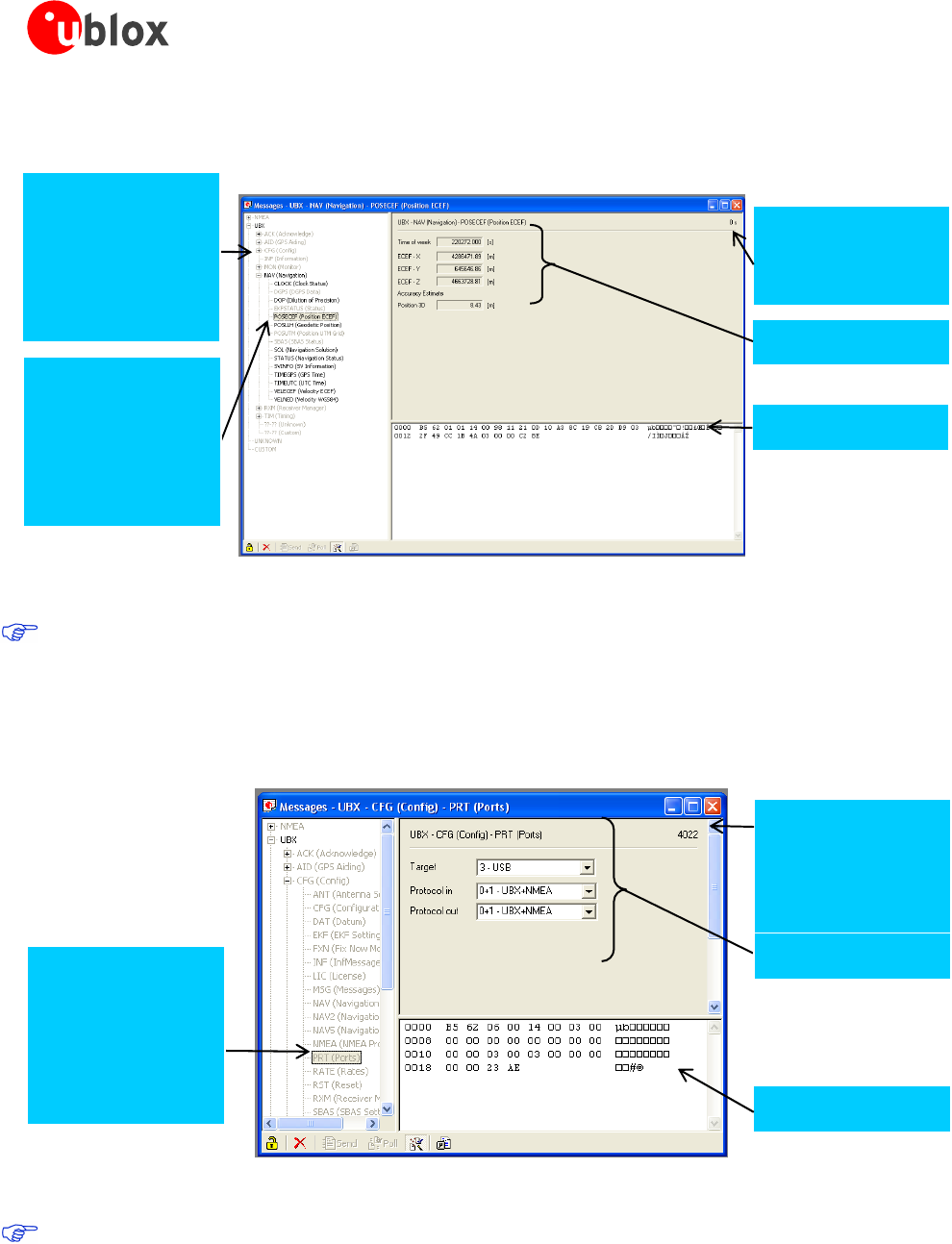
4.5.4.1 Receiver Output Messages
Blackmessages
haverecentlybeen
updated;grey
messageshavenot
beenupdated.
Message Tree
Selected Message
Blueshadedifmes-
sagehasbeen
receivedfromthe
GPSrecently
otherwisegrey.
Last Update
Timeinseconds
sincelastupdate.
Message Content
Hex Dump
Figure 20: Message Display of an output message
Double-clickingonanoutputmessageenablesordisablestheperiodicmessageupdateifthe
communicationprotocolisactive.ThisfeatureiscurrentlyonlysupportedfortheUBXprotocol.
4.5.4.2 Receiver Input Messages
InputmessagescanbeeditedandsenttotheGPSreceiverfromtheMessageView.Itisalsopossibletopollthe
currentreceiversettings.
Last Update
Timeinseconds
sincelastupdate
(sendingorpolling)
Hex Dump
Message Content
Blueshadedifmes-
sagehasbeen
receivedfromthe
GPSrecently
otherwisegrey.
Selected Message
Figure 21: Message Display of an input message
u-centerperformssomerangechecksoninputmessages.Ifaninputvalueexceedsthepermittedrange,
u-centerwillhighlightthefieldinredbutitisstillpossibletosendthevaluetothereceiver.However,the
receiverislikelytorejectsuchamessage.
GPS-SW-08007-AReleasedMenuStructure
Page 24 of 57
u-center-User’sGuide
4.5.5 Statistic View
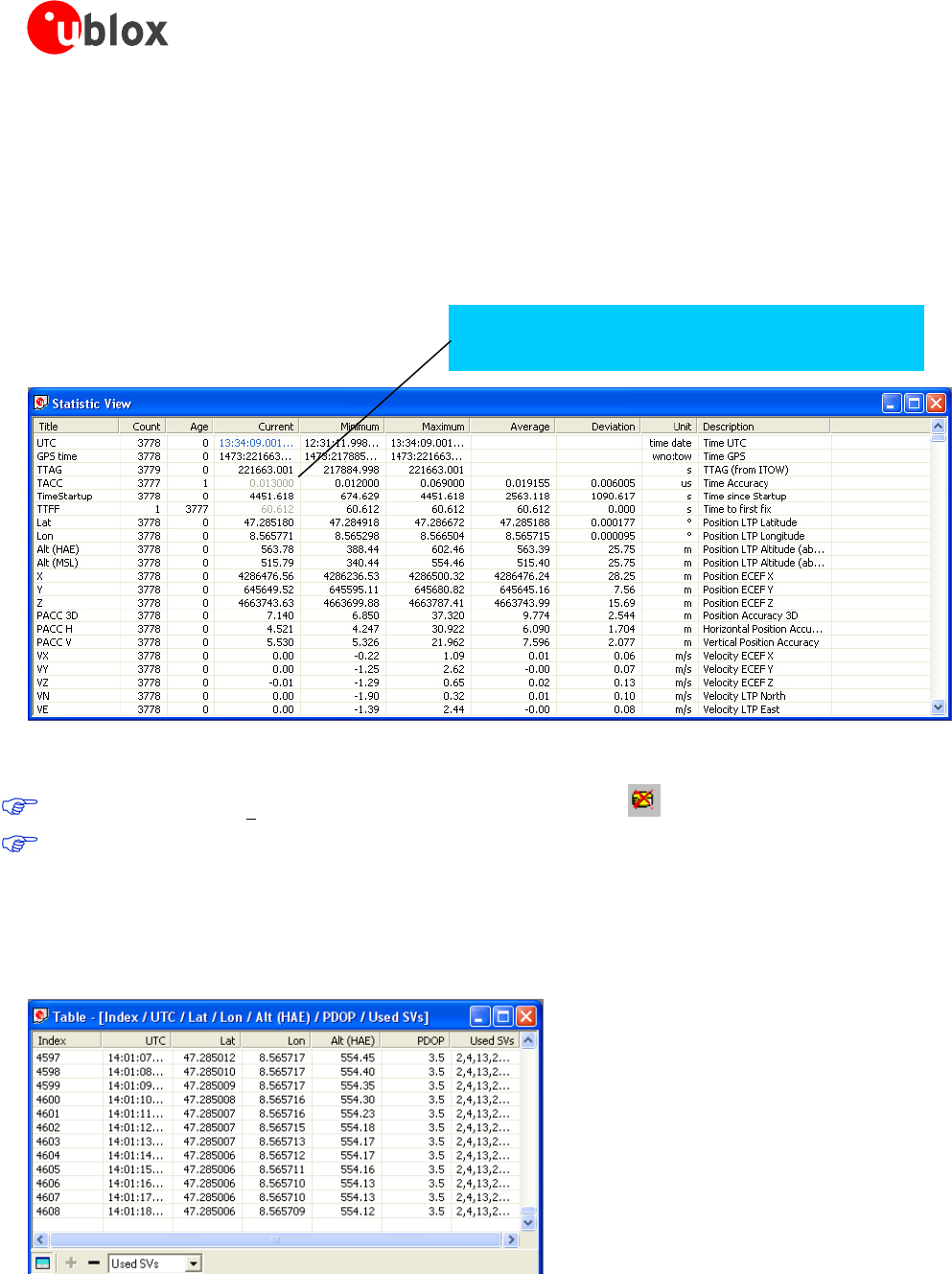
AllavailableGPSvalues(transmittedfromtheGPSreceiverorcalculatedbyu-center)aredisplayed.The
followingstatisticsaredisplayed:
CurrentValue
MinimumValue
MaximumValue
AverageValue
StandardDeviation
Greycolor:thevaluewasnotsetforthecurrentepoch
Em
p
t
y
field:dataisnotavailable
Figure 22: Statistic View
ChoosingDatabaseEmpty intheFileMenuorpressingtheButton deletestheStatisticView.
ThecontentoftheStatisticViewcaneasilybeexportedtootherprogramsusingCopy/Paste.
4.5.6 Table View
Allvaluesfromthedatabasecanbedisplayedinatabularform(Figure23).Thisisveryusefulwhenanalysing
logfileindetail.
Figure 23: Table View
GPS-SW-08007-AReleasedMenuStructure
Page 25 of 57
u-center-User’sGuide
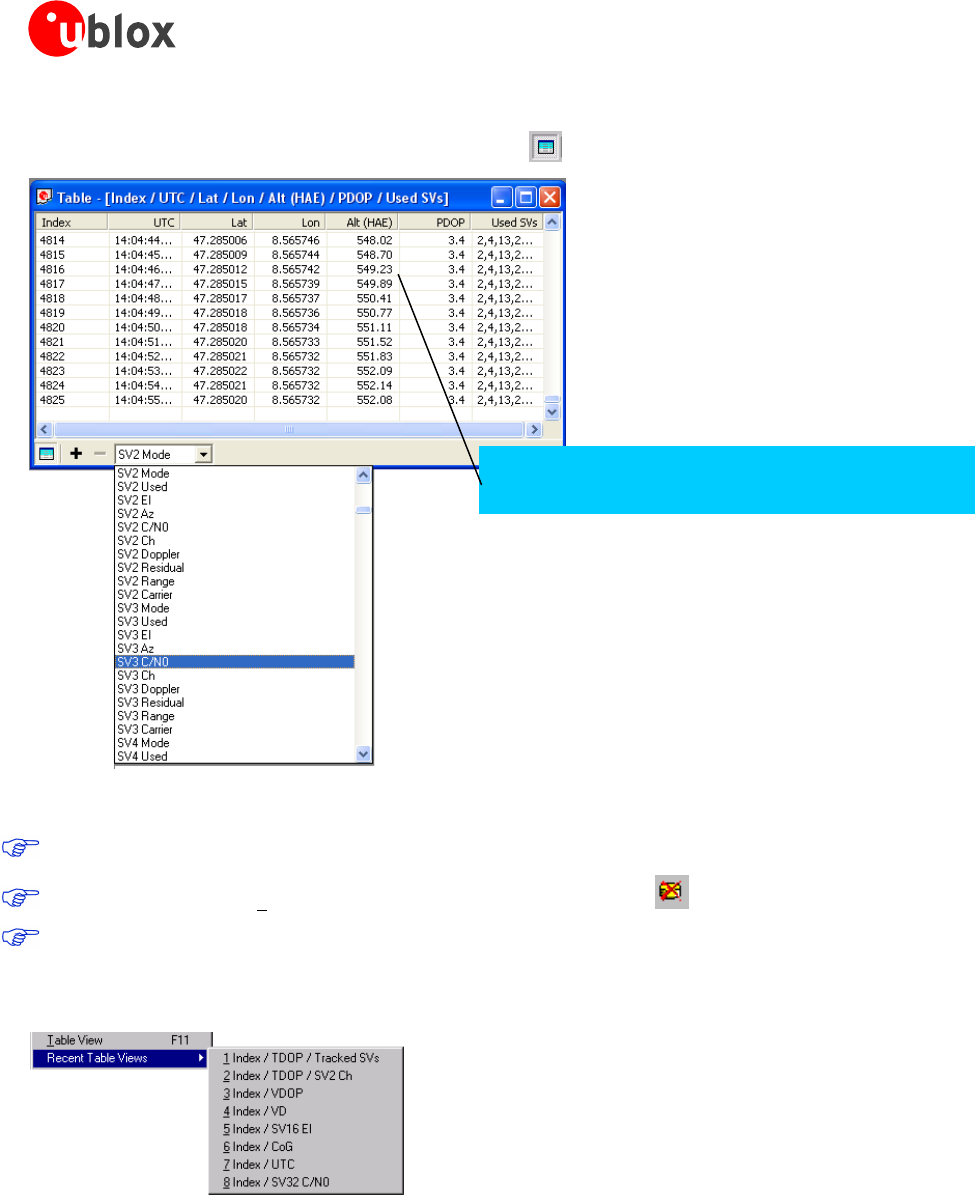
Toaddanewcolumn,firstselectthedesiredvalue(Figure 24)andclickthe+Button.Toremoveadisplayed
value,clickthe–Button.ToseetheTableheaderclicktheButton.
Em
p
t
y
field:dataisnotavailable
Greycolor:thevaluewasnotsetforthecurrentepoch
Figure 24: Selecting a new value
Thenumberofdisplayedepochsissetto1800bydefault(seealsosection 3.2.5 DatabaseLimitation).
ChoosingDatabaseEmptyintheFileMenuorpressingtheButton deletestheTableView.
ThecontentoftheStatisticViewcaneasilybeexportedtootherprogramsusingCopy/Paste.
WiththefunctionRecent Table View oneof thelast8usedtablescanbeselected(Figure25)anddisplayed.
Figure 25: Recently used tables
4.5.7 Chart View
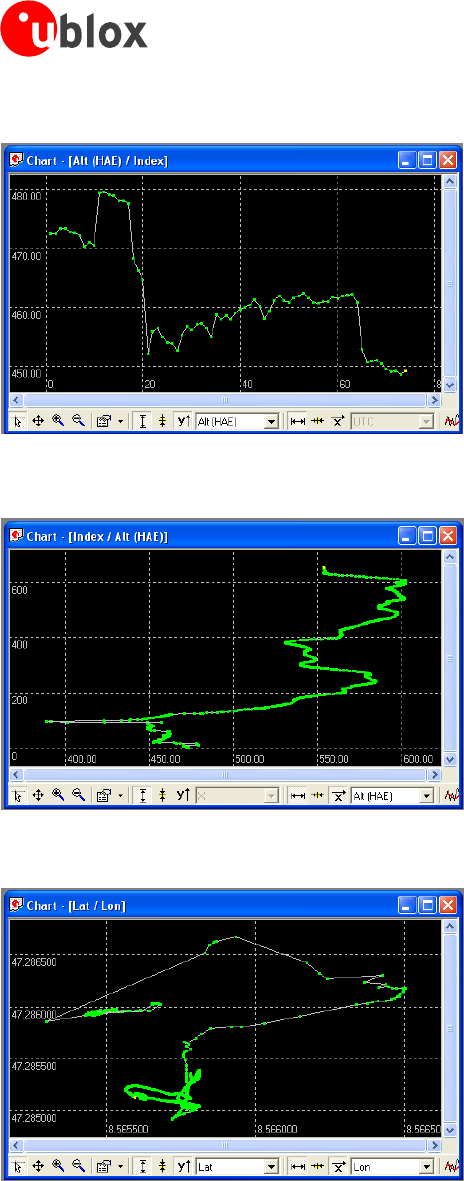
ChartViewallowstheusertoconvenientlyviewGPS-Datarecordsingraphicalform.Thedatacanbescaledin
manydifferentwaysandformats.It’sevenpossibletoprinttheentirechart.
GPS-SW-08007-AReleasedMenuStructure
Page 26 of 57
u-center-User’sGuide
Theexamplesbelowillustrate3differenttypicalapplications
Figure 26: Altitude as a function of Index (X = Index, Y = Alt)
Figure 27: Index as a function of Altitude (X = Altitude, Y = Index)
Figure 28: Latitude as a function of Longitude (X =Longitude, Y = Latitude)
GPS-SW-08007-AReleasedMenuStructure
Page 27 of 57
u-center-User’sGuide
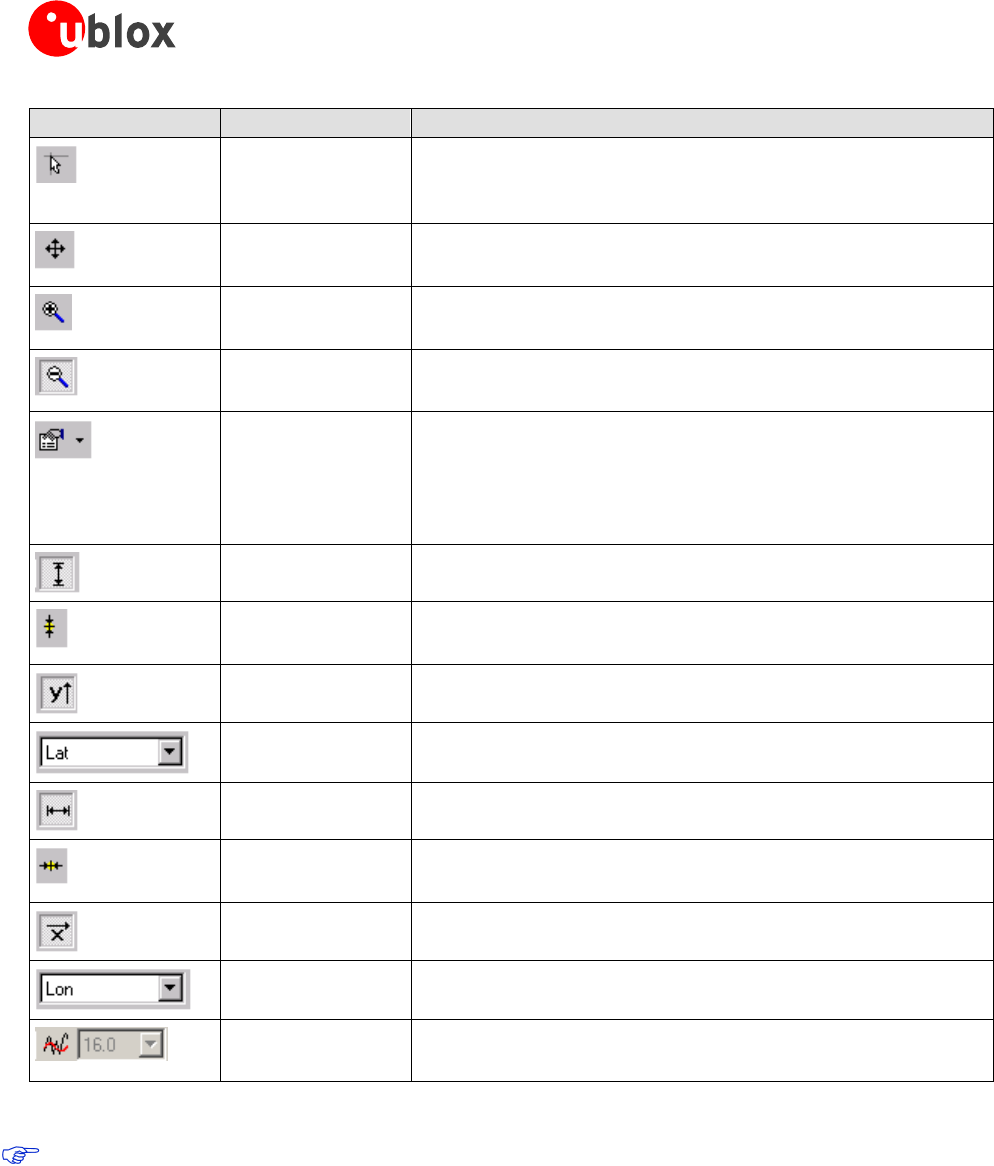
Element Name Description
CursorThecursorpositionisshowninthelowerleftedgeoftheu-
centerwindows.Clicktherightbuttonmouseandholdthe
buttondowntomeasuredifferences.
MoveThechartismovedinsidetheChartViewWindow.Clickand
Drag/DroptheChart.
ZoomInDrawingarectangleenlargesthecharttothenewview.Tozoom
intheChart2xclickonthechart
ZoomOutDrawingarectangledecreasesthecharttothenewview.To
zoomouttheChart2xclickonthechart
DrawingModeThesizeandformofthedisplayedvaluescanbechangedinthe
menupoints;theconnectionlinebetweenthevaluescanbe
selectedinthemenuConnect.Forviewingthestaticallyvalues
(average,minimum,maximum,standarddeviation)directlyinthe
chartselecttheStatisticsMenu
FitYFittheYRange
FollowYFollowthemostcurrentY-Value(themostcurrentY-valueis
alwaysinthemiddleofthechart)
IndexorYValueSwitchbetweentheIndexandtheYValue
YValueSelecttheYValuetobedisplayed
FitXFittheXRange
FollowXFollowthemostcurrentX-Value(themostcurrentX-Valueis
alwaysinthemiddleofthechart)
IndexorXValueSwitchbetweentheIndexandtheXValue
XValueSelecttheXValuetobedisplayed
MovingAverageAddsamovingaverage.Theaverageiscalculatedoverthe
numberofmostrecentvalues,specifiedwiththeparameter.
Table 5: Description of the buttons and displays in Chart View
Thenumberofdisplayedepochsissetto1800bydefault(seealsosection 3.2.5).
GPS-SW-08007-AReleasedMenuStructure
Page 28 of 57
u-center-User’sGuide
4.5.8 Histogram View
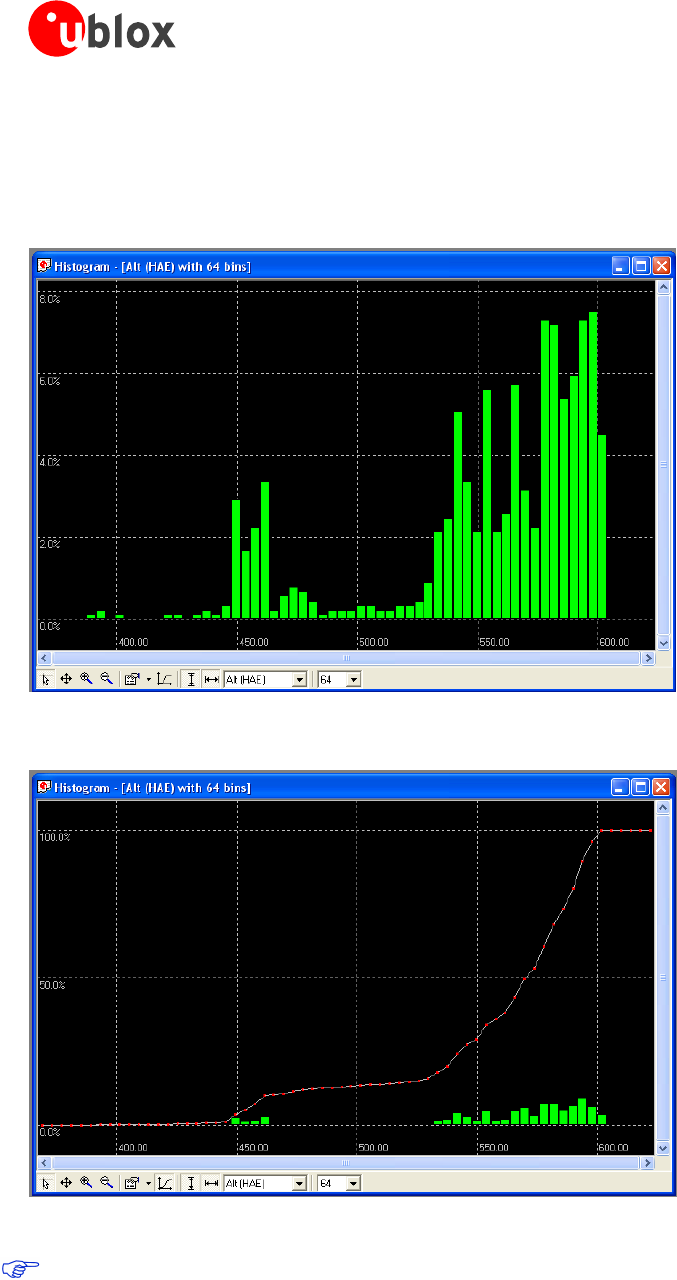
HistogramViewsallowtheusertoviewGPS-Dataandprobabilitydistributions(Figure29)andprinttheentire
histogramifdesired.Thenumberofbins(storagecontainers)canbesetbytheuser.
Figure 29: Altitude Histogram View
Figure 30: Probability Chart
Thenumberofdisplayedepochsissetto1800bydefault(seealsosection 3.2.5).
GPS-SW-08007-AReleasedMenuStructure
Page 29 of 57
u-center-User’sGuide
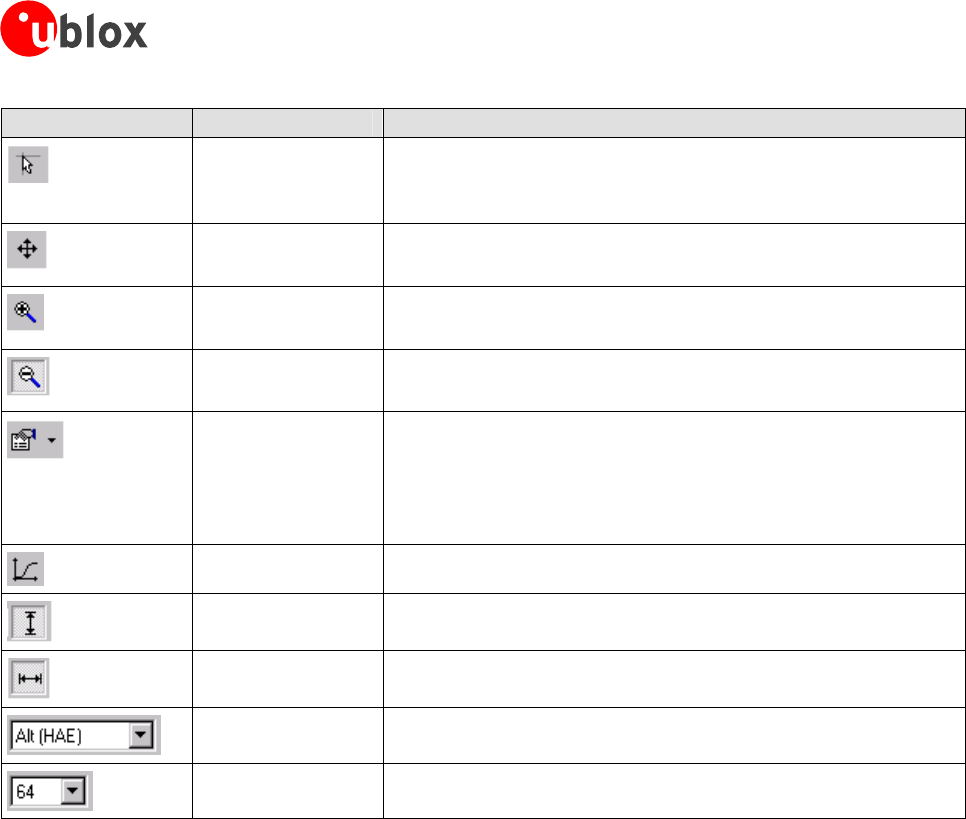
Element Name Description
CursorThecursorpositionisshowninthelowerleftedgeoftheu-
centerwindows.Clicktherightbuttonmouseandholdthe
buttondowntomeasuredifferences.
MoveTheHistogramismovedinsidetheHistogramViewWindow.
ClickandDrag/DroptheHistogram.
ZoomInDrawingarectangleenlargestheHistogramtothenewview.To
zoomintheHistogram2xclickontheHistogram
ZoomOutDrawingarectangledecreasestheHistogramtothenewview.
TozoomouttheHistogram2xclickontheHistogram
DrawingModeThesizeandformofthedisplayedvaluescanbechangedinthe
menuPoints.Theconnectionlinebetweenthevaluescanbe
selectedinthemenuConnect.Forviewingthestaticallyvalues
(average,minimum,maximum,standarddeviation)directlyinthe
HistogramselecttheStatisticsMenu
ProbabilityDisplaytheprobabilityHistogram(Figure30)
FitProbabilityFittheProbabilityRange
FitXFittheXRange
YValueSelecttheYValuetobedisplayed
BinsThenumberofBins
Table 6: Description of the buttons and displays in Histogram View
GPS-SW-08007-AReleasedMenuStructure
Page 30 of 57
u-center-User’sGuide
4.5.9 Camera View
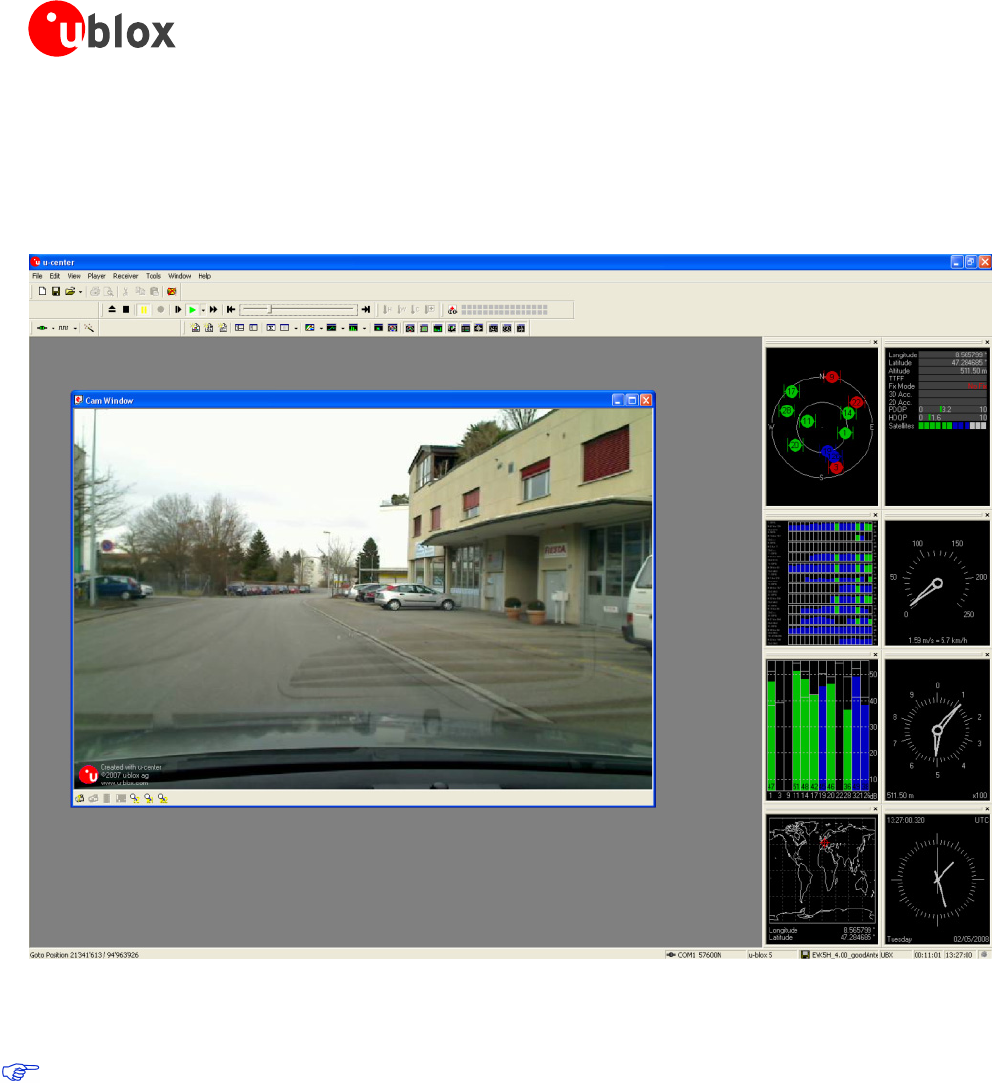
TheCameraViewfunctionenablesphotographs,takenduringrecordingoflogfiles,tobelinkedtotheGPS
datastoredinthecorrespondinglogfiles.Thisallowsavideodepictionofthetest,withapictureassignedtoa
specificpointofGPSdata.
Figure 31: Camera View
UsingCameraViewcanresultinverylargelogfilesandcanslowdownu-centerwhenplayingsuchfiles.
GPS-SW-08007-AReleasedMenuStructure
Page 31 of 57
u-center-User’sGuide
4.5.10 Deviation Map
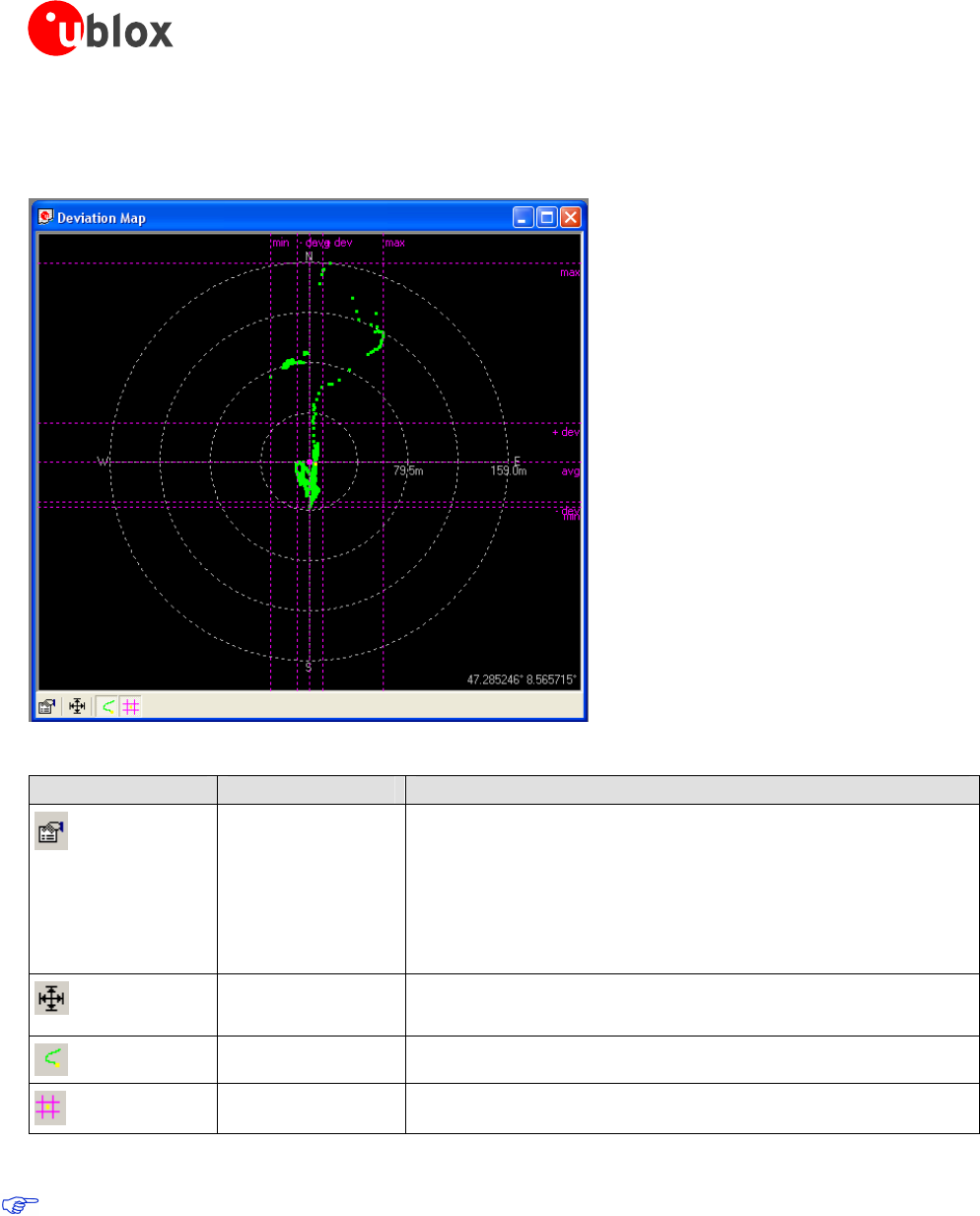
TheDeviationMapdisplayspositionsinlongitudeandlatituderelativetoadefinedreferenceposition.
Figure 32: Deviation Map
Element Name Description
PropertiesTheReferencePositioncanbedefinedas:
Theaverageofallpreviouslymeasuredpositions
Thecurrentposition
Afixed,predefinedvalue
TheradiusoftheoutercirclecanbeadjustedwiththeMax.
Deviationparameter.
FitAutomaticallyadjuststheReferencePositionandtheMax.
DeviationtofitallpositionsintotheDeviationMap.
Track
Statistics
Table 7: Description of the buttons and displays in Deviation Map
Thenumberofdisplayedepochsissetto1800bydefault(Section 3.2.5).
GPS-SW-08007-AReleasedMenuStructure
Page 32 of 57
u-center-User’sGuide
4.5.11 Map View
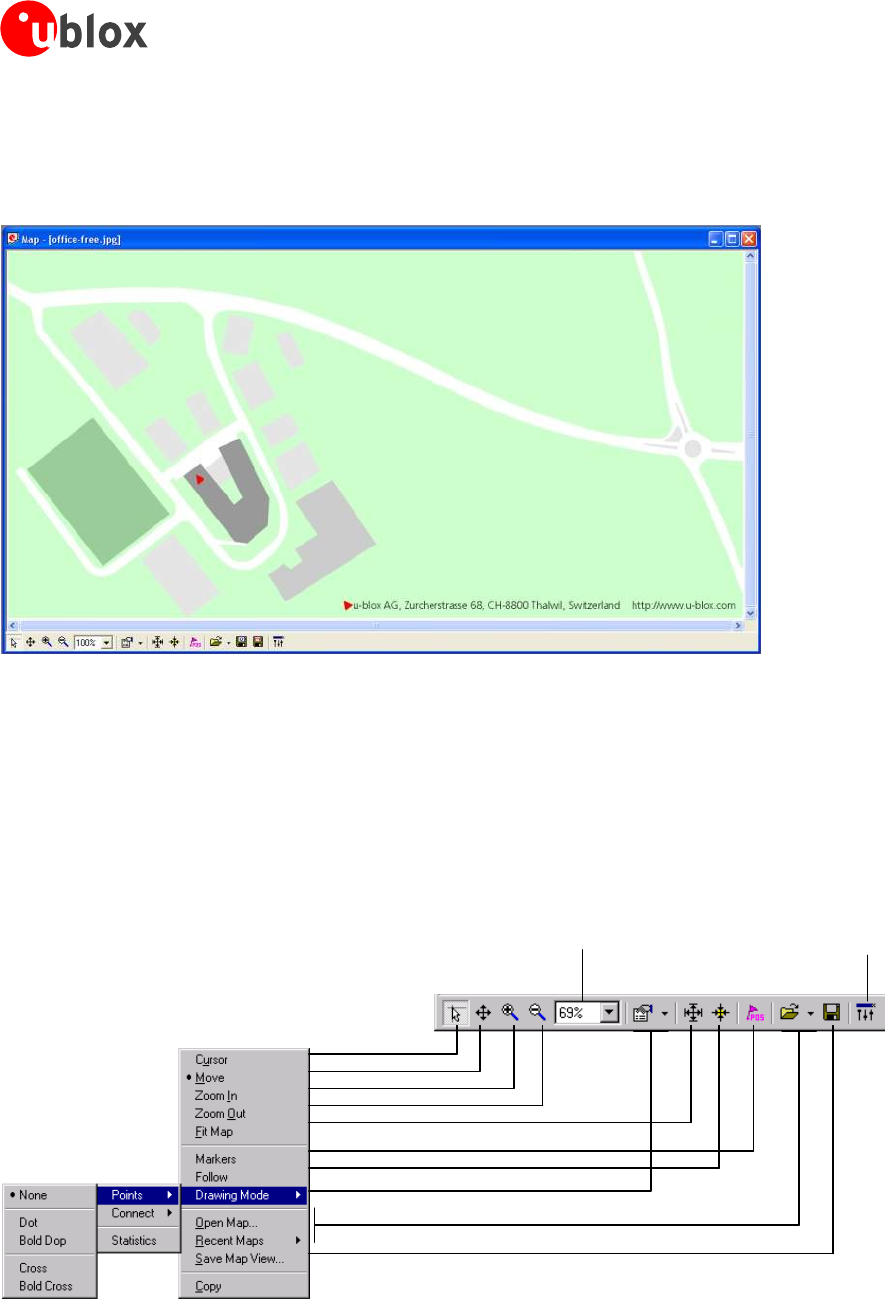
u-centercandisplaypositionsonpre-calibratedmaps(Figure33).Thisallowsabasicanalysisofroadtests.
Figure 33: Displaying a position
4.5.11.1 Using Map View
Youcanaccesstheviewspecificcommandsintwodifferentways:
UsingthecommandintheToolBarbelowtheMapView.
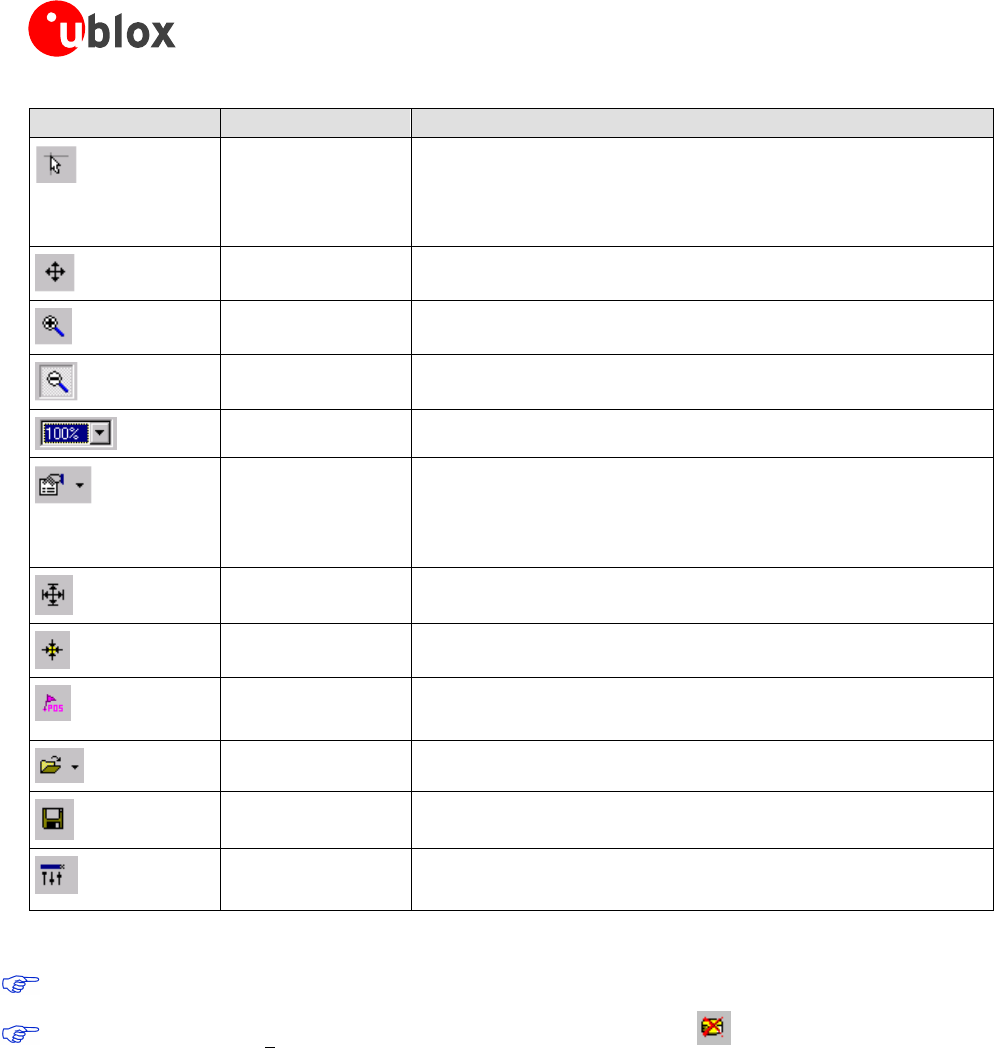
HoldingthecursorinsidetheMapViewandpressingtherightmousebuttonwill.Thiswillopenacontext
menu:
Zoom Factor Adjust Colors
GPS-SW-08007-AReleasedMenuStructure
Page 33 of 57
u-center-User’sGuide
Element Name Description
CursorThepositionofthecursorisshownonthelowerleftedgeofthe
u-centerscreen(Longitude,LatitudeandPixel-Position).By
holdingtheleftmousebuttonandmovingthecursoroverthe
mapyoucanmeasuredistancefromonepositiontoanother
MoveThemapinsidetheMapViewWindowcanbemoved
ZoomInThemapisenlargedbyselectingarectangle
ZoomOutThesizeoftheMapisdecreased
ZoomFactorDifferentspecificzoomlevelcanbeselected
DrawingModeThesizeandformofthedisplayedpositioncanbechanged;the
connectionlinebetweenthepointscanbeselectedinthemenu
Connect.Toseestaticallyvalues(average,minimum,maximum,
standarddeviation)directlyinthemap,selecttheMenuStatistic.
FitMapThemapsizeisadjustedtofittheMapWindow
FollowCenterthemaponthecurrentGPSposition
MarkersAddorremovethedefinedmarkers(seealso4.5.11.3 Map
Calibration)
OpenMap Loadaneworoneof8recentlyusedmaps.
SaveMapViewThecurrentdisplaycanbestoredindifferentformats
AdjustColorsBrightness,contrastandcolorsaturationofmapcanbeadjusted
bymovingtheglides
Table 8: Description of the buttons and displays in Map View
MapViewscanbecopiedtotheclipboardusingthe‘PrintScreen’function.
ChoosingDatabaseEmpty intheFileMenuorpressingtheButton deletesallrecentlydisplayed
positionsandroutes.
GPS-SW-08007-AReleasedMenuStructure
Page 34 of 57
u-center-User’sGuide
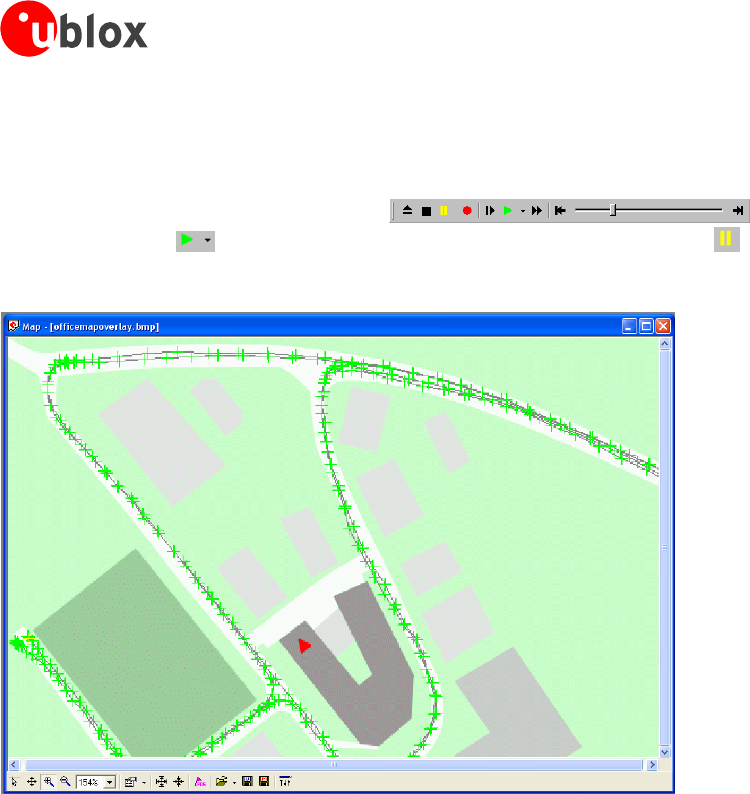
4.5.11.2 Application example: Reviewing a road test
Openau-centerlogfile(refertoSection4.3).
InthePlayer MenuorplayerToolBar selectthemenuPlayor
clickthebutton.DeactivateinthePlayer MenuPauseorclickthebutton.
Now,thestoredpositionsaredisplayed(Figure34).
Figure 34: Logfile from a road test
4.5.11.3 Map Calibration
Tocreateyourownmapyouwillneedadigitizedmaporpictureswithorthogonalprojectioninoneofthe
followingpixelgraphicsformats.
pngPortableNetworkGraphics,
bmpWindowsBitmap
dibDeviceIndependentBitmap
gif GraphicsInterchangeFormat
jpg/jpegJpegFileInterchangeFormat
pcx PCpaintbrush
tif TagImageFileFormat
Ifyourmapisnotinoneoftheaboveformats,youcansimplyconvertitinoneofthesupportedformatsbya
thirdpartyprogram.u-bloxprovidestwosamplemaps.Office.pngisasmallmapofthesurroundingsoftheu-
bloxheadquarters.World.pngisamapofthewholeworldbutwithlimitedresolution.
Touseamapinu-center,threecalibrationpointsareneeded.Forthesepointsyouhavetoknowthepixel
coordinatesandtheaccordingWGS84coordinatesinthelatitude/longitudeformatindegrees(longitude:-180.0
to180.0,latitude:-90.0to90.0).Thesepointsarestoredinthemapcalibrationfile.Thecalibrationfilemustbe
storedatthesamelocationasthebitmapitself.Ithasthesamenamebutadifferentextension(*.mcf).The
Formatofthecalibrationfileisverysimpleandcanbeeditedinasimpleeditorlikenotepad.
GPS-SW-08007-AReleasedMenuStructure
Page 35 of 57
u-center-User’sGuide
Examples:
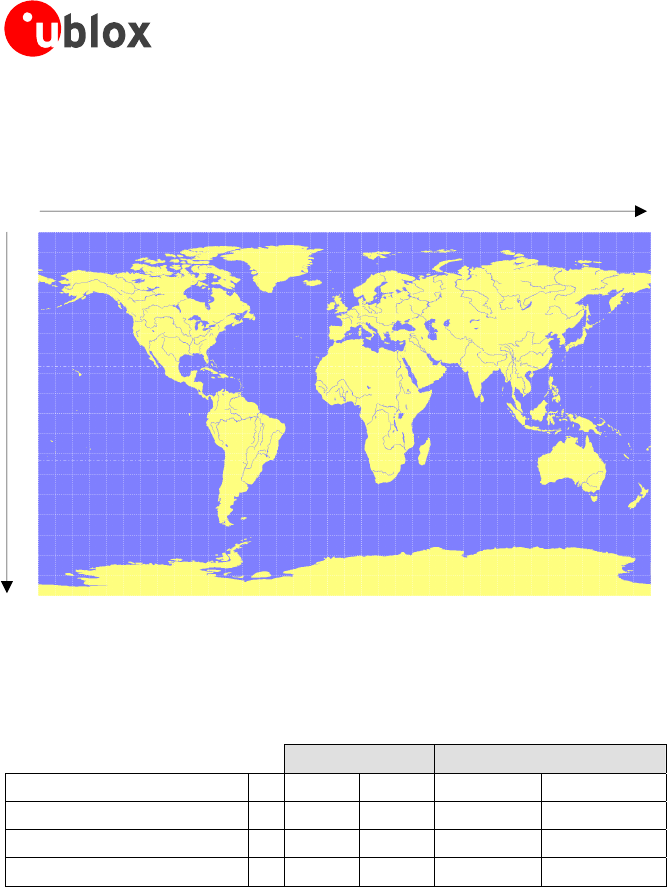
Asanexamplewewillhaveacloserlookattheprovidedmap'world.png'anditscalibrationfile'world.mcf'.
Y/X
Digital Map File: world.png
TheMaphas1765Pixels(0to1764)inthehorizontaland1046Pixels(0to1045)intheverticaldirection.The
originistheupperleftcorner.Tocalibratethismapwewillusethefollowingthreecalibrationpoints(#1to#3).
Pixel WGS84 Coordinate
ReferencePoint #XYLongitude
Latitude
UpperLeftCorner100-180.090.0
LowerRightCorner217641045180.0-90.0
UpperRightCorner317640180.090.0
TodeterminetheexactpixelpositionyoucanuseMicrosoftPaint(mspaint.exe)oranyotherpixel-editing
program.
ThecalibrationfileisaplainASCIItextfile.Thefilemaycontaincomments.Thefileconsistsoftwosections,
whichstartwithkeywordsencapsulatedinbraces.
TheREFERENCEsection,whichismandatory,containsthethreepointsusedtocalibrateamap.Eachreference
pointisonasinglelineandhasthefollowingsyntax:
“# = <x>, <y>, <lon>, <lat>”
where#istheindexofthereferencepoint<x>isthehorizontaland<y>istheverticalimagecoordinateand
<lat>istheLatitudeand<lon>istheLongitudeindegreesandWGS84.
TheMARKERsection,whichisoptional,definesadditionalpointsonthemap.Eachpointisonasinglelinewith
thesyntax:
“# = i, <x>, <y>[, <text>]” or “# = c, <lat>, <lon>[, <text>]”
where#istheindexofthemarkerpoint<x>isthehorizontaland<y>istheverticalimagecoordinateor<lat>
istheLatitudeand<lon>istheLongitudeindegreesandWGS84.<text>isaoptionalstringinquoteslabeling
themarkerpoint.Thepointsmusthaveauniqueindexfrom1to<num>.Themaximummarkerpointindex
<num>iswrittentothesamesectiononaseparatelinewiththesyntax“Count=<num>”.
GPS-SW-08007-AReleasedMenuStructure
Page 36 of 57

u-center-User’sGuide
; I N F O
; ------------------------------------------------------------
; File: world.mcf
; Source: (sample data set)
; R E F E R E N C E
; ------------------------------------------------------------
; 3 Points must be defined to calibrate a Map
; Parameters:
; # = index of the point (1 to 3)
; x,y = image coordinates
; lat,lon = world coordinates
; Syntax:
; # = <x>, <y>, <lon>, <lat>
[REFERENCE]
1 = 0, 0, -180.0, 90.0
2 = 1764, 1045, 180.0, -90.0
3 = 1764, 0, 180.0, 90.0
; M A R K E R
; ------------------------------------------------------------
; You can add points (image or world coord) to the map
; Parameters:
; num = number of markers that follow
; # = index of the point (1 to num)
; type = c for world or i image coordinates
; x,y = image coordinates
; lat,lon = world coordinates
; text = quoted text decription to the marker (optional)
; Syntax:
; Count = <num>
; # = <type>, <x|lon>, <y|lat>[, <text>]
[MARKER]
Count = 1
1 = c, 8.56525, 47.28519444, "u-blox ag"
Map Calibration File: world.mcf
GPS-SW-08007-AReleasedMenuStructure
Page 37 of 57
u-center-User’sGuide
4.5.11.4 Map Calibration Tool
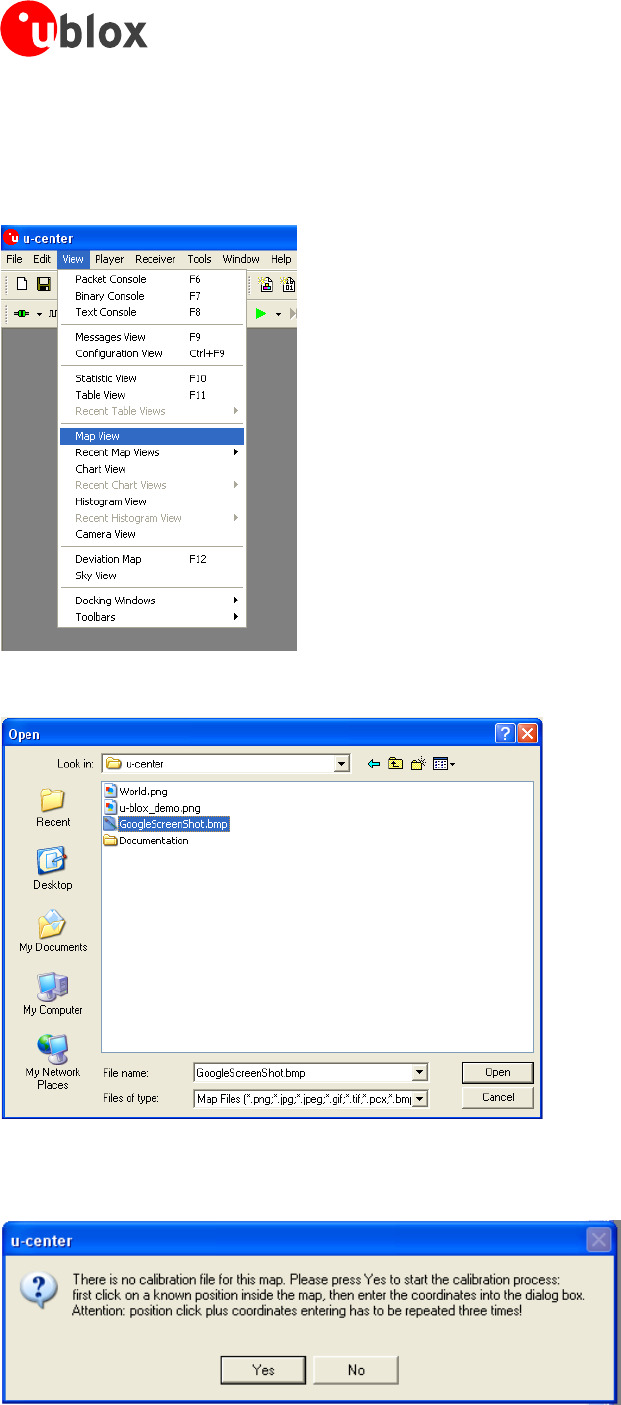
u-centerincludesabuilt-incalibrationtoolforprovidingcoordinatestomapsandphotographsinsupporteddata
formatstocreateu-centermaps.TousethetoolopentheMapViewwindowasseeninFigure35andthenas
seeninFigure36openthefileofthemaptobecalibrated(inourexampleGoogleScreenShot.bmp).
Figure 35: Opening Map View Window
Figure 36: Opening the file of the map to be calibrated
Ifthefiletobeopenedhasnotbeencalibrated,thefollowingmessagewillappear:
GPS-SW-08007-AReleasedMenuStructure
Page 38 of 57
u-center-User’sGuide
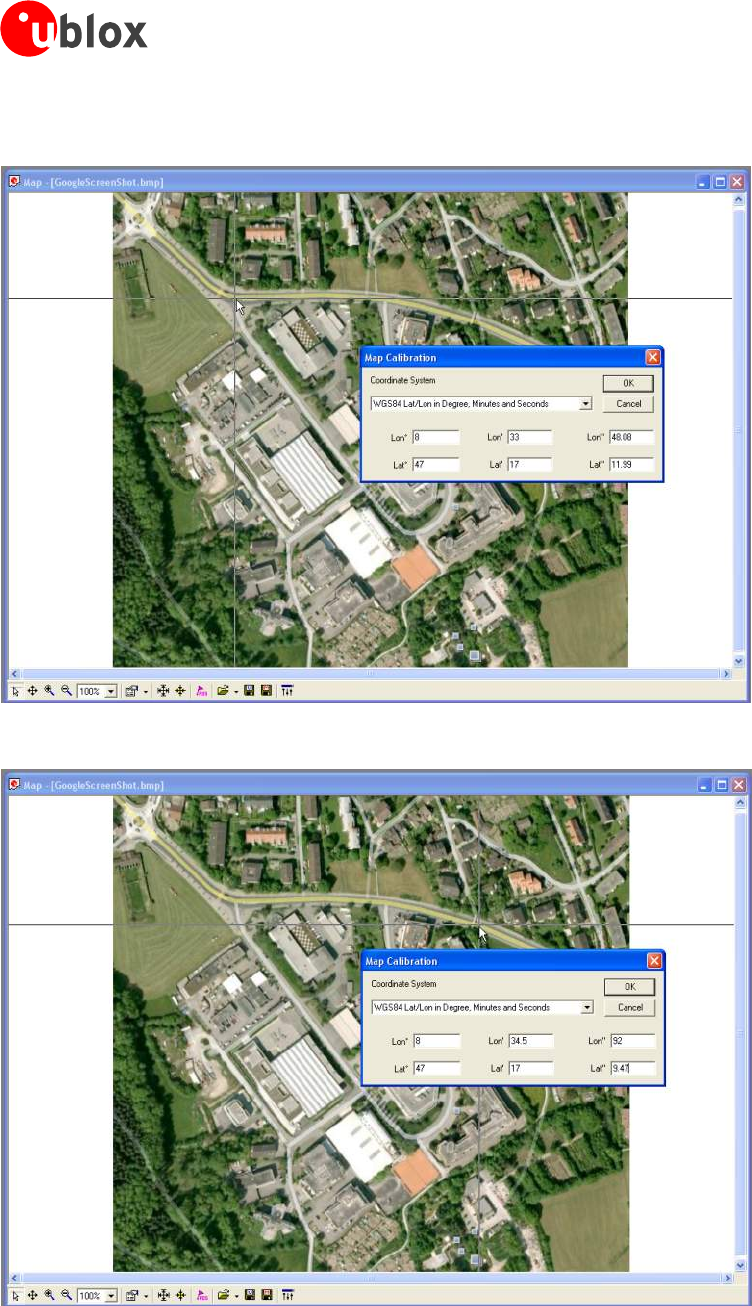
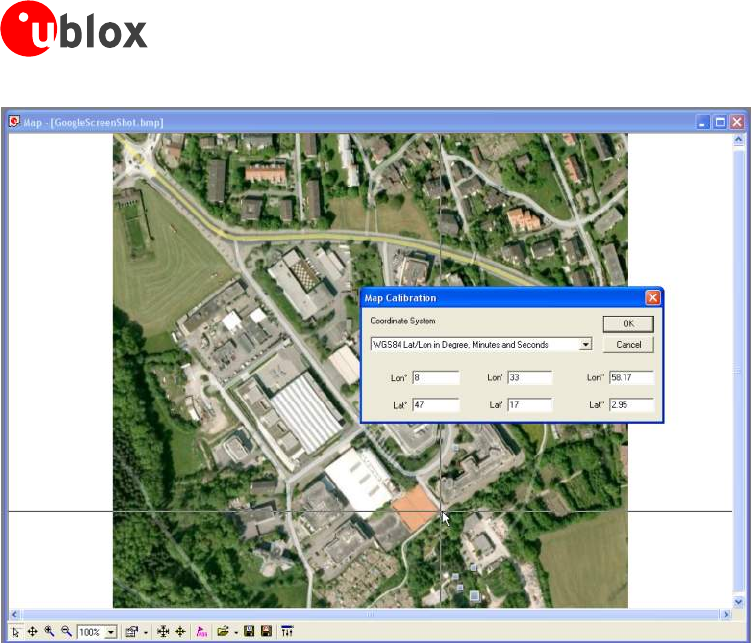
SelectthreepointsonthemapandenterthecalibrationcoordinatesinthespecifiedformatasseeninFigure37,
Figure38andFigure39.
Figure 37: Calibrating a Map Using Calibration Tool (position 1)
Figure 38: Calibrating a Map Using Calibration Tool (position 2)
GPS-SW-08007-AReleasedMenuStructure
Page 39 of 57
u-center-User’sGuide
Figure 39: Calibrating a Map Using Calibration Tool (position 3)
Followingthesestepsthemapisnowcalibratedandcanbeusedwithu-centerforvisualizingroadtestsetc.
GPS-SW-08007-AReleasedMenuStructure
Page 40 of 57
u-center-User’sGuide
4.5.12 Sky View
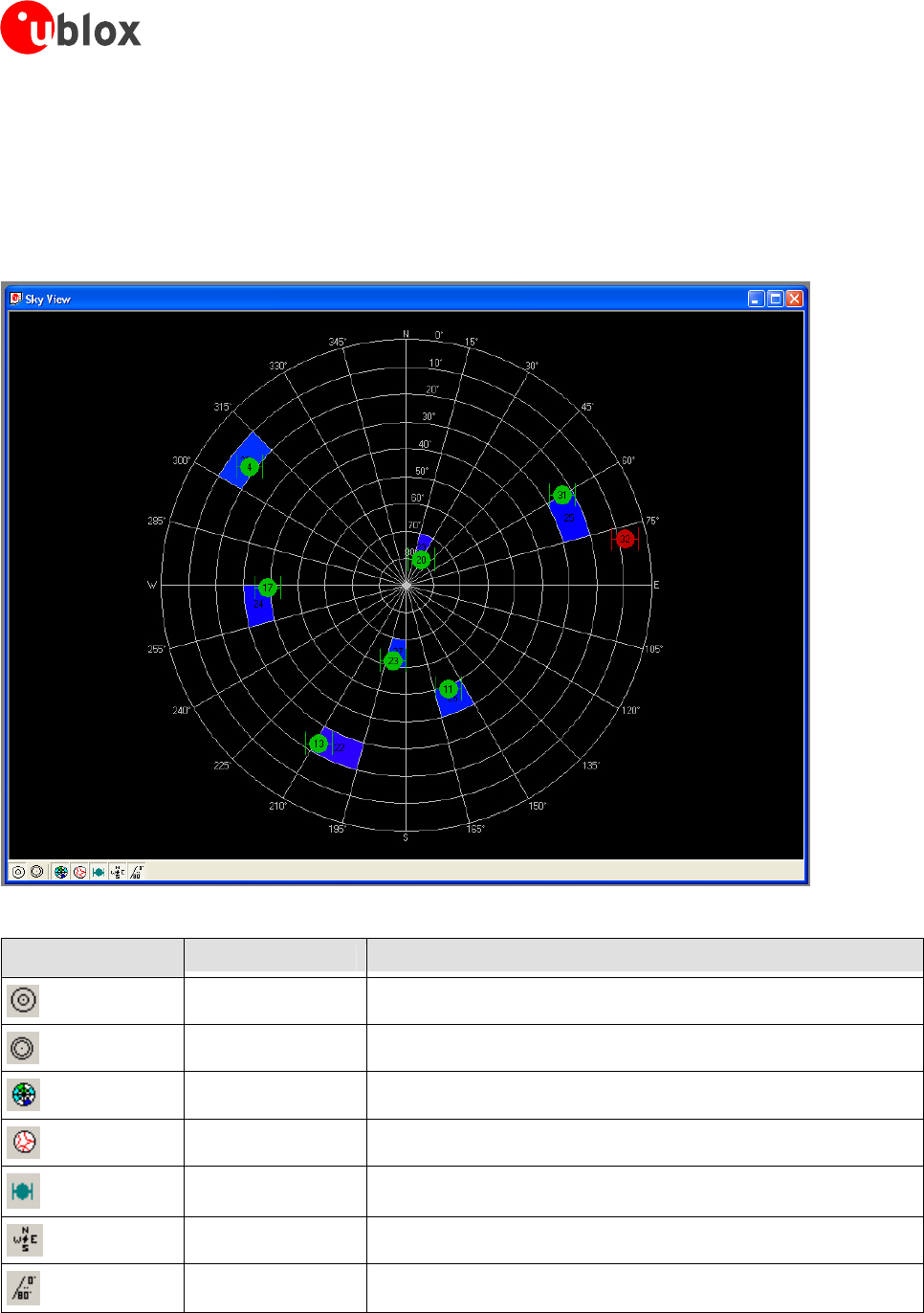
SkyViewisanexcellenttoolforanalyzingtheperformanceofantennasaswellastheconditionsofthesatellite
observationenvironment.Thepolarplotgraphicallydisplaystheaveragedrelativesatellitesignalstrength(Figure
40),thepositionofsatellitesinthesky,identifiessatellitesbynumberandindicateswhichsatellitesarebeing
usedinthereceivercalculation(seeSection3.1).Right-clickingthemouseonSkyViewallowsthecopyingof
C/Novaluesintabularformtoanotherprogram.
Figure 40: Sky View
Element Name Description
LinearSelectsalinearprojectionoftheSkyView
SineSelectsasinusoidalProjectionoftheSkyView
C/NoDisplaystheaveragedC/Novalues
OrbitsDisplaystheorbitsofthesatellites
SVsDisplaysthecurrentpositionofthesatellites
Coord.Addsacaptionfortheazimuth
ElevationAddsacaptionfortheelevation
Table 9: Description of the toolbar in Sky View
GPS-SW-08007-AReleasedMenuStructure
Page 41 of 57
u-center-User’sGuide
4.6 Receiver Menu and Receiver Toolbar
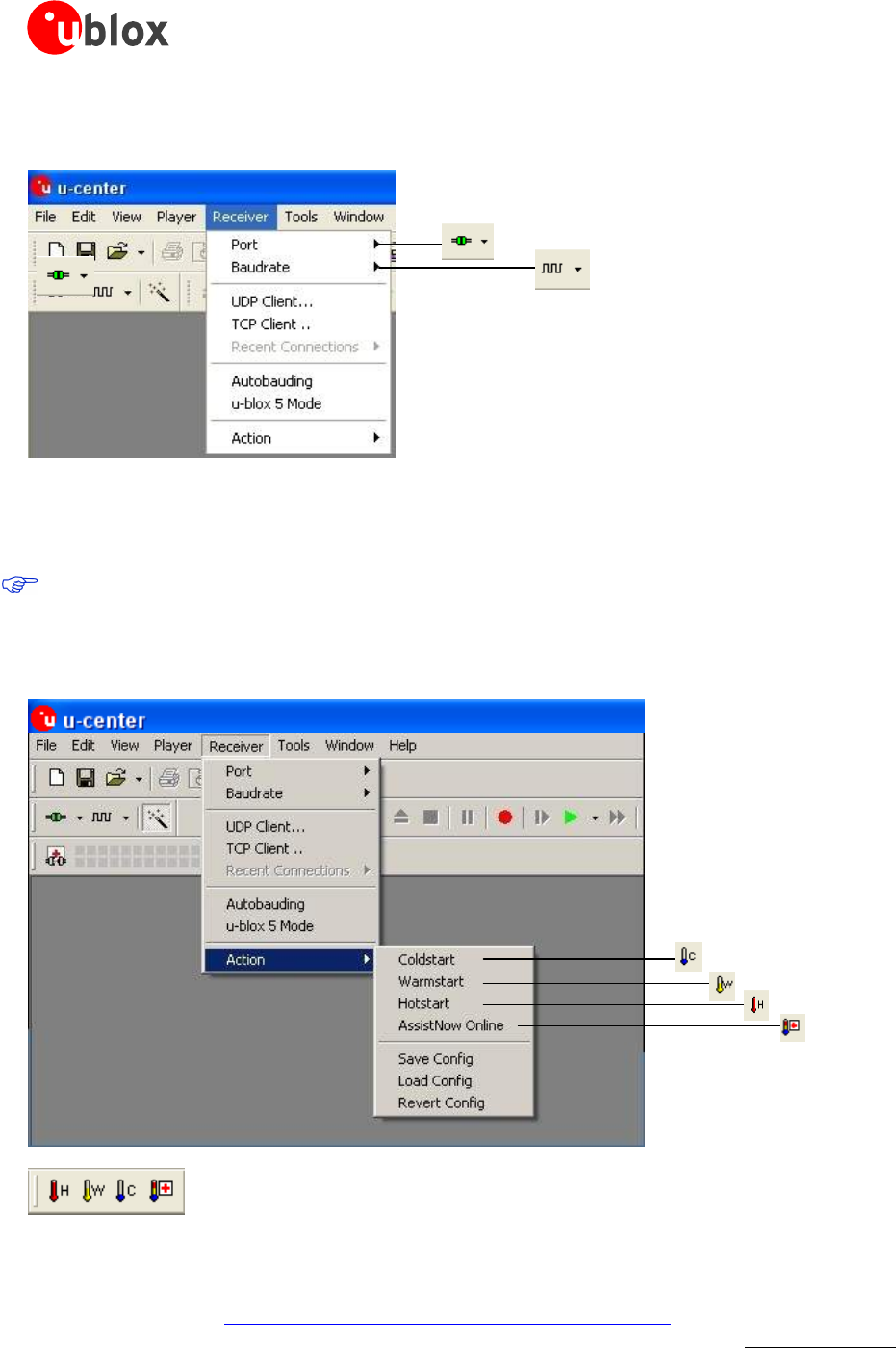
Figure 41: Receiver Menu with corresponding icons from Receiver Toolbar
InordertocommunicatewithaGPSreceiver,u-centermusthavethecorrectCOMportsettings.Pleasereferto
Section 2.4foradescriptionofthesettings.
OnlytheCOMPorts,thatareavailableonyourcomputer,willshowupintheCOMPortdropdownlist.If
aCOMPortisgrayedout,anotherapplicationonthecomputerisusingit.
4.7 Action Toolbar and Menu
TheActiontoolbarandmenuareusedtocommandthereceivertoperformaCold-,Warm-orHotstarts,orto
implementtheAssistNowOnlineAiding(A-GPS)function.MoreinformationaboutAssistNowOnlineisavailable
fromourwebsiteat:http://www.u-blox.com/services/assistnow_online.html.Inordertotakeadvantageof
AssistNowOnline,customersmustregisterwithu-blox.Pleasecontactyournearestu-bloxsalesofficetoget
accessdetails.
GPS-SW-08007-AReleasedMenuStructure
Page 42 of 57
u-center-User’sGuide
4.8 AssistNow Offline Toolbar and Menu
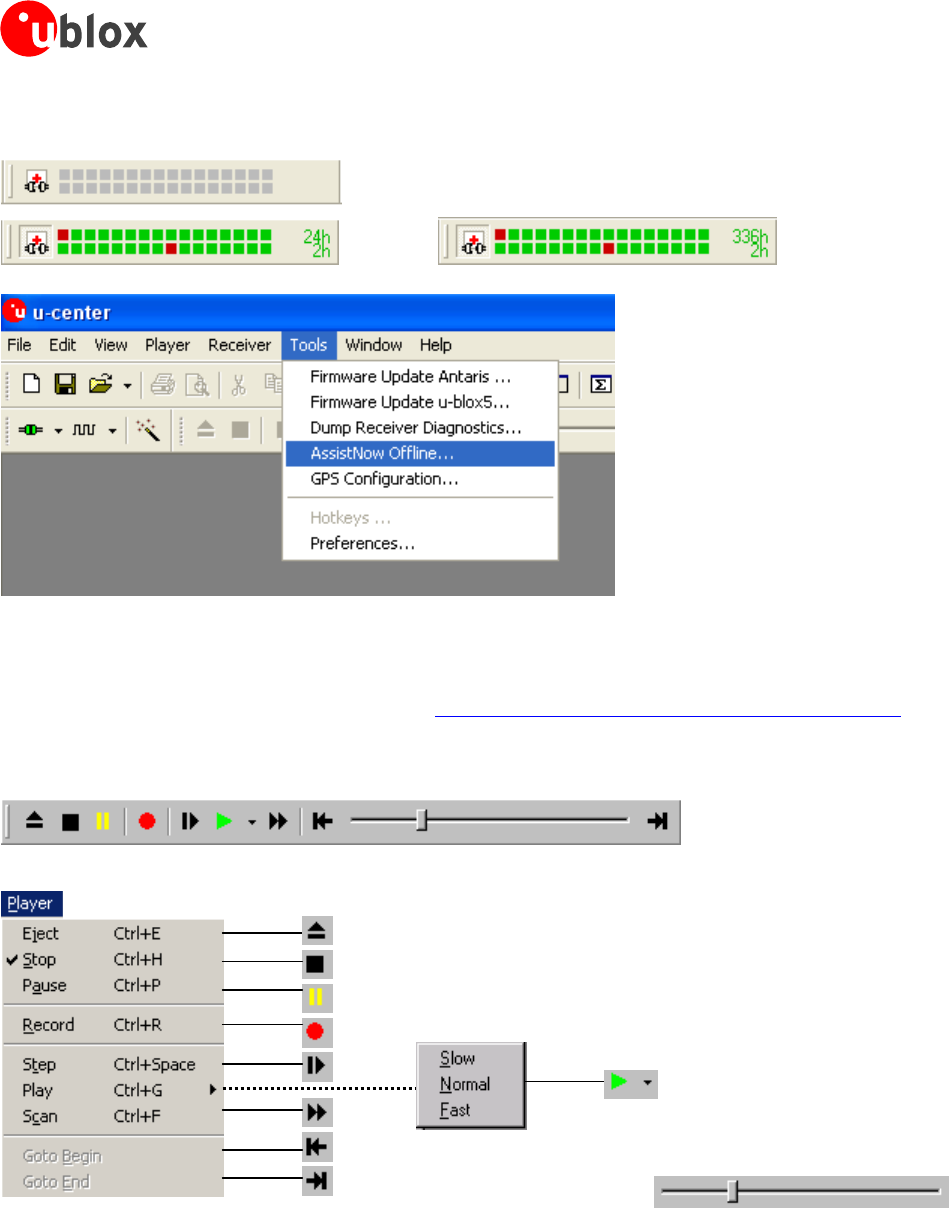
TheAssistNowOfflineToolbarandmenuisusedtodownloadAlmanacPlusaidingdataforA-GPS.AlmanacPlus
datafilesareavailableinvarioussizestoprovideaidingforperiodsof1to14days.Moreinformationabout
AssistNowOfflineisavailablefromourwebsiteat:http://www.u-blox.com/services/assistnow_offline.html.
4.9 Player Menu and Player Toolbar
Goto Position
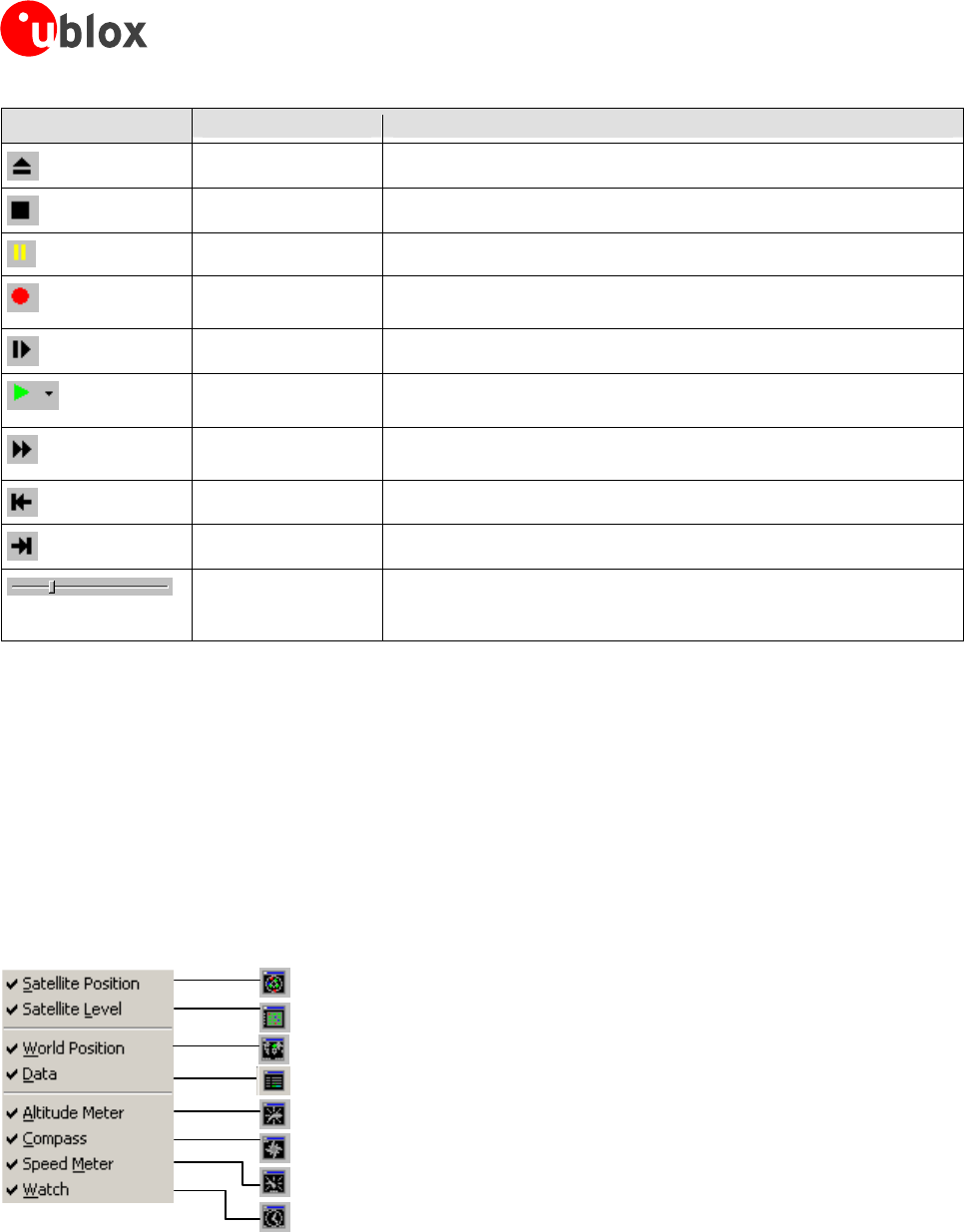
TheprimaryfunctionofthePlayeristodisplaypreviouslyrecordedGPSdatafromafile.RefertoSection4.3fora
descriptiononhowtocreateoropenalogfile.Usingtheplayercontrols,youcanstepthroughorplayall
messagesfromthelogfile.Theseriesofbuttonsintheplayertoolbarcanbeusedtonavigatethroughthelog
file.Therecordswillbedisplayedonthenavigationdisplaywindow,inthesamewaythatliveGPSdatais
displayedwhenusingu-center.Thecurrentfilethatisbeingdisplayedisshowninthebox“Fileinuse”.
GPS-SW-08007-AReleasedMenuStructure
Page 43 of 57
u-center-User’sGuide
Element Name Description
EjectClosetheactivelogfile
StopStopsdisplayingorrecordingtotheactivelogfile
PausePausesdisplayingorrecordingtoalogfile
RecordStartsrecordingtothepreviouslycreatedlogfile.Pleasenotethisfunctionisonly
availableifalogfilehasbeenopenedbefore.
StepSinglestepfunction,thenextmessageisread
PlayStartstodisplayalogfile.Youcanselectthespeedoftheaction.Aftereach
messagethedisplayisupdatedasrequired
ScanReadstheentirelogfileintothedatabaseandupdatesthedisplayattheendof
thescanperiod
GotoBeginSetthereadpathtothebeginofthelogfile
GotoEndGototheendofthelogfile
GotoPositionThissliderbarisusedtoshuttlebackandforththroughthehistorylog.Pulling
theslidertotherightwillfast-forwardtheplayback,andpullingittotheleftwill
rewindtheplayback
Table 10: Description of the buttons and the slider in the Player Toolbar
4.10 View Menu: Docking Windows
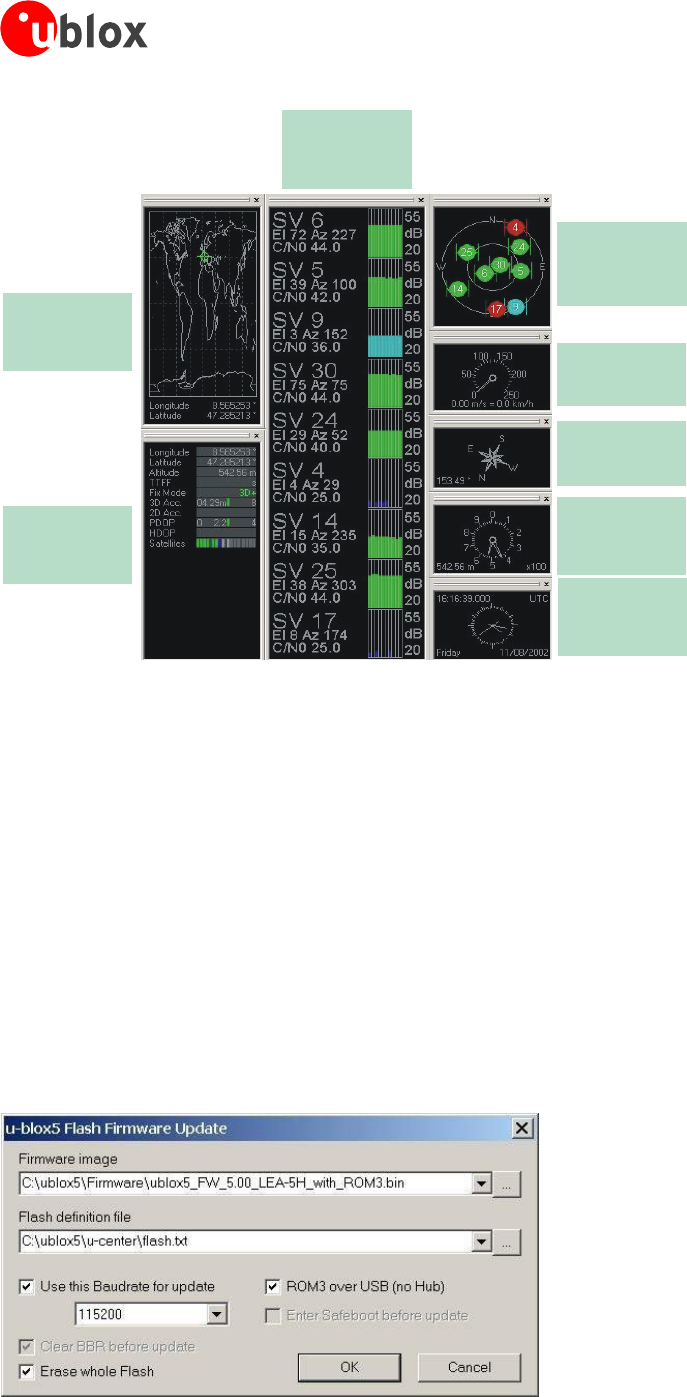
TheDockingWindowsaregraphicdisplays,whichprovidereal-timeinformationabouttheGPSreceiver.These
arethemostcommonlyusedwindowsforu-centerusers.Eightdifferentpanescanbedisplayed:receiverstatus,
satelliteandsignalstrengthinformation,positiononaworldmapand4analogdials.Thewindowscanbe
resized,closedormovedanywhereonthescreen.RefertoSection3.1foranexplanationaboutthecolorcodes.
Toopenthesewindows,selectDocking WindowsfromtheView menu,orsimplyclickontheiconsonthe
Viewtoolbar.
GPS-SW-08007-AReleasedMenuStructure
Page 44 of 57
u-center-User’sGuide
Satellite Position
Displaystheposition
ofsatellitesinthe
sky
Satellite Level
DisplaysElevation,
AzimuthandC/NO
(dBHz)forSVs
World Position
Displaysthecurrent
Positiononaworld
map
Watch
Displaysthedate
andthecurrent
UTC-Time
Altitude Meter
Displaysthecurrent
altitude
Compass
Displaysthecurrent
courseoverground
Speed Meter
Displaysthecurrent
speed
Receiver Status
Displaysasummary
ofthereceiver
status.
Figure 42: Docking Windows
4.11 Tools Menu
4.11.1 Firmware Update (u-blox 5)
ThereceiverfirmwarecanbeupdatedwiththefirmwareupdatefunctionintheToolsMenu.
Establishtheserialcommunicationbetweenu-centerandtheGPSreceiver(seealsosection2.4).
StarttheFirmwareupdatetoolunderu-centermenu"Tools"andthen"Firmwareupdateu-blox5”.
SelectthepathoftheFirmwareimageandFlashdefinitionfile(seeFigure43)
Selecttheupdatemode"ROM3overUSB"ifyou'reusingtheUSBportor"EnterSafebootbeforeupdate"
withUSART.
Selectthedownloadbaudrate.etc.
Select"ErasewholeFlash"onlyifyouwanttodeleteallstoredconfigurationandfactorysettings.
Figure 43: u-blox 5 Firmware update window
GPS-SW-08007-AReleasedMenuStructure
Page 45 of 57
u-center-User’sGuide
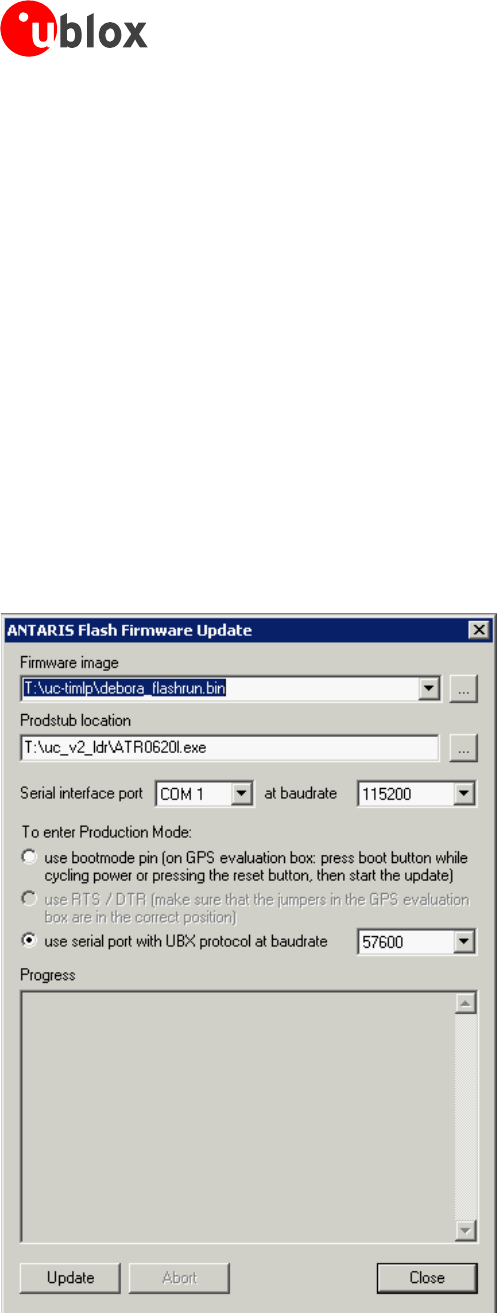
4.11.2 Firmware Update (ANTARIS 4)
ThereceiverfirmwarecanbeupdatedwiththefirmwareupdatefunctionintheToolsMenu.
Establishtheserialcommunicationbetweenu-centerandtheGPSreceiver(seealsosection 2.4).
StarttheFirmwareUpdateTool
Selectthepathofthe‘prodstub’(ATR0620l.exe)andthefirmwareimage.
Selectthe‘ProductionMode’.ANTARIS®basedGPSreceiverscanbeputintobootmodebysendingaUBX
protocolcommand.IftheGPSreceiverconnectedtou-centerisconfiguredforUBXprotocolinput,choose
the‘useserialport’option.Otherwise,select‘usebootmodepin’andputthereceivermanuallyintoboot
mode.
ChecktheCOMport(u-centerautomaticallyinitializestheCOMportwiththeu-centerCOMport).
Selectthedownloadbaudrate.Thisisthebaudrateusedduringthefirmwaredownload.Thedefaultvalueis
115200baud.Thelowerthisbaudrate,thelongerafirmwareupdatetakes.
If‘ProductionMode’issetto‘serialportwithUBXprotocol’,checktheUBXprotocolbaudrate(u-center
automaticallyinitializesitwiththeu-centerbaudrate.).TheUBXprotocolbaudrateisonlyusedtoenterthe
downloadprocess.
Initiatethedownloadbypressingthe‘Update’button.TheGPSreceiverwillberesetautomaticallyafterthe
download.
Figure 44: ANTARIS Firmware update window
GPS-SW-08007-AReleasedMenuStructure
Page 46 of 57
u-center-User’sGuide
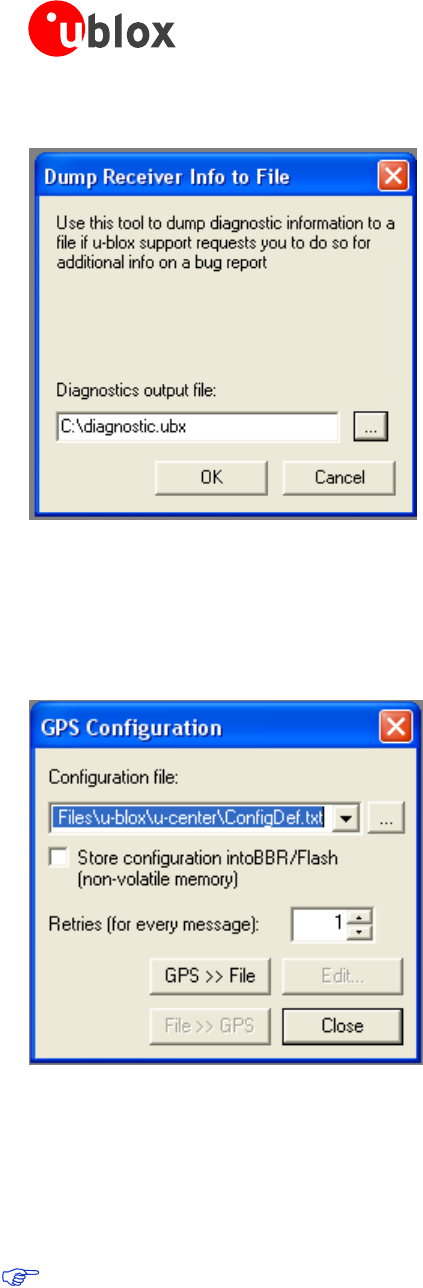
4.11.3 Dump Receiver Diagnostics
4.11.4 GPS Configuration
u-centeriscapableofgettingtheactualconfigurationofau-bloxGPSreceiverandstoringittoanASCIItextfile
containinghexadecimalrecords.Suchafilecanbeeditedandstoredtoanu-bloxGPSreceiveragain.Byclicking
themenu“Tools->GPS Configuration…”ofu-center,theGPSConfigurationdialogopens.Thefollowing
functionsareavailable:
Figure 45: Screenshot, u-center GPS configuration
Specifythenameofanewconfigurationfiletostorecurrentconfigurationfromtheu-bloxGPSreceiver
Specifythenameofanexistingconfigurationfileandloadthisconfigurationintotheu-bloxGPSreceiver
AflagcanbesettoforcestoringtheconfigurationintotheBatteryBackedRAM(BBR)orFlashEPROM.
Ifreadingorwritingconfigurationdatafailstoofrequently,trytoincreasethenumberofretriesu-centershould
doonasinglemessageifonefails.
Sendingaconfigurationtoau-bloxGPSreceivermayfailduetoabaudratechangeonthecurrentserial
portofthereceiverwheresendingthisconfigurationto.Ifthishappens,simplychangetheu-centerbaud
rateandsendtheconfigurationagain.
Awindowshowstheprogressofdatatransferto/fromu-bloxGPSreceivers.Clicking“GPS>>File”closesthis
dialogboxandopenstheprogresswindowshowingconfigurationsbeingpolledandstoredintoalocalfile.
GPS-SW-08007-AReleasedMenuStructure
Page 47 of 57
u-center-User’sGuide
Clicking“File>>GPS”opensthesameprogresswindowshowingtheconfigurationsthataresenttothe
receiver.Thisprogresswindowclosesafterhavingfinishedtransferwithoutanyerror.
Theusercanabortthetransferbyclickingthe“Abort”button.It’snotpossibletoclosethewindowunless
transferhascompletedortheuserabortedit.
Itisnotrecommendedtoread/writeconfigurationwhiletheGPSreceiverisinsleepmode.
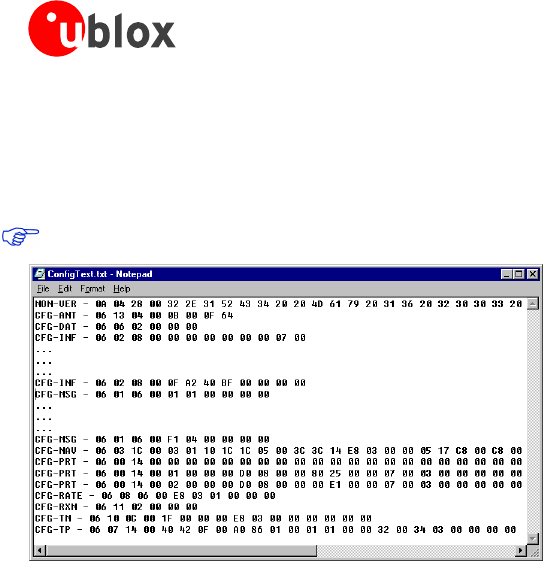
Figure 46: Content Configuration File
Whenclickingthe“Edit”buttonintheGPSConfigurationdialog,theNotepadeditoropens(standardWindows
software).Configurationsarestoredthefollowingway:
1stline:itcontainstheversionoftheANTARIS®basedGPSreceiverwheretheconfigurationisfrom.Never
change this line!
Forthe2ndlineandfollowingeachlinecontainsthesame:<classID>-<messageID>-<hexadecimalbyte
codeofthemessage>.ThebytecodeconsistsofclassandmessageIDs(2bytes),payloadlength(2bytes),
payload(payloadlengthbytes).Thesynccharactersandthechecksumarenotincluded.Theywillbe
calculatedautomatically.
PleaserefertoANTARIS® Protocol Specification [8] fordetailedinformationandranges.
4.11.5 Hotkeys
TheToolsMenuallowsadministratingtheHotkeysdefinedintheMessageView.PleaserefertoSection4.5.4for
moreinformationontheHotkeys.
4.11.6 Preferences
ThePreferencestoolcanbeusedtoconfigureanumberofu-centerparameters.
GPS-SW-08007-AReleasedMenuStructure
Page 48 of 57
u-center-User’sGuide
4.12 Windows Menu
TheWindowsMenuisWindows®compliant.
GPS-SW-08007-AReleasedMenuStructure
Page 49 of 57
u-center-User’sGuide
5 How To
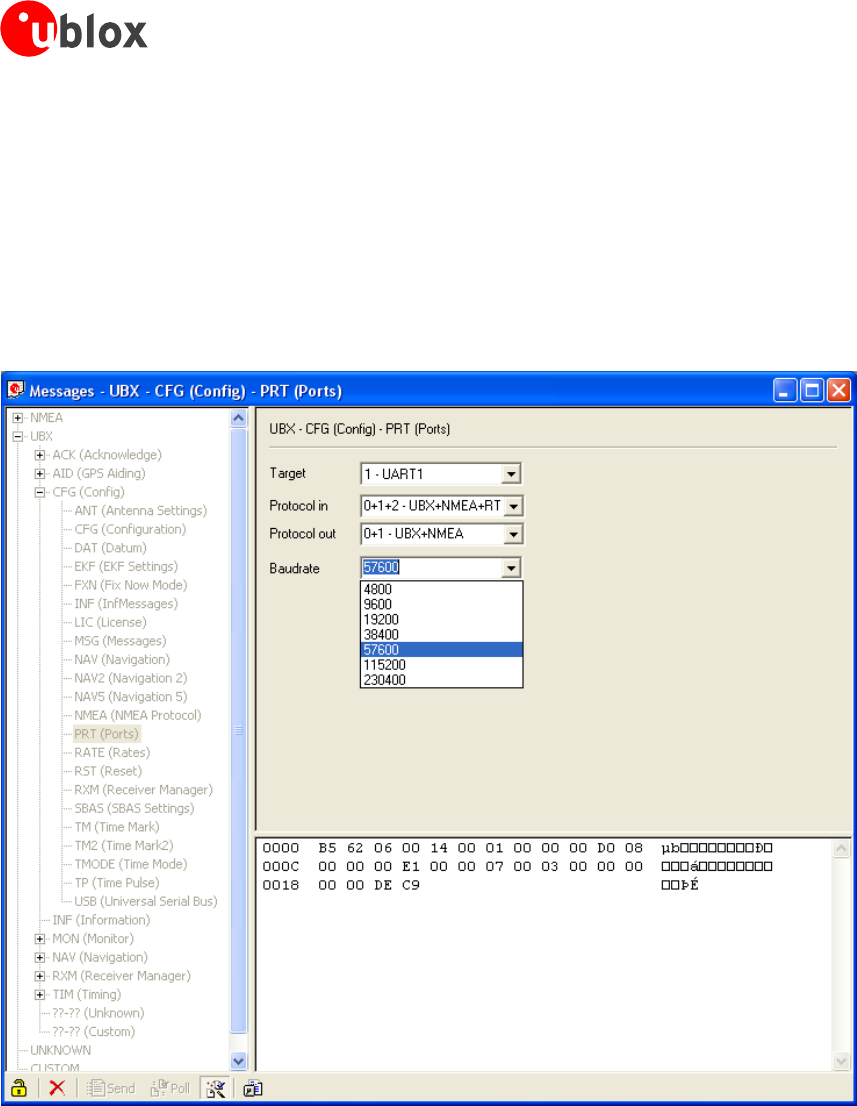
5.1 Change Parameters (Baudrate)
Connecttoreceiver.
OpenMessageView.
SelectUBX–CFG-PRT
GPS-SW-08007-AReleasedHowTo
Page 50 of 57
u-center-User’sGuide
5.2 Save Parameters to receiver non-volatile memory (BBR/Flash)
Thereare2waystosaveparameterstothereceiver’snon-volatilememory(BBR/Flash).
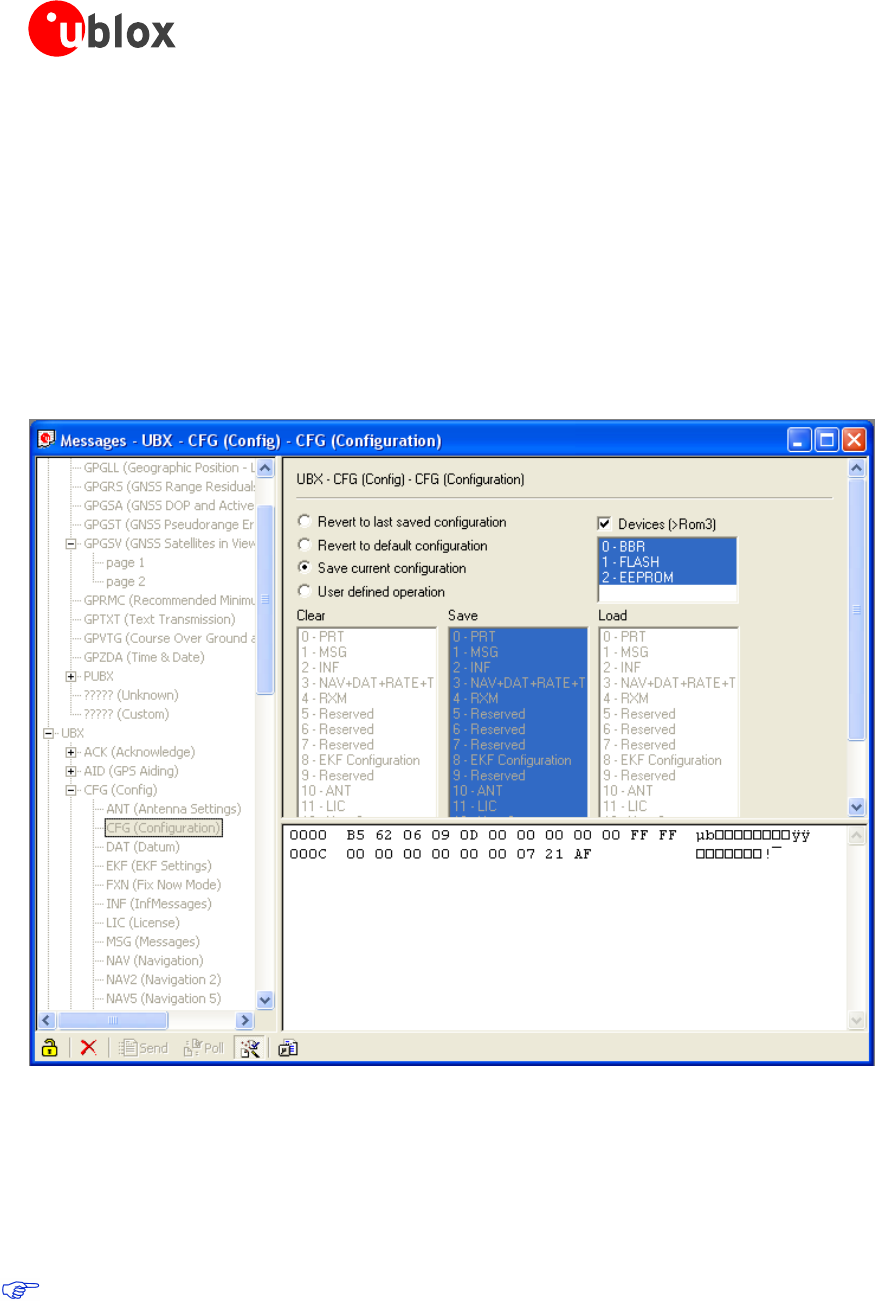
5.2.1 Saving Parameters with UBX-CFG-CFG
Connecttoreceiver.
OpenMessageView.
SelectUBX-CFG-CFGwindow.
Select“savecurrentconfiguration”(seeFigure47).
Figure 47: Saving Parameters (UBX-CFG-CFG)
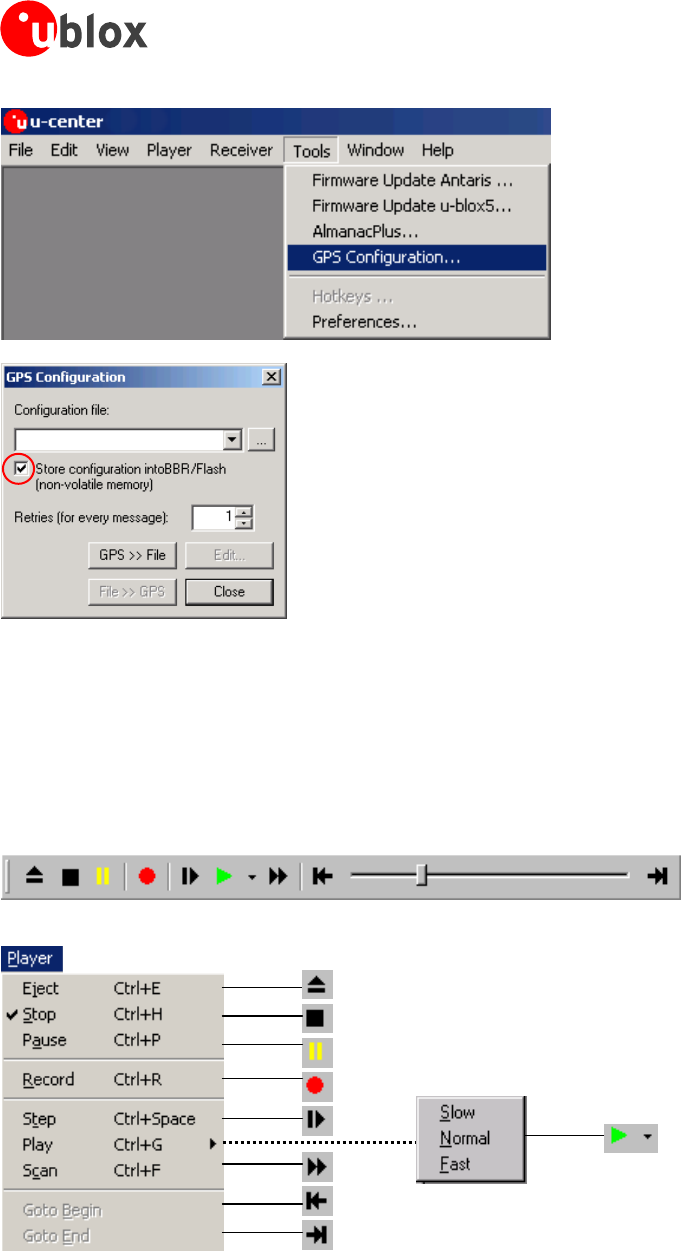
5.2.2 Saving Parameters with GPS Configuration
Connecttoreceiver.
OpenTools/GPSConfiguration.
Select“storeconfigurationintoBBR/Flash”checkbox(seeFigure48).
Thisonlyapplieswhensendingconfigurationfilestothereceiver.
GPS-SW-08007-AReleasedHowTo
Page 51 of 57
u-center-User’sGuide
Figure 48: Saving Parameters (GPS Configuration)
5.3 Recording/Playing a Log File
u-centerallowsrecordingandplayinglogfiles.Usetheplayercontrols,torecordorplaybackalogfile.Selectthe
logfiletobeopenedthroughtheFileMenutoolbar.Theseriesofbuttonsintheplayertoolbarcanbeusedto
navigatethroughthelogfile.Therecordswillbedisplayedonthenavigationdisplaywindow,inthesameway
thatliveGPSdataisdisplayedwhenusingu-center.
Figure 49: u-center player toolbar
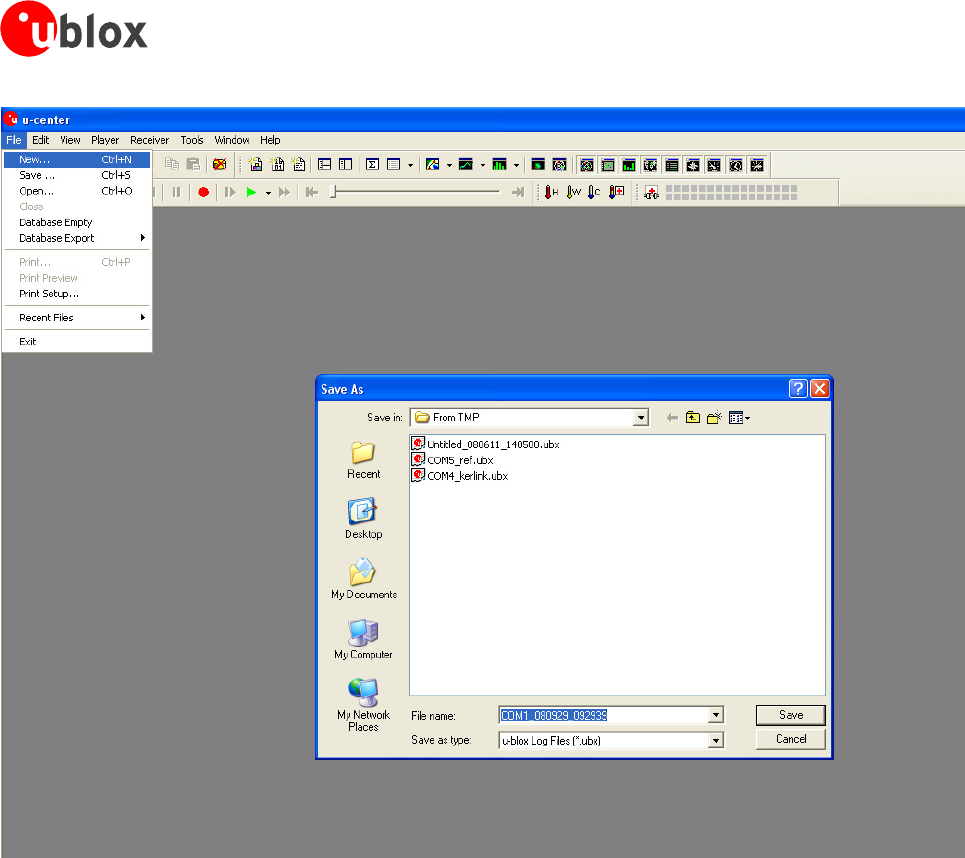
NewlogfilescanalsobecreatedthroughthemenubarbyselectingFile/New.Figure50showsanexampleofa
logfile.
GPS-SW-08007-AReleasedHowTo
Page 52 of 57
u-center-User’sGuide
Figure 50: Example of a Log File
5.4 Conduct Sensitivity Tests
u-centerisausefultoolforconductingsensitivitytestsofGPSreceiversandreceiverdesigns.Todosorecorda
logfileunderopenskyconditionsofthereceivertobetestedandanEvaluationKitasreference.Makesurethat
thelogfilesarerecordedunderthesameconditions.UsingtheStatisticVieworTableViewwindowsfrom
u-center,comparetheC/N0valuesofthefivestrongestsatellites.WhenusingTableview,exportthevaluestoa
spreadsheetforanalysis.
GPS-SW-08007-AReleasedHowTo
Page 53 of 57
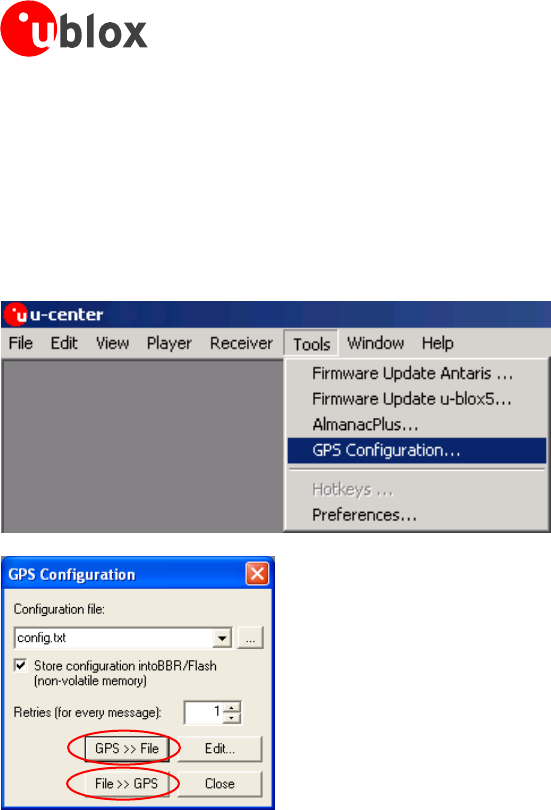
u-center-User’sGuide
5.5 Read/Write Configuration Files
Connecttoreceiver.
OpenTools/GPSConfiguration.
selectthenameoftheconfigurationfiletobereadorwritten.
Select“File>>GPS”buttontoreador“GPS>>File”towriteconfigurationfiles.
GPS-SW-08007-AReleasedHowTo
Page 54 of 57

u-center-User’sGuide
GPS-SW-08007-AReleasedTroubleshooting
Page 55 of 57
6 Troubleshooting
NMEA or UBX protocol is not available in the Message View
u-centerusesdynamiclinklibraries(DLL).TheinstallationprogramwillautomaticallyinstalltherequiredDLL’s
intotheu-centerprogramdirectory.Shouldyoutrytocopyau-centerinstallationfromonelocationtoanother,
makesureyoualsocopytheDLLfiles.Verify,theversionofu-centermatchestheDLLversion.
u-center doesn’t display all messages
Makesurethebaudrateissufficient.Ifthebandwidthisinsufficient,GPSreceiversbasedontheANTARIS™GPS
Technologywillskipexcessivemessages.
Some serialportcards/adapters(i.e.USBtoRS232converter)frequentlygenerateerrors.Ifacommunication
erroroccursduringwhileu-centerreceivesamessage,themessagewillbediscarded.
u-center loses the connection to the GPS receiver
u-centeru-bloxGPSreceivershaveanautobaudingfeature.Iffrequentcommunicationerrorsoccur(i.e.dueto
problemswiththeserialport),theconnectionmaybelostasu-centerandtheGPSreceiverwillautonomously
trytoadjustthebaudrate.Donotenabletheu-centerautobaudingfeatureiftheGPSreceiverhasthe
autobaudingenabled.
Some COM port are not shown in the port list
OnlytheCOMPorts,thatareavailableonyourcomputer,willshowupintheCOMPortdropdownlist.Ifa
COMPortisgrayedout,anotherapplicationinthecomputerisusingit.
PC is very slow when u-center runs
Ifahighvalueofepochsisselected,thedisplayinreal-timecannotbeguaranteed,especiallywhenmany
graphicalViewsareopen.u-centerdoesnotupdateminimizedViewsandConsoleinreal-time.Closeor
minimizeasmanyofthegraphicalViewsandConsolesaspossibleandu-centerwillrunfaster.
Logfile / Data are only partly displayed
Thenumberofepochsdisplayedinu-centerislimitedinordertoallowanefficientanalysisoflargerlogfiles.The
limitationissetto1800epochsbydefault.Thatmeansifanepochisavailableeverysecondyoucananalyze
dataforasmuchas30minutes.Afterthistimetheoldestvaluesarediscarded.Datastoredtoalogfilearenot
affectedbythedatabaselimitation.Pleaserefertosection3.2.5DatabaseLimitationforinstructionsonhowto
increasethislimit.
Whenplanninglong-termobservations,it’srecommendedtostartrecordingalogfilebeforeanalysisbegins.
Output messages are not updated in the Message View
Makesure,theprotocolyou’dliketoreceiveisenabled.Ifso,double-clickonthedesiredoutputmessage.
Double-clickingonanoutputmessageenablesordisablestheperiodicmessageupdateiftherespectiveprotocol
isactive.Alternatively,selectthedesiredinputoroutputmessageandpressthe‘Poll’button.
IfyouwouldliketogetUBX-INF()messagesinthelogfile,configurethereceiveraccordinglywiththeUBX-CFG-
INFinputmessage.
No logfile is recorded
Afteranewlogfileiscreated,loggingwillnotautomaticallystartbutonlyafterselectingtheRecordbuttonin
thePlayerToolbar.

u-center-User’sGuide
Related Documents
[1] GPSCompendium,DocNoGPS-X-02007
[2] u-blox5ReceiverDescriptionincludingProtocolSpecification,Docu.NoGPS.G5-X-07036
Allthesedocumentsareavailableonourwebsite(www.u-blox.com).
Forregularupdatestou-bloxdocumentationandtoreceiveproductchangenotificationspleaseregister
onourhomepage.
Revision history
Revision Date Name Status / Comments
-08/10/2008tgriInitialrelease
A22/07/2009tgriNewCI
GPS-SW-08007-AReleasedRevisionhistory
Page 56 of 57

u-center-User’sGuide
GPS-SW-08007-AReleasedContact
Page 57 of 57
Contact
Forcompletecontactinformationvisitusatwww.u-blox.com
Offices
North, Central and South America
u-blox America, Inc.
Phone:+1(703)4833180
E-mail:info_us@u-blox.com
Regional Office West Coast:
Phone:+1(703)4833184
E-mail:info_us@u-blox.com
Technical Support:
Phone:+1(703)4833185
E-mail:support_us@u-blox.com
Headquarters
Europe, Middle East, Africa
u-blox AG
Phone:+41447227444
E-mail:info@u-blox.com
Technical Support:
Phone:+41447227444
E-mail:support@u-blox.com
Asia, Australia, Pacific
u-blox Singapore Pte. Ltd.
Phone:+6567343811
E-mail:info_ap@u-blox.com
Support:support_ap@u-blox.com
Regional Office China:
Phone:+861068133545
E-mail:info_cn@u-blox.com
Support:support_cn@u-blox.com
Regional Office Japan:
Phone:+81343605343
E-mail:info_jp@u-blox.com
Support:support_jp@u-blox.com
Regional Office Korea:
Phone:+8225420861
E-mail:info_kr@u-blox.com
Support:support_kr@u-blox.com
Regional Office Taiwan:
Phone:+886226571090
E-mail:info_tw@u-blox.com
Support:support_tw@u-blox.com
