RSS Doc User Guide
User Manual:
Open the PDF directly: View PDF  .
.
Page Count: 23
Login as Commander
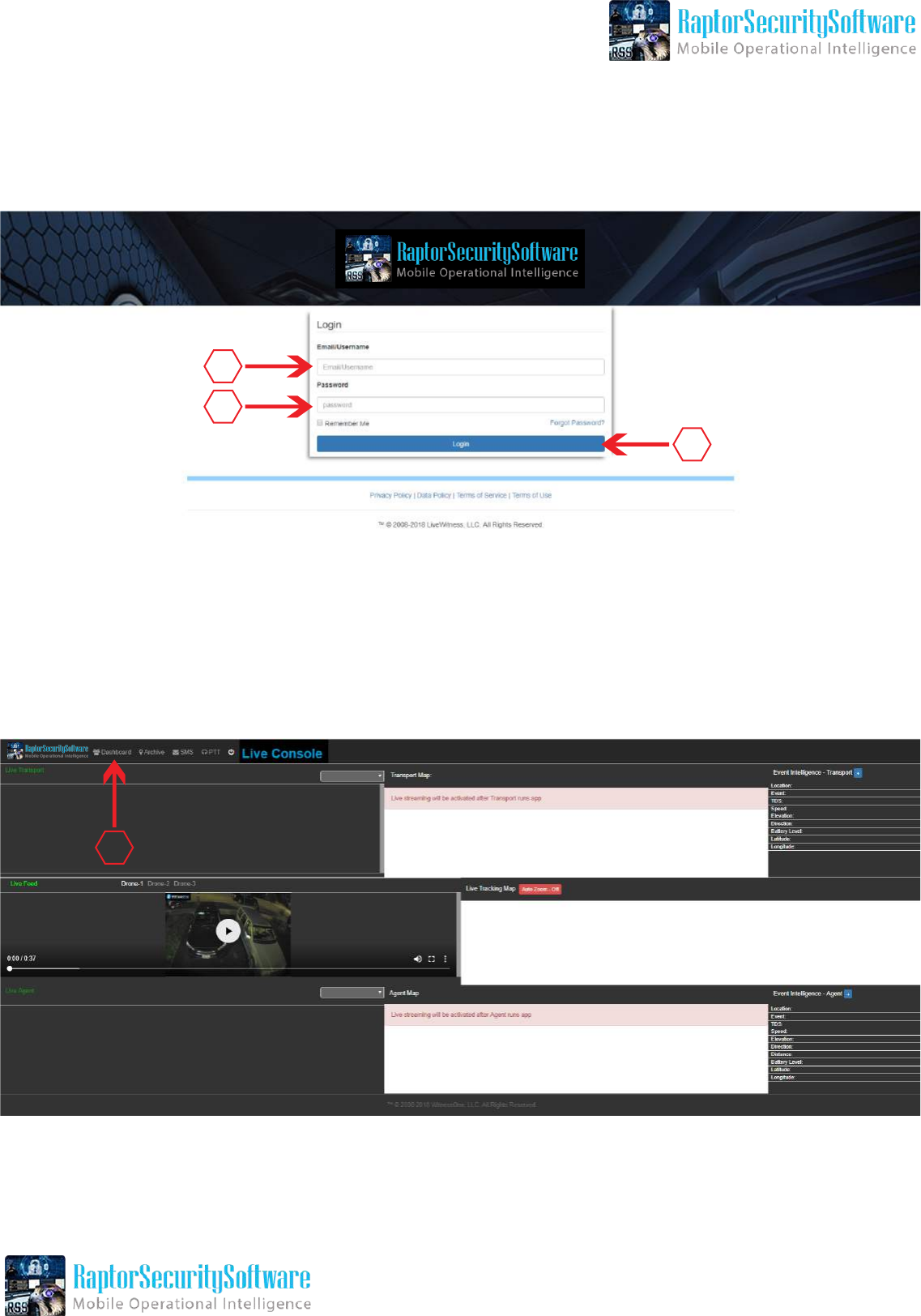
https://raptorsecuritysoftware.com/
1. Enter Commaner Username Here
2. Enter Password Here
3. Press Login to Login as Commander
4. To Create Agent and Transport, Click Dashboard Tab.
After Login This Screen Will Show
1
2
3
4
Create Agent Account
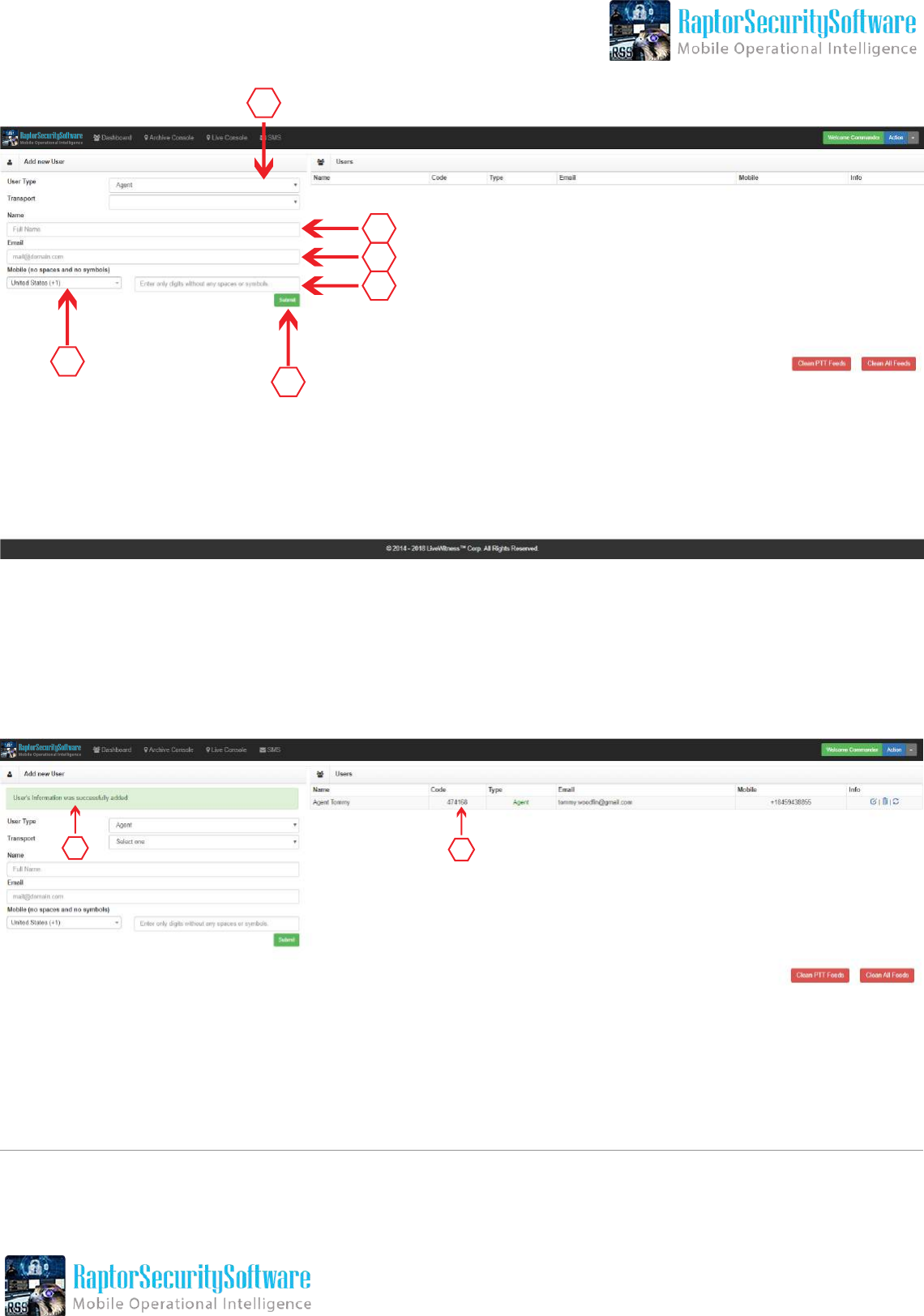
1. Select Agent
2. Enter Name
3. Enter Email
4. Select County Code
5. Enter Mobile Number
6. Press Submit to Create Agent Account
7. Successful Message Appears After Submitting
8. Dynamic Activation Code is Generated Here
1
2
4
6
3
5
78
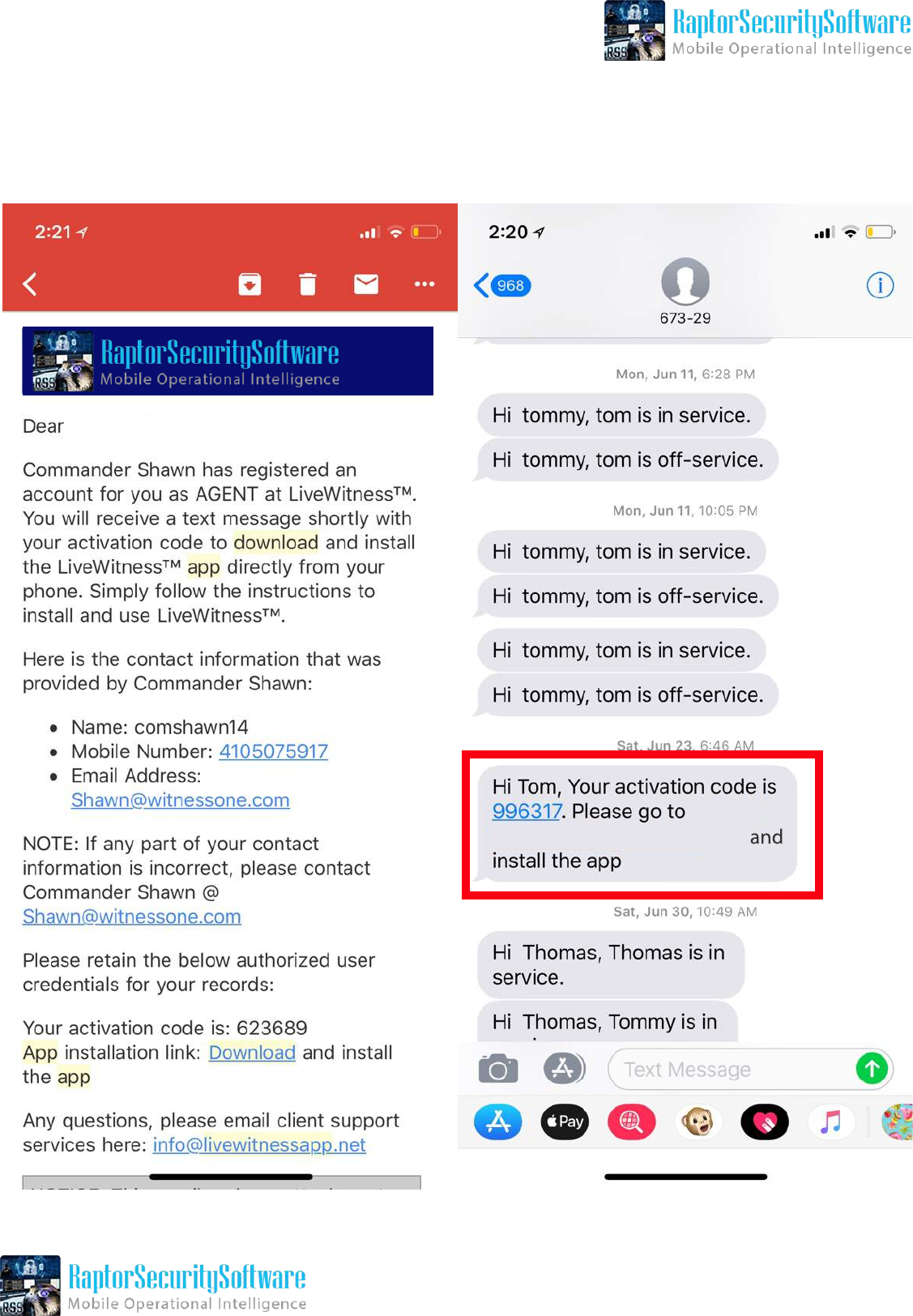
After Creating an Agent Account, Agent Will Receive an E-mail and SMS Like Here.
Agent Tommy
https://
raptorsecuritysoftware.com/
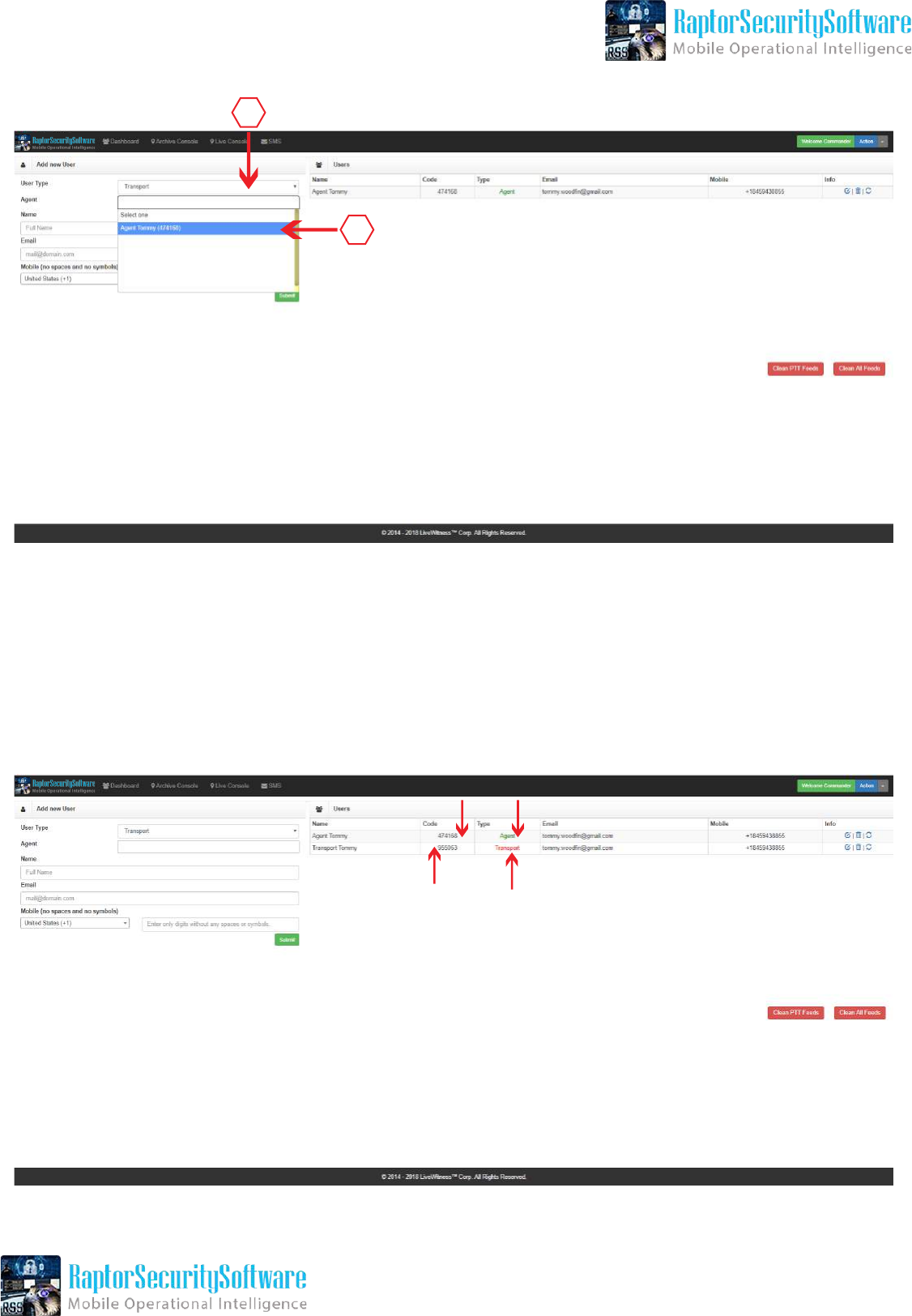
Create Transport Account
1
2
1. Select User Type as “Transport”
2. Select Agent
Then Follow the Same Steps as Agent. Enter Name, Email, Mobile etc.
Both User Types Agent & Transport Accounts are Created Successfully.
Repeat Steps Above to Add More Agents and More Transports.
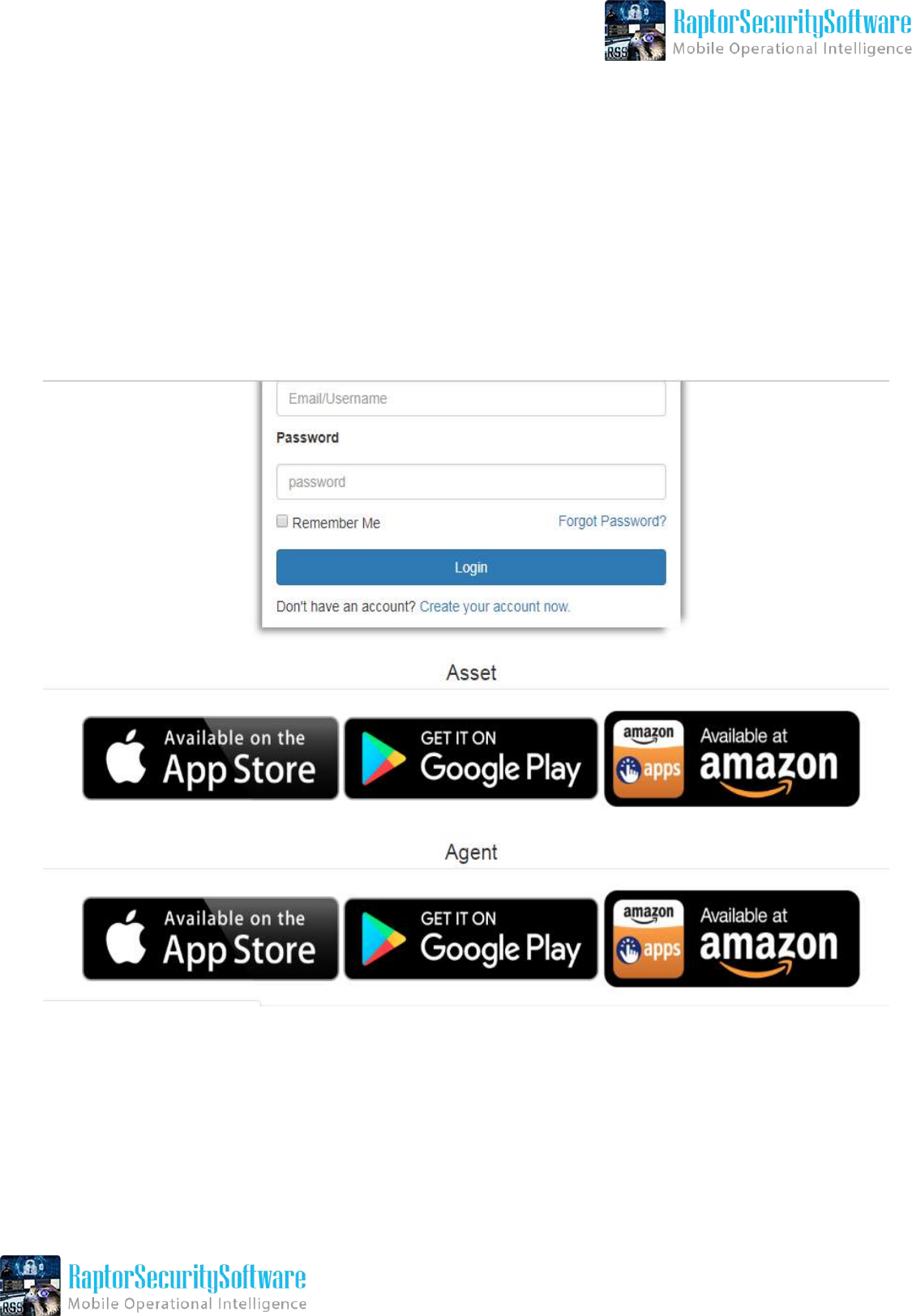
Download App
https://raptorsecuritysoftware.com/
click on icons to download apps
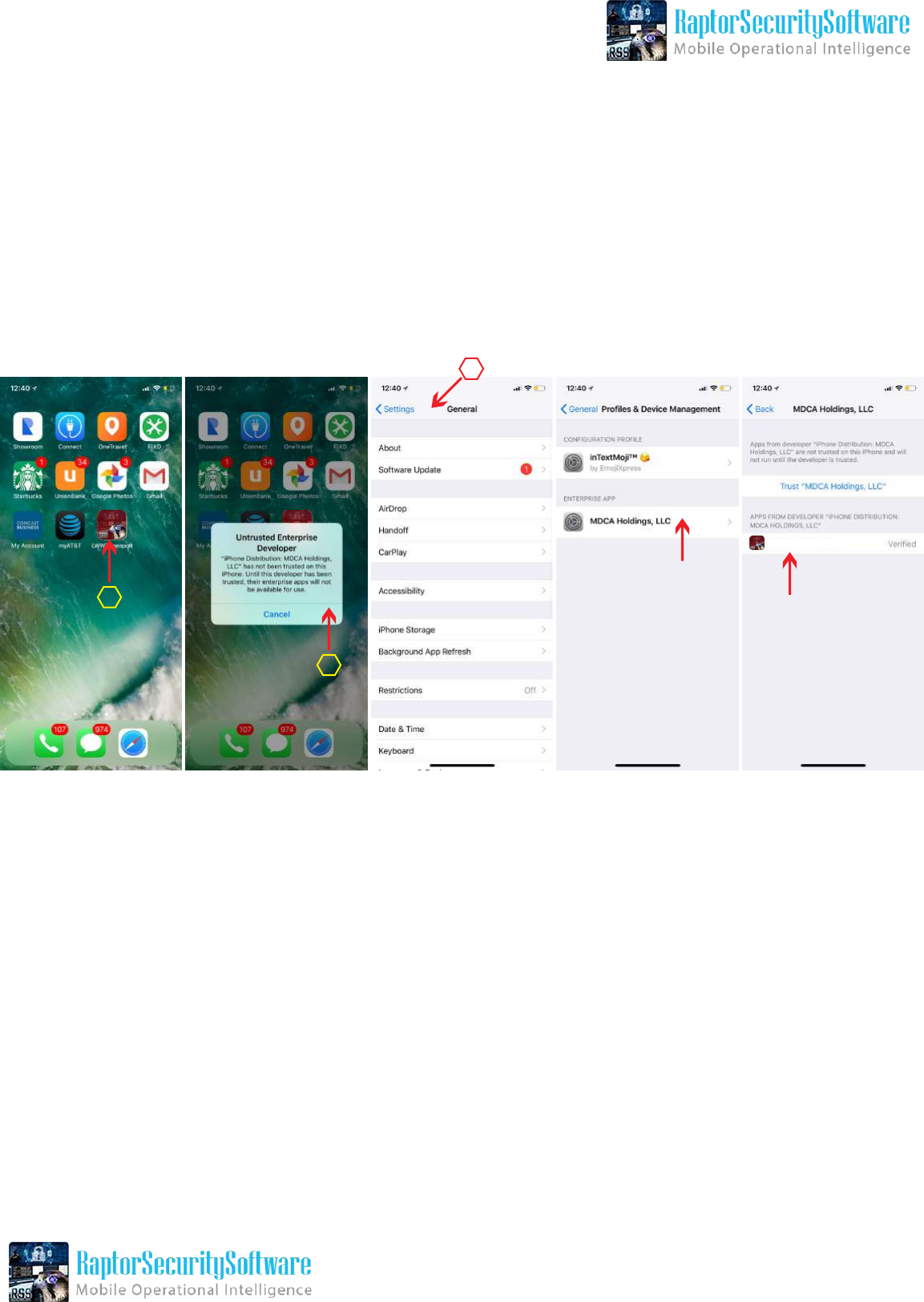
Settings for iPhone to Run the App
2
1
1. App Installed and App Icon Showing
2. After Press App Icon If This Message showing, Follow the Next Steps
3. Go to Settings > General > Profile & Device Management >
MDCA Holdings, LLC > App Name > Click Verify
3
Raptor Security Software
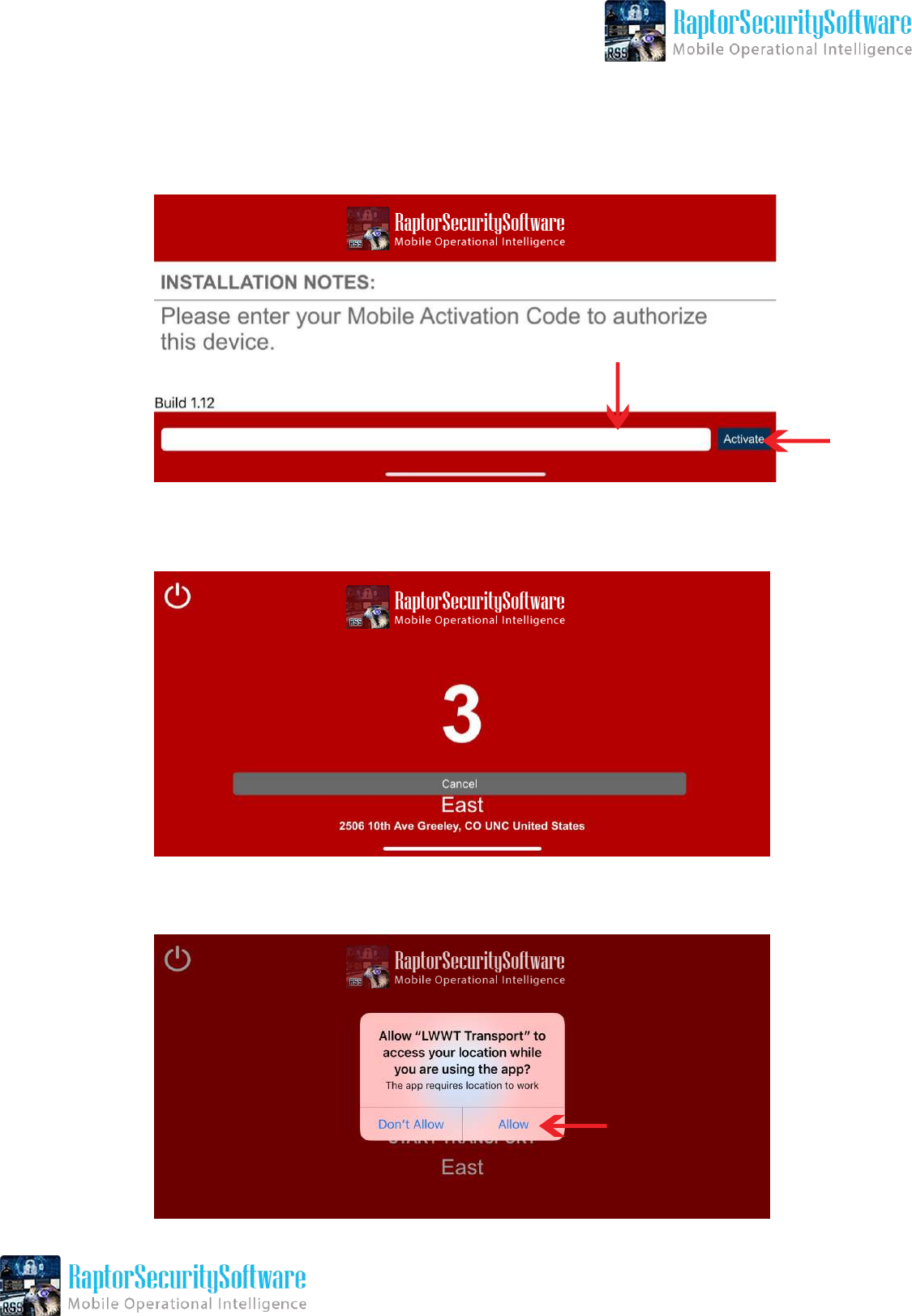
iOS Transport App
Enter Activation Code (AC) Here
Wait for Countdown
Need Location Access. Press “Allow”
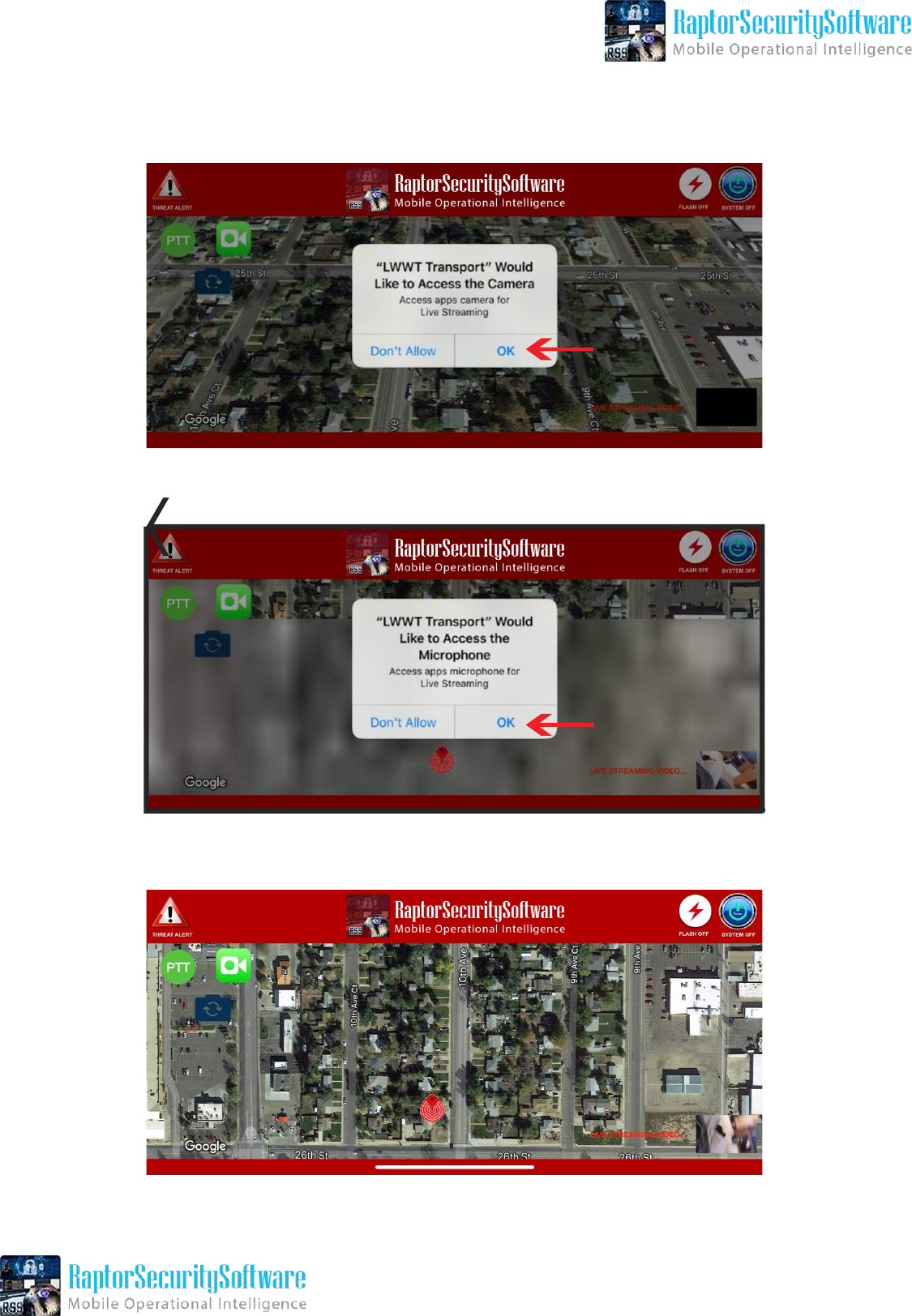
Need Camera Access. Press “Allow”
Need Microphone Access. Press “Allow”
This is the Main Screen of “Transport App”
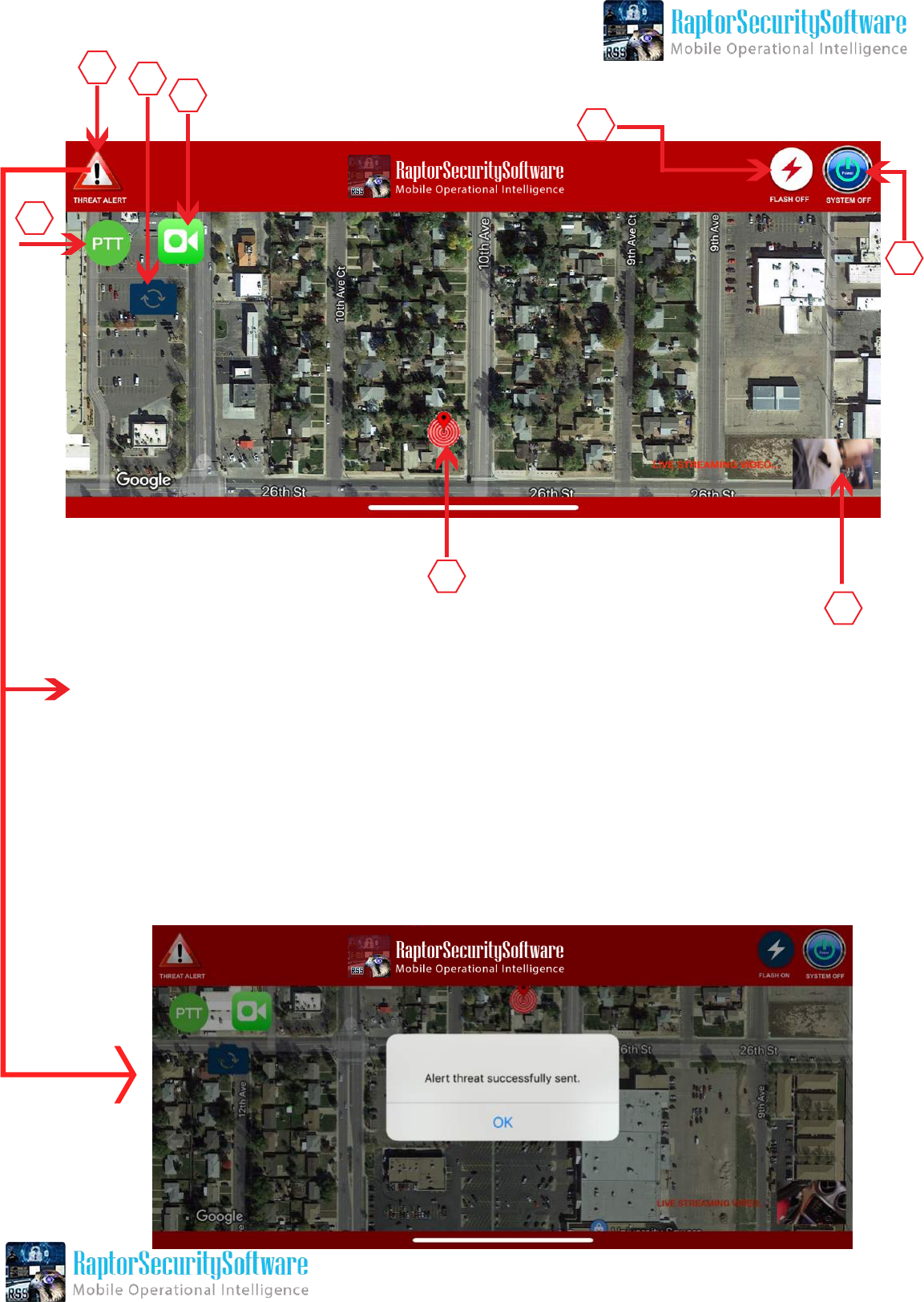
1. PTT = Push to Talk
2. Threat Alert = When Press - Instant Message (Notification Will Send to Commander)
3. Switch Camera - Front to Back + Back to Front
4. Face App
5. Flash - ON/OFF
6. System - ON/OF
7. Current Location of Translate in Map.
8. Live Video
1
234
5
6
7
8
Raptor Security Software
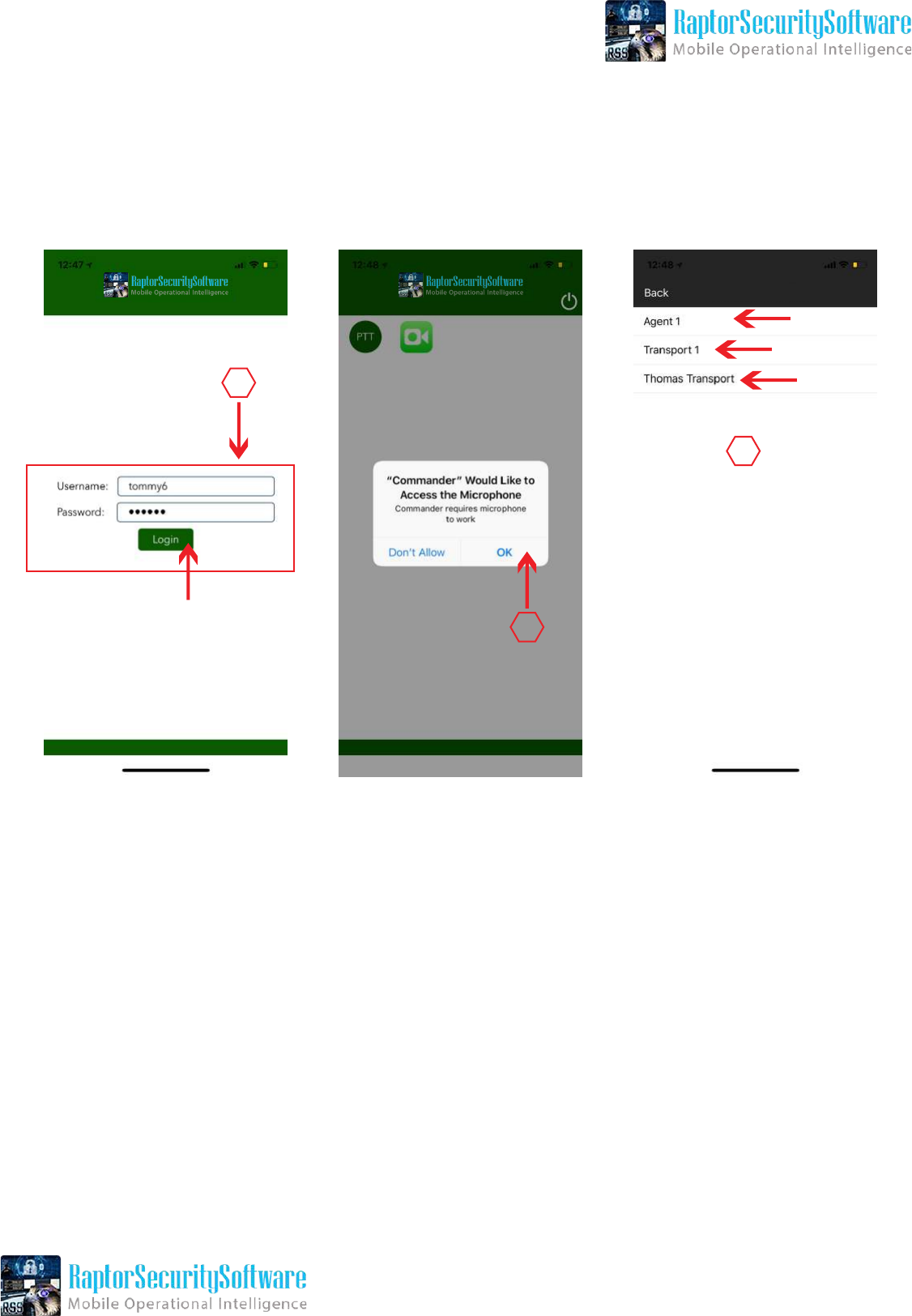
iOS Commander App
1. Enter Username and Password - Press Login
2. Need Microphone Access to Run the App Properly - Press “OK”
3. Select User for “Push to Talk”
1
2
3
Rss Commander
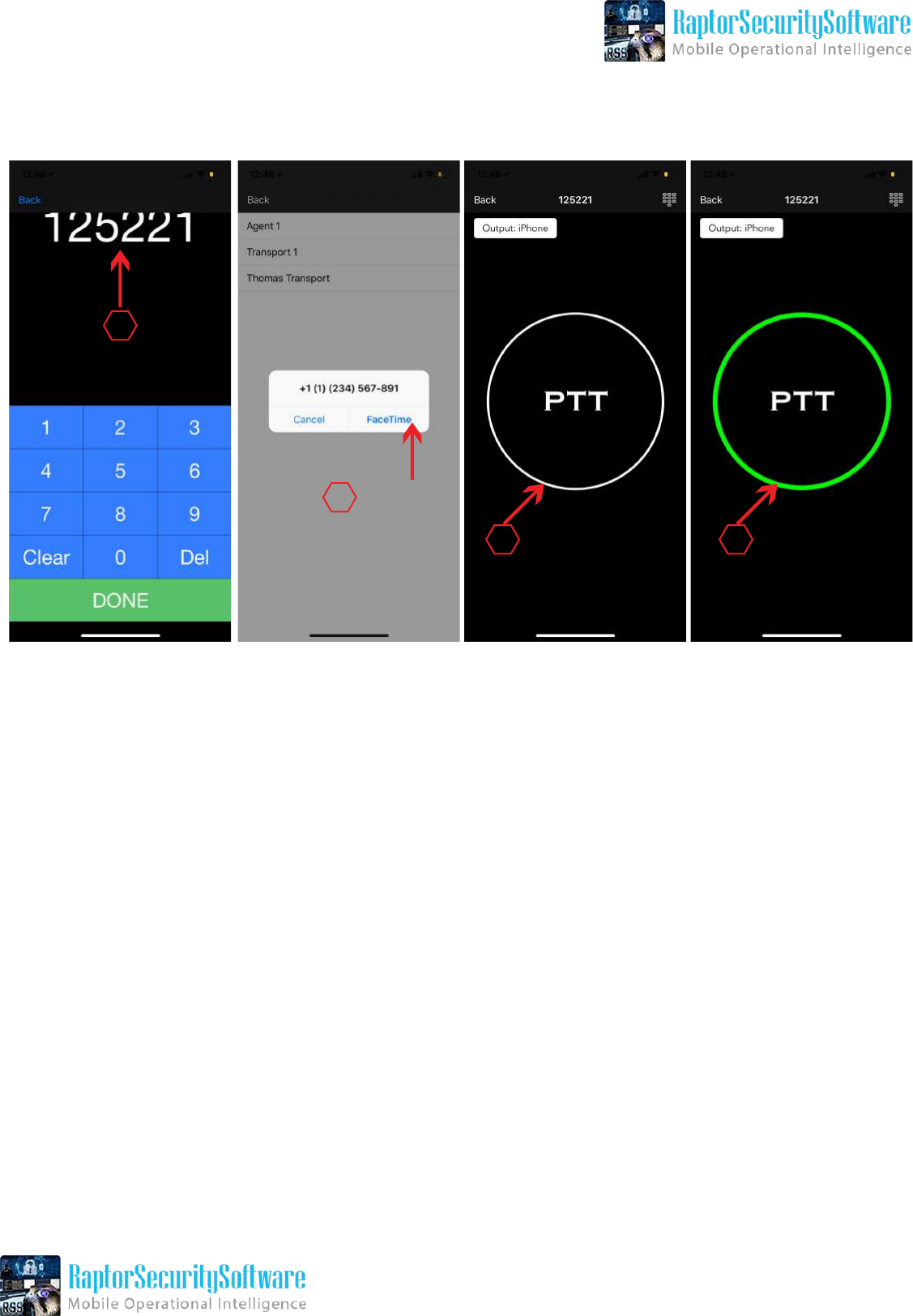
4. Enter Channel Number of the User for PTT
5. For FaceTime Press on “FaceTime”
6. When PTT Starts White Means NO Audio (Sound from Other Side)
7. When PTT Starts Green Means Audio Running
4
6
5
7
Rss Commander
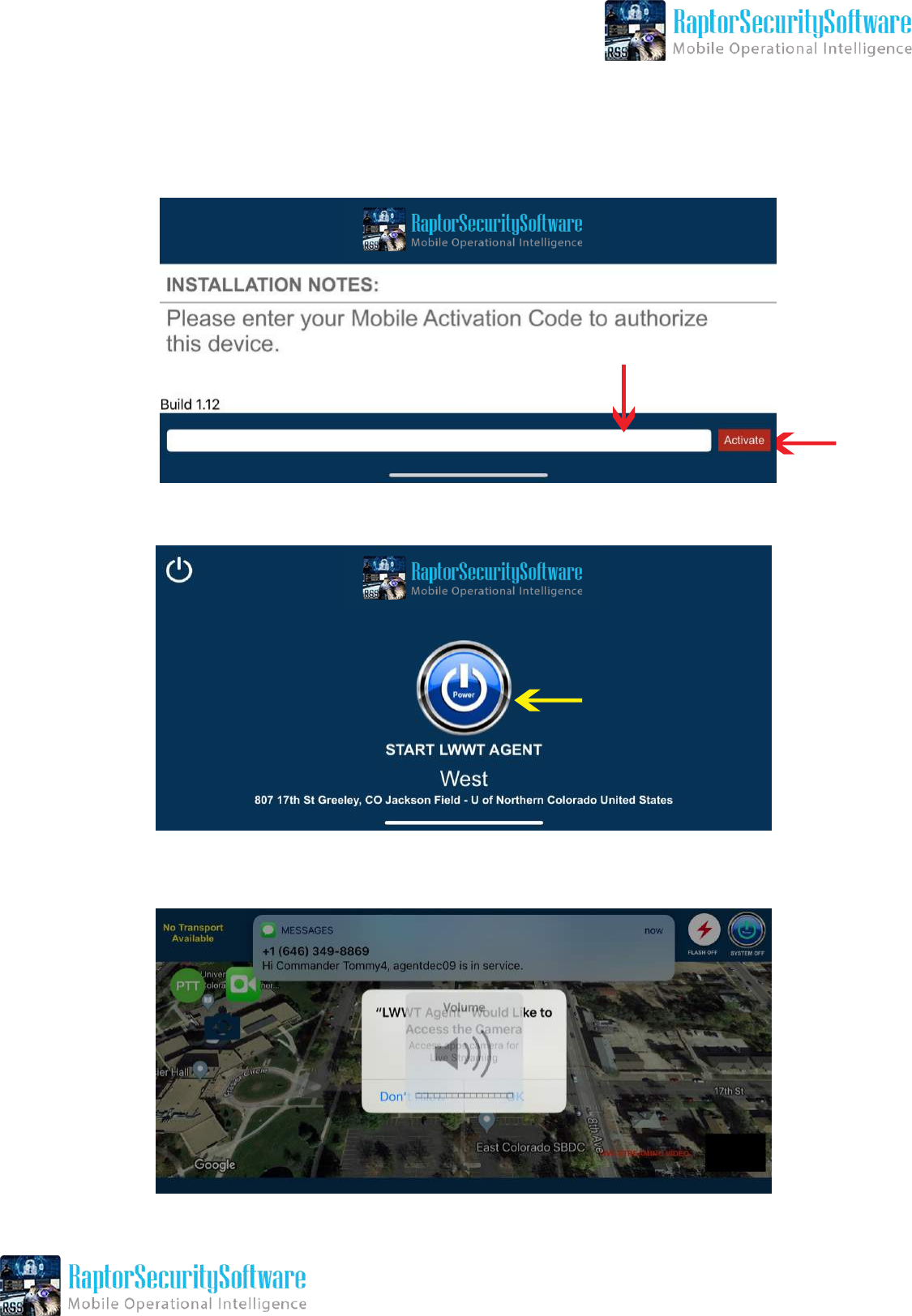
iOS Agent App
Enter Activation Code (AC) Here
Make sure volume on your device is all the way up
Press to Start Feed
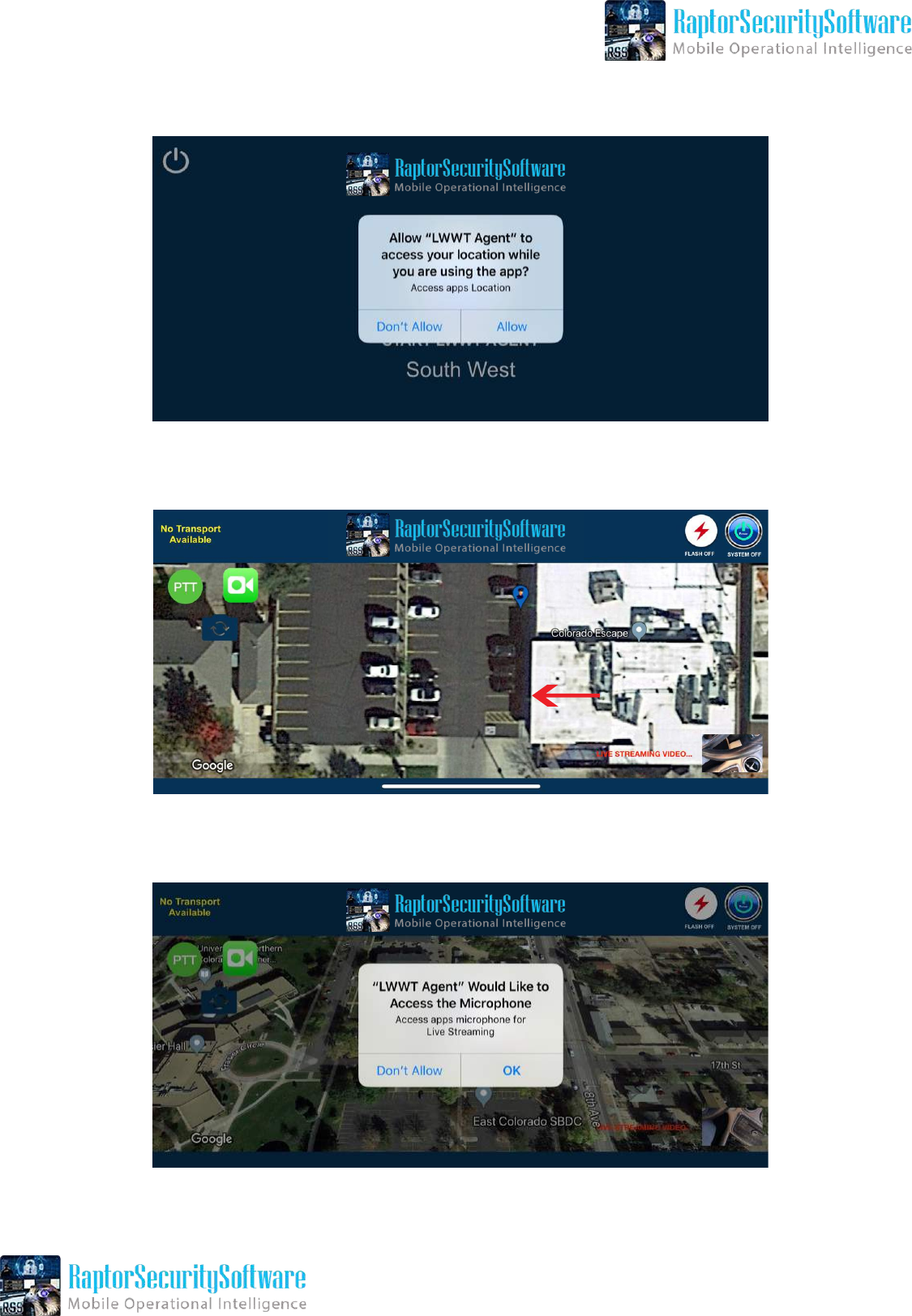
Need Location Access. Press “Allow”
Need Microphone Access. Press “Allow”
This is the Main Screen of “Agent App”
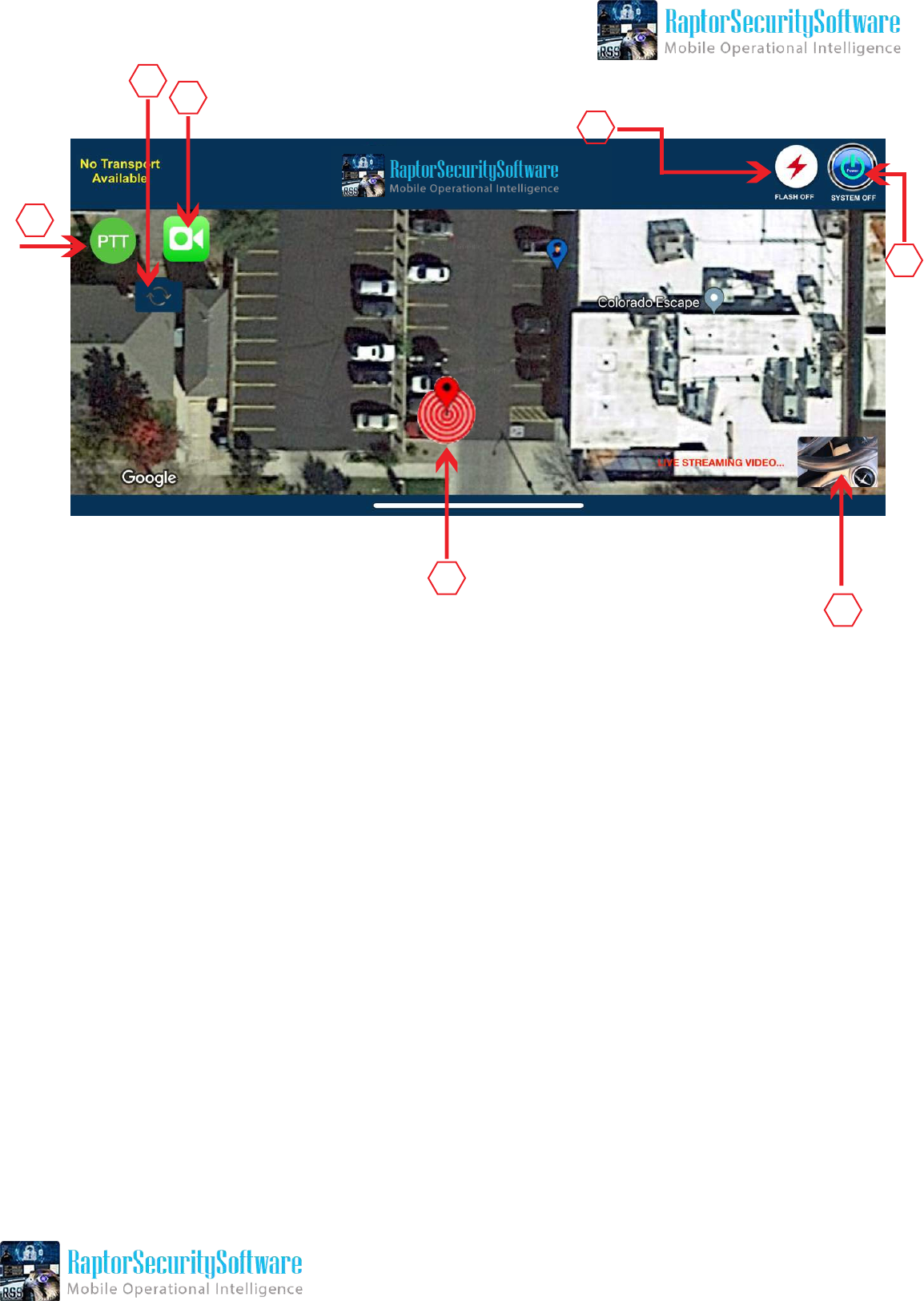
1. PTT = Push to Talk
2. Switch Camera - Front to Back + Back to Front
3. Face App
4. Flash - ON/OFF
5. System - ON/OF
6. Current Location of Translate in Map.
7. Live Video
1
23
4
5
6
7
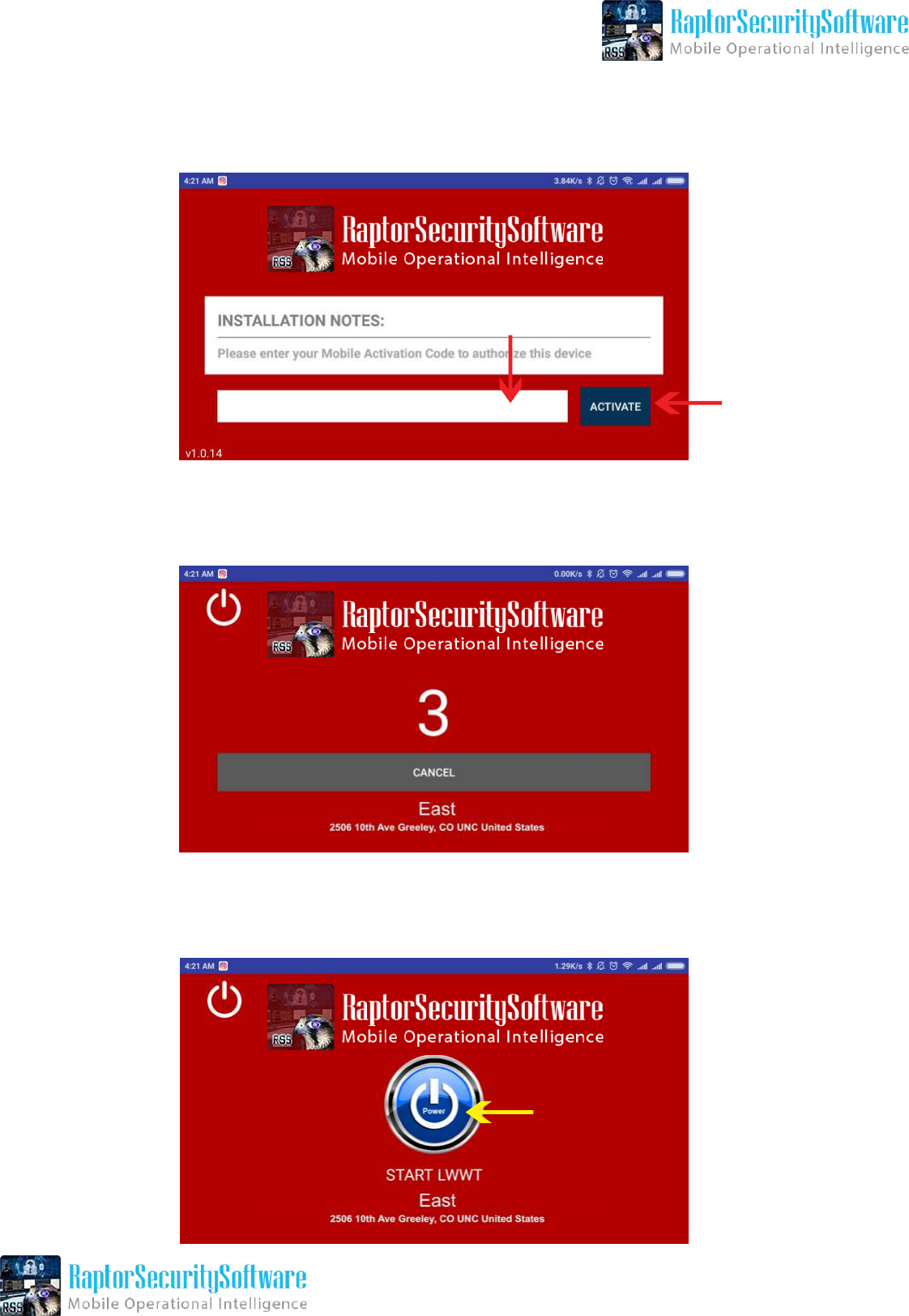
Android Transport App
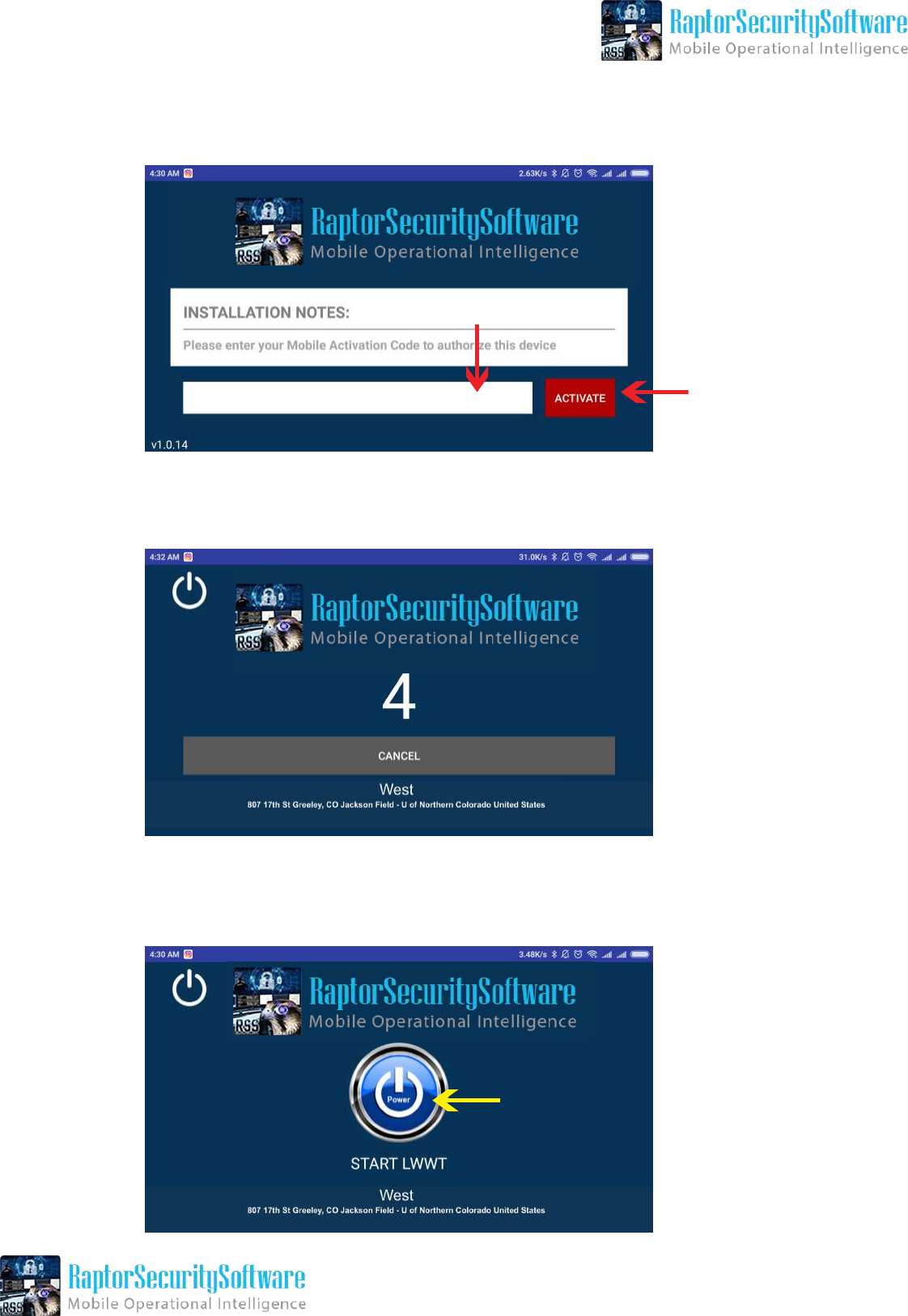
Enter Activation Code (AC) Here
Wait for Countdown
Press to Start Feed
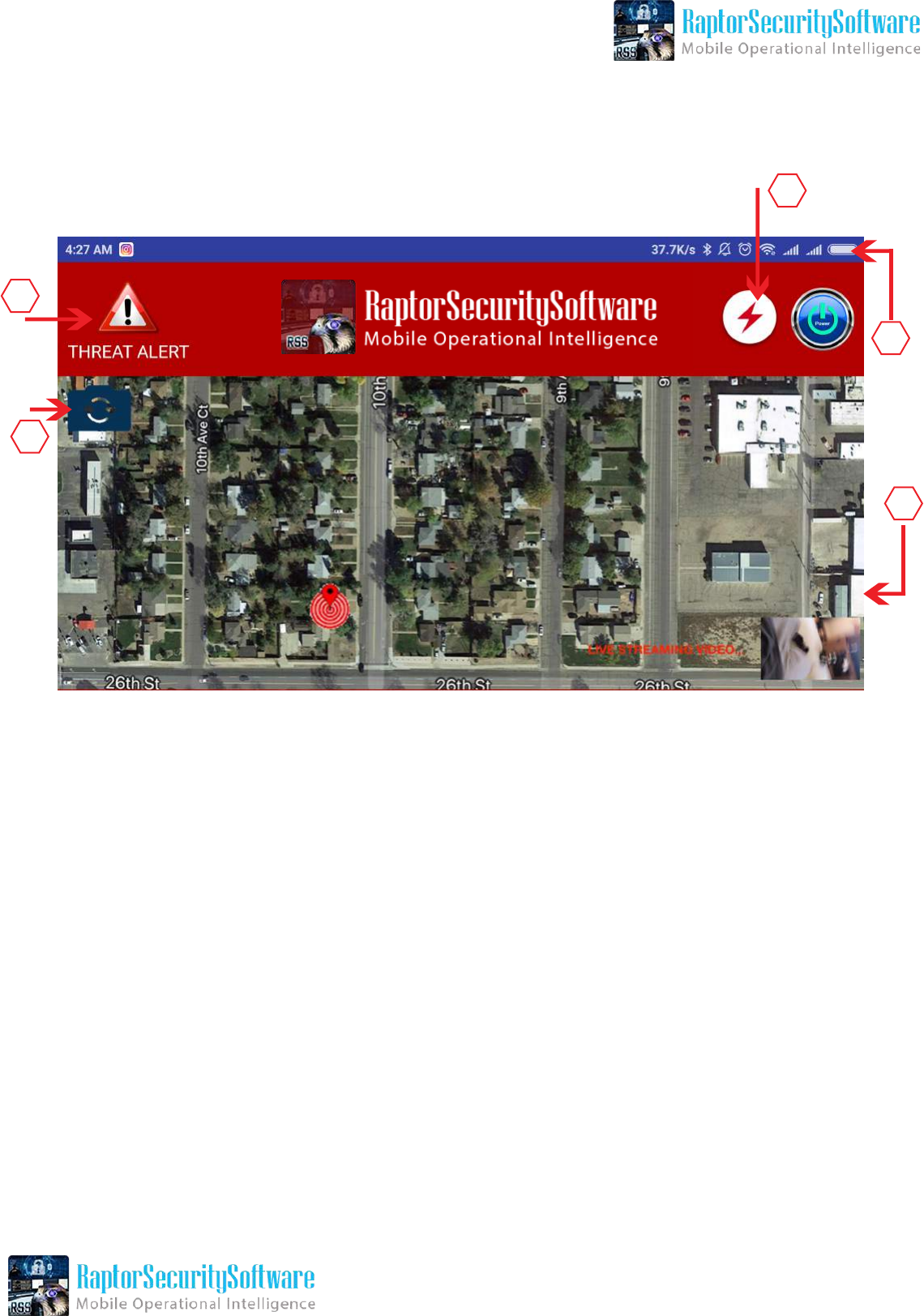
1. Threat Alert = When Press - Instant Message (Notification Will Send to Commander)
2. Flash - ON/OFF
3. System - ON/OF
4. Live Video
5. Switch Camera - Front to Back + Back to Front
1
2
3
4
5
Android Agent App
Enter Activation Code (AC) Here
Wait for Countdown
Press to Start Feed
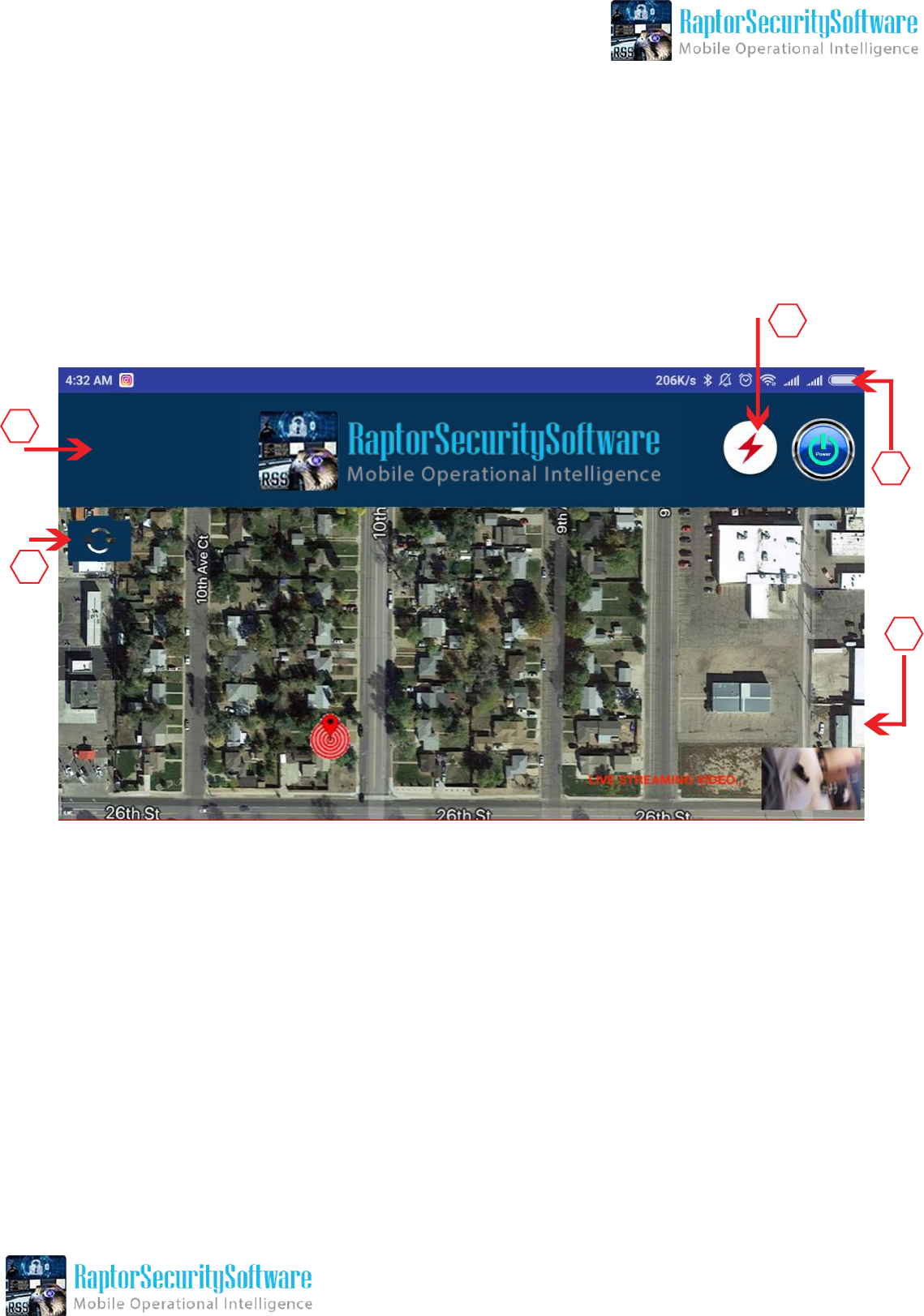
1. Threat Alert = When Press - Instant Message (Notification Will Send to Commander)
2. Flash - ON/OFF
3. System - ON/OF
4. Live Video
5. Switch Camera - Front to Back + Back to Front
1
2
3
4
5
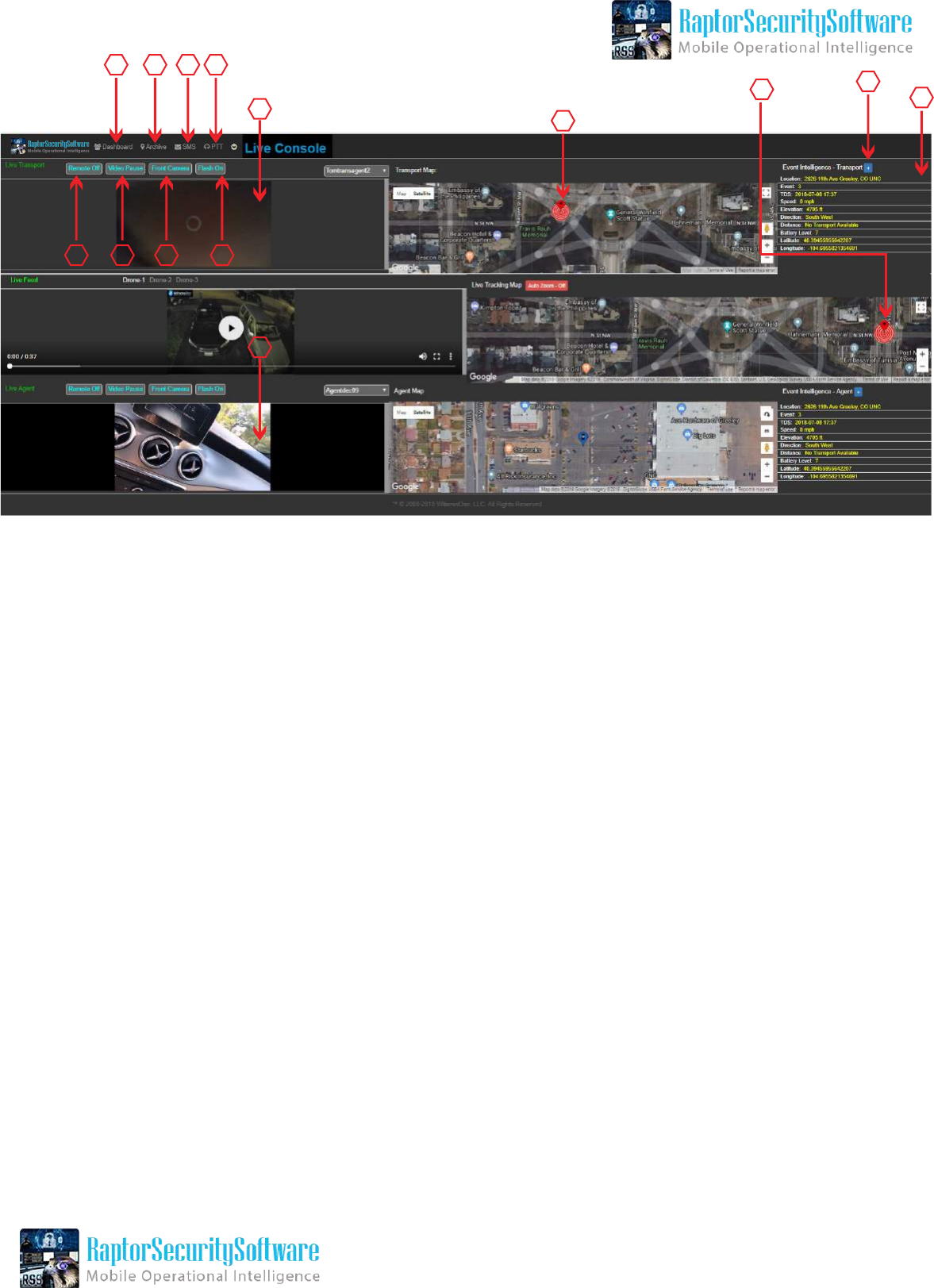
1. Dashboard - To Manage Transport and Agent
2. Archive - To See the Old Feeds
3. SMS - Send SMS to Agent and Transport
4. PTT - Push to Talk - With Agent or Transport
5. Click on “+” it will appear a popup with all details (Dragable)
6. Event Intelligence - Transport
7. Transport Live Location
8. Combined MAP (Agent and Trasnport Location)
9. Remote ON/OFF (Feed)
10. Video (Feed) Pause/Release
11. Camera Switch RC (Remote Control) - Fron to Back / Back to Front
12. Flash ON/OFF
13. Transport Video (Feed) - Click on Vido and it Appears a Popop (Dragable)
14. Agent Video (Feed)
1
Console
2 3 4
6
5
7
8
9 10 11
13
14
12
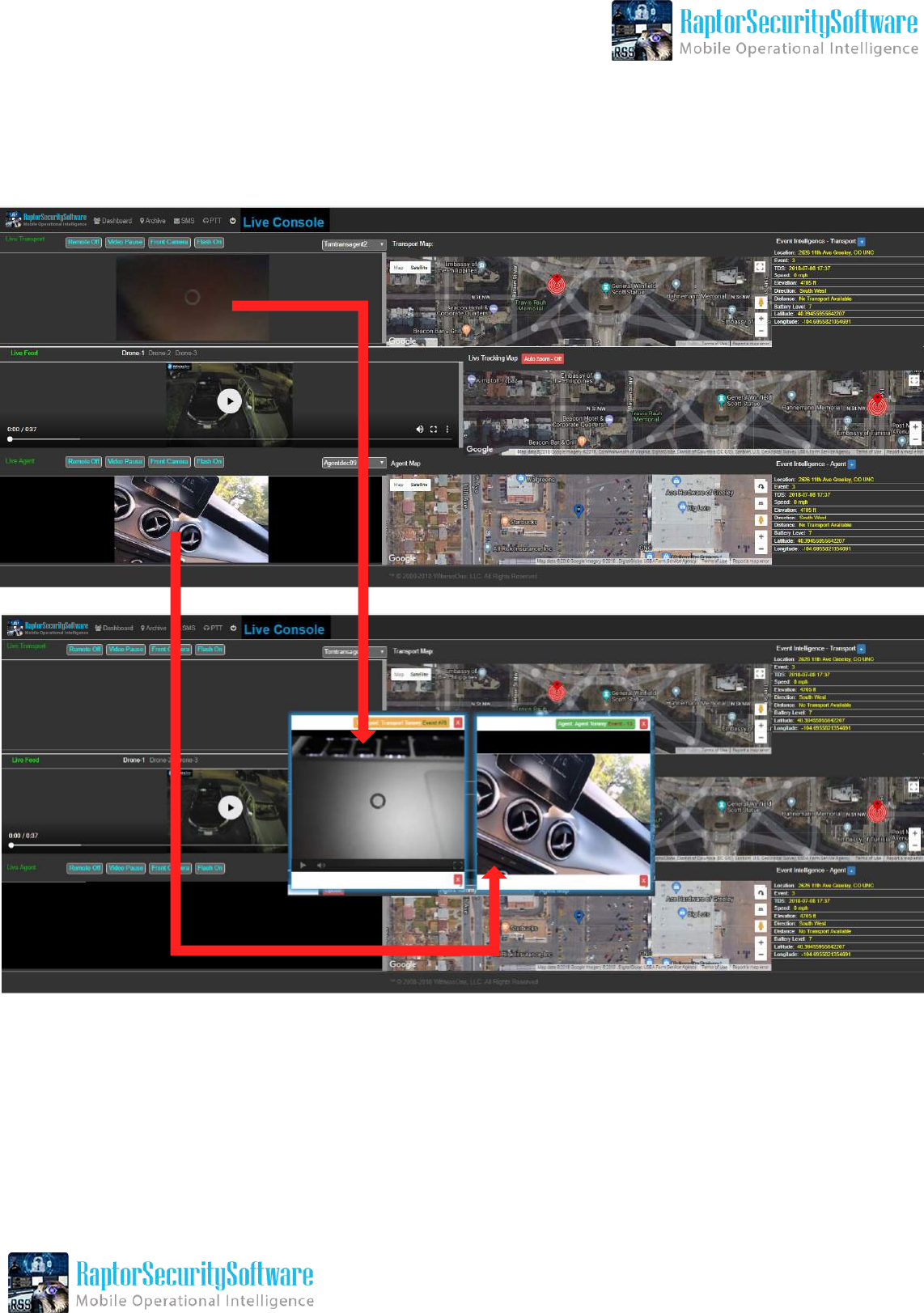
Video Popup (Dragable)
1
2
34 5
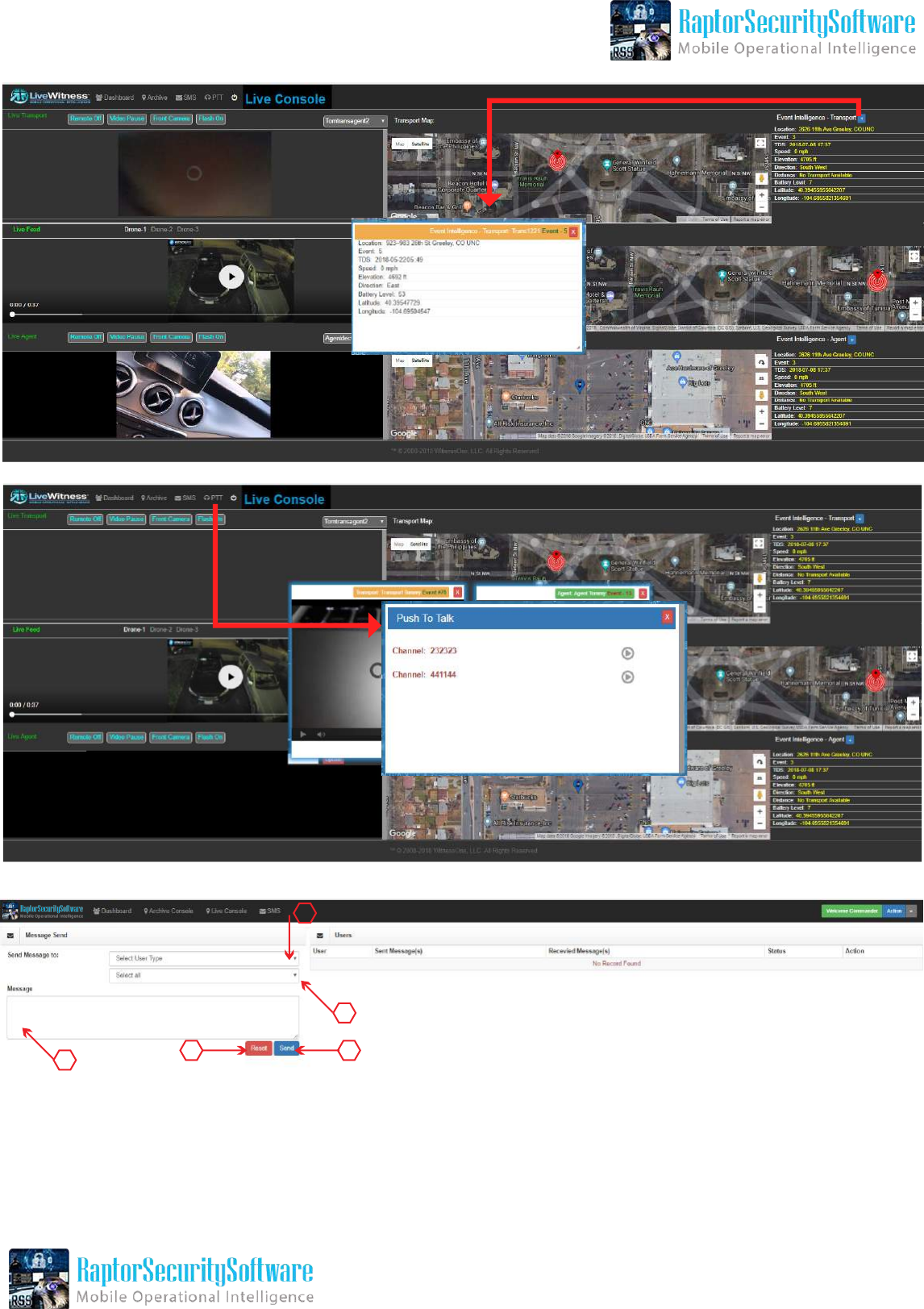
1. Select User Type (Transport / Agent)
2. Select All User or Individual
3. Type Your Message Here
4. Resert Message
5. Send Message
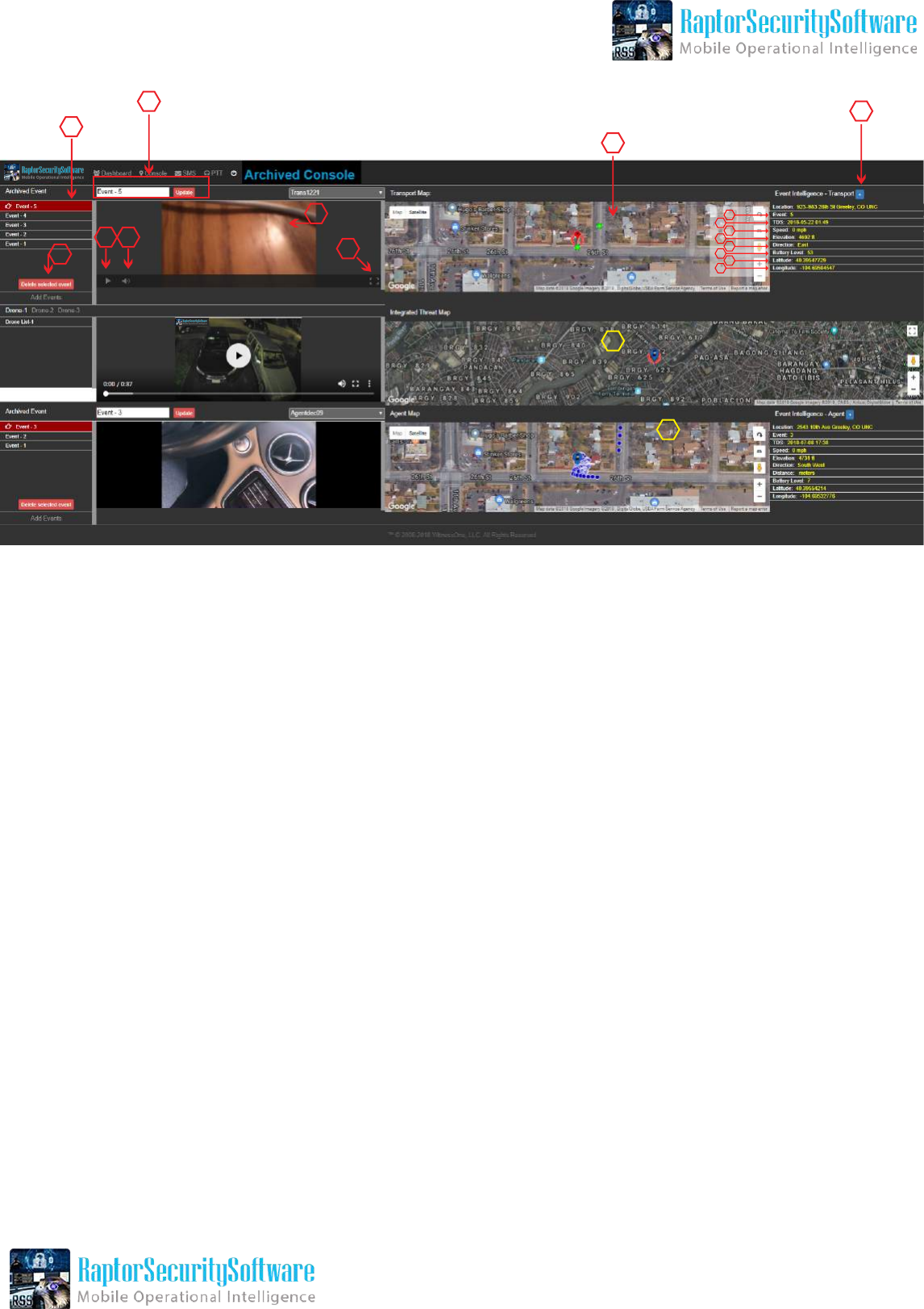
Event Intelligence
Archived Console
1. Red Marked is Selected Event. Events are Created when Feed is Started and
Stopped from either the Start button in mobile apps or Remote Control
button in the console.
2. You may Change the Event Name to Make it Easier to Reference.
3. You Can Delete Any Selected Event (Red Marked)
4. Play / Pause Video
5. Sound On/Off
6. Expand Video in Full Screen Size
7. Transport Location in Map
8. Popup With All Details (Same as Live Console)
9. Combined Map (Transport + Agent)
10. Agent in Map
11. Click on Video and it Will Open a Popup like Live Console
12. Event
13. Time Date Stamp (TDS)
14. Speed of iOS and/or Android Transport and/or Agent
15. Elevation of iOS and/or Android Transport and/or Agent
16. Distance Between Agent and Transport Selected/Chosen
17. Battery Level of iOS and/or Android Transport and/or Agent
18. Latitude Location Data of iOS and/or Android Transport and/or Agent
19. Longitude Location Data of iOS and/or Android Transport and/or Agent
1
2
7
9
10
8
3
4 5 6
11
All Other Options in Agent are Same as Transport
Event Intelligence
12
14
13
16
18
15
17
19
