VSphere Hardening Guide April 2010x 2010
User Manual:
Open the PDF directly: View PDF  .
.
Page Count: 110 [warning: Documents this large are best viewed by clicking the View PDF Link!]

vSphere 4.0 Security Hardening Guide
April 2010
VMware
vSphere 4.0 Security Hardening Guide
2
Table of Contents
vSphere Hardening Guide Introduction.............................................................4
Scope ........................................................................................................................... 4
Recommendation Level: ............................................................................................ 4
Testing for configurations ......................................................................................... 5
Guideline Organization............................................................................................... 5
Virtual Machine ......................................................................................................... 5
ESX/ESXi Host ......................................................................................................... 5
vNetwork (Virtual Networking) .................................................................................. 5
vCenter ..................................................................................................................... 5
Console Operating System (COS) ............................................................................ 6
Guideline Templates................................................................................................... 6
Type A: Parameter Setting........................................................................................ 6
Type B: Component Configuration............................................................................ 7
Type C: Operational Patterns ................................................................................... 9
Virtual Machines ................................................................................................12
Unprivileged User Actions ....................................................................................... 12
Virtual Devices .......................................................................................................... 14
Virtual Machine Information Flow ........................................................................... 17
Virtual Machine Management APIs ......................................................................... 19
VMsafe ....................................................................................................................... 21
VMsafe CPU/Memory API ...................................................................................... 22
Security Virtual Appliance ....................................................................................... 23
Protected Virtual Machines ..................................................................................... 23
VMsafe Network API............................................................................................... 24
Control path Security Virtual Appliance .................................................................. 25
Protected Virtual Machines ..................................................................................... 26
General Virtual Machine Protection ........................................................................ 27
ESX/ESXi Host....................................................................................................31
Installation ................................................................................................................. 31
Storage....................................................................................................................... 31
Host Communications.............................................................................................. 33
Logging...................................................................................................................... 38
Management .............................................................................................................. 41
Host Console............................................................................................................. 46
vNetwork (Virtual Networking)..........................................................................52
Network Architecture................................................................................................ 52
vNetwork Configuration ........................................................................................... 58
Physical Network ...................................................................................................... 67
vCenter ...............................................................................................................70
vCenter Server Host .................................................................................................70
vCenter Server Communication .............................................................................. 74
vCenter Server Database ......................................................................................... 81
vSphere client components ..................................................................................... 82
vCenter Update Manager.......................................................................................... 84
Console Operating System (COS)....................................................................90
Console Network Protection .................................................................................... 90
vSphere 4.0 Security Hardening Guide
3
Console Management............................................................................................... 92
Console Password Policies ..................................................................................... 95
Console Logging..................................................................................................... 100
Console Hardening .................................................................................................102
Console Access ...................................................................................................... 105
vSphere 4.0 Security Hardening Guide
4
vSphere Hardening Guide Introduction
Scope
This set of documents provides guidance on how to securely deploy vSphere 4.0
in a production environment. The focus is on initial configuration of the
virtualization infrastructure layer, which covers the following:
‐ The virtualization hosts (both ESX and ESXi)
‐ Configuration of the virtual machine container (NOT hardening of the
guest OS or any applications running within)
‐ Configuration of the virtual networking infrastructure, including the
management and storage networks as well as the virtual switch (but NOT
security of the virtual machine’s network)
‐ vCenter Server, its database, and client components
‐ VMware Update Manager (included because the regular update and
patching of the ESX/ESXi hosts and the virtual machine containers is
essential to maintaining the security of the environment)
The following are specifically out of scope and are NOT covered:
‐ Security of the software running inside the virtual machine, such as
operating system and applications, nor of the traffic traveling through the
virtual machine networks
‐ Security of any other add-on products, such as SRM
‐ Detailed operational procedures related to maintaining security, such as
event monitoring, auditing and privilege management. Guidance is
provided on general areas in which to perform these important tasks, but
details on exactly how to perform them are out of scope.
Recommendation Level:
The recommendation level for a guideline consists of a rating that corresponds to
the operational environment in which it is to be applied:
• Enterprise: this includes most enterprise production environments, and the
recommendations are meant to protect against most security attacks and
provide protection of confidential information to the level required by all major
security and compliance standards
• DMZ: this includes environments that are particularly susceptible to targeted
attacks. Examples include: Internet-facing hosts, internal systems with highly
confidential data, etc. Note that, despite the name, this level should not be
restricted only to DMZ hosts; each organization should make its own
determination as to the applicability of this level.
• Specialized Security Limited Functionality (SSLF): this represents
specialized environments that have some unique aspect that makes them
especially vulnerable to sophisticated attacks. Recommendations at this level
might result in loss of functionality, and careful consideration must be used to
vSphere 4.0 Security Hardening Guide
5
determine the applicability of these recommendations, including the possibility
of using alternate compensating controls.
Unless otherwise specified, higher security levels include all recommendations
from lower levels. For example, a DMZ environment should implement all level
Enterprise and DMZ recommendations, except when otherwise specified (e.g., a
parameter which should be set to one value at level Enterprise but a different
value at level DMZ).
Testing for configurations
Most configuration parameters can be viewed using the vSphere Client as well
as being probed using an API client such as PowerCLI or vSphere Command-
Line Interface (vCLI). These methods are all equivalent and nothing in this guide
should be viewed as requiring a certain test method unless otherwise indicated.
Guideline Organization
All recommendations are annotated using a code that consists of three letters
followed by a two-digit number (starting with 01). The three-letter codes are as
follows.
Virtual Machine
• VMX: VM (vmx) parameters
• VMP: General VM protection
ESX/ESXi Host
Unless otherwise specified, all guidelines apply to both ESXi 4 and ESX 4.
• HIN: Installation
• HST: Storage
• HCM: Host Communication
• HLG: Logging
• HMT: Management
• HCN: Host Console
vNetwork (Virtual Networking)
• NAR: Network Architecture
• NCN: vNetwork Configuration
• NPN: Physical Network
vCenter
• VSH: vCenter Server Host
• VSC: vCenter Server Communication
• VSD: vCenter Server Database
• VCL: vSphere Client components
• VUM: VMware Update Manager

vSphere 4.0 Security Hardening Guide
6
Console Operating System (COS)
NOTE: these guidelines only apply to ESX 4, not ESXi 4.
• CON: Console OS Networks
• COM: Console OS Management
• COP: Console OS Password Policies
• COL: Console OS Logging
• COH: Console OS Hardening
• COA: Console OS Access
Guideline Templates
The following templates are used to define the guidelines.
Since a particular security issue might have different recommendations for
different operating environments, it is possible that one guideline might have
multiple recommendations. The templates below use shading to indicate which
parts are common to all recommendations, and which parts are unique.
Type A: Parameter Setting
Use this template type when the recommendation specifies a configuration
parameter to set (or not set) in specific products.
Examples:
• VMX parameters
• ESX parameters
• vCenter parameters
• COS parameters
Parameter
Element
Description
Code
Code String
Name
Short name of guideline
Description
Description of the interface or feature that the parameter governs
Threat
Description of the specific threat exposed by this feature. Include
characterization of vulnerability
Recommendation
Level
<See recommendation level descriptions>
Parameter setting
Where the parameter is defined, and what are the recommended
or not recommended values. Also, indicated if there are preferred

vSphere 4.0 Security Hardening Guide
7
ways of setting the value, e.g. for a COS parameter, using the API
instead of directly editing a config file.
Effect on
functionality
If this setting is adopted, what possible effects does it have on
functionality? Does some feature stop working, is there some
information missing from a UI, etc?
Example:
Parameter
Element
Description
Code
VMX01
Name
Prevent Virtual Disk Shrinking
Description
Shrinking a virtual disk reclaims unused space in the virtual disk. If
there is empty space in the disk, this process reduces the amount
of space the virtual disk occupies on the host drive. Normal users
and processes—that is users and processes without root or
administrator privileges—within virtual machines have the
capability to invoke this procedure. However, if this is done
repeatedly, the virtual disk can become unavailable while this
shrinking is being performed, effectively causing a denial of
service. In most datacenter environments, disk shrinking is not
done, so you should disable this feature by setting the parameters
listed in Table 9.
Threat
Repeated disk shrinking can make virtual disk unavailable.
Capability is available to non-administrative users in the guest.
Recommendation
Level
Enterprise
Parameter setting
isolation.tools.diskWiper.disable=TRUE
isolation.tools.diskShrink.disable=TRUE
Effect on
functionality
Type B: Component Configuration
Use this template type when the guideline recommends a certain configuration of
components, either to reduce risk or to provide a compensating control.
Typically, these involve setting some parameter to a site-specific value or

vSphere 4.0 Security Hardening Guide
8
installing some components in a manner that satisfy some constraint, and so
there is no definitive value to be checked against. Examples:
• Configure an NTP server
• Isolate management networks
• Install Update Manager on a separate server
Configuration Element
Description
Code
Code String
Name
Short name of guideline
Description
Description of the component being addressed and
the configuration being recommended.
Risk or Control
Description of the risk being mitigated, including
characterization of vulnerability if applicable
Recommendation Level
<See recommendation level descriptions>
Parameters or objects
configuration
All the parameters or objects involved, and how
they should be configured.
Test
Any procedure or way to show evidence that the
guideline is being followed, if this is possible.
Example:
Configuration
Element
Description
Code
NAR02
Name
Ensure VMotion Traffic is isolated
Description
The security issue with VMotion migrations is that information is
transmitted in plaintext and anyone with access to the network
over which this information flows may view it. Ensure that
VMotion traffic is separate from production traffic on an isolated
network. This network should be a non-routable (no layer 3
router spanning this and other networks), which will prevent any
outside access to the network.

vSphere 4.0 Security Hardening Guide
9
Risk or Control
Attackers can sniff VMotion traffic to obtain memory contents of a
VM. They could also potentially stage a man-in-the-middle attack
in which the contents are modified during migration.
Recommendation
Level
Enterprise
SSLF
Parameters or
objects
configuration
vMotion
Portgroup should
be in a dedicated
VLAN on a
common vSwitch.
The vSwitch can
be shared with
production (VM)
traffic, as long as
the VMotion
portgroup’s VLAN
is not used by
production VMs.
vMotion Portgroup should be on a
management-only vSwitch
Effect on
functionality
At least one additional physical NIC must be
dedicated to management (more if NIC
teaming used). This could greatly increase
the cost of the physical networking
infrastructure required, and in resource-
constrained environments (such as blades),
this might not even be possible to achieve.
Test
• Check for
usage of
VLAN ID on
non-vMotion
Portgroups
• Check that
VLAN is
isolated and
not routed in
the physical
network
In addition to Enterprise tests,
• Check that vMotion Portgroup vSwitch
does not contain any non-management
portgroups
• Check that the physical network is not
accessed by any other non-management
entity
Type C: Operational Patterns
This type of template should be used to describe recommendations for how to
operate or interact with the administrative components of the system. Examples:
• Use vSphere Client and vCenter instead of COS
• Avoid Linux-based clients unless on secure network
• Use certificates signed by an authority

vSphere 4.0 Security Hardening Guide
10
Operational Element
Description
Code
Code String
Name
Short name of guideline
Description
Description of the operational pattern or condition.
Risk or Control
Description of the risk being mitigated
Recommendation Level
<See recommendation level descriptions>
Condition or steps
Concise description of the specific conditions to
meet or avoid, and/or the steps needed to achieve
this
Example:
Configuration
Element
Description
Code
HCM01
Name
Do not use default self-signed certificates for ESX/ESXi
Communication
Description
Replace default self-signed certificates with those from a trusted
certification authority, either a commercial CA or an organizational CA.
Risk or
Control
The use of default certificates leaves the SSL connection open to Man
in the Middle (MiTM) attacks. By changing the default certificates to
trusted CA Signed certificates, mitigates the potential for (MiTM)
attacks.
Recommenda
tion Level
Enterprise
Parameters or
objects
configuration
Information on how to replace default self-signed certificates can be
found in both the ESXi Configuration Guide and the ESX Configuration
Guide, Chapter “Security”, Section “Authentication and User
Management”, Subsection “Encryption and Security Certificates for
ESX/ESXi”. This section covers the following advanced customization
options:
• Configuring SSL timeouts

vSphere 4.0 Security Hardening Guide
11
• Configuration for certificates in nondefault locations
The two guides can be found at these URLs:
• http://www.vmware.com/pdf/vsphere4/r40_u1/vsp_40_u1_esxi_
server_config.pdf
• http://www.vmware.com/pdf/vsphere4/r40_u1/vsp_40_u1_esx_
server_config.pdf
Test
Ensure that any certificates presented by the host can be verified by a
trusted certification authority.

vSphere 4.0 Security Hardening Guide
12
Virtual Machines
Virtual machines are encapsulated in a small number of files. One of the
important is the configuration file (.vmx), which governs the behavior of the virtual
hardware and other settings. You can view and modify the configuration settings
by viewing the .vmx file directly in a text editor or by checking the settings in the
vSphere Client, using the following procedure:
1. Choose the virtual machine in the inventory panel.
2. Click Edit settings. Click Options > Advanced/General.
3. Click Configuration Parameters to open the Configuration Parameters
dialog box.
You can also use any vSphere API-based tool such as PowerCLI to view and
modify VMX parameters. In many instances, a VMX parameter has two
versions: XXX.disable and XXX.enable. In nearly all cases, it is better to use the
form XXX.disable=TRUE in order to disable a feature, because these are all
parsed centrally in the VMX code.
Whether you change a virtual machine’s settings in the vSphere Client, a
vSphere API-based tool, or using a text editor, you must restart the virtual
machine for most changes to take effect.
The following sections provide guidelines you should observe when dealing with
these and other virtual machine files.
Unprivileged User Actions
Parameter
Element
Description
Code
VMX01
Name
Prevent Virtual Disk Shrinking
Description
Shrinking a virtual disk reclaims unused space in the virtual disk. If
there is empty space in the disk, this process reduces the amount
of space the virtual disk occupies on the host drive. Normal users
and processes—that is users and processes without root or
administrator privileges—within virtual machines have the
capability to invoke this procedure. However, if this is done
repeatedly, the virtual disk can become unavailable while this
shrinking is being performed, effectively causing a denial of
service. In most datacenter environments, disk shrinking is not
done, so you should disable this feature by setting the parameters
listed in Table 9.
Threat
Repeated disk shrinking can make virtual disk unavailable.

vSphere 4.0 Security Hardening Guide
13
Capability is available to non-administrative users in the guest.
Recommendation
Level
Enterprise
Parameter setting
isolation.tools.diskWiper.disable=TRUE
isolation.tools.diskShrink.disable=TRUE
Effect on
functionality
Parameter
Element
Description
Code
VMX02
Name
Prevent others users from spying on Administrator remote
consoles
Description
By default, remote console sessions can be connected to by more
than one user at a time.
Threat
If an Administrator in the VM logs in using a VMware remote
console, during their session a non-administrator in the VM could
connect to the console and observe the administrator's actions.
Recommendation
Level
DMZ
Parameter setting
RemoteDisplay.maxConnections=1
Effect on
functionality
Only one remote console connection to the VM will be permitted.
Other attempts will be rejected until the first session disconnects.
Parameter
Element
Description
Code
VMX03
Name
Disable Copy/Paste to Remote Console
Description
When VMware Tools runs in a virtual machine, by default you can
copy and paste between the guest operating system and the
computer where the remote console is running. As soon as the

vSphere 4.0 Security Hardening Guide
14
console window gains focus, nonprivileged users and processes
running in the virtual machine can access the clipboard for the
virtual machine console. It is recommended that you disable copy
and paste operations for the guest operating system.
Threat
If a user copies sensitive information to the clipboard before using
the console, the user—perhaps unknowingly—exposes sensitive
data to the virtual machine.
Recommendation
Level
Enterprise
Parameter setting
isolation.tools.copy.disable=TRUE
isolation.tools.paste.disable=TRUE
isolation.tools.setGUIOptions.enable=FALSE
Effect on
functionality
Copy and paste to/from remote console will not work
Virtual Devices
Parameter
Element
Description
Code
VMX10
Name
Ensure Unauthorized Devices are Not Connected
Description
Besides disabling unnecessary virtual devices from within the
virtual machine, you should ensure that no device is connected to
a virtual machine if it does not need to be there. For example,
serial and parallel ports are rarely used for virtual machines in a
datacenter environment, and CD/DVD drives are usually
connected only temporarily during software installation.
For less commonly-used devices that are not needed, either the
parameter should not be present or its value must be FALSE.
Note that the parameters listed are not sufficient to ensure that a
device is usable, because other parameters are needed to
indicate specifically how each device is instantiated.
Threat
Any enabled or connected device represents another potential
attack channel.
Recommendation
Level
Enterprise

vSphere 4.0 Security Hardening Guide
15
Parameter setting
The following parameters should NOT be present unless the
device is needed:
1. Floppy drives: floppyX.present
2. Serial ports: serialX.present
3. Parallel ports: parallelX.present
4. USB Controller: usb.present
5. CD-ROM: ideX:Y.present
Effect on
functionality
Parameter
Element
Description
Code
VMX11
Name
Prevent Unauthorized Removal, Connection and Modification of
Devices
Description
Normal users and processes—that is users and processes without
root or administrator privileges—within virtual machines have the
capability to connect or disconnect devices, such as network
adapters and CD-ROM drives, as well as the ability to modify
device settings.
In general, you should use the virtual machine settings editor or
Configuration Editor to remove any unneeded or unused hardware
devices. However, you may want to use the device again, so
removing it is not always a good solution. In that case, you can
prevent a user or running process in the virtual machine from
connecting or disconnecting a device from within the guest
operating system, as well as modifying devices, by adding the
parameters shown below.
Threat
By default, a rogue user with non-administrator privileges in a
virtual machine can:
• Connect a disconnected CD-ROM drive and access
sensitive information on the media left in the drive
• Disconnect a network adapter to isolate the virtual machine
from its network, which is a denial of service
• Modify settings on a device
Recommendation
Level
Enterprise
Parameter setting
isolation.device.connectable.disable=TRUE

vSphere 4.0 Security Hardening Guide
16
isolation.device.edit.disable=TRUE
Effect on
functionality
VMCI, or Virtual Machine Communications Interface is a new type of interface
designed to provide efficient and controlled communication between VMs and
trusted endpoints on the host, and from VM to VM. The vmkernel is considered a
trusted end-point.
VMCI’s main objective is to provide a socket-based framework for a new
generation of applications that will exist only on virtual machines. More
information on how to use this interface is detailed here:
http://www.vmware.com/support/developer/vmci-sdk.
This interface is implemented as a virtual PCI device, present by default in all
VMs created with virtual hardware version 7, common in vSphere 4, VMware
Fusion and VMware Workstation 6 and above. A device driver is included and
installed by default with the vmware-tools software package in supported guest
operating systems.
The interface has currently only two settings, enabled or restricted. The default is
restricted. The formal recommendation is to keep it restricted unless there is a
reason to enable it, in this case, an application that is specifically created to
leverage this feature. At the time of this writing, there is no other usage for this
interface.
Parameter
Element
Description
Code
VMX12
Name
Disable VM to VM communication through VMCI
Description
If the interface is not restricted, a VM can see and be seen by all
other VMs with the same option enabled within the same host.
This may be the intended behavior, but custom-built software may
have unexpected vulnerabilities that may potentially lead to an
exploit. Additionally, it is possible for a VM to find out how many
other VMs within the same ESX system by simply registering the
VM. This information could also be used for a potentially malicious
objective.
By default, the setting is FALSE
Threat
The VM can be exposed to other VMs within the same system as
long as there is at least one program listening on the VMCI socket

vSphere 4.0 Security Hardening Guide
17
interface.
Recommendation
Level
Enterprise
Parameter setting
vmci0.unrestricted=FALSE
Effect on
functionality
Virtual Machine Information Flow
Virtual machines can write troubleshooting information to a virtual machine log
file (vmware.log) stored on the VMware VMFS volume used to store other files
for the virtual machine. Virtual machine users and processes can be configured
to abuse the logging function, either intentionally or inadvertently, so that large
amounts of data flood the log file. Over time, the log file can consume so much of
the ESX/ESXi host’s file system space that it fills the hard disk, causing an
effective denial of service as the datastore can no longer accept new writes.
In addition to logging, guest operating system processes can send informational
messages to the ESX/ESXi host through VMware Tools. These messages,
known as setinfo messages, are written to the virtual machine’s configuration file
(.vmx). They typically contain name-value pairs that define virtual machine
characteristics or identifiers that the host stores—for example,
ipaddress=10.17.87.224. A setinfo message has no predefined format and can
be any length. However, the total size of the VMX file is limited by default to
1MB.
Parameter
Element
Description
Code
VMX20
Name
Limit VM log file size and number
Description
You can use these settings to limit the total size and number of log
files. Normally a new log file is created only when a host is
rebooted, so the file can grow to be quite large, but you can ensure
new log files are created more frequently by limiting the maximum
size of the log files. If you want to restrict the total size of logging
data, VMware recommends saving 10 log files, each one limited to
1000KB. Datastores are likely to be formatted with a block size of
2MB or 4MB, so a size limit too far below this size would result in
unnecessary storage utilization.
Each time an entry is written to the log, the size of the log is

vSphere 4.0 Security Hardening Guide
18
checked, and if it is over the limit, the next entry is written to a new
log. If the maximum number of log files already exists, when a new
one is created, the oldest log file is deleted. A denial of service
attack that avoids these limits could be attempted by writing an
enormous log entry, but each log entry is limited to 4KB, so no log
files are ever more than 4KB larger than the configured limit.
A second option is to disable logging for the virtual machine.
Disabling logging for a virtual machine makes troubleshooting
challenging and support difficult, so you should not consider
disabling logging unless the log file rotation approach proves
insufficient.
Threat
Uncontrolled logging could lead to denial of service due to the
datastore being filled.
Recommendation
Level
Enterprise
SSLF
Parameter setting
log.rotateSize=1000000
log.keepOld=10
Isolation.tools.log.disable=TRUE
Effect on
functionality
VM logs unavailable for
troubleshooting and support
Parameter
Element
Description
Code
VMX21
Name
Limit informational messages from the VM to the VMX file
Description
The configuration file containing these name-value pairs is limited
to a size of 1MB. This 1MB capacity should be sufficient for most
cases, but you can change this value, if necessary. You might
increase this value if large amounts of custom information are
being stored in the configuration file. The default limit is 1MB, and
this limit is applied even when the sizeLimit parameter is not listed
in the .vmx file.
Threat
Uncontrolled size for the VMX file could lead to denial of service if
the datastore is filled.
Recommendation
Level
Enterprise
Parameter setting
tools.setInfo.sizeLimit=1048576

vSphere 4.0 Security Hardening Guide
19
Effect on
functionality
Parameter
Element
Description
Code
VMX22
Name
Avoid using independent-nonpersistent disks
Description
The security issue with nonpersistent disk mode is that successful
attackers may undo or remove any traces that they were ever on
the machine with a simple shutdown or reboot.
To safeguard against this risk, you should set production virtual
machines to either use persistent disk mode, or to use
nonpersistent disk mode but additional make sure that activity
within the VM is logged remotely on a separate server, such as a
syslog server or equivalent Windows-based event collector.
Threat
Without a persistent record of activity on a VM, administrators
may never know if they have been attacked or hacked.
Recommendation
Level
DMZ
Parameter setting
If remote logging of events and activity is not configured for the
guest, then scsiX:Y.mode should be either
1. Not present
2. Not set to independent-nonpersistent
Effect on
functionality
Won’t be able to make use of non-persistent mode, which allows
rollback to a known state when rebooting the VM
Virtual Machine Management APIs
The VIX API is high-level and practical for both script writers and application
programmers. It runs on either Windows or Linux and supports management of
VMware Workstation, VMware Server, and VMware vSphere including ESX/ESXi
and vCenter Server. Additionally, bindings are provided for C, Perl, and COM
(Visual Basic, VBscript, C#).

vSphere 4.0 Security Hardening Guide
20
Parameter
Element
Description
Code
VMX30
Name
Disable remote operations within the guest
Description
The VIX API allows systems administrators to write programs and
scripts that automate virtual machine operations, as well as guests
Operating Systems within the VMs themselves. If enabled, the
system administrator can execute scripts or programs that use the
VIX API to execute tasks within the guest OS
Threat
An adversary can potentially execute unauthorized scripts within
the guest OS
Recommendation
Level
Enterprise
Parameter setting
guest.command.enabled=FALSE
Effect on
functionality
vSphere 4.0 introduces the integration of virtual machine performance counters
such as CPU and memory into Perfmon for Microsoft Windows guest operating
systems when VMware Tools is installed. With this feature, virtual machine
owners can do accurate performance analysis within the guest operating system.
The Perfmon integration in vSphere 4.0 leverages the guest SDK API to get to
the accurate counters from the hypervisor. The programming guide for vSphere
guest SDK 4.0 is available at http://www.vmware.com/support/developer/guest-
sdk/. The list of available perf counters is in Page 11 of the PDF (Accessor
functions for VM data).
There is some information about the host that can optionally be exposed to the
VM guests:
• GUESTLIB_HOST_CPU_NUM_CORES
• GUESTLIB_HOST_CPU_USED_MS
• GUESTLIB_HOST_MEM_SWAPPED_MB
• GUESTLIB_HOST_MEM_SHARED_MB
• GUESTLIB_HOST_MEM_USED_MB
• GUESTLIB_HOST_MEM_PHYS_MB
• GUESTLIB_HOST_MEM_PHYS_FREE_MB
• GUESTLIB_HOST_MEM_KERN_OVHD_MB
vSphere 4.0 Security Hardening Guide
21
• GUESTLIB_HOST_MEM_MAPPED_MB
• GUESTLIB_HOST_MEM_UNMAPPED_MB
The default is not to expose this information, and ordinarily you wouldn’t want the
guest to know anything about the host it’s running on.
Parameter
Element
Description
Code
VMX31
Name
Do not send host performance information to guests
Description
If enabled, a VM can obtain detailed information about the
physical host. The default value for the parameter is FALSE. This
setting should not be TRUE unless a particular VM requires this
information for performance monitoring
Threat
An adversary can potentially use this information to inform further
attacks on the host
Recommendation
Level
Enterprise
Parameter setting
tools.guestlib.enableHostInfo=FALSE
Effect on
functionality
VMsafe
VMsafe provides a security architecture for virtualized environments and an
application program interface (API)-sharing program to enable partners to
develop security products for virtualized environments. It consists of three parts.
• VMsafe Memory and CPU API (VMsafe Mem/CPU): Inspections of
memory accesses and CPU states
• VMsafe Network Packet Inspection API (VMsafe-Net): The Vmsafe-Net
allows you to create agents that inspect network packets at a point in the
packet stream between the virtual NIC (vNic) and a virtual switch
(vSwitch) that sits in front of a physical NIC (pNIC). The interface provided
is a function call library located in the same security appliance where the
vSphere 4.0 Security Hardening Guide
22
slow-path agent resides. The fast-path and slow-path agents
communicate using the function calls from the library.
• VMsafe Virtual Disk Development Kit (VDDK): The VDDK is separately
published. Using the VDDK, you can create applications that manage
virtual disk volumes. This allows you to inspect for and prevent malicious
access and modification of data in protected disks.
The VDDK API is built into vSphere, and cannot be disabled. Any entity wishing
to make use of this API must present the proper credentials to vSphere of an
authorized user. The method of controlling access to this API is to use the
vSphere Roles and Permissions system. The user whose credentials are
presented must have permissions to access and modify the datastore on which
the protected VM’s virtual disks reside. Note that this doesn’t need to be a virtual
machine running on the host; any application which has network access to an
ESX/ESXi host connected to the datastore can access the VDDK API.
VMsafe CPU/Memory API
In order for a VM to view and modify the CPU and memory contents of others
VMs on the host, it must have access to the CPU/Mem APIs. This access is
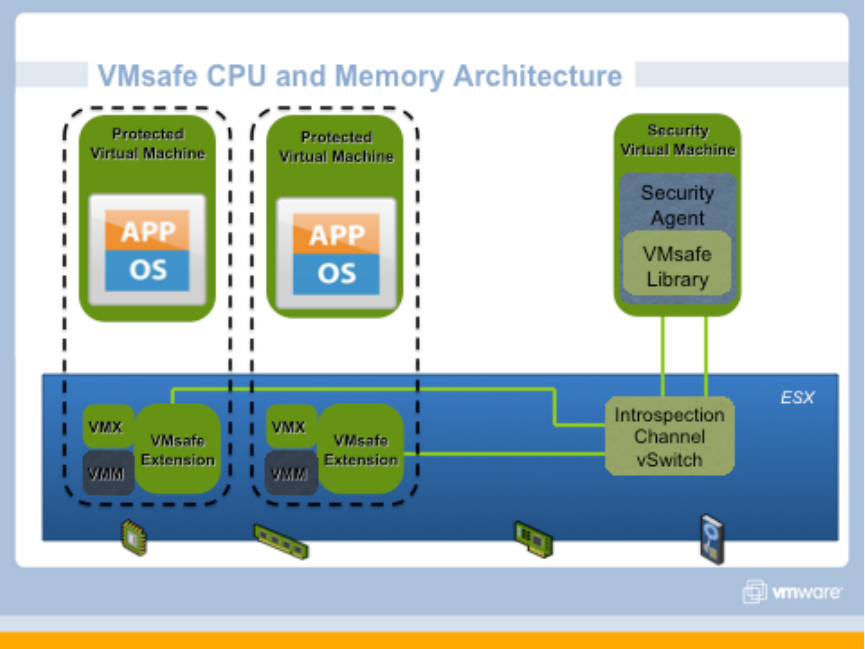
enabled by attaching the VM to a special VMsafe introspection vSwitch. The
follow diagram shows how the VMsafe CPU/Memory API works.

vSphere 4.0 Security Hardening Guide
23
The follow two groups of parameter settings control the VMsafe CPU/Memory
API
Security Virtual Appliance
Communication with hypervisor extension occurs over an isolated network
created specifically for this purpose. A Security Appliance needs to be
configured on this network before it can access the CPU and Memory APIs. The
isolated network provided through a special Introspection Virtual Switch and must
use the following naming:
• vSwitch name: vmsafe
• Portgroup name: vmsafe-appliances
Protected Virtual Machines
By default, the CPU and Memory of a virtual machine CANNOT be inspected or
modified. In order to enable this functionality, the following settings must be
present in the .vmx config file for each VM that is to be protected:
• vmsafe.enable = TRUE
• vmsafe.agentAddress=”www.xxx.yyy.zzz”
• vmsafe.agentPort=”nnnn”
where “www.xxx.yyy.zzz” is the IP address and “nnnn” is the port number that the
VMsafe CPU/Memory Security Virtual Appliance uses to connect to the
Introspection Virtual Switch.
Parameter Element
Description
Code
VMX51
Name
Restrict access to VMsafe CPU/Mem APIs
Description
You should ensure that the only VMs configured on the VMsafe
CPU/Mem introspection vSwitch are those that you have
specifically installed to perform this task.
Threat
An attacker could compromise all other VMs by making use of
this introspection channel
Recommendation
Level
Enterprise
Parameter setting
If a VM is not running a VMsafe CPU/Mem product, ensure that
the following parameter is NOT present in its VMX file:
ethernetX.networkName=”vmsafe-appliances”

vSphere 4.0 Security Hardening Guide
24
where X is a digit.
Effect on
functionality
Parameter
Element
Description
Code
VMX52
Name
Control access to VMs through VMsafe CPU/Mem API
Description
A VM needs to be configured explicitly to accept access by the
VMsafe CPU/Mem API. This involves three parameters: one to
enable the API, one to set the IP address used by the Security
Virtual Appliance on the introspection vSwitch, and one to set the
port number for that IP address. This should only be done for VMs
for which you want this to be done.
Threat
An attacker could compromise the VM by making use of this
introspection channel
Recommendation
Level
Enterprise
Parameter setting
If a VM is not supposed to be protected by a VMsafe CPU/Mem
product, ensure that the following is NOT present in its VMX file
vmsafe.enable=TRUE
vmsafe.agentAddress=”www.xxx.yyy.zzz”.
vmsafe.agentPort=”nnnn”
The latter two parameters are based on how the VMsafe Security
Virtual Appliance is configured, but they should not be present at
all if the VM is not to be protected.
Effect on
functionality
VMsafe Network API
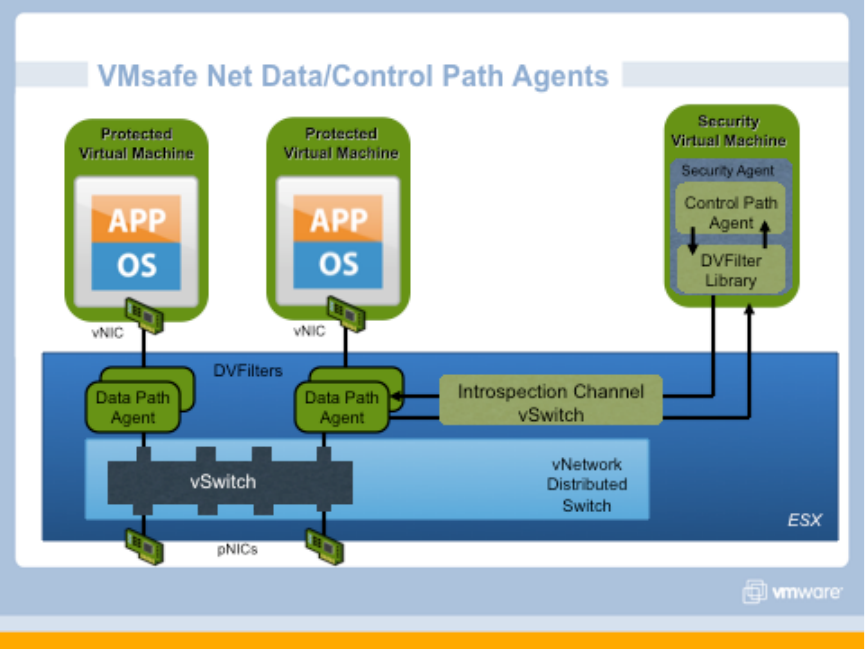
VMsafe Network API protection is enabled by a data path kernel module that
must be installed on the ESX/ESXi host by an administrator. This data path
agent has the ability to inspect, modify, and block network traffic going to and
from a virtual machine’s NIC ports. There can be up to 16 data path agents on
one virtual machine NIC port. In addition, there typically would be a control path
vSphere 4.0 Security Hardening Guide
25
virtual appliance running on the host. This security virtual appliance needs to be
attached to a special VMsafe introspection vSwitch in order to communicate with
the data path agent. The follow diagram shows how the VMsafe CPU/Memory
API works.
The follow two groups of parameter settings control the VMsafe Network API
Control path Security Virtual Appliance
Communication with the data path kernel module occurs over an isolated
network created specifically for this purpose. A Security Appliance needs to be
configured on this network before it can access the data path kernel module. The
isolated network provided through a special Introspection Virtual Switch and must
use the following naming:
• vSwitch name: dvfilter
• Portgroup name: dvfilter-appliances

vSphere 4.0 Security Hardening Guide
26
Protected Virtual Machines
By default, the network traffic of a virtual machine CANNOT be inspected or
modified. In order to enable this functionality, the following setting must be
present in the .vmx config file for each VM that is to be protected:
• ethernet0.filter1.name = dv-filter1
where “ethernet0” is the NIC interface of the virtual machine that is to be
protected, “filter1” is the number of the filter which is being used, and “dv-filter1”
is the name of the particular data path kernel module that is protecting the virtual
machine. There can be up to 10 NICs per virtual machine (ethernet0 through
ethernet9) and up to 16 filters per vNIC (filter0 through filter15).
Parameter Element
Description
Code
VMX54
Name
Restrict access to VMsafe Network APIs
Description
You should ensure that the only VMs configured on the VMsafe
Network introspection vSwitch are those that you have
specifically installed to perform this task.
Threat
An attacker could compromise all other VMs by making use of
this introspection channel
Recommendation
Level
Enterprise
Parameter setting
If a VM is not running a VMsafe Network Security Appliance,
ensure that the following parameter is NOT present in its VMX
file:
ethernetX.networkName=”dvfilter-appliances”
where X is a digit.
Effect on
functionality
Parameter
Element
Description
Code
VMX55
Name
Control access to VMs through VMsafe Network API

vSphere 4.0 Security Hardening Guide
27
Description
A VM needs to be configured explicitly to accept access by the
VMsafe Network API. This should only be done for VMs for which
you want this to be done.
Threat
An attacker could compromise the VM by making use of this
introspection channel
Recommendation
Level
Enterprise
Parameter setting
If a VM is not supposed to be protected by a VMsafe CPU/Mem
product, ensure that the following is NOT present in its VMX file
ethernet0.filter1.name = dv-filter1
where “ethernet0” is the NIC interface of the virtual machine that is
to be protected, “filter1” is the number of the filter which is being
used, and “dv-filter1” is the name of the particular data path kernel
module that is protecting the. If the VM is supposed to be
protected, then ensure that the name of the data path kernel is set
correctly.
Effect on
functionality
General Virtual Machine Protection
Operational Element
Description
Code
VMP01
Name
Secure Virtual Machines as You Would Secure
Physical Machines
Description
A key to understanding the security requirements of
a virtualized environment is the recognition that a
virtual machine is, in most respects, the equivalent
of a physical server. Therefore, it is critical that you
employ the same security measures in virtual
machines that you would for physical servers.
Risk or Control
The guest operating system that runs in the virtual
machine is subject to the same security risks as a
physical system.
Recommendation Level
Enterprise
Condition or steps
Ensure that antivirus, antispyware, intrusion

vSphere 4.0 Security Hardening Guide
28
detection, and other protection are enabled for
every virtual machine in your virtual infrastructure.
Make sure to keep all security measures up-to-date,
including applying appropriate patches. It is
especially important to keep track of updates for
dormant virtual machines that are powered off,
because it could be easy to overlook them.
Operational Element
Description
Code
VMP02
Name
Disable Unnecessary or Superfluous Functions
inside VMs
Description
By disabling unnecessary system components that
are not needed to support the application or service
running on the system, you reduce the number of
parts that can be attacked. VMs often don’t require
as many services or function as ordinary physical
servers, so when virtualizing you should evaluate if
a particular service or function is truly needed.
Risk or Control
Any service running in a VM provides a potential
avenue of attack.
Recommendation Level
Enterprise
Condition or steps
Some of these steps include:
Disable unused services in the operating system.
For example, if the system runs a file server, make
sure to turn off any Web services.
Disconnect unused physical devices, such as
CD/DVD drives, floppy drives, and USB adapters.
This is described in the section “Removing
Unnecessary Hardware Devices” in the ESX Server
3 Configuration Guide.
Turn off any screen savers. If using a Linux,
BSD, or Solaris guest operating system, do not run
the X Window system unless it is necessary.
Operational Element
Description

vSphere 4.0 Security Hardening Guide
29
Code
VMP03
Name
Use Templates to deploy VMs whenever possible
Description
By capturing a hardened base operating system
image (with no applications installed) in a template,
you can ensure that all your virtual machines are
created with a known baseline level of security. You
can then use this template to create other,
application-specific templates, or you can use the
application template to deploy virtual machines.
Risk or Control
Manual installation of the OS and applications into a
VM introduces the risk of misconfiguration due to
human or process error.
Recommendation Level
Enterprise
Condition or steps
Provide templates for VM creation that contain
hardened, patched, and properly configured OS
deployments. If possible, pre-deploy applications in
templates as well, although care should be taken
that the application doesn’t depend upon VM-
specific information in order to be deployed. In
vSphere, you can convert a template to a virtual
machine and back again quickly, which makes
updating templates quite easy. VMware Update
Manager also provides the ability to patch the
operating system and certain applications in a
template automatically, thus ensuring that they
remain up to date.
Operational Element
Description
Code
VMP04
Name
Prevent Virtual Machines from Taking Over
Resources
Description
By default, all virtual machines on an ESX/ESXi
host share the resources equally. By using the
resource management capabilities of ESX/ESXi,
such as shares and limits, you can control the
server resources that a virtual machine consumes.
Risk or Control
You can use this mechanism to prevent a denial of
service that causes one virtual machine to consume

vSphere 4.0 Security Hardening Guide
30
so much of the host’s resources that other virtual
machines on the same host cannot perform their
intended functions.
Recommendation Level
DMZ
Condition or steps
Use Shares or Reservations to guarantee resources
to critical VMs. Use Limits to constrain resource
consumption by virtual machines that have a
greater risk of being exploited or attacked, or which
run applications that are known to have the
potential to greatly consume resources.
Operational Element
Description
Code
VMP05
Name
Minimize Use of the VM Console
Description
The VM Console allows you to connect to the
console of a virtual machine, in effect seeing what a
monitor on a physical server would show.
Risk or Control
The VM Console also provides power management
and removable device connectivity controls, which
could potentially allow a malicious user to bring
down a virtual machine. In addition, it also has a
performance impact on the service console,
especially if many VM Console sessions are open
simultaneously.
Recommendation Level
Enterprise
Condition or steps
Instead of VM Console, use native remote
management services, such as terminal services
and ssh, to interact with virtual machines. Grant
VM Console access only when necessary.

vSphere 4.0 Security Hardening Guide
31
ESX/ESXi Host
Installation
Operational Element
Description
Code
HIN01
Name
Verify integrity of software before installation
Description
Before installing any software from VMware, its
authenticity and integrity should be verified.
VMware provides digital signatures for downloaded
software, and physical seals for software distributed
via physical media.
Risk or Control
Software tampering can be used to break security
Recommendation Level
Enterprise
Condition or steps
Always check the SHA1 hash after downloading an
ISO from download.vmware.com to insure the ISO
images authenticity. If you obtain media from
VMware and the security seal is broken, they
should return the software to VMware for a
replacement.
Storage
Parameter
Element
Description
Code
HST01
Name
Ensure Bidirectional CHAP Authentication is enabled for iSCSI
traffic.
Description
vSphere allows for the use of bidirectional authentication of both
the iSCSI Target and Host. Choosing not to enforce more
stringent authentication can make sense if you create a dedicated
network or VLAN to service all your iSCSI devices. If the iSCSI
facility is isolated from general network traffic, it is less vulnerable
to exploit.

vSphere 4.0 Security Hardening Guide
32
Threat
By not authenticating both the iSCSI Target and Host there is a
potential for a MiTM attack in which an attacker could impersonate
either side of the connection to steal data. Bidirectional
authentication can mitigate this risk.
Recommendation
Level
DMZ
Parameter setting
Configuration Storage Adapters iSCSI Initiator Properties
CHAP CHAP (Target Authenticates Host) and Mutual CHAP
(Host Authenticates Target) both set to “Use CHAP” and each
have a “Name” and “Secret” configured.
Effect on
functionality
Operational Element
Description
Code
HST02
Name
Ensure uniqueness of CHAP authentication secrets
Description
The mutual authentication secret for each host
should be different, and if possible the secret should
be different for each client authenticating to the
server as well. This ensures that if a single host is
compromised, an attacker cannot create another
arbitrary host and authenticate to the storage
device.
Risk or Control
With a single shared secret, compromise of one
host can allow an attacker to authenticate to the
storage device
Recommendation Level
DMZ
SSLF
Condition or steps
Configure a different
authentication secret for
each ESX/ESXi host
Configure a different
secret for each client
authenticating to the
server
Zoning provides access control in a SAN topology. It defines which host bus
adapters (HBAs) can connect to which SAN device service processors. When a
SAN is configured using zoning, the devices outside a zone are not visible to the

vSphere 4.0 Security Hardening Guide
33
devices inside the zone. In addition, SAN traffic within each zone is isolated from
the other zones. Within a complex SAN environment, SAN switches provide
zoning, which defines and configures the necessary security and access rights
for the entire SAN.
LUN masking is commonly used for permission management. LUN masking is
also referred to as selective storage presentation, access control, and
partitioning, depending on the vendor. LUN masking is performed at the storage
processor or server level. It makes a LUN invisible when a target is scanned. The
administrator configures the disk array so each server or group of servers can
see only certain LUNs. Masking capabilities for each disk array are vendor
specific, as are the tools for managing LUN masking.
Operational Element
Description
Code
HST03
Name
Mask and Zone SAN Resources Appropriately
Description
You should use zoning and LUN masking to
segregate SAN activity. For example, you manage
zones defined for testing independently within the
SAN so they do not interfere with activity in the
production zones. Similarly, you could set up
different zones for different departments. Zoning
must take into account any host groups that have
been set up on the SAN device.
Risk or Control
Recommendation Level
Enterprise
Condition or steps
Zoning and Masking capabilities for each SAN
switch and disk array are vendor specific, as are the
tools for managing LUN masking.
Host Communications
To ensure the protection of the data transmitted to and from external network
connections, ESX uses the 256-bit AES block encryption. ESX Server also uses
1024-bit RSA for key exchange. Client sessions with the ESX/ESXi host may be
initiated from any vSphere API client, such as vSphere Client, vCenter Server,
and the vCLI.
SSL encryption protects the connection to ESX/ESXi, but the default certificates
are not signed by a trusted certificate authority and, therefore, do not provide the

vSphere 4.0 Security Hardening Guide
34
authentication security you might need in a production environment. These self-
signed certificates are vulnerable to man-in-the-middle attacks, and clients
receive a warning about them. If you intend to use encrypted remote connections
externally, consider purchasing a certificate from a trusted certification authority
or use your own security certificate for your SSL connections.
Configuration
Element
Description
Code
HCM01
Name
Do not use default self-signed certificates for ESX/ESXi
Communication
Description
Replace default self-signed certificates with those from a trusted
certification authority, either a commercial CA or an organizational CA.
Risk or
Control
The use of default certificates leaves the SSL connection open to Man
in the Middle (MiTM) attacks. By changing the default certificates to
trusted CA Signed certificates, mitigates the potential for (MiTM)
attacks.
Recommenda
tion Level
Enterprise
Parameters or
objects
configuration
Information on how to replace default self-signed certificates can be
found in both the ESXi Configuration Guide and the ESX Configuration
Guide, Chapter “Security”, Section “Authentication and User
Management”, Subsection “Encryption and Security Certificates for
ESX/ESXi”. This section covers the following advanced customization
options:
• Configuring SSL timeouts
• Configuration for certificates in nondefault locations
The two guides can be found at these URLs:
• http://www.vmware.com/pdf/vsphere4/r40_u1/vsp_40_u1_esxi_
server_config.pdf
• http://www.vmware.com/pdf/vsphere4/r40_u1/vsp_40_u1_esx_
server_config.pdf
Test
Ensure that any certificates presented by the host can be verified by a
trusted certification authority.
The host agent (hostd) acts as a proxy for several services running on the
ESX/ESXi host. Most of the services are required for proper functioning of
ESX/ESXi, but there are some that may be disabled. This will limit some
management and diagnostic functionality on the host.

vSphere 4.0 Security Hardening Guide
35
The configuration of these services is stored in the proxy.xml file on both ESX
and ESXi. The locations are as follows:
• ESX: on the Service Console, /etc/vmware/hostd/proxy.xml
• ESXi: through the file interface, which can be access in a couple of ways:
o Directly via the HTTPS interface:
https://<hostname>/host/proxy.xml.
o Using the vCLI vifs. For example: vifs --server <hostname> --
username <username> --get /host/proxy.xml <directory>/proxy.xml
For information on supported ways to modify the proxy.xml file, please see the
following KB article: http://kb.vmware.com/kb/1017022.
Each service is contained in a XML element under the following tree:
<ConfigRoot>
<EndpointList>
<_length>10</_length>
<_type>vim.ProxyService.EndpointSpec[]</_type>
<e id="0">
<_type>vim.ProxyService.LocalServiceSpec</_type>
<accessMode>httpsWithRedirect</accessMode>
<port>8309</port>
<serverNamespace>/</serverNamespace>
</e>
<e id="1">
<_type>vim.ProxyService.LocalServiceSpec</_type>
<accessMode>httpAndHttps</accessMode>
<port>8309</port>
<serverNamespace>/client/clients.xml</serverNamespace>
</e>
<e id="2">
<_type>vim.ProxyService.LocalServiceSpec</_type>
<accessMode>httpAndHttps</accessMode>
<port>12001</port>
<serverNamespace>/ha-nfc</serverNamespace>
</e>
<e id="3">
<_type>vim.ProxyService.NamedPipeServiceSpec</_type>
<accessMode>httpsWithRedirect</accessMode>
<pipeName>/var/run/vmware/proxy-mob</pipeName>
<serverNamespace>/mob</serverNamespace>
</e>
<e id="4">
<_type>vim.ProxyService.LocalServiceSpec</_type>
<accessMode>httpAndHttps</accessMode>
<port>12000</port>
<serverNamespace>/nfc</serverNamespace>
</e>
<e id="5">
<_type>vim.ProxyService.LocalServiceSpec</_type>
<accessMode>httpsWithRedirect</accessMode>
<port>8307</port>
<serverNamespace>/sdk</serverNamespace>
</e>
<e id="6">
<_type>vim.ProxyService.NamedPipeTunnelSpec</_type>
vSphere 4.0 Security Hardening Guide
36
<accessMode>httpOnly</accessMode>
<pipeName>/var/run/vmware/proxy-sdk-tunnel</pipeName>
<serverNamespace>/sdkTunnel</serverNamespace>
</e>
<e id="7">
<_type>vim.ProxyService.LocalServiceSpec</_type>
<accessMode>httpsWithRedirect</accessMode>
<port>8308</port>
<serverNamespace>/ui</serverNamespace>
</e>
<e id="8">
<_type>vim.ProxyService.LocalServiceSpec</_type>
<accessMode>httpsOnly</accessMode>
<port>8089</port>
<serverNamespace>/vpxa</serverNamespace>
</e>
<e id="9">
<_type>vim.ProxyService.LocalServiceSpec</_type>
<accessMode>httpsWithRedirect</accessMode>
<port>8889</port>
<serverNamespace>/wsman</serverNamespace>
</e>
</EndpointList>
Services can be modified by changing entries in their node, or can be disabled by
removing the node entirely. Changes take effect when the host is rebooted or
the host agent (hostd) is restarted.
• On ESX: log into the Service Console and execute the command
“service mgmt-vmware restart”
• On ESXi: log into the DCUI and use the “Restart Management Agents”
operation.
Parameter
Element
Description
Code
HCM02
Name
Disable Managed Object Browser
Description
The Managed Object Browser provides a way to explore the object
model used by the vmkernel to manage the host, and enables
configurations to be changed as well. This interface is used
primarily for debugging the vSphere SDK.
Threat
This interface could potentially be used to perform malicious
configuration changes or actions
Recommendation
Level
SSLF
Parameter setting
Perform the following edits on the proxy.xml file:
1. Remove the Managed Object Browser element. This

vSphere 4.0 Security Hardening Guide
37
element can be identified as the one with element
“<serverNamespace>/mob</serverNamespace>”. Remove
or comment out the entire element, i.e. “<e id=’n’>” and
everything within it.
2. Re-number the subsequent <e id=”n”> to reflect the
removed element, so that there are no skipped numbers.
3. Decrement the value of the “<_length>” element by one.
Then restart the host agent.
Effect on
functionality
The Managed Object Browser will no longer be available for
diagnostics.
Parameter
Element
Description
Code
HCM03
Name
Disable Web Access (ESX ONLY)
Description
Web Access provides a means for users to view virtual machines
on a single ESX host and perform simple operations such as
power on and suspend. It also provides a way to obtain console
access to virtual machines. All of this is governed by the users
permissions on the local ESX host.
In most cases, users should manage virtual machines through
vCenter Server, either using the vSphere Client or else using the
vCenter web access.
Note that ESXi does not have Web Access and so this guideline is
not relevant for ESXi.
Threat
This is a web interface and hence has some of the general risks
associated with all web interfaces
Recommendation
Level
DMZ
Parameter setting
In the vSphere Client, select the host, then click on the
Configuration tab, and select the Security Profile item. Click on
Properties, and then in the list of services, ensure that the box for
“vSphere Web Access” is unchecked.
Effect on
functionality
Web Access will no longer be available.

vSphere 4.0 Security Hardening Guide
38
Parameter
Element
Description
Code
HCM04
Name
Ensure ESX is Configured to Encrypt All Sessions
Description
Sessions with the ESX server should be encrypted since
transmitting data in plaintext may be viewed as it travels through
the network.
Threat
The use of unencrypted client session leaves the communications
between the different components of vSphere open to man in the
middle attacks.
Recommendation
Level
Enterprise
Parameter setting
<httpPort> and <accessMode> XML Settings in the proxy.xml file.
Effect on
functionality
In the proxy.xml file ensure that for all the different entries, ensure
that <httpPort>-1</httpPort> is set, and ensure that the
<accessMode> </accessMode> parameters are NOT set to
http. They can be set to either httpsWithRedirect or
httpsOnly.
Logging
The following sets of recommendations do not pertain to ESX 4.0 (i.e. the
“classic” ESX architecture, with the Console OS). They only apply to the ESXi
architecture.
ESXi 4.0 maintains a log of activity in log files, using a syslog facility. The
following logs are available:
• hostd.log
• messages
• vpxa.log (only if the host has been joined to a VirtualCenter instance)
There are several ways to view the contents of these log files.
To view the logs in a VI Client, take the following steps:
1. Log in directly to the ESXi host using VI Client and make sure the host is
selected in the Inventory.
2. Click Administration, then click the System Logs tab.
3. Choose the log file you want to view in the drop-down menu in the upper
left.

vSphere 4.0 Security Hardening Guide
39
To view the logs in a Web browser, enter the URL https://<hostname>/host,
where <hostname> is the host name or IP address of the management interface
of the ESXi host, then choose from the list of files presented. You can also use
the vCLI command vifs to download the log files to your local system.
An important point to consider is that the log messages are not encrypted when
sent to the remote host, so it is important that the network for the service console
be strictly isolated from other networks.
Another point is that, by default, the logs on ESXi are stored only in the in-
memory file system. The logs are lost upon reboot, and only 1 day’s worth of
logs are stored. Persistent logging to a datastore can be configured, and it is
recommended that this be done so that a dedicated record of server activity is
available for that host.
Configuration Element
Description
Code
HLG01
Name
Configure remote syslog
Description
Remote logging to a central host provides a way to
greatly increase administration capabilities. By
gathering log files onto a central host, you can
easily monitor all hosts with a single tool as well as
do aggregate analysis and searching to look for
such things as coordinated attacks on multiple
hosts.
Risk or Control
Logging to a secure, centralized log server can help
prevent log tampering and provides a long-term
audit record.
Recommendation Level
Enterprise
Parameters or objects
configuration
Remote Syslog can be configured on an ESXi host
using a remote command line such as vCLI or
PowerCLI, or using an API client.
Test
Query the Syslog configuration to make sure that a
valid syslog server has been configured, including
the correct port
Configuration Element
Description
Code
HLG02
Name
Configure persistent logging
Description
By default, the logs on ESXi are stored only in the
in-memory file system. The logs are lost upon

vSphere 4.0 Security Hardening Guide
40
reboot, and only 1 day’s worth of logs are stored.
Persistent logging to a datastore can be configured,
and it is recommended that this be done so that a
dedicated record of server activity is available for
that host.
Risk or Control
In addition to remote syslog, having the log files for
a server sent to a datastore provides a dedicated
set of log records for that server, making it easier to
monitor events and diagnose issues for that specific
server.
Recommendation Level
Enterprise
Parameters or objects
configuration
Persistent logging to a datastore for an ESXi host
can be configured using the vSphere Client, vCLI or
other API client. More information on how this can
be done can be found in vSphere Basic System
Administration Guide in the chapter “Configuring
Hosts and vCenter Server” in the section “System
Log Files : Configure Syslog on ESXi Hosts”
Test
View the contents of the configured log file on the
datastore to make sure that it is being updated with
log messages.
Configuration Element
Description
Code
HLG03
Name
Configure NTP time synchronization
Description
By ensuring that all systems use the same relative
time source (including the relevant localization
offset), and that the relative time source can be
correlated to an agreed-upon time standard (such
as Coordinated Universal Time—UTC), you can
make it simpler to track and correlate an intruder’s
actions when reviewing the relevant log files.
Risk or Control
Incorrect time settings could make it difficult to
inspect and correlate log files to detect attacks, and
would make auditing inaccurate.
Recommendation Level
Enterprise
Parameters or objects
configuration
NTP can be configured on an ESXi host using the
vSphere Client, or using a remote command line
such as vCLI or PowerCLI. It is recommended to
synchronize the ESXi clock not directly with a time
server on a public network, but rather with a time

vSphere 4.0 Security Hardening Guide
41
server that is located on the management network,
in order to avoid potential vulnerabilities in the NTP
software. This time server could then synchronize
with a public source through a strictly controlled
network connection with a firewall.
Test
• Query the NTP configuration to make sure
that a valid time source has been
configured,
• Make sure that the NTP service is running
on the host
Management
The Common Information Model (CIM) is an open standard that defines a
framework for agent-less, standards-based monitoring of hardware resources for
ESXi. This framework consists of a CIM object manager, often called a CIM
broker, and a set of CIM providers.
CIM providers are used as the mechanism to provide management access to
device drivers and underlying hardware. Hardware vendors, including server
manufacturers and specific hardware device vendors, can write providers to
provide monitoring and management of their particular devices. VMware also
writes providers that implement monitoring of server hardware, ESXi storage
infrastructure, and virtualization-specific resources. These providers run inside
the ESXi system and hence are designed to be extremely lightweight and
focused on specific management tasks. The CIM broker takes information from
all CIM providers and presents it to the outside world via standard APIs, the most
common one being WS-MAN.
Parameter Element
Description
Code
HMT01
Name
Control access by CIM-based hardware monitoring tools
Description
The Common Information Model (CIM) system provides an
interface that enables hardware-level management from remote
applications via a set of standard APIs. To ensure that the CIM
interface is secure, provide only the minimum access necessary
to these applications. Do not provision them with the root
account or any other full administrator account, but instead
provide an account that only has limited privileges.
Threat
If an application has been provisioned with a root or full
administrator account, then compromise of that application can
lead to full compromise of the virtual environment.

vSphere 4.0 Security Hardening Guide
42
Recommendation
Level
Enterprise
Parameters or
objects
configuration
Do not provide root credentials to remote applications to access
the CIM interface. Instead, create a service account specific to
these applications. Read-only access to CIM information is
granted to any local account defined on the ESX/ESXi system,
as well as any role defined in vCenter Server.
If the application requires write access to the CIM interface, only
two privileges are required. It is recommended that you create a
role to apply to the service account with only these privileges:
• Host > Config > SystemManagement
• Host > CIM > CIMInteraction
This role can either be local to the host, or centrally defined on
vCenter Server, depending on how the particular monitoring
applications works.
Test
Logging into the host with the service account (e.g. using the
vSphere Client) should only provide Read-Only access, or only
the two privileges indicated above.
ESXi 4.0 contains a different SNMP agent from that in ESX 4.0, and it supports
only versions 1 and 2c. It provides the same notifications as ESX 4.0 and adds
notifications for hardware-related sensors. Unlike ESX 4.0, it supports only the
SNMPv2-MIB and supports it only for discovery, inventory, and diagnostics of the
SNMP agent.
SNMP messages contain a field called the community string, which conveys
context and usually identifies the sending system for notifications. This field also
provides context for the instance of a MIB module on which the host should
return information. ESX/ESXi SNMP agents allow multiple community strings per
notification target as well as for polling. Keep in mind that community strings are
not meant to function as passwords, but only as a method for logical separation.
Configuration Element
Description
Code
HMT02
Name
Ensure proper SNMP configuration (ESXi ONLY)
Description
If SNMP is not being used, it should remain
disabled. If it is being used, then the proper trap
destination should be configured

vSphere 4.0 Security Hardening Guide
43
Risk or Control
If SNMP is not properly configured then monitoring
information could be sent to a malicious host that
could then use this information to plan an attack.
Recommendation Level
Enterprise
Parameters or objects
configuration
SNMP can be configured on an ESXi host using a
remote command line such as vCLI or PowerCLI, or
using an API client.
Test
If SNMP is not being used, then make sure that it is
not running.
If SNMP is being used, then make sure the
parameter settings have the right destination
properly configured.
As with ESX, ESXi maintains its configuration state in a set of configuration files.
However, on ESXi these files can be accessed only using the remote file access
API, and there are far fewer files involved. These files normally are not modified
directly. Instead, their contents normally change indirectly because of some
action invoked on the host. However, the file access API does allow for direct
modification of these files, and some modifications might be warranted in special
circumstances.
The following is a list of configuration-related files exposed via the vSphere API
on ESXi:
• esx.conf
• hostAgentConfig.xml
• hosts
• license.cfg
• motd
• openwsman.conf
• proxy.xml
• snmp.xml
• ssl_cert
• ssl_key
• syslog.conf
• vmware_config
• vmware_configrules
• vmware.lic
• vpxa.cfg
Operational Element
Description

vSphere 4.0 Security Hardening Guide
44
Code
HMT03
Name
Establish and Maintain Configuration File Integrity
(ESXi ONLY)
Description
ESXi maintains its configuration state in a set of
configuration files. You should monitor all of these
files for integrity and unauthorized tampering, either
by periodically downloading them and tracking their
contents or by using a commercial tool designed to
do this. Any changes should be correlated with
some approved administrative action, such as a
configuration change.
Risk or Control
Tampering with these files has the potential to
enable unauthorized access to the host
configuration and virtual machines.
Recommendation Level
DMZ
Condition or steps
The accessible and relevant configuration files in
ESXi 4.0 are found by browsing to
https://<hostname>/host.
The files can be viewed or retrieved using this web
interface or with an API client (e.g. vCLI,
PowerCLI). This provides a mean to keep track of
the files and their contents to ensure they are not
improperly modified.
Be sure not to monitor log files and other files
whose content is expected to change regularly due
to system activity. Also, account for configuration
file changes that are due to deliberate
administrative activity.
VMsafe provides a security architecture for virtualized environments and an
application program interface (API)-sharing program to enable partners to
develop security products for virtualized environments. For more information on
VMsafe, please see the Virtual Machine section of this guide.
In order for a VM to view and modify the CPU and memory contents of others
VMs on the host, it must have access to the CPU/Mem APIs. This access is
enabled by attaching the VM to a special VMsafe introspection vSwitch.
• vSwitch name: vmsafe
• Portgroup name: vmsafe-appliances

vSphere 4.0 Security Hardening Guide
45
Configuration Element
Description
Code
HMT10
Name
Prevent unintended use of VMsafe CPU/Mem APIs
Description
If you are not using any products that make use of
the VMsafe CPU/Mem API, then the VMsafe
CPU/Mem introspection vSwitch should not even be
present.
Risk or Control
If the API is enabled, an attacker could attempt to
connect a VM to it, thereby potentially providing
access to the CPU and memory of other VMs on
the host.
Recommendation Level
Enterprise
Parameters or objects
configuration
If a VMsafe CPU/Memory product is not be used on
the host, then ensure that no vSwitch named
“vmsafe” exists on the host.
Test
Options include:
• Check via vSphere Client GUI
• Query using CLI, e.g. vCLI or PowerCLI
• Employ code which uses the vSphere API
VMsafe Network API protection is enabled by a data path kernel module that
must be installed on the ESX/ESXi host by an administrator. This data path
agent has the ability to inspect, modify, and block network traffic going to and
from a virtual machine’s NIC ports. In addition, there typically would be a control
path virtual appliance running on the host. This security virtual appliance needs
to be attached to a special VMsafe introspection vSwitch in order to
communicate with the data path agent.
• vSwitch name: dvfilter
• Portgroup name: dvfilter-appliances
Configuration Element
Description
Code
HMT11
Name
Prevent unintended use of VMsafe Network APIs

vSphere 4.0 Security Hardening Guide
46
Description
If you are not using any products that make use of
the VMsafe Network API, then the VMsafe Network
introspection vSwitch should not even be present.
Risk or Control
If the API is enabled, an attacker could attempt to
connect a VM to it, thereby potentially providing
access to the network of other VMs on the host.
Recommendation Level
Enterprise
Parameters or objects
configuration
If a VMsafe Network Security Appliance is not be
used on the host, then ensure that no vSwitch
named “dvfilter” exists on the host.
Test
Options include:
• Check via vSphere Client GUI
• Query using CLI, e.g. vCLI or PowerCLI
• Employ code which uses the vSphere API
Host Console
The following sets of recommendations do not pertain to ESX 4.0 (i.e. the
“classic” ESX architecture, with the Console OS). They only apply to the ESXi
architecture.
The DCUI (Direct Console User Interface) is the interface available at the
console of an ESXi host, e.g. at the terminal connect to the server, or the iLO,
DRAC, or other out-of-band management console of the host. It allows for basic
host configuration—modifying networking settings and the root password, for
example – as well as performing maintenance operations such as restarting
agents or rebooting the host.
A username and password must be entered in order to access the DCUI. By
default, only the root account has access to the DCUI. One particular built-in
local group has special meaning. If you give a user membership in the
localadmin group, that user has the ability to log in to the DCUI, which is the
interface available at the console of an ESXi host that allows for basic host
configuration—modifying networking settings and the root password, for
example. Assignment to this group enables an administrative user to perform
tasks on the DCUI without logging in as root. However, this is a very powerful
privilege, because access to the DCUI allows someone to change the root
password or even power off the host. Therefore, only the most trusted
administrators should be granted membership to the localadmin group.
Configuration Element
Description

vSphere 4.0 Security Hardening Guide
47
Code
HCN01
Name
Ensure only authorized users have access to the
DCUI
Description
Users that are members of the local group called
“localadmin” have the ability to log into the DCUI.
Only those who are authorized should be members
of this group.
Risk or Control
Anyone with credentials to access the DCUI can
reconfigure the host or reboot and turn it off.
Recommendation Level
Enterprise
Parameters or objects
configuration
Check the users in the local group named
“localadmin” and ensure only authorized users are
present.
Test
Unauthorized users should not be able to enter
credentials and log into the DCUI.
Lockdown mode is available on any ESXi 4.0 host that you have added to a
vCenter Server. Enabling lockdown mode disables all remote root access to
ESXi 4.0 machines. Any subsequent local changes to the host must be made:
• Using the DCUI. Access to the DCUI is not affected by Lockdown mode.
• In a vSphere Client session or using vCLI commands to vCenter Server.
• In a vSphere Client session or using vCLI commands direct to the ESXi
4.0 system using a local user account defined on the host.
By default, no local user accounts exist on the ESXi system. You must create
those accounts before enabling lockdown mode and must create them in a
vSphere Client session connected directly to the ESXi system. Changes to a host
are limited to those that can be made with the privileges granted to a particular
user locally on that host.
Note that Lockdown Mode can be enabled or disabled in two places:
• In the vSphere Client, when connected to the vCenter Server managing
the host
• In the DCUI (Direct Console User Interface) of the host.
Parameter
Element
Description
Code
HCN02

vSphere 4.0 Security Hardening Guide
48
Name
Enable Lockdown Mode to restrict root access
Description
Lockdown mode can be enabled after an ESXi host is added to
vCenter Server. Enabling lockdown mode disables all remote root
access to ESXi 4.0 machines. Any subsequent local changes to
the host must be made:
• Using the DCUI
• In a vSphere Client session or using vCLI commands to
vCenter Server.
• In a vSphere Client session or using vCLI commands direct
to the ESXi 4.0 system
Threat
Security best practices dictate that the root password should be
known to as few individuals as possible, and the root account
should not be used if any alternative is possible, because it is an
anonymous account and activity by the root user cannot be
definitively associated with a specific individual
Recommendation
Level
Enterprise
Parameter setting
To do this manually, in the vSphere Client, in the Configuration
Tab for a host, in the Security Profile setting, click the checkbox for
“Lockdown Mode”. This can also be done using PowerCLI or with
an API client. Lockdown mode can also be enabled and disable
from the DCUI
Effect on
functionality
Enabling Lockdown prevents all API-based access by the root
account to the ESXi host. This includes: vSphere Client, vCLI,
PowerCLI, and any API-based client. Non-root accounts are not
affected.
Configuration Element
Description
Code
HCN03
Name
Avoid adding the root user to local groups
Description
It is possible to add the local root account to local
user groups on the host. However, doing this could
allow one to subvert Lockdown Mode. If root is a
member of a particular group, and then this group is
granted an administrative local role, then root will be
able to log in even if Lockdown Mode is enabled.
Risk or Control
Putting root in a local group, and then granting a
local access role to that group, subverts Lockdown

vSphere 4.0 Security Hardening Guide
49
Mode, because it allows the root user to continue
logging into the host.
Recommendation Level
Enterprise
Parameters or objects
configuration
Make sure that the local root user is not a member
of any groups other than the defaults.
Test
While Lockdown Mode is enabled, ensure that root
cannot still log in or perform any tasks.
ESXi has a special technical support mode, which is an interactive command line
available only on the console of the server. Technical support mode is
unsupported unless used in consultation with VMware Technical Support and
must be activated before it can be used. Access to this mode requires the root
password of the server in addition to access to the console of the server, either
physically or through a remote KVM or iLO interface.
Technical support mode is designed to be used only in cases of emergency,
when management agents that provide the remote interfaces are inoperable and
they cannot be restarted through the DCUI. There is no reason to use technical
support mode for any other purpose apart from technical support. Technical
support mode is on by default, but you can disable it entirely.
Technical support mode is secured in the following ways:
• It is accessible only on the local console; unlike SSH or Telnet, it cannot
be accessed remotely. Thus, physical access to the host—or something
equivalent to physical access, such as HP ILO, Dell DRAC, IBM RSA, or a
similar remote console tool—is absolutely required for access to technical
support mode. Most organizations have sufficient forms of protection on
physical (or physical equivalent) access to the host (for example, door
locks, key cards, and authentication for the remote console).
• It requires the root password before access is granted. Any individuals
who have both physical (or console) access and the root password are
already fully privileged and can do anything they want on the system. The
presence of technical support mode does not augment or reduce this risk.
You can audit technical support mode using the following information:
• Whenever someone activates technical support mode, the time and date
of activation are sent to the system log messages file.
• All unsuccessful attempts to access technical support mode (that is,
someone enters the incorrect root password) are recorded in the system
log.
• The time and date of all successful accesses to technical support mode
are sent to the system log

vSphere 4.0 Security Hardening Guide
50
To ensure accurate and reliable system logs, you should configure remote syslog
on the server, so log messages are kept on an outside system and cannot be
altered from the server. Actions performed while in technical support mode are
not logged. Any access to technical support mode should be correlated with a
specific call to VMware Technical Support. If there is no corresponding support
session, you should immediately suspect malicious activity and inspect the
system for tampering.
If you are unable to audit technical support mode to a degree that matches your
security risk posture, you should disable it for all of your ESXi hosts. For details
on disabling technical support mode, see VMware knowledge base article
1003677 (http://kb.vmware.com/kb/1003677).
Parameter
Element
Description
Code
HCN04
Name
Disable Tech Support Mode
Description
Tech Support Mode is an interactive command line available only
on the console of the server. Technical support mode is
unsupported unless used in consultation with VMware Technical
Support and must be activated before it can be used. Access to
this mode requires the root password of the server in addition to
access to the console of the server, either physically or through a
remote KVM or iLO interface.
Threat
Anyone logged into Tech Support Mode can assume complete
control of the host, including reconfiguring and stealing virtual
machine.
Recommendation
Level
SSLF
Parameter setting
Tech Support Mode is governed by a particular kernel parameter
VMkernel.Boot.techSupportMode. This parameter can be unset
either via the vSphere Client or an API client, e.g. the PowerCLI.
For details on disabling technical support mode, see VMware
knowledge base article 1003677
(http://kb.vmware.com/kb/1003677).
Effect on
functionality
If Tech Support Mode is disabled, supportability and diagnosability
of the host may be greatly limited. Since re-enabling Tech Support
Mode requires a reboot, in some cases an issue may not be
resolvable without forcefully shutting down VMs.
vSphere 4.0 Security Hardening Guide
51
vSphere 4.0 Security Hardening Guide
52
vNetwork (Virtual Networking)
Network Architecture
NOTE: unless otherwise indicated, “vSwitch” refers generically to both vNetwork
Standard Switches and vNetwork Distributed Switches. In the case of vNetwork
Distributed Switches, it is not restricted to any particular vendor either.
Several capabilities of vSphere involve communication among components over
a Management network.
This includes the following types of communication:
• Between ESX/ESXi and vCenter
• Amongst ESX/ESXi hosts—for example, for VMware High Availability
coordination
• Between ESX/ESXi or vCenter and systems running client software such
as the vSphere Client or a VI
• SDK application
• Between ESX/ESXi and ancillary management services, such as DNS,
NTP, syslog, and the user authentication service
• Between ESX/ESXi and third-party management tools, such as 3rd party
virtual switch management, hardware monitoring, systems management,
and backup tools
• Between vCenter and supporting services, such as the vCenter database
and the user authentication service
• Between vCenter and optional add-on components such as VMware
Update Manager and
• VMware Converter Enterprise, if they are installed on separate servers
• VMotion. This involves transferring the live running state of a virtual
machine from one ESX/ESXi host to another.
• Storage. This includes any network-based storage, such as iSCSI and
NFS.
All of the networks used for these communications provide direct access to core
functionality of vSphere, The management network provides access to the
vSphere management interface on each component, and any remote attack
would most likely begin with gaining entry to this network. VMotion traffic is not
encrypted, so the entire state of a virtual machine could potentially be snooped
from this network. Finally, access to the storage network potentially allows
someone to read the contents of virtual disks residing on shared storage.
Therefore, all of these networks should be isolated and strongly secured from all
other traffic, especially any traffic going to and from virtual machines. The
exception is if one of the components listed above actually runs in a virtual
machine. In that case, this virtual machine naturally has an interface on the
management network and thus should not have an interface on any other
network.

vSphere 4.0 Security Hardening Guide
53
VMware recommends that you isolate networks using one of these methods:
• Create a separate VLAN for each network.
• Configure network access for each network through its own virtual switch
and one or more uplink ports.
In either case, you should consider using NIC teaming for the virtual switches to
provide redundancy.
If you use VLANs, you need fewer physical NICs to provide the isolation, a factor
that is especially important in environments with constrained hardware such as
blades. VMware virtual switches are by design immune to certain types of attacks
that have traditionally targeted VLAN functionality. In general, VMware believes
that VLAN technology is mature enough that it can be considered a viable option
for providing network isolation. The greater risk in using VLANs is that of
misconfiguration, both in the virtual network layer as well as the physical
switches.
If you do not use VLANs, either because the VLAN support in your physical
network environment is not sufficiently mature, or because you do not consider
VLANs strong enough for isolation, you can combine the management networks
onto two or fewer virtual switches. However, you should still keep the virtual
machine networks separate from the management networks by using separate
virtual switches with separate uplinks.
Configuration
Element
Description
Code
NAR01
Name
Ensure vSphere management traffic is on a restricted network.
Description
The vSphere management network provides access to the
vSphere management interface on each component, and any
remote attack would most likely begin with gaining entry to this
network. The vSphere management interfaces include
• Service Console interface on ESX
• Management vmkernel interface on ESXi
Risk or Control
Services running on the management interface provide an
opportunity for attacker to gain privileged access to the systems.
Recommendation
Level
Enterprise
SSLF
Parameters or
objects
configuration
The vSphere management
Portgroup should be in a
dedicated VLAN on a
common vSwitch. The
vSwitch can be shared with
The vSphere management
Portgroup should be on a
management-only vSwitch,

vSphere 4.0 Security Hardening Guide
54
production (VM) traffic, as
long as the vSphere
management portgroup’s
VLAN is not used by
production VMs.
Effect on
functionality
At least one additional physical
NIC must be dedicated to
management (more if NIC
teaming used). This could
greatly increase the cost of the
physical networking infrastructure
required, and in resource-
constrained environments (such
as blades), this might not even be
possible to achieve.
Test
• Check for usage of VLAN
ID on non- Management
Portgroups
• Check that the network
segment is not routed
except possibly to
networks where other
management-related
entities are found. In
particular, make sure
production VM traffic
cannot be routed to this
network.
In addition to Enterprise tests,
• Check that Management-only
vSwitch does not contain any
non-management portgroups
Configuration
Element
Description
Code
NAR02
Name
Ensure VMotion Traffic is isolated
Description
The security issue with VMotion migrations is that information is
transmitted in plaintext and anyone with access to the network
over which this information flows may view it. Ensure that
VMotion traffic is separate from production traffic on an isolated
network. This network should be a non-routable (no layer 3
router spanning this and other networks), which will prevent any
outside access to the network.

vSphere 4.0 Security Hardening Guide
55
Risk or Control
Attackers can sniff VMotion traffic to obtain memory contents of a
VM. They could also potentially stage a man-in-the-middle attack
in which the contents are modified during migration.
Recommendation
Level
Enterprise
SSLF
Parameters or
objects
configuration
vMotion
Portgroup should
be in a dedicated
VLAN on a
common vSwitch.
The vSwitch can
be shared with
production (VM)
traffic, as long as
the VMotion
portgroup’s VLAN
is not used by
production VMs.
vMotion Portgroup should be on a
management-only vSwitch
Effect on
functionality
At least one additional physical NIC must be
dedicated to management (more if NIC
teaming used). This could greatly increase
the cost of the physical networking
infrastructure required, and in resource-
constrained environments (such as blades),
this might not even be possible to achieve.
Test
• Check for
usage of
VLAN ID on
non-vMotion
Portgroups
• Check that
VLAN is
isolated and
not routed in
the physical
network
In addition to Enterprise tests,
• Check that vMotion Portgroup vSwitch
does not contain any non-management
portgroups
• Check that the physical network is not
accessed by any other non-management
entity
Configuration
Element
Description
Code
NAR03

vSphere 4.0 Security Hardening Guide
56
Name
Ensure IP Based Storage Traffic is isolated
Description
Virtual machines may share virtual switches and VLANs with the
IP Based Storage configurations. IP Based Storage includes
• iSCSI
• NFS
This type of configuration may expose IP Based Storage traffic to
unauthorized virtual machine users. To restrict unauthorized
users from viewing the IP Based Storage traffic, the IP Based
Storage network should be logically separated from the
production traffic. Configuring the IP Based Storage adapters on
separate VLANs or network segments from the VMkernel
management and service console network will limit unauthorized
users from viewing the traffic.
Risk or Control
IP-based storage is frequently not encrypted and so could be
viewed by anyone with access to this network.
Recommendation
Level
Enterprise
SSLF
Parameters or
objects
configuration
Storage Portgroups should
be in a dedicated VLAN on
a common vSwitch. The
vSwitch can be shared
with production (VM)
traffic, as long as the
Storage portgroup’s VLAN
is not used by production
VMs.
Storage Portgroup should be on a
management-only vSwitch
Effect on
functionality
At least one additional physical NIC
must be dedicated to management
(more if NIC teaming used). This
could greatly increase the cost of
the physical networking
infrastructure required, and in
resource-constrained environments
(such as blades), this might not
even be possible to achieve.
Test
• Check for usage of
VLAN ID on non-
Storage Portgroups
• Check that VLAN is
isolated and not routed
in the physical network
In addition to Enterprise tests,
• Check that Storage Portgroup
vSwitch does not contain any
non-management portgroups
• Check that the physical network
is not accessed by any other
non-management entity

vSphere 4.0 Security Hardening Guide
57
Operational Element
Description
Code
NAR04
Name
Strictly control access to Management network
Description
However the Management network is restricted,
there will always be a need for administrators to
access this network in order to configure vCenter
and the ESX/ESXi hosts. Instead of allowing client
systems on this network, there are ways to enable
access to management functionality in a strictly
controlled manner.
Risk or Control
If an attacker gains access to the Management
network, then it provides the staging ground for
further attack.
Recommendation Level
DMZ
SSLF
Condition or steps
Configure a controlled
gateway to access the
management network.
For example, require
that administrators
connect to it via a VPN,
and only allow access
by trusted
administrators.
Configure jump boxes
that run vSphere Client
and other management
clients (e.g., vMA).
These systems reside
on the Management
network and do not run
any other application. In
addition to controlling
access to the
management network,
require that
administrators use a
remote display protocol
(such as RDP or VNC)
to connect to the jump
boxes, and that this
access goes through a
firewall that restricts
network traffic only to
this display protocol and
any other required to
support it. Only the
management clients
running on the jump
boxes are able to

vSphere 4.0 Security Hardening Guide
58
manage the vSphere
deployment.
vNetwork Configuration
Port groups define how virtual machine connections are made through the virtual
switch. Port groups may be configured with bandwidth limitations and VLAN
tagging policies for each member port. Multiple ports may be aggregated under
port groups to provide a local point for virtual machines to connect to a network.
The maximum number of port groups that may be configured on a virtual switch
is 512. A network label and optionally a VLAN ID identify each port group.
Configuration Element
Description
Code
NCN02
Name
Ensure that there are no unused ports on a
Distributed vSwitch Port Group
Description
The number of ports in a Distributed Port Group can
be adjusted to exactly match the number of VMs
assigned to that port group
Risk or Control
By limiting the number of ports in a port group it
limits the potential for a VM administrator either
accidentally or maliciously moving a VM to an
unauthorized network.
Recommendation Level
DMZ
Parameters or objects
configuration
“Number of Ports” Setting in the Settings Page of a
Port Group.
Test
Can be done manually through the vSphere Client.
1. While connected to the vCenter Server
Navigate to Home Inventory
Networking in the vSphere Client and click
on the vDS in question.
2. Click on the Ports Tab
3. Check if all of the ports in the list have a
VM associated with them in the
“connected” column.
The equivalent steps can be automated using
scripting or the SDK.
vSphere 4.0 Security Hardening Guide
59
Each virtual NIC in a virtual machine has an initial MAC address assigned when
the virtual adapter is created. Each virtual adapter also has an effective MAC
address that filters out incoming network traffic with a destination MAC address
different from the effective MAC address. A virtual adapter’s effective MAC
address and initial MAC address are the same when they are initially created.
However, the virtual machine’s operating system may alter the effective MAC
address to another value at any time. If the virtual machine operating system
changes the MAC address, the operating system can send frames with an
impersonated source MAC address at any time. This allows an operating system
to stage malicious attacks on the devices in a network by impersonating a
network adapter authorized by the receiving network. System administrators can
use virtual switch security profiles on ESX Server hosts to protect against this
type of attack by setting two options on virtual switches. These options are MAC
Address Changes and Forged Transmits.
MAC address changes are set to accept by default, meaning that the virtual
switch accepts requests to change the effective MAC address. The MAC
Address Changes option setting affects traffic received by a virtual machine. To
protect against MAC impersonation this option will be set to reject, ensuring the
virtual switch does not honor requests to change the effective MAC address to
anything other than the initial MAC address. Setting this to reject disables the
port that the virtual network adapter used to send the request. Therefore, the
virtual network adapter does not receive any more frames until it configures the
effective MAC address to match the initial MAC address. The guest operating
system will not detect that the MAC address change has not been honored.
Forged transmissions are set to accept by default. This means the virtual switch
does not compare the source and effective MAC addresses. The Forged
Transmits option setting affects traffic transmitted from a virtual machine. If this
option is set to reject, the virtual switch compares the source MAC address being
transmitted by the operating system with the effective MAC address for its virtual
network adapter to see if they are the same. If the MAC addresses are different,
the virtual switch drops the frame. The guest operating system will not detect that
its virtual network adapter cannot send packets using the different MAC address.
To protect against MAC address impersonation, all virtual switches should have
forged transmissions set to reject.
ESX Server has the ability to run virtual and physical network adapters in
promiscuous mode. Promiscuous mode may be enabled on public and private
virtual switches. When promiscuous mode is enabled for a public virtual switch,
all virtual machines connected to the public virtual switch have the potential of
reading all packets sent across that network, from other virtual machines and any
physical machines or other network devices. When promiscuous mode is
enabled for a private virtual switch, all virtual machines connected to the private
virtual switch have the potential of reading all packets across that network,
meaning only the virtual machines connected to that private virtual switch. By

vSphere 4.0 Security Hardening Guide
60
default, promiscuous mode is set to Reject, meaning that the virtual network
adapter cannot operate in Promiscuous mode.
These parameters can be set on a per-vSwitch basis. They can also be
overridden on individual port groups, and this is how exceptions should be made
for special VMs that require these capabilities, such as inline virtual security
devices or clustering software.
Parameter
Element
Description
Code
NCN03
Name
Ensure the “MAC Address Change” Policy is set to Reject.
Description
To protect against MAC impersonation this option should be set to
reject, ensuring the virtual switch does not honor requests to
change the effective MAC address to anything other than the
initial MAC address.
Threat
If the virtual machine operating system changes the MAC
address, the operating system can send frames with an
impersonated source MAC address at any time. This allows an
operating system to stage malicious attacks on the devices in a
network by impersonating a network adapter authorized by the
receiving network.
Recommendation
Level
Enterprise
Parameter setting
MAC Address Changes set to Reject (Accept by default) on all
vSwitches
Effect on
functionality
This will prevent VMs from changing their effective MAC address.
This will affect applications that require this functionality. An
example of an application like this is Microsoft Clustering, which
requires systems to effectively share a MAC address. This will
also effect how a layer 2 bridge will operate. vShield Zones will
not operate properly if the MAC Address Changes” is set to reject.
Also this will affect applications that require a specific MAC
address for licensing. An exception for the port groups that these
applications are connected to should be made.
Parameter
Element
Description
Code
NCN04

vSphere 4.0 Security Hardening Guide
61
Name
Ensure the “Forged Transmits” Policy is set to Reject.
Description
Forged transmissions should be set to accept by default. This
means the virtual switch does not compare the source and
effective MAC addresses. To protect against MAC address
impersonation, all virtual switches should have forged
transmissions set to reject.
Threat
If the virtual machine operating system changes the MAC
address, the operating system can send frames with an
impersonated source MAC address at any time. This allows an
operating system to stage malicious attacks on the devices in a
network by impersonating a network adapter authorized by the
receiving network.
Recommendation
Level
Enterprise
Parameter setting
“Forged Transmits” parameter should be set to “Reject” on all
vSwitches
Effect on
functionality
This will prevent VMs from changing their effective MAC address.
This will affect applications that require this functionality. An
example of an application like this is Microsoft Clustering which
requires systems to effectively share a MAC address. This will
also effect how a layer 2 bridge will operate. vShield Zones will
not operate properly if the Forged Transmits” parameter is set to
“Reject”. Also this will affect applications that require a specific
MAC address for licensing. An exception for the port groups that
these applications are connected to should be made.
Parameter
Element
Description
Code
NCN05
Name
Ensure the “Promiscuous Mode” Policy is set to Reject.
Description
Promiscuous mode is disabled by default on the ESX Server, and
this is the recommended setting. However there might be a
legitimate reason to enable it for debugging, monitoring, or
troubleshooting reasons.
Threat
When promiscuous mode is enabled for a private virtual switch, all
virtual machines connected to the private virtual switch have the
potential of reading all packets across that network, meaning only

vSphere 4.0 Security Hardening Guide
62
the virtual machines connected to that private virtual switch.
Recommendation
Level
Enterprise
Parameter setting
“Promiscuous Mode” parameter should be set to “Reject” on all
vSwitches
Effect on
functionality
vShield Zones and other security devices that require the ability to
see all packets on a vSwitch will not operate properly if the
“Promiscuous Mode” parameter is set to “Reject”. An exception
for the port groups that these applications are connected to should
be made to allow for full time visibility to the traffic on that virtual
switch.
Physical switches use the native VLAN for switch control and management
protocol. Native VLAN frames are not tagged with any VLAN ID in many types of
switches. The trunk ports implicitly treat all untagged frames as native VLAN
frames. VLAN 1 is the default native VLAN ID for many commercial switches.
However, in many enterprise networks, the native VLAN might be VLAN 1 or any
number depending on the switch type.
Parameter Element
Description
Code
NCN06
Name
Ensure that port groups are not configured to the
value of the native VLAN.
Description
ESX does not use the concept of native VLAN.
Frames with VLAN specified in the port group will
have a tag, but frames with VLAN not specified in
the port group are not tagged and hence will end
up as belonging to native VLAN of the physical
switch.
For example, frames on VLAN 1 from a Cisco
physical switch will be untagged, because this is
considered as the native VLAN. However, frames
from ESX specified as VLAN 1 will be tagged with
a “1”. Therefore, traffic from ESX that is destined
for the native VLAN will not be correctly routed
(since it is tagged with a 1 instead of being
untagged), and traffic from the physical switch
coming from the native VLAN will not be visible
(since it is not tagged).

vSphere 4.0 Security Hardening Guide
63
Risk or Control
If the ESX virtual switch port group uses the native
VLAN ID, then traffic from those VMs will not be
visible to the native VLAN on the switch, since the
switch is expecting untagged traffic.
Recommendation Level
Enterprise
Parameters setting
If the default value of 1 for the native VLAN is being
used, then the ESX Server virtual switch port
groups should be configured with any value
between 2 and 4094. Otherwise, ensure that the
port group is NOT configured to use whatever value
is set for the native VLAN.
Parameter Element
Description
Code
NCN07
Name
Ensure that port groups are not configured to VLAN
4095 except for Virtual Guest Tagging
Description
When a portgroup is set to VLAN 4095, this
activates Virtual Guest Tagging (VGT) mode. In
this mode, the vSwitch passes all network frames to
the guest VM without modifying the VLAN tags,
leaving it up to the guest to deal with them. VLAN
4095 should only be used if the guest has been
specifically configured to manage VLAN tags itself.
Risk or Control
If VGT is enabled inappropriately, it could cause
denial of service or allow a guest VM to interact with
traffic on an unauthorized VLAN.
Recommendation Level
Enterprise
Parameters setting
VLAN ID setting on all portgroups should not be set
to 4095 unless VGT is required.
Parameter Element
Description
Code
NCN08
Name
Ensure that port groups are not configured to VLAN
values reserved by upstream physical switches

vSphere 4.0 Security Hardening Guide
64
Description
Certain physical switches reserve certain VLAN IDs
for internal purposes, and often times disallow traffic
configured to these values. For example, Cisco
Catalyst switches typically reserve VLANs 1001-
1024 and 4094, while Nexus switches typically
reserve 3968-4047 and 4094. Check with the
documentation for your specific switch.
Risk or Control
Using a reserved VLAN could result in a denial of
service on the network.
Recommendation Level
Enterprise
Parameters setting
VLAN ID setting on all portgroups should not be set
to reserved values of the physical switch.
Operational Element
Description
Code
NCN10
Name
Ensure that Port Groups are Configured with a clear
network label.
Description
A network label identifies each port group with a
name. These names are important since they serve
as a functional descriptor for the port group.
Risk or Control
Without these descriptions, identifying port groups
and their functions becomes difficult as the network
becomes more complex.
Recommendation Level
Enterprise
Condition or steps
This can be done through the vSphere client by
manually checking the names of the different port
groups. To check the port group names in the
vSphere client, connect to the vCenter server and
navigate to Home Inventory Networking. You
will be able to view all the different port groups and
determine if the port group names are clearly
labeled or could be renamed with a meaningful
name.
Scripted method (vCLI command): vicfg-vswitch –l
command.

vSphere 4.0 Security Hardening Guide
65
Operational Element
Description
Code
NCN11
Name
Ensure that all vSwitches have a clear network
label.
Description
Virtual switches within the ESX Server require a
field for the name of the switch. This label is
important since it serves as a functional descriptor
for the switch, just as physical switches require a
hostname.
Risk or Control
Labeling virtual switches will indicate the function or
the IP subnet of the virtual switch. For instance,
labeling the virtual switch as “internal” or some
variation will indicate that the virtual switch is only
for internal networking between virtual machines
private virtual switch with no physical network
adapters bound to it.
Recommendation Level
Enterprise
Condition or steps
This can be done through the vSphere client by
manually checking the names of the different
vSwitches. To check the port group names in the
vSphere client, connect to the vCenter server and
navigate to Home Inventory Networking. You
will be able to view all the different vSwitches and
determine if the port group names are clearly
labeled or could be renamed with a meaningful
name.
Scripted method (vCLI command): vicfg-vswitch –l
command.
Operational Element
Description
Code
NCN12
Name
Fully document all VLANs used on vSwitches

vSphere 4.0 Security Hardening Guide
66
Description
When defining a physical switch port for trunk
mode, care must be taken to ensure only specified
VLANs are configured. It is considered best practice
to restrict only those VLANs required on the VLAN
trunk link.
Risk or Control
The risk with not fully documenting all VLANs on the
vSwitch is that it is possible that a physical trunk
port could be configured without needed VLANs, or
with unneeded VLANs potentially allowing an
administrator the ability to either accidentally or
maliciously to connect a VM to an unauthorized
VLAN.
Recommendation Level
Enterprise
Condition or steps
Both standard and distributed vSwitch
configurations can be viewed in the vSphere Client
or by using the vSphere API.
For a standard vSwitch, vicfg-vswitch –l will list all
portgroups and their VLAN association. Compare
this list with the physical switch configuration.
Operational Element
Description
Code
NCN13
Name
Ensure that only authorized administrators have
access to virtual networking components.
Description
It is important to leverage the role based access
controls within vSphere to ensure that only
authorized administrators have access to the
different virtual networking components. For
example, VM administrators should only have
access to port groups in which their VMs reside.
Network administrators should have permissions to
all virtual networking components, but not have
access to VMs. These controls will depend very
much on the organizations policy on separation of
duties, least privilege, and the responsibilities of the
administrators within the organization.
Risk or Control
This control mitigates the risk of misconfiguration,
whether accidental or malicious, and enforces key

vSphere 4.0 Security Hardening Guide
67
security concepts of separation of duties and least
privilege.
Recommendation Level
Enterprise
Condition or steps
Ensure that vSphere permissions to specific port
groups are granted only to those individuals that
need it.
Physical Network
Operational Element
Description
Code
NPN01
Name
Ensure physical switch ports are configured with
spanning tree disabled.
Description
EST mode has a one-to-one relationship; the
number of VLANs supported on the ESX Server
system is limited to the number of physical network
adapter ports assigned to the VMkernel. EST is
enabled when the port group’s VLAN ID is set to 0
or left blank. Due to the integration of the ESX
Server into the physical network, the physical
network adapters will need to have spanning-tree
disabled or portfast configured for external
switches, since VMware virtual switches do not
support STP. Virtual switch uplinks do not create
loops within the physical switch network.
Risk or Control
If these are not set, potential performance and
connectivity issues could arise.
Recommendation Level
Enterprise
Condition or steps
Login to the physical switch and ensure that
spanning-tree protocol is disabled and/or portfast is
configured for all physical ports connected to
ESX/ESXi hosts.
Operational Element
Description

vSphere 4.0 Security Hardening Guide
68
Code
NPN02
Name
Ensure that the non-negotiate option is configured
for trunk links between external physical switches
and virtual switches in VST mode
Description
In order to communicate with virtual switches in
VST mode, external switch ports must be
configured as trunk ports. VST mode does not
support Dynamic Trunking Protocol (DTP), so the
trunk must be static and unconditional. The auto or
desirable physical switch settings do not work with
the ESX Server because the physical switch
expects the ESX Server to communicate using
DTP. The non-negotiate and on options enable
VLAN trunking on the physical switch
unconditionally and create a VLAN trunk link
between the ESX Server and the physical switch.
The difference between non-negotiate and on
options is that on mode still sends out DTP frames,
while the non-negotiate option does not.
Risk or Control
The non-negotiate option should be used for all
VLAN trunks to minimize unnecessary network
traffic for virtual switches in VST mode.
Recommendation Level
Enterprise
Condition or steps
Login to the physical switch and ensure that
Dynamic Trunking Protocol is not enabled on the
physical switch ports connected to the ESX/ESXi
Host.
Operational Element
Description
Code
NPN03
Name
Ensure that VLAN trunk links are connected only to
physical switch ports that function as trunk links.
Description
When connecting a virtual switch to a VLAN trunk
port, you must be careful to properly configure both
the virtual switch and the physical switch at the
uplink port. If the physical switch is not properly
configured, frames with the VLAN 802.1q header
would be forwarded to a switch not expecting their
vSphere 4.0 Security Hardening Guide
69
arrival. The vSphere administrator should always
ensure that virtual switch uplinks, acting as VLAN
trunk links, are connected only to physical switch
ports that function as trunk links.
Risk or Control
Misconfiguration of the physical switch ports could
lead to undesirable behavior, including frames
being dropped or misdirected.
Recommendation Level
Enterprise
Condition or steps
Routinely check physical switch ports to ensure
they are properly configured as trunk ports.

vSphere 4.0 Security Hardening Guide
70
vCenter
vCenter Server Host
Because vCenter Server runs on a Windows host, it is especially critical to
protect this host against vulnerabilities and attacks. The standard set of
recommendations applies, as it would for any host: install antivirus agents,
spyware filters, intrusion detection systems, and any other security measures.
Make sure to keep all security measures up-to-date, including application of
patches.
Operational
Element
Description
Code
VSH01
Name
Maintaining supported operating system, database, and hardware for
vCenter
Description
vCenter Server resides on a Windows based operating system and
therefore requires a supported version of Windows.
Risk or Control
If vCenter is not running on a supported OS, then it might not run
properly, and an attacker might be able to take advantage of this to
perform a DoS attack or worse.
Recommendati
on Level
Enterprise
Condition or
steps
For Operating System and database compatibility use, “vSphere
Compatibility Matrixes” whitepaper:
http://www.vmware.com/pdf/vsphere4/r40/vsp_compatibility_matrix.pd
f
For Hardware Requirements use, “ESX and vCenter Server
Installation Guide” whitepaper:
http://www.vmware.com/pdf/vsphere4/r40/vsp_40_esx_vc_installation
_guide.pdf
Operational Element
Description
Code
VSH02

vSphere 4.0 Security Hardening Guide
71
Name
Keep vCenter Server system properly patched
Description
By staying up to date on Window patches,
vulnerabilities in the OS can be mitigated.
Risk or Control
If an attacker can obtain access and elevate
privileges on the vCenter Server system, then can
then take over the entire vSphere deployment
Recommendation Level
Enterprise
Condition or steps
Employ a system to keep the vCenter Server
system up to date with patches, in accordance with
industry-standard guidelines, or internal guidelines
where appropriate.
Operational Element
Description
Code
VSH03
Name
Provide Windows system protection on the vCenter
Server host
Description
By providing OS-level protection, vulnerabilities in
the OS can be mitigated. This protection includes
anti-virus, anti-malware, and other similar
measures.
Risk or Control
If an attacker can obtain access and elevate
privileges on the vCenter Server system, then can
then take over the entire vSphere deployment
Recommendation Level
Enterprise
Condition or steps
Provide Windows system protection, such as anti-
virus, in accordance with industry-standard
guidelines, or internal guidelines where appropriate.
Operational Element
Description
Code
VSH04

vSphere 4.0 Security Hardening Guide
72
Name
Avoid user login to vCenter Server system
Description
Once someone has logged in to the vCenter Server
system, it becomes more difficult to prevent what
they can do. In general, logging in to the vCenter
Server system should be limited to very privileged
Admins, and then only for the purpose of administer
vCenter Server or the host OS.
Risk or Control
Anyone logged into the vCenter Server can
potentially cause harm, either intentionally or
unintentionally, by altering settings and modifying
processes. They also have potential access to
vCenter credentials, such as the SSL certificate.
Recommendation Level
Enterprise
Condition or steps
Restrict login to the vCenter System only to those
personnel who have legitimate tasks to perform in it.
Ensure that they only log in when necessary, and
audit these events.
Configuration Element
Description
Code
VSH05
Name
Install vCenter Server using a Service Account
instead of a built-in Windows account
Description
You can use the Microsoft Windows built-in system
account or a user account to run vCenter Server.
With a user account, you can enable Windows
authentication for SQL Server, and it also provides
more security.
The user account must be an administrator on the
local machine. In the installation wizard, you specify
the account name as DomainName\Username. If
you are using SQL Server for the vCenter
Database, you must configure the SQL Server
database to allow the domain account access to
SQL Server.
Even if you do not plan to use Microsoft Windows
authentication for SQL Server or you are using an
Oracle database, you might want to set up a local
user account for the vCenter Server system. In this

vSphere 4.0 Security Hardening Guide
73
case, the only requirement is that the user account
is an administrator on the local machine.
Risk or Control
The Microsoft Windows built-in system account has
more permissions and rights on the server than the
vCenter Server system needs, which can contribute
to security problems.
Recommendation Level
DMZ
Parameters or objects
configuration
Before installing vCenter Server, Create a special-
purpose user account on the Windows host and
grant it only the local administrator role on the host.
This account should have "Act as part of the
Operating System" privilege, and write access to
the local file system. Specify this account in the
vCenter Server installation process.
Test
‐ Check to see that the vCenter processes are
running as the Service Account.
‐ Check to make sure Service Account has
only local administrator role
Configuration
Element
Description
Code
VSH06
Name
Restrict usage of vSphere Administrator Privilege
Description
By default, vCenter Server grants full administrative rights to the
local administrators account, which can be access by domain
administrators.
Risk or Control
Separation of Duties dictates that full vSphere administrative rights
should be granted only those Admins who are required to have it.
This privilege should not be granted to any group whose
membership is not strictly controlled. Therefore, administrative
rights should be removed from the local Windows Administrator
account and instead be given to a special-purpose local vSphere
administrator account.
Recommendation
Level
Enterprise
DMZ

vSphere 4.0 Security Hardening Guide
74
Condition or
steps
1. Create an ordinary user
account that will be used to
manage vCenter (example
vi-admin)
2. Make sure the user does not
belong to any local groups,
such as Administrator
3. Log onto vCenter as the
Windows Administrator, then
grant the role of
Administrator (Global
vCenter Administrator) to the
account created in step 1 on
the top-level Hosts and
Clusters Folder
4. Log out of vCenter and log
into vCenter with the
account created in step 1,
verify user is able to perform
all tasks available to a
vCenter Administrator
5. Remove the permissions in
the vCenter for the Local
Administrator Group
After performing the steps in the
“Enterprise” level, protect the vi-
admin account from regular
usage and instead rely upon
accounts tied to specific
individuals. This should be
done as follows
1. Logged in as vi-admin,
grant full administrative
rights to the minimum
number of individuals
required, typically senior
IT staff.
2. Log out as vi-admin, and
then protect the
password.
There are numerous ways in
which the password can be
protected, e.g., use a very
strong password and then lock
the printout in a safe, or employ
a system in which two
individuals must each type one
half of a password, each of
which is mutually unknown to
the other.
Test
Observe the assigned
permissions in vSphere, and
make sure that “Administrator”
or any other unnecessary
account or group has any
assigned privileges.
vCenter Server Communication
Client sessions with vCenter Server may be initiated from any vSphere API
client, such as vSphere Client and PowerCLI. By default, SSL encryption protects
this connection, but the default certificates are not signed by a trusted certificate
authority and, therefore, do not provide the authentication security you might
need in a production environment. These self-signed certificates are vulnerable
to man-in-the-middle attacks, and clients receive a warning about them. If you
intend to use encrypted remote connections externally, consider purchasing a
certificate from a trusted certificate authority or use your own security certificate
for your SSL connections.

vSphere 4.0 Security Hardening Guide
75
Certificates are currently stored in C:\Documents and Settings\All
Users\Application Data\VMware\VMware VirtualCenter\SSL\ . By default, these
can be accessed by any user on the server.
Configuration
Element
Description
Code
VSC01
Name
Do not use default self-signed certificates
Description
Self-signed certificates are automatically generated by vCenter
Server during the installation process and are not signed by a
commercial Certificate Authority (CA) and may not provide strong
security. Replace default self-signed certificates with those from a
trusted certification authority, either a commercial CA or an
organizational CA.
Risk or Control
The use of default certificates leaves the SSL connection open to
Man in the Middle (MiTM) attacks. By changing the default
certificates to trusted CA Signed certificates, mitigates the potential
for (MiTM) attacks.
Recommendation
Level
Enterprise
Condition or
steps
For new certificate installations on vSphere use the “Replacing
vCenter Server Certificates” whitepaper:
http://www.vmware.com/pdf/vsp_4_vcserver_certificates.pdf
For existing certificate installations on vSphere use the “vSphere
Upgrade Guide” whitepaper :
http://www.vmware.com/pdf/vsphere4/r40/vsp_40_upgrade_guide.pdf
Test
Ensure that any certificates presented by the host can be verified by
a trusted certification authority.
Operational Element
Description
Code
VSC02
Name
Monitor access to SSL certificates
Description
The directory that contains the SSL certificates only

vSphere 4.0 Security Hardening Guide
76
needs to be access by the Service Account user on
a regular basis. Occasionally, the vCenter Server
system administrator might need to access them for
support purposes.
Risk or Control
The SSL certificate can be used to impersonate
vCenter and decrypt the vCenter Database
password.
Recommendation Level
DMZ
Condition or steps
Use event log and MOM to alert on non-service
account access to certificates directory
"
Parameter
Element
Description
Code
VSC03
Name
Restrict access to SSL certificates
Description
By default, any user on the vCenter Server system can access the
directory containing the SSL certificates. The directory that
contains the SSL certificates only needs to be accessed by the
Service Account user on a regular basis. Occasionally, when
collecting data for support purposes, the vCenter Server system
administrator might need to access them.
Threat
The SSL certificate can be used to impersonate vCenter and
decrypt the vCenter Database password.
Recommendation
Level
SSLF
Parameter setting
Change the Windows file permission on the SSL certificate
directory so that only the vCenter service account can access it.
Effect on
functionality
Supportability limitations:
• Will prevent a complete support log from being collected
when the vc-support script is issued
• Will prevent the admin from being able to change the
vCenter DB password
"
Operational Element
Description

vSphere 4.0 Security Hardening Guide
77
Code
VSC04
Name
Always verify SSL certificates
Description
When connecting to vCenter Server using vSphere
Client, the client checks to see if the certificate
being presented can be verified by a trusted 3rd
party. If it cannot be, then the user is presented
with a warning and the option to ignore this check.
This warning should not be ignored, and if an
administrator is presented with this warning then
they should inquire further about it before
proceeding
Risk or Control
Without certificate verification, the user can be
subject to a man-in-the-middle attack, which
potentially allows for compromise by impersonating
to the vCenter Server system with the user’s
credentials
Recommendation Level
Enterprise
Condition or steps
Instruct any user of vSphere Client to never ignore
certificate verification warnings.
The only network connection vCenter Server requires is to the management
network described in the vNetwork Section. You should avoid putting the vCenter
Server system on any other network, such as your production or storage
network, or a network with access to the public Internet. Specifically, vCenter
Server does not need access to the network on which VMotion takes place. By
limiting the network connectivity, you cut down on the possible avenues of attack.
In general vCenter Server only needs network connectivity to the following
systems:
‐ All ESX/ESXi hosts
‐ The vCenter Server Database
‐ Other vCenter Server systems if operating in Linked Mode.
‐ Systems that are authorized to run management clients. Examples of
these include:
o vSphere Client
o vMA (the vSphere Management Assistant)
o A windows system from which the PowerCLI is to be used
o Any other SDK-based client
‐ Systems running add-on components, such as VMware Update Manager
‐ IT infrastructure services, such as DNS, AD, NTP, etc.

vSphere 4.0 Security Hardening Guide
78
‐ Other systems running components essential to any particular functionality
of vCenter Server that is needed.
Use the following guidelines to limit network connectivity:
Configuration Element
Description
Code
VSC05
Name
Restrict network access to vCenter Server system
Description
Restrict access only to those essential components
required to communicate with vCenter.
Risk or Control
Blocking access by unnecessary systems mitigates
against general attacks on the Windows system.
Recommendation Level
DMZ
Parameters or objects
configuration
You should protect the vCenter Server using a local
firewall on the Windows system of vCenter or a
network firewall. This protection should include IP-
based access restrictions, so that only necessary
components can communicate with the vCenter
Server system
Test
Configuration Element
Description
Code
VSC06
Name
Block access to ports not being used by vCenter
Description
A local firewall on the Windows system of vCenter
or a network firewall can be used to block access to
ports not specifically being used by vCenter.
Risk or Control
Block unneeded ports can mitigate against general
attacks on the Windows system.
Recommendation Level
DMZ
Parameters or objects
configuration
The list of ports used by vCenter may be found in
this KB article: http://kb.vmware.com/kb/1012382
Here is a partial list of examples when ports may be

vSphere 4.0 Security Hardening Guide
79
blocked:
• 636/TCP: If the vCenter will not be part of a
Linked Mode vCenter group.
• 1521/TCP: If the VCDB is not Oracle.
Make sure not to block any ports for functionality
that is actually in use in your environment.
Test
Parameter
Element
Description
Code
VSC07
Name
Disable Managed Object Browser
Description
The Managed Object Browser provides a way to explore the object
model used by the vCenter to manage the vSphere environment,
and enables configurations to be changed as well. This interface
is used primarily for debugging the vSphere SDK.
Threat
This interface could potentially be used to perform malicious
configuration changes or actions
Recommendation
Level
DMZ
Parameter setting
To disable the Managed Object Browser, edit the vpxd.cfg file and
ensure that the following element is set
<enableDebugBrowse>false<enableDebugBrowse/>
This should be the only occurrence of this element, and it should
be within de the
<vpxd>
...
</vpxd>
element in vpxd.cfg
Effect on
functionality
The Managed Object Browser will no longer be available for
diagnostics.
Parameter
Element
Description
Code
VSC08

vSphere 4.0 Security Hardening Guide
80
Name
Disable Web Access
Description
Web Access provides a means for users to view virtual machines
and perform simple operations such as power on and suspend. It
also provides a way to obtain console access to virtual machines.
All of this is governed by the users permissions on vCenter Server.
In some cases, you may want to disable web access in order to
eliminate the risk from having an open interface that is not being
used.
Threat
This is a web interface and hence has some of the general risks
associated with all web interfaces
Recommendation
Level
SSLF
Parameter setting
To completely delete the vSphere Web Access service from
vCenter Server:
1. Select Start > Programs > Administrative Tools > Services.
2. Stop the VMware VirtualCenter Management Webservices
service.
3. Use Windows Explorer to open C:\Program
Files\VMware\Infrastructure\tomcat\webapps and delete the ui
directory.
4. (Optional) Use Windows Explorer to open C:\Program
Files\VMware\Infrastructure\tomcat\work\Catalina\localhost and
delete the ui directory.
5. Start the VMware VirtualCenter Management Webservices
service.
See VMware KB #1009420 for more details.
Note that any upgrade to vCenter Server will recreate this file.
Effect on
functionality
Web Access will no longer be available.
Parameter
Element
Description
Code
VSC09

vSphere 4.0 Security Hardening Guide
81
Name
Disable Datastore Browser
Description
The Datastore Browser allows you to view all the datastores
associated with the vSphere deployment, including all folders and
files contained in them, such as VM files. This is governed by the
users permissions on vCenter Server.
In some cases, you may want to disable the Datastore Browser in
order to eliminate the risk from having an open interface that is not
being used.
Threat
This is a web interface and hence has some of the general risks
associated with all web interfaces
Recommendation
Level
SSLF
Parameter
setting
To disable the Datastore Browser, edit the vpxd.cfg file and ensure
that the following element is set
<enableHttpDatastoreAccess>false</enableHttpDatastoreAccess>
This should be the only occurrence of this element, and it should
be within the
<vpxd>
...
</vpxd>
element in vpxd.cfg
Effect on
functionality
You will no longer be able to browse and view datastore files using
a web browser connected to vCenter Server. Note that the
Datastore Browser available on each ESX/ESXi host is unaffected
by this setting, and may be disabled separately using a host-level
setting.
vCenter Server Database
Configuration
Element
Description
Code
VSD01
Name
Use least privileges for the vCenter Server Database user
Description
vCenter requires only certain specific privileges on the database.
Furthermore, certain privileges are required only for installation and upgrade,
and can be removed during normal operation. These privileges should be

vSphere 4.0 Security Hardening Guide
82
added again if another upgrade needs to be performed.
Risk or Control
Least privileges mitigates attacks if the vCenter database account is
compromised
Recommendation
Level
Enterprise
Parameters or
objects
configuration
The privileges needed for vCenter on both Oracle and Microsoft SQL Server
are given in the vSphere Upgrade Guide, Chapter 2 “Preparing for the
Upgrade to vCenter Server”, Section “Prerequisites for the vCenter Server
Upgrade”, Subsection “Database Prerequisites”. This document may be
found here:
http://www.vmware.com/pdf/vsphere4/r40_u1/vsp_40_u1_upgrade_guide.pdf
Note that this section indicates which privileges are needed for installation
and upgrade, and which are needed just for ongoing operation.
Test
vSphere client components
Although SSL-based encryption is used to protected communication between
client components and vCenter Server or ESX/ESXi, the Linux versions of these
components do not perform certificate validation. Therefore, even if you have
replaced the self-signed certificates on vCenter and ESX/ESXi with legitimate
certificates signed by your local root certificate authority or a third party,
communications with Linux clients are still vulnerable to man-in-the-middle
attacks. The components that are vulnerable when running on Linux include:
• Any vCLI command
• Any vSphere SDK for Perl script
• Virtual machine console access initiated from a Linux-based Web Access
browser session
• Any program written using the vSphere SDK
The management interfaces of vCenter Server and ESX should be available only
on trusted networks, but providing encryption and certificate validation add extra
layers of defense against an attack. If you are able to mitigate against systems
on the management network interposing themselves on network traffic, or can
trust that such systems will not appear on the network, the use of Linux-based
clients would not increase the security risk.
Operational Element
Description

vSphere 4.0 Security Hardening Guide
83
Code
VCL01
Name
Restrict the use of Linux-based Clients
Description
Although SSL-based encryption is used to protected
communication between client components and
vCenter Server or ESX/ESXi, the Linux versions of
these components do not perform certificate
validation.
Risk or Control
Even if you have replaced the self-signed
certificates on vCenter and ESX/ESXi with
legitimate certificates signed by your local root
certificate authority or a third party, communications
with Linux clients are still vulnerable to man-in-the-
middle attacks.
With proper controls, this restriction may be relaxed
if deemed appropriate. These controls include:
‐ restriction of management network access
only to authorized systems
‐ use of firewalls to restrict access to vCenter
only by authorized hosts
‐ use of jump box systems for exclusive
access to vCenter
Recommendation Level
DMZ
Condition or steps
Options include:
• Instruct Admins, especially those who have
high levels of privileges, not to use Linux-
based clients when connecting to vCenter
Server.
• Make use of a jump-box architecture so that
the only Linux clients are those behind the
jump.
vCenter Server includes a vSphere Client extensibility framework, which provides
the ability to extend the vSphere Client with menu selections or toolbar icons
that provide access to vCenter add-on components or external, Web-based
functionality. With the flexibility, customization, and innovation that this entails,
there is also the risk of introducing vSphere Client capabilities that were not
intended. For example, a plug-in could be surreptitiously installed on an
administrator’s vSphere Client instance, then execute arbitrary commands with

vSphere 4.0 Security Hardening Guide
84
the privilege level of that administrator. If a user with low or no privileges were to
use such a client, there would be no added risk, because the plug-in can interact
with vCenter or ESX/ESXi only with the permissions of the user running the
client.
The integrity of client software is a common concern across all client-server
platforms in which the client could be running on an insecure host, but the
vSphere Client extensibility framework reduces the effort needed to compromise
the client software. To protect against such compromises, users of vSphere
Client should not install any plug-ins that do not come from a trusted source. You
can check to see which plug-ins are actually installed for a given vSphere Client
by going to the menu item Plugins > Manage Plugins and clicking the Installed
Plugins tab.
Operational Element
Description
Code
VCL02
Name
Verify the Integrity of vSphere Client
Description
vCenter Server includes a vSphere Client
extensibility framework, which provides the ability to
extend the vSphere Client with menu selections or
toolbar icons that provide access to vCenter Server
add-on components or external, Web-based
functionality
Risk or Control
vSphere Client extensions run at the same privilege
level as the user logged in. A malicious extension
could masquerade as something useful but then do
harmful things like steal credential or misconfigure
the system
Recommendation Level
Enterprise
Condition or steps
Make sure that the vSphere Client installation used
by Admins include only authorized extensions from
trusted sources. You can check to see which plug-
ins are actually installed for a given vSphere Client
by going to the menu item Plugins > Manage
Plugins and clicking the Installed Plugins tab.
vCenter Update Manager
vCenter includes a framework that enables you to add components to vCenter to
extend its functionality. These components typically run as separate services,
which are installed typically on separate host or in a virtual machine. For the
vSphere Hardening Guide, the only such component that is considered in-scope

vSphere 4.0 Security Hardening Guide
85
is VMware Update Manager. If you choose to make use of other add-on
components, use the recommendations here as a guide for how they should be
deployed securely.
You should consider VMware Update Manager an essential component of any
VMware Infrastructure deployment. The ability to make sure that critical operating
system patches are applied to all virtual machines, especially offline virtual
machines and templates, addresses one of the most important aspects of
security in a virtualized environment. Furthermore, the ability to automate the
patching of ESX/ESXi hosts greatly increases the likelihood that you are
protected against any vulnerability that may be discovered for this platform.
Although there are numerous other ways to keep the virtual machine up-to-date
with respect to patches, VMware Update Manager is the preferred way to keep
the ESX/ESXi hosts patched.
In the default installation, the host where you install VMware Update Manager
also needs access to the Internet in order to download patches and patch
information. You can configure it to use a Web proxy, a step you should take if a
Web proxy is available. For highest security, you can install the Update Manager
Download Service on a separate server, and the patches and information that it
downloads can be transferred manually to the Update Manager host—for
example, using a USB key or scheduled, secure file transfer. This avoids having
the Update Manager host itself connected to an external network. For more
information on installing Update Manager and the Update Manager Download
Service, see the chapter “Working with Update Manager” in the Update Manager
Administration Guide.
Configuration
Element
Description
Code
VUM01
Name
Use least privileges for the Update Manager Database user
Description
Update Manager requires certain privileges on its DB user in order to
install, and the installer automatically checks for these. These are
documented in the VMware Update Manager Administration Guide.
However, after installation, only a small number of privileges are
required for operation. The privileges on the VUM database user
can be reduced during normal operation. These privileges should be
added again if an upgrade or uninstall needs to be performed.
Risk or Control
Least privileges mitigates attacks if the Update Manager database
account is compromised
Recommendation
Level
Enterprise

vSphere 4.0 Security Hardening Guide
86
Parameters or
objects
configuration
For Oracle: after installation, only the following permissions are
needed for normal operation: create session, create any table, drop
any table.
For SQL Server: after installation, the dba_owner role or sysadmin
role can be removed from the MSDB database (it is still required,
however, for the Update Manager database)
Please check the latest VMware Update Manager Administration
Guide for any updates to these configurations.
Test
Operational Element
Description
Code
VUM02
Name
Keep Update Manager system properly patched
Description
By staying up to date on Window patches,
vulnerabilities in the OS can be mitigated.
Risk or Control
If an attacker can obtain access and elevate
privileges on the Update Manager system, then it
can compromise the patching process
Recommendation Level
Enterprise
Condition or steps
Employ a system to keep the Update Manager
system up to date with patches, in accordance with
industry-standard guidelines, or internal guidelines
where appropriate.
Operational Element
Description
Code
VUM03
Name
Provide Windows system protection on the Update

vSphere 4.0 Security Hardening Guide
87
Manager system
Description
By providing OS-level protection, vulnerabilities in
the OS can be mitigated.
Risk or Control
If an attacker can obtain access and elevate
privileges on the Update Manager system, then it
can compromise the patching process
Recommendation Level
Enterprise
Condition or steps
Provide Windows system protection, such as anti-
virus, in accordance with industry-standard
guidelines, or internal guidelines where appropriate.
Operational Element
Description
Code
VUM04
Name
Avoid user login to Update Manager system
Description
Once someone has logged in to the Update
Manager system, it becomes more difficult to
prevent what they can do. In general, logging in to
the Update Manager system should be limited to
very privileged Admins, and then only for the
purpose of administer Update Manager or the host
OS.
Risk or Control
Anyone logged into the Update Manager can
potentially cause harm, either intentionally or
unintentionally, by altering settings and modifying
processes.
Recommendation Level
Enterprise
Condition or steps
Restrict login to the Update Manager only to those
personnel who have legitimate tasks to perform in it.
Ensure that they only log in when necessary, and
audit these events.
vSphere 4.0 Security Hardening Guide
88
Configuration
Element
Description
Code
VUM05
Name
Do not configure Update Manager to manage its own VM or
its vCenter Server’s VM
Description
Although you can install both Update Manager and vCenter
Server on VMs and place them on the same ESX/ESXi host,
you should not configure Update Manager to manage the
patches on those VMs.
Risk or Control
Upon scanning and remediation, the virtual machine on which
Update Manager and vCenter Server are installed can reboot
and the whole deployment system will shut down.
Recommendation
Level
Enterprise
Parameters or objects
configuration
If installed in virtual machines, ensure that Update Manager
does not manage the patching of the VM on which it runs, nor
the VM on which the associated vCenter runs.
Test
Update Manager has three main architectures for obtaining and registering
patches:
1) Direct download onto the Update Manager system
2) Download onto a separate system and then network-based transfer via a
web server – this is referred to as a “semi-air-gap” model
3) Download onto a separate system, and then physical transfer via portable
media – this is referred to as an “air-gap” model
Both the semi-air-gap and air-gap models make use of the Download Service,
which is a component that is installed on a separate, standalone system. It
connects to public repositories and downloads the patches. From that point, how
the patches are transferred to the Update Manager system depends on the
model being used.
For information on how to set up these alternatives, please refer to the VMware
vCenter Update Manager Administration Guide, in the Chapter “Installing, Setting
Up, and Using Update Manager Download Service” as well as the Chapter
“Configuring Update Manager”, Section “Configuring Update Manager Patch
Download Sources”.

vSphere 4.0 Security Hardening Guide
89
Configuration
Element
Description
Code
VUM10
Name
Limit the connectivity between Update Manager and public patch
repositories
Description
In a typical deployment, Update Manager connects to public patch
repositories on the Internet to download patches. This connection
should be limited as much as possible in order to avoid access to
the Update Manager system from the outside.
Risk or Control
Any channel to the Internet represents a threat
Recommendation
Level
Enterprise
DMZ
SSLF
Parameters or
objects
configuration
Configure a web proxy
for Update Manager,
rather than directly
connecting to the
Internet
Configure Update
Manager to use the
Download Service,
and configure a
web server to
transfer the files to
the Update
Manager server
(semi-air-gap
model)
Configure Update
Manager to use
the Download
Service, and use
physical media to
transfer the files to
the Update
Manager server
(air-gap model)
Test
Check the proxy
settings for Update
Manager to make sure
they are correct. Refer
to the guide in the
Chapter “Configuring
Update Manager” in
the Section “Configure
Update Manager Proxy
Settings”
Ensure that the
Download Service
is functioning and
that the Update
Manager server
does not obtain
patches directly
from the Internet
Ensure that the
Download Service
is functioning and
that the Update
Manager server
does not obtain
patches directly
from the Internet

vSphere 4.0 Security Hardening Guide
90
Console Operating System (COS)
Console Network Protection
ESX includes a built in firewall between the service console and the network. To
ensure the integrity of the service console, VMware has limited the number of
firewall ports that are open by default. At installation time, the service console
firewall is configured to block all incoming and outgoing traffic except for ports
902, 80, 443, and 22, which are used for basic communication with ESX. This
setting enforces a high level of security for the ESX host. Medium Security blocks
all incoming traffic except on the default ports (902, 443, 80, and 22), and any
ports users specifically open. Outgoing traffic is not blocked. Low Security does
not block either incoming or outgoing traffic. This setting is equivalent to
removing the firewall. Because the ports open by default on the ESX are strictly
limited, additional ports may need to be open after installation for third party
applications such as management, storage, NTP, etc. For instance, a backup
agent may use specific ports such as 13720, 13724, 13782, and 13783.
The list of ports used by ESX may be found in this KB article:
http://kb.vmware.com/kb/1012382
Configuration Element
Description
Code Number
CON01
Name
Ensure ESX Firewall is configured to High Security
Description
ESX Server includes a built in firewall between the
service console and the network. A High Security
setting disables all outbound traffic and only allows
selected inbound traffic.
Risk or Control
Prevention of network-based exploits
Recommendation Level
Enterprise
Parameters or objects
configuration
The following commands configure High Security on the
firewall
esxcfg-firewall --blockIncoming
esxcfg-firewall --blockOutgoing
Test
Ensure that outbound connections are blocked and only
selected inbound connections are allowed

vSphere 4.0 Security Hardening Guide
91
Configuration Element
Description
Code Number
CON02
Name
Limit network access to applications and services
Description
As a security best practice, disabling and removing services
and applications that aren’t required is advisable. The ESX
Service Console, by default, has a number of available
services that should be disabled unless required for
business. Also, ensure that limited use of external software
within the service console. Examples of additional software
that may be acceptable to run in the service console would
be management and backup agents.
For more information and recommendations on running
third-party software in the service console, see
http://www.vmware.com/vmtn/resources/516
Risk or Control
Prevention of network-based exploits
Recommendation Level
Enterprise
Parameters or objects
configuration
All services not required explicitly for business purposes
should be disabled.
Test
Run the “esxcfg-firewall –query” command to determine
what services are enabled. To disable a service, execute
the “esxcfg-firewall –d <service name>” command.
Parameter Element
Description
Code Number
CON03
Name
Do not run NFS or NIS clients in the Service Console
Description
Because of the standards for how NFS and NIS are
implemented, enabling the NFS or NIS client service in the
Service Console opens up outbound UDP and TCP ports 0-
65535, i.e. it unblocks ALL outbound IPv4 connections.
Note that some implementations of NFS allow the server to
configure specific ports for communication. These can then
be selectively opened on the Service Console firewall, but
not through the built-in services configuration.

vSphere 4.0 Security Hardening Guide
92
Risk or Control
Turning on these services effectively disables the Service
Console firewall for outbound connections
Recommendation Level
Enterprise
Parameters setting
Run the “esxcfg-firewall –query” command to determine if
nfsClient or nisClient are enabled. To disable a service,
execute the “esxcfg-firewall –d <service name>” command.
Console Management
Although the ESX Service Console is derived from Red Hat Linux, it is a unique
operating platform that should not be managed as a true Linux host. As such, the
Service Console should be managed according to VMware and other
virtualization security best practices, which may differ from many well-known
Linux-focused best practices in some ways.
If you follow the best practice of isolating the network for the service console,
there is no reason to run any antivirus or other such security agents, and their
use is not necessarily recommended. However, if your environment requires that
such agents be used, use a version designed to run on Red Hat Enterprise Linux
5.
Operational Element
Description
Code Number
COM01
Name
Do not apply Red Hat patches to the Service Console
Description
Although the ESX Service Console is derived from Red
Hat Linux, it is important that you not treat the service
console like a Linux host when it comes to patching. Never
apply patches issued by Red Hat or any other third-party
vendor.
Risk or Control
The service console is generated from a Red Hat Linux
distribution that has been modified to provide exactly the
functionality necessary to communicate with and allow
management of the VMkernel. Any additional software
installed should not make assumptions about what RPM
packages are present, nor that the software can modify
them. In several cases, the packages that do exist have
been modified especially for ESX.
Recommendation Level
Enterprise

vSphere 4.0 Security Hardening Guide
93
Condition or steps
Apply only patches that are published by VMware
specifically for the versions of ESX that you have in use.
These are published for download periodically, as well as
on an as-needed basis for security fixes. You can receive
notifications for security-related patches by signing up for
email notifications at http://www.vmware.com/security.
Operational Element
Description
Code Number
COM02
Name
Do not rely upon tools that only check for Red Hat patches
Description
You should never use a scanner to analyze the security of
the service console unless the scanner is specifically
designed to work with your version of ESX.
Risk or Control
Scanners that assume the service console is a standard
Red Hat Linux distribution routinely yield false positives.
These scanners typically look only for strings in the names
of software, and therefore do not account for the fact that
VMware releases custom versions of packages with special
names when providing security fixes. Because these
special names are unknown to the scanners, they flag them
as vulnerabilities when in reality they are not.
Recommendation Level
Enterprise
Condition or steps
You should use only scanners that specifically treat the
ESX service console as a unique target. For more
information, see the section “Security Patches and Security
Vulnerability Scanning Software” in the chapter “Service
Console Security” of the ESX Server 4 Configuration Guide.
Operational Element
Description
Code Number
COM03
Name
Do Not Manage the Service Console as a Red Hat Linux
Host
Description
The usual redhat-config-* commands are not present, nor
are other components such as the X server.

vSphere 4.0 Security Hardening Guide
94
Risk or Control
Attempts to manage the Service Console as a typical Red
Hat Linux host could result in misconfigurations that affect
security, including availability.
Recommendation Level
Enterprise
Condition or steps
Manage the Service console using purpose-built
commands, such as vmkfstools and the esxcfg-*
commands, to the extent possible, and only use other built-
in commands as necessary. Do not deploy additional
packages for management unless absolutely needed for a
specific purpose.
Operational Element
Description
Code Number
COM04
Name
Use vSphere Client and vCenter to Administer the Hosts
Instead of Service Console
Description
The best measure to prevent security incidents in the
service console is to avoid accessing it if at all possible.
You can perform many of the tasks necessary to configure
and maintain the ESX host using the vSphere Client, either
connected directly to the host or, better yet, going through
vCenter. Another alternative is to use a remote scripting
interface, such as the vSphere command line interface
(vCLI) or the PowerCLI interface. These interfaces are built
on the same API that vSphere Client and vCenter use, so
any script using them automatically enjoys the same
benefits of authentication, authorization, and auditing.
Risk or Control
By using alternatives to the Service Console, the need to
access it is reduced, and hence the risk due to misuse.
Recommendation Level
Enterprise
Condition or steps
Security policies and processes should be written to require
the use of the remote API based tools wherever possible.
Accounts with direct service console access should be
limited to the minimum number of administrators possible.
Some advanced tasks, such as initial configuration for
password policies, cannot be performed via the vSphere
Client. For these tasks, you must log in to the service
console. Also, if you lose your connection to the host,
executing certain of these commands through the
command line interface may be your only recourse—for

vSphere 4.0 Security Hardening Guide
95
example, if the network connection fails and you are
therefore unable to connect using vSphere Client.
Console Password Policies
Configuration
Element
Description
Code Number
COP01
Name
Use a Directory Service for Authentication
Description
Advanced configuration and troubleshooting of an ESX host may
require local privileged access to the service console. For these
tasks, you should set up individual host-localized user accounts
and groups for the few administrators with overall responsibility for
your virtual infrastructure. Ideally, these accounts should
correspond to real individuals and not be accounts shared by
multiple people. Although you can create on the service console
of each host local accounts that correspond to each global
account, this presents the problem of having to manage user
names and passwords in multiple places. It is much better to use
a directory service, such as NIS or LDAP, to define and
authenticate users on the service console, so you do not have to
create local user accounts.
If an organization does not rely upon the Service Console for
configuration and routine operations, or the number of individuals
who are allowed to access the Service Console is small, then the
maintenance of local accounts will not present too large an
overhead. In this case, a Directory Service might not be
necessary. This decision should be dictated by local security
policies.
Risk or Control
Centralized control of user authentication greatly reduces the
chance of misconfiguration or inappropriate access
Recommendation
Level
Enterprise
Parameters or
objects
configuration
In the default installation, ESX 3.5-4.0 cannot use Active Directory
to define user accounts. However, it can use Active Directory to
authenticate users. In other words, you can define individual user
accounts on the host, then use the local Active Directory domain
to manage the passwords and account status. You must create a
local account for each user that requires local access on the
service console. This should not be seen as a burden; in general,
only relatively few people should have access to the service
console, so it is better that the default is for no one to have access
unless you have created an account explicitly for that user.

vSphere 4.0 Security Hardening Guide
96
AD, NIS, Kerberos, and LDAP are all supported directory
services. Authentication on the service console is controlled by
the command esxcfg-auth. You can find information on this
command in its man page. Type man esxcfg-auth at the
command line when logged in to the service console. For
information on authentication with Active Directory, see the
technical note at http://www.vmware.com/vmtn/resources/582.
It is also possible to use third-party packages, such as Winbind or
Centrify, to provide tighter integration with Active Directory.
Consult the documentation for those solutions for guidance on
how to deploy them securely.
Test
The esxcfg-auth –probe command will list all of the files that are
generated and edited by the esxcfg-auth command. The entries
in those files will be different depending on which authentication
mechanism you choose.
Configuration
Element
Description
Code Number
COP02
Name
Establish a Password Policy for Password Complexity
Description
These controls ensure that users create passwords that are hard
for password generators to determine. Instead of using words, a
common technique for ensuring password complexity is to use a
memorable phrase, then derive a password from it—for example,
by using the first letter of each word.
The default pam_cracklib.so plug-in provides sufficient password
strength enforcement for most environments. However, if the
pam_cracklib.so plug-in is not stringent enough for your needs,
you can change the parameters used for the pam_cracklib.so
plug-in or use the pam_passwdqc.so plug-in instead. You change
the plug-in using the esxcfg-auth–usepamqc command.!!!
Risk or Control
This recommendation addresses the risk of passwords being
guessed or cracked.
Recommendation
Level
DMZ
Parameters or
objects
configuration
esxcfg(auth!((usepamqc!
This&command&requires&6¶meters&in&the&following&order:&
‐ Minimum&length&of&a&single&character&class&password&

vSphere 4.0 Security Hardening Guide
97
‐ Minimum&length&of&a&password&that&has&characters&from&2&
character&classes&
‐ Minimum&number&of&words&in&a&passphrase&
‐ Minimum&length&of&a&password&that&has&characters&from&3&
character&classes&
‐ Minimum&length&of&a&password&that&has&characters&from&4&
character&classes&
‐ Maximum&number&of&characters&reused&from&the&previous&
password&
If&you&pass&a&value&of&‐1&for&any&of&the&six¶meters&it&disables&
that&option.&
For&example&the&command&line&
esxcfg(auth!((usepamqc=(1!(1!(1!12!8!(1!!
disables&the&first&three¶meters,&requires&a&12&character&
password&using&characters&from&3&character&classes&or&an&8&
character&password&that&uses&characters&from&4&character&
classes&and&disables&the&final¶meter.&
Test
Check the following line in the /etc/pam.d/system-auth-generic
file:
“password required /lib/security/$ISA/pam_passwdqc.so”:
if no text string is displayed, the complexity is not set. If there is a
text string at the end of this line, ensure that it meets your policy.
Configuration Element
Description
Code Number
COP03
Name
Establish a Password Policy for Password History
Description
Keeping a password history mitigates the risk of a user
reusing a previously used password too often.
Risk or Control
This recommendation addresses the risk of passwords being
guessed or cracked.
Recommendation Level
DMZ
Parameters or objects
configuration
If it does not already exist create a password history file:
touch /etc/security/opasswd
chmod 600 /etc/security /opasswd
Set the number of passwords to retain for matching:

vSphere 4.0 Security Hardening Guide
98
Edit the /etc/pam.d/system-auth-generic file and add the
string “remember=x” where x is the number of passwords to
retain to the end of the following line:
“password sufficient /lib/security/$ISA/pam_unix.so”
Test
Check for the presence of the string “remember=” and
ensure that the value is in compliance with your internal
policy.
Configuration Element
Description
Code Number
COP04
Name
Establish a Maximum Password Aging Policy
Description
These controls govern how long a user password can be
active before the user is required to change it.
Risk or Control
They help ensure that passwords change often enough that
if an attacker obtains a password through sniffing or social
engineering, the attacker cannot continue to access the ESX
host indefinitely.
Recommendation Level
DMZ
Parameters or objects
configuration
To set the maximum password age use the following
command:
esxcfg-auth --passmaxdays=n
where n is the maximum number of days for a password to
live.
Test
Run the following command to see what the password
maximu life setting is set to:
grep –i max_days /etc/login.defs
This number should be compared to your policy.
Configuration Element
Description
Code Number
COP05
Name
Establish a Password Policy for Minimum Days Before a
Password is Changed

vSphere 4.0 Security Hardening Guide
99
Description
As the maximum number of days for a password to live is
important, there also needs to be a minimum number of
days as well. This will mitigate the risk of a user changing a
password enough times to be able to reuse their favorite
password that is outside of the password reuse policy.
Risk or Control
This recommendation addresses the risk of passwords being
guessed or cracked.
Recommendation Level
DMZ
Parameters or objects
configuration
esxcfg-auth --passmindays=n
Test
Run the following command to see what the password
minimum life setting is set to:
“grep –i min_days /etc/login.defs”
This number should be compared to your policy.
Configuration Element
Description
Code Number
COP06
Name
Ensure that vpxuser auto-password change in vCenter
meets policy
Description
By default the vpxuser password will be automatically
changed by vCenter every 30 days. Ensure that this setting
meets your policies and if not, configure to meet password
aging policies. Note that it is very important that the
password aging policy should not be shorter than the interval
that is set to automatically change the vpxuser password or
vCenter could get locked out of an ESX Host.
Risk or Control
If an attacker obtains the vpxuser password through brute-
force, it can only be used for a limited amount of time.
Recommendation Level
DMZ
Parameters or objects
configuration
Configure the following parameter in the vCenter Server
Advanced Settings in the vSphere Client:
vCenterVirtualCenter.VimPasswordExpirationInDays
Ensure that the value is set lower than the password aging
policy on the COS

vSphere 4.0 Security Hardening Guide
100
Console Logging
Proper and thorough logging allows you to keep track of any unusual activity that
might be a precursor to an attack and also allows you to do a postmortem on any
compromised systems and learn how to prevent attacks from happening in the
future.
The syslog daemon performs the system logging in ESX. You can access the log
files in the service console by going to the /var/log/ directory. Several types of log
files generated by ESX are shown in the following table.
Component
Location
Purpose
VMkernel
/var/log/vmkernel
Records activities related to the
virtual machines and ESX
VMkernel
warnings
/var/log/vmkwarning
Records activities with the
virtual machines
VMkernel
summary
/var/log/vmksummary
Used to determine uptime and
availability statistics for ESX;
human-readable summary
found in
/var/log/vmksummary.txt
ESX host
agent log
/var/log/vmware/hostd.log
Contains information on the
agent that manages and
configures the ESX host and its
virtual machines
Virtual
machines
The same directory as the
affected virtual machine’s
configuration files; named
vmware.log and vmware-*.log
Contain information when a
virtual machine crashes or ends
abnormally
vCenter agent
/var/log/vmware/vpx
Contains information on the
agent that communicates with
vCenter
Web access
Files in
/var/log/vmware/webAccess
Records information on Web-
based access to ESX
Service
console
/var/log/messages
Contain all general log
messages used to troubleshoot
virtual machines or ESX
Authentication
log
/var/log/secure
Contains records of
connections that require

vSphere 4.0 Security Hardening Guide
101
authentication, such as VMware
daemons and actions initiated
by the xinetd daemon.
The log files provide an important tool for diagnosing security breaches as well
as other system issues. They also provide key sources of audit information. In
addition to storing log information in files on the local file system, you can send
this log information to a remote system. The syslog program is typically used for
computer system management and security auditing, and it can serve these
purposes well for ESX hosts. You can select individual service console
components for which you want the logs sent to a remote system.
Configuration Element
Description
Code Number
COL01
Name
Configure syslog logging
Description
Remote logging to a central host provides a way to greatly
increase administration capabilities. By gathering log files
onto a central host, you can easily monitor all hosts with a
single tool as well as do aggregate analysis and searching
to look for such things as coordinated attacks on multiple
hosts.
Risk or Control
Logging to a secure, centralized log server can help
prevent log tampering and provides a long-term audit
record.
Recommendation Level
Enterprise
Parameters or objects
configuration
Syslog behavior is controlled by the configuration file
/etc/syslog.conf. For logs you want to send to a remote log
host, add a line with @<loghost.company.com> after the
message type, where <loghost.company.com> is the name
of a host configured to record remote log files. Make sure
that this host name can be properly resolved, putting an
entry in the name service maps if needed.
Example:
local6.warning @<loghost.company.com>
After modifying the file, tell the syslog daemon to reread it
by issuing the following command:
kill -SIGHUP `cat /var/run/syslogd.pid`
At a minimum the following files should be logged to a
remote syslog server:

vSphere 4.0 Security Hardening Guide
102
/var/log/vmkernel
/var/log/secure
/var/log/messages
/var/log/vmware/*log.
/var/log/vmware/vpx/vpxa.log
Test
To check that remote logging is configured :
cat /etc/syslog.conf | grep @
To check that remote logging traffic is permitted outbound
from the host :
esxcfg-firewall –q | grep 514
To check that syslog service is configured to run:
chkconfig –list | grep syslog
Configuration Element
Description
Code Number
COL02
Name
Configure NTP time synchronization
Description
By ensuring that all systems use the same relative time
source (including the relevant localization offset), and that
the relative time source can be correlated to an agreed-
upon time standard (such as Coordinated Universal Time—
UTC), you can make it simpler to track and correlate an
intruder’s actions when reviewing the relevant log files.
Risk or Control
Incorrect time settings could make it difficult to inspect and
correlate log files to detect attacks, and would make
auditing inaccurate.
Recommendation Level
Enterprise
Parameters or objects
configuration
NTP can be configured on an ESX host using the vSphere
Client, or using a remote command line such as vCLI or
PowerCLI.
Test
• Query the NTP configuration to make sure that a
valid time source has been configured,
• Make sure that the NTP service is running on the
host
Console Hardening

vSphere 4.0 Security Hardening Guide
103
Configuration
Element
Description
Code Number
COH01
Name
Partition the disk to prevent the root file system from filling up
Description
If the root filesystem fills up, it can seriously degrade the
performance of ESX management capabilities or even make them
unresponsive.
When you install ESX 4.0, the default partitioning creates only 3
partitions. To protect against the root file system filling up, you can
create additional separate partitions for the directories /home,
/tmp, and /var/log. These are all directories that have the potential
to fill up, and if they are not isolated from the root partition, you
could experience a denial of service if the root partition is full and
unable to accept any more writes. The Chapter “ESX Partitioning”
in the ESX and vCenter Server Installation Guide covers disk
partitions in more detail
(http://pubs.vmware.com/vsp40u1/install/c_esx_partitioning.html#1
_9_18_1)
Risk or Control
Prevents a denial-of-service against the management of that host
Recommendatio
n Level
Enterprise
Parameters or
objects
configuration
/etc/fstab
Test
Run the “df” command and ensure that the directories for /home,
/tmp, and /var/log are mounted on their own partitions.
The service console has a number of files that specify its configurations:
/etc/profile
/etc/ssh/sshd_config
/etc/pam.d/system-auth
/etc/grub.conf
/etc/krb.conf
/etc/krb5.conf
/etc/krb.realms
/etc/login.defs

vSphere 4.0 Security Hardening Guide
104
/etc/openldap/ldap.conf
/etc/nscd.conf
/etc/ntp
/etc/ntp.conf
/etc/passwd
/etc/group
/etc/nsswitch.conf
/etc/resolv.conf
/etc/sudoers
/etc/shadow
In addition, ESX configuration files located in the /etc/vmware directory store all
the VMkernel information. Not all of these files are actually used by your
particular ESX deployment, but all the files are listed for completeness.
Operational Element
Description
Code Number
COH03
Name
Establish and Maintain File System Integrity
Description
It is critical to monitor the integrity of certain critical system
files within the ESX Service Console. In addition, the
permissions of numerous critical files should be configured
to prevent unnecessary access from occurring.
Risk or Control
Recommendation Level
DMZ
Condition or steps
Configuration files should be monitored for integrity and
unauthorized tampering, using a commercial tool such as
Tripwire, or by using a checksum tool such as sha1sum,
which is included in the service console. These files should
also be backed up regularly, either using backup agents or
by doing backups based on file copying.
Configuration
Element
Description
Code Number
COH04

vSphere 4.0 Security Hardening Guide
105
Name
Ensure permissions of important files and utility commands have not
been changed from default
Description
Various files and utilities are installed with particular file permissions
to enable certain functionality without requiring unnecessary privilege
levels for the user accessing them.
Risk or
Control
Changing permissions from default on these important files can have
an affect on the functionality of the ESX host and could potentially
cause these commands to not run properly and as such cause a
denial of service.
Recommendati
on Level
DMZ
Parameters or
objects
configuration
The /usr/sbin/esxcfg-* commands, which are all installed by default
with permissions 555.
The log files discussed in the previous section, which all have
permissions 600, except for the directory /var/log/vmware/webAccess,
which has permissions 755, and the virtual machine log files, which
have permissions 644.
Certain system commands that have the SUID bit. These commands
are listed here:
http://pubs.vmware.com/vsp40u1/server_config/r_default_setuid_appli
cations.html
For all of these files, the user and group owner should be root.
Console Access
Parameter
Element
Description
Code Number
COA01
Name
Prevent tampering at boot time
Description
A grub password can be used to prevent users from booting into
single user mode or passing options to the kernel during boot.
Threat
By passing in boot parameters, it might be possible to influence
the host so that it behaves improperly, perhaps in a manner that is
hard to detect.
Recommendation
Level
DMZ

vSphere 4.0 Security Hardening Guide
106
Parameter setting
During the ESX installation, the Advanced option allows you to set
a grub password. This can also be set by directly editing
/boot/grub/grub.conf.. See the Chapter “Installing VMware ESX”
in the ESX and vCenter Server Installation Guide for more details.
Effect on
functionality
Unless the password is entered, the server boots only the kernel
with the default options.
Parameter Element
Description
Code Number
COA02
Name
Require Authentication for Single User Mode
Description
Anyone with physical access can access the service console
as root if a password is not set for single user mode access.
Threat
When this recommendation is followed, then if an attacker
gains access to the console, they can only log in as an
ordinary user and won’t necessarily be able to escalate
privilege level without additional effort.
Recommendation Level
SSLF
Parameter setting
Add the line
~~:S:wait:/sbin/sulogin
to /etc/inittab
Effect on functionality
If the root password is lost then there will be no way to
access the system.
Parameter Element
Description
Code Number
COA03
Name
Ensure root access via SSH is disabled
Description
Because the root user of the service console has almost
unlimited capabilities, securing this account is the most
important step you can take to secure the ESX host. By
default, all insecure protocols, such as FTP, Telnet, and
HTTP, are disabled. Remote access via SSH is enabled, but
not for the root account.

vSphere 4.0 Security Hardening Guide
107
Threat
By allowing root access via SSH, the ability to audit who is
executing commands or performing tasks is negated. It is
preferable to require users to log into the system using their
own account, and then elevate privileges to perform tasks
that require this, using ‘su’ or ‘sudo’.
Recommendation Level
Enterprise
Parameter setting
The line “PermitRootLogin” in the /etc/sshd_conf should be
set to “no”
Effect on functionality
The root user will not be able to login via SSH.
Parameter Element
Description
Code Number
COA04
Name
Disallow Console root Login
Description
You can disallow root access even on the console of the
ESX host—that is, when you log in using a screen and
keyboard attached to the server itself, or to a remote session
attached to the server’s console. This approach forces
anyone who wants to access the system to first log in using
a regular user account, then use sudo or su to perform
tasks.
The net effect is that administrators can continue to access
the system, but they never have to log in as root. Instead,
they use sudo to perform particular tasks or su to perform
arbitrary commands.
Threat
When this recommendation is followed, then if an attacker
gains access to the console, they can only log in as an
ordinary user and won’t necessarily be able to escalate
privilege level without additional effort.
Recommendation Level
SSLF
Parameter setting
To prevent direct root login on the console, modify the file
/etc/securetty to be empty. While logged in as root, enter the
following command:
cat /dev/null > /etc/securetty
You should first create a nonprivileged account on the host
to enable logins, otherwise you could find yourself locked out
of the host. This nonprivileged account should be a local
account—that is, one that does not require remote

vSphere 4.0 Security Hardening Guide
108
authentication—so that if the network connection to the
directory service is lost, access to the host is still possible.
You can assure this access by defining a local password for
this account, using the passwd command.
Effect on functionality
After you do this, only nonprivileged accounts are allowed to
log in at the console. Root login at the console will no
longer be possible.
Configuration Element
Description
Code Number
COA05
Name
Limit access to the su command.
Description
Because su is such a powerful command, you should limit
access to it. By default, only users that are members of the
wheel group in the service console have permission to run
su. If a user attempts to run su - to gain root privileges and
that user is not a member of the wheel group, the su -
attempt fails and the event is logged.
Threat
Recommendation Level
Enterprise
Parameters or objects
configuration
Besides controlling who has access to the su command,
through the pluggable authentication module (PAM)
infrastructure, you can specify what type of authentication is
required to successfully execute the command. In the case
of the su command, the relevant PAM configuration file is
/etc/pam.d/su. To allow only members of the wheel group to
execute the su command, and then only after authenticating
with a password, find the line beginning with auth required
and remove the leading pound sign (#) so it reads:
auth required /lib/security/$ISA/pam_wheel.so use_uid
The sudo utility should be used to control what privileged commands users can
run while logged in to the service console. Among the commands you should
regulate are all of the esxcfg-* commands as well as those that configure
networking and other hardware on the ESX host. You should decide what set of
commands should be available to more junior administrators and what
commands you should allow only senior administrators to execute. You can also
use sudo to restrict access to the su command.
Use the following tips to help you configure sudo:

vSphere 4.0 Security Hardening Guide
109
• Configure local and remote sudo logging (see Maintain Proper Logging
“Maintain Proper Logging” on page 12).
• Create a special group, such as vi_admins, and allow only members of
that group to use sudo.
• Use sudo aliases to determine the authorization scheme, then add and
remove users in the alias definitions instead of in the commands
specification.
• Be careful to permit only the minimum necessary operations to each
user and alias. Permit very few users to run the su command, because
su opens a shell that has full root privileges but is not auditable.
• If you have configured authentication using a directory service, sudo
uses it by default for its own authentication. This behavior is controlled
by the /etc/pam.d/sudo file, on the line for auth. The default setting—
service=system-auth—tells sudo to use whatever authentication
scheme has been set globally using the esxcfg-auth command.
• Require users to enter their own passwords when performing
operations. This is the default setting. Do not require the root
password, because this presents a security risk, and do not disable
password checking. In sudo the authentication persists for a brief
period of time before sudo asks for a password again.
For further information and guidelines for using sudo, see
http://www.gratisoft.us/sudo/.
Configuration Element
Description
Code Number
COA06
Name
Configure and use sudo to control administrative access
Description
The sudo utility should be used to control what privileged
commands users can run while logged in to the service
console.
Risk or Control
Recommendation Level
Enterprise
Parameters or objects
configuration
Parameters to be configured are in the /etc/sudoers file.
Among the commands you should regulate are all of the
esxcfg-* commands as well as those that configure
networking and other hardware on the ESX host. You should
decide what set of commands should be available to more
junior administrators and what commands you should allow
only senior administrators to execute. You can also use
sudo to restrict access to the su command. Because each

vSphere 4.0 Security Hardening Guide
110
situation will be different, each configuration will be different,
so no specific guidance can be given here.
Test
Check the configuration in the /etc/sudoers file and ensure
that it meets your policy.
