Zebra_network_setup ZP 450 Zebra Network Setup
User Manual: ZP 450
Open the PDF directly: View PDF  .
.
Page Count: 5
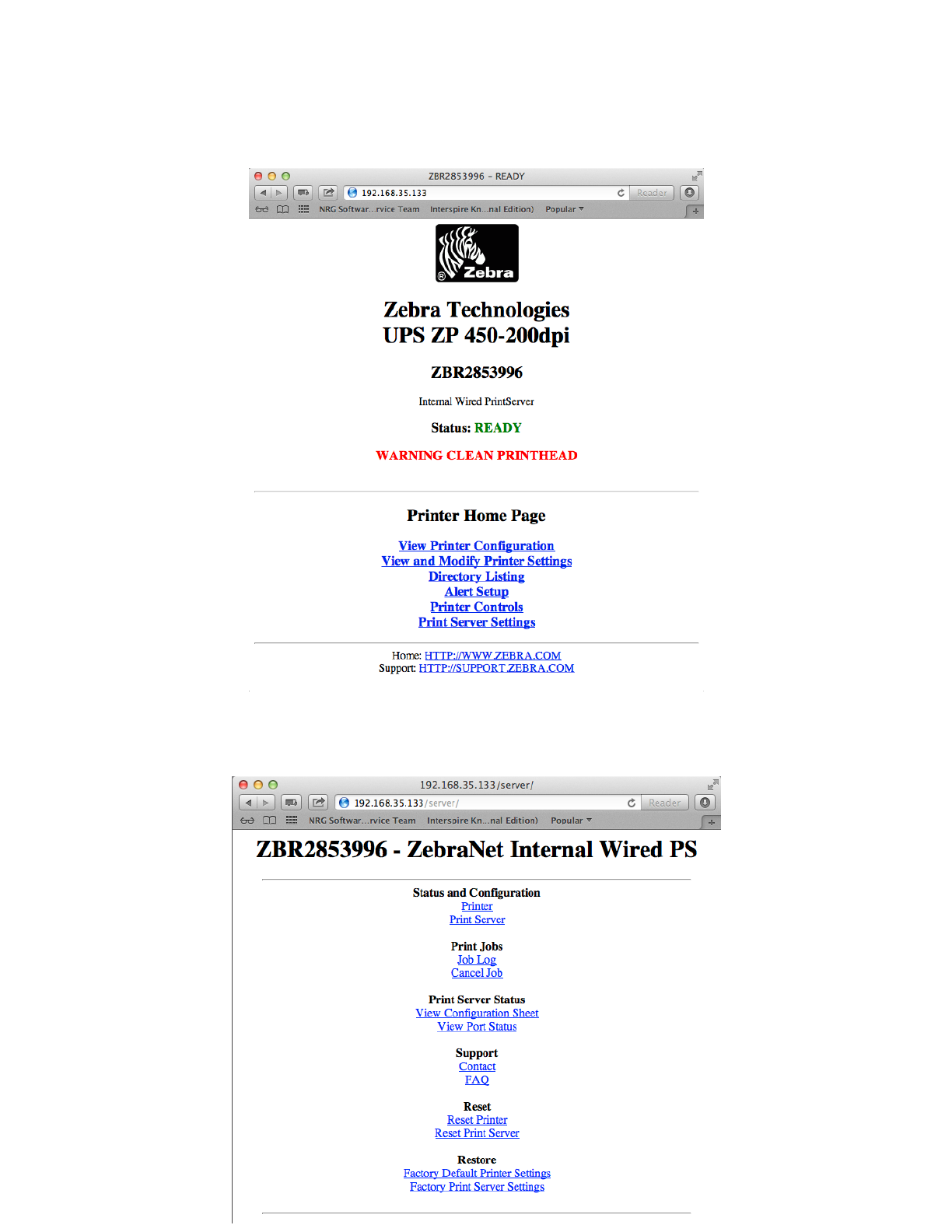
1. Open your web browser and enter the ip# of the remote device
2. Click on the “Print Server Settings” link
3. Click on the “Print Server” link and enter the username/password for the device
!a. The device default is typically Admin/Admin or admin/1234
How To Setup a ZebraNet Print Sever for Compatibility with NRGship Solutions
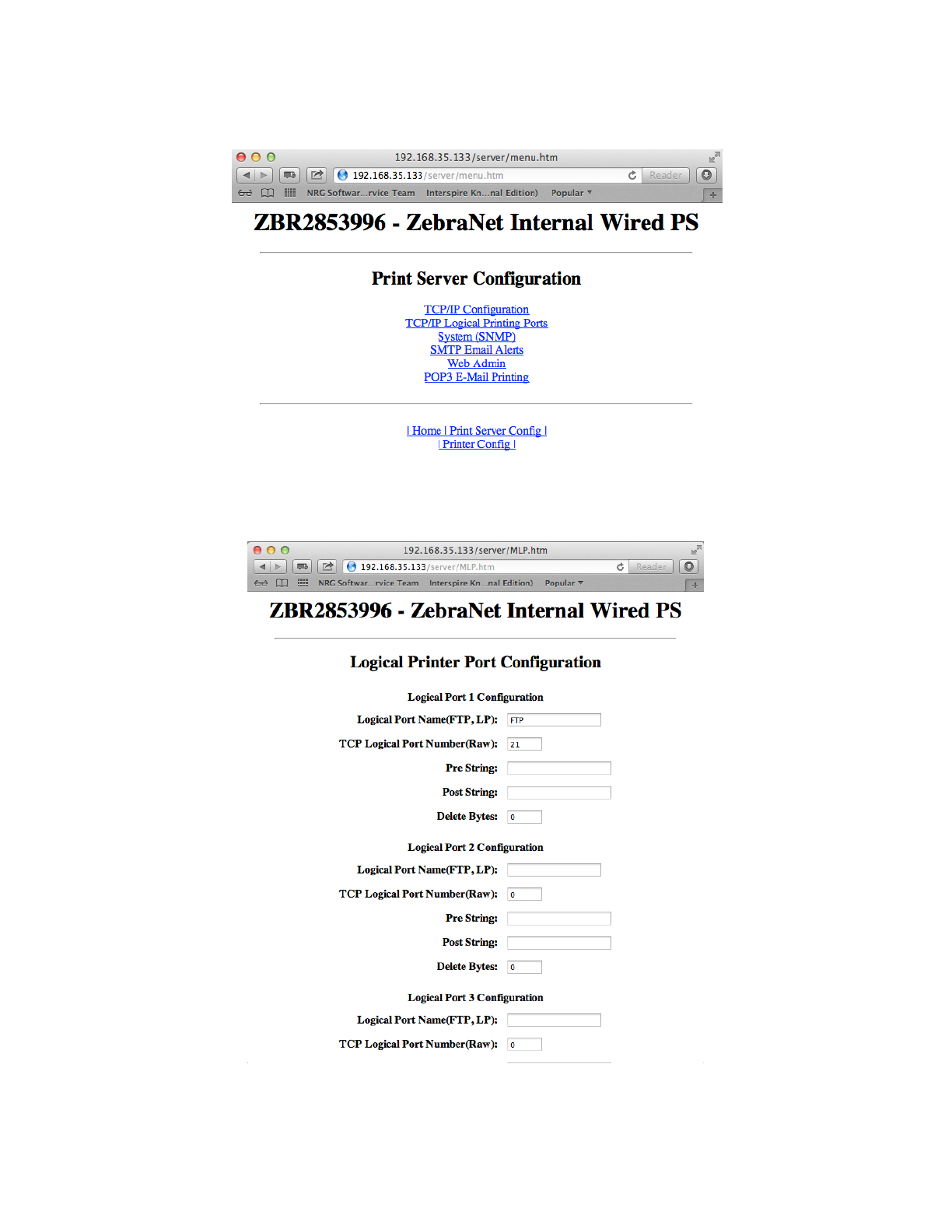
4. Click on the “TCP/IP Logical Printing Ports” link and add a settings for FTP
5. Enter FTP for the Logical Port name and 21 for the TCP Logical Port Number, if it is not already
present
How To Setup a ZebraNet Print Sever for Compatibility with NRGship Solutions
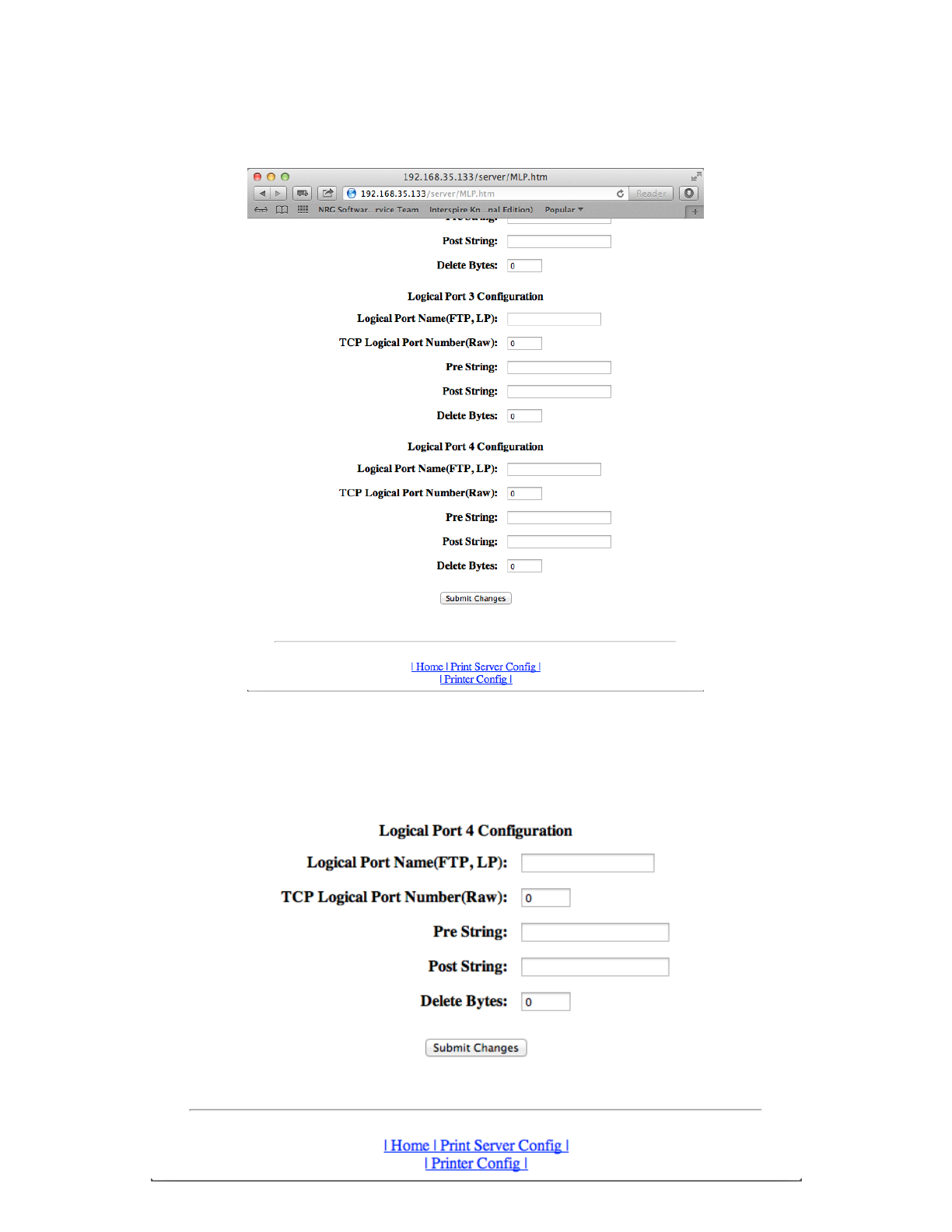
6. Scroll to the bottom of the page and click the “Submit Changes” button to save the
configuration changes
You will now need to setup the printer with a static IP Address, if you have not done so already
7. Click the Home Link at the bottom of the page
How To Setup a ZebraNet Print Sever for Compatibility with NRGship Solutions
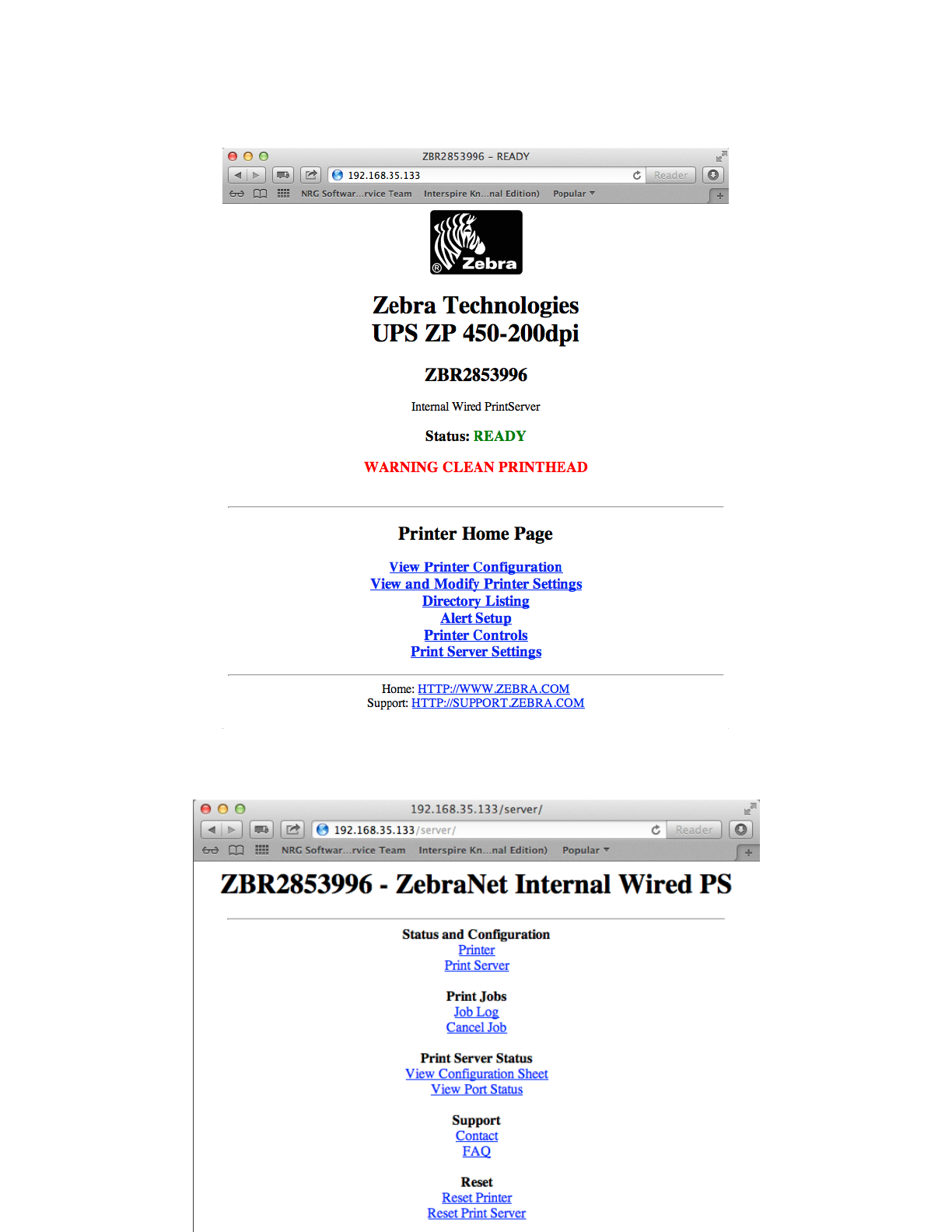
8. Click on the “Printer Server Settings” link
9. Click on the “Print Server” link
How To Setup a ZebraNet Print Sever for Compatibility with NRGship Solutions
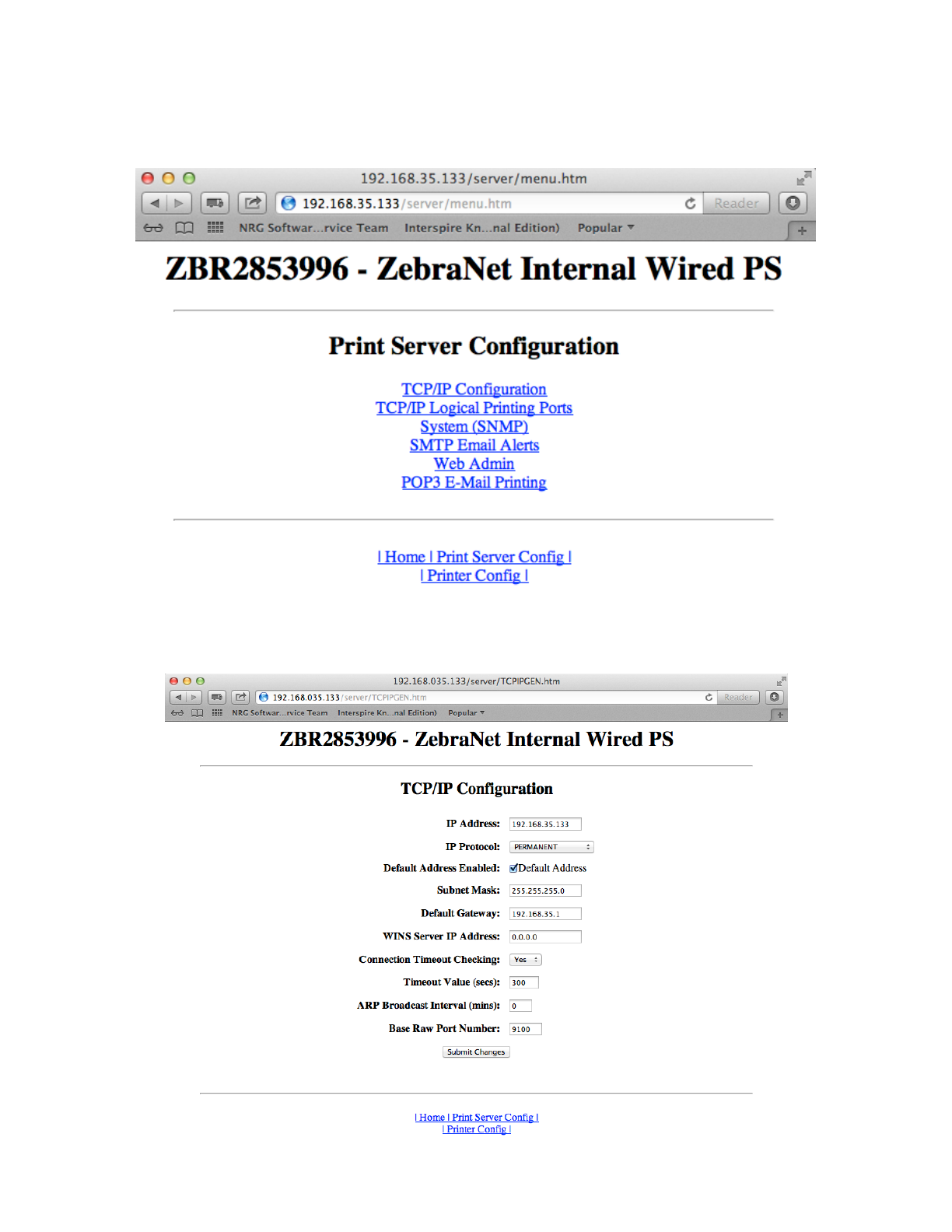
10. Click on the “TCP/IP Configuration” link
11. Enter the static IP# and adjust the IP Protocol value to PERMANENT
12. Press the “Submit Changes” button to save the confirmation change
How To Setup a ZebraNet Print Sever for Compatibility with NRGship Solutions
