Dongguan Jin wen hua digital technology F5 Bluetooth Speaker User Manual

Dongguan Jin wen hua digital technology Co., LTD. Bluetooth Speaker

User manual

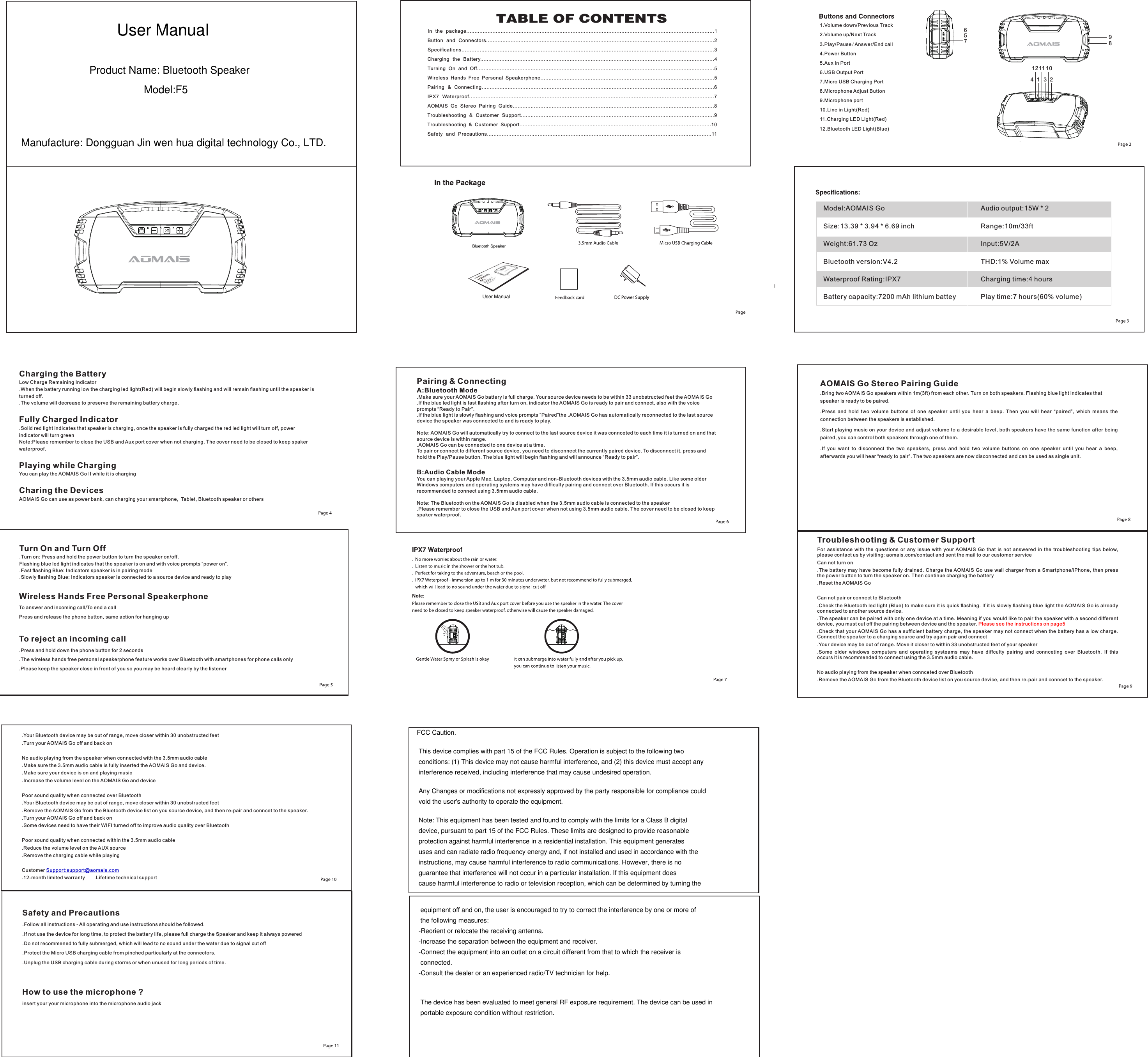
1 2341.Volume down/Previous Track2.Volume up/Next Track3.Play/Pause/Answer/End call4.Power Button5.Aux In Port6.USB Output Port7.Micro USB Charging Port8.Microphone Adjust Button9.Microphone port10.Line in Light(Red)11.Charging LED Light(Red)12.Bluetooth LED Light(Blue)567891211 10Model:AOMAIS GoSize:13.39 * 3.94 * 6.69 inchWeight:61.73 OzBluetooth version:V4.2Waterproof Rating:IPX7Battery capacity:7200 mAh lithium battey Audio output:15W * 2Range:10m/33ftInput:5V/2ATHD:1% Volume maxCharging time:4 hoursPlay time:7 hours(60% volume)Charging the BatteryLow Charge Remaining Indicator.When the battery running low the charging led light(Red) will begin slowly flashing and will remain flashing until the speaker is turned off. .The volume will decrease to preserve the remaining battery charge.Fully Charged Indicator.Solid red light indicates that speaker is charging, once the speaker is fully charged the red led light will turn off, power indicator will turn greenNote:Please remember to close the USB and Aux port cover when not charging. The cover need to be closed to keep spaker waterproof.Playing while ChargingYou can play the AOMAIS Go II while it is chargingCharing the DevicesAOMAIS Go can use as power bank, can charging your smartphone,  Tablet, Bluetooth speaker or othersTurn On and Turn Off.Turn on: Press and hold the power button to turn the speaker on/off. Flashing blue led light indicates that the speaker is on and with voice prompts “power on”..Fast flashing Blue: Indicators speaker is in pairing mode.Slowly flashing Blue: Indicators speaker is connected to a source device and ready to playPairing & ConnectingA:Bluetooth Mode.Make sure your AOMAIS Go battery is full charge. Your source device needs to be within 33 unobstructed feet the AOMAIS Go.If the blue led light is fast flashing after turn on, indicator the AOMAIS Go is ready to pair and connect, also with the voice prompts “Ready to Pair”..If the blue light is slowly flashing and voice prompts “Paired”the .AOMAIS Go has automatically reconnected to the last source device the speaker was connceted to and is ready to play.Note: AOMAIS Go will automatically try to connect to the last source device it was connceted to each time it is turned on and that source device is within range..AOMAIS Go can be connected to one device at a time.To pair or connect to different source device, you need to disconnect the currently paired device. To disconnect it, press and hold the Play/Pause button. The blue light will begin flashing and will announce “Ready to pair”.B:Audio Cable ModeYou can playing your Apple Mac, Laptop, Computer and non-Bluetooth devices with the 3.5mm audio cable. Like some older Windows computers and operating systems may have difficulty pairing and connect over Bluetooth. If this occurs it is recommended to connect using 3.5mm audio cable.Note: The Bluetooth on the AOMAIS Go is disabled when the 3.5mm audio cable is connected to the speaker.Please remember to close the USB and Aux port cover when not using 3.5mm audio cable. The cover need to be closed to keep spaker waterproof.Wireless Hands Free Personal SpeakerphoneTo answer and incoming call/To end a callPress and release the phone button, same action for hanging upTo reject an incoming call.Press and hold down the phone button for 2 seconds.The wireless hands free personal speakerphone feature works over Bluetooth with smartphones for phone calls only.Please keep the speaker close in front of you so you may be heard clearly by the listenerAOMAIS Go Stereo Pairing Guide.Bring two AOMAIS Go speakers within 1m(3ft) from each other. Turn on both speakers. Flashing blue light indicates that speaker is ready to be paired. .Press  and  hold  two  volume  buttons  of  one  speaker  until  you  hear  a  beep.  Then  you  will  hear  “paired”,  which  means  the connection between the speakers is established..Start playing music on your device and adjust volume to a desirable level, both speakers have the same function after being paired, you can control both speakers through one of them..If  you  want  to  disconnect  the  two  speakers,  press  and  hold  two  volume  buttons  on  one  speaker  until  you  hear  a  beep, afterwards you will hear “ready to pair”. The two speakers are now disconnected and can be used as single unit..Your Bluetooth device may be out of range, move closer within 30 unobstructed feet.Turn your AOMAIS Go off and back onNo audio playing from the speaker when connected with the 3.5mm audio cable.Make sure the 3.5mm audio cable is fully inserted the AOMAIS Go and device. .Make sure your device is on and playing music.Increase the volume level on the AOMAIS Go and devicePoor sound quality when connected over Bluetooth.Your Bluetooth device may be out of range, move closer within 30 unobstructed feet.Remove the AOMAIS Go from the Bluetooth device list on you source device, and then re-pair and conncet to the speaker..Turn your AOMAIS Go off and back on.Some devices need to have their WIFI turned off to improve audio quality over BluetoothPoor sound quality when connected within the 3.5mm audio cable.Reduce the volume level on the AUX source.Remove the charging cable while playingCustomer Support:support@aomais.com.12-month limited warranty       .Lifetime technical supportTroubleshooting & Customer SupportFor  assistance  with  the  questions  or  any  issue  with  your  AOMAIS  Go  that  is  not  answered  in  the  troubleshooting  tips  below, please contact us by visiting: aomais.com/contact and sent the mail to our customer serviceCan not turn on.The battery may have become  fully drained. Charge  the AOMAIS Go  use wall charger  from a Smartphone/iPhone,  then press the power button to turn the speaker on. Then continue charging the battery.Reset the AOMAIS GoCan not pair or connect to Bluetooth.Check the Bluetooth led light (Blue) to make sure it is quick flashing. If it is slowly flashing blue light the AOMAIS Go is already connected to another source device..The speaker can be paired with only one device at a time. Meaning if you would like to pair the speaker with a second different device, you must cut off the pairing between device and the speaker. Please see the instructions on page5.Check that your AOMAIS Go has a sufficient  battery charge, the speaker may  not connect when the battery  has a low charge. Connect the speaker to a charging source and try again pair and connect.Your device may be out of range. Move it closer to within 33 unobstructed feet of your speaker.Some  older  windows  computers  and  operating  systeams  may  have  diffculty  pairing  and  connceting  over  Bluetooth.  If  this occurs it is recommended to connect using the 3.5mm audio cable.No audio playing from the speaker when connceted over Bluetooth.Remove the AOMAIS Go from the Bluetooth device list on you source device, and then re-pair and conncet to the speaker.Safety and Precautions.Follow all instructions - All operating and use instructions should be followed..If not use the device for long time, to protect the battery life, please full charge the Speaker and keep it always powered.Do not recommened to fully submerged, which will lead to no sound under the water due to signal cut off.Protect the Micro USB charging cable from pinched particularly at the connectors..Unplug the USB charging cable during storms or when unused for long periods of time.How to use the microphone ?insert your your microphone into the microphone audio jack In  the  package........................................................................................................................................................1Button  and  Connectors............................................................................................................................................2Specifications.........................................................................................................................................................3Charging  the  Battery................................................................................................................................................4Turning  On  and  Off..................................................................................................................................................5Wireless  Hands  Free  Personal  Speakerphone...........................................................................................................5Pairing  &  Connecting...............................................................................................................................................6IPX7  Waterproof.....................................................................................................................................................7AOMAIS  Go  Stereo  Pairing  Guide............................................................................................................................8Troubleshooting  &  Customer  Support.......................................................................................................................9Troubleshooting  &  Customer  Support......................................................................................................................10Safety  and  Precautions.........................................................................................................................................11DC Power SupplyUser ManualProduct Name: Bluetooth SpeakerModel:F5Manufacture: Dongguan Jin wen hua digital technology Co., LTD.User ManualFCC Caution. This device complies with part 15 of the FCC Rules. Operation is subject to the following two  conditions: (1) This device may not cause harmful interference, and (2) this device must accept any interference received, including interference that may cause undesired operation. Any Changes or modifications not expressly approved by the party responsible for compliance could void the user's authority to operate the equipment. Note: This equipment has been tested and found to comply with the limits for a Class B digital device, pursuant to part 15 of the FCC Rules. These limits are designed to provide reasonable protection against harmful interference in a residential installation. This equipment generates uses and can radiate radio frequency energy and, if not installed and used in accordance with the instructions, may cause harmful interference to radio communications. However, there is no guarantee that interference will not occur in a particular installation. If this equipment does cause harmful interference to radio or television reception, which can be determined by turning the equipment off and on, the user is encouraged to try to correct the interference by one or more of the following measures:-Reorient or relocate the receiving antenna.-Increase the separation between the equipment and receiver.-Connect the equipment into an outlet on a circuit different from that to which the receiver is connected.-Consult the dealer or an experienced radio/TV technician for help.  The device has been evaluated to meet general RF exposure requirement. The device can be used in portable exposure condition without restriction.    Bluetooth Speaker

Navigation menu