Dragino Technology MS14HEV Wireless Sensor Node / ATA User Manual

Dragino Technology Co., Limited. Wireless Sensor Node / ATA

User Manual

   www.dragino.com DT01 WiFi/3G VoIP PBX / ATA User Manual     1 / 23            DT01 WiFi/3G VoIP PBX / ATA User Manual Document Version: 1.0   Firmware Version: v1.3.5  Version Description Date 1.0 Initiate 2015-Feb-26
   www.dragino.com DT01 WiFi/3G VoIP PBX / ATA User Manual     2 / 23  Index: 1 Introduction ....................................................................................................... 3 1.1 What is DT01 ............................................................................................ 3 1.2 Specifications ........................................................................................... 3 1.3 Features ................................................................................................... 3 1.4 Operation Temperature ............................................................................ 4 2 Access DT01........................................................................................................ 5 2.1 Overview .................................................................................................. 5 2.2 Find the ip addresses ................................................................................ 5 2.3 Configure Method .................................................................................... 6 2.3.1 Access via browser ......................................................................... 6 2.3.2 Access via SSH ................................................................................ 6 3 Typical Network Setup ........................................................................................ 7 3.1 Connect Internet via WAN port ................................................................. 7 3.2 Connect Internet via WiFi Client mode ..................................................... 8 3.3 Connect Internet via USB dongle, 3G/4G/GPRS......................................... 9 3.4 Set up WiFi mesh network ...................................................................... 11 3.4.1 Mesh Gateway Set Up via Web UI ................................................. 11 3.4.2 Mesh Client Set Up via Web UI ..................................................... 12 4 VoIP Settings ..................................................................................................... 13 4.1 Overview ................................................................................................ 13 4.2 General Settings ..................................................................................... 13 4.3 VoIP Server Settings ................................................................................ 14 4.4 VoIP Clients ............................................................................................ 15 4.5 Dial Plan ................................................................................................. 16 5 VoIP Set up example: ........................................................................................ 18 5.1 Configure as SIP ATA ............................................................................... 18 5.2 Configure as SIP server ........................................................................... 19 5.3 Link two DT01s via IAX2 protocol. ........................................................... 20 6 Upgrade Firmware ............................................................................................ 21 7 FAQ ...................................................................................................................  22 7.1 How to get long distance WiFi range? ..................................................... 22 7.2 How to reset DT01 to factory default? .................................................... 22 7.3 How to recover DT01 if firmware crash? ................................................. 22 8 Reference ......................................................................................................... 23
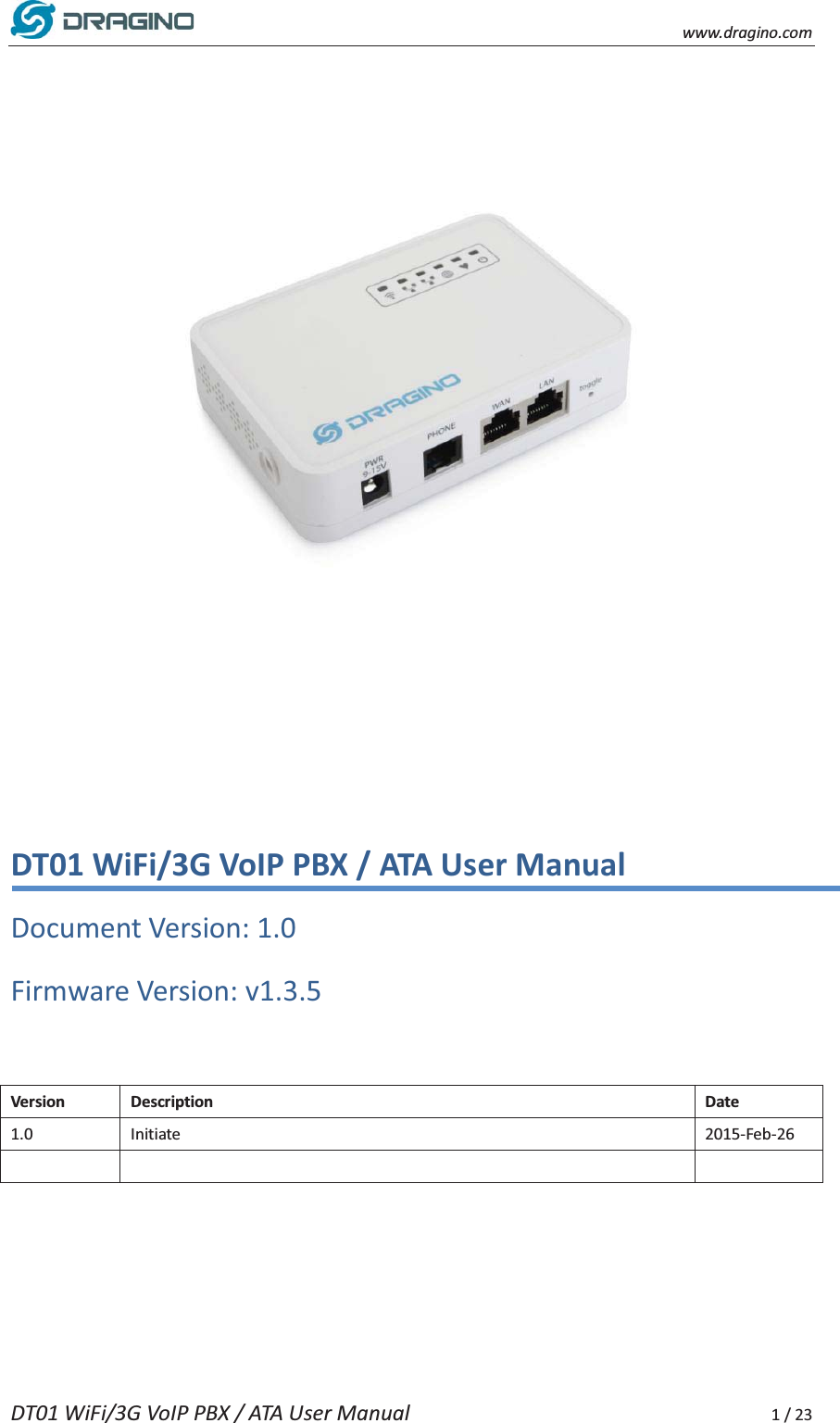
   www.dragino.com DT01 WiFi/3G VoIP PBX / ATA User Manual     3 / 23 1 Introduction 1.1 What is DT01  The DT01 is an Open Source appliance designed for VoIP application. DT01 has built-in Asterisk software and have a FXS port to connect normal phone. DT01 has a friendly Web UI, user can configure the DT01 to work as a VoIP ATA or PBX through the web browser easily.    DT01 has two RJ45 port, a WiFi 802.11 b/g/n interface and a USB port host port to provide flexible network connection via LAN cable/ wifi or 3G/4G network.    DT01 is fully open source, user can modify the inside Linux system or compile a firmware for their customized applications.    The goal for DT01 is to fulfill VoIP requirement on dedicate application or installations.     1.2 Specifications Hardware System: ¾ Processor: 400MHz, 24K MIPS ¾ 64MB RAM   ¾ 16MB Flash   ¾ DC Input: 9 ~ 12v or 5V      Interface: ¾ 1 x FXS port ¾ 2 x RJ45 ports   ¾ USB 2.0 Host port to connect 3G dongle or USB flash  WiFi Spec: ¾ IEEE 802.11b/g/n   ¾ Frenquency Band: 2.4 ~ 2.462GHz   ¾ Chip Antenna or External antenna  1.3 Features 9 Open Source OpenWrt system 9 Asterisk 1.8.10 9 Support SIP / IAX2 server/client. 9 Support multiply SIP / IAX2 entries   9 Easy configure SIP/IAX2/dial-plan in Web UI 9 Managed by Web GUI or SSH 9 Firmware upgrade via Web
   www.dragino.com DT01 WiFi/3G VoIP PBX / ATA User Manual     4 / 23 9 Support WiFi AP, Client or Ad-Hoc(Mesh) mode   9 Optional external antenna for long distance connection 9 Support USB dongle for 3G/4G dial up 9 Support USB flash for extend storage 1.4 Operation Temperature 9 Operation Temperature: -25ć ~ 65ć 9 Storage Temperature: -40ć ~ 85ć
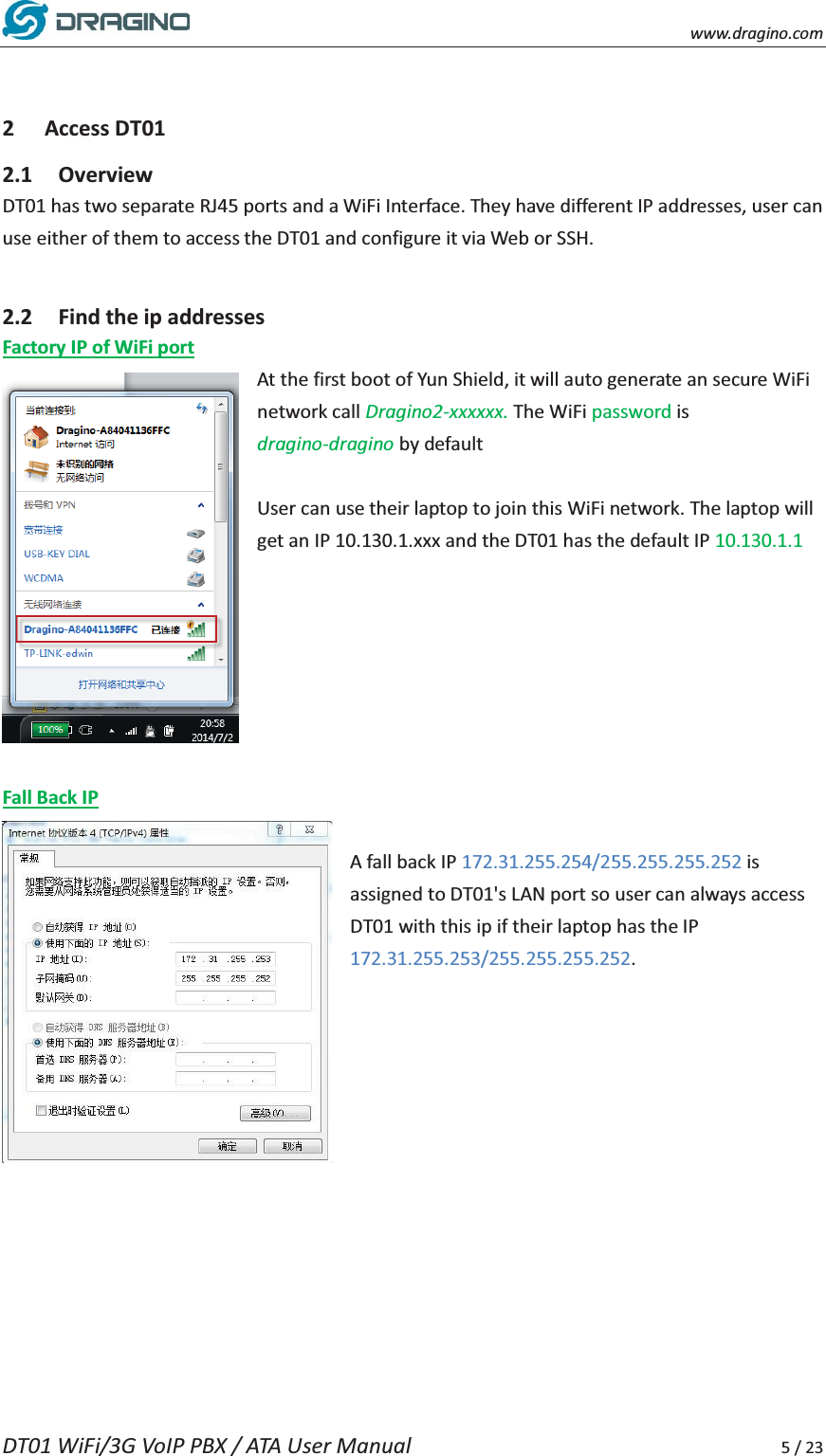
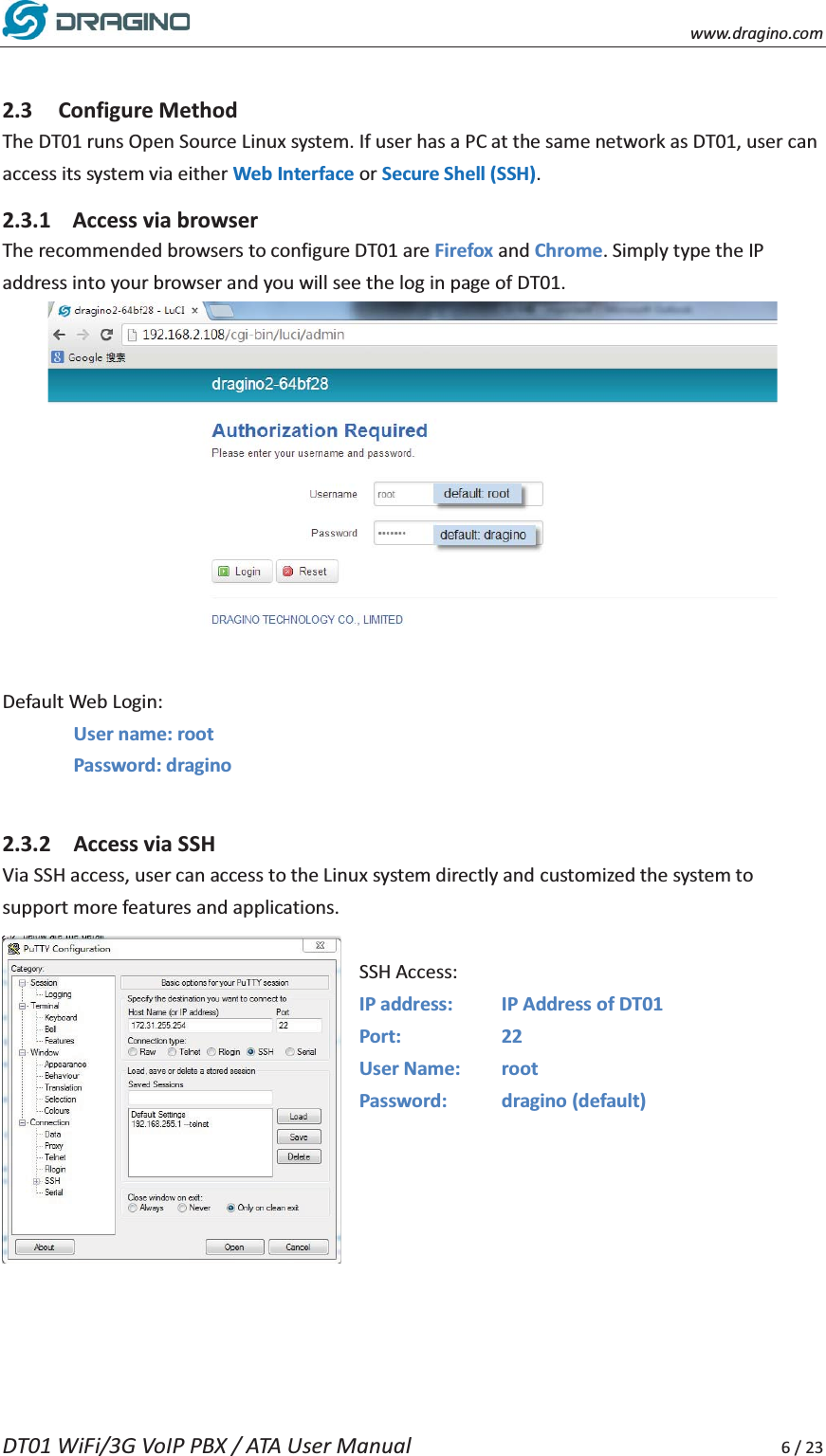
   www.dragino.com DT01 WiFi/3G VoIP PBX / ATA User Manual     5 / 23   2 Access DT01 2.1 Overview DT01 has two separate RJ45 ports and a WiFi Interface. They have different IP addresses, user can use either of them to access the DT01 and configure it via Web or SSH.      2.2 Find the ip addresses Factory IP of WiFi port At the first boot of Yun Shield, it will auto generate an secure WiFi network call Dragino2-xxxxxx. The WiFi password is dragino-dragino by default    User can use their laptop to join this WiFi network. The laptop will get an IP 10.130.1.xxx and the DT01 has the default IP 10.130.1.1        Fall Back IP  A fall back IP 172.31.255.254/255.255.255.252 is assigned to DT01's LAN port so user can always access DT01 with this ip if their laptop has the IP 172.31.255.253/255.255.255.252.
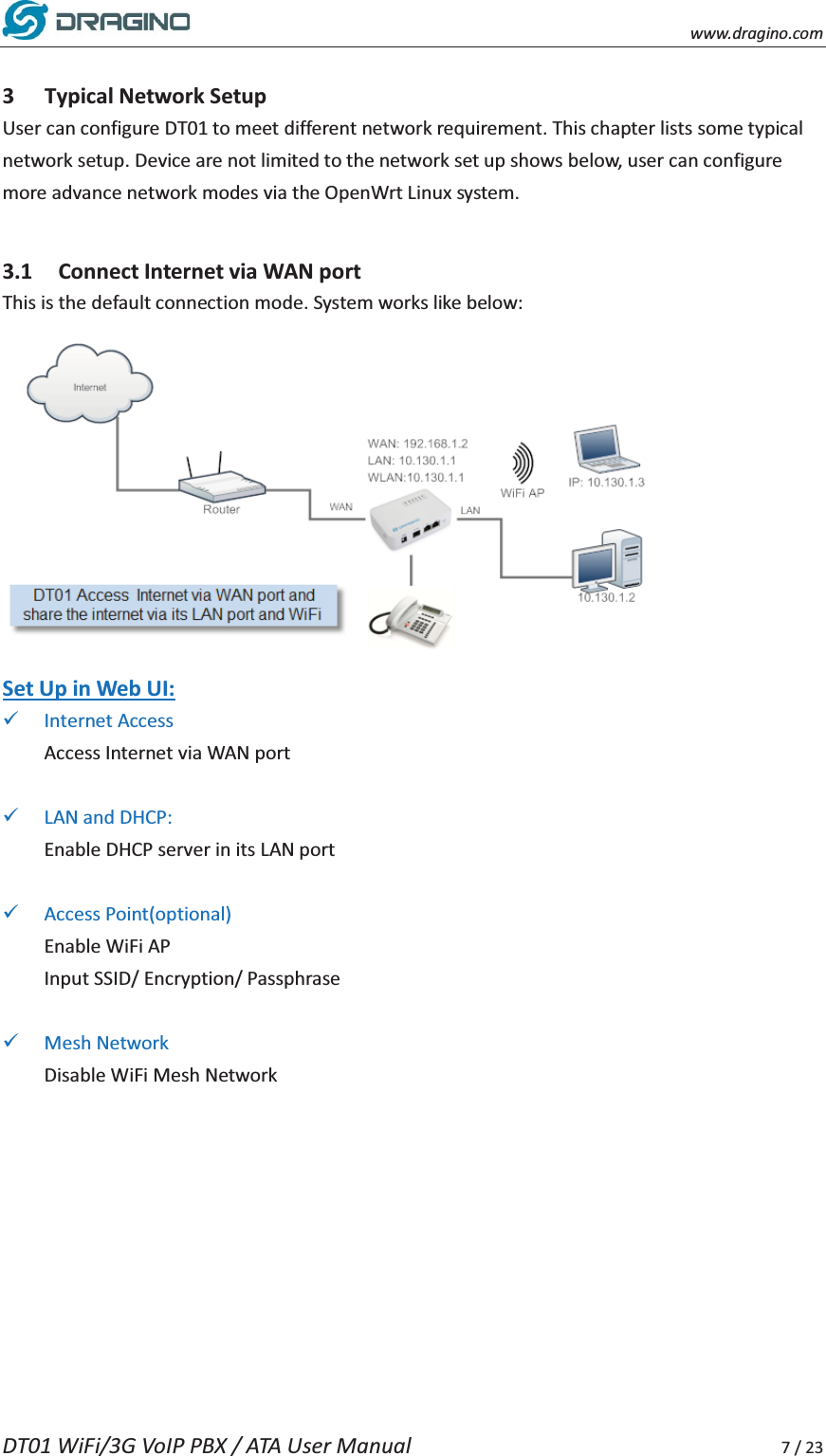
   www.dragino.com DT01 WiFi/3G VoIP PBX / ATA User Manual     6 / 23  2.3 Configure Method The DT01 runs Open Source Linux system. If user has a PC at the same network as DT01, user can access its system via either Web Interface or Secure Shell (SSH). 2.3.1 Access via browser   The recommended browsers to configure DT01 are Firefox and Chrome. Simply type the IP address into your browser and you will see the log in page of DT01.     Default Web Login: User name: root   Password: dragino   2.3.2 Access via SSH   Via SSH access, user can access to the Linux system directly and customized the system to support more features and applications.    SSH Access: IP address:    IP Address of DT01 Port:   22 User Name:  root Password: dragino (default)
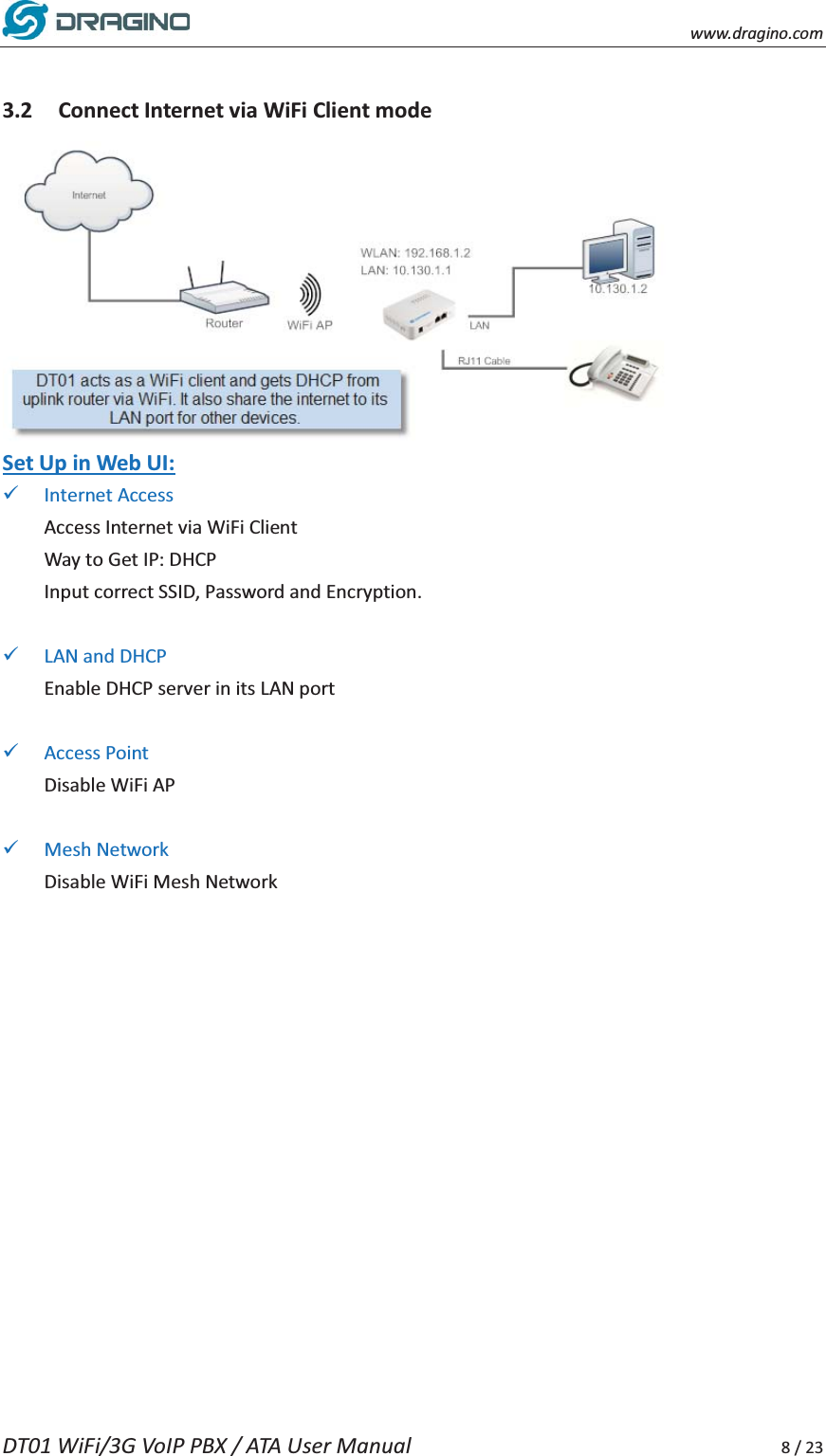
   www.dragino.com DT01 WiFi/3G VoIP PBX / ATA User Manual     7 / 23  3 Typical Network Setup User can configure DT01 to meet different network requirement. This chapter lists some typical network setup. Device are not limited to the network set up shows below, user can configure more advance network modes via the OpenWrt Linux system.    3.1 Connect Internet via WAN port This is the default connection mode. System works like below:  Set Up in Web UI: 9 Internet Access Access Internet via WAN port  9 LAN and DHCP: Enable DHCP server in its LAN port  9 Access Point(optional) Enable WiFi AP Input SSID/ Encryption/ Passphrase  9 Mesh Network Disable WiFi Mesh Network
   www.dragino.com DT01 WiFi/3G VoIP PBX / ATA User Manual     8 / 23  3.2 Connect Internet via WiFi Client mode  Set Up in Web UI: 9 Internet Access Access Internet via WiFi Client Way to Get IP: DHCP Input correct SSID, Password and Encryption.  9 LAN and DHCP Enable DHCP server in its LAN port  9 Access Point Disable WiFi AP  9 Mesh Network Disable WiFi Mesh Network
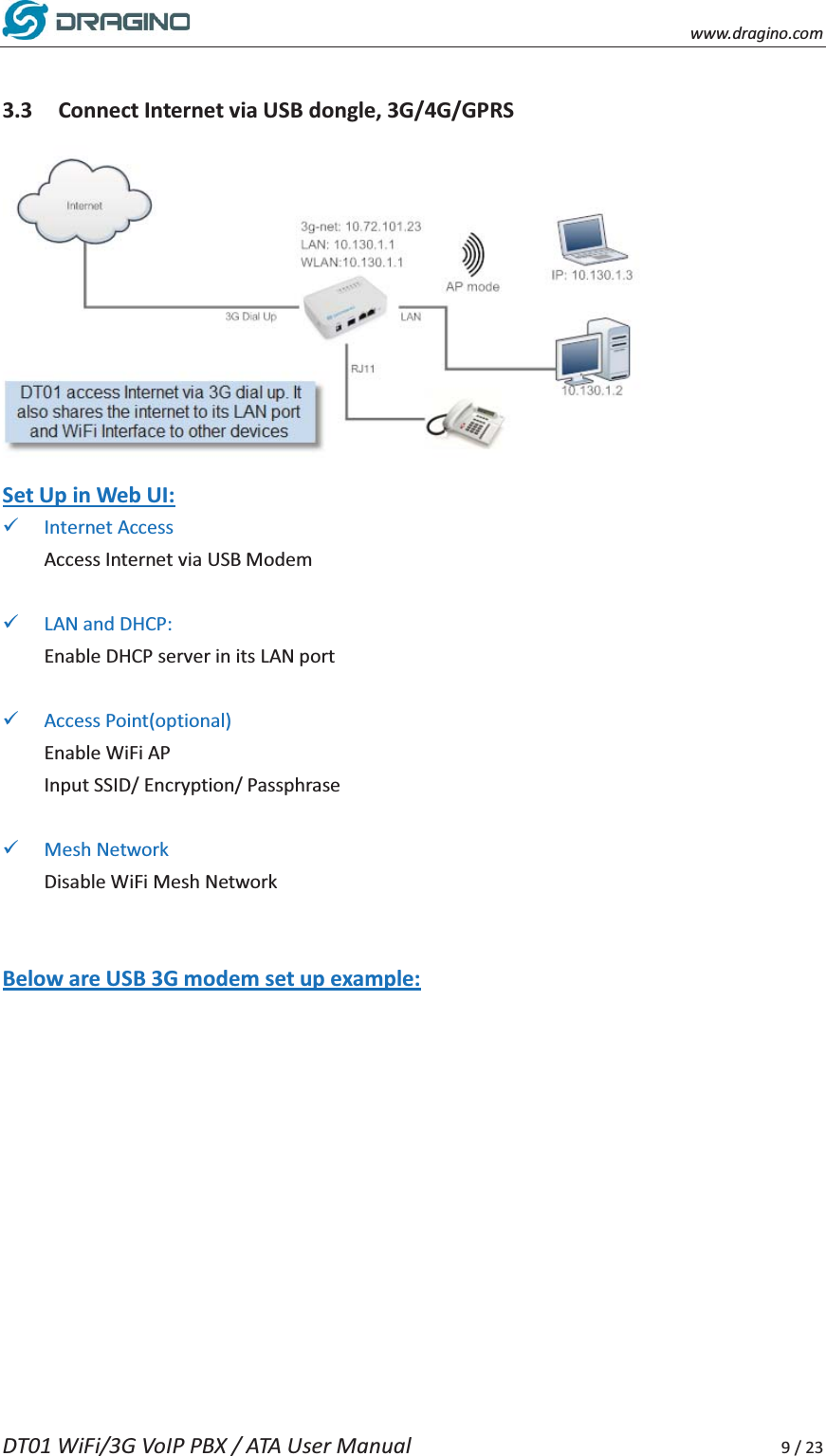
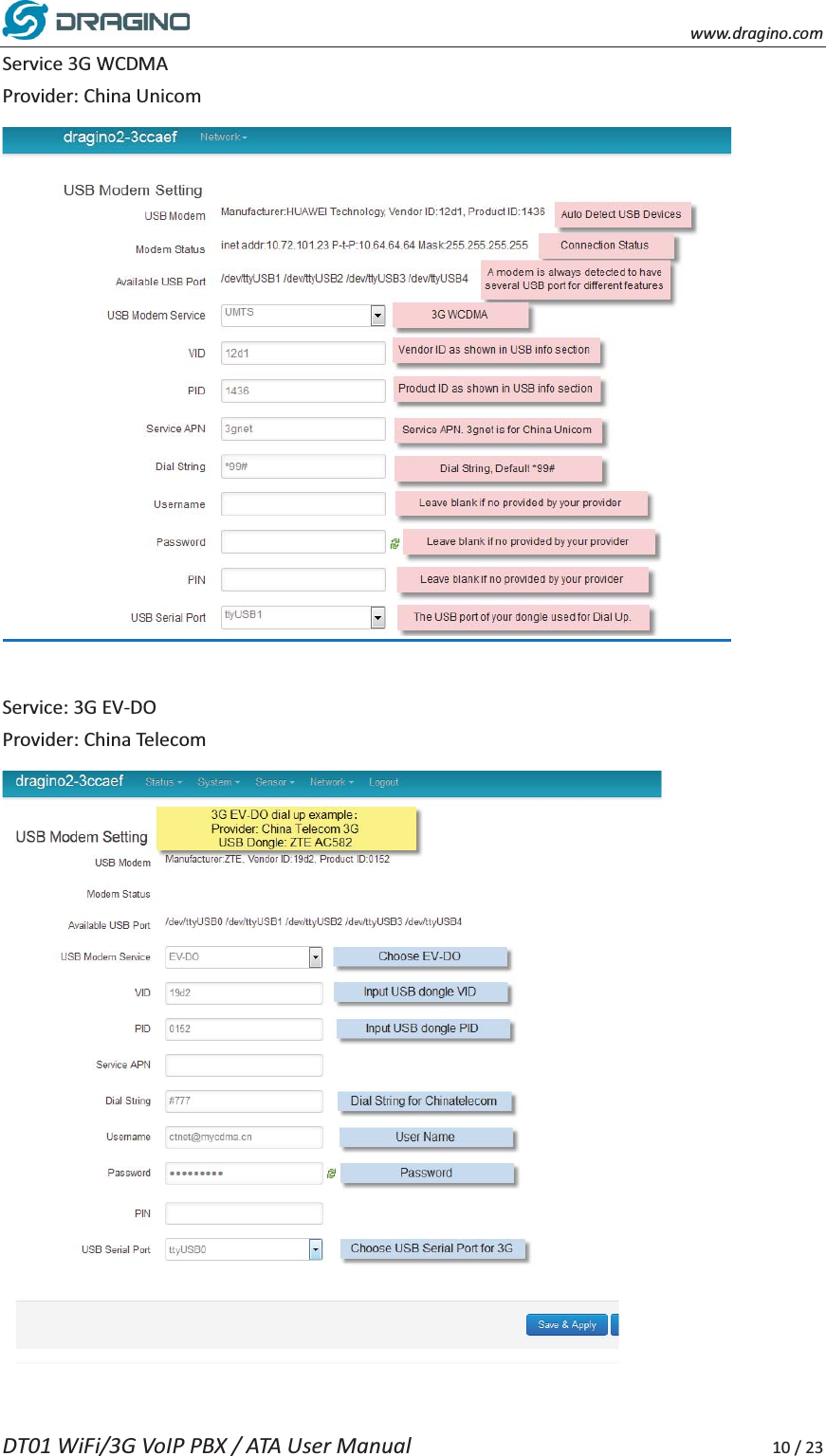
   www.dragino.com DT01 WiFi/3G VoIP PBX / ATA User Manual     9 / 23  3.3 Connect Internet via USB dongle, 3G/4G/GPRS  Set Up in Web UI: 9 Internet Access Access Internet via USB Modem  9 LAN and DHCP: Enable DHCP server in its LAN port  9 Access Point(optional) Enable WiFi AP Input SSID/ Encryption/ Passphrase  9 Mesh Network Disable WiFi Mesh Network   Below are USB 3G modem set up example:
   www.dragino.com DT01 WiFi/3G VoIP PBX / ATA User Manual     10 / 23 Service 3G WCDMA   Provider: China Unicom   Service: 3G EV-DO Provider: China Telecom
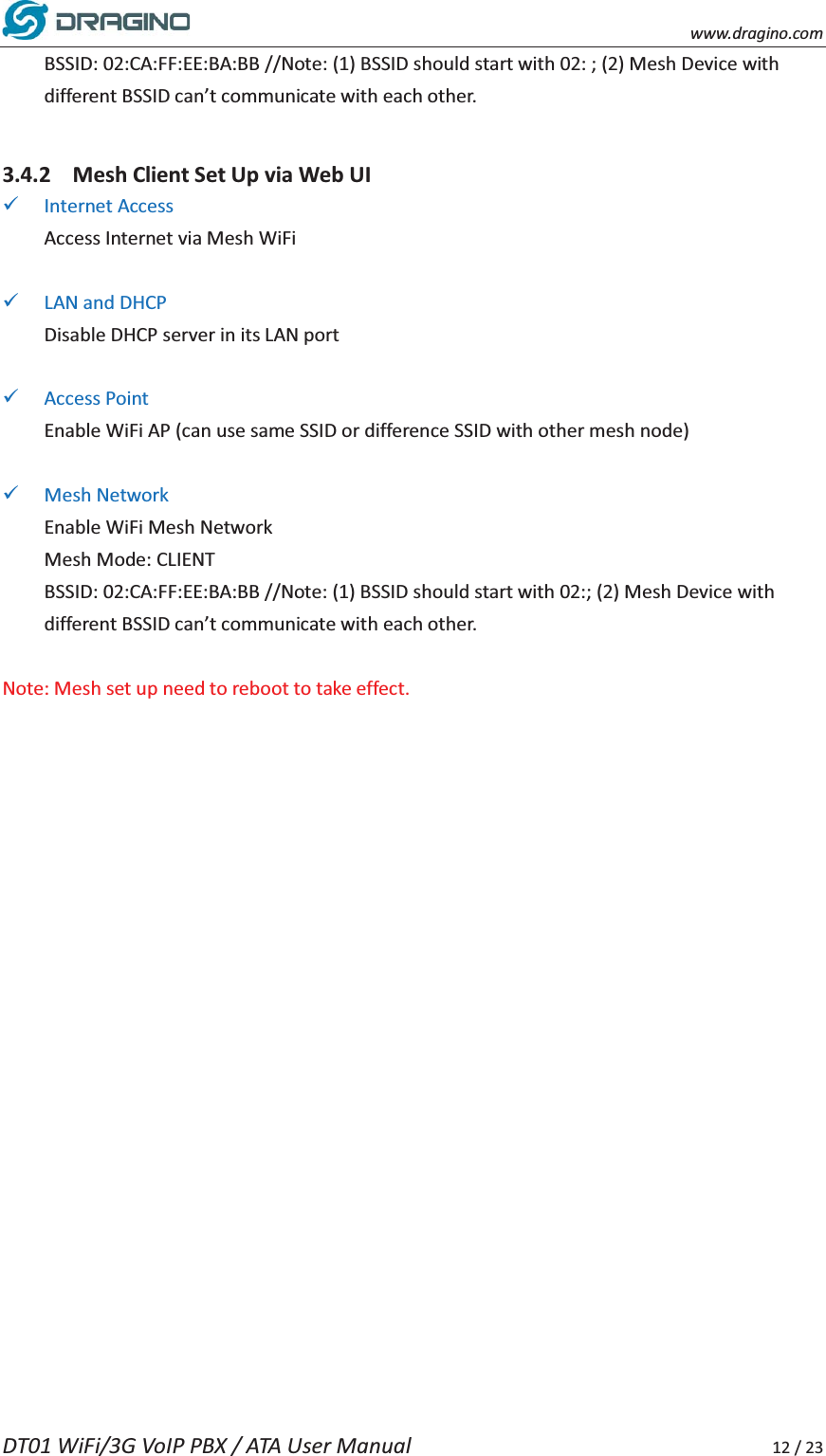
   www.dragino.com DT01 WiFi/3G VoIP PBX / ATA User Manual     11 / 23  3.4 Set up WiFi mesh network  Brief: in this network topology, user should choose the device to be a mesh gateway node or mesh client node 9 Mesh Gateway: use WAN port or USB 3G to get internet access from uplink router. It also shares the internet to its Mesh Network for other Mesh Clients. The Mesh Gateway also acts as a DHCP router for its mesh network. 9 Mesh Client: Connects to the Mesh Gateway via mesh WiFi, it also bridge internet via the LAN and WiFi AP interface.  A mesh network with DT01.     3.4.1 Mesh Gateway Set Up via Web UI 9 Internet Access Access Internet via WAN port or USB Modem  9 LAN and DHCP Enable DHCP server in its LAN port  9 Access Point Enable WiFi AP  9 Mesh Network Enable WiFi Mesh Network Mesh Mode: SERVER
   www.dragino.com DT01 WiFi/3G VoIP PBX / ATA User Manual     12 / 23 BSSID: 02:CA:FF:EE:BA:BB //Note: (1) BSSID should start with 02: ; (2) Mesh Device with different BSSID can’t communicate with each other.  3.4.2 Mesh Client Set Up via Web UI 9 Internet Access Access Internet via Mesh WiFi  9 LAN and DHCP Disable DHCP server in its LAN port  9 Access Point Enable WiFi AP (can use same SSID or difference SSID with other mesh node)  9 Mesh Network Enable WiFi Mesh Network Mesh Mode: CLIENT BSSID: 02:CA:FF:EE:BA:BB //Note: (1) BSSID should start with 02:; (2) Mesh Device with different BSSID can’t communicate with each other.  Note: Mesh set up need to reboot to take effect.
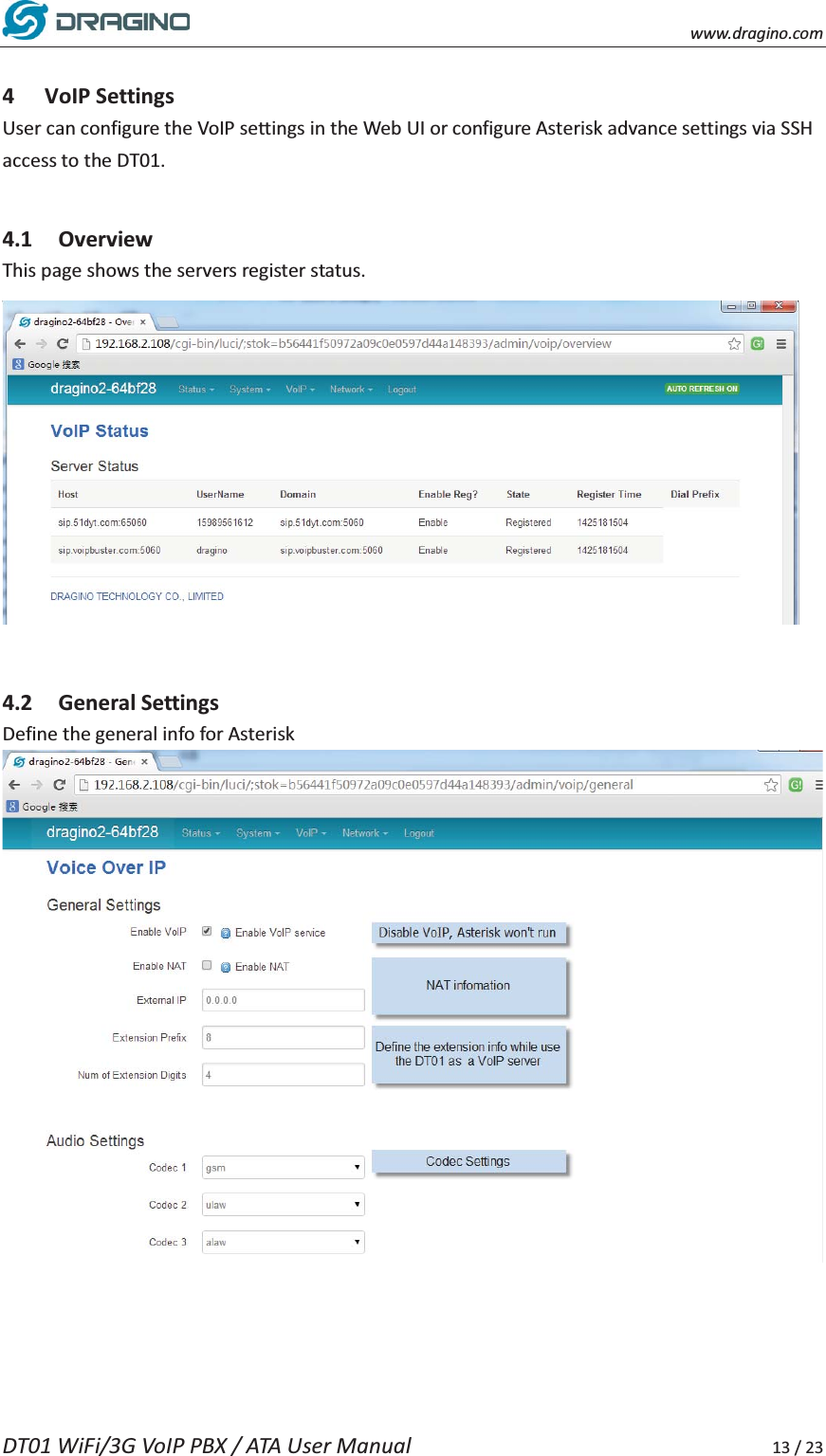
   www.dragino.com DT01 WiFi/3G VoIP PBX / ATA User Manual     13 / 23  4 VoIP Settings User can configure the VoIP settings in the Web UI or configure Asterisk advance settings via SSH access to the DT01.    4.1 Overview This page shows the servers register status.   4.2 General Settings Define the general info for Asterisk
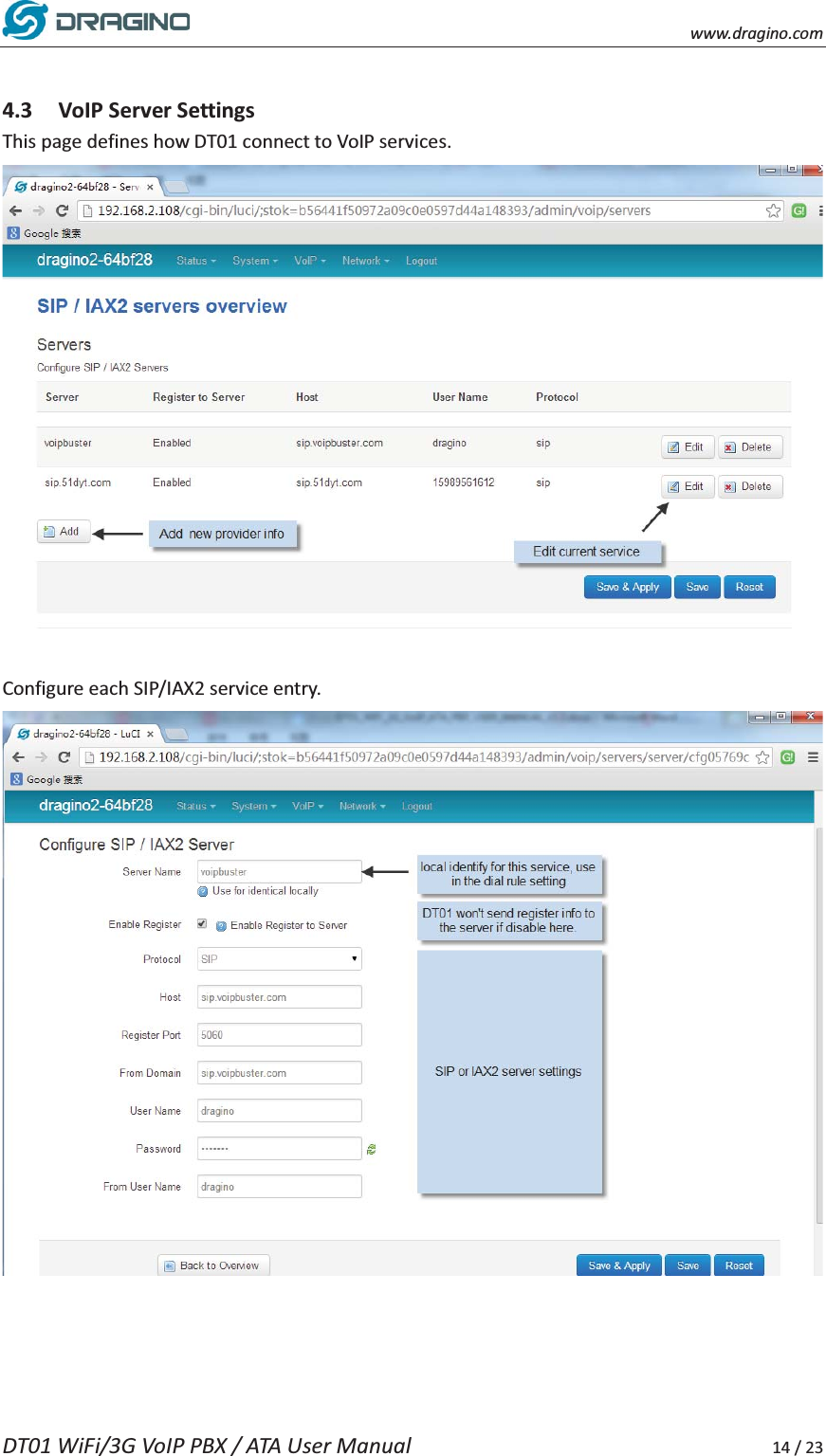
   www.dragino.com DT01 WiFi/3G VoIP PBX / ATA User Manual     14 / 23  4.3 VoIP Server Settings This page defines how DT01 connect to VoIP services.     Configure each SIP/IAX2 service entry.
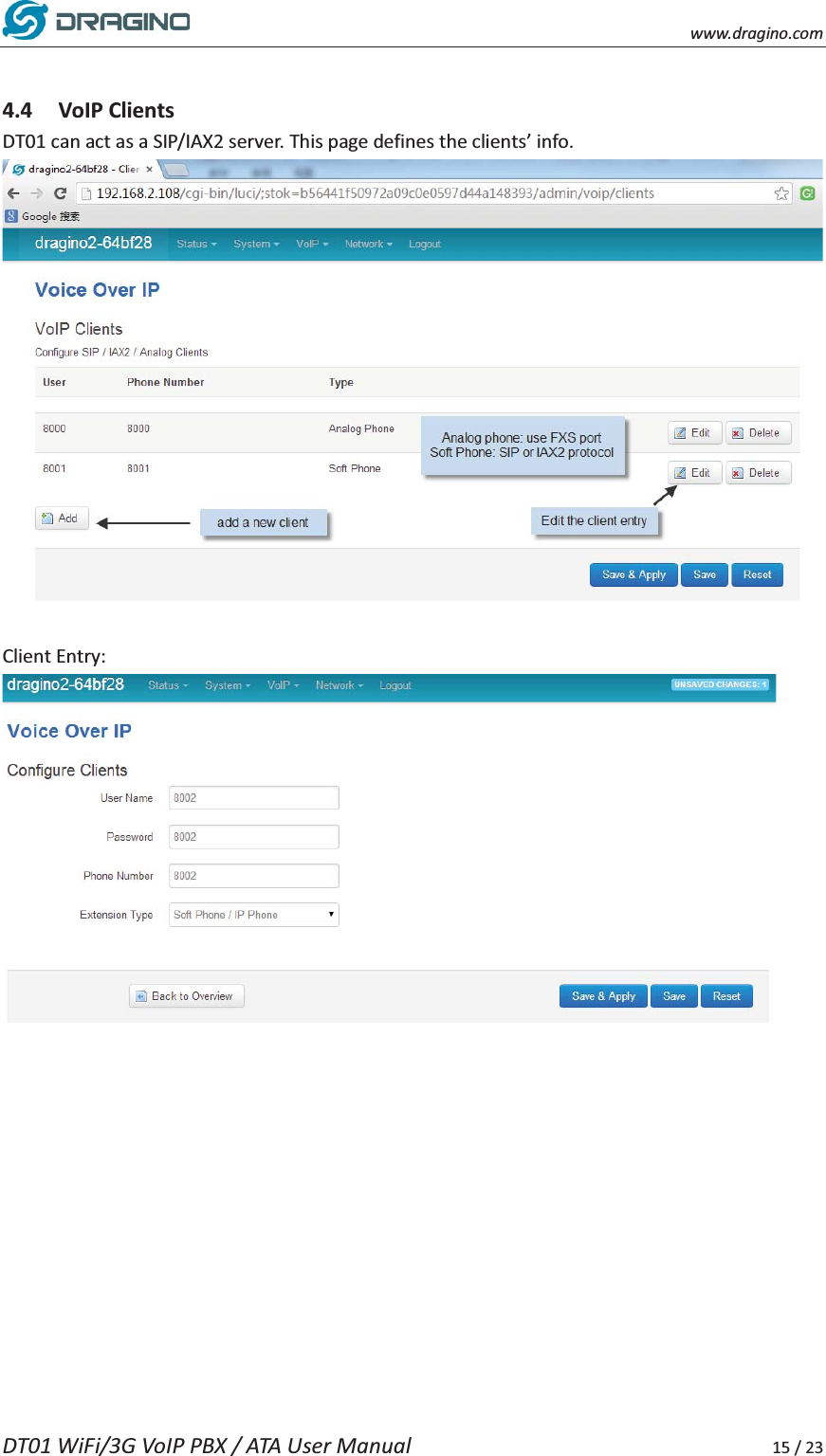
   www.dragino.com DT01 WiFi/3G VoIP PBX / ATA User Manual     15 / 23  4.4 VoIP Clients DT01 can act as a SIP/IAX2 server. This page defines the clients’ info.     Client Entry:
   www.dragino.com DT01 WiFi/3G VoIP PBX / ATA User Manual     16 / 23  4.5 Dial Plan Here configure how to make calls via the service provide.      Definition of dial rule entry: ¾ Match Pattern: Define what number will use this dial rule. Same the extension pattern defined in Asterisk, it can be a complete number or a pattern.   If extension name starts with '_', it is consider as pattern.   When use the pattern, some characters have special meaning:   - X - any digit from 0-9 - Z - any digit from 1-9 - N - any digit from 2-9 - [12679] - any digit in the brakets (in the example: 1,2,6,7,9) - . - (dot) wildcard, matches everything remaining
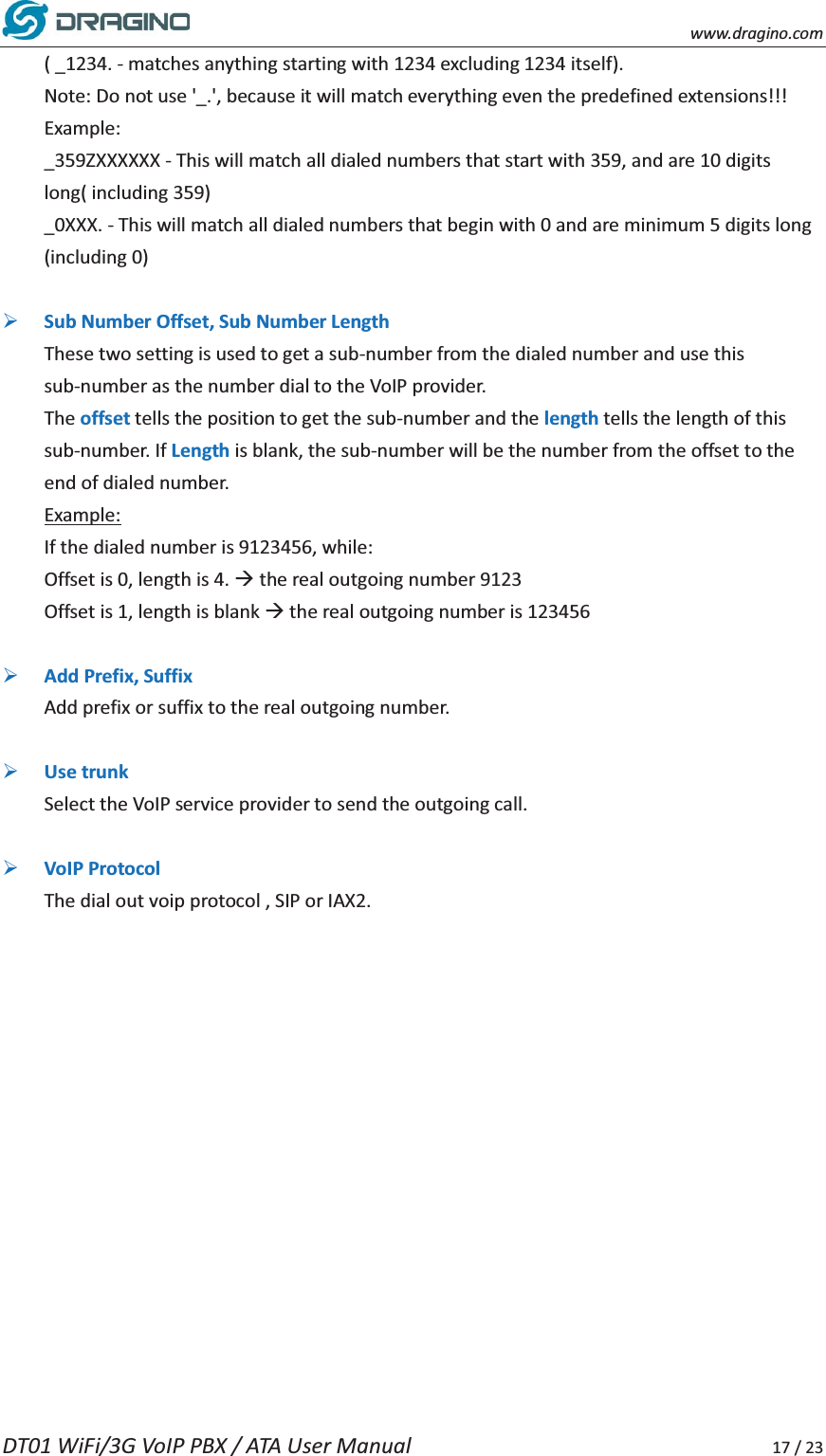
   www.dragino.com DT01 WiFi/3G VoIP PBX / ATA User Manual     17 / 23 ( _1234. - matches anything starting with 1234 excluding 1234 itself). Note: Do not use '_.', because it will match everything even the predefined extensions!!! Example: _359ZXXXXXX - This will match all dialed numbers that start with 359, and are 10 digits long( including 359) _0XXX. - This will match all dialed numbers that begin with 0 and are minimum 5 digits long (including 0)  ¾ Sub Number Offset, Sub Number Length These two setting is used to get a sub-number from the dialed number and use this sub-number as the number dial to the VoIP provider.   The offset tells the position to get the sub-number and the length tells the length of this sub-number. If Length is blank, the sub-number will be the number from the offset to the end of dialed number.   Example: If the dialed number is 9123456, while: Offset is 0, length is 4. Æ the real outgoing number 9123 Offset is 1, length is blank Æ the real outgoing number is 123456  ¾ Add Prefix, Suffix Add prefix or suffix to the real outgoing number.    ¾ Use trunk Select the VoIP service provider to send the outgoing call.    ¾ VoIP Protocol The dial out voip protocol , SIP or IAX2.
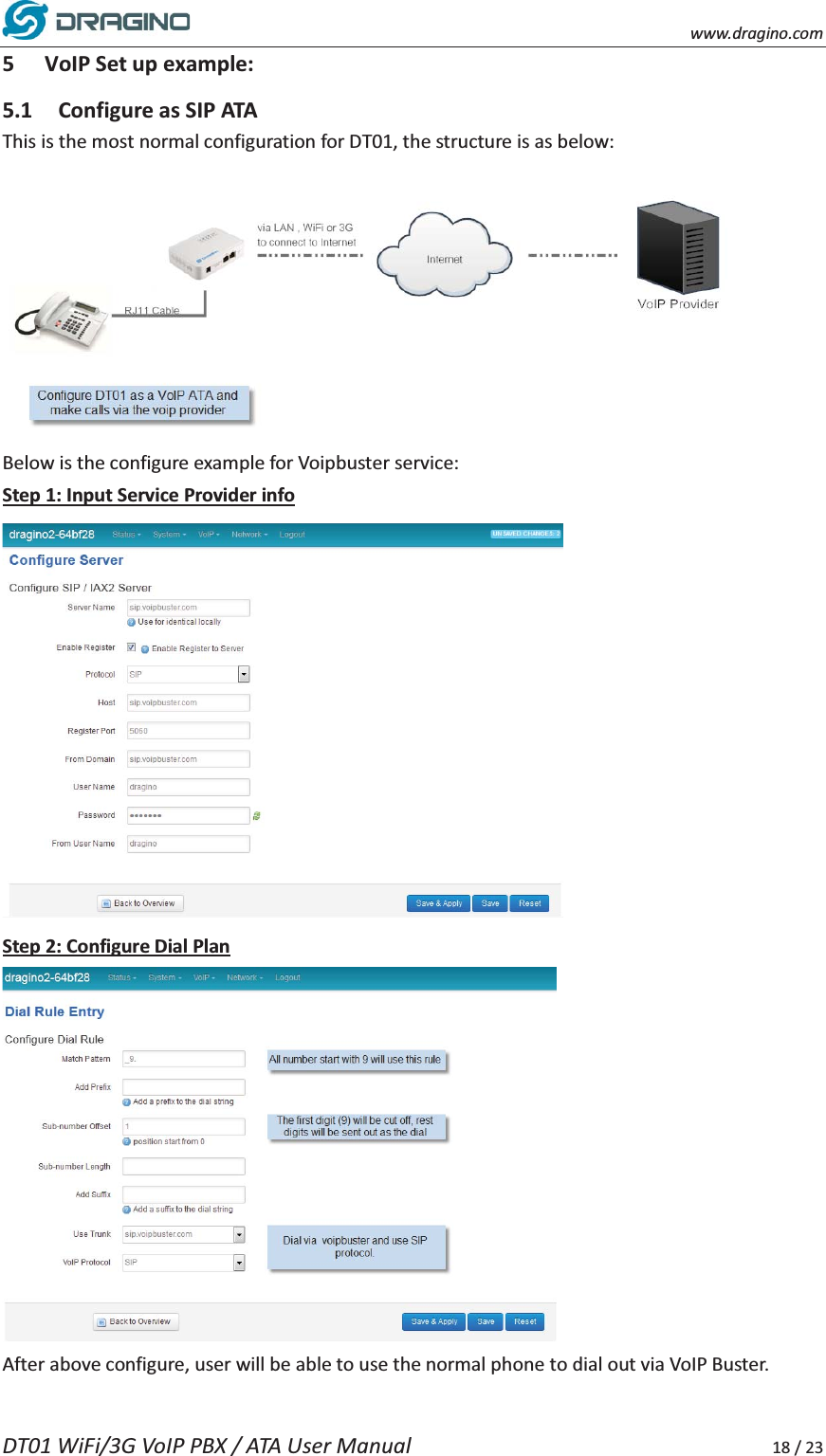
   www.dragino.com DT01 WiFi/3G VoIP PBX / ATA User Manual     18 / 23 5 VoIP Set up example: 5.1 Configure as SIP ATA This is the most normal configuration for DT01, the structure is as below:  Below is the configure example for Voipbuster service: Step 1: Input Service Provider info  Step 2: Configure Dial Plan  After above configure, user will be able to use the normal phone to dial out via VoIP Buster.
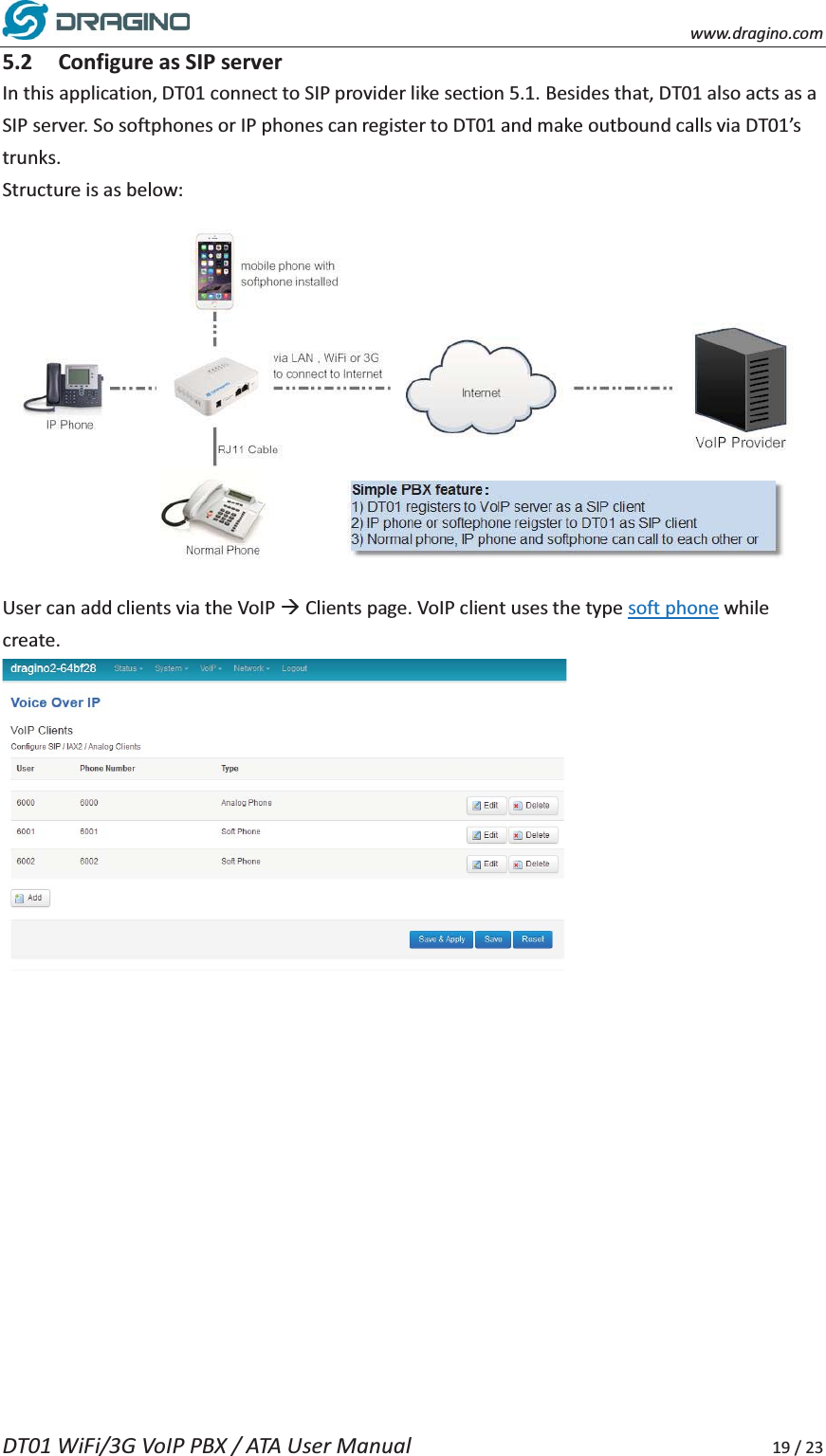
   www.dragino.com DT01 WiFi/3G VoIP PBX / ATA User Manual     19 / 23 5.2 Configure as SIP server   In this application, DT01 connect to SIP provider like section 5.1. Besides that, DT01 also acts as a SIP server. So softphones or IP phones can register to DT01 and make outbound calls via DT01’s trunks.  Structure is as below:  User can add clients via the VoIP Æ Clients page. VoIP client uses the type soft phone while create.
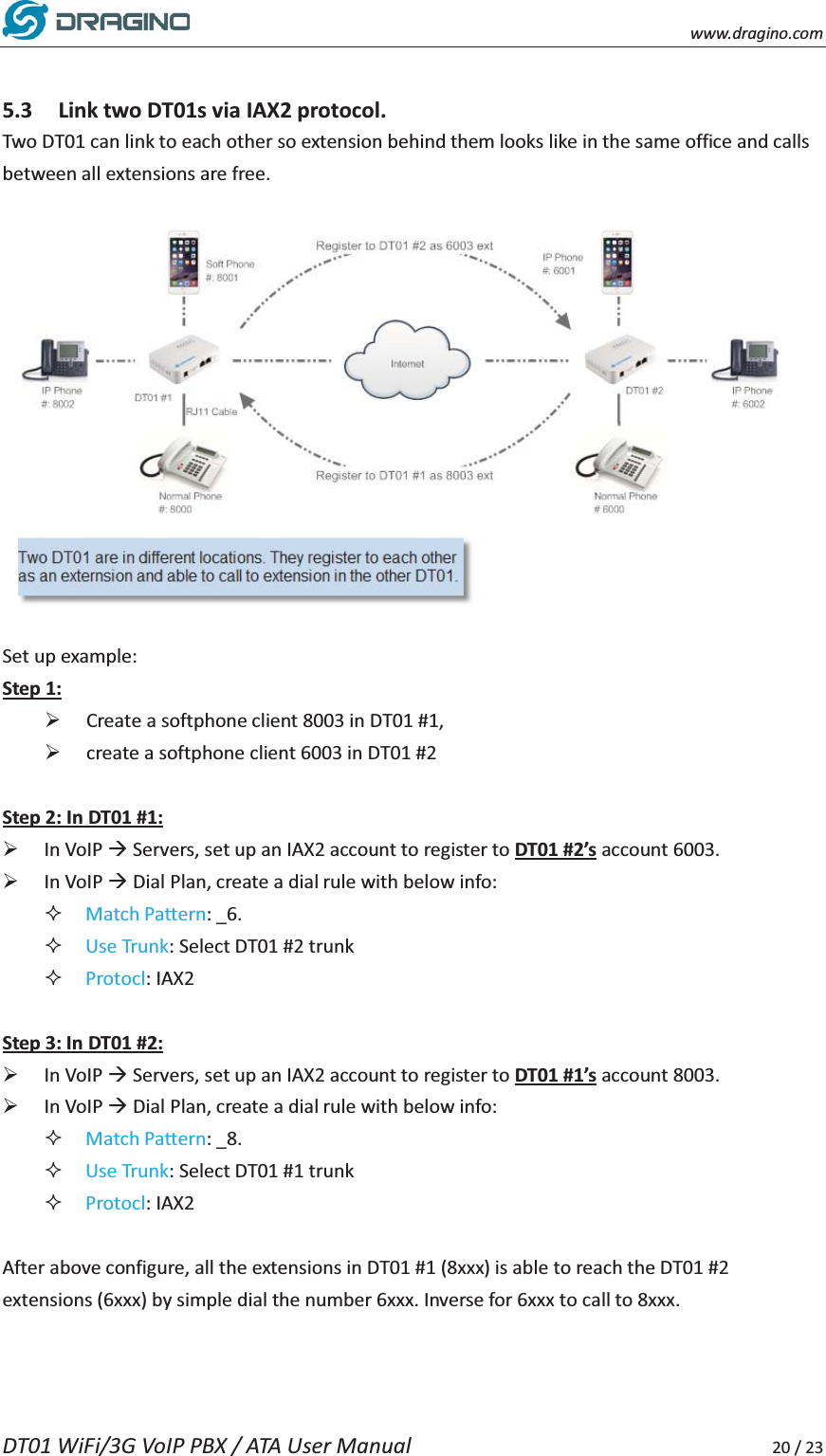
   www.dragino.com DT01 WiFi/3G VoIP PBX / ATA User Manual     20 / 23  5.3 Link two DT01s via IAX2 protocol.   Two DT01 can link to each other so extension behind them looks like in the same office and calls between all extensions are free.    Set up example: Step 1: ¾ Create a softphone client 8003 in DT01 #1,   ¾ create a softphone client 6003 in DT01 #2  Step 2: In DT01 #1: ¾ In VoIP Æ Servers, set up an IAX2 account to register to DT01 #2’s account 6003. ¾ In VoIP Æ Dial Plan, create a dial rule with below info:    Match Pattern: _6.  Use Trunk: Select DT01 #2 trunk  Protocl: IAX2  Step 3: In DT01 #2: ¾ In VoIP Æ Servers, set up an IAX2 account to register to DT01 #1’s account 8003. ¾ In VoIP Æ Dial Plan, create a dial rule with below info:    Match Pattern: _8.  Use Trunk: Select DT01 #1 trunk  Protocl: IAX2  After above configure, all the extensions in DT01 #1 (8xxx) is able to reach the DT01 #2 extensions (6xxx) by simple dial the number 6xxx. Inverse for 6xxx to call to 8xxx.
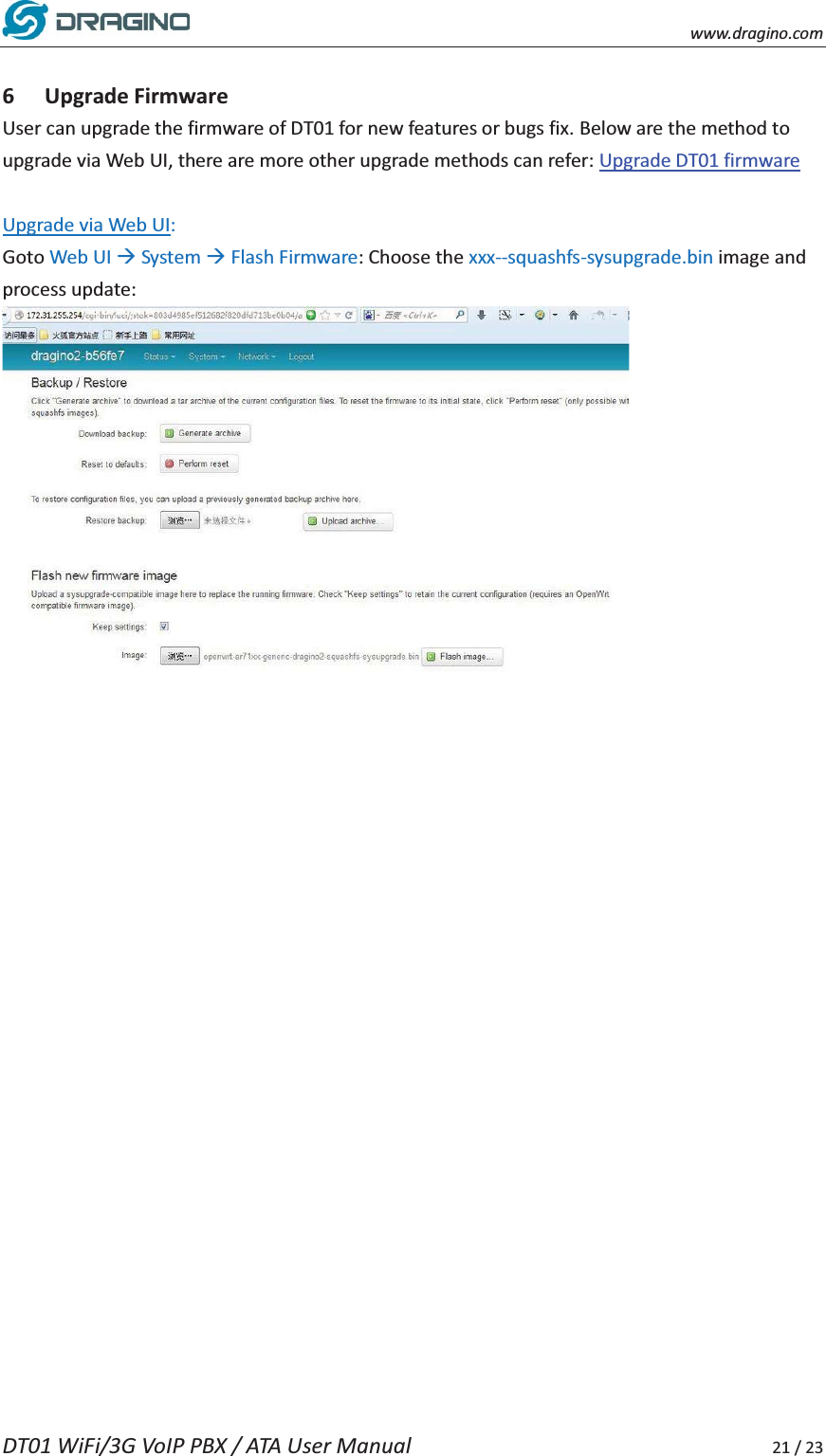
   www.dragino.com DT01 WiFi/3G VoIP PBX / ATA User Manual     21 / 23  6 Upgrade Firmware User can upgrade the firmware of DT01 for new features or bugs fix. Below are the method to upgrade via Web UI, there are more other upgrade methods can refer: Upgrade DT01 firmware  Upgrade via Web UI: Goto Web UI Æ System Æ Flash Firmware: Choose the xxx--squashfs-sysupgrade.bin image and process update:
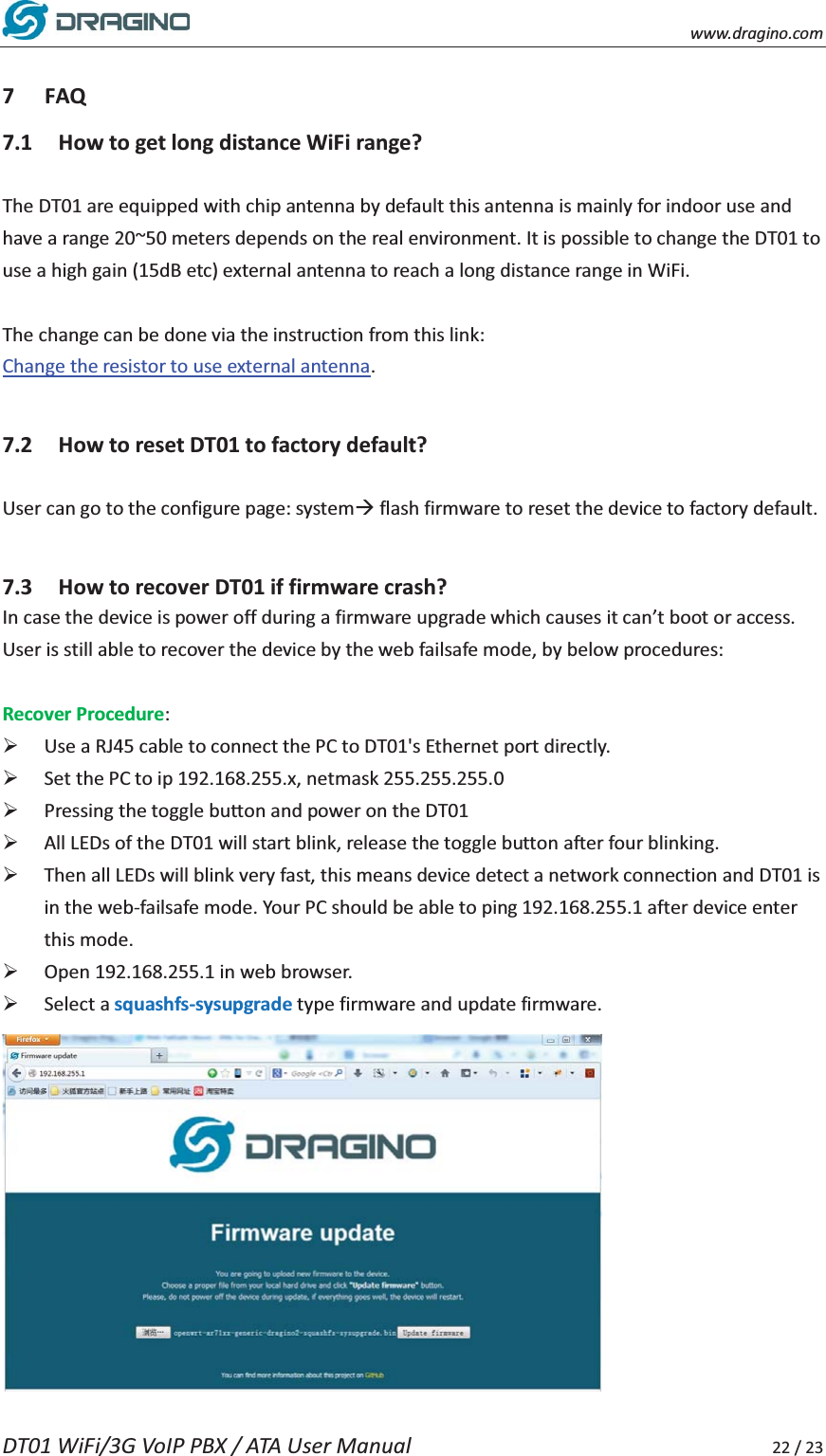
   www.dragino.com DT01 WiFi/3G VoIP PBX / ATA User Manual     22 / 23  7 FAQ 7.1 How to get long distance WiFi range?  The DT01 are equipped with chip antenna by default this antenna is mainly for indoor use and have a range 20~50 meters depends on the real environment. It is possible to change the DT01 to use a high gain (15dB etc) external antenna to reach a long distance range in WiFi.    The change can be done via the instruction from this link: Change the resistor to use external antenna.   7.2 How to reset DT01 to factory default?  User can go to the configure page: systemÆ flash firmware to reset the device to factory default.    7.3 How to recover DT01 if firmware crash?   In case the device is power off during a firmware upgrade which causes it can’t boot or access. User is still able to recover the device by the web failsafe mode, by below procedures:  Recover Procedure: ¾ Use a RJ45 cable to connect the PC to DT01's Ethernet port directly. ¾ Set the PC to ip 192.168.255.x, netmask 255.255.255.0 ¾ Pressing the toggle button and power on the DT01 ¾ All LEDs of the DT01 will start blink, release the toggle button after four blinking. ¾ Then all LEDs will blink very fast, this means device detect a network connection and DT01 is in the web-failsafe mode. Your PC should be able to ping 192.168.255.1 after device enter this mode. ¾ Open 192.168.255.1 in web browser.   ¾ Select a squashfs-sysupgrade type firmware and update firmware.
www.dragino.com DT01 WiFi/3G VoIP PBX / ATA User Manual 23 / 23 8 Reference DT01 firmware link:http://www.dragino.com/downloads/downloads/DT01/Firmware/MS14 (mother board for DT01) Official wikihttp://wiki.dragino.com/index.php?title=IoT_Mesh_Firmware_User_ManualOpenWrt official website:http://www.openwrt.org/Asterisk official sitehttp://www.asterisk.org/Things about Asterisk.http://www.voip-info.org/wiki/view/AsteriskFCC StatementThis equipment has been tested and found to comply with the limits for a Class B digital device, pursuant to Part 15 of the FCC Rules. These limits are designed to provide reasonable protection against harmful interference in a residential installation. This equipment generates uses and can radiate radio frequency energy and, if not installed and used in accordance with the instructions, may cause harmful interference to radio communications. However, there is no guarantee that interference will not occur in a particular installation. If this equipment does cause harmful interference to radio or television reception, which can be determined by turning the equipment off and on, the user is encouraged to try to correct the interference by one or more of the following measures:-- Reorient or relocate the receiving antenna.  -- Increase the separation between the equipment and receiver.   -- Connect the equipment into an outlet on a circuit different from that to which the receiver is connected.  -- Consult the dealer or an experienced radio/TV technician for help.This device complies with part 15 of the FCC Rules. Operation is subject to the following two conditions:(1) This device may not cause harmful interference, and (2) this device must accept any interference received, including interference that may cause undesired operation. Changes or modifications not expressly approved by the party responsible for compliance could void the user's authority to operate the equipment.Remark : 3G or 4G dongle is not in the device package, only the USB port of the device can connect this kind dongle  The distance between user and products should be no less than 20cm

Navigation menu