Dream Link 358 iLauncher Thunder User Manual
Dream Link Limited iLauncher Thunder
User Manual
Instructions
iLaunch Thunder – Made for iPod touch, iPhone, and iPad
358
PRECAUTIONS
Before using this product, carefully read this manual and retain it for future reference.
Safety:
This product has been designed with the highest concern for safety. However, any
electrical device, if used improperly, has the potential of causing fire, electrical
shock or personal injury. To help ensure accident-free operation, follow these
guidelines:
1. Turn the iLaunch Thunder off immediately if the device functions in an
abnormal manner, produces unusual sounds or smells, or becomes too hot.
2. Do not expose the iLaunch Thunder to high temperatures, low temperatures,
high humidity, or direct sunlight.
a. Working temperature is between 0°C and +40°C.
b. Working humidity is beween 20% and 80%.
3. Do not expose the iLaunch Thunder to dust, smoke, or steam.
4. Do not allow small particles to get into the iLaunch Thunder.
5. Do not place the iLaunch Thunder on surfaces that are unstable or subject to
vibration.
6. Do not throw or drop the iLaunch Thunder, or subject it to physical shock.
7. When replacing the battery, make sure the iLaunch Thunder is turned off and
the USB charging cable is unplugged.
8. Be secure when replacing the battery. If the battery is replaced with an
incorrect type, there is a risk of explosion.
9. Dispose of the replaced battery separately at your local waste recycling centre.
Do not dispose of it in your household waste bin.
Cleaning:
1. For safety reasons, turn the iLaunch Thunder off and unplug the USB charging
cable before cleaning.
2. Wipe surface gently with a damp cloth, and then dry with dry cloth.
3. Do not use solvents or other chemicals to clean the exterior of the iLaunch
Thunder.
General:
Should the iLaunch Thunder exhibit unexpected behavior, turn it off. Turn it on
again after a minute and reestablish the Bluetooth® connection with the iPhone,
iPad or iPod touch.
USB specification: USB drive current = DC 5V, 500mA
See www.dreamcheeky.com for support and trouble shooting.
COMPATIBILITY
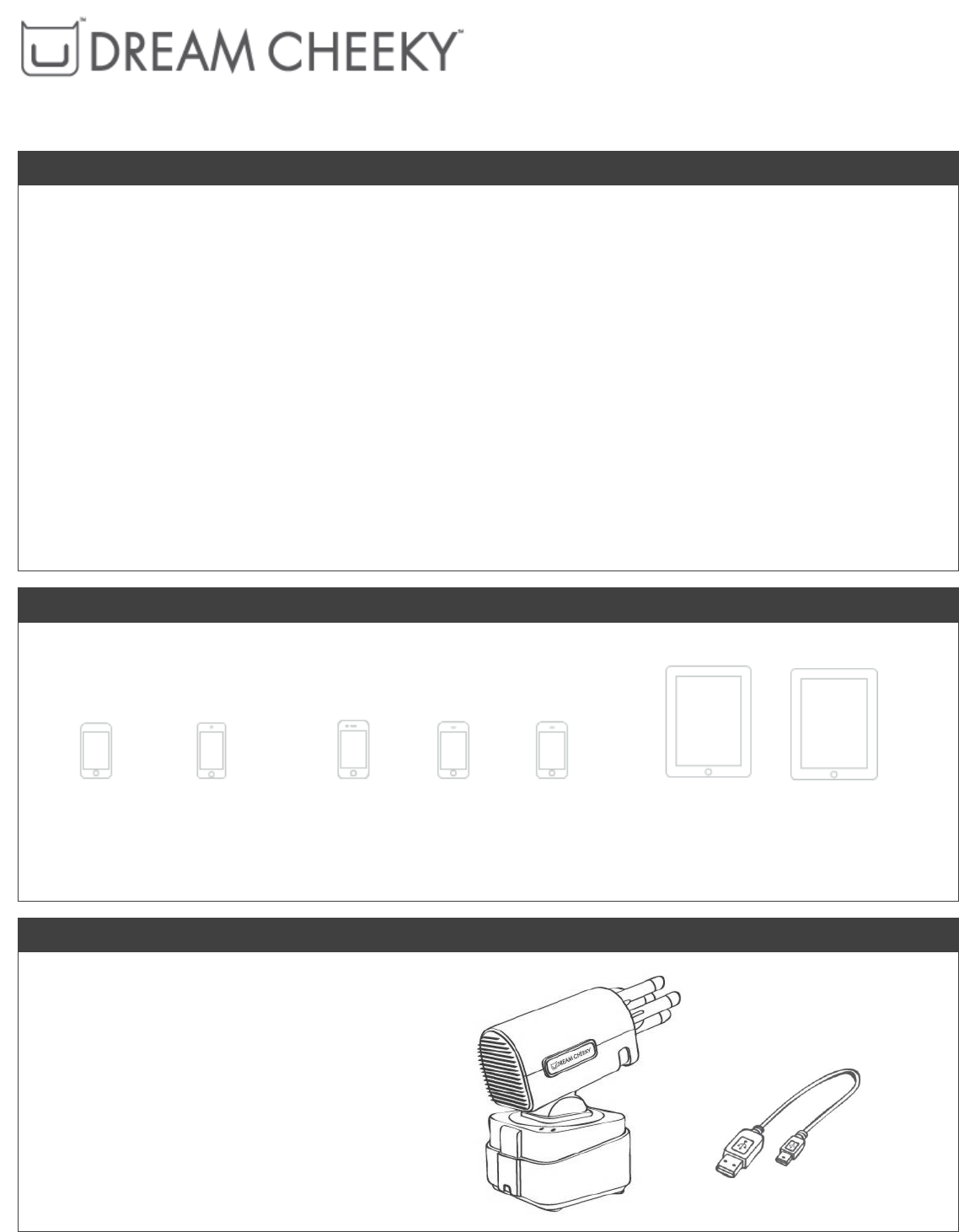
The iLaunch Thunder and iLaunch Controller app have been tested to be compatible with the following models and iOS:
iPod touch
3rd generation
iPod touch
4th generation
iPhone 4
iPhone 3GS
iPhone 3G
iPad 2
iPad
iOS 5.0.1
iOS 5.0
iOS 4.3.5
iOS 5.0.1
iOS 5.0
iOS 4.3.5
iOS 5.0.1
iOS 5.0
iOS 4.3.5
iOS 5.0.1
iOS 5.0
iOS 4.3.5
iOS 4.2.1
iOS 5.0.1
iOS 5.0
iOS 4.3.5
iOS 5.0.1
iOS 5.0
iOS 4.3.5
ENCLOSED ITEMS
This product includes the following items:
1 x Dream Cheeky iLaunch Thunder
4 x Foam missiles
1 x Mini USB to USB charging cable
It also comes with:
Free Dream Cheeky iLaunch Controller app
Instruction manual
CHARGING YOUR iLAUNCH THUNDER
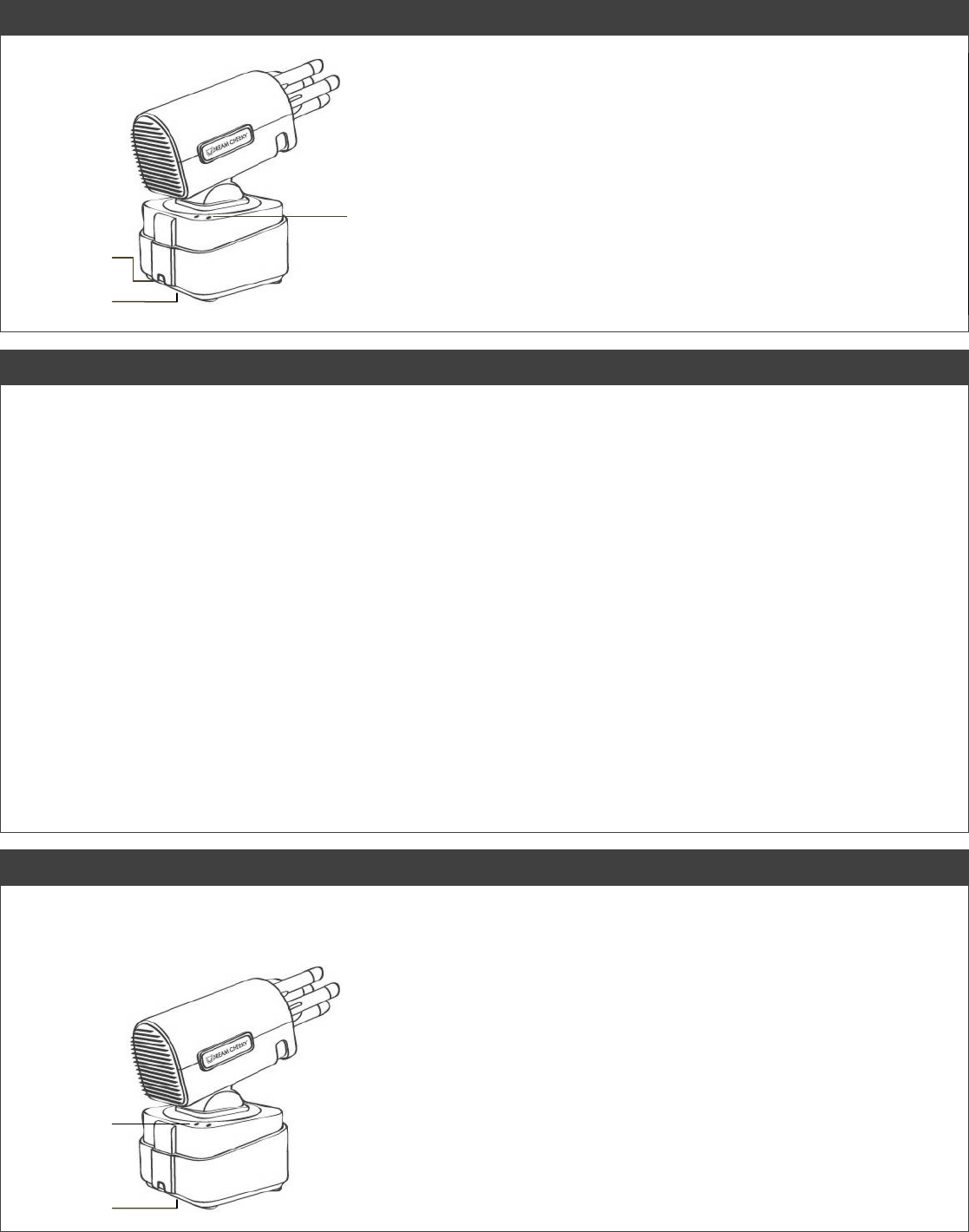
Mini USB
charging port
On / Off (Charge)
Charging
indicator
Charge the iLaunch Thunder by plugging the charging cable into
the mini USB charging port of the iLaunch Thunder and into your
computer or power adapter.
Make sure the power button is in the “Off (Charge)” position.
The charging indicator will glow in red when the battery is
charging.
Charge the iLaunch Thunder for 1 hour before first time use.
The charging indicator will blink in red when the battery is low on
power.
To ensure an optimal performance, charge the iLaunch Thunder,
for about 1 minute each time before you use it.
INSTALLING YOUR iLAUNCH CONTROLLER
There are several options to install the iLaunch Controller app on your iPod touch, iPhone, or iPad:
Using your computer
Make sure the computer can be used for synching your
iPod touch, iPhone, or iPad
Go to www.dreamcheeky.com in your web browser
and click on “SUPPORT & DOWNLOAD”.
Click on the app logo under the iLaunch Thunder
picture, which will take you to the iLaunch Controller
app in the App Store.
Click on “View In iTunes” and allow iTunes to be
opened. When the app is opened in iTunes, press
“Free” and “Install” to install the app.
The iLaunch Controller will be available for use on iPod
touch, iPhone, or iPad, when you synch it with iTunes
on your computer.
Using your iPod touch, iPhone, or iPad
Open the App Store app. Go to “search” and type in
“Dream Cheeky iLaunch Controller”.
Click on the iLaunch Controller app logo, which will take
you to the iLaunch Controller app in the App Store.
When the app is opened in the App Store, press “Free”
and “Install” to install the app.
The iLaunch Controller will now be available for use on
iPod touch, iPhone, or iPad.
Internet access required; fees may apply. The App Store is available in selected countries.
ESTABLISHING BLUETOOTH® CONNECTION
Turn on Bluetooth® on your iPod touch, iPhone, or iPad: Open the Settings app – Go to General – Go to Bluetooth® –
Slide it to “ON”. Under “Devices”, your discovered Bluetooth® devices will show.
Turn on your iLaunch Thunder by sliding the power button in the “On”
position.
The Bluetooth® indicator will blink in blue to indicate the iLaunch
Thunder is ready to be paired with your iPod touch, iPhone, or iPad.
Wait for the iLaunch Thunder to show under “Devices” in the Bluetooth®
menu, it will show as “DC358”.
Once “DC358” is listed, click on it to pair your iLaunch Thunder to your
iPod touch, iPhone, or iPad.
When DC358 shows to be “Paired”, close the Settings menu.
The Bluetooth® indicator will glow in blue to indicate pairing was
successful.
Bluetooth®
indicator
On / Off (Charge)
USING THE iLAUNCH CONTROLLER TO CONTROL THE iLAUNCH THUNDER
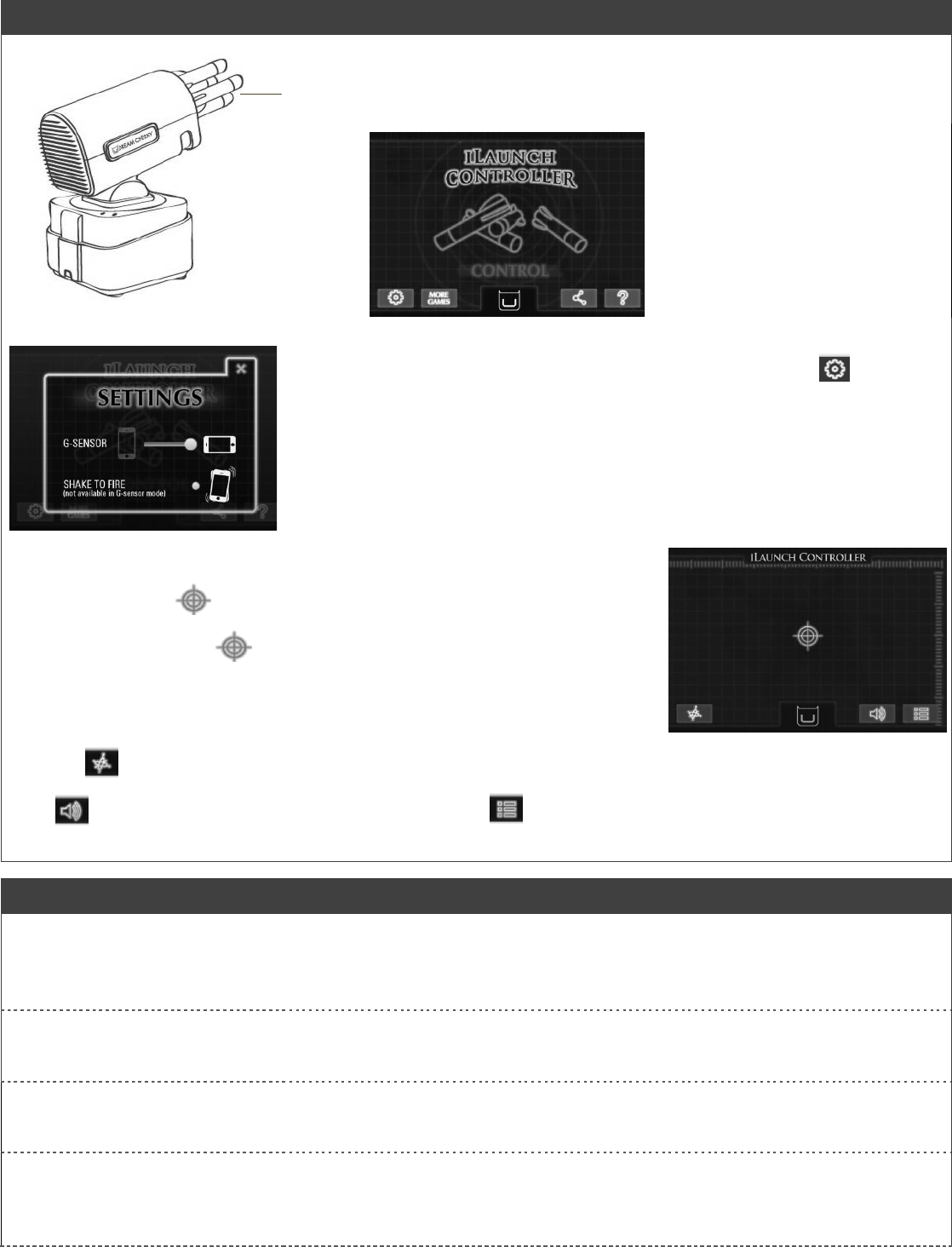
Missile
barrels
Slide the foam missiles onto the missile barrels of the iLaunch Thunder.
When the Bluetooth® connection is established, open the iLaunch
Controller app.
If the pairing was unsuccessful, the
screen will show a message to
connect your iLaunch Thunder via
Bluetooth®. In this case follow the
instructions under “ESTABLISHING
BLUETOOTH® CONNECTION”
If the pairing was successful you will
see the iLaunch Controller menu.
In the iLaunch Controller menu, enter the settings menu, by clicking .
In the settings menu, choose between using portrait or landscape mode in G-Sensor
operation.
Turn on or off the “Shake to fire” option.
Other settings can be found in the general Settings app of your iPod touch, iPhone,
or iPad.
In the iLaunch Controller menu, you can go to the operating screen, by clicking
“control”.
Place your finger on on the operation screen and slide your finger up, down,
left and right, to move the iLaunch Thunder in the corresponding direction.
If you hold your finger on for a second, the screen will go to fire mode and
the iLaunch Thunder will fire one of its four foam missiles.
If you enabled the “Shake to fire” option in the settings menu, you can also fire
your iLaunch Thunder by shaking your iPod touch, iPhone, or iPad briefly.
Click on , to turn the G-Sensor on or off. When it’s turned on, you can tilt your iPod touch, iPhone, or iPad forward,
backward, to the left, or to the right to move the iLaunch Thunder accordingly.
The button will turn the sound effects on or off. And the button will take you back to the iLaunch Controller
menu.
TROUBLESHOOTING
If you need help with your iLaunch Thunder, please first check the following possible issues and solutions. If you can’t find
the answer you’re looking for, please contact us on customerservice@dreamcheeky.com.
Questions
Answers
Why does the battery lasts only
last for a very short time after
charging?
Make sure the battery is fully charged. The first charge will take about one hour.
After longer use, you may need to replace the battery. See “replacing the battery”
below.
From what distance can I control
the iLaunch Thunder on my iPod
touch, iPhone, or iPad?
The further you move away from the iLaunch Thunder, the more likely the iPod
touch, iPhone, or iPad will lose the connection. The control distance is most stable
within 30 feet (10 meters).
How long can I use the iLaunch
Thunder before it runs out of
battery power?
The battery life depends on the way the iLaunch Thunder is used. A fully charged
battery will last approximately 5 hours on average use.
It’s recommended to charge the battery for an hour before first use and a few
minutes before each use after that.
Questions
Answers
Why can’t my iPod touch,
iPhone, or iPad pair with the
iLaunch Thunder?
Make sure the iLaunch Thunder is turned on and charged.
Make sure Bluetooth® on the iPod touch, iPhone, or iPad is turned on, see
“establishing Bluetooth® connection” above.
If the iLaunch Thunder’s blue light isn’t blinking: it’s not ready to be paired.
The Blue light glows
constantly:
It’s already paired to another iPod touch, iPhone, or iPad. It can only be paired to
one device. Disconnect it on the other device by turning of Bluetooth®.
The blue light is off:
The light will stop blinking after a while. Turn the iLaunch Thunder off and turn it on
again.
The blue light is blinking:
The first time the iLaunch Thunder is paired with the iPod touch, iPhone, or iPad, it
can take a few minutes.
If many other Bluetooth® devices show up in the Bluetooth® menu, it’s more
difficult to connect to the iLaunch Thunder. Turn off the other devices, or try it
again in place with no other devices present.
REPLACING THE BATTERY
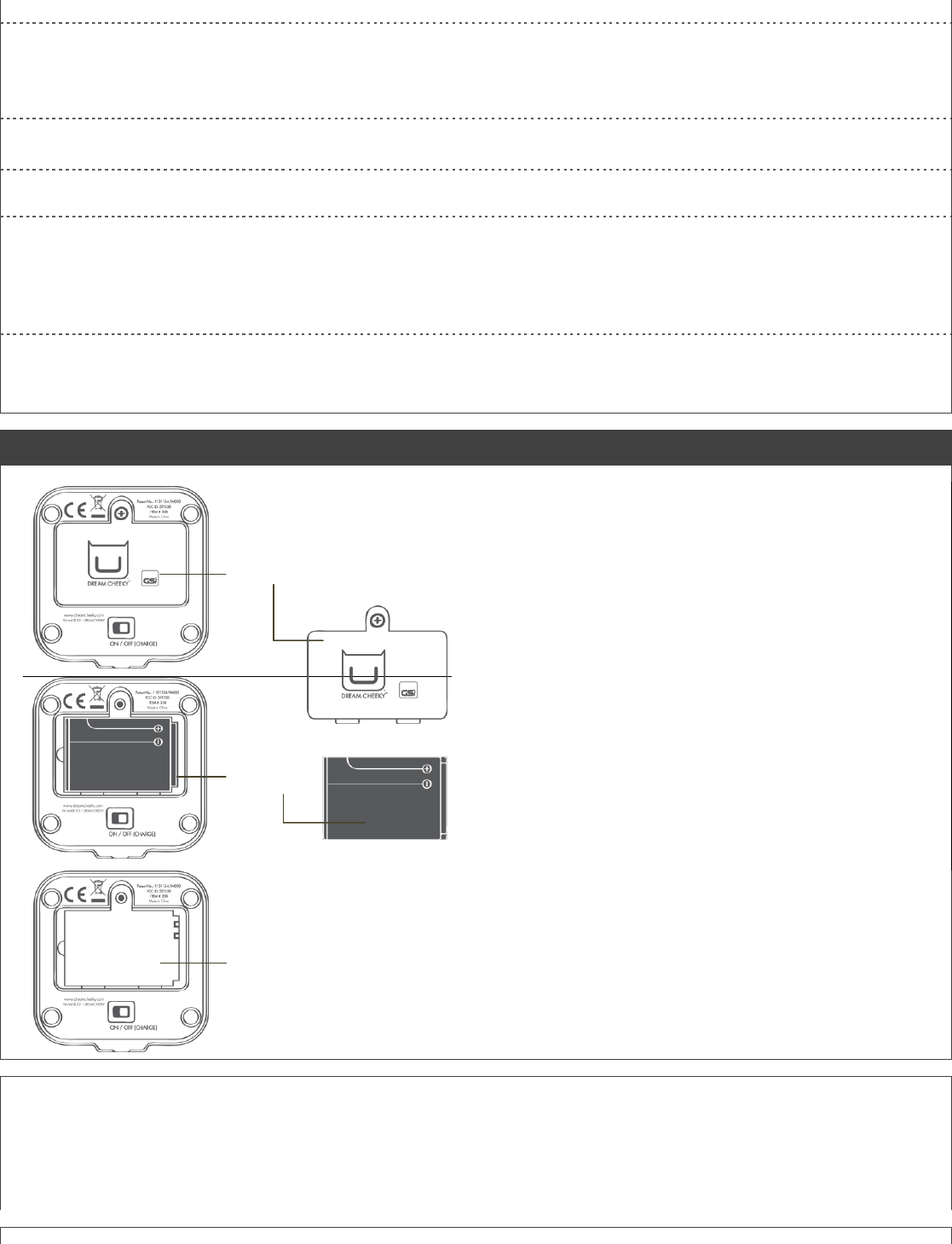
battery latch
The iLaunch Thunder uses a Rechargeable Lithium Battery BL-5C 1000mAH
3.7V. Do not use a different type of battery; there is a risk of explosion if the
battery is replaced with an incorrect type.
To replace the battery, first make sure the iLaunch Thunder is turned off and
the USB charging cable is unplugged.
Unscrew the screw of the battery latch with a small (3mm)
screwdriver.
Remove the latch.
rechargeable
lithium battery
Take the battery out of the battery box.
Dispose of the battery separately at your local waste
recycling centre. Do not dispose of it in your household
waste bin.
battery box
Place a new Rechargeable Lithium Battery BL-5C 1000mAH 3.7V into the
battery box.
Make sure the position of the battery is the same as shown on the pictures in
this manual.
Close the latch and screw it shut with a small screwdriver.
“Made for iPod,” “Made for iPhone,” and “Made for iPad” mean that an electronic accessory has been designed to connect specifically to iPod, iPhone, or iPad,
respectively, and has been certified by the developer to meet Apple performance standards. Apple is not responsible for the operation of this device or its compliance
with safety and regulatory standards. Please note that the use of this accessory with iPod, iPhone, or iPad may affect wireless performance.
iPad, iPhone and iPod touch are trademarks of Apple Inc., registered in the U.S. and other countries.
© 2011 Dream Cheeky Ltd. All Rights Reserved.
Patent No.: 1101154.9M003

FCC STATEMENT
FCC ID - STF358
1. This device complies with Part 15 of the FCC Rules. Operation is subject to the following two conditions:
(1) This device may not cause harmful interference.
(2) This device must accept any interference received, including interference that may cause undesired operation.
2. Changes or modifications not expressly approved by the party responsible for compliance could void the user's authority to operate the equipment.
NOTE: This equipment has been tested and found to comply with the limits for a Class B digital device, pursuant to Part 15 of the FCC Rules. These limits are designed to
provide reasonable protection against harmful interference in a residential installation.
This equipment generates uses and can radiate radio frequency energy and, if not installed and used in accordance with the instructions, may cause harmful interference
to radio communications. However, there is no guarantee that interference will not occur in a particular installation. If this equipment does cause harmful interference to
radio or television reception, which can be determined by turning the equipment off and on, the user is encouraged to try to correct the interference by one or more of
the following measures:
Reorient or relocate the receiving antenna.
Increase the separation between the equipment and receiver.
Connect the equipment into an outlet on a circuit different from that to which the receiver is connected.
Consult the dealer or an experienced radio/TV technician for help.