Drift Innovation FD9963 STEALTH 2 User Manual

Drift Innovation Ltd STEALTH 2 Users Manual

Users Manual

quick guidefollow usfacebook.com/driftinnovationvimeo.com/driftinnovationinstagram.com/drift_innovationtwitter.com/driftinnovationDRIFTINNOVATION.COM
contentsabout your camera | initial setup  3—4package contents | getting started  5—6mode selection & settings  7—8features 9—10mounting the camera | accessory guide  11—12wifi | connecting the camera  13—14specifications 15—16disclosures 17—18Thank you for purchasing the Drift Stealth 2CUSTOMER SUPPORTCheck our ocial website for firmware updates, customer support, news about our products and videos from our users.If you have any suggestions, comments or concerns, please contact our customer support team at:support@driftinnovation.comWARRANTYWarranty does not apply if the product is damaged due to physical abuse, mishandling, accident, fire, frostbite, water damage, negligence or failure to follow the supplied operating instructions.
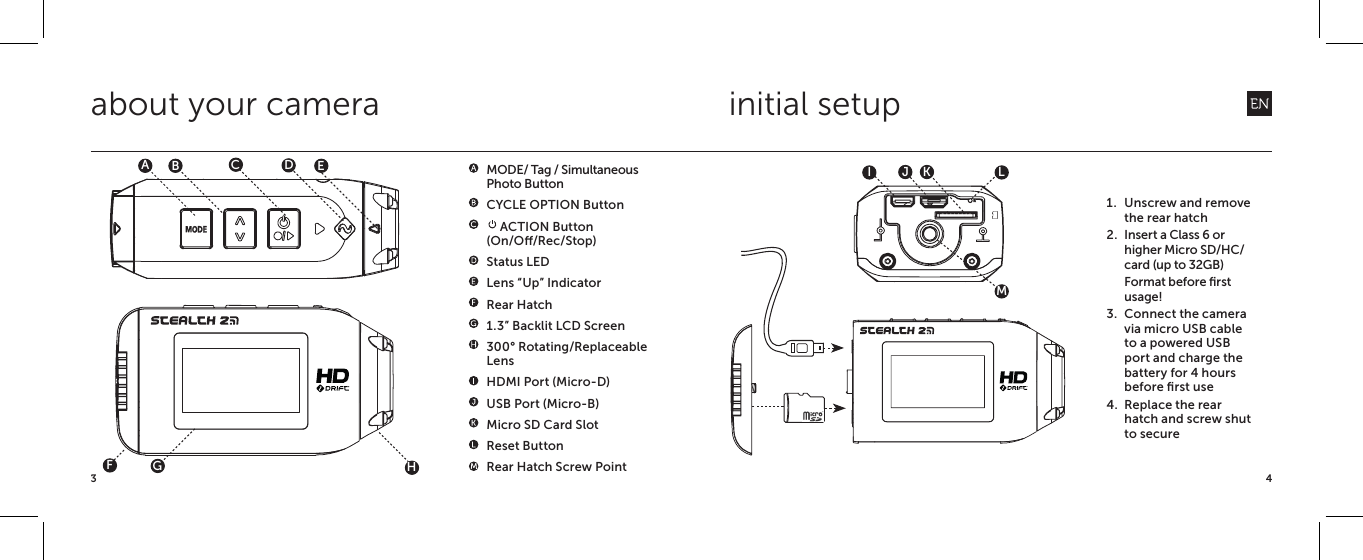
43about your camera initial setup  MODE/ Tag / Simultaneous       Photo Button  CYCLE OPTION Button  ACTION Button  (On/O/Rec/Stop)  Status LED  Lens “Up” Indicator  Rear Hatch  1.3” Backlit LCD Screen  300° Rotating/Replaceable   Lens  HDMI Port (Micro-D)  USB Port (Micro-B)   Micro SD Card Slot  Reset Button  Rear Hatch Screw PointABFDCEGHIJK1.  Unscrew and remove the rear hatch2.  Insert a Class 6 or higher Micro SD/HC/ card (up to 32GB)  Format before first usage!3.  Connect the camera via micro USB cable to a powered USB port and charge the battery for 4 hours before first use4.  Replace the rear hatch and screw shut to secureLM
5*Note: The camera will power on in the same mode it powered o in.MODE SETTINGSTo change the settings of the current camera mode press the CYCLE [    ] button. This will change the settings between a selection of presets. package contentsUSB Cable (Micro-B)Universal ClipMount Kit Goggle Mountgetting startedGNITTEExposureSelf Timer XSXPOWER ON AND  OFF1.  Press and hold the  ACTION button to power on2.  The screen will power on, show the welcome display.3.  The camera is now ready to record video, or take still photos4.  The current camera mode is indicated by the icon in the top left of the display and by the LED indicator (for details, see p7-8)5.  To power o, press and hold the   ACTION button for 3 secondsVIDEO INTERFACESETTINGS INTERFACEWi-Fi0.06MODE NAVIGATIONTo change the current camera recording mode press the [MODE] button, changing between; Video, Photo, Timelapse, Photoburst and the camera general setting modes.25 FPS 1080p12:05:59EXP -2 90% 87%
7 8settingsmode selection TIMELAPSE MODE(Purple LED) The camera will capture a series of still images at a specified rate when ACTION is pressed on the camera or remote. To stop recording, press ACTION on the camera or STOP on the remote. PHOTO MODE(Yellow LED) The camera will capture still images when ACTION is pressed on the camera or remote. The LED will blink red every time a photo is taken (this applies for Timelapse and Photoburst modes also). PHOTOBURST MODE(Cyan LED) The camera will capture a burst of still images for an allotted duration, when ACTION on the camera or remote is pressed (for best results, use a Class 6 or higher micro SD card).CAMERA SETTINGS•EXPOSURE  -2.0 / -1.0 / 0 / +1.0 / +2.0•SELF-TIMER  OFF / 3S / 5S / 10S•WI-FI  OFF / ON •VIDEO TAGGING  ON / OFF•TAGGING INTERVAL  10S / 30S / 1MIN / 2MIN / 5MIN / 10MIN•CAR DVR MODE   ON / M / OFF•CAR DVR INTERVAL  1MIN / 3MIN / 5MIN / 10MIN / 15MIN•VIDEO STANDARD  NTSC (30) / PAL (25)•MIC SENSITIVITY  OFF / LOW / MED / HIGH•SPEAKER VOLUME  OFF / LOW / MED / HIGH•RC 1-1  ON / OFF•RC 1-ALL  ON / OFF•RC LED  ON / OFF•CAMERA LED  ON / OFF•CAMERA OFF  OFF / 2MIN / 5MIN•LCD BACKLIGHT  ON / OFF•LCD BACKLIGHT TIMER                 OFF / 5S / 10S / 20S / 1MIN•DATE  YEAR / MONTH / DAY•DATE / TIME STAMP  ON / OFF•LANGUAGE  [List of Languages]•RESET SETTINGS  YES / NO•FORMAT MEMORY CARD  YES / NO• FIRMWARE VERSION  CURRENT VERSION*Note: In settings mode, pressing the CYCLE button once will move the selection down one setting. Holding the CYCLE button will move the selection back up the list to facilitate navigation.VIDEO PRESETS(NTSC VIDEO STANDARD]1080P @ 30 FPS960P  @ 30 FPS720P @ 30 FPS720P @ 60 FPSWVGA @ 30 FPSWVGA @ 120 FPSPHOTOBURST PRESETS5MP @ 3/s, 1s5MP @ 3/s, 2s5MP @ 3/s, 5sTIMELAPSE PRESETS5MP @ 0.5s5MP @ 1s5MP @ 2s5MP @ 3s VIDEO MODE(Green LED) The camera will record video when ACTION is pressed on the camera or remote. The LED will flash red while recording. Press ACTION on the camera, or STOP on the remote, to end recording.NTSC vs PALThe camera records in both NTSC and PAL video standards (changeable from the settings menu) NTSC delivers frame rate intervals of 30 (30, 60, 120) FPS whereas PAL uses frame rate intervals of 25 (25, 50, 100) FPS.
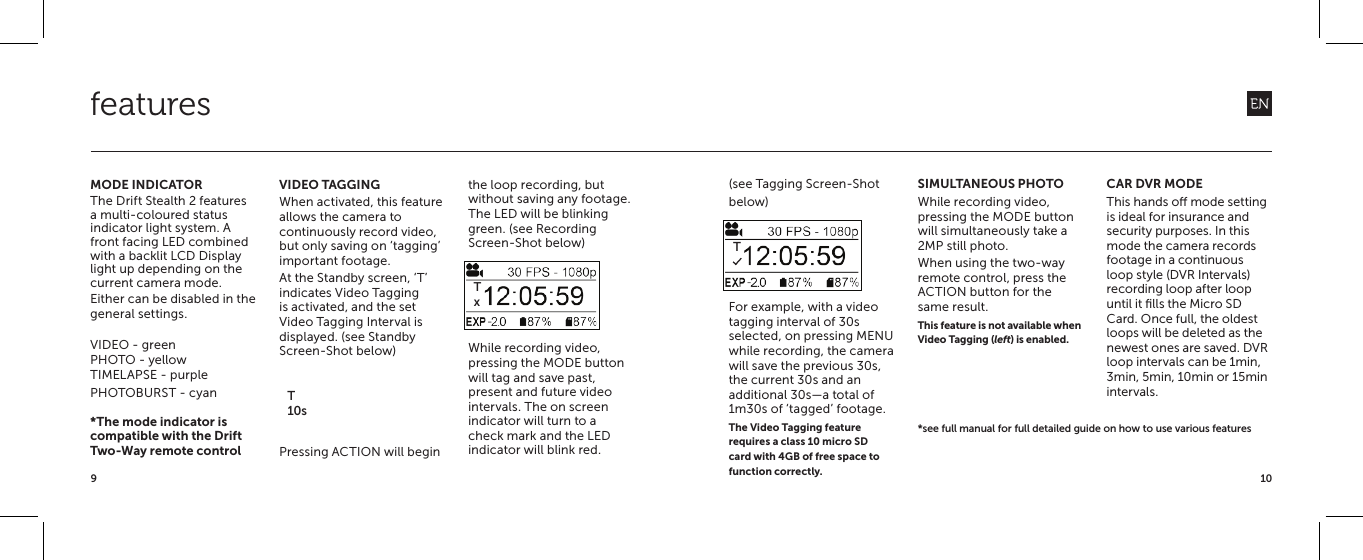
109(see Tagging Screen-Shot below)For example, with a video tagging interval of 30s selected, on pressing MENU while recording, the camera will save the previous 30s, the current 30s and an additional 30s—a total of 1m30s of ‘tagged’ footage.The Video Tagging feature requires a class 10 micro SD card with 4GB of free space to function correctly.SIMULTANEOUS PHOTOWhile recording video, pressing the MODE button will simultaneously take a 2MP still photo.When using the two-way remote control, press the ACTION button for the same result.This feature is not available when Video Tagging (left) is enabled. CAR DVR MODEThis hands o mode setting is ideal for insurance and security purposes. In this mode the camera records footage in a continuous loop style (DVR Intervals) recording loop after loop until it fills the Micro SD Card. Once full, the oldest loops will be deleted as the newest ones are saved. DVR loop intervals can be 1min, 3min, 5min, 10min or 15min intervals.MODE INDICATORThe Drift Stealth 2 features a multi-coloured status indicator light system. A front facing LED combined with a backlit LCD Display light up depending on the current camera mode.Either can be disabled in the general settings.VIDEO - greenPHOTO - yellowTIMELAPSE - purplePHOTOBURST - cyan*The mode indicator is compatible with the Drift Two-Way remote controlVIDEO TAGGINGWhen activated, this feature allows the camera to continuously record video, but only saving on ‘tagging’ important footage.At the Standby screen, ‘T’ indicates Video Tagging is activated, and the set Video Tagging Interval is displayed. (see Standby Screen-Shot below)Pressing ACTION will beginthe loop recording, but without saving any footage. The LED will be blinking green. (see Recording Screen-Shot below)While recording video, pressing the MODE button will tag and save past, present and future video intervals. The on screen indicator will turn to a check mark and the LED indicator will blink red.features02/05 /201318Screen referencesSeriesSeries*1-1078 is only a sample number*2-20 is only a sample number*Rest of the screen shots will be provided after confirmationImage countImage count2-202-20PHOTO MODEVIDEO MODETIMELAPSE MODEPHOTOBURST MODE02/05 /201318Screen referencesSeriesSeries*1-1078 is only a sample number*2-20 is only a sample number*Rest of the screen shots will be provided after confirmationImage countImage count2-202-20PHOTO MODEVIDEO MODETIMELAPSE MODEPHOTOBURST MODE02/05 /201318Screen referencesSeriesSeries*1-1078 is only a sample number*2-20 is only a sample number*Rest of the screen shots will be provided after confirmationImage countImage count2-202-20PHOTO MODEVIDEO MODETIMELAPSE MODEPHOTOBURST MODET10sTxT*see full manual for full detailed guide on how to use various features
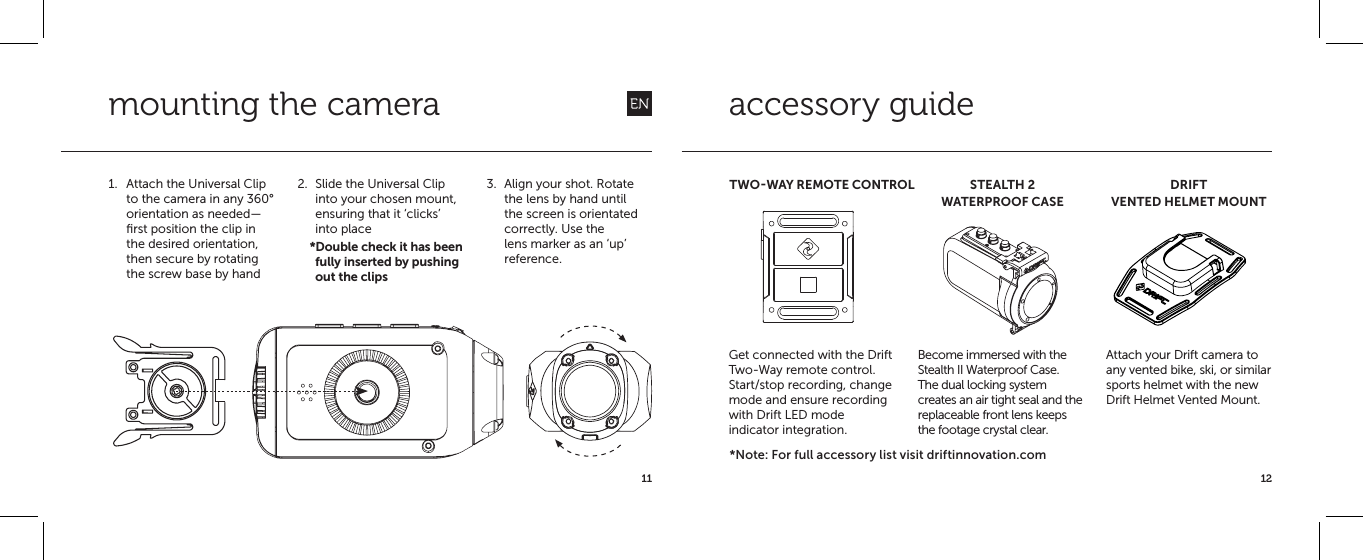
11 12mounting the camera1.  Attach the Universal Clip to the camera in any 360° orientation as needed—first position the clip in the desired orientation, then secure by rotating the screw base by hand2.  Slide the Universal Clip into your chosen mount, ensuring that it ‘clicks’ into place    *Double check it has been fully inserted by pushing out the clips3.  Align your shot. Rotate the lens by hand until the screen is orientated correctly. Use the lens marker as an ‘up’ reference.accessory guideTWOWAY REMOTE CONTROL STEALTH 2 WATERPROOF CASEDRIFT VENTED HELMET MOUNTGet connected with the Drift Two-Way remote control. Start/stop recording, change mode and ensure recording with Drift LED mode indicator integration.Become immersed with the Stealth II Waterproof Case. The dual locking system creates an air tight seal and the replaceable front lens keeps the footage crystal clear. Attach your Drift camera to any vented bike, ski, or similar sports helmet with the new Drift Helmet Vented Mount.*Note: For full accessory list visit driftinnovation.com
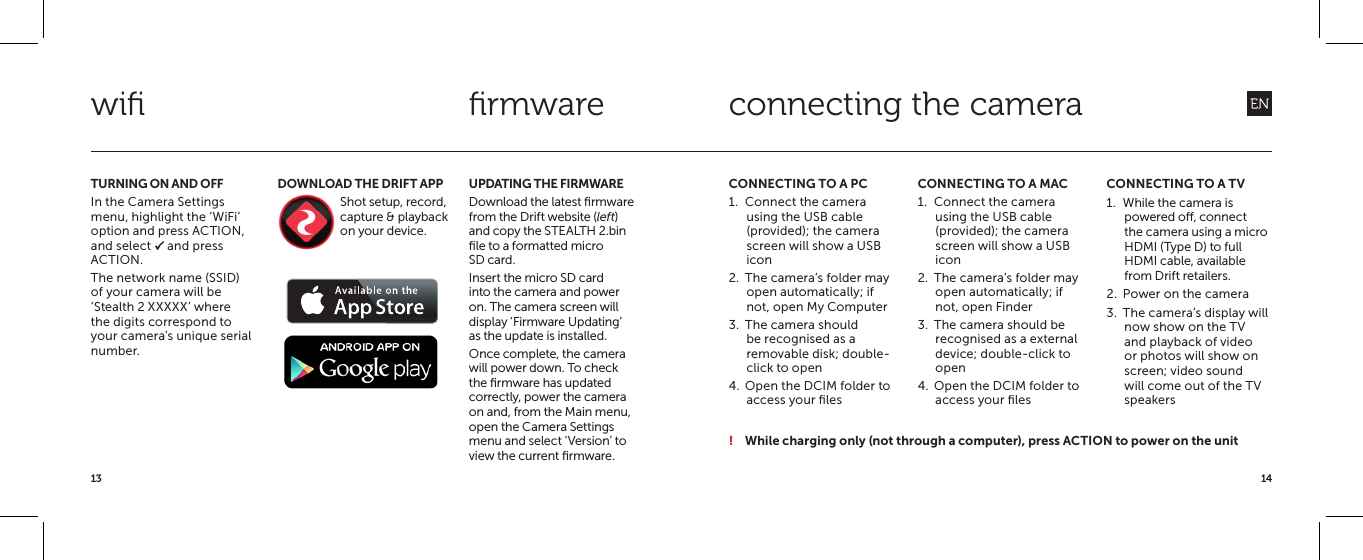
1413TURNING ON AND OFFIn the Camera Settings menu, highlight the ‘WiFi’ option and press ACTION, and select P and press ACTION.The network name (SSID) of your camera will be ‘Stealth 2 XXXXX’ where the digits correspond to your camera’s unique serial number.UPDATING THE FIRMWAREDownload the latest firmware from the Drift website (left) and copy the STEALTH 2.bin file to a formatted micro SD card.Insert the micro SD card into the camera and power on. The camera screen will display ‘Firmware Updating’ as the update is installed.Once complete, the camera will power down. To check the firmware has updated correctly, power the camera on and, from the Main menu, open the Camera Settings menu and select ‘Version’ to view the current firmware.DOWNLOAD THE DRIFT APPShot setup, record, capture & playback on your device.  wifi firmwareCONNECTING TO A PC1.  Connect the camera using the USB cable (provided); the camera screen will show a USB icon2.  The camera’s folder may open automatically; if not, open My Computer3.  The camera should be recognised as a removable disk; double-click to open4.  Open the DCIM folder to access your filesCONNECTING TO A MAC1.  Connect the camera using the USB cable (provided); the camera screen will show a USB icon2.  The camera’s folder may open automatically; if not, open Finder3.  The camera should be recognised as a external device; double-click to open4.  Open the DCIM folder to access your filesCONNECTING TO A TV1.  While the camera is powered o, connect the camera using a micro HDMI (Type D) to full HDMI cable, available from Drift retailers.2.  Power on the camera3.  The camera’s display will now show on the TV and playback of video or photos will show on screen; video sound will come out of the TV speakersconnecting the camera! While charging only (not through a computer), press ACTION to power on the unit
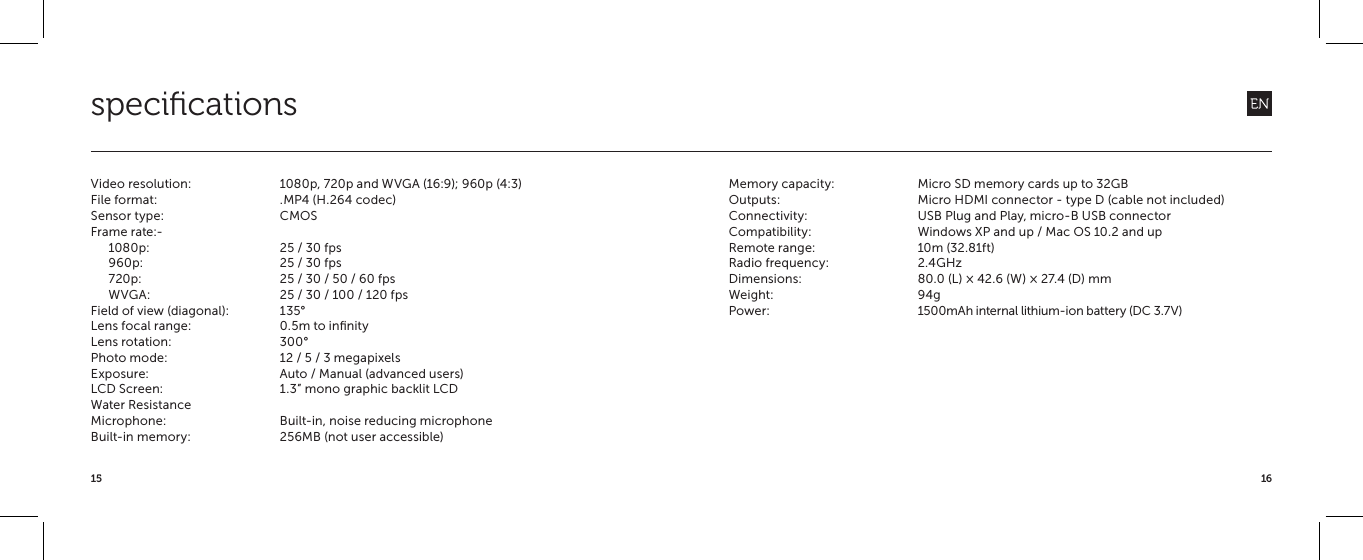
1615specificationsVideo resolution:  1080p, 720p and WVGA (16:9); 960p (4:3)File format:  .MP4 (H.264 codec)Sensor type:  CMOSFrame rate:-1080p:  25 / 30 fps960p:  25 / 30 fps720p:  25 / 30 / 50 / 60 fpsWVGA:  25 / 30 / 100 / 120 fpsField of view (diagonal):  135°Lens focal range:  0.5m to infinityLens rotation:  300°Photo mode:  12 / 5 / 3 megapixelsExposure:  Auto / Manual (advanced users)LCD Screen:  1.3” mono graphic backlit LCDWater Resistance Microphone:  Built-in, noise reducing microphoneBuilt-in memory:  256MB (not user accessible) Memory capacity:  Micro SD memory cards up to 32GBOutputs:  Micro HDMI connector - type D (cable not included)Connectivity:  USB Plug and Play, micro-B USB connectorCompatibility:  Windows XP and up / Mac OS 10.2 and upRemote range:  10m (32.81ft)Radio frequency:  2.4GHzDimensions:  80.0 (L) × 42.6 (W) × 27.4 (D) mmWeight: 94gPower:  1500mAh internal lithium-ion battery (DC 3.7V)
FCC Caution.   § 15.19 Labelling requirements. This device complies with part 15 of the FCC Rules. Operation is subject to the following two conditions: (1) This device may not cause harmful interference, and (2) this device must accept any interference received, including interference that may cause undesired operation.  § 15.21 Information to user. Any Changes or modifications not expressly approved by the party responsible for compliance could void the user's authority to operate the equipment.   § 15.105 Information to the user. Note: This equipment has been tested and found to comply with the limits for a Class B digital device, pursuant to part 15 of the FCC Rules. These limits are designed to provide reasonable protection against harmful interference in a residential installation. This equipment generates uses and can radiate radio frequency energy and, if not installed and used in accordance with the instructions, may cause harmful interference to radio communications. However, there is no guarantee that interference will not occur in a particular installation. If this equipment does cause harmful interference to radio or television reception, which can be determined by turning the equipment off and on, the user is encouraged to try to correct the interference by one or more of the following measures: -Reorient or relocate the receiving antenna. -Increase the separation between the equipment and receiver. -Connect the equipment into an outlet on a circuit different from that to which the receiver is connected. -Consult the dealer or an experienced radio/TV technician for help.  Specific Absorption Rate (SAR) information:   This STEALTH 2 meets the government's requirements for exposure to radio waves. The guidelines are based on standards that were developed by independent scientific organizations through periodic and thorough evaluation of scientific studies. The standards include a substantial safety margin designed to assure the safety of all persons regardless of age or health. FCC RF Exposure Information and Statement The SAR limit of USA (FCC) is 1.6 W/kg averaged over one gram of tissue. Device types: FD9963 (FCC ID: P2F-FD9963) has also been tested against this SAR limit. The highest SAR value reported under this standard during product certification when properly worn on the body is 0.342W/kg. This device was tested for typical body-worn operations with the back of the handset kept 0cm from the body. To maintain compliance with FCC RF exposure requirements, use accessories that maintain a 0cm separation distance between the user's body and the back of the handset. The use of belt clips, holsters and similar accessories should not contain metallic components in its assembly. The use of accessories that do not satisfy these requirements may not comply with FCC RF exposure requirements, and should be avoided.  Body-worn Operation This device was tested for typical body-worn operations. To comply with RF exposure requirements, a minimum separation distance of 0cm must be maintained between the user’s body and the handset, including the antenna. Third-party belt-clips, holsters, and similar accessories used by this device should not contain any metallic components. Body-worn accessories that do not meet these requirements may not comply with RF exposure requirements and should be avoided. Use only the supplied or an approved antenna.

Navigation menu