Dynon Radios 101204-000 Handheld VHF Air Band Transceiver User Manual

Dynon Radios LLC Handheld VHF Air Band Transceiver

User Manual

Rhein Tech Laboratories, Inc. Client:  Dynon Avionics Inc. 360 Herndon Parkway Model: DX15 Suite 1400 FCC ID:  WU6-101204-000 Herndon, VA 20170 Standard:  FCC Part 87 http://www.rheintech.com Report #:  2009191      Appendix J:  Manual   Please refer to the following pages.
Recently changed articles[View All Wiki Articles]Marketing >DX15 Manual TextPage last modified: 6/19/2009 3:29 PM orContents:PreliminaryFront coverInside Front CoverDynon InfoImportant Radio Frequency Energy SafetyAdditional Important Safety InformationFCC Licensing Requirements (USA Only)Table Of ContentsIntroductionVisual TourAssembling and Operating Your DX15 - Quick StartOperating Your DX15 - Quick StartUnpacking Your DX15Assembling Your DX15Charging The BatteryBasic FunctionsPower On / OffVolume AdjustmentTransmittingBacklight On / Off (LIGHT Button)Setting Backlight BrightnessSetting SquelchSetting Frequency - 121.500 MHz (Emergency button)Setting a Frequency DirectlyBand ScanningKeypad LockBattery MonitoringRecalling Most Recently Used (MRU) FrequenciesUsing Memory ChannelsStoring Frequencies Into Memory ChannelsRecalling Memory ChannelsDeleting Memory ChannelsScanning Memory ChannelsSkipping Memory Channels During ScanningMemory BanksKey Beep Volume AdjustmentAdvanced SettingsOption: Assume Leading 1 During Frequency entry: OFF (default) / ONOption: Side buttons used for Direct Squelch: OFF (default) / ONOption: Backlight Behavior: ON (default) / 5-sec.Option: Memory Banks Enabled: OFF (default) / ONOption: Enable Transmit: OFF / ON (default)FogBugz: DX15 Manual Texthttp://fogbugz/fogbugz/default.asp?pg=pgWiki&command=view&ixWikiP...1 of 296/23/2009 9:44 AM
Option: Stop Transmitting on Stuck Mic: OFF / ON (default)External ConnectionsExternal PowerExternal Microphone / Speaker / Push To TalkSidetone AdjustmentExternal AntennaAppendix A - WarrantyAppendix B - DX15 SpecificationsAppendix C - Frequently Asked Questions (FAQs)Appendix D - TroubleshootingAppendix E - Requesting Support / RepairAppendix G - Factory / Reset DefaultsFactory Reset ProcedureAppendix H - AccessoriesAppendix I - Using the (optional) Desktop Rapid ChargerAppendix J - Using the (optional) Vehicle Power AdapterChanging the Fuse In the Vehicle Power AdapterUnresolved Manual Questions / Issues:Preliminary     = information needed     = non-final nomenclatureCase 10327 Original Handheld Radio Manual work Terminology:buttons / keyskeypad / button padButtons are pushed / pressedSquelch is opened / unlocked / brokenWall Power Adapter / Wall ChargerVehicle Power AdapterFront cover(graphic - DX15)FogBugz: DX15 Manual Texthttp://fogbugz/fogbugz/default.asp?pg=pgWiki&command=view&ixWikiP...2 of 296/23/2009 9:44 AM
DX15 Handheld VHF Air Band TransceiverOperation ManualP/N 101219-000, Revision AFor use with firmware version 1.00May, 2009Dynon AvionicsInside Front Cover(intentionally left blank)Dynon InfoContact InformationDynon Avionics, Inc.19825 141st Place NE, Woodinville, WA 98072Phone: (425) 402-0433 - 7:00 AM - 5:00 PM (Pacific Time) Monday - FridayFax: (425) 984-1751email: support@dynonavionics.com Dynon Avionics offers online sales, extensive support, and continually-updated information on itsproducts via its Internet sites:www.dynonavionics.com – Dynon Avionics primary web site; including:docs.dynonavionics.com – Current and archival documentationdownloads.dynonavionics.com – Software downloadssupport.dynonavionics.com – Support resourcesstore.dynonavionics.com – Dynon’s secure online store for purchasing all Dynon products24 hours a day.wiki.dynonavionics.com – Dynon Avionics’ Documentation Wiki provides enhanced,extended, continuously-updated online documentation contributed by Dynon employeesand customers.forum.dynonavionics.com – Dynon Avionics’ Internet forum where Dynon customers caninteract and receive Dynon technical support outside of telephone support hours. A keyfeature of the forum is that it allows the exchange of diagrams, photos, and other types offiles.newsletter.dynonavionics.com – Dynon’s email newsletter.blog.dynonavionics.com – Dynon’s blog where you can find new and interesting Dynon-related contentFogBugz: DX15 Manual Texthttp://fogbugz/fogbugz/default.asp?pg=pgWiki&command=view&ixWikiP...3 of 296/23/2009 9:44 AM
Entire contents Copyright © 2009 by Dynon Avionics, Inc. All rights reserved. No part of thismanual may be reproduced, copied, transmitted, disseminated or stored in any storage medium,for any purpose without the express written permission of Dynon Avionics. Dynon Avionics herebygrants permission to download a single copy of this manual and of any revision to this manualonto a hard drive or other electronic storage medium to be viewed for personal use, provided thatsuch electronic or printed copy of this manual or revision must contain the complete text of thiscopyright notice and provided further that any unauthorized commercial distribution of thismanual or any revision hereto is strictly prohibited.Information in this document is subject to change without notice. Dynon Avionics reserves theright to change or improve its products and to make changes in the content without obligation tonotify any person or organization of such changes. Visit the Dynon Avionics website(www.dynonavionics.com) for updates and supplemental information concerning the use andoperation of this and other Dynon Avionics products.Important Radio Frequency Energy Safety  Warning!While transmitting, your DX15 Handheld VHF Air Band Transceiver emits Radio Frequency (RF)Electromagnetic Energy. Please take the time to familiarize yourself with the properties of and theproper methods of using this device.Maintain at least a 3-inch (5 cm) gap between this device and your body while transmittingDo not transmit without an antenna attached. Transmitting without an antenna attached maycause damage to the DX15.Do not transmit, or allow this device to transmit in areas or conditions that are inherentlyhazardous in the presence of radio transmissions, such as hospitals, in the vicinity of blasting(blasting caps), and around robotic systems.Additional Important Safety Information  Warning!Your DX15 Handheld VHF Air Band Transceiver uses Lithium-Ion batteries. Lithium-Ion batteriesare safe when used as directed, but can also be hazardous if they are not used in accordancewith their instructions.Only charge batteries from Dynon Avionics on Dynon Avionics chargers. Using non-Dynonchargers to charge Dynon batteries could cause them to explode.Do not dispose of Dynon-supplied Lithium-Ion batteries (or any other) in fire or otherwise exposethem to excessive heat.Do not short-circuit the contacts of Dynon-supplied (or any other) Lithium-Ion batteries. This isFogBugz: DX15 Manual Texthttp://fogbugz/fogbugz/default.asp?pg=pgWiki&command=view&ixWikiP...4 of 296/23/2009 9:44 AM
most often accidentally done with with small, loose metallic objects, such as coins or keys.Please dispose of non-functional batteries in a responsible manner. The batteries for your DX15Handheld VHF Air Band Transceiver are very similar to cellular telephone batteries, and likely canbe recycled whereever cellular telephone battery recycling is available. For a list of recyclinglocations in your area (USA only), call 1-800-8-BATTERY (800-822-8837) or see the Call 2Recycle website at  www.rbrc.org.Caution!This device is designed to operate safely only with Dynon-supplied batteries and power supplyaccessories.Do not operate this device without the supplied Dynon battery pack installed.Do not operate Dynon power supply accessories at input voltages other than thoserecommended.Do not operate this device without an antenna installed. Doing so may damage the device.This device is not waterproof. While care has been taken in its design to operate safely andreliably in conditions such as light rain, it is not designed to be used in severe wet conditions.Do not operate this device below xx°F (-xx°C) or above xx°F (xx°C). Exposing this device toprolonged sunlight may result in excessive high temperatures.Do not drop this device, especially onto hard pavement (or from great height).Do not operate this device at high volume levels when using a headset. If you experience ringingin your ears, reduce the volume or do not use this device.Do not attempt to modify or repair this device - there are no user-servicable parts inside. Doing sowill void the warranty and may result in unauthorized transmissions.FCC Licensing Requirements (USA Only)Per the FCC (http://wireless.fcc.gov/services/index.htm?job=operations&id=ground_stations)You may only use your hand-held aviation VHF radio from your aircraft, or under the authority ofan FCC ground station authorization. Ground station authorizations are usually only issued toaviation service organizations located on airports, businesses engaged in pilot training, aircraftmanufacturers, or persons engaged in chase activities related to soaring and ballooning.Per the FCC (http://wireless.fcc.gov/services/index.htm?job=licensing&id=aircraft_stations)... you do not need a license to operate a two-way VHF radio, radar, or emergency locatortransmitter (ELT) aboard aircraft operating domestically. All other aircraft radio stations must belicensed by the FCC either individually or by fleet. Aircraft operating domestically do not land in aforeign country or communicate via radio with foreign ground stations. Flying in international orforeign airspace is permitted, so long as the previous conditions are met. If you travel to a foreigndestination, however, (e.g., Canada, Mexico, Bahamas, British Virgin Islands) a USA license isFogBugz: DX15 Manual Texthttp://fogbugz/fogbugz/default.asp?pg=pgWiki&command=view&ixWikiP...5 of 296/23/2009 9:44 AM
required.Table Of Contents(To be generated when ported to Microsoft Word.)IntroductionCongratulations on your purchase of the Dynon Avionics DX15 Handheld VHF Air BandTransceiver.Your DX15 is a compact, easy-to-use handheld tranceiver for aviation use, and includes thefollowing standard features:Compact, handheld sizeLithium-Ion 1300 mAh Battery PackBackighting of both display and keypadDedicated Emergency button for single button tuning of 121.5 MHzKeypad LockOn-screen battery capacity meterAdjustable sidetone for (optional) headset connectionScanning of entire air band, memory frequencies, and most recently used frequenciesExternal power, headset/microphone/PTT, and antenna connectionsEasy recall of last 10 frequencies used (Most Recently Used - MRU)Your DX15 is an ideal transciever for:Keeping in your flight bag - just in case!Listening to the tower at air shows!Family members listening to flight communicationsMonitoring nearby airfieldsBackup aircraft communicationsBudget radio capability inultralight and experimental aircraftVisual TourGraphic - Top ViewAntenna connectorPWR/VOL knobTX/RX indicator (Red when transmitting, Green when receiving)Graphic - Front ViewDisplayEmergency buttonFogBugz: DX15 Manual Texthttp://fogbugz/fogbugz/default.asp?pg=pgWiki&command=view&ixWikiP...6 of 296/23/2009 9:44 AM
KeypadSpeakerMicGraphic - Front, Close-in on displayTransmit iconReceive iconKeypad Lock iconFrequency display (6 digits)Battery Status iconMemory Mode iconMemory Channel display (2 digits)Graphic - Front, Close-in on keypadLOCK buttonDigits buttons< and > buttonsMEM buttonLIGHT buttonSQL buttonCLR buttonGraphic, Left SideTransmit / Push To Talk (PTT) button^ and v buttonsGraphic, Right SideSpeaker jackMicrophone jackDC IN jackGraphic, BackFogBugz: DX15 Manual Texthttp://fogbugz/fogbugz/default.asp?pg=pgWiki&command=view&ixWikiP...7 of 296/23/2009 9:44 AM
Battery Release clips (sides)Belt Clip recepticleDesktop Rapid Charger terminalsAssembling and Operating Your DX15 - Quick StartNote: While you can take your DX15 right out of the box and use it immediately with theinstructions below, the battery is shipped only partially charged. Although the Li-Ion battery usedin your DX15 does not have any "memory effects" that require a full charge before first use, wereccomend that you fully charge your DX15 before using it for prolonged periods. See the sectionCharging The Battery for details.1 - Insure that power is OFF - rotate the PWR/VOL control counter-clockwise until it clicks.2 - Screw the supplied antenna onto the antenna connector, clockwise, using light fingerpressure (do not tighten excessively). (Graphic showing clockwise rotation)3 - Snap in the supplied battery pack, mating the two tabs on the bottom of the battery with theassociated slots on the battery recepticle. Gently, click the upper part of the battery into place.(Graphic showing proper battery insertion, slots, tipping up, and clicking in.)Operating Your DX15 - Quick Start1. Rotate the PWR/VOL knob clockwise, adjusting the volume to the 10:00 to 2:00 positiondepending on the volume desired.2. Set the desired frequency:- The decimal point ("."), and trailing digit is rounded to the nearest 0.025 MHz (25 KHz) andautomatically inserted onto the display, so to set a frequency of 128.775, type the following:1   2   8   7  7The display should then read:128.775To set a frequency of 122.300, type the following:1   2   2   3   0The display should read:122.300At this point, 122.300 is tuned and you are now able to transmit and receive communications onthis frequency.To transmit, press and hold the push-to-talk button on the left side of the radio.FogBugz: DX15 Manual Texthttp://fogbugz/fogbugz/default.asp?pg=pgWiki&command=view&ixWikiP...8 of 296/23/2009 9:44 AM
  Warning!Do not transmit unnecessarily or without authorization!Unpacking Your DX15Inside your DX15 box, you should find the following:101204-000 DX15 Handheld VHF Air Band Transceiver100993-000 Flexible Antenna100965-000 7.4V 1.3Ah Lithium-Ion Battery With Belt Clipxxxxxx-xxx Lanyard100846-000 Wall Wall Power Adapter101219-000 DX15 Operation Manualxxxxxx-xxx DX15 Registration CardRegistration Card:Dynon strongly recommends that you fill out and send in the registration card, as this will allowDynon to contact you with updates and new product announcements.Assembling Your DX151. Remove all components from plastic bags, remove twist-ties on cables, and peel the film fromthe display.2. Screw the supplied antenna onto the antenna connector, clockwise, using light finger pressure(do not tighten excessively). (Graphic showing clockwise rotation)3. Gently insert the supplied battery pack:Mate the two tabs on the bottom of the battery with the associated slots at the bottom of thebattery area.Gently, click the upper part of the battery into place.The two spring-loaded latches on the sides of the battery should now be in the up position.(Graphic showing proper battery insertion, slots, tipping up, and clicking in.)4. (Optional) Insert the supplied lanyard into the lanyard tab as illustrated.(Graphic showing lanyard insertion.)Your DX15 is now ready for useNote: The battery is shipped only partially charged. Dynon reccomends that you fully chargeyour DX15 before using it for prolonged periods. See the section Charging The Battery below fordetails.FogBugz: DX15 Manual Texthttp://fogbugz/fogbugz/default.asp?pg=pgWiki&command=view&ixWikiP...9 of 296/23/2009 9:44 AM
Charging The BatteryYour DX15's is equipped with a rechargable Lithium-Ion battery pack.To charge your DX15:Connect the AC-DC adapter to the DX15's DC IN as illustrated (graphic of plug beinginserted into DC In jack)Plug the AC-DC adapter into a 110V AC outlet (graphic of wall outlet insertion)Whenever your DX15 is connected to external power, it will charge the battery, even when yourDX15 is being used to receive and transmit. During charging the Battery Status icon will animateto indicate that it is charging. Additionally, the bars on the interior of the Battery Status icon willdisplay the approximate state of the charge. When charging is complete, the Battery Status iconbe on solid and the bars will extend through the entire length of the Battery Status icon.A fully-discharged battery will require approximately xxx hours to fully recharge via the DC IN ifthe DX15's power is off. While your DX15 can be used to receive and/or transmit during charging,such usage during charging will increase the time it takes for the battery to fully recharge.If you are using your DX15 as a backup trasceiver that will be stored without being used for longperiods, the battery will hold its charge longest if it is disconnected from the radio. Store thebattery so that its electrical contacts are not able to be shorted by surrounding metal objects.Charge your battery every xxx months to keep it fully charged should it be needed in anemergency.Unlike older battery technologies, Lithium-Ion batteries do not suffer adverse affects if they arenot fully charged or discharged. As with all rechargable batteries, the usable capacity of yourDX15's battery will decrease with time and usage. Replacement batteries can be obtained fromDynon Avionics and authorized dealers.Basic FunctionsPower On / Off(Graphic showing PWR/VOL knob, with clockwise rotation symbol)Power ON:Rotate the PWR/VOL knob clockwise until it clicks. The TX/RX indicator and backlighting shouldilluminate for approximately 1 second to indicate that they are working. The display will show allicons and digits for a moment to indicate that they all work.Power OFF:Rotate the PWR/VOL knob counter-clockwise until it clicks.Volume AdjustmentWith power On, rotate the PWR/VOL knob clockwise to increase volume, counter-clockwise todecrease volume.FogBugz: DX15 Manual Texthttp://fogbugz/fogbugz/default.asp?pg=pgWiki&command=view&ixWikiP...10 of 296/23/2009 9:44 AM
Note: It may be useful to adjust Squelch so that the speaker is active during Volume Adjustment- see the section Setting Squelch for details.TransmittingTo transmit on the tuned frequency, press and hold the Push To Talk button on the left side ofyour DX15 while speaking into the microphone on the front of the tranciever.Backlight On / Off (LIGHT Button)The backlight can be turned on or off by pressing the LIGHT button at any time.Note: The functionality of the LIGHT button can be changed affecting Backlight On / Off - seethe section Advanced Settings for details.Setting Backlight BrightnessTo adjust the brightness of the backlighting:Push and hold the LIGHT button until it says LitE-X, where X represents the currentbacklight level.Adjust the backlight level by using the < and > buttons.The display will show 1 through 9.To exit, push the LIGHT or CLR button.Setting SquelchSquelch silences the speaker, eliminating the background noise present on all frequencies evenwhen no signal is being received. Squelch is adjusted to keep the speaker muted except when asignal is being received on the frequency that is being monitored.Note: The functionality of the side ^ and v buttons can optionally be set to adjust Squelch allthe time. See the section Advanced Settings for details. These instructions reflect the FACTORYDEFAULT behavior of the side ^ and v  buttons.Note: Squelch can be changed in any mode or menu; upon exit of setting Squelch, the previousmenu or mode will return / continue.To Set Squelch:Push the SQL buttonUsing the < and > buttons on the keypad or the side ^ and v buttons, adjust the squelchsetting from 0 to 24.Setting Squelch to 0 results in static being heard when no signals are being received (noSquelch being applied). (Note: This will drain the battery more quickly.)Setting Squelch to 24 means that only a signal that is extremely strong will break Squelch(un-mute the seaker) and be heard.Typically Squelch is set to the lowest setting that causes all background noise to be muted,but allows actual signals to be received. The Squelch setting may need to be adjusted inFogBugz: DX15 Manual Texthttp://fogbugz/fogbugz/default.asp?pg=pgWiki&command=view&ixWikiP...11 of 296/23/2009 9:44 AM
different environments and conditions.Exit Setting Squelch mode by:Pushing the SQL button on the keypad;Pushing the CLR button on the keypad;Waiting approximately 5 seconds;Pushing the Emergency button;Pushing the Push To Talk buttonThe previous menu or mode will return / continue.Setting Frequency - 121.500 MHz (Emergency button)Push and hold the orange Emergency button. The digits1   2   1   .   5   0   0appear on the display at approximately 1/3 second intervals. When the last digit has appeared,121.500 is tuned, and the Emergency button can be released.Your DX15 is now ready to receive and transmit on 121.500 MHz.Note: If the Emergency button is release before all digits of 121.500 are displayed, the frequencywill return to its previous setting.Setting a Frequency DirectlyNote: The "Assume leading 1 / 100 MHz" setting will change this behavior - see the AdvancedSettings section for details. The instructions below reflect the FACTORY DEFAULT behavior ofthe "Assume leading 1 / 100 MHz" function.If the radio is in another mode, such as Scan, Memory Recall Mode or Most Recently UsedFrequency Recall Mode, exit these modes first by pushing the CLR button on the keypad in orderto set a frequency as described below.ExampleTo enter the frequency 128.775, you would enter:1   2   8   7   7The display should then read:128.775The decimal point (".") is automatically entered for you.The last digit is automatically rounded to the nearest 0.025 MHz (25 KHz) since there is only onepossible choice for it once the first five digits are typed.This frequency is now tuned and you can receive and transmit to other radios that are also tunedto the same frequency.Band ScanningFogBugz: DX15 Manual Texthttp://fogbugz/fogbugz/default.asp?pg=pgWiki&command=view&ixWikiP...12 of 296/23/2009 9:44 AM
Band scanning rapidly checks every frequency within your DX15's operating range of 118.000MHz through 136.975 MHz in 0.025 MHz (25 KHz) steps (118.025, 118.050, 118.075, etc.)sequentially. In Band Scanning mode, the DX15 will pause on frequencies that have a strongenough signal to break squelch so that they may be heard.To enter Band Scanning Mode:Exit any other mode (such as MEM mode) by pushing the CLR button on the keypad.Adjust Squelch (see section Setting Squelch for details) so that the speaker is quiet. If a signal isreceived during scanning, the scanning will pause, allowing you to listen to the received signal.When band scanning, your DX15 may receive a variety of signals at widely-varying signalstrengths. Setting Squech too high will allow only the very strongest signals to be heard. SettingSquelch too low will result in the scan being stopped frequently, often on noisy frequencies thatcannot be understood. Thus, setting Squelch properly for band scanning will necessarily be acompromise.To scan up push and hold (for at least 1 second) the > button. To scan down push and hold the< button.During Band Scanning (or any of the other scan operations - see section Memory Scanning andLast Ten Frequencies Scanning for details), the decimal point between the digits flashes toindicate that a scanning mode is active.When a signal is received that exceeds the Squelch setting, Scan Mode will pause for as long asthe signal is being received. Scanning will resume a few seconds after the last signal is received.To force the radio to continue scanning while a frequency is being received, press either the  < or> button to "nudge" it off the frequency currently being received.When the end of the band is reached, scanning will continue, in the same direction, from theother end of the frequency range. The direction of scanning can be changed by pressing < or >.Band Scanning can be stopped by:Pushing the CLR buttonPushing PTTPushing the Emergency buttonKeypad LockKeypad Lock is used to protect against accidental button pushes, such as when your DX15 isworn on a belt and you want to monitor only a single frequency.To activate Keypad Lock:Press and hold the the LOCK button.After a moment, the Keypad Lock icon will appear on the display.Keypad Lock inhibits keypad buttons / behaviors except the following:Push To Talk (PTT) button works normallyFogBugz: DX15 Manual Texthttp://fogbugz/fogbugz/default.asp?pg=pgWiki&command=view&ixWikiP...13 of 296/23/2009 9:44 AM
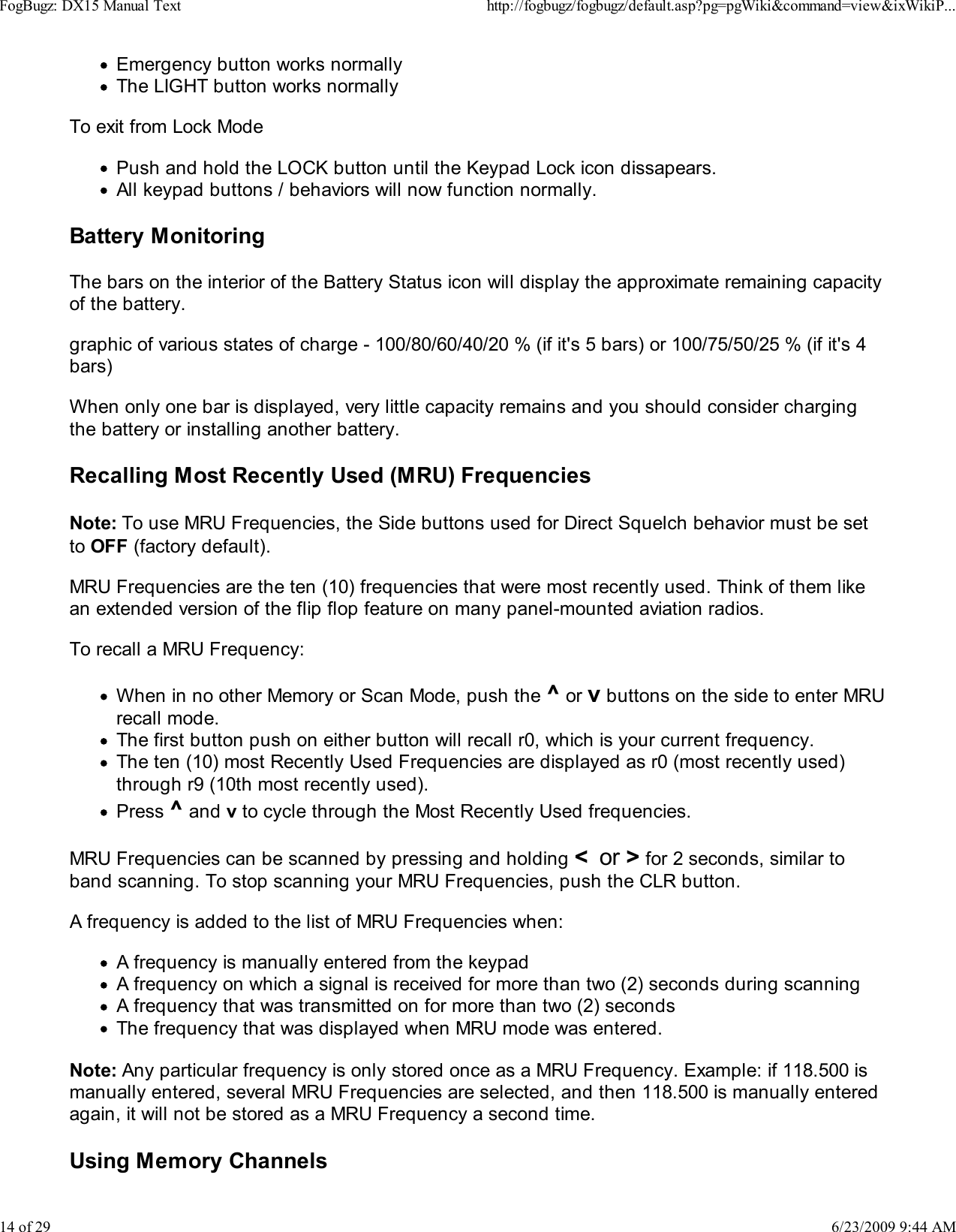
Emergency button works normallyThe LIGHT button works normallyTo exit from Lock ModePush and hold the LOCK button until the Keypad Lock icon dissapears.All keypad buttons / behaviors will now function normally.Battery MonitoringThe bars on the interior of the Battery Status icon will display the approximate remaining capacityof the battery.graphic of various states of charge - 100/80/60/40/20 % (if it's 5 bars) or 100/75/50/25 % (if it's 4bars)When only one bar is displayed, very little capacity remains and you should consider chargingthe battery or installing another battery.Recalling Most Recently Used (MRU) FrequenciesNote: To use MRU Frequencies, the Side buttons used for Direct Squelch behavior must be setto OFF (factory default).MRU Frequencies are the ten (10) frequencies that were most recently used. Think of them likean extended version of the flip flop feature on many panel-mounted aviation radios.To recall a MRU Frequency:When in no other Memory or Scan Mode, push the ^ or v buttons on the side to enter MRUrecall mode.The first button push on either button will recall r0, which is your current frequency.The ten (10) most Recently Used Frequencies are displayed as r0 (most recently used)through r9 (10th most recently used).Press ^ and v to cycle through the Most Recently Used frequencies.MRU Frequencies can be scanned by pressing and holding <  or > for 2 seconds, similar toband scanning. To stop scanning your MRU Frequencies, push the CLR button.A frequency is added to the list of MRU Frequencies when:A frequency is manually entered from the keypadA frequency on which a signal is received for more than two (2) seconds during scanningA frequency that was transmitted on for more than two (2) secondsThe frequency that was displayed when MRU mode was entered.Note: Any particular frequency is only stored once as a MRU Frequency. Example: if 118.500 ismanually entered, several MRU Frequencies are selected, and then 118.500 is manually enteredagain, it will not be stored as a MRU Frequency a second time.Using Memory ChannelsFogBugz: DX15 Manual Texthttp://fogbugz/fogbugz/default.asp?pg=pgWiki&command=view&ixWikiP...14 of 296/23/2009 9:44 AM
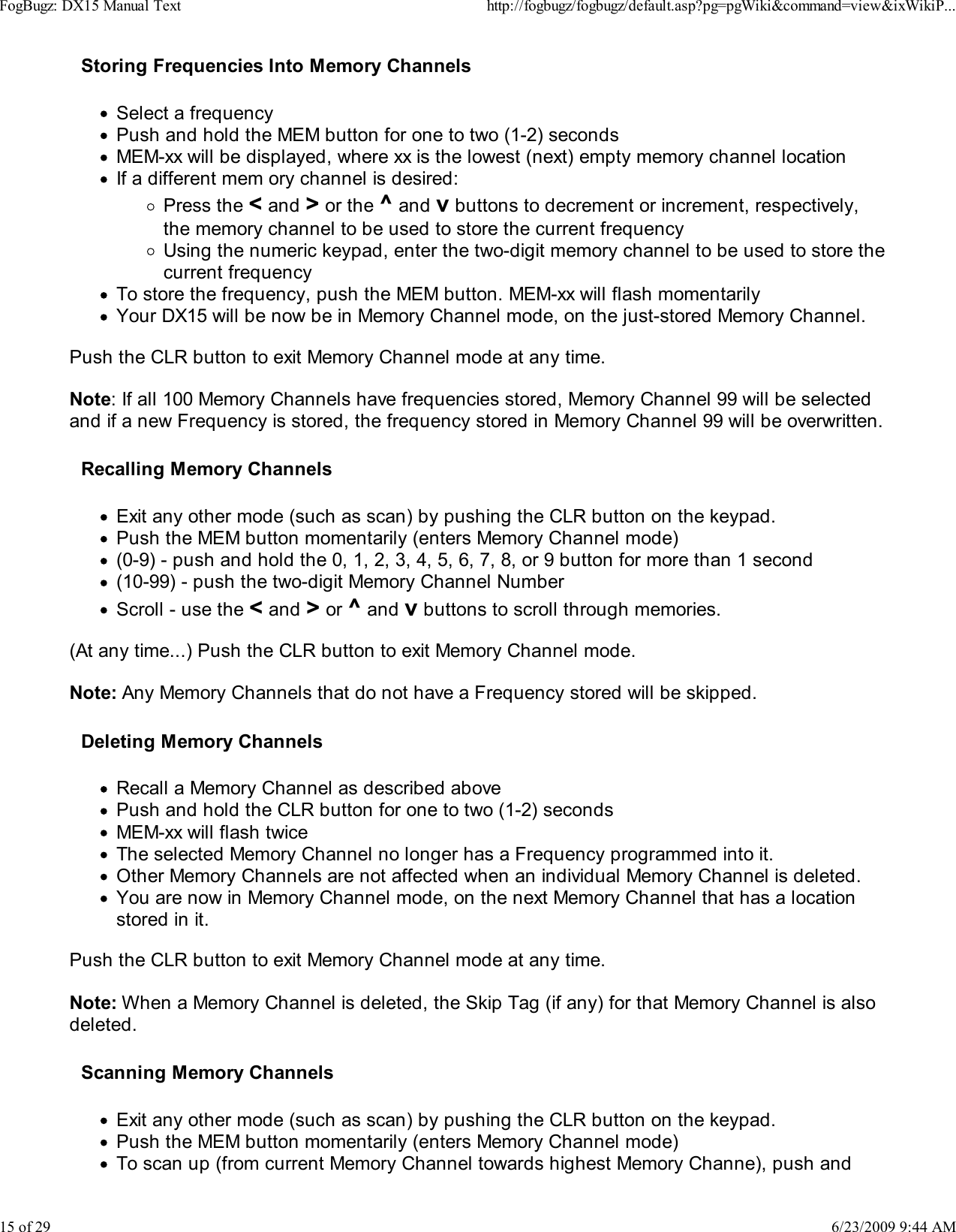
Storing Frequencies Into Memory ChannelsSelect a frequencyPush and hold the MEM button for one to two (1-2) secondsMEM-xx will be displayed, where xx is the lowest (next) empty memory channel locationIf a different mem ory channel is desired:Press the < and > or the ^ and v buttons to decrement or increment, respectively,the memory channel to be used to store the current frequencyUsing the numeric keypad, enter the two-digit memory channel to be used to store thecurrent frequencyTo store the frequency, push the MEM button. MEM-xx will flash momentarilyYour DX15 will be now be in Memory Channel mode, on the just-stored Memory Channel.Push the CLR button to exit Memory Channel mode at any time.Note: If all 100 Memory Channels have frequencies stored, Memory Channel 99 will be selectedand if a new Frequency is stored, the frequency stored in Memory Channel 99 will be overwritten.Recalling Memory ChannelsExit any other mode (such as scan) by pushing the CLR button on the keypad.Push the MEM button momentarily (enters Memory Channel mode)(0-9) - push and hold the 0, 1, 2, 3, 4, 5, 6, 7, 8, or 9 button for more than 1 second(10-99) - push the two-digit Memory Channel NumberScroll - use the < and > or ^ and v buttons to scroll through memories.(At any time...) Push the CLR button to exit Memory Channel mode.Note: Any Memory Channels that do not have a Frequency stored will be skipped.Deleting Memory ChannelsRecall a Memory Channel as described abovePush and hold the CLR button for one to two (1-2) secondsMEM-xx will flash twiceThe selected Memory Channel no longer has a Frequency programmed into it.Other Memory Channels are not affected when an individual Memory Channel is deleted.You are now in Memory Channel mode, on the next Memory Channel that has a locationstored in it.Push the CLR button to exit Memory Channel mode at any time.Note: When a Memory Channel is deleted, the Skip Tag (if any) for that Memory Channel is alsodeleted.Scanning Memory ChannelsExit any other mode (such as scan) by pushing the CLR button on the keypad.Push the MEM button momentarily (enters Memory Channel mode)To scan up (from current Memory Channel towards highest Memory Channe), push andFogBugz: DX15 Manual Texthttp://fogbugz/fogbugz/default.asp?pg=pgWiki&command=view&ixWikiP...15 of 296/23/2009 9:44 AM
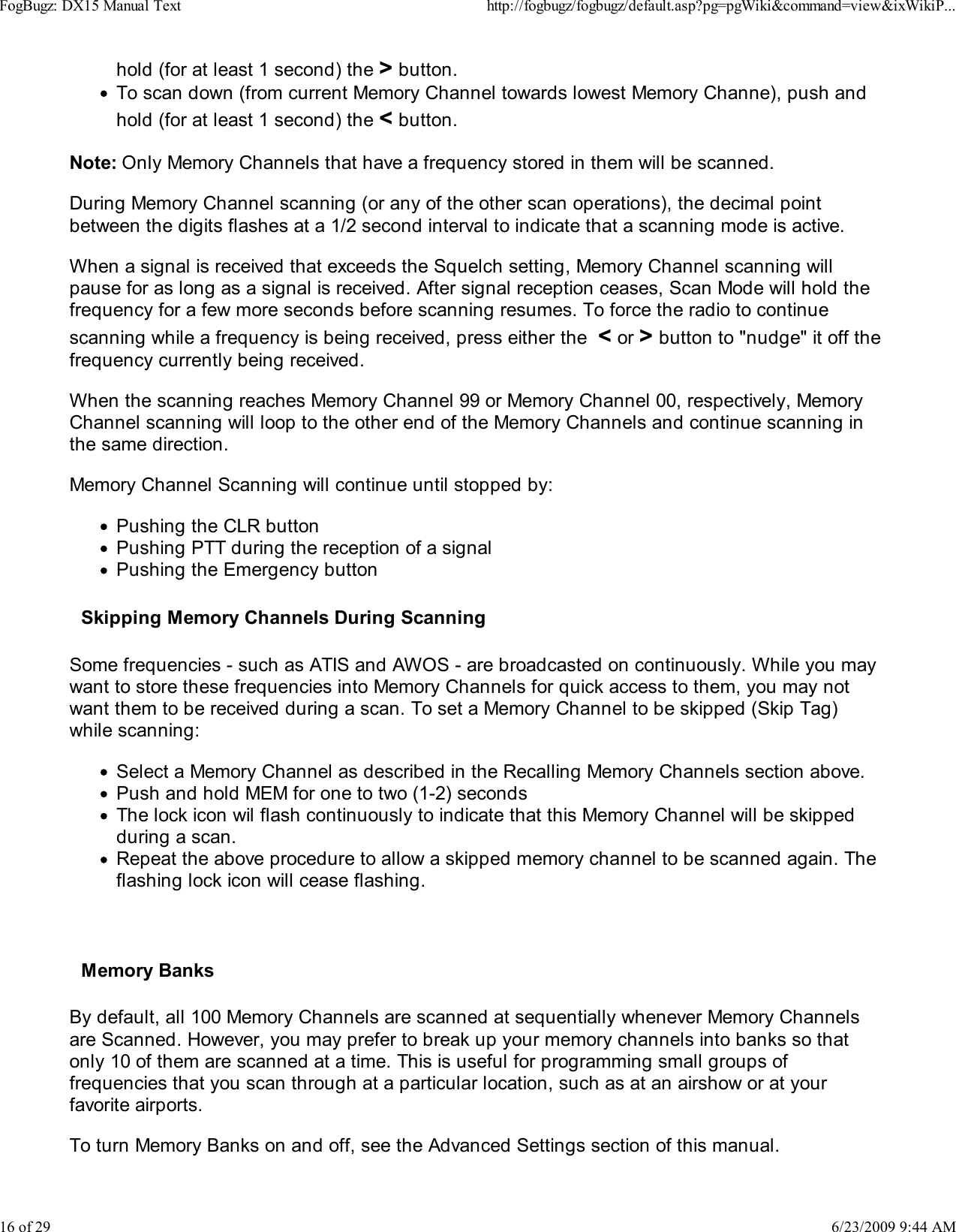
hold (for at least 1 second) the > button.To scan down (from current Memory Channel towards lowest Memory Channe), push andhold (for at least 1 second) the < button.Note: Only Memory Channels that have a frequency stored in them will be scanned.During Memory Channel scanning (or any of the other scan operations), the decimal pointbetween the digits flashes at a 1/2 second interval to indicate that a scanning mode is active.When a signal is received that exceeds the Squelch setting, Memory Channel scanning willpause for as long as a signal is received. After signal reception ceases, Scan Mode will hold thefrequency for a few more seconds before scanning resumes. To force the radio to continuescanning while a frequency is being received, press either the  < or > button to "nudge" it off thefrequency currently being received.When the scanning reaches Memory Channel 99 or Memory Channel 00, respectively, MemoryChannel scanning will loop to the other end of the Memory Channels and continue scanning inthe same direction.Memory Channel Scanning will continue until stopped by:Pushing the CLR buttonPushing PTT during the reception of a signalPushing the Emergency buttonSkipping Memory Channels During ScanningSome frequencies - such as ATIS and AWOS - are broadcasted on continuously. While you maywant to store these frequencies into Memory Channels for quick access to them, you may notwant them to be received during a scan. To set a Memory Channel to be skipped (Skip Tag)while scanning:Select a Memory Channel as described in the Recalling Memory Channels section above.Push and hold MEM for one to two (1-2) secondsThe lock icon wil flash continuously to indicate that this Memory Channel will be skippedduring a scan.Repeat the above procedure to allow a skipped memory channel to be scanned again. Theflashing lock icon will cease flashing.Memory BanksBy default, all 100 Memory Channels are scanned at sequentially whenever Memory Channelsare Scanned. However, you may prefer to break up your memory channels into banks so thatonly 10 of them are scanned at a time. This is useful for programming small groups offrequencies that you scan through at a particular location, such as at an airshow or at yourfavorite airports.To turn Memory Banks on and off, see the Advanced Settings section of this manual.FogBugz: DX15 Manual Texthttp://fogbugz/fogbugz/default.asp?pg=pgWiki&command=view&ixWikiP...16 of 296/23/2009 9:44 AM
When Memory Banks are enabled, only Memory Channel Scanning behavior is affected. All 100Memory Channels can still be stored and accessed like normal. However, when a scan isinitiated, only the Memory Channels that start with the same number are scanned. For example,if you start a scan from Memory Channel 34, only Memory Channels 30-39 are scanned.Similarly, if you start a scan from Memory Channel 03, only Memory Channels 00-09 arescanned.This mode effectively divides up your Memory Channels into 10 scannable banks of 10 channelseach.Key Beep Volume Adjustment To adjust key beep volume:Push and hold the SQL button until it says BEEPXX. XX represents the current key beepvolume level. You will need to continue holding the SQL button as the radio passes throughSidetone Adjustment, which is displayed as "SideXX"Adjust key beep volume level by using the < and > buttons.The display will show 0 through 8; 0 is no key beeps (beeps are muted), 8 are loud keybeepsTo exit Key Beep Volume Adjustment push the SQL or CLR buttonAdvanced SettingsOption: Assume Leading 1 During Frequency entry: OFF (default) / ONWhen this option is turned ON, the first "1" when entering frequencies is automatically typed.This is possible because all frequencies that can be tuned by the DX15 begin with "1".To set:Turn power OFF.Push and hold the 1 button.Turn power ON.If message "1 - off" is displayed, this behavior is OFFIf message "1 - on" is displayed, this behavior is ONThe message will clear after two seconds and you can then use your DX15 normally.To change between modes, repeat the procedure (repeated cycles toggle between the twomodes).Example : If set to OFF (Factory Default), the following frequency entry method is used:To set a frequency of 128.775, type the following:1   2   8   7  7The display should then read:FogBugz: DX15 Manual Texthttp://fogbugz/fogbugz/default.asp?pg=pgWiki&command=view&ixWikiP...17 of 296/23/2009 9:44 AM
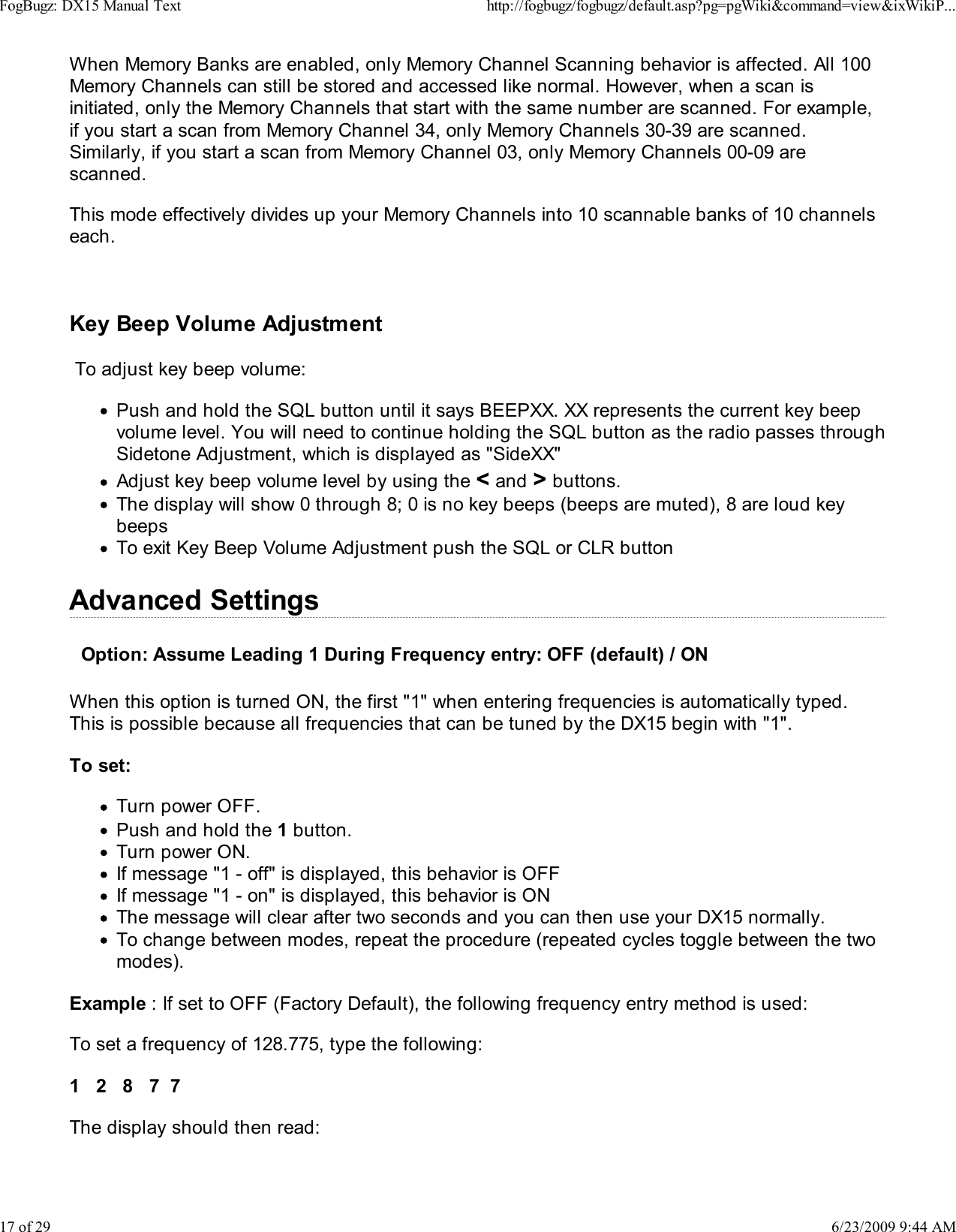
128.775If set to ON, the following frequency entry method is used:To set a frequency of 128.775, type the following:2   8   7  7The display should then read:128.775Option: Side buttons used for Direct Squelch: OFF (default) / ONLets the side ^ and v be used exclusively to set Squelch.To set:Turn power OFF.Push and hold the SQL button.Turn power ON.If message "SQL off" is displayed, this behavior is OFF. When in modes such as SettingSquelch or Recalling Memory Channels that use the keypad < and > buttons, the side ^and v buttons can also be used interchangably. The side ^ and v buttons are also used toenter and cycle through ten Most Recently Used frequencies - see the Recalling RecentlyUsed frequencies section for details.If message "SQL on" is displayed, this behavior is ON. The side ^ and v buttons have asingle use - to increase or decrease Squelch. In this mode, Squelch can easily beincreased or decreased with single button pushes. However, when this mode is selected,the Most Recently Used frequencies can not be recalled.The message will clear after two seconds, followed by a beep, and you can then use yourDX15 normally.To change between modes, repeat the procedure (repeated cycles toggle between the twomodes).Option: Backlight Behavior: ON (default) / 5-sec.Sets the behavior of the backlight when keys are pressed.To set:Turn power OFF.Push and hold the LIGHT button.Turn power ON.If message "L-On" is displayed, pushing LIGHT button causes backlighting to be oncontinuously until LIGHT button is pushed again.If message "L-5SEc" is displayed, pushing any button (except Push To Talk) will causebacklighting to come on temporarily for five (5) seconds. Pressing the LIGHT button will stillcause the backlighting to be on continuously until the LIGHT button is pushed again.The message will clear after two seconds, followed by a beep, and you can then use yourFogBugz: DX15 Manual Texthttp://fogbugz/fogbugz/default.asp?pg=pgWiki&command=view&ixWikiP...18 of 296/23/2009 9:44 AM
DX15 normally.To change between modes, repeat the procedure (repeated cycles toggle between the twomodes).Option: Memory Banks Enabled: OFF (default) / ONToggles whether or not Memory Banks can be used. See section Memory Banks for details.To set:Turn power OFF.Push and hold the MEM button.Turn power ON.If message "BANK-n" is displayed, this behavior is OFF.If message "BANK-Y" is displayed, this behavior is ON.The message will clear after two seconds, followed by a beep, and you can then use yourDX15 normally.To change between modes, repeat the procedure (repeated cycles toggle between the twomodes).Option: Enable Transmit: OFF / ON (default)Toggles whether or not the DX15 can transmit. Disabling the ability to transmit can be useful forusers who do not wish to ever transmit on the airband by accidentally pushing the Push to Talkbutton.To set:Turn power OFF.Push and hold the v button.Turn power ON.If message "tx OFF" is displayed, transmitting is disabled.If message "tx on" is displayed, transmitting is enabled.The message will clear after two seconds, followed by a beep, and you can then use yourDX15 normally.To change between modes, repeat the procedure (repeated cycles toggle between the twomodes).Option: Stop Transmitting on Stuck Mic: OFF / ON (default)    Toggles an options that turns off the transmitter if a stuck mic is detected.To set:Turn power OFF.Push and hold the > button.Turn power ON.If message "Stuc-Y" is displayed, transmitting ceases when a stuck mic is detected. TheFogBugz: DX15 Manual Texthttp://fogbugz/fogbugz/default.asp?pg=pgWiki&command=view&ixWikiP...19 of 296/23/2009 9:44 AM
mic is considered stuck open after 30 seconds of continuous transmitting. At this time, theDX15 will emit a beep, the display will momentarily show the transmit icon and the text"StucK". Transmitting will be re-enabled once the Push To Talk button is released andpressed again.If message "Stuc-n" is displayed, the radio will transmit as long as the Push To Talk buttonis held; Stuck mic detection is inhibited.The message will clear after two seconds, followed by a beep, and you can then use yourDX15 normally.To change between modes, repeat the procedure (repeated cycles toggle between the twomodes).External ConnectionsExternal Power  Warning!Connecting your DX15 Handheld VHF Air Band Transceiver to voltage inputs outside the range of10 - 30V DC will damage your DX15, requiring repair or replacement (not covered by warranty),and could result in other hazardous consequences such as fire. To prevent damage, only usebattery chargers sold by Dynon Avionics as directed.In situations where a cigarette lighter power outlet is available (10-30V DC), the (optional) VehiclePower Adapter can be used to power and simultaneously charge your DX15.To connect your DX15 to external power:Connect the (optional) Vehicle Power Adapter to the DC IN of your DX15 as illustrated(graphic of plug being inserted into DC In jack)Plug the charger into a cigarette lighter power outlet (10-30V DC) (graphic of cigarettlelighter plug)Whenever your DX15 is connected to external power, it will charge the battery, even when yourDX15 is being used to receive and transmit. During charging the Battery Status icon will animateto indicate it is charging. Additionally, the bars on the interior of the Battery Status icon willdisplay the approximate state of the charge. When charging is complete, the Battery Status iconwill be solid and the bars will extend through the entire length of the Battery Status icon.A fully-discharged battery will require approximately X hours to fully recharge (4 hours was onthe desk charger - need to verify this number on external power.)Note: While your DX15 can be used to receive and/or transmit during charging, such usageduring charging will increase the time it takes for the battery to fully recharge.External Microphone / Speaker / Push To TalkConnection to a headset, microphone, push-to-talk switch, etc. requires the optional 100844-000Headphones / Push To Talk (PTT) Adapter Cable. This cable and its connectors are configuredfor headset connections common in aviation.FogBugz: DX15 Manual Texthttp://fogbugz/fogbugz/default.asp?pg=pgWiki&command=view&ixWikiP...20 of 296/23/2009 9:44 AM
Note: when the 100844 Headphones / PTT Adapter Cable is plugged in, your DX15's built-inmicrophone and speaker is disabled.Sidetone AdjustmentSidetone is audio fed from the microphone to the headset. Sidetone helps you hear yourselfspeak when wearing a headset in a noisy environment like an airplane. To set sidetone:Push and hold the SQL button for 1-2 secondsAdjust sidetone level by using the < and > buttonsThe display will show 0 through 8; 0 is no sidetone, 8 is very loud sidetoneTo exit Sidetone Adjustment, push the SQL or CLR buttonExternal Antenna  Warning!Dynon Avionics has not tested, nor does it recommend the use of any antenna other than theincluded 100993-000 Flexible Antenna.Using your DX15 Handheld VHF Air Band Transceiver with an external antenna is done entirely atyour risk of the following:Potential damage to your DX15Potential improper transmissions, such as interferencePotential excessive exposure to Radio Frequency (RF) Electromagnetic Energy.The xxxxxx-xxx External Antenna Adapter can be used to connect your DX15 to a 50-ohm externalantenna using coaxial cable that terminates in a female BNC connector.Note: If connecting your DX15 to externally-mounted aircraft antenna, insure that the antenna isproperly tuned for the 118 - 136.975 MHz Aviation band.Appendix A - WarrantyLimited WarrantyDynon Avionics warrants this product to be free from defects in materials or workmanship for one(1) year from date of shipment. Dynon Avionics will, at its sole option, repair or replace anycomponents that fail in normal use. Such repairs or replacement will be made at no charge to thecustomer for parts or labor. The customer is, however, responsible for any transportation cost.This warranty does not cover failures due to abuse, misuse, accident, improper installation orunauthorized alteration or repairs.THE WARRANTIES AND REMEDIES CONTAINED HEREIN ARE EXCLUSIVE, AND IN LIEU OFALL OTHER WARRANTIES EXPRESSED OR IMPLIED, INCLUDING ANY LIABILITY ARISINGUNDER WARRANTY OF MERCHANTABILITY OR FITNESS FOR A PARTICULAR PURPOSE,STATUTORY OR OTHERWISE. THIS WARRANTY GIVES YOU SPECIFIC LEGAL RIGHTS,FogBugz: DX15 Manual Texthttp://fogbugz/fogbugz/default.asp?pg=pgWiki&command=view&ixWikiP...21 of 296/23/2009 9:44 AM
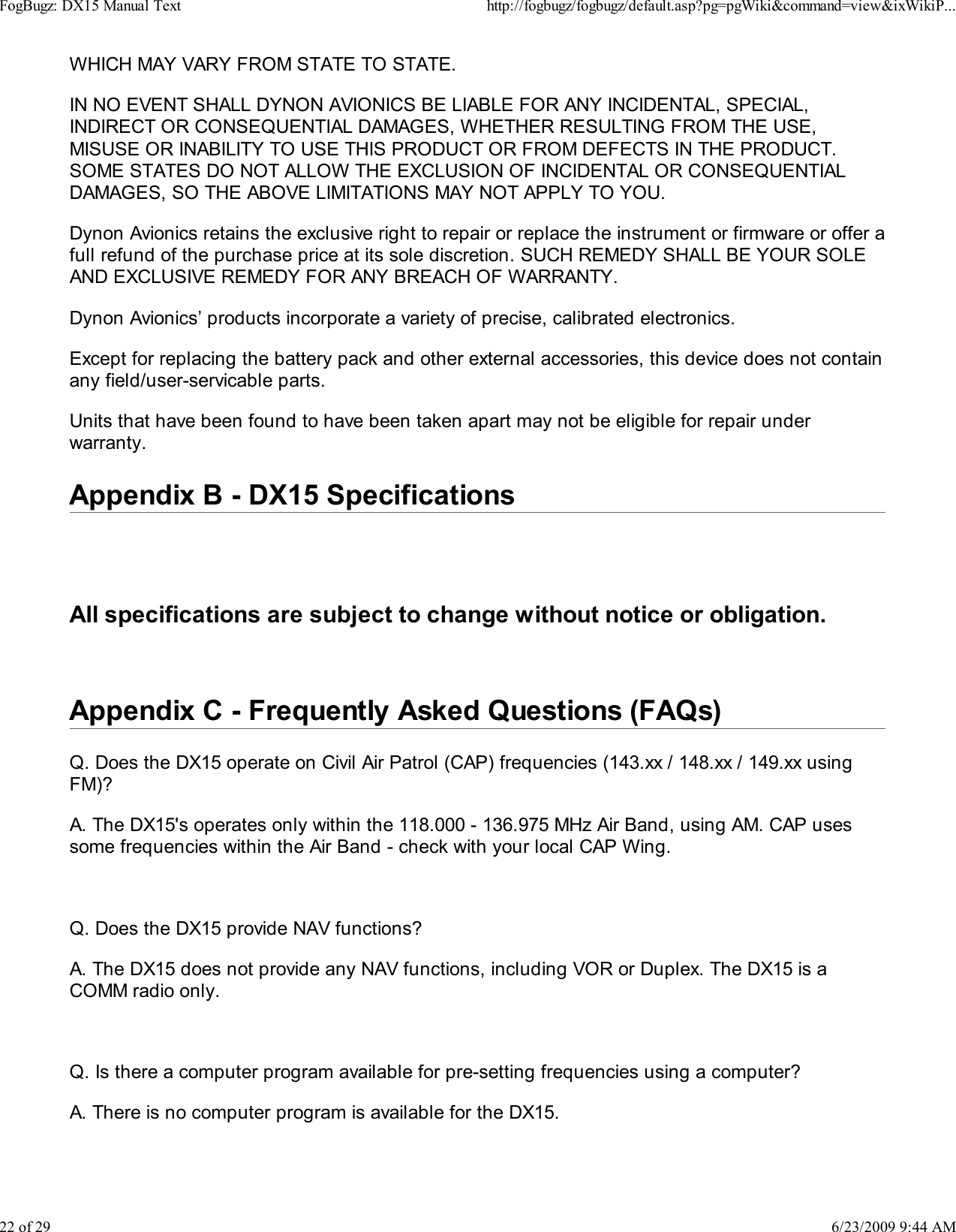
WHICH MAY VARY FROM STATE TO STATE.IN NO EVENT SHALL DYNON AVIONICS BE LIABLE FOR ANY INCIDENTAL, SPECIAL,INDIRECT OR CONSEQUENTIAL DAMAGES, WHETHER RESULTING FROM THE USE,MISUSE OR INABILITY TO USE THIS PRODUCT OR FROM DEFECTS IN THE PRODUCT.SOME STATES DO NOT ALLOW THE EXCLUSION OF INCIDENTAL OR CONSEQUENTIALDAMAGES, SO THE ABOVE LIMITATIONS MAY NOT APPLY TO YOU.Dynon Avionics retains the exclusive right to repair or replace the instrument or firmware or offer afull refund of the purchase price at its sole discretion. SUCH REMEDY SHALL BE YOUR SOLEAND EXCLUSIVE REMEDY FOR ANY BREACH OF WARRANTY.Dynon Avionics’ products incorporate a variety of precise, calibrated electronics.Except for replacing the battery pack and other external accessories, this device does not containany field/user-servicable parts.Units that have been found to have been taken apart may not be eligible for repair underwarranty.Appendix B - DX15 SpecificationsAll specifications are subject to change without notice or obligation.Appendix C - Frequently Asked Questions (FAQs)Q. Does the DX15 operate on Civil Air Patrol (CAP) frequencies (143.xx / 148.xx / 149.xx usingFM)?A. The DX15's operates only within the 118.000 - 136.975 MHz Air Band, using AM. CAP usessome frequencies within the Air Band - check with your local CAP Wing.Q. Does the DX15 provide NAV functions?A. The DX15 does not provide any NAV functions, including VOR or Duplex. The DX15 is aCOMM radio only.Q. Is there a computer program available for pre-setting frequencies using a computer?A. There is no computer program is available for the DX15.FogBugz: DX15 Manual Texthttp://fogbugz/fogbugz/default.asp?pg=pgWiki&command=view&ixWikiP...22 of 296/23/2009 9:44 AM
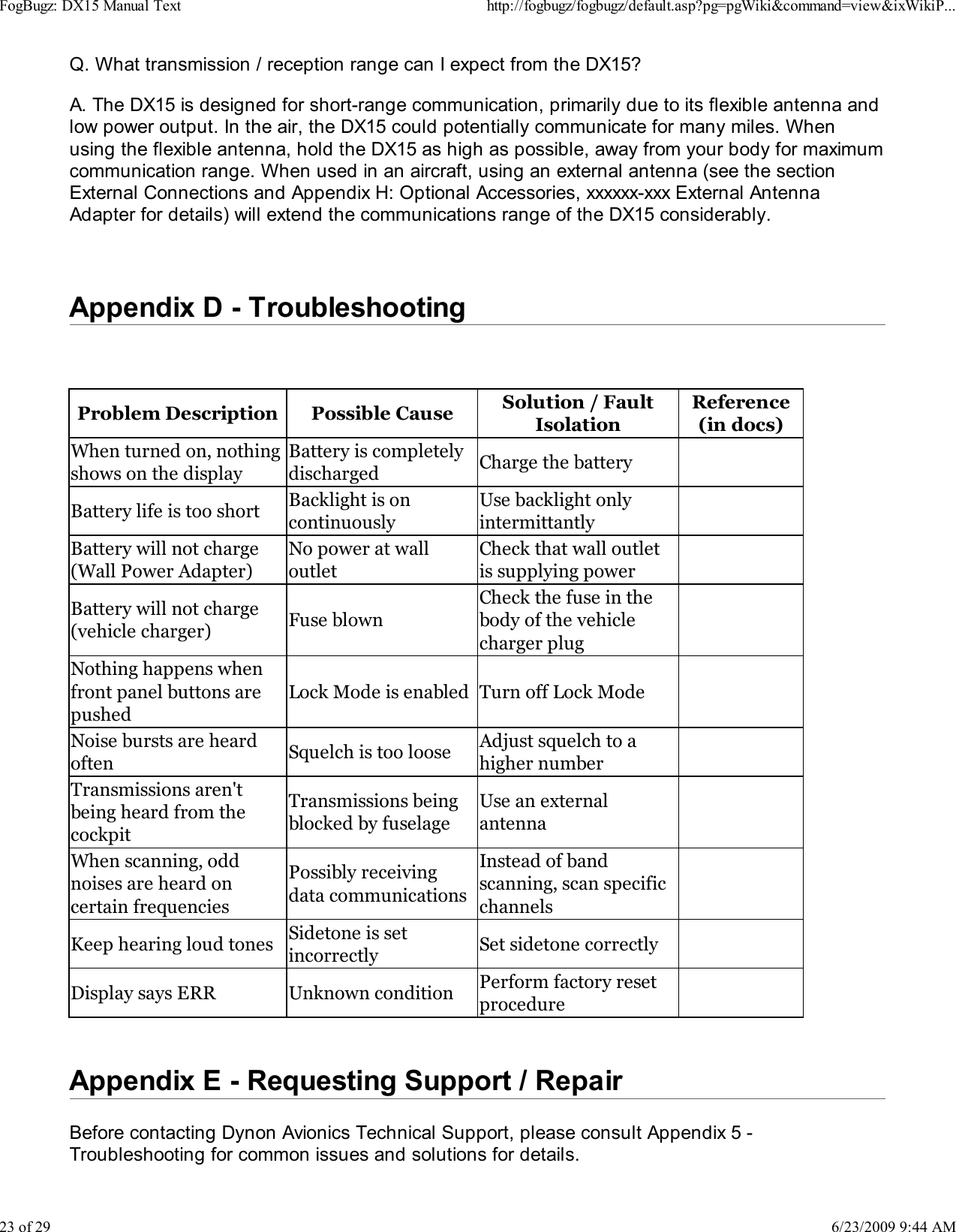
Q. What transmission / reception range can I expect from the DX15?A. The DX15 is designed for short-range communication, primarily due to its flexible antenna andlow power output. In the air, the DX15 could potentially communicate for many miles. Whenusing the flexible antenna, hold the DX15 as high as possible, away from your body for maximumcommunication range. When used in an aircraft, using an external antenna (see the sectionExternal Connections and Appendix H: Optional Accessories, xxxxxx-xxx External AntennaAdapter for details) will extend the communications range of the DX15 considerably.Appendix D - Troubleshooting Problem Description Possible Cause Solution / FaultIsolationReference(in docs)When turned on, nothingshows on the displayBattery is completelydischarged Charge the batteryBattery life is too short Backlight is oncontinuouslyUse backlight onlyintermittantlyBattery will not charge(Wall Power Adapter)No power at walloutletCheck that wall outletis supplying powerBattery will not charge(vehicle charger) Fuse blownCheck the fuse in thebody of the vehiclecharger plugNothing happens whenfront panel buttons arepushedLock Mode is enabled Turn off Lock ModeNoise bursts are heardoften Squelch is too loose Adjust squelch to ahigher numberTransmissions aren'tbeing heard from thecockpitTransmissions beingblocked by fuselageUse an externalantennaWhen scanning, oddnoises are heard oncertain frequenciesPossibly receivingdata communicationsInstead of bandscanning, scan specificchannelsKeep hearing loud tones Sidetone is setincorrectly Set sidetone correctlyDisplay says ERR Unknown condition Perform factory resetprocedureAppendix E - Requesting Support / RepairBefore contacting Dynon Avionics Technical Support, please consult Appendix 5 -Troubleshooting for common issues and solutions for details.FogBugz: DX15 Manual Texthttp://fogbugz/fogbugz/default.asp?pg=pgWiki&command=view&ixWikiP...23 of 296/23/2009 9:44 AM
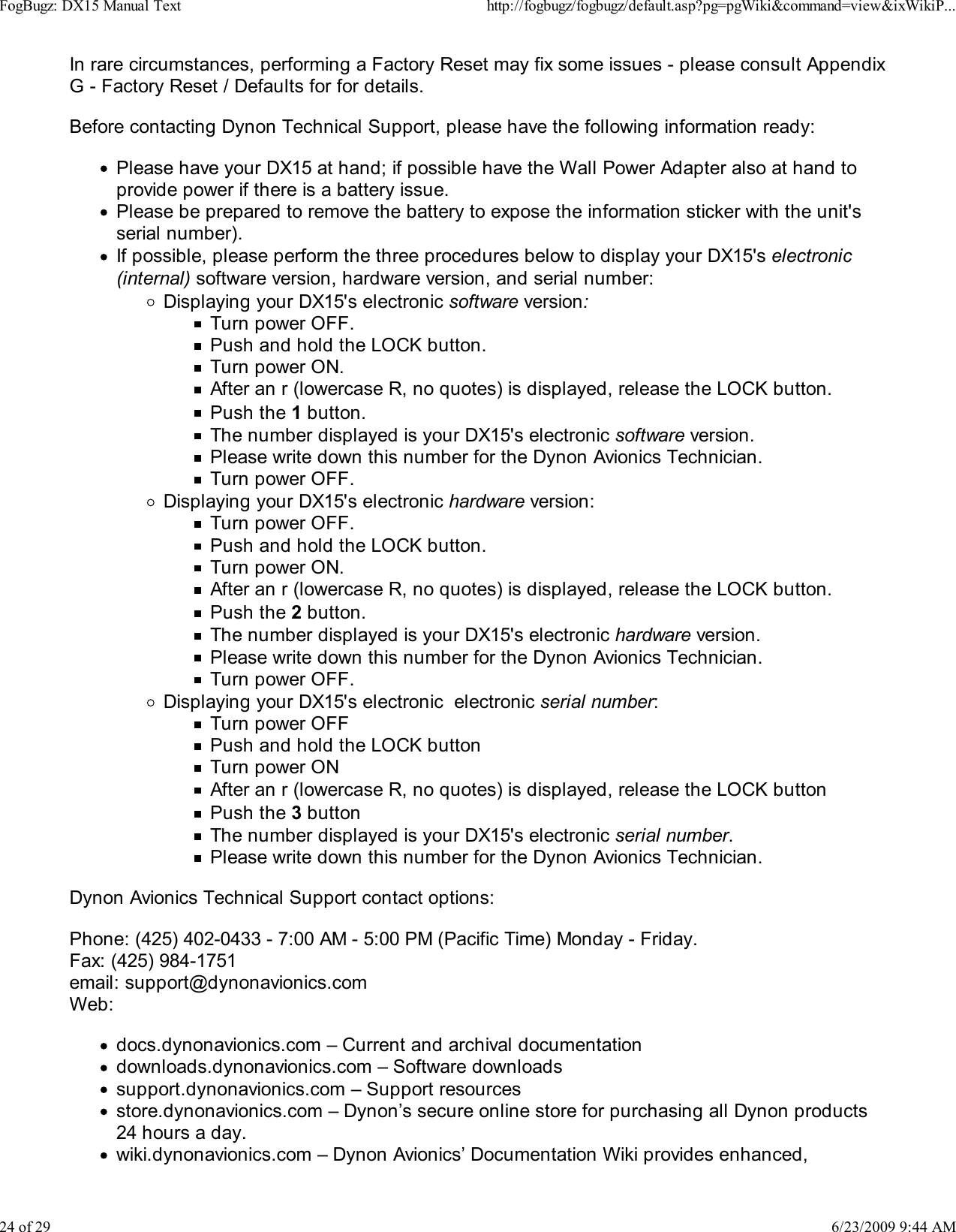
In rare circumstances, performing a Factory Reset may fix some issues - please consult AppendixG - Factory Reset / Defaults for for details.Before contacting Dynon Technical Support, please have the following information ready:Please have your DX15 at hand; if possible have the Wall Power Adapter also at hand toprovide power if there is a battery issue.Please be prepared to remove the battery to expose the information sticker with the unit'sserial number).If possible, please perform the three procedures below to display your DX15's electronic(internal) software version, hardware version, and serial number:Displaying your DX15's electronic software version:Turn power OFF.Push and hold the LOCK button.Turn power ON.After an r (lowercase R, no quotes) is displayed, release the LOCK button.Push the 1 button.The number displayed is your DX15's electronic software version.Please write down this number for the Dynon Avionics Technician.Turn power OFF.Displaying your DX15's electronic hardware version:Turn power OFF.Push and hold the LOCK button.Turn power ON.After an r (lowercase R, no quotes) is displayed, release the LOCK button.Push the 2 button.The number displayed is your DX15's electronic hardware version.Please write down this number for the Dynon Avionics Technician.Turn power OFF.Displaying your DX15's electronic  electronic serial number:Turn power OFFPush and hold the LOCK buttonTurn power ONAfter an r (lowercase R, no quotes) is displayed, release the LOCK buttonPush the 3 buttonThe number displayed is your DX15's electronic serial number.Please write down this number for the Dynon Avionics Technician.Dynon Avionics Technical Support contact options:Phone: (425) 402-0433 - 7:00 AM - 5:00 PM (Pacific Time) Monday - Friday.Fax: (425) 984-1751email: support@dynonavionics.comWeb:docs.dynonavionics.com – Current and archival documentationdownloads.dynonavionics.com – Software downloadssupport.dynonavionics.com – Support resourcesstore.dynonavionics.com – Dynon’s secure online store for purchasing all Dynon products24 hours a day.wiki.dynonavionics.com – Dynon Avionics’ Documentation Wiki provides enhanced,FogBugz: DX15 Manual Texthttp://fogbugz/fogbugz/default.asp?pg=pgWiki&command=view&ixWikiP...24 of 296/23/2009 9:44 AM
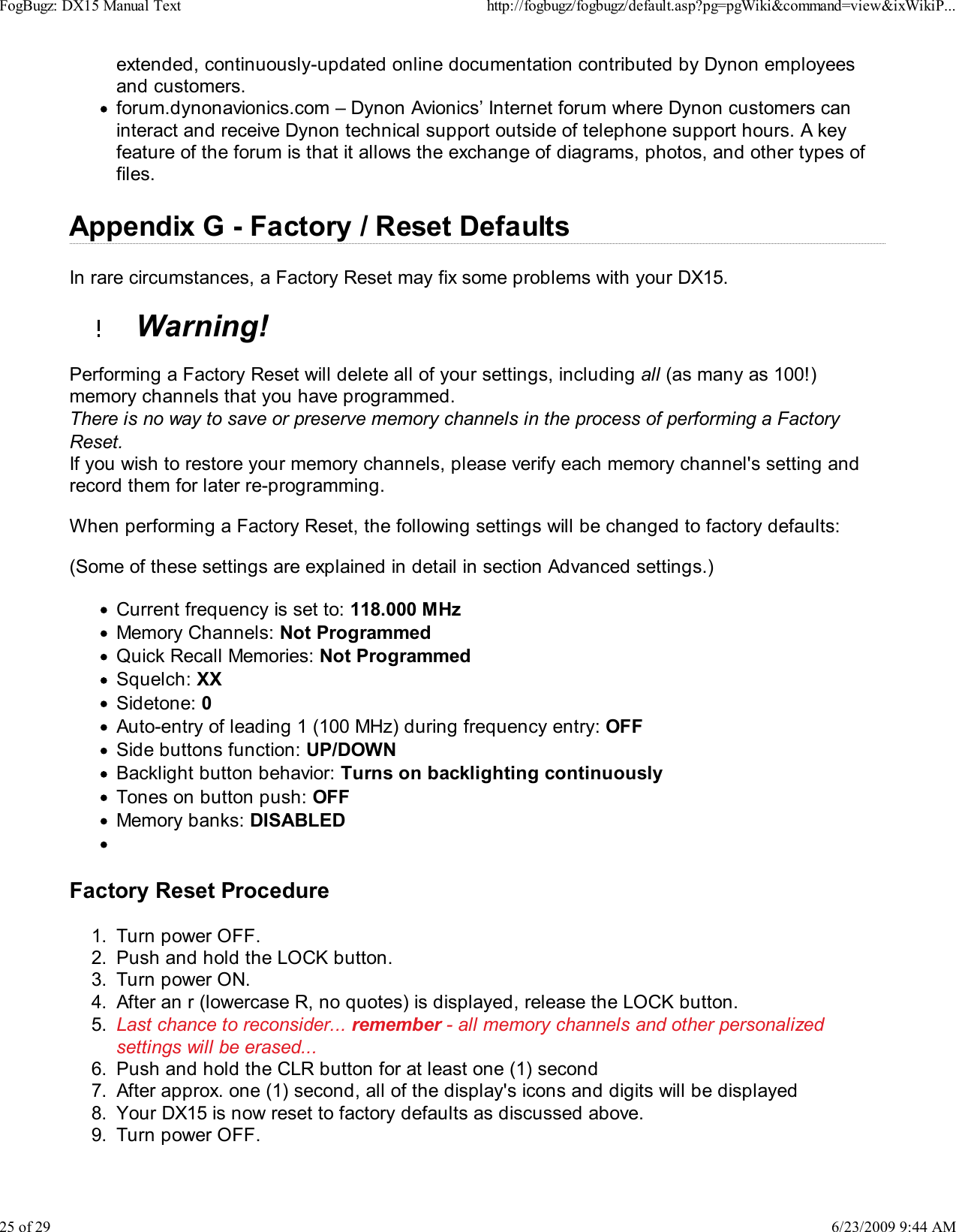
extended, continuously-updated online documentation contributed by Dynon employeesand customers.forum.dynonavionics.com – Dynon Avionics’ Internet forum where Dynon customers caninteract and receive Dynon technical support outside of telephone support hours. A keyfeature of the forum is that it allows the exchange of diagrams, photos, and other types offiles.Appendix G - Factory / Reset DefaultsIn rare circumstances, a Factory Reset may fix some problems with your DX15.  Warning!Performing a Factory Reset will delete all of your settings, including all (as many as 100!)memory channels that you have programmed.There is no way to save or preserve memory channels in the process of performing a FactoryReset.If you wish to restore your memory channels, please verify each memory channel's setting andrecord them for later re-programming.When performing a Factory Reset, the following settings will be changed to factory defaults:(Some of these settings are explained in detail in section Advanced settings.)Current frequency is set to: 118.000 MHzMemory Channels: Not ProgrammedQuick Recall Memories: Not ProgrammedSquelch: XXSidetone: 0Auto-entry of leading 1 (100 MHz) during frequency entry: OFFSide buttons function: UP/DOWNBacklight button behavior: Turns on backlighting continuouslyTones on button push: OFFMemory banks: DISABLEDFactory Reset ProcedureTurn power OFF.1.Push and hold the LOCK button.2.Turn power ON.3.After an r (lowercase R, no quotes) is displayed, release the LOCK button.4.Last chance to reconsider... remember - all memory channels and other personalizedsettings will be erased...5.Push and hold the CLR button for at least one (1) second6.After approx. one (1) second, all of the display's icons and digits will be displayed7.Your DX15 is now reset to factory defaults as discussed above.8.Turn power OFF.9.FogBugz: DX15 Manual Texthttp://fogbugz/fogbugz/default.asp?pg=pgWiki&command=view&ixWikiP...25 of 296/23/2009 9:44 AM
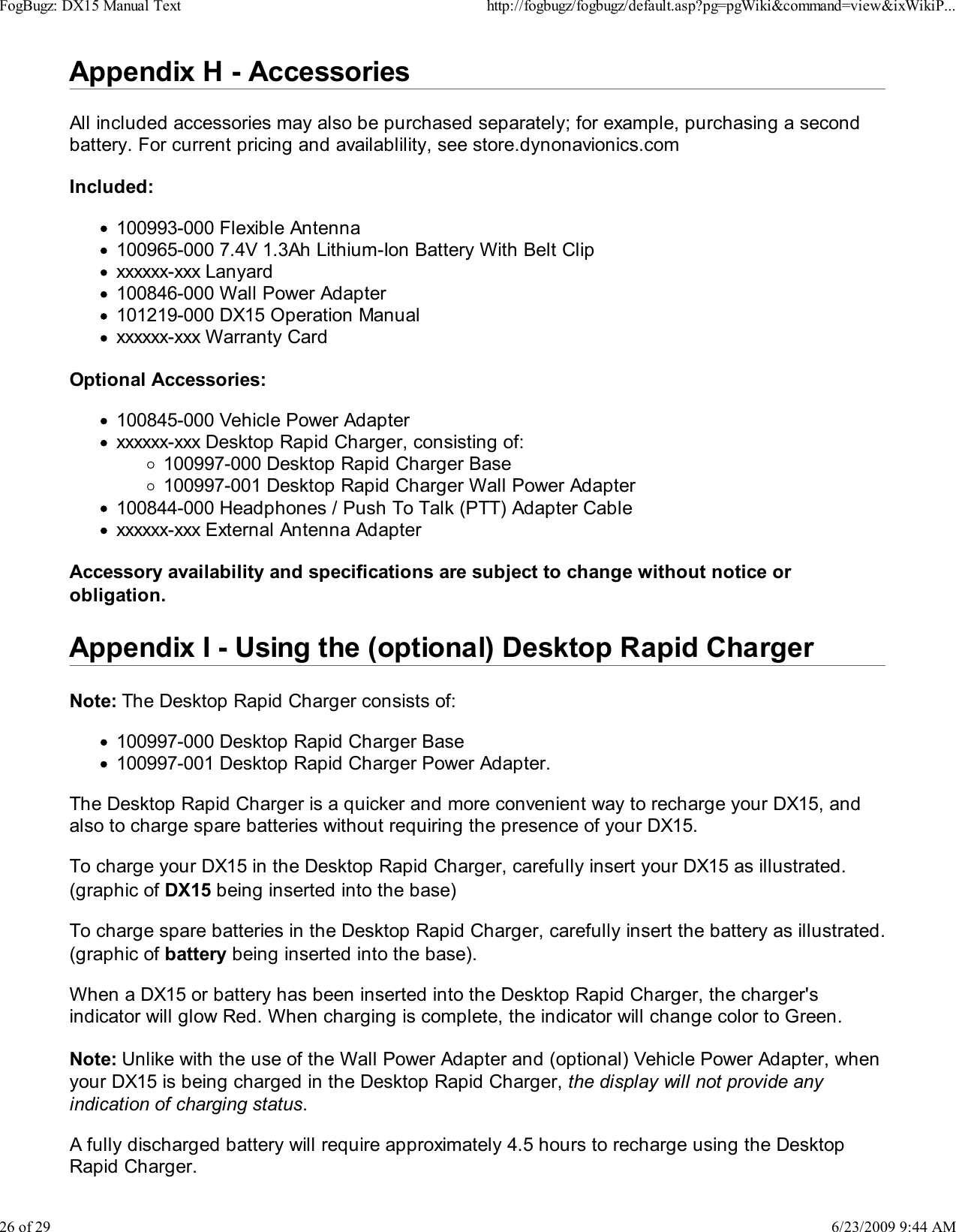
Appendix H - AccessoriesAll included accessories may also be purchased separately; for example, purchasing a secondbattery. For current pricing and availablility, see store.dynonavionics.comIncluded:100993-000 Flexible Antenna100965-000 7.4V 1.3Ah Lithium-Ion Battery With Belt Clipxxxxxx-xxx Lanyard100846-000 Wall Power Adapter101219-000 DX15 Operation Manualxxxxxx-xxx Warranty CardOptional Accessories:100845-000 Vehicle Power Adapterxxxxxx-xxx Desktop Rapid Charger, consisting of:100997-000 Desktop Rapid Charger Base100997-001 Desktop Rapid Charger Wall Power Adapter100844-000 Headphones / Push To Talk (PTT) Adapter Cablexxxxxx-xxx External Antenna AdapterAccessory availability and specifications are subject to change without notice orobligation.Appendix I - Using the (optional) Desktop Rapid ChargerNote: The Desktop Rapid Charger consists of:100997-000 Desktop Rapid Charger Base100997-001 Desktop Rapid Charger Power Adapter.The Desktop Rapid Charger is a quicker and more convenient way to recharge your DX15, andalso to charge spare batteries without requiring the presence of your DX15.To charge your DX15 in the Desktop Rapid Charger, carefully insert your DX15 as illustrated.(graphic of DX15 being inserted into the base)To charge spare batteries in the Desktop Rapid Charger, carefully insert the battery as illustrated.(graphic of battery being inserted into the base).When a DX15 or battery has been inserted into the Desktop Rapid Charger, the charger'sindicator will glow Red. When charging is complete, the indicator will change color to Green.Note: Unlike with the use of the Wall Power Adapter and (optional) Vehicle Power Adapter, whenyour DX15 is being charged in the Desktop Rapid Charger, the display will not provide anyindication of charging status.A fully discharged battery will require approximately 4.5 hours to recharge using the DesktopRapid Charger.FogBugz: DX15 Manual Texthttp://fogbugz/fogbugz/default.asp?pg=pgWiki&command=view&ixWikiP...26 of 296/23/2009 9:44 AM
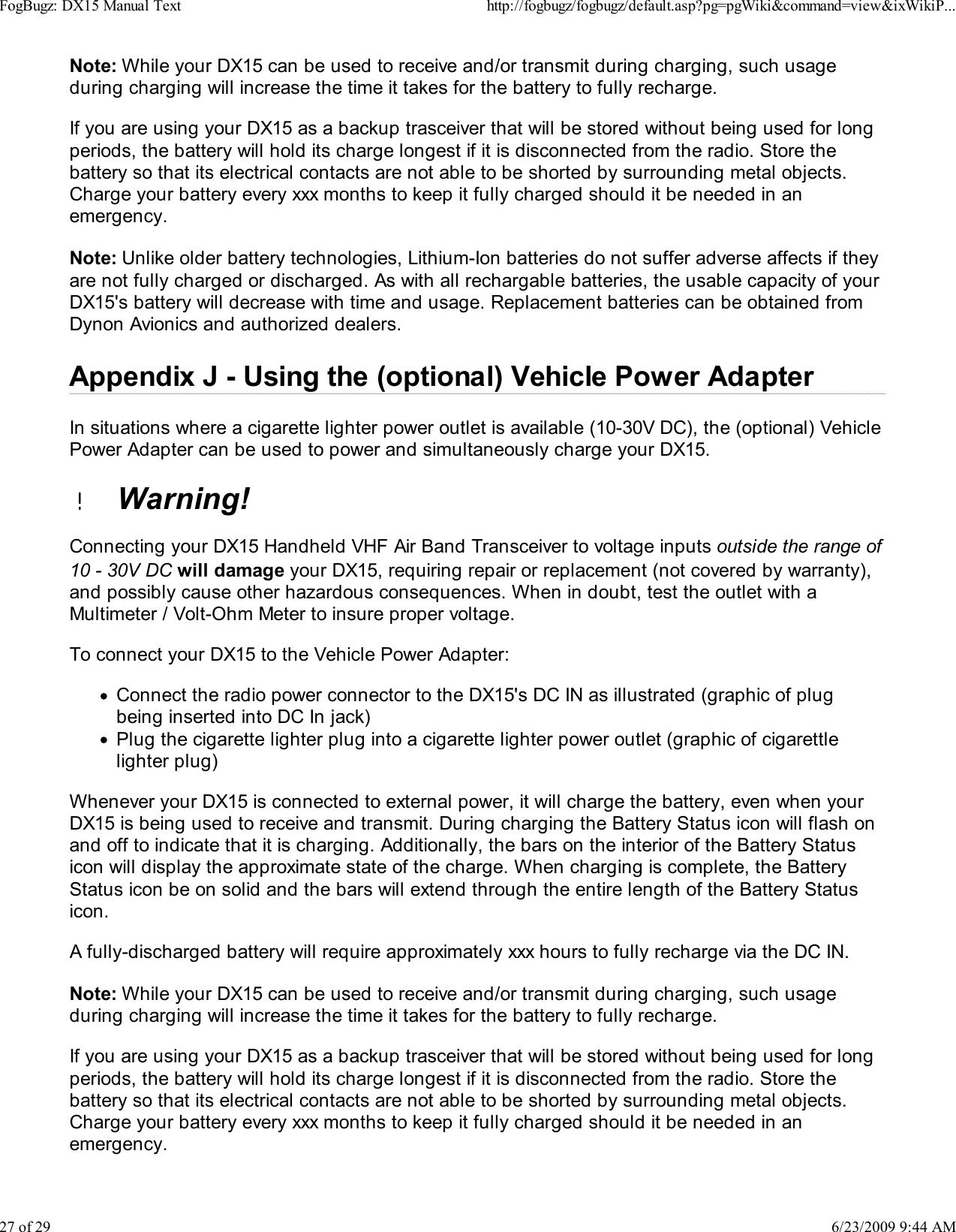
Note: While your DX15 can be used to receive and/or transmit during charging, such usageduring charging will increase the time it takes for the battery to fully recharge.If you are using your DX15 as a backup trasceiver that will be stored without being used for longperiods, the battery will hold its charge longest if it is disconnected from the radio. Store thebattery so that its electrical contacts are not able to be shorted by surrounding metal objects.Charge your battery every xxx months to keep it fully charged should it be needed in anemergency.Note: Unlike older battery technologies, Lithium-Ion batteries do not suffer adverse affects if theyare not fully charged or discharged. As with all rechargable batteries, the usable capacity of yourDX15's battery will decrease with time and usage. Replacement batteries can be obtained fromDynon Avionics and authorized dealers.Appendix J - Using the (optional) Vehicle Power AdapterIn situations where a cigarette lighter power outlet is available (10-30V DC), the (optional) VehiclePower Adapter can be used to power and simultaneously charge your DX15.  Warning!Connecting your DX15 Handheld VHF Air Band Transceiver to voltage inputs outside the range of10 - 30V DC will damage your DX15, requiring repair or replacement (not covered by warranty),and possibly cause other hazardous consequences. When in doubt, test the outlet with aMultimeter / Volt-Ohm Meter to insure proper voltage.To connect your DX15 to the Vehicle Power Adapter:Connect the radio power connector to the DX15's DC IN as illustrated (graphic of plugbeing inserted into DC In jack)Plug the cigarette lighter plug into a cigarette lighter power outlet (graphic of cigarettlelighter plug)Whenever your DX15 is connected to external power, it will charge the battery, even when yourDX15 is being used to receive and transmit. During charging the Battery Status icon will flash onand off to indicate that it is charging. Additionally, the bars on the interior of the Battery Statusicon will display the approximate state of the charge. When charging is complete, the BatteryStatus icon be on solid and the bars will extend through the entire length of the Battery Statusicon.A fully-discharged battery will require approximately xxx hours to fully recharge via the DC IN.Note: While your DX15 can be used to receive and/or transmit during charging, such usageduring charging will increase the time it takes for the battery to fully recharge.If you are using your DX15 as a backup trasceiver that will be stored without being used for longperiods, the battery will hold its charge longest if it is disconnected from the radio. Store thebattery so that its electrical contacts are not able to be shorted by surrounding metal objects.Charge your battery every xxx months to keep it fully charged should it be needed in anemergency.FogBugz: DX15 Manual Texthttp://fogbugz/fogbugz/default.asp?pg=pgWiki&command=view&ixWikiP...27 of 296/23/2009 9:44 AM
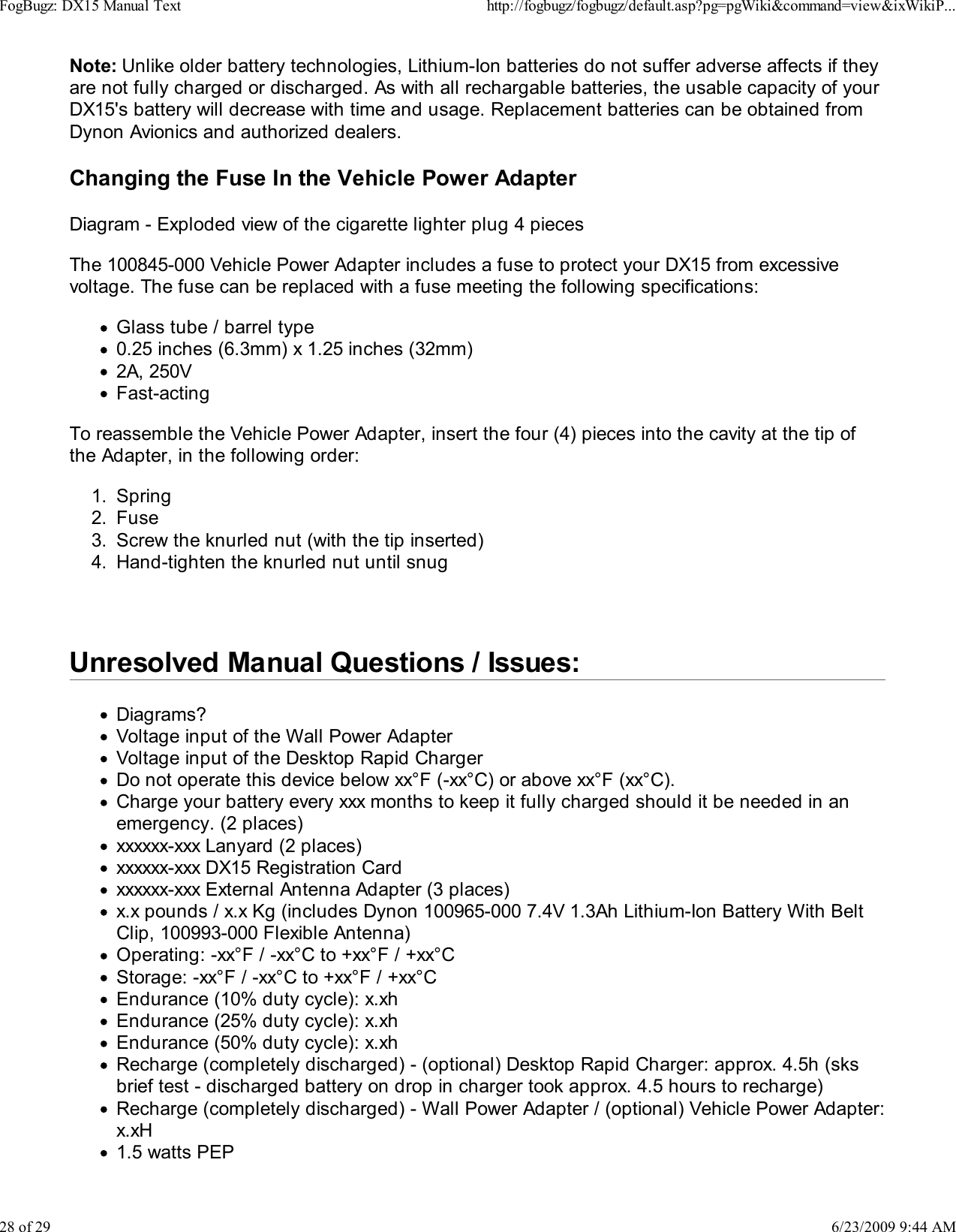
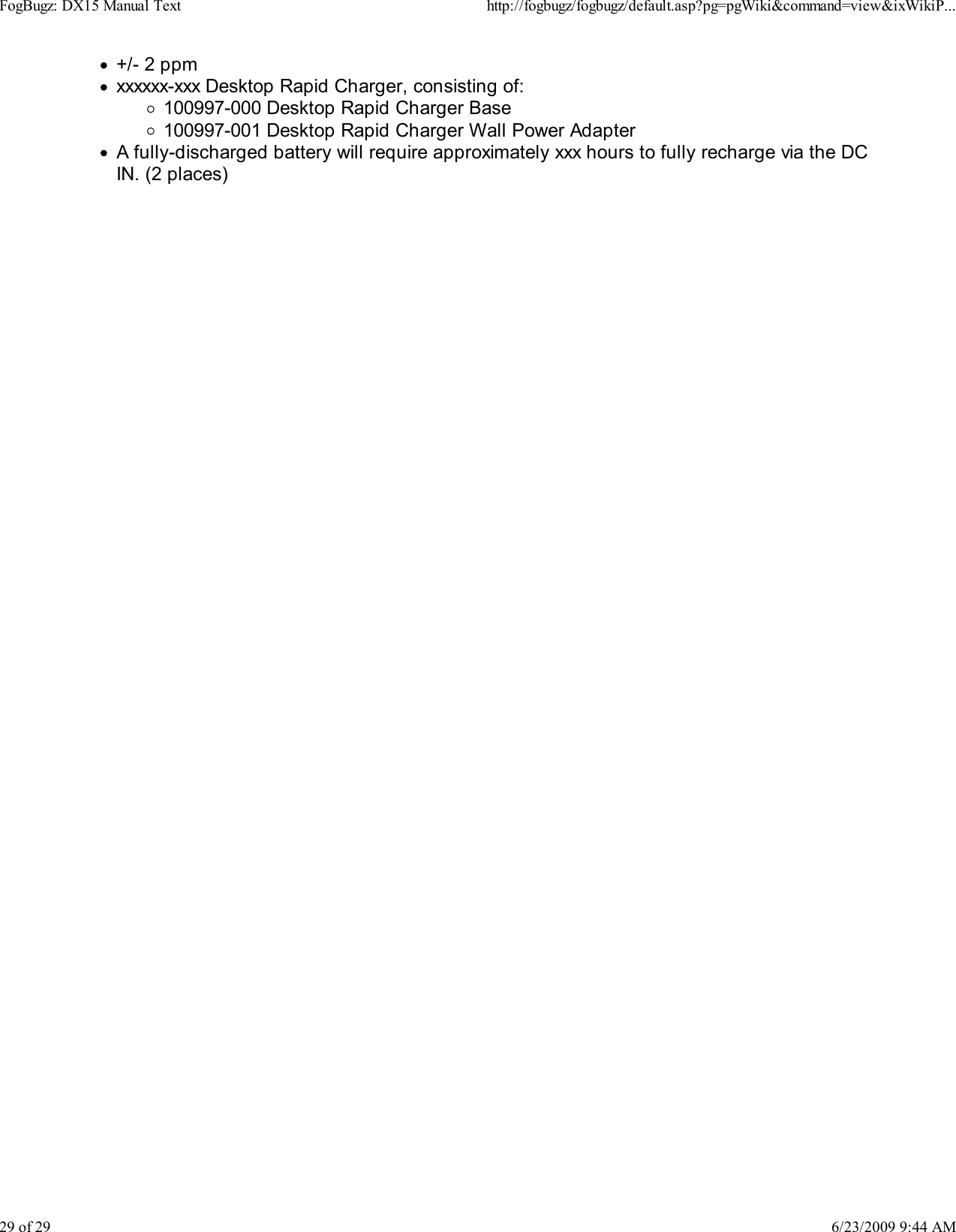
Note: Unlike older battery technologies, Lithium-Ion batteries do not suffer adverse affects if theyare not fully charged or discharged. As with all rechargable batteries, the usable capacity of yourDX15's battery will decrease with time and usage. Replacement batteries can be obtained fromDynon Avionics and authorized dealers.Changing the Fuse In the Vehicle Power AdapterDiagram - Exploded view of the cigarette lighter plug 4 piecesThe 100845-000 Vehicle Power Adapter includes a fuse to protect your DX15 from excessivevoltage. The fuse can be replaced with a fuse meeting the following specifications:Glass tube / barrel type0.25 inches (6.3mm) x 1.25 inches (32mm)2A, 250VFast-actingTo reassemble the Vehicle Power Adapter, insert the four (4) pieces into the cavity at the tip ofthe Adapter, in the following order:Spring1.Fuse2.Screw the knurled nut (with the tip inserted)3.Hand-tighten the knurled nut until snug4. Unresolved Manual Questions / Issues:Diagrams?Voltage input of the Wall Power AdapterVoltage input of the Desktop Rapid ChargerDo not operate this device below xx°F (-xx°C) or above xx°F (xx°C).Charge your battery every xxx months to keep it fully charged should it be needed in anemergency. (2 places)xxxxxx-xxx Lanyard (2 places)xxxxxx-xxx DX15 Registration Cardxxxxxx-xxx External Antenna Adapter (3 places)x.x pounds / x.x Kg (includes Dynon 100965-000 7.4V 1.3Ah Lithium-Ion Battery With BeltClip, 100993-000 Flexible Antenna)Operating: -xx°F / -xx°C to +xx°F / +xx°CStorage: -xx°F / -xx°C to +xx°F / +xx°CEndurance (10% duty cycle): x.xhEndurance (25% duty cycle): x.xhEndurance (50% duty cycle): x.xhRecharge (completely discharged) - (optional) Desktop Rapid Charger: approx. 4.5h (sksbrief test - discharged battery on drop in charger took approx. 4.5 hours to recharge)Recharge (completely discharged) - Wall Power Adapter / (optional) Vehicle Power Adapter:x.xH1.5 watts PEPFogBugz: DX15 Manual Texthttp://fogbugz/fogbugz/default.asp?pg=pgWiki&command=view&ixWikiP...28 of 296/23/2009 9:44 AM
+/- 2 ppmxxxxxx-xxx Desktop Rapid Charger, consisting of:100997-000 Desktop Rapid Charger Base100997-001 Desktop Rapid Charger Wall Power AdapterA fully-discharged battery will require approximately xxx hours to fully recharge via the DCIN. (2 places)FogBugz: DX15 Manual Texthttp://fogbugz/fogbugz/default.asp?pg=pgWiki&command=view&ixWikiP...29 of 296/23/2009 9:44 AM

Navigation menu