E SENSE Technology BMD705 Mini USB Bluetooth 4.0 Adapter User Manual
E-SENSE Technology Co., Ltd. Mini USB Bluetooth 4.0 Adapter
User Manual
CSR Harmony�Help Adding a Bluetooth device
To add a Bluetooth device:
From the Notification area
From My Bluetooth Devices
Dependent on the device type, you can also connect to your com puter from the remote device. See Connecting from the remote device.
Fromthe Notification area:
1. Ensure the device is turned on, has Bluetooth enabled and is discoverable.
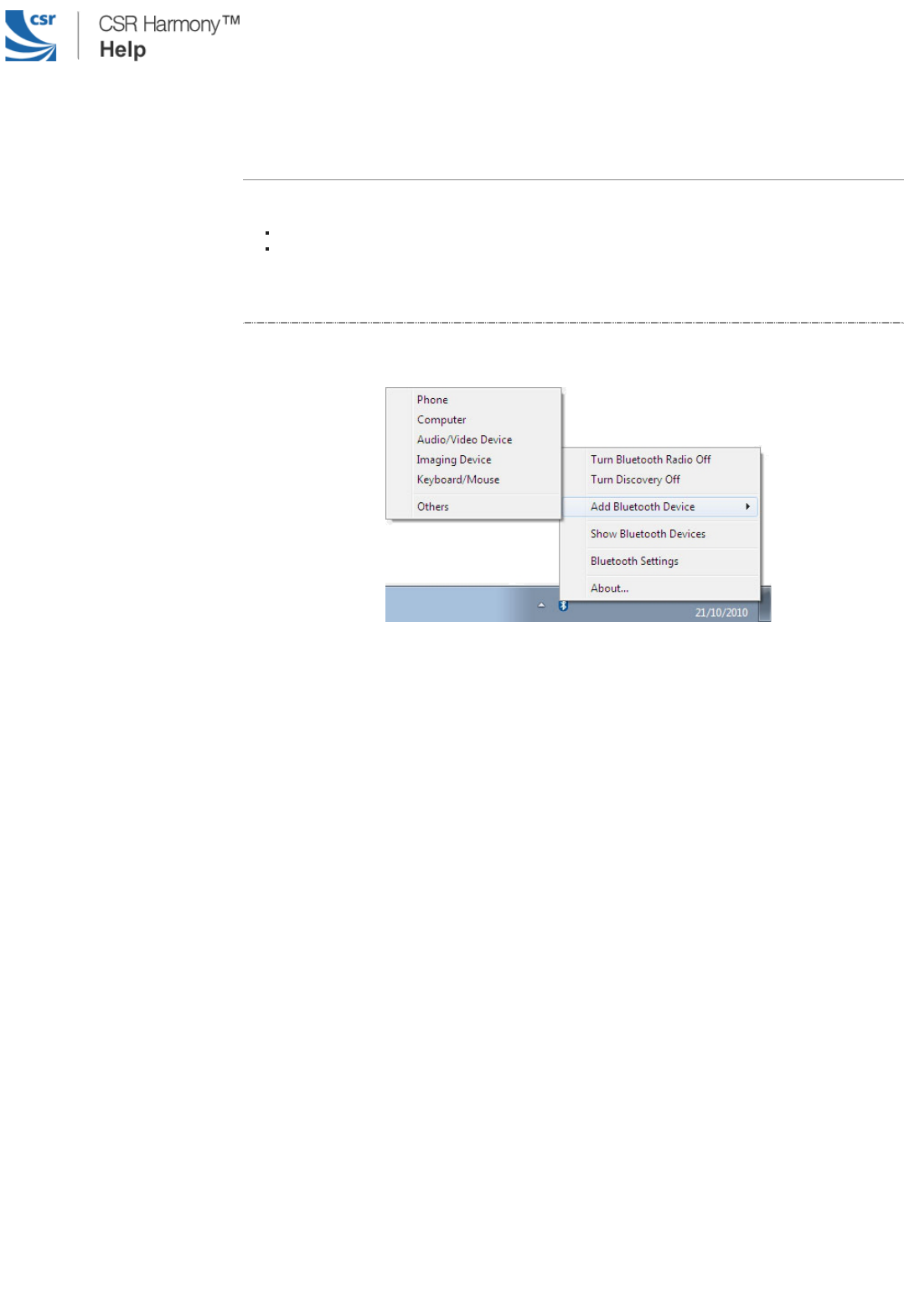
2. In the Notification area, right-click the Bluetooth icon, select Add Bluetooth Device and choose the device type you want to add:
3. The Add Bluetooth Device window opens.
All discoverable Bluetooth devices of the chosen type, which are in range, will be displayed. Click on the device you want to
connect to and click Next:
FCC Caution: Any changes or modifications not expressly approved by the party responsible for compliance could void the user's authority
to operate this equipment.This device complies with Part 15 of the FCC Rules. Operation is subject to the following two conditions:
(1) This device may not cause harmful interference, and (2) this device must accept any interference received, including interference that
may cause undesired operation.This device and its antenna(s) must not be co-located or operating in conjunction with any other antenna
or transmitter.NOTE: This equipment has been tested and found to comply with the limits for a Class B digital device, pursuant to Part 15
of the FCC Rules. These limits are designed to provide reasonable protection against harmful interference in a residential installation.
This equipment generates, uses and can radiate radio frequency energy and, if not installed and used in accordance with the instructions,
may cause harmful interference to radio communications. However, there is no guarantee that interference will not occur in a particular
installation.If this equipment does cause harmful interference to radio or television reception, which can be determined by turning the
equipment off and on, the user is encouraged to try to correct the interference by one or more of the following measures:-- Reorient or
relocate the receiving antenna.-- Increase the separation between the equipment and receiver.-- Connect the equipment into an outlet on a
circuit differentfrom that to which the receiver is connected.-- Consult the dealer or an experienced radio/TV technician for help.
The device has been evaluated to meet general RF exposure requirement.
The device can be used in portable exposure condition without restriction.
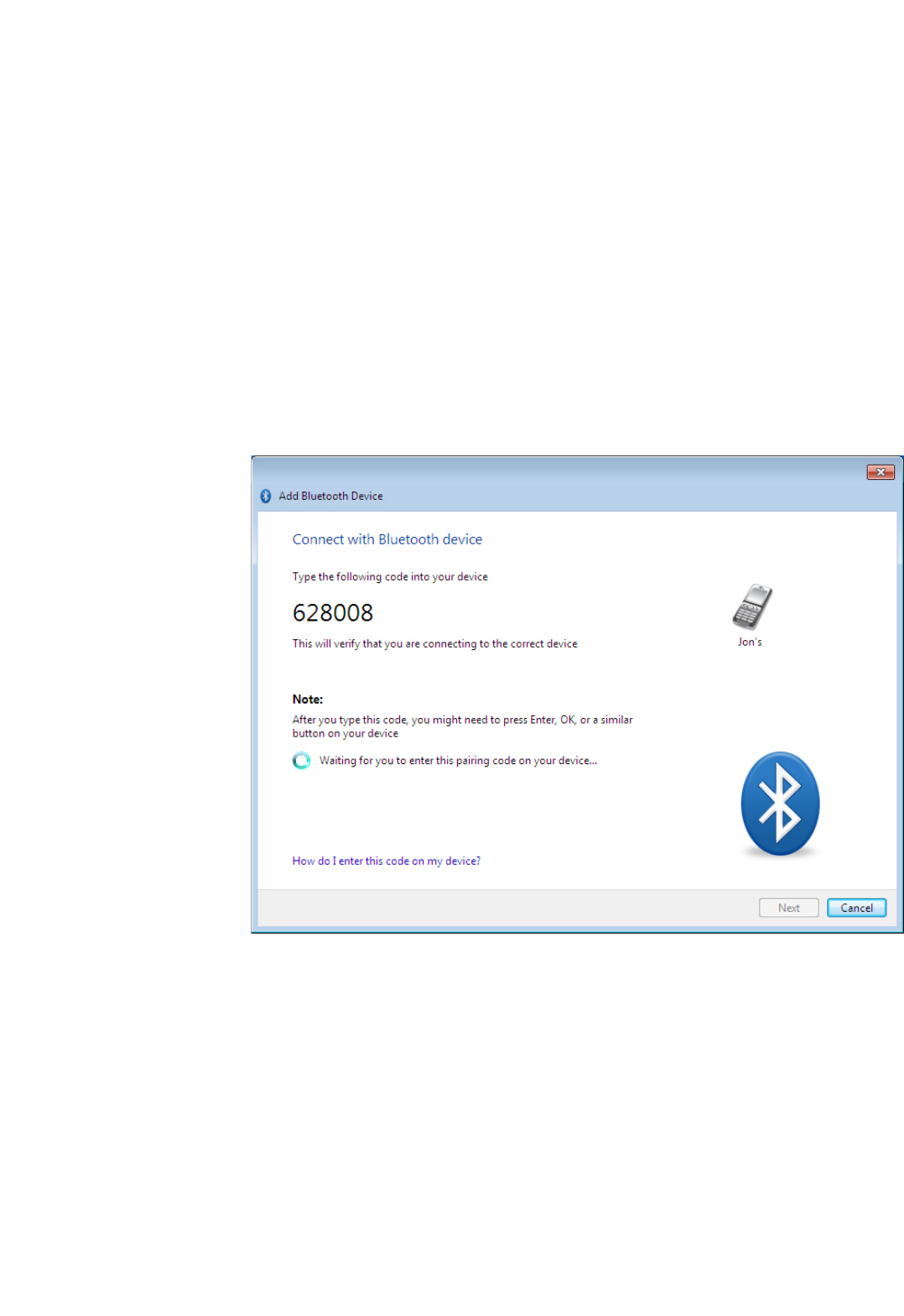
4. You may be prompted to enter a pairing code on the device. The code may be entered on your phone hands et using the
number pad or using the device's keyboard. When prompted on your device, enter the pairing code:
If a pairing code is displayed on both your PC and the remote device, accept or confirm on both.
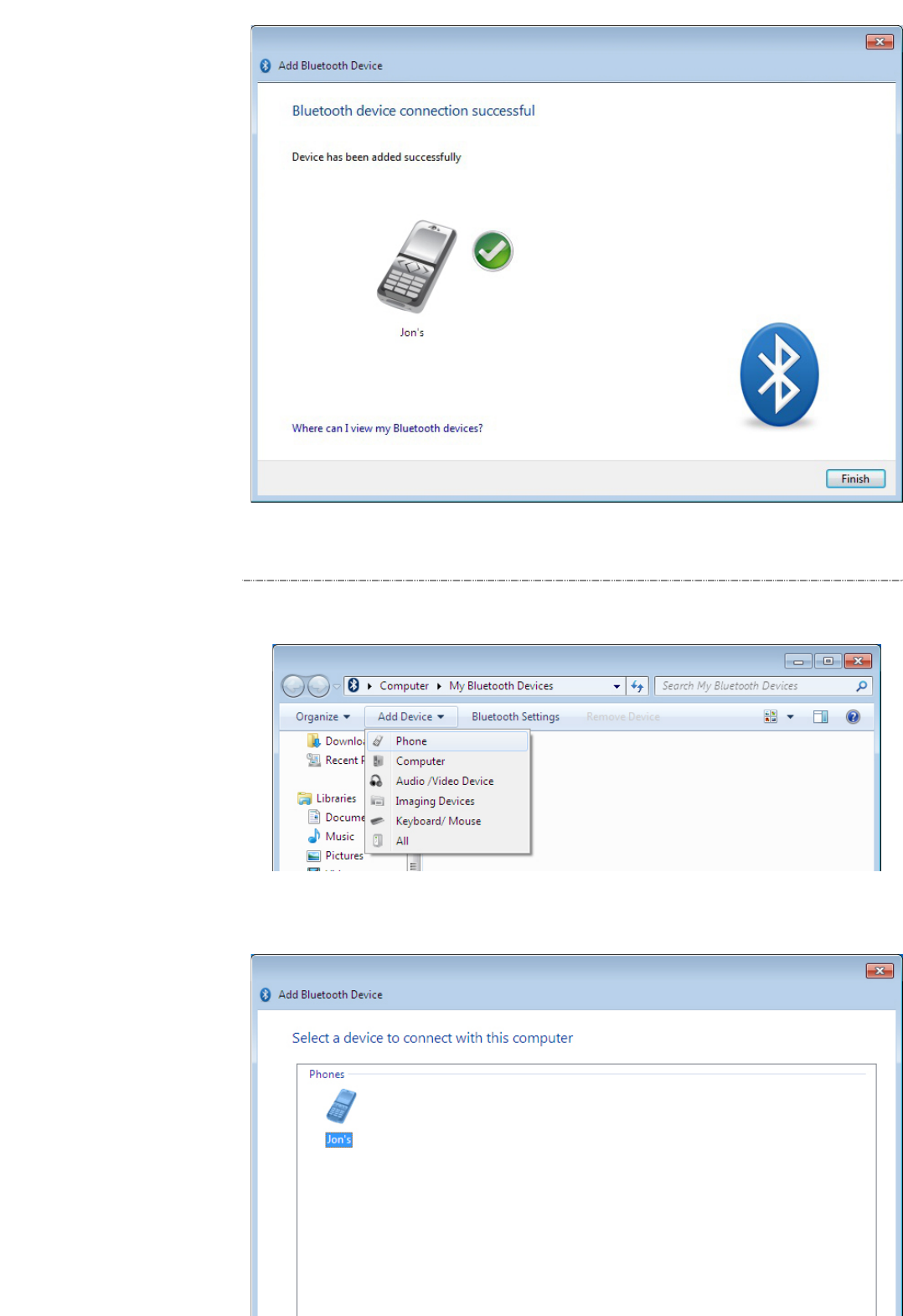
5. Click Finish to com plete adding a Bluetooth device.
Back to top
FromMy Bluetooth Devices:
1. Ensure the device is turned on, has Bluetooth enabled and is discoverable.
2. In My Bluetooth Devices, click Add Bluetooth Device and choose the device type you want to add:
3. The Add Bluetooth Device window opens.
All discoverable Bluetooth devices of the chosen type, which are in range, will be displayed. Click on the device you want to
connect to and click Next:
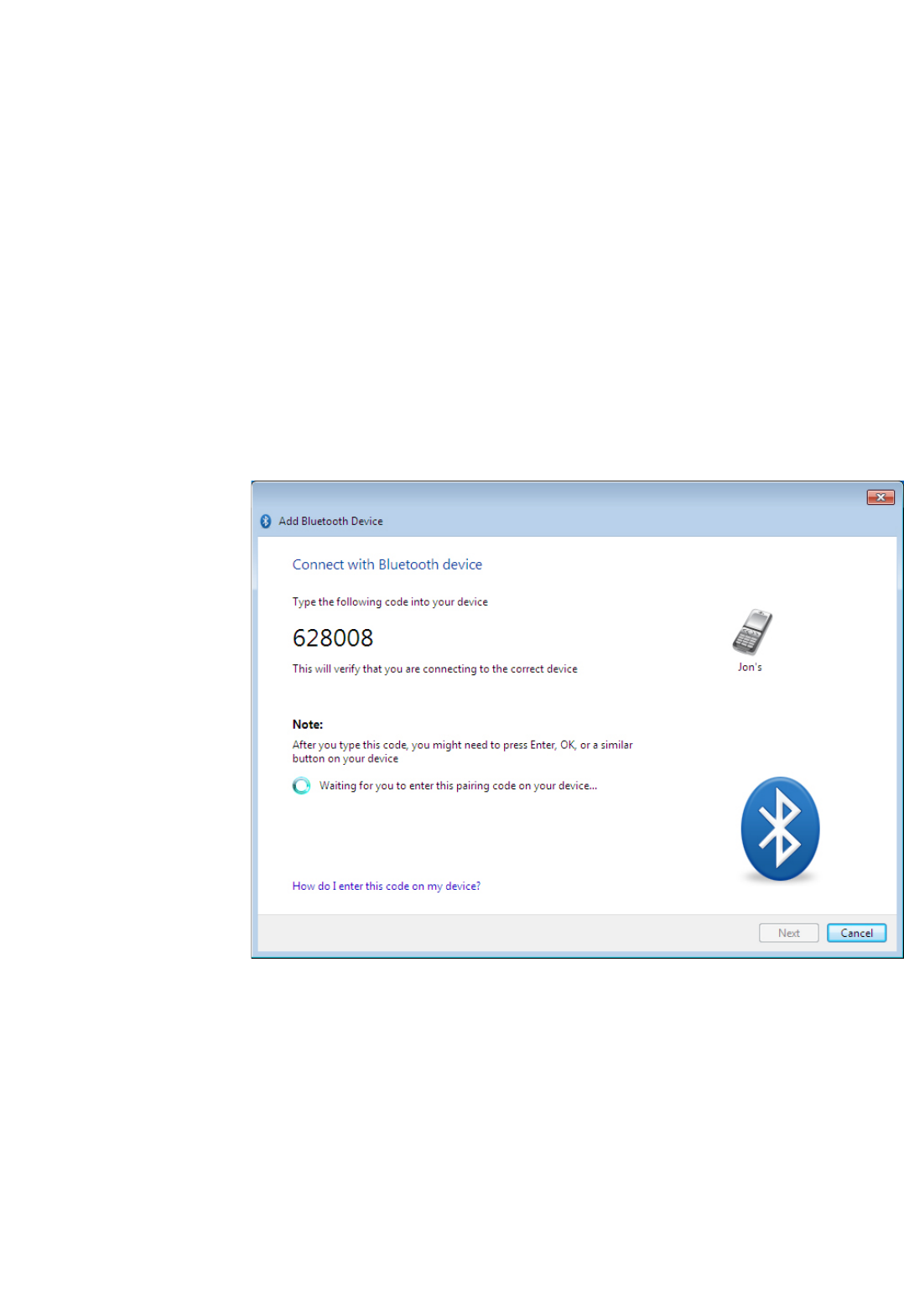
4. You may be prompted to enter a pairing code on the device. The code may be entered on your phone hands et using the
number pad or using the device's keyboard. When prompted on your device, enter the pairing code:
If a pairing code is displayed on both your PC and the remote device, accept or confirm on both.
5. Click Finish to com plete adding a Bluetooth device.
Back to top
Connecting fromthe remote device:
1. Ensure the device is turned on, has Bluetooth enabled and is discoverable.
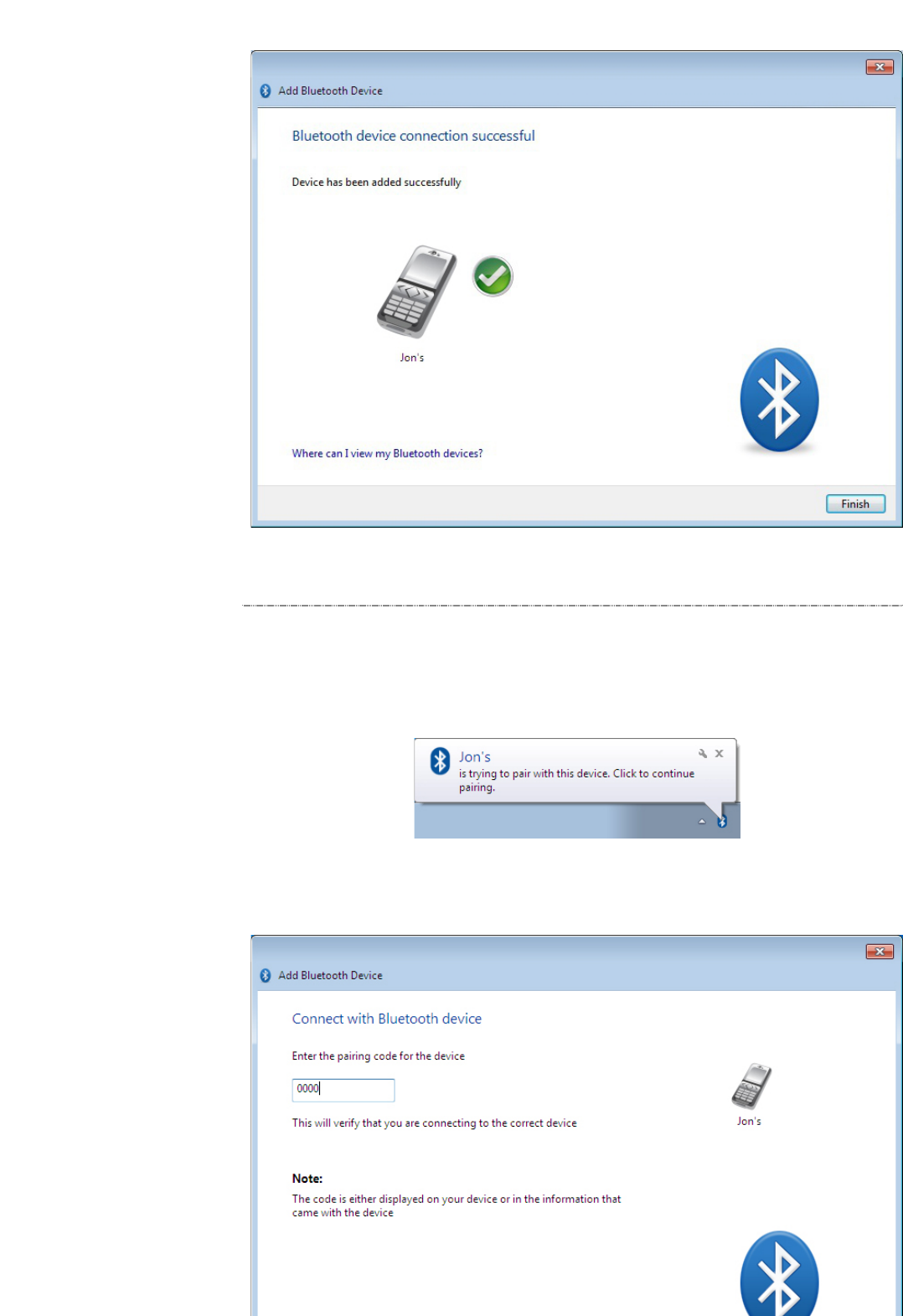
2. Initiate pairing from the Bluetooth device. This will usually require you to create a pairing code on your device. In this example,
the code "0000" is us ed.
Refer to the documentation that came with your device for more information about discovering other Bluetooth devices.
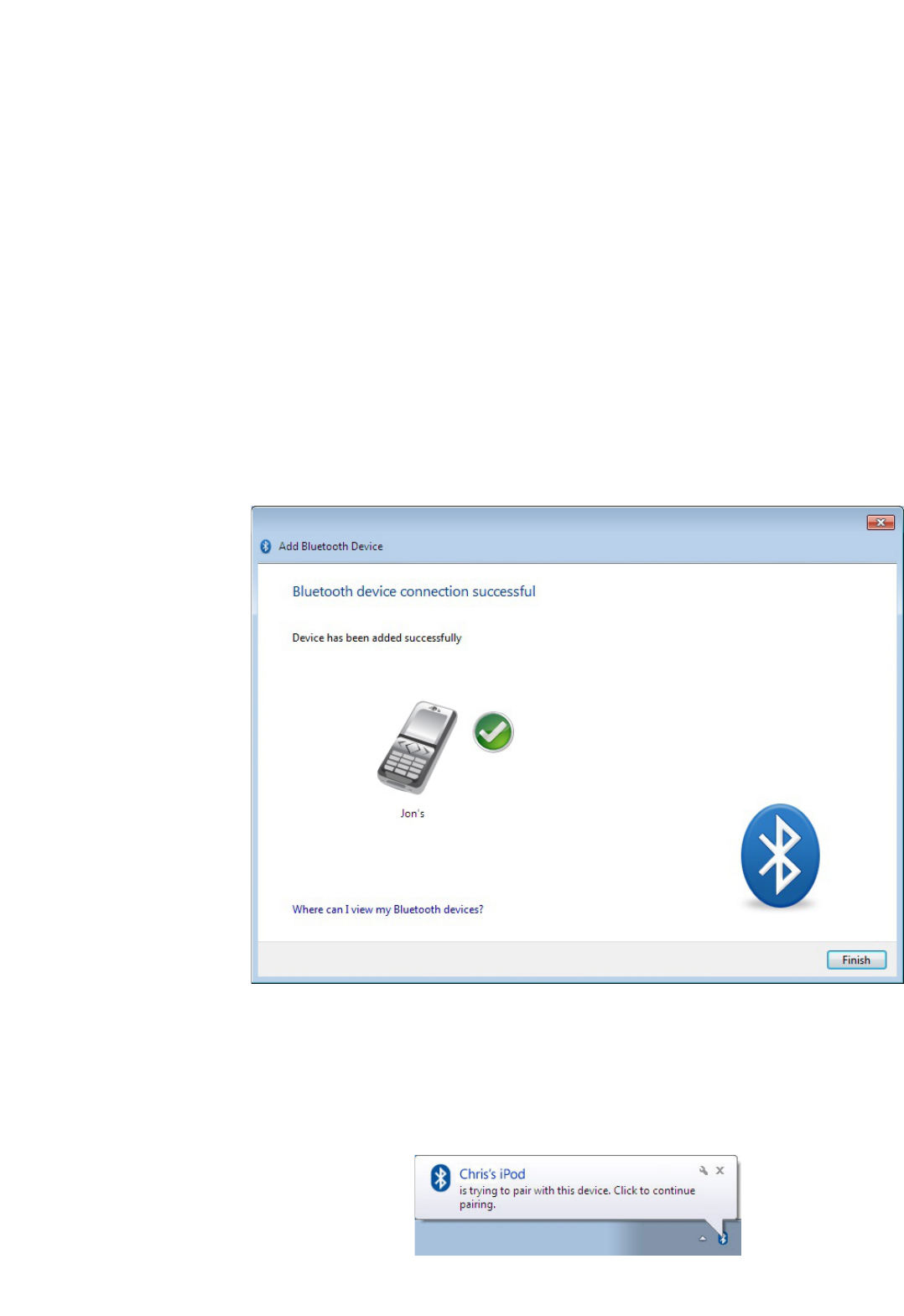
3. CSR Harmony will indicate your device is trying to connect to your com puter, click it to allow the connection:
4. When prompted, enter the pairing code and click Next:
If a pairing code is displayed on both your PC and the remote device, accept or confirm on both.
5. Click Finish to com plete adding a Bluetooth device.
UsingSecure Simple Pairing:
Secure simple pairing enables you to connect from a remote device where you are not required to enter a pairing code, but sim ply
confirm one on your device.
If your device supports Secure Simple Pairing:
1. Initiate pairing from the Bluetooth device. CSR Harmony will indicate your device is trying to connect to your computer, click it to
allow the connection:
2. A code is displayed on screen and on your device, all you need to do is confirm that the two codes are the same:
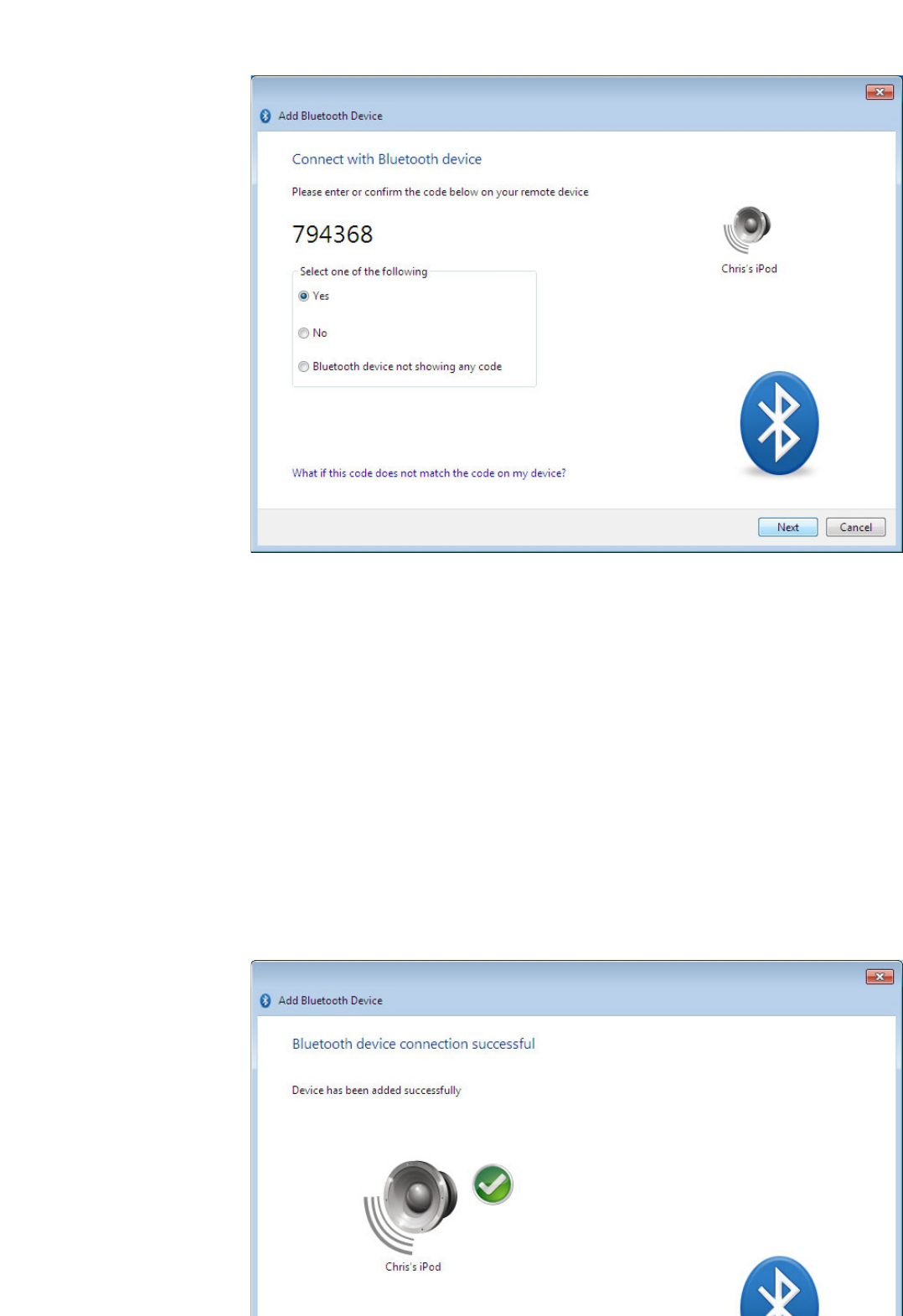
3. On your device, check and confirm that the codes are the same, then click Next.
4. Click Finish to com plete adding a Bluetooth device.
Back to top
Automatically accepting connections
Automatic connection allows a device to re-connect without prom pting for user action on future connections.
You can enable automatic connection on a known device by:
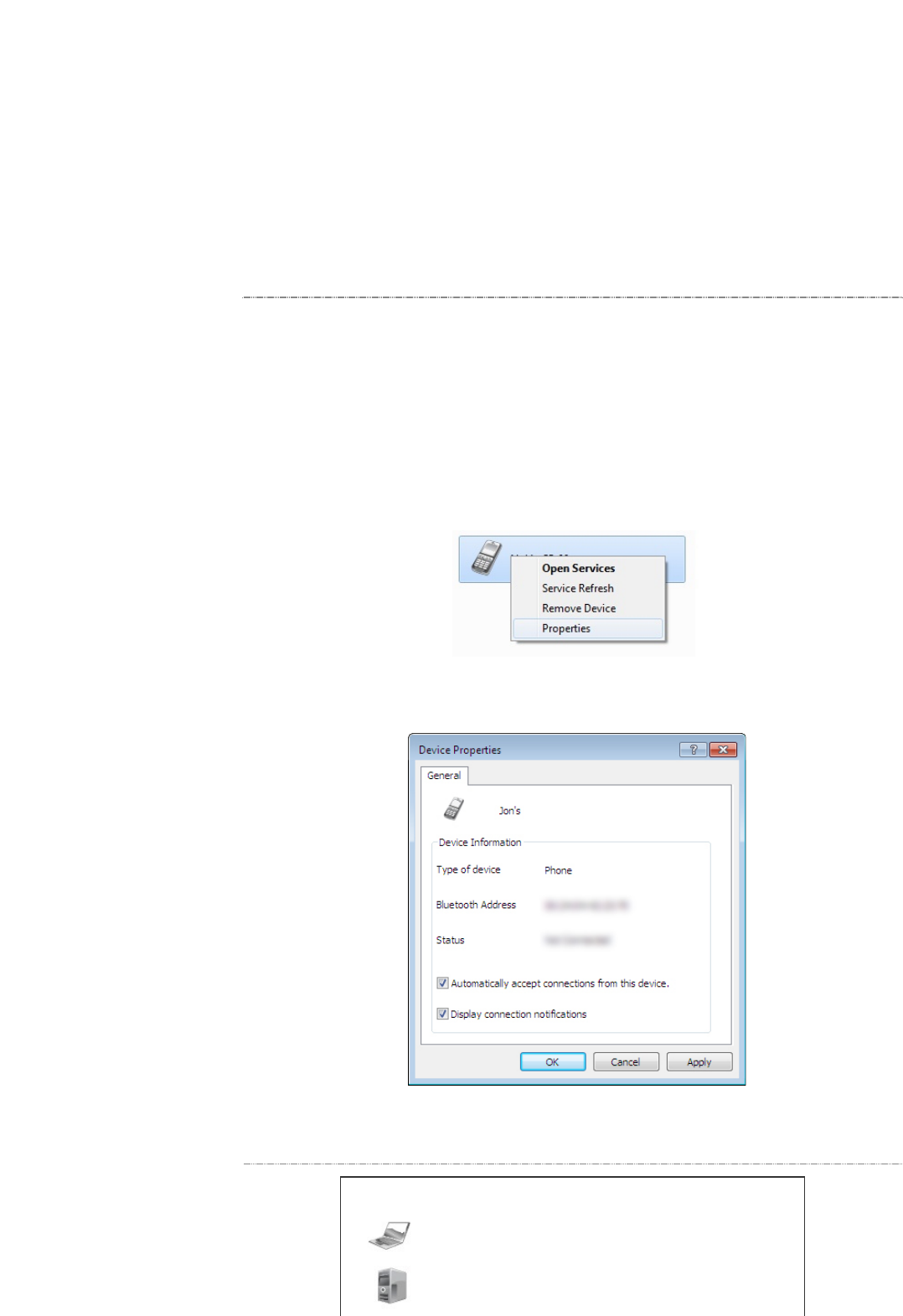
1. In My Bluetooth Devices, right-click the device and select Properties:
2. The Device Properties window will open.
Tick the Automatically accept connections from this device box and click Apply or OK:
Back to top
Bluetooth device icons
Icon Description
Laptop PC
Desktop PC
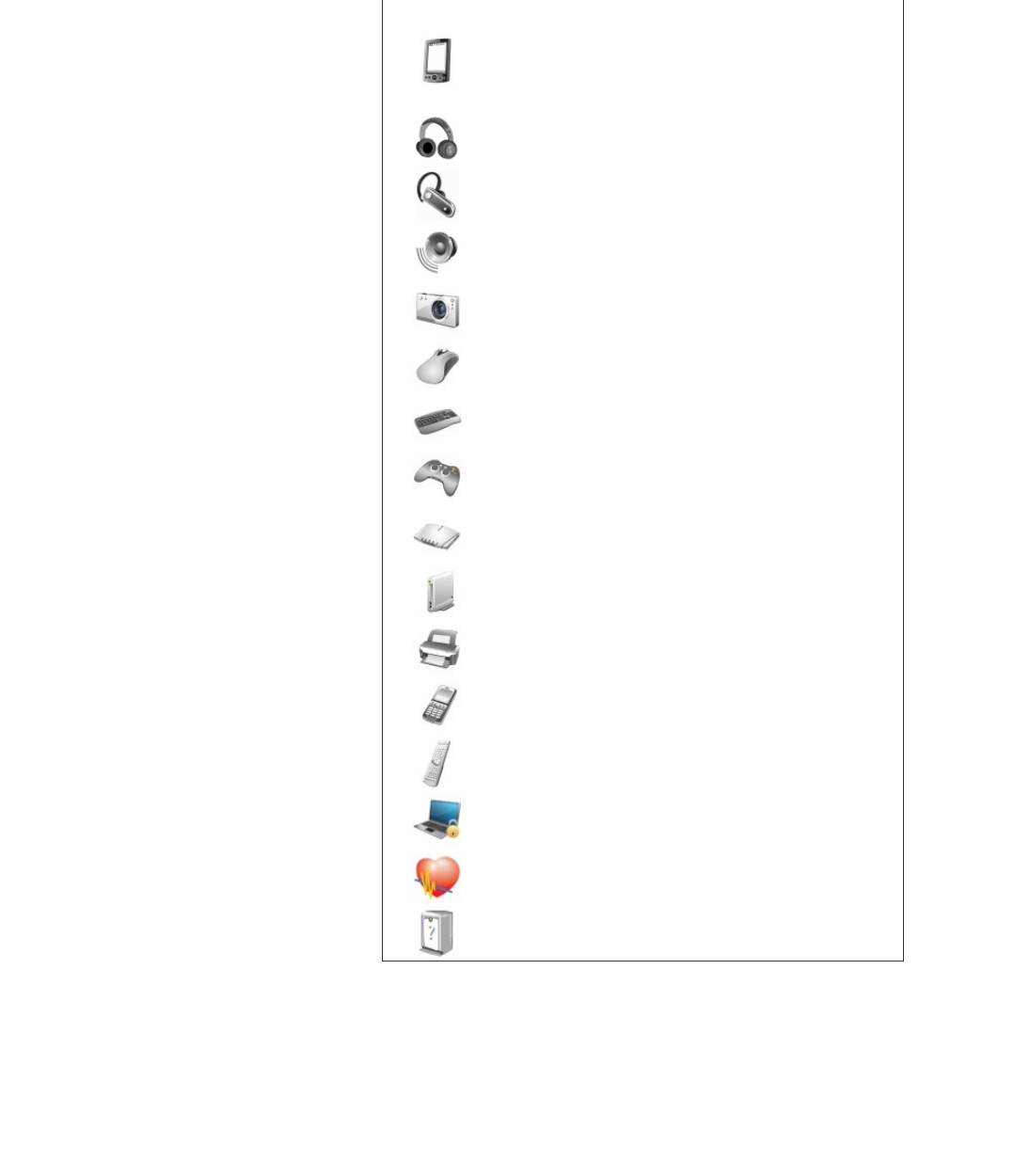
Personal Digital Assistant (PDA)
Stereo Headset or Headphones
Mono Headset
Loudspeaker
Camera
Mouse
Keyboard
Gamepad or Game controller
Modem
Network Access Point
Printer
Mobile Phone
Remote Control
Bluetooth low energy security device
Health Device, e.g. Weighing Scales or Heart-rate Monitor
A device of unknown type or a device who's type could not be
determined
Back to top
Feedback
Document History
Trademarks
�2010-2011 CSR plc. All rights reserved | Bluetooth�is a trademark ow ned by the Bluetooth SIG., Inc.
CSR plc is a company registered in England. Registered office: Churchill House, Cambridge Business Park, Cow ley Road,
Cambridge, CB4 OW Z
Registered Number: 04187346 | VAT number (GB787433096)