E28 R2821 GSM850/1900 mobile phone with WLAN User Manual R28211

E28 Ltd. GSM850/1900 mobile phone with WLAN R28211

Contents

2821 user manual

  - 1 -        R2821 USER MANUAL
  - 2 - Declaration:  Read this Manual carefully before using your mobile phone. E28 Limited will not undertake any responsibility or liability for any direct or indirect damage caused by users who fail to comply with this operational manual strictly. For the update of the software/hardware or the difference of the mobile networks, the information and pictures in this manual may be different from the actual condition of the mobile phone, so E28 tries its best, but will not guarantee to eliminate this difference completely. At the same time, E28 reserves the rights to revise or modify the manual without prior notification or replacement with updated version. The mobile phones, accessories and manual may vary depending on the release areas and time.   The copyright of this manual is reserved by E28. Without prior written permission of E28, all or part of the content for this manual should not be reproduced, propagated or distributed in any manner. Copyright ©2005 E28. All rights reserved. Reproduction shall be punished. E28 is the registered trademark of E28. Java is the registered trademark of Sun Microsystems.
  - 3 -
  - 4 -
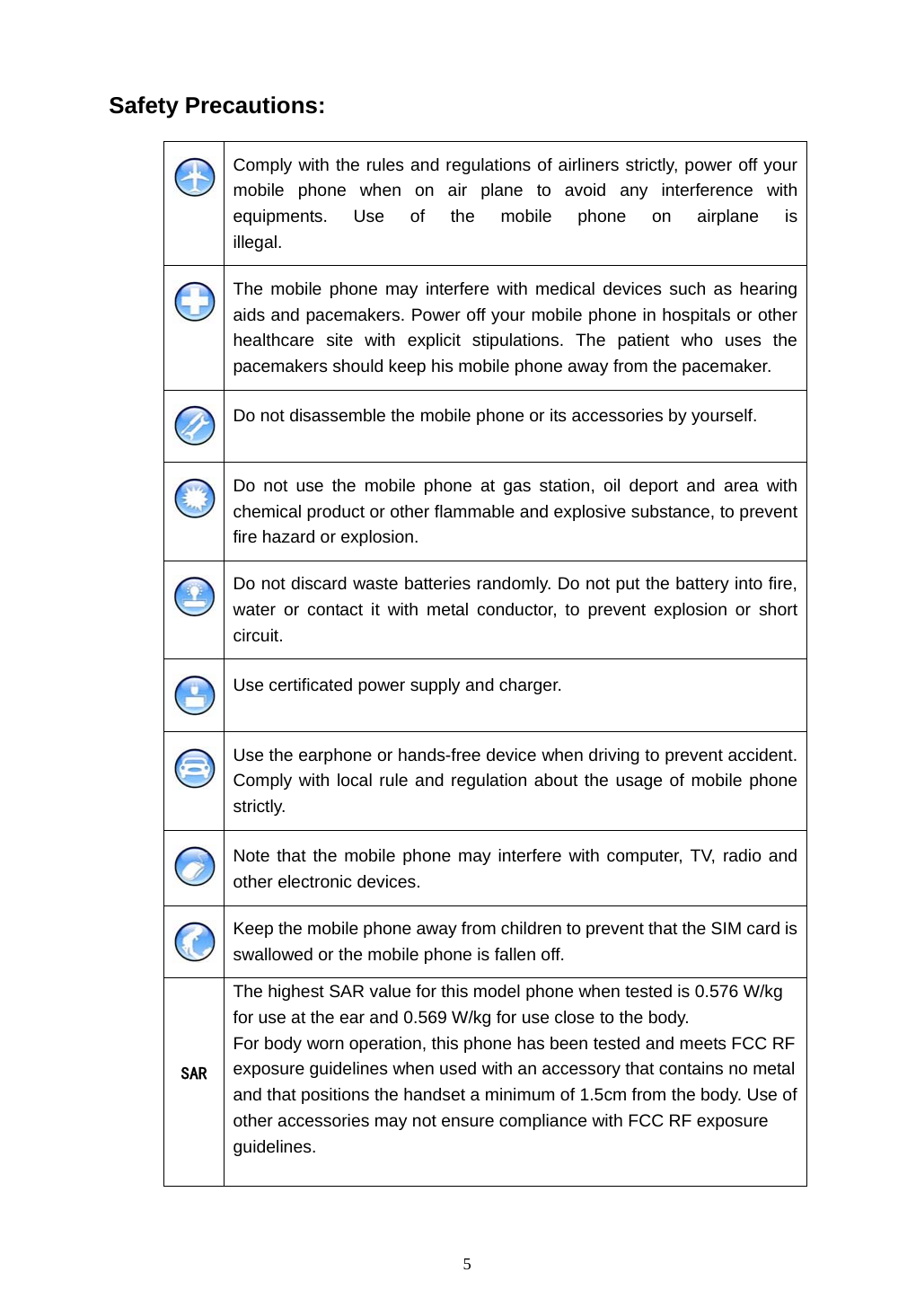
 5 Safety Precautions:  Comply with the rules and regulations of airliners strictly, power off your mobile phone when on air plane to avoid any interference with equipments. Use of the mobile phone on airplane is illegal.  The mobile phone may interfere with medical devices such as hearing aids and pacemakers. Power off your mobile phone in hospitals or other healthcare site with explicit stipulations. The patient who uses the pacemakers should keep his mobile phone away from the pacemaker.  Do not disassemble the mobile phone or its accessories by yourself.  Do not use the mobile phone at gas station, oil deport and area with chemical product or other flammable and explosive substance, to prevent fire hazard or explosion.  Do not discard waste batteries randomly. Do not put the battery into fire, water or contact it with metal conductor, to prevent explosion or short circuit.  Use certificated power supply and charger.  Use the earphone or hands-free device when driving to prevent accident. Comply with local rule and regulation about the usage of mobile phone strictly.  Note that the mobile phone may interfere with computer, TV, radio and other electronic devices.  Keep the mobile phone away from children to prevent that the SIM card is swallowed or the mobile phone is fallen off.   SAR The highest SAR value for this model phone when tested is 0.576 W/kg  for use at the ear and 0.569 W/kg for use close to the body. For body worn operation, this phone has been tested and meets FCC RF exposure guidelines when used with an accessory that contains no metal and that positions the handset a minimum of 1.5cm from the body. Use of other accessories may not ensure compliance with FCC RF exposure guidelines.
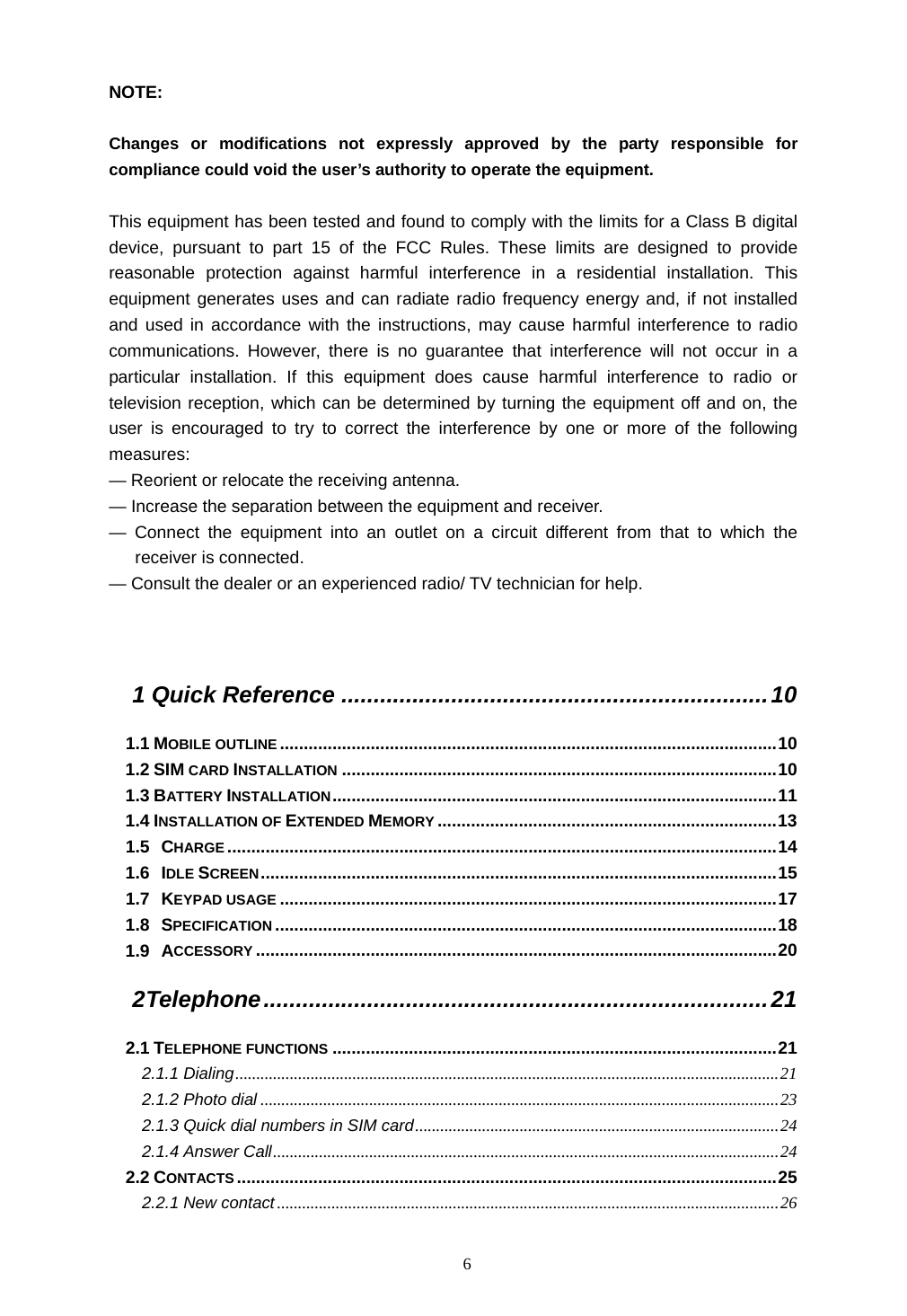
 6 NOTE:   Changes or modifications not expressly approved by the party responsible for compliance could void the user’s authority to operate the equipment.  This equipment has been tested and found to comply with the limits for a Class B digital device, pursuant to part 15 of the FCC Rules. These limits are designed to provide reasonable protection against harmful interference in a residential installation. This equipment generates uses and can radiate radio frequency energy and, if not installed and used in accordance with the instructions, may cause harmful interference to radio communications. However, there is no guarantee that interference will not occur in a particular installation. If this equipment does cause harmful interference to radio or television reception, which can be determined by turning the equipment off and on, the user is encouraged to try to correct the interference by one or more of the following measures: — Reorient or relocate the receiving antenna. — Increase the separation between the equipment and receiver. — Connect the equipment into an outlet on a circuit different from that to which the receiver is connected. — Consult the dealer or an experienced radio/ TV technician for help.   1 Quick Reference ..................................................................10 1.1 MOBILE OUTLINE ........................................................................................................10 1.2 SIM CARD INSTALLATION ...........................................................................................10 1.3 BATTERY INSTALLATION.............................................................................................11 1.4 INSTALLATION OF EXTENDED MEMORY .......................................................................13 1.5 CHARGE...................................................................................................................14 1.6 IDLE SCREEN............................................................................................................15 1.7 KEYPAD USAGE ........................................................................................................17 1.8 SPECIFICATION .........................................................................................................18 1.9 ACCESSORY .............................................................................................................20 2 Telephone..............................................................................21 2.1 TELEPHONE FUNCTIONS .............................................................................................21 2.1.1 Dialing..................................................................................................................................21 2.1.2 Photo dial ............................................................................................................................23 2.1.3 Quick dial numbers in SIM card.......................................................................................24 2.1.4 Answer Call.........................................................................................................................24 2.2 CONTACTS .................................................................................................................25 2.2.1 New contact ........................................................................................................................26
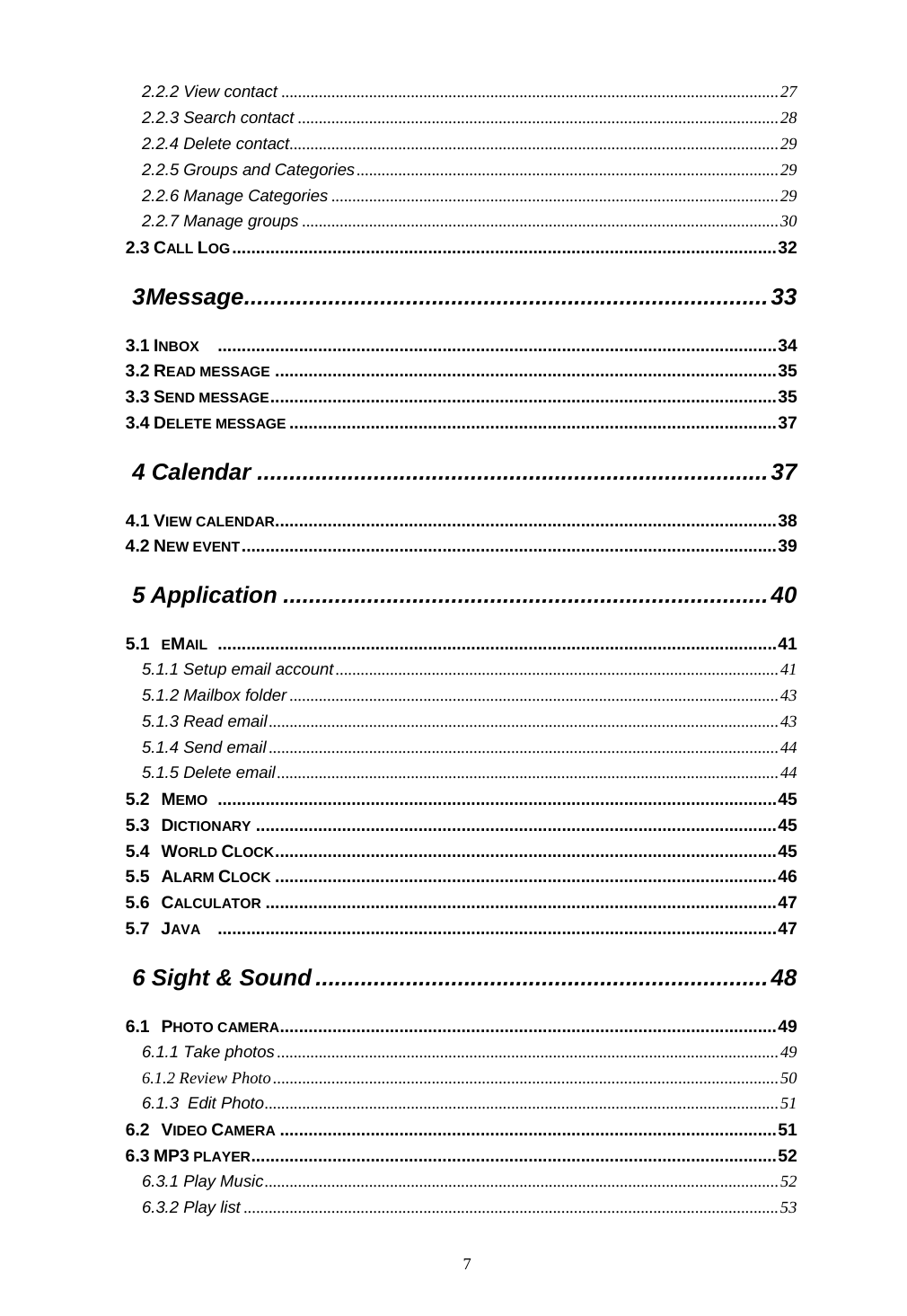
 7 2.2.2 View contact .......................................................................................................................27 2.2.3 Search contact ...................................................................................................................28 2.2.4 Delete contact.....................................................................................................................29 2.2.5 Groups and Categories.....................................................................................................29 2.2.6 Manage Categories ...........................................................................................................29 2.2.7 Manage groups ..................................................................................................................30 2.3 CALL LOG..................................................................................................................32 3 Message.................................................................................33 3.1 INBOX .....................................................................................................................34 3.2 READ MESSAGE .........................................................................................................35 3.3 SEND MESSAGE..........................................................................................................35 3.4 DELETE MESSAGE ......................................................................................................37 4 Calendar ...............................................................................37 4.1 VIEW CALENDAR.........................................................................................................38 4.2 NEW EVENT................................................................................................................39 5 Application ...........................................................................40 5.1 EMAIL .....................................................................................................................41 5.1.1 Setup email account..........................................................................................................41 5.1.2 Mailbox folder .....................................................................................................................43 5.1.3 Read email..........................................................................................................................43 5.1.4 Send email ..........................................................................................................................44 5.1.5 Delete email........................................................................................................................44 5.2 MEMO .....................................................................................................................45 5.3 DICTIONARY .............................................................................................................45 5.4 WORLD CLOCK.........................................................................................................45 5.5 ALARM CLOCK .........................................................................................................46 5.6 CALCULATOR ...........................................................................................................47 5.7 JAVA .....................................................................................................................47 6 Sight & Sound ......................................................................48 6.1 PHOTO CAMERA........................................................................................................49 6.1.1 Take photos ........................................................................................................................49 6.1.2 Review Photo.........................................................................................................................50 6.1.3 Edit Photo...........................................................................................................................51 6.2 VIDEO CAMERA ........................................................................................................51 6.3 MP3 PLAYER..............................................................................................................52 6.3.1 Play Music...........................................................................................................................52 6.3.2 Play list ................................................................................................................................53
 8 6.4 GALLERY ...................................................................................................................54 6.5 PLAY VIDEO ...............................................................................................................54 7 Internet..................................................................................55 7.1 STK SERVICE ............................................................................................................57 7.2 BROWSER ................................................................................................................57 7.3 BOOKMARKS..............................................................................................................58 7.4WEB HISTORY.............................................................................................................58 7.5 SAVED PAGES............................................................................................................58 7.6 DATA METERS ...........................................................................................................58 8 Tools & Setup........................................................................59 8.1 MEMORY USAGE ........................................................................................................60 8.2CONNECT PC..............................................................................................................60 8.3 MODEM .....................................................................................................................61 8.4 ALERTS ....................................................................................................................62 8.5 DEVICE.....................................................................................................................62 8.5.1 Date and Time...................................................................................................................62 8.5.2 Theme and Sounds ..........................................................................................................62 8.5.3 Auto Power On/Off............................................................................................................63 8.5.4 Security...............................................................................................................................63 8.5.5 Calibrate Screen ...............................................................................................................63 8.5.6 Power Save Mode.............................................................................................................64 8.5.7 Screen Brightness.............................................................................................................64 8.5.8 Backlight & Auto Lock ......................................................................................................64 8.5.9 English (SC Input).............................................................................................................64 8.5.10 Reset Factory Settings...............................................................................................64 8.5.11 User Information .........................................................................................................64 8.6 WLAN .....................................................................................................................64 8.6.1 WLAN setting.....................................................................................................................64 8.6.2 WLAN Connect Status .....................................................................................................65 8.6.3 VoIP setting........................................................................................................................65 8.7 CALLS .....................................................................................................................66 8.7.1 Network ..............................................................................................................................66 8.7.2 Incoming Calls...................................................................................................................66 8.7.3 Outgoing Calls...................................................................................................................66 8.8 MESSAGE .................................................................................................................67 8.8.1 SMS ....................................................................................................................................67 8.8.2 MMS....................................................................................................................................67 8.8.3 Cell Broadcast ...................................................................................................................68 8.8.4 Quick Message..................................................................................................................68 8.8.5 Signature............................................................................................................................68 8.9 INTERNET .................................................................................................................68
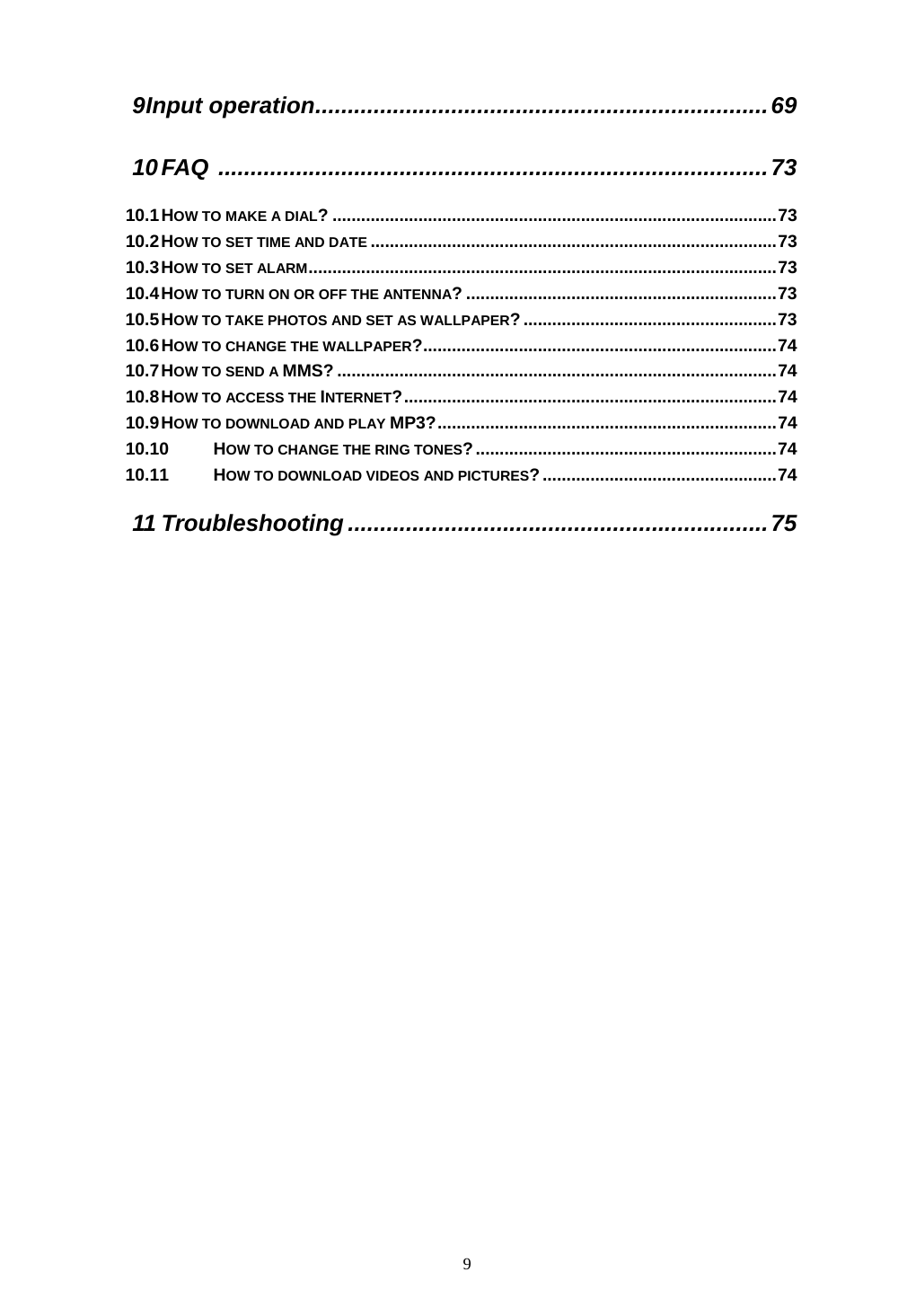
 9 9 Input operation......................................................................69 10 FAQ .....................................................................................73 10.1 HOW TO MAKE A DIAL? .............................................................................................73 10.2 HOW TO SET TIME AND DATE .....................................................................................73 10.3 HOW TO SET ALARM..................................................................................................73 10.4 HOW TO TURN ON OR OFF THE ANTENNA? .................................................................73 10.5 HOW TO TAKE PHOTOS AND SET AS WALLPAPER? .....................................................73 10.6 HOW TO CHANGE THE WALLPAPER?..........................................................................74 10.7 HOW TO SEND A MMS? ............................................................................................74 10.8 HOW TO ACCESS THE INTERNET?..............................................................................74 10.9 HOW TO DOWNLOAD AND PLAY MP3?.......................................................................74 10.10 HOW TO CHANGE THE RING TONES?...............................................................74 10.11 HOW TO DOWNLOAD VIDEOS AND PICTURES?.................................................74 11 Troubleshooting .................................................................75
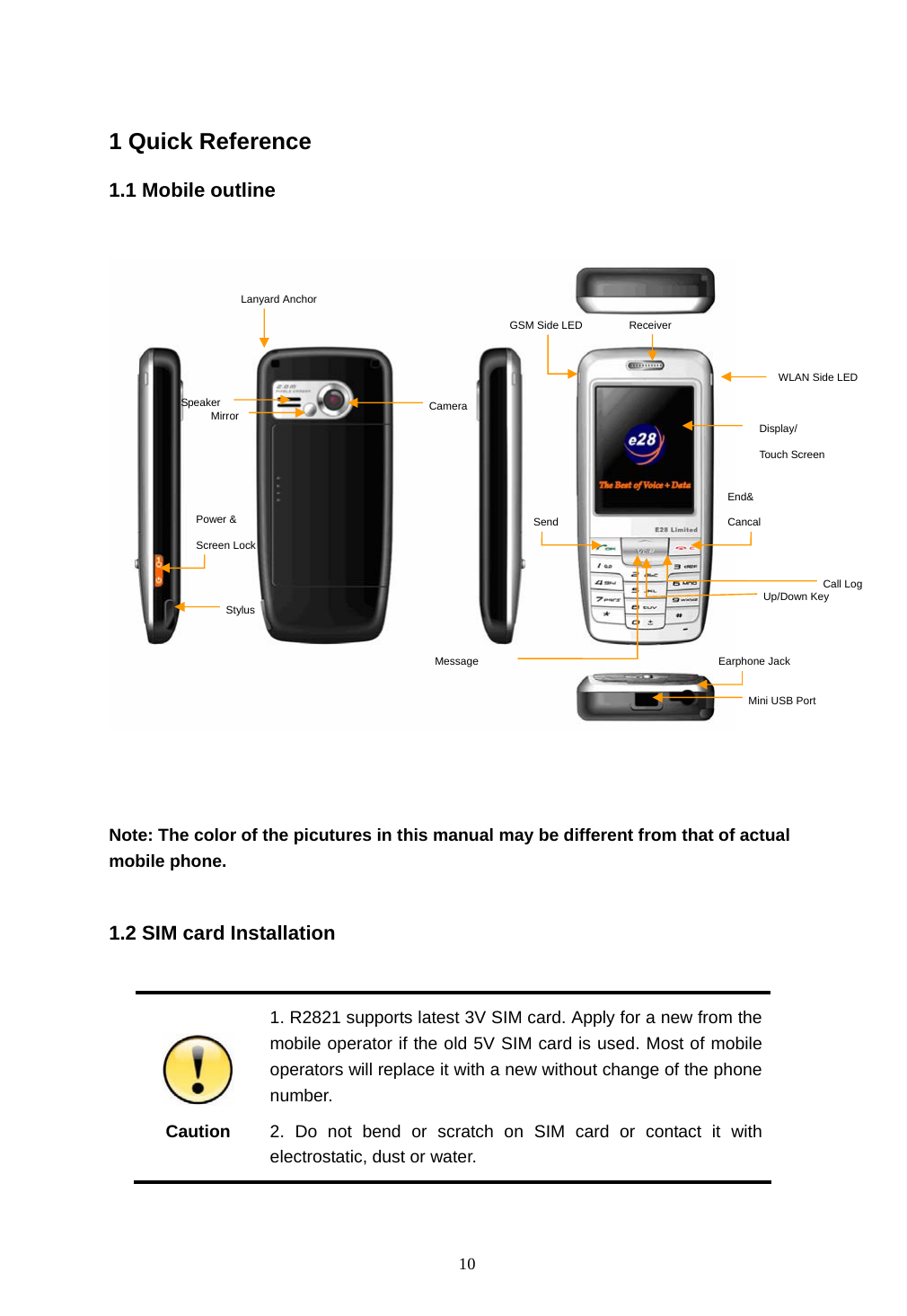
 10  1 Quick Reference 1.1 Mobile outline     Note: The color of the picutures in this manual may be different from that of actual mobile phone.  1.2 SIM card Installation   Caution 1. R2821 supports latest 3V SIM card. Apply for a new from the mobile operator if the old 5V SIM card is used. Most of mobile operators will replace it with a new without change of the phone number. 2. Do not bend or scratch on SIM card or contact it with electrostatic, dust or water. Lanyard Anchor Speaker Power & Screen Lock Stylus Camera End& Cancal WLAN Side LED Receiver GSM Side LED   Display/  Touch Screen Send Mirror Call Log Up/Down Key Earphone Jack Mini USB Port Message
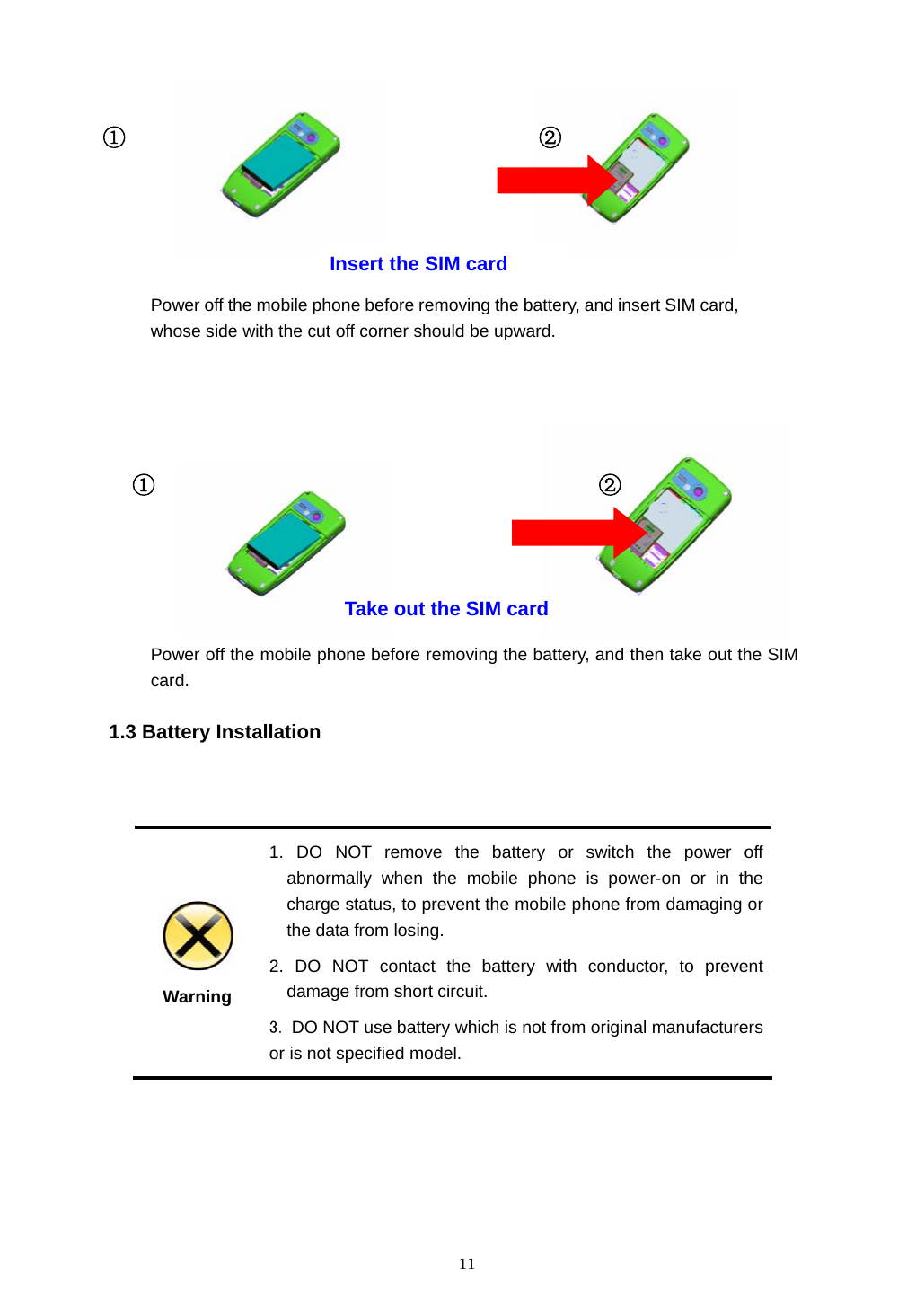
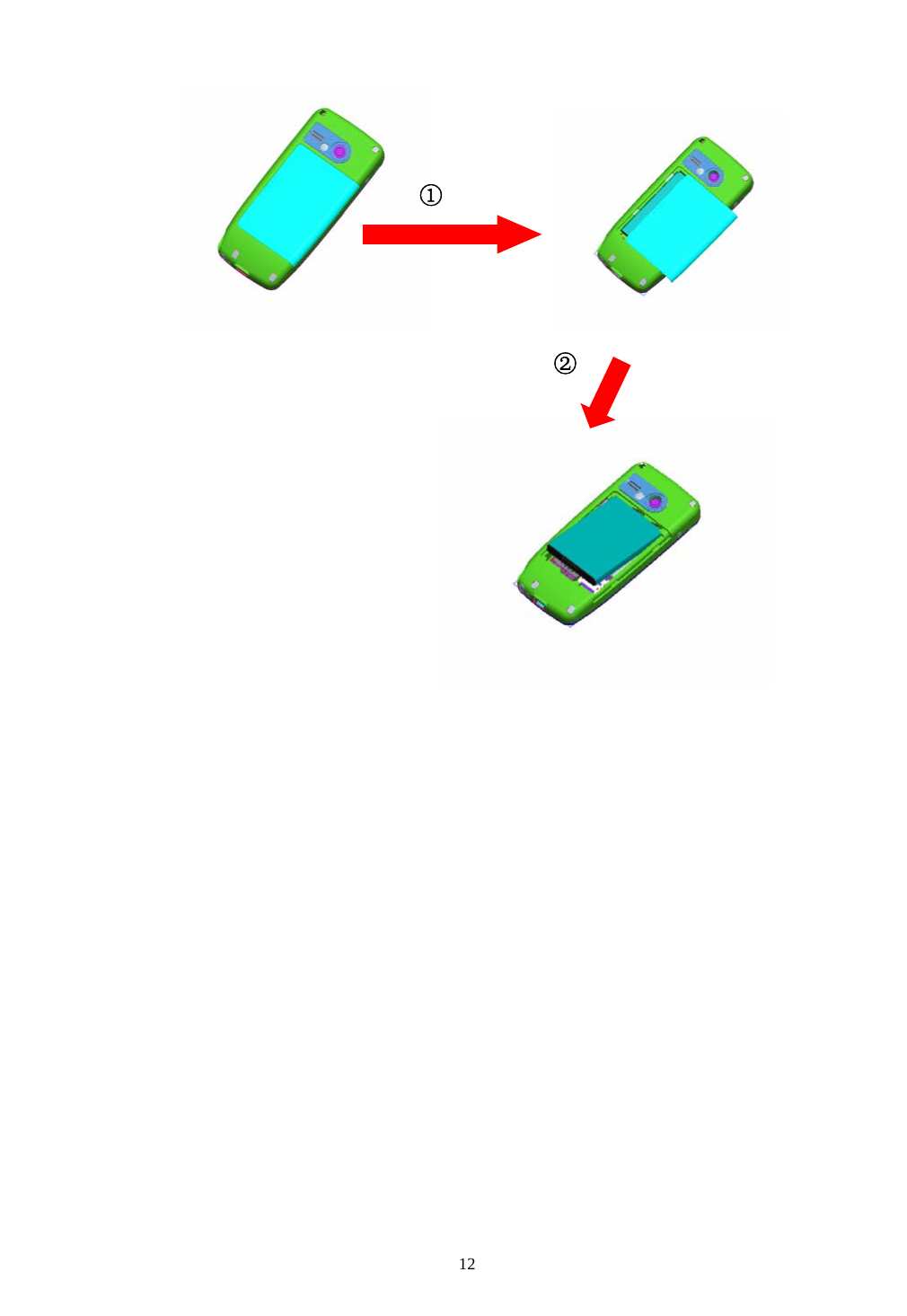
 11                                                 1.3 Battery Installation    Warning 1. DO NOT remove the battery or switch the power off abnormally when the mobile phone is power-on or in the charge status, to prevent the mobile phone from damaging or the data from losing. 2. DO NOT contact the battery with conductor, to prevent damage from short circuit. 3. DO NOT use battery which is not from original manufacturers or is not specified model.  ①  ② Power off the mobile phone before removing the battery, and then take out the SIM card. Take out the SIM card ① ② Power off the mobile phone before removing the battery, and insert SIM card, whose side with the cut off corner should be upward. Insert the SIM card
 12                                   ① ②
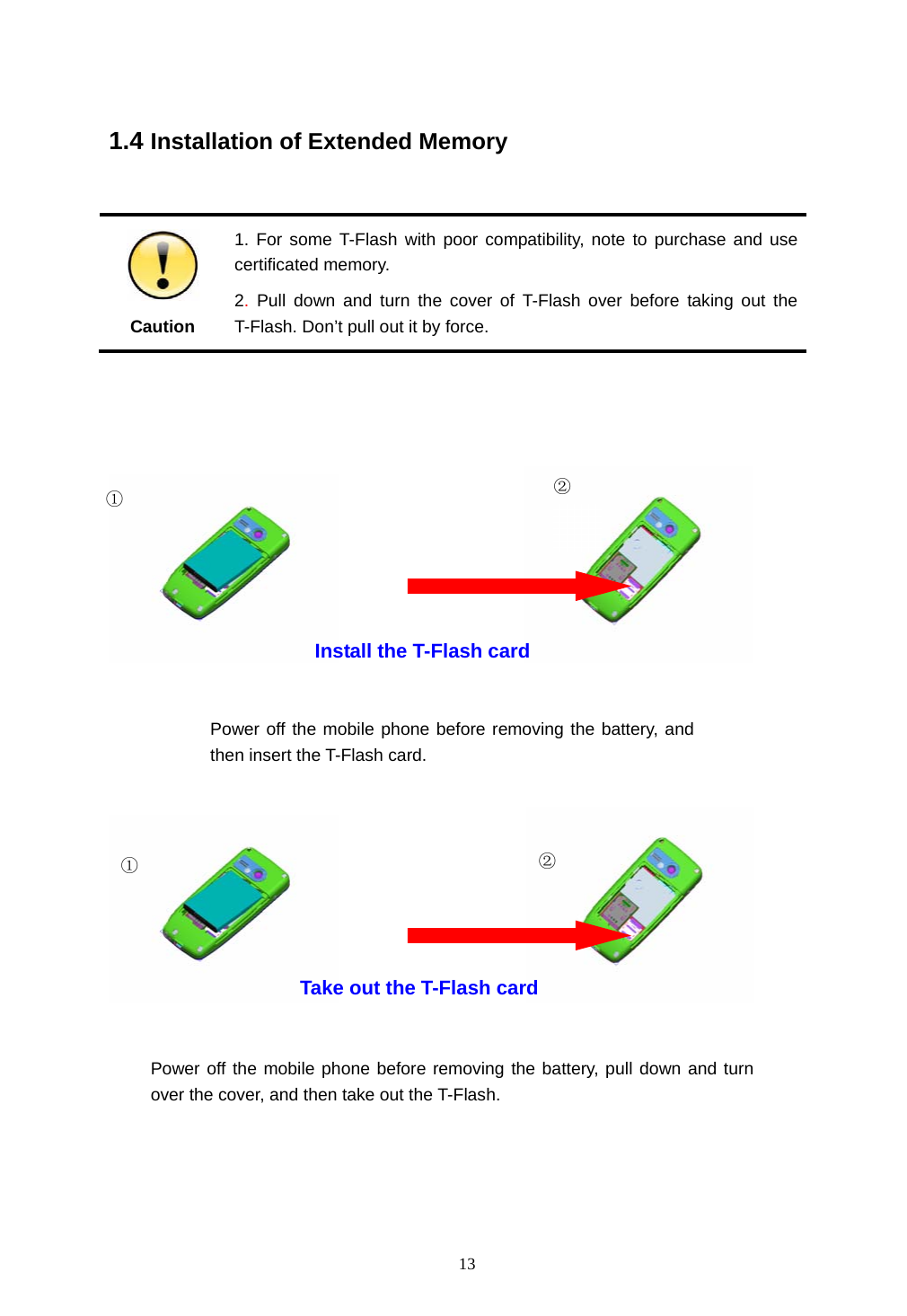
 13   1.4 Installation of Extended Memory   Caution 1. For some T-Flash with poor compatibility, note to purchase and use certificated memory. 2. Pull down and turn the cover of T-Flash over before taking out the T-Flash. Don’t pull out it by force.                                                           Take out the T-Flash card Install the T-Flash card ① ②① ② Power off the mobile phone before removing the battery, and then insert the T-Flash card. Power off the mobile phone before removing the battery, pull down and turn over the cover, and then take out the T-Flash.
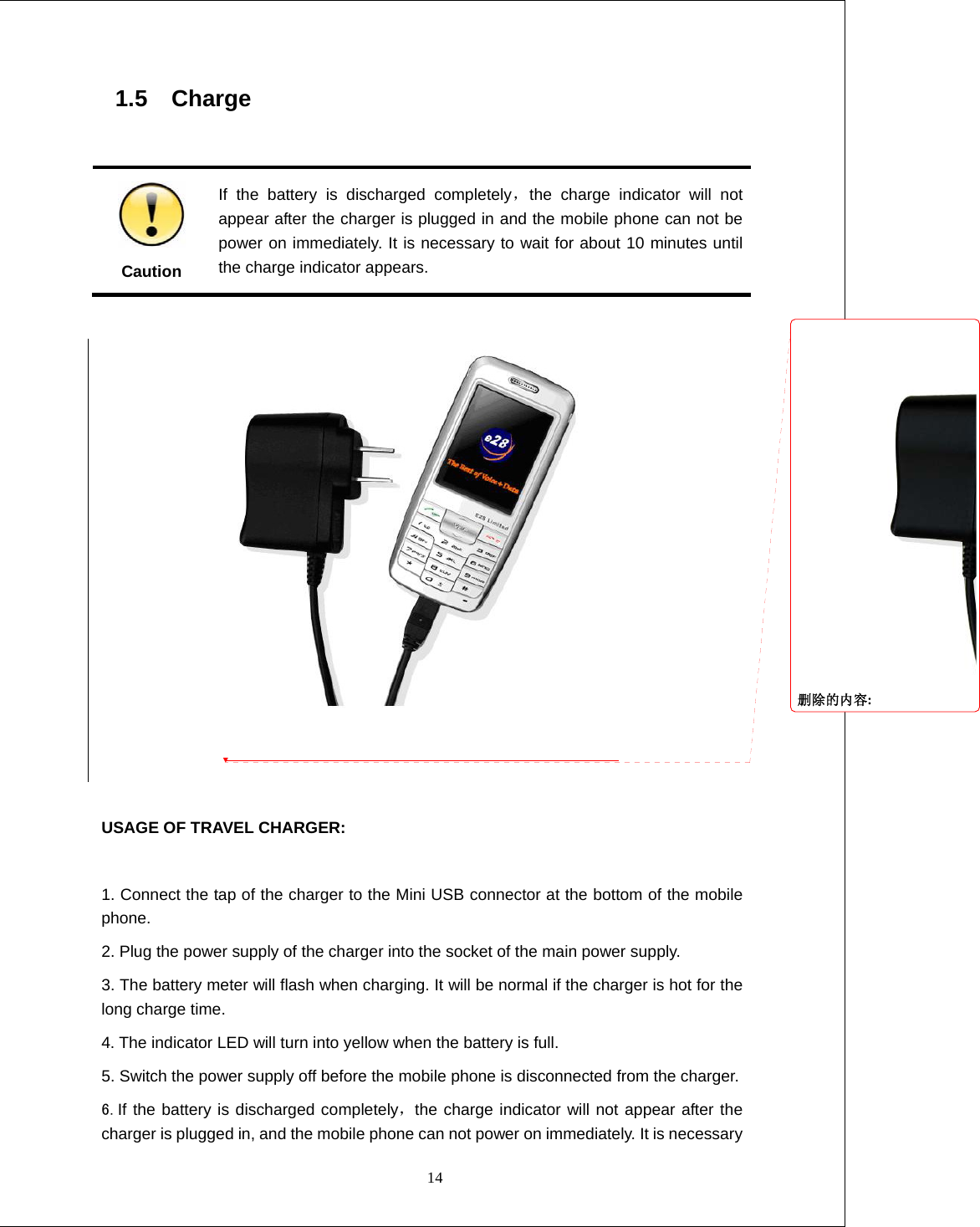
 14 1.5  Charge                                                         Caution If the battery is discharged completely,the charge indicator will not appear after the charger is plugged in and the mobile phone can not be power on immediately. It is necessary to wait for about 10 minutes until the charge indicator appears.    USAGE OF TRAVEL CHARGER:  1. Connect the tap of the charger to the Mini USB connector at the bottom of the mobile phone. 2. Plug the power supply of the charger into the socket of the main power supply. 3. The battery meter will flash when charging. It will be normal if the charger is hot for the long charge time. 4. The indicator LED will turn into yellow when the battery is full. 5. Switch the power supply off before the mobile phone is disconnected from the charger. 6.If the battery is discharged completely,the charge indicator will not appear after the charger is plugged in, and the mobile phone can not power on immediately. It is necessary 删除的内容:
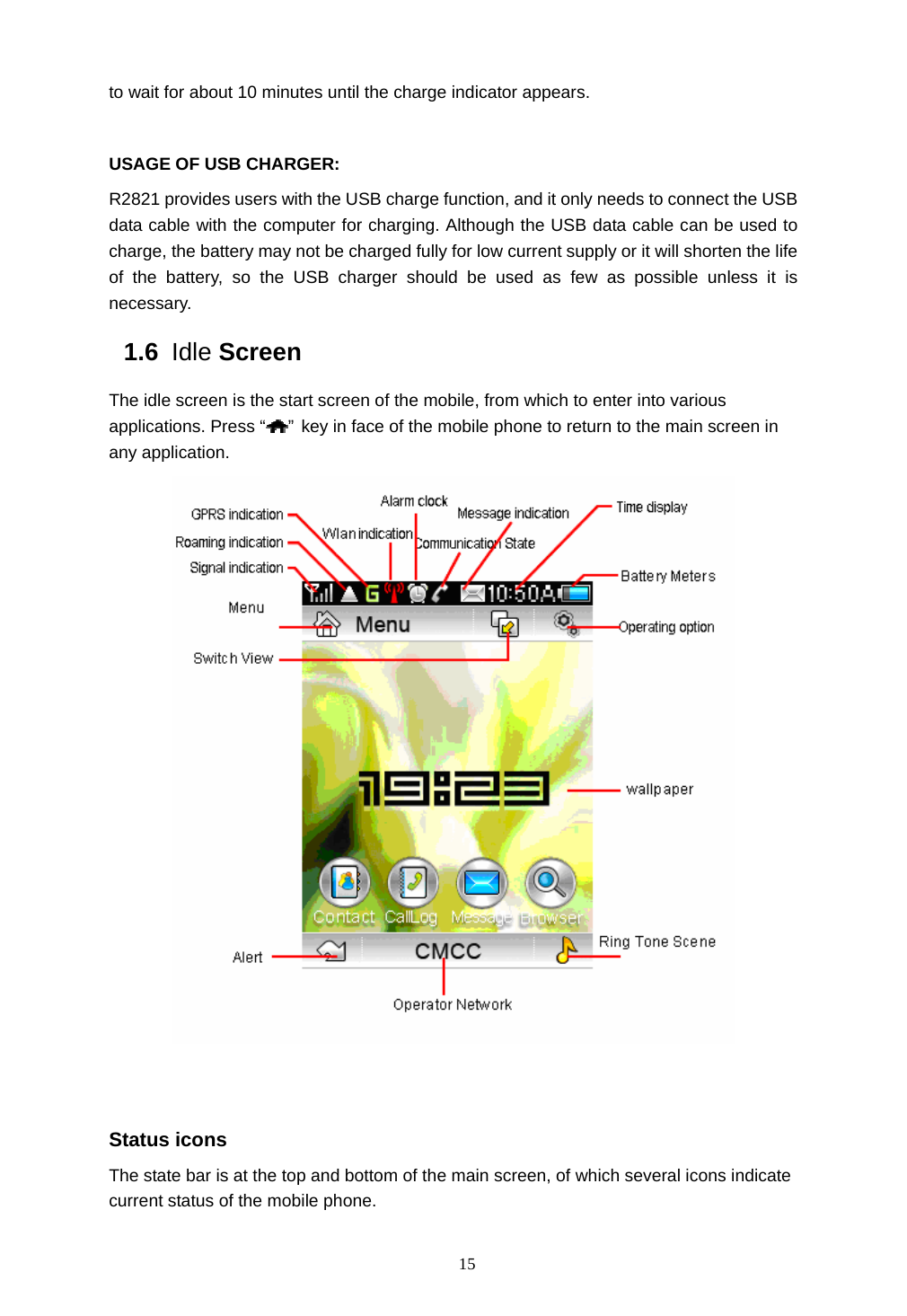
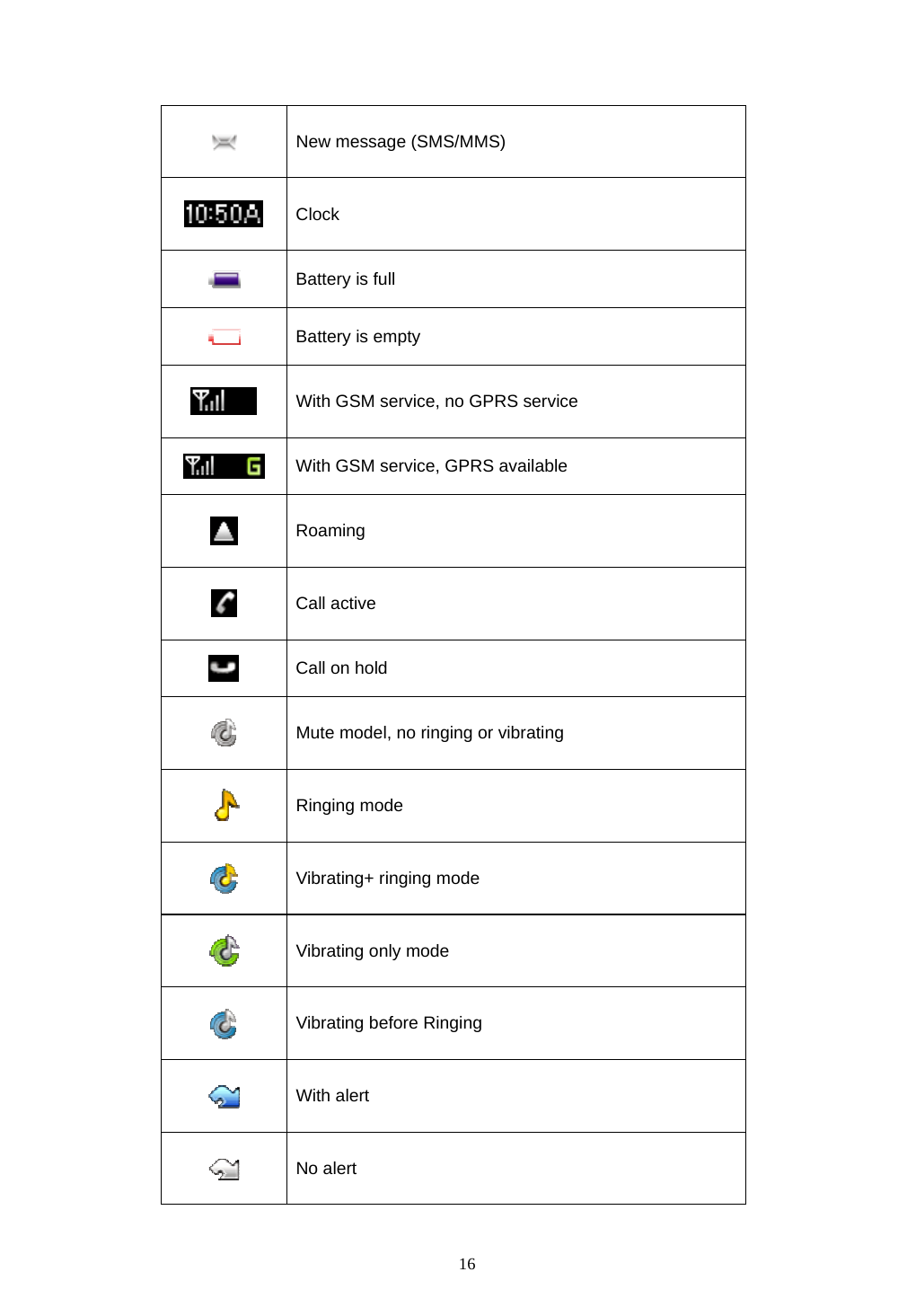
 15 to wait for about 10 minutes until the charge indicator appears.    USAGE OF USB CHARGER: R2821 provides users with the USB charge function, and it only needs to connect the USB data cable with the computer for charging. Although the USB data cable can be used to charge, the battery may not be charged fully for low current supply or it will shorten the life of the battery, so the USB charger should be used as few as possible unless it is necessary. 1.6  Idle Screen   The idle screen is the start screen of the mobile, from which to enter into various applications. Press “ ” key in face of the mobile phone to return to the main screen in any application.    Status icons The state bar is at the top and bottom of the main screen, of which several icons indicate current status of the mobile phone.
 16     New message (SMS/MMS)  Clock  Battery is full  Battery is empty  With GSM service, no GPRS service  With GSM service, GPRS available  Roaming  Call active  Call on hold  Mute model, no ringing or vibrating  Ringing mode  Vibrating+ ringing mode  Vibrating only mode  Vibrating before Ringing  With alert  No alert
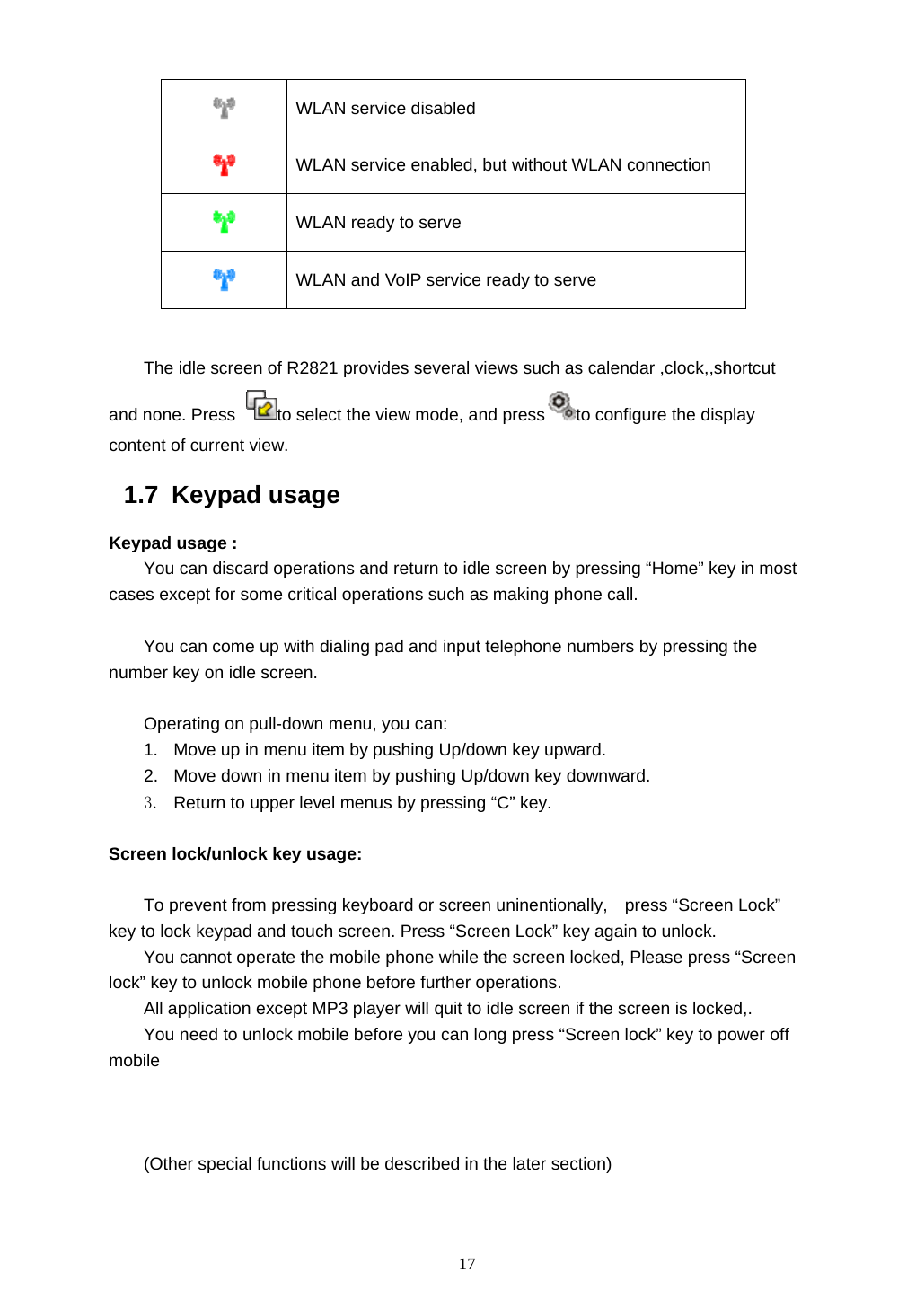
 17  WLAN service disabled  WLAN service enabled, but without WLAN connection  WLAN ready to serve  WLAN and VoIP service ready to serve  The idle screen of R2821 provides several views such as calendar ,clock,,shortcut and none. Press  to select the view mode, and press to configure the display content of current view. 1.7 Keypad usage Keypad usage : You can discard operations and return to idle screen by pressing “Home” key in most cases except for some critical operations such as making phone call.  You can come up with dialing pad and input telephone numbers by pressing the number key on idle screen.  Operating on pull-down menu, you can: 1.  Move up in menu item by pushing Up/down key upward. 2.  Move down in menu item by pushing Up/down key downward. 3.  Return to upper level menus by pressing “C” key.  Screen lock/unlock key usage:  To prevent from pressing keyboard or screen uninentionally,    press “Screen Lock” key to lock keypad and touch screen. Press “Screen Lock” key again to unlock. You cannot operate the mobile phone while the screen locked, Please press “Screen lock” key to unlock mobile phone before further operations. All application except MP3 player will quit to idle screen if the screen is locked,. You need to unlock mobile before you can long press “Screen lock” key to power off mobile     (Other special functions will be described in the later section)
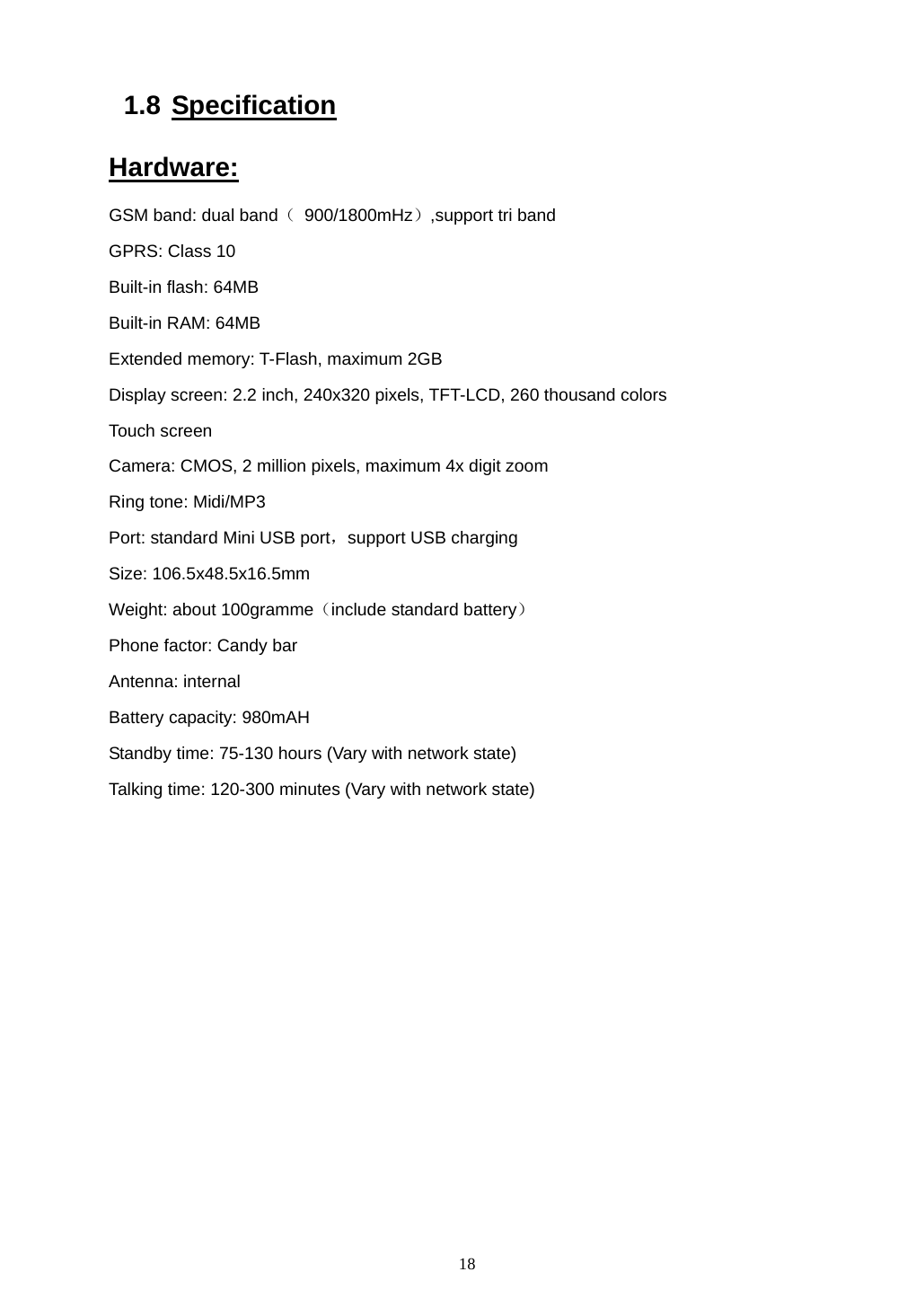
 18 1.8 Specification Hardware: GSM band: dual band( 900/1800mHz),support tri band GPRS: Class 10 Built-in flash: 64MB Built-in RAM: 64MB Extended memory: T-Flash, maximum 2GB Display screen: 2.2 inch, 240x320 pixels, TFT-LCD, 260 thousand colors Touch screen Camera: CMOS, 2 million pixels, maximum 4x digit zoom Ring tone: Midi/MP3 Port: standard Mini USB port,support USB charging Size: 106.5x48.5x16.5mm Weight: about 100gramme(include standard battery) Phone factor: Candy bar Antenna: internal   Battery capacity: 980mAH Standby time: 75-130 hours (Vary with network state) Talking time: 120-300 minutes (Vary with network state)
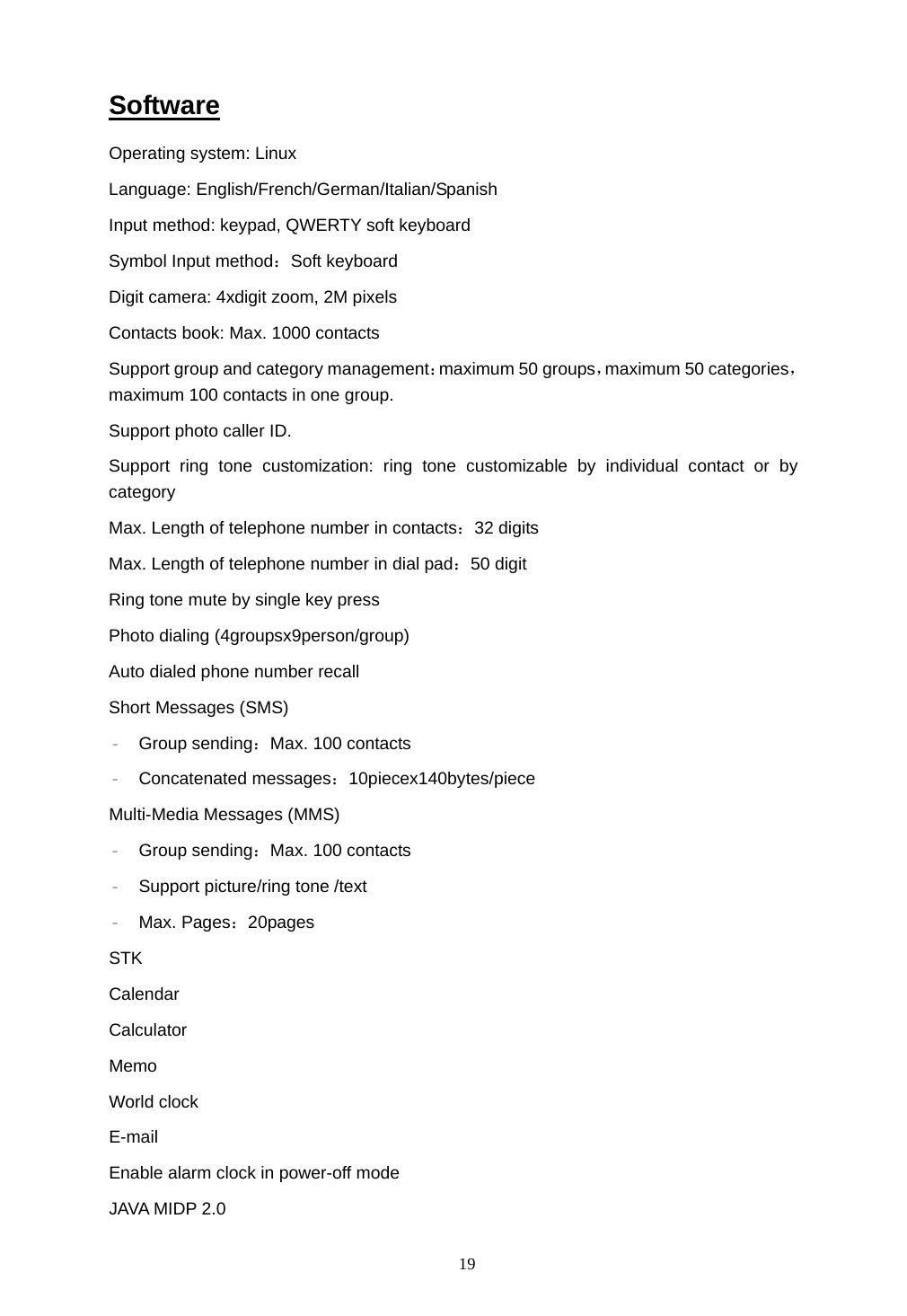
 19 Software Operating system: Linux  Language: English/French/German/Italian/Spanish Input method: keypad, QWERTY soft keyboard Symbol Input method:Soft keyboard Digit camera: 4xdigit zoom, 2M pixels Contacts book: Max. 1000 contacts Support group and category management:maximum 50 groups,maximum 50 categories, maximum 100 contacts in one group. Support photo caller ID. Support ring tone customization: ring tone customizable by individual contact or by category Max. Length of telephone number in contacts:32 digits Max. Length of telephone number in dial pad:50 digit Ring tone mute by single key press Photo dialing (4groupsx9person/group) Auto dialed phone number recall Short Messages (SMS) – Group sending:Max. 100 contacts – Concatenated messages:10piecex140bytes/piece Multi-Media Messages (MMS) – Group sending:Max. 100 contacts – Support picture/ring tone /text – Max. Pages:20pages STK Calendar  Calculator Memo World clock E-mail Enable alarm clock in power-off mode JAVA MIDP 2.0
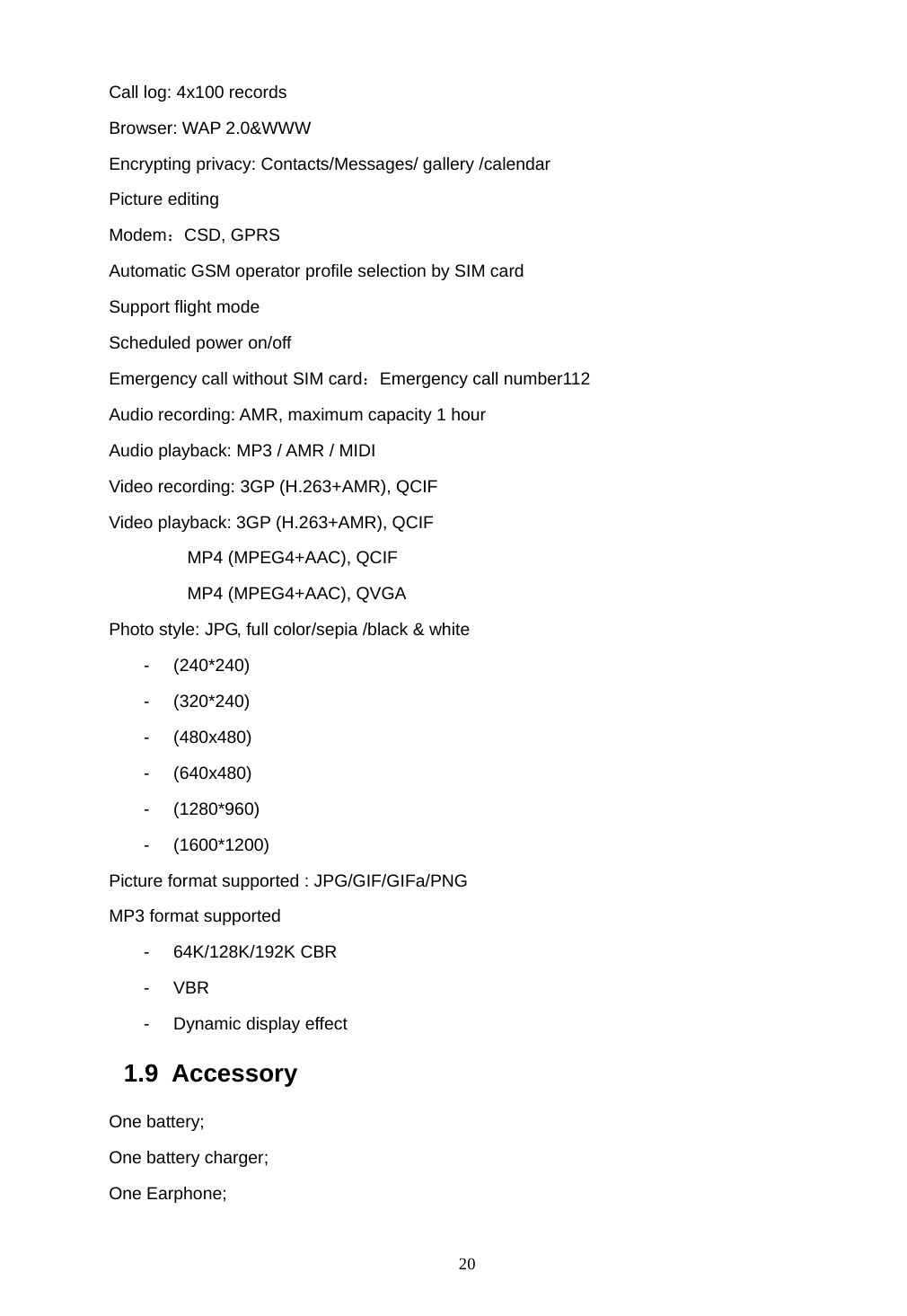
 20 Call log: 4x100 records Browser: WAP 2.0&WWW Encrypting privacy: Contacts/Messages/ gallery /calendar Picture editing Modem:CSD, GPRS Automatic GSM operator profile selection by SIM card Support flight mode   Scheduled power on/off   Emergency call without SIM card:Emergency call number112 Audio recording: AMR, maximum capacity 1 hour Audio playback: MP3 / AMR / MIDI   Video recording: 3GP (H.263+AMR), QCIF Video playback: 3GP (H.263+AMR), QCIF          MP4 (MPEG4+AAC), QCIF          MP4 (MPEG4+AAC), QVGA Photo style: JPG, full color/sepia /black & white - (240*240) - (320*240) - (480x480) - (640x480) - (1280*960) - (1600*1200) Picture format supported : JPG/GIF/GIFa/PNG MP3 format supported - 64K/128K/192K CBR - VBR - Dynamic display effect 1.9 Accessory One battery;   One battery charger;   One Earphone;
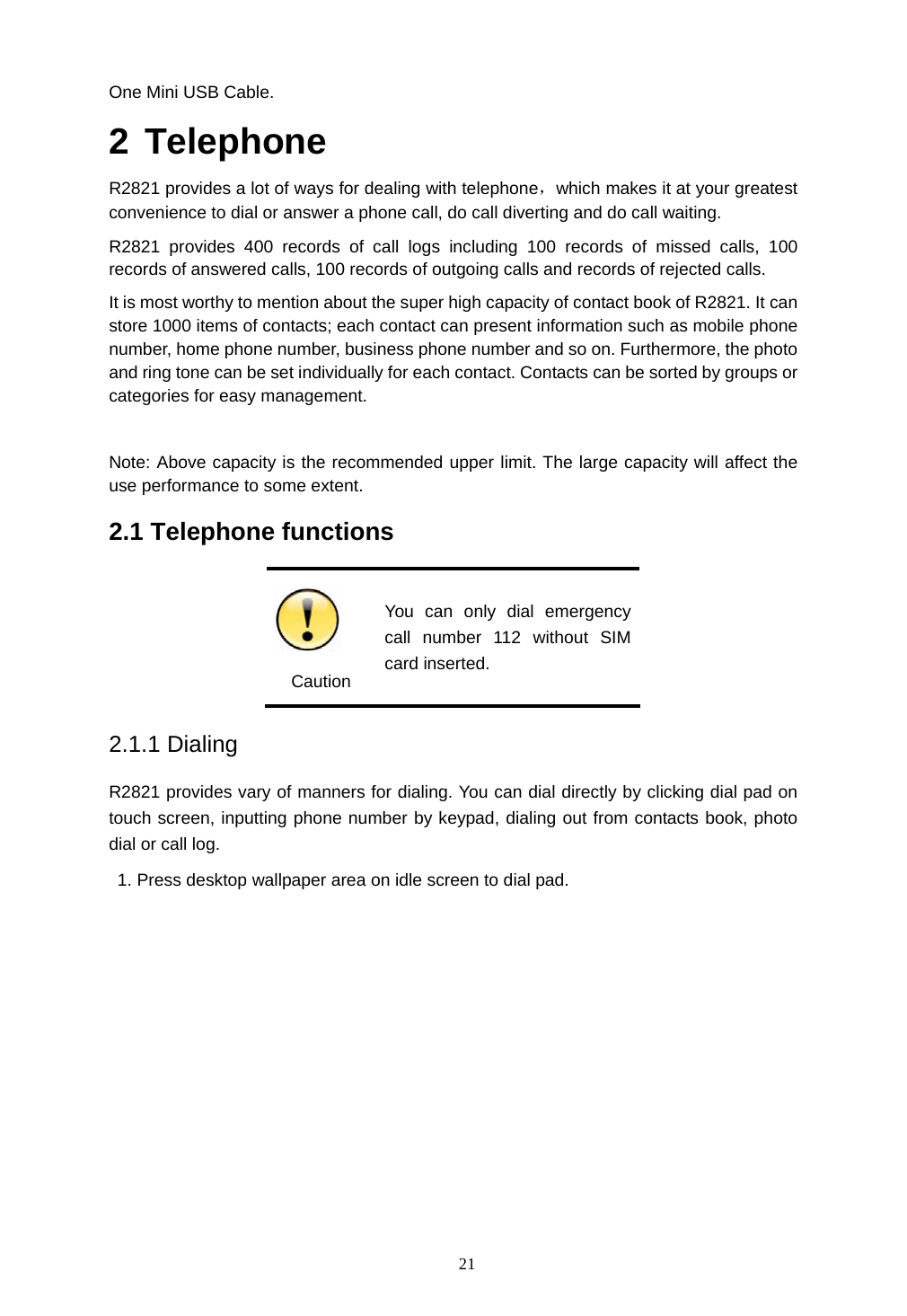
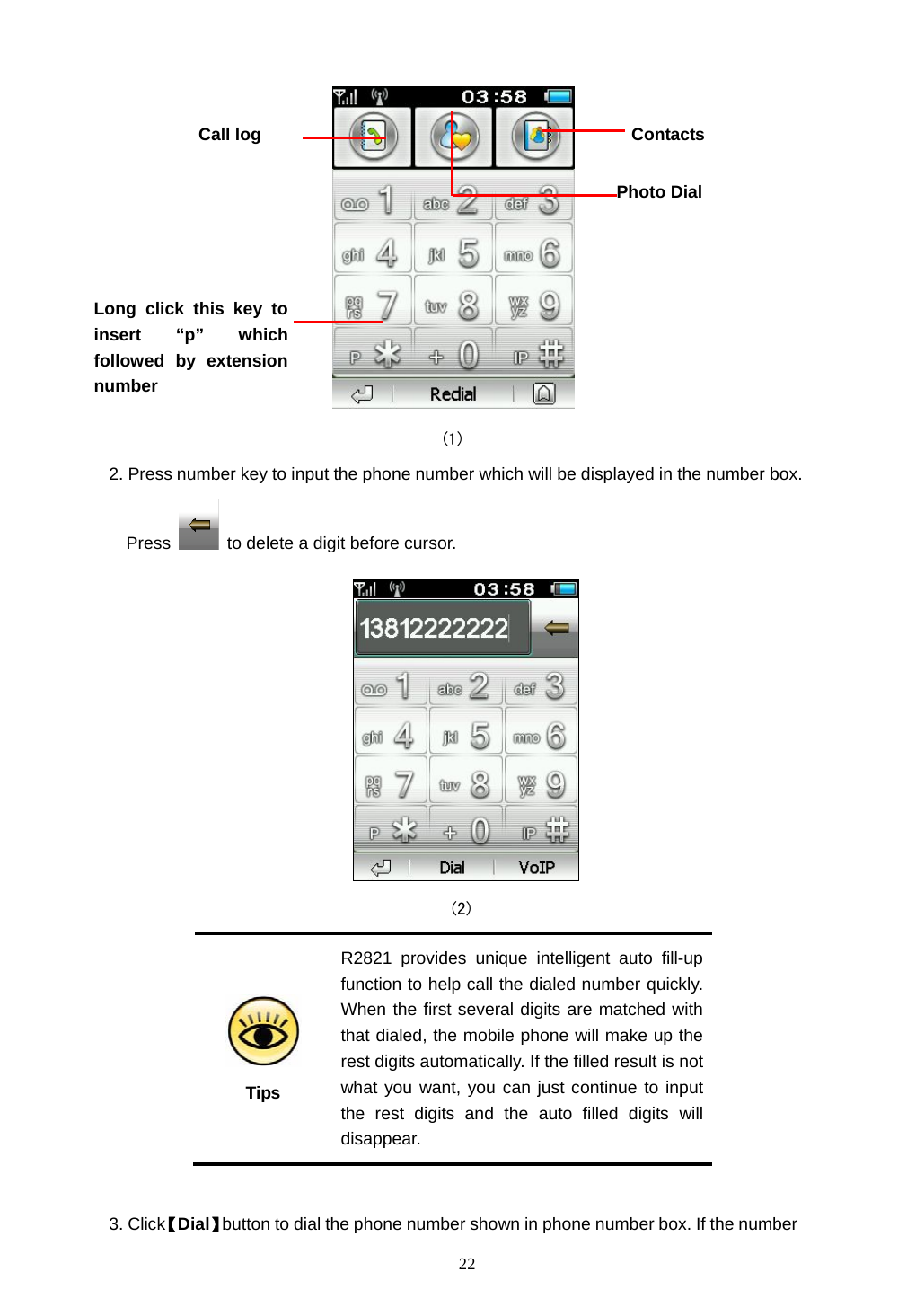
 21 One Mini USB Cable. 2 Telephone R2821 provides a lot of ways for dealing with telephone,which makes it at your greatest convenience to dial or answer a phone call, do call diverting and do call waiting. R2821 provides 400 records of call logs including 100 records of missed calls, 100 records of answered calls, 100 records of outgoing calls and records of rejected calls. It is most worthy to mention about the super high capacity of contact book of R2821. It can store 1000 items of contacts; each contact can present information such as mobile phone number, home phone number, business phone number and so on. Furthermore, the photo and ring tone can be set individually for each contact. Contacts can be sorted by groups or categories for easy management.  Note: Above capacity is the recommended upper limit. The large capacity will affect the use performance to some extent. 2.1 Telephone functions    Caution You can only dial emergency call number 112 without SIM card inserted. 2.1.1 Dialing R2821 provides vary of manners for dialing. You can dial directly by clicking dial pad on touch screen, inputting phone number by keypad, dialing out from contacts book, photo dial or call log.   1. Press desktop wallpaper area on idle screen to dial pad.
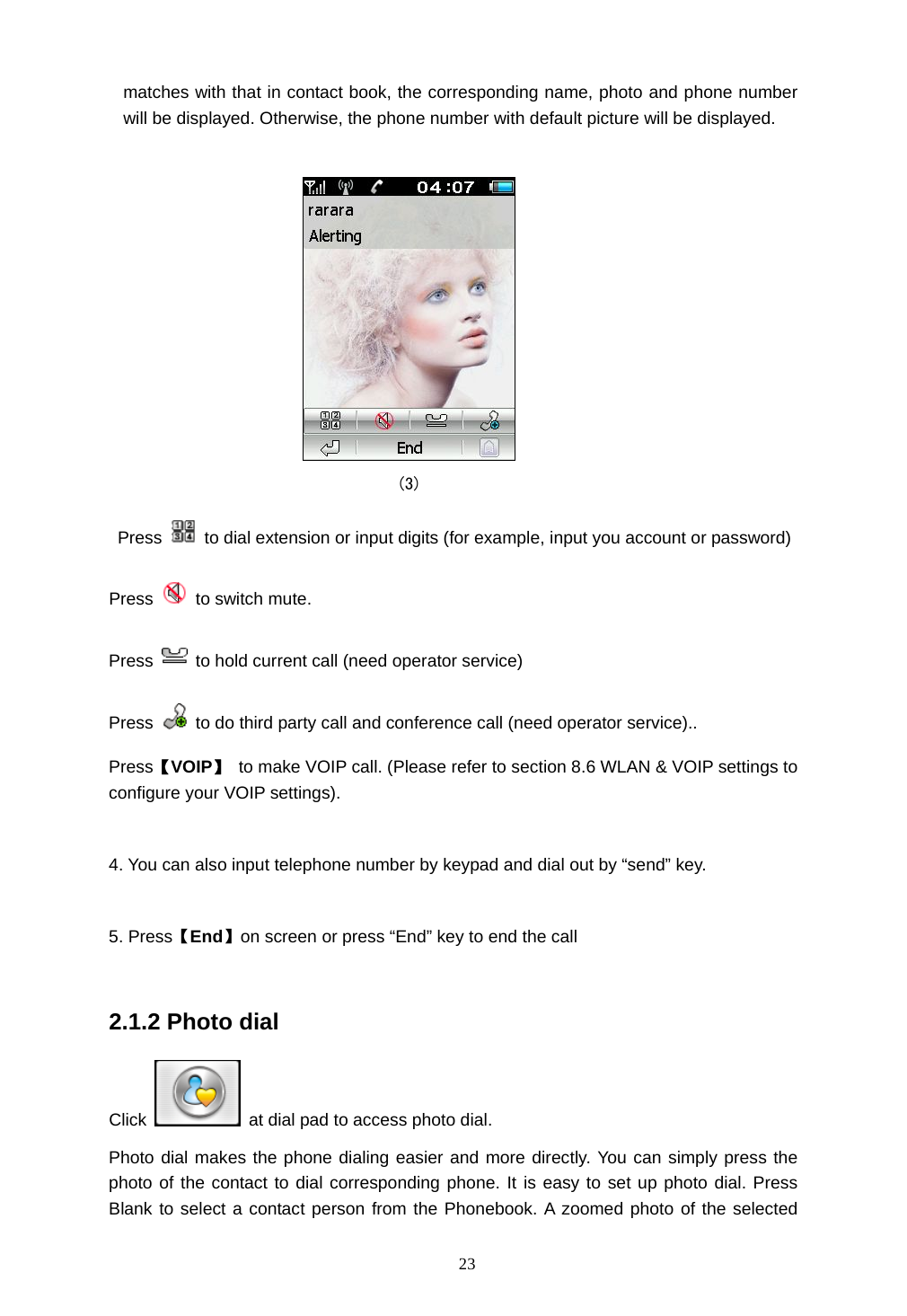
 22                                        (1) 2. Press number key to input the phone number which will be displayed in the number box. Press    to delete a digit before cursor.                                            (2)   Tips R2821 provides unique intelligent auto fill-up function to help call the dialed number quickly. When the first several digits are matched with that dialed, the mobile phone will make up the rest digits automatically. If the filled result is not what you want, you can just continue to input the rest digits and the auto filled digits will disappear.  3. Click【Dial】button to dial the phone number shown in phone number box. If the number ContactsCall log Long click this key to insert “p” which followed by extensionnumber Photo Dial
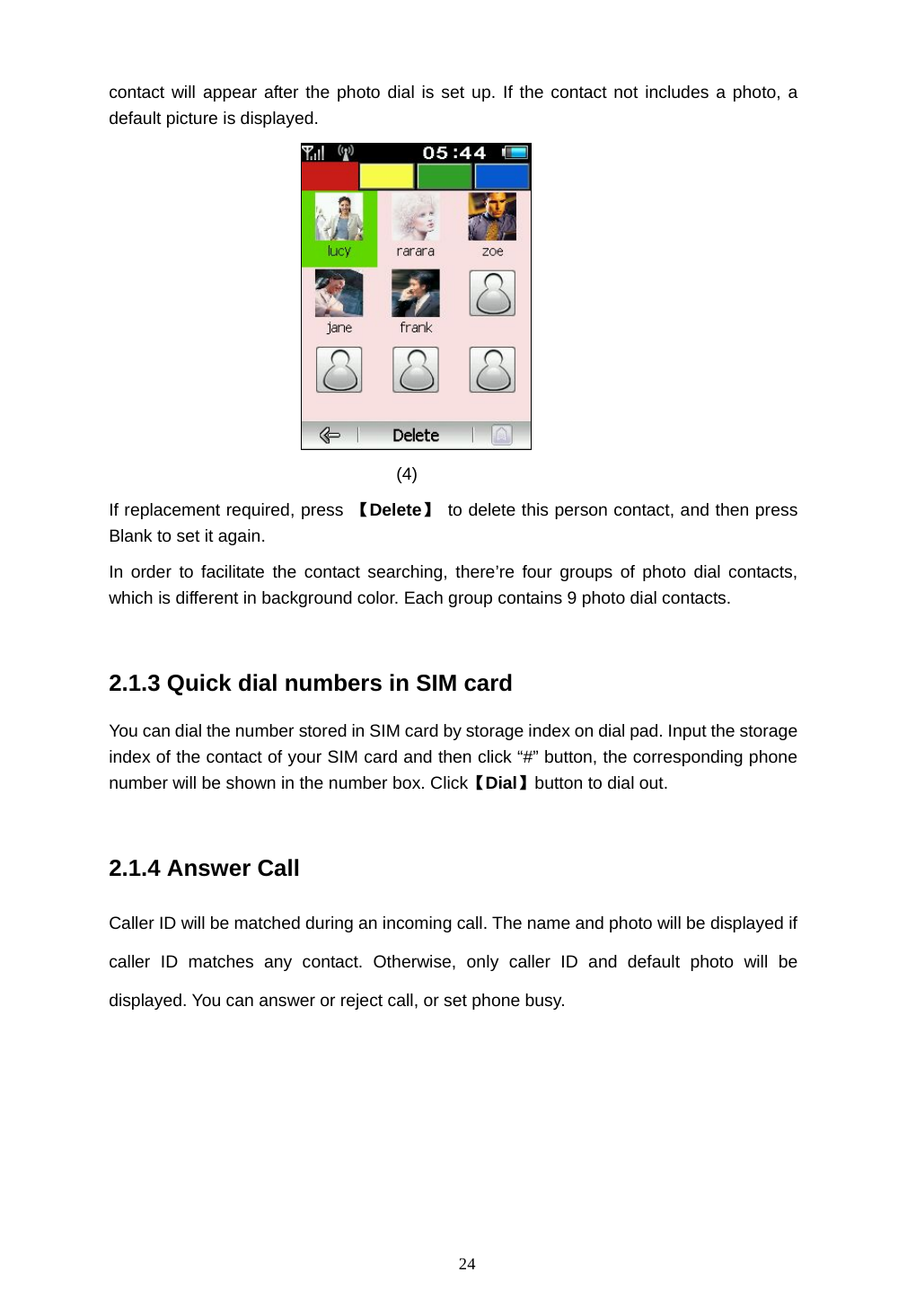
 23 matches with that in contact book, the corresponding name, photo and phone number will be displayed. Otherwise, the phone number with default picture will be displayed.                                    (3)  Press    to dial extension or input digits (for example, input you account or password) Press   to switch mute. Press    to hold current call (need operator service) Press    to do third party call and conference call (need operator service).. Press【VOIP】  to make VOIP call. (Please refer to section 8.6 WLAN & VOIP settings to configure your VOIP settings).  4. You can also input telephone number by keypad and dial out by “send” key.  5. Press【End】on screen or press “End” key to end the call  2.1.2 Photo dial Click    at dial pad to access photo dial. Photo dial makes the phone dialing easier and more directly. You can simply press the photo of the contact to dial corresponding phone. It is easy to set up photo dial. Press Blank to select a contact person from the Phonebook. A zoomed photo of the selected
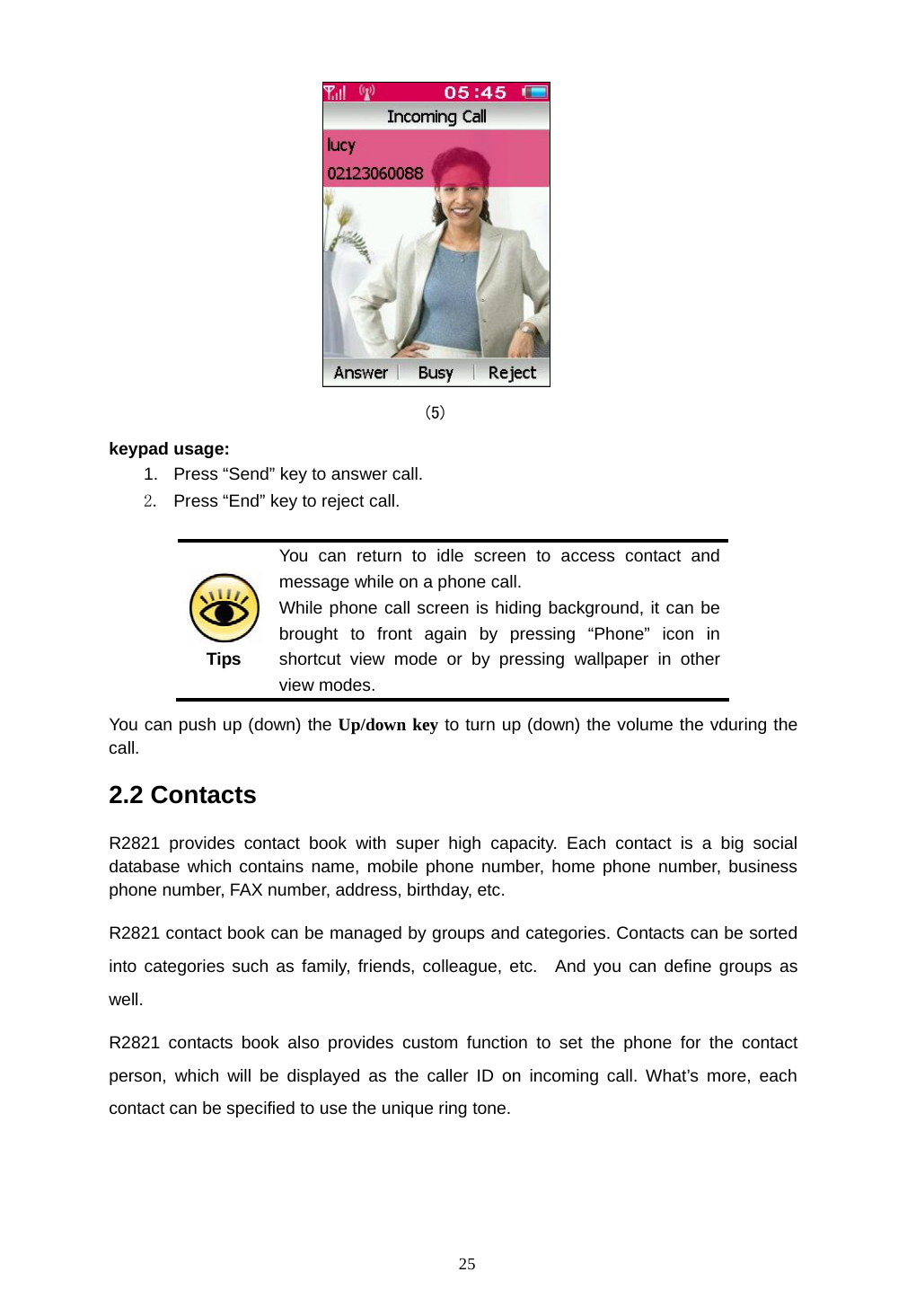
 24 contact will appear after the photo dial is set up. If the contact not includes a photo, a default picture is displayed.  (4) If replacement required, press  【Delete】 to delete this person contact, and then press Blank to set it again. In order to facilitate the contact searching, there’re four groups of photo dial contacts, which is different in background color. Each group contains 9 photo dial contacts.  2.1.3 Quick dial numbers in SIM card You can dial the number stored in SIM card by storage index on dial pad. Input the storage index of the contact of your SIM card and then click “#” button, the corresponding phone number will be shown in the number box. Click【Dial】button to dial out.  2.1.4 Answer Call Caller ID will be matched during an incoming call. The name and photo will be displayed if caller ID matches any contact. Otherwise, only caller ID and default photo will be displayed. You can answer or reject call, or set phone busy.
 25  (5) keypad usage: 1.  Press “Send” key to answer call. 2.  Press “End” key to reject call.   Tips You can return to idle screen to access contact and message while on a phone call. While phone call screen is hiding background, it can be brought to front again by pressing “Phone” icon in shortcut view mode or by pressing wallpaper in other view modes. You can push up (down) the Up/down key to turn up (down) the volume the vduring the call. 2.2 Contacts R2821 provides contact book with super high capacity. Each contact is a big social database which contains name, mobile phone number, home phone number, business phone number, FAX number, address, birthday, etc.   R2821 contact book can be managed by groups and categories. Contacts can be sorted into categories such as family, friends, colleague, etc.  And you can define groups as well. R2821 contacts book also provides custom function to set the phone for the contact person, which will be displayed as the caller ID on incoming call. What’s more, each contact can be specified to use the unique ring tone.
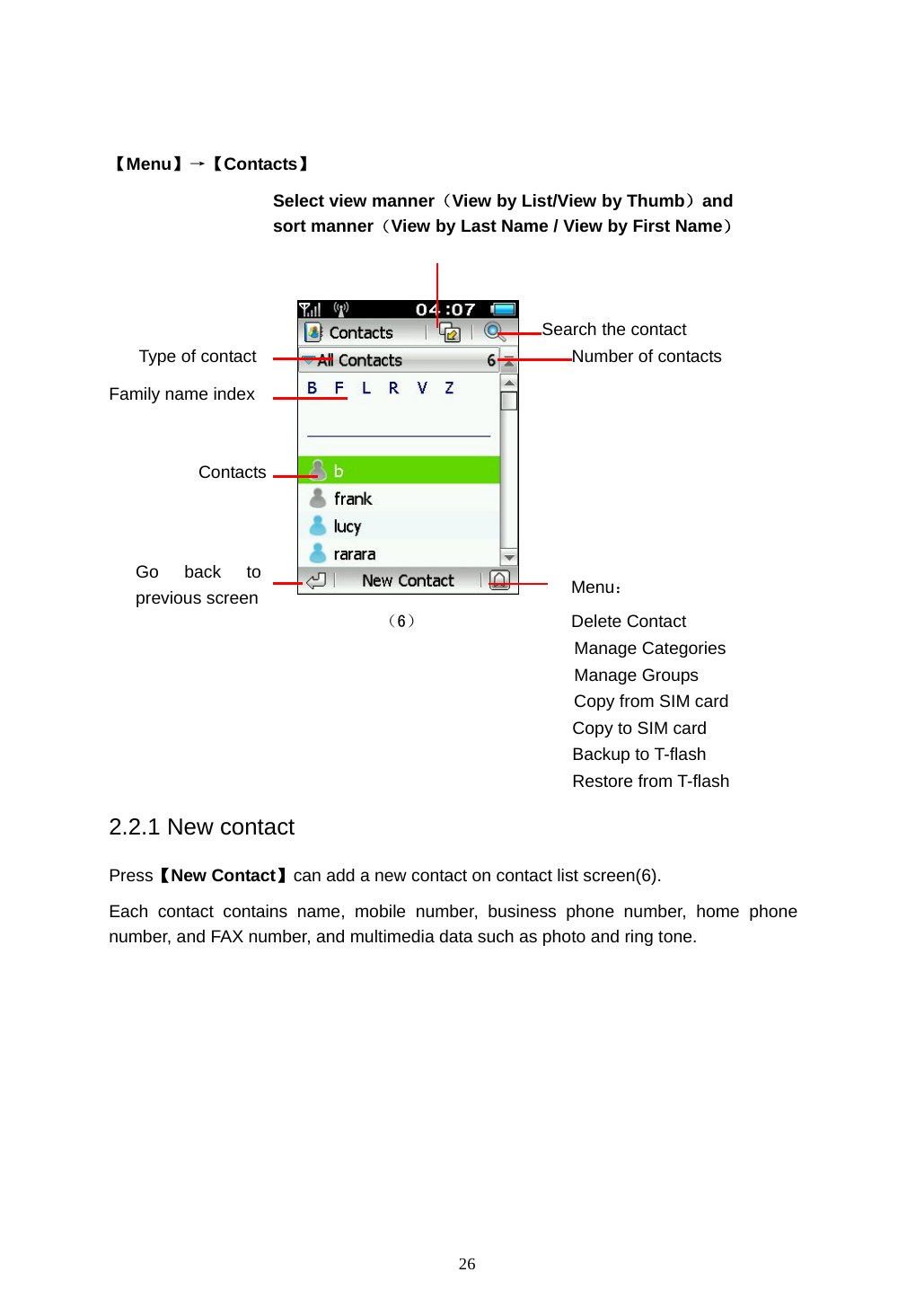
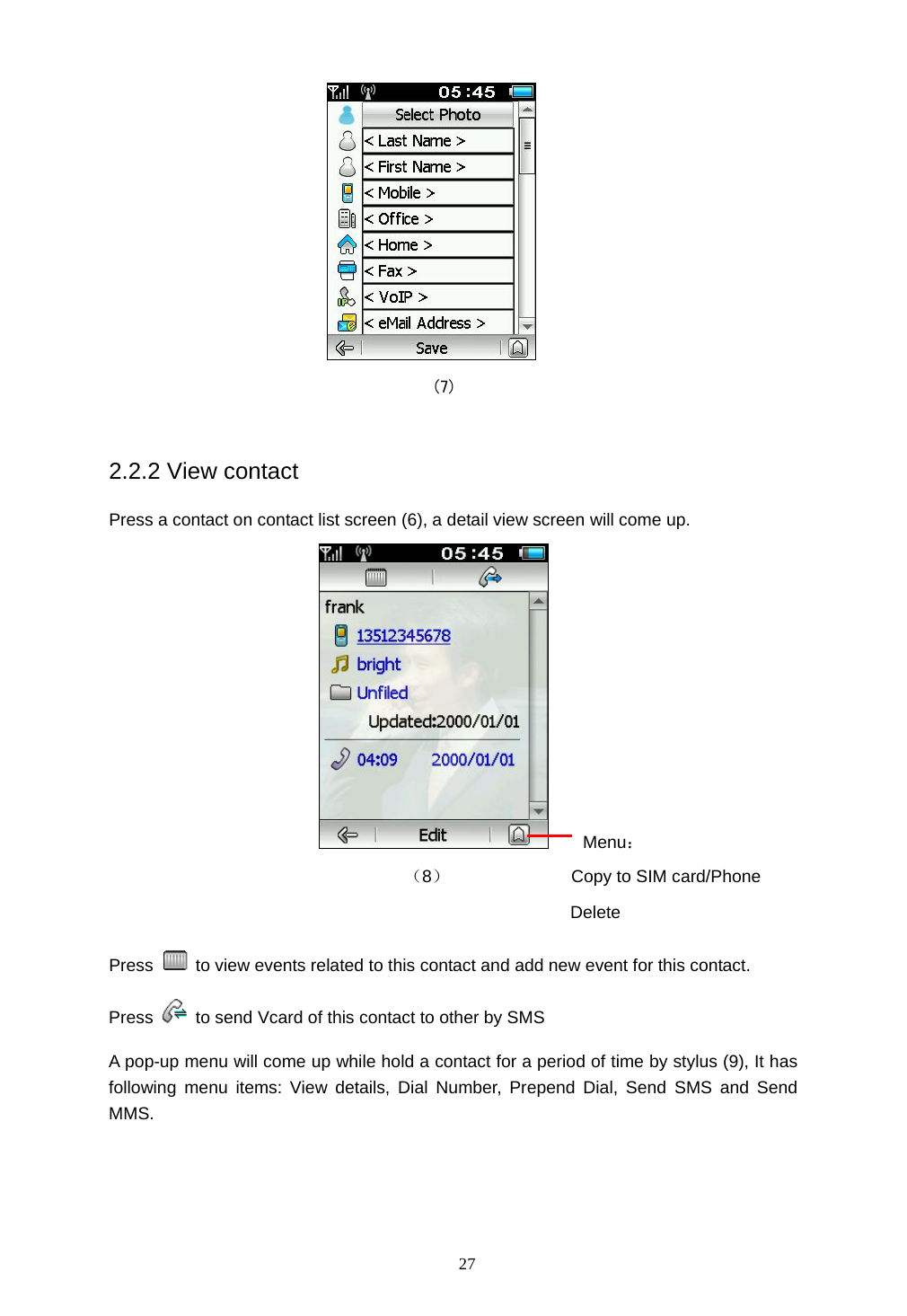
 26   【Menu】→【Contacts】          Menu: (6)                 Delete Contact Manage Categories Manage Groups Copy from SIM card Copy to SIM card Backup to T-flash Restore from T-flash 2.2.1 New contact Press【New Contact】can add a new contact on contact list screen(6). Each contact contains name, mobile number, business phone number, home phone number, and FAX number, and multimedia data such as photo and ring tone.  Type of contact Search the contact Contacts Select view manner(View by List/View by Thumb)and sort manner(View by Last Name / View by First Name)Number of contacts Family name index Go back to previous screen
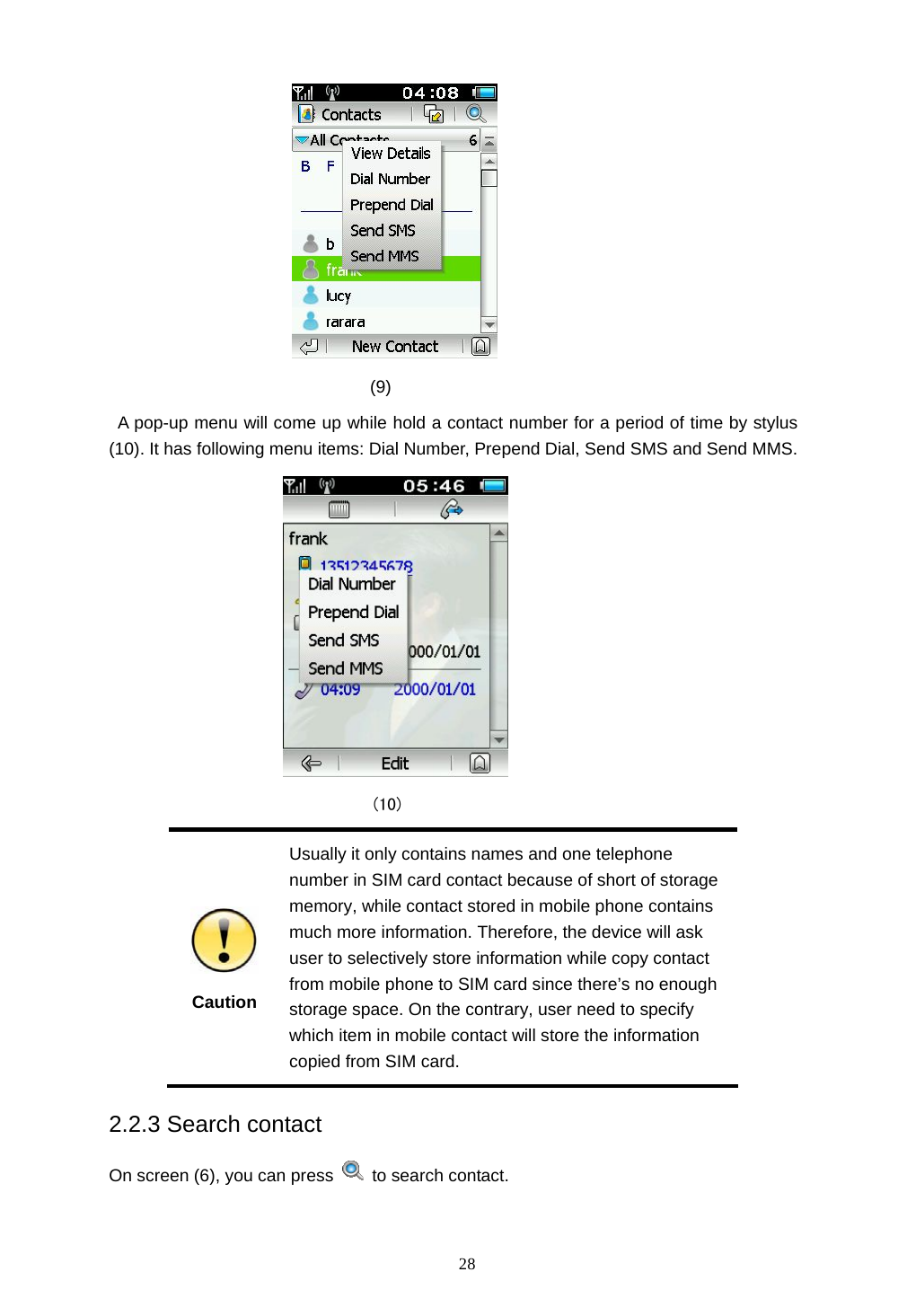
 27  (7)  2.2.2 View contact Press a contact on contact list screen (6), a detail view screen will come up.     Menu:                         (8)              Copy to SIM card/Phone                                            Delete Press    to view events related to this contact and add new event for this contact. Press    to send Vcard of this contact to other by SMS A pop-up menu will come up while hold a contact for a period of time by stylus (9), It has following menu items: View details, Dial Number, Prepend Dial, Send SMS and Send MMS.
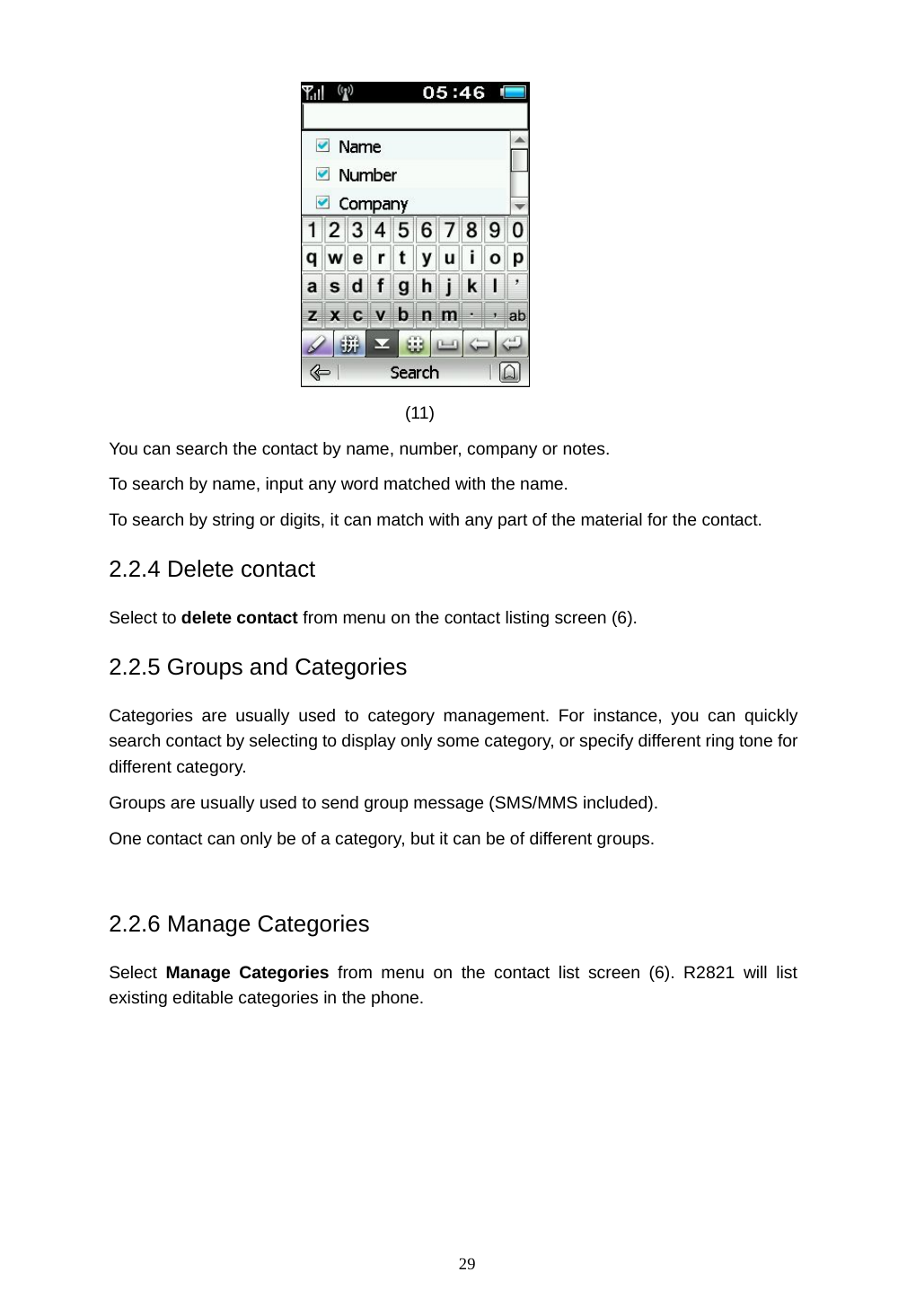
 28                                (9)   A pop-up menu will come up while hold a contact number for a period of time by stylus (10). It has following menu items: Dial Number, Prepend Dial, Send SMS and Send MMS.                                (10)  Caution Usually it only contains names and one telephone number in SIM card contact because of short of storage memory, while contact stored in mobile phone contains much more information. Therefore, the device will ask user to selectively store information while copy contact from mobile phone to SIM card since there’s no enough storage space. On the contrary, user need to specify which item in mobile contact will store the information copied from SIM card. 2.2.3 Search contact On screen (6), you can press   to search contact.
 29  (11) You can search the contact by name, number, company or notes. To search by name, input any word matched with the name. To search by string or digits, it can match with any part of the material for the contact. 2.2.4 Delete contact Select to delete contact from menu on the contact listing screen (6). 2.2.5 Groups and Categories Categories are usually used to category management. For instance, you can quickly search contact by selecting to display only some category, or specify different ring tone for different category. Groups are usually used to send group message (SMS/MMS included). One contact can only be of a category, but it can be of different groups.  2.2.6 Manage Categories Select  Manage Categories from menu on the contact list screen (6). R2821 will list existing editable categories in the phone.
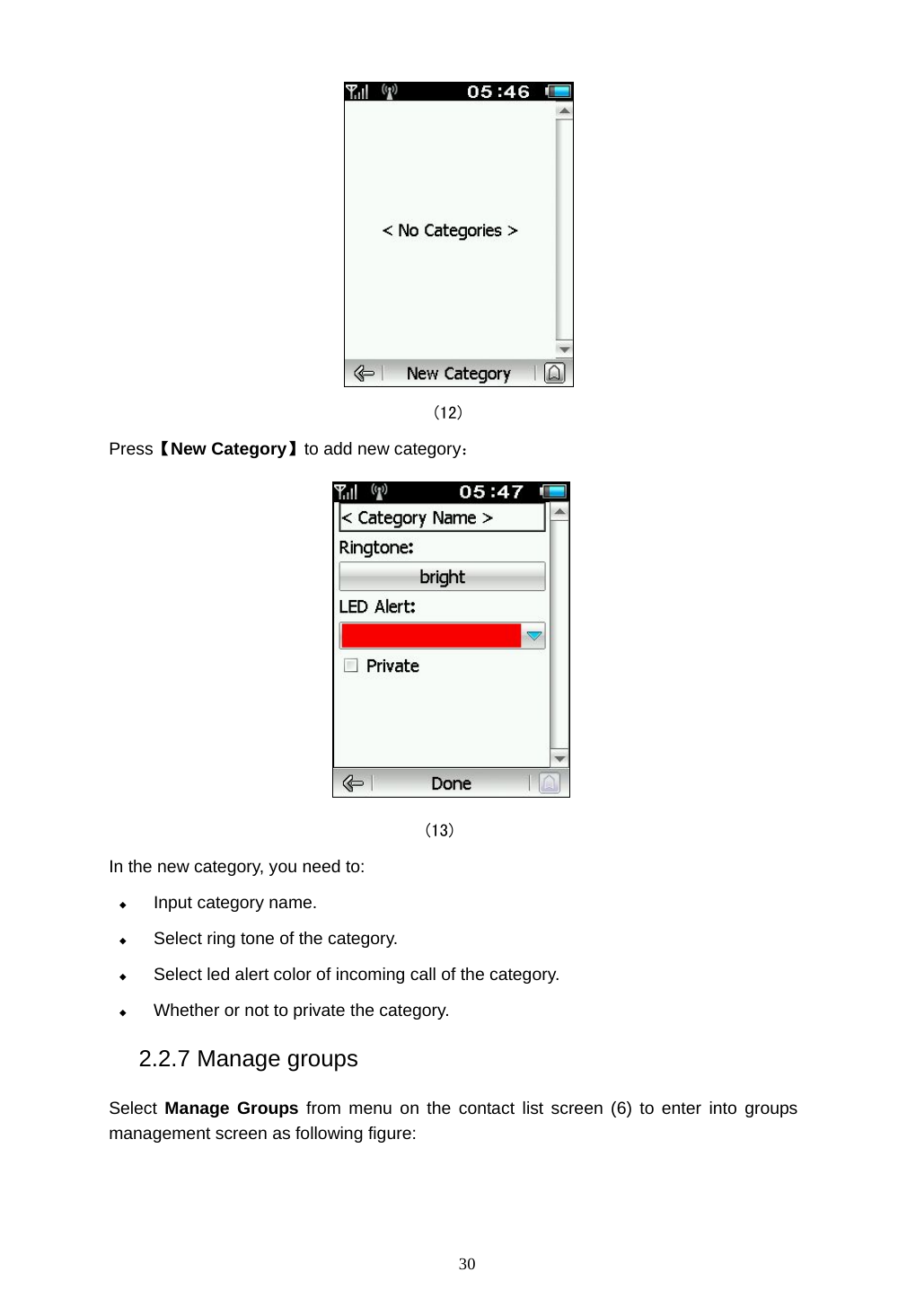
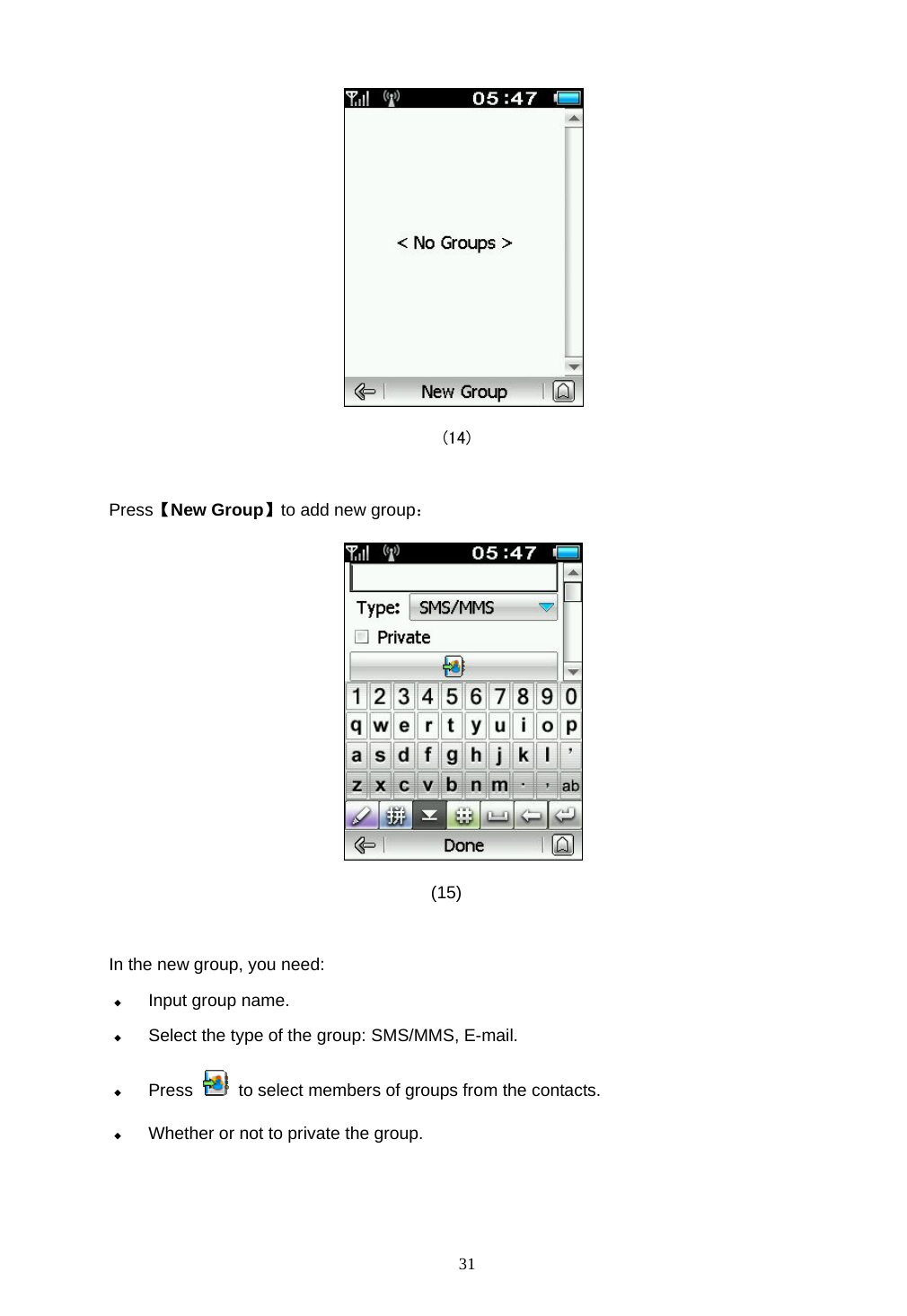
 30                                       (12) Press【New Category】to add new category:  (13) In the new category, you need to:  Input category name.  Select ring tone of the category.  Select led alert color of incoming call of the category.  Whether or not to private the category. 2.2.7 Manage groups Select  Manage Groups from menu on the contact list screen (6) to enter into groups management screen as following figure:
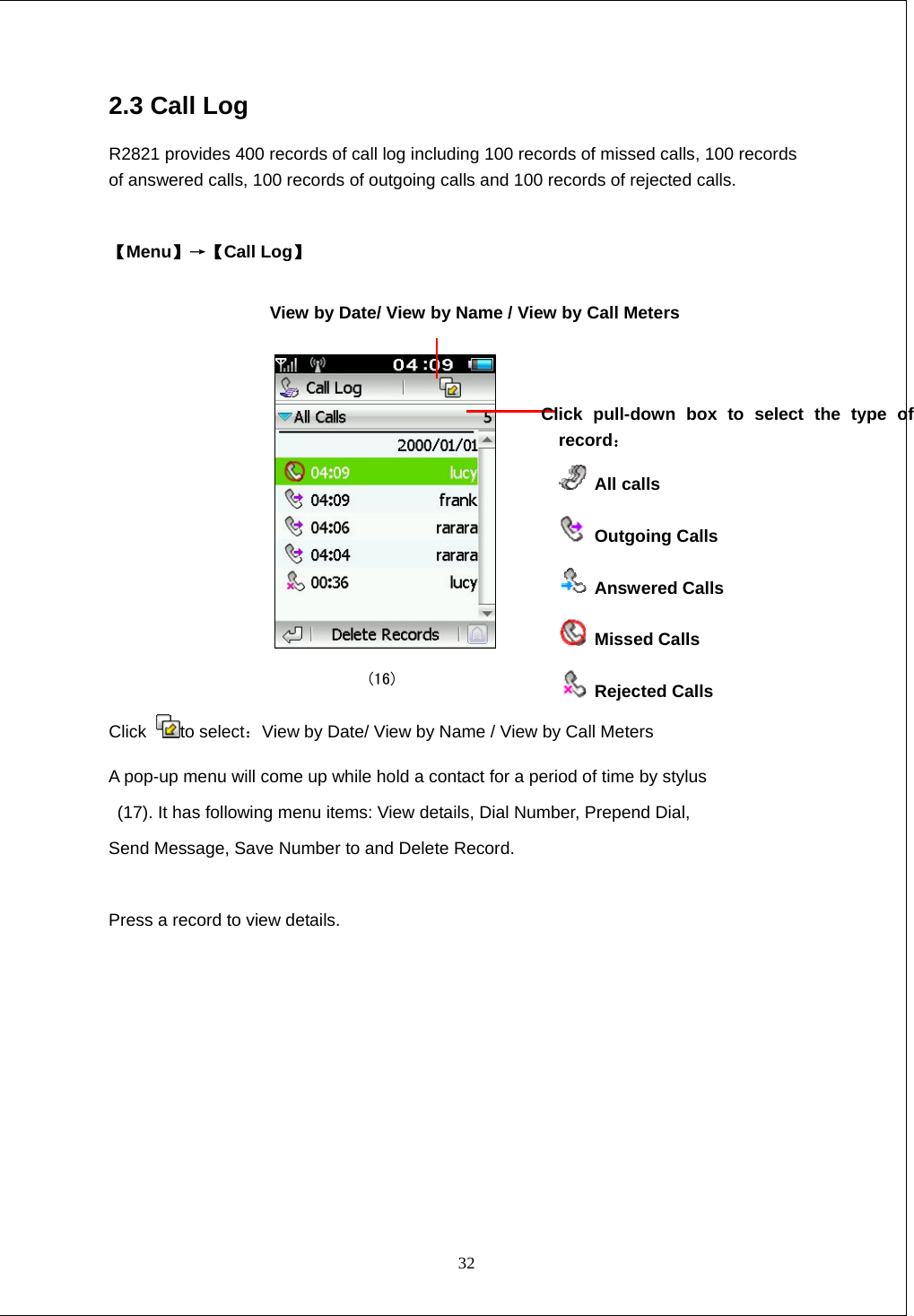
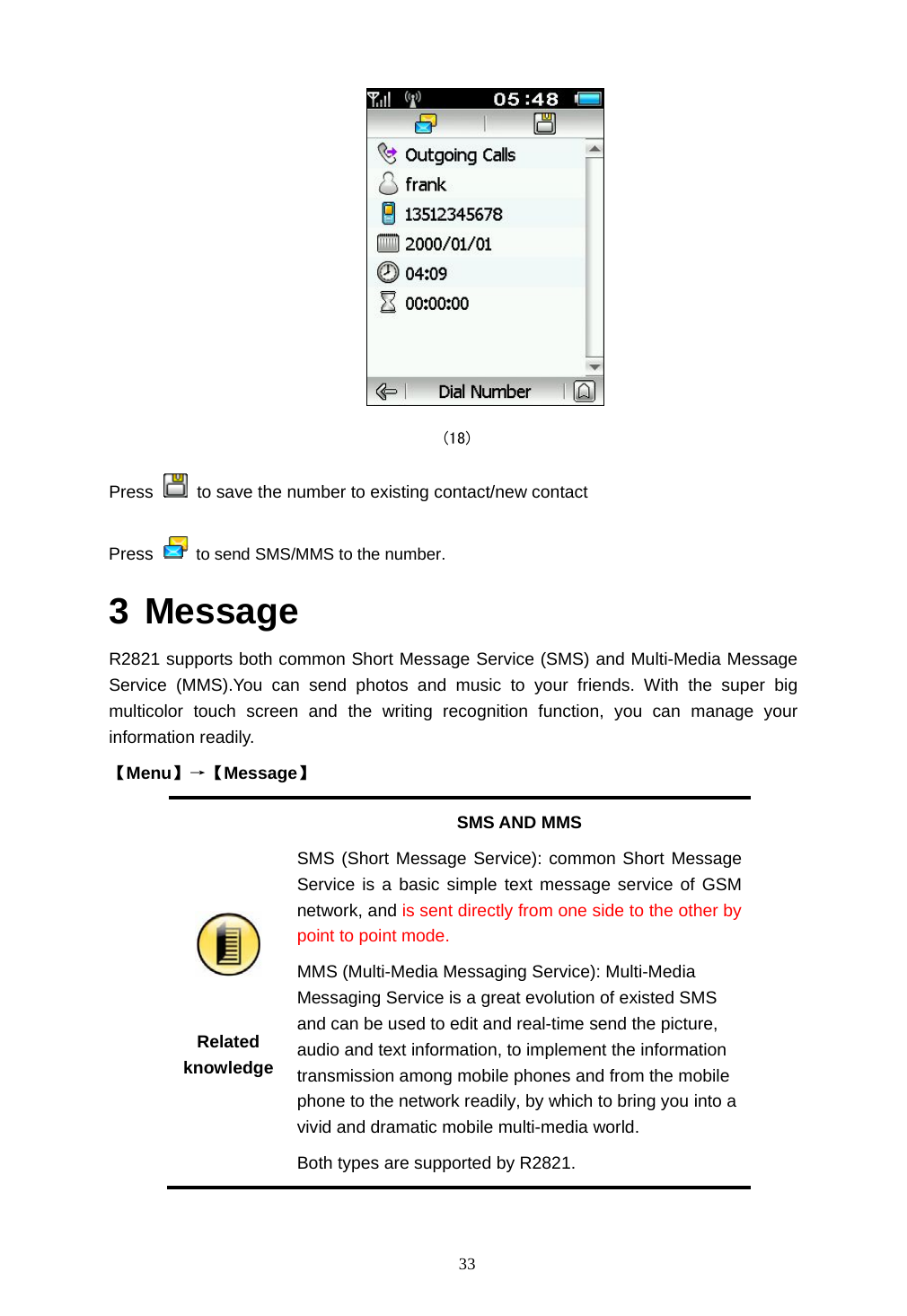
 31                                        (14)  Press【New Group】to add new group:                                       (15)  In the new group, you need:  Input group name.  Select the type of the group: SMS/MMS, E-mail.  Press    to select members of groups from the contacts.  Whether or not to private the group.
 32 2.3 Call Log R2821 provides 400 records of call log including 100 records of missed calls, 100 records of answered calls, 100 records of outgoing calls and 100 records of rejected calls.  【Menu】→【Call Log】      (16) Click  to select:View by Date/ View by Name / View by Call Meters A pop-up menu will come up while hold a contact for a period of time by stylus   (17). It has following menu items: View details, Dial Number, Prepend Dial,   Send Message, Save Number to and Delete Record.  Press a record to view details. View by Date/ View by Name / View by Call Meters Click pull-down box to select the type of record:   All calls  Outgoing Calls  Answered Calls  Missed Calls  Rejected Calls
 33  (18) Press    to save the number to existing contact/new contact Press   to send SMS/MMS to the number. 3 Message R2821 supports both common Short Message Service (SMS) and Multi-Media Message Service (MMS).You can send photos and music to your friends. With the super big multicolor touch screen and the writing recognition function, you can manage your information readily. 【Menu】→【Message】   Related knowledge SMS AND MMS SMS (Short Message Service): common Short Message Service is a basic simple text message service of GSM network, and is sent directly from one side to the other by point to point mode.  MMS (Multi-Media Messaging Service): Multi-Media Messaging Service is a great evolution of existed SMS and can be used to edit and real-time send the picture, audio and text information, to implement the information transmission among mobile phones and from the mobile phone to the network readily, by which to bring you into a vivid and dramatic mobile multi-media world.   Both types are supported by R2821.
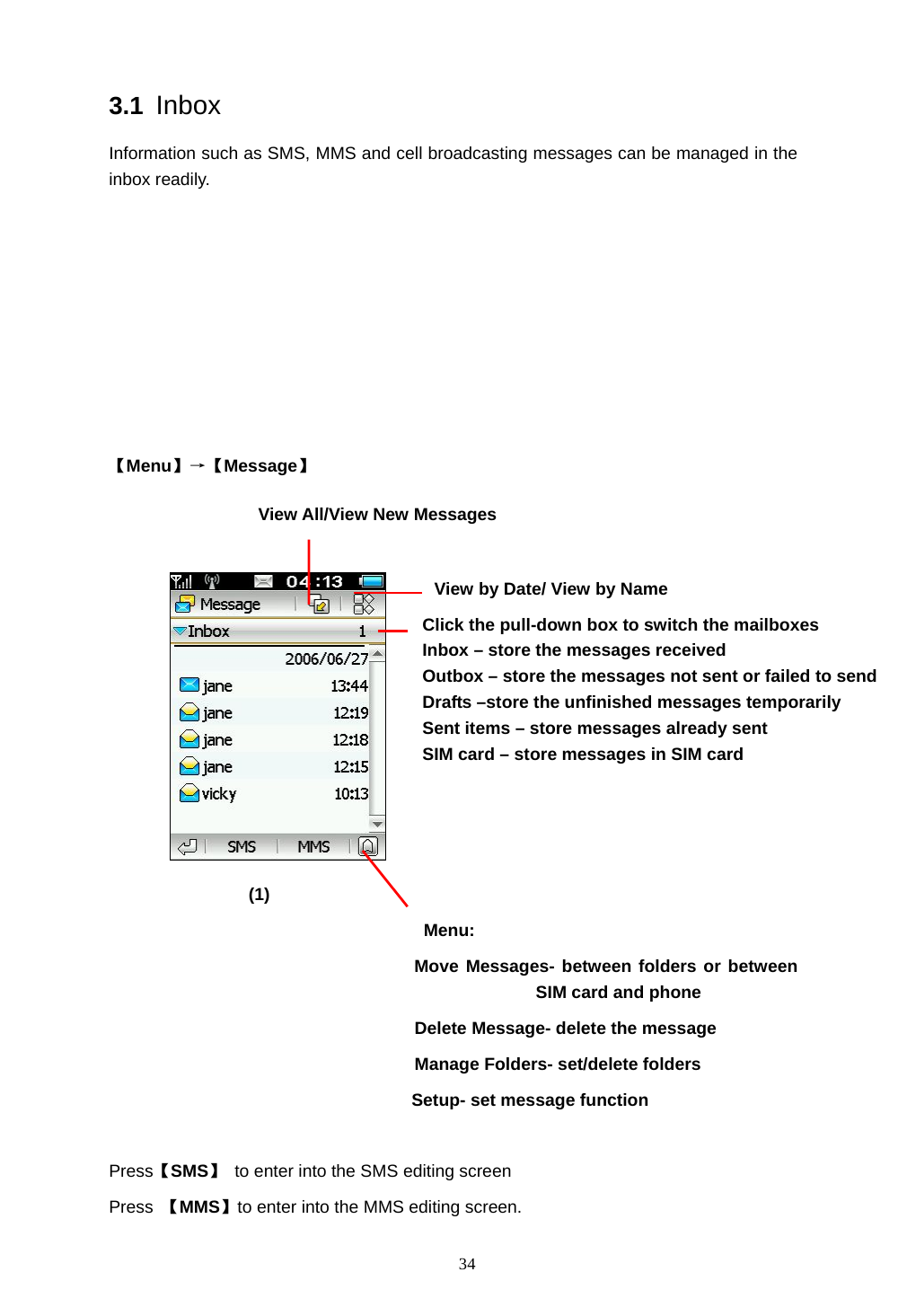
 34 3.1 Inbox Information such as SMS, MMS and cell broadcasting messages can be managed in the inbox readily.        【Menu】→【Message】                              (1) Menu:                    Move Messages- between folders or between SIM card and phone   Delete Message- delete the message Manage Folders- set/delete folders      Setup- set message function  Press【SMS】  to enter into the SMS editing screen   Press  【MMS】to enter into the MMS editing screen. Click the pull-down box to switch the mailboxes Inbox – store the messages received   Outbox – store the messages not sent or failed to send Drafts –store the unfinished messages temporarily Sent items – store messages already sent SIM card – store messages in SIM card  View All/View New Messages  View by Date/ View by Name
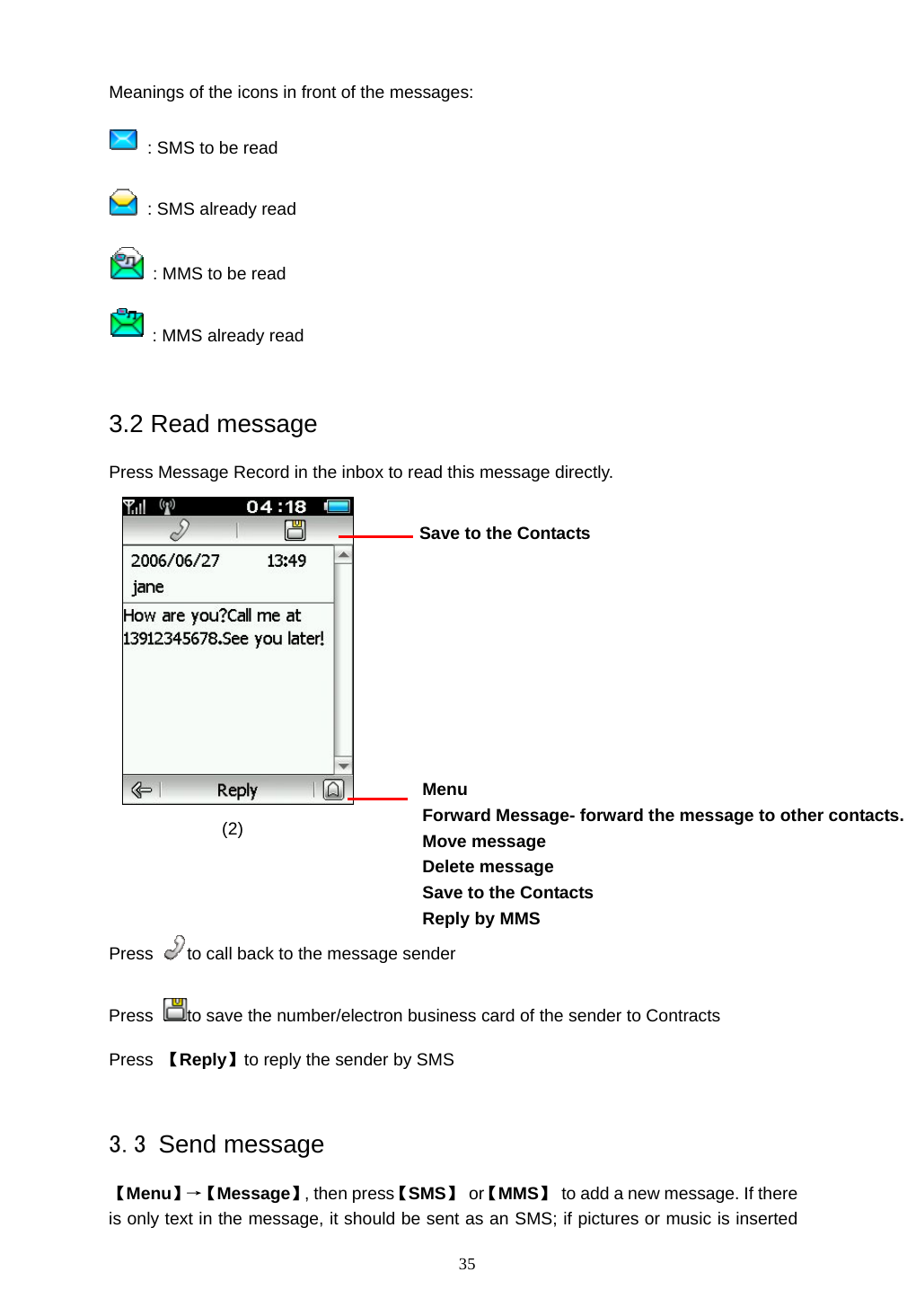
 35 Meanings of the icons in front of the messages:   : SMS to be read   : SMS already read   : MMS to be read  : MMS already read  3.2 Read message Press Message Record in the inbox to read this message directly.                                                                       (2)    Press  to call back to the message sender Press  to save the number/electron business card of the sender to Contracts Press  【Reply】to reply the sender by SMS  3.3 Send message 【Menu】→【 Message】, then press【SMS】 or【MMS】  to add a new message. If there is only text in the message, it should be sent as an SMS; if pictures or music is inserted Menu Forward Message- forward the message to other contacts. Move message Delete message   Save to the Contacts Reply by MMS  Save to the Contacts
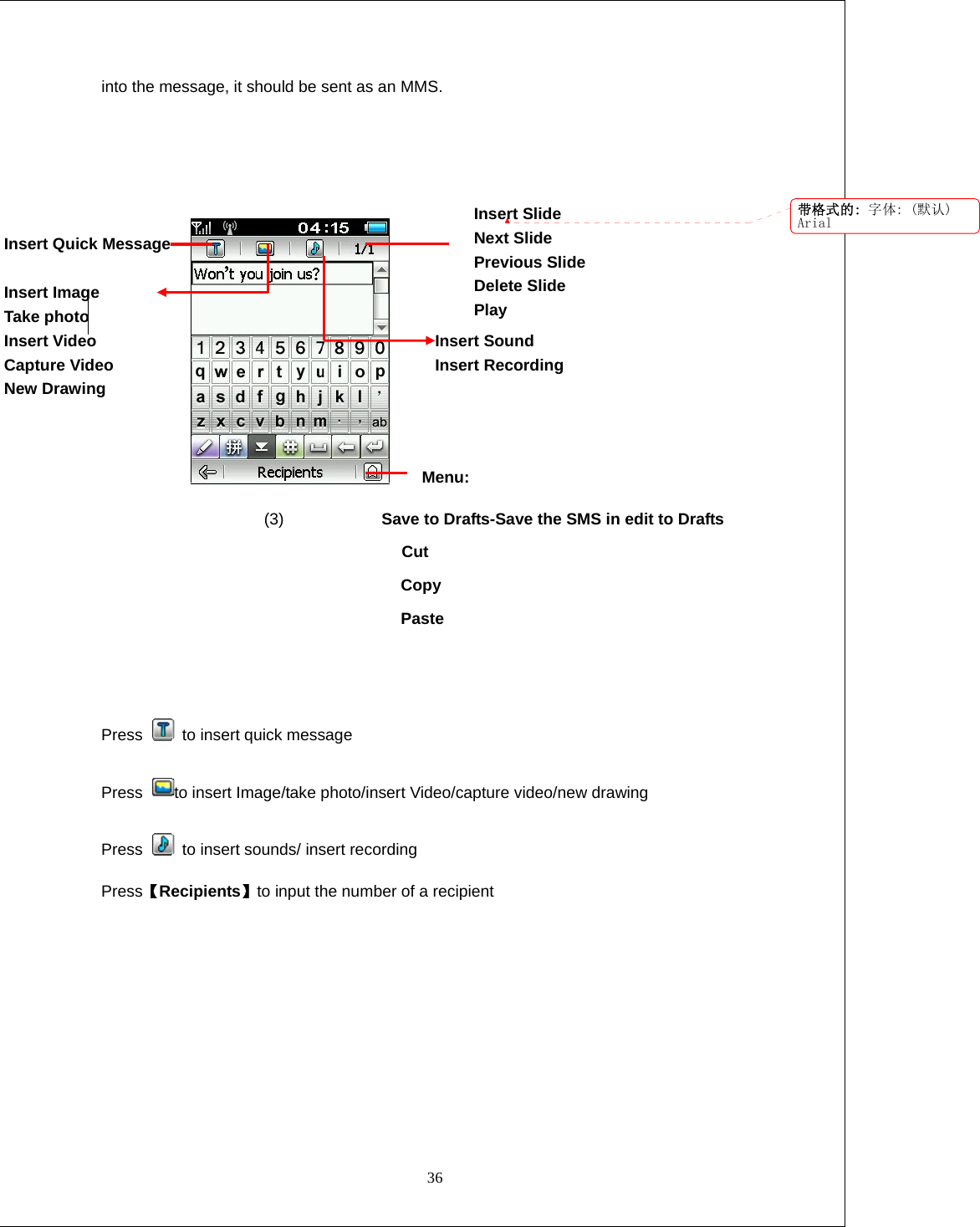
 36 into the message, it should be sent as an MMS.                    Menu:                     (3)            Save to Drafts-Save the SMS in edit to Drafts               Cut Copy Paste   Press    to insert quick message Press  to insert Image/take photo/insert Video/capture video/new drawing Press    to insert sounds/ insert recording Press【Recipients】to input the number of a recipient Insert Sound Insert Recording Insert Slide Next Slide Previous Slide Delete Slide Play Insert Quick Message  Insert Image Take photo Insert Video Capture Video New Drawing  带格式的: 字体: (默认)Arial
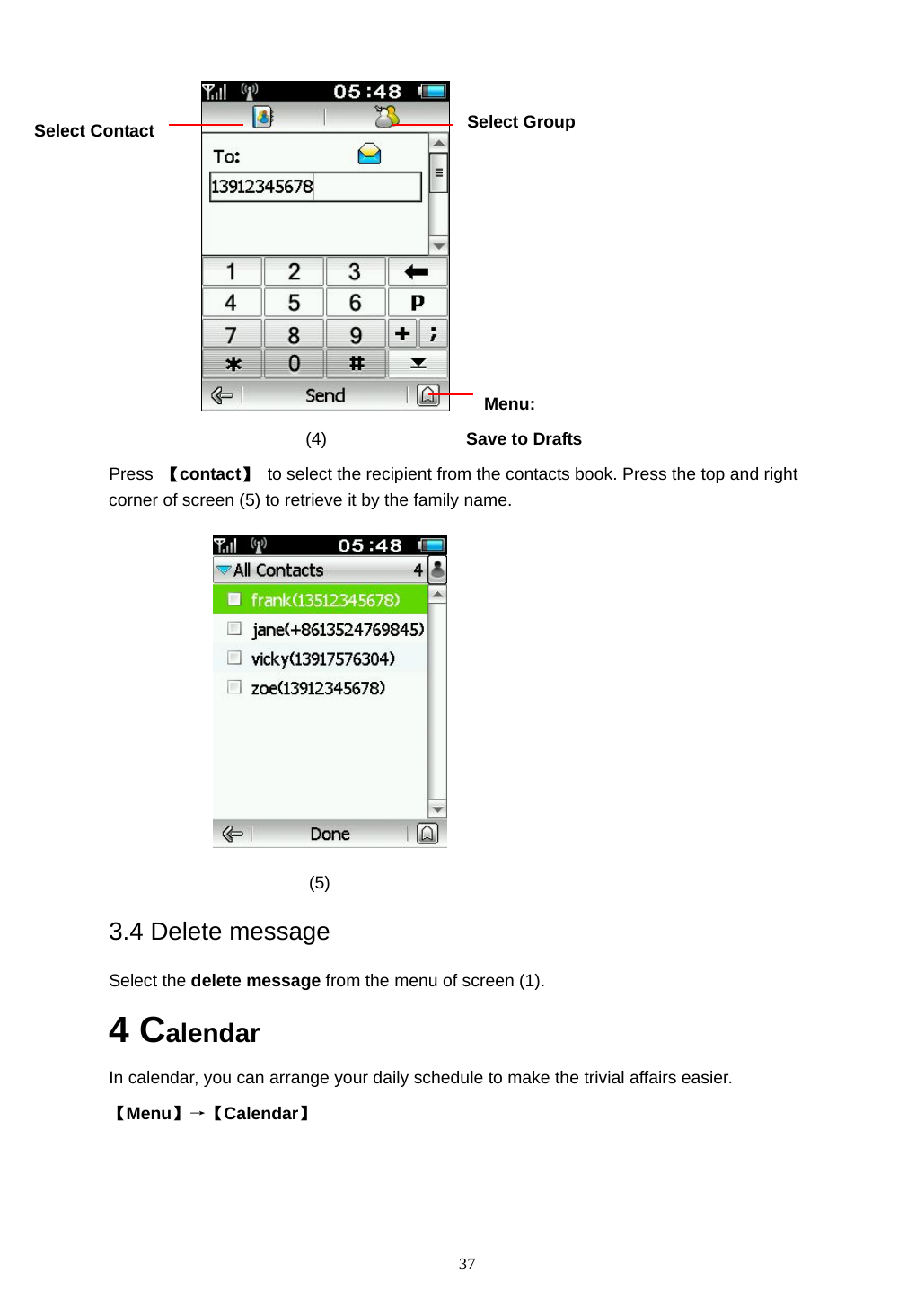
 37     Menu:  (4)                Save to Drafts Press  【contact】  to select the recipient from the contacts book. Press the top and right corner of screen (5) to retrieve it by the family name.                           (5) 3.4 Delete message Select the delete message from the menu of screen (1).   4 Calendar  In calendar, you can arrange your daily schedule to make the trivial affairs easier. 【Menu】→【Calendar】 Select Contact Select Group
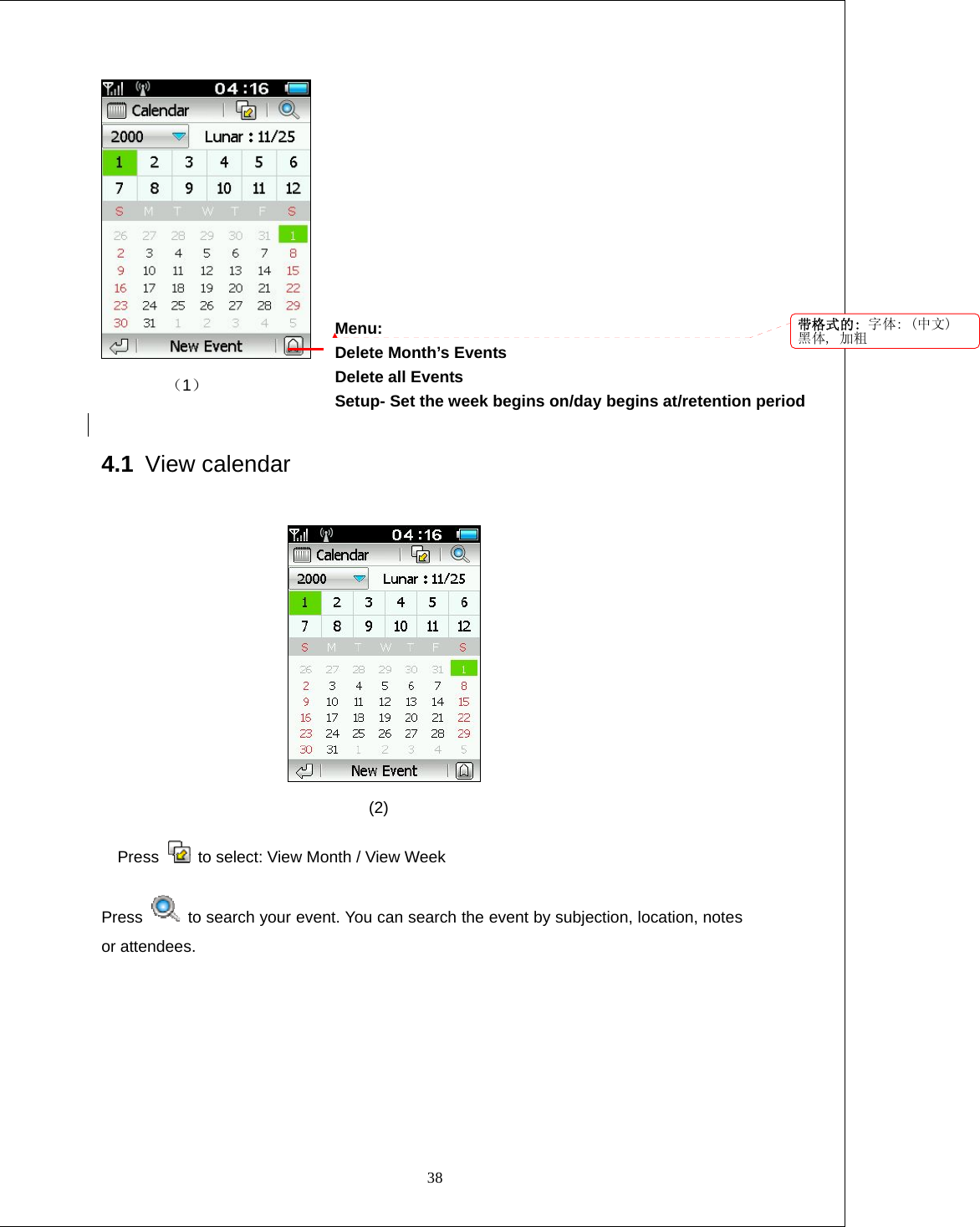
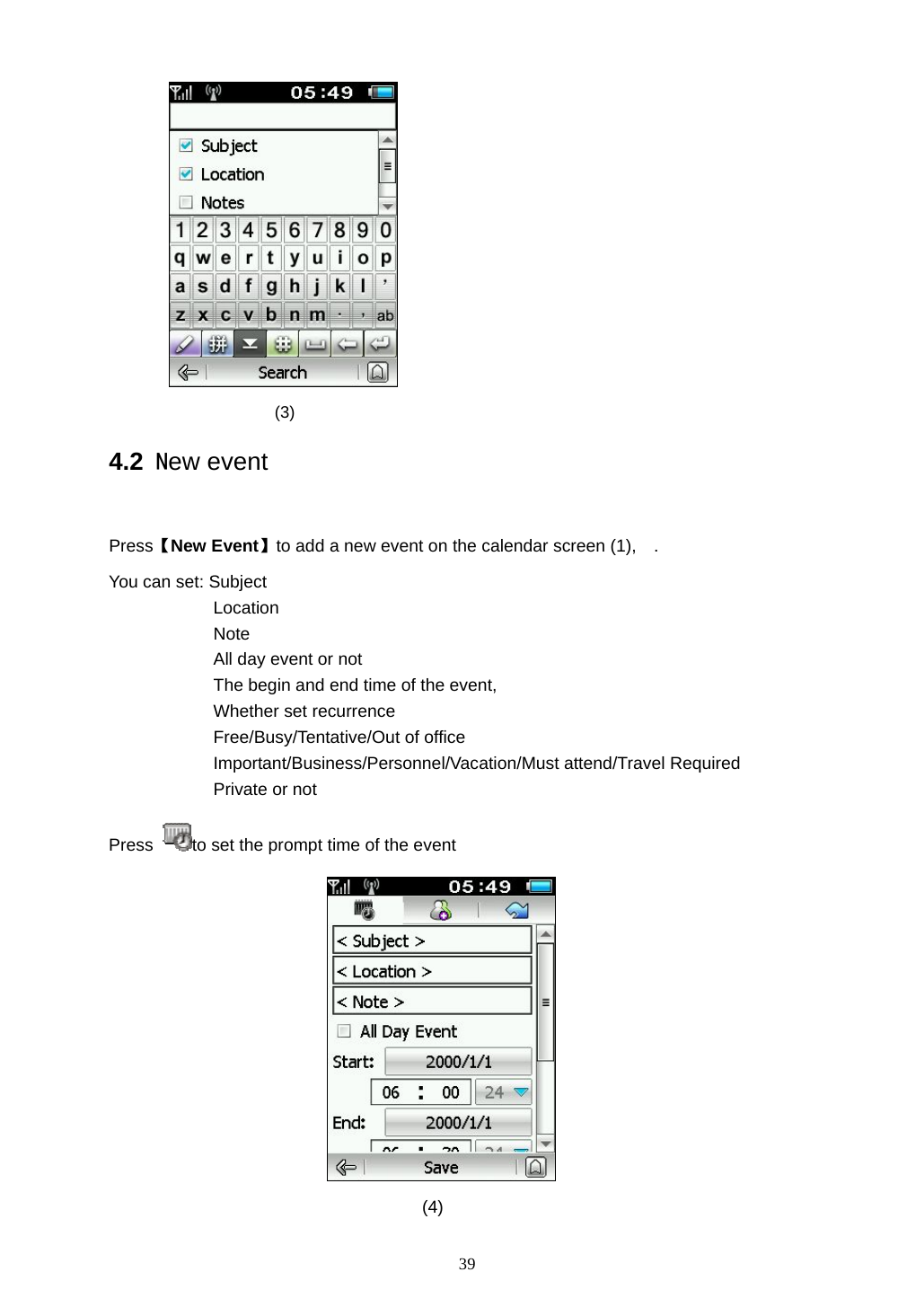
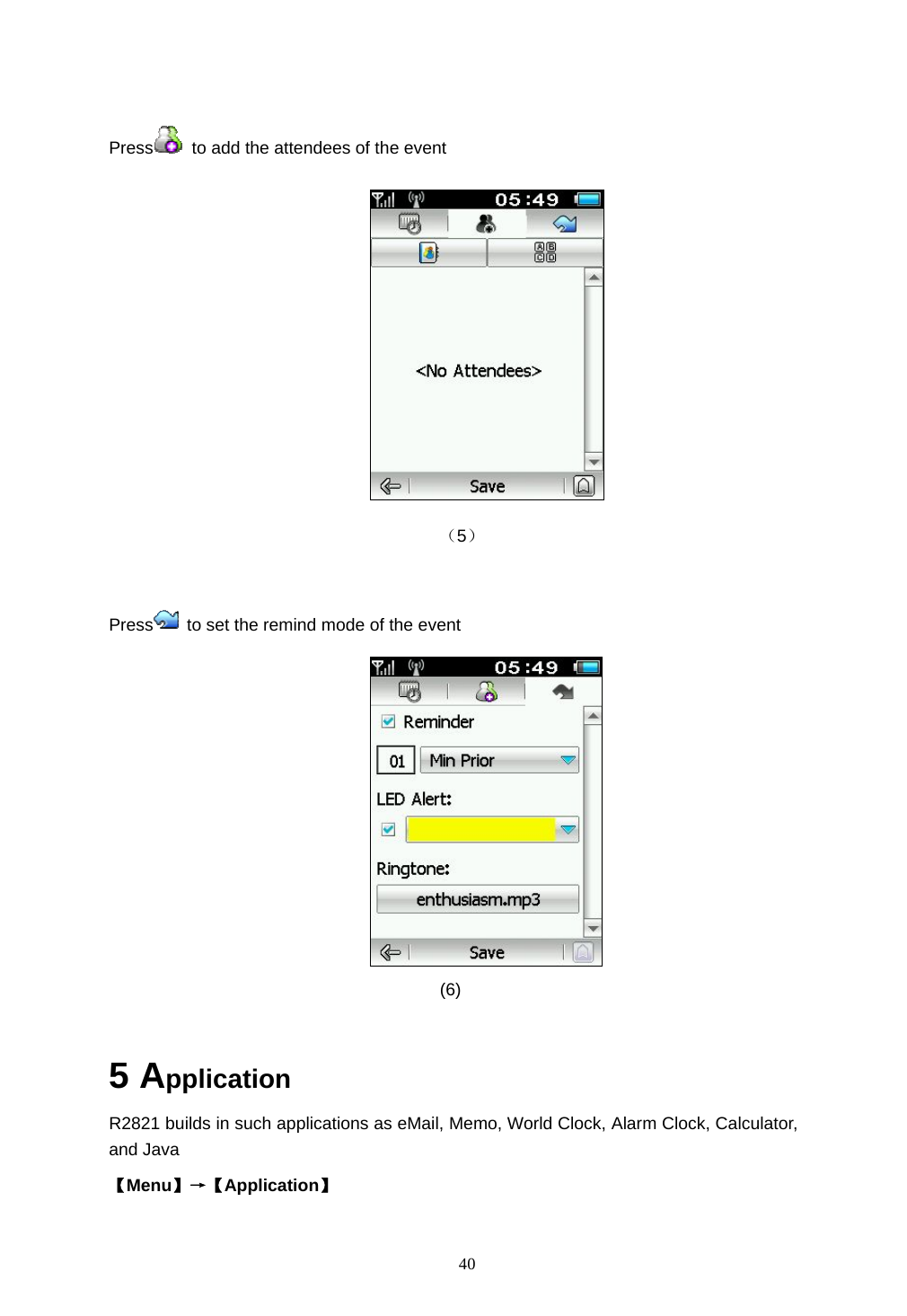
 38  (1)   4.1 View calendar                                    (2) Press   to select: View Month / View Week   Press    to search your event. You can search the event by subjection, location, notes or attendees.  Menu: Delete Month’s Events   Delete all Events Setup- Set the week begins on/day begins at/retention period   带格式的: 字体: (中文)黑体, 加粗
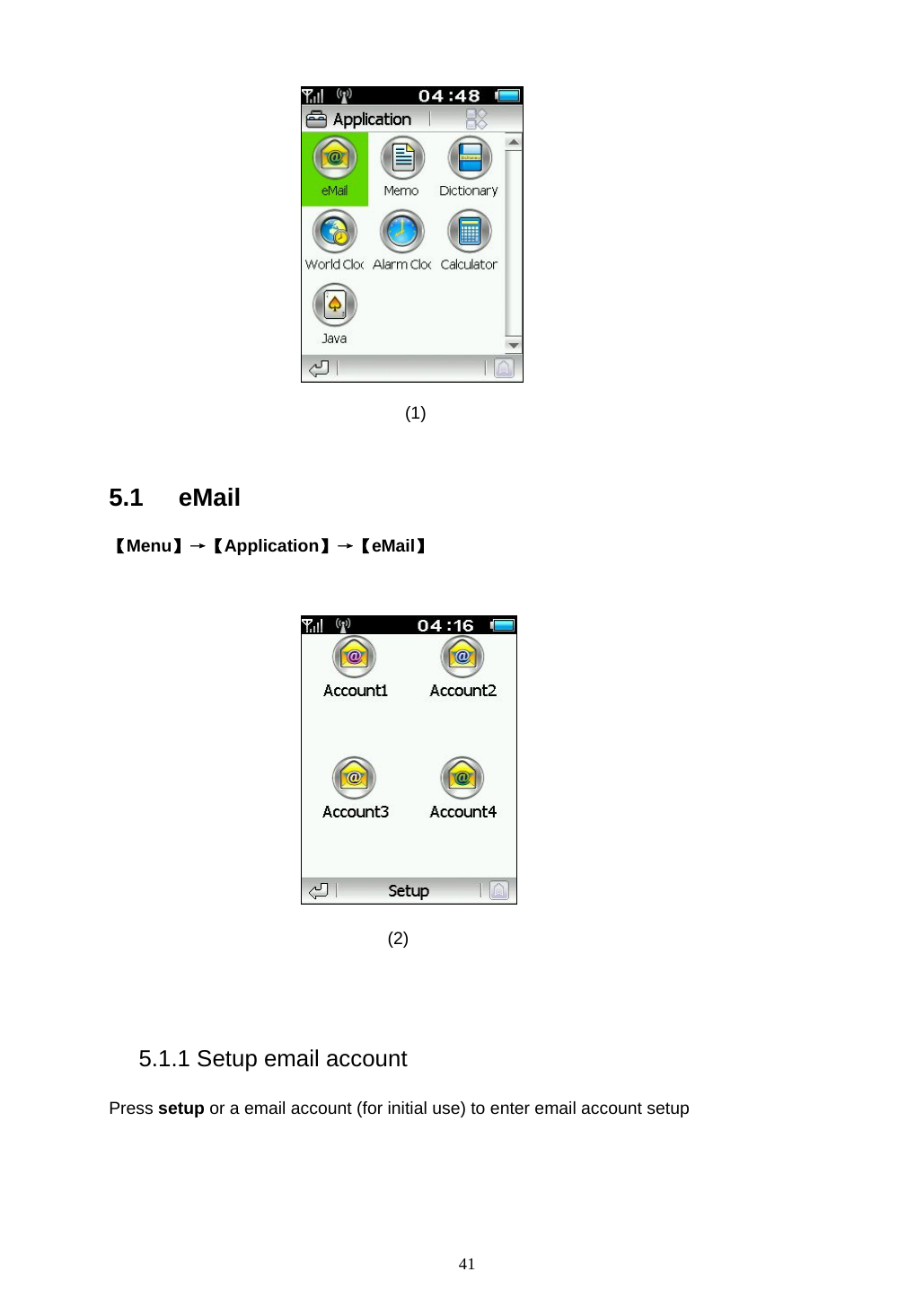
 39                   (3)                 4.2 New event  Press【New Event】to add a new event on the calendar screen (1),    . You can set: Subject Location Note  All day event or not The begin and end time of the event,   Whether set recurrence Free/Busy/Tentative/Out of office Important/Business/Personnel/Vacation/Must attend/Travel Required   Private or not Press  to set the prompt time of the event                                        (4)
 40  Press   to add the attendees of the event                                          (5)  Press   to set the remind mode of the event    (6)  5 Application R2821 builds in such applications as eMail, Memo, World Clock, Alarm Clock, Calculator, and Java    【Menu】→【Application】
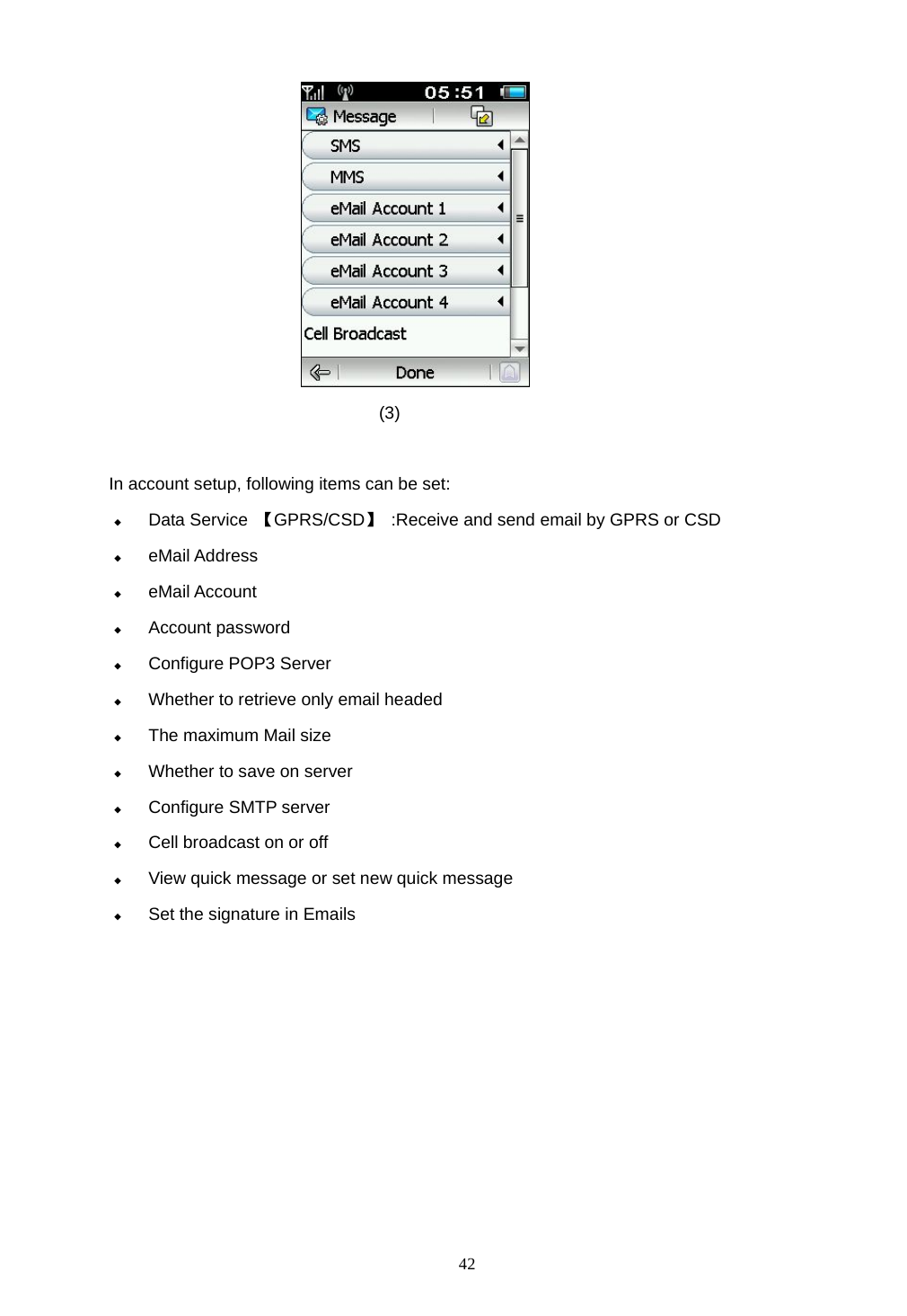
 41  (1)  5.1 eMail 【Menu】→【Application】→【eMail】   (2)   5.1.1 Setup email account Press setup or a email account (for initial use) to enter email account setup
 42  (3)  In account setup, following items can be set:  Data Service  【GPRS/CSD】  :Receive and send email by GPRS or CSD  eMail Address  eMail Account  Account password  Configure POP3 Server  Whether to retrieve only email headed  The maximum Mail size  Whether to save on server    Configure SMTP server  Cell broadcast on or off  View quick message or set new quick message  Set the signature in Emails
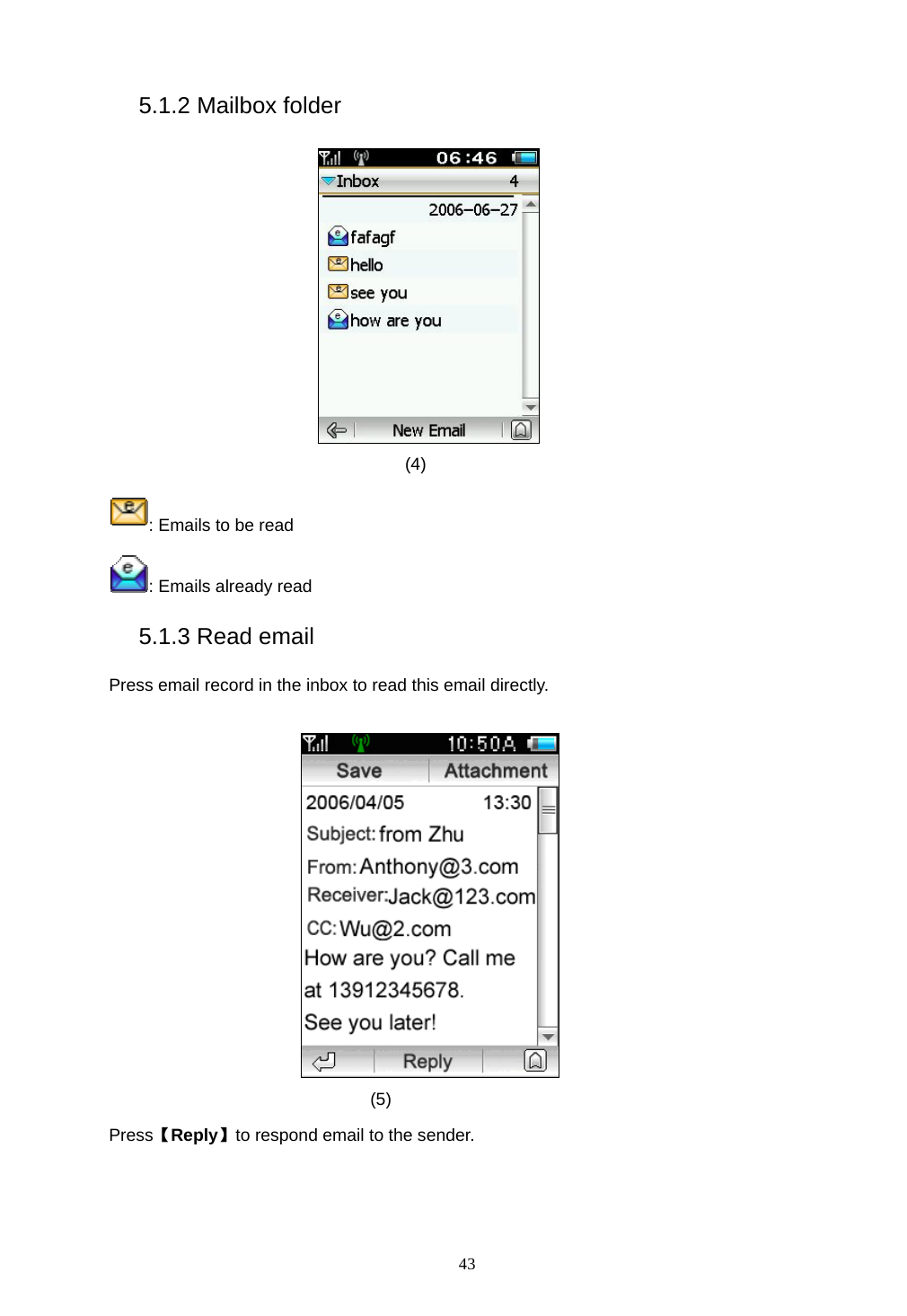
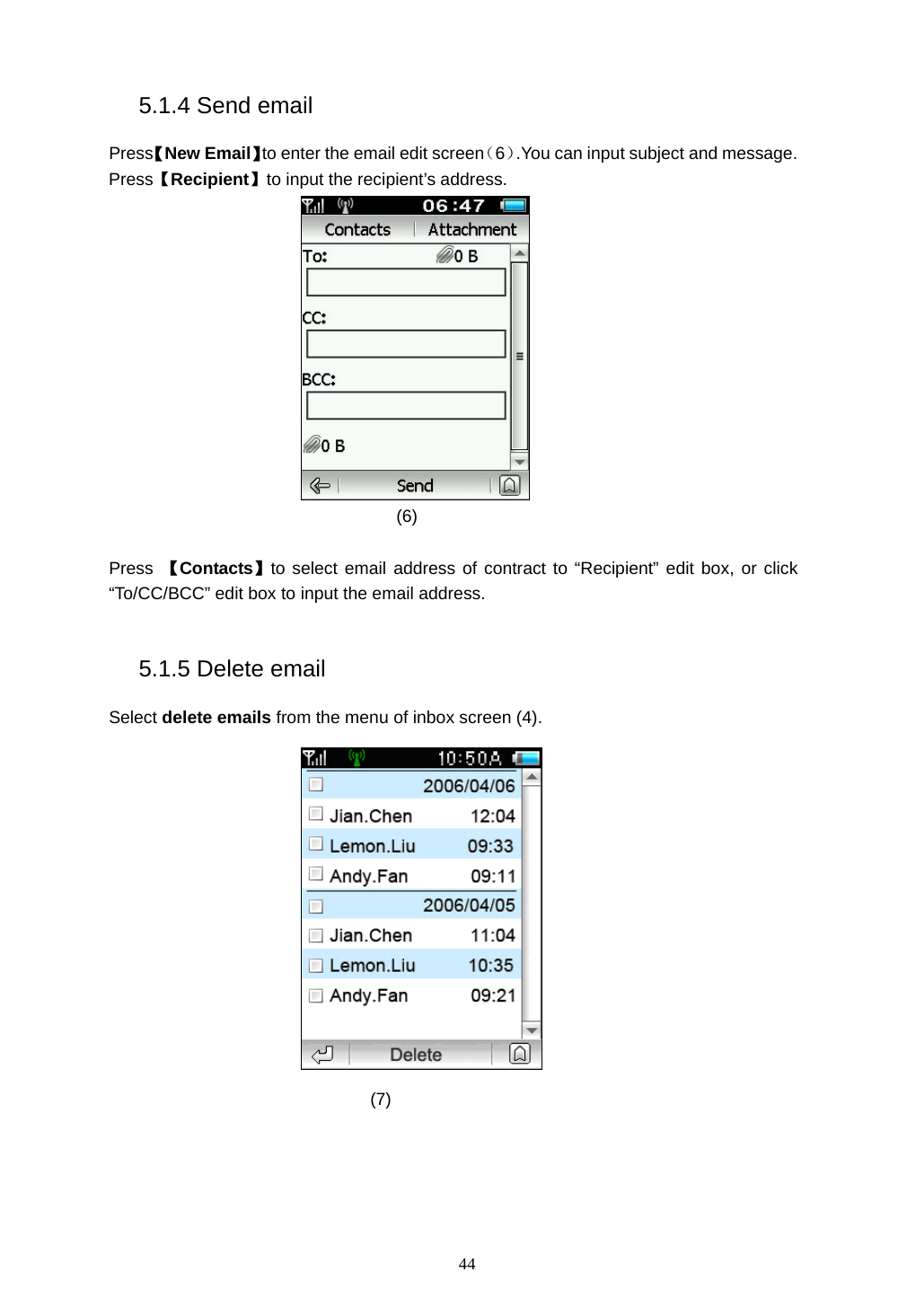
 43 5.1.2 Mailbox folder  (4)  : Emails to be read : Emails already read 5.1.3 Read email Press email record in the inbox to read this email directly.    (5)  Press【Reply】to respond email to the sender.
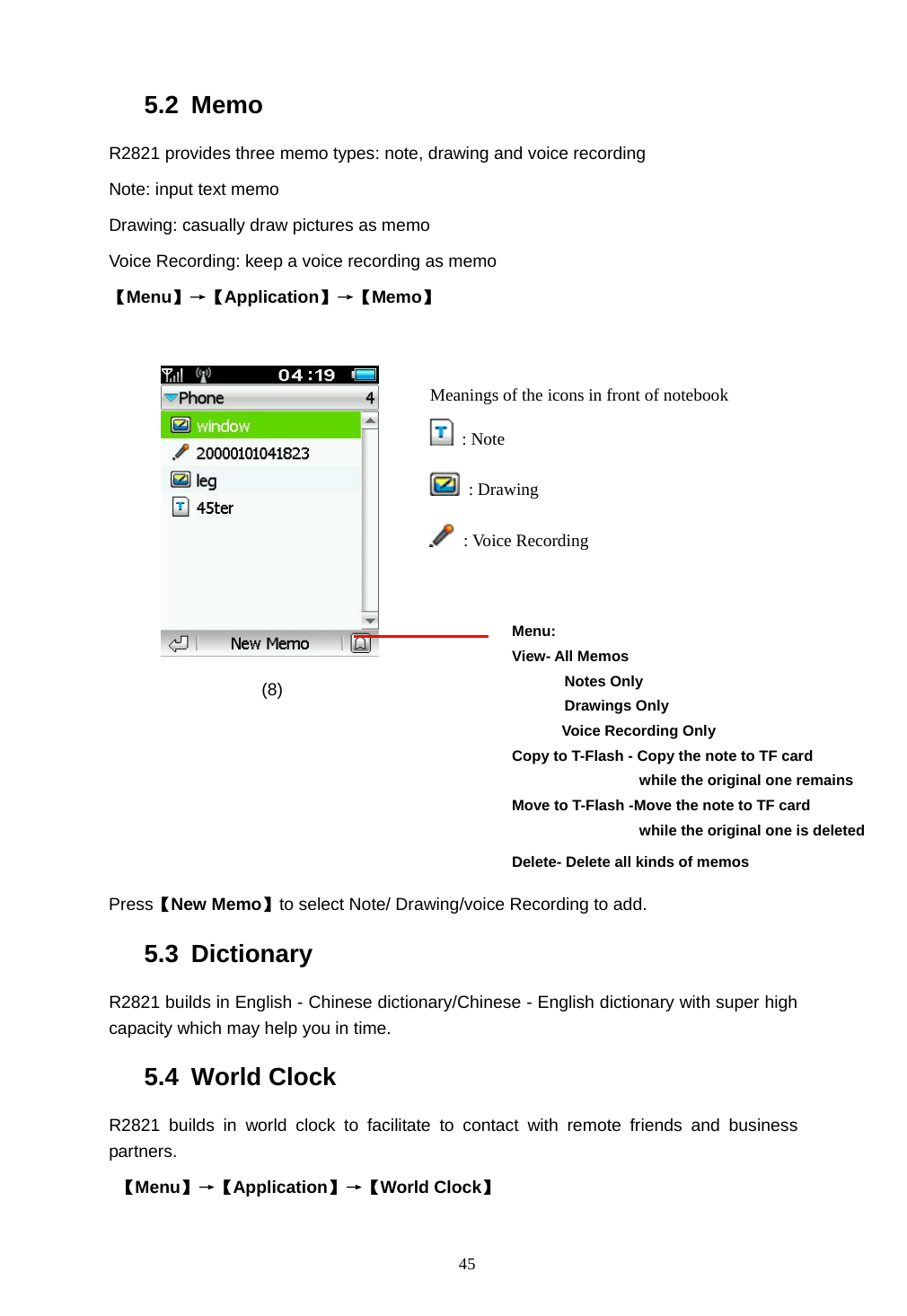
 44 5.1.4 Send email Press【New Email】to enter the email edit screen(6).You can input subject and message. Press【Recipient】to input the recipient’s address.  (6)  Press  【Contacts】to select email address of contract to “Recipient” edit box, or click “To/CC/BCC” edit box to input the email address.  5.1.5 Delete email Select delete emails from the menu of inbox screen (4).  (7)
 45 5.2 Memo R2821 provides three memo types: note, drawing and voice recording Note: input text memo Drawing: casually draw pictures as memo Voice Recording: keep a voice recording as memo 【Menu】→【Application】→【Memo】            (8)      Press【New Memo】to select Note/ Drawing/voice Recording to add. 5.3 Dictionary R2821 builds in English - Chinese dictionary/Chinese - English dictionary with super high capacity which may help you in time. 5.4 World Clock R2821 builds in world clock to facilitate to contact with remote friends and business partners.   【Menu】→【Application】→【World Clock】 Menu: View- All Memos        Notes Only        Drawings Only    Voice Recording Only  Copy to T-Flash - Copy the note to TF card                  while the original one remains  Move to T-Flash -Move the note to TF card                  while the original one is deleted Delete- Delete all kinds of memos  Meanings of the icons in front of notebook    : Note  : Drawing  : Voice Recording
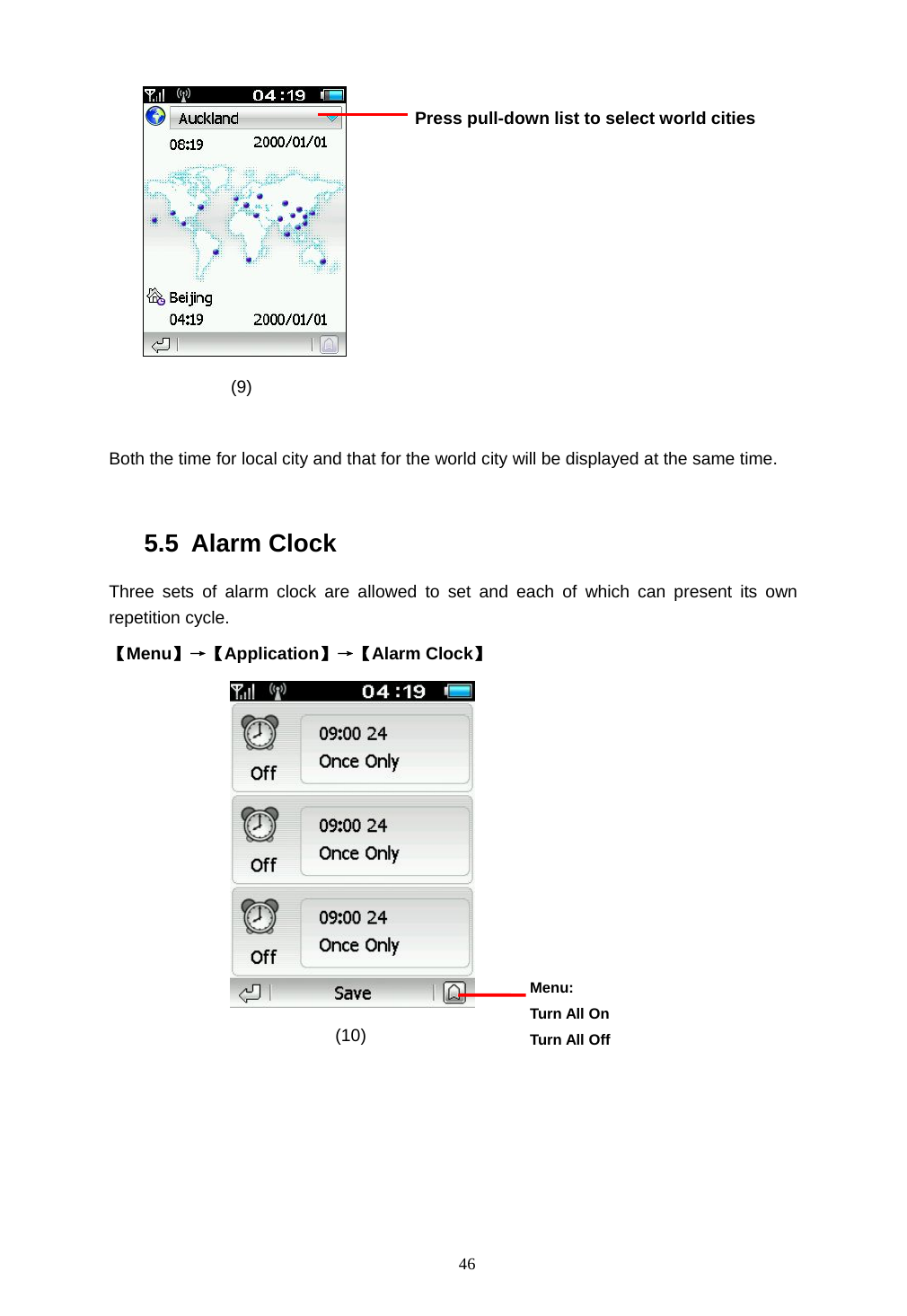
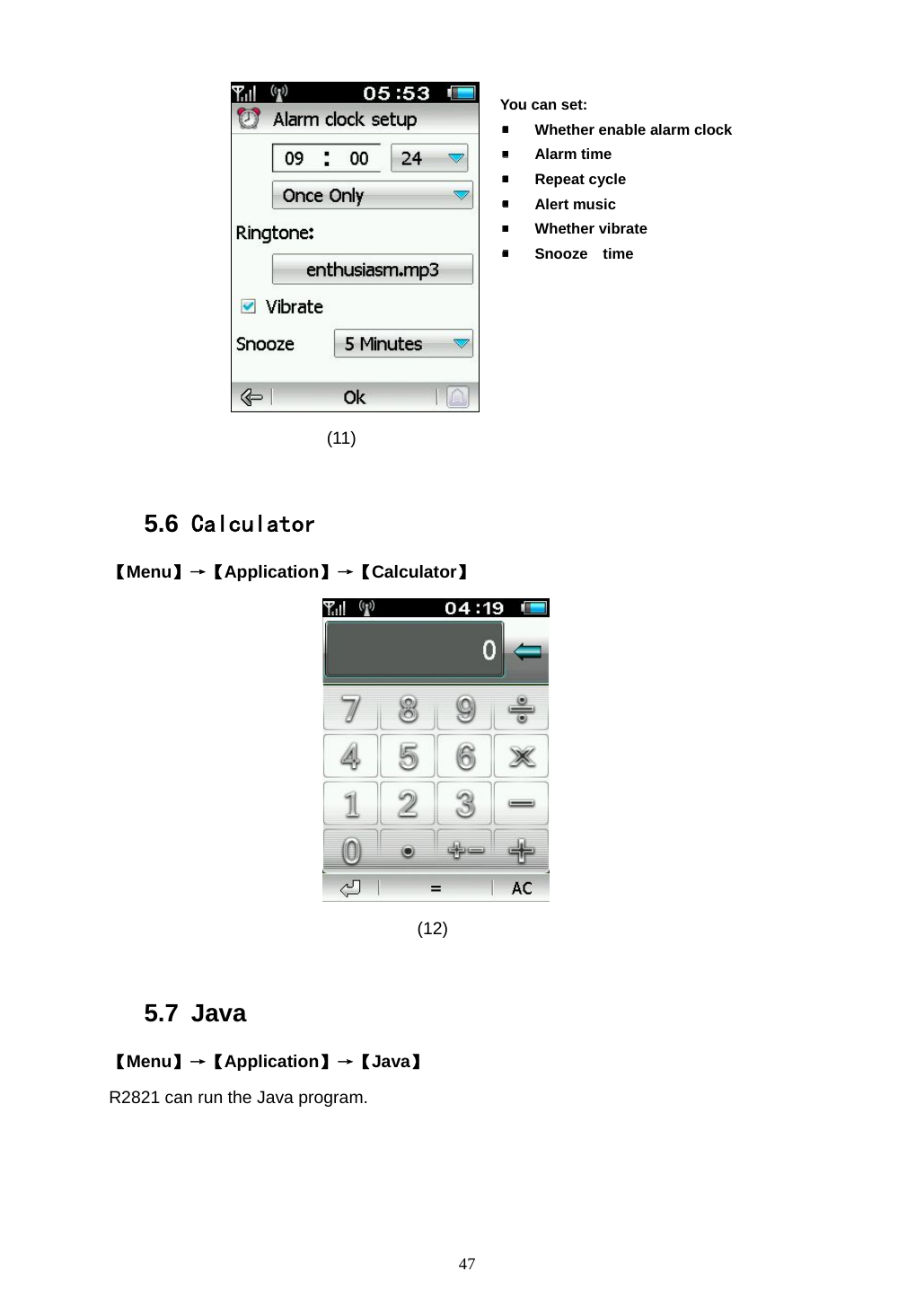
 46  (9)  Both the time for local city and that for the world city will be displayed at the same time.  5.5 Alarm Clock Three sets of alarm clock are allowed to set and each of which can present its own repetition cycle. 【Menu】→【Application】→【Alarm Clock】                  (10) Press pull-down list to select world cities  Menu: Turn All On Turn All Off
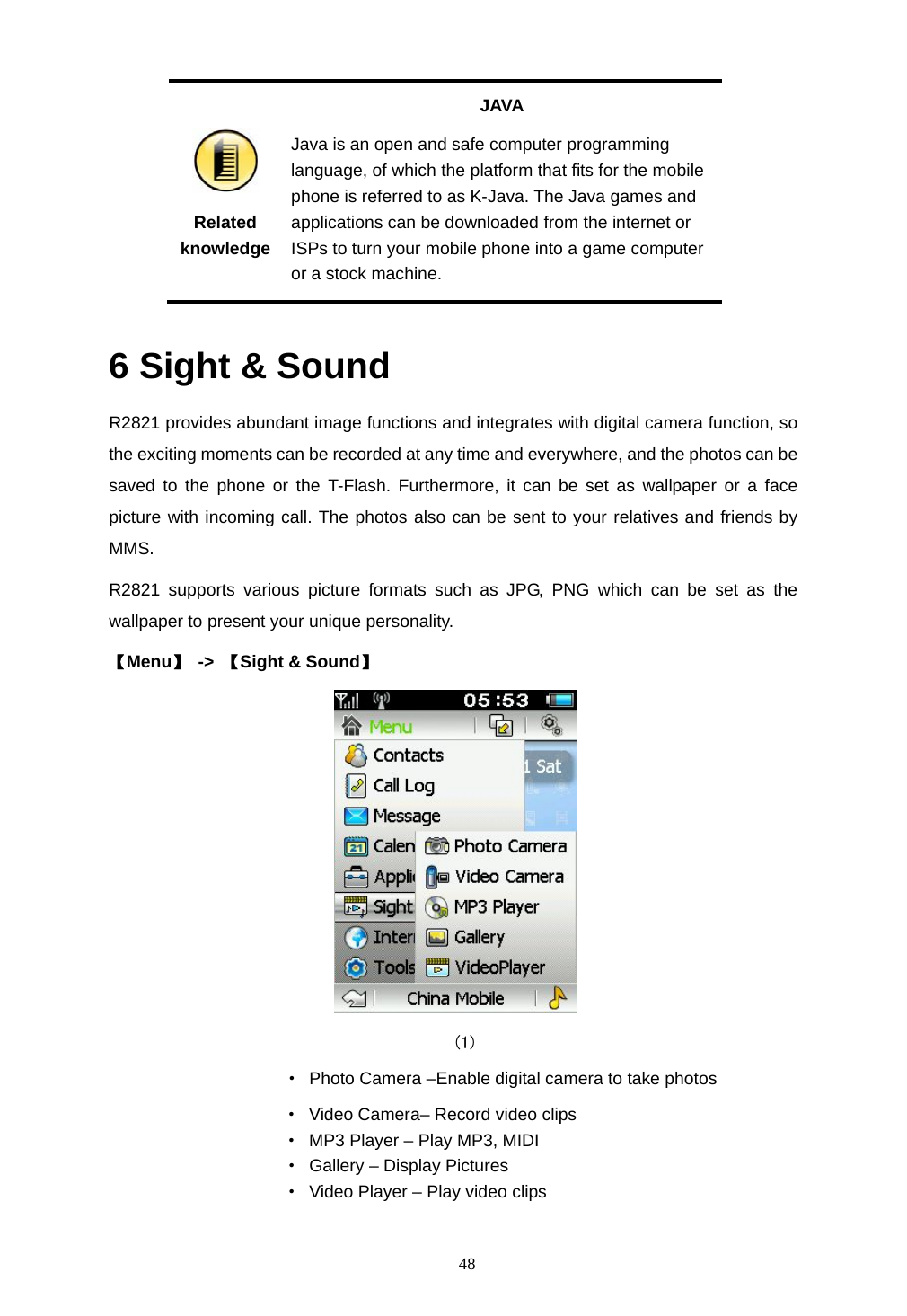
 47  (11)  5.6  Calculator 【Menu】→【Application】→【Calculator】      (12)   5.7 Java 【Menu】→【Application】→【Java】 R2821 can run the Java program.  You can set:  Whether enable alarm clock  Alarm time  Repeat cycle  Alert music  Whether vibrate  Snooze  time
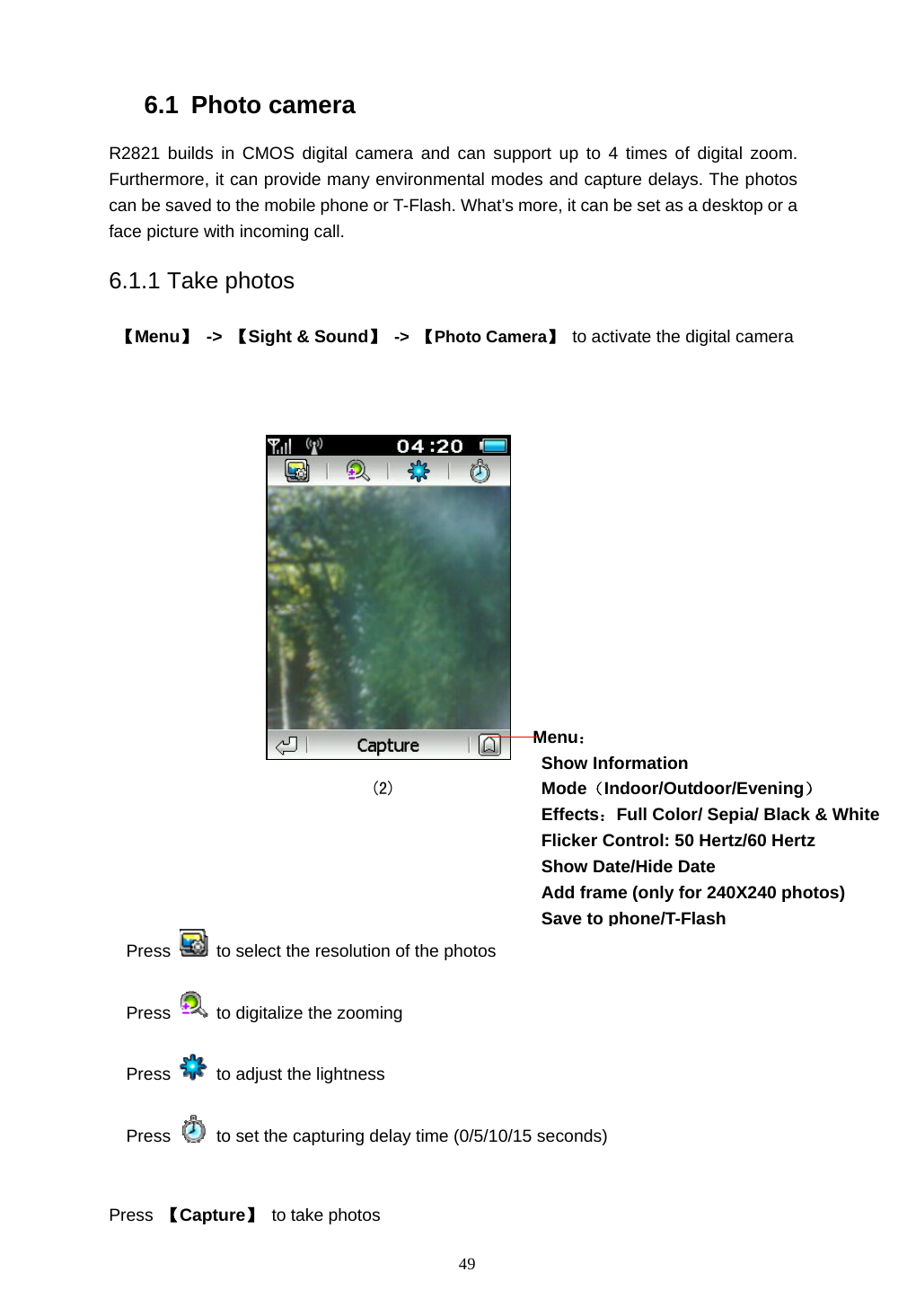
 48  Related knowledge JAVA Java is an open and safe computer programming language, of which the platform that fits for the mobile phone is referred to as K-Java. The Java games and applications can be downloaded from the internet or ISPs to turn your mobile phone into a game computer or a stock machine.  6 Sight & Sound R2821 provides abundant image functions and integrates with digital camera function, so the exciting moments can be recorded at any time and everywhere, and the photos can be saved to the phone or the T-Flash. Furthermore, it can be set as wallpaper or a face picture with incoming call. The photos also can be sent to your relatives and friends by MMS. R2821 supports various picture formats such as JPG, PNG which can be set as the wallpaper to present your unique personality. 【Menu】 -> 【Sight & Sound】    (1)            ·  Photo Camera –Enable digital camera to take photos                     · Video Camera– Record video clips                     ·  MP3 Player – Play MP3, MIDI ·  Gallery – Display Pictures ·  Video Player – Play video clips
 49 6.1 Photo camera R2821 builds in CMOS digital camera and can support up to 4 times of digital zoom. Furthermore, it can provide many environmental modes and capture delays. The photos can be saved to the mobile phone or T-Flash. What’s more, it can be set as a desktop or a face picture with incoming call. 6.1.1 Take photos  【Menu】 -> 【Sight & Sound】 -> 【Photo Camera】  to activate the digital camera                                                        (2)     Press   to select the resolution of the photos               Press   to digitalize the zooming Press    to adjust the lightness Press    to set the capturing delay time (0/5/10/15 seconds)            Press  【Capture】 to take photos Menu: Show Information Mode(Indoor/Outdoor/Evening) Effects:Full Color/ Sepia/ Black & White Flicker Control: 50 Hertz/60 Hertz Show Date/Hide Date Add frame (only for 240X240 photos) Save to phone/T-Flash
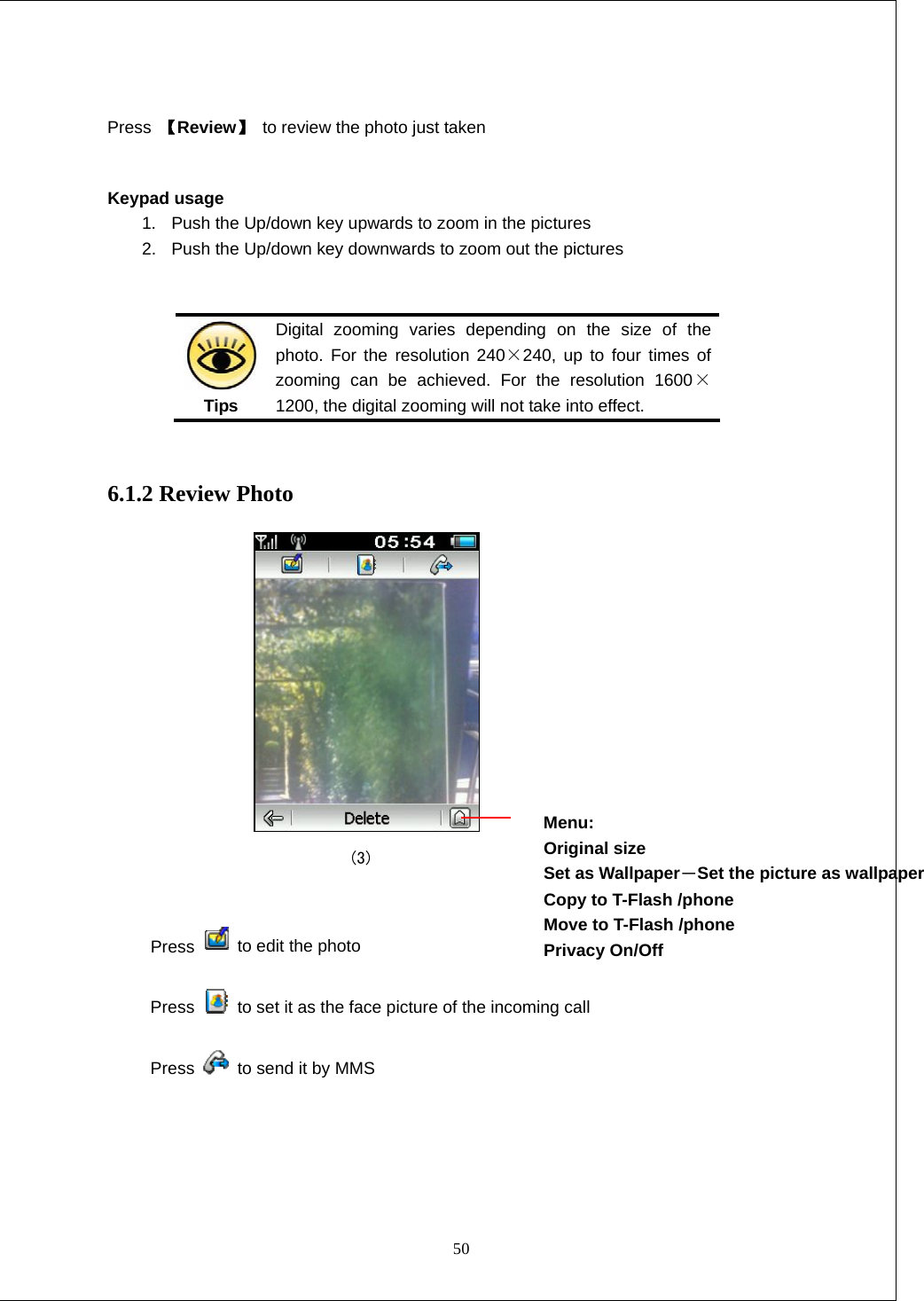
 50  Press  【Review】 to review the photo just taken  Keypad usage 1.  Push the Up/down key upwards to zoom in the pictures 2.  Push the Up/down key downwards to zoom out the pictures    Tips Digital zooming varies depending on the size of the photo. For the resolution 240×240, up to four times of zooming can be achieved. For the resolution 1600×1200, the digital zooming will not take into effect.  6.1.2 Review Photo                               (3)  Press   to edit the photo  Press    to set it as the face picture of the incoming call Press    to send it by MMS   Menu: Original size Set as Wallpaper-Set the picture as wallpaper Copy to T-Flash /phone   Move to T-Flash /phone   Privacy On/Off
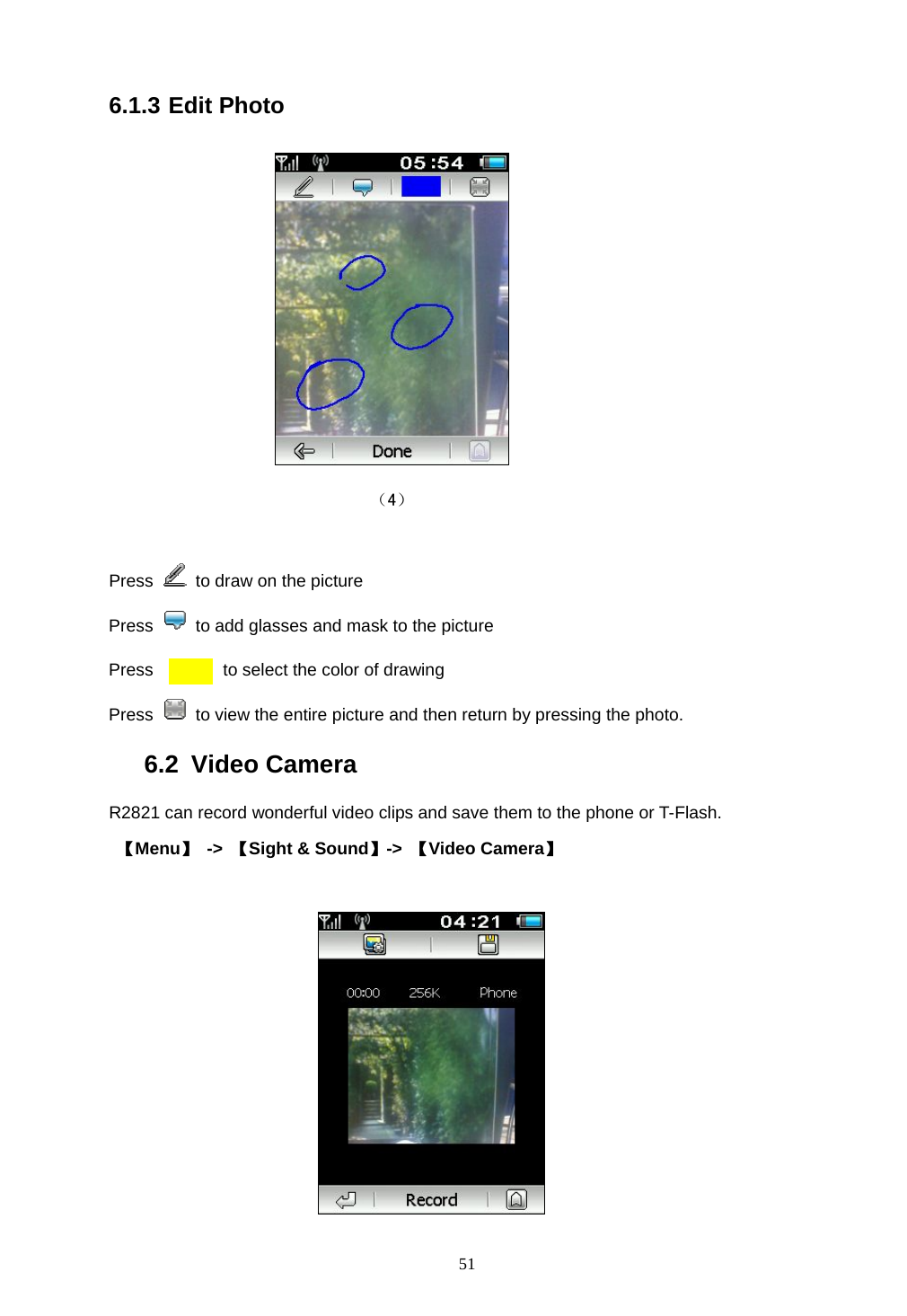
 51 6.1.3 Edit Photo               (4)  Press   to draw on the picture Press    to add glasses and mask to the picture Press        to select the color of drawing Press    to view the entire picture and then return by pressing the photo. 6.2 Video Camera R2821 can record wonderful video clips and save them to the phone or T-Flash.  【Menu】 -> 【Sight & Sound】->  【Video Camera】
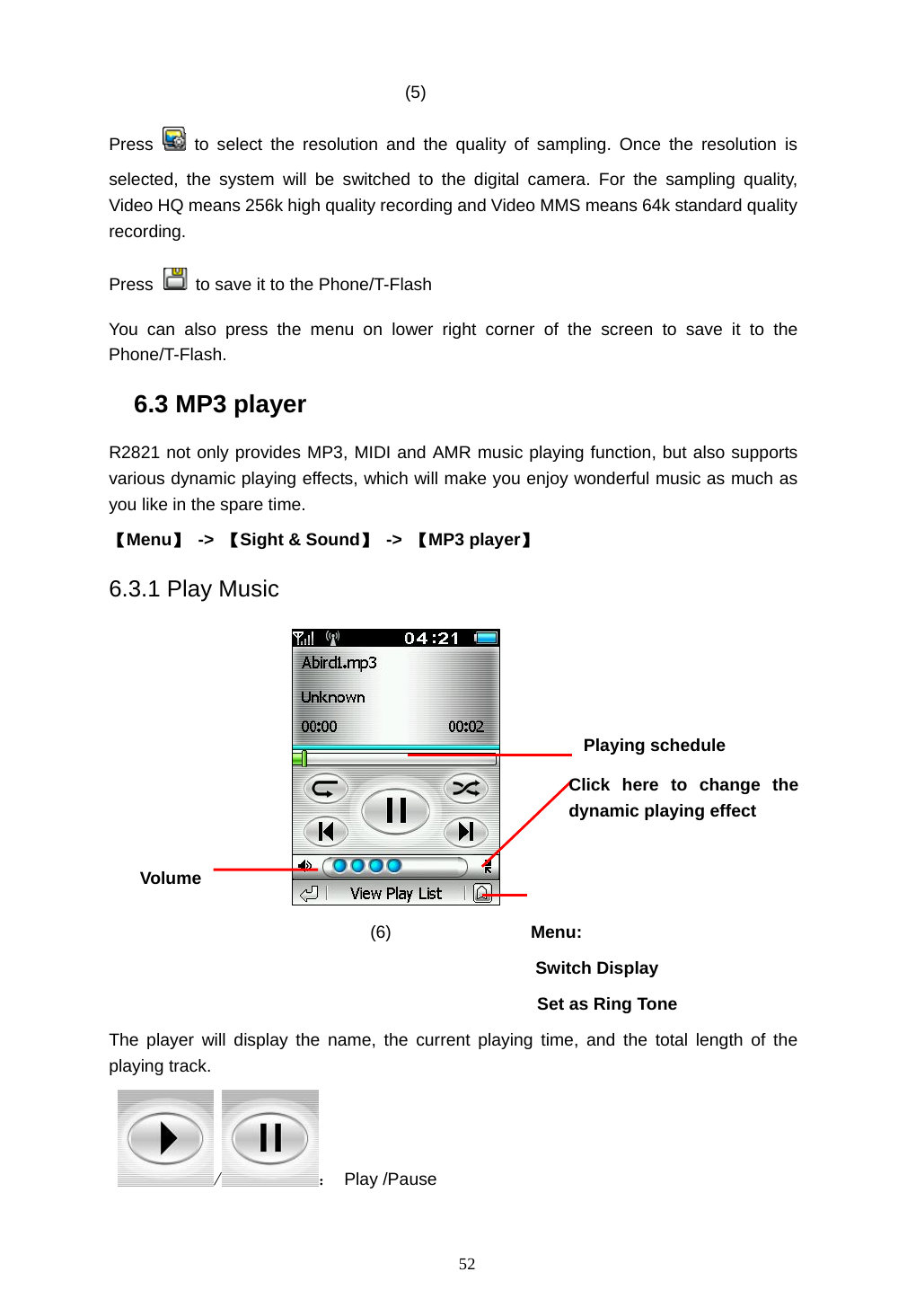
 52 (5)  Press   to select the resolution and the quality of sampling. Once the resolution is selected, the system will be switched to the digital camera. For the sampling quality,  Video HQ means 256k high quality recording and Video MMS means 64k standard quality recording.   Press    to save it to the Phone/T-Flash   You can also press the menu on lower right corner of the screen to save it to the Phone/T-Flash.  6.3 MP3 player R2821 not only provides MP3, MIDI and AMR music playing function, but also supports various dynamic playing effects, which will make you enjoy wonderful music as much as you like in the spare time. 【Menu】 -> 【Sight & Sound】 -> 【MP3 player】 6.3.1 Play Music             (6)                Menu:  Switch Display   Set as Ring Tone The player will display the name, the current playing time, and the total length of the playing track.   / : Play /Pause Playing schedule Volume Click here to change the dynamic playing effect
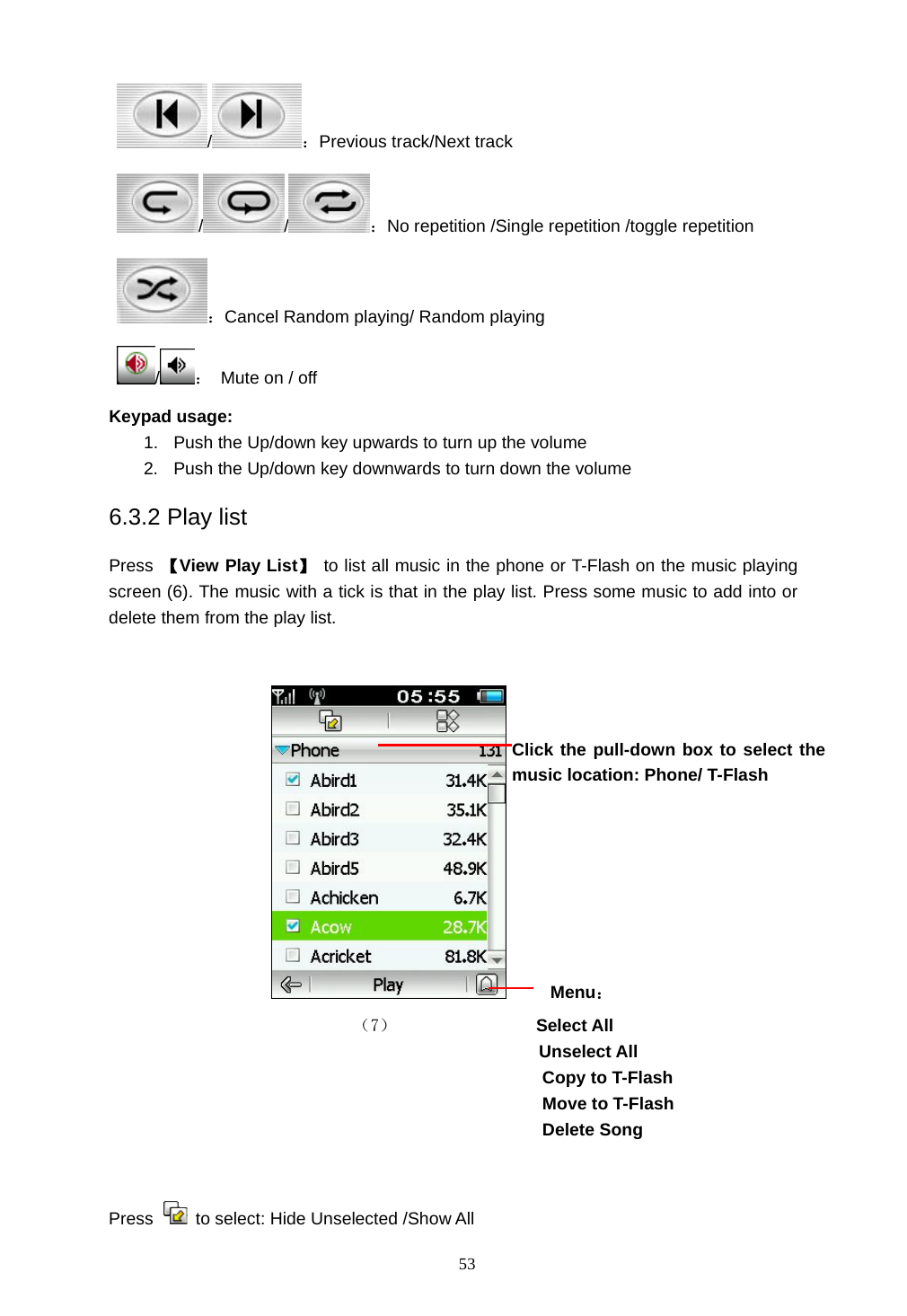
 53 /:Previous track/Next track //:No repetition /Single repetition /toggle repetition :Cancel Random playing/ Random playing /:  Mute on / off Keypad usage: 1.  Push the Up/down key upwards to turn up the volume 2.  Push the Up/down key downwards to turn down the volume 6.3.2 Play list Press  【View Play List】  to list all music in the phone or T-Flash on the music playing screen (6). The music with a tick is that in the play list. Press some music to add into or delete them from the play list.         Menu:                            (7)             Select All Unselect All Copy to T-Flash   Move to T-Flash Delete Song                                          Press    to select: Hide Unselected /Show All   Click the pull-down box to select the music location: Phone/ T-Flash
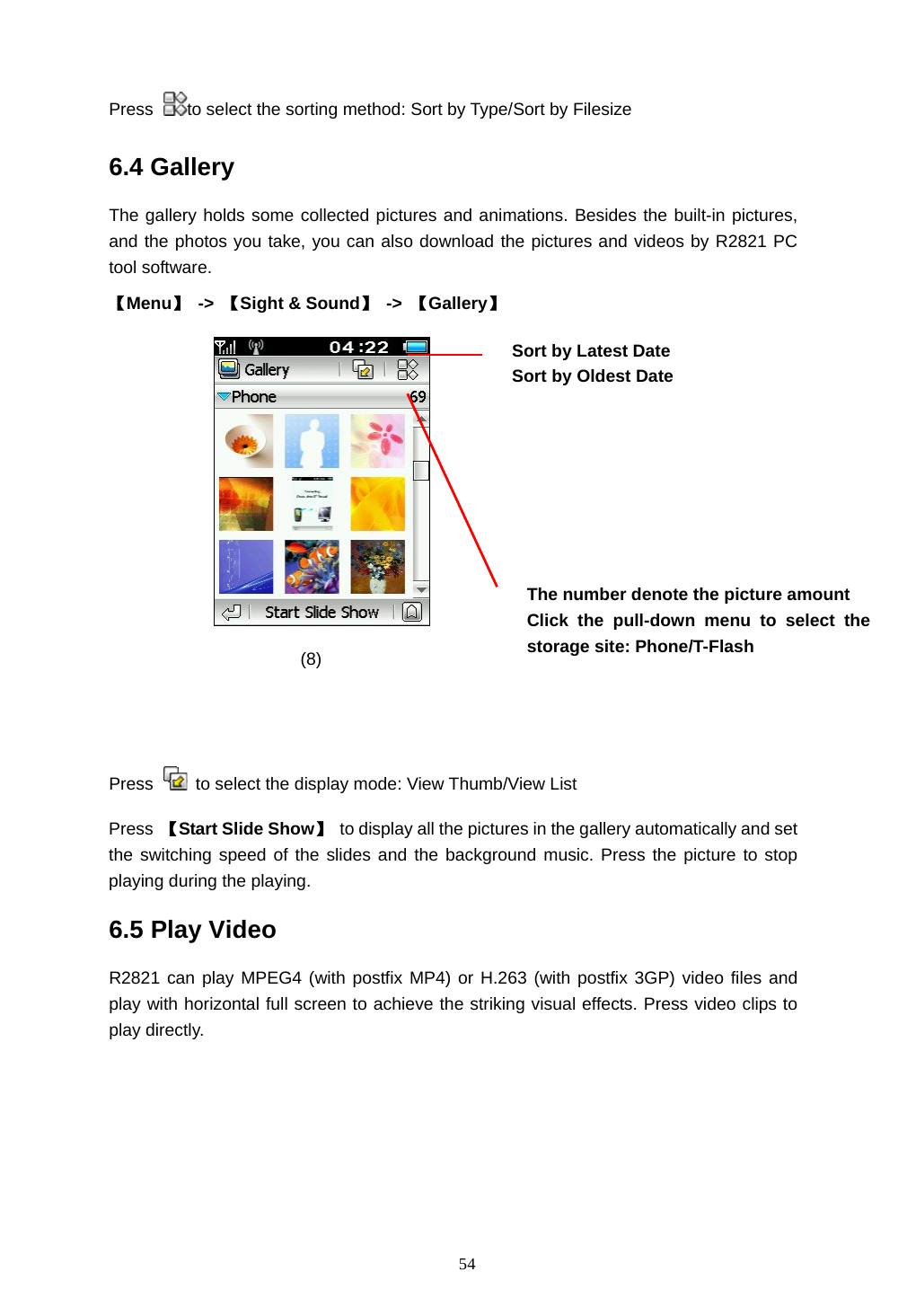
 54 Press  to select the sorting method: Sort by Type/Sort by Filesize 6.4 Gallery The gallery holds some collected pictures and animations. Besides the built-in pictures, and the photos you take, you can also download the pictures and videos by R2821 PC tool software.   【Menu】 -> 【Sight & Sound】 -> 【Gallery】     (8)                     Press    to select the display mode: View Thumb/View List   Press  【Start Slide Show】 to display all the pictures in the gallery automatically and set the switching speed of the slides and the background music. Press the picture to stop playing during the playing. 6.5 Play Video   R2821 can play MPEG4 (with postfix MP4) or H.263 (with postfix 3GP) video files and play with horizontal full screen to achieve the striking visual effects. Press video clips to play directly. The number denote the picture amount Click the pull-down menu to select the storage site: Phone/T-Flash  Sort by Latest Date Sort by Oldest Date
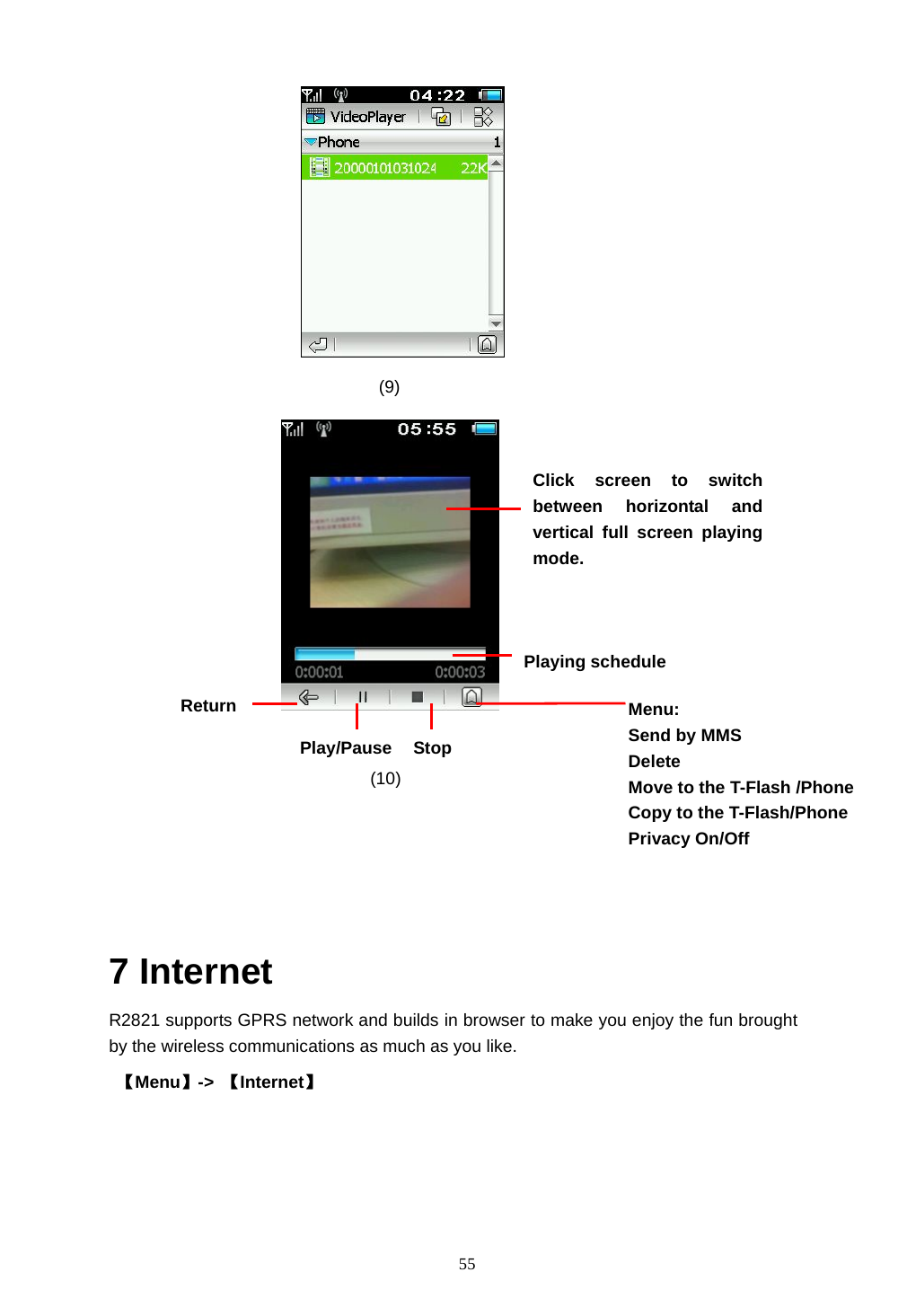
 55           (9)    (10)     7 Internet R2821 supports GPRS network and builds in browser to make you enjoy the fun brought by the wireless communications as much as you like.    【Menu】->  【Internet】 Click screen to switch between horizontal and vertical full screen playing mode. Return Stop Play/Pause Menu: Send by MMS Delete Move to the T-Flash /Phone   Copy to the T-Flash/Phone   Privacy On/Off Playing schedule
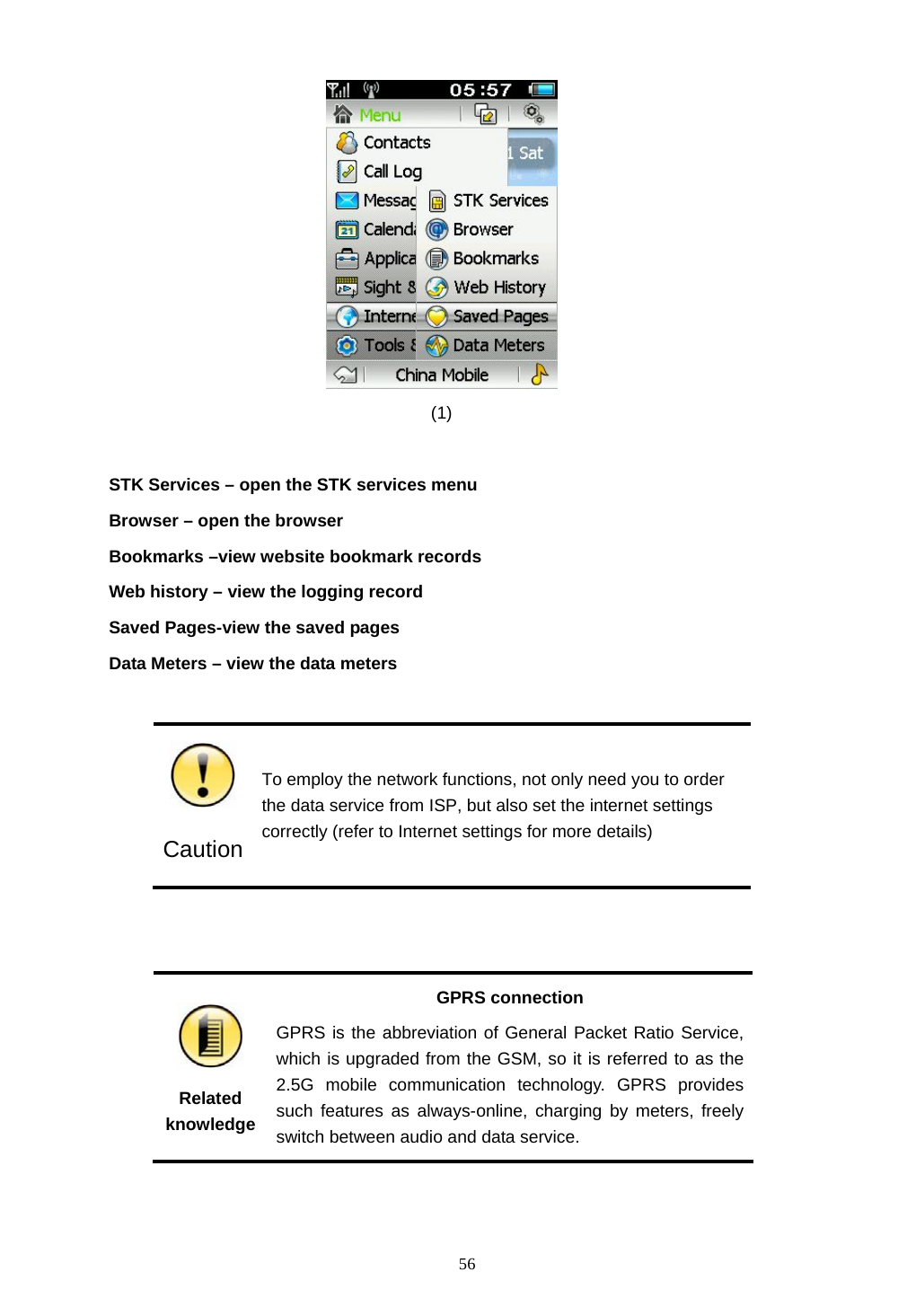
 56                                       (1)   STK Services – open the STK services menu Browser – open the browser Bookmarks –view website bookmark records Web history – view the logging record Saved Pages-view the saved pages   Data Meters – view the data meters   Caution To employ the network functions, not only need you to order the data service from ISP, but also set the internet settings correctly (refer to Internet settings for more details)    Related knowledge GPRS connection GPRS is the abbreviation of General Packet Ratio Service, which is upgraded from the GSM, so it is referred to as the 2.5G mobile communication technology. GPRS provides such features as always-online, charging by meters, freely switch between audio and data service.
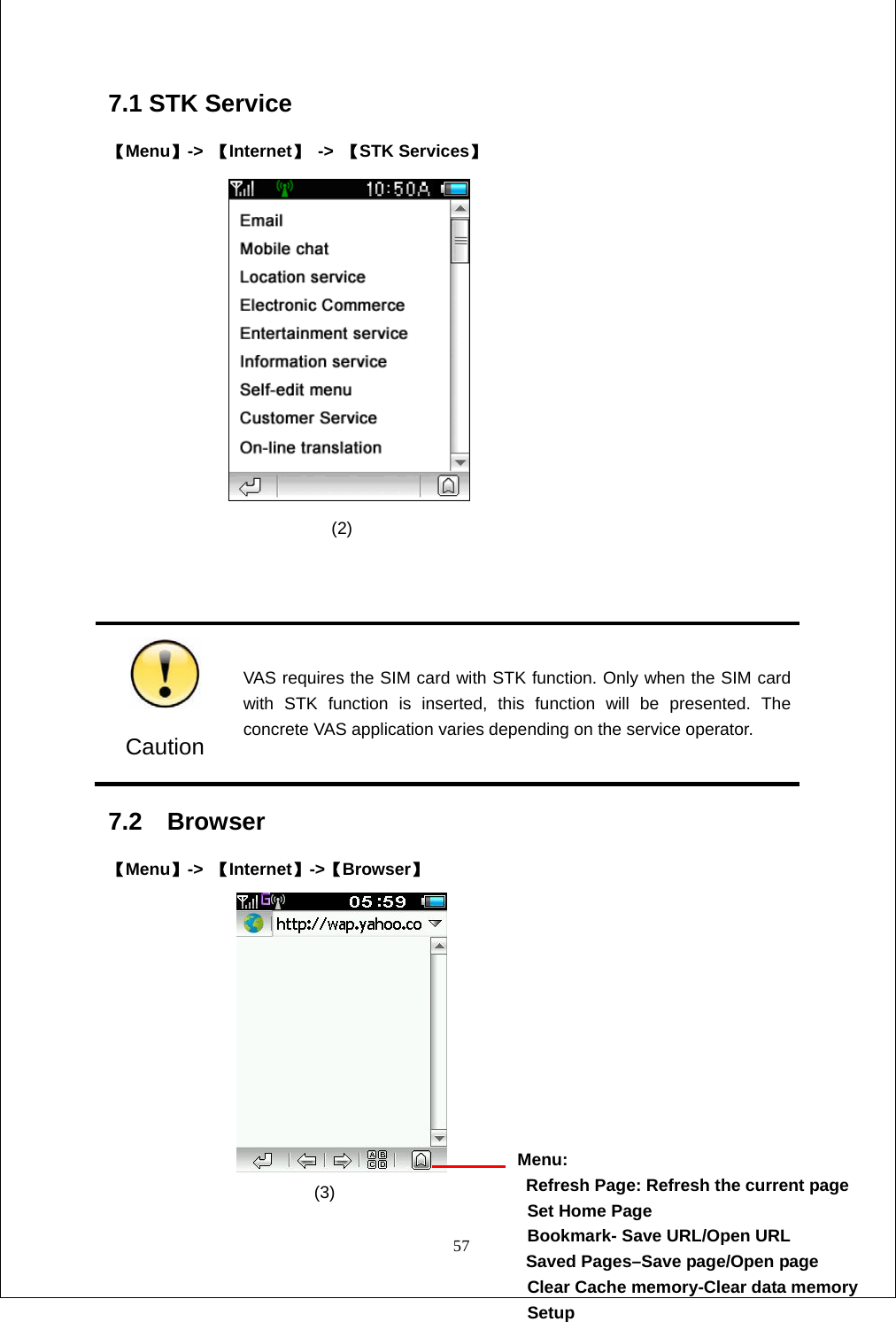
 57 7.1 STK Service 【Menu】->  【Internet】 -> 【STK Services】                  (2)    Caution VAS requires the SIM card with STK function. Only when the SIM card with STK function is inserted, this function will be presented. The concrete VAS application varies depending on the service operator. 7.2  Browser                                                【Menu】->  【Internet】->【Browser】                            (3)             Menu:   Refresh Page: Refresh the current page  Set Home Page   Bookmark- Save URL/Open URL Saved Pages–Save page/Open page   Clear Cache memory-Clear data memory  Setup
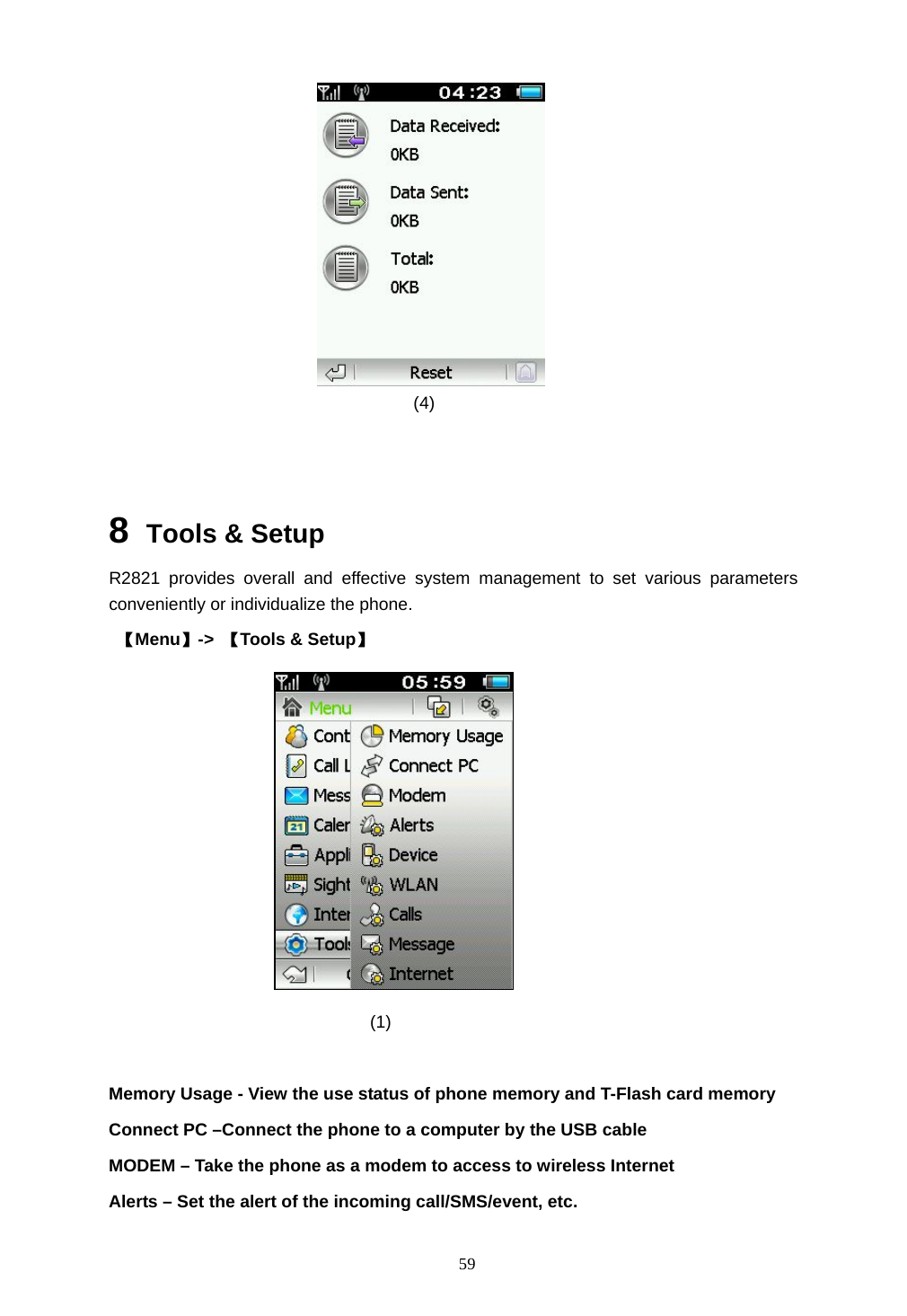
 58   Press   to stop website loading Press    to open the soft keyboard to input letters   Tips Once the browser is opened, R2821 will start with the corresponding website if the homepage has been set; or else, it will wait users to enter the web site   7.3 Bookmarks 【Menu】->  【Internet】 ->【Bookmarks】 The websites frequently access can be saved to bookmarks so as to facilitate the network operation.  7.4Web History 【Menu】->  【Internet】->【Web History】 The recent logging records such as website address, logging time can be viewed. Press a record to view the detailed information of each item. 7.5 Saved Pages   【Menu】->  【Internet】->【Saved Pages】 Some web sites can be saved to browse offline. 7.6 Data Meters 【Menu】->  【Internet】->【Data Meters】 You can view the data received, data sent and total data.
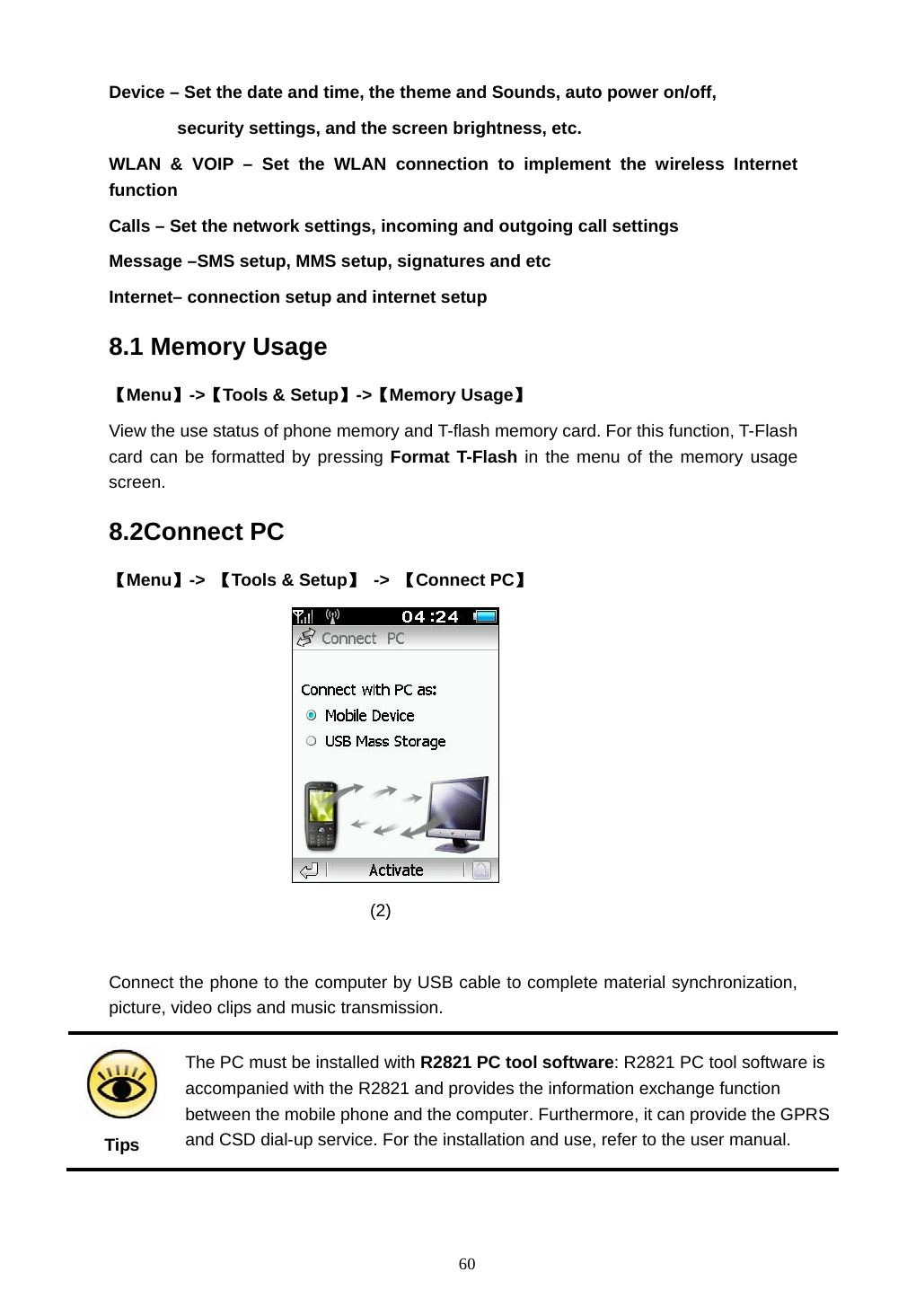
 59                                     (4)     8  Tools & Setup R2821 provides overall and effective system management to set various parameters conveniently or individualize the phone.  【Menu】->  【Tools & Setup】                                               (1)  Memory Usage - View the use status of phone memory and T-Flash card memory Connect PC –Connect the phone to a computer by the USB cable   MODEM – Take the phone as a modem to access to wireless Internet   Alerts – Set the alert of the incoming call/SMS/event, etc.
 60 Device – Set the date and time, the theme and Sounds, auto power on/off,   security settings, and the screen brightness, etc. WLAN & VOIP – Set the WLAN connection to implement the wireless Internet function Calls – Set the network settings, incoming and outgoing call settings Message –SMS setup, MMS setup, signatures and etc   Internet– connection setup and internet setup   8.1 Memory Usage 【Menu】->【Tools & Setup】->【Memory Usage】 View the use status of phone memory and T-flash memory card. For this function, T-Flash card can be formatted by pressing Format T-Flash in the menu of the memory usage screen. 8.2Connect PC 【Menu】->  【Tools & Setup】 -> 【Connect PC】                                (2)   Connect the phone to the computer by USB cable to complete material synchronization, picture, video clips and music transmission.  Tips The PC must be installed with R2821 PC tool software: R2821 PC tool software is accompanied with the R2821 and provides the information exchange function between the mobile phone and the computer. Furthermore, it can provide the GPRS and CSD dial-up service. For the installation and use, refer to the user manual.
 61 8.3 Modem 【Menu】->【Tools & Setup】->【Modem】 R2821 can be used as a wireless modem. USB cable can be used to connect the R2821 with the computer, and then access the wireless network by GPRS/CSD.             (3) (4) )             (5)   Tips The PC must be installed with R2821 PC tool software and the modem driver.
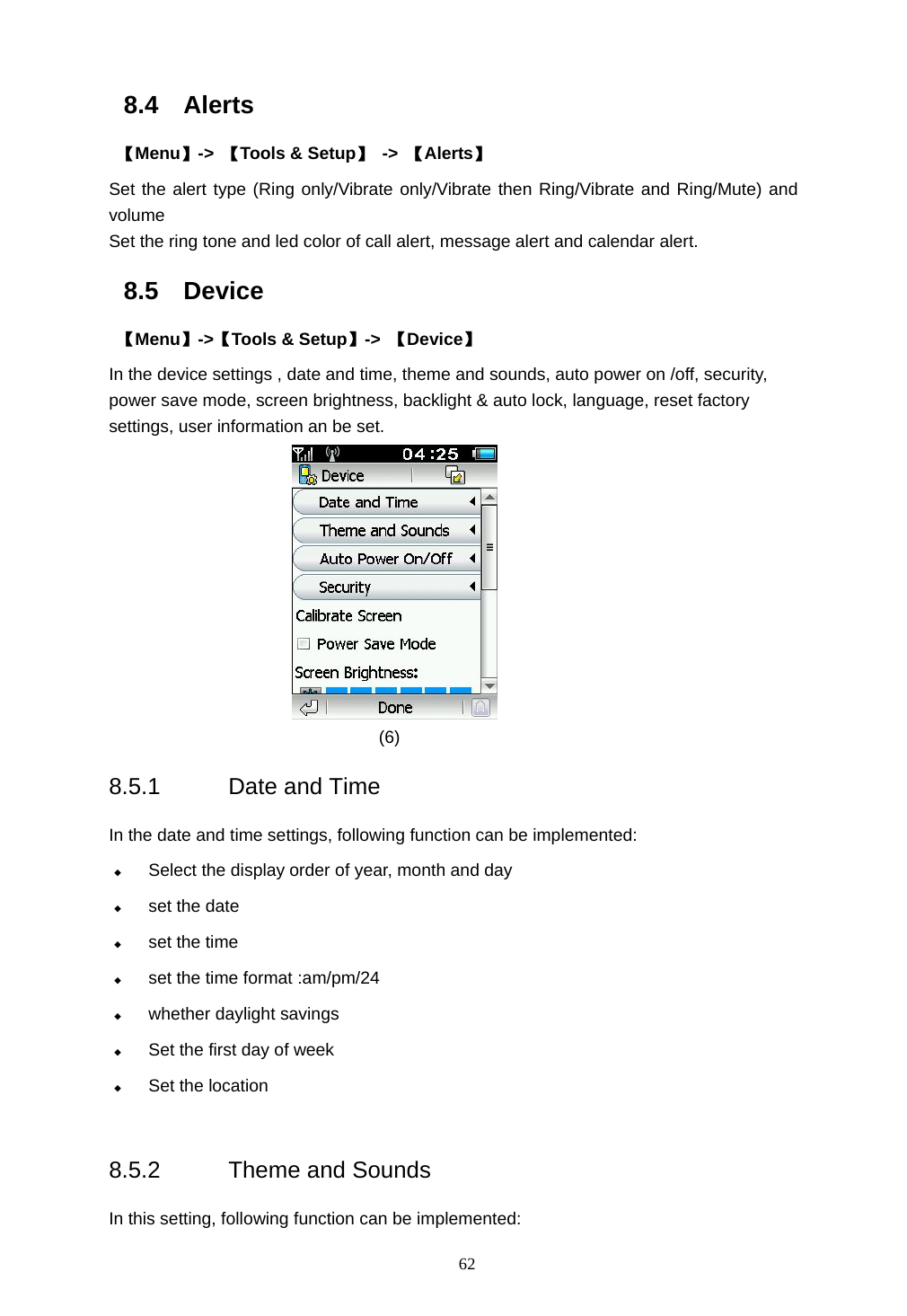
 62 8.4 Alerts  【Menu】->  【Tools & Setup】 -> 【Alerts】 Set the alert type (Ring only/Vibrate only/Vibrate then Ring/Vibrate and Ring/Mute) and volume Set the ring tone and led color of call alert, message alert and calendar alert. 8.5 Device  【Menu】->【Tools & Setup】->  【Device】 In the device settings , date and time, theme and sounds, auto power on /off, security, power save mode, screen brightness, backlight & auto lock, language, reset factory settings, user information an be set.            (6) 8.5.1 Date and Time  In the date and time settings, following function can be implemented:  Select the display order of year, month and day  set the date  set the time  set the time format :am/pm/24    whether daylight savings    Set the first day of week  Set the location  8.5.2 Theme and Sounds In this setting, following function can be implemented:
 63  Change the style of the theme  Select touch screen sound  8.5.3 Auto Power On/Off  In auto power on/off settings, you can set:  Power on: Every Day / Weekday Only / Weekend Only / Only Once Specific time and time format          Select mute sound  Whether prompt for Antenna    Power off: every day / week day / weekends / single time Specific time and time format Select mute sound  8.5.4 Security  In security settings, you can do followings:  Privacy activation  Power on (whether request SIM PIN, whether request lock code. The default lock code of the phone is 000000, and the default privacy code is 000000).  Change password (SIM PIN, SIM PIN2, Lock Code, Privacy Code. )       Caution SIM PIN code can protect your SIM card from being stolen. When the PIN code protection is activated, you will be asked to enter PIN code every time the mobile phone is power on. SIM PIN2 code can protect some important settings from changing arbitrarily. If the PIN is entered incorrectly for three times successively,, SIM card will be locked and can only be unlocked by mobile operators.     Only when the PIN protection is activated, the PIN code can be changed. PIN code should be is 4 bit at least.  8.5.5 Calibrate Screen R2821 supports screen calibrate function which let you adjust the writing accuracy on the touch screen. Press OK key to enter into calibrate screen function directly when the deflection of the touch screen is great.
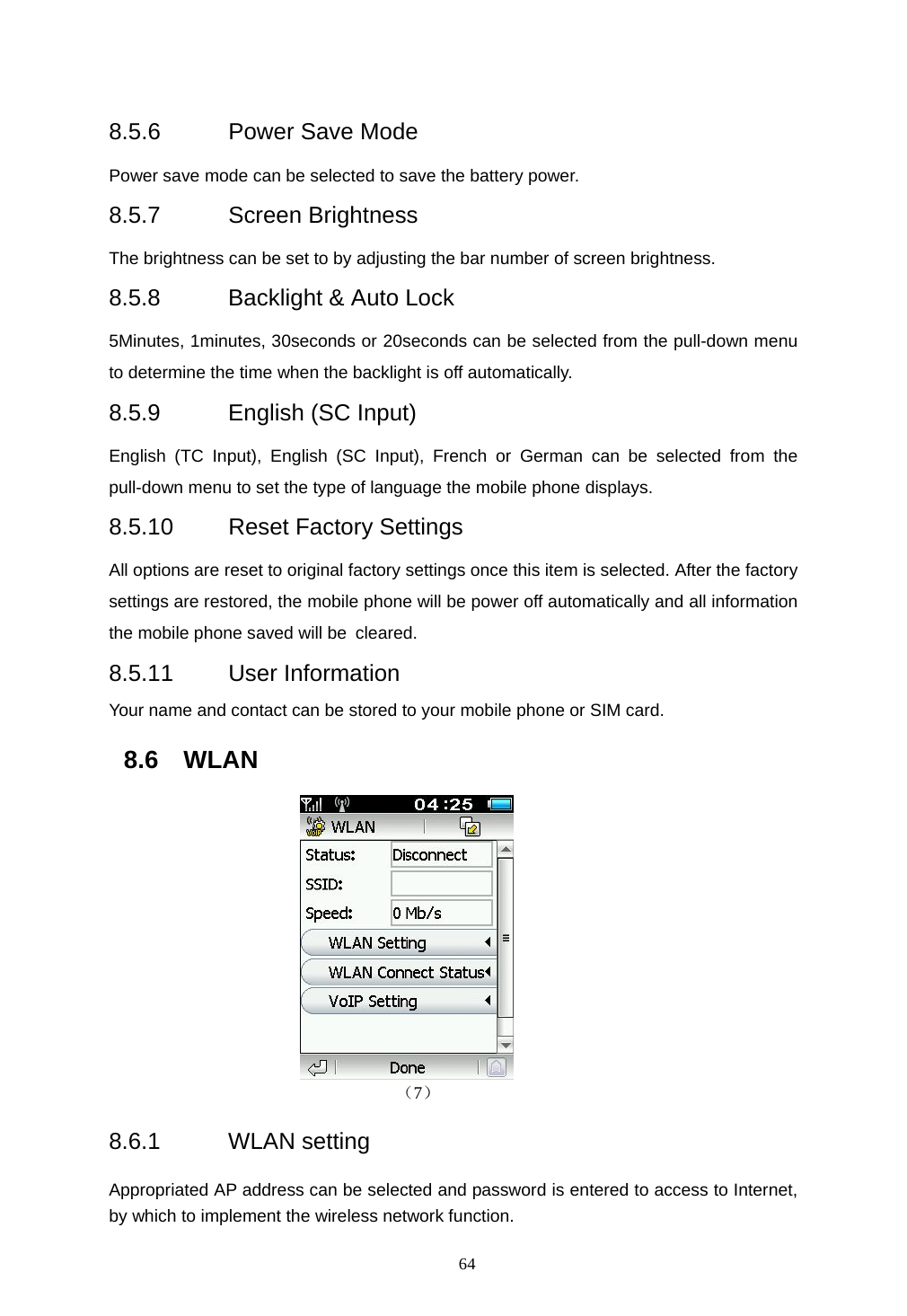
 64  8.5.6  Power Save Mode Power save mode can be selected to save the battery power. 8.5.7 Screen Brightness The brightness can be set to by adjusting the bar number of screen brightness. 8.5.8 Backlight & Auto Lock 5Minutes, 1minutes, 30seconds or 20seconds can be selected from the pull-down menu to determine the time when the backlight is off automatically. 8.5.9  English (SC Input) English (TC Input), English (SC Input), French or German can be selected from the pull-down menu to set the type of language the mobile phone displays. 8.5.10  Reset Factory Settings All options are reset to original factory settings once this item is selected. After the factory settings are restored, the mobile phone will be power off automatically and all information the mobile phone saved will be cleared. 8.5.11 User Information Your name and contact can be stored to your mobile phone or SIM card. 8.6 WLAN                          (7) 8.6.1 WLAN setting Appropriated AP address can be selected and password is entered to access to Internet, by which to implement the wireless network function.
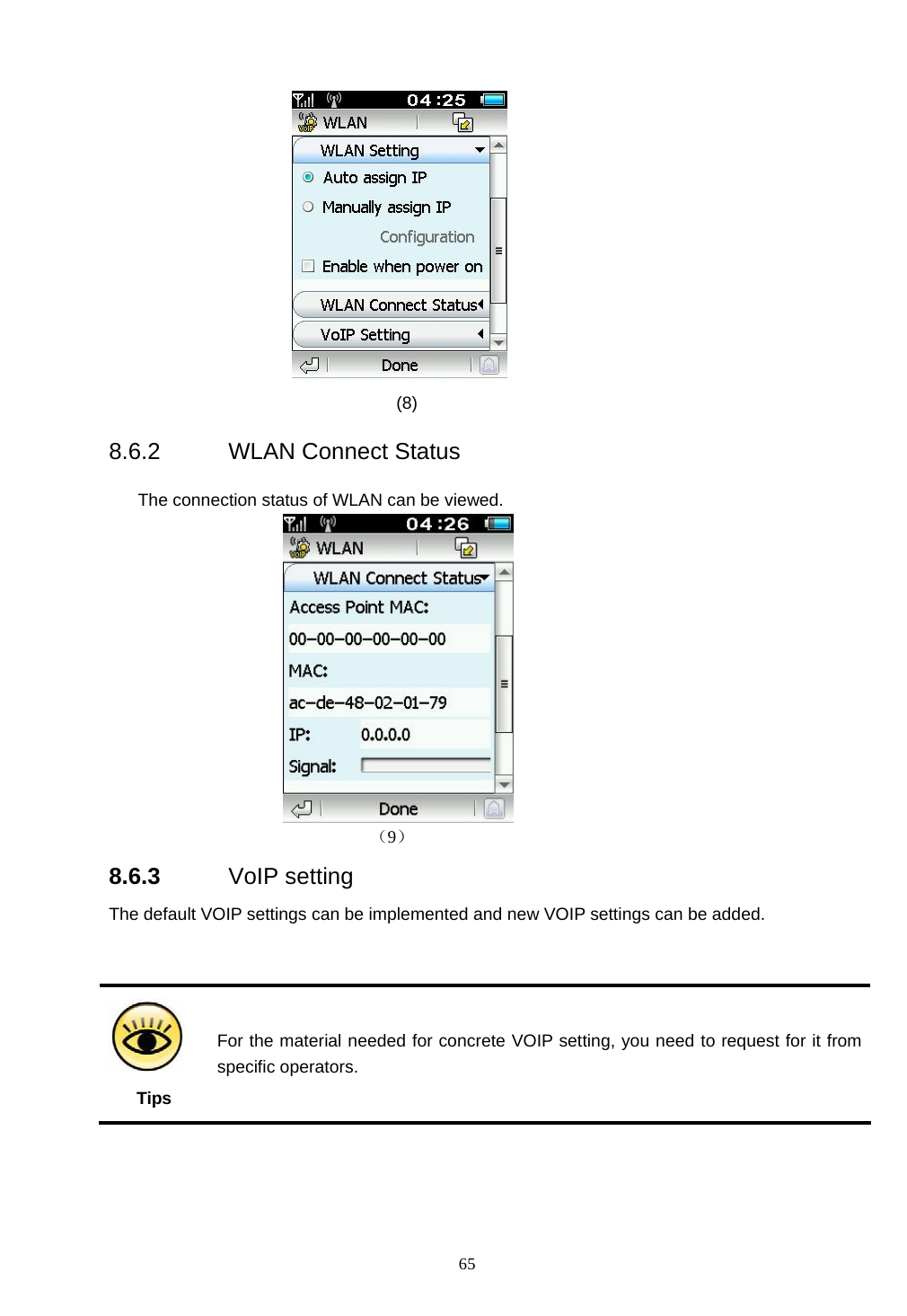
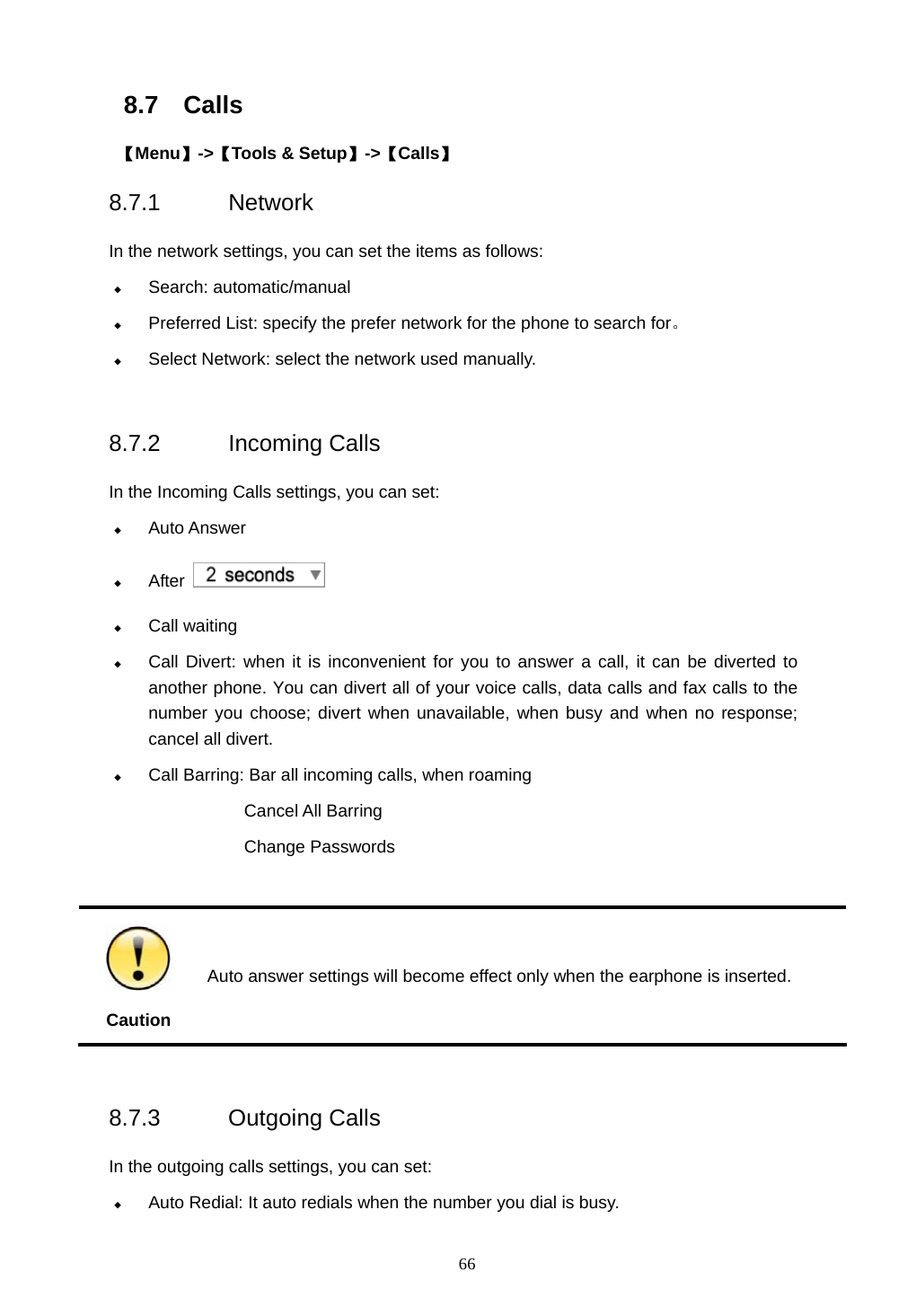
 65               (8) 8.6.2  WLAN Connect Status      The connection status of WLAN can be viewed.  (9) 8.6.3  VoIP setting                                           The default VOIP settings can be implemented and new VOIP settings can be added.     Tips For the material needed for concrete VOIP setting, you need to request for it from specific operators.
 66 8.7 Calls  【Menu】->【Tools & Setup】->【Calls】 8.7.1 Network  In the network settings, you can set the items as follows:  Search: automatic/manual  Preferred List: specify the prefer network for the phone to search for。  Select Network: select the network used manually.  8.7.2 Incoming Calls  In the Incoming Calls settings, you can set:  Auto Answer  After     Call waiting  Call Divert: when it is inconvenient for you to answer a call, it can be diverted to another phone. You can divert all of your voice calls, data calls and fax calls to the number you choose; divert when unavailable, when busy and when no response; cancel all divert.    Call Barring: Bar all incoming calls, when roaming Cancel All Barring Change Passwords   Caution  Auto answer settings will become effect only when the earphone is inserted.  8.7.3 Outgoing Calls   In the outgoing calls settings, you can set:  Auto Redial: It auto redials when the number you dial is busy.
 67  Show my number. It should be noticed that some mobile operators forbid this function. So the phone can not be dialed if users set not to display his number.  Prepend: It is often needed to add the area code, national code or IP Tel ahead of the number before you dial the number in the contacts book or call log. So turning on this prepend option will give you the chance to enter the area code or national code before dialing. You will dial the number directly if you turn off the prepend option,  IP Call: press the number key to enter the IP number and then press 【Done】to store the IP number.  Voice Mail Center Nbr: Press the number key to enter the voice mail center number and then press 【Done】 to store the number.  Call Barring: Bar all outgoing calls, international calls , int’l calls except to home Cancel All Barring Change Passwords  8.8 Message 【Menu】->  【Tools & Setup】 -> 【Message】 8.8.1 SMS In the SMS settings, you can set the items as follows:  Service Center Number (Query from the mobile SP)  Save incoming message/outgoing message to: SIM card memory /phone memory  Validity Period: the valid period of the outgoing messages saved in the SMS center.  Type:Text/Fax/eMail/Pager/X400   8.8.2 MMS In the MMS settings, the following items can be set:  Data Service: GPRS/CSD  MMS Access: Always On/Always Off/When on network  Incoming Messages: Retrieve at once/ Retrieve later/ Do Not Retrieve                         Accept Anonymous Accept Adverts  Outgoing messages: Validity Period: the valid period of the outgoing message saved                  in the MMS center.
 68  8.8.3 Cell Broadcast Cell broadcast is a kind of broadcasting short message service. You can automatically receive the broadcasting short message when in a network with broadcasting service, if you turn it on and set a correct receiving channel.   8.8.4  Quick Message You can edit some common phrase for the convenience of input. Choose 【Quick Message】 on the 【Message】 screen, and then press 【New Message】  to enter the edit screen. 8.8.5 Signature Your own signature can be stored and appended to the message. Choose  【Signature】 on the  【Message】  screen, then press the signature box to input the signature.  8.9 Internet  【Menu】->【Tools & Setup】->【Internet】 In the internet settings, you can do the following settings:  Connection setup – connection setup is the base of all the network service, including WAP network access, MMS and etc functions, which all depend on the correct connection setup. R2821 can provide the automatic configuration function and select appropriately configuration from the configuration file according to the SIM card of users.   Internet setup   Choose HTTP or WAP   Data service: GPRS/CSD   Auto offline and time to auto offline  Display Images  Home Page  DNS server   Whether employ a proxy server   The address of the proxy server and the port ,username, password
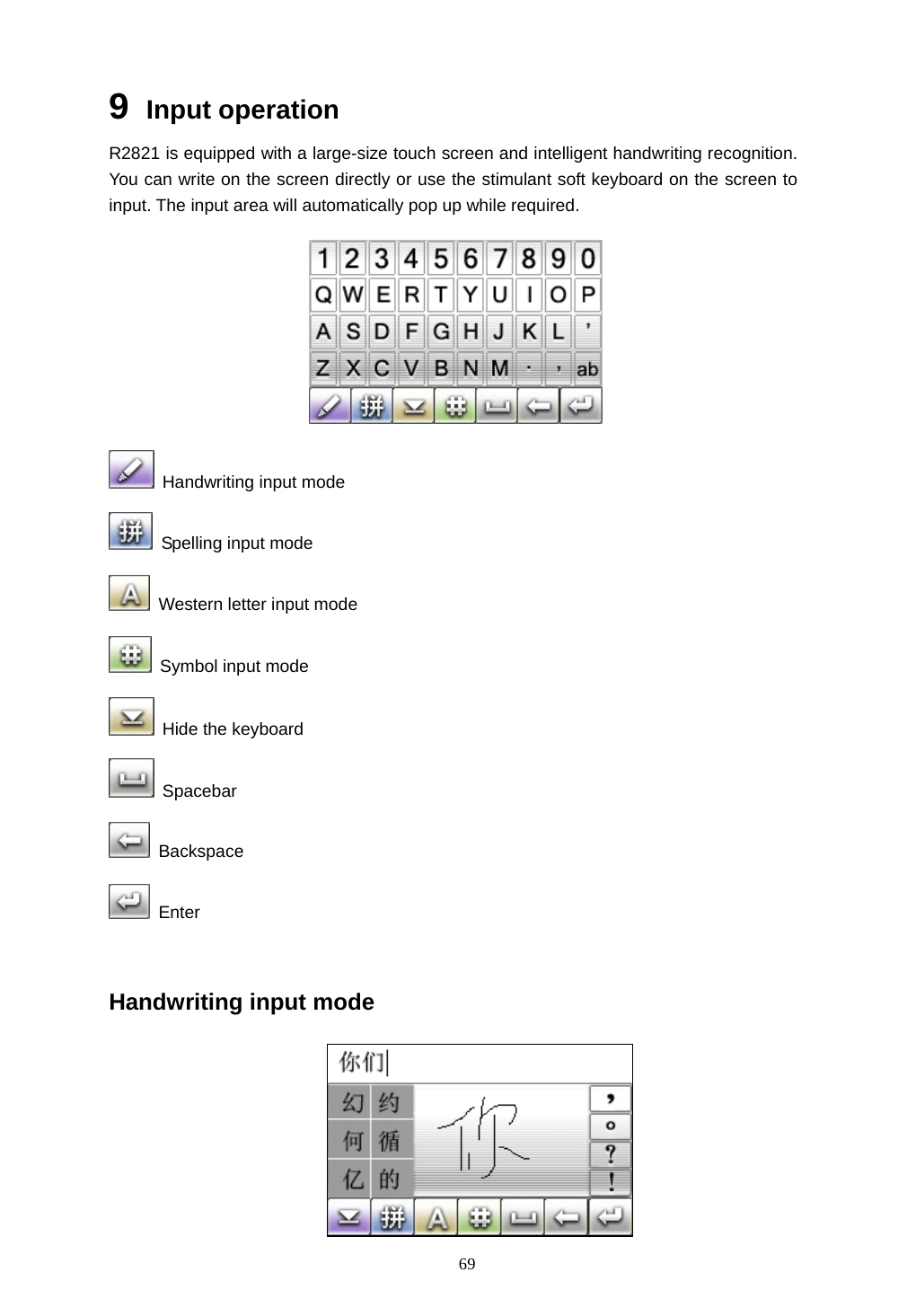
 69 9  Input operation R2821 is equipped with a large-size touch screen and intelligent handwriting recognition. You can write on the screen directly or use the stimulant soft keyboard on the screen to input. The input area will automatically pop up while required.   Handwriting input mode   Spelling input mode   Western letter input mode   Symbol input mode  Hide the keyboard  Spacebar  Backspace  Enter  Handwriting input mode
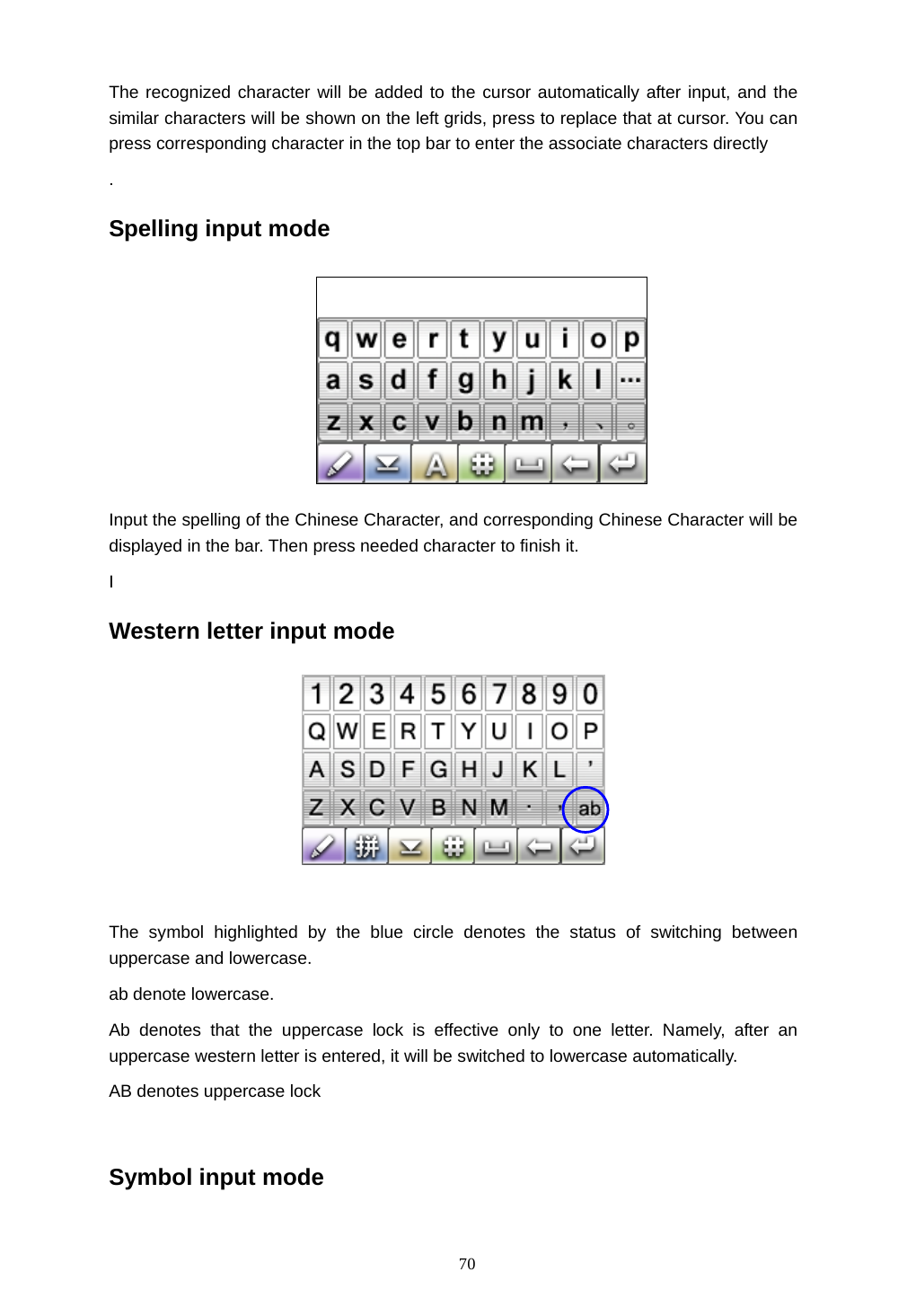
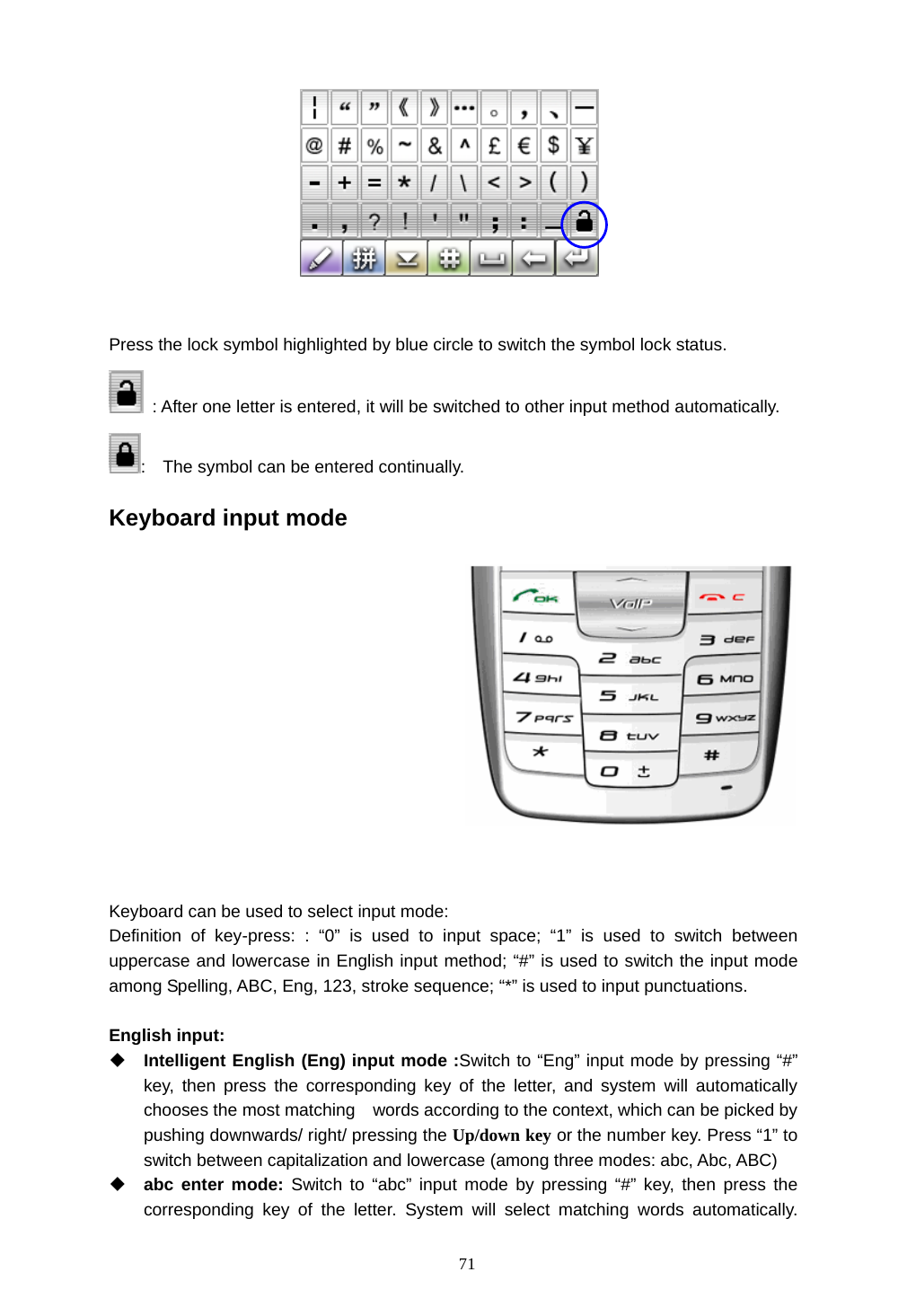
 70 The recognized character will be added to the cursor automatically after input, and the similar characters will be shown on the left grids, press to replace that at cursor. You can press corresponding character in the top bar to enter the associate characters directly   . Spelling input mode  Input the spelling of the Chinese Character, and corresponding Chinese Character will be displayed in the bar. Then press needed character to finish it. I Western letter input mode    The symbol highlighted by the blue circle denotes the status of switching between uppercase and lowercase. ab denote lowercase. Ab denotes that the uppercase lock is effective only to one letter. Namely, after an uppercase western letter is entered, it will be switched to lowercase automatically. AB denotes uppercase lock  Symbol input mode
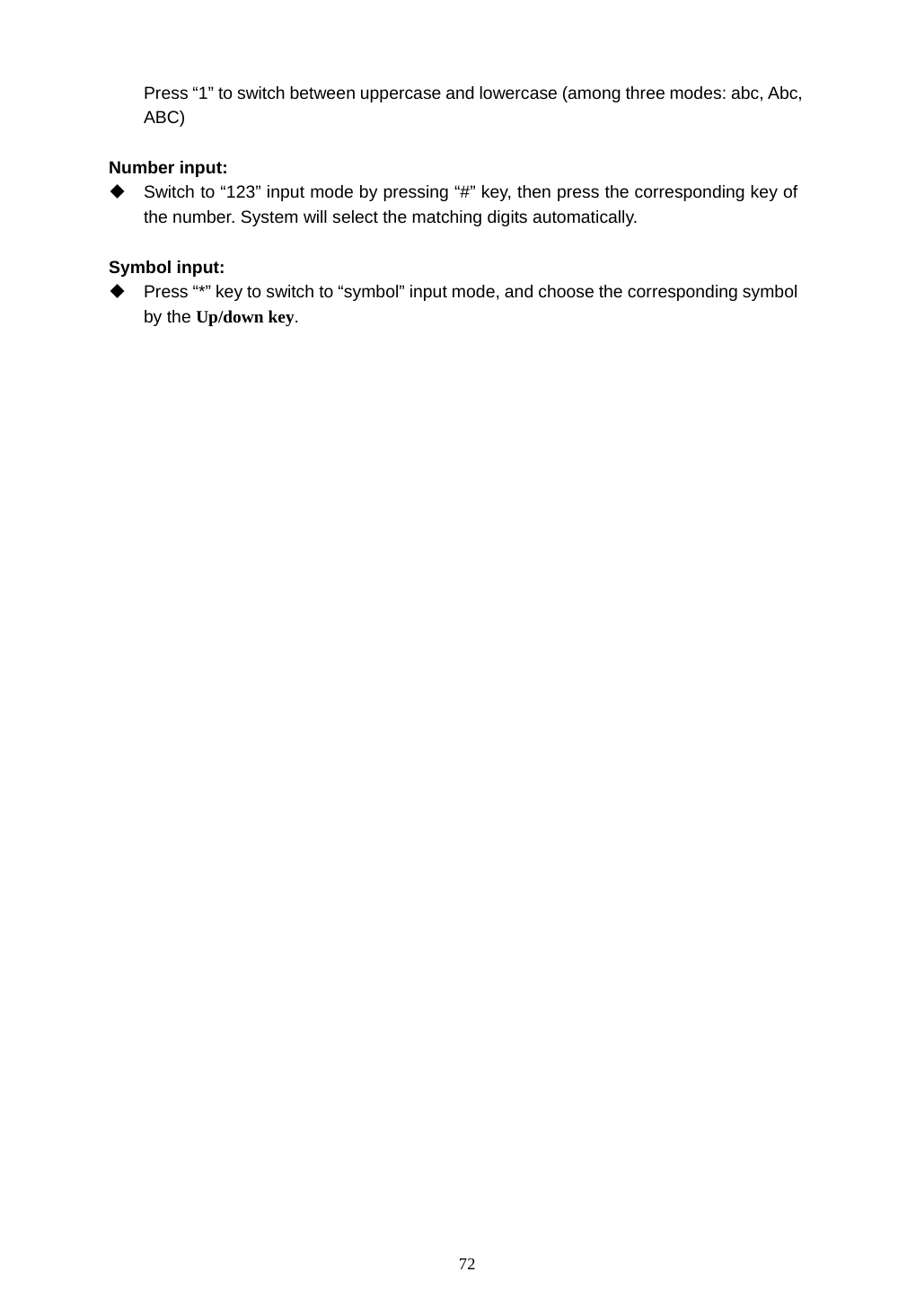
 71   Press the lock symbol highlighted by blue circle to switch the symbol lock status.     : After one letter is entered, it will be switched to other input method automatically. :    The symbol can be entered continually. Keyboard input mode    Keyboard can be used to select input mode: Definition of key-press: : “0” is used to input space; “1” is used to switch between uppercase and lowercase in English input method; “#” is used to switch the input mode among Spelling, ABC, Eng, 123, stroke sequence; “*” is used to input punctuations.    English input:  Intelligent English (Eng) input mode :Switch to “Eng” input mode by pressing “#” key, then press the corresponding key of the letter, and system will automatically chooses the most matching    words according to the context, which can be picked by pushing downwards/ right/ pressing the Up/down key or the number key. Press “1” to switch between capitalization and lowercase (among three modes: abc, Abc, ABC)  abc enter mode: Switch to “abc” input mode by pressing “#” key, then press the corresponding key of the letter. System will select matching words automatically.
 72 Press “1” to switch between uppercase and lowercase (among three modes: abc, Abc, ABC)  Number input:   Switch to “123” input mode by pressing “#” key, then press the corresponding key of the number. System will select the matching digits automatically.  Symbol input:   Press “*” key to switch to “symbol” input mode, and choose the corresponding symbol by the Up/down key.
 73 10  FAQ 10.1  How to make a dial? There are several methods to dial: 1.  Dial the number directly: press the wallpaper area on the main screen to enter the dial screen  2.  Dial from the contacts: 【Menu】->【Contacts】, or in the dial screen press   icon on the dial screen. 3.  Dial from call log: 【Menu】->【Call Log】, or press    icon on the dial screen. 4. Photo dial: press   on the dial screen, you can press the photo of the contact to dial directly. 5.  Quick dial the number in STM card: enter the index of the number in STM card directly, and then press # to dial corresponding number. 10.2  How to set time and date 【Menu】->【Tools & Setup】->【Device】->【 Date and Time】 10.3  How to set alarm 【Menu】->  【Application】 -> 【Alarm Clock】 10.4  How to turn on or off the antenna? Press the network name in the bottom center of the idle screen to turn on or off the antenna. Press the network signal in the top left corner to enable or disable phone. 10.5  How to take photos and set as wallpaper? 1.  【Menu】->【Sight & Sound】->【Photo Camera】 to activate the digital camera     2. Press 【Capture】  to take photos and store it to the gallery of the phone automatically. The kluck means this photo–taking succeeds.   3. Press 【Review】 to view the photo just taken. Press  【Return】 to quit the capture mode.
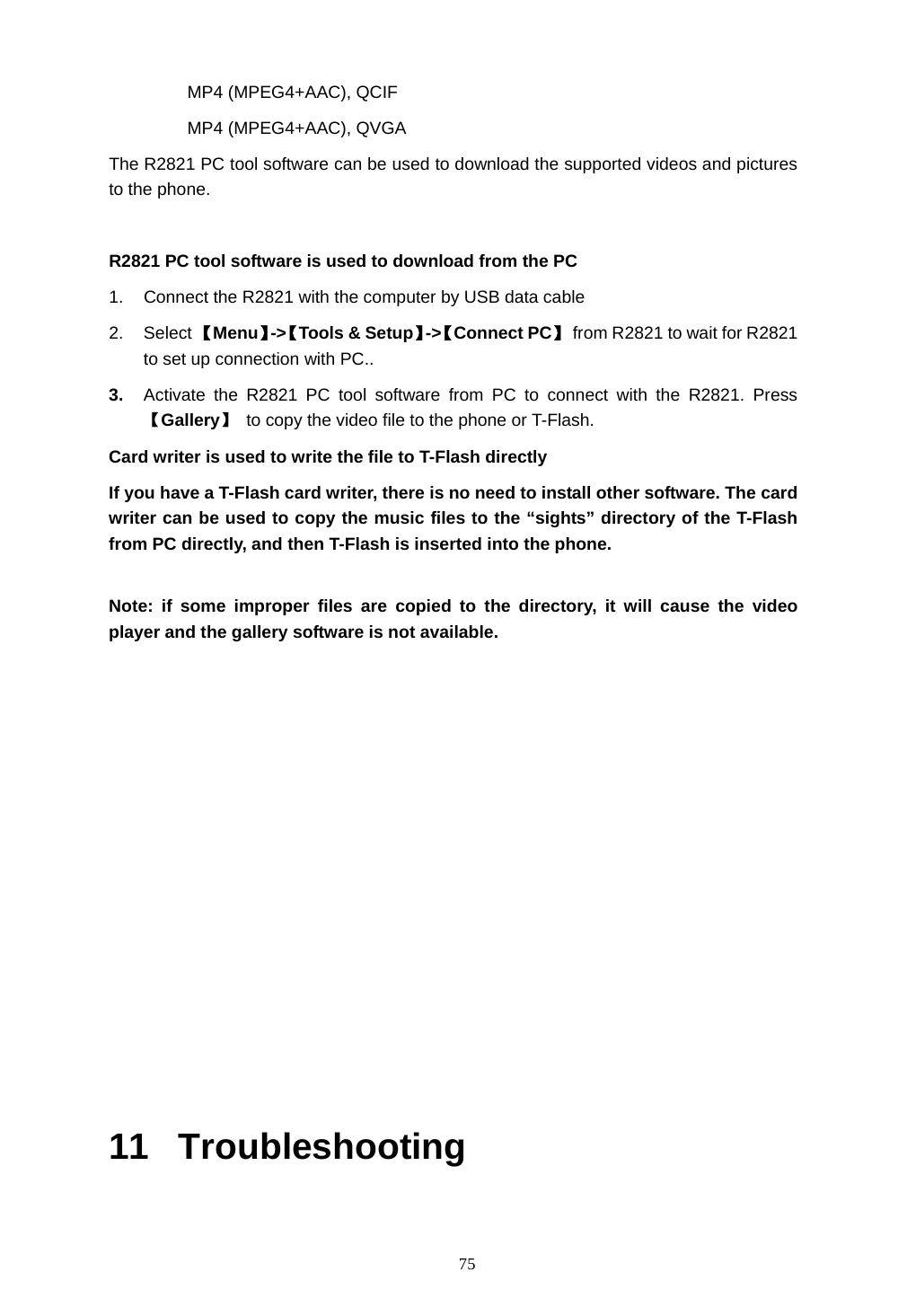
 74 4.  You can set the photo as the wallpaper on the photo review screen. 10.6  How to change the wallpaper? 【Menu】->【Sight & Sound】->【Gallery】 , you can select 【set as wallpaper】 in the menu. 10.7  How to send a MMS? 【Menu】 ->【Message】, then click  【MMS】 to create a MMS. 10.8  How to access the Internet? Select  【Menu】 ->【Internet】->【Browser】 to access the network. 10.9  How to download and play MP3? R2821 supports the music file in MP3, MIDI and AMR format, which can be stored in the phone or T-Flash. Following measures can be taken to download the music file to the mobile phone.   R2821 PC tool software is used to download from PC. 1.  Connect R2821 with PC by USB data cable; 2. Select 【Menu】->【Tools & Setup】->【Connect PC】  to wait R2821 PC to set up the connection. 3.  Activate the R2821 PC tool software from the PC and connect it with R2821. Press 【Music】  button to copy the music files to phone or T-Flash card.  Card writer is used to write the file to T-Flash directly If you have a T-Flash card writer, there is no need to install other software. The card writer can be used to copy the music files to the “sound” directory of the T-Flash card from PC directly, and then T-Flash is inserted into the phone.  10.10  How to change the ring tones?  【Menu】->【Tools & Setup】->【Alerts】, press the scene mode in use to change the ring tone. 10.11  How to download videos and pictures? R2821 supports following video format: 3GP (H.263+AMR), QCIF
 75          MP4 (MPEG4+AAC), QCIF          MP4 (MPEG4+AAC), QVGA The R2821 PC tool software can be used to download the supported videos and pictures to the phone.    R2821 PC tool software is used to download from the PC 1.  Connect the R2821 with the computer by USB data cable 2. Select 【Menu】->【Tools & Setup】->【Connect PC】  from R2821 to wait for R2821 to set up connection with PC.. 3.  Activate the R2821 PC tool software from PC to connect with the R2821. Press 【Gallery】  to copy the video file to the phone or T-Flash.   Card writer is used to write the file to T-Flash directly If you have a T-Flash card writer, there is no need to install other software. The card writer can be used to copy the music files to the “sights” directory of the T-Flash from PC directly, and then T-Flash is inserted into the phone.  Note: if some improper files are copied to the directory, it will cause the video player and the gallery software is not available.              11 Troubleshooting
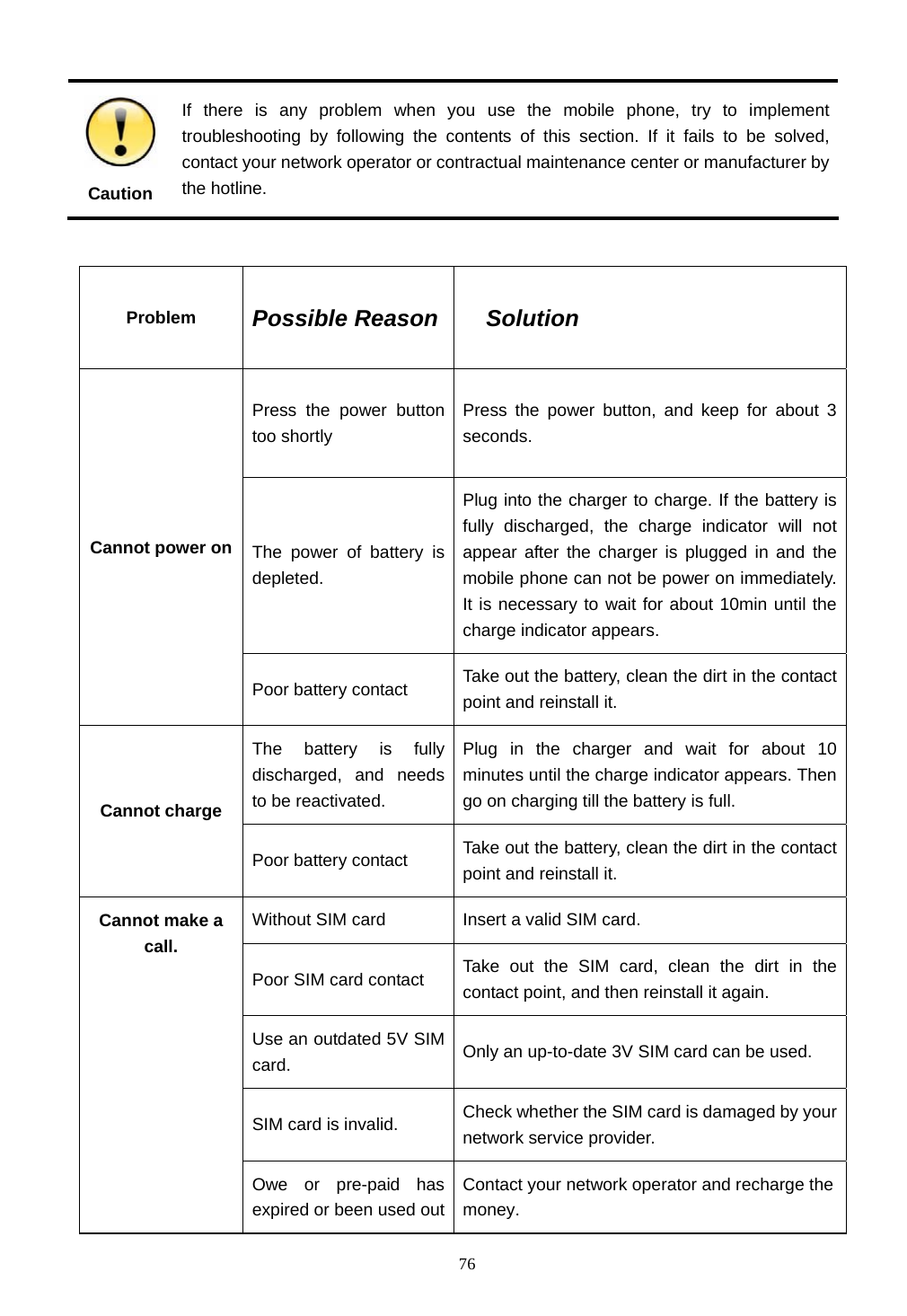
 76  Caution If there is any problem when you use the mobile phone, try to implement troubleshooting by following the contents of this section. If it fails to be solved, contact your network operator or contractual maintenance center or manufacturer by the hotline.  Problem   Possible Reason  Solution Press the power button too shortly   Press the power button, and keep for about 3 seconds. The power of battery is depleted. Plug into the charger to charge. If the battery is fully discharged, the charge indicator will not appear after the charger is plugged in and the mobile phone can not be power on immediately. It is necessary to wait for about 10min until the charge indicator appears.   Cannot power on Poor battery contact  Take out the battery, clean the dirt in the contact point and reinstall it. The battery is fully discharged, and needs to be reactivated. Plug in the charger and wait for about 10 minutes until the charge indicator appears. Then go on charging till the battery is full. Cannot charge Poor battery contact  Take out the battery, clean the dirt in the contact point and reinstall it. Without SIM card  Insert a valid SIM card. Poor SIM card contact  Take out the SIM card, clean the dirt in the contact point, and then reinstall it again. Use an outdated 5V SIM card.  Only an up-to-date 3V SIM card can be used. SIM card is invalid.    Check whether the SIM card is damaged by your network service provider. Cannot make a call. Owe or pre-paid has expired or been used outContact your network operator and recharge the money.
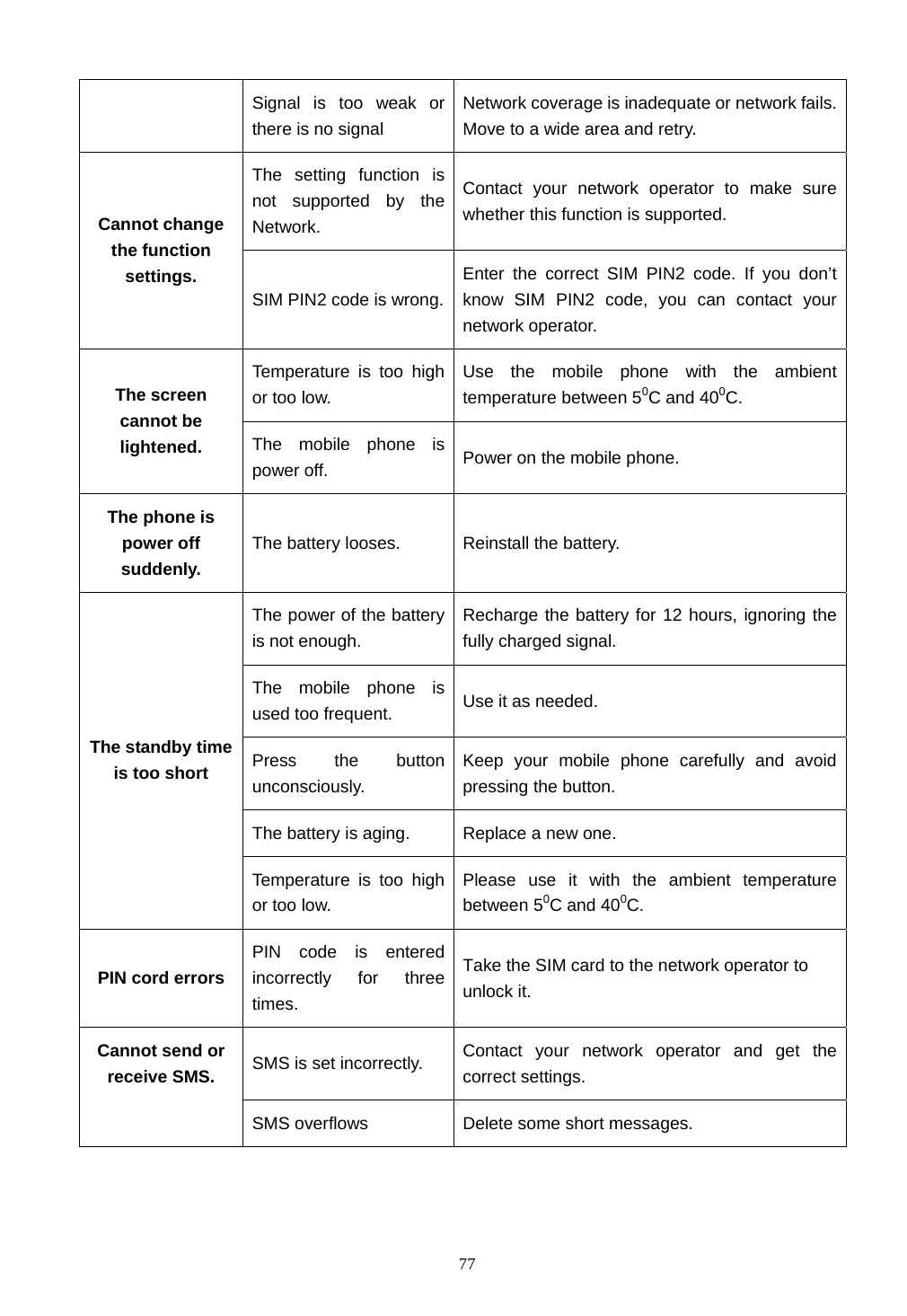
 77 Signal is too weak or there is no signal Network coverage is inadequate or network fails. Move to a wide area and retry. The setting function is not supported by the Network. Contact your network operator to make sure whether this function is supported. Cannot change the function settings. SIM PIN2 code is wrong.Enter the correct SIM PIN2 code. If you don’t know SIM PIN2 code, you can contact your network operator. Temperature is too high or too low. Use the mobile phone with the ambient temperature between 50C and 400C. The screen cannot be lightened.  The mobile phone is power off.  Power on the mobile phone. The phone is power off suddenly. The battery looses.  Reinstall the battery. The power of the battery is not enough. Recharge the battery for 12 hours, ignoring the fully charged signal. The mobile phone is used too frequent.  Use it as needed. Press the button unconsciously. Keep your mobile phone carefully and avoid pressing the button. The battery is aging.  Replace a new one. The standby time is too short Temperature is too high or too low. Please use it with the ambient temperature between 50C and 400C. PIN cord errors PIN code is entered incorrectly for three times. Take the SIM card to the network operator to unlock it. SMS is set incorrectly.  Contact your network operator and get the correct settings. Cannot send or receive SMS. SMS overflows    Delete some short messages.
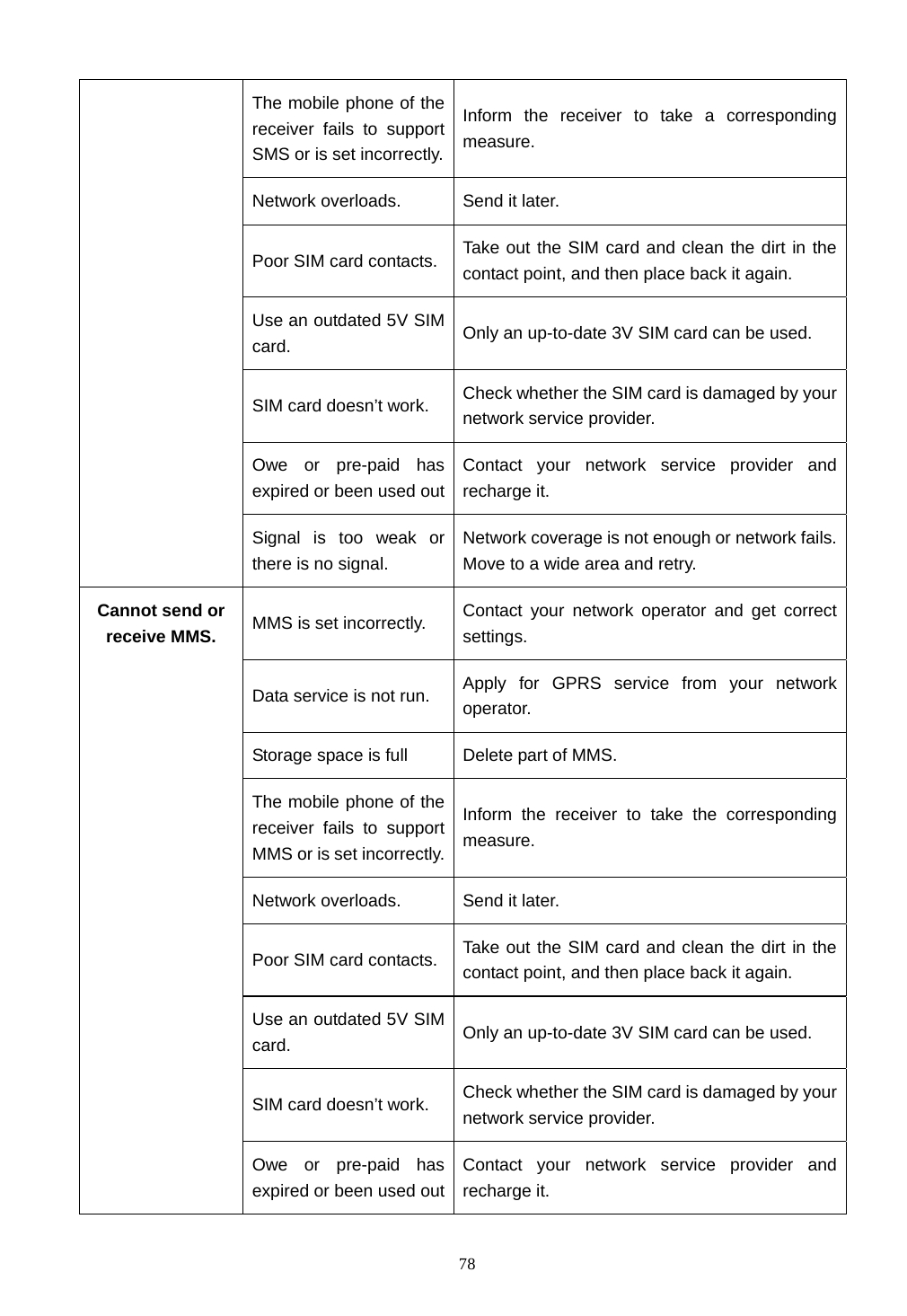
 78 The mobile phone of the receiver fails to support SMS or is set incorrectly.Inform the receiver to take a corresponding measure. Network overloads.  Send it later. Poor SIM card contacts.  Take out the SIM card and clean the dirt in the contact point, and then place back it again. Use an outdated 5V SIM card.  Only an up-to-date 3V SIM card can be used. SIM card doesn’t work.  Check whether the SIM card is damaged by your network service provider. Owe or pre-paid has expired or been used outContact your network service provider and recharge it. Signal is too weak or there is no signal. Network coverage is not enough or network fails. Move to a wide area and retry. MMS is set incorrectly.  Contact your network operator and get correct settings. Data service is not run.  Apply for GPRS service from your network operator. Storage space is full  Delete part of MMS. The mobile phone of the receiver fails to support MMS or is set incorrectly.Inform the receiver to take the corresponding measure. Network overloads.  Send it later. Poor SIM card contacts.  Take out the SIM card and clean the dirt in the contact point, and then place back it again. Use an outdated 5V SIM card.  Only an up-to-date 3V SIM card can be used. SIM card doesn’t work.  Check whether the SIM card is damaged by your network service provider. Cannot send or receive MMS. Owe or pre-paid has expired or been used outContact your network service provider and recharge it.
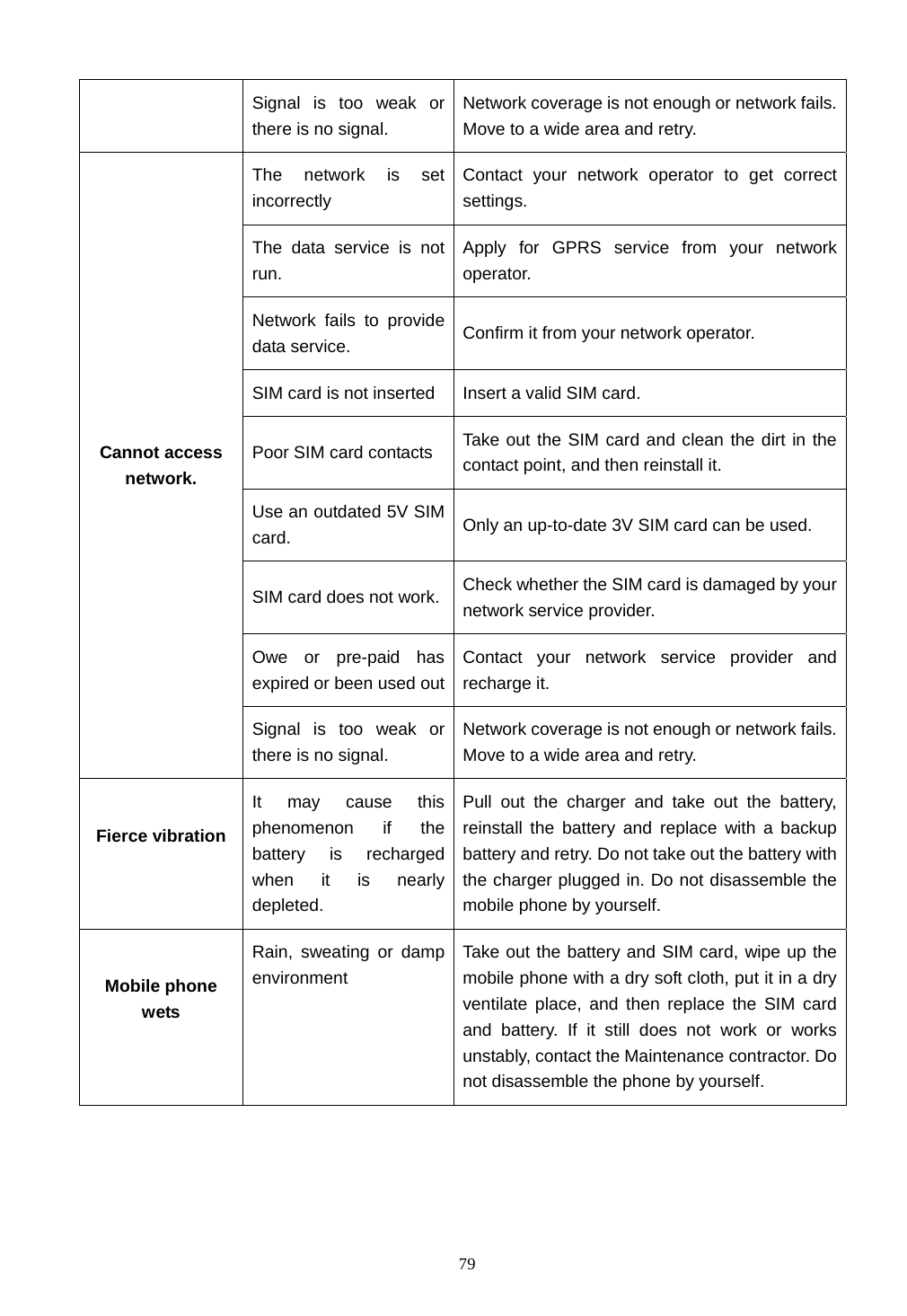
 79 Signal is too weak or there is no signal. Network coverage is not enough or network fails. Move to a wide area and retry. The network is set incorrectly Contact your network operator to get correct settings. The data service is not run. Apply for GPRS service from your network operator. Network fails to provide data service.  Confirm it from your network operator.   SIM card is not inserted  Insert a valid SIM card. Poor SIM card contacts  Take out the SIM card and clean the dirt in the contact point, and then reinstall it. Use an outdated 5V SIM card.  Only an up-to-date 3V SIM card can be used. SIM card does not work. Check whether the SIM card is damaged by your network service provider. Owe or pre-paid has expired or been used outContact your network service provider and recharge it. Cannot access network. Signal is too weak or there is no signal. Network coverage is not enough or network fails. Move to a wide area and retry. Fierce vibration  It may cause this phenomenon if the battery is recharged when it is nearly depleted. Pull out the charger and take out the battery, reinstall the battery and replace with a backup battery and retry. Do not take out the battery with the charger plugged in. Do not disassemble the mobile phone by yourself. Mobile phone wets  Rain, sweating or damp environment Take out the battery and SIM card, wipe up the mobile phone with a dry soft cloth, put it in a dry ventilate place, and then replace the SIM card and battery. If it still does not work or works unstably, contact the Maintenance contractor. Do not disassemble the phone by yourself.

Navigation menu