ECHOWELL ELECTRONIC SCIOANT Wireless cycle computer User Manual Scio Scio Altu ANT Set manual 20130627

ECHOWELL ELECTRONIC CO., LTD. Wireless cycle computer Scio Scio Altu ANT Set manual 20130627

Users Manual

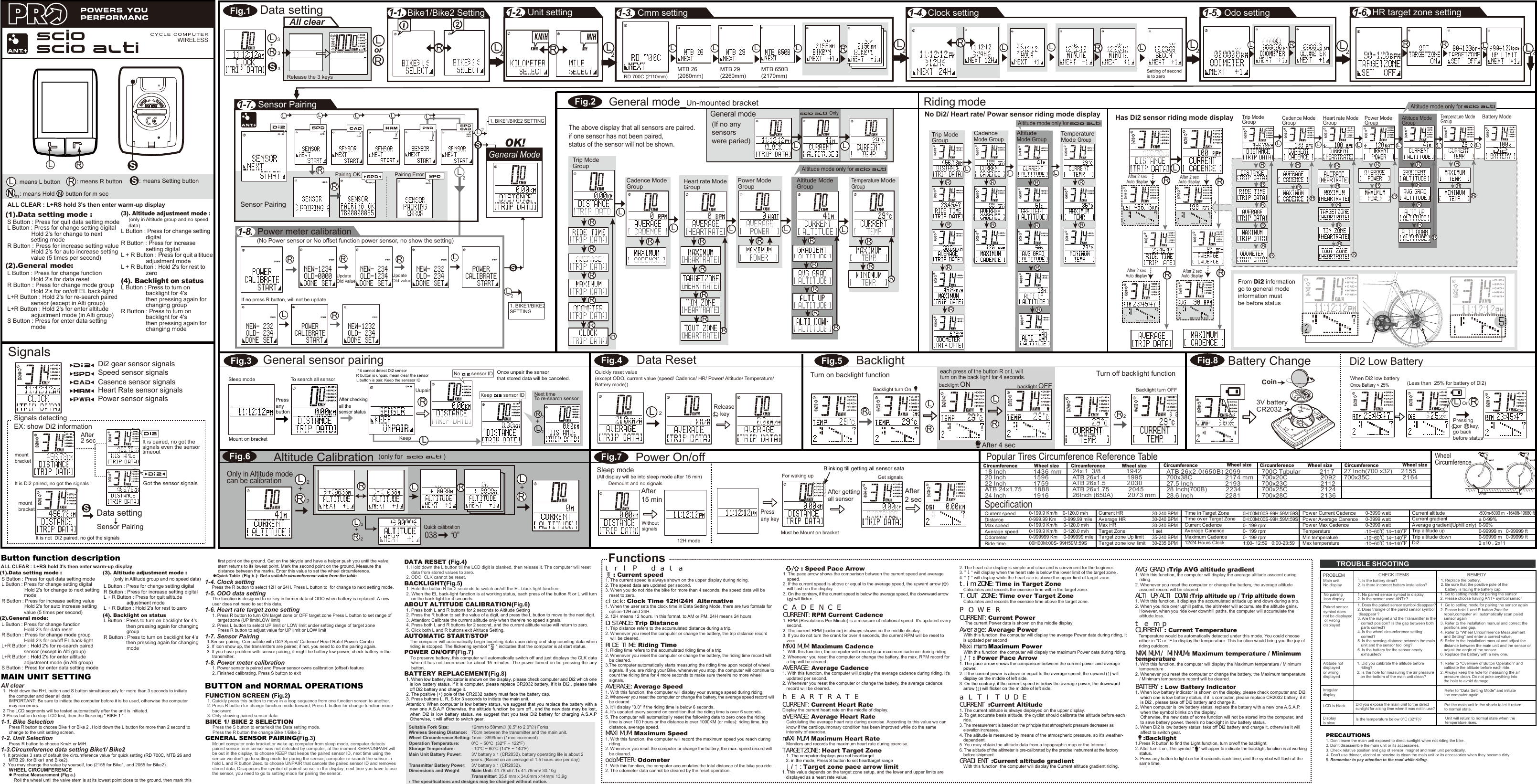
Release the 3 keys MTB 26 (2080mm)RD 700C (2110mm)MTB 29 (2260mm)MTB 650B (2170mm)Setting of second is to zeroOdo settingPairing OK Pairing Error : means Setting button : means L button  : means R buttonTrip Mode GroupCadence Mode Group Heart rate ModeGroupPower ModeGroupAltitude ModeGroupTemperature ModeGroupLBacklight turn OnTurn on backlight functionbacklight ONAfter 4 secbacklight OFF Backlight turn OFFRelease L  keyLLL L LRRRRR2RRLR2RL2For waking up Press any keySleep mode (All display will be into sleep mode after 15 min)Demount and no signalsMust be Mount on bracket12H modeAfter 15 minWithout signalsAfter 2 secGet signals After getting all sensorBlinking till getting all sensor sataPower On/offData Reset BacklightSpeed sensor signalsCasence sensor signals Heart Rate sensor signalsPower sensor signals Di2 gear sensor signalsSignals detecting EX: show Di2 informationIt is paired, no got the signals even the sensortimeoutAfter 2 secIt is not  Di2 paired, no got the signalsSignalsGot the sensor signalsIt is Di2 paired, no got the signalsSSData settingData settingSensor PairingDi2 Low Batterymount bracket mount bracket Altitude Calibration2RLRWhen Di2 low batteryOrOnce Battery < 25%(Less than  25% for battery of Di2)Pressing L or  R key, go back before statusLRLLLL1. BIKE1/BIKE2 SETTINGUpdate Old value(No Power sensor or No offset function power sensor, no show the setting)Update Old valueIf no press R button, will not be updateLLRRRRL1. BIKE1/BIKE2 SETTINGSLGeneral mode L LR RRRRRRRRRRGeneral mode_Un-mounted bracket   Riding modeRLRAll clear Bike1/Bike2 SettingRLRorUnit settingRCmm settingRRGeneral ModeOK!Clock settingL L L L LLRLRRRLBattery ChangeHR target zone settingRRLSensor Pairing3+3+LR3S Power meter calibrationSensor PairingLRRLSNm : means Hold  N  button for m secWIRELESS CYCLE COMPUTER1st2ndPopular Tires Circumference Reference TableWheel CircumferenceRL2+each press of the button R or L will turn on the back light for 4 seconds.“0”038Quick calibration2RL2+RL+Wheel sizeCircumference 18 Inch  1436 mm20 Inch  159622 Inch  1759ATB 24x1.75   188824 Inch  1916ATB 26x2.0(650B) 2099700x38C  2174 mm27.5 Inch  219328 Inch(700B)   223428.6 Inch  2281700C Tubular  2117700x20C  2092700x23C  2112700x25C  2124700x28C  2136Wheel sizeCircumference Wheel sizeCircumference Coin3V battery CR2032All clear   1.  Hold down the R+L button and S button simultaneously for more than 3 seconds to initiate the computer and clear all data.IMPORTANT: Be sure to initiate the computer before it is be used, otherwise the computer may run errors.2.The LCD segments will be tested automatically after the unit is initiated.3.Press button to stop LCD test, then the flickering " BIKE 1 ".1-1. Bike Selection Press R button to choose Bike 1 or Bike 2 . Hold down the L button for more than 2 second to change to the unit setting screen.1-2. Unit Selection  Press R button to choose Km/H or M/H. 1-3.Circumference data setting Bike1/ Bike2  1. It provides 3 sets of default tire circumference value for quick setting (RD 700C, MTB 26 and MTB 29, for Bike1 and Bike2).2. You may change the value by yourself, too (2155 for Bike1, and 2055 for Bike2).WHEEL CIRCUMFERENCE  Precise Measurement (Fig a.) Roll the wheel until the valve stem is at its lowest point close to the ground, then mark this first point on the ground. Get on the bicycle and have a helper push you until the valve stem returns to its lowest point. Mark the second point on the ground. Measure the distance between the marks. Enter this value to set the wheel circumference.Quick Table  (Fig b.): Get a suitable circumference value from the table.1-4. Clock settingPress the R button to select 12H or 24H. Press L button to  for change to next setting mode.1-5. ODO data setting  The function is designed to re-key in former data of ODO when battery is replaced. A new user does not need to set this data. 1-6. Heart rate target zone setting1. Press R button to turn ON target zone or OFF target zone Press L button to set range of target zone (UP limit/LOW limit) 2. Press L button to select UP limit or LOW limit under setting range of target zone Press R button to adjust value for UP limit or LOW limit 1-7. Sensor Pairing1.Sensor pairing  Compatible with Di2/ Speed/ Cadence/ Heart Rate/ Power/ Combo  2. If icon show up, the transmitters are paired; if not, you need to do the pairing again.3. If you have problem with sensor pairing, it might be battery low power; check battery in the transmitter.1-8. Power meter calibration1. Power sensor is paired and Power sensor owns calibration (offset) feature 2. Finished calibrating, Press S button to exit 1-1. 1-2. 1-3. 1-4. 1-5. 1-6.Fig.1Fig.2Fig.31-7.1-8.Fig.6Fig.5Fig.7Fig.8FUNCTION SCREEN (Fig.2)1. Quickly press this button to move in a loop sequence from one function screen to another.2. Press R button for change function mode forward, Press L button for change function mode  backward3. Only showing paired sensor data BIKE 1/ BIKE 2 SELECTION Press the S button to enter/exit the Data setting mode.Press the R button the change Bike 1/Bike 2.GENERAL SENSOR PAIRING(Fig.3)Mount computer onto bracket or wake up computer from sleep mode, computer detects paired sensor, one sensor was not detected by computer, at the moment KEEP/UNPAIR will be out in the display, to choose KEEP that keeps the paired sensor ID, next time using the sensor we don't go to setting mode for paring the sensor, computer re-search the sensor in hold L and R button 2sec. to choose UNPAIR that cancels the paired sensor ID and removes stored data, Disappears the symbol of paired sensor in the display, next time you have to use the sensor, you need to go to setting mode for pairing the sensor. Suitable Fork Size:   12mm to 50mm (0.5" to 2.0") Forks.    Wireless Sensing Distance:   70cm between the transmitter and the main unit.Wheel Circumference Setting: 1mm - 3999mm (1mm increment)Operation Temperature: 0°C ~ 50°C  (32°F ~ 122°F)Storage Temperature: - 10°C ~ 60°C (14°F ~ 140°F)Main Unit Battery Power:  3V battery x 1 (CR2032), battery operating life is about 2 years. (Based on an average of 1.5 hours use per day)Transmitter Battery Power:   3V battery x 1 (CR2032). Dimensions and Weight   Main Unit: 41.78 x57.1x 41.78mm/ 30.10g  Transmitter: 35.8 mm x 34.8mm x14mm/ 13.9g* The specifications and designs may be changed without notice.BUTTON and NORMAL OPERATIONSFunctionstrIP data    : Current speed 1. The current speed is always shown on the upper display during riding.2. The speed data are updated per second.3. When you do not ride the bike for more than 4 seconds, the speed data will be reset to zero.clock:Clock Time 12H/24H  Alternative1. When the user sets the clock time in Data Setting Mode, there are two formats for option-12H and 24H.2. 12H means 12 hours. In this format, to AM or PM. 24H means 24 hours.DISTANCE:Trip Distance1. Trip distance refers to the accumulated distance during a trip.2. Whenever you reset the computer or change the battery, the trip distance record will be cleared.RIDE TIME:Riding Time1. Riding time refers to the accumulated riding time of a trip.2. Whenever you reset the computer or change the battery, the riding time record will be cleared.3.The computer automatically starts measuring the riding time upon receipt of wheel signals. If you are riding your Bike, whenever you stop, the computer will continue to count the riding time for 4 more seconds to make sure there're no more wheel signals.AVERAGE:Average Speed1. With this function, the computer will display your average speed during riding.2. Whenever you reset the computer or change the battery, the average speed record will be cleared.3. It'll display "0.0" if the riding time is below 6 seconds.4. It's updated every second on condition that the riding time is over 6 seconds.5. The computer will automatically reset the following data to zero once the riding time is over 100 hours or the distance is over 1000KM (or miles): riding time, trip distance, average speed.MAXIMUM:Maximum Speed1. With this function, the computer will record the maximum speed you reach during riding. 2. Whenever you reset the computer or change the battery, the max. speed record will be cleared.odoMETER:Odometer1. With this function, the computer accumulates the total distance of the bike you ride.2. The odometer data cannot be cleared by the reset operation.Main unit No display1. Is the battery dead?2. Is there incorrect battery installation?1. Replace the battery.2. Be sure that the positive pole of the     battery is facing the battery cap.Paired sensor symbol doesnot be displayed or wrong displayed1. Go to setting mode for pairing the sensor again2. Please hold L and R button 2sec for repair,computer will automatically scan paied sensor again3. Refer to the installation manual and correct the positions and gap.4. Refer to "Wheel Circumference Measurement and Setting" and enter a correct value.5. Refer to the installation manual and adjust the distance between the main unit and the sensor or adjust the angle of the sensor.6. Replace the battery with a new one.1. Does the paried sensor symbol disappear?2. Does triangle of the pared sensor symbol disappear ?3. Are the magnet and the Transmitter in the correct position? Is the gap between both parts correct?4. Is the wheel circumference setting correct?5. Is the sensing distance between the main unit and the sensor too long?6. Is the battery for the sensor nearly exhausted?1. Did you calibrate the altitude before riding?2. Is the hole for measuring the air pressure on the bottom of the main unit clean?1. Refer to "Overview of Button Operation" and calibrate the altitude before each ride.2. Always keep the hole for measuring the air pressure clean. Do not poke anything into the hole to avoid damage.Irregular displayRefer to "Data Setting Mode" and initiate the computer again.LCD is black Did you expose the main unit to the direct sunlight for a long time when it was not in use?Put the main unit in the shade to let it return to normal state. Unit will return to normal state when the temperature rises.Is the temperature below 0°C (32°F)?PROBLEM CHECK ITEMS REMEDYAltitude not displayedor wrong displayedPRECAUTIONS1. Don’t leave the main unit exposed to direct sunlight when not riding the bike.2. Don’t disassemble the main unit or its accessories.3. Check relative position and gap of sensor, magnet and main unit periodically.4. Don’t use thinner, alcohol or benzine to clean the main unit or its accessories when they become dirty.5. Remember to pay attention to the road while riding. TROUBLE SHOOTINGDATA RESET (Fig.4)1. Hold down the L button till the LCD digit is blanked, then release it. The computer will reset data from stored values to zero.2. ODO, CLK cannot be reset.BACKLIGHT(Fig.5)1. Hold the button R for 2 seconds to switch on/off the EL black-light function.2. When the EL back-light function is at working status, each press of the button R or L will turn on the back light for 4 seconds.ABOUT ALTITUDE CALIBRATION(Fig.6)1. Press both L and R buttons for 2 seconds to Altitude Setting 2. Press the R button to set the value of a digit, and press the L button to move to the next digit.3. Attention: Calibrate the current altitude only when there're no speed signals.4. Press both L and R buttons for 2 second, and the current altitude value will return to zero. 5. Click both L and R buttons exit Altitude Setting.AUTOMATIC START/STOPThe computer will automatically begin counting data upon riding and stop counting data when riding is stopped. The flickering symbol "     " indicates that the computer is at start status.POWER ON/OFF(Fig.7)   To preserve battery, this computer will automatically switch off and just displays the CLK data when it has  not been used  for about 15  minutes. The power  turned on be  pressing the any button.BATTERY REPLACEMENT(Fig.8)1. When low battery indicator is shown on the display, please check computer and Di2 which one is low battery status, if it is computer, please replace CR2032 battery, if it is Di2 , please take off Di2 battery and charge it.   2. The positive (+) pole of the CR2032 battery must face the battery cap.3. Press buttons L, R, S for 3 seconds to initiate the main unit.Attention: When computer is low battery status, we suggest that you replace the battery with a new one A.S.A.P Otherwise, the altitude function be turn off , and the new data may be lost, when  Di2  is  low  battery  status,  we  suggest  that  you  take  Di2  battery  for  charging  A.S.A.P Otherwise, it will affect to switch gear.         : Speed Pace Arrow1. The pace arrow shows the comparison between the current speed and average speed.2. If the current speed is above or equal to the average speed, the upward arrow (   ) will flash on the display.3. On the contrary, if the current speed is below the average speed, the downward arrow  (   ) will flicker.CADENCECURRENT:RPM Current Cadence 1. RPM (Revolutions Per Minute) is a measure of rotational speed. It's updated every second.2. The current RPM (cadence) is always shown on the middle display.3. If you do not turn the crank for over 4 seconds, the current RPM will be reset to zero.MAXIMUM:Maximum Cadence 1. With this function, the computer will record your maximum cadence during riding.2. Whenever you reset the computer or change the battery, the max. RPM record for a trip will be cleared.AVERAGE:Average Cadence1. With this function, the computer will display the average cadence during riding. It's updated per second.2. Whenever you reset the computer or change the battery, the average cadence record will be cleared.hEARTRATECURRENT:Current Heart RateDisplay the current heart rate on the middle of display.aVERAGE:Average Heart RateCalculating the average heart rate during exercise. According to this value we can know if the cardiopulmonary condition has been improved while do the same intensity of exercise.mAXIMUM:Maximum Heart RateMonitors and records the maximum heart rate during exercise.TARGETZONE:Heart Target Zone1. The computer displays you set hearttarget 2. in the mode, Press S button to set hearttarget range   ↓ / ↑ :Target zone pace arrow limit1. This value depends on the target zone setup, and the lower and upper limits are displayed as a heart rate value.2. The heart rate display is simple and clear and is convenient for the beginner.3. ” ↓ “ will display when the heart rate is below the lower limit of the target zone .4. “ ↑ “ will display while the heart rate is above the upper limit of target zone. t.im ZONE:Time in Target ZoneCalculates and records the exercise time within the target zone.T.OUT ZONE:Time over Target ZoneCalculates and records the exercise time above the target zone.POWERCURRENT:Current Power    The current Power data is shown on the middle display  Average:Average Power   With this function, the computer will display the average Power data during riding, it is updated per second Maximum:Maximum Power With this function, the computer will dispaly the maximum Power data during riding.↓ / ↑ : Power Pace Arrow1. The pace arrow shows the comparison between the current power and average power. 2. If the current power is above or equal to the average speed, the upward (↑) will display on the middle of left side.3. On the contrary, if the current speed is below the average power, the downward arrow (↓) will flicker on the middle of left side. aLTITUDECURRENT :Current Altitude1. The current altitude is always displayed on the upper display.2. To get accurate basis altitude, the cyclist should calibrate the altitude before each ride.3. The measurement is based on the principle that atmospheric pressure decreases as elevation increases.4. The altitude is measured by means of the atmospheric pressure, so it's weather- dependent.5. You may obtain the altitude data from a topographic map or the Internet.6. The altitude of the altimeter is pre-calibrated by the precise instrument at the factory before shipment.GRADIENT :Current altitude gradientWith this function, the computer will display the Current altitude gradient riding.AVG GRAD :Trip AVG altitude gradient1. With this function, the computer will display the average altitude asscent during riding.2. Whenever you reset the computer or change the battery, the average altitude asscent record will be cleared.ALTI UP/ALTI DOWN :Trip altitude up / Trip altitude down1. With this function, it displays the accumulated altitude up and down during a trip.2. When you ride over uphill paths, the altimeter will accumulate the altitude gains. However, when you ride over downhill paths, the computer will accumulate the altitude loss.tempCURRENT : Current TemperatureTemperature would be automatically detected under this mode. You could choose either in °C or °F to display the temperature. This function would bring you the joy of riding outdoors.MAXIMUM / MINMUM : Maximum temperature / Minimum temperature1. With this function, the computer will display the Maximum temperature / Minimum temperature .2. Whenever you reset the computer or change the battery, the Maximum temperature / Minimum temperature record will be cleared.BATTERY : Low Battery Indicator1. When low battery indicator is shown on the display, please check computer and Di2 which one is low battery status, if it is computer, please replace CR2032 battery, if it is Di2 , please take off Di2 battery and charge it. 2. When computer is low battery status, replace the battery with a new one A.S.A.P. when the symbol blinks on the display.Otherwise, the new data of some function will not be stored into the computer, and to save battery power, there's no backlight in low battery status. 3. When Di2 is low battery status, take off Di2 battery and charge it, otherwise it will affect to switch gear.     :Backlight1.Press R button to find the Light function, turn on/off the backlight.2. After turn it on, The symbol "    " will apper to indicate the backlight function is at working status.3. Press any button to light on for 4 seconds each time, and the symbol will flash at the same time.Display is slowNo pairiing icon display1. No paired sensor symbol in display 2. Is the sensor used ANT+?  1. Go to setting mode for pairing the sensor 2. Please choose having ANT+ symbol sensor Only in Altitude mode can be calibrationL2L2L2L2L2L2L2L2SLRRRRFrom Di2 information go to general mode information must be before status Has Di2 sensor riding mode display LRRRRRRRRRRRRRRRRRRLLLLLRRRRRRRRCadence Mode Group Heart rate ModeGroup Power ModeGroup Altitude ModeGroupTemperature ModeGroupBattery ModeTrip Mode GroupRRNo Di2/ Heart rate/ Powar sensor riding mode display After 2 sec Auto displayAfter 2 sec Auto displayAfter 2 sec Auto displayAfter 2 sec Auto displayLLLRRR R RRR R RRRRRTrip Mode GroupCadence Mode GroupAltitude Mode GroupTemperature Mode Group2Fig.42all the sensor statusAfter checkingMount on bracketSleep mode To search all sensorPress any buttonL button is pair, Keep the senssor IDRIf it cannot detect Di2 sensorR button is unpair, mean clear the sensorNext time RL+2To re-search sensor No        sensor IDLKeepUupairKeep        sensor IDGeneral sensor pairingThe above display that all sensors are paired. if one sensor has not been paired, status of the sensor will not be shown.(only for                      )Altitude mode only for                      OnlyAltitude mode only for                      (1).Data setting mode :  S Button : Press for quit data setting mode  L Button : Press for change setting digital    Hold 2's for change to next setting mode  R Button : Press for increase setting value   Hold 2's for auto increase setting  value (5 times per second)(2).General mode: L Button : Press for change function              Hold 2's for data reset R Button : Press for change mode group              Hold 2's for on/off EL back-light L+R Button : Hold 2's for re-search paired sensor (except in Alti group) L+R Button : Hold 2's for enter altitude    adjustment mode (in Alti group) S Button : Press for enter data setting mode Button function description (3). Altitude adjustment mode : (only in Altitude group and no speed data) L Button : Press for change setting digital R Button : Press for increase setting digitalL + R Button : Press for quit altitude adjustment modeL + R Button : Hold 2's for rest to zero(4). Backlight on statusL Button : Press to turn on backlight for 4's   then pressing again for changing groupR Button : Press to turn on backlight for 4's   then pressing again for changing mode ALL CLEAR : L+RS hold 3's then enter warm-up display MAIN UNIT SETTINGCurrent speed DistanceMax speed Average speedOdometerRide timeCurrent HRAverage HRMax HRTarget Zone Target zone Up limit Target zone low limit 0-199.9 Km/h    0-120.0 m/h0-999.99 Km  0-999.99 mile 0-199.9 Km/h  0-120.0 m/h0-199.9 Km/h  0-120.0 m/h0-999999 Km  0-999999 mile00H00M:00S- 99H59M:59S 0- 199 rpm0- 199 rpm0- 199 rpm1:00- 12:59   0:00-23:5930-240 BPM30-240 BPM30-240 BPM1 set35-240 BPM30-235 BPMTemperatureMin temperatureMax temperature0-3999 watt0-3999 watt0-3999 watt-10~60℃ 14~140℉-10~60℃ 14~140℉-10~60℃ 14~140℉Time in Target Zone Time over Target ZoneCurrent CadenceAverage CanenceMaximum Cadence12/24 Hours Clock 0H:00M:00S-99H:59M:59S0H:00M:00S-99H:59M:59SPow er Current CadencePow er Average CanencePow er Max Cadence24x 1  3/8  1942ATB 26x1.4   1995ATB 26x1.5   2030ATB 26x1.75    204526Inch (650A)    2073 mmWheel sizeCircumference 27 Inch(700 x32)  2155700x35C  2164Wheel sizeCircumference Specification Current altitudeCurrent gradientAverage gradient(Uphill only)Trip altitude up Trip altitude downDi2-500m-6000 m  -1640ft-19680 ft± 0-99%0-99%0-99999 m   0-99999 ft0-99999 m   0-99999 ft2 x10 , 2x11(1).Data setting mode :  S Button : Press for quit data setting mode  L Button : Press for change setting digital    Hold 2's for change to next setting mode  R Button : Press for increase setting value   Hold 2's for auto increase setting  value (5 times per second)(2).General mode: L Button : Press for change function              Hold 2's for data reset R Button : Press for change mode group              Hold 2's for on/off EL back-light L+R Button : Hold 2's for re-search paired sensor (except in Alti group) L+R Button : Hold 2's for enter altitude   adjustment mode (in Alti group) S Button : Press for enter data setting mode ALL CLEAR : L+RS hold 3's then enter warm-up display (3). Altitude adjustment mode :   (only in Altitude group and no speed data) L Button : Press for change setting digital R Button : Press for increase setting digitalL + R Button : Press for quit altitude adjustment modeL + R Button : Hold 2's for rest to zero(4). Backlight on statusL Button : Press to turn on backlight for 4's then pressing again for changing groupR Button : Press to turn on backlight for 4's then pressing again for changing mode Once unpair the sensor that stored data will be canceled. Quickly reset value (except ODO, current value (speed/ Cadence/ HR/ Power/ Altitude/ Temperature/Battery mode))Turn off backlight function(If no any sensors were paried)Altitude mode only for
Federal Communication Commission Interference Statement This equipment has been tested and found to comply with the limits for a Class B digital device, pursuant to Part 15 of the FCC Rules. These limits are designed to provide reasonable protection against harmful interference in a residential installation. This equipment generates, uses and can radiate radio frequency energy and, if not installed and used in accordance with the instructions, may cause harmful interference to radio communications. However, there is no guarantee that interference will not occur in a particular installation. If this equipment does cause harmful interference to radio or television reception, which can be determined by turning the equipment off and on, the user is encouraged to try to correct the interference by one of the following measures: . Reorient or relocate the receiving antenna. . Increase the separation between the equipment and receiver. . Connect the equipment into an outlet on a circuit different from that to which the receiver is connected. . Consult the dealer or an experienced radio/TV technician for help. FCC Caution: To assure continued compliance, any changes or modifications not expressly approved by the party responsible for compliance could void the user's authority to operate this equipment. (Example - use only shielded interface cables when connecting to computer or peripheral devices). This device complies with Part 15 of the FCC Rules. Operation is subject to the following two conditions: (1) This device may not cause harmful interference, and (2) This device must accept any interference received, including interference that may cause undesired operation.

Navigation menu