ECOLUMINA TECHNOLOGIES 0504S01101 CosWe User Manual

EcoLumina Technologies Inc. CosWe

User manual

 CosWe  Installation  Guide      EcoLumina     CosWe            Installation Guide
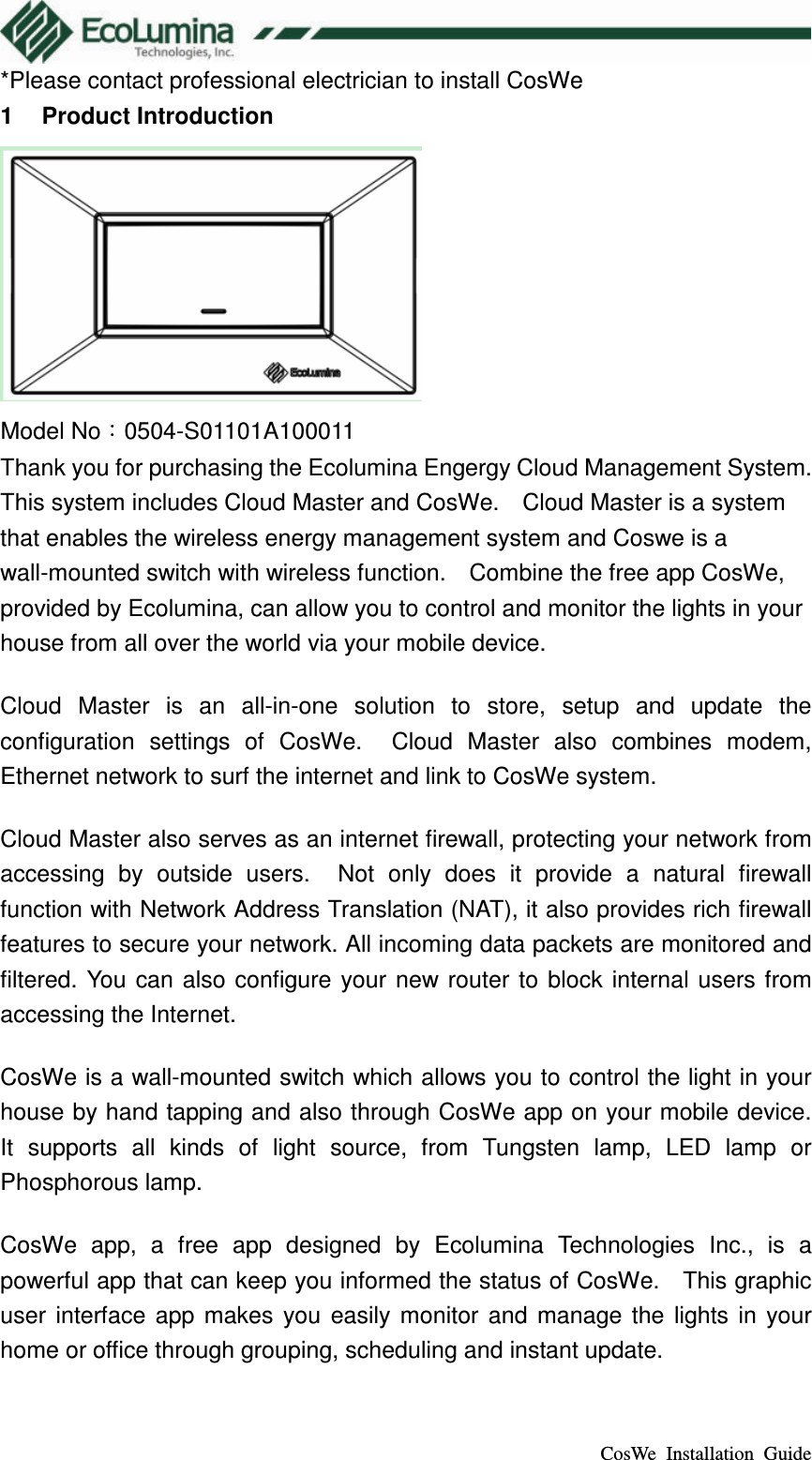
 CosWe  Installation  Guide *Please contact professional electrician to install CosWe 1  Product Introduction  Model No:0504-S01101A100011 Thank you for purchasing the Ecolumina Engergy Cloud Management System.   This system includes Cloud Master and CosWe.    Cloud Master is a system that enables the wireless energy management system and Coswe is a wall-mounted switch with wireless function.    Combine the free app CosWe, provided by Ecolumina, can allow you to control and monitor the lights in your house from all over the world via your mobile device. Cloud  Master  is  an  all-in-one  solution  to  store,  setup  and  update  the configuration  settings  of  CosWe.    Cloud  Master  also  combines  modem, Ethernet network to surf the internet and link to CosWe system. Cloud Master also serves as an internet firewall, protecting your network from accessing  by  outside  users.    Not  only  does  it  provide  a  natural  firewall function with Network Address Translation (NAT), it also provides rich firewall features to secure your network. All incoming data packets are monitored and filtered.  You  can also configure your  new router  to block  internal users  from accessing the Internet. CosWe is a wall-mounted switch which allows you to control the light in your house by hand tapping and also through CosWe app on your mobile device.   It  supports  all  kinds  of  light  source,  from  Tungsten  lamp,  LED  lamp  or Phosphorous lamp.   CosWe  app,  a  free  app  designed  by  Ecolumina  Technologies  Inc.,  is  a powerful app that can keep you informed the status of CosWe.    This graphic user  interface  app  makes  you  easily  monitor  and  manage  the  lights  in  your home or office through grouping, scheduling and instant update.
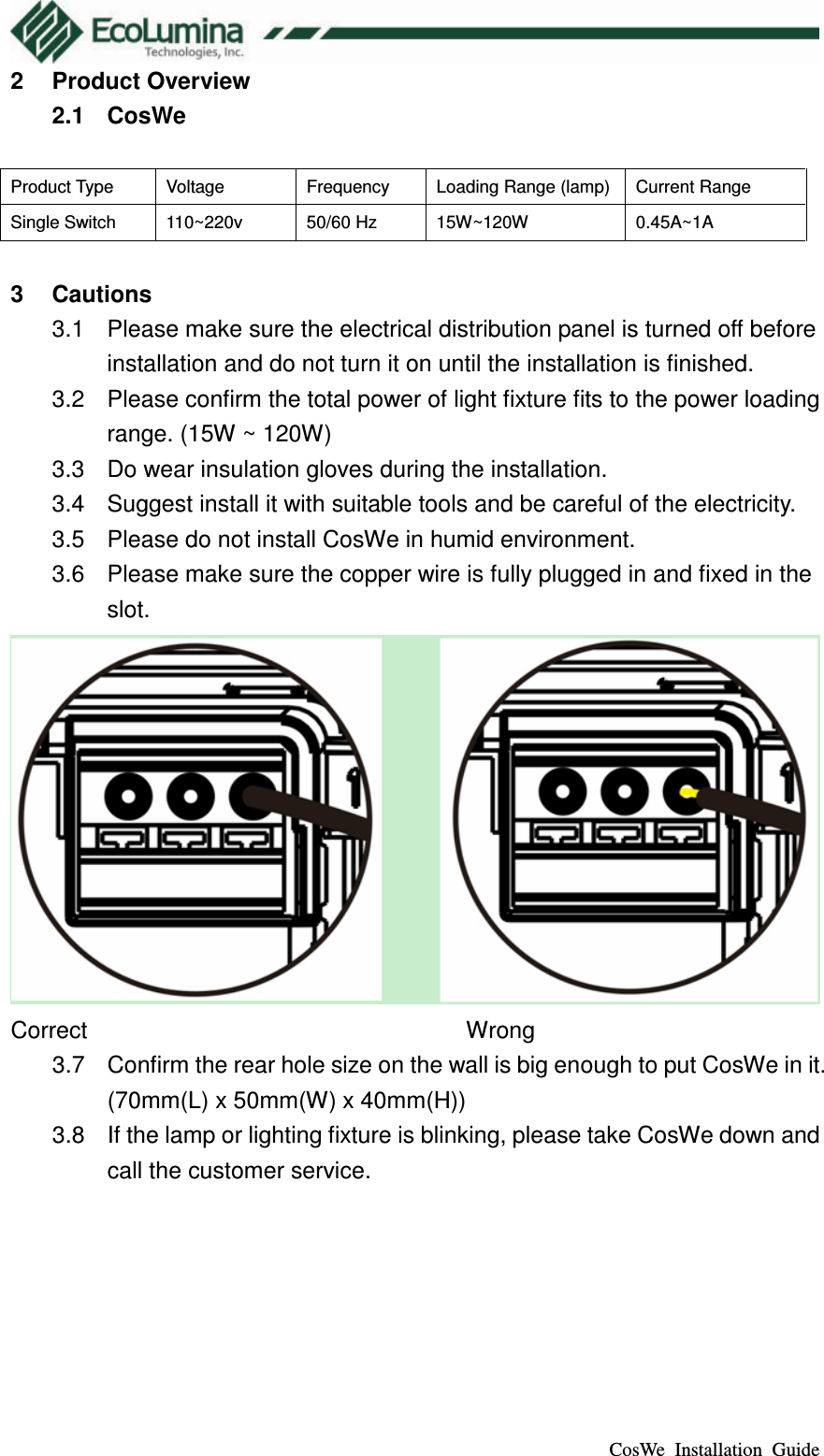
 CosWe  Installation  Guide 2  Product Overview 2.1  CosWe  Product Type  Voltage  Frequency  Loading Range (lamp) Current Range Single Switch  110~220v  50/60 Hz  15W~120W  0.45A~1A  3  Cautions 3.1  Please make sure the electrical distribution panel is turned off before installation and do not turn it on until the installation is finished. 3.2  Please confirm the total power of light fixture fits to the power loading range. (15W ~ 120W) 3.3  Do wear insulation gloves during the installation. 3.4  Suggest install it with suitable tools and be careful of the electricity. 3.5  Please do not install CosWe in humid environment. 3.6  Please make sure the copper wire is fully plugged in and fixed in the slot.  Correct                      Wrong 3.7  Confirm the rear hole size on the wall is big enough to put CosWe in it. (70mm(L) x 50mm(W) x 40mm(H)) 3.8  If the lamp or lighting fixture is blinking, please take CosWe down and call the customer service.
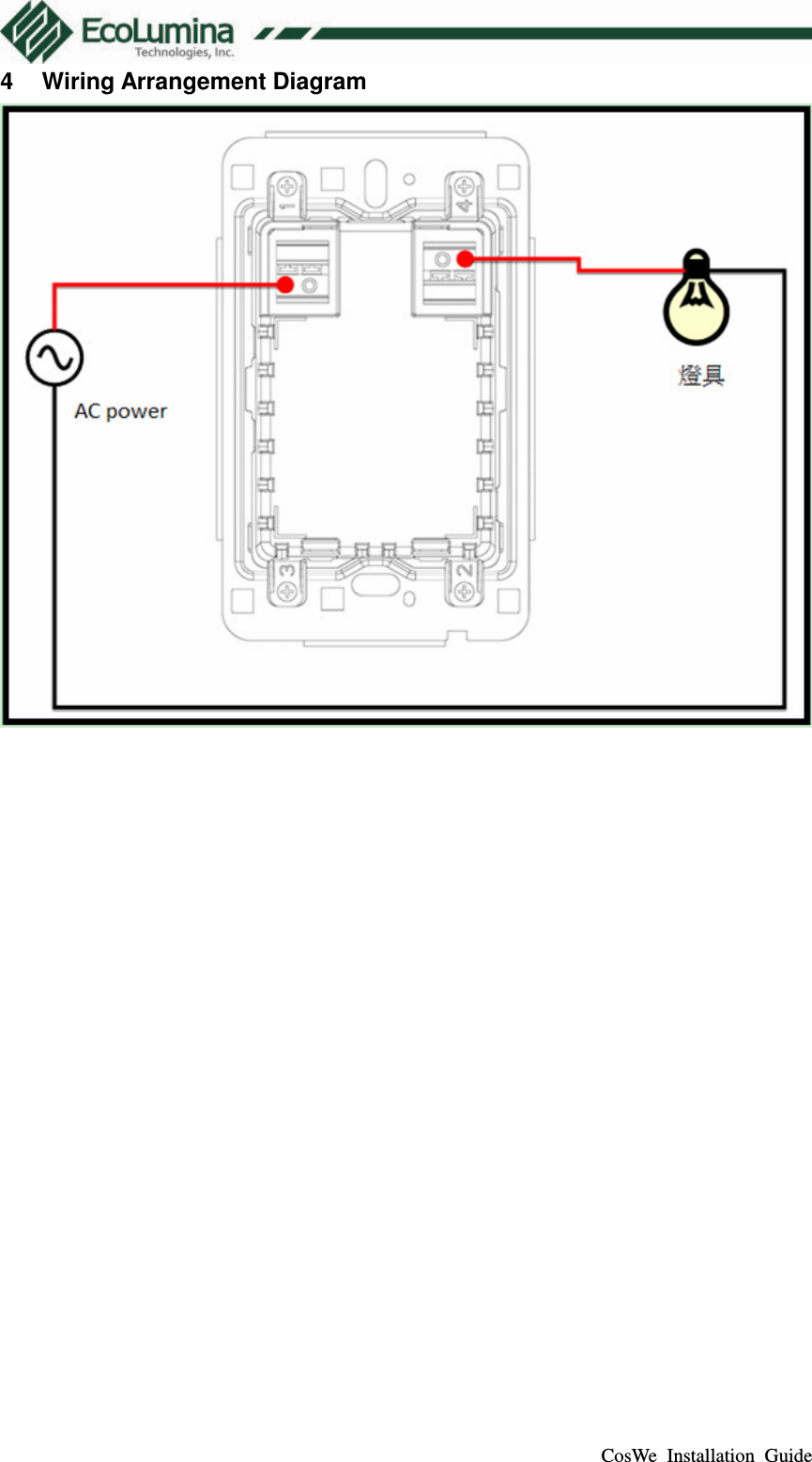
 CosWe  Installation  Guide 4  Wiring Arrangement Diagram
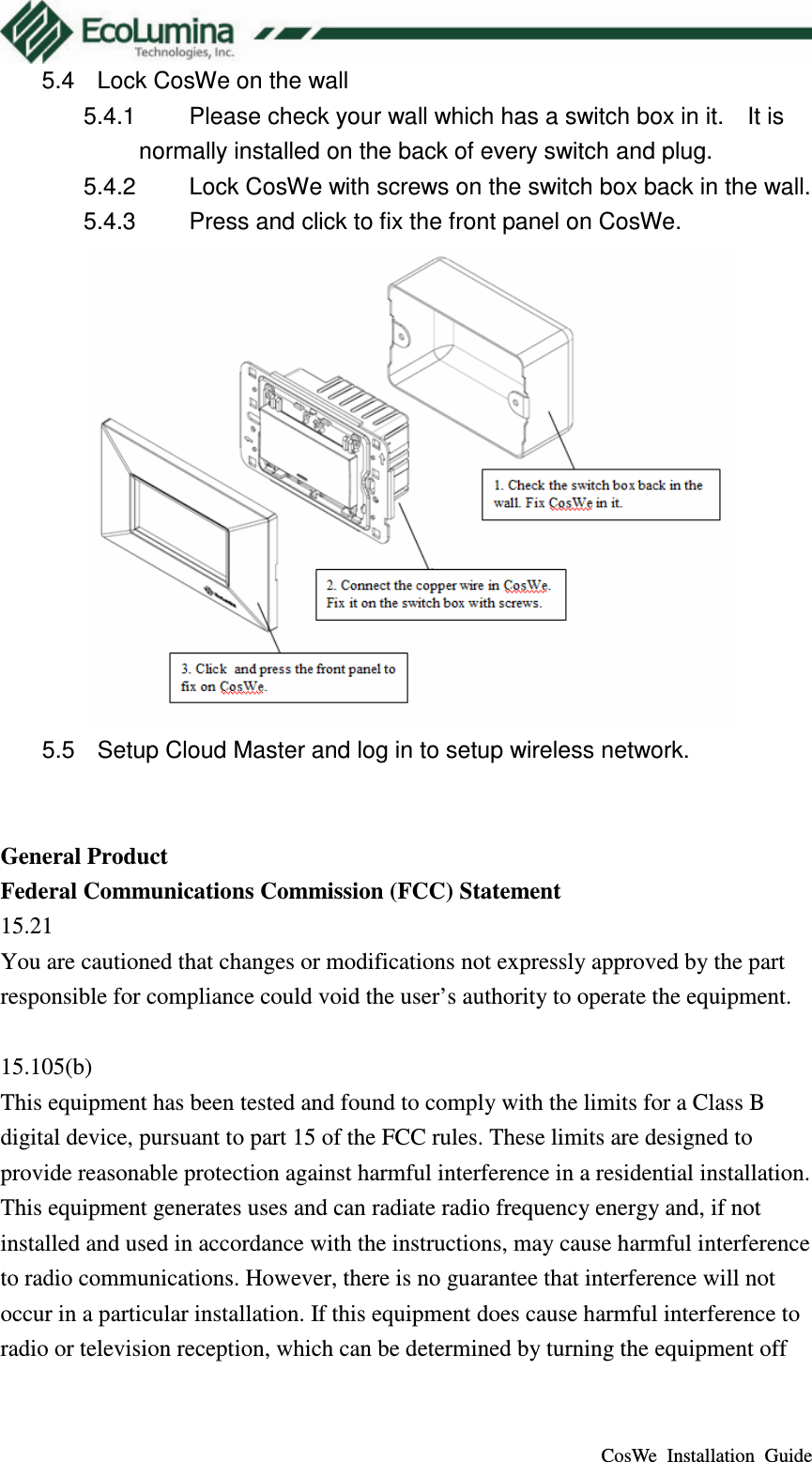
 CosWe  Installation  Guide 5  Installation SOP 5.1  Install CosWe and log in Cloud Master 5.1.1  Turn on the Cloud Master 5.1.2  Download the free app CosWe on App store. (http://itunes.apple.com/tw/artist/ecolumina-technologies-inc./id453934371?l=zh)   5.1.3  Turn on the app, and log into the advanced mode to increase a new device. 5.1.4  Use the camera to read the QR code on the back of the CosWe to add in a new device. 5.1.5  If QR code is not recognizable, please key in the 16 digit serial number. 5.2  Install CosWe 5.2.1  Turn off the electricity distribution panel. 5.2.2  Put on insulation gloves. 5.2.3  Dismount the original switch on the wall. 5.2.4  Make sure the copper wire length is suitable.    If too long, please cut it shorter to a proper length. 5.2.5  Copper wire exposed length is 10mm and diameter is between ψ1 to ψ2. (See the figure below)  5.2.6  Turn the electricity distribution panel on. 5.3  Test CosWe 5.3.1  Wait for 1 minute and press the switch to check if it works. (Note: Light will be turned on in 1~5 seconds for different lighting fixture.) 5.3.2  If manual switching works well, please turn off the light. 5.3.3  Turn on the light through CosWe app to check wireless mode function is ok. 5.3.4  If manual and App function works well, please lock the switch back to the wall.    (Please check to see if the space back in the wall is larger than 70mm(L) x 50mm(W) x 40mm(H).
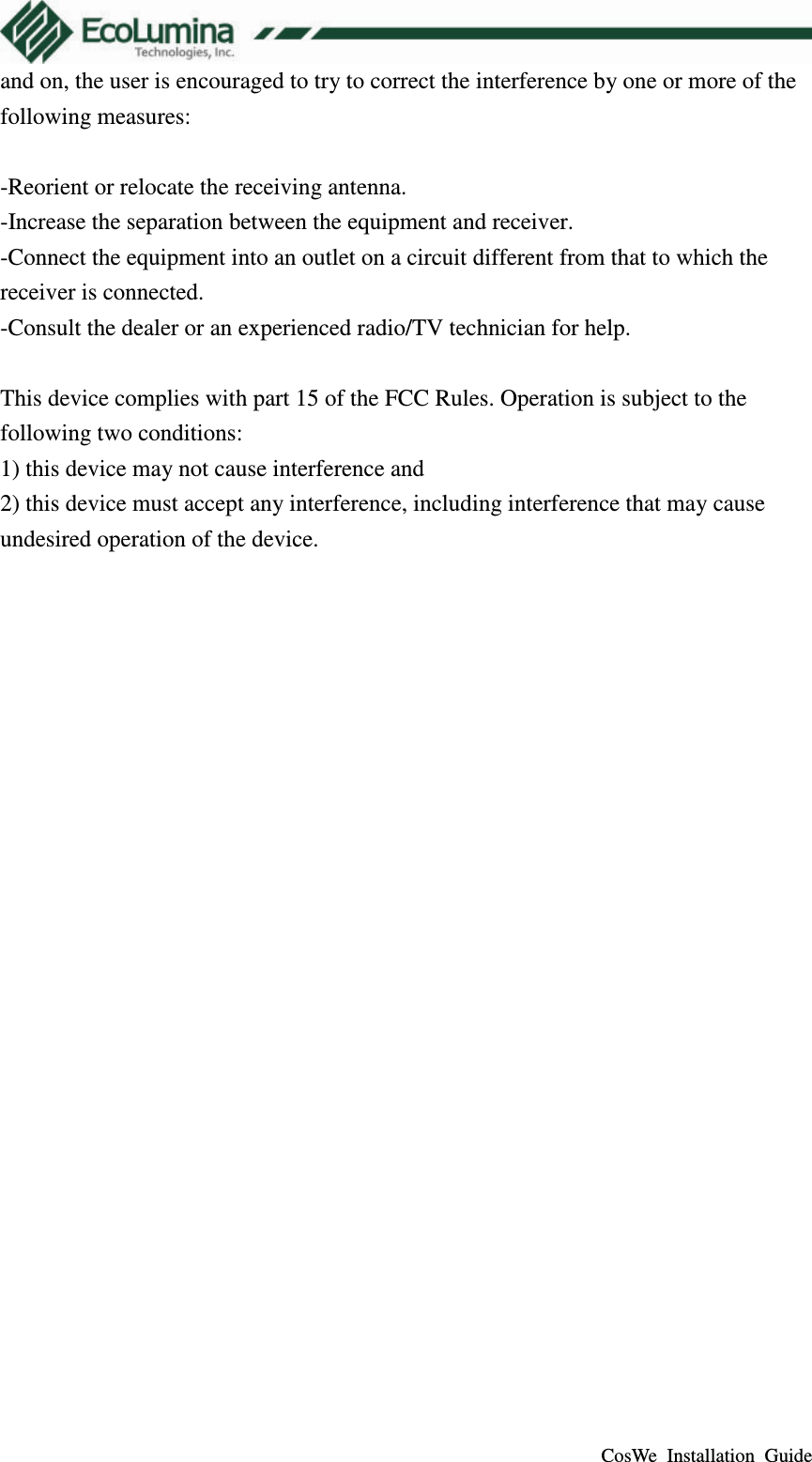
 CosWe  Installation  Guide 5.4  Lock CosWe on the wall 5.4.1  Please check your wall which has a switch box in it.    It is normally installed on the back of every switch and plug. 5.4.2  Lock CosWe with screws on the switch box back in the wall. 5.4.3  Press and click to fix the front panel on CosWe.  5.5  Setup Cloud Master and log in to setup wireless network.   General Product Federal Communications Commission (FCC) Statement 15.21 You are cautioned that changes or modifications not expressly approved by the part responsible for compliance could void the user’s authority to operate the equipment.  15.105(b) This equipment has been tested and found to comply with the limits for a Class B digital device, pursuant to part 15 of the FCC rules. These limits are designed to provide reasonable protection against harmful interference in a residential installation. This equipment generates uses and can radiate radio frequency energy and, if not installed and used in accordance with the instructions, may cause harmful interference to radio communications. However, there is no guarantee that interference will not occur in a particular installation. If this equipment does cause harmful interference to radio or television reception, which can be determined by turning the equipment off
 CosWe  Installation  Guide and on, the user is encouraged to try to correct the interference by one or more of the following measures:  -Reorient or relocate the receiving antenna. -Increase the separation between the equipment and receiver. -Connect the equipment into an outlet on a circuit different from that to which the receiver is connected. -Consult the dealer or an experienced radio/TV technician for help.  This device complies with part 15 of the FCC Rules. Operation is subject to the following two conditions:   1) this device may not cause interference and 2) this device must accept any interference, including interference that may cause undesired operation of the device.

Navigation menu