User Manual
www.eladit.com
ELAD FDM-S1
USER MANUAL

ELAD FDM-S1 User Manual Rev 1.05 06/2013
© 2013 ELAD S.r.l. All rights reserved. No part of this document may be reproduced, published, used, disclosed or disseminated in any form or
by any means, electronic, photocopying or otherwise, without prior written permission of ELAD S.r.l.
2
Index
1 FDM-S1 Overview ................................................................................................................................. 3
1.1 Description of the ELAD FDM-S1 receiver .................................................................................... 3
1.2 Front Panel Description ................................................................................................................ 3
1.3 Rear Panel Description .................................................................................................................. 4
2 Software & Driver Installation .............................................................................................................. 4
2.1 Software installation in Windows 7 and Windows XP .................................................................. 4
2.1.1 First-time install in Windows 7 ............................................................................................. 4
2.1.2 First-time install in Windows XP ......................................................................................... 10
2.1.3 Update an existing software version .................................................................................. 14
2.2 FDM-S1 USB driver ...................................................................................................................... 15
2.2.1 FDM-S1 USB driver installation in Windows 7 .................................................................... 15
2.2.2 FDM-S1 USB driver installation in Windows XP .................................................................. 23
2.3 WoodBoxRadio Tmate USB driver installation .......................................................................... 32
2.3.1 WoodBoxRadio Tmate USB driver installation in Windows 7 ........................................... 32
2.3.2 WoodBoxRadio Tmate USB driver installation in Windows XP .......................................... 41
Annex A FDM-S1 External Hardware Connector ........................................................................................ 51
ELAD FDM-S1 User Manual Rev 1.05 06/2013
© 2013 ELAD S.r.l. All rights reserved. No part of this document may be reproduced, published, used, disclosed or disseminated in any form or
by any means, electronic, photocopying or otherwise, without prior written permission of ELAD S.r.l.
3
1 FDM-S1 Overview
1.1 Description of the ELAD FDM-S1 receiver
The radio-receiver ELAD FDM-S1 is conceived as a SDR (Software Defined Radio). This approach means
that the receiver is composed of an Hardware RF front-end and a PC with an ELAD software (ELAD FDM-
SW1).
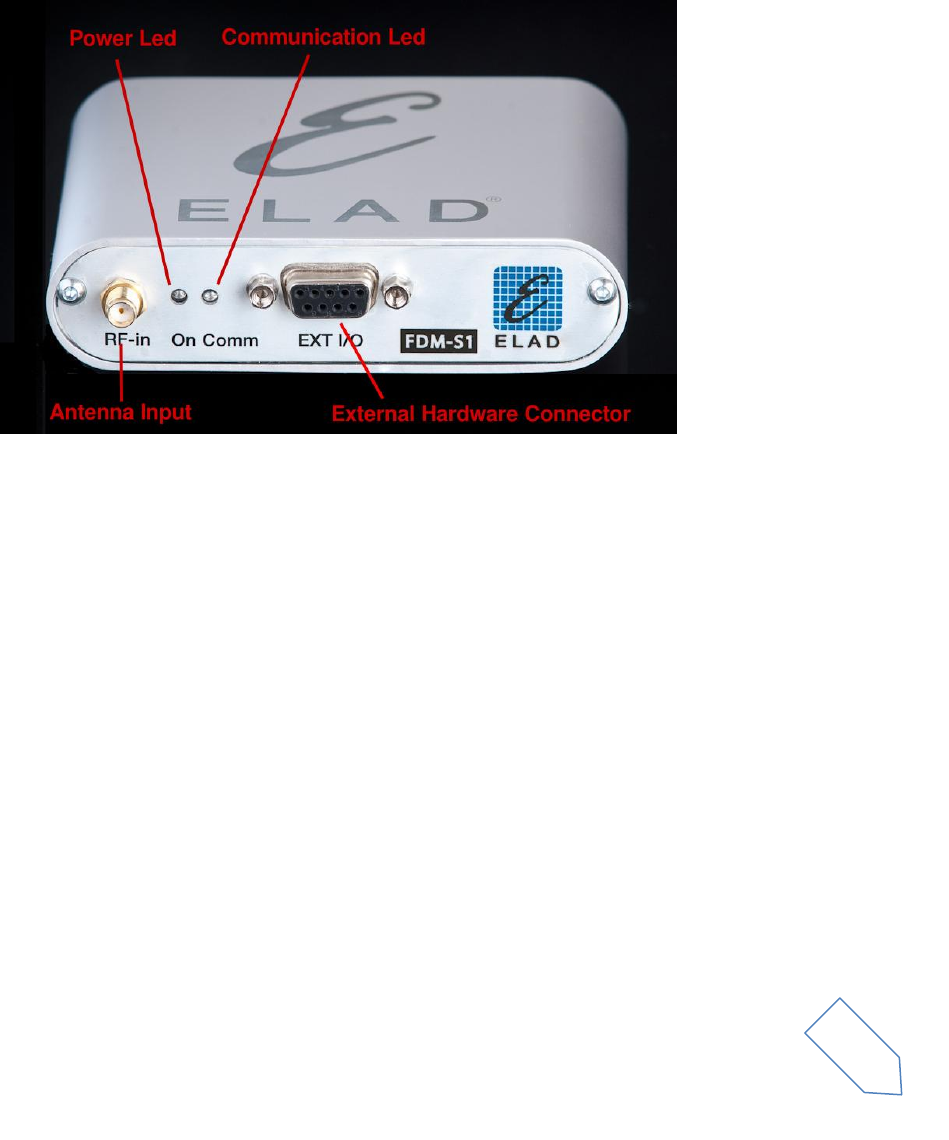
1.2 Front Panel Description
Power Led
Turns on when the receiver is connected to a USB port of the PC
Communication Led
Shows the communication between the receiver and the PC
Antenna Input
SMA 50Ω input connector.
External Hardware Connector
DB9 connector for external hardware (eg pre-selector filters board)
ELAD FDM-S1 User Manual Rev 1.05 06/2013
© 2013 ELAD S.r.l. All rights reserved. No part of this document may be reproduced, published, used, disclosed or disseminated in any form or
by any means, electronic, photocopying or otherwise, without prior written permission of ELAD S.r.l.
4
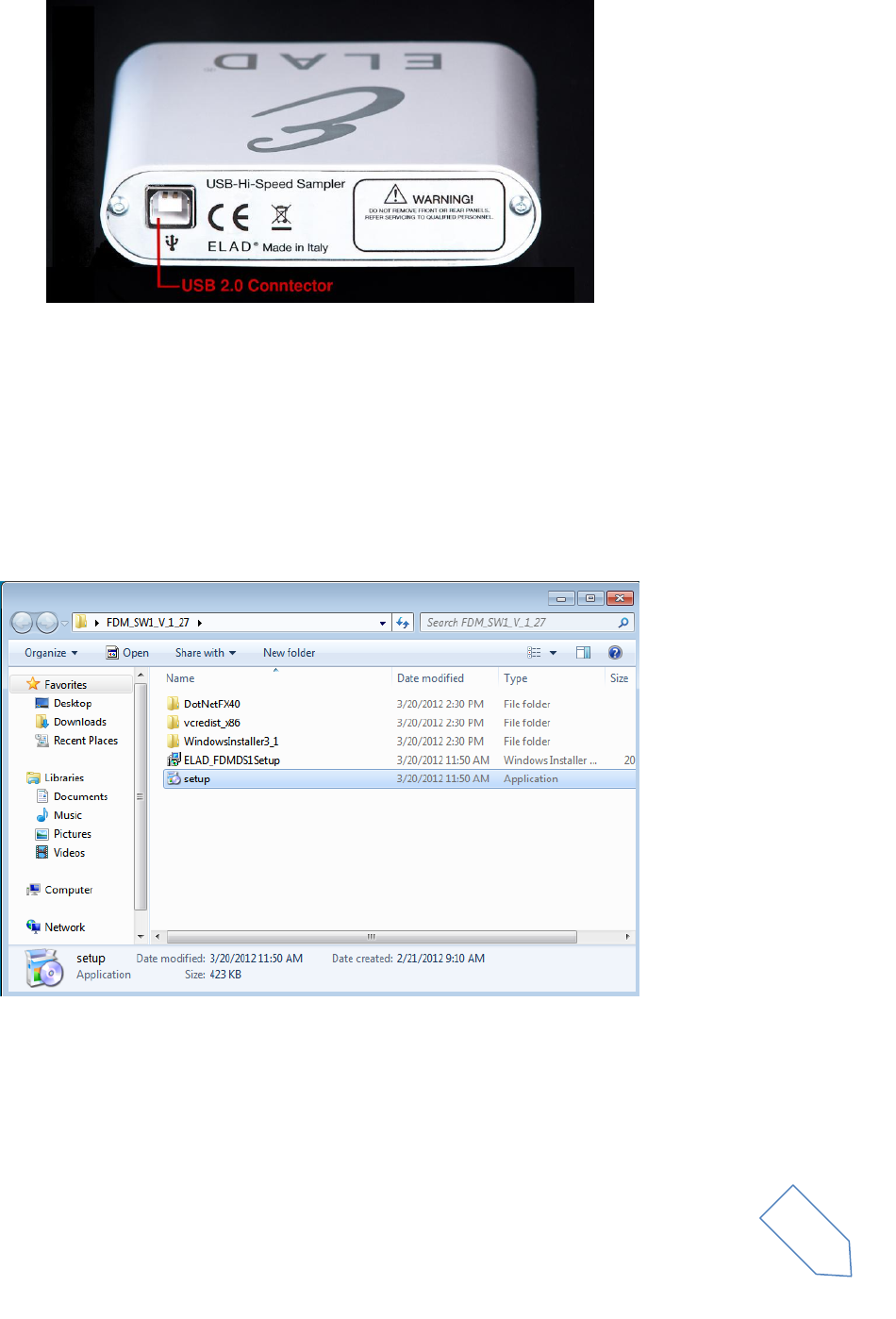
1.3 Rear Panel Description
USB 2.0 Connector
Connection with the PC. Please use the supplied cable.
2 Software & Driver Installation
2.1 Software installation in Windows 7 and Windows XP
2.1.1 First-time install in Windows 7
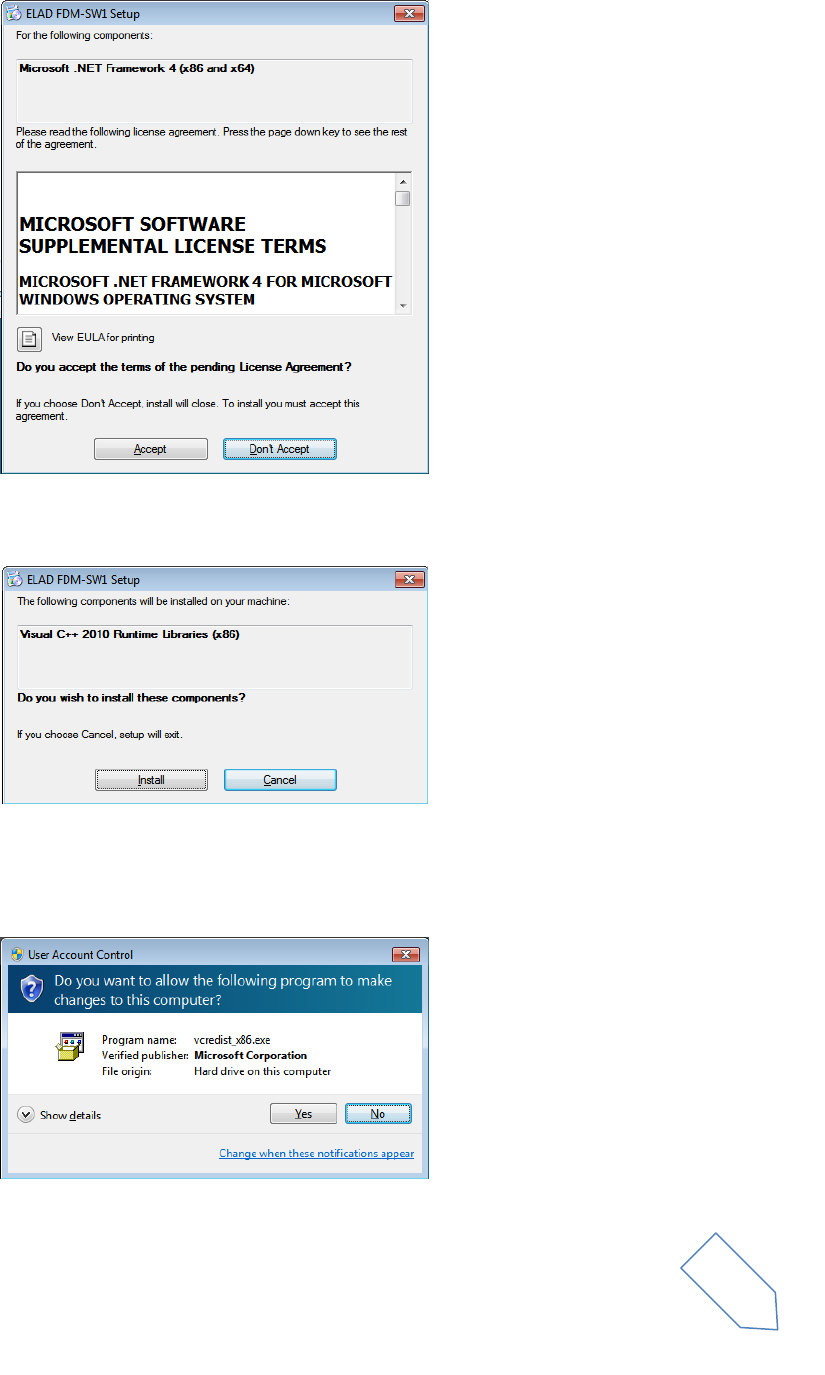
Double-click the file “setup.exe” in the CD .
The windows installer first installs the prerequisites:
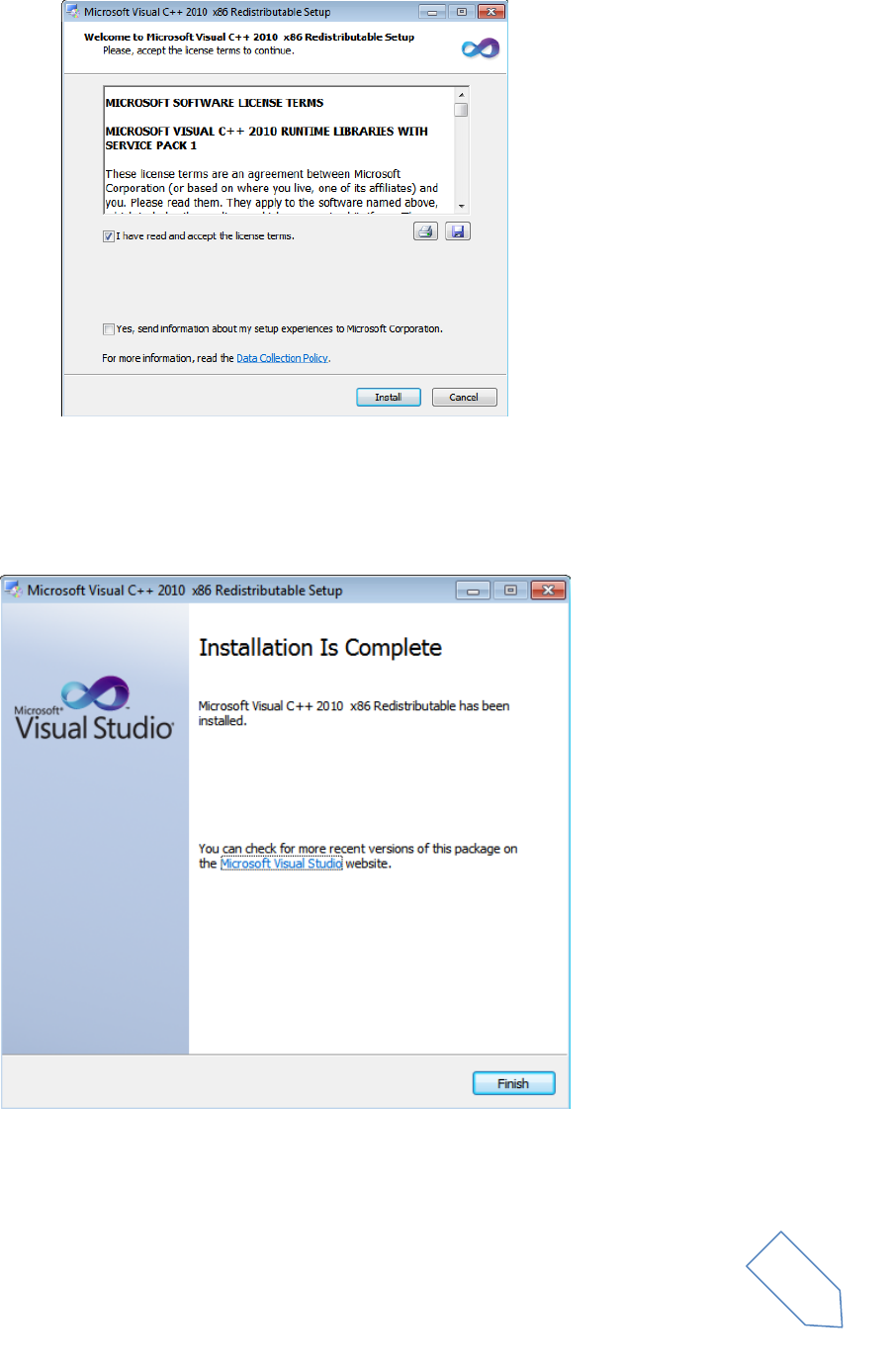
Microsoft VC++ 2010 Runtime libraries
Microsoft .NET Framework 4.0
and then the FDM-SW1 software.
ELAD FDM-S1 User Manual Rev 1.05 06/2013
© 2013 ELAD S.r.l. All rights reserved. No part of this document may be reproduced, published, used, disclosed or disseminated in any form or
by any means, electronic, photocopying or otherwise, without prior written permission of ELAD S.r.l.
5
Click on “Accept”
Click on “Install”
Click on “Yes”
ELAD FDM-S1 User Manual Rev 1.05 06/2013
© 2013 ELAD S.r.l. All rights reserved. No part of this document may be reproduced, published, used, disclosed or disseminated in any form or
by any means, electronic, photocopying or otherwise, without prior written permission of ELAD S.r.l.
6
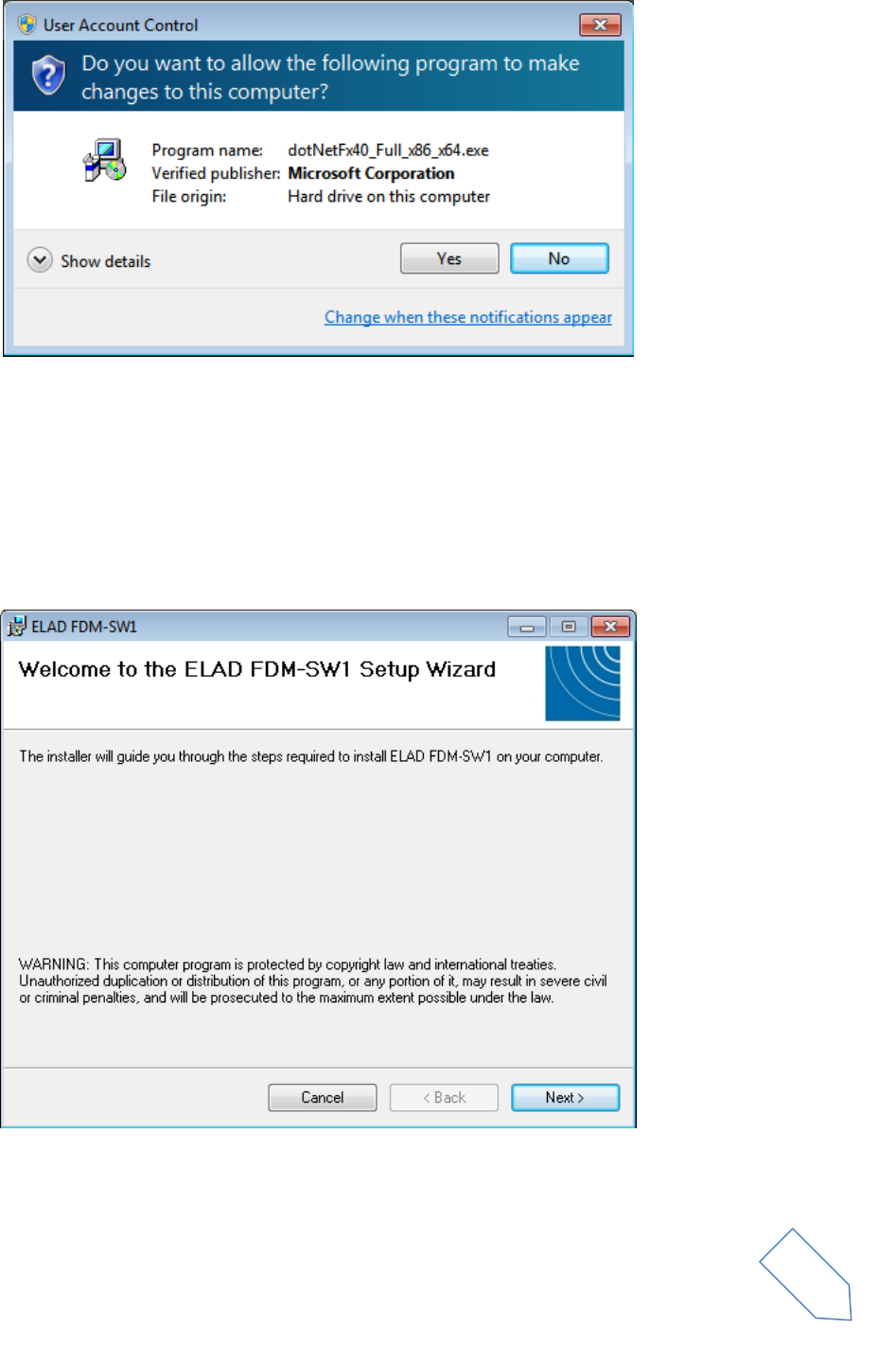
Click on Install
Microsoft Visual C++ 2010 x86 Redistributable installation is complete, click on “Finish”
Click on “Yes” to start the installation of the .Net Framework 4.0
ELAD FDM-S1 User Manual Rev 1.05 06/2013
© 2013 ELAD S.r.l. All rights reserved. No part of this document may be reproduced, published, used, disclosed or disseminated in any form or
by any means, electronic, photocopying or otherwise, without prior written permission of ELAD S.r.l.
7
Click to “Next” to start the FDM-SW1 software installation
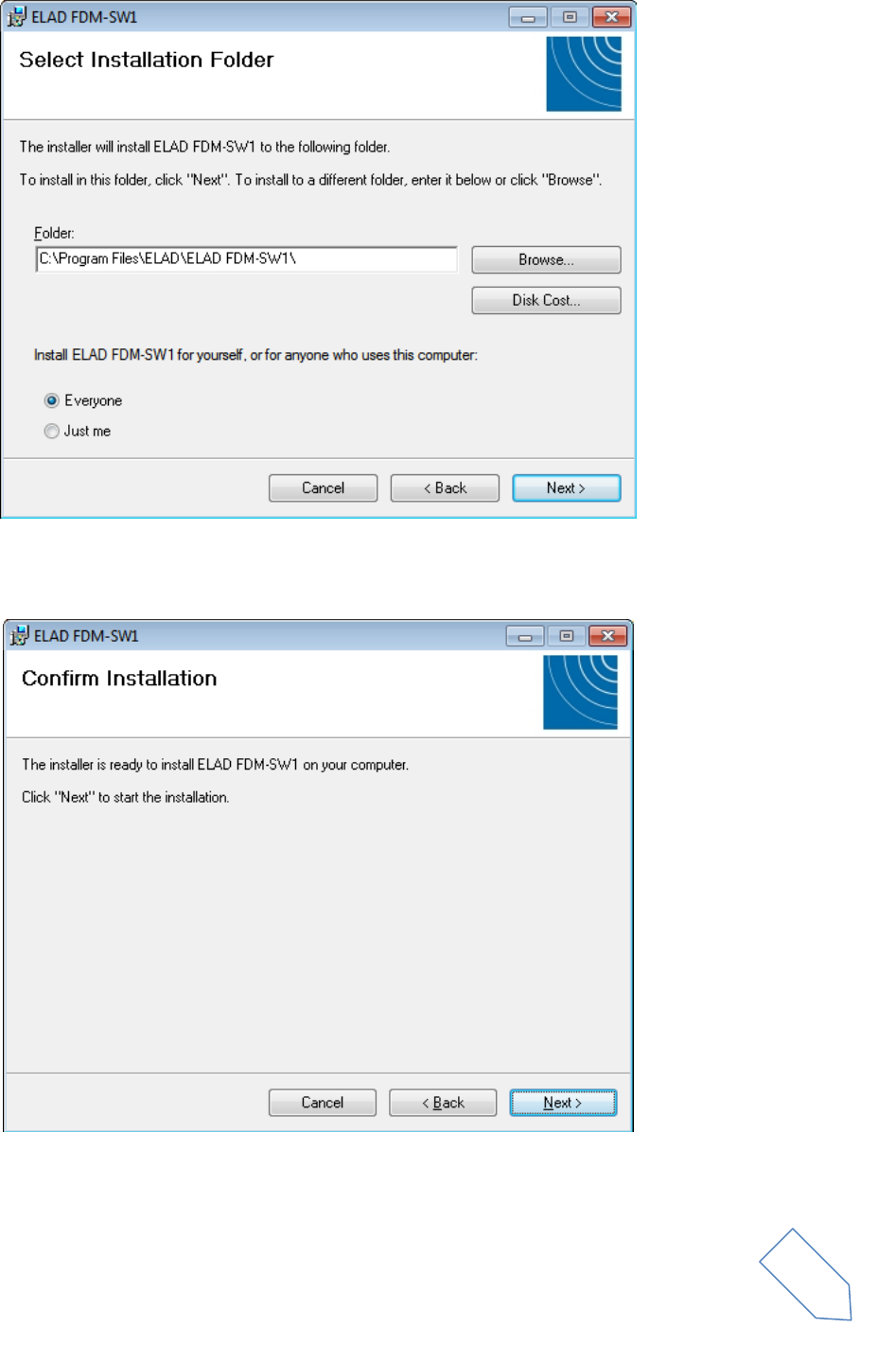
Chose the installation folder, then click on “Next”
ELAD FDM-S1 User Manual Rev 1.05 06/2013
© 2013 ELAD S.r.l. All rights reserved. No part of this document may be reproduced, published, used, disclosed or disseminated in any form or
by any means, electronic, photocopying or otherwise, without prior written permission of ELAD S.r.l.
8
Click on “Next”
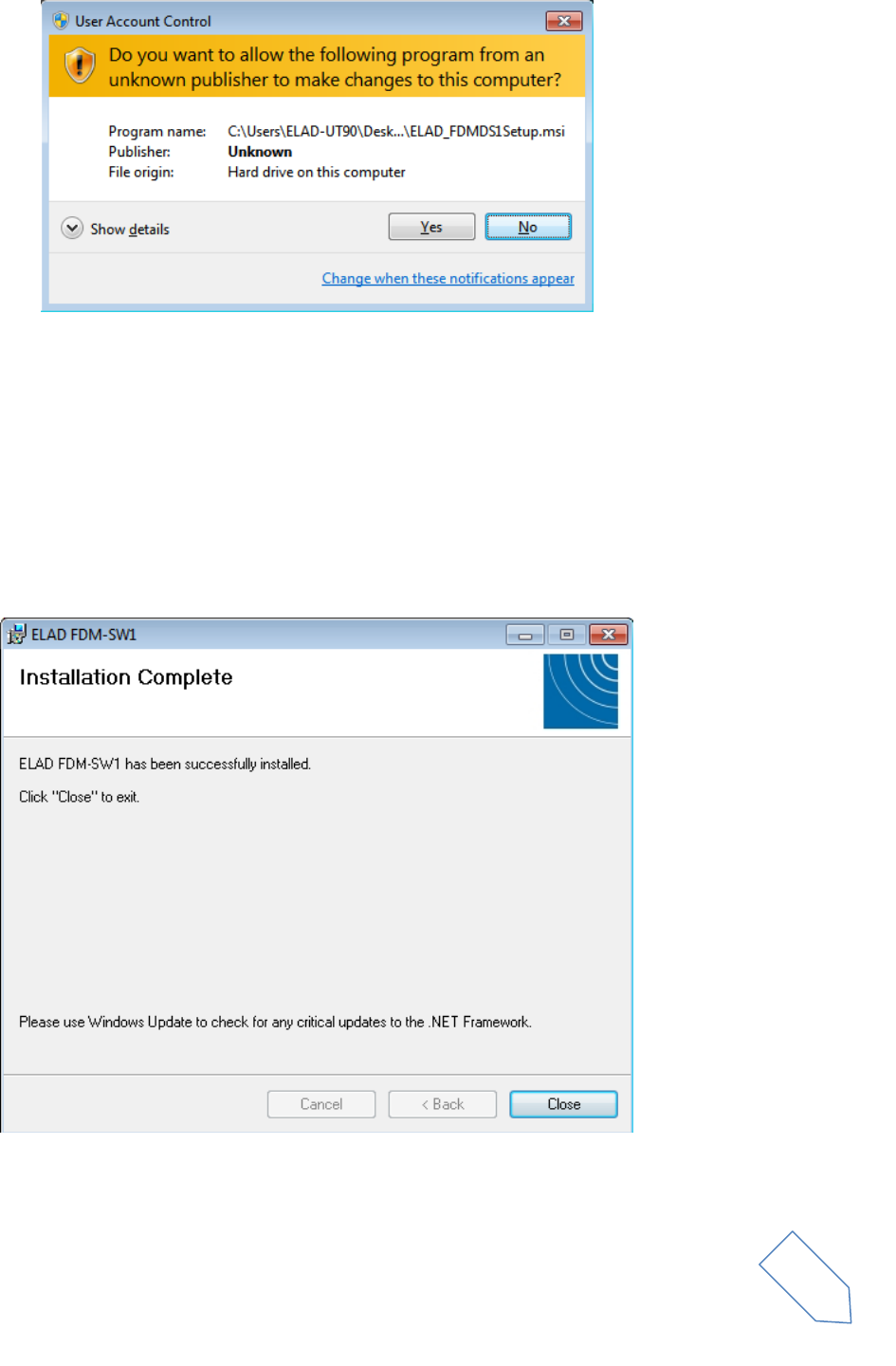
Click on “Yes”
ELAD FDM-S1 User Manual Rev 1.05 06/2013
© 2013 ELAD S.r.l. All rights reserved. No part of this document may be reproduced, published, used, disclosed or disseminated in any form or
by any means, electronic, photocopying or otherwise, without prior written permission of ELAD S.r.l.
9
The FDM-SW1 software installation is completed, click on “Close”
ELAD FDM-S1 User Manual Rev 1.05 06/2013
© 2013 ELAD S.r.l. All rights reserved. No part of this document may be reproduced, published, used, disclosed or disseminated in any form or
by any means, electronic, photocopying or otherwise, without prior written permission of ELAD S.r.l.
10
2.1.2 First-time install in Windows XP
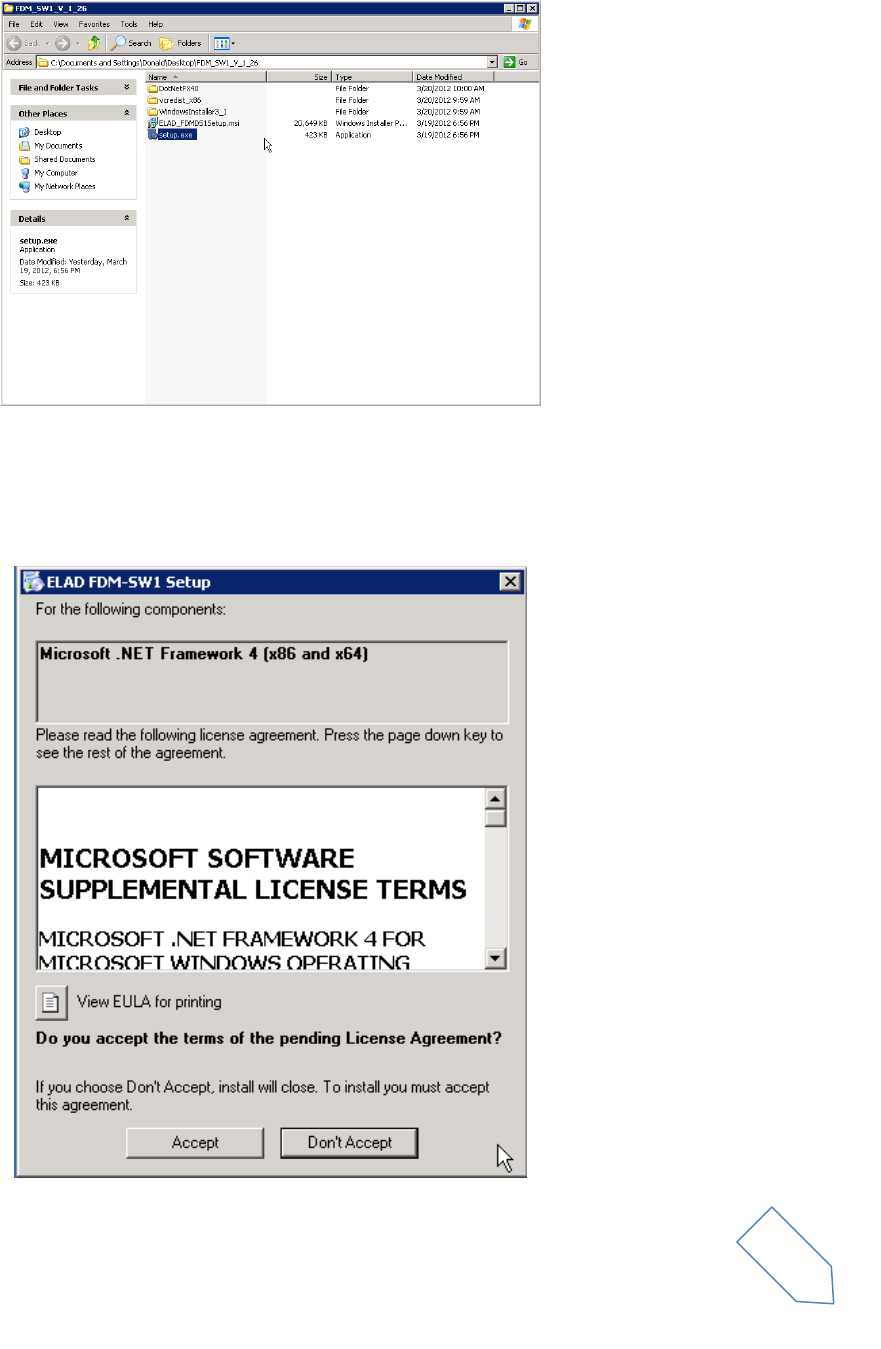
Double-click the file “setup.exe” in the installation folder.
Click on “Accept”
ELAD FDM-S1 User Manual Rev 1.05 06/2013
© 2013 ELAD S.r.l. All rights reserved. No part of this document may be reproduced, published, used, disclosed or disseminated in any form or
by any means, electronic, photocopying or otherwise, without prior written permission of ELAD S.r.l.
11
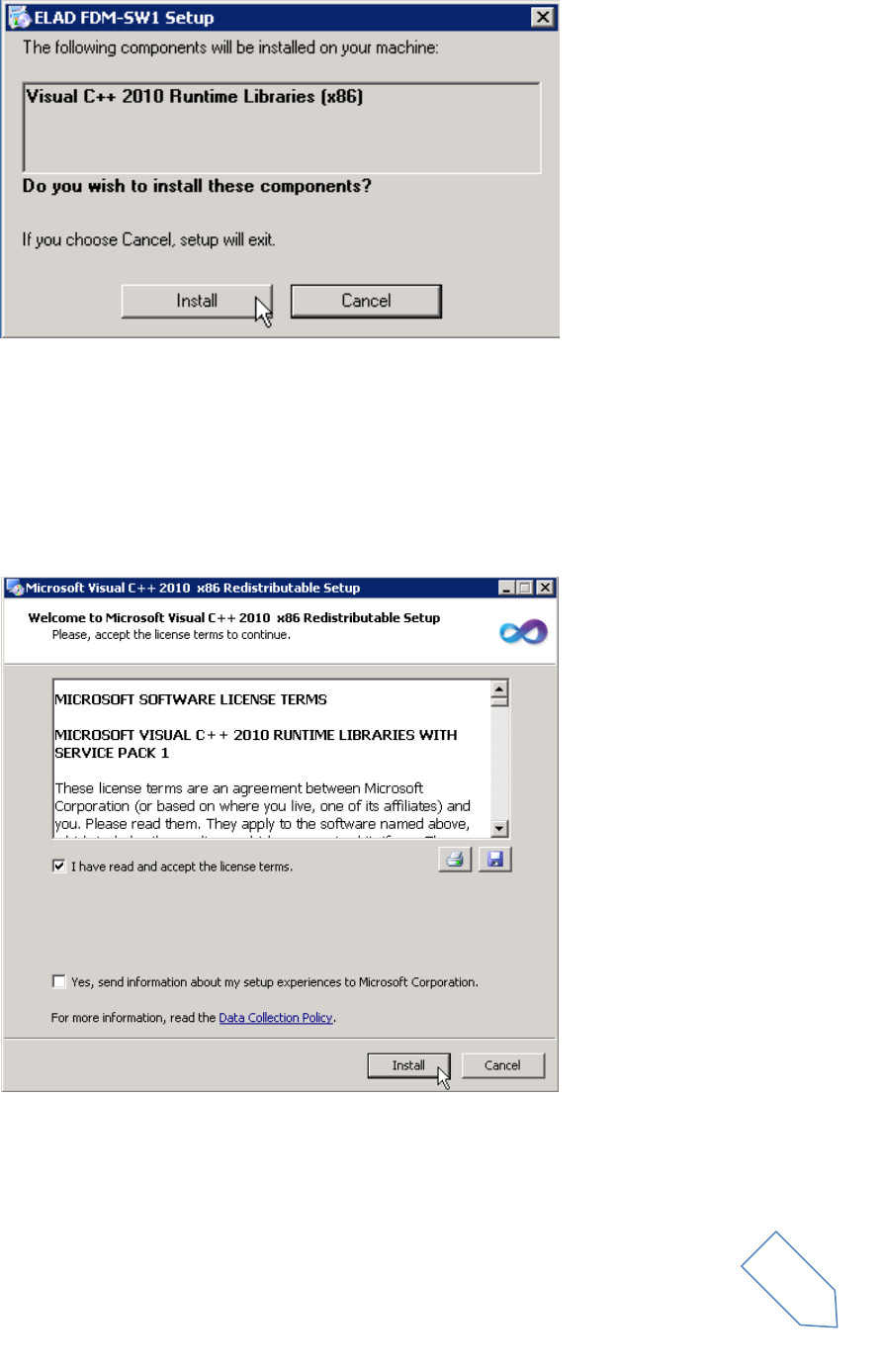
Click on “Install”
Click on “Install”
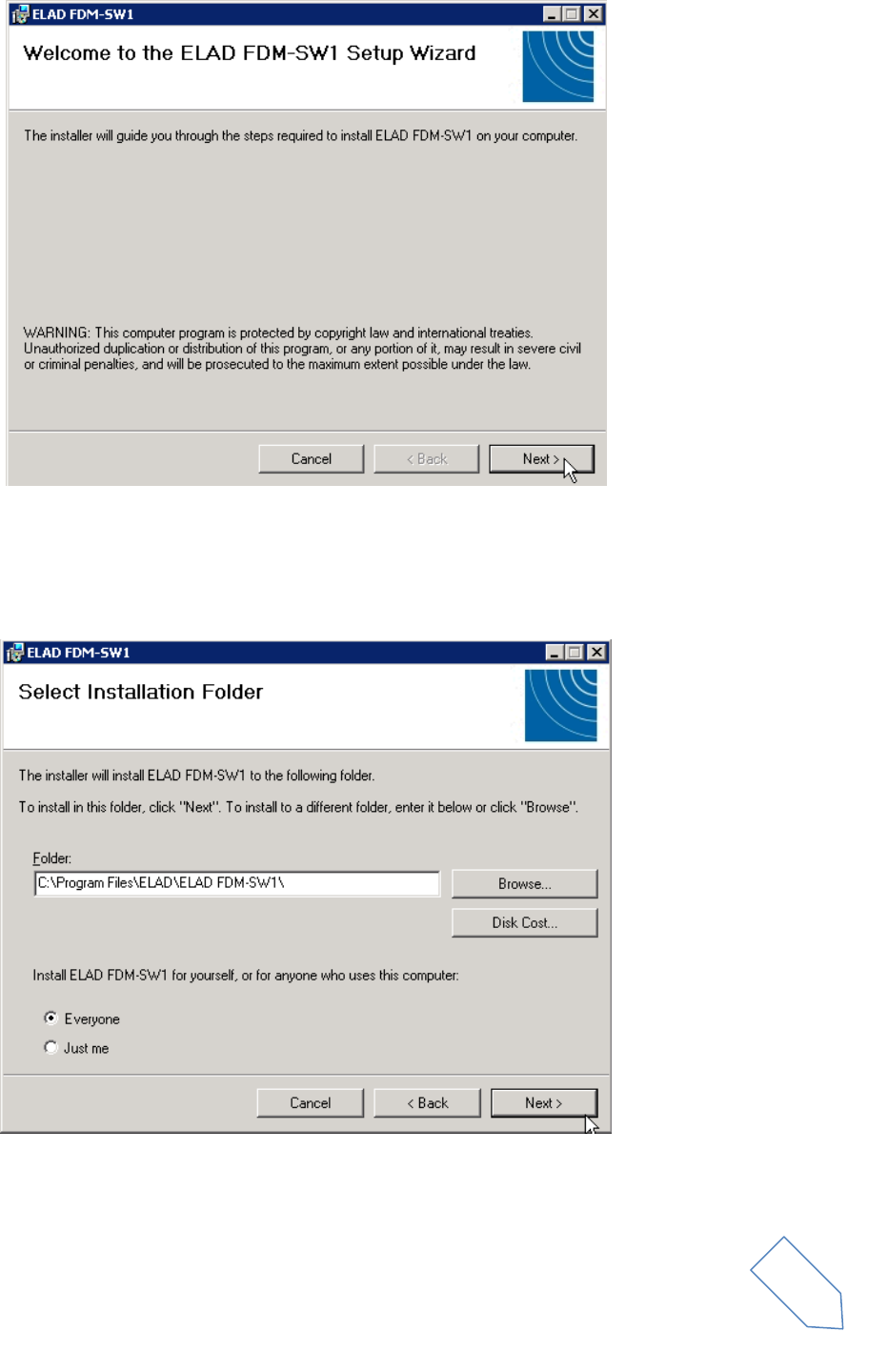
Click on Next to install the FDM-SW1 software
ELAD FDM-S1 User Manual Rev 1.05 06/2013
© 2013 ELAD S.r.l. All rights reserved. No part of this document may be reproduced, published, used, disclosed or disseminated in any form or
by any means, electronic, photocopying or otherwise, without prior written permission of ELAD S.r.l.
12
Select the installation folder, then click on “Next”
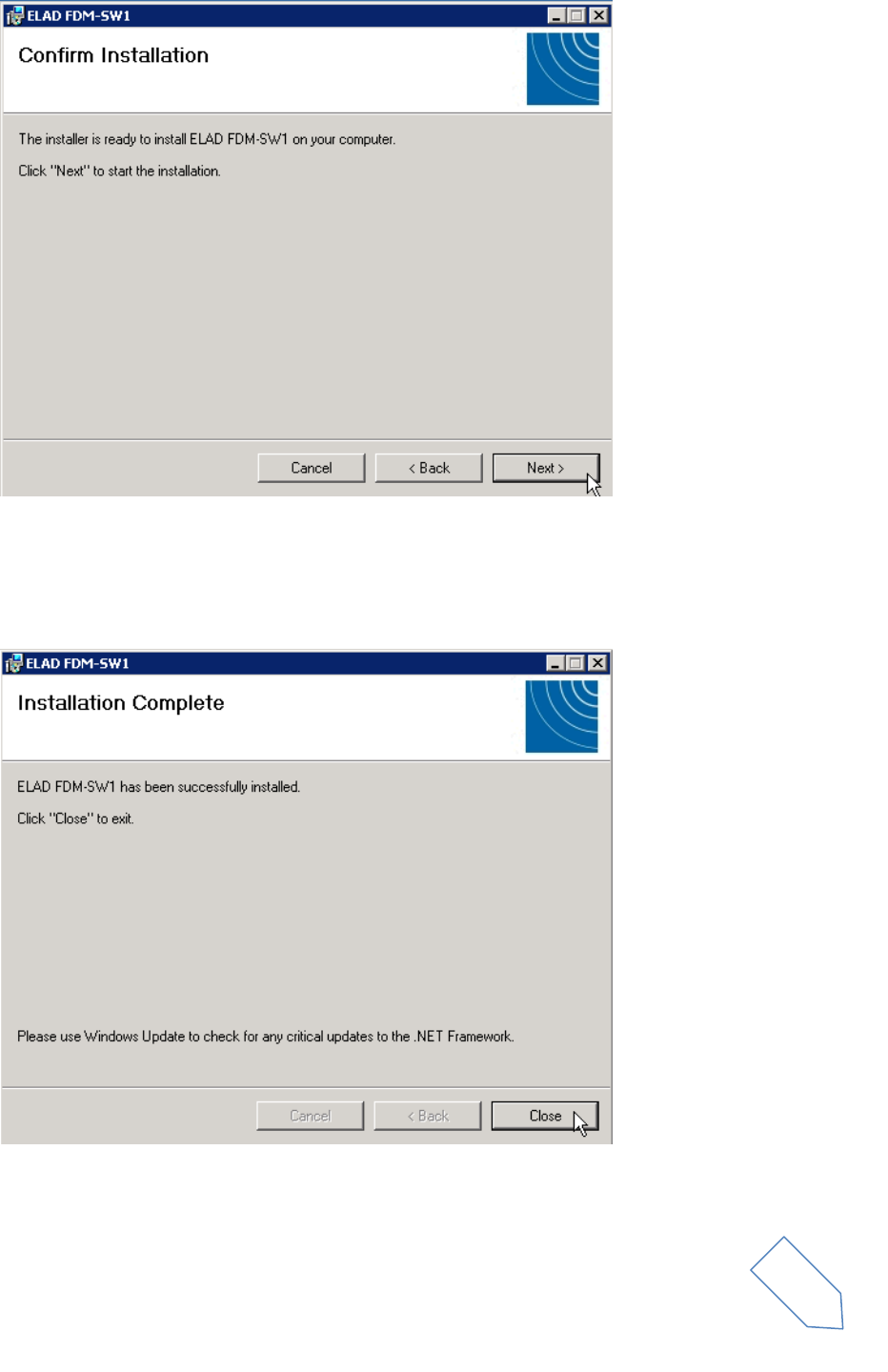
Click on “Next”
ELAD FDM-S1 User Manual Rev 1.05 06/2013
© 2013 ELAD S.r.l. All rights reserved. No part of this document may be reproduced, published, used, disclosed or disseminated in any form or
by any means, electronic, photocopying or otherwise, without prior written permission of ELAD S.r.l.
13
The FDM-SW1 Software installation is completed

ELAD FDM-S1 User Manual Rev 1.05 06/2013
© 2013 ELAD S.r.l. All rights reserved. No part of this document may be reproduced, published, used, disclosed or disseminated in any form or
by any means, electronic, photocopying or otherwise, without prior written permission of ELAD S.r.l.
14
2.1.3 Update an existing software version
If you need to update an existing software version, first uninstall the version already installed, then
install the update.
Windows 7
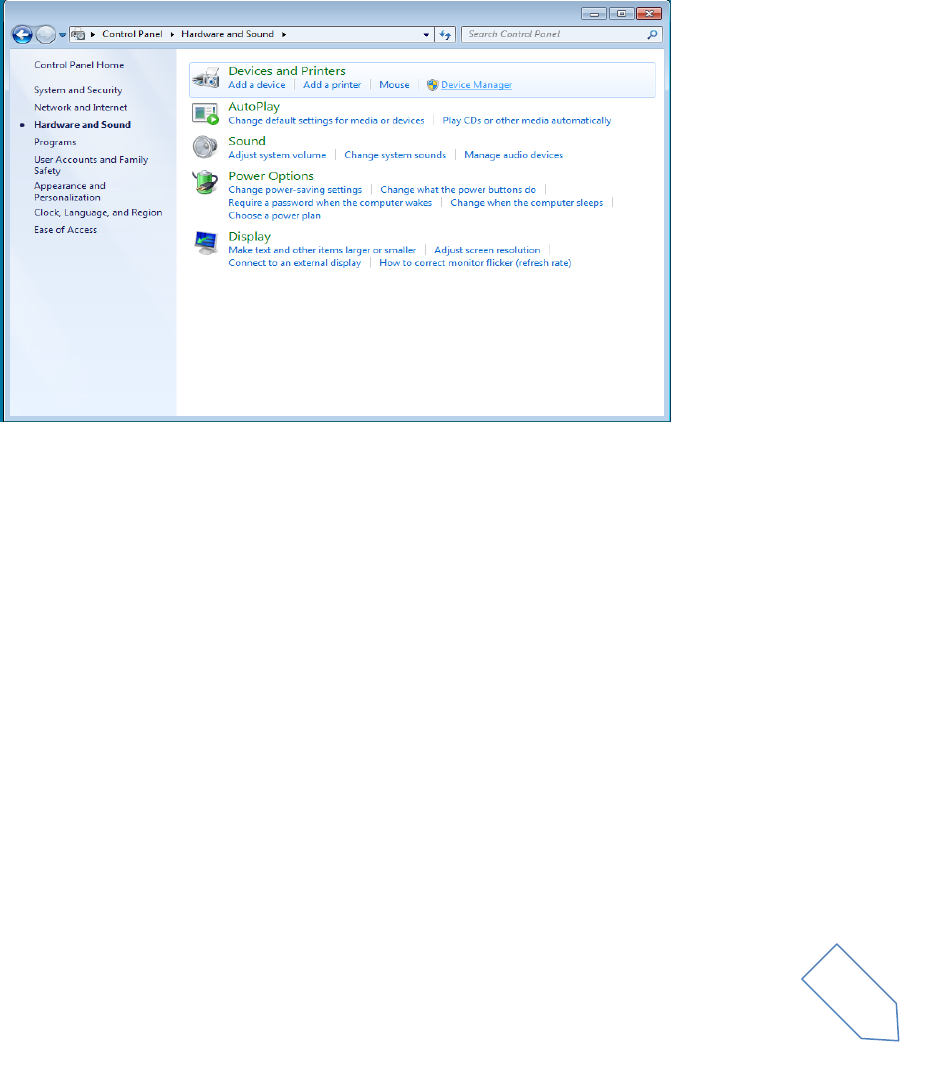
Go to: Control Panel->Programs->Programs and Features. Select the ELAD FDM-SW1 and click on
“Uninstall”.
Double click on file ELAD_FDM_SW1_V_x.xx.msi included in the update.
Windows XP
Go to: Control Panel->Add or Remove Programs. Select the ELAD FDM-SW1 and click on “Remove”.
Double click on file ELAD_FDM_SW1_V_x.xx.msi included in the update.
ELAD FDM-S1 User Manual Rev 1.05 06/2013
© 2013 ELAD S.r.l. All rights reserved. No part of this document may be reproduced, published, used, disclosed or disseminated in any form or
by any means, electronic, photocopying or otherwise, without prior written permission of ELAD S.r.l.
15
2.2 FDM-S1 USB driver
2.2.1 FDM-S1 USB driver installation in Windows 7
2.2.1.1 First driver installation
To install ELAD FDM-S1 driver, connect FDM-S1 sampler to a USB 2.0 socket on PC to power on the
device. When Windows 7 detects the new hardware, follow the steps listed below to install driver
correctly:
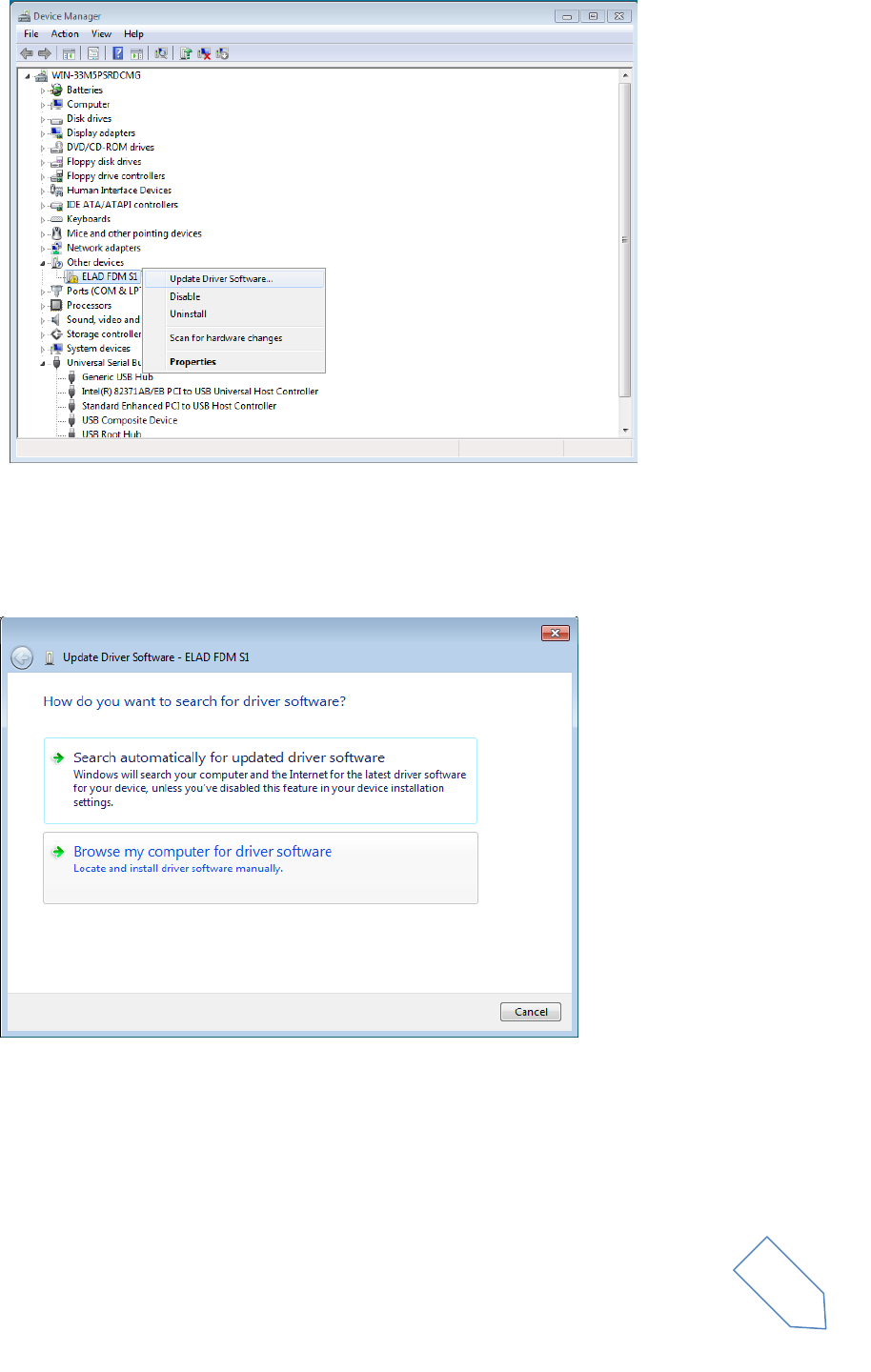
Open Control Panel from Start menu, select “System” and “Device Manager”. Expand “Other Devices”
node: the system reads FDM-S1 firmware version named as FDM S1 USB FW 1.0.
Select FDM S1 USB FW 1.0, right click on it and execute “Update driver software”.
ELAD FDM-S1 User Manual Rev 1.05 06/2013
© 2013 ELAD S.r.l. All rights reserved. No part of this document may be reproduced, published, used, disclosed or disseminated in any form or
by any means, electronic, photocopying or otherwise, without prior written permission of ELAD S.r.l.
16
When Windows 7 starts the installation procedure, select the last option “Browse my computer for
driver software” (the second option).
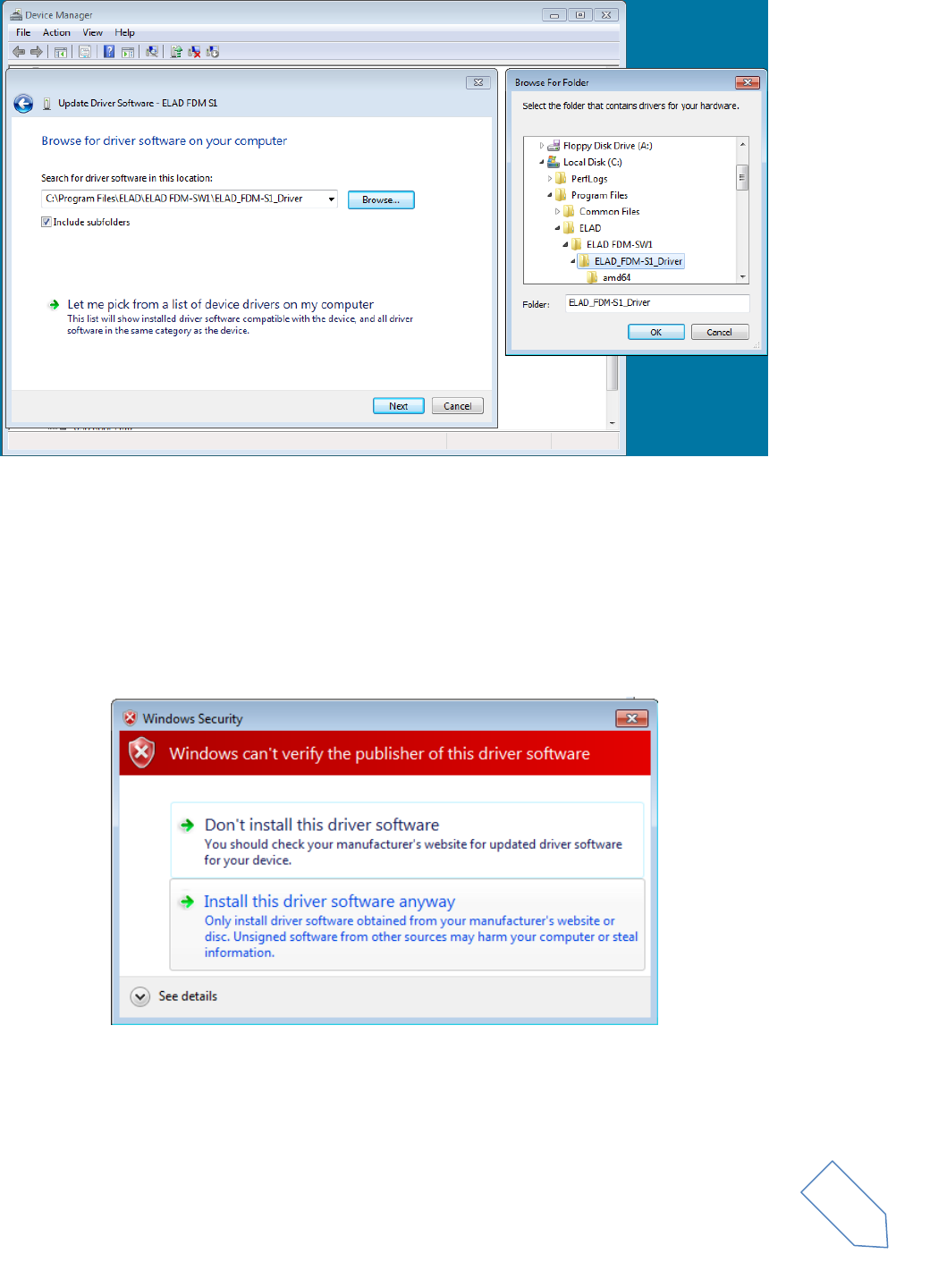
In the next dialog-box, insert the driver folder location using “Browse” button and check the option
“Include subfolders”. In this way manual driver search is enabled.
ELAD FDM-S1 User Manual Rev 1.05 06/2013
© 2013 ELAD S.r.l. All rights reserved. No part of this document may be reproduced, published, used, disclosed or disseminated in any form or
by any means, electronic, photocopying or otherwise, without prior written permission of ELAD S.r.l.
17
For 32 bit system select the folder: C:\Program Files\ELAD\ELAD FDM-SW1\ELAD_FDM-S1_Driver.
For 64 bit system select the folder: C:\Program Files (x86)\ELAD\ELAD FDM-SW1\ELAD_FDM-
S1_Driver.
Then click “Next”.
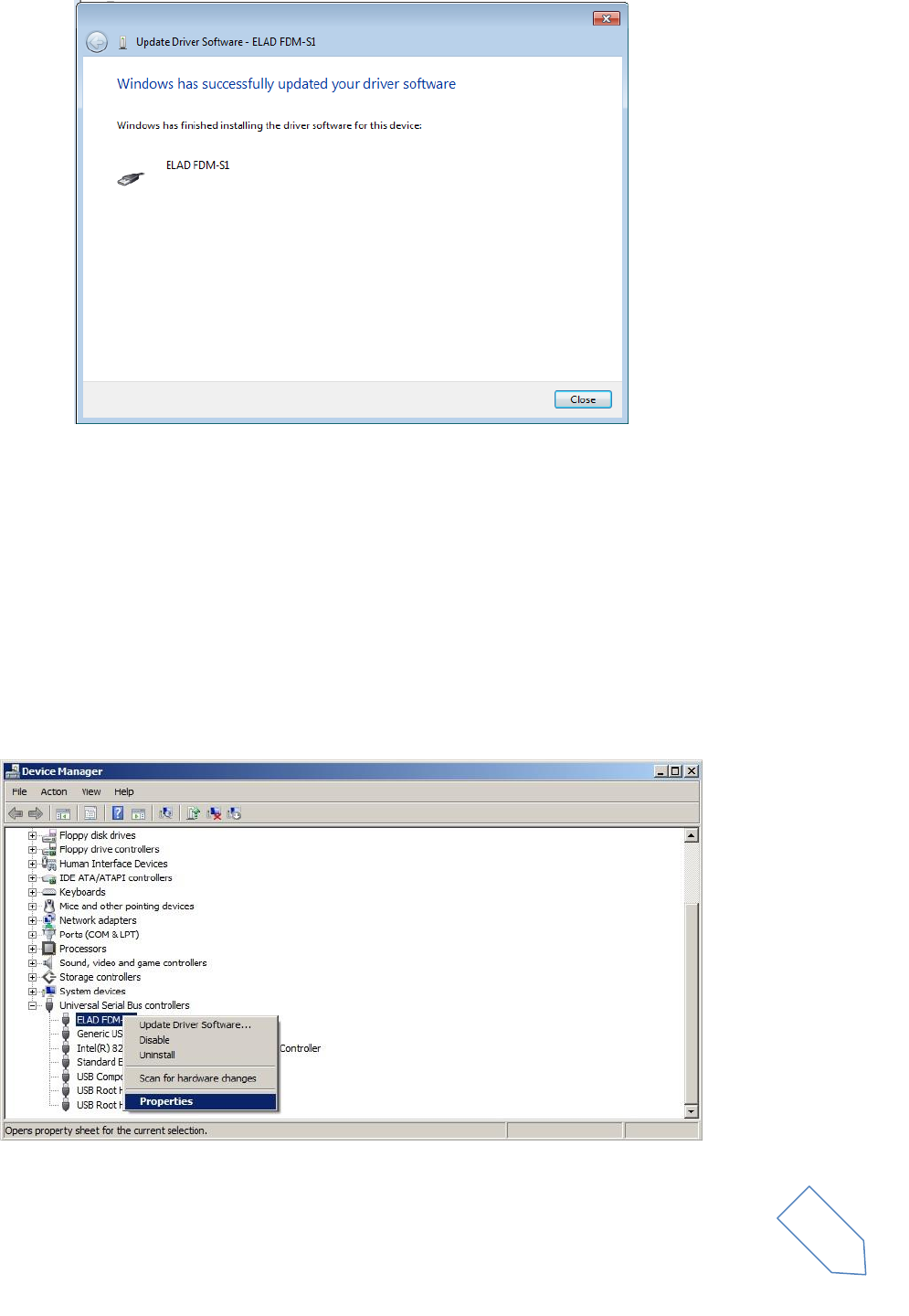
Ignore the warning and select “Install this driver software anyway” at next dialog-box (the second
option).
Let the hardware installation automatically completes and, at the procedure ending, click on “Close”;
then disconnect and connect FDM-S1 device on the same USB socket.
ELAD FDM-S1 User Manual Rev 1.05 06/2013
© 2013 ELAD S.r.l. All rights reserved. No part of this document may be reproduced, published, used, disclosed or disseminated in any form or
by any means, electronic, photocopying or otherwise, without prior written permission of ELAD S.r.l.
18
Now ELAD FDM-S1 driver is installed on your PC.
2.2.1.2 Driver installation verify
To verify FDM-S1 driver current version, connect the device to USB socket (where the device driver is
already installed) and open Control Panel from Start menu. Click on “System” and select “Device
Manager”.
Expanding “Universal Serial Bus controllers” node, FDM-S1 device driver is installed as “ELAD FDM-S1”:
right click on “ELAD FDM-S1” and select “Properties”.
ELAD FDM-S1 User Manual Rev 1.05 06/2013
© 2013 ELAD S.r.l. All rights reserved. No part of this document may be reproduced, published, used, disclosed or disseminated in any form or
by any means, electronic, photocopying or otherwise, without prior written permission of ELAD S.r.l.
19
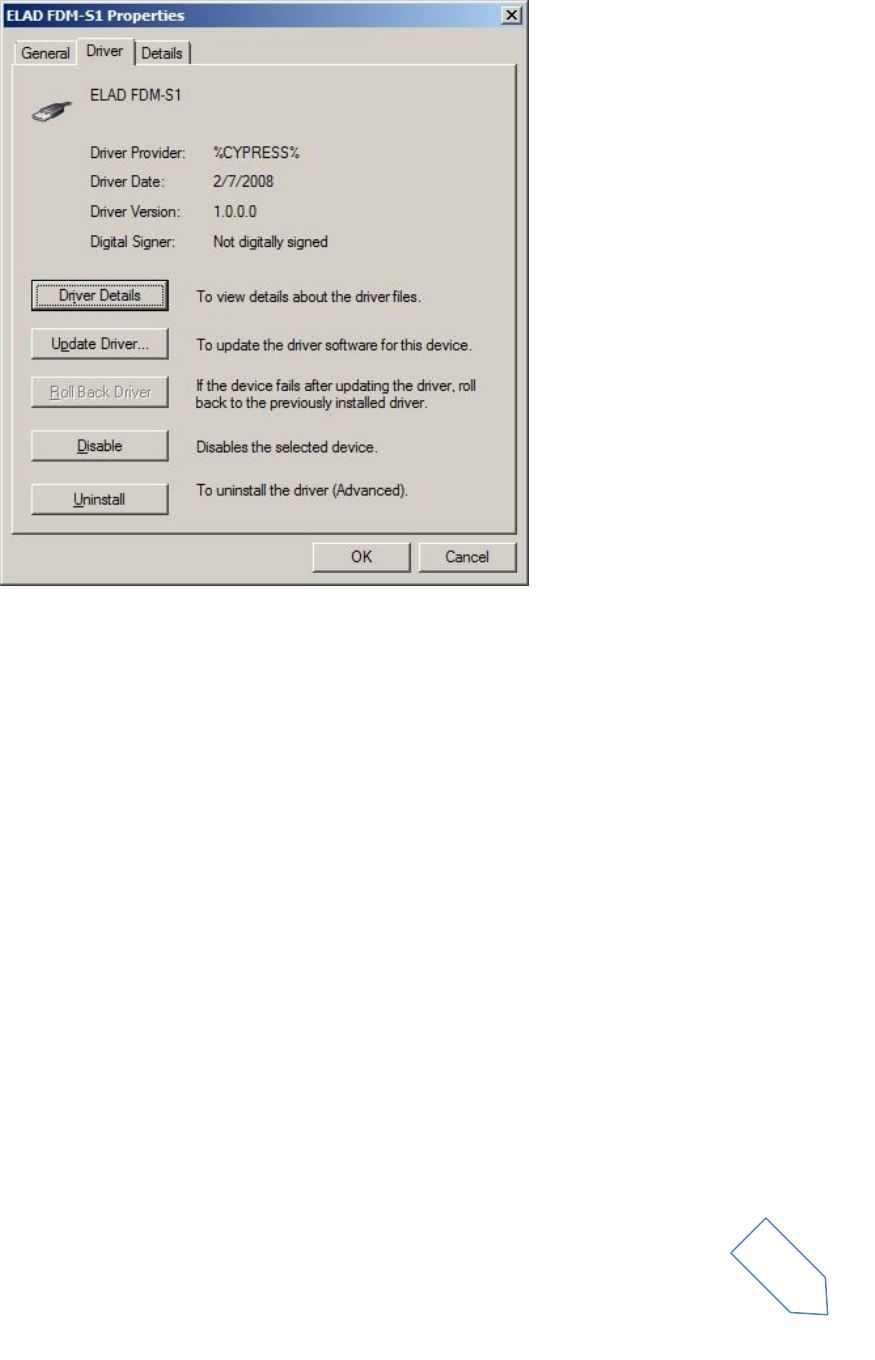
When dialog box opens, select “Driver” label: you must read provider name, current driver release date
and current driver version. The figure shows an old FDM-S1 driver version.
2.2.1.3 Manual driver update
To update FDM-S1 driver, connect the device to USB socket (where the device driver is already installed)
and open Control Panel from Start menu. Click on “System” and select “Device Manager”.
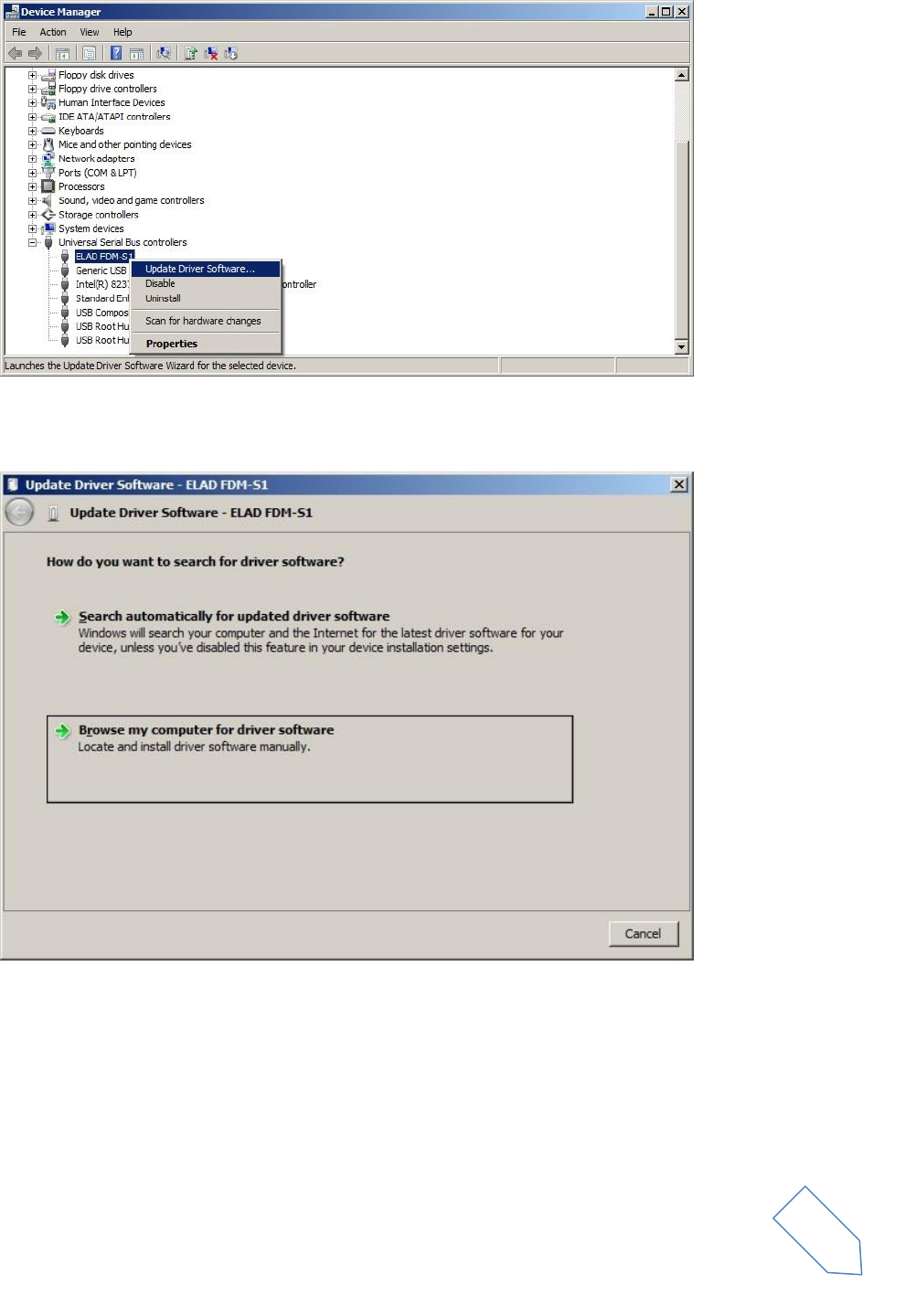
Under “Universal Serial Bus controllers” list, the driver for FDM-S1 is installed as “ELAD FDM-S1”. Select
“ELAD FDM-S1”, right click on it and execute “Update driver”.
ELAD FDM-S1 User Manual Rev 1.05 06/2013
© 2013 ELAD S.r.l. All rights reserved. No part of this document may be reproduced, published, used, disclosed or disseminated in any form or
by any means, electronic, photocopying or otherwise, without prior written permission of ELAD S.r.l.
20
When Windows 7 starts the installation procedure, select the last option “Browse my computer for
driver software”.
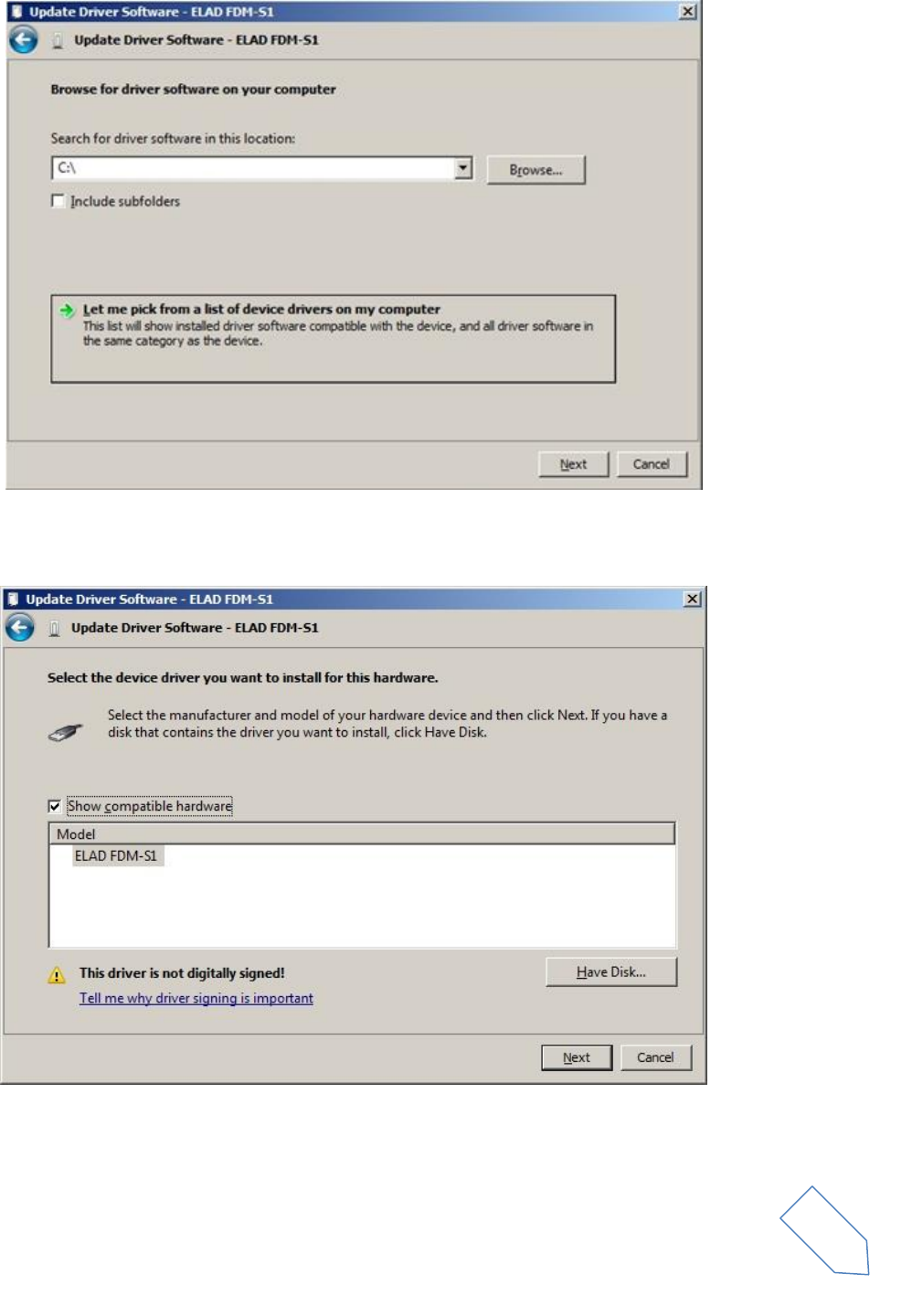
In the next dialog-box, disable the option “Include subfolders” and choose “Let me pick from a list of
device drivers on my computer”. Don’t click “Next”.
ELAD FDM-S1 User Manual Rev 1.05 06/2013
© 2013 ELAD S.r.l. All rights reserved. No part of this document may be reproduced, published, used, disclosed or disseminated in any form or
by any means, electronic, photocopying or otherwise, without prior written permission of ELAD S.r.l.
21
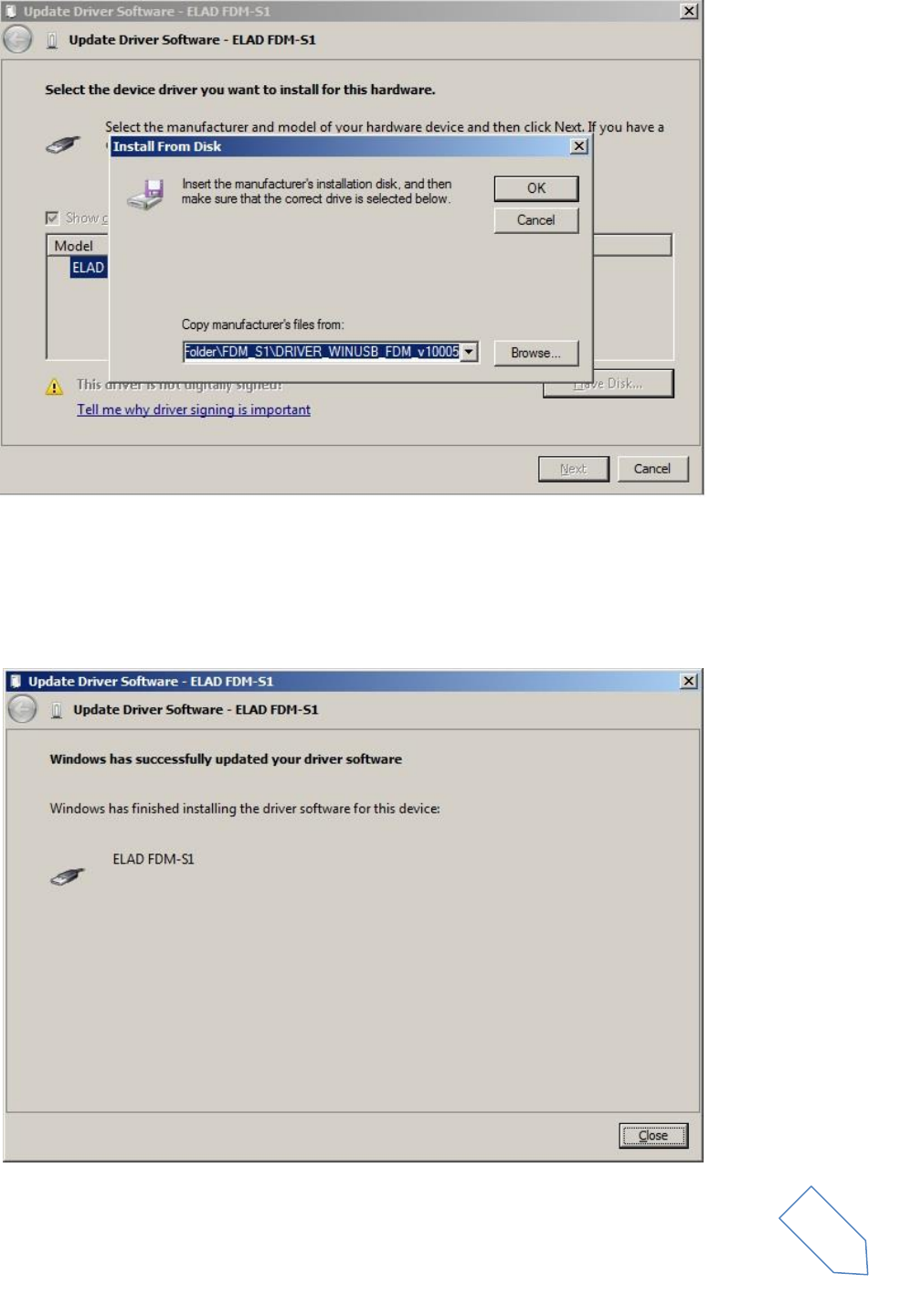
Verify that “Show compatible hardware” option is checked and ELAD FDM-S1 is selected: then click on
“Have a Disk”. In this way the manual driver update is enabled. Don’t click “Next”.
Click on “Browse” and search for FDM-S1 driver update folder location; then open
winusb_fdmsampler.inf file, as depicted on figure. Click “OK” and then “Next”.
ELAD FDM-S1 User Manual Rev 1.05 06/2013
© 2013 ELAD S.r.l. All rights reserved. No part of this document may be reproduced, published, used, disclosed or disseminated in any form or
by any means, electronic, photocopying or otherwise, without prior written permission of ELAD S.r.l.
22
Now driver update starts: select “Install this driver software anyway” and ignore the warning at next
dialog-box.
Let the hardware installation automatically completes and, at the procedure ending, click on “Close”;
then disconnect and connect FDM-S1 device on the same USB socket.
ELAD FDM-S1 User Manual Rev 1.05 06/2013
© 2013 ELAD S.r.l. All rights reserved. No part of this document may be reproduced, published, used, disclosed or disseminated in any form or
by any means, electronic, photocopying or otherwise, without prior written permission of ELAD S.r.l.
23
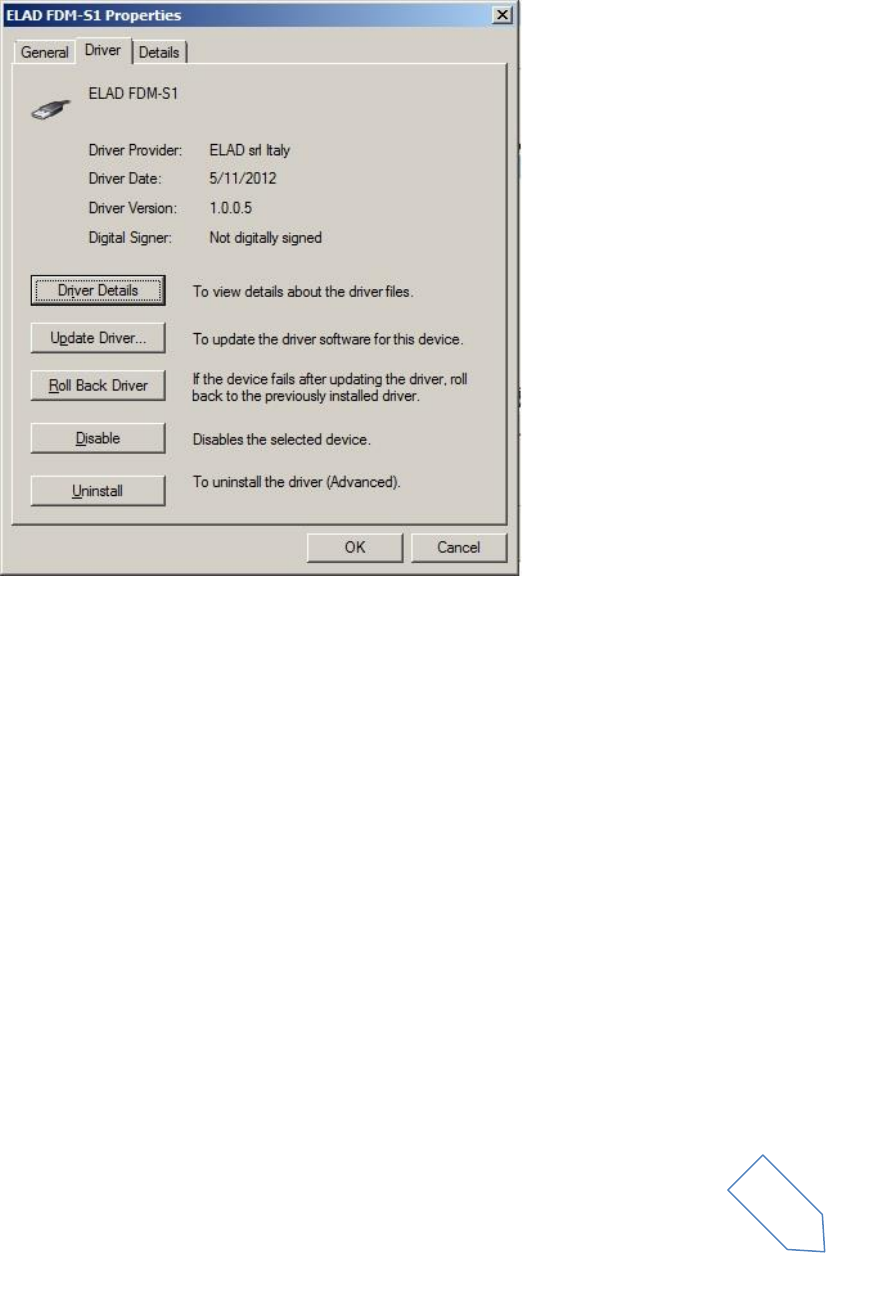
To verify that a correct update is done, enter “Device Manager” in Control Panel; under “Universal Serial
Bus controllers” label select ELAD FDM-S1 driver (see sub-chapter “2.2.1.2 Driver installation verify”):
right click on it and choose “Properties”: select “Driver” label to visualize the last driver version (an
example is depicted in figure below).
2.2.2 FDM-S1 USB driver installation in Windows XP
2.2.2.1 First driver installation
To install ELAD FDM-S1 driver, connect FDM-S1 sampler to a USB 2.0 socket on PC to power on the
device. Windows XP detects the new hardware and starts the hardware installation wizard. Then, next
steps to install FDM-S1 driver are listed below:
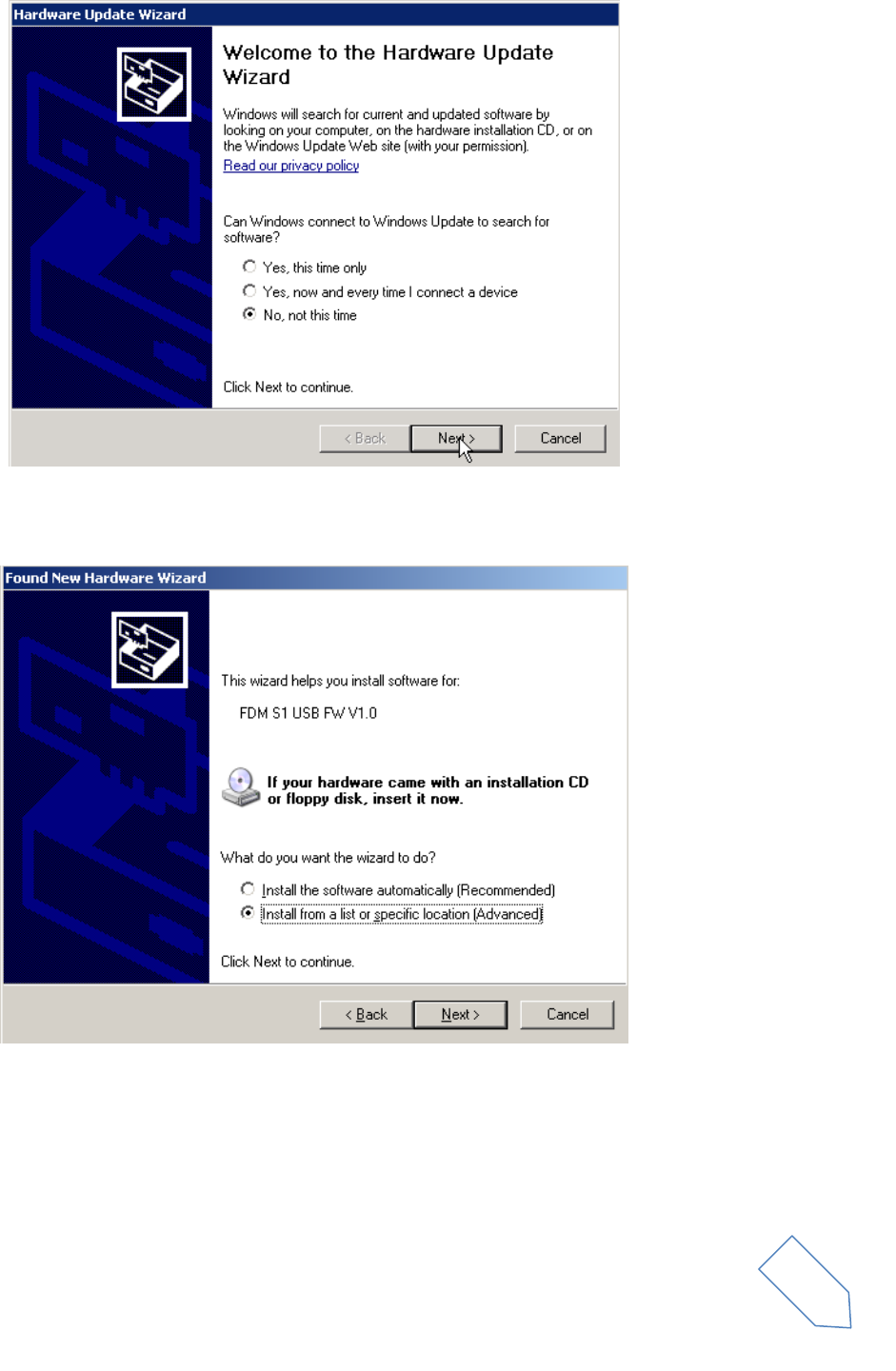
At the first dialog box, select the last option “No, not this time” and “Next”.
ELAD FDM-S1 User Manual Rev 1.05 06/2013
© 2013 ELAD S.r.l. All rights reserved. No part of this document may be reproduced, published, used, disclosed or disseminated in any form or
by any means, electronic, photocopying or otherwise, without prior written permission of ELAD S.r.l.
24
Select “Install from a list or specific location (Advanced)” and “Next”.
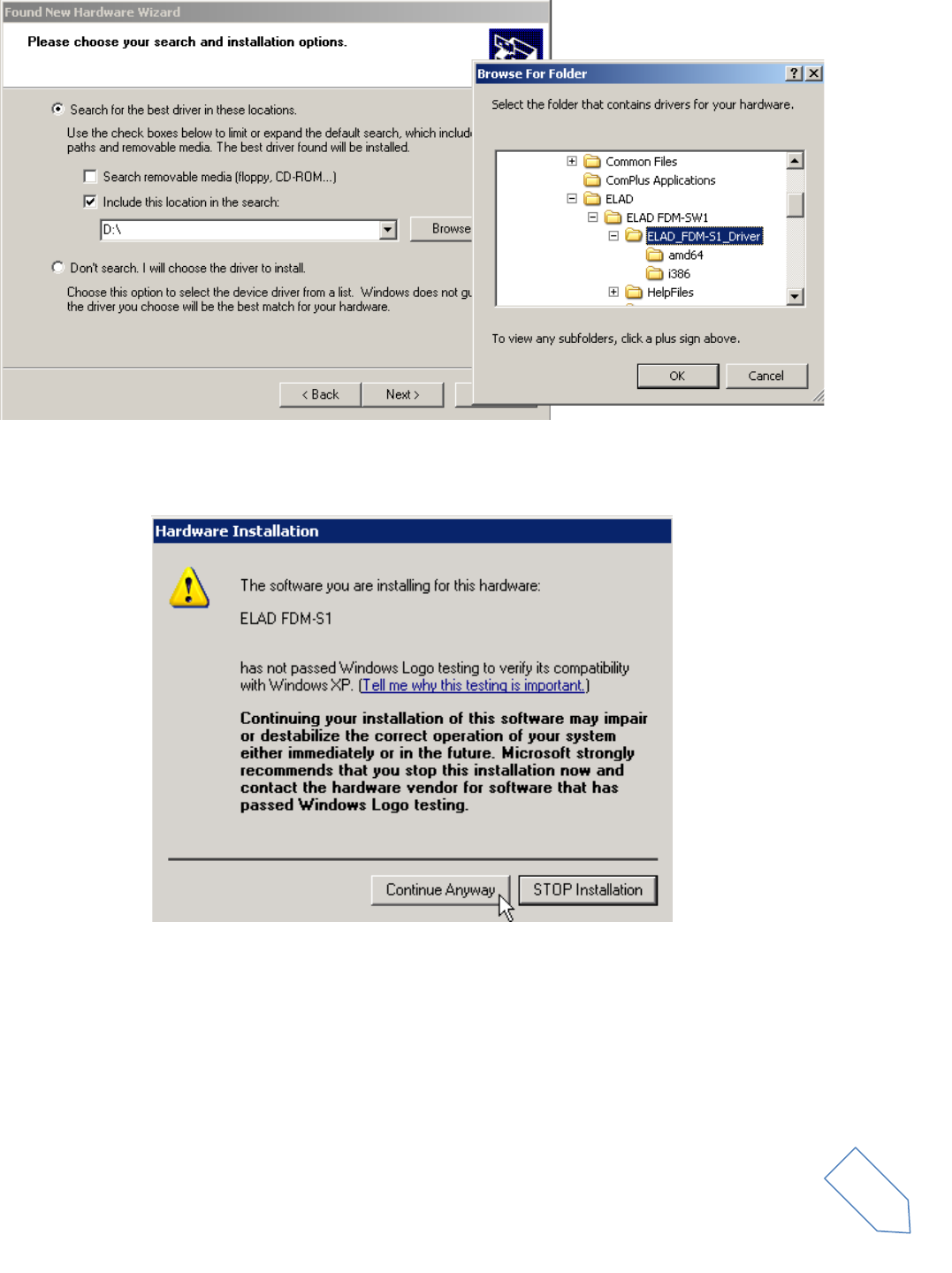
In the next dialog-box, check the options “Search for the best driver in these location” and “Include this
location in the search” to enable manual driver search. Clicking on “Browse”, select the path where the
driver folder is located: Local Drive (C:) \Programs\ELAD\ELAD FDM-SW1\ELAD_FDM-S1_Driver. Then
click “Next”.
ELAD FDM-S1 User Manual Rev 1.05 06/2013
© 2013 ELAD S.r.l. All rights reserved. No part of this document may be reproduced, published, used, disclosed or disseminated in any form or
by any means, electronic, photocopying or otherwise, without prior written permission of ELAD S.r.l.
25
The installation begins automatically: select “Continue Anyway” and ignore the warning at next dialog-
box.
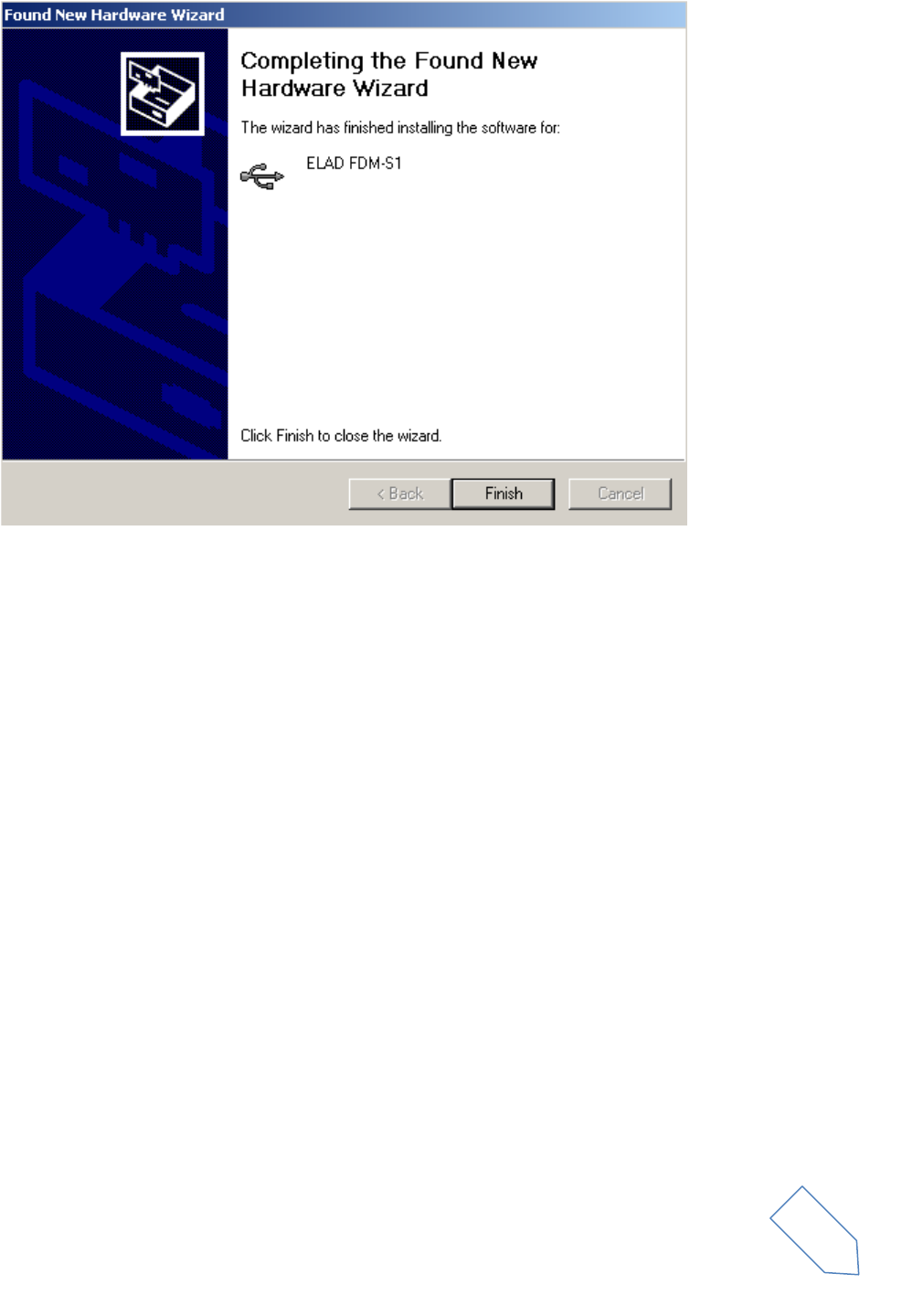
Let the hardware installation automatically completes and click on “Finish”; then disconnect and
connect FDM-S1 device on the same USB socket.
ELAD FDM-S1 User Manual Rev 1.05 06/2013
© 2013 ELAD S.r.l. All rights reserved. No part of this document may be reproduced, published, used, disclosed or disseminated in any form or
by any means, electronic, photocopying or otherwise, without prior written permission of ELAD S.r.l.
26
Now ELAD FDM-S1 driver is installed on your PC.
2.2.2.2 Driver installation verify
To verify FDM-S1 driver current version, connect the device to USB socket (where the device driver is
already installed) and open Control Panel from Start menu. Click on “System” and select “Device
Manager” under “Hardware” label.
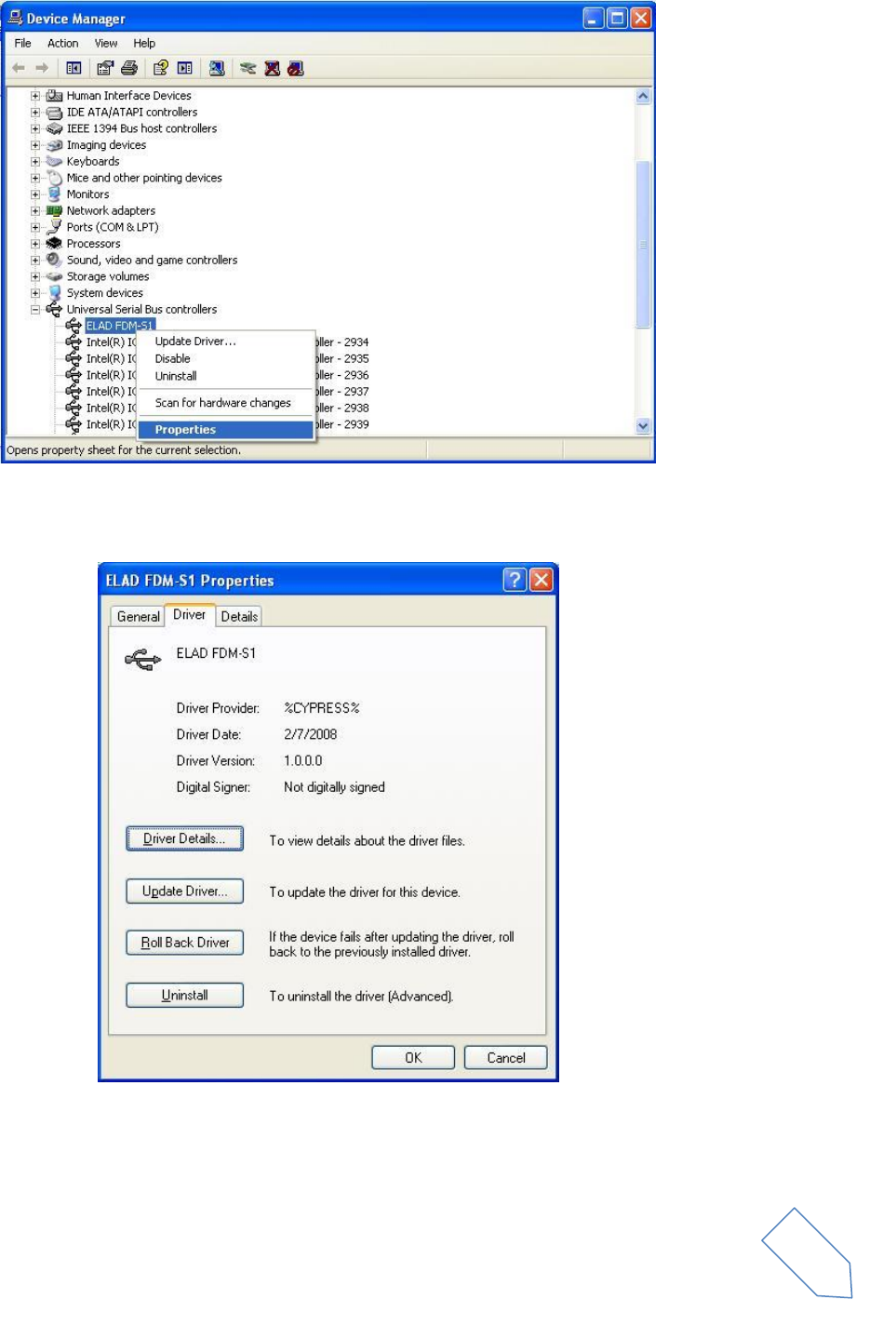
Expanding “Universal Serial Bus controllers” node, FDM-S1 device driver is installed as “ELAD FDM-S1”:
right click on “ELAD FDM-S1” and select “Properties”.
ELAD FDM-S1 User Manual Rev 1.05 06/2013
© 2013 ELAD S.r.l. All rights reserved. No part of this document may be reproduced, published, used, disclosed or disseminated in any form or
by any means, electronic, photocopying or otherwise, without prior written permission of ELAD S.r.l.
27
When dialog box opens, select “Driver” label: you must read provider name, current driver release date
and current driver version. The old ELAD FDM-S1 driver version is shown in figure below as example.
2.2.2.3 Manual driver update
ELAD FDM-S1 User Manual Rev 1.05 06/2013
© 2013 ELAD S.r.l. All rights reserved. No part of this document may be reproduced, published, used, disclosed or disseminated in any form or
by any means, electronic, photocopying or otherwise, without prior written permission of ELAD S.r.l.
28
To update FDM-S1 driver, connect the device to USB socket (where the device driver is already installed)
and open Control Panel from Start menu. Click on “System” and select “Device Manager” under
“Hardware” label.
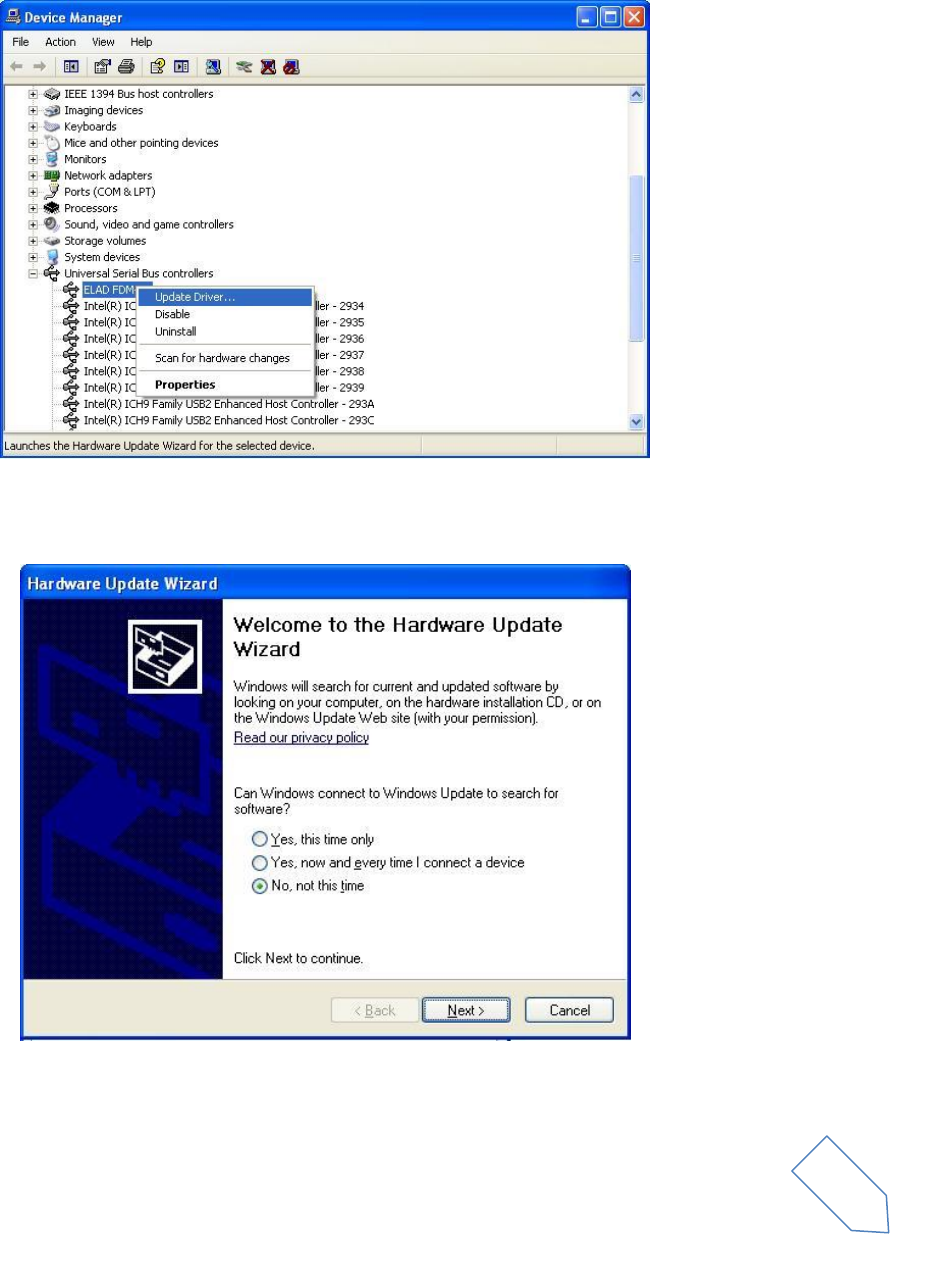
Select “ELAD FDM-S1” from “Universal Serial Bus controllers” list, right click on it and execute “Update
driver ”
Now Windows XP launches the hardware update wizard: select the last option “No, not this time” and
“Next”.
ELAD FDM-S1 User Manual Rev 1.05 06/2013
© 2013 ELAD S.r.l. All rights reserved. No part of this document may be reproduced, published, used, disclosed or disseminated in any form or
by any means, electronic, photocopying or otherwise, without prior written permission of ELAD S.r.l.
29
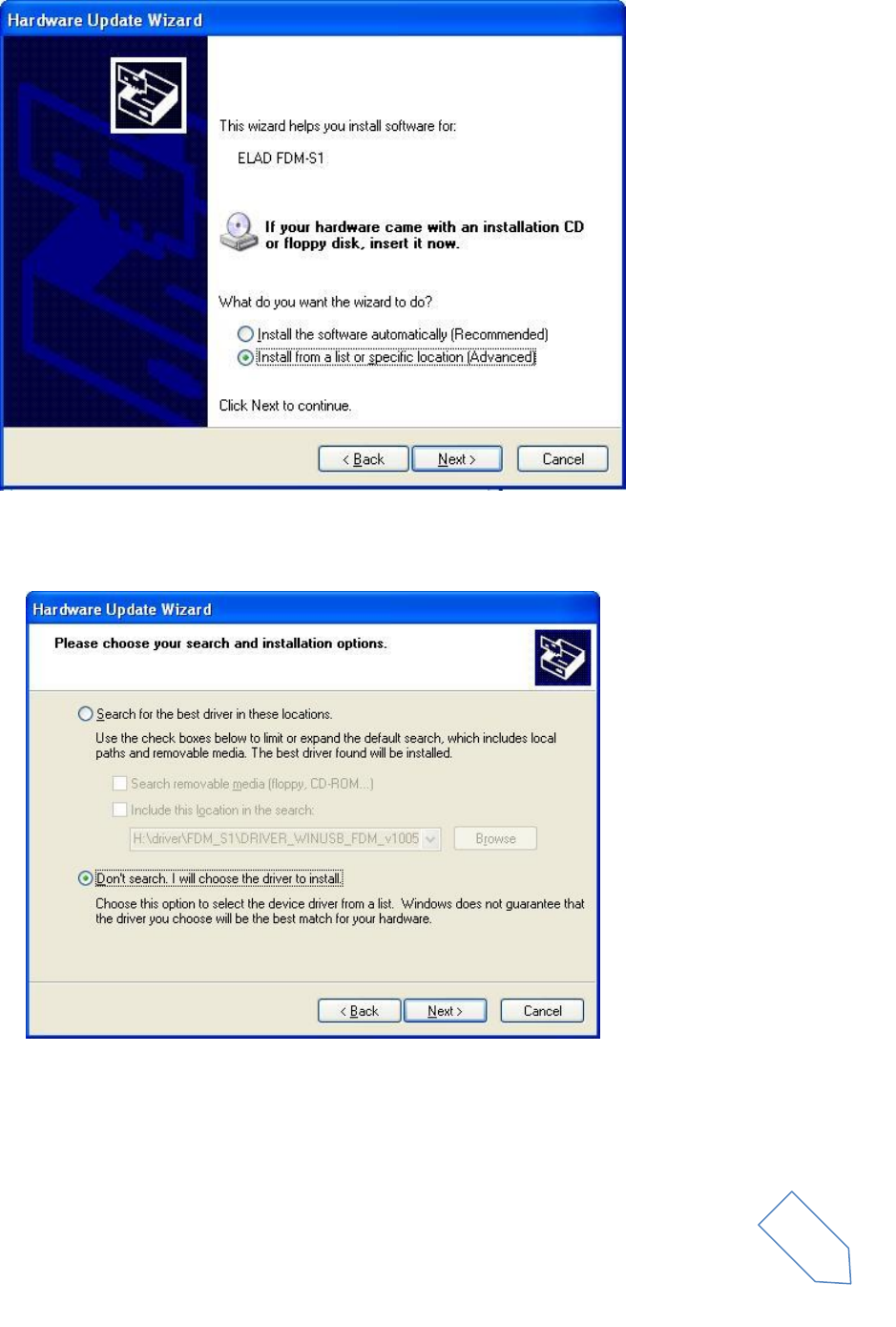
At next step select “Install from a list or specific location (Advanced)” and “Next”.
Then, disable all check-boxes that the system automatically sets and choose the last option for manual
driver update, as depicted in figure. Select “Next”.
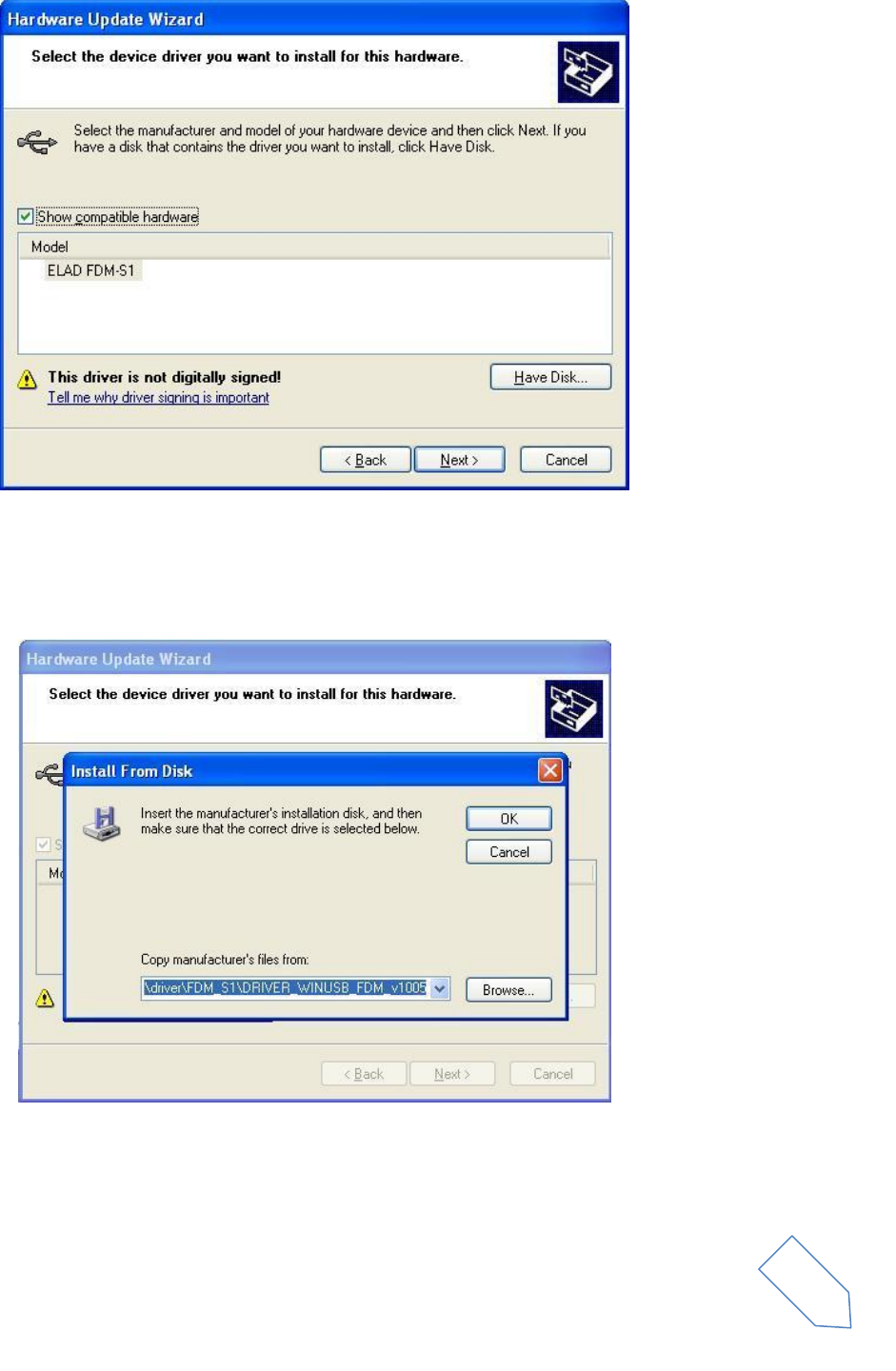
Verify that “Show compatible hardware” option is checked and ELAD FDM-S1 is selected: then click on
“Have a Disk”. Don’t click “Next”.
ELAD FDM-S1 User Manual Rev 1.05 06/2013
© 2013 ELAD S.r.l. All rights reserved. No part of this document may be reproduced, published, used, disclosed or disseminated in any form or
by any means, electronic, photocopying or otherwise, without prior written permission of ELAD S.r.l.
30
Click on “Browse” and search for the FDM-S1 driver update folder location; then open
winusb_fdmsampler.inf file, as depicted in figure. Click “OK” and then “Next”.
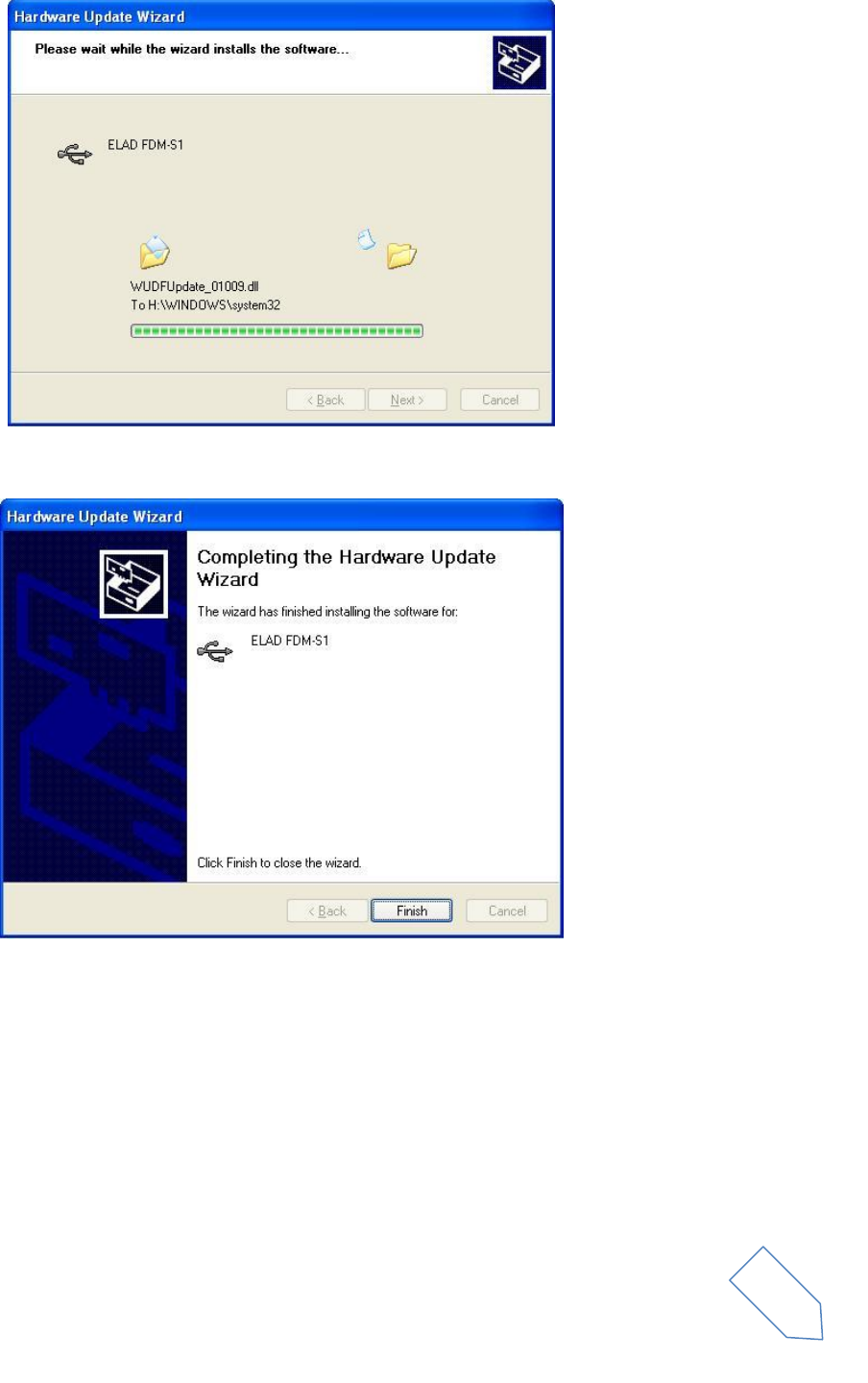
Now driver update starts: at next dialog box select “Continue Anyway” and ignore the warning.
Let the hardware update automatically completes and, at the procedure ending, click on “Finish”; then
disconnect e connect FDM-S1 device on the same USB socket.
ELAD FDM-S1 User Manual Rev 1.05 06/2013
© 2013 ELAD S.r.l. All rights reserved. No part of this document may be reproduced, published, used, disclosed or disseminated in any form or
by any means, electronic, photocopying or otherwise, without prior written permission of ELAD S.r.l.
31
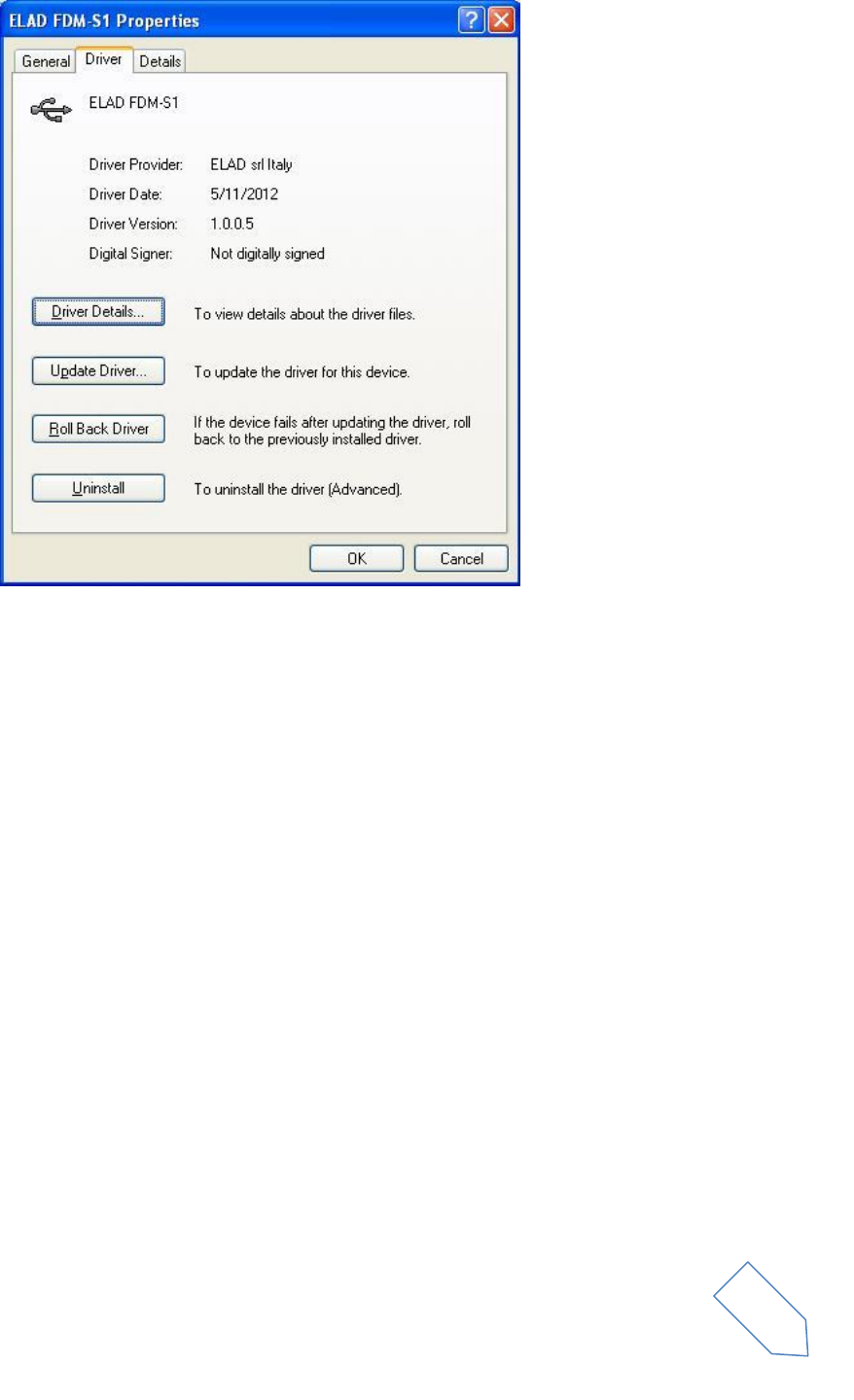
To verify that a correct update is done, enter “Device Manager” from Control Panel; under “Universal
Serial Bus controllers” list, select ELAD FDM-S1 driver (see chapter “2.2.2.2 Driver installation verify”)
right click on it and choose “Properties”. Select “Driver” label to visualize the last driver version (an
example is depicted in figure below).
ELAD FDM-S1 User Manual Rev 1.05 06/2013
© 2013 ELAD S.r.l. All rights reserved. No part of this document may be reproduced, published, used, disclosed or disseminated in any form or
by any means, electronic, photocopying or otherwise, without prior written permission of ELAD S.r.l.
32
2.3 WoodBoxRadio Tmate USB driver installation
2.3.1 WoodBoxRadio Tmate USB driver installation in Windows 7
2.3.1.1 First driver installation
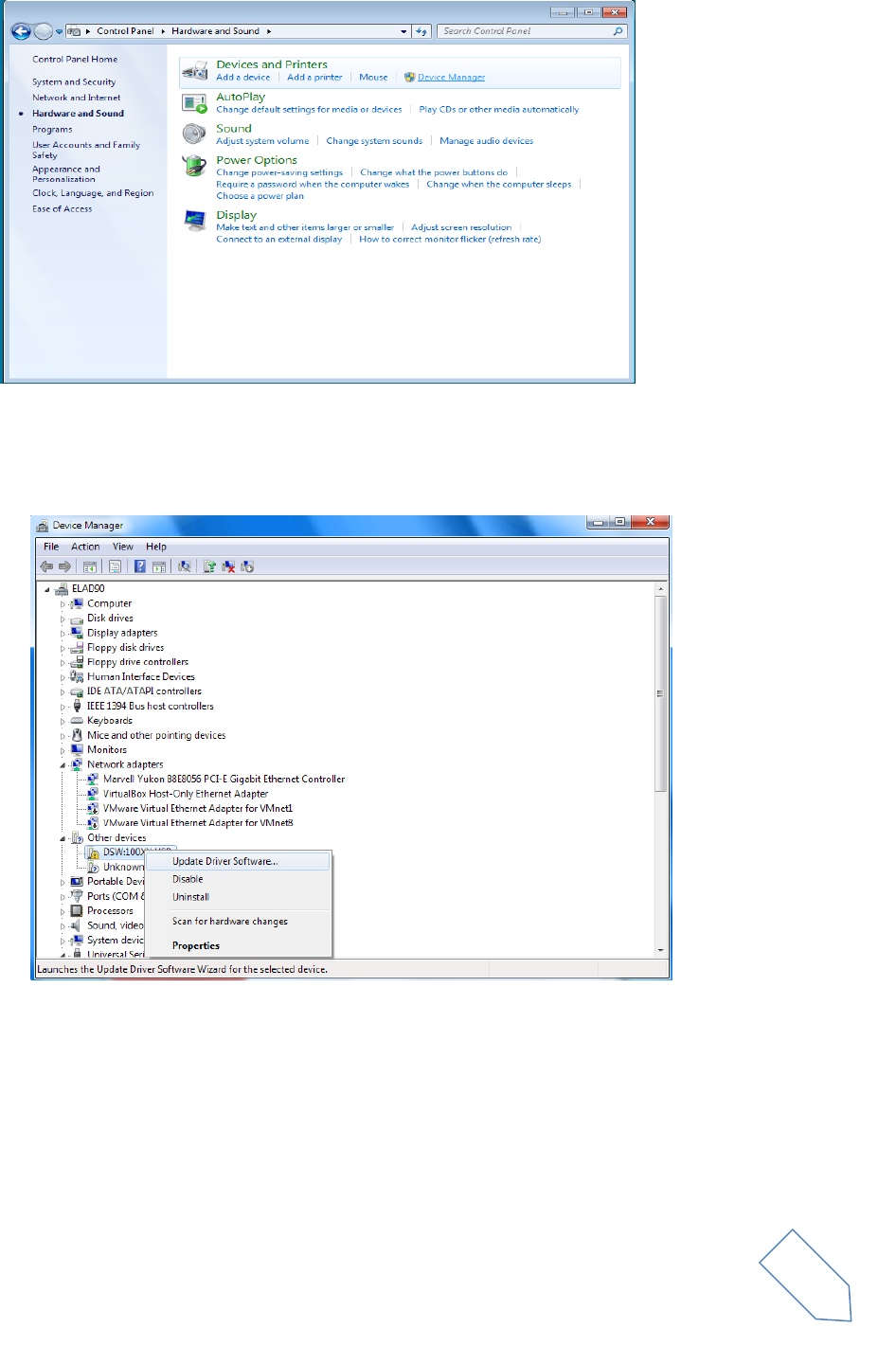
To install Tmate driver, connect device to a USB 2.0 socket on PC and let Windows 7 detects the new
hardware.
Open Control Panel from Start menu, select “System” and “Device Manager”.
ELAD FDM-S1 User Manual Rev 1.05 06/2013
© 2013 ELAD S.r.l. All rights reserved. No part of this document may be reproduced, published, used, disclosed or disseminated in any form or
by any means, electronic, photocopying or otherwise, without prior written permission of ELAD S.r.l.
33
Expand “Other Devices” node: the system reads Tmate firmware version named as “DSW:100XX USB”.
Select “DSW:100XX USB”, right click on it and execute “Update Driver Software…”.
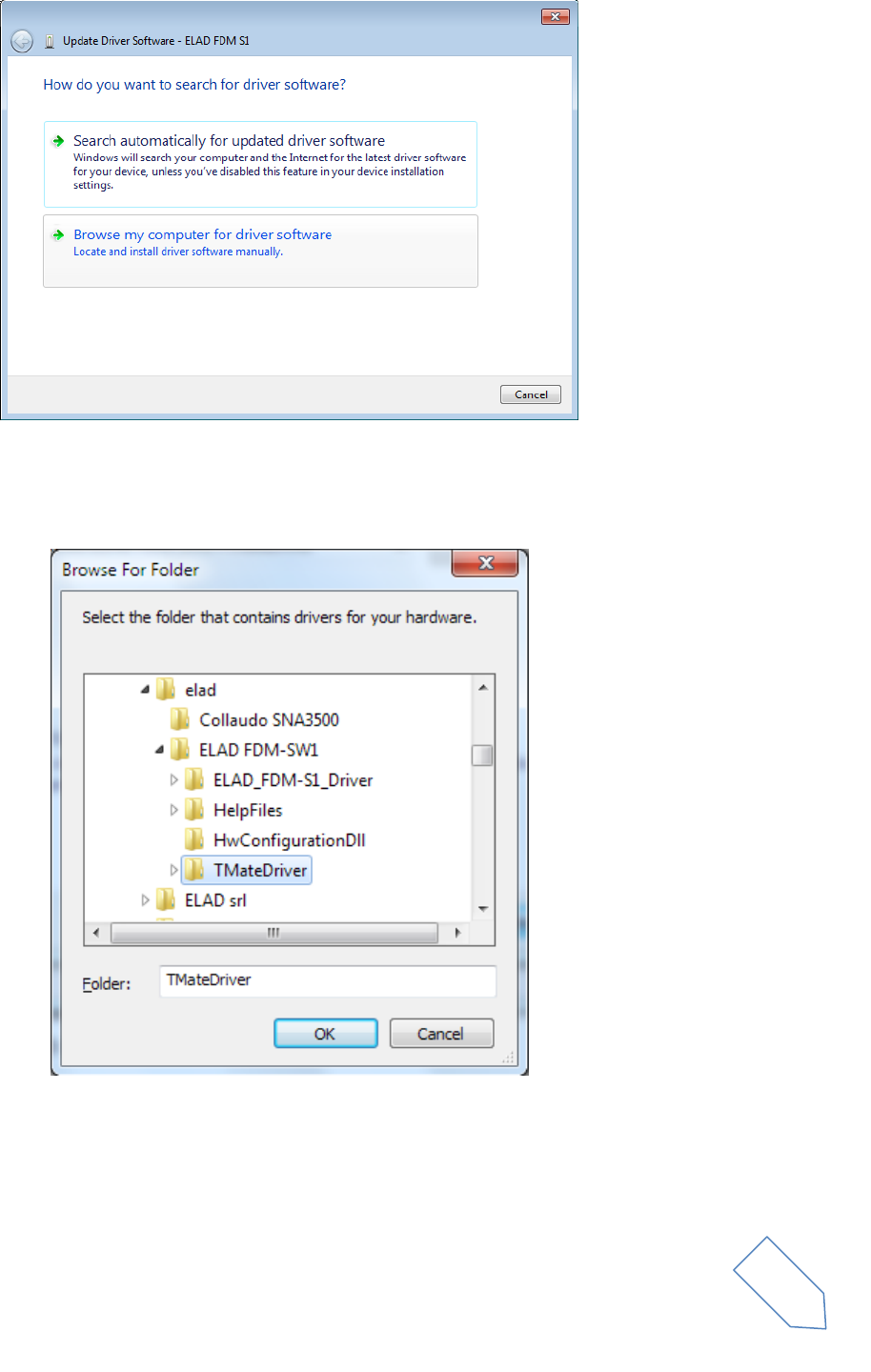
When Windows 7 starts the installation procedure, select the last option “Browse my computer for
driver software” (the second option).
ELAD FDM-S1 User Manual Rev 1.05 06/2013
© 2013 ELAD S.r.l. All rights reserved. No part of this document may be reproduced, published, used, disclosed or disseminated in any form or
by any means, electronic, photocopying or otherwise, without prior written permission of ELAD S.r.l.
34
Insert the driver folder location using “Browse” button and check the option “Include subfolders”. In this
way manual driver search is enabled.
For 32 bit system select the folder: C:\Program Files\ELAD\ELAD FDM-SW1\TMateDriver.
For 64 bit system select the folder: C:\Program Files (x86)\ELAD\ELAD FDM-SW1\ TMateDriver.
Click on “Next”.
ELAD FDM-S1 User Manual Rev 1.05 06/2013
© 2013 ELAD S.r.l. All rights reserved. No part of this document may be reproduced, published, used, disclosed or disseminated in any form or
by any means, electronic, photocopying or otherwise, without prior written permission of ELAD S.r.l.
35
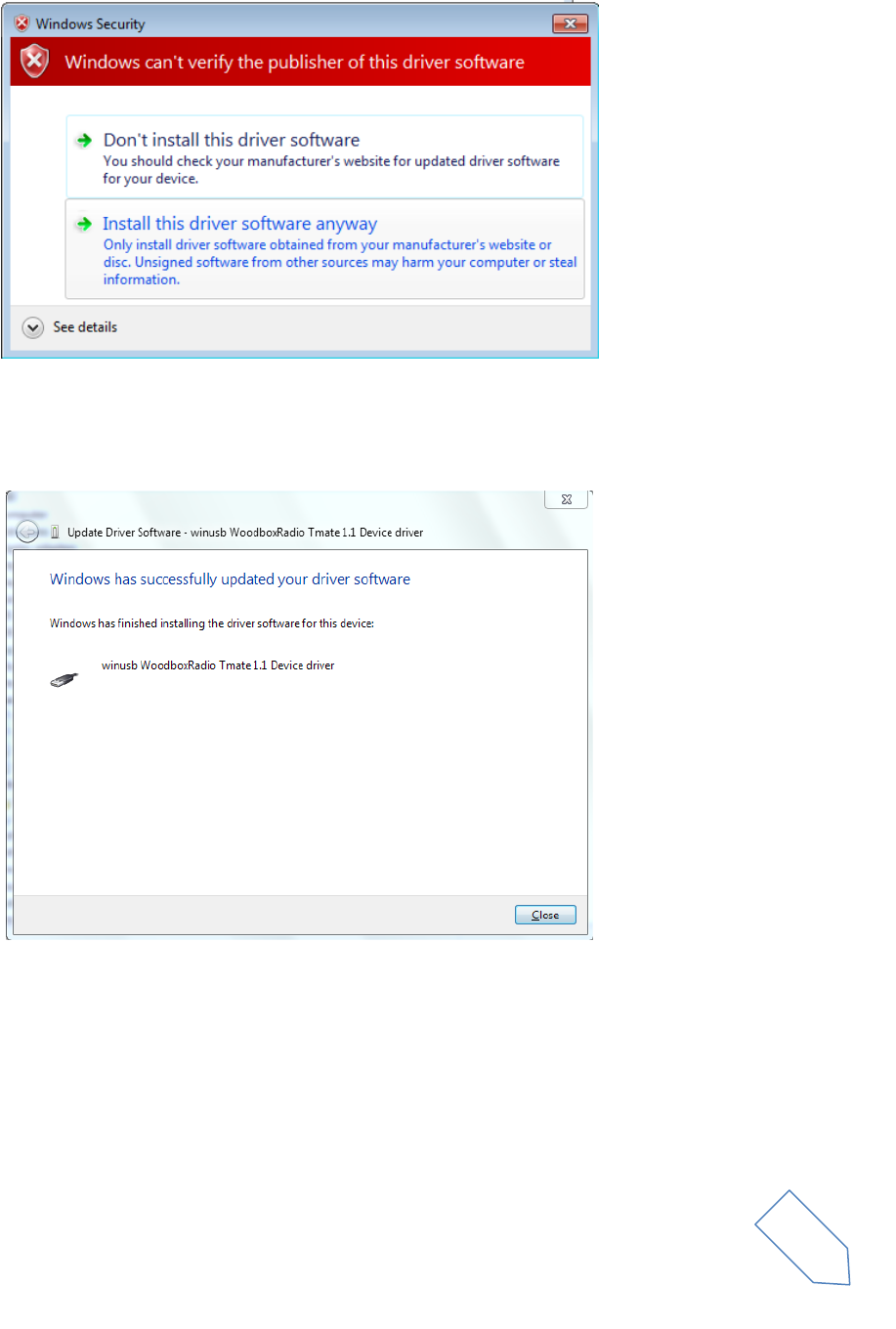
At next dialog box, ignore the warning and select “Install this driver software anyway” (the second
option).
Let the hardware installation automatically completes and click on “Close”. Then disconnect and
connect Tmate device on the same USB socket.
Now WoodboxRadio Tmate driver is installed on your PC.
ELAD FDM-S1 User Manual Rev 1.05 06/2013
© 2013 ELAD S.r.l. All rights reserved. No part of this document may be reproduced, published, used, disclosed or disseminated in any form or
by any means, electronic, photocopying or otherwise, without prior written permission of ELAD S.r.l.
36
2.3.1.2 Driver installation verify
To verify Tmate driver current version, connect the device to USB socket (where the device driver is
already installed) and open Control Panel from Start menu. Click on “System” and select “Device
Manager”.
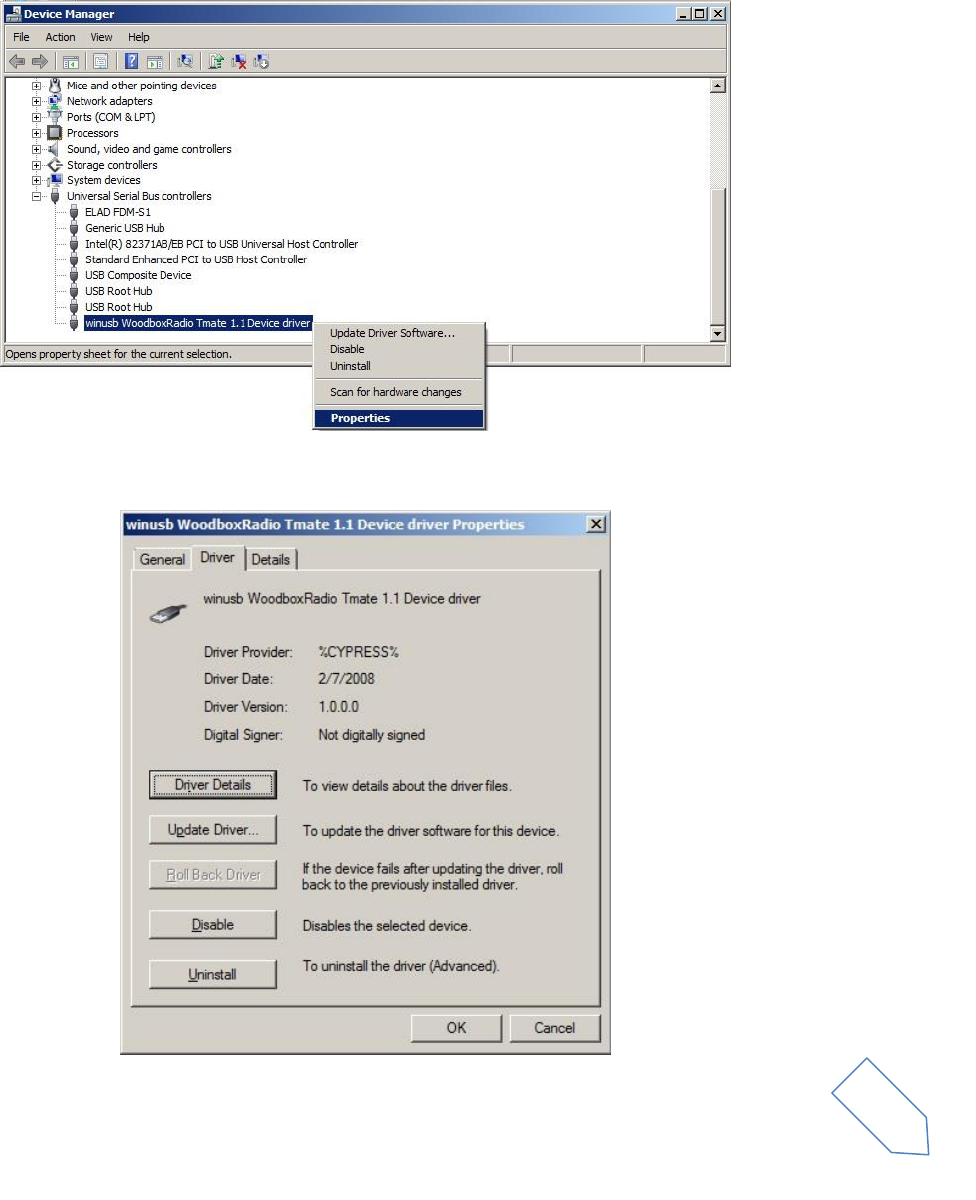
Expanding “Universal Serial Bus controllers” node, Tmate device driver is installed as “winusb
Woodboxradio Tmate 1.1 Device”: select it and right click on it, then choose “Properties”.
The figure represents an old driver version for Tmate.
ELAD FDM-S1 User Manual Rev 1.05 06/2013
© 2013 ELAD S.r.l. All rights reserved. No part of this document may be reproduced, published, used, disclosed or disseminated in any form or
by any means, electronic, photocopying or otherwise, without prior written permission of ELAD S.r.l.
37
2.3.1.3 Manual driver update
To update Tmate driver, connect the device to USB socket (where the device driver is already installed)
and open Control Panel from Start menu. Click on “System” and select “Device Manager”.
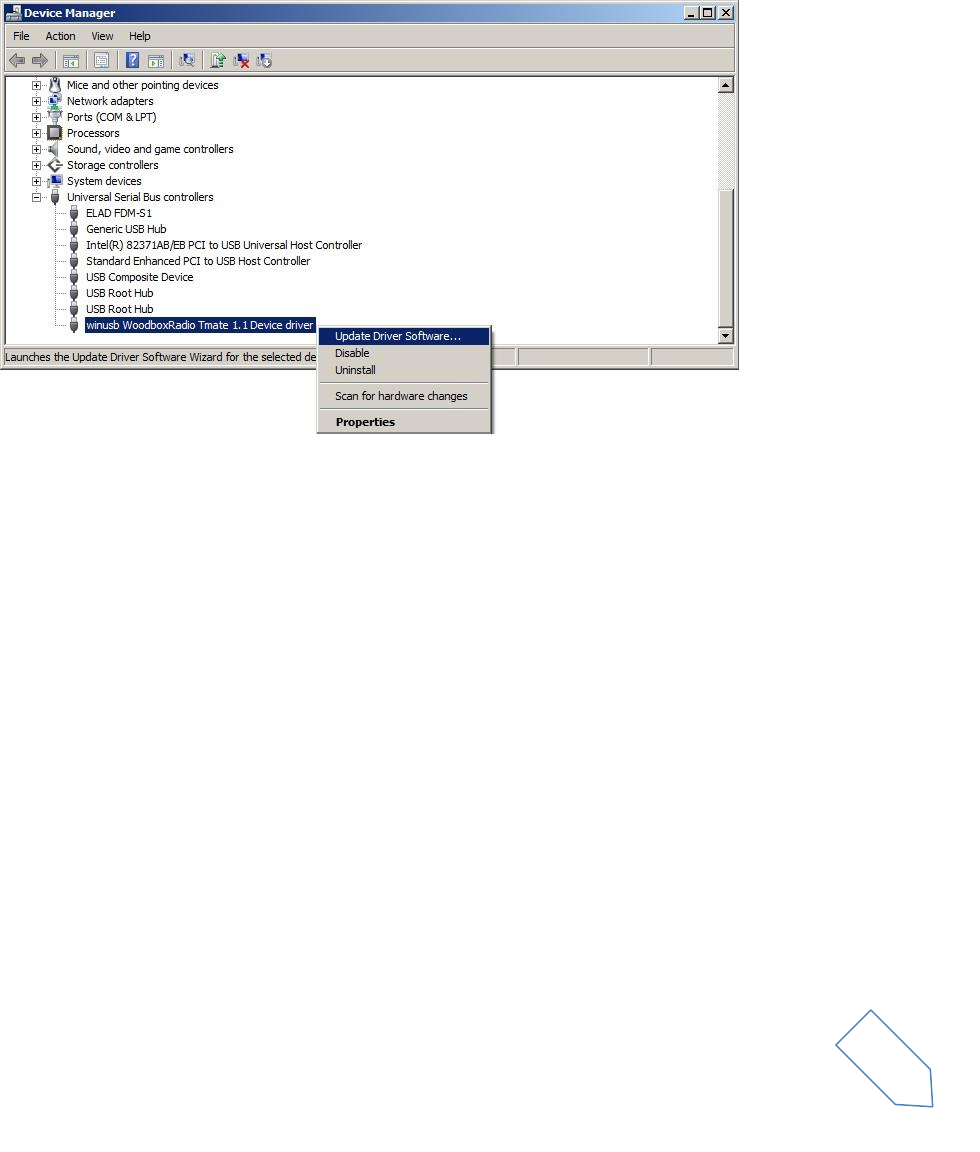
Under “Universal Serial Bus controllers” list, the driver for Tmate is installed as “winusb Woodboxradio
Tmate 1.1 Device driver”. Select it and right click on it; then execute “Update driver”.
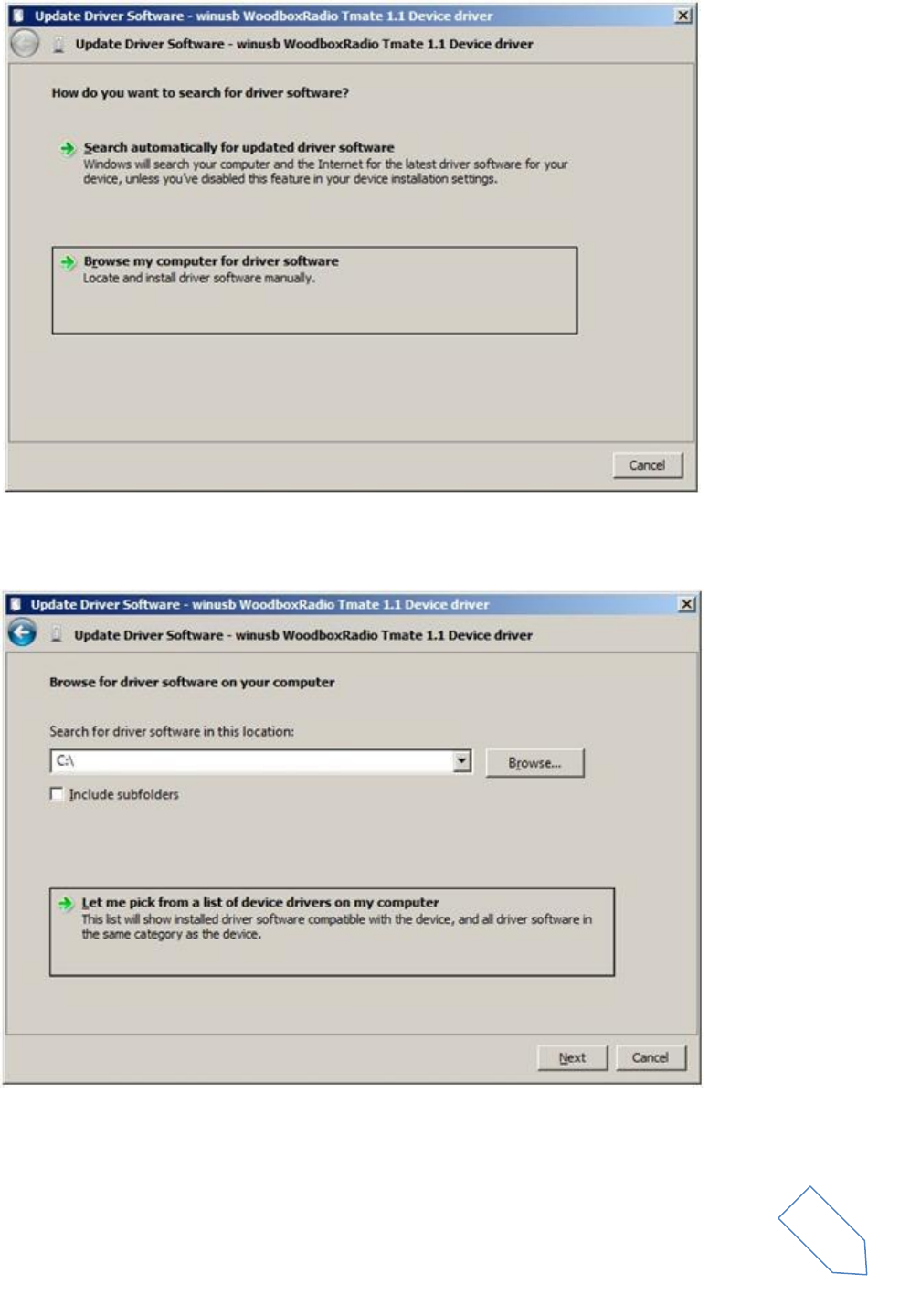
When Windows 7 starts the installation procedure, select the last option “Browse my computer for
driver software”.
ELAD FDM-S1 User Manual Rev 1.05 06/2013
© 2013 ELAD S.r.l. All rights reserved. No part of this document may be reproduced, published, used, disclosed or disseminated in any form or
by any means, electronic, photocopying or otherwise, without prior written permission of ELAD S.r.l.
38
In the next dialog-box, disable the option “Include subfolders” and choose “Let me pick from a list of
device drivers on my computer”. Don’t click “Next”.
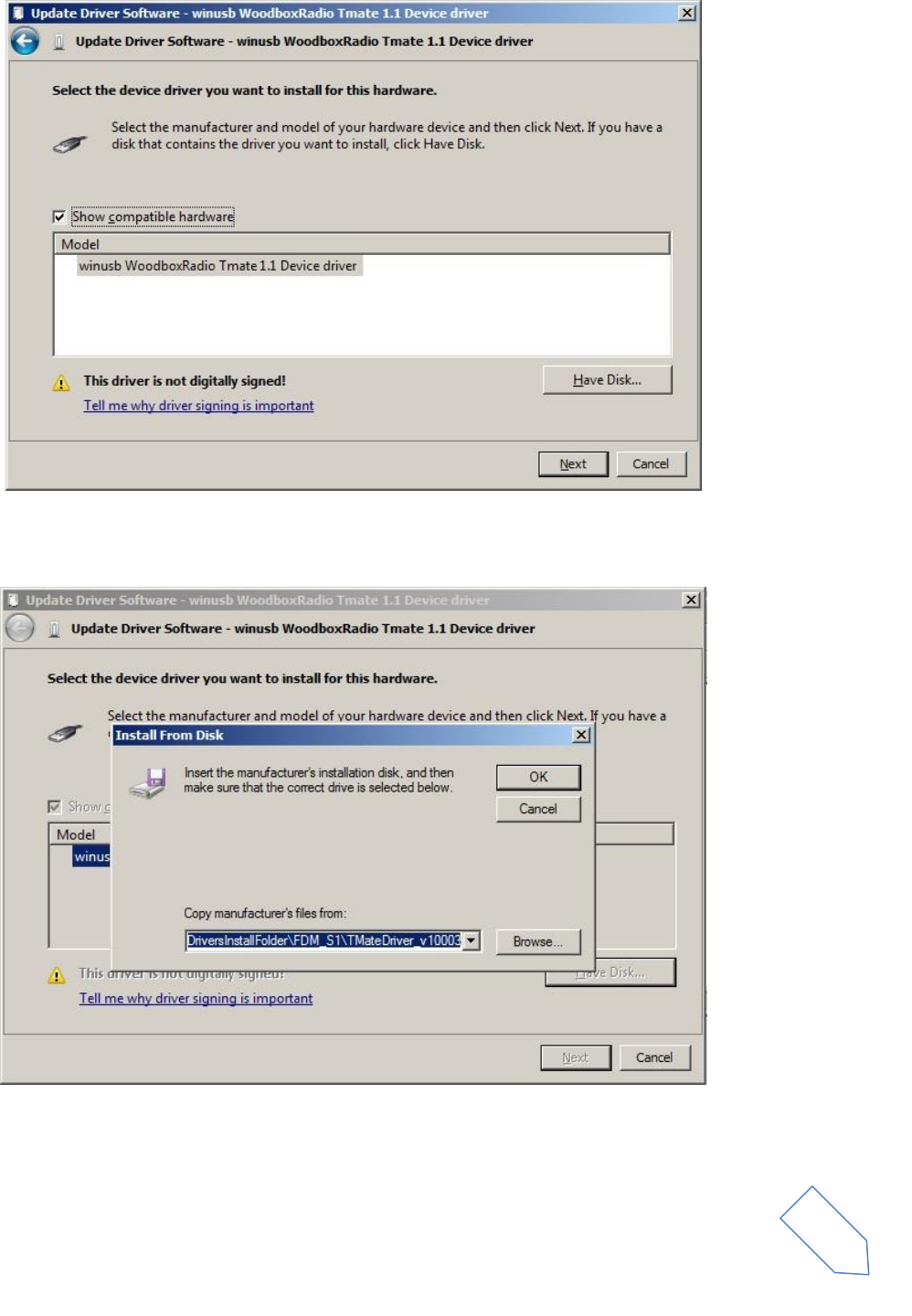
Verify that the option “Show compatible hardware” is checked and Tmate is selected: click on “Have a
Disk”. In this way the manual driver update is enabled. Don’t click “Next”.
ELAD FDM-S1 User Manual Rev 1.05 06/2013
© 2013 ELAD S.r.l. All rights reserved. No part of this document may be reproduced, published, used, disclosed or disseminated in any form or
by any means, electronic, photocopying or otherwise, without prior written permission of ELAD S.r.l.
39
Click on “Browse” and search for Tmate driver update folder location; then open winusbtmate.inf
file, as depicted on figure. Click “OK” and then “Next”.
Now driver update starts: select “Install this driver software anyway” and ignore the warning at next
dialog-box.
ELAD FDM-S1 User Manual Rev 1.05 06/2013
© 2013 ELAD S.r.l. All rights reserved. No part of this document may be reproduced, published, used, disclosed or disseminated in any form or
by any means, electronic, photocopying or otherwise, without prior written permission of ELAD S.r.l.
40
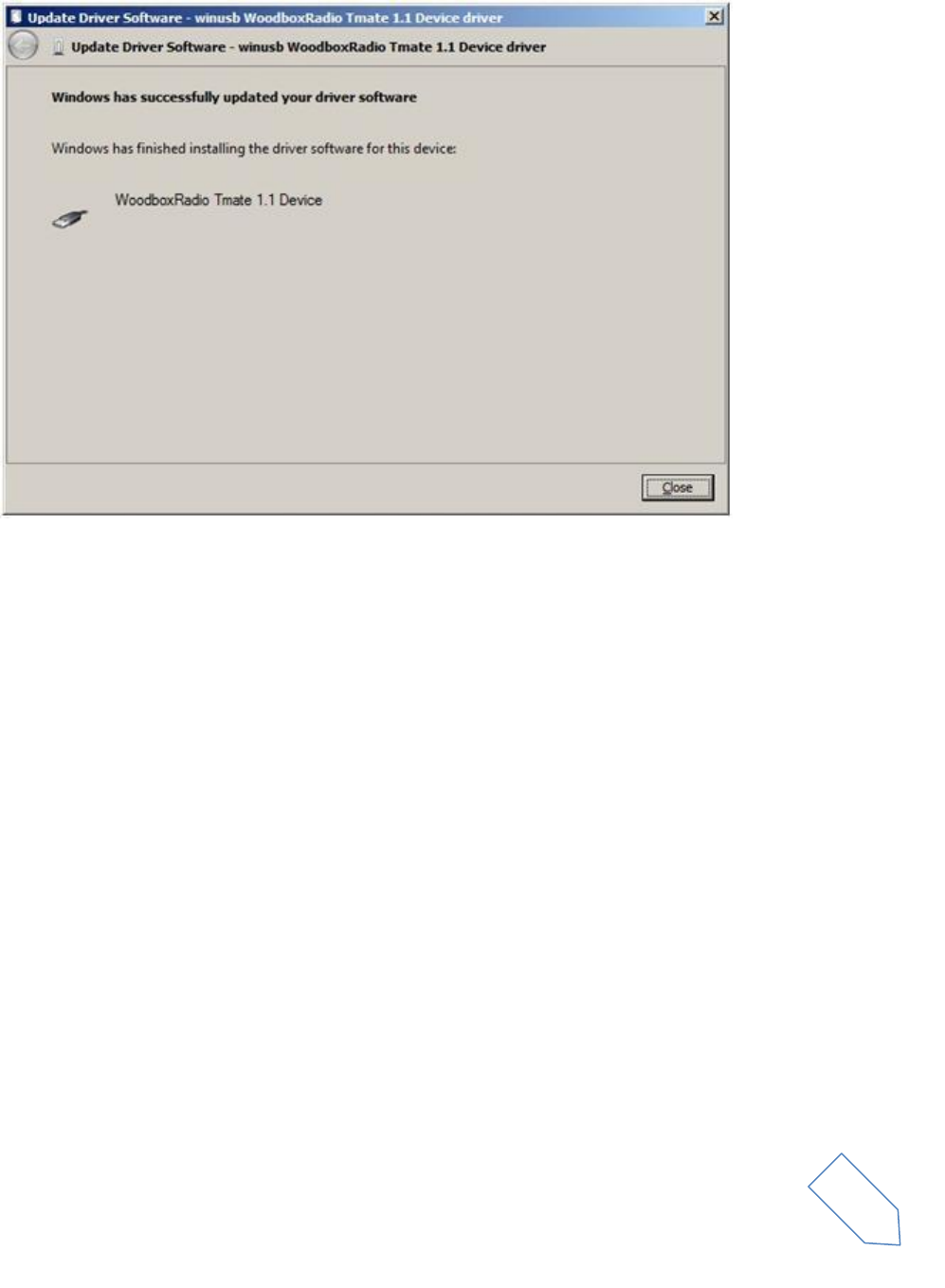
Let the hardware installation automatically completes and, at the procedure ending, click on “Close”;
then disconnect and connect Tmate device on the same USB socket.
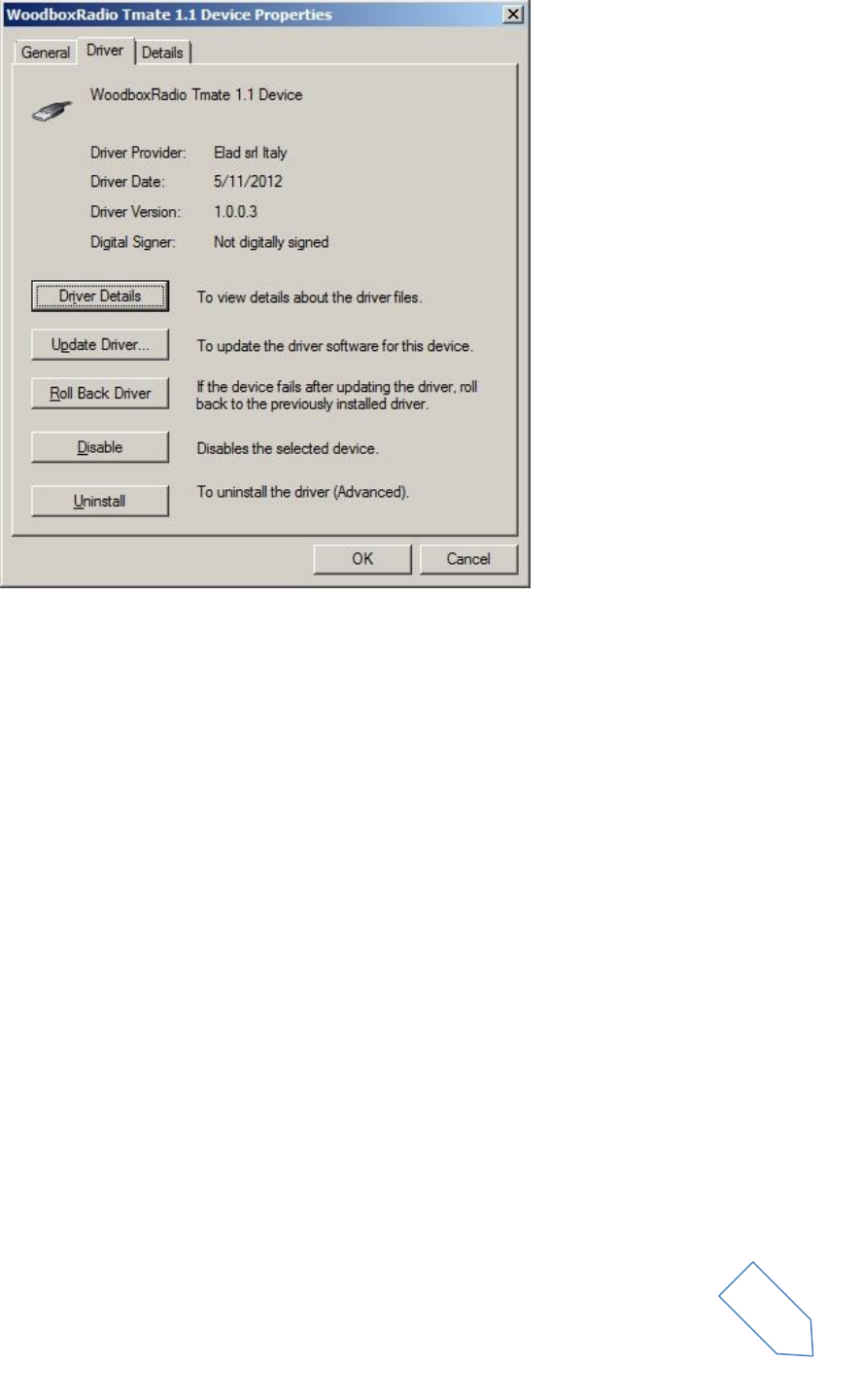
To verify that a right update is done, enter “Device Manager” from Control Panel and expand “Universal
Serial Bus controllers” node: select “WoodboxRadio Tmate 1.1 Device” driver (see sub-chapter “2.3.1.2
Driver installation verify”), right click on it and choose “Properties”. Select “Driver” label to visualize the
last driver version (an example is depicted ion figure below).
ELAD FDM-S1 User Manual Rev 1.05 06/2013
© 2013 ELAD S.r.l. All rights reserved. No part of this document may be reproduced, published, used, disclosed or disseminated in any form or
by any means, electronic, photocopying or otherwise, without prior written permission of ELAD S.r.l.
41
2.3.2 WoodBoxRadio Tmate USB driver installation in Windows XP
2.3.2.1 First driver installation
To install Woodbox T-Mate driver, connect WoodboxRadio Tmate to a USB 2.0 socket on PC. Windows
XP detects the new hardware and starts the hardware installation wizard automatically. Then follow the
steps listed below to install correctly the driver:
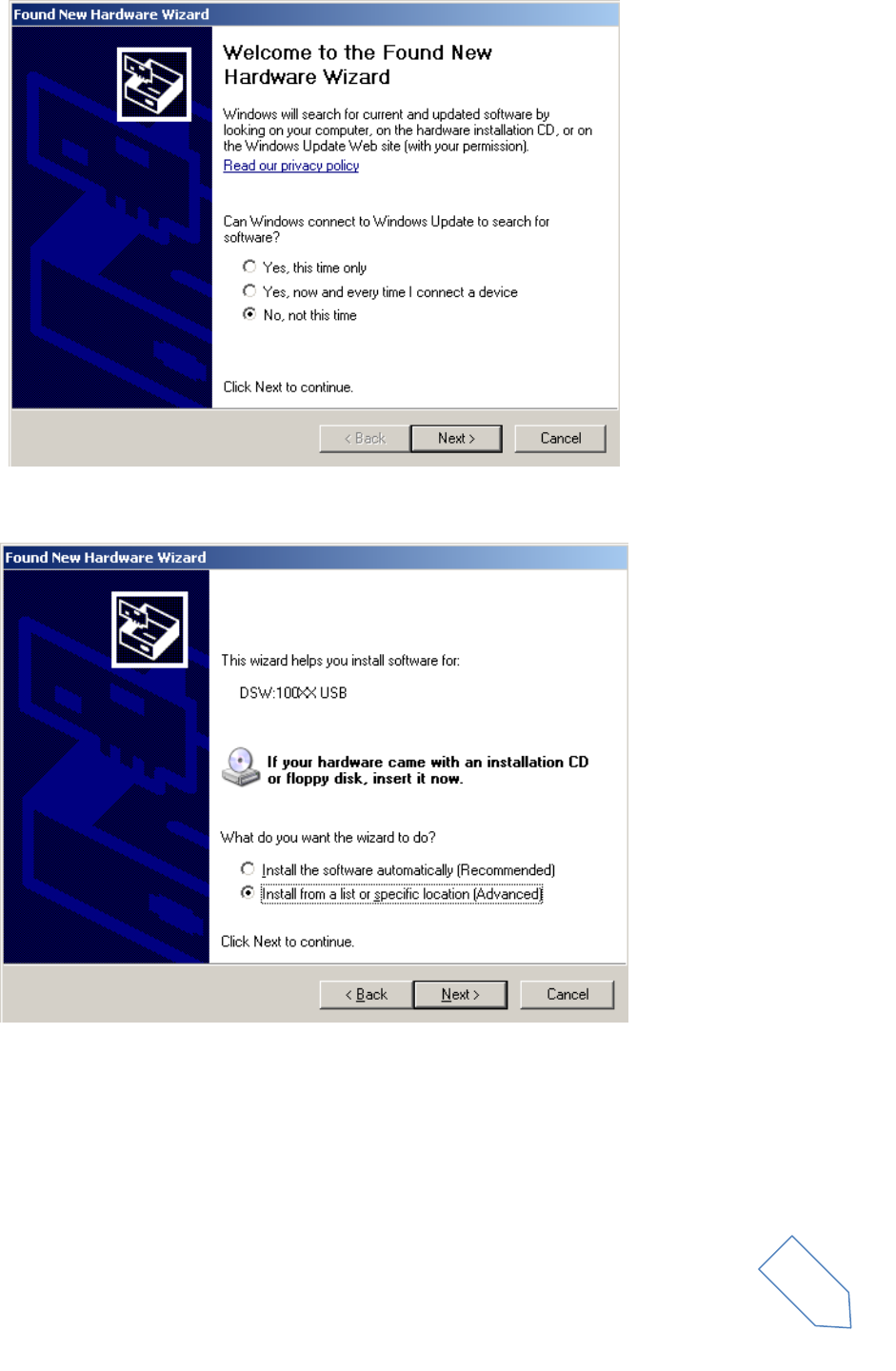
At the first dialog-box, select the third option “No, no this time”, the click on “Next”.
ELAD FDM-S1 User Manual Rev 1.05 06/2013
© 2013 ELAD S.r.l. All rights reserved. No part of this document may be reproduced, published, used, disclosed or disseminated in any form or
by any means, electronic, photocopying or otherwise, without prior written permission of ELAD S.r.l.
42
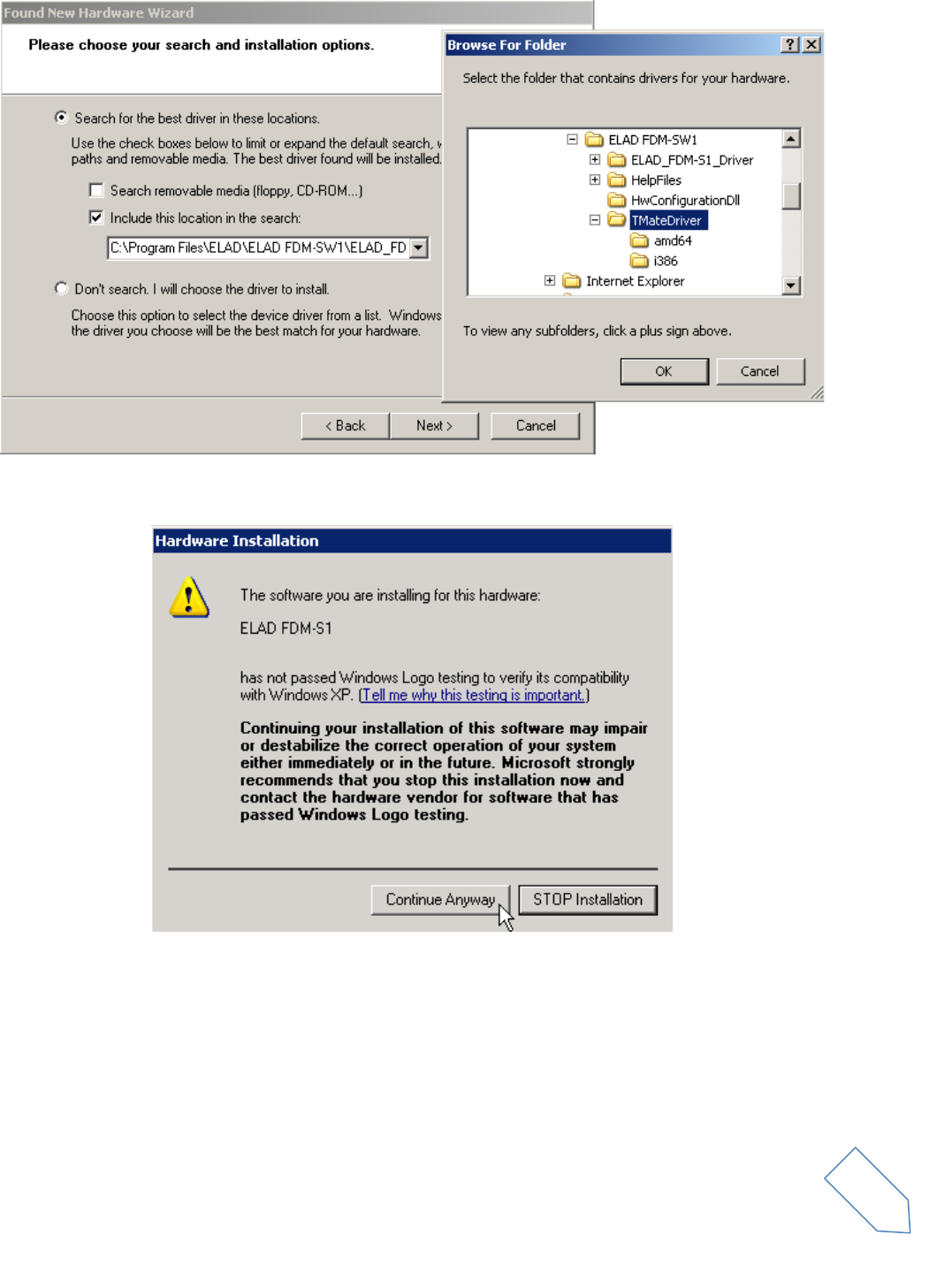
Select the option “Install from a list or specific location (Advanced)” and click on “Next”.
Select “Search for the best driver in these location” and “Include this location in the search”, click on
“Browse” and select the folder: Local Drive (C:) \Programs\ELAD\ELAD FDM-SW1\TMateDriver. Then
click on “Next”.
ELAD FDM-S1 User Manual Rev 1.05 06/2013
© 2013 ELAD S.r.l. All rights reserved. No part of this document may be reproduced, published, used, disclosed or disseminated in any form or
by any means, electronic, photocopying or otherwise, without prior written permission of ELAD S.r.l.
43
At the next dialog box ignore the warning and click on “Continue Anyway”.
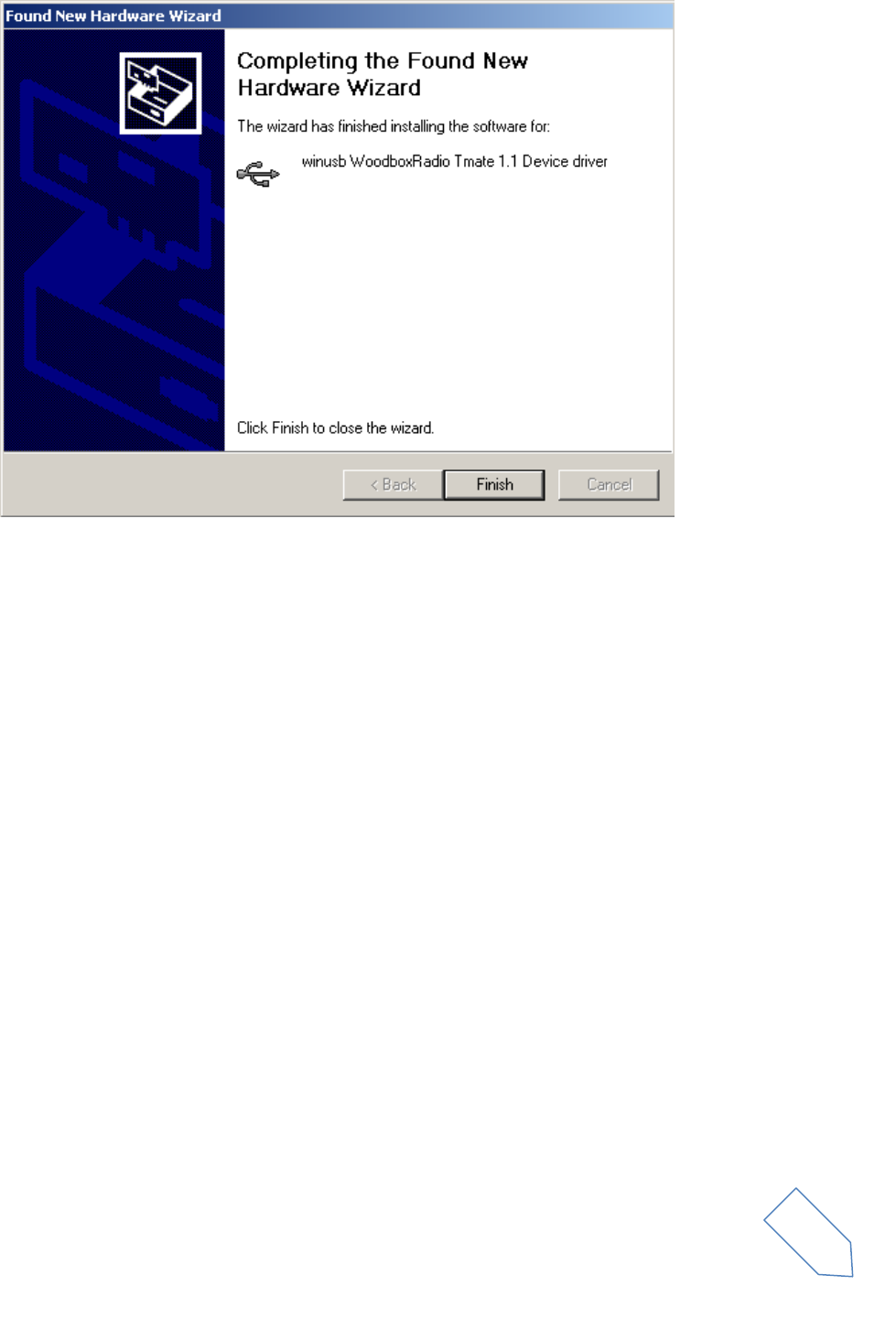
Let the hardware installation automatically completes and click on “Finish”; then disconnect e connect
Tmate device on the same USB socket.
ELAD FDM-S1 User Manual Rev 1.05 06/2013
© 2013 ELAD S.r.l. All rights reserved. No part of this document may be reproduced, published, used, disclosed or disseminated in any form or
by any means, electronic, photocopying or otherwise, without prior written permission of ELAD S.r.l.
44
Now WoodboxRadio Tmate driver is installed on your PC.
2.3.2.2 Driver installation verify
To verify Tmate driver current version, connect the device to USB socket (where the device driver is
already installed) and open Control Panel from Start menu. Click on “System” and select “Device
Manager” under “Hardware” label.
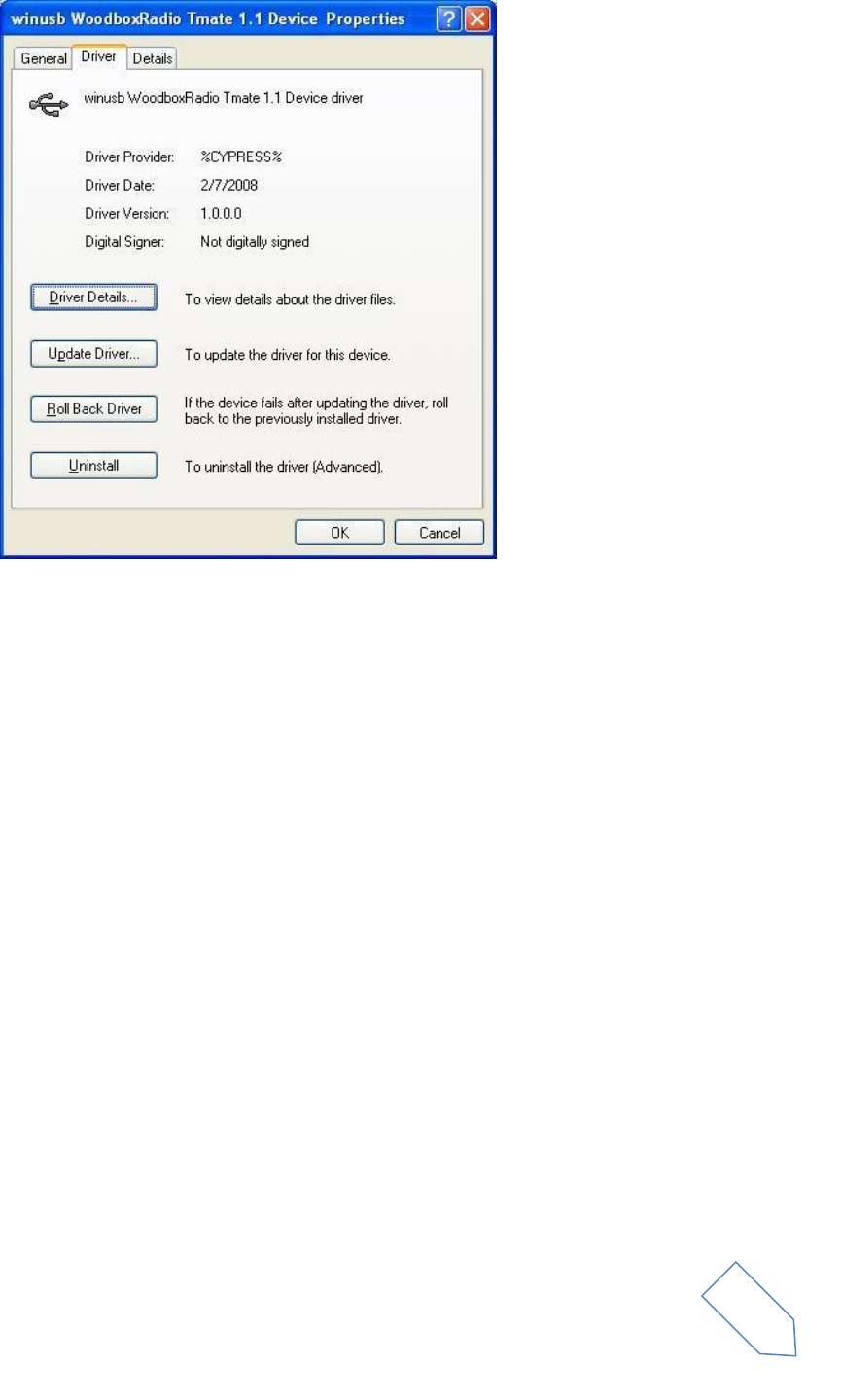
Expanding “Universal Serial Bus controllers” node, Tmate device driver is installed as “winusb
Woodboxradio Tmate 1.1 Device”: select it and right click on it, then select “Properties”.
The figure represents an old driver version for Tmate.
ELAD FDM-S1 User Manual Rev 1.05 06/2013
© 2013 ELAD S.r.l. All rights reserved. No part of this document may be reproduced, published, used, disclosed or disseminated in any form or
by any means, electronic, photocopying or otherwise, without prior written permission of ELAD S.r.l.
45
2.3.2.3 Manual driver update
To update Tmate driver, connect the device to USB socket (where the device driver is already installed)
and open Control Panel from Start menu. Click on “System” and select “Device Manager” under
“Hardware” label.
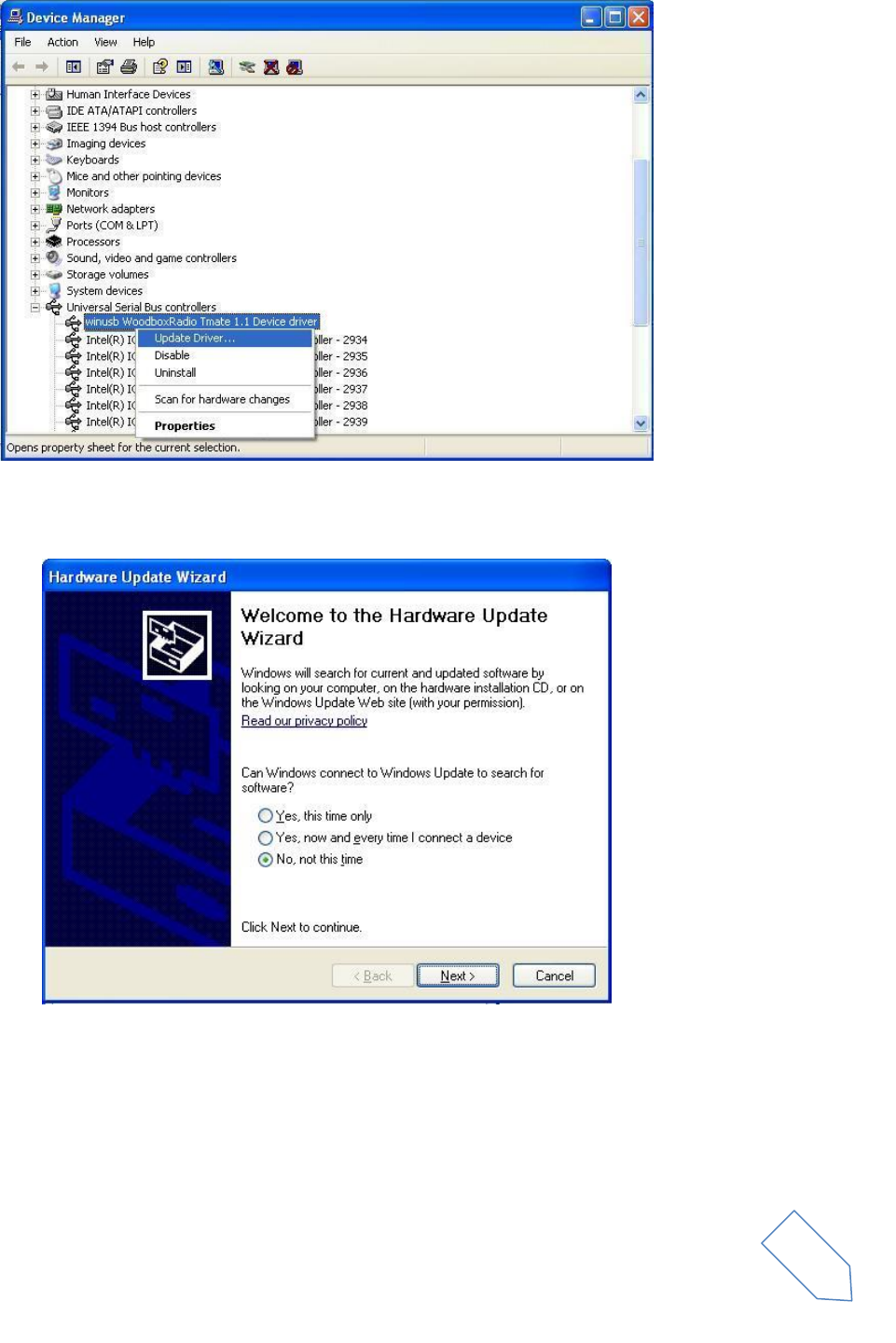
Select “winusb Woodboxradio Tmate 1.1 Device” from “Universal Serial Bus controllers” list, right click
on it and execute “Update driver ” .
ELAD FDM-S1 User Manual Rev 1.05 06/2013
© 2013 ELAD S.r.l. All rights reserved. No part of this document may be reproduced, published, used, disclosed or disseminated in any form or
by any means, electronic, photocopying or otherwise, without prior written permission of ELAD S.r.l.
46
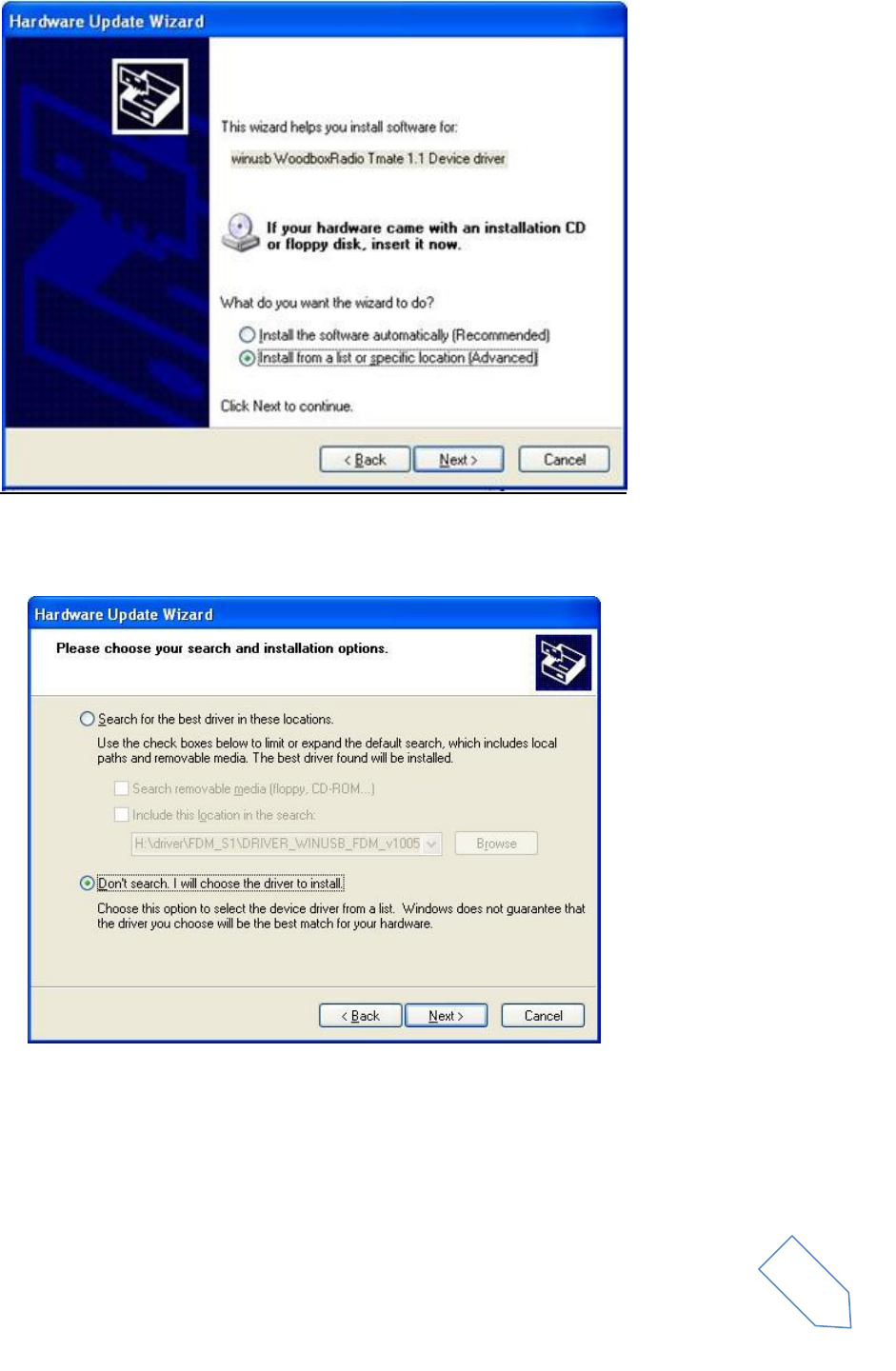
Now Windows XP launches the hardware update wizard: select the last option “No, not this time” and
“Next”.
At next step select “Install from a list or specific location (Advanced)” and “Next”.
ELAD FDM-S1 User Manual Rev 1.05 06/2013
© 2013 ELAD S.r.l. All rights reserved. No part of this document may be reproduced, published, used, disclosed or disseminated in any form or
by any means, electronic, photocopying or otherwise, without prior written permission of ELAD S.r.l.
47
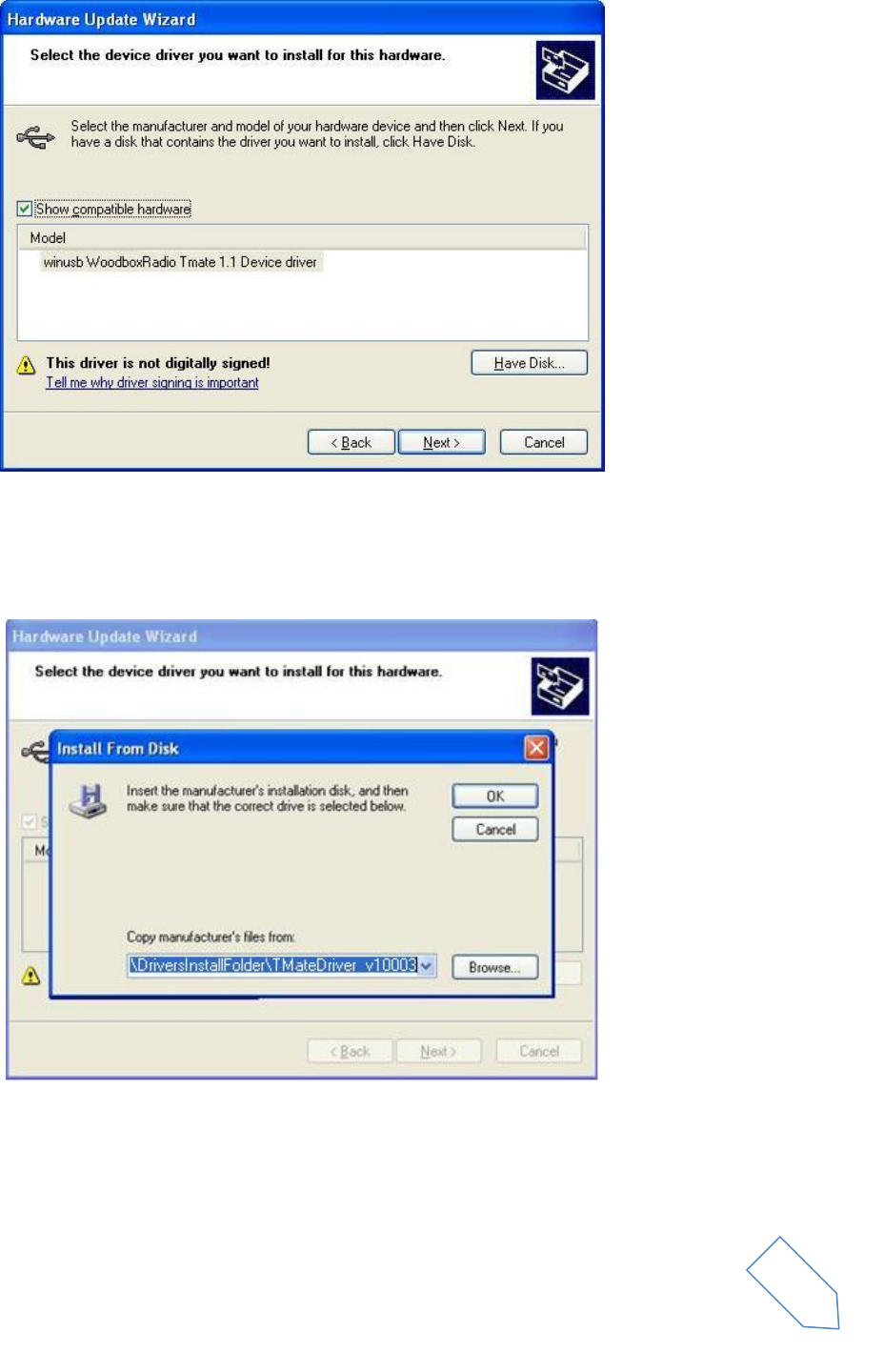
Then, disable all check-boxes that the system automatically sets and choose the last option for manual
driver update, as depicted in figure. Select “Next”.
Verify that “Show compatible hardware” is checked and Tmate driver is selected: then click on “Have a
Disk”. In this way manual update is enabled. Don’t click “Next”.
ELAD FDM-S1 User Manual Rev 1.05 06/2013
© 2013 ELAD S.r.l. All rights reserved. No part of this document may be reproduced, published, used, disclosed or disseminated in any form or
by any means, electronic, photocopying or otherwise, without prior written permission of ELAD S.r.l.
48
Click on “Browse” and search for the Tmate driver update folder location; then open
winusbtmate.inf file. Click “OK” and then “Next”.
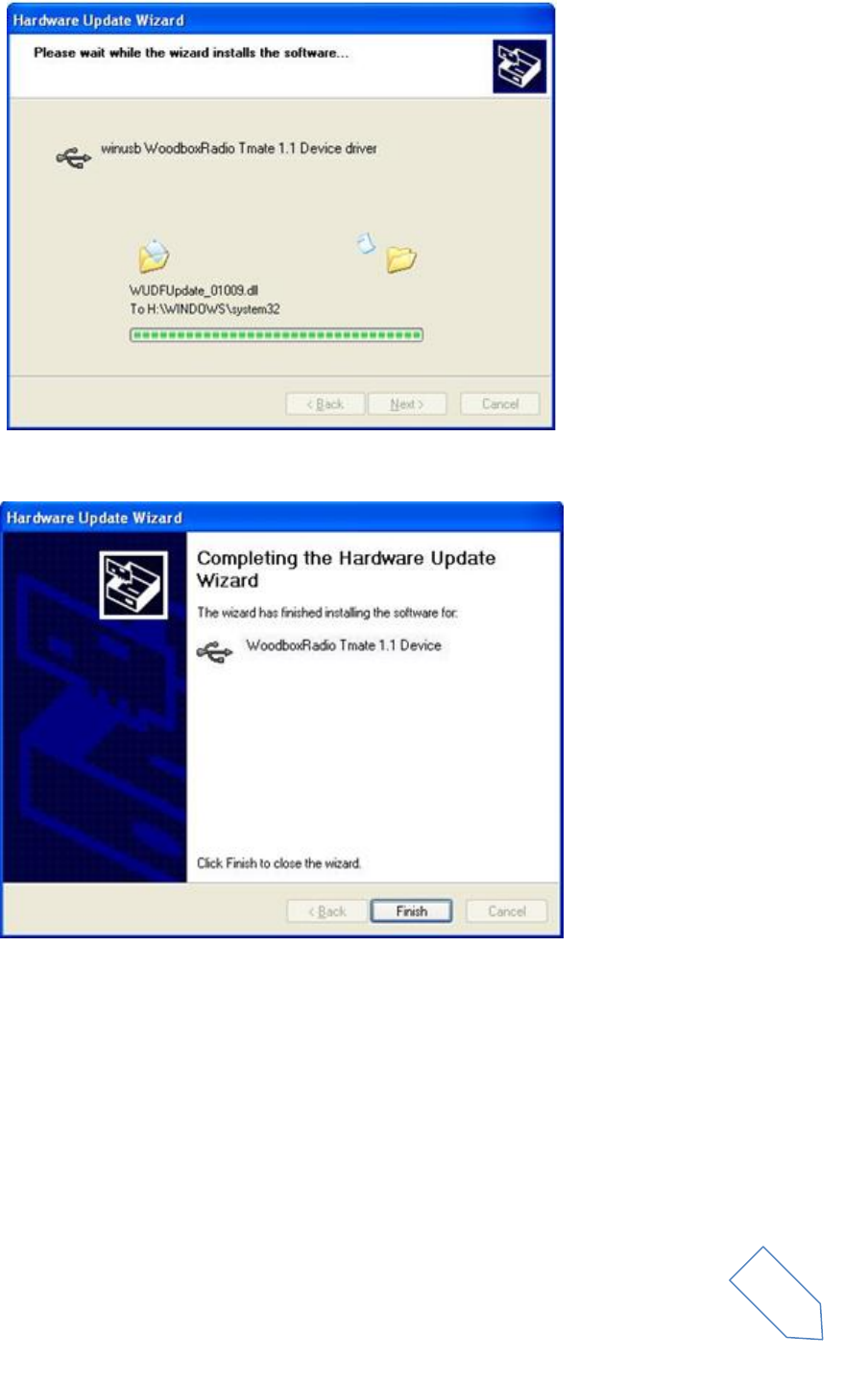
Now driver update starts: at next dialog box select “Continue Anyway” and ignore the warning.
Let the hardware update automatically completes and, at the procedure ending, click on “Finish”; then
disconnect e connect Tmate device on the same USB socket.
ELAD FDM-S1 User Manual Rev 1.05 06/2013
© 2013 ELAD S.r.l. All rights reserved. No part of this document may be reproduced, published, used, disclosed or disseminated in any form or
by any means, electronic, photocopying or otherwise, without prior written permission of ELAD S.r.l.
49
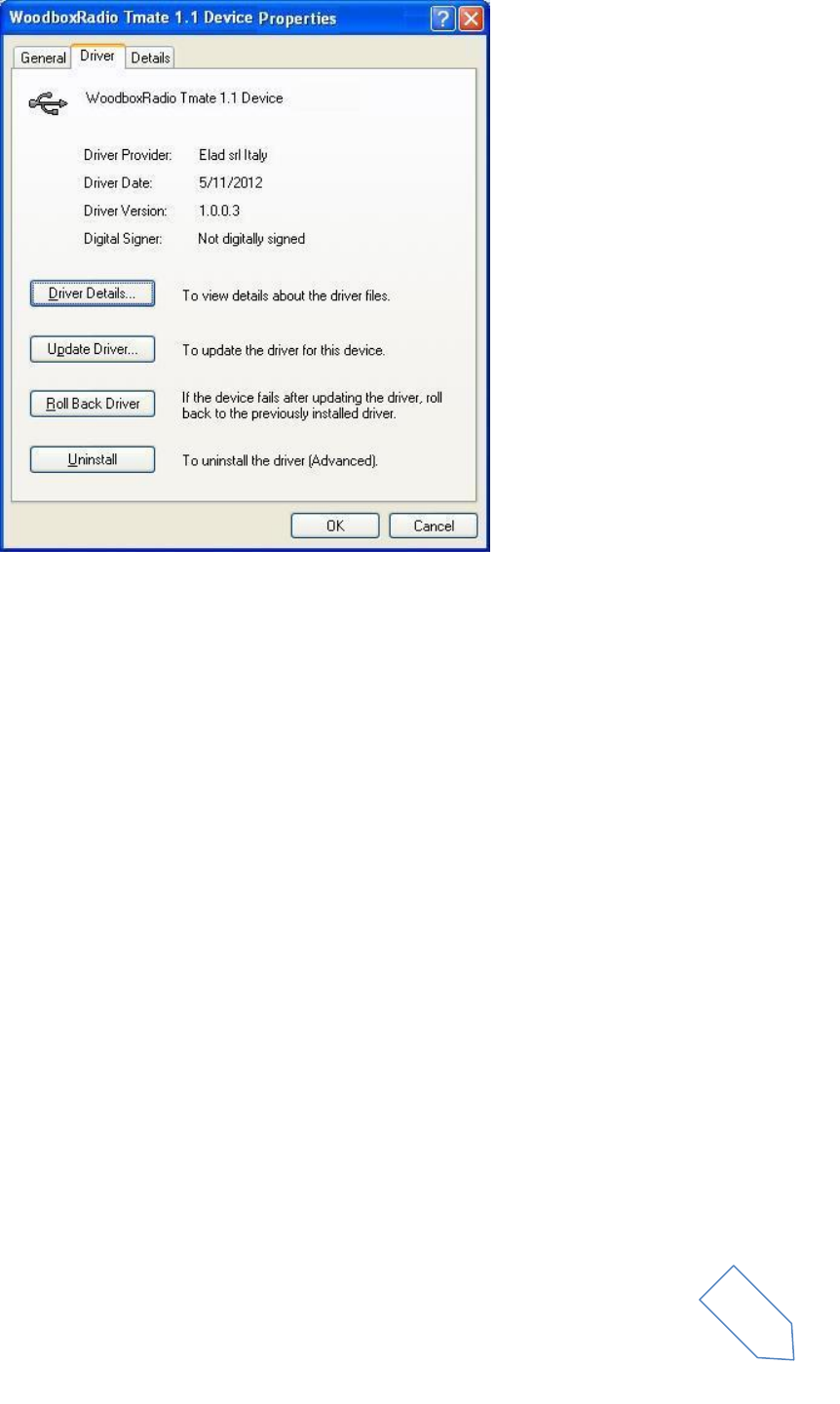
To verify that a correct update is done, enter “Device Manager” from Control Panel and expand
“Universal Serial Bus controllers” node. Select “WoodboxRadio Tmate 1.1 Device” driver (see chapter
“2.3.2.2 Driver installation verify”) right click on it and choose “Properties”. Select “Driver” label to
visualize the last driver version.
ELAD FDM-S1 User Manual Rev 1.05 06/2013
© 2013 ELAD S.r.l. All rights reserved. No part of this document may be reproduced, published, used, disclosed or disseminated in any form or
by any means, electronic, photocopying or otherwise, without prior written permission of ELAD S.r.l.
50
ELAD FDM-S1 User Manual Rev 1.05 06/2013
© 2013 ELAD S.r.l. All rights reserved. No part of this document may be reproduced, published, used, disclosed or disseminated in any form or
by any means, electronic, photocopying or otherwise, without prior written permission of ELAD S.r.l.
51
Annex A
FDM-S1 External Hardware Connector
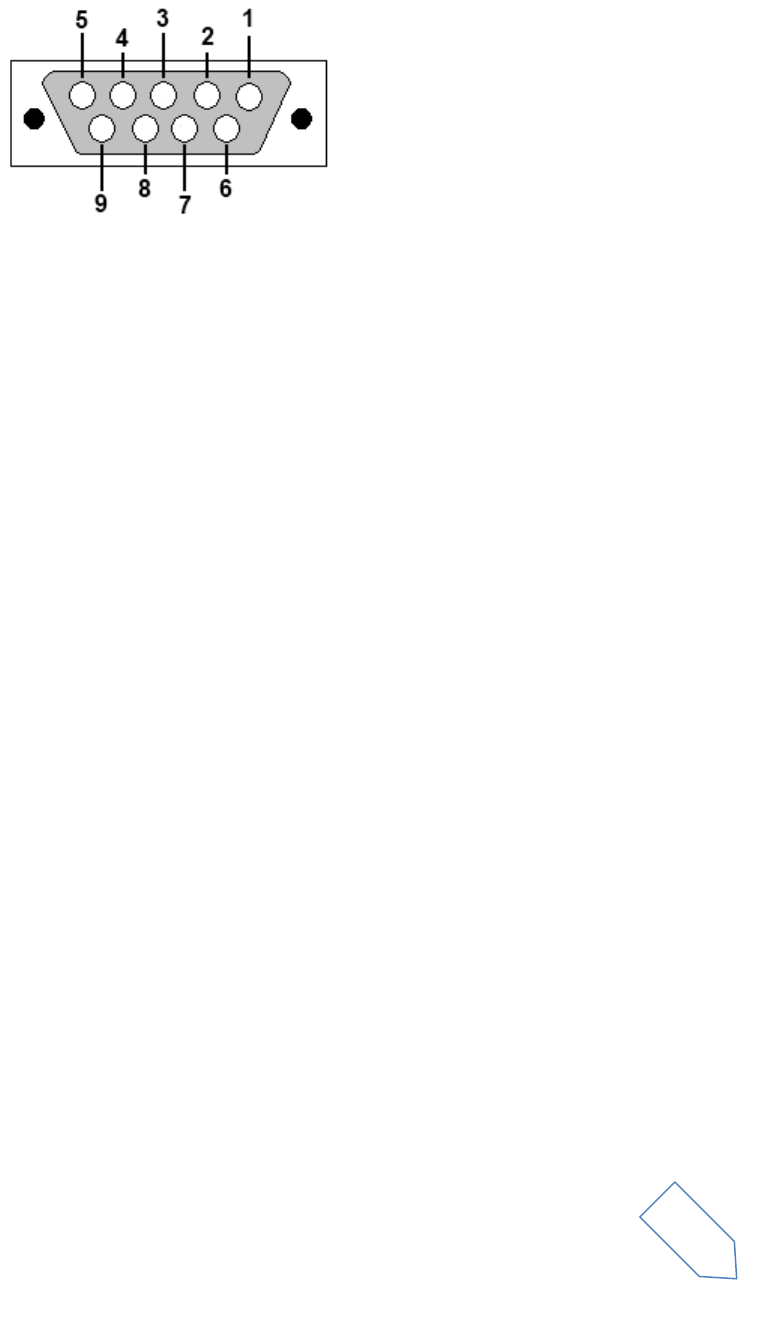
Pin 1: SFE Latch 595
Pin 2: I2C SCL
Pin 3: SFE CLOCK 595
Pin 4: I2C SDA
Pin 5: Ground
Pin 6: MUTE
Pin 7: Reserved
Pin 8: SFE Data 595
Pin 9: Vcc (4.5V)
To mute the FDM-S1, connect the Pin 6 to ground.
Note: the maximum cable length should not exceed 100 mm.
ELAD FDM-S1 User Manual Rev 1.05 06/2013
© 2013 ELAD S.r.l. All rights reserved. No part of this document may be reproduced, published, used, disclosed or disseminated in any form or
by any means, electronic, photocopying or otherwise, without prior written permission of ELAD S.r.l.
52

ELAD FDM-S1 User Manual Rev 1.05 06/2013
© 2013 ELAD S.r.l. All rights reserved. No part of this document may be reproduced, published, used, disclosed or disseminated in any form or
by any means, electronic, photocopying or otherwise, without prior written permission of ELAD S.r.l.
53
Declaration of Conformity
The product marked as
FDM-S1
manufactured by
Manufacturer: ELAD S.r.l.
Address: Via Col De Rust, 11 - Sarone
33070 CANEVA (PN)
is produced in conformity to the requirements contained in the following EC directives:
R&TTE Directive 1999/5/CE
EMC Directive 2004/108/CE
Low Voltage Directive 2006/95/CE
The product conforms to the following Product Specifications:
Emissions & Immunity:
ETSI EN 300 330-1
ETSI EN 301 489-1
ETSI EN 301 498-15
ETSI EN 301 783-2
EN 55022: 2006 + A1: 2007
EN 55024: 1998 + A1: 2001 + A2: 2003
Safety:
EN 60950-1: 2006 + A11: 2009
And further amendments.
This declaration is under responsibility of the manufacturer:
ELAD S.r.l.
Via Col De Rust, 11 - Sarone
33070 CANEVA (PN)
Issued by:
Name: Franco Milan
Function: President of ELAD
Caneva
Place
March, 20th 2012
Date
Signature

ELAD FDM-S1 User Manual Rev 1.05 06/2013
© 2013 ELAD S.r.l. All rights reserved. No part of this document may be reproduced, published, used, disclosed or disseminated in any form or
by any means, electronic, photocopying or otherwise, without prior written permission of ELAD S.r.l.
54
Declaration of Conformity
The ELAD FDM-S1 complies with the following requirements:
- FCC (Federal Communications Commission) Part 15
Operation is subject to the following two conditions:
(1) This device may not cause harmful interference, and
(2) This device must accept any interference received, including interference that may cause
undesired operation.
Changes or modification not expressly approved by the party responsible for compliance could
void the user’s authority to operate the equipment.
FCC ID: 2AAE5FMD-S1