ELECTRONICS TECHNOLOGY M71DP3 MID User Manual M71DP3 Manual
ELECTRONICS TECHNOLOGY(DONG GUAN)COMPANY LIMITED MID M71DP3 Manual
Users Manual
1
Dear users:
First of all, thank you for giving us the opportunity to serve you!
Before using this product, please read the instructions carefully.
This "manual" is intended to introduce you the basic characteristics of
this product, in order to help you using it at the best way. This manual
describes the product's features and information in details, as well as
recommendations and attentions to help you fully understand the technical
characteristics of the product.
In the annex provided with the product, you will find "warranty card",
which indicates the effectiveness of the relevant provisions of maintenance, as
well as additional services provided to users, please read it carefully in order
to avoid unnecessary problems. The product has powerful functions and high
performance, it will greatly improve your enjoy and satisfaction online.
Special note:
All the information in this manual is correct at time of publication.
However, as we continue to update and improve the product, so the software
on your device may be described slightly different in appearance and
functions.
(We reserve the right to improve products, specifications and designs are
subject to change without notice!)
2
Content
Technical parameters ............................................................................. 4
Appearance Preview .............................................................................. 5
1. Appearance Introduction ................................................................... 5
2. TF card ................................................................................................. 6
3. Charge ................................................................................................. 6
First experience ...................................................................................... 7
1. Boot the MID ....................................................................................... 7
2. Shutdown ............................................................................................ 7
3. Lock-screen and power-saving mode .............................................. 8
4. Main interface description ................................................................. 9
5. Custom Screen .................................................................................10
7. Connection of USB cable. ...............................................................12
1. WI-FI ...................................................................................................14
2. Internet ..............................................................................................15
Software Management .........................................................................16
1.Explorer ..............................................................................................16
2. Software installation.........................................................................16
Applications ..........................................................................................17
1. Music Playing ....................................................................................17
2. Picture browsing ..............................................................................18
3. E-mail .................................................................................................19

3
Prompt
... Do not disassemble the product; do not use alcohol, thinner or benzene to clean the
surface of the product, if there is any problem, please contact us.
... The product should be charged more than 12 hours in the first three times.
... Do not put the product in a place with high temperature, humidity or dust; do not put the
product in a vehicle with windows closed especially in summer.
... To avoid dropping or strong impact to the product, do not let the touch screen be shaken
violently, otherwise, it may cause damage to the touch screen or display incorrectly.
... Please select the appropriate volume, volume should not be too high when using
earphones, if you feel tinnitus, please turn down the volume or stop using the product.
... Please charge the product in the following cases:
A. The battery icon shows no power.
B. The system is automatically shut down, reboot it will be shut down again soon. (Low
battery, the system will be automatically shut down)
C. No response when press keys.
Note: Please use the attached adapter to charge the machine, it can not be charged by
any other rechargers; otherwise the machine may be burned.
... Please do not suddenly disconnect the machine when it has been formatting or
uploading and downloading in progress, otherwise it may cause a program error.
... After improperly shutdown, the machine will scan and repair the disk when reboot, the
interface may stay a long time in the progress.
... For memory loss caused by product damage, repair or other reasons, the company is not
responsible; please properly use the product by following the manual.
... Does not use the product in places prohibit the use of electronic device, for example, on
an aircraft.
... Please do not use the product when driving or walking in a street, otherwise it may cause
a car accident.
... USB is used for data transmission only, can't charge.
... This machine has no water resistance.
4
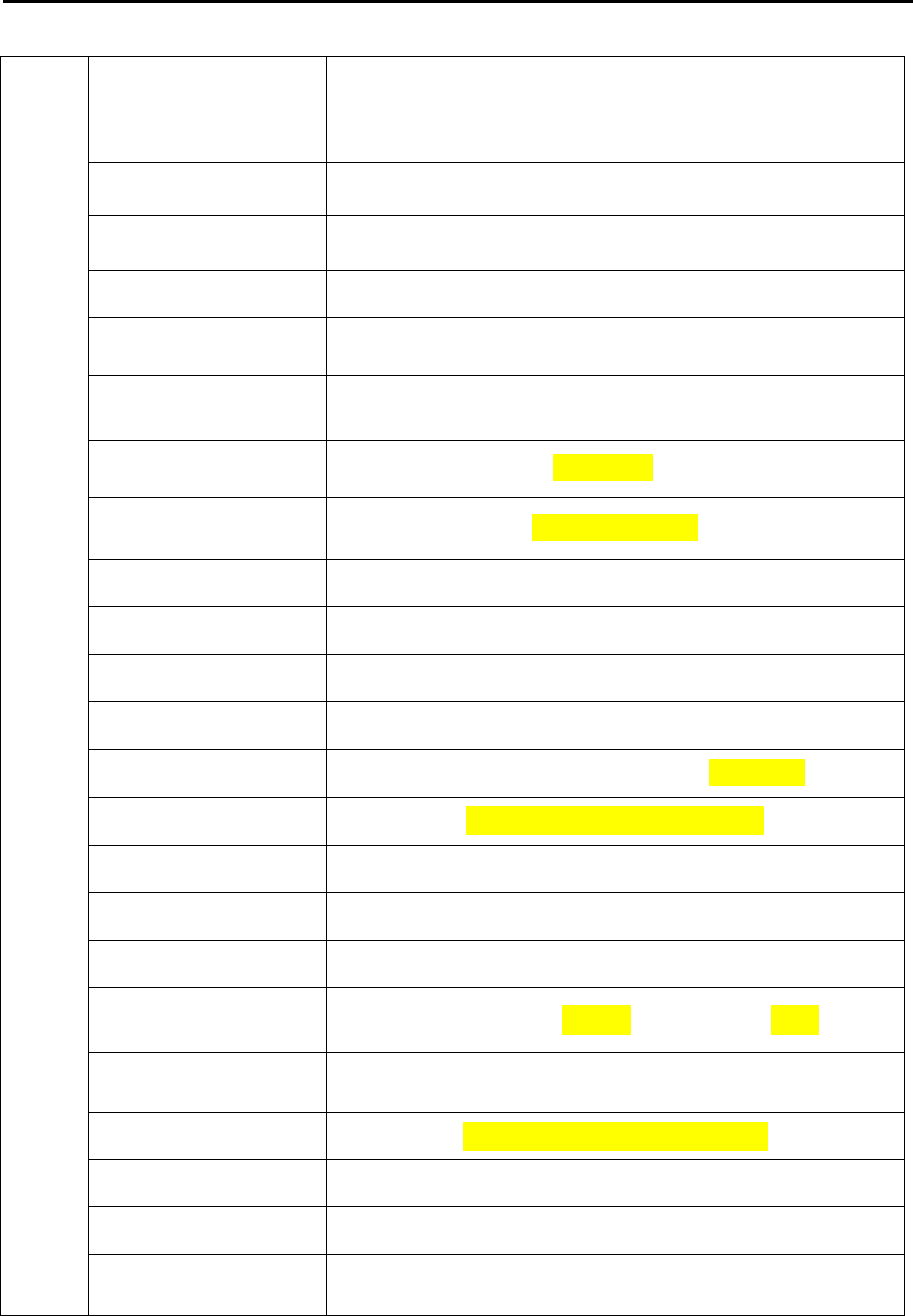
Technical parameters
Machine
CPU Intel Clover Trail+ Z2520 1.2GHz
Operating system Android 4.2.2
Browser Google Browser
Hard disk 8GB NAND Flash
Memory 1GB DDR3
Expansion slot MicroSD Card Slot, Support up to 32GB flash
Screen 7” TFT Touch Panel
Camera Front 0.3 +Rear 2.0 megapixels
Resolution 1024x600 Pixels
Input method Soft-keyboard on touch panel
Built-in speakers 1W 8ohm built-in speaker
Earphone 3.5mm
USB cable Micro USB
Battery Li-polymer Rechargeable Battery 3000mAh 3.7V
Size 201.8mm×136.1mm×18.1mm
Weight 0.391kg
Voltage AC 110~240V 50/60Hz; DC 5V/2A
Working temperature -10℃~+40℃
Music formats OGG、AAC、FLAC、MP3、WAV、M4A、MA4、etc…
Video formats RM、RMVB、AVI、3GP、MP4、MOV、FLV、ASP、MPG、
VOB、 MKV
Picture formats JPG, JPEG,GIF, BMP,PNG
E-mail Email, Gmail(Optional)
Maps Google map, Navigation map(Optional)
Network access WiFi (802.11 b/g/n)
5
Appearance Preview
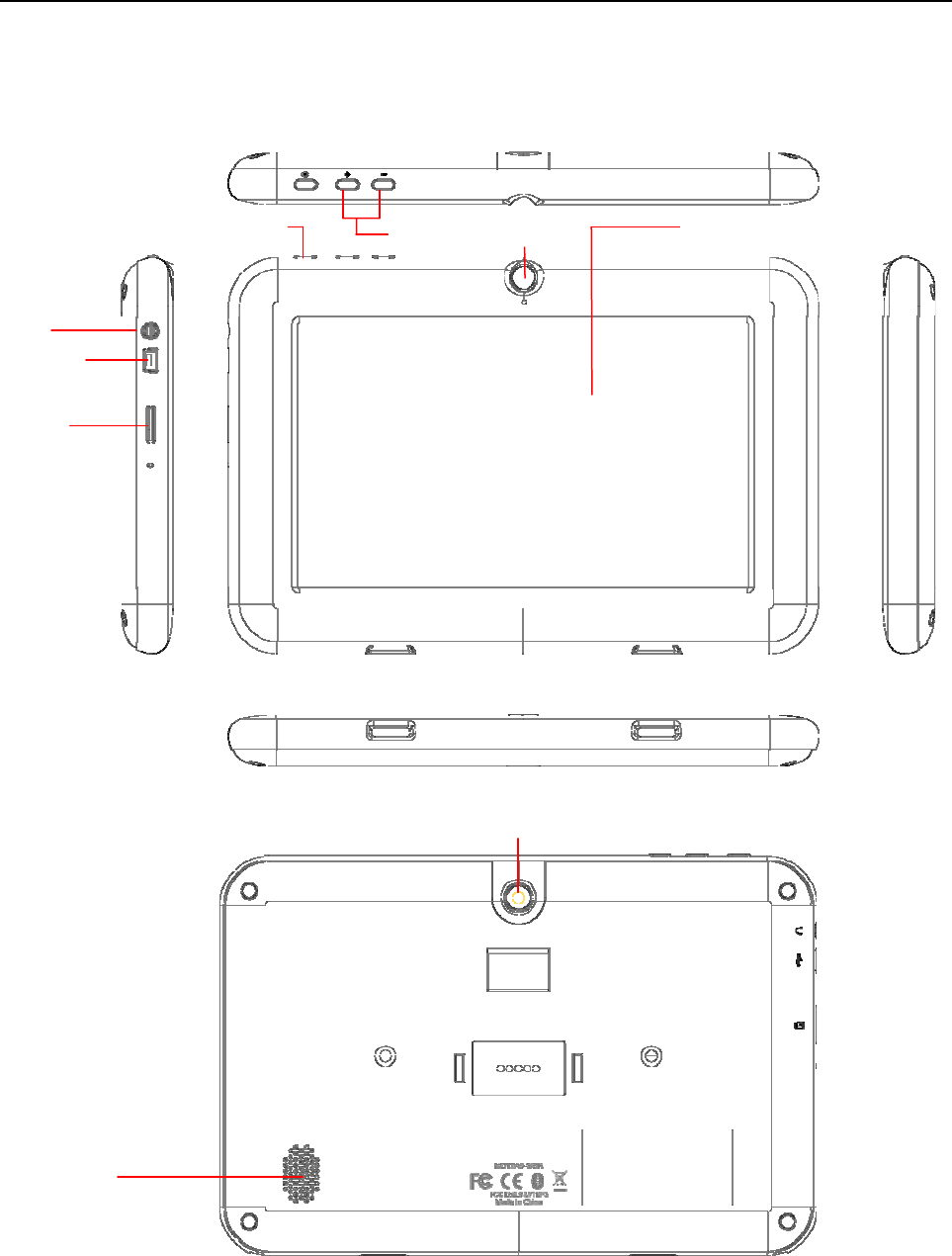
1. Appearance Introduction
This chapter describes the appearance of the machine, including buttons and ports; it will
guide you to understand the features and accessories.
(1)Touch screen (2)Power switch key (3) Earphone slot (4) USBslot
(5) TF card slot (6) Volume keys (7) Camera (8)Sound
(1)
(3)
(5)
(2)
(4)
(6)
(7)
(8)
(7)
6
Appearance Preview
Note: (1) The LCD is a touch screen; you can carry out clicking and dragging operations in
the touch area; please do not use pen, pencil or other sharp objects to click on the screen
to avoid scratching.
(2) Please keep the speakers clean to avoid the dirt blocking the hole and affect the
sound.
(3) The back of the MID has antenna and model, please do not cover with metal
objects to avoid weak signal.
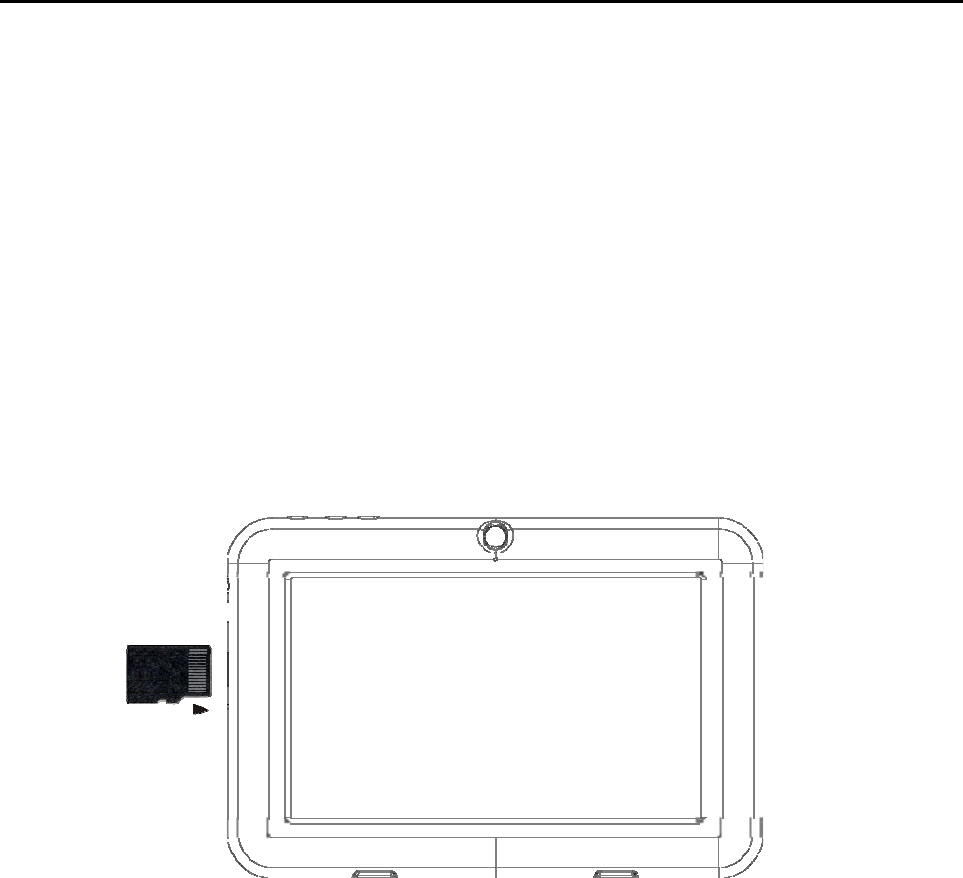
2. TF card
When plug a TF card, please do follow the icon on the machine, pay attention to the
direction of oblique angle.
(When remove the card, press the card with your thumb and release, the card will be
automatically ejected.)
Note: (1) Do not let objects come into the card slot. (In order to prevent the harm of dust or
moisture, please put cards back into box or package when don’t be used)
(2) When remove a TF card, be sure that the machine is power off.
(3) To remove a TF card with the machine is working, please don’t pull out the TF card
indirectly.
3. Charge
This product uses 5V/2A standard voltage, Please use the attached power charger, other
chargers may cause failure and risk.
Do not use the charger in humid environment. If your hands and feet are wet, please do not
touch the charger.
When using the charger or charging the product, please maintain good ventilation, do not
cover the machine with paper or other items resulting in reduced cooling effect.
7
First experience
The MID can achieve a variety of operating modes: (1) Clicking. (2) Holding. (3) Sliding. (4)
Dragging. (5) Rotating.
Keys action definition: (1) Short press: the time is less than 1.2 seconds. (2) Long press:
the time is longer than 3 seconds. There are all short presses in this manual without special
instructions.
360 degree rotation: for most interfaces or images, it can automatically rotate the screen
from horizontal into vertical as long as rotate the MID.
1. Boot the MID
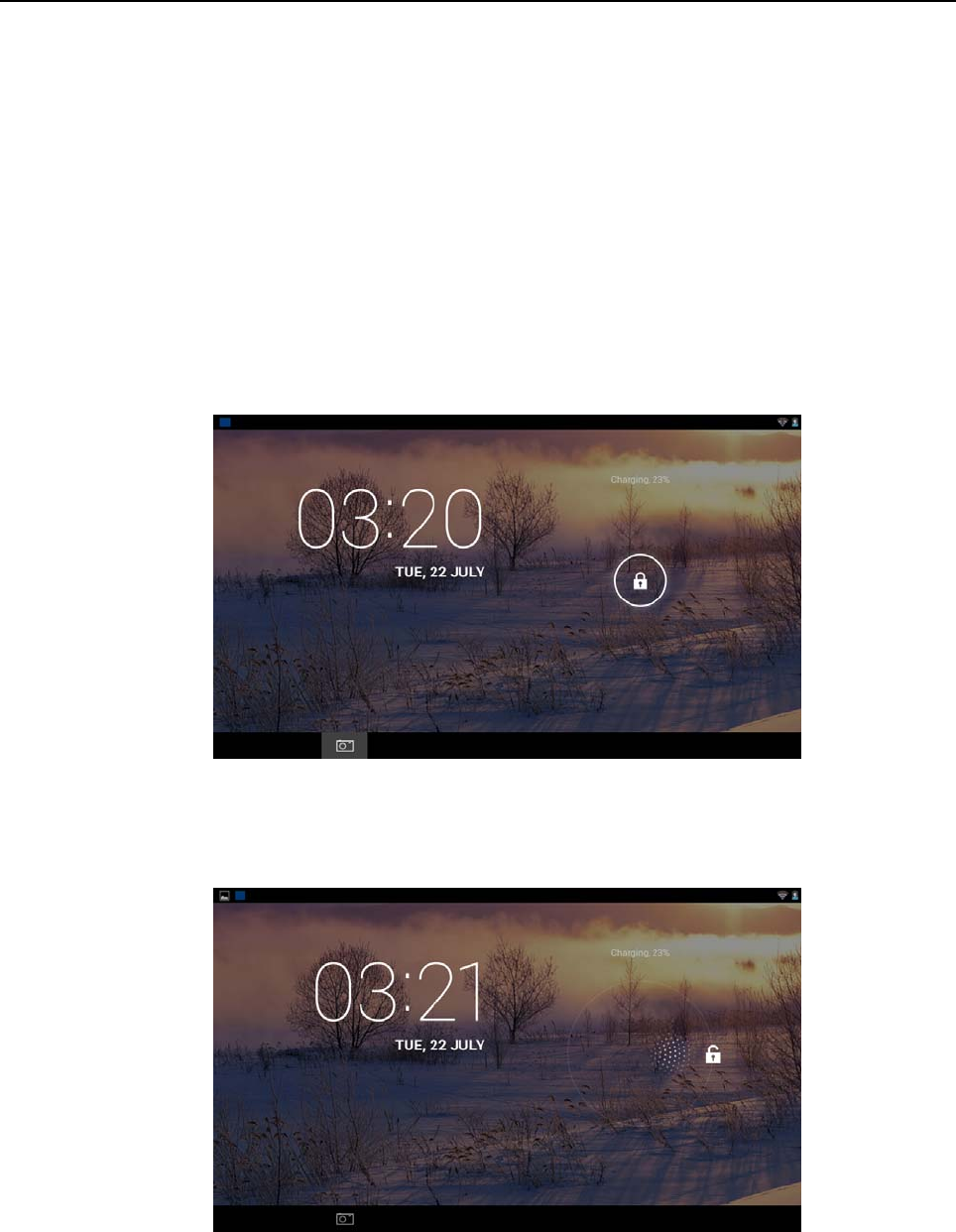
1-1. Press the power switch key at the side of the machine (long press), the machine will be
booted. The LCD screen will display booting screen and animation first, a few seconds later,
it will enter into the Lock screen interface, shown as below.
1-2. Holding unlock button,there will be a white wire frame around. Drag unlock button to
the right unlock icon , then unfasten to enter into the main interfuse menu.
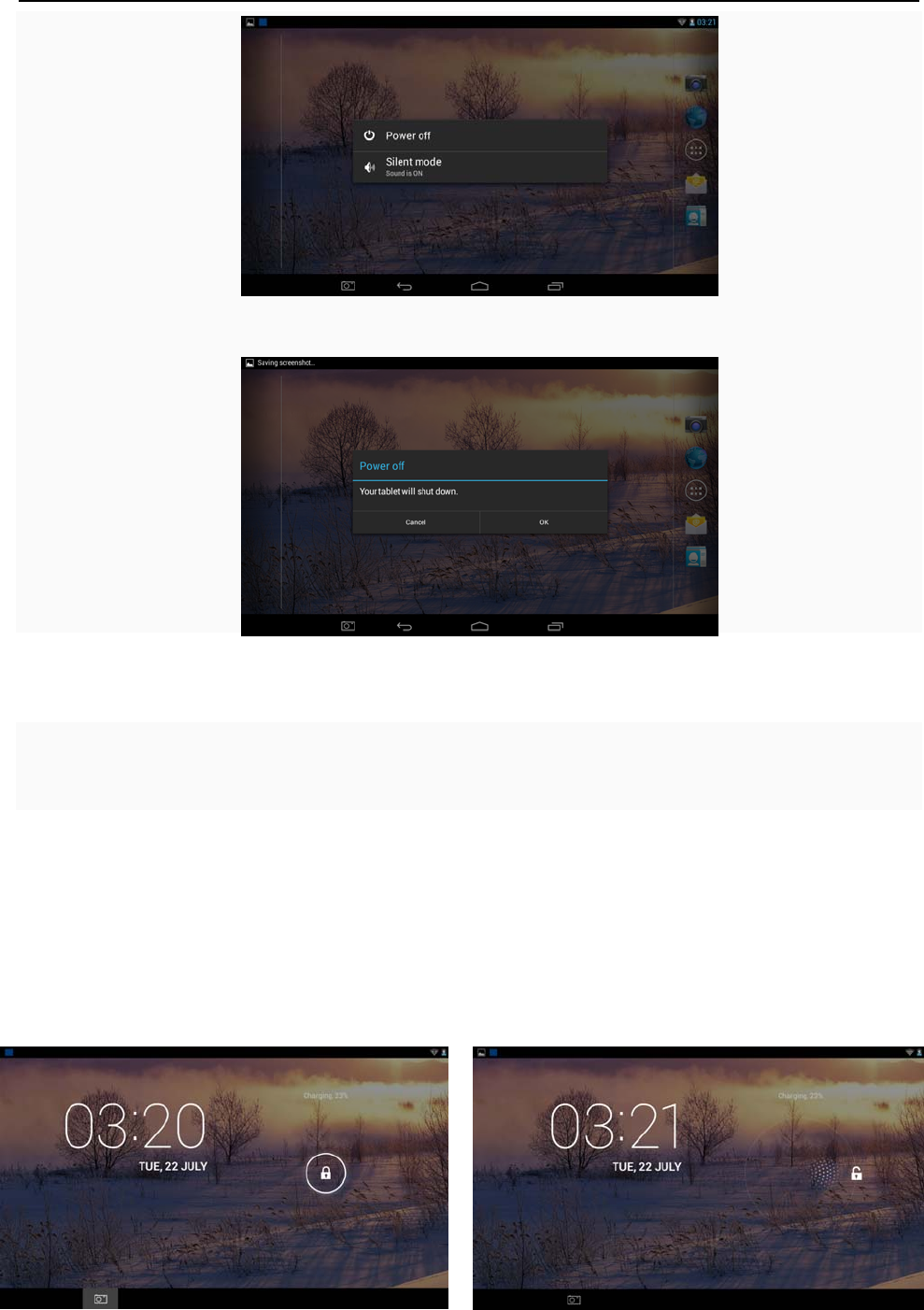
2. Shutdown
When the MID is running, press the power switch key (long press), the system will display
the shutdown screen.
8
First experience
Click the "Power off" into the following screen.
Click the "OK" options, the MID will enter the shutting down status, in a few seconds the
machine will shutdown.
* * * When electricity to 15%, the system will prompt charge. When battery is running low,
the system will automatically shut down.
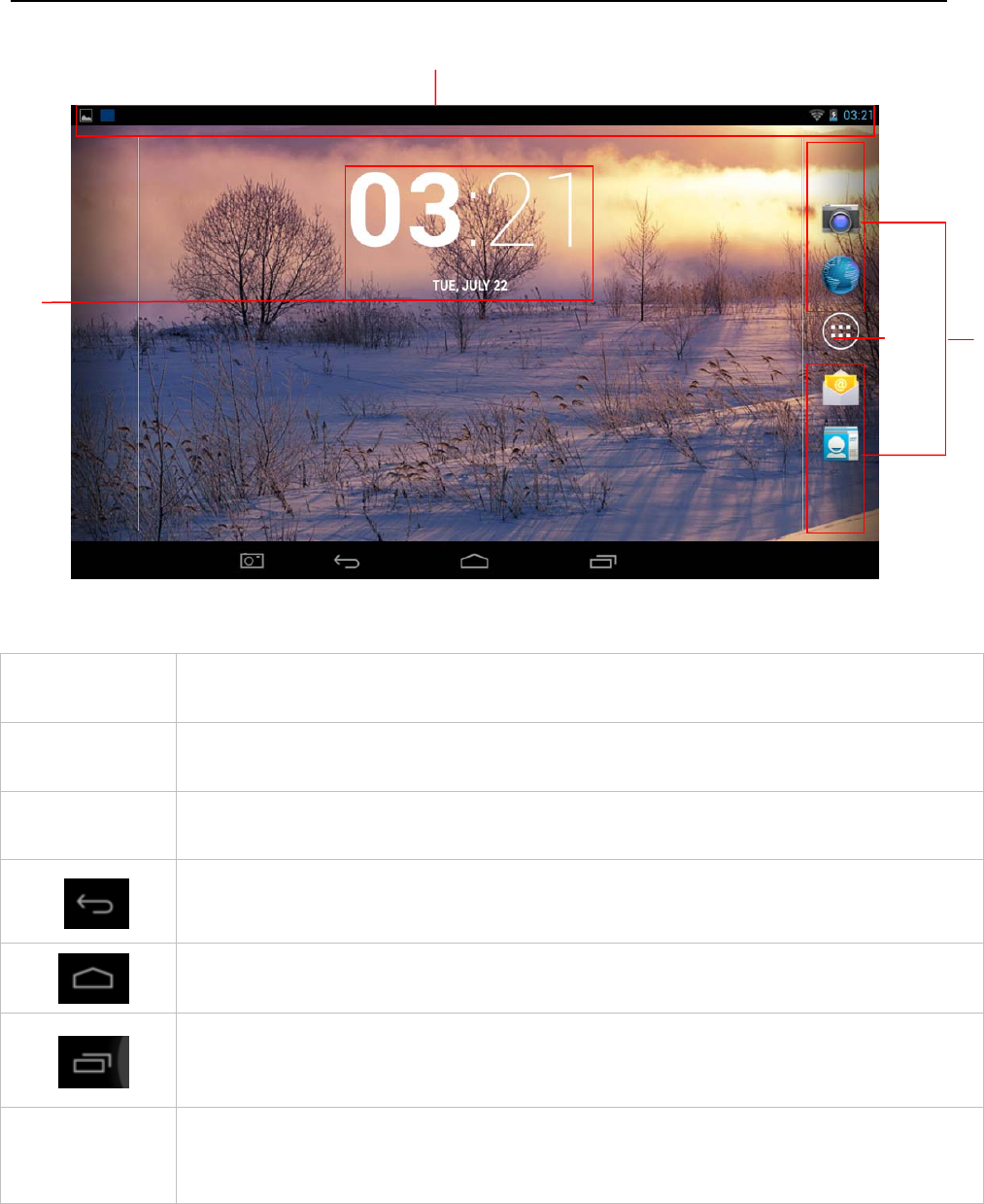
3. Lock-screen and power-saving mode
When the machine is on, press the power switch or the screen is inactivity a certain time,
the MID will enter into screen-off / lock-screen status for power saving.
Now the programs are still running, but the screen is blank.
When press the power switch again, MID will open the unlock menu.
Hold and drag unlock button to the right unlock icon, the MID will resume normal state.
9
First experience
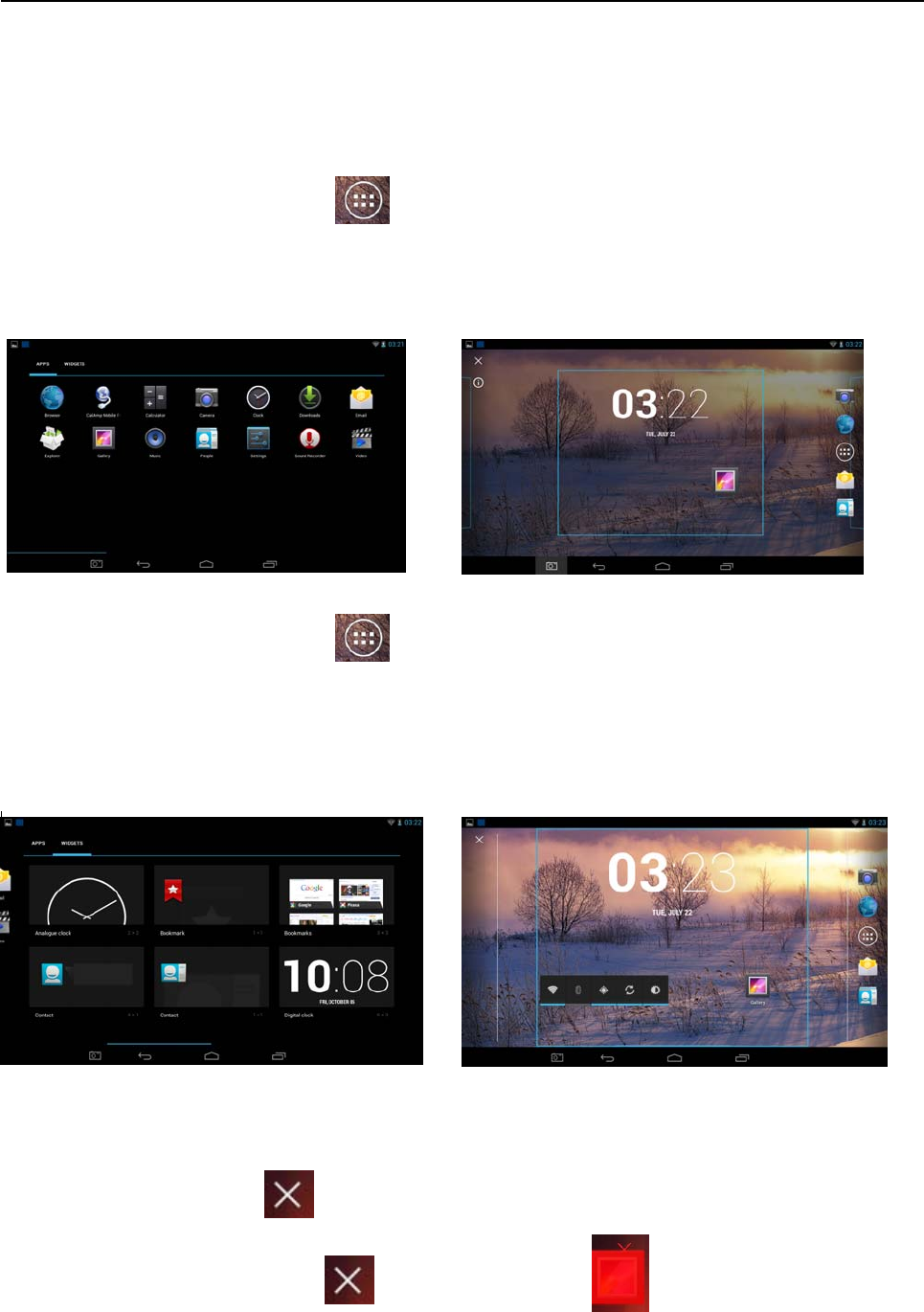
4. Main interface description
(1) Click to enter into the applications menu.
(2) Shortcut icon add/delete will be covered later.
(3) Widgets add/delete will be covered later.
In pop-up menu, press it to cancel operation.
In the other menu, press it to back the front menu.
In any menu, press it to back the main interface.
Click to display all APPS programs that have been opened. Click each
of the application to enter into its relevant menu.
(4) Click to display more information: USB, WIFI, Date etc. Click each item
to enter into its setting menu.
(4)
(1)
(2)
(3)
10
First experience
In the main interface, the system sets 5 display menus. You can browse them freely
through sliding screen from left and right.
**You can add/delete different icons in each the main menu.
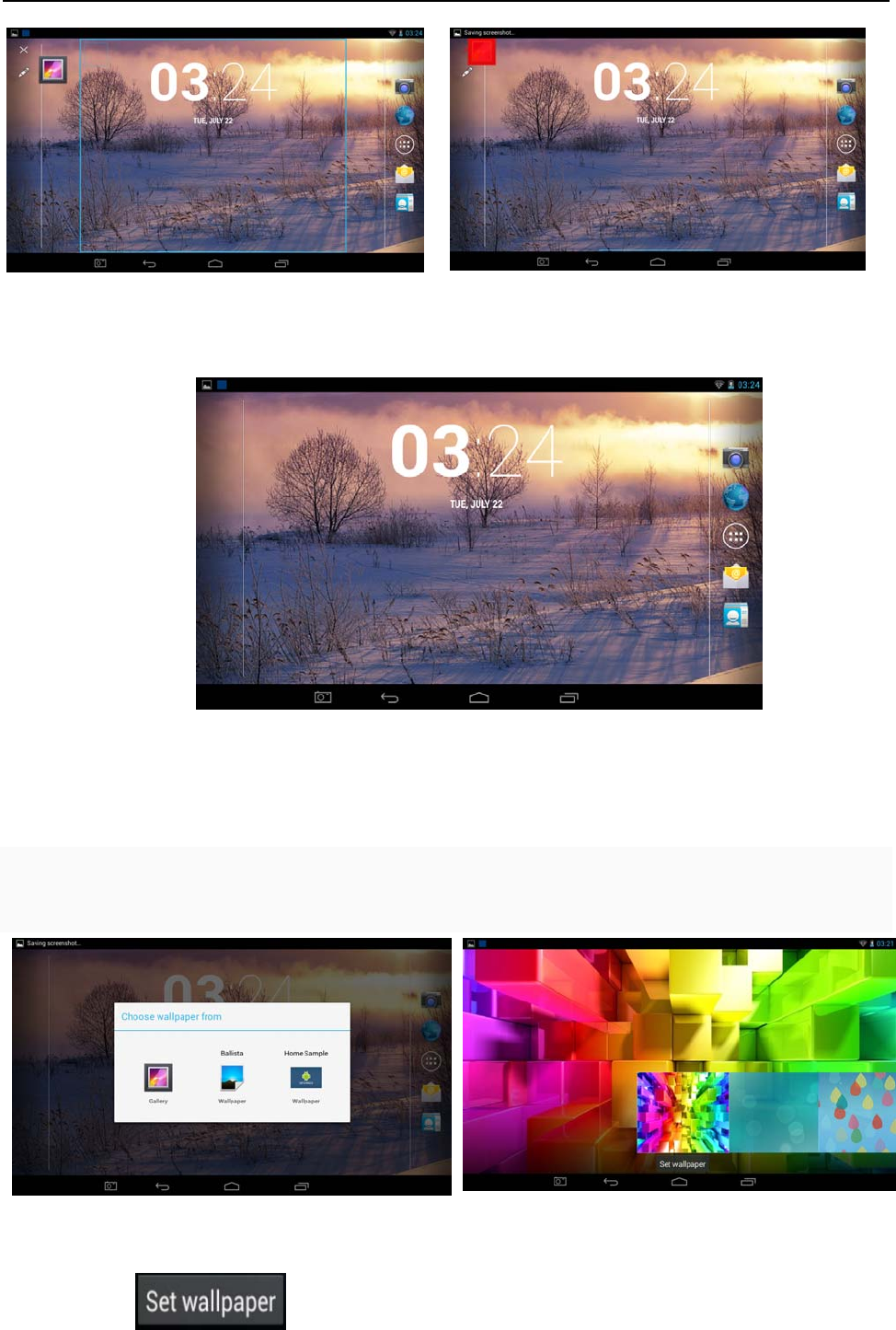
5. Custom Screen
5-1 Add shortcut
5-1-1 In the main interface, click button to open Application Program menu.
5-1-2 Press and hold the icon,will open the add shortcut interface.
5-1-3 Move the icon to the place you want to place, the program will add shortcut to the
main interface.
5-2 Add widgets
5-2-1 In the main interface, click button to open Application Program menu.
5-2-2 Press the ”WIDGETS” options to open the widgets interface.
5-2-3 Press and hold the icon,will open the add widget interface.
5-2-4 Move the icon to the place you want to place, the widget will add to the main
interface.
5-3 Delete shortcut/widgets
5-3-1 In the main interface, press and hold the shortcut icon and Widgets until the top of the
screen appears the icon .
5-3-2 Drag the icon to the icon , the icon will turn .
5-3-3 Loosen the icon, it will be deleted.
11
First experience
*** In the main interface, users can click and drag any shortcut icon and Widgets to the
place to achieve personalized arrangement.
6. Change your wallpaper
In order to decorate personalized main interface, users can set their favorite pictures,
photos ... as wallpaper of the main interface.
6-1 Press and holding touch screen in the main interface, the machine will pop-up the wall
paper dialog box.
6-2 Select one item, for example: click ”Wallpaper” options to enter its sub menu.
6-3 Slide the screen, browse and select the appropriate picture.
6-4 Clicking , MID will return to the settings interface and display the
12
First experience
selected wallpaper.
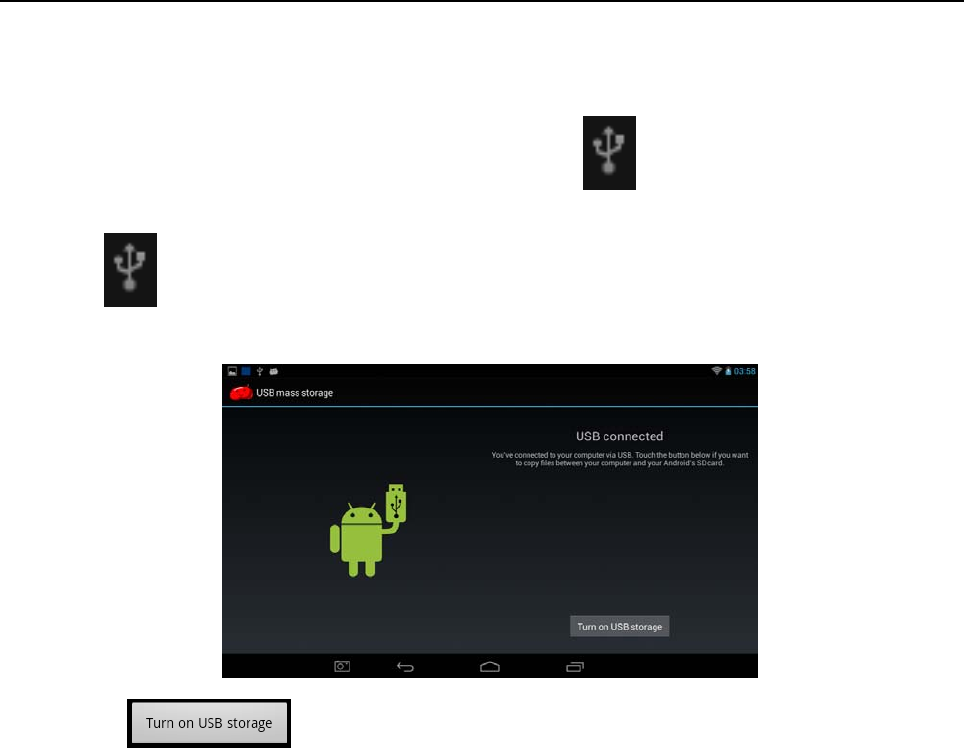
7. Connection of USB cable.
When connect the MID to computer with a USB cable, icon will be displayed in the
information column of the main interface.
7-1 Click in the information column of the main interface, the machine will open the
following interface.
7-2 Click , it can realize synchronized operation between MID and
computer.
7-3 At this time, files in TF card and memory of MID will be displayed on the computer; you
can copy and transfer the data.
13
System setting
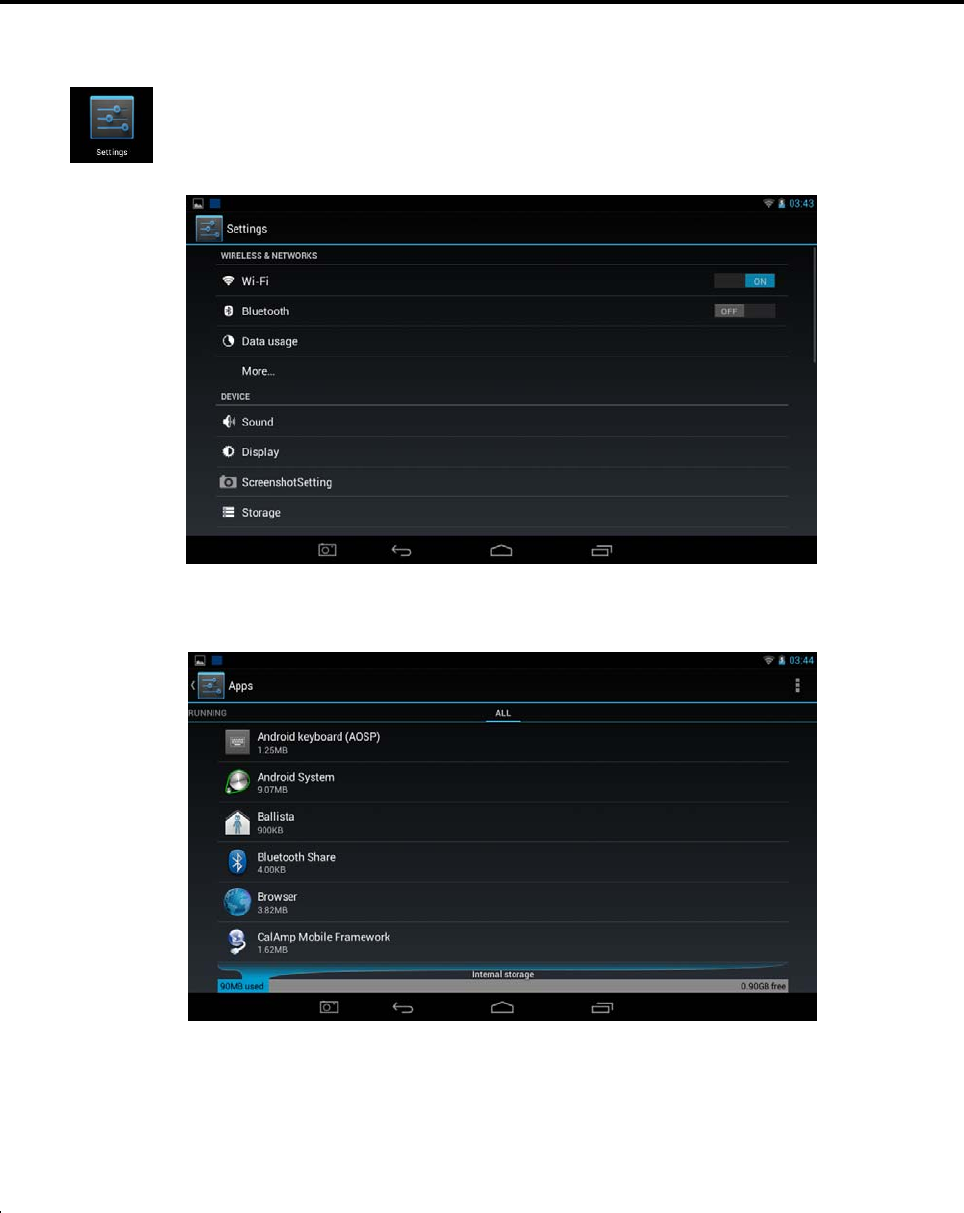
In the setting interface, user can complete many custom settings and inspect the
relevant information of all the software that being installed.
Click in the
Application Program menu to enter into its setting menu.
APPS
2-1 In the apps settings interface, user can see all installation applications.
2-2 If you open one application, you can browse its relevant information.
2-3 As to not be used application again, you can select to delete one application.
14
Internet Function
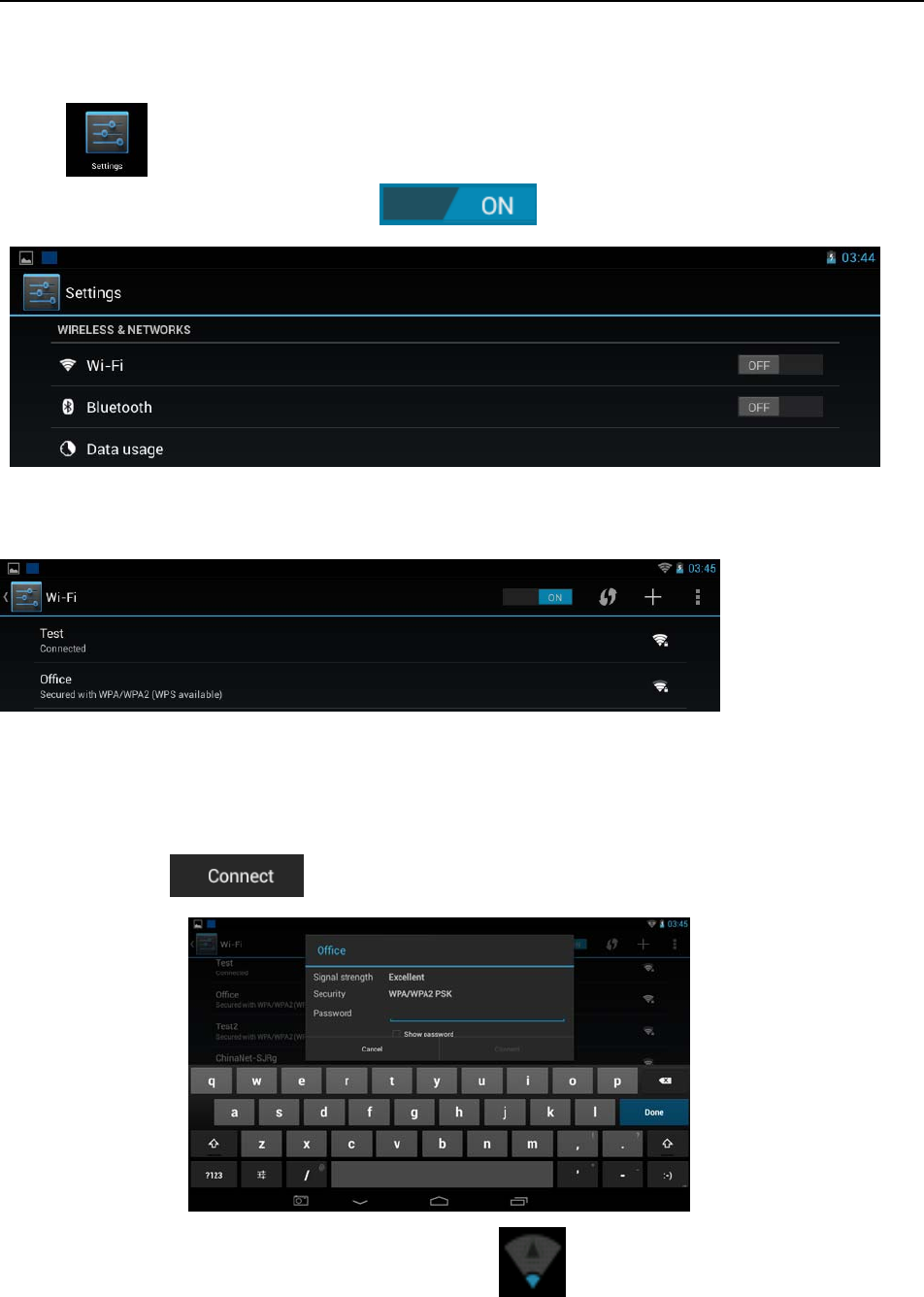
1. WI-FI
The MID achieves internet access through built-in WI-FI.
Click , MID will pop-up settings menu.
1-1 Sliding the “Wi-Fi” switch button to open the Wi-Fi.
1-2 Click “Wi-Fi” to enter into the Wi-Fi setting menu.
1-3 The system will automatically search and add the nearby networks can be connected,
and display the name of network.
1-4 Clicking a wireless network, MID will pop-up messages menu. After entering the
password, click .
If the connection is successful, the network icon will be displayed in the information
column of the main interface.
Special note:
As to the Wi-Fi router which have been connected before, this machine will keep
15
Internet Function
searching the Wi-Fi router automatically and then connect to it .
When the network icon will be displayed in main interface, the machine has
connected WIFI successfully.
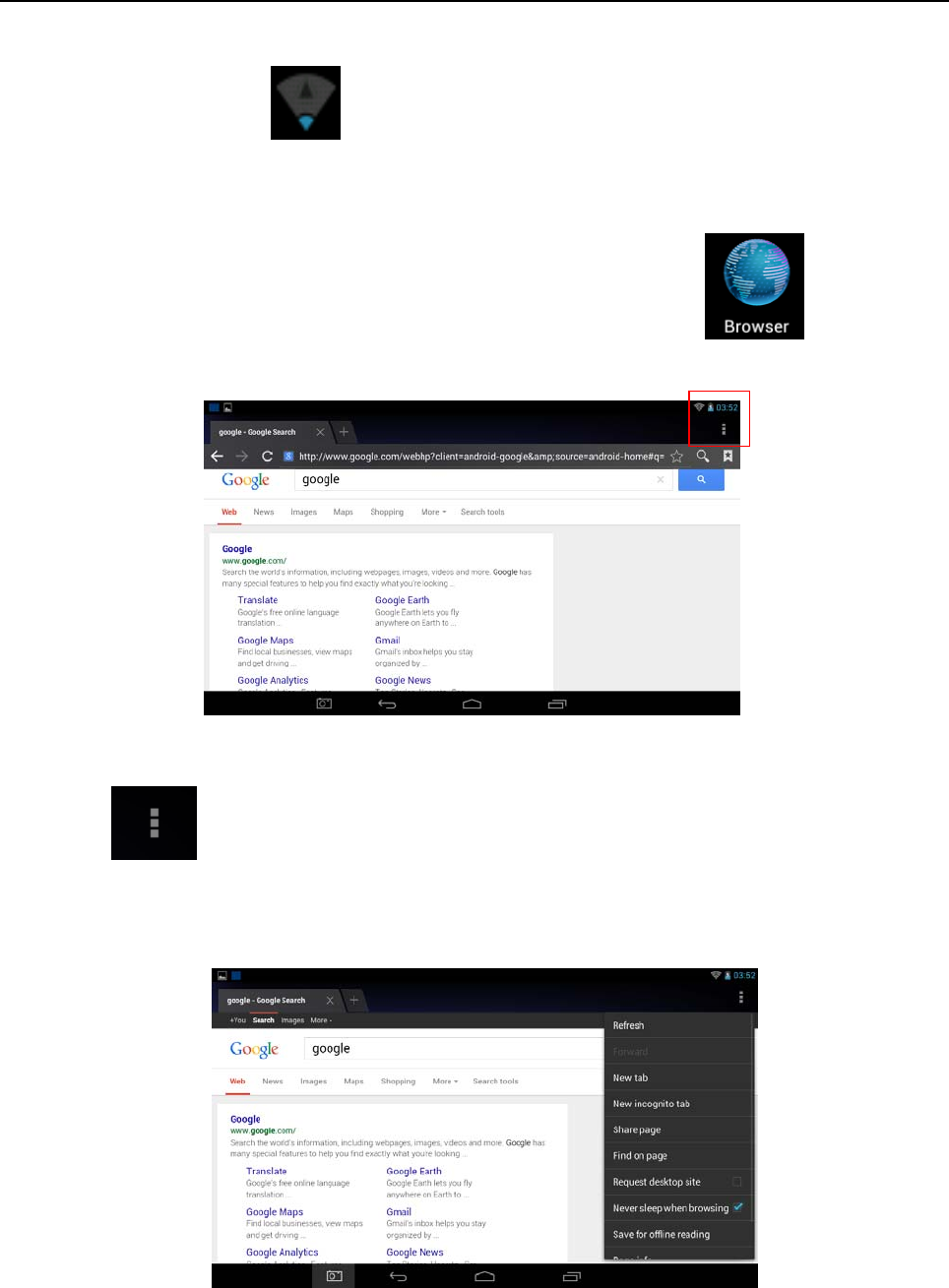
2. Internet
2-1 Under the normal statue of the network connection, Click in the main
interface to enter into its menu. There will display all
the Web of having been opened.
2-2 Click the input frame, keyboard menu will pop-up, input a new Web site and open.
2-3 Click icon(see the red frame),the machine will pop-up the operation
function menu.
16
Software Management
The product supports third-party applications on android platform, most applications can be
obtained and downloaded from the Internet.
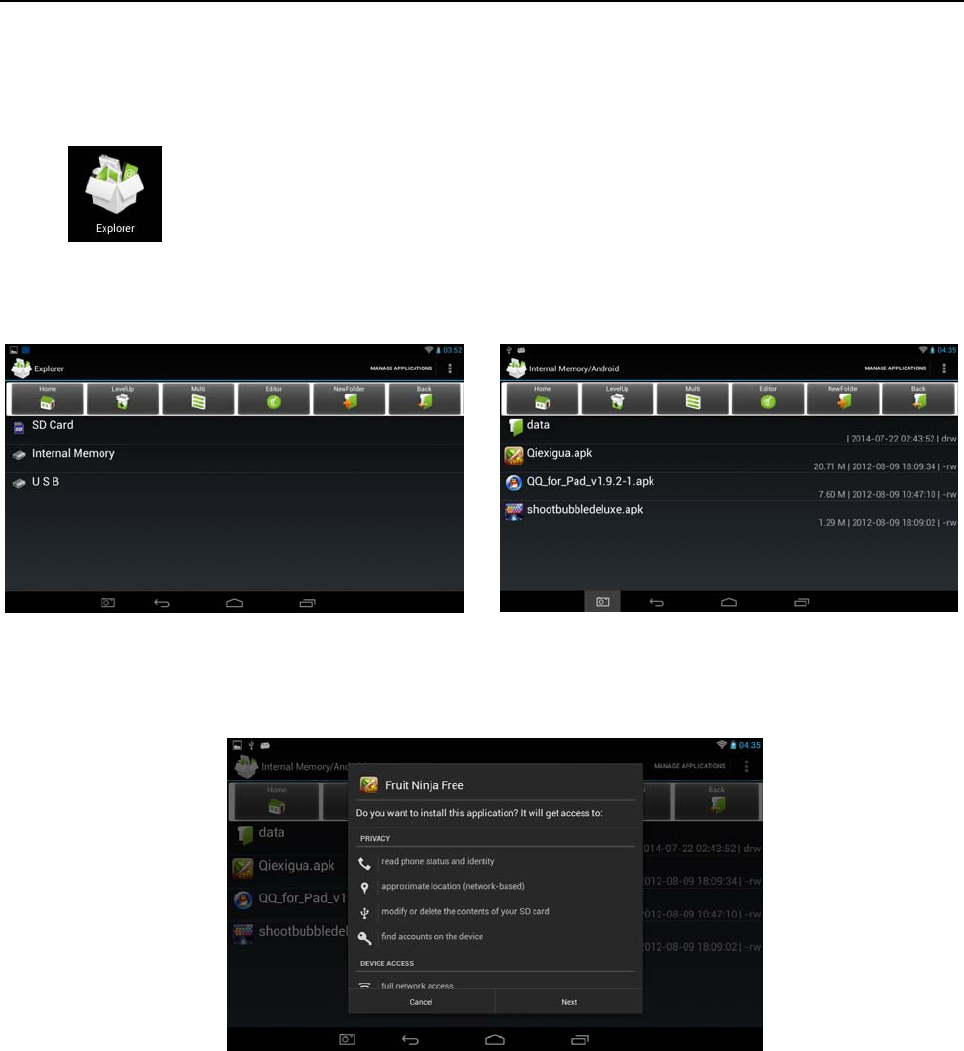
1.Explorer
Click in Application Program Interface to enter into explorer, you can browse,
copy, delete, move, rename, and other editing operations to the files in the machine and TF
card.
2. Software installation
2-1 Click the software to be installed in the "Explorer", MID will open the installer interface.
2-2 Click "Install", MID will show the progress bar, after installation, it will display
"Application is already installed.
2-3 "Click "Finish" to exit, thus its shortcut icon will be displayed in "Application function key
menu".
2-4 Click the icon to open the software.
Special note:
You can download chat tools to install. Such as: QQ, MSN....
17
Applications
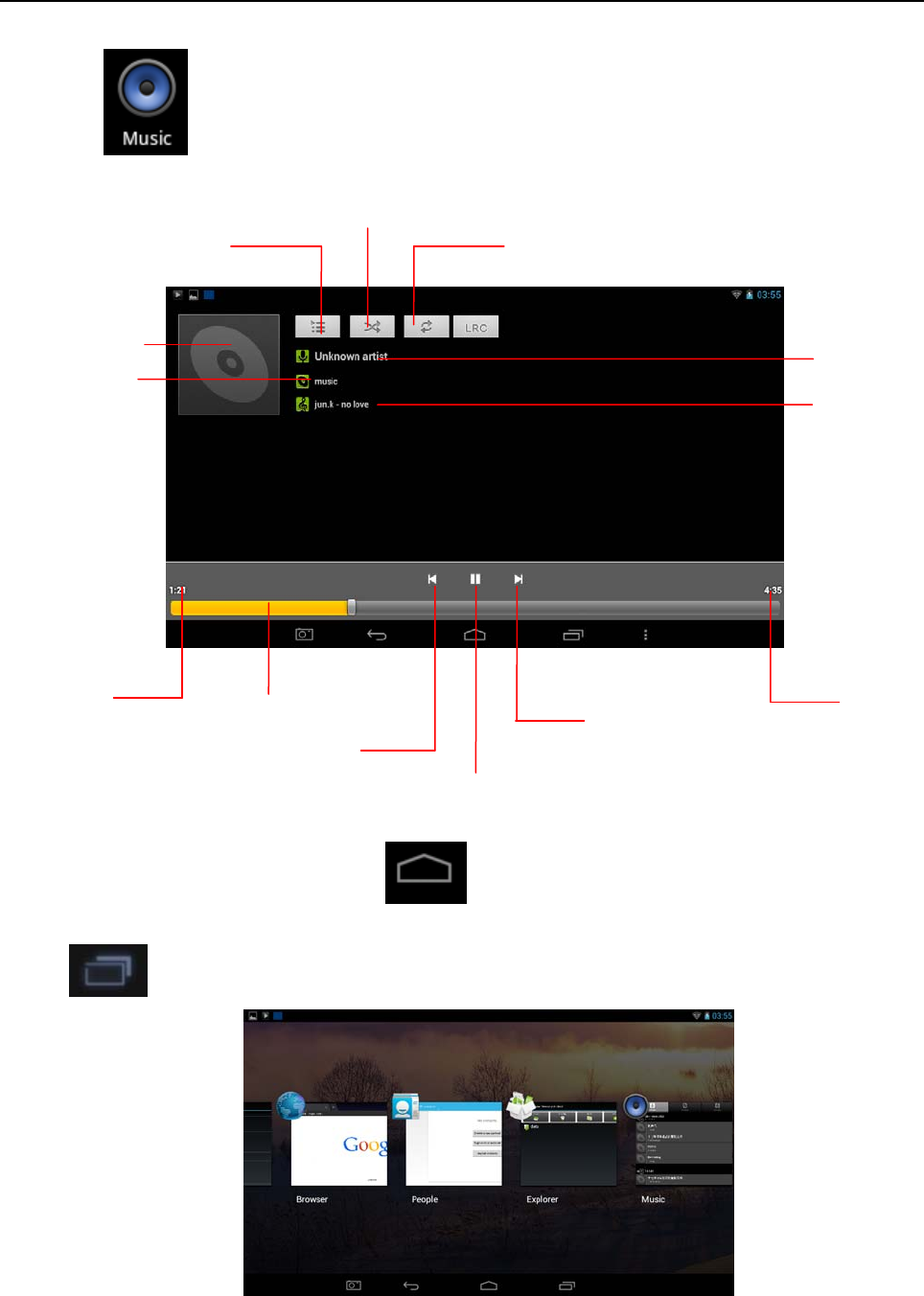
1. Music Playing
1-1 Click in the “Application Program Interface” to enter into the playlist.
1-2 Click a music file to open the player and play it.
1-3 Backstage play
When have playing a music, click to back the main interface,the machine
will enter into a backstage play mode.
Click in the main interface to display its menu.
Select the music player to back the player menu.
Schedule
Playtime Totaltime
previous
next
Play/Pause
Playlist Random
Playmode
Artist
Songname
Specialname
Specialcover
18
Applications
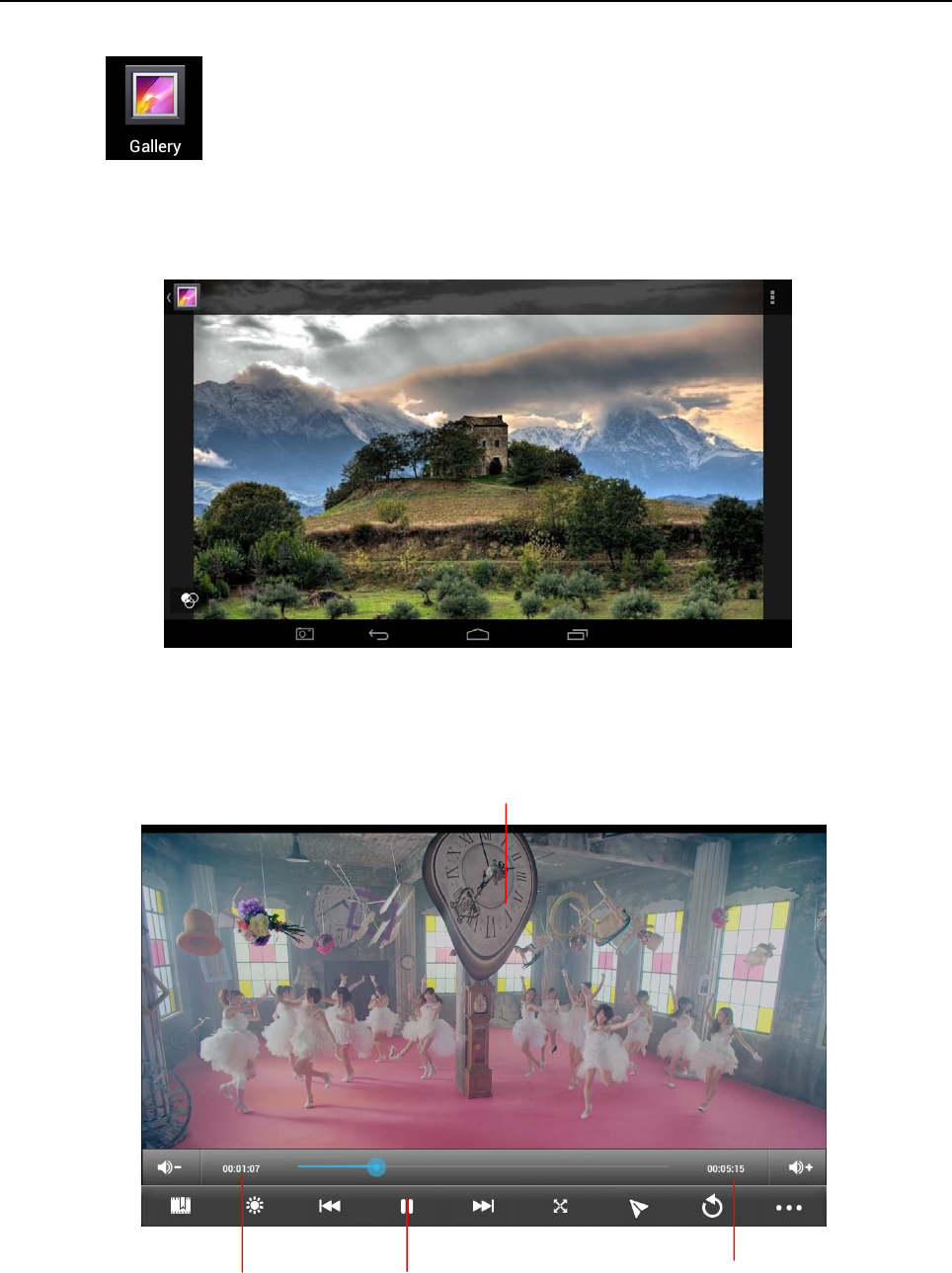
2. Picture browsing
2-1 Click in ” Application Program Interface” to enter into picture browsing
interface. there are all the picture and video data stored in the machine and a TF card.
2-2 Select a picture to browse.
\
2-3 Select a video data to play.
Playtime Totaltime
Schedule
Play/Pause
19
Applications
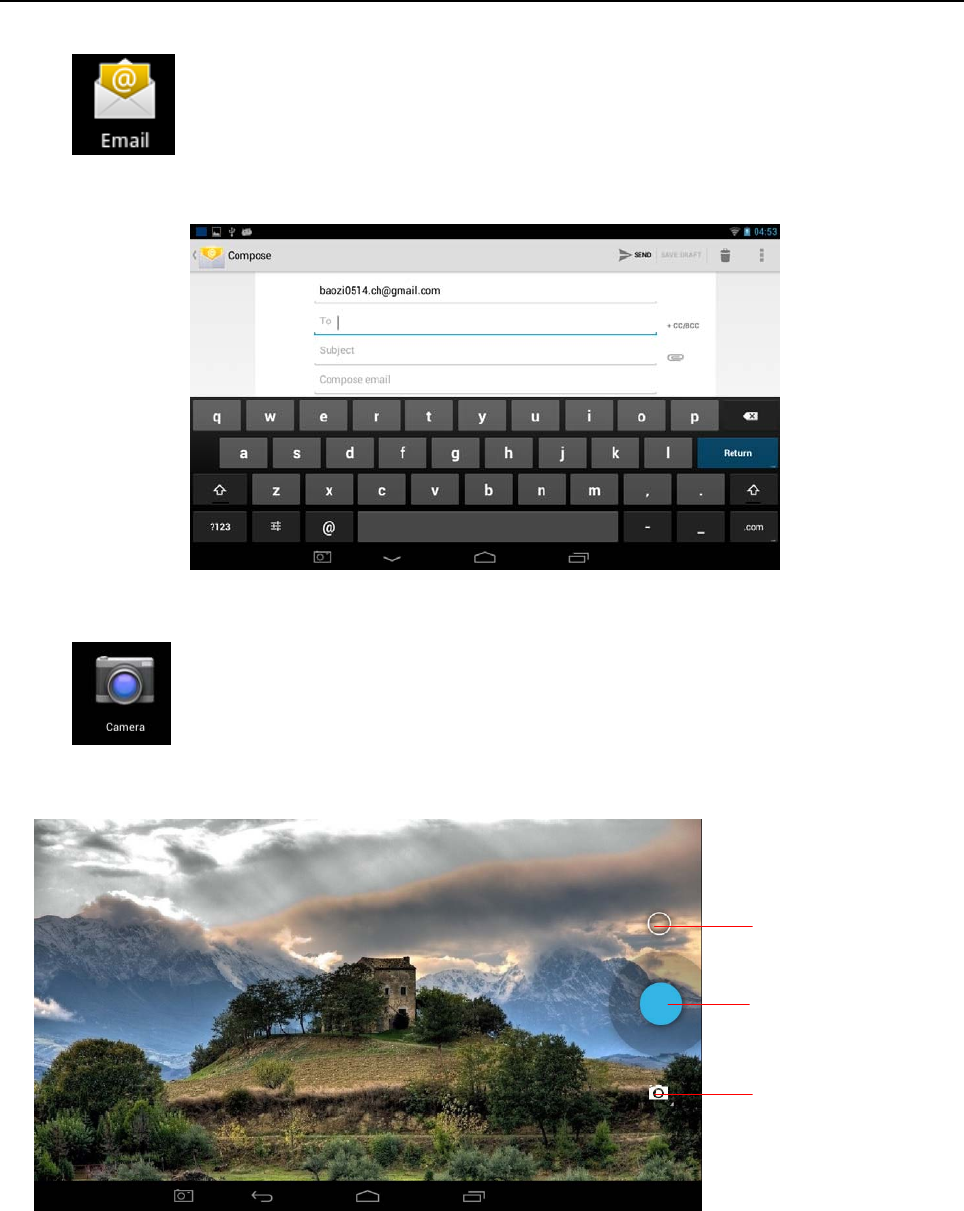
3. E-mail
Click in ” Application Program Interface" to enter into E-mail settings, input the
email address and password, you can send and receive email messages.
4. Camera and video recording
Click in” Application Program Interface"to enter into its interface.
Settings menu
Photo / Video recording
Video/ Photo
20
FCC RF Exposure Information and Statement
The SAR limit of USA (FCC) is 1.6 W/kg averaged over one gram of tissue. Device types
MID / MDT7A9-WBR (FCC ID: ZL9-M71DP3) has also been tested against this SAR limit.
The highest SAR value reported under this standard during product certification for use at
the properly worn on the body is 0.1288W/kg. This device was tested for typical body-worn
operations with the back of the handset kept 0cm from the body. To maintain compliance
with FCC RF exposure requirements, use accessories that maintain a 0cm separation
distance between the user's body and the back of the handset. The use of belt clips,
holsters and similar accessories should not contain metallic components in its assembly.
The use of accessories that do not satisfy these requirements may not comply with FCC RF
exposure requirements, and should be avoided.
FCC Warning
This device complies with Part 15 of the FCC Rules. Operation is subject to the following
two conditions:
(1) This device may not cause harmful interference, and (2) this device must accept any
interference received, including interference that may cause undesired operation.
NOTE 1: This equipment has been tested and found to comply with the limits for a Class B
digital device, pursuant to part 15 of the FCC Rules. These limits are designed to provide
reasonable protection against harmful interference in a residential installation. This
equipment generates, uses and can radiate radio frequency energy and, if not installed and
used in accordance with the instructions, may cause harmful interference to radio
communications. However, there is no guarantee that interference will not occur in a
particular installation. If this equipment does cause harmful interference to radio or
television reception, which can be determined by turning the equipment off and on, the user
is encouraged to try to correct the interference by one or more of the following measures:
- Reorient or relocate the receiving antenna.
- Increase the separation between the equipment and receiver.
-Connect the equipment into an outlet on a circuit different from that to which the receiver is
connected.
-Consult the dealer or an experienced radio/TV technician for help.
NOTE 2: Any changes or modifications to this unit not expressly approved by the party
responsible for compliance could void the user's authority to operate the equipment.