ELECTRONICS TECHNOLOGY M87GB2 Tablet User Manual UserMan
ELECTRONICS TECHNOLOGY(DONG GUAN)COMPANY LIMITED Tablet UserMan
UserMan

M87GB2-P(W)
User Manual
3OHDVH UHDG WKH VDIHW\ SUHFDXWLRQV DQG LPSRUWDQW QRWHV LQ WKH PDQXDO
EHIRUHXVLQJWKHXQLW
1
3OHDVHQRWH
6RPHRIWKHLQVWUXFWLRQVDUHEDVHGRQ:LQGRZV®RSHUDWLQJV\VWHP
ZKLFKPD\EHGLIIHUHQWVOLJKWO\LILIRWKHURSHUDWLQJV\VWHPVDUHXVHG
7KLV PDQXDO RQO\ GHVFULEHV WKH JHQHUDO IXQFWLRQV DSSOLFDEOH WR PRVW
WDEOHWV 3& <RXU WDEOHW 3& PD\ QRW FRQWDLQ VRPH RI WKH IXQFWLRQV RU
FRQWDLQIXQFWLRQVQRWGHVFULEHGLQWKLVPDQXDO
3LFWXUHVZLWKLQWKLVPDQXDODUHLQGLFDWLYHVRQO\ZKLFKPD\QRWUHSUHVHQW
WKHSK\VLFDOLWHPREMHFWV
2
Table of Contents
Chapter 1 Getting to know your Tablet PC .......................................... 3
Chapter 2 Get to use Windows 8.1 ....................................................... 8
Chapter 2 Get to use Windows 8.1 .....................................................15
Chapter 2 Get to use Windows 8.1 .....................................................16
Chapter 2 Get to use Windows 8.1 .....................................................18
Chapter 3 System Recovery ................................................................19
3
Chapter 1 Getting to know your Tablet PC
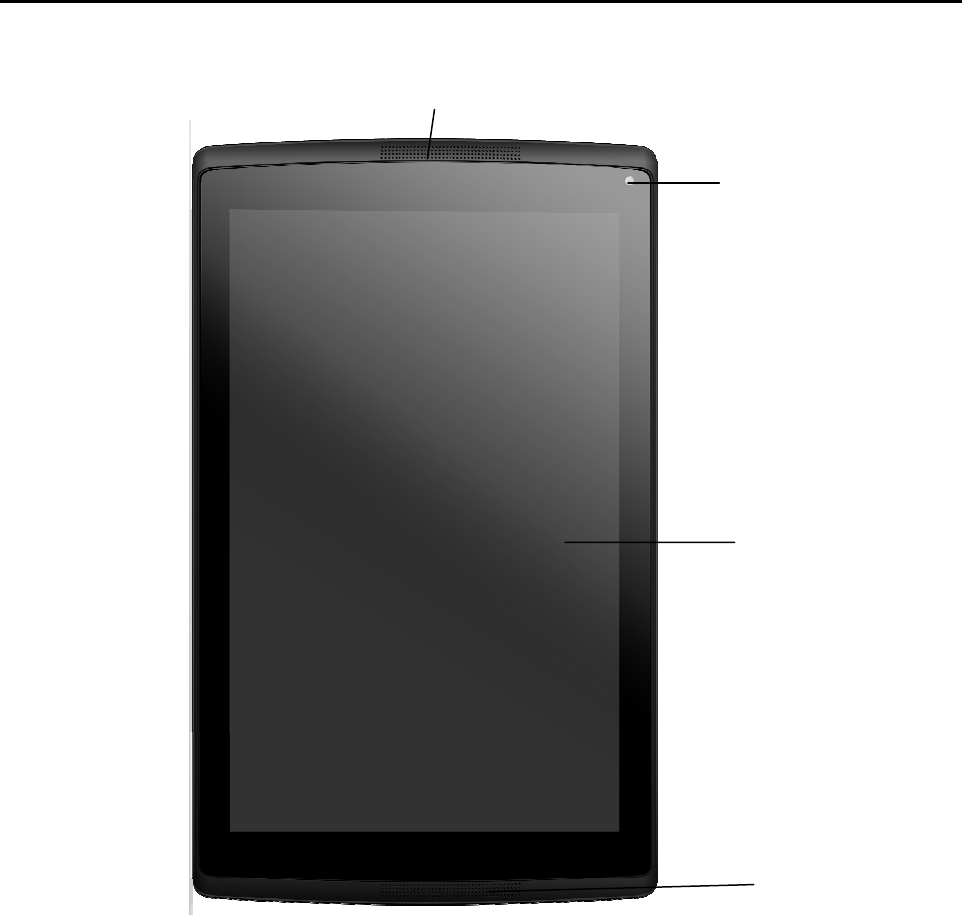
Front view
1. Front camera
Camera for video communications or photo-taking.
2. Multi-points touch screen
Serve as viewing screen or touchpad input
3. Loudspeaker
Audio output
Note: for further information, please refer to page 12 “Operations of Touch Screen”.
˄˅
˄˅
˄˅
4
Chapter 1 Getting to know your Tablet PC
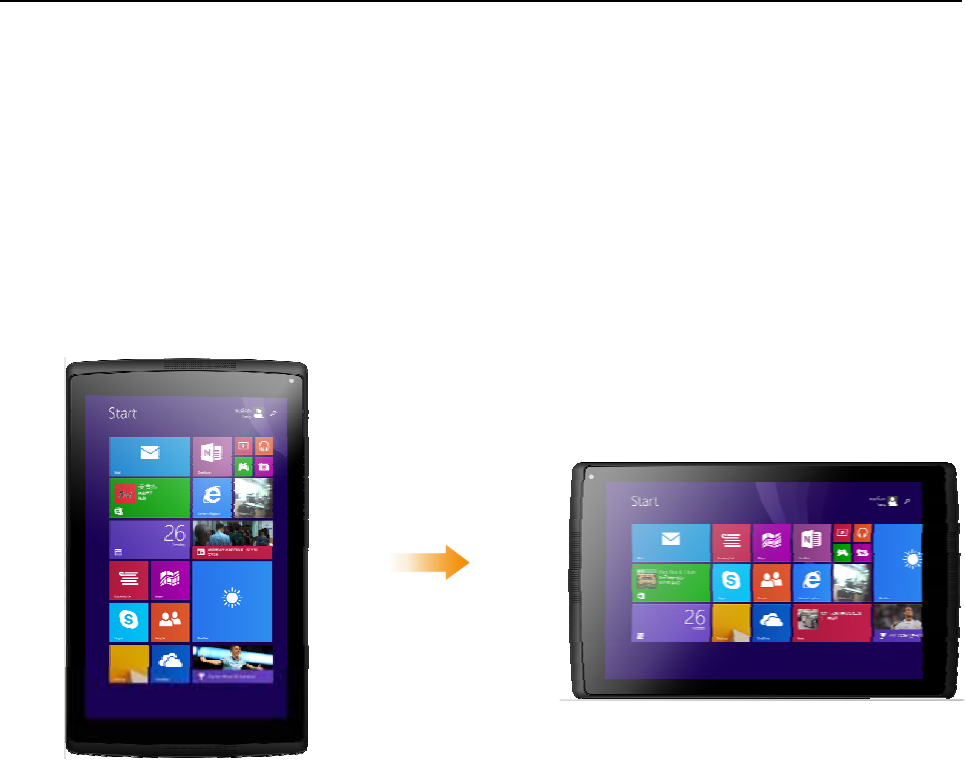
Screen directions
The screen may be turned into any directions.
The screen directions will be automatically according to the way you hold the tablet PC
upwards (shift swaps between vertical and horizontal directions)
5
Chapter 1 Getting to know your Tablet PC
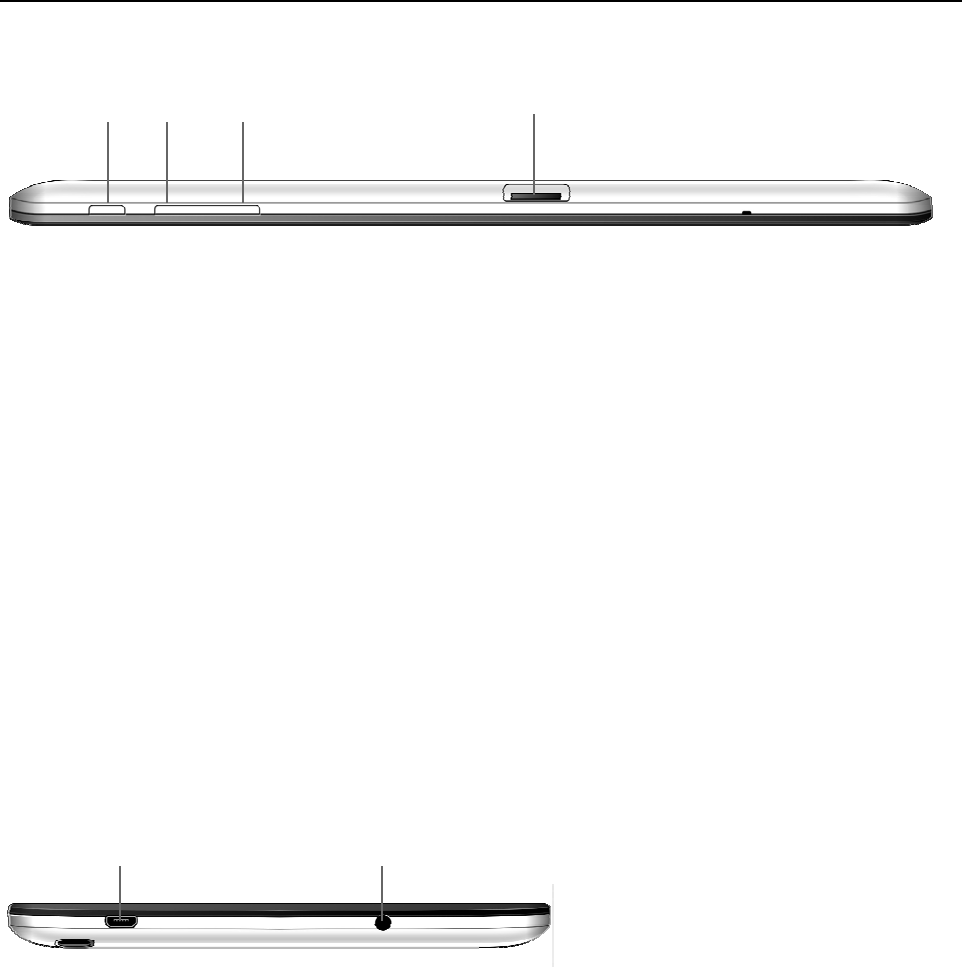
Top view
1. Power switch key Start the machine
2. Volume turn-up button Turning up volume
3. Volume turn-down button Turning down volume
4. TF card slot (for the certain model only, TF card (not included)
Note:
The combo audio jack is not compatible with traditional microphones.
Due to different standards, audio recording function may not work when it is connecting to
the third party headset or the third party headset with microphone.
5. Power button Press and hold this button to start up when it is power off
Right view
1. Micro USB portsFor connecting to USB device
Note: The Micro USB port supports the function of charging.
2. Microphone Press and hold to power-on
˄˅˄˅˄˅˄˅
˄˅˄˅
6
Chapter 1 Getting to know your Tablet PC
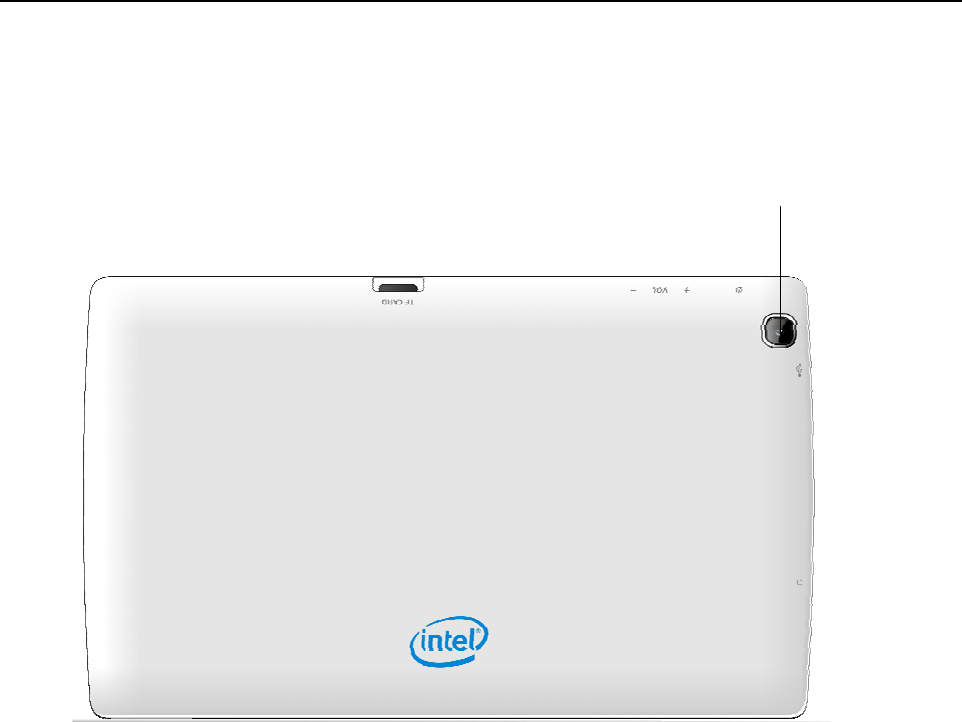
1. Rear camera For video communications or photo-taking
˄˅
7
Chapter 2 Get to use Windows 8.1
Configuring operating system for the first time
When using it for the first time, you have to configure the operating system. The configuring
process involves the following steps:
噝 Accept end user license agreement
噝 Configure internet
噝 Register operating system
噝 Create user account
Operating system interface
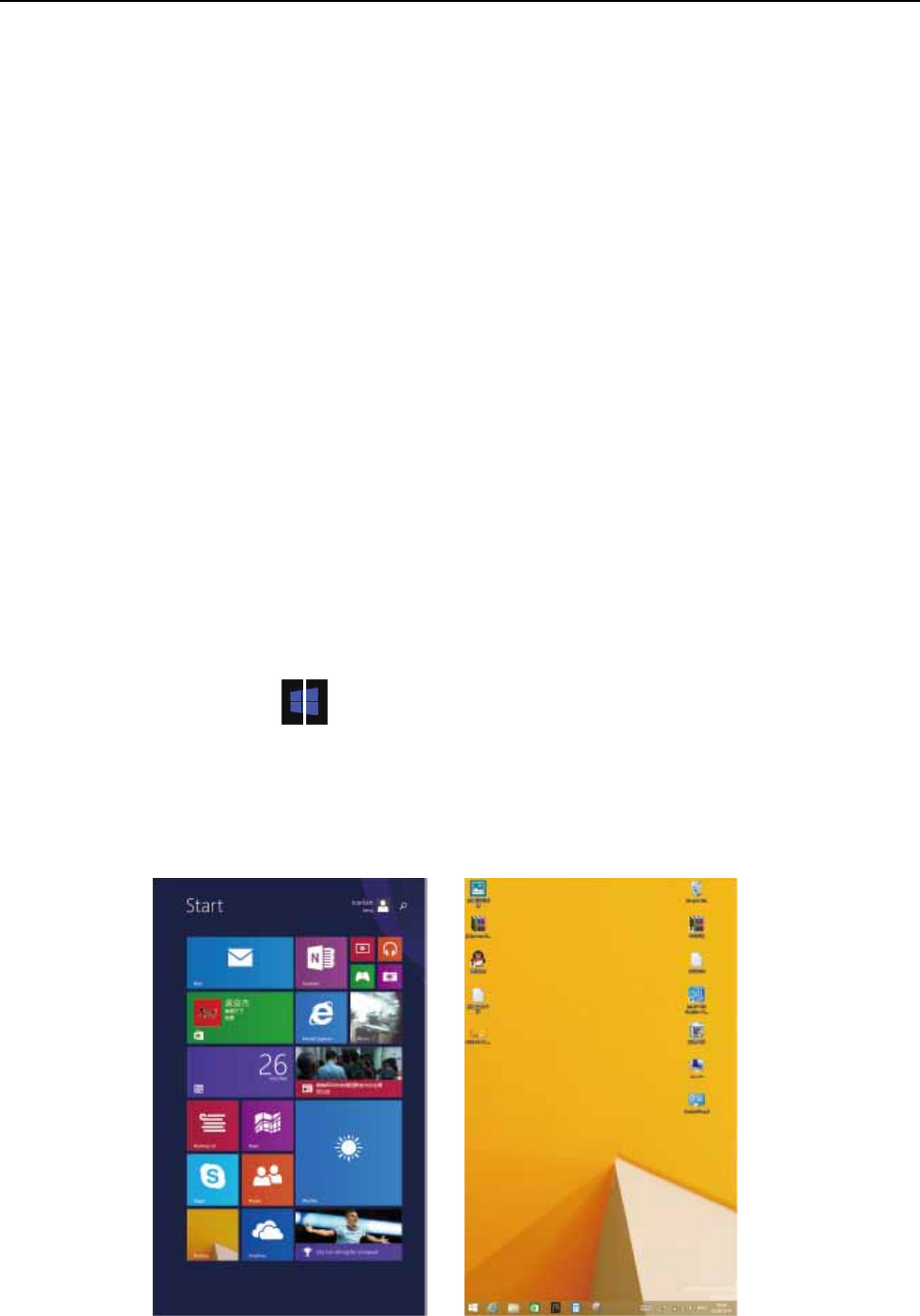
Windows 8.1 consists of two user interfaces: startup page and desktop .If you want to shift
from startup page to desktop , please do one of the followings:
噝 Choose “tile” on the startup page .
If you want to shift from desktop to startup page, please do one of the followings:
噝 Choose“from“HotKeys”
噝 Move the cursor to the bottom left corner and choose it when the icon shows up.
Startup page Desktop
8
Chapter 2 Get to use Windows 8.1
HotKeys
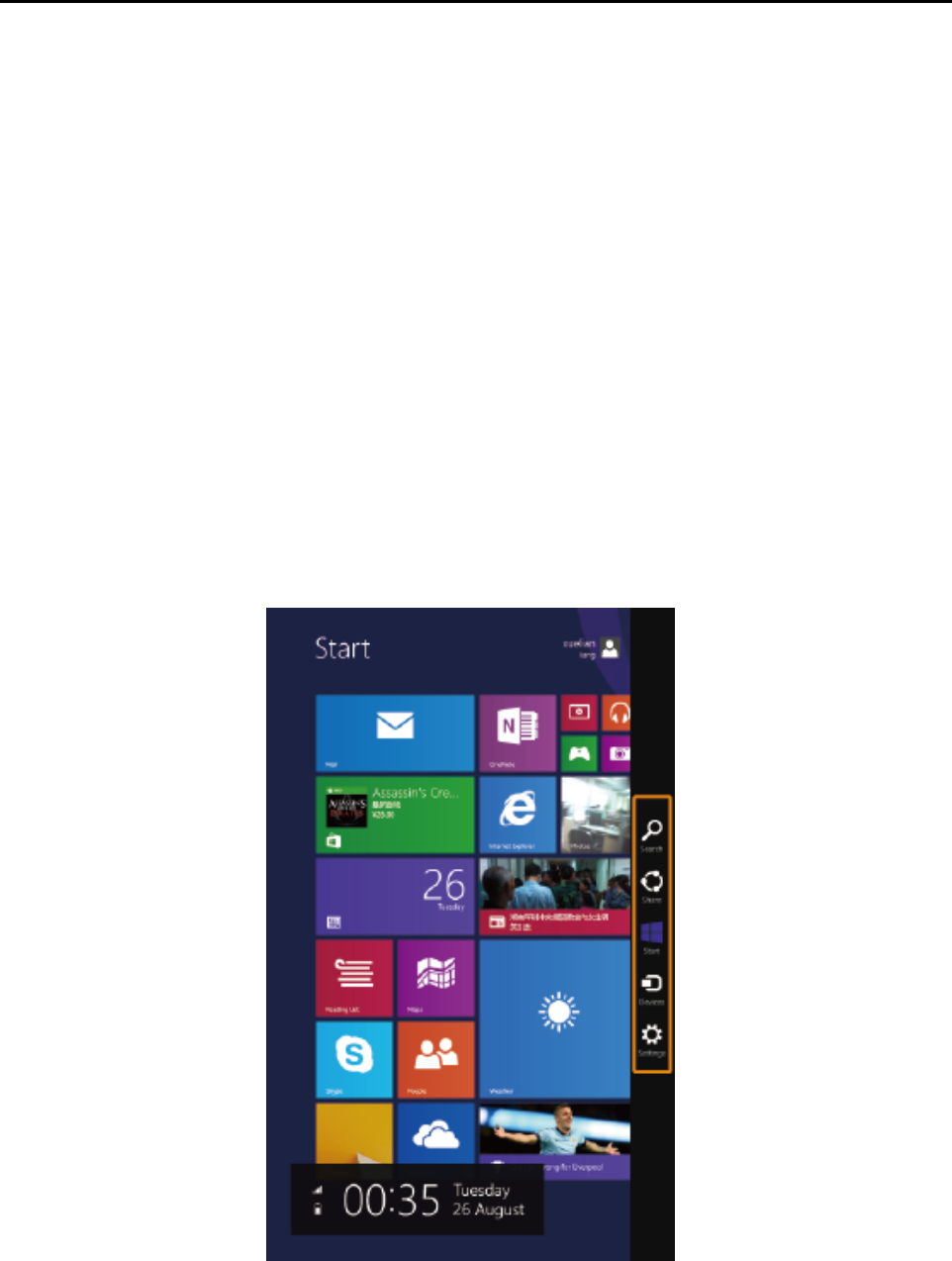
HotKeys refers to the navigating buttons controlling Windows® 8.1, including search, share,
start, device and setting. The HotKeys menu bar refers to the list HotKeys.
The five HotKeys provide a new and faster way for multiple tasking. HotKeys can be used
at all the time regardless of application.
If you want to make the Charm buttons show up, please do one of the followings:
噝 Move the cursor to the top right corner or bottom right corner until the HotKeys Bar
shows up.
噝 Touch the screen from the right side to the center until the HotKeys Bar shows up.
9
Chapter 2 Get to use Windows 8.1
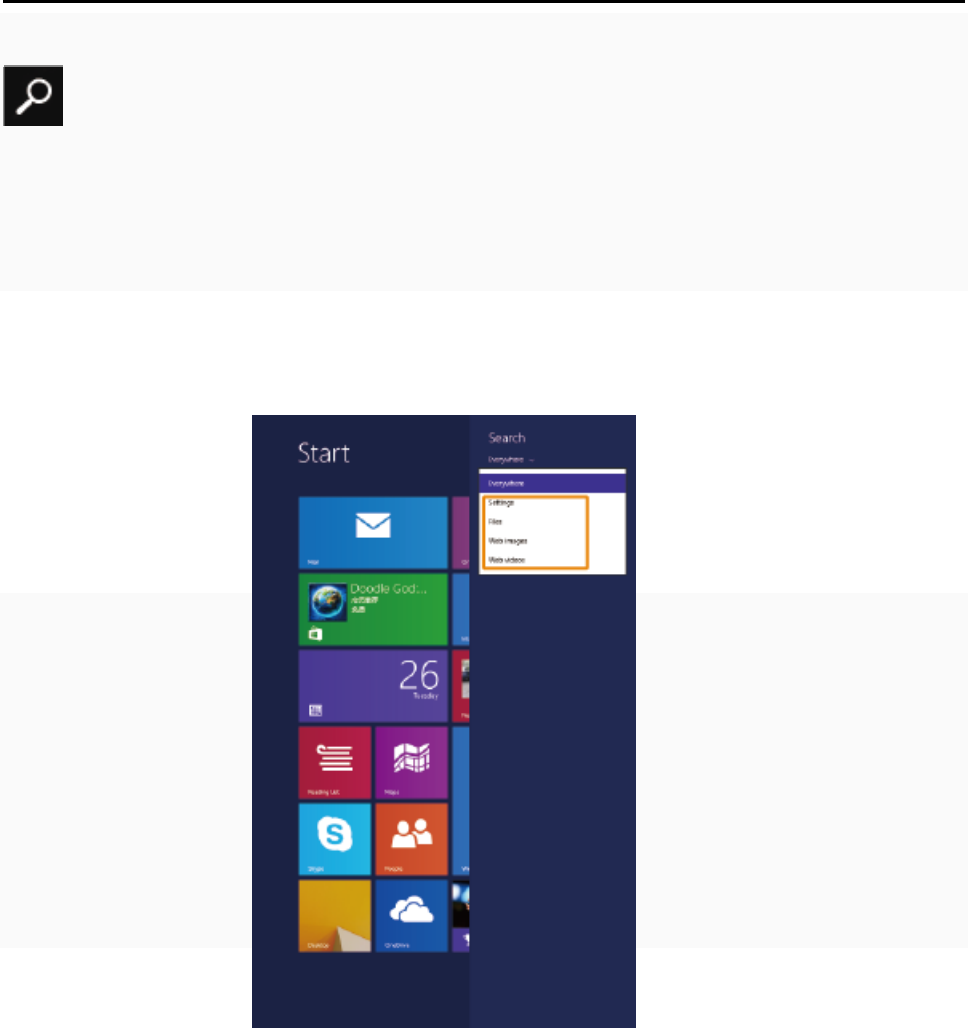
Search HotKeys
The search button is a powerful and brand new way of searching items including
application, settings and files.
10
Chapter 2 Get to use Windows 8.1
HotKeys Sharing
The share button can be used to send links, photos and other targets to your friends or to
have them uploaded to social networks while you don’t have to shut down the program you
are using.
Startup HotKeys
It helps to shift to the startup interface rapidly.
Device HotKeys
It helps with linking or sending files to any connecting device such as digital camera,
television or printer.
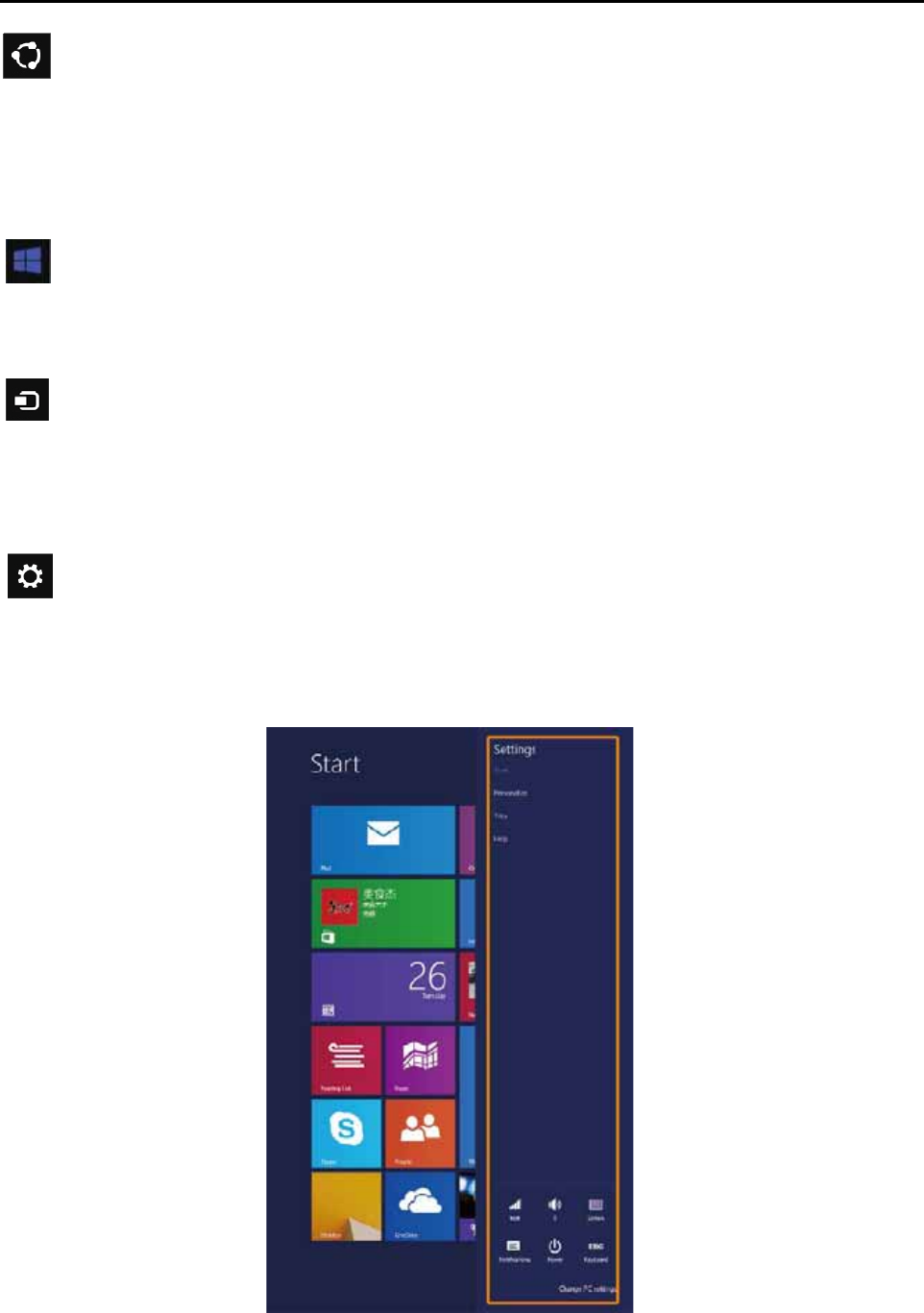
Setting HotKeys
It helps with basic tasks like setting volume or powering off the PC. In addition, it can help to
start the control panel when you are using the desktop interface.
11
Chapter 2 Get to use Windows 8.1
Set tablet PC into a sleep mode or power off
When you stop using it, you can set it in a sleep mode or power off.
Set tablet PC into a sleep mode
If the tablet PC is idle for a period of short time, you can set it into a sleep mode during
which you can skip the startup program and wake up the PC directly.
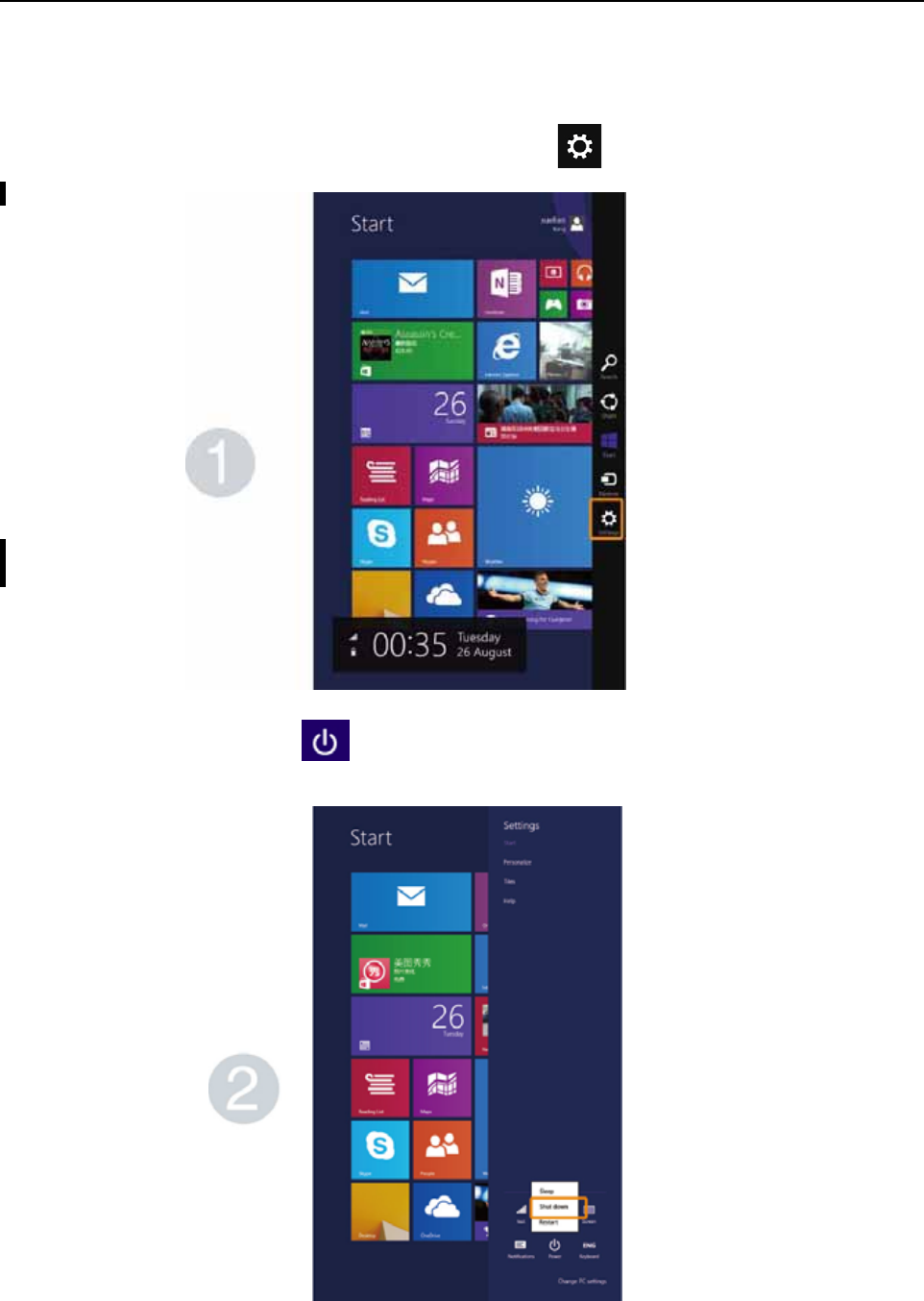
Do one of the followings to set the tablet PC into sleep mode:
ș Press the power button.
ș Start the HotKeys and choose setup power sleep
Do wake up the tablet PC:
ș Press the power button.
12
Chapter 2 Get to use Windows 8.1
Power off
If the tablet PC is not used for a long time, you can have it powered off.
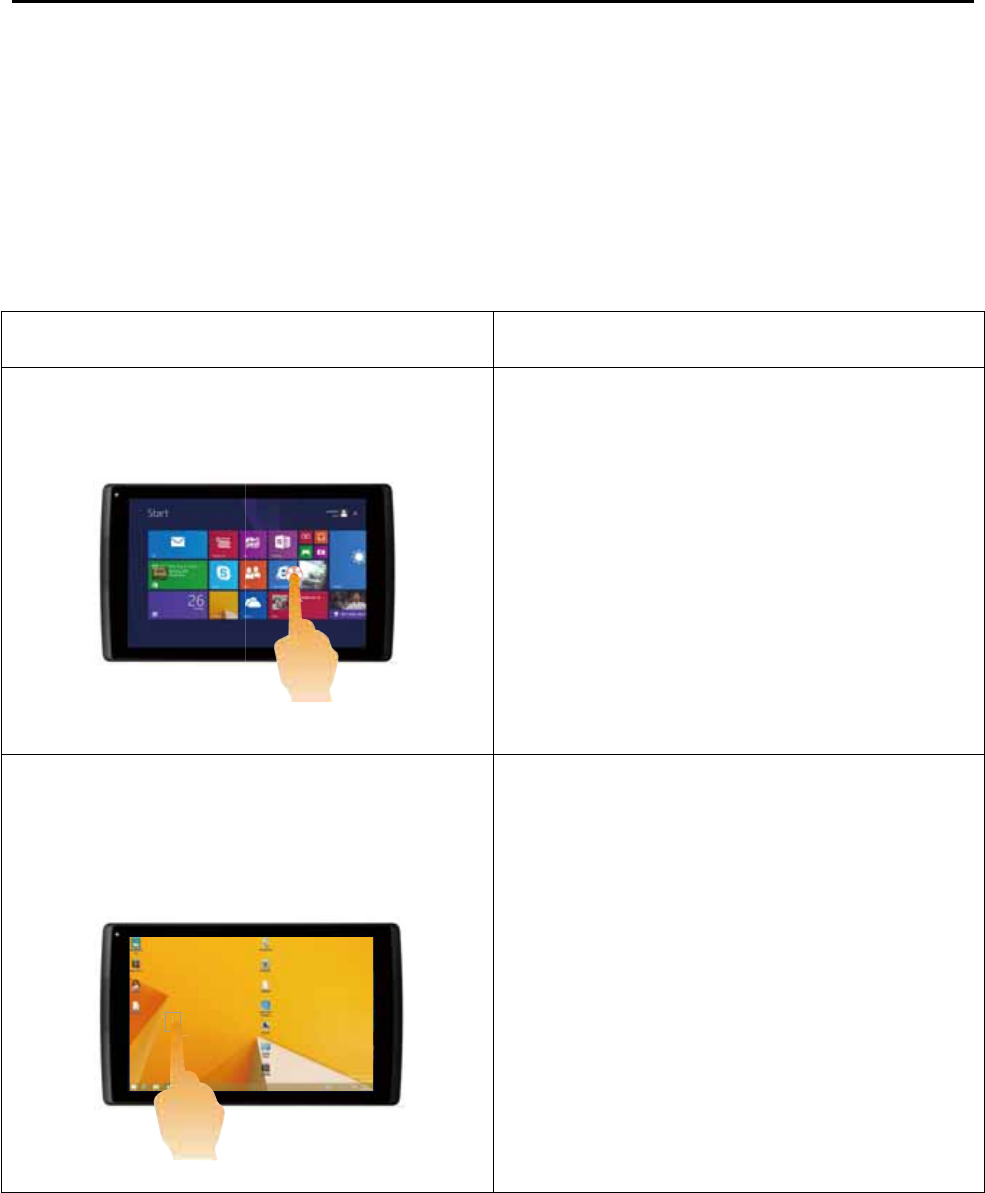
To power off it:
1.You can start the HotKeys and choose setup button
2. Choose the power button power off
13
Chapter 2 Get to use Windows 8.1
Touch-screen operation
The screen can be input by keyboard and touchpad like traditional laptops.
Multi-touch gesture
You can use one or more finger tips to touch the screen for various tasks.
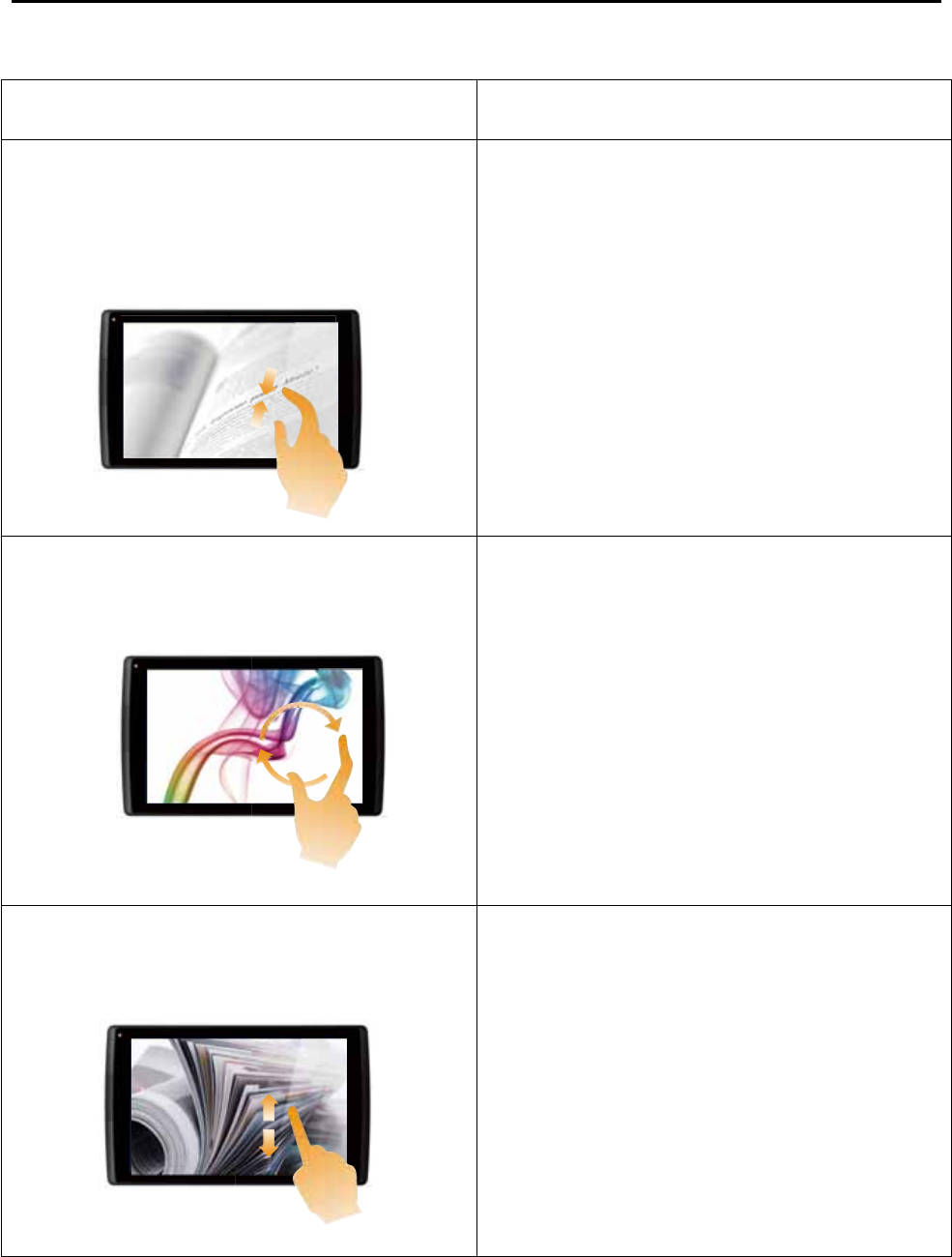
Common Swipe Movement Execution
Click
lick a certain item.
Operate one task such as starting up
applications, opening links or executing
command, like clicking the left mouse
button.
Keep pressing
Press and keep the gesture for a certain
time. Operate one task such as starting up
applications, opening links or executing
command, like clicking the left mouse
button.
Check details before choosing any operation
or open a menu bar with more options like
clicking the right mouse button.
14
Chapter 2 Get to use Windows 8.1
(Continued)
Common Swipe Movement Execution
Zoom in or zoom out
Spread or fold two fingers when touching
the screen.
Zoom in or zoom out views for like
pictures or maps in visual application
program or shift to in the list to the top or
bottom.
Swipe Spin two or more fingers on the
items and spin the fingers around.
Spin items. (Note: depends on
application, not all items can be spun
around programs.)
Slide
Slide your fingers on the screen.
Translate or roll the display list and
pages, or move items for drawing or
writing, which depends on the application
programs. This is like holding the
mouse buttons for translation or rolling.
15
Chapter 2 Get to use Windows 8.1
(Continued)
Common Swipe Movement Execution
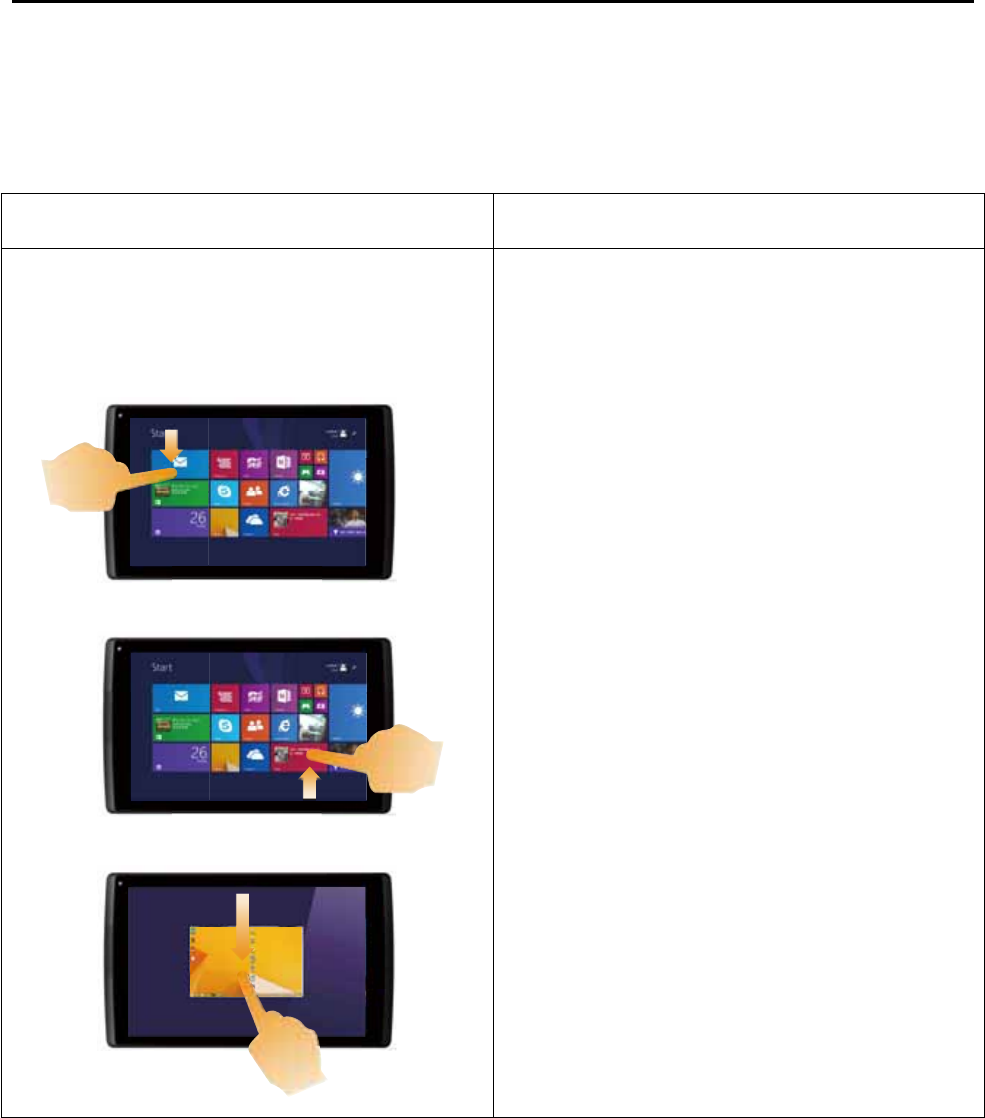
Slide lightly
Slide from either side to the center
Slide from the top to the bottom or vice
versa, the task bar will show at the screen
bottom with application programs including
“save, edit and delete”.
If you start an application program, you can:
噝 Slide from the top downwards to the
center (not lifting up fingers halfway) to put
the current program to the left or right side of
the screen. In this way, you can concurrently
starting two programs in the form of screen
splitting.
噝 Slide from the top straightly down to the
bottom (not lifting up fingers halfway) to turn
off the current application program.
16
Chapter 2 Get to use Windows 8.1
(Continued)
Common Swipe Movement Execution
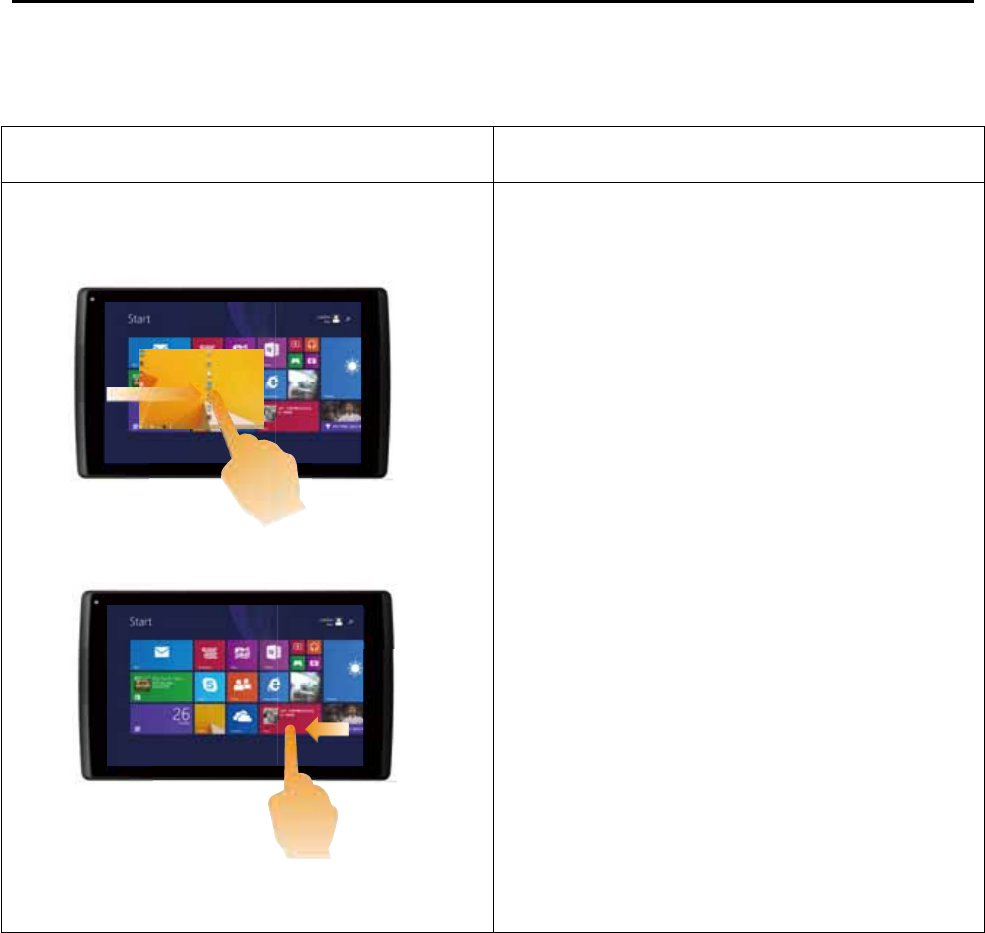
Common Swipe Movement
Slide from the left side to the center to
introduce and start the working programs at
the background.
If multiple programs are started, you can:
噝 Slide from the left side to the center to
introduce a program, or move the program
back to the left side by not lifting up your
fingers. In this way