ENCORE OPTOELECTRONIC DV1303 KSD5010 Color LCD Preview Display Digital Camcorder User Manual

ENCORE OPTOELECTRONIC (SHENZHEN) CO, LTD. KSD5010 Color LCD Preview Display Digital Camcorder Users Manual

Users Manual

 1                         Digital  Video  Camera   User  Guide                                                                                                              English
 2Copyright Information: All rights reserved. No part of this publication may be reproduced, transmitted, stored in a retrieval system, or translated into any language in any form by any means, optical, electronic, recording, or otherwise, without the written permission of our company.  We reserve the right to revise this manual and to make changes to any or all parts at any time, without obligation to notify any person or entity of such revisions and changes.
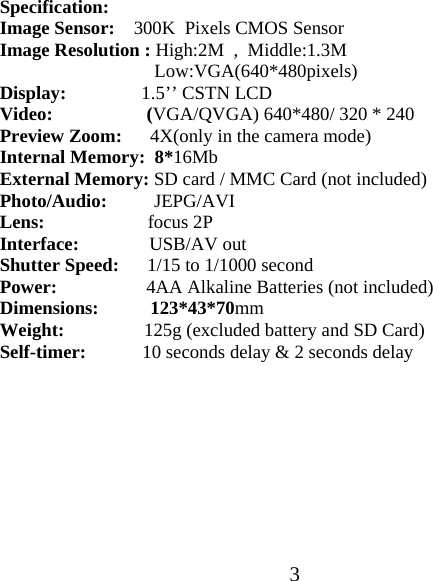
 3Specification: Image Sensor:    300K  Pixels CMOS Sensor Image Resolution : High:2M  ,  Middle:1.3M    Low:VGA(640*480pixels) Display:                1.5’’ CSTN LCD Video:                    (VGA/QVGA) 640*480/ 320 * 240 Preview Zoom:      4X(only in the camera mode) Internal Memory:  8*16Mb External Memory: SD card / MMC Card (not included) Photo/Audio:          JEPG/AVI Lens:                      focus 2P Interface:               USB/AV out Shutter Speed:      1/15 to 1/1000 second Power:                   4AA Alkaline Batteries (not included) Dimensions:           123*43*70mm Weight:                 125g (excluded battery and SD Card) Self-timer:            10 seconds delay & 2 seconds delay
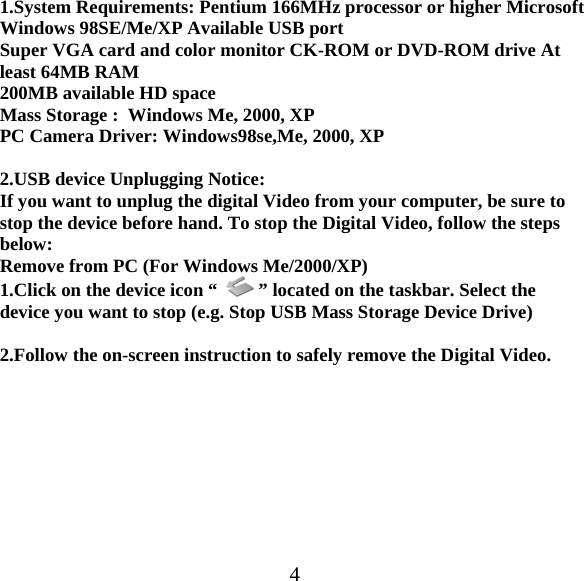
 41.System Requirements: Pentium 166MHz processor or higher Microsoft Windows 98SE/Me/XP Available USB port  Super VGA card and color monitor CK-ROM or DVD-ROM drive At least 64MB RAM 200MB available HD space Mass Storage :  Windows Me, 2000, XP PC Camera Driver: Windows98se,Me, 2000, XP  2.USB device Unplugging Notice: If you want to unplug the digital Video from your computer, be sure to stop the device before hand. To stop the Digital Video, follow the steps below: Remove from PC (For Windows Me/2000/XP) 1.Click on the device icon “    ” located on the taskbar. Select the device you want to stop (e.g. Stop USB Mass Storage Device Drive)  2.Follow the on-screen instruction to safely remove the Digital Video.
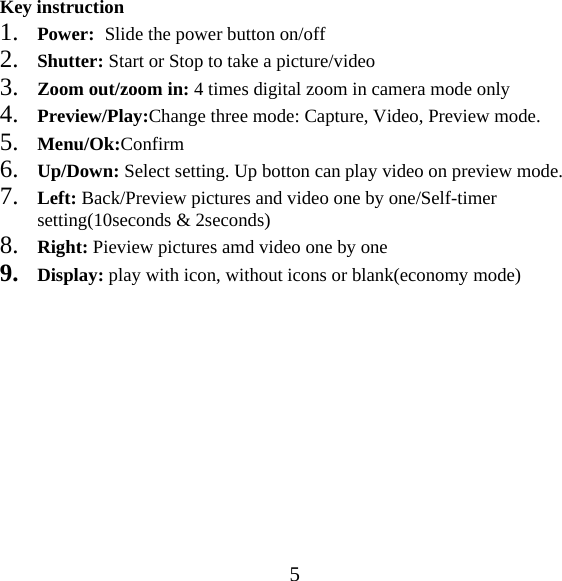
 5Key instruction 1. Power:  Slide the power button on/off 2. Shutter: Start or Stop to take a picture/video 3. Zoom out/zoom in: 4 times digital zoom in camera mode only 4. Preview/Play:Change three mode: Capture, Video, Preview mode. 5. Menu/Ok:Confirm 6. Up/Down: Select setting. Up botton can play video on preview mode. 7. Left: Back/Preview pictures and video one by one/Self-timer setting(10seconds & 2seconds) 8. Right: Pieview pictures amd video one by one 9. Display: play with icon, without icons or blank(economy mode)
 6Table Of Contents: Specification USB device Unplugging Notice Getting to know your digital video Strap Install Power on/off/low Taking Pictures Taking Video  Playback Video/ Picture Files Erase USB. Connected to PC Installing the Drive and Photo-editing Software
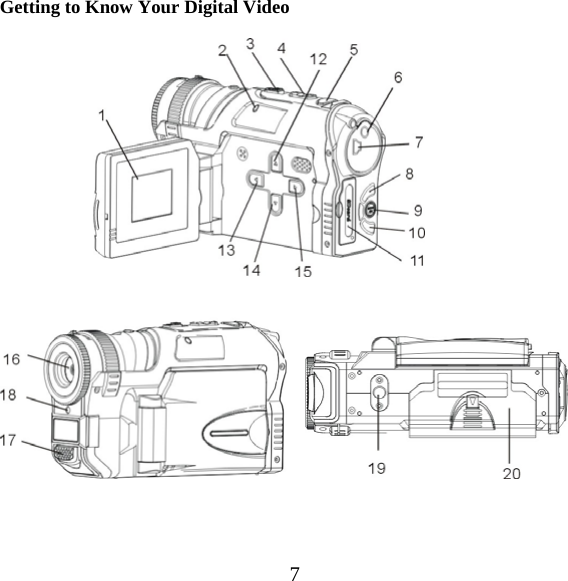
 7Getting to Know Your Digital Video
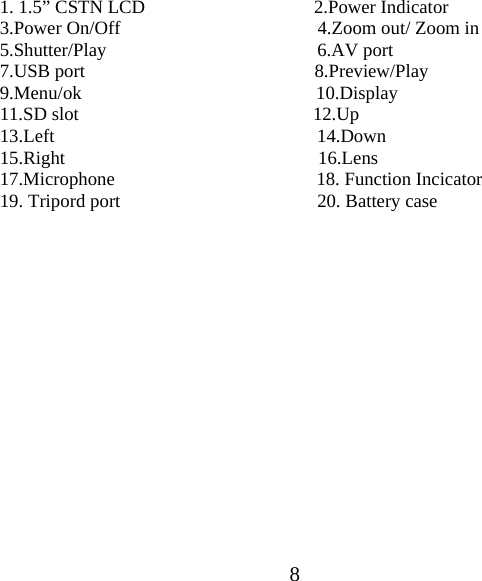
 81. 1.5” CSTN LCD                                    2.Power Indicator                                     3.Power On/Off                                          4.Zoom out/ Zoom in 5.Shutter/Play                                             6.AV port  7.USB port                                                 8.Preview/Play 9.Menu/ok                                                  10.Display 11.SD slot                                                  12.Up 13.Left                                                        14.Down 15.Right                                                      16.Lens 17.Microphone                                           18. Function Incicator 19. Tripord port                                          20. Battery case
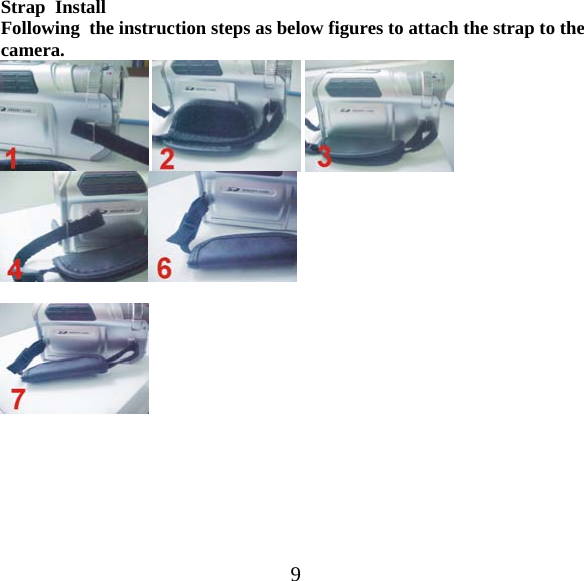
 9Strap  Install   Following  the instruction steps as below figures to attach the strap to the camera.
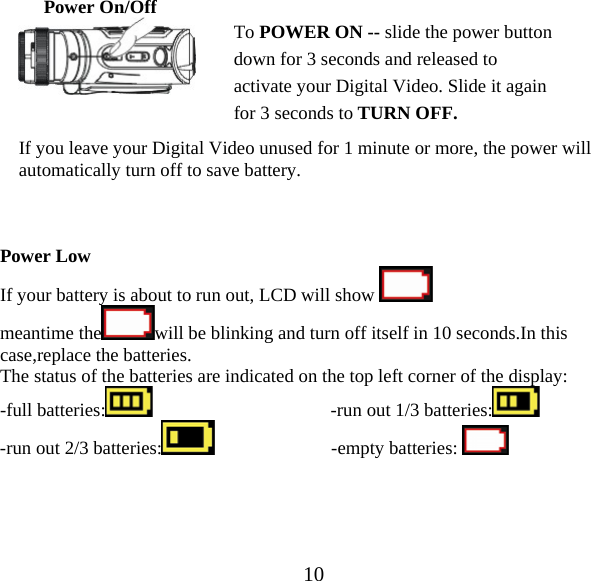
 10Power On/Off      If you leave your Digital Video unused for 1 minute or more, the power will automatically turn off to save battery.     Power Low   If your battery is about to run out, LCD will show   meantime the will be blinking and turn off itself in 10 seconds.In this case,replace the batteries. The status of the batteries are indicated on the top left corner of the display: -full batteries:                                       -run out 1/3 batteries:        -run out 2/3 batteries:                          -empty batteries:          To POWER ON -- slide the power button down for 3 seconds and released to activate your Digital Video. Slide it again for 3 seconds to TURN OFF.
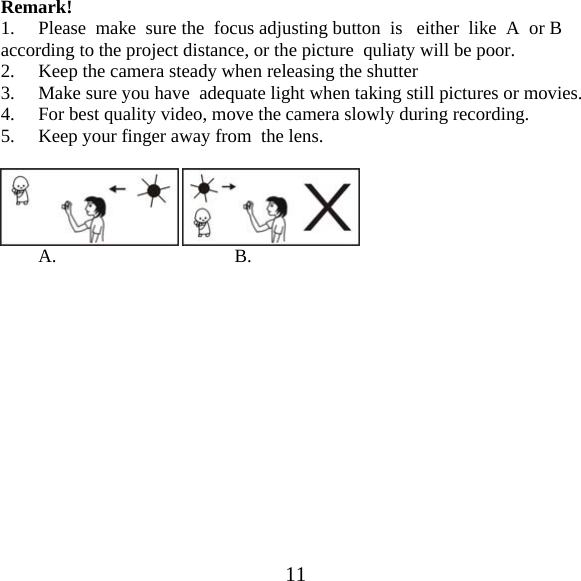
 11Remark! 1.     Please  make  sure the  focus adjusting button  is   either  like  A  or B according to the project distance, or the picture  quliaty will be poor. 2. Keep the camera steady when releasing the shutter 3. Make sure you have  adequate light when taking still pictures or movies. 4. For best quality video, move the camera slowly during recording. 5. Keep your finger away from  the lens.             A.                                      B.
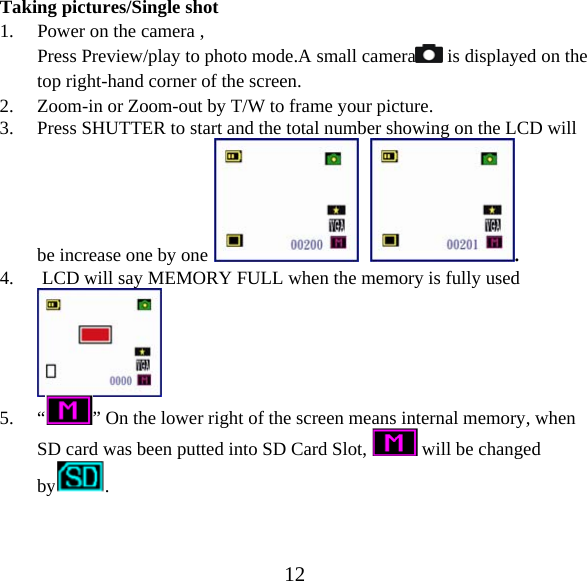
 12Taking pictures/Single shot 1. Power on the camera , Press Preview/play to photo mode.A small camera  is displayed on the top right-hand corner of the screen. 2. Zoom-in or Zoom-out by T/W to frame your picture. 3. Press SHUTTER to start and the total number showing on the LCD will be increase one by one     . 4.  LCD will say MEMORY FULL when the memory is fully used   5. “” On the lower right of the screen means internal memory, when SD card was been putted into SD Card Slot,   will be changed by .
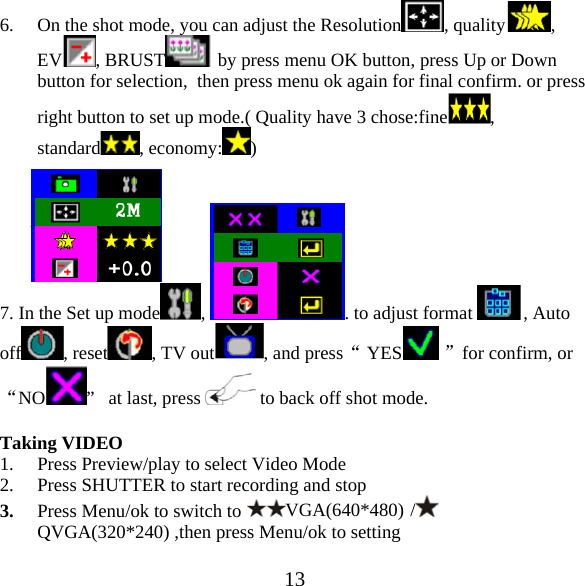
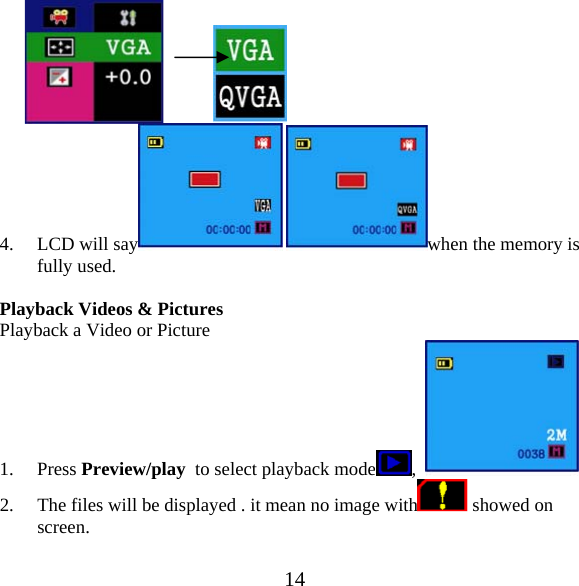
 136. On the shot mode, you can adjust the Resolution , quality , EV , BRUST  by press menu OK button, press Up or Down button for selection,  then press menu ok again for final confirm. or press right button to set up mode.( Quality have 3 chose:fine , standard , economy: )   7. In the Set up mode ,  . to adjust format  , Auto off , reset , TV out , and press“ YES  ”for confirm, or “NO ”   at last, press   to back off shot mode.  Taking VIDEO 1. Press Preview/play to select Video Mode 2. Press SHUTTER to start recording and stop 3. Press Menu/ok to switch to VGA(640*480) /  QVGA(320*240) ,then press Menu/ok to setting
 14          4. LCD will say  when the memory is fully used.  Playback Videos & Pictures  Playback a Video or Picture 1. Press Preview/play  to select playback mode ,    2. The files will be displayed . it mean no image with  showed on screen.
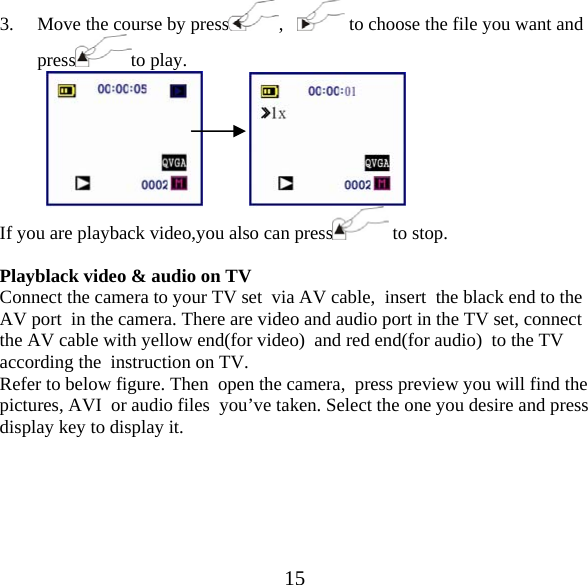
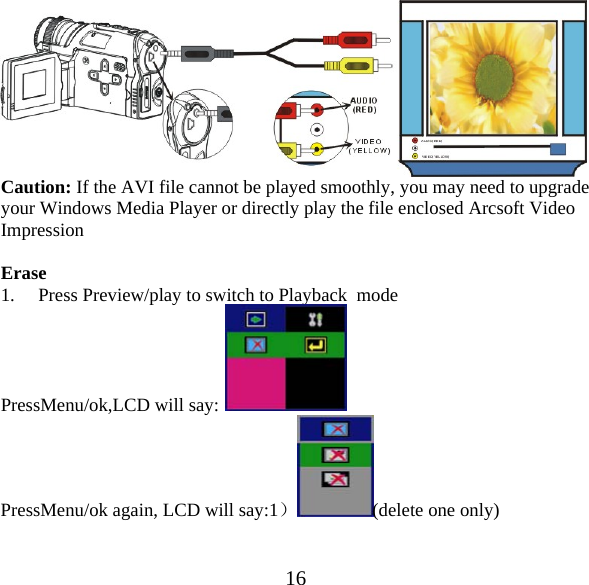
 153. Move the course by press ,     to choose the file you want and press to play.                 If you are playback video,you also can press  to stop.  Playblack video & audio on TV Connect the camera to your TV set  via AV cable,  insert  the black end to the AV port  in the camera. There are video and audio port in the TV set, connect  the AV cable with yellow end(for video)  and red end(for audio)  to the TV  according the  instruction on TV. Refer to below figure. Then  open the camera,  press preview you will find the pictures, AVI  or audio files  you’ve taken. Select the one you desire and press display key to display it.
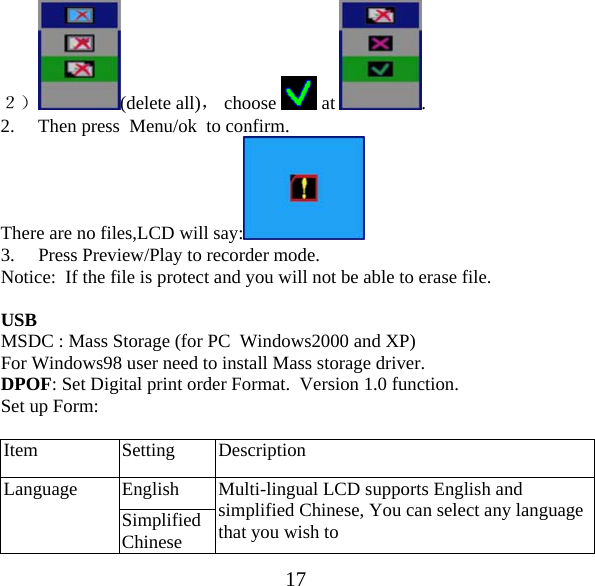
 16 Caution: If the AVI file cannot be played smoothly, you may need to upgrade your Windows Media Player or directly play the file enclosed Arcsoft Video Impression  Erase 1. Press Preview/play to switch to Playback  mode PressMenu/ok,LCD will say:  PressMenu/ok again, LCD will say:1)(delete one only)
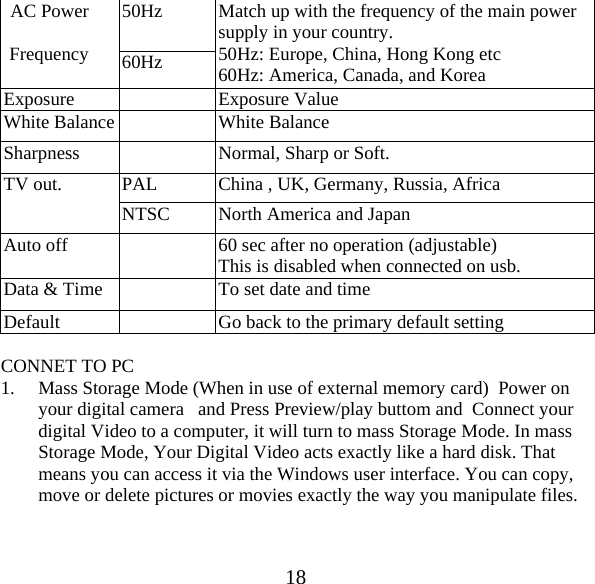
 172) (delete all), choose   at  . 2. Then press  Menu/ok  to confirm. There are no files,LCD will say:  3. Press Preview/Play to recorder mode. Notice:  If the file is protect and you will not be able to erase file.  USB MSDC : Mass Storage (for PC  Windows2000 and XP) For Windows98 user need to install Mass storage driver. DPOF: Set Digital print order Format.  Version 1.0 function. Set up Form:   Item Setting Description Language  English  Multi-lingual LCD supports English and simplified Chinese, You can select any language that you wish to  Simplified Chinese
 18 AC Power  Frequency  50Hz  Match up with the frequency of the main power supply in your country. 50Hz: Europe, China, Hong Kong etc 60Hz: America, Canada, and Korea 60Hz Exposure   Exposure Value White Balance   White Balance Sharpness    Normal, Sharp or Soft. TV out.  PAL  China , UK, Germany, Russia, Africa NTSC  North America and Japan Auto off    60 sec after no operation (adjustable) This is disabled when connected on usb. Data & Time    To set date and time Default    Go back to the primary default setting  CONNET TO PC 1. Mass Storage Mode (When in use of external memory card)  Power on your digital camera   and Press Preview/play buttom and  Connect your digital Video to a computer, it will turn to mass Storage Mode. In mass Storage Mode, Your Digital Video acts exactly like a hard disk. That means you can access it via the Windows user interface. You can copy, move or delete pictures or movies exactly the way you manipulate files.
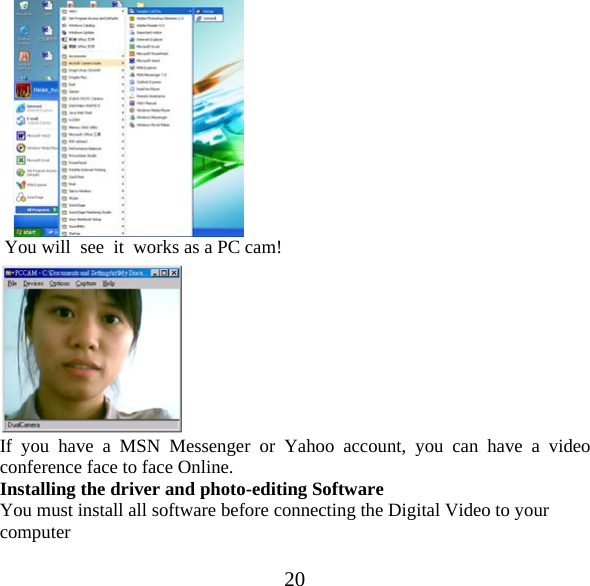
 19 (Note: For Windows Me 2000 and XP, there is no need to install the mass storage driver form the CD ROM. Driver installation is only needed for Windows 98)   2. PC Camera Mode Power  on your digital camera and connect it to your  PC  via USB cable provided, press shutter button till you see  the screen  showed PC camera:    . Then go to [Start] [Programs] [Sunplus Ca533a ] , run Amcap. Using as a PC/Web Camera 1. The webcam  allows you to broadcast moving images over the Internet. When your camera is connected to the USB port it can be used as a PC/Web camera. 2.Open the camera first then connect this Digital Video to a computer with its supplied USB cable and   the screen will show PC camera .  Go  to    program->Sunplus Ca533a>Amcap,  run Amcam
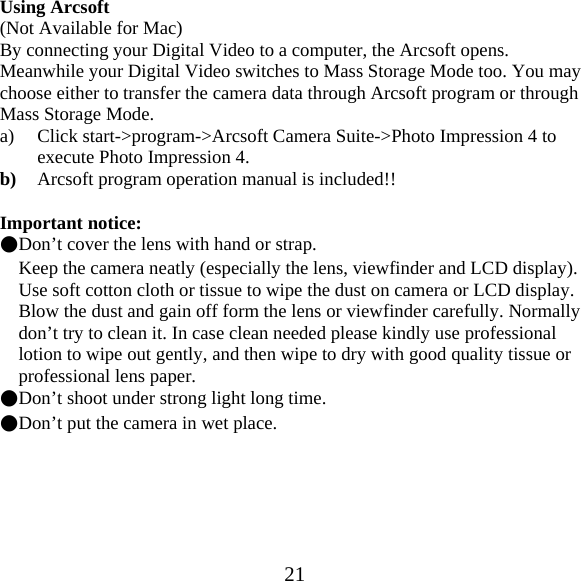
 20      You will  see  it  works as a PC cam!  If you have a MSN Messenger or Yahoo account, you can have a video conference face to face Online. Installing the driver and photo-editing Software You must install all software before connecting the Digital Video to your computer
 21Using Arcsoft (Not Available for Mac) By connecting your Digital Video to a computer, the Arcsoft opens. Meanwhile your Digital Video switches to Mass Storage Mode too. You may choose either to transfer the camera data through Arcsoft program or through Mass Storage Mode. a) Click start->program->Arcsoft Camera Suite->Photo Impression 4 to execute Photo Impression 4. b) Arcsoft program operation manual is included!!  Important notice: ●Don’t cover the lens with hand or strap. Keep the camera neatly (especially the lens, viewfinder and LCD display). Use soft cotton cloth or tissue to wipe the dust on camera or LCD display. Blow the dust and gain off form the lens or viewfinder carefully. Normally don’t try to clean it. In case clean needed please kindly use professional lotion to wipe out gently, and then wipe to dry with good quality tissue or professional lens paper. ●Don’t shoot under strong light long time. ●Don’t put the camera in wet place.
Note: This equipment has been tested and found to comply with the limits for a Class B digital device, pursuant to part 15 of the FCC Rules. These limits are designed to provide reasonable protection against harmful interference in a residential installation. This equipment generates, uses and can radiate radio frequency energy and, if not installed and used in accordance with the instructions, may cause harmful interference to radio communications. However, there is no guarantee that interference will not occur in a particular installation. If this equipment does cause harmful interference to radio or television reception, which can be determined by turning the equipment off and on, the user is encouraged to try to correct the interference by one or more of the following measures:—Reorient or relocate the receiving antenna.—Increase the separation between the equipment and receiver.—Connect the equipment into an outlet on a circuit different from that to which the receiver is connected.—Consult the dealer or an experienced radio/TV technician for help.

Navigation menu