ENTERMEDIA ET28KH HD MULTIMEDIA KARAOKE (MAIN DEVICE) User Manual ET28KH Quick Guide n warranty A5 VER100 130731

ENTERTECH CO., LTD. HD MULTIMEDIA KARAOKE (MAIN DEVICE) ET28KH Quick Guide n warranty A5 VER100 130731

Users Manual

 FCC Information to User This equipment has been tested and found to comply with the limits for a Class B digital device, pursuant to Part 15 of the FCC Rules. These limits are designed to provide reasonable protection against harmful interference in a residential installation. This equipment generates, uses and can radiate radio frequency energy and, if not installed and used in accordance with the instructions, may cause harmful interference to radio communications. However, there is no guarantee that interference will not occur in a particular installation. If this equipment does cause harmful interference to radio or television reception, which can be determined by turning the equipment off and on, the user is encouraged to try to correct the interference by one of the following measures:  • Reorient or relocate the receiving antenna.  • Increase the separation between the equipment and receiver.  • Connect the equipment into an outlet on a circuit different from that to which the receiver is con-nected.  • Consult the dealer or an experienced radio/TV technician for help.   Caution Modifications not expressly approved by the party responsible for compliance could void the user’s authority to operate the equipment.   FCC Compliance Information : This device complies with Part 15 of the FCC Rules. Operation is subject to the following two conditions: (1) This device may not cause harmful interference, and (2) this device must accept any interference received, including interference that may cause undesired operation   IMPORTANT NOTE: FCC RF Radiation Exposure Statement: This equipment complies with FCC RF radiation exposure limits set forth for an uncontrolled environment. This equipment should be installed and operated with a minimum distance of 20 centimeters between the radiator and your body.This transmitter must not be co-located or operating in conjunction with any other antenna or transmitter.
ET28KH QUICK GUIDE | 01        Main DeviceSIDE        Remote ControlIIIActivity Indication LEDPowerGuide Vocal VolumeMicrophone VolumeSong SearchTempoKeyMelody VolumeExitFavorite SongsBackground ChangeRandom Song SelectionRepeatClapping Sound EffectMale/Female Key ChangeHelpApplicationsConfigurationMenuDirection KeysStart / StopEchoMusic VolumeNumber / Letter InputSong ReservationCancel ReservationNext BackgroundPause / ResumeSkip prelude or interludeRecorded Songlist and PlayRecordII2 Wireless MICHD-TV Cable, Tri-color RCA cable, Power adaptor, Quick guide         AccessoriesIVIIIIIIVTOP SIDEBACKPower SwitchCOMPONENTS & FUNCTIONS( AA×4 Batteries included)Tri-color RCA cable120cm (47.2 inch)Yellow for Video output190cm (74.8 inch)Red for stereo/ audio right outputand White for stereo/ audio left outputHD-TV Cable150cm(59 inch)※ To adjust, select the switch located      above the song pack slots to      HDTV or TV depending on to what      kind of TV the device will be      connected.(AAA×2 Batteries included)Place a MICFRONTNAVIGATION buttonPLAY/STOP buttonAPP buttonMENU buttonNUMBER buttonLED displayMUSIC VOL buttonKEY buttonTEMPO buttonRECORD buttonSEARCH buttonECHO buttonCANCEL buttonMIC buttonFAVORITE SONGbuttonPAUSE buttonREPLAY buttonPOWER buttonRESERVATION buttonWIRELESS MIC INDICATORWIRELESS MIC INDICATOR POWER INDICATORPOWER INDICATORREMOTE CONTROLL SENSORREMOTE CONTROLL SENSOR HD socketHD socketUSB PORTUSB PORT DC INDC INAUDIO / VIDEO OUTPUTAUDIO / VIDEO OUTPUTExpansion Pack SlotsInsert a Total Pack and Additional PacksTV     HDTV Switch●  HDTV : Switch  toward HDTV ●  Non-HDTV or regular  TV : Switch toward TV
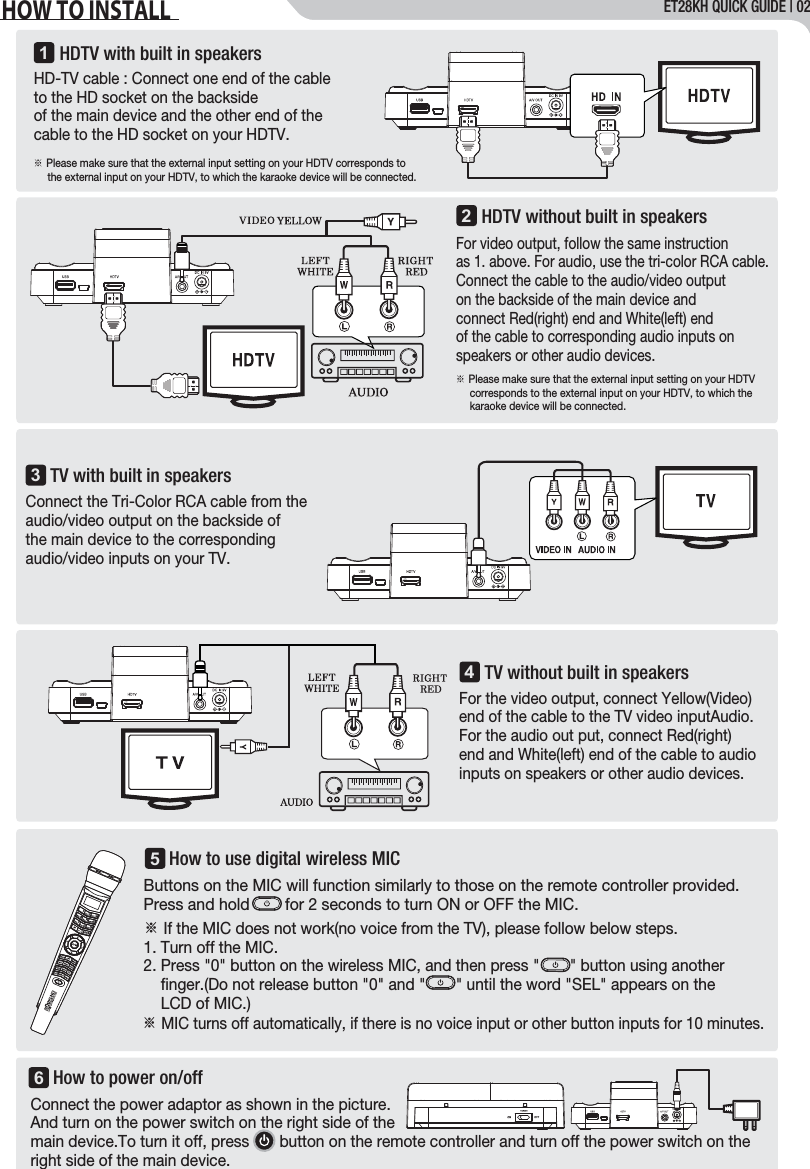
HDTV without built in speakersFor video output, follow the same instruction as 1. above. For audio, use the tri-color RCA cable. Connect the cable to the audio/video outputon the backside of the main device and connect Red(right) end and White(left) end of the cable to corresponding audio inputs on speakers or other audio devices.TV with built in speakersConnect the Tri-Color RCA cable from the audio/video output on the backside of the main device to the corresponding audio/video inputs on your TV.TV without built in speakersFor the video output, connect Yellow(Video) end of the cable to the TV video inputAudio.For the audio out put, connect Red(right) end and White(left) end of the cable to audio inputs on speakers or other audio devices.1243※ Please make sure that the external input setting on your HDTV      corresponds to the external input on your HDTV, to which the      karaoke device will be connected.How to use digital wireless MIC5ET28KH QUICK GUIDE | 02HOW TO INSTALLHow to power on/off6Connect the power adaptor as shown in the picture. And turn on the power switch on the right side of the main device.To turn it off, press       button on the remote controller and turn off the power switch on the right side of the main device.HDTV with built in speakersHD-TV cable : Connect one end of the cable to the HD socket on the backside of the main device and the other end of the cable to the HD socket on your HDTV.※ Please make sure that the external input setting on your HDTV corresponds to      the external input on your HDTV, to which the karaoke device will be connected.Buttons on the MIC will function similarly to those on the remote controller provided.Press and hold        for 2 seconds to turn ON or OFF the MIC.※ If the MIC does not work(no voice from the TV), please follow below steps.1. Turn off the MIC. 2. Press "0" button on the wireless MIC, and then press "       " button using another     finger.(Do not release button "0" and "       " until the word "SEL" appears on the     LCD of MIC.)※ MIC turns off automatically, if there is no voice input or other button inputs for 10 minutes.
ET28KH QUICK GUIDE | 03●[REAL TIME SCORE] Turn on/ off the Real time score on the screen.●[SCORE CHECK] Set the scoring mode to None, Beginner, Amateur or Professional.●[LYRICS POSITION] Select the position of the lyrics on the screen.●[LYRICS]Turn on/off the lyrics on the screen.●[MUSICAL NOTE SCROLL BAR]Turn on/off the musical note scroll bar which ●[SONG COUNTDOWN] Turn on/off the song countdown “4, 3, 2, 1” which ●[AUTO MIC EFFECT]Automatically uses the MIC effect (Echo) only ●[MIC EFFECT]Select from Echo (short), Echo, Echo (long),Reverb (room) or Reverb (hall). Press   or  to open a page for           .  Adjust tempo Adjust keyAdjust melodyvolume Adjust musicvolume Adjust MIC volumeAdjust echoAdjust volume of guide vocal Turn on/offguide vocal Change melodyinstrument Change male/female keyAdjust octaveSet a part of song to be repeatedPlay songs continuously Change backgroundTurn on/offthe musical noteChange settings for score●[LYRICS LINE] Choose the number of lines to be displayed in 2 LINES or 3 LINES. A → B → C → 2 → A → Circulate (Press repeatedly.)Press               to open the search panel9. Press             to pause / resume.8. Press         to play (resume) / stop.7. Press                               to select a song.6. Press            to delete the letter.G → H → I → 4 → G → Circulate(Press repeatedly.)J → K → L → 5 → J → Circulate (Press repeatedly.)M → N → O → 6 → M → Circulate(Press repeatedly.)P → Q → R → S → 7 → P → Circulate(Press repeatedly.)T → U → V → 8 → T → Circulate(Press repeatedly.)W → X → Y → Z → 9 → W → Circulate(Press repeatedly.)    → 0 →      Circulate (Press repeatedly)D → E → F → 3 → D → Circulate (Press repeatedly.) 1 TITLE → SINGER → LYRIC → NUMBER → TITLE → Circulate(Press repeatedly.)ALL → GUIDE VOCAL → Listing by Country → ALL → Circulate(Press repeatedly.)Alphabet → Other Languages Available → Alphabet → Circulate(Press repeatedly.)5. Press      to move the cursor to the right (or after 2 seconds the cursor     will move to the right without pressing      .)2. 1. 3. 4.           CONFIGURATIONIIIButton Letter Input          Song SearchIII  MENUSONG SEARCH, MENU, CONFIGURATION●[SILENCE MODE] Set the silence mode to OFF to Level 1 to Level 2.●[AUTO POWER OFF] Set the Auto power off when there is no input signal.●[FACTORY RESET] Reset all settings to the factory default settings.indicates where it is playing.indicates the starting point of a song.when you start a song.
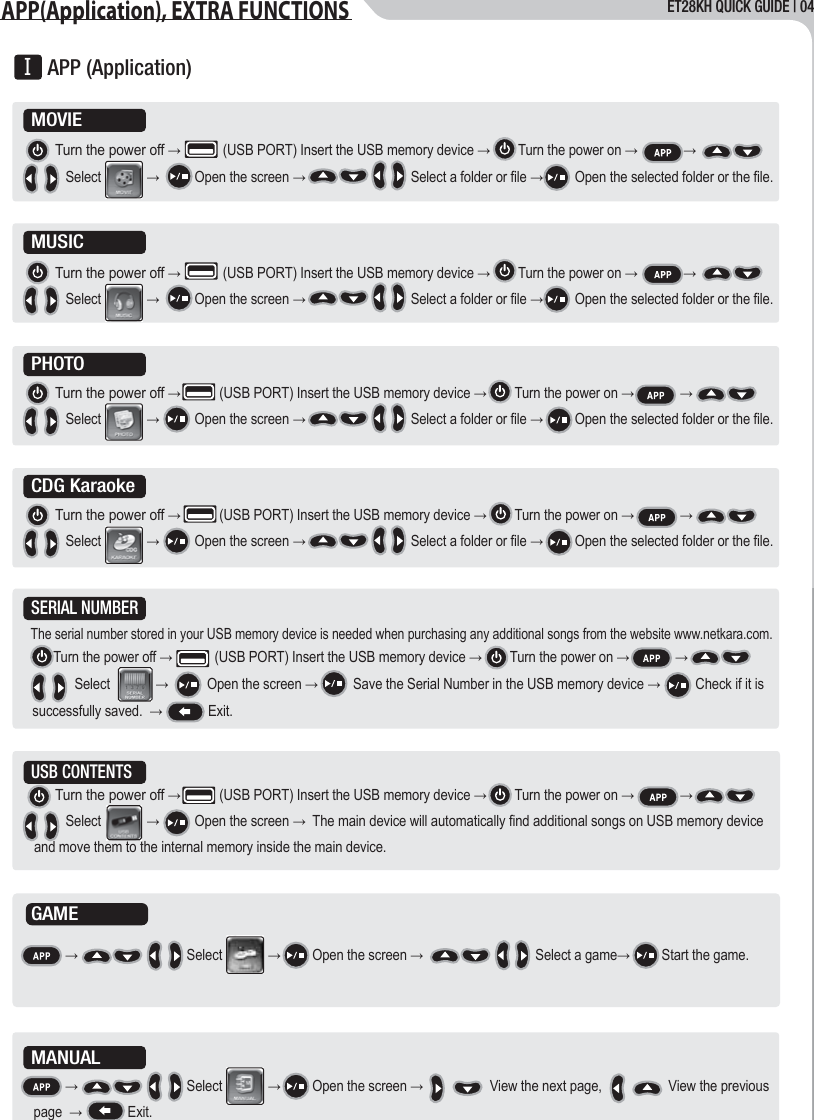
ET28KH QUICK GUIDE | 04APP(Application), EXTRA FUNCTIONS      Turn the power off →            (USB PORT) Insert the USB memory device →        Turn the power on →             →                                       Select             →          Open the screen →                              Select a folder or file →         Open the selected folder or the file.MOVIEMUSICPHOTOCDG KaraokeSERIAL NUMBER      Turn the power off →            (USB PORT) Insert the USB memory device →        Turn the power on →             →                                          Select             →           Open the screen →          Save the Serial Number in the USB memory device →          Check if it is successfully saved.  →             Exit.The serial number stored in your USB memory device is needed when purchasing any additional songs from the website www.netkara.com.MANUAL          →                               Select             →         Open the screen →                   View the next page,                   View the previous page  →             Exit.        APP (Application)GAME      Turn the power off →            (USB PORT) Insert the USB memory device →        Turn the power on →             →                                       Select             →          Open the screen →                              Select a folder or file →         Open the selected folder or the file.      Turn the power off →           (USB PORT) Insert the USB memory device →        Turn the power on →             →                                       Select             →          Open the screen →                              Select a folder or file →         Open the selected folder or the file.      Turn the power off →           (USB PORT) Insert the USB memory device →        Turn the power on →             →                                       Select             →          Open the screen →                              Select a folder or file →         Open the selected folder or the file.      Turn the power off →           (USB PORT) Insert the USB memory device →        Turn the power on →             →                                       Select             →          Open the screen →  The main device will automatically find additional songs on USB memory device and move them to the internal memory inside the main device.USB CONTENTS          →                               Select             →         Open the screen →                                Select a game→         Start the game.
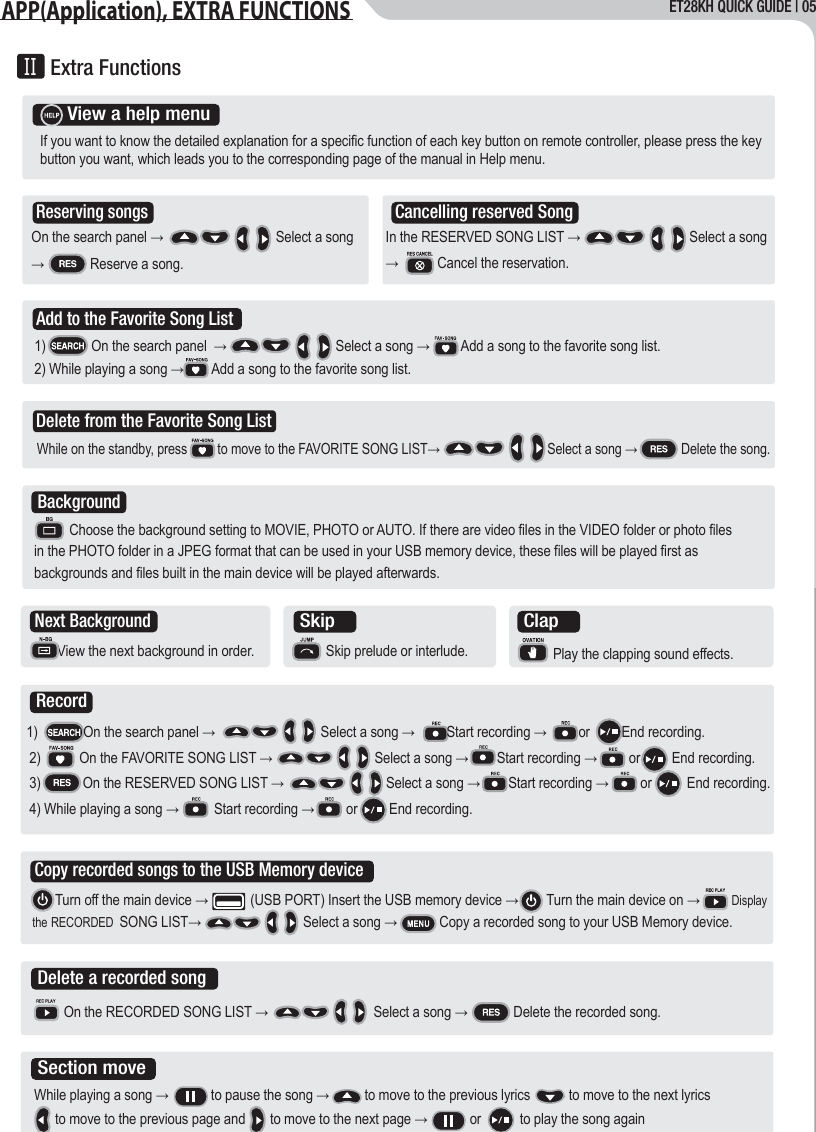
ET28KH QUICK GUIDE | 05APP(Application), EXTRA FUNCTIONSExtra FunctionsIIIn the RESERVED SONG LIST →                               Select a song →           Cancel the reservation.                 Choose the background setting to MOVIE, PHOTO or AUTO. If there are video files in the VIDEO folder or photo files        in the PHOTO folder in a JPEG format that can be used in your USB memory device, these files will be played first as        backgrounds and files built in the main device will be played afterwards.While on the standby, press         to move to the FAVORITE SONG LIST→                                Select a song →             Delete the song.                On the RECORDED SONG LIST →                              Select a song →             Delete the recorded song.      If you want to know the detailed explanation for a specific function of each key button on remote controller, please press the key       button you want, which leads you to the corresponding page of the manual in Help menu.Delete from the Favorite Song List     On the search panel →                                Select a song      →             Reserve a song.Reserving songs  BackgroundCancelling reserved SongDelete a recorded song      While playing a song →            to pause the song →          to move to the previous lyrics           to move to the next lyrics            to move to the previous page and       to move to the next page →            or           to play the song againSection moveAdd to the Favorite Song List   1)             On the search panel  →                               Select a song →         Add a song to the favorite song list.   2) While playing a song →        Add a song to the favorite song list.       View a help menu          View the next background in order.Next BackgroundSkip prelude or interlude.SkipPlay the clapping sound effects.Record      1)             On the search panel →                              Select a song →         Start recording →         or         End recording.        2)           On the FAVORITE SONG LIST →                             Select a song →        Start recording →         or         End recording.        3)            On the RESERVED SONG LIST →                             Select a song →        Start recording →         or          End recording.        4) While playing a song →          Start recording →         or         End recording.               Turn off the main device →            (USB PORT) Insert the USB memory device →        Turn the main device on →         Display           the RECORDED  SONG LIST→                             Select a song →            Copy a recorded song to your USB Memory device.Copy recorded songs to the USB Memory deviceClap
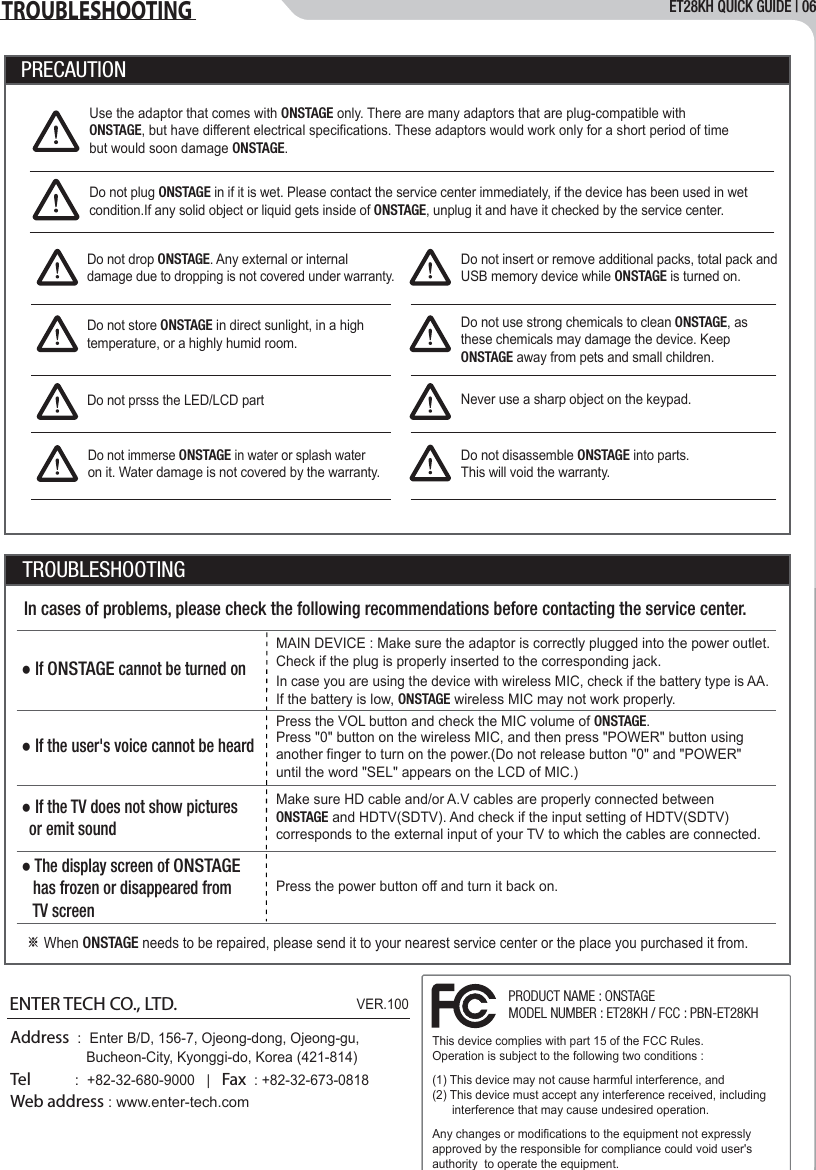
ET28KH QUICK GUIDE | 06TROUBLESHOOTINGUse the adaptor that comes with ONSTAGE only. There are many adaptors that are plug-compatible with ONSTAGE, but have different electrical specifications. These adaptors would work only for a short period of time but would soon damage ONSTAGE.Do not drop ONSTAGE. Any external or internal damage due to dropping is not covered under warranty.Do not insert or remove additional packs, total pack and USB memory device while ONSTAGE is turned on.Do not plug ONSTAGE in if it is wet. Please contact the service center immediately, if the device has been used in wet condition.If any solid object or liquid gets inside of ONSTAGE, unplug it and have it checked by the service center.Do not store ONSTAGE in direct sunlight, in a high temperature, or a highly humid room.Do not use strong chemicals to clean ONSTAGE, as these chemicals may damage the device. Keep ONSTAGE away from pets and small children.Do not prsss the LED/LCD part Never use a sharp object on the keypad.Do not disassemble ONSTAGE into parts.This will void the warranty.Do not immerse ONSTAGE in water or splash water on it. Water damage is not covered by the warranty.PRECAUTIONTROUBLESHOOTINGIn cases of problems, please check the following recommendations before contacting the service center.● If ONSTAGE cannot be turned on   MAIN DEVICE : Make sure the adaptor is correctly plugged into the power outlet.Check if the plug is properly inserted to the corresponding jack.In case you are using the device with wireless MIC, check if the battery type is AA. If the battery is low, ONSTAGE wireless MIC may not work properly.● If the user's voice cannot be heard● If the TV does not show pictures   or emit sound   ● The display screen of ONSTAGE   has frozen or disappeared from   TV screen※ When ONSTAGE needs to be repaired, please send it to your nearest service center or the place you purchased it from.Press the VOL button and check the MIC volume of ONSTAGE.Press "0" button on the wireless MIC, and then press "POWER" button using another finger to turn on the power.(Do not release button "0" and "POWER" until the word "SEL" appears on the LCD of MIC.)Press the power button off and turn it back on.Address  :  Enter B/D, 156-7, Ojeong-dong, Ojeong-gu,                     Bucheon-City, Kyonggi-do, Korea (421-814)Tel          :  +82-32-680-9000   |   Fax  : +82-32-673-0818Web address : www.enter-tech.comENTER TECH CO., LTD.VER.100This device complies with part 15 of the FCC Rules. Operation is subject to the following two conditions :(1) This device may not cause harmful interference, and(2) This device must accept any interference received,including interference       that may cause undesired operation.Any changes or modifications to the equipment not expressly approved by the responsible for compliance could void user's authority  to operate the equipment.This device complies with part 15 of the FCC Rules. Operation is subject to the following two conditions :(1) This device may not cause harmful interference, and(2) This device must accept any interference received, including       interference that may cause undesired operation.Any changes or modifications to the equipment not expressly approved by the responsible for compliance could void user's authority  to operate the equipment.PRODUCT NAME : ONSTAGEMODEL NUMBER : ET28KH / FCC : PBN-ET28KHMake sure HD cable and/or A.V cables are properly connected between ONSTAGE and HDTV(SDTV). And check if the input setting of HDTV(SDTV) corresponds to the external input of your TV to which the cables are connected.
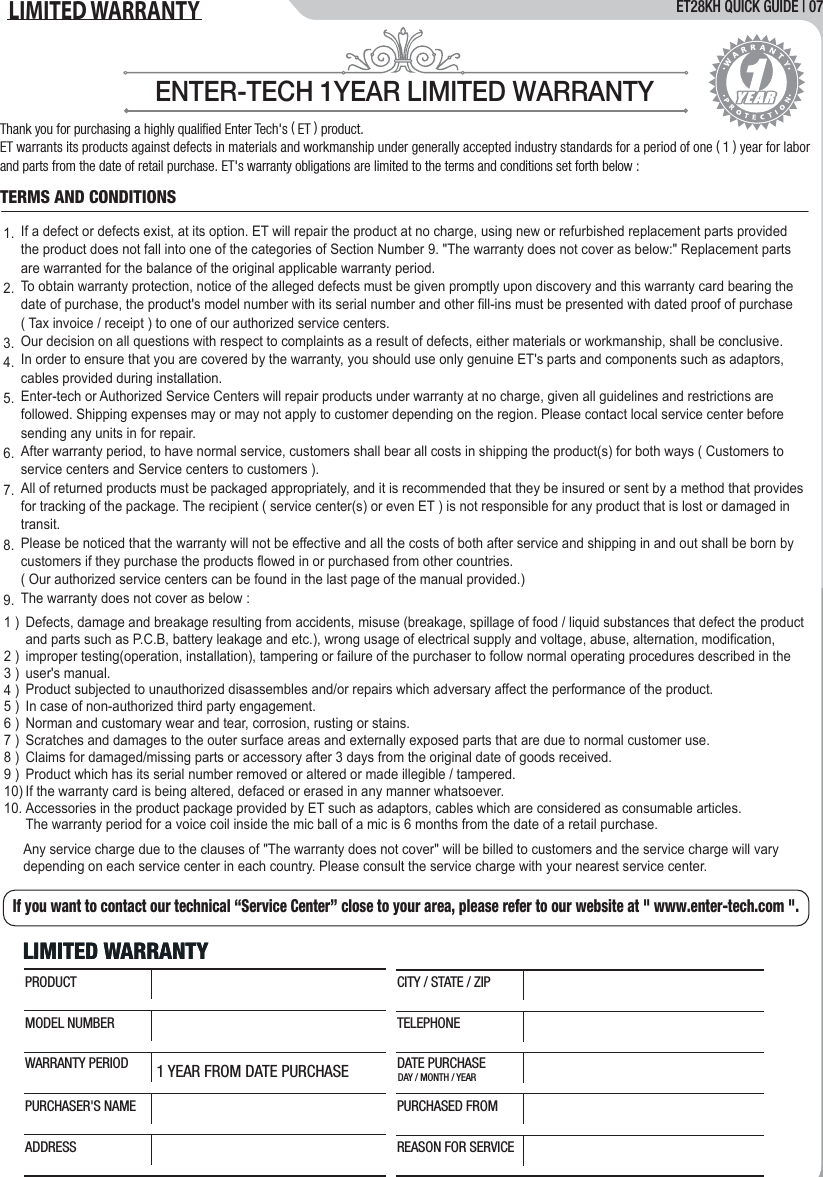
ET28KH QUICK GUIDE | 07LIMITED WARRANTY   ENTER-TECH 1YEAR LIMITED WARRANTYThank you for purchasing a highly qualified Enter Tech's ( ET ) product.ET warrants its products against defects in materials and workmanship under generally accepted industry standards for a period of one ( 1 ) year for labor and parts from the date of retail purchase. ET's warranty obligations are limited to the terms and conditions set forth below :If a defect or defects exist, at its option. ET will repair the product at no charge, using new or refurbished replacement parts provided the product does not fall into one of the categories of Section Number 9. "The warranty does not cover as below:" Replacement parts are warranted for the balance of the original applicable warranty period.To obtain warranty protection, notice of the alleged defects must be given promptly upon discovery and this warranty card bearing the date of purchase, the product's model number with its serial number and other fill-ins must be presented with dated proof of purchase ( Tax invoice / receipt ) to one of our authorized service centers.Our decision on all questions with respect to complaints as a result of defects, either materials or workmanship, shall be conclusive.In order to ensure that you are covered by the warranty, you should use only genuine ET's parts and components such as adaptors, cables provided during installation.Enter-tech or Authorized Service Centers will repair products under warranty at no charge, given all guidelines and restrictions are followed. Shipping expenses may or may not apply to customer depending on the region. Please contact local service center before sending any units in for repair.After warranty period, to have normal service, customers shall bear all costs in shipping the product(s) for both ways ( Customers to service centers and Service centers to customers ).All of returned products must be packaged appropriately, and it is recommended that they be insured or sent by a method that provides for tracking of the package. The recipient ( service center(s) or even ET ) is not responsible for any product that is lost or damaged in transit.Please be noticed that the warranty will not be effective and all the costs of both after service and shipping in and out shall be born by customers if they purchase the products flowed in or purchased from other countries. ( Our authorized service centers can be found in the last page of the manual provided.)The warranty does not cover as below :Any service charge due to the clauses of "The warranty does not cover" will be billed to customers and the service charge will vary depending on each service center in each country. Please consult the service charge with your nearest service center.Defects, damage and breakage resulting from accidents, misuse (breakage, spillage of food / liquid substances that defect the product and parts such as P.C.B, battery leakage and etc.), wrong usage of electrical supply and voltage, abuse, alternation, modification, improper testing(operation, installation), tampering or failure of the purchaser to follow normal operating procedures described in the user's manual. Product subjected to unauthorized disassembles and/or repairs which adversary affect the performance of the product.In case of non-authorized third party engagement.Norman and customary wear and tear, corrosion, rusting or stains.Scratches and damages to the outer surface areas and externally exposed parts that are due to normal customer use.Claims for damaged/missing parts or accessory after 3 days from the original date of goods received.Product which has its serial number removed or altered or made illegible / tampered.If the warranty card is being altered, defaced or erased in any manner whatsoever.Accessories in the product package provided by ET such as adaptors, cables which are considered as consumable articles.The warranty period for a voice coil inside the mic ball of a mic is 6 months from the date of a retail purchase.1.2.3.4.5.6.7.8.9.TERMS AND CONDITIONSIf you want to contact our technical “Service Center” close to your area, please refer to our website at " www.enter-tech.com ".LIMITED WARRANTYLIMITED WARRANTY1 YEAR FROM DATE PURCHASE DAY / MONTH / YEARPRODUCTMODEL NUMBERWARRANTY PERIODPURCHASER'S NAMEADDRESSCITY / STATE / ZIPTELEPHONEDATE PURCHASEPURCHASED FROMREASON FOR SERVICE1 )2 )3 )4 )5 )6 )7 )8 )9 )10)10.

Navigation menu