ENUSTECH BHF500 WIRELESS HANDSFREE CARKIT User Manual BHF 500 USERS MANUAL KR temp

ENUSTECH WIRELESS HANDSFREE CARKIT BHF 500 USERS MANUAL KR temp

USERS MANUAL

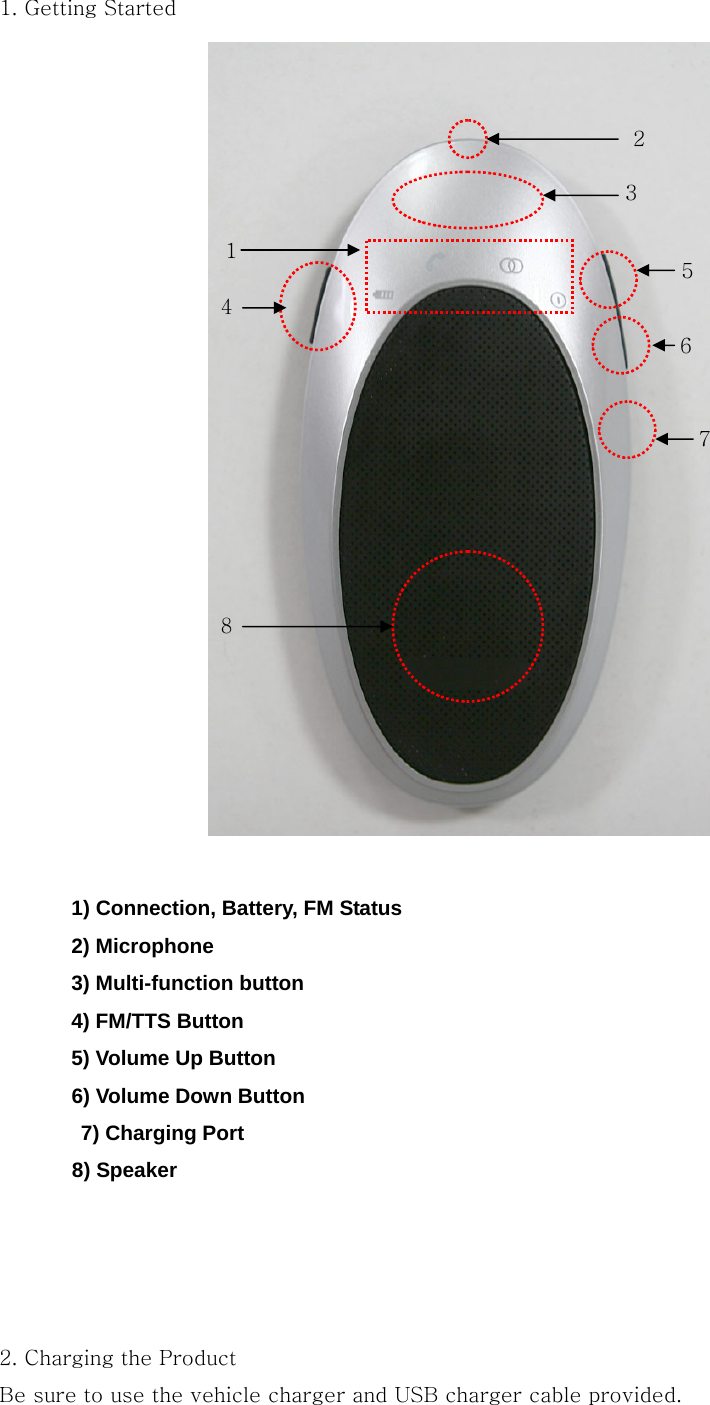
1. Getting Started               1) Connection, Battery, FM Status       2) Microphone    3) Multi-function button      4) FM/TTS Button       5) Volume Up Button   6) Volume Down Button   7) Charging Port    8) Speaker     2. Charging the Product Be sure to use the vehicle charger and USB charger cable provided. 1 2 7 6 8 5 4 3
The product uses an advanced lithium polymer rechargeable battery. It is important that you charge the product for 2 hours the first time you use it, to  ensure  the  battery is fully charged ready for use and for best performance.       1) How to charge Connect the product to the USB charger cable to the vehicle charger.  Plug  the vehicle charger into your car’s power outlet. The light on the USB charger cable will light up red while it is charging. When the light on the USB charger  cable  turns green, this indicates that the product is fully charged.  Note: When  the  battery  of  the  product  is  low,  the  battery  icon  on  the product will blink, indicating that it needs to be charged again.    3. Pairing Before you use the product you must first pair it with your mobile phone.    Note: you can only pair devices that are Bluetooth enabled. To see if you mobile phone is Bluetooth enabled. Check your mobile phone’s user guide.   1) If product is powered on, turn off the product.  2) Press the Multi-function button for 7 sec. Release the button when Bluetooth status icon on the product begins to flash quickly with beep sound  (or  TTS Message: Pairing succeeded).    3) Find the product (BHF-500) by using device find function on the mobile phone.   4) Enter the passkey 0000 on your mobile phone. 5) When  the  product  is  successfully  paired,  you  will see  a  change  of  Bluetooth status icon or hear the message or tone that it is paired with your  mobile phone.      Note: If both devices do not pair within 2 minute, the product will go into stand by mode and you will need to initiate re-pairing by repeating steps 1 to 4.  4. Using the product 1) Turning the product On/Off Power On: Push the multi-function button of the product for 2 seconds to turn it
on.   Power Off: Push the multi-function button of the product for 4 seconds to turn it off.  2) Connection     To  connect  between  the  product  and  mobile  phone,  quick  press  on the Multi-function button.    3) Call Functions *Answer a call: Push with one quick press on the multi-function button. *End a call: Push with one quick press on the multi-function button. *Voice Dialing: To place a call using  voice  dialing,  push  with  one  quick  press  (  1 second)  on  the  multi-function  button  of  the  product.  You  will  hear  the  beep. Next, say the name that wish to call using the voice tag that you  previously recorded for that number.      * the voice dialing function is handset dependant. Consult your mobile phone’s user guide to see if it supports voice dialing.  Transferring calls between the product and mobile phone:   To transfer a call from the product to mobile phone, push with two  quick presses  on multi-function  button of  the product  during  the call. Repeat  this to transfer a call from your mobile phone back to the product.   6) Reject a call: To reject an incoming call when the product is ringing, press on for 1 seconds on the multi-function of the product. A busy tone will be sent to the caller. * The reject a call function is handset dependant.    Last numbers redial To redial the last number you called, press the multi-function button of the product twice.  8) Volume Up / Down   Use the Volume Up / Down button to adjust the volume.
9) Mute / Un-mute Hold down the Volume Down button for 1 second during the call.  In this case, you will  be able  to  hear  the other  person  but  they won’t be able to hear you. To un-mute the call, hold down the Volume Up or Volume Down button.   10) Remove a registered mobile phone name from a list.       The  product  has  a  registered  mobile  phone  list  that  is  recently  connected.  To remove  the  lists,  hold  down  the  multi-function  button,  Volume  Up  button and FM/TTS Button at the same time for 7 seconds. The product will beep indicating that the lists were removed.   Note: The product will function in pairing mode after removing the lists.  11) Blind Mode          To  turn off  the status  icon while  using the  product, hold  down the  Volume Up button  and  FM/TTS  button  for  1  second  at  the  same  time.  The  light  on  the status icon will be switched off but the product will continue to   Note: To end up the Blind Mode, you will need to repeat the above steps.  12) FM Transmission       To use the car audio system, push with one quick press on FM/TTS button  of the product. The FM status icon will  be lit on. Before  using this function, tune into  an  unused  frequency  channel  between the product and car audio  system. [See the 14) ]  Note: 1. To end the FM transmitter function, push with one quick press on FM/TTS button. 2. The FM transmitter function will automatically switch off itself after 1 minute if you don’t try to make a call or transfer music via car audio system.  12) FM Frequency Selection Mode   When FM transmission mode is not active, press on the FM/TTS button  for  2 seconds. Release the FM/TTS button when you are able to hear the beep. Then FM status icon will be blinking each 1 second indicating that FM  Frequency Selection Mode is on.     Note: To end the FM Frequency Selection Mode, repeat the above steps.
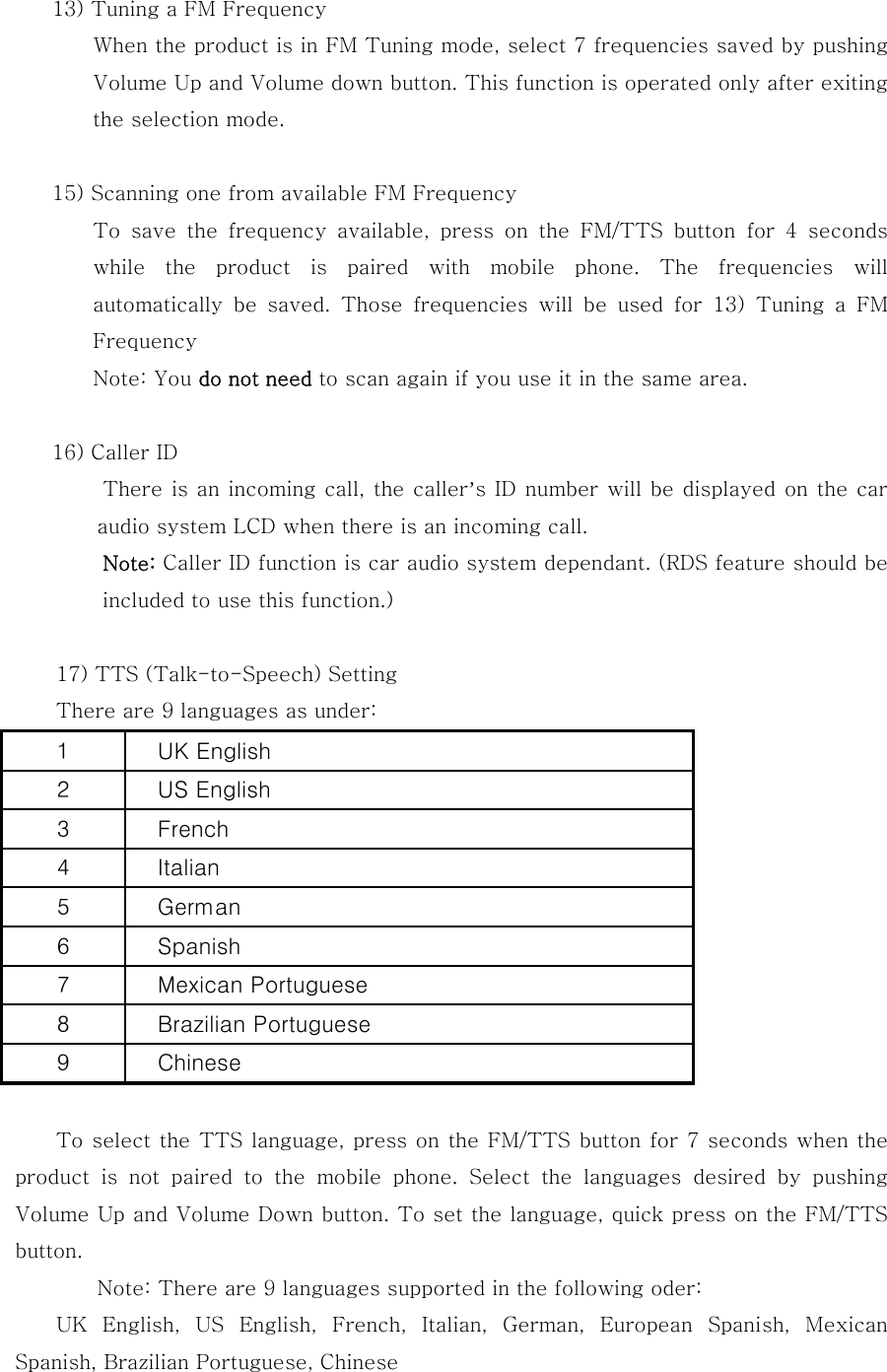
13) Tuning a FM Frequency           When the product is in FM Tuning mode, select 7 frequencies saved by pushing Volume Up and Volume down button. This function is operated only after exiting the selection mode.    15) Scanning one from available FM Frequency           To  save  the  frequency  available,  press  on  the  FM/TTS  button for 4 seconds while  the  product  is  paired  with  mobile  phone.  The  frequencies  will automatically  be  saved.  Those  frequencies  will  be  used  for  13)  Tuning  a  FM Frequency Note: You do not need to scan again if you use it in the same area.  16) Caller ID   There is an incoming call, the caller’s ID number will be displayed on the car audio system LCD when there is an incoming call. Note: Caller ID function is car audio system dependant. (RDS feature should be included to use this function.)  17) TTS (Talk-to-Speech) Setting   There are 9 languages as under:           To select the TTS language, press on the FM/TTS button for 7 seconds when the product is not paired to the mobile phone. Select the languages  desired  by  pushing Volume Up and Volume Down button. To set the language, quick press on the FM/TTS button.   Note: There are 9 languages supported in the following oder: UK  English,  US  English,  French,  Italian,  German,  European  Spanish,  Mexican Spanish, Brazilian Portuguese, Chinese
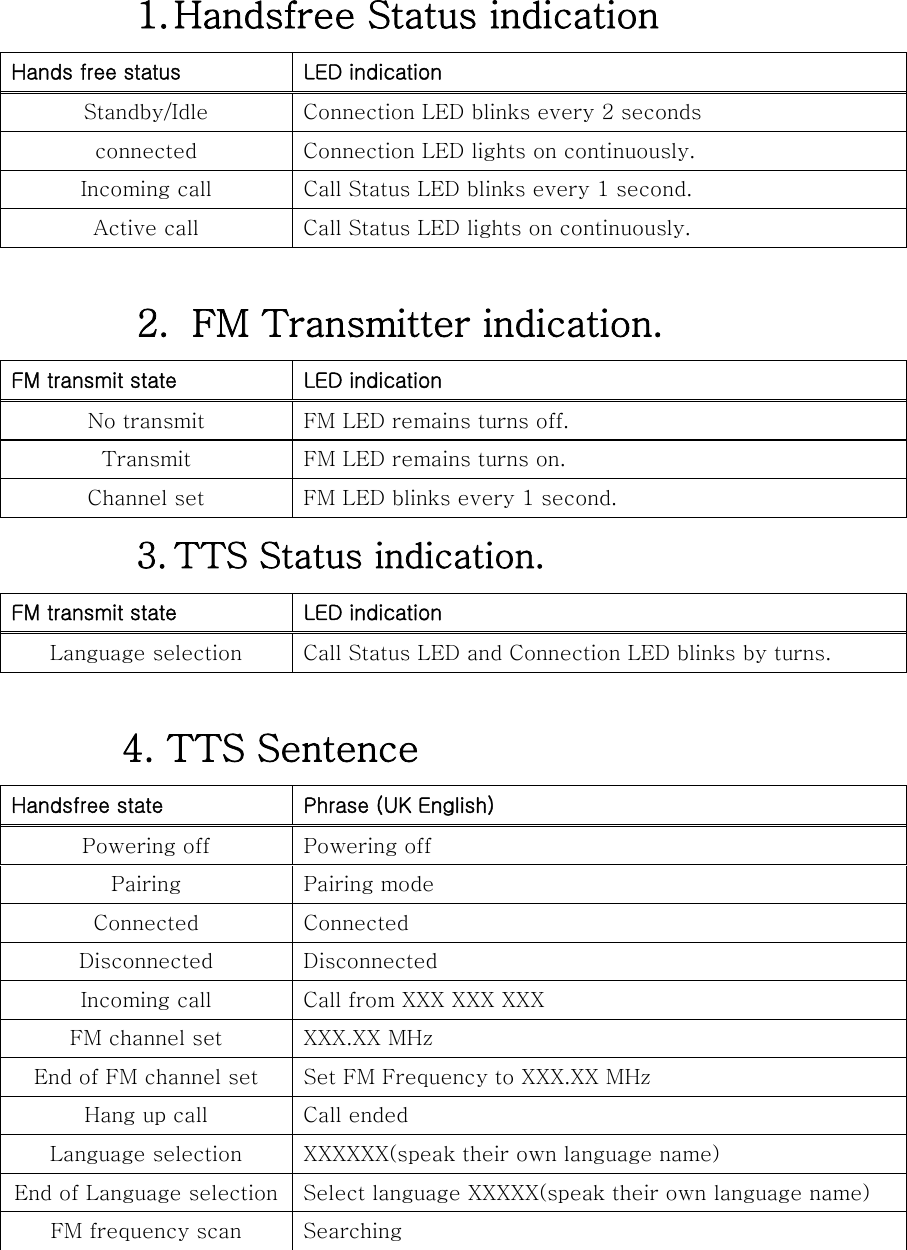
1. Handsfree Status indication  Standby/Idle  Connection LED blinks every 2 seconds connected  Connection LED lights on continuously.  Incoming call  Call Status LED blinks every 1 second.   Active call  Call Status LED lights on continuously. 2.   FM Transmitter indication.  No transmit  FM LED remains turns off. Transmit  FM LED remains turns on. Channel set  FM LED blinks every 1 second. 3. TTS Status indication.  Language selection  Call Status LED and Connection LED blinks by turns. 4. TTS Sentence  Powering off  Powering off Pairing  Pairing mode Connected  Connected Disconnected  Disconnected Incoming call  Call from XXX XXX XXX FM channel set  XXX.XX MHz End of FM channel set  Set FM Frequency to XXX.XX MHz Hang up call  Call ended Language selection  XXXXXX(speak their own language name) End of Language selection  Select language XXXXX(speak their own language name) FM frequency scan  Searching
                                             

Navigation menu