ENUSTECH EUSBDMCN0005 BLUETOOTH DONGLE User Manual

ENUSTECH BLUETOOTH DONGLE Users Manual

Users Manual

USER GUIDE MC$&
CONTENTS1. PAIRING 2. USING “IMFONE MCMC” WITHOUT SUPPLEMENTARY SOFTWARE 3. USING “IMFONE  ” WITH SUPPLEMENTARY SOFTWARE 3-1.Mode Menu3-2.Pairing Menu3-3. Device Menu SAFETY AND GENERAL INFORMATION TECHNICAL SUPPORT  34455667
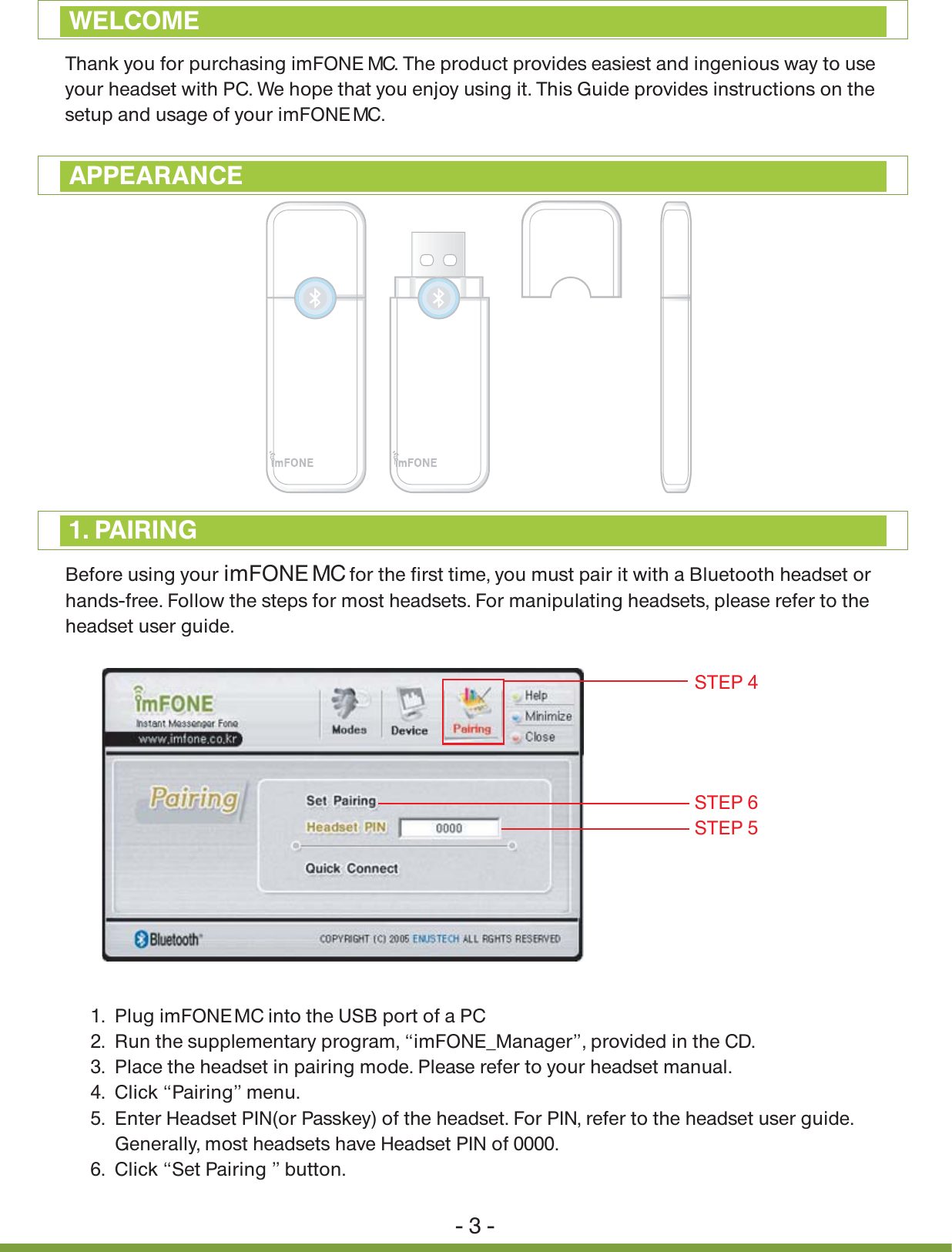
Thank you for purchasing imFONE MCMC. The product provides easiest and ingenious way to use your headset with PC. We hope that you enjoy using it. This Guide provides instructions on the setup and usage of your imFONE  . 1.  Plug imFONE MC into the USB port of a PC2.  Run the supplementary program, “imFONE_Manager”, provided in the CD. 3.  Place the headset in pairing mode. Please refer to your headset manual.4.  Click “Pairing” menu.5.  Enter Headset PIN(or Passkey) of the headset. For PIN, refer to the headset user guide.      Generally, most headsets have Headset PIN of 0000.6.  Click “Set Pairing ” button.- 3 -WELCOMEAPPEARANCEBefore using your imFONE MC for the first time, you must pair it with a Bluetooth headset or hands-free. Follow the steps for most headsets. For manipulating headsets, please refer to the headset user guide. 1. PAIRINGSTEP 6STEP 4STEP 5
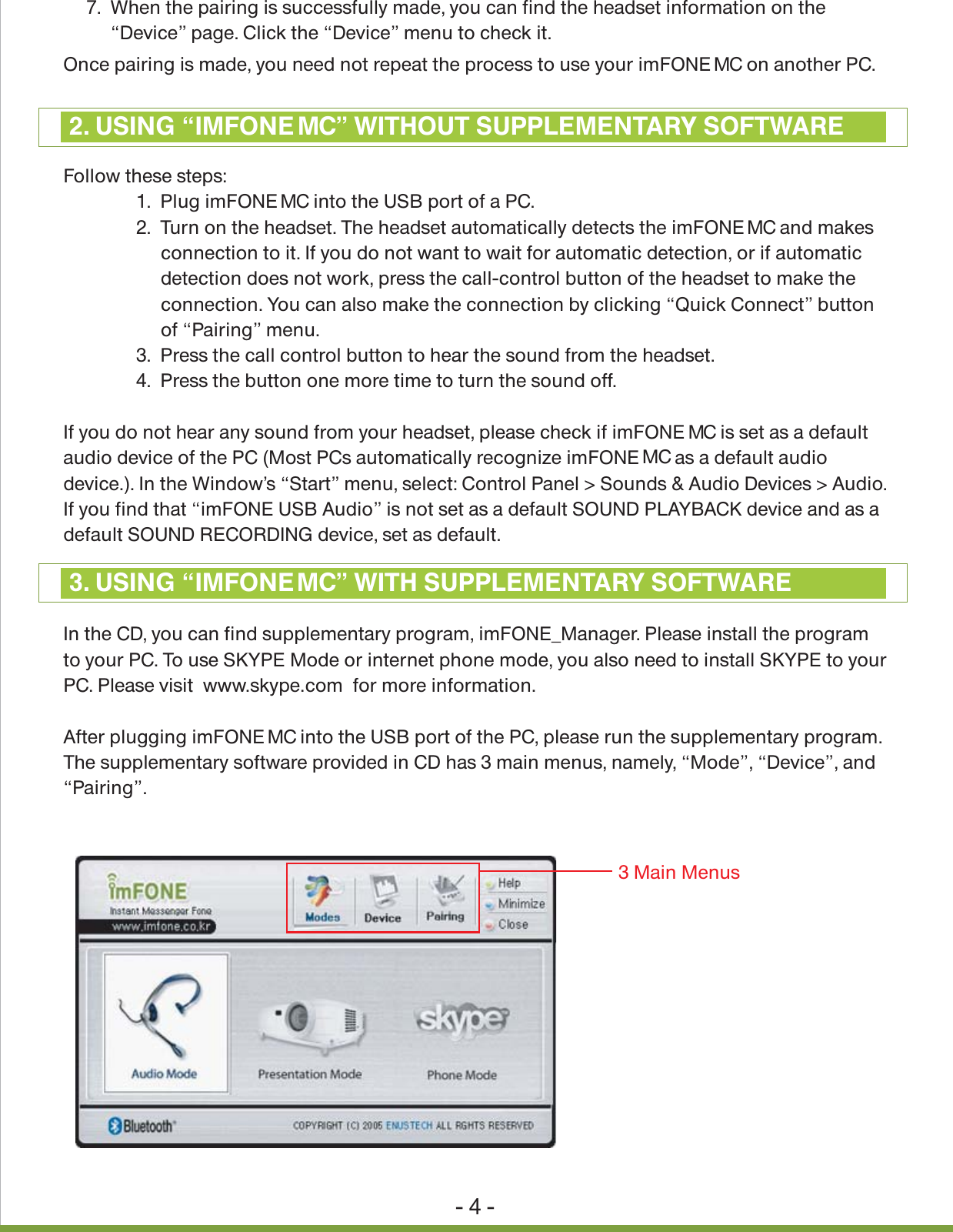
- 4 -Once pairing is made, you need not repeat the process to use your imFONE MC on another PC.Follow these steps:               1.  Plug imFONE MC into the USB port of a PC.                2.  Turn on the headset. The headset automatically detects the imFONE MC and makes                     connection to it. If you do not want to wait for automatic detection, or if automatic                     detection does not work, press the call-control button of the headset to make the                     connection. You can also make the connection by clicking “Quick Connect” button                     of “Pairing” menu.               3.  Press the call control button to hear the sound from the headset.               4.  Press the button one more time to turn the sound off.If you do not hear any sound from your headset, please check if imFONE MC is set as a default audio device of the PC (Most PCs automatically recognize imFONE   as a default audio device.). In the Window’s “Start” menu, select: Control Panel > Sounds & Audio Devices > Audio. If you find that “imFONE USB Audio” is not set as a default SOUND PLAYBACK device and as a default SOUND RECORDING device, set as default.In the CD, you can find supplementary program, imFONE_Manager. Please install the programto your PC. To use SKYPE Mode or internet phone mode, you also need to install SKYPE to your PC. Please visit  www.skype.com  for more information.After plugging imFONE   into the USB port of the PC, please run the supplementary program. The supplementary software provided in CD has 3 main menus, namely, “Mode”, “Device”, and “Pairing”.2. USING “IMFONE MC” WITHOUT SUPPLEMENTARY SOFTWARE3. USING “IMFONE MC” WITH SUPPLEMENTARY SOFTWARE7.  When the pairing is successfully made, you can find the headset information on the      “Device” page. Click the “Device” menu to check it.3 Main MenusMCMC
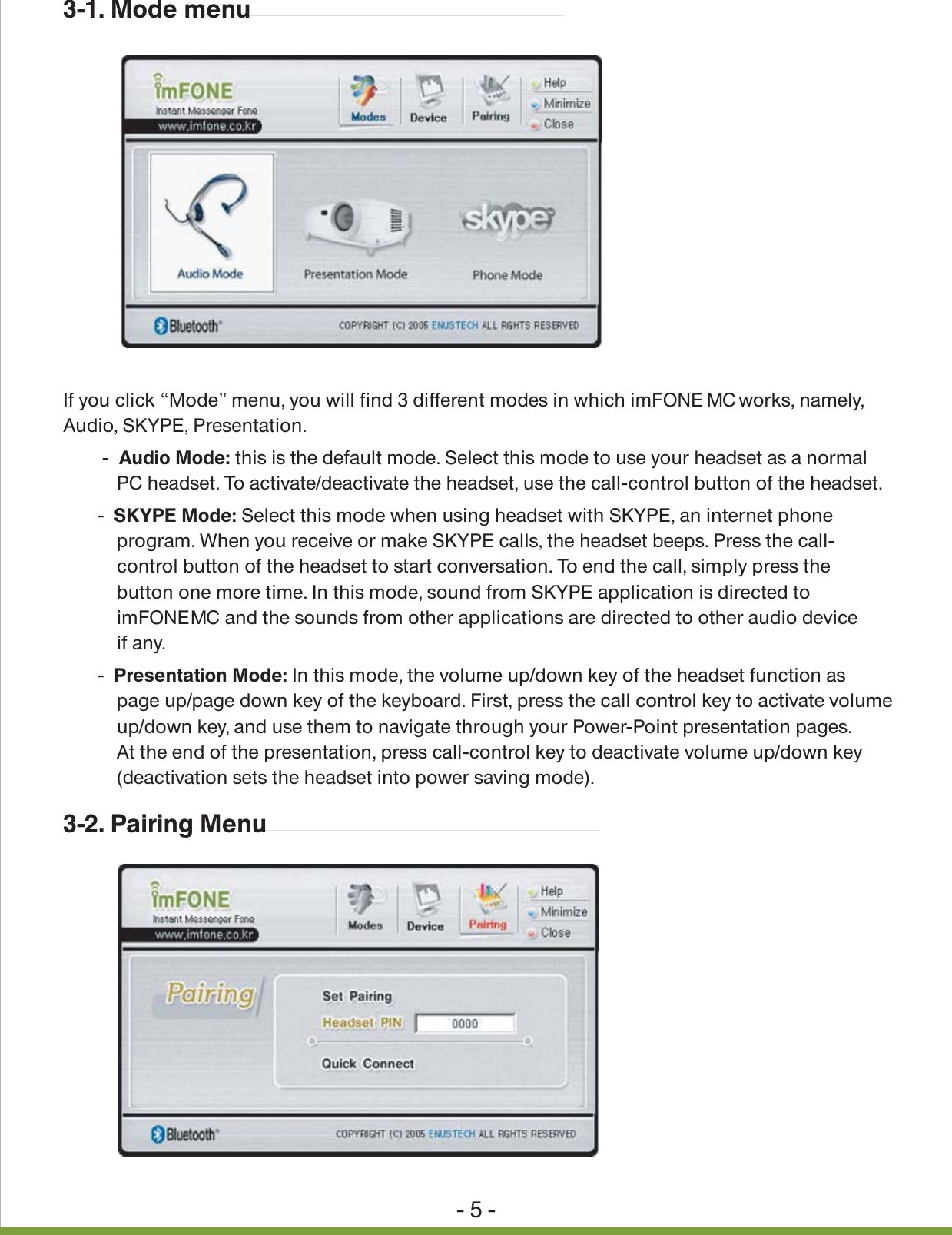
- 5 -3-1. Mode menu3-2. Pairing MenuIf you click “Mode” menu, you will find 3 different modes in which imFONE   works, namely, Audio, SKYPE, Presentation.        - Audio Mode: this is the default mode. Select this mode to use your headset as a normal            PC headset. To activate/deactivate the headset, use the call-control button of the headset.       - SKYPE Mode: Select this mode when using headset with SKYPE, an internet phone            program. When you receive or make SKYPE calls, the headset beeps. Press the call-           control button of the headset to start conversation. To end the call, simply press the            button one more time. In this mode, sound from SKYPE application is directed to           imFONE   and the sounds from other applications are directed to other audio device           if any.       - Presentation Mode: In this mode, the volume up/down key of the headset function as           page up/page down key of the keyboard. First, press the call control key to activate volume            up/down key, and use them to navigate through your Power-Point presentation pages.            At the end of the presentation, press call-control key to deactivate volume up/down key            (deactivation sets the headset into power saving mode).MCMC
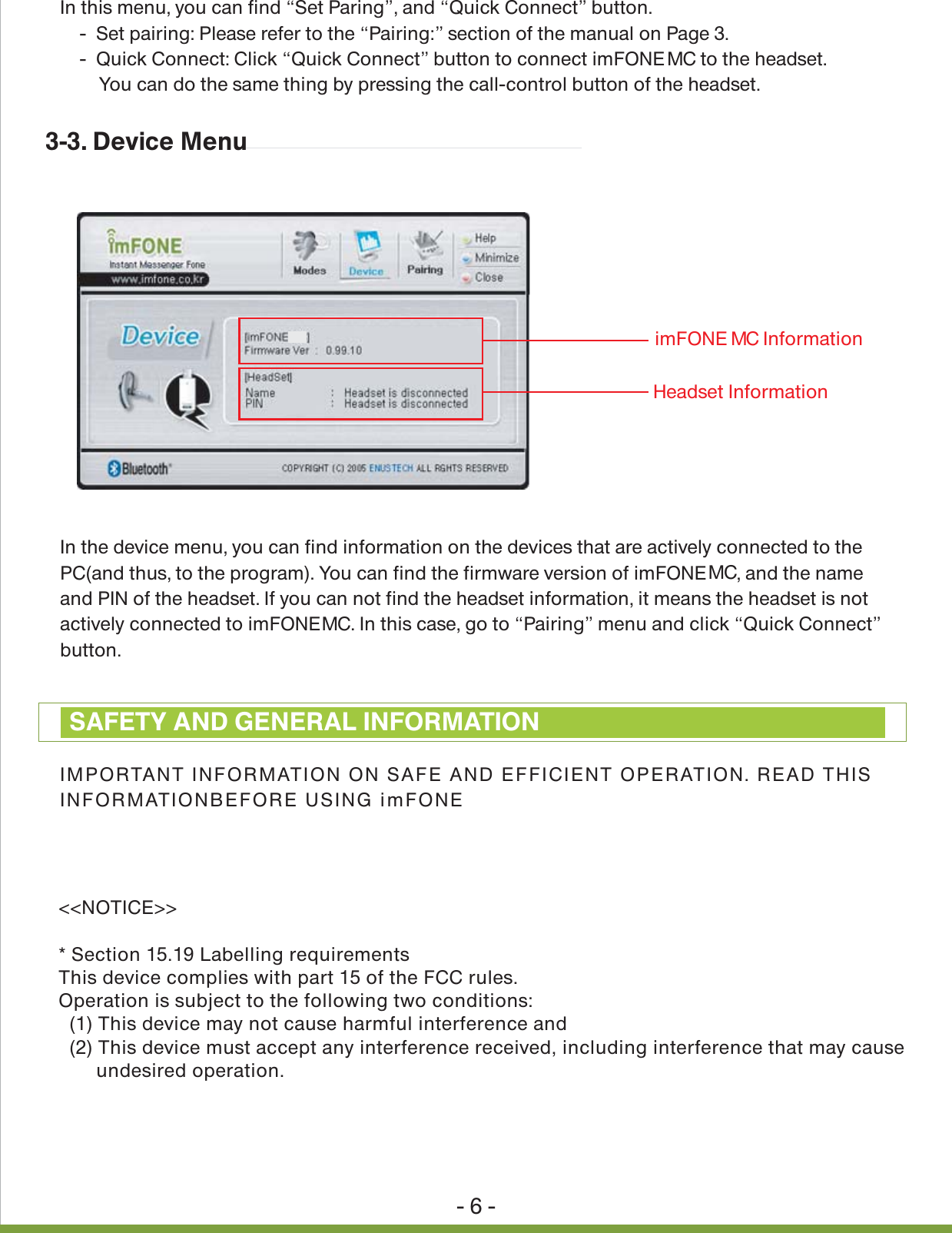
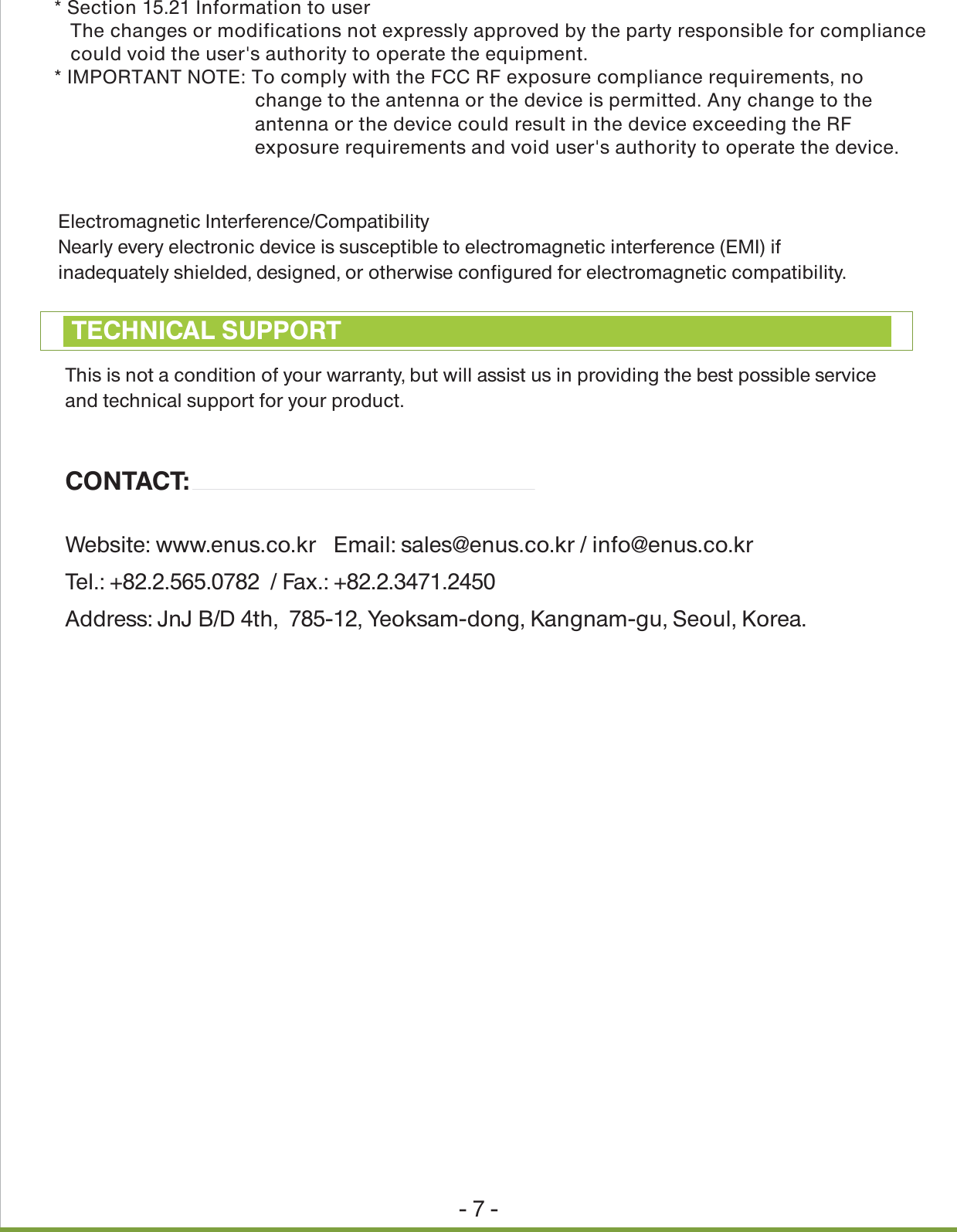
- 6 -In this menu, you can find “Set Paring”, and “Quick Connect” button.     -  Set pairing: Please refer to the “Pairing:” section of the manual on Page 3.    -  Quick Connect: Click “Quick Connect” button to connect imFONE   to the headset.         You can do the same thing by pressing the call-control button of the headset.In the device menu, you can find information on the devices that are actively connected to the PC(and thus, to the program). You can find the firmware version of imFONE  , and the name and PIN of the headset. If you can not find the headset information, it means the headset is not actively connected to imFONE  . In this case, go to “Pairing” menu and click “Quick Connect”button.IMPORTANT INFORMATION ON SAFE AND EFFICIENT OPERATION. READ THIS INFORMATIONBEFORE USING imFONE HS.3-3. Device MenuSAFETY AND GENERAL INFORMATIONimFONE MC InformationHeadset Information<<NOTICE>>* Section 15.19 Labelling requirementsThis device complies with part 15 of the FCC rules.Operation is subject to the following two conditions:  (1) This device may not cause harmful interference and  (2) This device must accept any interference received, including interference that may cause       undesired operation.MCMCMC
Electromagnetic Interference/CompatibilityNearly every electronic device is susceptible to electromagnetic interference (EMI) if inadequately shielded, designed, or otherwise configured for electromagnetic compatibility.- 7 -This is not a condition of your warranty, but will assist us in providing the best possible service and technical support for your product.CONTACT:Website: www.enus.co.kr   Email: sales@enus.co.kr / info@enus.co.kr Tel.: +82.2.565.0782  / Fax.: +82.2.3471.2450Address: JnJ B/D 4th,  785-12, Yeoksam-dong, Kangnam-gu, Seoul, Korea.TECHNICAL SUPPORT* Section 15.21 Information to user   The changes or modifications not expressly approved by the party responsible for compliance   could void the user's authority to operate the equipment.* IMPORTANT NOTE: To comply with the FCC RF exposure compliance requirements, no     change to the antenna or the device is permitted. Any change to the     antenna or the device could result in the device exceeding the RF     exposure requirements and void user's authority to operate the device.

Navigation menu