EU3C BCS200211011 Businesscardscanner Foldable User Manual FILM SCANNER

EU3C COMPANY LIMITED Businesscardscanner Foldable FILM SCANNER

User Manual

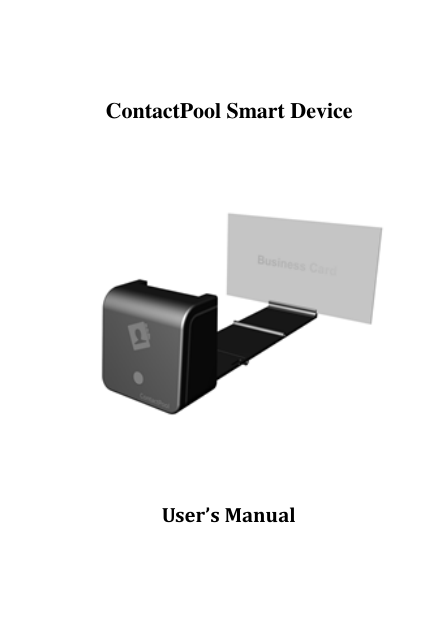
  ContactPool Smart Device    User’s Manual
 -1- Index I.Getting start ................................................................................ 2 II.Unpack ContactPool Smart Device .................................. 2 III.Setup ContactPool ................................................................. 3 IV. Detail Operation .................................................................... 5 ContactPool Web interface ...................................................... 5 ContactPool PC application ................................................... 12 IV.Specification ........................................................................... 16
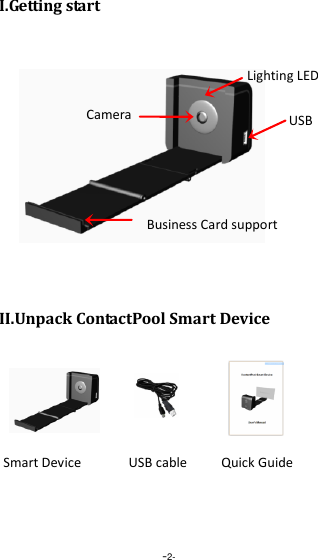
 -2- I.Getting start         II.Unpack ContactPool Smart Device    Smart Device USB cable Mini USB LED USB Business Card support Camera Lighting LED Quick Guide
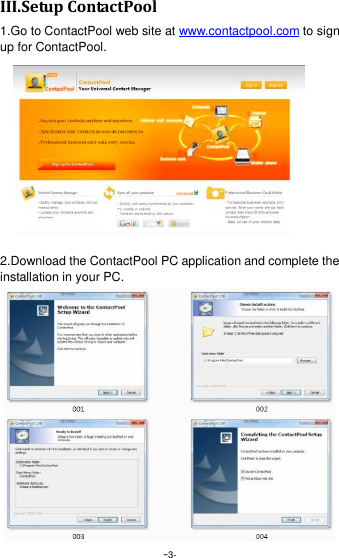
 -3- III.Setup ContactPool 1.Go to ContactPool web site at www.contactpool.com to sign up for ContactPool.  2.Download the ContactPool PC application and complete the installation in your PC.
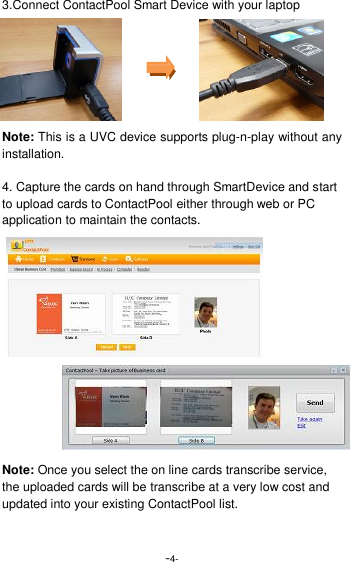
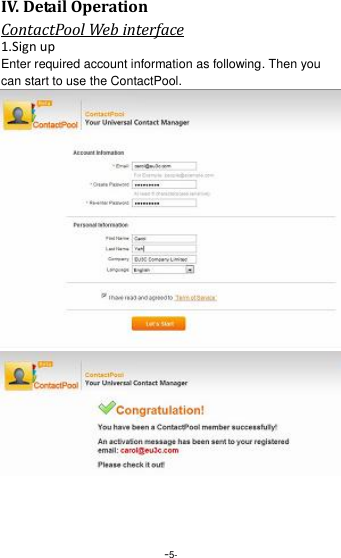
 -4- 3.Connect ContactPool Smart Device with your laptop      Note: This is a UVC device supports plug-n-play without any installation.  4. Capture the cards on hand through SmartDevice and start to upload cards to ContactPool either through web or PC application to maintain the contacts.               Note: Once you select the on line cards transcribe service, the uploaded cards will be transcribe at a very low cost and updated into your existing ContactPool list.
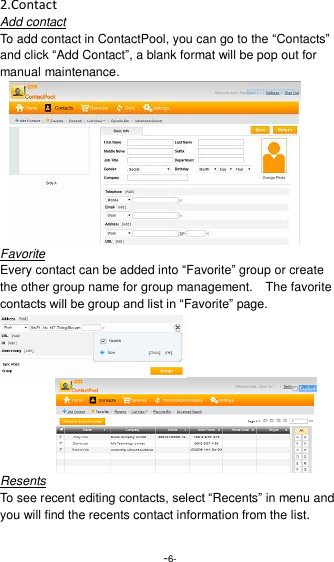
 -5- IV. Detail Operation ContactPool Web interface 1.Sign up Enter required account information as following. Then you can start to use the ContactPool.
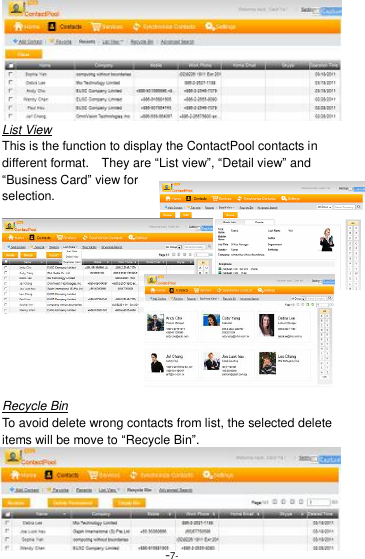
 -6- 2.Contact Add contact To add contact in ContactPool, you can go to the “Contacts” and click “Add Contact”, a blank format will be pop out for manual maintenance.       Favorite Every contact can be added into “Favorite” group or create the other group name for group management.    The favorite contacts will be group and list in “Favorite” page.    Resents To see recent editing contacts, select “Recents” in menu and you will find the recents contact information from the list.
 -7- List View This is the function to display the ContactPool contacts in different format.    They are “List view”, “Detail view” and “Business Card” view for selection.      Recycle Bin To avoid delete wrong contacts from list, the selected delete items will be move to “Recycle Bin”.
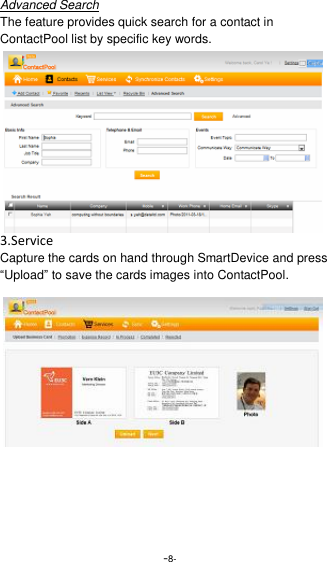
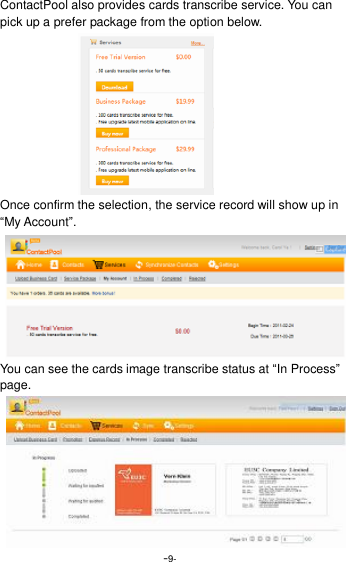
 -8- Advanced Search The feature provides quick search for a contact in ContactPool list by specific key words. 3.Service Capture the cards on hand through SmartDevice and press “Upload” to save the cards images into ContactPool.
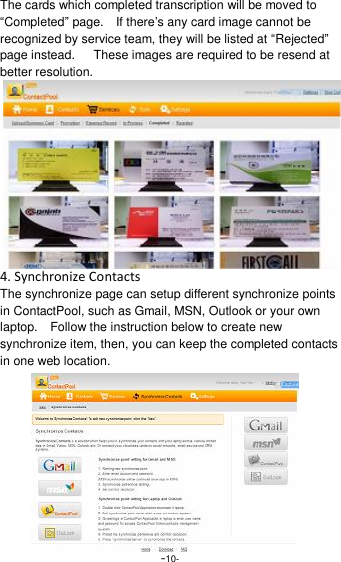
 -9- ContactPool also provides cards transcribe service. You can pick up a prefer package from the option below.           Once confirm the selection, the service record will show up in “My Account”. You can see the cards image transcribe status at “In Process” page.
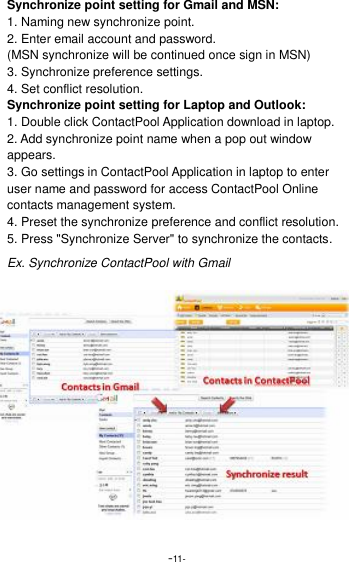
 -10- The cards which completed transcription will be moved to “Completed” page.    If there’s any card image cannot be recognized by service team, they will be listed at “Rejected” page instead.      These images are required to be resend at better resolution. 4. Synchronize Contacts The synchronize page can setup different synchronize points in ContactPool, such as Gmail, MSN, Outlook or your own laptop.    Follow the instruction below to create new synchronize item, then, you can keep the completed contacts in one web location.
 -11- Synchronize point setting for Gmail and MSN: 1. Naming new synchronize point. 2. Enter email account and password. (MSN synchronize will be continued once sign in MSN) 3. Synchronize preference settings. 4. Set conflict resolution.   Synchronize point setting for Laptop and Outlook: 1. Double click ContactPool Application download in laptop. 2. Add synchronize point name when a pop out window appears. 3. Go settings in ContactPool Application in laptop to enter user name and password for access ContactPool Online contacts management system. 4. Preset the synchronize preference and conflict resolution. 5. Press "Synchronize Server" to synchronize the contacts. Ex. Synchronize ContactPool with Gmail
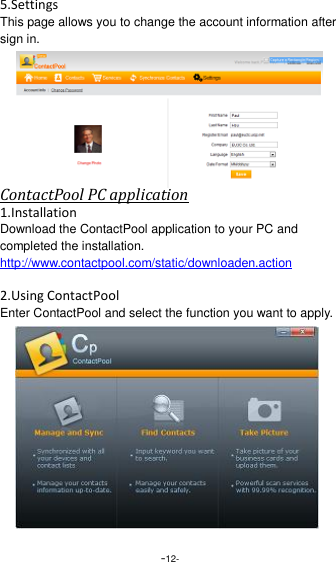
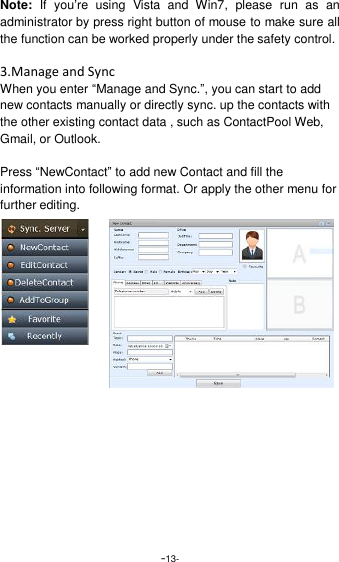
 -12- 5.Settings This page allows you to change the account information after sign in. ContactPool PC application 1.Installation Download the ContactPool application to your PC and completed the installation. http://www.contactpool.com/static/downloaden.action  2.Using ContactPool Enter ContactPool and select the function you want to apply.
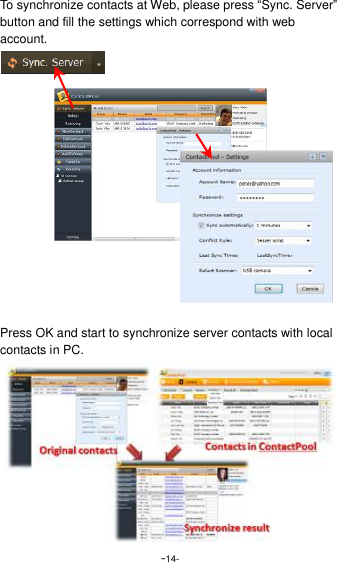
 -13- Note:  If  you’re  using  Vista  and  Win7,  please  run  as  an administrator by press right button of mouse to make sure all the function can be worked properly under the safety control.  3.Manage and Sync When you enter “Manage and Sync.”, you can start to add new contacts manually or directly sync. up the contacts with the other existing contact data , such as ContactPool Web, Gmail, or Outlook.  Press “NewContact” to add new Contact and fill the information into following format. Or apply the other menu for further editing.
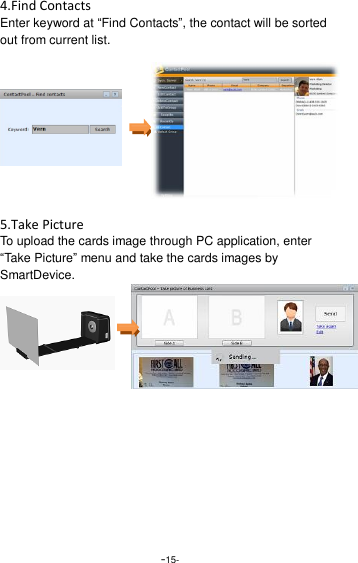
 -14- To synchronize contacts at Web, please press “Sync. Server” button and fill the settings which correspond with web account.            Press OK and start to synchronize server contacts with local contacts in PC.
 -15- 4.Find Contacts Enter keyword at “Find Contacts”, the contact will be sorted out from current list.      5.Take Picture To upload the cards image through PC application, enter “Take Picture” menu and take the cards images by SmartDevice.
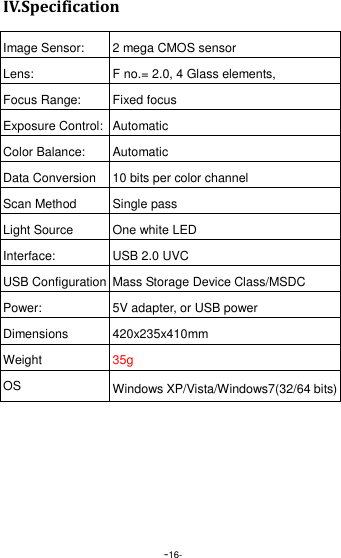
 -16- IV.Specification  Image Sensor: 2 mega CMOS sensor Lens: F no.= 2.0, 4 Glass elements, Focus Range: Fixed focus   Exposure Control: Automatic Color Balance: Automatic Data Conversion 10 bits per color channel Scan Method Single pass Light Source One white LED Interface: USB 2.0 UVC USB Configuration Mass Storage Device Class/MSDC Power: 5V adapter, or USB power Dimensions   420x235x410mm Weight 35g OS Windows XP/Vista/Windows7(32/64 bits)
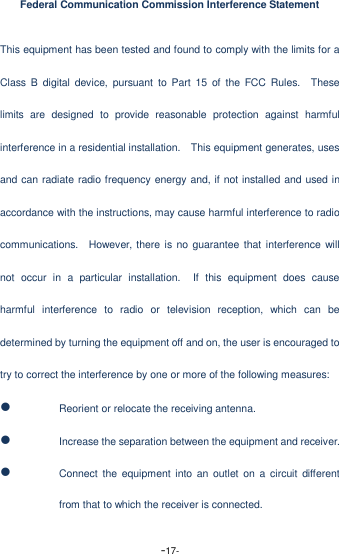
 -17- Federal Communication Commission Interference Statement This equipment has been tested and found to comply with the limits for a Class B  digital  device,  pursuant  to  Part 15  of  the  FCC  Rules.    These limits  are  designed  to  provide  reasonable  protection  against  harmful interference in a residential installation.    This equipment generates, uses and can radiate radio frequency energy and, if not installed and used in accordance with the instructions, may cause harmful interference to radio communications.    However, there  is  no guarantee that interference will not  occur  in  a  particular  installation.    If  this  equipment  does  cause harmful  interference  to  radio  or  television  reception,  which  can  be determined by turning the equipment off and on, the user is encouraged to try to correct the interference by one or more of the following measures:  Reorient or relocate the receiving antenna.  Increase the separation between the equipment and receiver.  Connect the  equipment  into  an  outlet  on  a circuit  different from that to which the receiver is connected.
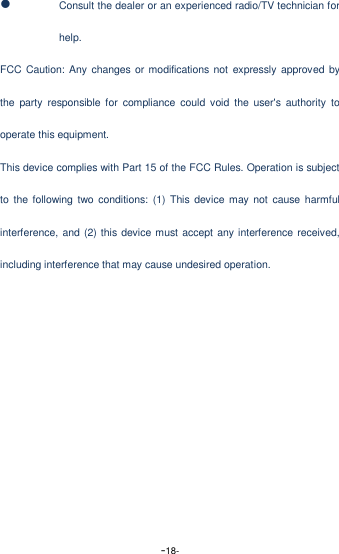
 -18-  Consult the dealer or an experienced radio/TV technician for help. FCC Caution: Any  changes or modifications not expressly approved  by the  party  responsible  for  compliance  could void  the  user's  authority  to operate this equipment. This device complies with Part 15 of the FCC Rules. Operation is subject to  the  following  two conditions:  (1)  This  device  may  not  cause harmful interference, and (2) this device must accept any interference received, including interference that may cause undesired operation.

Navigation menu