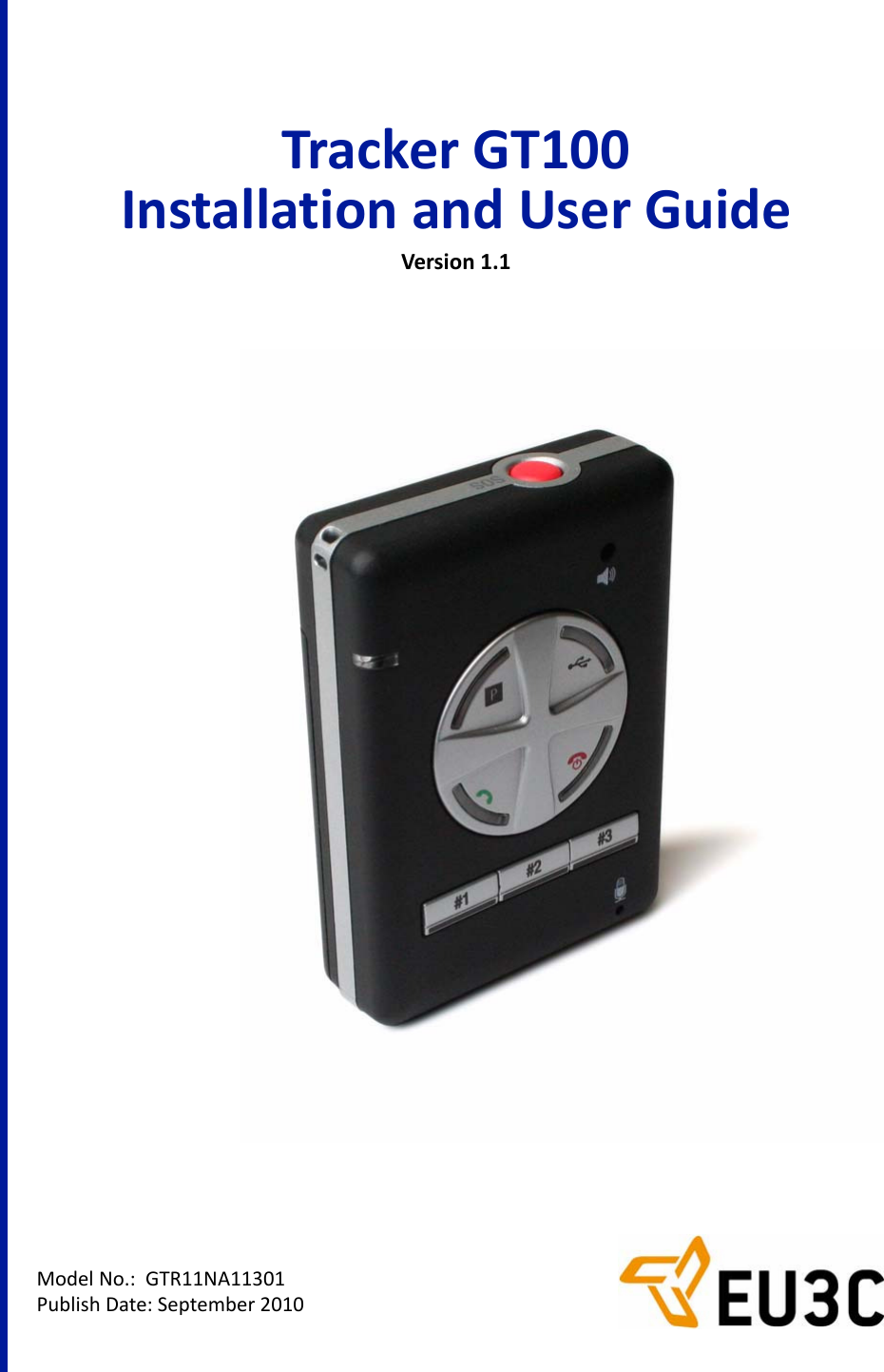
EU3C GT100A GPS TRACKER User Manual TrackerGT100 UserGuide

EU3C COMPANY LIMITED GPS TRACKER TrackerGT100 UserGuide

Users Manual

ModelNo.:GTR11NA11301PublishDate:September2010TrackerGT100InstallationandUserGuideVersion1.1
Copyright©2010 EU3C Company Limited Reserved® All rights reserved.This publication is protected by federal copyright law. No part of this publication may be copied or distributed, transmitted, transcribed, stored in a retrieval system, or translated into any human or computer language in any form or by any means, electronic, mechanical, magnetic, manual or otherwise, or disclosed to third parties without the express written permission from EU3C.EU3C makes no representation or warranties with respect to the contents hereof and specifically disclaims any implied warranties of merchantability or fitness for a particular purpose.TrademarksEU3C is a registered trademark of EU3C Company Limited Reserved. The EU3C logo is a trademark of EU3C Company Limited Reserved. All other registered and unregistered trademarks are the properties of their respective holders.FCC RegulaonsThis GPS tracker complies with part 15 of the FCC Rules. Operation is subject to the following two conditions: (1) This device  may not cause harmful interference, and (2) this device must accept any interference received, including interference that may cause undesired operation.This GPS tracker has been tested and found to comply with the limits for a Class B digital device, pursuant to Part 15 of the FCC Rules. These limits are designed to provide reasonable protection against harmful interference in a residential installation. This equipment generates, uses and can radiated radio frequency energy and, if not installed and used in accordance with the instructions, may cause harmful interference to radio communications. However, there is no guarantee that interference will not occur in a particular installation If this equipment does cause harmful interference to radio or television reception, which can be determined by turning the equipment off and on, the user is encouraged to try to correct the interference by one or more of the following measures:•-Reorient or relocate the receiving antenna.•-Increase the separation between the equipment and receiver.•-Connect the equipment into an outlet on a circuit different from that to which the receiver is connected.•-Consult the dealer or an experienced radio/TV technician for help.Changes or modifications not expressly approved by the party responsible for compliance could void the user's authority to operate the equipment.The antenna(s) used for this transmitter must not be co-located or operating in conjunction with any other antenna or transmitter.RF Exposure Informaon (SAR)This GPS tracker meets the government's requirements for exposure to radio waves.This tracker is designed and manufactured not to exceed the emission limits for exposure to radio frequency (RF) energy set by the Federal Communications Commission of the U.S. Government.  The exposure standard for wireless mobile phones employs a unit of measurement known as the Specific Absorption Rate, or SAR.  The SAR limit set by the FCC is 1.6W/kg.  *Tests for SAR are conducted using standard operating positions accepted by the FCC with the phone transmitting at its highest certified power level in all tested frequency bands.  Although the SAR is determined at the highest certified power level, the actual SAR level of the tracker while operating can be well below the maximum value.  This is because the tracker is designed to operate at multiple power levels so as to use only the poser required to reach the network.  In general, the closer you are to a wireless base station antenna, the lower the power output.The highest SAR value for the model tracker as reported to the FCC when tested for use at the ear is 1.31 W/kg and when worn on the body, as described in this user guide, is 0.323 W/kg (Body-worn measurements differ among tracker models, depending upon available accessories and FCC requirements.)While there may be differences between the SAR levels of various phones and at various positions, they all meet the government requirement.The FCC has granted an Equipment Authorization for this model tracker with all reported SAR levels evaluated as in compliance with the FCC RF exposure guidelines.  SAR information on this model tracker is on  file with the FCC and can be found under the Display Grant section of www.fcc.gov/oet/ea/fccid after searching on FCC ID: WFZGT100A.For body worn operation, this tracker has been tested and meets the FCC RF exposure guidelines for use with an accessory that contains no metal and the positions the handset a minimum of 1.5 cm from the body.  Use of other accessories may not ensure compliance with FCC RF exposure guidelines.  If you do no t use a body-worn accessory and are not holding the phone at the ear, position the handset a minimum of 1.5 cm from your body when the tracker is switched on.RevisionsProduct features and specifications described in this manual are subject to change without notice. EU3C reserves the right to periodically revise this manual without notice. Revisions will be incorporated into new editions. EU3C shall not be liable for any damages, or for the loss of information resulting from the performance or use of the information contained herein.EU3C CommunicationsUnit 7, 8/F., Austin Tower, 22-26 Austin Avenue,Tsim Sha Tsui, Kowloon, Hong Kongwww.eu3c.com
Tracker GT100 User Guide Proprietary to EU3C Company Limited Reserved iii00TableofContentsChapter1Introduction.................................................................................................................... 1‐11.1Preface...................................................................................................................1‐11.1.1TechnicalSupport ....................................................................................... 1‐11.1.2PrivacyandOtherGuidelines .....................................................................1‐11.2Introduction...........................................................................................................1‐11.2.1KeyFeatures ............................................................................................... 1‐21.2.2TrackerGT100packagecontents ............................................................... 1‐51.2.3SafetyNotes ............................................................................................... 1‐6Chapter2InstallingtheSIMCard,Battery,andPCTrackerTool.................................................... 2‐12.1InstallingtheSIMCardandBattery....................................................................... 2‐12.2InstallingthePCTrackerTool ................................................................................2‐22.2.1MinimumSystemRequirements ................................................................ 2‐22.2.2Installation..................................................................................................2‐2Chapter3UsingYourTrackerGT100..............................................................................................3‐13.1UnderstandingtheButtonsandIndicators ........................................................... 3‐13.2ChargingtheTrackerGT100 .................................................................................. 3‐23.2.1ChargingtheBatteryUsingtheUSBCable ................................................. 3‐23.2.2ChargingtheBatteryUsingtheBatteryCharger ........................................ 3‐23.3PoweringUptheTrackerGT100 ........................................................................... 3‐3Chapter4UsingthePCTrackerTool...............................................................................................4‐14.1StartingthePCTrackerTool .................................................................................. 4‐14.2ChangingtheContactListSettings ........................................................................ 4‐14.3ConfiguringtheSMSDisplaySettings.................................................................... 4‐34.4SettingtheHelpOptions ....................................................................................... 4‐44.5ConfiguringtheParkSettings ................................................................................ 4‐54.6ConfiguringtheSurveillance/RemoteMonitoringSettings .................................. 4‐64.7ConfiguringthePowerRuleSettings ..................................................................... 4‐74.8ChangingtheDirectDialSettings .......................................................................... 4‐84.9ConfiguringtheSpeedAlertSettings ....................................................................4‐94.10ConfiguringtheTrackingLogSettings ............................................................... 4‐104.11ChangingthePassword ..................................................................................... 4‐11Chapter5Troubleshooting.............................................................................................................. 5‐15.1FrequentlyAskedQuestions.................................................................................. 5‐1AppendixATechnicalSpecifications..............................................................................................A‐1AppendixBTrackerGT100FunctionsandLEDStatus....................................................................B‐1B.1Functions................................................................................................................B‐1
iv Proprietary to EU3C Company Limited Reserved Tracker GT100 User GuideTable of ContentsB.2StatusIndicators.....................................................................................................B‐2AppendixCShortMessages(SMS)FormatforGPSData...............................................................C‐1C.1SMSLocationSymbolsandAbbreviations.............................................................C‐1C.2SMSRemoteCommands........................................................................................C‐1C.2.1ParkStatus...................................................................................................C‐1C.2.2RingStatus...................................................................................................C‐1C.3SMSFormat............................................................................................................C‐2C.3.1StreetNumber,PointofInterest(POI),andGPSCoordinates....................C‐2C.3.2LocationInsideaMajorPOI........................................................................C‐3C.3.3LocationWhenTravelingonaHighway......................................................C‐4C.4CurrentMapSupportedCountries.........................................................................C‐4
Tracker GT100 User Guide Proprietary to EU3C Company Limited Reserved 1-1Chapter1 Introduction1.1 PrefaceThis document provides operating instructions for configuring and using the Tracker GT100 device. Note that the Tracker GT100 comes with preset settings which allows one to start using the Tracker GT100 by simply inserting a SIM card and powering up the device. To get up and running quickly, please refer to the Quick Start Guide.1.1.1 TechnicalSupportFor further questions, contact EU3C as follows:• By internet: www.eu3C.com• By email: supports@eu3c.com• By phone: +886-2-2546-7379• By mail: EU3C Company LimitedUnit 7, 8/F., Austin Tower, 22-26 Austin AvenueTsim Sha Tsui, Kowloon, Hong Kong1.1.2 PrivacyandOtherGuidelinesThe Tracker GT100 is designed to help support loved ones, safeguard property, and provide protection. It should not be used for any other purposes that might violate the privacy of others or for criminal purposes. EU3C assumes no liability or responsibility for behavior related to the misuse of this device.GPS technology, although sufficiently accurate for normal tracking purposes, is still bound by actual operating environmental factors, such as signal strength and battery condition. The data acquired during normal operation are for reference only. EU3C does its best to produce an accurate device; nevertheless, do not to rely on the data for critical applications, such as pinpoint evidence for legal purposes or as a sole resource for life-saving purposes.1.2 IntroductionThe EU3C Tracker GT100 is a GSM-based GPS tracking device that is designed to be a portable multi-purpose GPS tracking device in a very small footprint. The patented technology that is built into this device allows the end user to track and monitor the remote device down to the detailed street addresses without the use of server-hosted programs.
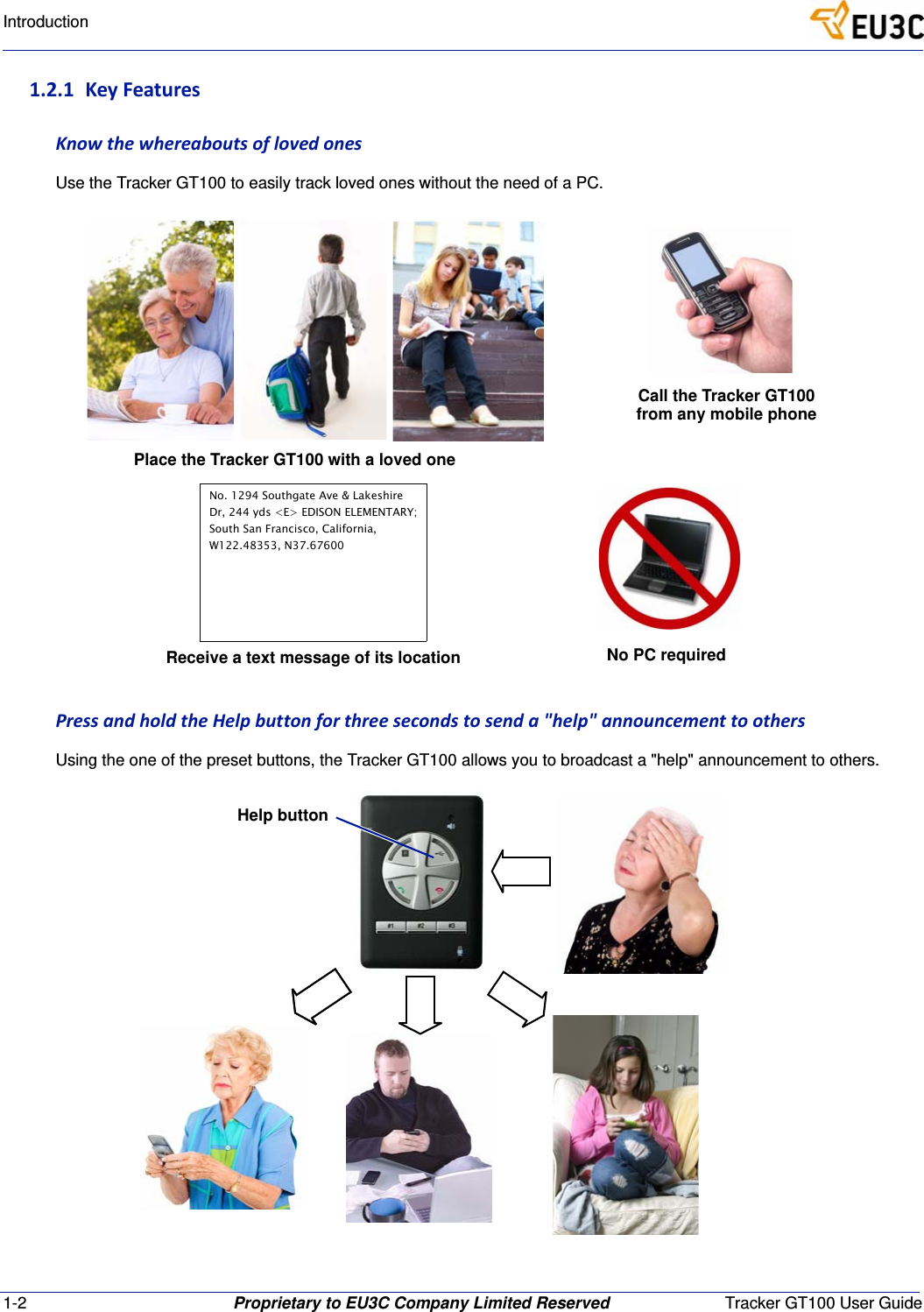
1-2 Proprietary to EU3C Company Limited Reserved Tracker GT100 User GuideIntroduction1.2.1 KeyFeaturesKnowthewhereaboutsoflovedonesUse the Tracker GT100 to easily track loved ones without the need of a PC.PressandholdtheHelpbuttonforthreesecondstosenda"help"announcementtoothersUsing the one of the preset buttons, the Tracker GT100 allows you to broadcast a "help" announcement to others.Call the Tracker GT100from any mobile phoneNo PC requiredPlace the Tracker GT100 with a loved oneReceive a text message of its locationNo. 1294 Southgate Ave & LakeshireDr, 244 yds <E> EDISON ELEMENTARY;South San Francisco, California,W122.48353, N37.67600Help button
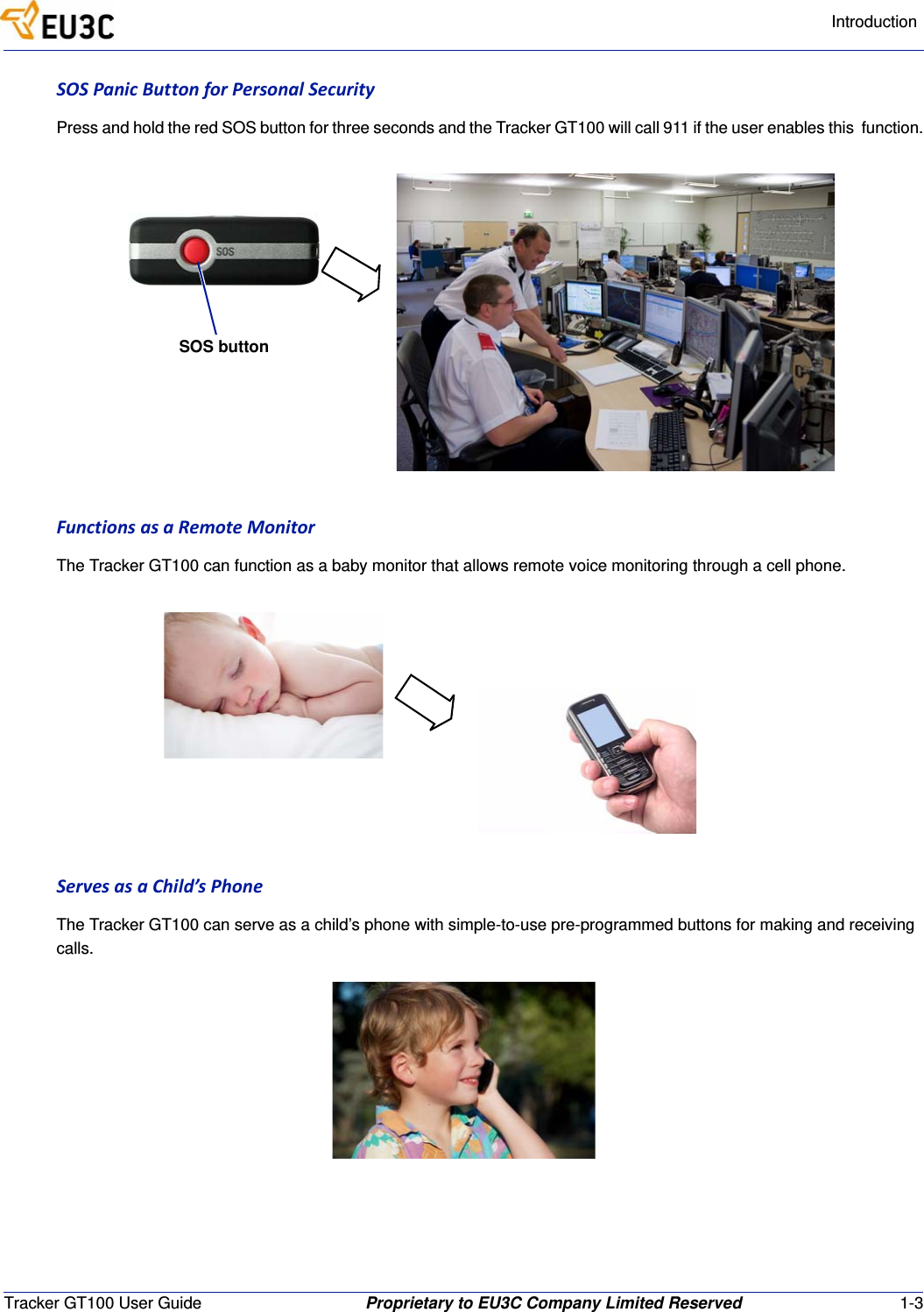
IntroductionTracker GT100 User Guide Proprietary to EU3C Company Limited Reserved 1-3SOSPanicButtonforPersonalSecurityPress and hold the red SOS button for three seconds and the Tracker GT100 will call 911 if the user enables this  function.FunctionsasaRemoteMonitorThe Tracker GT100 can function as a baby monitor that allows remote voice monitoring through a cell phone.ServesasaChild’sPhoneThe Tracker GT100 can serve as a child’s phone with simple-to-use pre-programmed buttons for making and receiving calls.SOS button
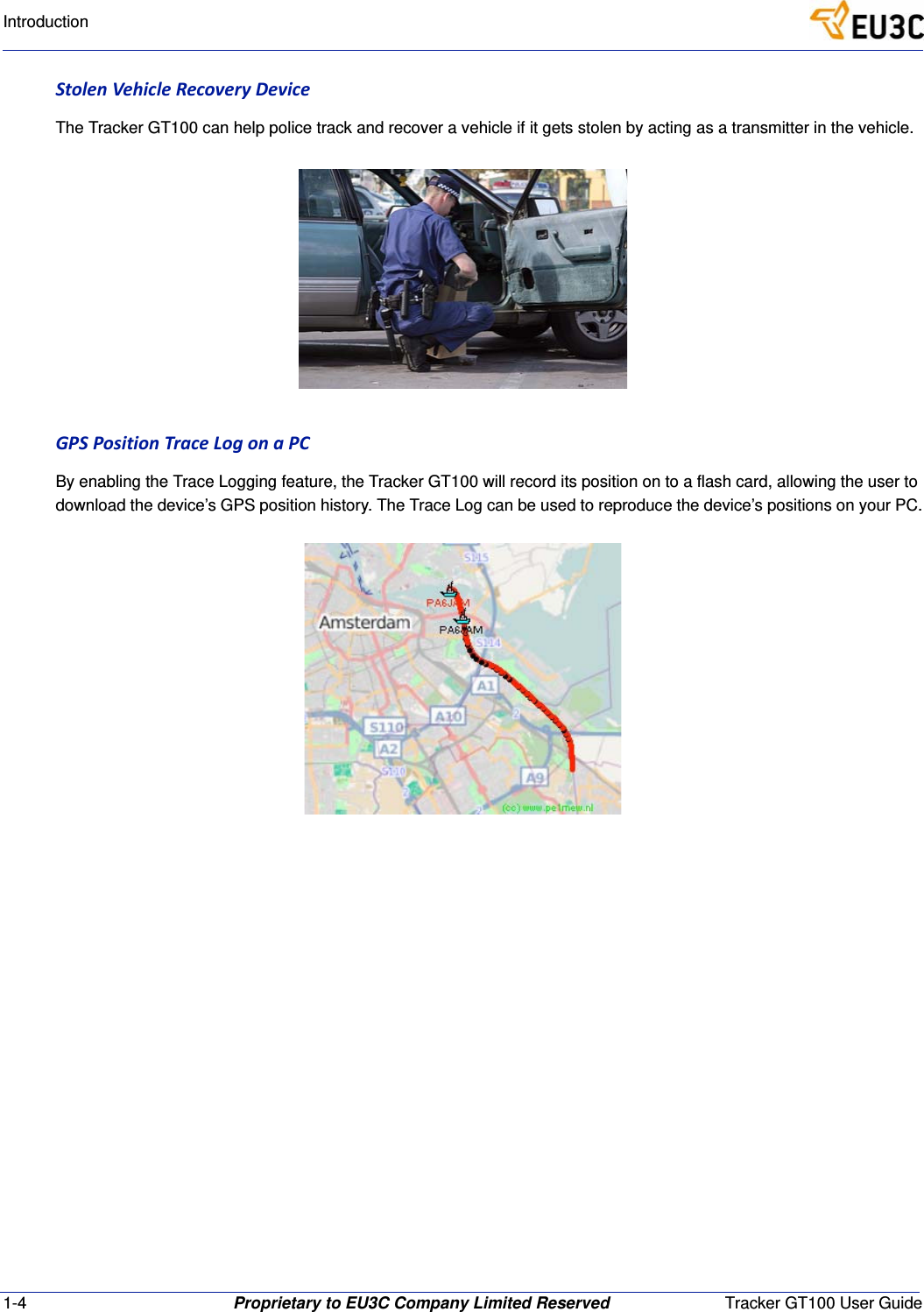
1-4 Proprietary to EU3C Company Limited Reserved Tracker GT100 User GuideIntroductionStolenVehicleRecoveryDeviceThe Tracker GT100 can help police track and recover a vehicle if it gets stolen by acting as a transmitter in the vehicle.GPSPositionTraceLogonaPCBy enabling the Trace Logging feature, the Tracker GT100 will record its position on to a flash card, allowing the user to download the device’s GPS position history. The Trace Log can be used to reproduce the device’s positions on your PC.
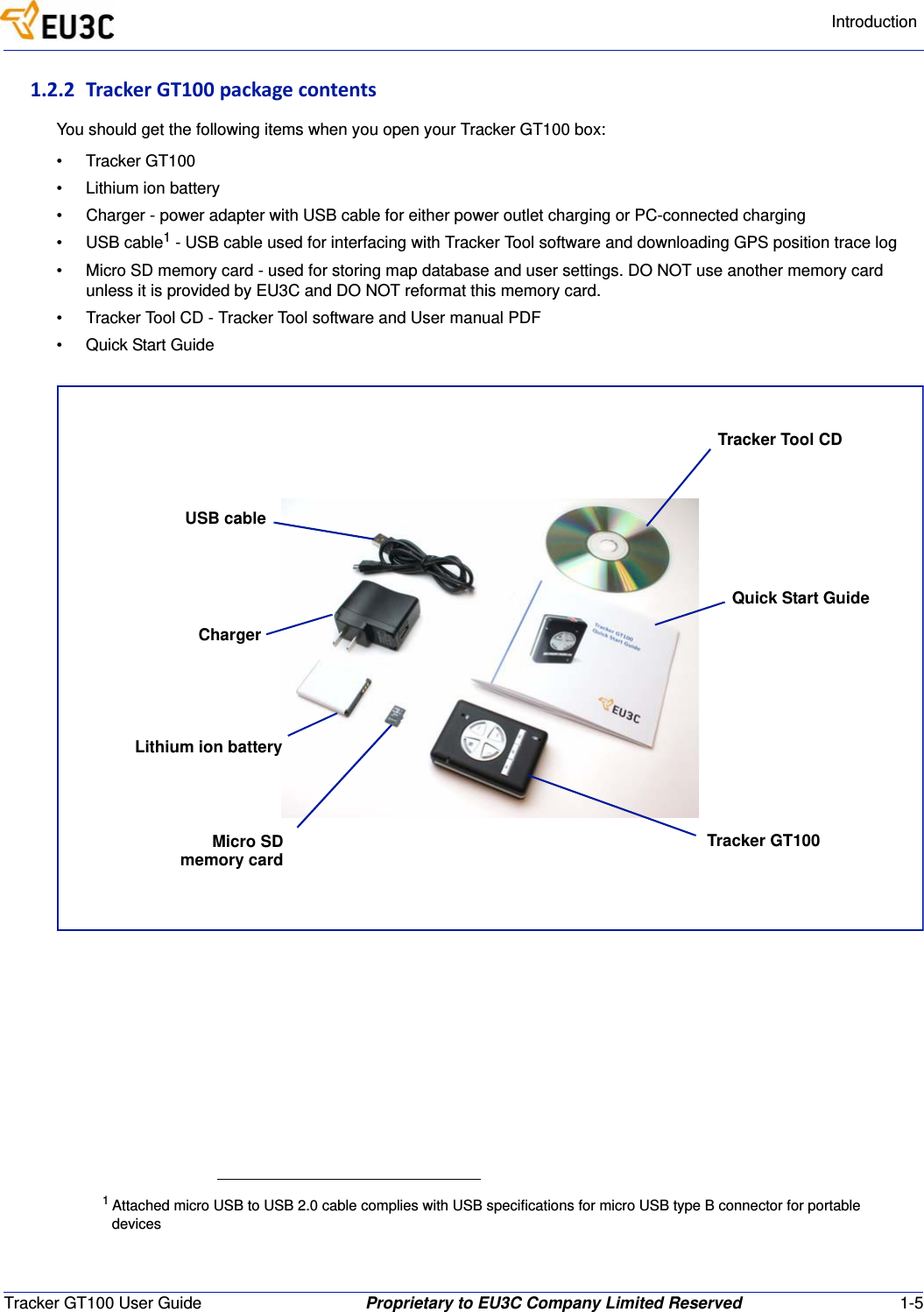
IntroductionTracker GT100 User Guide Proprietary to EU3C Company Limited Reserved 1-51.2.2 TrackerGT100packagecontentsYou should get the following items when you open your Tracker GT100 box:• Tracker GT100• Lithium ion battery• Charger - power adapter with USB cable for either power outlet charging or PC-connected charging• USB cable1 - USB cable used for interfacing with Tracker Tool software and downloading GPS position trace log• Micro SD memory card - used for storing map database and user settings. DO NOT use another memory card unless it is provided by EU3C and DO NOT reformat this memory card.• Tracker Tool CD - Tracker Tool software and User manual PDF• Quick Start Guide1 Attached micro USB to USB 2.0 cable complies with USB specifications for micro USB type B connector for portable devicesQuick Start GuideTracker GT100Micro SDmemory cardLithium ion batteryTracker Tool CDUSB cableCharger
1-6 Proprietary to EU3C Company Limited Reserved Tracker GT100 User GuideIntroduction1.2.3 SafetyNotesThe Tracker GT100 complies with Parts 15B, 22H, 24E, OET65(SAR) of the FCC Rules. Operation is subject to the following conditions:1. The Tracker GT100 may not cause harmful interference and (2) this device must accept any interference received, including interference that may cause undesired operations.2. The Tracker GT100 is a GSM enabled GPS tracking device. Pay special attention to local laws and general health and safety regulations.3. The Tracker GT100 should be turned off in hospitals and airplanes.4. DO NOT operate the Tracker GT100 in areas where there are flammable materials such as gas stations.5. DO NOT operate the Tracker GT100 if the device is wet. The Tracker GT100 is not waterproof. Please contact your distributor or EU3C for the availability of a waterproof model.6. A GSM SIM card is required for proper operation.
Tracker GT100 User Guide Proprietary to EU3C Company Limited Reserved 2-1Chapter2 InstallingtheSIMCard,Battery,andPCTrackerTool2.1 InstallingtheSIMCardandBatteryInstall the SIM card1 and battery as follows:1. Gently push down on the raised arrow of the back cover and slide off the battery cover.2. Lift the SIM card cover.3. Place the SIM card in its respective holder.4. Carefully lower the cover in place and slide it down until it clicks securely.5. Insert the battery and ensure that the battery contacts are at the top right corner.6. Replace the battery cover and slide up to secure it in place.1 SIM card is purchased separately. SIM cards can be purchased through GSM mobile network operators such as Orange, Vodafone, T-Mobile, AT&T, etc. SIM cards have various service plans - see operators for details.CoverBatteryMicro SD cardSIM card(already installed)(purchased separately)
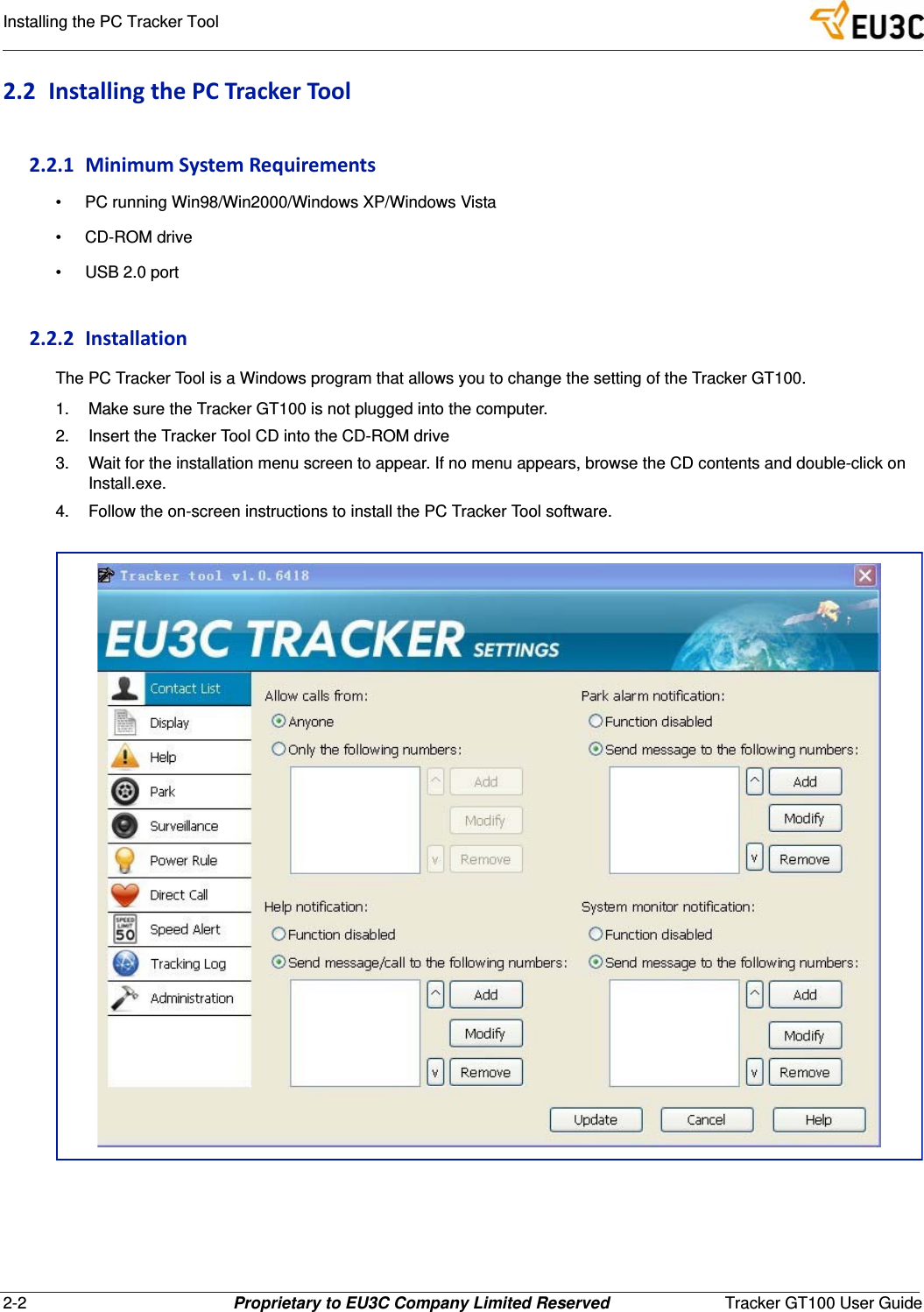
2-2 Proprietary to EU3C Company Limited Reserved Tracker GT100 User GuideInstalling the PC Tracker Tool2.2 InstallingthePCTrackerTool2.2.1 MinimumSystemRequirements• PC running Win98/Win2000/Windows XP/Windows Vista• CD-ROM drive• USB 2.0 port2.2.2 InstallationThe PC Tracker Tool is a Windows program that allows you to change the setting of the Tracker GT100.1. Make sure the Tracker GT100 is not plugged into the computer.2. Insert the Tracker Tool CD into the CD-ROM drive3. Wait for the installation menu screen to appear. If no menu appears, browse the CD contents and double-click on Install.exe.4. Follow the on-screen instructions to install the PC Tracker Tool software.
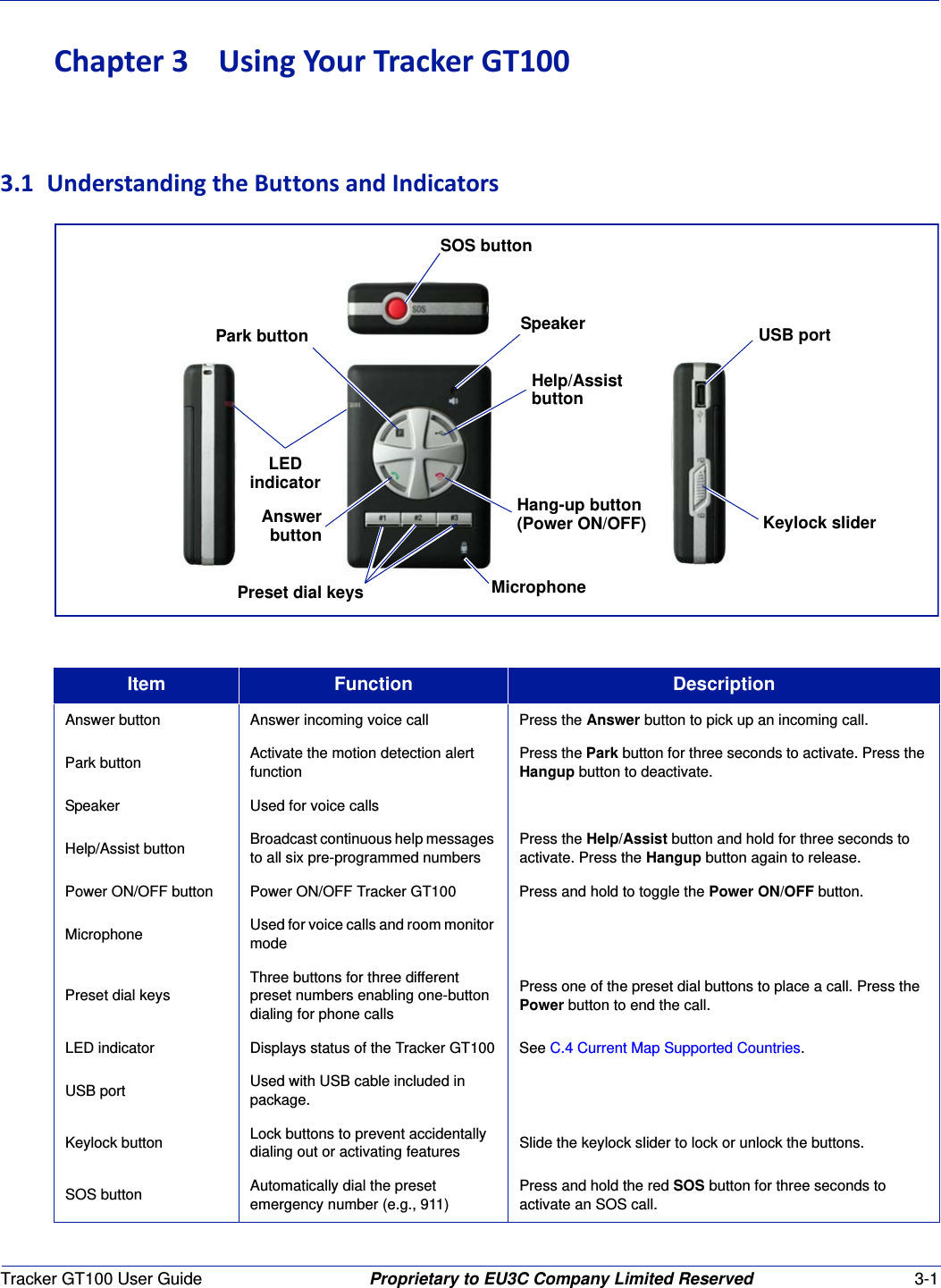
Tracker GT100 User Guide Proprietary to EU3C Company Limited Reserved 3-1Chapter3UsingYourTrackerGT1003.1 UnderstandingtheButtonsandIndicatorsItem Function DescriptionAnswer button Answer incoming voice call Press the Answer button to pick up an incoming call.Park button Activate the motion detection alert functionPress the Park button for three seconds to activate. Press the Hangup button to deactivate.Speaker Used for voice callsHelp/Assist button Broadcast continuous help messages to all six pre-programmed numbersPress the Help/Assist button and hold for three seconds to activate. Press the Hangup button again to release.Power ON/OFF button Power ON/OFF Tracker GT100 Press and hold to toggle the Power ON/OFF button.Microphone Used for voice calls and room monitor modePreset dial keysThree buttons for three different preset numbers enabling one-button dialing for phone callsPress one of the preset dial buttons to place a call. Press the Power button to end the call.LED indicator Displays status of the Tracker GT100 See C.4 Current Map Supported Countries.USB port Used with USB cable included in package.Keylock button Lock buttons to prevent accidentally dialing out or activating features Slide the keylock slider to lock or unlock the buttons.SOS button Automatically dial the preset emergency number (e.g., 911)Press and hold the red SOS button for three seconds to activate an SOS call.SOS buttonSpeakerLEDHelp/AssistPark buttonAnswer Hang-up buttonMicrophoneKeylock sliderPreset dial keysbuttonindicator(Power ON/OFF)buttonUSB port
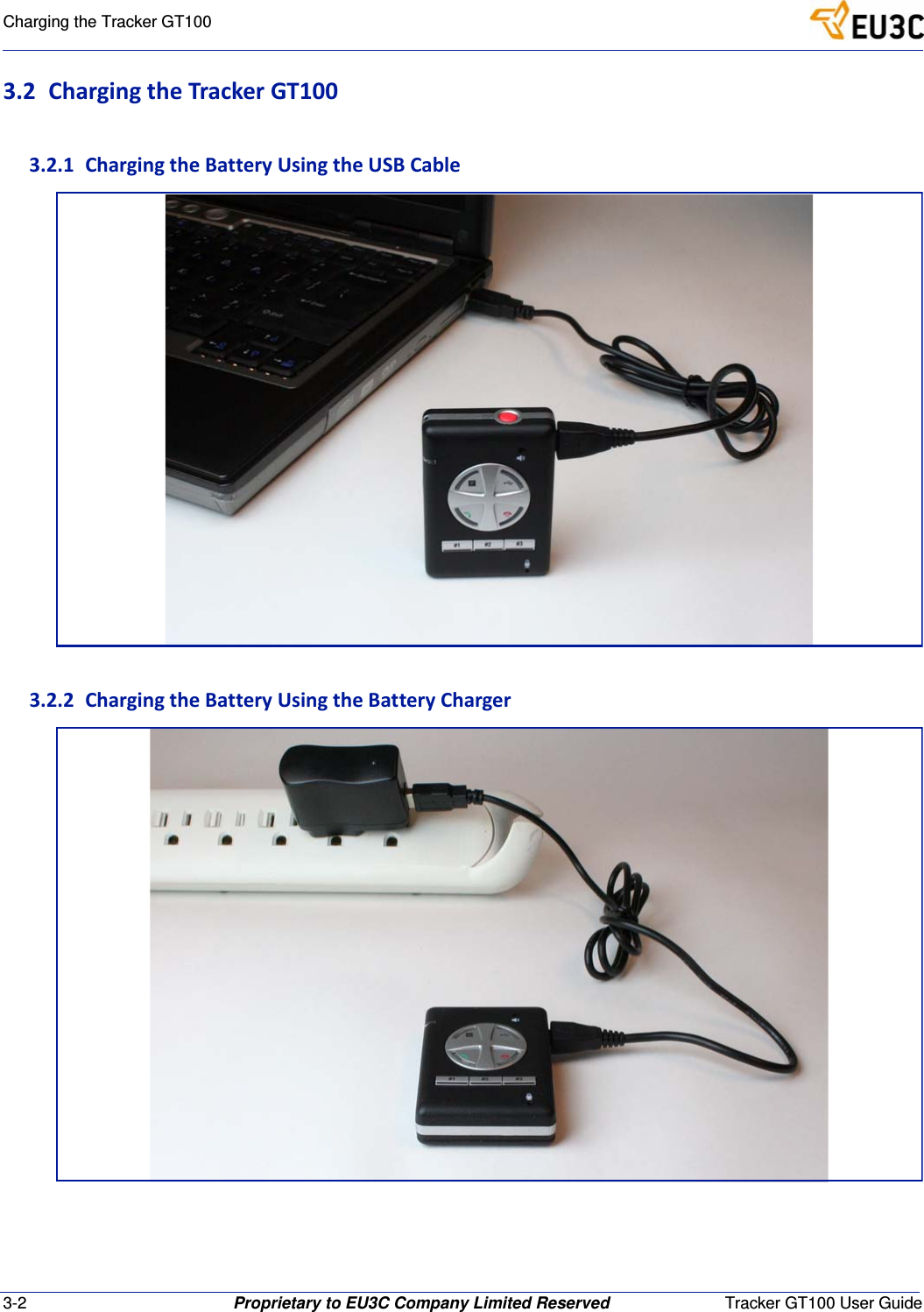
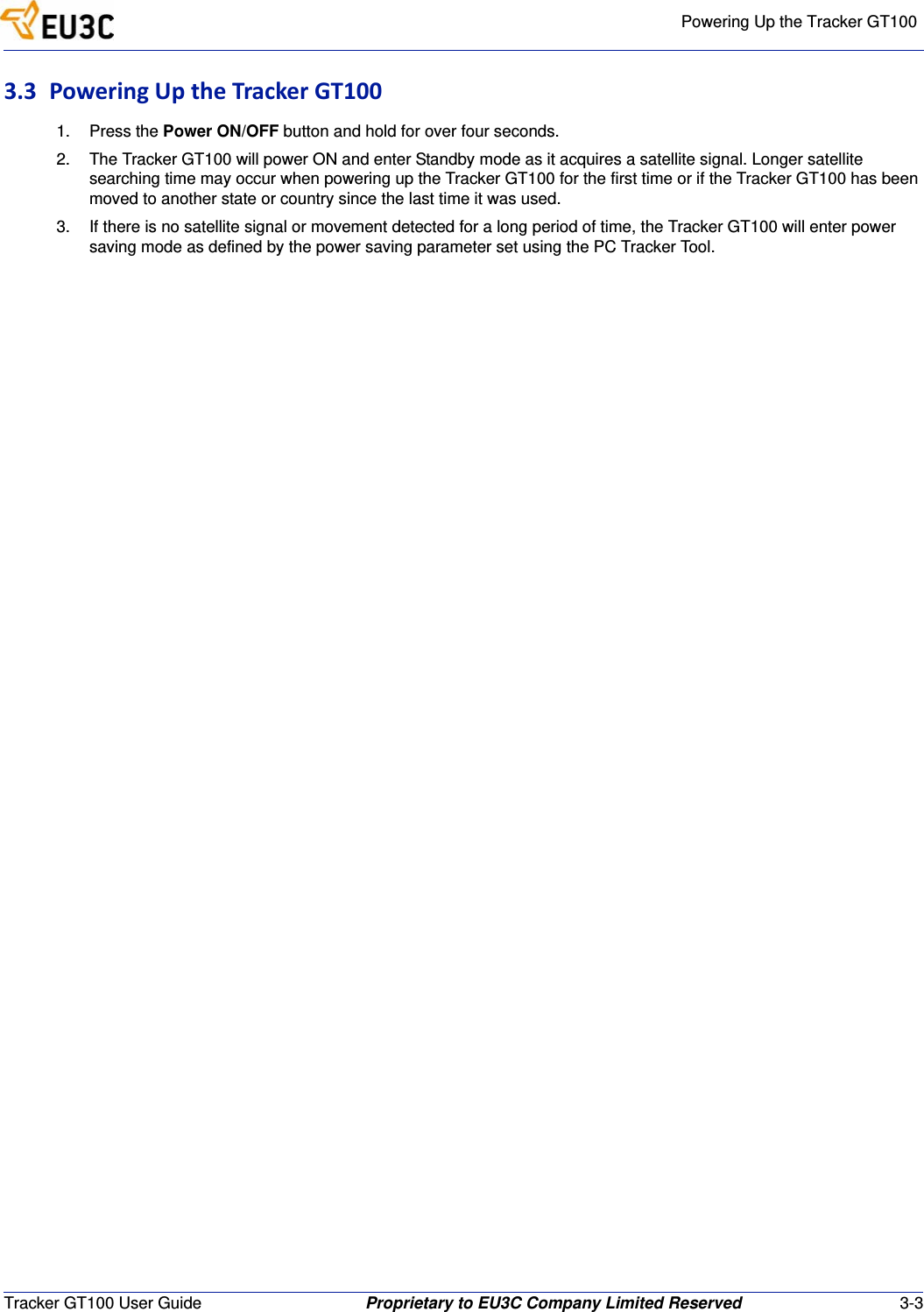
3-2 Proprietary to EU3C Company Limited Reserved Tracker GT100 User GuideCharging the Tracker GT1003.2 ChargingtheTrackerGT1003.2.1 ChargingtheBatteryUsingtheUSBCable3.2.2 ChargingtheBatteryUsingtheBatteryCharger
Powering Up the Tracker GT100Tracker GT100 User Guide Proprietary to EU3C Company Limited Reserved 3-33.3 PoweringUptheTrackerGT1001. Press the Power ON/OFF button and hold for over four seconds.2. The Tracker GT100 will power ON and enter Standby mode as it acquires a satellite signal. Longer satellite searching time may occur when powering up the Tracker GT100 for the first time or if the Tracker GT100 has been moved to another state or country since the last time it was used.3. If there is no satellite signal or movement detected for a long period of time, the Tracker GT100 will enter power saving mode as defined by the power saving parameter set using the PC Tracker Tool.
3-4 Proprietary to EU3C Company Limited Reserved Tracker GT100 User GuidePowering Up the Tracker GT100
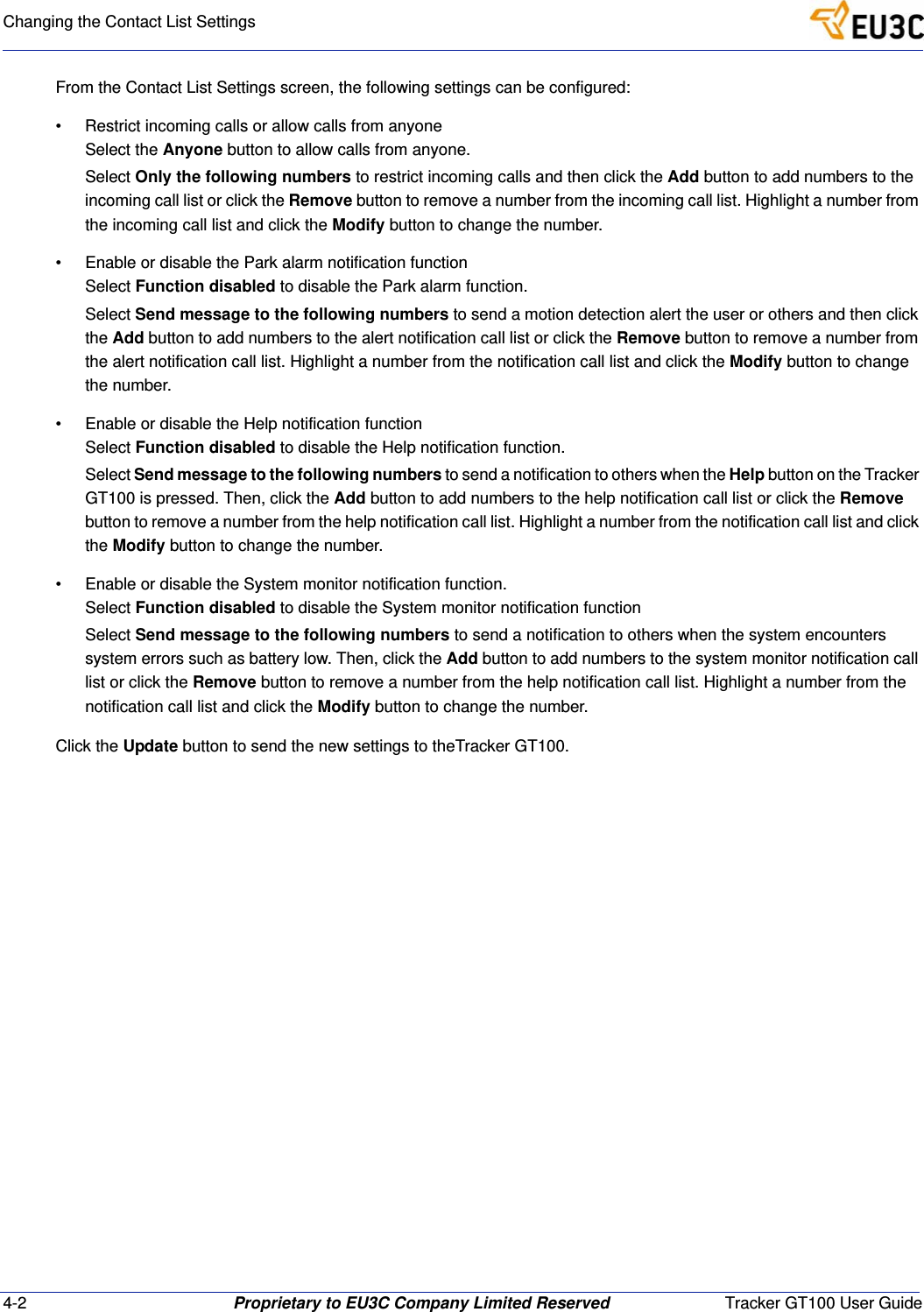
Tracker GT100 User Guide Proprietary to EU3C Company Limited Reserved 4-1Chapter4UsingthePCTrackerTool4.1 StartingthePCTrackerToolThe PC Tracker Tool configuration software is used to program all of the features and settings of the Tracker GT100. These settings include the preset phone numbers for emergency calls, standby time, etc.1. Power down the Tracker GT100.2. Connect the Tracker GT100 to a PC using the USB cable.3. Run TrackerTool.exe on the PC.4.2 ChangingtheContactListSettings
4-2 Proprietary to EU3C Company Limited Reserved Tracker GT100 User GuideChanging the Contact List SettingsFrom the Contact List Settings screen, the following settings can be configured:• Restrict incoming calls or allow calls from anyoneSelect the Anyone button to allow calls from anyone.Select Only the following numbers to restrict incoming calls and then click the Add button to add numbers to the incoming call list or click the Remove button to remove a number from the incoming call list. Highlight a number from the incoming call list and click the Modify button to change the number.• Enable or disable the Park alarm notification functionSelect Function disabled to disable the Park alarm function.Select Send message to the following numbers to send a motion detection alert the user or others and then click the Add button to add numbers to the alert notification call list or click the Remove button to remove a number from the alert notification call list. Highlight a number from the notification call list and click the Modify button to change the number. • Enable or disable the Help notification functionSelect Function disabled to disable the Help notification function.Select Send message to the following numbers to send a notification to others when the Help button on the Tracker GT100 is pressed. Then, click the Add button to add numbers to the help notification call list or click the Remove button to remove a number from the help notification call list. Highlight a number from the notification call list and click the Modify button to change the number. • Enable or disable the System monitor notification function.Select Function disabled to disable the System monitor notification functionSelect Send message to the following numbers to send a notification to others when the system encounters system errors such as battery low. Then, click the Add button to add numbers to the system monitor notification call list or click the Remove button to remove a number from the help notification call list. Highlight a number from the notification call list and click the Modify button to change the number. Click the Update button to send the new settings to theTracker GT100.
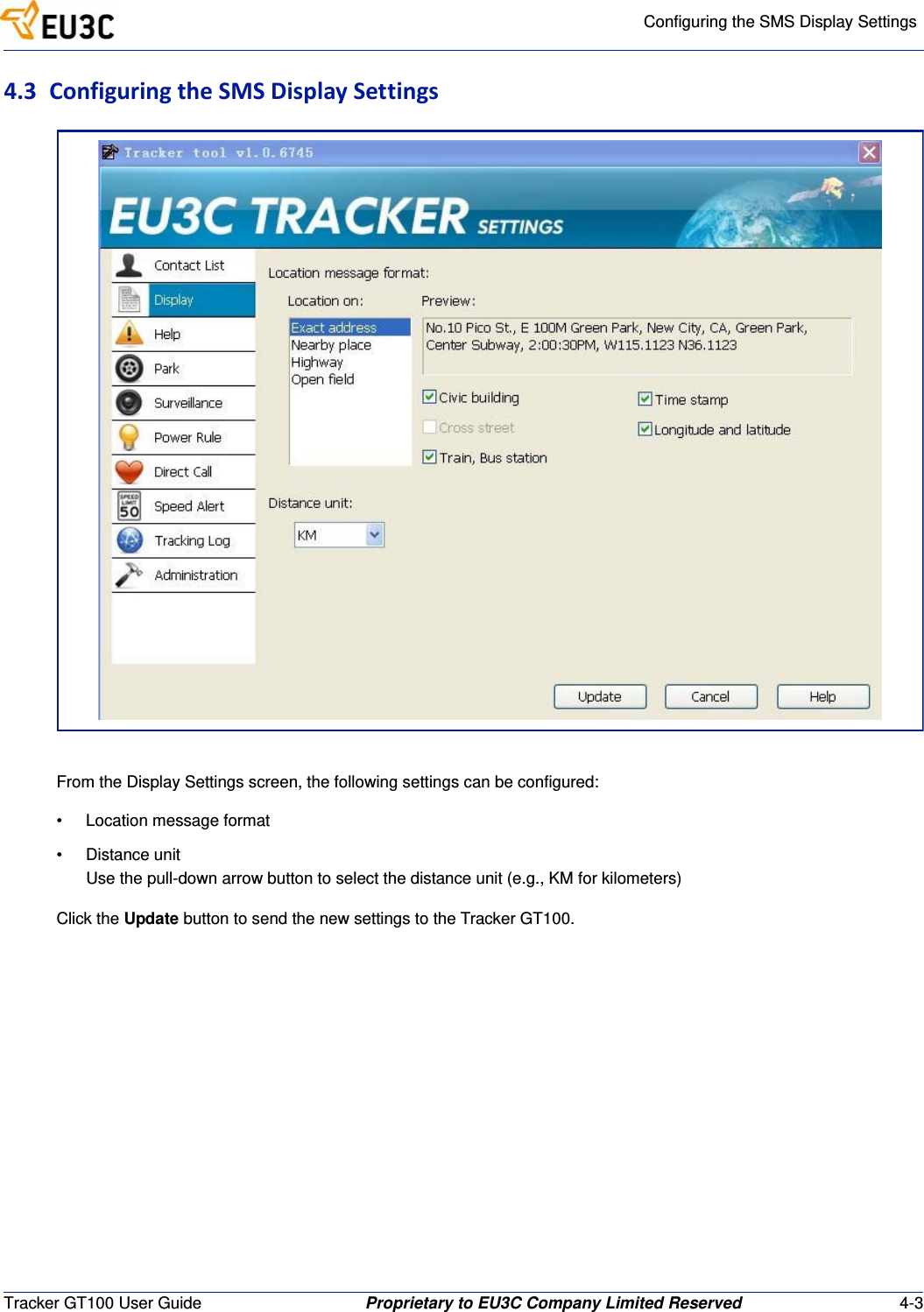
Configuring the SMS Display SettingsTracker GT100 User Guide Proprietary to EU3C Company Limited Reserved 4-34.3 ConfiguringtheSMSDisplaySettingsFrom the Display Settings screen, the following settings can be configured:• Location message format• Distance unitUse the pull-down arrow button to select the distance unit (e.g., KM for kilometers)Click the Update button to send the new settings to the Tracker GT100.
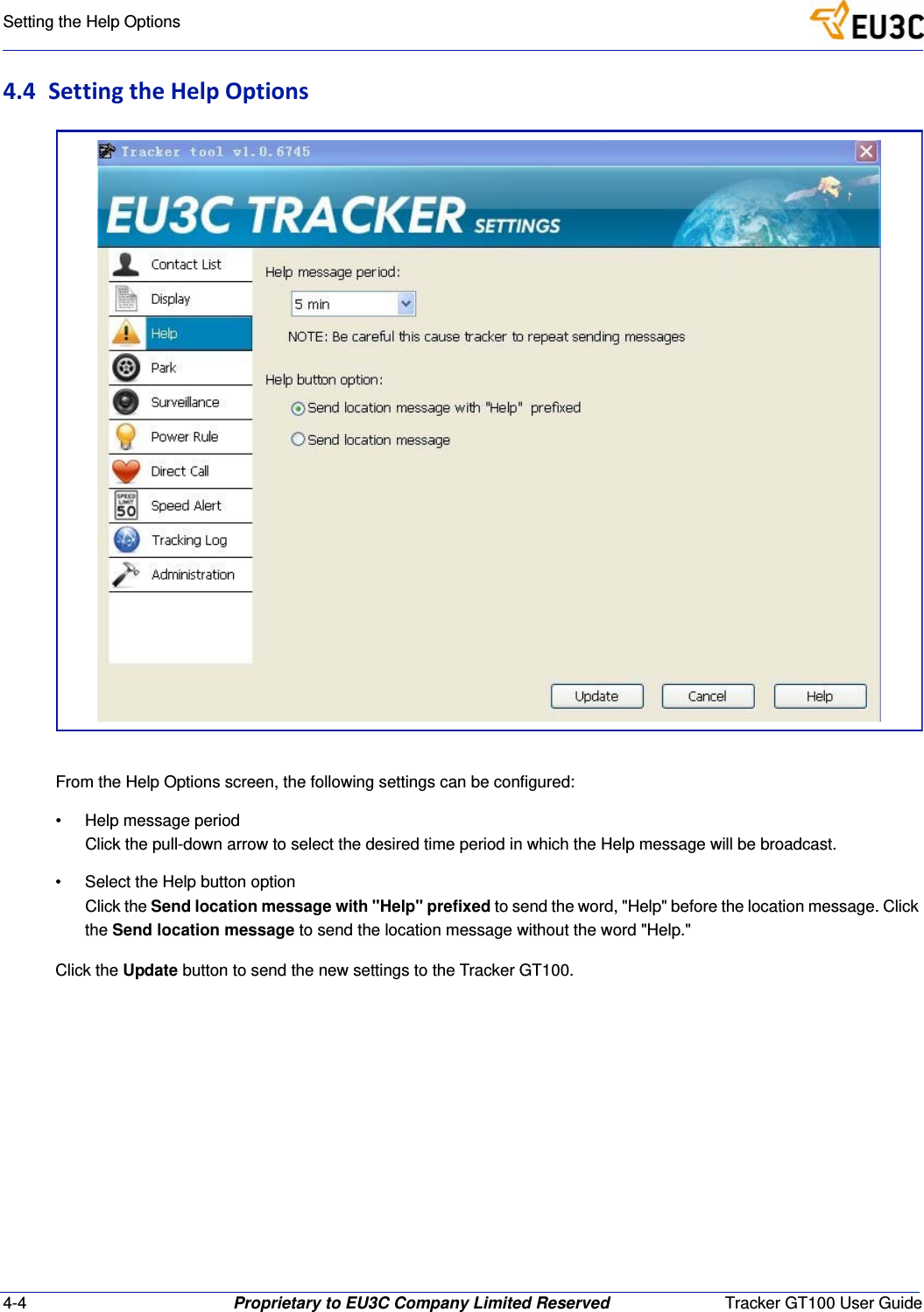
4-4 Proprietary to EU3C Company Limited Reserved Tracker GT100 User GuideSetting the Help Options4.4 SettingtheHelpOptionsFrom the Help Options screen, the following settings can be configured:• Help message periodClick the pull-down arrow to select the desired time period in which the Help message will be broadcast.• Select the Help button optionClick the Send location message with "Help" prefixed to send the word, "Help" before the location message. Click the Send location message to send the location message without the word "Help."Click the Update button to send the new settings to the Tracker GT100.
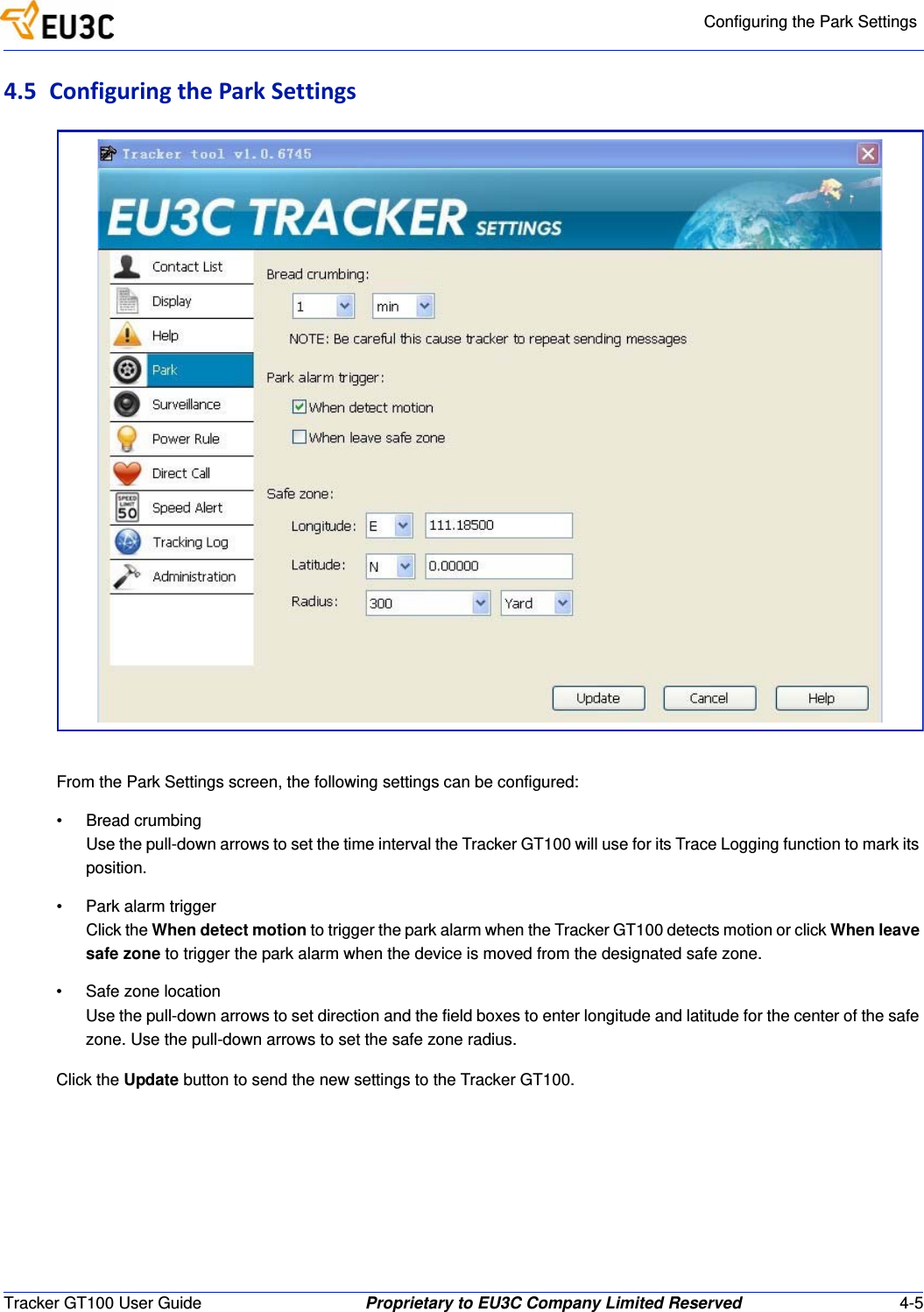
Configuring the Park SettingsTracker GT100 User Guide Proprietary to EU3C Company Limited Reserved 4-54.5 ConfiguringtheParkSettingsFrom the Park Settings screen, the following settings can be configured:• Bread crumbingUse the pull-down arrows to set the time interval the Tracker GT100 will use for its Trace Logging function to mark its position.• Park alarm triggerClick the When detect motion to trigger the park alarm when the Tracker GT100 detects motion or click When leave safe zone to trigger the park alarm when the device is moved from the designated safe zone.• Safe zone locationUse the pull-down arrows to set direction and the field boxes to enter longitude and latitude for the center of the safe zone. Use the pull-down arrows to set the safe zone radius.Click the Update button to send the new settings to the Tracker GT100.
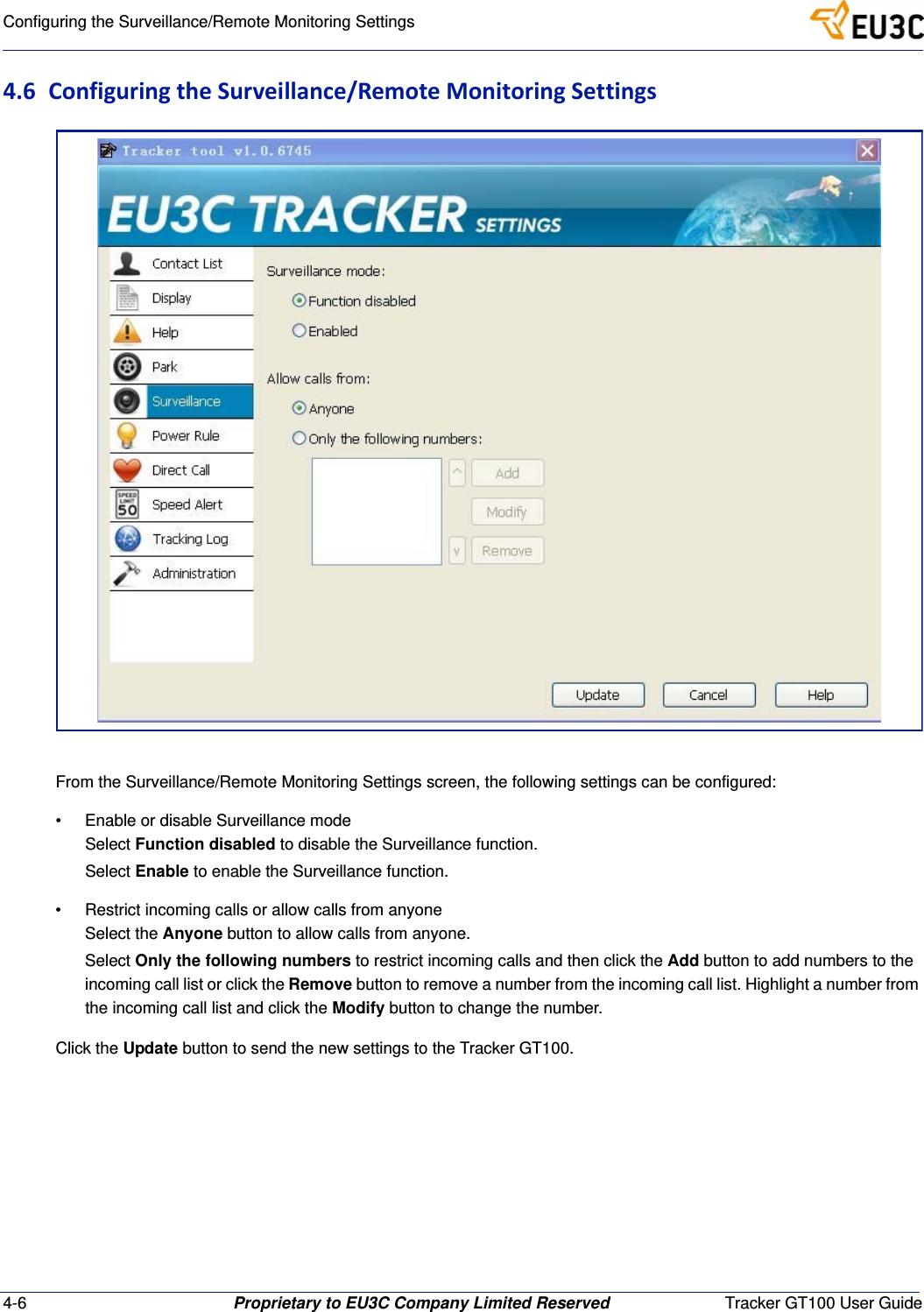
4-6 Proprietary to EU3C Company Limited Reserved Tracker GT100 User GuideConfiguring the Surveillance/Remote Monitoring Settings4.6 ConfiguringtheSurveillance/RemoteMonitoringSettingsFrom the Surveillance/Remote Monitoring Settings screen, the following settings can be configured:• Enable or disable Surveillance modeSelect Function disabled to disable the Surveillance function.Select Enable to enable the Surveillance function.• Restrict incoming calls or allow calls from anyoneSelect the Anyone button to allow calls from anyone.Select Only the following numbers to restrict incoming calls and then click the Add button to add numbers to the incoming call list or click the Remove button to remove a number from the incoming call list. Highlight a number from the incoming call list and click the Modify button to change the number.Click the Update button to send the new settings to the Tracker GT100.
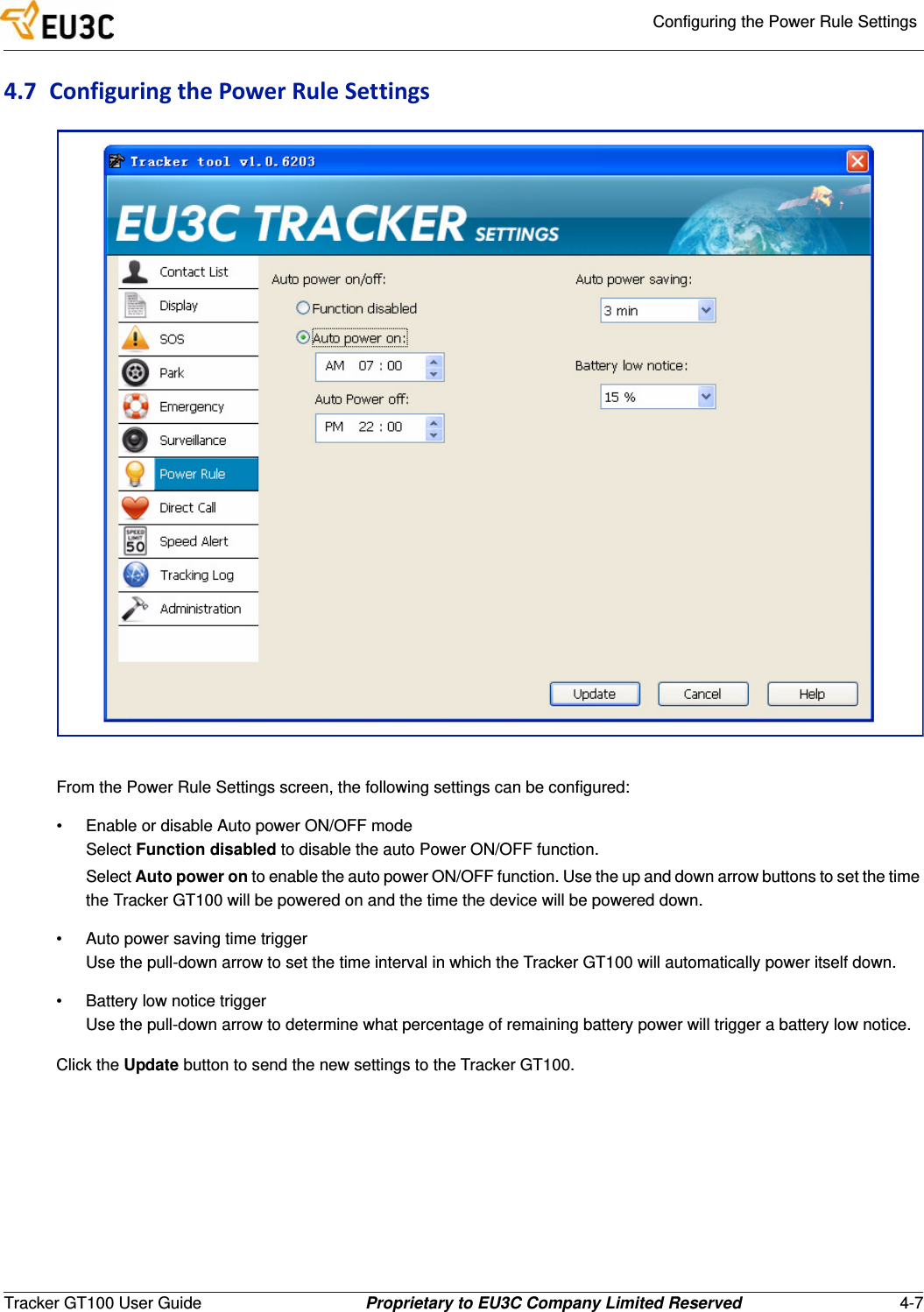
Configuring the Power Rule SettingsTracker GT100 User Guide Proprietary to EU3C Company Limited Reserved 4-74.7 ConfiguringthePowerRuleSettingsFrom the Power Rule Settings screen, the following settings can be configured:• Enable or disable Auto power ON/OFF modeSelect Function disabled to disable the auto Power ON/OFF function.Select Auto power on to enable the auto power ON/OFF function. Use the up and down arrow buttons to set the time the Tracker GT100 will be powered on and the time the device will be powered down.• Auto power saving time triggerUse the pull-down arrow to set the time interval in which the Tracker GT100 will automatically power itself down.• Battery low notice triggerUse the pull-down arrow to determine what percentage of remaining battery power will trigger a battery low notice.Click the Update button to send the new settings to the Tracker GT100.
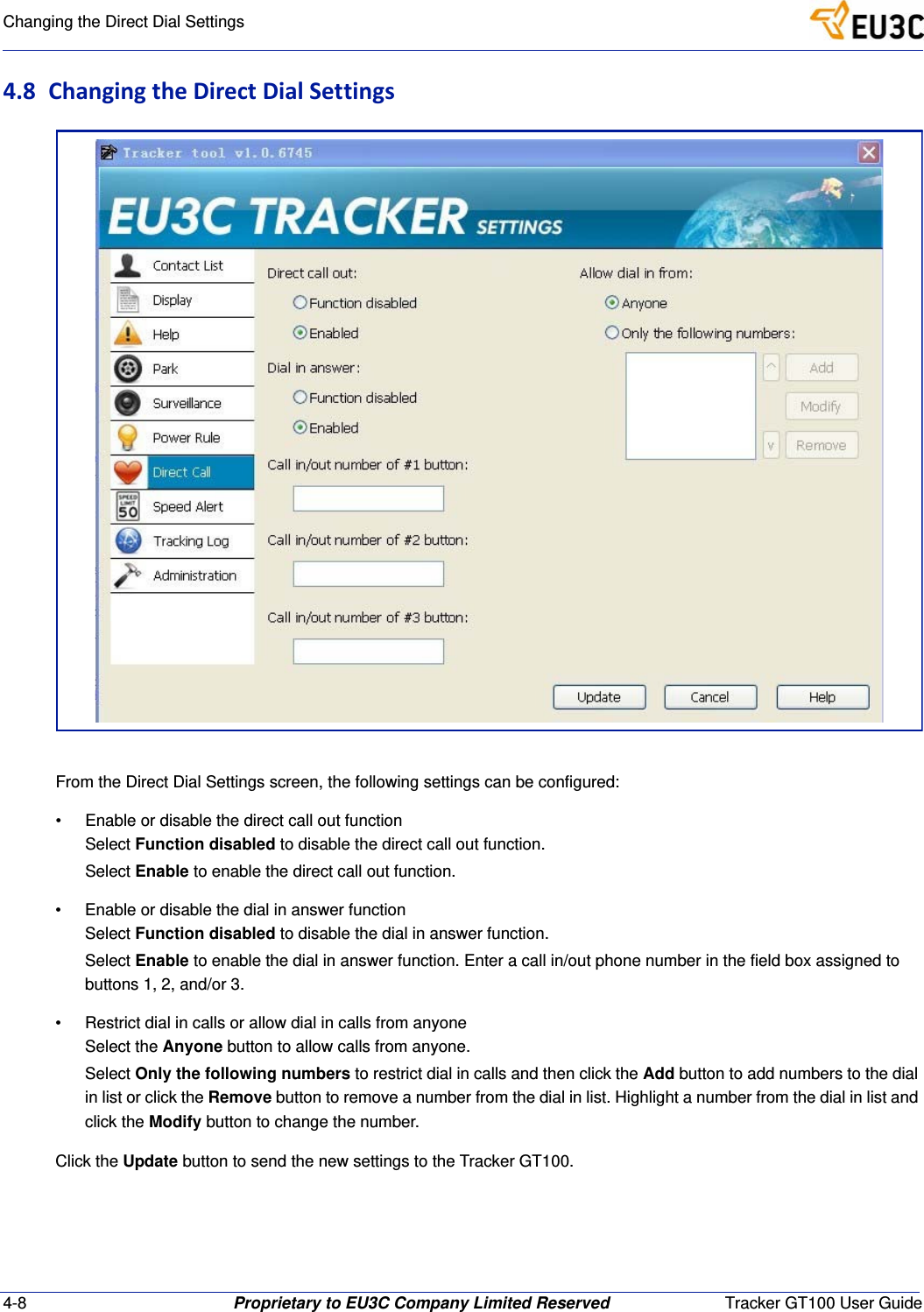
4-8 Proprietary to EU3C Company Limited Reserved Tracker GT100 User GuideChanging the Direct Dial Settings4.8 ChangingtheDirectDialSettingsFrom the Direct Dial Settings screen, the following settings can be configured:• Enable or disable the direct call out functionSelect Function disabled to disable the direct call out function.Select Enable to enable the direct call out function.• Enable or disable the dial in answer functionSelect Function disabled to disable the dial in answer function.Select Enable to enable the dial in answer function. Enter a call in/out phone number in the field box assigned to buttons 1, 2, and/or 3.• Restrict dial in calls or allow dial in calls from anyoneSelect the Anyone button to allow calls from anyone.Select Only the following numbers to restrict dial in calls and then click the Add button to add numbers to the dial in list or click the Remove button to remove a number from the dial in list. Highlight a number from the dial in list and click the Modify button to change the number.Click the Update button to send the new settings to the Tracker GT100.
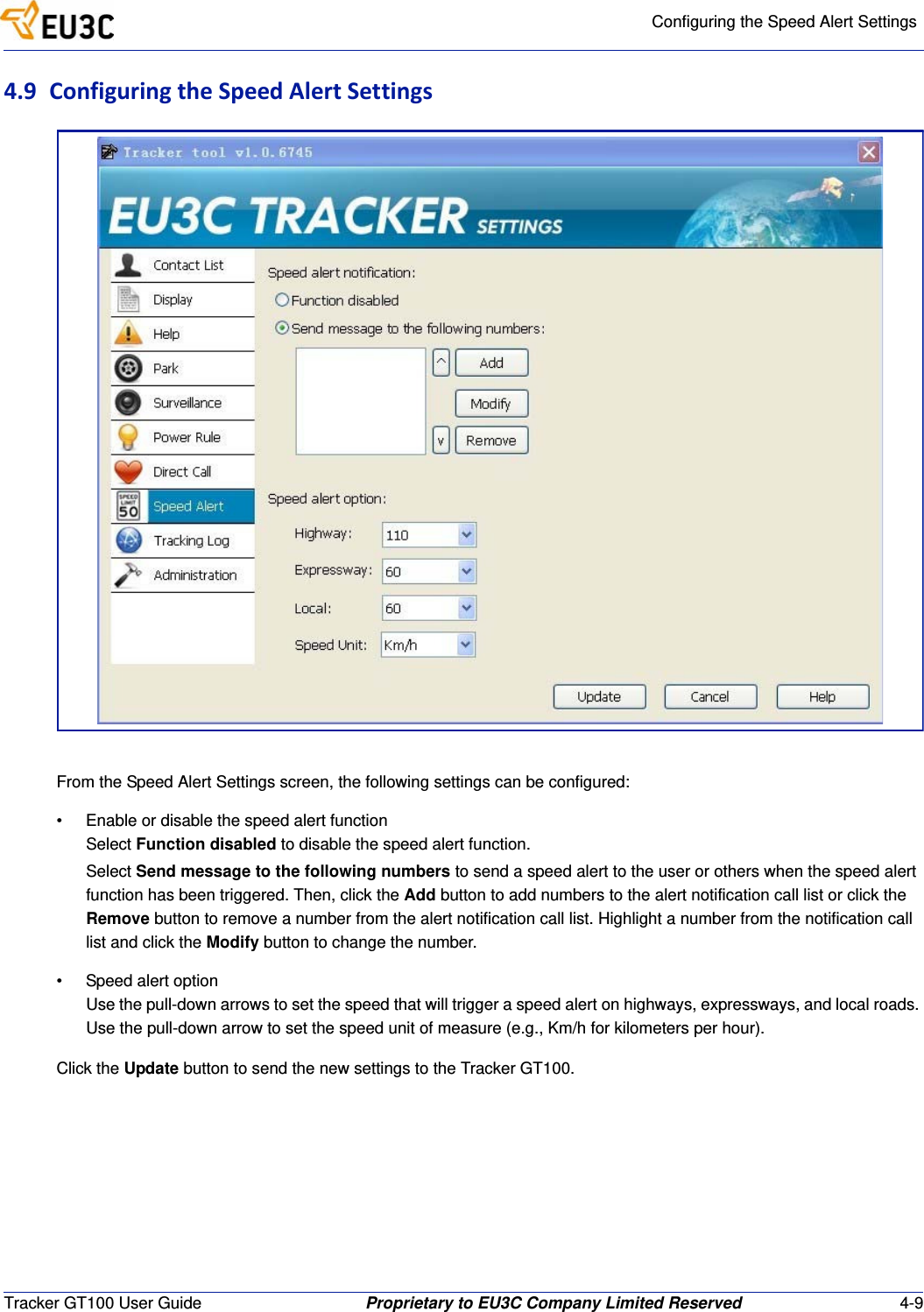
Configuring the Speed Alert SettingsTracker GT100 User Guide Proprietary to EU3C Company Limited Reserved 4-94.9 ConfiguringtheSpeedAlertSettingsFrom the Speed Alert Settings screen, the following settings can be configured:• Enable or disable the speed alert functionSelect Function disabled to disable the speed alert function.Select Send message to the following numbers to send a speed alert to the user or others when the speed alert function has been triggered. Then, click the Add button to add numbers to the alert notification call list or click the Remove button to remove a number from the alert notification call list. Highlight a number from the notification call list and click the Modify button to change the number. • Speed alert optionUse the pull-down arrows to set the speed that will trigger a speed alert on highways, expressways, and local roads. Use the pull-down arrow to set the speed unit of measure (e.g., Km/h for kilometers per hour).Click the Update button to send the new settings to the Tracker GT100.
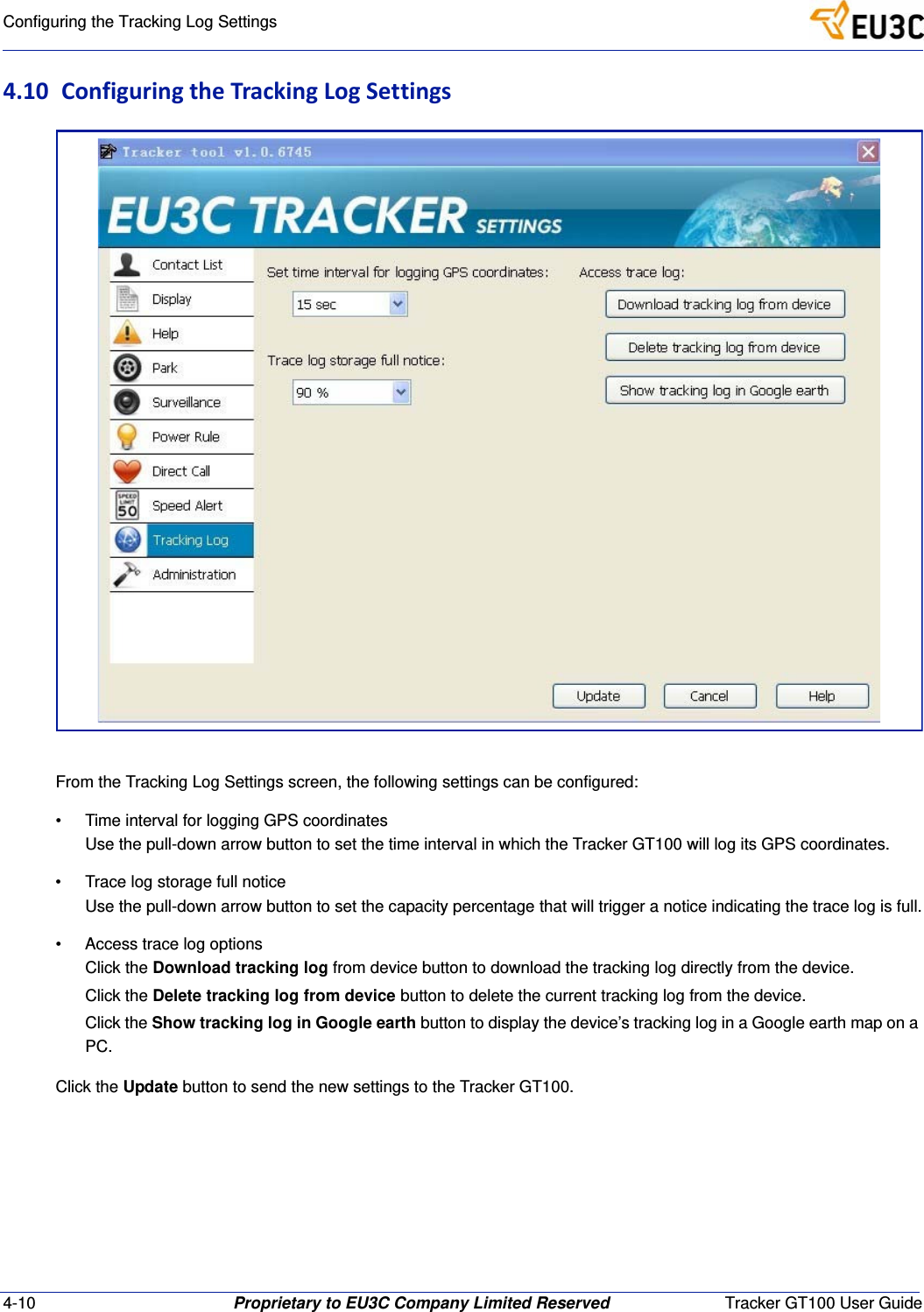
4-10 Proprietary to EU3C Company Limited Reserved Tracker GT100 User GuideConfiguring the Tracking Log Settings4.10 ConfiguringtheTrackingLogSettingsFrom the Tracking Log Settings screen, the following settings can be configured:• Time interval for logging GPS coordinatesUse the pull-down arrow button to set the time interval in which the Tracker GT100 will log its GPS coordinates.• Trace log storage full noticeUse the pull-down arrow button to set the capacity percentage that will trigger a notice indicating the trace log is full.• Access trace log optionsClick the Download tracking log from device button to download the tracking log directly from the device.Click the Delete tracking log from device button to delete the current tracking log from the device.Click the Show tracking log in Google earth button to display the device’s tracking log in a Google earth map on a PC.Click the Update button to send the new settings to the Tracker GT100.
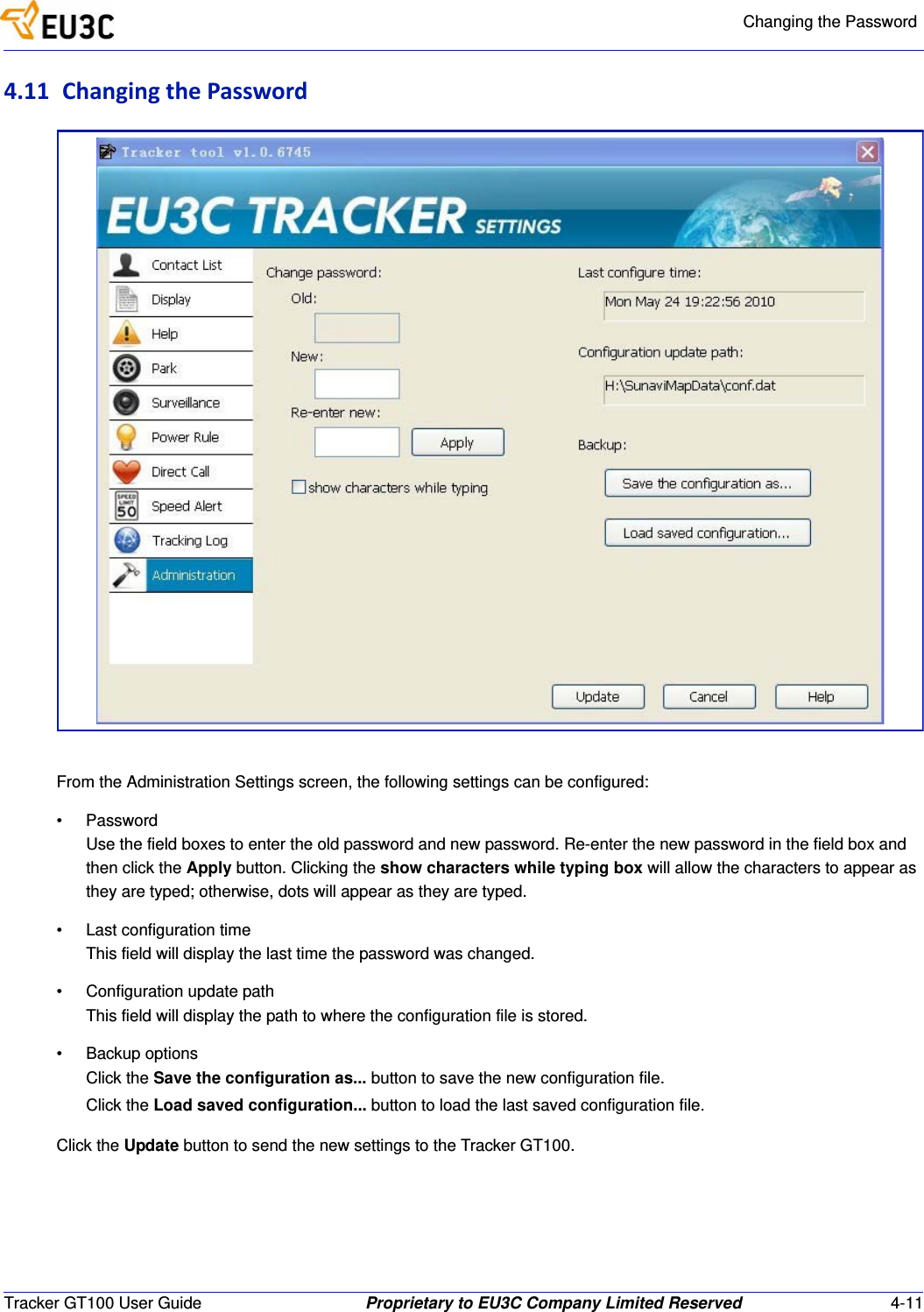
Changing the PasswordTracker GT100 User Guide Proprietary to EU3C Company Limited Reserved 4-114.11 ChangingthePasswordFrom the Administration Settings screen, the following settings can be configured:• PasswordUse the field boxes to enter the old password and new password. Re-enter the new password in the field box and then click the Apply button. Clicking the show characters while typing box will allow the characters to appear as they are typed; otherwise, dots will appear as they are typed.• Last configuration timeThis field will display the last time the password was changed.• Configuration update pathThis field will display the path to where the configuration file is stored.• Backup optionsClick the Save the configuration as... button to save the new configuration file.Click the Load saved configuration... button to load the last saved configuration file.Click the Update button to send the new settings to the Tracker GT100.
4-12 Proprietary to EU3C Company Limited Reserved Tracker GT100 User GuideChanging the Password
Tracker GT100 User Guide Proprietary to EU3C Company Limited Reserved 5-1Chapter5 Troubleshooting5.1 FrequentlyAskedQuestionsTrackerGT100doesnotpoweron.Make sure the device is fully charged with a valid SIM card. Press and hold the Power ON/OFF button until the device powers up.Thepowerlightremainslitafterpoweron.This occurs when the Tracker GT100 cannot receive a GPS signal.TrackerGT100cannotreceiveaGPSsignal.An open view to the sky is required. If using the Tracker GT100 device for the first time, it may longer than normal.Ipressedthepresetdial(#1,#2,#3)buttonbutnothinghappensPreset numbers must be entered using the Tracker Tool program. Install the Tracker Tool from the included CD and set the preset dial number for each of the three buttons. Make sure this feature is checked as enabled.TrackerToolprogramcannotdetectthedevice.Make sure the Tracker GT100 is connected to the PC first.  If the Tracker GT100 is powered on, then power it off first. Then, run the Tracker tool software on the CD.GPSTrackerdoesnotseemtogetcharged.Use the charger included in the package. Certain PC or notebook USB ports may not supply enough power current for charging.SOSbuttondoesnotseemtobeworking.Make sure the SOS button pre-programming is correct. Use the Tracker Tool to program the SOS button if it is not programmed correctly for the area the Tracker GT100 is located.Remotemonitoringdoesnotwork.Icannothearanything.The surveillance feature must be enabled using the Tracker Tool program. Make sure it is set to allow anyone or people in the contact list to receive remote monitoring calls.IcannotusemyownUSBtominiUSBcable.Please use the USB cable included in the package.
5-2 Proprietary to EU3C Company Limited Reserved Tracker GT100 User GuideFrequently Asked QuestionsIcannotdialintogetthedevicelocation.You need to either enable dial in from anyone or numbers from the contact list using the Tracker Tool program.IcannotuseParkfunction.Make sure the Park feature is enabled.Help/Assistancekeydoesn'twork.Make sure Help function is enabled and the help preset phone numbers are entered correctly in the contact list.Icannotdialinthedeviceanduseitasaphone.Make sure the Direct Call feature is enabled.HowcanIusetheTrackloggingfeature.Make sure the track logging feature is enabled.IcannotmonitortheTracker.Make sure the call in feature is disaled and the surveillance feature is enabled.IcannotusetheCallin/Surveillancefunctions.These two functions cannot be used at the same time. Please check to see the configuration is set properly.#1,#2,and#3keysareremainlitafterpoweron.This means the SIM card was not installed or was not installed correctly. Re-install the SIM card and ensure that it is in place correctly.
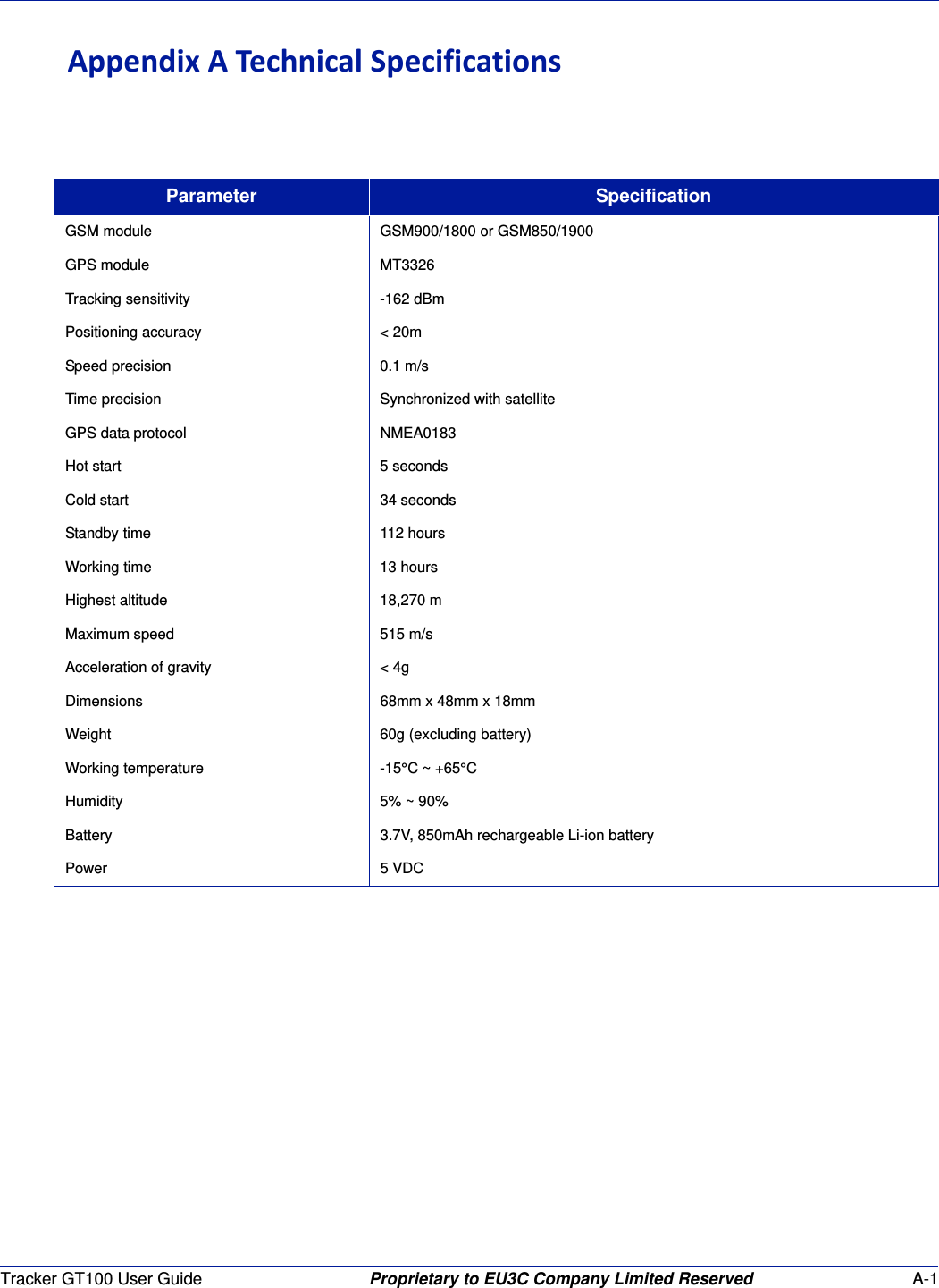
Tracker GT100 User Guide Proprietary to EU3C Company Limited Reserved A-1AppendixATechnicalSpecificationsParameter SpecificationGSM module GSM900/1800 or GSM850/1900GPS module MT3326Tracking sensitivity -162 dBmPositioning accuracy < 20mSpeed precision 0.1 m/sTime precision Synchronized with satelliteGPS data protocol NMEA0183Hot start 5 secondsCold start 34 secondsStandby time 112 hoursWorking time 13 hoursHighest altitude 18,270 mMaximum speed 515 m/sAcceleration of gravity < 4gDimensions 68mm x 48mm x 18mmWeight 60g (excluding battery)Working temperature -15°C ~ +65°CHumidity 5% ~ 90%Battery 3.7V, 850mAh rechargeable Li-ion batteryPower 5 VDC
A-2 Proprietary to EU3C Company Limited Reserved Tracker GT100 User GuideTechnical Specifications
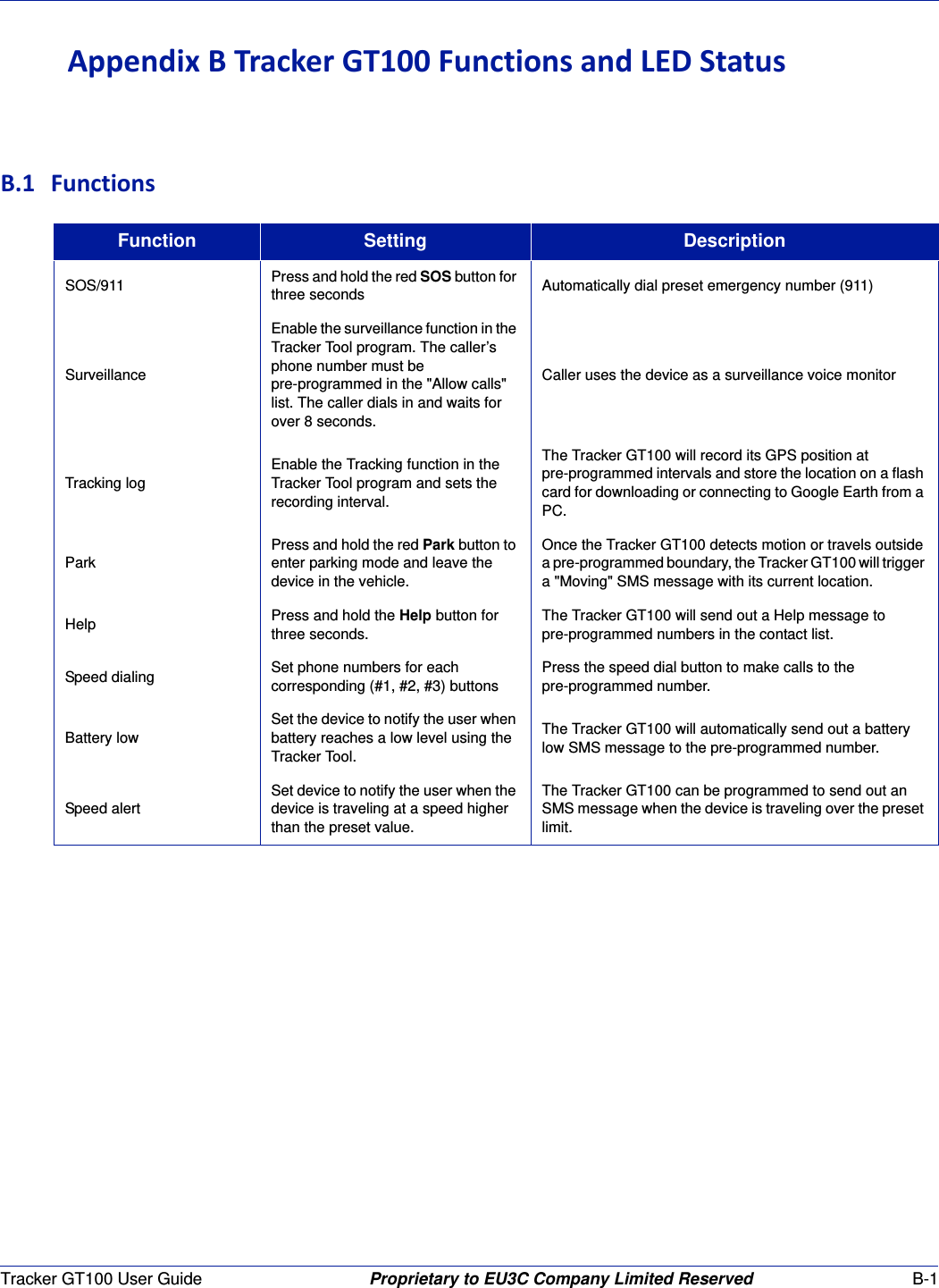
Tracker GT100 User Guide Proprietary to EU3C Company Limited Reserved B-1AppendixBTrackerGT100FunctionsandLEDStatusB.1 FunctionsFunction Setting DescriptionSOS/911 Press and hold the red SOS button for three seconds Automatically dial preset emergency number (911)SurveillanceEnable the surveillance function in the Tracker Tool program. The caller’s phone number must be pre-programmed in the "Allow calls" list. The caller dials in and waits for over 8 seconds.Caller uses the device as a surveillance voice monitorTracking logEnable the Tracking function in the Tracker Tool program and sets the recording interval.The Tracker GT100 will record its GPS position at pre-programmed intervals and store the location on a flash card for downloading or connecting to Google Earth from a PC.ParkPress and hold the red Park button to enter parking mode and leave the device in the vehicle.Once the Tracker GT100 detects motion or travels outside a pre-programmed boundary, the Tracker GT100 will trigger a "Moving" SMS message with its current location.Help Press and hold the Help button for three seconds.The Tracker GT100 will send out a Help message to pre-programmed numbers in the contact list.Speed dialing Set phone numbers for each corresponding (#1, #2, #3) buttonsPress the speed dial button to make calls to the pre-programmed number.Battery lowSet the device to notify the user when battery reaches a low level using the Tracker Tool.The Tracker GT100 will automatically send out a battery low SMS message to the pre-programmed number.Speed alertSet device to notify the user when the device is traveling at a speed higher than the preset value.The Tracker GT100 can be programmed to send out an SMS message when the device is traveling over the preset limit.
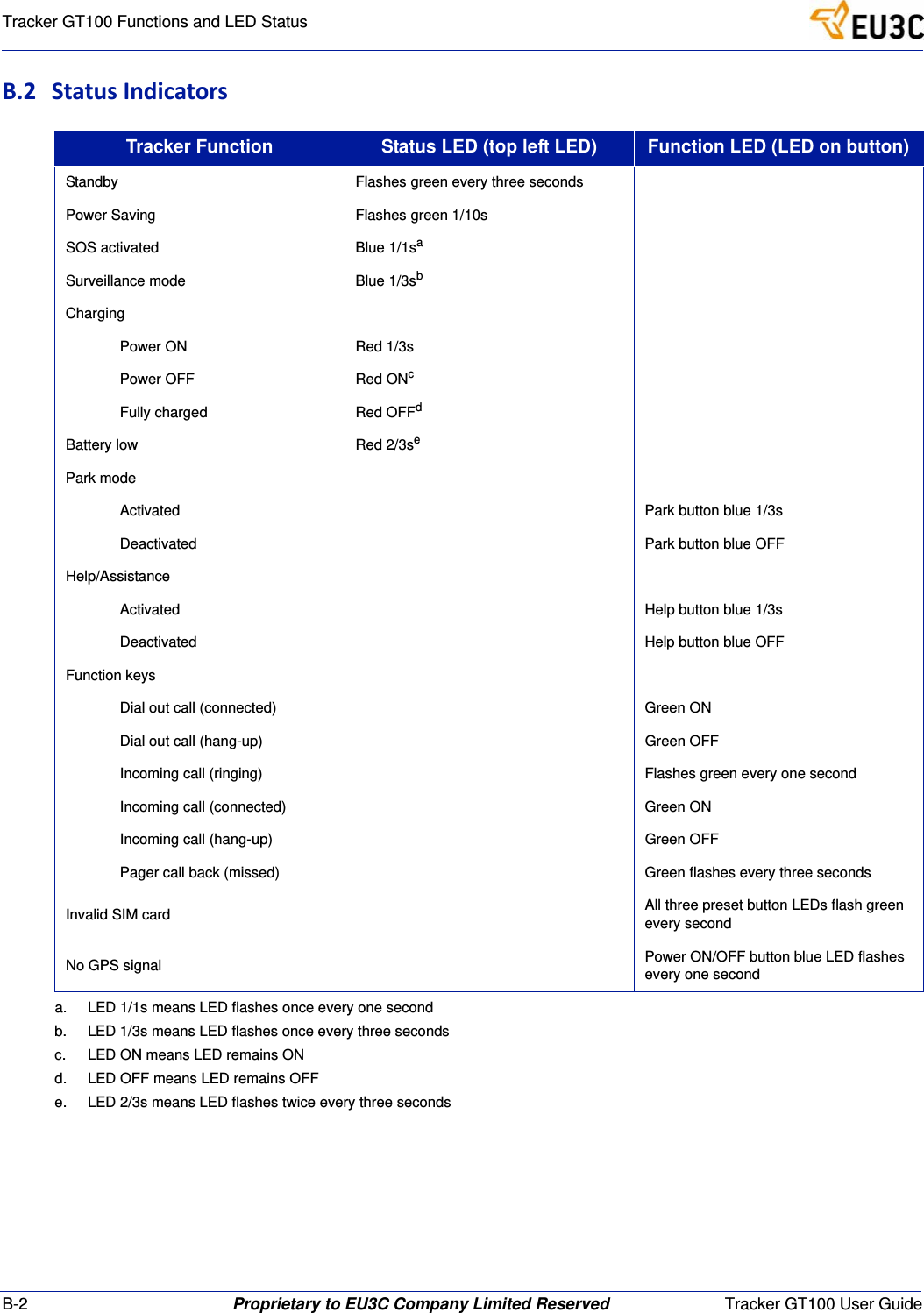
B-2 Proprietary to EU3C Company Limited Reserved Tracker GT100 User GuideTracker GT100 Functions and LED StatusB.2 StatusIndicatorsTracker Function Status LED (top left LED) Function LED (LED on button)Standby Flashes green every three secondsPower Saving Flashes green 1/10sSOS activated Blue 1/1saa.  LED 1/1s means LED flashes once every one secondSurveillance mode Blue 1/3sbb.  LED 1/3s means LED flashes once every three secondsChargingPower ON Red 1/3sPower OFF Red ONcc.  LED ON means LED remains ONFully charged Red OFFdd.  LED OFF means LED remains OFFBattery low Red 2/3see.  LED 2/3s means LED flashes twice every three secondsPark modeActivated Park button blue 1/3sDeactivated Park button blue OFFHelp/AssistanceActivated Help button blue 1/3sDeactivated Help button blue OFFFunction keysDial out call (connected) Green ONDial out call (hang-up) Green OFFIncoming call (ringing) Flashes green every one secondIncoming call (connected) Green ONIncoming call (hang-up) Green OFFPager call back (missed) Green flashes every three secondsInvalid SIM card All three preset button LEDs flash green every secondNo GPS signal Power ON/OFF button blue LED flashes every one second
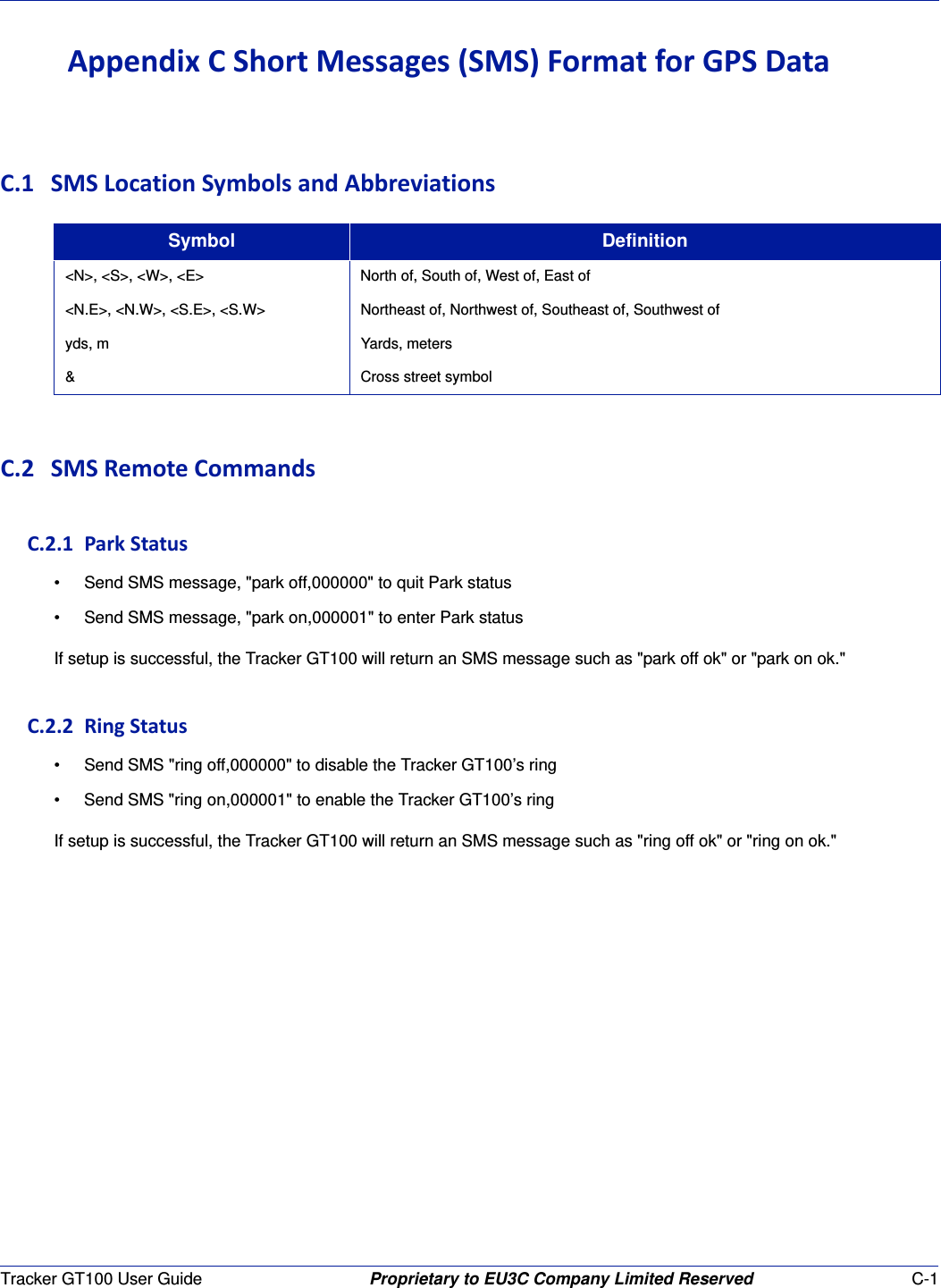
Tracker GT100 User Guide Proprietary to EU3C Company Limited Reserved C-1AppendixCShortMessages(SMS)FormatforGPSDataC.1 SMSLocationSymbolsandAbbreviationsC.2 SMSRemoteCommandsC.2.1ParkStatus• Send SMS message, "park off,000000" to quit Park status• Send SMS message, "park on,000001" to enter Park statusIf setup is successful, the Tracker GT100 will return an SMS message such as "park off ok" or "park on ok."C.2.2RingStatus• Send SMS "ring off,000000" to disable the Tracker GT100’s ring• Send SMS "ring on,000001" to enable the Tracker GT100’s ringIf setup is successful, the Tracker GT100 will return an SMS message such as "ring off ok" or "ring on ok."Symbol Definition<N>, <S>, <W>, <E> North of, South of, West of, East of<N.E>, <N.W>, <S.E>, <S.W> Northeast of, Northwest of, Southeast of, Southwest ofyds, m Yards, meters& Cross street symbol
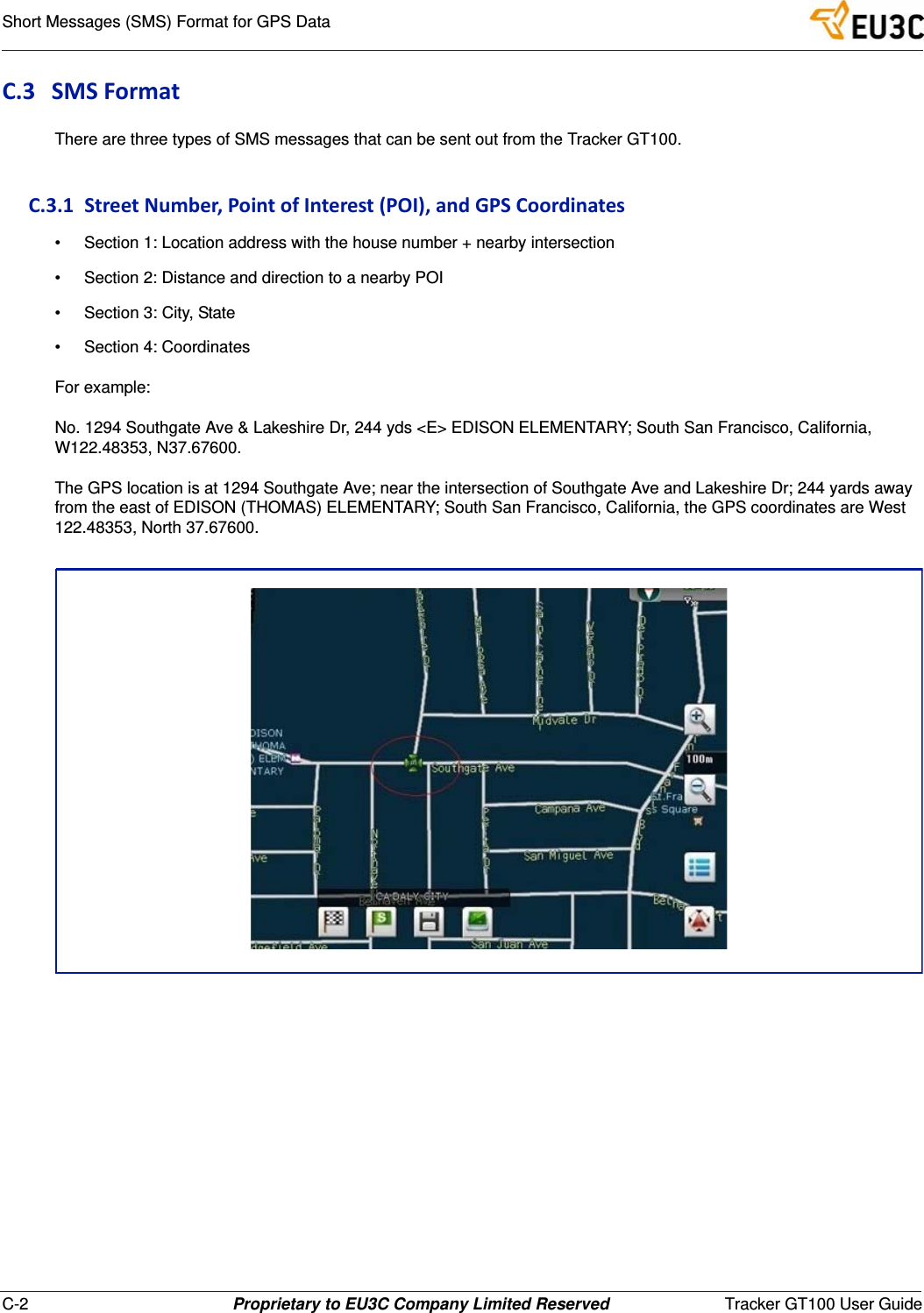
C-2 Proprietary to EU3C Company Limited Reserved Tracker GT100 User GuideShort Messages (SMS) Format for GPS DataC.3 SMSFormatThere are three types of SMS messages that can be sent out from the Tracker GT100.C.3.1StreetNumber,PointofInterest(POI),andGPSCoordinates• Section 1: Location address with the house number + nearby intersection• Section 2: Distance and direction to a nearby POI• Section 3: City, State• Section 4: CoordinatesFor example:No. 1294 Southgate Ave & Lakeshire Dr, 244 yds <E> EDISON ELEMENTARY; South San Francisco, California, W122.48353, N37.67600.The GPS location is at 1294 Southgate Ave; near the intersection of Southgate Ave and Lakeshire Dr; 244 yards away from the east of EDISON (THOMAS) ELEMENTARY; South San Francisco, California, the GPS coordinates are West 122.48353, North 37.67600.
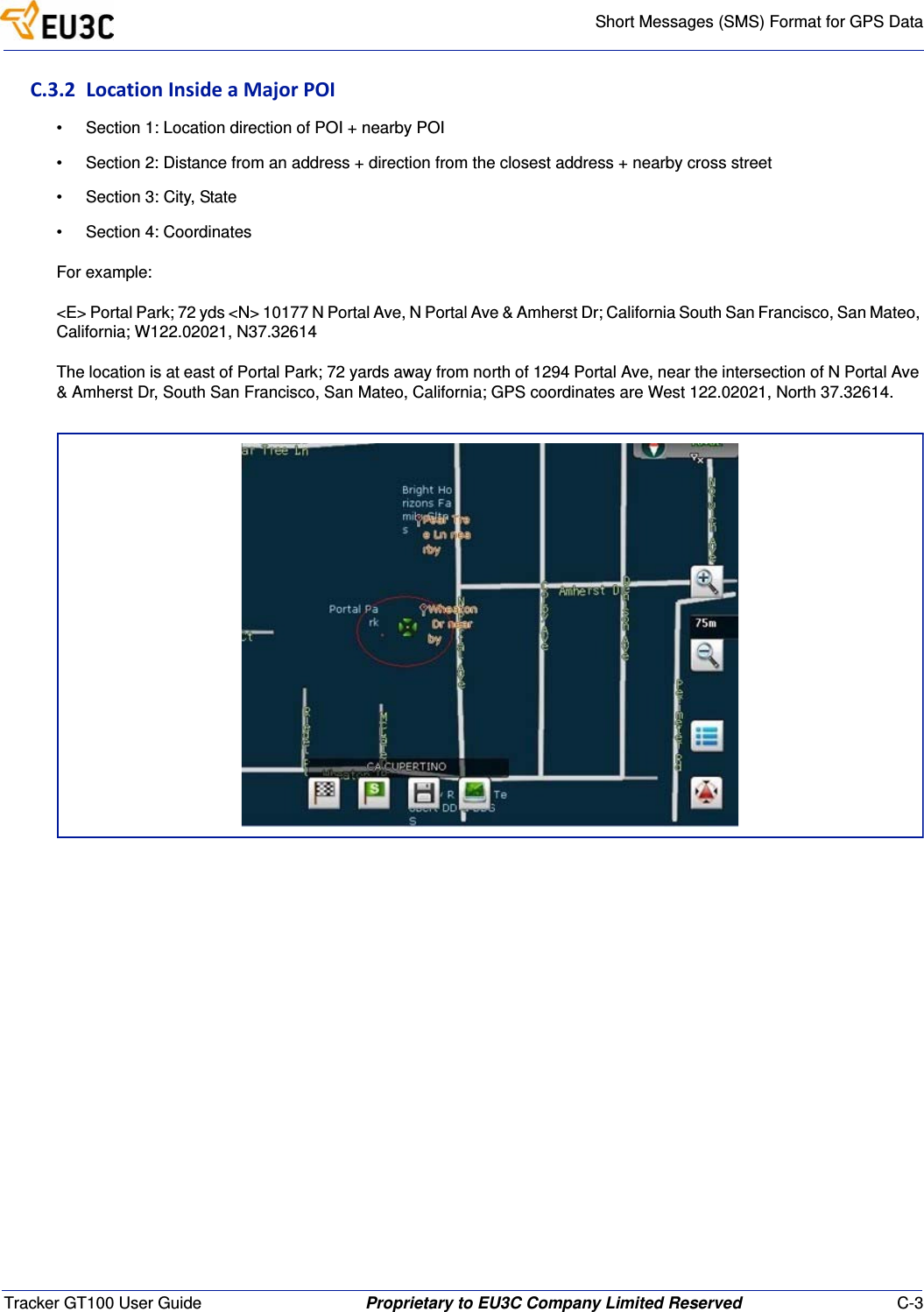
Short Messages (SMS) Format for GPS DataTracker GT100 User Guide Proprietary to EU3C Company Limited Reserved C-3C.3.2LocationInsideaMajorPOI• Section 1: Location direction of POI + nearby POI• Section 2: Distance from an address + direction from the closest address + nearby cross street• Section 3: City, State• Section 4: CoordinatesFor example:<E> Portal Park; 72 yds <N> 10177 N Portal Ave, N Portal Ave & Amherst Dr; California South San Francisco, San Mateo, California; W122.02021, N37.32614The location is at east of Portal Park; 72 yards away from north of 1294 Portal Ave, near the intersection of N Portal Ave & Amherst Dr, South San Francisco, San Mateo, California; GPS coordinates are West 122.02021, North 37.32614.
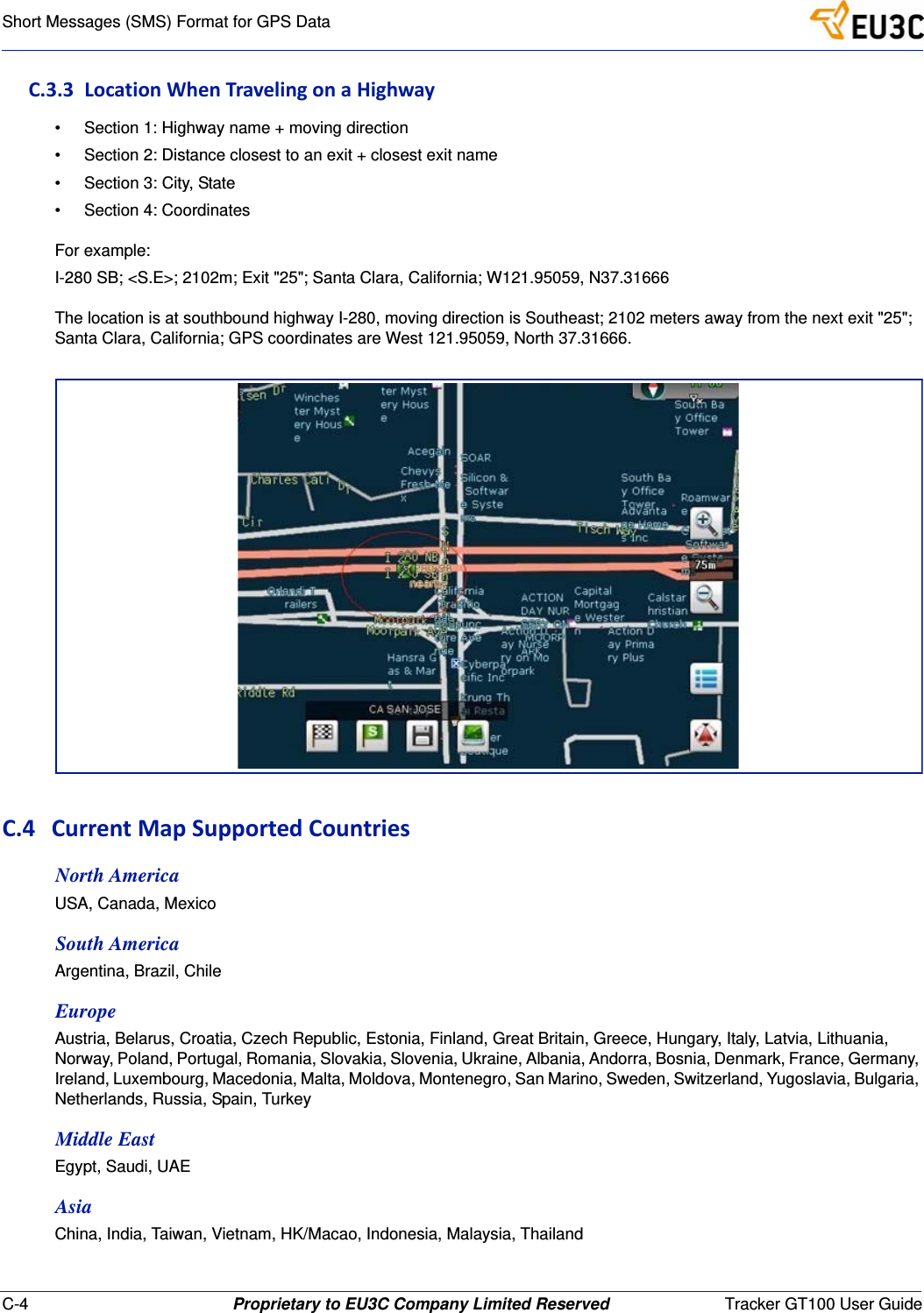
C-4 Proprietary to EU3C Company Limited Reserved Tracker GT100 User GuideShort Messages (SMS) Format for GPS DataC.3.3LocationWhenTravelingonaHighway• Section 1: Highway name + moving direction• Section 2: Distance closest to an exit + closest exit name• Section 3: City, State• Section 4: CoordinatesFor example:I-280 SB; <S.E>; 2102m; Exit "25"; Santa Clara, California; W121.95059, N37.31666The location is at southbound highway I-280, moving direction is Southeast; 2102 meters away from the next exit "25"; Santa Clara, California; GPS coordinates are West 121.95059, North 37.31666.C.4 CurrentMapSupportedCountriesNorth AmericaUSA, Canada, MexicoSouth AmericaArgentina, Brazil, ChileEuropeAustria, Belarus, Croatia, Czech Republic, Estonia, Finland, Great Britain, Greece, Hungary, Italy, Latvia, Lithuania, Norway, Poland, Portugal, Romania, Slovakia, Slovenia, Ukraine, Albania, Andorra, Bosnia, Denmark, France, Germany, Ireland, Luxembourg, Macedonia, Malta, Moldova, Montenegro, San Marino, Sweden, Switzerland, Yugoslavia, Bulgaria, Netherlands, Russia, Spain, TurkeyMiddle EastEgypt, Saudi, UAEAsiaChina, India, Taiwan, Vietnam, HK/Macao, Indonesia, Malaysia, Thailand

Navigation menu