EU3C SCND502B1232 PART 15 CLASS B COMPUTING PERIPHERAL User Manual
EU3C COMPANY LIMITED PART 15 CLASS B COMPUTING PERIPHERAL Users Manual
EU3C >
Users Manual
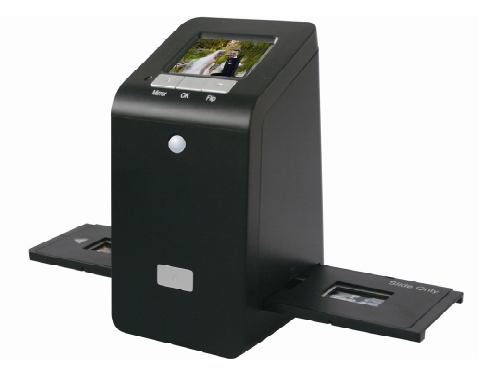
FS-II- 5M-2.4-TVout
-Patent pending-
User Manual
Version 1.05
April 2011
-1-
Index
I.UnpackFilmScan35‐II......................................................2
II.Installfilmintothefilmholder........................................3
III.QuickStart.......................................................................7
IV.OperationGuide............................................................12
V.Specification..................................................................32
-2-
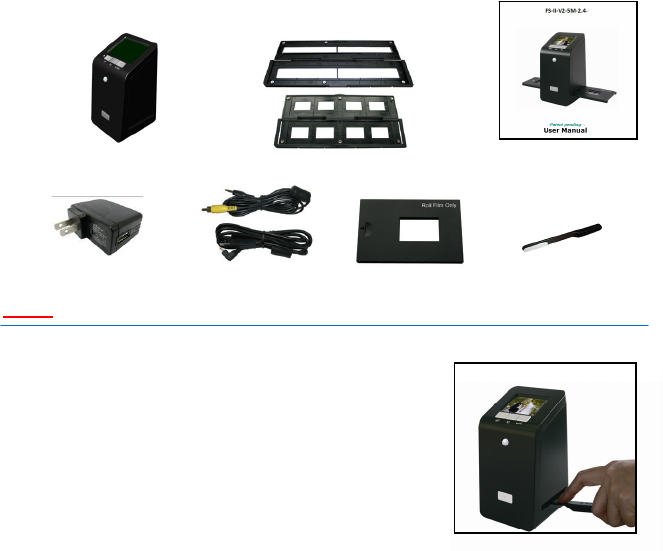
I.UnpackFilmScan35‐II
FS‐II‐V2‐5M‐2.4Negative/SlideFilmHolderUserManual
USBpowercoreUSB/VideocableRollFilmHolderCleanbrush
Note
Westronglysuggestusingaclean,dry,non‐alcoholcottonswabtocleantheglass
surfaceperiodicallytoproduceaclearimageduring
operation.
CleandustfromFilmScannerbacklight,tousetheclean
brushtowipethedust.
Dustordirtfromthenegative,slidefilmsandcovertrays
mayaffectthescannedimagequality,pleasemakesure
thematerialsarecleanedbeforeinsertingintothe
scanner.
Pleasefindrecommend,processionalpurgerfromphotostoretocleantheduston
filmsifanytoavoiddamagingtheonlyonecopyofoldfilms
-3-
II.Installfilmintothefilmholder
●
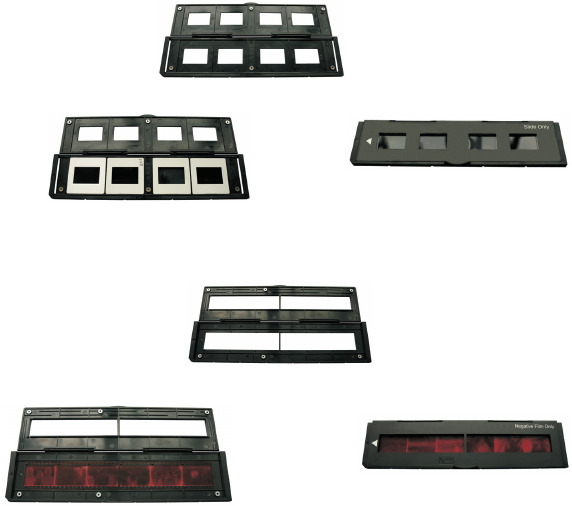
InstalltheSlideintoholder
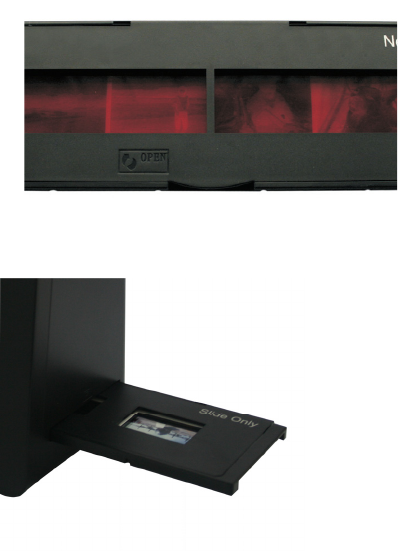
1.Opentheslideholderasillustrated
2.Putslideintopositiveslideslot 3.Closethefilmholder
●
InstalltheNegativeFilmintoholder
1.Openthefilmholderasillustrated
2.Installfilmintonegativefilmslot3.Closethefilmholder
-4-
●
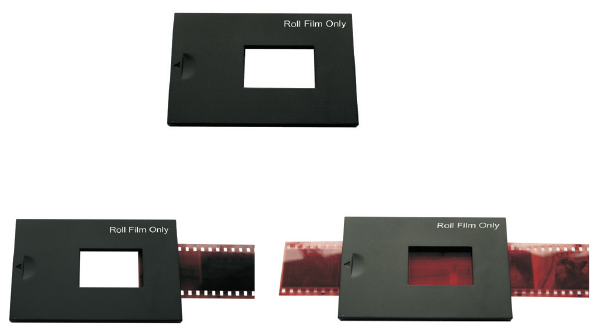
InstalltheRollFilmintoholder:
1.Takeouttherollfilmholderfrompackage
2.Insertrollfilmintofilmslot3.Pullouttherollfilminanotherside
-5-
Note
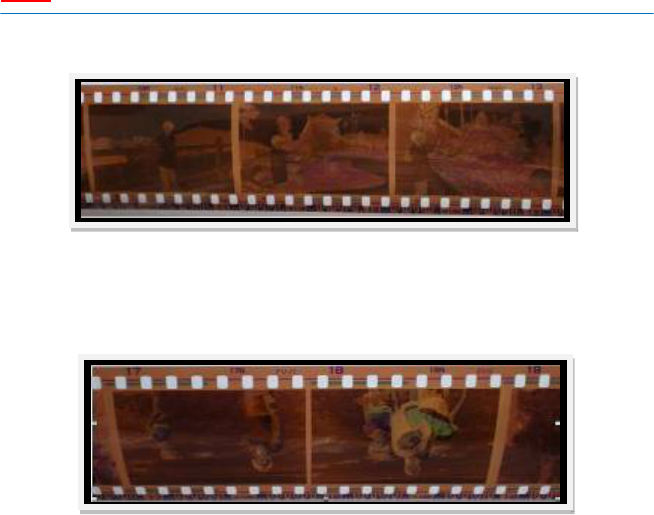
Toavoidmirrorimage,followtheserialnumbers(fromlefttoright)ontopoffilm
wheninstallnegativefilmintoholder
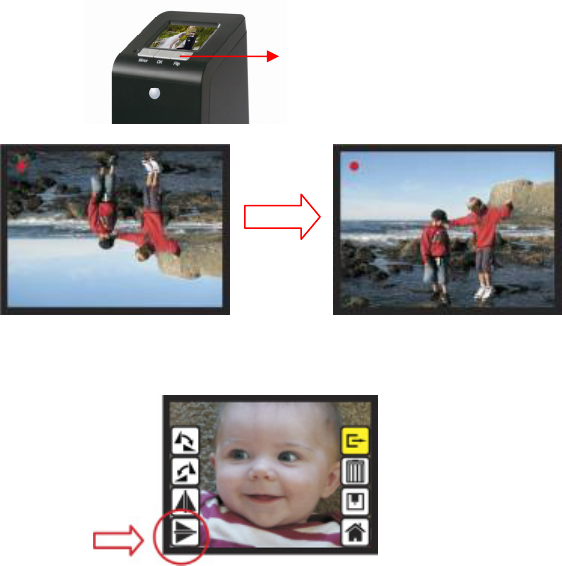
Iftheimageisupsidedown[seefig.2],theimagecanbecorrectedbyFlipfunctionin
hardkeyofdevicebeforecapture,orenterplaybackeditmenuaftercapture[see
fig.3.4].
Figure1
Figure2
-6-
●
Presshardkeyontopofdeviceinliveview
Figure3
●
Playbackmodemenu
Figure
Down/Flipbutton
(Fliphardkey)
Flip
-7-
III.QuickStart
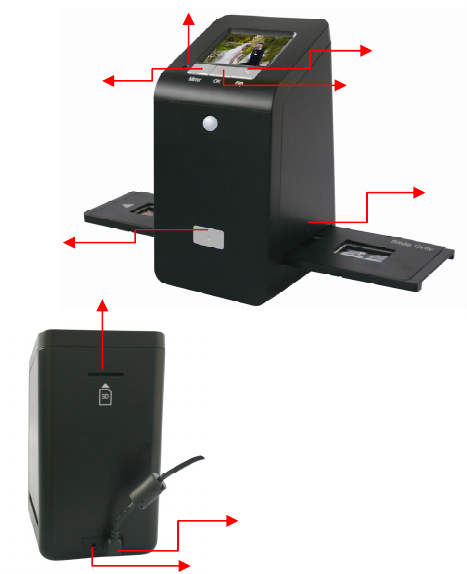
Up/Mirrorbutton
FilmSlot
OKbutton
SDcardSlot
Down/Flipbutton
USBport
TVoutjack
PowerstatusLED
Powerbutton
-8-
1.PutFilmontothefilmcartridge
2.InsertthefilmcartridgeintoFilmScan35‐II
-9-
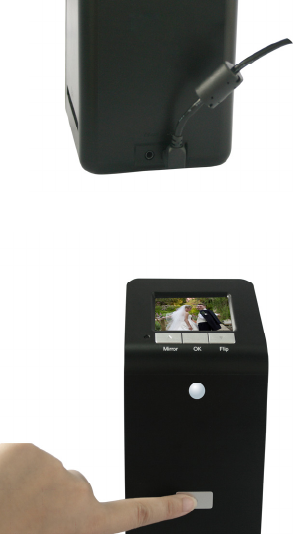
3.ConnectUSBcabletoFilmScan35‐II
4.TurnonDevicebypowerbutton
-10-
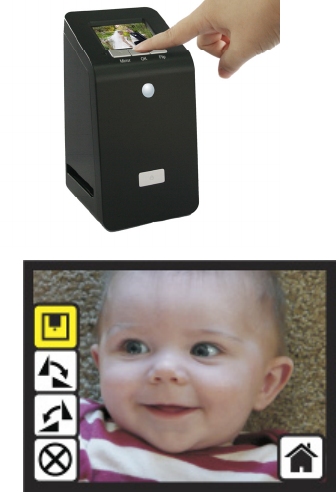
5.PressOKbuttontocapturetheimage
6.Followthemenuondisplayforscanning
-11-
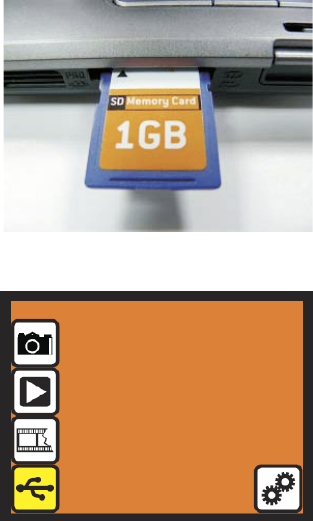
7.Afterfinishedthecapture,takeouttheSDcardwhichstoredcapture
images
8.OrreadpicturefromPCbyMSDCmode
-12-
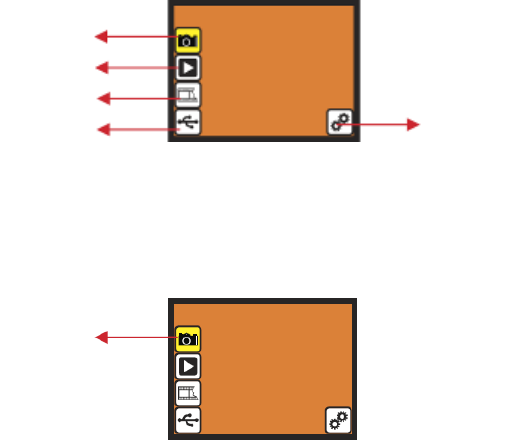
IV.OperationGuide
Home:Mainmenu
● Capture:capturemode(default)
● Playback:playbackmode
● FilmType:definethefilmtypewhichloadedincartridge
● USBmode:MSDC(MassStorageDeviceClass)mode
● Setting:TVoutandformatoption
1.Capture
Afterwelcomepage,abovemenuwillremainsfor5sec.Usercanpressup/downbutton
fordesiredmenu.OrsystemwillautoenterCapturemodeifthereisnoactionduring
this5secondperiod.
Capture
Playback
FilmType
USBmode Setting
Capture
-13-
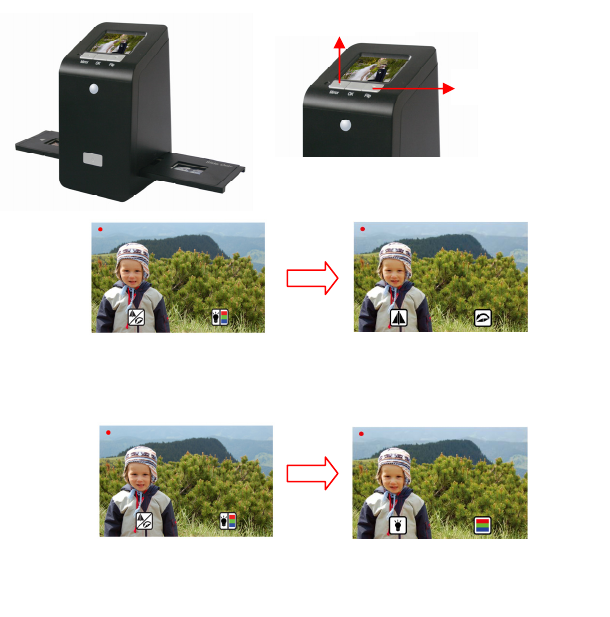
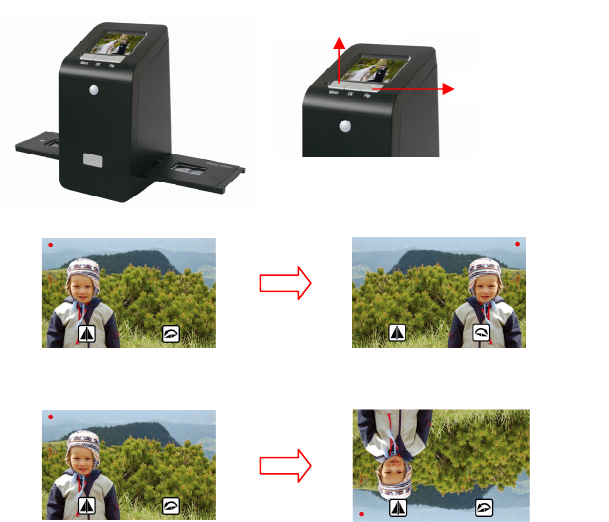
1.1Capture:Mirror/Flip(HardKey)
● PressUp/Mirrorbuttontochangeimagelefttoright
● PressDown/Flipbuttontoupsidedownimage
Up/Mirrorbutton
Down/Flipbutton
<Mirro>
<Flip>
-14-
1.2Capture:<Up>/<Mirror>‐Flip/Mirror(HardKey)
●
Press<Up>buttontochangeimagelefttoright
●
Press<Down>buttontoupsidedownimage
Up/Mirrorbutton
Down/Flipbutton
<OK> GoBackto
1.1Capture
button
Up/ Mirror button
<Mirro>
<Flip>
-15-
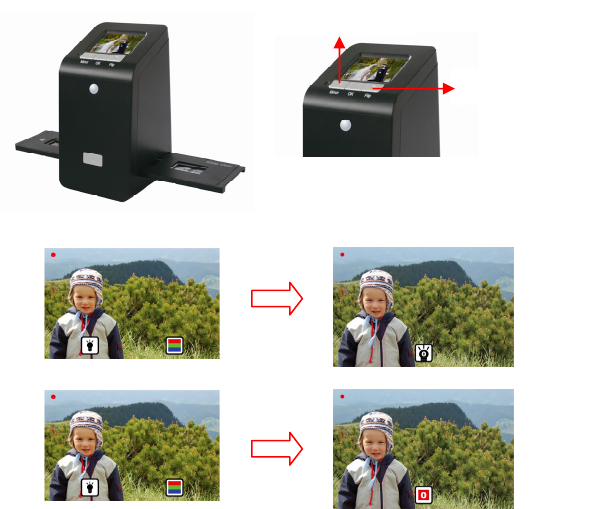
1.3Capture:<Up>/<Mirror>‐Brightness/Color(HardKey)
●
Press<Up>buttontoenterBrightnessadjustment(SeeChapter1.4)
●
Press<Down>buttontoenterColoradjustment(SeeChapter1.5)
Up/Mirrorbutton
Down/Flipbutton
<Mirro>
<Flip>
-16-
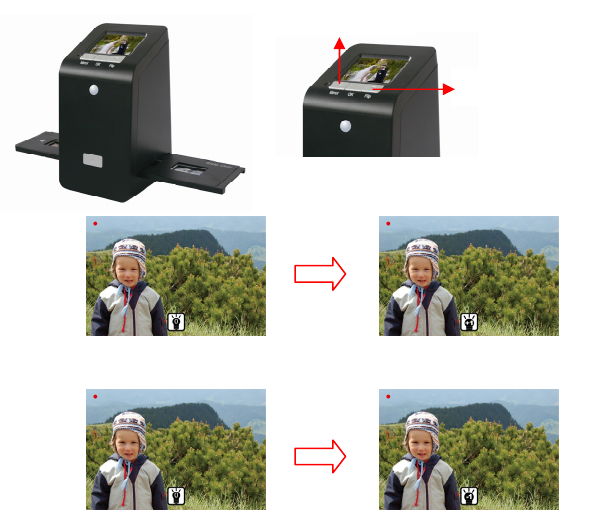
1.4Capture:<Up>/<Mirror>‐Brightness(HardKey)
●
Press<Up>buttontoincreaseBrightnesswithrangesof‐3to3
●
Press<Down>buttontodecreaseBrightnesswithrangesof‐3to3
Up/Mirrorbutton
Down/Flipbutton
<Mirro>
<Flip>
-17-
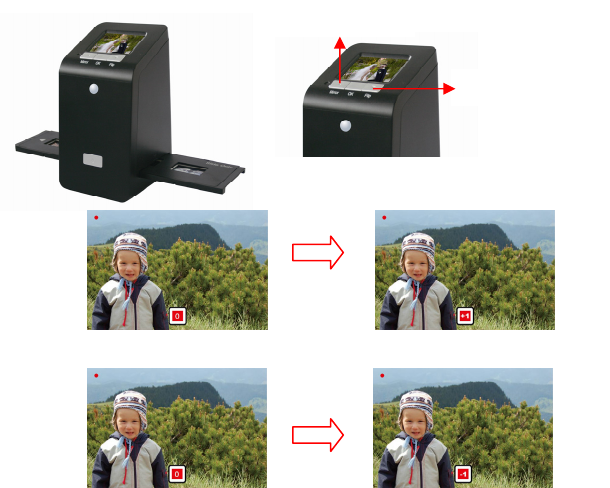
1.5Capture:<Up>/<Mirror>‐ColorRed(HardKey)
●
Press<Up>buttontoincreaseredcolorwithrangesof‐3to3
●
Press<Down>buttontodecreaseredcolorwithrangesof‐3to3
Up/Mirrorbutton
Down/Flipbutton
<Mirro>
<Flip>
-18-
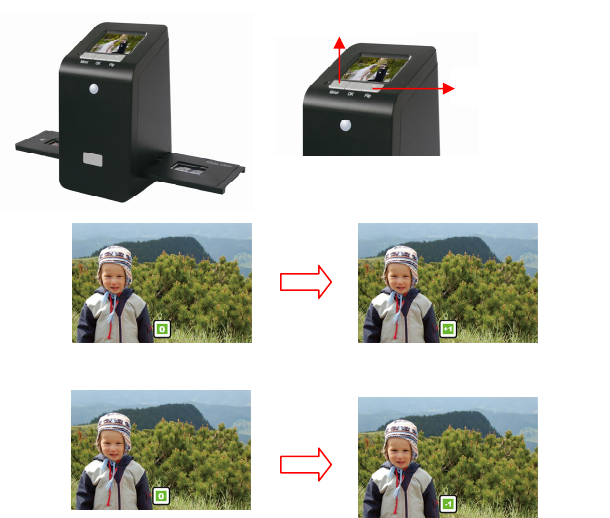
1.6Capture:<Up>/<Mirror>‐ColorGreen(HardKey)
●
Press<Up>buttontoincreasegreencolorwithrangesof‐3to3
●
Press<Down>buttontodecreasegreencolorwithrangesof‐3to3
Up/Mirrorbutton
Down/Flipbutton
<Mirro>
<Flip>
-19-
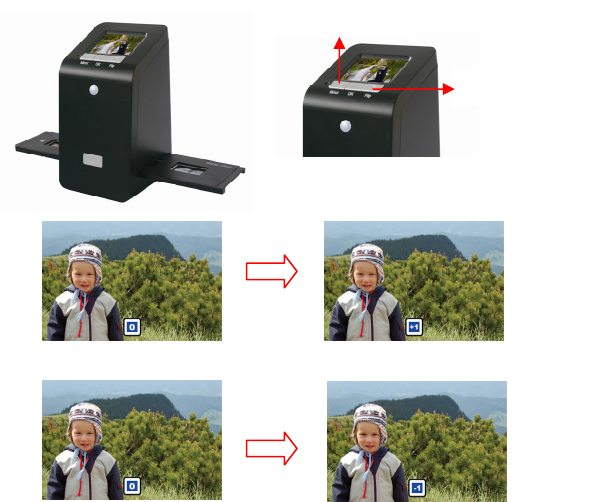
1.7Capture:<Up>/<Mirror>‐ColorBlue(HardKey)
●
Press<Up>buttontoincreasebluecolorwithrangesof‐3to3
●
Press<Down>buttontodecreasebluecolorwithrangesof‐3to3
Up/Mirrorbutton
Down/Flipbutton
<Mirro>
<Flip>
-20-
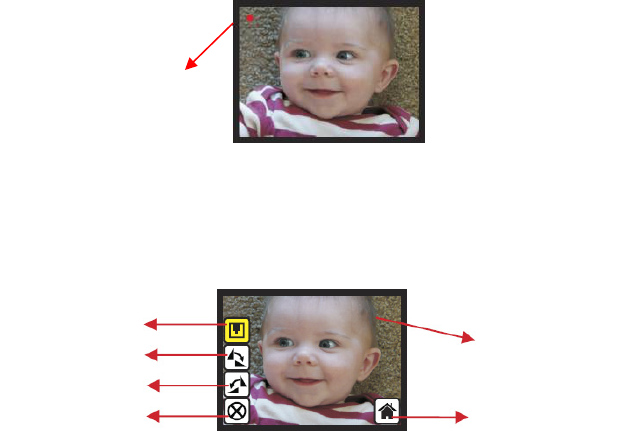
1.8Capturemode
Onceentercapturemode,therewillbearedindicatoronlefttopcornertoindicateitis
inliveviewmode.Whenthefilmcartridgeisinsertedintothescannerslot,theimage
alwaysshowsthepositiveimageaccordingtopreviousdefinedFilmType(afterpower
on.theFilmTypeisdefaulttonegativefilm).Reconfirmthefilmpositionthroughthe
displaybeforepressOKbutton.
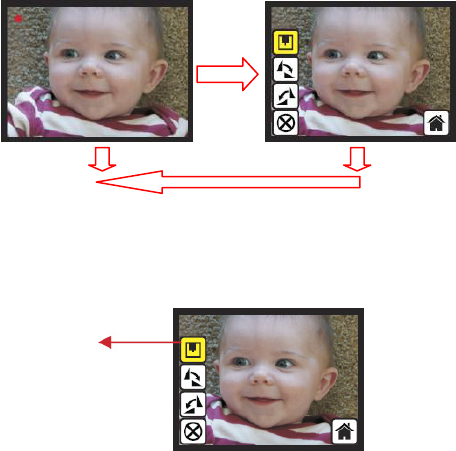
1.9Capture:EditMenu
● Save:savecapturedimage
● Rotate+90:continuerotate+90degrees
● Rotate‐90:continuerotate‐90degrees
(thisisforadjustingtheuserwhotooktheportraitpicture)
● Cancel:cancelanyeditingwiththisimage
● Home:Backtomainmenu
Liveviewindicator
(
flashin
g
at0.5secrate
)
Save
Rotate+90
Cancel
Rotate‐90
Home
Selectedima
g
e
-21-
1.10LiveView‐>Capture/EditMenu
LiveViewCapture/EditMenu
OK
OK
OncepressOKbuttoninliveview,theeditmenuwillbeappeared.WhenuserpressOK
buttonagain,thecurrentimagewillbesavedintoSDcard.Thedisplaywillreturntolive
viewagain.
1.11Capture:Save
OnceuserpressOKbuttonontopofFilmScan35‐II,preview(liveview)imagewillbe
selectedandshownontheTFTwhichwilltakebetween3‐4secondwith4iconsshown
ontheleftsideofthescreen.Saveiconwillbehighlightedforusertoconfirmthesaving
byOKbutton.Aftertheabovestep,displaygoesbacktoliveviewmode(preview)
Save
-22-
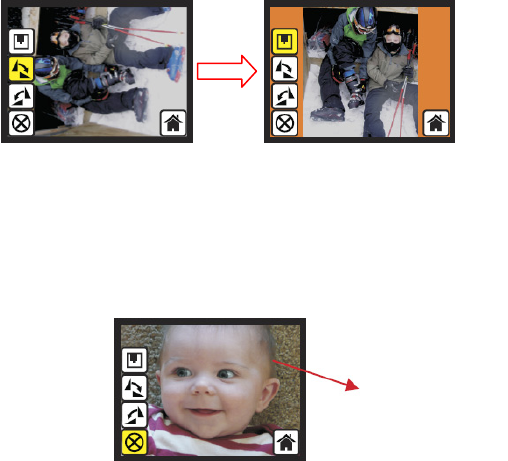
1.12Capture:Rotate+/‐90degree
Usercanapplytheup/downbuttonforfurtherediting(rotate+90/‐90).Onceuser
confirmrotate+90degrees,theycanpresstheOKbutton,theimagewillberotate+90
degreesandcursorwillremainatSave.PressOKbuttonagainwillsavetherotated
imagetoSDcardandscreenwillreturntoliveview.Forcontinuouslyrotate+90degrees,
movecursortorotateagainandpressOK.
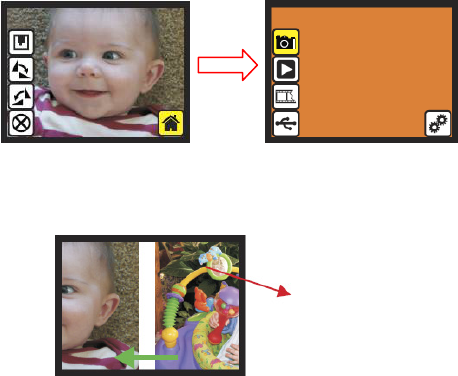
1.13Capture:Cancel
OrselectCancelandpressOKbuttontocancelanyoftheeditingstepwithpresent
selectedimageandFilmScan35‐IIgoestoliveviewmode(nothingwillbesavedontothe
SDcard).
OK
Playback
/capturedimage
-23-
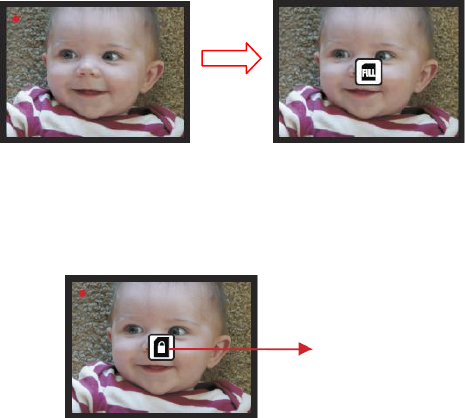
1.14Capture:Home
Gobacktomainmenu,pressOKbuttonwhenselectHomeicon.
1.15ExitfromEditmodebacktoCapturemode(LiveView)
OnceUserpressesOKbuttonforsaveorcanceloption,displaywillreturntocapture
mode/liveview.Then,usercanmovethefilmcartridgetonexttargetfilmtocapture.
Nextimagein
filmcartridge
OK
-24-
1.16Memoryfull
OncetheinternalmemoryorSDcardisfull,usercanseeaSDcardfulloncepressOK
button.UserhastodownloadtheimagestoPCorreplaceanotherSDcardforcontinue
capture.
1.17SDcardlocked
IftheSDwaslocked,oncepresstheOKbutton,aSDCardlockedicondisplaysonscreen.
PleasedoslidetheswitchofSDcardtounlockbeforeinsertintodevice.
OK
SDcardlocked
indicator

-25-
1.18SDcarderror
IfscannercannotdetectSDcardingoodcondition,awarningiconwithquestionmark
willbeshownondisplay.PleasetrytoformattheSDcardorreplaceanotherproperSD
cardforcontinuefurtheroperation.(RefertoSettingsectiononpage31.)
FULL
SDcarderror
indicator
-26-
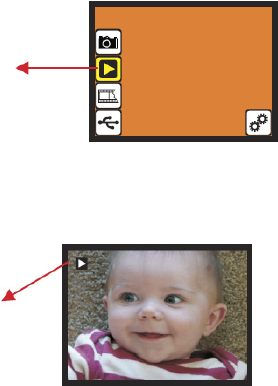
2.Playback
Playback
PressDownbuttontoPlaybackmodewhenpoweronFilmScan35‐IIoraccessthemain
menubyHomeiconifduringoperation.PressOKbuttontoconfirmtheselection.
2.1Playback:AutoSlideShow
Slideshowmode
Onceuserenterplaybackmode(defaulttoslideshow),2.4TFTwillautodisplayall
imagesstoredinSDcardwith2secondsintervalfrompreviouscapturedimage.Usercan
alsostoptheslideshowmodebypressOKbutton.
-27-
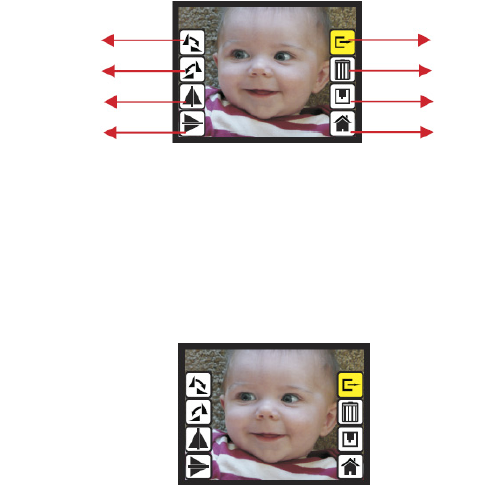
2.2Playback:EditMenu
● Rotate+90:capturedimagerotate+90degrees
● Rotate‐90:capturedimagerotate‐90degrees
● Mirror:changeimagelefttoright
● Flip:upsidedownimage
● Exit:returnstoSlideshow
● Delete:deletethispicturestoredinSDcard
● Save:savethemodifiedimageontoSDcard
● Home:returnstomainmenu
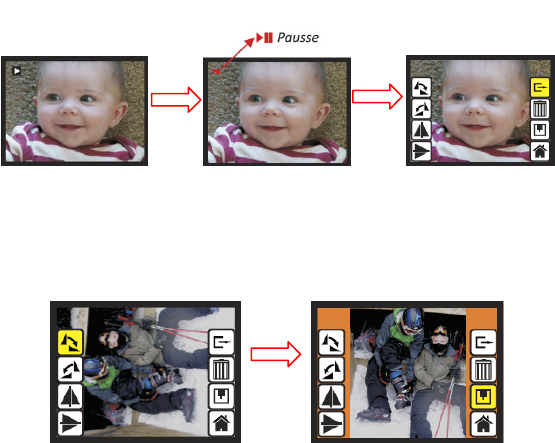
2.3Playback:Slidemode‐>Editmode
Usercaninterrupt(stop)theslideshowmodetostandaloneplaybackmode(single
pictureplayback)bypressOKbutton.(Pauseslideshow)Thenuserisabletoscrolleach
picturebyup/downbutton.OnceuserselectthepicturestoredinSDcardwhich
intendedtobemodified,thenuseOKbuttonagaintobringouttheeditmodefor
modification
Save
Hom
Rotate+90 Exit
Delete
Rotate‐90
Mirror
Fli
p
-28-
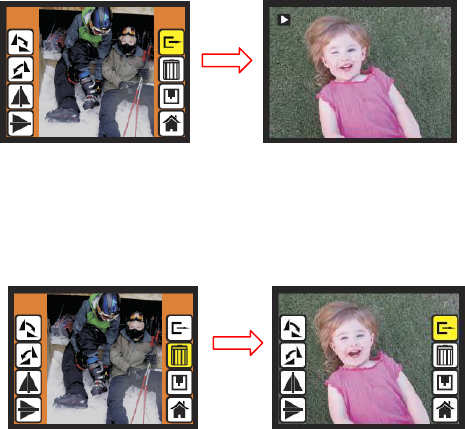
2.4SlideShow‐>Singlepicture‐>Editmode
SlideshowmodeEditmode
2.5Playback:Rotate/Mirror/Flip/Save
IfuserwantstoRotate+90degreesbyOKbutton,theimagewillberotate+90degrees
andcursorwillremainsatSave.PressOKbuttonagaintosavemodifiedresultandnext
picturewillbeshown(N+1).ForcontinuouslyRotate+90degrees,movecursortoRotate
againandpressOK.(SameforRotate‐90,Mirror,andFlipfunction
Pausse
OK OK
Singlepicturemode
UseUp/Downbutton
toscrollpicturetobemodified
OK
-29-
2.6Playback:Exit
OnceuserselecttheEXITfunctionineditmenu,thedisplaywillgobacktoslideshow
startingwiththecurrentpictureininternalmemoryorSDcardwithoutsavingany
changeofpresentpicture
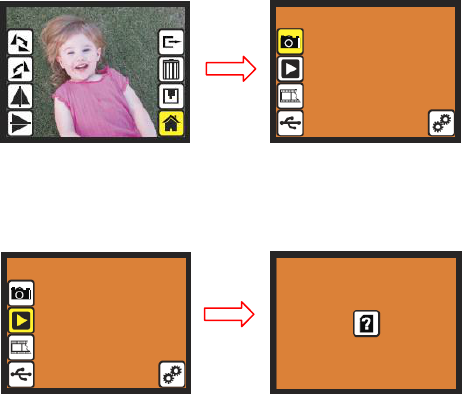
2.7Playback:Delete
Deletewilldeletethepresentselectedpictureandnextpicturewillbeshown(N+1).
CursorgoestoExiticon.Ifuserintendtoprocesscontinuouslydelete,justmoveto
deleteiconagainandpressOKtoconfirm.
OK
OK
-30-
2.8Playback:Home
Gobacktomainmenu,pressOKbuttonwhenselectHomeicon
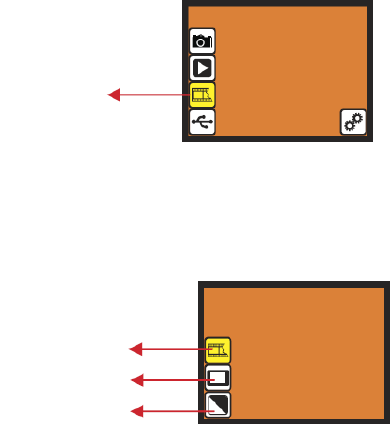
2.9Playback:NoPicture
Ifthere’snopictureinsideinternalmemoryorSDcardwhenenterplaybackmode,aNo
picturesymbolwillshowondisplay.
OK
OK
-31-
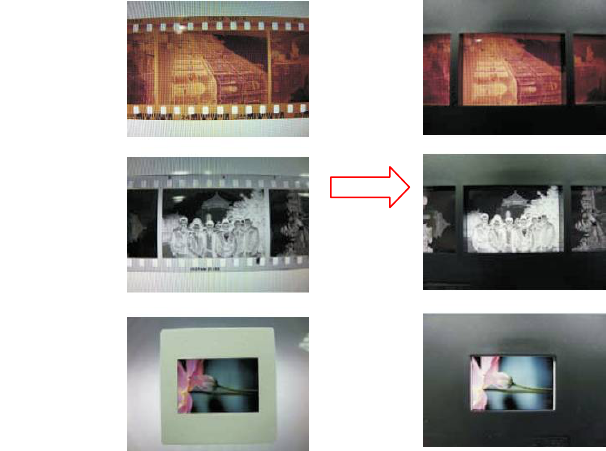
3.FilmType
FilmType
ChangefilmtypedefinitionbyenterFilmTypemenuwhenpoweronFilmScan35‐IIor
accessthemainmenubyHomeiconifduringoperation.PressdownbuttonforFilm
TypeandpressOKtoconfirm.
3.1FilmType:SelectFilmType
● Negativefilm:selectNegativefilmwhencartridgeloadedwithnegativefilm
● Slide:selectSlidetypewhenloadslideinholder
● B&Wfilm:selectB&WwhencartridgeloadedwithBlack&Whitenegativefilm
Slidefilm
B&WNegative
ColorNegative
film
-32-
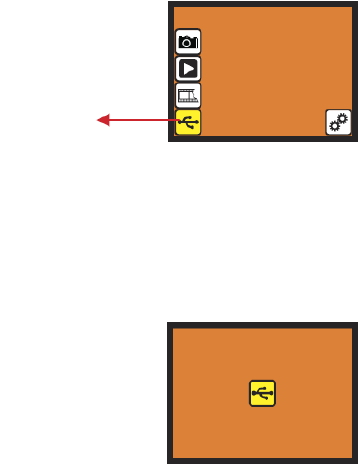
3.2FilmType:Example
ColorNegative
film
B&W
Negativefilm
Slide
Loaded
Into
Cartridge
-33-
4.USBMode
Afterfinishedcapture,usercandownloadthestoredimagesfrominternalmemoryor
SDcardtoPCbyselectingUSBmode.PressOKbuttonwhenconnectUSBcabletoPC,
FilmScan35‐IIbecomesamassstoragedevice.UsercanrevieworeditimagesoncePC
detectedtheexternalstoragedevice.OrjusttakeouttheSDcardfromdeviceintoPCto
readtheimagesdirectly.
4.1USBMode:Status
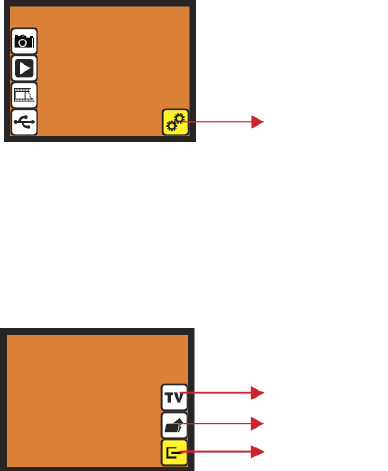
OnceuserselectUSBmode,FilmScan35‐IIbecomesamassstoragedeviceandthena
statusiconshowsondisplay,thenusercanfindanexternalUSBdiskdevicefrommy
computerandreviewtheimagesininternalmemoryorSDcardwithPC.
USBmode
-34-
5.SettingMode.
ThesettingmodecoversTVoutandformatoption.UsercanconnectthedevicetoTV
andfinishtheoperationwithTVdisplay.Moreover,thescannedimagescanbeplayback
onTVdisplaytosharewithfamily.
IftheSDcardwasformattedbytheotherdevicesandnotreadablebyscanner,usercan
applytheformatfunctioninscannertocorrectrequiredformat.
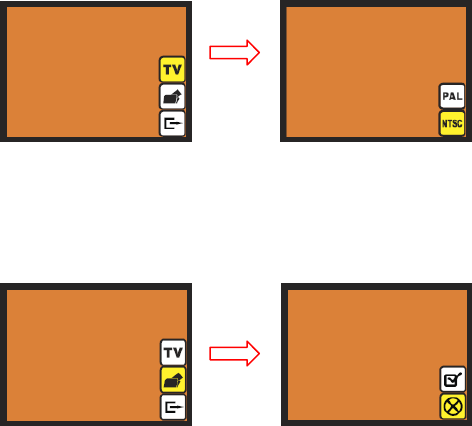
5.1SettingMode
● TVout:selectNTSCorPALaccordingtorequiredinterface
● Format:formatinternalmemoryorSDcard
● Exit:returnstomainmenu
Settingmode
TVout
Format
Exit
-35-
5.2Setting:TVout
WhenuserwanttoswitchthedisplayfromondeviceLCDtoTVdisplay,usercanconnect
devicetoTVandselectPALorNTSCasrequiredinTVoutmenubyOKbutton.Then,the
TVdisplaywillshowthesameoptionforscanningoperation.Ordirectlyenterplayback
modetoslideshowcapturedimagesonTV.
5.3Setting:Format
IftheinternalmemoryorSDcardrequiresformatbyscanner,usercanenterformat
modebypressOKbutton.Thedefaultsettingwillbecancelformat.UsercanpressOK
buttonagaintocanceltheformatorselectconfirmicontoconfirmformatthememory.
OK
OK

-36-
Note
Ifthere’snoSDcardinsidedevice,theinternalmemorywillbeformattedonceprocess
Format.Instead,ifSDcardisinsertedindevice,SDcardwillbeformatted.
Goodbyepage

-37-
V.Specification
ImageSensor:5megaCMOSsensor
Lens:Fno.=2.0,4Glasselements,
LCD:2.4’’ColorTFTLCD
Internalmemory:24MBNANDFlash(forsavingimages)
FocusRange:Fixedfocus
ExposureControl:Automatic
ColorBalance:Automatic
ScanQuality:1,800dpi
DataConversion:10bitspercolorchannel
ScanMethod:Singlepass
LightSource:Backlight(3whiteLEDs)
Interface:USB2.0,TV‐out(video3.5mmjack)
USBConfiguration:MassStorageDeviceClass/MSDC
Power:5Vadapter,orUSBpower
Dimensions:90x100.2x167.53mm
Weight:0.445kg
Externalmemory:SD/MMCcompatible
NOTE
THE MANUFACTURER IS NOT RESPONSIBLE FOR ANY RADIO OR TV INTERFERENCE
CAUSED BY UNAUTHORIZED MODIFICATIONS TO THIS EQUIPMENT. SUCH
MODIFICATIONS COULD VOID THE USER AUTHORITY TO OPERATE THE EQUIPMENT.
This equipment has been tested and found to comply with the limits for a Class B digital
device, pursuant to part 15 of the FCC Rules. These limits are designed to provide
reasonable protecon against harmful interference in a residenal installaon. This
equipment generates, uses and can radiate radio frequency energy and, if not installed
and used in accordance with the instrucons, may cause harmful interference to radio
communicaons. However, there is no guarantee that interference will not occur in a
parcular installaon. If this equipment does cause harmful interference to radio or
television recepon, which can be determined by turning the equipment off and on, the
user is encouraged to try to correct the interference by one or more of the following
measures:
- Reorient or relocate the receiving antenna.
- Increase the separaon between the equipment and receiver.
- Connect the equipment into an outlet on a circuit different from that to which the
receiver is connected.
- Consult the dealer or an experienced radio/TV technician for help.
- Modificaons not expressly approved by the manufacturer could void the user's
authority to operate the equipment under FCC rules.
-38-