EU3C SCND902H1235 FilmScan35 II-Professional-2.4 User Manual

EU3C COMPANY LIMITED FilmScan35 II-Professional-2.4

User Manual

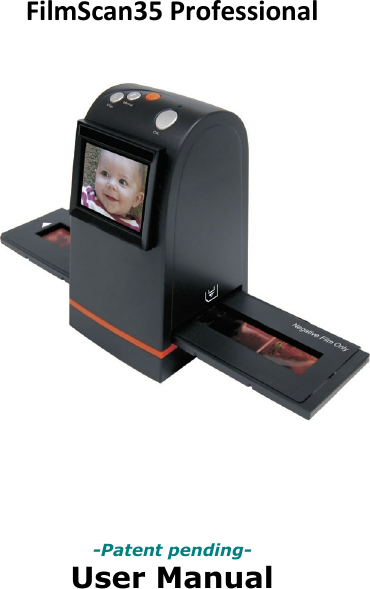
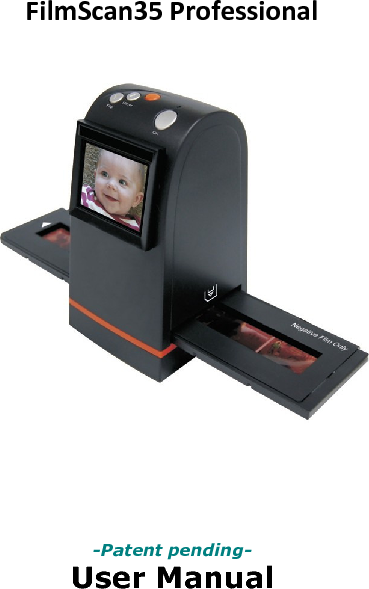
FilmScan35 Professional                  -Patent pending- User Manual
                              Version 1.01 April 2010
Index I.     Unpack FilmScan35 Professional Scanner.............................2  II.    Install film into the film holder.............................................3   III.   Quick Start..........................................................................7  IV.   Operation Guide................................................................12  V.    Specification......................................................................37               -1-
I.     Unpack FilmScan35 Professional   FilmScan35 Professional          Negative/Slide Film Holder             User Manual   USB power core            USB/Video cable        Roll Film Holder        Clean brush Note   We strongly suggest using a clean, dry, non-alcohol cotton swab to clean the glass surface periodically to produce a clear image during operation.  Clean dust from FilmScanner back light, to use the clean brush to wipe the dust.  Dust  or  dirt  from  the  negative,  slide  films  and cover trays may affect the scanned image quality, please make sure the materials are cleaned before inserting into the scanner.  Please find recommend, processional purger from photo store to clean the dust on films if any to avoid damaging the only one copy of old films.    -2-
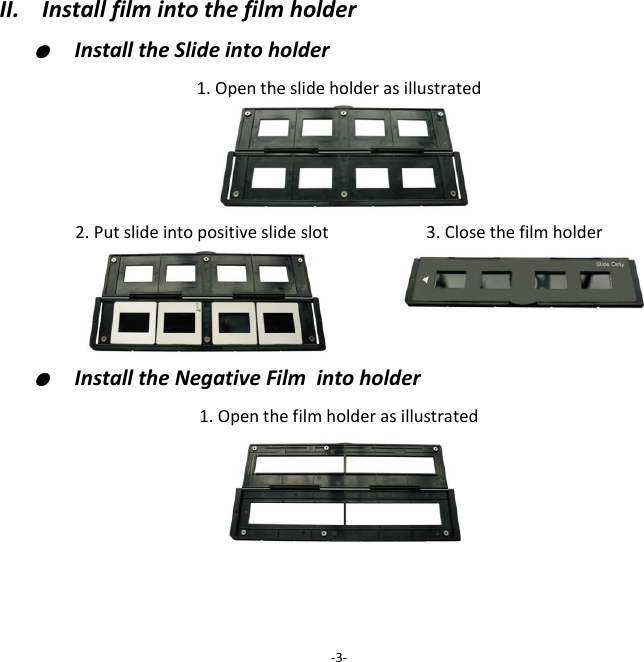
II.    Install film into the film holder ●  Install the Slide into holder 1. Open the slide holder as illustrated   2. Put slide into positive slide slot              3. Close the film holder   ●  Install the Negative Film  into holder 1. Open the film holder as illustrated     -3-
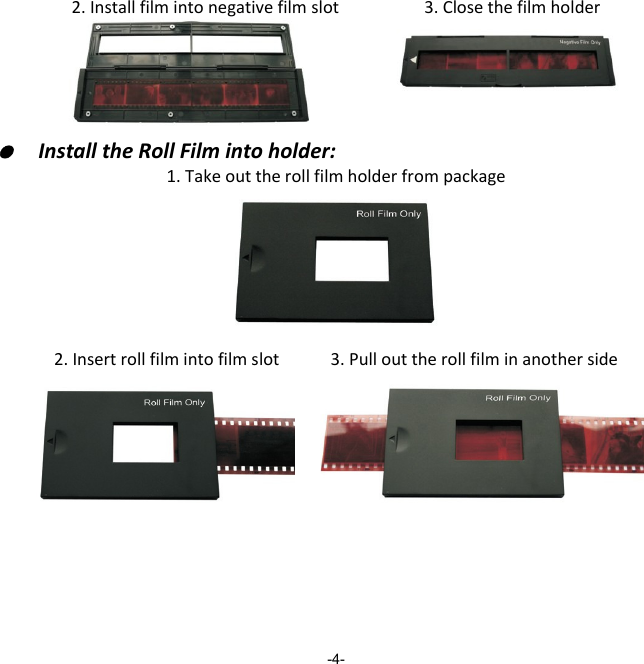
2. Install film into negative film slot                    3. Close the film holder   ●  Install the Roll Film into holder: 1. Take out the roll film holder from package        2. Insert roll film into film slot            3. Pull out the roll film in another side                 -4-
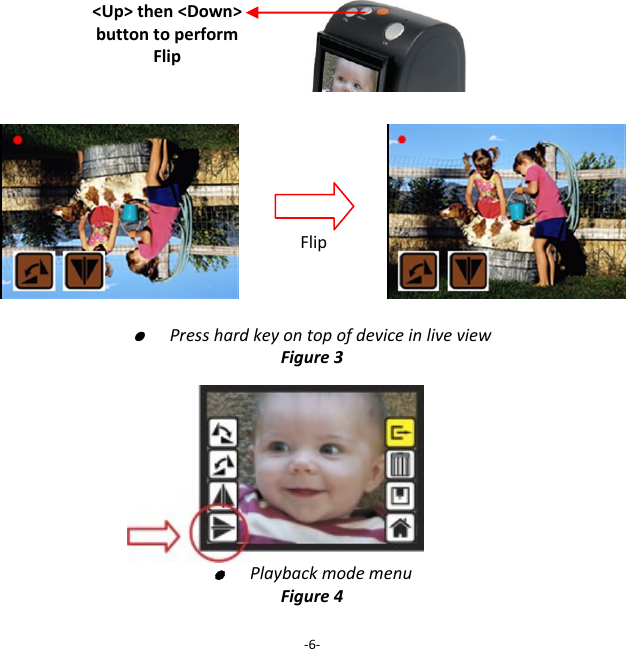
Note  To avoid  mirror image, follow the serial numbers (from left to  right) on top of film when install negative film into holder            If the image is upside down [see fig.2], the image can be corrected by Flip function in hard key  of  device  before  capture,  or  enter  playback  edit  menu  after  capture  [see fig.3 and fig.4].             -5- Figure 1 Figure 2
                            ●  Press hard key on top of device in live view Figure 3          ●  Playback mode menu Figure 4     -6- <Up> then <Down> button to perform Flip (Flip hard key) Flip
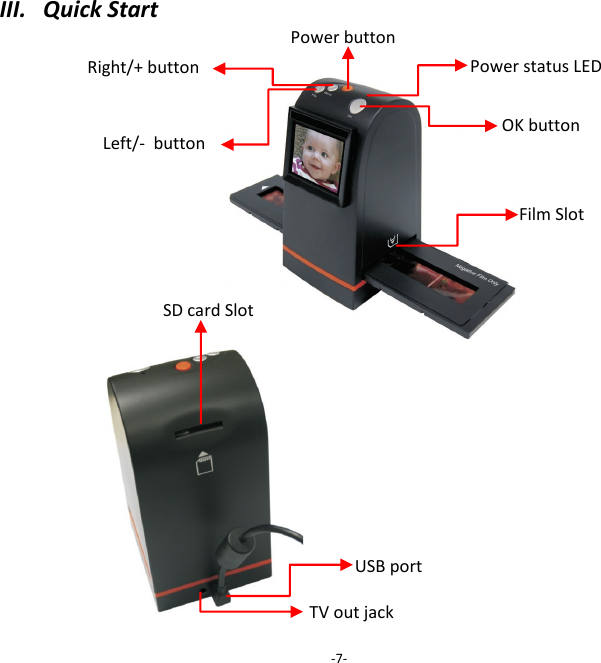
III.   Quick Start                            -7- Right/+ button Film Slot OK button SD card Slot Left/-  button Power button USB port TV out jack Power status LED
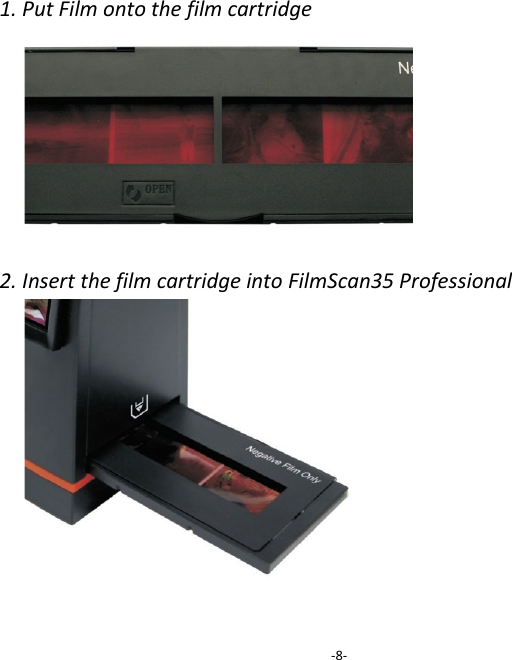
1. Put Film onto the film cartridge         2. Insert the film cartridge into FilmScan35 Professional               -8-
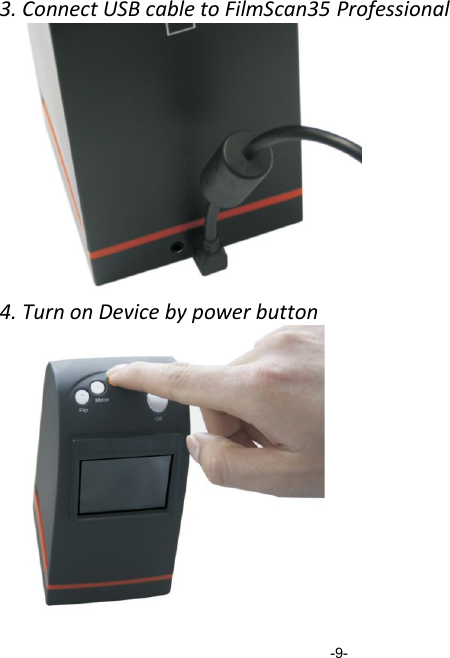
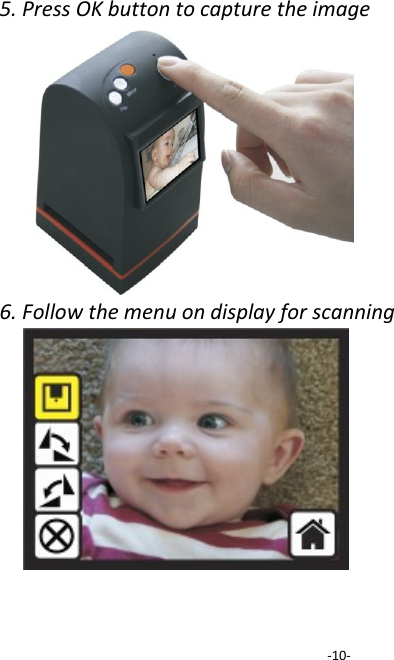
3. Connect USB cable to FilmScan35 Professional          4. Turn on Device by power button                    -9-
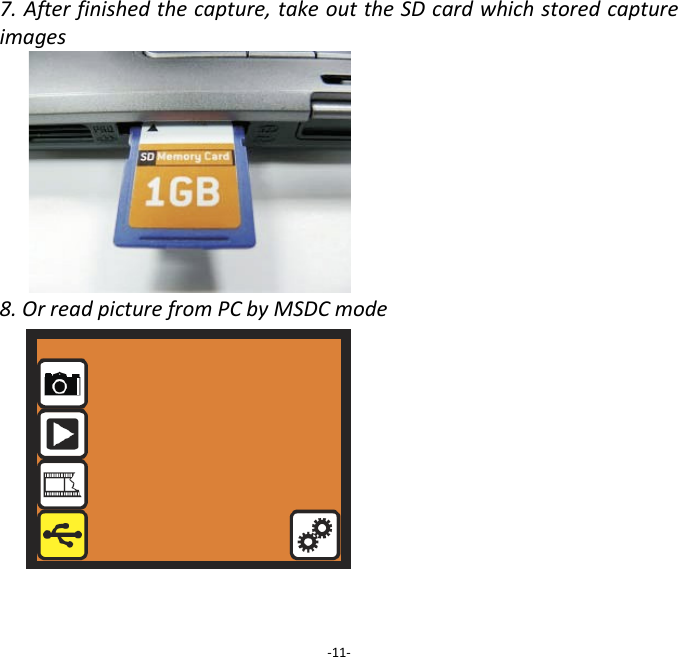
5. Press OK button to capture the image          6. Follow the menu on display for scanning                   -10-
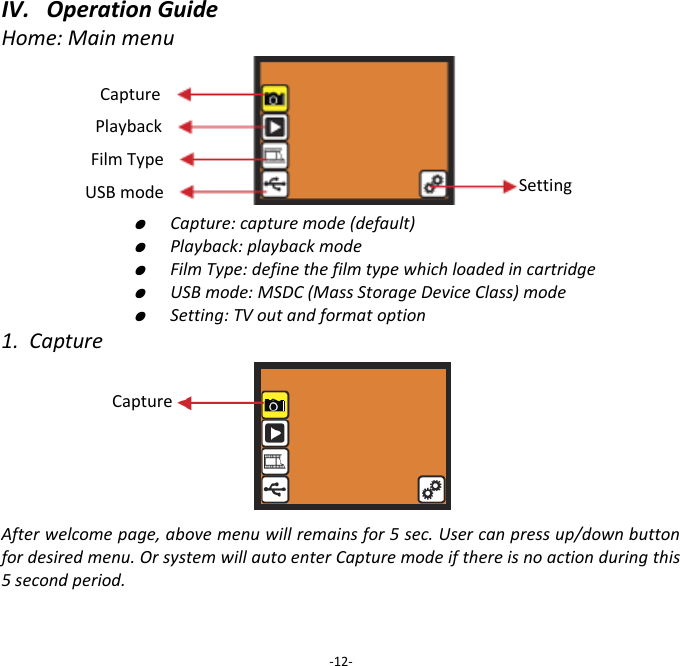
7. After finished the capture, take out the SD card which stored capture images         8. Or read picture from PC by MSDC mode             -11-
IV.   Operation Guide Home: Main menu                                                                                                 ●  Capture: capture mode (default)     ●  Playback: playback mode     ●  Film Type: define the film type which loaded in cartridge     ●  USB mode: MSDC (Mass Storage Device Class) mode     ●  Setting: TV out and format option 1.  Capture       After welcome page, above menu will remains for 5 sec. User can press up/down button for desired menu. Or system will auto enter Capture mode if there is no action during this 5 second period.   -12- Capture Playback Film Type USB mode Setting Capture
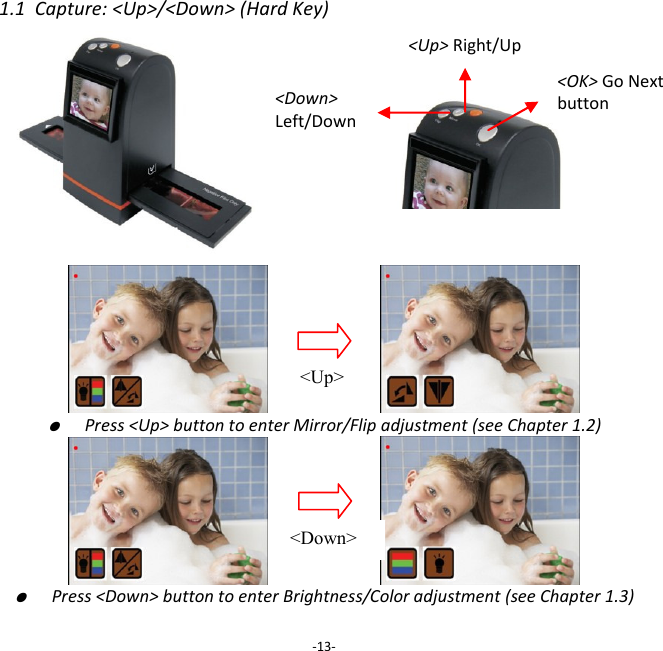
1.1  Capture: <Up>/<Down> (Hard Key)                               ●  Press <Up> button to enter Mirror/Flip adjustment (see Chapter 1.2)                       ●  Press <Down> button to enter Brightness/Color adjustment (see Chapter 1.3)  -13- <Up> Right/Up <Down>  Left/Down   <Up> <Down> <OK> Go Next button
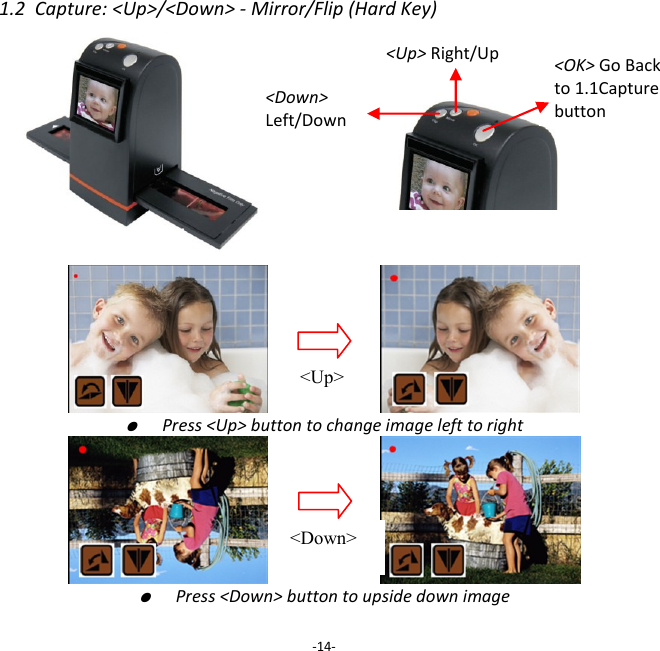
1.2  Capture: <Up>/<Down> - Mirror/Flip (Hard Key)                               ●  Press <Up> button to change image left to right                       ●  Press <Down> button to upside down image  -14- <Up> Right/Up <Down> Left/Down  <Up> <Down> <OK> Go Back to 1.1Capture button
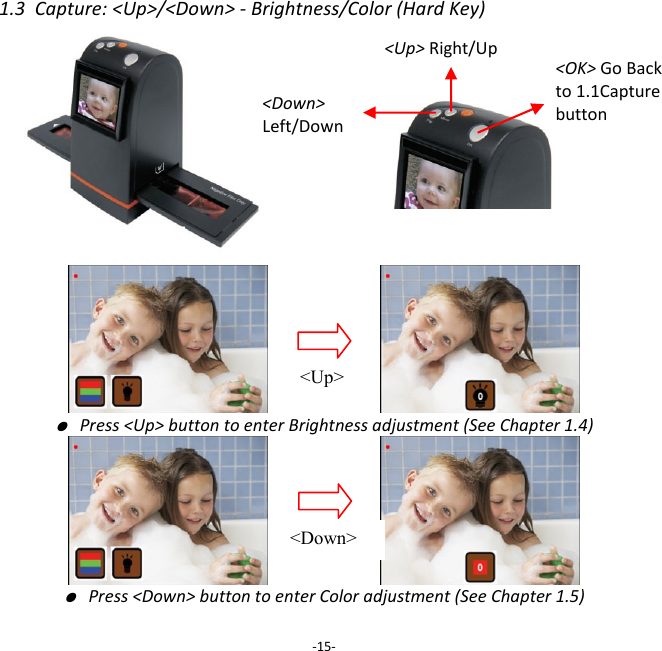
1.3  Capture: <Up>/<Down> - Brightness/Color (Hard Key)                               ● Press <Up> button to enter Brightness adjustment (See Chapter 1.4)                       ● Press <Down> button to enter Color adjustment (See Chapter 1.5)  -15- <Up> Right/Up <Down>  Left/Down <Up> <Down> <OK> Go Back to 1.1Capture button
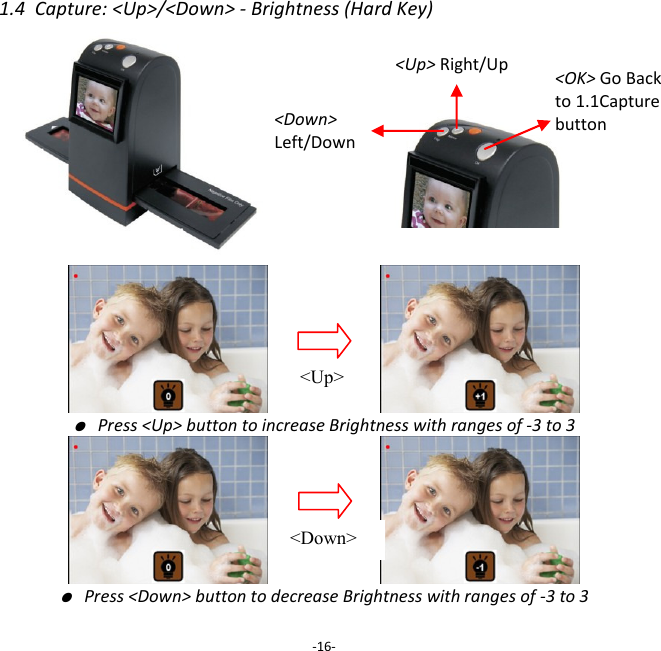
1.4  Capture: <Up>/<Down> - Brightness (Hard Key)                               ● Press <Up> button to increase Brightness with ranges of -3 to 3                       ● Press <Down> button to decrease Brightness with ranges of -3 to 3  -16- <Up> Right/Up <Down>  Left/Down  <Up> <Down> <OK> Go Back to 1.1Capture button
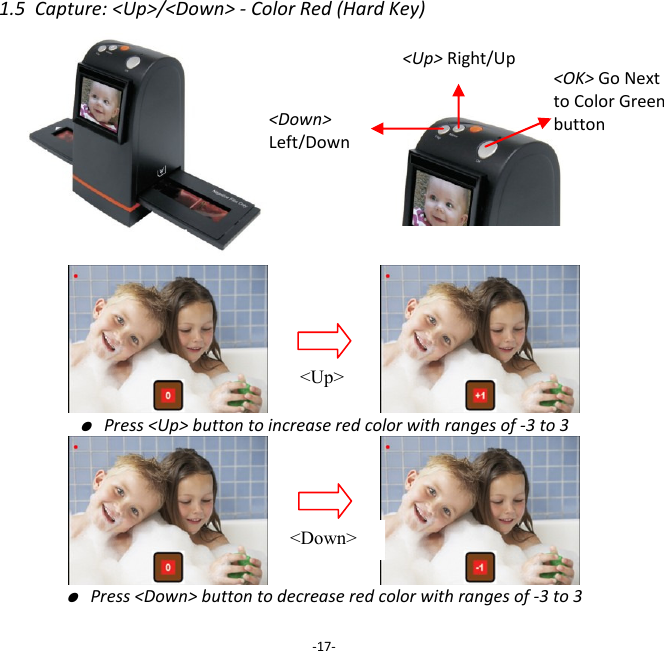
1.5  Capture: <Up>/<Down> - Color Red (Hard Key)                               ● Press <Up> button to increase red color with ranges of -3 to 3                       ● Press <Down> button to decrease red color with ranges of -3 to 3  -17- <Up> Right/Up <Down>  Left/Down   <Up> <Down> <OK> Go Next to Color Green button
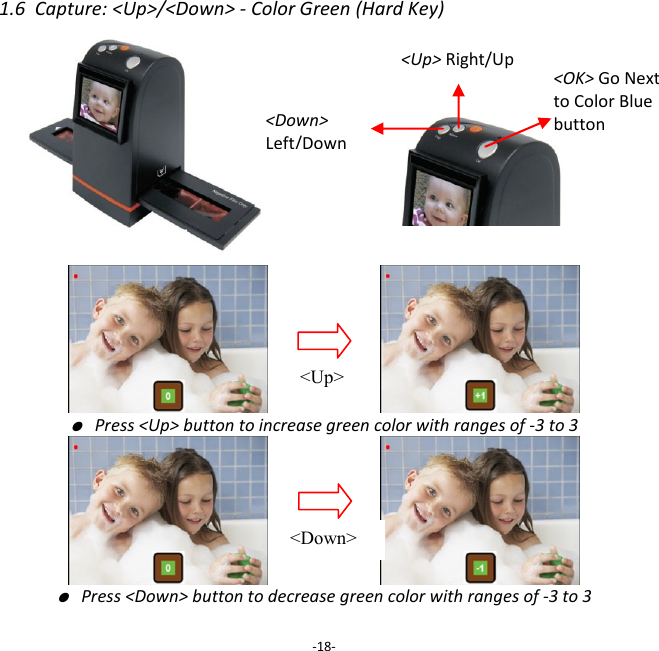
1.6  Capture: <Up>/<Down> - Color Green (Hard Key)                               ● Press <Up> button to increase green color with ranges of -3 to 3                       ● Press <Down> button to decrease green color with ranges of -3 to 3  -18- <Up> Right/Up <Down>  Left/Down  <Up> <Down> <OK> Go Next to Color Blue button
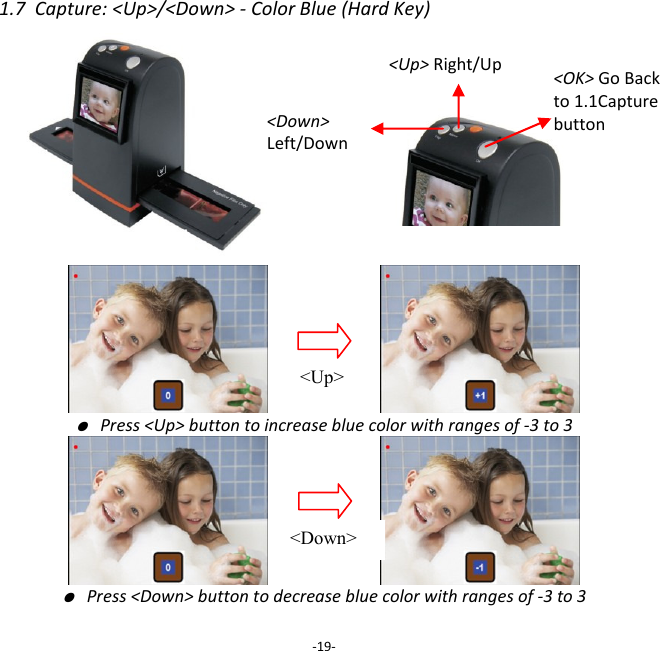
1.7  Capture: <Up>/<Down> - Color Blue (Hard Key)                               ● Press <Up> button to increase blue color with ranges of -3 to 3                       ● Press <Down> button to decrease blue color with ranges of -3 to 3  -19- <Up> Right/Up <Down>  Left/Down  <Up> <Down> <OK> Go Back to 1.1Capture button
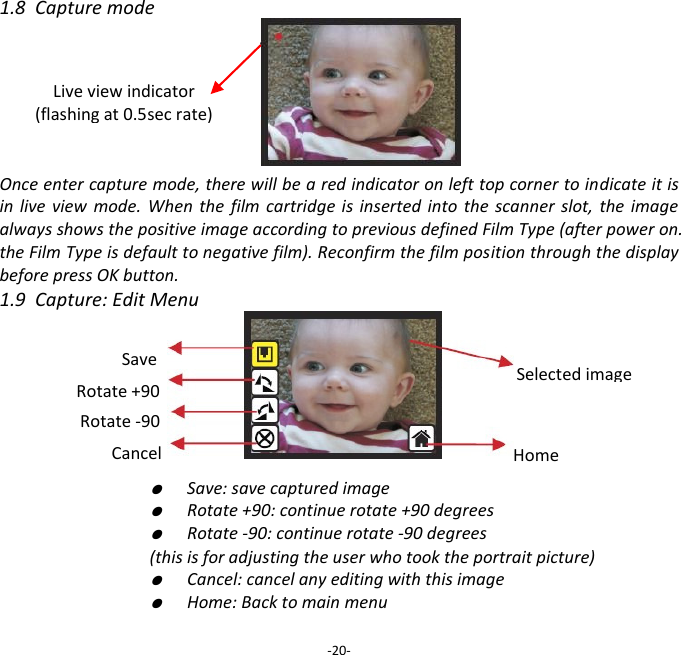
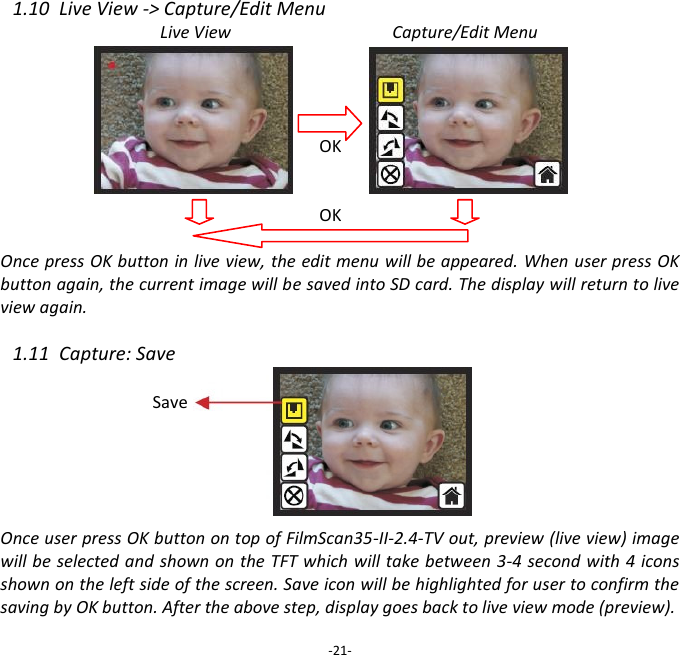
1.8  Capture mode       Once enter capture mode, there will be a red indicator on left top corner to indicate it is in  live  view  mode.  When  the  film cartridge is  inserted into  the scanner  slot,  the  image always shows the positive image according to previous defined Film Type (after power on. the Film Type is default to negative film). Reconfirm the film position through the display before press OK button. 1.9  Capture: Edit Menu            ●  Save: save captured image     ●  Rotate +90: continue rotate +90 degrees     ●  Rotate -90: continue rotate -90 degrees     (this is for adjusting the user who took the portrait picture)     ●  Cancel: cancel any editing with this image     ●  Home: Back to main menu  -20- Live view indicator (flashing at 0.5sec rate)  Save Rotate +90  Cancel Rotate -90  Home Selected image
1.10  Live View -> Capture/Edit Menu Live View                                      Capture/Edit Menu     OK   OK  Once press OK button in live view, the edit menu will be appeared. When user press OK button again, the current image will be saved into SD card. The display will return to live view again.  1.11  Capture: Save        Once user press OK button on top of FilmScan35-II-2.4-TV out, preview (live view) image will be selected and shown on the TFT which will take between 3-4 second with 4 icons shown on the left side of the screen. Save icon will be highlighted for user to confirm the saving by OK button. After the above step, display goes back to live view mode (preview).  -21- Save
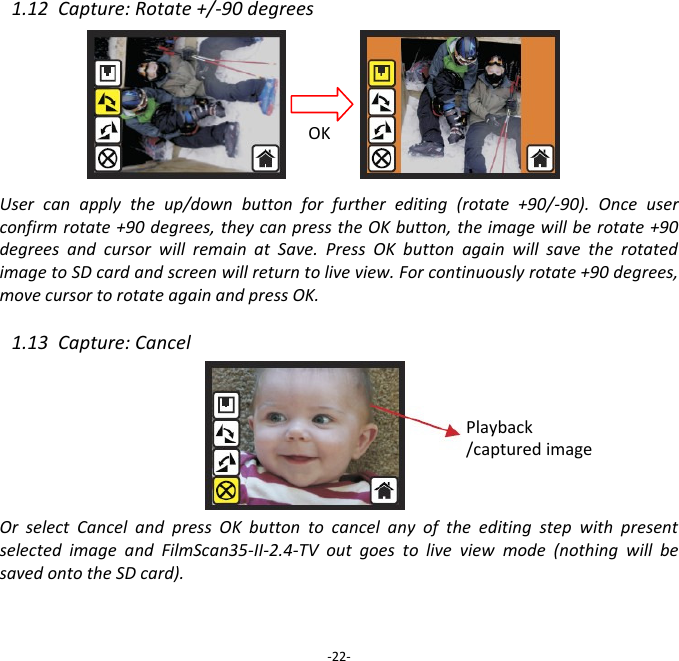
1.12  Capture: Rotate +/-90 degrees         User  can  apply  the  up/down  button  for  further  editing  (rotate  +90/-90).  Once  user confirm rotate +90 degrees, they can press the OK button, the image will be rotate +90 degrees  and  cursor  will  remain  at  Save.  Press  OK  button  again  will  save  the  rotated image to SD card and screen will return to live view. For continuously rotate +90 degrees, move cursor to rotate again and press OK.  1.13  Capture: Cancel        Or  select  Cancel  and  press  OK  button  to  cancel  any  of  the  editing  step  with  present selected  image  and  FilmScan35-II-2.4-TV  out  goes  to  live  view  mode  (nothing  will  be saved onto the SD card).    -22- OK Playback /captured image
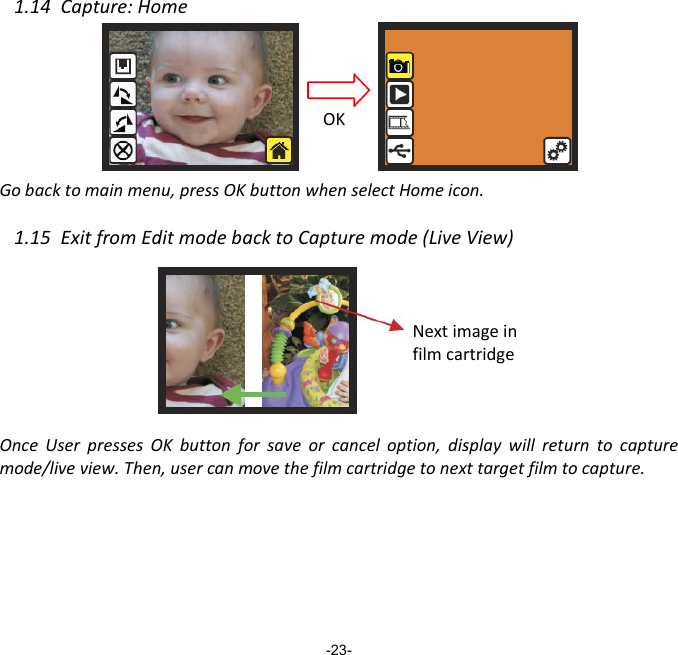
1.14  Capture: Home        Go back to main menu, press OK button when select Home icon.  1.15  Exit from Edit mode back to Capture mode (Live View)       Once  User  presses  OK  button  for  save  or  cancel  option,  display  will  return  to  capture mode/live view. Then, user can move the film cartridge to next target film to capture.          -23- Next image in film cartridge OK
1.16  Memory full        Once the internal memory or  SD  card  is full,  user  can  see  a  SD card  full  once press OK button. User has to down load the images to PC or replace another SD card for continue capture.  1.17  SD card locked       If the SD was locked, once press the OK button, a SD Card locked icon displays on screen.   Please do slide the switch of SD card to unlock before insert into device.      -24- OK SD card locked  indicator
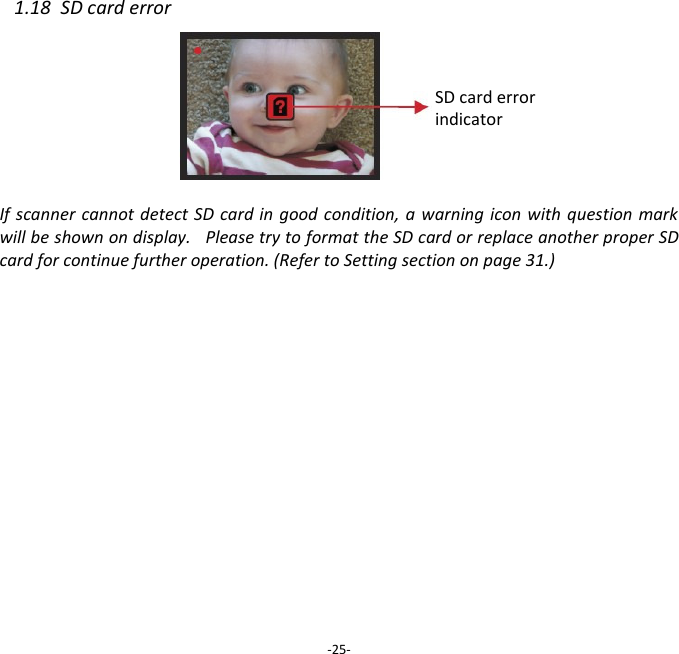
1.18  SD card error         If scanner  cannot detect SD  card in good  condition, a  warning icon with question mark will be shown on display.   Please try to format the SD card or replace another proper SD card for continue further operation. (Refer to Setting section on page 31.)            FULL -25- SD card error  indicator
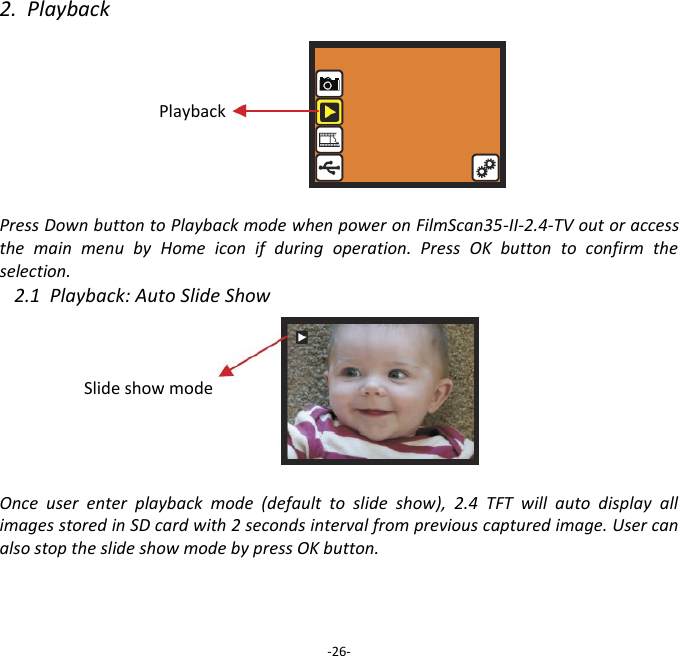
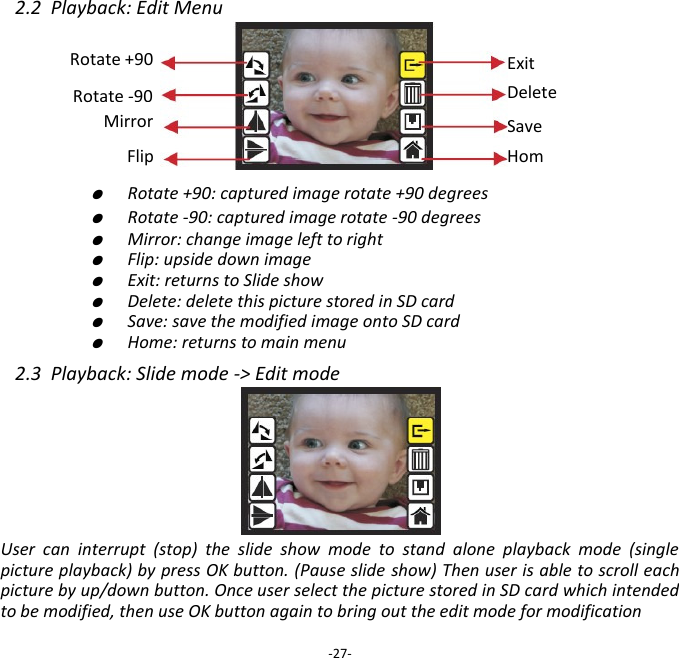
2.  Playback    Playback     Press Down button to Playback mode when power on FilmScan35-II-2.4-TV out or access the  main  menu  by  Home  icon  if  during  operation.  Press  OK  button  to  confirm  the selection. 2.1  Playback: Auto Slide Show    Slide show mode     Once  user  enter  playback  mode  (default  to  slide  show),  2.4  TFT  will  auto  display  all images stored in SD card with 2 seconds interval from previous captured image. User can also stop the slide show mode by press OK button.    -26-
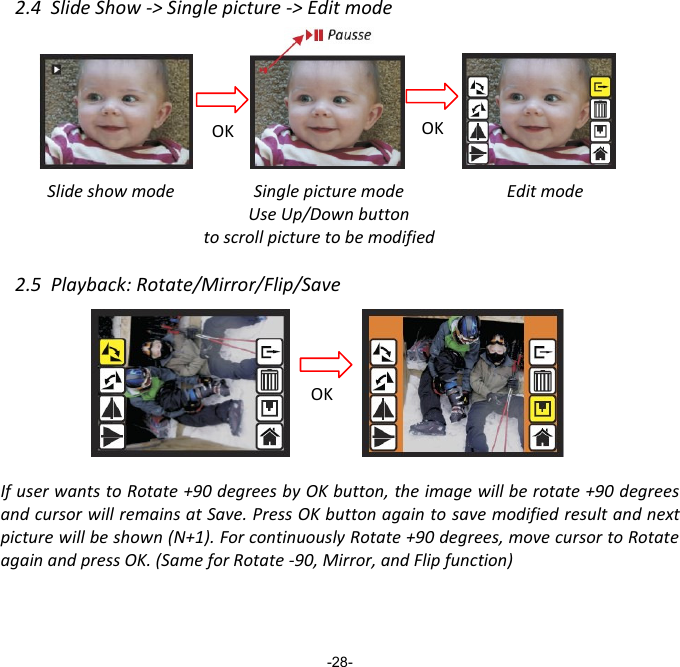
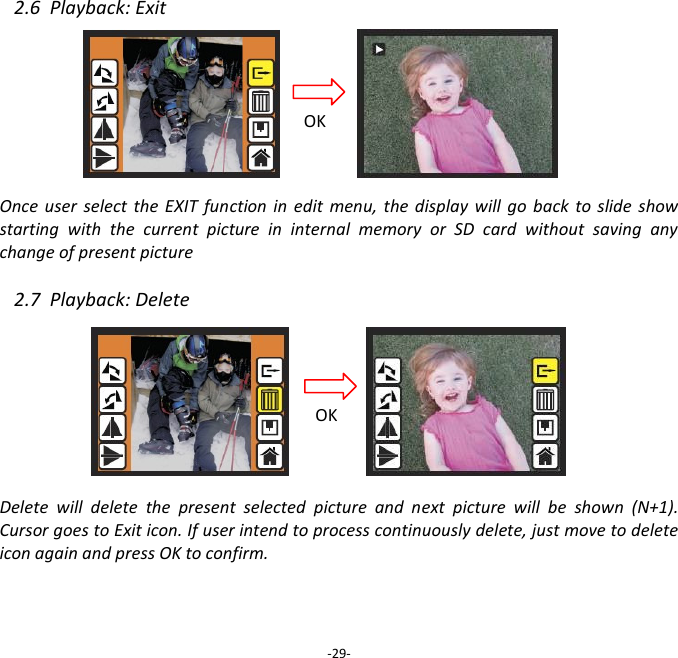
2.2  Playback: Edit Menu            ●  Rotate +90: captured image rotate +90 degrees     ●  Rotate -90: captured image rotate -90 degrees     ●  Mirror: change image left to right     ●  Flip: upside down image     ●  Exit: returns to Slide show     ●  Delete: delete this picture stored in SD card     ●  Save: save the modified image onto SD card     ●  Home: returns to main menu  2.3  Playback: Slide mode -> Edit mode      User  can  interrupt  (stop)  the  slide  show  mode  to  stand  alone  playback  mode  (single picture playback) by press OK button. (Pause slide show) Then user is able to scroll each picture by up/down button. Once user select the picture stored in SD card which intended to be modified, then use OK button again to bring out the edit mode for modification  -27- Save Home Rotate +90 Exit Delete Rotate -90 Mirror Flip
2.4  Slide Show -> Single picture -> Edit mode          Slide show mode          Edit mode    2.5  Playback: Rotate/Mirror/Flip/Save         If user wants to Rotate +90 degrees by OK button, the image will be rotate +90 degrees and cursor will remains at Save. Press OK button again to save modified result and next picture will be shown (N+1). For continuously Rotate +90 degrees, move cursor to Rotate again and press OK. (Same for Rotate -90, Mirror, and Flip function)     -28- Pausse OK OK Single picture mode Use Up/Down button to scroll picture to be modified OK
2.6  Playback: Exit       Once  user  select  the  EXIT function  in  edit  menu,  the  display  will  go  back  to  slide  show starting  with  the  current  picture  in  internal  memory  or  SD  card  without  saving  any change of present picture  2.7  Playback: Delete         Delete  will  delete  the  present  selected  picture  and  next  picture  will  be  shown  (N+1). Cursor goes to Exit icon. If user intend to process continuously delete, just move to delete icon again and press OK to confirm.     -29- OK OK
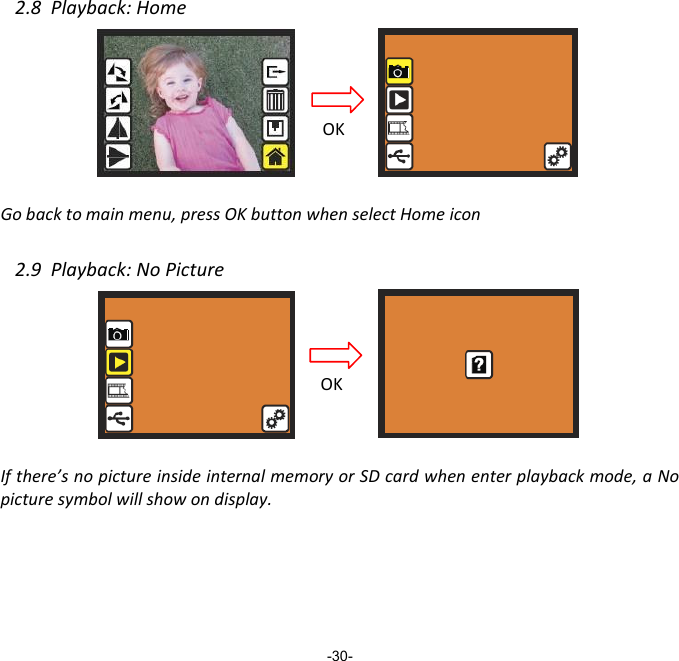
2.8  Playback: Home       Go back to main menu, press OK button when select Home icon  2.9  Playback: No Picture       If there’s no picture inside internal memory or SD card when enter playback mode, a No picture symbol will show on display.        -30- OK OK
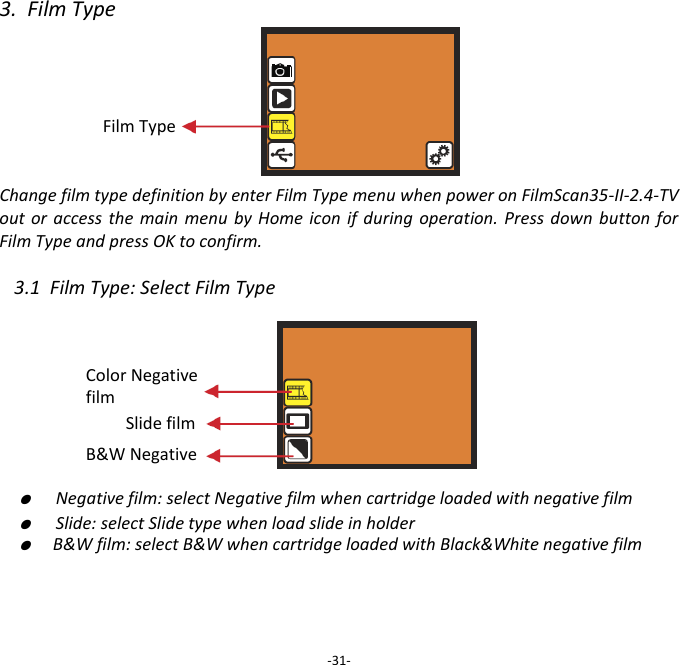
3.  Film Type     Film Type   Change film type definition by enter Film Type menu when power on FilmScan35-II-2.4-TV out or  access  the  main  menu  by  Home icon  if  during operation. Press  down  button for Film Type and press OK to confirm.  3.1  Film Type: Select Film Type         ●  Negative film: select Negative film when cartridge loaded with negative film ●  Slide: select Slide type when load slide in holder ●  B&W film: select B&W when cartridge loaded with Black&White negative film       -31- Slide film B&W Negative Color Negative film
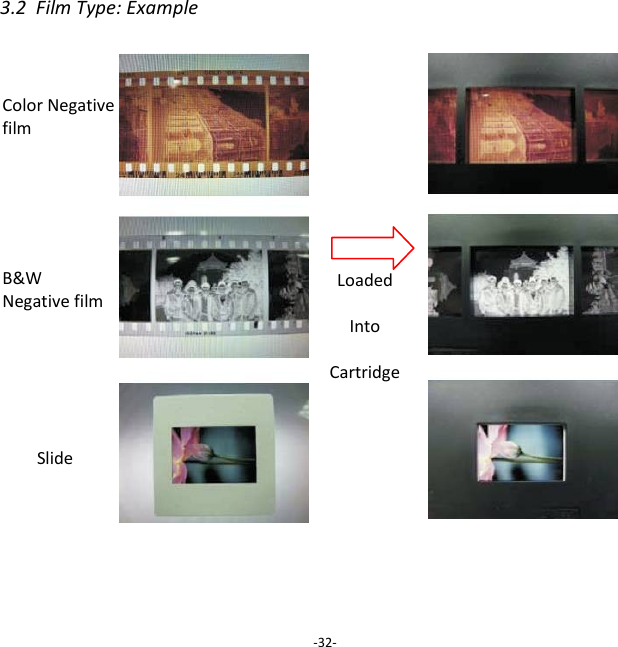
3.2  Film Type: Example                   -32- Color Negative film B&W Negative film Slide Loaded  Into  Cartridge
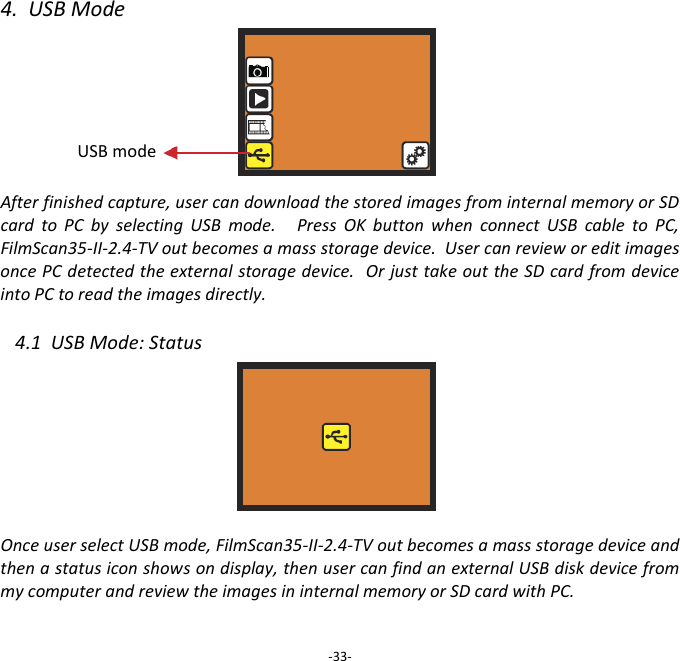
4.  USB Mode       After finished capture, user can download the stored images from internal memory or SD card  to  PC  by  selecting  USB  mode.      Press  OK  button  when  connect  USB  cable  to  PC, FilmScan35-II-2.4-TV out becomes a mass storage device.  User can review or edit images once PC detected the external storage device.  Or just take out the SD card from device into PC to read the images directly.  4.1  USB Mode: Status        Once user select USB mode, FilmScan35-II-2.4-TV out becomes a mass storage device and then a status icon shows on display, then user can find an external USB disk device from my computer and review the images in internal memory or SD card with PC.  -33- USB mode
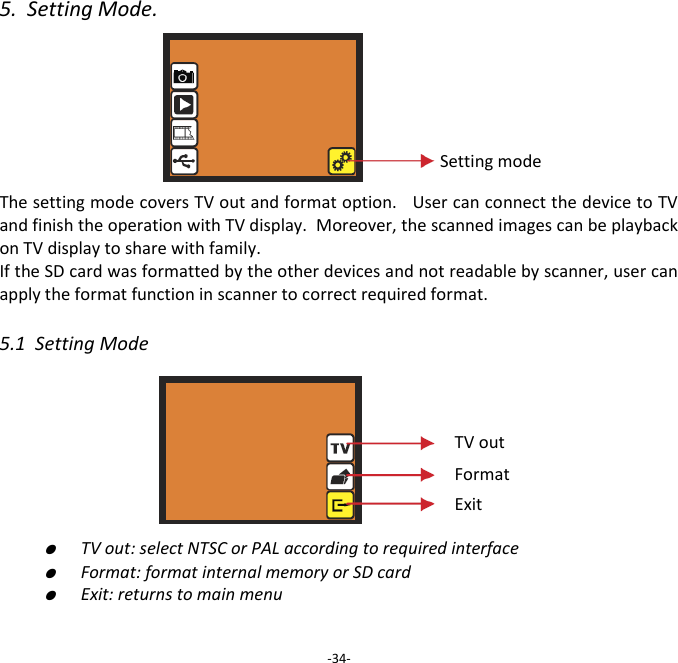
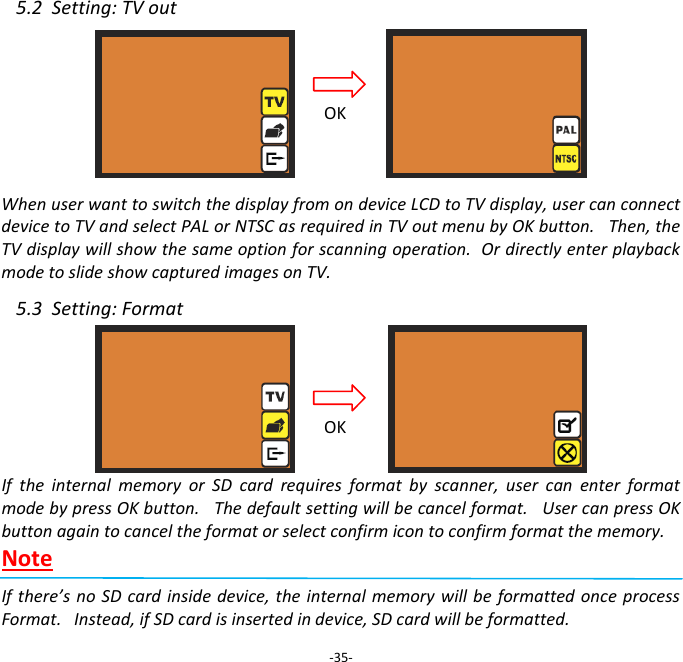
5.  Setting Mode.       The setting mode covers TV out and format option.   User can connect the device to TV and finish the operation with TV display.  Moreover, the scanned images can be playback on TV display to share with family.   If the SD card was formatted by the other devices and not readable by scanner, user can apply the format function in scanner to correct required format.  5.1  Setting Mode         ●  TV out: select NTSC or PAL according to required interface  ●  Format: format internal memory or SD card  ●  Exit: returns to main menu    -34- Setting mode TV out Format Exit
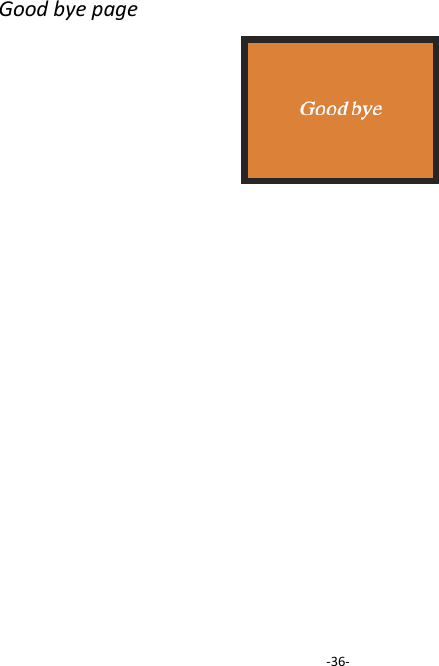
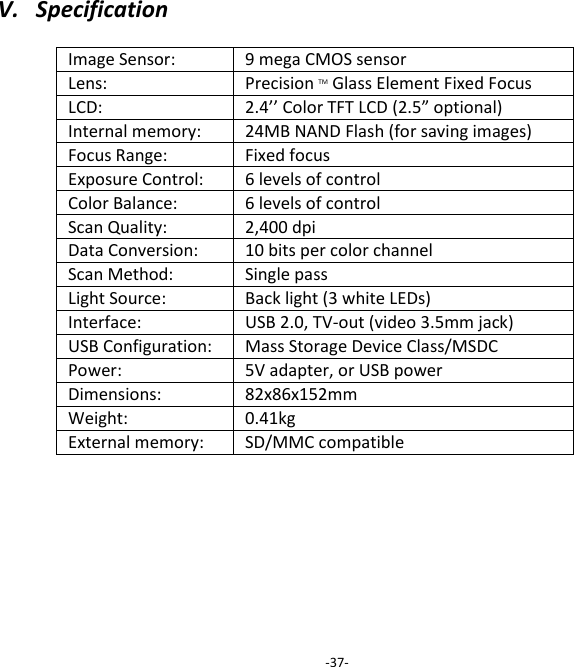
5.2  Setting: TV out     When user want to switch the display from on device LCD to TV display, user can connect device to TV and select PAL or NTSC as required in TV out menu by OK button.   Then, the TV display will show the same option for scanning operation.  Or directly enter playback mode to slide show captured images on TV.  5.3  Setting: Format      If  the  internal  memory  or  SD  card  requires  format  by  scanner,  user  can  enter  format mode by press OK button.   The default setting will be cancel format.   User can press OK button again to cancel the format or select confirm icon to confirm format the memory. Note  If there’s  no SD card  inside device, the  internal memory will be  formatted once process Format.   Instead, if SD card is inserted in device, SD card will be formatted.  -35- OK OK
Good bye page                         -36-
V.   Specification    Image Sensor: 9 mega CMOS sensor Lens: Precision TM Glass Element Fixed Focus LCD: 2.4’’ Color TFT LCD (2.5” optional) Internal memory: 24MB NAND Flash (for saving images) Focus Range: Fixed focus Exposure Control: 6 levels of control Color Balance: 6 levels of control Scan Quality: 2,400 dpi Data Conversion: 10 bits per color channel Scan Method: Single pass Light Source: Back light (3 white LEDs) Interface: USB 2.0, TV-out (video 3.5mm jack) USB Configuration: Mass Storage Device Class/MSDC Power: 5V adapter, or USB power Dimensions: 82x86x152mm Weight: 0.41kg External memory: SD/MMC compatible         -37-
NOTE  THE MANUFACTURER IS NOT RESPONSIBLE FOR ANY RADIO OR TV INTERFERENCE CAUSED BY UNAUTHORIZED MODIFICATIONS TO THIS EQUIPMENT. SUCH MODIFICATIONS COULD VOID THE USER AUTHORITY TO OPERATE THE EQUIPMENT.  This equipment has been tested and found to comply with the limits for a Class B digital device, pursuant to part 15 of the FCC Rules. These limits are designed to provide reasonable protection against harmful interference in a residential installation. This equipment generates, uses and can radiate radio frequency energy and, if not installed and used in accordance with the instructions, may cause harmful interference to radio communications. However, there is no guarantee that interference will not occur in a particular installation. If this equipment does cause harmful interference to radio or television reception, which can be determined by turning the equipment off and on, the user is encouraged to try to correct the interference by one or more of the following measures: - Reorient or relocate the receiving antenna. - Increase the separation between the equipment and receiver. - Connect the equipment into an outlet on a circuit different from that to which the receiver is connected. - Consult the dealer or an experienced radio/TV technician for help. - Modifications not expressly approved by the manufacturer could void the user's authority to operate the equipment under FCC rules.      - 38 -

Navigation menu