EVGA 8265NG Notebook Computer User Manual

EVGA Corporation Notebook Computer

Contents

User Manual

1    Introducing the EVGA SC17G Gaming, the apex of portable performance for the gamer and professional.  Powered by an Intel i7 quad-core processor and a NVidia GTX 1080 graphics card, the EVGA SC17 GEFORCE® GTX 1080 GAMING also comes with a M.2 PCI-E SSD, 1TB additional storage, 32GB of DDR4 RAM, Thunderbolt 3.0, Intel Gigabit LAN, Bluetooth 4.2, and a 17.3” IPS G-SYNC screen - giving you the best performance components in a portable package.  The EVGA SC17 GEFORCE® GTX 1080 GAMING Notebook is a complete turn-key solution; the notebook is pre-installed with Windows 10 Home 64-bit and a minimalistic suite of software.  There is no need to clutter a new PC with software you do not need, so we included only a hardware monitoring utility, the Intel Storage Management software and nothing else, leaving your notebook clean, sleek, and fast - just what you need in a Performance Laptop.
2  Table of Contents Introduction ...................................................................................................... 1 Table of Contents ............................................................................................... 2 What’s in the Box? ............................................................................................. 3 Serial Number and Registration .......................................................................... 3 Technical Support .............................................................................................. 4 Features ............................................................................................................ 4 Specifications ..................................................................................................... 5 Getting Started .................................................................................................. 6 Configuring Precision X Mobile ........................................................................... 7 Comfort with Continuous Use ...........................................................................16 Remove Warning ..............................................................................................17 Compliance .......................................................................................................18
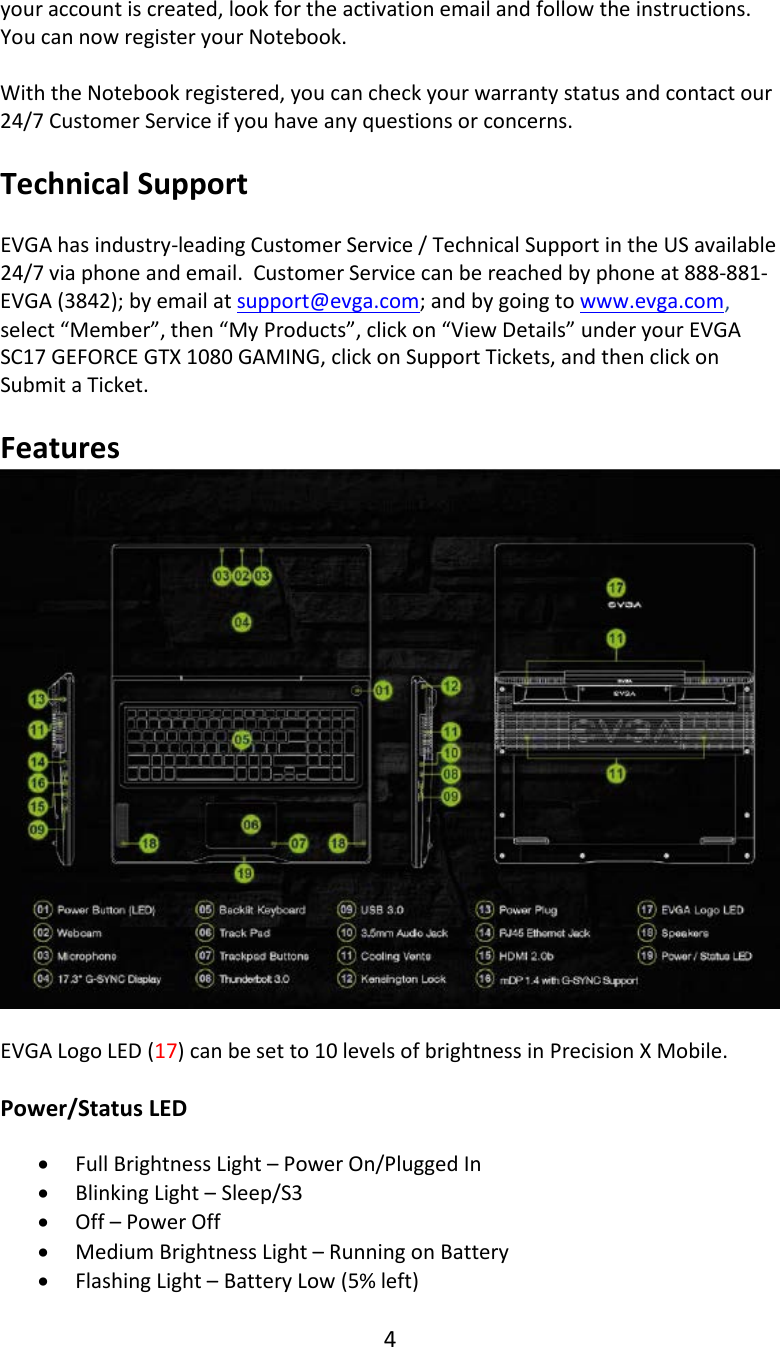
3  What’s in the Box?  Package Contents:  • EVGA SC17 GEFORCE® GTX 1080 GAMING  • Power Adapter • Power cord • Manual • 1 pcs USB type C to A cable • 1 pcs Audio cable   Serial and Registration  The serial number and part number sticker will be on the bottom of the laptop here (see below pic).    If you already have an account at www.evga.com, log in, navigate to “Member”, select “Product Registration”, and follow the prompts for registering your new Notebook. If you do not have an account, please go to www.evga.com, click on “Member Login” at the upper-right, click the “Sign Up” button, and follow the prompts.  Once
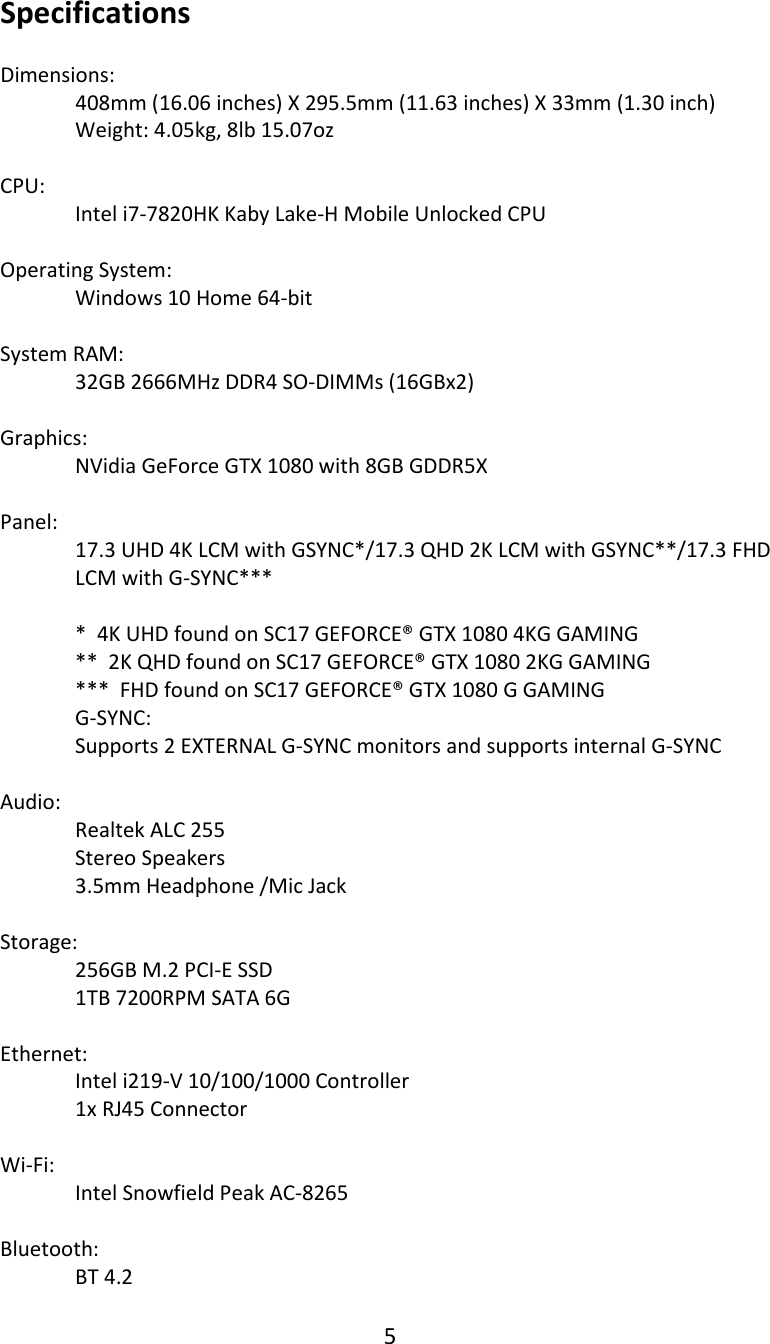
4  your account is created, look for the activation email and follow the instructions. You can now register your Notebook.    With the Notebook registered, you can check your warranty status and contact our 24/7 Customer Service if you have any questions or concerns.  Technical Support  EVGA has industry-leading Customer Service / Technical Support in the US available 24/7 via phone and email.  Customer Service can be reached by phone at 888-881-EVGA (3842); by email at support@evga.com; and by going to www.evga.com, select “Member”, then “My Products”, click on “View Details” under your EVGA SC17 GEFORCE GTX 1080 GAMING, click on Support Tickets, and then click on Submit a Ticket.  Features   EVGA Logo LED (17) can be set to 10 levels of brightness in Precision X Mobile.  Power/Status LED • Full Brightness Light – Power On/Plugged In • Blinking Light – Sleep/S3 • Off – Power Off • Medium Brightness Light – Running on Battery • Flashing Light – Battery Low (5% left)
5  Specifications  Dimensions:   408mm (16.06 inches) X 295.5mm (11.63 inches) X 33mm (1.30 inch)  Weight: 4.05kg, 8lb 15.07oz  CPU:  Intel i7-7820HK Kaby Lake-H Mobile Unlocked CPU  Operating System:  Windows 10 Home 64-bit  System RAM:  32GB 2666MHz DDR4 SO-DIMMs (16GBx2)    Graphics:  NVidia GeForce GTX 1080 with 8GB GDDR5X  Panel: 17.3 UHD 4K LCM with GSYNC*/17.3 QHD 2K LCM with GSYNC**/17.3 FHD  LCM with G-SYNC***  *  4K UHD found on SC17 GEFORCE® GTX 1080 4KG GAMING **  2K QHD found on SC17 GEFORCE® GTX 1080 2KG GAMING ***  FHD found on SC17 GEFORCE® GTX 1080 G GAMING G-SYNC: Supports 2 EXTERNAL G-SYNC monitors and supports internal G-SYNC  Audio:  Realtek ALC 255  Stereo Speakers  3.5mm Headphone /Mic Jack  Storage: 256GB M.2 PCI-E SSD    1TB 7200RPM SATA 6G   Ethernet: Intel i219-V 10/100/1000 Controller 1x RJ45 Connector  Wi-Fi:   Intel Snowfield Peak AC-8265  Bluetooth:  BT 4.2
6  USB:   3x USB 3.0 Type A  1x Thunderbolt 3.0 Supports 5K (60Hz) external display  Video Out:  1x HDMI 2.0b   2x mDP 1.4  WebCam:  FHD 1920x1080 Integrated Digital Mic  Touchpad:  Clickpad 1.5  Keyboard:  Full-sized white backlit with Number pad.    EVGA Font    Keyboard Key Functions:  F1/F2: LCD Backlight Brightness F3/F4: Keyboard Backlight Brightness  F5: External Mode (output on HDMI port) F6: LCD on/off F7: Touchpad on/off       F8: Windows Key on/off   F9/F10/F11: Volume Adjust F12: Airplane mode (WiFi/Bluetooth off) Home/Pg Up/Pg Dn/End: Music Track     Getting Started  Your EVGA SC17 GEFORCE® GTX 1080 GAMING Notebook is powered down during the shipping process and must be charged to start.  First, connect the charger to the left side of your notebook and plug the other end into the wall outlet.  Press the power button to start the EVGA SC17 GEFORCE® GTX 1080 GAMING Notebook.  The first time you run your EVGA SC17 GEFORCE® GTX 1080 GAMING Notebook, make sure to plug it in for at least 3 hours to allow it to fully charge.
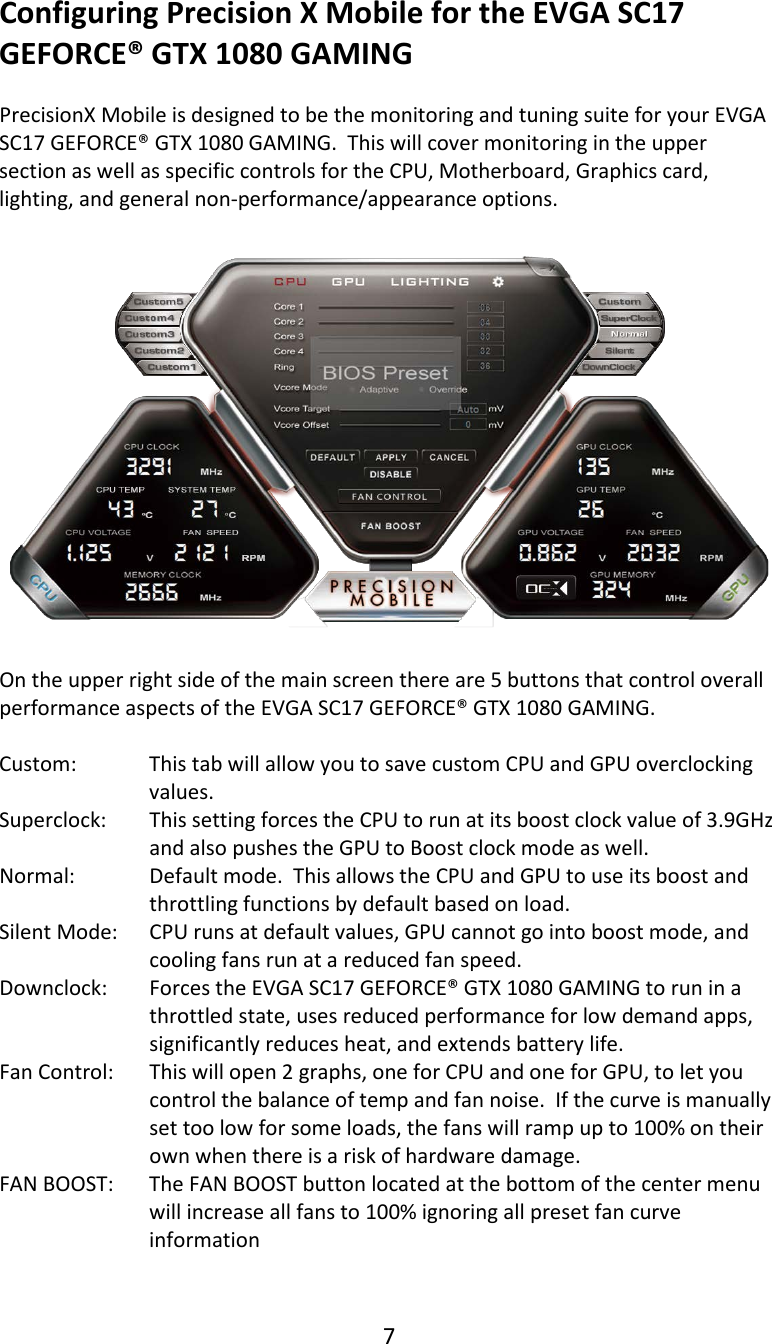
7  Configuring Precision X Mobile for the EVGA SC17 GEFORCE® GTX 1080 GAMING  PrecisionX Mobile is designed to be the monitoring and tuning suite for your EVGA SC17 GEFORCE® GTX 1080 GAMING.  This will cover monitoring in the upper section as well as specific controls for the CPU, Motherboard, Graphics card, lighting, and general non-performance/appearance options.    On the upper right side of the main screen there are 5 buttons that control overall performance aspects of the EVGA SC17 GEFORCE® GTX 1080 GAMING.  Custom: This tab will allow you to save custom CPU and GPU overclocking values. Superclock: This setting forces the CPU to run at its boost clock value of 3.9GHz and also pushes the GPU to Boost clock mode as well. Normal: Default mode.  This allows the CPU and GPU to use its boost and throttling functions by default based on load. Silent Mode: CPU runs at default values, GPU cannot go into boost mode, and cooling fans run at a reduced fan speed. Downclock: Forces the EVGA SC17 GEFORCE® GTX 1080 GAMING to run in a throttled state, uses reduced performance for low demand apps, significantly reduces heat, and extends battery life. Fan Control: This will open 2 graphs, one for CPU and one for GPU, to let you control the balance of temp and fan noise.  If the curve is manually set too low for some loads, the fans will ramp up to 100% on their own when there is a risk of hardware damage. FAN BOOST: The FAN BOOST button located at the bottom of the center menu will increase all fans to 100% ignoring all preset fan curve information
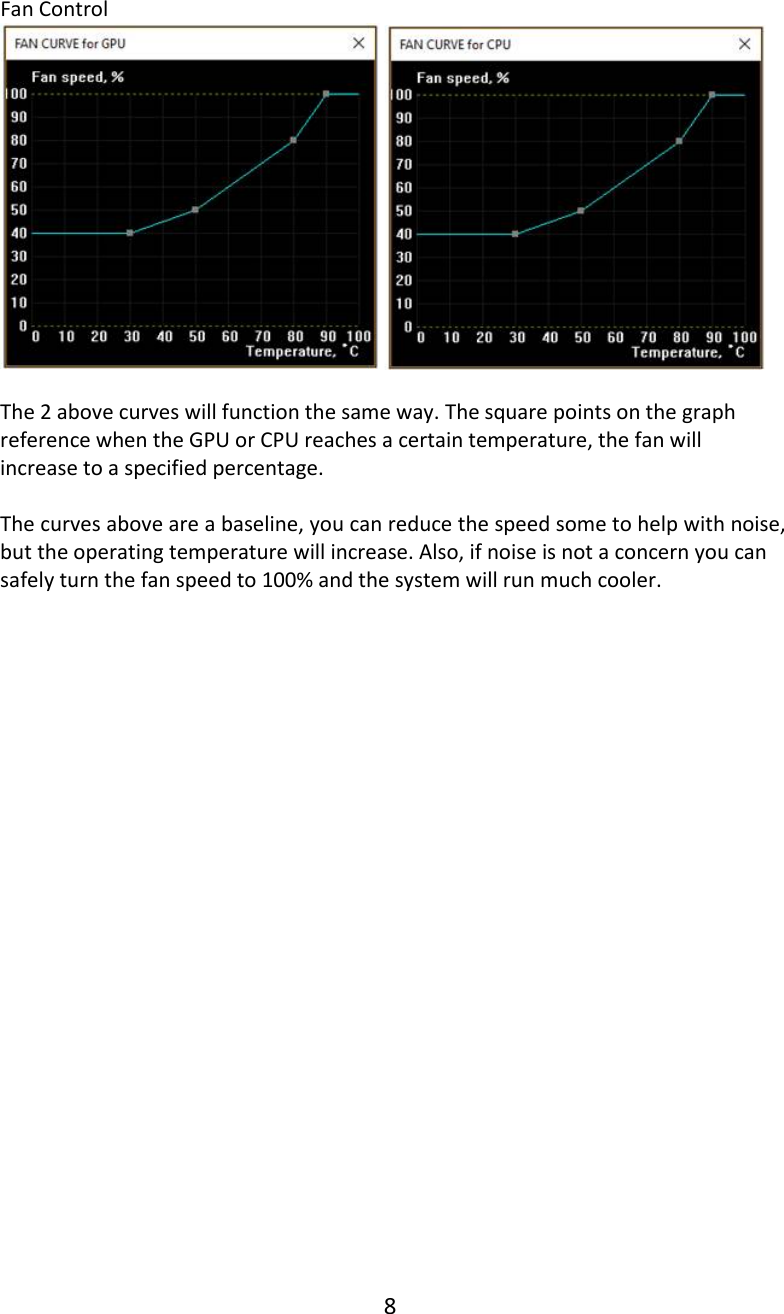
8   Fan Control     The 2 above curves will function the same way. The square points on the graph reference when the GPU or CPU reaches a certain temperature, the fan will increase to a specified percentage.  The curves above are a baseline, you can reduce the speed some to help with noise, but the operating temperature will increase. Also, if noise is not a concern you can safely turn the fan speed to 100% and the system will run much cooler.
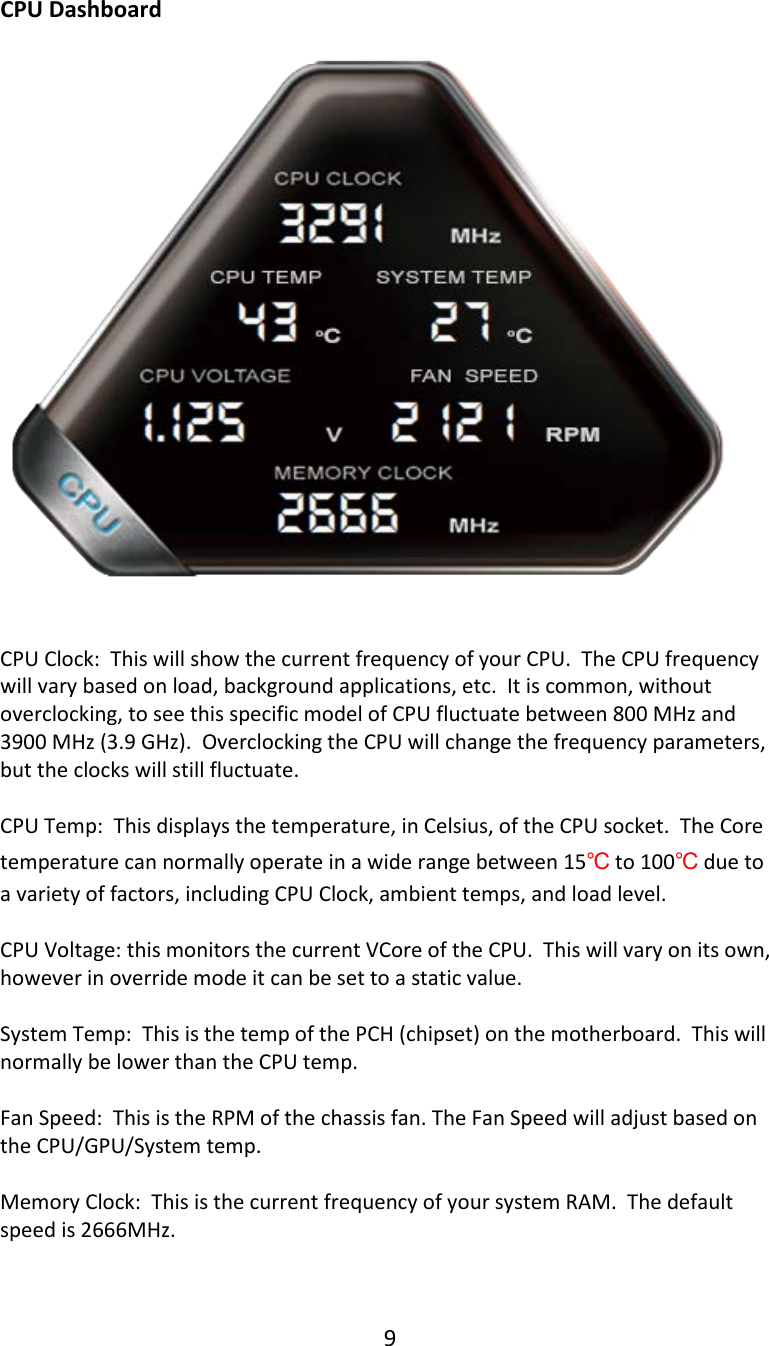
9  CPU Dashboard     CPU Clock:  This will show the current frequency of your CPU.  The CPU frequency will vary based on load, background applications, etc.  It is common, without overclocking, to see this specific model of CPU fluctuate between 800 MHz and 3900 MHz (3.9 GHz).  Overclocking the CPU will change the frequency parameters, but the clocks will still fluctuate.  CPU Temp:  This displays the temperature, in Celsius, of the CPU socket.  The Core temperature can normally operate in a wide range between 15℃ to 100℃ due to a variety of factors, including CPU Clock, ambient temps, and load level.  CPU Voltage: this monitors the current VCore of the CPU.  This will vary on its own, however in override mode it can be set to a static value.    System Temp:  This is the temp of the PCH (chipset) on the motherboard.  This will normally be lower than the CPU temp.  Fan Speed:  This is the RPM of the chassis fan. The Fan Speed will adjust based on the CPU/GPU/System temp.    Memory Clock:  This is the current frequency of your system RAM.  The default speed is 2666MHz.
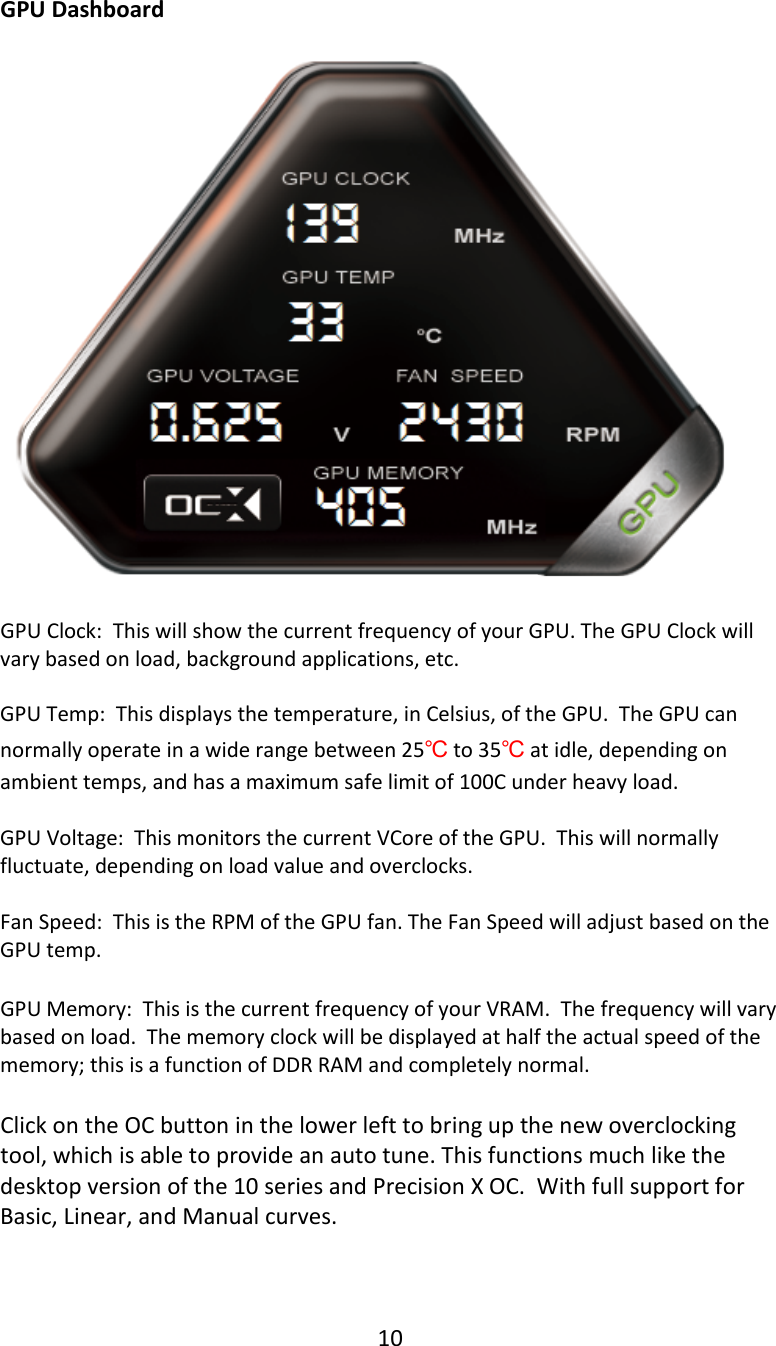
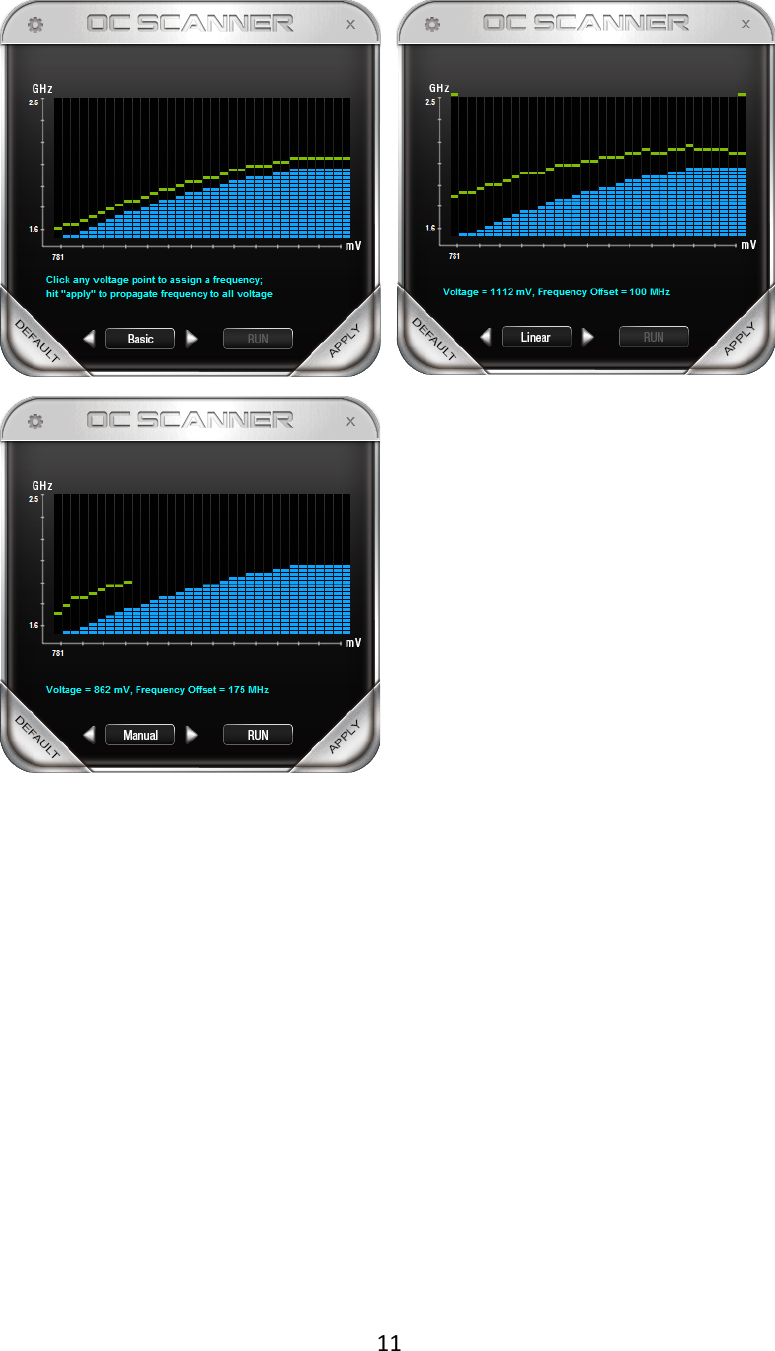
10  GPU Dashboard    GPU Clock:  This will show the current frequency of your GPU. The GPU Clock will vary based on load, background applications, etc.  GPU Temp:  This displays the temperature, in Celsius, of the GPU.  The GPU can normally operate in a wide range between 25℃ to 35℃ at idle, depending on ambient temps, and has a maximum safe limit of 100C under heavy load.  GPU Voltage:  This monitors the current VCore of the GPU.  This will normally fluctuate, depending on load value and overclocks.   Fan Speed:  This is the RPM of the GPU fan. The Fan Speed will adjust based on the GPU temp.  GPU Memory:  This is the current frequency of your VRAM.  The frequency will vary based on load.  The memory clock will be displayed at half the actual speed of the memory; this is a function of DDR RAM and completely normal.  Click on the OC button in the lower left to bring up the new overclocking tool, which is able to provide an auto tune. This functions much like the desktop version of the 10 series and Precision X OC.  With full support for Basic, Linear, and Manual curves.
11
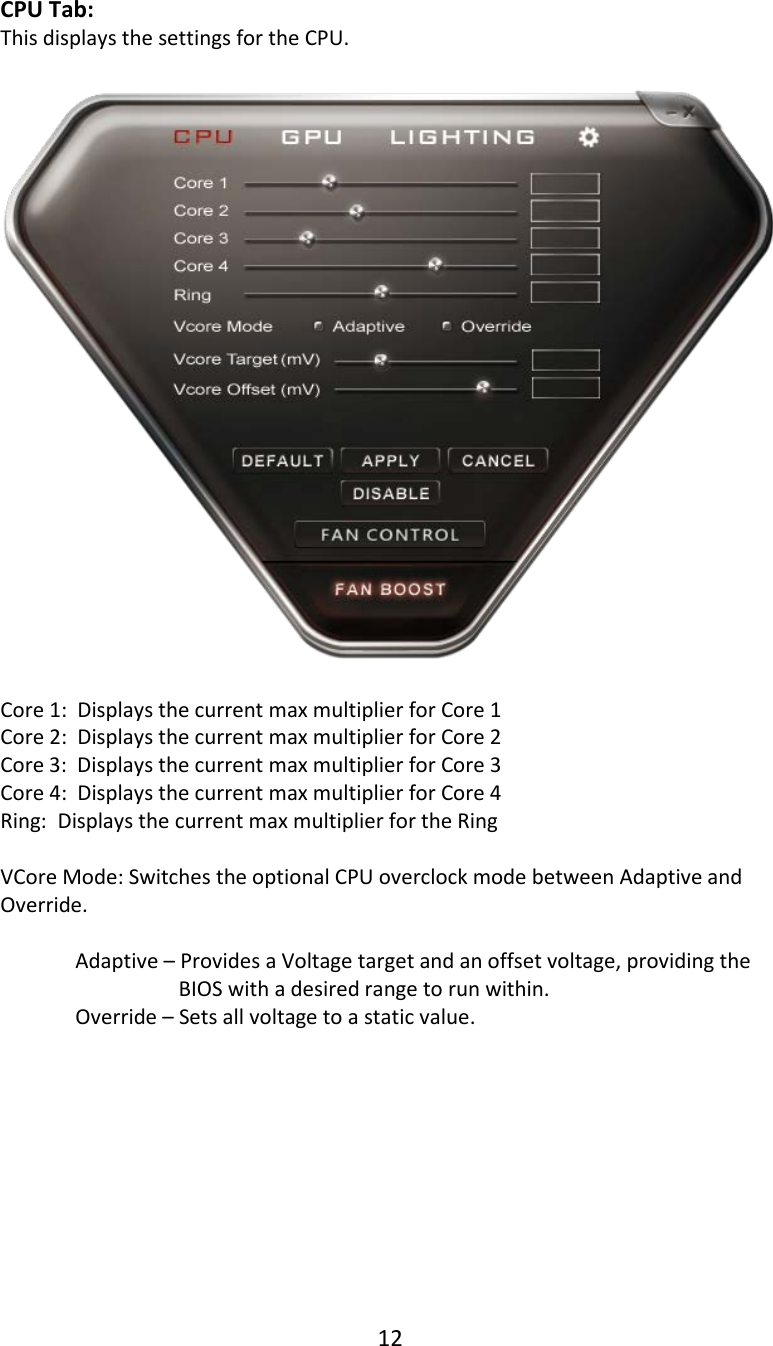
12  CPU Tab: This displays the settings for the CPU.    Core 1:  Displays the current max multiplier for Core 1 Core 2:  Displays the current max multiplier for Core 2 Core 3:  Displays the current max multiplier for Core 3 Core 4:  Displays the current max multiplier for Core 4 Ring:  Displays the current max multiplier for the Ring  VCore Mode: Switches the optional CPU overclock mode between Adaptive and Override.  Adaptive – Provides a Voltage target and an offset voltage, providing the BIOS with a desired range to run within.   Override – Sets all voltage to a static value.
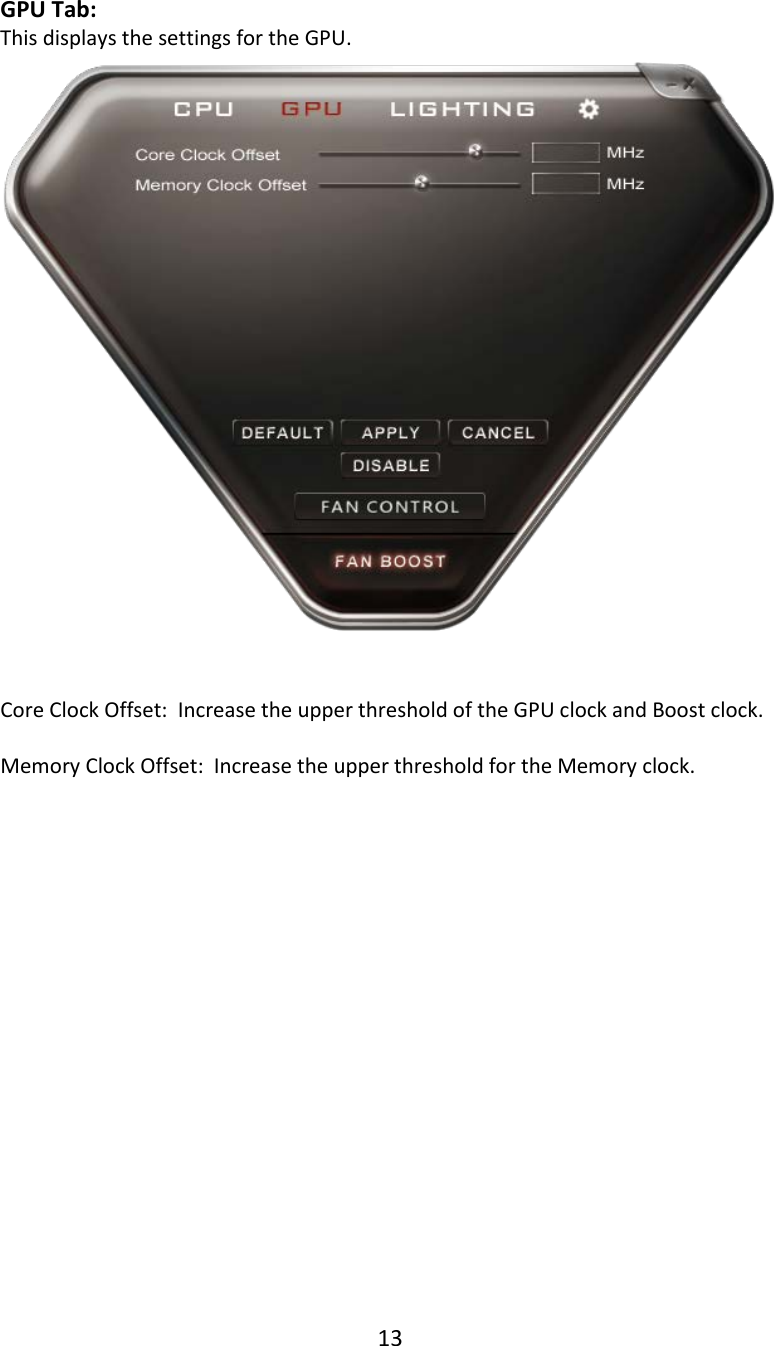
13  GPU Tab: This displays the settings for the GPU.    Core Clock Offset:  Increase the upper threshold of the GPU clock and Boost clock.  Memory Clock Offset:  Increase the upper threshold for the Memory clock.
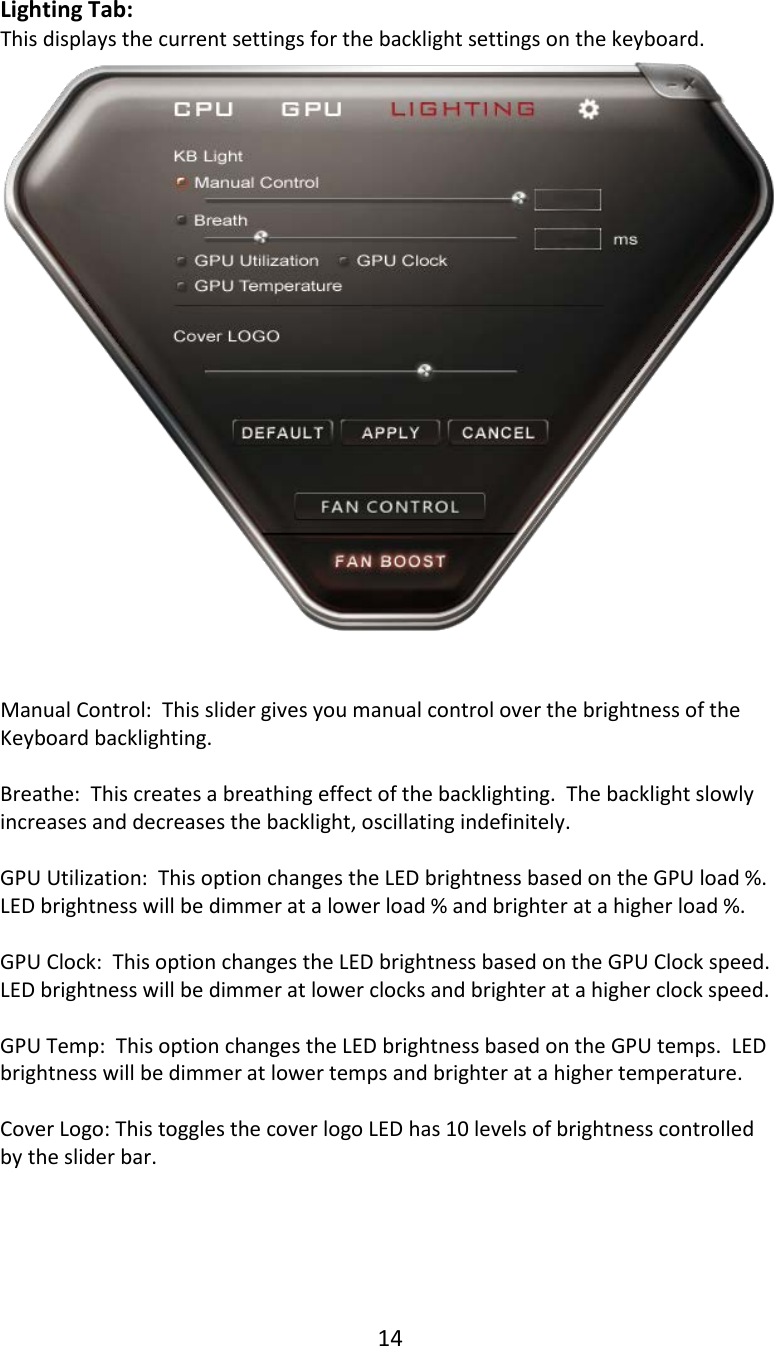
14  Lighting Tab: This displays the current settings for the backlight settings on the keyboard.    Manual Control:  This slider gives you manual control over the brightness of the Keyboard backlighting.  Breathe:  This creates a breathing effect of the backlighting.  The backlight slowly increases and decreases the backlight, oscillating indefinitely.  GPU Utilization:  This option changes the LED brightness based on the GPU load %.  LED brightness will be dimmer at a lower load % and brighter at a higher load %.  GPU Clock:  This option changes the LED brightness based on the GPU Clock speed.  LED brightness will be dimmer at lower clocks and brighter at a higher clock speed.  GPU Temp:  This option changes the LED brightness based on the GPU temps.  LED brightness will be dimmer at lower temps and brighter at a higher temperature.  Cover Logo: This toggles the cover logo LED has 10 levels of brightness controlled by the slider bar.
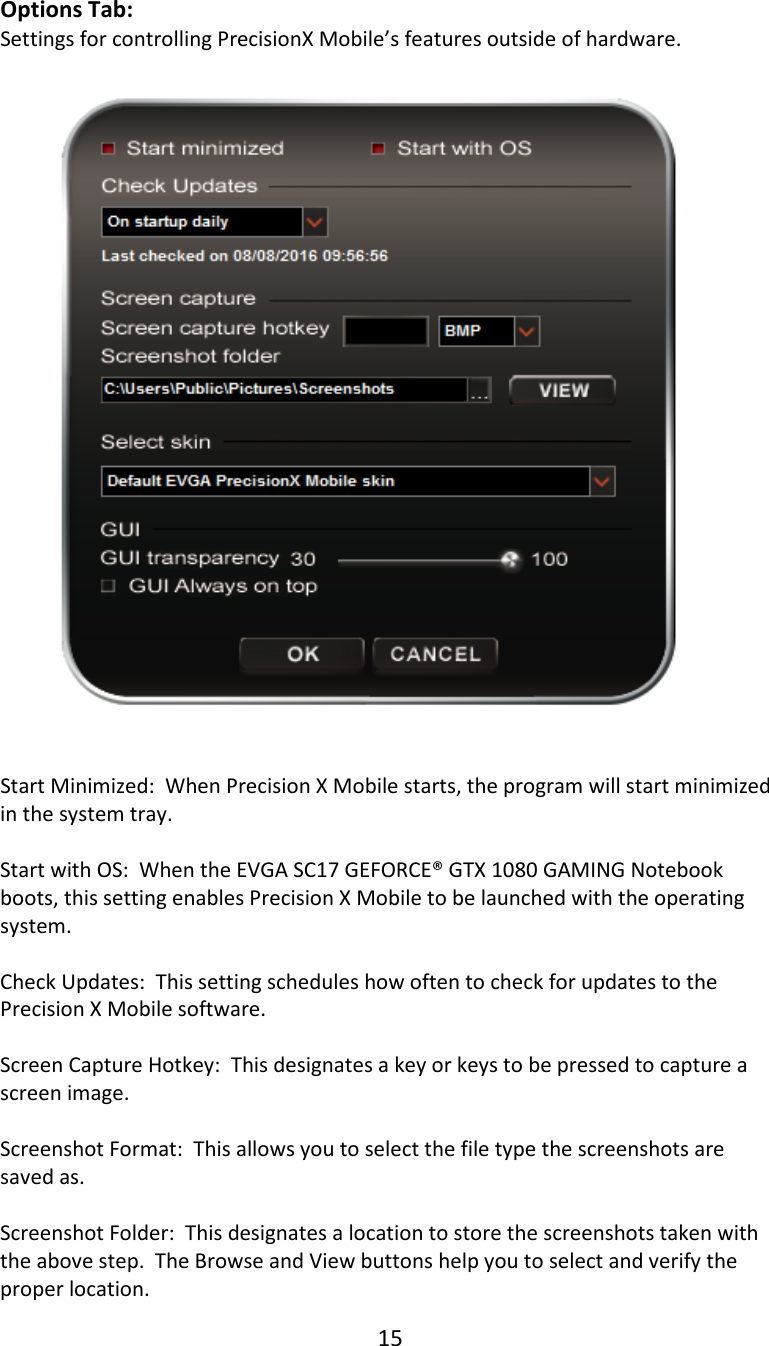
15  Options Tab: Settings for controlling PrecisionX Mobile’s features outside of hardware.   Start Minimized:  When Precision X Mobile starts, the program will start minimized in the system tray.  Start with OS:  When the EVGA SC17 GEFORCE® GTX 1080 GAMING Notebook boots, this setting enables Precision X Mobile to be launched with the operating system.  Check Updates:  This setting schedules how often to check for updates to the Precision X Mobile software.  Screen Capture Hotkey:  This designates a key or keys to be pressed to capture a screen image.  Screenshot Format:  This allows you to select the file type the screenshots are saved as.  Screenshot Folder:  This designates a location to store the screenshots taken with the above step.  The Browse and View buttons help you to select and verify the proper location.
16   Select Skin:  This selects the background visuals, font, and color options of the UI for Precision X Mobile.  GUI Transparency:  This is a slider sets the opacity of the UI.  GUI Always on top:  Enabling this option will force this software to always stay on top of other programs you have running.  NOTE: The above images of Precision X Mobile OC Utility are from a beta version, and may not accurately reflect the Precision X Mobile OC Utility that comes with your Notebook. For the latest version, please use “Check Updates” feature in Precision X Mobile or visit EVGA.com  Comfort with Continuous Use  1.  Position your EVGA SC17 GEFORCE® GTX 1080 GAMING Notebook directly in front of you. If you have an external mouse, use it adjacent to the EVGA SC17 GEFORCE® GTX 1080 GAMING and within easy reach.  Do not place it in a position where you must stretch to reach the mouse or EVGA SC15 GEFORCE® GTX 1060 GAMING.  2.  Adjust the height of your chair and/or desk to put the keyboard just slightly below elbow height.  3.  Keep your posture straight and your shoulders relaxed.  4.  During gameplay or long work periods, keep your wrists relaxed and straight.  When doing repetitive tasks avoid keeping your hands and wrists flexed or extended for prolonged periods of time.  5.  When using the EVGA SC17 GEFORCE® GTX 1080 GAMING Notebook for long periods of time, do not rest your wrists on a hard surface; instead use a wrist rest for proper wrist support.  This should minimize fatigue.  6.  Sitting in the same position for extended periods of time is not ideal and could lead to serious health problems.  You should get up, walk around, and move your arms and legs at regular intervals.
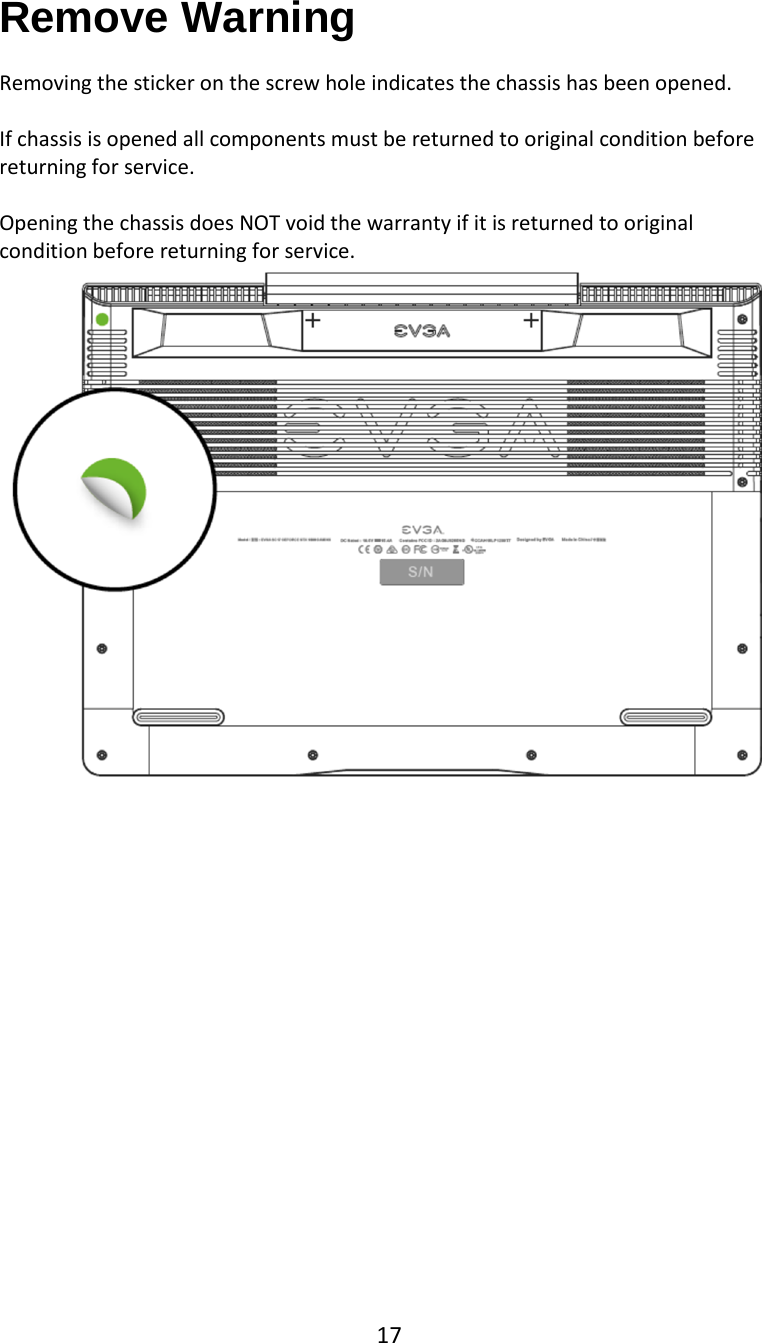
17  Remove Warning  Removing the sticker on the screw hole indicates the chassis has been opened.  If chassis is opened all components must be returned to original condition before returning for service.  Opening the chassis does NOT void the warranty if it is returned to original condition before returning for service.
18  Compliance Information  FCC Compliance Information This device complies with FCC Rules Part 15. Operation is subject to the following two conditions: (1) This device may not cause harmful interference, and (2) this device must accept any interference received, including interference that may cause undesired operation. This equipment has been tested and found to comply with the limits for a Class B digital device, pursuant to Part 15 of the FCC Rules. These limits are designed to provide reasonable protection against harmful interference in a residential installation. This equipment generates, uses and can radiate radio frequency energy and, if not installed and used in accordance with the manufacturer’s instructions, may cause harmful interference to radio communications. However, there is no guarantee that interference will not occur in a particular installation. If this equipment does cause harmful interference to radio or television reception, which can be determined by turning the equipment off and on, the user is encouraged to try to correct the interference by one or more of the following measures: (1)  Reorient or relocate the receiving antenna, or (2)  Increase the separation between the equipment and receiver, or (3)  Connect the into an outlet on a circuit different from that which the receiver is connected, or (4)  consult the dealer or an experienced radio/TV technician for help.  Changes or modifications to this unit not expressly approved by the party responsible for compliance could void the user’s authority to operate the equipment.   Federal Communications Commission (FCC) Radiation Exposure Statement This EUT is compliance with SAR for general population/uncontrolled exposure limits in ANSI/IEEE 1-1999 and had been tested in accordance with the measurement methods and procedures specified in IEEE 1528-2013. Contains Transmitter Module FCC ID : 2AG9J8265NG FCC Caution: Any changes or modifications not expressly approved by the party responsible for compliance could void the user's authority to operate this equipment. This device and its antenna(s) must not be co-located or operating in conjunction with any other antenna or transmitter. For product available in the USA/Canada market, only channel 1~11 can be operated. Selection of other channels is not possible. This device is restricted to indoor use. Federal Communication Commission (FCC) Radiation Exposure Statement This equipment complies with FCC radiation exposure limits set forth for an uncontrolled environment. End user must follow the specific operating instructions for satisfying RF exposure compliance. CE Compliance Information Generic Radiation Interference Standard for Information Technology Equipment. (EN 55032: 2015/AC:2016, Class B), (EN 61000-3-2: 2014), (EN 61000-3-3: 2013). Warning: This is a Class B product. In a domestic environment this product may cause radio interference in which case the user may be required to take adequate measure. Generic Immunity Standard for Information Technology Equipment.(EN 55024: 2010).  Trademark & Copyright Information 2001-2017 EVGA Corp. EVGA, the EVGA logo and combinations thereof are trademarks of EVGA Corp. All brand names, company names, service marks, logos, and trademarks of the company, or its affiliates or licensors are trademarks or registered trademarks of the company or its subsidiaries, affiliates or licensors in the US and other countries. Other company, products and service names may be trademarks or service marks of others. EVGA reserves the right to terminate this license if there is a violation of its terms or default by the Original Purchaser. Upon termination, for any reason, all copies of Software and materials must be immediately returned to EVGA and the Original Purchaser shall be liable to EVGA.com CORP for any and all damages suffered as a result of the violation or default.  Legal Information All material including but not limited to, text, data, design specifications, diagnostics, graphics, logos, reference boards, files, images, drawings,  and software including this document and the software itself (together and separately)  is owned, controlled by, licensed to, or used with permission by EVGA Corporation and is protected by copyright, trademark, and other intellectual property rights.  All is being provided “as is”, EVGA Corporation makes no warranties, whether express or implied, statutory or otherwise with respect to the materials and expressly disclaims all implied warranties of non-infringement, merchantability, and fitness for a particular purpose. In no event shall the liability of EVGA Corporation for claims arising from the use of the materials by anyone exceed the original purchase price of the materials (or replacement of the materials at EVGA Corporation’s option). All information furnished is believed to be accurate and reliable.  However, EVGA Corporation assumes no responsibility for the consequences of use of such information or for
19  any infringement of patents or other rights of third parties that may result from its use, or use of the Software.  No license is granted by implication or otherwise under any patent or patent rights of EVGA Corporation except as expressly provided herein.  All specifications mentioned in this publication are subject to change without notice.  CAUTION: Risk of Explosion if Battery is replaced by an Incorrect Type. Dispose of Used Batteries According to the Instructions.  Compliance with 2014/53/EU Radio Equipment Directive (RED) In accordance with Article 10.8(a) and 10.8(b) of the RED, the following table provides information on the frequency bands used and the maximum RF transmit power of the product for sale in the EU: Frequency range (MHz) Max. Transmit Power (dBm/mW) 2400-2483.5 19.44dBm 5150-5250 18.75dBm 5250-5350 18.79dBm 5470-5725 20.78dBm Bluetooth; 2, 4 GHz 13.99dBm  The device is restricted to indoor use only when operating in the 5150 to 5350 MHz frequency range.   This device has been tested and meets applicable limits for Radio Frequency (RF) exposure. Specific Absorption Rate (SAR) refers to the rate at which the body absorbs RF energy.  Hereby, [EVGA CORPORATION] declares that the radio equipment type [EVGA SC17 GEFORCE GTX 1080 GAMING] is in compliance with Directive 2014/53/EU The full text of the EU declaration of conformity is available at the following internet address:    https://www.evga.com/Support/manuals/

Navigation menu