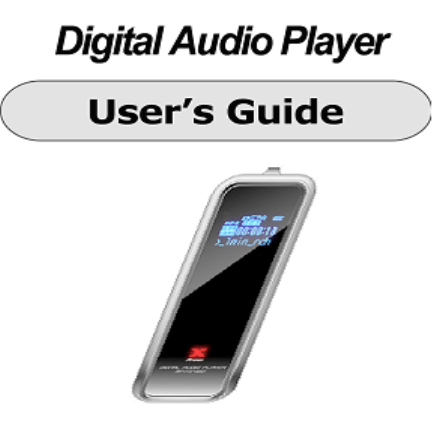
Users Manual
Copyright 2004 LGE. All rights reserved.
Advance permission of LGE is required to use User’s Guide, photos, the
related documents and software of the product. Any violation may follow
the legal measures.
The contents of the User’s Guide are subject to change without prior
notice for further improvement of the product.
LGE
http://www.lge.com
1
Table of Contents
Before Use
1. Product & Accessories.......2
2. PC System Requirement ...3
3. Safety Precaution ...........4
4. Features of Product.…….…..5
Designation of Product
1. Front/Rear View…….…..…….7
2. Side View………………..…….….8
3. Display...........................9
Preparation
1. Connecting Player to PC…. 10
2. Installing USB Driver.......11
3. Running Basic Functions. .20
4. Installing Logo Editor &
Applying Logo to Player ………23
Basic Functions
1. Basic Operation ..............27
2. Power ON/OFF................30
3. Mode Menu ................... 31
4. Upgrade ………………………..38
Function Menus
1. PLAYBACK .................. 41
2. EQUALIZER ................42
3. SRS ..........................43
4. DELETE ......................45
5. ENCODE ....................47
6. SETTING ....................48
7. DISPLAY ....................52
Others
1. About Battery… ............53
2. How to set HOLD..........54
3. Trouble Shooting…........55
4. Product Specification.....57
5. Customer Service. ........ 58
6. Warranty Certificate......59
2
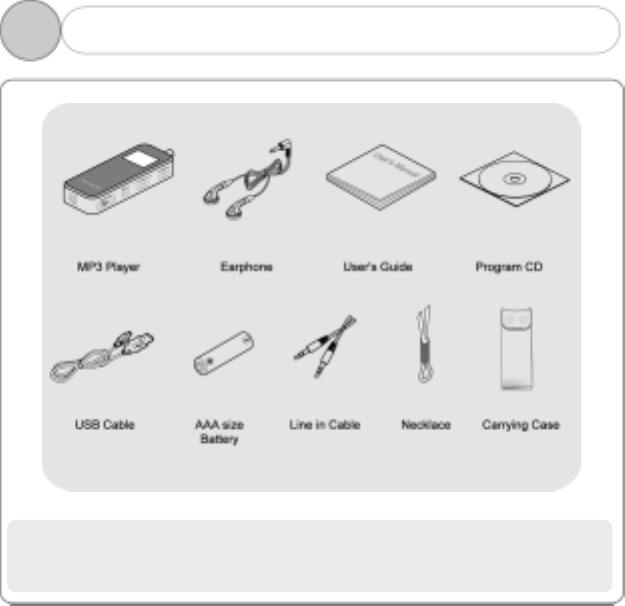
!NOTE: Accessories are subject to change without prior notice for further
improvement of the product performance and quality.
1. Product & Accessories
1
3
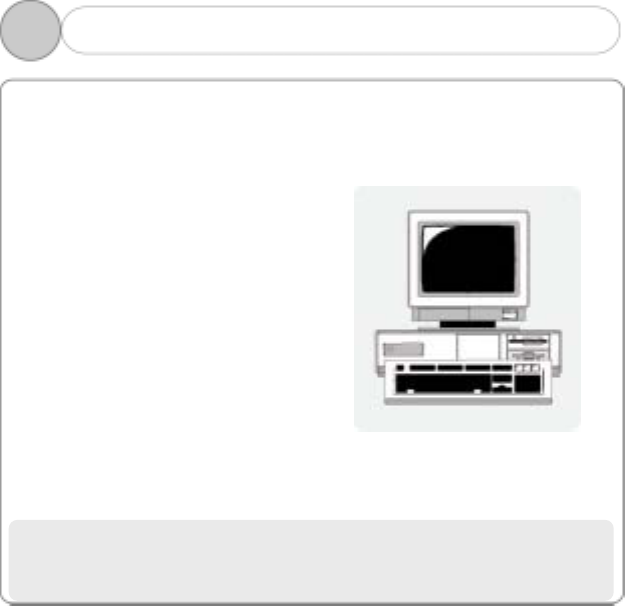
The followings are the basic requirements of the PC to use the MP3
Player. Please carefully read and confirm the requirements.
Pentium 200MHZ or above
Windows 98SE / ME / 2000 / XP
(Windows 98SE – Install Driver)
Mac OS 9.0 / 10.0
USB (Universal Serial Bus) Port
CD-ROM Drive
Hard Disc Space 20MB or above
(Additional capacity is required
to save the music file.)
64MB RAM or above
!NOTE: Actually available built-in memory in this player is less than the
nominal capacity of the product because the FirmWare uses a
part of the capacity to drive the system.
2. PC System Requirements
1
4
Listening to Music…
The output class of the product guarantees the best possible sound of
the mid-size volume. As the high volume for a long time may damage
the hearing, listen to music in moderate volume.
Do not exposure to the strong shock or vibration.
Please take good care of handling the product and accessories. Dropping
on the floor or giving a shock may result in a serious damage of the
product.
Storing the Product…
Avoid storing in the extreme change of temperature, high humidity and
the strong magnetic field.
Cleaning the Product…
The chemical may discolor or damage the surface of the player. Use the
soft cloth to gently clean the player.
Using the Battery…
If you do not use the Player for a long time, do not insert a battery in the
Player.
!NOTE: Do not disassemble, repair or reconstruct the product.
3. Safety Precaution
1
5
Multi-Codec Player
Compatible with MP3, WMA and ASF (Audio) formats
Superior Sound Quality SRS (Sound Retrieval System) WOW
The introduction of the SRS allows the 3D surround effect, and the user
to define its own unique sound effect. Enjoy a new variety of the 3D
surround effects.
Organic EL Display
A Graphic display with blue EL4 line enhances the high-class image.
FirmWare Upgrading
Upgrade FirmWare to add/change/improve functions and performance of
the Player. Always enjoy the music in the latest version of performance.
Voice Recording
The superior sound quality voice recording function allows the clear
recording in the conferences and lectures.
FM Radio
Conveniently enjoy the FM radio with a variety of functions such as the
manual/automatic frequency search, automatic tune to the radio station,
and the station preset.
4. Features of the Product (1)
1
6
Simple and Fancy Design
Reflects the 2004 new design trend.
6 Preset Equalizer
You can produce your own sound quality with the 5-band User EQ and 5
recommend EQs including Normal, Classic, Pop, Rock and Jazz.
Easy Navigation
A tree configuration allows the easy search and control.
Caption the Text of the Song
The text of the song is shown in two lines on the display during the
playback.
Compatible with the Removable Disk Unit
It is recognized as a removable disk unit if connecting to the PC to
upload or download files without Manager program.
Direct Encoding
Use the LINE IN on the player to convert the external sound into the
audio file. Also use the FM radio to convert the radio broadcasting into
the audio file while listening to the FM radio.
4. Features of the Product (2)
1
7
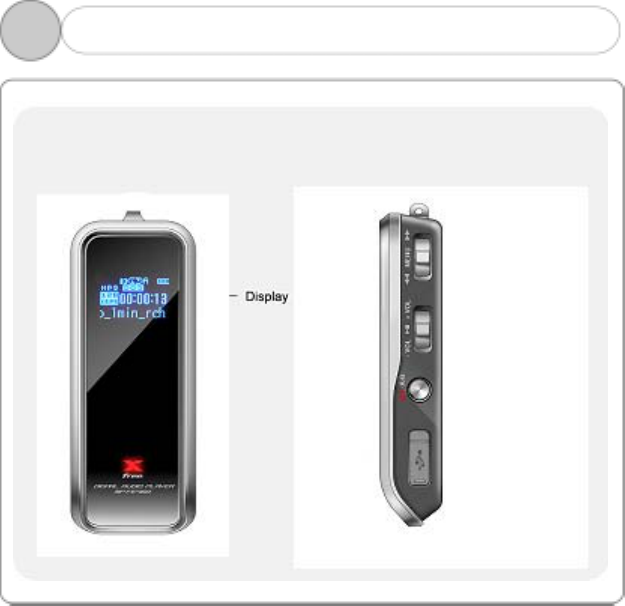
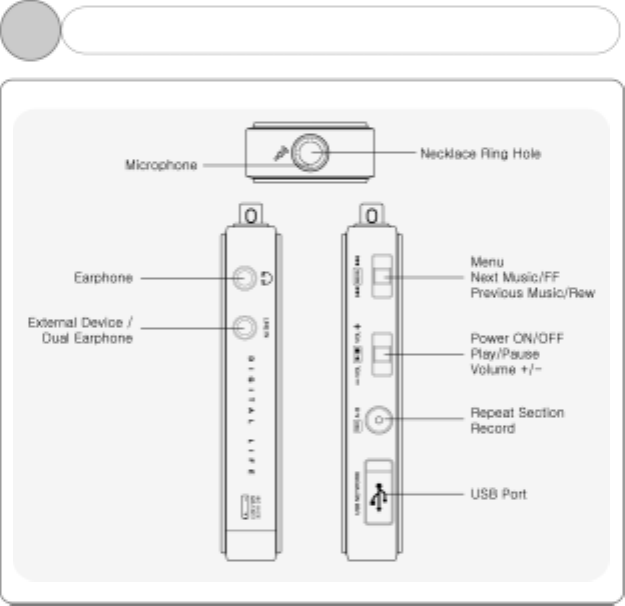
1. Front/Rear View of the Product
2
8
2. Side View of the Product
2
9
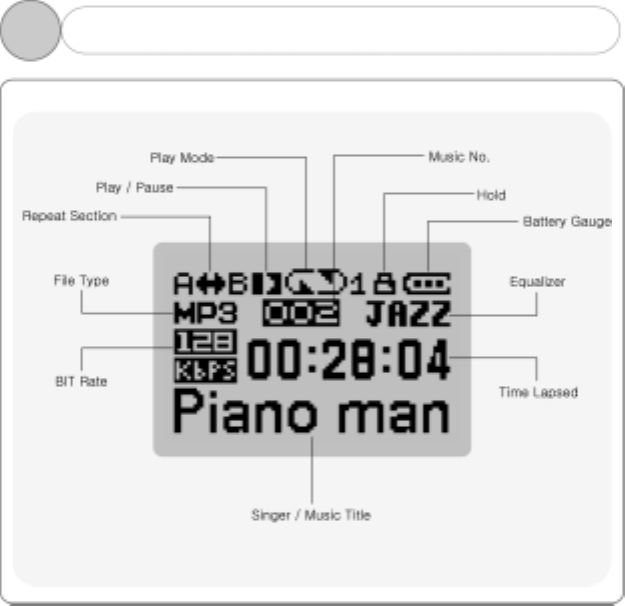
3. Display
2
10
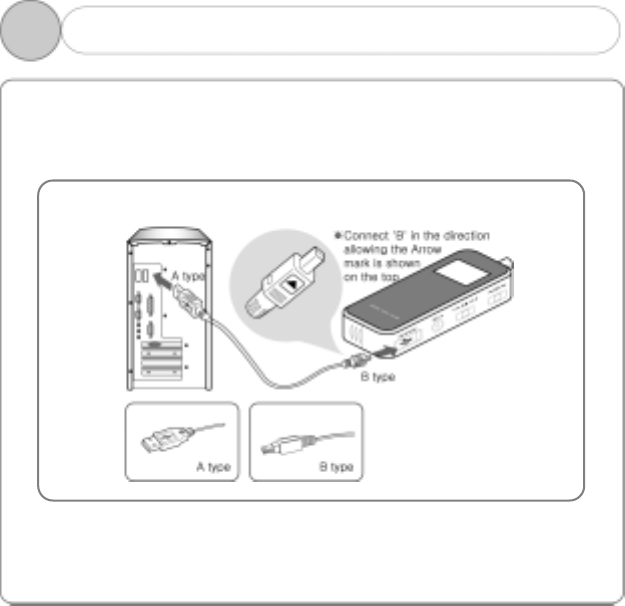
To download music files (MP3/WMA/ASF) from the PC, use USB cable to
connect MP3 Player to the USB port of the PC.
(Make sure to only use the USB cable supplied with the MP3
Player.)
Connect ‘A’ (large) to the USB port of the PC.
Connect ‘B’ (small) to the USB port found when opening USB port plug
on the Player.
1. Connecting Player to PC
3
11
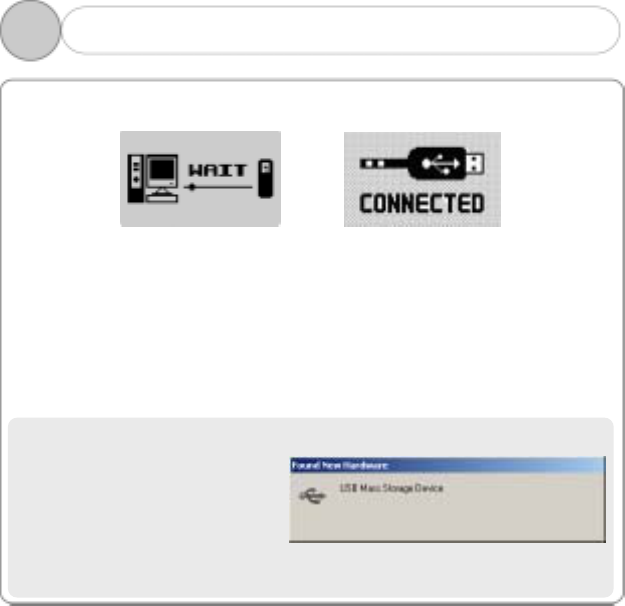
If you insert the USB cable into the player, its display shows the following
screen “WAIT”.
before installing driver after installing driver
1. Follow the instruction below for the PC of which OS is one of the
Windows ME, Windows 2000 and Windows XP.
A screen appears with a message saying, “New hardware is found” on
the PC as shown below. Follow the instruction to install the driver. The
installation may automatically be completed without showing the
installation screen depending on the PC environment.
An example here is for the WINDOWS 2000.
1) A message saying, “Found
New Hardware”
automatically appears.
2. Installing USB Driver (1)
3
12
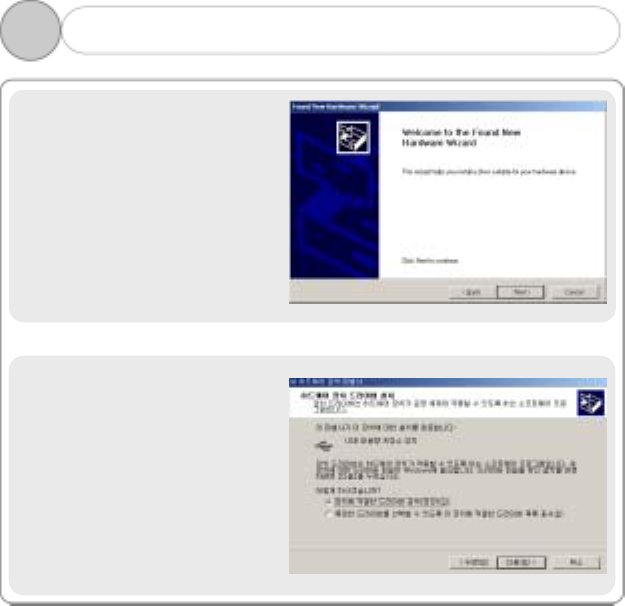
2) The “Found New Hardware
Wizard” is automatically
started on the PC.
Click ‘Next’.
3) If “Hardware device driver
installation” is shown, check
in “Search driver suitable to
device(recommended)” and
then click “Next”.
2. Installing USB Driver (2)
3
13
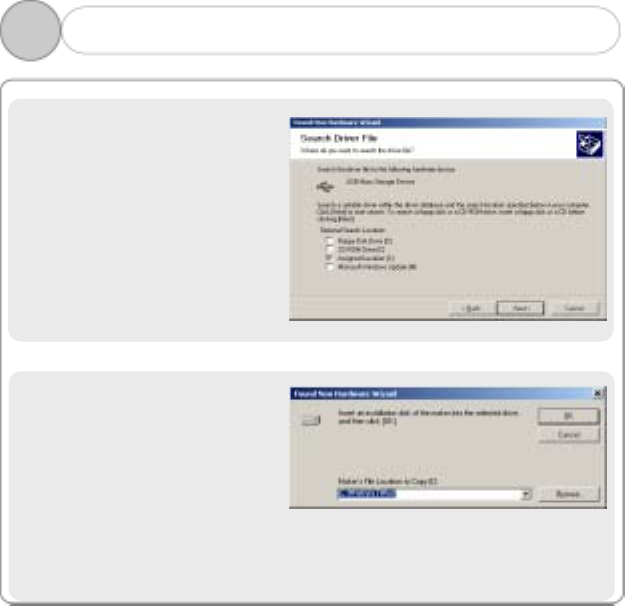
4) If “Search driver file” is
shown, check in “Location
designation” and then click
“Next”.
5) If “Maker’s File Location to
Copy” is C:\Winnt\Inf or
C:\Windows\Inf, click ‘OK’.
If the file is not in the
C:\Winnt\Inf or
C:\Windows\Inf, use
‘Browse…’ to select.
2. Installing USB Driver (3)
3
14
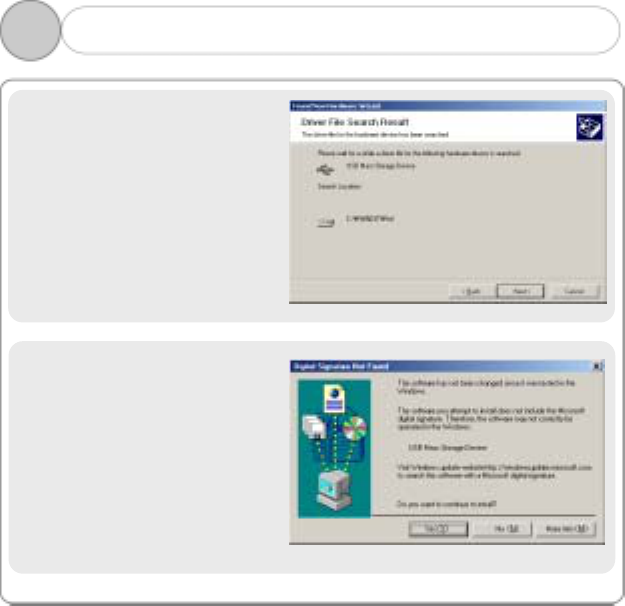
6) If “Result of searching driver
file” shows its results, click
“Next”.
7) Click ‘Yes’ to continue the
installation of the USB Mass
Storage Device.
2. Installing USB Driver (4)
3
15
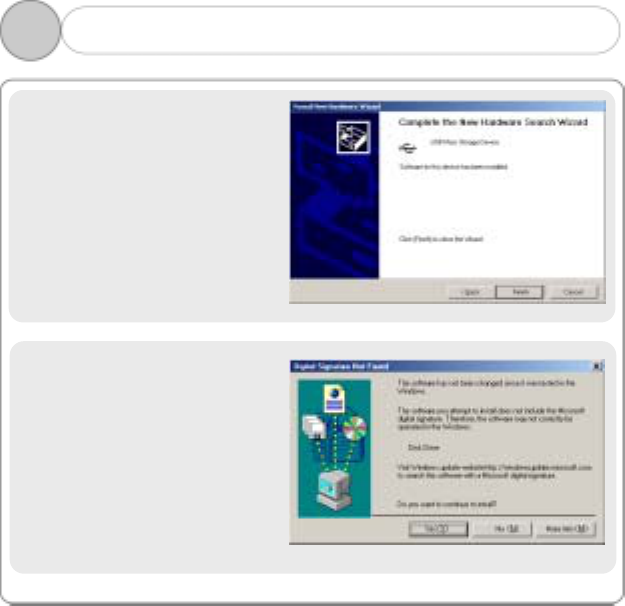
8) Click ‘Finish’ after
completing the installation
of the USB Mass Storage
Device.
9) Click ‘Yes’ to continue the
installation of the disk
drive.
2. Installing USB Driver (5)
3
16
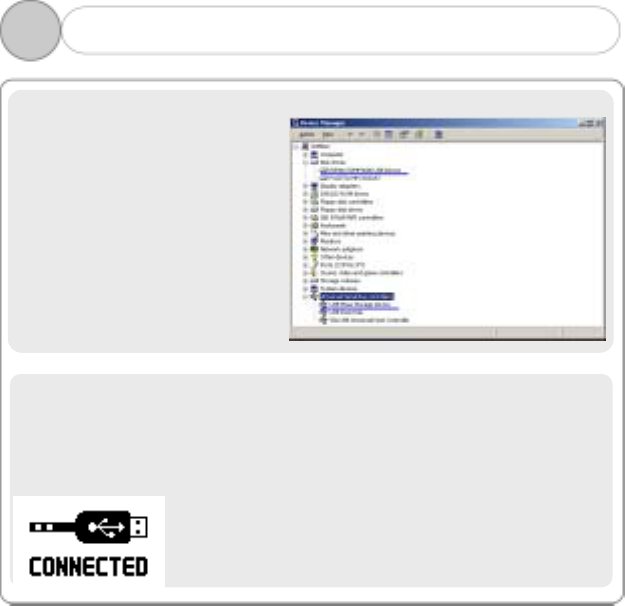
To check that the USB driver
has been properly installed,
click in the following order:
[Start] - [Setting] - [Controller
Panel] – [System] –
[Hardware] – [Device
Manager]
And then, confirm the two
areas have been properly
configured.
!NOTE: The above example covers PC in which there is the first
installation of a removable disc. So, it may vary among environments of
users’ PC. If you can see the above two devices in Device manager or
the following “CONNECTED” on the display
of the player, the driver has been successfully installed. It takes about
30 ~ 60 seconds to install the driver.
2. Installing USB Driver (6)
3
17
2. As the Windows 98SE is not compatible with the removable disk unit,
you shall separately install the Win98SE driver from the CD provided
with the Player.
1) Do not connect the Player as yet with the USB cable.
2) Insert the installation CD into the CD-ROM drive to execute
‘install.bat’ of the Win98SE_Driver folder or . Then, there
begins a copy of the driver files to each folder of the Windows.
3) Connect the USB cable to the player. Then, there appears Add New
Hardware Wizard on the display to install the driver.
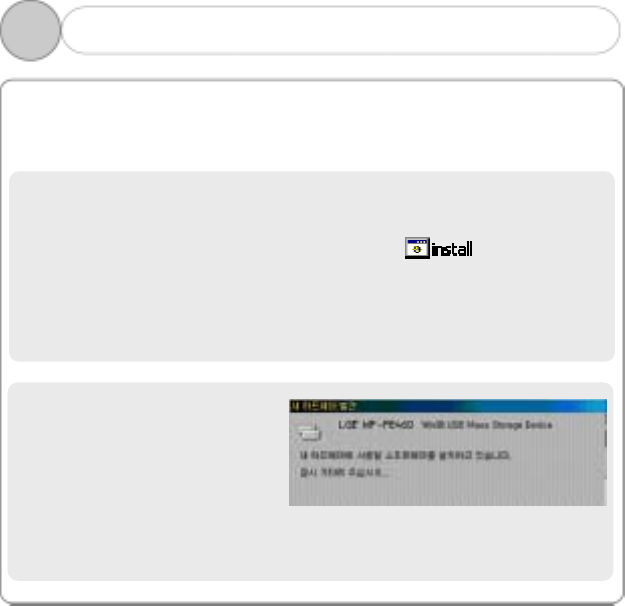
4) There appears he following
figure to complete the
installation of the driver in
a moment.
2. Installing USB Driver (7) – win 98SE
3
18
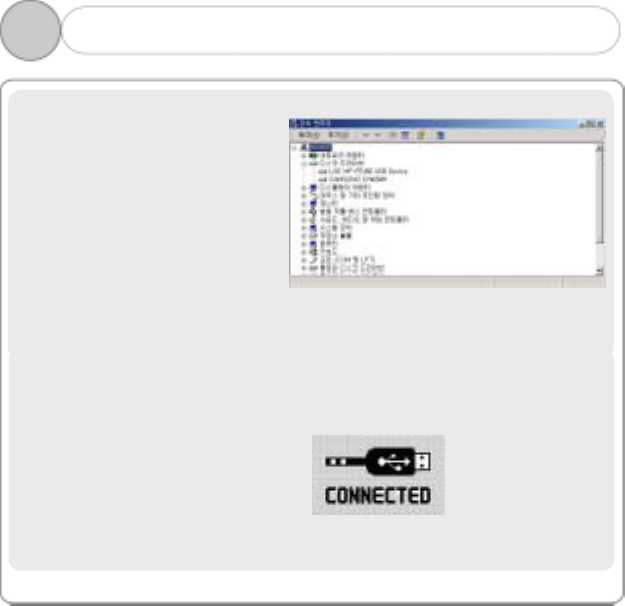
To check that the USB driver
has been properly installed,
click in the following order:
[Start] - [Setting] - [Controller
Panel] – [System] –
[Hardware] – [Device
Manager]
And then, confirm “LGE MF-FE
460” of the Disc Area has been
properly configured.
NOTE: The above example covers PC in which there is the first
installation of a removable disc. So, it may vary among environments of
users’ PC. If you can see the above device in Device Manager or the
following “CONNECTED” on the display
of the player, the driver has been
successfully installed. It takes about
20 ~ 30 seconds to install the driver.
2. Installing USB Driver (8) – win 98SE
3
19
If you have successfully installed the driver of the USB device, connect
the USB cable of PC to the player to execute “My Computer” or “Windows
Explorer”. If you can see “Removable Disc” in My Computer or “READY”
on the display of the player, you can normally use the player. If you can’t,
check Device Manager.
If you can’t see “LGE MF-FE 460 USB Device” of Device Drive(Device
Manager) or and “USB Mass Storage Device” of the USB
controller(except for Windows 98SE), or if there appears a yellow
exclamation mark(!) or “Unknown Device”, the driver hasn’t been
installed properly, when you should install it again.
When you re-install the driver, remove the mark(!) or “Unknown Device”
with the player connected to the USB cable to step on the process “USB
Driver Installation” again.
When, after you have done so, it doesn’t work properly, refer to our
website or contact us.
2. Installing USB Driver (9) - Confirmation
3
20
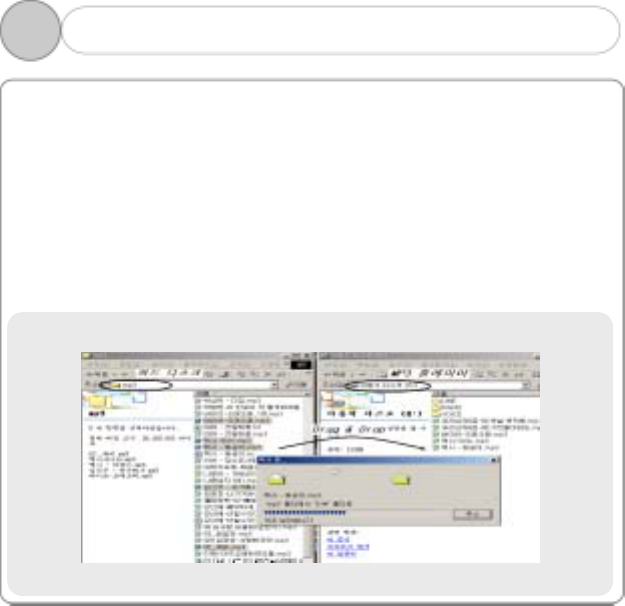
As the PC recognizes the Player as a removable disk, you can easily
download or delete the music files in the Windows Explorer without
Manager program.
1. Download File to the Player (Download)
1) Connecting the USB cable to the Player allows the Player to be
recognized as a removable disk in the Windows Explorer.
2) Select the removable disk to access to the memory area of the
Player.
3) Run one more Windows Explorer.
3. Running Basic Functions (1)
3
21
4) Select the file you want to save, and then:
① Drag & drop to the removable disk.
② Or click right mouse button to select Copy, and select the
removable disk, and then click right mouse button to select Paste.
5) The file is copied to the removable disk, showing a graphic of the file
transfer.
2. Upload File from the Player (Upload)
1) Connecting the USB cable to the Player allows the Player to be
recognized as a removable disk in the Windows Explorer.
2) Select the removable disk to access to the memory area of the
Player.
3) Run one more Windows Explorer.
4) Select the file you want to export from the removable disk, and
then:
① Drag & drop to the disk to which you want to export.
② Or click right mouse button to select Copy, and select a folder to
which you want to export, and then click right mouse button to
select Paste.
3. You can add or delete the folder in the Windows Explorer.
When you download a music file to the player, you should wait until
there appears the following figure “READY” on the
display. If you remove the USB cable in the process
of downloading or uploading, the file may not be
downloaded or uploaded properly. When you
remove the USB cable, don’t be forgetful that you
should check CONNECTED on the display.
3. Running Basic Functions (2)
3
22
4. Format Player
1) Formatting in the Windows
① Select the removable disk, and then click right mouse button to
select Format (FAT).
② Click Start.
※ Please note that the formatting will irrecoverably remove
all contents of the Player.
2) Formatting in the Player
This Player is compatible with two types of formatting: FORMAT and
LOW FORMAT. The general FORMAT is the same as the Windows
formatting, while the LOW FORMAT removes all setting data such as
the font and logo as well as the data stored in the Player. The setting
data will automatically be initialized by the factory default values
after formatting so that you need to newly define a font and logo.
① Lengthily press MENU button.
② Select DELETE menu.
③ Press FORMAT for the general formatting while LOW FORMAT for
the low formatting.
※ We recommend that you do not use the LOW FORMAT other
than the special occasion.
33. Running Basic Functions (3)
23
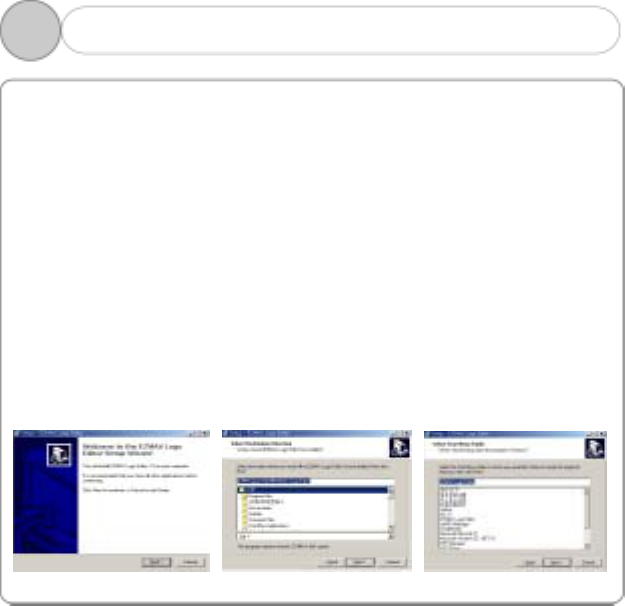
◎ This program helps you design and use the logo that first appears
when the player is turned on. When you are to change it, you should use
the program to download the final logo file to the player.
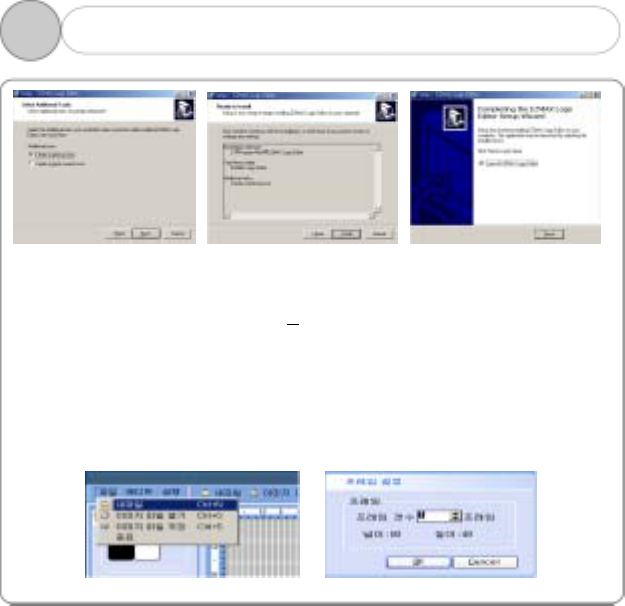
I. Installing Logo Editor Program
1. Insert Installation CD into the CD-ROM drive.
2. Execut install.exe in the Logo_Editor directory.
3. Click Next in Logo Editor Setup Wizard. (Figure 1)
4. Designate the directory to install the program at in
Select Destination Directory. (Figure 2)
5. Click Next in Select Start Menu Folder. (Figure 3)
6. Click Next in Select Additional Tasks. (Figure 4)
7. Click Install in Ready to Install. (Figure 5)
8. Click Finish in Completing the Logo Editor Setup Wizard.
(Figure 6)
Figure 1 Figure 2 Figure 3
3Installing Logo Editor
& Applying Logo to Player
4.
24
Figure 1 Figure 2 Figure 3
II. Editing Logo
1. Setting up the logo file frame to edit.
① Select File(F) New Picture(U). (Figure 1)
② Input the frame of the logo to edit in the “Frame Setting-up”
window to click “OK”.(Figure 2) (The number of the frames that can
be set up is at its maximum of 60 frames, in which the size of pixel
per frame(80x48) can’t be arbitrarily changed. )
③ The capacity which can accommodate the number of the frames
appears.
Figure 1 Figure 2
3Installing Logo Editor
& Applying Logo to Player
4.
25
2. Editing Logo
Use “Tool” in the left of the Editor to design your own logo.
3. Opening Image File/Storing Image File
- Opening Image File
You can import the bitmap file(.bmp) to edit, and then download it to the
player.
- Storing Image File
If you store into the disc the current logo file you’re working on,
you can import it later to work on it again.
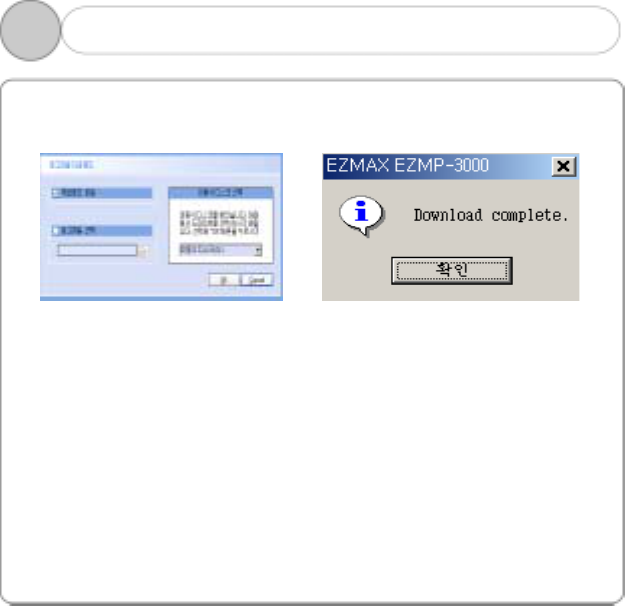
4. Sending Logo File to the Player
The procedure in which the has-been-edited logo file is sent to the
player is as follows:
① Connect the player to the USB cable connected to the PC.
② Step on Execute Send Logo File to Player.
③ There appears “Logo File Download” as shown in Figure 1. After
selecting the same removable disc as the player to click “OK”.
④ If the window Sending Completed as shown in Figure 2 appears, the
edited logo file has been successfully sent to the player.
⑤ While the file is being sent to the player, there appears the message
“WRITE” on the display. If the player is in the status of “WRITE”
after the PC has shown the message of Sending Completed, the file
is still being sent to it. The time the file has been sent to the player
is when there appears “READY” on the display.
3Installing Logo Editor
& Applying Logo to Player
4.
26
⑥ If you turn the player on and then off with its USB cable disconnected,
a new logo will be applied to the display.
Figure 1 Figure 2
3Installing Logo Editor
& Applying Logo to Player
4.
27
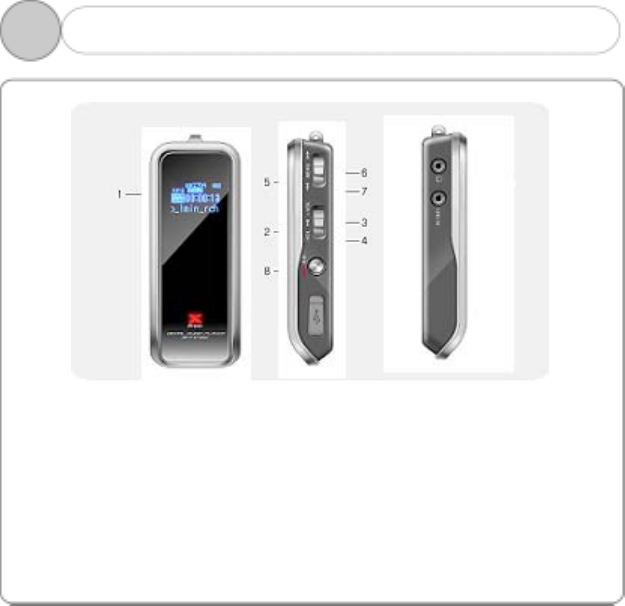
1) Display
- Displays the operating status of the product.
2) PLAY
- If the player is turned off, push this button twice long to turn it on.
- When listening to the music or the recorded file, briefly press to
pause the music, and then briefly press again to resume the music.
- When listening to the FM radio broadcasting, briefly press to save the
current station to the PRESET.
- In any mode, lengthily press to turn the power OFF.
1. Basic Operation (1)
4
28
3) VOL +
- Adjustable in 0-20 steps. Press once at a time to increase the volume
step by step. Keep pressing to increase the volume at a rapid rate.
4) VOL -
- Press once at a time to reduce the volume step by step. Keep
pressing to reduce the volume at a rapid rate.
5) MENU
- Briefly press to open MODE menu.
- If you push this button long, the player shows its functional menu.
- In the MENU, briefly press to set the currently selected menu while
lengthily press to exit from the menu.
- In the menu screen that requires the selection, briefly press to select
the item.
6)
- When listening to the music or the recorded file, briefly press to move
to the next music while keep pressing to fast move within the current
playback file.
- In the MENU screen, briefly press to move to the next menu item.
- When listening to the FM radio, briefly press to move to the next
frequency while keep pressing to automatically search the next
station. In the PRESET mode, briefly press to move to the next
PRESET number.
1. Basic Operation (2)
4
29
7)
- When listening to the music or the recorded file, briefly press to move
to the previous music while keep pressing to fast move within the
current playback file.
- In the MENU screen, briefly press to move to the previous menu item.
- When listening to the FM radio, briefly press to move to the previous
frequency while keep pressing to automatically search the previous
station. In the PRESET mode, briefly press to move to the previous
PRESET number.
8) A<-->B / REC
- During the playback, briefly press to specify the section ‘A’ and again
briefly press to specify the section ‘B’ for the Repeat Section. And
then again briefly press to cancel the Repeat Section.
- If you push long while the music is played, the vocal recording is
activated. If you push long again, the recording is finished.
- When listening to the FM radio, lengthily press to record the radio
station.
- If the FM radio is not on and the LINE is connected, lengthily press to
record through the LINE. If the LINE is not connected, press two
seconds to record voice.
9) HOLD
- Move towards the Arrow mark to disable the functions of all buttons
while move in the opposite direction to the Arrow mark to cancel the
lock.
- If you turn the player on In the HOLD status, the message HOLD is
followed by an automatic turning-off of the player.
1. Basic Operation (3)
4
30
Power ON
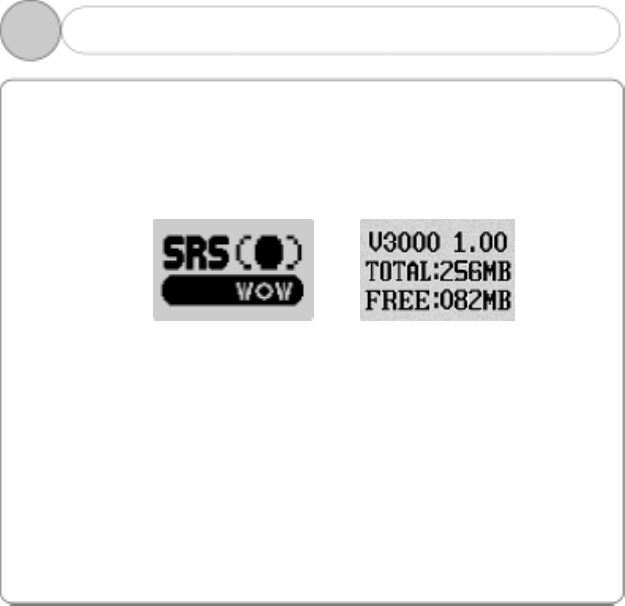
If you push the PLAY button long, the player is turned on to show its logo
on the display. In which the version, total memory and the available
memory of the Player appear shortly after.
The above figure means that the total capacity of the memory is 256MB
and its remaining(FREE) capacity is 82MB.
Power OFF
If you push the PLAY button long while the player is turned off, the
disappearance of the logo is followed by the turning-off of the player.
2. Power ON/OFF
4
31
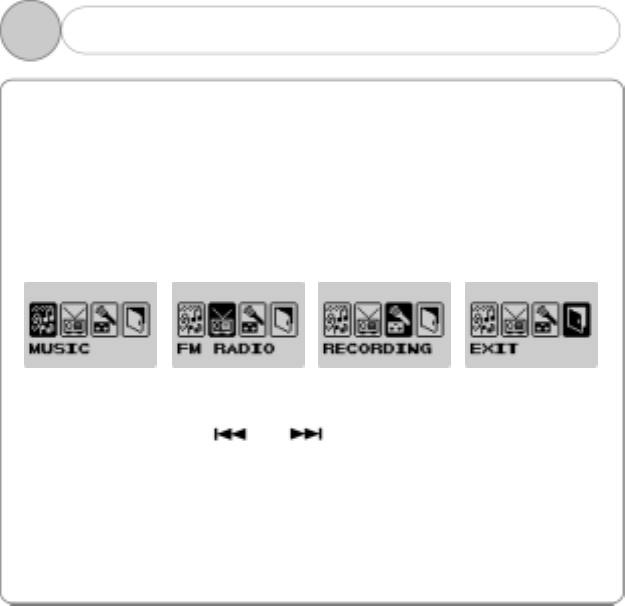
◎ Briefly press MENU button to open MODE menu.
◎ MODE menu consists of the followings as shown below:
MUSIC (Listening to the music)
FM RADIO (Listening to the FM radio)
RECORDING (Recording)
◎ Briefly push towards or to move between menus.
◎ Briefly press MENU button to select the menu.
◎ In all MODE menus, lengthily press MENU button or select EXIT to
close the MODE menu.
3. MODE Menu
4
32
◎ A mode to listen to the music files stored in the MUSIC memory
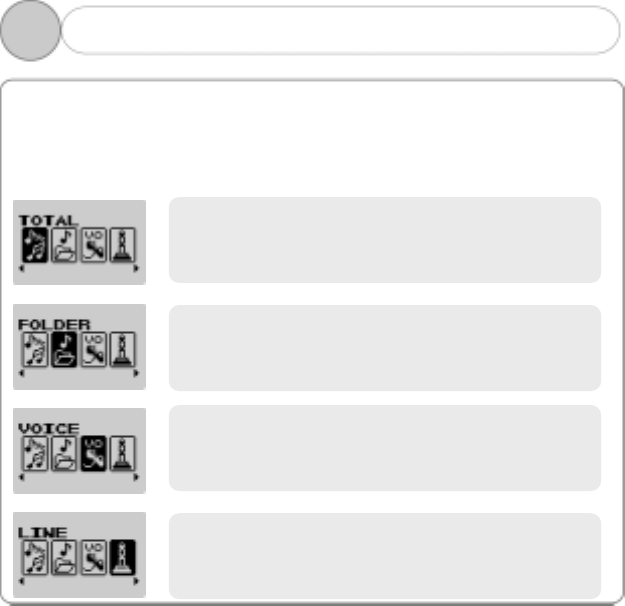
◎ Consists of TOTAL, FOLDER, VOICE, LINE and FM.
◎ If there is no music file existed, a message saying ‘No Files!’ will
appear in the display.
3-1. MUSIC Mode (1)
4
Listening to all pieces of music in the Player in
order.
Listening to the voice recording files.
Listening to the files recorded through external
line.
Viewing all folders in the current memory. Specify
the folder to listen to the music files in it.
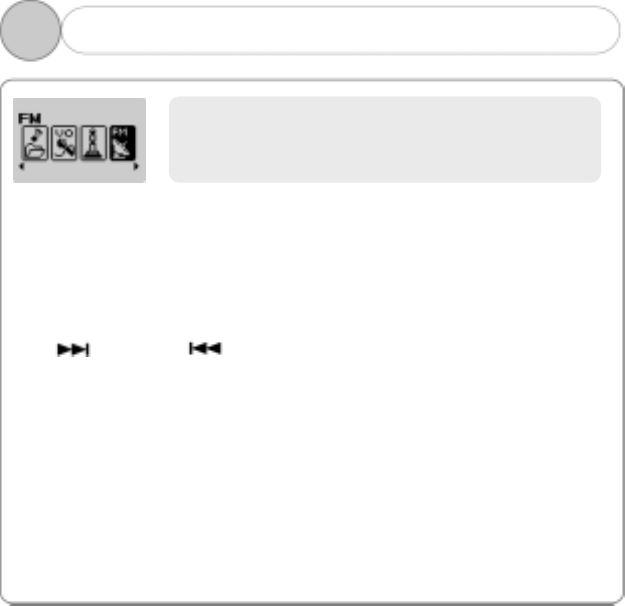
33
Listening to the MP3 Music
In the MUSIC mode, open sub-mode to listen to the music files in the
relevant folder.
Use button or button to select the next or previous music
respectively.
Use VOL+ button (to increase the volume) or VOL – button (to reduce
the volume) to adjust the volume.
Briefly press PLAY/PAUSE button to stop listening. Press again
PLAY/PAUSE button to resume the playback from the location where the
PLAY was previously stopped.
3-1. MUSIC Mode (2)
4
Listening to the recorded FM radio broadcasting.
34
◎ A mode to listen to the FM radio
Listening to the FM Radio
Briefly press MENU button and use
to move to the FM RADIO mode, and then
press MENU button to select.
Briefly push towards or to
change the frequency.
(Ex: 99.9MHz→99.8MHz)
Auto Scan: Lengthily push towards
or to automatically search the next
or previous station.
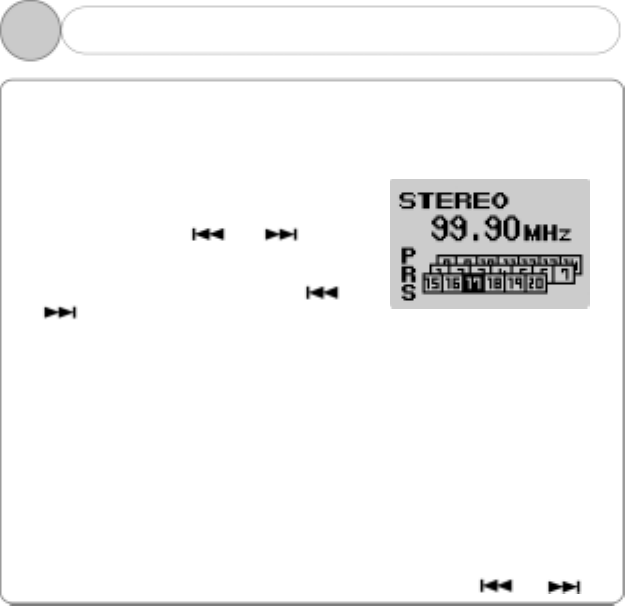
PRESET Mode
(1) Storing at PRESET
If you push the PLAY button short while listening to FM radio, the current
broadcast is stored at PRESET.
(The current broadcasting frequency is stored at the number to which
your pushing the PLAY button short is followed by moving)
(2) Opening from PRESET
If you open the frequency stored at PRESET, push the A<-->B / REC
button once, short. Then, you’ll see the message PRS left of the PRESET
number.
You can move to the PRESET number you want by using or .
3-2. FM RADIO Mode (1)
4
35
(3) Automatic storing at PRESET
If you push the FF/REW button long in
the PRESET mode, all the broadcast are
automatically searched to be stored at
PRESET.
If you push the REC button during the FM
broadcasting, the FM PRESET mode is
activated. If you push the REC button
short in the PRESET mode, the FM
broadcasting is activated.
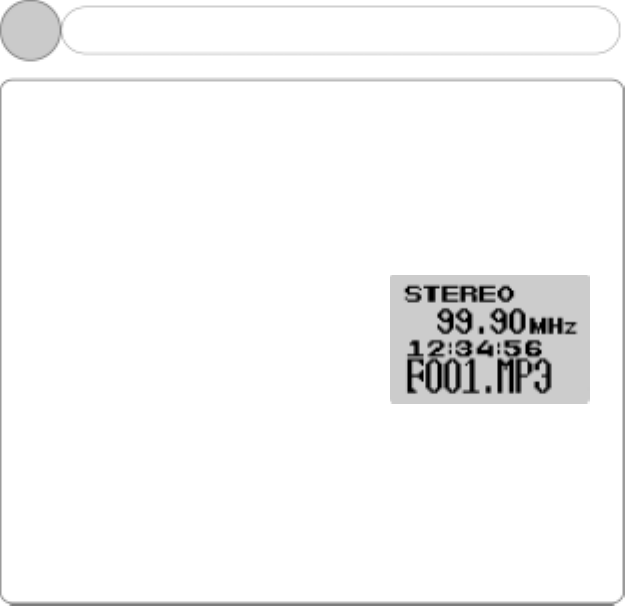
Recording the FM Radio Station
If you want to record while listening to
FM radios, push the REC button long.
If you want to stop recording, push the
REC button long.
The recorded files are stored in the
RADIO folder in the following format:
F001.mp3 or F002.mp3.
If you want to play the recorded
files, step on MENU→ MUSIC→ FM.
Then use FF/REW to locate and play the
applicable files.
3-2. FM RADIO Mode (2)
4
36
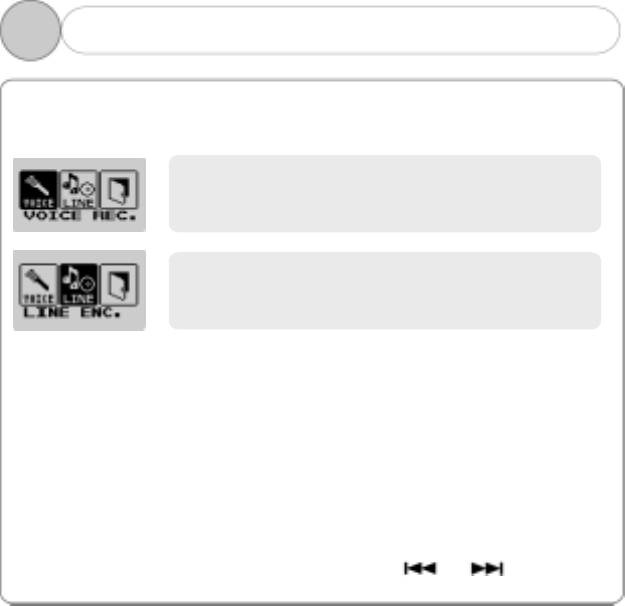
◎ A mode related to the recording, which consists of VOICE REC. and
LINE ENC.
Vocal Recording & Playback
Turn the player on to step on MENU RECORDING VOICE REC, which
is followed by a vocal recording. (Or, if you push the REC button long
while the player is played, a vocal recording will begin.)
If you want to stop recording, push the PLAY button short. If you want to
begin recording again after that, push the PLAY button short.
If you want to stop recording, push the REC button long.
The recorded files will be stored in the VOICE folder in the following
format: V001.mp3 or V002.mp3.
If you want to play the recorded files, step on MENU→ MUSIC→
VOICE to locate the applicable files. Then, use , to play the
player.
3-3. RECORDING Mode (1)
4
Recording the voice.
Recording the music file being played in the
external device through the LINE IN.
37
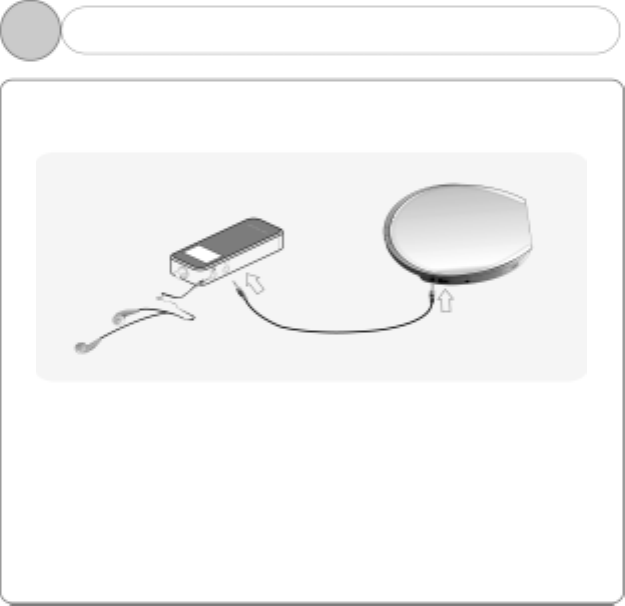
Recording the External Device (LINE IN)
Connect the external device to be recorded as shown below.
Turn the player on to step on MENU→ RECORDING→ LINE ENC., which is
followed by recording from a external source.
When you stop recording, push the REC button long.
The recorded files is recorded in the LINE folder in the following format:
L001.mp3 or L002.mp3.
When recording from the external device, do not listen to the FM station
in the Player, which may cause the noise. The LINE IN cable provided
with the Player may not be compatible with some home audio units. You
have to use the correct specification of the cable. You cannot record
without connecting the line cable.
3-3. RECORDING Mode (2)
4
38
1. FIRMWARE UPGRADE
◎ You can upgrade FIRMWARE to add, change or improve the functions
of the player, in which the Firmware means its Operating System.
The process of upgrading the Firmware is as follows:
There should be left over two partitions in the remaining power
of the battery Before FIRMWARE UPGRADE.
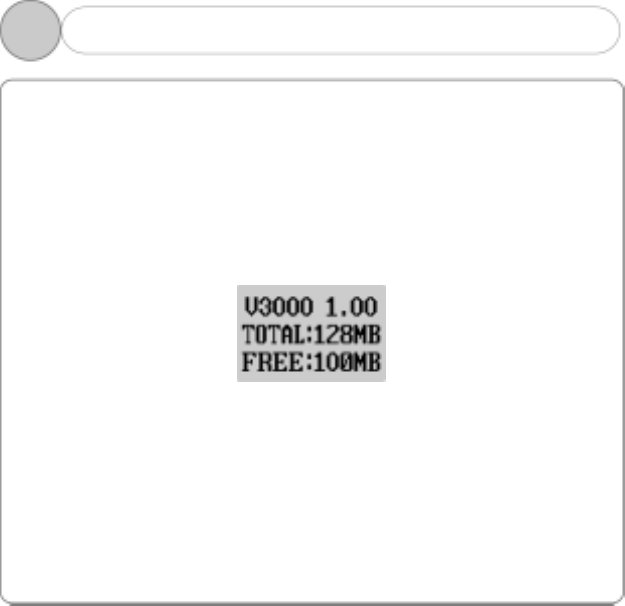
1. Confirm the FirmWare version (V3000 1.00) of the Player, which
appears on the display as shown below when turning the power ON.
In this example, V3000 indicates the model name and 1.00
indicates the FirmWare version (Ex. 1.01, 1.02, etc.).
2. Visit the company website (www.ezmax.co.kr) to check if there is
an upgraded version available for the Player (Model No. EZMP-3000).
If yes, download and save in the disk.
Please note that upgrading the FirmWare with a version for
the different model No. causes a serious failure.
3. Use the USB cable to connect the Player with the PC, and open a
Windows Explorer to access to the “Removable disk”.
44. UPGRADE (1)
39
4. Copy the downloaded file to the removable disk.
(The way of UPGRADE is the same as the music file is downloaded.
Only when there appears the message “READY” followed by WRITE,
the downloading has been normally completed.)
5. If you separate the player from the PC, there appears the message
“F/W! UPGRADE” on the display to upgrade the firmware. After that,
the player is automatically turned off.
Make sure do not turn the power OFF the Player during the
upgrade.
2. FONT UPGRADE
◎ Font refers to format letters in which below the name of a recording
file, ID3 TAG information or a text of music is shown below the display
when the music or the recording file is played.
If you can’t see a letter below the display or you have worked on LOW
LEVEL FORMAT, you should upgrade the fond file.
- Use the USB cable to connect the player to the PC, and then open the
Windows Explorer to move to “Removable Disc”.
- Copy to the Removable Disc the IWFONT.IWF file in the FONT folder
of the installation CD.
- Separate the player from the PC, when there will appear the message
“FONT UPGRADING”on the display for font upgrading.
4. UPGRADE (2)
4
40
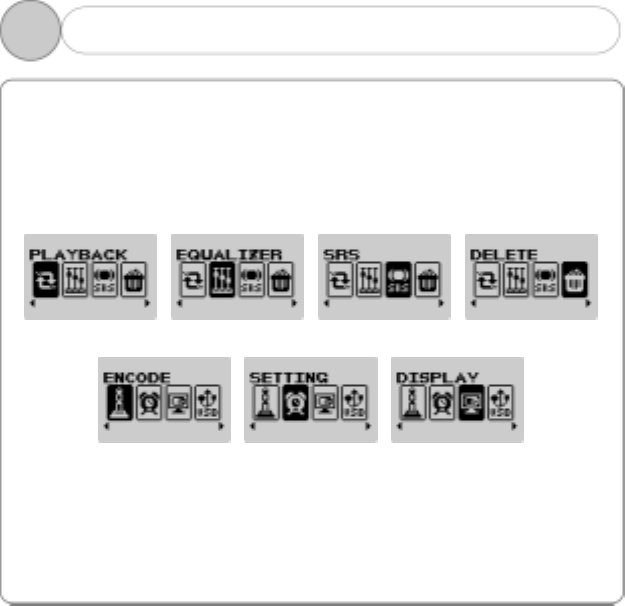
◎ Lengthily press MENU button to open FUNCTION menu.
Each menu has its sub-menu. If you push the MENU button in the sub-
menu short, the applicable item is selected. If you push it long, its
upper menu is displayed.
Function Menu
5
41
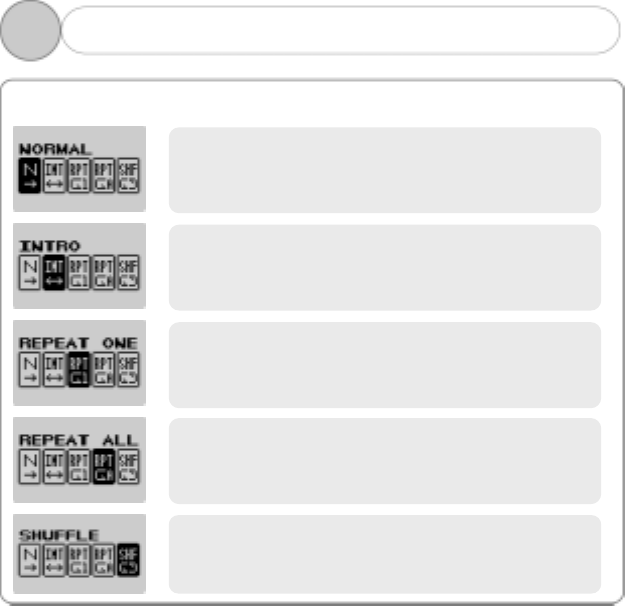
◎ A function to select the playback mode
1. PLAYBACK
5
Playing all pieces once in order.
Each piece of music stored in the memory is
played just for 10 seconds to the end.
A single selected piece of music alone is
repeated.
Repeating all pieces in order.
Repeating all pieces in no order.
42
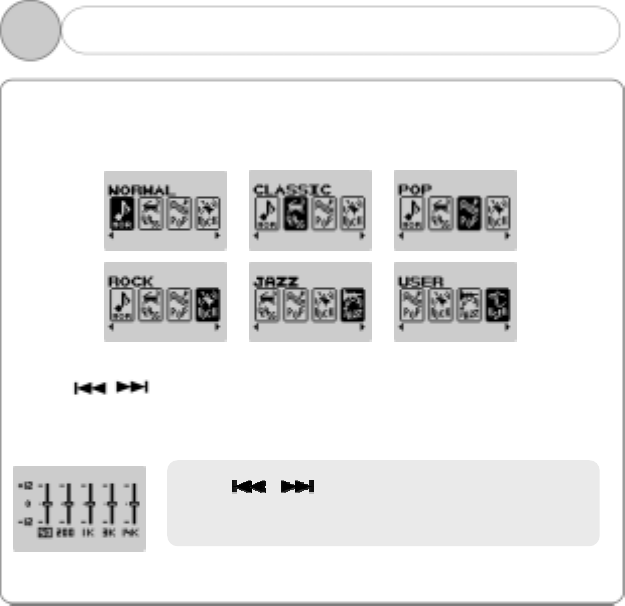
◎ A function to select the sound adjustment mode during the playback
Each menu has its sub-menu. If you push the MENU button in the sub-
menu short, the applicable item is selected. If you push it long, its
upper menu is displayed.
◎ If you push the MENU button long, the function menu is displayed.
Use button to select EQUALIZER, and then select one of six
menus above.
◎ In the USER menu, you can adjust the sound in 9 steps for each
frequency within 5 frequency ranges.
◎ The selected item is shown in the Main Menu screen.
(The function of EQ is applied only when the function of SRS is normal.)
2. EQUALIZER
5
Use button to move on the
horizontal axis, while use VOL- and VOL+
button to move on the vertical axis.
43
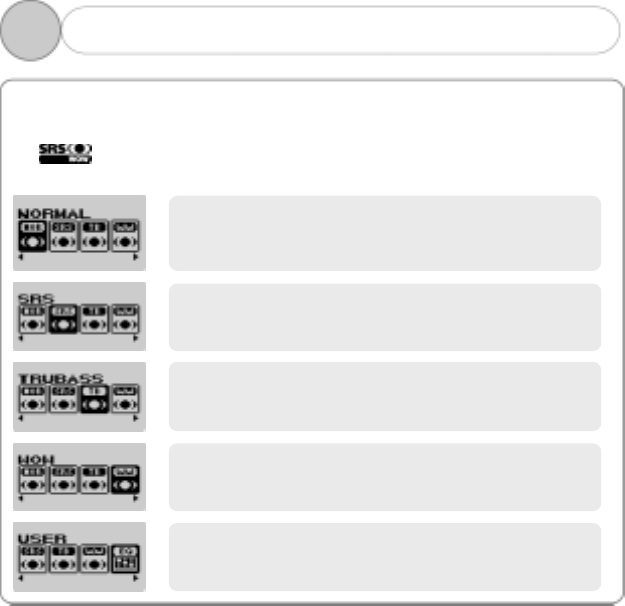
◎ SRS-WOW is a general designation of the 3-dimensional virtual sound
effect developed by the SRS Lab, which consists of SRS, TruBass,
FOCUS and WOW.
is a trademark of the SRS Labs, Inc.
WOW technology is incorporated under license of the SRS Labs, Inc.
3. SRS (1)
5
The player is played with the effect of SRS not
applied.
Enjoy the 3-dimensional sound effect.
Improve the bass sound to make spectacular
sound.
Enjoy the WOW function.
The user can define the special level of the
SRS, TruBass and WOW.
44
!NOTE: USER is a function that allows the user to adjust the each level
of the SRS, TruBass and WOW.
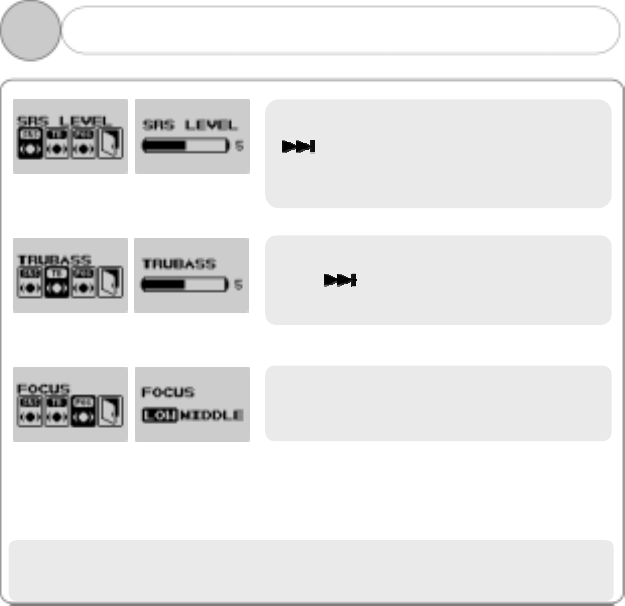
Adjust the set value of the SRS. Use
button to adjust in 0-10 steps.
The higher value gives the stronger
effect.
Adjust the set value of the TruBass.
Use button to adjust in 0-10
steps.
Adjust the definition of the sound.
(Low, Middle)
3. SRS (2)
5
45
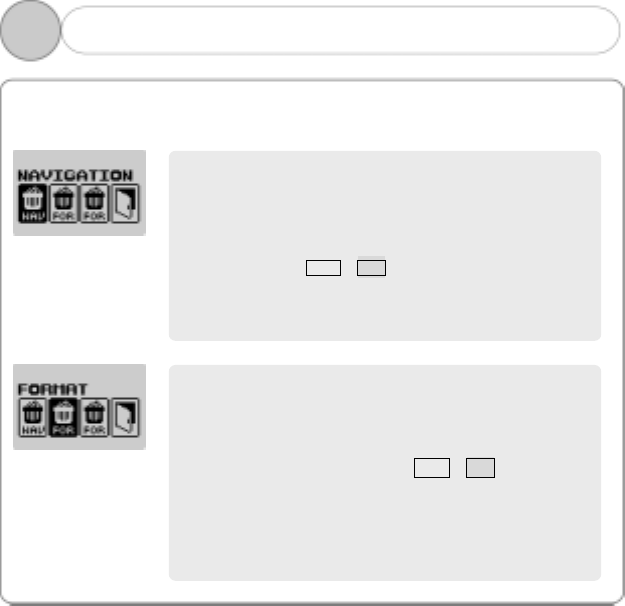
◎ This is a function where a file within a memory is deleted.
Note that, once it has been deleted, you can’t recover it.
4. DELETE
5
Select the file or folder to delete.
- Use the FF/REW button to move to a folder or
a file you want to delete.
- Push the PLAY button shortly.
DELETE YES NO
- Use the FF/REW button to change NO to YES.
- Push the MENU button shortly to delete.
Delete all files in the Player.
- Use the MENU button shortly to execute
“FORMAT”. FORMAT YES NO
- Use the FF/REW button to change NO to YES
- Push the MENU button shortly to format.
46
* How to download the font
1. Connect the Player with the PC.
2. Download a font file to the Player.
3. Separate the player from the PC, and there will appear the window
FONT UPGRADE. The completion of upgrading will show an initial
status.
5
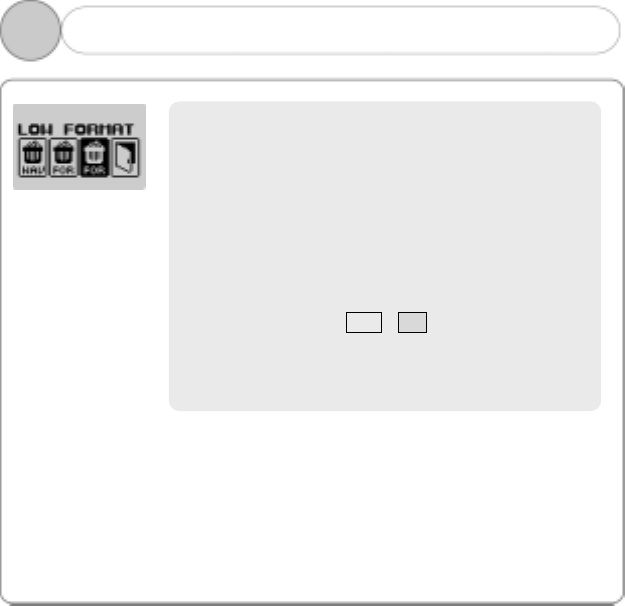
You can delete all the files including the font and
logo used in the player. If you have worked on
Low Formatting, download them again. You’d
better use this function, only if necessary.
- Push the MENU button shortly to execute “LOW
LEVEL FORMAT”.
WARNING !!
FONT AND LOGO AND SETTING DATA
WILL BE ALSO DELETED !! THINK HARD !
LOW FORMAT YES NO
- Use the FF/REW button to change NO to YES.
- Push the MENU button shortly to begin
formatting.
4. DELETE
47
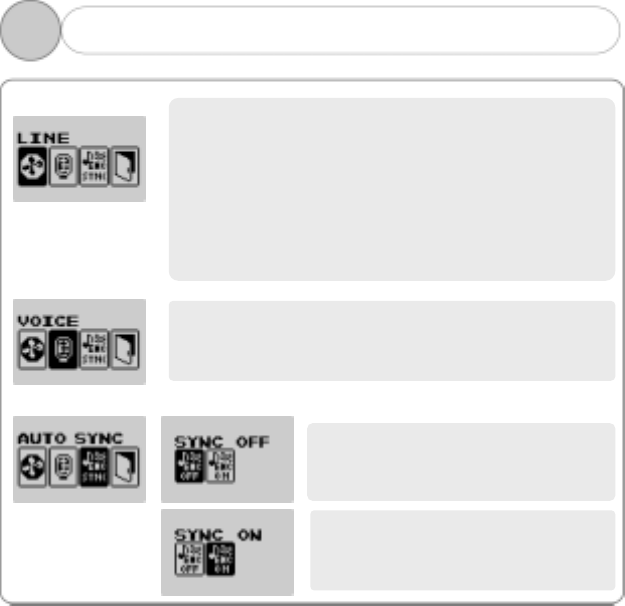
Automatically sorting all pieces
externally inputted to record in a
separate file.
Recording all pieces externally
inputted in a file until STOP
button is pressed.
◎ LINE ENCODE
◎ VOICE ENCODE
◎ AUTO SYNC.
.
5. ENCODE
5
Ad
j
usting the bit rate of the voice recording file
according to your need (longer hours or highe
r
sound quality). Low bit rate reduces the file
volume but lowers the sound quality while high
bit rate improves the sound quality but increases
the file volume to shorten the recording time.
Select LINE→BITRATE, and the select one of 48,
96
,
128 and 192kb
p
s.
Step on VOICEBITRATE to select among 16, 32,
or 64kbps.
48
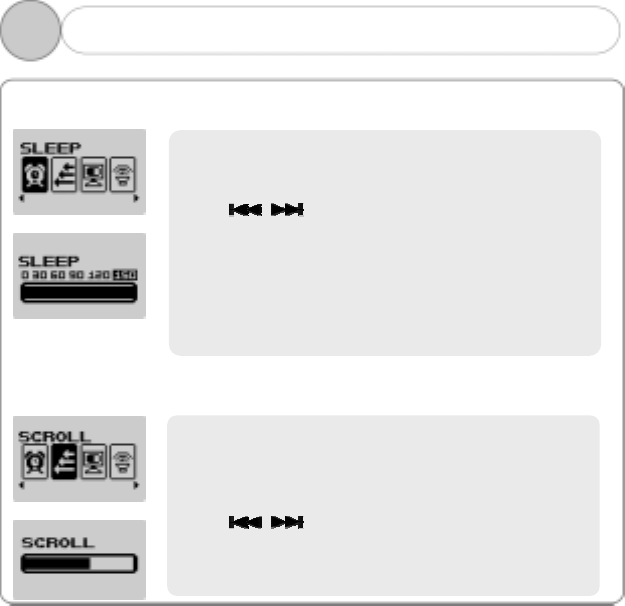
◎ Set SLEEP Time
◎ Scrolling Speed
6. SETTING (1)
5
Define the time to automatically turn the powe
r
OFF. Press MENU button to open the menu as
shown on the right.
Use button to adjust the time, and
then use MENU button to select. The example
shows the setting that the power will be off in
150 minutes after turning the power ON.
!NOTE: If there is pushed no button for 120
seconds while the player is paused, it will be
automatically turned off.
Adjust the speed of scrolling the file name o
r
the ID3 TAG information during the playback.
Press MENU button to open the menu as shown
on the right.
Use button to adjust the speed in 10
steps, and then use MENU button to select. The
higher the step is, the faster the speed is.
49
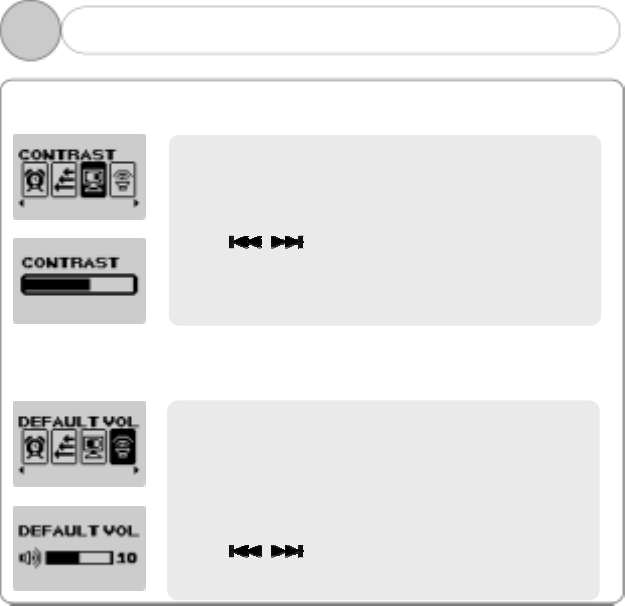
◎ Contrast
◎ Default Volume
6. SETTING (2)
5
Adjust the brightness (contrast) of the Display.
Press MENU button to open the menu as shown
on the right.
Use button to adjust the brightness
in 10 steps, and then use MENU button to select.
The higher the step is, the brighter the contrast
is.
You can adjust the volume with this setting. I
f
the volume at which the player was set is large
r
than the one set currently, the booting will begin
as the set default volume. If not so, the volume
set last will be applied.
Use buttons to adjust the volume, and
then use MENU button to select.
50
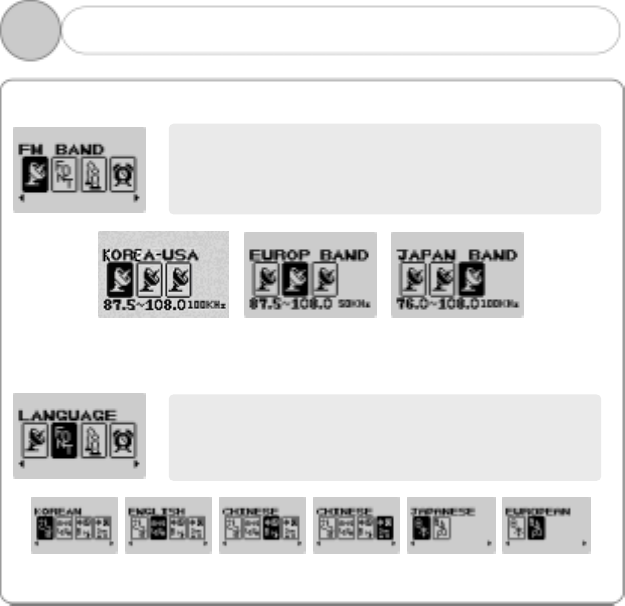
◎ FM Band
◎ Language
Select the local language of the country.
Select one of the KOREA-USA, EUROPE BAND and
JAPAN BAND to set the frequency range of the FM
radio station.
6. SETTING (3)
5
51
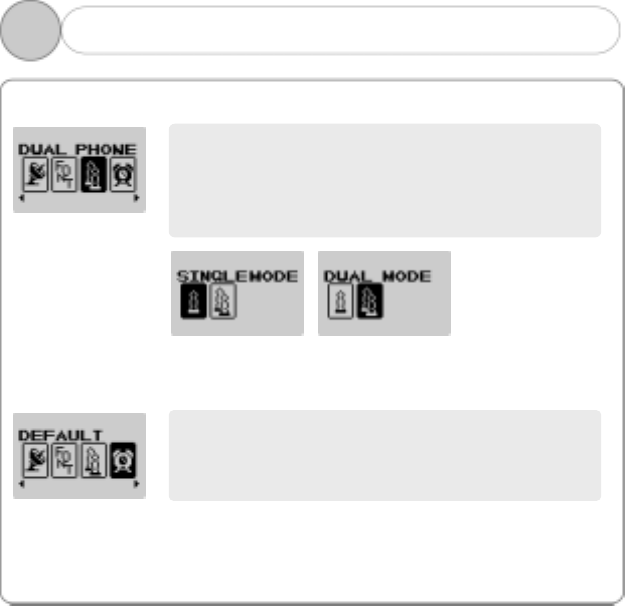
◎ Dual Phone
◎ Default
You can set the function to simultaneously use
two earphones. Insert the second earphone into
the LINE-IN jack. It is not supported when
listening the FM radio station.
You can initialize all set values with the factory
default values.
56. SETTING (4)
52
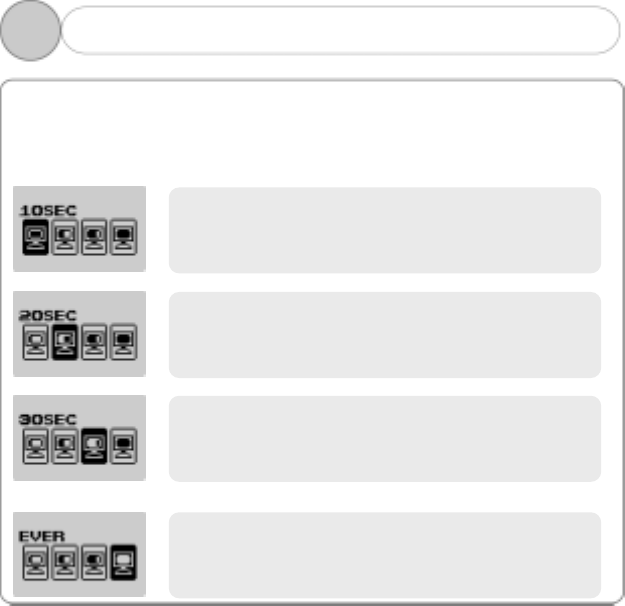
◎ A function to set the time interval to automatically lit the display off
since the last button operation
7. DISPLAY
5
Turning the display off when there is no
operation for 10 seconds.
Turning the display off when there is no
operation for 20 seconds.
Leave the display on.
Turning the display off when there is no
operation for 30 seconds.
53
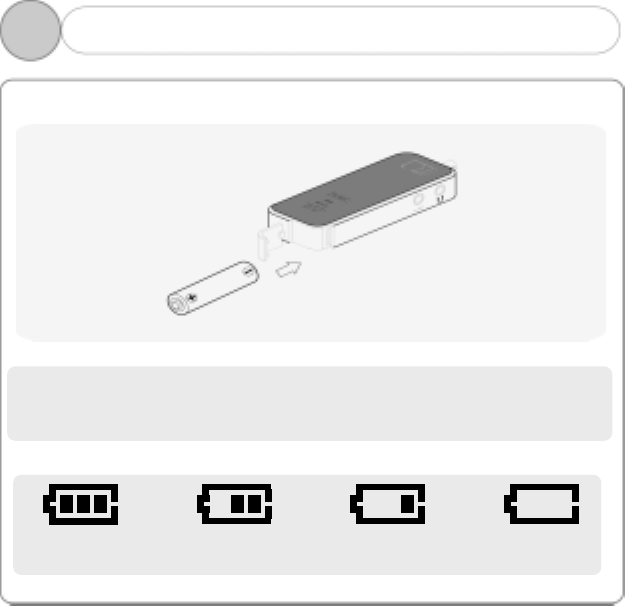
◎ How to Insert Battery
!NOTE: Make sure the polarity (+ and -) of the battery is correctly
inserted.
◎ Battery Gauge
Full Gauge
Mid Gauge
Low Gauge
Zero Gauge
1. About Battery
6
54
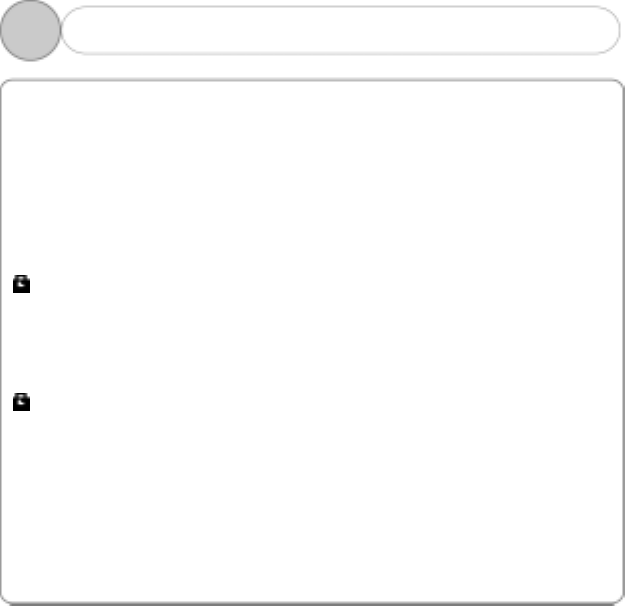
◎ Use this function to prevent the misoperation by other buttons and an
unnecessary battery burnout caused by the misoperation during the
operation of the Player.
How to Set HOLD
Push the HOLD switch located on the rear side of the Player towards the
Arrow mark. In the display, “HOLDING!!” is blinking for 1-2 seconds and
appears to set the lock.
How to Cancel HOLD
Push the HOLD switch in opposite direction to the Arrow mark.
disappears in the display to cancel the lock.
2. How to Set HOLD
6
55
◎ If the product fails, please first check the followings.
Power is not turning on.
・Check if the battery is properly inserted with correct polarity.
・Battery may be dead. Replace the battery.
・Check if HOLD is set in the Player.
(Move the switch in opposite direction to the Arrow mark to cancel the
HOLD.)
Unrecognizable characters are shown in the display.
・Check if the language is properly set in the LANGUAGE menu.
・Check if the font is broken. If so, you need to upgrade the font file.
Radio station makes noise “boooo~” or “Ssaaaa~” and the
reception is bad.
・Change the direction of the Player and earphone.
Please turn the power of the electric appliances OFF near the Player. If
the noise is reduced, use the Player away from the electric appliances.
・As an earphone plays the role of an antenna when listening to the
radio station, no earphone may cause the poor reception.
3. Trouble Shooting (1)
6
56
No sound or noise is heard during the playback.
・Check if the music file is stored in the memory.
・Check if earphone is properly plugged in.
Or check if its terminal is contaminated by the foreign substance.
・Check if the volume is set to “0”.
・Damaged data makes noise or breaks off the sound in the MP3 and
WMA files. Replace it with other file to check if the data is damaged.
Cannot download files.
・Check if the USB cable is properly connected between the Player
and PC.
・Check if the USB driver is properly installed.
・Check if the memory is sufficient.
Buttons are locked.
・Check if is on HOLD.
3. Trouble Shooting (2)
6
57
Memory Built-in Memory 128MB/256MB/512MB
DISPLAY 80x48 OLED Type Blue Color Backlight
MP3 Encoding MPEG 1/2/2.5 Layer3
Compatible File Format MPEG 1/2/2.5 Layer3, WMA, ASF (Audio only)
Compatible File Bit Rate 8 Kbps ~ 320 Kbps (WMA/ASF: 32 ~ 192 Kbps)
Frequency 20 Hz ~ 20 KHz
Headphone
Output 6.5 mW + 6.5 mW (16 ohm)
Audio
S/N Ratio > 85 dB
FM Frequency 87.5 MHz ~ 108 MHz
76.0MHz ~ 108MHz(JAPAN only)
Headphone
Output 5 mW + 5 mW (16 ohm)
S/N Ratio > 55 dB
FM
Radio
Antenna Earphone Antenna
Language Multi-Language
USB USB 1.1(5 Mbps)
Maximum Playback Time Approx. 13 hours (Company standard)
Distortion Rate < 0.1%
Size 31.0(W) x 81.0(L) x 14.5(H) mm
Battery 1 x AAA size
Weight 29g
* The specification and exterior of the product are subject to change
without prior notice for further improvement of the performance.
4. Product Specification
6
58
If you want latest information about updated Manager or MP3 player,
visit our website.
Homepage: www.ezmax.co.kr
Address : # 302, Kumbong TechnoValley, 59-3 Dangjung-dong,
Gunpo city, Kyunggi-do
Tel : 82-31-457-9184
Fax: 82-31-457-9187
e-mail : webmaster@ezmax.co.kr
! Note: If you want A/S due to some breakdown, you can visit our main
office and receive it, or send mail(registered mail and home
delivery).But, please note that we cannot give receiver-pay
service.
5. Service Information (A/S)
6
59
Warranty
We hereby certify as follows:
1. This product is manufactured through strict quality control and
inspection process.
2. You can receive free A/S for 1 year after purchase if the product
with warranty period is out of order. (If it falls under the case of
paid service in this written warranty even if it is within warranty
period, you should pay.)
3. This warranty is domestically valid.
4. Make sure to present this warranty if this product requires repair.
5. Keep this warranty carefully since it is not reissued.
6.If this product is out of order, contact the branch office you
purchased the product.
Product Name
Model Name
Date of Purchase Warranty
Period Year
Branch Store Price
Checked by Branch
Store Won
Tel
Address
Name
Customer Tel
Make sure to make this filled out when you purchase the product.
FCC Compliance Statements
Note: This equipment has been tested and found to comply with the limits for a
Class B digital device, pursuant to part 15 of the FCC Rules. These limits are
designed to provide reasonable protection against harmful interference in a
residential installation. This equipment generates, uses and can radiate radio
frequency energy and, if not installed and used in accordance with the
instructions, may cause harmful interference to radio communications.
However, there is no guarantee that interference will not occur in a particular
installation. If this equipment does cause harmful interference to radio or
television reception, which can be determined by turning the equipment off and
on, the user is encouraged to try to correct the interference by one or more of
the following measures:
• Reorient or relocate the receiving antenna
• Increase the separation between the equipment and receiver.
• Connect the equipment into an outlet on a circuit different from that to
which the receiver is connected.
• Consult the dealer or an experienced radio / TV technician for help.
Warning : Your are cautioned that any change or modifications to the equipment not
expressly approved by the party responsible for compliance could void your authority
to operate such equipment.