Easypix Dvx 1035 Hd Users Manual H110Z User _English_
DVX-1035 HD - User's Manual DVX1035_HD_Premium Free User Guide for EasyPix Camcorder, Manual
2015-08-11
: Easypix Easypix-Dvx-1035-Hd-Users-Manual-784905 easypix-dvx-1035-hd-users-manual-784905 easypix pdf
Open the PDF directly: View PDF  .
.
Page Count: 91
0

1
Contents
Disclaimer................................................................6
Precauctions ...............................................7
General precautions...............................................7
Power Supply.......................................................... 8
1
Overall Introduction............................9
1.1
System Requirements ..................................9
1.2
Features......................................................... 9
1.3
Accessories................................................. 10
1.4
External View............................................... 11
1.5
Adjusting LCD Display................................12
2
Getting Started ..................................13
2.1
Inserting SD Card........................................13
2.2
Loading the Battery ....................................14
2.3
Charging the Battery................................... 15
2.4
The Gestures of Using the Touch Screen .16
2.4.1
Single touch.........................................16
2.4.2
Slide.....................................................18
2.4.3
Rotate..................................................18
2.5
Buttons & Functions...................................19
Description… .....................................................19
Button…….. .......................................................19
Function….. .......................................................19
2.6
About LED Indicators .................................20
2.7
Initial Settings Before Use.......................... 21

2
2.7.1
Setting Date and Time......................... 21
2.7.2
Setting Language ................................22
3
LCD Display Information...................23
3.1
In DV Mode...................................................23
3.2
In Voice Recording Mode ...........................25
3.3
In DSC Mode................................................26
4
Using the Camera..............................28
4.1
Shooting a Movie Clip................................. 28
4.2
Pause Recording a Movie Clip................... 29
4.3
Shooting a photo.........................................30
4.4
Voice Recording Mode................................30
4.5
Movie Clip / Voice Clip Playback................31
4.6
Shooting / Playback Photos.......................35
4.6.1
Shooting Photos .................................. 35
4.6.2
Playback Photos..................................35
5
LCD Display Information...................37
5.1
DV Playback Mode ...................................... 37
5.2
Voice Recording Playback Mode ............... 38
5.3
DSC Playback Mode.................................... 39
6
Menu Options ....................................40
6.1
Menus of Movie Clip Mode .........................40
6.1.1
Quality .................................................40
6.1.2
Resolution............................................41
6.1.3
Pre-recording.......................................42
6.1.4
Time Lapse.......................................... 42

3
6.1.5
Dual Streams....................................... 43
6.1.6
Face Detection .................................... 43
6.1.7
Scene Mode ........................................ 44
6.1.8
White Balance .....................................45
6.1.9
Effect ...................................................46
6.1.10
Metering...............................................47
6.1.11
EV Compensation................................ 48
6.1.12
Backlight..............................................48
6.1.13
Contrast...............................................49
6.1.14
Sharpness ...........................................50
6.1.15
Motion Detection.................................. 51
6.2
Menu Options of Movie Clip/Voice Playback53
6.2.1
File Protection...................................... 53
6.2.2
Play Options ........................................ 54
6.2.3
Delete .................................................. 55
6.3
Menu Options of Camera Mode ................. 56
6.3.1
Quality .................................................56
6.3.2
Photo Size ...........................................57
6.3.3
Capture Mode......................................58
6.3.4
Instant View......................................... 59
6.3.5
Face Detection .................................... 59
6.3.6
Scene Mode ........................................ 60
6.3.7
White Balance .....................................61
6.3.8
Effect ...................................................62
6.3.9
Metering...............................................63
6.3.10
AE ISO.................................................63
6.3.11
EV Compensation................................ 64
6.3.12
Backlight..............................................64
6.3.13
Contrast...............................................65

4
6.3.14
Sharpness ...........................................66
6.4
Menu Options of Photo Playback .............. 67
6.4.1
File Protection...................................... 67
6.4.2
Slide Show Setting ..............................68
6.4.3
Slide Show Effect.................................68
6.4.4
Delete .................................................. 69
6.4.5
DPOF...................................................71
6.4.6
Rotate..................................................71
6.5
Setting Menu................................................72
6.5.1
TV Type ...............................................72
6.5.2
File Number (Default: Serial) ............... 74
6.5.3
Date/Time ............................................ 74
6.5.4
Format ................................................. 75
6.5.5
Default Setting.....................................75
6.5.6
LCD Brightness ...................................76
6.5.7
Date/Time Stamp.................................76
6.5.8
Auto Power Off ....................................77
6.5.9
Language.............................................77
6.5.10
Flicker..................................................78
6.5.11
Information...........................................79
6.5.12
Sound .................................................. 79
6.5.13
LCD Correction....................................80
6.5.14
Start Logo ............................................ 80
6.5.15
Digital Zoom ........................................ 81
7
PC and TV Connection......................82
7.1
Connecting to the Computer...................... 82
7.2
Connecting to the Standard TV.................. 82
7.3
Connecting to the HD TV............................83

5
8
Installing the Software ......................84
9
Editing Software................................85
10
Appendix............................................86
Specifications .......................................................86
Troubleshooting ...................................................88

6
Thank you for purchasing this Digital Video Camera. Please read
this manual thoroughly and keep it in a safe place for future
reference.
Disclaimer
Our company endeavors to ensure the contents of this manual are
correct and up-to-date. However, we do not guarantee the accuracy
of the contents of this manual. In case there is any discrepancy
between this manual and the Digital Video Camera, please use this
camera as the basis. We reserve the right to change any content or
technical rule without prior notification. In addition, the manufacturer
reserves the right to change technical specifications and package
contents without prior notification.

7
Precauctions
General precautions
• Please do not disassemble or use any way to modify the
product by yourself, which may corrupt the product or cause
electric shock.
• Keep the Digital Video Camera away from the reach of children
or animals to prevent them from swallowing the batteries or
small accessories.
• Stop using in case there is any kind of liquid or foreign object
enters the Digital Video Camera. Turn off the Digital Video
Camera and contact your dealer for help if it occurs.
• Do not operate the Digital Video Camera with wet hands; it may
cause electric shock.
• Do not place or store the product in an environment of high
temperature to avoid damage. The camera is designed for use
in the temperature between 0°C and 40°C (32°F and 1 04°F).
• Do not store the product in the dusty/sandy/dirty place, or the
area which is close to air condition/heater. Otherwise it may be
ruined.
• Do not open the battery cover while recording the image. By
doing so, the current image is unable to store, it may also
corrupt other image data already stored in file.
• Please test this Digital Video Camera to ensure it is in normal
operations before using it in any important occasion(such as
wedding or overseas trip).

8
Power Supply
• Please ensure using the provided battery or battery charger
attached to this Digital Video Camera. Using any other type of
battery of battery charger might damage the facility and render
the guarantee void.
• Make sure the batteries are in the correct position. Error in the
orientation of batteries might damage this product and result in
fire.
• Please take out the batteries to avoid leaking of battery fluid if
the Digital Video Camera is not in used for a long period of
time.
• Please remove the crashed or damaged battery right away to
avoid leaking of battery fluid or abnormal expansion.
9
1 Overall Introduction
Please read this chapter to understand the features and functions of
this Digital Video Camera. This chapter also includes the description
of system requirement, package contents, and hardware
components.
1.1 System Requirements
This Digital Video Camera requires a unit of computer with the
following specifications:
• Windows® Vista / XP operating system or Mac OS 10.3 ~10.4
• A CPU of at least the equivalent of Intel® Pentium 4 2.8GHz I
• At least 2GB of RAM
• Standard USB 1.1 connection port or higher
• At least 64MB of display card
Note:
USB 1.1 allows you to transmit files to the host, but using USB 2.0 connection port
could increase the transmission speed far faster.
1.2 Features
This Digital Video Camera provides many features and functions
including:
• High resolution pixel camera (maximum 16 million pixels)
• Touch screen
• Time lapse
• Pre-recording
• Dual streams
• Capturing a still image in video mode
In addition, this video camera has USB mass storage hard disk, and
SD card reader.
10
1.3 Accessories
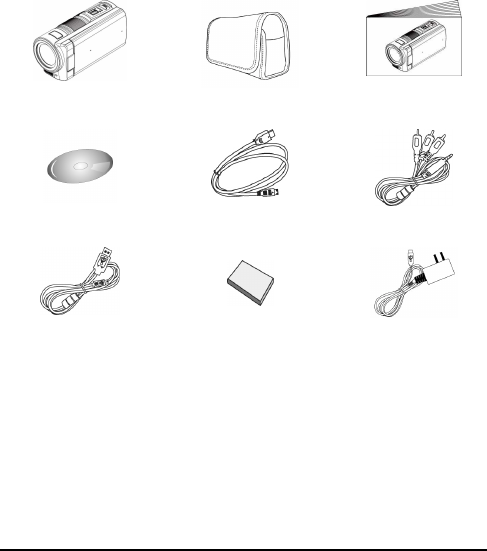
This package should contain the following items. In case there is any
missing or damaged item, please contact your dealer immediately.
① Digital video camera ② Pouch ③ Quick guide
④ Software CD ⑤ HDMI cable ⑥ Video cable
⑦ USB cable ⑧ Lithium battery ⑨ Adaptor
11
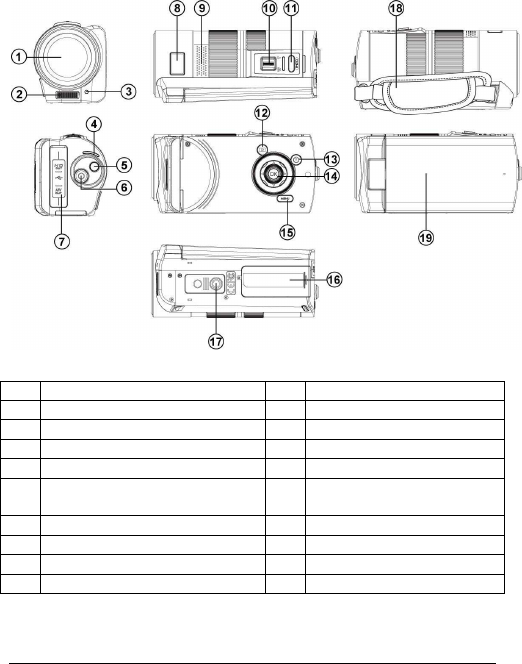
1.4 External View
1 Lens
11
Shutter Button
2 Flash Light 12
Playback Button
3 Self-timer Indicator
13
Power
4 LED Indicator 14
SET Button
5 Mode Button 15
Menu Button
6 Recording Button 16
Battery / Memory Card
Compartment
7 USB/HD/TV/Audio Output 17
Tripod socket
8 Status Display 18
Hand Strap
9 Speaker 19
Microphone
10
Zoom Button
12
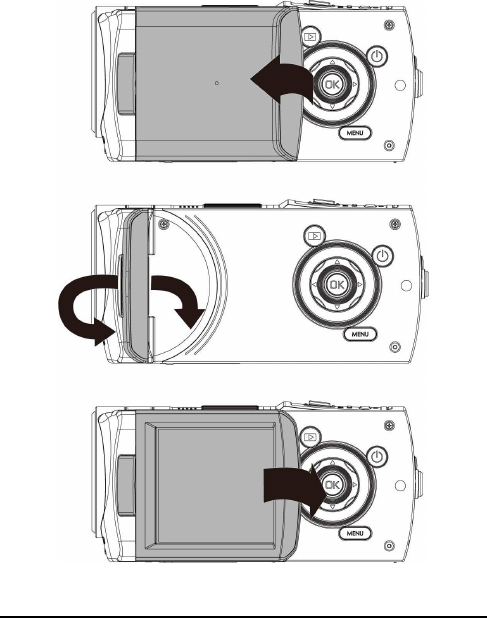
1.5 Adjusting LCD Display
Before taking pictures or recording movie clips, please rotate
according to the illustrations below.
13
2 Getting Started
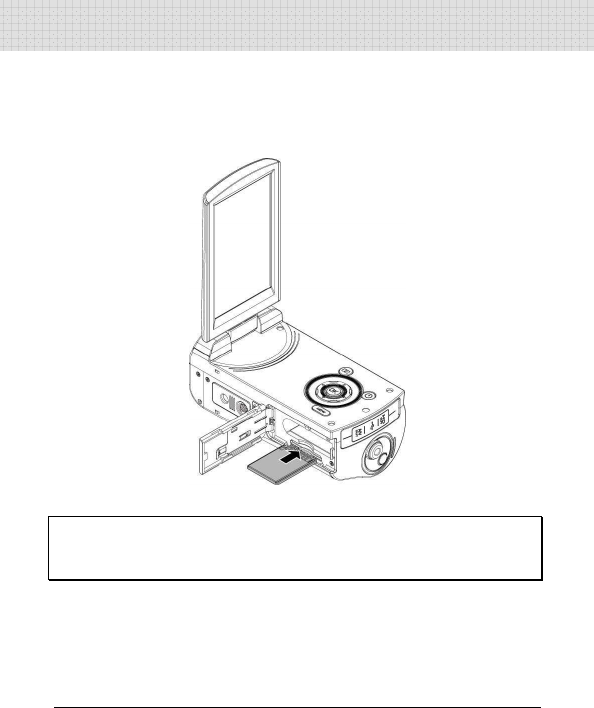
2.1 Inserting SD Card
1. Insert an SD card and make sure facing the touching face
downward.
Note:
Do not remove or insert SD cards when the power of the Digital Video Camera is on
to avoid damaging files.
14
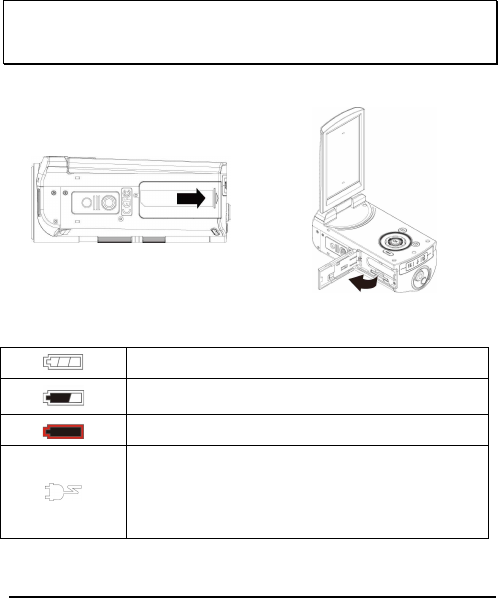
2.2 Loading the Battery
Please use only the battery provided or recommended by the
manufacturer or dealer.
Note:
Insert battery correctly according to this description. Error in inserting batteries
could result in non-repairable
damage to this Digital Video Camera.
1. Open battery cover.
Battery Status Indicator:
Battery full
Battery half full
Battery empty
Charging battery (A new battery should be
charged at least 4 hours.)
The device power is supplied by DC input. (No
batteries inside.)
15
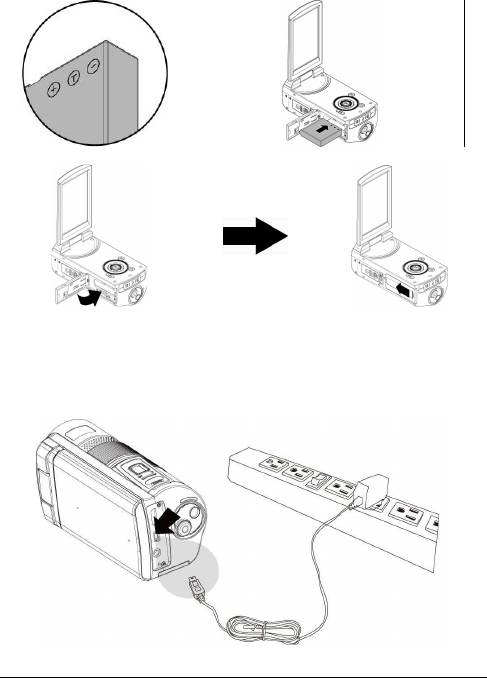
2. Insert batteries according to the illustration.
3. Close battery cover.
2.3 Charging the Battery
You can use the adaptor attached to charge the lithium battery.
Insert the lithium battery into the Digital Video Camera and connect
to the cable of the adaptor.
16
2.4 The Gestures of Using the Touch Screen
2.4.1 Single touch
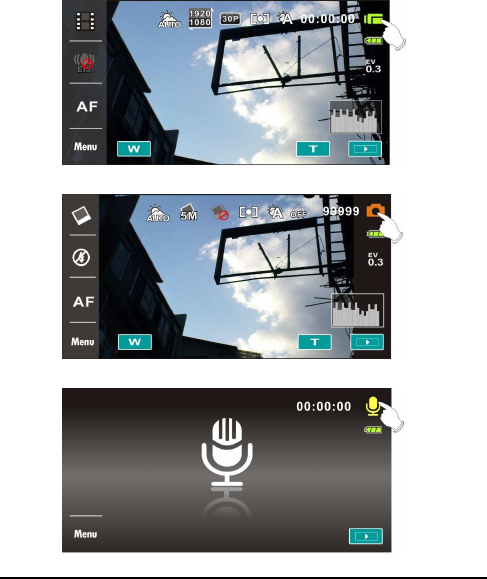
1. Touch hotkey on the screen to switch mode (DV, DSC,
and Voice Recording).
17
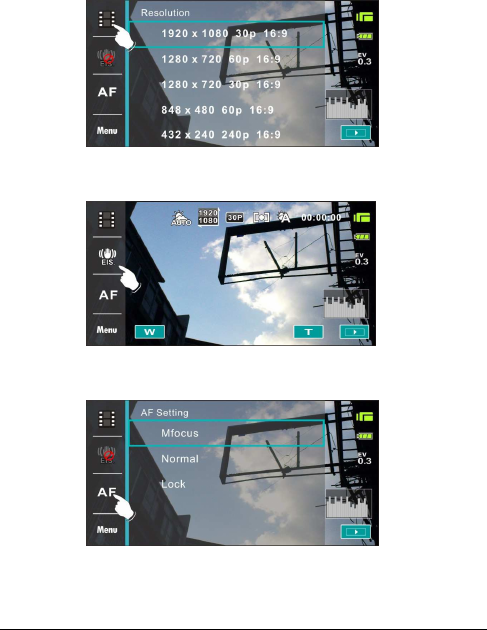
2. You can also touch hotkey to change settings as shown
below (Take DV function as an example).
Resolution
Electronic image stabilizer on/off
Auto Focus
18
2.4.2 Slide
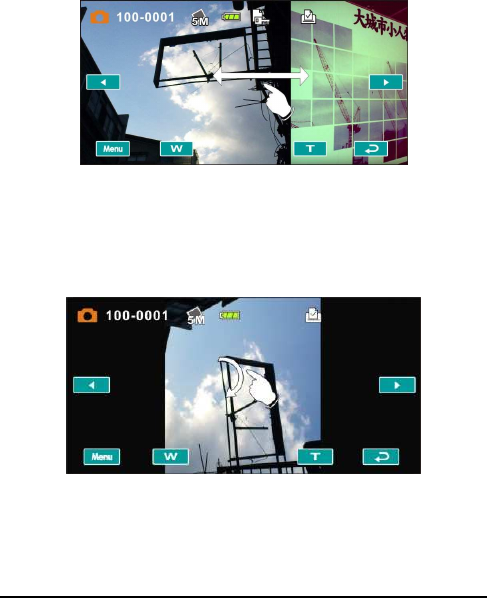
Slide right or left to view the previous file or the next file under the
[Playback] Mode.
2.4.3 Rotate
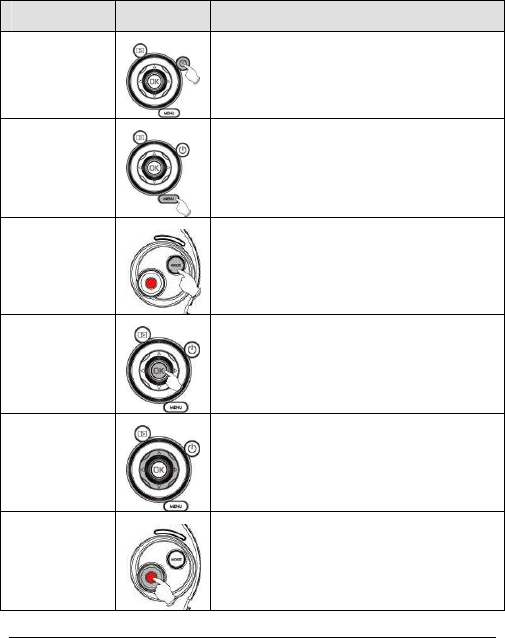
Under [Playback] Mode, you can rotate the image by 90°/step as
shown below.
19
2.5 Buttons & Functions
Description
Button
Function
Power
Button
To turn ON/OFF the Digital Video Camera.
Menu
Button
To display the main OSD menu.
MODE
Button
There are three operating modes for the
Digital Video Camera: DV Mode, DSC
Mode, and Voice Recording Mode. Press
the Mode button to switch to different
modes.
SET Button
To confirm all settings.
4-Way
Direction
Button
Press this button Left/Right to adjust the EV
compensation; press this button Up in DSC
mode to turn on/off the flash light: off, auto,
fill-in.
Recording
Button
To take movie clips and voice recordings.
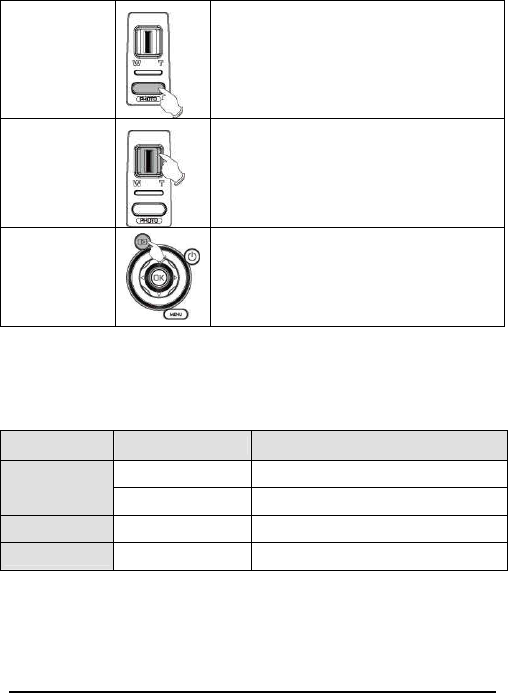
20
Shutter
Button
To take images.
Zoom
Button
This Digital Video Camera is equipped with
10X Optical Zoom: press the button Right
(T) to pull in the distance of the subject, or
press the button Left (W) to move away the
distance from the object.
Playback
Button
To enter Playback mode.
2.6 About LED Indicators
Below table describes the meaning of the camera LED indicators:
Indicator Color
Definition
Green Turning power on.
Power Green blinking
Flash is charging.
Recording
Green blinking
Recording
Self-timer
Red blinking Start of Self-timer.
21
2.7 Initial Settings Before Use
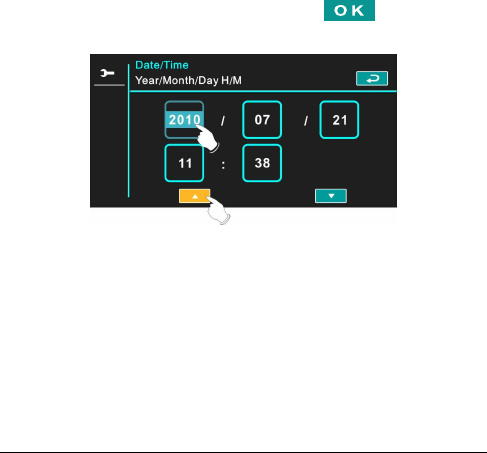
2.7.1 Setting Date and Time
1.
Turn [On] the Digital Video Camera to set up the date and
time for the first time. Set the date and time by moving
up/down button or touch the screen to select.
2. Press the [4-Way Direction] Button left/right to select each
column. Then press up/down or touch the screen to select
the column.
3. Press the [4-Way Direction Button] Up/Down to adjust the
value. Press [SET] Button to store the value you change
or touch the screen to adjust the Year, Date and Time
before pressing the Return Button ( ).
22
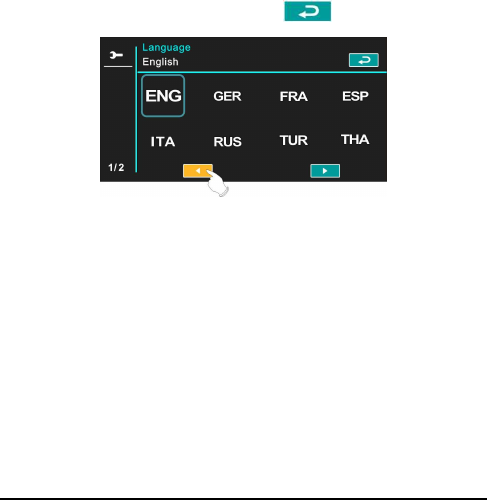
2.7.2 Setting Language
1. It is automatic to move on to Language setting after
setting Date/Time.
2. Press the [4-Way Direction] Button left/right to select each
column. Then press up/down or touch the screen to select
the column.
3. Press the [4-Way Direction Button] up/down to adjust the
language. Press [SET] Button to store the value you
change or touch the screen to adjust the language before
pressing the [Return] Button ( ) to leave the setting.
23
3 LCD Display Information
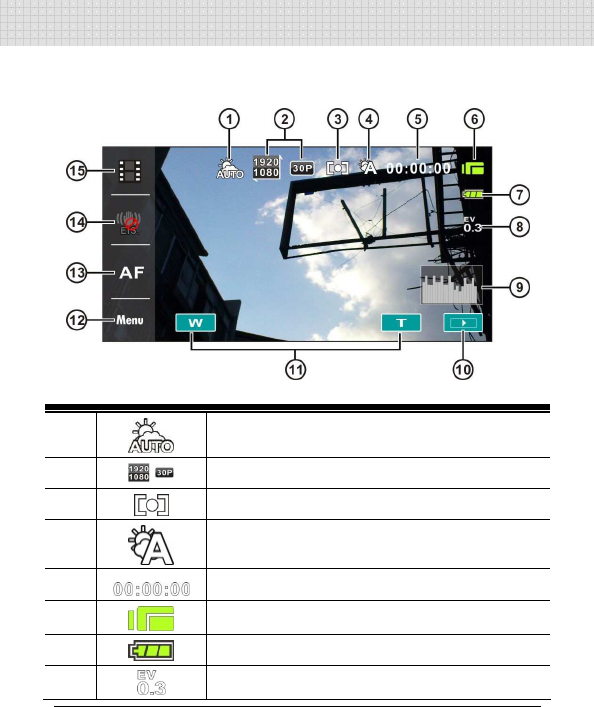
3.1 In DV Mode
Please refer to the following table.
1
Scene mode Indicator
2 Resolution indicator
3 Metering mode
4
White balance indicator
5
Remaining recording time indicator
6 DV mode indicator
7 Battery status indicator
8
Exposure compensation indicator
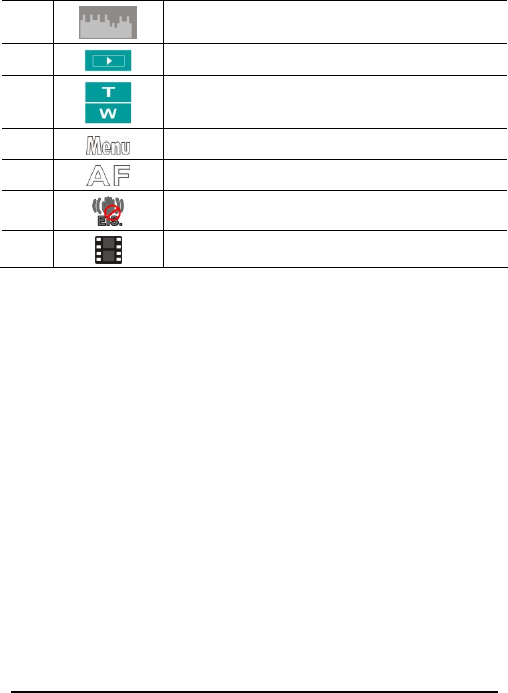
24
9
Histogram indicator
10
Playback button
11
Digital Zoom button
12
Menu button
13
Auto Focus button
14
Electronic image stabilizer (On/Off)
15
Resolution button
25
3.2 In Voice Recording Mode
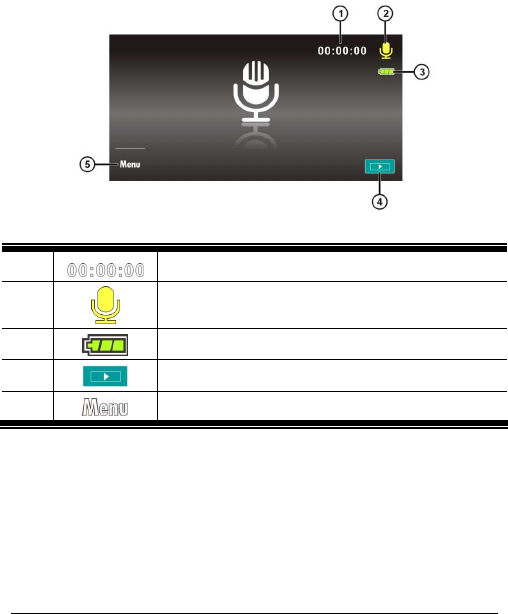
Please refer to the following table.
1
Recording time left indicator
2
Voice Recording Mode indicator
3 Battery status indicator
4 Playback button
5 Menu button
26
3.3 In DSC Mode
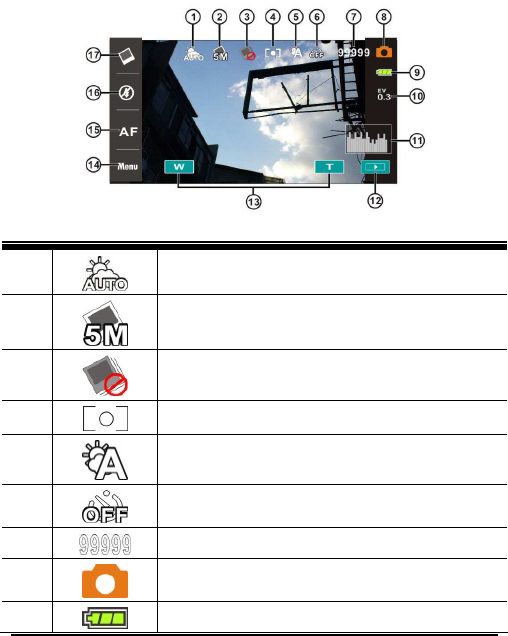
Please refer to the following table.
1
Scene Mode indicator
2
Resolution indicator
3 Continuous Shot mode
4
Metering mode
5 White balance indicator
6
Self-timer indicator
7
Number of pictures left
8 DSC Mode indicator
9 Battery indicator
27
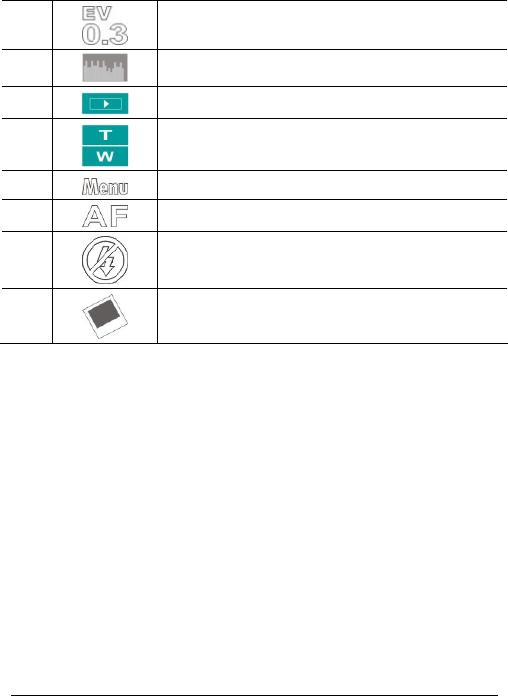
10
EV compensation indicator
11
Histogram indicator
12
Playback button
13
Digital zoom button
14
Menu button
15
Auto Focus button
16
Flashlight mode selection (off/auto/fill-in)
17
Resolution button
28
4 Using the Camera
4.1 Shooting a Movie Clip
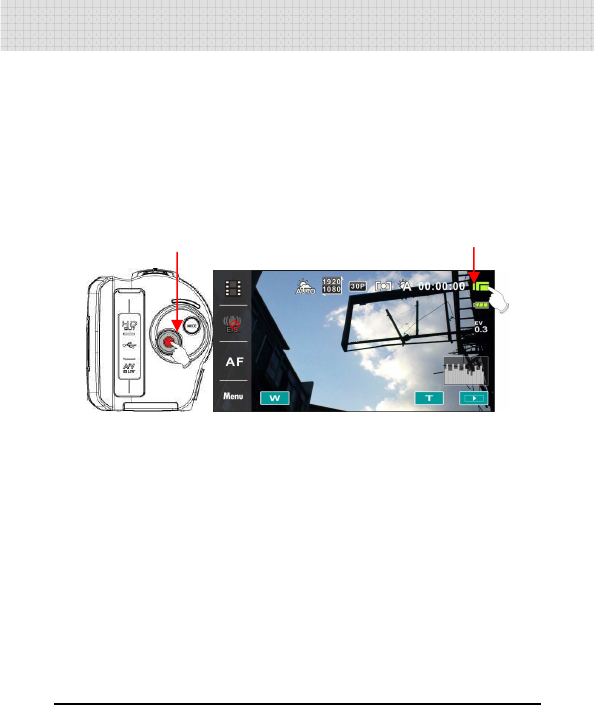
1.
[DV] mode is the default setting after you power [On] the
Digital Video Camera.
2. Press the [Recording] Button to start/stop recording.
3. The Digital Video Camera will store the movie clip
automatically.
DV mode
Recording Button
29
4.2 Pause Recording a Movie Clip
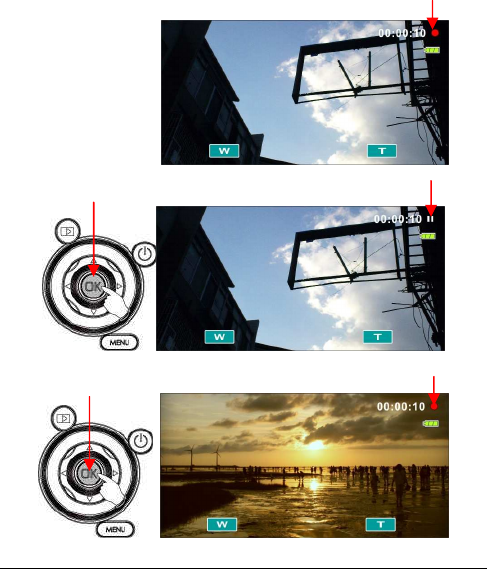
1. Press [SET] Button during recording a movie clip. The
video will pause recording immediately.
2. Press [SET] Button again to start recording a movie clip.
3. The Digital Video Camera will store the video
automatically.
.
Recording is on.
Press [SET] Button to pause.
Press [SET] Button again. Start recording.
Pause recording.
30
4.3 Shooting a photo
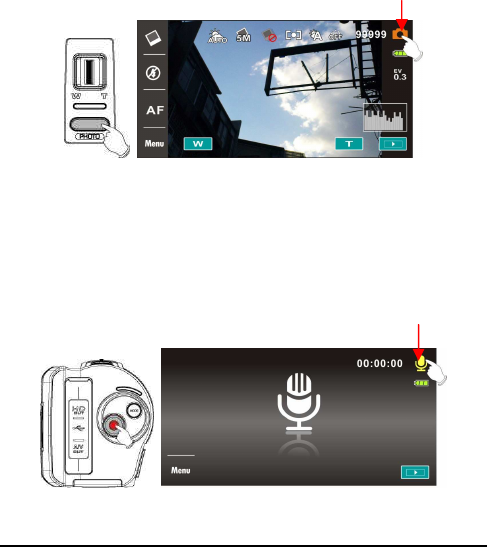
1. Turn [On] the Digital Video Camera, press [Mode]
Button or touch hotkey on the screen to switch to [DSC]
mode.
2. Press [Shutter] Button to take pictures.
3. The Digital Video Camera will store the image
automatically.
4.4 Voice Recording Mode
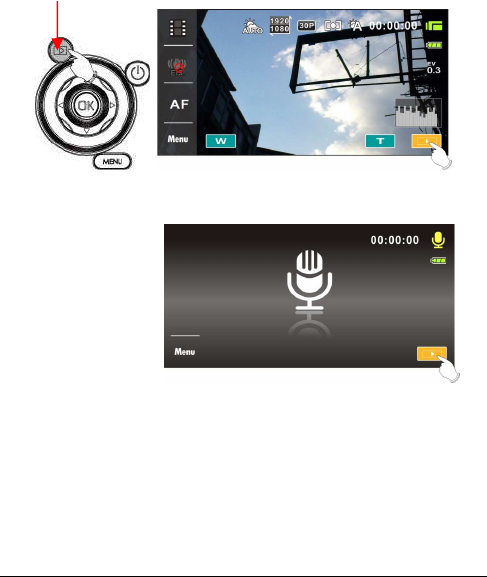
1. Turn [On] the Digital Video Camera, press [Mode]
Button or touch hotkey on the screen to switch to [Voice
Recording] mode.
2. Press [Recording] Button to start/stop voice recording.
Voice recording mode
DSC mode
31
4.5 Movie Clip / Voice Clip Playback
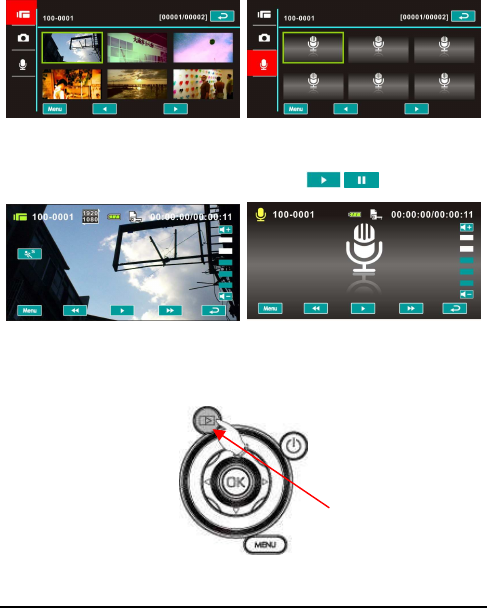
1. In [Movie]/ [Voice] Recording Mode, press [Playback]
Button to display recently stored files on the LCD screen.
Movie Clip Playback Mode Indicator
Voice Recording Playback Mode
Indicator
Playback
32
2. Press [4-Way Direction] Button up/down, left/right to view
stored files. Press [SET] Button to playback or touch the
screen to select Playback of the file.
3. To pause the Playback of file, press the [Recording]
Button or touch the screen icon ( / ).
4. Press [Playback] Button again to return to Movie/Voice
Recording Mode.
Press [Playback] Button
again to return to
Movie/Voice Recording
Mode.
33
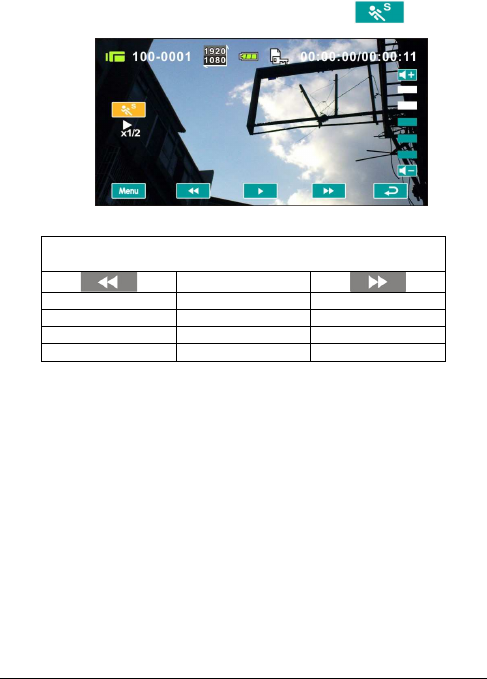
5. You can also playback the movie clip in different speeds
by touching (ON/OFF) the screen icon ( ).
Playback speed is as below when the Slow Motion is
“LIGADO”:
Rewind 2X play Forward
Rewind 4X play Forward
Rewind 8X play Forward
Rewind 16X play Forward
34
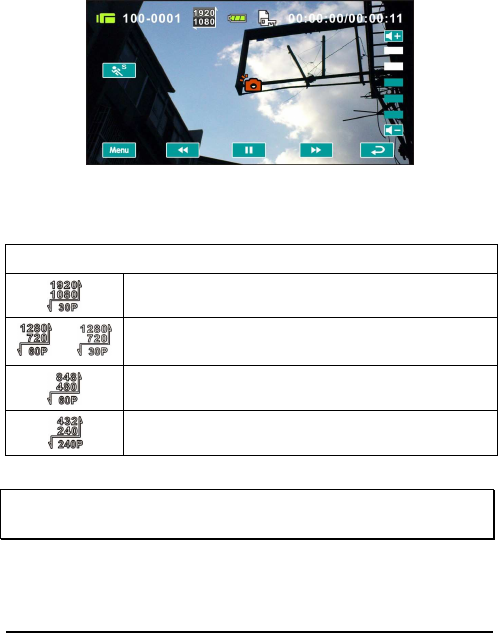
6. Capture the image from movie clip playback.
Press [Shutter] Button in replaying the movie clip.
The Digital Video Camera will store images automatically.
Image Resolution
1920 x 1080
or
1280 x 720
848 x 480
432X240
Note:
The image size depends on Image Resolution.
35
4.6 Shooting / Playback Photos
4.6.1 Shooting Photos
1. Turn [On] the power and adjust the [Mode] Button to [DSC]
Mode or touch hotkey on the screen to set up.
2. Press [Shutter] Button to capture images which will be
stored automatically.
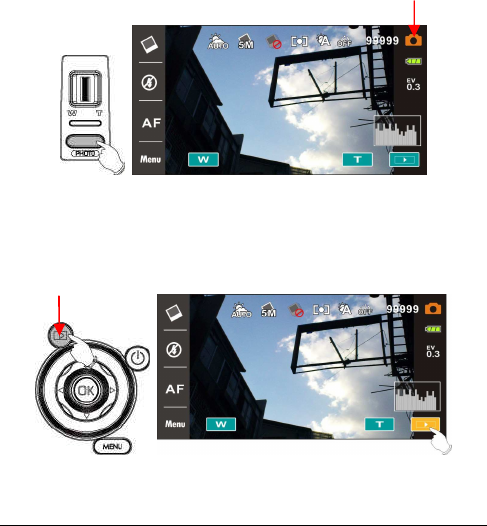
4.6.2 Playback Photos
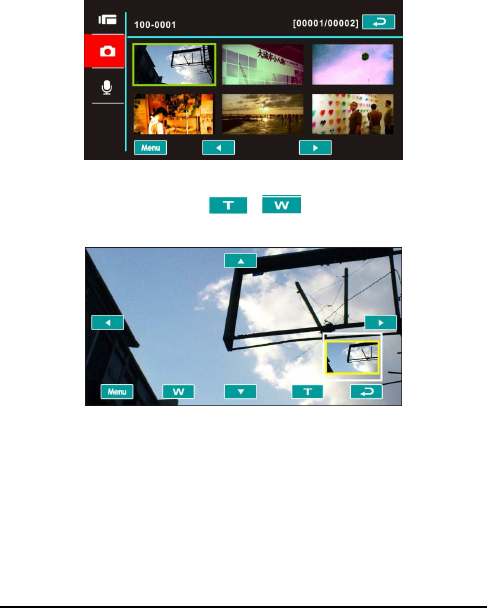
1. In [DSC] Mode, press [Playback] Button to display the
images on the LCD screen.
Playback photos indicator
Playback
DSC mode
36
2. Press [4-Way Direction] Button up/down or left/right to
view the stored files. Press [SET] Button or touch the
screen to playback the image.
3. Touch the screen ( or ) to enlarge/shrink the
image, then you can move the image up/down or left/right.
4. Press [Playback] Button again to return to [DSC] Mode.
37
5 LCD Display Information
5.1 DV Playback Mode
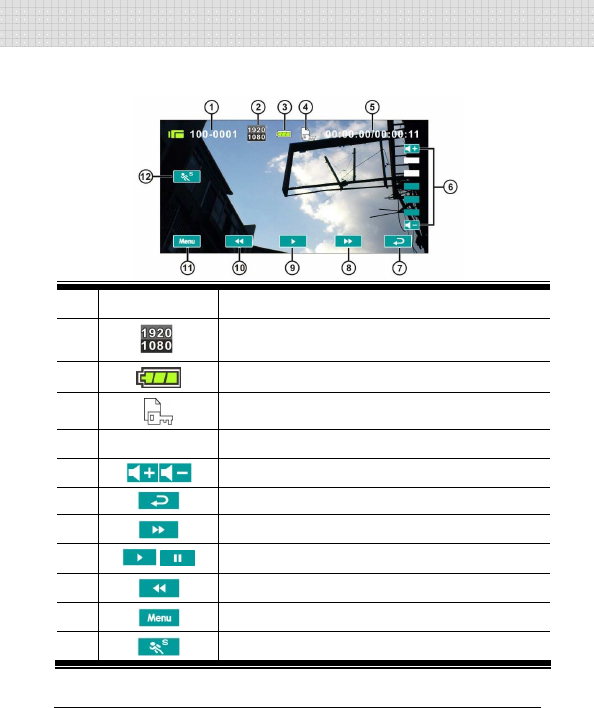
Please refer to the following table.
1
000-0000 Folder and file number
2
Resolution indicator
3
Battery status indicator
4
File Protection indicator
5
00:00:00 Length of each Movie Clip
6
Sound volume touch icons
7
Return button
8
Fast forward playback button
9
/ Playback/Pause button
10
Fast rewind playback button
11
Menu button
12
Slow motion playback button
38
5.2 Voice Recording Playback Mode
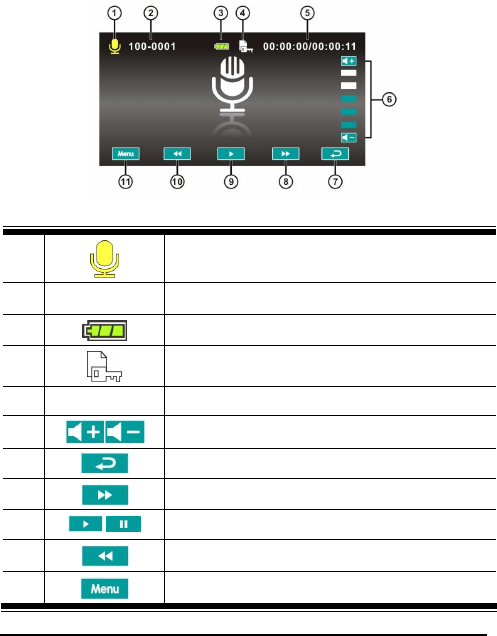
Please refer to the following table.
1
Voice Recording Mode indicator
2
000-0000
Folder and file number
3
Battery status indicator
4
File Protection indicator
5
00:00:00
Length of each movie clip
6
Sound volume touch icons
7
Return button
8
Fast forward playback button
9
/ Playback/Pause button
10
Fast rewind playback button
11
Menu button
39
5.3 DSC Playback Mode
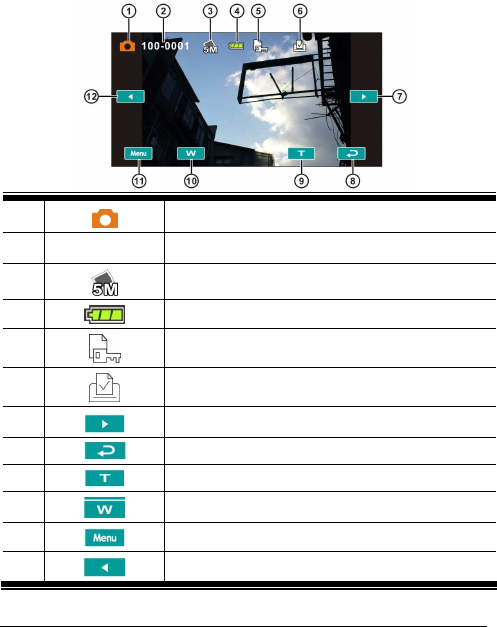
Please refer to the following table.
1
DSC Mode indicator
2
000-0000
Number of pictures left
3
Resolution indicator
4
Battery status indicator
5
File Protection indicator
6
DPOF(Digital Print Order Format) indicator
7
Previous file
8
Return button
9
Zoom-In indicator
10
Zoom-Out indicator
11
Menu button
12
Next file
40
6 Menu Options
Please read this chapter to understand the settings and advanced
operations of this Digital Video Camera.
6.1 Menus of Movie Clip Mode
Press [MENU] button to display menu options of movie clip under
the [DV] mode.
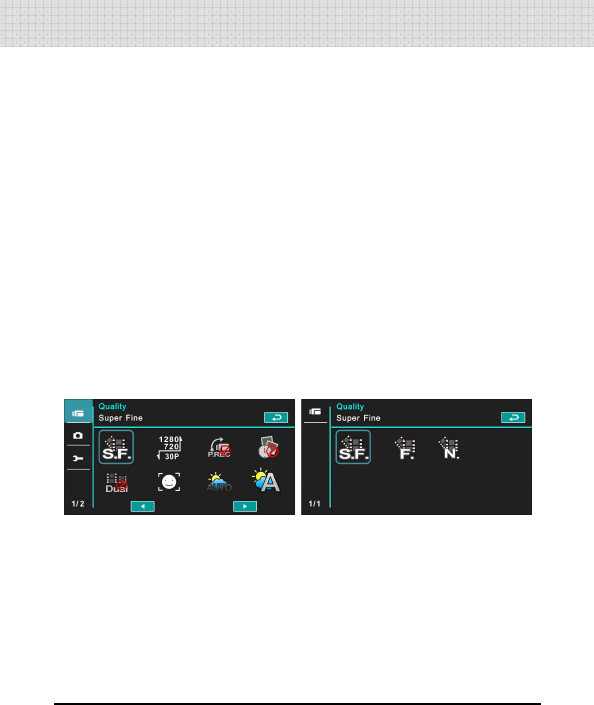
6.1.1 Quality
1. Turn [On] the Digital Video Camera and ensure it is in the
[DV] mode.
2. Press [MENU] Button and press [4-way Direction] Button
to select the [Quality] item. Press [SET] Button to display
submenu; or touch the screen to select the item.
3. Press [4-way Direction] Button to select [Super Fine],
[Fine], or [Normal]. Press [SET] Button or touch the
screen to confirm the setting.
41
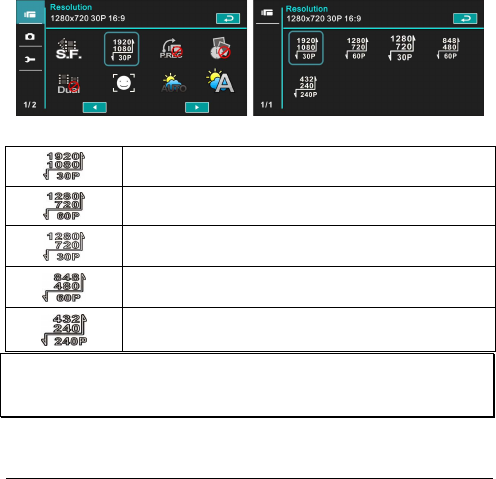
6.1.2 Resolution
1. Power [On] the Digital Video Camera and make sure it is
in the [DV] mode.
2. Press [MENU] Button and press [4-way Direction] Button
to select the [Resolution] item. Press [SET] Button or
touch the screen to display submenu.
3. Use [4-way Direction] Button to select and press [SET]
Button to confirm; or touch the screen to select the
item.
1920 x 1080 30p
1280 x 720 60p
1280 x 720 30p
848 x 480 60p
432 x 240 240p
Note:
The resolution will be different due to various TV Type settings. Please refer to
chapter 6.5.1 “TV Type”.
42
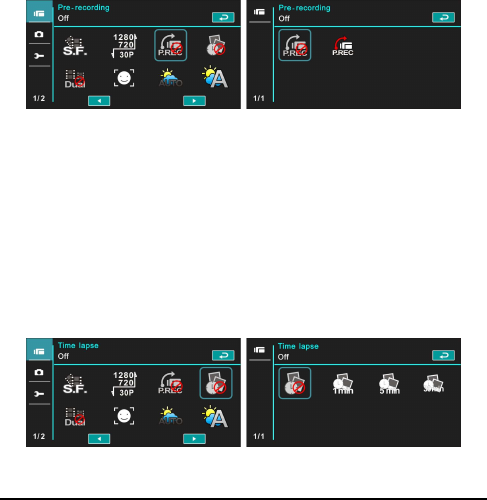
6.1.3 Pre-recording
1. Power [On] the Digital Video Camera and make sure it is in
the [DV] mode.
2. Press [MENU] Button and press [4-way Direction] Button to
select the [Pre-recording] item. Press [SET] Button or touch
the screen to display submenu.
3. Use [4-way Direction] Button to choose [Off]/[On], and
press [SET] Button or click the screen to confirm the
setting.
6.1.4 Time Lapse
1. Power [On] the Digital Video Camera and ensure it is in
the [DV] mode.
2. Press [MENU] Button and press [4-way Direction] Button
to choose the [Time Lapse] item. Press [SET] Button or
touch the screen to display submenu.
3. Use [4-way Direction] Button to select [Off], [1 minute], [5
minutes], or [30 minutes]. Press [SET] Button or touch the
screen to confirm.
43
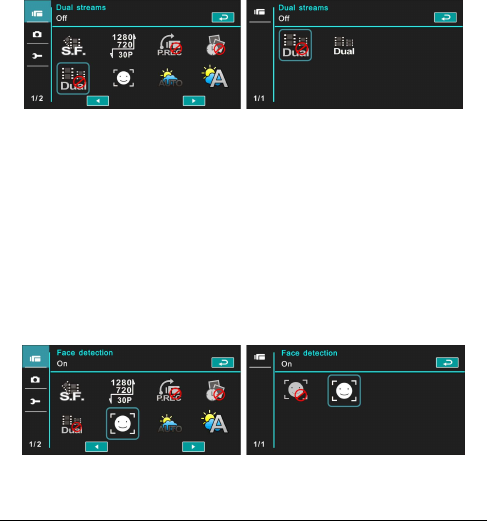
6.1.5 Dual Streams
1. Power [On] the Digital Video Camera and make sure it is
in the [DV] mode.
2. Press [MENU] Button and press [4-way Direction] Button
to select the [Dual streams] item. Press [SET] Button or
touch the screen to display submenu.
3. Press [4-way Direction] Button to select [Off]/ [On]. Press
[SET] Button or touch the screen to confirm the setting.
6.1.6 Face Detection
1. Power [On] the Digital Video Camera and ensure it is in
the [DV] mode.
2. Press [MENU] Button and press [4-way Direction] Button
to select the [Face Detection] item. Press [SET] Button or
touch the screen to display submenu.
3. Press [4-way Direction] Button to select [Off]/ [On]. Press
[SET] Button or click the screen to confirm.
44
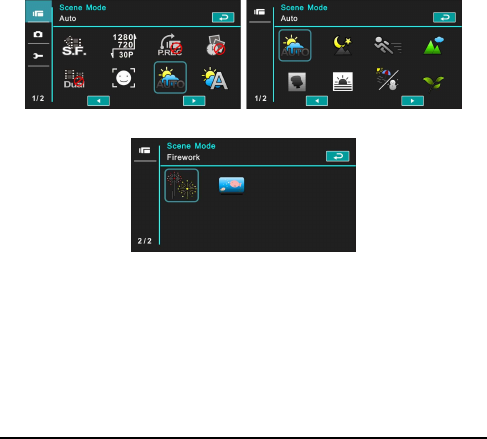
6.1.7 Scene Mode
1. Power [On] the Digital Video Camera and make sure it is
in the [DV] mode.
2. Press [MENU] Button and press [4-way Direction] Button
to select the [Scene Mode] item. Press [SET] Button to
display submenu; or touch the screen to choose the
item.
3. Press [4-way Direction] Button to select [Auto], [Night],
[Sports], [Landscape], [Portrait], [Sunset], [Sand/Snow],
[Flower], [Firework], or [Aquarium]. Press [SET] Button
or touch the screen to confirm.
45
6.1.8 White Balance
1. Power [On] the Digital Video Camera and ensure it is in
the [DV] mode.
2. Press [MENU] Button and press [4-way Direction] Button
to select the [White Balance] item. Press [SET] Button to
display submenu; or touch the panel to select the item.
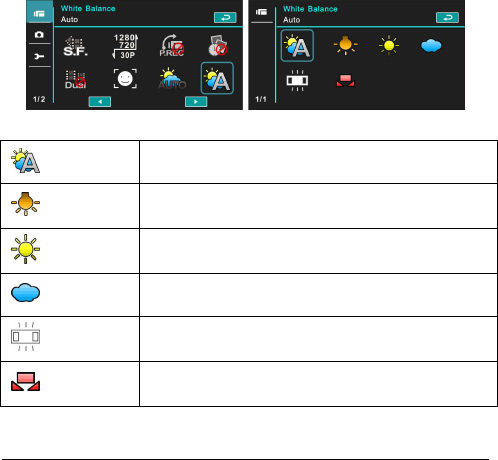
3. Press [4-way Direction] Button to select [Auto],
[Incandescent], [Daylight], [Cloudy], [Fluorescent], or
[Preset]. Press [SET] Button or touch the panel to
confirm.
Auto Automatic white balance adjustment.
Incandescent
The setting is suitable for Incandescent lamp lighting,
or environments with dark light.
Daylight For daylight recording.
Cloudy For cloudy or shady environments.
Fluorescent
For fluorescent lamp lighting, or environments with
bright light.
Preset Preset on a plain white background for more realistic
white balance value.
46
6.1.9 Effect
1. Power [On] the Digital Video Camera and make sure it is
in the [DV] mode.
2. Press [MENU] Button and press [4-way Direction] Button
to select the [Effect] item. Press [SET] Button to display
submenu; or touch the screen to select the item.
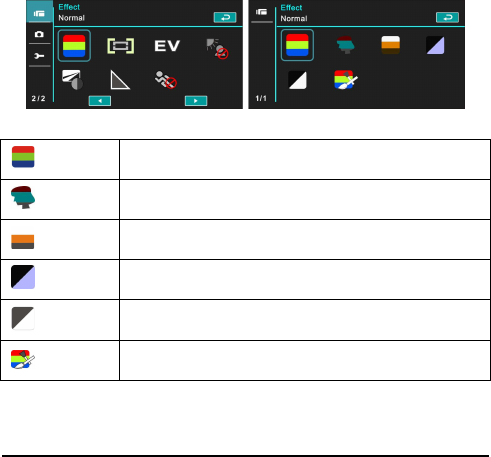
3. Press [4-way Direction] Button to select [Normal], [Art],
[Sepia], [Negative], [B/W (Black/White)], or [Vivid]. Press
[SET] Button to confirm; or touch the screen to select the
item.
Normal Recordings with natural color.
Art Recordings with oil painting color.
Sepia Recordings with sepia-toned color.
Negative Recordings with negative color.
B/W Recordings with black/white color.
Vivid Recordings with bright color.
47
6.1.10 Metering
1. Power [On] the Digital Video Camera and make sure it is
in the [DV] mode.
2. Press [MENU] Button and press [4-way Direction] Button
to select the [Metering] item. Press [SET] Button or
touch the screen to display submenu.
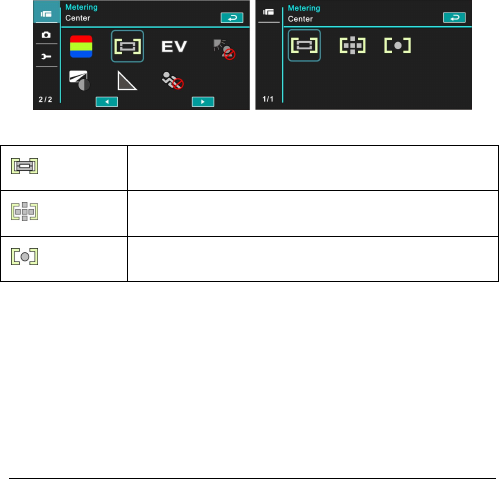
3. Press [4-way Direction] Button to select [Center],
[Average], or [Spot]. Press [SET] Button or touch the
screen to confirm.
Center To preserve background details while letting lighting
conditions at the center of the frame define exposure.
Averaged For exposure to be evenly distributed around the
selected frame.
Spot To ensure correct exposure for the object even if the
background is very bright or very dark.
48
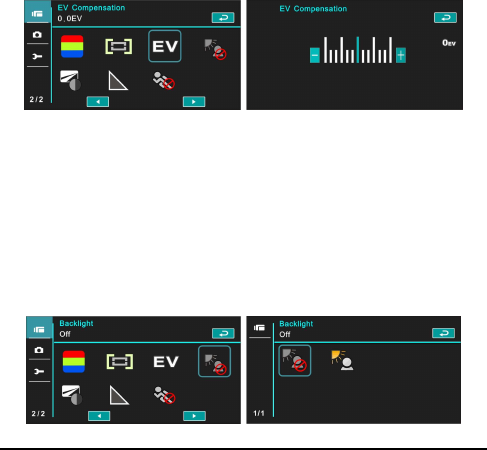
6.1.11 EV Compensation
Use this function to adjust the value of EV compensation, which is
ranged form -2.0EV to +2.0EV (at 0.3EV increment). The higher the
EV value, the brighter the image will be.
1. Power [On] the Digital Video Camera and ensure it is in
the [DV] mode.
2. Press [MENU] Button and then press [4-way Direction]
Button to select the [EV Compensation] item. Press
[SET] Button or touch the screen to display submenu.
3. Press [4-way Direction] Button to increase/decrease the
value. Press [SET] Button or touch the screen to
confirm.
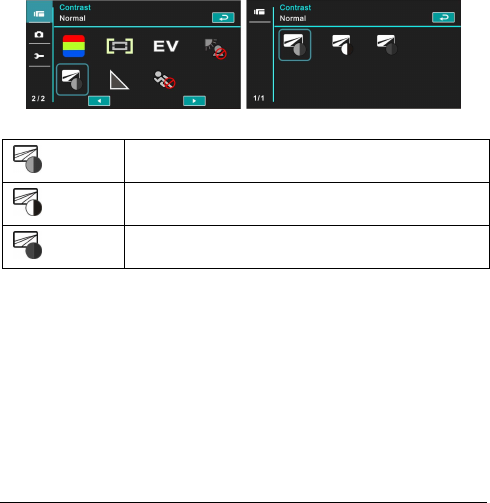
6.1.12 Backlight
1. Turn [On] the Digital Video Camera and make sure it is in
the [DV] mode.
2. Press [MENU] Button and press [4-way Direction] Button
to select the [Backlight] item. Press [SET] Button or
touch the screen to display submenu.
3. Press [4-way Direction] Button to select [Off]/ [On]. Press
[SET] Button or touch the screen to confirm.
49
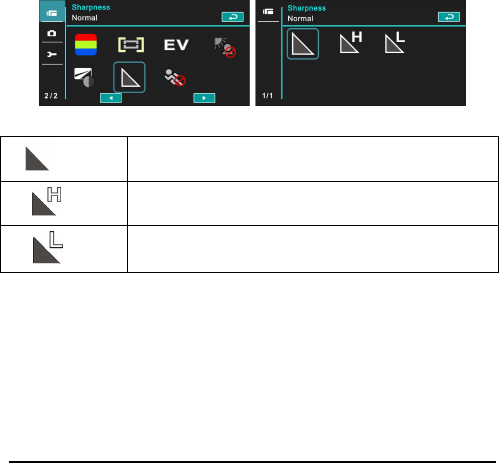
6.1.13 Contrast
1. Turn [On] the Digital Video Camera and ensure it is in the
[DV] mode.
2. Press [MENU] Button and press [4-way Direction] Button
to select the [Contrast] item. Press [SET] Button or touch
the screen to display submenu.
3. Press the [4-way Direction] Button to select [Normal],
[High], or [Low]. Press [MENU] Button or touch the
screen to confirm.
Normal For normal scenes.
High For brighter scenes.
Low For darker scenes.
50
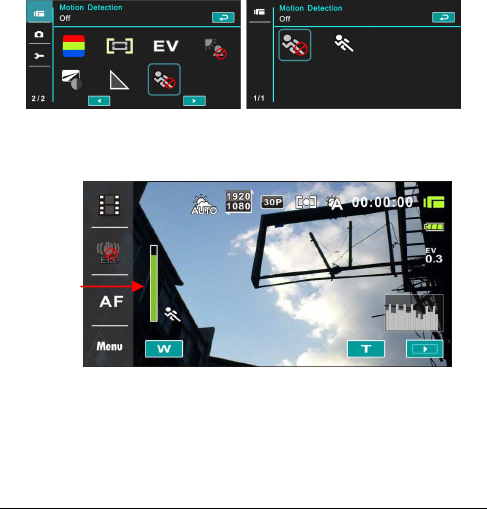
6.1.14 Sharpness
1. Power [On] the Digital Video Camera and ensure it is
in the [DV] mode.
2. Press [MENU] Button and press [4-way Direction]
Button to select the [Sharpness] item. Press [SET]
Button or touch the screen to display submenu.
3. Press [4-way Direction] Button to select [Normal],
[High], or [Low]. Press [SET] Button or touch the
screen to confirm.
Normal For normal scenes.
High For sharper scenes.
Low For softer scenes.
51
6.1.15 Motion Detection
1. Power [On] the Digital Video Camera and make sure it is
in the [DV] mode.
2. Press [MENU] Button and press [4-way Direction] Button
to select the [Motion Detection] item. Press [SET] Button
or touch the screen to display submenu.
3. Press [4-way Direction] Button to select [On] or [Off].
Press [SET] Button or touch the screen to confirm.
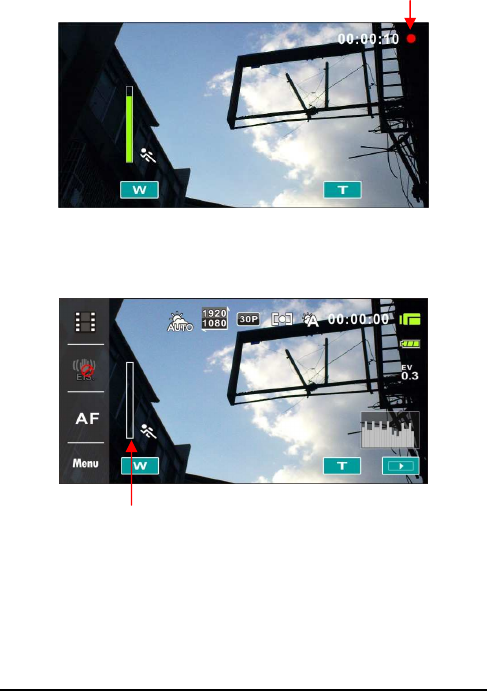
The following image will be shown when the motion detection
function is on:
If the green pillar rises to peak, the Digital Video Camera will take
movie clips automatically without pressing the recording button.
Motion
Detection On
52
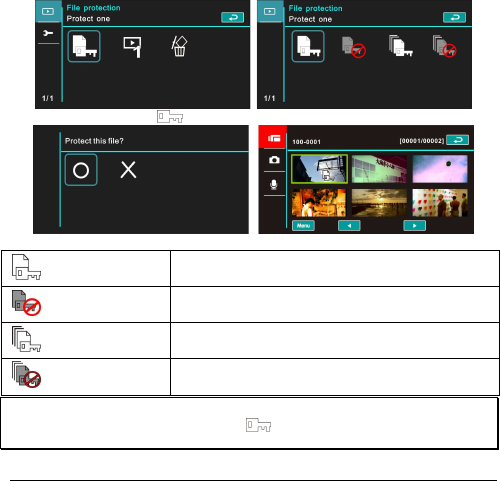
If the green pillar disappears, the Digital Video Camera will end
taking movie clips automatically without pressing the recording
button.
Start
recording
End
recording
53
6.2 Menu Options of Movie Clip/Voice
Playback
When in [Movie Clip]/ [Voice] playback mode, press the [MENU] Button
to show the movie clip options menu.
6.2.1 File Protection
1. Power [On] the Digital Video Camera and make sure it is in
the [Movie Clip]/ [Voice] Playback mode.
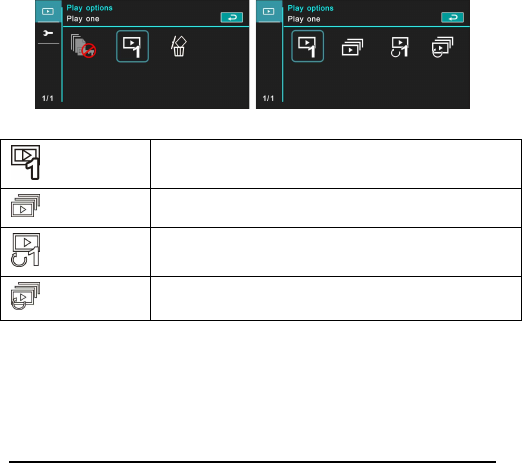
2. Press [MENU] Button. Then, press [4-way Direction] Button
or touch the screen to select the [File Protection] item. Press
[SET] Button or touch the screen to display submenu.
3. The icon represents the file is under protection.
Protect One Protect one file.
Unprotect One Unprotect one file.
Protect All Protect all files.
Unprotect All Unprotect all files.
Note:
::
:To unlock the file from Protect, repeat steps stated above. After the file is
unlocked from Protect mode, the locked icon will disappear.
54
6.2.2 Play Options
1. Power [On] the Digital Video Camera and make sure it is
in the [Movie Clip]/ [Voice] playback mode.
2. Press [MENU] Button. Then, press [4-way Direction]
Button or touch the screen to select the [Play Options]
item. Press [SET] Button or touch the screen to display
submenu.
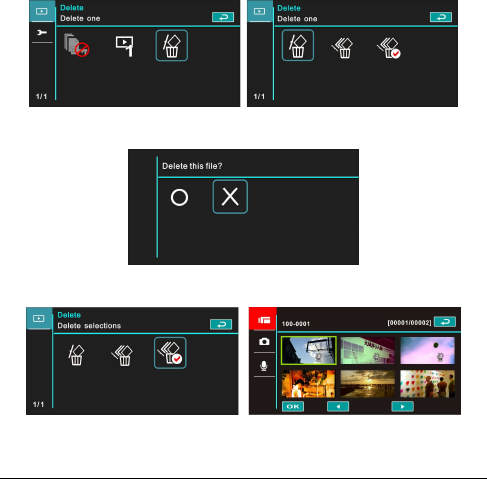
3. Use [4-way Direction] Button to select [Play One], [Play
All], [Repeat One], or [Repeat All], then press [SET]
Button or touch the screen to confirm. The movie clip will
playback automatically.
Play One To playback one file.
Play All
To playback all files.
Repeat One
To replay single file.
Repeat All
To replay all files.
55
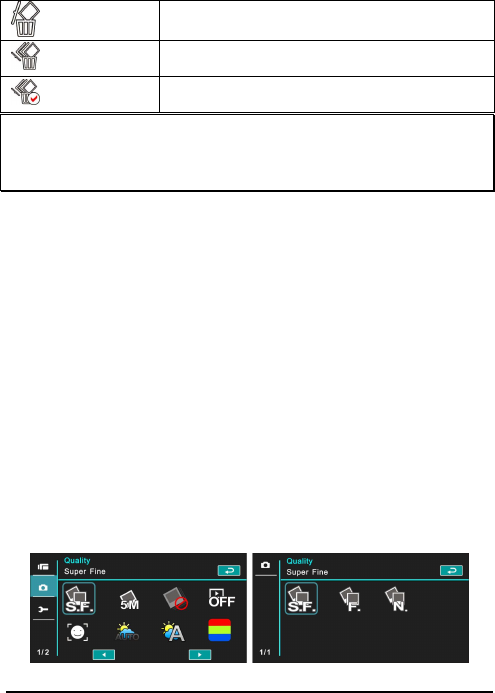
6.2.3 Delete
1. Power [On] the Digital Video Camera and make sure it is
in the [Movie Clip]/ [Voice] playback mode.
2. Choose the to-be-deleted file and press [MENU] Button/
press [4-way Direction] Button down to select the
[Delete] item; or touch the screen to select the item.
3. Use [4-way Direction] Button to select [Delete One],
[Delete All], or [Delete Selections]; then press [SET]
Button or touch the screen to confirm.
4. Press [4-way Direction] Button or touch the screen to
select [O]/ [X] and press [SET] Button to delete file(s).
5. You can choose the [Delete Selections] item to delete
certain file.
56
Delete One Delete one file.
Delete All Delete all files.
Delete Selections
Select the file and delete.
Note:
The files cannot be recovered once deleted. Therefore, please make sure you have
a backup file before delete. The protect files will not be able to delete. You must
unlock the file before deleting it.
6.3 Menu Options of Camera Mode
During [DSC] Mode, press [MENU] Button to display camera mode
option menu.
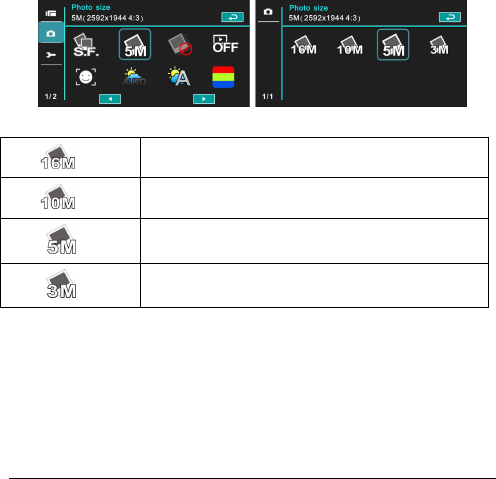
6.3.1 Quality
1. Turn [On] the Digital Video Camera and ensure it is in
the [DSC] mode.
2. Press [MENU] Button and press [4-way Direction]
Button to select the [Quality] item. Press [SET] Button
or touch the screen to display submenu.
3. Press [4-way Direction] Button to select [Super Fine],
[Fine], or [Normal]. Press [SET] Button or touch the
screen to confirm the setting.
57
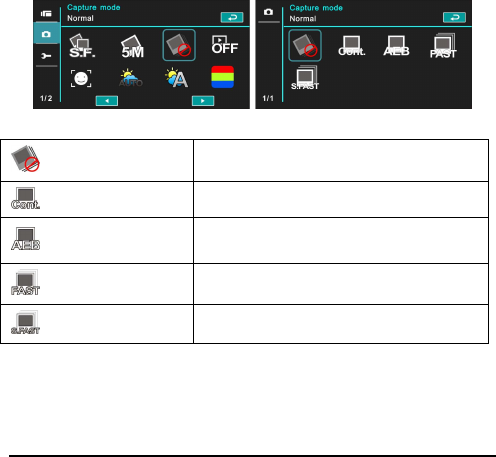
6.3.2 Photo Size
1. Power [On] the Digital Video Camera and make sure it is
in the [DSC] mode.
2. Press [MENU] Button and press [4-way Direction] Button
to select the [Photo Size] item. Press [SET] Button or
touch the screen to display submenu.
3. Press [4-way Direction] Button to select [16M], [10M], [5M],
or [3M]. Press [SET] Button or touch the screen to
confirm.
16M 4608 x 3456 pixels (Interpolation)
10M 3648 x 2736 pixels
5M 2592 x 1944 pixels
3M 2048 x 1536 pixels
58
6.3.3 Capture Mode
1. Power [On] the Digital Video Camera and make sure it is
in the [DSC] mode.
2. Press [MENU] Button and then press [4-way Direction]
Button to select the [Capture Mode] item. Press [SET]
Button or touch the screen to display submenu.
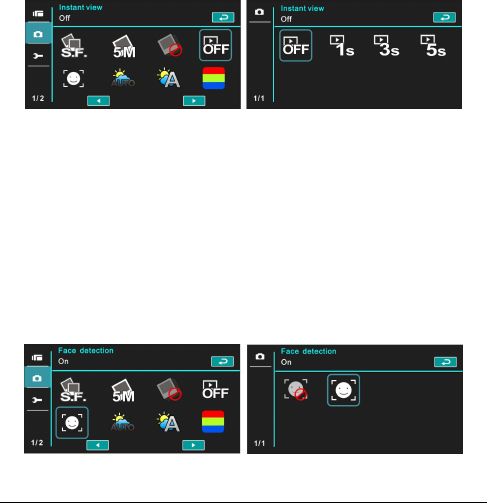
3. Press [4-way Direction] Button to select [Precise Quality],
[Precise Quality Cont.], [AEB mode], [Fast Cont.], or
[Super Fast Cont.]. Press [SET] Button or touch the
screen to confirm.
Precise Quality Shoot single photo.
Precise Quality Cont.
Shoot photos continually.
AEB mode Shoot three photos continually.(For brighter,
normal, darker photo each)
Fast Cont. Shoot 10 photos continually.
Super Fast Cont. Shoot 30 photos continually.
59
6.3.4 Instant View
1. Turn [On] the Digital Video Camera and ensure it is in
the [DSC] mode.
2. Press [MENU] Button and press [4-way Direction] Button
to select the [Instant View] item. Press [SET] Button to
display submenu or touch the screen to select the item.
3. Press [4-way Direction] Button to select [Off], [1 second],
[3 seconds], or [5 seconds]. Press [SET] Button or touch
the screen to confirm.
6.3.5 Face Detection
1. Power [On] the Digital Video Camera and make sure it is
in the [DSC] mode.
2. Press [MENU] Button and press [4-way Direction] Button
to select the [Face Detection] item. Press [SET] Button
or touch the screen to display submenu.
3. Press [4-way Direction] Button to select [Off], or [On].
Press [SET] Button or touch the screen to confirm.
60
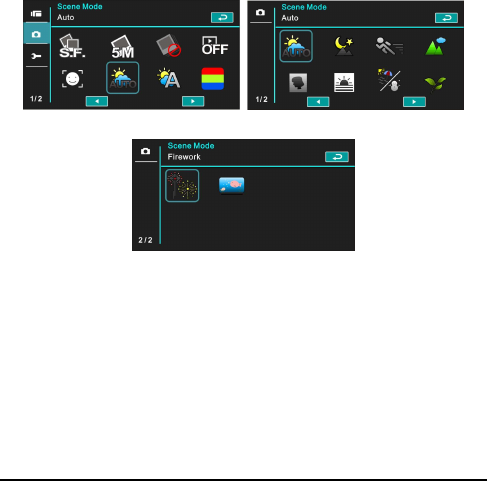
6.3.6 Scene Mode
1. Turn [On] the Digital Video Camera and make sure it is in
the [DSC] mode.
2. Press [MENU] Button and press [4-way Direction] Button
to select the [Scene Mode] item. Press [SET] Button or
touch the screen to display submenu.
3. Press [4-way Direction] Button to select [Auto], [Night],
[Sports], [Landscape], [Portrait], [Sunset], [Sand/Snow],
[Flower], [Firework], or [Aquarium]. Press [SET] Button/
touch the screen to confirm.
61
6.3.7 White Balance
1. Power [On] the Digital Video Camera and make sure it is
in the [DSC] mode.
2. Press [MENU] Button and press [4-way Direction] Button
to select the [White Balance] item. Press [SET] Button or
touch the screen to display submenu.
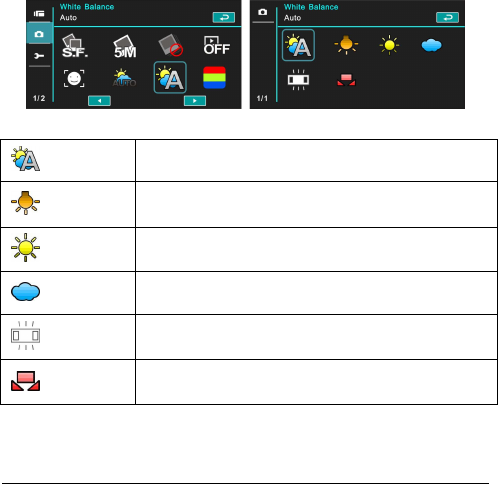
3. Press [4-way Direction] Button to select [Auto],
[Incandescent], [Daylight], [Cloudy], [Fluorescent], or
[Preset]. Press [SET] Button or touch the screen to
confirm.
Auto Automatic white balance adjustment.
Incandescent
The setting is suitable for Incandescent lamp lighting,
or environments with dark light.
Daylight
For daylight recording.
Cloudy For cloudy or shady environments.
Fluorescent
For fluorescent lamp lighting, or environments with
bright light.
Preset Preset on a plain white background for more realistic
white balance value.
62
6.3.8 Effect
1. Turn [On] the Digital Video Camera and ensure it is in
the [DSC] mode.
2. Press [MENU] Button and press [4-way Direction] Button
to select the [Effect] item. Press [SET] Button or click the
screen to display submenu.
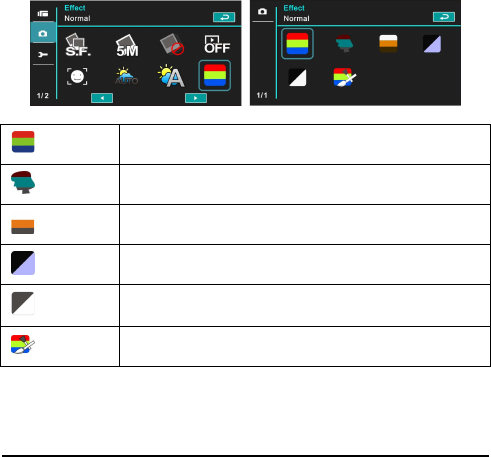
3. Press [4-way Direction] Button to select [Normal], [Art],
[Sepia], [Negative], [B/W (Black/White)], or [Vivid]. Press
[SET] Button to confirm; or touch the screen to select the
item.
Normal Images with nature color.
Art Images with oil painting color.
Sepia Images with sepia-toned color.
Negative Images with negative color.
B/W Images with black/white color.
Vivid Images with bright color.
63
6.3.9 Metering
1.
Turn [On] the Digital Video Camera and make sure it is in
the [DSC] mode.
2.
Press [MENU] Button and press [4-way Direction] Button to
select the [Metering] item. Press [SET] Button or touch the
screen to display submenu.
3.
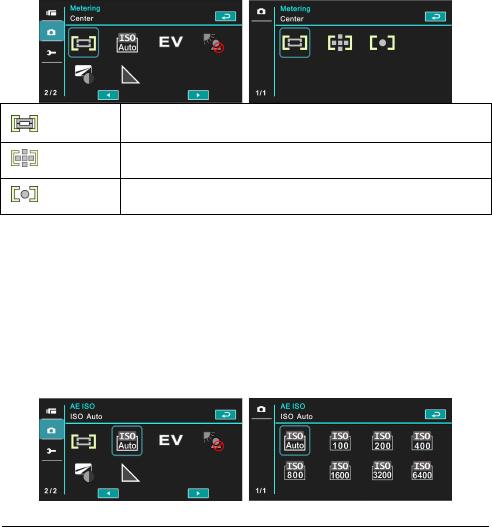
Use [4-way Direction] Button to select [Center], [Average],
or [Spot]. Press [SET] Button or touch the screen to confirm
the setting.
Center
To preserve background details while letting lighting
conditions at the center of the frame define exposure.
Average
For exposure to be evenly distributed around the
selected frame.
Spot
To ensure correct exposure for the object even if the
background is very bright or very dark.
6.3.10 AE ISO
1. Power [On] the Digital Video Camera and make sure it is in
the [DSC] mode.
2. Press [MENU] Button and press [4-way Direction] Button to
select the [AE ISO] item. Press [SET] Button or touch the
panel to display submenu.
3. Press [4-way Direction] Button to select [Auto], [100], [200],
[400], [800], [1600], [3200], or [6400]. Press [SET] Button or
touch the panel to confirm.
64
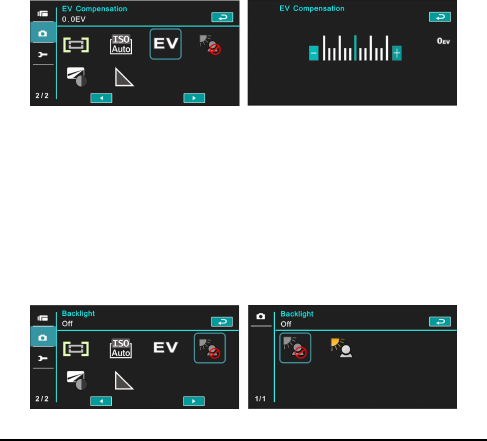
6.3.11 EV Compensation
Use this function to adjust the value of EV compensation, which is
ranged form -2.0EV to +2.0EV (at 0.3EV increment). The higher the
EV value, the brighter the image will be.
1. Power [On] the Digital Video Camera and make sure it is
in the [DSC] mode.
2. Press [MENU] Button and press [4-way Direction] Button
to select the [EV Compensation] item. Press [SET]
Button or touch the screen to display submenu.
3. Press [4-way Direction] Button to increase/decrease the
value. Press [SET] Button or touch the screen to confirm.
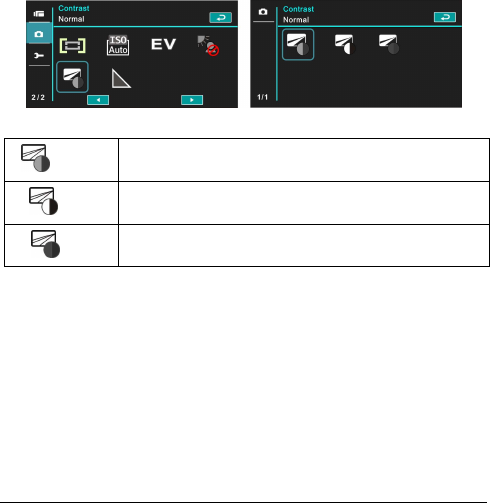
6.3.12 Backlight
1. Power [On] the Digital Video Camera and ensure it is in
the [DSC] mode.
2. Press [MENU] Button and press [4-way Direction] Button
to select the [Backlight] item. Press [SET] Button or
touch the screen to display submenu.
3. Press [4-way Direction] Button to select [Off] or [On].
Press [SET] Button or touch the screen to confirm.
65
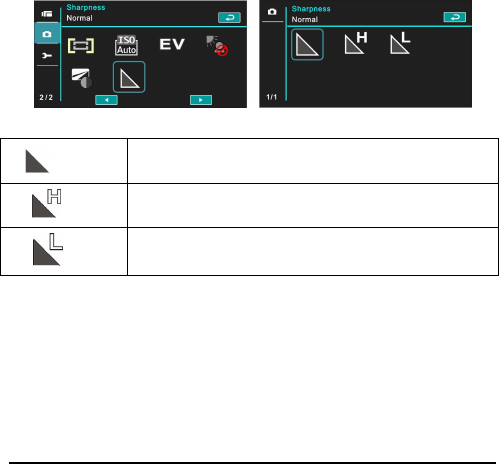
6.3.13 Contrast
1. Turn [On] the Digital Video Camera and ensure it is in the
[DSC] mode.
2. Press [MENU] Button and press [4-way Direction] Button
to select the [Contrast] item. Press [SET] Button or touch
the screen to display submenu.
3. Press [4-way Direction] Button to select [Normal], [High],
or [Low]. Press [SET] Button or touch the screen to
confirm.
Normal Images with normal scenes.
High Images with brighter scenes.
Low Images with darker scenes.
66
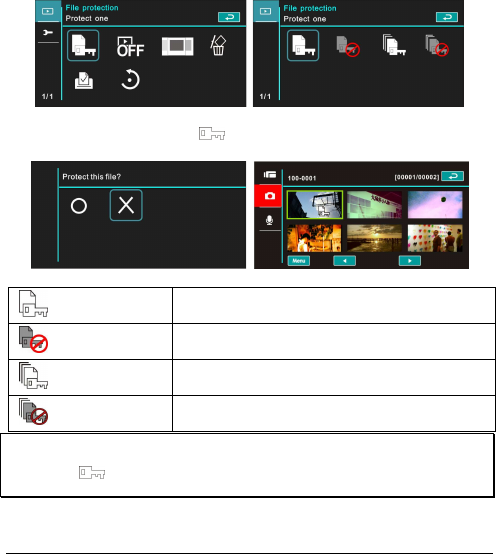
6.3.14 Sharpness
1. Power [On] the Digital Video Camera and make sure it is
in the [DSC] mode.
2. Press [MENU] Button and press [4-way Direction] Button
to select the [Sharpness] item. Press [SET] Button or
touch the screen to display submenu.
3. Press [4-way Direction] Button to select [Normal], [High],
or [Low]. Press [SET] Button or touch the screen to
confirm.
Normal Images with normal scenes.
High Images with brighter scenes.
Low Images with darker scenes.
67
6.4 Menu Options of Photo Playback
6.4.1 File Protection
1. Turn [On] the Digital Video Camera and ensure it is in the
[Playback] mode.
2. Press [MENU] Button and press [4-way Direction] Button
to select the [File Protection] item; press [SET] Button or
touch the screen to display submenu.
3. The locked icon will be shown to indicate the file is
under protection.
Protect One Protect one file.
Unprotect One Unprotect one file.
Protect All Protect all files.
Unprotect All Unprotect all files.
Note:
Repeat above-mentioned steps to unlock the file. When the file is unlocked, the
locked icon will disappear.
68
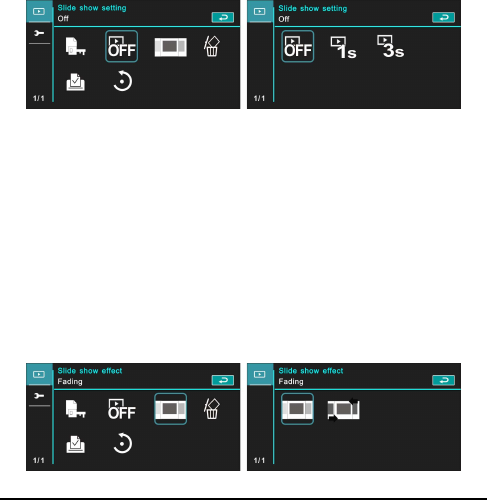
6.4.2 Slide Show Setting
1. Turn [On] the Digital Video Camera and make sure it is in
the [DSC] mode.
2. Press [4-way Direction] Button to select the [Slide Show
Setting] item to enter into submenu; or touch the screen to
select the item.
3. Use [4-way Direction] Button or touch the screen to
choose [Off], [1 Second], or [3 Seconds]. The images will
playback automatically.
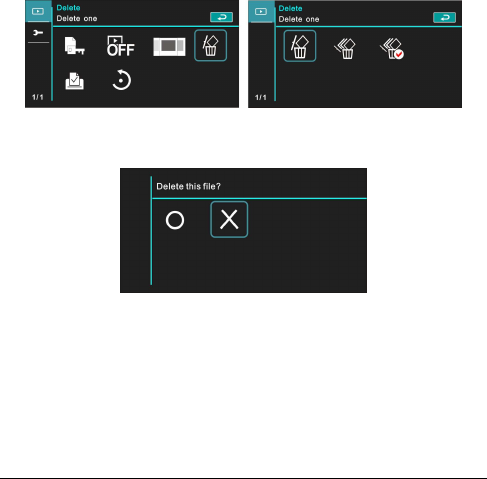
6.4.3 Slide Show Effect
1. Turn [On] the Digital Video Camera and make sure it is in
the [Playback] mode.
2. Press [MENU] Button and press [4-way Direction] Button
to select the [Slide Show Effect] item; press [SET] Button
or touch the screen to display submenu.
3. Use [4-way Direction] Button to select [Fading] or [Flying],
press [SET] Button or touch the screen to display
submenu.
69
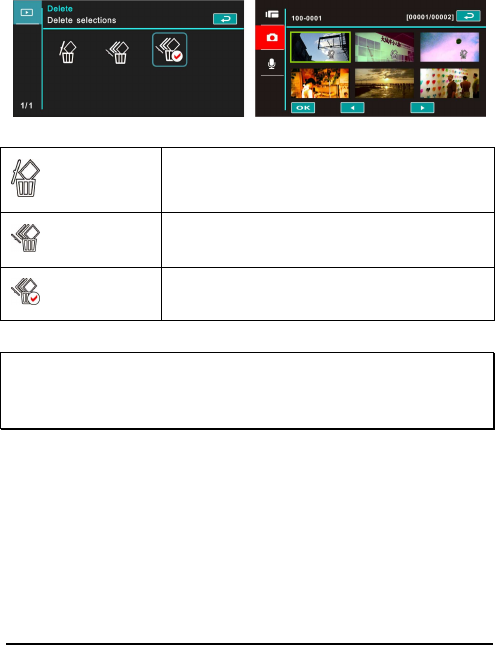
6.4.4 Delete
1. Turn [On] the Digital Video Camera and make sure it is in
the [Playback] mode.
2. Choose the to-be-deleted file and press the [MENU]
Button/ [4-way Direction] Button down to select the [Delete]
item; press [SET] Button to display submenu.
3. Use [4-way Direction] Button to select [Delete One],
[Delete All], or [Delete Selections]. Press [SET] Button or
touch the screen to confirm.
4. Press [4-way Direction] Button/touch the screen to choose
[O] or [X] and press [SET] Button to delete file(s).
70
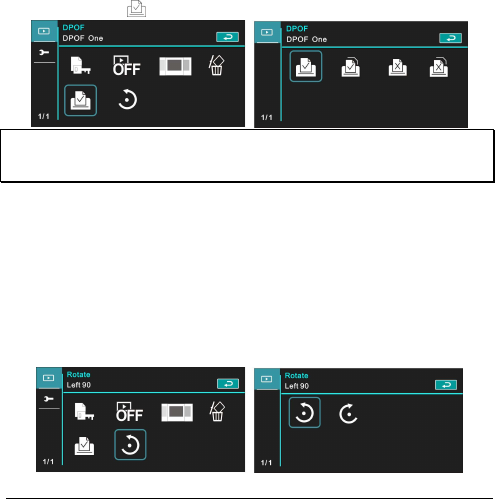
You can choose [Delete Selections] to delete certain file.
Delete One Delete one file.
Delete All Delete all files.
Delete Selections
Choose the file and delete.
Note:
The files cannot be recovered once deleted. Therefore, please make sure you have
a backup file before delete. The protect files will not be able to delete. You must
unlock the file before deleting the protected file.
71
6.4.5 DPOF
Use DPOF(Digital Print Order Format) to mark the printing information
stored in the memory card.
1.
Turn [On] the Digital Video Camera and make sure it is in
the [Playback] mode. Press [Playback] Button and then
press [MENU] Button to show menu options of image
playback; or touch the panel to select the item.
2.
Press [4-way Direction] Button to select the [DPOF] item,
and press [SET] Button or touch the screen to confirm.
3.
Use [4-way Direction] Button and press [SET] Button to
confirm; or touch the screen to choose the item. The DPOF
icon will appear to indicate the file is in order for printing.
Notes:
1. A memory card is necessary for using DPOF function.
2. All videos/pictures are in order for printing after setting DPOF.
6.4.6 Rotate
1. Turn [On] the Digital Video Camera and make sure it is in
the [Playback] mode.
2. Press [4-way Direction] Button to select the [Rotate] item to
enter into submenu; or touch the screen to choose the item.
3. Use [4-Way Direction] Button to select [Left 90] or [Right 90]
and press [SET] Button to confirm; or touch the screen to
select the item. The image will rotate left/right by 90
degrees.
72
6.5 Setting Menu
Setting Menu can be applied on all kinds of the Digital Video
Camera settings.
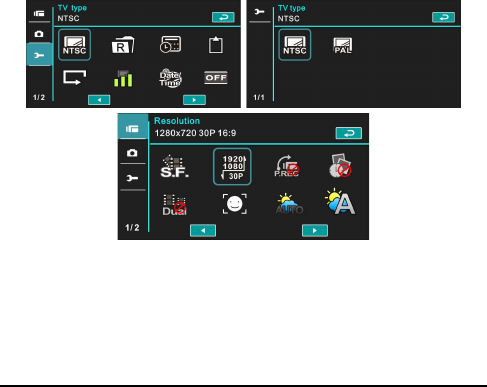
6.5.1 TV Type
1. Power [On] the Digital Video Camera and switch to
[Setting] mode.
2. Press [4-way Direction] Button to select the [TV Type]
item. Press [SET] Button or touch the panel to display
submenu.
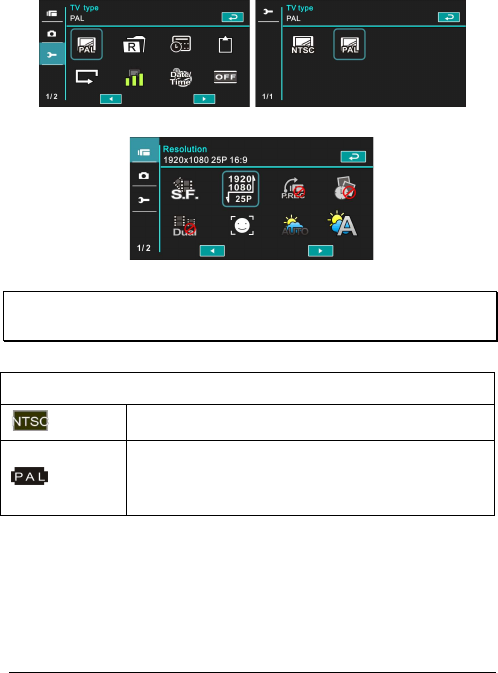
3. Use [4-way Direction] Button to choose [NTSC] or [PAL],
then press [SET] Button or touch the screen to confirm.
NTSC
73
PAL
Note:
The video resolution will be different due to various TV Type settings.
Setting reference of TV type
NTSC America, Canada, Japan, Korea, Mexico, Taiwan
PAL
Australia, Austria, Belgium, China, Denmark,
Finland, Germany, UK, Italy, Kuwait, Malaysia,
New Zealand, Singapore, Spain, Sweden,
Switzerland, Thailand, Norway
74
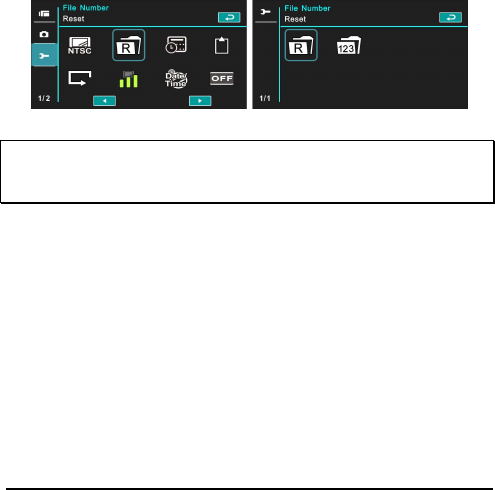
6.5.2 File Number (Default: Serial)
The file number can be set in this function.
1. Turn [On] the Digital Video Camera and switch to [Setting]
mode.
2. Press [4-way Direction] Button to select the [File Number]
item. Press [SET] Button or touch the screen to display
submenu.
3. Press [4-way Direction] Button to choose [Reset]/ [Serial],
then press [SET] Button or touch the panel to confirm.
Notes:
1. The file number will start from 0001 when setting to [Reset].
2. When setting to [Serial], the stored files will be in serial numbers.
6.5.3 Date/Time
Please refer to the chapter 2.7.1 “Setting Date/Time.”
75
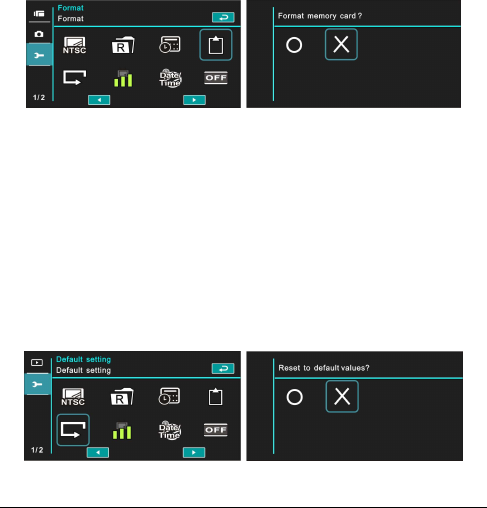
6.5.4 Format
Use this function to format the
memory card/ built-in memory.
1. Turn [On] the Digital Video Camera and switch to [Setting]
mode.
2. Use [4-way Direction] Button to select the [Format] item.
Press [SET] Button or touch the screen to display
submenu.
3. Press [4-way Direction] Button to select [O] or [X] to
confirm; or touch the screen to click the item.
6.5.5 Default Setting
Use this function to reset from all settings to default settings.
1. Power [On] the Digital Video Camera and switch to
[Setting] mode.
2. Press [4-way Direction] Button to select the [Default
Setting] item, then press [SET] Button or touch the screen
to display submenu.
3. Press [4-way Direction] Button/ touch the screen to
choose [O] or [X], press [SET] Button or touch the screen
to confirm.
76
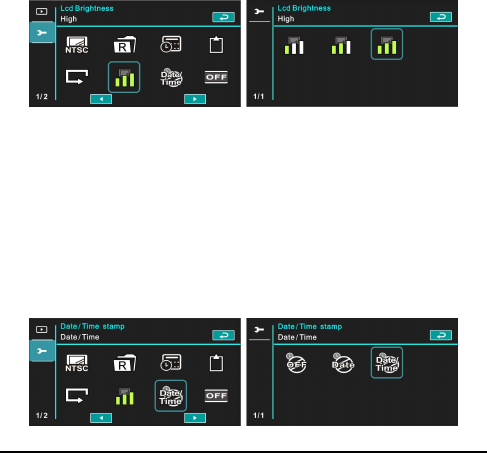
6.5.6 LCD Brightness
This function is to adjust the brightness of LCD.
1. Turn [On] the Digital Video Camera and switch to
[Setting] mode.
2. Use [4-way Direction] Button to select the [LCD
Brightness] item, then press [SET] Button or click the
screen to confirm.
3. Use [4-way Direction] Button to select [Low], [Medium],
or [High], then press [SET] Button or touch the screen to
confirm the setting.
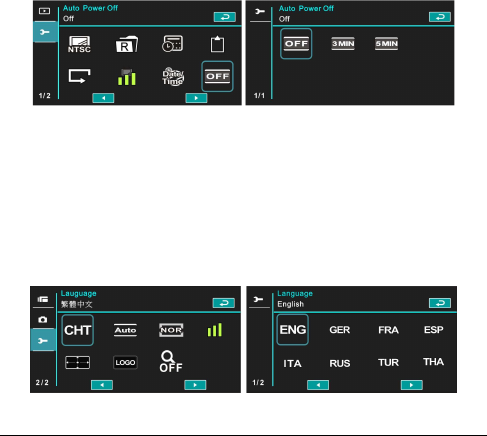
6.5.7 Date/Time Stamp
This function is to stamp date/time on photos.
1.
Turn [On] the Digital Video Camera and switch to [Setting]
mode.
2.
Press [4-way Direction] Button to select the [Date/Time
Stamp] item, press [SET] Button to display submenu; or
touch the screen to select the item.
3.
Use [4-way Direction] Button to choose [Off], [Date], or
[Date/Time], press [SET] Button or touch the screen to
confirm the setting.
77
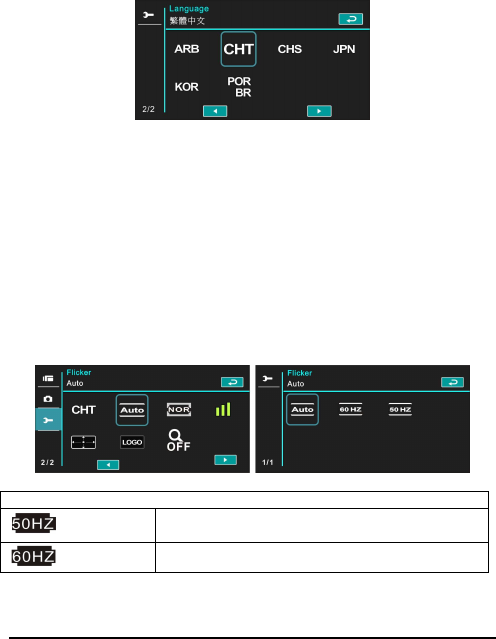
6.5.8 Auto Power Off
This function is to power off the Digital Video Camera to save energy
after it is not in use for several minutes.
1. Power [On] the Digital Video Camera and switch to
[Setting] mode.
2. Press [4-way Direction] Button to select the [Auto Power
Off] item, then press [SET] Button or touch the screen to
display submenu.
3. Use [4-way Direction] Button to choose [Off], [3 min], or
[5 min]. Press [SET] Button or touch the screen to
confirm the setting.
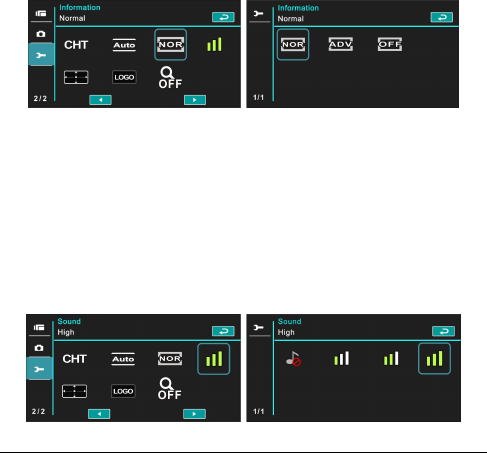
6.5.9 Language
Please refer to chapter 2.7.2 “Setting Time/Date and Language.”
1. Turn [On] the Digital Video Camera and switch to [Setting]
mode. Move [4-way Direction] Button left/right to select
the [Language] item, and press [SET] Button or click the
screen to confirm.
2. Press [4-way Direction] Button/touch the screen to select
the following languages: English, Deutsch, French,
78
Spanish, Italian, Japanese, Portuguese, Traditional
Chinese, Simplified Chinese, Turkish, Russian, Thai,
Arabian, and Korean.
6.5.10 Flicker
Use this setting to adjust the frequency system which corresponds
to your local area.。
1. Turn [On] the Digital Video Camera and switch to
[Setting] mode.
2. Press [4-way Direction] Button to select the [Flicker]
item, press [SET] Button or touch the screen to display
submenu.
3. Press [4-way Direction] Button/touch the screen to
select [Auto], [60Hz], or [50Hz]. Press [SET] Button or
touch the screen to confirm.
Reference of frequency setting
50HZ UK, Germany, Spain, Italy, France, Netherlands,
Portugal, Russia, China, Japan
60HZ USA, Taiwan, Korea, Japan
79
6.5.11 Information
This function is to show information on the LCD screen to help you
taking better photos/movie clips.
1. Power [On] the Digital Video Camera and switch to
[Setting] mode.
2. Press [4-way Direction] Button to select the [Information]
item, and press [SET] Button or touch the screen to
display submenu.
3. Use [4-way Direction] Button to select [Normal],
[Histogram], or [Off]. Press [SET] Button or touch the
screen to confirm.
6.5.12 Sound
Use this function to adjust the sound volume.
1. Turn [On] the Digital Video Camera and switch to
[Setting] mode.
2. Press [4-way Direction] Button to select the [Sound] item.
Press [SET] Button or touch the screen to display
submenu.
3. Press [4-way Direction] Button to select [High], [Meidan],
[Low], or [Off], then press [SET] Button or touch the
screen to confirm.
80
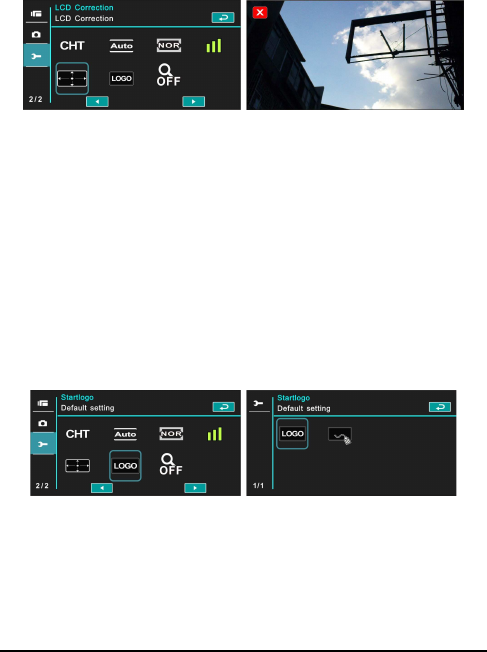
6.5.13 LCD Correction
This function is to correct the accuracy of LCD touch screen.
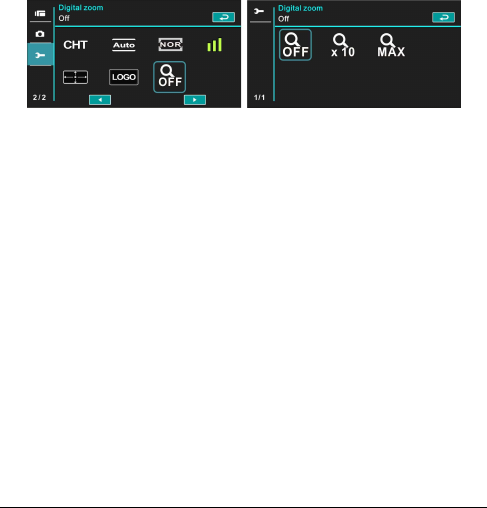
6.5.14 Start Logo
Use this function to set up the image shown on the screen when the
Digital Video Camera is turned on.
1. Power [On] the Digital Video Camera and switch to
[Setting] mode.
2. Press [4-way Direction] Button and choose the [Start
Logo] item, press [SET] Button or touch the screen to
display submenu.
3. Press [4-way Direction] Button to select [Default Setting]
or [User Setting]. Press [SET] Button/touch the panel to
choose the item.
81
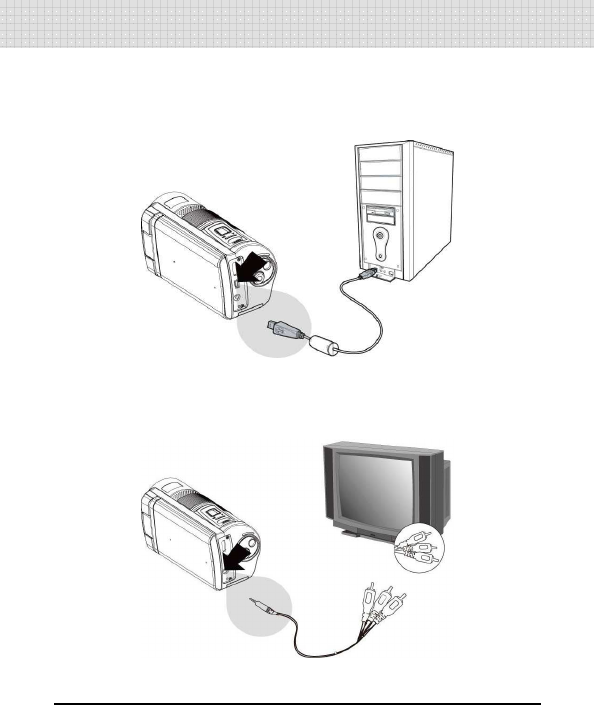
6.5.15 Digital Zoom
1. Power [On] the Digital Video Camera and make sure it is
in the [DV] mode.
2. Press [MENU] Button and press [4-way Direction] Button
to select the [Digital Zoom] item. Press [SET] Button or
touch the screen to display submenu.
3. Press [4-way Direction] Button to select [Off], [X10], or
[Maximum]. Press [SET] Button or touch the screen to
confirm.
82
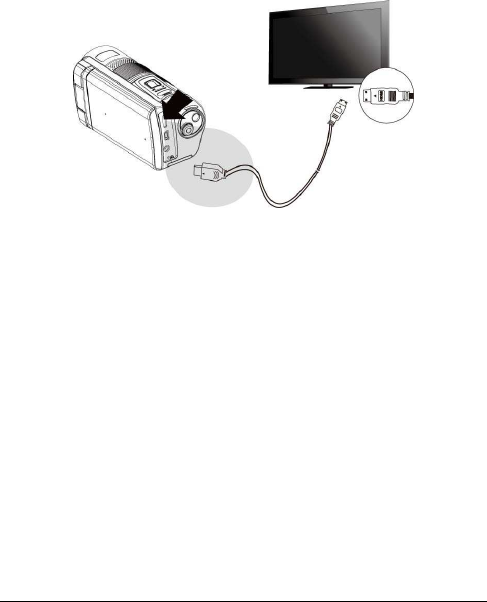
7 PC and TV Connection
7.1 Connecting to the Computer
As shown below, use the provided USB cable and connect the
Digital Video Camera to a PC for file transmission.
7.2 Connecting to the Standard TV
As shown below, use the provided video cable and connect the
Digital Video Camera to the standard TV.
83
7.3 Connecting to the HD TV
As shown below, use the provided HDMI cable to connect the Digital
Video Camera to a HD TV for high resolution picture display.
84
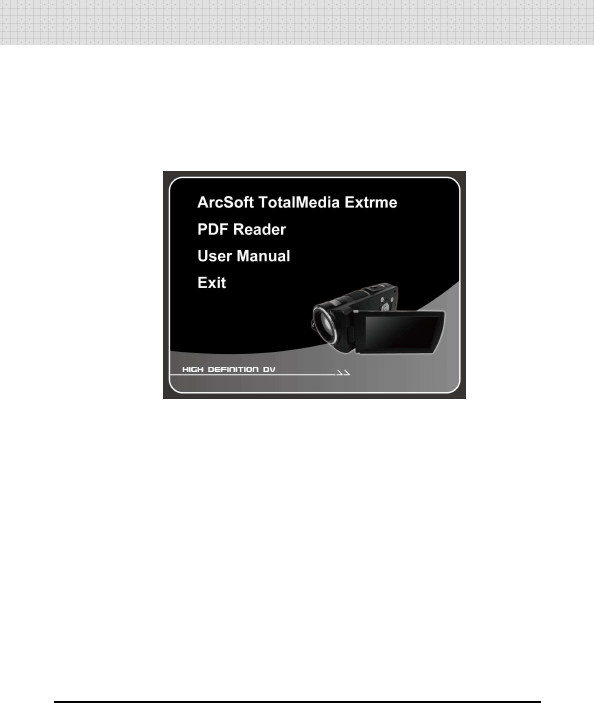
8 Installing the Software
1. Place the attached CD ROM into the CD player.
2. If the CD does not execute automatically, please use
Windows File Manager to execute the Install_CD.exe file
in the CD.
The following screen will be shown up.
3. Press the [Menu] item to start the installation process
according to the instructions on-screen.
85
9 Editing Software
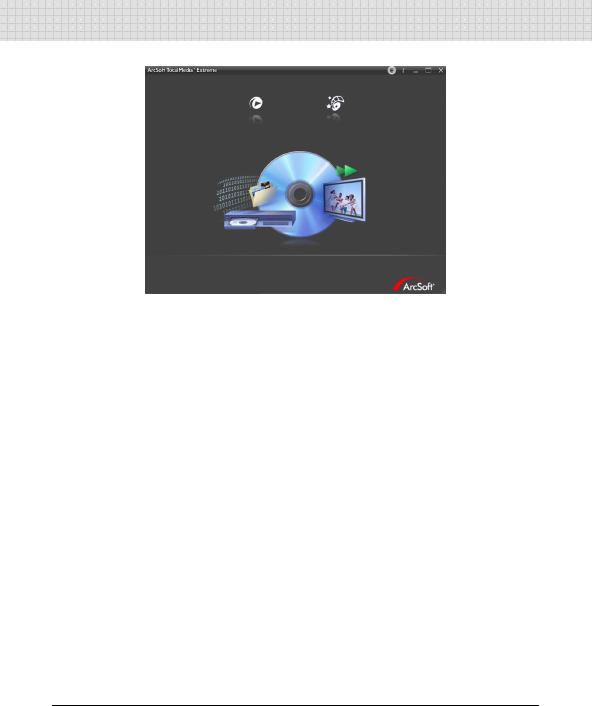
ArcSoft Total Media Extreme(TME) ™ manages your media for you,
and gives you tons of fun and exciting ways to create and share
projects featuring your photo, video, and music files. Edit, enhance
and add creative effects to your photos. You can
Create your own movies or photo slide shows complete with
soundtrack.
Upload your files easily to YouTube™!
Or share them through simple email attachments or popular
photo printing.
You can go to http://www.arcsoft.com/ for more information.
86
10 Appendix
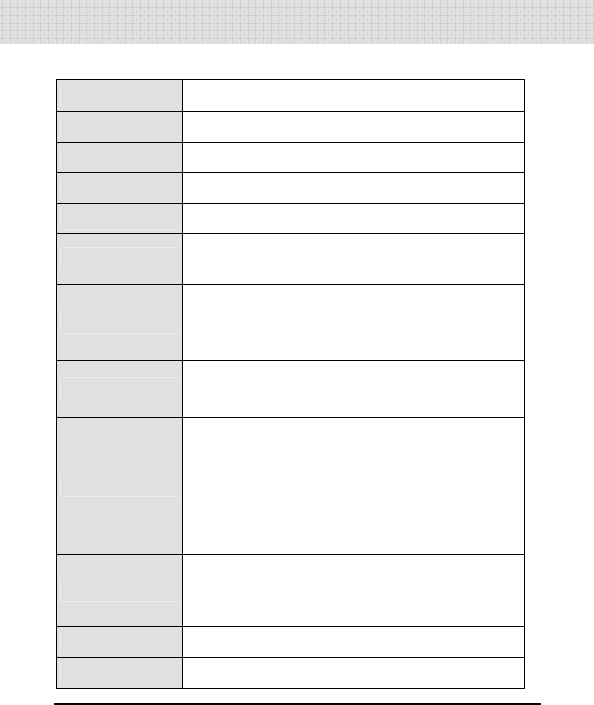
Specifications
Image sensor 1/2.33 inch. 10.0 mega pixels CMOS sensor
Effective pixels
10.0 Megapixel (3856X2764)
Storage media
Support SD card and SDHC card
ISO Equipment
Auto/100/200/400/800/1600/3200/6400
Color effect Normal/BW/Sepia/Art/Negative/Vivid
Lens 10x Optical Lens
F/3.58~3.64, f=6~60mm
Focus range
Normal: Wide: 10cm~Infinity
Tele: 120cm~ Infinity
Macro: 10cm
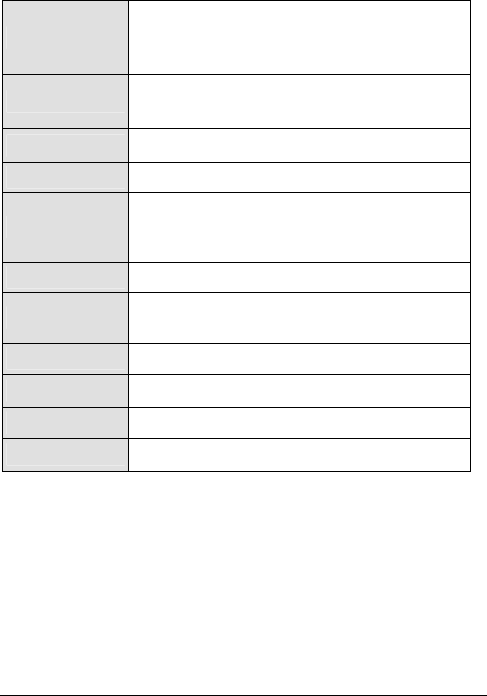
Still image Format:JPEG (DPOF, EXIF)
Resolution: 16MP(Interpolation), 10M, 5M, 3M
Movie Clip
Format: H.264 (MOV)
Resolution:FHD (1920 x 1080 / 30fps)
HD (1280 x 720 / 60 fps)
HD (1280 x 720 / 30 fps)
WVGA (848 x 480 / 60 fps)
WEB (432 x 240 / 240 fps)
zoom
Optical Zoom:10x
Digital Zoom: DSC 60x; Video 120x
Playback:10x digital zoom
Audio
Audio for Voice Recording: ADPCM
TFT screen 3.5” Touch Panel screen(16:9)
87
Strobe
Range:1.5m~2m
Recording: On/ Off
Shooting: fill-in, off, auto
White balance
Auto/ Daylight/ Cloudy// Tungsten/ Fluorescent/
Preset
Exposure -2.0 EV~+2.0 EV; 1/3 step
Self-Timer Off, 2 seconds, 10 seconds
Interface Camera: USB 2.0 (high-speed)
Mass storage High disk: USB 2.0(high-
speed),
MIC input, HDMI, USB DC IN
TV output NTSC/PAL
Shutter Electronic shutter
Auto:1/2 ~1/4000 sec, Night: 2~1/4000 sec.
Auto Power Off
Off, 3 minutes, 5 minutes
Power Source
CNP-40 Lithium battery
Dimensions 126 (L) x 62 (H) x 54.6 (W) mm
Weight About 326g (without battery)

88
Troubleshooting
Problem
Possible Cause
Solution
Can not turn
on the power
of Digital
Video
Camera.
1. Batteries are not
inserted correctly.
2. Batteries are dead.
1. Please insert batteries
correctly.
2. Replace the batteries.
Camera
shutdown
suddenly.
1. Power saving mode
already activated.
2. Batteries are dead.
1. Please turn on the power
again.
2. Replace the batteries.
Pictures are
not stored in
the memory.
Power off before storing
the images.
Please change to new
batteries when the battery
indicator turns to red color.
Camera
shutdown
when using
Self-timer
shooting
picture.
Batteries in camera are
dead. Change new batteries.
Images are
out of focus Object exceeds the range
of focus. Refocus by zooming in/out.
Unable to use 1. Memory card is 1. Unlock the memory

89
the external
memory card.
Protected.
2. Memory card contains
non-DCF images taken
by other cameras.
card.
2. Reformat the memory
card. Please make
sure to backup the file
before reformatting
memory card.。
All Buttons can
not work or
camera hangs.
Short circuit occurred when
connecting the camera to
other device.
Take out batteries in the
camera and re-insert again.

