Eclipse Fujitsu Ten Car Stereo System Avn 30D Users Manual 090002 28310700
AVN 30D to the manual 552d70a7-26fc-45fe-ac3c-642c9872a661
2015-02-06
: Eclipse-Fujitsu-Ten Eclipse-Fujitsu-Ten-Eclipse-Fujitsu-Ten-Car-Stereo-System-Avn-30D-Users-Manual-537359 eclipse-fujitsu-ten-eclipse-fujitsu-ten-car-stereo-system-avn-30d-users-manual-537359 eclipse-fujitsu-ten pdf
Open the PDF directly: View PDF  .
.
Page Count: 122 [warning: Documents this large are best viewed by clicking the View PDF Link!]
- Cautions for use
- How to use this manual
- Features
- DVD player with sharp video and dynamic sound (Page 66)
- MP3 player for music discs having 1/10 compression (Page 52)
- DSP effects for simulating acoustics of various performance environments (Page 24)
- Selection and display of favorite wallpaper (screen backgrounds) (Page 32)
- Radio tuner for receiving various broadcasts
- System additions
- Easy-access audio controls on the steering wheel (Page 92)
- Before using the deck
- Switching the mode
- Operation screen of each mode
- Adjusting the volume
- Adjusting sound quality
- Setting background screen
- Adjusting/setting the screen
- Operating the AM/FM radio
- Operation when an HD RADIO (IBOC) tuner has been connected
- Operation when a SIRIUS satellite radio tuner has been connected
- How to use the CD player
- How to use the MP3 player
- Playing MP3
- Selecting a music file
- Fast-forwarding/rewinding
- Changing display of the current level
- Displaying the current level
- Searching for a music file
- Repeating the same music file
- Playing songs in random order
- About display of file information
- Turning off the MP3 player
- About MP3
- Making and playing MP3 files
- How to use the CD changer
- Before using the DVD player
- How to use the DVD player
- How to use the VTR
- About the steering wheel switches
- How to use an optional remote control (1602)
- How to use an optional remote control (RMC105)
- Information you should know
- Others
- Glossary
- Index by topic
- About screen and sound adjustment
- Using AM/FM radio
- Usage when an HD RADIO (IBOC) tuner is connected
- Usage when a SIRIUS satellite radio tuner is connected
- About using the CD player/CD changer
- About using the MP3 player
- About using the DVD player
- About using the VTR
- Useful functions
- When something isn't clear
- INDEX
- Adjusting main volume 22
- Adjusting sound quality 23
- Adjusting the volume 22
- ANGLE 79
- AUTO.P 40, 45
- BRIGHT 35
- CD-R (CD-Recordable) 17
- CD-RW (CD-ReWritable) 17
- COLOR 35
- CONT 20
- CONTRST 35
- Day screen 34
- DISC RAND 64
- DISC RPT 63
- DISC SCAN 63
- DSP 24
- HD RADIO 43
- How to use an optional remote control (1602) 94
- How to use an optional remote control (RMC105) 100
- How to use the CD changer 62
- How to use the CD player 50
- How to use the DVD player 72
- How to use the MP3 player 52
- How to use the VTR 90
- IBOC 43
- Multi-angle mark 79
- Night screen 34
- NORMAL mode 36
- Operating the AM/FM radio 38
- POS (position selector) 28
- RAND 51, 55
- RPT 51, 55
- Saving radio stations 40, 45
- SCAN 51, 54
- Setting LOUDNESS 31
- Setting the BEEP tone 30
- SIRIUS 46
- Steering wheel switches 92
- Switching subtitle languages 80
- TINT 35
- Turning off the screen 34
- Volume balance 29
- VOLUME switch 22
- Wallpaper (background) 32
- WIDE 1 mode 36
- WIDE 2 mode 36
- WIDE 3 mode 36
1
Warnings and caution signs, illustrated below, are posted throughout this manual as well as
on the AVN 30D. They show safe and correct ways to handle the product so as to prevent
personal injury to you and others and avoid damage to property.Before reading through the
manual, take time to read through and learn the important information listed in this section.
The symbol shown below indicates that you should know about the information in order to
carefully follow it or you should remember the information for its helpfulness.
• Please read all materials such as manuals and warranties that have come with the product.
Fujitsu Ten will not be responsible for unsatisfactory product performance due to failure to
follow these instructions.
• Changes to product specifications may result in differences between content of the manual
and features of the product.
Cautions for use
* The illustrations of screens shown in this manual may differ from the actual screens of the
product.
Warning This sign indicates a situation in which incorrect handling
through disregard of a sign might result in death or serious
personal injury.
Caution This sign indicates a situation in which incorrect handling
through disregard of a sign might result in personal injury or
may result solely in damage to property.
A point it will be helpful to remember.
Information you should know

Table of Contents
2
Introduction
How to use this manual . . . . . . . . . . . . . . . . . . . . . . . . . . . . 10
Features . . . . . . . . . . . . . . . . . . . . . . . . . . . . . . . . . . . . . . . . . 12
Before using the deck . . . . . . . . . . . . . . . . . . . . . . . . . . . . . 15
About discs. . . . . . . . . . . . . . . . . . . . . . . . . . . . . . . . . . . . . . . . . . . . . . 17
About playable discs . . . . . . . . . . . . . . . . . . . . . . . . . . . . . . . . . 17
About handling discs . . . . . . . . . . . . . . . . . . . . . . . . . . . . . . . . . 18
About new discs. . . . . . . . . . . . . . . . . . . . . . . . . . . . . . . . . . . . . 18
About rental discs . . . . . . . . . . . . . . . . . . . . . . . . . . . . . . . . . . . 19
About specially shaped discs. . . . . . . . . . . . . . . . . . . . . . . . . . . 19
About disc accessories . . . . . . . . . . . . . . . . . . . . . . . . . . . . . . . 19
About the LCD panel . . . . . . . . . . . . . . . . . . . . . . . . . . . . . . . . . . . . . . 19
Basic operation
Switching the mode . . . . . . . . . . . . . . . . . . . . . . . . . . . . . . . 20
Switching the mode . . . . . . . . . . . . . . . . . . . . . . . . . . . . . . . . . . . . . . . 20
Displaying operation screen. . . . . . . . . . . . . . . . . . . . . . . . . . . . 20
Operation screen of each mode . . . . . . . . . . . . . . . . . . . . . 21
Adjusting the volume . . . . . . . . . . . . . . . . . . . . . . . . . . . . . . 22
Adjusting main volume . . . . . . . . . . . . . . . . . . . . . . . . . . . . . . . . . . . . . 22
Adjusting sound quality . . . . . . . . . . . . . . . . . . . . . . . . . . . . 23
Setting DSP (acoustics) . . . . . . . . . . . . . . . . . . . . . . . . . . . . . . . . . . . . 24
DSP mode setting . . . . . . . . . . . . . . . . . . . . . . . . . . . . . . . . . . . 24
Adjusting, saving DSP (acoustics) . . . . . . . . . . . . . . . . . . . . . . . 24
Resetting DSP (acoustics) levels. . . . . . . . . . . . . . . . . . . . . . . . 25
Adjusting EQ (equalizer) . . . . . . . . . . . . . . . . . . . . . . . . . . . . . . . . . . . 26
Setting sound quality . . . . . . . . . . . . . . . . . . . . . . . . . . . . . . . . . 26
Adjusting and saving equalizer (EQ) patterns . . . . . . . . . . . . . . 27
Resetting EQ patterns . . . . . . . . . . . . . . . . . . . . . . . . . . . . . . . . 27
Setting POS (position selector) . . . . . . . . . . . . . . . . . . . . . . . . . . . . . . 28
Adjusting volume balance . . . . . . . . . . . . . . . . . . . . . . . . . . . . . . . . . . 29
Setting the BEEP tone . . . . . . . . . . . . . . . . . . . . . . . . . . . . . . . . . . . . . 30
Muting sound . . . . . . . . . . . . . . . . . . . . . . . . . . . . . . . . . . . . . . . . . . . . 30

3
Setting LOUDNESS . . . . . . . . . . . . . . . . . . . . . . . . . . . . . . . . . . . . . . . 31
Setting background screen . . . . . . . . . . . . . . . . . . . . . . . . . 32
Setting the wallpaper . . . . . . . . . . . . . . . . . . . . . . . . . . . . . . . . . . . . . . 32
Changing the wallpaper . . . . . . . . . . . . . . . . . . . . . . . . . . . . . . . 32
Adjusting/setting the screen . . . . . . . . . . . . . . . . . . . . . . . . 33
Displaying the image adjustment screen . . . . . . . . . . . . . . . . . . . . . . . 33
How to switch to daytime display when the lights are ON . . . . . 34
Turning off the screen . . . . . . . . . . . . . . . . . . . . . . . . . . . . . . . . 34
Adjusting image quality . . . . . . . . . . . . . . . . . . . . . . . . . . . . . . . 35
Switching screen mode . . . . . . . . . . . . . . . . . . . . . . . . . . . . . . . . . . . . 35
How to operate the tuner
Operating the AM/FM radio . . . . . . . . . . . . . . . . . . . . . . . . . 38
Listening to the AM/FM radio . . . . . . . . . . . . . . . . . . . . . . . . . . . . . . . . 38
Selecting radio stations . . . . . . . . . . . . . . . . . . . . . . . . . . . . . . . . . . . . 39
Manual selection . . . . . . . . . . . . . . . . . . . . . . . . . . . . . . . . . . . . 39
Automatic selection . . . . . . . . . . . . . . . . . . . . . . . . . . . . . . . . . . 39
Selection using preset switches. . . . . . . . . . . . . . . . . . . . . . . . . 39
Saving radio stations . . . . . . . . . . . . . . . . . . . . . . . . . . . . . . . . . . . . . . 40
Saving manually. . . . . . . . . . . . . . . . . . . . . . . . . . . . . . . . . . . . . 40
Saving with AUTO.P . . . . . . . . . . . . . . . . . . . . . . . . . . . . . . . . . 40
Changing stations saved by AUTO.P . . . . . . . . . . . . . . . . . . . . 40
Displaying information about the track being played . . . . . . . . . . . . . . 42
Turning off the radio . . . . . . . . . . . . . . . . . . . . . . . . . . . . . . . . . . . . . . . 42
Operation when an HD RADIO (IBOC) tuner has been
connected . . . . . . . . . . . . . . . . . . . . . . . . . . . . . . . . . . . . . . . 43
Listening to HD RADIO (IBOC) . . . . . . . . . . . . . . . . . . . . . . . . . . . . . . 43
Selecting radio stations . . . . . . . . . . . . . . . . . . . . . . . . . . . . . . . . . . . . 44
Manual selection . . . . . . . . . . . . . . . . . . . . . . . . . . . . . . . . . . . . 44
Automatic selection . . . . . . . . . . . . . . . . . . . . . . . . . . . . . . . . . . 44
Selection using preset switches. . . . . . . . . . . . . . . . . . . . . . . . . 44
Saving radio stations . . . . . . . . . . . . . . . . . . . . . . . . . . . . . . . . . . . . . . 45
Saving manually. . . . . . . . . . . . . . . . . . . . . . . . . . . . . . . . . . . . . 45
Saving with AUTO.P . . . . . . . . . . . . . . . . . . . . . . . . . . . . . . . . . 45
Changing stations saved by AUTO.P . . . . . . . . . . . . . . . . . . . . 45
Displaying information about the track being played . . . . . . . . . . . . . . 45
Turning off the radio . . . . . . . . . . . . . . . . . . . . . . . . . . . . . . . . . . . . . . . 45

4
Operation when a SIRIUS satellite radio tuner has been
connected . . . . . . . . . . . . . . . . . . . . . . . . . . . . . . . . . . . . . . . 46
Listening to SIRIUS satellite radio . . . . . . . . . . . . . . . . . . . . . . . . . . . . 46
Check the SIRIUS ID . . . . . . . . . . . . . . . . . . . . . . . . . . . . . . . . . . . . . . 46
Changing the SIRIUS band . . . . . . . . . . . . . . . . . . . . . . . . . . . . . . . . . 47
Selecting the channel you want to listen to . . . . . . . . . . . . . . . . . . . . . 47
Selecting from the available categories . . . . . . . . . . . . . . . . . . . 47
Selecting a channel by direct input . . . . . . . . . . . . . . . . . . . . . . 47
Displaying information about the track being played . . . . . . . . . . . . . . 48
Turning off the SIRIUS . . . . . . . . . . . . . . . . . . . . . . . . . . . . . . . . . . . . . 48
How to operate the CD player
How to use the CD player. . . . . . . . . . . . . . . . . . . . . . . . . . . 50
Listening to a CD . . . . . . . . . . . . . . . . . . . . . . . . . . . . . . . . . . . . . . . . . 50
Selecting a song. . . . . . . . . . . . . . . . . . . . . . . . . . . . . . . . . . . . . . . . . . 50
Fast-forwarding/rewinding . . . . . . . . . . . . . . . . . . . . . . . . . . . . . . . . . . 51
Searching for a song . . . . . . . . . . . . . . . . . . . . . . . . . . . . . . . . . . . . . . 51
Repeating a song . . . . . . . . . . . . . . . . . . . . . . . . . . . . . . . . . . . . . . . . . 51
Playing songs in random order . . . . . . . . . . . . . . . . . . . . . . . . . . . . . . 51
Turning off the CD player . . . . . . . . . . . . . . . . . . . . . . . . . . . . . . . . . . . 51
How to operate the MP3 player
How to use the MP3 player . . . . . . . . . . . . . . . . . . . . . . . . . 52
Playing MP3 . . . . . . . . . . . . . . . . . . . . . . . . . . . . . . . . . . . . . . . . . . . . . 53
Selecting a music file . . . . . . . . . . . . . . . . . . . . . . . . . . . . . . . . . . . . . . 53
Selecting with file change switch . . . . . . . . . . . . . . . . . . . . . . . . 53
Selecting with TUNE/TRACK button . . . . . . . . . . . . . . . . . . . . . 53
Fast-forwarding/rewinding . . . . . . . . . . . . . . . . . . . . . . . . . . . . . . . . . . 54
Changing display of the current level . . . . . . . . . . . . . . . . . . . . . . . . . . 54
Displaying the current level . . . . . . . . . . . . . . . . . . . . . . . . . . . . . . . . . 54
Searching for a music file. . . . . . . . . . . . . . . . . . . . . . . . . . . . . . . . . . . 54
Repeating the same music file . . . . . . . . . . . . . . . . . . . . . . . . . . . . . . . 55
Playing songs in random order . . . . . . . . . . . . . . . . . . . . . . . . . . . . . . 55
About display of file information . . . . . . . . . . . . . . . . . . . . . . . . . . . . . . 56
Displaying folder/file names . . . . . . . . . . . . . . . . . . . . . . . . . . . . 56
Displaying file information . . . . . . . . . . . . . . . . . . . . . . . . . . . . . 56

5
Turning off the MP3 player. . . . . . . . . . . . . . . . . . . . . . . . . . . . . . . . . . 56
About MP3 . . . . . . . . . . . . . . . . . . . . . . . . . . . . . . . . . . . . . . . . . . . . . . 57
Playable MP3 file standards . . . . . . . . . . . . . . . . . . . . . . . . . . . 57
ID3 tags . . . . . . . . . . . . . . . . . . . . . . . . . . . . . . . . . . . . . . . . . . . 57
Media . . . . . . . . . . . . . . . . . . . . . . . . . . . . . . . . . . . . . . . . . . . . . 57
Format of discs . . . . . . . . . . . . . . . . . . . . . . . . . . . . . . . . . . . . . 58
File names . . . . . . . . . . . . . . . . . . . . . . . . . . . . . . . . . . . . . . . . . 59
Multi-sessions . . . . . . . . . . . . . . . . . . . . . . . . . . . . . . . . . . . . . . 59
Playing MP3. . . . . . . . . . . . . . . . . . . . . . . . . . . . . . . . . . . . . . . . 59
MP3 playing time display . . . . . . . . . . . . . . . . . . . . . . . . . . . . . . 59
Display order of MP3 file/folder names . . . . . . . . . . . . . . . . . . . 59
Making and playing MP3 files . . . . . . . . . . . . . . . . . . . . . . . . . . . . . . . 60
Downloading from Internet MP3 music sites . . . . . . . . . . . . . . . 60
Converting CD music to MP3 files . . . . . . . . . . . . . . . . . . . . . . . 60
Writing to CD-R/CD-RW . . . . . . . . . . . . . . . . . . . . . . . . . . . . . . 60
When playing back CD-R/RW . . . . . . . . . . . . . . . . . . . . . . . . . . 60
How to operate the CD changer
How to use the CD changer . . . . . . . . . . . . . . . . . . . . . . . . . 62
Listening to a CD . . . . . . . . . . . . . . . . . . . . . . . . . . . . . . . . . . . . . . . . . 62
Selecting a song. . . . . . . . . . . . . . . . . . . . . . . . . . . . . . . . . . . . . . . . . . 62
Fast-forwarding/rewinding . . . . . . . . . . . . . . . . . . . . . . . . . . . . . . . . . . 62
Selecting a CD . . . . . . . . . . . . . . . . . . . . . . . . . . . . . . . . . . . . . . . . . . . 63
Searching for a song or CD from all CDs in changer . . . . . . . . . . . . . . 63
Searching for a song . . . . . . . . . . . . . . . . . . . . . . . . . . . . . . . . . 63
Searching for a CD . . . . . . . . . . . . . . . . . . . . . . . . . . . . . . . . . . 63
Repeating a song or CD. . . . . . . . . . . . . . . . . . . . . . . . . . . . . . . . . . . . 63
Repeating the current song . . . . . . . . . . . . . . . . . . . . . . . . . . . . 63
Repeating the current CD . . . . . . . . . . . . . . . . . . . . . . . . . . . . . 63
Playing songs in random order . . . . . . . . . . . . . . . . . . . . . . . . . . . . . . 64
Playing songs on current CD in random order. . . . . . . . . . . . . . 64
Playing songs on all CDs in random order. . . . . . . . . . . . . . . . . 64
Turning off the CD player . . . . . . . . . . . . . . . . . . . . . . . . . . . . . . . . . . . 64
How to operate the DVD player
Before using the DVD player . . . . . . . . . . . . . . . . . . . . . . . . 66
DVD video characteristics . . . . . . . . . . . . . . . . . . . . . . . . . . . . . . . . . . 66
About Multiple Languages . . . . . . . . . . . . . . . . . . . . . . . . . . . . . 66

6
About Multiple Angles . . . . . . . . . . . . . . . . . . . . . . . . . . . . . . . . 66
About Subtitles. . . . . . . . . . . . . . . . . . . . . . . . . . . . . . . . . . . . . . 67
About discs. . . . . . . . . . . . . . . . . . . . . . . . . . . . . . . . . . . . . . . . . . . . . . 67
About playable discs . . . . . . . . . . . . . . . . . . . . . . . . . . . . . . . . . 67
About region codes of playable discs . . . . . . . . . . . . . . . . . . . . 68
About marks displayed on discs . . . . . . . . . . . . . . . . . . . . . . . . 69
About DVD disc structure. . . . . . . . . . . . . . . . . . . . . . . . . . . . . . 70
About flow of operations. . . . . . . . . . . . . . . . . . . . . . . . . . . . . . . . . . . . 71
How to use the DVD player . . . . . . . . . . . . . . . . . . . . . . . . . 72
Watching a DVD. . . . . . . . . . . . . . . . . . . . . . . . . . . . . . . . . . . . . . . . . . 72
Operating the video . . . . . . . . . . . . . . . . . . . . . . . . . . . . . . . . . . . . . . . 73
Playing the video . . . . . . . . . . . . . . . . . . . . . . . . . . . . . . . . . . . . 73
Fast-forwarding/rewinding . . . . . . . . . . . . . . . . . . . . . . . . . . . . . 73
Pausing the video . . . . . . . . . . . . . . . . . . . . . . . . . . . . . . . . . . . 74
Stopping the video . . . . . . . . . . . . . . . . . . . . . . . . . . . . . . . . . . . 74
Operating the disc menu . . . . . . . . . . . . . . . . . . . . . . . . . . . . . . . . . . . 75
Turning off the DVD . . . . . . . . . . . . . . . . . . . . . . . . . . . . . . . . . . . . . . . 75
Searching for a desired chapter . . . . . . . . . . . . . . . . . . . . . . . . . . . . . . 76
Searching by chapter . . . . . . . . . . . . . . . . . . . . . . . . . . . . . . . . . 76
Searching by title number . . . . . . . . . . . . . . . . . . . . . . . . . . . . . 76
Searching by menu number. . . . . . . . . . . . . . . . . . . . . . . . . . . . 77
Changing the touch switch display. . . . . . . . . . . . . . . . . . . . . . . . . . . . 78
Turning off the touch switches . . . . . . . . . . . . . . . . . . . . . . . . . . 78
Changing the touch switch display locations . . . . . . . . . . . . . . . 78
Switching between screen display and audio . . . . . . . . . . . . . . . . . . . 79
Switching the video angle . . . . . . . . . . . . . . . . . . . . . . . . . . . . . 79
Switching subtitle languages . . . . . . . . . . . . . . . . . . . . . . . . . . . 80
Switching dubbed audio language . . . . . . . . . . . . . . . . . . . . . . . 81
Setting the DVD player. . . . . . . . . . . . . . . . . . . . . . . . . . . . . . . . . . . . . 82
Setting the audio language . . . . . . . . . . . . . . . . . . . . . . . . . . . . 83
Subtitle language setting . . . . . . . . . . . . . . . . . . . . . . . . . . . . . . 84
Menu language setting. . . . . . . . . . . . . . . . . . . . . . . . . . . . . . . . 85
Setting display of multi-angle mark (angle selection mark) . . . . 86
Viewer restriction setting . . . . . . . . . . . . . . . . . . . . . . . . . . . . . . 87
Changing video output . . . . . . . . . . . . . . . . . . . . . . . . . . . . . . . . 88
Table of language codes . . . . . . . . . . . . . . . . . . . . . . . . . . . . . . . . . . . 89
How to use the VTR . . . . . . . . . . . . . . . . . . . . . . . . . . . . . . . 90
Viewing the VTR . . . . . . . . . . . . . . . . . . . . . . . . . . . . . . . . . . . . . . . . . 90
Turning off the VTR mode . . . . . . . . . . . . . . . . . . . . . . . . . . . . . . . . . . 90

7
How to use the steering wheel switch
About the steering wheel switches . . . . . . . . . . . . . . . . . . . 92
Function names and summaries . . . . . . . . . . . . . . . . . . . . . . . . . . . . . 92
Common operations. . . . . . . . . . . . . . . . . . . . . . . . . . . . . . . . . . 92
Radio operations . . . . . . . . . . . . . . . . . . . . . . . . . . . . . . . . . . . . 93
CD/MP3 player operations. . . . . . . . . . . . . . . . . . . . . . . . . . . . . 93
DVD operations . . . . . . . . . . . . . . . . . . . . . . . . . . . . . . . . . . . . . 93
CD changer operation . . . . . . . . . . . . . . . . . . . . . . . . . . . . . . . . 93
How to use an optional remote control
How to use an optional remote control (1602) . . . . . . . . . . 94
Turning the power on/off . . . . . . . . . . . . . . . . . . . . . . . . . . . . . . . . . . . 95
Adjusting the audio volume . . . . . . . . . . . . . . . . . . . . . . . . . . . . . . . . . 95
Muting the volume . . . . . . . . . . . . . . . . . . . . . . . . . . . . . . . . . . . 95
Switching playback modes. . . . . . . . . . . . . . . . . . . . . . . . . . . . . . . . . . 96
How to play the tuner . . . . . . . . . . . . . . . . . . . . . . . . . . . . . . . . . . . . . . 96
Selecting a station (manually or automatically) . . . . . . . . . . . . . 96
Selecting preset stations . . . . . . . . . . . . . . . . . . . . . . . . . . . . . . 97
How to play CDs . . . . . . . . . . . . . . . . . . . . . . . . . . . . . . . . . . . . . . . . . 98
Switching disc modes . . . . . . . . . . . . . . . . . . . . . . . . . . . . . . . . 98
Advancing to the next track or returning to the beginning of the
track being played . . . . . . . . . . . . . . . . . . . . . . . . . . . . . . . . . . . 98
Skipping to the next or previous disc . . . . . . . . . . . . . . . . . . . . . 98
Replacing the battery . . . . . . . . . . . . . . . . . . . . . . . . . . . . . . . . . . . . . . 99
How to use an optional remote control (RMC105). . . . . . 100
Turning the power on/off . . . . . . . . . . . . . . . . . . . . . . . . . . . . . . . . . . 101
Adjusting the audio volume . . . . . . . . . . . . . . . . . . . . . . . . . . . . . . . . 101
Muting the Volume . . . . . . . . . . . . . . . . . . . . . . . . . . . . . . . . . . 101
Switching playback modes. . . . . . . . . . . . . . . . . . . . . . . . . . . . . . . . . 102
How to play the tuner . . . . . . . . . . . . . . . . . . . . . . . . . . . . . . . . . . . . . 102
Selecting the AM/FM band. . . . . . . . . . . . . . . . . . . . . . . . . . . . 102
Selecting a station (manually or automatically) . . . . . . . . . . . . 103
Selecting preset stations . . . . . . . . . . . . . . . . . . . . . . . . . . . . . 103
How to play CDs . . . . . . . . . . . . . . . . . . . . . . . . . . . . . . . . . . . . . . . . 103
Switching disc modes . . . . . . . . . . . . . . . . . . . . . . . . . . . . . . . 103
Advancing to the next track or returning to the beginning of
the track being played . . . . . . . . . . . . . . . . . . . . . . . . . . . . . . . 104

8
Skipping to the next or previous disc . . . . . . . . . . . . . . . . . . . . 104
Replacing the battery . . . . . . . . . . . . . . . . . . . . . . . . . . . . . . . . . . . . . 105
For reference
Information you should know . . . . . . . . . . . . . . . . . . . . . . 106
If one of these messages appears . . . . . . . . . . . . . . . . . . . . . . . . . . . 106
Before asking for repairs . . . . . . . . . . . . . . . . . . . . . . . . . . . . . . . . . . 108
Others . . . . . . . . . . . . . . . . . . . . . . . . . . . . . . . . . . . . . . . . . 109
Products equipped with Dolby Digital. . . . . . . . . . . . . . . . . . . . . . . . . 109
Products equipped with Macrovision . . . . . . . . . . . . . . . . . . . . . . . . . 109
Glossary. . . . . . . . . . . . . . . . . . . . . . . . . . . . . . . . . . . . . . . . 110
Index by topic . . . . . . . . . . . . . . . . . . . . . . . . . . . . . . . . . . . 112
About screen and sound adjustment . . . . . . . . . . . . . . . . . . . . . . . . . 112
Using AM/FM radio . . . . . . . . . . . . . . . . . . . . . . . . . . . . . . . . . . . . . . 112
Usage when an HD RADIO (IBOC) tuner is connected . . . . . . . . . . . 113
Usage when a SIRIUS satellite radio tuner is connected. . . . . . . . . . 113
About using the CD player/CD changer . . . . . . . . . . . . . . . . . . . . . . . 113
About using the MP3 player . . . . . . . . . . . . . . . . . . . . . . . . . . . . . . . . 114
About using the DVD player. . . . . . . . . . . . . . . . . . . . . . . . . . . . . . . . 115
About using the VTR . . . . . . . . . . . . . . . . . . . . . . . . . . . . . . . . . . . . . 116
Useful functions . . . . . . . . . . . . . . . . . . . . . . . . . . . . . . . . . . . . . . . . . 116
When something isn't clear . . . . . . . . . . . . . . . . . . . . . . . . . . . . . . . . 116
INDEX . . . . . . . . . . . . . . . . . . . . . . . . . . . . . . . . . . . . . . . . . . . . . . . . 118
The Index by Topic simplifies searches for explanations
about individual features. When confused by an
operation, use the Index by Topic to search for information
about the operation.
9
10
Introduction
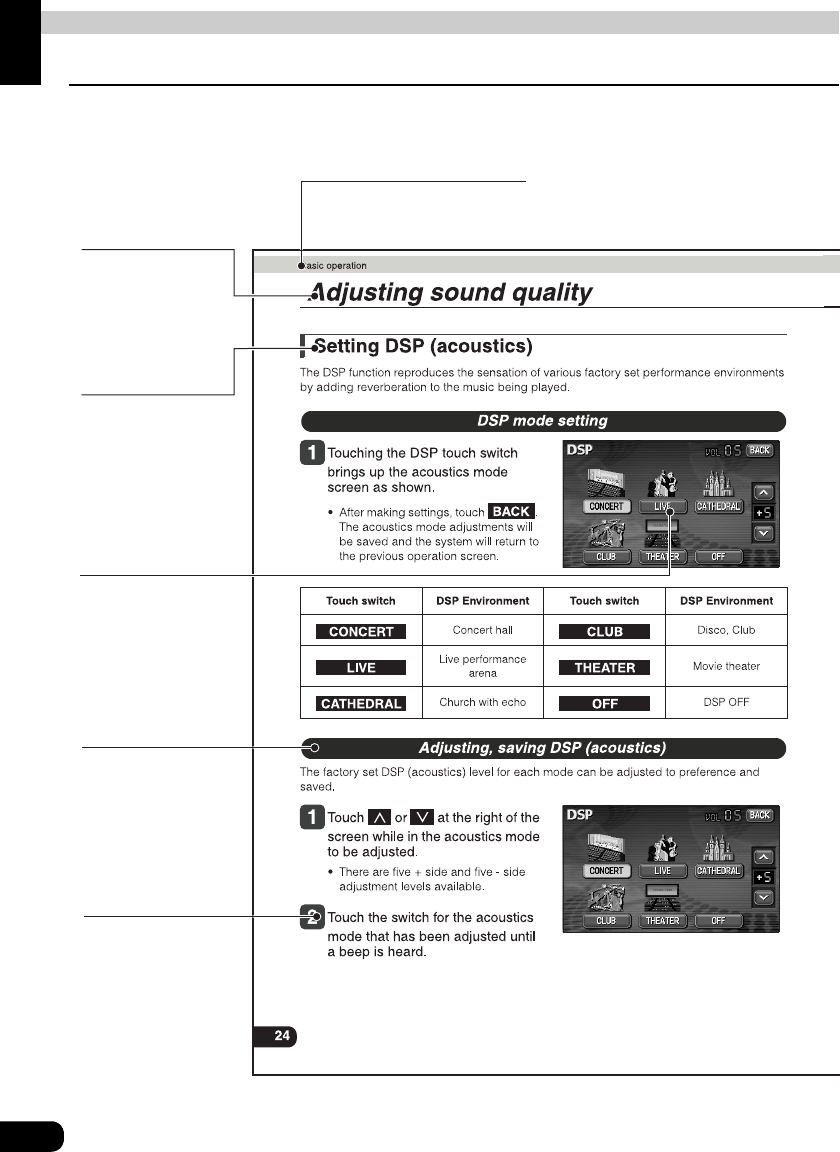
How to use this manual
Item title
A number and title
is assigned for
each item.
Section title
A title is assigned for each
section.
Operation title
A title is assigned
for each operation
purpose.
Operation procedure
Describes the
operation.
Proceed with the
operation as per the
numerical order.
Detailed operation title
A title is assigned for
each detailed
operation purpose.
Operation screen
A screen showing
the operation will
appear.
11
Introduction
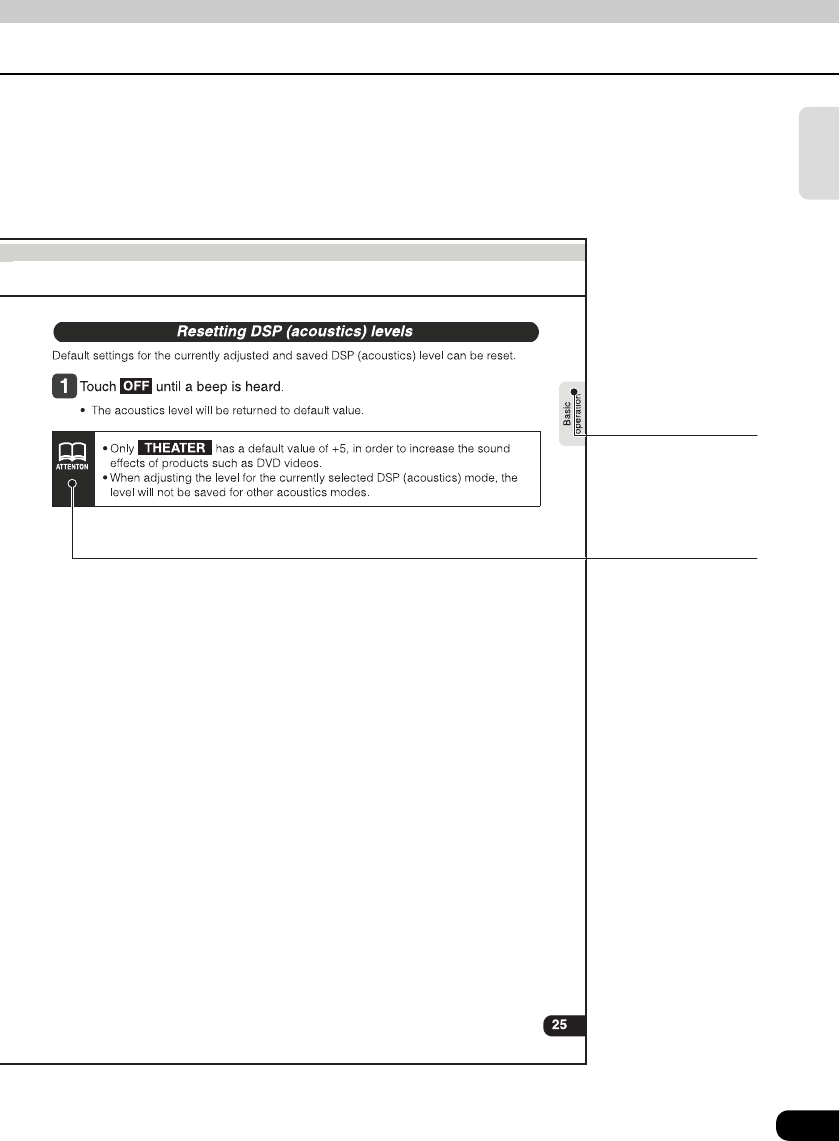
Attention
Additional points
regarding the
operations are given
here.
Section side heading
Only the section side
heading will appear.
12
Introduction
Features
DVD player with sharp video and dynamic sound
(Page 66)
Plays DVD Video recorded with high quality
images and sound.
(DVD media is able to record a movie with
high quality video and digital sound that
exceeds the quality of CD media.)
MP3 player for music discs having 1/10
compression (Page 52)
Plays CD-R (recordable) discs that have been
compiled in MP3 format. (MP3 is a format that
enables recording of the songs of several
albums onto a single CD-R.)
DSP effects for simulating acoustics of various
performance environments (Page 24)
Provides ability to simulate the sensation of
various performance environments for
matching to the genre and source of a song.
13
Introduction
Selection and display of favorite wallpaper
(screen backgrounds) (Page 32)
Wallpaper of your choice can be switched and
displayed for use as the background of the
information screen and audio playback
screens.
The screen from a navigation unit can also be
linked and selected.
Radio tuner for receiving various broadcasts
• AM/FM tuner (Page 38)
Enables reception of analog AM/FM radio
broadcasts.
• HD RADIO (IBOC) tuner (Page 43)
Enables reception of HD RADIO (High
Definition Radio) broadcasts.
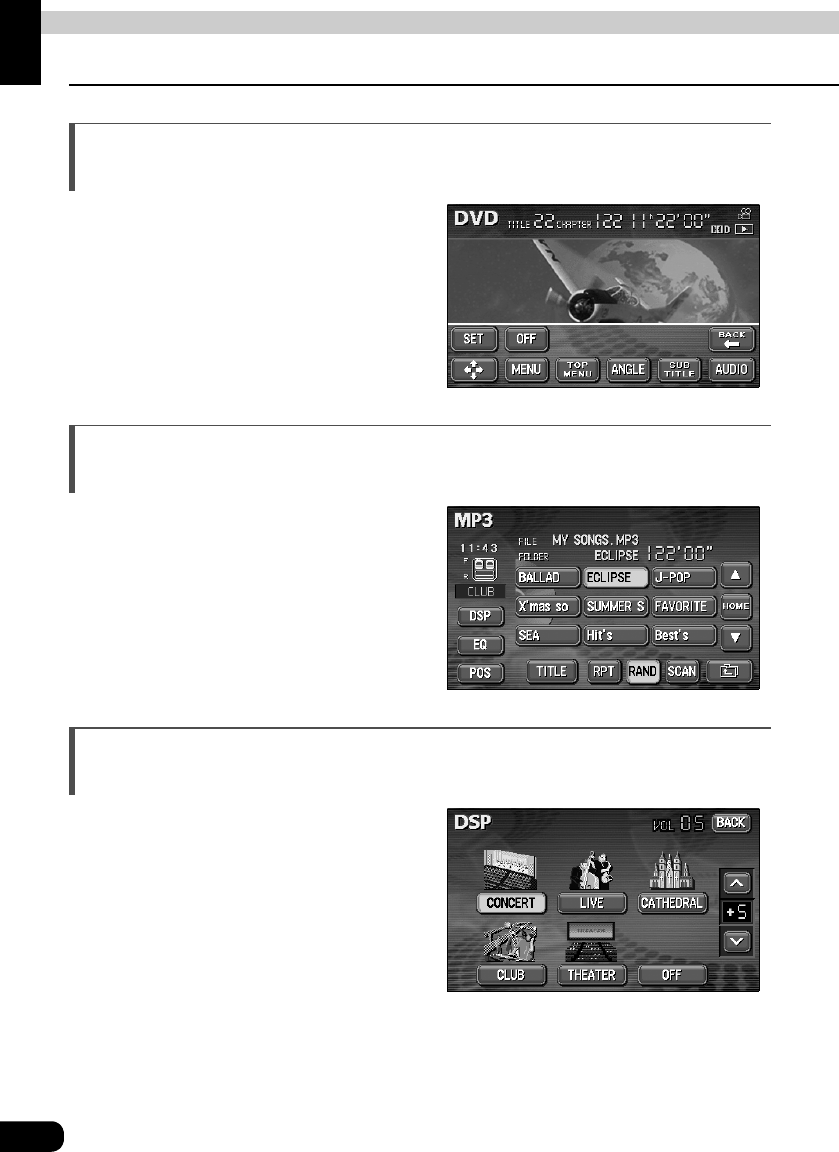
●Setting wallpaper for the information screen and
audio operations screen
●AM radio operation screen
●HD RADIO (IBOC) AM operation screen
14
Features
Introduction
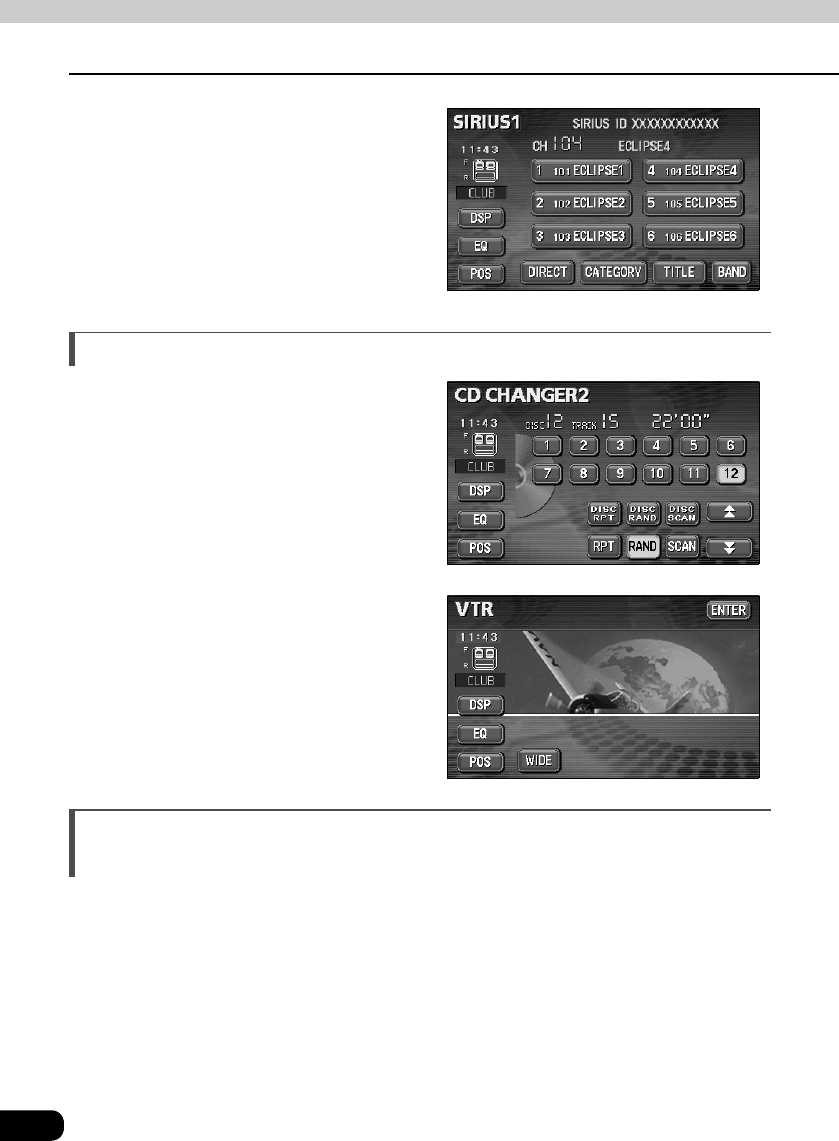
• SIRIUS tuner (Page 46)
SIRIUS is a satellite broadcasting service
offering music, news, sports and other
programming with CD-quality sound; it is
available on paying a subscription.
System additions
• CD changer (Page 62)
A CD changer enables non-stop playing of
multiple discs, for convenience at times
such as taking a long drive.
It is easy to search for and play a song from
among the discs on a changer.
• VTR (Page 90)
Connecting a VTR deck enables watching
of video tapes.
Easy-access audio controls on the steering wheel
(Page 92)
You can select the radio channel and perform CD and DVD operations using the easy-
access switches on the steering wheel. (This function is only available on vehicles fitted with
steering wheel switches.)
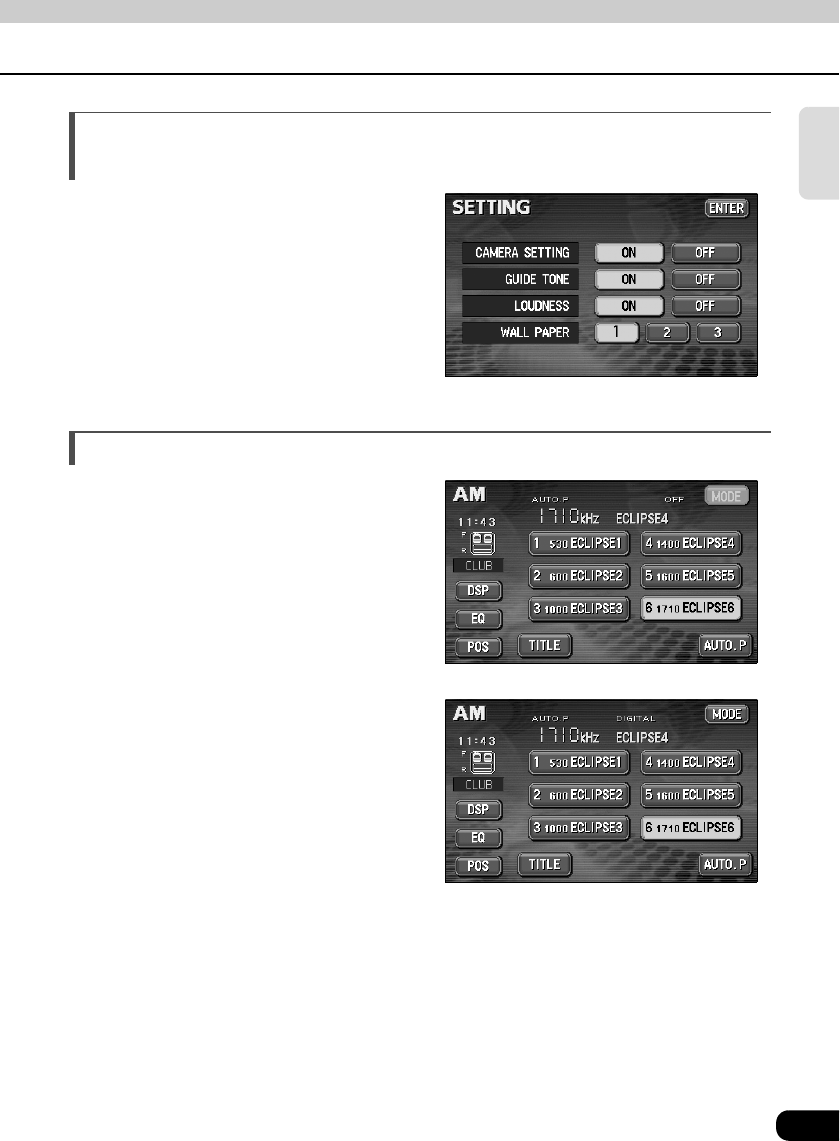
●SIRIUS operation screen
Introduction
15
Introduction
Before using the deck
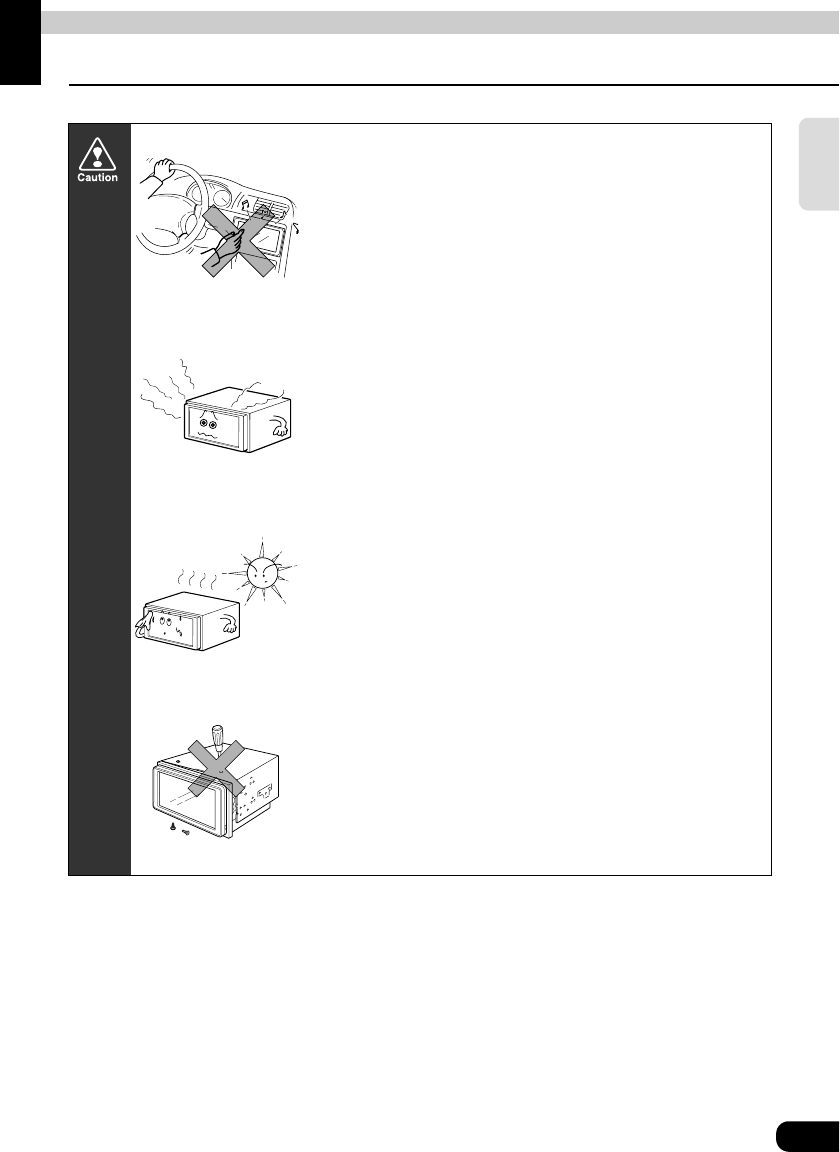
• Be very careful and pay full attention to safety when
operating the audio controls while driving, otherwise
accidents may occur. Also be sure to set volume so that
you can still adequately hear sounds outside the vehicle.
Improper use can contribute to occurrence of a traffic
accident.
• Never continue to use the system if it is malfunctioning in
any way. If smoke, abnormal noises or abnormal odors
are noticed, turn off the power immediately.
Immediately turn off audio in such situations.
• Exercise caution as to the temperature inside the vehicle.
The temperature inside the vehicle can increase during
hot weather. Wait for the temperature inside the vehicle to
drop before using the unit.
Damage could result.
• Do not disassemble or modify the deck.
The deck has a precisely designed structure, so consult
your retailer in the event of any unsatisfactory
performance.
16
Before using the deck
Introduction
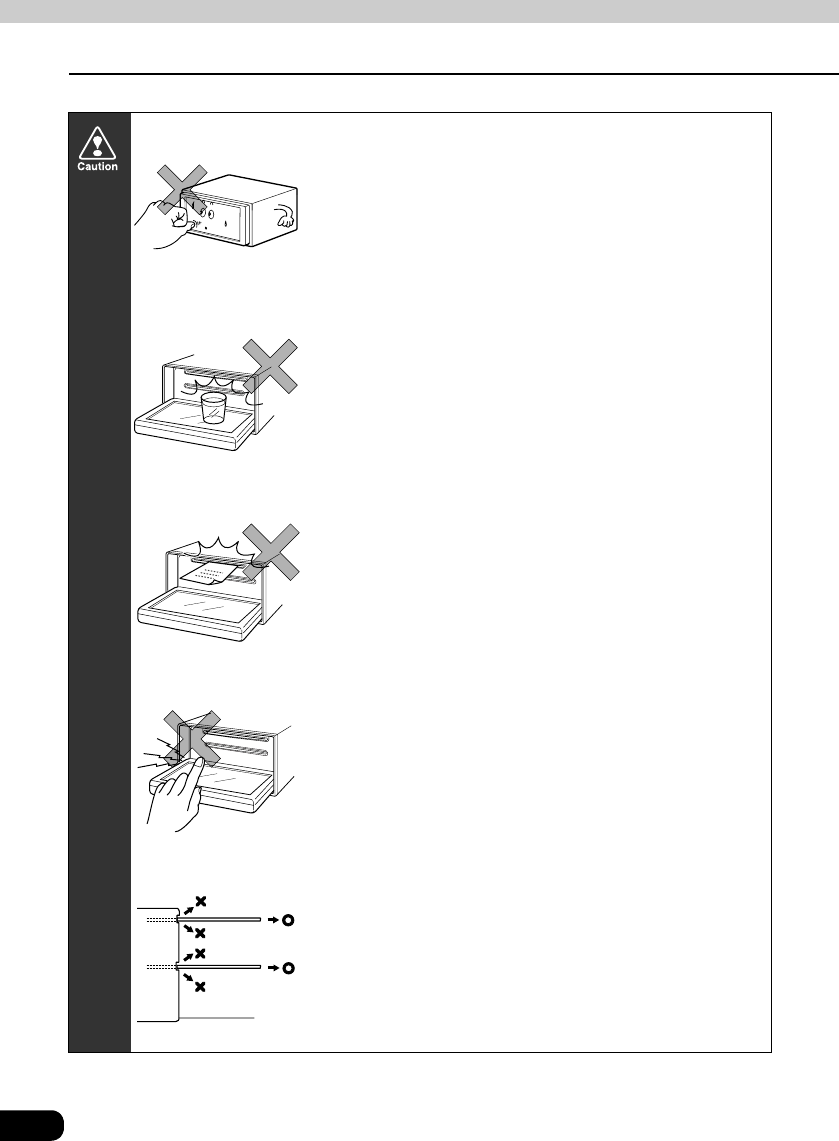
• Do not apply excessive force to the monitor.
Damage could result.
• Do not place items such as cups or cans on top of the
monitor, and do not leave the monitor tilted down when
not in use.
Damage could result.
• Do not insert any objects other than discs into the disc
slot.
Damage could result.
• Be careful not to get fingers or other objects behind
monitor when it is being retracted into place.
Interference can cause an injury or damage the deck.
• When removing a disc from the deck, remove it in the
horizontally level direction.
Do not pull them up forcibly or press down on them
strongly while removing them.
Improper removal can scratch the disc, cause deck noise
or result in other damage.
17
Introduction
About discs
• Water droplets can form on the inside of the unit during cold or rainy weather in
the same way car windows can fog up. (This is condensation.) When this
happens, the audio can jump and playback can stop, so ventilate or dehumidify
the vehicle for a short time before operating the equipment.
• To safeguard the components of the player, the unit will automatically stop when
a malfunction occurs. If the player will not operate even when messages
displayed on the screen are followed, consult with your equipment retailer
because it is possible that the unit has been damaged.
• It is possible that the sound will skip if the vehicle experiences violent motion on
rough roads.
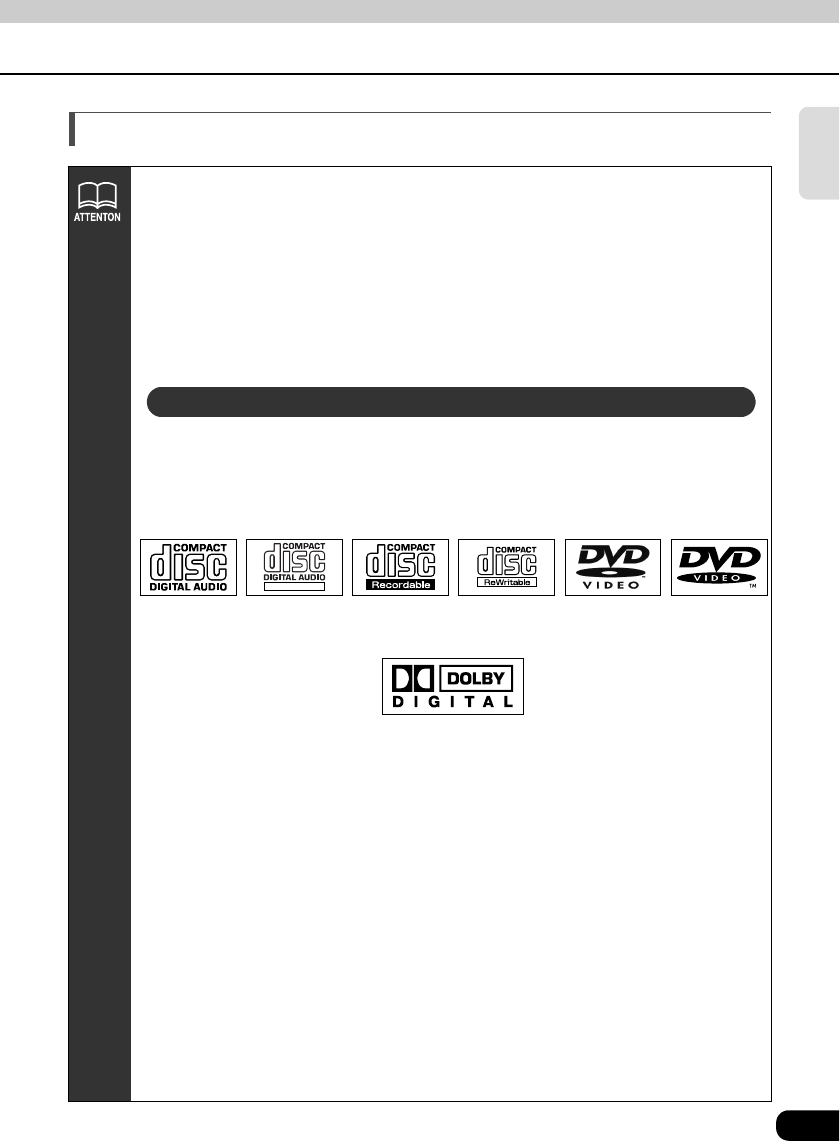
• An audio disc or DVD video disc bearing one of the marks below can be played.
When using DVDR/RW (DVD-Recordable/ReWritable) and DVD+R/RW
(DVD+Recordable/ReWritable) discs, note that only those whose contents were
recorded in the video mode can be played. Discs whose contents were
recorded in the video recording (VR) mode cannot be played.
• Discs that are compatible with Dolby Digital and bear the indication below can
be used.
Manufactured under license from Dolby Laboratories, Inc. "Dolby" and the double-D symbol are
trademarks of Dolby Laboratories.
• It is possible that a CD-R (CD-Recordable) or CD-RW (CD-ReWritable) disc will
not play on the unit due to the circumstances of the recording, special disc
characteristics, scratches, dirt or deterioration caused by long storage in the
vehicle. In addition, a CD-R or CD-RW disc written with CD-R, CD-RW or UDF
format that has not been finalized will not play on the unit.
• It is possible that a DVD-R/RW (DVD-Recordable/ReWritable) or DVD+R/RW
(DVD+Recordable/ReWritable) disc will not play on the unit due to the
circumstances of the recording, special disc characteristics, scratches, dirt or
deterioration caused by long storage in the vehicle. DVDR/RW or DVD+R/RW
discs that have not been finalized will not play on the unit. It may not be possible
to play a disc that has been recorded on a personal computer, depending on the
application setting and the environment.
• The CD-TEXT function can be used only with the CD-TEXT-compatible compact
discs available on the market. If it is used with CD-R or CD-RW discs,
characters may not be displayed normally.
• Do not use discs with transparent or semi-transparent portions within the
recording area, or C-thru discs, since they may not be accepted and ejected
properly and may not play properly.
About playable discs
TEXT
18
Before using the deck
Introduction
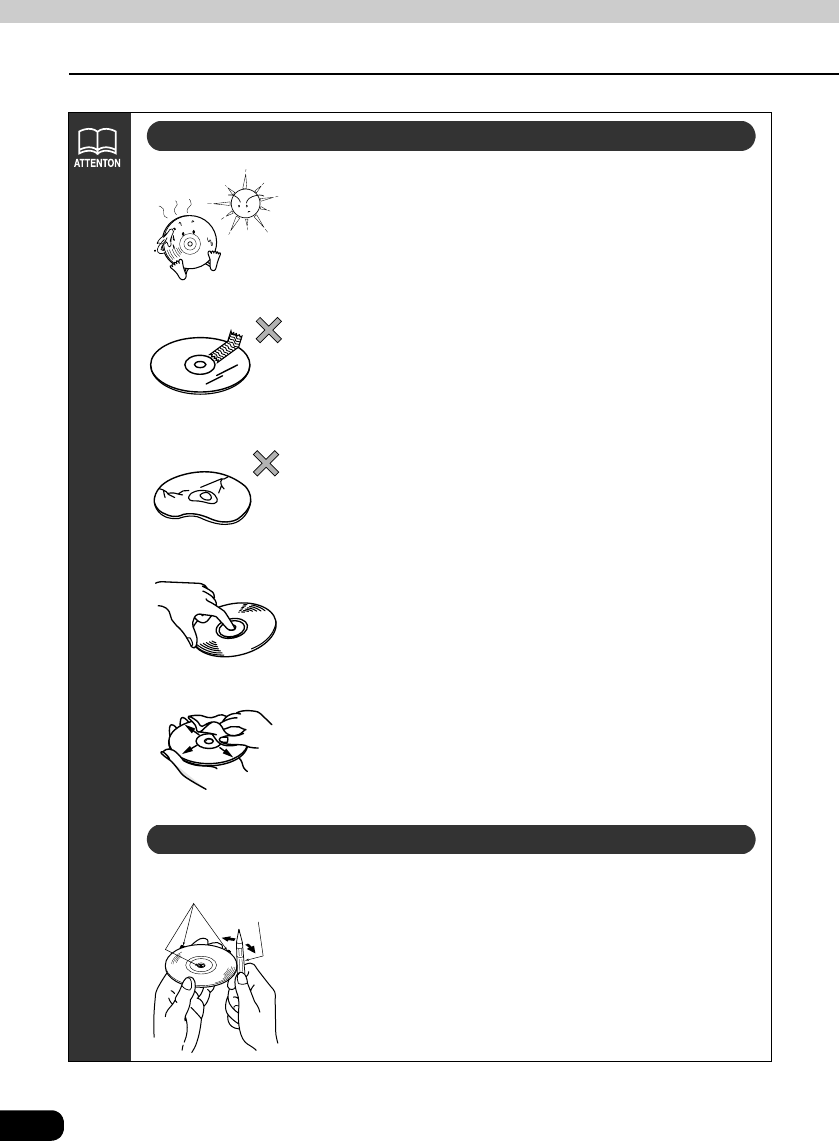
• Be sure to store discs in their cases and keep them out of
direct sunlight. Discs can warp and become unusable.
• Do not apply paper-based tape to either the recording
side or label side of a disc. Damage could result.
• Do not use discs on which there are cracks or large
warps. Damage could result.
• Do not touch the recorded side of a disc when handling it.
(This is the side with the rainbow-colored reflection.) The
disc may become dirty and that could cause sound
jumping.
• Using a disc that has become dirty can scratch the disc
and result in sound jumping. Use a commercially
available compact disc cleaner to clean a CD, wiping
lightly from the center to the edge.
• You may notice that some brand new discs are rough
around the center hole or outside edge. Remove the
rough edges with the side of a ballpoint pen, etc. Flakes
from the rough edges may stick to the recorded surface
and interfere with playback.
About handling discs
About new discs
Ballpoint pen
Rough Edges
19
Introduction
About the LCD panel
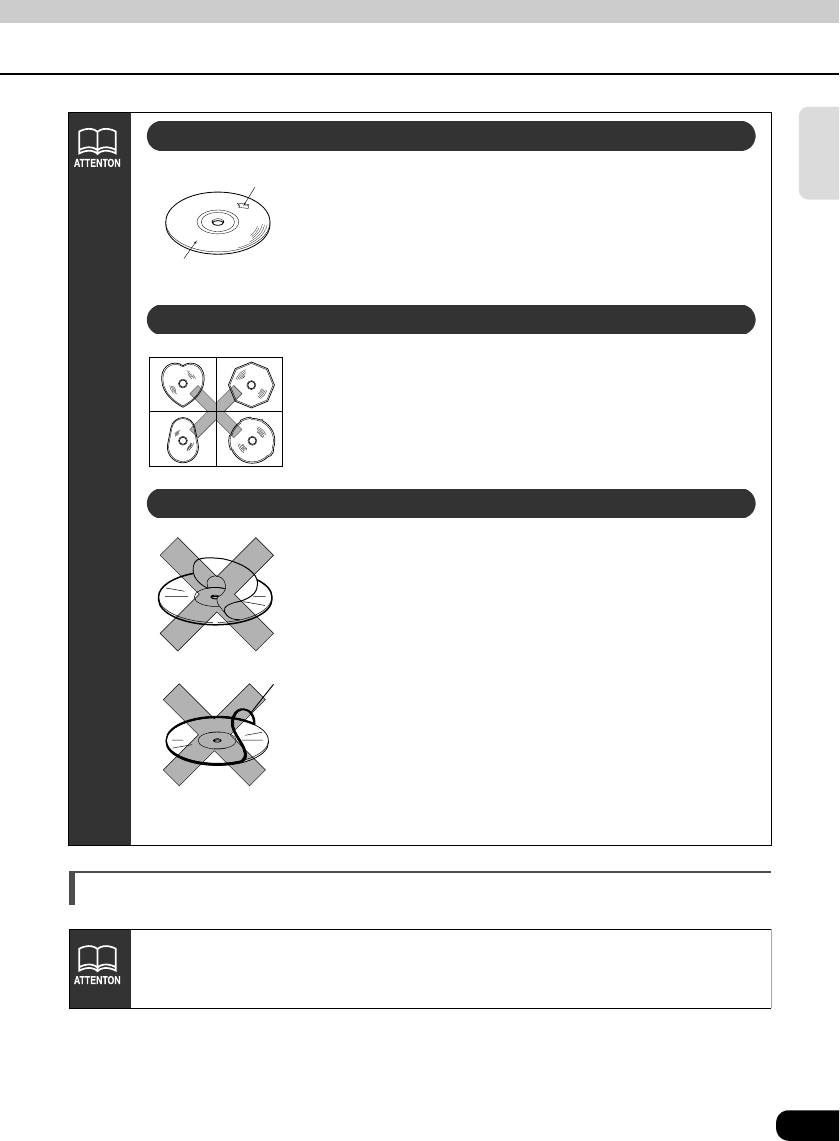
• Do not use CD discs with attached cellophane tape,
rental CD discs with glue protruding from labels or discs
with the residue of peeled adhesives. Using discs with
those conditions can prevent the player from properly
opening and closing as well as cause other damage.
• Specially-shaped or octagonal CDs, like heart-shaped
cannot be played. Do not attempt to play them, even with
an adapter, since they may damage the player.
• Please do not use a commercially available lens cleaner
because it may cause damage to the pickup of the player.
• Do not use accessories (stabilizers, protective seals,
laser lens cleaners, etc.) sold for "improving sound
performance" or "protecting CDs." The changes in CD
thickness or outside dimensions made by these
accessories may cause problems in the player.
• Please be sure NOT to attach any ring-shape protector (or
other accessory) to your discs. Those protectors are
commercially available and said to protect discs and to
improve sound quality (and antivibration effect), but they
can do more harm than good in regular uses. The most
common problems are Insert/Eject related problems and
"No playback" problems due to the protector ring that may
come off in the disc mechanism.
About rental discs
Recorded surface
Cellophane tape
About specially shaped discs
About disc accessories
CD ring
• The LCD panel can appear to be white or black when seen from certain angles.
• The screen will be difficult to read when external light such as sunlight falls on
the display.
20
Basic operation
Switching the mode
The deck can be used when the vehicle's ignition switch is on or in the ACC position.
• This deck supports use of a remote control. The optional remote control is sold separately
and can be purchased at your local retailer. Refer to page 94 for instructions on operation
of the remote control.
Switching the mode
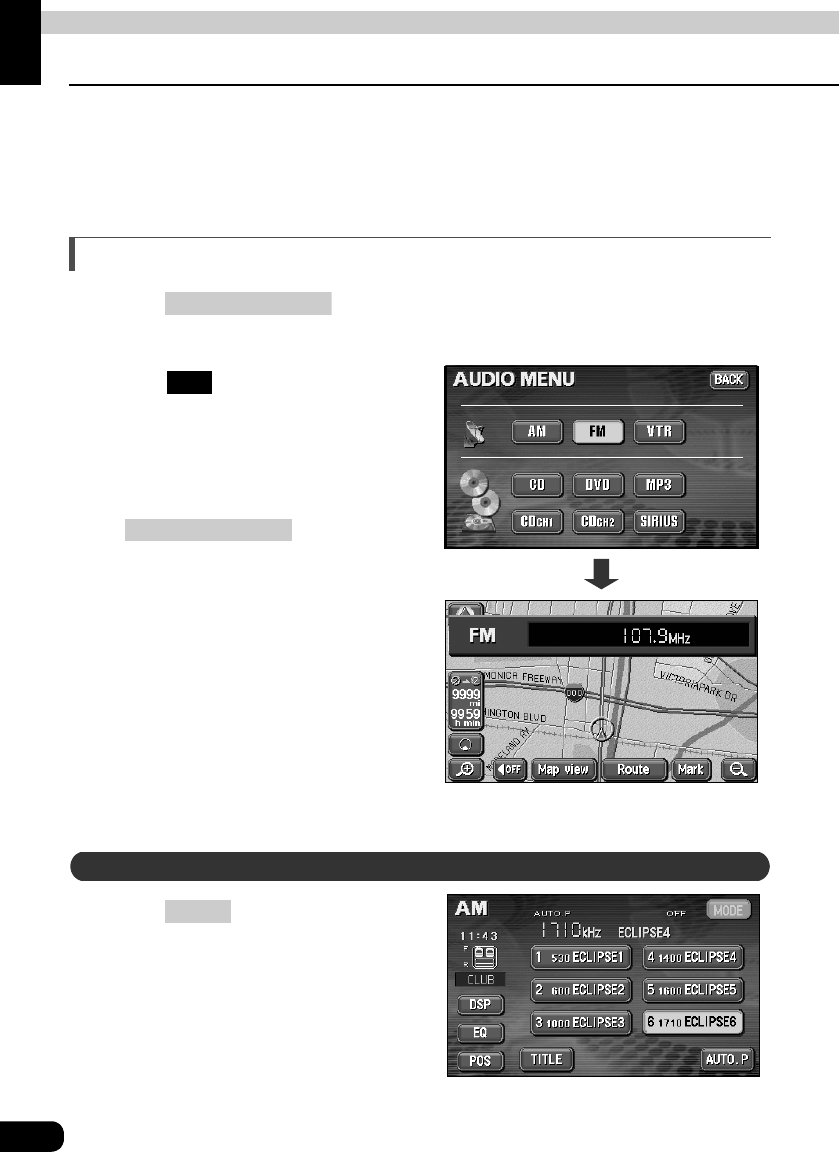
Press .
• The AUDIO MENU screen will be displayed.
Touch .
• The various audio modes can be
selected by touching the
corresponding touch switches.
• When the navigation screen is being
displayed before pressing
, the selected
mode will be displayed on-screen over
the background.
Press .
(AUDIO) SOURCE
On-screen display
FM
(AUDIO) SOURCE
Displaying operation screen
CONT
Basic operation
21
Basic
operation
Operation screen of each mode
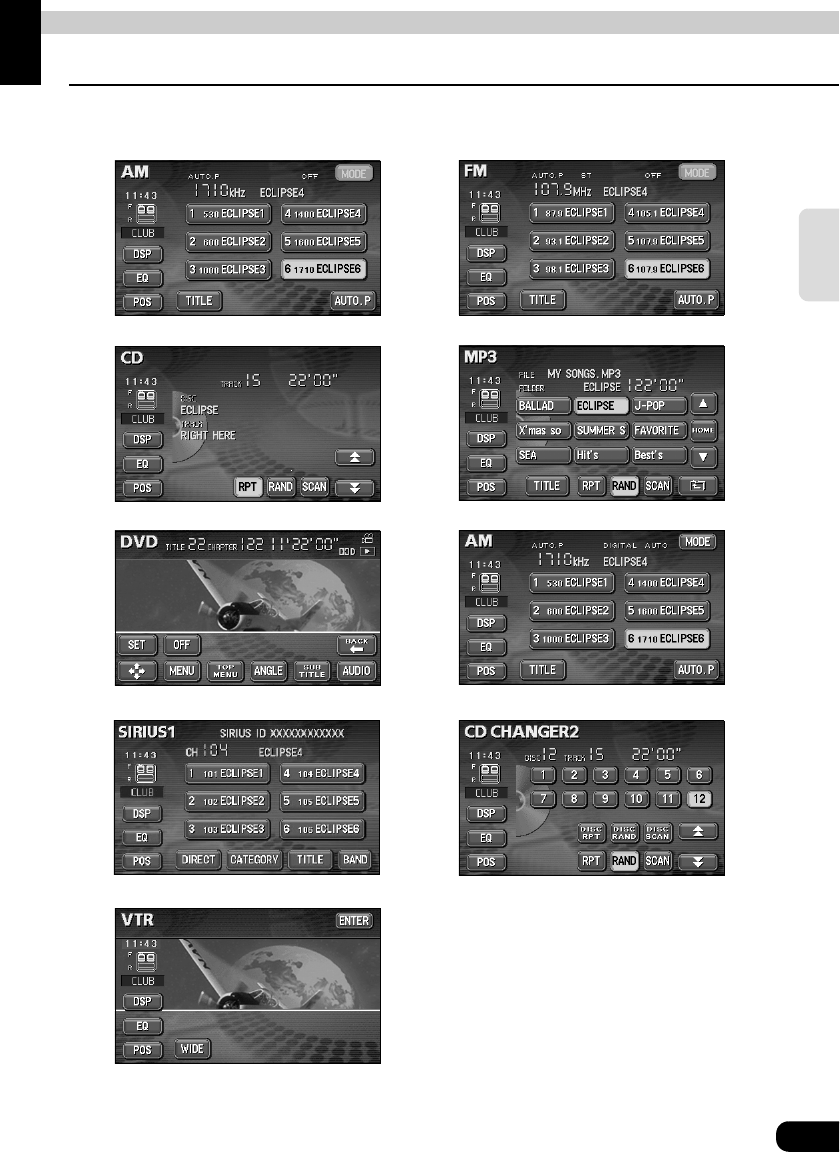
The operation screen for each mode will appear as shown below.
When the operation screen for DVD or video (VTR) has not been operated for 6 seconds or
more, the operation screen will automatically be canceled.
●HD RADIO (IBOC) operation screen
●CD changer operation screen (optional)
●AM
ra
di
o operat
i
on screen
●FM
ra
di
o operat
i
on screen
●SIRIUS operation screen (optional)
●CD player operation screen ●MP3 player operation screen
●DVD player operation screen
●VTR operation screen (optional)
22
Basic operation
Adjusting the volume
Adjusting main volume
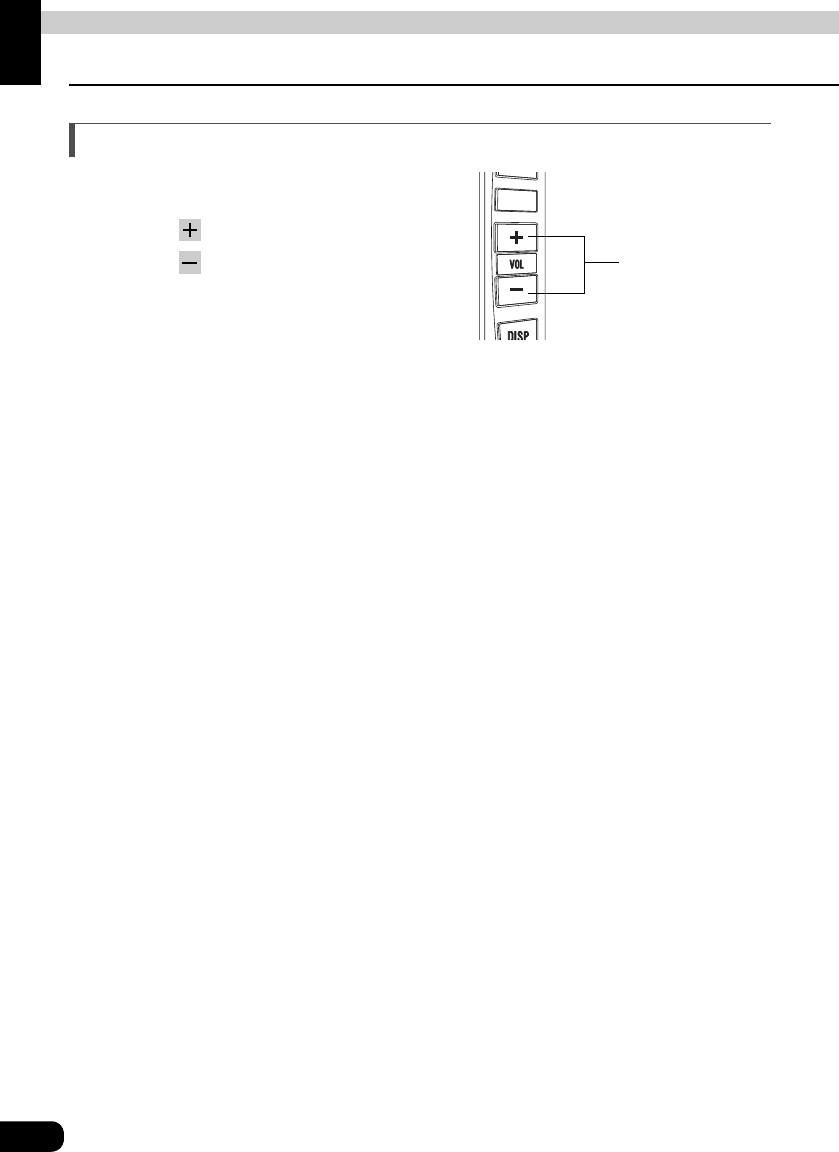
Press the VOLUME switch.
Pressing will increase volume.
Pressing will decrease volume.
• Each press of the switch will change
the volume by two steps. When the
volume reaches 50 or higher, the
switch will change the volume by one
step. Holding the switch will continue
to change the volume.
VOLUME switch
Basic operation
23
Basic
operation
Adjusting sound quality
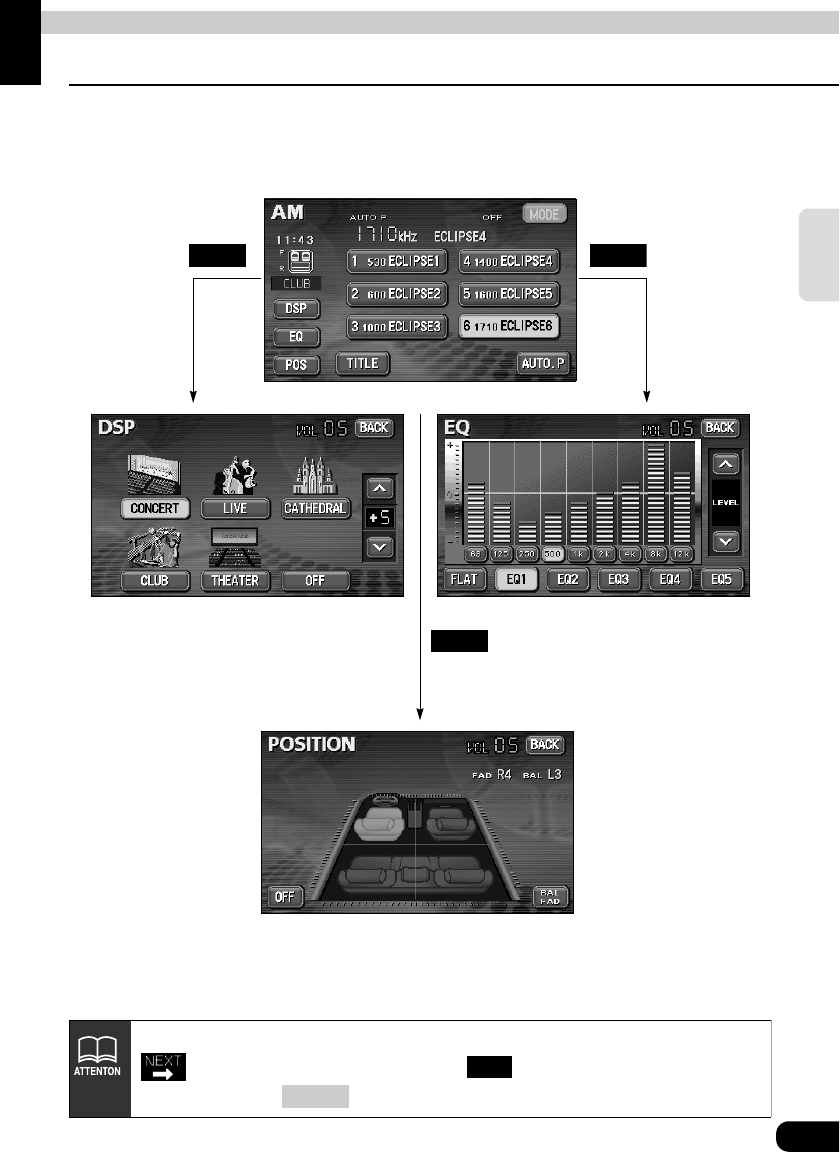
To adjust sound quality, touch the DSP, EQ or POS switch while the operation screen for a
mode is displayed. Adjustments made in any mode will be saved and applied to all modes.
DSP EQ
POS
In the DVD mode, display the sound quality adjustment switches by pressing
from the operation modes, and then . In the VTR mode display them
either by pressing or by touching the screen.
SET
CONT
24
Adjusting sound quality
Basic operation
Setting DSP (acoustics)
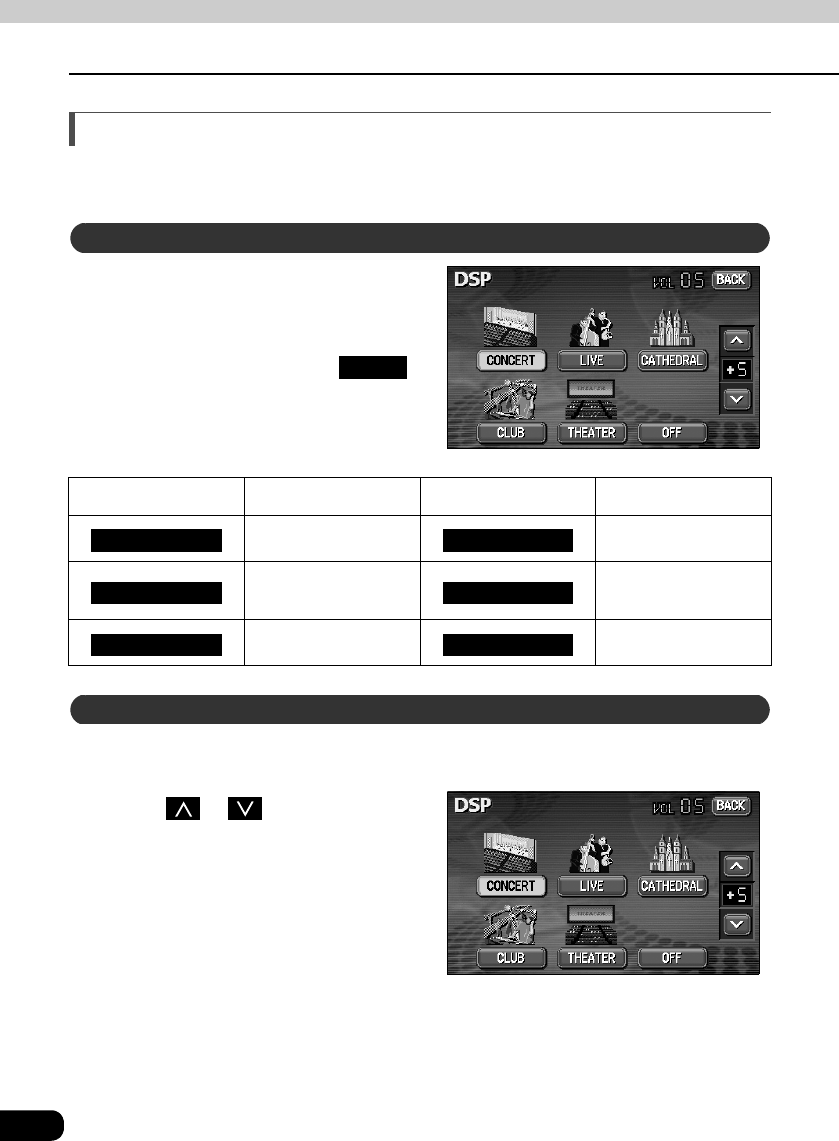
The DSP function reproduces the sensation of various factory set performance environments
by adding reverberation to the music being played.
Touching the DSP touch switch
brings up the acoustics mode
screen as shown.
• After making settings, touch .
The acoustics mode adjustments will
be saved and the system will return to
the previous operation screen.
The factory set DSP (acoustics) level for each mode can be adjusted to preference and
saved.
Touch or at the right of the
screen while in the acoustics mode
to be adjusted.
• There are five + side and five - side
adjustment levels available.
Touch the switch for the acoustics
mode that has been adjusted until
a beep is heard.
Touch switch DSP Environment Touch switch DSP Environment
Concert hall Disco, Club
Live performance
arena Movie theater
Church with echo DSP OFF
DSP mode setting
BACK
CONCERT CLUB
LIVE THEATER
CATHEDRAL OFF
Adjusting, saving DSP (acoustics)
25
Basic
operation
Default settings for the currently adjusted and saved DSP (acoustics) level can be reset.
Touch until a beep is heard.
• The acoustics level will be returned to default value.
Resetting DSP (acoustics) levels
OFF
• Only has a default value of +5, in order to increase the sound
effects of products such as DVD videos.
• When adjusting the level for the currently selected DSP (acoustics) mode, the
level will not be saved for other acoustics modes.
THEATER
26
Adjusting sound quality
Basic operation
Adjusting EQ (equalizer)
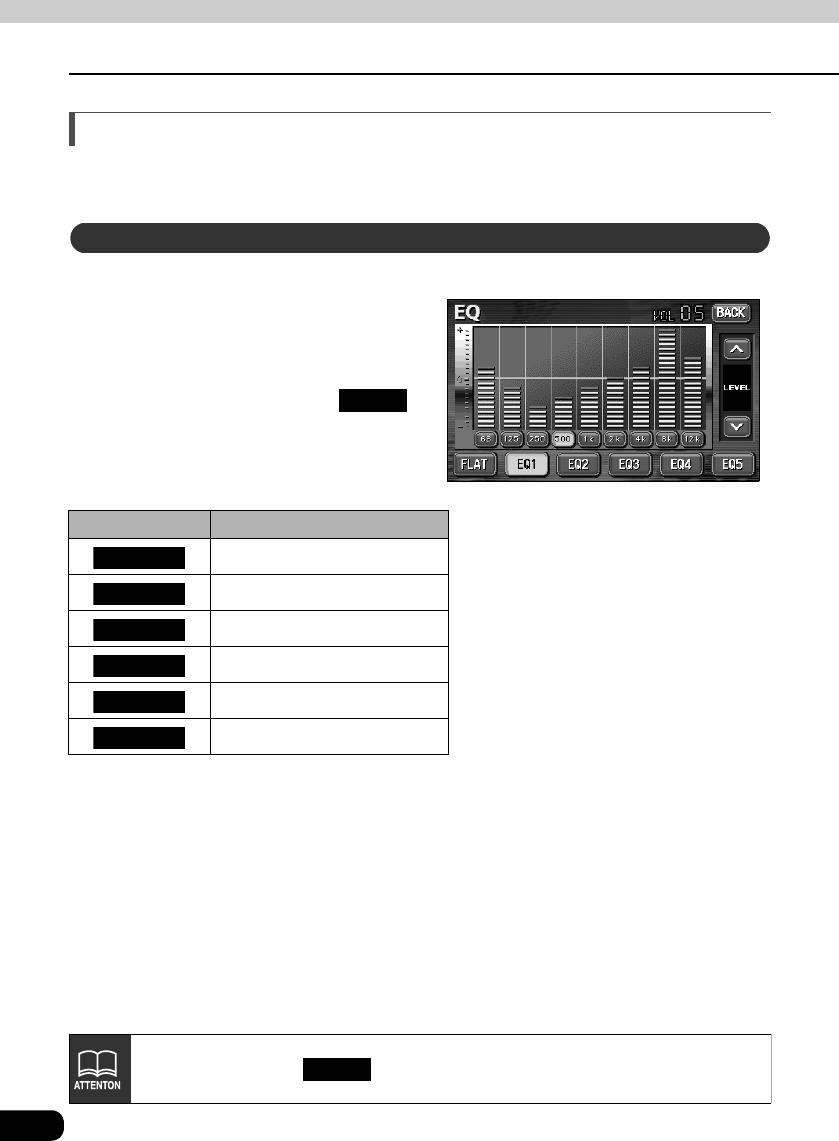
Adjusts sound quality to preferred characteristics according to the music genre and audio
source.
Each factory set equalizer pattern can be selected and adjusted to preference.
Touching the touch switch brings
up the equalizer mode screen as
shown in the table.
• After making settings, touch .
The equalizer mode adjustments will
be saved and the system will return to
the previous operation screen.
Touch switch Equalizer mode types
No EQ correction
Effective pattern for POPS
Effective pattern for ROCK
Effective pattern for JAZZ
Effective pattern for CLASSIC
Effective pattern for VOCAL
Setting sound quality
BACK
FLAT
EQ1
EQ2
EQ3
EQ4
EQ5
The default setting is .
EQ3
27
Basic
operation
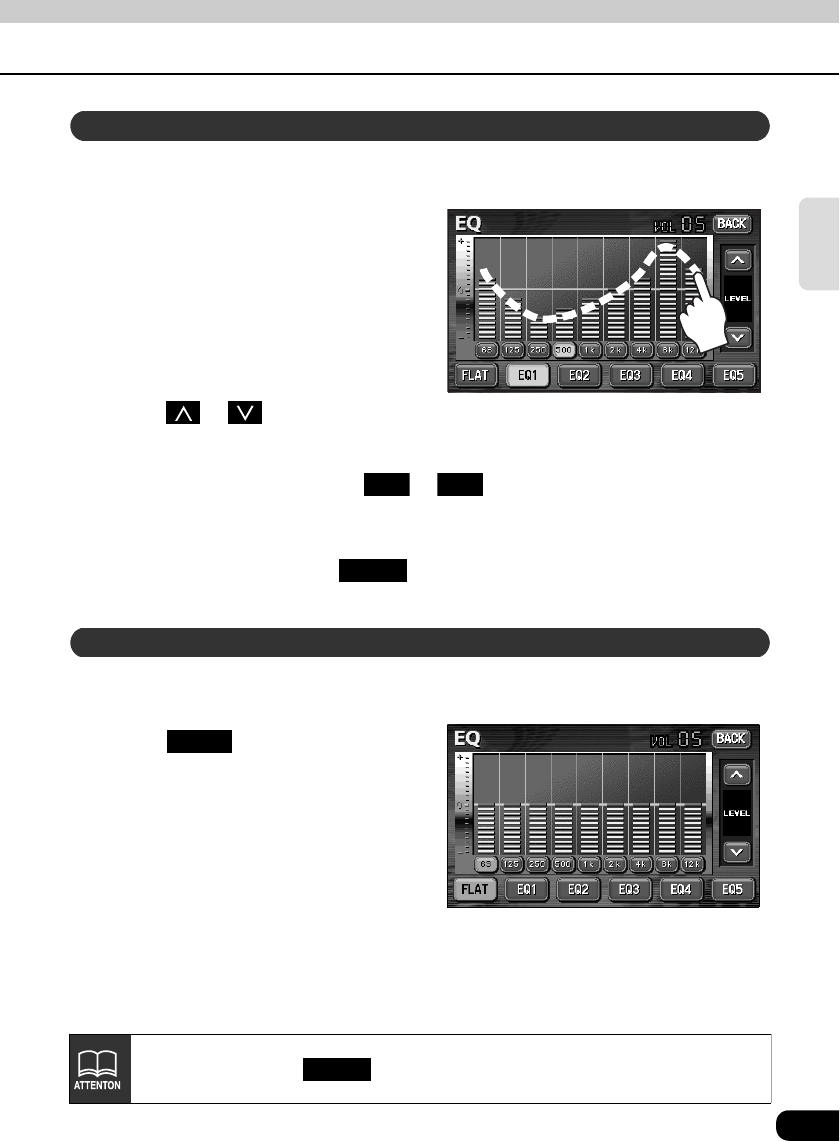
Apart from these preset equalizer patterns, you can adjust and record other equalizer
patterns to suit your own sound preferences.
Touch the screen and slowly draw
the image of the preferred
equalizer curve with your finger.
To make fine adjustments, touch
the switch for the frequency to be
adjusted.
Touch or at the right of the
screen to adjust.
Choose from touch switches to for saving the settings and then
touch and hold the switch until a beep is heard.
• The saved equalizer curve can be used for other settings.
• After making settings, touch . The equalizer mode adjustments will be saved
and the system will return to the previous operation screen.
Currently saved equalizer patterns and factory set equalizer patterns can be returned to the
default values.
Touch until a beep is
heard.
• The equalizer pattern will be reset to
default values.
Adjusting and saving equalizer (EQ) patterns
EQ1 EQ5
BACK
Resetting EQ patterns
FLAT
The default setting is .
EQ3
28
Adjusting sound quality
Basic operation
Setting POS (position selector)
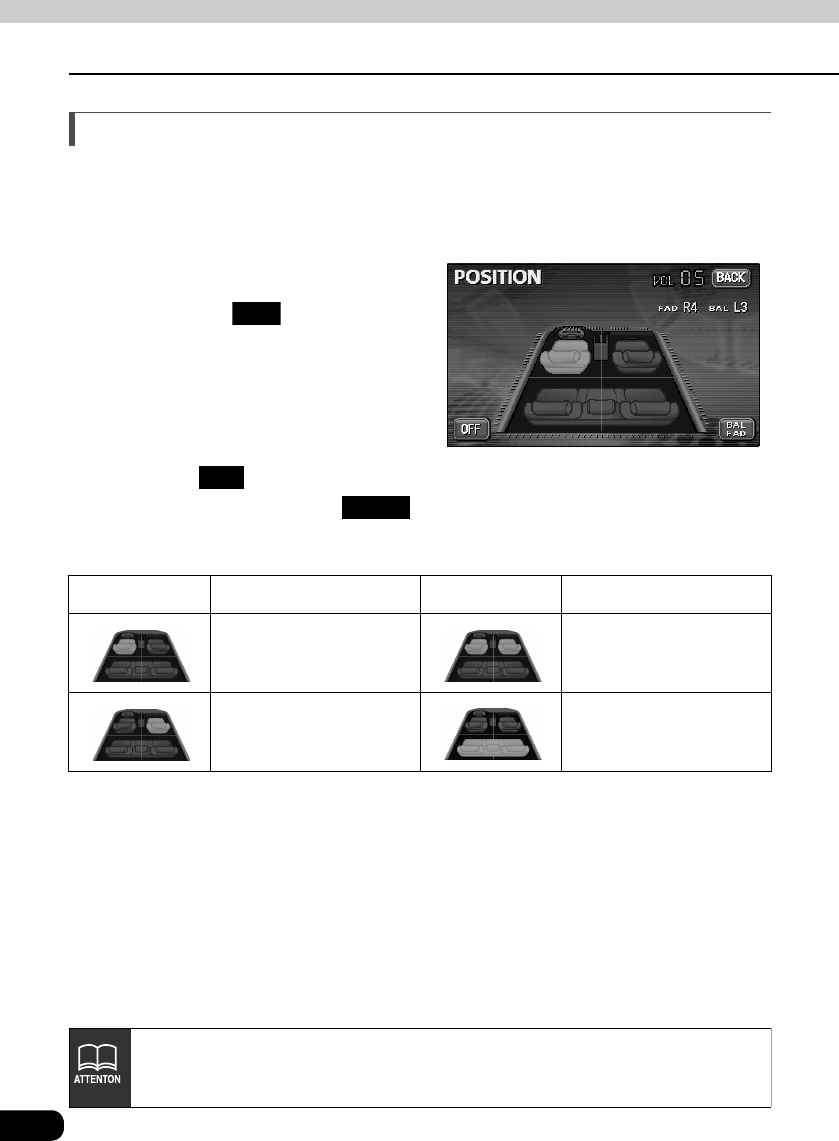
The stereophonic position for obtaining optimum acoustic effects can be adjusted to match
the number and position of passengers.
In addition, front-to-back, right-to-left volume balance can be adjusted for the selected
position.
Touching the image of a seat
shown on the setting screen
will change the position.
• The selected position will change its
color to orange. Touching the seat
again will cancel the selection. The
four positions shown by the table
below can be set.
• Touching will cancel all settings.
• After making settings, touch . The position will be saved and the system will
return to the previous operation screen.
Touch switch Function Touch switch Function
Acoustics optimized for
driver's seat
Acoustics optimized for
both front seats
Acoustics optimized for
passenger's seat
Acoustics optimized for
rear seats
POS
OFF
BACK
• This setting cannot be done at the same time as adjustment of the volume
balance (see next page).
• This product is configured for vehicles with a left-side driver's position.
29
Basic
operation
Adjusting volume balance
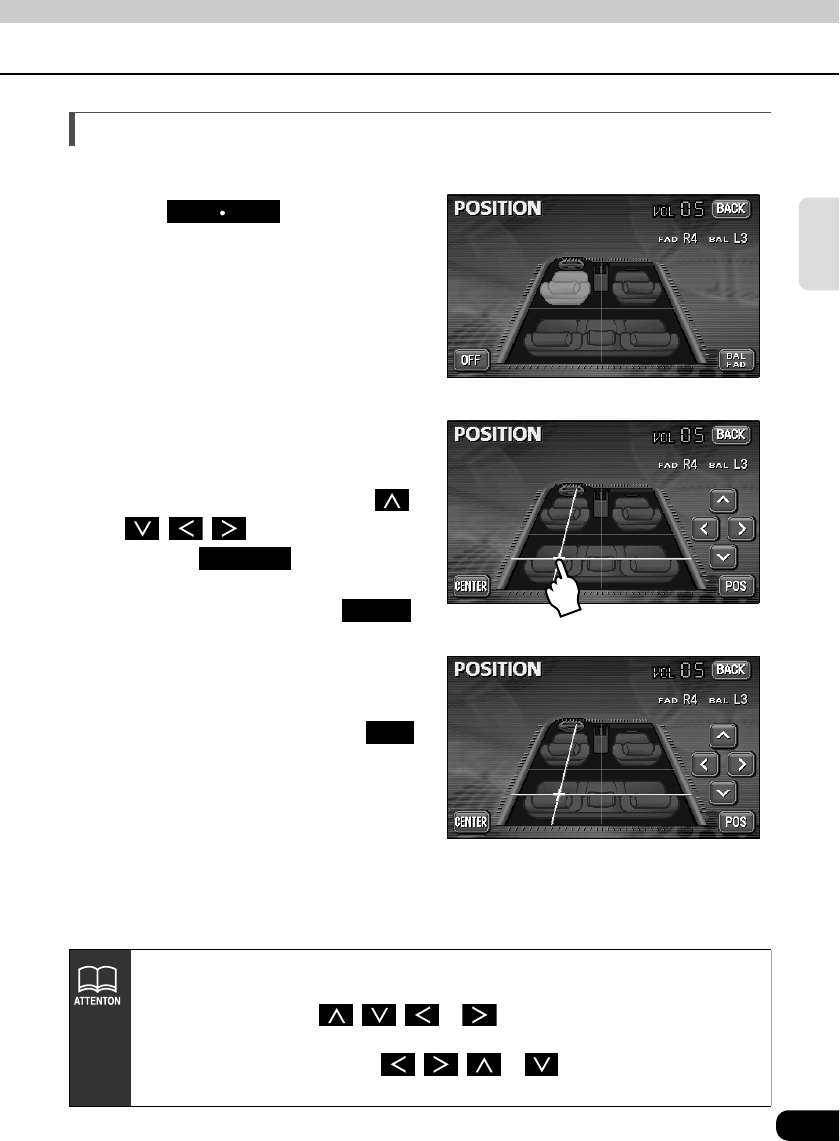
The set position for front-to-back, right-to-left volume balance can be adjusted.
Touch on the
POSITION setting screen to
display the volume balance
adjustment screen.
Touch the screen at the preferred
balance point.
• To make fine adjustments, touch ,
, , .
• Touching will set the
volume balance to the center position.
• After making settings, touch .
• The set volume balance will be saved
and the system will return to the
previous operation screen.
• To set the position again, touch
and repeat the steps above.
• Adjustments to volume balance and
position are saved separately.
Activating each position and then
displaying volume balance adjustment
screen will show the volume balance
for each position.
BAL FAD
CENTER
BACK
POS
• This setting cannot be done at the same time as POS (position selector)
adjustment, described on the previous page.
• Touching and holding , , or while making fine adjustments will
adjust values in a continuous action. However, adjustment will lock when it
reaches the center value, and , , or must be pressed again to
continue adjustment.
30
Adjusting sound quality
Basic operation
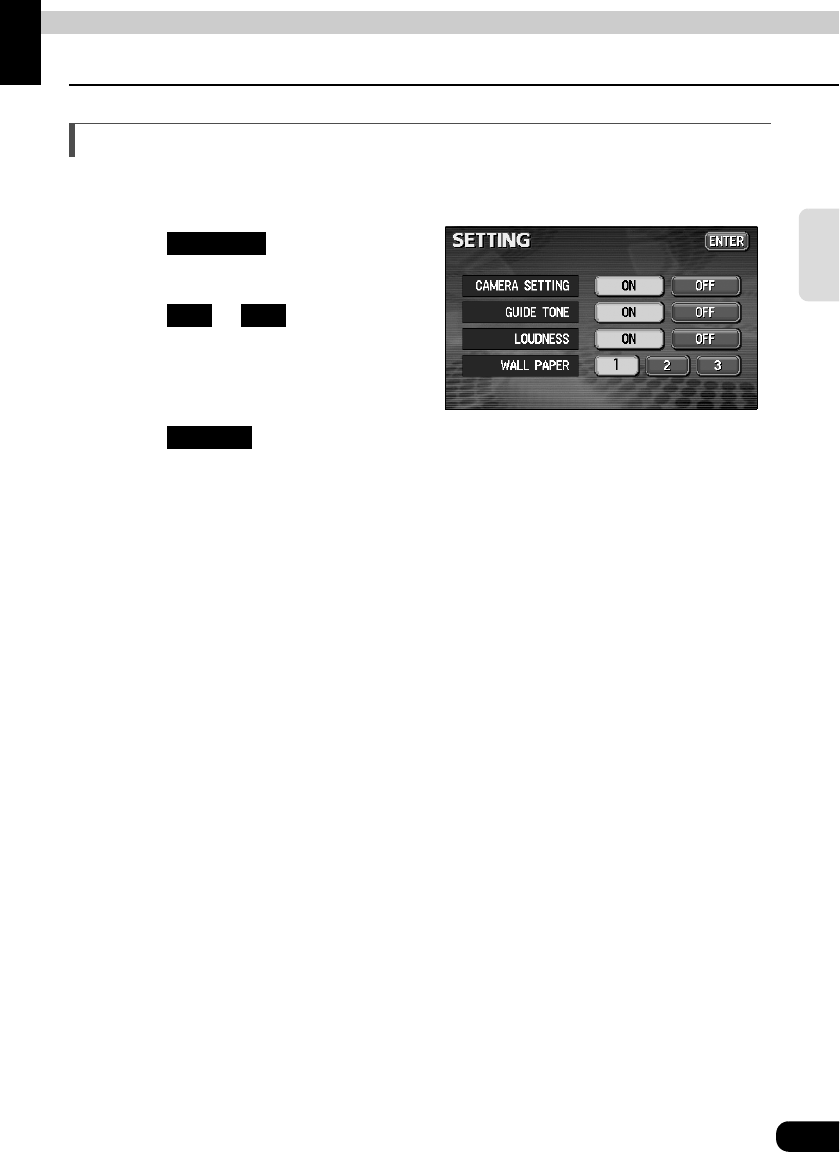
Setting the BEEP tone
The guide tone that is emitted when touching a panel switch or touch switch can be set to on
or off.
Touch on the INFORMATION screen.
Touch or of GUIDE TONE.
• The pressed touch switch will become green.
• Touching will cancel (turn off) the guide tone.
Touch .
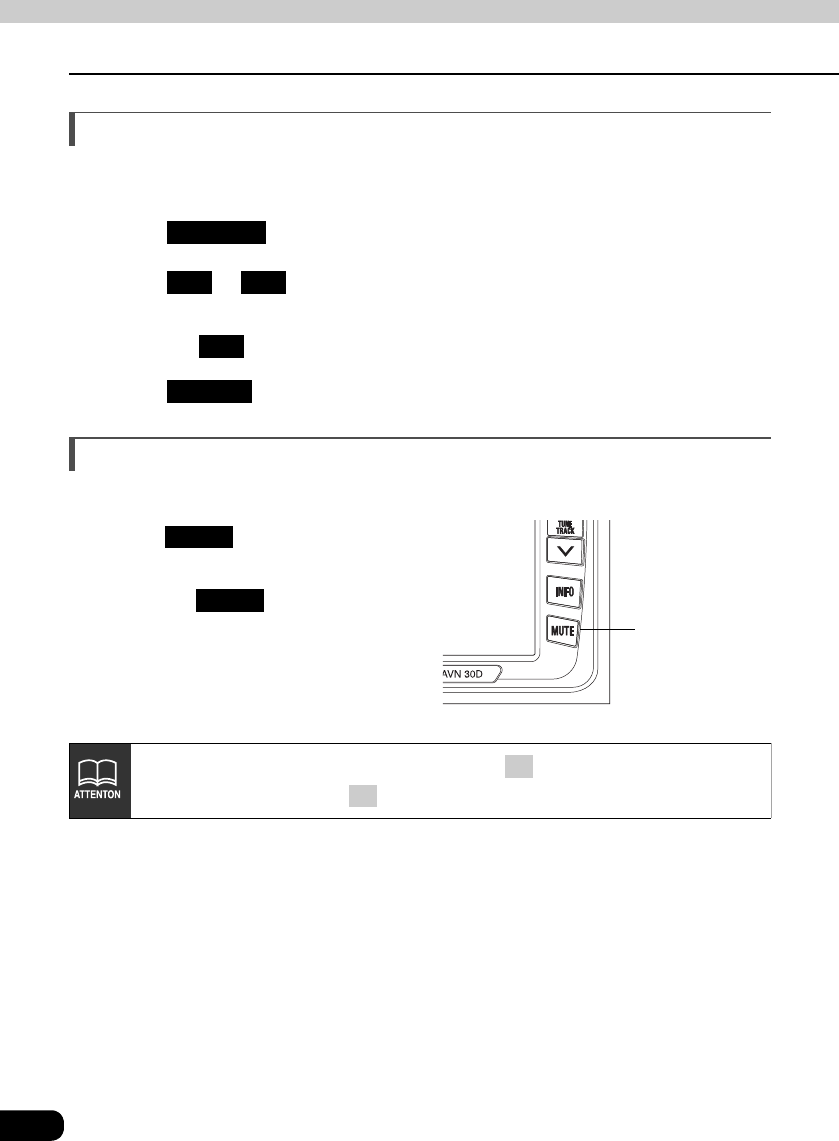
Muting sound
Sound from the audio system can be temporarily muted.
Press .
• Volume will become "0".
• Pressing switch again will
return to previous volume.
• The VOLUME display will flash during
mute.
SETTING
ON OFF
OFF
ENTER
MUTE switch
MUTE
MUTE
The MUTE function is canceled on pressing the VOLUME switch (it is
unaffected by pressing the switch).
+
–
Basic operation
31
Basic
operation
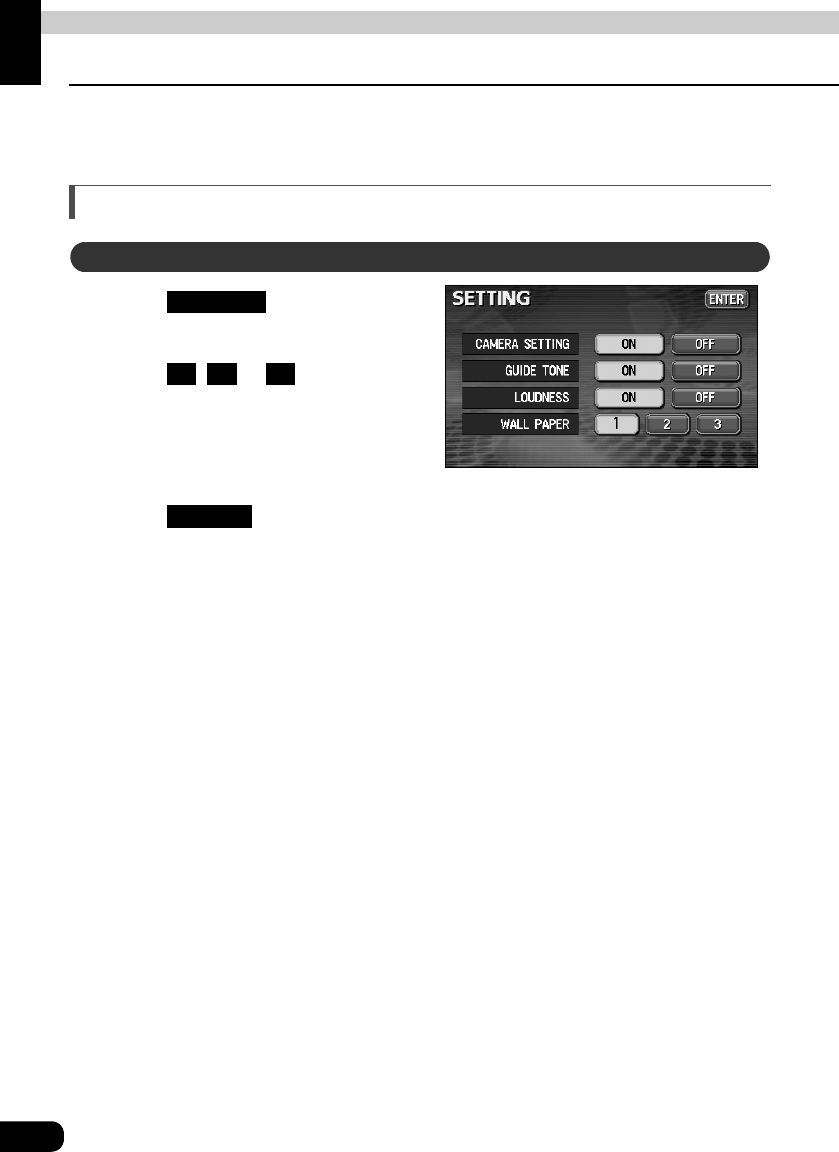
Setting LOUDNESS
Audio can be modulated to correct for insufficient low and high sounds when listening at low
volume.
Touch on the
INFORMATION screen.
Touch or of
LOUDNESS.
• The pressed touch switch will become
the selection color.
Touch .
SETTING
ON OFF
ENTER
32
Basic operation
Setting background screen
The background for the audio screen, information screen and navigation screen can be
changed to a preferred wallpaper.
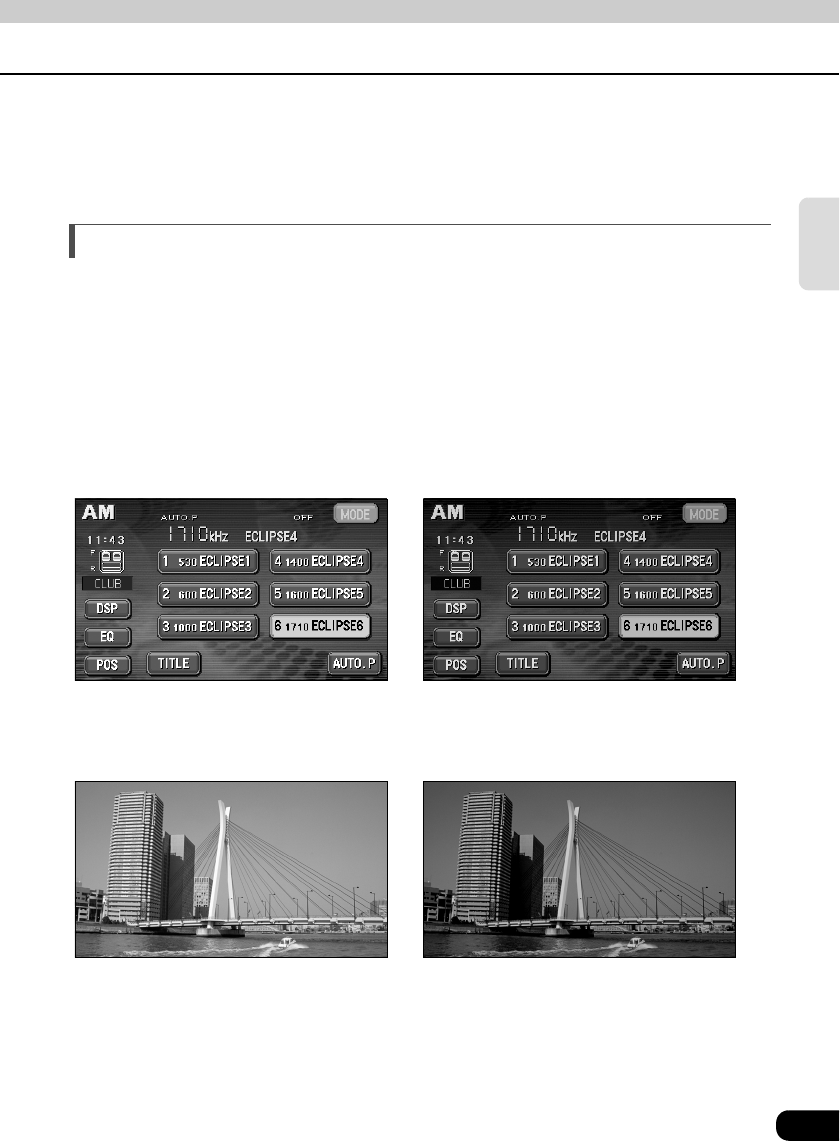
Setting the wallpaper
Touch on the
INFORMATION screen.
Touch , or of WALL
PAPER.
• The pressed touch switch will become
green and the wallpaper (background)
will change.
Touch .
Changing the wallpaper
SETTING
1 2 3
ENTER
33
Basic
operation
Adjusting/setting the screen
Quality adjustments can be made for the images such as the audio operation screen,
navigation screen and DVD or VTR (optional).
Displaying the image adjustment screen
Contrast, brightness and other picture settings can be adjusted to match preferences for
viewing DVD video or the audio operation screen.
To make viewing easier, the display switches between day screen/night screen according to
whether the vehicle lights (parking lights, taillights, license plate lights) are on/off.
(Default settings)
• When vehicle lights are on: [Night screen displayed]
• When vehicle lights are off: [Day screen displayed]
[Audio operation screen]
●Day display [Vehicle lights are off] ●Night display [Vehicle lights are on]
[DVD/VTR Screen]
●Day display [Vehicle lights are off] ●Night display [Vehicle lights are on]
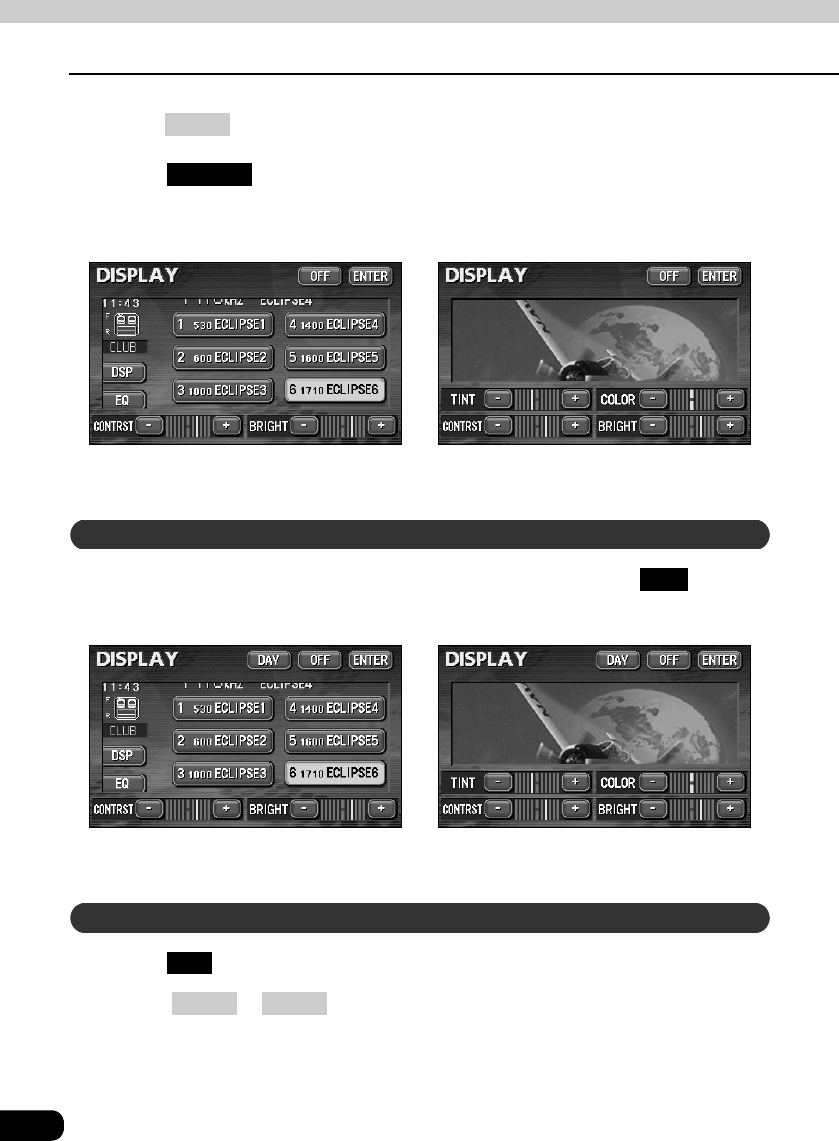
34
Adjusting/setting the screen
Basic operation
Press on the audio mode screen or DVD/VTR screen.
Touch after making any adjustments.
• If no adjustments are made after 20 or more seconds, the image quality adjustment
screen will be canceled.
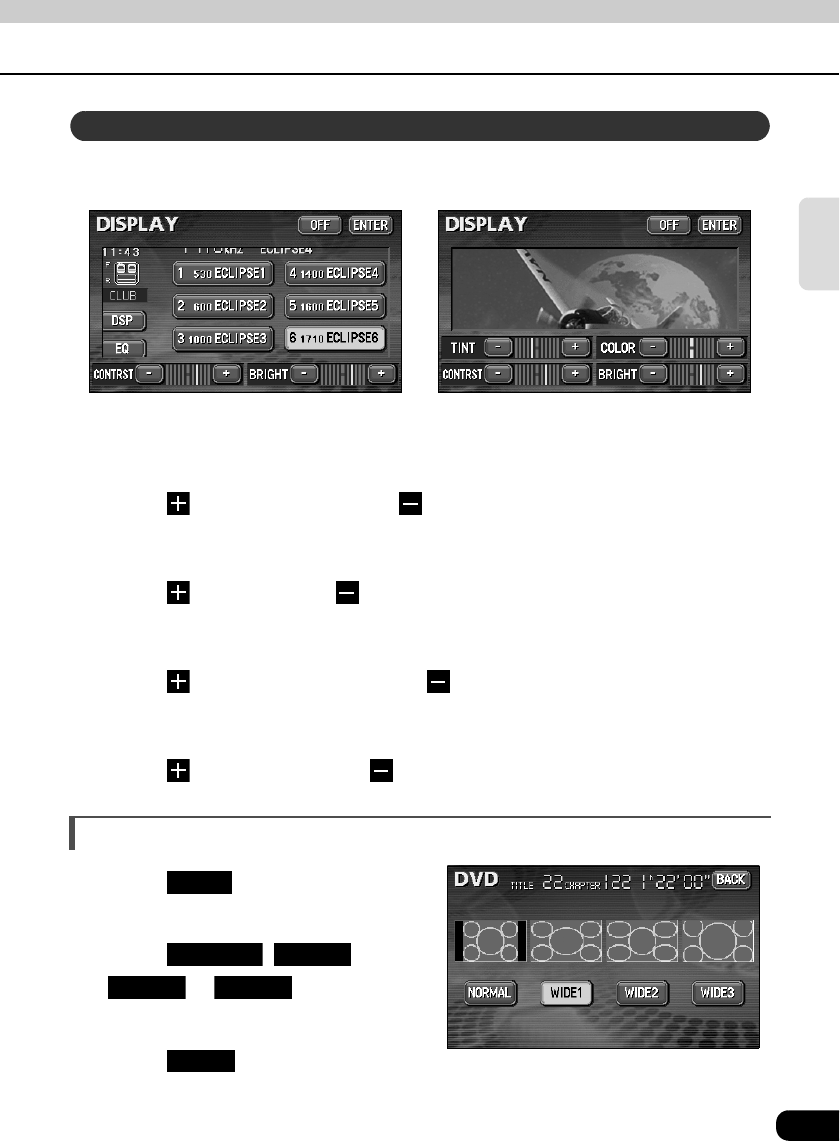
The day screen and night screen will be switched each time is
pressed.
Touch .
• Press or to return to the original screen.
DISP
ENTER
●When adjusting audio operation screen ●When adjusting DVD/VTR screen
How to switch to daytime display when the lights are ON
DAY
●When adjusting audio operation screen ●When adjusting DVD/VTR screen
Turning off the screen
OFF
CONT NAVI
35
Basic
operation
The day screen and night screen can be separately adjusted (on the audio operation screen,
the navigation screen, and the DVD/VTR screen).
■ CONTRAST
Touch to strengthen contrast, to weaken contrast.
■ BRIGHT
Touch to make lighter, to make darker.
■ COLOR (for DVD/VTR screen only)
Touch to strengthen green color, to strengthen red color.
■ TINT (for DVD/VTR screen only)
Touch to make tint darker, to make tint lighter.
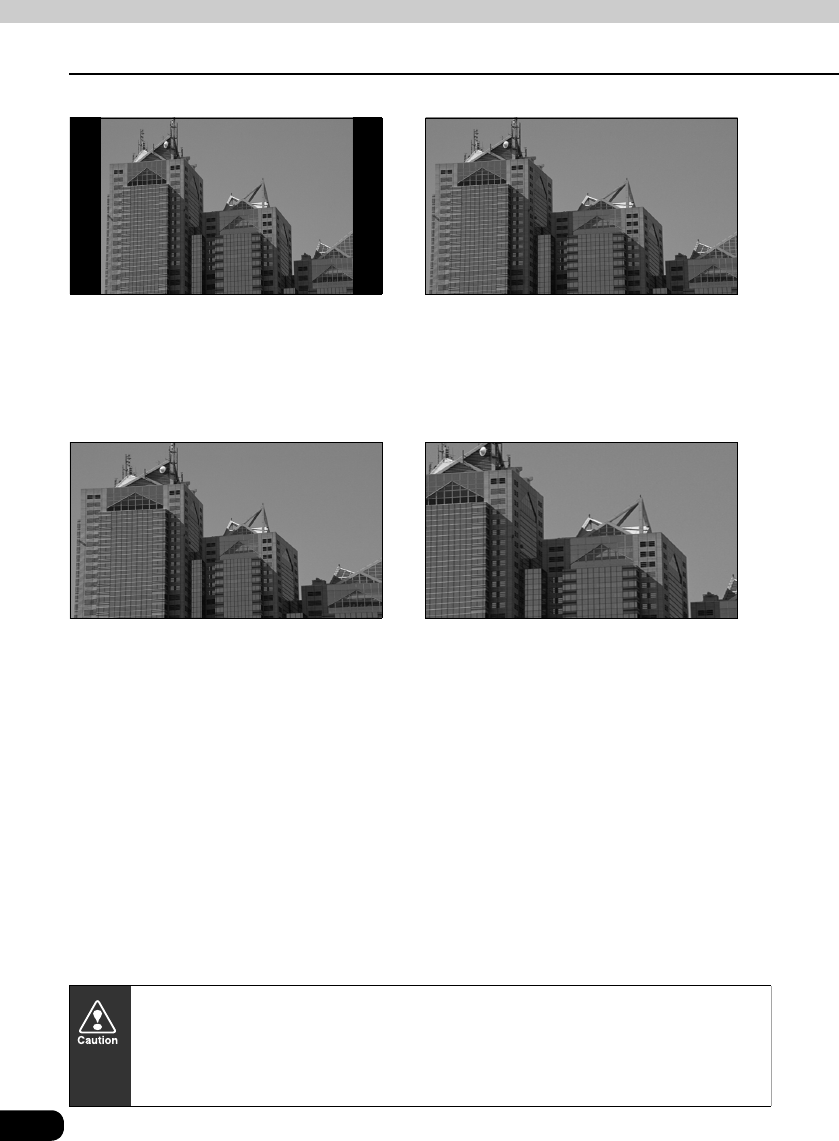
Switching screen mode
Touch on DVD or VTR
operation screen.
Touch , ,
or .
• This selects the wide mode.
Touch .
• Returns to the DVD or VTR operation screen.
Adjusting image quality
●When adjusting audio operation screen or
navigation screen
●When adjusting DVD/VTR screen
WIDE
NORMAL WIDE1
WIDE2 WIDE3
BACK
36
Adjusting/setting the screen
Basic operation
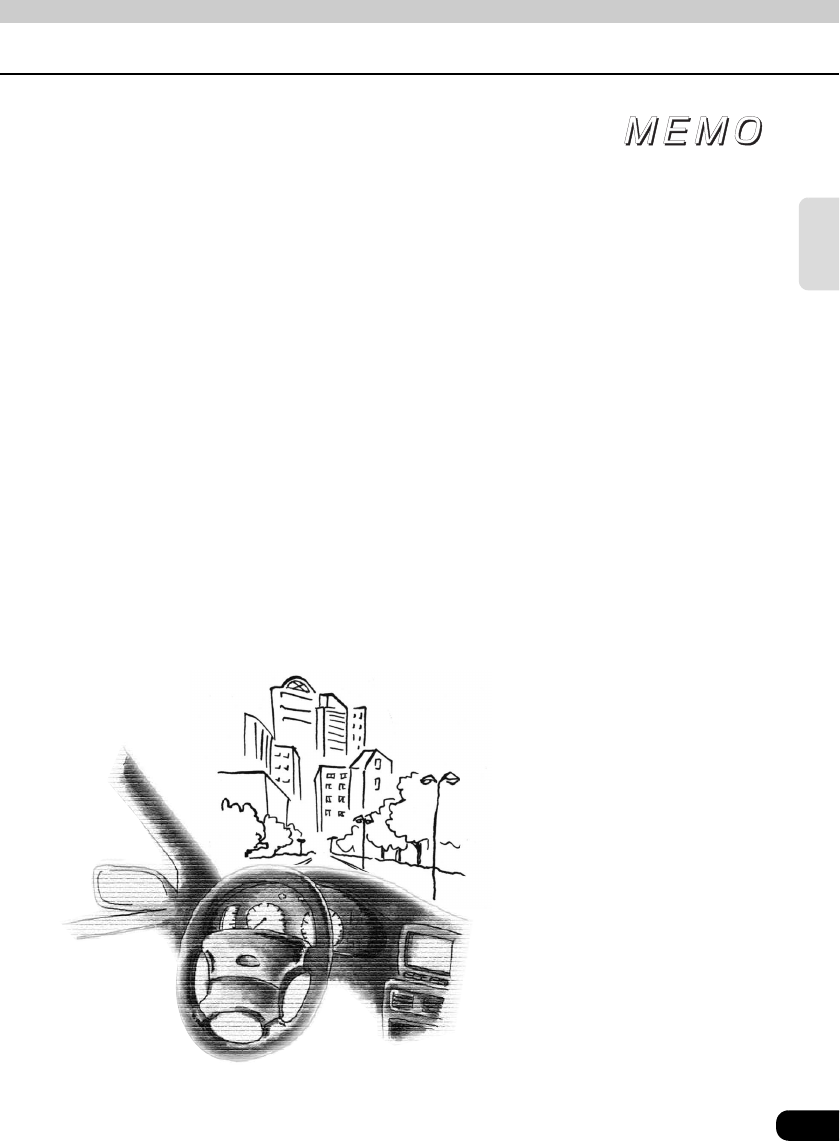
■ NORMAL mode
The screen is shown with vertical to
horizontal ratio of 3 to 4 (normal TV
screen size) and side edges are black.
■ WIDE 1 mode
The screen for vertical to horizontal ratio
of 3 to 4 (normal TV screen size) is
uniformly expanded in the left and right
directions.
■ WIDE 2 mode
The screen for vertical to horizontal ratio
of 3 to 4 (normal TV screen size) is
uniformly expanded in the left and right
directions (except for the central section
of the screen).
■ WIDE 3 mode
The screen for vertical to horizontal ratio
of 3 to 4 (normal TV screen size) is
uniformly expanded in the upward,
downward, left and right directions.
Viewing of wide screen modes is permitted when limited to the personal
entertainment of the user, but caution is needed because using technologies such
as image compression and expansion for the purpose of commercial benefit or
public presentation may infringe upon the rights of the copyright holder being
protected by applicable copyright law.
37
Basic
operation
38
How to operate the tuner
Operating the AM/FM radio
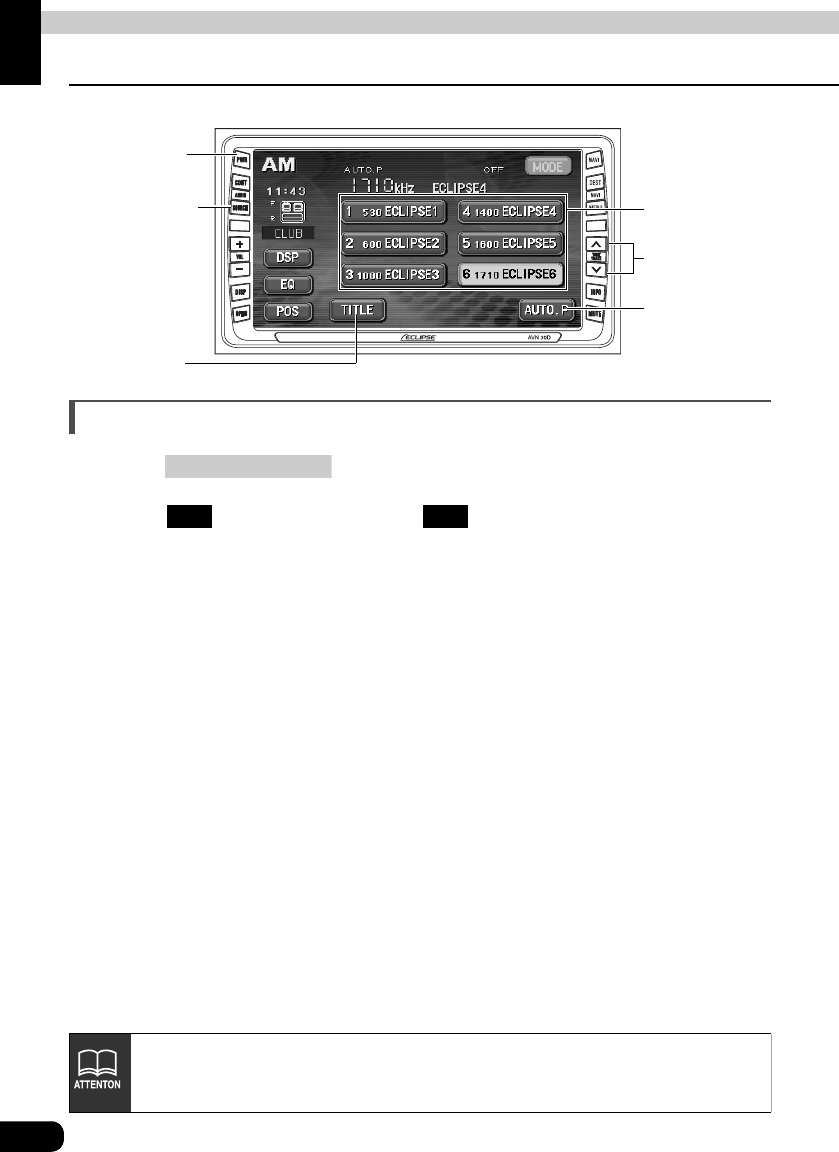
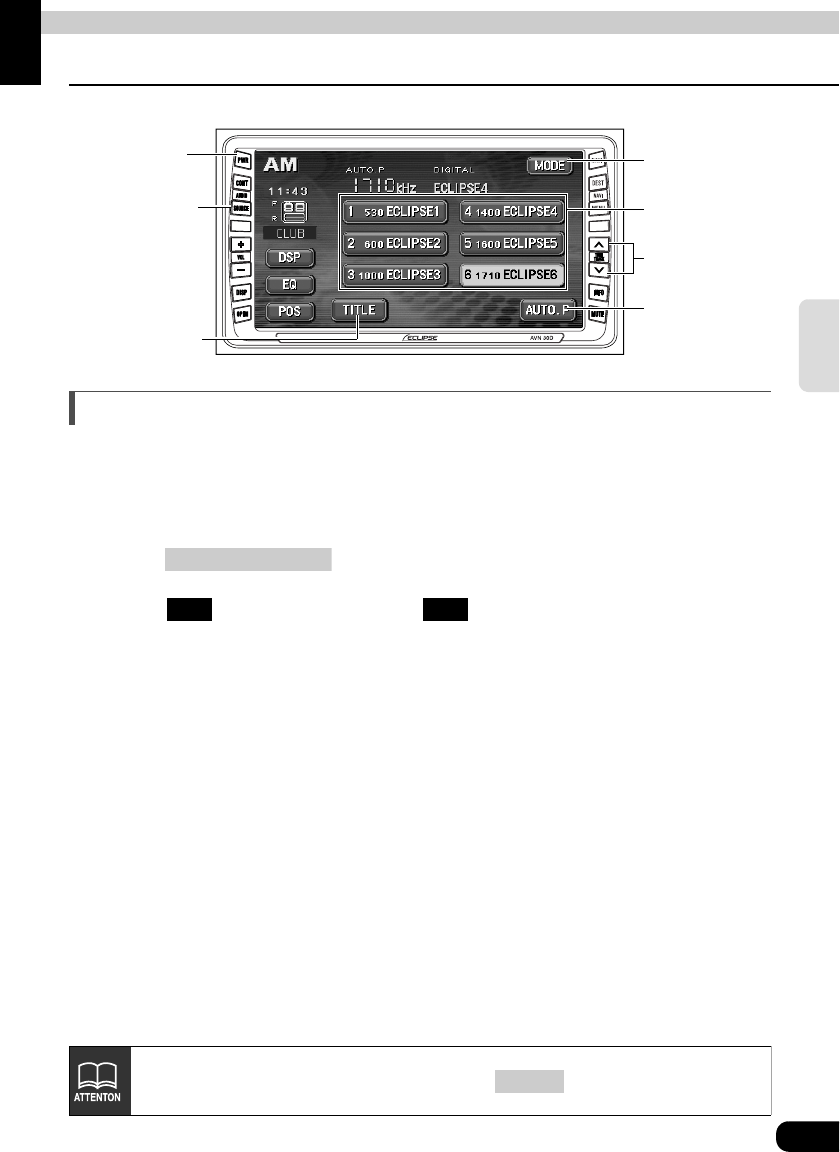
Listening to the AM/FM radio
Press .
Touch to receive AM radio, or to receive FM radio.
PWR
Button
(AUDIO) SOURCE
Button
AUTO.P
Switch
Preset
Switches
TUNE TRACK
Button
TITLE Switch
(AUDIO) SOURCE
AM FM
When an HD radio (IBOC) tuner is connected, the standard radio (analog radio) is
also controlled through the HD radio tuner. Note that this means the antenna
should be connected to the HD terminal.
39
RADIO
Selecting radio stations
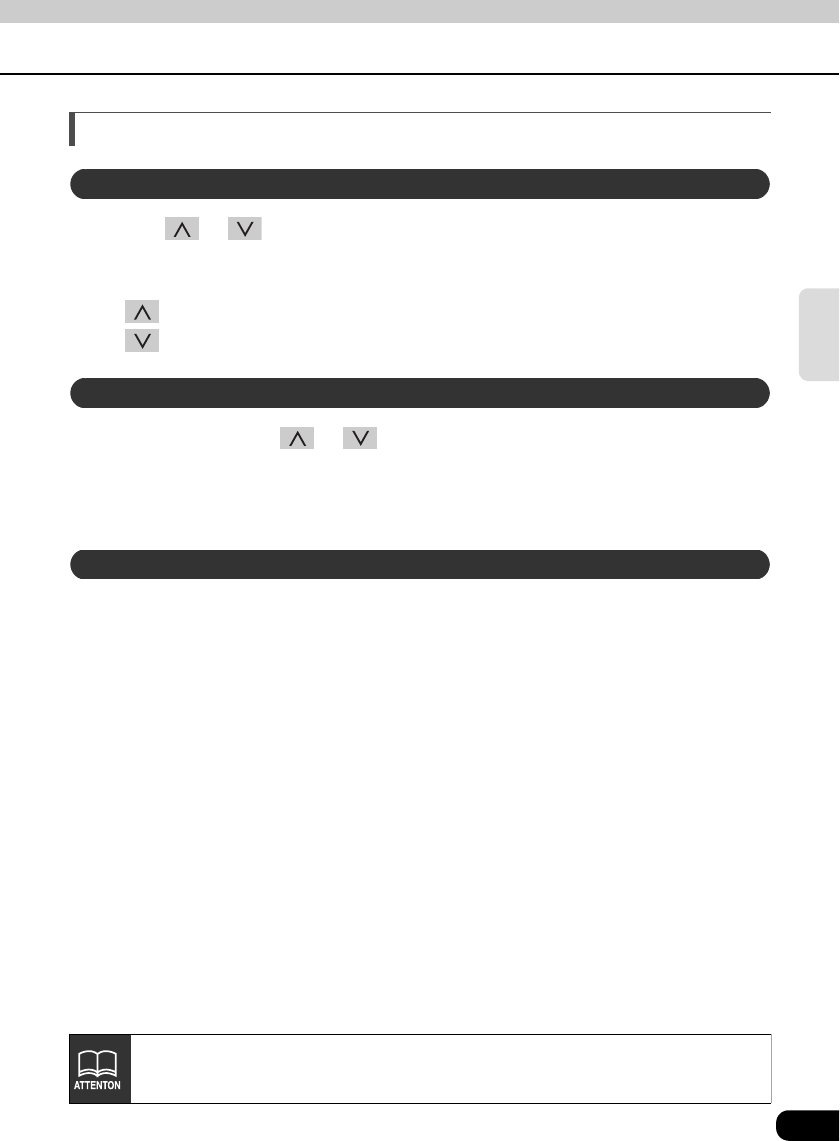
Press or .
• Each pressing of the switch moves the frequency one step up or down. (One step on
the AM band is 10kHz. One step on the FM band is 0.2MHz.)
(up switch): Raises frequency
(down switch): Lowers frequency
Press and hold the or switch until a beep is heard.
• The station that is closest in frequency to the frequency that is currently displayed on
the screen will be searched for automatically, and searching will stop when the station
is received. To stop the search before a station is found, press the button again.
Touch the preset switch that already has a station recorded.
• Refer to "Saving radio stations" on page 45 for details on saving stations.
Manual selection
Automatic selection
Selection using preset switches
If the reception for a particular station is weak in the area you are in, automatic
selection may not work.

40
Operating the AM/FM radio
How to operate the tuner
Saving radio stations
There are two modes for saving radio stations, manual and AUTO.P, and these modes
operate independently.
Confirm that "AUTO.P" is not displayed in the upper part of the screen.
• If "AUTO.P" is displayed, touching will switch the screen to manual.
Use manual tuning or automatic tuning to select the station to be saved.
Choose a preset switch and touch it until a beep is heard.
• The radio station (frequency) is set. Touching the preset switch will now tune in the
selected station.
Touch until a beep is heard.
• The AUTO.P function will be activated and start automatically selecting stations. A
beep will be heard when automatic selection of stations is completed. On touching
again, the display will switch to the previously recorded station.
Use manual tuning or automatic tuning to select the station to be saved.
Choose a preset switch and touch it until a beep is heard.
Saving manually
AUTO.P
Saving with AUTO.P
AUTO.P
AUTO.P
Changing stations saved by AUTO.P
41
RADIO
Because AUTO.P temporarily saves stations for the preset switches, stations saved
manually will remain in memory even if AUTO.P is used. By manually saving
stations that are used regularly, these manually saved stations can be restored even
after AUTO.P has been used, such as after traveling.
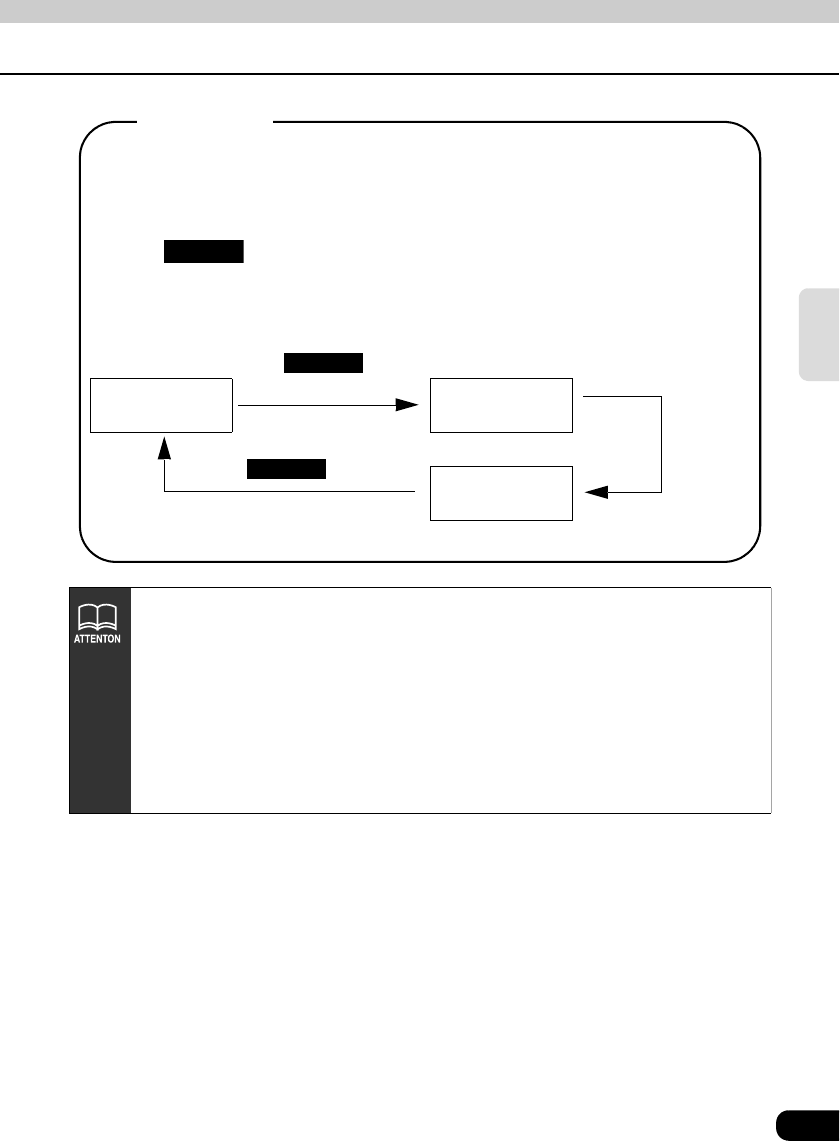
Touching while AUTO.P is being used or after AUTO.P has been used
will return the preset memories back to the condition they had before AUTO.P was
used. (Doing so will delete the stations saved with AUTO.P.) The flow for switching
from AUTO.P to manual is shown below.
Manual AUTO.P
(starts search)
AUTO.P
(stops search)
AUTO.P
Automatically saves
stations to preset switches
Touch until a
beep is heard.
AUTO.P
Touch
(Stations saved by AUTO.P are
deleted)
AUTO.P
About AUTO.P
• AUTO.P may not automatically receive stations if radio waves in the surrounding
area are weak.
• A station saved by the tuning switch may not match a station saved by AUTO.P
even though the signal is received from the same station.
• Due to conditions for receiving radio waves, saved stations may differ even
when the AUTO.P switch is operated repeatedly in the same location.
• Up to six stations having good reception sensitivity are automatically saved in
order starting from the lowest frequency.
• When less than six stations capable of reception are found, nothing is saved for
the remaining preset switches.
42
Operating the AM/FM radio
How to operate the tuner
Displaying information about the track being
played
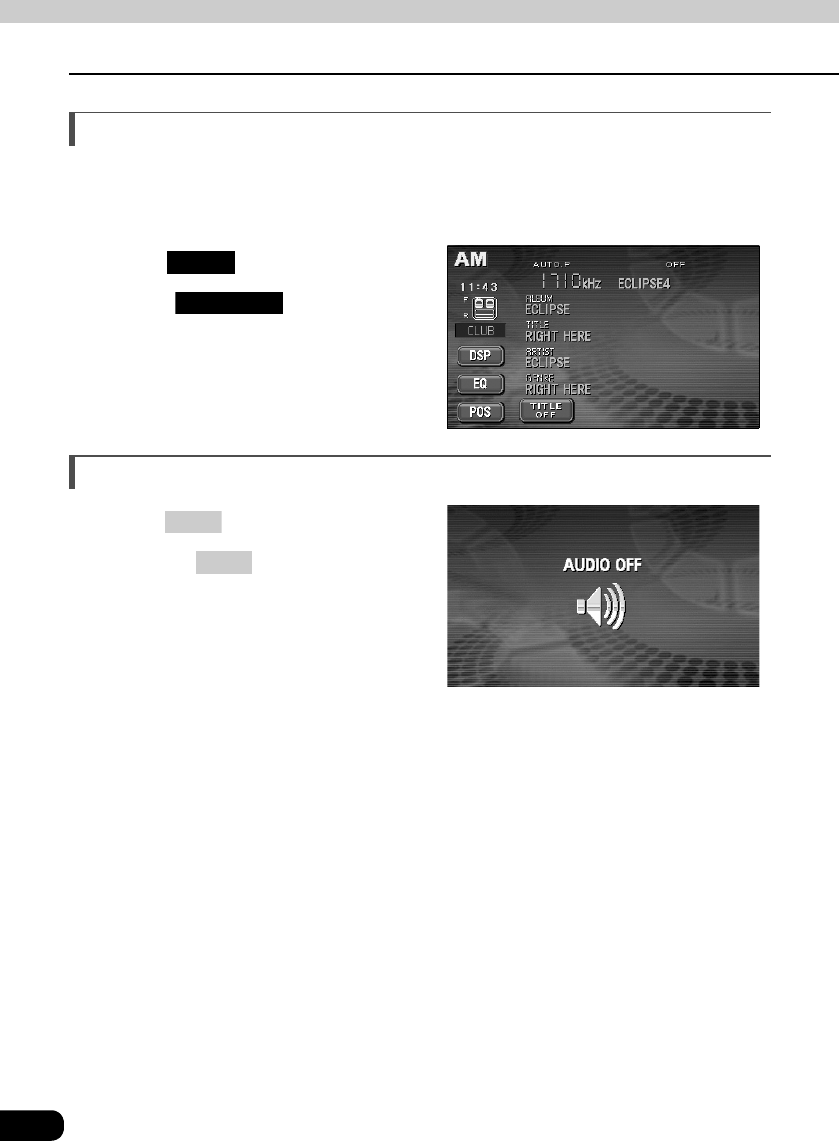
Information about the current track, such as the name of the radio station, the album and the
title of the track can be displayed.
Touch .
• Touch to return to the
operation screen.
Turning off the radio
Press .
• Pressing again will turn on the
radio and resume reception of the
radio station (frequency) received
before power was turned off.
TITLE
TITLE OFF
PWR
PWR
How to operate the tuner
43
RADIO
Operation when an HD RADIO (IBOC) tuner has been connected
Listening to HD RADIO (IBOC)
When receiving HD Radio (High Definition Radio) broadcasts, FM reception has the same
quality as a CD, and AM reception has the same quality as conventional FM sound.
Depending on the reception status, HD Radio can also receive analog broadcasts, which
means reception is still possible in regions with no digital coverage.
Press .
Touch to receive AM radio, or to receive FM radio.
• During HD RADIO (IBOC) reception, "DIGITAL" is displayed.
PWR
Button
(AUDIO) SOURCE
Button
AUTO.P
Switch
Preset
Switches
TUNE TRACK
Button
Title
Switch
MODE
Switch
(AUDIO) SOURCE
AM FM
To receive AM/FM analog broadcasting, touch and select "OFF."
MODE
44
Operation when an HD RADIO (IBOC) tuner has been connected
How to operate the tuner
Selecting radio stations
Press or .
• Each pressing of the switch moves the frequency one step up or down. (One step on
the AM band is 10kHz. One step on the FM band is 0.2MHz.
(up switch): Raises frequency
(down switch): Lowers frequency
Press and hold the or switch until a beep is heard.
• The station that is closest in frequency to the frequency that is currently displayed on
the screen will be searched for automatically, and searching will stop when the station
is received. To stop the search before a station is found, press the button again.
Touch the preset switch that already has a station recorded.
• Refer to "Saving radio stations" on page 45 for details on saving stations.
Manual selection
Automatic selection
Selection using preset switches
If the reception for a particular station is weak in the area you are in, automatic
selection may not work.
45
RADIO
Saving radio stations
There are two modes for saving radio stations, manual and AUTO.P, and these modes
operate independently.
Refer to "Operating the AM/FM radio" on page 40.
Refer to "Operating the AM/FM radio" on page 40.
Refer to "Operating the AM/FM radio" on page 40.
Displaying information about the track being
played
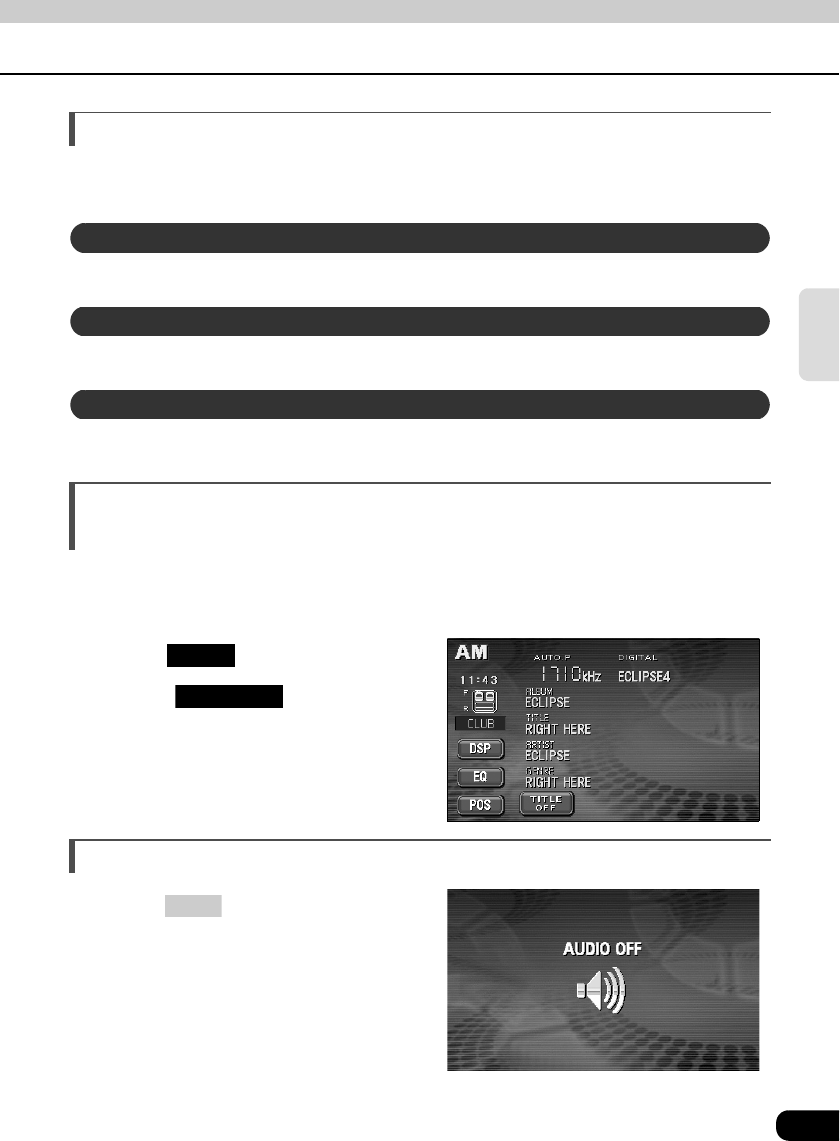
When receiving an HD RADIO (IBOC) broadcast, information about the current track, such as
the name of the radio station, the album, the title of the track, the artist, and the musical
genre, can be displayed.
Touch .
• Touch to return to the
operation screen.
Turning off the radio
Press .
• Pressing PWR again will turn on the
radio and resume reception of the
radio station (frequency) received
before power was turned off.
Saving manually
Saving with AUTO.P
Changing stations saved by AUTO.P
TITLE
TITLE OFF
PWR
46
How to operate the tuner
Operation when a SIRIUS satellite radio tuner has been connected
Listening to SIRIUS satellite radio
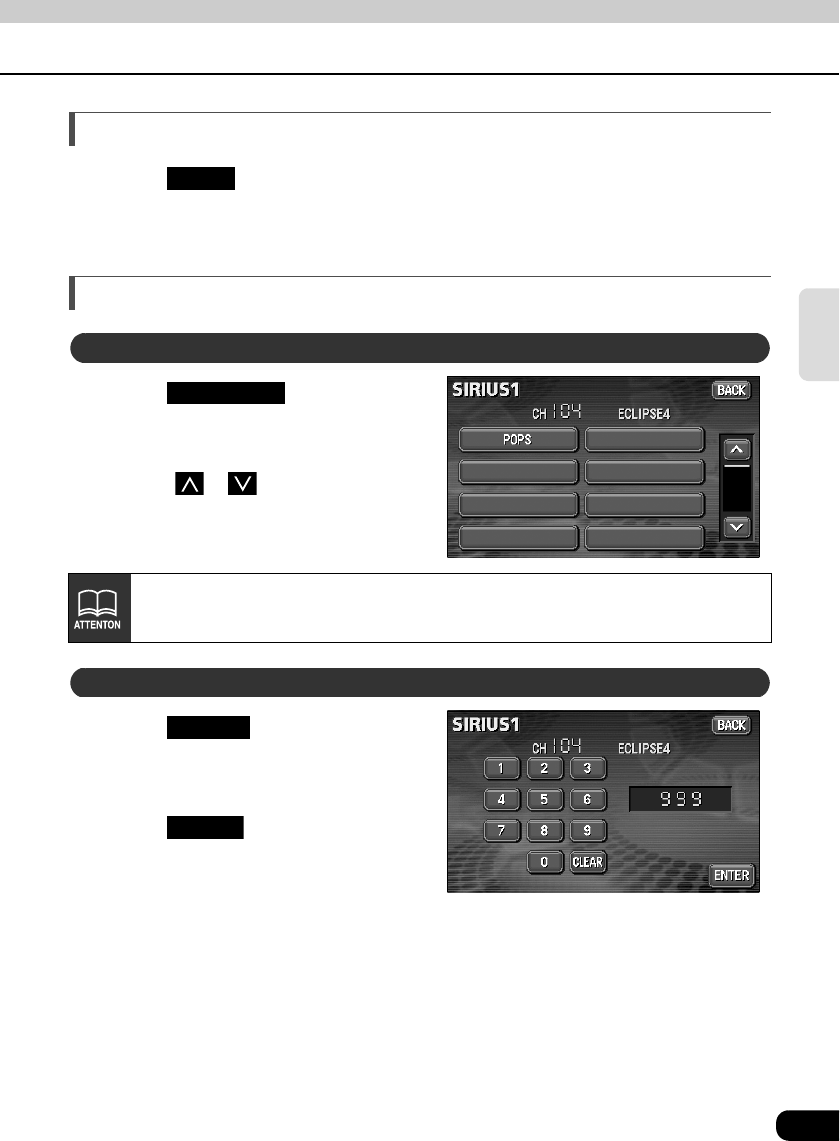
With SIRIUS satellite radio, over 100 channels are available including music, news, and
entertainment programs.
You can select the channel you want from 14 categories such as POP and ROCK, or you can
select a channel by direct input.
Reception of SIRIUS satellite radio is charged; you have to subscribe to it.
Press .
Touch .
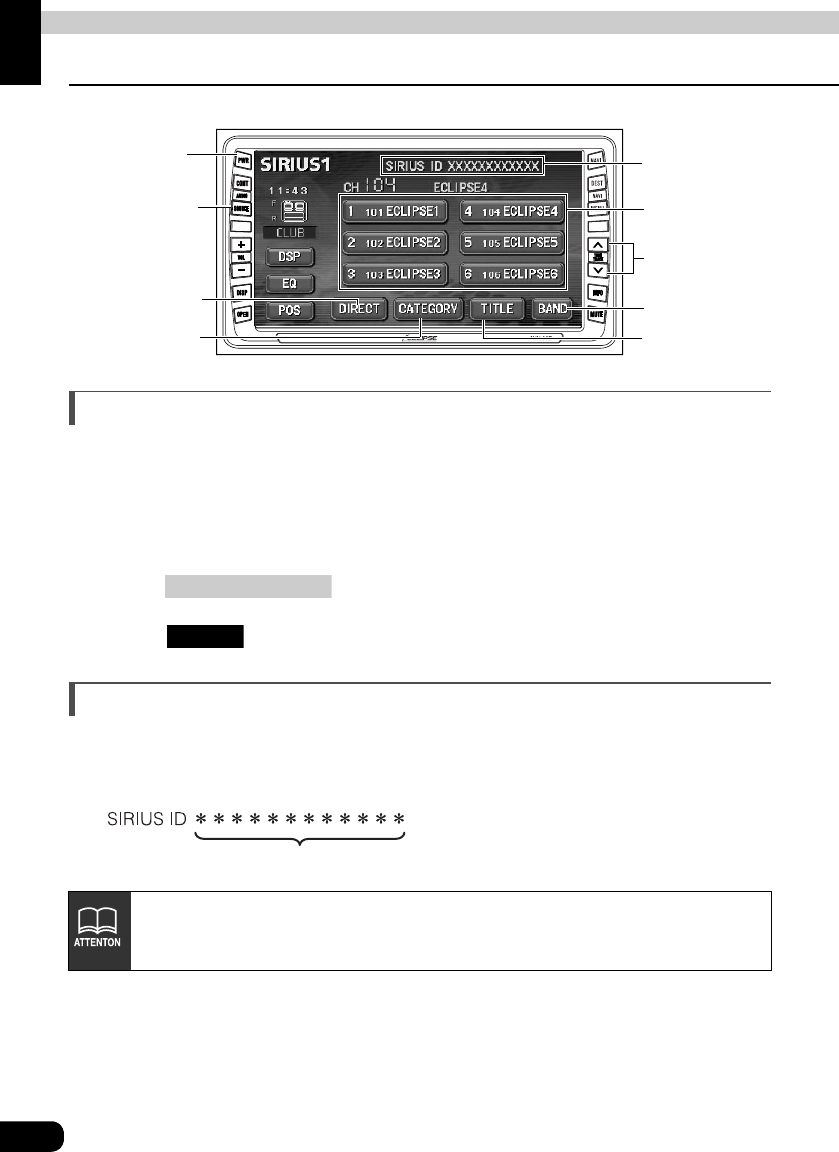
Check the SIRIUS ID
If a SIRIUS satellite radio tuner is connected, the SIRIUS ID number (12
digits) is displayed at the top right of the SIRIUS operation panel.
• The SIRIUS ID number changes at each connection of a SIRIUS satellite radio
tuner.
• The SIRIUS ID number is displayed as 12 numerical digits.
PWR
Button
(AUDIO) SOURCE
Button
BAND
Switch
Preset
Switches
TUNE TRACK
UP/DOWN
Button
CATEGORY
Switch
DIRECT
Switch
TITLE
Switch
SIRIUS ID
number
(AUDIO) SOURCE
SIRIUS
12 digits code (number)
47
RADIO
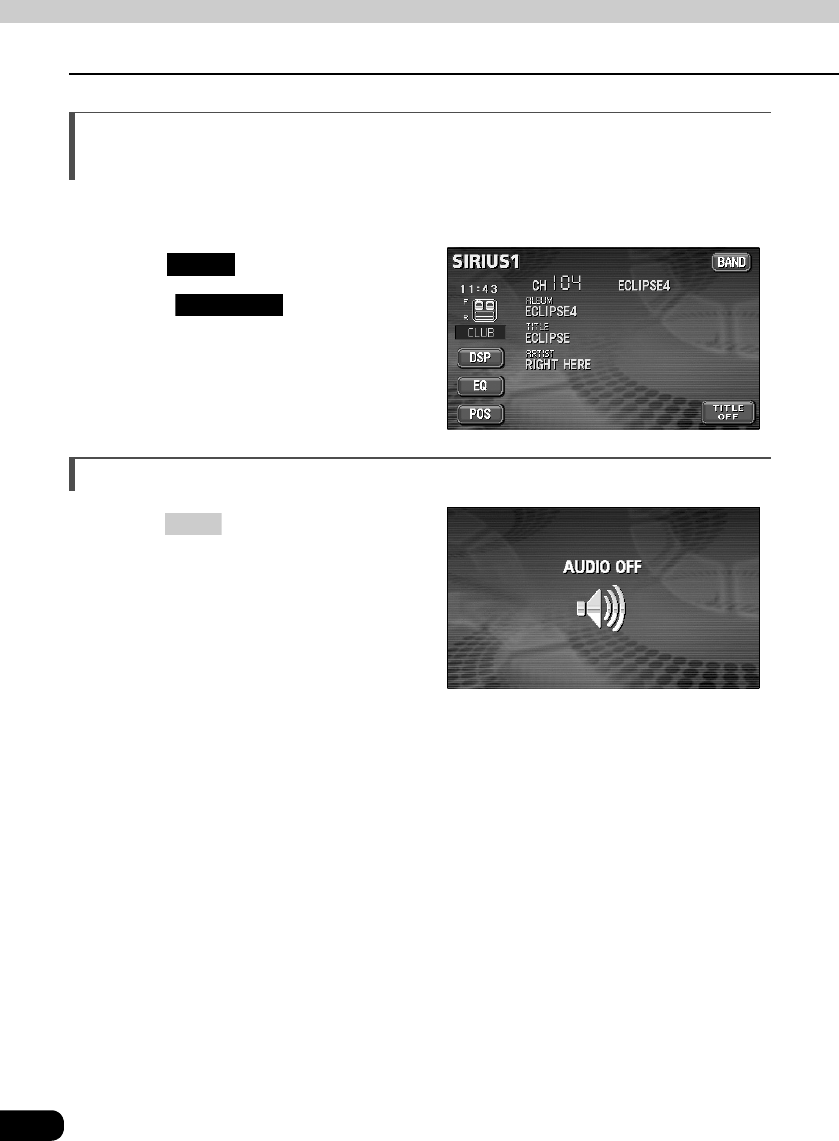
Changing the SIRIUS band
Touch on the SIRIUS operation screen.
• The BAND changes.
[SIRIUS 1] → [SIRIUS 2] → [SIRIUS 3] ... → return to [SIRIUS 1]
Selecting the channel you want to listen to
Touch .
Select the category that you want.
• Touch or to switch categories.
Touch .
Input a channel.
Touch .
If the selected category is unobtainable, the blank category button appears.
BAND
Selecting from the available categories
CATEGORY
Selecting a channel by direct input
DIRECT
ENTER
48
Operation when a SIRIUS satellite radio tuner has been connected
How to operate the tuner
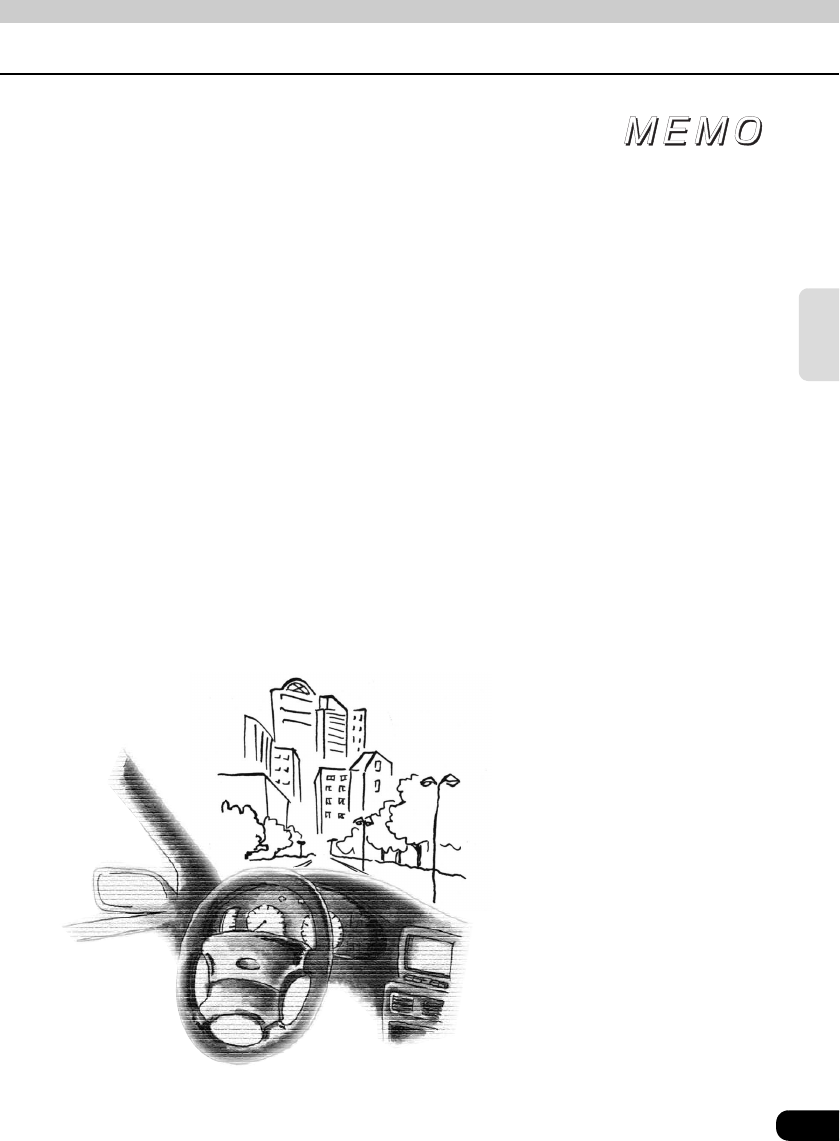
Displaying information about the track being
played
During SIRIUS broadcasts, information including the channel name, the album name, the
title, and the artist can be displayed for the current track.
Touch .
• Touch to return to the
operation screen.
Turning off the SIRIUS
Press .
TITLE
TITLE OFF
PWR
49
RADIO
50
How to operate the CD player
How to use the CD player
Listening to a CD
When a CD is inserted into the disc slot, it automatically starts playing.
Press while a CD is inserted.
Touch .
• Playback will begin.
Selecting a song
You can jump to the opening of a song you want to hear.
Press or .
• (up): Selects next song
(down): Selects previous song
PWR
Button
(AUDIO) SOURCE
Button
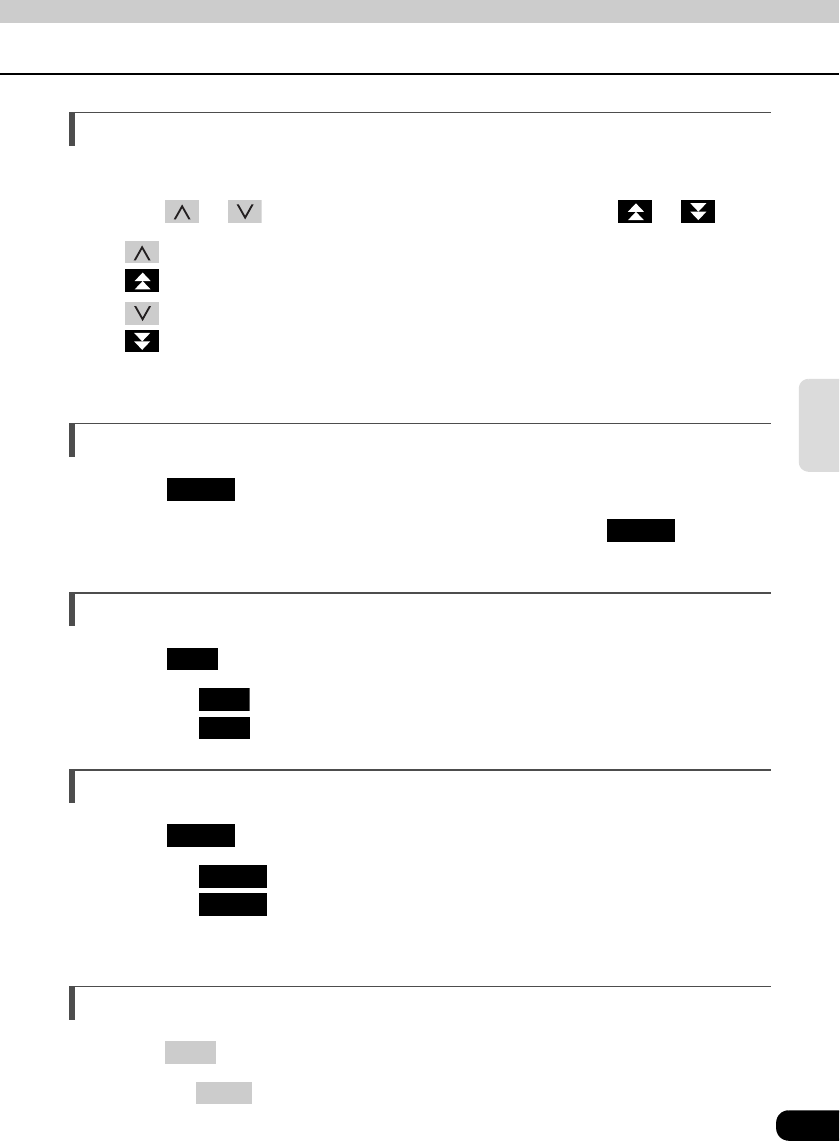
Repeat
Switch
Random
Switch
Scan
Switch
Fast-forward
(rewind) switches
Track selection
(track start point)/
Fast-forward
(rewind) Button
(AUDIO) SOURCE
CD
• Titles and song names can be displayed when they are recorded on a CD. Up
to 32 characters can be shown in the display.
• Only characters recorded by ASCII code can be shown on the CD-TEXT display.
• The CD-TEXT display may not be able to show characters for discs recorded
with many title characters.
51
CD
Fast-forwarding/rewinding
It is possible to fast-forward/rewind in the song being played.
Press or until a beep is heard, or touch and hold or .
(up): Fast-forwards
(down): Rewinds
The deck switches to the fast-forward (rewind) mode when the beep is heard and will
continue fast-forwarding (rewinding) until your finger is removed from the switch.
Searching for a song
Touch .
• The deck will play the first 10 seconds of each song. Touching again will
continue playing the current song.
Repeating a song
Touch .
• Touching once will cause repeating of the song until the function is canceled.
Touching again will cancel repeating of the song.
Playing songs in random order
Touch .
• Touching will play songs in random order until the function is canceled.
Touching again will cancel random playing of songs.
• The song to be played next is randomly selected at the end of current song, so it is
possible that a single song could end up being played twice in a row.
Turning off the CD player
Press .
• Pressing again will start playing
SCAN
SCAN
RPT
RPT
RPT
RAND
RAND
RAND
PWR
PWR
52
How to operate the MP3 player
How to use the MP3 player
For safety considerations, some functions are disabled while the vehicle is in motion.
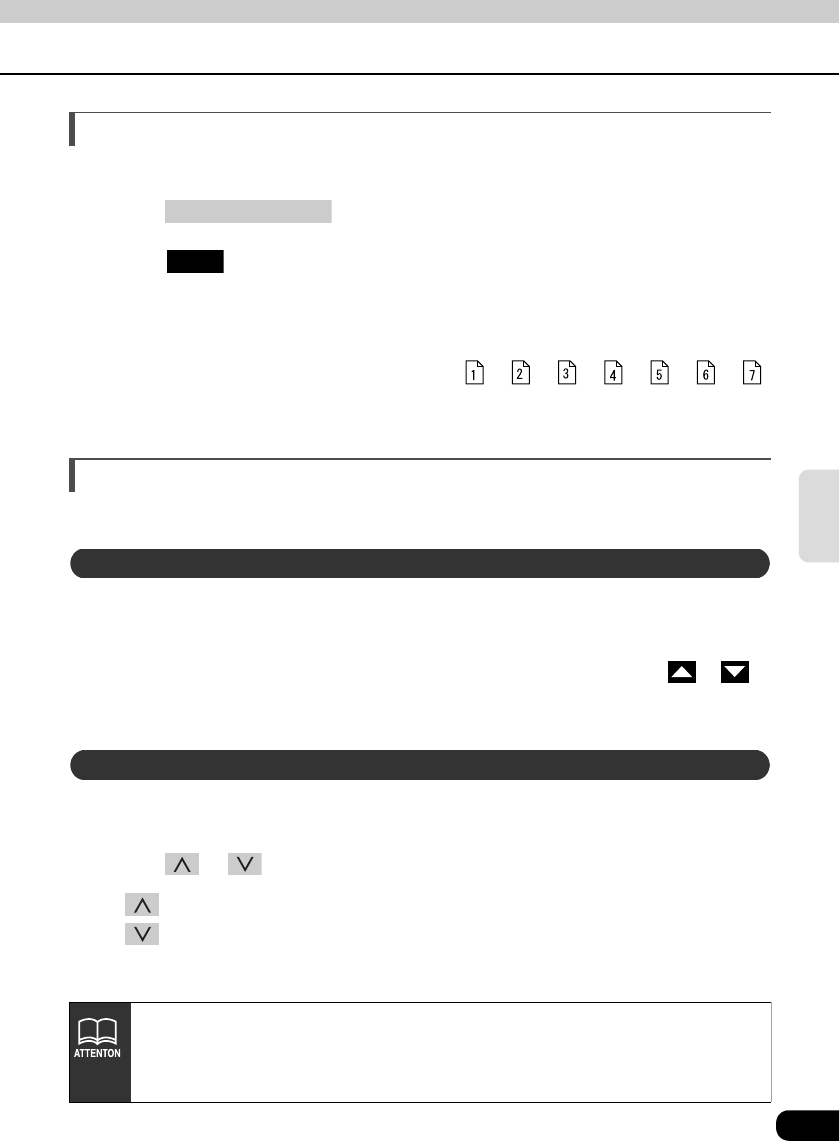
The following operating procedures are based on this example of MP3 file structure below.
Example of MP3 file structure
PWR
Button
(AUDIO) SOURCE
Button File changing
Switches
Repeat
Switch
Random
Switch
Scan
Switch
Track selection
(track start point)/
Fast-forward
(rewind) Button
Folder
MP3 audio file
1st level 2nd level 3rd level 4th level
53
MP3
Playing MP3
When a CD is inserted into the disc slot, it automatically starts playing.
Press while a disc is inserted.
Touch .
• Playback will begin.
• The CD player screen will be shown for about 2 seconds as the system checks
whether the inserted CD is a music CD or an MP3 disc.
• Normally, tracks are played back in the order
→
→
→
→
→
→
.
• When multiple MP3 files and folders are on the same level, they are played in
ascending order by folder and file names.
Selecting a music file
A music file located within a folder can be selected.
Touch the music file.
• The currently selected file name and folder name will be shown in the display.
• When more than 10 music files are located in the same folder, touching or
can switch between the data. (This function is not available when the vehicle is in
motion.)
When several music files are located in the same folder, the next music file or previous music
file can be selected with the track selection (track start point).
Press or .
• (up): Selects next music file
(down): Selects previous music file
(AUDIO) SOURCE
MP3
Selecting with file change switch
Selecting with TUNE/TRACK button
• If sound data and MP3 data are mixed on the same disc, only the data recorded
in the first session can be played.
• When MP3 is being played, navigation operation will become slower. This is not
a malfunction of the system.
54
How to use the MP3 player
How to operate the MP3 player
Fast-forwarding/rewinding
It is possible to fast-forward/rewind in the song being played.
Press and hold the or switch until a beep is heard.
• (up): Fast-forwards
(down): Rewinds
The deck switches to the fast-forward (rewind) mode when the beep is heard and will
continue fast-forwarding (rewinding) until your finger is removed from the switch.
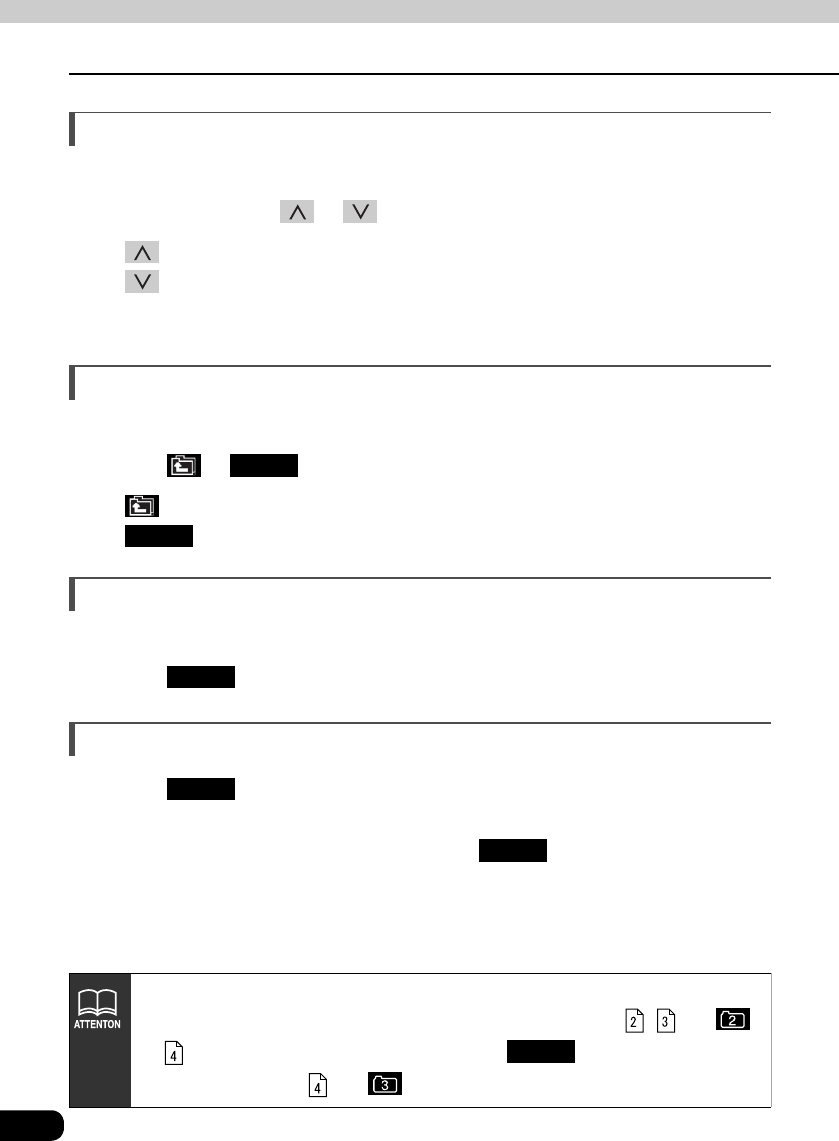
Changing display of the current level
The folder level can be switched and displayed.
Touch or .
• : Displays the next higher folder level.
• : Displays the level of the file currently being played.
Displaying the current level
Displays the file currently being played.
Touch .
Searching for a music file
Touch .
• The system will play the first 10 seconds of each song located within the same layer
of the folder currently being played. Touching again will continue playing
the current song.
HOME
HOME
HOME
SCAN
SCAN
Refer to page 60 for an example of MP3 file structure.
When the display shows the folder and files of the second level ( , and )
as of the third level is being played, touching will show the folder and
files of the third level ( and ).
HOME
55
MP3
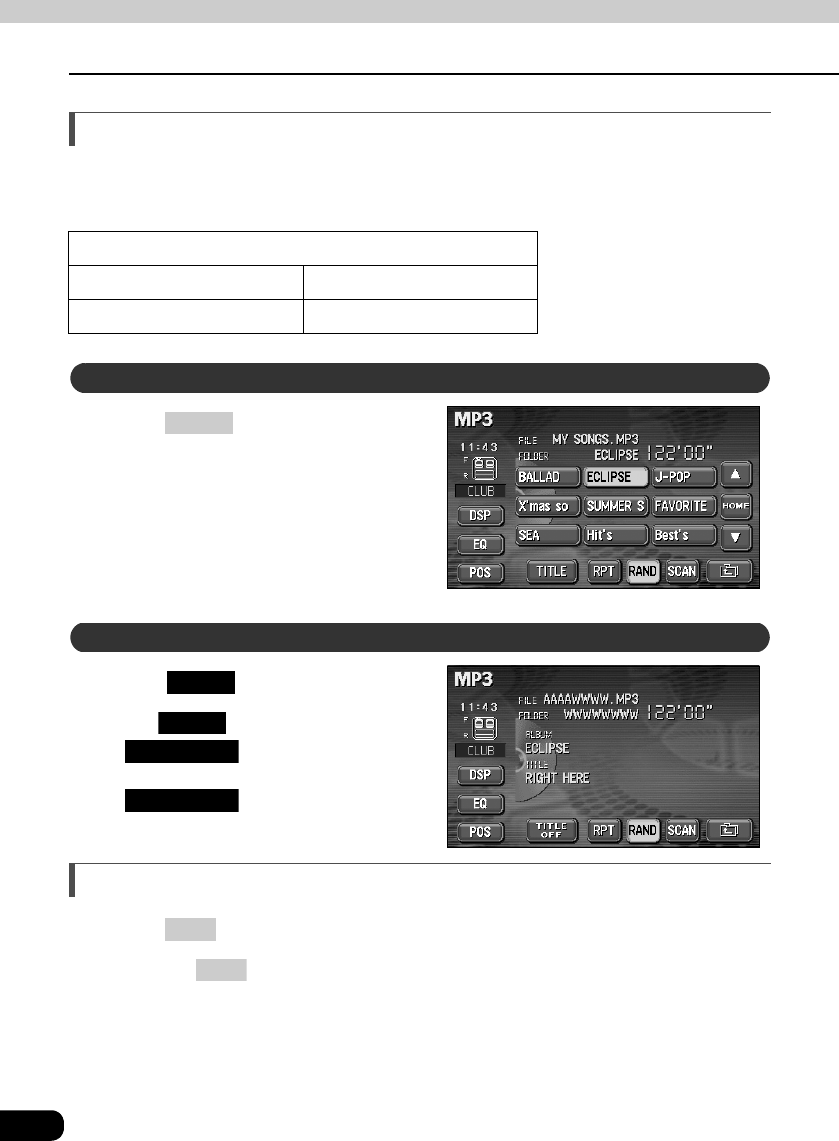
Repeating the same music file
Touch .
• The file currently being played will be repeated.
• Setting RPT will cause repeating of the song until the function is canceled. Touching
again will cancel repeating of the song.
Playing songs in random order
Touch .
• Files will be randomly selected from among all files at the same level as the folder
currently being played.
• will play songs in random order until the function is canceled. Pressing
again will cancel random playing of songs.
• Touching while the random function is operating will repeat the currently
playing song. Touching again will return to random playing of songs.
• The song to be played next is randomly selected at the end of current song, so it is
possible that a single song could end up being played twice in a row.
RPT
RPT
RAND
RAND
RAND
RPT
RPT
56
How to use the MP3 player
How to operate the MP3 player
About display of file information
Folder names and file information (album name and song titles) recorded on the disc can be
displayed. The number of characters that can be displayed is as shown below.
Press to display the
operation screen.
Touch .
• The switch will change to
while file information is
being displayed. Touching
will change the display
to a folder/file switch.
Turning off the MP3 player
Press .
• Pressing again will start playing.
Screen Display
Folder/file names Music file information
8 characters max. 30 characters max.
Displaying folder/file names
CONT
Displaying file information
TITLE
TITLE
TITLE OFF
TITLE OFF
PWR
PWR
57
MP3
About MP3
MP3 (MPEG-1 Audio Layer III) is a standard format for audio compression technology. By
using MP3, a file can be compressed to one-tenth the size of the original.
This unit has limitations on MP3 file standards and recorded media and formats that can be
used. Be aware of the following points when recording MP3 files.
• Supported standards : MPEG-1 Audio Layer III
• Supported sampling frequencies : 32, 44.1, 48 (kHz)
• Supported bit rate : 32, 40, 48, 56, 64, 80, 96, 112, 128 (kbps)
* Supports VBR.
* Does not support free format.
* Bit rates vary for MPEG-1 and MPEG-2.
• Supported channel modes : stereo, joint stereo, dual channel, monaural
MP3 files have an "ID3 Tag" that allows input of information so that data such as song title and
artist can be saved.
This unit supports ID3v.1.0 and ID3v.1.1 tags. Use only ASCII code to record tags, since only
ASCII code is supported by this deck. Recording of characters not included in ASCII code
will result in display of garbled characters.
Media capable of playing MP3 includes CD-ROM, CD-R and CD-RW discs.
Compared to CD-ROM media commonly used for music discs, CD-R and CD-RW discs are
fragile in high temperature/high humidity environments and one section of the CD-R/CD-RW
may become incapable of playback. Fingerprints or scratches on the disc may prevent
playback or cause skipping during playback.
Sections of CD-R/CD-RW may deteriorate if left inside a vehicle for long periods of time.
It is also recommended that CD-R/CD-RW discs be kept in a light-blocking case because the
discs are vulnerable to ultra-violet light.
Playable MP3 file standards
Use 128kbps or lower for the MP3 bit rate. If the bit rate exceeds 128kbps, there
may be sound jumping during MP3 playback.
ID3 tags
Media
58
How to use the MP3 player
How to operate the MP3 player
The format of discs to be used must be ISO9660 Level 1 or Level 2. Also be sure to use
"MODE 1" for recording. Discs recorded with "MODE 2" are not supported.
MP3 files recorded in a format other than the one explained above may result in files that
cannot be played normally and in file names and folder names that do not display properly.
Limitations in addition to standards are as follows.
• Maximum directory layers : 8 layers
• Maximum characters for folder names/file names : 31 (including "." and 3 letter file
extension)
• Allowable characters for folder names/file names : A to Z, 0 to 9, _ (underscore)
• Number of files/folders possible on a single disc : 512
Each file that is not an MP3 file (files with extensions other than "MP3") is also counted as a
file.
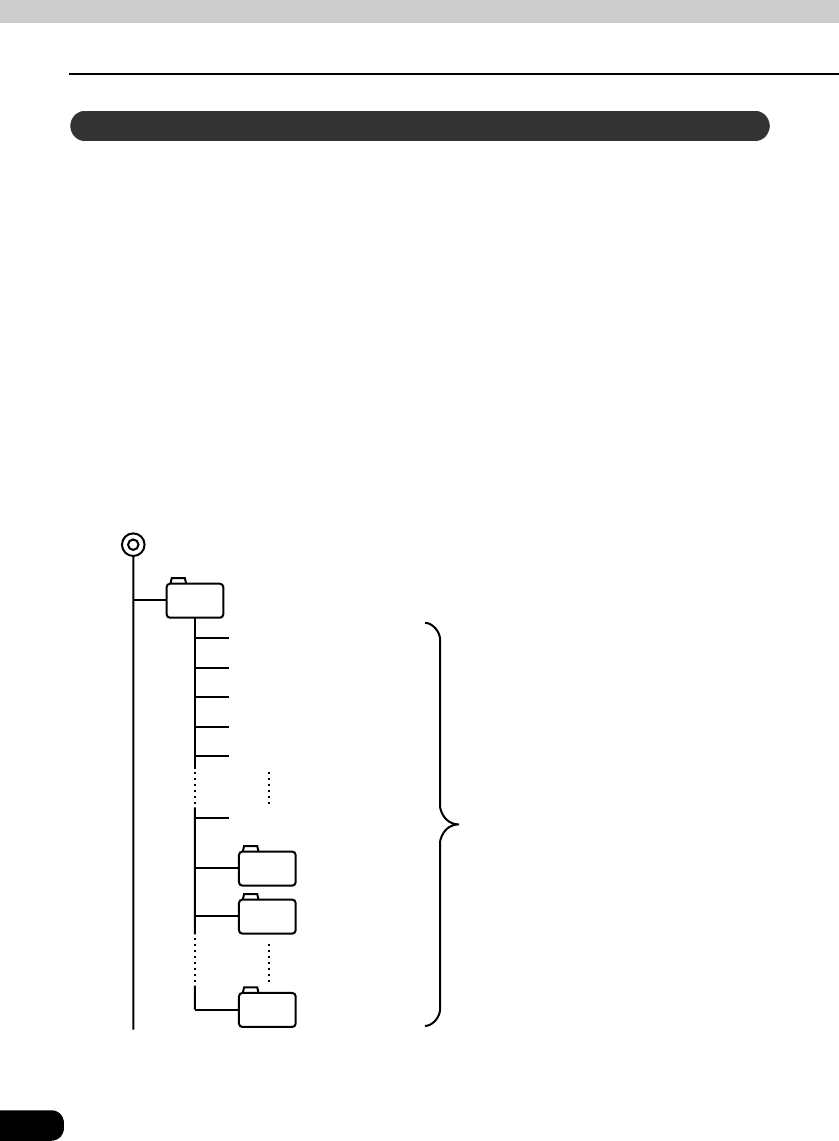
Configuration example for CD supporting MP3
• A total of 1023 files and folders can be recorded on a single disc.
Format of discs
F1
F301
Folder1
Folder301
F302 Folder302
F512 Folder512
001.MP3
002.MP3
003.MP3
004.TXT
005.MP3
300.MP3
A total of 512 files and folders can be
created within a single folder.
Each file that is not an MP3 file
(example: 004.TXT) is also counted as
a file.
59
MP3
Only files with the MP3 file extension ".mp3" can be recognized as MP3 and played. Be sure
to save MP3 files with the ".mp3" file extension.
Use half-width English capital letters to write "MP" of the extension.
Multisessions are supported and CD-R/RW with recorded MP3 files can be played. When
written with "Track at once", however, finalize the disc with session close or write protect.
When a disc having MP3 files recorded on it is inserted into the deck, the system first checks
all the files on the disc. If the number of files and folders is large, the check will take some
time.
While the system is checking the disc, the music that had been playing continues to play.
In order to speed up completion of the file check, it is recommended that you avoid recording
files that are not MP3 files and avoid establishing unnecessary folders.
In addition, it is recommended that you record all data in a single session because a
multisession disc takes time for CD control information acquisition.
It is possible that playing time will not be correct, depending on the writing condition of the
MP3 file.
* It is possible that playing time will not be correct when VBR Fast Up/Down is operated.
Names of MP3 folders and files within the same level are displayed in the following order.
1. MP3 files displayed first, by ascending order of numbers, letters.
2. Folders displayed next, by ascending order of numbers, letters.
When MP3 is being played, navigation operation will become slower. This is not a
malfunction of the system.
File names
Multi-sessions
Playing MP3
MP3 playing time display
Display order of MP3 file/folder names
If the ".mp3" file extension is attached to a file other than an MP3 file, that file will
be mistakenly recognized by the unit as an MP3 file and played, resulting in loud
noise output that can damage the speakers. Be sure to avoid attaching the ".mp3"
file extension to files that are not MP3 files.
60
How to use the MP3 player
How to operate the MP3 player
Making and playing MP3 files
MP3 files created by recording broadcasts, records, audio recordings, video recordings or
live performances cannot be used for purposes other than personal entertainment without
permission of the copyright holder as set forth in copyright law.
There are many kinds of sites that distribute MP3 files on the Internet, such as "pay per
download" online shopping sites, "try before you buy" listening sites and free download sites.
Follow the rules for each site (such as paying fees) and download according to site
instructions.
Prepare a computer with commercially available MP3 encoding software (conversion
software). (Some encoding programs available on the Internet do not require payment.)
Music data files in MP3 format can be made by inserting the music CD into the CD-ROM
drive of the computer and following the procedures of the MP3 encoding software to
compress the songs of the music CD. A 12cm music CD (having a maximum of 74 minutes
of recording/650MB of data) can be compressed to 65MB (about 1/10 of the original size).
MP3 files can be recorded on CD-R/RW by using a CD-R/RW drive connected to a computer.
Record by setting the recording format of the recording software to ISO9660 level 1 or level 2
(not including extension format).
Select CD-ROM (mode 1) for the disc format. Discs recorded with CD-ROM xA (mode 2)
cannot be played on this deck.
Insert a CD-R/RW disc having recorded MP3 files. The system will automatically determine
whether the disc is a music CD or a CD-R/RW with MP3 files and begin playing the disc. A
music CD recorded onto a CD-R/RW can also be played. However, depending on the type of
disc being used, a disc may not play.
Downloading from Internet MP3 music sites
Converting CD music to MP3 files
Writing to CD-R/CD-RW
When playing back CD-R/RW
• A fixed bit rate of 128kbps and sampling frequency of 44.1kHz is recommended
for obtaining stable audio quality at playback.
• Depending on the characteristics of a disc, CD-R and CD-RW may not be able
to read the disc.
• Because there are many types of MP3 encoding software available, including
commercial and freeware programs, audio quality may deteriorate, noise may
be generated when playing starts and some recordings may not play,
depending on the condition of the encoder and the file format.
• When files other than MP3 files are recorded on a disc, the system may take
some time to recognize the disc and it may not play the disc.
61
MP3
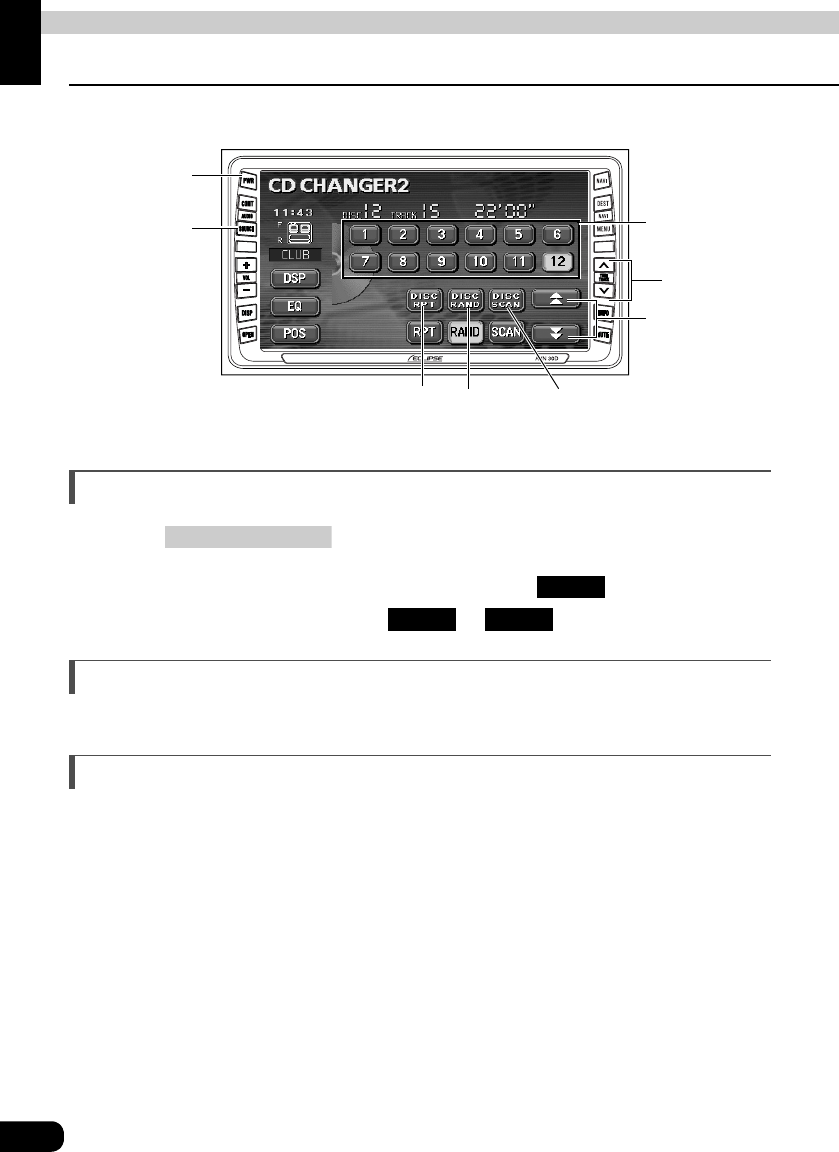
62
How to operate the CD changer
How to use the CD changer
An optional CD changer can be connected and used.
Listening to a CD
Press .
When only one CD changer is connected, touch . When two CD
changers are connected, touch or .
Selecting a song
Refer to "How to use the CD player" (Page 50).
Fast-forwarding/rewinding
Refer to "How to use the CD player" (Page 51).
PWR
Button
(AUDIO) SOURCE
Button
Disc changing
switches
Fast-forward
(rewind) switches
Track selection
(track start point)
Fast-forward
(rewind) Button
Disc
repeat
switch
Disc
random
switch
Disc scan
switch
(AUDIO) SOURCE
CDCH1
CDCH1 CDCH2
63
CD changer
Selecting a CD
A CD can be selected from among all the discs on a changer.
Touch one of the disc changing switches.
• The number for the selected CD will change color.
Searching for a song or CD from all CDs in changer
Refer to "How to use the CD player" (Page 51).
Touch .
• The system will play the first 10 seconds of the first song on each CD in the changer.
Touching again will continue playing the current song.
Repeating a song or CD
Refer to "How to use the CD player" (Page 51).
Touch .
• Touching DISC RPT once will cause repeating of the CD until the function is canceled.
Touching again will cancel repeating of the CD.
Searching for a song
Searching for a CD
DISC SCAN
DISC SCAN
• The system will display the amount of disc changing switches that matches the
number of CDs that can be inserted into the CD changer, and it will only allow
selection of disc numbers that have discs currently loaded.
• No operation is possible when there are no discs loaded into the CD changer.
• If two CD changers are connected, switch between the optional CD changer
deck and the CD changer with / .
CDCH1 CDCH2
Repeating the current song
Repeating the current CD
DISC RPT
DISC RPT

64
How to use the CD changer
How to operate the CD changer
Playing songs in random order
Refer to "How to use the CD player" (Page 51).
Touch .
• Touching will play songs in random order until the function is
canceled. Touching again will cancel random playing of songs.
• The song to be played next is randomly selected at the end of current song, so it is
possible that a single song could end up being played twice in a row.
Turning off the CD player
Press .
• Pressing PWR again will start playing
Playing songs on current CD in random order
Playing songs on all CDs in random order
DISC RAND
DISC RAND
DISC RAND
PWR
65
CD changer
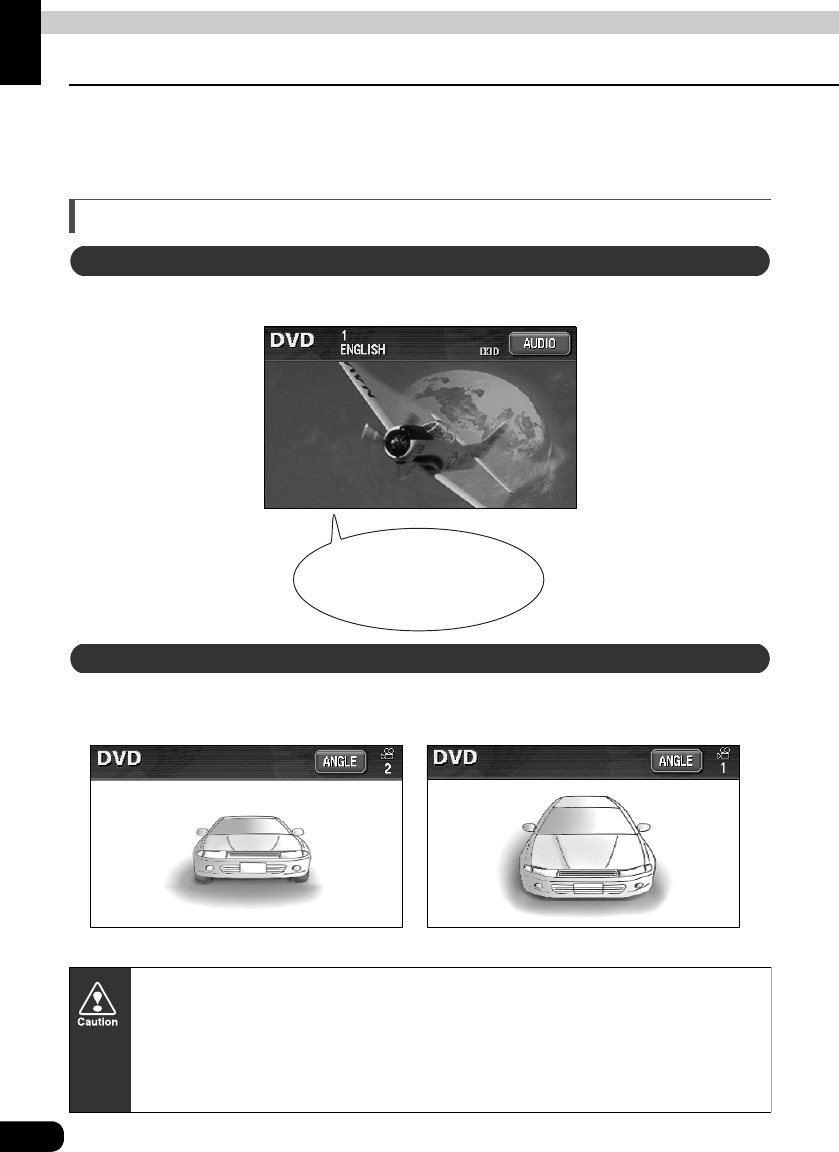
66
How to operate the DVD player
Before using the DVD player
This unit can play high quality images and high quality digital sound of DVD videos. It is also
possible to switch between different languages recorded on the DVD video (dubbing,
subtitles, etc.), and with videos having several angles of the same scene recorded, the
preferred angle can be selected and played.
DVD video characteristics
Some DVD discs have dialog recorded in several different languages, and the language can
be switched during playback in the same way as multilingual TV broadcasts.
Some DVD discs have a single scene recorded from several different angles (multiple angle),
and the preferred angle can be switched during playback.
* Depending on the disc, multiple angles may not be recorded.
About Multiple Languages
An airplane was flying
in the night sky...
About Multiple Angles
The angle of the image is changed.
This unit includes copyright protection technology used in accordance with US
patents and other intellectual property rights owned by Macrovision Corporation
and other entities. Use of this copyright protection technology requires approval
from Macrovision Corporation and the technology must not be used for
audiovisual purposes aside from general household use without special approval
from Macrovision Corporation. Modification and disassembly of this technology is
prohibited.
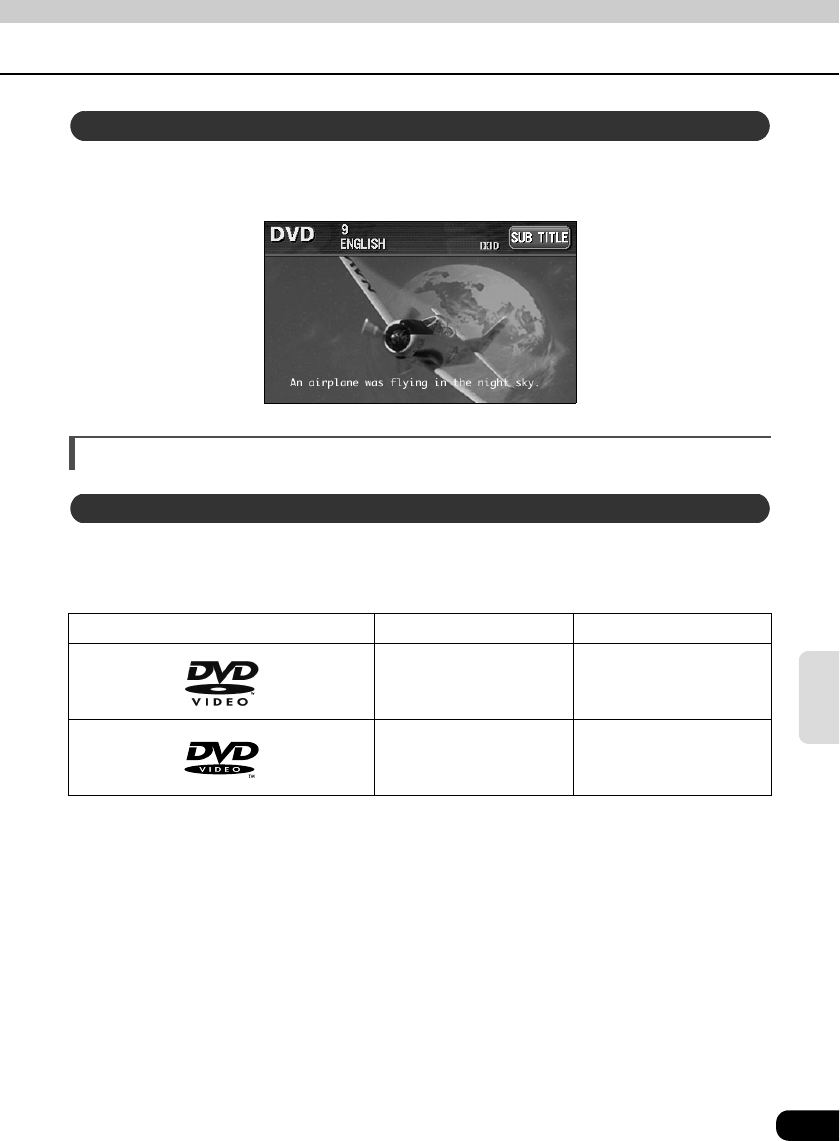
67
DVD
Some DVD discs have subtitles recorded in several different languages, and the subtitles
can be switched during playback. The video can also be played without any subtitles
displayed.
About discs
This unit conforms to NTSC color television methods, so please use discs that display "NTSC"
on the disc or package. This unit cannot play discs using color television methods other than
NTSC (such as PAL, SECAN).
Playable Disc Types and Their Marks Size/Playing Surface Maximum Playing Time
12 cm/single-sided
1 layer
2 layer
Using MPEG 2
133 min.
242 min.
12 cm/double-sided
1 layer
2 layer
266 min.
484 min.
About Subtitles
About playable discs
68
Before using the DVD player
How to operate the DVD player
Some DVD discs display a ("Region Code"). The mark (a number) shows the
geographical region where the disc can be played. This unit will not play discs that do not
show "1" or "ALL" in this mark. Even if the disc does play, the message "Cannot play this disc"
will be displayed on the screen. Note also that some discs may be subject to regional
restrictions, meaning that this unit will not play them, even though they are not marked with a
region code.
About region codes of playable discs
1
The playing condition is determined by the intention of the DVD/software creator.
Some functions may not perform during operation because this unit is playing the
disc according to content specifications intended by the software creator. Be
sure to consult the explanatory material provided with the disc to be played.
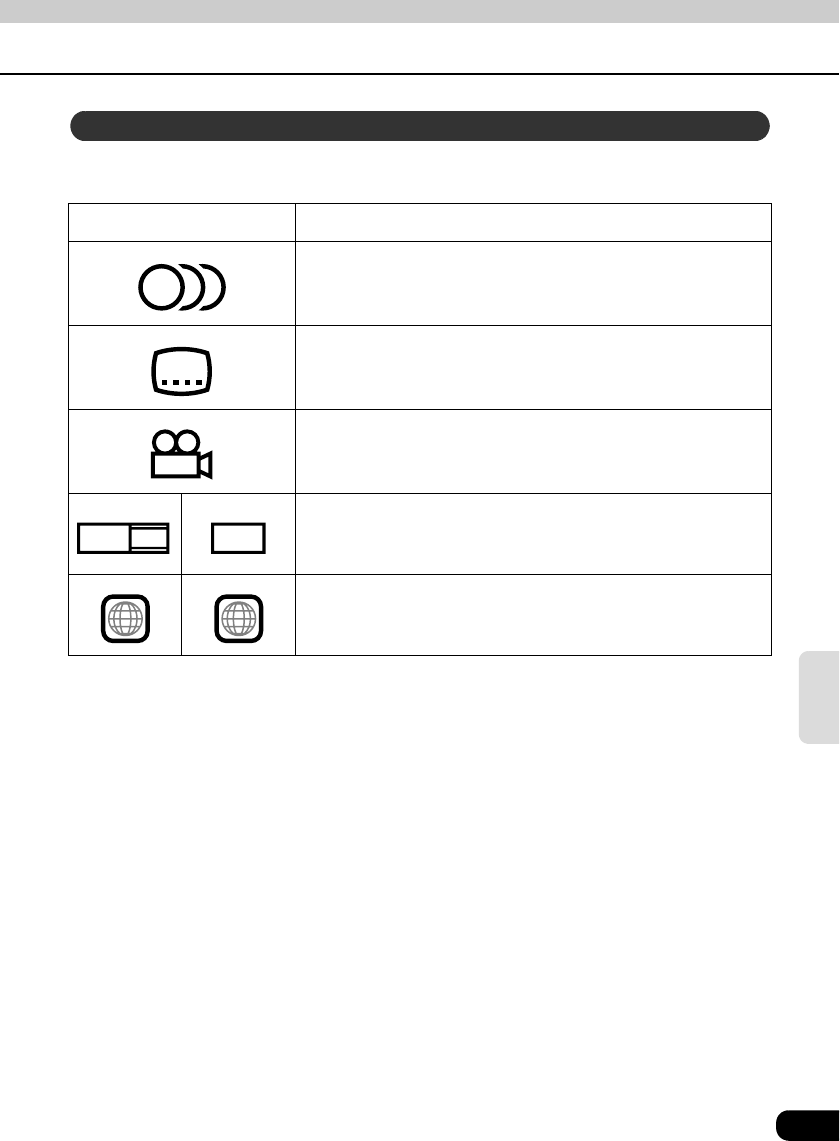
69
DVD
The following marks may be displayed on a DVD disc or its package.
Mark Meaning
Shows number of voice tracks.
Shows number of subtitle languages.
Shows number of filmed angles.
Shows available aspect ratio (television screen horizontal to
vertical ratio).
• "16:9" is wide screen, "4:3" is standard screen.
Shows playable region code.
• ALL indicates worldwide. A number indicates a specific
region code. "1" is the region number for North America.
About marks displayed on discs
3
2
3
16:9 LB 4:3
ALL 1
70
Before using the DVD player
How to operate the DVD player
Videos and songs recorded on a DVD are divided into many segments.
Large segments are called "titles", and each title has a number ("title number"). Title
segments are further divided into smaller segments called "chapters", and each chapter has
a number ("chapter number").
About DVD disc structure
DVD-Video
Title 1
Title 2
Title 3
Chapter 1
Chapter 2
Chapter 3
Chapter 1
Chapter 2
Chapter 3
Chapter 1
Chapter 2
Chapter 3
Title number Chapter number
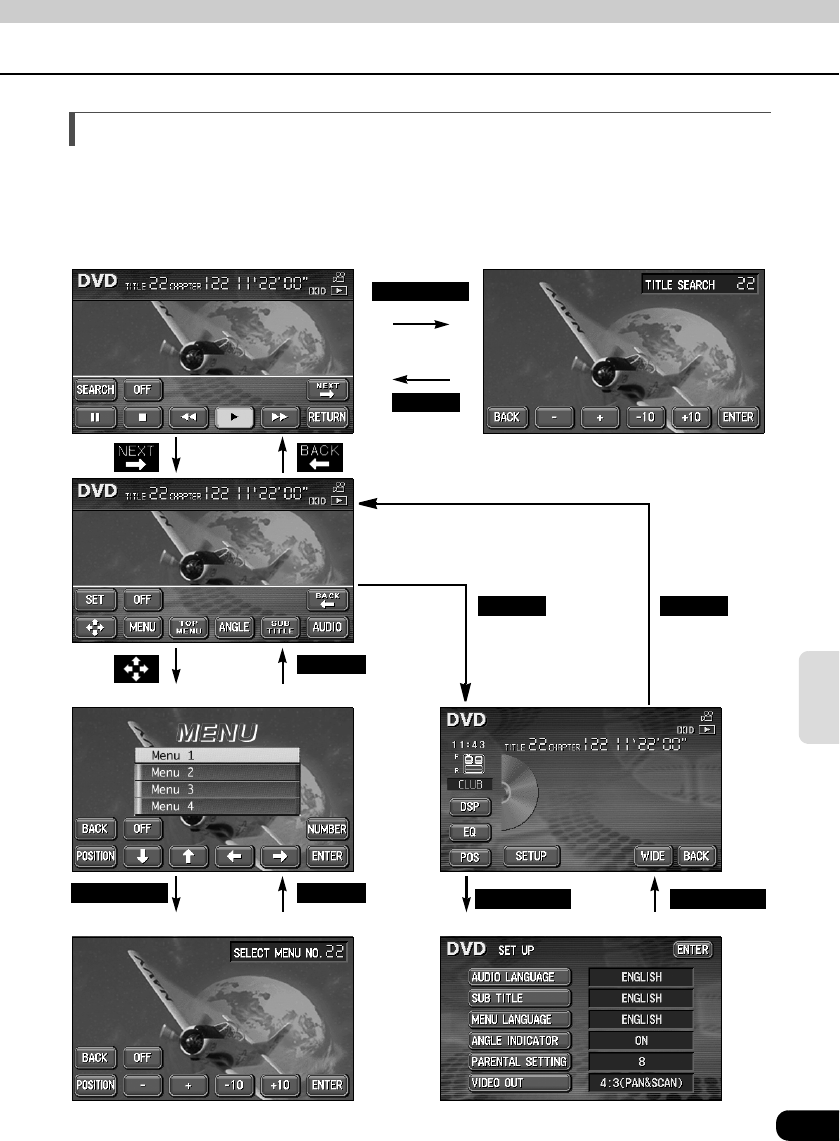
71
DVD
About flow of operations
The section below describes the flow for items such as operation and search of images and
default settings for the DVD player.
• Touching a touch switch brings up the operation screen shown below.
SEARCH
BACK
SET
BACK
BACKNUMBER ENTERSETUP
BACK
●DVD operation screen ●Title screen
●Menu number search screen ●Default settings screen
●Menu operation screen
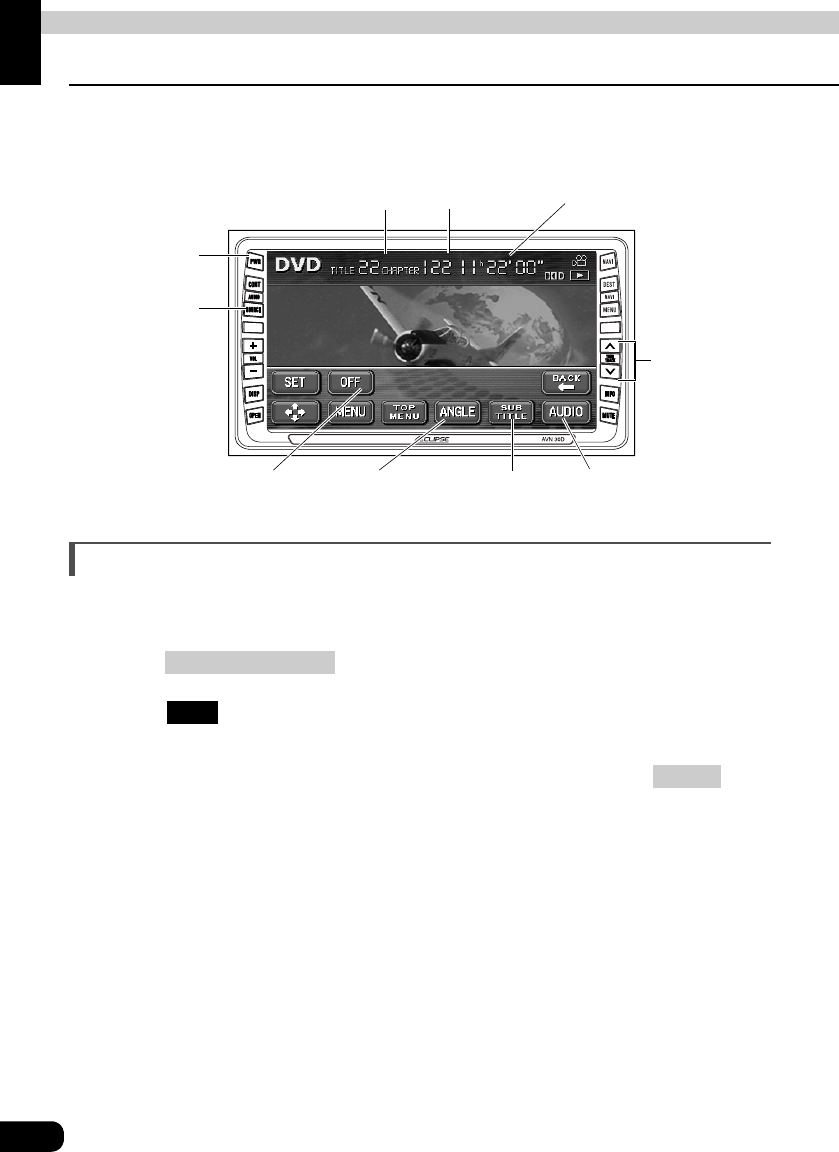
72
How to operate the DVD player
How to use the DVD player
A DVD can be watched only if the vehicle is completely stopped in a safe location with the
parking brake set and the ignition switch turned to ON or ACC. (Only sound can be heard if
a DVD is played while the car is in motion.)
Watching a DVD
Start playback by inserting a DVD into the DVD insertion slot, which will automatically turn on
power.
Press while a disc is inserted.
Touch .
• Playback will begin.
• If the operation switches (touch switches) are being displayed, press or
touch the screen.
PWR
Button
(AUDIO) SOURCE
Button
Buttons off switch Angle change
switch
Subtitles change
switch
Audio change switch
Title number Chapter number Playing time
Chapter changing/
Fast-forward
(rewind) Button
(AUDIO) SOURCE
DVD
CONT
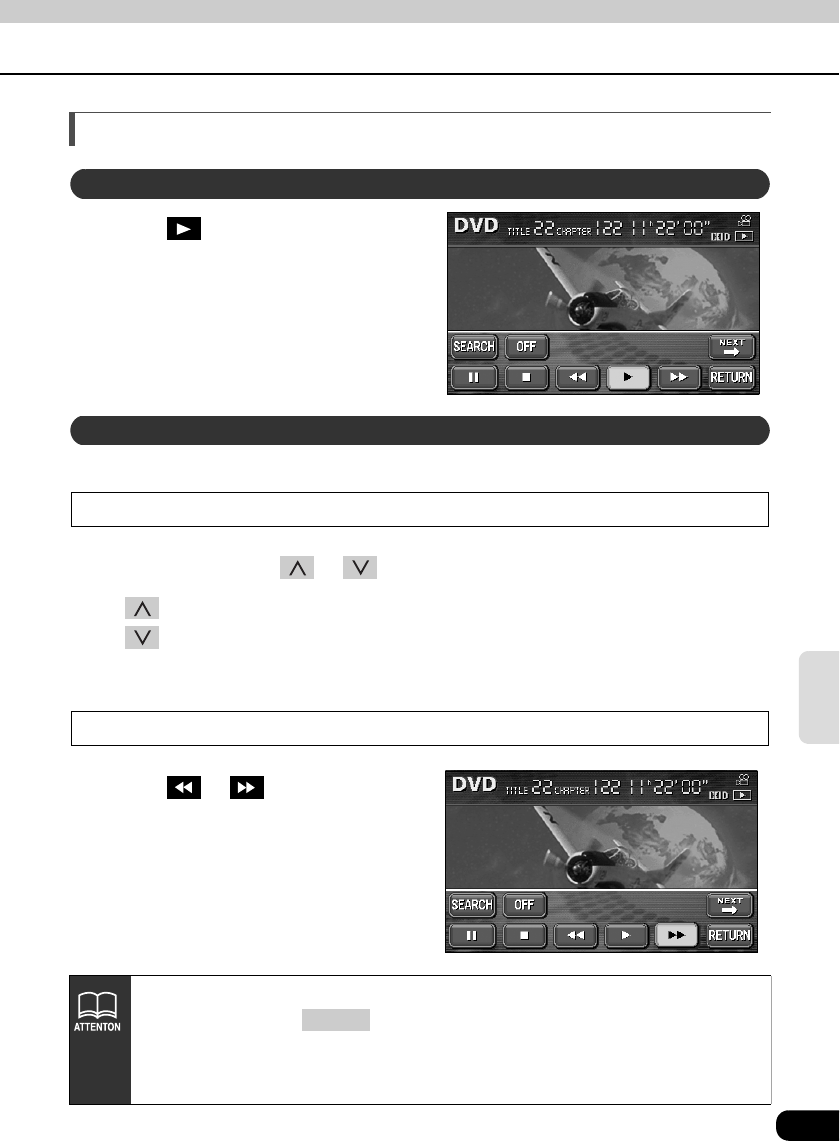
73
DVD
Operating the video
Touch .
It is possible to fast-forward or rewind through the video being played.
Using panel button
Press and hold the or switch until a beep is heard.
• (up): Advances the video
(down): Rewinds the video
• The deck switches to the fast-forward (rewind) mode when the beep is heard and will
continue fast-forwarding (rewinding) until your finger is removed from the switch.
Fast-forwarding/rewinding using the touch switches
Touch or .
• The deck switches to the fast-forward
(rewind) mode when the beep is heard
and will continue fast-forwarding
(rewinding) until your finger is removed
from the switch.
Playing the video
Fast-forwarding/rewinding
• Information for items such as touch switches will be displayed for about 6
seconds. Pressing or touching the screen will display them again.
• Depending on the disc, automatic playback may not function or playback may
not function unless a menu recorded on the disc is selected. (Refer to
"Operating the disc menu" on page 75.)
CONT
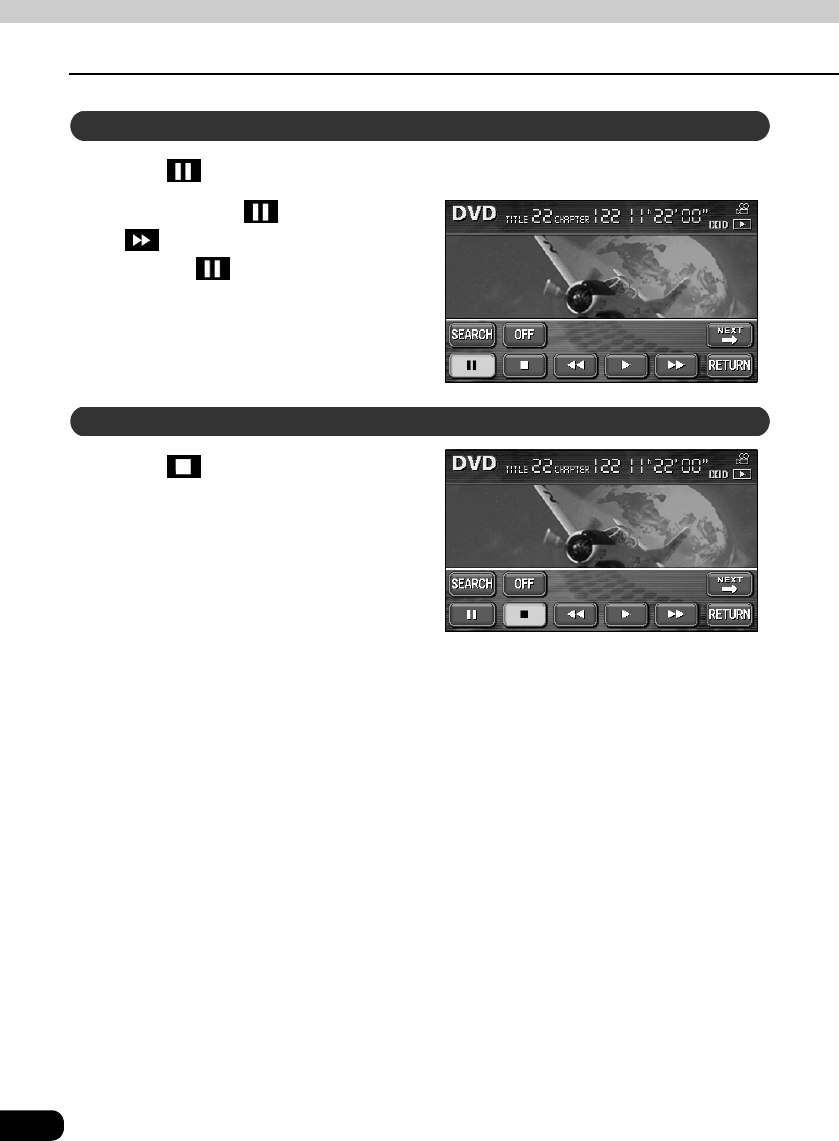
74
How to use the DVD player
How to operate the DVD player
Touch .
• While paused ( ), briefly touching
will play in slow motion and
touching will play frame-by-
frame.
Touch .
Pausing the video
Stopping the video
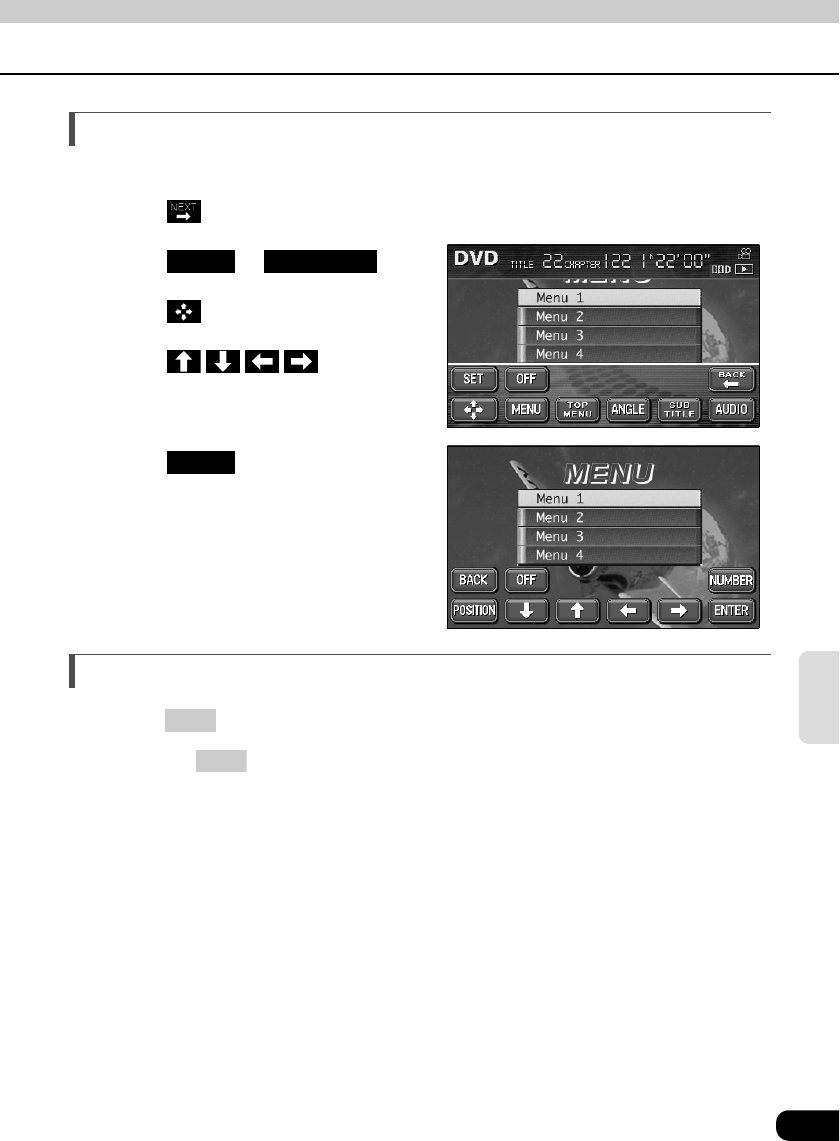
75
DVD
Operating the disc menu
It is possible to use the menu recorded on the disc.
Touch on the DVD operation screen.
Touch or .
Touch .
Touch and select
the video to play.
Touch .
Turning off the DVD
Press .
• Pressing again will start playing.
MENU TOP MENU
ENTER
PWR
PWR
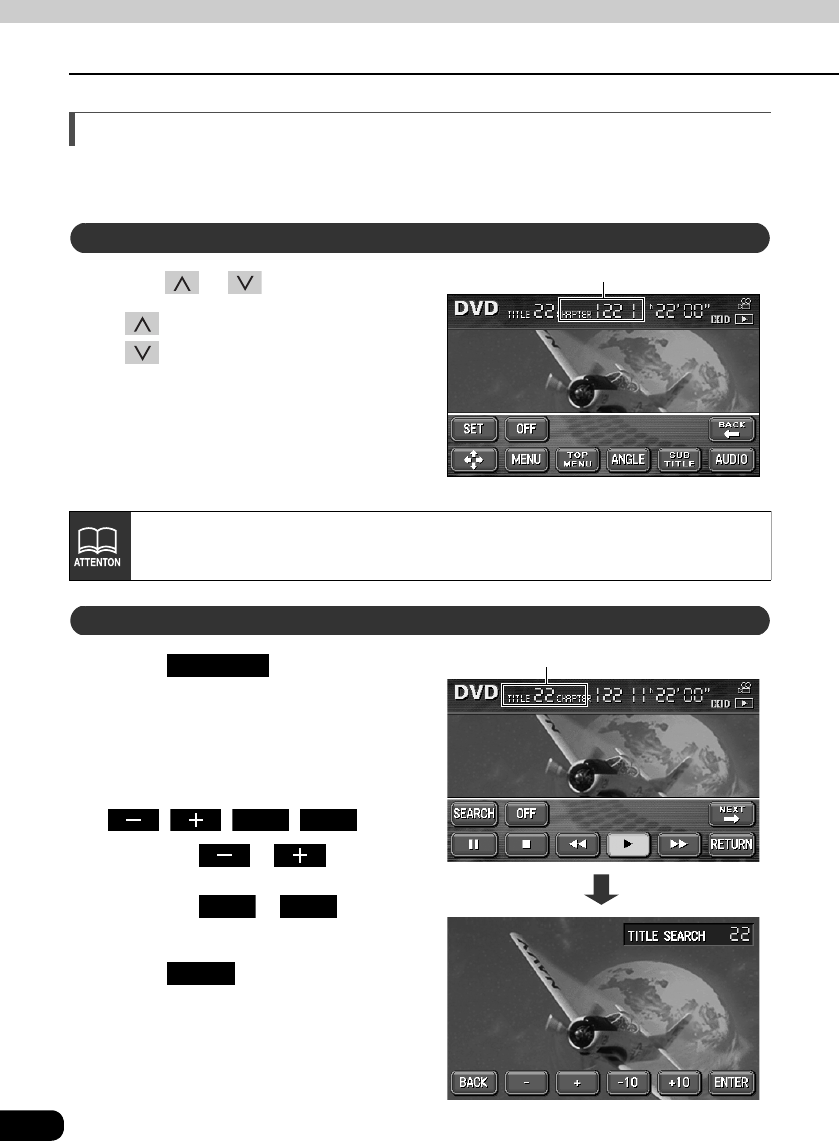
76
How to use the DVD player
How to operate the DVD player
Searching for a desired chapter
It is possible to search for a particular video segment by title and chapter or by menu number
(number for divided segments).
Press or .
• (up):
Selects next chapter
(down):
Selects previous chapter
Touch on the DVD
operation screen.
• The title number input screen will be
displayed.
Input the title number by touching
, , , .
• Touching or changes
the title number by ones.
• Touching or changes
the title number by tens.
Touch .
Searching by chapter
Chapter number
Recorded menu items will differ by disc. Some functions may not perform during
operation because playback is following disc content specifications.
Searching by title number
Title number
SEARCH
-10 +10
-10 +10
ENTER
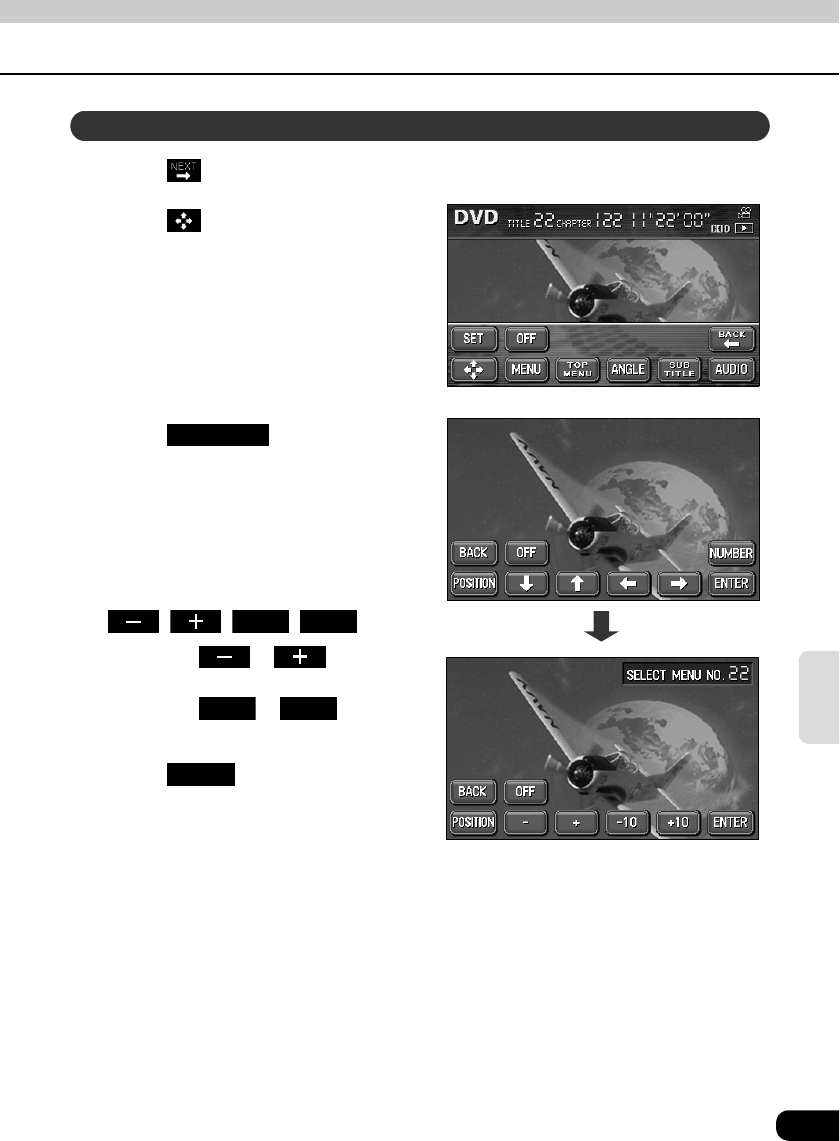
77
DVD
Touch on the DVD operation screen.
Touch .
Touch .
• The menu number input screen will be
displayed.
Input the menu number by touching
, , , .
• Touching or changes
the menu number by ones.
• Touching or changes
the menu number by tens.
Touch on the DVD
operation screen.
Searching by menu number
NUMBER
-10 +10
-10 +10
ENTER
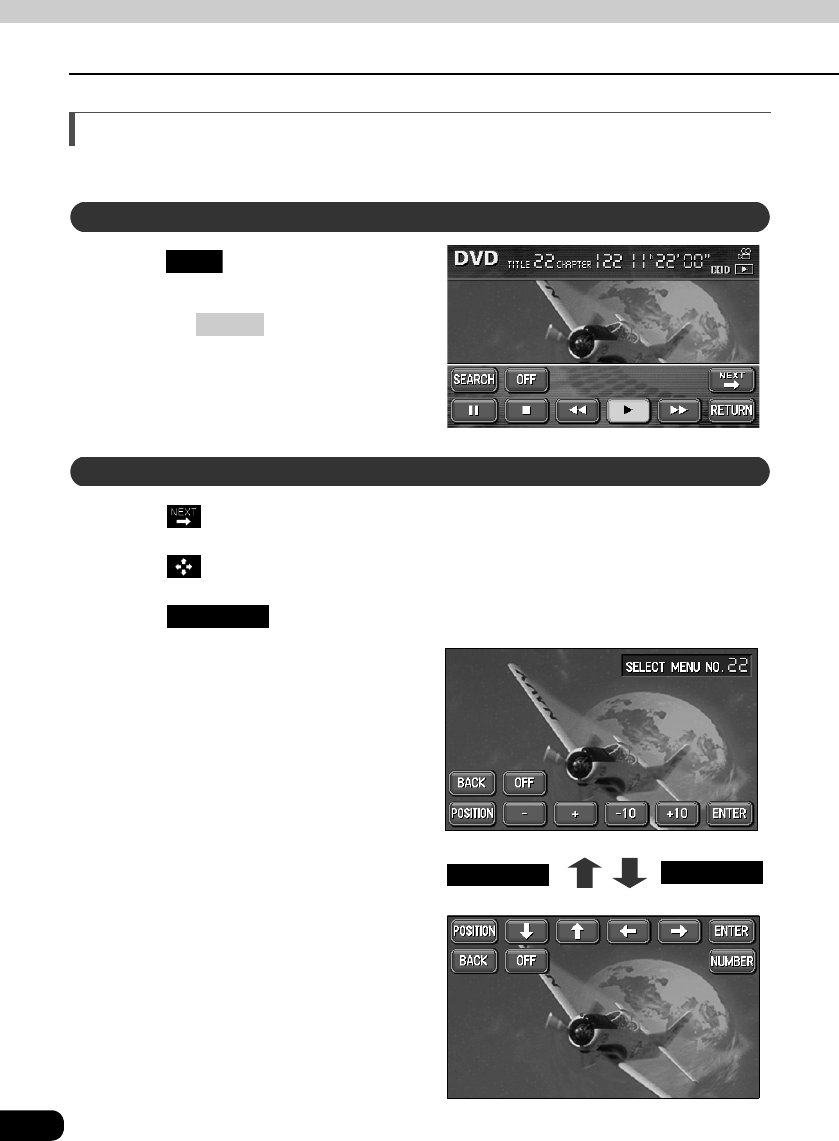
78
How to use the DVD player
How to operate the DVD player
Changing the touch switch display
Display of the touch switches can be changed or turned off.
Touch on the DVD operation
screen.
• Pressing or the touching the
screen will display the touch switches
again.
Touch on the DVD operation screen.
Touch .
Touch .
• The position of the touch switch will
move up or down with each touch of
the screen.
Turning off the touch switches
OFF
CONT
Changing the touch switch display locations
POSITION
POSITIONPOSITION POSITION
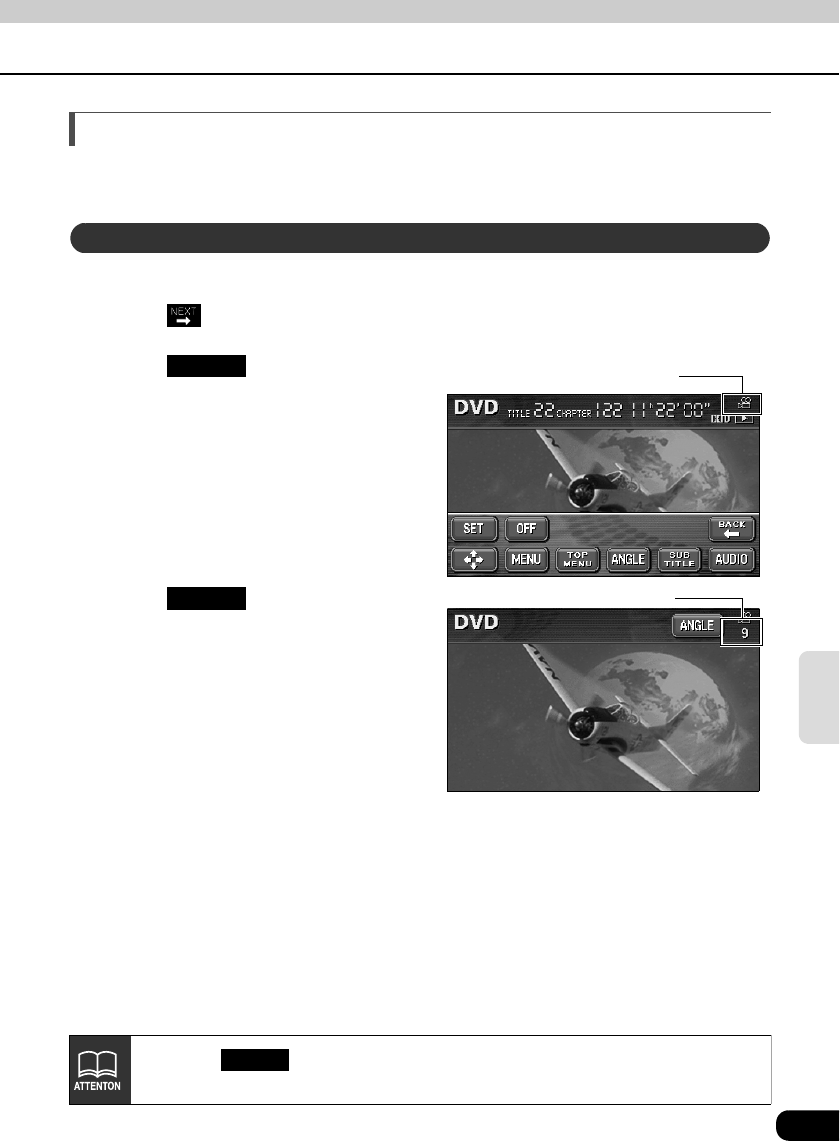
79
DVD
Switching between screen display and audio
It is possible to change the language for subtitles, the language for audio and the display
angle for the video being played.
When several angles of a scene are recorded on a disc, the angle can be switched.
Touch on the DVD operation screen.
Touch when the multi-
angle mark is displayed.
• The angle number will be displayed.
Touch .
• The angle number will change and the
angle of the video will be switched.
Switching the video angle
Multi-angle mark
ANGLE
Angle number
ANGLE
Each time is pressed, the angle will change in order from among the
angles recorded on the disc.
ANGLE
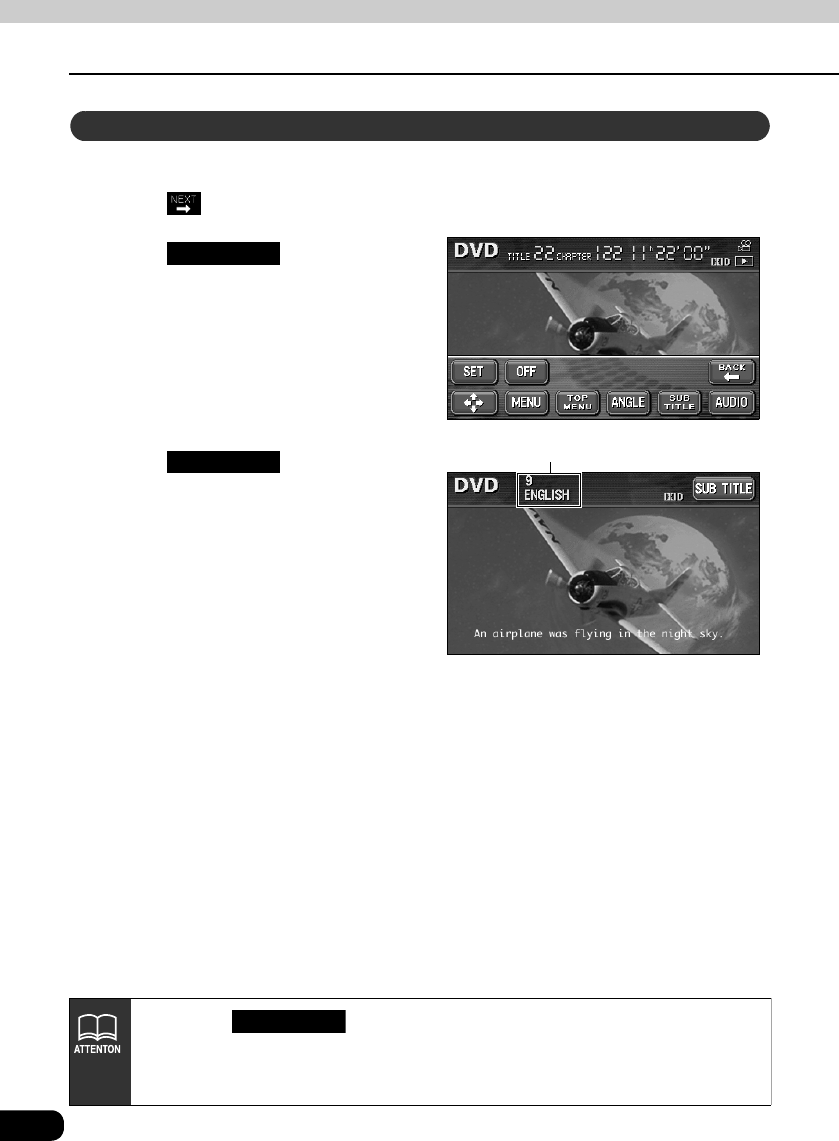
80
How to use the DVD player
How to operate the DVD player
When subtitles in several languages are recorded on a disc, the subtitles can be switched.
Touch on the DVD operation screen.
Touch .
• The subtitle number and language will
be displayed.
Touch .
• Switches the subtitle number each
time the touch switch is touched and
switches the displayed subtitle
language.
Switching subtitle languages
SUB TITLE
Subtitle number and language
SUB TITLE
• Each time is pressed, the subtitle language will change in order
from among the subtitles recorded on the disc.
• Depending on the disc, it may only be possible to change subtitles from the top
menu.
SUB TITLE
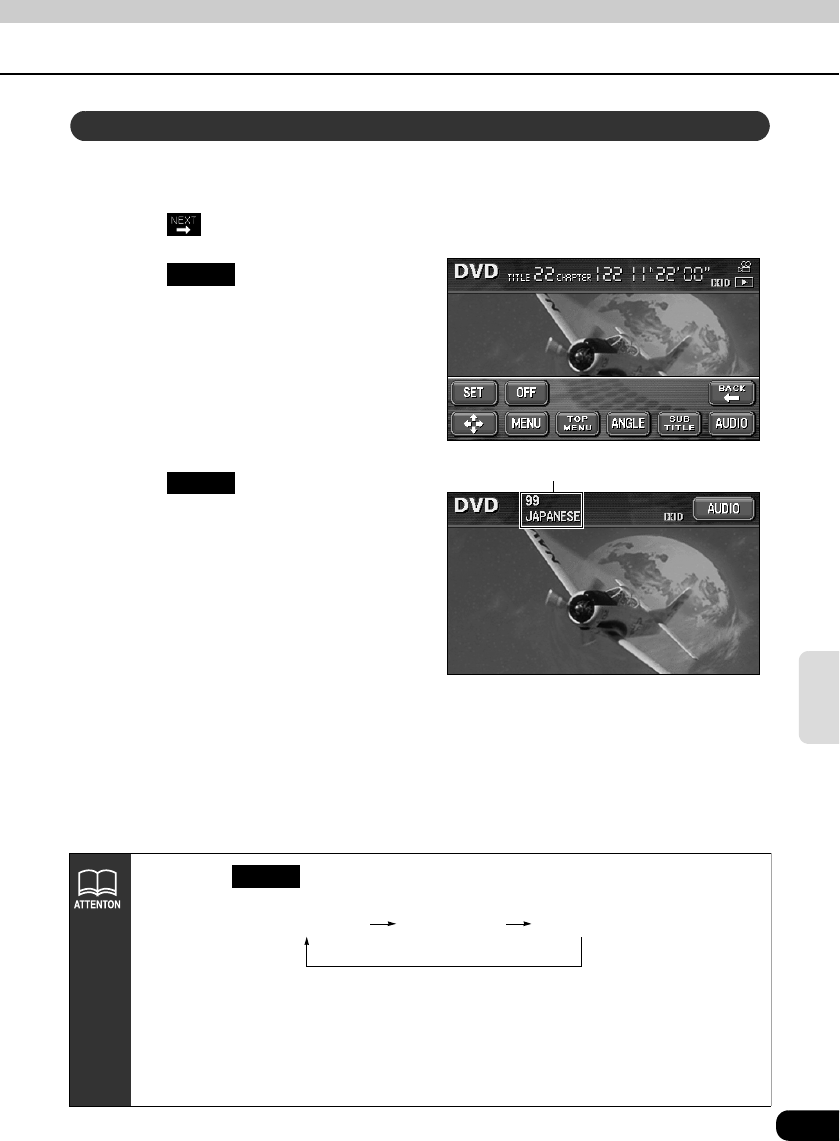
81
DVD
When dubbed voices in several languages are recorded on a disc, the voices can be
switched.
Touch on the DVD operation screen.
Touch .
• The audio number and language will
be displayed.
Touch .
• The audio number will change and the
language of voices being played will
be switched.
Switching dubbed audio language
AUDIO
Audio number and language
AUDIO
• Each time is pressed, the audio language will change in order from
among the languages recorded on the disc.
• Depending on the disc, it may only be possible to change the language from the
top menu.
• The dts format is not supported by this deck, so no audio will be emitted when
"dts audio" is selected by a disc having dts audio recorded on it. In this case,
select "Dolby Digital audio" from that is definitely recorded on the DVD video.
• dts is a registered trademark of the US company Digital Theater Systems, Inc.
AUDIO
Language 1 Language 2 Language...
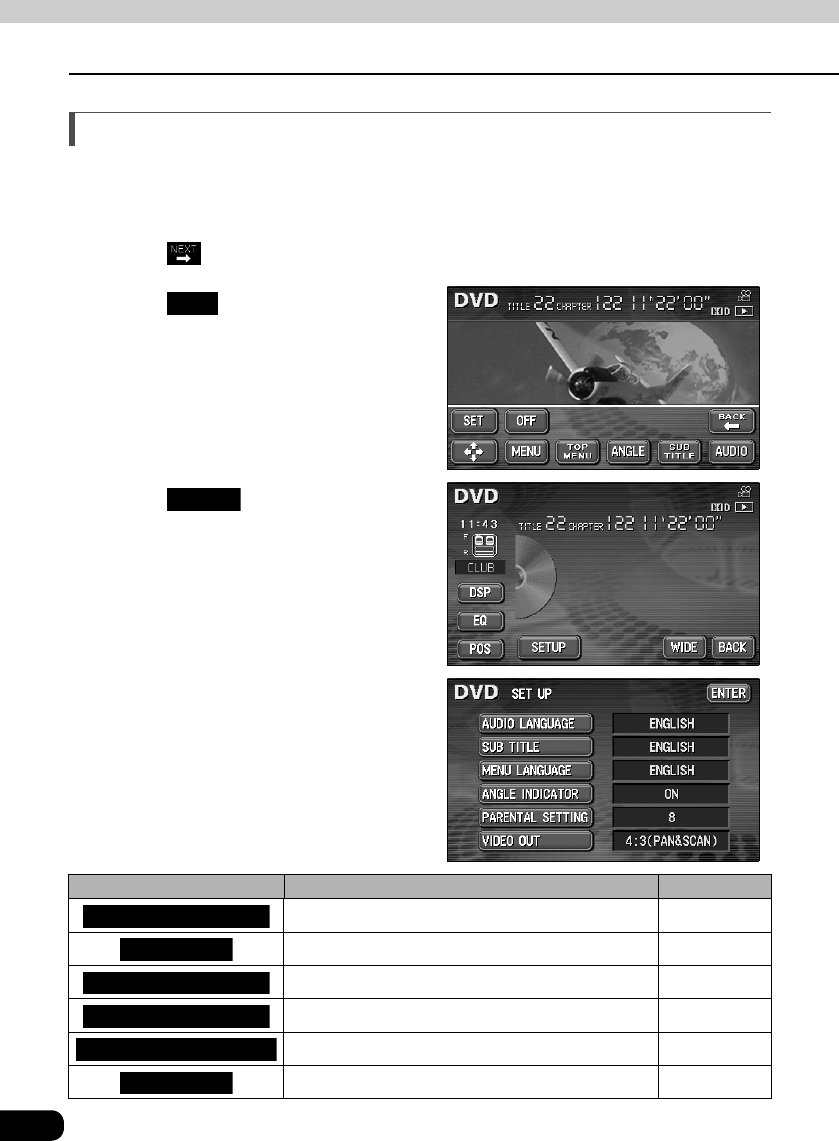
82
How to use the DVD player
How to operate the DVD player
Setting the DVD player
The language preference for voices, subtitles and menu display used during DVD playback
can be set in advance. Optional display of the multiple angle mark, viewer restriction and
other functions can also be set.
Touch on the DVD operation screen.
Touch .
Touch .
• The SET UP screen will be displayed.
Touch any of the touch switches.
Settings can be made for the
following items.
Touch switch Function Page
Sets the language of voices for video playback. 83
Sets the language of subtitles for video playback. 84
Sets the language of displayed menus. 85
Sets display/non-display of multiple angle mark. 86
Restricts the types of DVD videos that can be played. 87
Sets screen size. 88
SET
SETUP
AUDIO LANGUAGE
SUB TITLE
MENU LANGUAGE
ANGLE INDICATOR
PARENTAL SETTING
VIDEO OUT
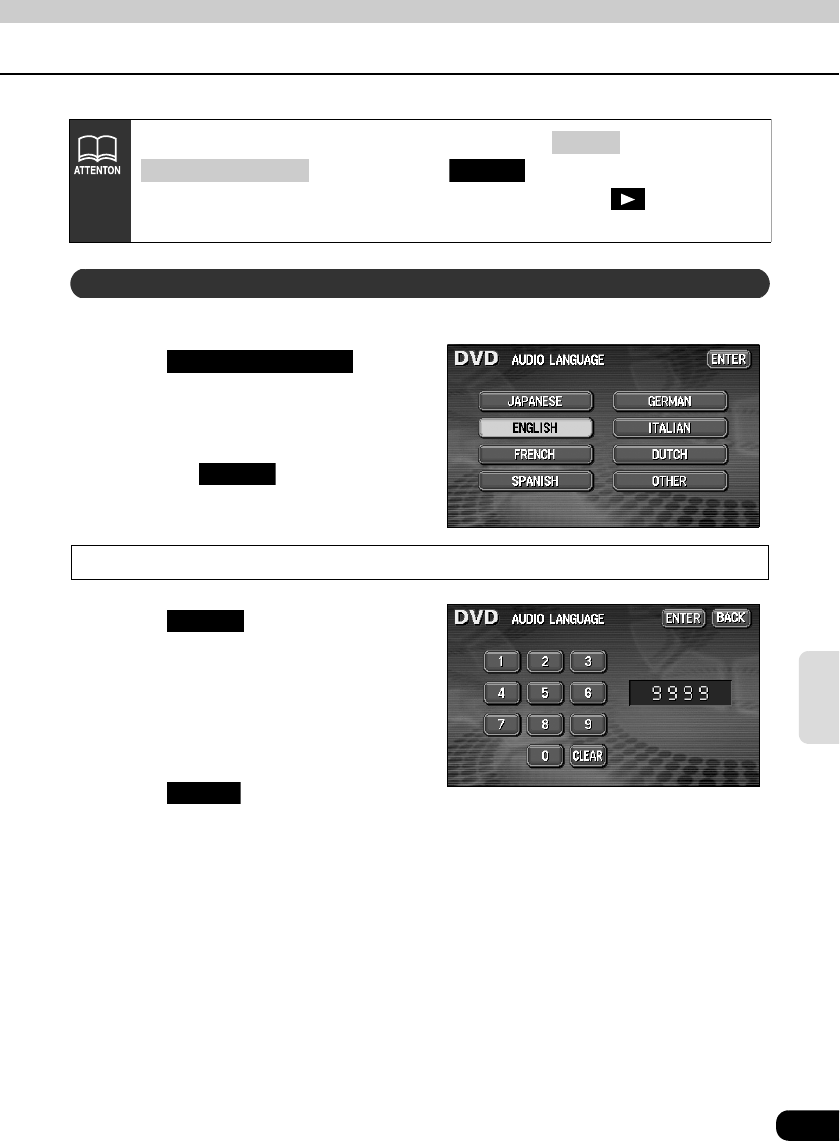
83
DVD
The preferred language for the video being played can be selected.
Touch on the
SET UP screen.
Touch the preferred language.
• Touching enables setting of
a language other than those displayed
on the screen.
Input a code
Touch on the AUDIO
LANGUAGE setting screen.
Input a language code.
• Refer to "Table of language codes" on
page 89 for language codes.
Touch .
Pressing one of the switches that can switch screens ( or
) without touching after changing settings with
the default setting screen will stop playing of the DVD. Touch on the
operation screen to start playback again. (Refer to page 72.)
CONT
(AUDIO) SOURCE ENTER
Setting the audio language
AUDIO LANGUAGE
OTHER
OTHER
ENTER
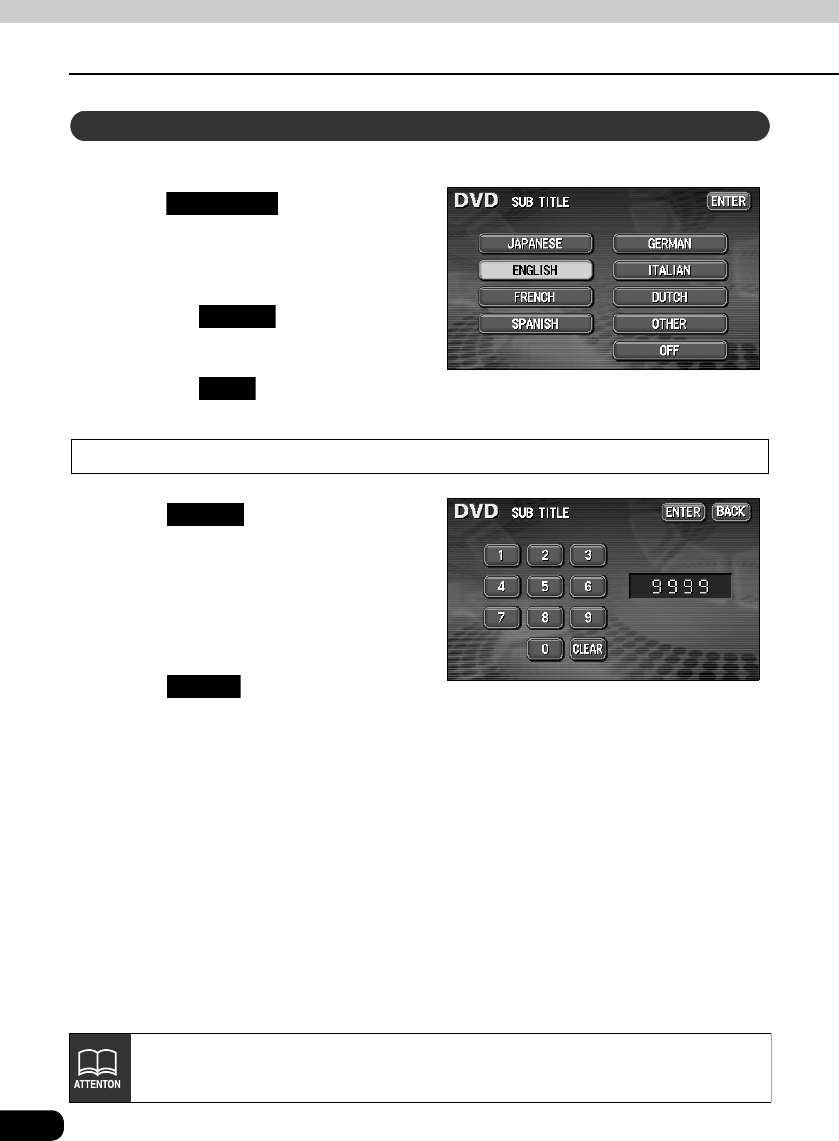
84
How to use the DVD player
How to operate the DVD player
The preferred subtitles for the video being played can be selected.
Touch on the SET UP
screen.
Touch the preferred language.
• Touching enables setting of
a language other than those displayed
on the screen.
• Touching plays the video with
no subtitles on the screen.
Input a code
Touch on the SUB TITLE
setting screen.
Input a language code.
• Refer to "Table of language codes" on
page 89 for language codes.
Touch .
Subtitle language setting
SUB TITLE
OTHER
OFF
OTHER
ENTER
Language switching cannot be performed if the selected language is not
recorded on the disc.
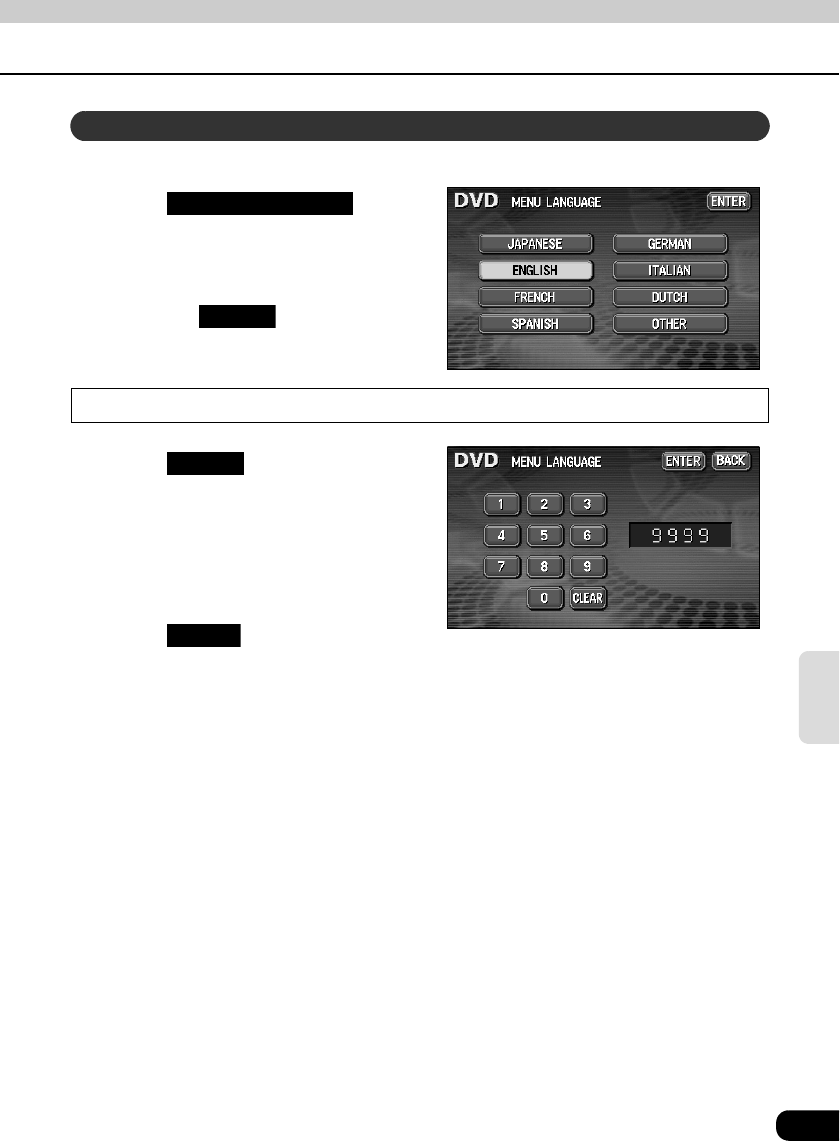
85
DVD
Allows selection of a preferred menu language from those recorded on the disc.
Touch on the
SET UP screen.
Touch the preferred language.
• Touching enables setting of
a language other than those displayed
on the screen.
Input a code
Touch on the MENU
LANGUAGE setting screen.
Input a language code.
• Refer to "Table of language codes" on
page 89 for language codes.
Touch .
Menu language setting
MENU LANGUAGE
OTHER
OTHER
ENTER
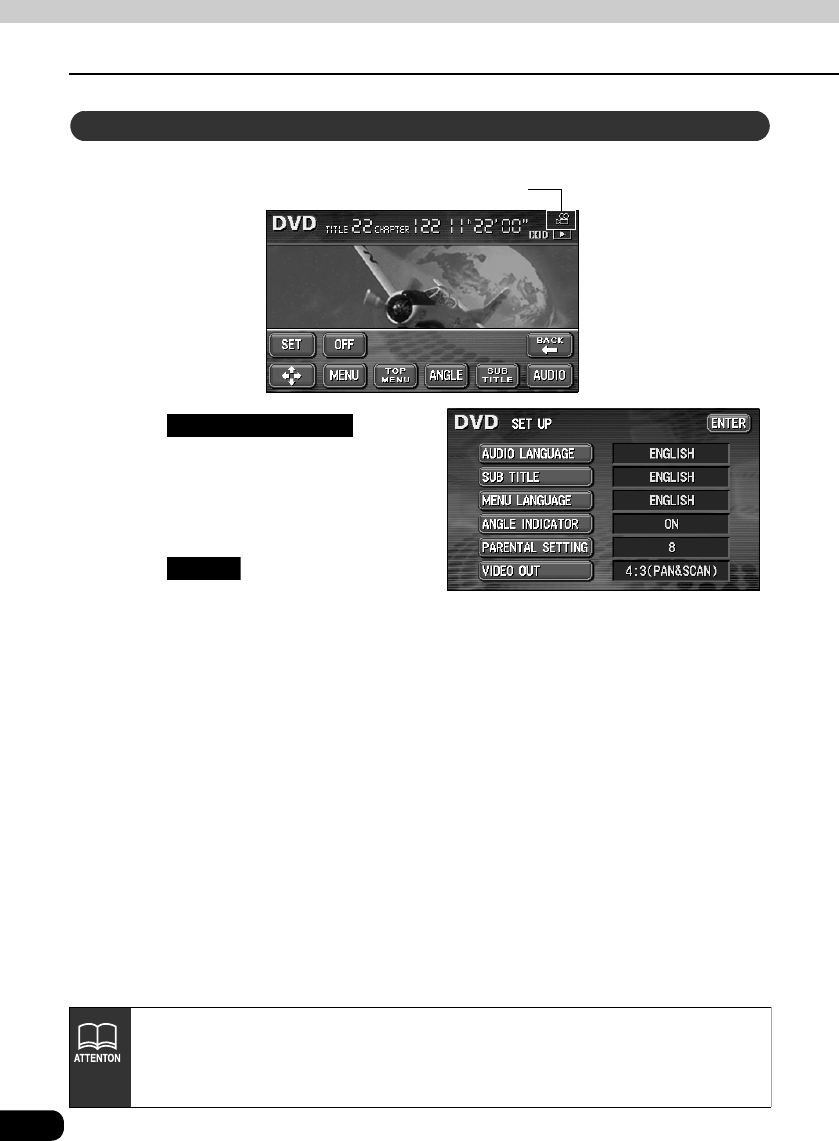
86
How to use the DVD player
How to operate the DVD player
The multi-angle mark can be set to display/not display for the video being played.
Touch on the
SET UP screen.
• Each time ANGLE INDICATOR is
pressed, the condition will switch
between "ON" and "OFF".
Touch .
Setting display of multi-angle mark (angle selection mark)
Multi-angle mark
ANGLE INDICATOR
ENTER
• Language switching cannot be performed if the selected language is not
recorded on the disc.
• Setting multi-angle mark display to "ON" will display the multi-angle mark in the
upper right corner of the screen when multiple angles are available on the disc.
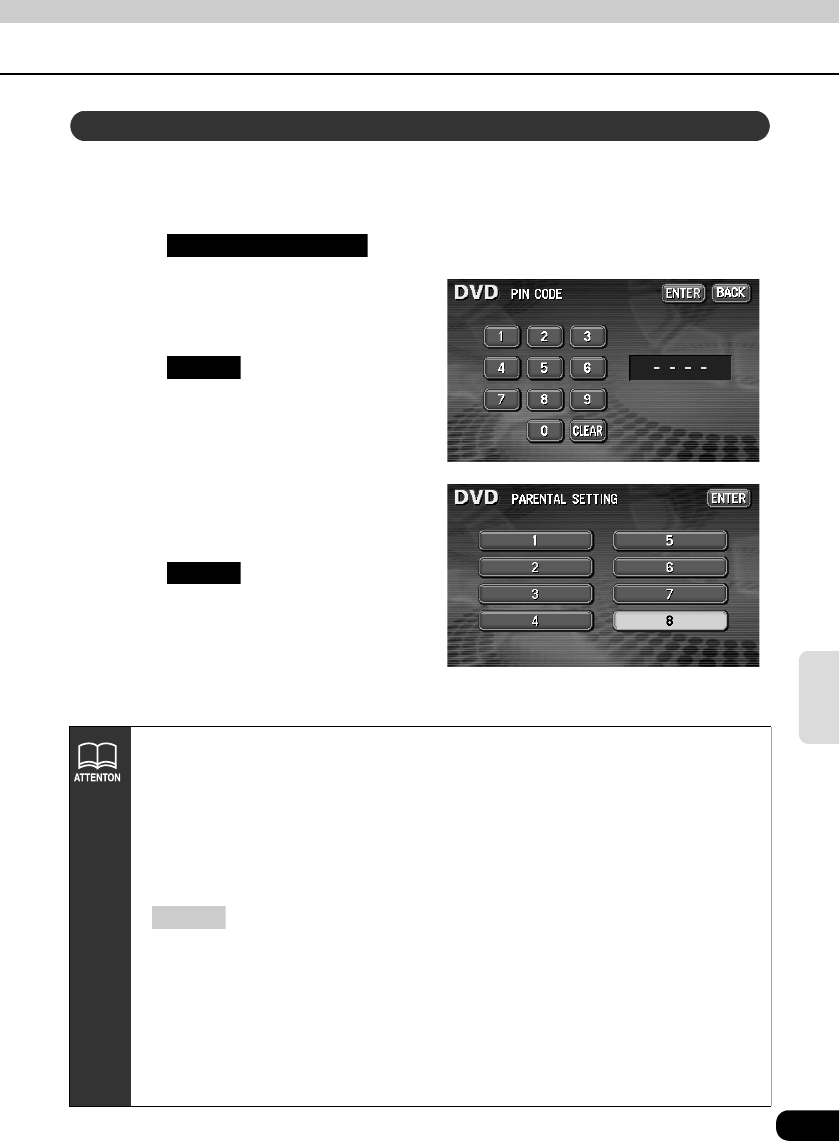
87
DVD
This function allows restriction of viewing so that discs with adult themes or violent scenes will
not be available to children. Viewer restriction can be set at different levels to match
restriction ratings.
Touch on the SETUP screen.
Enter a password (4 digits) by
touching one number at a time.
Touch .
Touch the preferred restriction
level.
Touch .
Viewer restriction setting
PARENTAL SETTING
ENTER
ENTER
• Restriction cannot be set for discs not having a viewer restriction level recorded.
• Be sure to enter a password number. If a number is not entered, setting of
viewer restriction will not be possible.
• The password to be shown in the upper section will be displayed as ---- when a
password has not yet been set.
• Once the password has been set, the password will be required for subsequent
use of this function. Please do not forget the password. If the password is
forgotten, the default condition (no password set) can be restored by touching
10 times.
• Viewer restriction levels are classified in 3 types.
Level 1 ................. Plays only DVD software intended for children. (Playing of
DVD software intended for general audiences or adult
audiences is prohibited.)
Level 2 - 7 ............ Plays only DVD software intended for children or general
audiences. (Playing of DVD software intended for adult
audiences is prohibited.)
Level 8 ................. Plays all DVD software. (Factory setting)
CLEAR
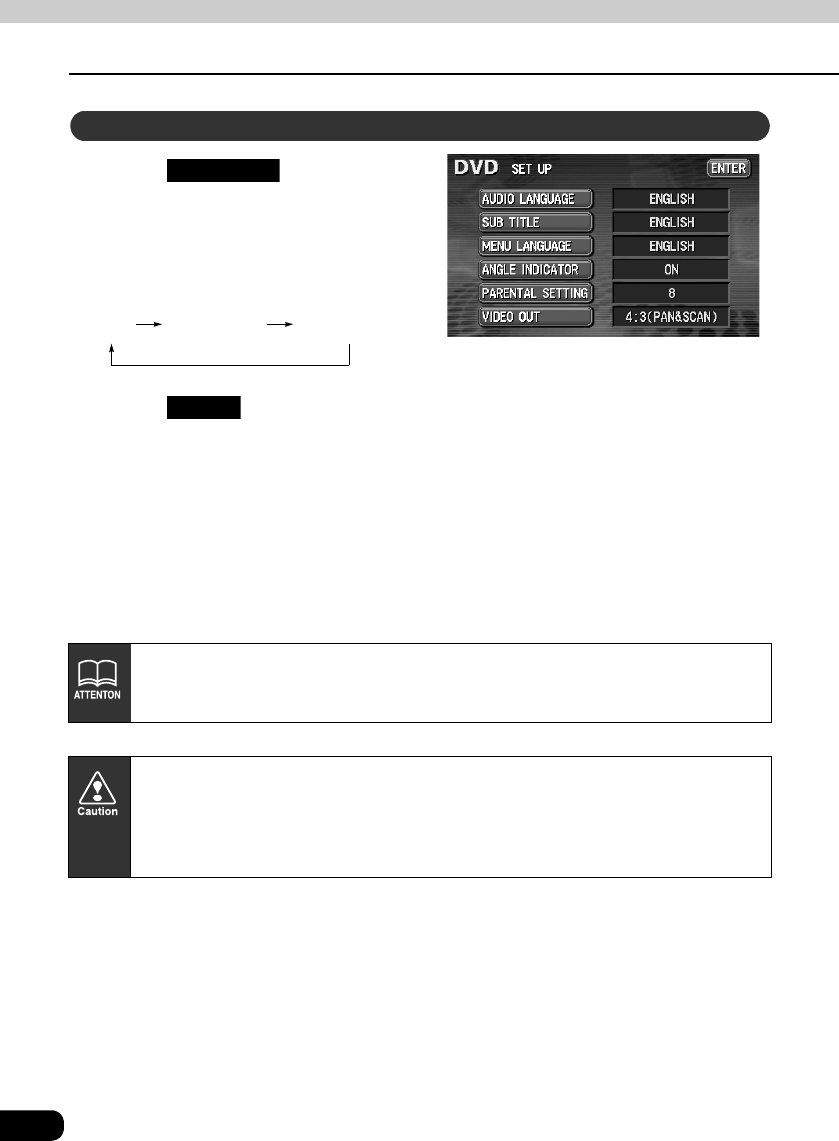
88
How to use the DVD player
How to operate the DVD player
Touch on the SETUP
screen.
• Each time VIDEO OUT is pressed, the
screen size will be changed in the
order shown below.
Touch .
• 16:9
The video is displayed in normal wide size. DVD software recorded in 4:3 size will be
displayed with black left and right edges or will be expanded to the left and right.
• 4:3 (letter box)
The video is displayed with black upper and lower edges.
DVD software recorded in 4:3 size will be displayed exactly at screen size (4:3).
• 4:3 (pan & scan)
The video is displayed with right and left edges cut off. DVD software recorded in 4:3
size will be displayed exactly at screen size (4:3).
When another monitor such as the rear seat monitor is being used, the size of the
video being displayed in the rear seat monitor will differ according to the video
output size that is set by the deck (front).
Viewing of wide screen modes is permitted when limited to the personal
entertainment of the user, but caution is needed because using technologies such
as image compression and expansion for the purpose of commercial benefit or
public presentation may infringe upon the rights of the copyright holder being
protected by applicable copyright law.
Changing video output
VIDEO OUT
16:9 4:3
letter box
4:3
pan & scan
ENTER
89
DVD
Table of language codes
These codes are used to specify the language for audio tracks, subtitles and on-screen
menu displays.
Input
code Language Input
code Language Input
code Language
1001 Japanese 0801 Hausa 1721 Quechua
0514 English 0809 Hindi 1813 Rhaeto-Romance
0618 French 0818 Croatian 1814 Kirundi
0405 German 0821 Hungarian 1815 Romanian
0920 Italian 0825 Armenian 1823 Kinyarwanda
0519 Spanish 0901 Interlingua 1901 Sanskrit
1412 Dutch 0905 Interlingue 1904 Sindhi
1821 Russian 0911 Inupiak 1907 Sangho
2608 Chinese 0914 Indonesian 1908 Serbo-Croatian
1115 Korean 0919 Icelandic 1909 Sinhalese
0512 Greek 0923 Hebrew 1911 Slovak
0101 Afar 1009 Yiddish 1912 Slovenian
0102 Abkhazian 1023 Javanese 1913 Samoan
0106 Afrikaans 1101 Georgian 1914 Shona
0113 Amharic 1111 Kazakh 1915 Somali
0118 Arabic 1112 Greenlandic 1917 Albanian
0119 Assamese 1113 Cambodian 1918 Serbian
0125 Aymara 1114 Kannada 1919 Siswati
0126 Azerbaijani 1119 Kashmiri 1920 Sesotho
0201 Bashkir 1121 Kurdish 1921 Sundanese
0205 Byelorussian 1125 Kirghiz 1922 Swedish
0207 Bulgarian 1201 Latin 1923 Swahili
0208 Bihari 1214 Lingala 2001 Tamil
0209 Bislama 1215 Laothian 2005 Telugu
0214 Bengali 1220 Lithuanian 2007 Tajik
0215 Tibetan 1222 Latvian 2008 Thai
0218 Breton 1307 Malagasy 2009 Tigrinya
0301 Catalan 1309 Maori 2011 Turkmen
0315 Corsican 1311 Macedonian 2012 Tagalog
0319 Czech 1312 Malayalam 2014 Setswana
0325 Welsh 1314 Mongolian 2015 Maori
0401 Danish 1315 Moldavian 2018 Turkish
0426 Bhutani 1318 Marathi 2019 Tsonga
0515 Esperanto 1319 Malay 2020 Tatar
0520 Estonian 1320 Maltese 2023 Twi
0521 Basque 1325 Burmese 2111 Ukrainian
0601 Persian 1401 Nauru 2118 Urdu
0609 Finnish 1405 Nepali 2126 Uzbek
0610 Fiji 1415 Norwegian 2209 Vietnamese
0615 Faroese 1503 Provencal 2215 Volapuk
0625 Frisian 1513 Oromo 2315 Wolof
0701 Irish 1518 Oriya 2408 Xhosa
0704 Scots-Gaelic 1601 Panjabi 2515 Yoruba
0712 Galician 1612 Polish 2621 Zulu
0714 Guarani 1619 Afghan
0721 Gujarati 1620 Portuguese
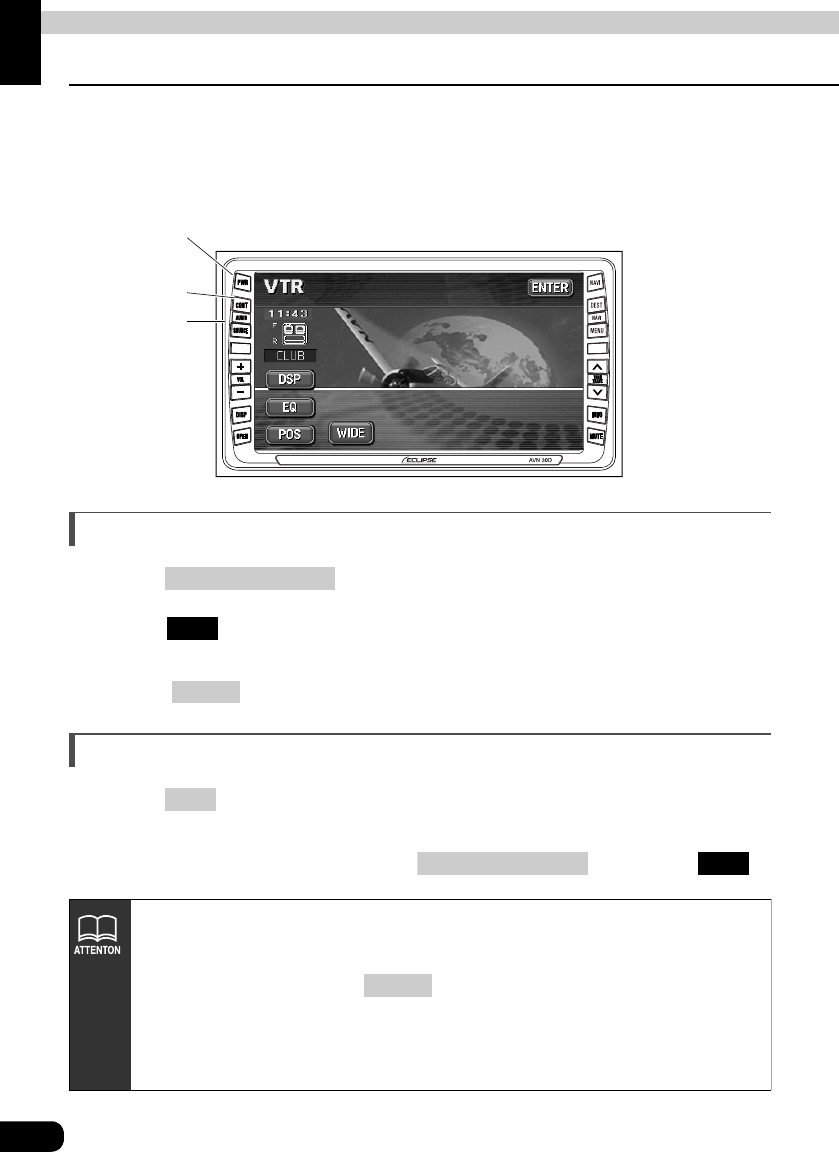
90
How to operate the VTR
How to use the VTR
Connecting a VTR deck enables watching of video tapes. Videos can be played only if the
vehicle is completely stopped in a safe location with the parking brake set and the ignition
switch turned to ON or ACC. (Only sound can be heard if a VTR is played while the car is in
motion.)
Viewing the VTR
Press .
Touch .
• The VTR screen will be displayed.
• Press or touch the screen to display the VTR operation screen.
Turning off the VTR mode
Press .
• Pressing PWR again will start playing
• Video can also be played by pressing and touching .
CONT button
SOURCE
button
Power button
(AUDIO) SOURCE
VTR
CONT
PWR
(AUDIO) SOURCE VTR
• A video tape can be watched when VTR deck is connected to this unit with the
optional connecting cord.
• After switching to the VTR operation screen, touch switches will be displayed for
about 6 seconds. Pressing will display them again.
• The VTR operation screen will be displayed by touching the screen, even when
the VTR is playing.
• Depending on the kind of devices connected, the video image may not be
displayed correctly.
CONT
91
VTR
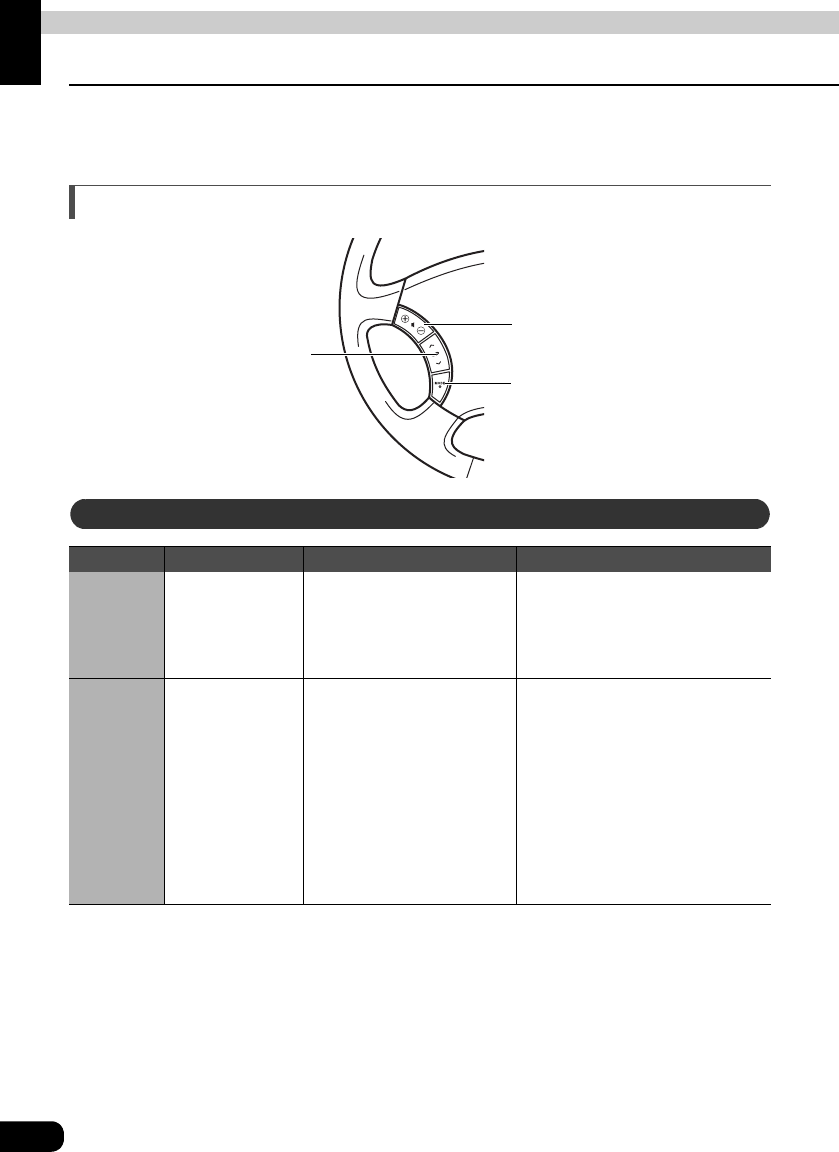
92
How to use the steering wheel switch
About the steering wheel switches
On vehicles equipped with steering wheel switches, these easy-access switches can be
used to perform the main audio and other operations.
Function names and summaries
Switch Name Function Explanation of operation
(+)
(–) Volume switch
Each momentary actuation
of these switches changes
the volume one step.
Hold a switch down for a
continuous volume change.
(+): Volume UP
(–) : Volume DOWN
(MODE) Mode selection
switch
• When the power is OFF,
pressing this switch turns
it ON.
• The mode changes.
AM → FM → CD →
MP3 → (CD changer) →
DVD → (VTR) →
SIRIUS → return to AM
• Press the switch until it
beeps to turn the power
OFF.
Each time (MODE) is pressed
while the power is ON, the mode
changes.
Channel selection (radio) switches
Track selection (CD/CD changer,
MP3 mode) switch
Chapter selection (DVD) switch
Volume switch
Mode selection switch
Common operations
93
Steering
Wheel Switch
Switch Name Function Explanation of operation
(∧)
(∨)
Channel
selection switch
• Calls up the preset
broadcast channels in
order.
• Pressing the switch until it
beeps starts automatic
channel selection.
Pressing (∧)/(∨) briefly:
Used to select the next
(previous) preset channel
Pressing (∧)/(∨) for longer:
Starts automatic channel
selection.
Switch Name Function Explanation of operation
(∧)
(∨)
Track selection
switches
Selects the next track or
previous track.
(∧): Used to select the next track.
(∨): Used to select the previous
track.
Switch Name Function Explanation of operation
(∧)
(∨)
Chapter selection
switches
Selects the next chapter or
previous chapter.
(∧): Used to select the next
chapter.
(∨): Used to select the previous
chapter.
Switch Name Function Explanation of operation
(∧)
(∨)
Track selection
switches
• Selects the next track or
previous track.
• Press the switch until it
beeps to go to the next
disc or previous disc.
Pressing (∧)/(∨) briefly:
Selects the next track or
previous track.
Pressing (∧)/(∨) for longer:
Selects the next disc or
previous disc.
Radio operations
CD/MP3 player operations
DVD operations
CD changer operation
94
How to use an optional remote control
How to use an optional remote control (1602)
The optional remote control is sold separately. Ask for one at the store of purchase.
Precautions in use of the remote control
• Be careful when handling the remote control, especially because it is small and
light. Dropping or striking it hard may damage it, wear out the battery or cause a
malfunction.
• Keep the remote control free of moisture, dust and water. Do not subject it to
shock.
• Do not place the remote control unit where it will get hot, such as on the
dashboard or near a heater vent. Allowing the remote control unit to overheat
may warp its case or cause other problems.
• Do not operate the remote control unit while driving because doing so could
cause an accident.
• When using the remote control, point it directly at the remote control light
receptor.
• The light receptor may not operate correctly if it is exposed to bright light such as
direct sunlight.
• Be sure to press the [PWR] button on the main unit for more than two seconds to
shut it down before leaving the car, or the car battery may be run down. When the
main unit is shut down, the remote control will not work.
• Remove the batteries from the remote control unit whenever it is not to be used
for a long time.
Cleaning the remote control
• Use a dry cloth to keep the unit clean. If the remote control unit gets extremely
dirty, clean it with a cloth moistened in diluted liquid detergent. Do not use
alcohol or thinner; these compounds may damage the finish.
• In no event should benzine or thinner be used. These substances will damage
the case or finish.
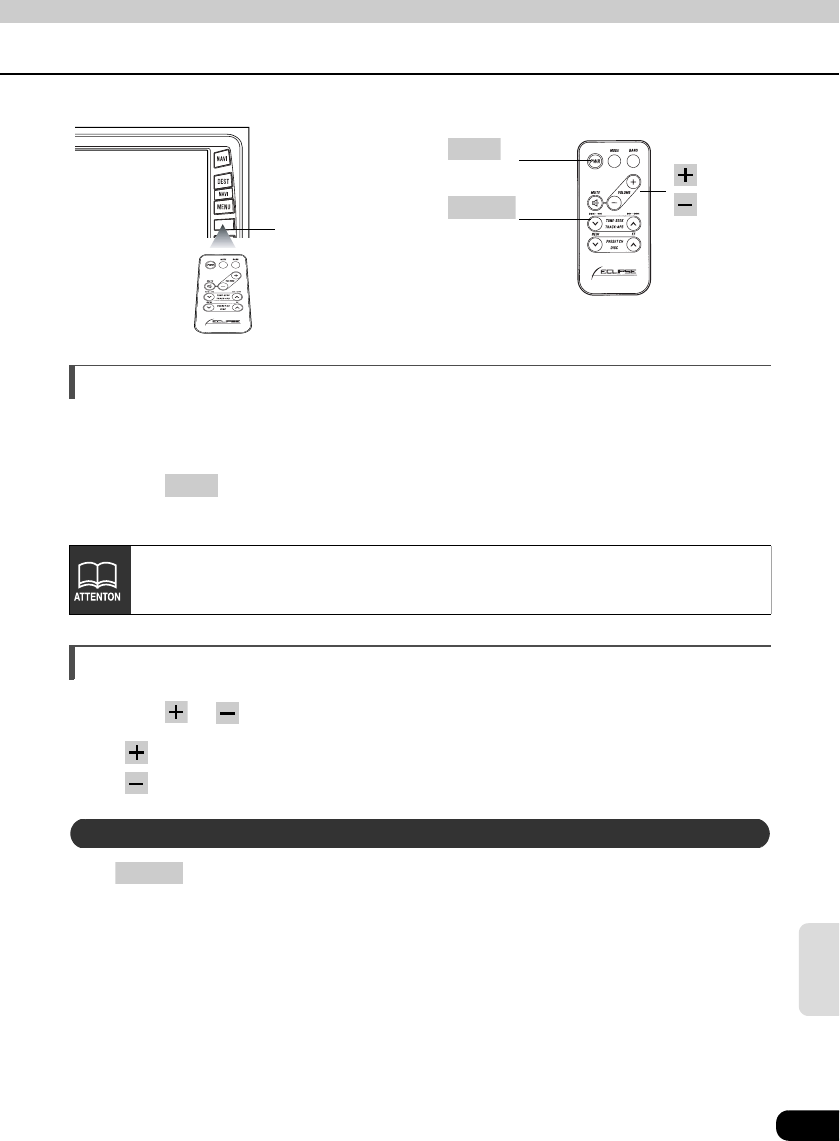
95
Remote
control
Turning the power on/off
When the power is turned on, the state used when the power was turned off such as CD and
tuner playing is restored.
Press .
• The power turns on or off each time the button is pressed.
Adjusting the audio volume
Press or .
• button : Increases the volume.
button : Decreases the volume.
Press to cut the volume or restore it instantly.
Remote-Control
light receptor
button
PWR
button
MUTE
button
button
PWR
When the main unit is shut down, the remote control will not work.
Muting the volume
MUTE
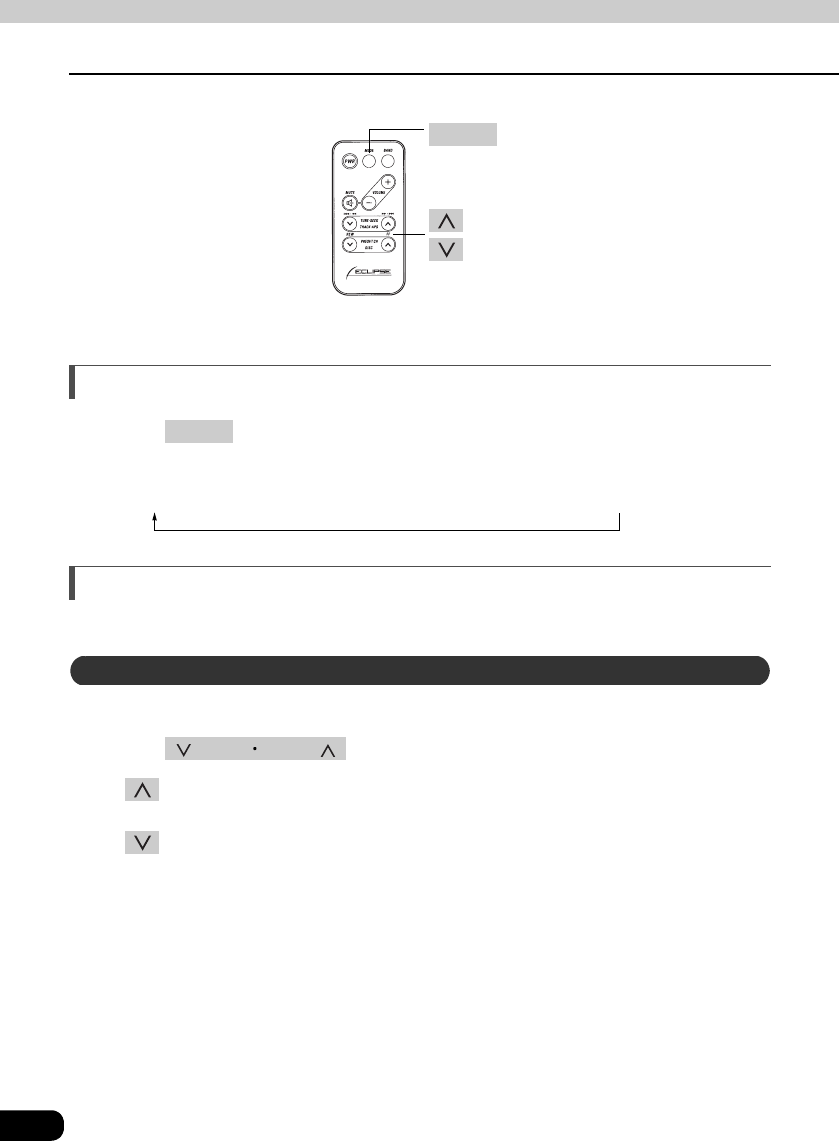
96
How to use an optional remote control (1602)
How to use an optional remote control
Switching playback modes
Press .
• Press the button to switch modes in the following sequence:
AM FM CD MP3 CD Changer DVD VTR SIRIUS
How to play the tuner
Select the tuner mode first.
A short press of the button will allow manual station tuning.
Press .
• button:
Tunes to higher frequency stations.
button:
Tunes to lower frequency stations.
button
MODE
button
button
MODE
Selecting a station (manually or automatically)
TUNE SEEK
97
Remote
control
A total of six stations may be selected (preset tuning) out of those already set in memory
through the main unit. (Refer to "Saving radio stations" on page 40.)
Press .
• button:
Select the next higher number preset button.
button:
Select the next lower number preset button.
Selecting preset stations
PRESET CH
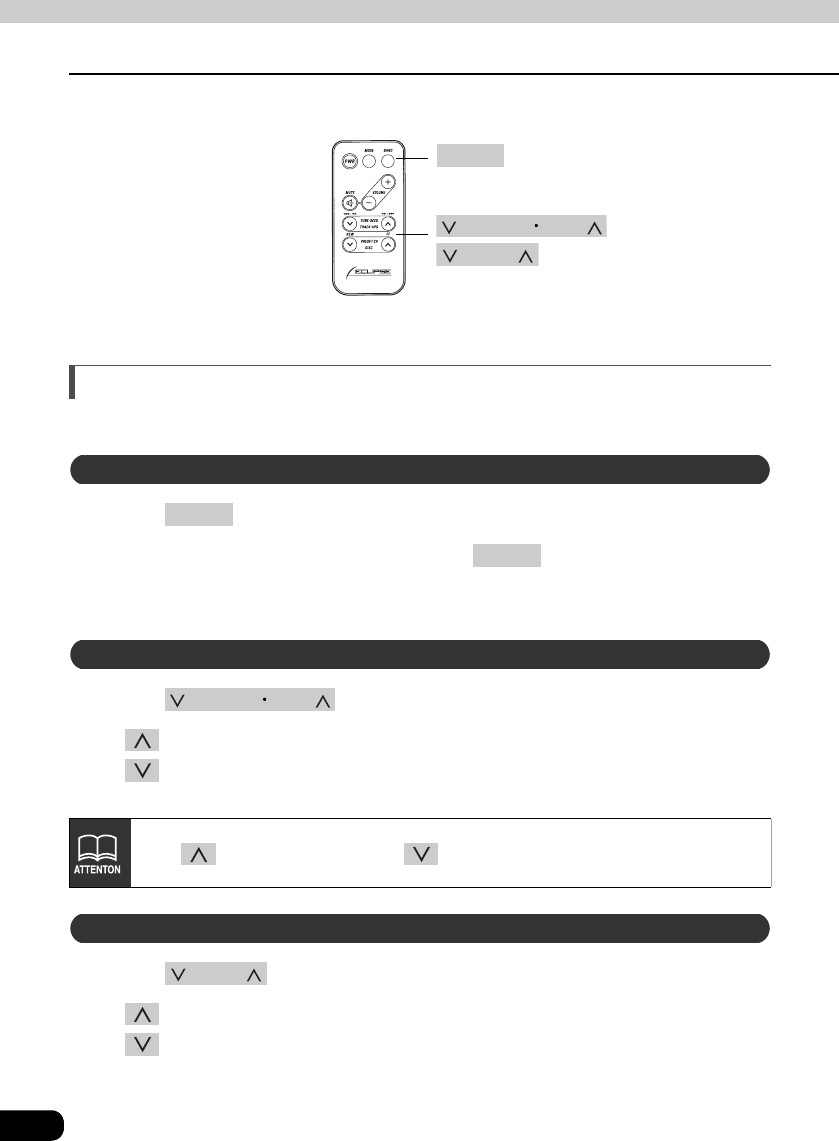
98
How to use an optional remote control (1602)
How to use an optional remote control
How to play CDs
Select the CD mode first.
Press .
When one or two CD changers are connected, press to change modes from CD
player → CD changer 1 → CD changer 2.
The indicator will skip a changer or player that has no discs loaded.
Press .
• button : Skips to the next track.
button : Returns to the beginning of the track being played. (Press repeatedly
to move to previous tracks.)
Press .
• button : Selects the next higher number disc.
button : Selects the next lower number disc.
button
BAND
button
button
TRACK APS
DISC
Switching disc modes
BAND
BAND
Advancing to the next track or returning to the beginning of the track being played
TRACK APS
Hold down to fast forward, or to rewind through the track being played.
Skipping to the next or previous disc
DISC
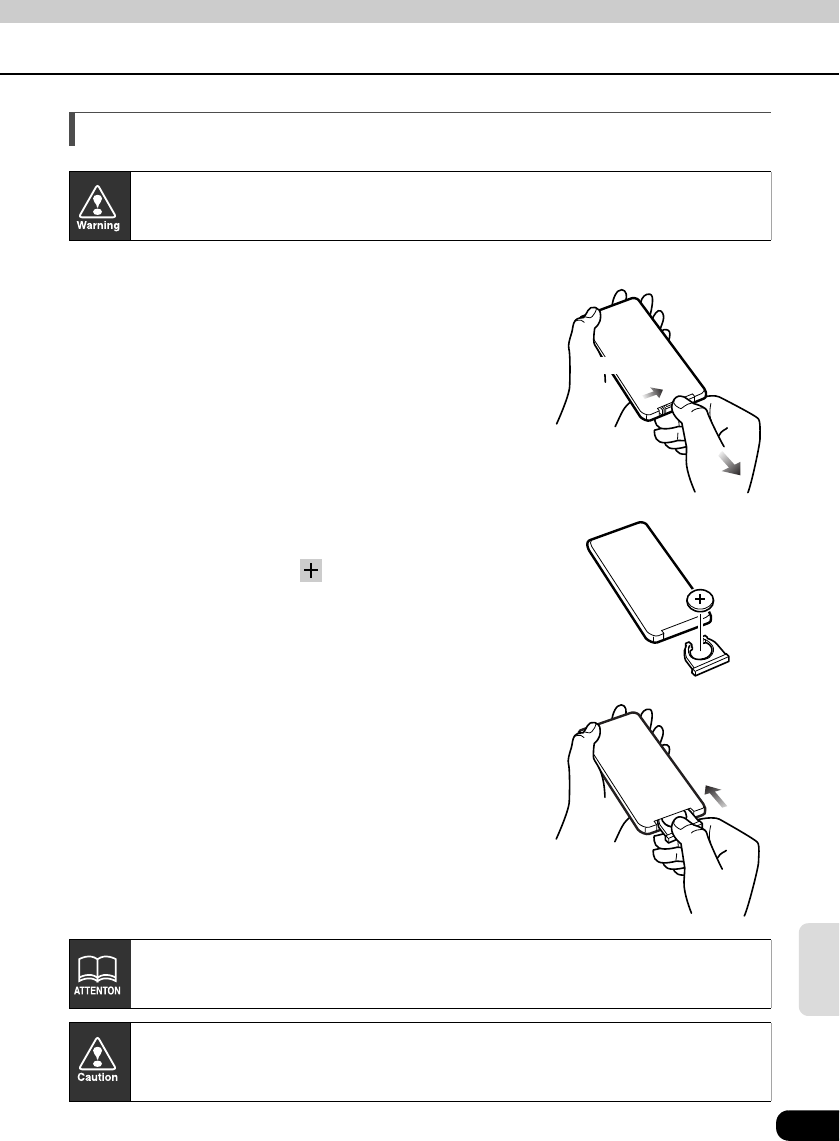
99
Remote
control
Replacing the battery
Use one CR2025 battery.
On the back of the remote control, while
pressing the locking knob on the battery slot
cover toward your right, pull out the battery
carrier with your fingernail.
Remove the old battery, then place the new one
in the carrier with the mark facing up.
Push in the carrier until it snaps into place.
To prevent accidents, store batteries out of the reach of children. If a child has
swallowed one, consult a doctor immediately.
Unlock
Be sure to orient the batteries correctly so that the positive and negative poles
match the diagram.
If any liquid is seen leaking from the battery, remove the battery and dispose of it
properly. Thoroughly clean the battery compartment with a dry cloth. Then install
new battery.
100
How to use an optional remote control
How to use an optional remote control (RMC105)
Precautions in use of the remote control
• Be careful when handling the remote control, especially because it is small and
light. Dropping or striking it hard may damage it, wear out the battery or cause a
malfunction.
• Keep the remote control free of moisture, dust and water. Do not subject it to
shock.
• Do not place the remote control unit where it will get hot, such as on the
dashboard or near a heater vent. Allowing the remote control unit to overheat
may warp its case or cause other problems.
• Do not operate the remote control unit while driving because doing so could
cause an accident.
• When using the remote control, point it directly at the remote control light
receptor.
• The light receptor may not operate correctly if it is exposed to bright light such as
direct sunlight.
• Be sure to press [PWR] on the main unit for more than two seconds to shut it
down before leaving the car, or the car battery may be run down. When the main
unit is shut down, the remote control will not work.
• Remove the batteries from the remote control unit whenever it is not to be used
for a long time.
Cleaning the remote control
• Use a dry cloth to keep the unit clean. If the remote control unit gets extremely
dirty, clean it with a cloth moistened in diluted liquid detergent. Do not use
alcohol or thinner; these compounds may damage the finish.
• In no event should benzine or thinner be used. These substances will damage
the case or finish.
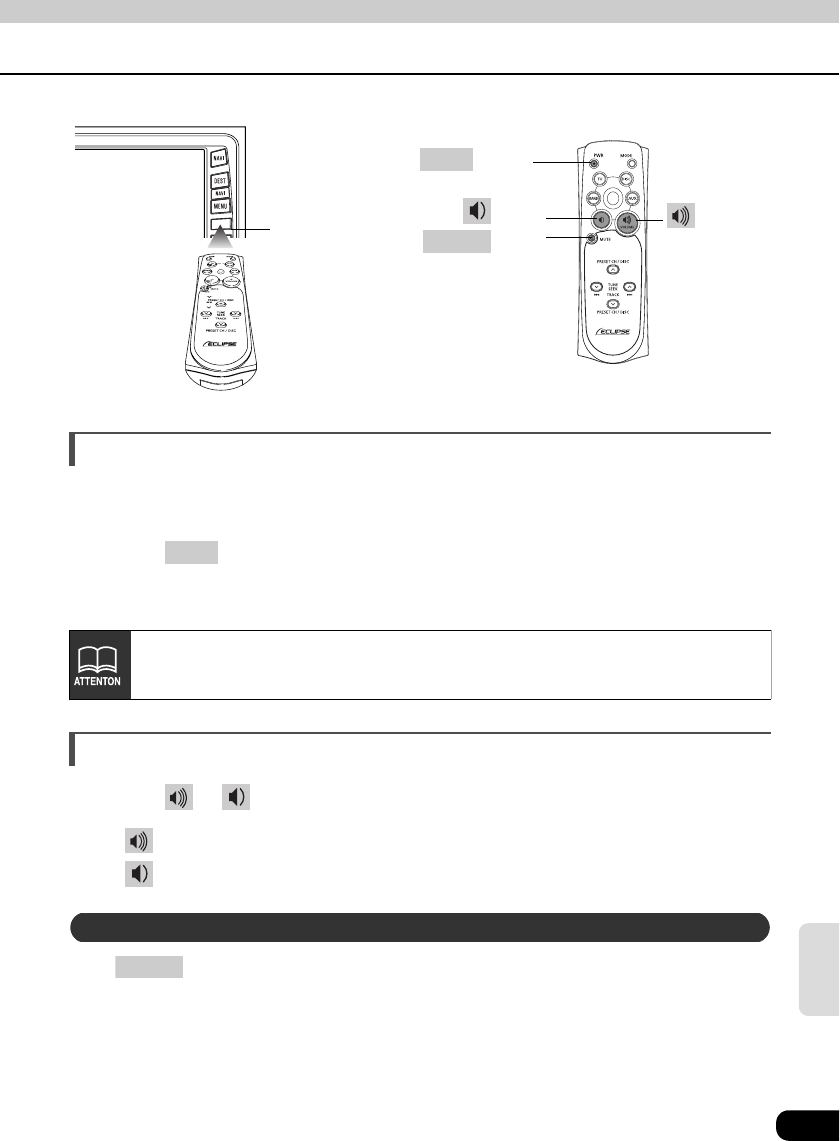
101
Remote
control
Turning the power on/off
When the power is turned on, the state used when the power was turned off such as CD and
tuner playing is restored.
Press .
• The power turns on or off each time the button is pressed.
Adjusting the audio volume
Press or .
• button: Increases the volume.
button: Decreases the volume.
Press to cut the volume or restore it instantly.
Remote-Control light
receptor
button
PWR
button
MUTE
button
button
PWR
When the main unit is shut down, the remote control will not work.
Muting the Volume
MUTE
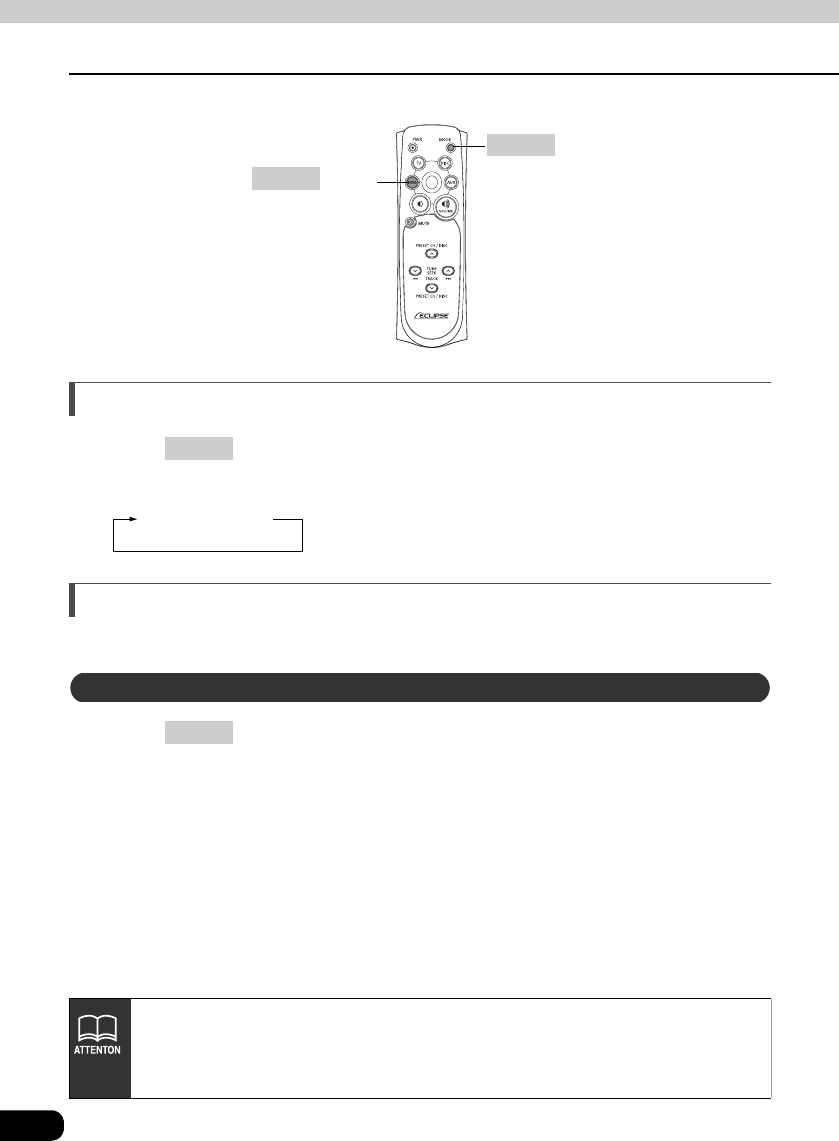
102
How to use an optional remote control (RMC105)
How to use an optional remote control
Switching playback modes
Press .
• Press the button to switch modes in the following sequence:
Tuner → Disc
How to play the tuner
Select the tuner mode first.
Press .
Each press will switch tuner modes from FM1 → FM2 → FM3 → AM.
button
BAND
button
MODE
MODE
Selecting the AM/FM band
BAND
• It is not possible to switch between AM/FM modes and SIRIUS with the remote
control.
• If the optional SIRIUS tuner is connected, the selections will switch the modes
from SR1 → SR2 → SR3 → SR4 in order.
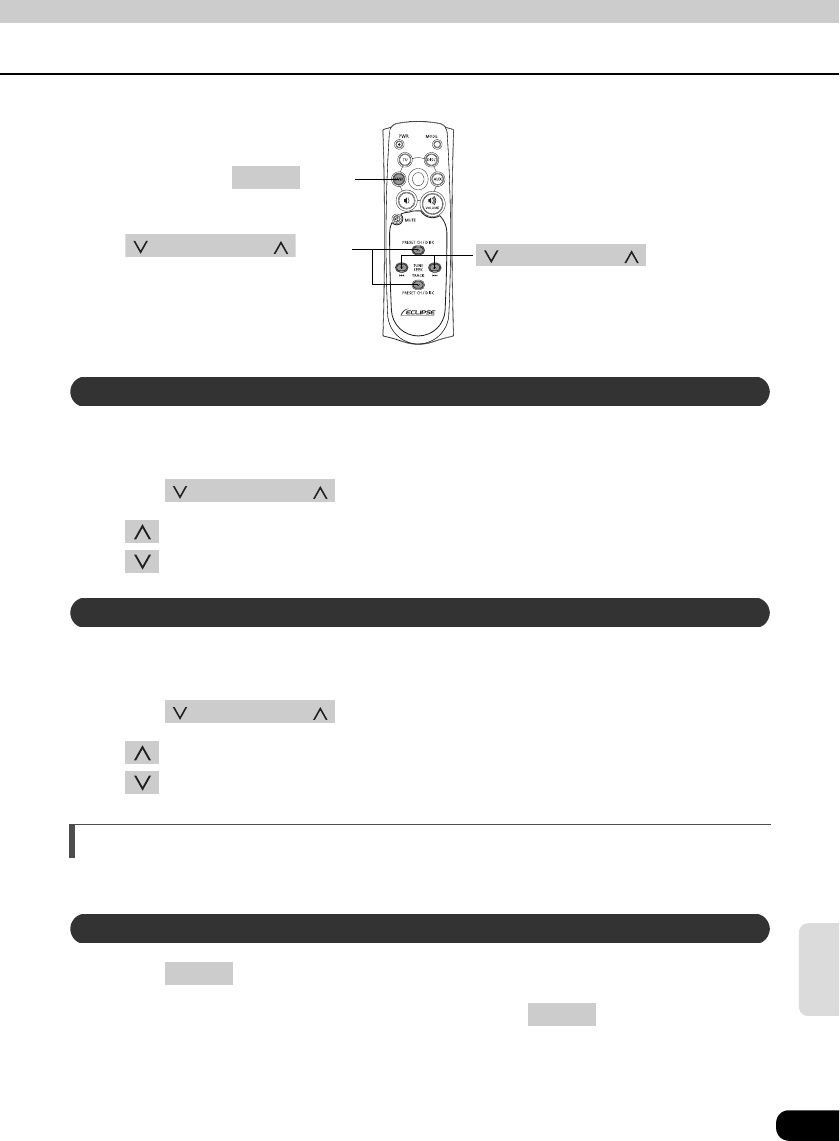
103
Remote
control
A short press of the button will allow manual station tuning. Pressing for more than one
second will start automatic tuning.
Press .
• button: Tunes to higher frequency stations.
button: Tunes to lower frequency stations.
A total of six stations may be selected (preset tuning) out of those already set in memory
through the main unit. (Refer to the Section "Saving radio stations" on page 40)
Press .
• button: Select the next higher number preset button.
button: Select the next lower number preset button.
How to play CDs
• Select the CD mode first.
Press .
When one or two CD changers are connected, press to change modes from
CD player → CD changer 1 → CD changer 2.
The indicator will skip a changer or player that has no discs loaded.
button TUNE•SEEK
button
BAND
button PRESET•CH
Selecting a station (manually or automatically)
TUNE•SEEK
Selecting preset stations
PRESET•CH
Switching disc modes
BAND
BAND
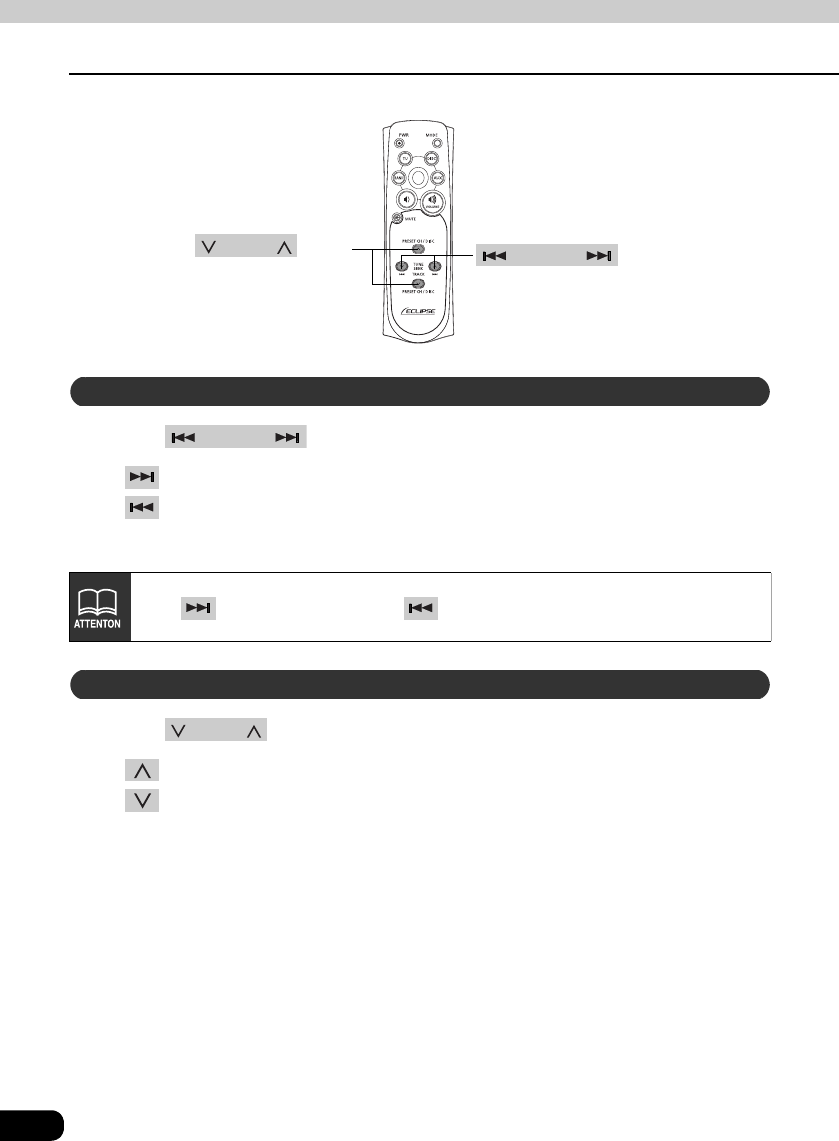
104
How to use an optional remote control (RMC105)
How to use an optional remote control
Press .
• button: Skips to the next track.
button: Returns to the beginning of the track being played. (Press repeatedly to
move to previous tracks.)
Press .
• button: Selects the next higher number disc.
button: Selects the next lower number disc.
button TRACK
button DISC
Advancing to the next track or returning to the beginning of the track being played
TRACK
Hold down to fast forward, or to rewind through the track being played.
Skipping to the next or previous disc
DISC
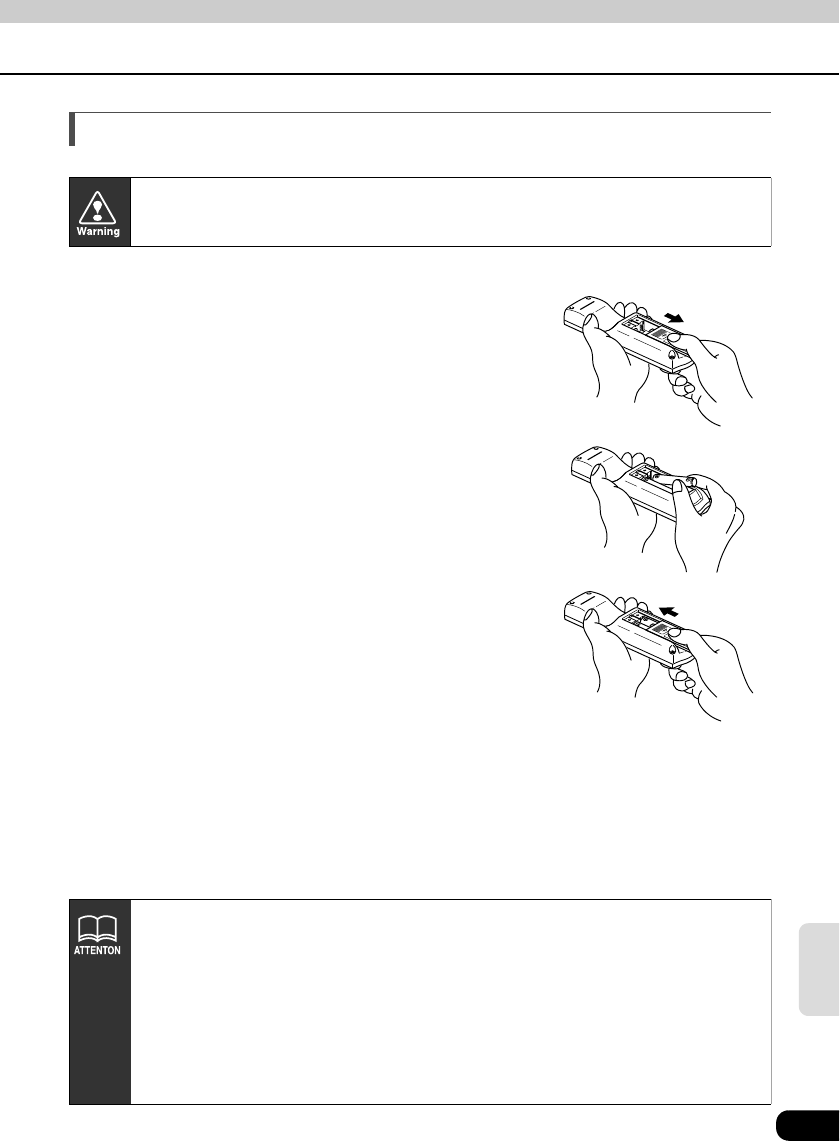
105
Remote
control
Replacing the battery
Use two AAA-size batteries.
Remove the back cover of the remote control
unit by gently pressing and sliding it in the
direction indicated by the arrow.
Install the two batteries provided into the
compartment as illustrated.
Return the back cover into place by sliding it in
the direction indicated by the arrow.
To prevent accidents, store batteries out of the reach of children. If a child has
swallowed one, consult a doctor immediately.
• The battery life is approximately one year. If the remote control unit does not
operate correctly or if the button lamp gets dim, replace the batteries.
• Be sure to orient the batteries correctly so that the positive and negative poles
match the diagram.
• Do not use one new battery and one old one; use two new batteries.
• Use only two of the same kind of battery.
• If any liquid is seen leaking from the batteries, remove both batteries and
dispose of them properly. Thoroughly clean the battery compartment with a dry
cloth. Then install new batteries.
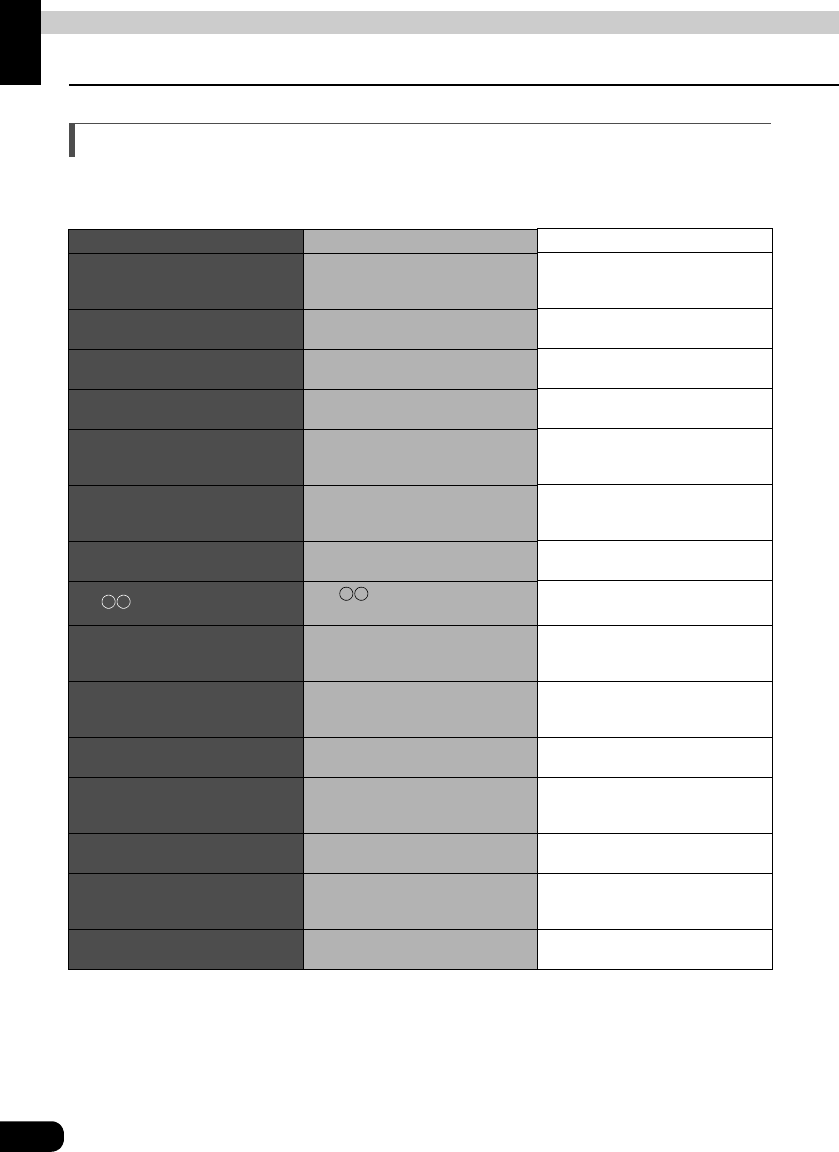
106
For reference
Information you should know
If one of these messages appears
If any of the following messages are displayed, check the unit while referring to the Cause
and Remedy columns.
Messages Cause Corrective action
CD SEEK
The CD changer is searching for
discs when a magazine has been
set in the CD changer.
Wait until the unit has finished
identifying the type of disc.
CD DOOR OPEN The door of the CD changer is
open. Close the door of the CD changer.
CHECK DISC The CD/MP3/DVD is dirty or is
upside down.
Clean the disc if it is dirty.Insert the
disc correctly if it is upside-down.
NO DISC
NO CD
There is no disc in the CD/MP3/
DVD player or CD changer. Load a music disc.
CD ERROR
DVD ERROR
DISC ERROR
The CD/MP3/DVD player or CD
changer will not move for some
reason.
Eject the disc.
CD ERROR
DVD ERROR
DISC ERROR
The temperature of the CD/MP3/
DVD player or CD changer has
become unusually high.
Without performing any other
operations, wait until the
temperature comes down.
NO CD MAGAZINE There is no magazine in the CD
changer. Load a magazine.
CD CHECK The th CD in the CD changer
cannot be read.
Check for a properly loaded music
CD.
PASS CODE INCORRECT
This message is displayed when
the pass code that has been
entered is not correct.
Enter the correct pass code.
PARENTAL LOCK
ENABLED Viewing restrictions are enabled.
Change the setting for viewing
restrictions and start again. (Refer
to page 87.)
CURRENTLY THIS FUNCTION IS
DISABLED
A function that has been disabled
was selected with the menu.
Follow the directions on the screen
and start again.
CURRENTLY THIS FUNCTION IS
DISABLED
A function that cannot be used
while the vehicle is in motion was
selected.
Stop the vehicle.
INVALID CODE A number not supported was input
for selecting a language code. Input a valid language code.
REGION CODE ERROR
The region code (controlled region
for playback) of the disc isn't
acceptable.
Check that the DVD has a region
code that can be played on this
deck. (Refer to page 17.)
REQUESTED CHAPTER OR TITLE
NOT FOUND
The selected chapter/title does not
exist.
Select a chapter/title that is on the
disc.
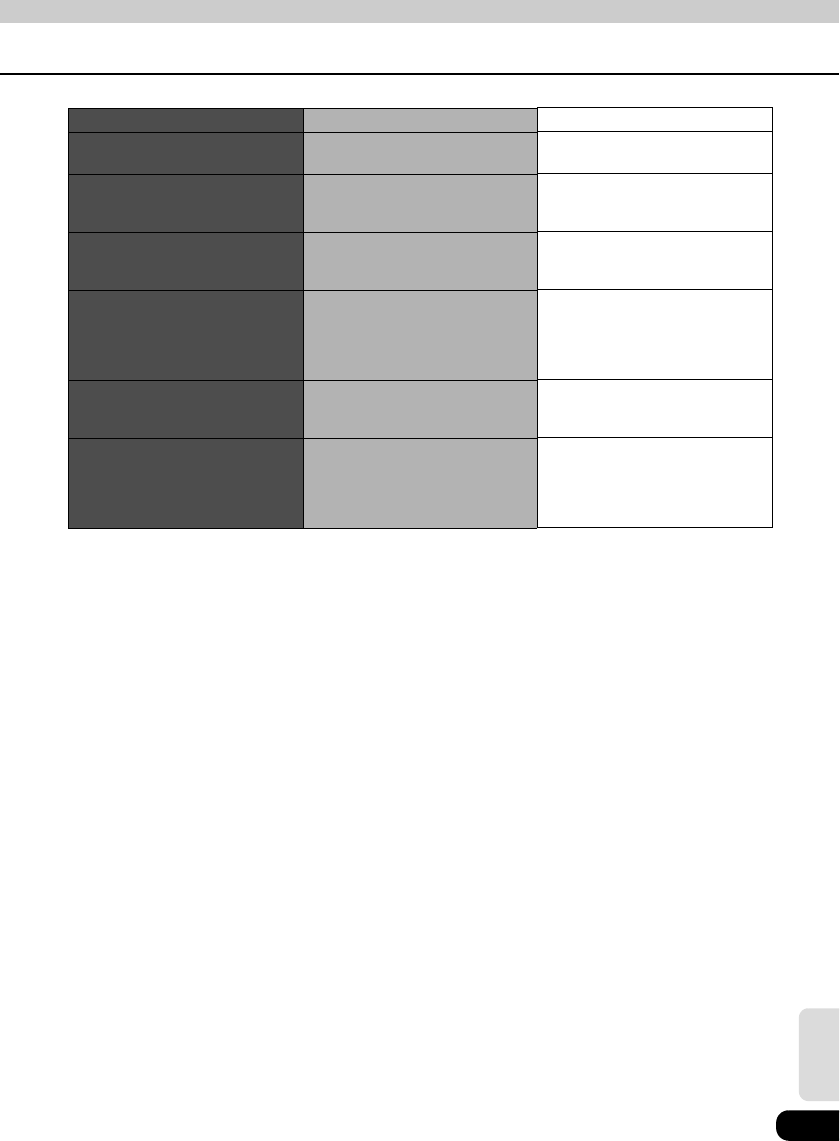
107
For reference
1: If the DVD player still will not work after the disc is ejected, contact the place of purchase.
2: If this happens, wait for a while. When the temperature inside the unit returns to normal,
the message will disappear and playback will start. If the message does not disappear
after a long period of waiting, contact the place of purchase.
Messages Cause Corrective action
ANTENNA The SIRIUS antenna is
disconnected.
Check the connection of the
SIRIUS antenna.
ACQUIRING Displayed when the signal is
lost (during access)
Try receiving the signal again
in the place where there are
no obstacles.
CALL888-539-SIRIUS
You are tuned to a valid
channel but you are not
subscribed to that channel.
Subscribe SIRIUS. Or, check/
change your subscription
plan.
SUB UPDATED
Displayed when your channel
subscription has been
accepted and your status is
being updated to allow you to
receive the channels
After this message is
displayed, the channels for
which you do have a
subscription can be received.
INVALID
Displayed when you are tuned
to a channel that you cannot
receive
Tune to channels that you can
receive.
UPDATING Displayed while the channel
map is being updated
After this message is
displayed, subscribe SIRIUS.
The channels for which you do
have a subscription can be
received.
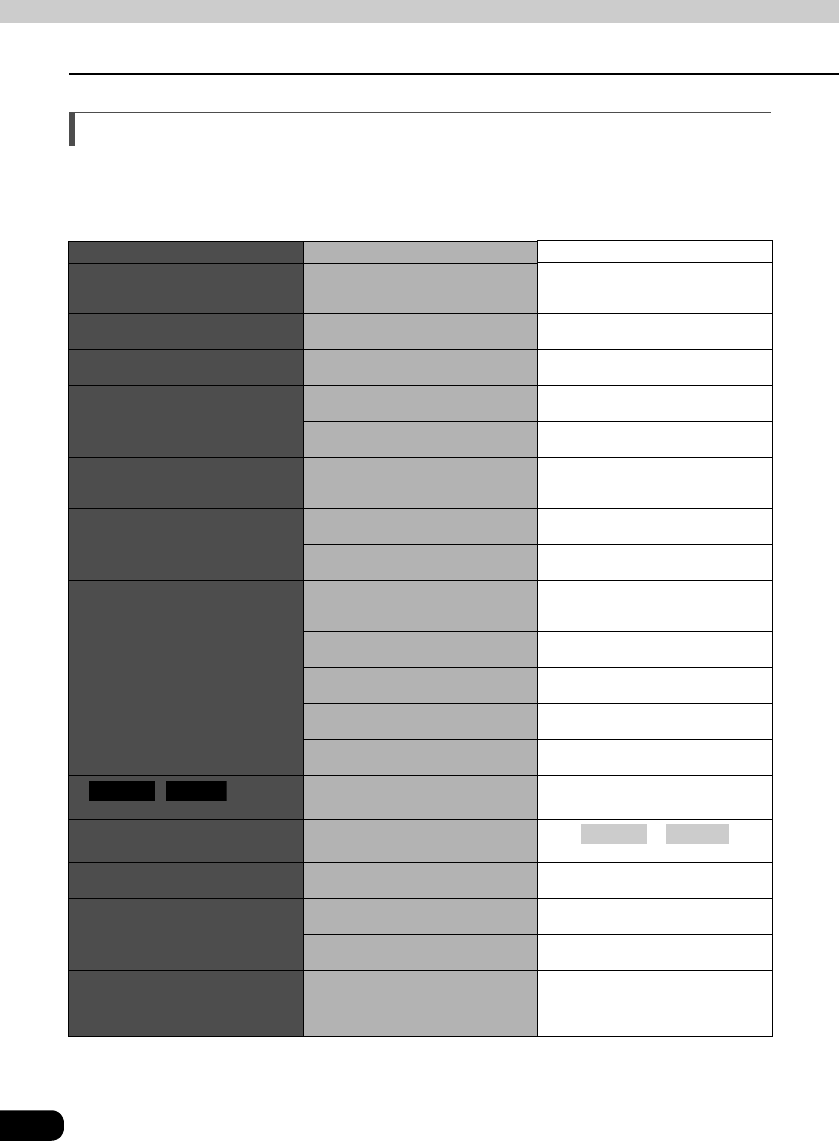
108
Information you should know
For reference
Before asking for repairs
Slight differences in operation can sometimes be mistaken for malfunctions, so check the
following table before asking for any repairs.
If the following fail to solve the problem, contact the place of purchase.
Problem Possible reason Corrective action
The screen is dark for a brief period
when the power is turned on at low
temperatures.
This is a characteristic of LCDs. This is not a malfunction. Wait for a
brief period.
The display is distorted for a brief
period after the power is turned on.
This is a characteristic of LCD
backlighting.
This is not a malfunction. The display
will stabilize after a brief period.
No sound comes out. Volume is poorly adjusted or MUTE is
functioning.
Press the volume switch and check
volume. Or cancel MUTE.
Sound comes out of only one side
(left or right, front or back).
A speaker cord is disconnected. Check the connections of the speaker
cords.
Volume is poorly adjusted. Check the left/right volume
adjustments.
Sound quality does not change even
after making adjustments.
The adjusted audio quality is not
included in the radio broadcast or
disc.
Check by changing the radio station
or disc.
A CD/DVD will not go into the deck.
Power is not turned on. Turn the vehicle ignition switch to
[ACC] or [ON].
A disc is already inserted and you are
trying to insert a second disc.
Eject the previously inserted CD/DVD
and insert the preferred CD/DVD.
A CD/DVD cannot be played.
There is water condensation in the
deck.
Do not use the deck for a while and
then try using it again. (Refer to
pages 17 and 18.)
There is a large scratch or warp in the
CD/DVD. Insert a different CD/DVD.
The CD/DVD is very dirty. Clean the CD/DVD.
(Refer to page 18.)
The CD/DVD is upside down. Insert the CD/DVD with the proper
orientation. (Refer to page 18.)
A non-supported type of CD/DVD has
been inserted.
Insert a CD/DVD that is supported by
the deck. (Refer to pages 17 and 18.)
A / is not
displayed on the screen.
The CD changer is not completely
connected.
Check the connections to the CD
changer.
Audio is output, but not video. The screen has been turned off with
the screen OFF button. Press or .
(Refer to page 34.)
Audio is output, but not DVD video.
(With vehicle stopped.) The parking brake has not be set. Set the parking brake.
Neither video nor audio is output.
The vehicle ignition switch has not
been turned on.
Turn the vehicle ignition switch to
[ACC] or [ON].
The connection cord is not
completely connected.
Check the connections to each
connection cord.
There is a point of light on the display.
At least 99.99% of the pixels on the
LCD panel are effective, but it is
possible that 0.01% of the pixels may
not light or may stay lighted.
This is not a defect, so please use the
deck in this condition.
CDCH1 CDCH2
CONT NAVI
For reference
109
For reference
Others
Products equipped with Dolby Digital
Manufactured under license from Dolby Laboratories.
"Dolby" and the double-D symbol are trademarks of Dolby Laboratories.
Confidential Unpublished Works. 1992-1997 Dolby Laboratories,lnc.All rights reserved.
Manufactured under license from Dolby Laboratories, Inc.
"Dolby" and the double-D symbol are trademarks of Dolby Laboratories.
Confidential unpublished work. (c) 1992-1997 Dolby Laboratories, Inc. All rights reserved.
Products equipped with Macrovision
This unit includes copyright protection technology used in accordance with US patents and
other intellectual property rights owned by Macrovision Corporation and other entities. Use of
this copyright protection technology requires approval from Macrovision Corporation and the
technology must not be used for audiovisual purposes aside from general household use
without special approval from Macrovision Corporation. Modification and disassembly of this
technology is prohibited.
110
For reference
Glossary
CD-R This is a disc that can only be recorded once.
Recorded data cannot be deleted. There are two
types of CD-R, one having capacity of 650MB
(74 minutes of music), the same as a regular CD,
and the other having capacity of 700MB (80
minutes of music).
(Compact Disc Recordable)
CD-DA This disc is the standard for recording and
playing of music data. One track is recorded with
one song, and a maximum of 74 minutes can be
used with the CD.
(Compact Disc Digital Audio)
CD-RW This disc uses a phase transformation method
that enables recording and deleting of data as
many times needed. Capacity is 700MB (80
minutes of music).
(Compact Disc ReWritable)
EQ (Equalizer) This enables setting of stronger or softer playing
of sounds throughout the high to low range of the
sound. Levels can be adjusted to personal
preference, enhancing enjoyment of the music.
MP3 •"MP3" is the abbreviation for "MPEG Audio Layer
3," which is the standard format for compression
of audio data. MP3 technology compresses
sound in the range inaudible to the human ear,
producing a file one tenth the size of the original.
(MPEG-1 Audio Layer-3)
LPCM This is an abbreviation for Linear Pulse Code
Modulation, a signal recording method used with
music CDs. A music CD is recorded at 44.1kHz/
16 bit, but a DVD is recorded at 48kHz/16 bit ~
96kHz/24 bit, enabling a DVD to be played with
higher sound quality than a music CD.
(Linear PCM)
MPEG This is an abbreviation for Moving Picture Experts
Group and is pronounced "empeg". It is the
international standard for moving image
compression. With DVDs, this method is also
used to compress and record digital audio.
Copy Control CD This is a CD that has controls for preventing
computers from copying and ripping (taking
audio information recorded on a compact disc
and using it as data to create a file).
UDF This is one format for use with optical discs not
reliant on the OS. It is used with media such as
DVD and CD-RW.
(Universal Disc Format)
Track The single division for a song on a music CD is
called a track.
111
For reference
Viewing Restriction This is a DVD video function that "Restricts
playing of discs that support viewing restrictions,
in accordance with the regulated levels of each
country." Restrictions differ by DVD video and
may completely prevent playing of the video or
may skip or insert alternate scenes for extreme
scenes.
Title This is the largest unit for divisions of video or
songs recorded on a DVD video. Usually a single
movie is treated as a title by video software and a
single album (or song) is treated as a single title
by music software. The consecutive numbers
attached to titles are called title numbers.
Chapter This is a unit for divisions of video or songs
recorded on a DVD video, but it is a smaller unit
than a title. A single title is made up of several
chapters, and the consecutive numbers attached
to chapters are called chapter numbers.
Multi-Angle This is one feature of DVD video, where
viewpoints of the same scene are changed by
recording from several different angles (camera
positions), allowing the viewer to select the
preferred angle.
Multi-Language This is one feature of DVD video, where the same
scene is recorded with several different
languages and subtitles, allowing the viewer to
select the preferred language.
Region Code DVD players and DVD discs have a region code
that enables playing by geographic marketing
regions, and a disc cannot be played if the
number recorded on the disc is not included in
the region codes of the player. Refer to page 68
for details on region codes.

112
For reference
Index by topic
About screen and sound adjustment
[Regarding screen adjustment]
To make the audio operation screen or VTR screen easier to see
"Adjusting/setting the screen" . . . . . . . . . . . . . . . . . . . . . . . . . . . . . . . . P33
To turn off the screen
"Turning off the screen" . . . . . . . . . . . . . . . . . . . . . . . . . . . . . . . . . . . . . . P34
To change the wallpaper
"Changing the wallpaper" . . . . . . . . . . . . . . . . . . . . . . . . . . . . . . . . . . . . P32
To set the screen to wide mode
"Switching screen mode". . . . . . . . . . . . . . . . . . . . . . . . . . . . . . . . . . . . . P35
[Regarding audio adjustment]
To change the volume
"Adjusting main volume" . . . . . . . . . . . . . . . . . . . . . . . . . . . . . . . . . . . . . P22
To turn on/off the guide tone used at switch operation
"Setting the BEEP tone". . . . . . . . . . . . . . . . . . . . . . . . . . . . . . . . . . . . . . P30
To adjust sound quality
• To change the acoustic environment of a performance
"Setting DSP (acoustics)" . . . . . . . . . . . . . . . . . . . . . . . . . . . . . . . . . . . . P24
• To adjust high and low sounds
"Adjusting EQ (equalizer)" . . . . . . . . . . . . . . . . . . . . . . . . . . . . . . . . . . . P26
Using AM/FM radio
To play the radio
"Listening to the AM/FM radio" . . . . . . . . . . . . . . . . . . . . . . . . . . . . . . . P38
To search for a radio station
"Selecting radio stations" . . . . . . . . . . . . . . . . . . . . . . . . . . . . . . . . . . . . P39
To save radio stations
"Saving radio stations" . . . . . . . . . . . . . . . . . . . . . . . . . . . . . . . . . . . . . . P40
113
For reference
Usage when an HD RADIO (IBOC) tuner is
connected
To listen to HD RADIO (IBOC)
"Listening to HD RADIO (IBOC)" . . . . . . . . . . . . . . . . . . . . . . . . . . . . . . P43
To search for a radio station
"Selecting radio stations" . . . . . . . . . . . . . . . . . . . . . . . . . . . . . . . . . . . . P44
To save radio stations
"Saving radio stations" . . . . . . . . . . . . . . . . . . . . . . . . . . . . . . . . . . . . . . P45
Usage when a SIRIUS satellite radio tuner is
connected
To listen to SIRIUS broadcasts
"Listening to SIRIUS satellite radio" . . . . . . . . . . . . . . . . . . . . . . . . . . . P46
To select a channel
"Selecting a channel by direct input" . . . . . . . . . . . . . . . . . . . . . . . . . . P47
"Selecting from the available categories" . . . . . . . . . . . . . . . . . . . . . . . P47
About using the CD player/CD changer
To play a CD
"Listening to a CD" . . . . . . . . . . . . . . . . . . . . . . . . . . . . . . . . . . . . . . . . . P50
To select a song or CD
"Selecting a song" . . . . . . . . . . . . . . . . . . . . . . . . . . . . . . . . . . . . . . . . . . P50
"Selecting a CD". . . . . . . . . . . . . . . . . . . . . . . . . . . . . . . . . . . . . . . . . . . . P63
When you don't know a song number or on what CD a song is located
"Searching for a song" . . . . . . . . . . . . . . . . . . . . . . . . . . . . . . . . . . . . . . P51
"Searching for a song or CD from all CDs in changer" . . . . . . . . . . . . P63
To repeat the song or CD currently being played
"Repeating a song" . . . . . . . . . . . . . . . . . . . . . . . . . . . . . . . . . . . . . . . . . P51
"Repeating a song or CD". . . . . . . . . . . . . . . . . . . . . . . . . . . . . . . . . . . . P63
To play songs in a different order
"Playing songs in random order". . . . . . . . . . . . . . . . . . . . . . . . . . . . . . P51
To fast-forward or rewind
"Fast-forwarding/rewinding". . . . . . . . . . . . . . . . . . . . . . . . . . . . . . . . . . P51

114
Index by topic
For reference
About using the MP3 player
To play an MP3 file
"Playing MP3". . . . . . . . . . . . . . . . . . . . . . . . . . . . . . . . . . . . . . . . . . . . . . P53
To select a music file
"Selecting a music file" . . . . . . . . . . . . . . . . . . . . . . . . . . . . . . . . . . . . . . P53
When you want to return to a level or don't know the current level
"Changing display of the current level". . . . . . . . . . . . . . . . . . . . . . . . . P54
To search for a music file
"Searching for a music file" . . . . . . . . . . . . . . . . . . . . . . . . . . . . . . . . . . P54
To repeat a music file
"Repeating the same music file" . . . . . . . . . . . . . . . . . . . . . . . . . . . . . . P55
To play files in a different order
"Playing songs in random order". . . . . . . . . . . . . . . . . . . . . . . . . . . . . . P55
To change the file information
"About display of file information". . . . . . . . . . . . . . . . . . . . . . . . . . . . . P56
To learn about MP3
"About MP3". . . . . . . . . . . . . . . . . . . . . . . . . . . . . . . . . . . . . . . . . . . . . . . P57
To learn about making MP3 files
"Making and playing MP3 files" . . . . . . . . . . . . . . . . . . . . . . . . . . . . . . . P60
115
For reference
About using the DVD player
To play a DVD video
"Watching a DVD" . . . . . . . . . . . . . . . . . . . . . . . . . . . . . . . . . . . . . . . . . . . P72
To learn about discs
• To learn about the marks displayed on discs and packages
"About marks displayed on discs" . . . . . . . . . . . . . . . . . . . . . . . . . . . . . P69
• To learn about discs that can be played
"About playable discs". . . . . . . . . . . . . . . . . . . . . . . . . . . . . . . . . . . . . . . P67
• To learn about disc structures
"About DVD disc structure" . . . . . . . . . . . . . . . . . . . . . . . . . . . . . . . . . . . P70
To operate the menu recorded on a disc
"Operating the disc menu" . . . . . . . . . . . . . . . . . . . . . . . . . . . . . . . . . . . P75
To operate the video being played
"Operating the video" . . . . . . . . . . . . . . . . . . . . . . . . . . . . . . . . . . . . . . . . P73
To select/search for a video
"Searching by chapter" . . . . . . . . . . . . . . . . . . . . . . . . . . . . . . . . . . . . . . P76
"Searching by title number". . . . . . . . . . . . . . . . . . . . . . . . . . . . . . . . . . . P76
"Searching by menu number" . . . . . . . . . . . . . . . . . . . . . . . . . . . . . . . . . P77
To change the display of touch switches
"Changing the touch switch display locations" . . . . . . . . . . . . . . . . . . P78
To change subtitles, audio or the video angle
"Switching the video angle" . . . . . . . . . . . . . . . . . . . . . . . . . . . . . . . . . . P79
"Switching subtitle languages" . . . . . . . . . . . . . . . . . . . . . . . . . . . . . . . P80
"Switching dubbed audio language" . . . . . . . . . . . . . . . . . . . . . . . . . . . P81
To set the player
"Setting the audio language". . . . . . . . . . . . . . . . . . . . . . . . . . . . . . . . . . P83
"Subtitle language setting" . . . . . . . . . . . . . . . . . . . . . . . . . . . . . . . . . . . P84
"Menu language setting" . . . . . . . . . . . . . . . . . . . . . . . . . . . . . . . . . . . . . P85
"Setting display of multi-angle mark (angle selection mark)" . . . . . . . P86
"Viewer restriction setting" . . . . . . . . . . . . . . . . . . . . . . . . . . . . . . . . . . . P87
"Changing video output" . . . . . . . . . . . . . . . . . . . . . . . . . . . . . . . . . . . . . P88
116
Index by topic
For reference
About using the VTR
To use the VTR
"How to use the VTR" . . . . . . . . . . . . . . . . . . . . . . . . . . . . . . . . . . . . . . . . P90
Useful functions
To operate the audio system by fingertip operations while driving
"About the steering wheel switches" . . . . . . . . . . . . . . . . . . . . . . . . . . . P92
When something isn't clear
When you don't understand a screen message
"If one of these messages appears" . . . . . . . . . . . . . . . . . . . . . . . . . . . P106
When you think the deck may have a problem
"Before asking for repairs" . . . . . . . . . . . . . . . . . . . . . . . . . . . . . . . . . . P108
117
For reference
For reference
118
INDEX
A
Adjusting main volume .......... 22
Adjusting sound quality ......... 23
Adjusting the volume ............ 22
ANGLE ................................ 79
AUTO.P ......................... 40, 45
B
BRIGHT ............................... 35
C
CD-R (CD-Recordable) ......... 17
CD-RW (CD-ReWritable) ....... 17
COLOR ................................ 35
CONT .................................. 20
CONTRST ............................ 35
D
Day screen ........................... 34
DISC RAND .......................... 64
DISC RPT ............................. 63
DISC SCAN .......................... 63
DSP ..................................... 24
H
HD RADIO ........................... 43
How to use an optional
remote control (1602) ............ 94
How to use an optional
remote control (RMC105) .... 100
How to use the CD changer ... 62
How to use the CD player ...... 50
How to use the DVD player ....72
How to use the MP3 player ....52
How to use the VTR ...............90
I
IBOC ....................................43
M
Multi-angle mark ...................79
N
Night screen .........................34
NORMAL mode ....................36
O
Operating the AM/FM radio ...38
P
POS (position selector) ..........28
R
RAND ............................ 51, 55
RPT ................................ 51, 55
S
Saving radio stations ....... 40, 45
SCAN ............................. 51, 54
Setting LOUDNESS ...............31
Setting the BEEP tone ...........30
SIRIUS .................................46
Steering wheel switches ........92
Switching subtitle languages
...80
119
For reference
T
TINT .................................... 35
Turning off the screen ........... 34
V
Volume balance .................... 29
VOLUME switch .................... 22
W
Wallpaper (background) ....... 32
WIDE 1 mode ....................... 36
WIDE 2 mode ....................... 36
WIDE 3 mode ....................... 36

120