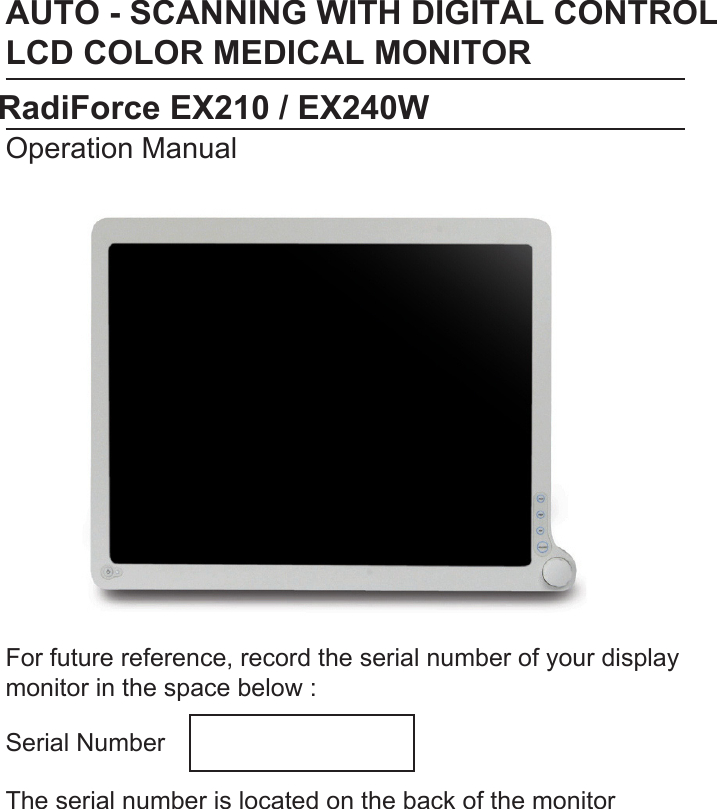
Eizo Nanao EX210 Color LCD Monitor (Model: EX210) User Manual

Eizo Nanao Corporation Color LCD Monitor (Model: EX210) Users Manual

Users Manual

AUTO - SCANNING WITH DIGITAL CONTROLLCD COLOR MEDICAL MONITOROperation ManualFor future reference, record the serial number of your display monitor in the space below :Serial NumberThe serial number is located on the back of the monitorRadiForce EX210 / EX240W
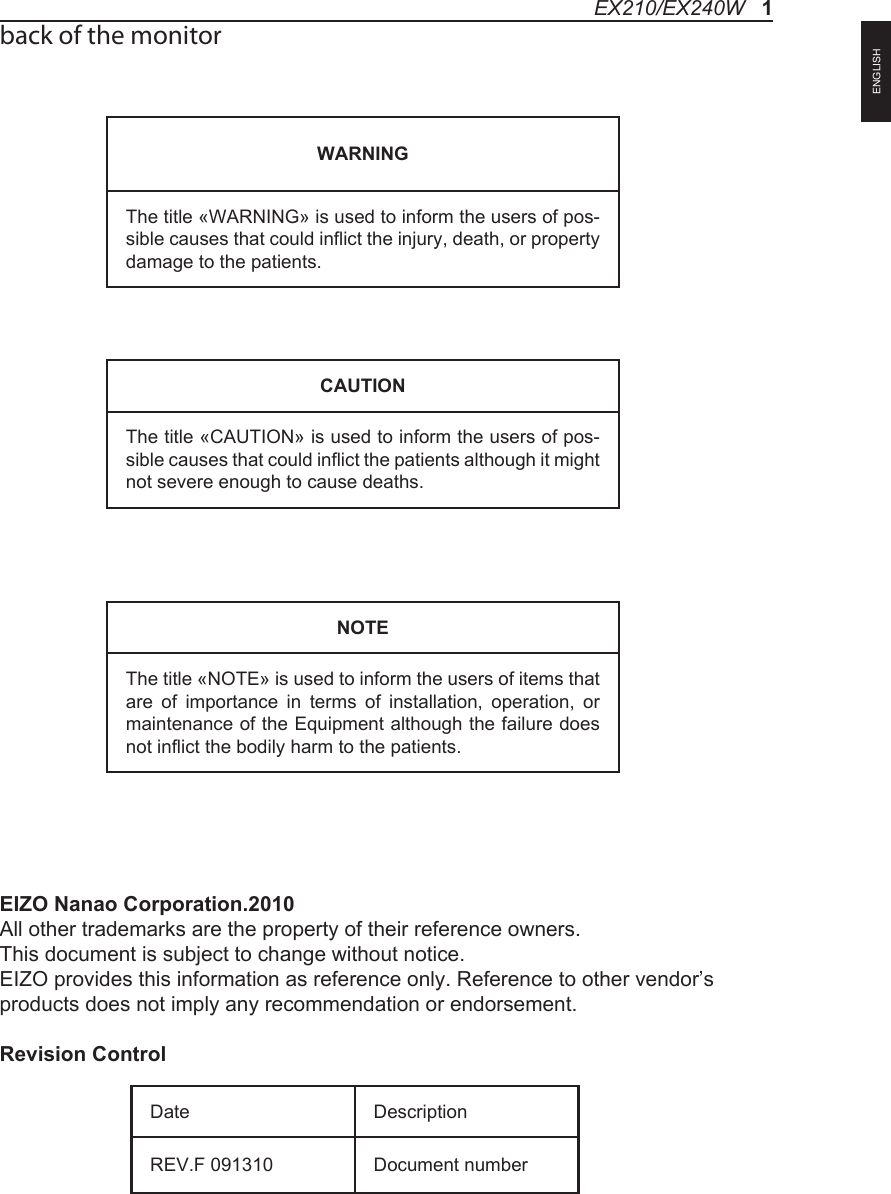
back of the monitorEIZO Nanao Corporation.2010             All other trademarks are the property of their reference owners.This document is subject to change without notice.EIZO provides this information as reference only. Reference to other vendor’s products does not imply any recommendation or endorsement.Revision ControlWARNINGThe title «WARNING» is used to inform the users of pos-sible causes that could inflict the injury, death, or property damage to the patients. CAUTIONThe title «CAUTION» is used to inform the users of pos-sible causes that could inflict the patients although it might not severe enough to cause deaths. NOTEThe title «NOTE» is used to inform the users of items that are  of  importance  in  terms  of  installation,  operation,  or maintenance of the Equipment although the failure does not inflict the bodily harm to the patients. Date DescriptionREV.F 091310 Document numberEX210/EX240W   1ENGLISH
TABLE OF CONTENTSProduct Description and Intended Use ......................................................Warnings and Cautions .............................................................................Symbol Explanations .................................................................................EU Declaration of Conformity for Medical Applications .............................Safety Precaution ......................................................................................Cleaning Your Monitor ...............................................................................Power Management Function....................................................................Preset Modes..............................................................................................Video Signals.............................................................................................PIP / POP / PBP function ..........................................................................DDC ...........................................................................................................Installation .................................................................................................Connecting the Power Cord ......................................................................User Function / Messages.........................................................................OSD Section ..............................................................................................Troubleshooting .........................................................................................Specification of (EX210/EX240W) .............................................................Classification .............................................................................................Electromagnetic Compatibility ...................................................................Dimension Drawing (mm) of EX210 ..........................................................Dimension Drawing (mm) of EX240W .......................................................Connectors ................................................................................................Description of Warranty .............................................................................  3  4  7  8  9  910111213141415161725262728313233342    User’s Guide
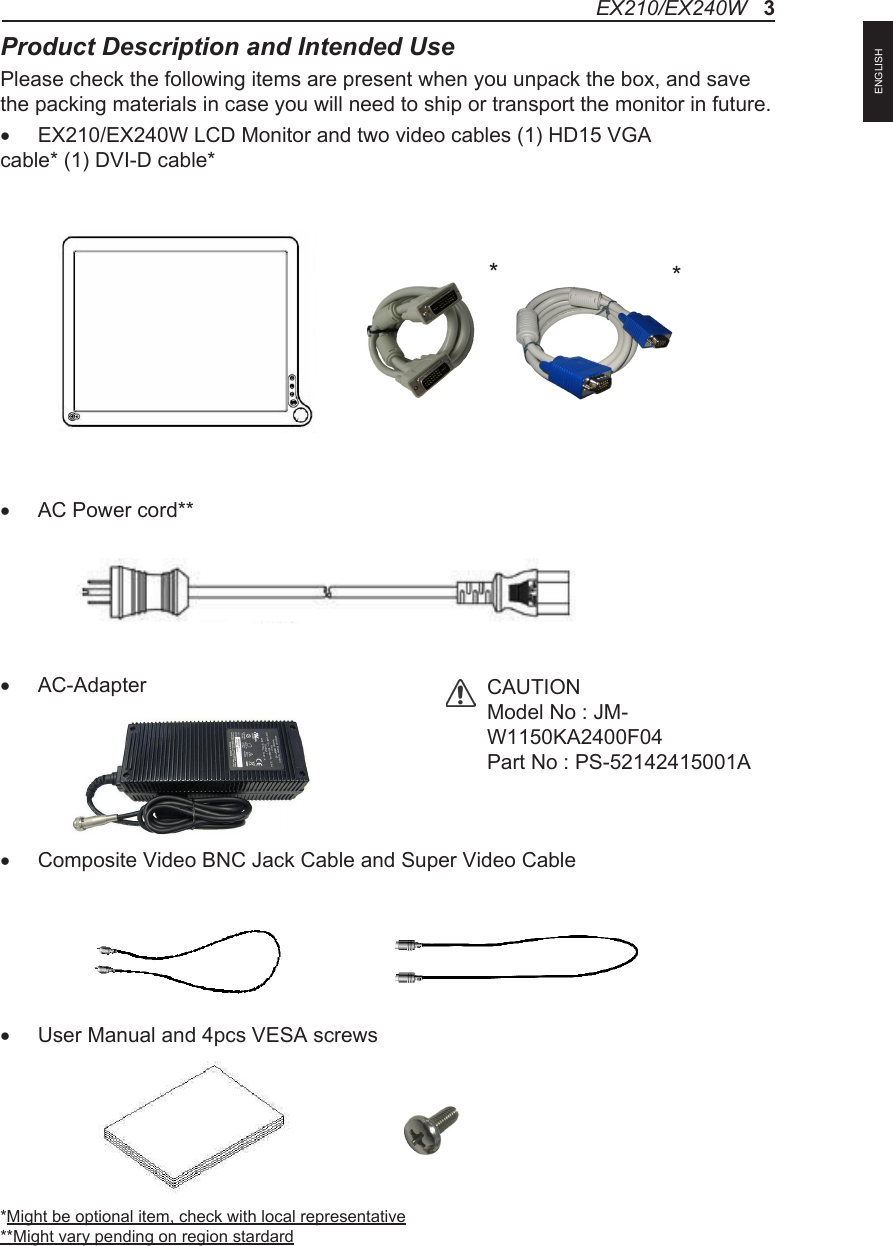
Product Description and Intended UsePlease check the following items are present when you unpack the box, and save the packing materials in case you will need to ship or transport the monitor in future.• EX210/EX240W LCD Monitor and two video cables (1) HD15 VGA cable* (1) DVI-D cable* • AC Power cord**• AC-Adapter• Composite Video BNC Jack Cable and Super Video Cable • User Manual and 4pcs VESA screws*Might be optional item, check with local representative**Might vary pending on region stardardCAUTIONModel No : JM-W1150KA2400F04Part No : PS-52142415001A**EX210/EX240W   3ENGLISH
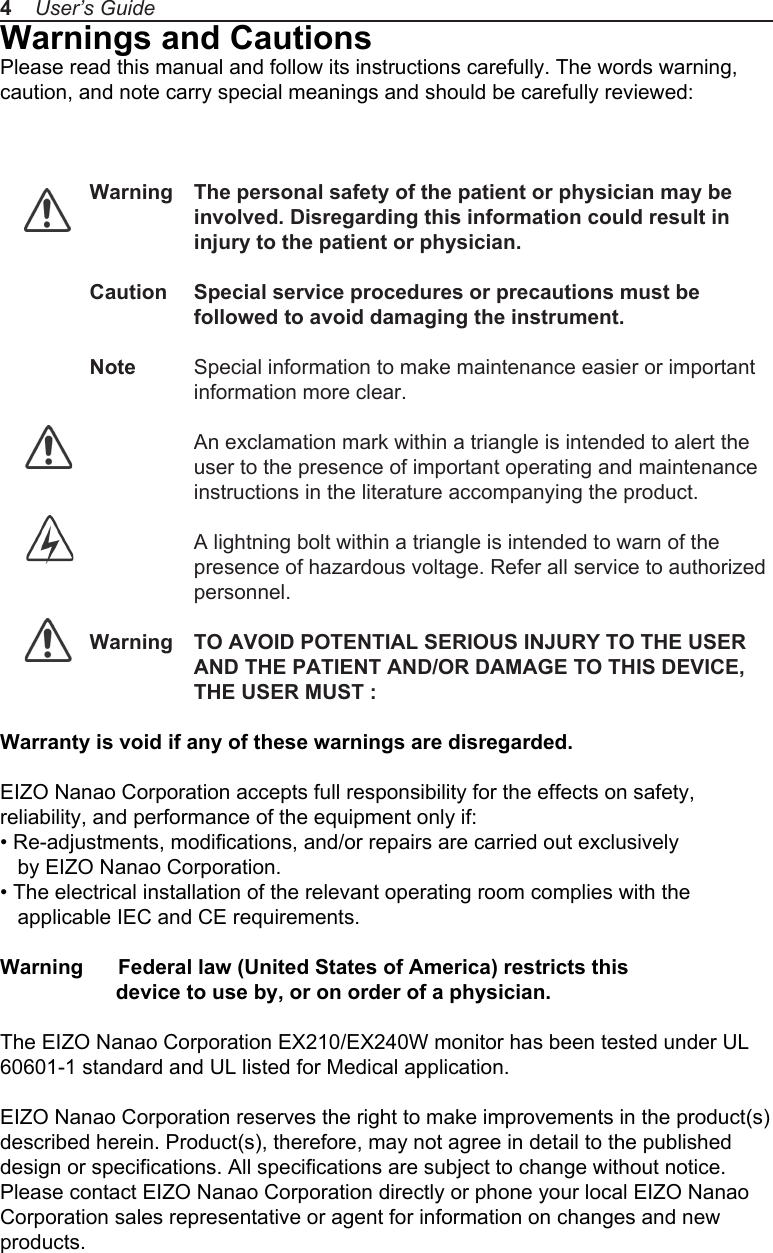
Warnings and CautionsPlease read this manual and follow its instructions carefully. The words warning, caution, and note carry special meanings and should be carefully reviewed: Warning  The personal safety of the patient or physician may be                  involved. Disregarding this information could result in                  injury to the patient or physician.Caution  Special service procedures or precautions must be                   followed to avoid damaging the instrument.Note  Special information to make maintenance easier or important information more clear.                  An exclamation mark within a triangle is intended to alert the user to the presence of important operating and maintenance instructions in the literature accompanying the product.                  A lightning bolt within a triangle is intended to warn of the                   presence of hazardous voltage. Refer all service to authorized personnel.Warning  TO AVOID POTENTIAL SERIOUS INJURY TO THE USER AND THE PATIENT AND/OR DAMAGE TO THIS DEVICE, THE USER MUST :Warranty is void if any of these warnings are disregarded. EIZO Nanao Corporation accepts full responsibility for the effects on safety, reliability, and performance of the equipment only if:• Re-adjustments, modifications, and/or repairs are carried out exclusively    by EIZO Nanao Corporation.• The electrical installation of the relevant operating room complies with the    applicable IEC and CE requirements.Warning      Federal law (United States of America) restricts this                     device to use by, or on order of a physician.The EIZO Nanao Corporation EX210/EX240W monitor has been tested under UL 60601-1 standard and UL listed for Medical application. EIZO Nanao Corporation reserves the right to make improvements in the product(s) described herein. Product(s), therefore, may not agree in detail to the published design or specifications. All specifications are subject to change without notice. Please contact EIZO Nanao Corporation directly or phone your local EIZO Nanao Corporation sales representative or agent for information on changes and new products.4    User’s Guide
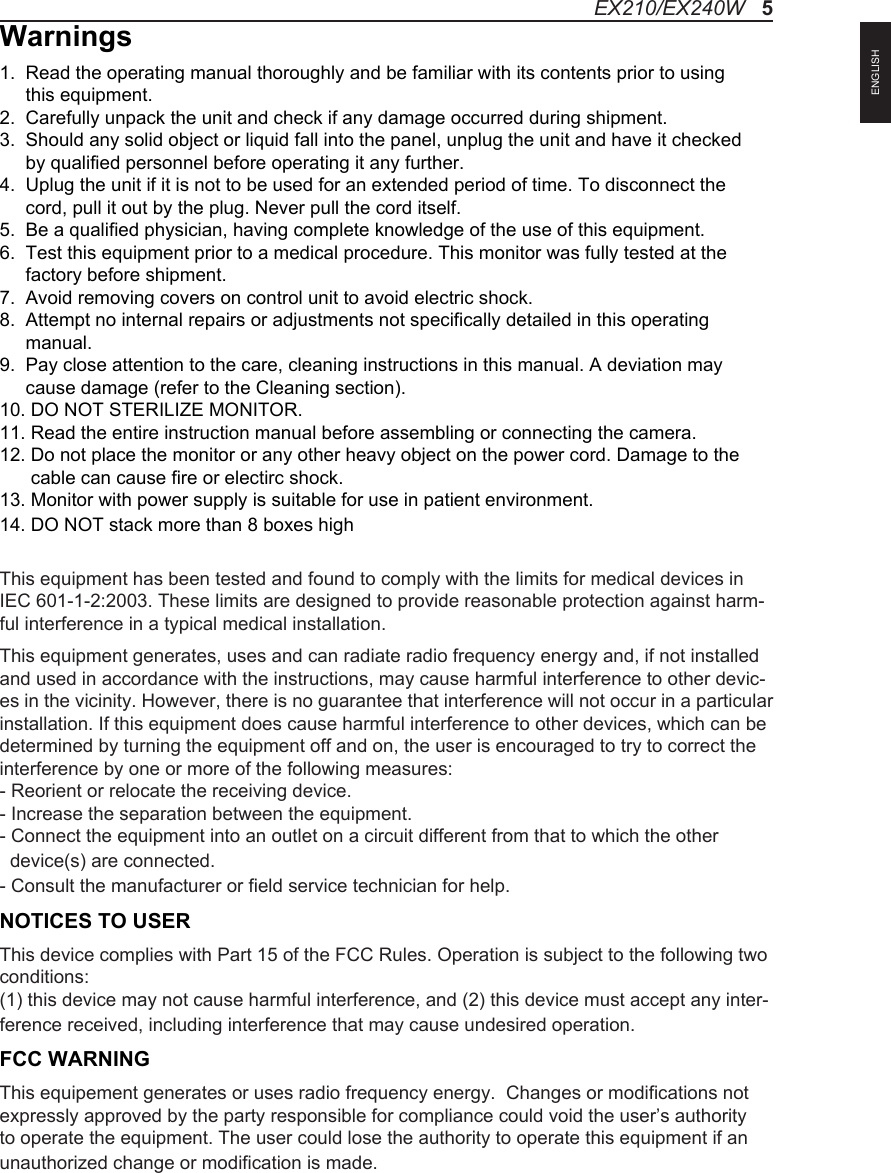
Warnings1.  Read the operating manual thoroughly and be familiar with its contents prior to using      this equipment.2.  Carefully unpack the unit and check if any damage occurred during shipment.3.  Should any solid object or liquid fall into the panel, unplug the unit and have it checked      by qualified personnel before operating it any further.4.  Uplug the unit if it is not to be used for an extended period of time. To disconnect the      cord, pull it out by the plug. Never pull the cord itself.5.  Be a qualified physician, having complete knowledge of the use of this equipment.6.  Test this equipment prior to a medical procedure. This monitor was fully tested at the      factory before shipment.7.  Avoid removing covers on control unit to avoid electric shock.8.  Attempt no internal repairs or adjustments not specifically detailed in this operating      manual.9.  Pay close attention to the care, cleaning instructions in this manual. A deviation may      cause damage (refer to the Cleaning section).10. DO NOT STERILIZE MONITOR.11. Read the entire instruction manual before assembling or connecting the camera.12. Do not place the monitor or any other heavy object on the power cord. Damage to the       cable can cause fire or electirc shock.13. Monitor with power supply is suitable for use in patient environment.14. DO NOT stack more than 8 boxes highThis equipment has been tested and found to comply with the limits for medical devices in IEC 601-1-2:2003. These limits are designed to provide reasonable protection against harm-ful interference in a typical medical installation. This equipment generates, uses and can radiate radio frequency energy and, if not installed and used in accordance with the instructions, may cause harmful interference to other devic-es in the vicinity. However, there is no guarantee that interference will not occur in a particular installation. If this equipment does cause harmful interference to other devices, which can be determined by turning the equipment off and on, the user is encouraged to try to correct the interference by one or more of the following measures:  - Reorient or relocate the receiving device.  - Increase the separation between the equipment.  - Connect the equipment into an outlet on a circuit different from that to which the other   device(s) are connected.  - Consult the manufacturer or field service technician for help.NOTICES TO USERThis device complies with Part 15 of the FCC Rules. Operation is subject to the following two conditions:(1) this device may not cause harmful interference, and (2) this device must accept any inter-ference received, including interference that may cause undesired operation.FCC WARNINGThis equipement generates or uses radio frequency energy.  Changes or modifications not expressly approved by the party responsible for compliance could void the user’s authority to operate the equipment. The user could lose the authority to operate this equipment if an unauthorized change or modification is made. EX210/EX240W   5ENGLISH
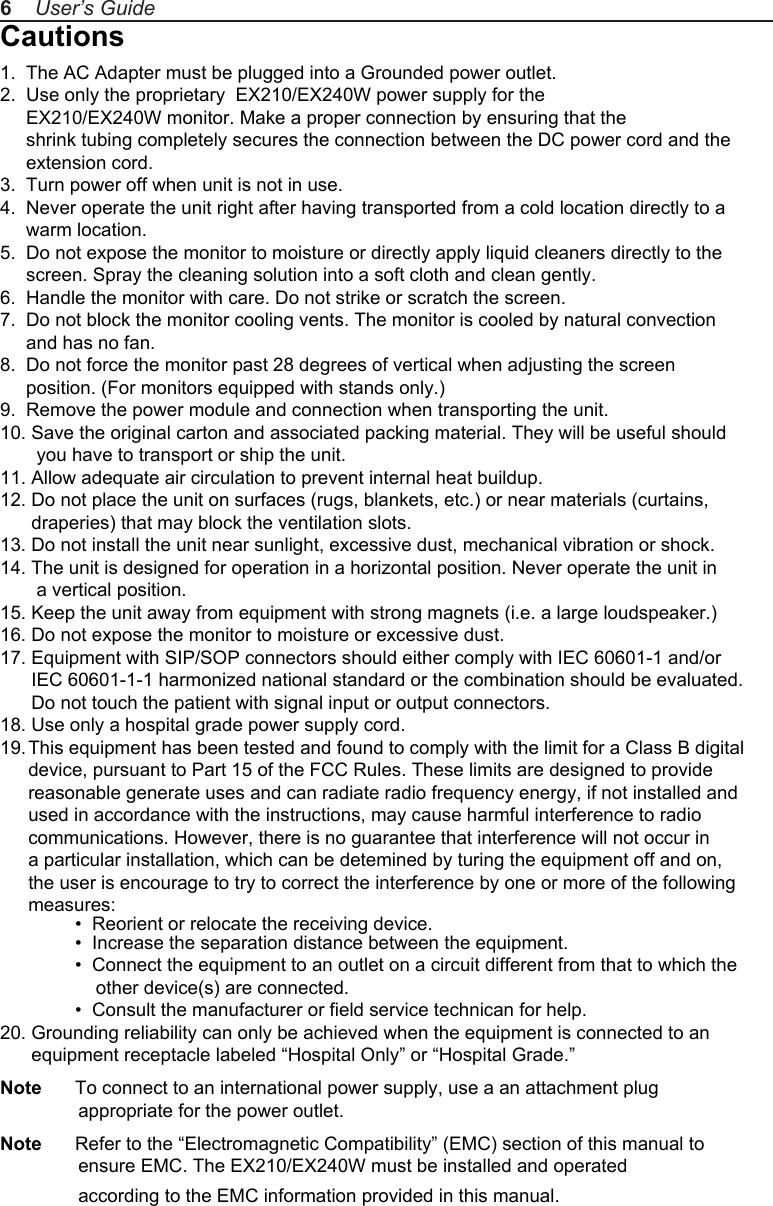
Cautions1.  The AC Adapter must be plugged into a Grounded power outlet.2.  Use only the proprietary  EX210/EX240W power supply for the      EX210/EX240W monitor. Make a proper connection by ensuring that the      shrink tubing completely secures the connection between the DC power cord and the      extension cord.3.  Turn power off when unit is not in use.4.  Never operate the unit right after having transported from a cold location directly to a      warm location.5.  Do not expose the monitor to moisture or directly apply liquid cleaners directly to the      screen. Spray the cleaning solution into a soft cloth and clean gently.6.  Handle the monitor with care. Do not strike or scratch the screen.7.  Do not block the monitor cooling vents. The monitor is cooled by natural convection      and has no fan. 8.  Do not force the monitor past 28 degrees of vertical when adjusting the screen      position. (For monitors equipped with stands only.)9.  Remove the power module and connection when transporting the unit.10. Save the original carton and associated packing material. They will be useful should        you have to transport or ship the unit.11. Allow adequate air circulation to prevent internal heat buildup. 12. Do not place the unit on surfaces (rugs, blankets, etc.) or near materials (curtains,       draperies) that may block the ventilation slots.13. Do not install the unit near sunlight, excessive dust, mechanical vibration or shock.14. The unit is designed for operation in a horizontal position. Never operate the unit in        a vertical position.15. Keep the unit away from equipment with strong magnets (i.e. a large loudspeaker.)16. Do not expose the monitor to moisture or excessive dust.17. Equipment with SIP/SOP connectors should either comply with IEC 60601-1 and/or       IEC 60601-1-1 harmonized national standard or the combination should be evaluated.       Do not touch the patient with signal input or output connectors.18. Use only a hospital grade power supply cord.19. This equipment has been tested and found to comply with the limit for a Class B digital device, pursuant to Part 15 of the FCC Rules. These limits are designed to provide reasonable generate uses and can radiate radio frequency energy, if not installed and used in accordance with the instructions, may cause harmful interference to radio communications. However, there is no guarantee that interference will not occur in a particular installation, which can be detemined by turing the equipment off and on, the user is encourage to try to correct the interference by one or more of the following measures:  •  Reorient or relocate the receiving device.  •  Increase the separation distance between the equipment.  •  Connect the equipment to an outlet on a circuit different from that to which the       other device(s) are connected.  •  Consult the manufacturer or field service technican for help.20. Grounding reliability can only be achieved when the equipment is connected to an       equipment receptacle labeled “Hospital Only” or “Hospital Grade.”Note  To connect to an international power supply, use a an attachment plug                appropriate for the power outlet.Note  Refer to the “Electromagnetic Compatibility” (EMC) section of this manual to                ensure EMC. The EX210/EX240W must be installed and operated                according to the EMC information provided in this manual.6    User’s Guide
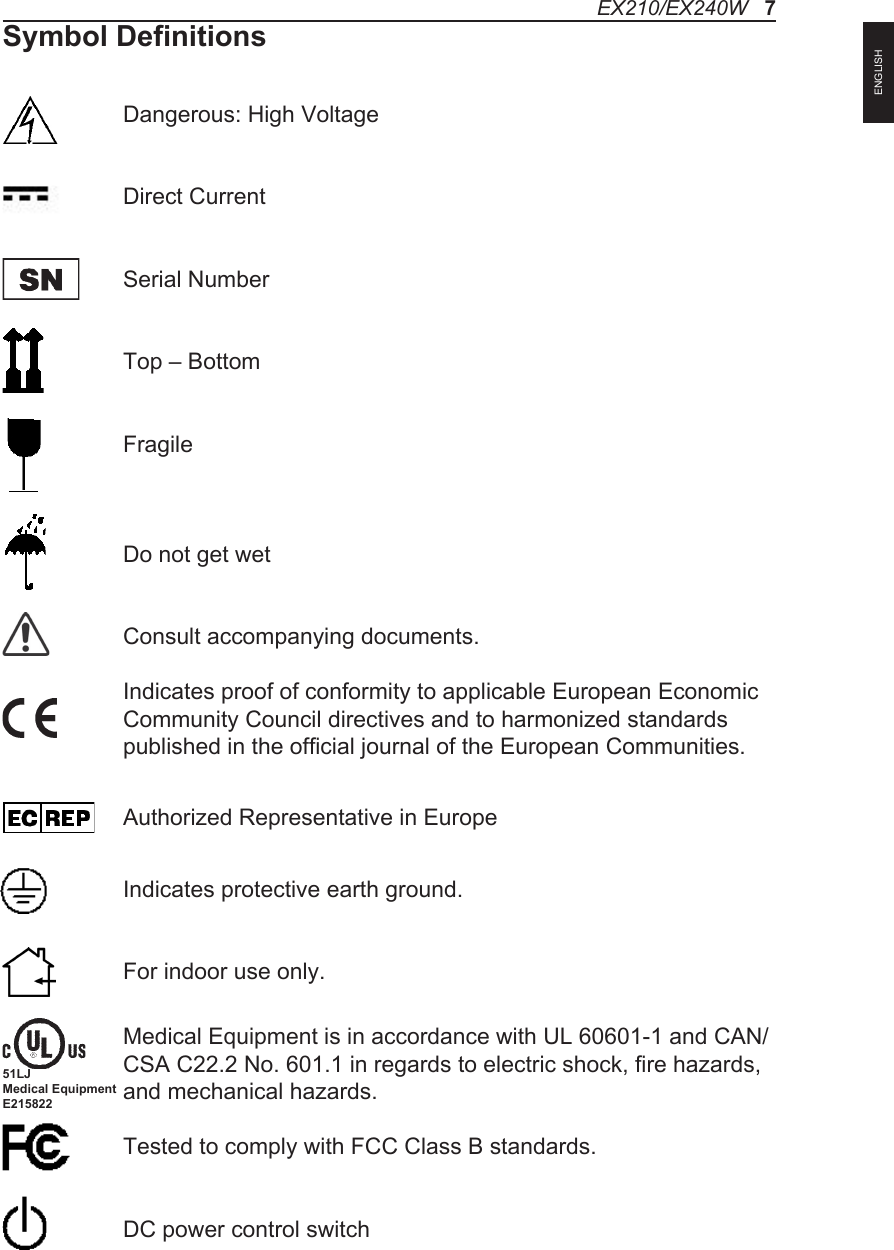
Symbol DefinitionsEX210/EX240W   7Dangerous: High VoltageDirect CurrentSerial NumberTop – BottomFragileDo not get wetConsult accompanying documents.Indicates proof of conformity to applicable European EconomicCommunity Council directives and to harmonized standards published in the official journal of the European Communities.Authorized Representative in EuropeIndicates protective earth ground.For indoor use only.Medical Equipment is in accordance with UL 60601-1 and CAN/CSA C22.2 No. 601.1 in regards to electric shock, fire hazards, and mechanical hazards.Tested to comply with FCC Class B standards.DC power control switch51LJMedical EquipmentE215822ENGLISH
EU Declaration of Conformity for Medical ApplicationsA Declaration of Conformity has been filed for this product. A sample of this document may be found in the addendum which accompanied this manual.  For a copy of the Declaration of Conformity document, please contact EIZO Nanao Corporation. and request for EX210/EX240W DOC.Prepare for UnpackBefore you unpack your monitor, prepare a suitable workspace. You need a stable and level surface near a grounded wall outlet in an area which is relatively free of glare from sunlight or other sources of bright light. The monitor is cooled by natural convection (it has no fan). For optimum performance, do not block the cooling vents.While unpacking the monitor, inspect it and other package contents for shipping damage that could cause a fire or shock hazard. Imme-diately report any shipping damage to the carrier or transportation company and contact customer service for monitor in the future or in case of return.After you unpack the monitor, make sure the following items are in-cluded  •  Monitor with video cable  •  AC adapter with cable           CAUTION: AC Adapter must be plugged into Grounded a power outlet          CAUTION : AC adapter          Model No: JMW1150KA2400F04          Part No: PS-52142415001A      •  This operations manual          Note:  Your system provider may offer alternative cords or cables depending on the installation requirement and local geography issues.8    User’s Guide
SAFETY PRECAUTION·  Avoid placing the monitor, or any other heavy object, on the power cord to prevent fire or electrical shock from damage to the power cord.·  Do not expose the monitor to rain, excessive moisture, or dust to avoid fire or shock hazard.·  Do not cover the slots or openings of the monitor for proper heat dissipation. Always put the monitor in a place where there is adequate ventilation.·  Avoid placing the monitor against a bright background or where sunlight or other light sources may reflect on the area of the monitor. Place the monitor just below eye level.·  Handle with care when transporting the monitor.·  Refrain from giving the shock or scratch to the screen, as screen is fragile.CLEANING YOUR MONITORNo specific liquid or chemical necessary when cleaning this LCD monitorHowever, we suggest to clean the monitor with non-abrasive cloths and cleaning solutions used in hospitals to clean similar equipment. We recommend using 70% Isopropyl alcohol for the screen surface and warm water and a mild detergent for all other surfaces. Other acceptable cleaning agents are listed below:  •  70% isopropyl alcohol  •  Cidex (2.4% glutaraldehyde solution)  •  0.5% Chlorhexidine in 70% isopropyl alcoholTo clean the screen, do not spray liquid cleaners directly on to the unit. Stand away Form the monitor and spray cleaning solution onto a cloth. Without applying exces-sive pressure, clean the screen with the slightly dampened rag.EX210/EX240W   9ENGLISH
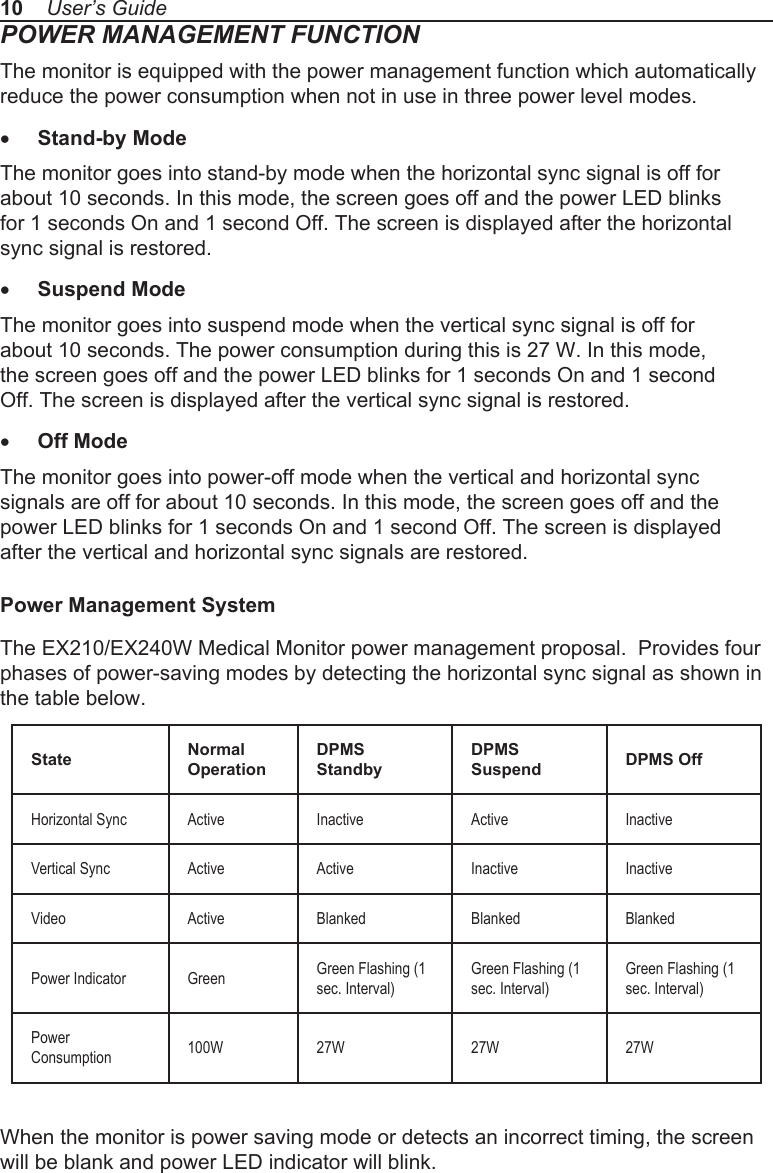
POWER MANAGEMENT FUNCTIONThe monitor is equipped with the power management function which automatically reduce the power consumption when not in use in three power level modes.• Stand-by ModeThe monitor goes into stand-by mode when the horizontal sync signal is off for about 10 seconds. In this mode, the screen goes off and the power LED blinks for 1 seconds On and 1 second Off. The screen is displayed after the horizontal sync signal is restored.• Suspend ModeThe monitor goes into suspend mode when the vertical sync signal is off for about 10 seconds. The power consumption during this is 27 W. In this mode, the screen goes off and the power LED blinks for 1 seconds On and 1 second Off. The screen is displayed after the vertical sync signal is restored.• Off ModeThe monitor goes into power-off mode when the vertical and horizontal sync signals are off for about 10 seconds. In this mode, the screen goes off and the power LED blinks for 1 seconds On and 1 second Off. The screen is displayed after the vertical and horizontal sync signals are restored.Power Management SystemThe EX210/EX240W Medical Monitor power management proposal.  Provides four phases of power-saving modes by detecting the horizontal sync signal as shown in the table below.When the monitor is power saving mode or detects an incorrect timing, the screen will be blank and power LED indicator will blink.10    User’s GuideState Normal OperationDPMS StandbyDPMS Suspend DPMS OffHorizontal Sync Active Inactive Active InactiveVertical Sync Active Active Inactive InactiveVideo Active Blanked Blanked BlankedPower Indicator Green Green Flashing (1 sec. Interval)Green Flashing (1 sec. Interval)Green Flashing (1 sec. Interval)Power Consumption 100W 27W 27W 27W
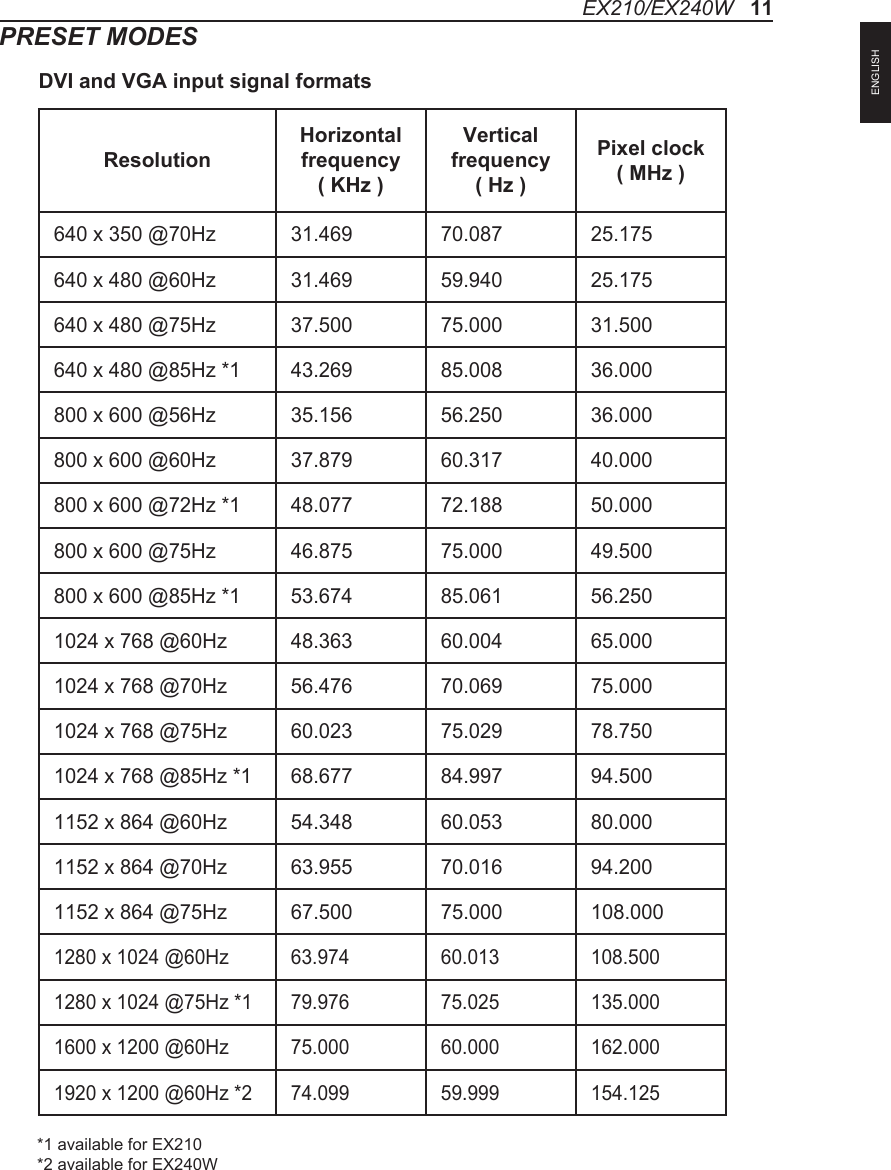
PRESET MODESEX210/EX240W   11ResolutionHorizontal frequency     ( KHz )Vertical frequency     ( Hz )Pixel clock    ( MHz )640 x 350 @70Hz 31.469 70.087 25.175640 x 480 @60Hz 31.469 59.940 25.175640 x 480 @75Hz 37.500 75.000 31.500640 x 480 @85Hz *1 43.269 85.008 36.000800 x 600 @56Hz 35.156 56.250 36.000800 x 600 @60Hz 37.879 60.317 40.000800 x 600 @72Hz *1 48.077 72.188 50.000800 x 600 @75Hz 46.875 75.000 49.500800 x 600 @85Hz *1 53.674 85.061 56.2501024 x 768 @60Hz 48.363 60.004 65.0001024 x 768 @70Hz 56.476 70.069 75.0001024 x 768 @75Hz 60.023 75.029 78.7501024 x 768 @85Hz *1 68.677 84.997 94.5001152 x 864 @60Hz 54.348 60.053 80.0001152 x 864 @70Hz 63.955 70.016 94.2001152 x 864 @75Hz 67.500 75.000 108.0001280 x 1024 @60Hz 63.974 60.013 108.5001280 x 1024 @75Hz *1 79.976 75.025 135.0001600 x 1200 @60Hz 75.000 60.000 162.0001920 x 1200 @60Hz *2 74.099 59.999 154.125*1 available for EX210*2 available for EX240WDVI and VGA input signal formatsENGLISH
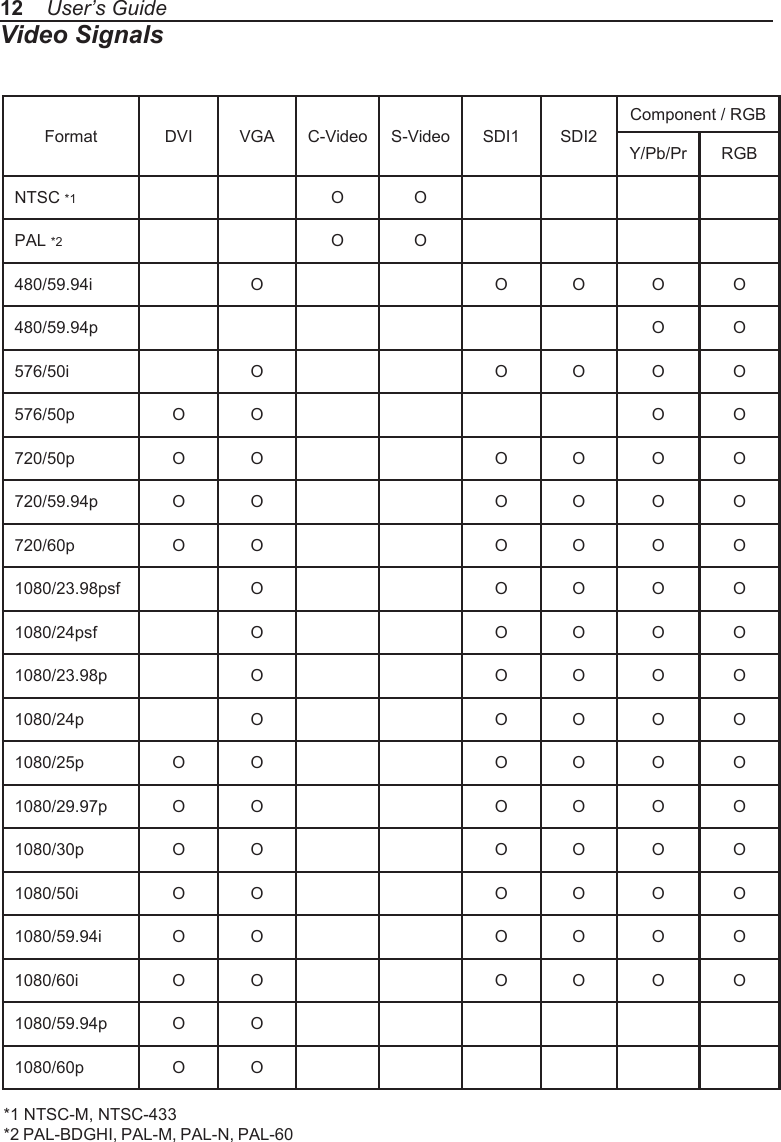
Video Signals12    User’s GuideFormat DVI VGA C-Video S-Video SDI1 SDI2Component / RGBY/Pb/Pr RGBNTSC *1 O OPAL *2 O O480/59.94i O O O O O480/59.94p O O576/50i O O O O O576/50p O O O O720/50p O O O O O O720/59.94p O O O O O O720/60p O O O O O O1080/23.98psf O O O O O1080/24psf O O O O O1080/23.98p O O O O O1080/24p O O O O O1080/25p O O O O O O1080/29.97p O O O O O O1080/30p O O O O O O1080/50i O O O O O O1080/59.94i O O O O O O1080/60i O O O O O O1080/59.94p O O1080/60p O O*1 NTSC-M, NTSC-433*2 PAL-BDGHI, PAL-M, PAL-N, PAL-60
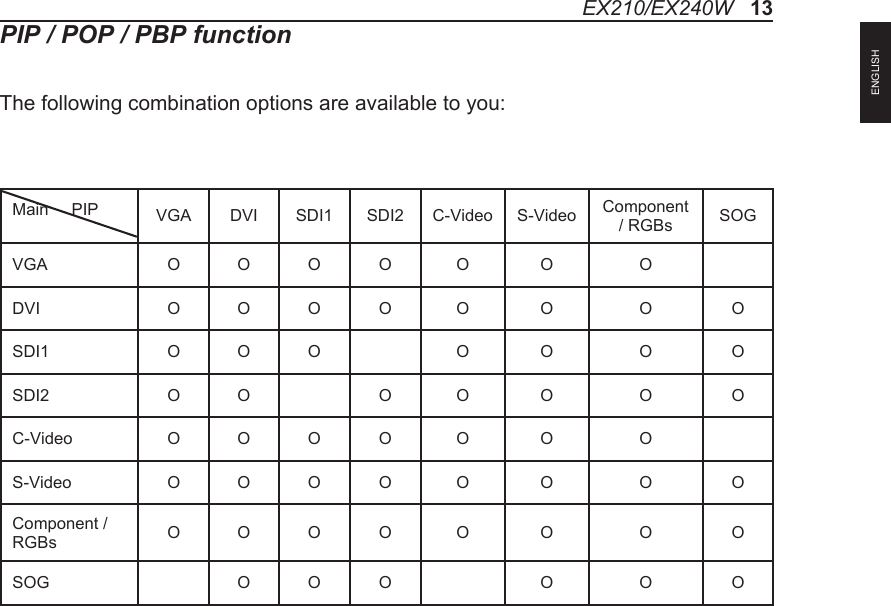
EX210/EX240W   13PIP / POP / PBP functionThe following combination options are available to you:Main     PIP VGA DVI SDI1 SDI2 C-Video S-Video Component / RGBs SOGVGA O O O O O O ODVI O O O O O O O OSDI1 O O O O O O OSDI2 O O O O O O OC-Video O O O O O O OS-Video O O O O O O O OComponent / RGBs O O O O O O O OSOG O O O O O OENGLISH
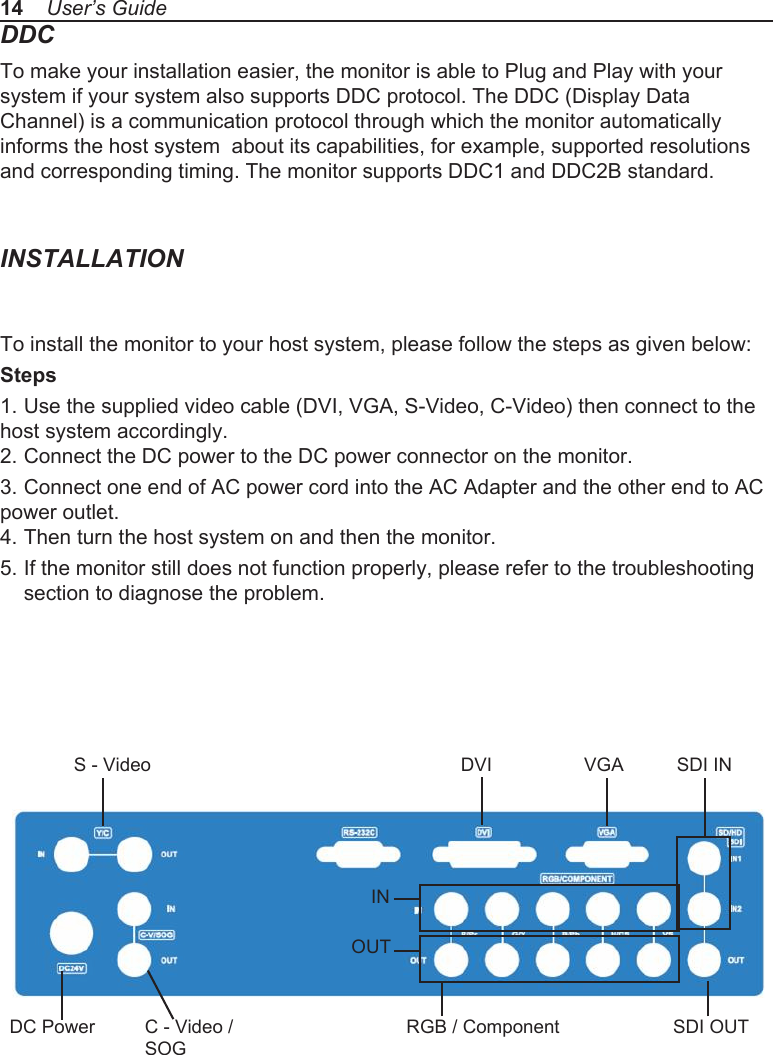
DDCTo make your installation easier, the monitor is able to Plug and Play with your system if your system also supports DDC protocol. The DDC (Display Data Channel) is a communication protocol through which the monitor automatically informs the host system  about its capabilities, for example, supported resolutions and corresponding timing. The monitor supports DDC1 and DDC2B standard.INSTALLATIONTo install the monitor to your host system, please follow the steps as given below:Steps1. Use the supplied video cable (DVI, VGA, S-Video, C-Video) then connect to the host system accordingly.2. Connect the DC power to the DC power connector on the monitor.3. Connect one end of AC power cord into the AC Adapter and the other end to AC power outlet.4. Then turn the host system on and then the monitor.5. If the monitor still does not function properly, please refer to the troubleshooting   section to diagnose the problem.14    User’s GuideDVI VGA SDI INS - VideoC - Video / SOGDC PowerINOUTRGB / Component SDI OUT
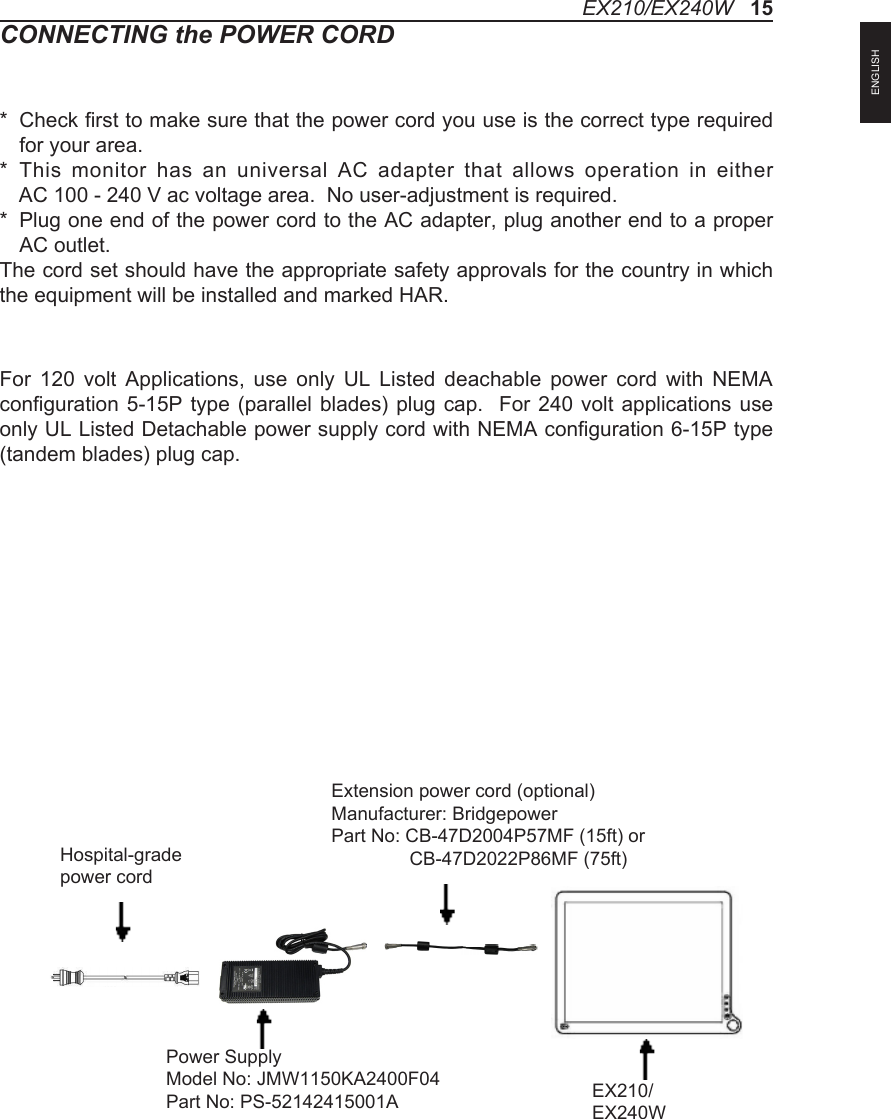
CONNECTING the POWER CORD*   Check first to make sure that the power cord you use is the correct type required for your area.*   This  monitor  has  an  universal  AC  adapter  that  allows  operation  in  either  AC 100 - 240 V ac voltage area.  No user-adjustment is required.*   Plug one end of the power cord to the AC adapter, plug another end to a proper AC outlet.The cord set should have the appropriate safety approvals for the country in which the equipment will be installed and marked HAR.For  120  volt  Applications,  use  only  UL  Listed  deachable  power  cord  with  NEMA configuration 5-15P  type (parallel  blades) plug cap.   For  240 volt  applications use only UL Listed Detachable power supply cord with NEMA configuration 6-15P type (tandem blades) plug cap.EX210/EX240W   15Hospital-grade power cordPower SupplyModel No: JMW1150KA2400F04Part No: PS-52142415001A EX210/EX240WExtension power cord (optional)Manufacturer: BridgepowerPart No: CB-47D2004P57MF (15ft) or               CB-47D2022P86MF (75ft)ENGLISH
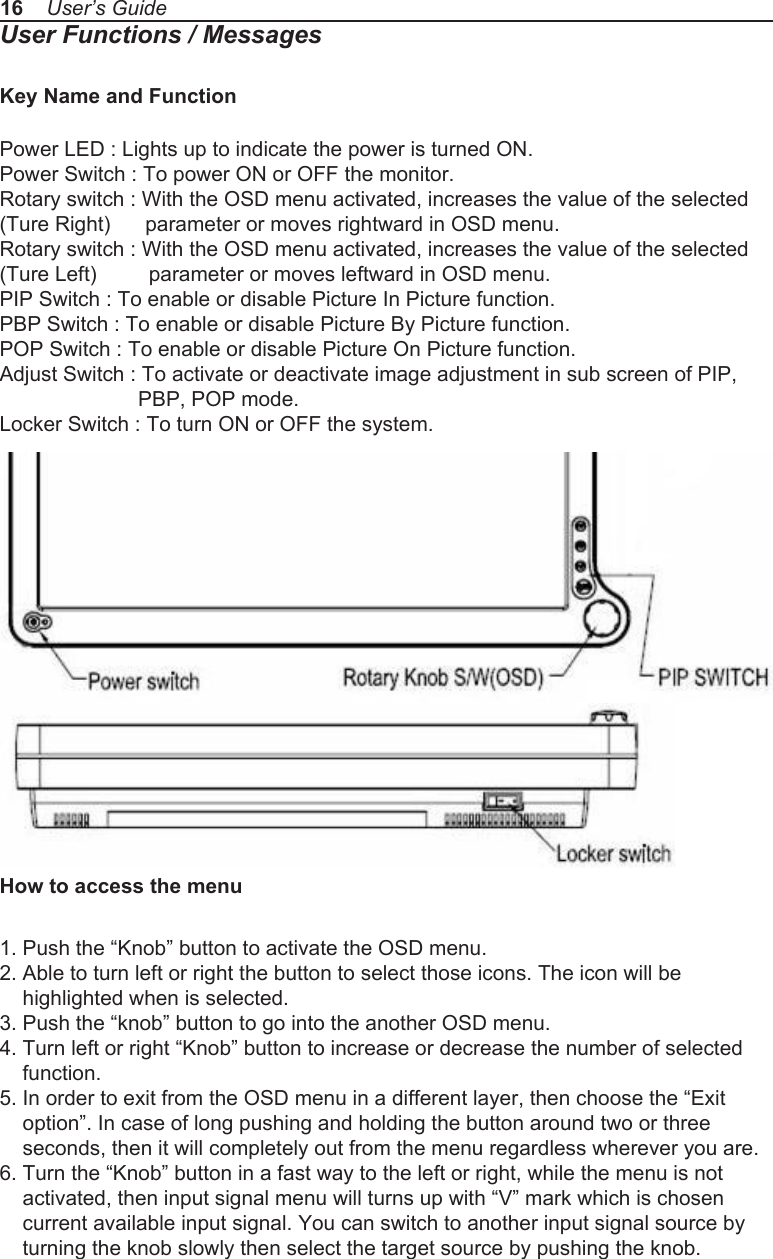
16    User’s GuideUser Functions / MessagesKey Name and FunctionPower LED : Lights up to indicate the power is turned ON.Power Switch : To power ON or OFF the monitor.Rotary switch : With the OSD menu activated, increases the value of the selected (Ture Right)      parameter or moves rightward in OSD menu.Rotary switch : With the OSD menu activated, increases the value of the selected (Ture Left)         parameter or moves leftward in OSD menu.PIP Switch : To enable or disable Picture In Picture function.PBP Switch : To enable or disable Picture By Picture function.POP Switch : To enable or disable Picture On Picture function.Adjust Switch : To activate or deactivate image adjustment in sub screen of PIP,              PBP, POP mode.Locker Switch : To turn ON or OFF the system.How to access the menu1. Push the “Knob” button to activate the OSD menu.2. Able to turn left or right the button to select those icons. The icon will be     highlighted when is selected.3. Push the “knob” button to go into the another OSD menu.4. Turn left or right “Knob” button to increase or decrease the number of selected     function.5. In order to exit from the OSD menu in a different layer, then choose the “Exit     option”. In case of long pushing and holding the button around two or three     seconds, then it will completely out from the menu regardless wherever you are.6. Turn the “Knob” button in a fast way to the left or right, while the menu is not     activated, then input signal menu will turns up with “V” mark which is chosen     current available input signal. You can switch to another input signal source by     turning the knob slowly then select the target source by pushing the knob.
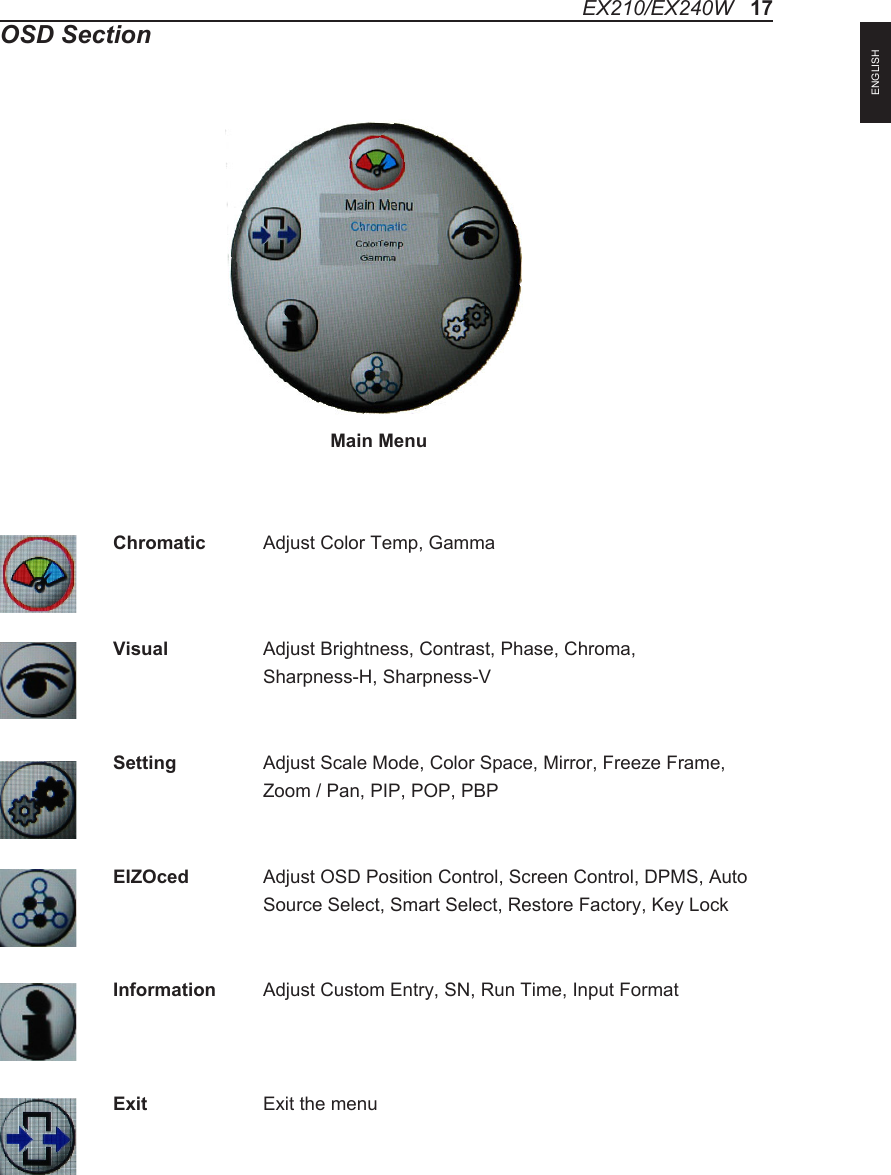
EX210/EX240W   17OSD SectionChromatic  Adjust Color Temp, GammaVisual    Adjust Brightness, Contrast, Phase, Chroma,     Sharpness-H, Sharpness-VSetting    Adjust Scale Mode, Color Space, Mirror, Freeze Frame,     Zoom / Pan, PIP, POP, PBPEIZOced  Adjust OSD Position Control, Screen Control, DPMS, Auto     Source Select, Smart Select, Restore Factory, Key LockInformation  Adjust Custom Entry, SN, Run Time, Input FormatExit    Exit the menuMain MenuENGLISH
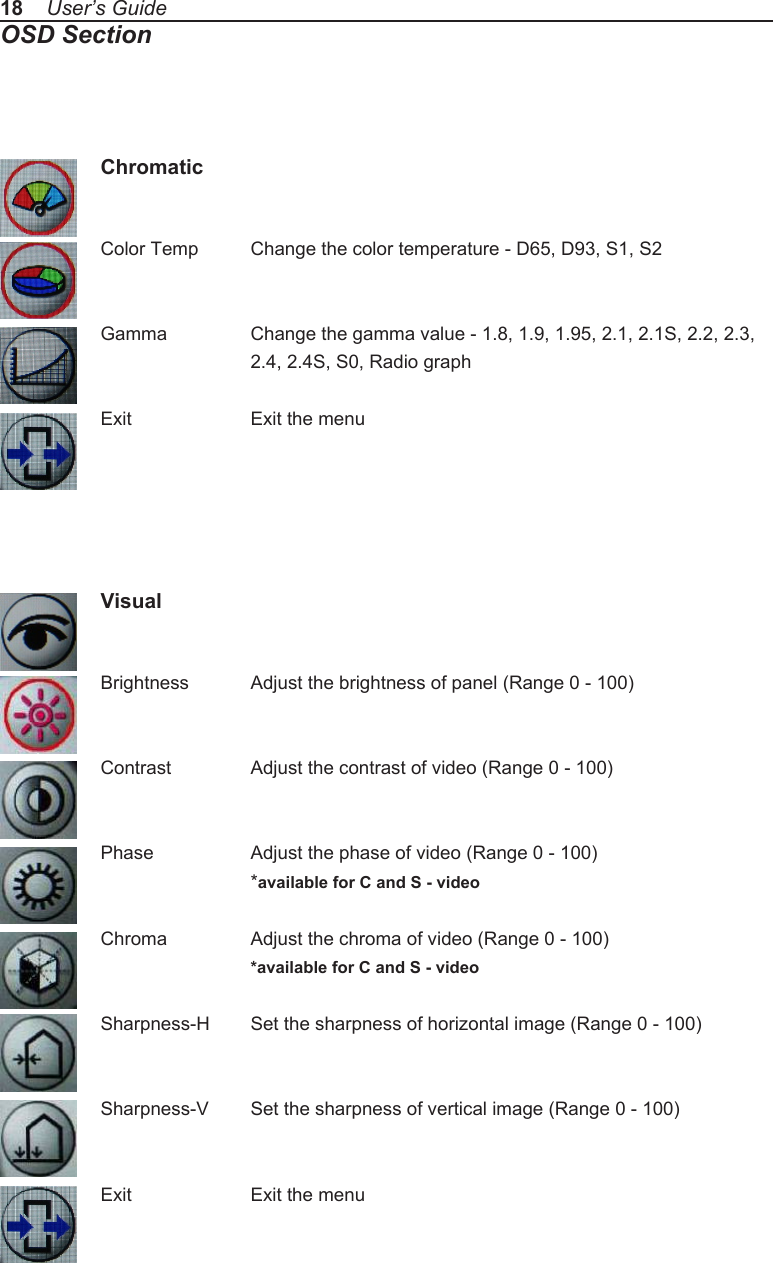
18    User’s GuideOSD SectionChromaticColor Temp  Change the color temperature - D65, D93, S1, S2Gamma    Change the gamma value - 1.8, 1.9, 1.95, 2.1, 2.1S, 2.2, 2.3,     2.4, 2.4S, S0, Radio graphExit    Exit the menuVisualBrightness  Adjust the brightness of panel (Range 0 - 100)Contrast   Adjust the contrast of video (Range 0 - 100)Phase    Adjust the phase of video (Range 0 - 100)  *available for C and S - videoChroma    Adjust the chroma of video (Range 0 - 100)    *available for C and S - videoSharpness-H  Set the sharpness of horizontal image (Range 0 - 100)Sharpness-V  Set the sharpness of vertical image (Range 0 - 100)Exit    Exit the menu
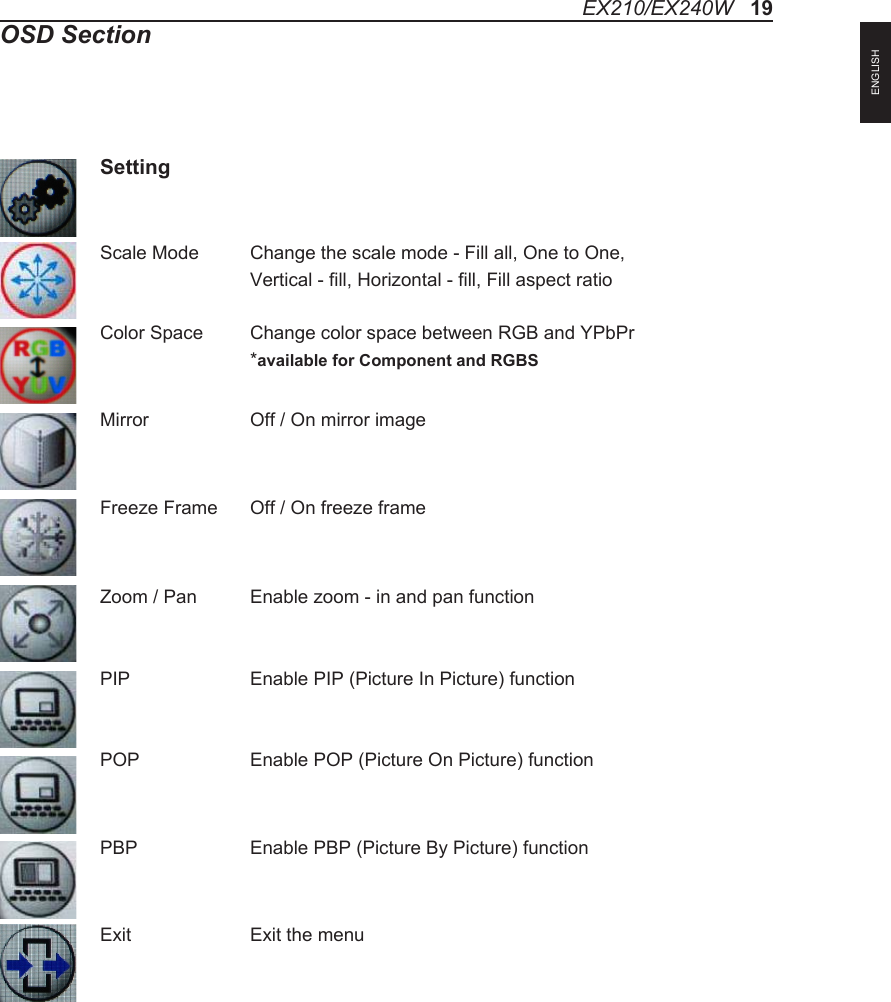
OSD SectionSettingScale Mode  Change the scale mode - Fill all, One to One,    Vertical - fill, Horizontal - fill, Fill aspect ratioColor Space  Change color space between RGB and YPbPr  *available for Component and RGBSMirror    Off / On mirror imageFreeze Frame  Off / On freeze frameZoom / Pan  Enable zoom - in and pan functionPIP    Enable PIP (Picture In Picture) functionPOP    Enable POP (Picture On Picture) functionPBP    Enable PBP (Picture By Picture) functionExit    Exit the menuEX210/EX240W   19ENGLISH
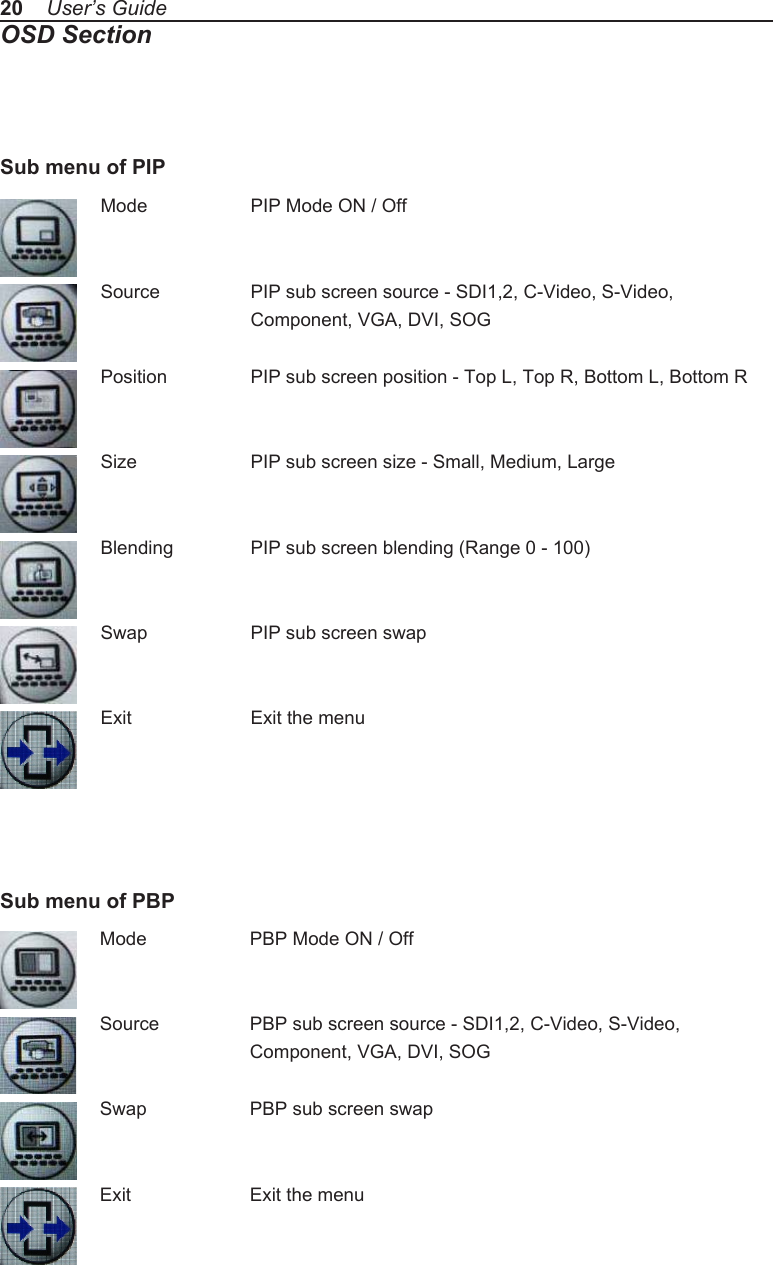
20    User’s GuideOSD SectionMode    PIP Mode ON / OffSource    PIP sub screen source - SDI1,2, C-Video, S-Video,     Component, VGA, DVI, SOGPosition    PIP sub screen position - Top L, Top R, Bottom L, Bottom RSize    PIP sub screen size - Small, Medium, LargeBlending   PIP sub screen blending (Range 0 - 100)Swap    PIP sub screen swapExit    Exit the menuMode    PBP Mode ON / OffSource    PBP sub screen source - SDI1,2, C-Video, S-Video,     Component, VGA, DVI, SOGSwap    PBP sub screen swapExit    Exit the menuSub menu of PBPSub menu of PIP
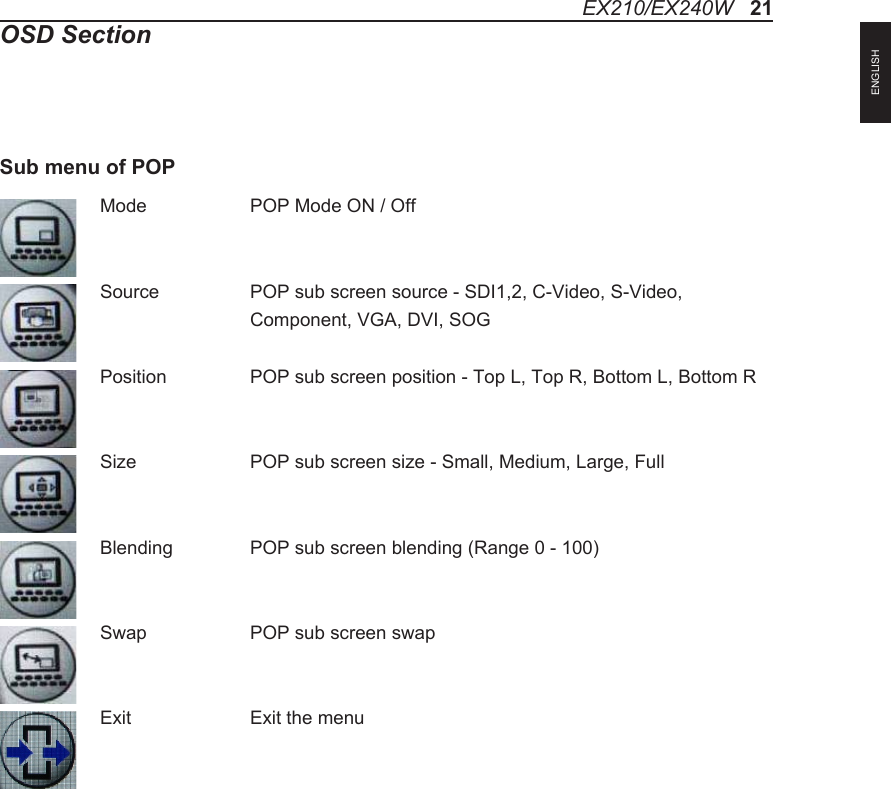
Mode    POP Mode ON / OffSource    POP sub screen source - SDI1,2, C-Video, S-Video,     Component, VGA, DVI, SOGPosition    POP sub screen position - Top L, Top R, Bottom L, Bottom RSize    POP sub screen size - Small, Medium, Large, FullBlending   POP sub screen blending (Range 0 - 100)Swap    POP sub screen swapExit    Exit the menuSub menu of POPEX210/EX240W   21OSD SectionENGLISH
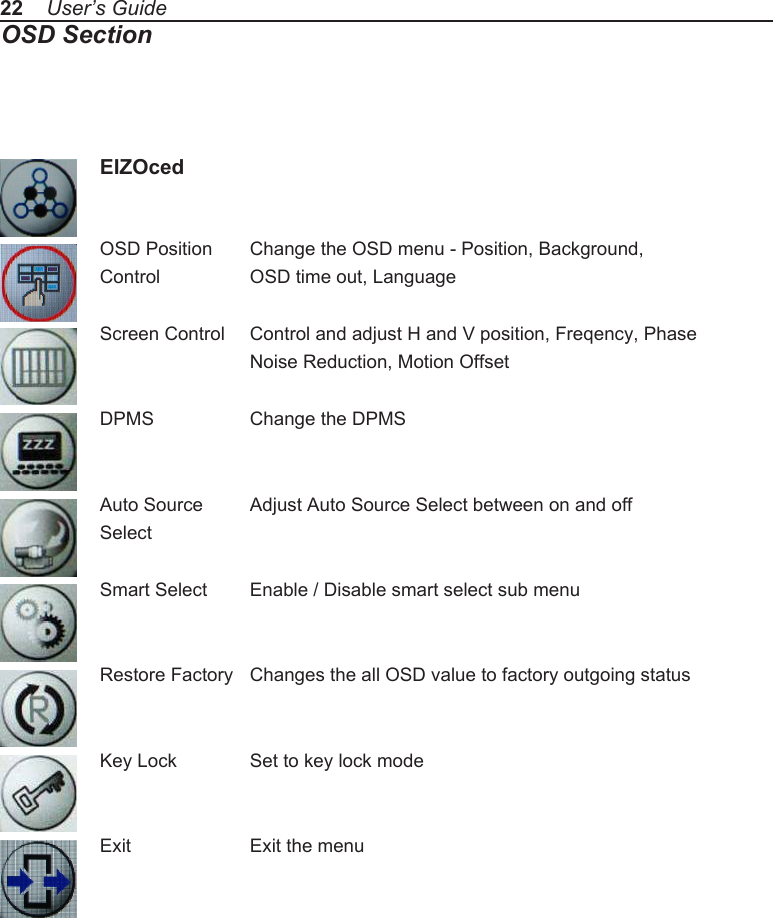
22    User’s GuideOSD Section EIZOcedOSD Position  Change the OSD menu - Position, Background, Control    OSD time out, LanguageScreen Control  Control and adjust H and V position, Freqency, Phase    Noise Reduction, Motion Offset   DPMS    Change the DPMSAuto Source  Adjust Auto Source Select between on and offSelectSmart Select  Enable / Disable smart select sub menuRestore Factory  Changes the all OSD value to factory outgoing statusKey Lock  Set to key lock modeExit    Exit the menu
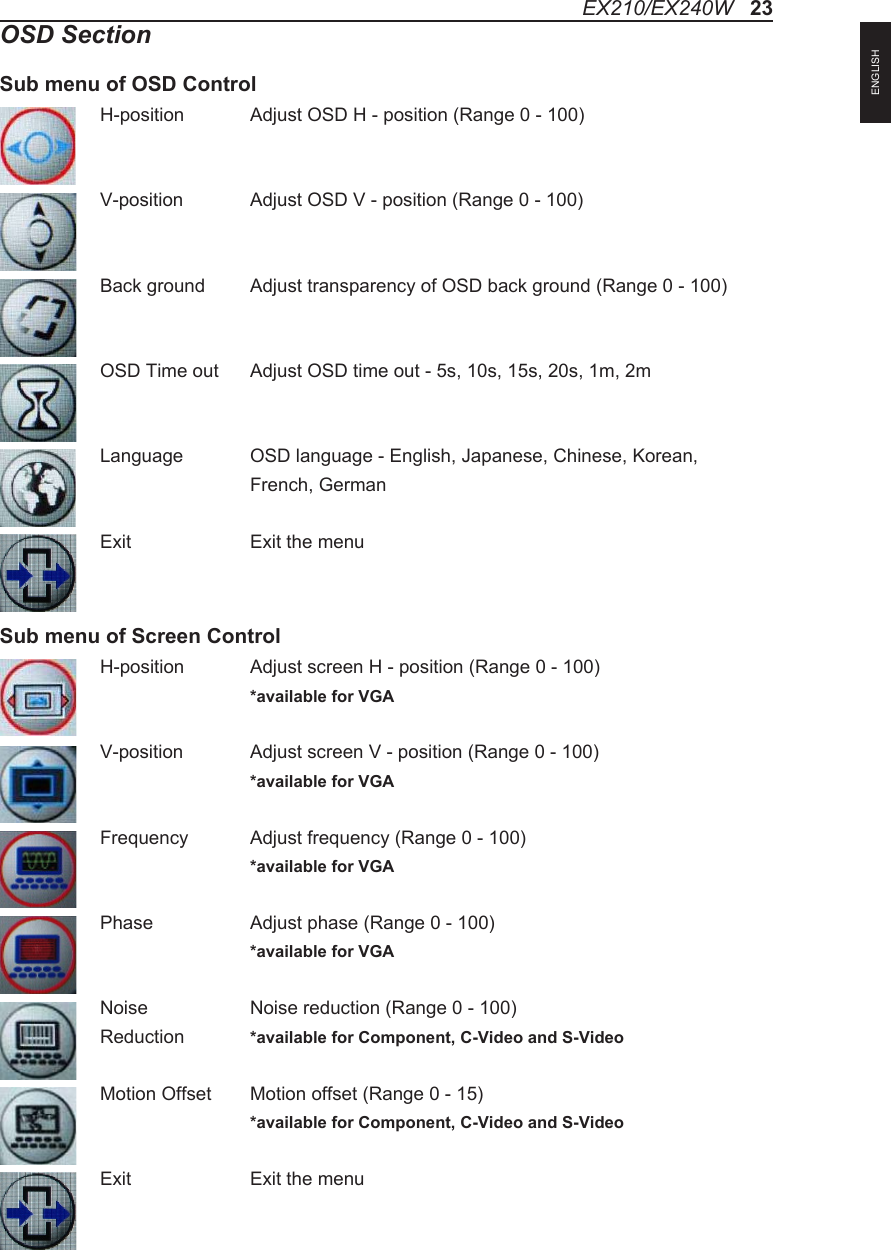
OSD SectionSub menu of OSD ControlH-position  Adjust OSD H - position (Range 0 - 100)V-position  Adjust OSD V - position (Range 0 - 100)    Back ground  Adjust transparency of OSD back ground (Range 0 - 100)OSD Time out  Adjust OSD time out - 5s, 10s, 15s, 20s, 1m, 2mLanguage  OSD language - English, Japanese, Chinese, Korean,     French, GermanExit    Exit the menuH-position  Adjust screen H - position (Range 0 - 100)  *available for VGAV-position  Adjust screen V - position (Range 0 - 100)  *available for VGAFrequency  Adjust frequency (Range 0 - 100)  *available for VGAPhase   Adjust phase (Range 0 - 100)  *available for VGANoise    Noise reduction (Range 0 - 100)Reduction  *available for Component, C-Video and S-Video Motion Offset  Motion offset (Range 0 - 15)  *available for Component, C-Video and S-VideoExit    Exit the menuSub menu of Screen ControlEX210/EX240W   23ENGLISH
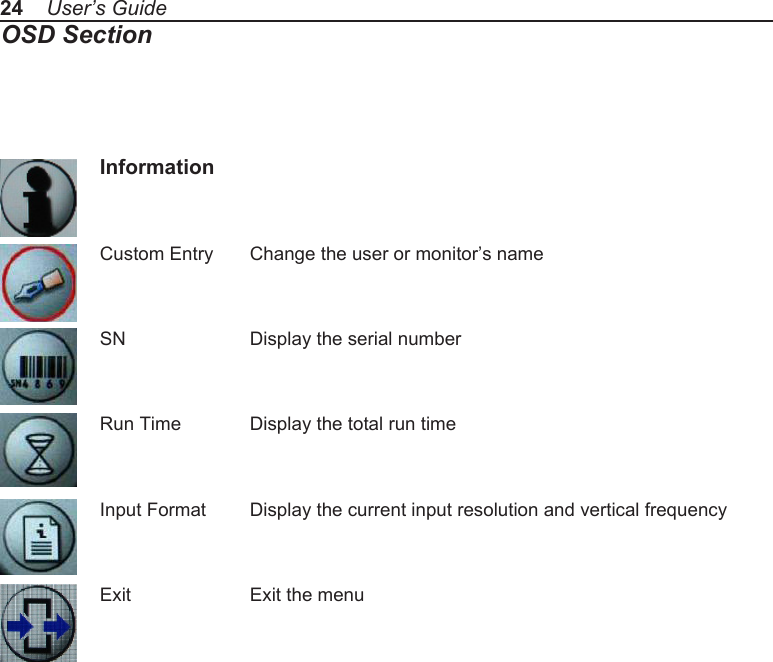
24    User’s GuideOSD Section InformationCustom Entry  Change the user or monitor’s nameSN    Display the serial numberRun Time  Display the total run timeInput Format  Display the current input resolution and vertical frequencyExit    Exit the menu
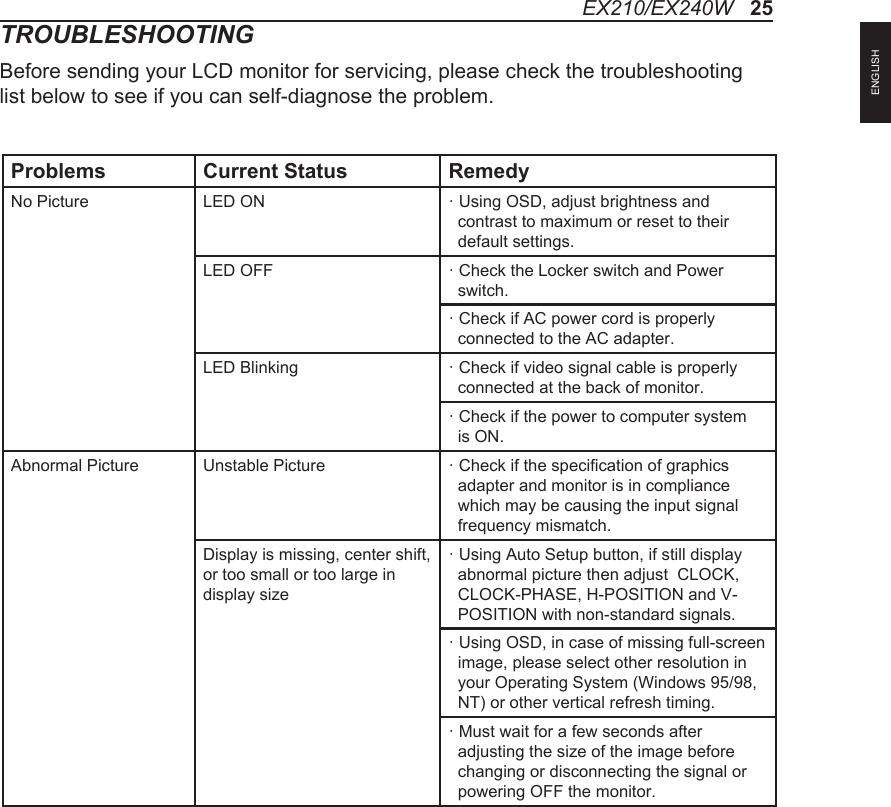
TROUBLESHOOTINGBefore sending your LCD monitor for servicing, please check the troubleshooting list below to see if you can self-diagnose the problem.EX210/EX240W   25Problems Current Status RemedyNo Picture LED ON ·  Using OSD, adjust brightness and contrast to maximum or reset to their default settings.LED OFF ·  Check the Locker switch and Power switch.·  Check if AC power cord is properly connected to the AC adapter.LED Blinking ·  Check if video signal cable is properly connected at the back of monitor.·  Check if the power to computer system is ON.Abnormal Picture  Unstable Picture ·  Check if the specification of graphics adapter and monitor is in compliance which may be causing the input signal frequency mismatch. Display is missing, center shift, or too small or too large in display size·  Using Auto Setup button, if still display abnormal picture then adjust  CLOCK, CLOCK-PHASE, H-POSITION and V-POSITION with non-standard signals.·  Using OSD, in case of missing full-screen image, please select other resolution in your Operating System (Windows 95/98, NT) or other vertical refresh timing.·  Must wait for a few seconds after adjusting the size of the image before changing or disconnecting the signal or powering OFF the monitor.ENGLISH
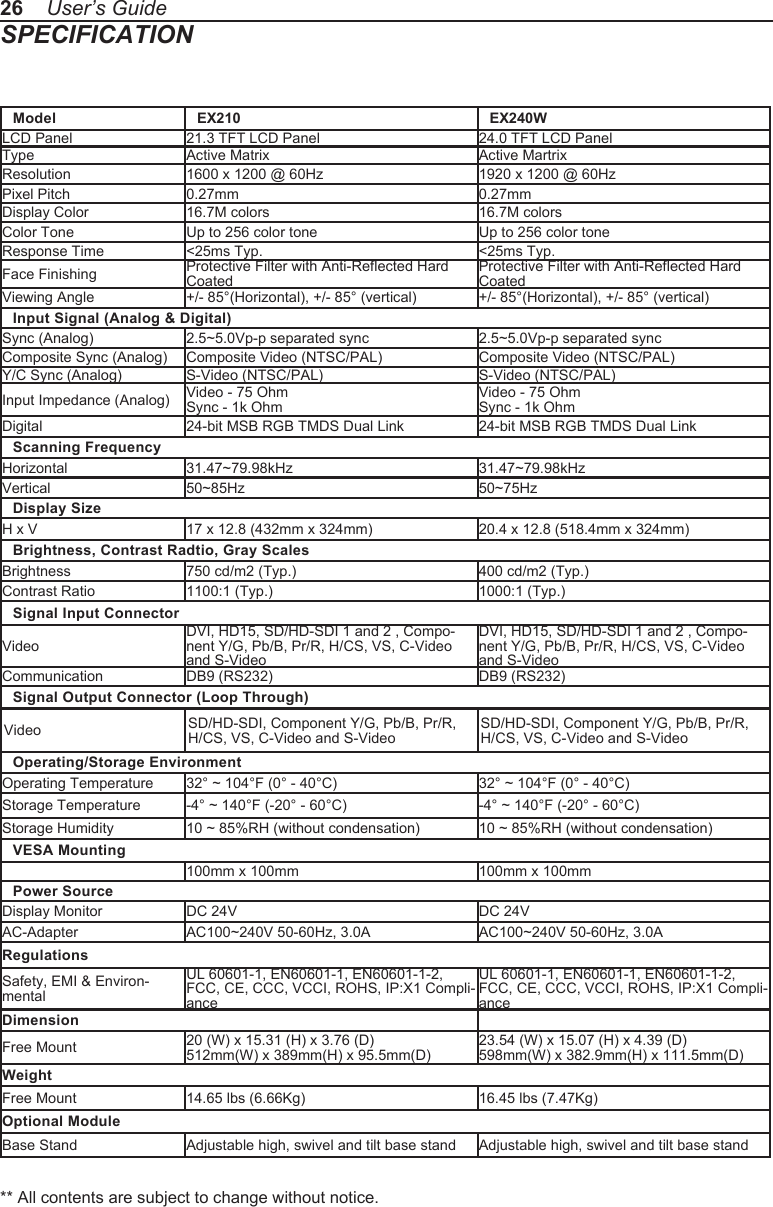
26    User’s Guide** All contents are subject to change without notice.SPECIFICATIONModel  EX210 EX240WLCD Panel 21.3 TFT LCD Panel 24.0 TFT LCD PanelType Active Matrix Active MartrixResolution 1600 x 1200 @ 60Hz 1920 x 1200 @ 60HzPixel Pitch 0.27mm 0.27mmDisplay Color 16.7M colors 16.7M colorsColor Tone Up to 256 color tone Up to 256 color toneResponse Time <25ms Typ. <25ms Typ.Face Finishing Protective Filter with Anti-Reflected Hard CoatedProtective Filter with Anti-Reflected Hard CoatedViewing Angle +/- 85°(Horizontal), +/- 85° (vertical) +/- 85°(Horizontal), +/- 85° (vertical)Input Signal (Analog & Digital)Sync (Analog) 2.5~5.0Vp-p separated sync 2.5~5.0Vp-p separated syncComposite Sync (Analog) Composite Video (NTSC/PAL) Composite Video (NTSC/PAL)Y/C Sync (Analog) S-Video (NTSC/PAL) S-Video (NTSC/PAL)Input Impedance (Analog) Video - 75 Ohm Sync - 1k OhmVideo - 75 Ohm Sync - 1k OhmDigital 24-bit MSB RGB TMDS Dual Link 24-bit MSB RGB TMDS Dual LinkScanning FrequencyHorizontal 31.47~79.98kHz 31.47~79.98kHzVertical 50~85Hz 50~75HzDisplay SizeH x V 17 x 12.8 (432mm x 324mm) 20.4 x 12.8 (518.4mm x 324mm)Brightness, Contrast Radtio, Gray ScalesBrightness 750 cd/m2 (Typ.) 400 cd/m2 (Typ.)Contrast Ratio 1100:1 (Typ.) 1000:1 (Typ.)Signal Input ConnectorVideoDVI, HD15, SD/HD-SDI 1 and 2 , Compo-nent Y/G, Pb/B, Pr/R, H/CS, VS, C-Video and S-VideoDVI, HD15, SD/HD-SDI 1 and 2 , Compo-nent Y/G, Pb/B, Pr/R, H/CS, VS, C-Video and S-VideoCommunication DB9 (RS232) DB9 (RS232)Signal Output Connector (Loop Through)Video SD/HD-SDI, Component Y/G, Pb/B, Pr/R,  H/CS, VS, C-Video and S-VideoSD/HD-SDI, Component Y/G, Pb/B, Pr/R, H/CS, VS, C-Video and S-VideoOperating/Storage EnvironmentOperating Temperature 32° ~ 104°F (0° - 40°C) 32° ~ 104°F (0° - 40°C)Storage Temperature -4° ~ 140°F (-20° - 60°C) -4° ~ 140°F (-20° - 60°C)Storage Humidity 10 ~ 85%RH (without condensation) 10 ~ 85%RH (without condensation)VESA Mounting100mm x 100mm 100mm x 100mmPower SourceDisplay Monitor DC 24V DC 24VAC-Adapter AC100~240V 50-60Hz, 3.0A AC100~240V 50-60Hz, 3.0ARegulationsSafety, EMI & Environ-mental UL 60601-1, EN60601-1, EN60601-1-2, FCC, CE, CCC, VCCI, ROHS, IP:X1 Compli-anceUL 60601-1, EN60601-1, EN60601-1-2, FCC, CE, CCC, VCCI, ROHS, IP:X1 Compli-anceDimensionFree Mount 20 (W) x 15.31 (H) x 3.76 (D) 512mm(W) x 389mm(H) x 95.5mm(D)23.54 (W) x 15.07 (H) x 4.39 (D) 598mm(W) x 382.9mm(H) x 111.5mm(D)WeightFree Mount 14.65 lbs (6.66Kg) 16.45 lbs (7.47Kg)Optional ModuleBase Stand Adjustable high, swivel and tilt base stand Adjustable high, swivel and tilt base stand
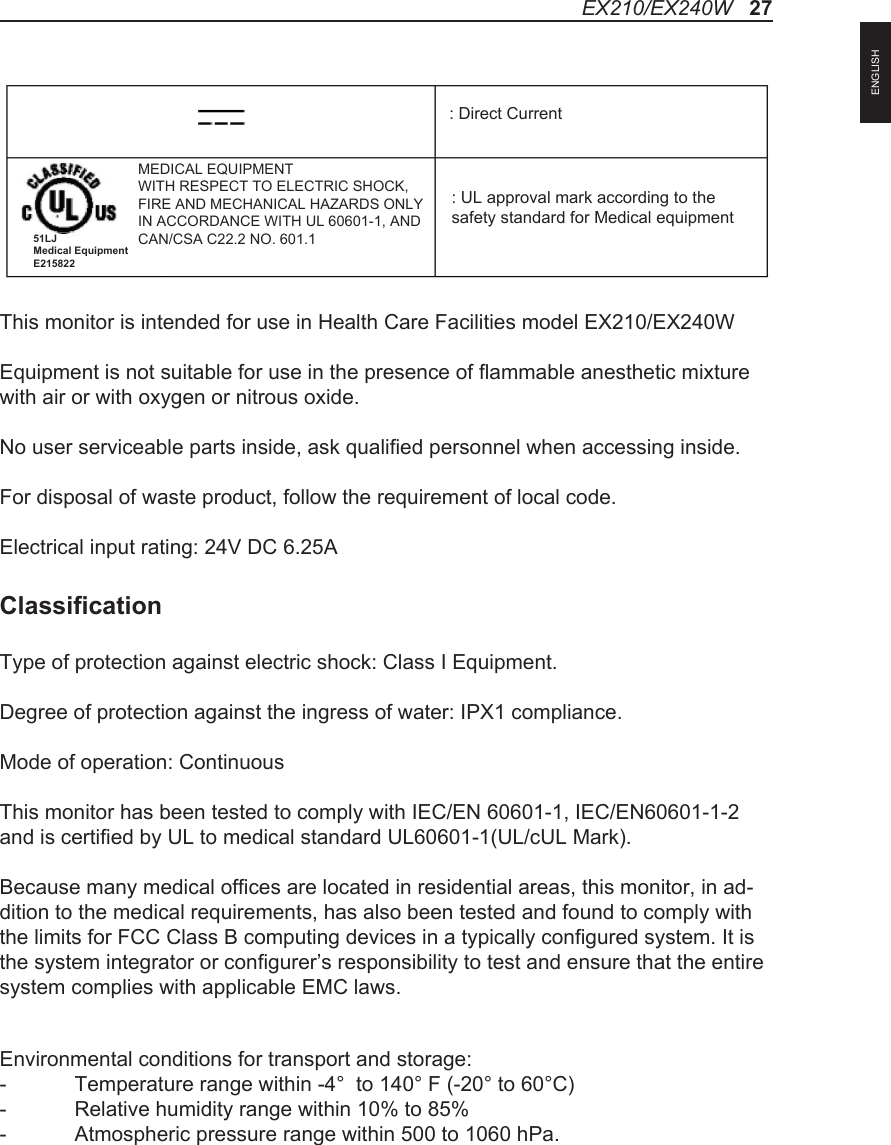
This monitor is intended for use in Health Care Facilities model EX210/EX240WEquipment is not suitable for use in the presence of flammable anesthetic mixture with air or with oxygen or nitrous oxide.No user serviceable parts inside, ask qualified personnel when accessing inside.For disposal of waste product, follow the requirement of local code.Electrical input rating: 24V DC 6.25AClassificationType of protection against electric shock: Class I Equipment.Degree of protection against the ingress of water: IPX1 compliance.Mode of operation: ContinuousThis monitor has been tested to comply with IEC/EN 60601-1, IEC/EN60601-1-2 and is certified by UL to medical standard UL60601-1(UL/cUL Mark).Because many medical offices are located in residential areas, this monitor, in ad-dition to the medical requirements, has also been tested and found to comply with the limits for FCC Class B computing devices in a typically configured system. It is the system integrator or configurer’s responsibility to test and ensure that the entire system complies with applicable EMC laws.Environmental conditions for transport and storage:-  Temperature range within -4°  to 140° F (-20° to 60°C)-  Relative humidity range within 10% to 85%-  Atmospheric pressure range within 500 to 1060 hPa.: UL approval mark according to thesafety standard for Medical equipment: Direct CurrentMEDICAL EQUIPMENTWITH RESPECT TO ELECTRIC SHOCK,FIRE AND MECHANICAL HAZARDS ONLYIN ACCORDANCE WITH UL 60601-1, ANDCAN/CSA C22.2 NO. 601.151LJ Medical Equipment E215822EX210/EX240W   27ENGLISH
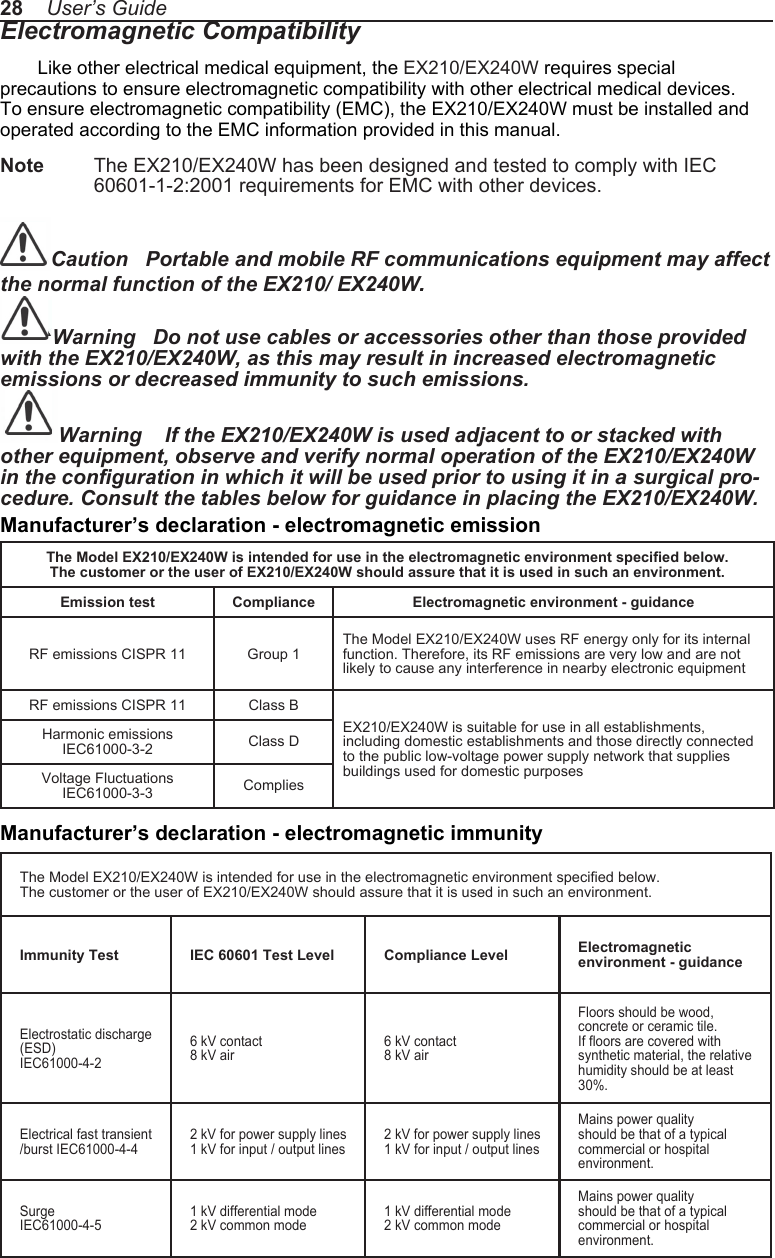
28    User’s GuideElectromagnetic CompatibilityLike other electrical medical equipment, the EX210/EX240W requires special precautions to ensure electromagnetic compatibility with other electrical medical devices. To ensure electromagnetic compatibility (EMC), the EX210/EX240W must be installed and operated according to the EMC information provided in this manual. Note   The EX210/EX240W has been designed and tested to comply with IEC 60601-1-2:2001 requirements for EMC with other devices. Caution   Portable and mobile RF communications equipment may affect the normal function of the EX210/ EX240W.. Warning   Do not use cables or accessories other than those provided with the EX210/EX240W, as this may result in increased electromagnetic emissions or decreased immunity to such emissions. Warning    If the EX210/EX240W is used adjacent to or stacked with other equipment, observe and verify normal operation of the EX210/EX240W in the configuration in which it will be used prior to using it in a surgical pro-cedure. Consult the tables below for guidance in placing the EX210/EX240W. The Model EX210/EX240W is intended for use in the electromagnetic environment specified below.The customer or the user of EX210/EX240W should assure that it is used in such an environment. Emission test Compliance Electromagnetic environment - guidanceRF emissions CISPR 11 Group 1The Model EX210/EX240W uses RF energy only for its internal function. Therefore, its RF emissions are very low and are not likely to cause any interference in nearby electronic equipmentRF emissions CISPR 11 Class BEX210/EX240W is suitable for use in all establishments, including domestic establishments and those directly connected to the public low-voltage power supply network that supplies buildings used for domestic purposesHarmonic emissions IEC61000-3-2 Class DVoltage Fluctuations IEC61000-3-3 CompliesManufacturer’s declaration - electromagnetic emissionThe Model EX210/EX240W is intended for use in the electromagnetic environment specified below. The customer or the user of EX210/EX240W should assure that it is used in such an environment. Immunity Test IEC 60601 Test Level Compliance Level Electromagnetic environment - guidanceElectrostatic discharge (ESD) IEC61000-4-26 kV contact 8 kV air 6 kV contact 8 kV air Floors should be wood, concrete or ceramic tile. If floors are covered with synthetic material, the relative humidity should be at least 30%.Electrical fast transient /burst IEC61000-4-42 kV for power supply lines1 kV for input / output lines2 kV for power supply lines1 kV for input / output lines Mains power quality should be that of a typical commercial or hospital environment.Surge IEC61000-4-51 kV differential mode2 kV common mode1 kV differential mode2 kV common modeMains power quality should be that of a typical commercial or hospital environment.Manufacturer’s declaration - electromagnetic immunity
Power frequency (50/60Hz) mag-netic field IEC 61000-4-8 3.0 A/m 3.0 A/mPower frequency mag-netic fields should be at levels characteristic of a typical location in a typical commercial or hospital environment.Voltage dips, short interruptions and voltage variations on power supply input lines IEC61000-4-11<5% Ut (>95% dip in Ut) for 0.5 cycle40% Ut (60% dip in Ut) for 5 cycles70% Ut (30% dip in Ut) for 25 cycles<5% Ut (>95% dip in Ut) for 5 sec.<5% Ut (>95% dip in Ut) for 0.5 cycle40% Ut (60% dip in Ut) for 5 cycles70% Ut (30% dip in Ut) for 25 cycles<5% Ut (>95% dip in Ut) for 5 sec.Mains power quaility should be that of a typical commercial or hospital environment.  If the user of the EX210/ EX240W image intensifier requires continued operation dur-ing power mains interrup-tions, it is recommended that the EX210/ EX240W image intensifier be powered from an uninter-ruptible power supply or a battery.Note: Ut is the A.C. mains voltage prior to application of the test level.The Model EX210/EX240W is intended for use in the electromagnetic environment specified below. The customer or the user of EX210/EX240W should ensure that it is used in such an environment. Immunity Test IEC 60601 Test Level Compliance Level Electromagnetic environment - guidanceConducted RFIEC61000-4-6Radiated RFIEC 61000-4-33 Vrms 150 KHz to 80 MHz3 V/m 80MHz to 2.5 GHz3 Vrms 150 KHz to 80 MHz3 V/m 80MHz to 2.5 GHzPortable and mobile RF communications equipment should be used no closer to any part of the EX210/ EX240W, including cables, than the recommended separation distance calculated from the equation applicable to the frequency of the transmitter.Recommended Separation Distance0.15 MHz to 80 MHz80 MHz to 800 MHz800 MHz to 2.5 GHzwhere P is the maximum oputput power rating of the transmitter in watts (W) according to the transmitter manufacturer and d is the recommended separation distance in meters (m).Field strengths from fixed RF transmitters, as deter-mined by an electromagnetic site survey (a), should be less than the compliance level in each frequency range (b).Interferency may occur in the vicinity of equipment marked with the follwing symbol:NOTE 1: At 80MHz and 800MHz, the higher frequency range applies.NOTE 2: These guidelines may not apply in all situations.  Electromagnetic propagation is affected by absorption and             reflection from structures, objects, and people.(a) Field strengths from fixed transmitters, such as base stations for radio (cellular/cordless) telephones and land mobile radios, amateur radio, AM and FM radio broadcast and TV broadcast, connot be predicted theoretically with accuracy.  To assess the electromagnetic environment due to fixed RF transmitters, an electromagnetic site survey should be con-sidered.  If the measured field strength in the location in which the EX210/EX240W is used exceeds the applicable RF compliance level above, the EX210/EX240W should be observed to verify normal operation. If abnormal performance is observed, additional measures may be necessary, such as reorienting or relocating the EX210/EX240W.(b) Over the frequency range 150kHz to 80MHz, field strengths should be less than [V1] V/m.Manufacturer’s declaration - electromagnetic immunityEX210/EX240W   29ENGLISH
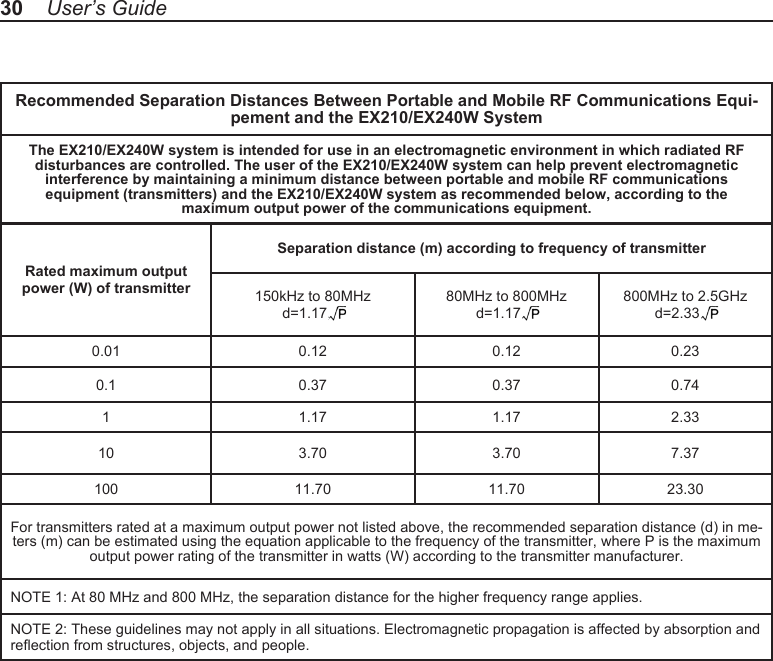
30    User’s GuideRecommended Separation Distances Between Portable and Mobile RF Communications Equi-pement and the EX210/EX240W SystemThe EX210/EX240W system is intended for use in an electromagnetic environment in which radiated RF disturbances are controlled. The user of the EX210/EX240W system can help prevent electromagnetic interference by maintaining a minimum distance between portable and mobile RF communications equipment (transmitters) and the EX210/EX240W system as recommended below, according to the maximum output power of the communications equipment.Rated maximum output power (W) of transmitterSeparation distance (m) according to frequency of transmitter150kHz to 80MHzd=1.17, p80MHz to 800MHzd=1.17, p800MHz to 2.5GHzd=2.33, p0.01 0.12 0.12 0.230.1 0.37 0.37 0.741 1.17 1.17 2.3310 3.70 3.70 7.37100 11.70 11.70 23.30For transmitters rated at a maximum output power not listed above, the recommended separation distance (d) in me-ters (m) can be estimated using the equation applicable to the frequency of the transmitter, where P is the maximum output power rating of the transmitter in watts (W) according to the transmitter manufacturer.NOTE 1: At 80 MHz and 800 MHz, the separation distance for the higher frequency range applies. NOTE 2: These guidelines may not apply in all situations. Electromagnetic propagation is affected by absorption and reflection from structures, objects, and people.
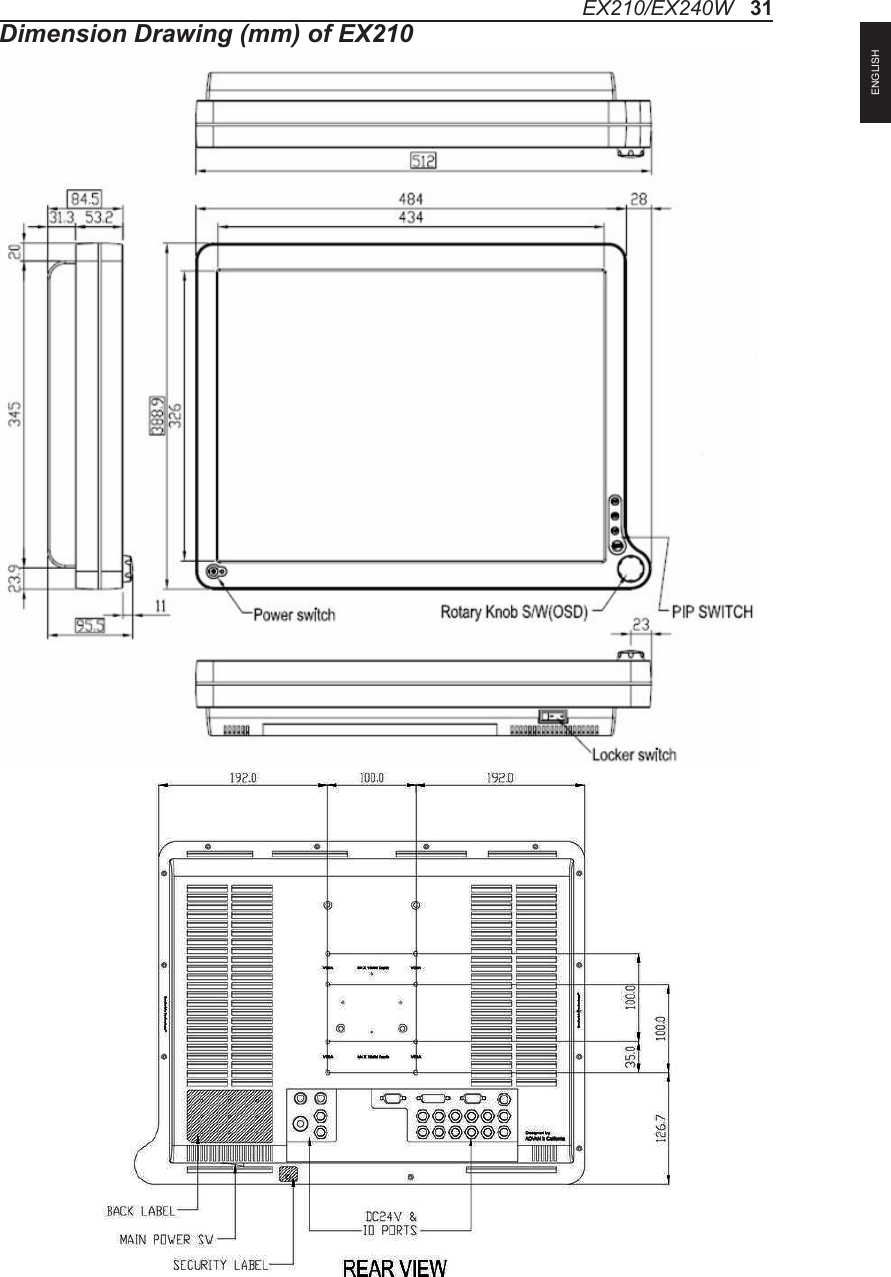
Dimension Drawing (mm) of EX210EX210/EX240W   31ENGLISH
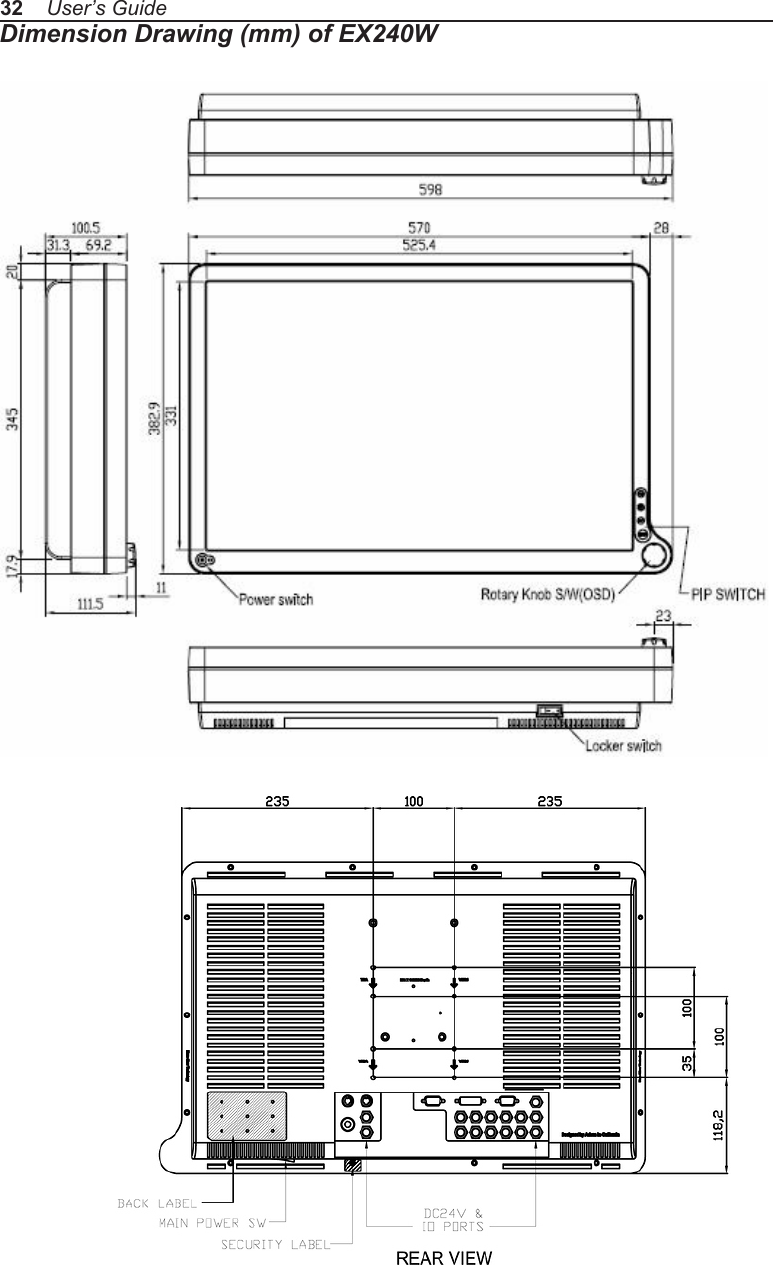
32    User’s GuideDimension Drawing (mm) of EX240W
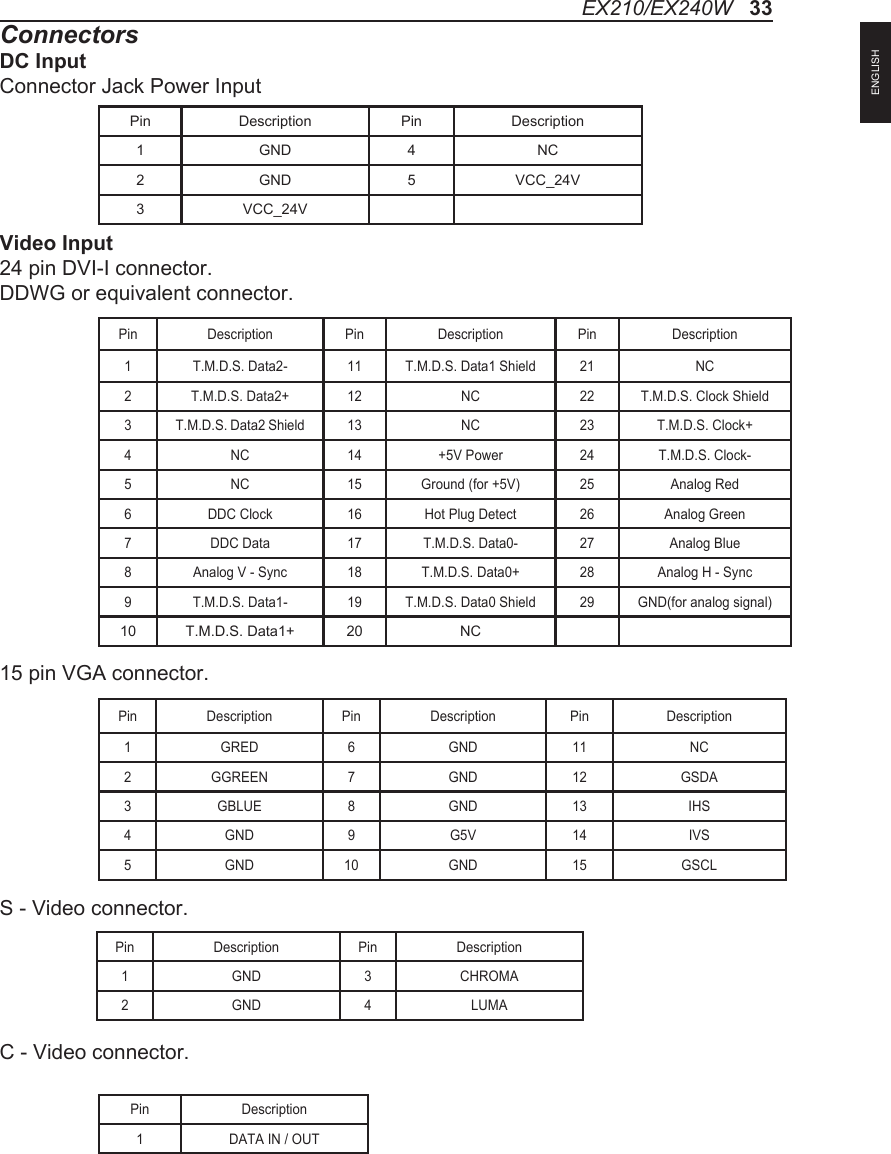
ConnectorsDC InputConnector Jack Power InputVideo Input24 pin DVI-I connector.DDWG or equivalent connector.Pin Description Pin Description Pin Description1 T.M.D.S. Data2- 11 T.M.D.S. Data1 Shield 21 NC2 T.M.D.S. Data2+ 12 NC 22 T.M.D.S. Clock Shield3 T.M.D.S. Data2 Shield 13 NC 23 T.M.D.S. Clock+4 NC 14 +5V Power 24 T.M.D.S. Clock-5 NC 15 Ground (for +5V) 25 Analog Red6 DDC Clock 16 Hot Plug Detect 26 Analog Green7 DDC Data 17 T.M.D.S. Data0- 27 Analog Blue8 Analog V - Sync 18 T.M.D.S. Data0+ 28 Analog H - Sync9 T.M.D.S. Data1- 19 T.M.D.S. Data0 Shield 29 GND(for analog signal)10 T.M.D.S. Data1+ 20 NC15 pin VGA connector.Pin Description Pin Description Pin Description1 GRED 6 GND 11 NC2 GGREEN 7 GND 12 GSDA3 GBLUE 8 GND 13 IHS4 GND 9 G5V 14 IVS5 GND 10 GND 15 GSCLS - Video connector.C - Video connector.Pin Description Pin Description1 GND 3 CHROMA2 GND 4 LUMAPin Description1 DATA IN / OUTPin Description Pin Description1 GND 4 NC2 GND 5 VCC_24V3 VCC_24VEX210/EX240W   33ENGLISH
                  Authorized Representative in Europe and Exclusive DistributorEIZO GmbH, Display TechnologiesSiemensallee 84,D-76187 Karlsruhe, GermanyTel: +49 721 20321 0Fax: +49 721 20321 474Web Page : http://www.eizo.eu正規代理店株式会社 ナナオ 〒924-8566 石川県白山市下柏野町153番地電話: 076-275-4121 Fax: 076-275-4125 Web サイト:http://www.radiforce.comExclusive DistributorEIZO NANAO TECHNOLOGIES INC.5710 Warland Drive, Cypress, CA 90630, USATel: 1-562-431-5011Fax:1-562-431-4811

Navigation menu